Tide Technology TIDE-RF250 2.4G Wireless Micro Keyboard with touchpad User Manual iTrivia Palmkey2
HongKong Tide Technology Co., Ltd. 2.4G Wireless Micro Keyboard with touchpad iTrivia Palmkey2
Users Manual
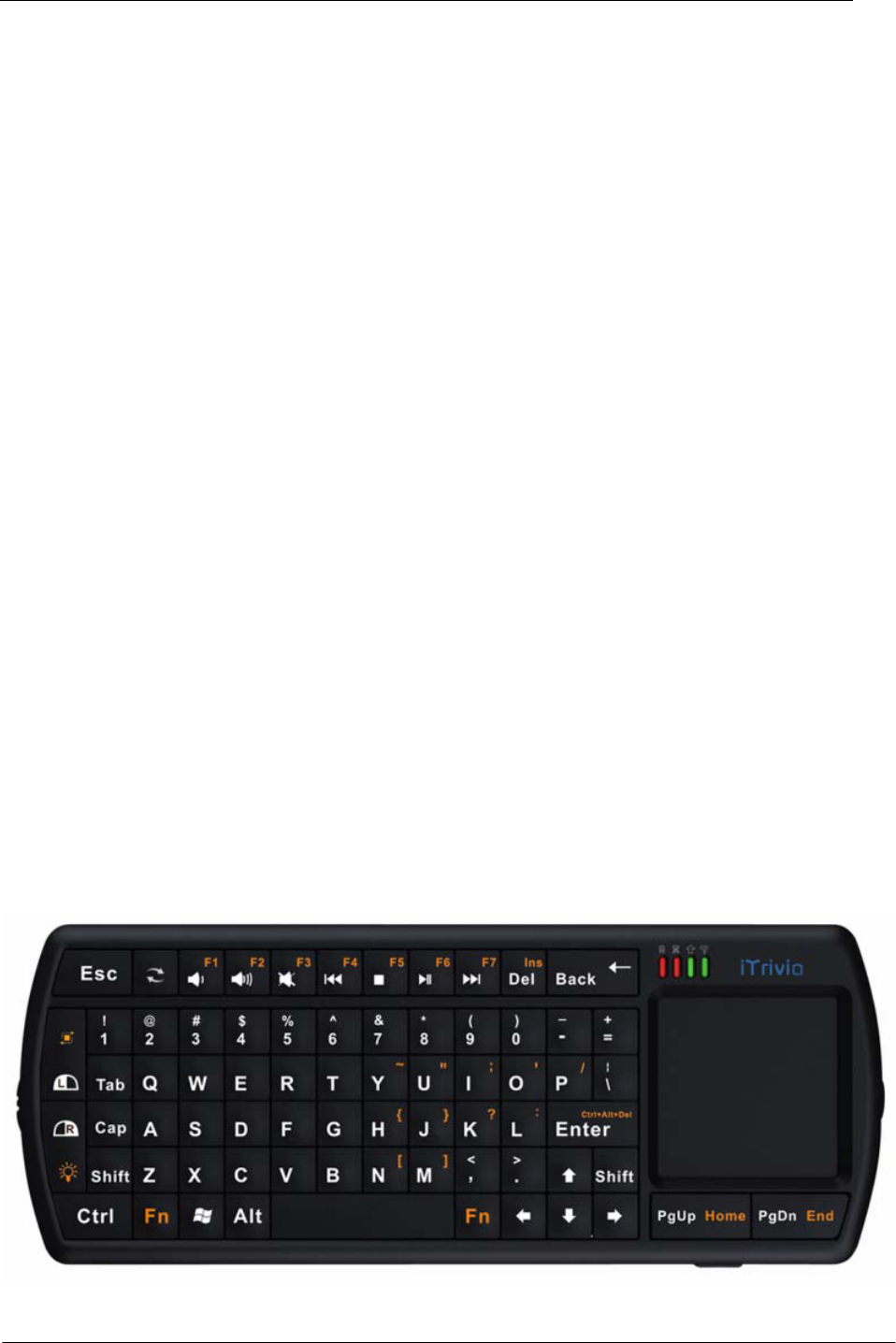
Micro Keyboard
User’s Manual
2.4G wireless Micro keyboard with integrated touchpad
1/11
Ver: 1.0

2/11
Ver: 1.0
Contents
1. WELCOME........................................................................................................................ 3
2. PRODUCT DESCRIPTION............................................................................................. 3
3. PRODUCT PACKAGE..................................................................................................... 3
4. OVERVIEW....................................................................................................................... 4
5. HARDWARE INSTALLATION....................................................................................... 5
5.1. Connecting your keyboard ............................................................................................... 5
5.2. Recharging battery............................................................................................................ 6
6. USING YOUR KEYBOARD ............................................................................................ 7
6.1. Function overview............................................................................................................ 7
6.2. LED indicator................................................................................................................... 7
6.3. Power On /Off .................................................................................................................. 8
6.4. Using “Fn” key................................................................................................................. 8
6.5. Using media control key................................................................................................... 8
6.6. Laser Pointer/flashlight function...................................................................................... 9
6.7. Backlight .......................................................................................................................... 9
6.8. Sleeping and waking up ................................................................................................... 9
7. TIPS AND TROUBLESHOOTING................................................................................. 9
8. IMPORTANT NOTES..................................................................................................... 10
8.1. FCC statement ................................................................................................................ 10
8.2. CE................................................................................................................................... 10
9. APPENDIX SPECIFICATION ...................................................................................... 10

3/11
Ver: 1.0
1. Welcome
Thank you for purchasing the Mini wireless Keyboard!
This document contains instruction for installing and using the Keyboard.
2. Product description
The keyboard takes total control of your PC entertainments from the palm of your hands.
Sit in sofa and enjoy movies and music, share photos, surf the web.
Convenient media controls make the perfect remote control for HTPC entertainment.
Backlight allows effortless text entry, even in low light.
Hi-grade Li-polymer battery recharge fast and last longer------up to one month between
charges.
While enjoying the movie in low light, the built-in flashlight will give you more convenience!
Style, comfort and portability, the keyboard will innovate your life.
3. Product package
The retail package contains:
Keyboard
User’s manual
Power USB2.0 Cable
USB 2.4G receiver
Dummy USB receiver
If any items are damaged or missing, please contact your vendor.
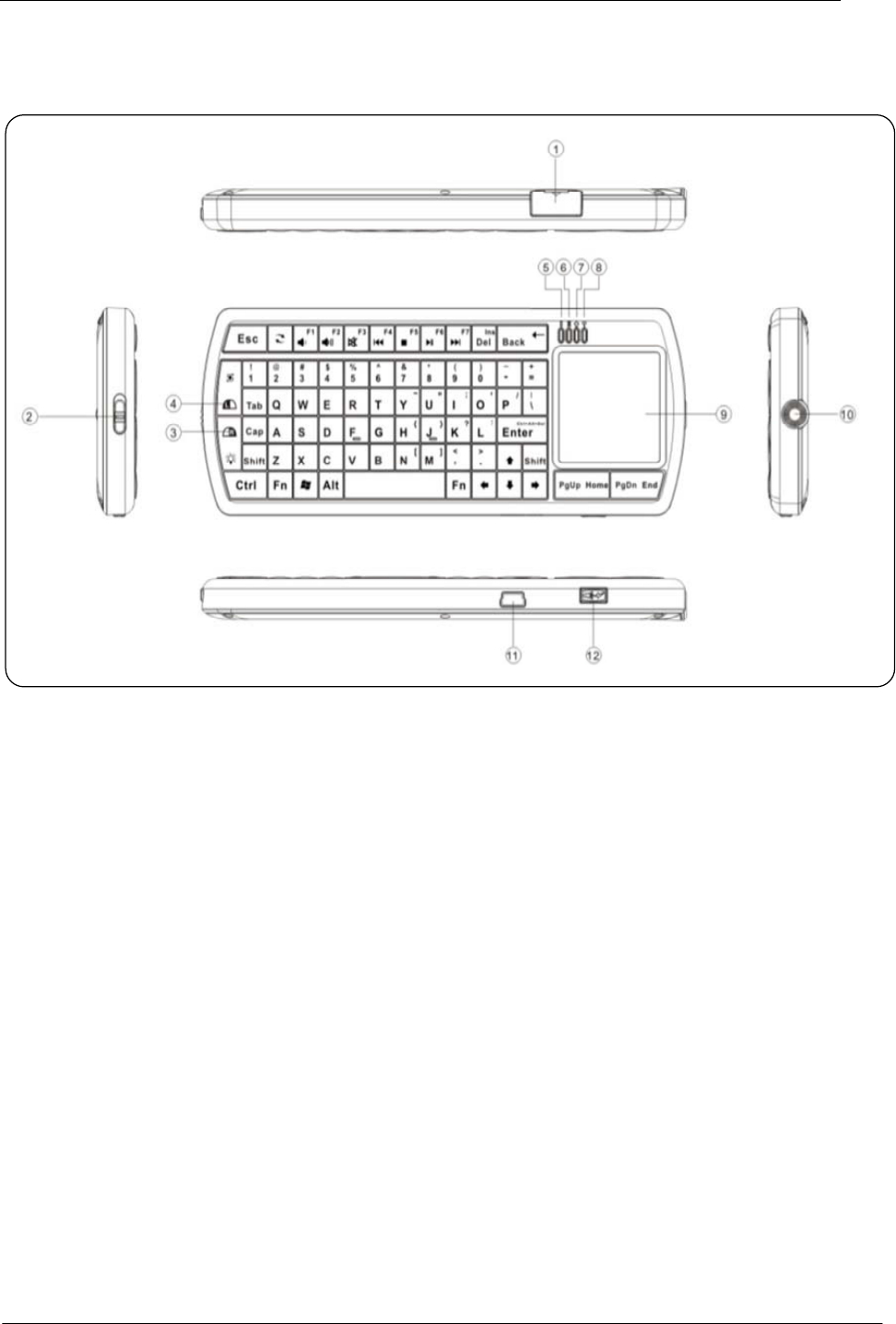
4. Overview
○
1RF receiver dongle
○
2Power Switch
○
3Mouse right key
○
4Mouse left key
○
5Charging indicator
○
6Battery low indicator
○
7Caps Lock indicator
○
8Wireless communication indicator
○
9touchpad
○
10 Flashlight/laser pointer
○
11 Charging mini USB port
○
12 Switch of flashlight/laser pointer
4/11
Ver: 1.0
5. Hardware Installation
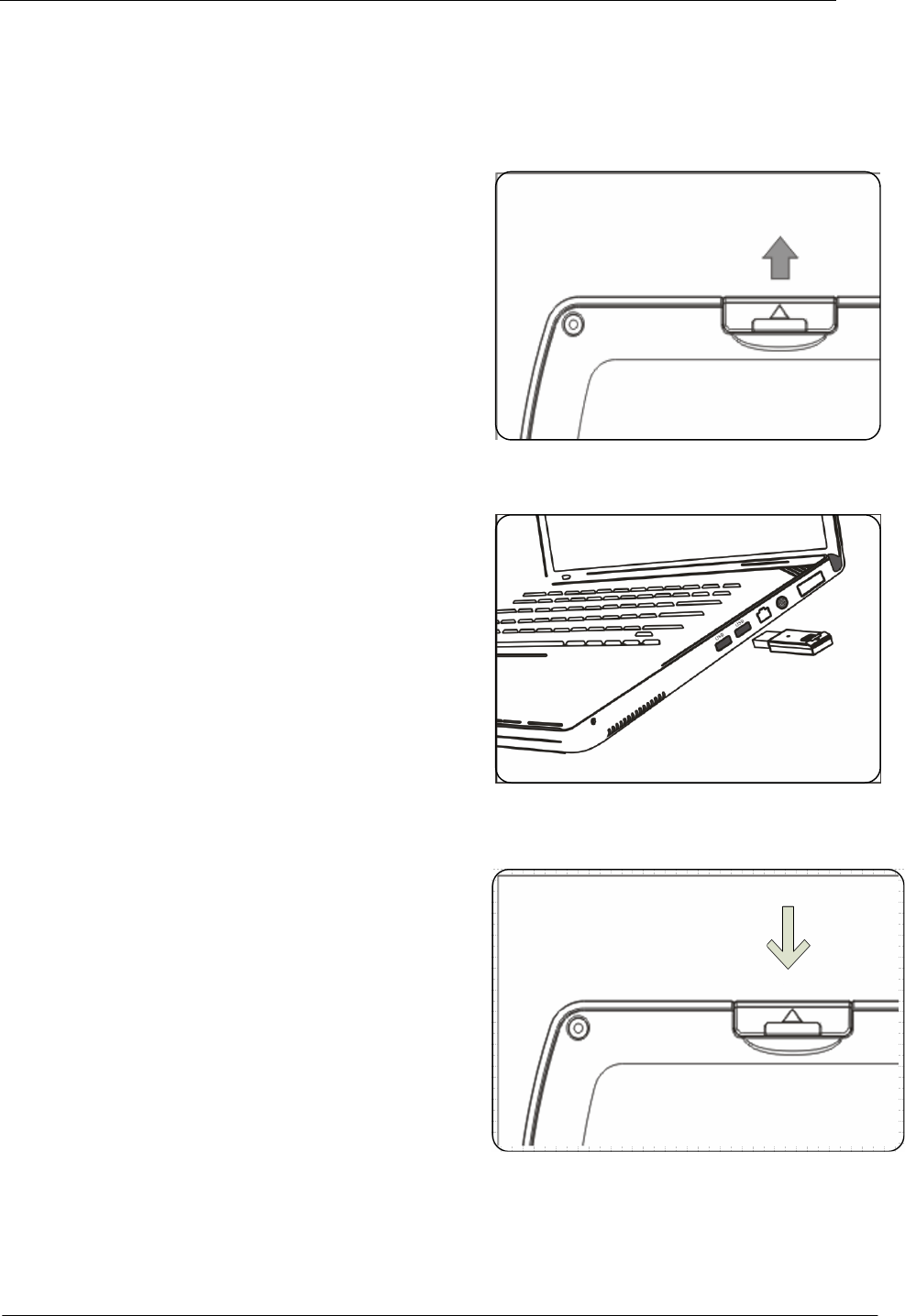
5.1. Connecting your keyboard
5.1.1. Take out the USB dongle.
Figure. 1
5.1.2. Connect RF dongle
Plug the dongle into a USB port on your computer.
Figure. 2
5.1.3. Put the dummy RF receiver into the compartment
inside the case.
Figure. 3
5/11
Ver: 1.0
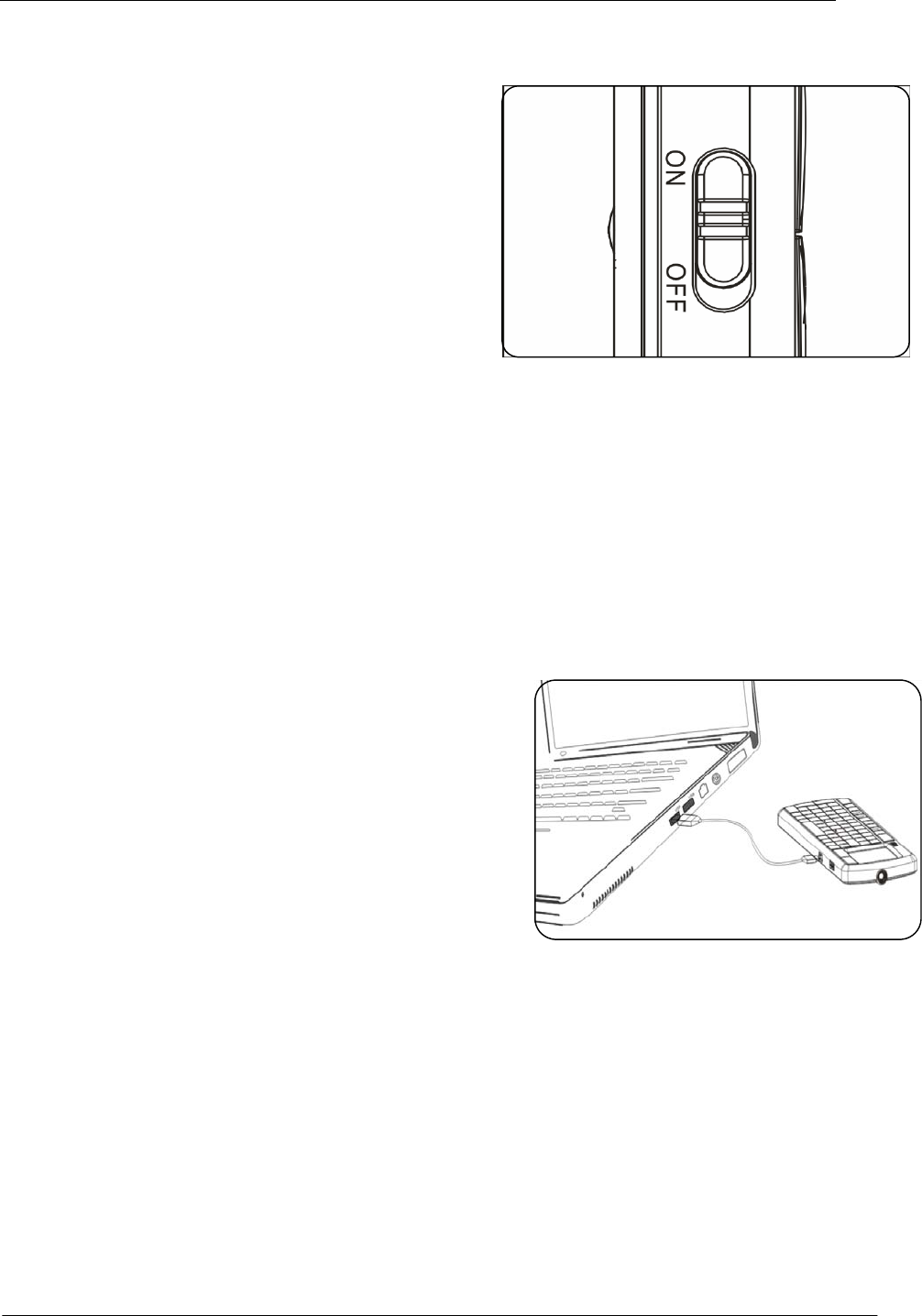
5.1.4. Move the power switch to ON.
Figure. 4
5.1.5. Congratulation
Congratulation! You have succeeded in installation the Keyboard, please enjoy your
entertainment from anywhere!
5.2. Recharging battery
The device with Hi-grade Li-polymer battery, please
use only approved data lines and chargers.
Plug the power USB cable into the power port on the
side of the Keyboard.
Plug the power USB cable into the USB port on the
side of PC to start charging the Hi-grade Li-polymer
battery.
The red LED will turn on indicating charging status.
A full charge is about four hours for up to one month
of use. A ten-minute charge provides about one day
of use.
When the charging is completed, the charging LED
will turn off, please pull out the charging cable from
AC power or computer, and then remove the charger
cable form keyboard.
Note: Before the first time use of the keyboard, the battery must be fully charged.
When the capacity of battery is low, the low-voltage LED will flicker to warning till the
battery exhausts.
Figure. 5
6/11
Ver: 1.0
6. Using your keyboard
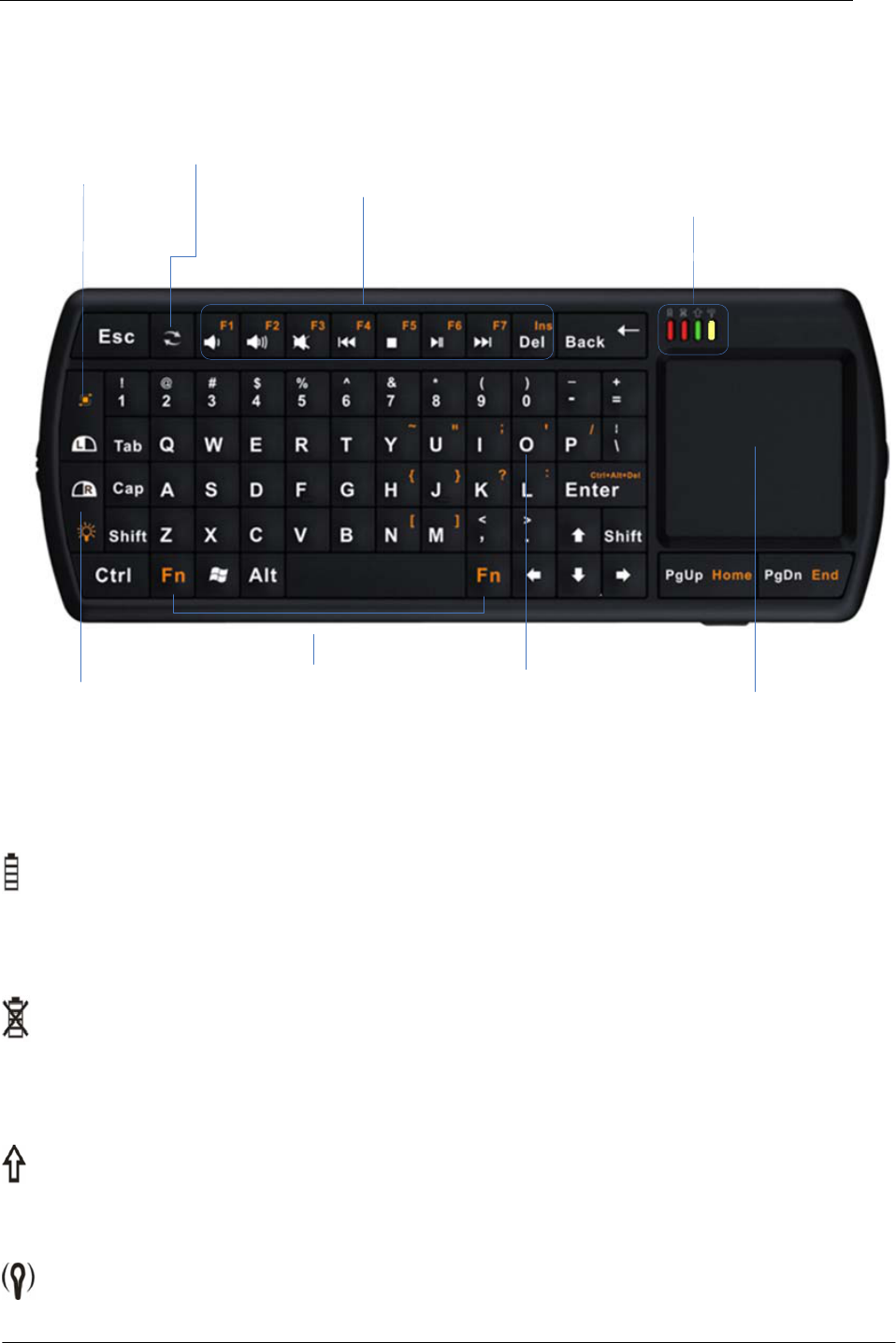
6.1. Function overview
Mouse left key
Convenient for left thumb
Mouse right key
Convenient for left thumb
Pair key
Touchpad
Charging indicator
Low power indicator
Caps Lock indicator
Bluetooth communication indication
Multimedia Control
Fn key
Hold down to enable
functions labeled in orange
Keypad
Press a letter key to select
names that begin with the letter
6.2. LED indicator
z Charging indicator
Red LED brights when charging get start, and the RED LED will turn off when the battery
is full charged.
z Battery low indicator
Red Led will glint when the battery in low voltage, means the battery need to be
recharged.
z Caps Lock indicator
When the LED is in green, it is in Capital status.
z Wireless communication indicator
7/11
Ver: 1.0
When turn on the device, the yellow LED will bright for 5 seconds.
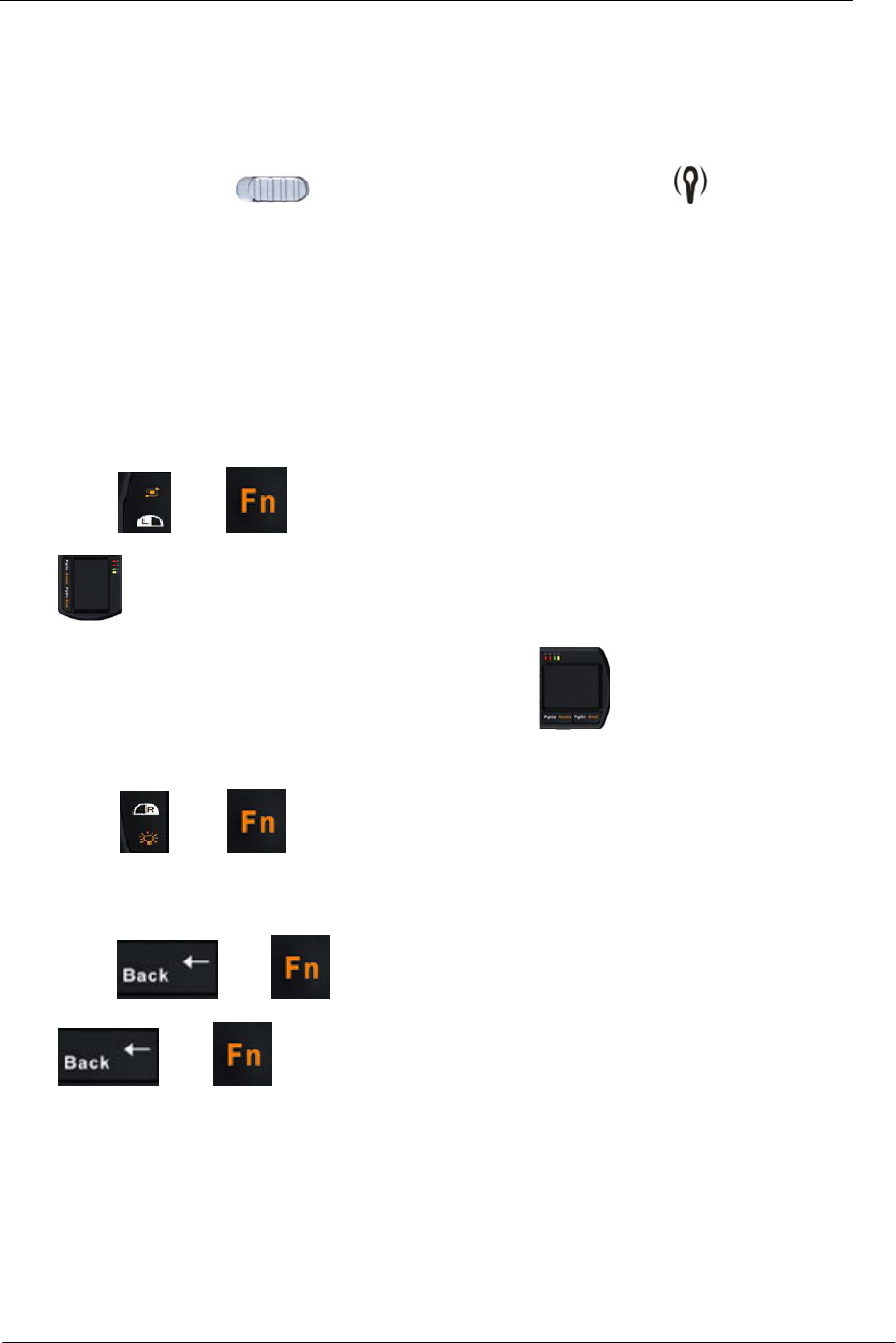
Press the pairing key, yellow LED glints, indicating the keyboard is in pairing status, yellow
LED turn off when successfully pairing.
6.3. Power On /Off
Push the power switch to the “ON” position, the yellow LED will bright for 5
seconds, the backlight will bright as well. When the yellow LED turn off, you can use the
key as a QWERTY keyboard, use the touchpad to control the cursor as a mouse. If you
don’t use the keyboard, please push the power switch to “OFF” position to save the energy.
6.4. Using “Fn” key
z Hold down the “Fn” key to enable the function labeled in orange.
z There are two special functional key on the mouse left and right key as below:
Press and , the direction of the touchpad will change to vertical as
, if you’re using the Keyboard as a presenter, it’s very useful for your operating
the keyboard with one hand, the original direction is .
Press and , Backlighting will turn on or off. Backlighting allows
effortless text entry, even in low light.
Press and , the speed of touchpad will be double than default, Press
and again, the speed of touchpad will be back to default.
6.5. Using media control key
The media control key provide you good feeling and convenience when you’re watching film
through PC, adjust the volume, speed and so on just stay in Sofa, no need leave your seat to go
to your PC.
8/11
Ver: 1.0
6.6. Laser Pointer/flashlight function
This device provide optional version of Laser pointer for presenter and flashlight function for
home use, the standard is with LED flashlight, if in dark environment, you can use the LED
flashlight to get light. And if you want to use this device as a presenter, you can choose laser
pointer before buy from the vendor.
6.7. Backlight
The device is with backlight, backlighting makes comfortable in typing, even in low light.
There’re two ways to control the backlit – by software and by manual control mode.
When the connection is successful, backlight auto turn on, and will auto turn off after 5
seconds to save power and increase battery life. If you want to turn on the backlight, just need
to press “Fn”+ “right mouse key”
6.8. Sleeping and waking up
If you don’t operate the keyboard for one minute, the keyboard would go to sleep mode for
saving power, after thirty minutes, the keyboard would go to deep sleep mode for more saving
power, please press any key to wake up the keyboard except touchpad.
6.9. Pairing
The keyboard and dongle packed in the keyboard is paired completely in factory. The
technology ensures different users use the keyboard on the same time and at the same place,
however, if in special circumstances, the interference situation happened, you can change
channels to avoid interference according to the following operation:
Press the PAIR/CONNECT key for 2S, the communication indicator will blink
on 2S and off 1S, indicating the keyboard enter pairing status, if the dongle and keyboard
match successfully, the yellow LED will turn off, you can use the keyboard and touchpad.
7. Tips and troubleshooting
If there’s a problem should occur, you can quickly solve it following one of the way showed
as below:
z Restart your computer or console
z Plug the USB mini-receiver into a different USB port.
z Restart your keyboard
z Recharge the keyboard
z Press the connect button for 2S to pair again.
9/11
Ver: 1.0

8. Important Notes
8.1.
FCC statement
This equipment has been tested and found to comply with the limits for a Class B digital
device, pursuant to Part 15 of the FCC Rules, These limits are designed to provide reasonable
protection against harmful interference in a residential installation. This equipment generates,
uses, and can radiate radio frequency energy and, if not installed and used in accordance with
the instructions, may cause harmful interference to radio communications. However, there is
no guarantee that interference will not occur in a particular installation. If this equipment does
cause harmful interference to radio or television reception, which can be determined by
turning the equipment off and on, the user is encouraged to try to correct the interference by
one or more of the following measures:
z
Reorient or relocate the receiving antenna.
z
Increase the separation between the equipment and receiver.
z
Connect the equipment into an outlet on a circuit different from that to which the receiver
is connected.
z
Consult and authorized dealer or service representative for help.
RF warning statement:
The device has been evaluated to meet general RF exposure requirement. The device can be
used in portable exposure condition without restriction.
8.2. CE
Europe – EU Declaration of Conformity for RF 2.4G wireless keyboard with integrated
touchpad
Products intended for sale within the European Union are marked with the CE Marking,
which indicates compliance with the applicable Directives and European Norms, and
amendments, identified below.
Hereby, Hong Kong Tide technology Co., Ltd, declares that this RF 2.4G wireless keyboard is
in compliance with the essential requirements and other relevant provisions of Directive
1999/5/EC.
9. Appendix Specification
z Backlit keys
Backlighting lets you see what you’re typing—even in low light.
z Touch Pad
Dimension: 31*31 mm
Resolution: 400 DPI
The touch pad can be used to point and click.
90 degree rotated, you can use the touch pad vertically or horizontal.
10/11
Ver: 1.0
the user's authority to operate the equipment.
Changes or modifications not expressly approved by the party responsible for compliance could void

11/11
Ver: 1.0
z Laser Pointer/flashlight function
This device provide optional version of Laser pointer for presenter and flashlight function for
home use, the standard is with LED flashlight.
While enjoying the movie in low light, the built-in flashlight will give you more convenience!
When you're giving a lecture, the built-in laser pointer helps you easy to point the content on
the projector
z Dimensions and Weight
Keyboard dimension: 155mm x 61mm x 12mm
Net weight: 102g (included wireless receiver)
Color box dimension:103*192*53mm
Gross weight: 280g
z Connectivity
RF 2.4G wireless technology
Point-to-point technology pre-paired with keyboard. (Does not act as a hub.)
As far as 10 meters control distance
z Power and Battery
30 days (battery standby time)
Full-charge: Takes about 4 hours.
Fast-charge: Takes about 10 minutes for 1 day of use
850 mAH lithium polymer battery
Power consumption (without backlit) : <10mA
Standby power consumption: <1.5mA
z Technical Specifications
Control your PC entertainment from the palm of your hands!
Palm-sized dimensions
Nano dongle
Rechargeable hi-grade Li-polymer battery
Backlit keys for typing in the dark
71 back lighted keys
Easy access of multi-media functions
Integrated Touch Pad for accurate cursor control
Support Windows, Mac and Linux based laptops, PC's, tablets and notebooks