Toplink Technology Development TOPLGS0304 WIRELESS TRANSMITTER User Manual
Shenzhen Toplink Technology Development CO.,LTD WIRELESS TRANSMITTER
User Manual
User
’
s Manual
Version 1.1
(For REALTEK chipset)
802.11b/g/n 150Mbps
USB WLAN ADAPTER

User
’
sManual WLAN USB Adapter
Index
1. Introduction......................................................................................................................................................... ..1
2. Package Contents............................................................................................................................................. .. 1
3. Warranty............................................................................................................................................................ ... 2
4. Install the Driver and Utility................................................................................................................................ .. 2
5. Connect to Wireless Access Point (AP)........................................................................................................... .. 3
5.1. Use Windows Zero Configuration (For Windows XP)....................................................................... ... 3
5.2. Connect to AP under Windows 7.......................................................................................................... .. 4
5.3. Use the Wireless Configuration Utility.................................................................................................. ...6
5.3.1. Utility Overview............................................................................................................................ .. 6
5.3.1.1. General tab......................................................................................................................... .7
5.3.1.2. Available Network tab....................................................................................................... .8
5.3.1.3. Profile tab......................................................................................................................... ..10
5.3.1.4. Status tab........................................................................................................................ .10
5.3.1.5 Statistics tab...................................................................................................................... .11
5.3.1.6 WiFi Protect Setup (WPS) tab........................................................................................ .11
5.3.2. Software AP............................................................................................................................... ... 12
5.3.2.1 General tab..................................................................................................................... ...12
5.3.2.2 Soft_AP Advanced tab.................................................................................................... .. 13
5.3.2.3 Soft_AP Statistics tab.................................................................................................... ... 14
5.3.2.4 Soft_AP ICS tab................................................................................................................ .14
6. Tips for Wi-Fi users........................................................................................................................................... .15
7. Warning............................................................................................................................................................ .. 15
8. Security............................................................................................................................................................ ... 16
9. Key terms......................................................................................................................................................... .. 16
10. Specifications (Typical).................................................................................................................................. .16
11 Disclaimer.......................................................................................................................................................... .17

User
’
sManual WLAN USB Adapter
This device complies with part 15 of the FCC Rules. Operation is subject to the following
two conditions: (1) This device may not cause harmful interference, and (2) this device
must accept any interference received, including interference that may cause undesired
operation.
Changes or modifications not expressly approved by the party responsible for compliance
could void the user's authority to operate the equipment.
NOTE: This equipment has been tested and found to comply with the limits for a Class B
digital device, pursuant to Part 15 of the FCC Rules. These limits are designed to provide
reasonable protection against harmful interference in a residential installation. This
equipment generates and can radiate radio frequency energy and, if not installed and used in
accordance with the instructions, may cause harmful interference to radio
communications. However, there is no guarantee that interference will not occur in a
particular installation. If this equipment does cause harmful interference to radio reception,
which can be determined by turning the equipment off and on, the user is encouraged to try to
correct the interference by one or more of the following measures:
Reorient or relocate the receiving antenna.
Increase the separation between the equipment and receiver.
Connect the equipment into an outlet on a circuit different from that to which the
receiver is connected.
Consult the dealer or an experienced radio technician for help.
User
’
sManual WLAN USB Adapter
1. Introduction
Thank you for purchasing the IEEE 802.11b/g/n Wireless USB Adapter. This wireless Adapter
is easy to use and easy to setup. If you have been tired of dealing with all those messy wires to
connect a laptop or PC to office or home network, this Wireless adapter is an ideal access
solution for wireless Internet connection.
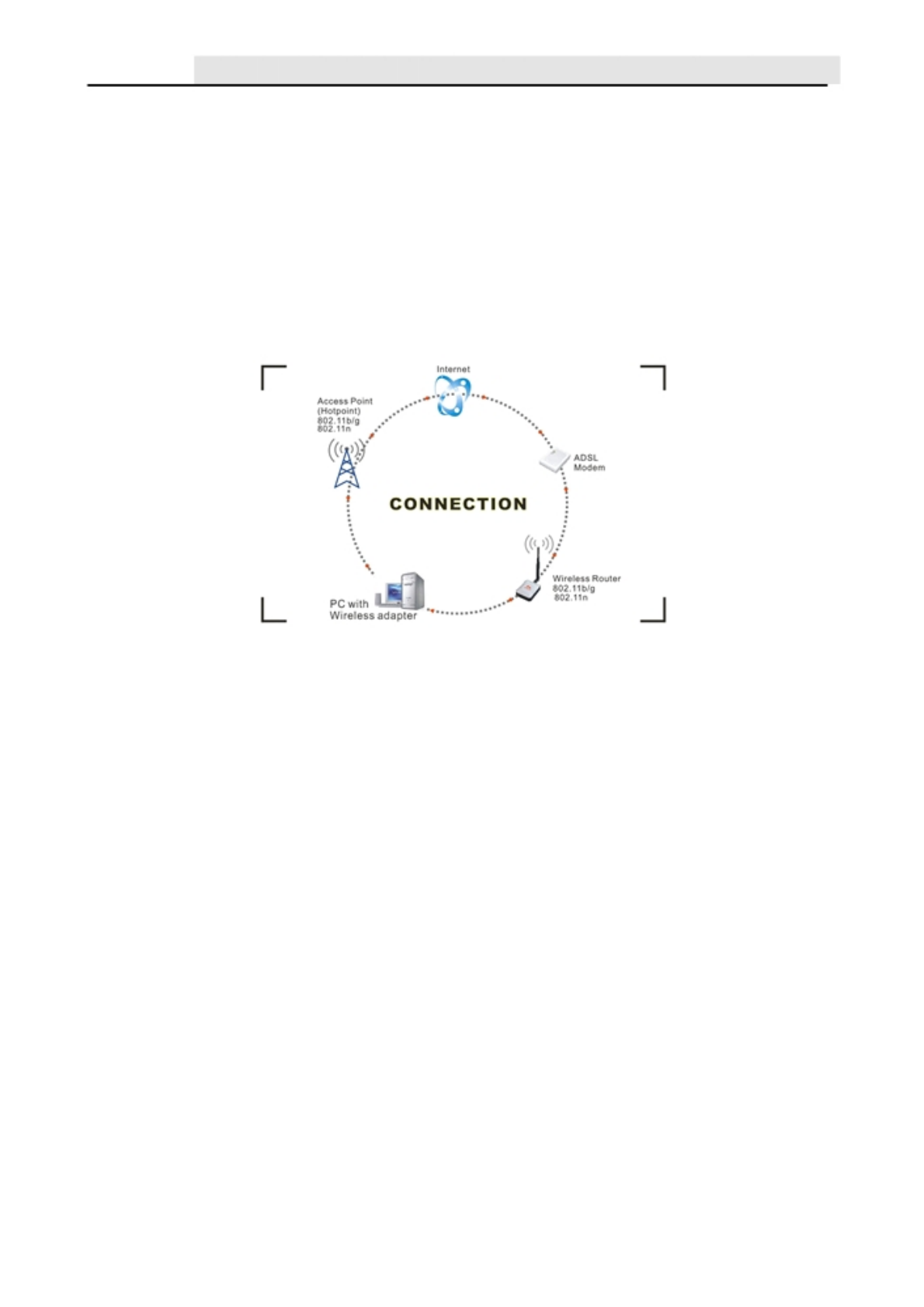
A typical Internet access application for the USB wireless adapter is shown as the
following figure:
There are two different ways to access Internet:
1. With a wireless adapter, receiving and transferring signal via a wireless router, then
passed to an ADSL modem, then to local ISP (Internet service supplier) through a
telephone line.
2. With a wireless adapter, receiving and transferring signal via local AP (Access Point) or so
called Hotpoint directly.
Tips: An 802.11 LAN is based on a cellular architecture where the system is subdivided into
cells, where each cell (called Basic Service Set or BSS) is controlled by a Base Station (called
Access Point, or in short AP).
The WLAN ( Wireless Local Area Network) normally means the WiFi local network.
2. Package Contents
One 150Mbps 1T1R 802.11n USB Wireless Adapter. Adapter Installation disc.
User’s Manual.
Antenna (optional for some models)
1
User
’
sManual WLAN USB Adapter
3. W
arranty
The warrants for the end user (“Customer”) that this hardware product will be free from
defects in workmanship and materials, under normal use and service, for twelve (12)
months from the date of purchase from its authorized reseller. Information in this document is
subject to change without prior notice.
4. Install the Driver and Utility
Before you proceed with the installation, please notice following descriptions.
Note1: The following installation was operated under Windows XP
(Procedures are similar for Windows Vista/ 7).
Note2: If you have installed the WLAN Adapter driver & utility before, please uninstall
the old version first.
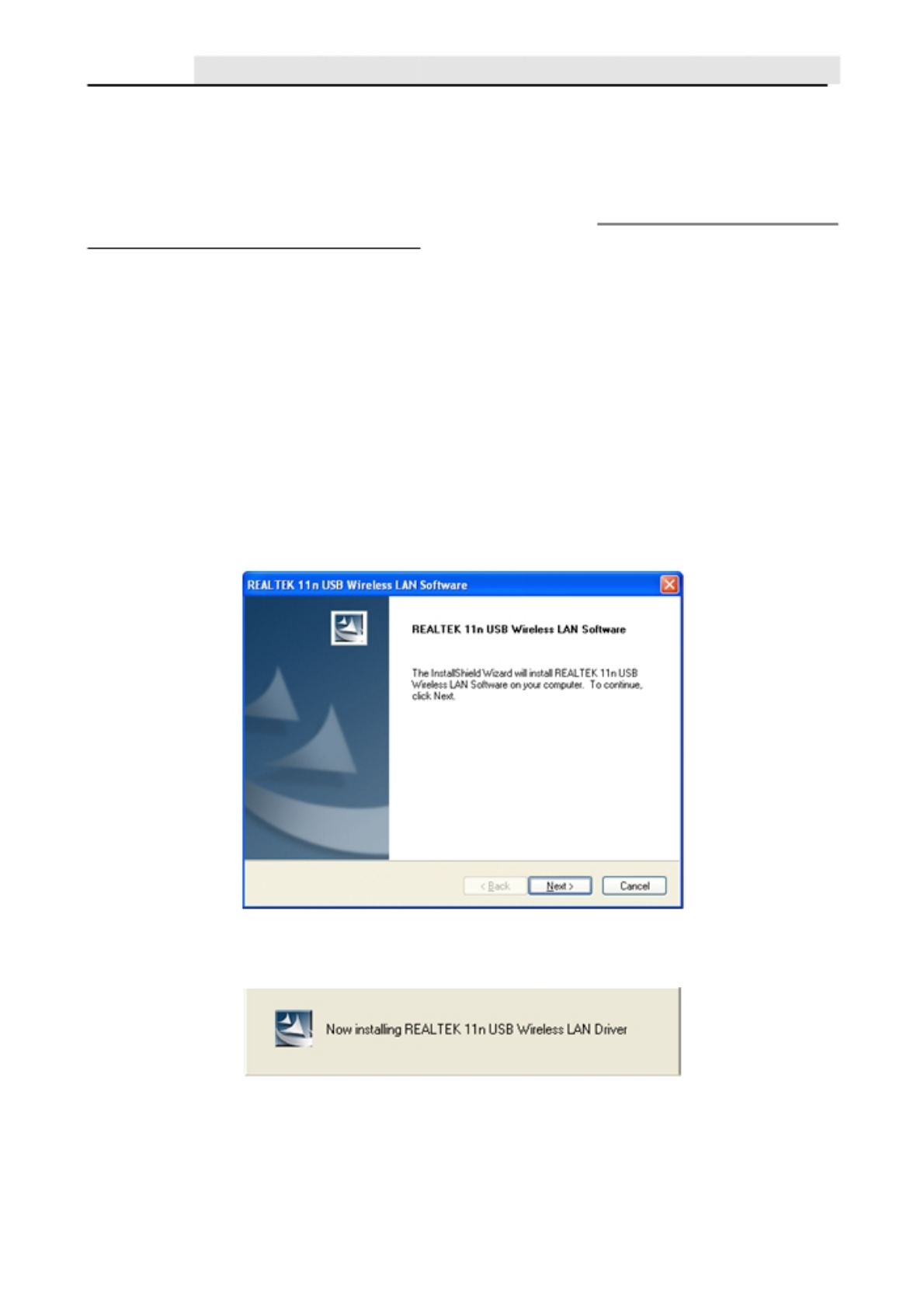
A. Insert the Installation CD to your CD-ROM Drive. Execute the “Setup.exe” program.
It is shown as follows.
B.. Click “Next” to go to the next step.
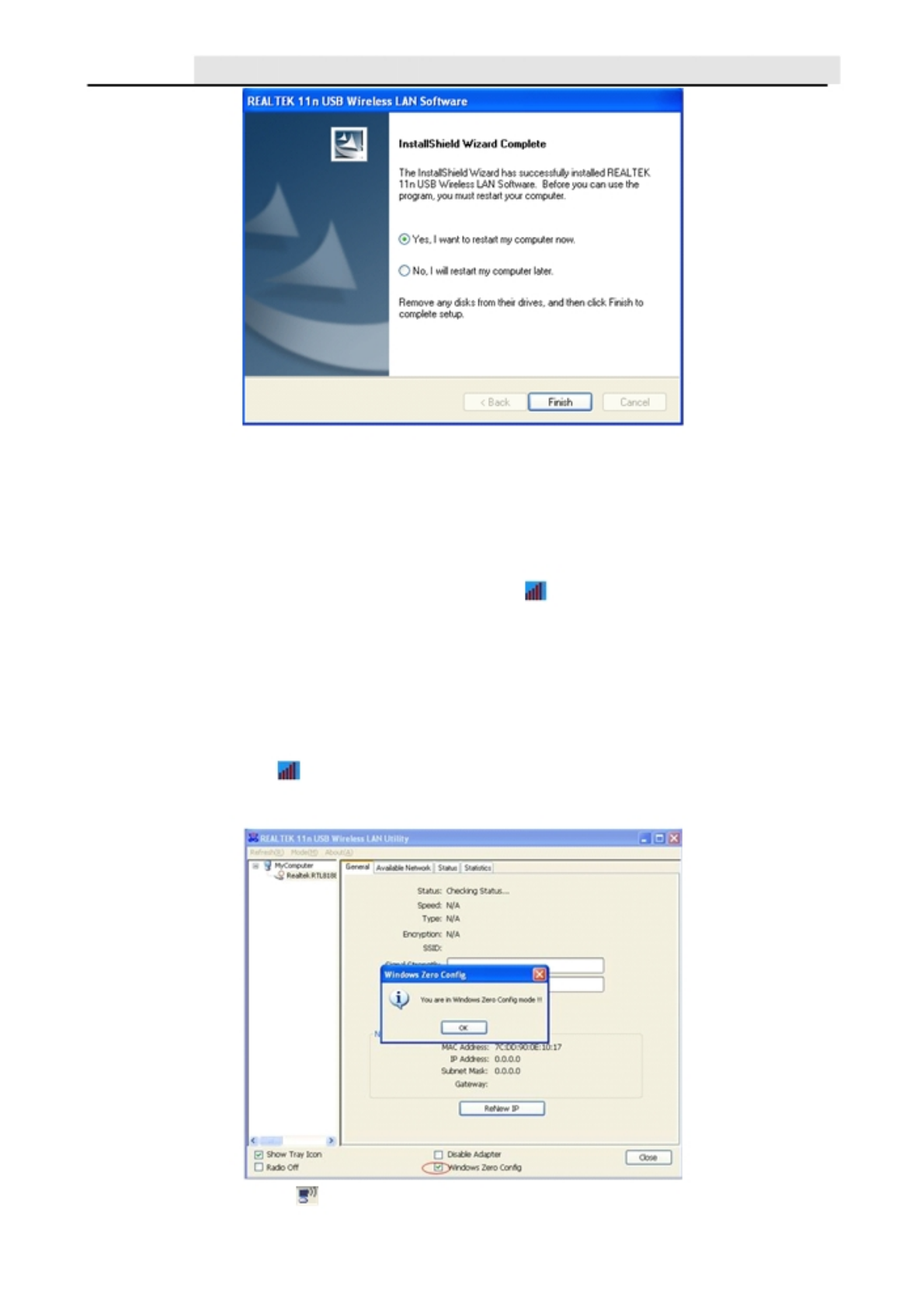
C. Click “Finish” to complete the software installation.
2
User
’
sManual WLAN USB Adapter
5. Connect to Wireless Access Point (AP)
After installation is completed, a wireless configurationutilitywillalsobeshownonthedesktop
automatically.
Insert the WLAN adapter into an USB port, an icon should be shown in the lower right
corner of your computer screen. The following procedures show how to do some settings to
connect a preferred network (to AP by its SSID).
5.1. Use Windows Zero Configuration (For Windows XP)
A. Left click the icon
in the bottom-right corner so that the configuration utility can be
launched .Select "Windows Zero Config", and then pops up a prompt dialog box.
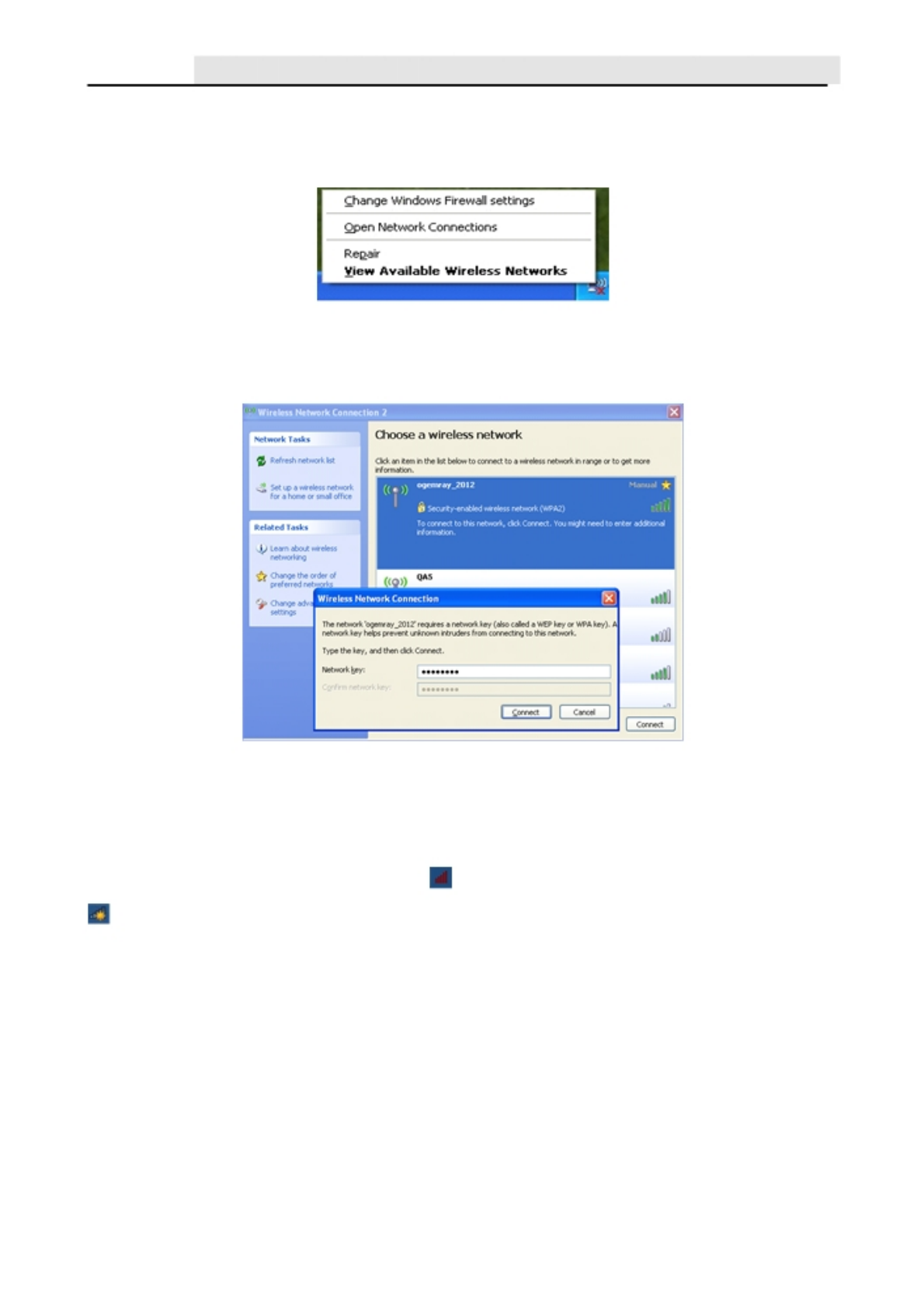
B. Right click the icon
(Wireless Network Connection) at the bottom-right corner on
3
User
’
sManual WLAN USB Adapter
your screen and then select “View Available Wireless Networks”. Awindow pops up, and it
lists all available network nearby your location. If you can’t find a wanted network (by the
SSID of the AP), please click the "Refresh network list" in the upper-left corner to see if it
can be listed.
C. Double-click the wanted network (by it SSID), input the right Network key to the network
and then click "Connect". After a while, you should be notified that your PC is wirelessly
connected to the network.
5.2. Connect to AP under Windows 7
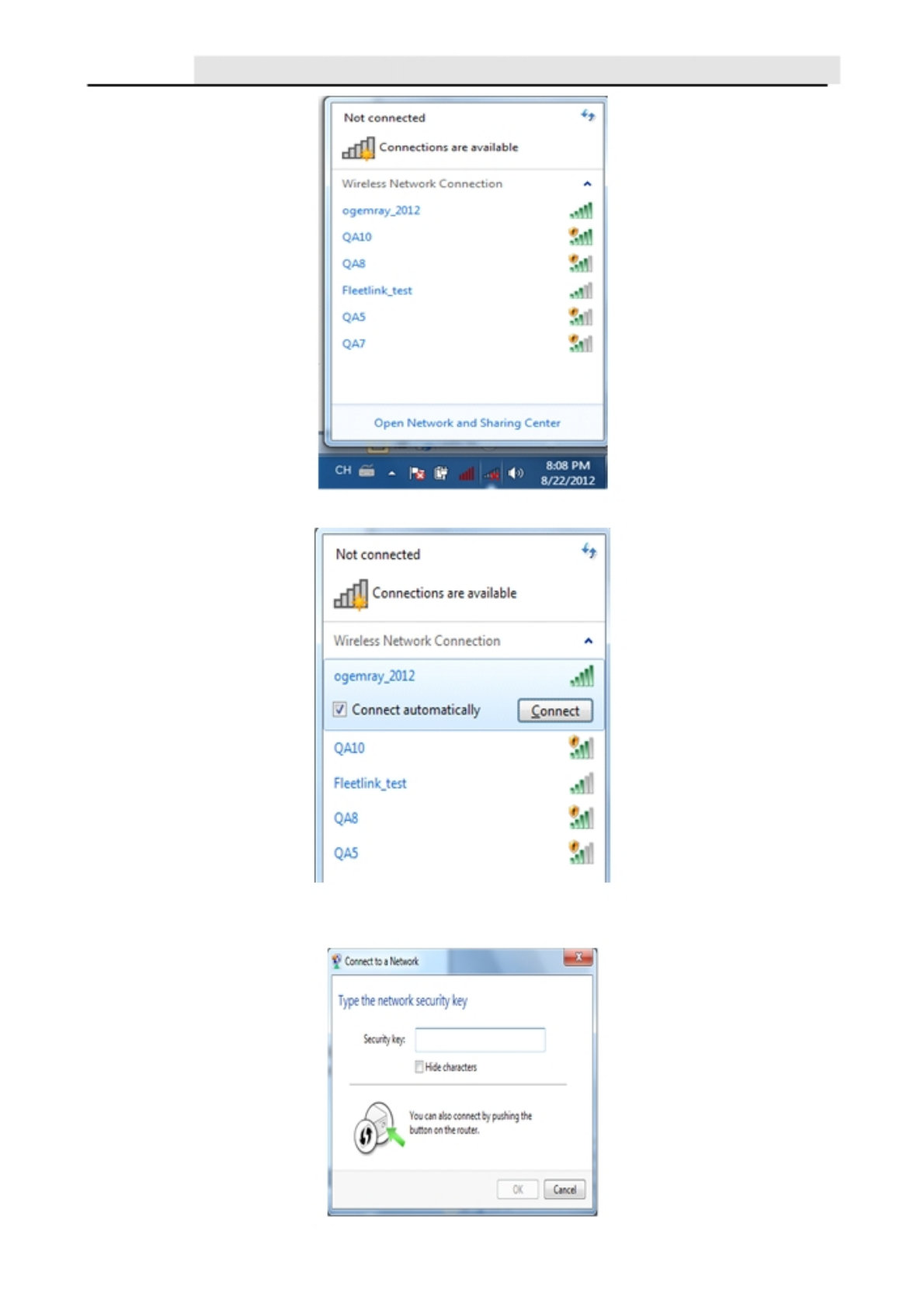
A. After the driver is installed, the icon of system tray appears, and left-click the icon
, it should survey and list all the available networks nearby, the list looks like:
4
User
’
sManual WLAN USB Adapter
B. Click the preferred network by its SSID, then click “Connect”.
C. If the network is encryption protected, you have to input its Security key here, and then click
“OK” to connect to the network.
5
User
’
sManual WLAN USB Adapter
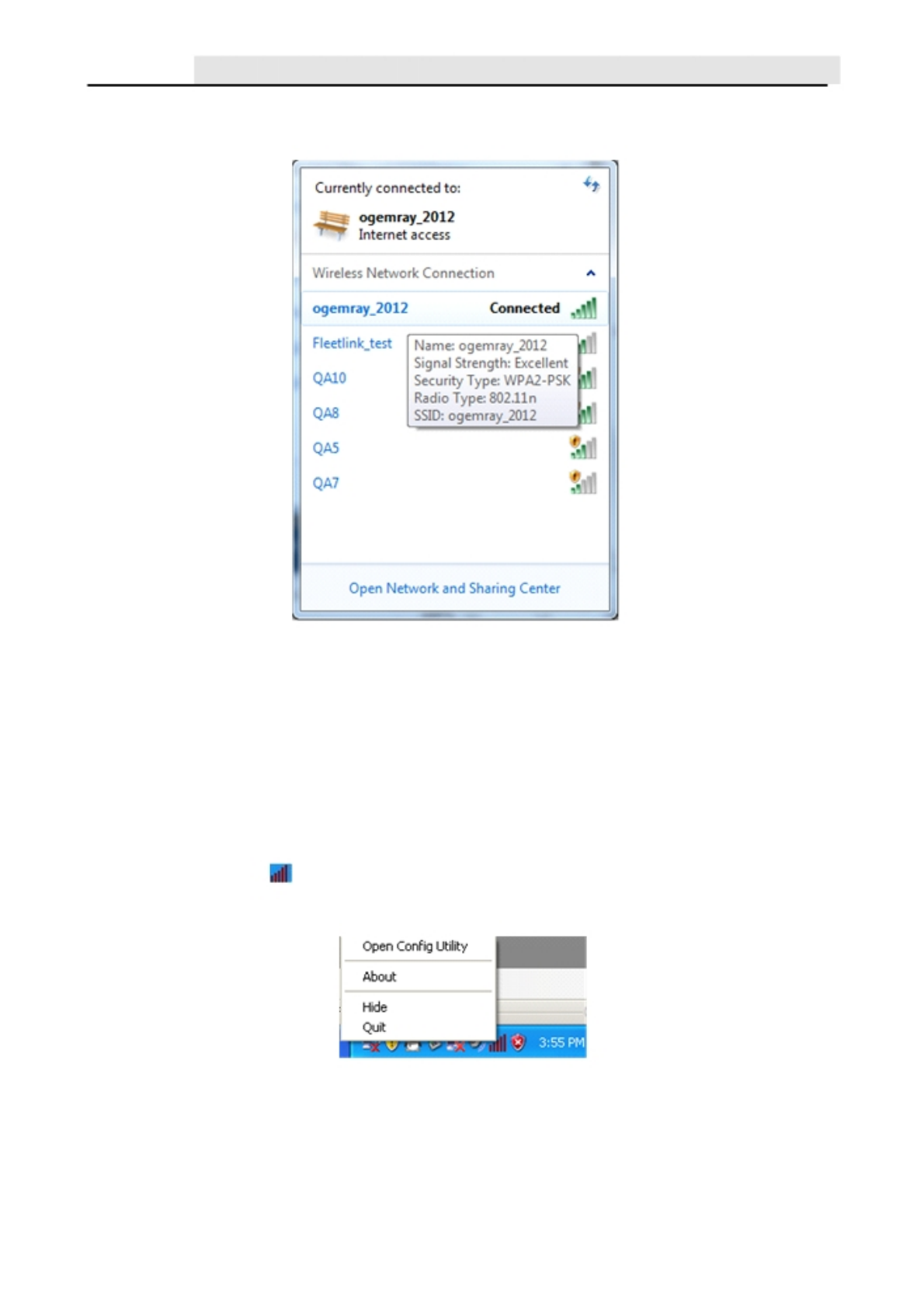
D. After a while, the system should show the connection information. The “Connected”
means the network is accessible now.
5.3. Use the Wireless Configuration Utility
5.3.1. Utility Overview
The Configuration Utility is a powerful application that helps you to configure the WLAN
Adapter, monitor the link status and the data statistics.
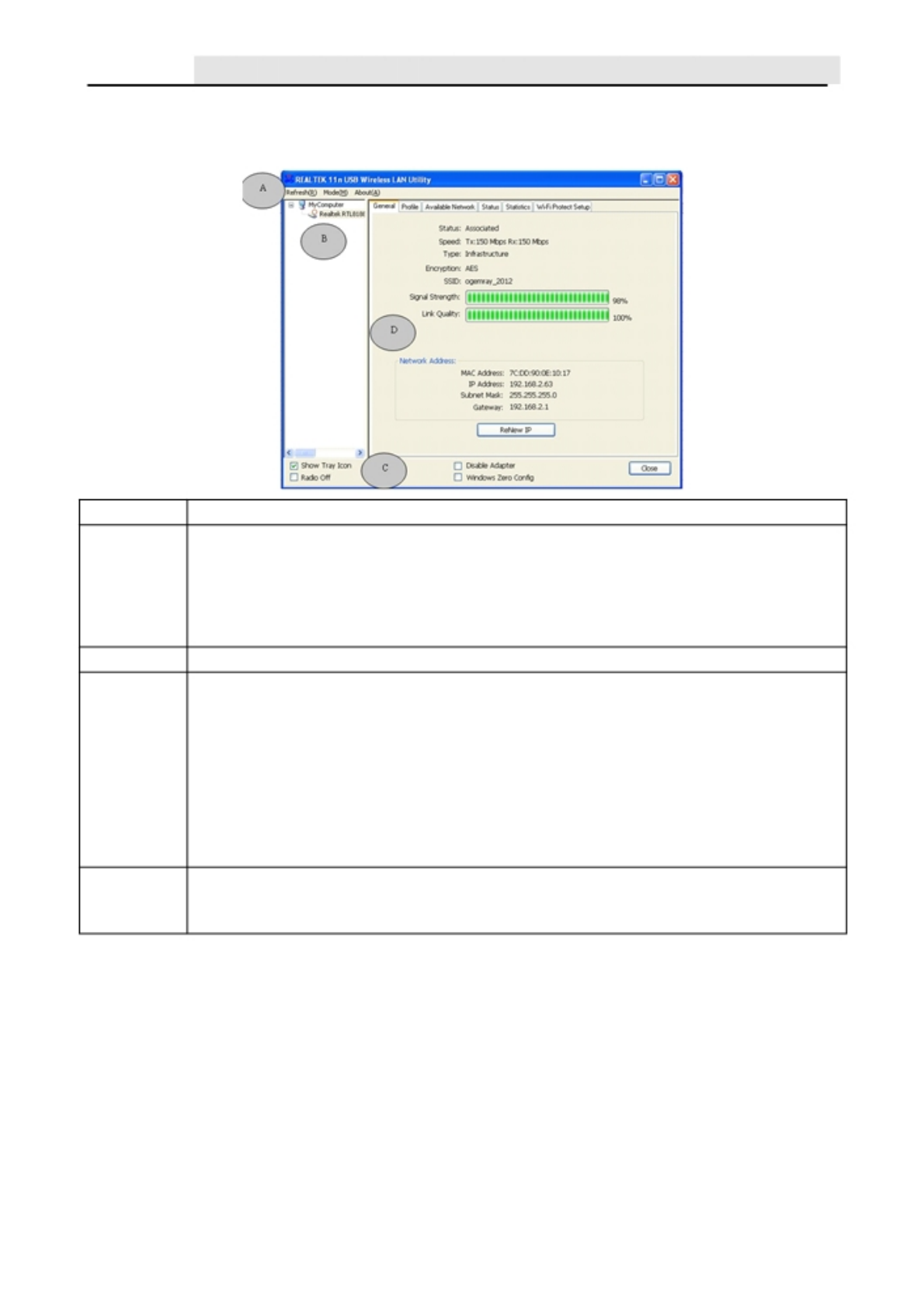
Right click the icon in the system tray, there are some items for you to operate the
configuration utility.
Open Config Utility :Open the configuration utility.
About : show the utility information.
Hide: Hide the utility in the system tray.
Quit: Quit the utility in the system tray.
6
User
’
sManual WLAN USB Adapter
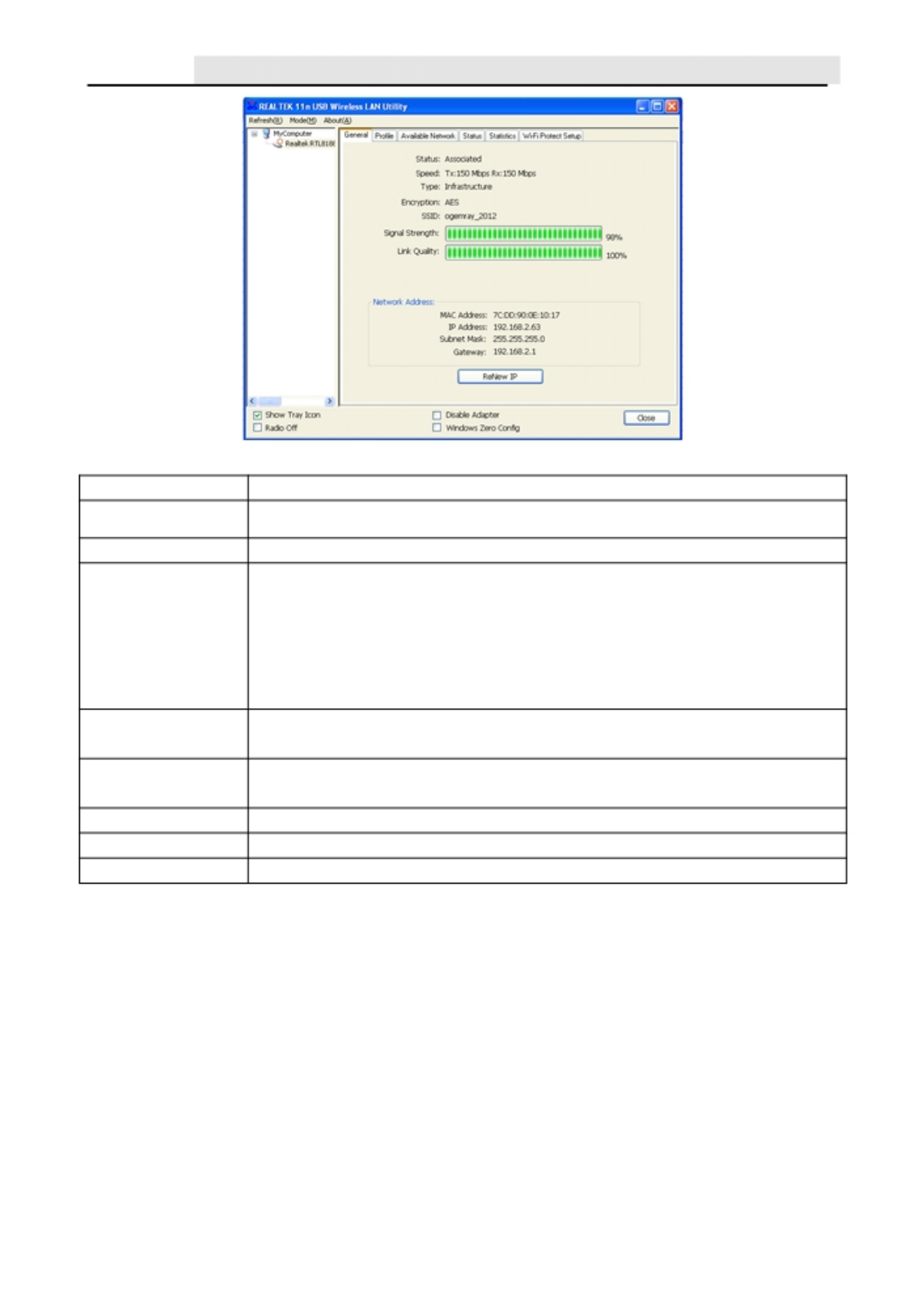
There are several parts in the utility window. Please refer to the following description table for
more information.
Section Description
Refresh - Refresh adapter list in the “B” block.
Mode - There are two modes: Station and Access Point. If “Station” is A
selected, the adapter works as a wireless adapter. If “Access Point” is
selected, the adapter will works as a wireless AP.
About - To check the version of the utility, select this item.
B This is a list for you to configure several adapters in your PC from the utility.
Show Tray Icon - To show the icon in the system tray, select the item.
Disable Adapter -This function is for you to disable or enable the adapter.
Windows Zero Config - To configure the adapter from Windows Zero
CConfiguration, check the item.
Notes: For Windows 7, it shows “Virtual WiFi allowed” rather than “Windows
Zero Config”.
Radio Off - This function is for you to turn off or turn on the radio of the
adapter. If the radio is turned off, the adapter will not work.
There are several tabs for you to setup the function of the adapter. Please
Drefe
r
to the descri
p
tion in the followin
g
sections.
5.3.1.1. General tab
Select “General” tab to check the connection status of the adapter. This screen shows the
information of Link Speed, Network Type, Encryption Method, SSID, Signal Strength, Link
Quality and Network Address of the adapter.
7
User
’
sManual WLAN USB Adapter
Parameter Description
Status It will show the connection status of the adapter.
Speed It shows the current connected data rate.
Infrastructure - This operation mode requires the presence of an
802.11 Access Point. All communication is done via the Access Point
Type or Router.
IBSS - Select this mode if you want to connect to other wireless
stations in the Wireless LAN network without through an Access Point or
Router.
Encryption It displays the encryption setting of the current connection including
None, WEP, TKIP or AES.
SSID The SSID (up to 32 printable ASCII characters) is the unique name to
identify an AP.
Signal Strength It indicates the wireless signal strength.
Link Quality It indicates the wireless link quality.
Network Address It shows the MAC, IP address and other information of the adapter.
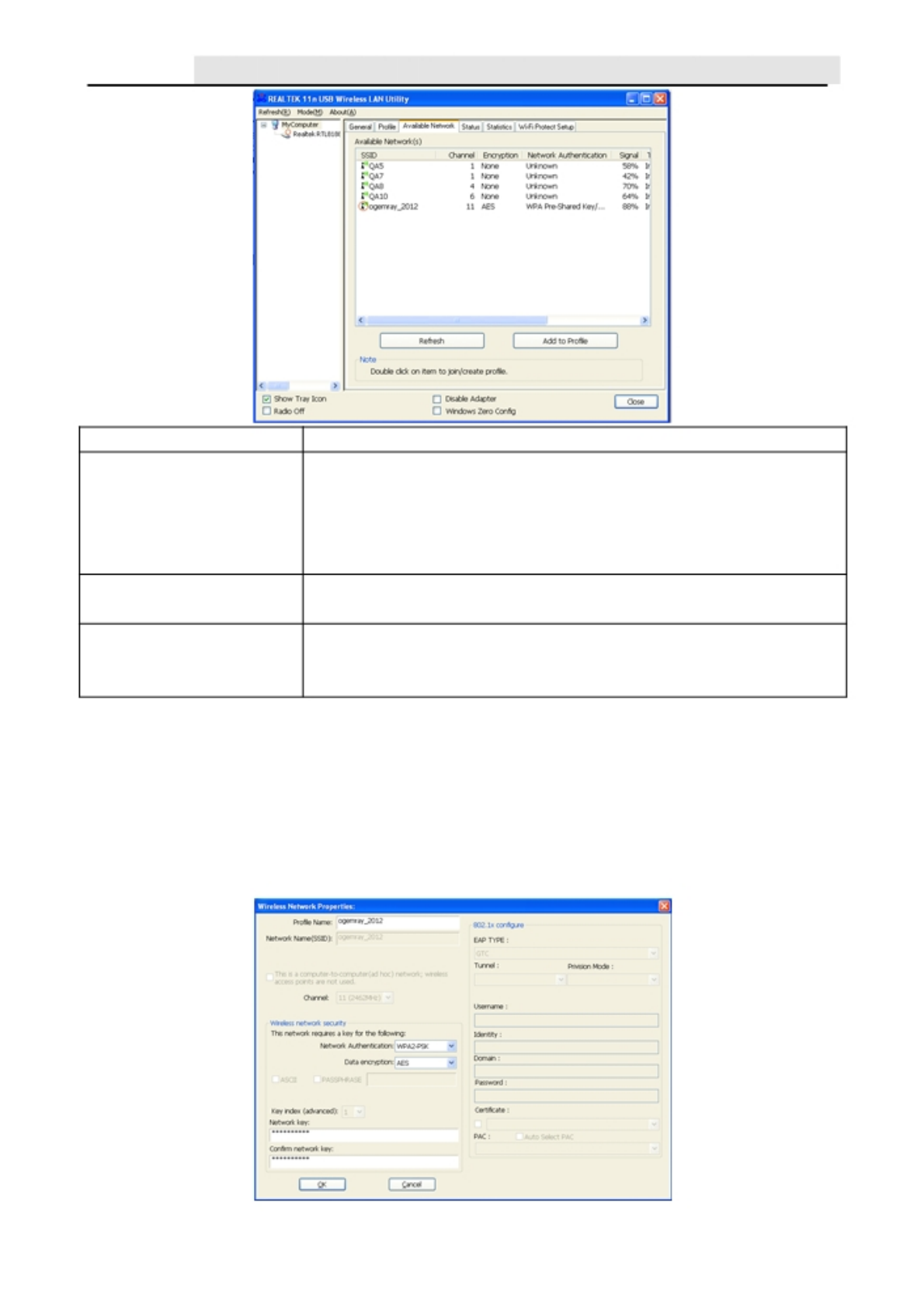
5.3.1.2. Available Network tab
Click on the “Available Network” tab. The configuration Utility should scan and list the
surround WLAN networks (by SSID of AP). Then it will connect to any unencrypted network
automatically.
IfyouwishtoconnecttoaspecificAP, select the SSID of the AP and double-click it. If the
AP
you wish to connect is not displayed in the “Available Network” window, then please click
‘Refresh’.
You
can also change the connection to another network.
8
User
’
sManual WLAN USB Adapter
Parameter Description
This list shows all information of the available wireless networks
within the range of your adapter. The information includes SSID,
Available Network(s) Channel, Encryption, Network Authentication, Signal and etc. If
you want to connect to any network on the list, double-click the
preferred network.
Refresh Click “Refresh” to update the available networks list. It is
recommended that you refresh the list for the latest information.
Aprofile stores the settings of a network, so that you can
Add to Profile connect to the network quickly. To add the selected network to a
profile, click this button.
Tips: If the preferred AP is too far away from you PC or there are too many obstacles
between the AP and your PC, or too much signal interference around your local area, the SSID
of AP might not be listed because of its weak or poor signal received.
The system scans all the channels to find all the access points/stations within the
accessible range of your adapter and automatically connect to the wireless network with the
highest signal strength.
9
User
’
sManual WLAN USB Adapter
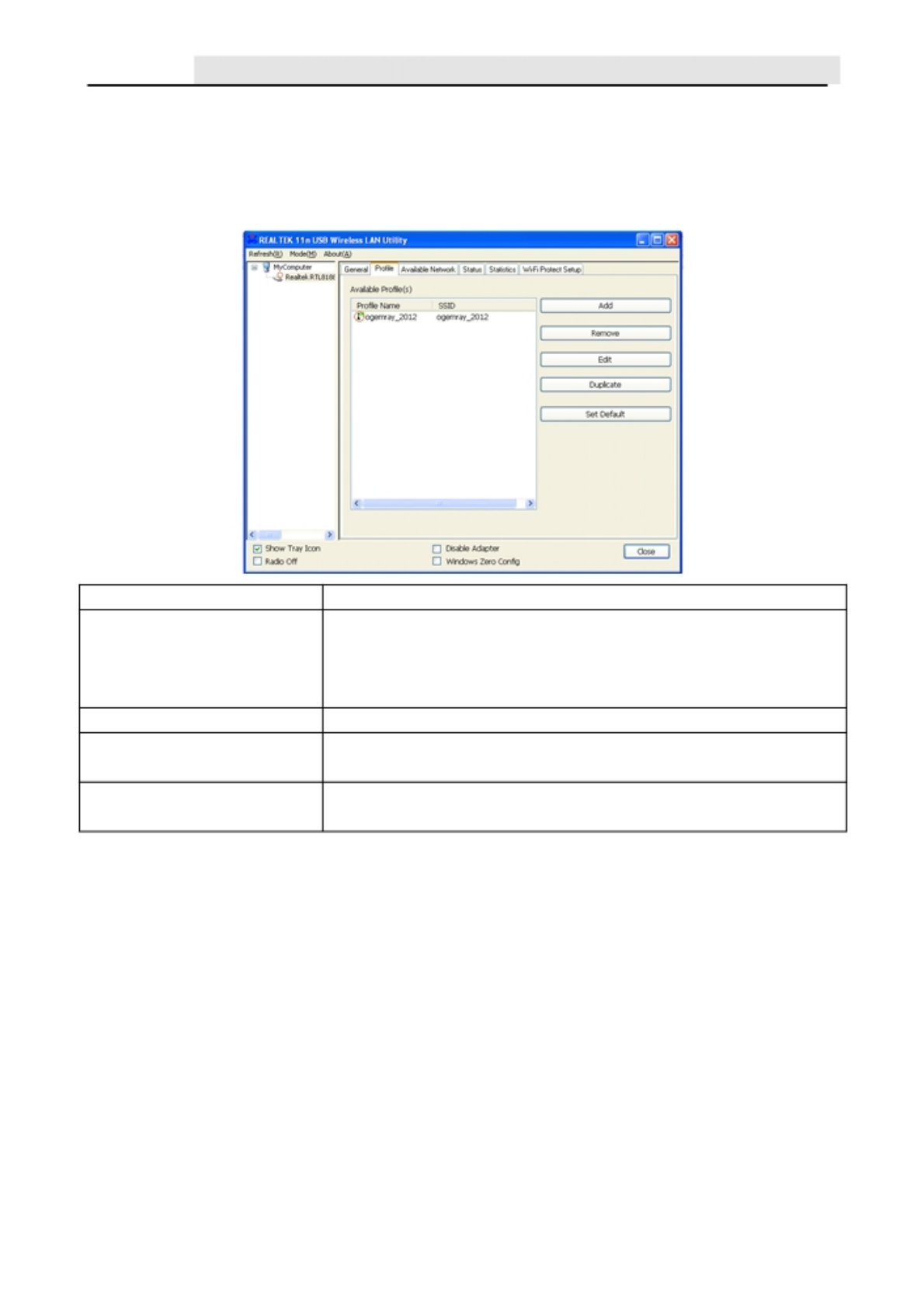
Double-click the wanted SSID,input the related security setting of the AP and click “OK” to start
network connection.
5.3.1.3. Profile tab
The “Profiles List” is for you to manage the networks you connect to frequently. You are able to
Add/Remove/Edit/Duplicate/Set Default to manage a profile.
Parameter Description
This list shows the preferred networks for the wireless
Available Profile(s) connection. You can add, remove, edit, duplicate the
preferred networks or set one of the networks as the default
connection.
Add/ Remove/ Edit Button Click these buttons to add/ delete/ edit the selected profiles.
Duplicate If you like to build up the new profile with the same settings as the
current profile, then you can select this feature.
Set DefaultTo designate a profile as the default network for the
connection from the available profiles list, click the button.
5.3.1.4. Status tab
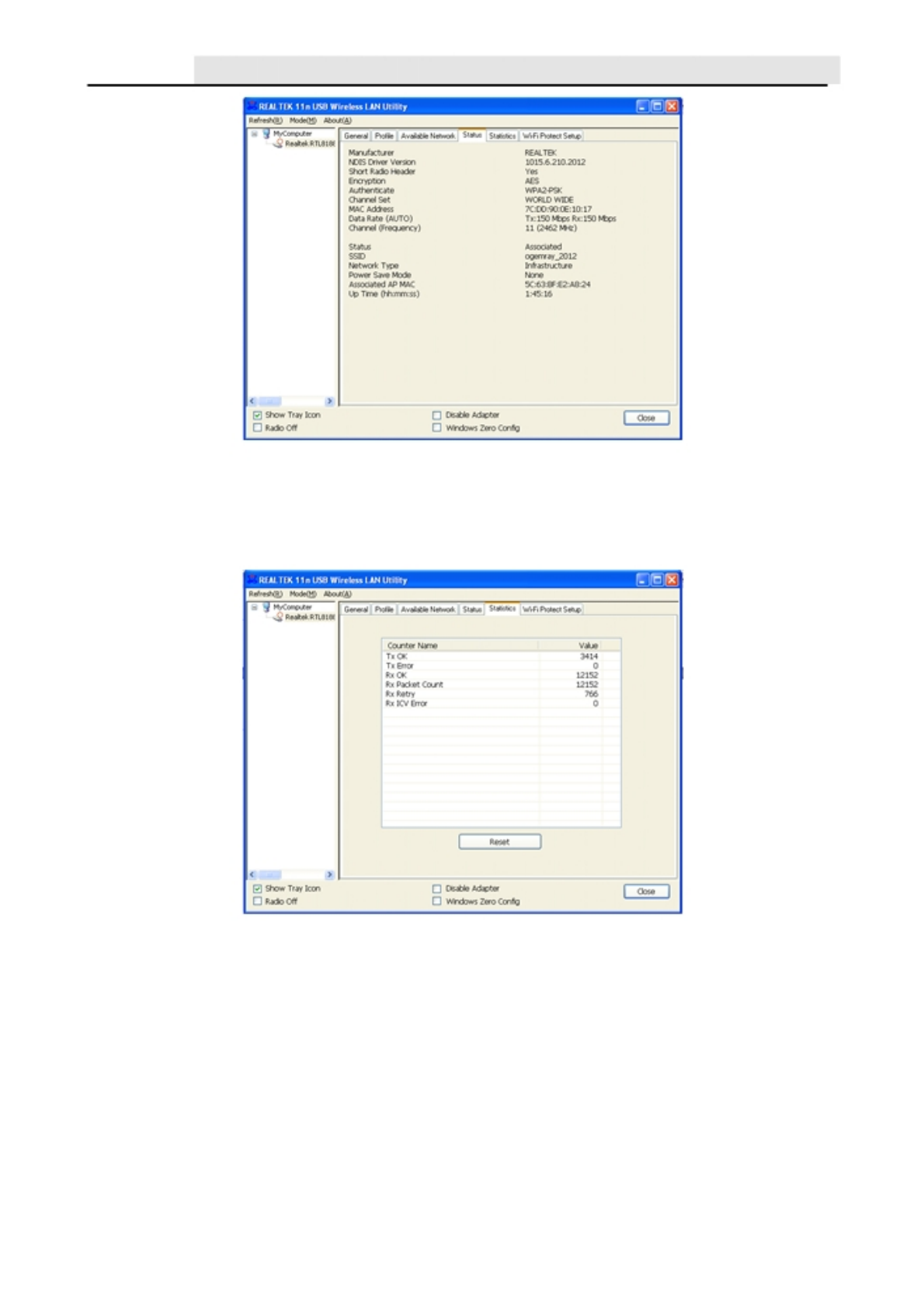
This screen shows the information of manufacturer, driver version, settings of the wireless
network the adapter is connecting to, linking time and link status. If you don’t ensure the
status of the adapter and the network you are connecting, please go to the screen for more
details.
10
User
’
sManual WLAN USB Adapter
5.3.1.5 Statistics tab
You can get the real time information about the packet transmission and receiving status
during wireless communication from the screen. If you want to recount the statistics value,
please click “Reset”.
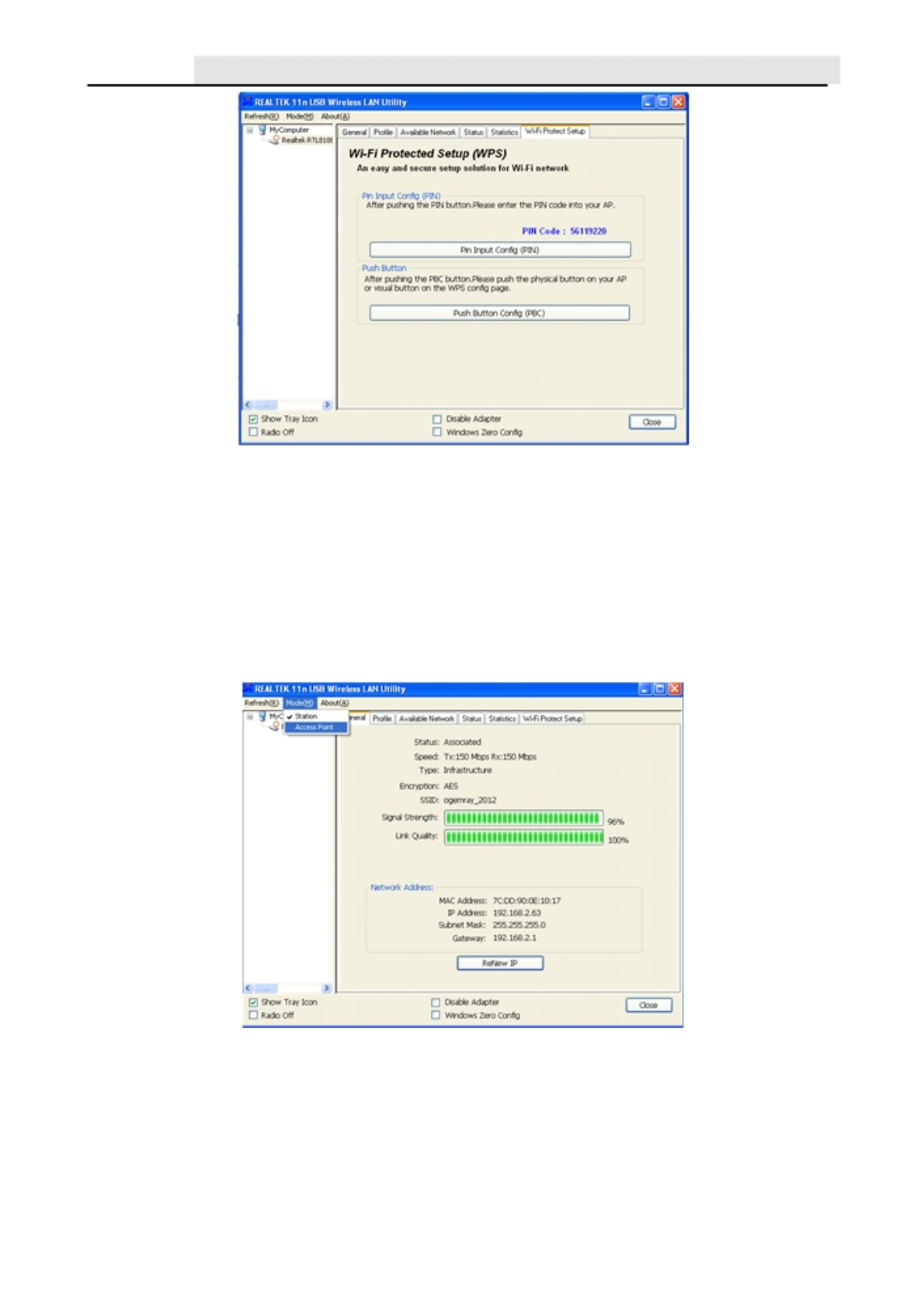
5.3.1.6 WiFi Protect Setup (WPS) tab
The adapter doesn’t have a hardware WPS button to support WPS setup, but it supports
software WPS setup.
Wi-Fi Protected Setup (WPS) is the latest wireless network technology which makes
wireless network setup become very simple. If you have WPS-enabled router/AP, and you
want
to establish a secure connection to it, you don’t need to complexly configure the
encryption
mode of the router/AP. The WPS setup page will let you easily and securely
connect the
adapter to a router/AP.
Click the PIN button, and then press a WPS button or enter a set of 8-digit code on the
router/AP you wish to establish a secure connection.
11
User
’
sManual WLAN USB Adapter
Tips: For some router/AP, the WPS button might be named as QSS.
5.3.2. Software AP
The USB wireless adapter can run as a wireless AP. Open the USB Wireless LAN Utility,
click on “Mode(M)” and select the option “Access Point”. It needs to wait a while to switch
the adapter from station mode to Software AP mode. There are several tabs for you to
setup.
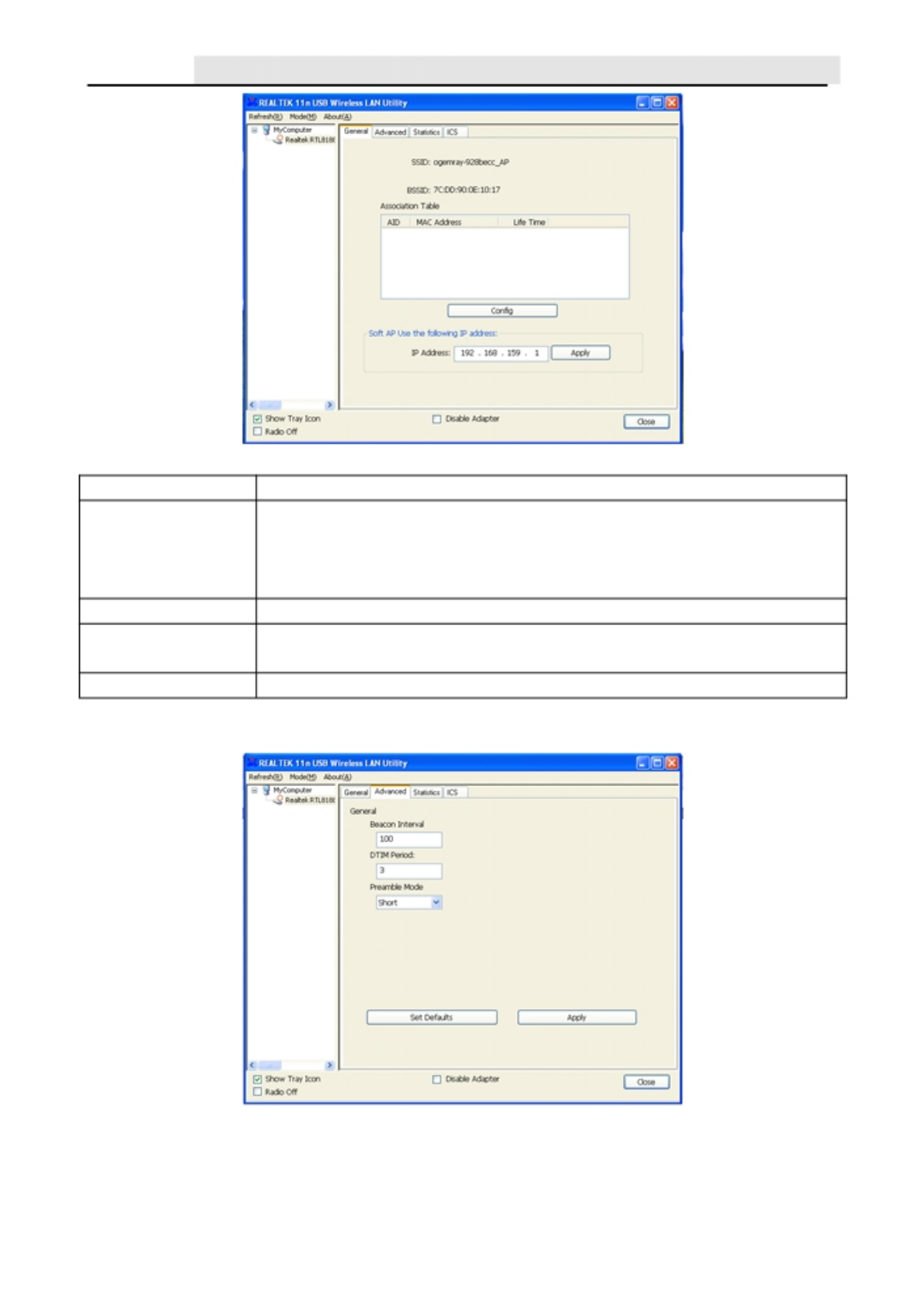
5.3.2.1 General tab
The “General” tab of the Soft_AP including SSID, config and so on are described as
follows.
12
User
’
sManual WLAN USB Adapter
Parameter Description
The SSID (up to 32 printable ASCII characters) is the unique name to
SSID identify an AP. The default SSID of the AP is full computer name plus
“AP”. Wireless adapters connect to the AP should set up the same
SSID as the AP.
BSSID Display the MAC address of the adapter.
Association Table All the wireless adapters connected to the software AP will be
displayed in the list.
Config Click “Config” for setting more configuration of the AP.
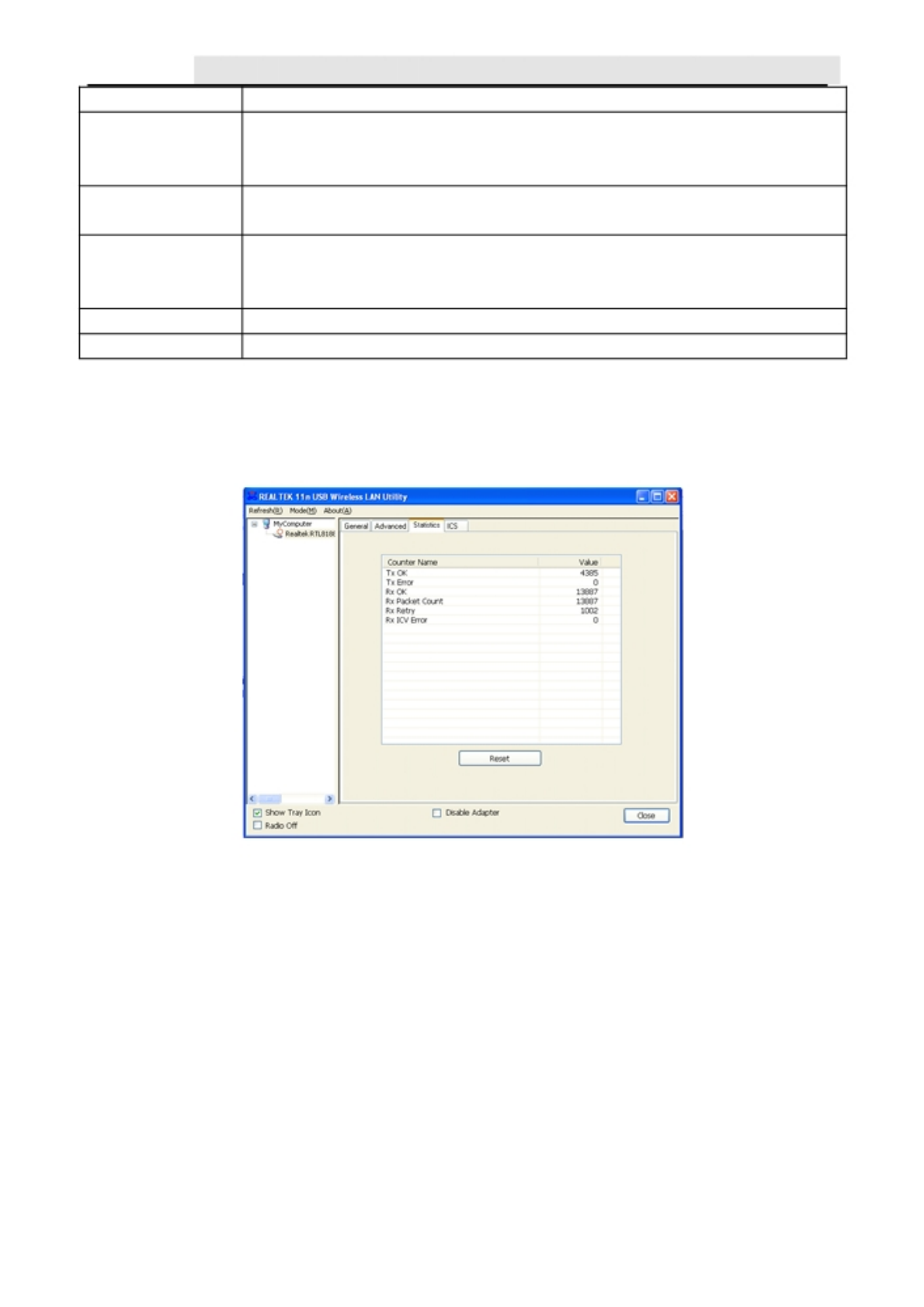
5.3.2.2 Soft_AP Advanced tab
13
User
’
sManual WLAN USB Adapter
Parameter Description
Beacon Interval specifies the duration between beacon packets
Beacon Interval (milliseconds). The range for the beacon period is between 20-1000
milliseconds with a typical value of 100.
DTIM Period Determines the interval that the Access Point will send its broadcast
traffic. Default value is 3 beacons.
The preamble defines the length of the CRC block for communication
Preamble Mode among the wireless stations. There are two mode including Long and
Short. High network traffic areas should use the shorter preamble type
Set Defaults Set the setting values to defaults.
Apply Confirm the settings in the “Advanced”.
5.3.2.3 Soft_AP Statistics tab
You can get the real time information about the packet transmission and receiving status
during wireless communication from the screen. If you want to recount the statistics value,
please click “Reset”.
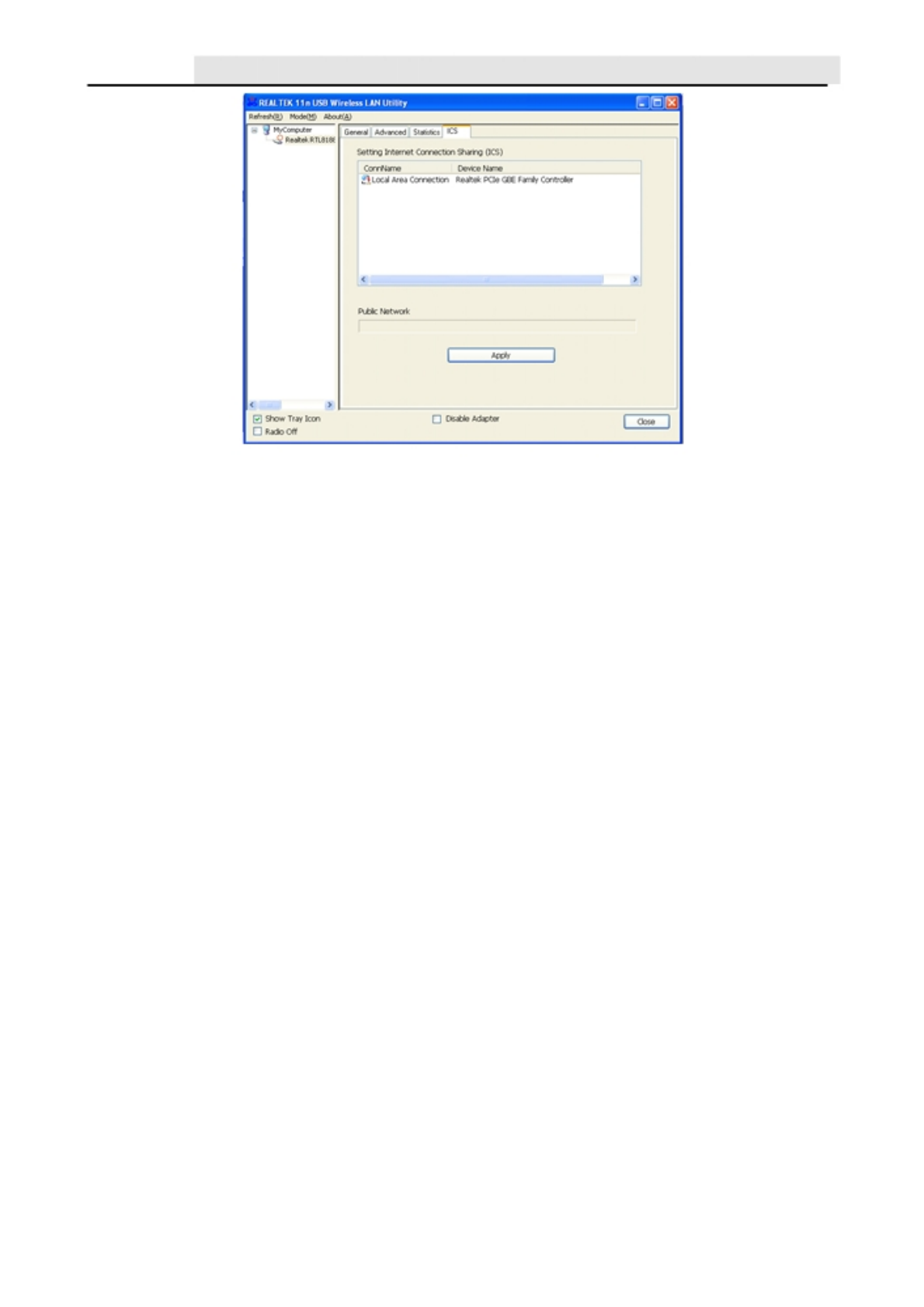
5.3.2.4 Soft_AP ICS tab
Internet Connection Sharing (ICS) is the use of the 3G cellular service, broadband with
Internet access broadband via Ethernet, or other Internet gateway as an access point for
other
devices. It was implemented by Microsoft as a feature of its Windows operating
system, for
sharing a single Internet connection on one computer between other computers on the same
local area network.
If you want to connect to the internet through this Soft_AP, you will need to make a bridge
between our Soft_AP and your internet connection. Select the internet connection and
press the “Apply” button.
14
User
’
sManual WLAN USB Adapter
Then your internet connection is internally shared with the Soft_AP. Other devices can be
connected to the access point (by its SSID assigned) and then access to internet.
6. Tips for Wi-Fi users
With a Wi-Fi connection, you can roam about 150m around the access point (depends on
different environment), so find a spot where you can work without any interruption. Then see
how much work you can do, such as:
Easily and quickly receive and transmit files within your local network — no problem for big
files.
Access your email and surf the web with the same speed as that connected with network
cables.
Synchronize data between devices.
Take advantage of wireless printing — send files directly from your laptop PC to a wireless
printer over Wi-Fi connection.
7. Warning
Wi-Fi offers greater speed and range than Bluetooth, but it drains your portable device
batteries a lot faster than Bluetooth does. In fact, if you use a Wi-Fi connection regularly on your
laptop PC, you'll undoubtedly notice that you need to recharge more often. If you need to
conserve battery life — on a long trip for example — turn off your Wi-Fi connection when you
don't actually need it.
15

User
’
sManual WLAN USB Adapter
8. Security
Because wireless networks rely on radio signals to transmit data, they are not as secure as
wire network. Wireless networks are susceptible to viruses and breaches like
eavesdropping and need to be protected in order to be secure.
There are many security measures to safeguard wireless networks, protect the data, and
keep unauthorized users out. Hotspots, on the other hand, are often free of standard
security practices in an effort to make it easy for anyone to connect. It may be found that some
pay hotspots administered by service providers offer have some level of security,
however, when using a hotspot, it’s always a good idea to be proactive and to employ
security measures of your own.
9. Key terms
Wi-Fi: short for “wireless fidelity”, a generic label that refers to wireless networks or
networking.
Hotspot: a specific geographic location in which an access point provides public wireless
broadband network services to mobile visitors through a WLAN.
Throughput: the amount of data transmitted in a set amount of time.
Bandwidth: the amount of data that can be carried from one point to another in a given
time period (usually a second).
Chipset: a group of microchips that execute various functions (like memory) to support the
CPU.
10. Specifications (Typical)
Protocol and Standards IEEE 802.11b/g or 802.11n
Interface USB1.1, USB2.0
Frequency Band 2.412~2.462GHz (Depends on different countries’
regulation)
802.11b: 1,2,5.5,11Mbps
802.11g: 6,9,12,18,24,36,48,54Mbps
Data Rate 802.11n (20MHz)MCS0-7,upto 72.2Mbps
(40MHz)MCS0-7,up to 150Mbps
802.11b (CCK) 11Mbps: 16+/-1dBm
Transmit Power 802.11g (OFDM) 54Mbps: 13+/-1dBm
(Onboard Value) 802.11n (HT20@MCS7), 12+/-1dBm
802.11n (HT40@MCS7), 12+/-1dBm
16
User
’
sManual WLAN USB Adapter
802.11b: -86+/-1dBm
Receive Sensitivit
y
802.11g: -74+/-1dBm
(Onboard Value) 802.11n
(
HT20
)
, -70+/-1dBm
802.11n (HT40), -67+/-1dBm
Data Security WEP 64/128 , WPA, WPA2, WAPI, QoS(802.11e and WMM)
Power Consumption 140+/-5mA @802.11g,54Mbps
185+/-5mA @802.11b,11Mbps
Indoor up to 100m, outdoor up to 300m (Standard
Transmission Distance transmission distance, it is affected depending on different
environment)
Operating Temperature: -10~60℃
Environment Storage Temperature: -20~80℃
Operating Humidity: 95% non-condensing
Storage Humidity: 95% non-condensing
Operating System It supports:
Windows XP/Vista/7; Mac OS X; Linux
11 Disclaimer
THESE MATERIALS AND INFORMATION ARE PROVIDED “AS IS” WITHOUT
WARRANTY OF ANY KIND, EITHER EXPRESS OR IMPLIED , INCLUDING BUT NOT
LIMITED TO, THE IMPLIED WARRANTIES OF MERCHANTABILITY, FITNESS FOR A
PARTICULAR PURPOSE OR NON-INFRINGEMENT.
We use reasonable efforts to include accurate and up-to-date information on this
document; it does not, however, make any representations as to its accuracy or
completeness of the information, text, graphics, links or other items contained within these
materials. Your use of this Document is at your own risk.Its suppliers, and other parties
involved in creating and delivering this Document’s contents shall not be liable for any
special, indirect, incidental, or consequential damages, including without limitation, lost
revenues or lost profits.
17