Toshiba 26HL66 User Manual LCD TELEVISION Manuals And Guides L0612074
TOSHIBA LCD Television Manual L0612074 TOSHIBA LCD Television Owner's Manual, TOSHIBA LCD Television installation guides
User Manual: Toshiba 26HL66 26HL66 TOSHIBA LCD TELEVISION - Manuals and Guides View the owners manual for your TOSHIBA LCD TELEVISION #26HL66. Home:Electronics Parts:Toshiba Parts:Toshiba LCD TELEVISION Manual
Open the PDF directly: View PDF  .
.
Page Count: 52
TOSHIBA
IMPORTANTNOTE
Beforeconnecting,operating,oradjustingthisproduct,carefully
readtheImportantSafety,Installation,Care,andService
informalioninlheseparaleInstallationGuide,
ForanoverviewofstepsforsettingupyournewTV,seepage4.
Note:TodisplayaHighDefinitionpicture,the_ mustbereceivinga
HighDefinitionsignal(suchasanover-the:airHighDefinitionTV
broadcast,aHighDefinitiondigitalcab!eprogram,oraNighDefinition
digitalsatelliteprogram),Fordetails,pleasecontactyourTVantenna
installer;cableprovider,orsatelliteprovider.
FCCDedarationof Conformitv
ComplianceStatement
(Part 15):
The Toshiba 26HL66, 32HL66, and 37HL66 Televisions
comply with Part 15 of the FCC rules.
Operation is subject to the following two conditions: (1) this
device may not cause harmful interference, and (2) this device
must accept any interference received, including interference that
may cause undesired operation.
The party responsible for compliance to these rules is:
Toshiba America Consumer Products, L.L.C.
82 Totowa Rd. Wayne, NJ 07470.
Ph: 1-800-631-3811
Note: This equipment has been tested and found to comply
with the limits for a Class B digital device, pursuant to Part 15
of the FCC rules. These limits are designed to provide
reasonable protection against harmful interference in a
residential installation. This equipment generates, uses, and
can radiate radio frequency energy and, if not installed and
used in accordance with the instructions, may cause harmful
interference to radio communications. However, there is
no guarantee that interference will not occur in a particular
installation. If this equipment does cause harmful interference
to radio or television reception, which can be determined by
removing and applying power to the equipment, the user is
encouraged to try to correct the interference by one or more of
the following measures:
•Reorient or relocate the receiving antenna.
• Increase the separation between the equipment and the
receiver.
• Connect the equipment into an outlet on a circuit different
from that to which the receiver is connected.
• Consult the dealer or an experienced radio/TV technician for
help.
Caution: Changes or modifications to this equipment not
expressly approved by Toshiba could void the user's authority
to operate this equipmenL
Importantnotesaboutyour
£gO TV
The following symptoms are technical limitations of LCD
Display technology and are not an indication of malfunction;
therefore, Toshiba is not responsible for perceived issues
resulting from these symptoms.
1) An afterimage (ghost) may appear on the screen if a fixed, non-
moving image is displayed t'_r a long period of time. The
afterimage is not permanent and will disappear in a short period of
time.
2) The LCD panel contained in this TV is manufactured using an
extremely high level of precision technology; however, there may
be an occasional pixel (clot of light) that does not operate properly
(does not light, remains constantly lit, etc.). This is a structural
property of LCD technology, is not a sign of malfunction, and is
not covered under your warranty. Such pixels are not visible when
the picture is viewed from a normal viewing distance.
Note: Interactive video games that involve shooting a "gun"
type of joystick at an on-screen target may not work with this
TV.
i
Trademark lnformaffon
•WOW, SRS and (O) symbol are trademarks of SRS Labs, Inc.
WOW technology is incorporated under license from SRS Labs, Inc.
• Manufactured under license from Dolby Laboratories. Dolby and the
double-D symbol are registered trademarks of Dolby Laboratories.
• HDMI, the HDMI logo and High-Definition Multimedia Interface are
trademarks or registered trademarks of HDMI Licensing LLC.
i
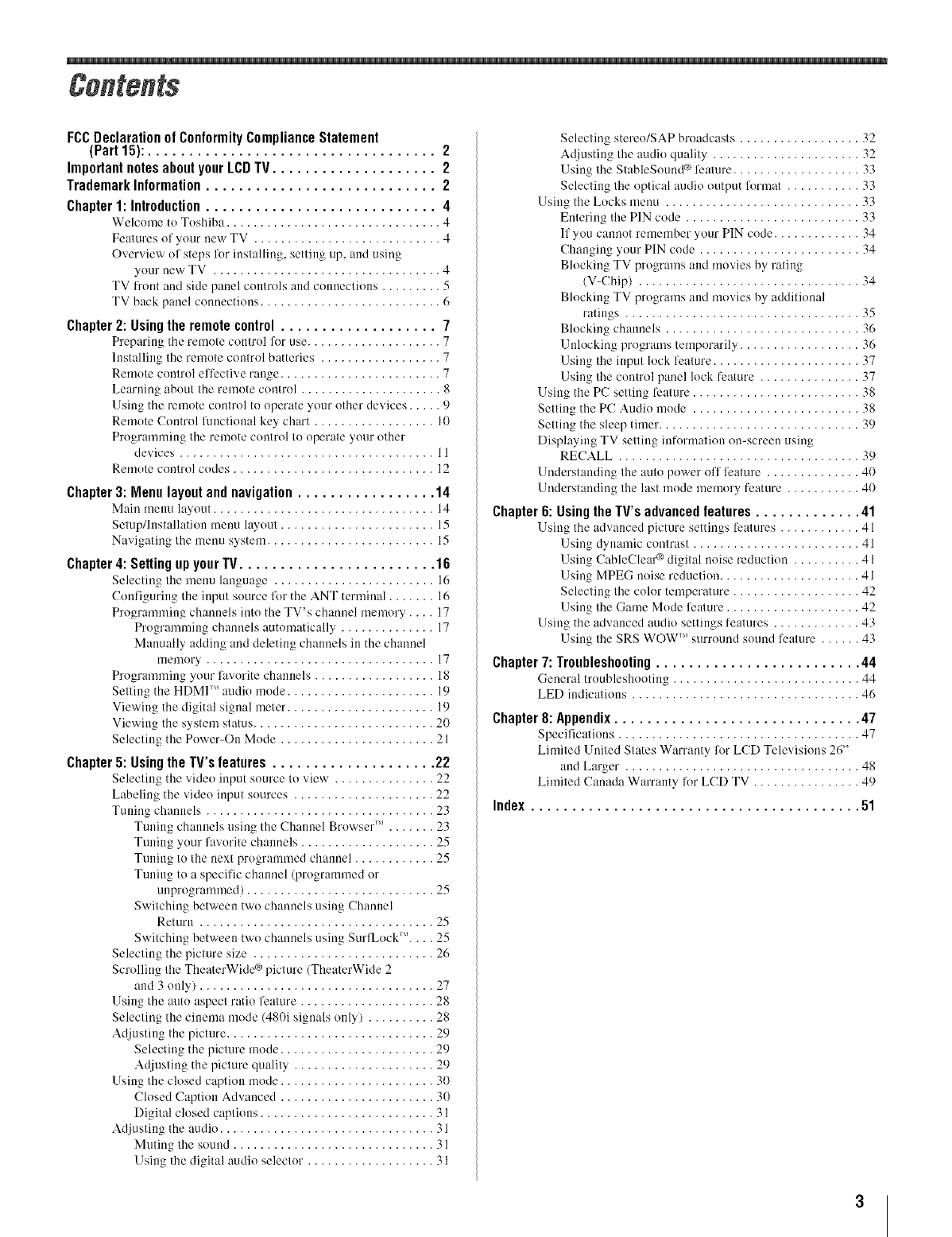
FCC Declaration of Conformity Compliance Statement
(Part 15): ................................... 2
Important notes about your LCD TV .................... 2
Trademark Information ............................ 2
Chapter 1: Introduction ............................ 4
Wek-ome to Toshiba ................................ 4
Features ol your new TV ............................ 4
Overview el steps for installing, setting up, and using
your new TV .................................. 4
TV fl'ont and side panel conh'ols and connections ......... 5
TV back panel connections ........................... 6
Chapter 2: Using the remote control ................... 7
Preparing the remote control lor use .................... 7
Installing tile relnote coulrol batteries .................. 7
Remole conlrol elfeclive range ........................ 7
Learning aboul Ihe remote control ..................... 8
Using the remote conlrol to operate your other devices ..... 9
Remole Control functional key clmrt .................. I0
Programming the remote coutrol IOoperale your olher
devices ...................................... 11
Remole comrol codes .............................. 12
Chapter 3: Menu layout and navigation ................. 14
Main menu layout ................................. 14
Selup/lnslallatiou menu layout ....................... 15
Navigating Ihe menu system ......................... 15
Chapter 4: Selling up your TV........................ "16
Selecting Ihe menu language ........................ 16
Configuring tile input source for tile ANT terminal ....... 16
Programming channels into the TV's channel memory.... 17
Progranaming channels automatically . ............. 17
Manually adding and deleling channels in the channel
rnemory. ................................. 17
Programming your lavorite channels .................. 18
I I
Selling the HDMI audk n(de ...................... 19
Viewing the digital signal meier ...................... 19
Viewing the system status ........................... 20
Selecting the Power-On Mode ....................... 21
Chapter5: UsingthelV's features.................... 22
Selecting tile video input source to view . .............. 22
Labeling the video input sources ..................... 22
Tuning channels .................................. 23
Tuning channels using the Channel B "owser _ ....... 23
Tuning your lavorite channels .................... 25
Tuning to the next progranmaed channel ............ 25
Tuning toa specific channel (programmed or
unprogrammed) ............................ 25
SvvltChlll_* be f,,_" "
, '" "" _ tw:ccU [WO chalmels using Chanlle[
Return ................................... 25
Switching between two channels using SurfLock'" .... 25
Selecting the picture size ........................... 26
Scrolling the TheaterWide _9picture (TheaterWide 2
and 3 only) ................................... 27
Using Ihe auto aspect ratio feature .................... 28
Selecting tile cinema mode (480i signals only) .......... 28
Adjusting Ihe picture ............................... 29
Selecting the picture mode ....................... 29
_d UStlll <_th ......................
• j " _, e piclure quality v9
Using the closed caption mode ....................... 30
Closed Caption Advanced ....................... 30
Digital closed captious .......................... 31
Adjusting Ihe audio ................................ 31
Muling Ihe sound .............................. 31
Using the digital audio selector . .................. 31
Selecting stereo/SAP broadcasts .................. 32
Adjusting tile audio quality ...................... 32
Using tile StableSound ®li:ature ................... 33
Selecting the optical audio output %rmat ........... 33
Using the Locks menu ............................. 33
Entering tile PIN code .......................... 33
If you cmmot remember your PIN code ............. 34
Changing your PIN code ........................ 34
Blocking TV programs and movies by rating
(V-Chip) ................................. 34
Blocking TV programs and movies by additional
ratings ................................... 35
Blocking channels ............................. 36
Unlocking programs temporarily .................. 36
Using the input lock feature ...................... 37
Using the control panel lock feature ............... 37
Using the PC setting feature ......................... 38
Setting the PC Audio mode ......................... 38
Setting the sleep timer .............................. 39
Displaying TV setting information on-screen using
RECALL .................................... 39
Understanding tile auto power off li:ature .............. 40
Understanding the last mode memory feature ........... 40
Chapter 6: Using the TV's advanced features ............. 41
Using tile advanced picture settings features ............ 41
Using dynamic contrast ......................... 41
Using CableCleal ® digital noise reductkm .......... 41
Using MPEG noise reduction ..................... 41
Selecting tile color temperature ................... 42
Using the Game Mode fi:ature .................... 42
Using the advanced audio settings features ............. 43
Using the SRS WOW )_'stlrround sound leature ...... 43
Chapter 7: Troubleshooting ......................... 44
General troubleshooting ............................ 44
LED indications .................................. 46
Chapter 8: Appendix .............................. 47
Specil]cations .................................... 47
Limited United States Warranty R)r LCD Televisions 26"
and Larger . .................................. 48
Limited Canada Warranty lor LCD TV ................ 49
Index........................................ 51
2
Welcometo Toshiba
Thank you for purchasing this Toshiba TV, one of the most
innow_tive LCD TVs on the market. This digital television is
capable of receiving analog basic, digital basic, and digital
premium cable television programming by direct connection to
a cable system providing such programming. A security card
provided by your cable operator is required to view encrypted
digital programming. Certain advanced or interactive digital
cable services (such as video-on-demand, a cable operator's
enhanced program guide, and data-enhanced television
services) may require the use of a set-top box. For more
information, call your local cable operator.
We have provided two separate Guides to facilitate the
installation and operation of your TV.
Please use the Guides in the order shown below to get the
most enjoyment from your new TV.
1) The Installation Guide explains how to connect your TV to
your antenna and equipment.
2) The Operating Guide (this Guide) provides step-by-step
instructions for using your TV's many features.
FeaturesofyournewTV
The h_llowing are just a few of the many exciting features of
your new Toshiba widescreen, integrated HD, LCD TV:
• Integrated digital tuning (SVSB ATSC and QAM)
eliminates the need for a separate digital converter set-top
box (in most cases).
• HDMI '_' digital, high-definition multimedia interface
(Ir_" hTstu//ation Guide).
• Two sets of ColorStream® HD high-resolution component
video inputs (ir_v Installation Guide).
• SRS WOW '_' audio technologies (Ir__ page 43).
• Digital Audio Out optical audio connection with Dolby _
Digital optical output format (ir_ page 33; also see
Installation Guide).
• CableClear®DNR digital picture noise reduction
(ir_r page 41 ).
•PC IN (Analog RGB) computer terminal (Ir__ Installation
Guide).
Overviewof stepsfor installing,
settingup,andusingyournewTV
Follow these steps to set up your TV and begin using its many
exciting features.
1Carefully read the important safety, installation, care, and
service information in the separate Installation Guide.
Keep this manual for future reference.
3
4
5
6
7
8
9
Observe the following when choosing a location for the
TV:
• Read the separate hTsmllation GuMe.
• Read "Important notes about your LCD TV"
(ir_ page 2).
• Place the TV on the floor or a sturdy, level, stable
surface that can support the weight of the unit. Secure
the TV to a wall, pillar, or other immovable structure as
described in the b_stallation Guide.
• Place the TV in a location where light does not reflect
on the screen.
• Place the TV far enough from walls and other objects to
allow proper ventilation. Inadequate ventilation may
cause overheating, which will damage the TV. THIS
TYPE OF DAMAGE IS NOT COVERED UNDER
THE TOSHIBA WARRANTY.
Do not plug in any power cords until AFTER you have
connected all cables and devices to your TV.
BEFORE connecting cables or devices to the TV, learn
the functions of the TV's connections and controls
(r_;r' pages 5-6).
Connect your other electronic device(s) to the TV
(_4v_lnstullution Guide).
Install the batteries in the remote control (Irss:_ page 7).
See "l_earning about the remote control" (g-_ page 8) fi)r
an overview of the buttons on the remote control.
Program the remote control to operate your other
device(s) (Ir_ pages 9-13).
AFTER connecting all cables and devices, plug in the
power cords for your TV and other devices. The yellow
LED will blink until the TV goes into standby mode.
When the TV is in standby mode, press POWER on the
TV control panel or remote control to turn on the TV.
If the TV stops responding to the controls on the remote
control or TV control panel and you cannot turn the TV
offor on, press and hold the POWER button for 5
seconds to reset the TV.
10 See "Menu layout and navigation" for a quick overview of
the TV' s menu system (Ir_ page 14).
1 1 Program channels into the TV's channel memory
(Ir4v page 17).
1 2 For details on using the TV's features, see Chapters 5
and 6.
1 3 For help, refer to the Troubleshooting Guide, Chapter 7.
14 For technical specifications and warranty information, see
Chapter 8.
15 Enjoy your new TV!
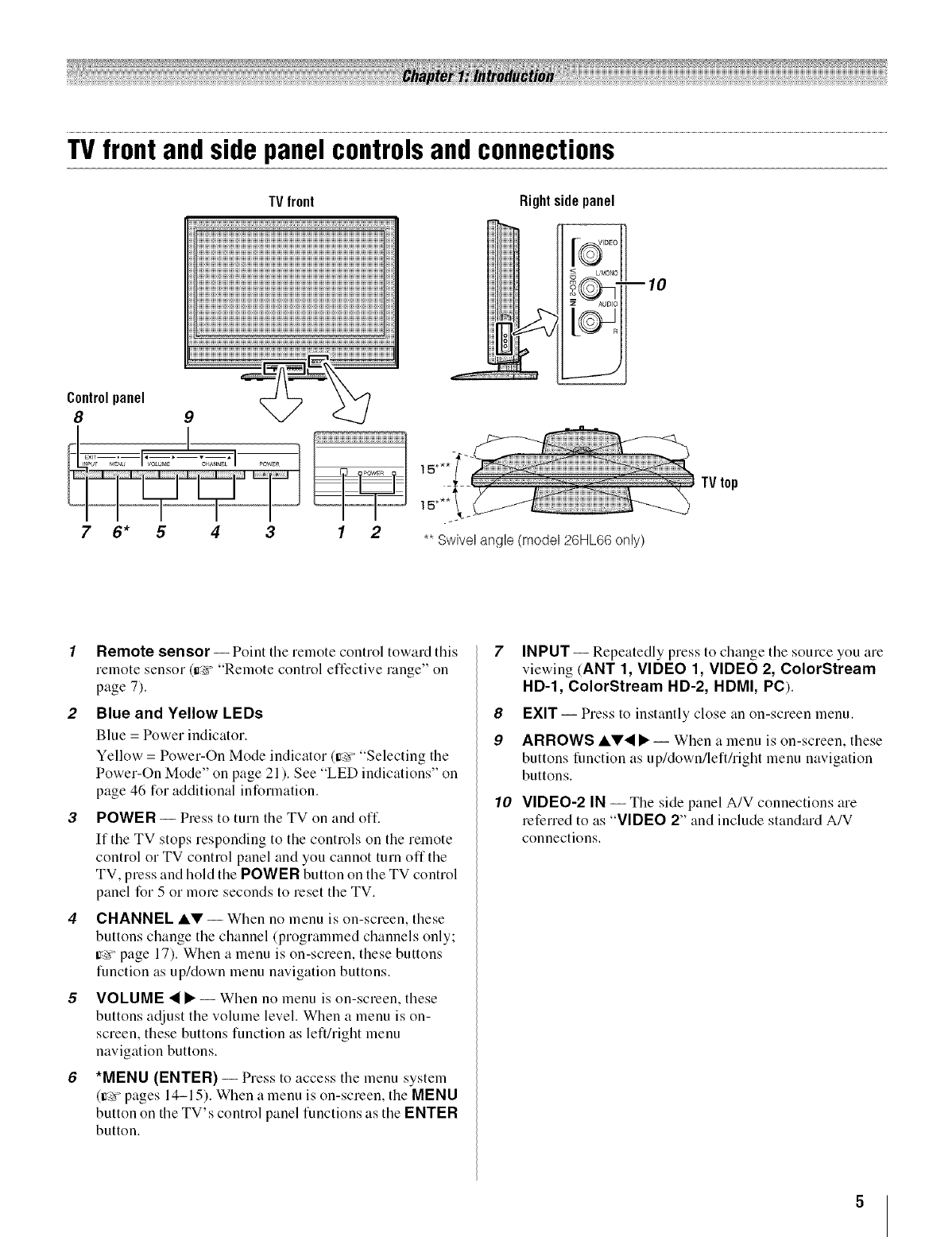
TVfrontandsidepanelcontrolsandconnections
TVfront
_!iii!!_!ii!ii!!i!!i!ii!ii!!i!!i!ii!ii!!i!!i!ii!ii!!i!!i!ii!ii!!i!!i!ii!ii!!i!!i!ii!ii!!i!!i!ii!ii!!i!!i!ii!ii!!i!!i!ii!ii!!i!!i!ii!ii!!i!!i!ii!ii!!i!!i!ii!ii!!i!!i!ii!ii!!i!!i!ii!ii!!i!!i!ii!ii!!i!!i
C0ntr01panel8 9 ___
_ • I,-,_,-* I_ ii!_i!_i!!ii_iiii!ii!!ii_iiii!ii!!ii_iiii!ii!!ii_iiii!ii!!ii_iiii!ii!!ii_iiii!ii!!ii_iiii!ii!!iii
76* 5 43 1 2
Rightside panel
| _vlu_u
-10
z AUDIO
** Swivel angle (model 26HL66 only)
TV top
Remote sensor -- Point the remote control toward this
remote sensor (_ "Remote control effective range" on
page 7).
2Blue and Yellow LEDs
Blue = Power indicator.
Yellow = Power-On Mode indicator (_ "Selecting the
Power-On Mode" on page 21). See "LED indications" on
page 46 for additional information.
POWER -- Press to turn the TV on and oft:
If the TV stops responding to the controls on the remote
control or TV control panel and you cannot turn offthe
TV, press and hold the POWER button on the TV control
panel for 5 or more seconds to reset the TV.
CHANNEL _' -- When no menu is on-screen, these
buttons change the channel (programmed channels only;
=r_'_page 17). When a menu is on-screen, these buttons
function as up/down menu navigation buttons.
VOLUME • • -- When no menu is on-screen, these
buttons adjust the volume level. When a menu is on-
screen, these buttons function as left/right menu
navigation buttons.
*MENU (ENTER) -- Press to access the menu system
(_r_'_pages 14-15). When a menu is on-screen, the MENU
button on the TV's control panel functions as the ENTER
button.
8
9
10
INPUT -- Repeatedly press to change the source you are
viewing (ANT 1, VIDEO 1, VIDEO 2, ColorStream
HD-1, ColorStream HD-2, HDMI, PC).
EXIT -- Press to instantly close an on-screen menu.
ARROWS &V• • -- When a menu is on-screen, these
buttons function as up/down/left/right menu navigation
buttons.
VIDEO-2 IN -- The side panel A/V connections are
referred to as "VIDEO 2" and include standard A/V
connections.
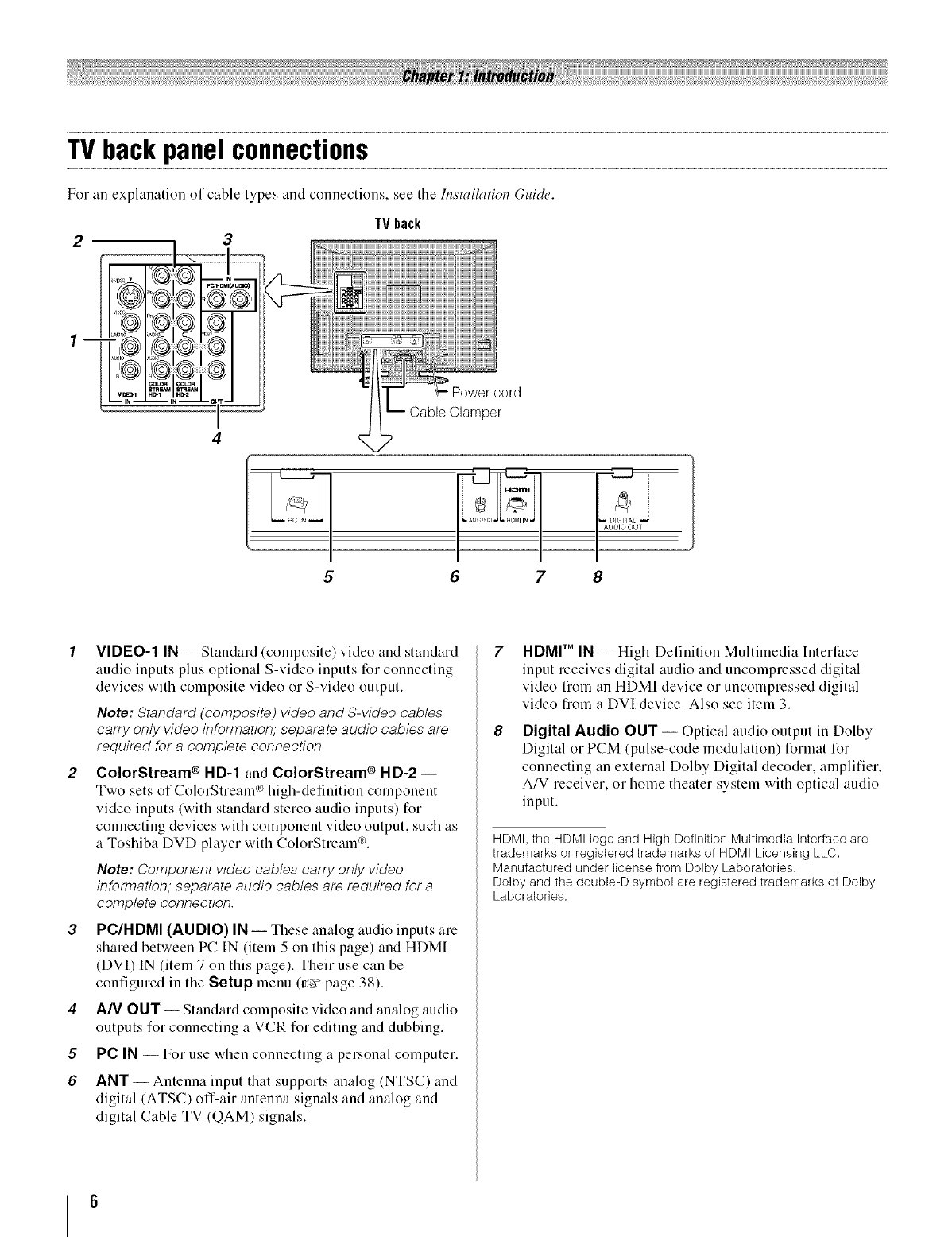
TVbackpanelconnections
For an explanation of cable types and connections, see the Installation Guide.
TV back
2 3
4
Power cord
Cable Clarnper
-., •
_Ak\75¢2;,_ HDM N,,_ _ DQTAL
I I
6 7 8
4
5
6
VIDEO-1 IN -- Standard (composite) video and standard
audio inputs plus optional S-video inputs for connecting
devices with composite video or S-video output.
Note: Standard (composite) video and S-video cables
carry only video information; separate audio cables are
required for a complete connection.
ColorStream ®HD-1 and ColorStream ®HD-2 --
Two sets of ColorStream _ high-definition component
video inputs (with standard stereo audio inputs) for
connecting devices with component video output, such as
a Toshiba DVD player with ColorStream _.
Note: Component video cables carry only video
information; separate audio cables are required for a
complete connection.
PC/HDMI (AUDIO) IN -- These analog audio inputs are
shared between PC IN (item 5 on this page) and HDMI
(DVI) IN (item 7 on this page). Their use can be
configured in the Setup menu (_ page 38).
AN OUT -- Standard composite video and analog audio
outputs for connecting a VCR for editing and dubbing.
PC IN -- For use when connecting a personal computer.
ANT -- Antenna input that supports analog (NTSC) and
digital (ATSC) off-air antenna signals and analog and
digital Cable TV (QAM) signals.
8
HDMI TM IN -- High-Definition Multimedia Interface
input receives digital audio and uncompressed digital
video from an HDMI device or uncompressed digital
video from a DVI device. Also see item 3.
Digital Audio OUT -- Optical audio output in Dolby
Digital or PCM (pulse-code modulation) format for
connecting an external Dolby Digital decoder, amplifier,
A/V receiver, or home theater system with optical audio
input.
HDMI, the HDMI logo and High-Definition Multimedia Interface are
trademarks or registered trademarks of HDMI Licensing LLC.
Manufactured under license from Doiby Laboratories.
Dolby and the double-D symbol are registered trademarks of Dolby
Laboratories.
Preparingthe remotecontrol
for use
Your TV remote control can operate your TV and many other
devices such as cable converter boxes, satellite receivers,
VCRs, DVD players, and HTIBs (home theater in a box), even
if they are different blands.
If you have a Toshiba device:
Your TV remote control is preprogrammed to operate most
Toshiba devices (ir_'_page 11).
If you have a non-Toshiba device or a Toshiba device
that the remote control is not preprogrammed to
operate:
You can program the TV remote control so it will operate the
other device (tr_vpages 9-13).
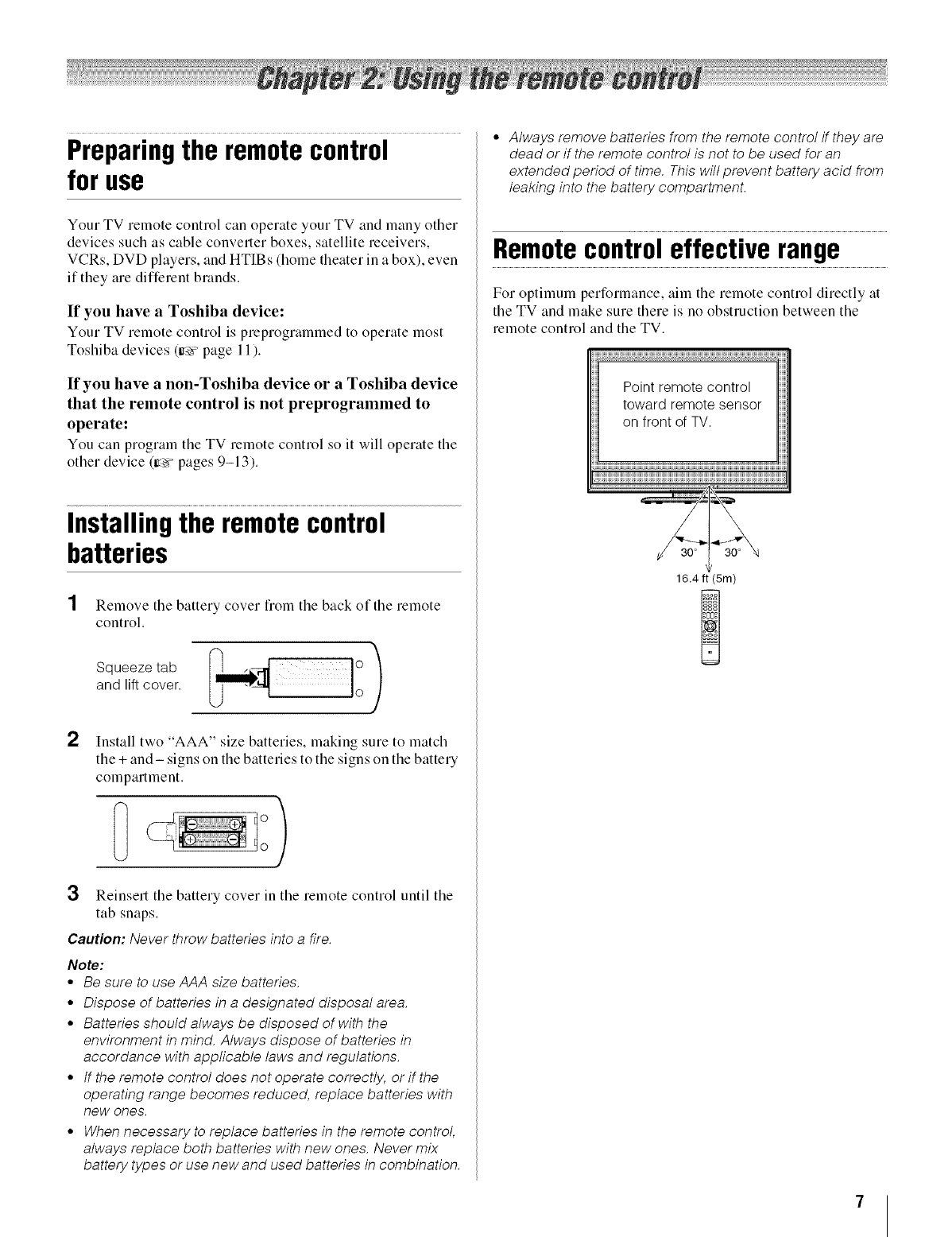
Installingthe remotecontrol
batteries
1Remove tile battery cover flom tile back of the remote
control. cove :)
2Install two "AAA" size batteries, making sure to match
the + and- signs on the batteries to the signs on the battery
compartment.
3Reinsert the battery cover in the remote control until the
tab snaps.
Caution: Never throw batteries into a fire.
Note:
•Be sure to use AAA size batteries.
°Dispose of batteries in a designated disposal area.
° Batteries should always be disposed of with the
environment in mind. Always dispose of batteries in
accordance with applicable laws and regulations.
° If the remote control does not operate correctly, or if the
operating range becomes reduced, replace batteries with
new ones.
° When necessary to replace batteries in the remote control,
always replace both batteries with new ones. Never mix
battery types or use new and used batteries in combination.
• Always remove batteries from the remote control ff they are
dead or if the remote control is not to be used for an
extended period of time. This will prevent battery acid from
leaking into the battery compartment.
Remotecontroleffective range
For optimum perforlnance, aim the remote control directly at
the TV and make sure there is no obstruction between the
remote control and the TV.
d_W
Point remote control
toward remote sensor
on front of TV.
16.4 ft (5m)
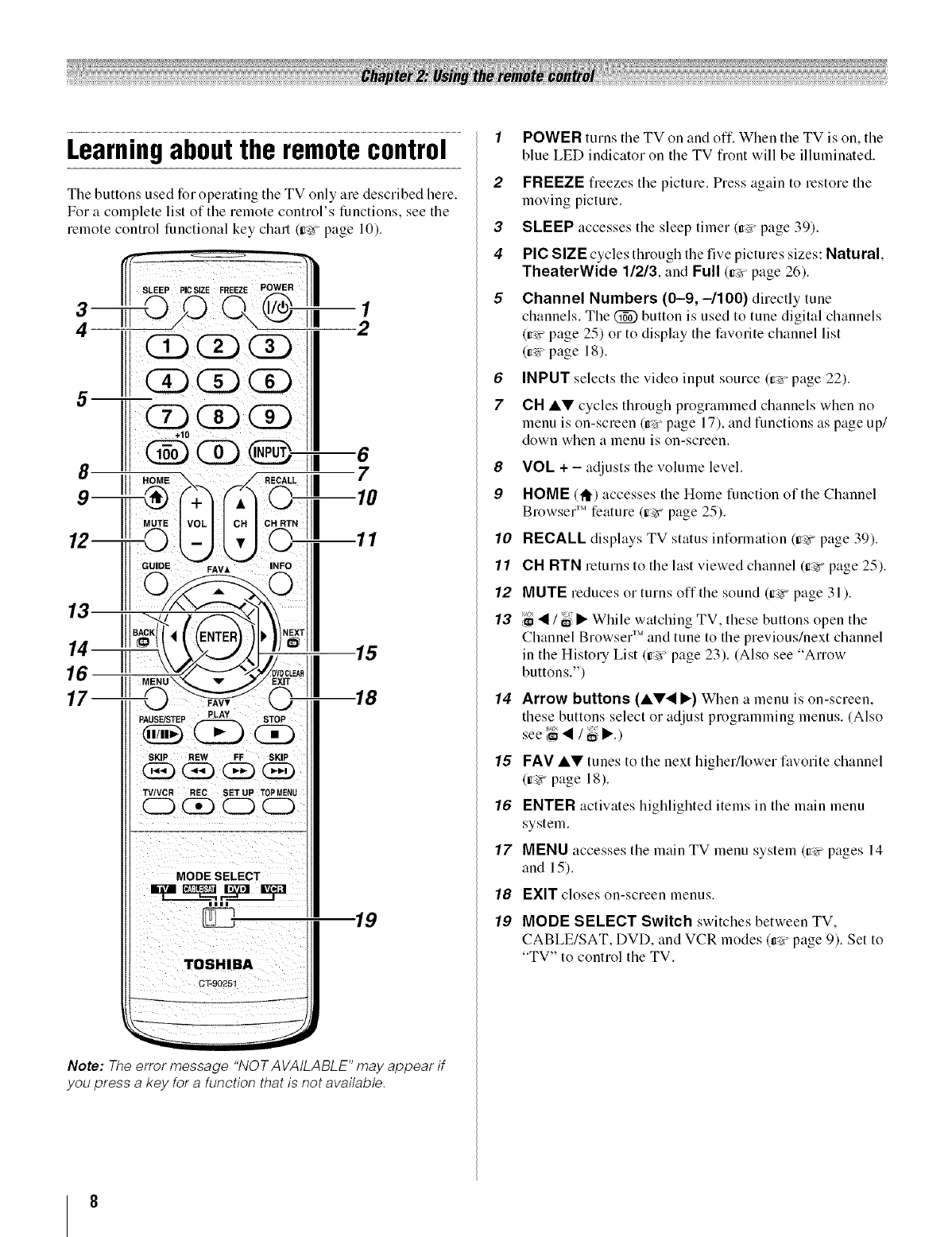
Learningaboutthe remotecontrol
The buttons used for operating the TV only are described here.
For a complete list of tile remote control's functions, see the
remote control functional key chart (_'¢ page 10).
6
9 10
11
14 15
16--
17 18
III '
,,.,j
SKIP REW FF SKIP
TV/VCR REC SETUP T0P MENU
CD _ CD CD
MODE SELECT
__________.___N_
19
TOSHIBA
CT-90251
Note: The error message "NOT AVAtLABLE" may appear if
you press a key for a function that is not available.
1
2
3
4
5
6
7
8
9
10
11
12
13
14
15
16
17
18
19
POWER turns the TV on and oft: When the TV is on, the
blue LED indicator on the TV t¥ont will be illuminated.
FREEZE fieezes the picture. Press again to restore the
moving picture.
SLEEP accesses the sleep timer (it,v- page 39).
PIC SIZE cycles through the five pictures sizes: Natural.
TheaterWide 1/2/3, and Full (_'r page 26).
Channel Numbers (0-9, -/100) directly tune
channels. The @ button is used to tune digital channels
(Ir,'r"page 25) or to display the favorite channel list
(it,v"page 18).
INPUT selects the video input source (r_:_'page 22).
CH AV cycles through programmed channels when no
menu is on-screen (Ir_'rpage 17), and functions as page up/
down when a menu is on-screen.
VOL + - adjusts the volume level.
HOME (I_) accesses the Home function of the Channel
Browser 'M feature (Ir_.'r"page 25).
RECALL displays TV status information (ir_:¢ page 39).
CH RTN returns to the last viewed channel (Ir__ page 25).
MUTE reduces or turns offthe sound (Ir__ page 31 ).
_ • /_i • While watching TV, these buttons open the
Channel Browser 'Mand tune to the previous/next channel
in the History List (Ir__" page 23). (Also see "Arrow
buttons.")
Arrow buttons (A'_'• •) When a menu is on-screen,
these buttons select or adjust programming menus. (Also
see
FAV AV tunes to the next higher/lower favorite channel
(Ir__ page 18).
ENTER actiwLtes highlighted items in the main menu
system.
MENU accesses the main TV menu system (ir_"pages 14
and 15).
EXIT closes on-screen menus.
MODE SELECT Switch switches between TV,
CABLE/SAT, DVD, and VCR modes (_v page 9). Set to
"TV" to control the TV.
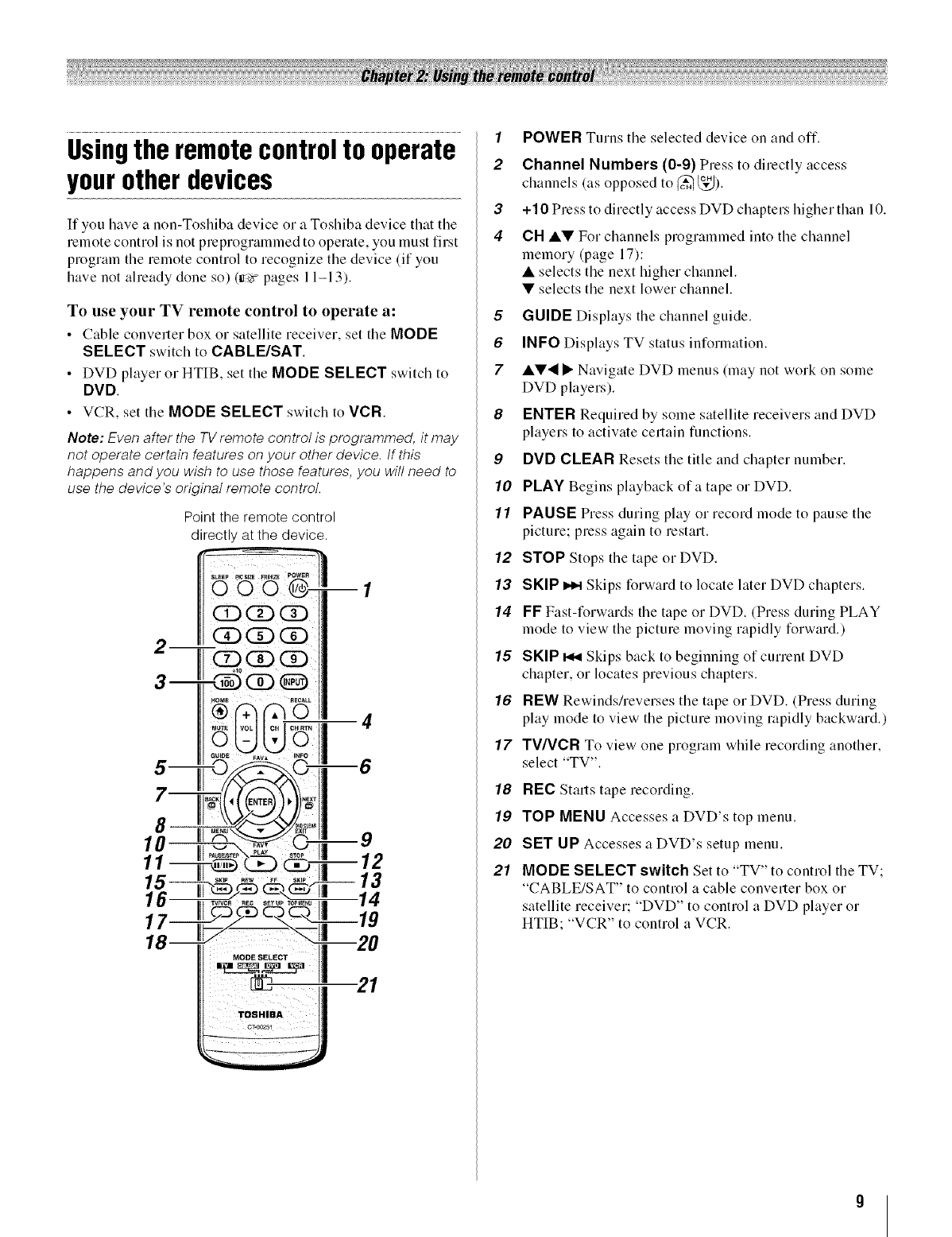
Usingtheremotecontrolto operate
yourotherdevices
If you have a non-Toshiba device or a Toshiba device that the
remote control is not preprogrammed to operate, you must first
program the remote control to recognize the device (if you
have not aheady done so) (Ire'r"pages 11-13).
To use your TV remote control to operate a:
• Cable converter box or satellite receiver, set the MODE
SELECT switch to CABLE/SAT.
• DVD player or HTIB, set the MODE SELECT switch to
DVD.
• VCR, set the MODE SELECT switch to VCR
Note: Even after the TVremote centre/is programmed, it may
not operate certain features onyour other device, tf this
happens and you wish to use those features, you will need to
use the device's original remote control.
Point the remote control
directly at the device.
@-
CDCDCD
CD(DQ
2
8
10
11
--9
--12 13
1
2
3
4
5
6
7
8
9
10
11
12
13
14
15
16
17
18
19
20
21
POWER Turns the selected device on and off.
Channel Numbers (0-9) Press to directly access
channels (as opposed to (_ _,_).
+10 Press to directly access I)VI) chapters higher than 10.
CH •• For channels programmed into the channel
memory (page 17):
• selects the next higher channel.
• selects the next lower channel.
GUIDE Displays the channel guide.
INFO Displays TV status information.
• •'_ • Navigate DVI) menus (may not work on some
DVI) players).
ENTER Required by some satellite receivers and DVD
players to actiwtte certain functions.
DVD CLEAR Resets the title and chapter number.
PLAY Begins playback of a tape or DVD.
PAUSE Press during play or record mode to pause the
picture; press again to restart.
STOP Stops the tape or DVI).
SKIP _ Skips forward to locate later DVD chapters.
FF Fast-forwards the tape or DVD. (Press during PLAY
mode to view the picture moving rapidly forward.)
SKIP _ Skips back to beginning of current DVI)
chapter, or locates previous chapters.
REW Rewinds/reverses the tape or I)VI). (Press during
play mode to view the picture moving rapidly backward.)
TV/VCR To view one program while recording another.
select "TV".
REC Starts tape recording.
TOP MENU Accesses a DVD's top menu.
SET UP Accesses a DVD's setup menu.
MODE SELECT switch Set to "TV" to control the TV;
"CABLE/SAT" to control a cable converter box or
satellite receiver; "DVD" to control a DVD player or
HTIB; "VCR" to control a VCR.
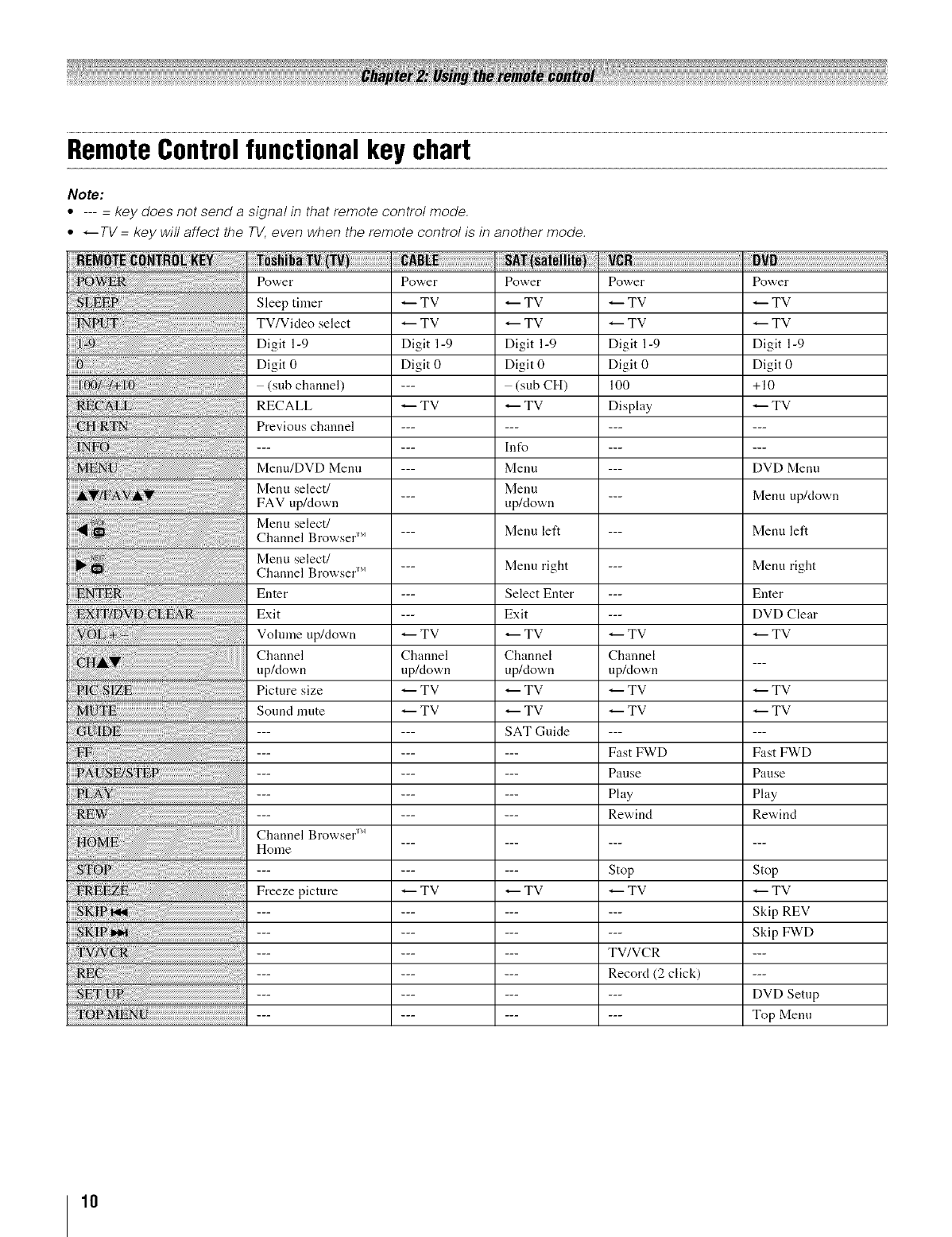
RemoteControlfunctionalkeychart
Note:
•.... key does not send a signal in that remote control mode.
° _TV = key will affect the TV, even when the remote control is in another mode.
Power
Sleep timer
TV/Video select
Digit 1-9
Digit 0
(sub channel)
RECALL
Previous channel
Menu/DVD Menu
Menu select/
FAV up/down
Menu select/
Channel Browser _'
Menu select/
W FM
Channel Bro 'ser
Enter
Exit
Vohnne up/down
Channel
up/down
Picture size
Sound mute
Channel BrowserrM
Home
Freeze picture
Power Power Power Power
TV _ TV _ TV _ TV
TV _ TV _ TV _ TV
Digit 1-9 Digit 1-9 Digit 1-9 Digit 1-9
Digit 0 Digit 0 Digit 0 Digit 0
--- (sub CH) 100 +10
TV _ TV Display _ TV
--- Int_ ......
--- Menu --- DVD Menu
Menu
--- up/down --- Menu up/down
--- Menu left --- Menu left
--- Menu right
Enter
DVD Clear
TVTV
Channel
up/down
TV
TV
TV
Menu right
Select Enter
Exit
TV
Channel
up/down
TV
TV
SAT Guide
TV
_H
H_
_H
_H
TV
Channel
up/down
TV
TV
Fast FWD
Pause
Play
Rewind
Stop
TV
TV/VCR
Record (2 click)
TV
TV
Fast FWD
Panse
Play
Rewind
Stop
TV
Skip REV
Skip FWD
DVD Setup
Top Menu
10
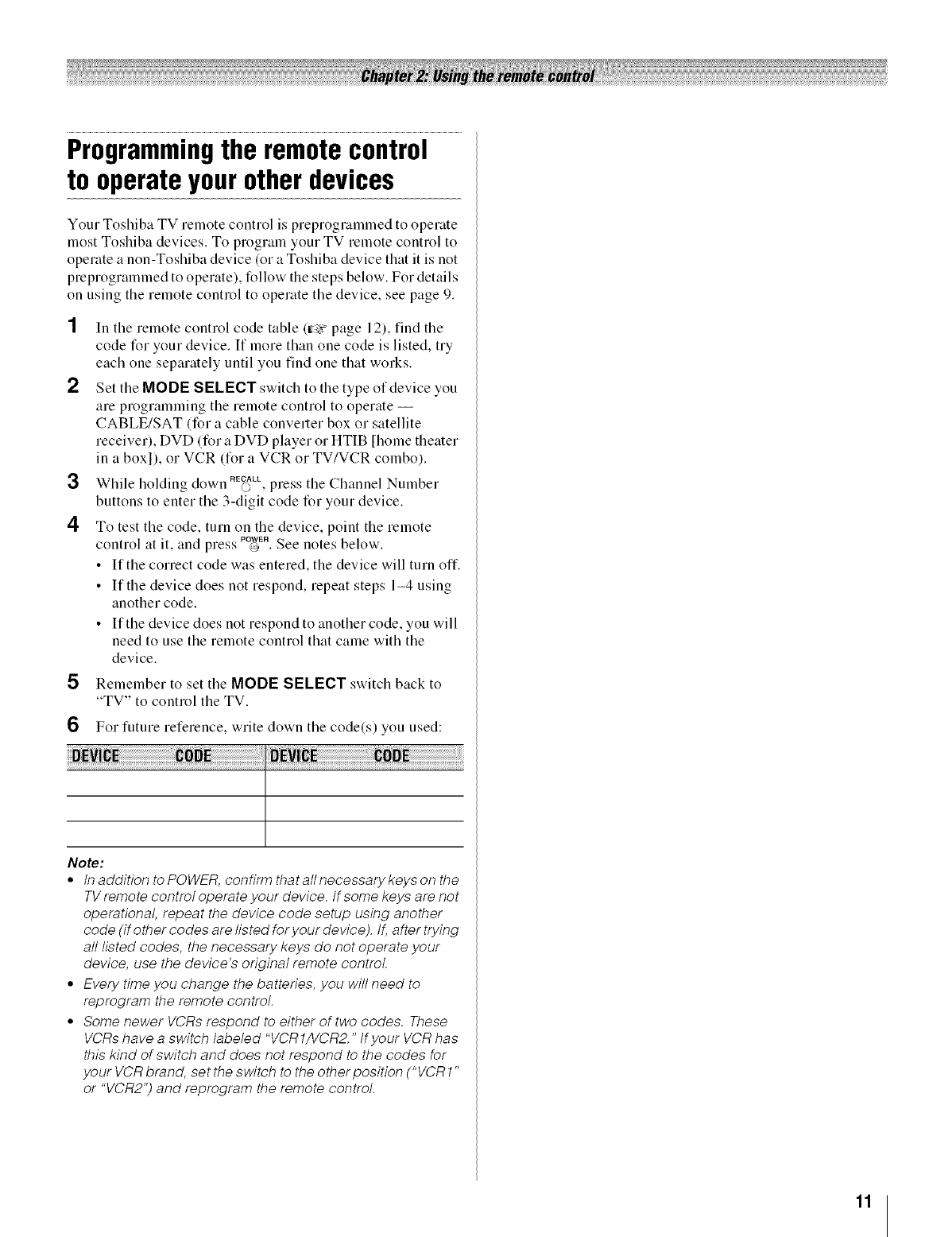
Programmingthe remotecontrol
to operateyourotherdevices
Your Toshiba TV remote control is preprogrammed to operate
most Toshiba devices. To program your TV remote control to
operate a non-Toshiba device (or a Toshiba device that it is not
preprogrammed to operate), follow the steps below. For details
on using the remote control to operate the device, see page 9.
2
3
4
In the remote control code table (ir_v page 12), find the
code for your device. If more than one code is listed, try
each one separately until you find one that works.
Set the MODE SELECT switch to the type of device you
are programming the remote control to operate --
CABLE/SAT (for a cable converter box or satellite
receiver), DVD (for a DVD player or HTIB [home theater
in a boxl), or VCR (for a VCR or TV/VCR combo).
RECALL NN
While holding down © , press the Channel Number
buttons to enter the 3-digit code for your device.
To test the code, turn on the device, point the remote
control at it. and press POWE.@.See notes below.
• If the correct code was entered, the device will turn off.
• If the device does not respond, repeat steps 1-4 using
another code.
• If the device does not respond to another code, you will
need to use the remote control that came with the
device.
5Remember to set the MODE SELECT switch back to
"TV" to control the TV.
6 For future reference, write down the code(s) you used:
Note:
•tn addition to POWER, confirm thatallnecessarykeys on the
TV remote control operate your device, tf some keys are not
operational, repeat the device code setup using another
code (if other codes are listed for your device). If, after trying
all listed codes, the necessary keys do not operate your
device, use the device's original remote control
• Every time you change the batteries, you will need to
reprogram the remote control.
• Some newer VCRs respond to either of two codes. These
VCRs have a switch labeled "VCR1/VCR2." tf your VCR has
this kind of switch and does not respond to the codes for
your VCR brand, set the switch to the other position ("VCR 1"
or "VCR2") and reprogram the remote control.
11
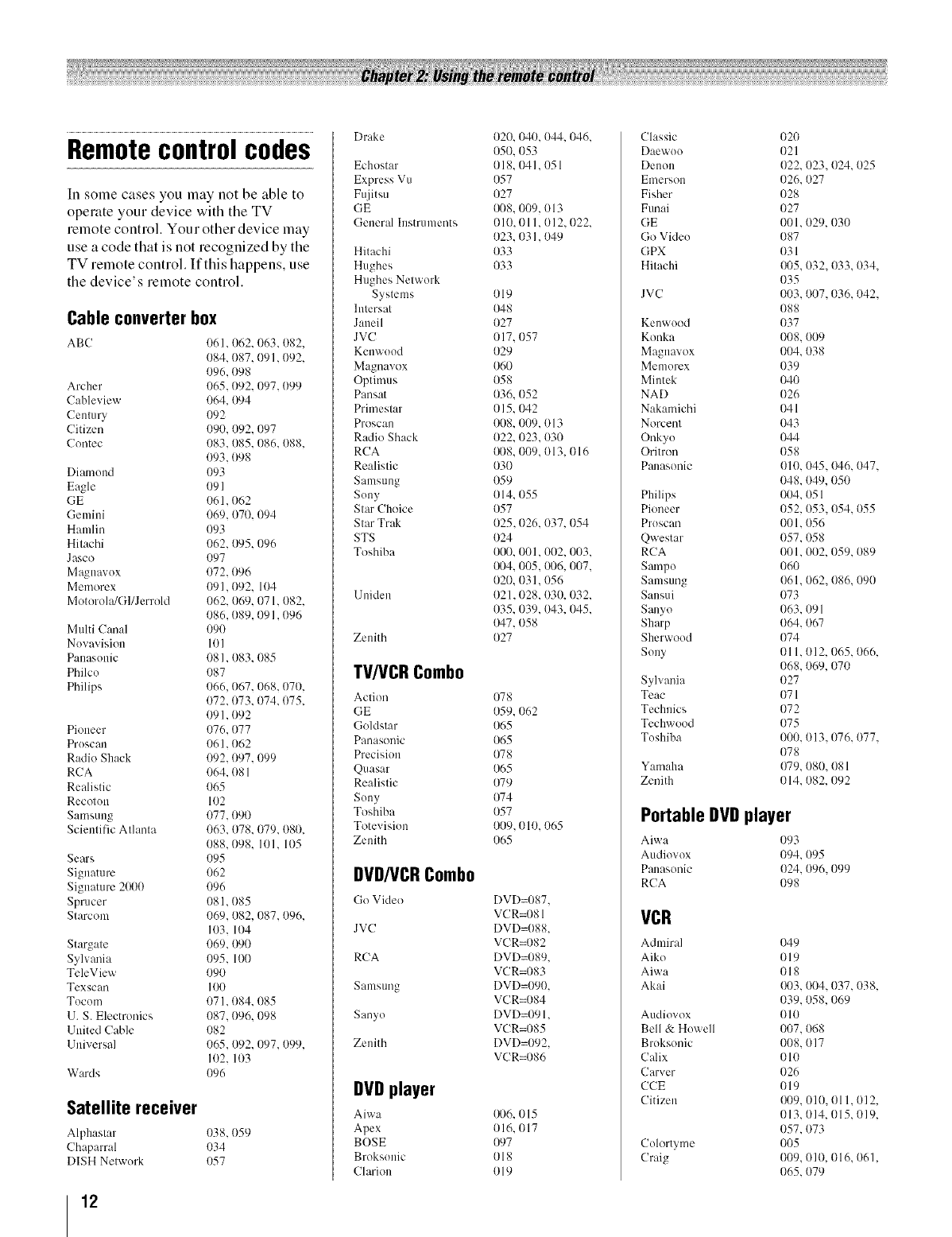
Remotecontrolcodes
In some cases you may not be able to
operate your device with the TV
relnote control. Your other device may
use a code that is not recognized by the
TV remote control. If this happens, use
the device's remote control.
Cable converter box
ABC 1161, 062, 063,082,
084, 087, 091,092,
096,098
Archer 065,092, 097, (}99
Cableview 064, 094
Century 092
Citizen 090, {)92,097
Contec 083,085, 086, 088,
093,098
Diamund 093
Eagle 09 l
GE 061,062
Gemini 069, 070, 094
Hamlin 093
Hitachi 062, 095, 096
Jasco 097
Ma_!navox 072. 096
Memorex (191. 092. 104
MotorohgGl/Jerrold 062. 069. 071. 082.
086, (189, 091,096
Multi Canal 090
Nuvavision 101
Pauasunic 081. 083. 085
Philcu 087
Philips {t66.067. 068.070.
072.073. 074.075.
091. (192
Pioneer 076.077
Pruscan 061. 062
Radio Shack (192.097. 099
RCA 064. 081
Realistic 065
Recoton 102
Samsung 077.090
Scientific Atlanta 063. 078. 079. 080.
088.098. I{tl. 105
Sears 095
Signature 062
Signature 2000 096
Sprucer 081. 085
Starcom 069. 082, 087. 096.
103. 104
Stargate 069.09(I
Sylvania 095. 100
TeleView 090
Texscan 100
Tocum 071. 084. 085
13. S. Electronics 087.096. 098
1Jnited Cable 082
13niversal 065. 092. 097. 099.
102. 103
Wards (196
Satellite receiver
Alphastar 038,059
Chaparral 034
DISH Netwurk 057
[)rake 020. 040. 044. 046.
{)50. 053
Echostar 018. (141.051
Express Vu 057
Fujitsu 027
GE I}{18.009, 013
General Instruments 010. 011. 012. 022.
023.03 I. 049
Hitachi 033
Hughes 033
Hughes Network
Systems 019
lntersat {)48
Jaueil 027
JVC {117,057
Kenwuod 029
Magnavox 060
Optimus 058
Panhat 036, (152
Primestar 015, 042
Proscan 008, 009, 013
Radio Shack 022, 023,030
RCA {}{t8,009, 013, 016
Realistic 03(I
Samsung 1159
Suny 014. 055
Star Choice 057
Star Trak 025. 026. 037. 054
STS 024
Toshiba 01}{1,001. 002. 003.
I}{t4,005, I}{t6,007,
020, 031, {)56
Uniden 021,028, 030, 032,
035, 039, {}43,045,
{}47,058
Zenith 027
TV/VCRCombo
Action 078
GE 059, 062
Goldstar 065
Panasonic 065
Precision 078
Quasar 065
Realistic 079
Suny 074
Toshiba 057
Totevision 009.010. {165
Zenith 065
DVD/VCRCombo
Go Vide() DVD=087,
VCR=08 ]
JVC DVD=088,
VCR=082
RCA DVD=089,
VCR=083
Samsung DVD=090.
VCR=084
Sanyo DVD=091.
VCR=085
Zenith DVD=092.
VCR=086
DVD player
Aiwa {}{t6,015
Apex 016, (117
BOSE 097
Broksunic 018
Clarion 019
Classic
Daewuo
Denon
Erl)ergou
Fisher
Funai
GE
Go Video
GPX
Hitachi
JVC
Kenwood
Konka
Magnavox
Men) urcx
Miutek
NAD
Nakamichi
Norcent
Onkyo
Oritron
Panasonic
Philips
Pioneer
Pruscan
Qwestar
RCA
Sampu
Samsung
Sausui
Sanyo
Sharp
Sherwood
Sony
Sylvania
Teac
Technics
Techwood
Toshiba 000.
078
Yamaha 079,
Zenith 014,
020
021
022, {)23, {)24,025
026, 027
028
027
001,029, 030
087
031
{}{t5,032, 033, 034,
035
003, 007,036, 042,
088
037
008. 009
004, 038
039
040
026
04 l
043
044
058
010. {t45. {M6.047.
048. 049, 050
004. 051
052, 053. 054. 055
001. 056
057, 058
001,002, 059, 089
060
061,062, 086, 090
073
063, 09 l
064, 067
074
011. 012. 065. 066.
068. 069. 070
027
071
072
075
013,076, 077,
080, 081
082, 092
Portable DVDplayer
Aiwa 093
Audiovox 094, 095
Panasonic 024. 096.099
RCA 098
VCR
Admiral
Aiko
Aiwa
Akai
Audiovox
Bell & Howell
Bruksonic
Calix
Carver
CCE
Citizen
Colortyme
Craig
049
019
018
{}{t3,004,037, 038,
039, 058, 069
010
007. 068
008. 017
010
026
019
I}{t9,010, 011, 012,
013. 014. 015. {tl9.
057. 073
OO5
009. {t10. 016. 061.
065. 079
12
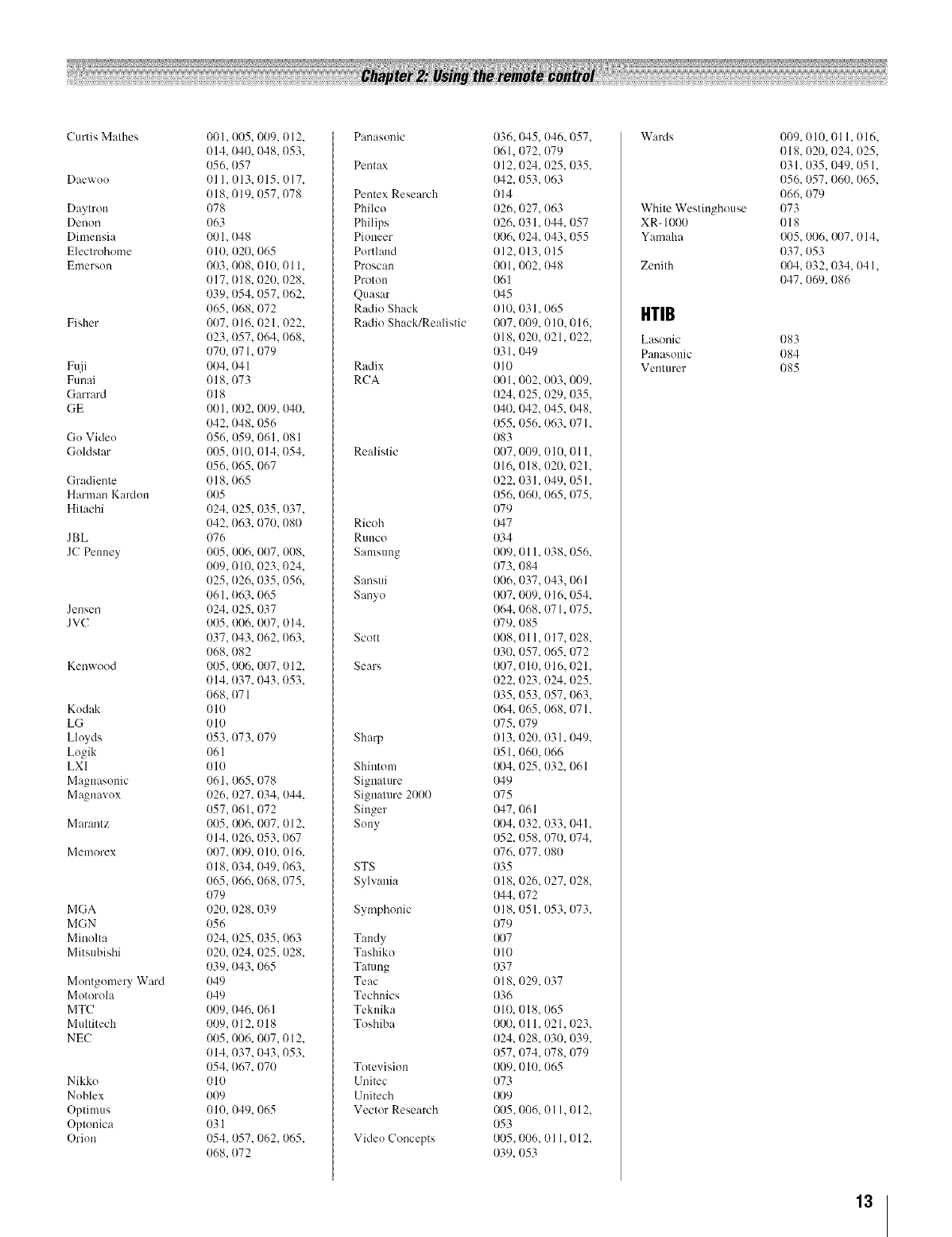
Curtis Mathes
Daewoo
Daytron
Denon
Dimensia
Electrohome
Emersol(
Fisher
Fuji
Funai
Garrard
GE
Gu Vide()
Goldstar
Gradiente
Harman Kardon
Hitachi
JBL
JC Penuey
Jensen
JVC
Kenwood
Kodak
LG
Lloyds
Logik
LXI
M:,gnasonic
Magnavox
Marantz
Memorex
MGA
MGN
Minolta
Mitsubishi
Montgomery Ward
Motorola
MTC
Multitech
NEC
Nikko
Noblex
Optimus
Optonica
Orion
001,005, 009, 012,
{)14, 040, 048, (}53,
056,057
(11I, 013, 015,017,
018,019, 057,078
O78
063
oo I, (}48
010, 020, 065
(103,008, 010, 011,
OI7, 018, 020, 028,
039,054, 057, (162,
065,068, 072
007, 016, 021, 022,
023,057, 064, (168,
070, 071, 079
004, 041
018,073
o 18
001,002, (}1)9,I)40,
042,048, 056
056, 059, 061, 081
005,010, 014,054,
056,065, 067
{)l 8,065
005
024, 025, 035,037,
{)42,063, 070, (18(I
(176
005, 006, (I(!7, 008,
009,010, 023, 024,
025, (126, 035, 056,
061, (163, (165
(124, 025, 037
005, I)1)6,007,014,
{)37,043, 062, (163,
068,082
005,006, 007, 012,
014, (137, 043,053,
068, (}71
010
010
053,073, 079
061
010
061, 065, 078
(}26, {t27,034, 044,
057,061, 072
005, {}{t6,007, 012,
014,026, 053,067
007,009, 01{1,016,
018,034, 049,063,
065,066, 068,075,
079
020, 028, 039
056
024, 025, 035,063
020, {)24,025,028,
039,043, 065
049
049
009, (146, 06 I
{t09,012, 0l 8
005, 006, 007, 012,
014, 037, 043, (}53,
054, (167, 070
010
OO9
010, 1t49,065
031
054, 057, 062, 065,
068,072
Panasonic
Pentax
Pentex Research
Philco
Philips
Pioneer
Portland
Proscau
Protun
Quasar
Radio Shack
Radio Shack/Realistic
Radix
RCA
Realistic
Ricoh
RUllCO
Samsung
Sansui
Sanyo
Scott
Sears
Sharp
Shiutom
Signature
Signature 2000
Singer
Suny
STS
Sylvania
Symphonic
Taudy
Tashiko
Tatung
Teac
Technics
Teknika
Toshiba
Totevisiun
Unitec
Unitech
Vector Research
Vide(( Concepts
036,045, 046,057,
061,072, 079
012,024, {t25, 035,
{}42,053,063
014
026,027, 063
026, 031,044, 057
006, 024, {)43,055
012,013, {115
001, 002, {}48
061
{}45
010, 031, 065
007,009, 010, 016,
018, 020, 021, (}22,
031, 049
010
{}01,002, {}{}3,009,
024, 025,029, 035,
{}40,042, {}45,(}48,
055, 056, 063, 07 l,
083
007,009, 010, Ol 1,
016, 018, 020, 021,
022, 031,049, 051,
056, 060, 065, (}75,
079
047
034
009, 011, 038, 056,
073, 084
006,037, 043, (161
007, 009, 016,054,
064, 068, 071, (175,
079, 085
008, 011,017,028,
030, 057, 065, 072
007,010, 016,021,
022, (123,024, 025,
035, (153,057, 063,
064, 065,068, 071,
075, 079
013, 020, 031,049,
051,060, 066
I}{}4,025,032, 061
_}49
075
{M7, 061
I}{}4,(132, 033, 041,
052, (158, 070, 074,
076, 077, 080
O35
018, 026, 027, 028,
{}44,072
018, 051,053, 073,
079
{}{}7
010
037
{)18, 029, 037
036
010, 018, 065
000, 011,021,023,
024, 028, 030, 039,
057, 074, 078, (179
009, 010, 065
073
{}{}9
005,006, {11I, 012,
053
005,006, 01 I, 012,
039, 053
Wards
White Westinghouse
XR- 1000
Yamaha
Zenith
HTIB
Lasonic
Panasonic
Venturer
009, 010, Ol 1,016,
018, 020, 024, 025,
031,035, 049, 051,
(}56, 057, 060, 065,
066, 079
073
018
I}{}5,006, {}{)7,014,
037, 053
{}{}4,032, (}34, 041,
047, 069, (}86
083
084
085
13
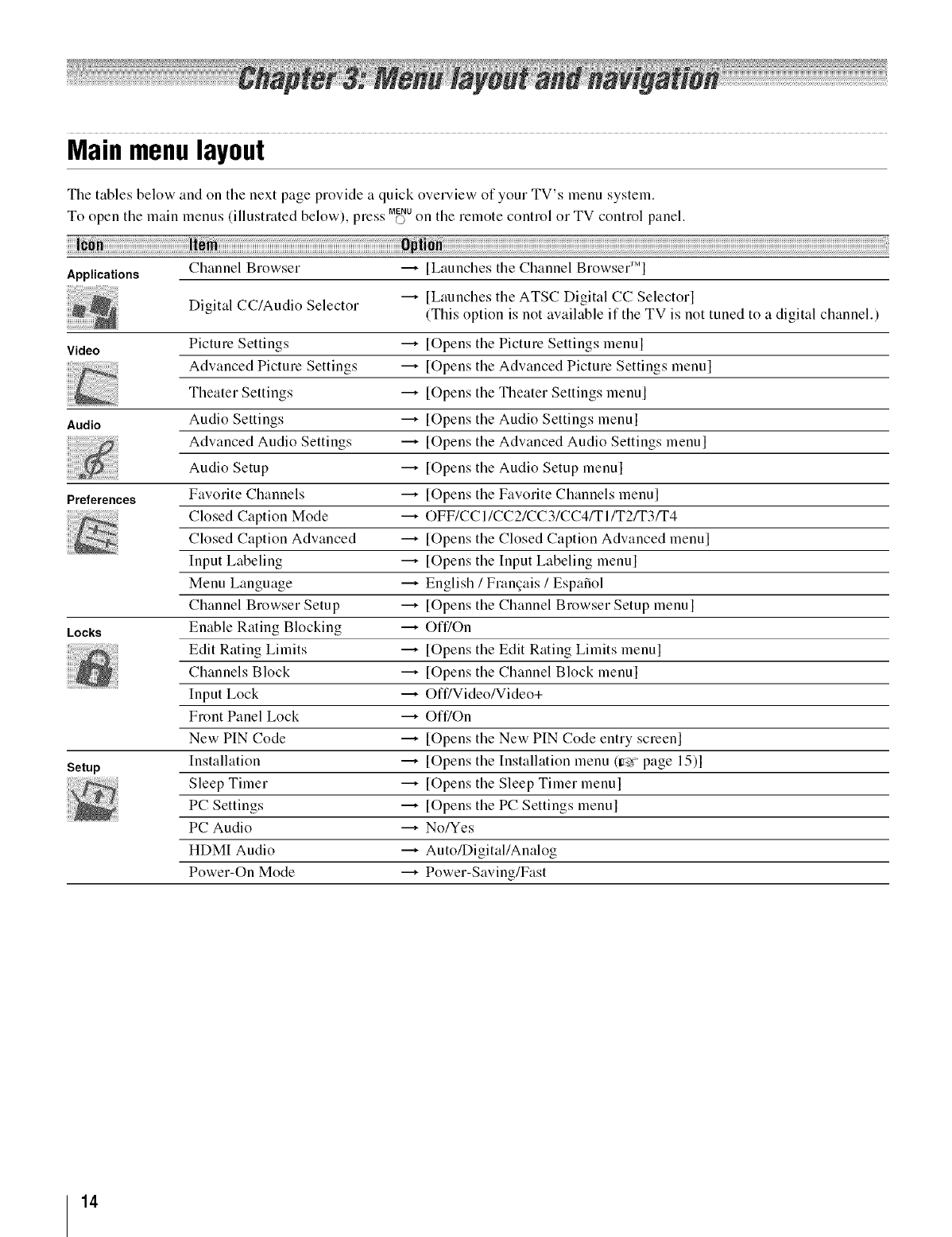
Main menu layout
The tables below and on the next page provide a quick overview of your TV's menu system.
To open the main menus (illustrated below), press M_NUon tile remote control or TV control panel.
S JM
Channel Browser -----,[Launches the Channel Brow._er
Applications
Digital CC/Audio Selector -----,[Launches tile ATSC Digital CC Selector]
(This option is not available if the TV is not tuned to a digital channel.)
Video Picture Settings _ [Opens the Picture Settings menu]
Advanced Picture Settings -----,[Opens tile Advanced Picture Settings menu]
Theater Settings -----,[Opens the Theater Settings menu]
Audio Audio Settings -----,[Opens the Audio Settings menu]
Advanced Audio Settings -----,[Opens the Advanced Audio Settings menu]
Audio Setup -----,[Opens the Audio Setup menu]
Preferences Favorite Channels ---* [Opens the Favorite Channels menu]
Closed Caption Mode ---* OFF/CCI/CC2/CC3/CC4/TI/T2FF3FF4Closed Caption Advanced -----,[Opens the Closed Caption Advanced menu]
Input Labeling -----,[Opens the Input Labeling menu]
Menu Language -----,English /Frangais /Espafiol
Channel Browser Setup -----,[Opens the Channel Browser Setup menu]
Locks Enable Rating Blocking -----,Off/On
Edit Rating Limits ---* [Opens the Edit Rating Limits menu]
Channels Block -----,[Opens the Channel Block menu]
Input Lock ---* Off/Video/Video+
Front Panel Lock _ Off/On
New PIN Code _ [Opens the New PIN Code entry screen]
Installation -----,[Opens the Installation menu (Ir__ page 15)1
Setup
Sleep Timer -----,[Opens the Sleep Timer menu]
PC Settings -----,[Opens the PC Settings menu]
PC Audio ---* No/Yes
HDMI Audio _ Auto/Digital/Analog
Power-On Mode _ Power-Saving/Fast
14
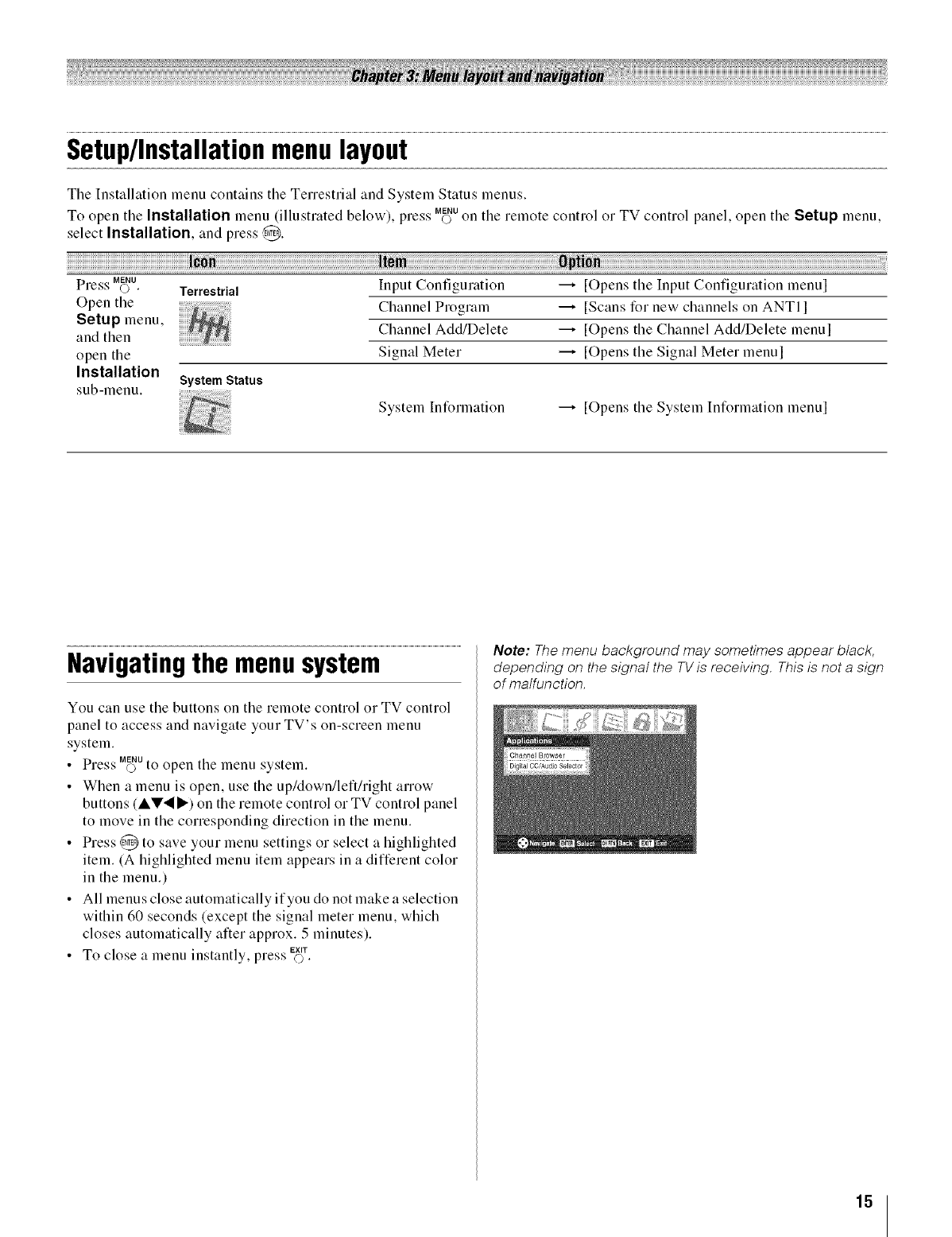
Setup/Installationmenulayout
Tile Installation menu contains tile Terrestrial and System Status menus.
To open tile Installation menu (illustrated below), " ss MENUpie.. O on the remote control or TV control panel, open the Setup menu.
select Installation, and press @.
Press MENUo •
Open the
Setup menu,
and then
open the
Installation
sub-menu.
Terrestrial
System Status
Input Configuration
Channel Program
Channel Add/Delete
Signal Meter
[Opens the Input Configuration menu[
[Scans for new channels on ANTl[
[Opens the Channel Add/Delete menu[
[Opens the Signal Meter menu[
System Information _ [Opens tile System Information menul
Navigatingthe menusystem
You can use the buttons on the remote control or TV control
panel to access and navigate your TV's on-screen menu
system.
SS MENU
• Pre.;s O to open the menu system.
• When a menu is open, use the up/down/left/right arrow
buttons (AV._I_) on the remote control or TV control panel
to move in the corresponding direction in the menu.
• Press @ to save your menu settings or select a highlighted
item. (A highlighted menu item appears in a different color
in the menu.)
• All menus close automatically if you do not make a selection
within 60 seconds (except the signal meter menu, which
closes automatically after approx. 5 minutes).
• To close a menu instantly, press Ex'¢s.
Note: The menu background may sometimes appear black,
depending on the signal the TV is receiving. This is not a sign
of malfunction.
15
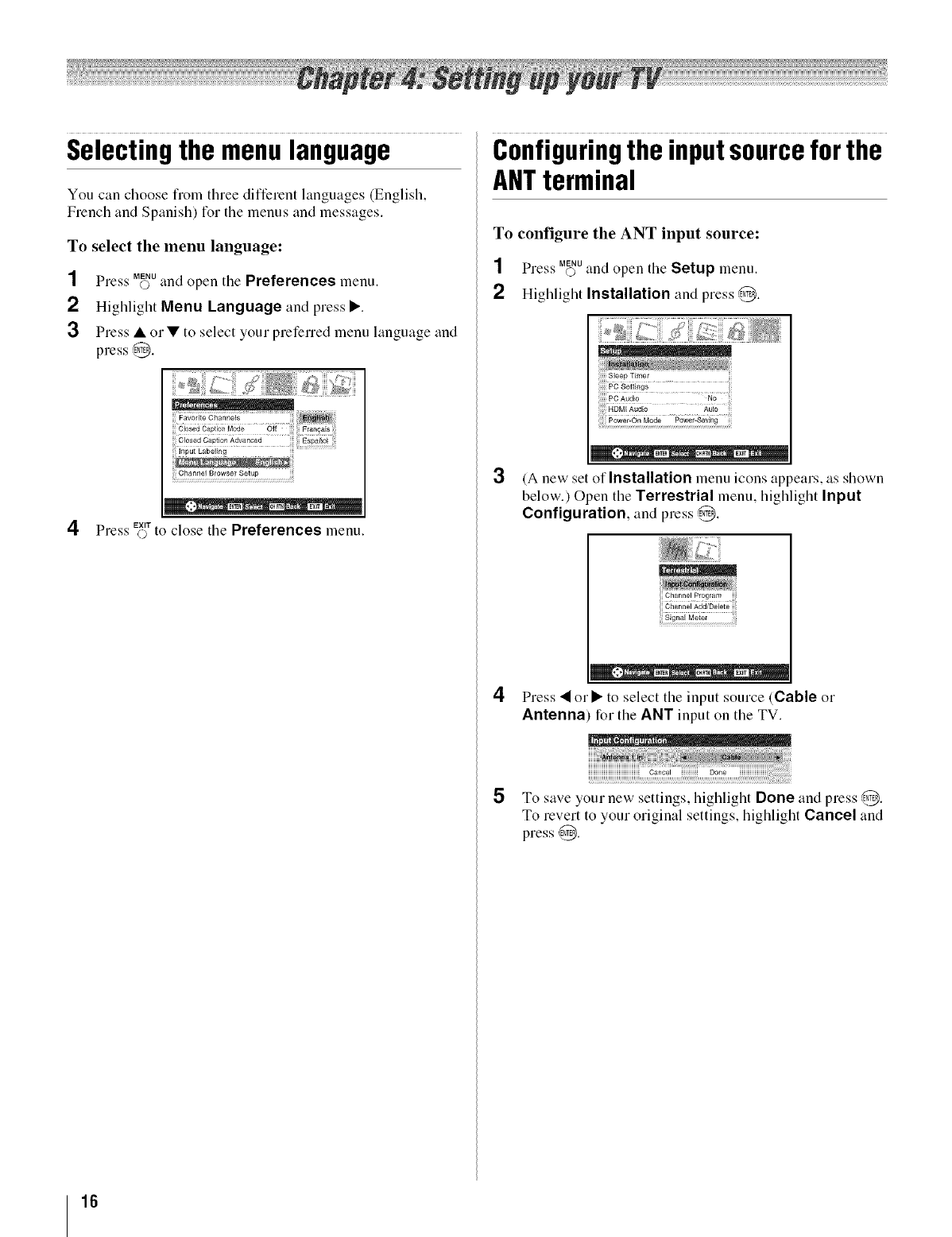
Selectingthe menulanguage
You can choose from three different languages (English,
French and Spanish) for tile menus and messages.
To select the menu language:
SS MENU
Press © and open the Preferences menu.
2Highlight Menu Language and press I_.
3Press • or • to select your preferred menu language and
press @.
EXIT
Press © to close the Preferences menu.
Configuringthe inputsourceforthe
ANTterminal
To configure the ANT input source:
NS MENU
Pre,<_'©and open tile Setup menu.
2Highlight Installation and press,_.
3(A new set of Installation menu icons appears, as shown
below.) Open the Terrestrial menu, highlight Input
Configuration, and press @.
4
%% • .•EN_R • _RrN :SXff
Press • or • to select the input source (Cable or
Antenna for the ANT input on the TV.
5To save your new settings, lfiglflight Done and press @.
To revert to your original settings, highlight Cancel and
press @.
16
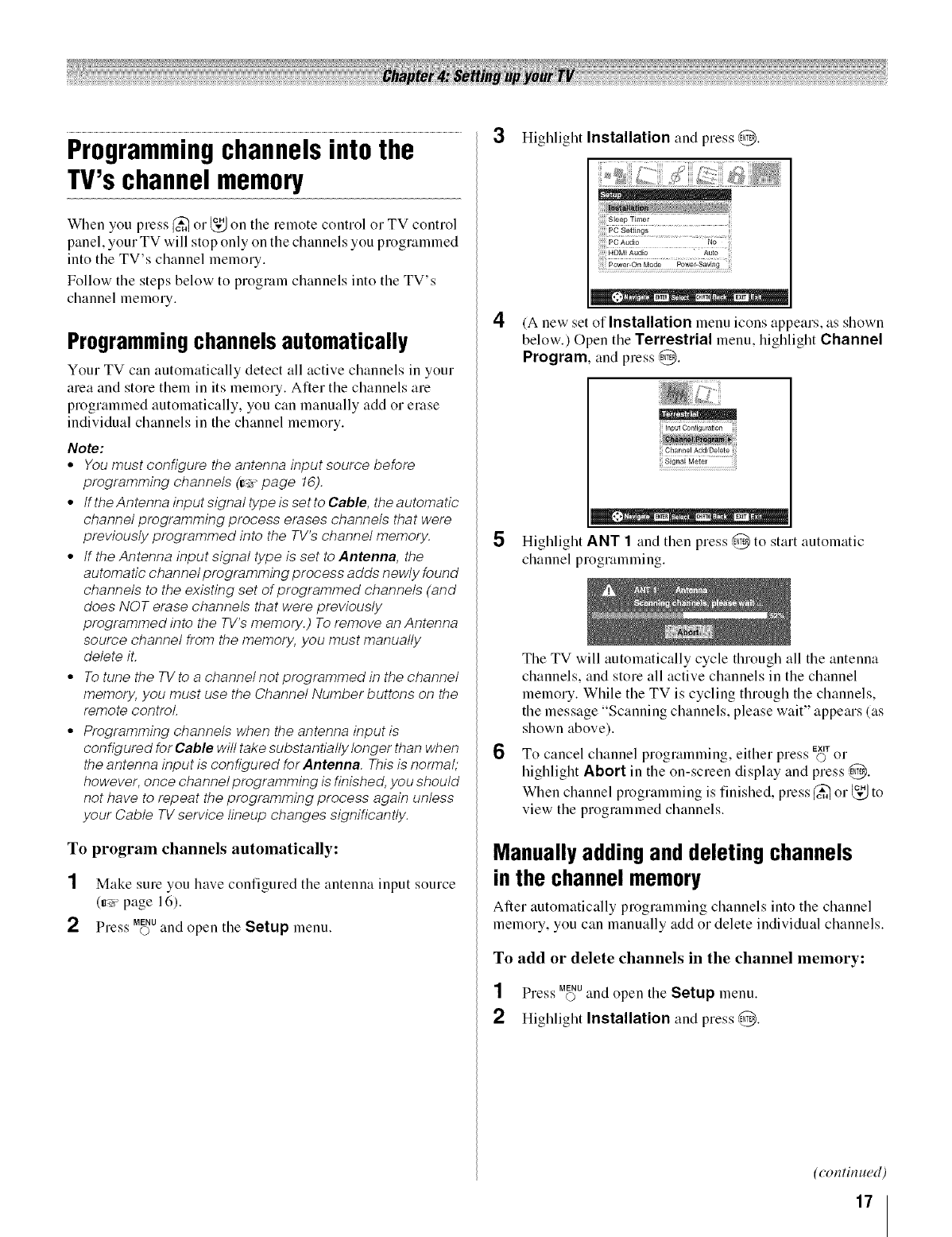
Programmingchannelsintothe
TV'schannelmemory
When you press (_ or _,_ on the remote control or TV control
panel, your TV will stop only on the channels you proglammed
into the TV's channel memory,
Follow the steps below to program channels into the TV's
channel memory,
Programming channels automatically
Your TV can autolnatically detect all active channels in your
area and store them in its memory. After the channels are
programmed automatically, you can manually add or elase
individual channels in the channel memory.
Note:
•You must configure the antenna input source before
programming channels (_" page 16).
• tf the Antenna input signal type is set to Cable, the automatic
channel programming process erases channels that were
previously programmed into the TV's channel memory.
• tf the Antenna input signal type is set to Antenna, the
automa tic channel programming process adds newly found
channels to the existing set of programmed channels (and
does NOT erase channels that were previously
programmed into the TV's memory.) To remove an Antenna
source channel from the memory, you must manually
delete it.
• To tune the TV to a channel not programmed in the channel
memory, you must use the Channel Number buttons on the
remote control.
• Programming channels when the antenna input is
configured for Cable will take substantially longer than when
the antenna input is configured for Antenna. This is normal;
however, once channel programming is finished, you should
not have to repeat the programming process again unless
your Cable TV service lineup changes significantly.
To program channels automatically:
1Make sure you have configured the antenna input source
0r_v page 16).
SS MENU
Press O and open the Setup menu.
3Highlight Installation and press @.
4(A new set of Installation menu icons appears, as shown
below.) Open the Terrestrial menu, highlight Channel
Program, and press @.
Channel Add]Delete
5Highlight ANT 1and then press @ to start automatic
channel programming.
6
The TV will automatically cycle through all the antenna
channels, and store all active channels in the channel
memory, While the TV is cycling through the channels,
the message "Scanning channels, please wait" appears (as
shown above),
To cancel channel programming, either press EX,'r©O1"
highlight Abort in the on-screen display and press @,
When channel programming is finished, press (_ or _,_ to
view the programmed channels,
Manually adding and deleting channels
in the channel memory
After automatically programming channels into the channel
memory, you can manually add or delete individual channels.
To add or delete channels in the channel memory:
SS MENU
Pre,;s ©and open the Setup menu,
2Highlight Installation and press @.
(contin ued)
17
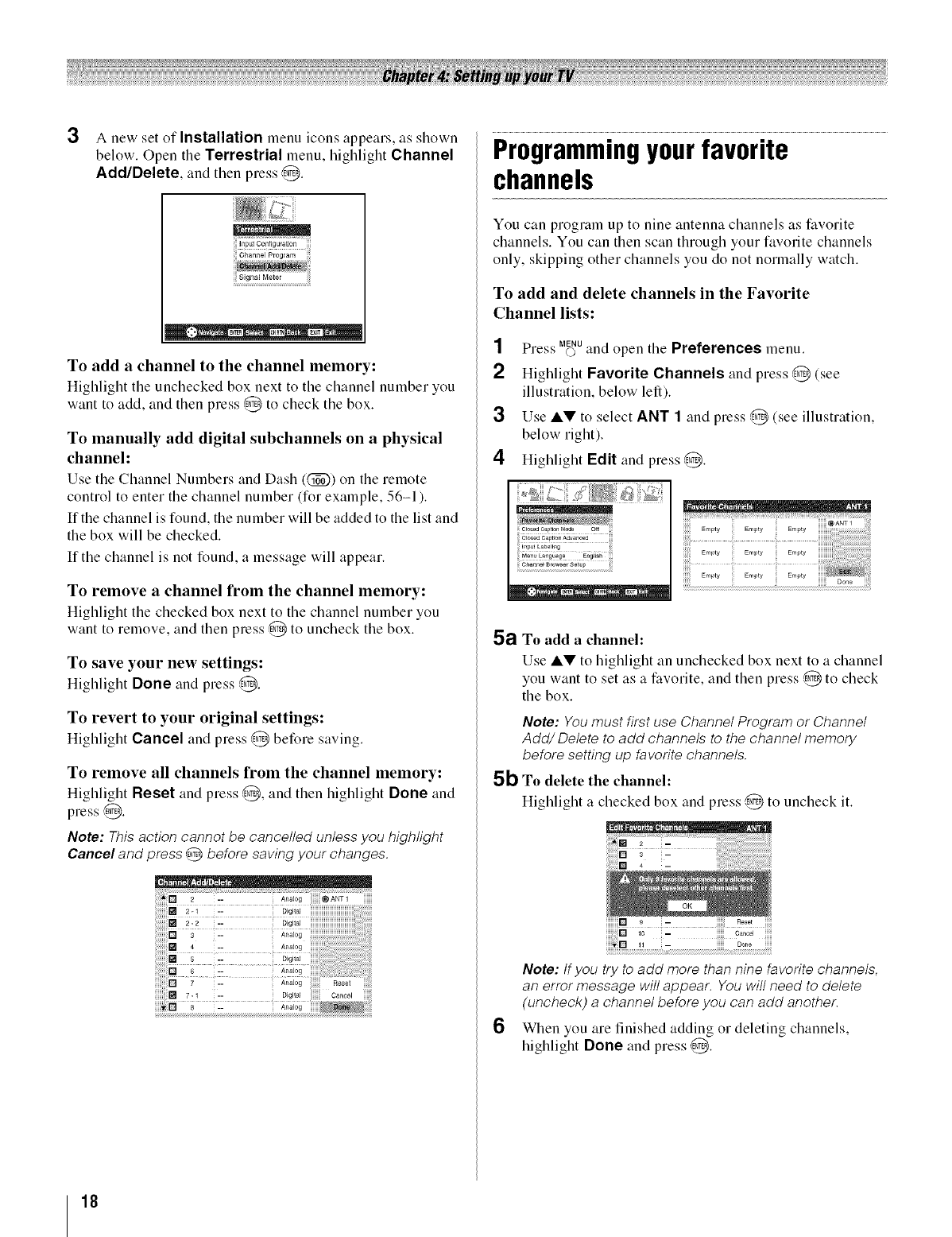
3A new set of Installation menu icons appears, as shown
below. Open the Terrestrial menu, highlight Channel
AddlDelete, and then press @.
ii_!:!:i_j
ii iili
To add a channel to the channel memory:
Highlight tile unchecked box next to tile channel number you
want to add, and then press @ to check the box.
To manually add digital subchannels on aphysical
channel:
Use tile Channel Numbers and Dash ((_) on tile remote
control to enter the channel number (for example, 56-1 ).
If the channel is found, the number will be added to the list and
the box will be checked.
If the channel is not found, a message will appeal.
To remove a channel from the channel memory:
Highlight tile checked box next to tile channel number you
want to remove, and then press @ to uncheck the box.
To save your new settings:
Highlight Done and press @.
To revert to your original settings:
Highlight Cancel and press @ before saving.
To remove all channels from the channel memory:
Highlight Reset and press @, and then highlight Done and
press @.
Note: This action cannot be cancelled unless you highlight
Oanee! and press @before saving your changes.
[] 2 -- ;AnaJog _ANTI
2.2 -- DL_ta_
:N 4 -- An_Jog
5 .. Digital
6 -- Analog
7-1 -- Digital Cancel
Programmingyourfavorite
channels
You can program up to nine antenna cllannels as tiworite
channels. You can then scan through your favorite channels
only, skipping other channels you do not normally watch.
To add and delete channels in the Favorite
Channel lists:
SS MENU
Pre.;s o and open tile Preferences menu.
2 Highlight Favorite Channels and press @ (see
illustration, below left).
Use li,_' to select ANT 1 and pless @ (see illustration,
below right).
4 Highlight Edit and press @.
5a To add a channel:
Use A'_' to highlight an unchecked box next to a channel
you want to set as a fiworite, and then press @ to check
the box.
Note: You must first use Channel Program or Channel
Add/Delete to add channels to the channel memory
before setting up favorite channels.
5b To delete the channel:
Highlight a checked box and press @ to uncheck it.
6
iD 9 -- ii Reset
Bi; 2 co,,oo,
_D_,,_...............
Note: If you try to add more than nine favorite channels,
an error message will appear. Youwill need to delete
(uncheck) a channel before you can add another.
When you are finished adding or deleting channels,
highlight Done and press @.
18
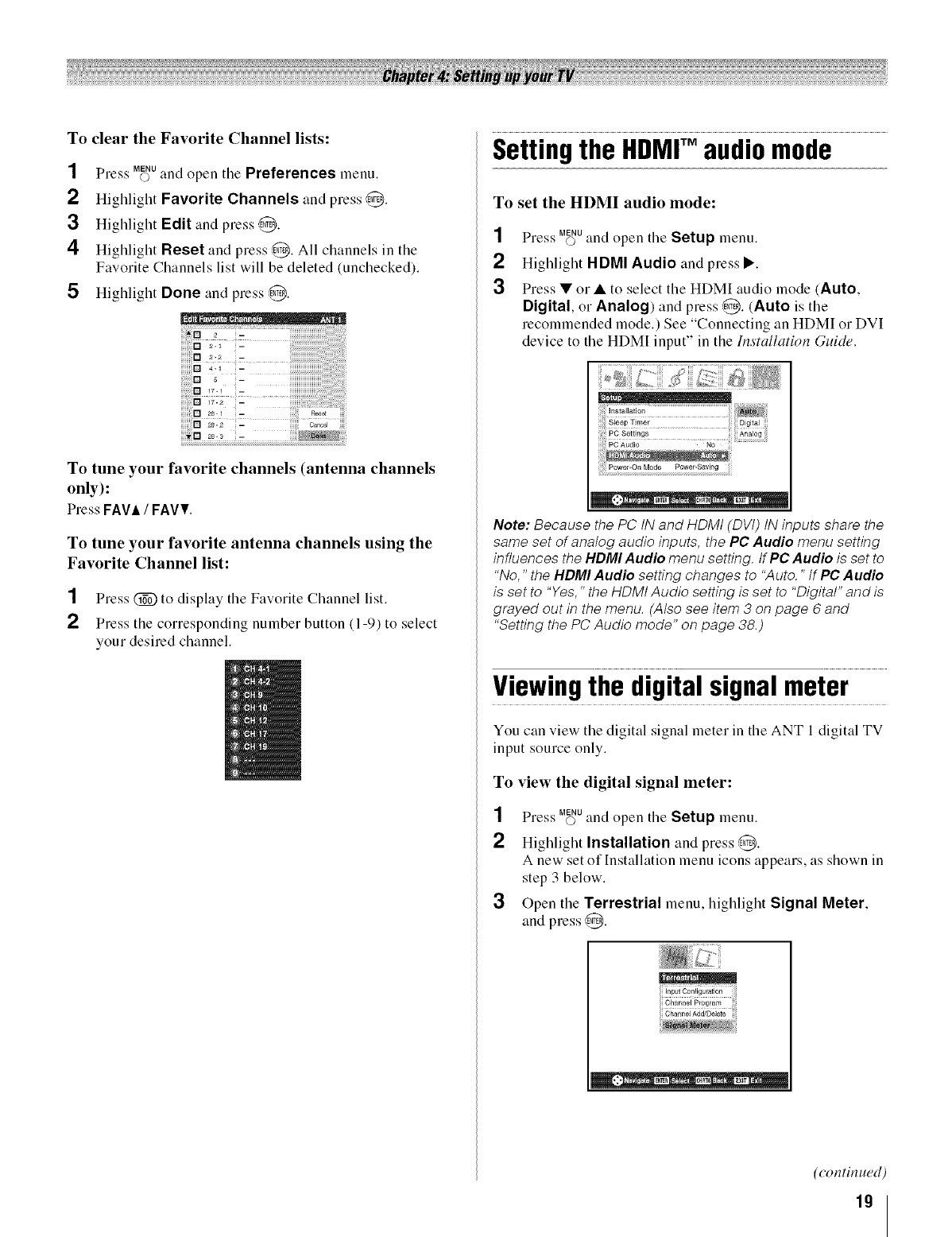
To clear the Favorite Channel lists:
1
2
3
4
5
SS MENU
Pre._'s O and open the Preferences menu.
Highlight Favorite Channels and press @.
Highlight Edit and press @.
Highlight Reset and press @. All channels in the
Favorite Channels list will be deleted (unchecked).
Highlight Done and press @.
!2i!!!!!!!!!!!ii_!:i:!iiiill
>2 _
_
_r._ -
ir; 2
[] as_ -ao0ot
as.2 -c_noo_
To tune your favorite channels (antenna channels
only):
Press FAVA/FAVV.
To tune your favorite antenna channels using the
Favorite Channel list:
1Press @ to display the Favorite Channel list.
2Press the corresponding number button (1-9) to select
your desired channel.
Settingthe HDMrMaudiomode
To set the HDMI audio mode:
1
2
3
SS MENU
Press O and open the Setup menu.
Highlight HDMI Audio and press I_.
Press • or •to select the HDMI audio mode (Auto,
Digital, or Analog) and press ,_. (Auto is the
recommended mode.) See "Connecting an HDMI or DVI
device to the HDMI input" in the Installation Guide.
_ .... _N_R • • _H_rN_ Exrr
Note: Because the PC tN and HDMt (DVt) tN inputs share the
same set of analog audio inputs, the PC Audio menu setting
influences the HDMIAudio menu setting, tf PC Audio is set to
"No," the HDMI Audio setting changes to "Auto." tf PC Audio
is set to "Yes," the HDMI Audio setting is set to "Digital" and is
grayed out in the menu. (Also see item 3 on page 6 and
"Setting the PC Audio mode" on page 38.)
Viewingthe digitalsignalmeter
You can view the digital signal meter in the ANT 1 digital TV
input source only.
To view the digital signal meter:
SS MENU
Pre.<_' O and open the Setup menu.
2Highlight Installation and press @.
A new set of [nstallation menu icons appears, as shown in
step 3 below.
3Open the Terrestrial menu, highlight Signal Meter,
and press ,@.
Channel Program
Channel Add/Delete
(continued)
19
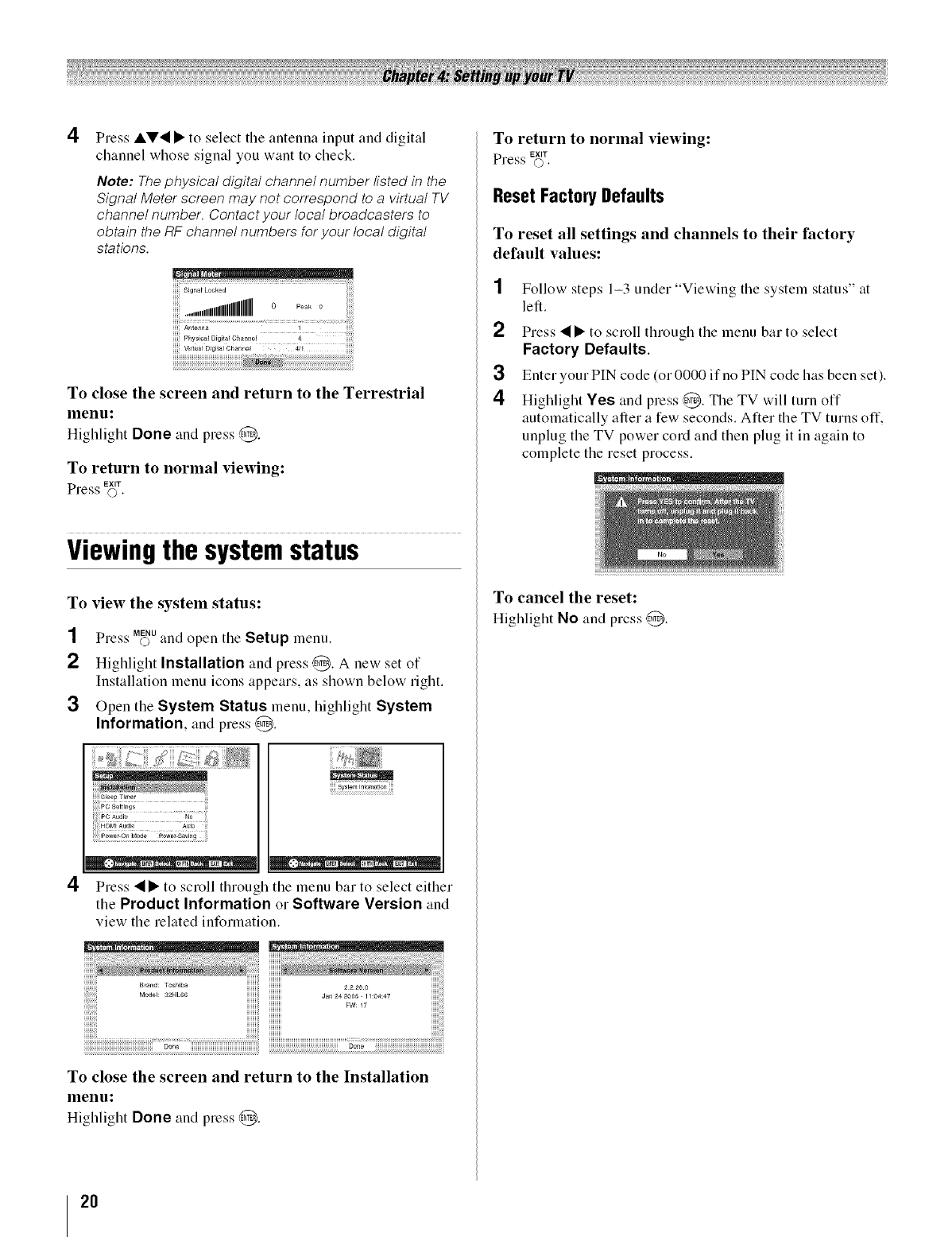
4Press &V,_ • to select the antenna input and digital
channel whose signal you want to check.
Note: The physical digital channel number listed in the
Signal Meter screen may not correspond to a virtual TV
channel number Contact your local broadcasters to
obtain the RF channel numbers for your local digital
stations
Physical DioJtal Ohannel 4........
Virtual Digital Channel 421
To close the screen and return to the Terrestrial
menu:
Highlight Done and press @.
To return to normal viewing:
EXIT
Press O.
Viewingthe systemstatus
To view the system status:
SS MENU
Pre,_'s O and open tile Setup menu.
2 Highlight Installation and press @. A new set of
Installation menu icons appears, as shown below right.
3Open the System Status menu, highlight System
Information, and press ,_.
.....SFeep Timer
4
ii¸_: ii .....!;i
•,*, -- _R CHiN- mr
Press "_• to scroll through tile menu bar to select either
tile Product Information or Software Version and
view tile related information.
Done iiiiiiiiiiiiiiiiiiiiiiiiiiiiiiiiiiiiiiiiiiiiiiiiiii!!!!!!!!!!!!!!!!!!!!!!!!!!!!!!!!!!!!!!!!!!!!!!!!!!#one iiiiiiiiiiiiiiiiiiiiiiiiiiiiiiiiiiiiiii!!!!!!!!....
To close the screen and return to the Installation
menu:
Highlight Done and press @.
To return to normal viewing:
EXIT
Press O.
Reset Factory Defaults
To reset all settings and channels to their factory
default values:
1
2
3
4
Follow steps 1-3 under "Viewing tile system status" at
left.
Press "_• to scroll through the menu bar to select
Factory Defaults.
Enter your PIN code (or 0000 if no PIN code has been set).
Highlight Yes and press @. The TV will turn off
automatically after a few seconds. Alter the TV turns off.
unplug the TV power cord and then plug it in again to
complete the reset process.
To cancel the reset:
Highlight No and prcss @.
2O
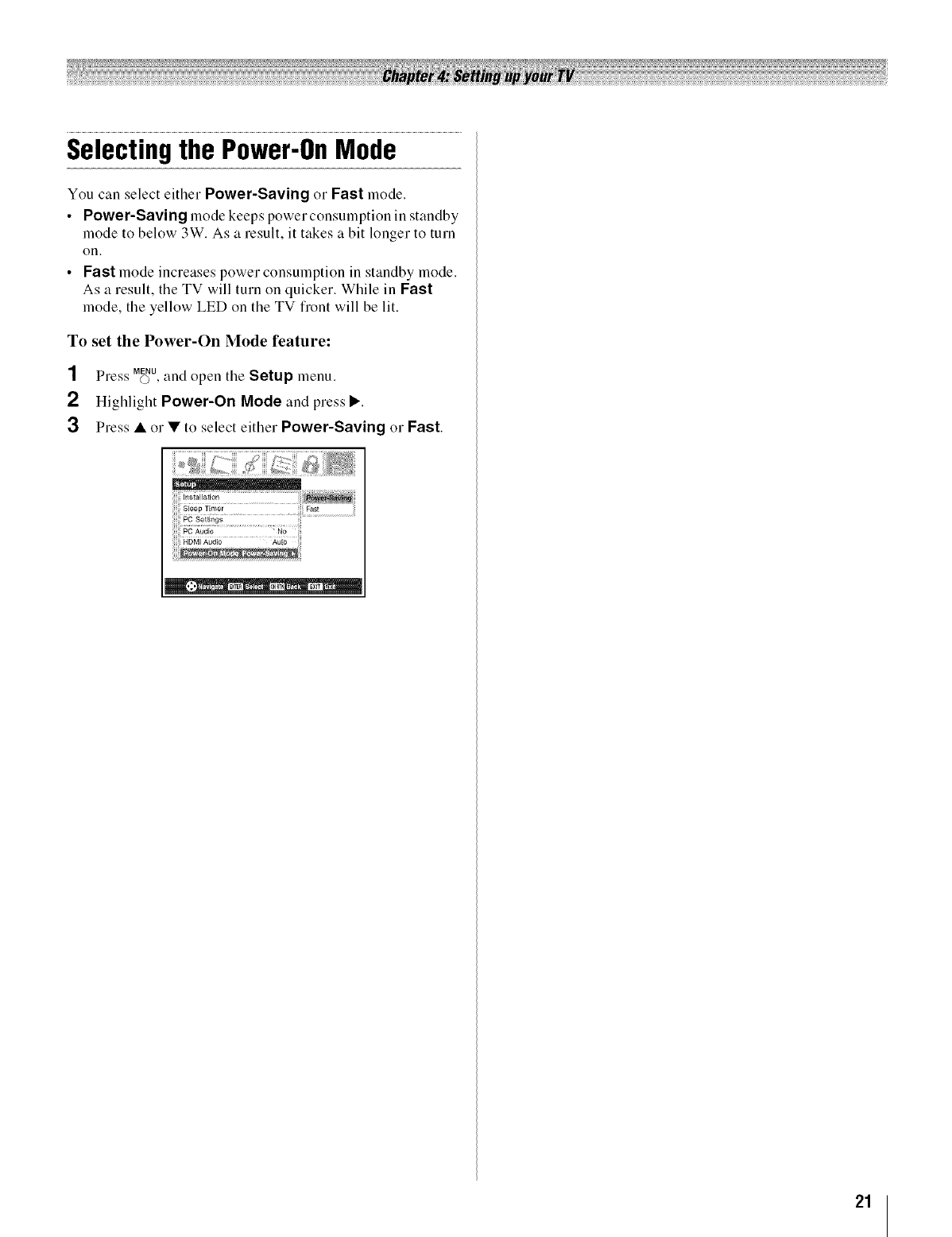
Selectingthe Power-OnMode
You can select either Power-Saving or Fast mode.
•Power-Saving mode keeps power consumption in standby
mode to below 3W. As a result, it takes a bit longer to turn
on,
•Fast mode increases power consumption in standby mode.
As a result, the TV will turn on quicker. While in Fast
mode, the yellow LED on the TV fl'ont will be lit.
To set the Power-On Mode feature:
SS MENU
Press O , and open the Setup menu.
2Highlight Power-On Mode and press I_.
3 Press • or • to select either Power-Saving or Fast.
21
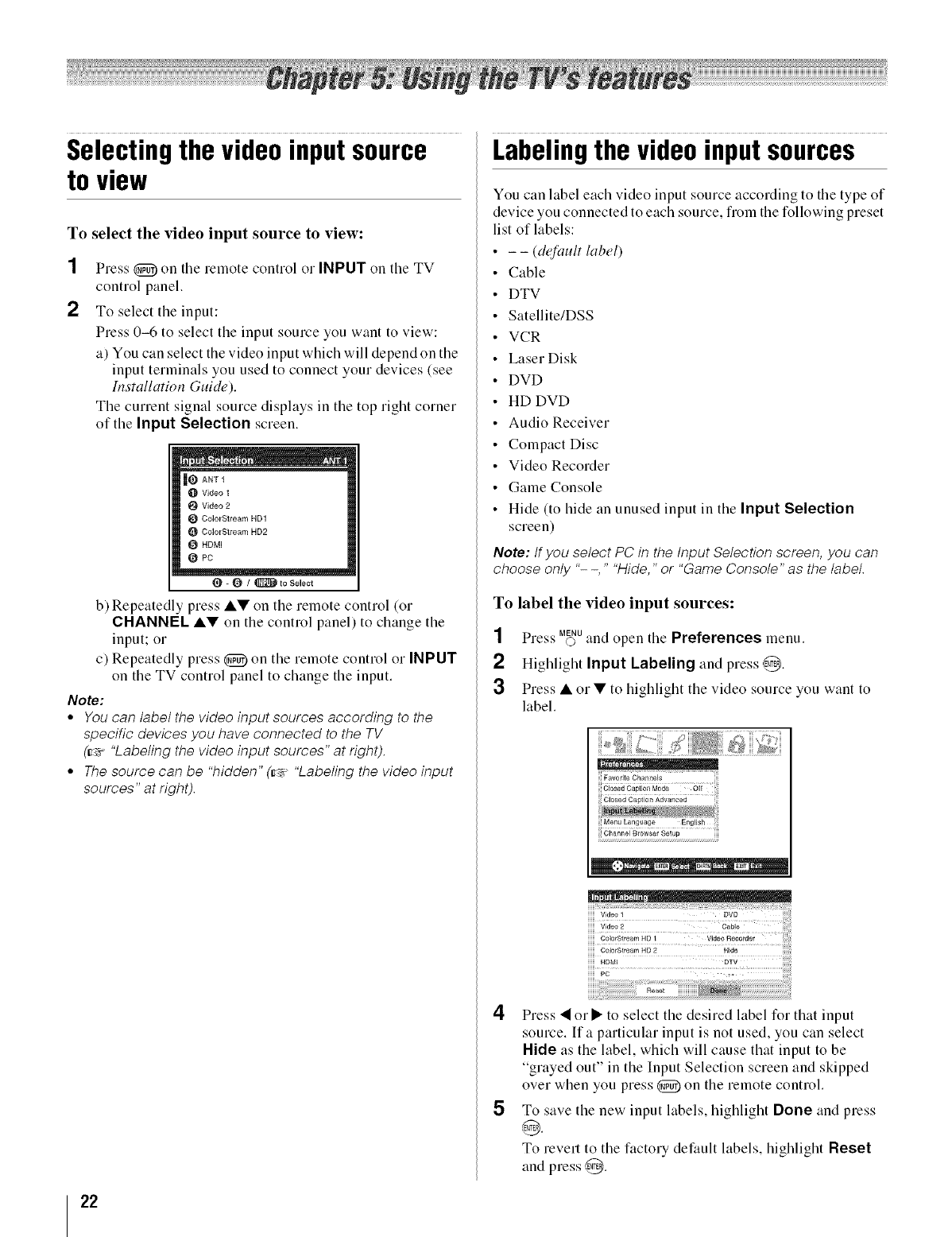
Selectingthe videoinputsource
to view
To select the video input source to view:
1
2
Press _) on the remote control or INPUT on the TV
control panel.
To select the input:
Press 0-6 to select the input source you want to view:
a) You can select the video input which will depend on the
input terminals you used to connect your devices (see
hlstallation Guide),
The current signal source displays in the top right corner
of the Input Selection screen,
Video 1
Video 2
CNorStream HD1
ColorStream HD2
HDMI
O PC
- _ /_ to Select
b) Repeatedly press •• on the remote control (or
CHANNEL •V on the control panel) to change the
input; or
c) Repeatedly press _) on the remote control or INPUT
on the TV control panel to change the input.
Note:
•Youcan label the video input sources according to the
specific devices you have connected to the TV
(_>."Labeling the video input sources" at right).
• Thesource can be "hidden" (_ "Labeling the video input
sources" at right).
Labelingthe videoinputsources
You can label each video input source according to the type of
device you connected to each source, from the following preset
list of labels:
- - (default label)
Cable
I)TV
Satellite/DSS
VCR
Laser Disk
I)VD
HI) I)VI)
Audio Receiver
Compact Disc
Video Recorder
Game Console
Hide (to hide an unused input in the Input Selection
screen)
Note: If you select PC in the Input Selection screen, you can
choose only "- -," "Hide," or "GameConsole" as the label.
To label tile video input sources:
NN MENU
Press o and open the Preferences menu.
2 Highlight Input Labeling and press @.
3 Press • or • to highlight the video source you want to
label.
Favodte Channels
ii! g g g ili
_,ENTE_ CHRTfl: E_T
HDMI DTV
4Press • or • to select the desired label for that input
source, ffa particular input is not used, you can select
Hide as the label, which will cause that input to be
"grayed out" in the Input Selection screen and skipped
over when you press @ on the remote control.
5To save the new input labels, highlight Done and press
To revert to the factory default labels, highlight Reset
and press @.
22
Tuningchannels
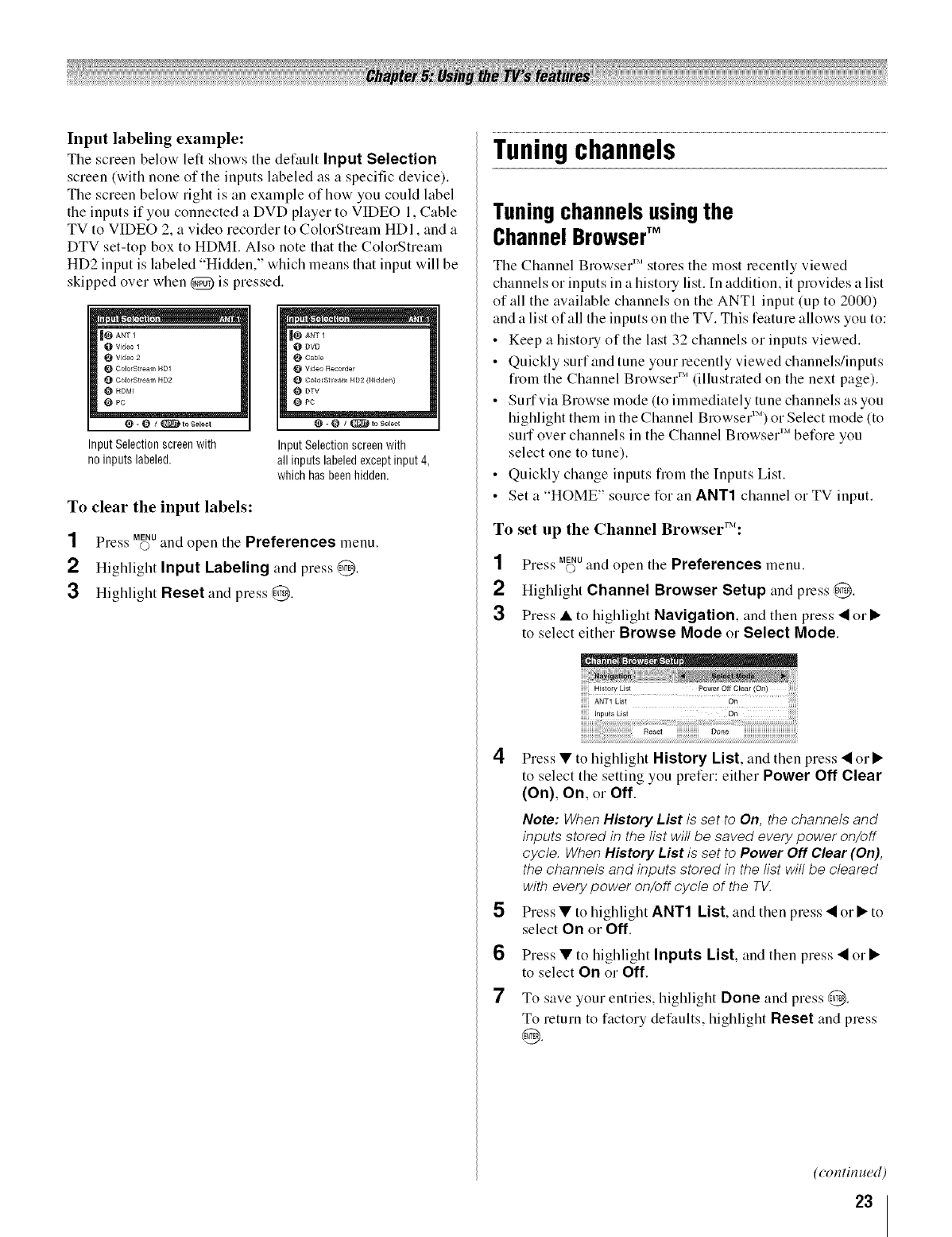
Input labeling example:
The screen below left shows the default Input Selection
screen (with none of the inputs labeled as a specific device).
The screen below right is an example of how you could label
the inputs if you connected a DVD player to VIDEO 1, Cable
TV to VIDEO 2, a video recorder to ColorStream HDI, and a
DTV set-top box to HDMI. Also note that the ColorStream
HD2 input is labeled "Hidden," which means that input will be
skipped over when @ is pressed.
[e aNT1
0 Video 1
t_ Video 2
ColorStream ND1
ColorStream HD2
e HDMI
O PC
I_ . 0/_toSelect
InputSelectionscreenwith
noinputslabeled.
@ Dye
Cable
I_ Video Recorder
Co[orStr am HI/2 (Hidd_r_)
O Dw
1_ pc
-_]_to Select
InputSelectionscreenwith
allinputslabeledexceptinput4,
whichhasbeenhidden.
To clear the input labels:
SS MENU
Press © and open the Preferences menu.
2 Highlight Input Labeling and press,@.
3Highlight Reset and press,@.
Tuning channels using the
Channel BrowserTM
The Channel Browser 'Mstores the most recently viewed
channels or inputs in a histo Ulist. [n addition, it provides a list
of all the available channels on the ANTI input (up to 2000)
and a list of all the inputs on the TV. This feature allows you to:
• Keep a histo Uof the last 32 channels or inputs viewed.
• Quickly surf and tune your recently viewed channels/inputs
from the Channel Browser 'M(illustrated on the next page).
• Suffvia Browse mode (to immediately tune channels as you
highlight them in the Channel Browser _M)or Select mode (to
surf over channels in the Channel Browser 'Mbefore you
select one to tune).
• Quickly change inputs flom the Inputs List.
• Set a "HOME" source for an ANT1 channel or TV input.
To set up the Channel Browser%
SS MENU
Pre.<_' ©and open the Preferences menu.
2Highlight Channel Browser Setup and press @.
3Press • to highlight Navigation, and then press • or I_"
to select either Browse Mode or Select Mode.
inputs List On
4Press • to highlight History List, and then press • or •
to select the setting you prefer: either Power Off Clear
(On), On, or Off.
Note: When History List is set to On, the channels and
inputs stored in the list will be saved every power on/off
cycle. When History List is set to Power Off Clear (On),
the channels and inputs stored in the list will be cleared
with every power on/off cycle of the TV.
5Press • to highlight ANT1 List, and then press • or • to
select On or Off.
6Press • to highlight Inputs List, and then press • or •
to select On or Off.
7To save your entries, highlight Done and press @.
To return to factory defaults, highlight Reset and press
(continued)
23
To open the Channel Browser'S':
•Press i_ •. =:•, or HOME_on the remote control.
• Press '_ •to surf backward through the previously tuned 32
channels or inputs in the History list, the channels in the
ANT 1 channel list, or the inputs in the Inputs list.
• Press =i • to surf forward through the channel/input History,
the ANT 1 channel list, or the Inputs list.
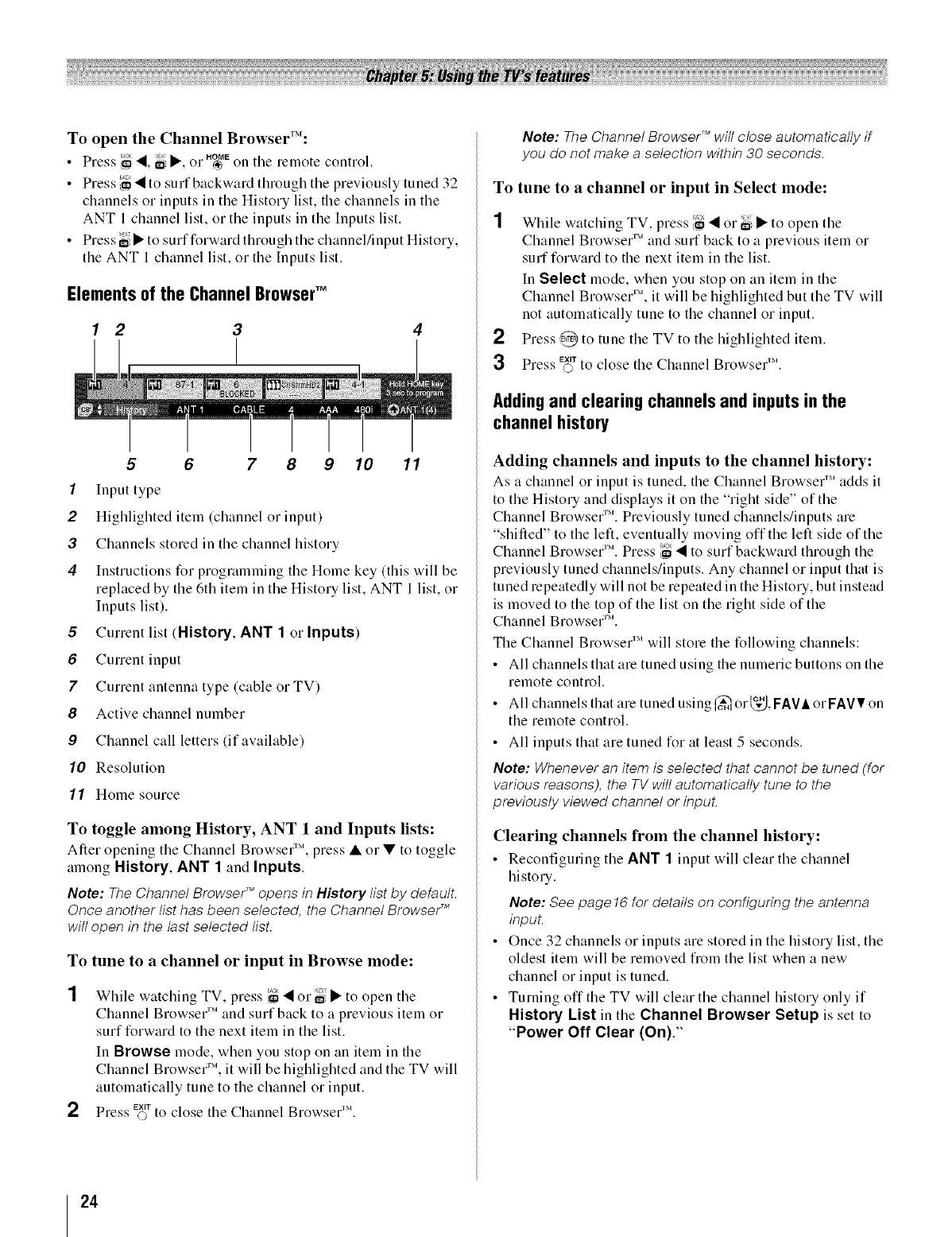
Elementsof the Channel BrowserTM
1 2 3 4
5 6 7 8910 11
1Input type
2Highlighted item (channel or input)
3Channels stored in the channel history
4Instructions for programming the Home key (this will be
replaced by the 6th item in the History list, ANT 1 list, or
Inputs list).
5Curtcut list (History, ANT 1 or Inputs)
6Curtcut input
7Curtcut antenna type (cable or TV)
8Active channel number
9Channel call letters (if available)
10 Resolution
/1 Home source
To toggle among History, ANT 1 and Inputs lists:
After opening the Channel Browser rM,press • or • to toggle
among History, ANT 1 and Inputs.
Note: The Channel BrowserTM opens in History list by default.
Once another list has been selected, the Channel BrowseF _
will open in the last selected list.
To tune to a channel or input in Browse mode:
1While watching TV, press 16<or t_i • to open tile
Channel Browser 'Mand surf back to a previous item or
surf forward to the next item in the list.
In Browse mode, when you stop on an item in the
Channel Browser 'M,it will be highlighted and the TV will
automatically tune to the channel or input.
2Press EX,Toto close the Channel Bmw,sel'M.
Note: The Channel BrowseF Mwill close automatically if
you do not make a selection within 30 seconds.
To tune to a channel or input in Select mode:
1While watching TV, press ,'_ <or _ • to open the
Channel Browser 'Mand surf back to a previous item or
surf forward to the next item in the list.
In Select mode, when you stop on an item in the
Channel Browser 'M, it will be highlighted but the TV will
not automatically tune to the channel or input.
Press ,@ to tune the TV to the higMighted item.
EXIT S]M
Press O to close the Channel Brow,'er .
Addingand clearing channels and inputs inthe
channel history
Adding channels and inputs to the channel history:
As a channel or input is tuned, the Channel Browser _Madds it
to the Histo Uand displays it on the "right side" of the
Channel Browser 'M.Previously tuned channels/inputs are
"shifted" to the left, eventually moving offthe left side of the
Channel Browser 'M.Press _ • to surf backward through the
previously tuned channels/inputs. Any channel or input that is
tuned repeatedly will not be repeated in the HistoU, but instead
is moved to the top of the list on the right side of the
Channel Browser 'M.
The Channel Browser 'Mwill store the following channels:
• All channels that are tuned using the numeric buttons on the
remote control.
• All channels that are tuned using _ or_._, F.a,VAor FAVVon
the remote control.
• All inputs that are tuned for at least 5 seconds.
Note: Whenever an item is selected that cannot be tuned (for
various reasons), the TV will automatically tune to the
previously viewed channel or inpuL
Clearing channels fi'om the channel history:
• Reconfigufing the ANT 1input will clear the channel
history.
Note: See page 16 for details on configuring the antenna
inpuL
Once 32 channels or inputs are stored in the history list, the
oldest item will be removed fiom the list when a new
channel or input is tuned.
Turning off the TV will clear the channel history only if
History List in the Channel Browser Setup is set to
"Power Off Clear (On)."
24
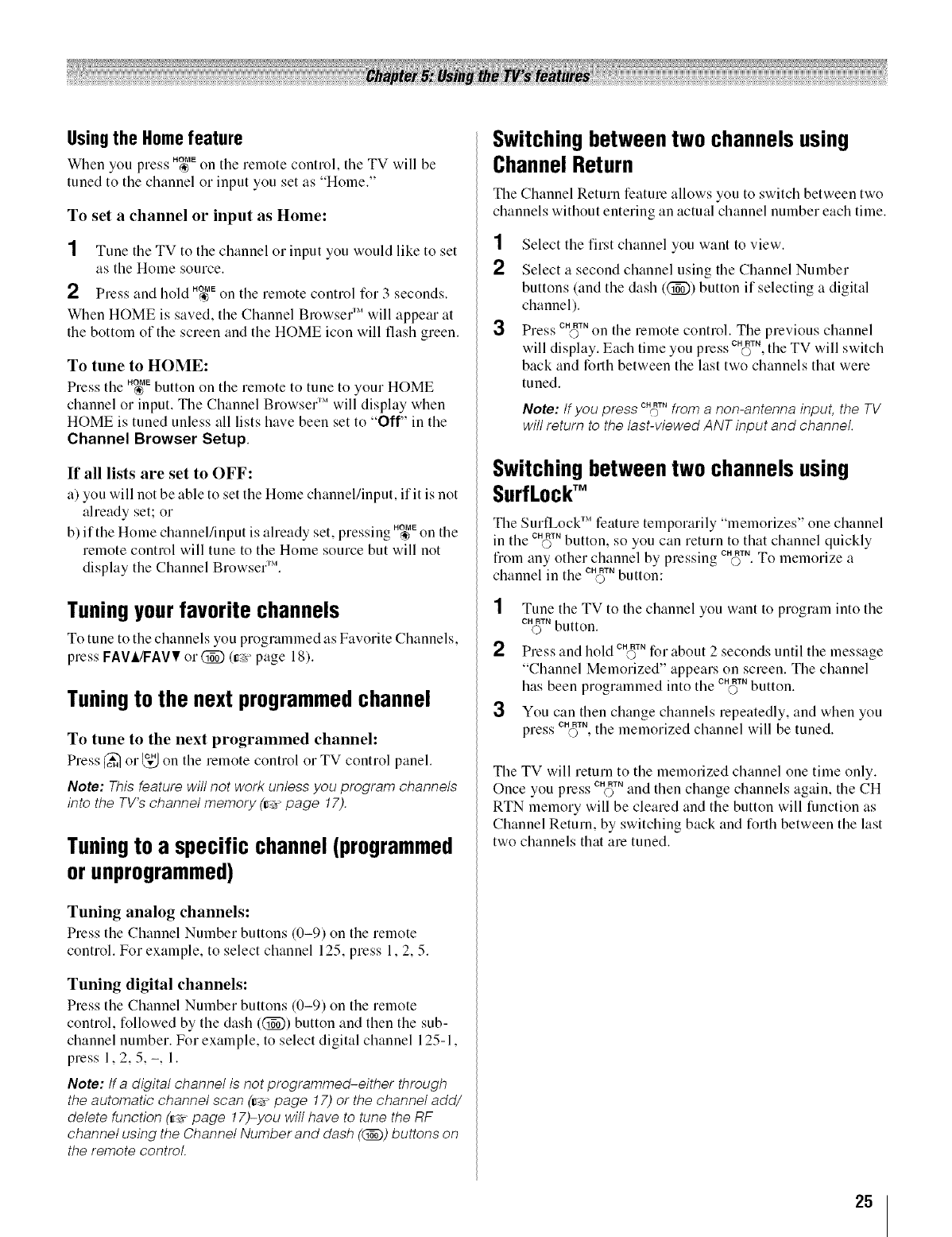
Usingthe Homefeature
When you press ,_IE on tile remote control, tile TV will be
tuned to the channel or input you set as "Home."
To set a channel or input as Home:
1 Tune the TV to the channel or input you would like to set
as the Home source,
2 ss HOME
Pre:: and hold ® on the remote control for 3 seconds,
When HOME is saved, the Channel Browser 'Mwill appear at
the bottom of the screen and the HOME icon will flash green,
To tune to HOME:
SS HOME
Pre,_'sthe ® button on the remote to tune to your HOME
channel or input, The Channel Browser 'Mwill display when
HOME is tuned unless all lists have been set to "Off" in the
Channel Browser Setup.
If all lists are set to OFF:
a) you will not be able to set the Home channel/input, if it is not
already set; or
"S S SS" HOME
b) if the Home channel/input v' aheady set, pre,_smg ® on the
remote control will tune to the Home source but will not
display the Channel Browser 'M.
Tuning your favorite channels
To tune to the channels you programmed as Favorite Channels,
press FAVA/FAVV or (_) (_' page 18),
Tuning to the next programmed channel
To tune to the next programmed channel:
Press _ or _# on the remote control or TV control panel.
Note: This feature will not work unlessyou program channels
into the TV's channel memory (_ page 17).
Tuning to a specific channel (programmed
or unprogrammed)
Tuning analog channels:
Press the Channel Number buttons (0-9) on the remote
control. For example, to select channel 125, press 1,2, 5.
Tuning digital channels:
Press the Channel Number buttons (0-9) on the remote
control, ti)llowed by the dash ((_)) button and then the sub-
channel number. For example, to select digital channel 125-1,
press 1,2, 5, -, 1,
Note: tf a digital channel is not programmed-either through
the automatic channel scan (_" page 17) or the channel add/
delete function (Ir_'rpage 17)-you will have to tune the RF
channel using the Channel Number and dash (ON))buttons on
the remote control.
Switching between two channels using
Channel Return
The Channel Return feature allows you to switch between two
channels without entering an actual channel number each time.
1
2
3
Select the first channel you want to view.
Select a second channel using the Channel Number
buttons (and the dash ((_)) button if selecting a digital
channel),
SS OH RTN
Pre,v o on the remote control, The previous channel
ss c_Rj. V"
will display, Each time you press o ,the T will switch
back and forth between the last two channels that were
tuned,
Note: tf you press C.ORT.from a non-antenna input, the TV
will return to the last-viewed ANT input and channel.
Switching between two channels using
SurfLocW_
The SurfLock _Mfeature temporarily "memorizes" one channel
in the c._T. button, so you can return to that channel quickly
SS" CH RTN
flom any other channel by pre,vmg O • To memorize a
channel in the CN_T,button:
1Tune the TV to the channel you want to program into the
cN_-r,button,
NN CH RTN -
Pre,;s and hold O for about _ seconds until the message
"Channel Memorized" appears on screen, The channel
has been programmed into the CN_T,button,
3You can then change channels repeatedly, and when you
SS OH RTN
pre.;.' ©, the memorized channel will be tuned.
The TV will return to the memorized channel one time only,
Once you press CN_T,and then change channels again, the CH
RTN memory will be cleared and the button will function as
Channel Return, by switching back and forth between the last
two channels that are tuned,
25
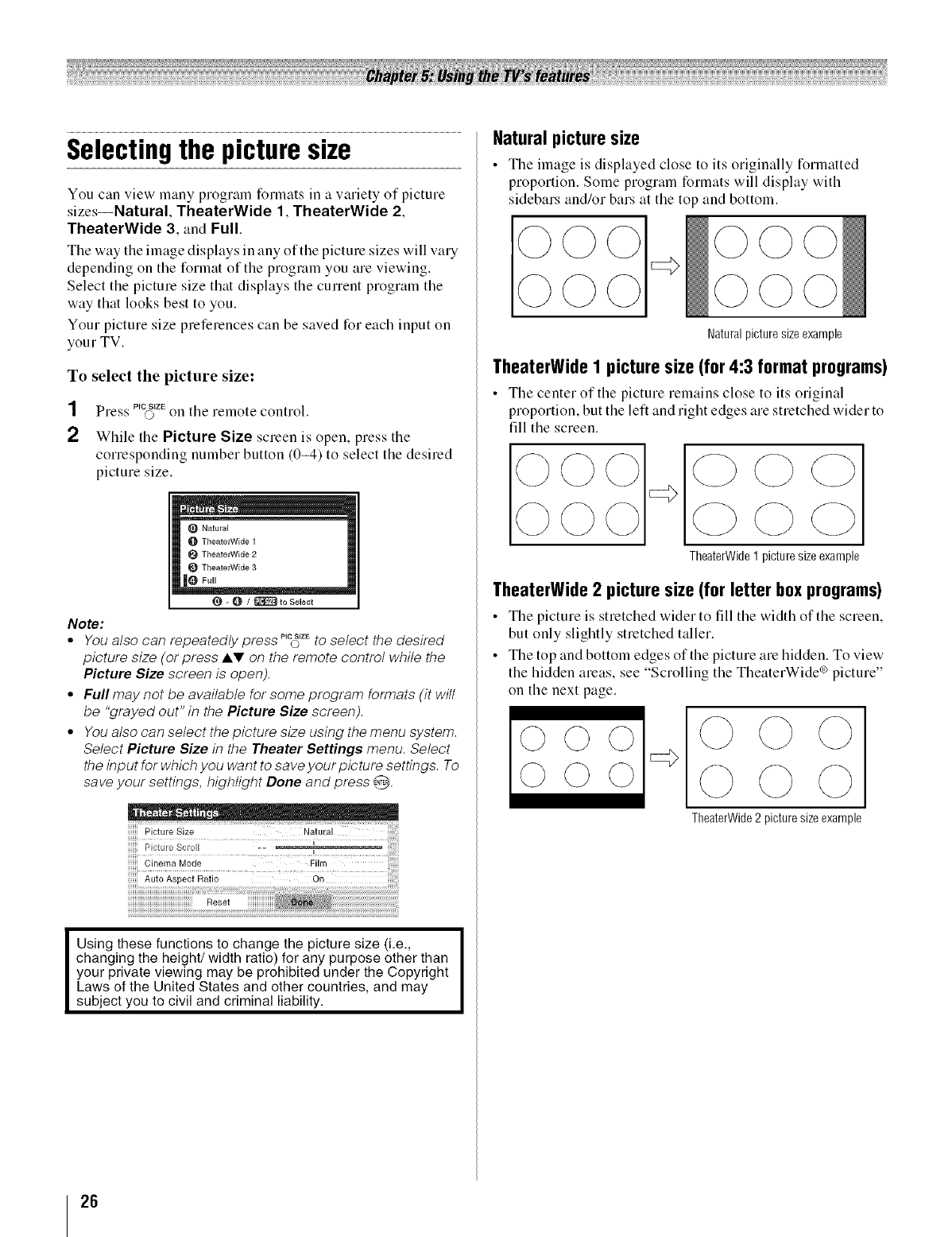
Selectingthe picturesize
You can view many program formats in a variety of picture
sizes--Natural, TheaterWide 1, TheaterWide 2,
TheaterWide 3, and Full.
The way the image displays in any or'the picture sizes will wu'y
depending on the format of the program you are viewing.
Select the picture size that displays the current program the
way that looks best to you.
Your picture size preferences can be saved for each input on
your TV.
To select the picture size:
1
2
SS P[CfSIZE
Pre:: O on the remote control.
While the Picture Size screen is open, press the
corresponding number button (0-4) to select the desired
picture size.
Natural
O TheaterWide 1
TheaterWide 2
TheaterWide 3
|O F°ll
(_ - I_ /_ to Select
Note:
•You also can repeatedly press _zE to select the desired
picture size (or press AV on the remote control while the
Picture Size screen is open).
• Full may not be available for some program formats (it will
be "grayed out" in the Picture Size screen).
• You also can select the picture size using the menu system.
Select Picture Size in the Theater Settings menu. Select
the input for which you want to save your picture settings. To
save your settings, highlight Done and press @.
Pctue Scrol ,,,_ _i
Cinema Mode Film
Auto Aspect Ratio Or)
Using these functions to change the picture size (i.e.,
changing the height/width ratio) for any purpose other than
your private viewing may be prohibited under the Copyright
Laws of the United States and other countries, and may
subject you to civil and criminal liability.
Natural picture size
• The image is displayed close to its originally formatted
proportion. Some program formats will display with
sidebars and/or bars at the top and bottom.
Natural picturesizeexample
TheaterWide I picture size (for 4:3 format programs)
• The center of the picture remains close to its original
proportion, but the left and right edges are stretched wider to
fill the screen.
=:5
TheaterWide 1 picture sizeexample
TheaterWide 2 picture size (for letter boxprograms)
• The picture is stretched wider to fill the width of the screen,
but only slightly stretched taller.
• The top and bottom edges of the picture are hidden. To view
the hidden areas, see "Scrolling the TheaterWide _'_picture"
on the next page.
©©©
©©©
TheaterWide2 picturesizeexample
26
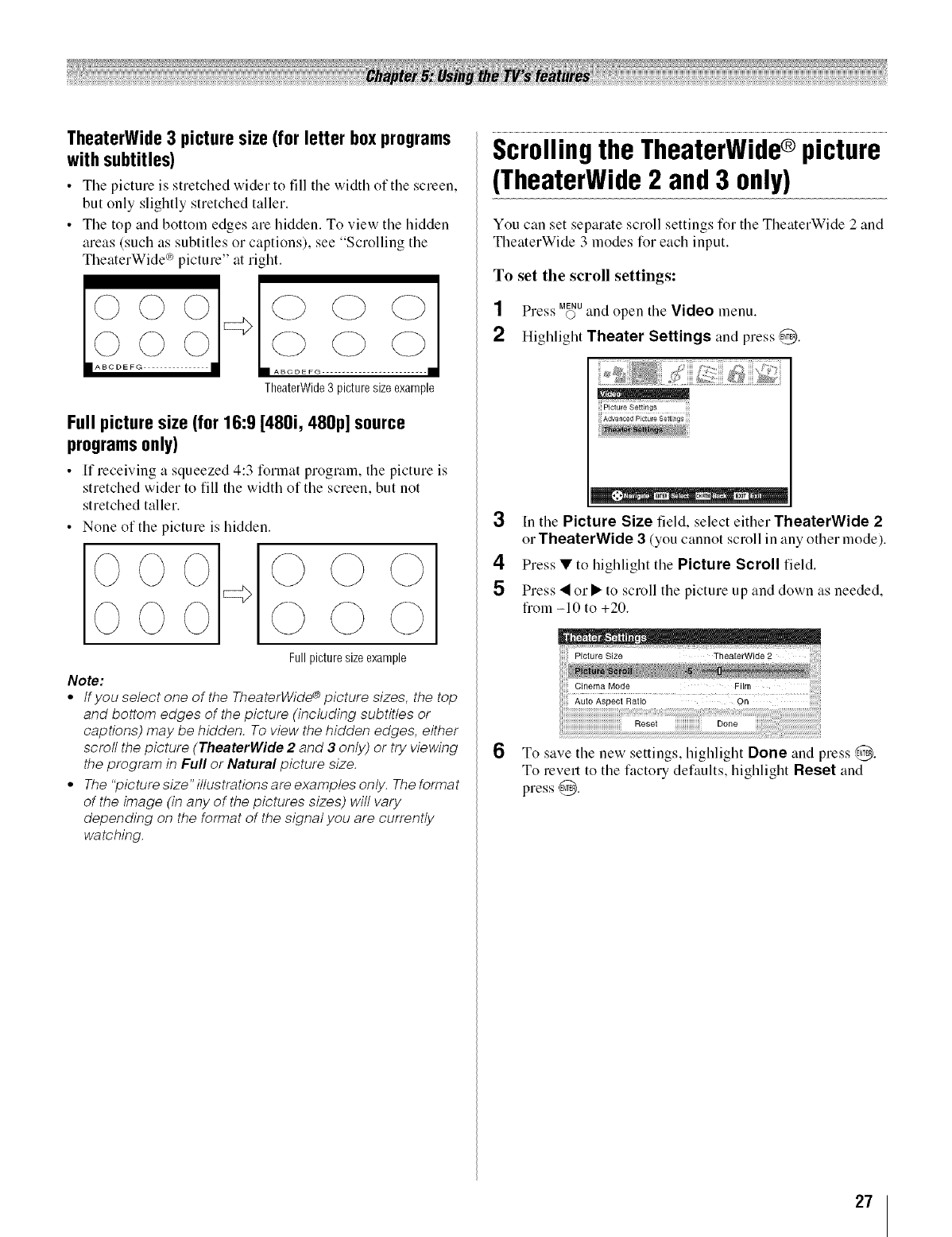
TheaterWide3 picturesize(for letter boxprograms
withsubtitles)
• The picture is stretched wider to fill tile width of the screen,
but only slightly stretched taller.
• The top and bottom edges are hidden. To view the hidden
areas (such as subtitles or captions), see "Scrolling the
TheaterWide *_picture" at right.
©©
©©©
I_BCDEFG- - II
Cp 0
II ABCDEFG ---•
TheaterWide3 picturesize example
Full picture size (for 16:9 [480i, 480p] source
programsonly)
• It"receiving a squeezed 4:3 format progrmn, tile picture is
stretched wider to fill the width of the screen, but not
stretched taller.
• None of the picture is hidden.
Note:
Fullpicture sizeexample
tf you select one of the TheaterWide _picture sizes, the top
and bottom edges of the picture (including subtitles or
captions) may be hidden. To view the hidden edges, either
scroll the picture (TheaterWide 2 and ,.! only) or try viewing
the program in Full or Natural picture size.
The "picture size" illustrations are examples only. The format
of the image (in any of the pictures sizes) will vary
depending on the format of the signal you are currently
watching.
ScrollingtheTheaterWide®picture
(TheaterWide2 and3 only)
You can set separate scroll settings for the TheaterWide 2 and
TheaterWide 3 modes for each input.
To set the scroll settings:
SS MENU
Press o and open the Video menu.
2Highlight Theater Settings and press @.
;;.......... w2.......... ...........
Advanced Picture Setti_/gs
3In the Picture Size field, select either TheaterWide 2
or TheaterWide 3 (you cannot scroll in tiny other mode).
4Press•to highlight the Picture Scroll field.
5Press • or • to scroll the picture up and down as needed,
from -10 to +20.
6To save the new settings, highlight Done and press ,_.
To revert to the factory defaults, highlight Reset and
press ,_.
27
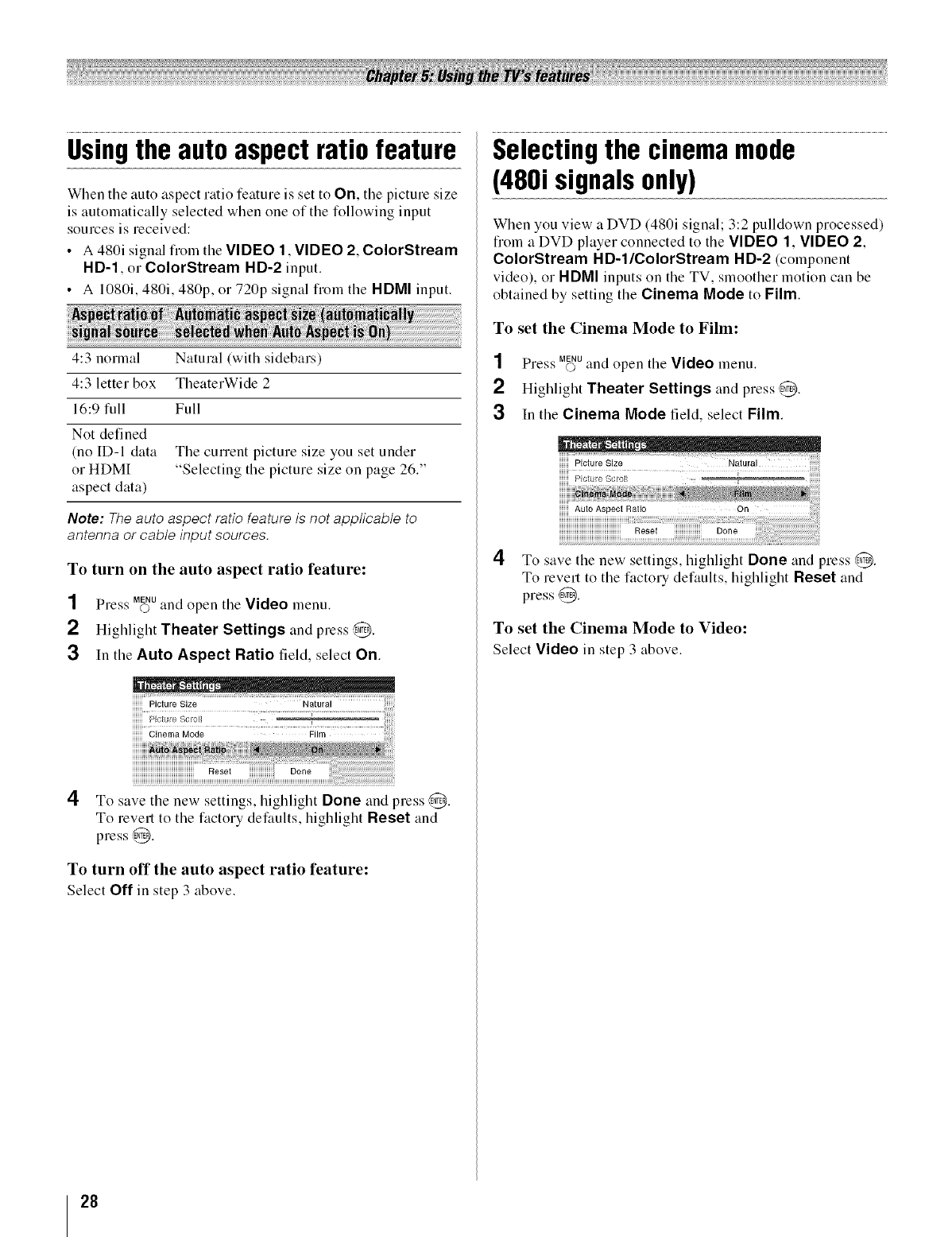
Usingthe autoaspectratiofeature
When the auto aspect ratio feature is set to On, the picture size
is automatically selected when one of the following input
sources is received:
•A 480i signal fiom the VIDEO 1, VIDEO 2, ColorStream
HD-1, or ColorStream HD-2 input.
• A 1080i, 480i, 480p, or 720p signal fi'om the HDMI input.
4:3 normal Natural (with sidebars)
4:3 letter box TheaterWide 2
16:9 full Full
Not defined
(no ID-I data The current picture size you set under
or HDMI "Selecting the picture size on page 262'
aspect data)
Note: The auto aspect ratio feature is not applicable to
antenna or cable input sources.
To turn on the auto aspect ratio feature:
SS MENU
Press O and open tile Video menu.
2Highlight Theater Settings and press (/_.
3In the Auto Aspect Ratio field, select On.
4To save tile new settings, highlight Done and press ,@.
To revert to the factory defaults, higMight Reset and
press @.
To turn off the auto aspect ratio feature:
Select Off in step 3 above.
Selectingthe cinemamode
(480isignalsonly)
When you view a DVD (480i signal; 3:2 pulldown processed)
from a DVD player connected to the VIDEO 1, VIDEO 2,
ColorStream HD-1/ColorStream HD-2 (component
video), or HDMI inputs on the TV, slnoother motion can be
obtained by setting the Cinema Mode to Film.
To set the Cinema Mode to Film:
SS MENU
Pre.;s O and open tile Video menu.
2Highlight Theater Settings and press @.
3In the Cinema Mode field, select Film.
4
iiiiiii Auto Aspect Ratio On
HHHHHHHHHHHHHHHHHHHHHHi..................
iiiiiiiiiiiiiiiiiiiiiiiiiiiiiiiiiiiiiiiiiiiiiReset iiiiiiiiiiiiiiiiiiii Done
To save the new settings, llighligllt Done and press ,@.
To revert to the factory defaults, highlight Reset and
press @.
To set the Cinema Mode to Video:
Select Video in step 3 above.
28
Adjustingthe picture
Selecting the picture mode
You can select your desired picture settings fiom four different
modes, as described below.
Sports Bright and dynamic picture (factory setting)
Standard Standard picture settings (factory setting)
Lower contrast for darkened room dactory
Movie setting)
Preference Your personal preferences
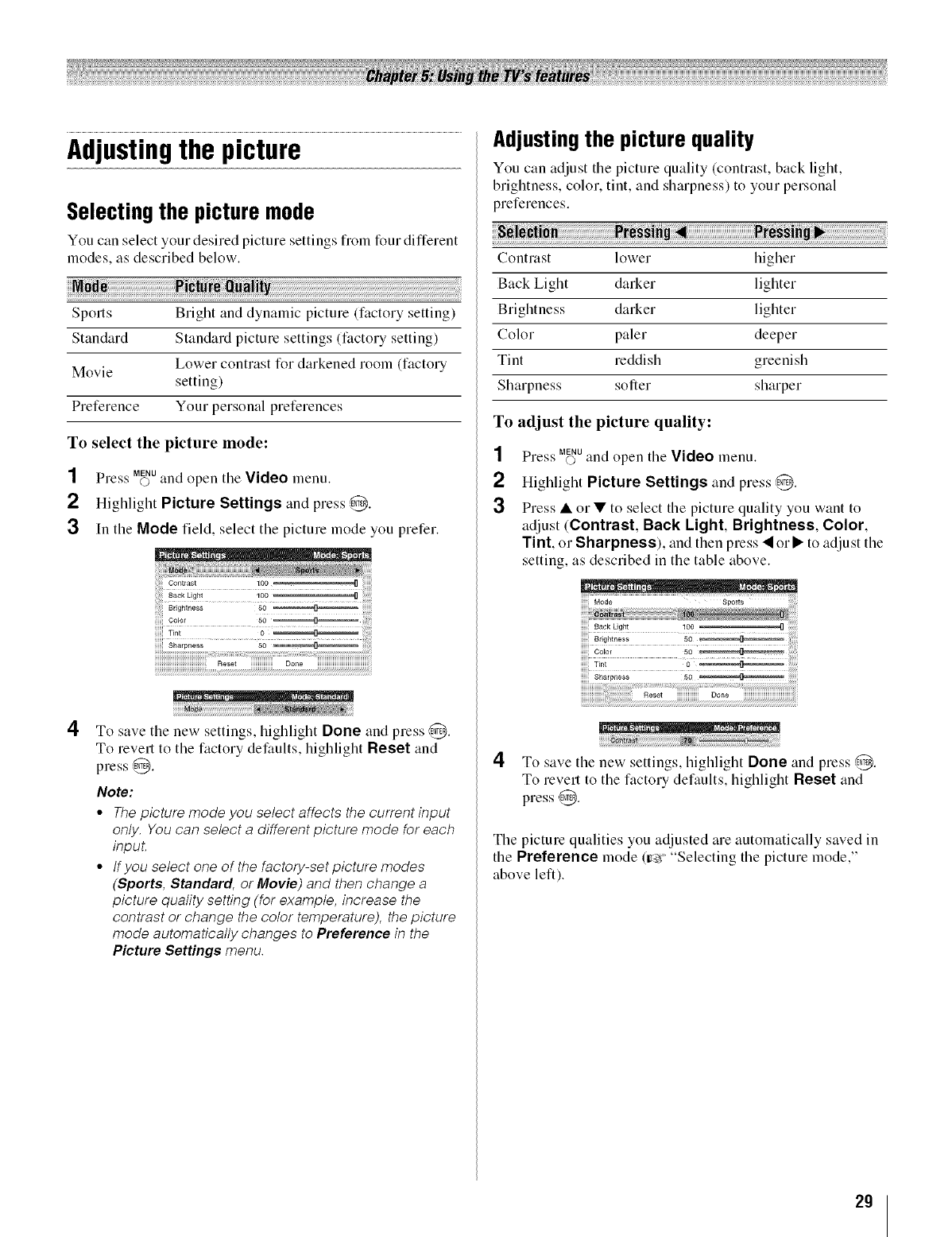
To select the picture mode:
SS MENU
Press O and open the Video menu.
2Highlight Picture Settings and press @.
3In the Mode field, select the picture mode you prefer.
4
Sharpness 50 ........ "*_
Re+e_ Do,+
To save the new settings, highlight Done and press @.
To revert to the factory defaults, highlight Reset and
press @.
Note:
•The picture mode you select affects the current input
only. You can select a different picture mode for each
inpuL
• If you select one of the factory-set picture modes
(Sports, Standard, or Movie) and then change a
picture quality setting (for example, increase the
contrast or change the color temperature), the picture
mode automatically changes to Preference in the
Picture Settings menu.
Adjustingthe picture quality
You can adjust the picture quality (contrast, back light,
brightness, color, tint, and sharpness) to your personal
preferences.
Contrast lower higher
Back Light darker lighter
Brightness darker lighter
Color paler deeper
Tint reddish greenish
Sharpness softer sharper
To adjust the picture quality:
1
2
3
SS MENU
Press 0and open the Video menu.
Highlight Picture Settings and press @.
Press •or • to select the picture quality you want to
adjust (Contrast, Back Light, Brightness, Color,
Tint, or Sharpness), andthen press"_ or I_ to adjust the
setting, as described in the table above.
++++++Back Light 100 []
;;;;;icolor
Tint 0 _ ++++++
++++++Sha+.... 50 _-- +++++++++++++
4To save the new settings, highlight Done and press @.
To revert to the factory defaults, highlight Reset and
press @.
The picture qualities you adjusted are automatically saved in
the Preference mode (_r "Selecting the picture mode,"
above left).
29
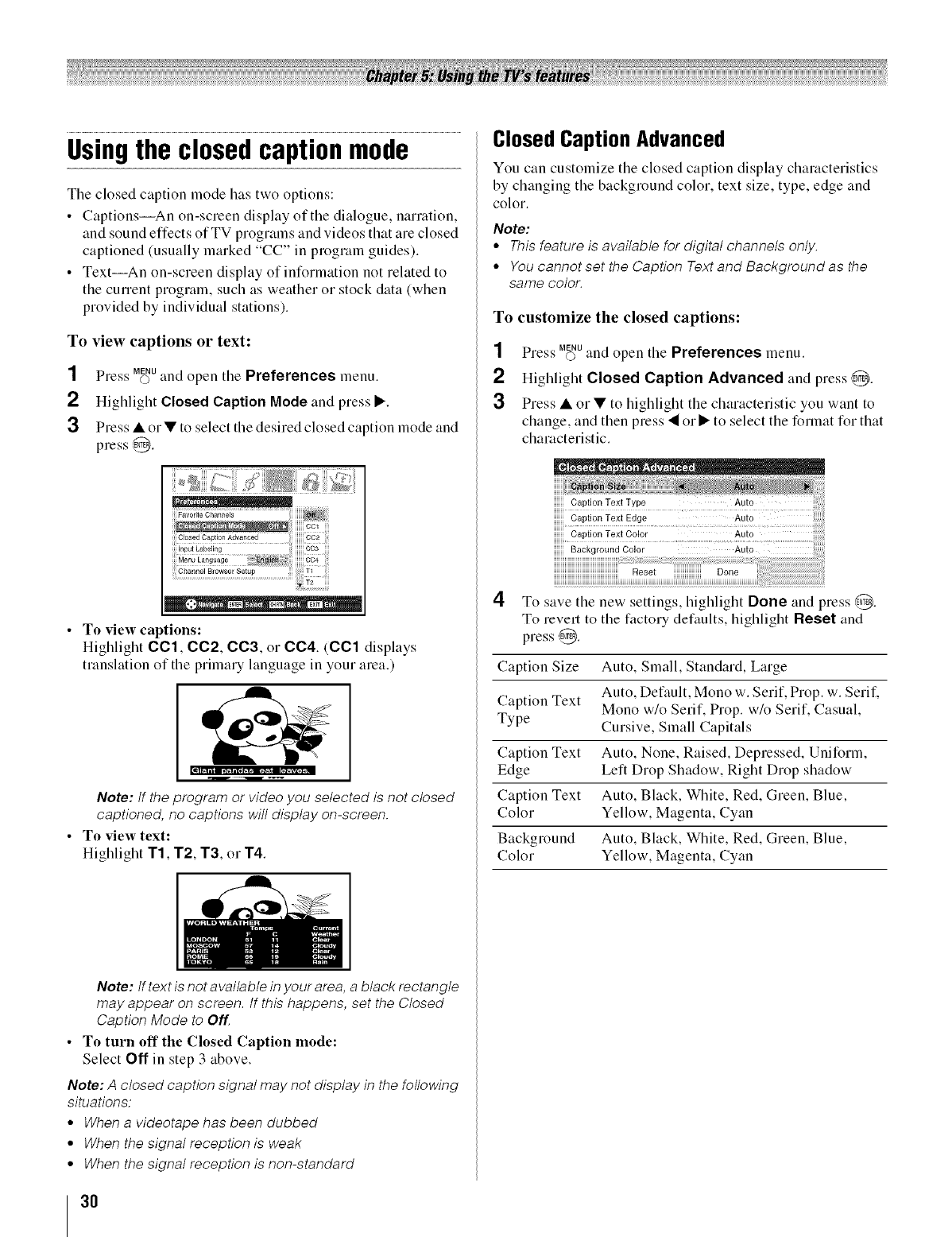
Usingthe closedcaptionmode
The closed caption mode has two options:
• Captions--An on-screen display of the dialogue, narration,
and sound effects of TV programs and videos that are closed
captioned (usually marked "CC" in program guides).
• Text--An on-screen display of information not related to
the current program, such as weather or stock data (when
provided by individual stations).
To view captions or text:
SS MENU
Press 0 and open the Preferences menu.
2Highlight Closed Caption Mode and press •.
3 Press • or • to select the desired closed caption mode and
press @.
• To view captions:
Highlight CCl, CC2, CC3, or CC4. (CCl displays
translation of tile primary language in your area.)
Note: tf the program or video you selected is not closed
captioned, no captions will display on-screen.
• To view text:
Highlight T1, T2, T3, or T4.
Note: tf text is not available in vour area, a black rectangle
may appear on screen. If this happens, set the Closed
Caption Mode to Off
•To turn off the Closed Caption mode:
Select Off in step 3 above.
Note: A closed caption signal may not display in the following
situations:
•When a videotape has been dubbed
° When the signal reception is weak
• When the signal reception is non-standard
Closed Caption Advanced
You can customize the closed caption display characteristics
by changing the background color, text size, type, edge and
color.
Note:
• This feature is available for digital channels only.
° You cannot set the Caption Text and Background as the
same color.
To customize the closed captions:
1
2
3
SS MENU
Pre.<_' 0 and open the Preferences menu.
HigMight Closed Caption Advanced and press ,@.
Press • or• to highlight the characteristic you want to
change, and then press • or • to select the format for that
characteristic.
4
c_p,onTe_tTyp_ Auto
Caption Text Edge Auto
Caption Text Color Auto
B_ckg_oundColo_ Auto
Reset Done
iiiiiiiiiiiiiiiiiiii
To save the new settings, highligl_t Done and press @.
To revert to the factory defaults, l'figMight Reset and
press @.
Caption Size Auto, Small, Standard, Large
Caption Text Auto, Default, Mono w. Serif, Prop. w. Seril:
Mono w/o Serif, Prop. w/o Serif, Casual,
Type Cursive, Small Capitals
Caption Text Auto, None, Raised, Depressed, Uniform,
Edge Left Drop Shadow, Right Drop shadow
Caption Text Auto, Black, White, Red, Green, Blue,
Color Yellow, Magenta, Cyan
Background Auto, Black, White, Red, Green, Blue,
Color Yellow, Magenta, Cyan
3O
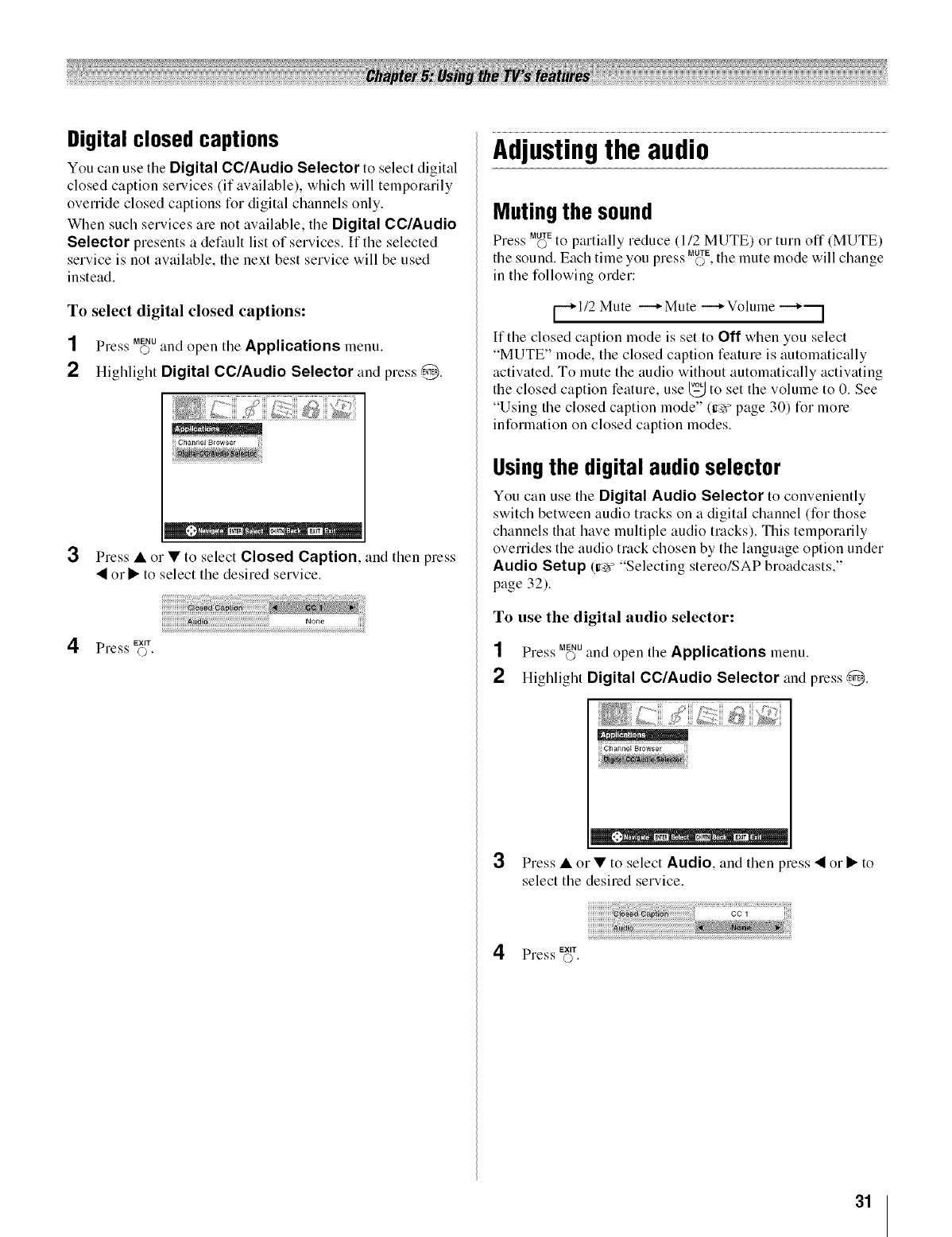
Adjustingthe audio
Digital closed captions
You can use the Digital CC/Audio Selector to select digital
closed caption selwices (if awulable), which will temporarily
override closed captions for digital channels only.
When such services are not awlilable, the Digital CC/Audio
Selector presents a default list of services. If the selected
service is not available, the next best service will be used
instead.
To select digital closed captions:
SS MENU
Press O and open tile Applications menu.
2Highlight Digital CC/Audio Selector and press,@.
ii! Channel Browser
3Press • or • to select Closed Caption, and then press
• or • to select the desired service.
_diO None
l_ EXiT
Press O.
Muting the sound
SS MUTE
Pre.;s 0to partially reduce (112 MUTE) or turn off (MUTE)
SS MUTE
the sound. Each time you press O, the mute mode will change
in the following order:
t-.l/2 Mute --*Mute --*Volume
/
If the closed caption mode is set to Oil when you select
"MUTE" mode, the closed caption feature is automatically
activated. To mute the audio without automatically actiw_ting
the closed caption feature, use _ to set the volume to 0. See
"Using the closed caption mode" (Ir_r" page 30) for more
information on closed caption modes.
Usingthe digital audio selector
You can use the Digital Audio Selector to conveniently
switch between audio tracks on a digital channel (for those
channels that have multiple audio tracks). This temporarily
overrides the audio track chosen by the language option under
Audio Setup (ir_v "Selecting stereo/SAP broadcasts,"
page 32).
To use the digital audio selector:
SS MENU
Pre.;s O and open the Applications menu.
2HigMight Digital CC/Audio Selector and press @.
3
4
Press • or • to select Audio, and then press • or • to
select the desired service.
cc
EXIT
Press O.
31
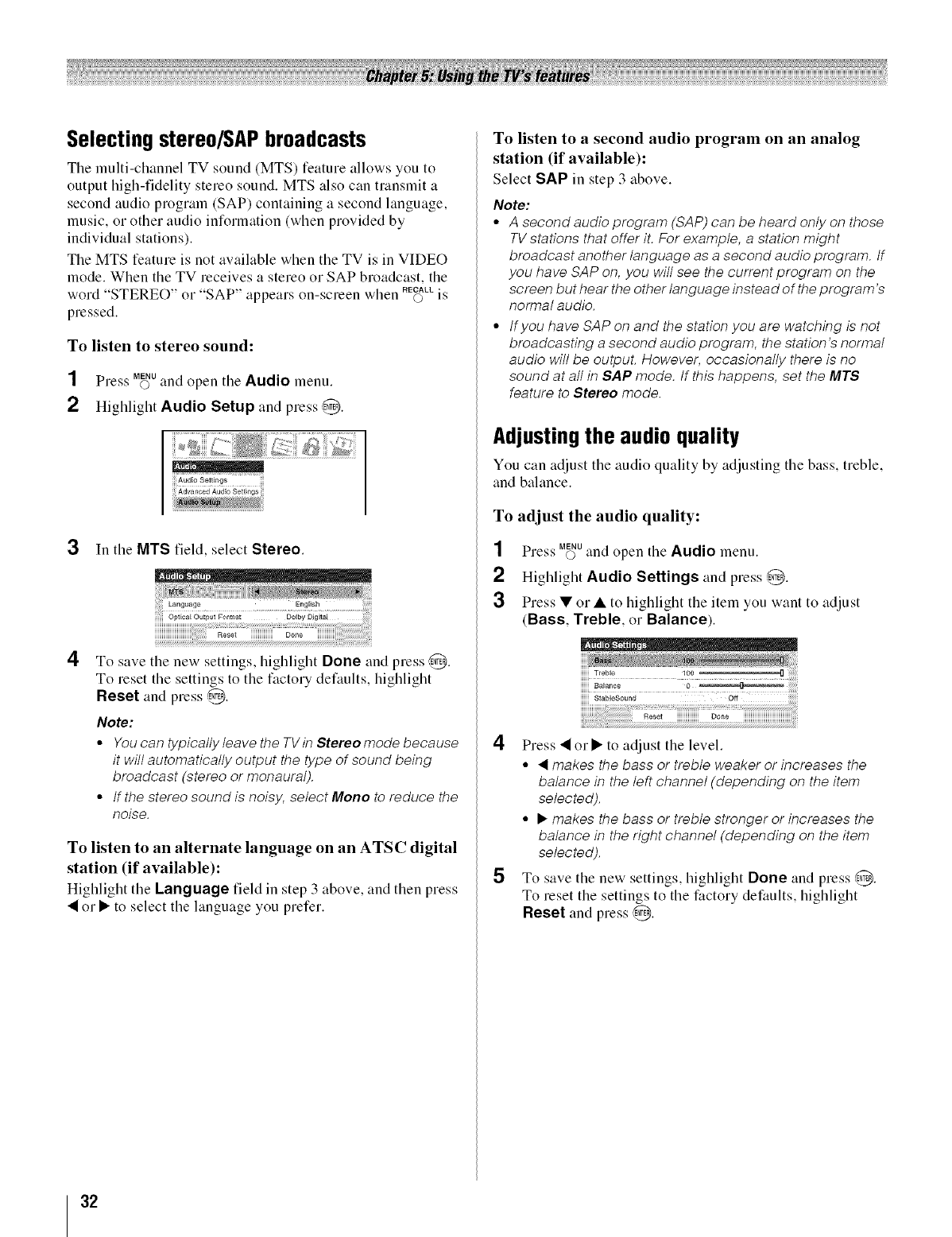
Selecting stereo/SAP broadcasts
The multi-channel TV sound (MTS) feature allows you to
output high-fidelity stereo sound. MTS also can transmit a
second audio program (SAP) containing a second language,
music, or other audio information (when provided by
individual stations).
The MTS feature is not available when the TV is in VIDEO
mode. When the TV receives a stereo or SAP broadcast, the
S g RECALL "g
word "STEREO" or"SAP" appear,' on-,'creen when © 1:
pressed.
To listen to stereo sound:
SS MENU
Press O and open the Audio menu.
2 Highlight Audio Setup and press,4_.
X_E;g;iii,@
3In the MTS field, select Stereo.
4To save the new settings, highlight Done and press @.
To reset the settings to the factory defaults, highlight
Reset and press @.
Note:
•You can typically leave the TV in Stereo mode because
it will automatically output the type of sound being
broadcast (stereo or monaural).
• If the stereo sound is noisy, select Menu to reduce the
noise.
To listen to an alternate language on an ATSC digital
station (if available):
Highlight the Language field in step 3 above, and then press
• or • to select the language you prefer.
To listen to a second audio program on an analog
station (if available):
Select SAP in step 3 above.
Note:
°A second audio program (SAP) can be heard only on those
TV stations that offer it. For example, a station might
broadcast another language as a second audio program, tf
you have SAP on, you will see the current program on the
screen but hear the other language instead of the program's
normal audio.
° tfyou have SAP on and the station you are watching is not
broadcasting a second audio program, the station's normal
audio will be outpuL However, occasionally there is no
sound at all in SAP mode. tf this happens, set the MTS
feature to Stereo mode.
Adjustingthe audio quality
You can adjust the audio quality by adjusting the bass, treble,
and balance.
To adjust the audio quality:
SS MENU
Pre,<_' O and open the Audio menu.
2 Highlight Audio Settings and press ,@.
3 Press • or •to highlight the item you want to adjust
(Bass, Treble, or Balance).
4Press • or • to adjust the level.
•_makes the bass or treble weaker or increases the
balance in the left channel (depending on the item
selected).
°•makes the bass or treble stronger or increases the
balance in the right channel (depending on the item
selected).
5To save the new settings, highlight Done and press @.
To reset the settings to the factory defaults, highlight
Reset and press @.
32
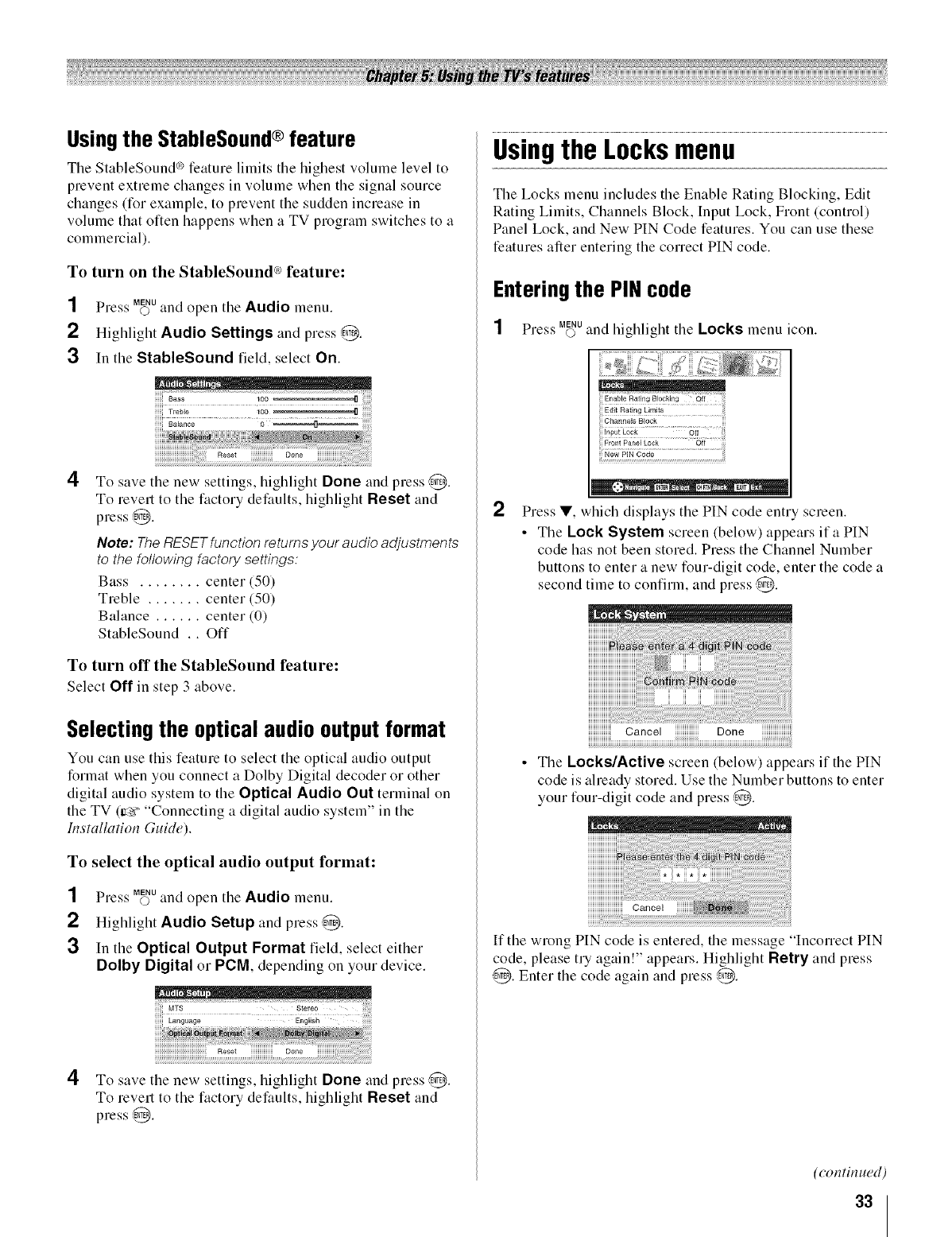
Usingthe StableSound®feature
The StableSound °'_feature limits the highest volume level to
prevent extreme changes in volume when the signal source
changes (for example, to prevent the sudden increase in
volume that often happens when a TV program switches to a
commercial).
To turn on the StableSound_ feature:
SS MENU
Pre._'s O and open tile Audio menu.
2Highlight Audio Settings and press @.
3In the StableSound field, select On.
Treble
Balance 0 ....... ,n...--..--..._
4To save the new settings, highlight Done and press @.
To revert to the factory defaults, highlight Reset and
press @.
Note: The RESET function returns your audio adjustments
to the following factory settings:
Bass ........ center (50)
Treble ....... center (50)
Balance ...... center (0)
StableSound .. Off
To turn off the StableSound feature:
Select Off in step 3 above.
Selecting the optical audio output format
You can use this feature to select the optical audio output
format when you connect a Dolby Digital decoder or other
digital audio system to the Optical Audio Out terminal on
the TV (trg:¢"Connecting a digital audio system" in the
Installation Guide).
To select the optical audio output format:
1
2
3
4
SS MENU
Pre._'._'Oand open the Audio menu.
Highlight Audio Setup and press @.
In the Optical Output Format field, select either
Dolby Digital or PGM, depending on your device.
iiii:ili¸¸¸Tiii¸= IIT2T?! !i;¸i iiiiiii?iiiiil_i!i¸!¸?ii!;ii_!iiii_i_!!
Language English
Reset Dol_e
To save the new settings, highlight Done and press @.
To revert to the factory defaults, highlight Reset and
press @.
Usingthe Locksmenu
The Locks menu includes the Enable Rating Blocking, Edit
Rating Limits, Channels Block, Input Lock, Front (control)
Panel Lock, and New PIN Code features. You can use these
features after entering the correct PIN code.
Entering the PIN code
SS MENU
Press O and highlight the Locks menu icon.
2Press V, which displays the PIN code entry screen.
• The Lock System screen (below) appears ifa PIN
code has not been stored. Press the Channel Number
buttons to enter a new four-digit code, enter the code a
second time to confirm, and press @.
= - _ . [
Cancel Done
• The Locks/Active screen (below) appears if the PIN
code is already stored. Use the Number buttons to enter
your four-digit code and press @.
iiiiiiiiiiiiiiiiiiiiiiiiicancel
If the wrong PIN code is entered, the message "Incorrect PIN
code, please try again!" appears. Highlight Retry and press
@. Enter the code again and press @.
(continued)
33
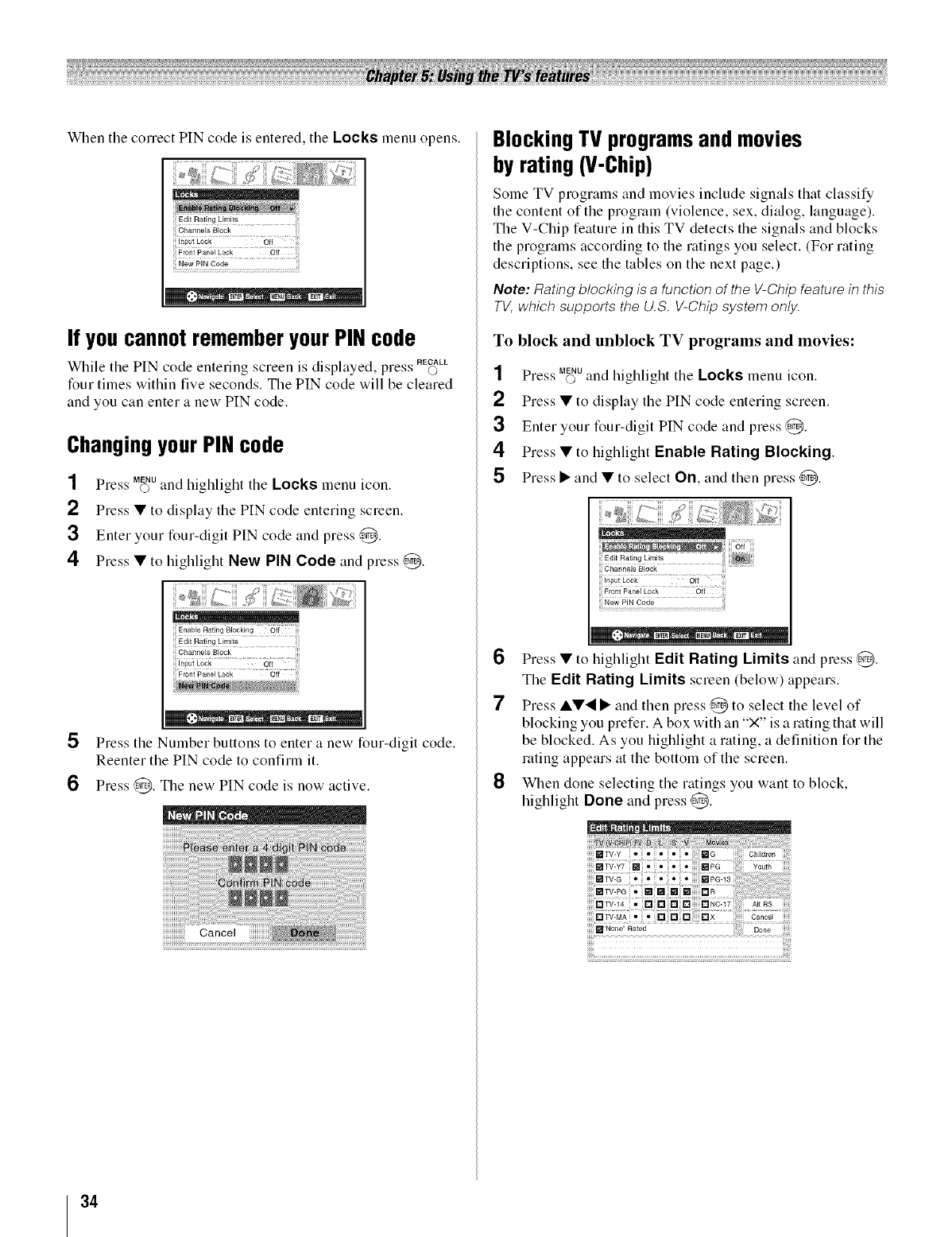
When the correct PIN code is entered, tile Locks menu opens.
,_, ,Et_R_ • _E_U : EXIT
If you cannot remember your PIN code
"SS RECALLWhile tile PIN code enterin_ screen is displayed, pie.. ©
four times within five seconds. The PIN code will be cleared
and you can enter a new PIN code.
Changingyour PIN code
SS MENU
Press O and lfigldight the Locks menu icon.
2 Press • to display the PIN code entering screen.
3 Enter your four-digit PIN code and press ,d'_.
4 Press • to highlight New PIN Code and press ,d'_.
EnaNe Rating Blocking eft
4_, ,E_R • • _E_U : EXIT
5Press tile Number buttons to enter a new four-digit code.
Reenter the PIN code to confirm it.
6Press ,d'_.The new PIN code is now active.
Blocking TV programsand movies
by rating (V-Chip)
Some TV programs and movies include signals that classify
the content of the program (violence, sex, dialog, language).
The V-Chip feature in this TV detects the signals and blocks
the programs according to the ratings you select. (For rating
descriptions, see the tables on the next page.)
Note: Rating blocking is a function of the V-Chip feature in this
TV, which supports the U.S. V-Chip system only.
To block and unblock TV programs and movies:
NN MENU
Pre,;,+'O and highlight the Locks menu icon.
2 Press • to display the PIN code entering screen.
3Enter your four-digit PIN code and press ,@.
4Press • to highlight Enable Rating Blocking.
5Press • and • to select On, and then press @.
6
7
8
in_uiLog_ eli
_) . EN_R _E_U : Elrr
Press • to highlight Edit Rating Limits and press @.
The Edit Rating Limits screen (below) appears.
Press ,&•'_ • and then press @ to select the level of
blocking you prefer. A box with an "X" is a rating that will
be blocked. As you highlight a rating, a definition for the
rating appears at the bottom of the screen.
When done selecting the ratings you want to block,
highlight Done and press @.
Ilq"None" Rated
34
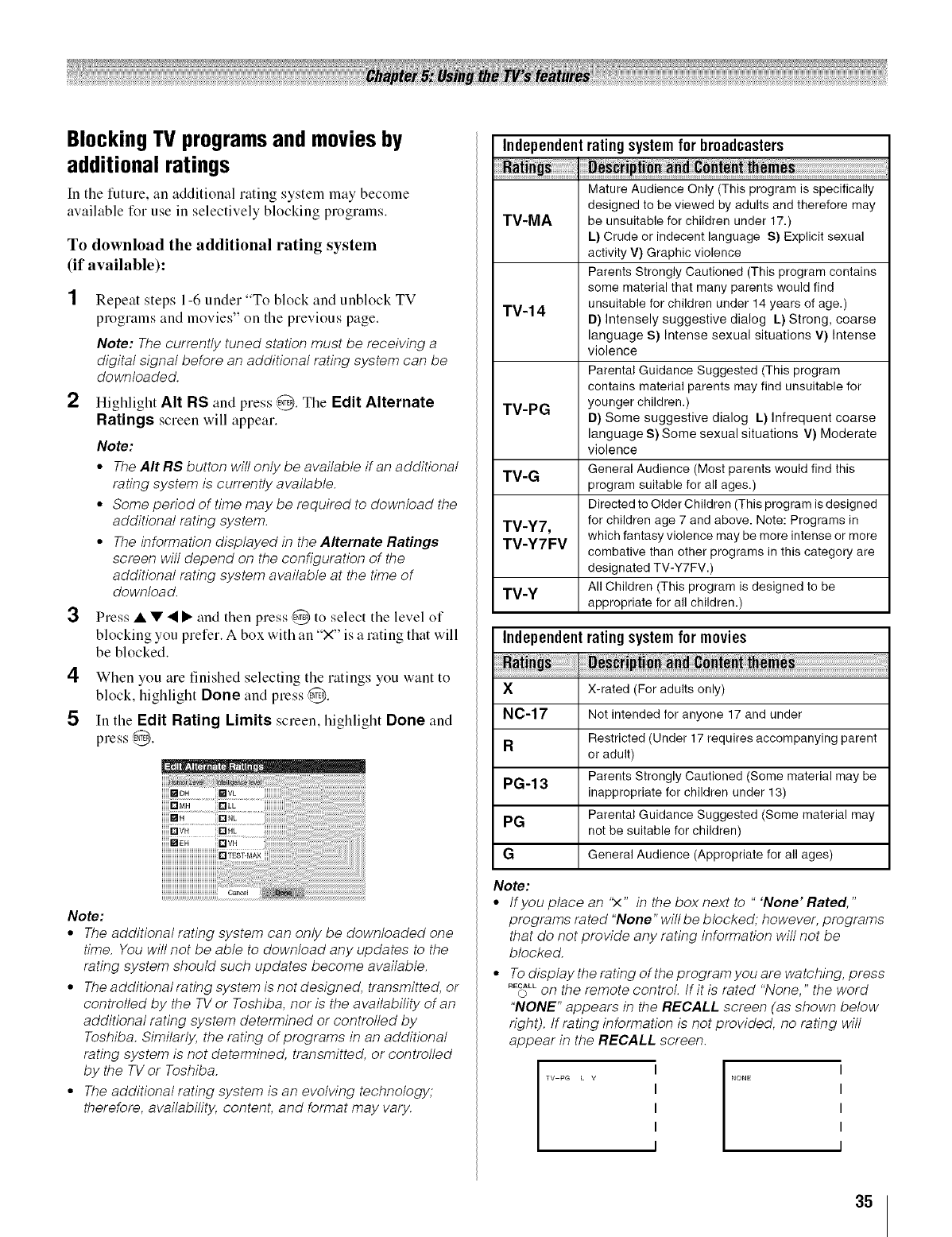
Blocking TV programsand movies by
additional ratings
In the tuture, an additional rating system may become
available for use in selectively blocking programs,
To download the additional rating system
(if available):
] Repeat steps 1-6 under "To block and unblock TV
programs and movies" on the previous page,
Note: The currently tuned station must be receiving a
digital signal before an additional rating system can be
downloaded.
2Highlight AIt RS and press @. The Edit Alternate
Ratings screen will appear.
Note:
•The AIt RS button will only be available if an additional
rating system is currently available.
• Some period of time may be required to download the
additional rating system.
• The information displayed in the Alternate Ratings
screen will depend on the configuration of the
additional rating system available at the time of
download.
3Press • • • • and then press @ to select the level of
blocking you prefer. A box with an "X" is a rating that will
be blocked.
4 When you are finished selecting the ratings you want to
block, highlight Done and press @.
5In the Edit Rating Limits screen, highlight Done and
press @.
_DH
OMH OLL
O_'4L
.... o.L
or,
iiiiiiiiiiiiiiiiiiiiiiiiiiiiiiiiiiiiiiiir
Note:
• The additional rating system can only be downloaded one
time. You will not be able to download any updates to the
rating system should such updates become available.
• The additional rating system is not designed, transmitted, or
controlled by the TV or Toshiba, nor is the availability of an
additional rating system determined or controlled by
Toshiba. Similarly, the rating of programs in an additional
rating system is not determined, transmitted, or controlled
by the TV or Toshiba.
• The additional rating system is an evolving technology;
therefore, availability, content, and format may vary.
Independentratingsystemfor broadcasters
Mature Audience Only (This program is specifically
designed to be viewed by adults and therefore may
TV-MA be unsuitable for children under 17.)
L) Crude or indecent language S) Explicit sexual
activity V) Graphic violence
Parents Strongly Cautioned (This program contains
some material that many parents would find
unsuitable for children under 14 years of age.)
TV-14 D) Intensely suggestive dialog L) Strong, coarse
language S) Intense sexual situations V) Intense
violence
Parental Guidance Suggested (This program
contains material parents may find unsuitable for
TV-PG younger children.)
D) Some suggestive dialog L) Infrequent coarse
language S) Some sexual situations V) Moderate
violence
TV-G General Audience (Most parents would find this
program suitable for all ages.)
Directed to Older Children (This program is designed
TM-Y7, for children age 7 and above. Note: Programs in
TM-Y7FM which fantasy violence may bemore intense ormore
combative than other programs in this category are
designatedTV-Y7FV.)
All Children (This program is designed to be
TV-Y appropriate for all children.)
Independentratingsystemfor movies
X X-rated (For adults only)
N0-17 Not intended for anyone 17and under
Restricted (Under 17requires accompanying parent
Ror adult)
PG-13 Parents Strongly Cautioned (Some material may be
inappropriate for children under 13)
PG Parental Guidance Suggested (Some material may
not be suitable for children)
G General Audience (Appropriate for all ages)
Note:
•tfyou place an ';4" in the box next to "'None" Rated,"
programs rated "None" will be blocked; however, programs
that do not provide any rating information will not be
blocked.
• To display the rating of the program you are wa tching, press
RE_Lon the remote control, tf it is rated "None," the word
"NONE" appears in the RECALL screen (as shown below
right), tf rating information is not provided, no rating will
appear in the RECALL screen.
I
TV PG L V I
I
I
I
I
NONE I
I
I
I
35
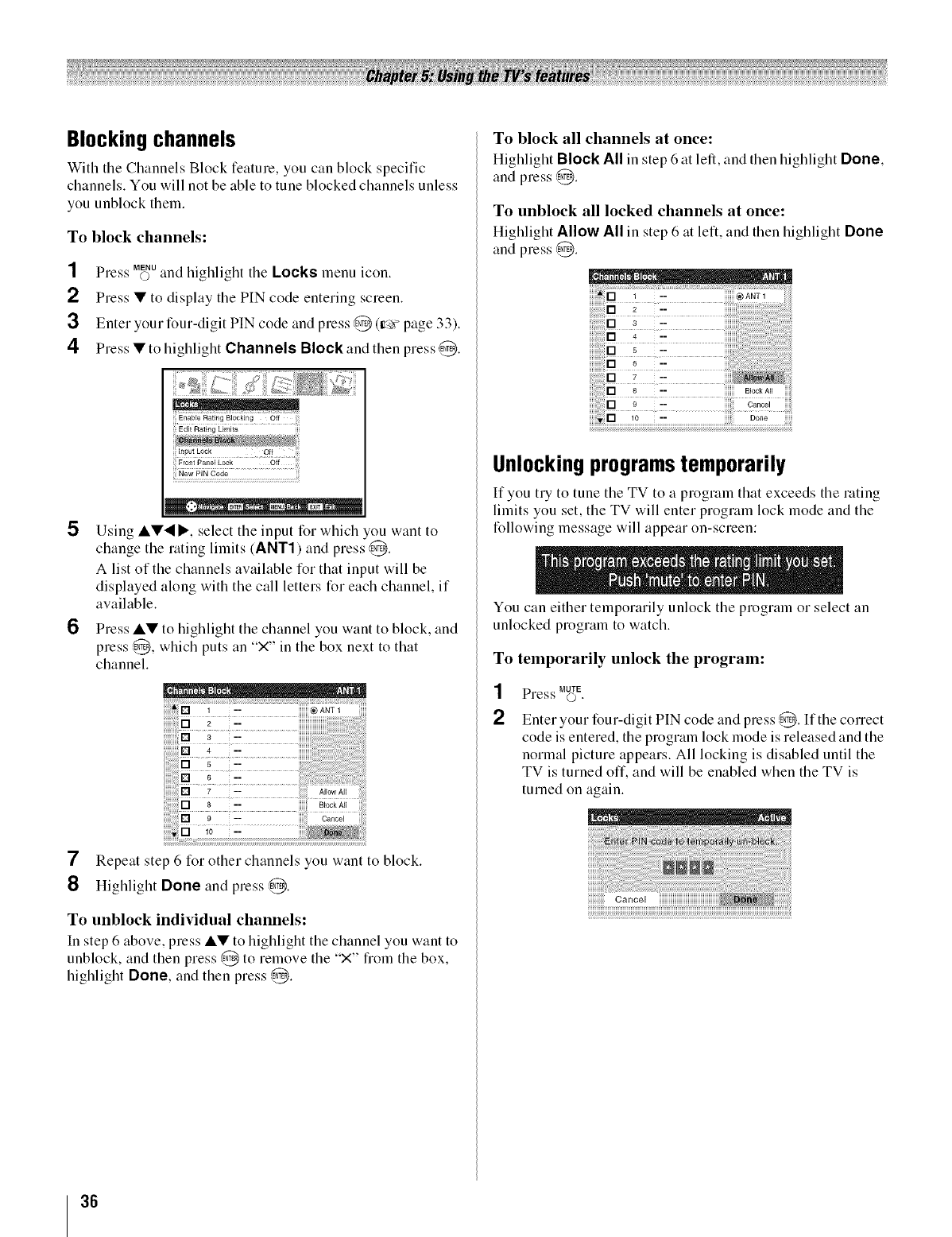
Blocking channels
With tile Channels Block feature, you can block specific
channels. You will not be able to tune blocked channels unless
you unblock them.
To block channels:
1
2
3
4
SN MENU
Pre,_'s O and highligllt tile Locks menu icon.
Press • to display tile PIN code entering screen.
Enter your four-digit PIN code and press @ (ir_ page 33).
Press • to highlight Channels Block and then press ,4_.
: P
Edit Rating Limits
Input Lock O!!
New PIN Code
5
6
Using &•'_l_', select tile input for wllicll you want to
change the rating limits (ANT1) and press ,g'_.
A list of tile cllannels available for tllat input will be
displayed along witll tile call letters for eacll cllannel, if
available.
Press &• to lliglllight the cllannel you want to block, and
press ,@, wllicll puts an "×" in tile box next to tllat
channel.
7Repeat step 6 for other channels you want to block.
8Highlight Done and press @.
To unblock individual channels:
In step 6 above, press &• to highlight the channel you want to
unblock, and then press ,@ to remove tile "X" flom tile box,
highlight Done, and then press ,g'_.
To block all channels at once:
Highlight Block All in step 6 at left, and then highlight Done,
and press @.
To unblock all locked channels at once:
Highlight Allow All in step 6 at left, and then highlight Done
and press @.
Unlocking programstemporarily
If you try to tune tile TV to a program that exceeds tile rating
limits you set, tile TV will enter program lock mode and tile
following message will appear on-screen:
You can eitller temporarily unlock tile program or select an
unlocked program to watch.
To temporarily unlock the program:
1
2
NS MUTE
Pre,<_' ©.
Enter your four-digit PIN code and press ,g'_.If the correct
code is entered, the program lock mode is released and the
normal picture appears. All locking is disabled until the
TV is turned off. and will be enabled when the TV is
turned on again.
36
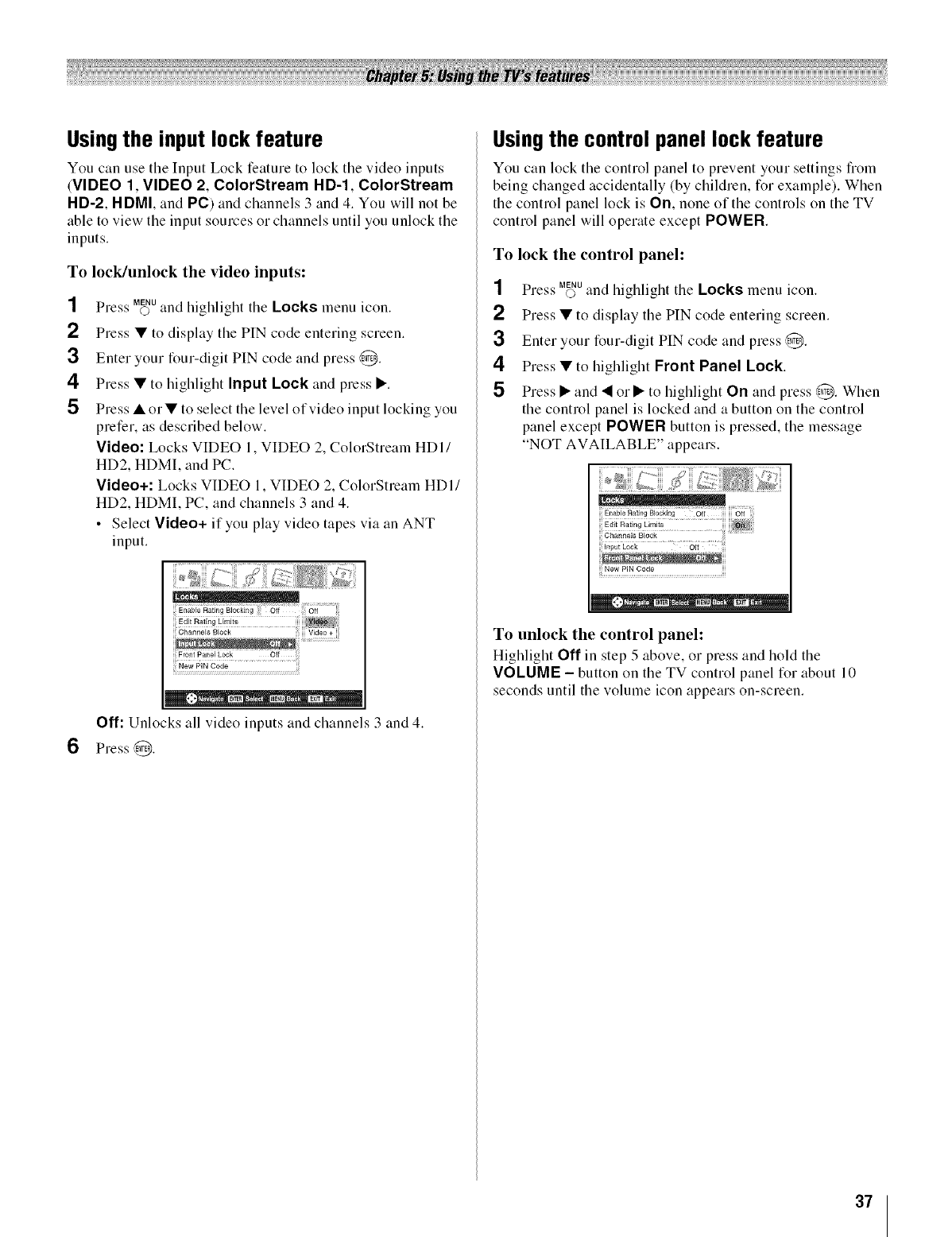
Usingthe input lock feature
You can use tile Input Lock feature to lock tile video inputs
(VIDEO 1, VIDEO 2, ColorStream HD-1, ColorStream
HD-2, HDMI, and PC) and channels 3 and 4. You will not be
able to view the input sources or channels until you unlock the
inputs.
To lock/unlock the video inputs:
1
2
3
4
5
SS MENU
Pre._'s o and highlight the Locks menu icon.
Press • to display the PIN code entering screen.
Enter your four-digit PIN code and press @.
Press • to highlight Input Lock and press •.
Press •or• to select the level of video input locking you
prefer, as described below.
Video: Locks VIDEO 1, VIDEO 2, ColorStream HDI/
HD2, HDMI, and PC.
Video+: Locks VIDEO 1, VIDEO 2, ColorStream HDI/
HD2, HDMI, PC, and channels 3 and 4.
• Select Video+ if you play video tapes via an ANT
input.
6
New PIN Code
Off: Unlocks all video inputs and channels 3 and 4.
Press @.
Usingthe control panel lock feature
You can lock the control panel to prevent your settings from
being changed accidentally (by children, for example). When
the control panel lock is On, none of the controls on the TV
control panel will operate except POWER.
To lock the control panel:
SS MENU
Pre,;s o and highlight the Locks menu icon.
2 Press • to display the PIN code entering screen.
3Enter your four-digit PIN code and press @.
4Press • to highlight Front Panel Lock.
5Press • and • or • to highlight On and press @. When
the control panel is locked and a button on the control
panel except POWER button is pressed, the message
"NOT AVAILABLE" appears.
To unlock the control panel:
Highlight Off in step 5 above, or press and hold the
VOLOME -button on the TV control panel for about 10
seconds until the volume icon appears on-screen.
37
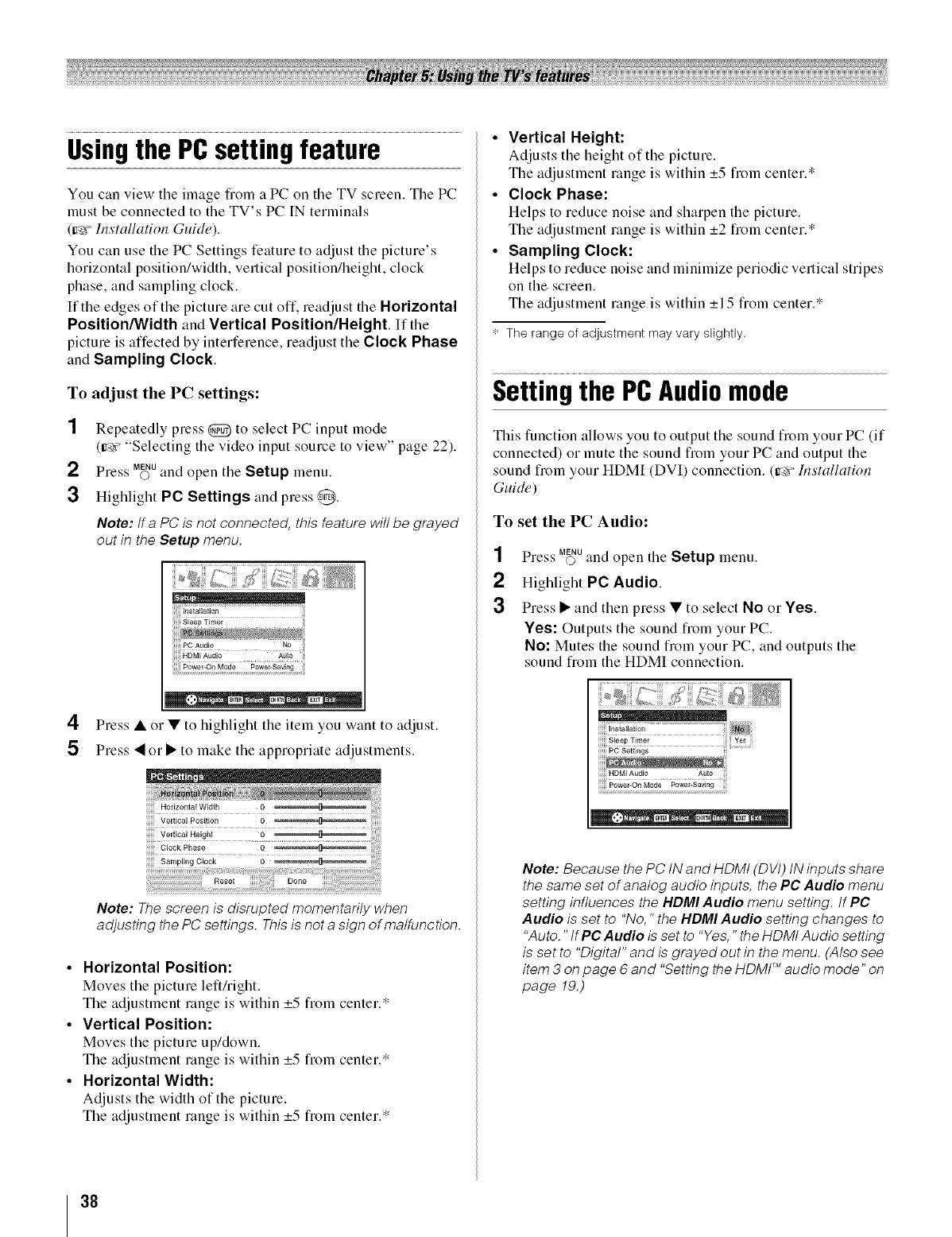
Usingthe PCsettingfeature
You can view the image from a PC on the TV screen. The PC
must be connected to the TV's PC IN terminals
(ir_Fhlstallation Guide).
You can use the PC Settings feature to adjust the picture's
horizontal position/width, vertical position/height, clock
phase, and sampling clock.
If the edges of the picture are cut off. readjust the Horizontal
Position/Width and Vertical Position/Height. Itthe
picture is affected by interference, readjust the Clock Phase
and Sampling Clock.
To adjust the PC settings:
1Repeatedly press @ to select PC input mode
(_ "Selecting the video input source to view" page 22).
SS MENU
Press © and open tile Setup menu.
3Highlight PC Settings and press (/_.
Note: lf a PC is not connected, this feature will be grayed
out in the Setup menu.
in;iaiiaii;n
_p , ENTER 0H_T_= EXIT
4Press • or • to highlight the item you want to adjust.
5Press • or • to make the appropriate adjustments.
Horizontal Width 0 ...........
Vertical Position 0 ............
Vertical Height 0 .n.......
Clock Phase
SarnNh N Clock 0 ...............
Note: The screen is disrupted momentarily when
adjusting the PC settings. This is not a sign of malfunction.
•Horizontal Position:
Moves the picture lefthight.
The adjustment range is within _+5fi'om center.*
•Vertical Position:
Moves the picture up/down.
The adjustment range is within _+5from center.*
•Horizontal Width:
Adjusts the width of the picture.
The adjustment range is within _+5from center.*
•Vertical Height:
Adjusts the height of the picture.
The adjustment range is within _+5from center.*
•Clock Phase:
Helps to reduce noise and sharpen the picture.
The adjustment range is within _+2from center/
•Sampling Clock:
Helps to reduce noise and minimize periodic vertical stripes
on the screen.
The adjustment range is within _+15from center.*
The range of adjustment may vary slightly.
Setting the PCAudiomode
This function allows you to output the sound fi'om your PC (if
connected) or mute the sound fiom your PC and output the
sound fiom your HDMI (DVI) connection. (ir_ hlstallation
Guide)
To set the PC Audio:
1
2
3
SS MENU
Pre.;s oand open the Setup menu.
Highlight PC Audio.
Press • and then press • to select No or Yes.
Yes: Outputs the sound from your PC.
No: Mutes the sound from your PC, and outputs the
sound from the HDMI connection.
Power-On Mode Power-Saving ]
_ .... _N_ CH_1'1_ Exrr
Note: Because the PC tN and HDMt (DVt) tN inputs share
the same set of analog audio inputs, the PC Audio menu
setting influences the HDMI Audio menu setting, tf PC
Audio is set to "No," the HDMI Audio setting changes to
"Auto. "tfPCAudio is set to "Yes," the HDMt Audio setting
is set to "Digital" and is grayed out in the menu. (Also see
item 3 on page 6 and "Setting the HDMI TM audio mode" on
page 19.)
38
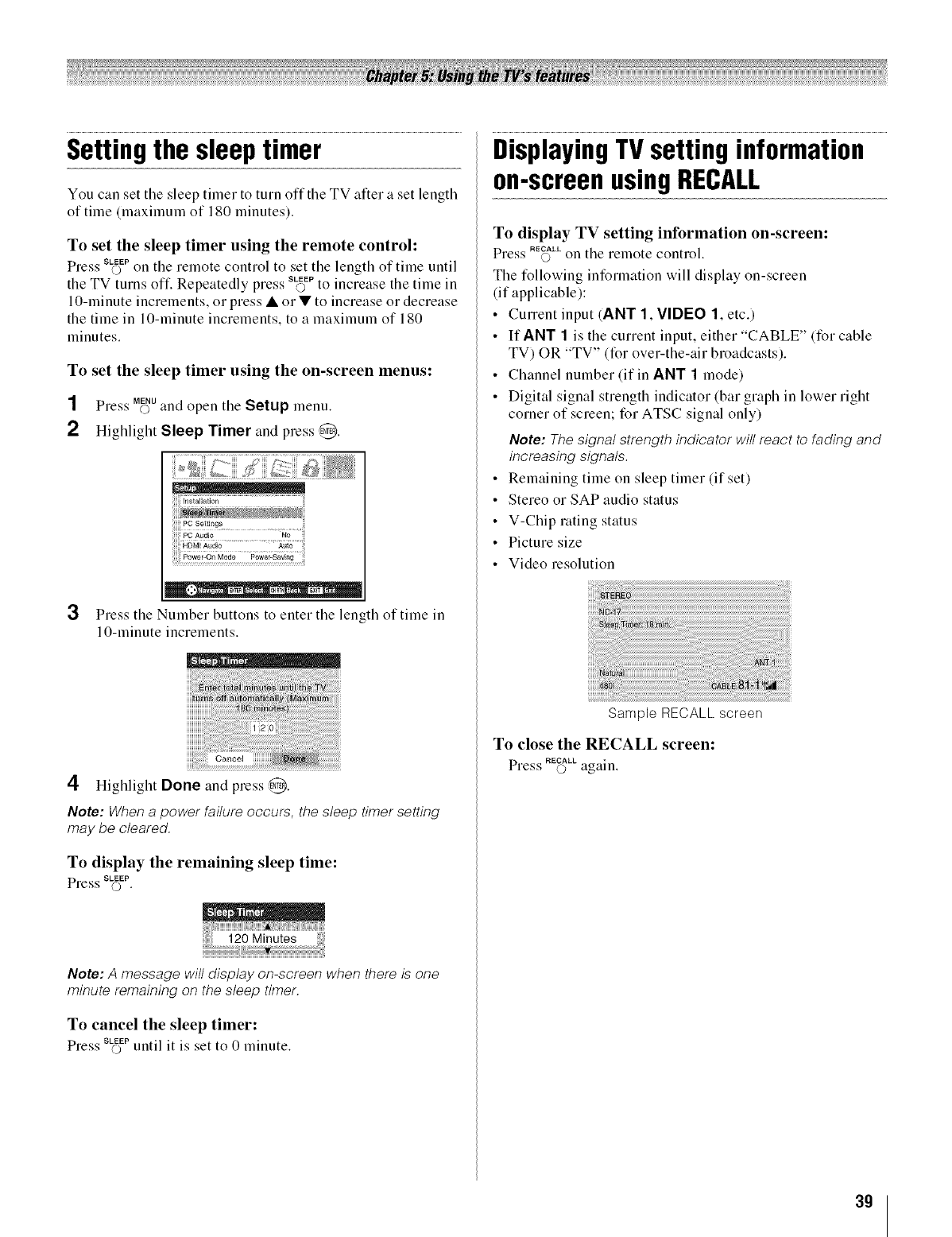
Settingthe sleeptimer
You can set the sleep timer to turn offthe TV after a set length
of time (maximum of 180 minutes).
To set the sleep timer using the remote control:
SS SLrE_EP
Pre:: o on the remote control to set the length of time until
NS SLrE_EP
the TV turns oft: Repeatedly press o to increase the time in
10-minute increments, or press • or • to increase or decrease
the time in 10-minute increments, to a maximum of 180
minutes.
To set the sleep timer using the on-screen menus:
SS MENU
Press © and open tile Setup menu.
2 Highlight Sleep Timer and press ,_.
,_ _., _E R • • ¢_mtl = EXIT
3Press tile Number buttons to enter tile length of time in
1O-minute increments.
4Highlight Done and press @.
Note: When a power failure occurs, the sleep timer setting
may be cleared.
To display the remaining sleep time:
SS SLfEEP
Pre,i',i' O •
120 Minutes iiii;iil
Note: A message will display on-screen when there is one
minute remaining on the sleep timer.
To cancel the sleep timer:
SS SLFE_EP "
Pre.'.' o untd it is set to 0 minute.
DisplayingTVsettinginformation
on-screenusingRECALL
To display TV setting information on-screen:
SS RECALL
Pre.;.' O on tile remote control.
The following information will display on-screen
(if applicable):
• Cunent input (ANT 1, VIDEO 1, etc.)
• If ANT 1 is the current input, either "CABLE" (for cable
TV) OR "TV" (for over-the-air broadcasts).
• Channel number (if in ANT 1 mode)
• Digital signal strength indicator (bar graph in lower right
corner of screen; for ATSC signal only)
Note: The signal strength indicator will react to fading and
increasing signals.
• Remaining time on sleep timer (if set)
• Stereo or SAP audio status
• V-Chip rating status
• Picture size
• Video resolution
Sample RECALL screen
To close the RECALL screen:
Press RECALL *
© again.
39
Understandingthe autopoweroff
feature
The TV will automatically turn itself off after approximately
15 minutes if it is tuned to a vacant channel or a station that
completes its broadcast for the day. This feature functions in
ANT 1 mode only.
Understandingthe lastmode
memoryfeature
If the power is cut off while you are viewing the TV, the
Last Mode Memory feature automatically turns on the TV
when the power is resupplied.
Note: You should unplug the TV's power cord if it is possible
that you will be away from the TV for an extended period of time
after the power is restored.
4O
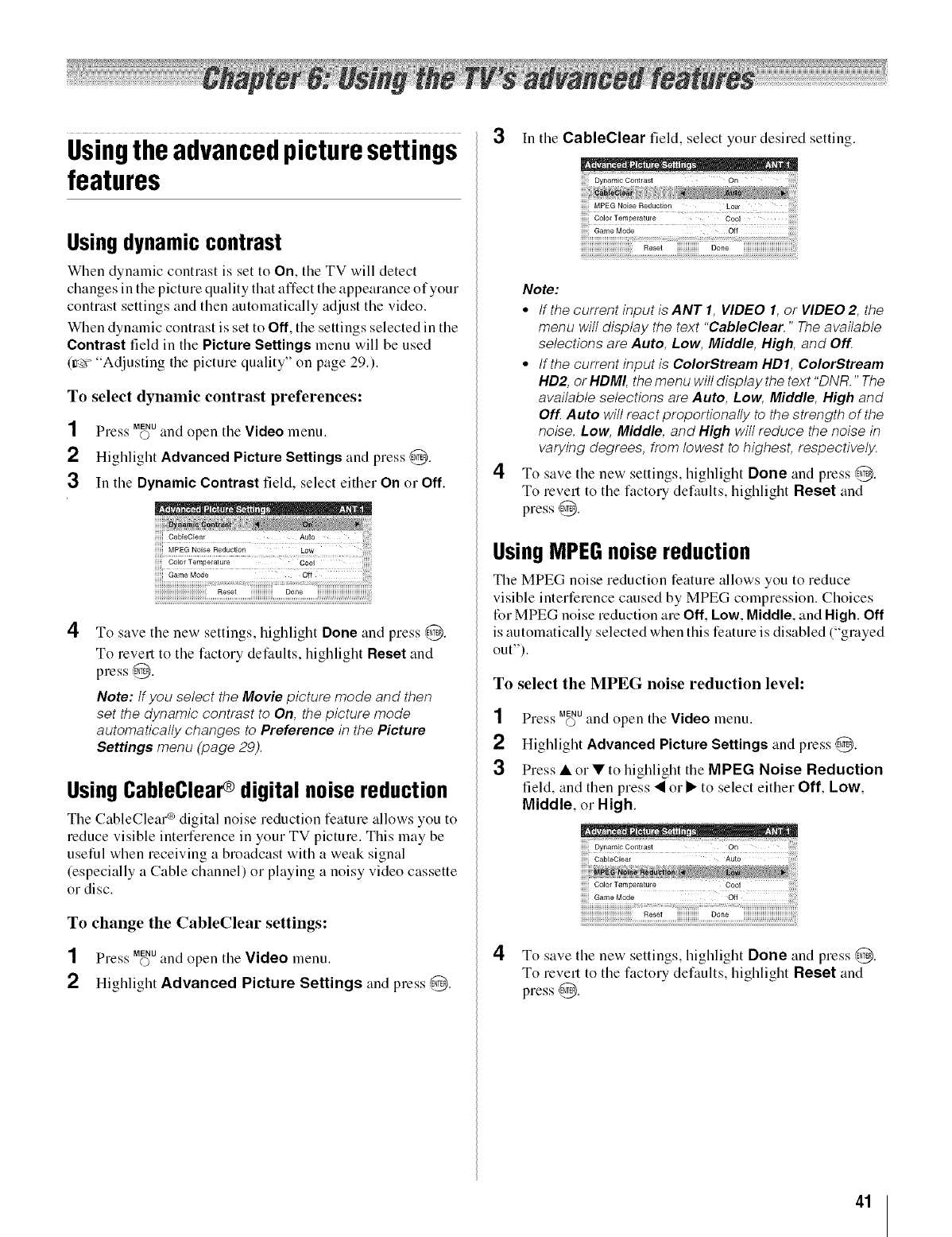
Usingtheadvancedpicturesettings
features
Usingdynamic contrast
When dynamic contrast is set to On, the TV will detect
changes in the picture quality that affect the appearance of your
contrast settings and then automatically adjust the video.
When dynamic contrast is set to Off, the settings selected in the
Contrast field in the Picture Settings menu will be used
(Ir_>" "Adjusting the picture quality" on page 29.).
To select dynamic contrast preferences:
1
2
3
SS MENU
Press © and open tile Video menu.
Highlight Advanced Picture Settings and press @.
In the Dynamic Contrast field, select either On or Off.
4
CabloCloar AuIo
MPEGNoiseReduction Low
Color Temperature Cooi
Game Mode Off
To save the new settings, highlight Done and press @.
To revert to the factory defaults, highlight Reset and
press @.
Note: tf you select the Movie picture mode and then
set the dynamic contrast to On, the picture mode
automatically changes to Preference in the Picture
Settings menu (page 29).
Using CableClear digital noise reduction
The CableClear ®digital noise reduction feature allows you to
reduce visible interference in your TV picture. This may be
useful when receiving a broadcast with a weak signal
(especially a Cable channel) or playing a noisy video cassette
or disc.
To change the CableClear settings:
SS MENU
Press ©and open the Video menu.
2HigMight Advanced Picture Settings and press @.
3In the CableClear field, select your desired setting.
4
;;;;;iGame Mode
!!!!!!!!!!!!!!!!!!!!!!!!!!!!!!!!!_Reset iiiiiiiiiiiiiiii Done iiiiiiiiiiiiiiiiiiiiiiiiiiiiiiiiiiiii!;
Note:
*tf the current input is ANT I, VIDEO I, or VIDEO 2, the
menu will display the text "CableClear. "The available
selections are Auto, Low, Middle, High, and Off
. tf the current input is ColorStream HD1, ColorStream
HD2, or HDMI, the menu will display the text "DNR." The
available selections are Auto, Low, Middle, High and
Off Auto will react proportionally to the strength of the
noise. Low, Middle, and High will reduce the noise in
varying degrees, from lowest to highest, respectively.
To save the new settings, highlight Done and press @.
To revml to the factory delimits, highlight Reset and
press @.
UsingMPEGnoise reduction
The MPEG noise reduction feature allows you to reduce
visible interference caused by MPEG compression. Choices
for MPEG noise reduction are Off, Low, Middle, and Nigh. Off
is automatically selected when this feature is disabled ("grayed
out").
To select the MPEG noise reduction level:
1
2
3
SS MENU
Press O and open the Video menu.
Highlight Advanced Picture Settings and press ,0.
Press •or • to highlight the MPEG Noise Reduction
field, and then press • or • to select either Off, Low,
Middle, or High.
on
4
iiiiii ColorTemperature
iiiiii Game Mode Off iiiiiiiiiill
NNNNNNNNNNNNNNNNNNI:Reset iiiiiiiiiiiiiiii Done iiiiiiiiiiiiiiiiiiiiiiiiiiiiiiiiiiiiil;!i
To save the new settings, highligllt Done and press @.
To revert to the factory defaults, highlight Reset and
press @.
41
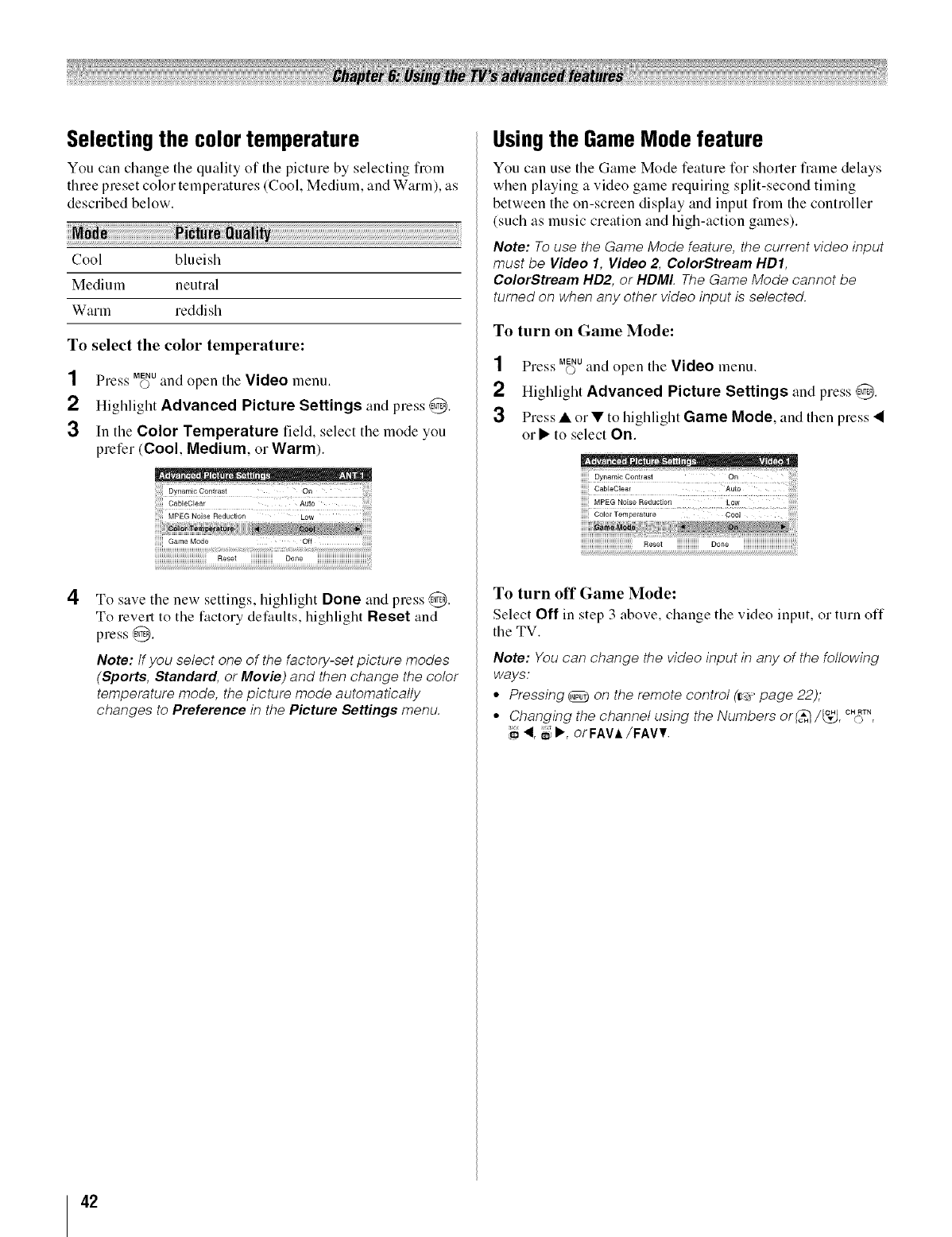
Selecting the color temperature
You can change tile quality of tile picture by selecting from
three preset color temperatures (Cool, Medium, and Warm), as
described below.
Cool blueish
Medium neutral
Warm reddish
To select the color temperature:
1
2
3
SS MENU
Pre._'s 0and open tile Video menu.
Highlight Advanced Picture Settings and press @.
In the Color Temperature field, select the mode you
prefer (Cool, Medium, or Warm).
y
CableClear Auto
MPEG Noise Reduction Low
Game Mode Off
Rese_ Done
4To save the new settings, highlight Done and press @.
To revert to the factory defaults, highlight Reset and
press @.
Note: tf you select one of the factory-set picture modes
(Sports, Standard, or Movie) and then change the color
temperature mode, the picture mode automatically
changes to Preference in the Picture Settings menu.
Usingthe Game Mode feature
You can use the Game Mode feature for shorter frame delays
when playing a video game requiring split-second timing
between the on-screen display and input fiom the controller
(such as music creation and high-action games).
Note: To use the Game Mode feature, the current video input
must be Video 1, Video 2, ColorStream HD1,
ColorStream HD2, or HDMI. The Game Mode cannot be
turned on when any other video input is selected.
To turn on Game Mode:
SS MENU
Pre,;s o and open the Video menu.
2 Highlight Advanced Picture Settings and press @.
3 Press • or • to highlight Game Node, and then press •
or • to select On.
iiiiii CableClear AuIo iiii!i!i!!
iiiiii MPEG Noise Reduction Low iiiililililil
iiiiii Color Temperature CON
NNNNNNNNNNNNNNNNNNIIReset iiiiiiiiiiiiiiii Done iiiiiiiiiiiiiiiiiiiiiiiiiiiiiiiiiiiiil;!i
To turn off Game Mode:
Select Off in step 3 above, change the video input, or turn off
the TV.
Note: You can change the video input in any of the following
ways:
•Pressing @on the remote control (_ page 22);
OH CH RTN
• Changing the channel using the Numbers or_/_J, o,
:_ <, _b,., orFAVA/FAVV.
42
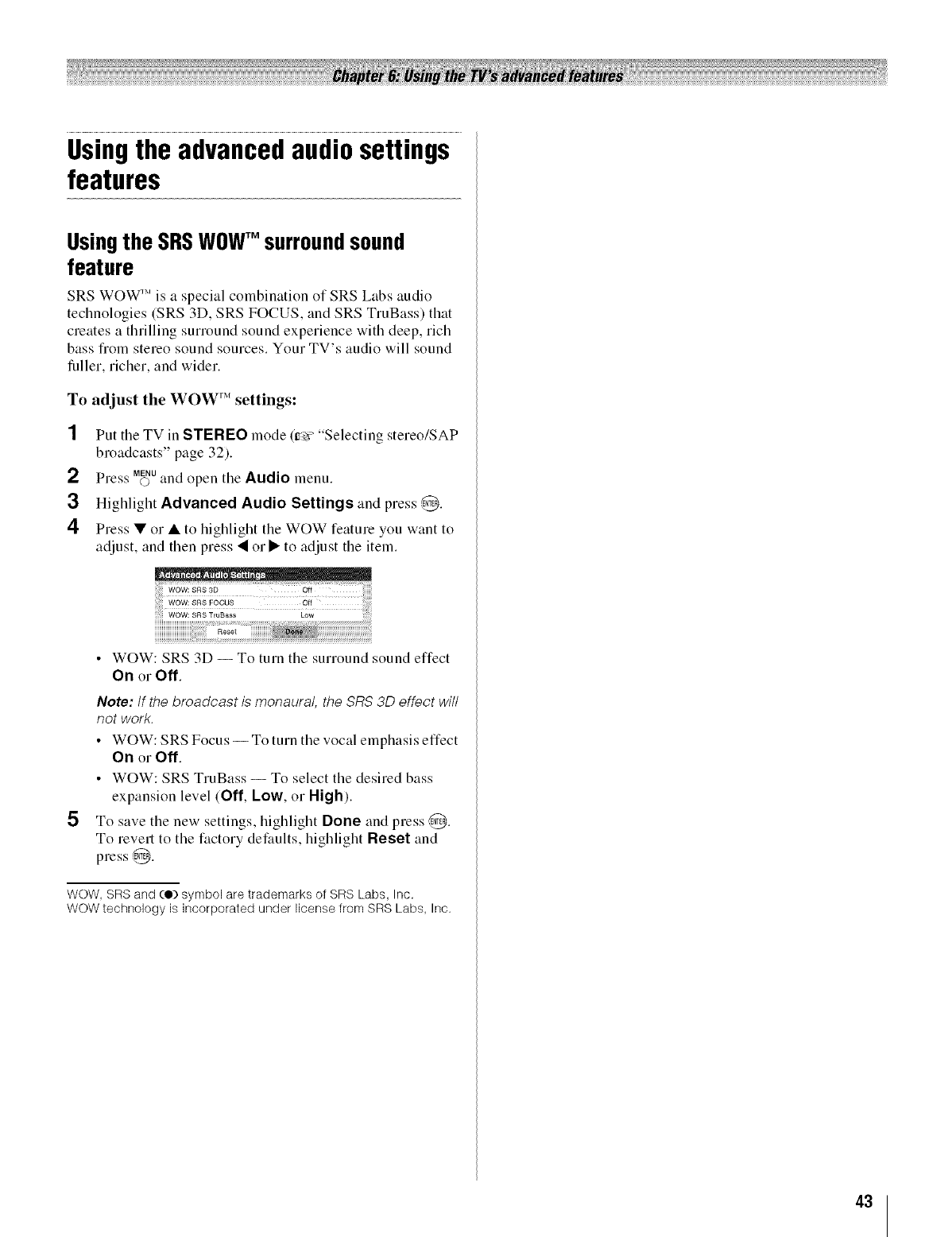
Usingthe advancedaudiosettings
features
Usingthe SRSWOWTM surroundsound
feature
SRS WOW 'Mis a special combination of SRS Labs audio
technologies (SRS 3D, SRS FOCUS, and SRS TruBass) that
creates a thrilling surround sound experience with deep, rich
bass from stereo sound sources. Your TV's audio will sound
fuller, richer, and wider.
To adjust the W()W r_'settings:
2
3
4
Put the TV in STEREO mode (_'_>"Selecting stereo/SAP
broadcasts" page 32).
SS MENU
Press ©and open tile Audio menu.
Highlight Advanced Audio Settings and press @.
Press • or • to highlight the WOW feature you want to
adjust, and then press • or • to adjust the item.
5
• WOW: SRS 3D -- To turntile surround sound effect
On or Off,
Note: If the broadcast is monaural, the SRS 3D effect will
not work.
• WOW: SRS Focus -- To turnthe vocal emphasis effect
On or Off,
• WOW: SRS TruBass -- To select the desired bass
expansion level (Off, Low, or High).
To save the new settings, highlight Done and press @.
To revert to the factory defaults, highlight Reset and
press @.
WOW, SRS and (O) symbol are trademarks of SRS Labs, Inc.
WOW technology is incorporated under license from SRS Labs, Inc.
43
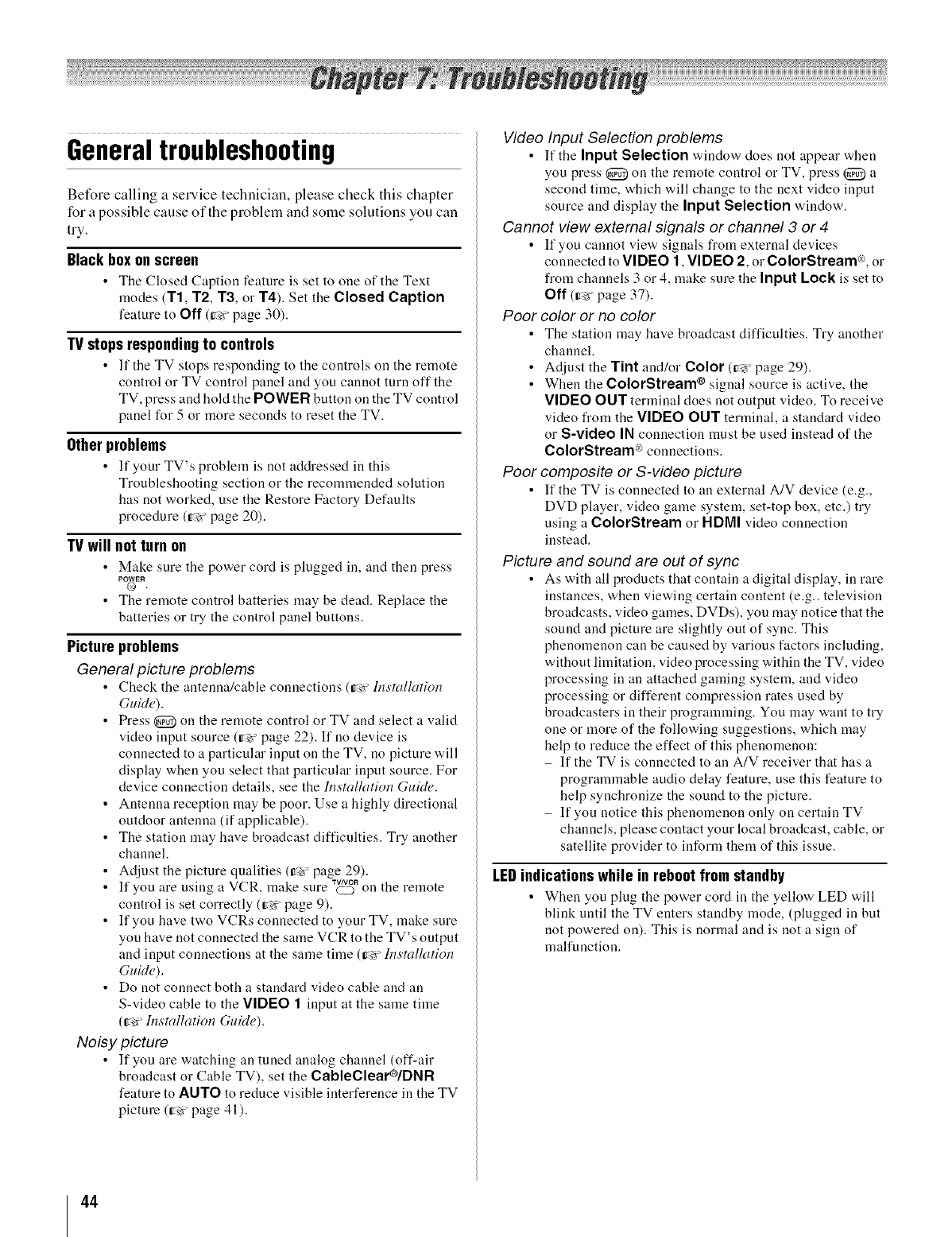
Generaltroubleshooting
Before calling a service technician, please check this chapter
for a possible cause of the problem and some solutions you can
try.
Black box on screen
•The Closed Caption feature is set to one of the Text
modes (T1, T2, T3, or T4). Set the Closed Caption
feature to Off (t_ "page 30).
TV stops responding to controls
• If the TV stops responding to the controls on the remote
control or TV control panel and you cannot turn off the
TV, press and hold the POWER button on the TV control
panel for 5 or more seconds to reset the TV.
Other problems
• If your TV's problem is not addressed in this
Troubleshooting section or the recommended solution
has not worked, use the Restore Factory Defaults
procedure (t_¢"page 20).
TV will not turn on
• Make sure the power cord is plugged in, and then press
• The remote control batteries may be dead. Replace the
batteries or try the control panel buttons.
Picture problems
General picture problems
• Check the antenna/cable connections (r_ h_smllation
GuMe).
• Press @ on the remote control or TV and select a valid
video input source (re" page 22). If no device is
connected to a particular input on the TV, no picture will
display when you select that particular input source. For
device connection details, see the hTstalladon Guide.
• Antenna reception may be poor. Use a highly directional
outdoor antenna (if applicable).
• The station may have broadcast difficulties. Try another
channel.
• Adjust the picture qualities (t_¢"page 29).
- • TVNCR
• If you are using a VCR, make sure CD on the remote
control is set correctly (rg' page 9).
• If you have two VCRs connected to your TV, make sure
you have not connected the same VCR to the TV's output
and input connections at the same time (r_' hTsmllation
GuMe).
• Do not connect both a standard video cable and an
S-video cable to the VIDEO 1 input at the same time
(r_" Installation GuMe).
Noisy picture
• If you are watching an tuned analog channel (off-air
broadcast or Cable TV), set the CableClear®/DNR
feature to AUTO to reduce visible interference in the TV
picture (re' page 41).
Video Input Selection problems
• If the Input Selection window does not appear when
you press @ on the remote control or TV, press @ a
second time, which will change to the next video input
source and display the Input Selection window.
Cannot view external signals or channel 3 or 4
• If you cannot view signals from external devices
connected to VIDEO 1, VIDEO 2, or ColorStream °'_,or
from channels 3 or 4, make sure the Input Lock is set to
Off (t_¢ page 37).
Poor color or no color
• The station may have broadcast difficulties. Try another
channel.
• Adjust the Tint and/or Color (r_ page 29).
• When the ColorStream ® signal source is active, the
VIDEO OUT terminal does not output video. To receive
video from the VIDEO OUT terminal, a standard video
or S-video IN connection must be used instead of the
ColorStream °vconnections.
Poor composite or S-video picture
• If the TV is connected to an external A/V device (e.g.,
DVD player, video game system, set-top box, etc.) try
using a ColorStream or HDMI video connection
instead.
Picture and sound are out of sync
• As with all products that contain a digital display, in rare
instances, when viewing certain content (e.g.. television
broadcasts, video games, DVDs), you may notice that the
sound and picture are slightly out of sync. This
phenomenon can be caused by various factors including,
without limitation, video processing within the TV, video
processing in an attached gaming system, and video
processing or different compression rates used by
broadcasters in their programming. You may want to try
one or more of the following suggestions, which may
help to reduce the effect of this phenomenon:
- If the TV is connected to an A/V receiver that has a
programmable audio delay feature, use this feature to
help synchronize the sound to the picture.
- If you notice this phenomenon only on certain TV
channels, please contact your local broadcast, cable, or
satellite provider to inform them of this issue.
LEDindications while in reboot from standby
• When you plug the power cord in the yellow LED will
blink until the TV enters standby mode, (plugged in but
not powered on). This is normal and is not a sign of
malfunction.
44
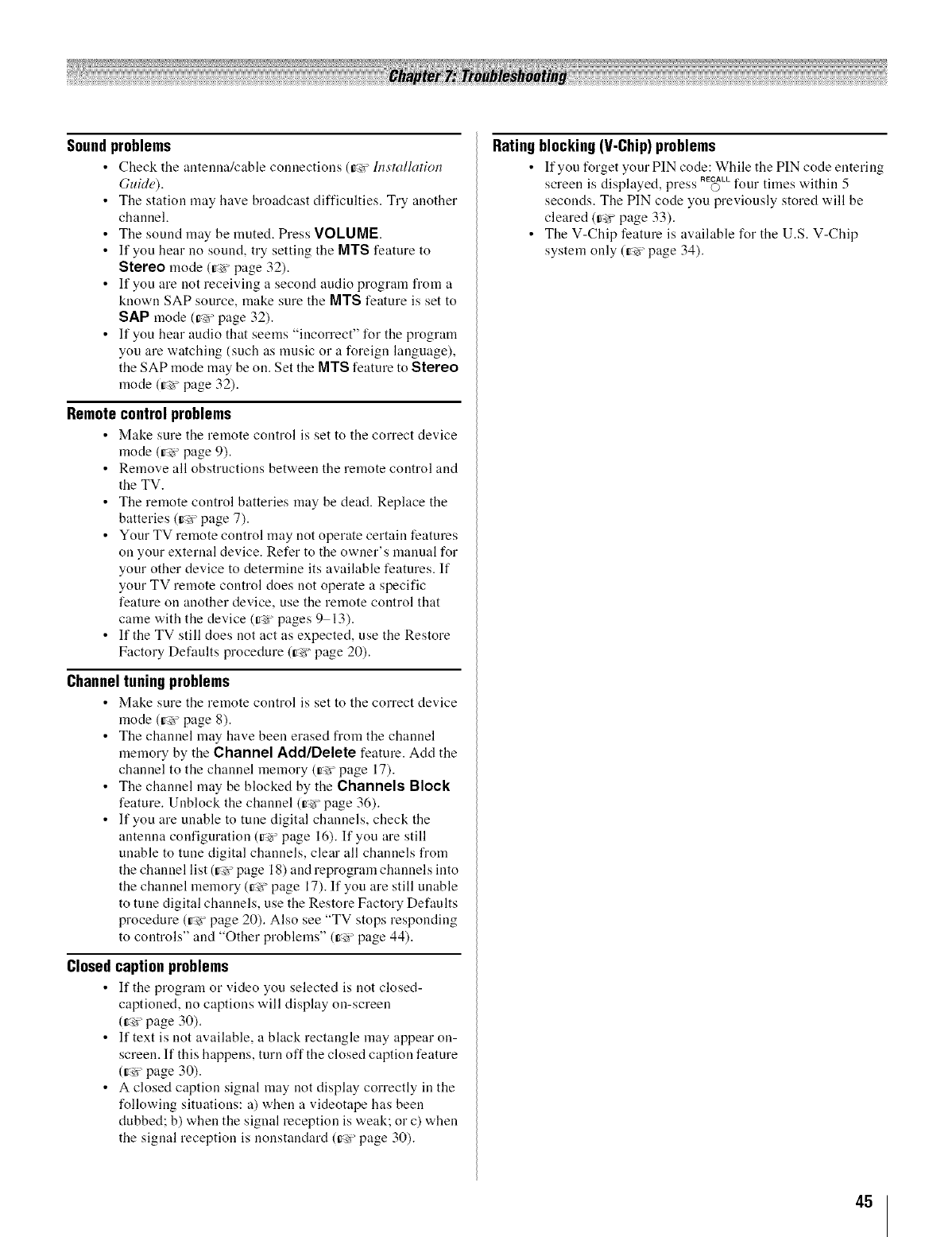
Sound problems
•Check the antenna/cable connections (_' lns'tallatioll
GuMe).
•The station may have broadcast difficulties. Try another
channel.
• The sound may be muted. Press VOLUME.
• If you hear no sound, try setting the MTS feature to
Stereo mode (r_ page 32).
• If you are not receiving a second audio program fl'om a
known SAP source, make sure the MTS feature is set to
SAP mode (re ' page 32).
• If you hear audio that seems "incorrect" for the program
you are watching (such as music or a foreign language),
the SAP mode may be on. Set the MTS feature to Stereo
mode (re" page 32).
Remote control problems
•Make sure the remote control is set to the correct device
mode (r_ page 9).
• Remove all obstructions between the remote control and
the TV.
• The remote control batteries may be dead. Replace the
batteries (re page 7).
• Your TV remote control may not operate certain features
on your external device. Refer to the owner's manual for
your other device to determine its available features. If
your TV remote control does not operate a specific
feature on another device, use the remote control that
came with the device (t_ "pages 9 13).
• If the TV still does not act as expected, use the Restore
Factory Defaults procedure (re' page 20).
Channel tuning problems
•Make sure the remote control is set to the correct device
mode (re' page 8).
• The channel may have been erased from the channel
memory by the Channel Add/Delete feature. Add the
channel to the channel memory (r_ page 17).
• The channel may be blocked by the Channels Block
feature. Unblock the channel (re" page 36).
• If you are unable to tune digital channels, check the
antenna configuration (t_¢ page 16). If you are still
unable to tune digital channels, clear all channels from
the channel list (t_¢'page 18) and reprogram channels into
the channel memory (re' page 17). If you are still unable
to tune digital channels, use the Restore Factory Defaults
procedure (r_ page 20). Also see "TV stops responding
to controls" and "Other problems" (re" page 44).
Closed caption problems
•If the program or video you selected is not closed-
captioned, no captions will display on-screen
(re" page 30).
• If text is not available, a black rectangle may appear on-
screen. If this happens, turn off the closed caption feature
(re page 30).
• A closed caption signal may not display correctly in the
following situations: a) when a videotape has been
dubbed; b) when the signal reception is weak; or c) when
the signal reception is nonstandard (r_ page 30).
Rating blocking (V-Chip) problems
• If you forget your PIN code: While the PIN code entering
screen is displayed, press RE_LLfour times within 5
seconds. The PIN code you previously stored will be
cleared (t_¢"page 33).
• The V-Chip feature is available for the U.S. V-Chip
system only (r_" page 34),
45
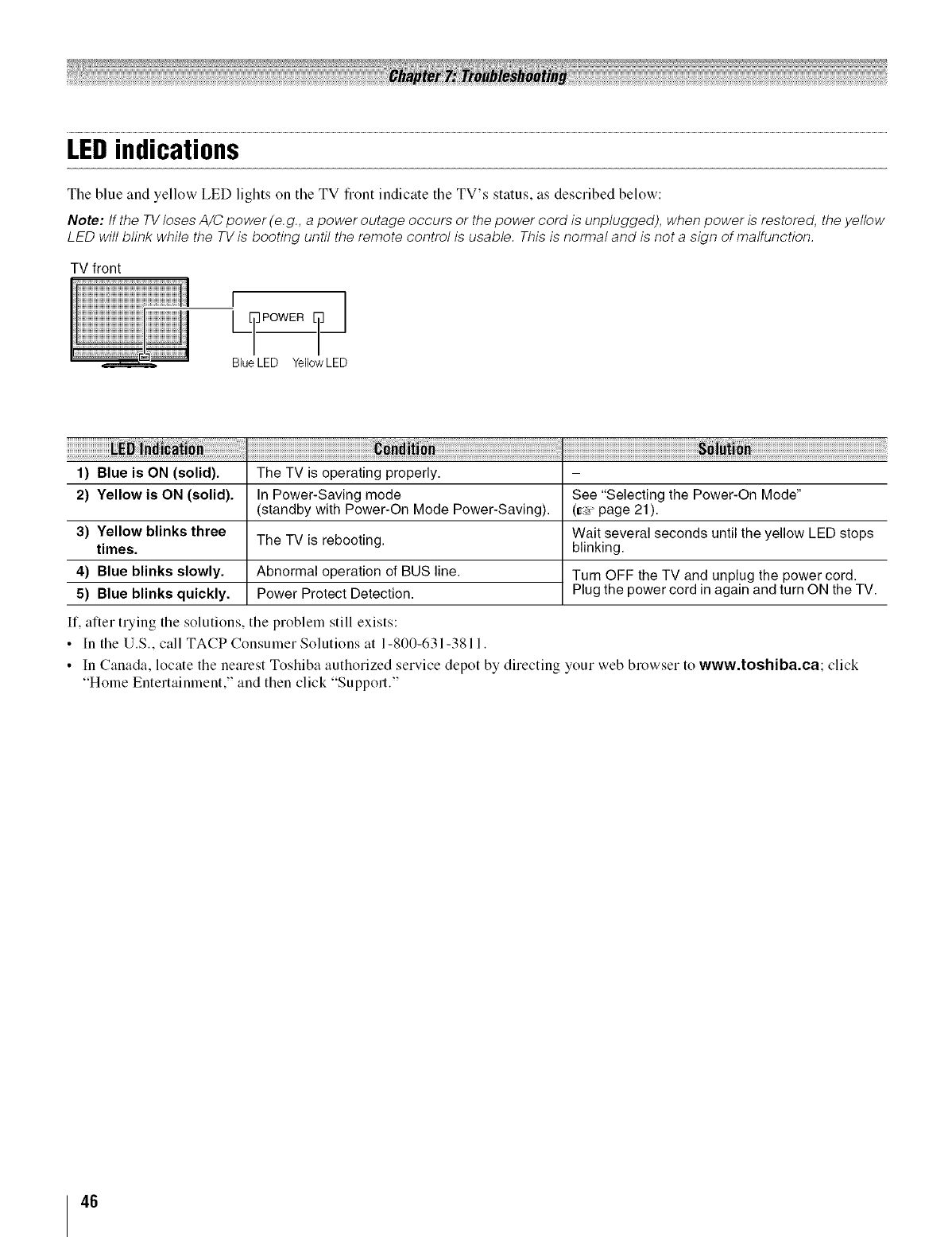
LEDindications
Tile blue and yellow LED lights on tile TV fiont indicate tile TV's status, as described below:
Note: tf the TV loses A/C power (e.g., a power outage occurs or the power cord is unplugged), when power is restored, the yellow
LED will blink while the TV is booting until the remote control is usable. This is normal and is not a sign of malfunction.
TV front
1) Blue is ON (solid). The TV is operating properly.
2) Yellow is ON (solid). In Power-Saving mode See "Selecting the Power-On Mode"
(standby with Power-On Mode Power-Saving). (_;:r page 21).
Wait several seconds until the yellow LED stops
The TV is rebooting, blinking.
3) Yellow blinks three
times.
4) Blue blinks slowly.
5) Blue blinks quickly.
Abnormal operation of BUS line.
Power Protect Detection.
Turn OFF the TV and unplug the power cord.
Plug the power cord in again and turn ON the TV.
If, after trying the solutions, the problem still exists:
• In the U.S., call TACP Consumer Solutions at 1-800-631-3811.
• In Canada, locate the nearest Toshiba authorized service depot by directing your web browser to www,toshiba,ca; click
"Home Entertainment," and then click "Support."
46
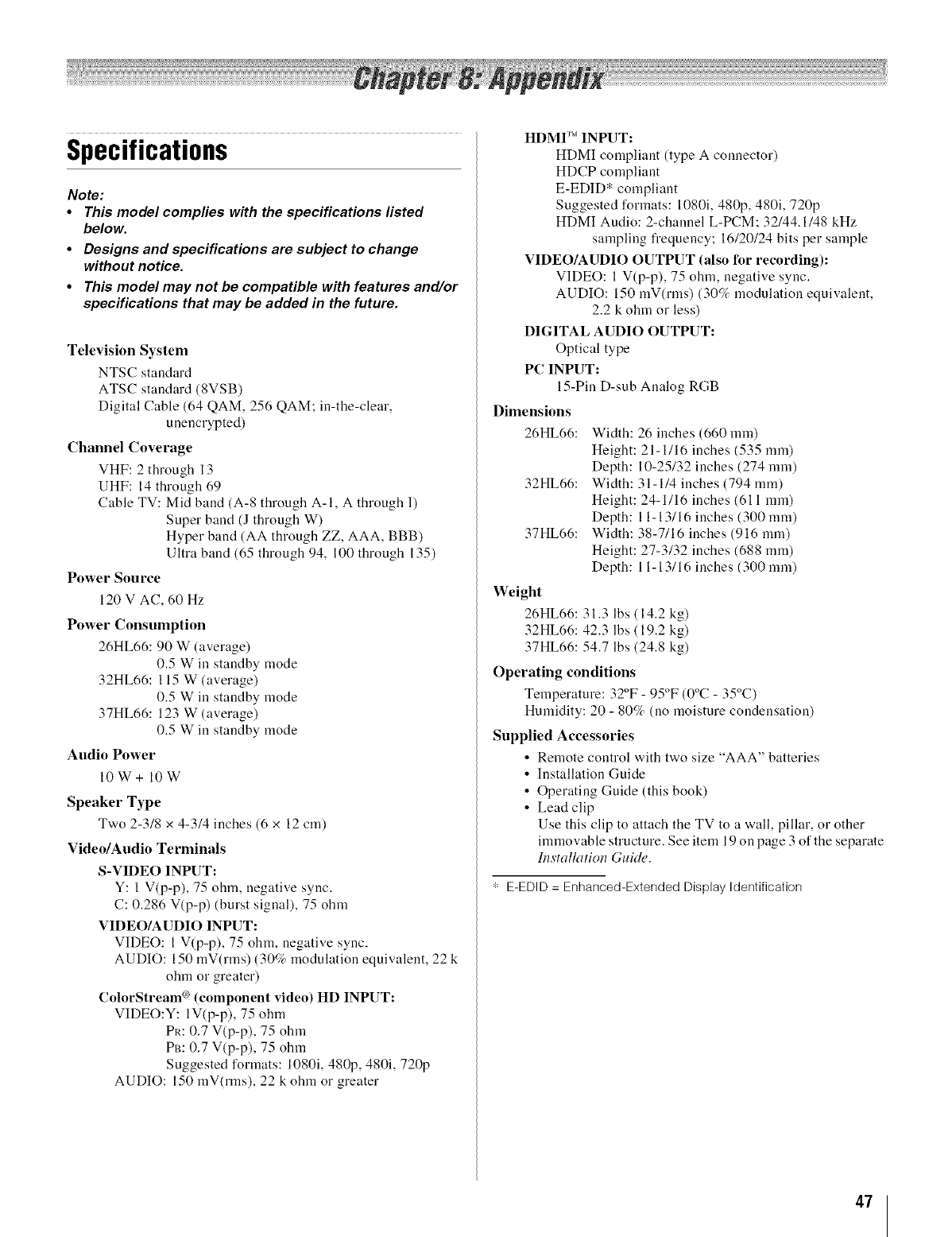
Specifications
Note:
•This model complies with the specifications listed
below.
•Designs and specifications are subject to change
without notice.
•This model may not be compatible with features and/or
specifications that may be added in the future.
Television System
NTSC standard
ATSC standard (8VSB)
Digital Cable (64 QAM, 256 QAM: in-the-clear,
unencrypted)
Channel Coverage
VHF: 2 through 13
UHF: 14 through 69
Cable TV: Mid band (A-8 through A-l, A through I)
Super band (J through W)
Hyper band (AA through ZZ, AAA, BBB)
Ultra band (65 through 94, 100 through 135)
Power Source
120 V AC, 60 Hz
Power Consumption
26HL66:90 W (average)
0.5 W ill standby mode
32HL66:115 W (average)
0.5 W ill standby mode
37HL66:123 W (average)
0.5 W ill standby mode
Audio Power
lOW+ lOW
Speaker Type
Two 2-3/8 x 4-3/4 inches (6 x 12 cm)
Video/Audio Terminals
S-VIDEO INPUT:
Y: 1 V(p-p), 75 ohm, negative sync.
C: 0.286 V(p-p) (burst signal), 75 ohm
VIDEO/AUDIO INPUT:
VIDEO: 1 V(p-p), 75 ohm, negative sync.
AUDIO: 150 mV(rms) (30% modulation equivalent, 22 k
ohm or greater)
ColorStream ® (component video) HD INPUT:
VIDEO:Y: 1V(p-p), 75 ohm
PR: 0.7 V(p-p), 75 ohm
PB: 0.7 V(p-p), 75 ohm
Suggested formats: 1080i, 480p, 480i, 720p
AUDIO: 150 mV(nns), 22 k ohm or greater
HDMI ,_' INPUT:
HDMI compliant (type A connector)
HDCP compliant
E-EDID* compliant
Suggested formats: 1080i, 480p, 480i, 720p
HDMI Audio: 2-channel L-PCM: 32/44.1/48 kHz
sampling frequency; 16/20/24 bits per sample
VIDEO/AUDIO OUTPUT (also for recording):
VIDEO: 1 V(p-p), 75 ohm, negative sync.
AUDIO: 150 mV(rms) (30% modulation equivalent,
2.2 k ohm or less)
DIGITAL AUDIO OUTPUT:
Optical type
PC INPUT:
15-Pin D-sub Analog RGB
Dimensions
26HL66: Width: 26 inches (660 ram)
Height: 21-1/16 inches (535 ram)
Depth: 10-25/32 inches (274 ram)
32HL66: Width: 31-1/4 inches (794 ram)
Height: 24-1/16 inches (611 ram)
Depth: 11-13/16 inches (300 ram)
37HL66: Width: 38-7/16 inches (916 ram)
Height: 27-3/32 inches (688 ram)
Depth: 11-13/16 inches (300 ram)
Weight
26HL66:31.3 lbs (14.2 kg)
32HL66:42.3 lbs (19.2 kg)
37HL66:54.7 lbs (24.8 kg)
Operating conditions
Temperature: 32°F - 95°F (0°C - 35°C)
Humidity: 20 - 80% (no moisture condensation)
Supplied Accessories
• Remote control with two size "AAA" batteries
• Installation Guide
• Operating Guide (this book)
• Lead clip
Use this clip to attach the TV to a wall, pillar, or other
immovable structure. See item 19 on page 3 of the separate
Installation GuMe.
':' E-EDID = Enhanced-Extended Display Identification
47
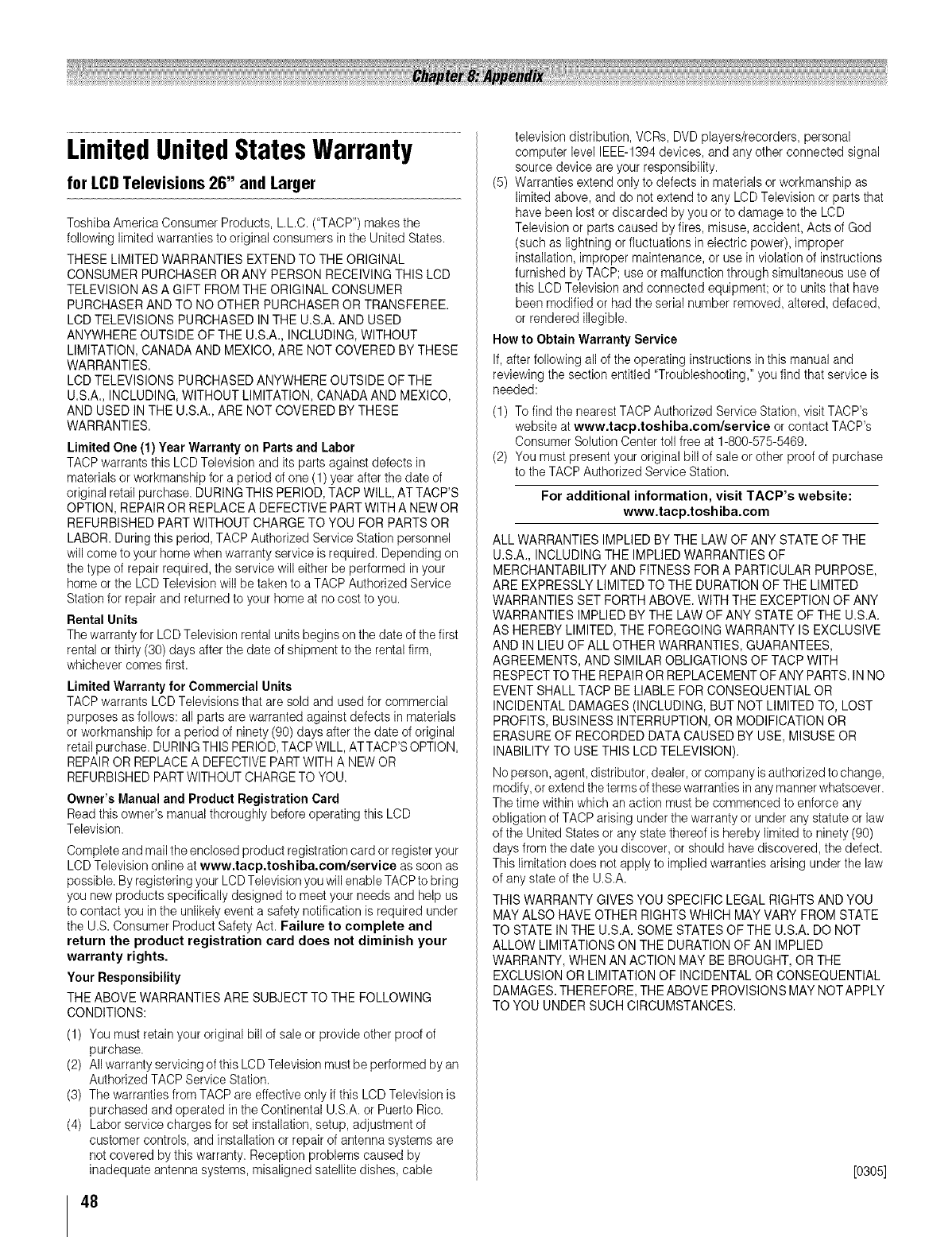
LimitedUnitedStatesWarranty
for LCD Televisions 26" and Larger
ToshibaAmericaConsumerProducts, L.L.C.("TACP")makesthe
followinglimitedwarrantiesto original consumersin the United States.
THESELIMITEDWARRANTIESEXTENDTO THE ORIGINAL
CONSUMERPURCHASEROR ANY PERSON RECEIVINGTHIS LCD
TELEVISIONAS A GIFT FROMTHE ORIGINALCONSUMER
PURCHASERANDTO NOOTHERPURCHASEROR TRANSFEREE.
LCDTELEVISIONSPURCHASEDINTHE U.S.A.AND USED
ANYWHEREOUTSIDEOF THEU.S.A., INCLUDING,WITHOUT
LIMITATION,CANADAAND MEXICO,ARE NOT COVEREDBY THESE
WARRANTIES.
LCDTELEVISIONSPURCHASEDANYWHEREOUTSIDEOF THE
U.S.A.,INCLUDING,WITHOUTLIMITATION,CANADAANDMEXICO,
AND USED IN THE U.S.A.,ARE NOT COVEREDBY THESE
WARRANTIES.
Limited One (1) Year Warranty on Parts and Labor
TACP warrants this LCD Television and its parts against defects in
materials or workmanship for a period of one (1) year after the date of
original retail purchase. DURING THIS PERIOD, TACP WILL, AT TACP'S
OPTION, REPAIR OR REPLACE A DEFECTIVE PART WITH A NEW OR
REFURBISHED PART WITHOUT CHARGE TO YOU FOR PARTS OR
LABOR, During this period, TACP Authorized Service Station personnel
will come to your home when warranty service is required. Depending on
the type of repair required, the service will either be performed in your
home or the LCD Television will be taken to a TACP Authorized Service
Station for repair and returned to your home at no cost to you.
Rental Units
The warranty for LCD Television rental units begins on the date of the first
rental or thirty (30) days after the date of shipment to the rental firm,
whichever comes first.
Limited Warranty for Commercial Units
TACP warrants LCD Televisions that are sold and used for commercial
purposes as follows: all parts are warranted against defects in materials
or workmanship for a period of ninety (90) days after the date of original
retail purchase. DURING THIS PERIOD, TACP WILL, AT TACP'S OPTION,
REPAIR OR REPLACE A DEFECTIVE PART WITH A NEW OR
REFURBISHED PART WITHOUT CHARGE TO YOU.
Owner's Manual and Product Registration Card
Read this owner's manual thoroughly before operating this LCD
Television.
Complete and mail the enclosed product registration card or register your
LCD Television online at www.tacp.toshiba.com/service as soon as
possible. By registering your LCD Television you will enable TACP to bring
you new products specifically designed to meet your needs and help us
to contact you in the unlikely event a safety notification is required under
the U.S. Consumer Product Safety Act. Failure to complete and
return the product registration card does not diminish your
warranty rights.
Your Responsibility
THE ABOVE WARRANTIES ARE SUBJECT TO THE FOLLOWING
CONDITIONS:
(1) You must retain your original bill of sale or provide other proof of
purchase.
(2) All warranty servicing of this LCD Television must be performed by an
Authorized TACP Service Station.
(3) The warranties from TACP are effective only if this LOD Television is
purchased and operated in the Continental U.S.A. or Puerto Rico.
(4) Labor service charges for set installation, setup, adjustment of
customer controls, and installationor repair of antenna systems are
not covered by this warranty. Reception problems caused by
inadequate antenna systems, misaligned satellite dishes, cable
48
television distribution, VCRs, DVD players/recorders, personal
computer level IEEE-1394 devices, and any other connected signal
source device are your responsibility.
(5) Warranties extend only to defects in materials or workmanship as
limited above, and do not extend to any LCD Television or parts that
have been lost or discarded by you or to damage to the LCD
Television or parts caused by fires, misuse, accident, Acts of God
(such as lightning or fluctuations inelectric power), improper
installation, improper maintenance, or use in violation of instructions
furnished by TACP; use or malfunction through simultaneous use of
this LCD Television and connected equipment; or to units that have
been modified or had the serial number removed, altered, defaced,
or rendered illegible.
How to Obtain Warranty Service
If, after following all of the operating instructions in this manual and
reviewing the section entitled "Troubleshooting," you find that service is
needed:
(1) To find the nearest TACP Authorized Service Station, visit TACP's
website at www.tacp.toshiba.com/service or contact TACP's
Consumer Solution Center toll free at 1-800-575-5469.
(2) You must present your original bill of sale or other proof of purchase
to the TACP Authorized Service Station.
For additional information, visit TACP's website:
www.tacp.toshiba.com
ALL WARRANTIESIMPLIEDBY THE LAWOF ANY STATEOF THE
U.S.A.,INCLUDINGTHE IMPLIEDWARRANTIESOF
MERCHANTABILITYAND FITNESSFORA PARTICULARPURPOSE,
ARE EXPRESSLYLIMITEDTO THEDURATIONOF THE LIMITED
WARRANTIESSET FORTHABOVE.WITH THE EXCEPTIONOFANY
WARRANTIESIMPLIEDBY THELAW OFANY STATE OF THEU.S.A.
AS HEREBYLIMITED,THE FOREGOINGWARRANTYIS EXCLUSIVE
AND IN LIEU OFALL OTHERWARRANTIES,GUARANTEES,
AGREEMENTS,AND SIMILAROBLIGATIONSOF TACPWITH
RESPECTTOTHEREPAIRORREPLACEMENTOFANY PARTS.INNO
EVENTSHALLTACP BE LIABLE FORCONSEQUENTIALOR
INCIDENTALDAMAGES(INCLUDING,BUT NOT LIMITEDTO, LOST
PROFITS,BUSINESSINTERRUPTION,OR MODIFICATIONOR
ERASUREOF RECORDEDDATA CAUSEDBY USE, MISUSEOR
INABILITYTO USETHIS LCDTELEVISION).
Noperson,agent,distributor,dealer,or companyisauthorizedto change,
modify,or extendthetermsofthese warrantiesinanymannerwhatsoever.
Thetime within which an action must be commenced to enforceany
obligation ofTACParising underthe warrantyor under any statuteor law
of the UnitedStates or anystate thereof ishereby limitedto ninety(90)
daysfromthe date youdiscover, or should havediscovered,the defect.
This limitationdoes not apply to impliedwarrantiesarising under the law
of anystate of the U.S.A.
THIS WARRANTYGIVESYOU SPECIFIC LEGALRIGHTSANDYOU
MAYALSO HAVE OTHERRIGHTSWHICH MAYVARY FROM STATE
TO STATEIN THEU.S.A.SOME STATESOFTHE U.S.A.DO NOT
ALLOW LIMITATIONSON THE DURATIONOF AN IMPLIED
WARRANTY,WHEN AN ACTION MAY BE BROUGHT,ORTHE
EXCLUSIONOR LIMITATIONOF INCIDENTALOR CONSEQUENTIAL
DAMAGES.THEREFORE,THEABOVEPROVISIONSMAYNOTAPPLY
TO YOU UNDERSUCH CIRCUMSTANCES.
[0305]
Limited CanadaWarranty
for LCD Televisions
Toshibaof CanadaLimited("TCL")makesthefollowinglimitedwarranties
to original consumersin Canada.
LCDTVs PURCHASEDINCANADAAND USEDANYWHEREOUTSIDE
OF CANADA,INCLUDING,WITHOUTLIMITATION,THEU.S.A.AND
MEXICO,ARE NOT COVEREDBY THESE WARRANTIES.
LCDTVs PURCHASEDANYWHEREOUTSIDEOF CANADA,
INCLUDING,WITHOUTLIMITATION,THEU.S.A.AND MEXICO,AND
USEDIN CANADA,ARE NOT COVEREDBY THESEWARRANTIES.
THESELIMITEDWARRANTIESEXTENDTOTHE ORIGINAL
CONSUMERPURCHASEROR ANY PERSON RECEIVINGTHIS LCD
TVAS A GIFT FROMTHE ORIGINALCONSUMERPURCHASERAND
TO NOOTHERPURCHASERORTRANSFEREE.
Limited One (1) Year Warrantyon Parts and Labor
TCLwarrantsthis LCDTV and its parts againstdefects in materialsor
workmanshipfor a period of one (1) year after the date of original retail
purchase.DURINGTHIS PERIOD,TCL WILL,AT TCL'SOPTION,
REPAIROR REPLACEA DEFECTIVEPARTWITH A NEW OR
REFURBISHEDPARTWITHOUTCHARGETO YOU FORPARTS OR
LABOR.
a) FOR LCD TVs UNDER 37":
To receive warranty service, you must return the LCD TV to a TCL
Authorized Service Depot.
b) FOR LCD TVs 37" AND LARGER:
During this period, TCL Authorized Service Depot personnel will come
to your home when warranty service is required. Depending on the
type of repair required, the service will either be performed in your
home or the LCD Television will be taken to a TCL Authorized Service
Depot for repair and returned to your home at no cost to you. IN-
HOME SERVICE ONLY APPLIES WITHIN 100 KILOMETERS
OF AN AUTHORIZED TCL SERVICE DEPOT.
Rental Units
The warranty for rental units begins with the date of first rental or thirty (30)
days from the date of shipment to the rental firm, whichever comes first.
Commercial Units
LCD TVs sold and used for commercial purposes have a limited ninety
(90) day warranty for all parts and labor.
Owner's Manual and Product Registration
Read this owner's manual thoroughly before operating this LCD TV. If you
purchased your LCD TV in Canada, register it online at www.toshiba.ca
as soon as possible. By registering your product you will enable TCL to
bring you new products specifically designed to meet your needs and
help us to contact you in the unlikely event a safety notification is required.
Failure to register online does not diminish your warranty
rights.
Your Responsibility
THE ABOVE WARRANTIES ARE SUBJECT TO THE FOLLOWING
CONDITIONS:
(1) You must provide your bill of sale or other proof of purchase.
(2) All warranty servicing of this LCD TV must be made by an Authorized
TCL Service Depot.
(3) The warranties from TCL are effective only if the LOD TV is purchased
in Canada from an authorized TCL dealer and operated in Canada.
(4) Labor charges for installation, setup, adjustment of customer
controls, and installation or repair of antenna systems are not covered
by these warranties. Reception problems caused by inadequate
antenna systems are your responsibility.
(5) Warranties extend only to defects in materials or workmanship as
limited above, and do not extend to any LCD TV or parts that have
been lost or discarded by you or to damage to the LCD TV or parts
caused by fires, misuse, accident, Acts of God (such as lightning or
fluctuations in electric power), improper installation, improper
maintenance, or use in violation of instructions furnished by TCL; use
or malfunction through simultaneous use of this product and
connected equipment; or to units that have been modified or had the
serial number removed, altered, defaced, or rendered illegible.
How to Obtain Warranty Services
If, after following all of the operating instructions in this manual and
checking the "Troubleshooting" section, you find that service is needed:
(1) To find the nearest TCL Authorized Service Depot,
visit TCL's web site at www.toshiba.ca
(2) Present your bill of sale or other proof of purchase to the Authorized
Service Depot.
For additional information, visit TCL's web site:
www.toshiba.ca
ALL WARRANTIESIMPLIEDBY THE LAWOF ANY PROVINCE
OF CANADA, INCLUDINGTHE IMPLIEDWARRANTIESOF
MERCHANTABILITYAND FITNESSFORA PARTICULARPURPOSE,
ARE EXPRESSLYLIMITEDTO THEDURATIONOF THE LIMITED
WARRANTIESSET FORTHABOVE.WITH THE EXCEPTIONOFANY
WARRANTIESIMPLIEDBY THE LAWOFANY PROVINCEOF CANADA
AS HEREBYLIMITED, THEFOREGOINGWARRANTYIS EXCLUSIVE
AND IN LIEU OFALL OTHERWARRANTIES,GUARANTEES,
AGREEMENTS,ANDSIMILAROBLIGATIONSOFTCL WITHRESPECT
TO THE REPAIROR REPLACEMENTOF ANY PARTS. IN NOEVENT
SHALLTCL BE LIABLE FORCONSEQUENTIALOR INCIDENTAL
DAMAGES(INCLUDING,BUT NOTLIMITEDTO, LOSTPROFITS,
BUSINESSINTERRUPTION,OR MODIFICATIONOR ERASUREOF
RECORDEDDATA)CAUSEDBY USE, MISUSE,OR INABILITYTOUSE
THIS PRODUCT.
Noperson,agent,distributor,dealer,or companyis authorizedto change,
modify,or extendthetermsofthese warrantiesinany mannerwhatsoever.
Thetime within which action mustbe commenced to enforce any
obligation of TCL arising underthis warrantyor under anylaw of Canada
or of any provincethereof is hereby limitedto 90 days fromthe date you
discover,or should have discovered,the defect.This limitationdoes not
applyto implied warrantiesarising under thelaw of anyprovince of
Canada.
THIS WARRANTYGIVESYOU SPECIFIC LEGALRIGHTS,AND YOU
MAYALSO HAVE OTHERRIGHTS,WHICHMAYVARY FROM
PROVINCETO PROVINCEINCANADA.SOME PROVINCESOF
CANADADONOT ALLOWLIMITATIONSON THEDURATIONOF AN
IMPLIEDWARRANTY,LIMITATIONSONTHETIMEWITHINWHICHAN
ACTIONMAYBE BROUGHT,ORTHE EXCLUSIONORLIMITATIONOF
INCIDENTALOR CONSEQUENTIALDAMAGES;THEREFORE,THE
ABOVE LIMITATIONSOR EXCLUSIONSMAY NOT APPLYTO YOU
UNDERSUCH CIRCUMSTANCES.
49
A copy of the GPL source code in this product may be obtained by
contacting Toshiba Consumer Solutions at (800)631-3811. There will be
a charge to cover the costs of providing the source code.
A copy of the LGPL source code in this product may be obtained by
contacting Toshiba Consumer Solutions at (800)631-3811. There will be
a charge to cover the costs of providing the source code.
USB Protocol Copyright © 2005 The NetBSD Foundation, Inc. All rights
reserved.
Redistribution and use in source and binary forms, with or without
modification, are permitted provided that the following conditions are met:
(1) Redistributions of source code must retain the above copyright
notice, this list of conditions and the following disclaimer.
(2) Redistributions in binary form must reproduce the above copyright
notice, this list of conditions and the following disclaimer in the
documentation and/or other materials provided with the distribution.
(3) Neither the name of The NetBSD Foundation nor the names of its
contributors may be used to endorse or promote products derived
from this software without specified prior written permission.
THIS SOFTWARE IS PROVIDED BY THE NETBSD FOUNDATION, INC.
AND CONTRIBUTORS "AS IS" AND ANY EXPRESS OR IMPLIED
WARRANTIES, INCLUDING, BUT NOT LIMITED TO, THE IMPLIED
WARRANTIES OF MERCHANTABILITY AND FITNESS FOR A
PARTICULAR PURPOSE ARE DISCLAIMED. IN NO EVENT SHALL
THE FOUNDATION OR CONTRIBUTORS BE LIABLE FOR ANY
DIRECT, INDIRECT, INCIDENTAL, SPECIAL, EXEMPLARY, OR
CONSEQUENTIAL DAMAGES (INCLUDING, BUT NOT LIMITED TO,
PROCUREMENT OF SUBSTITUTE GOODS OR SERVICES; LOSS OF
USE, DATA, OR PROFITS; OR BUSINESS INTERRUPTION) HOWEVER
CAUSED AND ON ANY THEORY OF LIABILITY, WHETHER IN
CONTRACT, STRICT LIABILITY, OR TORT (INCLUDING NEGLIGENCE
OR OTHERWISE) ARISING IN ANY WAY OUT OF THE USE OF THIS
SOFTWARE, EVEN IF ADVISED OF THE POSSIBILITY OF SUCH
DAMAGE.
This product includes software developed by the OpenSSL Project for use
in the OpenSSL Toolkit (http://www.opensshorg).
This product includes cryptographic software written by Eric Young
(eay@cryptsoft.com).
OpenSSL 0.9.7d Copyright © 1998-2000 the OpenSSL Project. All Rights
reserved. Redistribution and use in source and binary forms, with or
without modification, are permitted provided that the following conditions
are met:
(1) Redistributions of source code must retain the above copyright
notice, this list of conditions and the following disclaimer.
(2) Redistributions in binary form must reproduce the above copyright
notice, this list of conditions and the following disclaimer in the
documentation and/or other materials provided with the distribution.
(3) All advertising materials mentioning features or use of this software
must display the following acknowledgement: This product includes
software developed by the OpenSSL Project for use in the OpenSSL
Toolkit (http://opensshorg).
(4) The names "OpenSSL Toolkit" and "Open SSL Project" must not be
used to endorse or promote products derived from this software
without prior written permission. For written permission, please
contact openssl-core@opensshorg.
(5) Products derived from this software may not be called "OpenSSL" nor
may "Open SSL" appear in their names without prior written
permission of the OpenSSL Project.
(6) Redistributions of any form whatsoever must retain the following
acknowledgement: "This product includes software developed by the
OpenSSL Project for use in the OpenSSL Toolkit (http://
www.opensshorg)."
THIS SOFTWARE IS PROVIDED BY THE OpenSSL PROJECT "AS IS"
AND ANY EXPRESSED OR IMPLIED WARRANTIES, INCLUDING, BUT
NOT LIMITED TO, THE IMPLIED WARRANTIES OF
MERCHANTABILITY AND FITNESS FOR A PARTICULAR PURPOSE
ARE DISCLAIMED. IN NO EVENT SHALL THE OpenSSL PROJECT OR
CONTRIBUTORS BE LIABLE FOR ANY DIRECT, INDIRECT,
INCIDENTAL, SPECIAL, EXEMPLARY, OR CONSEQUENTIAL
DAMAGES (INCLUDING, BUT NOT LIMITED TO, PROCUREMENT OF
SUBSTITUTE GOODS OR SERVICES; LOSS OF USE, DATA, OR
PROFITS; OR BUSINESS INTERRUPTION) HOWEVER CAUSED AND
ON ANY THEORY OF LIABILITY, WHETHER IN CONTRACT, STRICT
LIABILITY, OR TORT (INCLUDING NEGLIGENCE OR OTHERWISE)
ARISING IN ANY WAY OUT OF THE USE OF THIS SOFTWARE, EVEN
IF ADVISED OF THE POSSIBILITY OF SUCH DAMAGE. This product
includes cryptographic software written by Eric Young
(eay@cryptsoft.com). This product includes software written by Tim
Hudson (tjh @cryptsoft.com).
Copyright © 1995-1998 Eric Young (eay@ cryptsoft.com). All Rights
reserved. This package is an SSL implementation written by Eric Young
(eay@cryptsoft.com). The implementation was written so as to conform
with Netscapes SSL. This library is free for commercial and non-
commercial use so long as the following conditions are adhered to. The
following conditions apply to all code found in this distribution, be it the
RC4, RSA, Ihash, DES, etc., code; not just the SSL code. The SSL
documentation included with this distribution is covered by the same
copyright terms except that the holder is Tim Hudson (tjh@cryptsoft.com).
Copyright remains Eric Young's, and as such any Copyright notices in
the code are not to be removed. If this package is used in a product, Eric
Young should be given attribution as the author of the parts of the library
used. This can be in the form of a textual message at program startup
or in documentation (online or textual) provided with the package.
Redistribution and use in source and binary forms, with or without
modification, are permitted provided that the following conditions are met:
(1) Redistributions of source code must retain the copyright notice, this
list of conditions and the following disclaimer.
(2) Redistributions in binary form must reproduce the above copyright
notice, this list of conditions and the following disclaimer in the
documentation and/or other materials provided with the distribution.
(3) All advertising materials mentioning features or use of this software
must display the following acknowledgement: "This product includes
cryptographic software written by Eric Young (eay@cryptsoft.com)."
The word 'cryptographic' can be left out if the routines from the library
being used are not cryptographic related.
(4) If you include any Windows specific code (or derivative thereof) from
the apps directory (application code) you must include an
acknowledgement: "This product includes software written by Tim
Hudson (tjh@cryptosoft.com)."
THIS SOFTWARE IS PROVIDED BY ERIC YOUNG "AS IS" AND ANY
EXPRESS OR IMPLIED WARRANTIES, INCLUDING, BUT NOT LIMITED
TO, THE IMPLIED WARRANTIES OF MERCHANTABILITY AND
FITNESS FOR A PARTICULAR PURPOSE ARE DISCLAIMED. IN NO
EVENT SHALL THE AUTHOR OR CONTRIBUTORS BE LIABLE FOR
ANY DIRECT, INDIRECT, INCIDENTAL, SPECIAL, EXEMPLARY, OR
CONSEQUENTIAL DAMAGES (INCLUDING, BUT NOT LIMITED TO,
PROCUREMENT OF SUBSTITUTE GOODS OR SERVICES; LOSS OF
USE, DATA, OR PROFITS; OR BUSINESS INTERRUPTION) HOWEVER
CAUSED AND ON ANY THEORY OF LIABILITY, WHETHER IN
CONTRACT, STRICT LIABILITY, OR TORT (INCLUDING NEGLIGENCE
OR OTHERWISE) ARISING IN ANY WAY OUT OF THE USE OF THIS
SOFTWARE, EVEN IF ADVISED OF THE POSSIBILITY OF SUCH
DAMAGE. The license and distribution terms for any publicly available
version or derivative of this code cannot be changed, i.e. this code cannot
simply be copied and put under another distribution license (including the
GNU Public License).
50
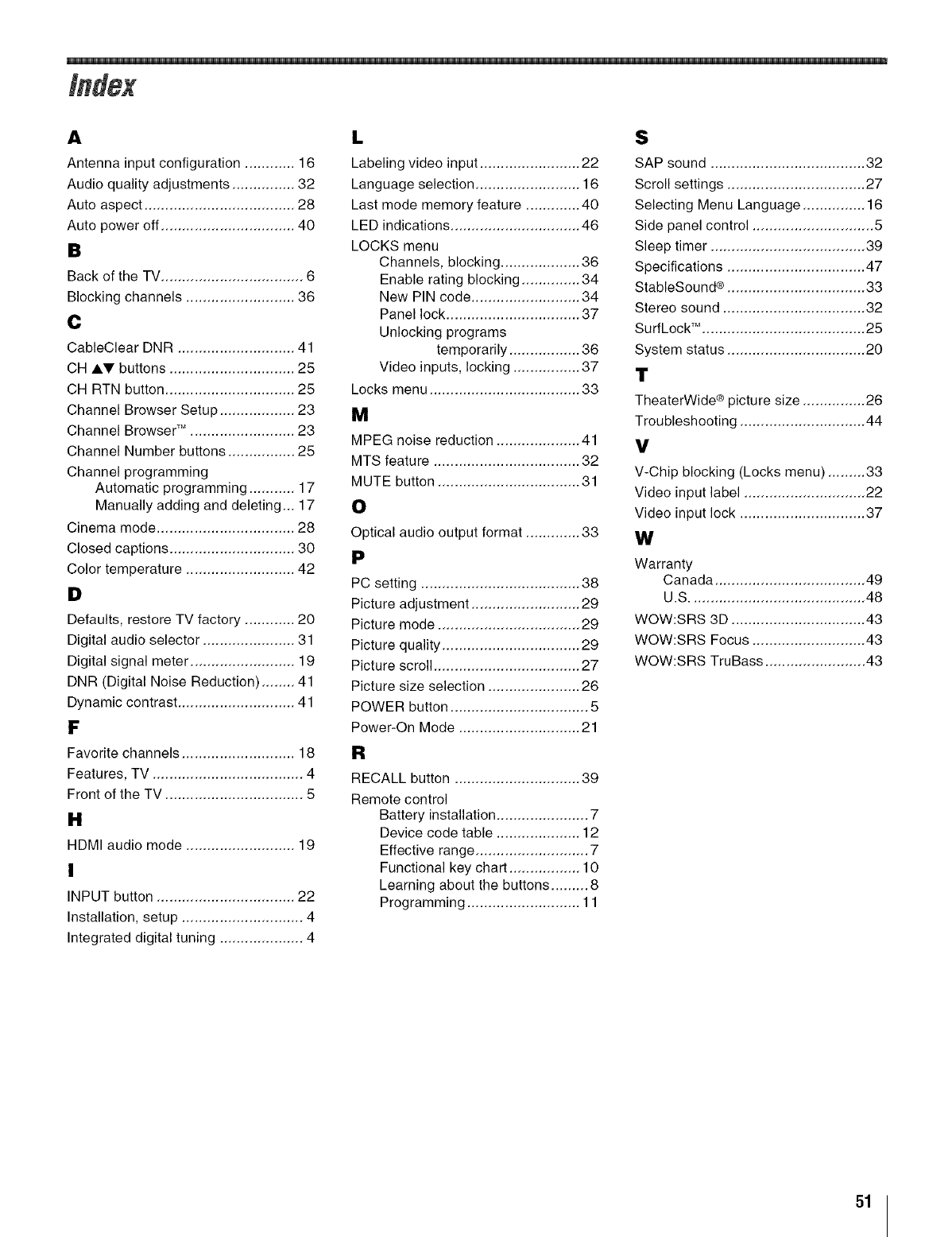
i
A
Antenna input configuration ............ 16
Audio quality adjustments ............... 32
Auto aspect .................................... 28
Auto power off ................................ 40
B
Back of the TV .................................. 6
Blocking channels .......................... 36
@
CableClear DNR ............................ 41
CH AI,V buttons .............................. 25
CH RTN button ............................... 25
Channel Browser Setup .................. 23
Channel Browser TM ......................... 23
Channel Number buttons ................ 25
Channel programming
Automatic programming ........... 17
Manually adding and deleting... 17
Cinema mode ................................. 28
Closed captions .............................. 30
Color temperature .......................... 42
#
Defaults, restore TV factory ............ 20
Digital audio selector ...................... 31
Digital signal meter ......................... 19
DNR (Digital Noise Reduction) ........ 41
Dynamic contrast ............................ 41
F
Favorite channels ........................... 18
Features, TV .................................... 4
Front of the TV ................................. 5
H
HDMI audio mode .......................... 19
I
INPUT button ................................. 22
Installation, setup ............................. 4
Integrated digital tuning .................... 4
L
Labeling video input ........................ 22
Language selection ......................... 16
Last mode memory feature ............. 40
LED indications ............................... 46
LOCKS menu
Channels, blocking ................... 36
Enable rating blocking .............. 34
New PIN code .......................... 34
Panel lock ................................ 37
Unlocking programs
temporarily ................. 36
Video inputs, locking ................ 37
Locks menu .................................... 33
M
MPEG noise reduction .................... 41
MTS feature ................................... 32
MUTE button .................................. 31
O
Optical audio output format ............. 33
P
PC setting ...................................... 38
Picture adjustment .......................... 29
Picture mode .................................. 29
Picture quality ................................. 29
Picture scroll ................................... 27
Picture size selection ...................... 26
POWER button ................................. 5
Power-On Mode ............................. 21
R
RECALL button .............................. 39
Remote control
Battery installation ...................... 7
Device code table .................... 12
Effective range ........................... 7
Functional key chart ................. 10
Learning about the buttons ......... 8
Programming ........................... 11
S
SAP sound ..................................... 32
Scroll settings ................................. 27
Selecting Menu Language ............... 16
Side panel control ............................. 5
Sleep timer ..................................... 39
Specifications ................................. 47
StableSound ®................................. 33
Stereo sound .................................. 32
SurfLock TM. ...................................... 25
System status ................................. 20
T
TheaterWide ® picture size ............... 26
Troubleshooting .............................. 44
V
V-Chip blocking (Locks menu) ......... 33
Video input label ............................. 22
Video input lock .............................. 37
W
Warranty
Canada .................................... 49
U.S .......................................... 48
WOW:SRS 3D ................................ 43
WOW:SRS Focus ........................... 43
WOW:SRS TruBass ........................ 43
51

TOSHIBA AMERICA CONSUMER PROOUCTS, L.L.C.
CorporateHeadquarters:82TOTOWAROAD,WAYNE,NJ07470,U.S.A.
NATIONALSERVICEDIVISION:1420-BTOSHIBADRIVE,LEBANON,TN37087,U.S.A.
TOSHIBA OF CANAOA LTO.
HEAD OFFICE: 191 McNABB STREET,MARKHAM, ONTARIO, L3R 8H2, CANADA - TEL: (905) 470-5400
SERVICECENTERS:
TORONTO:191 McNABB STREET,MARKHAM, ONTARIOL3R 8H2, CANADA- TEL: (905) 470- 5400
MONTREAL: 18050 TRANS CANADA, KIRKLAND, QUEBEC, H9J 4A1, CANADA - TEL: (514) 390-7766
VANCOUVER:13551 COMMERCE PARKWAY,SUITE 110, RICHMOND, B.C., V6V 2L1, CANADA TEL: (604) 303-2500
MANUFACTURED BY
TOSHIBA ELECTROMEX, S.A. DE C.V.
CableClear, ColorStream, StableSound, and TheaterWide are registered trademarks of Toshiba America Consumer Products, L.L.C.
Channel Browser,and SurfLock are trademarks of Toshiba America Consumer Products, L.L.C.
PRINTED IN USA
(06-07) TOSHIBA
