Toshiba 42ZV650U User Manual LCD TV Manuals And Guides L0909559
TOSHIBA LCD Television Manual L0909559 TOSHIBA LCD Television Owner's Manual, TOSHIBA LCD Television installation guides
User Manual: Toshiba 42ZV650U 42ZV650U TOSHIBA LCD TV - Manuals and Guides View the owners manual for your TOSHIBA LCD TV #42ZV650U. Home:Electronics Parts:Toshiba Parts:Toshiba LCD TV Manual
Open the PDF directly: View PDF  .
.
Page Count: 89
o
Leading Innovatuon >_
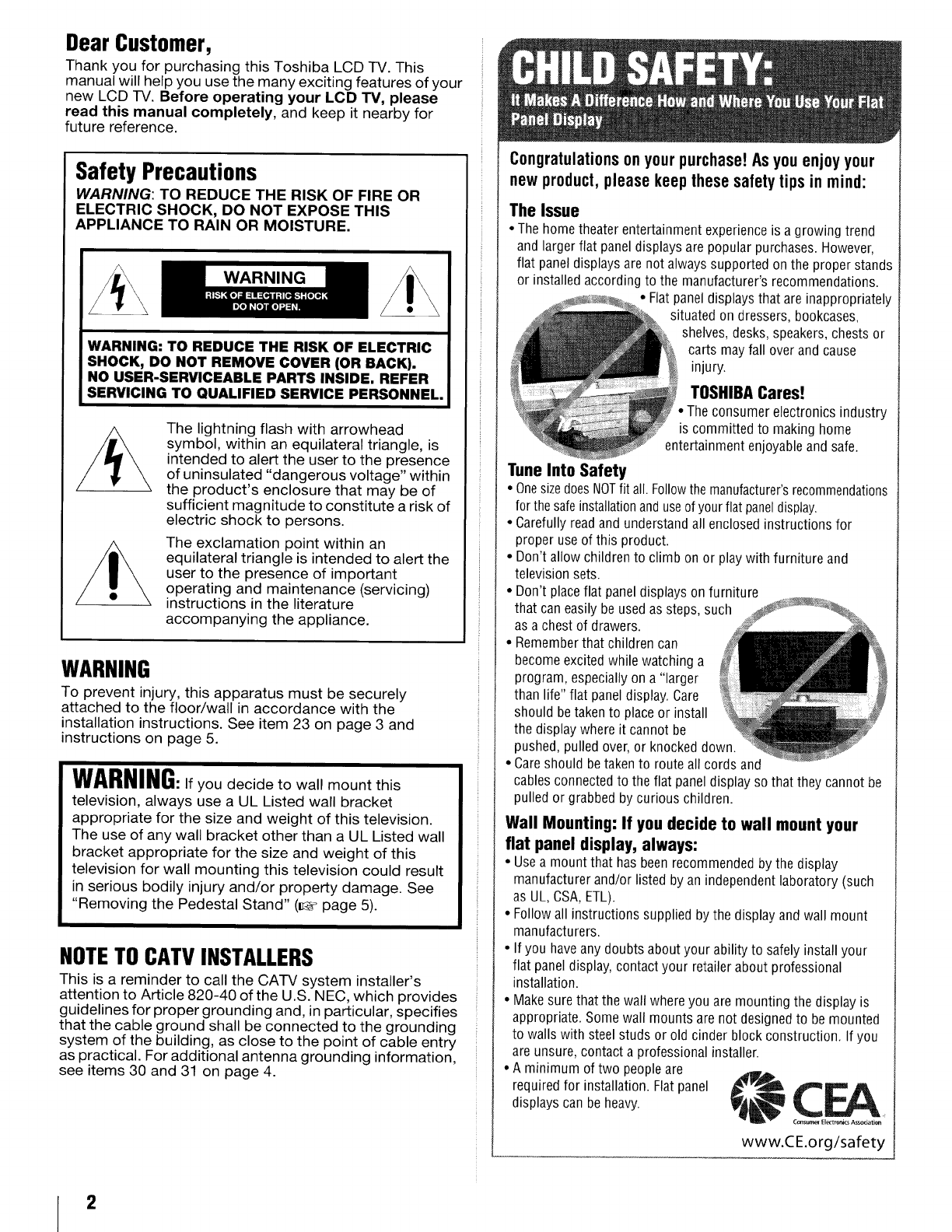
Dear Customer,
Thank you for purchasing this Toshiba LCD TV. This
manual will help you use the many exciting features of your
new LCD TV. Before operating your LOB iV, please
read this manual completely, and keep it nearby for
future reference.
Safety Precautions
WARNING: TO REDUCE THE RISK OF FIRE OR
ELECTRIC SHOCK, DO NOT EXPOSE THIS
APPLIANCE TO RAIN OR MOISTURE.
WARNING: TO REDUCE THE RISK OF ELECTRIC
SHOCK, DO NOT REMOVE COVER (OR BACK).
NO USER-SERVICEABLE PARTS INSIDE. REFER
SERVICING TO QUALIFIED SERVICE PERSONNEL.
The lightning flash with arrowhead
symbol, within an equilateral triangle, is
intended to alert the user to the presence
of uninsulated "dangerous voltage" within
the product's enclosure that may be of
sufficient magnitude to constitute a risk of
electric shock to persons.
The exclamation point within an
equilateral triangle is intended to alert the
user to the presence of important
operating and maintenance (servicing)
instructions in the literature
accompanying the appliance.
WARNING
To prevent injury, this apparatus must be securely
attached to the floor/wall in accordance with the
installation instructions. See item 23 on page 3 and
instructions on page 5.
WARNING:If you decide to wall mount this
television, always use a UL Listed wall bracket
appropriate for the size and weight of this television.
The use of any wall bracket other than a UL Listed wall
bracket appropriate for the size and weight of this
television for wall mounting this television could result
in serious bodily injury and/or property damage. See
"Removing the Pedestal Stand" (_, page 5).
NOTETOCATVINSTALLERS
This is a reminder to call the CATV system installer's
attention to Article 820-40 of the U.S. NEC, which provides
guidelines for proper grounding and, in particular, specifies
that the cable ground shall be connected to the grounding
system of the building, as close to the point of cable entry
as practical. For additional antenna grounding information,
see items 30 and 31 on page 4.
Congratulationson yourpurchase!Asyouenjoyyour
newproduct,pleasekeepthesesafetytips in mind:
The Issue
•The home theater entertainment experience is a growing trend
and larger flat panel displays are popular purchases. However,
flat panel displays are not always supported on the proper stands
or installed according to the manufacturer's recommendations.
•Flat panel displays that are inappropriately
situated on dressers, bookcases,
shelves, desks, speakers, chests or
carts may fall over and cause
injury.
TOSHIBACares!
•The consumer electronics industry
is committed to making home
entertainment enjoyable and safe.
TuneInto Safety
•Onesizedoes NOTfit all Followthe manufacturer'srecornmendations
for the safe installationand use ofyour flat paneldisplay.
•Carefully read and understand all enclosed instructions for
proper use of this product.
•Don't allow children to climb on or play with furniture and
television sets
•Don't place flat panel displays on furniture
that can easily be used as steps, such
as a chest of drawers.
• Remember that children can
become excited while watching a
program, especially on a "larger
than life" flat panel display. Care
should be taken to place or install
the display where it cannot be
pushed, pulled over, or knocked down
• Care should be taken to route all cords and
cables connected to the flat panel display so that they cannot be
pulled or grabbed by curious children
Wall Mounting: If youdecide to wall mountyour
flat panel display, always:
•Use a mount that has been recommended by the display
manufacturer and/or listed by an independent laboratory (such
as UL, CSA, ETL).
•Follow all instructions supplied by the display and wall mount
manufacturers.
• If you have any doubts about your ability to safely install your
flat panel display, contact your retailer about professional
installation.
•Make sure that the wall where you are mounting the display is
appropriate. Some wall mounts are not designed to be mounted
to walls with steel studs or old cinder block construction, tf you
are unsure, contact a professional installer.
•A minimum of two people are
required for installation. Flat panel _j_.
displays can be heavy __
C_lsu_ El_trordcs As_ciation
www.CE.org/safety
Important Safety Instructions
1) Read these instructions.
2) Keep these instructions.
3) Heed all warnings.
4) Follow all instructions.
5) Do not use this apparatus near water.
6) Clean only with dry cloth.
7) Do not block any ventilation openings. Install in
accordance with the manufacturer's instructions.
8) Do not install near any heat sources such as
radiators, heat registers, stoves, or other apparatus
(including amplifiers) that produce heat.
9) Do not defeat the safety purpose of Wideblade
the polarized or grounding type
plug. A polarized plug has two blades
with one wider than the other.
A grounding type plug has two blades
and a third grounding prong. The wide blade or the third
prong are provided for your safety. If the provided plug
does not fit into your outlet, consult an electrician for
replacement of the obsolete outlet.
10) Protect the power cord from being .........
walked on or pinched, particularly at plugs, c_-__
convenience receptacles, and the point ' ....
where they exit from the apparatus ........
11) Only use attachments/accessories specified by the
manufacturer.
12) Use only with the cart, stand, tripod,
bracket, or table specified by the
manufacturer, or sold with the
apparatus. When a cart is used, use
caution when moving the cart/apparatus
combination to avoid injury from tip-over.
13) Unplug this apparatus during lightning storms or
when unused for long periods of time.
14) Refer all servicing to qualified service personnel.
Servicing is required when the apparatus has been
damaged in any way, such as power-supply cord or plug
is damaged, liquid has been spilled or objects have fallen
into the apparatus, the apparatus has been exposed to
rain or moisture, does not operate normally, or has been
dropped.
IIIIII
Additional Safety Precautions
14a) CAUTION: If the TV is dropped and the cabinet or
enclosure surface has been damaged or the TV does
not operate normally, take the following precautions:
• ALWAYS turn off the IV and unplug the power cord
to avoid possible electric shock or fire.
• NEVER allow your body to come in contact with any
broken glass or liquid from the damaged television.
The LCD panel inside the TV contains glass and a
toxic liquid. If the liquid comes in contact with your
mouth or eyes, or your skin is cut by broken glass,
rinse the affected area thoroughly with water and
consult your doctor.
• ALWAYS contact a service technician to inspect the
-IV any time it has been damaged or dropped.
15) CAUTION:
• To reduce the risk of electric shock, do not use the
polarized plug with an extension cord, receptacle, or
other outlet unless the blades can be inserted
completely to prevent blade exposure.
• To prevent electric shock, match wide blade of plug
to wide slot; fully insert.
16) WARNING:
To prevent the spread of fire, keep candles or other
open flames away from this product at all times.
Installation, Care, and Service
Installation
Fol!ow these recommendations and precautions and heed
all warnings when installing your TV:
17) WARNING: NEVER expose batteries to
excessive heat such as sunshine, fire or
the like.
18) ALWAYS plug the product into an outlet that is located in
such a manner that it can be easily unplugged in case
the product requires service.
19) NEVER route the product's power cord inside a wall or
similar enclosed area.
20) Never modify this equipment. Changes or modifications
may void: a) the warranty, and b) the user's authority to
operate this equipment under the rules of the Federal
Communications Commission.
21) DANGER: RISK OF SERIOUS ,_L
PERSONAL INJURY,
DEATH, OR EQUIPMENT
DAMAGE!
Never place the -IV on an unstable cart,
stand, or table. The TV may fall, causing
serious personal injury, death, or serious damage to the
TV.
22) To avoid damage to this product, never place or store the
TV in direct sunlight; hot, humid areas; or areas subject to
excessive dust or vibration.
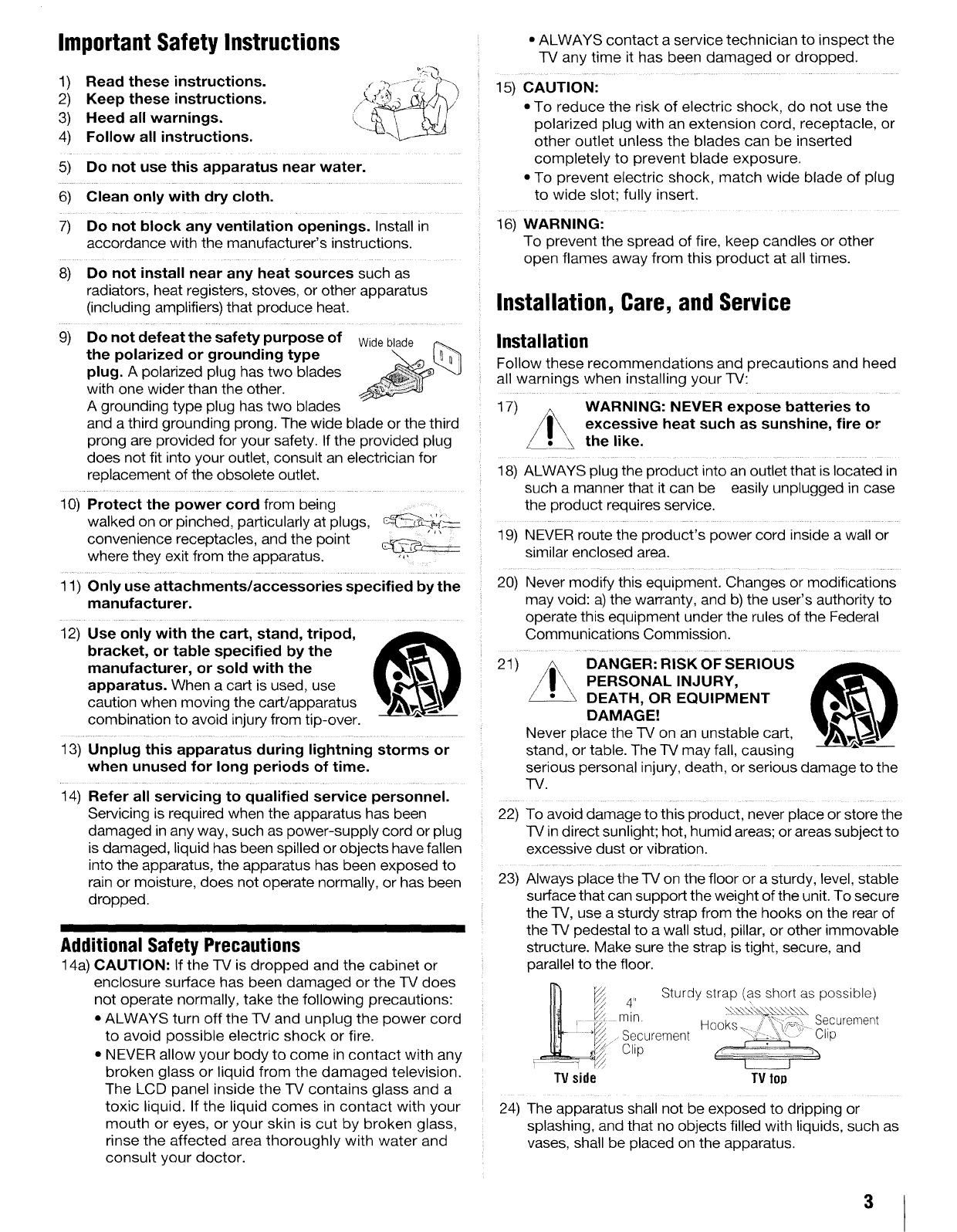
23) Always place the -IV on the floor or a sturdy, level, stable
surface that can support the weight of the unit. To secure
the TV, use a sturdy strap from the hooks on the rear of
the TV pedestal to a wall stud, pillar, or other immovable
structure. Make sure the strap is tight, secure, and
parallel to the floor.
_¢ Sturdy strap (as short as possible)
TV side TV top
24) The apparatus shall not be exposed to dripping or
splashing, and that no objects filled with liquids, such as
vases, shall be placed on the apparatus.
3
25) Never block or cover the slots or openings in the TV
cabinet back, bottom, and sides. Never place the TV:
• on a bed, sofa, rug, or similar
surface;
• too close to drapes, curtains, or
walls; or
• in a confined space such as a
bookcase, built-in cabinet, or
any other place with poor
ventilation.
The slots and openings are provided to protect the TV
from overheating and to help maintain reliable operation
of the TV. Leave a space of at least 4 (four) inches around
the TV.
26) Always place the back of the television at least four (4)
inches away from any vertical surface (such as a wall) to
allow proper ventilation.
27) Never allow anything to rest on or roll over the power
cord, and never place the TV where the power cord is
subject to wear or abuse•
i
28) Never overload wall outlets and extension cords.
29) Always operate this equipment from a 120 VAC, 60 Hz
power source only.
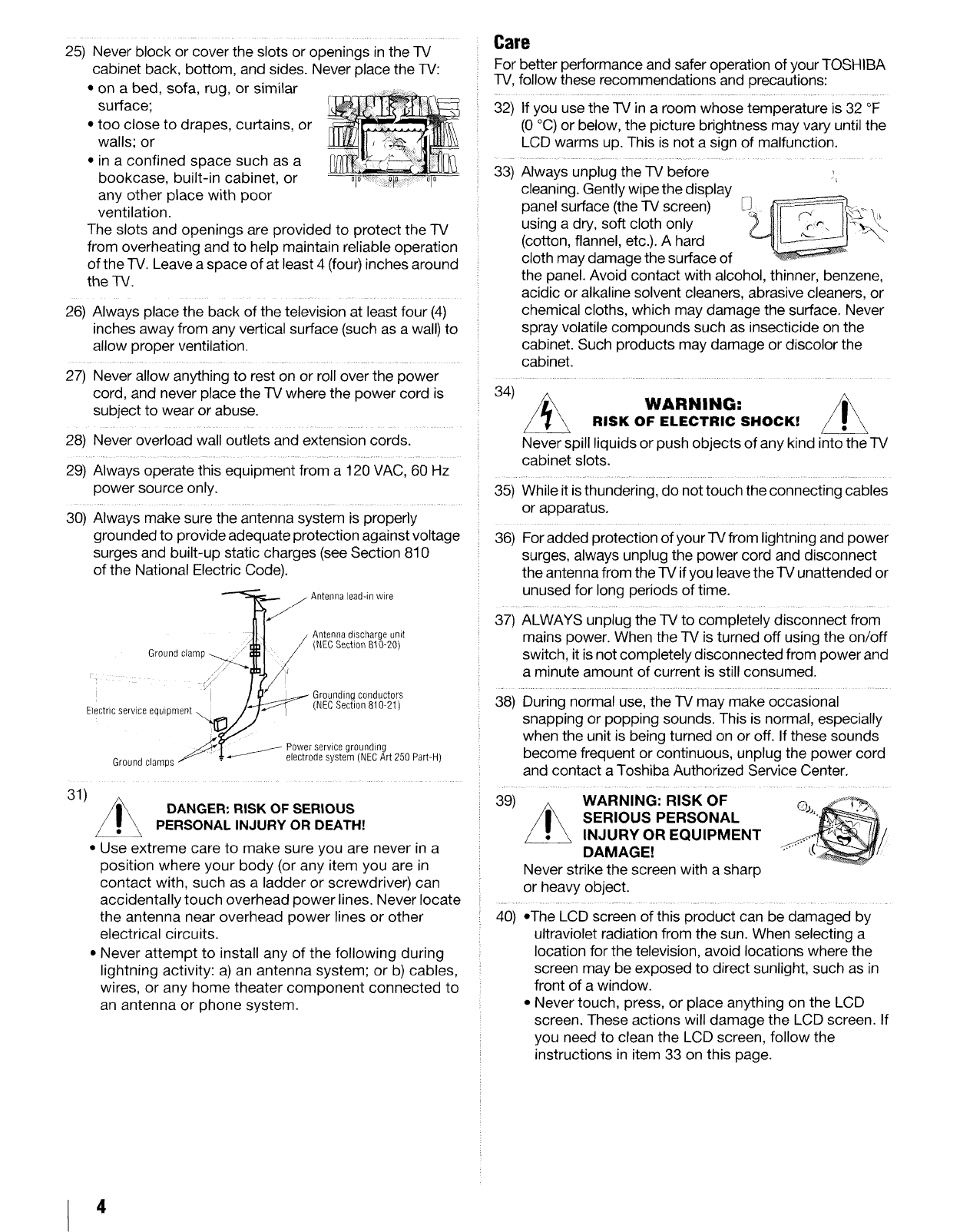
30) Always make sure the antenna system is properly
grounded to provide adequate protection against voltage
surges and built-up static charges (see Section 810
of the National Electric Code).
Antenna discharge unit
Ground clam (NEC Section 810-20}
I Grounding conductors
(NEC Section 810-21)
Electric service equipment _,
Ground clamps
J Power service grounding
• _j//-- electrode system (NECArt 250 Part-H)
31) DANGER: RISK OF SERIOUS
PERSONALINJURY OR DEATH!
• Use extreme care to make sure you are never in a
position where your body (or any item you are in
contact with, such as a ladder or screwdriver) can
accidentally touch overhead power lines. Never locate
the antenna near overhead power lines or other
electrical circuits.
• Never attempt to install any of the following during
lightning activity: a) an antenna system; or b) cables,
wires, or any home theater component connected to
an antenna or phone system.
Care
For better performance and safer operation of your TOSHIBA
TV, follow these recommendations and precautions:
32) If you use the TV in a room whose temperature is 32 °F
(0 °C) or below, the picture brightness may vary until the
LCD warms up. This is not a sign of malfunction.
33) Always unplug the TV before
cleaning. Gently wipe the display
panel surface (the TV screen)
using a dry, soft cloth only
(cotton, flannel, etc.). A hard
cloth may damage the surface of
the panel. Avoid contact with alcohol, thinner, benzene,
acidic or alkaline solvent cleaners, abrasive cleaners, or
chemical cloths, which may damage the surface. Never
spray volatile compounds such as insecticide on the
cabinet• Such products may damage or discolor the
cabinet.
34) _ WARNING:
RISK OF ELECTRIC SHOCK!
Never spill liquids or push objects of any kind into the TV
cabinet slots.
35) While it is thundering, do not touch the connecting cables
or apparatus.
36) For added protection of your TV from lightning and power
surges, always unplug the power cord and disconnect
the antenna from the TV if you leave the TV unattended or
unused for long periods of time.
37) ALWAYS unplug the TV to completely disconnect from
mains power. When the TV is turned off using the on/off
switch, it is not completely disconnected from power and
a minute amount of current is still consumed.
38) During normal use, the TV may make occasional
snapping or popping sounds. This is normal, especially
when the unit is being turned on or off. If these sounds
become frequent or continuous, unplug the power cord
and contact a Toshiba Authorized Service Center.
39) WARNING: RISK OF ©j,,._T'._
INJURY OR EQUIPMENT
DAMAGE!
Never strike the screen with a sharp
or heavy object.
40) •The LCD screen of this product can be damaged by
ultraviolet radiation from the sun. When selecting a
location for the television, avoid locations where the
screen may be exposed to direct sunlight, such as in
front of a window.
*Never touch, press, or place anything on the LCD
screen. These actions will damage the LCD screen. If
you need to clean the LCD screen, follow the
instructions in item 33 on this page.
4
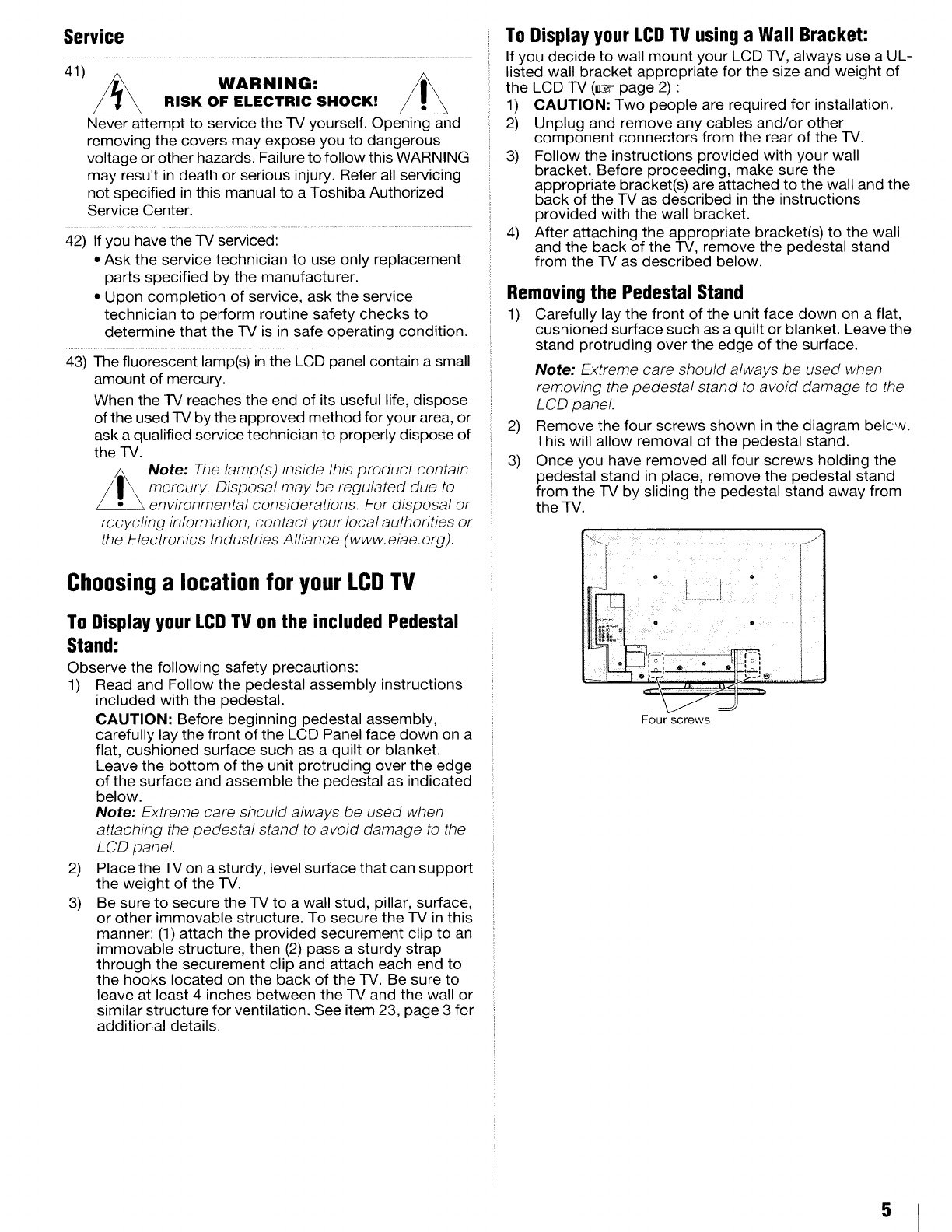
Service
41) _ WARNING:
RISK OF ELECTRIC SHOCK!
Never attempt to service the TV yourself. Opening and
removing the covers may expose you to dangerous
voltage or other hazards. Failure to follow this WARNING
may result in death or serious injury. Refer all servicing
not specified in this manual to a Toshiba Authorized
Service Center.
42) If you have the TV serviced:
• Ask the service technician to use only replacement
parts specified by the manufacturer.
• Upon completion of service, ask the service
technician to perform routine safety checks to
determine that the TV is in safe operating condition.
43) The fluorescent lamp(s) in the LCD panel contain a small
amount of mercury.
When the TV reaches the end of its useful life, dispose
of the used TV by the approved method for your area, or
ask a qualified service technician to properly dispose of
the TV.
Note: The lamp(s) inside this product contain
mercury. Disposal may be regulated due to
environmental considerations. For disposal or
recycling information, contact your local authorities or
the Electronics Industries Alliance (www. eiae.org).
Choosinga location for your LCDTV
To Display yourLCDTV on the included Pedestal
Stand:
Observe the following safety precautions:
1) Read and Follow the pedestal assembly instructions
included with the pedestal.
CAUTION: Before beginning pedestal assembly,
carefully lay the front of the LCD Panel face down on a
flat, cushioned surface such as a quilt or blanket.
Leave the bottom of the unit protruding over the edge
of the surface and assemble the pedestal as indicated
below.
Note: Extreme care should always be used when
attaching the pedestal stand to avoid damage to the
LCD panel.
2) Place the TV on a sturdy, level surface that can support
the weight of the TV.
3) Be sure to secure the TV to a wall stud, pillar, surface,
or other immovable structure. To secure the TV in this
manner: (1) attach the provided securement clip to an
immovable structure, then (2) pass a sturdy strap
through the securement clip and attach each end to
the hooks located on the back of the TV. Be sure to
leave at least 4 inches between the TV and the wall or
similar structure for ventilation. See item 23, page 3 for
additional details.
To Display your LCDTV usinga Wall Bracket:
If you decide to wall mount your LCD TV, always use a UL-
listed wall bracket appropriate for the size and weight of
the LCD TV (o page 2) :
1) CAUTION: Two people are required for installation.
2) Unplug and remove any cables and/or other
component connectors from the rear of the TV.
3) Follow the instructions provided with your wall
bracket. Before proceeding, make sure the
appropriate bracket(s) are attached to the wall and the
back of the TV as described in the instructions
provided with the wall bracket.
4) After attaching the appropriate bracket(s) to the wall
and the back of the TV, remove the pedestal stand
from the TV as described below.
Removingthe Pedestal Stand
1) Carefully lay the front of the unit face down on a flat,
cushioned surface such as a quilt or blanket. Leave the
stand protruding over the edge of the surface.
2)
3)
Note: Extreme care should always be used when
removing the pedestal stand to avoid damage to the
LCD panel.
Remove the four screws shown in the diagram belcw.
This will allow removal of the pedestal stand.
Once you have removed all four screws holding the
pedestal stand in place, remove the pedestal stand
from the TV by sliding the pedestal stand away from
the TV.
Four screws
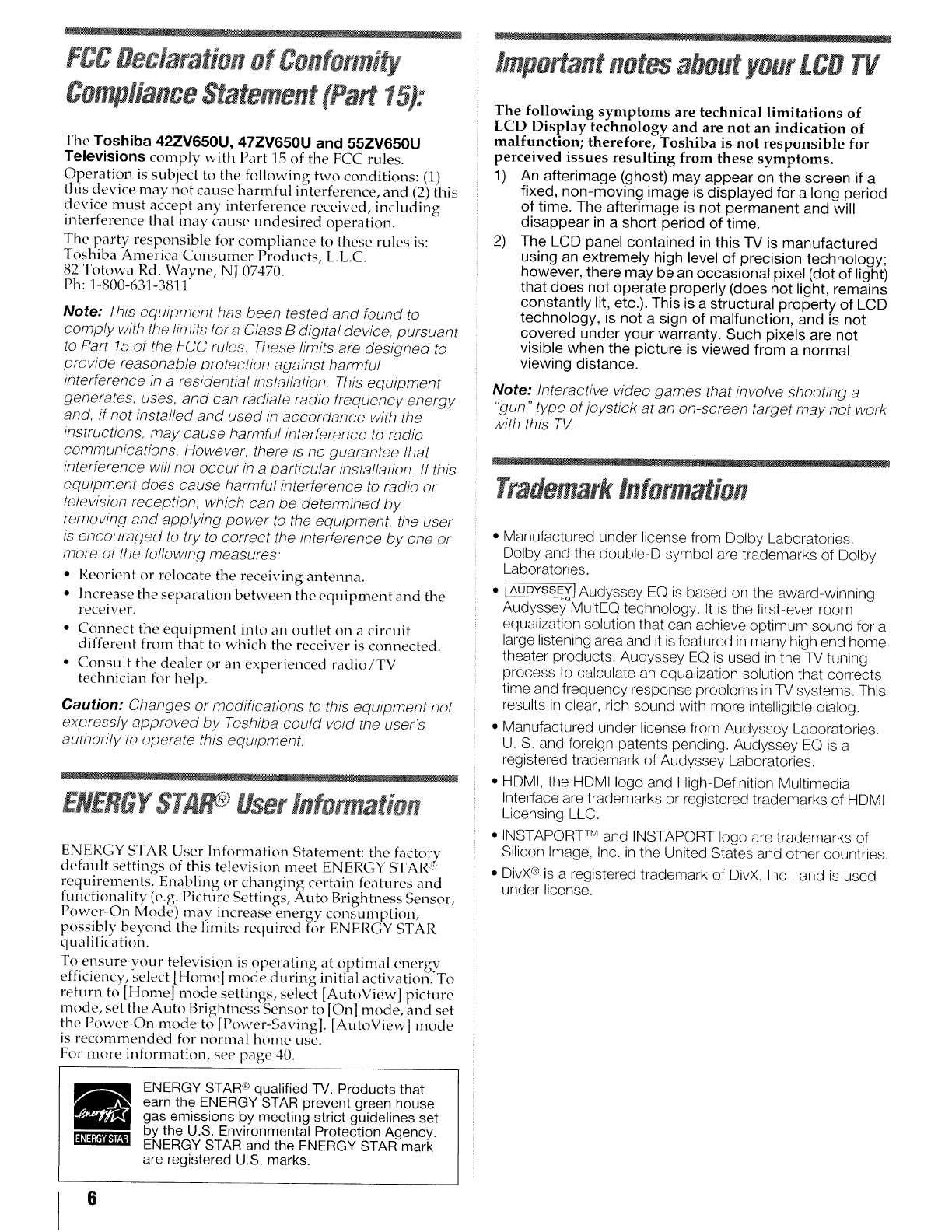
FCCDeclarationof Conformi
ComplianceStatement{.Part15):
The Toshiba 42ZV650U, 47ZV650U and 55ZV650U
Televisions comply with Part 15 of the FCC rules.
Operation is subject to the following two conditions: (1)
this device may not cause harmful interference, and (2) this
device must accept any interference received, including
interference that may cause undesired operation.
The party responsible for compliance to these rules is:
Toshiba America Consumer Products, L.L.C.
82 Totowa Rd. Wayne, NJ 07470.
Ph: 1-800-631-381 t"
Note: This equipment has been tested and found to
comply with the limits for aClass B digital device, pursuant
to Part 15 of the FCC rules. These limits are designed to
provide reasonable protection against harmful
interference in a residential installation. This equipment
generates, uses, and can radiate radio frequency energy
and. if not installed and used in accordance with the
instructions, may cause harmful interference to radio
communications. However, there is no guarantee that
interference wil! not occur in a particular installation. If this
equipment does cause harmful interference to radio or
television reception, which can be determined by
removing and applying power to the equipment, the user
is encouraged to try to correct the interference by one or
more of the following measures:
• Reorient or relocate the receiving antenna.
• Increase the separation between the equipment and the
receiver.
• Connect the equipment into an outlet on a circuit
different from that to which the receiver is connected.
• Consult the dealer or an experienced radio/TV
technician for help.
Caution: Changes or modifications to this equipment not
expressly approved by Toshiba could void the user's
authority to operate this equipment.
ENERGY$7A User lnformatien
ENERGY STAR User Information Statement: the factory
default settings of this television meet ENERGY STAR':'
requirements. Enabling or changing certain features and
functionality (e.g. Picture Settings, Auto Brightness Sensor,
Power-On Mode) may increase energy consumption,
possibly be'cond the limits required for ENERGY STAR
qualificatioil.
To ensure your television is operatin_ at optimal energy
efficiency, select [Home] mode during initial activation'_To
return to [Home] mode settings, select [AutoView] picture
mode, set the Auto Brightness Sensor to IOnl mode and set
the I ower-On mode to [Power-Saving]. [AutoView] mode
is recommended for normal home use.
For more information, see page 40.
ENERGY STAR (_*qualified TV. Products that
earn the ENERGY STAR prevent green house
gas emissions by meeting strict guidelines set
by the U.S. Environmental Protection Agency.
ENERGY STAR and the ENERGY STAR mark
are registered U.S. marks.
tmportantnotesaboutyourLCDTV
The following symptoms are technical limitations of
LCD Display technology and are not an indication of
malfunction; therefore, Toshiba is not responsible for
perceived issues resulting from these symptoms.
1) An afterimage (ghost) may appear on the screen if a
fixed, non-moving image is displayed for a long period
of time. The afterimage is not permanent and will
disappear in a short period of time.
2) The LCD panel contained in this TV is manufactured
using an extremely high level of precision technology;
however, there may be an occasional pixel (dot of light)
that does not operate properly (does not light, remains
constantly lit, etc.). This is a structural property of LCD
technology, is not a sign of malfunction, and is not
covered under your warranty. Such pixels are not
visible when the picture is viewed from a normal
viewing distance.
Note: Interactive video games that involve shooting a
"gun" type of joystick at an on-screen target may not work
with this TV.
Trademarktnfermatien
•Manufactured under license from Dolby Laboratories.
Dolby and the double-D symbol are trademarks of Dolby
Laboratories.
• [^UDYSSEYJAudyssey EQ is based on the award-winning
Audyssey MultEQ technology. It is the first-ever room
equalization solution that can achieve optimum sound for a
large listening area and it is featured in many high end home
theater products. Audyssey EQ is used in the TV tuning
process to calculate an equalization solution that corrects
time and frequency response problems in TV systems. This
results in clear, rich sound with more intelligible dialog.
• Manufactured under license from Audyssey Laboratories.
U. S. and foreign patents pending. Audyssey EQ is a
registered trademark of Audyssey Laboratories.
• HDM!, the HDMI logo and High-Definition Multimedia
Interface are trademarks or registered trademarks of HDMI
Licensing LLC.
•INSTAPORT TM and INSTAPORT logo are trademarks of
Silicon Image, Inc. in the United States and other countries.
• DivX ® is a registered trademark of DivX, Inc., and is used
under license.
6
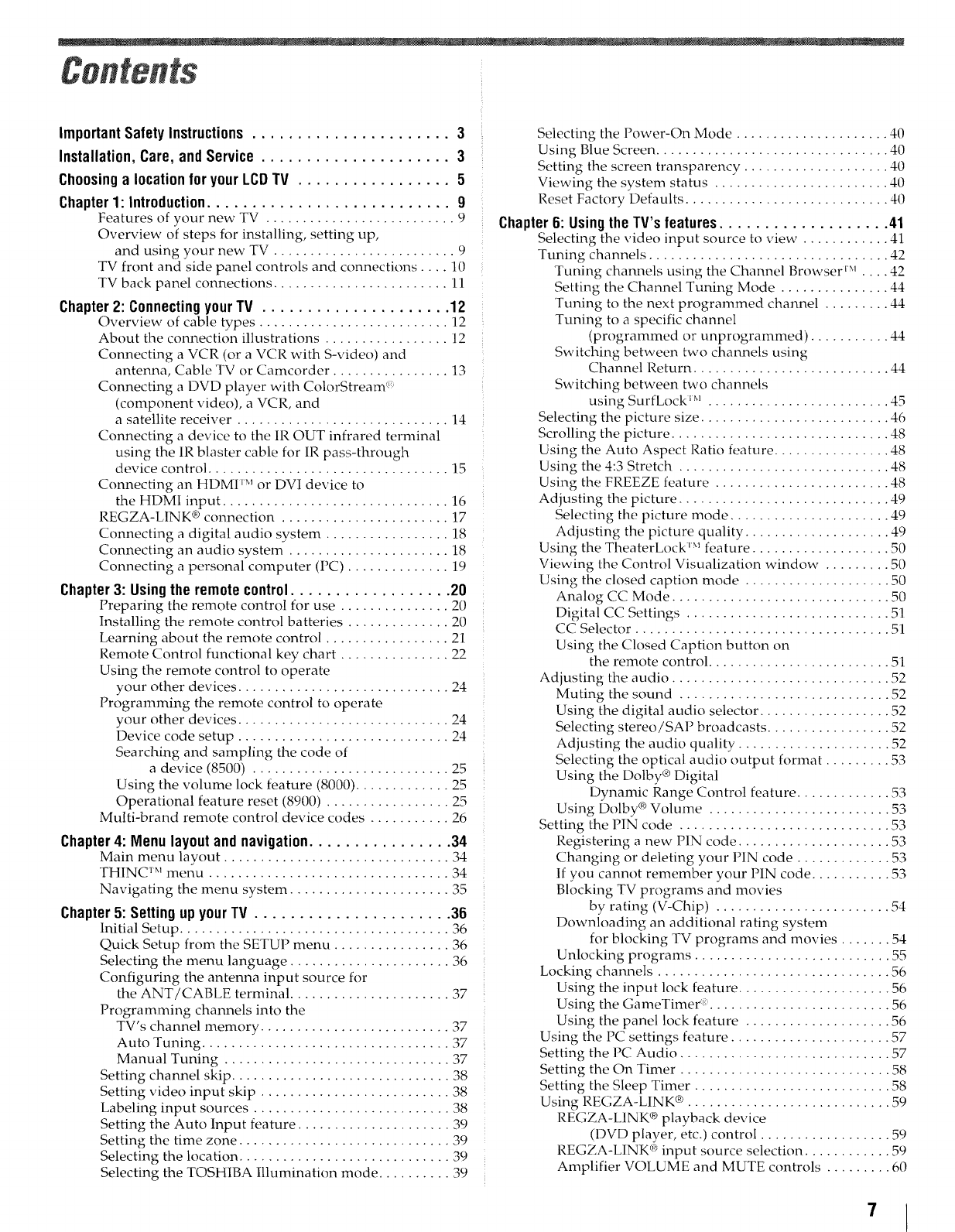
Contents
ImportantSafety Instructions ...................... 3
Installation, Care, and Service ..................... 3
Choosinga location foryour LCDTV ................. 5
Chapter1: Introduction........................... 9
Features of your new TV .......................... 9
Overview of steps for installing, setting up,
and using your new TV ......................... 9
TV front and side panel controls and connections .... 10
TV back panel connections ........................ 11
Chapter 2: Connecting your TV ..................... 12
Overview of cable types .......................... 12
About the connection illustrations ................. 12
Connecting a VCR (or a VCR with S-video) and
antenna, Cable TV or Camcorder ................ 13
Connecting a DVD player with ColorStream '_
(component video), a VCR, and
a satellite receiver ............................. 14
Connecting a device to the IR OUT infrared terminal
using the IR blaster cable for IR pass-through
device control ................................. 15
Connecting an HDMI _Mor DVI device to
the HDMI input ............................... 16
REGZA-LINK ® connection ....................... 17
Connecting a digital audio system ................. 18
Connecting an audio system ...................... 18
Connecting a personal computer (PC) .............. 19
Chapter3: Usingthe remotecontrol.................. 20
Preparing the remote control for use ............... 20
Installing the remote control batteries .............. 20
Learning about the remote control ................. 21
Remote Control functional key chart ............... 22
Using the remote control to operate
your other devices ............................. 24
Programming the remote control to operate
your other devices ............................. 24
Device code setup ............................. 24
Searching and sampling the code of
a device (8500) ........................... 25
Using the volume lock feature (8000) ............. 25
Operational feature reset (8900) ................. 25
Multi-brand remote control device codes ........... 26
Chapter4: Menu layout and navigation................ 34
Main menu layout ............................... 34
THINC TMmenu ................................. 34
Navigating the menu system ...................... 35
Chapter5: Setting upyour TV ...................... 36
Initial Setup ..................................... 36
Quick Setup from the SETUP menu ................ 36
Selecting the menu language ...................... 36
Configuring the antenna input source for
the ANT/CABI,E terminal ...................... 37
Programming channels into the
TV's channel memory .......................... 37
Auto Tuning .................................. 37
Manual Tuning ............................... 37
Setting channel skip .............................. 38
Setting video input skip .......................... 38
Labeling input sources ........................... 38
Setting the Auto Input feature ..................... 39
Setting the time zone ............................. 39
Selecting the location ............................. 39
Selecting the TOSHIBA Illumination mode .......... 39
Selecting the Power-On Mode ..................... 40
Using Blue Screen ................................ 40
Setting the screen transparency .................... 40
Viewing the system status ........................ 40
Reset Factory Defaults ............................ 40
Chapter6: Usingthe TV's features................... 41
Selecting the video input source to view . ........... 41
Tuning channels ................................. 42
Tuning channels using the Channel Browser i_l .... 42
Setting the Channel Tuning Mode ............... 44
Tuning to the next programmed channel ......... 44
Tuning to a specific channel
(programmed or unprogrammed) ........... 44
Switching between two channels using
Channel Return ........................... 44
Switching between two channels
using SurfLock _M......................... 45
Selecting the picture size .......................... 46
Scrolling the picture .............................. 48
Using the Auto Aspect Ratio feature ................ 48
Using the 4:3 Stretch ............................. 48
Using the FREEZE feature ........................ 48
Adjusting the picture ............................. 49
Selecting the picture mode ...................... 49
Adjusting the picture quality .................... 49
Using the TheaterLock _Mfeature ................... 50
Viewing the Control Visualization window . ........ 50
Using the closed caption mode .................... 50
Analog CC Mode .............................. 50
Digital CC Settings ............................ 51
CC Selector ................................... 51
Using the Closed Caption button on
the remote control ......................... 51
Adjusting the audio .............................. 52
Muting the sound ............................. 52
Using the digital audio selector .................. 52
Selecting stereo/SAP broadcasts ................. 52
Adjusting the audio quality ..................... 52
Selecting the optical audio output format ......... 53
Using the Dolby ®Digital
Dynamic Range Control feature ............. 53
Using Dolby ®Volume ......................... 53
Setting the PIN code ............................. 53
Registering a new PIN code ..................... 53
Changing or deleting your PIN code ............. 53
If you cannot remember your PIN code ........... 53
Blocking TV programs and movies
by rating (V-Chip) ........................ 54
Downloading an additional rating system
for blocking TV programs and movies ....... 54
Unlocking programs ........................... 55
Locking channels ................................ 56
Using the input lock feature ..................... 56
Using the GameTimer _......................... 56
Using the panel lock feature .................... 56
Using the PC settings feature ...................... 57
Setting the PC Audio ............................. 57
Setting the On Timer ............................. 58
Setting the Sleep Timer ........................... 58
Using REGZA-LINK ®............................ 59
REGZA-LINK ®playback device
(DVD player, etc.) control .................. 59
REGZA-LINK Q_>input source selection ............ 59
Amplifier VOLUME and MUTE controls ......... 60
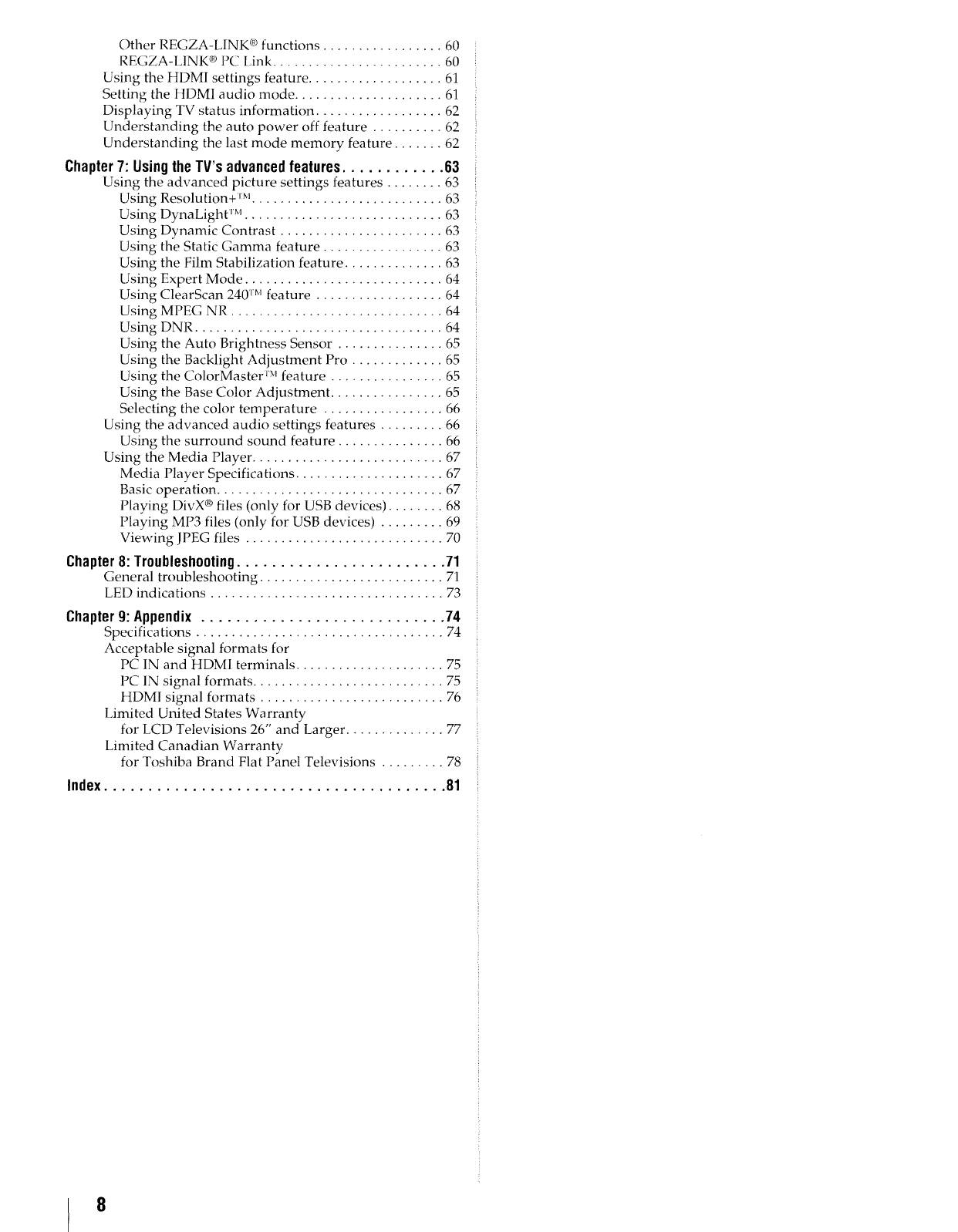
Other REGZA-LINK c_functions ................. 60
REGZA-LINK ® PC Link ........................ 60
Using the HDMI settings feature ................... 61
Setting the HDMI audio mode ..................... 61
Displaying TV status information .................. 62
Understanding the auto power off feature .......... 62
Understanding the last mode memory feature ....... 62
Chapter 7: Using the TV's advanced features ............ 63
Using the advanced picture settings features ........ 63
Using Resolution+ jM........................... 63
Using DynaLight rM............................ 63
Using Dynamic Contrast ....................... 63
Using the Static Gamma feature ................. 63
Using the Film Stabilization feature .............. 63
Using Expert Mode ............................ 64
Using ClearScan 240 '_Mfeature .................. 64
Using MPEG NR .............................. 64
Using DNR ................................... 64
Using the Auto Brightness Sensor ............... 65
Using the Backlight Adjustment Pro ............. 65
Using the ColorMaster rMfeature ................ 65
Using the Base Color Adjustment ................ 65
Selecting the color temperature ................. 66
Using the advanced audio settings features ......... 66
Using the surround sound feature ............... 66
Using the Media Player ........................... 67
Media Player Specifications ..................... 67
Basic operation ................................ 67
Playing DivX ® files (only for USB devices) ........ 68
Playing MP3 files (only for USB devices) ......... 69
Viewing IPEG files ............................ 70
Chapter 8: Troubleshooting ........................ 71
General troubleshooting .......................... 71
LED indications ................................. 73
Chapter9: Appendix ............................ 74
Specifications ................................... 74
Acceptable signal formats for
PC IN and HDMI terminals ..................... 75
PC IN signal formats ........................... 75
ttDMI signal formats .......................... 76
IJmited United States Warranty
for LCD Televisions 26" and Larger .............. 77
Limited Canadian Warranty
for Toshiba Brand Flat Panel Televisions ......... 78
Index....................................... 81
8
Featuresof yournew TV
The following are just a few of the many exciting
features of your new Toshiba widescreen, integrated
HD, LCD TV:
• Integrated digital tuning (8VSB ATSC and QAM)
eliminates the need for a separate digital converter
set-top box (in most cases).
• 1080p output resolution.
• Four HDMI _" digital, high-definition multimedia
interfaces with 1080p input support (_ page 16).
• HDMI capabilities
Deep Color feature allows the HDMI source to
increase the available colors bits within the
boundaries defined by the RGB or YCbCr color
space.
Lip-Sync feature activates an auto audio/video
display timing adjustment function that allows
HDMI source devices to accurately perform
synchronization automatically.
HDMI INSTAPORT" technology reduces the lag
of switching time when switching HDMI sources.
RGB Range feature adjusts RGB full range signal
automatically.
• REGZA-LINK ® allows control of external devices
from the TV remote via HDMI connection
(_ page 59).
• Two sets of ColorStream ® HD high-resolution
component video inputs (_ page 14).
• Digital Audio Out optical audio connection with
Dolby ® Digital optical output format (_ page 52).
• PC IN (Analog RGB) computer terminal
(_ page 19).
• IR OUT infrared terminal using the IR blaster cable
for IR pass-through device control (_ pages 12
and 15).
• ColorMaster _Mallows you to adjust the TV's
standard colors. The menu for this feature has a
unique "black" design to enhance contrast while
you re adjusting the color (_rc page 65).
• Expert Mode allows detailed calibration with red,
green and blue color selections (_' page 64).
• ClearScan 240 TM allows picture clarity for fast
motion video with new Backlight Scanning
technology (_ page 64).
• Resolution+ TM upconverts and enhances for a More
Detailed Picture (_ page 63).
• AutoView TM allows you to automatically adjust
picture settings based on ambient light conditions
and input signal content (_ page 49).
• Dolby ®Volume eliminates Inconsistent TV
volume on channel changes or commercials (_:_
page 53).
• Media Player allows_you to view your JPEG
pictures and DivX ® video (_4_ page 67).
WENERGY STAR _"qualified
Overview of steps for installing,
setting up, and usingyour new TV
Follow these steps to set up your TV and begin using
its many exciting features.
1Observe the following when choosing a location
for the TV:
• Read "Important notes about your LCD TV"
(_' page 6).
• Place the TV in a proper location (_ pages 2-5).
Do not plug in any power cords until AFTER you
have connected all cables and devices to your TV.
3 BEFORE connecting cables or devices to the TV,
learn the functions of the TV's connections and
controls (_ pages 10-11).
4 Connect your other electronic device(s) to the TV
(t_ _ pages 13-19).
See "Chapter 3: Using the remote control" (_a"
page 20) for an overview of the buttons on the
remote control, install the batteries and prepare
to operate your other device(s).
6 AFTER connecting all cables and devices, plug in
the power cords for your TV and other devices.
Note: After you turn on the TV, the Initial
Setup menu appears automatically by
default.
"7 See "Menu layout and navigation" for a quick
overview of navigating the TV's menu system
(_ page 34).
8 Program channels into the TV's channel memory
(_ page 37).
For details on using the TV's features, see
Chapters 6 and 7.
1 0 For help, refer to the Troubleshooting Guide, see
Chapter 8.
"l 1For technical specifications and warranty
information, see Chapter 9.
i!i!%!?ii__{i!iF_:{_"!{ ! ¸:{¸¸2¸!!!!ii!_!i;{_iF¸__:!iii{ii:;¸ _: _!if_:b!_!Jiii!ii{i!{!i!_{;{i!iiiili!iiii:{!ii::{i!i;_!% i!_F!!_:{{!:i!!{_'i_i:!i!?_iii!!!{{i!{{ilili!{{i:i,S{!i!iiii!ii!:i:i1211:i!:!ii!i:!¸!¸¸¸!fi!ii_!{!!i_iii!_iiii!i!iii{i!{i_!i!:i!::¸::{!¸i¸¸:iii¸¸¸¸!:!fi!!if!i¸¸¸¸¸_¸V¸!¸!¸¸!{!_i_{d!!!:i_i!ilii_ii!i!il!!if!ii{i!_!{?_I¸¸¸¸¸?_!ii{iiii:!!i{!ii!i_i!iili{!i{i!_?¸i;i:¸¸!¸i;!¸¸¸IS¸¸¸¸i_i¸¸¸¸_¸¸¸¸¸¸¸_¸¸¸¸¸!!_!!i{!i_ill
Chapter 1:Introduction
TVfront andside panel controlsand connections
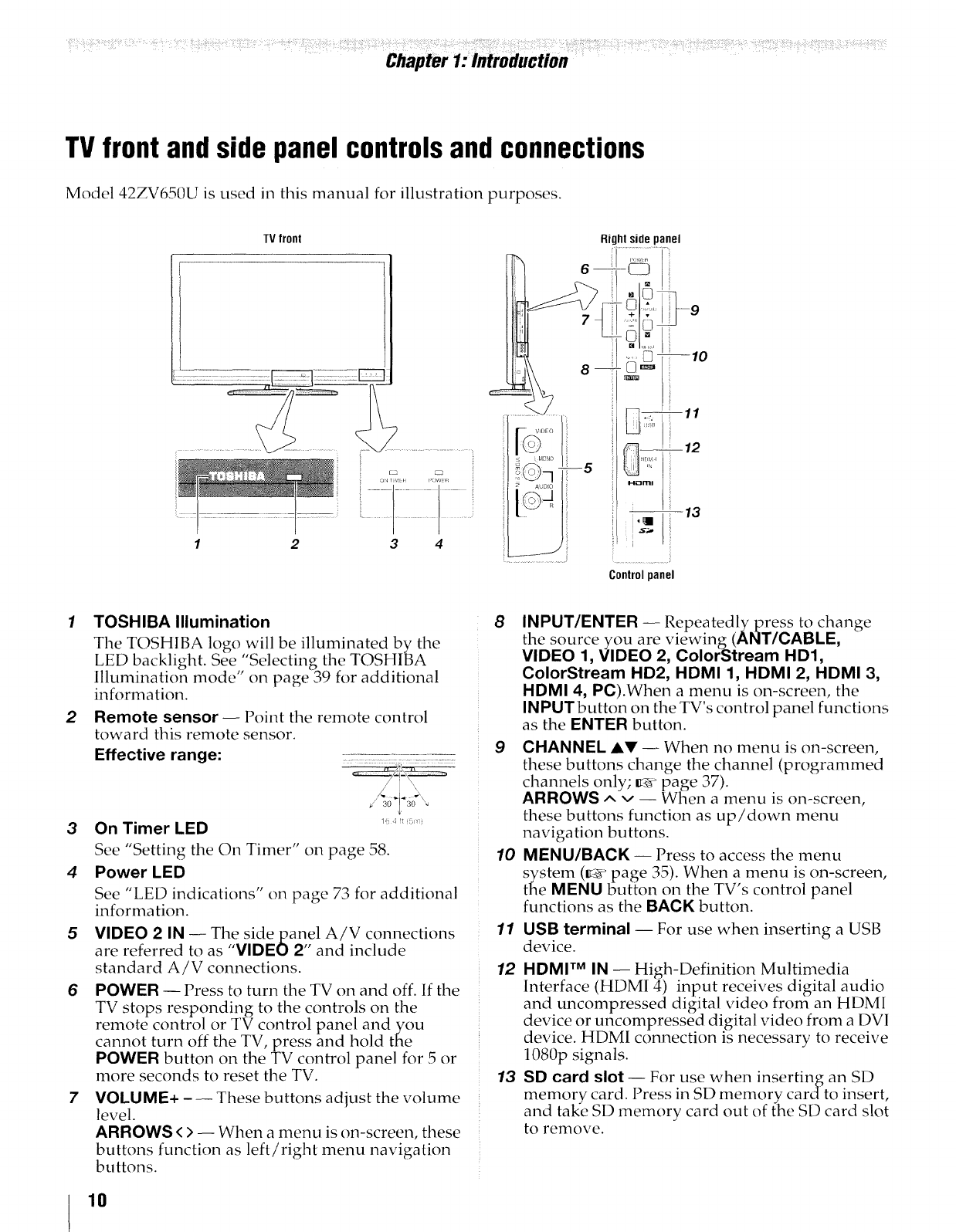
Model 42ZV650U is used in this manual for illustration purposes.
TVfront Rightsidepanel
6
1 2 3 4
J_DEO
I( )
in i -5
z _JD_O
I( )q
Controlpanel
2
3
4
5
6
7
TOSHIBA Illumination
The TOSHIBA logo will be illuminated by the
LED backlight. See,"Selecting the TOSHIBA
Illumination mode' on page 39 for additional
information.
Remote sensor -- Point the remote control
toward this remote sensor.
Effective range:
•\
1! ,I b
On Timer LED
See "Setting the On Timer" on page 58.
Power LED
See "LED indications" on page 73 for additional
information.
VIDEO 2 IN -- The sidepan,el AiV connections
) _' ,.
are referred t_ as VIDEO 2 and include
standard A/V connections.
POWER -- Press to turn the TV on and off. If the
TV stops responding to the controls on the
remote control or TV control panel and you
cannot turn off the TV, press and hold the
POWER button on the TV control panel for 5 or
more seconds to reset the TV.
VOLUME+ - -- These buttons adjust the volume
level.
ARROWS <> -- When a menu is on-screen, these
buttons function as left/right menu navigation
buttons.
8INPUT/ENTER -- Repeatedlypress to change
the source you are viewing(ANT/CABLE,
VIDEO 1, VIDEO 2, ColorStream HD1,
ColorStream HD2, HDMI 1, HDMI 2, HDMI 3,
HDMI 4, PC).When a menu is on-screen, the
INPUTbutton on the TV's control panel functions
as the ENTER button.
9CHANNEL AV -- When no menu is on-screen,
these buttons change the channel (programmed
channels only; _ page 37).
ARROWS ^v-- When a menu is on-screen,
these buttons function as up/down menu
navigation buttons.
10 MENU/BACK -- Press to access the menu
system (L_' page _5). When a menu ]s on-screen,
the MENU button on the TV's control panel
functions as the BACK button.
11
12
13
USB terminal -- For use when inserting a USB
device.
HDMI TM IN -- High-Definition Multimedia
Interface (HDMI 4) input receives digital audio
and uncompressed digital video from an HDMI
device or uncompressed digital video from a DVI
device. HDMI connection is necessary to receive
1080p signals.
SD card slot -- For use when inserting an SD
) •
memory card. I ress in SD memory cardto insert,
and take SD memory card out of the SD card slot
to remove.
10
TV back panel connections
For an explanation of cable types and connections, see pages 12-19.
1----+-
-- HDMI IN
I-1_1313!
1 2 3
IN IN IN PC IN 6
2 3 4 5
TV back
Power cord
--Cable Strap
E
9
,\
10
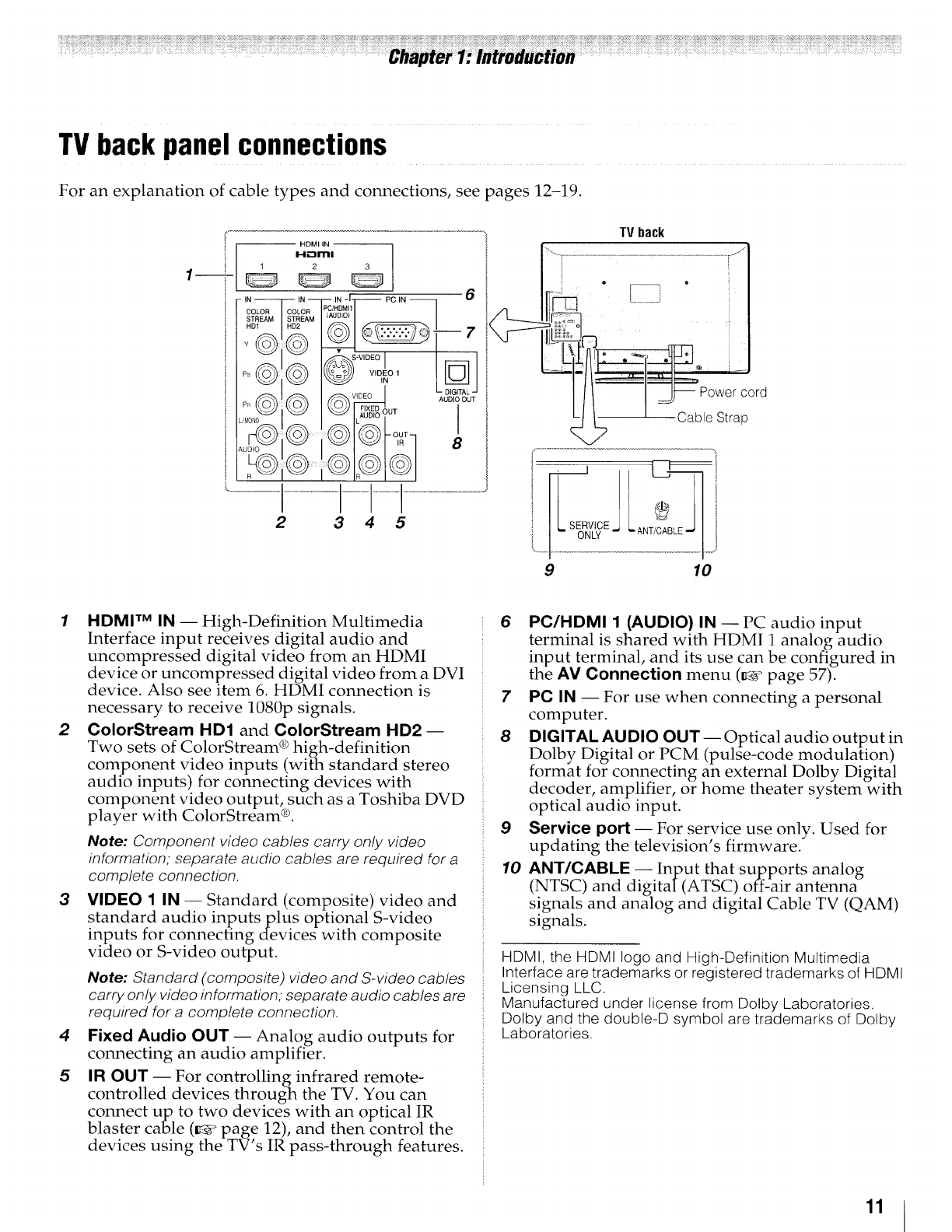
1HDMI TM IN-- High-Definition Multimedia
Interface input receives digital audio and
uncompressed digital video from an HDMI
device or uncompressed digital video from a DVI
device. Also see item 6. HDMI connection is
necessary to receive 1080p signals.
2ColorStream HD1 and ColorStream HD2--
Two sets of ColorStream ® high-definition
component video inputs (with standard stereo
audio inputs) for connecting devices with
component video output, such as a Toshiba DVD
player with ColorStream ®.
Note: Component video cables carry only video
information; separate audio cables are required for a
complete connection.
3VIDEO 1 IN -- Standard (composite) video and
standard audio inputs plus optional S-video
inputs for connecting devices with composite
video or S-video output.
Note: Standard (composite) video and S-video cables
carry only video information; separate audio cables are
required for a complete connection.
4Fixed Audio OUT-- Analog audio outputs for
connecting an audio amplifier.
5IR OUT-- For controlling infrared remote-
controlled devices through the TV. You can
connect up to two devices with an optical IR
blaster cable (_ page 12), and then control the
devices using the TV s IR pass-through features.
6PC/HDMI 1 (AUDIO) IN -- PC audio input
terminal is shared with HDMI 1 analog audio
input terminal, and its use can be configured in
the AM Connection menu (_ page 57)_
7 PC IN -- For use when connecting a personal
computer.
8DIGITAL AUDIO OUT-- Optical audio output in
Dolby Digital or PCM (pulse-code modulation)
format for connecting an external Dolby Digital
decoder, amplifier, or home theater system with
optical audio input.
9Service port-- For service use only. Used for
updating the television's firmware.
10 ANT/CABLE -- Input that supports analog
(NTSC) and digital (ATSC) off-air antenna
signals and analog and digital Cable TV (QAM)
signals.
HDMI, the HDMI logo and High-Definition Multimedia
Interface are trademarks or registered trademarks of HDMI
Licensing LLC.
Manufactured under license from Dolby Laboratories.
Dolby and the double-D symbol are trademarks of Dolby
Laboratories.
11
Overviewof cabletypes
Cables can be purchased from most stores that sell
audio/video devices. Before purchasing any cables,
be sure of connector types required by your devices
and the length of each cable.
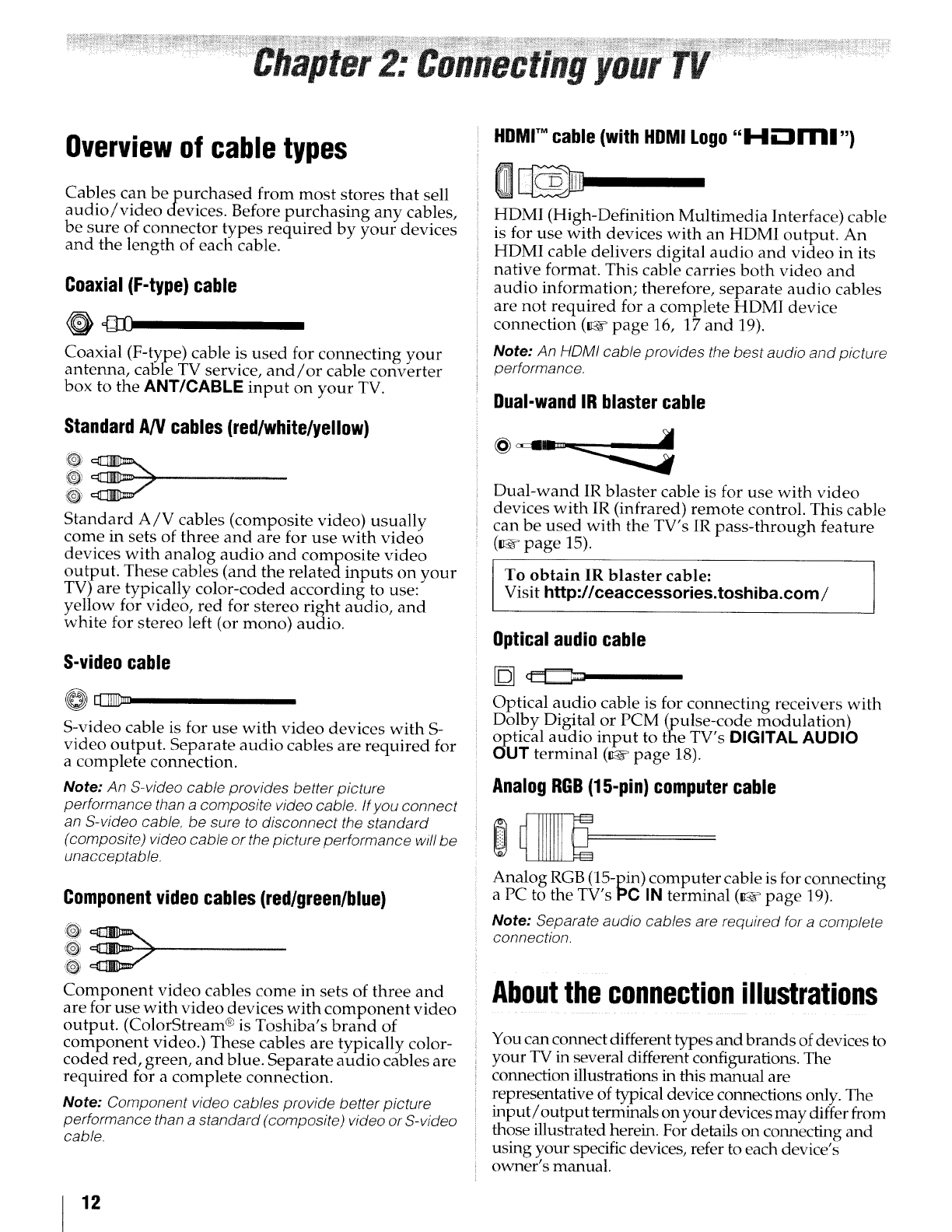
Coaxial(F-type)cable
Coaxial (F-type) cable is used for connecting your
antenna, cable TV service, and/or cable converter
box to the ANT/CABlE input on your TV.
StandardA/Vcables (red/white/yellow)
O_
i'-')_
Standard A/V cables (composite video) usually
come in sets of three and are for use with video
devices with analog audio and composite video
output. These cables (and the related inputs on your
TV) are typically color-coded according to use:
yellow for video, red for stereo right audio, and
white for stereo left (or mono) audio.
S-videocable
S-video cable is for use with video devices with S-
video output. Separate audio cables are required for
a complete connection.
Note: An S-video cable provides better picture
performance than a composite video cable. If you connect
an S-video cable, be sure to disconnect the standard
(composite) video cable or the picture performance will be
unacceptable.
Componentvideo cables (red/green/blue)
Component video cables come in sets of three and
are for use with video devices with component video
output. (ColorStream ® is Toshiba's brand of
component video.) These cables are typically color-
coded red, green, and blue. Separate audio cables are
required for a complete connection.
Note: Component video cables provide better picture
performance than a standard (composite) video or S-video
cable.
HDMI" cable (with HDMILogo"H-"lrrlll,,)
HDMI (High-Definition Multimedia Interface) cable
is for use with devices with an HDMI output. An
HDMI cable delivers digital audio and video in its
native format. This cable carries both video and
audio information; therefore, separate audio cables
are not required for a complete HDMI device
connection (_ page 16, 17 and 19).
Note: An HDMI cable provides the best audio and picture
performance.
Dual-wandIR blaster cable
Dual-wand IR blaster cable is for use with video
devices with IR (infrared) remote control. This cable
can be used with the TV's IR pass-through feature
(_ page 15).
To obtain IR blaster cable:
Visit http://ceaccessories.toshiba.com /
Opticalaudio cable
Optical audio cable is for connecting receivers with
Dolby Digital or PCM (pulse_code modulation)
optical audio input to the TV s DIGITAL AUDIO
OUT terminal (_ page 18).
Analog RGB(15-pin) computer cable
Analog RGB (15-pin) computer cable is for connecting
a PC to the TV s PC IN terminal (_ page 19).
Note: Separate audio cables are required for a complete
connection.
Abouttheconnectionillustrations
You can connect different types and brands of devices to
your TV in several different configurations. The
connection illustrations in this manual are
representative of typical device connections only. rIlle
input/output terminals on your devices may differ from
those illustrated herein. For details on connecting and
using your specific devices, refer to each device's
owner's manual.
12
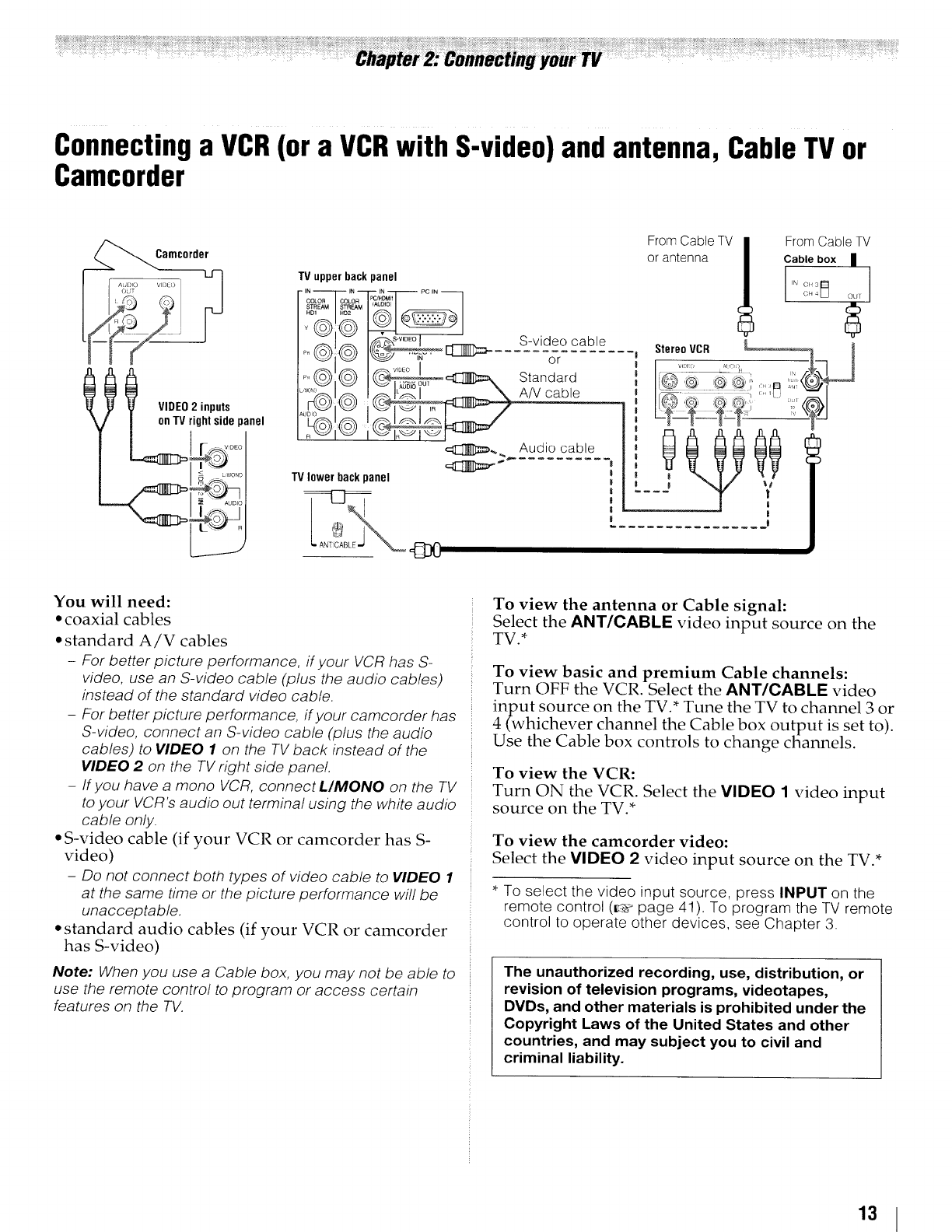
Connectinga VCR(or a VCRwith S-video)and antenna, CableTV or
Camcorder
Camc0rder
IVIDEO 2 inputs
on TVrightsidepanel
TVupperback panel
IN IN IN PC IN
I .... I
, I© J ....
.....
TVlowerbackpanel
S-video cable
or
Standard
A/V cable
Audio cable
From Cable TV
or antenna
StereoVCR
L@O _
.__!
|
_|
FromCableTV
Cable box |
CH 3
N _.;H4 _ OU/
You will need:
• coaxial cables
• standard A/V cables
-For better picture performance, if your VCR has S-
video, use an S-video cable (plus the audio cables)
instead of the standard video cable.
-For better picture performance, if your camcorder has
S-video, connect an S-video cable (plus the audio
cables) to VIDEO 1 on the TV back instead of the
VIDEO 2 on the TV right side pane!.
-If you have a mono VCR, connectL/MONO on the TV
to your VCR's audio out terminal using the white audio
cable only.
•S-video cable (if your VCR or camcorder has S-
video)
-Do not connect both types of video cable to VIDEO 1
at the same time or the picture performance will be
unacceptable,
•standard audio cables (if your VCR or camcorder
has S-video)
Note: When you use a Cable box, you may not be able to
use the remote control to program or access certain
features on the TV.
To view the antenna or Cable signal:
Select the ANT/CABLE video input source on the
TV.*
To view basic and premium Cable channels:
Turn OFF the VCR, Select the ANT/CABLE video
input source on the TV.* Tune the TV to channel 3 or
4 (whichever channel the Cable box output is set to).
Use the Cable box controls to change channels.
To view the VCR:
Turn ON the VCR. Select the VIDEO 1 video input
source on the TV.*
To view the camcorder video:
Select the VIDEO 2video input source on the TV.*
*To select the video input source, press INPUT on the
remote control (__¢page 41). To program the TV remote
control to operate other devices, see Chapter 3.
The unauthorized recording, use, distribution, or
revision of television programs, videotapes,
DVDs, and other materials is prohibited under the
Copyright Laws of the United States and other
countries, and may subject you to civil and
criminal liability.
13
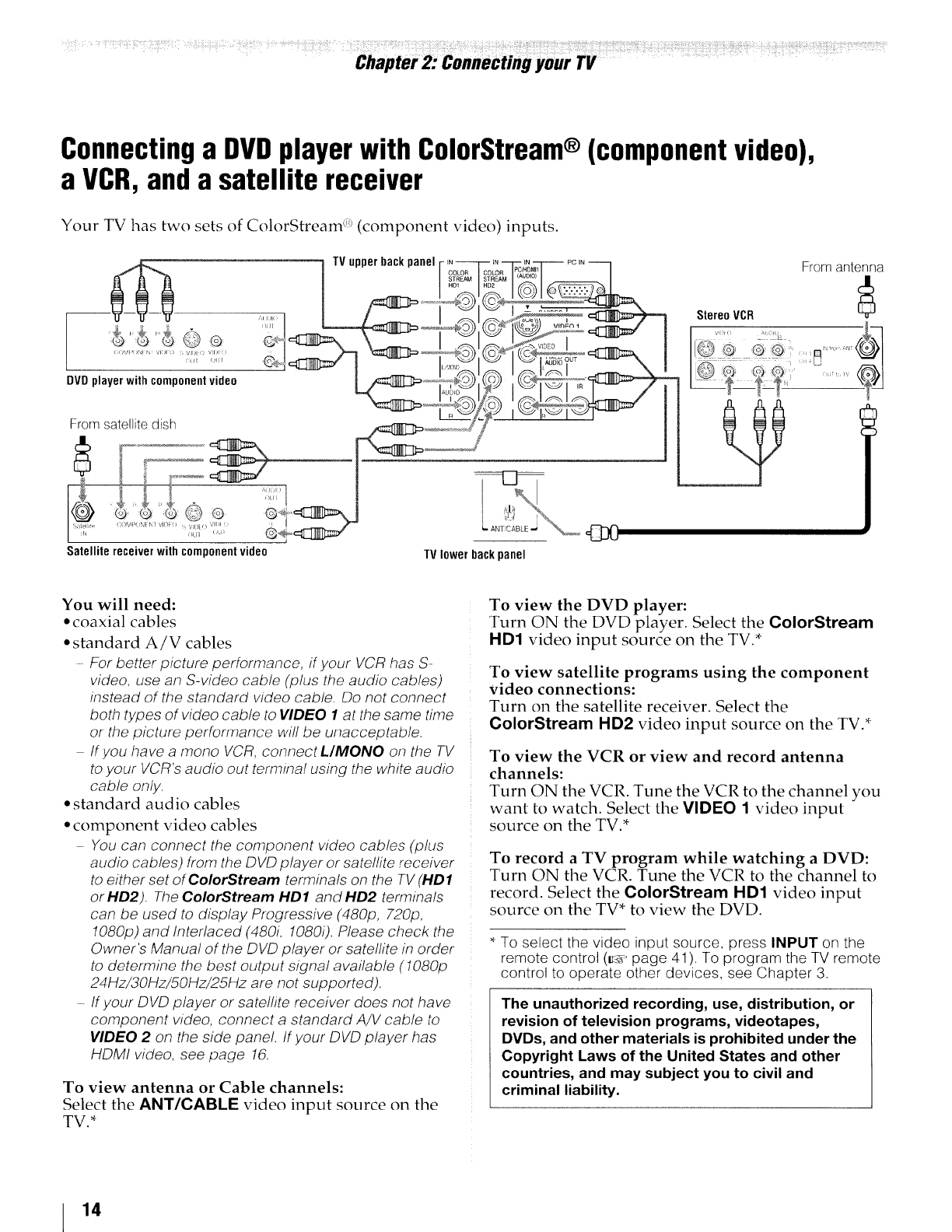
Connectinga DVDplayerwith ColorStream®(componentvideo),
a VCR,and a satellite receiver
Your TV has two sets of ColorStream ;!_(component video) inputs.
:, _d[
DVD player with componentvideo
TVupperbackpanel
N--
HD1
!CN¢
IN iN PC IN
From sate!lite dish
Satellitereceiverwithcomponentvideo TVlowerbackpanel
Frorn antenna
StereoVCR ,//_--]
?L
You will need:
•coaxial cables
• standard A/V cables
-For better picture performance, if your VCR has S-
video, use an S-video cable (plus the audio cables)
instead of the standard video cable. Do not connect
both types of video cable to VIDEO 1at the same time
or the picture performance will be unacceptable.
If you have a mono VCR, connect L/_ONO on the TV
to your VCR's audio out terminal using the white audio
cable only.
• standard audio cables
• component video cables
You can connect the component video cables (plus
audio cables) from the DVD player or satellite receiver
to either set of ColorStream terminals on the TV (HD1
or HD2). The ColorStream HD1 and HD2 terminals
can be used to display Progressive (480p, 720/9,
1080p) and Interlaced (480L 1080i). Please check the
Owner's Manual of the DVD player or satellite in order
to determine the best output signal available (1080p
24Hz/30Hz/50Hz/25Hz are not supported).
If your DVD player or satelfite receiver does not have
component video, connect a standard A/V cable to
VIDEO 2on the side panel. If your DVD player has
HDMI video, see page 16.
To view antenna or Cable channels:
Select the ANT/CABLE video input source on the
TV.*
To view the DVD player:
Turn ON the DVD player. Select the ColorStream
HD1 video input source on the TV.*
To view satellite programs using the component
video connections:
Turn on the satellite receiver. Select the
ColorStream HD2 video input source on the TV.*
To view the VCR or view and record antenna
channels:
Turn ON the VCR. Tune the VCR to the channel you
want to watch. Select the VIDEO 1 video input
source on the TV.*
To record a TV program while watching a DVD:
Turn ON the VCR. Tune the VCR to the channel to
record. Select the ColorStream HD1 video input
source on the TV* to view the DVD.
* To select the video input source, press INPUT on the
remote control (_._ page 41 ). To program the TV remote
control to operate other devices, see Chapter 3.
The unauthorized recording, use, distribution, or
revision of television programs, videotapes,
DVDs, and other materials is prohibited under the
Copyright Laws of the United States and other
countries, and may subject you to civil and
criminal liability.
14
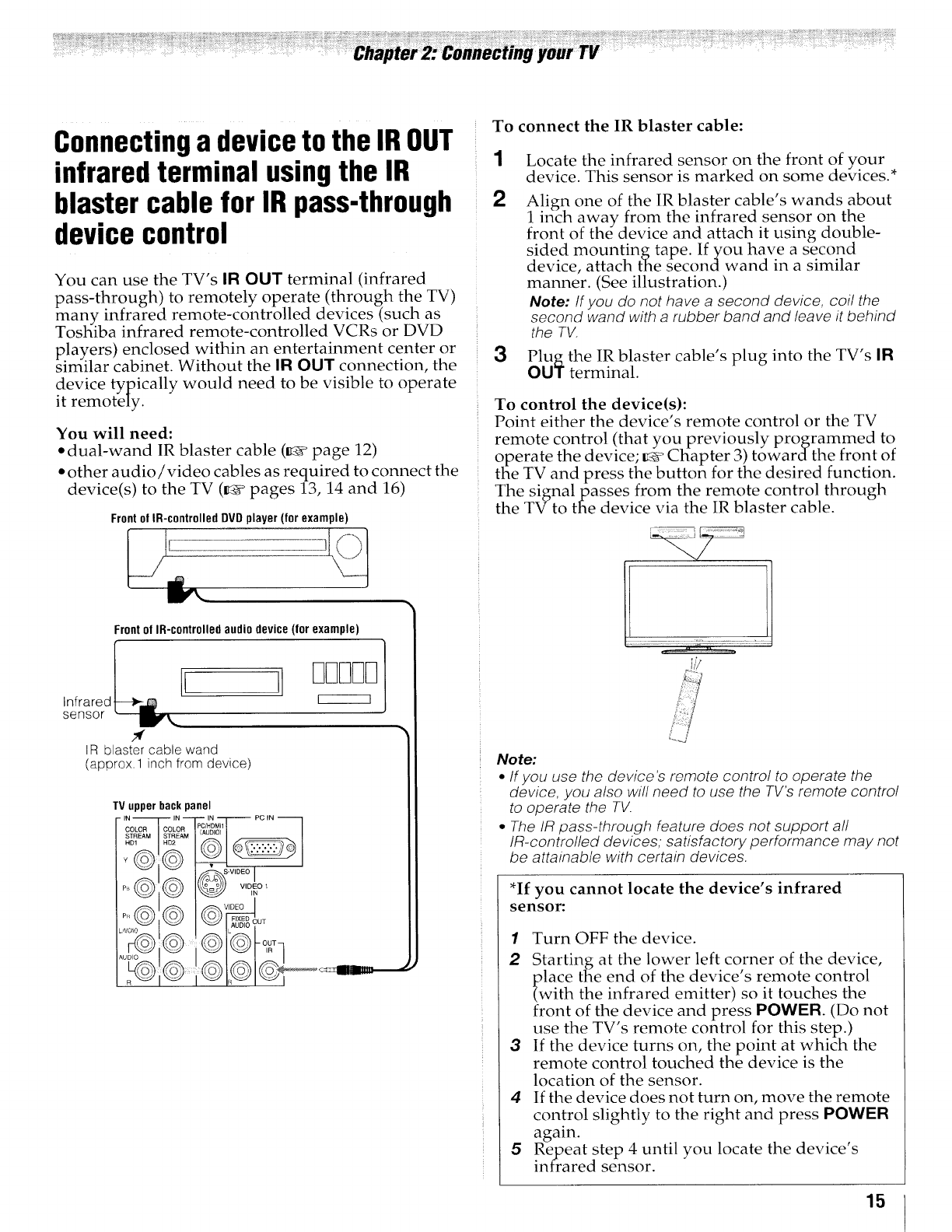
Connectinga deviceto the IROUT
infraredterminal usingthe IR 1
blaster cable for IR pass-through 2
device control
You can use the TV's IR OUT terminal (infrared
pass-through) to remotely operate (through the TV)
many infrared remote-controlled devices (such as
Toshiba infrared remote-controlled VCRs or DVD
players) enclosed within an entertainment center or
similar cabinet. Without the IR OUT connection, the
device typically would need to be visible to operate
it remotely.
You will need:
• dual-wand IR blaster cable (_¢ page 12)
• other audio/video cables as required to connect the
device(s) to the TV (_ pages 13, 14 and 16)
Frontof IR-controlled DVD player (for example)
To connect the IR blaster cable:
Locate the infrared sensor on the front of your
device. This sensor is marked on some devices.*
Align one of the IR blaster cable's wands about
1 inch away from the infrared sensor on the
front of the device and attach it using double-
sided mountin£tape. Ifyou have a second
device, attach tThe second wand in a similar
manner. (See illustration.)
Note: If you do not have a second device, coil the
second wand with a rubber band and leave it behind
the TV.
3 _j_ theterminal.IRblaster cable's plug into the TV's ]R
To control the device(s):
Point either the device's remote control or the TV
remote control (that you previously programmed to
operate the device; _ Chapter 3) towardthe front of
the TV and press the button for the desired function.
The signal passes from the remote control through
the TV to the device via the IR blaster cable.
Front of IR-controlledaudio device (for example)
Infrared
sensor
I
IR blaster cable wand
(approx.1 inch from device)
TV upper back panel
IN IN IN PC IN
/ I
_u0,0 _ i __
Note:
•/fyou use the device's remote contro/ to operate the
device, you also wil/ need to use the TV's remote controi
to operate the TV.
*The iR pass-through feature does not support a/i
!R-contro//ed devices, satisfactory performance may not
be attainab/e with certain devices.
*If you cannot locate the device's infrared
sensor:
1Turn OFF the device.
2Starting at the lower left corner of the device,
place the end of the device s remote control
(with the infrared emitter) so it touches the
front of the device and press POWER. (Do not
use the TV's remote control for this step.)
3If the device turns on, the point at which the
remote control touched the device is the
location of the sensor.
4If the device does not turn on, move the remote
control slightly to the right and press POWER
again.
5Repeat step 4 until you locate the device's
infrared sensor.
15
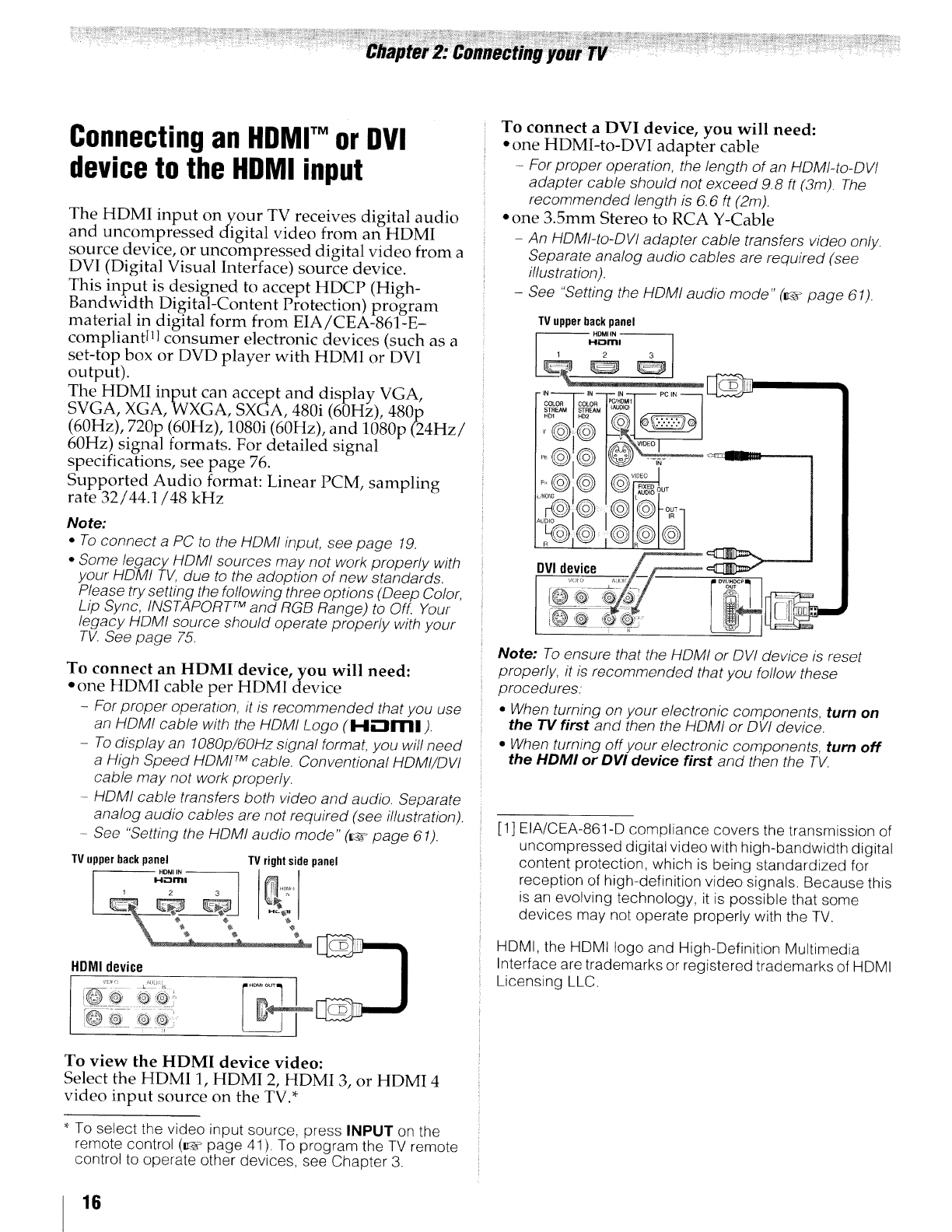
Connectingan HDMr or DVI
deviceto the HDMI input
The HDMI input on your TV receives digital audio
and uncompressed digital video from an HDMI
source device, or uncompressed digital video from a
DVI (Digital Visual Interface) source device.
This input is designed to accept HDCP (High-
Bandwidth Digital-Content Protection) program
material in digital form from EIA/CEA-861-E-
compliantIll consumer electronic devices (such as a
set-top box or DVD player with HDMI or DVI
output).
The HDMI input can accept and display VGA,
SVGA, XGA, WXGA, SXGA, 480i (60Hz), 480p
(60Hz), 720p (60Hz), 1080i (60Hz), and 1080p (24Hz/
60Hz) signal formats. For detailed signal
specifications, see page 76.
Supported Audio format: Linear PCM, sampling
rate 32/44.1/48 kHz
Note:
•To connect a PC to the HDMI input, see page 19.
•Some legacy HDMI sources may not work properly with
your HDM! TV, due to the adoption of new standards.
Please try setting the following three options (Deep Color,
Lip Sync, INSTAPORT TM and RGB Range) to Off. Your
legacy HDMI source should operate properly with your
TV. See page 75.
To connect an HDMI device, you will need:
• one HDMI cable per HDM1 device
-For proper operation, it is recommended that you use
an HDMI cable with the HDMI Logo (I-.i,-'lml).
-To display an 1080p/6OHz signal format, you will need
a High Speed HDMI TM cable. Conventional HDMI/DVl
cable may not work properly.
-HDMI cable transfers both video and audio. Separate
analog audio cables are not required (see illustration).
-See "Setting the HDMI audio mode" (ua_page 61).
TVupperbackpanel TVrightsidepanel
HDMI IN
Hi_31rl_|
1 2 3 "_
HDM' device !_+_
To view the HDMI device video:
Select the HDMI 1, HDMI 2, HDMI 3, or HDMI 4
video input source on the TV.*
*To select the video input source, press INPUT on the
remote control (_ page 41 ). To program the TV remote
control to operate other devices, see Chapter 3.
To connect a DVI device, you will need:
• one HDMI-to-DVI adapter cable
.....For proper operation, the length of an HDMI-Io-DVI
adapter cable should not exceed 9.8 ft (3m). The
recommended length is 6.6 ft (2m).
"one 3.5mm Stereo to RCA Y-Cable
-An HDMI-to-DVI adapter cable transfers video only.
Separate analog audio cables are required (see
illustration).
-See "Setting the HDMI audio mode" (r4@>page 61).
Note: To ensure that the HDMI or DV! device is reset
properly, it is recommended that you fol!ow these
procedures:
•When turning on your electronic components, turn on
the TV first and then the HDMI or DVI device.
•When turning offyour electronic components, turn off
the HDMI or DVI device first and then the TV.
[1] EIA/CEA-861-D compliance covers the transmission of
uncompressed digital video with high-bandwidth digital
content protection, which is being standardized for
reception of high-definition video signals. Because this
is an evolving technology, it is possible that some
devices may not operate properly with the TV.
HDMI, the HDMI logo and High-Definition Multimedia
Interface are trademarks or registered trademarks of HDMI
Licensing LLC.
16
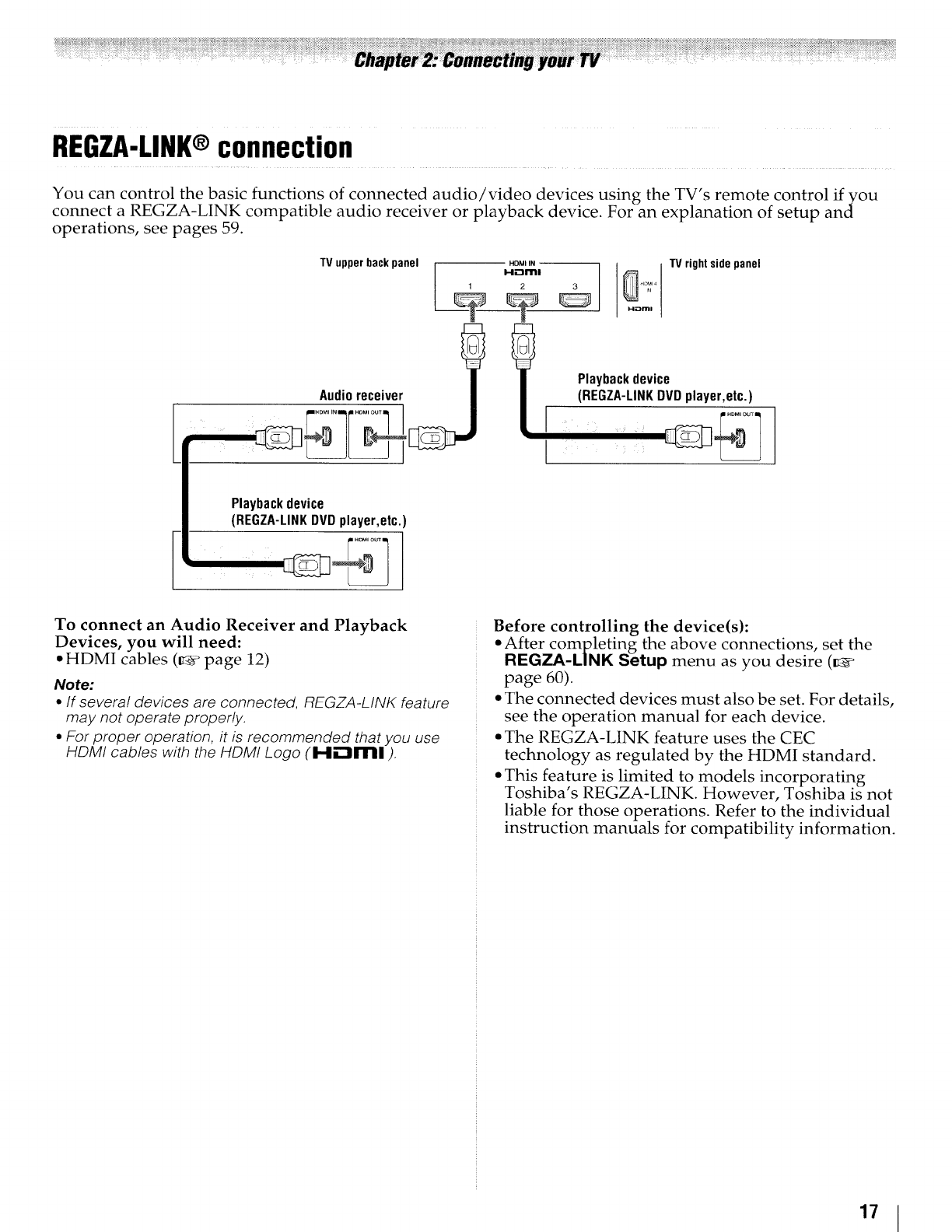
REGZA-LINK®connection
You can control the basic functions of connected audio/video devices using the TV's remote control if you
connect a REGZA-LINK compatible audio receiver or playback device. For an explanation of setup and
operations, see pages 59.
TV upperbackpanel
1
Audioreceiver
r.............
HDMI IN --
H.--trlrtl
2
I
Playbackdevice
TVrightsidepanel
(REGZA-LINKDVDplayer,etc.)
,.oM,ou_
Playbackdevice
{REGZA-LINK DVDplayer,etc.
HD_IOUT
To connect an Audio Receiver and Playback
Devices, you will need:
• HDMI cables (_" page 12)
Note:
•If severa! devices are connected, REGZA-LINK feature
may not operate properly.
• For proper operation, it is recommended that you use
HDMI cables with the HDMI Logo (H."tm]).
Before controlling the device(s):
• After completing the above connections, set the
REGZA-LINK Setup menu as you desire (_
page 60).
• The connected devices must also be set. For details,
see the operation manual for each device.
• The REGZA-LINK feature uses the CEC
technology as regulated by the HDMI standard.
• This feature is limited to models incorporating
Toshiba's REGZA-LINK. However, Toshiba is not
liable for those operations. Refer to the individual
instruction manuals for compatibility information.
17
Note:
Connectinga digital audiosystem •SomeaudiosystemsmaynotbecompatiblewithDolby
Digital bitstream signals. Older audio systems that are
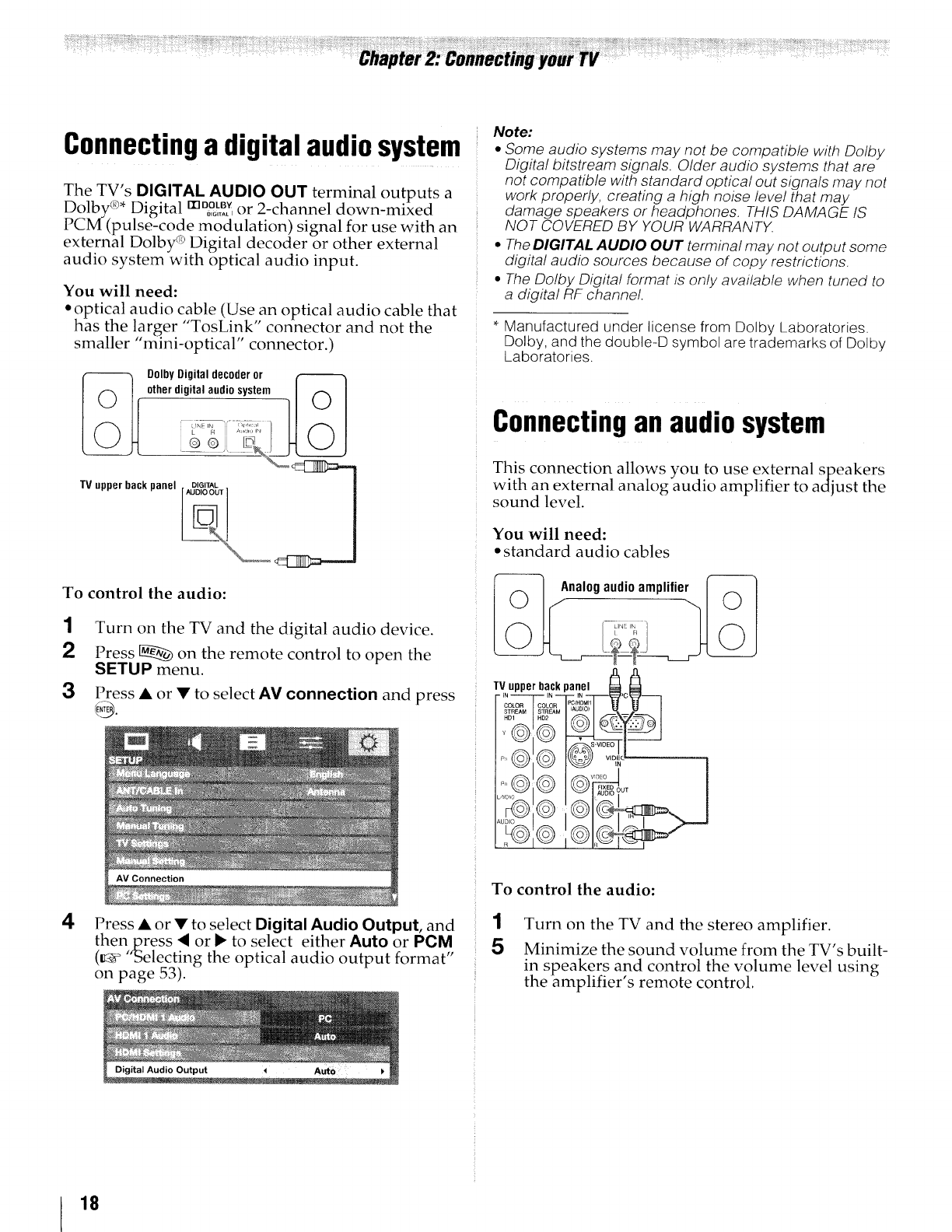
The TV's DIGITAL AUDIO OUT terminal outputs a
Dolby _* Digital m%% or 2-channel down-mixed
PCM (pulse-code modulation) signal for use with an
external Dolby _ Digital decoder or other external
audio system with optical audio input.
You will need:
• optical audio cable (Use an optical audio cable that
has the larger "TosLink'" connector and not the
smaller "mini-optical" connector.)
DolbyDigitaldecoderor
uther digital audio system J F_ I
TV upper back panel .,DLGLT_AL,%_' _ !
To control the audio:
1Turn on the TV and the digital audio device.
2Press _ on the remote control to open the
SETUP menu.
3Press • or • to select AV connection and press
@.
not compatible with standard optical out signals may not
work properly, creating a high noise level that may
damage speakers or headphones. THIS DAMAGE IS
NOT COVERED BY YOUR WARRANTX
•The DIGITAL AUDIO OUT terminal may not output some
digital audio sources because of copy restrictions.
•The Dolby Digital format is only available when tuned to
a digital RF channel.
Manufactured under license from Dolby Laboratories.
Dolby, and the double-D symbol are trademarks of Dolby
Laboratories.
Connectingan audiosystem
This connection allows you to use external speakers
with an external analog audio amplifier to adjust the
sound level.
You will need:
• standard audio cables
Analogaudioamplifier
/_© _I©
0
4Press • or • to select Digital Audio Output, and
thenpress <or !_ to select either Auto or PC.M,,
(_ 'Selecting the optical audio output format
on page 53).
To control the audio:
1Turn on the TV and the stereo amplifier.
5Minimize the sound volume from the TV's built-
in speakers and control the volume level using
the amplifier's remote control,
18
Connectinga personalcomputer
{PC)
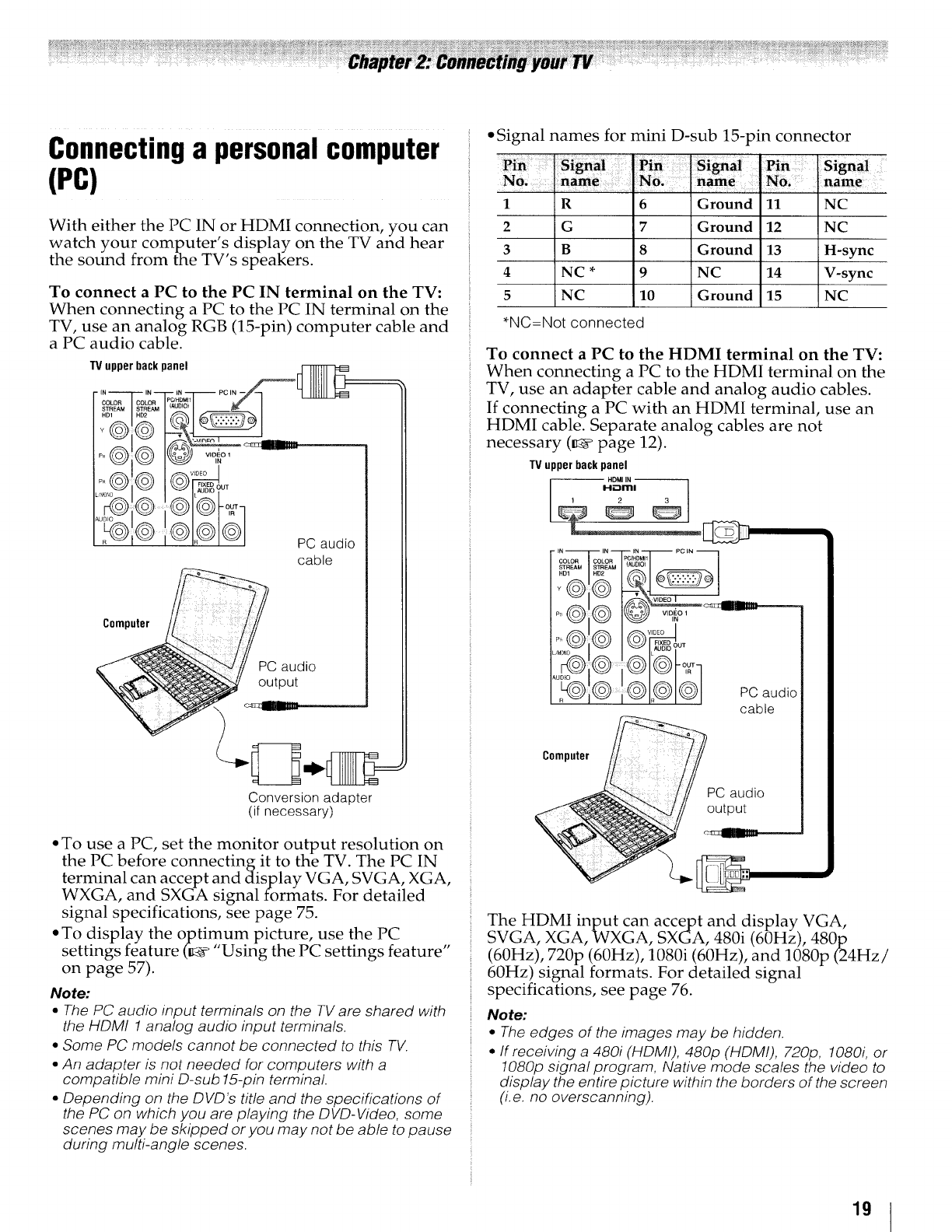
With either the PC IN or HDMI connection, you can
watch your computer's, display on the TV and hear
the sound from the TV s speakers.
To connect a PC to the PC IN terminal on the TV:
When connecting a PC to the PC IN terminal on the
TV, use an analog RGB (15-pin) computer cable and
a PC audio cable.
TVupperbackpanel
P+i++'l t l
@ PC audio
cable
Computer
PC audio
output
Conversion adapter
(if necessary)
• To use a PC, set the monitor output resolution on
the PC before connecting it to the TV. The PC IN
terminal can accept and display VGA, SVGA, XGA,
WXGA, and SXGA signal formats. For detailed
signal specifications, see page 75.
• To display the optimum picture, use the PC
•n " " " "
settl gs feature (K4_ Using the PC settings feature
on page 57).
Note:
•The PC audio input terminals on the TV are shared with
the HDMt 1 analog audio input terminals.
•Some PC models cannot be connected to this TV.
• An adapter is not needed for computers with a
compatible mini D-sub 15-pin terminal.
• Depending on the DVD's title and the specifications of
the PC on which you are playing the DVD-Video, some
scenes may be skipped or you may not be able to pause
during multi-angle scenes.
• Signal names for mini D-sub 15-pin connector
1
2
3
4
5
R 6 Ground 11 NC
G 7 Ground 12 NC
B 8 Ground 13 H-sync
NC * 9 NC 14 V-sync
NC 10 Ground 15 NC
*NC=Not connected
To connect a PC to the HDMI terminal on the TV:
When connecting a PC to the HDMI terminal on the
TV, use an adapter cable and analog audio cables.
If connecting a PC with an HDMI terminal, use an
HDMI cable. Separate analog cables are not
necessary (_ page 12).
TVupperbackpanel
HDMI IN
I-I'-lrrll
I IN IN IN PC IN
COLOR COLOR PC!HDMI1
_ _ AUDIOOUT
PC audio
cable
Compute PC audio
The HDMI input can accept and display VGA,
SVGA, XGA, WXGA, SXGA, 480i (60Hz), 480p
(60Hz), 720p (60Hz), 1080i (60Hz), and 1080p (24Hz/
60Hz) signal formats. For detailed signal
specifications, see page 76.
Note:
• The edges of the images may be hidden.
•If receiving a 480i (HDMI), 480p (HDMI), 720p, 1080i, or
1080p signal program, Native mode scales the video to
display the entire picture within the borders of the screen
(i.e. no overscanning).
19
Preparingthe remotecontrolfor
use
Your TV remote control can operate your TV and
many other devices such as cable converter boxes,
satellite receivers, VCRs, DVDplayers, and HTIBs
(home theater in a box), even if they are different
brands.
If you have a Toshiba device:
Your TV remote control is preprogrammed to
operate most Toshiba devices (_ page 22).
If you have a non-Toshiba device or a Toshiba
device that the remote control is not
preprogrammed to operate:
You can program the TV remote control so it will
operate the other device (_ pages 24).
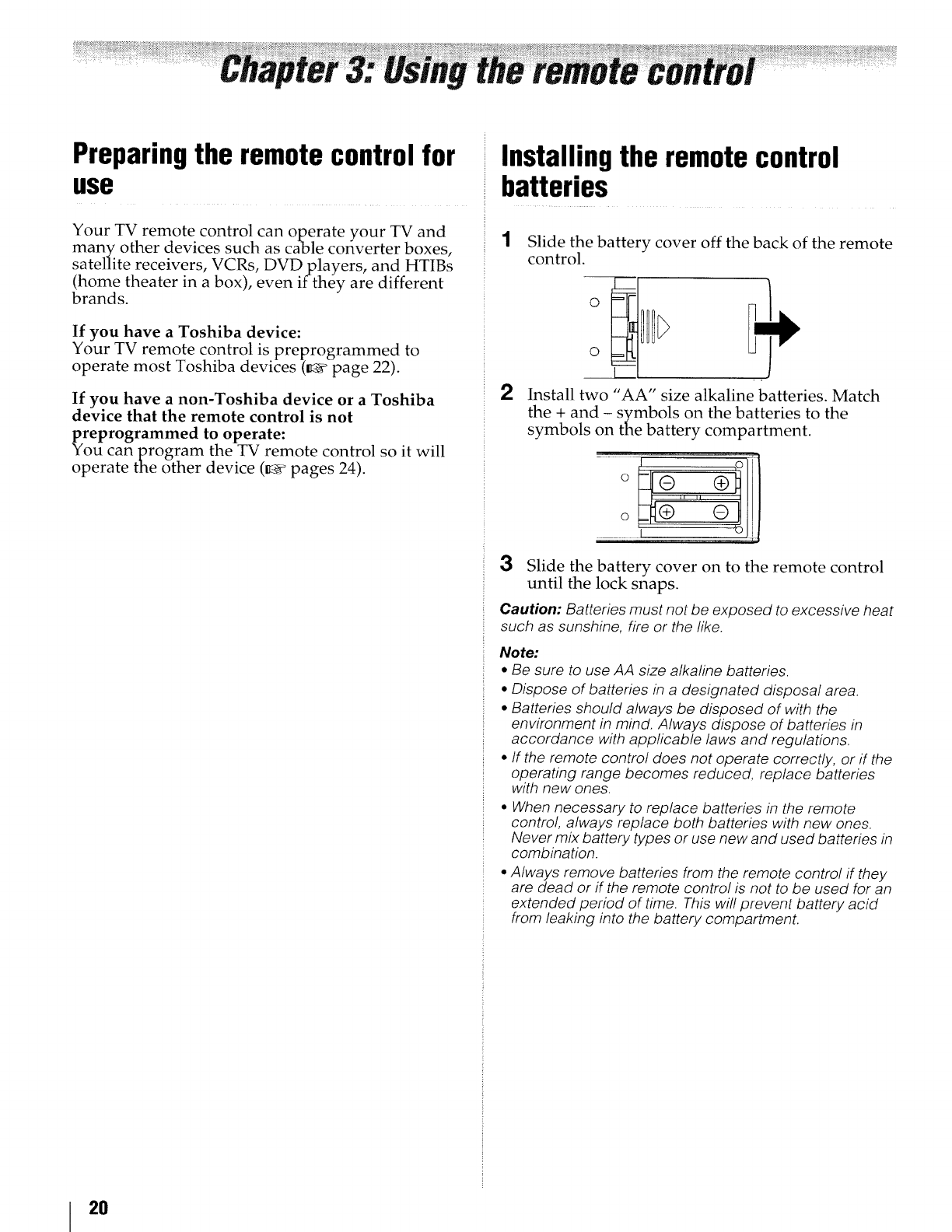
Installingthe remotecontrol
batteries
1Slide the battery cover off the back of the remote
control.
2Install two "AA" size alkaline batteries. Match
the + and - symbols on the batteries to the
symbols on the battery compartment.
3Slide the battery cover on to the remote control
until the lock snaps.
Caution: Batteries must not be exposed to excessive heat
such as sunshine, fire or the like.
Note:
•Be sure to use AA size alkaline batteries.
•Dispose of batteries in a designated disposal area.
•Batteries should always be disposed of with the
environment in mind. Always dispose of batteries in
accordance with applicable laws and regulations.
•If the remote control does not operate correctly, or if the
operating range becomes reduced, replace batteries
with new ones.
• When necessary to replace batteries in the remote
control, always replace both batteries with new ones.
Never mix battery types or use new and used batteries in
combination.
•Always remove batteries from the remote control if they
are dead or if the remote control is not to be used for an
extended period of time. This will prevent battery acid
from leaking into the battery compartment.
2O
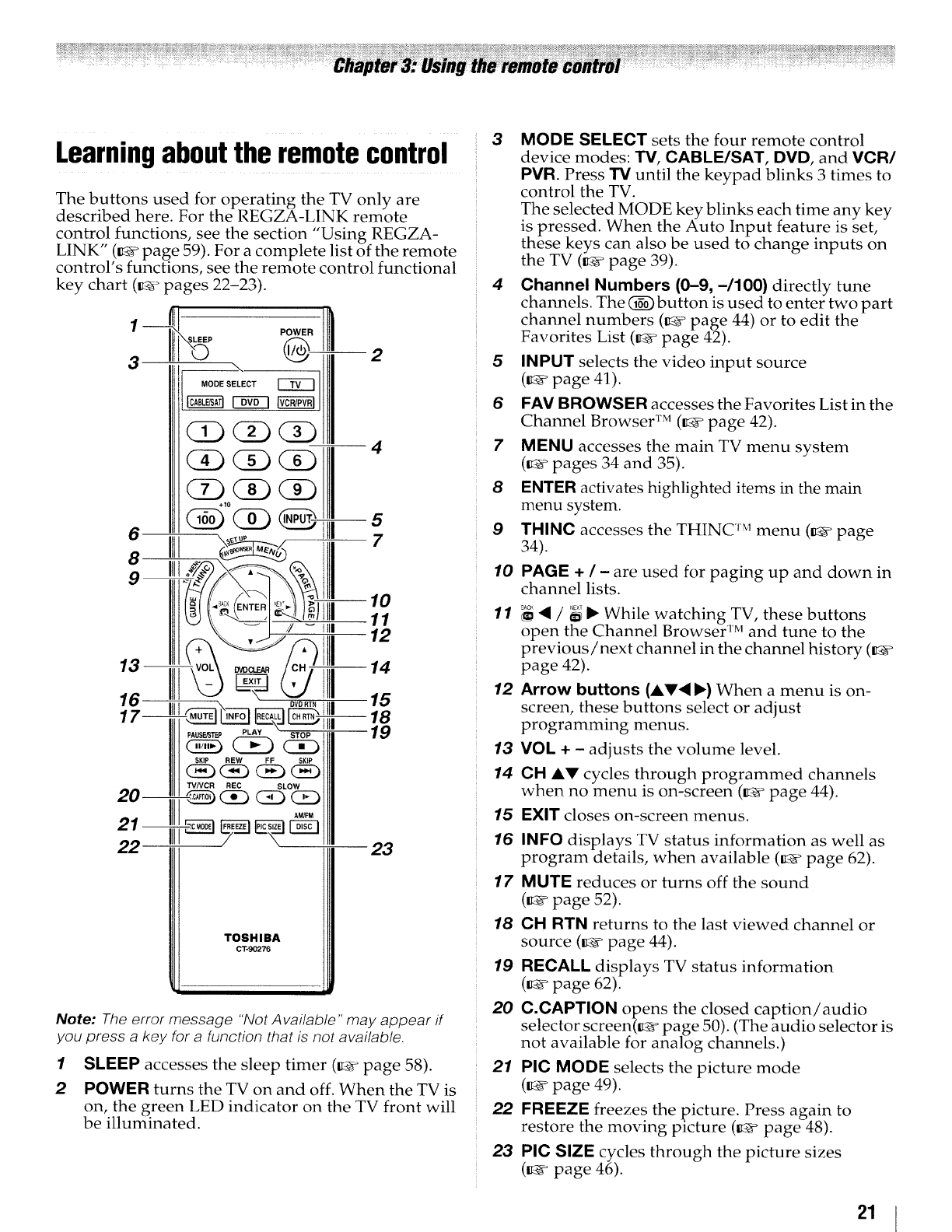
Learningaboutthe remotecontrol
The buttons used for operating the TV only are
described here. For the REGZA-LINK remote
n " ' " "
co trol funchons, see the sechon Using REGZA-
LINK" (_ page 59). For a complete list of the remote
control's functions, see the remote control functional
key chart (_ pages 22-23).
3
4
61111--5
8I1tl 7
13--
16
--14
15
--18 19
0v0R_tlii
SKIP REW FF SKIP
TV/VCR REC SLOW
AM!FM
22 23
TOSHIBA
CT-90276
Note: The error message "Not Available" may appear if
you press a key for a function that is not available.
1SLEEP accesses the sleep timer (_ page 58).
2POWER turns the TV on and off. When the TV is
on, the green LED indicator on the TV front will
be illuminated.
3MODE SELECT sets the four remote control
device modes: TV, CABLE/SAT, DVD, and VCR/
PVR. Press TV until the keypad blinks 3 times to
control the TV.
The selected MODE key blinks each time any key
is pressed. When the Auto Input feature is set,
these keys can also be used to change inputs on
the TV (_ page 39).
4Channel Numbers (0-9, -/100} directly tune
channels. The (_) button is used to enter two part
channel numbers (_ page 44) or to edit the
Favorites List (_ page 42).
5INPUT selects the video input source
(_ page 41 ).
6FAV BROWSER accesses the Favorites List in the
Channel Browser TM (_ page 42).
7MENU accesses the main TV menu system
(_ pages 34 and 35).
8ENTER activates highlighted items in the main
menu system.
9THINC accesses the THINC TM menu (_e page
34).
10
11
12
13
14
15
16
17
18
19
20
21
22
23
PAGE + /-are used for paging up and down in
channel lists.
_'4 /_{ I_ While watching TV, these buttons
open the Channel Browser TM and tune to the
previous/next channel in the channel history (_
page 42).
Arrow buttons (AV< ,) When a menu is on-
screen, these buttons select or adjust
programming menus.
VOL + - adjusts the volume level.
CH AV cycles through programmed channels
when no menu is on-screen (_ page 44).
EXIT closes on-screen menus.
INFO displays TV status information as well as
program details, when available (_ page 62).
MUTE reduces or turns off the sound
(_ page 52).
CH RTN returns to the last viewed channel or
source (_ page 44).
RECALL displays TV status information
(_ page 62).
C.CAPTION opens the closed caption/audio
selector screen(_ page 50). (The audio selector is
not available for analog channels.)
PIC MODE selects the picture mode
(K_ page 49).
FREEZE freezes the picture. Press again to
restore the moving picture (_v page 48).
PIC SIZE cycles through the picture sizes
(_ page 46).
21
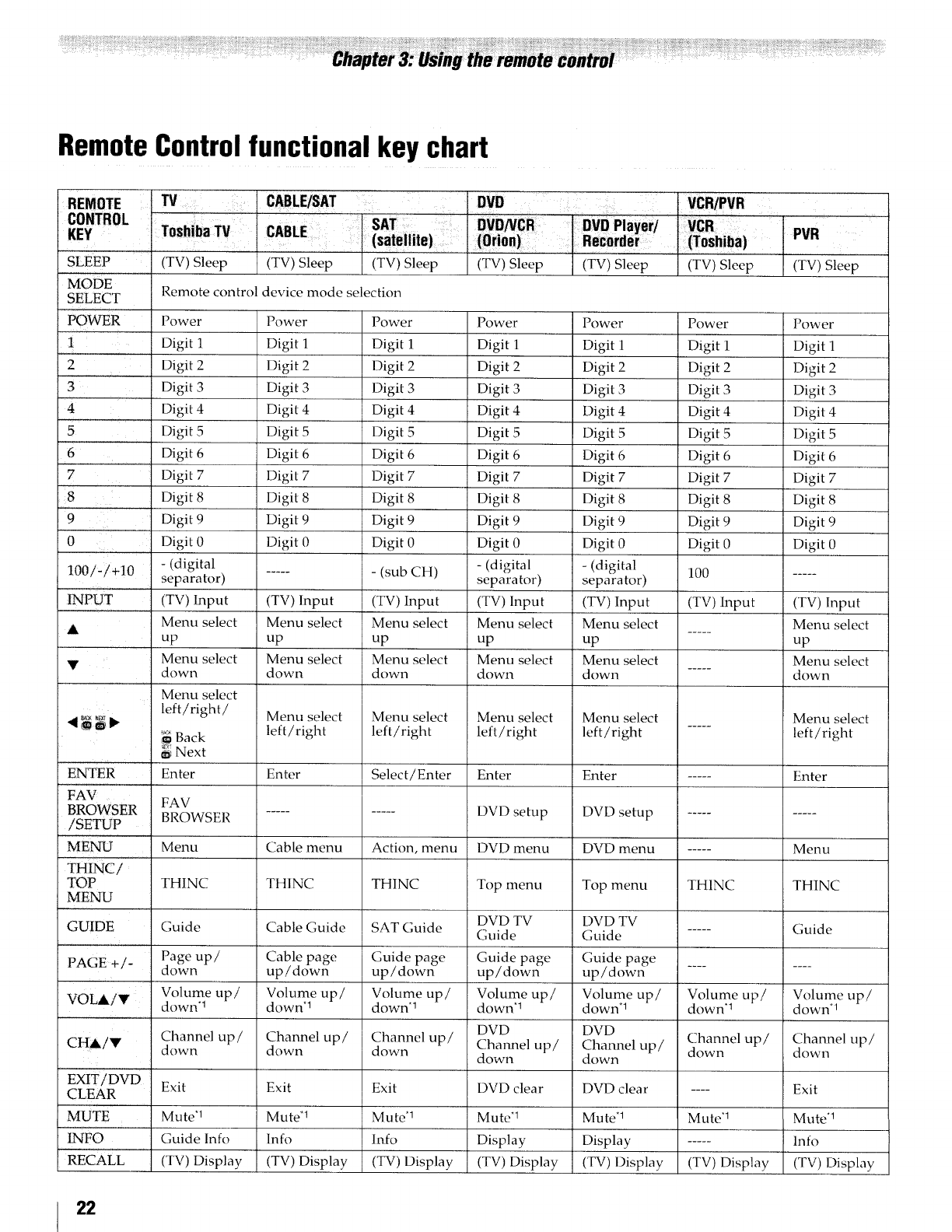
RemoteControlfunctionalkey chart
REMOTE
CONTROL
KEY
SLEEP
MODE
SELECT
POWER
1
2
3
4
5
6
7
8
'9
0
100/-/+10
INPUT
TV
ToshibaTV
(TV) Sleep (TV) Sleep
, DVD ,
SAT
(satellite)
(TV) Sleep (TV) Sleep
Remote control device mode selection
(TV) Sleep
VCR/PVR
(TV) Sleep
PVR
(Tv) Sleep
Power
Digit 1
Digit 2
Digit 3
Digit 4
Digit 5
Digit 6
Digit 7
Digit 8
Digit 9
Digit 0
- (digital
separator)
(TV) Input
Menu select
up
Menu select
down
Menu select
left/right/
Back
6i Next
Enter
Power
Digit 1
Digit 2
Digit 3
Digit 4
Digit 5
Digit 6
Digit 7
Digit 8
Digit 9
Digit 0
Power
Digit 1
Digit 2
Digit 3
Digit 4
Digit 5
Digit 6
Digit 7
Digit 8
Digit 9
Digit 0
Power
Digit 1
Digit 2
Digit 3
Digit 4
Digit 5
Digit 6
Digit 7
Digit 8
Digit 9
Digit 0
- (digital
separator)
(TV) Input
Menu select
up
Menu select
down
Power
Digit 1
Digit 2
Digit 3
Digit 4
Digit 5
Digit 6
Digit 7
Digit 8
Digit 9
Digit 0
- (digital
separator)
(TV) Input
Menu select
up
Menu select
down
Power
Digit 1
Digit 2
Digit 3
Digit 4
Digit 5
Digit 6
Digit 7
Digit 8
Digit 9
Digit 0
Power
Digit 1
Digit 2
Digit 3
Digit 4
Digit 5
Digit 6
Digit 7
Digit 8
Digit 9
Digit 0
...... (sub CH) 100 .....
(TV) Input (TV) Input (TV) input (TV) Input
A Menu select Menu select ..... Menu select
up up up
V Menu select Menu select Menu select
down down ..... down
,_, Menu select Menu select Menu select Menu select Menu select
'_ _ _ _ left/right left/right left/right left/right ..... left/right
ENTER Enter Select/Enter Enter Enter ..... Enter
FAV '
BROWSER FAV
/SETUP BROWSER .......... DVD setup DVD setup ..........
'MENU Menu Cable menu Action, menu DVD menu DVD menu ..... Menu
THINC/
TOP THINC THINC THINC Top menu Top menu THINC THINC
MENU
GUIDE Guide Cable Guide SAT Guide DVD TV DVD TV
Guide Guide ..... Guide
Page up/ Cable page Guide page Guide page Guide page
PAGE +/- down up/down up!down up/down up/down ........
VOLAiV Volume up/ Volume up/ Volume up/ Volume up/ Volume up/ Volume up/ Volume up/
down*l down*l down'l down*l down*l down*! down*l
DVD DVD
CH&!Y Channel up/ Channel up/ Channel up/ Channel up/ Channel up/ Channel up/ Channel up/
down down down down down down down
EXIT/DVD'
CLEAR Exit Exit Exit DVD clear DVD clear .... Exit
MUTE Mute .1 MutU 1 Mute .1 Mute "1 Mute .1 Mute*l Mute*!
INFO Guide lnfo lnfo lnfo Display Display ..... lnfo
RECALL (TV) Display (TV) Display (TV) Display (TV) Display (TV) Display (TV) Display (TV) Display
22
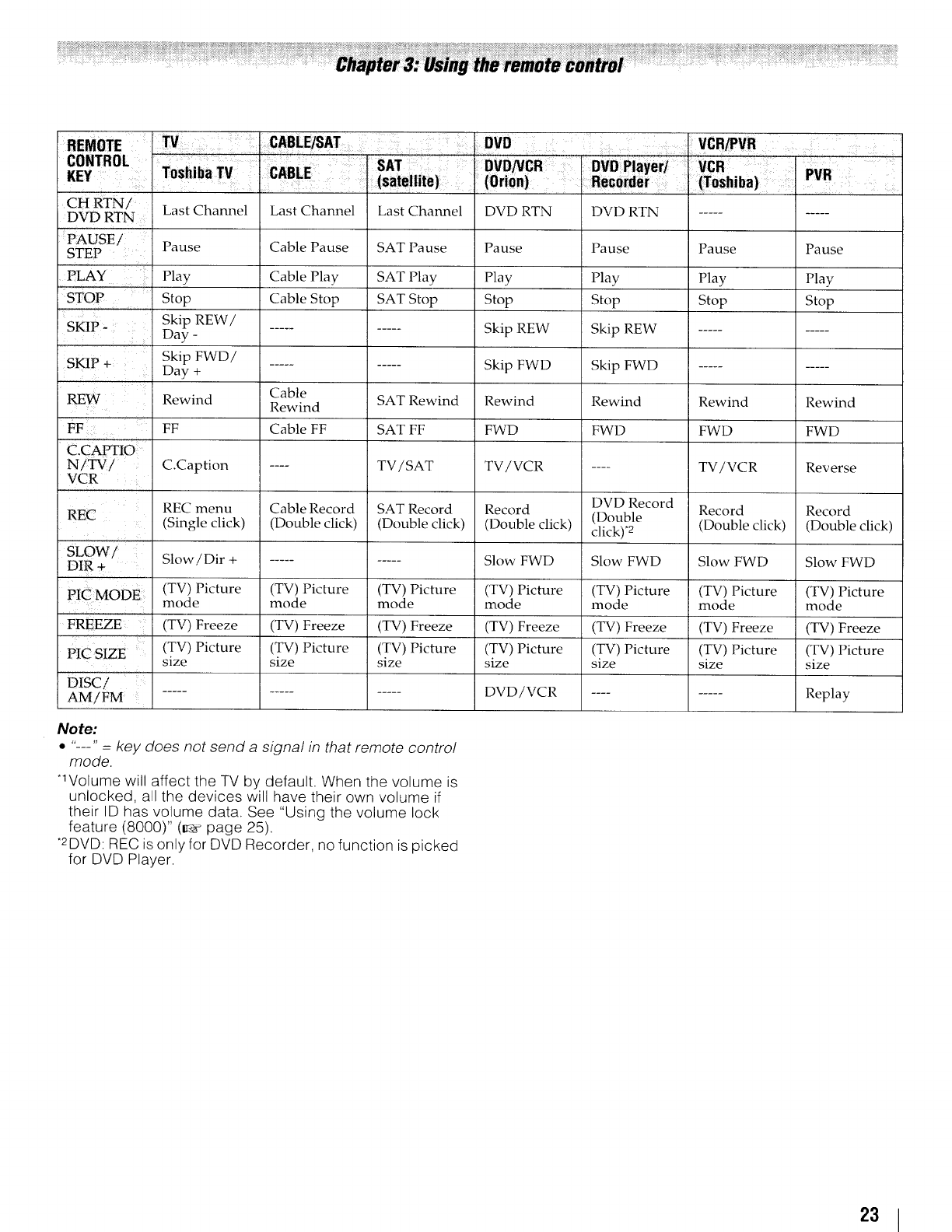
CH RTN/ Last Channel
DVD RTN
PAUSE/ Pause
STEP
PLAY Play
STOP , Stop
Last Channel
Cable Pause
Cable Play
Cable Stop
Last Channel
SAT Pause
SAT Play
SAT Stop
DVD RTN
Pause
Play
Stop
DVD RTN
Pause
Play
Stop
Pause Pause
Play Play
Stop Stop
Skip REW /
SKIP -Day - -......... Skip REW Skip REW ..........
SKIP + Skip FWD/
Day + .......... Skip FWD Skip FWD ..........
REW ' Cable
Rewind Rewind SAT Rewind Rewind Rewind Rewind Rewind
FF FF Cable FF SAT FF FWD FWD FWD FWD
C.CAPTIO
NiTV/ C.Caption .... TV/SAT TV/VCR .... TV!VCR Reverse
VCR
DVD Record
REC menu Cable Record SAT Record Record Record Record
REC (Single click) (Double click) (Double click) (Double click) (Double
click). 2 (Double click) (Double click)
SLOW /
DIR + Slow/Dir + .......... Slow FWD Slow FWD Slow FWD Slow FWD
PIC MODE (TV) Picture (TV) Picture (TV) Picture (TV) Picture (TV) Picture (TV) Picture (TV) Picture
mode mode mode mode mode mode mode
FREEZE (TV) Freeze (TV) Freeze (TV) Freeze (TV) Freeze (TV) Freeze (TV) Freeze (TV) Freeze
PIC SIZE (TV) Picture (TV) Picture (TV) Picture (TV) Picture (TV) Picture (TV) Picture (TV) Picture
size size size size size size size
Disc/ '
AM/FM ............... DVD/VCR ......... Replay
Note:
*"---" =key does not send a signal in that remote contro!
mode.
*1Volume will affect the TV by default. When the volume is
unlocked, all the devices will have their own volume if
their ID has volume data. See "Using the volume lock
feature (8000)" (_¢ page 25).
*2DVD: REC is only for DVD Recorder, no function is picked
for DVD Player.
23
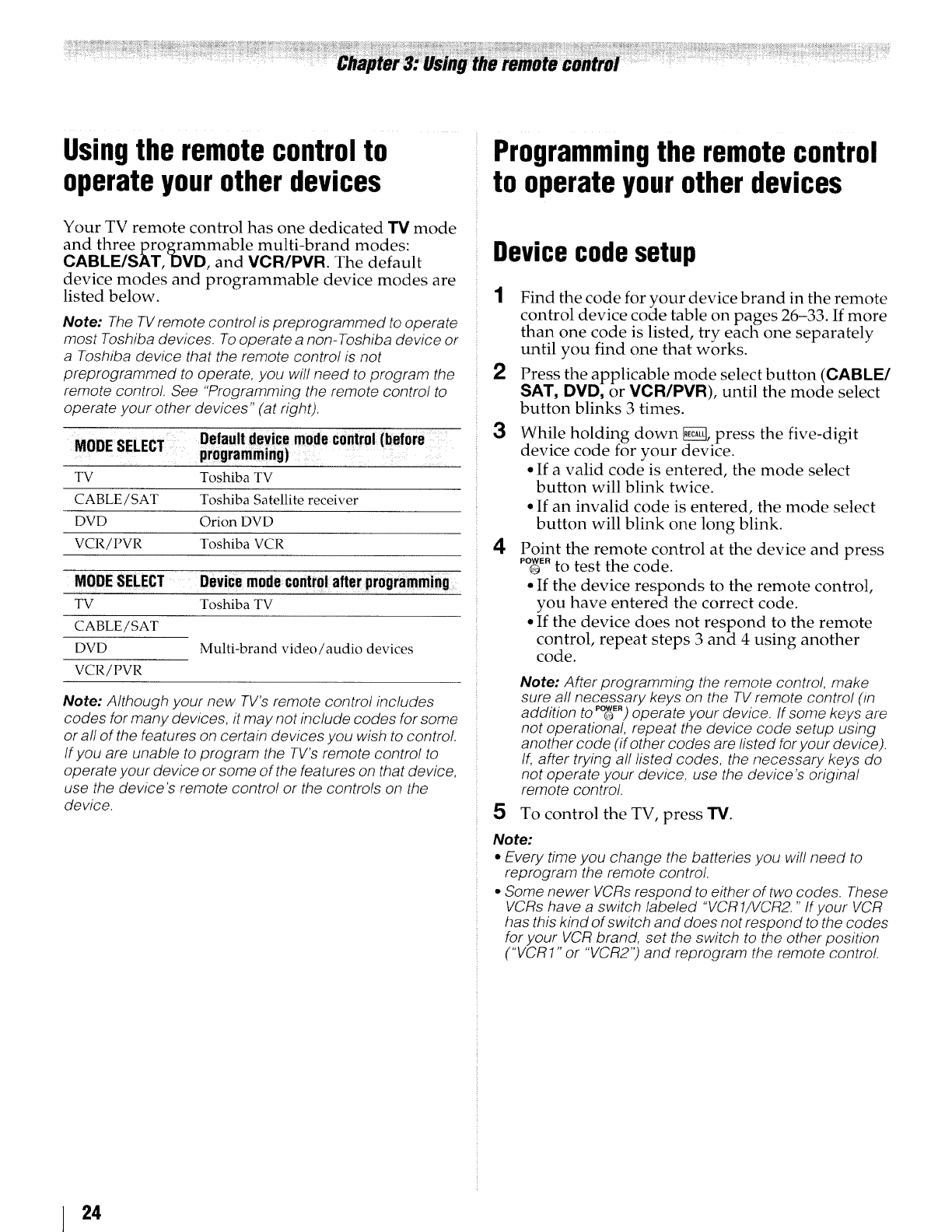
Usingthe remotecontrolto
operateyourotherdevices
Your TV remote control has one dedicated TV mode
and three programmable multi-brand modes:
CABLE/SAT, DVD, and VCR/PVR. The default
device modes and programmable device modes are
listed below.
Note: The TV remote control is oreprogrammed to operate
most Toshiba devices. To operate a non-Toshiba device or
a Toshiba device that the remote control is not
preprogrammed to operate, you wil! need to program the
remote control. See "'Programming the remote control to
operate your other devices" (at right).
Default device mode control (before
MODE SELECT programming)
TV Toshiba TV
CABLE !SAT Toshiba Satellite receiver
DVD Orion DVD
VCR/PVR Toshiba VCR
MODE SELECT Device mode control after programming
TV Toshiba TV
CABLE/SAT
DVD
VCR/PVR
Multi-brand video/audio devices
Note: Although your new TV's remote control includes
codes for many devices, it may not include codes for some
or all of the features on certain devices you wish to control.
If you are unable to program the TV's remote control to
operate your device or some of the features on that device.
use the device's remote control or the controls on the
device.
Programmingthe remotecontrol
to operateyourotherdevices
Device code setup
{Find the code for your device brand in the remote
control device code table on pages 26-33. If more
than one code is listed, try each one separately
until you find one that works.
2Press the applicable mode select button (CABLE/
SAT, DVD, or VCR/PVR), until the mode select
button blinks 3 times.
3While holding down _, press the five-digit
device code for your device.
• If a valid code is entered, the mode select
button will blink twice.
• If an invalid code is entered, the mode select
button will blink one long blink.
4Point the remote control at the device and press
POWER
® to test the code.
• If the device responds to the remote control,
you have entered the correct code.
• If the device does not respond to the remote
control, repeat steps 3 and 4 using another
code.
Note: After programming the remote control, make
sure all necessary keys on the TV remote control (in
addition to p_E.) operate your device. If some keys are
not operational, repeat the device code setup using
another code (if other codes are listed for your device).
If, after trying all listed codes, the necessary keys do
not operate your device, use the device's original
remote control.
5To control the TV, press IV.
Note:
•Every time you change the batteries you will need to
reprogram the remote control.
• Some newer VCRs respond to either of two codes. These
VCRs have a switch labeled "VCR 1/VCR2." If your VCR
has this kind of switch and does not respond to the codes
for your VCR brand, set the switch to the other position
("VCR1" or "VCR2") and reprogram the remote contro!.
24
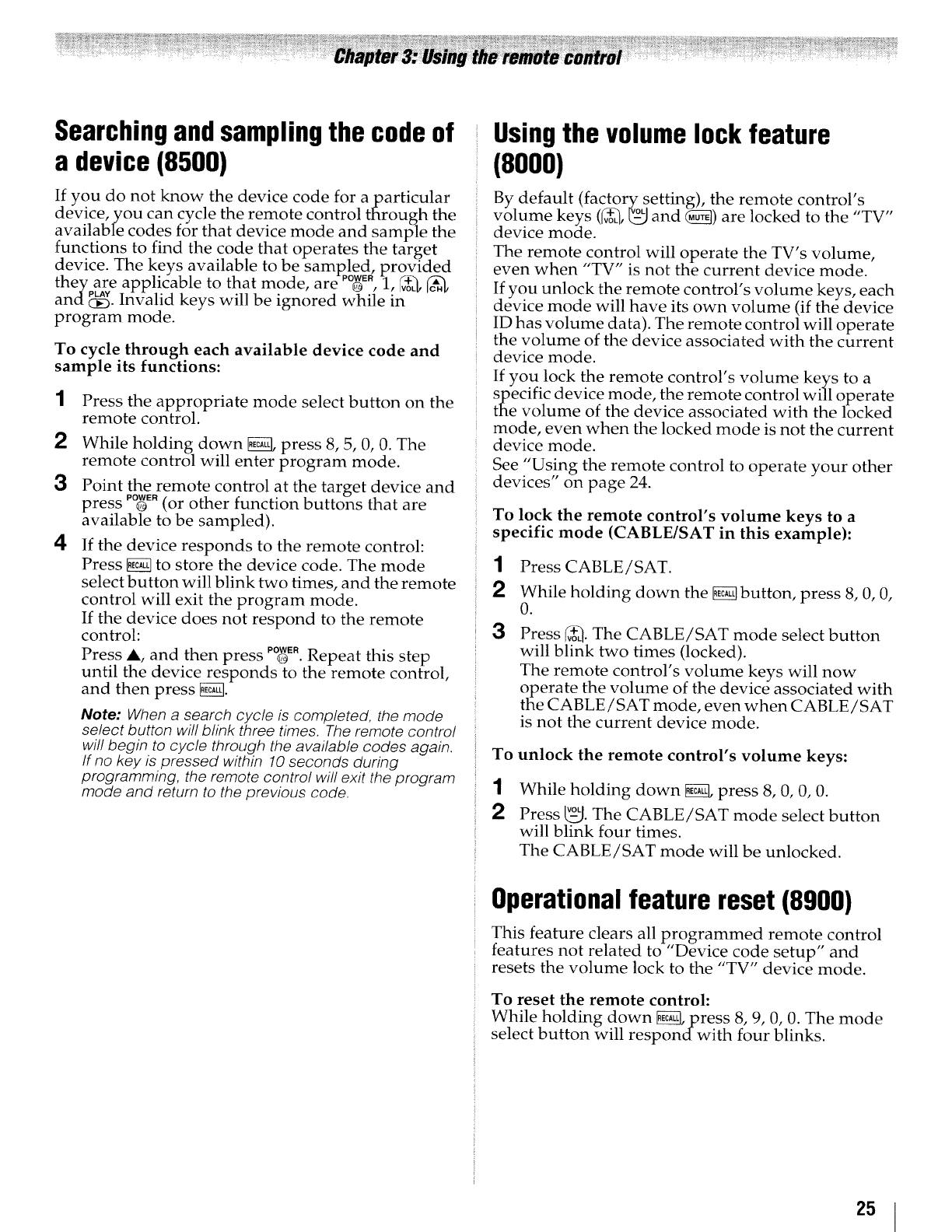
Searchingandsamplingthe codeof
a device (8500)
If you do not know" the device code for aparticular
device, you can cycle the remote control through the
available codes for that device mode and sample the
functions to find the code that operates the target
device. The keys available to be samEled, provided
•POWER
they are apphcable to that mode, are o , 1, _o_
andS. Invalid keys will be ignored while in
program mode.
To cycle through each available device code and
sample its functions:
1
2
3
4
Press the appropriate mode select button on the
remote control.
While holding down _ press 8, 5, 0, 0• The
remote control will enter program mode.
Point the remote control at the target device and
press PO_ER(or other function buttons that are
available to be sampled).
If the device responds to the remote control:
Press _ to store the device code. The mode
select button will blink two times, and the remote
control will exit the program mode.
If the device does not respond to the remote
control:
Press A, and then press PO_R•Repeat this step
until the device responds to the remote control,
and then press _.
Note: When a search cycle is completed, the mode
select button will blink three times, The remote control
wi!! begin to cycle through the available codes again.
If no key is pressed within 10 seconds during
programming, the remote control will exit the program
mode and return to the previous code.
Usingthe volume lock feature
(8000)
By default (factory setting), the remote control's
,4- VOL t1 ,,
volume keys (_+_,_ and (_) are locked to the TV
device mode.
The remote control will operate the TV's volume,
even when "TV" is not the current device mode.
If you unlock the remote control's volume keys, each
device mode will have its own volume (if the device
ID has volume data). The remote control will operate
the volume of the device associated with the current
device mode.
If you lock the remote control's volume keys to a
specific device mode, the remote control will operate
the volume of the device associated with the locked
mode, even when the locked mode is not the current
device mode•
See "Using the remote control to operate your other
devices" on page 24.
To lock the remote control's volume keys to a
specific mode (CABLE/SAT in this example):
1Press CABLE/SAT.
3
While holding down the _ button, press 8, 0, 0,
0.
Press _. The CABLE/SAT mode select button
will blink two times (locked).
The remote control's volume keys will now
operate the volume of the device associated with
the CABLE/SAT mode, even when CABLE/SAT
is not the current device mode.
To
1
2
unlock the remote control's volume keys:
While holding down _ press 8, 0, 0, 0.
Press _-_j.The CABLE/SAT mode select button
will blink four times.
The CABLE/SAT mode will be unlocked.
Operational feature reset (8900)
This feature clears all programmed remote control
features not related to "Device code setup" and
resets the volume lock to the "TV" device mode.
To reset the remote control:
While holding down _, press 8, 9, 0, 0. The mode
select button will respond with four blinks.
25
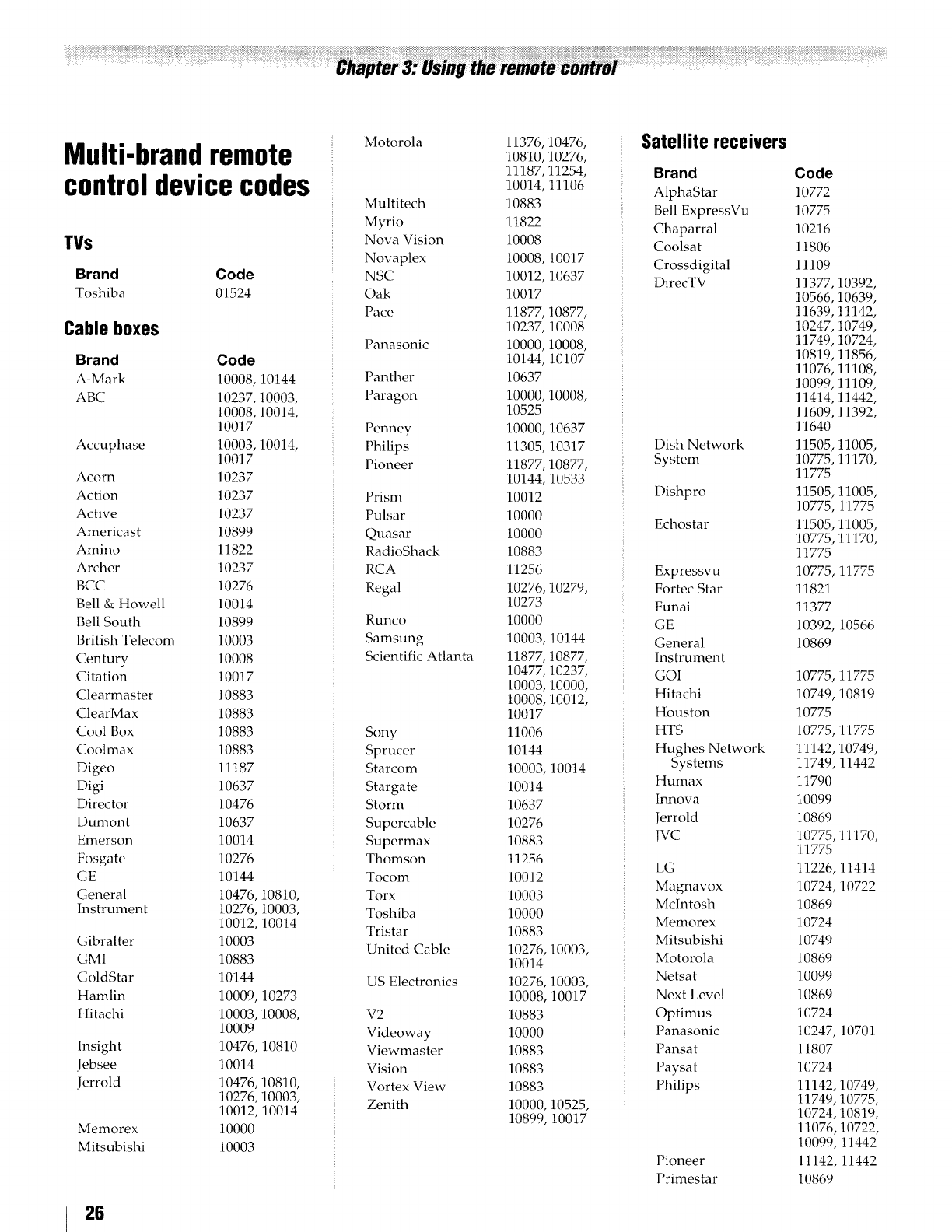
Multi-brandremote
controldevicecodes
TVs
Brand Code
Toshiba 01524
Cable boxes
Brand
A-Mark
ABC
Accuphase
Acorn
Action
Active
Americast
Amino
Archer
BCC
Bell & Howell
Bell South
British Telecom
Century
Citation
Clearmaster
ClearMax
Cool Box
Coolmax
Digeo
Digi
Director
Dumont
Emerson
Fosgate
GE
General
Instrument
Gibralter
GMI
GoldStar
Hamlin
Hitachi
Insight
Jebsee
Jerrold
Memorex
Mitsubishi
Code
10008,10144
10237,10003,
10008,10014,
10017
10003,10014,
10017
10237
10237
10237
10899
11822
10237
10276
10014
10899
10003
10008
10017
10883
10883
10883
10883
11187
10637
10476
10637
10014
10276
10144
10476,10810,
10276,10003,
10012,10014
10003
10883
10144
10009,10273
10003,10008,
10009
10476,10810
10014
10476,10810,
10276,10003,
10012,10014
10000
10003
Motorola
Multitech
Myrio
Nova Vision
Novaplex
NSC
Oak
Pace
Panasonic
Panther
Paragon
Penney
Philips
Pioneer
Prism
Pulsar
Quasar
RadioShack
RCA
Regal
Runco
Samsung
Scientific Atlanta
Sony
Sprucer
Starcom
Stargate
Storm
Supercable
Supermax
Thomson
Tocom
Torx
Toshiba
Tristar
United Cable
US Electronics
V2
Videoway
Viewmaster
Vision
Vortex View
Zenith
11376,10476,
10810,10276,
11187,11254,
10014,11106
10883
11822
10008
10008,10017
10012,10637
10017
11877,10877,
10237,10008
10000,10008,
10144,10107
10637
10000,10008,
10525
10000,10637
11305,10317
11877,10877,
10144,10533
10012
10000
10000
10883
11256
10276,10279,
10273
10000
10003,10144
11877,10877,
10477,10237,
10003,10000,
10008,10012,
10017
11006
10144
10003,10014
10014
10637
10276
10883
11256
10012
10003
10000
10883
10276,10003,
10014
10276,10003,
10008,10017
10883
10000
10883
10883
10883
10000,10525,
10899,10017
Satellite receivers
Brand
AlphaStar
Bell ExpressVu
Chaparral
Coolsat
Crossdigital
DirecTV
Dish Network
System
Dishpro
Echostar
Expressvu
Fortec Star
Funai
GE
General
Instrument
GOI
Hitachi
Houston
HTS
Hughes Network
Systems
Humax
hmova
Jerrold
JVC
LG
Magnavox
Mclntosh
Memorex
Mitsubishi
Motorola
Netsat
Next Level
Optimus
Panasonic
Pansat
Paysat
Philips
Pioneer
Primestar
Code
10772
10775
10216
11806
11109
11377 10392,
10566 10639,
11639 11142,
10247 10749,
11749 10724,
10819 11856,
11076 11108,
10099 11109,
11414 111442,
11609 11392,
11640
11505,11005,
10775,11170,
11775
11505,11005,
10775,11775
11505,11005,
10775,11170,
11775
10775,11775
11821
11377
10392,10566
10869
10775,11775
10749,10819
10775
10775,11775
11142,10749,
11749,11442
11790
10099
10869
10775,11170,
11775
11226,11414
10724,10722
10869
10724
10749
10869
10099
10869
10724
10247,10701
11807
10724
11142,10749,
11749,10775,
10724,10819,
11076,10722,
t(/(/99,11442
11142,11442
10869
26
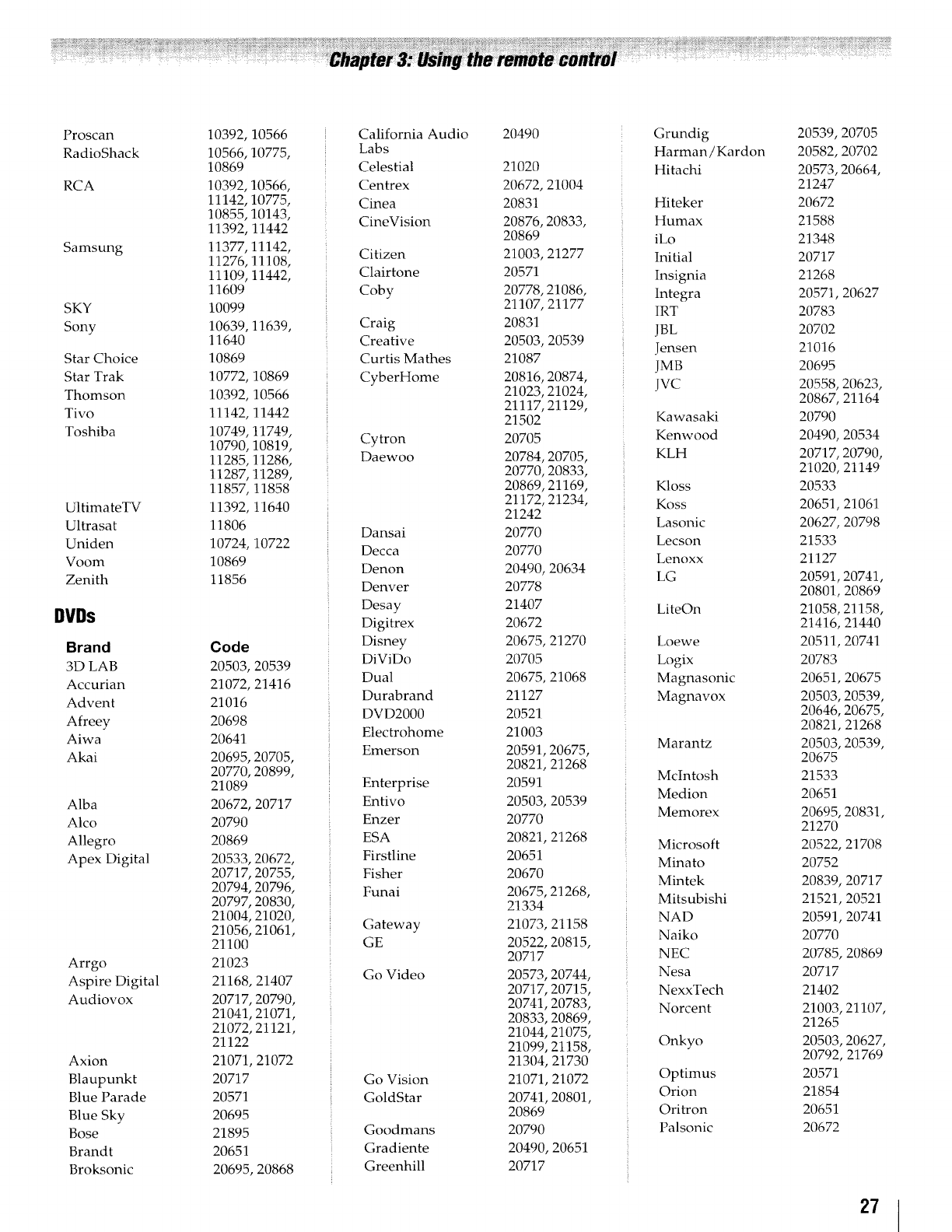
Proscan
RadioShack
RCA
Samsung
SKY
Sony
Star Choice
Star Trak
Thomson
Tivo
Toshiba
UltimateTV
Ultrasat
Uniden
Voom
Zenith
DVDs
Brand
3D LAB
Accurian
Advent
Afreey
Aiwa
Akai
Alba
Alco
Allegro
Apex Digital
Arrgo
Aspire Digital
Audiovox
Axion
Blaupunkt
Blue Parade
Blue Sky
Bose
Brandt
Broksonic
10392,10566
10566,10775,
10869
10392,10566,
11142,10775,
10855,10143,
11392,11442
11377,11142,
11276,11108,
11109,11442,
11609
10099
10639,11639,
11640
10869
10772,10869
10392,10566
11142,11442
10749,11749,
10790,10819,
11285,11286,
11287,11289,
11857,11858
11392,11640
11806
10724,10722
10869
11856
Code
20503,20539
21072,21416
21016
20698
20641
20695,20705,
20770,20899,
21089
20672,20717
20790
20869
20533,20672,
20717,20755,
20794,20796,
20797,20830,
21004,21020,
21056,21061,
21100
21023
21168,21407
20717,20790,
21041,21071,
21072,21121,
21122
21071,21072
20717
20571
20695
21895
20651
20695,20868
California Audio
Labs
Celestial
Centrex
Cinea
CineVision
Citizen
Clairtone
Coby
Craig
Creative
Curtis Mathes
CyberHome
Cytron
Daewoo
Dansai
Decca
Denon
Denver
Desay
Digitrex
Disney
DiViDo
Dual
Durabrand
DVD2000
Electrohome
Emerson
Enterprise
Entivo
Enzer
ESA
Firstline
Fisher
Funai
Gateway
GE
Go Video
Go Vision
GoldStar
Goodmans
Gradiente
Greenhill
20490
21020
20672,21004
20831
20876,20833,
20869
21003,21277
20571
20778,21086,
21107,21177
20831
20503,20539
21087
20816,20874,
21023,21024,
21117,21129,
21502
20705
20784,20705,
20770,20833,
20869,21169,
21172,21234,
21242
20770
20770
20490,20634
20778
21407
20672
20675,21270
20705
20675,21068
21127
20521
21003
20591,20675,
20821,21268
20591
20503,20539
20770
20821,21268
20651
20670
20675,21268,
21334
21073,21158
20522,20815,
20717
20573,20744,
20717,20715,
20741,20783,
20833,20869,
21044,21075,
21099,21158,
21304,21730
21071,21072
20741,20801,
20869
20790
20490,20651
20717
Grundig
Harman/Kardon
Hitachi
Hiteker
Humax
iLo
Initial
Insignia
Integra
IRT
JBL
Jensen
JMB
jvc
Kawasaki
Kenwood
KLH
Kloss
Koss
Lasonic
Lecson
Lenoxx
LG
LiteOn
Loewe
Logix
Magnasonic
Magnavox
Marantz
McIntosh
Medion
Memorex
Microsoft
Minato
Mintek
Mitsubishi
NAD
Naiko
NEC
Nesa
NexxTech
Norcent
Onkyo
Optimus
Orion
Oritron
Palsonic
20539,20705
20582,20702
20573,20664,
21247
20672
21588
21348
20717
21268
20571,20627
20783
20702
21016
20695
20558,20623,
20867,21164
20790
20490,20534
20717,20790,
21020,21149
20533
20651,21061
20627,20798
21533
21127
20591,20741,
20801,20869
21058,21158,
21416,21440
20511, 20741
20783
20651,20675
20503,20539,
20646,20675,
20821,21268
20503,20539,
20675
21533
20651
20695,20831,
21270
20522,21708
20752
20839,20717
21521,20521
20591,20741
2077{)
20785,20869
20717
21402
21003,21107,
21265
20503,20627,
20792,21769
20571
21854
20651
20672
27
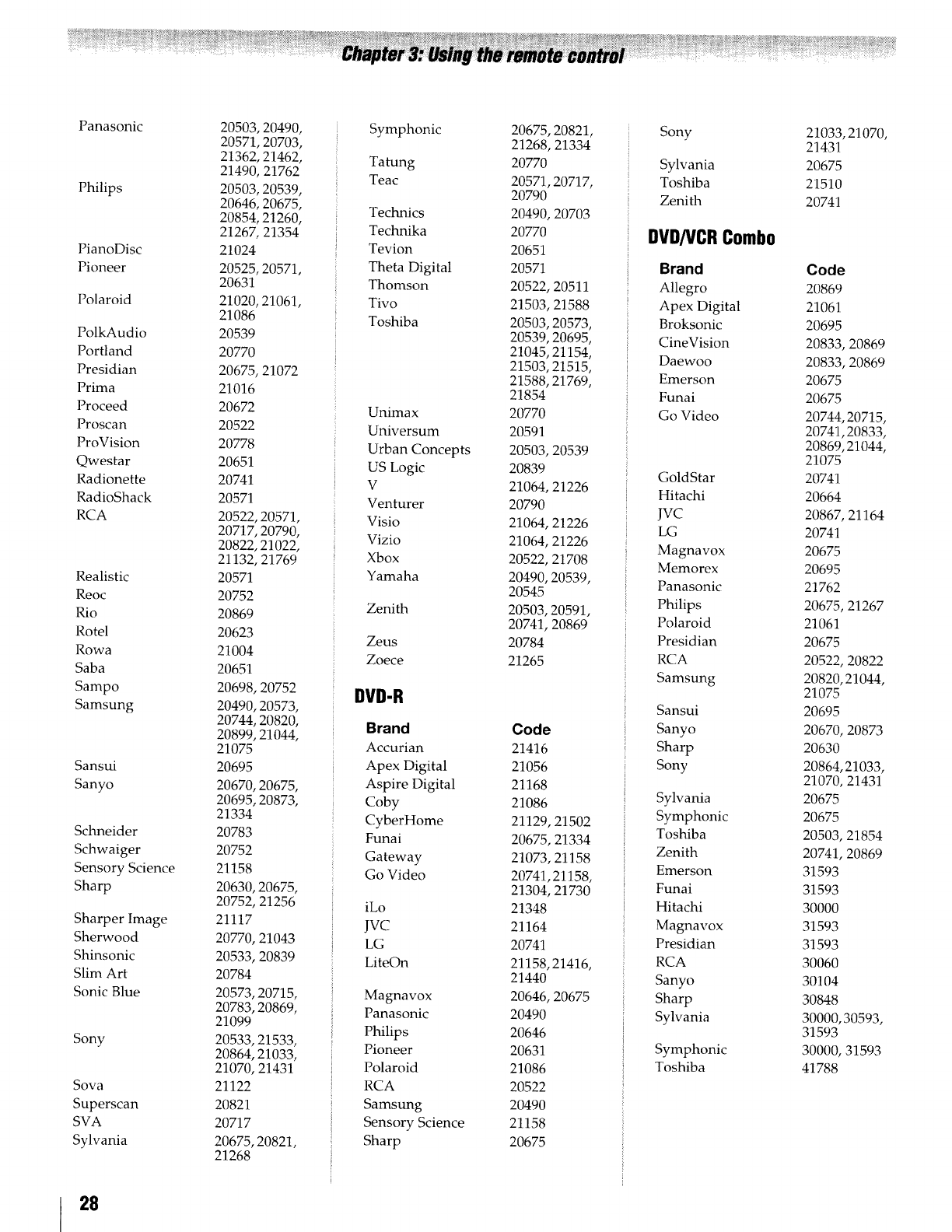
Panasonic
Philips
PianoDisc
Pioneer
Polaroid
PolkAudio
Portland
Presidian
Prima
Proceed
Proscan
ProVision
Qwestar
Radionette
RadioShack
RCA
Realistic
Reoc
Rio
Rotel
Rowa
Saba
Sampo
Samsung
Sansui
Sanyo
Schneider
Schwaiger
Sensory Science
Sharp
Sharper Image
Sherwood
Shinsonic
Slim Art
Sonic Blue
Sony
Sova
Superscan
SVA
Sylvania
20503,20490,
20571,20703,
21362,21462,
21490,21762
20503,20539,
20646,20675,
20854,21260,
21267,21354
21024
20525,20571,
20631
21020,21061,
21086
20539
20770
20675,21072
21016
20672
20522
20778
20651
20741
20571
20522,20571,
2071Z 20790,
20822,21022,
21132,21769
20571
20752
20869
20623
21004
20651
20698,20752
20490,20573,
20744,20820,
20899,21044,
21075
20695
20670,20675,
20695,20873,
21334
20783
20752
21158
20630,20675,
20752,21256
21117
20770,21043
20533,20839
20784
20573,20715
20783,20869
21099
20533,21533,
20864,21033,
21070,21431
21122
20821
20717
20675,20821,
21268
Symphonic
Tatung
Teac
Technics
Technika
Tevion
Theta Digital
Thomson
Tivo
Toshiba
Unimax
Universum
Urban Concepts
US Logic
V
Venturer
Visio
Vizio
Xbox
Yamaha
Zenith
Zeus
Zoece
DVD-R
Brand
Accurian
Apex Digital
Aspire Digital
Coby
CyberHome
Funai
Gateway
Go Video
iLo
JVC
LG
LiteOn
Magnavox
Panasonic
Philips
Pioneer
Polaroid
RCA
Samsung
Sensory Science
Sharp
20675,20821,
21268,21334
20770
20571,20717,
20790
20490,20703
20770
20651
20571
20522,20511
21503,21588
20503,20573,
20539,20695,
21045,21154,
21503,21515,
21588,21769,
21854
20770
20591
20503,20539
20839
21064,21226
20790
21064,21226
21064,21226
20522, 21708
20490,20539,
20545
20503,20591,
20741, 20869
20784
21265
Code
21416
21056
21168
21086
21129,21502
20675,21334
21073,21158
20741,21158,
21304,21730
21348
21164
20741
21158,21416,
21440
20646,20675
20490
20646
20631
21086
20522
20490
21158
20675
Sony
Sylvania
Toshiba
Zenith
DVD/VCR Combo
Brand
Allegro
Apex Digital
Broksonic
CineVision
Daewoo
Emerson
Funai
Go Video
GoldStar
Hitachi
JVC
LG
Magnavox
Memorex
Panasonic
Philips
Polaroid
Presidian
RCA
Samsung
Sansui
Sanyo
Sharp
Sony
Sylvania
Symphonic
Toshiba
Zenith
Emerson
Funai
Hitachi
Magnavox
Presidian
RCA
Sanyo
Sharp
Sylvania
Symphonic
Toshiba
21033,21070,
21431
20675
21510
20741
Code
20869
21061
20695
20833,20869
20833,20869
20675
20675
20744,20715,
20741,20833,
20869,21044,
21075
20741
20664
20867,21164
20741
20675
20695
21762
20675,21267
21061
20675
20522,20822
20820,21044,
21075
20695
20670,20873
20630
20864,21033,
21070,21431
20675
20675
20503,21854
20741, 20869
31593
31593
30000
31593
31593
30060
30104
30848
30000,30593,
31593
30000,31593
41788
28
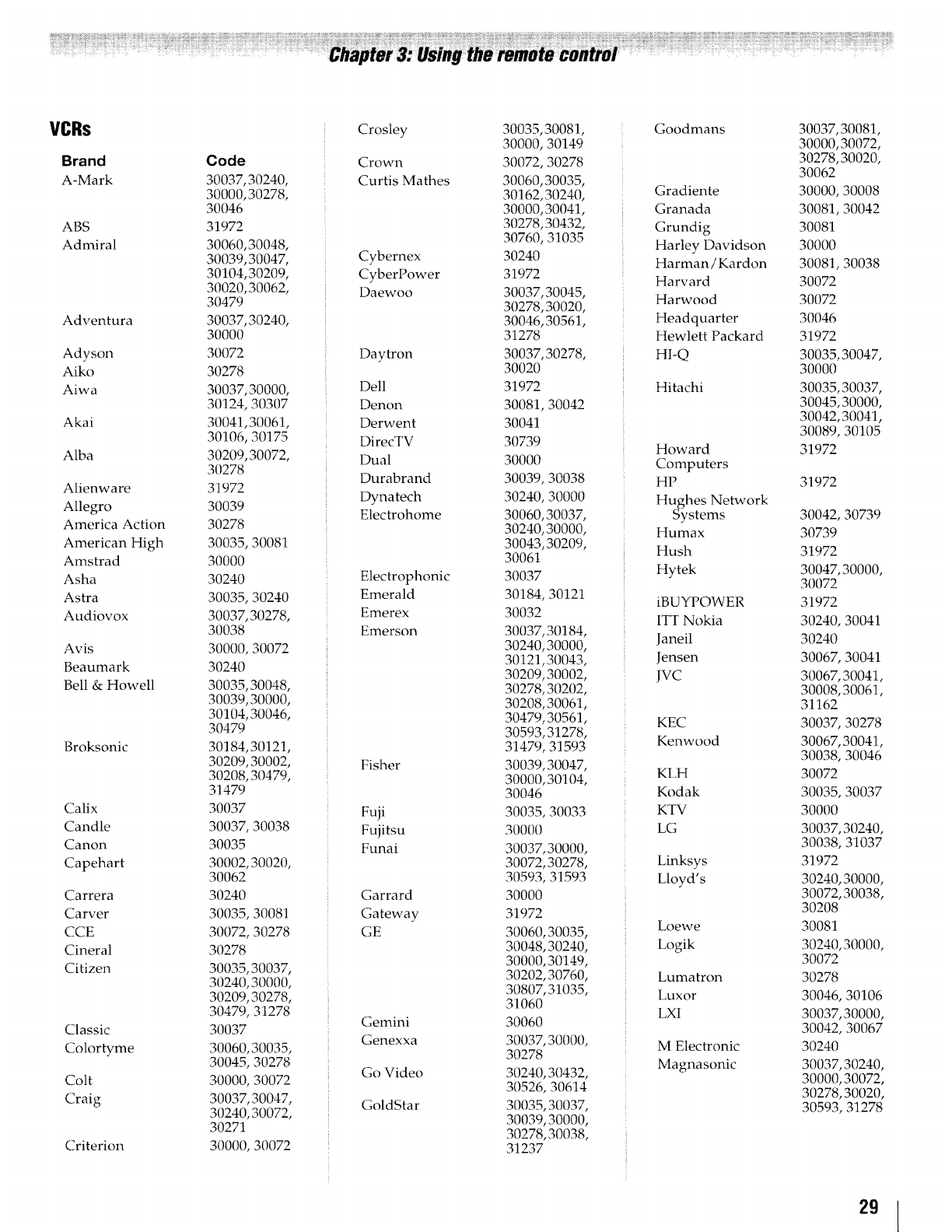
VCRs
Brand
A-Mark
ABS
Admiral
Adventura
Adyson
Aiko
Aiwa
Akai
Alba
Alienware
Allegro
America Action
American High
Amstrad
Asha
Astra
Audiovox
Avis
Beaumark
Bell & Howell
Broksonic
Calix
Candle
Canon
Capehart
Carrera
Carver
CCE
Cineral
Citizen
Classic
Colortyme
Colt
Craig
Criterion
Code
30037,30240,
30000,30278,
30046
31972
30060,30048,
30039,30047,
30104,30209,
30020,30062,
30479
30037,30240,
30000
30072
30278
30037,30000,
30124,30307
30041,30061,
30106,30175
30209,30072,
30278
31972
30039
30278
30035,30081
30000
30240
30035,30240
30037,30278,
30038
30000,30072
30240
30035,30048,
30039,30000,
30104,30046,
30479
30184,30121,
30209,30002,
30208,30479,
31479
30037
30037,30038
30035
30002,30020,
30062
30240
30035,30081
30072,30278
30278
30035,30037,
30240,30000,
30209,30278,
30479,31278
30037
30060,30035,
30045,30278
30000,30072
30037,30047,
30240,30072,
30271
30000,30072
E
Crosley
Crown
Curtis Mathes
Cybernex
CyberPower
Daewoo
Daytron
Dell
Denon
Derwent
DirecTV
Dual
Durabrand
Dynatech
Electrohome
Electrophonic
Emerald
Emerex
Emerson
Fisher
Fuji
Fujitsu
Eunai
Garrard
Gateway
GE
Gemini
Genexxa
Go Video
GoldStar
30035,30081,
30000,30149
30072,30278
30060,30035,
30162,30240,
30000,30041,
30278,30432,
30760,31035
30240
31972
30037,30045,
30278,30020,
30046,30561,
31278
30037,30278,
30020
31972
30081,30042
30041
30739
30000
30039,30038
30240,30000
30060,30037,
30240,30000,
30043,30209,
30061
30037
30184,30121
30032
30037,30184,
30240,30000,
30121,30043,
30209,30002,
30278,30202,
30208,30061,
30479,30561,
30593,31278,
31479,31593
30039,30047,
30000,30104,
30046
30035,30033
30000
30037,30000,
30072,30278,
30593,31593
30000
31972
30060,30035,
30048,30240,
30000,30149,
30202,30760,
30807,31035,
31060
30060
30037,30000,
30278
30240,30432,
30526,30614
30035,30037,
30039,30000,
30278,30038,
31237
Goodmans
Gradiente
Granada
Grundig
Harley Davidson
Harman/Kardon
Harvard
Harwood
Headquarter
Hewlett Packard
HI-Q
Hitachi
Howard
Computers
HP
Hughes Network
Systems
Humax
Hush
Hytek
iBUYPOWER
ITT Nokia
Janeil
Jensen
jvc
KEC
Kenwood
KLH
Kodak
KTV
LG
Linksys
Lloyd's
Loewe
Logik
Lumatron
Luxor
I_XI
M Electronic
Magnasonic
30037,30081,
30000,30072,
30278,30020,
30062
30000,30008
30081,30042
30081
30000
30081,30038
30072
30072
30046
31972
30035,30047,
30000
30035,30037,
30045,30000,
30042,30041,
30089,30105
31972
31972
30042,30739
30739
31972
30047,30000,
30072
31972
30240,30041
30240
30067,30041
30067,30041,
30008,30061,
31162
30037,30278
30067,30041,
30038,30046
30072
30035,30037
30000
30037,30240,
30038,31037
31972
30240,30000,
30072,30038,
30208
30081
30240,30000,
30072
30278
30046,30106
30037,30000,
30042,30067
30240
30037,30240,
30000,30072,
30278,30020,
30593,31278
29
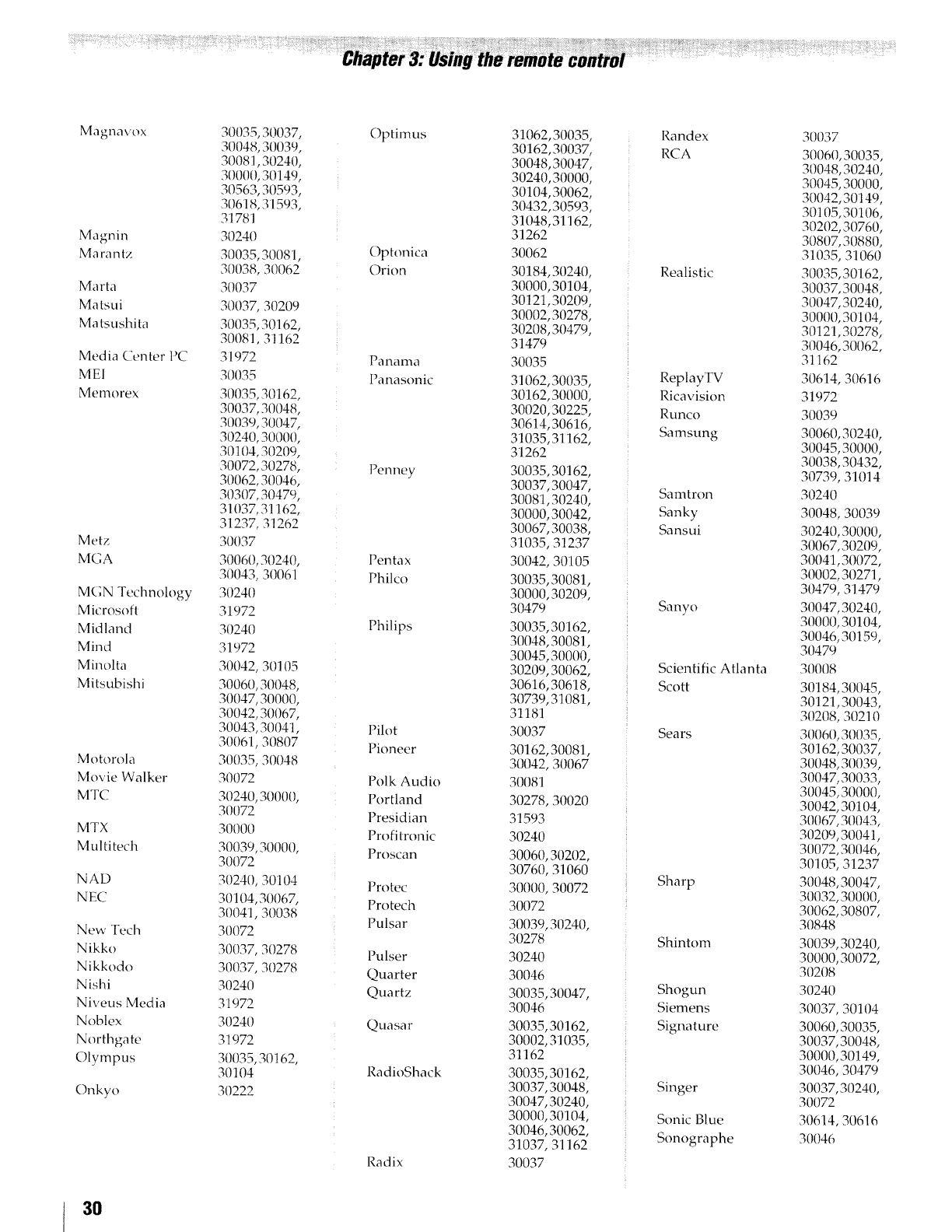
Magnavox
Magnin
Marantz
Marta
Matsui
Ma tsushita
Media Center PC
MEI
Memorex
Metz
MGA
MGN Technology
Microsoft
Midland
Mind
Minolta
Mitsubishi
Motorola
Movie Walker
MTC
MTX
Multitech
NAD
NEC
New Tech
Nikko
Nikkodo
Nishi
Niveus Media
Noblex
Northgate
Olympus
Onkyo
3O
30{}35,30037,
30048, 30039,
30081,30240,
30000, 30149,
30563, 30593,
3(!618, 31593,
31781
30240
30035, 30081,
30038, 30062
3{}037
30037, 30209
30035, 30162,
30081,31162
31972
30035
30035, 30162,
30037, 30048,
30039, 30047,
30240, 30000,
30104, 30209,
30072, 30278,
30062, 30046,
30307, 30479,
31037,31162,
31237, 31262
30037
30060, 30240,
30043, 30061
30240
31972
30240
31972
30042, 30105
30060, 30048,
30047, 30000,
30042, 30067,
30043, 30041,
30061, 30807
30035, 30048
30(372
30240, 30000,
30072
30000
30039, 30000,
30072
30240, 30104
30104, 30067,
30041, 30038
30072
30037, 30278
30{}37, 30278
30240
31972
30240
31972
30035, 30162,
30104
30222
Optimus
Optnnica
Ori on
Panama
Panasonic
Penney
Pentax
Philco
Philips
Pilot
Pioneer
Polk Audio
Portland
Presidian
Profi tronic
Proscan
Protec
Protech
Pulsar
Pulser
Quarter
Quartz
Quasar
RadioShack
Radix
31062, 30035,
30162, 30037,
30048, 30047,
30240, 30000,
30104, 30062,
30432, 30593,
31048,31162,
31262
30062
30184, 30240,
30000, 30104,
30121,30209,
30002,30278,
30208, 30479,
31479
30035
31062, 30035,
30162, 30000,
30020, 30225,
30614,30616,
31035,31162,
31262
30035, 30162,
30037, 30047,
30081,30240,
30000, 30042,
30067, 30038,
31035, 31237
30042, 30105
30035, 30081,
30000, 30209,
30479
30035, 30162,
30048, 30081,
30045, 30000,
30209, 30062,
30616, 30618,
30739, 31081,
31181
30037
30162, 30081,
30042, 30067
30081
30278, 30020
31593
30240
30060, 30202,
30760, 31060
30000, 30072
30072
30039, 30240,
30278
30240
30046
30035,30047,
30046
30035, 30162,
30002, 31035,
31162
30035, 30162,
30037, 30048,
30047, 30240,
30000, 30104,
30046, 30062,
31037, 31162
30037
Randex
RCA
Realistic
ReptayTV
Ricavision
Runco
Samsung
Samtron
Sanky
Sansui
Sanyo
Scientific Atlanta
Scott
Sears
Sharp
Shintom
Shogun
Siemens
Signature
Singer
Sonic Blue
Sonographe
30037
3006{},30035,
30048, 30240,
30045, 30000,
3(1042, 30149,
30105,30106,
30202, 30760,
30807, 30880,
31035, 31060
30035,30162,
30037,30048,
30047, 30240,
30000, 30104,
30121,30278,
30046, 30062,
31162
30614, 30616
31972
30039
30060, 30240,
30045, 30000,
30038, 30432,
30739, 31014
30240
30048, 30039
30240, 30000,
30067, 30209,
30041,30072,
30002,30271,
30479, 31479
30047, 30240,
30000, 30104,
30046, 30159,
30479
300{}8
30184, 30045,
30121,30{}43,
30208, 30210
30060, 30035,
30162, 30037,
30048, 30039,
30047, 30033,
30045, 30000,
30042, 30104,
30067, 3{}043,
30209, 30041,
3{}072, 30046,
30105, 31237
3{}{}48,30047,
30032, 30000,
30062, 30807,
30848
30039, 30240,
30000, 30072,
30208
30240
30037, 30104
30060, 30035,
30037, 30048,
30000, 3014%
30046, 30479
30037, 3{1240,
30072
30614, 3{1616
30046
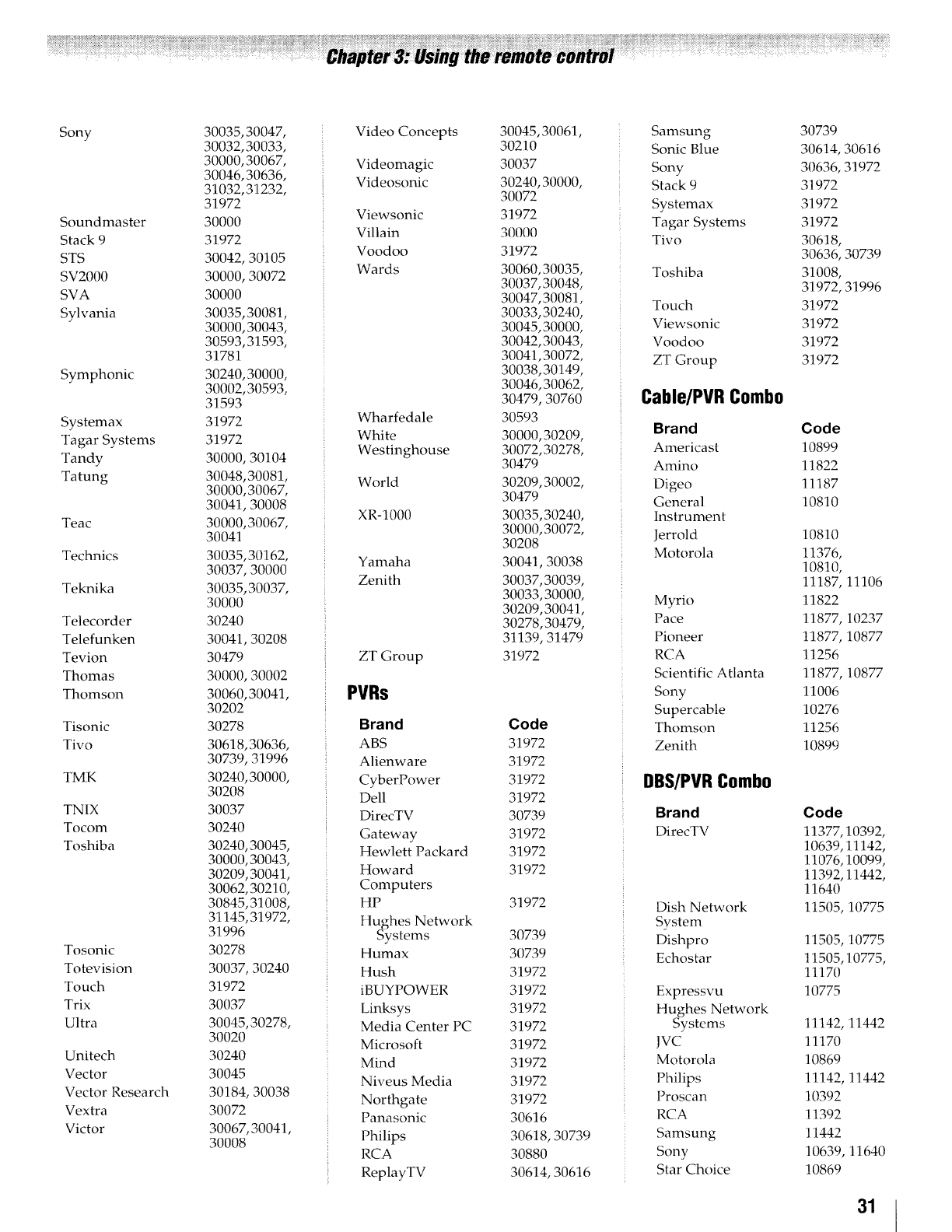
Sony
Soundmaster
Stack9
STS
SV2000
SVA
Sylvania
Symphonic
Systemax
TagarSystems
Tandy
Tatung
Teac
Technics
Teknika
Telecorder
Telefunken
Tevion
Thomas
Thomson
Tisonic
Tivo
TMK
TNIX
Tocom
Toshiba
Tosonic
Totevision
Touch
Trix
Ultra
Unitech
Vector
VectorResearch
Vextra
Victor
30035,30047,
30032,30033,
30000,30067,
30046,30636,
31032,31232,
31972
30000
31972
30042,30105
30000,30072
30000
30035,30(}81,
30000,30043,
30593,31593,
31781
30240,30000,
30002,30593,
31593
31972
31972
30000,30104
30048,30081,
30000,30067,
30041,30008
30000,30067,
30041
30035,30162,
30037,30000
30035,30037,
30000
30240
30041,30208
30479
30000,30002
30060,30041,
30202
30278
30618,30636,
30739,31996
30240,30000,
30208
30037
30240
30240,30045,
30000,30043,
30209,30041,
30062,30210,
30845,31008,
31145,31972,
31996
30278
30037,30240
31972
30037
30045,30278,
30020
30240
3(}045
30184,30038
30072
30067,30041,
30008
VideoConcepts
Videomagic
Videosonic
Viewsonic
Villain
Voodoo
Wards
Wharfedale
White
Westinghouse
World
XR-1000
Yamaha
Zenith
ZTGroup
PVRs
Brand
ABS
Alienware
CyberPower
Dell
DirecTV
Gateway
Hewlett Packard
Howard
Computers
HP
Hughes Network
Systems
Humax
Hush
iBUYPOWER
Linksys
Media Center PC
Microsoft
Mind
Niveus Media
Northgate
Panasonic
Philips
RCA
ReplayTV
30045,30061,
30210
30037
30240,30000,
30072
31972
30000
31972
30060,30035,
30037,30048,
30047,30081,
30033,30240,
30045,30000,
30042,30043,
30041,30072,
30038,30149,
30046,30062,
30479,30760
30593
30000,30209,
30072,30278,
30479
30209,30002,
30479
30035,30240,
30000,30072,
30208
30041,30038
30037,30039,
30033,30000,
30209,30041,
30278,30479,
31139,31479
31972
Code
31972
31972
31972
31972
30739
31972
31972
31972
31972
30739
30739
31972
31972
31972
31972
31972
31972
31972
31972
30616
30618,30739
30880
30614,30616
Samsung
Sonic Blue
Sony
Stack 9
Systemax
Tagar Systems
Tivo
Toshiba
Touch
Viewsonic
Voodoo
ZT Group
Cable/PVR Combo
Brand
Americast
Amino
Digeo
General
Instrument
Jerrold
Motorola
Myrio
Pace
Pioneer
RCA
Scientific Atlanta
Sony
Supercable
Thomson
Zenith
DBS/PVR Combo
Brand
DirecTV
Dish Network
Svstem
Dishpro
Echostar
Expressvu
Hughes Network
Systems
IVC
Motorola
Philips
Proscan
RCA
Samsung
Sony
Star Choice
30739
30614,30616
30636,31972
31972
31972
31972
30618,
30636,30739
31008,
31972,31996
31972
31972
31972
31972
Code
10899
11822
11187
10810
10810
11376,
10810,
11187,11106
11822
11877,10237
11877,10877
11256
11877,10877
11006
10276
11256
10899
Code
11377,10392,
10639,11142,
11076,10099,
11392,11442,
11640
11505,10775
11505,10775
11505,10775,
11170
10775
11142,11442
11170
10869
11142,11442
10392
11392
11442
10639,11640
10869
31
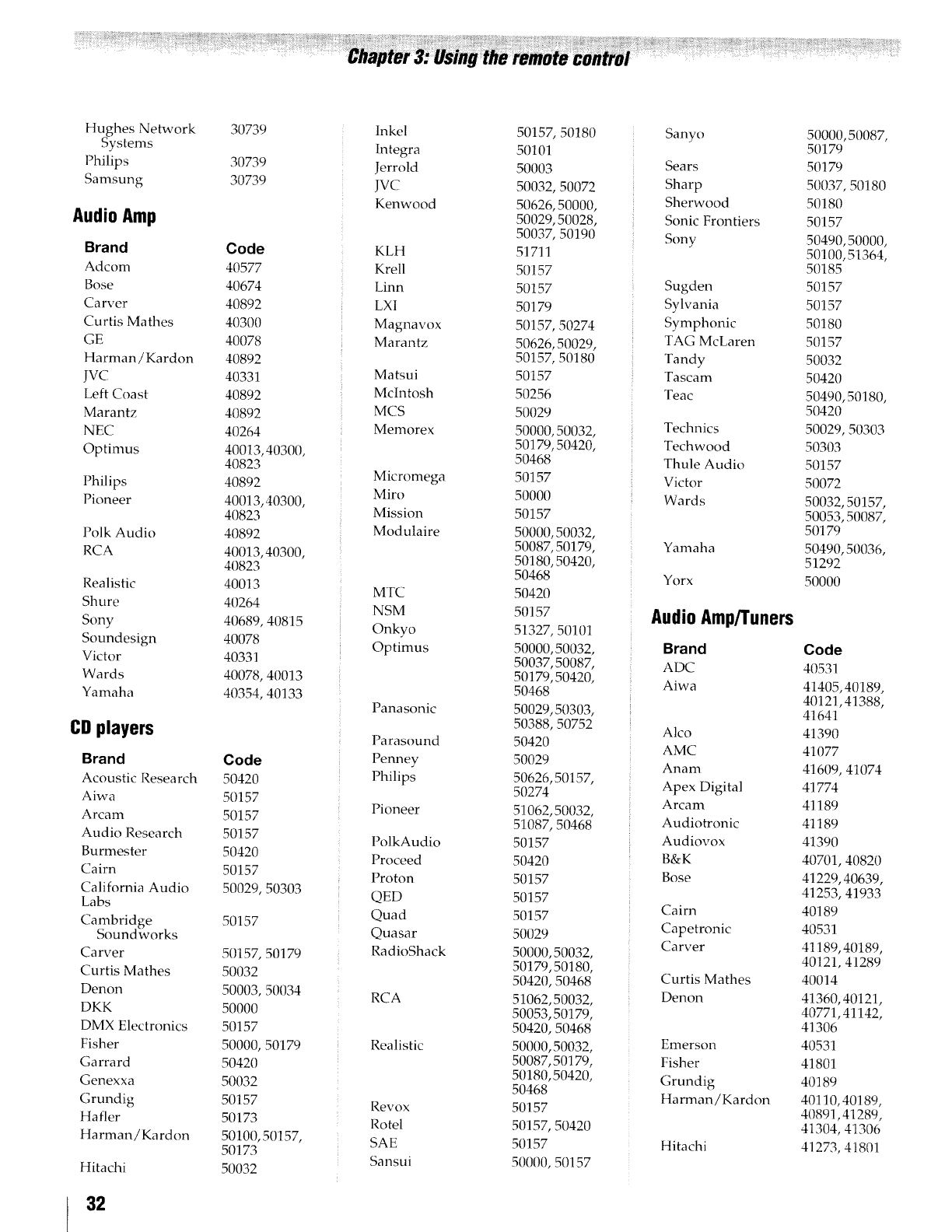
Hughes Network 30739
Systems
Philips 30739
Samsung 30739
AudioAmp
Brand Code
Adcom 40577
Bose 40674
Carver 40892
Curtis Mathes 40300
GE 40078
Harman/Kardon 40892
JVC 40331
Left Coast 40892
Marantz 40892
NEC 40264
Optimus 40013, 40300,
40823
Philips 40892
Pioneer 40013, 40300,
40823
Polk Audio 40892
RCA 40013, 40300,
40823
Realistic 40013
Shure 40264
Sony 40689, 40815
Soundesign 40078
Victor 40331
W ard s 40078, 40013
Yamaha 40354, 40133
CD players
Brand Code
Acoustic Research 50420
Aiwa 50157
Arcam 50157
Audio Research 50157
Burmester 50420
Cairn 50157
California Audio 50029, 50303
Labs
Cambridge 50157
Sound works
Carver 5(1157, 50179
Curtis Mathes 50032
Denon 50003, 50034
DKK 50000
DMX Electronics 50157
Fisher 50000, 50179
Garrard 50420
Genexxa 50032
Grundig 50157
Hafler 50173
Harman/Kardon 50100,50157,
50173
Hitachi 50032
Inkel
lntegra
Jerro/d
jvc
Kenwood
KLH
Krell
I_inn
LXI
Magnavox
Marantz
Matsui
McIntosh
MCS
Memorex
Micromega
Miro
Mission
Modulaire
MTC
NSM
Onkyo
Optimus
Panasonic
Parasound
Penney
Philips
Pioneer
PolkAudio
Proceed
Proton
QED
Quad
Quasar
RadioShack
RCA
Realistic
Revox
Rotel
SAE
Sansui
50157,50180
50101
50003
50032,50072
50626,50000,
50029,50028,
50037,50190
51711
50157
50157
50179
50157,50274
50626,50029,
50157,50180
50157
50256
50029
50000,50032,
50179,50420,
50468
50157
50000
50157
50000,50032,
50087,5(1179,
50180,50420,
50468
50420
50157
51327,50101
50000,50032,
50037,50087,
50179,50420,
50468
50029,50303,
50388,50752
50420
50029
50626,50157,
50274
51062,50032,
51.087,50468
50157
50420
50157
50157
50157
50029
50000,50032,
50179,50180,
50420,50468
51062,50032,
50053,50179,
50420,50468
50000,50032,
50087,50179,
50180,50420,
50468
50157
50157,50420
50157
50000,50157
Sanyo
Sears
Sharp
Sherwood
Sonic Frontiers
Sony
Sugden
Sylvania
Symphonic
TAG McLaren
Tandy
Tascam
Teac
Technics
Techwood
Thule Audio
Victor
Wards
Yamaha
Yorx
AudioAmp/Tuners
Brand
ADC
Aiwa
Alco
AMC
Anam
Apex Digital
Arcam
Audiotronic
Audiovox
B&K
Bose
Cairn
Capetronic
Carver
Curtis Mathes
Denon
Emerson
Fisher
Grundig
Harman/Kardon
Hitachi
50000,50087,
50179
50179
50037,50180
50180
50157
50490,50000,
50100,51364,
50185
50157
50157
50180
50157
50032
50420
50490,50180,
50420
50029,50303
50303
50157
50072
50032,50157,
50053,50087,
5(3179
50490,50036,
51292
50000
Code
40531
41405,40189,
40121,41388,
41641
41390
41077
41609,41074
41774
41189
41189
41390
40701,40820
41229,40639,
41253,41933
40189
40531
41189,40189,
40121,41289
40014
41360,40121,
40771,41142,
41306
40531
41801
40189
40110,40189,
40891,41289,
41304,41306
41273,41801
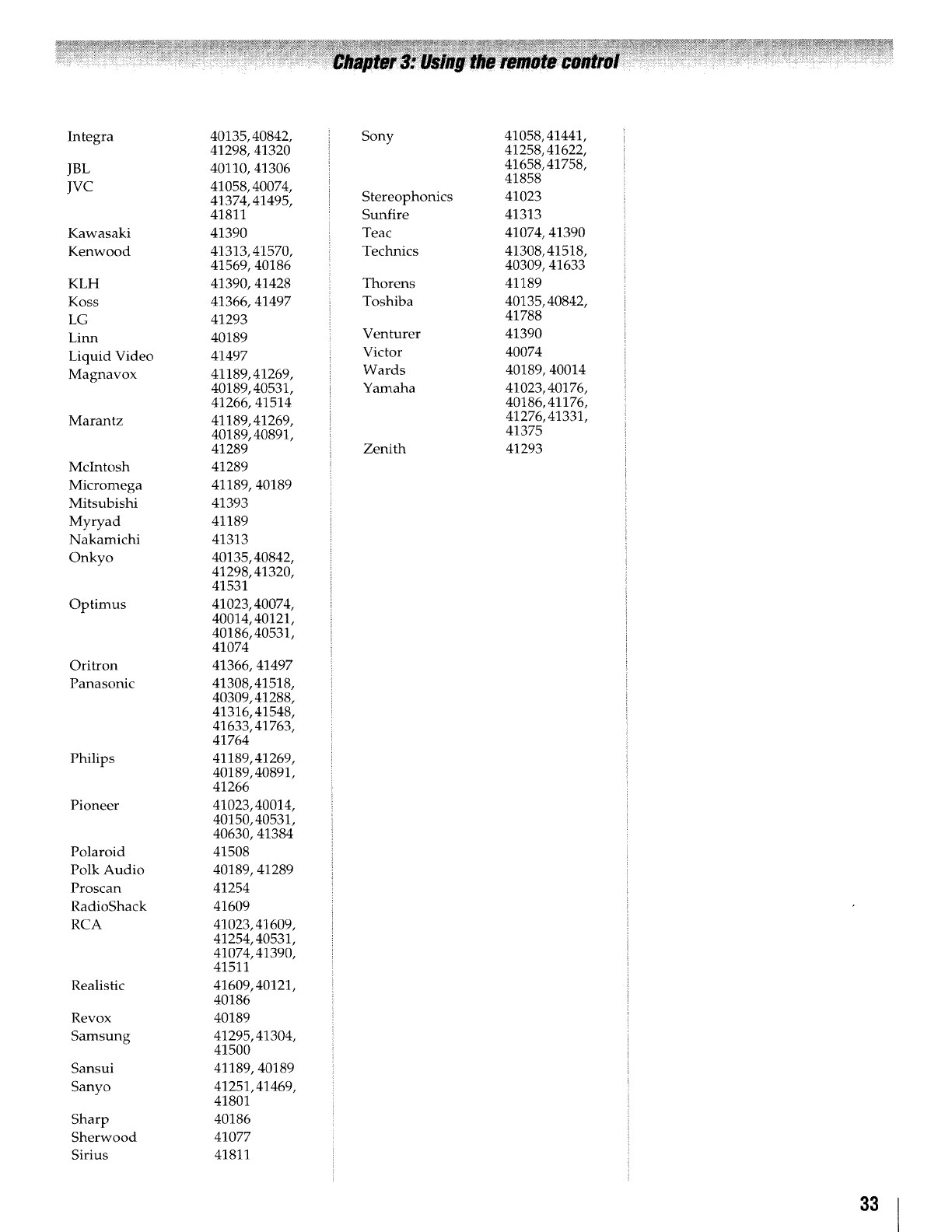
Integra
JBL
JVC
Kawasaki
Kenwood
KLH
Koss
LG
Linn
LiquidVideo
Magnavox
Marantz
McIntosh
Micromega
Mitsubishi
Myryad
Nakamichi
Onkyo
Optimus
Oritron
Panasonic
Philips
Pioneer
Polaroid
PolkAudio
Proscan
RadioShack
RCA
Realistic
Revox
Samsung
Sansui
Sanyo
Sharp
Sherwood
Sirius
40135,40842,
41298,41320
40110,41306
41058,40074,
41374,41495,
41811
41390
41313,41570,
41569,40186
41390.41428
41366,41497
41293
40189
41497
41189,41269,
40189,40531,
41266,41514
41189,41269,
40189,40891,
41289
41289
41189,40189
41393
41189
41313
40135,40842,
41298,41320,
41531
41023,40074,
40014,40121,
40186,40531,
41074
41366.41497
41308,41518,
40309,41288,
41316,41548,
41633,41763,
41764
41189,41269,
40189.40891,
41266
41023,40014,
4015_,40531,
4063G,41384
41508
40189,41289
41254
41609
41023,41609,
41254,40531,
41074,41390,
41511
41609,40121,
40186
40189
41295,41304,
41500
41189,40189
41251,41469,
41801
40186
41077
41811
Sony
Stereophonics
Sunfire
Teac
Technics
Thorens
Toshiba
Venturer
Victor
Wards
Yamaha
Zenith
41058,41441,
41258,41622,
41658,41758,
41858
41023
41313
41074,41390
41308,41518,
40309,41633
41189
40135,40842,
41788
41390
40074
40189,40014
41023.40176,
40186,41176,
41276.41331.
41375
41293
33
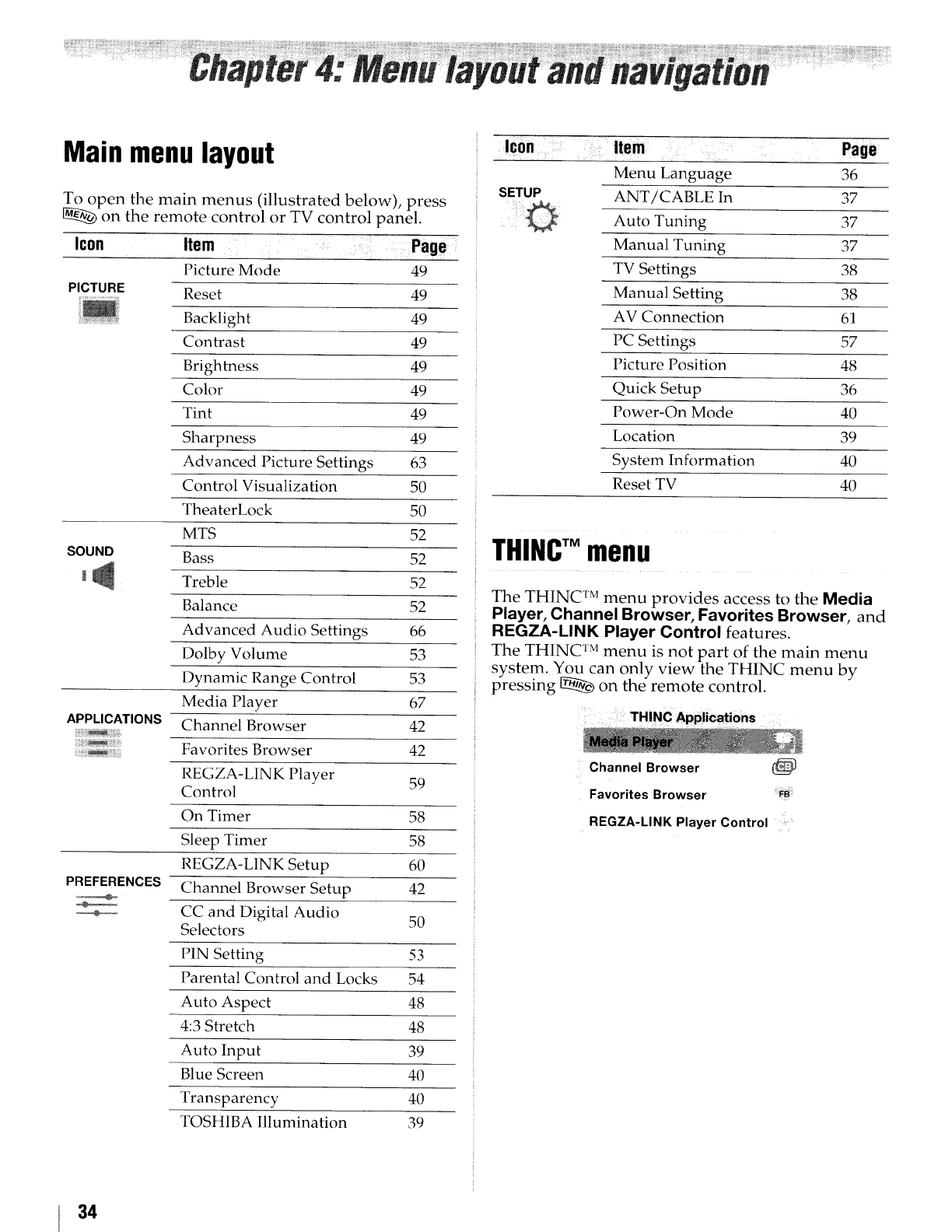
Main menulayout
To open the main menus {illustrated below), press
on the remote control or TV control panel.
Icon Item Page
Picture Mode 49
PICTURE Reset 49
Backlight 49
Contrast 49
Brightness 49
Color 49
Tint 49
Sharpness 49
Advanced Picture Settings 63
Control Visualization 50
TheaterLock 50
MTS 52
SOU ND Bass 52
_ Treble 52
Balance 52
Advanced Audio Settings 66
Dolby Volume 53
Dynamic Range Control 53
Media Player 67
APPLICATIONS Channel Browser 42
Favorites Browser 42
REGZA-LIN K Player 59
Control
On Timer 58
Sleep Timer 58
REGZA-LINK Setup 60
PREFERENCES Channel Browser Setup 42
:7_:_ CC and Digital Audio 50
.... f_ .........
Selectors
PIN Setting 53
Parental Control and Locks 54
Auto Aspect 48
4:3 Stretch 48
Auto Input 39
Blue Screen 40
Transparency 40
TOSt flBA Illumination 39
Icon item Page
Menu Language 36
SETUP ANT/CABLE In 37
O Auto Tuning 37
Manual Tuning 37
TV Settings 38
Manual Setting 38
AV Connection 61
PC Settings 57
Picture Position 48
Quick Setup 36
Power-On Mode 40
Location 39
System Information 40
Reset TV 40
THINC'"menu
The THINC TM menu provides access to the Media
Player, Channel Browser, Favorites Browser, and
REGZA-LINK Player Control features.
The THINC rMmenu is not part of the main menu
system. You can only view the THINC menu by
pressing [Z_ on the remote control.
THINC Applications
Channel Browser (_
Favorites Browser FB
REGZA-LINK Player Control
34
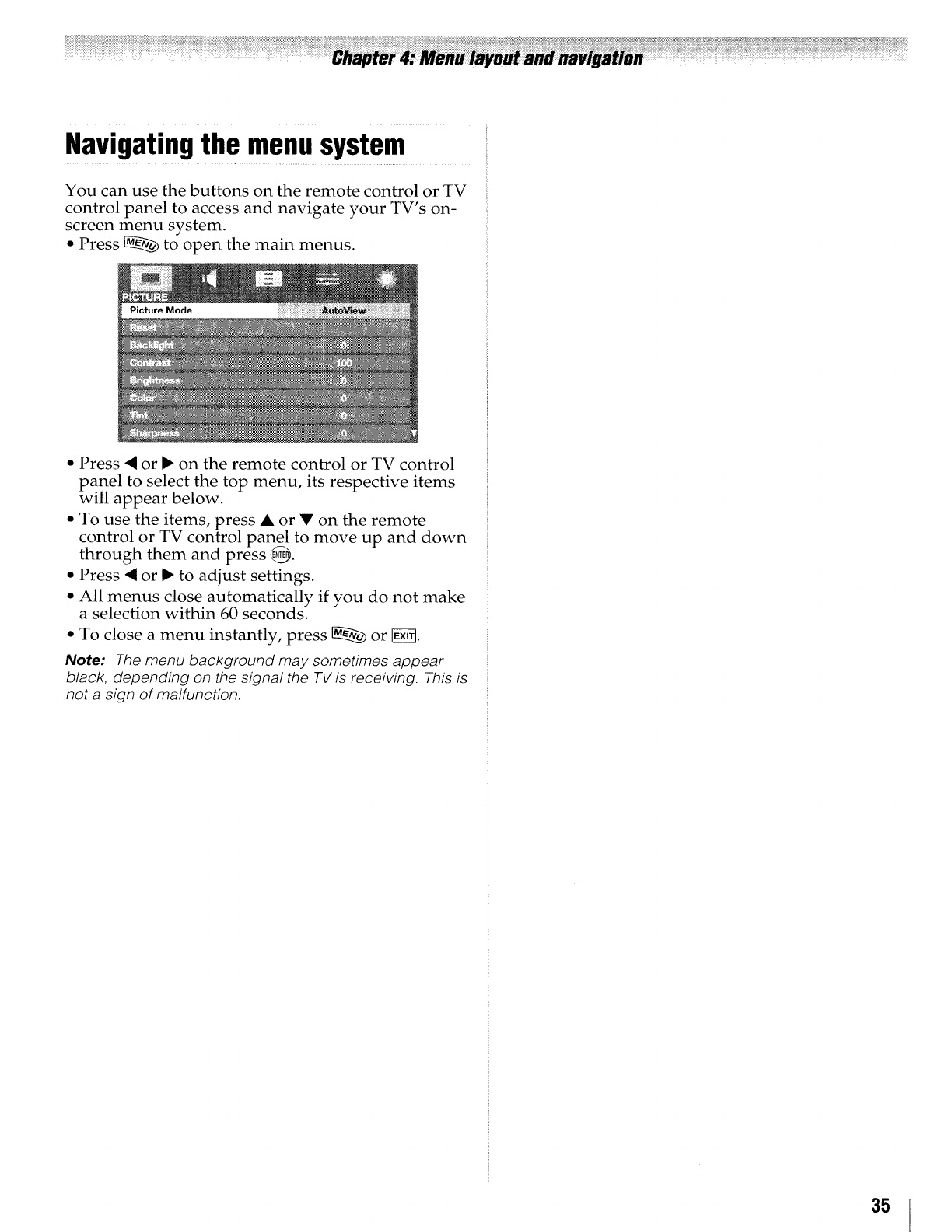
Navigatingthe menusystem
You can use the buttons on the remote control or TV
control panel to access and navigate your TV's on-
screen menu system.
• Press _ to open the main menus.
• Press <or _ on the remote control or TV control
panel to select the top menu, its respective items
will appear below.
• To use the items, press A or •on the remote
control or TV control panel to move up and down
through them and press _.
• Press <or _ to adjust settings.
• All menus close automatically if you do not make
a selection within 60 seconds.
° To close a menu instantly, press _ or [_.
Note: The menu background may sometimes appear
black, depending on the signal the TV is receiving. This is
not a sign of malfunction.
35
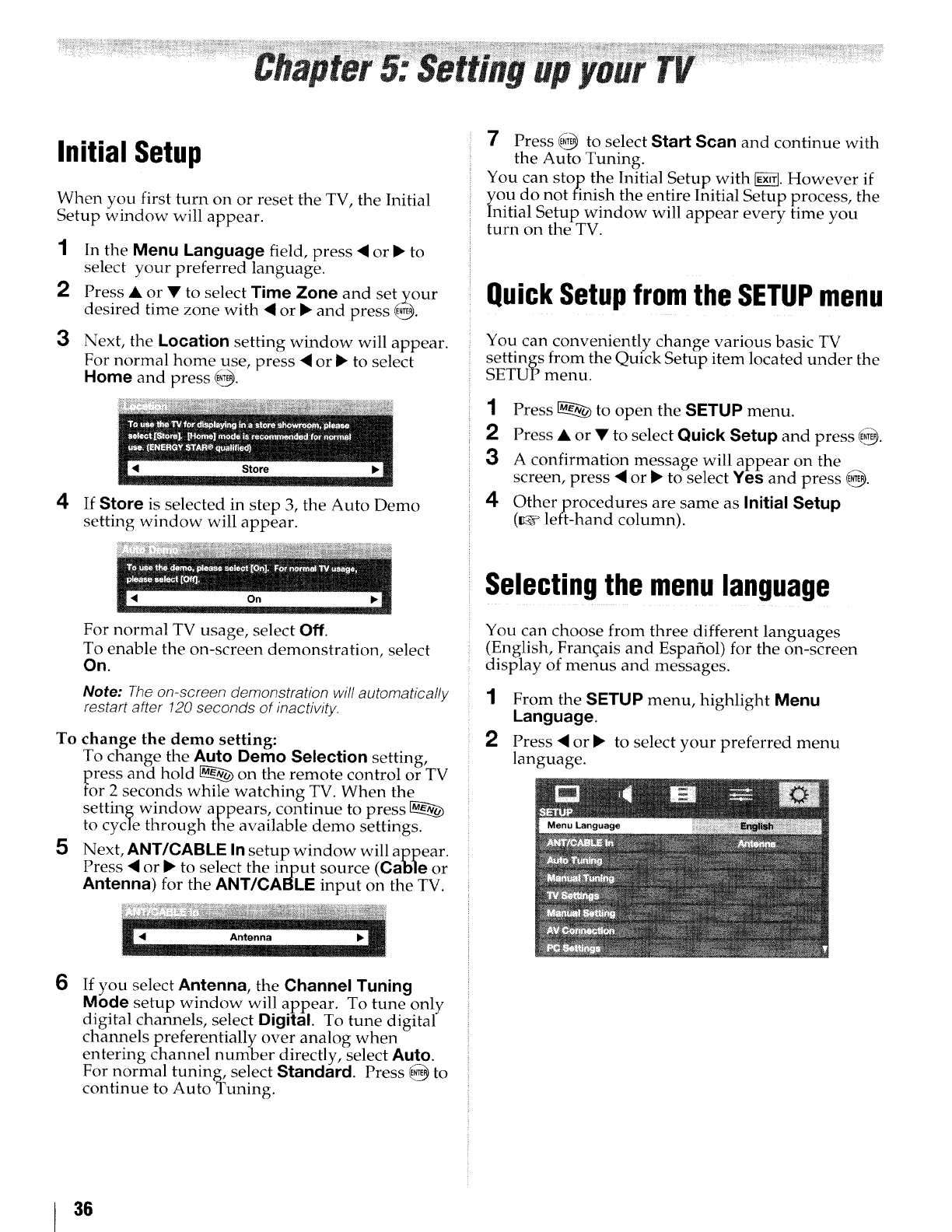
Initial Setup
When you first turn on or reset the TV, the Initial
Setup window will appear.
1In the Menu Language field, press • or • to
select your preferred language.
2Press • or • to select Time Zone and set your
desired time zone with • or • and press _.
3Next, the Location setting window will appear.
For normal home use, press • or • to select
Home and press {_.
4If Store is selected in step 3, the Auto Demo
setting window will appear.
7Press _ to select Start Scan and continue with
the Auto Tuning.
You can stop the Initial Setup with _/_]. However if
you do not finish the entire Initial Setup process, the
Initial Setup window will appear every time you
turn on the TV.
QuickSetupfromthe SETUPmenu
You can conveniently change various basic TV
settings from the Quick Setup item located under the
SETUP menu.
1Press _ to open the SETUP menu.
2Press •or • to select Quick Setup and press _.
3A confirmation message will appear on the
screen, press • or • to select Yes and press _.
40therprocedures are same as Initial Setup
(_ left-hand column).
For normal TV usage, select Off.
To enable the on-screen demonstration, select
On.
Note: The on-screen demonstration will automatically
restart after 120 seconds of inactivity.
To change the demo setting:
To change the Auto Demo Selection setting,
_ress and hold _ on the remote control or TV
r 2 seconds while watching TV. When the
setting window a pears, continue to press,
to cycle through _t_e available demo settings.
5Next, ANT/CABLE In setup window will appear.
Press • or • to select the input source (Cable or
Antenna) for the ANT/CABLE input on the TV.
Selectingthe menulanguage
You can choose from three different languages
(English, Franqais and Espafiol) for the on-screen
display of menus and messages.
1
2
From the SETUP menu, highlight Menu
Language.
Press • or • to select your preferred menu
language.
6If you select Antenna, the Channel Tuning
Mode setup window will appear. To tune only
digital channels, select Digital. To tune digital
channels preferentially over analog when
entering channel number directly, select Auto.
For normal tuning, select Standard. Press _ to
continue to Auto Tuning.
36
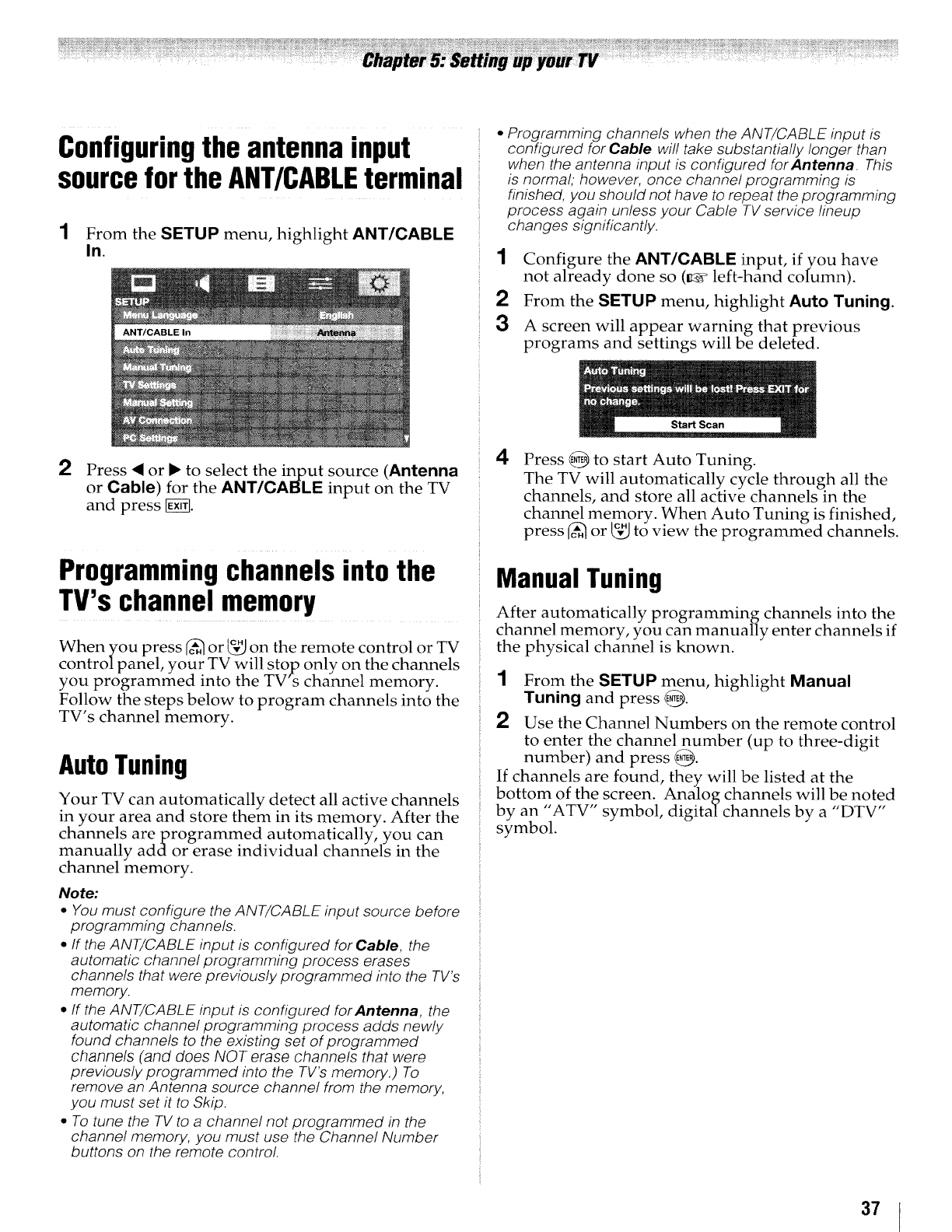
Configuringthe antennainput
sourcefor theANT/CABLEterminal
1From the SETUP menu, highlight ANT/CABLE
In.
•Programming channels when the ANT/CABLE input is
configured for Cable will take substantially longer than
when the antenna input is configured for Antenna. This
is normal; however, once channel programming is
finished, you should not have to repeat the programming
process again unless your Cable TV service lineup
changes significantly.
1Configure the ANT/CABLE input, if you have
not already done so (_ left-hand column).
2From the SETUP menu, highlight Auto Tuning.
3A screen will appear warning that previous
programs and settings will be deleted.
2Press <or b"to select the input source (Antenna
or Cable) for the ANT/CABLE input on the TV
and press FE-_.
Programmingchannelsinto the
TV's channelmemory
When you press _ or _," on the remote control or TV
control panel, your TV wily sto_p only on the channels
you programmed into the TV s channel memory.
Follow the steps below to program channels into the
TV's channel memory.
AutoTuning
Your TV can automatically detect all active channels
in your area and store them in its memory. After the
channels areprogrammed automatically, you can
manually addor erase individual channels in the
channel memory.
Note:
•You must configure the ANT/CABLE input source before
programming channels.
•If the ANT/CABLE input is configured for Cable, the
automatic channel programming process erases
channels that were previously programmed into the TV's
memory.
•If the ANT/CABLE input is configured forAntenna, the
automatic channel programming process adds newly
found channels to the existing set of programmed
channels (and does NOT erase channels that were
previously programmed into the TV's memory.) To
remove an Antenna source channel from the memory,
you must set it to Skip.
• To tune the TV to a channel not programmed in the
channel memory, you must use the Channel Number
buttons on the remote control.
4Press _ to start Auto Tuning.
The TV will automatically cycle through all the
channels, and store all active channels in the
channel memory. When Auto Tuning is finished,
press (_ or _," to view the programmed channels.
Manual Tuning
After automatically programming channels into the
channel memory, you can manually enter channels if
the physical channel is known.
1From the SETUP menu, highlight Manual
Tuning and press _.
2Use the Channel Numbers on the remote control
to enter the channel number (up to three-digit
number) and press _.
If channels are found, they will be listed at the
bottom of the screen. Analog channels will be noted
by an ' ATV symbol, digital channels by a "DTV"
symbol.
37
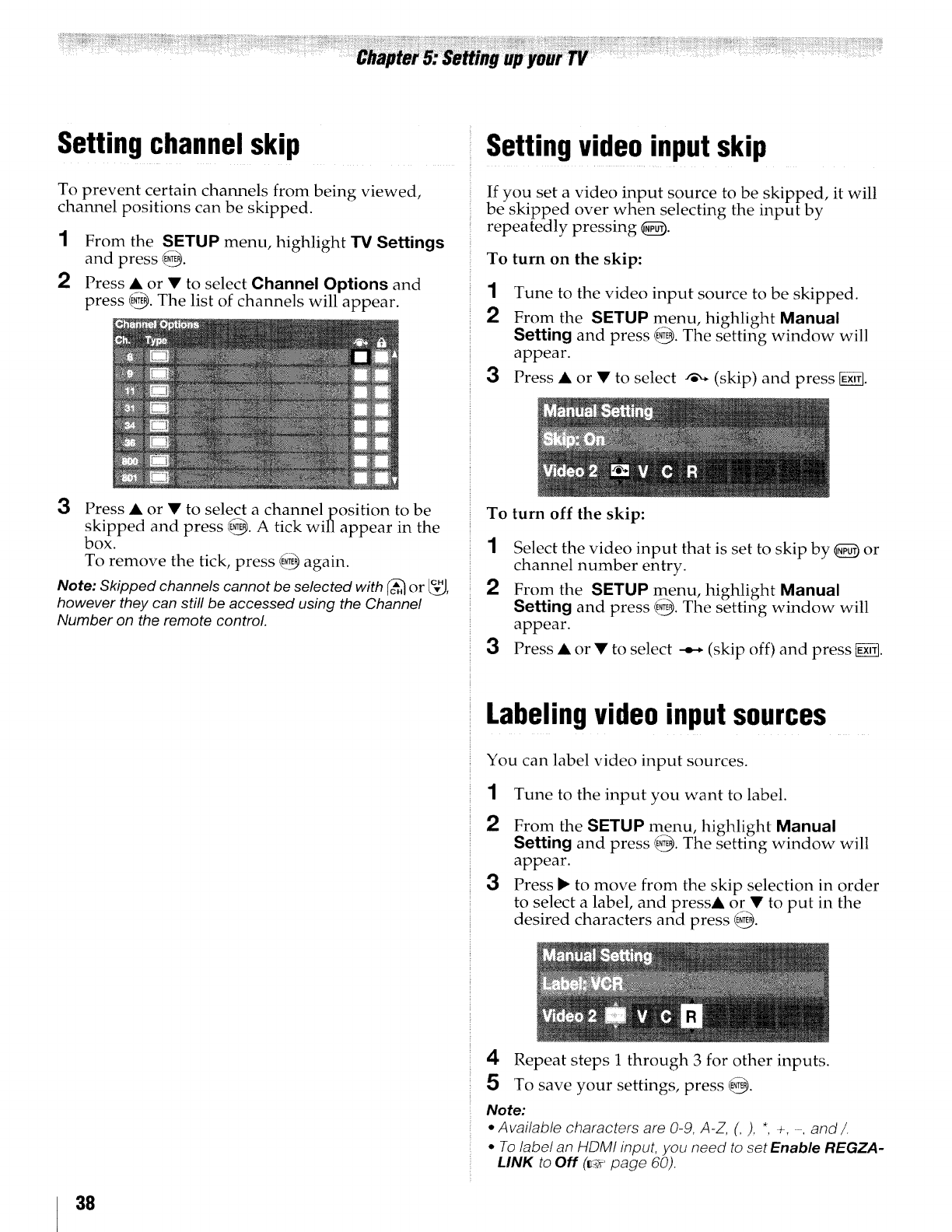
Settingchannelskip
To prevent certain channels from being viewed,
channel positions can be skipped.
1From the SETUP menu, highlight TV Settings
and press @.
2Press • or • to select Channel Options and
press _. The list of channels will appear.
3Press • or • to select a channelposition to be
skipped and press @. A tick will appear in the
box.
To remove the tick, press _ again.
Note: Skipped channels cannot be selected with _or %[._,
however they can still be accessed using the Channel
Number on the remote control.
Settingvideo inputskip
If you set a video input source to be skipped, it will
be skipped over when selecting the input by
repeatedly pressing _).
To turn on the skip:
1Tune to the video input source to be skipped.
2From the SETUP menu, highlight Manual
Setting and press @. The setting window will
appear.
3Press • or • to select _ (skip) and press [gi#l.
To
1
2
3
turn off the skip:
Select the video input that is set to skip by @ or
channel number entry.
From the SETUP menu, highlight Manual
Setting and press @. The setting window will
appear.
Press • or • to select _-, (skip off) and press fi_.
Labelingvideo inputsources
You can label video input sources.
1
2
3
Tune to the input you want to label.
From the SETUP menu, highlight Manual
Setting and press @. The setting window will
appear.
Press I_ to move from the skip selection in order
to select a label, and press• or • to put in the
desired characters and press @.
4 Repeat steps 1 through 3 for other inputs.
5 To save your settings, press @.
Note:
•Available characters are 0-9, A-Z, (,), *, _, -, and /
•To label an HDM! input, you need to set Enable REGZA-
LINK to Off (_r' page 60).
38
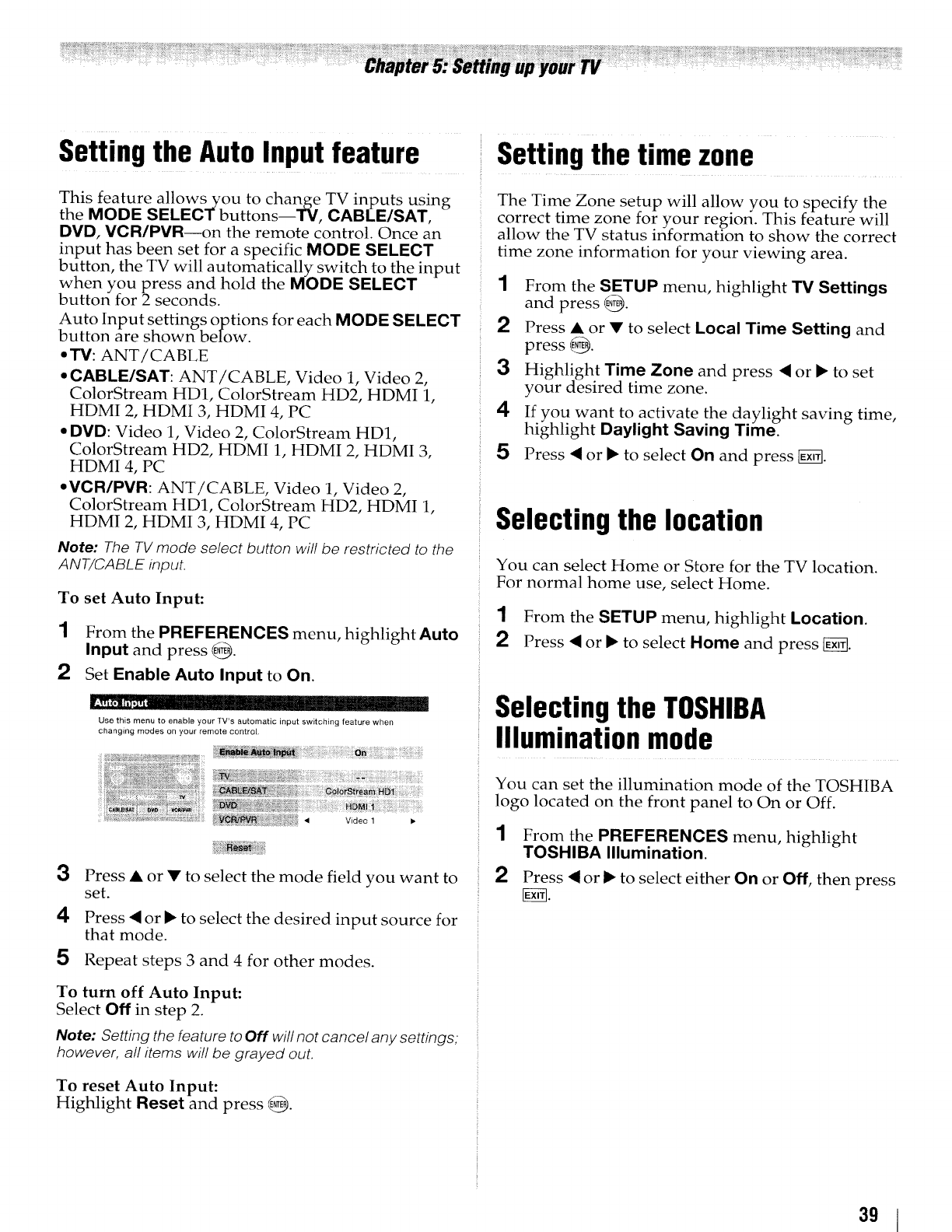
Settingthe AutoInputfeature Settingthe time zone
This feature allows you to change TV inputs using
the MODE SELECT buttons--TV, CABLE/SAT,
DMD, VOR/PVR--on the remote control. Once an
input has been set for a specific MODE SELECT
button, the TV will automatically switch to the input
when you press and hold the MODE SELECT
button for 2 seconds.
Auto Input settings options for each MODE SELECT
button are shown below.
• J3/: ANT/CABLE
•CABLE/SAT: ANT/CABLE, Video 1, Video 2,
ColorStream HD1, ColorStream HD2, HDMI 1,
HDMI 2, HDMI 3, HDMI 4, PC
•DVD: Video 1, Video 2, ColorStream HD1,
ColorStream HD2, HDMI 1, HDMI 2, HDMI 3,
HDMI 4, PC
• VCR/PVR: ANT/CABLE, Video 1, Video 2,
ColorStream HD1, ColorStream HD2, HDMI 1,
HDMI 2, HDMI 3, HDMI 4, PC
Note: The TV mode select button will be restricted to the
ANT/CABLE input.
To set Auto Input:
1From the PREFERENCES menu, highlight Auto
Input and press @.
2Set Enable Auto Input to On.
Use this menu to enable your TV's automatic input switching feature when
changing modes on your remote control.
f,viaeo_
3
4
5
Press •or • to select the mode field you want to
set.
Press <or _ to select the desired input source for
that mode.
Repeat steps 3 and 4 for other modes.
The Time Zone setup will allow you to specify the
correct time zone for your region. This feature will
allow the TV status information to show the correct
time zone information for your viewing area.
1From the SETUP menu, highlight 13/Settings
and press @.
2Press • or • to select Local Time Setting and
press @.
3 Highlight Time Zone and press <or • to set
your desired time zone.
4 If you want to activate the daylight saving time,
highlight Daylight Saving Time.
5Press <or • to select On and press _.
Selectingthe location
You can select Home or Store for the TV location.
For normal home use, select Home.
1From the SETUP menu, highlight Location.
2Press <or • to select Home and press _.
Selectingthe TOSHIBA
Illuminationmode
You can set the illumination mode of the TOSHIBA
logo located on the front panel to On or Off.
1
2
From the PREFERENCES menu, highlight
TOSHIBA Illumination.
Press < or _ to select either On or Off, then press
To turn off Auto Input:
Select Off in step 2.
Note: Setting the feature to Off will not cancel any settings,
however, al! items will be grayed out.
To reset Auto Input:
Highlight Reset and press @.
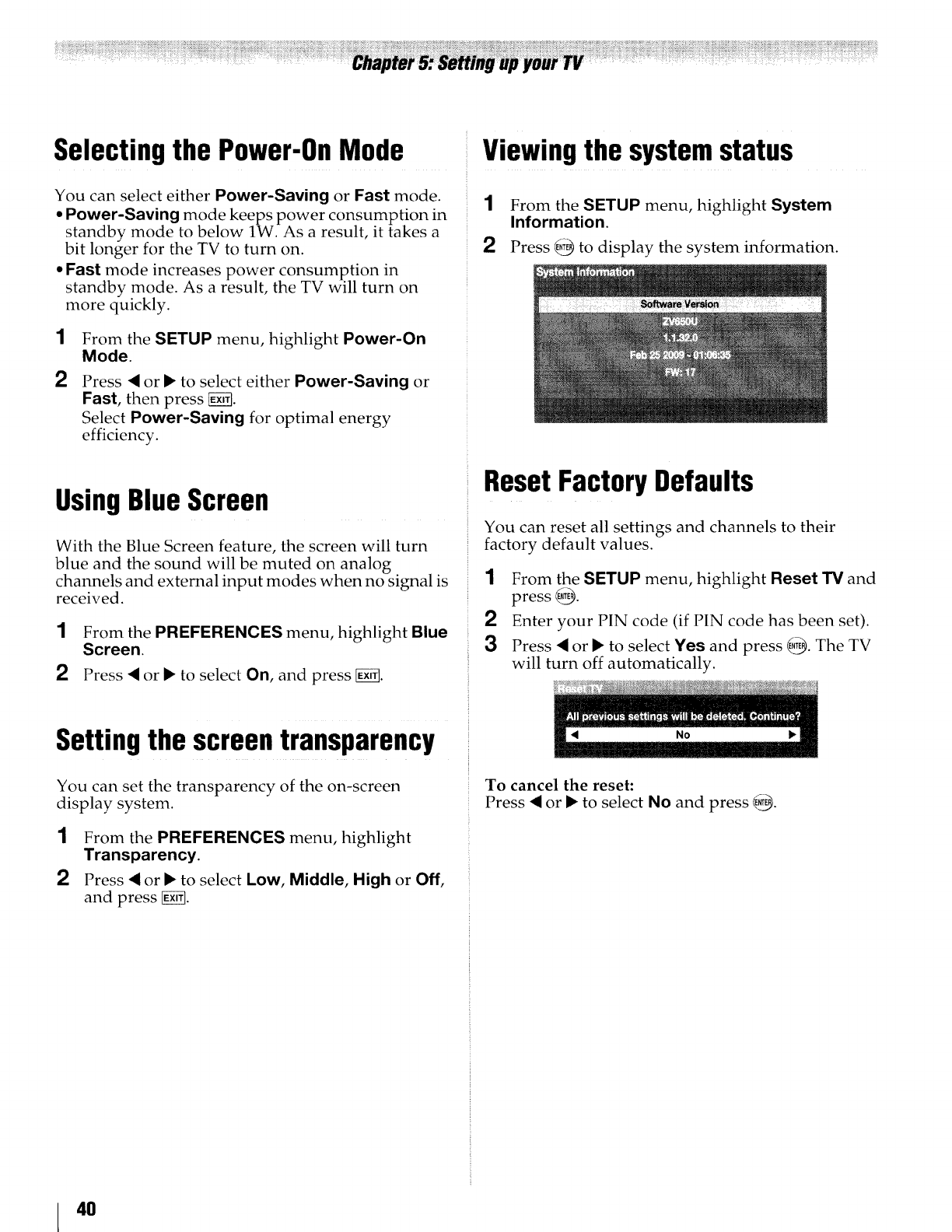
Selectingthe Power-OnMode _Viewingthe systemstatus
You can select either Power-Saving or Fast mode.
•Power-Saving mode keeps power consumption in
standby mode to below lW. As a result, it takes a
bit longer for the TV to turn on.
• Fast mode increases power consumption in
standby mode. As a result, the TV will turn on
more quickly.
1
2
From the SETUP menu, highlight Power-On
Mode.
Press • or • to select either Power-Saving or
Fast, then press _.
Select Power-Saving for optimal energy
efficiency.
1
2
From the SETUP menu, highlight System
Information.
Press _ to display the system information.
UsingBlueScreen
With the Blue Screen feature, the screen will turn
blue and the sound will be muted on analog
channels and external input modes when no signal is
received.
1
2
From the PREFERENCES menu, highlight Blue
Screen.
Press • or • to select On, and press _.
Settingthe screentransparency
ResetFactoryDefaults
You can reset all settings and channels to their
factory default values.
1From the SETUP menu, highlight Reset TV and
press _.
2Enter your PIN code (if PIN code has been set).
3Press *#or • to select Yes and press _. The TV
will turn off automatically.
You can set the transparency of the on-screen
display system.
1
2
From the PREFERENCES menu, highlight
Transparency.
Press _I or • to select Low, Middle, High or Off,
and press _.
To cancel the reset:
Press *_or • to select No and press _.
4O
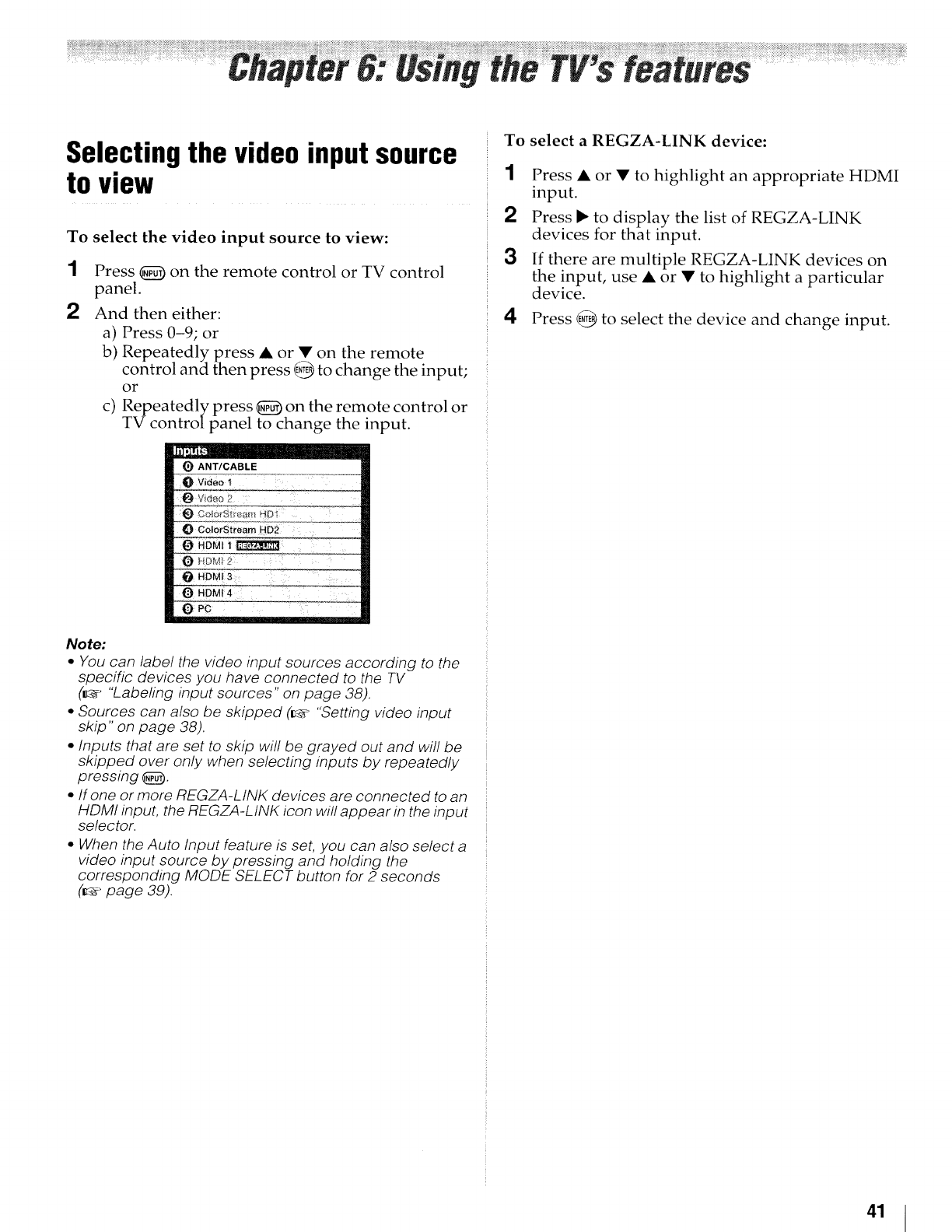
Selectingthe video inputsource
to view
To select the video input source to view:
1Press _) oll the remote control or TV control
panel.
And then either:
a) Press 0-9; or
b) Repeatedly press •or •on the remote
control and then press _ to change the input;
or
c) Repeatedly press _) on the remote control or
TV controlpanel to change the input.
To select a REGZA-LINK device:
1Press • or • to highlight an appropriate HDMI
input.
2Press _ to display the list of REGZA-LINK
devices for that input.
3If there are multiple REGZA-LINK devices on
the input, use •or • to highlight a particular
device.
4 Press E,_ to select the device and change input.
Note:
•You can label the video input sources according to the
specific devices you have connected to the TV
(o "Labefing input sources" on page 38).
•Sources can also be skipped (ir_ "Setting video input
skip" on page 38).
• Inputs that are set to skip will be grayed out and will be
skipped over only when selecting inputs by repeatedly
pressing _.
•If one or more REGZA-LINK devices are connected to an
HDMI input, the REGZA-L INK icon will appear in the input
selector.
•When the Auto Input feature is set, you can also select a
video input source by pressing and holding the
corresponding MODE SELECT button for 2 seconds
(_" page 39).
41
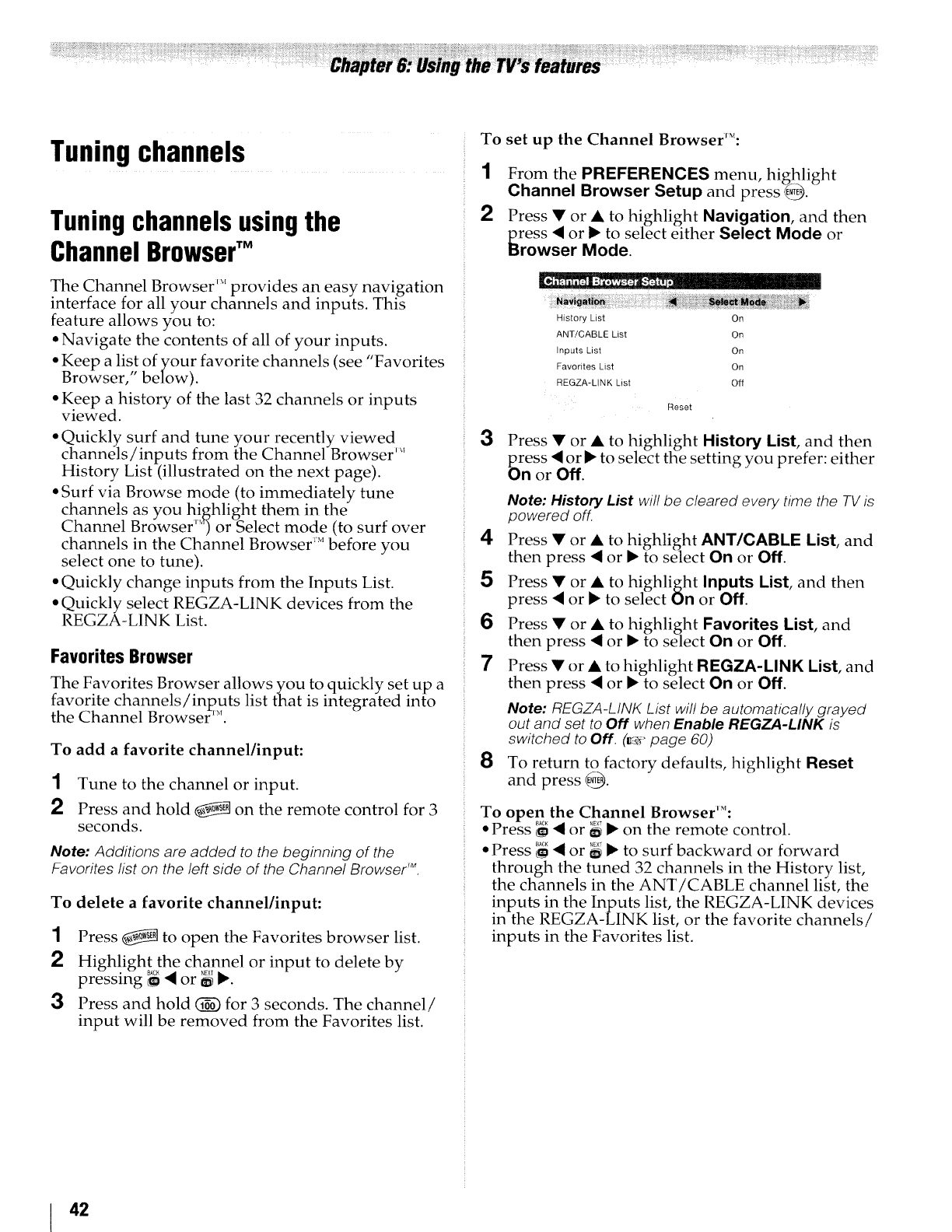
Tuningchannels
Tuning channels usingthe
Channel BrowserTM
Th h '.....
e Cannel Browser provides an easy navlgahon
interface for all your channels and inputs. This
feature allows you to:
• Navigate the contents of all of your inputs.
• Keep a lis! of your favorite channels (see "Favorites
Browser, below).
• Keep a history of the last 32 channels or inputs
viewed.
• Quickly surf and tune your recently viewed
channels/inputs from the Channel Browser ''_
History List (illustrated on the next page).
• Surf via Browse mode (to immediately tune
channels as_you highlight them in the
Channel Browser 9 or Select mode (to surf over
channels in the Channel Browser _Mbefore you
select one to tune).
• Quickly change inputs from the Inputs List.
• Quickly select REGZA-LINK devices from the
REGZA-LINK List.
Favorites Browser
The Favorites Browser allows you to quickly set up a
favorite channels/inputs list that is integrated into
the Channel BrowseffI_L
To add a favorite channel/input:
1Tune to the channel or input.
2Press and hold _ on the remote control for 3
seconds.
Note: Additions are added to the beginning of the
Favorites list on the left side of the Channel Browser 'M.
To delete a favorite channel/input:
1Press _ to open the Favorites browser list.
2 Highlight the channel or input to delete by
pressing _ • or _ •.
3Press and hold (_) for 3 seconds. The channel/
input will be removed from the Favorites list.
To set up the Channel Browser'S':
1From the PREFERENCES menu, highlight
Channel Browser Setup and press'&_.
2Press •or • to highlight Navigation, and then
press • or • to select either Select Mode or
Browser Mode.
History List On
ANT/CABLE List On
Inputs List On
Favorites List On
REGZA-MNK List Off
Reset
3Press • or • to highlight History List, and then
press • or • to select the setting you prefer: either
On or Off.
Note: History List will be cleared every time the TV is
powered off.
4Press • or • to highlight ANT/CABLE List, and
then press • or • to select On or Off.
5Press • or • to highlight Inputs List, and then
press • or • to select On or Off.
6Press • or • to highlight Favorites List, and
then press • or • to select On or Off.
7Press • or • to highlight REGZA-LINK List, and
then press • or • to select On or Off.
Note: REGZA-LINK List will be automatically grayed
out and set to Off when Enable REGZA-LINK is
switched to Off. (_ page 60)
8To return to factory defaults, highlight Reset
and press @.
To open the Channel Browser'":
•Press _ • or _ • on the remote control.
• Press °_ • or _ • to surf backward or forward
through the tuned 32 channels in the History list,
the channels in the ANT/CABLE channel list, the
inputs in the Inputs list, the REGZA-LINK devices
in the REGZA-LINK list, or the favorite channels/
inputs in the Favorites list.
42
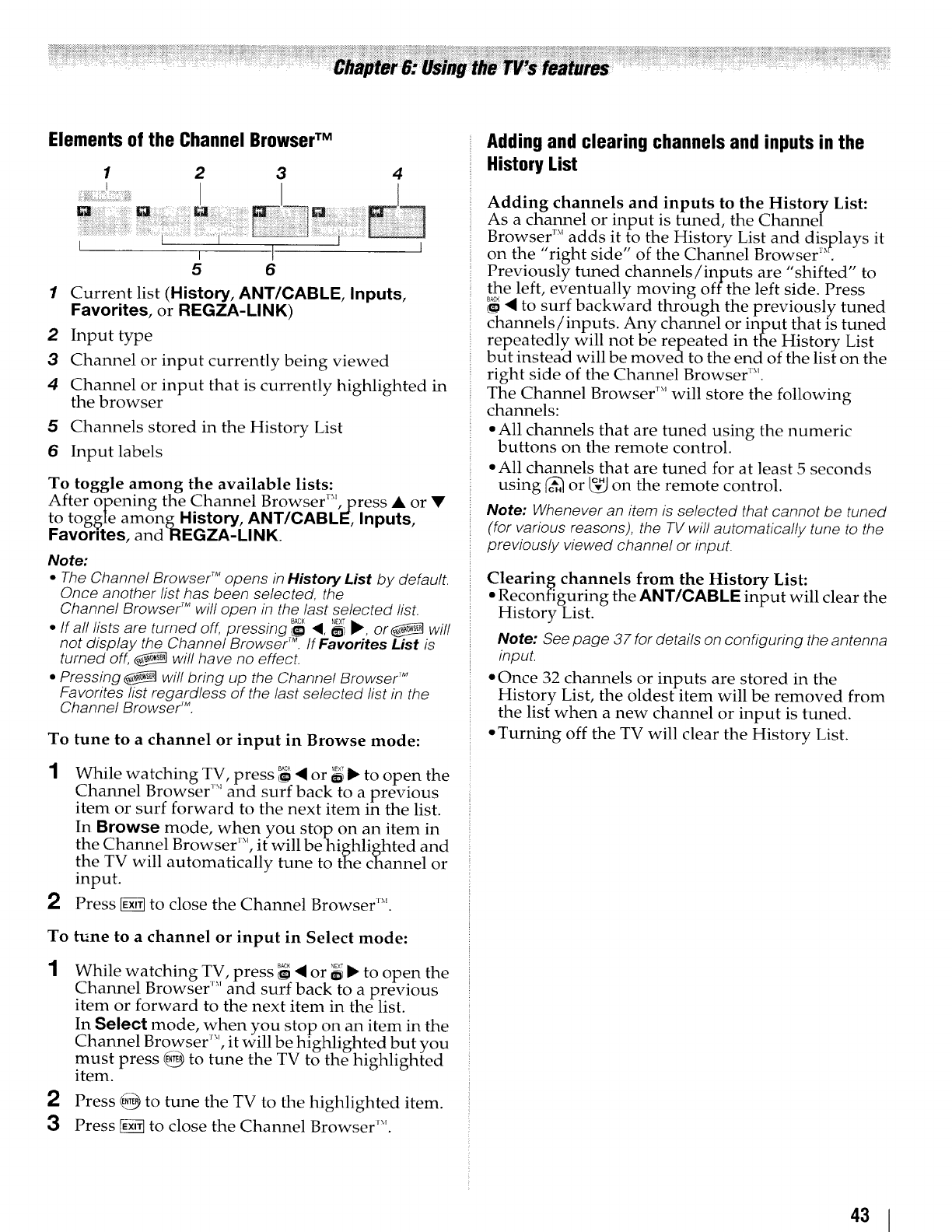
Elements of the Channel Browser TM
1 2 3 4
Q
g 6
Current list (History, ANT/CABLE, Inputs,
Favorites, or REGZA-LINK)
2Input type
3Channel or input currently being viewed
4Channel or input that is currently highlighted in
the browser
5Channels stored in the History List
6Input labels
To toggle among the available lists:
After opening the Channel Browser:_', press • or •
to toggle amongHistory, ANT/CABLE, Inputs,
Favorites, andREGZA-LINK.
Note:
•The Channel Browser TMopens in History List by default.
Once another list has been selected, the
Channel Browser TMwill open in the last selected list.
•If all lists are turned off, pressing _<, _ _, or Bwill
not display the Channel Browser _. If Favorites List is
turned off, _will have no effect.
• Pressing _will bring up the Channel BrowseY _
Favorites list regardless of the last selected list in the
Channel BrowserZ
To tune to a channel or input in Browse mode:
1While watching TV, press _ "4or _ _ to open the
Channel Browser '_ and surf back to a previous
item or surf forward to the next item in the list.
In Browse mode, when you stop on an item in
the Channel Browser *_,it will be highlighted and
the TV will automatically tune to the channel or
input.
Press _ to close the Channel Browser I_*.
To tune to a channel or input in Select mode:
1While watching TV, press _ <or _ _ to open the
Channel Browser _' and surf back to a previous
item or forward to the next item in the list.
In Select mode, when you stop on an item in the
Channel Browser , it will be highlighted but you
must press _ to tune the TV to the highlighted
item.
2Press _ to tune the TV to the highlighted item.
3Press _ to close the Channel Browser '_'.
Adding and clearing channels and inputs in the
History List
Adding channels and inputs to the History List:
As a channel or input is tuned, the Channel
Browser _' adds it to the History List and displays it
on the "right side" of the Channel Browser .
Previously tuned channels/inputs are "shifted" to
the left, eventually moving off the left side. Press
_ to surf backward through the previously tuned
channels/inputs. Any channel or ifiput that is tuned
repeatedly will not be repeated in the History List
but instead will be moveato the end of the list on the
right side of the Channel Browser _.
The Channel Browser ;'' will store the following
channels:
• All channels that are tuned using the numeric
buttons on the remote control.
• All channels that are tuned for at least 5 seconds
using ('_ or _ on the remote control.
Note: Whenever an item is selected that cannot be tuned
(for various reasons), the TV will automatically tune to the
previously viewed channel or input.
Clearing channels from the History List:
• Reconfiguring the ANT/CABLE input will clear the
History List.
Note: See page 37 for details on configuring the antenna
input.
• Once 32 channels or inputs are stored in the
History List, the oldest item will be removed from
the list when a new channel or input is tuned.
• Turning off the TV will clear the History List.
43
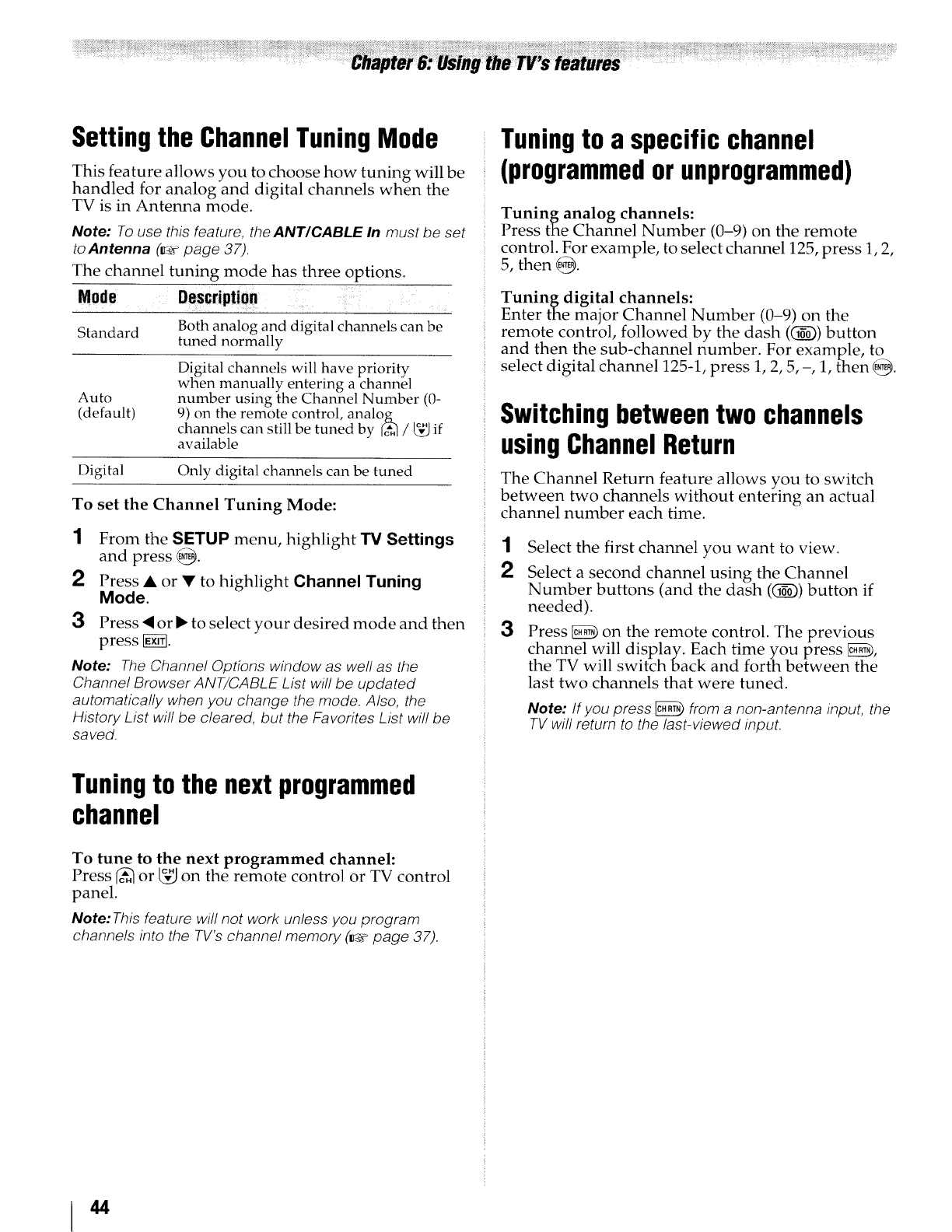
Setting the ChannelTuningMode
This feature allows you to choose how tuning will be
handled for analog and digital channels when the
TV is in Antenna mode.
Note: To use this feature, the ANT/CABLE In must be set
to Antenna (_" page 37).
The channel tuning mode has three options.
Description
Standard Both analog and digital channels can be
tuned normally
Auto
(default)
Digital channels will have priority
when manually entering a channel
number using the Channel Number (0-
9) on the remote control, analog
channels can still be tuned by _'._ /_J if
available
Digital Only digital channels can be tuned
To set the Channel Tuning Mode:
1
2
3
From the SETUP menu, highlight "!3/Settings
and press _.
Press • or • to highlight Channel Tuning
Mode.
Press • or _ to select your desired mode and then
press [K_.
Note: The Channel Options window as well as the
Channel Browser ANT/CABLE List will be updated
automatically when you change the mode. Also, the
History List will be cleared, but the Favorites List will be
saved.
Tuningto a specificchannel
(programmedorunprogrammed)
Tuning analog channels:
Press the Channel Number (0-9) on the remote
control. For example, to select channel 125, press 1, 2,
5, then _.
Tuningdigital channels:
Enter the major Channel Number (0-9) on the
remote control, followed by the dash (_) button
and then the sub-channel number. For example, to
select digital channel 125-1, press 1, 2, 5, -, 1, then @_.
Switchingbetweentwo channels
usingChannelReturn
The Channel Return feature allows you to switch
between two channels without entering an actual
channel number each time.
1Select the first channel you want to view.
2Select a second channel using the Channel
Number buttons (and the dash (_)) button if
needed).
3Press _ on the remote control. The previous
channel will display. Each time you press _,
the TV will switch back and forth between the
last two channels that were tuned.
Note: If you press _from a non-antenna input, the
TV will return to the last-viewed input.
Tuningto the next programmed
channel
To tune to the next programmed channel:
Press _-_ or _ on the remote control or TV control
panel.
Note: This feature will not work unless you program
channels into the TV's channe! memory (_,_ page 37).
44
Switching between two channels
using SurfLockTM
The SurfLock I_ feature temporarily "memorizes"
one channel to the _ button, so you can return to
that channel quickly from any other channel by
pressing _.To memorize a channel to the
button:
1
2
3
Tune the TV to the channel you want to program
into the _ button.
Press and hold _ for about 2 seconds until the
message_ "Memorized" appears on-screen. The
channel has been programmed to the _ button.
You can then change channels repeatedly, and
when you press _, the memorized channel will
be tuned.
The TV will return to the memorized channel one
time only. Once you press _ and then change
channels again, the CH RTN memory will be cleared
and the button will function as Channel Return, by
switching back and forth between the last two
channels that are tuned.This feature also works for
external inputs.
45
Selectingthe picturesize
You can view many program formats in a variety of
picture sizes--Native, 4:3, Full, TheaterWide 1,
TheaterWide 2, TheaterWide 3, Normal and Dot
by Dot.
Note: The "picture size" iflustrations are examples only.
The format of the image (in any of the picture sizes) wil!
vary depending on the format of the signal you are
currently watching. Select the picture size that displays the
current program the way that looks best to you.
You can save separate picture size preferences for
each input on your TV.
To select the picture size using the remote control:
1
2Press _ on the remote control.
While the Picture Size screen is open, you can
do one of the following to select the desired
picture size:
• Repeatedly press _.
• Press the corresponding Number button while
the Picture Size screen is open.
• Press • or • and _ while the Picture Size
screen is open.
Note: Some of the picture sizes may not be available
depending on the receiving signal format.
Using these functions to change the picture size (i.e.,
changing the height/width ratio) for any purpose other
than your private viewing may be prohibited under the
Copyright Laws of the United States and other
countries, and may subject you to civil and criminal
liability.
Note: ff you select one of the TheaterWide ®picture sizes,
the top and bottom edges of the picture (including
subtitles or captions) may be hidden. To view the hidden
edges, either adjust the Picture Position or try viewing the
program in 4:3 or Full picture size.
46
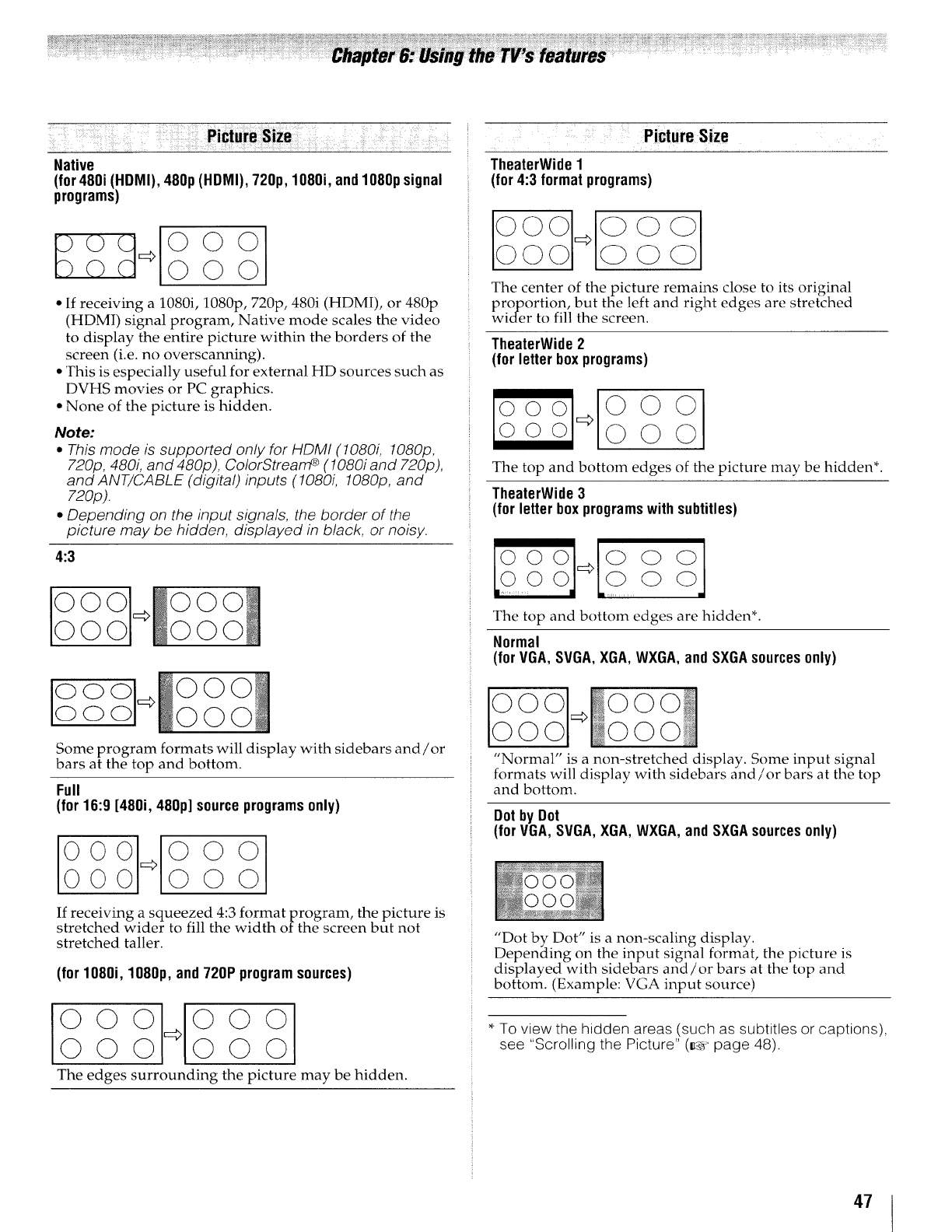
PictureSize
Native
(for 480i (HDMI), 480p (HDMI), 720p, l O8Oi, and 1080p signal
programs)
_o_ 000
© 000
• If receiving a 1080i, 1080p, 720p, 480i (HDM]), or 480p
(HDMI) signal program, Native mode scales the video
to display the entire picture within the borders of the
screen (i.e. no overscanning).
• This is especially useful for external HD sources such as
DVHS movies or PC graphics.
• None of the picture is hidden.
Note:
•This mode is supported only for HDMI ( 1080i. 1080p,
720p, 480i and 480p), ColorStrear_ (I080i and 720p),
and ANT/CABLE (digital) inputs ( 1080i. 1080o. and
720p).
•Depending on the input signals, the border of the
picture may oe hidden displayed in black, or noisy.
4:3
000
000
ioOOO1 ooo
o 000
Some program formats will display with sidebars and/or
bars at the top and bottom.
Full
(for 16:9 [480i, 480p] source programs only)
°° 11°°°O0 <>000
If receiving a squeezed 4:3 format program, the picture is
stretched wider to fill the width of the _screen but not
stretched taller.
(for 1080i, 1080p, and720P programsources)
000<_000
The edges surrounding the picture may be hidden.
Picture Size
TheaterWide 1
(for 4:3 format programs)
© @C)
The center of the picture remains close to its original
proportion, but the left and right edges are stretched
wider to fill the screen.
TheaterWide 2
(for letter box programs)
000
000
The top and bottom edges of the picture may be hidden*.
TheaterWide 3
(for letter box programs with subtitles)
o o
The top and bottom edges are hidden*
Normal
(for VGA, SVGA, XGA, WXGA, and SXGA sources only)
0 000
"'Normal" is a non-stretched displav. Some input signal
formats will display with sidebars and/or bars at the top
and bottom.
Dotby Dot
(for VGA,SVGA,XGA,WXGA, andSXGAsourcesonly)
"Dot by Dot" is a non-scaling display,
Depending on the input signal format, the picture is
displayed with sidebars and/or bars at the top and
bottom. (Example: VGA input source)
* To view the qidden areas isuch as subtitles or captions),
see "Scrolling tl_e Picture" (K_ page 48).
47
Scrollingthe picture
If the edges of the picture are cut off, you can adjust
the position image.
Note: You can adjust the picture position when the picture
size is set to TheaterWide 2 or TheaterWide 3.
1
2
3
From the SETUP menu, highlight Picture
Position.
Press • or • to select Vertical Position.
Press <or _" to make the appropriate
adjustments. The adjustment range is from -5 to
+10.
Note: This feature is not available on digital channels.
Usingthe AutoAspectRatio
feature
When the auto aspect ratio feature is set to On, the
TV will automatically select the picture size when
one of the following input sources is received:
• A 480i, 480p, 720p, 1080i digital signal from the
ANT/CABLE input
• A 480i signal from the Video 1 or Video 2 input
• A 480i signal from the ColorStream HD1 or HD2
input
• A 480i, 480p, 720p, 1080i, 1080p, or VGA (60/72/
75Hz) signal from the HDMI 1121314 input
Note: The auto aspect ratio feature is not applicable to the
PC input.
1
2
From the PREFERENCES menu, highlight Auto
Aspect.
Press <or I_ to select On, and then press _.
Usingthe 4:3 Stretch
When 4:3 Stretch is activated, the size switching
system changes 4:3 programs into full screen picture.
1From the PREFERENCES menu, highlight 4:3
Stretch.
2Press <or I_ to select On, and then press _.
Note: When Auto Aspect is set to Off, this feature will be
grayed out.
Usingthe FREEZEfeature
1 When viewing the TV, press _ to make the
picture a still picture.
2To return to the moving picture, press [_fffl again.
Note: tf the TV is left in FREEZE mode for more than 15
minutes, the FREEZE mode will automatically be
released and the TV will return to moving picture.
Using the FREEZE function for any purpose other than
your private viewing may be prohibited under the
Copyright Laws of the United States and other
countries, and may subject you to civil and criminal
liability.
48
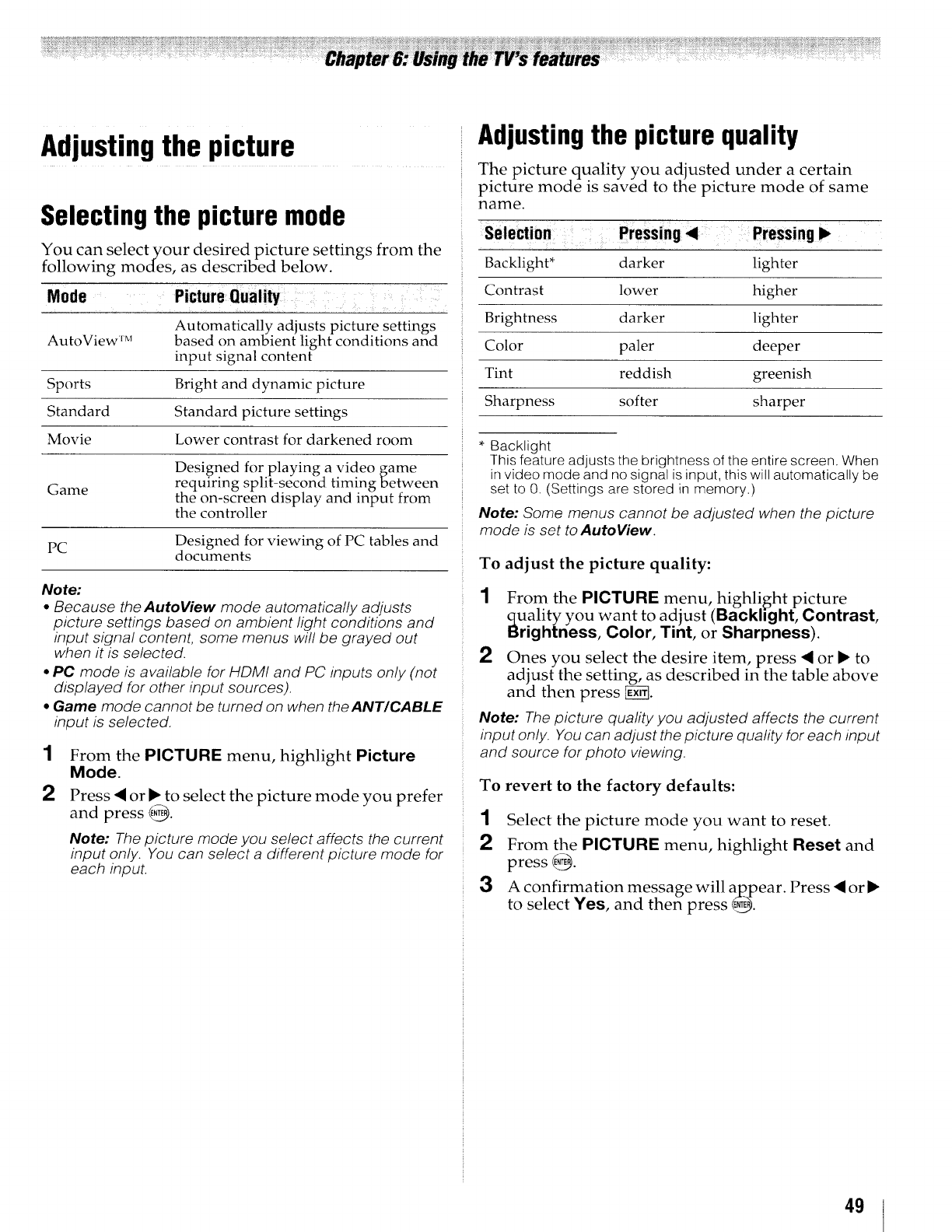
Adjustingthe picture
Selecting the picture mode
You can select your desired picture settings from the
following modes, as described below.
Mode Picture Quality
Automatically adjusts picture settings
AutoView rM based on ambient light conditions and
input signal content
Sports Bright and dynamic picture
Standard Standard picture settings
Movie Lower contrast for darkened room
Designed for playing a video game
requiring split-second timing between
Game the on-screen display and input from
the controller
PC Designed for viewing of PC tables and
documents
Note:
•Because the AutoView mode automatically adjusts
picture settings based on ambient light conditions and
Input signal content some menus will be grayed out
when it is selected.
•PC mode is available for HDMI and PC _nputs only (not
displayed for other input sources)
•Game mode cannot be turned on when theANT/CABLE
_nput is selected.
1
2
From the PICTURE menu, highlight Picture
Mode.
Press • or • to select the picture mode you prefer
and press @.
Note: The picture mode you select affects the current
input only. You can select a different oicture mode for
each input.
Adjustingthe picturequality
The picture quality you adjusted under a certain
picture mode is saved to the picture mode of same
name.
Selection Pressing _1 ........ •
Backlight* darker lighter
Contrast lower higher
Brightness darker lighter
Color paler deeper
Tint red dish greenish
Sharpness softer sharper
Backlight
This feature adjusts the brightness of the entire screen. When
in video mode and no s gnal is inout, this will automatically be
set to O. (Settings are stored ir memory.)
Note: Some menus cannot be adjusted when the picture
mode is set to AutoView.
To adjust the picture quality:
1From the PICTURE menu, highlight picture
quality you want to adjust (Backlight, Contrast,
Brightness, Color, Tint, or Sharpness).
2Ones you select the desire item, press •or • to
adjust the setting, as described in the table above
and then press _.
Note: The oicture quality you adjusted affects the current
input only. You can adjust the picture quality for each input
and source for photo viewing.
To revert to the factory defaults:
1Select the picture mode you want to reset.
2From the PICTURE menu, highlight Reset and
press _.
3A confirmation message wild appear. Press • or •
to select Yes, and then press _.
49
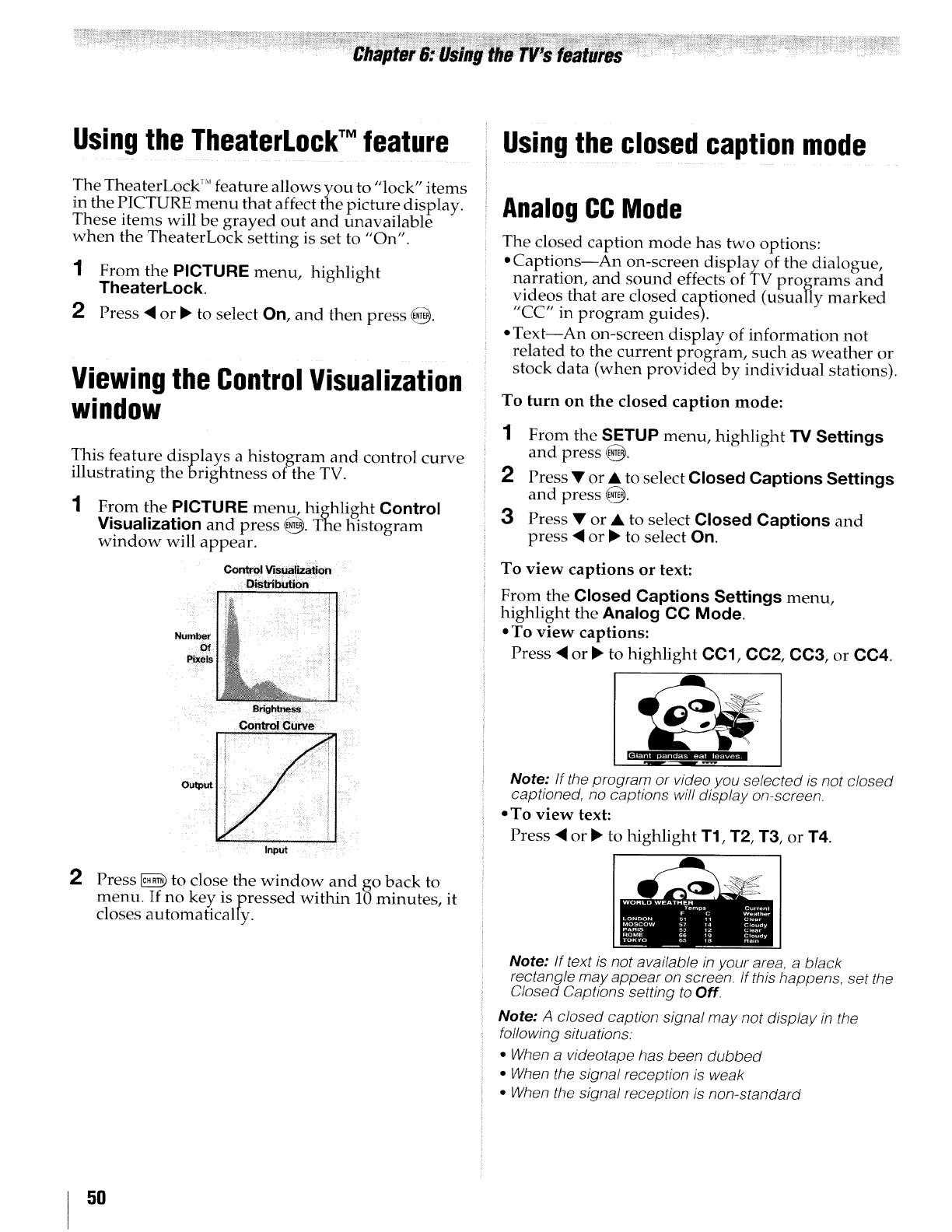
Usingthe TheaterLockTM feature
The TheaterLock '_'feature allows you to "lock" items
in the PICTURE menu that affect the picture display.
These items will be grayed, out. and unavailable,,,
when the TheaterLock setting ]s set to On .
1From the PICTURE menu, highlight
Theaterkock.
2 Press _ or • to select On, and then press @.
Viewingthe ControlVisualization
window
This feature displays a histogram and control curve
illustrating the brightness of the TV.
1From the PICTURE menu, highlight Control
Visualization and press @. The histogram
window will appear.
P_!S .... :
i
2 Press _ to close the window and go back to
menu. If no key is pressed within 10 minutes, it
closes automatically.
Usingthe closed caption mode
AnalogCC Mode
The closed caption mode has two options:
• Captions--An on-screen display of the dialogue,
narration, and sound effects of TV programs and
videos that are closed captioned (usually marked
"CC' in program guides).
•Text--An on-screen display of information not
• r
related to the current program, such as weather o
stock data (when provided by individual stations).
To turn on the closed caption mode:
1From the SETUP menu, highlight TV Settings
and press @.
2Press • or • to select Closed Captions Settings
and press @.
3Press • or • to select Closed Captions and
press 'q or • to select On.
To view captions or text:
From the Closed Captions Settings menu,
highlight the Analog CC Mode.
•To view captions:
Press _ or • to highlight 001, 0C2, cca, or 0C4.
-..._-_-
Note: If the program or video you selected is not closed
captioned, no captions will display on-screen.
•To view text:
Press "_ or • to highlight T1, T2, T3, or T4.
Note: If text is not available in your area, a black
rectangle may appear on screen. If this happens, set the
Closed Captions setting to Off.
Note: A closed caption signal may not display in the
following situations:
*When a videotape has been dubbed
•When the signal reception is weak
* When the signal reception is non-standard
5O
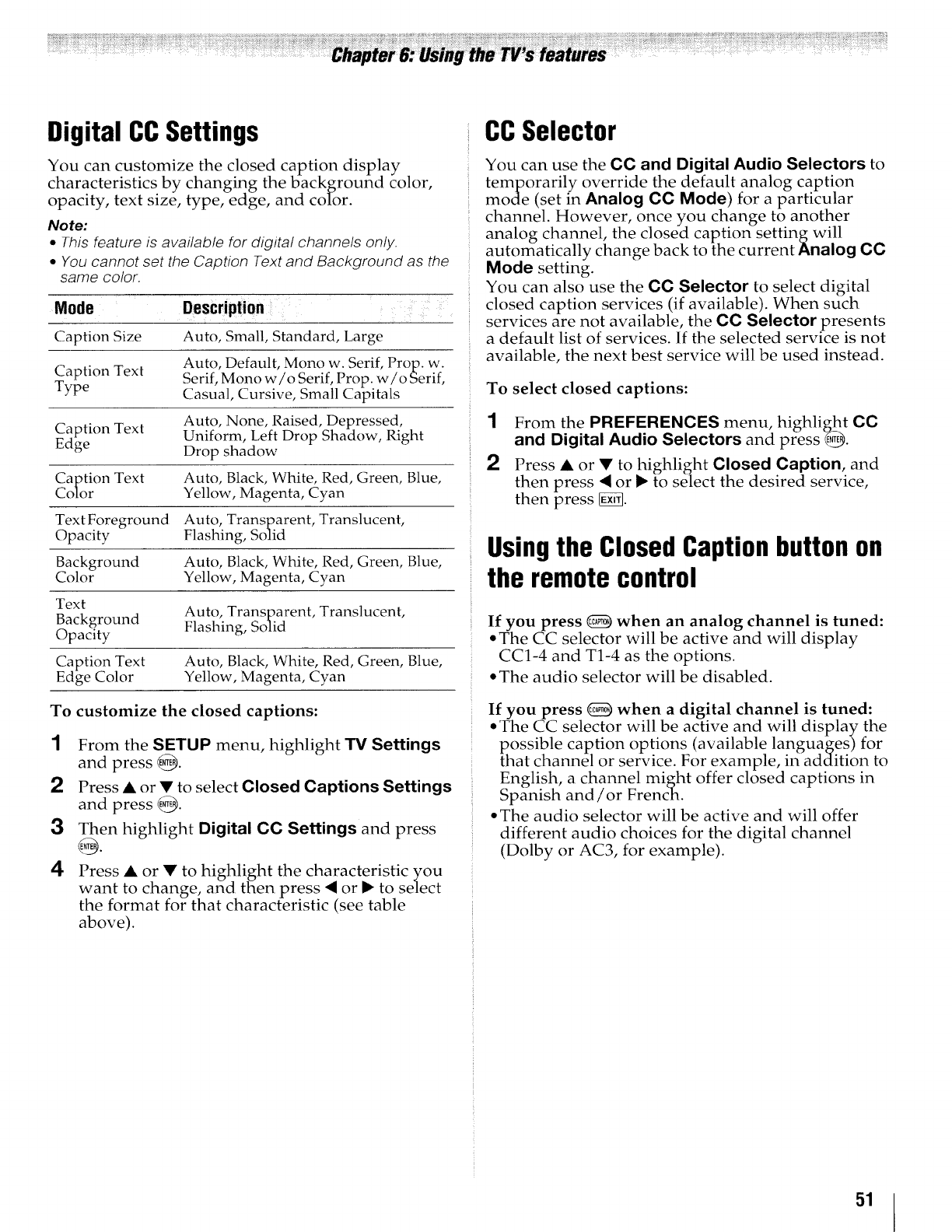
Digital CCSettings
You can customize the closed caption display
characteristics by changing the background color,
opacity, text size, type, edge, and color.
Note:
•This feature is available for digital channels only.
•You cannot set the Caotion Text and Background as the
same color.
Mode Description
Caption Size Auto, Small, Standard, Large
Auto, Default, Mono w. Serif, Prop. w.
Caption Text Serif, Mono w/o Serif, Prop. w/o Serif,
Type Casual, Cursive, Small Capitals
Auto, None, Raised, Depressed,
Ca ption Text Uniform, Left Drop Shadow, Right
Edge Drop shadow
Caption Text Auto, Black, White. Red, Green, Blue,
Color Yellow, Magenta, Cyan
Text Foreground Auto, Transparent. Translucent,
Opacity Flashing, Solid
Background Auto. Black, White, Red, Green. Blue,
Color Yellow° Magenta, Cyan
Text Auto, Transparent, Translucent,
Background Flashing, Solid
Opacity
Caption Text Auto. Black, White, Red, Green. Blue,
Edge Color Yellow, Magenta, Cvan
To customize the closed captions:
1From the SETUP menu, highlight TV Settings
and press _.
2Press • or V to select Closed Captions Settings
and press _.
3Then highlight Digital CC Settings and press
4Press • or • to highlight the characteristic you
want to change, and then press • or !_ to select
the format for that characteristic (see table
above).
CCSelector
You can use the CC and Digital Audio Selectors to
temporarily override the default analog caption
mode (set in Analog CC Mode) for a particular
channel. However, once you change to another
analog channel, the closed caption setting will
automatically change back to the current Analog CO
Mode setting.
You can also use the CO Selector to select digital
closed caption services (if available). When such
services are not available, the CO Selector presents
a default list of services. If the selected service is not
available, the next best service will be used instead.
To select closed captions:
1From the PREFERENCES menu, highlight CC
and Digital Audio Selectors and press _.
2Press • or • to highlight Closed Caption, and
then press • or !_ to select the desired service,
then press _.
Usingthe Closed Caption button on
the remote control
If you press _ when an analog channel is tuned:
•The CC selector will be active and will display
CC1-4 and T1-4 as the options.
• The audio selector will be disabled.
If you press _ when adigital channel is tuned:
• The CC selector will be active and will display the
possible caption options (available languages) for
that channel or service. For example, in addition to
English, a channel might offer closed captions in
Spanish and /or French.
• The audio selector will be active and will offer
different audio choices for the digital channel
(Dolby or AC3, for example).
51
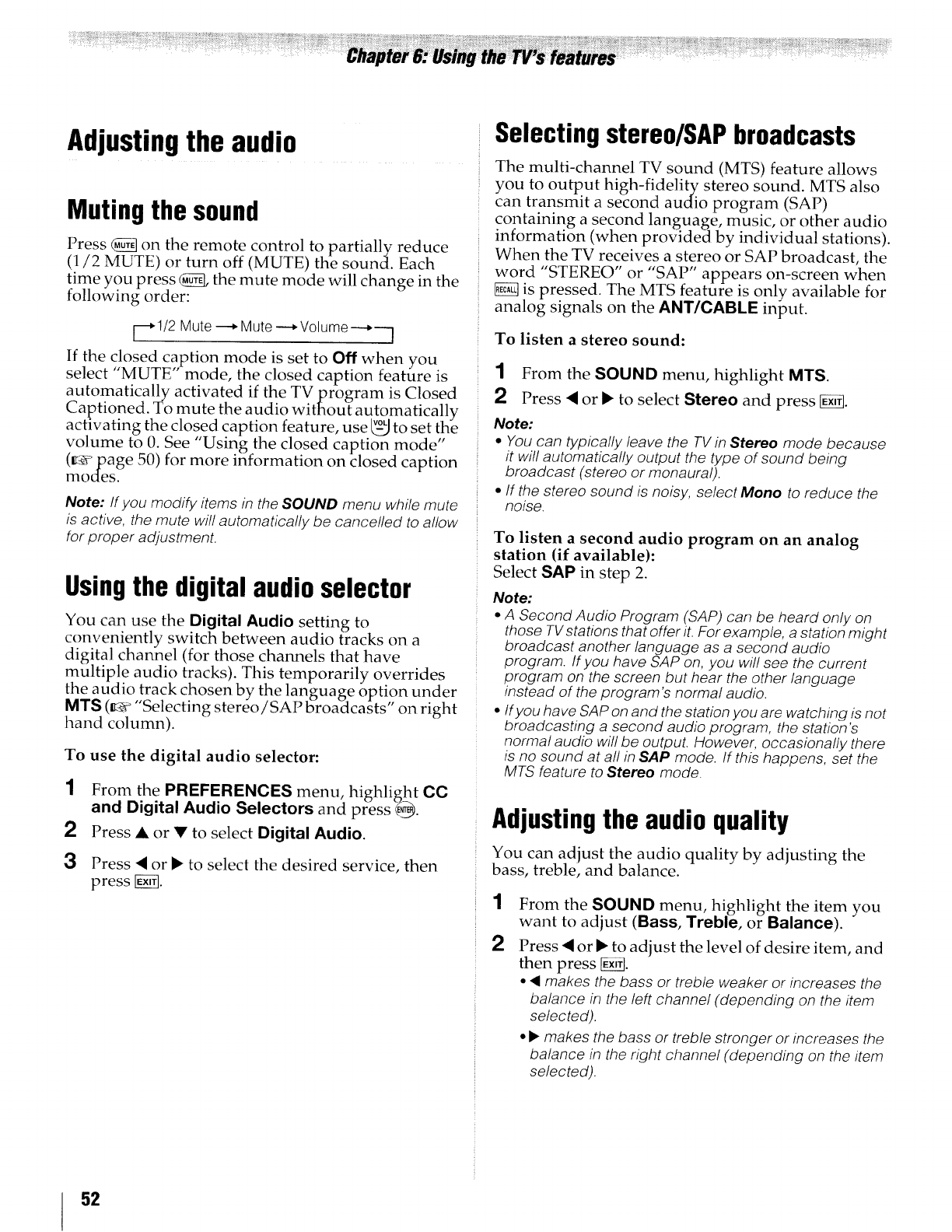
Adjustingthe audio
Muting the sound
Press _ on the remote control to partially reduce
(1/2 MUTE) or turn off (MUTE) the sound. Each
time you press _ the mute mode will change in the
following order:
_.I/2 Mute --_ Mute ---_Volume--_---]
If the closed caption mode is set to Off when you
select "MUTE" mode, the closed caption feature is
automatically activated if the TV program is Closed
Captioned. To mute the audio without automatically
activating the closed caption feature, use _-_ to set the
volume to 0. See 'Using the closed caption mode"
(m___Pdeage50) for more information on closed caption
Note: If you modify items in the SOUND menu while mute
is active, the mute will automatically be cancelled to allow
for proper adjustment.
Usingthe digital audio selector
You can use the Digital Audio setting to
conveniently switch between audio tracks on a
digital channel (for those channels that have
multiple audio tracks). This temporarily overrides
the audio track chosen by the language option under
MTS (g-,sv"Selecting stereo /SAP broadcasts" on right
hand column).
To use the digital audio selector:
1From the PREFERENCES menu, highlight CC
and Digital Audio Selectors and press _.
2Press• or • to selectDigitalAudio.
3Press <or _ to select the desired service, then
press _.
Selecting stereo/SAPbroadcasts
The multi-channel TV sound (MTS) feature allows
you to output high-fidelity stereo sound. MTS also
can transmit a second audio program (SAP)
containing a second language, music, or other audio
information (when provided by individual stations).
When the TV receives a stereo or SAP broadcast, the
word "STEREO" or "SAP" appears on-screen when
is pressed. The MTS feature is only available for
analog signals on the ANT/CABLE input.
To listen a stereo sound:
1From the SOUND menu, highlight MTS.
2Press <or I_ to select Stereo and press _.
Note:
•You can typically leave the TVin Stereo mode because
it will automatically output the type of sound being
broadcast (stereo or monaural),
• If the stereo sound is noisy, select Mono to reduce the
noise.
To listen a second audio program on an analog
station (if available):
Select SAP in step 2.
Note:
•A SecondAudio Program (SAP) can be heard only on
those TV stations that offer it. For example, a station might
broadcast another language as a second audio
program. If you have SAP on, you will see the current
program on the screen but hear the other language
instead of the program's norma! audio.
• Ifyou have SAP on and the station you are watching is not
broadcasting a second audio program, the station's
normal audio will be output. However, occasionally there
is no sound at all in SAP mode. If this happens, set the
MTS feature to Stereo mode.
Adjustingthe audio quality
You can adjust the audio quality by adjusting the
bass, treble, and balance.
1
2
From the SOUND menu, highlight the item you
want to adjust (Bass, Treble, or Balance).
Press <or _" to adjust the level of desire item, and
then press [g_fl.
•<makes the bass or treble weaker or increases the
balance in the left channel (depending on the item
selected).
•_" makes the bass or treble stronger or increases the
balance in the right channel (depending on the item
selected).
52
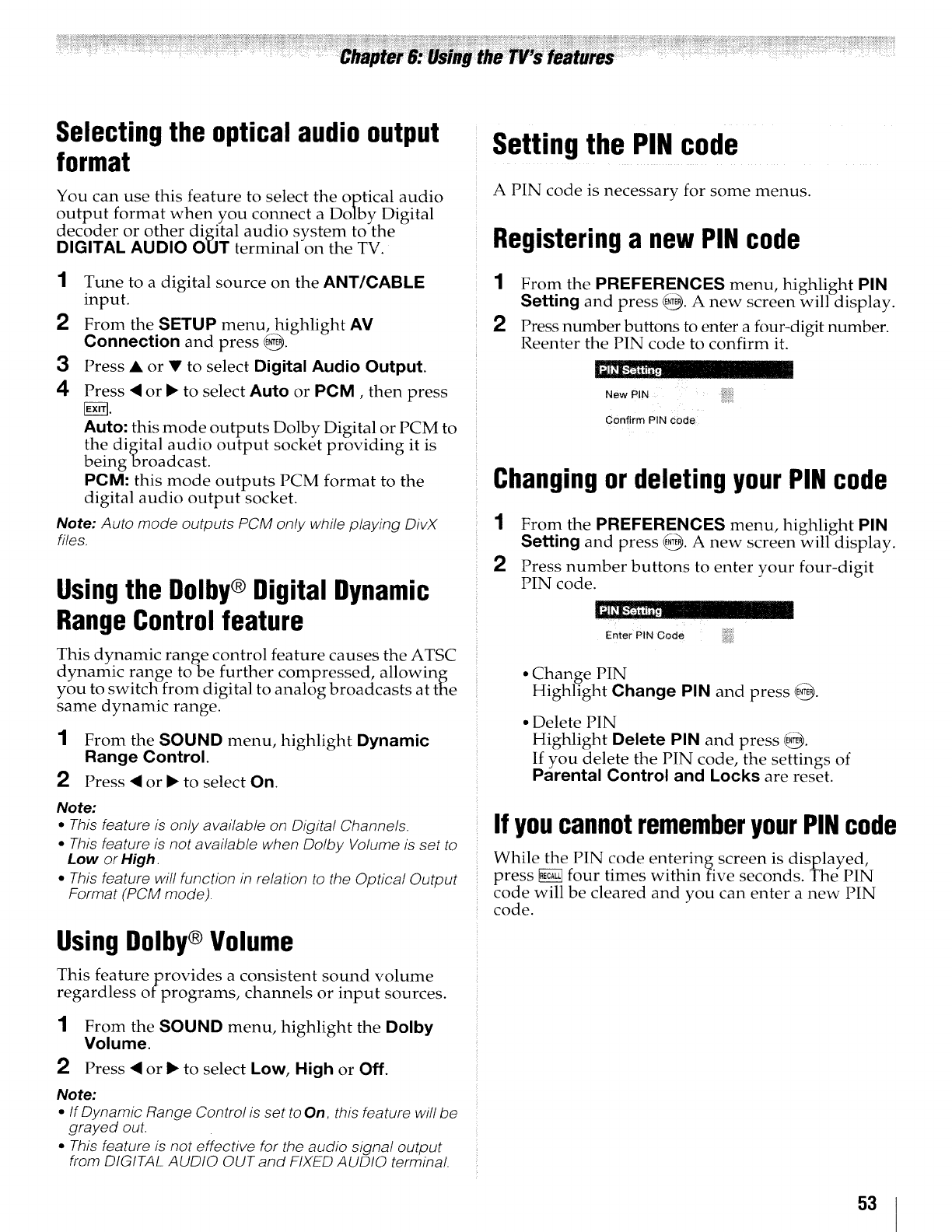
Selectingthe optical audiooutput
format
You can use this feature to select the optical audio
output format when..you connect a Dolby Digital
decoder or other digital audio system to the
DIGITAL AUDIO OUT terminal on the TV.
1Tune to a digital source on the ANT/CABLE
input.
2From the SETUP menu, highlight AV
Connection and press @.
3Press • or • to select Digital Audio Output.
4 Press • or • to select Auto or PCM, then press
Auto: this mode outputs Dolby Digital or PCM to
the digital audio output socket providing it is
beingbroadcast.
PCM: this mode outputs PCM format to the
digital audio output socket.
Note: Auto mode outputs PCM only while playing DivX
files.
Usingthe Dolby®Digital Dynamic
RangeControlfeature
This dynamic range control feature causes the ATSC
dynamic range to be further compressed, allowing
you to switch from digital to analog broadcasts at the
same dynamic range.
1From the SOUND menu, highlight Dynamic
Range Control.
2Press •or • to select On.
Note:
•This feature is only available on Digital Channels.
•This feature is not available when Dolby Volume is set to
Low or High.
• This feature will function in relation to the Optical Output
Format (PCM mode).
Using Dolby®Volume
This featureprovides a consistent sound volume
regardless of programs, channels or input sources.
1
2
From the SOUND menu, highlight the Dolby
Volume.
Press •or • to select Low, High or Off.
Note:
•If Dynamic Range Control is set to On, this feature will be
grayed out.
•This feature is not effective for the audio signal output
from DIGITAL AUDIO OUT and FIXED AUDIO termina!.
Settingthe PINcode
A PIN code is necessary for some menus.
Registering a new PIN code
1
2
From the PREFERENCES menu, highlight PIN
Setting and press @. A new screen will display.
Press number buttons to enter a four-digit number.
Reenter the PIN code to confirm it.
NewP,N
Confirm PIN code
Changingor deleting your PIN code
1From the PREFERENCES menu, highlight PIN
Setting and press @. A new screen will display.
2Press number buttons to enter your four-digit
PIN code.
Enter PIN Code i,_!.
•Change PIN
Highlight Change PIN and press @.
•Delete PIN
Highlight Delete PIN and press @.
If you delete the PIN code, the settings of
Parental Control and Locks are reset.
If youcannotrememberyourPINcode
While the PIN code entering screen is displayed,
press _ four times within five seconds. The PIN
code will be cleared and you can enter a new PIN
code.
53
BlockingTVprogramsandmoviesby
rating(V-Chip)
Some TV programs and movies include signals that
classify the content of the program (violence, sex,
dialogue, language). The V-C_ip feature in this TV
detects the signals and blocks the programs
according to the ratingsyou selecL (For rating
descriptions, see the tables on the next page.)
Note: Rating blocking is a function of the V-Chip feature in
this TV, which supports the U.S. V-Chip system only.
To block and unblock TV programs and movies:
1From the PREFERENCES menu, highlight
Parental Control and Locks and press {_.
2Enter your four-digit PIN code.
3Press A or •to highlight Enable Rating
Blocking.
4Press,<or • to selectOn.
5
6
Press • to highlight Edit Rating Limits and
press _.
The Edit Rating Limits screen appears.
Press A, •, < or • and then press _ to select the
lvl .......
e e of blocking you prefer. Abox with an X is
a rating that will be blocked. As you highlight a
rating, a definition for the rating appears at the
bottom of the screen.
Downloadingan additionalrating
systemfor blockingTVprograms
andmovies
In the future, an additional rating system may become
available for use in selectively blocking programs.
Note: The currently tuned station must be receiving a
digital signal before an additiona! rating system can be
downloaded.
To download the additional rating system
(if available):
1From the PREFERENCES menu, highlight
Parental Control and Locks and press _.
2Enter your four-digit PIN code. Parental
Control and Locks window is displayed.
3Press • or • to highlight Enable Rating
Blocking.
4Press <or • to select On.
5
6
7
Press • to highlight Edit Rating Limits and
press _.
The Edit Rating Limits screen appears.
Highlight AIt RS and press _. The Edit
Alternate Ratings screen will appear.
Note:
•The AIt RS button will only be available if an
additional rating system is currently available.
•It may take several minutes for the TV to download
the additional rating system.
•The information displayed in the Alternate Ratings
screen will depend on the configuration of the
additiona! rating system available at the time of
download.
Press • • <I •and then press @_ to select the
level of blocking you prefer. A box with an "X" is
arating that will be blocked.
Note:
•The additiona! rating system can only be downloaded
one time. You will not be able to download any updates
to the rating system should such updates become
available.
•The additional rating system is not designed, transmitted,
or controlled by the TV or Toshiba, nor is the availability
of an additional rating system determined or controlled
by Toshiba. Similarly, the rating of programs in an
additional rating system is not determined, transmitted,
or controlled by the TV or Toshiba.
•The additiona! rating system is an evolving technology;
therefore, availability, content, and format may vary.
54
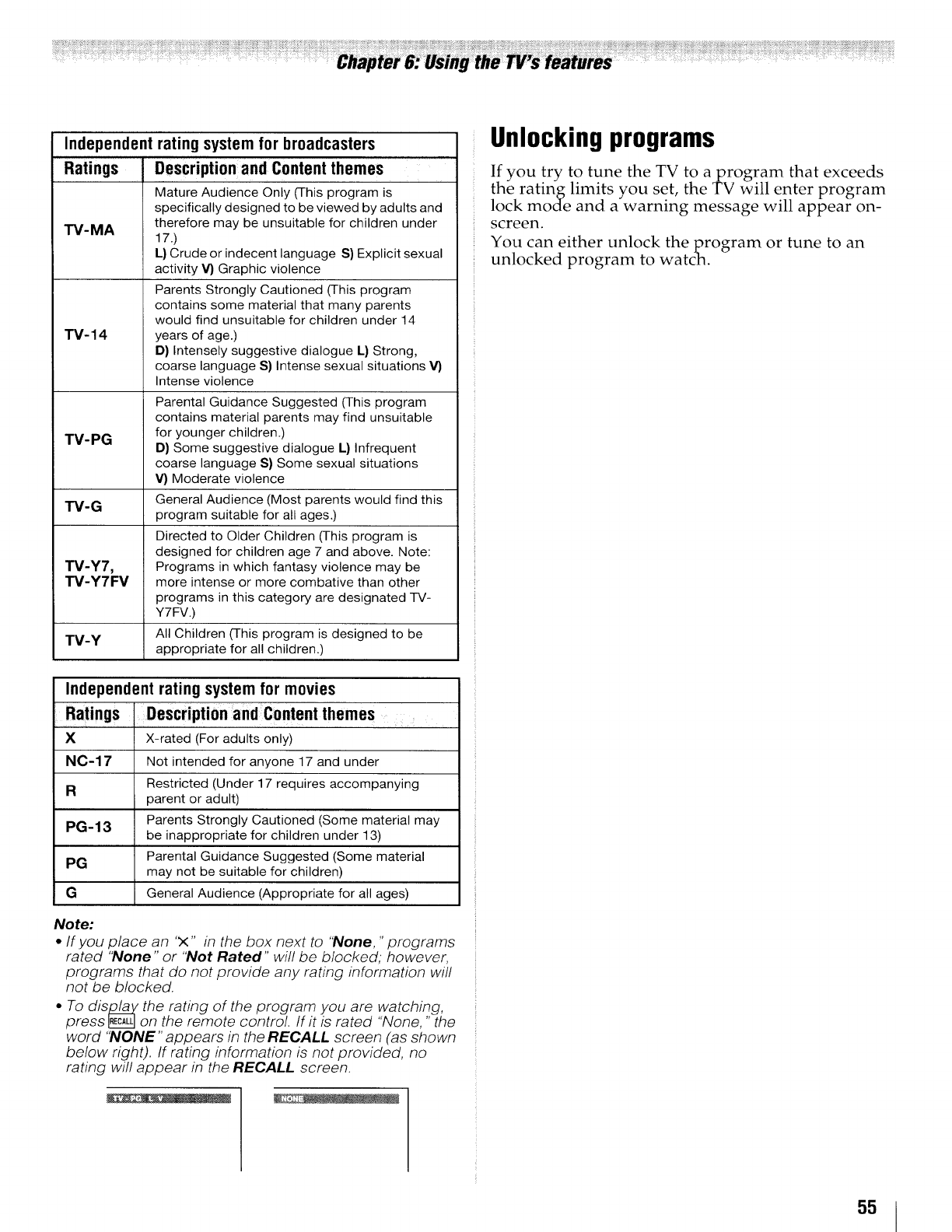
Independent
Ratings
TV-MA
TV-14
TV-PG
TV-G
TV-Y7,
TV-Y7FV
TV-Y
Independent rating system for movies
Ratings ' Descriptionand Contentthemes
XX-rated (For adults only)
N0-17 Not intended for anyone 17 and under
Restricted (Under 17 requires accompanying
Rparent or adult)
Parents Strongly Cautioned (Some material may
PG-13 be inappropriate for children under 13)
Parental Guidance Suggested (Some material
PG may not be suitable for children)
GGeneral Audience (Appropriate for all ages)
rating system for broadcasters
DescriptionandContentthemes
Mature Audience Only (This program is
specifically designed to be viewed by adults and
therefore may be unsuitable for children under
17.)
L) Crude or indecent language S) Explicit sexual
activity V) Graphic violence
Parents Strongly Cautioned (This program
contains some material that many parents
would find unsuitable for children under 14
years of age.)
D) Intensely suggestive dialogue L) Strong,
coarse language S) Intense sexual situations V)
Intense violence
Parental Guidance Suggested (This program
contains material parents may find unsuitable
for younger children.)
D) Some suggestive dialogue L} Infrequent
coarse language S) Some sexual situations
V) Moderate violence
General Audience (Most parents would find this
program suitable for all ages.)
Directed to Older Children (This program is
designed for children age 7 and above. Note:
Programs in which fantasy violence may be
more intense or more combative than other
programs in this category are designated TV-
Y7FV.)
All Children (This program is designed to be
appropriate for all children.)
Note:
°If you place an x tn the box next to "None." programs
rated 'None" or 'Not Rated" will be blocked: however.
programs that do not orovide any rating information wifl
not be blocked.
•To dis l_Za_the rating of the program you are watching,
press _on the remote control. If it is rated "None. " the
word 'NONE" appears In the RECALL screen (as stTown
below right), If rating information is not provided, no
rating wil! appear in the RECALL screen.
Unlocking programs
If you try to tune the TV to a program that exceeds
the ratin limits you set,. the TV will enter program
lock mo_e and a warning message will appear on-
screen.
You can either unlock the program or tune to an
unlocked program to watch.
55
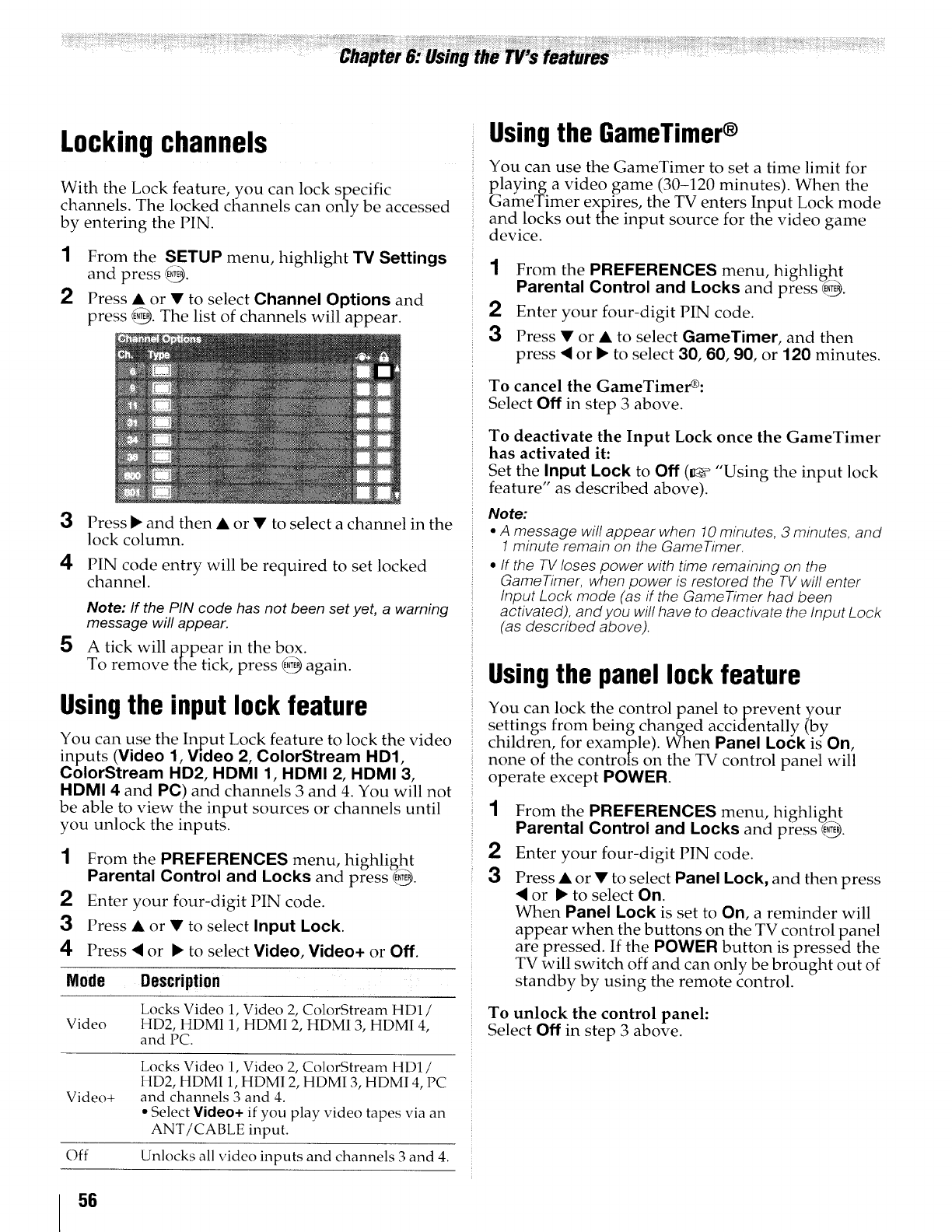
Lockingchannels
With the Lock feature, you can lock specific
channels. The locked channels can only be accessed
by entering the PIN.
1From the SETUP menu, highlight TV Settings
and press 69.
2Press • or •to select Channel Options and
press @. The list of channels will appear.
3Press • and then • or • to select a channel in the
lock column.
4PIN code entry will be required to set locked
channel.
Note: If the PIN code has not been set yet, a warning
message will appear.
5 A tick will appear in the box.
To remove the tick, press _) again.
Usingthe inputlockfeature
You can use the Input Lock feature to lock the video
inputs (Video 1, Video 2, ColorStream HD1,
ColorStream HD2, HDMI 1, HDMI 2, HDMI 3,
HDMI 4 and PC) and channels 3 and 4. You will not
be able to view the input sources or channels until
you unlock the inputs.
1From the PREFERENCES menu, highlight
Parental Control and Locks and press _E_.
2 Enter your four-digit PIN code.
3 Press • or • to select Input Lock.
4 Press • or • to select Video, Video+ or Off.
Mode Description
Locks Video 1, Video 2, ColorStream HD1/
Video HD2, HDM11, HDMI 2, HDMI 3, HDMI 4,
and PC.
Video+
Locks Video 1, Video 2, ColorStream HD1i
HD2, HDMI 1, HDMI 2, HDMI 3, HDMI 4, PC
and channels 3 and 4.
• Select Video+ if you play video tapes via an
ANT/CABLE input.
Off Unlocks all video inputs and channels 3 and 4.
Usingthe GameTimer®
You can use the GameTimer to set a time limit for
playing a video game (30-120 minutes). When the
GameTimer expires, the TV enters Input Lock mode
and locks out the input source for the video game
device.
1From the PREFERENCES menu, highlight
Parental Control and Locks and press/_.
2 Enter your four-digit PIN code.
3 Press • or • to select GameTimer, and then
press • or • to select 30, 60, 90, or 120 minutes.
To cancel the GameTimer_:
Select Off in step 3 above.
To deactivate the Input Lock once the GameTimer
has activated it:
Set the Input Lock to Off (_ "Using the input lock
feature" as described above).
Note:
•A message will appear when 10 minutes, 3 minutes, and
I minute remain on the GameTimer.
•If the TV loses power with time remaining on the
GameTimer, when power is restored the TV will enter
Input Lock mode (as if the GameTimer had been
activated), and you will have to deactivate the Input Lock
(as described above).
Usingthe panellockfeature
You can lock the control panel toprevent your
settings from being changed accidentally (by
children, for example). When Panel Lock is On,
none of the controls on the TV control panel will
operate except POWER.
1
2
3
From the PREFERENCES menu, highlight
Parental Control and Locks and press'&TE{_.
Enter your four-digit PIN code.
Press • or •to select Panel Lock, and then press
• or • to select On.
When Panel Lock is set to On, a reminder will
appear when the buttons on the TV control panel
are pressed. If the POWER button is pressed the
TV will switch off and can only be brought out of
standby by using the remote control.
To unlock the control panel:
Select Off in step 3 above.
56
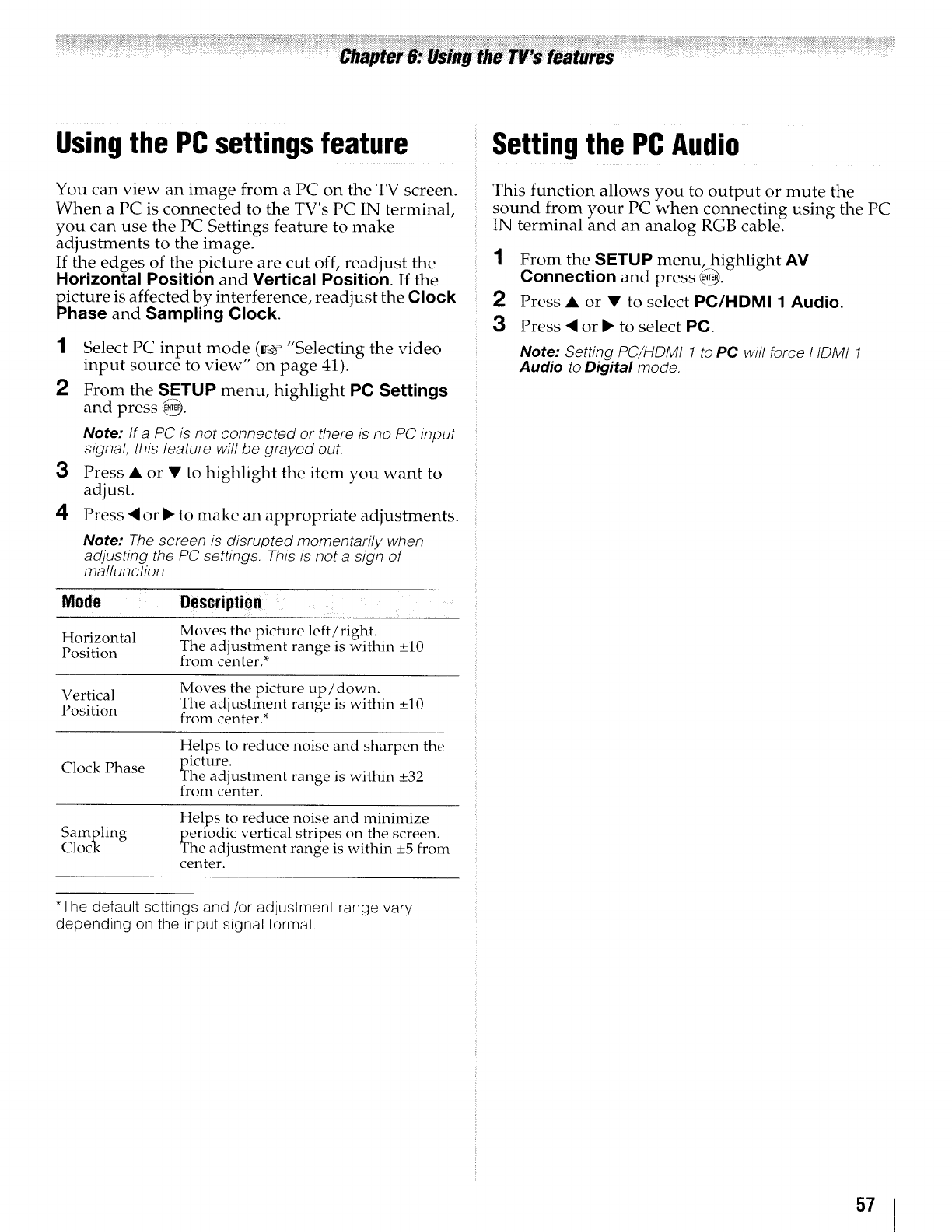
Usingthe PCsettings feature Settingthe PCAudio
You can view an image from a PC on the TV screen.
When a PC is connected to the TV's PC IN terminal,
you can use the PC Settings feature to make
adjustments to the image.
If the edges of the picture are cut off, readjust the
Horizontal Position and Vertical Position. If the
icture is affected by interference, readjust the Clock
hase and Sampling Clock.
Select PC input mode (_" "Selecting the video
input source to view" on page 41).
From the SETUP menu, highlight PC Settings
and press @-*_.
Note: If a PC is not connected or there is no PC input
signal, this feature will be grayed out.
3Press • or V to highlight the item you want to
adjust.
4Press <or I_ to make an appropriate adjustments.
Note: The screen is disrupted momentarily when
adjusting the PC settings. This is not a sign of
malfunction.
Mode Description
Horizontal
Position
Moves the picture left!right.
The adjustment range is within _+10
from center,*
Vertical
Position
Moves the picture up/down.
The adjustment range is within _+10
from center.*
Clock Phase
Helps to reduce noise and sharpen the
icture.
he adjustment range is within _+32
from center.
Sampling
Clock
Helps to reduce noise and minimize
periodic vertical stripes on the screen.
The adjustment range is within -+5 from
center.
This function allows you to output or mute the
sound from your PC when connecting using the PC
IN terminal and an analog RGB cable.
1
2
3
From the SETUP menu, highlight AV
Connection and press _.
Press • or V to select PC/HDMI 1 Audio.
Press <or I_ to select PC.
Note: Setting PC/HDMI 1 to PC will force HDMI 1
Audio to Digital mode.
*The default settings and/or adjustment range vary
depending on the input signal format.
57
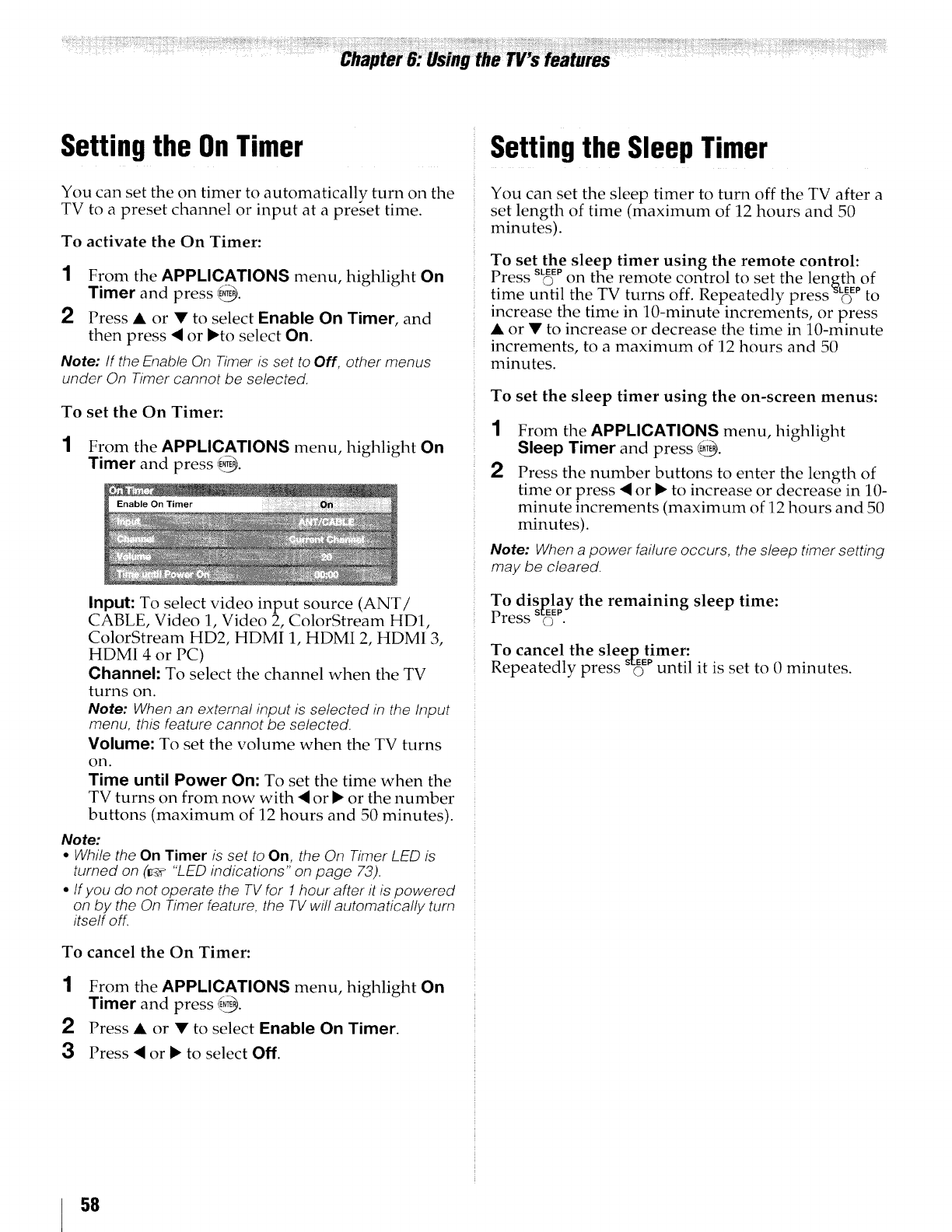
Settingthe OnTimer
You can set the on timer to automatically turn on the
TV to a preset channel or input at a preset time.
To activate the On Timer:
1From the APPLICATIONS menu, highlight On
Timer and press {_.
2Press • or • to select Enable On Timer, and
then press 4 or •to select On.
Note: If the Enable On Timer is set to Off, other menus
under On hmer cannot be selected.
To set the On Timer:
1From the APPLICATIONS menu, highlight On
Timer and press _.
Input: To select video input source (ANT/
CABLE, Video 1, Video 2, ColorStream HD1,
ColorStream HD2, HDMI 1, HDMI 2, HDMI 3,
HDMI 4 or PC)
Channel: To select the channel when the TV
turns on.
Note: When an external input is selected in the Input
menu, this feature cannot be selected.
Volume: To set the volume when the TV turns
on.
Time until Power On: To set the time when the
TV turns on from now with <or • or the number
buttons (maximum of 12 hours and 50 minutes).
Note:
•While the On Timer is set to On, the On Timer LED is
turned on (lr_ "LED indications" on page 73).
•If you do not operate the TV for 1hour after it is powered
on by the On Timer feature, the TV will automatically turn
itself off.
To cancel the On Timer:
1
2
3
From the APPLICATIONS menu, highlight On
Timer and press 4.,_.
Press • or • to select Enable On Timer.
Press <or • to select Off.
Settingthe SleepTimer
You can set the sleep timer to turn off the TV after a
set length of time (maximum of 12 hours and 50
minutes).
To set the sleep timer using the remote control:
Pr SLEEP y
ess O on the remote control to set the length of
time until the TV turns off. Repeatedly press_ Epto
increase the time in 10-minute increments, or press
• or • to increase or decrease the time in 10-minute
increments, to a maximum of 12 hours and 50
minutes.
To set the sleep timer using the on-screen menus:
1From the APPLICATIONS menu, highlight
Sleep Timer and press _.
2Press the number buttons to enter the length of
time or press <or • to increase or decrease in 10-
minute increments (maximum of 12 hours and 50
minutes).
Note: When a power failure occurs, the sleep timer setting
may be cleared.
To display the remaining sleep time:
Press s_EP.
To cancel the sleep timer:
Repeatedly press SteEPuntil it is set to 0 minutes.
58
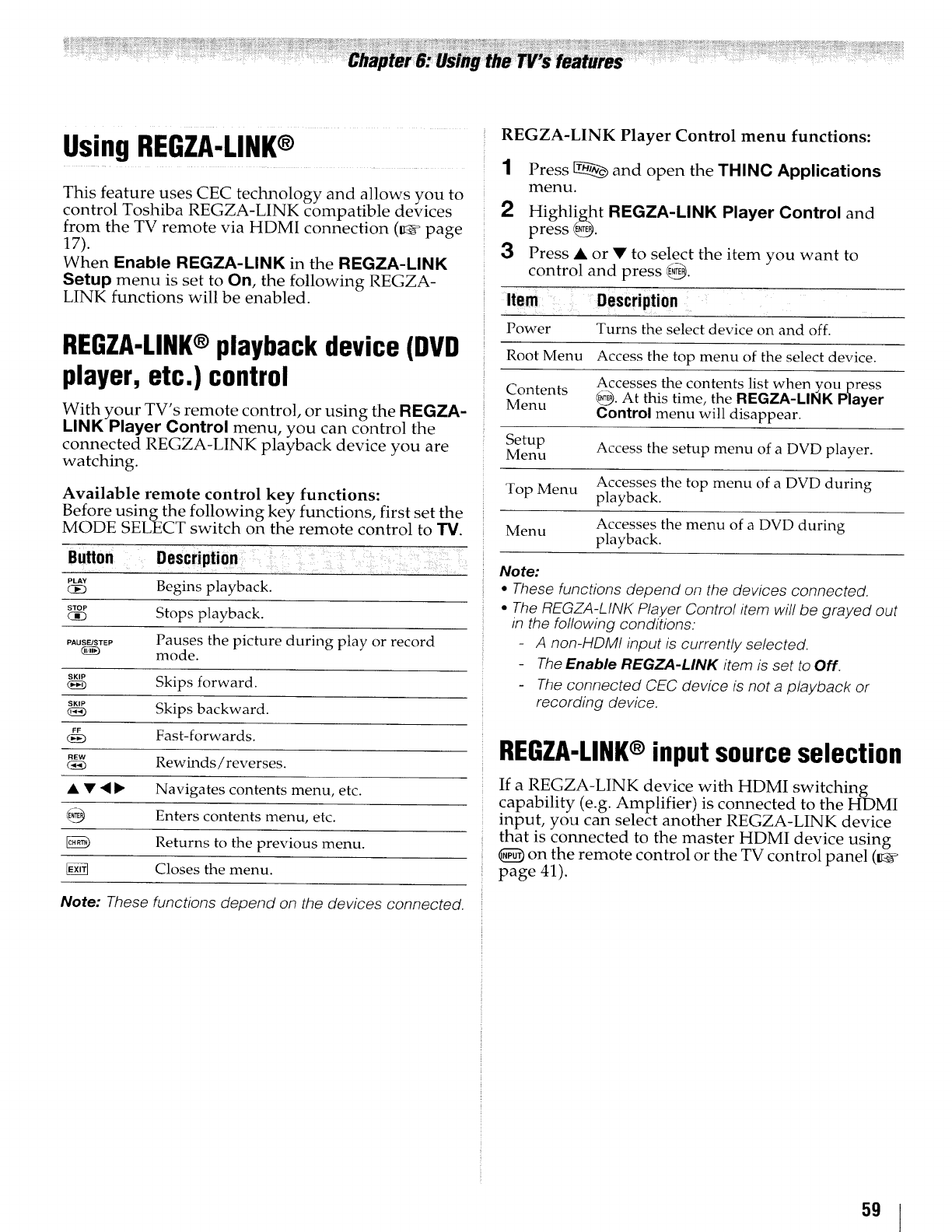
UsingREGZA-LINK®
This feature uses CEC technology and allows you to
control Toshiba REGZA-LINK compatible devices
from the TV remote via HDMI connection (_ page
17).
When Enable REGZA-LINK in the REGZA-LINK
Setup menu is set to On, the following REGZA-
LINK functions will be enabled.
REGZA-LINK®playbackdevice(DVD
player, etc.) control
With your TV's remote control, or using the REGZA-
LINK Player Control menu, you can control the
connected REGZA-LINK playback device you are
watching.
Available remo te control key functions:
Before using the following key functions, first set the
MODE SELECT switch on the remote control to TV.
Button Description
PLAY Begins playback.
STOP
c_3 Stops playback.
PAUS_STEP Pauses the picture during play or record
mode.
SKIP Skips forward.
SKIP
_) Skips backward.
FF Fast-forwards.
FlEW
(_ Rewinds /reverses.
••<1I_ Navigates contents menu, etc.
Enters contents menu, etc.
Returns to the previous menu.
Closes the menu.
Note: These functions depend on the devices connected.
REGZA-LINK Player Control menu functions:
1Press _ and open the THINC Applications
menu.
2Highlight REGZA-LINK Player Control and
press _.
3Press A or •to select the item you want to
control and press _.
Item Description
Power Turns the select device on and off.
Root Menu Access the top menu of the select device.
Accesses the contents list when you press
Contents _. At this time, the REGZA-LINK Player
Menu Control menu will disappear.
Setup Access the setup menu of a DVD plaver.
Menu
Accesses the top menu of a DVD during
Fop Menu playback.
Accesses the menu of a DVD during
Menu playback.
Note:
•These functions depend on the devices connected.
•The REGZA-LINK Player Control item wil! be grayed out
in the following conditions:
-A non-HDMI input is currently selected.
-The Enable REGZA-LINK item is set to Off.
-The connected CEC device is not a playback or
recording device.
REGZA-LINK®input source selection
If a REGZA-LINK device with HDMI switching
capability (e.g. Amplifier) is connected to the HDMI
input, you can select another REGZA-LINK device
that is connected to the master HDMI device using
_) on the remote control or the TV control panel (_
page 41).
59
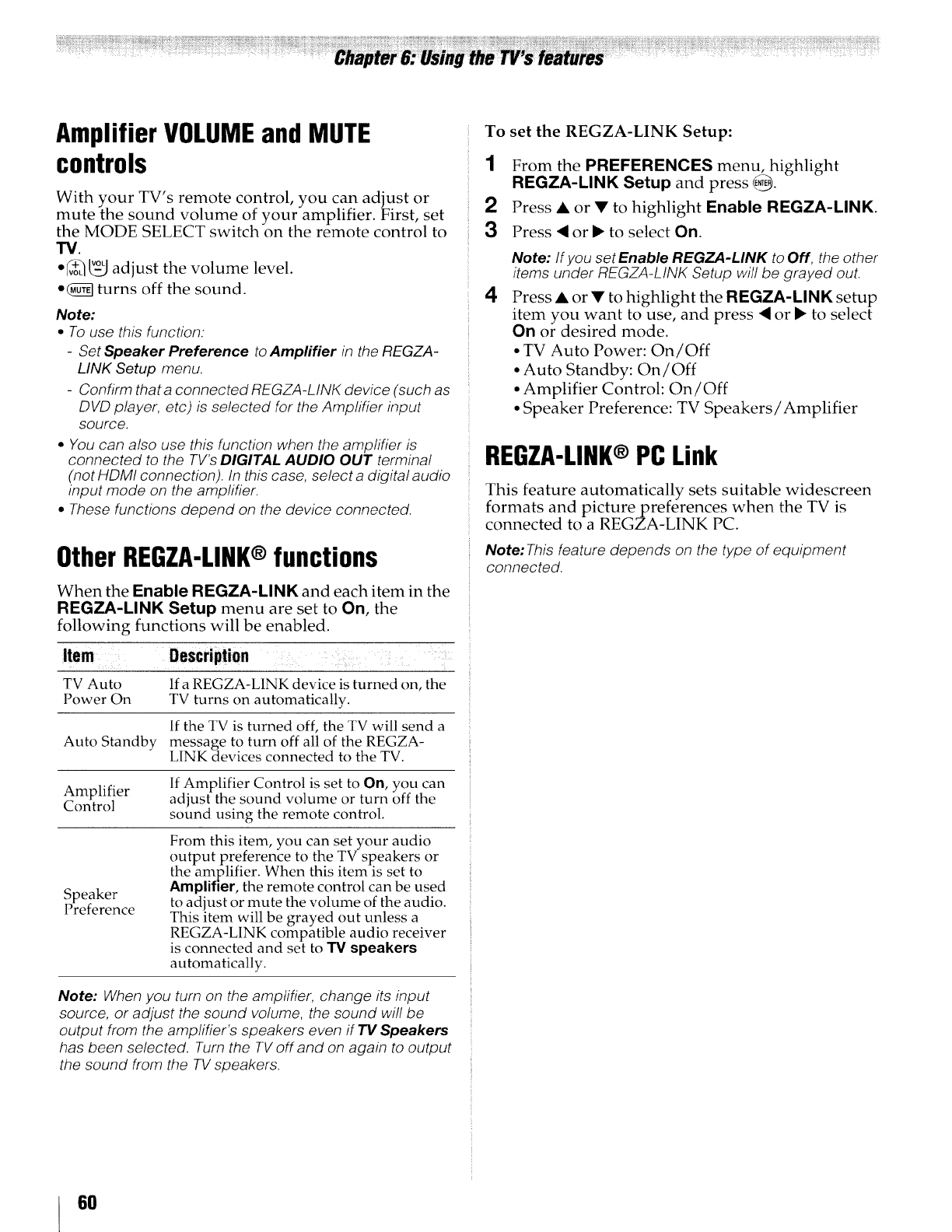
Amplifier VOLUMEand MUTE
controls
With your TV's remote control, you can adjust or
mute the sound volume of your amplifier. First, set
the MODE SELECT switch on the remote control to
W.
• ?h _-_ adjust the volume level.
• (_ turns off the sound.
Note:
•To use this function:
-Set Speaker Preference to Amplifier _n the REGZA-
LINK Setup menu.
-Confirm that a connected REGZA-LINK device _such as
DVD player, etc) is selected for the Amplifier input
source.
• You can also use this function when the amplifier is
connected to the TV's DIGITAL AUDIO OUT terminal
(not HDMI connection). In this case select a digital audio
input mode on the amplifier.
•These functions depend on the device connected.
OtherREGZA-LINK®functions
When the Enable REGZA-LINK and each item in the
REGZA-LINK Setup menu are set to On, the
following functions will be enabled.
Item Descri ption
TV Auto If a REGZA-LINK device is turned on, the
Power On TV turns on automatically.
If the TV is turned off, the TV will send a
Auto Standby message to turn off all of the REGZA-
LINK devices connected to the TV.
If Amplifier Control is set to On, you can
Amplifier adjust the sound volume or turn off the
Control sound using the remote control.
Speaker
Preference
From this item, you can set your audio
output preference to the TV speakers or
the amplifier. When this item is set to
Amplifier, the remote control can be used
to adjust or mute the volume of the audio.
This item will be grayed out unless a
REGZA-LINK compatible audio receiver
is connected and set to "13/speakers
automatically.
Note: When you turn on the amplifier, change its input
source, or adjust the sound volume the sound will be
output from _he amplifier's speakers even if TV Speakers
has been selected. Turn the TV off and on again to output
tt_e sound from the TV speakers.
To set the REGZA-LINK Setup:
1From the PREFERENCES menu, highlight
REGZA-LINK Setup and press _.
2Press • or • to highlight Enable REGZA-LINK
3Press < or _" to select On.
4
Note: If you set Enable REGZA-LINK to Off, the other
items under REGZA-LINK Setup will be grayed out.
Press • or • to highlight the REGZA-LINK setup
item you want to use, and press <or I_ to select
On or desired mode.
•TV Auto Power: On/Off
• Auto Standby: On/Off
• Amplifier Control: On/Off
• Speaker Preference: TV Speakers/Amplifier
REGZA-LINK®PC Link
This feature automatically sets suitable widescreen
formats and picture preferences when the TV is
connected to a REGZA-LINK PC.
Note: This feature depends on the type of equipment
connected.
6O
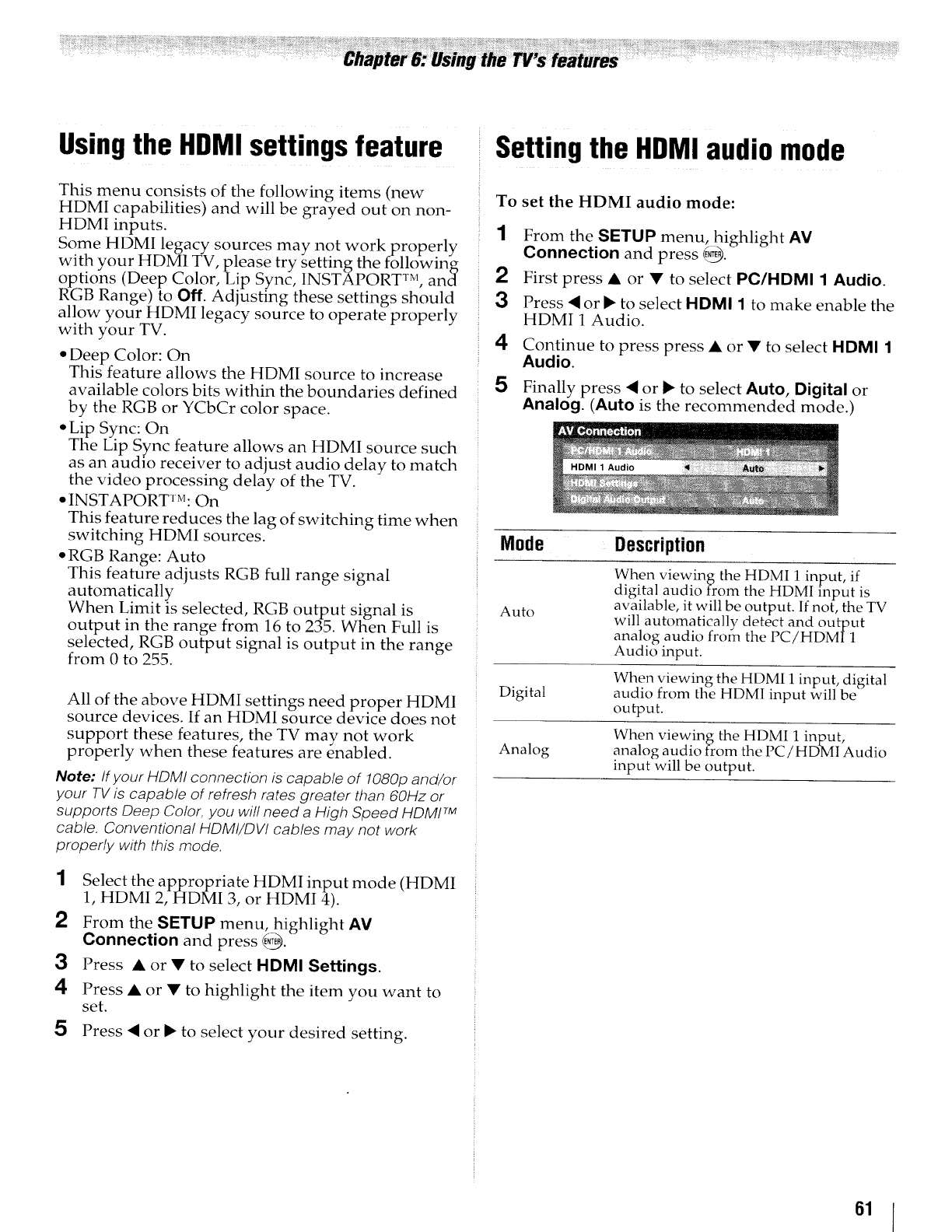
Usingthe HDMI settings feature
This menu consists of the following items (new
HDMI capabilities) and will be grayed out on non-
HDMI inputs.
Some HDMI legacy sources may not work properly
with your HDMI TV, please try setting the following
R°pti°ns (Deep Color, Lip Sy nc, INSTAPORT TM, and
GB Range) to Off. Adjusting these settings should
allow your HDMI legacy source to operate properly
with your TV.
° Deep Color: On
This feature allows the HDMI source to increase
available colors bits within the boundaries defined
by the RGB or YCbCr color space.
* Lip Sync: On
The Lip Sync feature allows an HDMI source such
as an audio receiver to adjust audio delay to match
the video processing delay of the TV.
• INSTAPORTrM: On
This feature reduces the lag of switching time when
switching HDMI sources.
• RGB Range: Auto
This feature adjusts RGB full range signal
automatically
When Limit is selected, RGB output signal is
output in the range from 16 to 235. When Full is
selected, RGB output signal is output in the range
from 0 to 255.
All of the above HDMI settings need proper HDMI
source devices. If an HDMI source device does not
support these features, the TV may not work
properly when these features are enabled.
Note: If your HDMI connection is capable of !080p and/or
your TV is capable of refresh rates greater than 60Hz or
supports Deep Color, you will need a High Speed HDMF M
cable. Conventional HDMI/DVI cables may not work
properly with this mode,
1Select the appropriate HDMI input mode (HDMI
1, HDMI 2, HDMI 3, or HDMI 4).
2From the SETUP menu, highlight AV
Connection and press @.
3Press • or •to select HDMI Settings.
Press • or •to highlight the item you want to
set.
5Press • or _ to select your desired setting.
Setting the HDMI audio mode
To set the HDMI audio mode:
1From the SETUP menu, highlight AV
Connection and press 3-
2 First press • or • to select PC/HDMI 1 Audio.
3Press • or I_ to select HDMI 1to make enable the
HDMI 1 Audio.
4Continue to press press • or • to select HDMI 1
Audio.
5Finally press •or _" to select Auto, Digital or
Analog. (Auto is the recommended mode.)
Mode Description
Auto
Digital
Analog
When viewing the HDMI i input, if
digital audio from the HDMI input is
available, it will be output. If not, the TV
will automatically detect and output
analog audio from the PC/HDMI 1
Audio input.
When viewing the HDMI 1 input, digital
audio from the HDMI input will be
output.
When viewing the HDMI 1 input,
analog audio from the PCiHDMI Audio
input will be output.
61
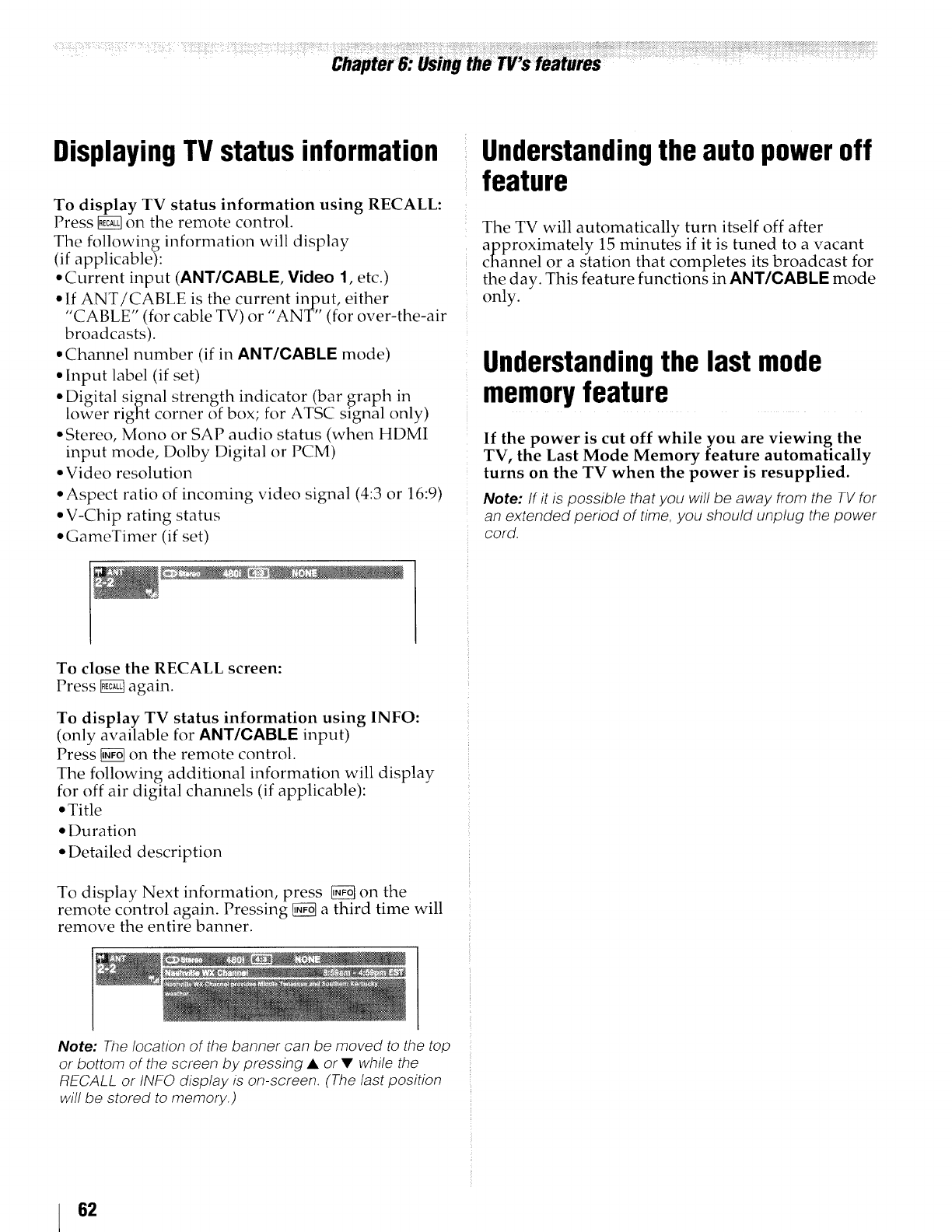
DisplayingTVstatus information Understandingthe autopoweroff
feature
To display TV status information using RECALL:
Press _ on the remote control.
The following information will display
(if applicable):
• Current input (ANT/CABLE, Video 1, etc.)
• If ANT/CABLE is the current in_,ut, either
"CABLE" (for cable TV) or "ANT' (for over-the-air
broadcasts).
• Channel number (if in ANT/CABLE mode)
• Input label (if set)
• Digital signal strength indicator (bar graph in
lower right corner of box; for ATSC signal only)
• Stereo, Mono or SAP audio status (when HDMI
input mode, Dolby Digital or PCM)
• Video resolution
• Aspect ratio of incoming video signal (4:3 or 16:9)
• V-Chip rating status
• GameTimer (if set)
The TV will automatically turn itself off after
approximately 15 minutes if it is tuned to a vacant
channel or a station that completes its broadcast for
the day. This feature functions in ANT/CABLE mode
only.
Understandingthe last mode
memoryfeature
If the power is cut off while you are viewing the
TV, the Last Mode Memory feature automatically
turns on the TV when the power is resupplied.
Note: If it is possible that you wi// be away from the TV for
an extended period of time, you should unplug the power
cord.
To close the RECALL screen:
Press _ again.
To display TV status information using INFO:
(only available for ANT/CABLE input)
Press _01 on the remote control.
The following additional information will display
for off air digital channels (if applicable):
• Title
• Duration
• Detailed description
To display Next information, press _ on the
remote control again. Pressing _ a third time will
remove the entire banner.
Note: The location of the banner can be moved to the top
or bottom of the screen by pressing •or •while the
RECALL or INFO display is on-screen. (The last position
will be stored to memory.)
62
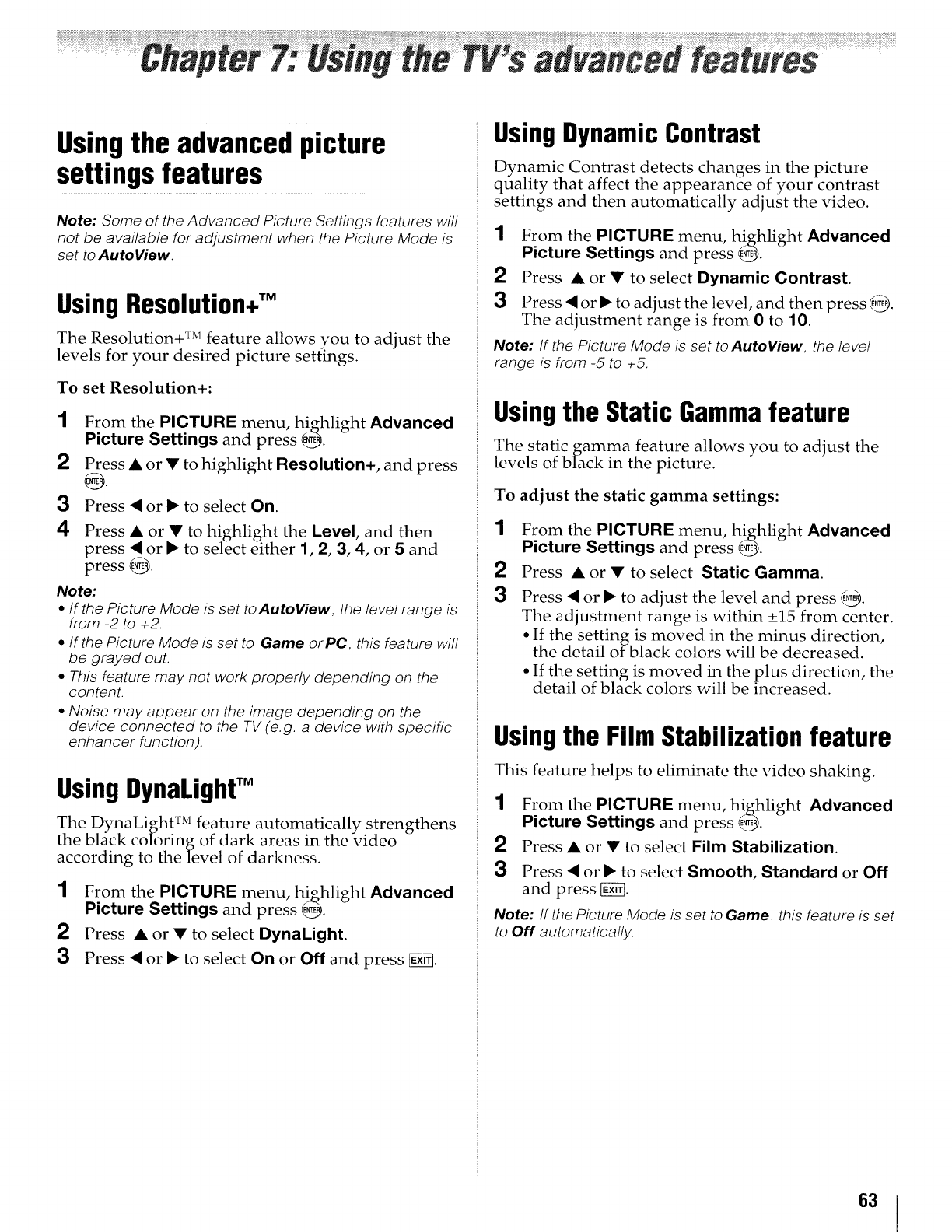
_ _i !_i¸
Usingthe advancedpicture
settingsfeatures
Note: Some of the Advanced Picture Settings features will
not be available for adjustment when the Picture Mode is
set to AutoView.
Using Resolution+TM
The Resolution+ TM feature allows you to adjust the
levels for your desired picture settings.
To set Resolution+:
1From the PICTURE menu, highlight Advanced
Picture Settings and press E,_.
2Press • or •to highlight Resolution+, and press
3Press • or • to select On.
4Press • or • to highlight the Level, and then
press • or • to select either 1, 2, 3, 4, or 5and
press @.
Note:
•If the Picture Mode is set toAutoView, the level range is
from -2 to +2.
•If the Picture Mode is set to Game orPC, this feature will
be grayed out.
•This feature may not work properly depending on the
content.
• Noise may appear on the image depending on the
device connected to the TV (e.g. a device with specific
enhancer function).
UsingDynaLighfM
The DynaLight TM feature automatically strengthens
the black coloring of dark areas in the video
according to the level of darkness.
1From the PICTURE menu, highlight Advanced
Picture Settings and press _.
2Press • or • to select DynaLight.
3Press • or • to select On or Off and press _.
UsingDynamicContrast
Dynamic Contrast detects changes in the picture
quality that affect the appearance of your contrast
Settings and then automatically adjust the video.
1From the PICTURE menu, highlight Advanced
Picture Settings and press _.
2Press • or • to select Dynamic Contrast.
3Press • or • to adjust the level, and then press _.
The adjustment range is from 0 to 10.
Note: If the Picture Mode is set to AutoView, the leve!
range is from -5 to +5.
Usingthe Static Gammafeature
The static gamma feature allows you to adjust the
levels of black in the picture.
To adjust the static gamma settings:
1From the PICTURE menu, highlight Advanced
Picture Settings and press @_.
2Press • or • to select Static Gamma.
3Press • or • to adjust the level and press _.
The adjustment range is within +_15 from center.
• If the setting is moved in the minus direction,
the detail of black colors will be decreased.
•If the setting is moved in the plus direction, the
detail of black colors will be increased.
Usingthe Film Stabilization feature
This feature helps to eliminate the video shaking.
1From the PICTURE menu, highlight Advanced
Picture Settings and press _.
2Press• or • to selectFilm Stabilization.
3Press• or• to selectSmooth,Standard or Off
and press [g_fl.
Note: If the Picture Mode is set to Game, this feature is set
to Off automatically.
63
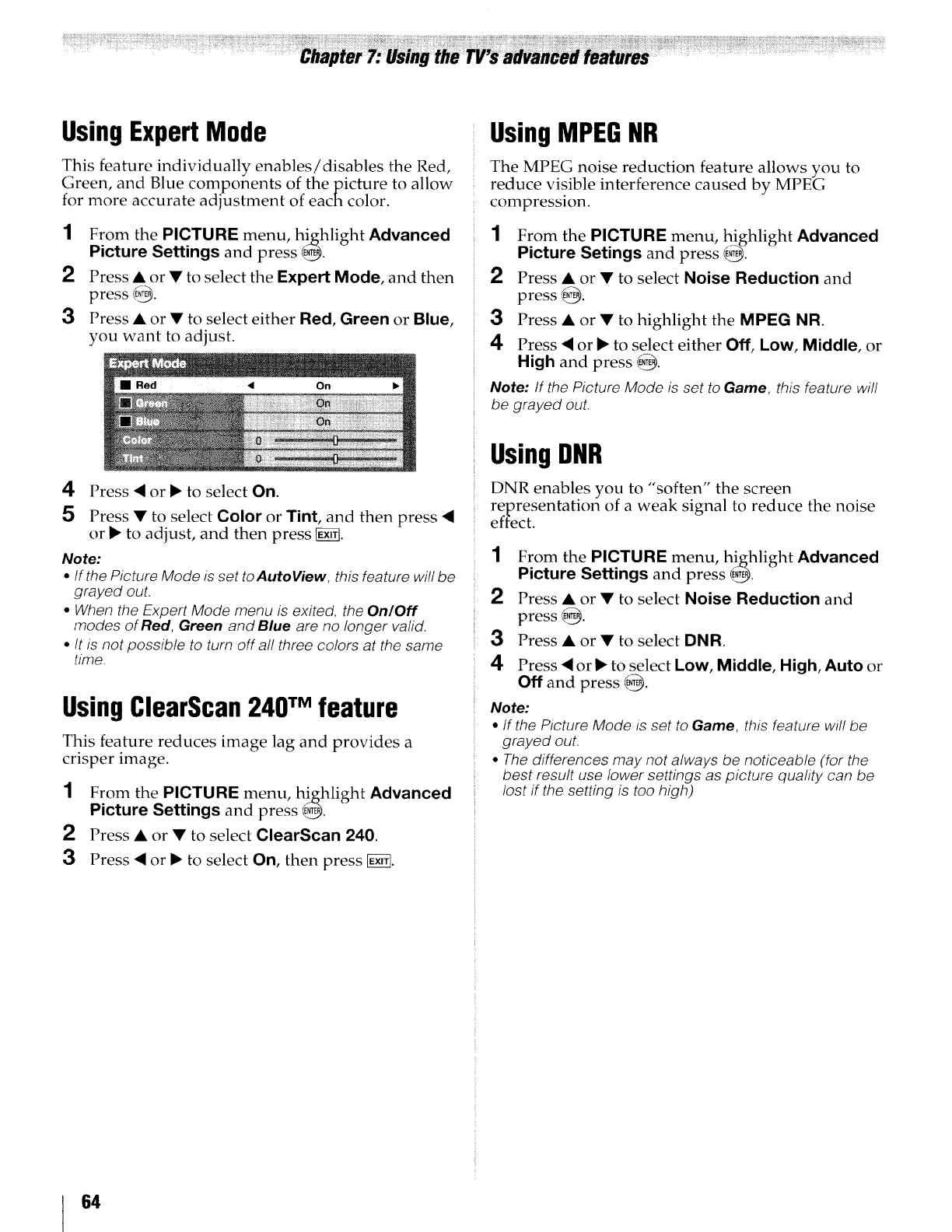
UsingExpert Mode
This feature individually enables/disables the Red,
Green, and Blue components of the picture to allow
for more accurate adjustment of each color.
1From the PICTURE menu, highlight Advanced
Picture Settings and press _.
2Press • or • to select the Expert Mode, and then
press {_.
3Press • or • to select either Red, Green or Blue,
you want to adjust.
Press • or _ to select On.
5Press • to select Color or Tint, and then press •
or I_ to adjust, and then press [g_.
Note:
*If the Picture Mode is set toAutoView, this feature wi!l be
grayed out.
•When the Expert Mode menu is exited, the On!Off
modes of Red, Green and Blue are no longer valid.
• It is not possible to turn off all three colors at the same
time.
UsingClearScan240TM feature
This feature reduces image lag and provides a
crisper image.
1From the PICTURE menu, highlight Advanced
Picture Settings and press _.
2Press• or• toselectClearScan 240.
3Press • or I_ to select On, then press _.
UsingMPEGNR
The MPEG noise reduction feature allows you to
reduce visible interference caused by MPEG
compression.
1From the PICTURE menu, highlight Advanced
Picture Setings and press @.
2Press • or • to select Noise Reduction and
press @.
3Press • or • to highlight the MPEG NR.
4Press • or I_ to select either Off, Low, Middle, or
High and press @.
Note: If the Picture Mode is set to Game, this feature will
be grayed out.
UsingDNR
DNR enables you to "soften" the screen
representation of a weak signal to reduce the noise
effect.
1From the PICTURE menu, highlight Advanced
Picture Settings and press @.
2Press • or • to select Noise Reduction and
press @.
3Press • or •to select DNR.
4Press • or I_ to select Low, Middle, High, Auto or
Off and press @.
Note:
•If the Picture Mode is set to Game, this feature will be
grayed out.
•The differences may not always be noticeable (for the
best result use lower settings as picture quality can be
lost if the setting is too high)
64
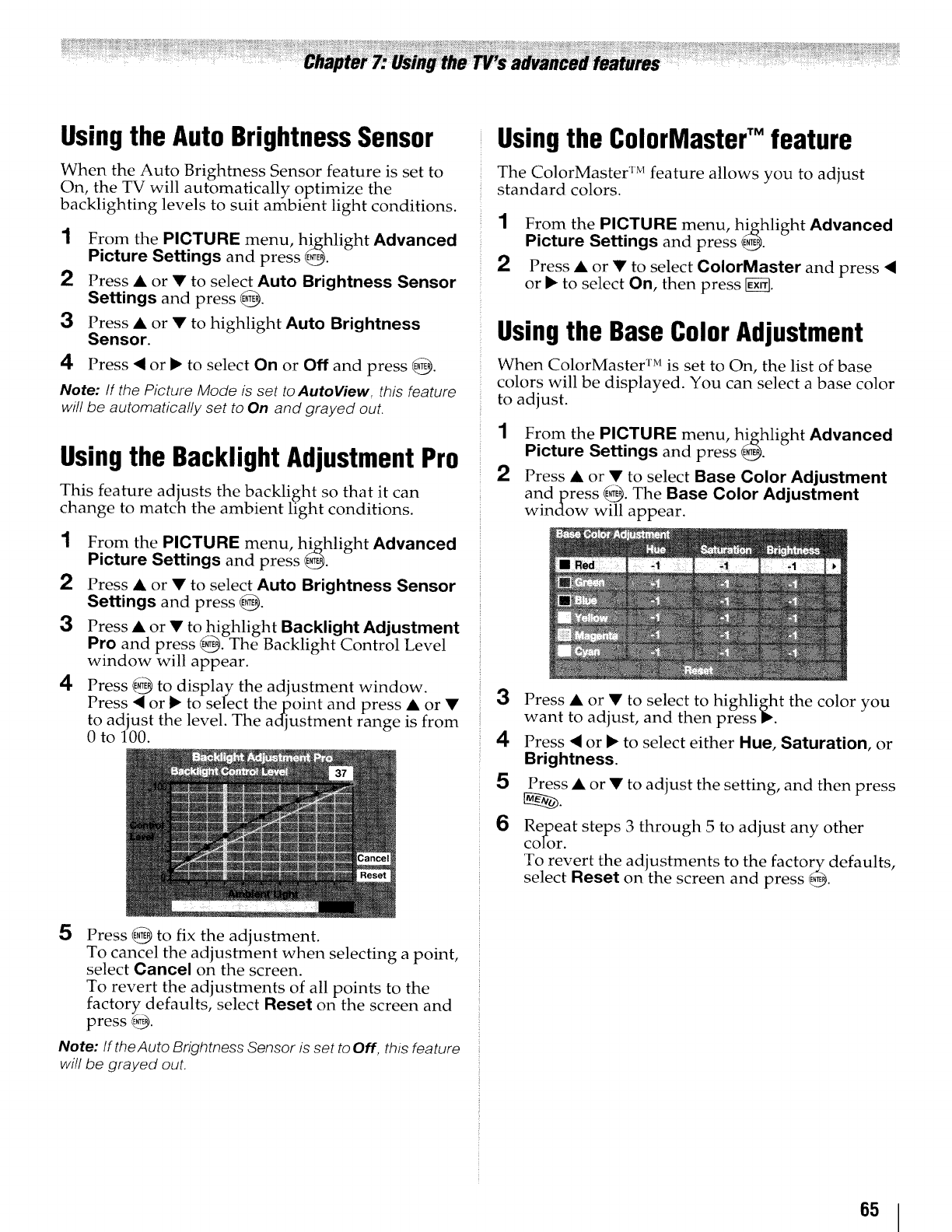
Usingthe Auto BrightnessSensor
When the Auto Brightness Sensor feature is set to
On, the TV will automatically optimize the
backlighting levels to suit ambient light conditions.
1From the PICTURE menu, highlight Advanced
Picture Settings and press _.
2Press • or •to select Auto Brightness Sensor
Settings and press _.
3Press • or •to highlight Auto Brightness
Sensor.
4Press *4 or • to select On or Off and press _.
Note: !f the Picture Mode is set to AutoView, this feature
will be automatically set to On and grayed out.
Usingthe BacklightAdjustmentPro
This feature adjusts the backlight so that it can
change to match the ambient light conditions.
1From the PICTURE menu, highlight Advanced
Picture Settings and press _.
2Press • or • to select Auto Brightness Sensor
Settings and press @.
3Press • or •to highlight Backlight Adjustment
Pro and press @. The Backlight Control Level
window will appear.
4Press @ to display the adjustment window.
Press <or • to select the point and press • or •
to adjust the level. The adjustment range is from
0 to 100.
Usingthe ColorMasterTM feature
The Co]orMaster TM feature allows you to adjust
standard colors.
1From the PICTURE menu, highlight Advanced
Picture Settings and press _.
2Press • or • to select ColorMaster and press "4
or • to select On, then press _.
Usingthe Base Color Adjustment
When ColorMaster TM is set to On, the list of base
colors will be displayed. You can select a base color
to adjust.
1From the PICTURE menu, highlight Advanced
Picture Settings and press _.
2Press • or • to select Base Color Adjustment
andpress _. The Base Color Adjustment
window will appear.
3
4
5
6
Press • or • to select to highlight the color you
want to adjust, and then press•.
Press <or • to select either Hue, Saturation, or
Brightness.
Press • or •to adjust the setting, and then press
Re_eat steps 3 through 5 to adjust any other
COlOr.
To revert the adjustments to the factory defaults,
select Reset on the screen and press @.
5Press _ to fix the adjustment.
To cancel the adjustment when selecting a point,
select Cancel on the screen.
To revert the adjustments of all points to the
factory defaults, select Reset on the screen and
press @.
Note: If the Auto Brightness Sensor is set to Off, this feature
will be grayed out.
65
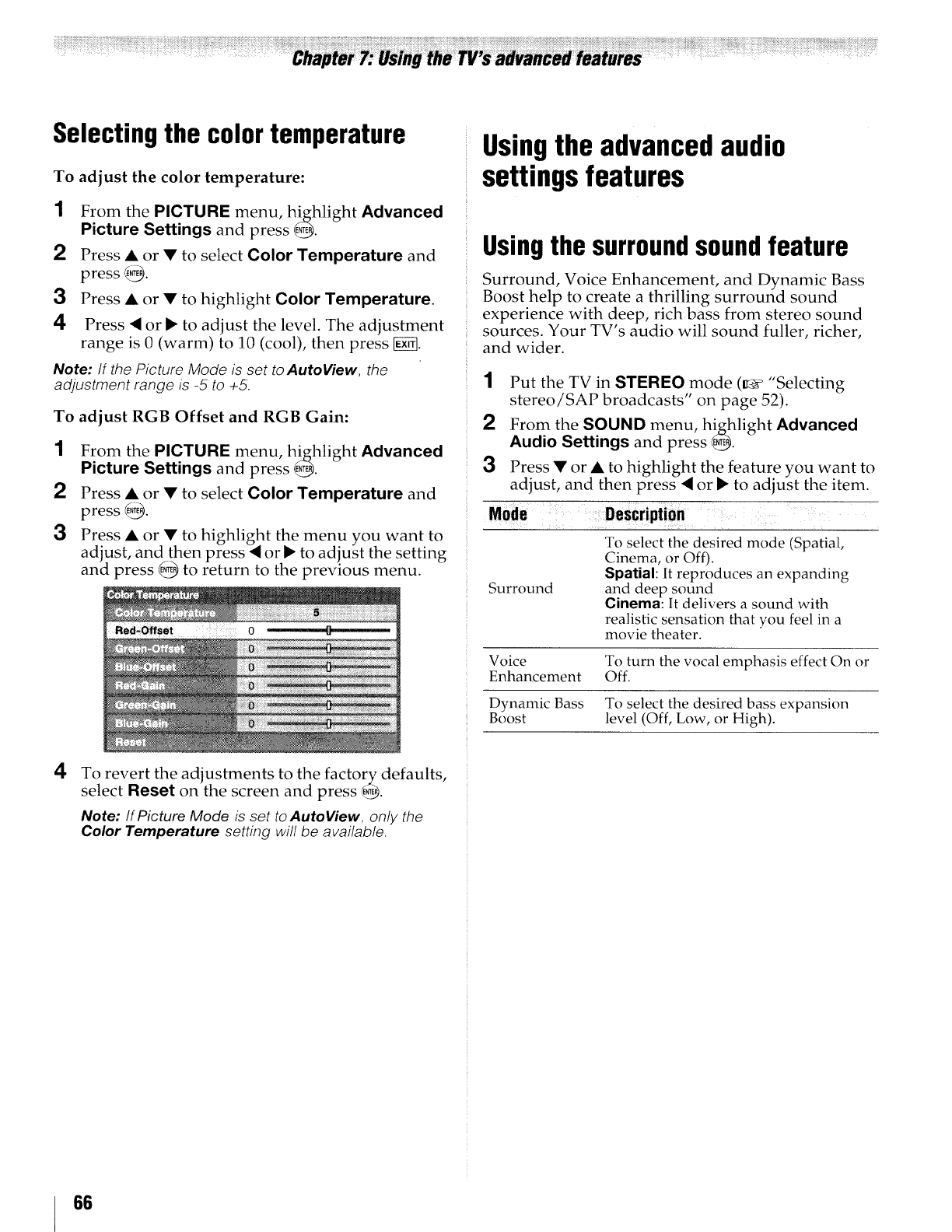
Selecting the color temperature
To adjust the color temperature:
1
2
3
4
From the PICTURE menu, highlight Advanced
Picture Settings and press @.
Press • or • to select Color Temperature and
press _.
Press •or • to highlight Color Temperature.
Press <or !_ to adjust tile level. The adjustment
range is 0 (warm) to 10 (cool), then press _.
Note:/f the Picture Mode is set to AutoView, the
adjustment range is -5 to +5.
To adjust RGB Offset and RGB Gain:
1From the PICTURE menu, highlight Advanced
Picture Settings and press _.
2Press • or • to select Color Temperature and
press _.
3Press. • or • to highlight the menu you want to
adjust, and then press _1or I_ to adjust the setting
and press _ to return to the previous menu.
Usingthe advancedaudio
settingsfeatures
Usingthe surroundsoundfeature
Surround, Voice Enhancement, and Dynamic Bass
Boost help to create a thrilling surround sound
experience with deep, rich bass from stereo sound
sources. Your TV's audio will sound fuller, richer,
and wider.
1
2
3
Mode
Surround
Put the TV in STEREO mode (_ "Selecting
stereo/SAP broadcasts" on page 52).
From the SOUND menu, highlight Advanced
Audio Settings and press _.
Press • or • to highlight the feature you want to
adjust, and then press < or I_ to adjust the item.
To select the desired mode (Spatial,
Cinema, or Off).
Spatial: It reproduces an expanding
and deep sound
Cinema: It delivers a sound with
realistic sensation that you feel in a
movie theater.
Voice To turn the vocal emphasis effect On or
Enhancement Off.
Dynamic Bass To select the desired bass expansion
Boost level (Off, Low, or High).
4To revert the adjustments to the factory defaults,
select Reset on the screen and press _.
Note: If Picture Mode is set to AutoView, only the
Color Temperature setting will be available.
66
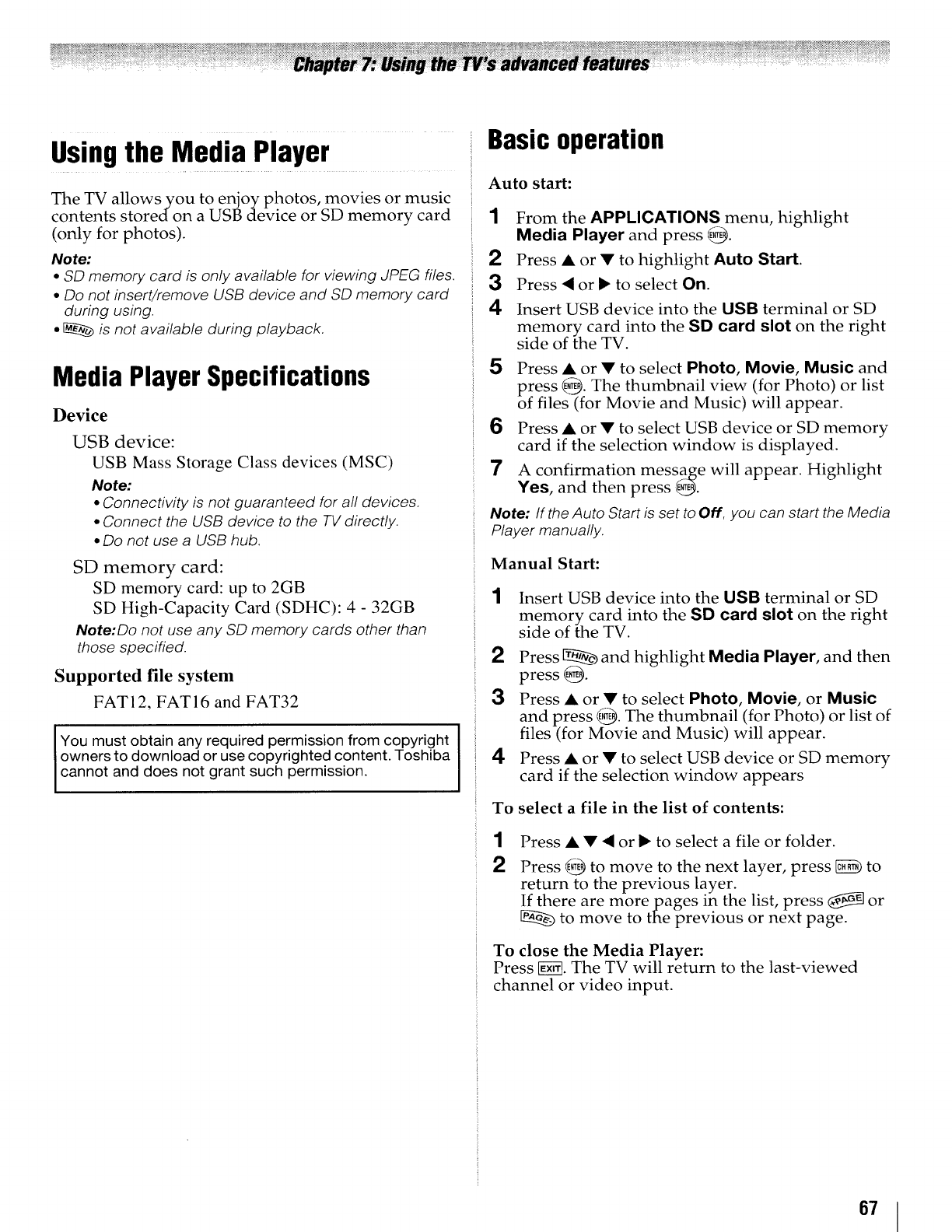
Usingthe Media Player
The TV allows you to enjoy photos, movies or music
contents stored on a USB device or SD memory card
(only for photos).
Note:
•SD memory card is only available for viewing JPEG files.
•Do not insert/remove USB device and SD memory card
during using.
•_is not available during playback.
Media Player Specifications
Device
USB device:
USB Mass Storage Class devices (MSC)
Note:
• Connectivity is not guaranteed for all devices.
• Connect the USB device to the TV directly.
•Do not use a USB hub.
SD memory card:
SD memory card: up to 2GB
SD High-Capacity Card (SDHC): 4 - 32GB
Note:Do not use any SD memory cards other than
those specified.
Supported file system
FAT i 2, FAT 16 and FAT32
You must obtain any required permission from copyright
owners to download or use copyrighted content. Toshiba
cannot and does not grant such permission.
Basicoperation
Auto start:
1
2
3
4
From the APPLICATIONS menu, highlight
Media Player and press @.
Press • or •to highlight Auto Start.
Press • or !_ to select On.
Insert USB device into the USB terminal or SD
memory card into the SD card slot on the right
side of the TV.
5Press • or • to select Photo, Movie, Music and
press @. The thumbnail view (for Photo) or list
of files (for Movie and Music) will appear.
6 Press •or •to select USB device or SD memory
card if the selection window is displayed.
7 A confirmation message will appear. Highlight
Yes, and then press _.
Note: If the Auto Start is set to Off, you can start the Media
Player manually.
Manual Start:
1Insert USB device into the USB terminal or SD
memory card into the SD card slot on the right
side of the TV.
2Press _ and highlight Media Player, and then
press @__.
3Press • or • to select Photo, Movie, or Music
and press E@. The thumbnail (for Photo) or list of
files (for Movie and Music) will appear.
4Press • or • to select USB device or SD memory
card if the selection window appears
To select a file in the list of contents:
2
Press • • • or I_ to select a file or folder.
Press @ to move to the next layer, press _ to
return to the previous layer.
If there are more pages in the list, press _ or
to move to the previous or next page.
To close the Media Player:
Press [giN. The TV will return to the last-viewed
channel or video input.
67
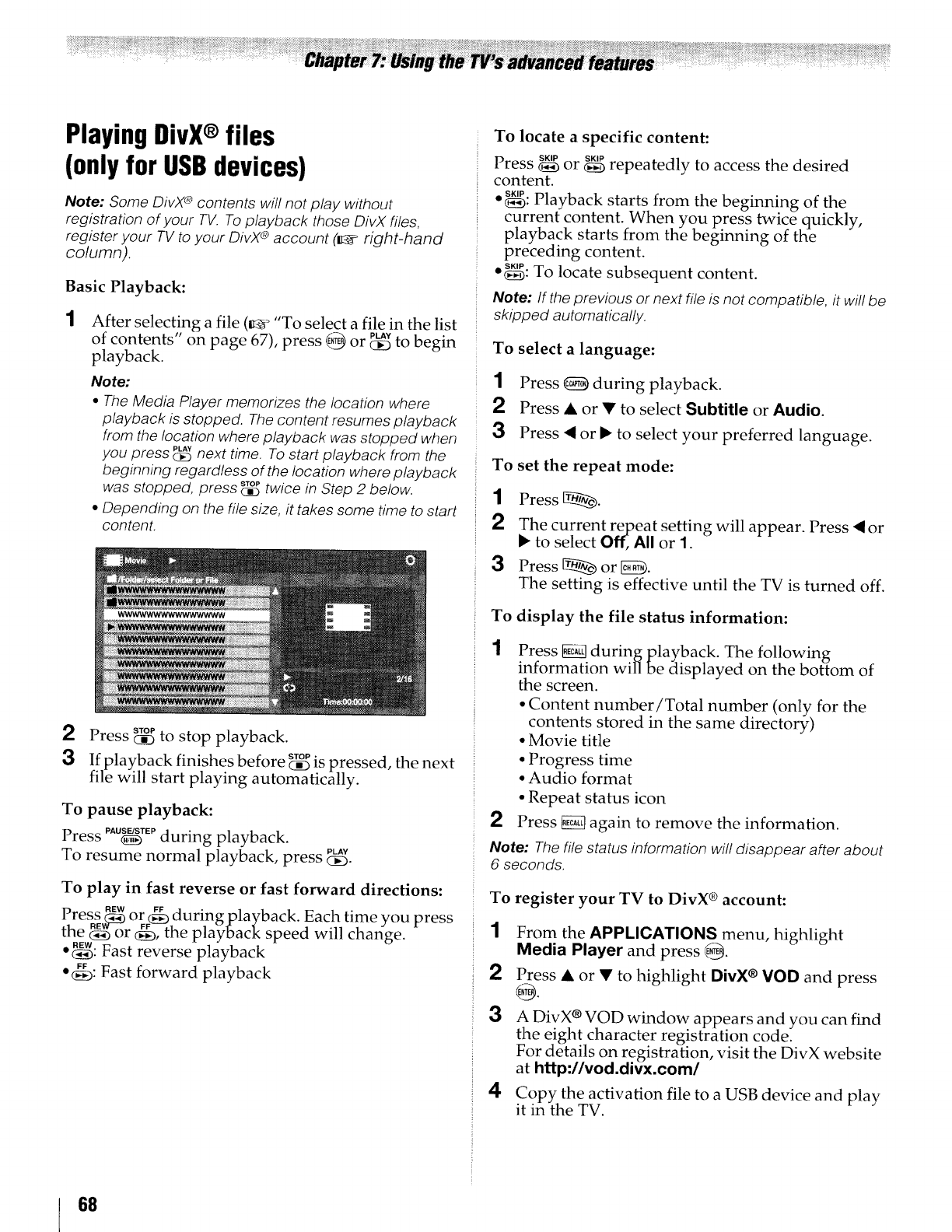
PlayingDivX®files
(onlyfor USBdevices)
Note: Some DivX®contents will not play without
registration of your TV. To playback those DivX files,
register your TV to your DivX®account (_ right-hand
column).
Basic Playback:
After selecting a file (_¢ "To select a file in the list
of contents" on page 67), press {___or _ to begin
playback.
Note:
•The Media Player memorizes the location where
playback is stopped. The content resumes playback
from the location where playback was stopped when
you press _next time. To start playback from the
beginning regardless of the !ocation where playback
was stopped, sToP
press _twice in Step 2 below.
•Depending on the file size, it takes some time to start
content.
2Press _:_ to stop playback.
3If playback finishes before _ is pressed, the next
file will start playing automatica*lly.
To pause playback:
Press PAU_TEPduring playback.
To resume normal playback, press PU,_
CiE)-
To play in fast reverse or fast forward directions:
Pr REW FF •
ess _) or _ durmgplayback. Each Ume you press
the _ owr _, the playback speed will change.
• _: Fast reverse playback
• _: Fast forward playback
To locate a specific content:
SKIP r"""
Press _ or _ epeatealy to access the desired
content.
• _: Playback starts from the beginning of the
current content. When you press twice quickly,
playback starts from the beginning of the
preceding content.
• _: To locate subsequent content.
Note: If the previous or next file is not compatible, it wil! be
skipped automatically.
To select a language:
1Press {_ during playback.
2Press •or • to select Subtitle or Audio.
3Press _I or I_ to select your preferred language.
To set the repeat mode:
1Press _.
2The current repeat setting will appear. Press < or
i_ to select Off,, All or 1.
3PressWork.
The setting is effective until the TV is turned off.
To
1
display the file status information:
2
Press _ during playback. The following
information will be displayed on the bottom of
the screen.
•Content number/Total number (only for the
contents stored in the same directory)
•Movie title
• Progress time
• Audio format
• Repeat status icon
Press _ again to remove the information.
Note: The file status information will disappear after about
6 seconds.
To
1
2
3
register your TV to DivX ®account:
From the APPLICATIONS menu, highlight
Media Player and press E@.
Press • or • to highlight DivX ®VOD and press
A DivX ®VOD window appears and you can find
the eight character registration code.
For details on registration, visit the DivX website
at http://vod.divx.com/
4Copy the activation file to a USB device and play
it in the TV.
68
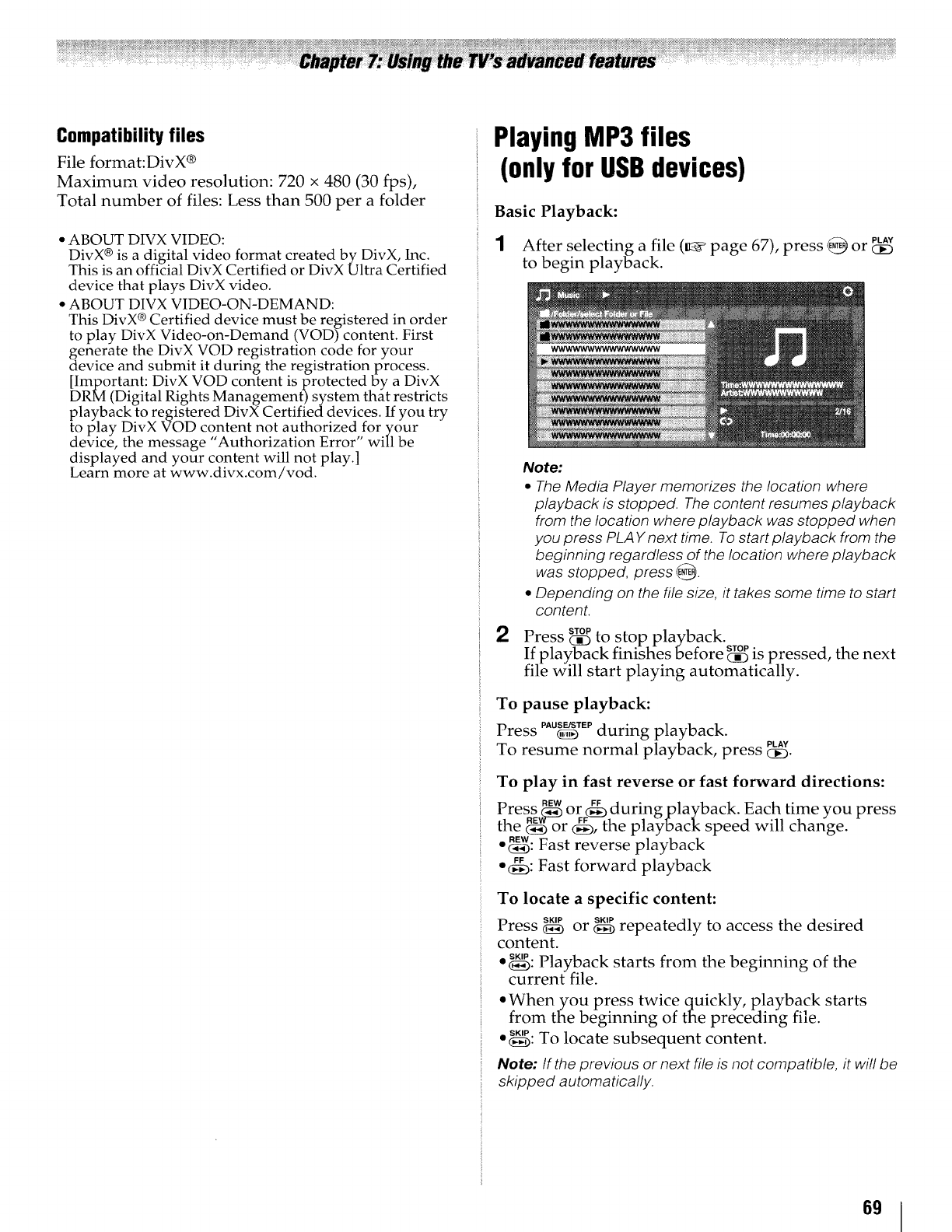
Compatibility files
File format:DivX ®
Maximum video resolution: 720 x 480 (30 fps),
Total number of files: Less than 500 per a folder
• ABOUT DIVX VIDEO:
DivX ® is a digital video format created by DivX, Inc.
This is an official DivX Certified or DivX Ultra Certified
device that plays DivX video.
• ABOUT DIVX VIDEO-ON-DEMAND:
This DivX ®Certified device must be registered in order
to play DivX Video-on-Demand (VOD) content. First
dgenerate the DivX VOD registration code for your
evice and submit it during the registration process.
[Important: DivX VOD content is protected by a DivX
DRM (Digital Rights Management) system that restricts
playback to registered DivX Certifieddevices. If you try
to play DivX VOD content not authorized,for your
device, the message "Authorization Error will be
displayed and your content will not play.]
Learn more at www.divx.com/vod.
PlayingMP3 files
(onlyfor USBdevices)
Basic Playback:
1 After selecting a file (_ page 67), press _ or _:_
to begin playback.
2
Note:
•The Media Player memorizes the location where
playback is stopped. The content resumes playback
from the location where playback was stopped when
you press PLAY next time. To start playback from the
beginning regardless of the location where playback
was stopped, press _.
•Depending on the file size, it takes some time to start
content.
Press _:_ to stop playback.
If playback finis- h-es Before _ is pressed, the next
file will start playing automatically.
To pause playback:
Press PAU_TEpduring playback.
To resume normal playback, press p,Av
To play in fast reverse or fast forward directions:
Press_ or _duringplayback. Each time you press
the _or _, the playback speed will change.
• _: Fast reverse playback
• (_: Fast forward playback
To locate a specific content:
Press _ or _ repeatedly to access the desired
content.
• _: Playback starts from the beginning of the
current file.
• When you press twice quickly, playback starts
from the beginning of the preceding file.
• _: To locate subsequent content.
Note: If the previous or next file is not compatible, it will be
skipped automatically.
69
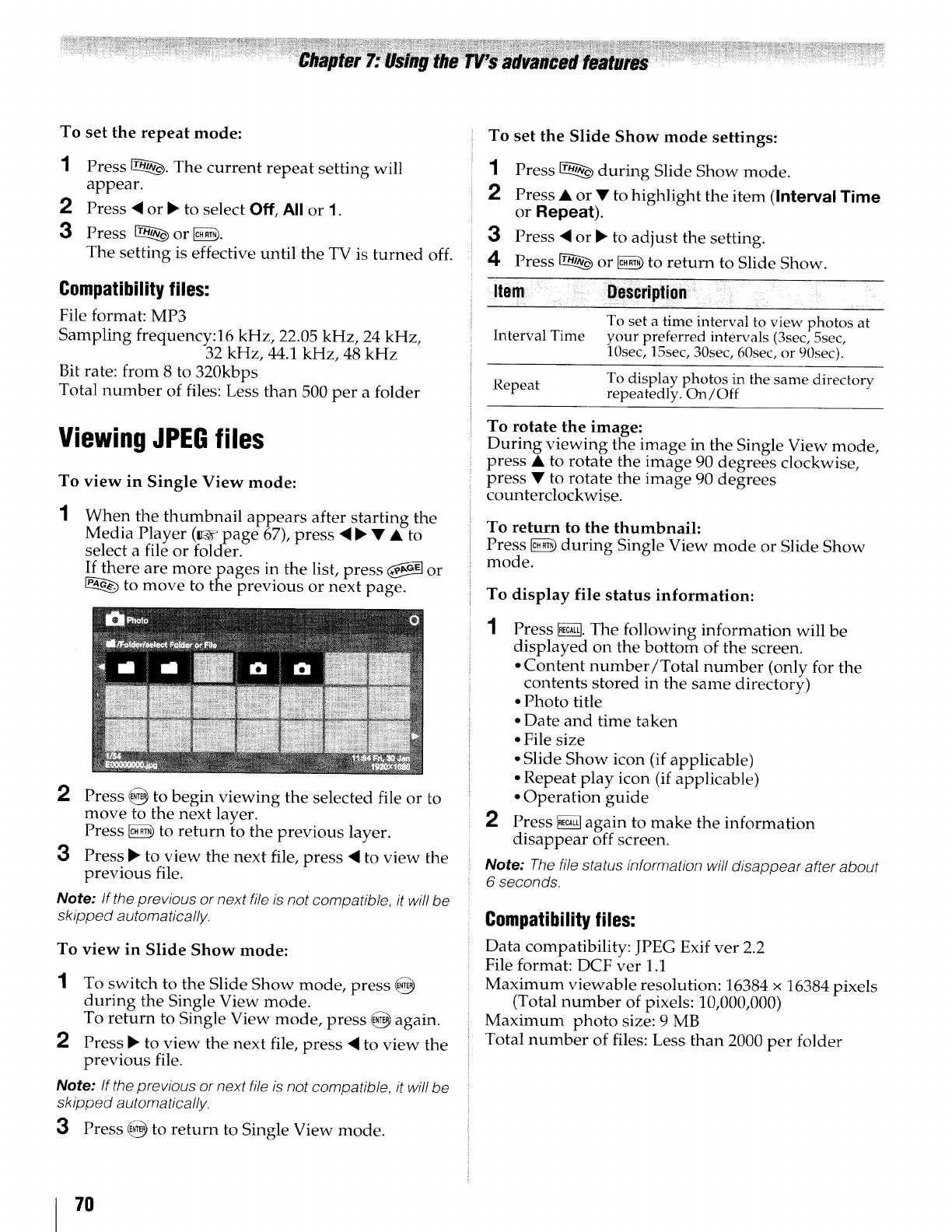
To set the repeat mode:
1Press _. The current repeat setting will
appear.
2Press • or • to select Off, All or 1.
3 Press _or_.
The setting is effective until the TV is turned off.
Compatibility files:
File format: MP3
Sampling frequency:16 kHz, 22.05 kHz, 24 kHz,
32 kHz, 44.1 kHz, 48 kHz
Bit rate: from 8 to 320kbps
Total number of files: Less than 500 per a folder
Viewing JPEGfiles
To view in Single View mode:
1When the thumbnail appears after starting the
Media Player (_ page 67), press • • •• to
select a file or folder.
If there are more pages in the list, press _ or
to move to the previous or next page.
2 Press @ to begin viewing the selected file or to
move to the next layer.
Press _ to return to the previous layer.
3Press • to view the next file, press • to view the
previous file.
Note: If the previous or next file is not compatible, it will be
skipped automatically.
To view in Slide Show mode:
2
To switch to the Slide Show mode, press {_
during the Single View mode.
To return to Single View mode, press {_ again.
Press • to view the next file, press • to view the
previous file.
Note: If the previous or next file is not compatible, it will be
skipped automatically.
3 Press @ to return to Single View mode.
To set the Slide Show mode settings:
Item
Interval Time
1Press _ during Slide Show mode.
2 Press • or • to highlight the item Clnterval Time
or Repeat).
3Press • or • to adjust the setting.
4 Press _ or _ to return to Slide Show.
Description
To set a time interval to view photos at
your preferred intervals (3sec, 5sec.
10seco 15sec, 30sec, 60sec, or 90sec).
Repeat To display photos in the same directory
repeatedly. On/Off
To rotate the image:
During viewing the image in the Single View mode,
press • to rotate the image 90 degrees clockwise,
press • to rotate the image 90 degrees
counterclockwise.
To return to the thumbnail:
Press _ during Single View mode or Slide Show
mode.
To display file status information:
2
Press _. The following information will be
displayed on the bottom of the screen.
• Content number/Total number (only for the
contents stored in the same directory)
• Photo title
• Date and time taken
• File size
• Slide Show icon (if applicable)
• Repeat play icon (if applicable)
• Operation guide
Press _ again to make the information
disappear off screen.
Note: The file status information will disappear after about
6 seconds.
Compatibility files:
Data compatibility: JPEG Exif ver 2.2
File format: DCF ver 1.1
Maximum viewable resolution: 16384 x 16384 pixels
(Total number of pixels: 10,000,000)
Maximum photo size: 9 MB
Total number of files: Less than 2000 per folder
7O
Generaltroubleshooting
Before calling a service technician, please check this
chapter for a possible cause of the problem and some
solutions you can try.
Black box on-screen
• The closed caption feature is set to oneof the Text modes
(T1, T2, T3, or T4). Set the closed caption feature to Off
(_ page50).
TV stops responding to controls
• If the TV stops responding to the controls on the remote
control or TV control panel and you cannot turn off the TV,
pressand holdthe POWERbutton on the TV control panelfor
5 or more seconds to resetthe TV.
Other problems
• If your TV's problem is not addressedin this Troubleshooting
section or the recommended solution has not worked, use
the Restore FactoryDefaults procedure (_ page40).
TV will not turn on
• Makesure the power cord is pluggedin, andthen pressPOWER_,,_.
•The remote control batteries may be dead. Replacethe
batteries or try the control panelbuttons.
Picture problems
General picture problems
• Checkthe antenna/cableconnections (_ Chapter2).
• Press_ on the remote control or the TV and select a valid
video input source (_ page41). If no deviceis connectedto
a particular input on the TV, no picture will display when you
select that particular input source. For device connection
details, see Chapter2.
• Antenna reception may be poor. Usea highly directional
outdoor antenna (if applicable).
• The station may havebroadcast difficulties. Try another
channel.
•Adjust the picture qualities (_ page49).
• If you are using a VCR,makesure q_" on the remote control
is set correctly (_< page22).
• Do not connect both a standardvideo cable and an S-video
cable to the VIDEO1 input at the sametime (_._ page13).
Video Input Selection problems
•If the InputSelectionwindow does not appear when you
press _ on the remote control or the TV control panel,
press_) asecond time, which will changeto the next video
input source and display the Inpul Selectionwindow.
Cannot view external signals or channel 3 or 4
• If you cannotview signalsfrom externaldevicesconnectedto
VIDEO1, VIDEO2, ColorStream®,HDMI 1, HDMI 2, HDMI3,
HDMI 4, PCor from channels 3 or 4, make sure the Input
Lock is set to Off(_ page56).
Poor color or no color
• The station may havebroadcast difficulties. Try another
channel.
• Adjust the Tint and/or Color(_, page49).
Poor composite or S-video picture
•If the TV is connected to an external A!V device(e.g. DVD
player, video game system, set-top box, etc.) try using a
ColorStream® or HDMIvideo connection instead.
•If you connect an S-video cable, besure to disconnect the
standard (composite) video cable.Do not connect both types
of video cable at the same time.
Picture and sound are out of sync
• As with all products that contain a digital display, in rare
instances, when viewing certain content (e.g.television
broadcasts,video games, DVDs),you may notice that the
sound and picture areslightly out of sync. This phenomenon
can becaused by various factors including, without
limitation, video processing within the TV, video processing
in an attached gaming system, and video processing or
different compression rates used by broadcastersin their
programming. You may want to try one or more of the
following suggestions, which mayhelpto reducethe effectof
this phenomenon:
- If the TV is connected to an A/V receiverthat has a
programmableaudio delay feature, usethis featureto help
synchronize the sound to the picture.
- Ifyou noticethis phenomenononly oncertain TVchannels,
pleasecontact your local broadcast,cable, or satellite
provider to inform them of this issue.
Sound problems
• Checkthe antenna/cableconnections (_ Chapter2).
• The station may have broadcast difficulties. Try another
channel.
• The sound may be muted. PressVOLUME.
•If you hearno sound, try setting the MTSfeature to
Stereo mode (_._ page52).
•If you are not receivinga second audio program from a
known SAPsource, makesure the MTS feature is set to SAP
mode (_ page52).
• If you hearaudio that seems "incorrect" for the program you
are watching (such as music or a foreign language),the SAP
mode maybe on. Set the MTS featureto Stereo mode
(_ page52).
• If you connect a PC using either the PC IN terminal or an
HDMI terminal, makesure that the PCAudio setting is
properly set (_ page57).
Remote control problems
• Makesure the remote control is set to the correct device
mode (_4¢page22).
• Removeall obstructions betweenthe remote control andthe
TV.
• The remote control batteries may be dead. Replacethe
batteries (_- page20).
•Your TV remote control may not operate certain features on
your externaldevice. Referto the owner's manual for your
other deviceto determine its availablefeatures. If your TV
remotecontrol does not operateaspecific featureon another
device, use the remote control that camewith the device
(_ pages26-33).
• If the TV still does not act as expected,use the ResetFactory
Defaultsprocedure (_ page40).
Channel tuning problems
•Makesure the remote control is set to the correct device
mode (_ page22).
• The channel mayhavebeenerasedfrom the channel memory
by the AutoTuning feature. Add the channel to the channel
memory (_ page37).
• The channel maybe blockedby the Lock feature. Unblock the
channel (_- page55).
(con tin ued
71
• If you are unableto tune digital channels, checkthe antenna
configuration (_ page37). If you are still unableto tune
digital channels,clear all channelsfrom the channel list
and reprogram channelsinto the channel memory
(_ page37). If you arestill unableto tune digital channels,
usethe ResetFactoryDefaultsprocedure(_ page40). Also
see "TV stops respondingto controls" and "Other problems"
(_4_page71).
Closed caption problems
• If the program or video you selectedis not closed-captioned,
no captions will display.
• If text is not available,a black rectanglemayappear. If this
happens,turn off the closed caption feature(_ page50).
• A closed-captionsignal may not displaycorrectly in the
following situations: a) when a videotapehas beendubbed;
b) when the signal receptionis weak; or c) when the signal
receptionis nonstandard(_ page50).
Rating blocking (V-Chip) problems
• If you forget your PIN code:While the PiN code entering
screenis displayed, press_ four times within 5 seconds.
The PIN codeyou previously stored will be cleared
(_ page53).
• TheV-Chip feature is availablefor the U.S.V-Chip system
only (_ page54).
No REGZA-LINKoperation
• The REGZA-LINKfeature is availablefor Toshiba REGZA-
LINK compatible devices.
• Makesure the HDMIcableswith the HDMI Logo
(H-"_ml) are used.
• When the connectedREGZA-LINKdevicedoes not work
correctly after you havechanged settings of the device,turn
off your TV and unplug the power cord, then plug and turn
on again.
• If severaldevicesare connected,REGZA-LINKfeature may
not operate properly.
• Readthe instruction manualfurnished with the connected
REGZA-LINKdevice.
HDMI problems
For HDMI cables
• Makesure the HDMIcableswith the HDMI Logo
(Hii_lml) are used (_ page12).
For Deep Color
• You should needto use High SpeedHDMI cableto work
properly. NormalHDMIcableor DVl cablemaynot work with
this option (_ page16).
For Legacy HDMI source
•Some of legacy HDMIsources may not work properly with
latest HDMITV products, due to new standardadoption.
Pleasetry to set Offthe HDMI settings (DeepColor, LipSync,
RGBRange,INSTAPORTTM) (_ page61). Your legacyHDMI
source should operateproperly with this TV products.
Media Player problems
• Makesure that devicesare connectedcorrectly.
• If you connect a USBdevicewith separatecable or through
USBhub, the TV does not recognizethe USBdevice.
72
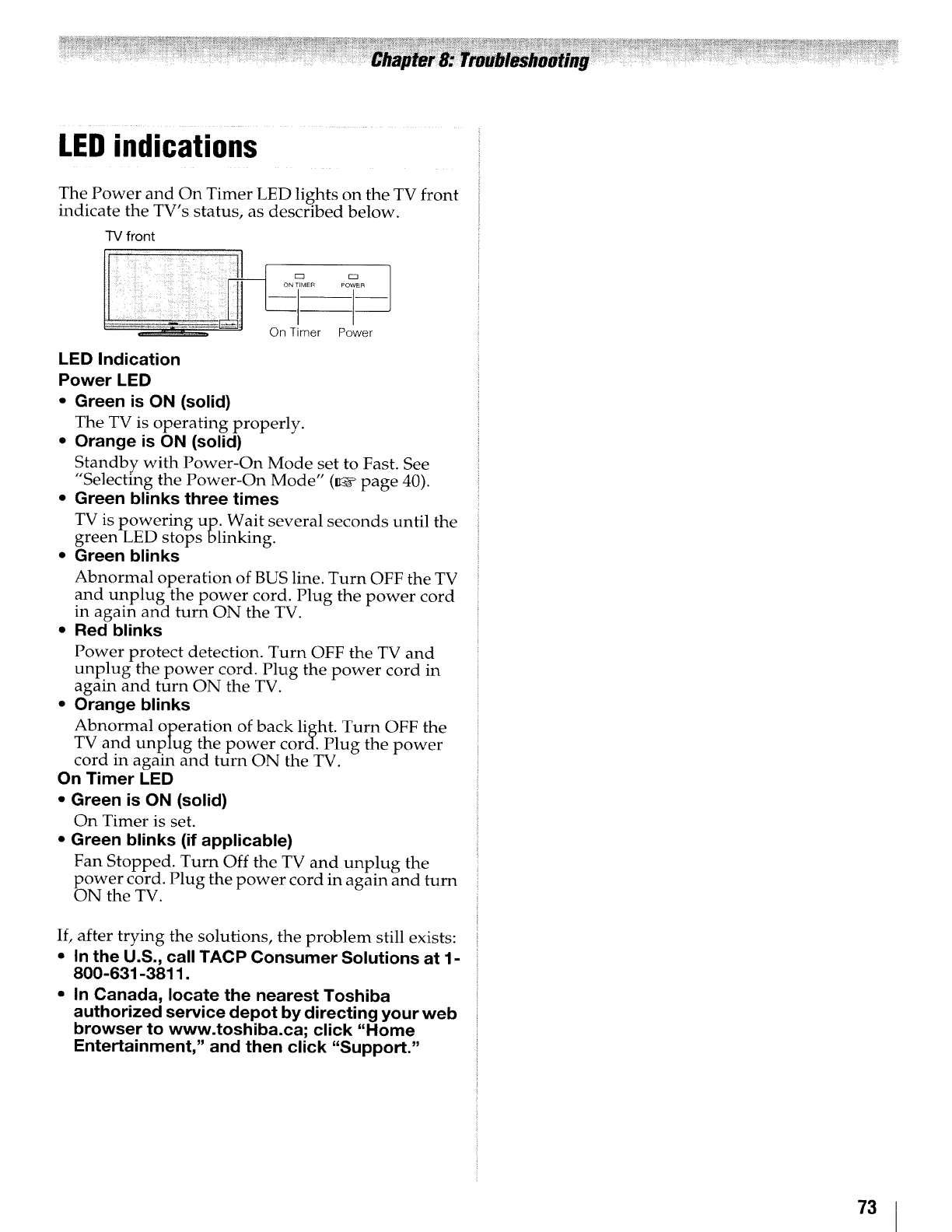
LEDindications ....
The Power and On Timer LED lights on the TV front
indicate the TV's status, as described below.
TV front
On Timer Power
LED Indication
Power LED
•Green is ON (solid)
The TV is operating properly.
• Orange is ON (solid)
Standby with Power-On Mode set to Fast. See
Selecting the Power-On Mode" (_ page 40).
•Green blinks three times
TV is powering up. Wait several seconds until the
green LED stops blinking.
•Green blinks
Abnormal operation of BUS line. Turn OFF the TV
and unplug the power cord. Plug the power cord
in again and turn ON the TV.
•Red blinks
Power protect detection. Turn OFF the TV and
unplug the power cord. Plug the power cord in
again and turn ON the TV.
•Orange blinks
Abnormal operation of back light. Turn OFF the
TV and unplug the power cord. Plug the power
cord in again and turn ON the TV.
On Timer LED
•Green is ON (solid)
On Timer is set.
• Green blinks (if applicable)
Fan Stopped. Turn Off the TV and unplug the
power cord. Plug the power cord in again and turn
ON the TV.
If, after trying the solutions, the problem still exists:
•In the U.S., call TACP Consumer Solutions at 1-
800-631-3811.
•In Canada, locate the nearest Toshiba
authorized service depot by directing your web
browser to www.toshiba.ca; click "Home
Entertainment," and then click "Support."
73
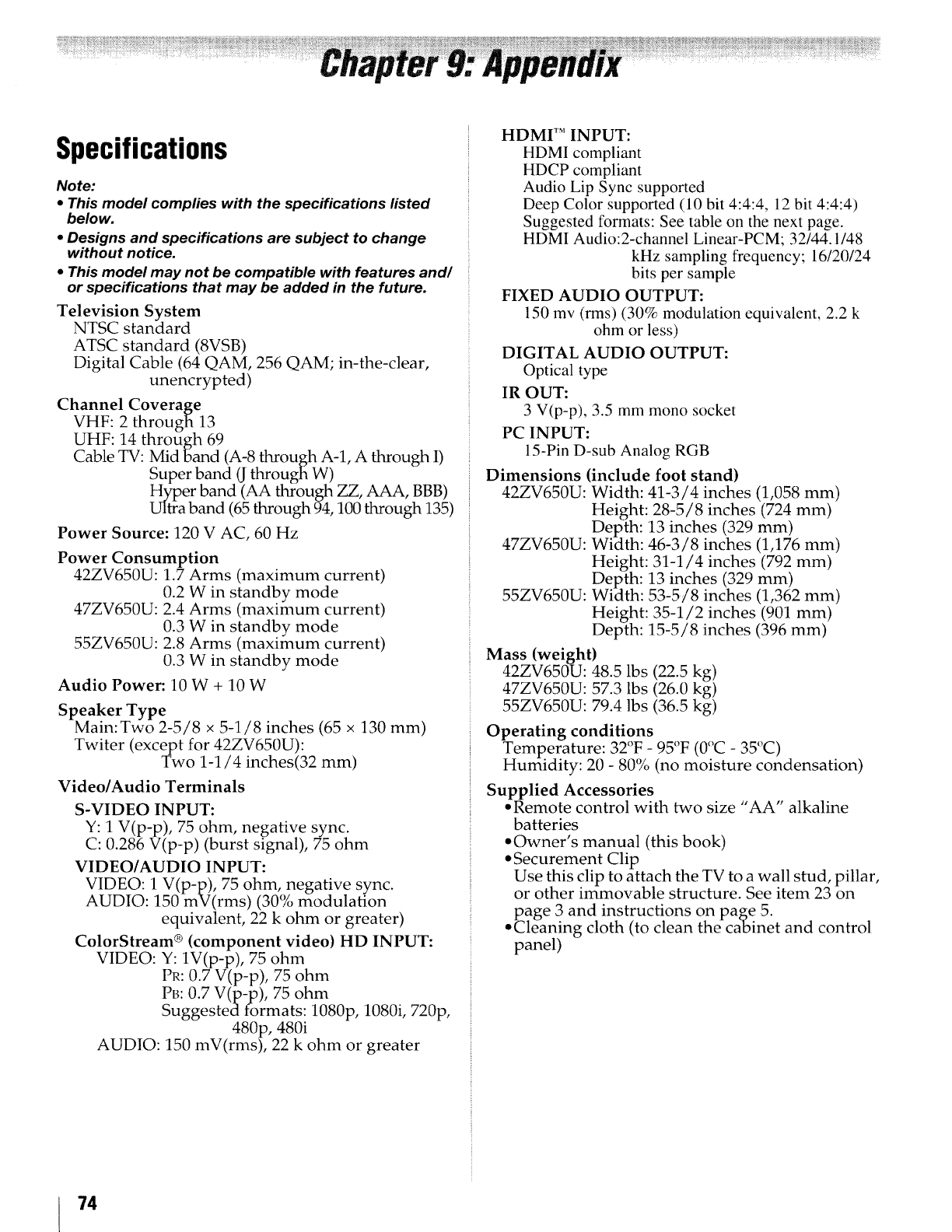
Specifications
Note:
•This model complies with the specifications listed
below.
• Designs and specifications are subject to change
without notice.
• This model may not be compatible with features and/
or specifications that may be added in the future.
Television System
NTSC standard
ATSC standard (8VSB)
Digital Cable (64 QAM, 256 QAM; in-the-clear,
unencrypted)
Channel Coverage
VHF: 2 through 13
UHF: 14 through 69
Cable TV: Mid band (A-8 through A-l, A through I)
Super band (J through W)
Hyper band (AA through ZZ, AAA, BBB)
Ultra band (65 through 94,100 through 135)
Power Source: 120 V AC, 60 Hz
Power Consumption
42ZV650U: 1.7 Arms (maximum current)
0.2 W in standby mode
47ZV650U: 2.4 Arms (maximum current)
0.3 W in standby mode
55ZV650U: 2.8 Arms (maximum current)
0.3 W in standby mode
Audio Power: 10 W + 10 W
Speaker Type
Main:Two 2-5/8 x 5-1/8 inches (65 x 130 mm)
Twiter (except for 42ZV650U):
Two 1-1/4 inches(32 mm)
Video/Audio Terminals
S-VIDEO INPUT:
Y: 1 V(p-p), 75 ohm, negative sync.
C: 0.286 V(p-p) (burst signal), 75 ohm
VIDEO/AUDIO INPUT:
VIDEO: 1 V(p-p), 75 ohm, negative sync.
AUDIO: 150 mV(rms) (30% modulation
equivalent, 22 k ohm or greater)
ColorStream ®(component video) HD INPUT:
VIDEO: Y: 1V(p-p), 75 ohm
PR: 0.7 V(p-p), 75 ohm
PB: 0.7 V(p-p), 75 ohm
Suggestedformats: 1080p, 1080i, 720p,
480p, 480i
AUDIO: 150 mV(rms), 22 k ohm or greater
HDMI TM INPUT:
HDMI compliant
HDCP compliant
Audio Lip Sync supported
Deep Color supported (10 bit 4:4:4, 12 bit 4:4:4)
Suggested formats: See table on the next page.
HDMI Audio:2-channel Linear-PCM; 32/44.1/48
kHz sampling frequency; 16/20/24
bits per sample
FIXED AUDIO OUTPUT:
150 mv (rms) (30% modulation equivalent, 2.2 k
ohm or less)
DIGITAL AUDIO OUTPUT:
Optical type
IR OUT:
3 V(p-p), 3.5 mm mono socket
PC INPUT:
15-Pin D-sub Analog RGB
Dimensions (include foot stand)
42ZV650U: Width: 41-3/4 inches (1,058 mm)
Height: 28-5/8 inches (724 mm)
Depth: 13 inches (329 mm)
47ZV650U: Width: 46-3/8 inches (1,176 ram)
Height: 31-1/4 inches (792 mm)
Depth: 13 inches (329 mm)
55ZV650U: Width: 53-5/8 inches (1,362 mm)
Height: 35-1/2 inches (901 mm)
Depth: 15-5/8 inches (396 mm)
Mass (weight)
42ZV650U: 48.5 lbs (22.5 kg)
47ZV650U: 57.3 lbs (26.0 kg)
55ZV650U: 79.4 lbs (36.5 kg)
Operating conditions
Temperature: 32°F - 95°F (0°C - 35°C)
Humidity: 20 - 80% (no moisture condensation)
Supplied Accessories
• Remote control with two size "AA" alkaline
batteries
• Owner's manual (this book)
• Securement Clip
Use this clip to attach the TV to a wall stud, pillar,
or other immovable structure. See item 23 on
page 3 and instructions on page 5.
• Cleaning cloth (to clean the cabinet and control
panel)
74
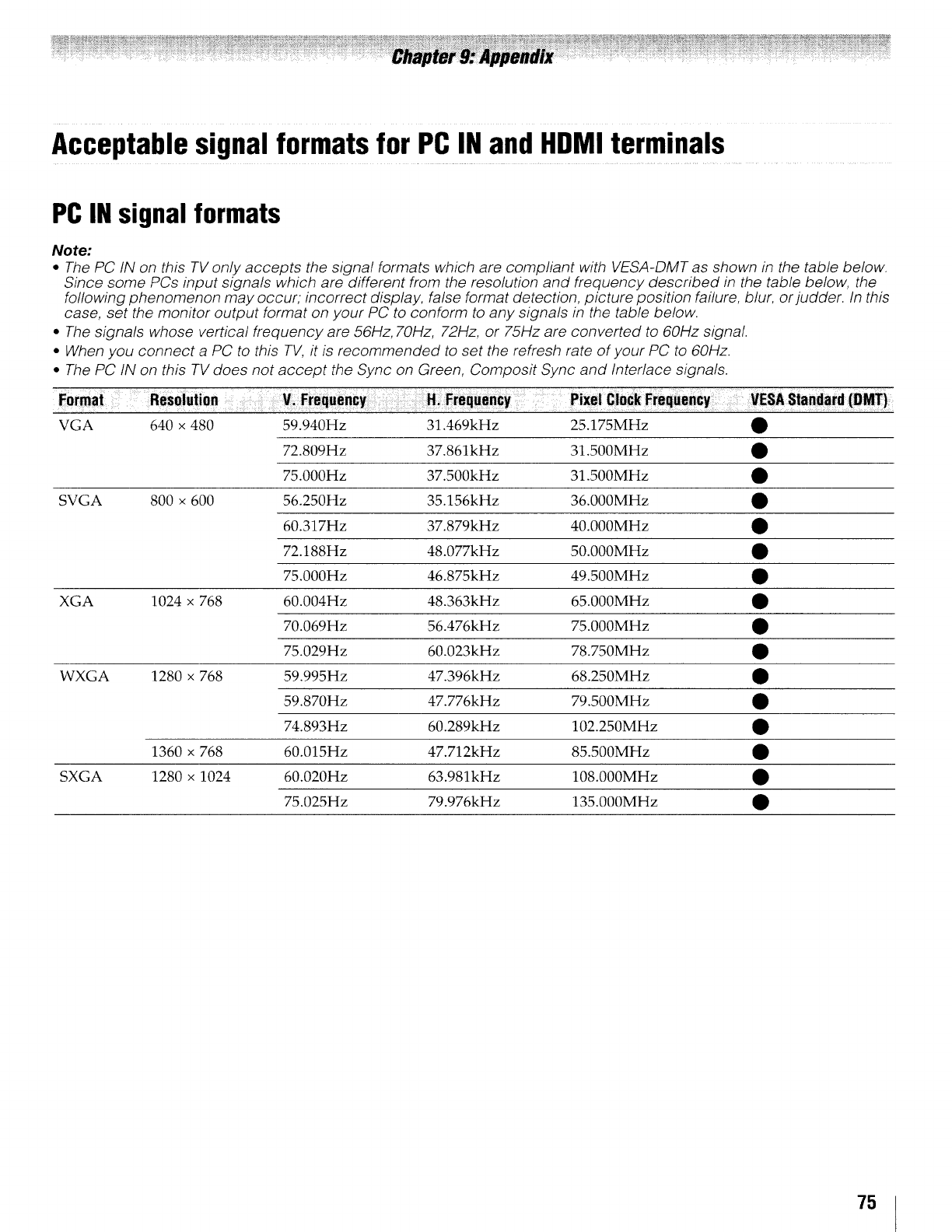
Acceptablesignal formatsfor PCIN and HDMIterminals
PC IN signal formats
Note:
•The PC IN on this TV only accepts the signal formats which are compliant with VESA-DMT as shown in the table below.
Since some PCs input signals which are different from the resolution and frequency described in the table below, the
following phenomenon may occur, incorrect display, false format detection, picture position failure, blur, or judder. In this
case, set the monitor output format on your PC to conform to any signals in the table below.
•The signals whose vertical frequency are 56Hz, 70Hz, 72Hz, or 75Hz are converted to 60Hz signal.
•When you connect a PC to this TV, it is recommended to set the refresh rate of your PC to 60Hz.
• The PC IN on this TV does not accept the Sync on Green, Composit Sync and Interlace signals.
VGA 640 x 480 59.940Hz 31.469kHz 25.175MHz •
72.809Hz 37.861kHz 31,500MHz •
75.000Hz 37.500kHz 31.500MHz •
SVGA 800 x 600 56.250Hz 35.156kHz 36.000MHz •
60.317Hz 37.879kHz 40.000MHz •
72.188Hz 48.077kHz 50.000MHz •
75.000Hz 46.875kHz 49.500MHz •
XGA 1024 x 768 60.004Hz 48.363kHz 65.000MHz •
70.069Hz 56.476kHz 75.000MHz •
75.029Hz 60.023kHz 78.750MHz •
WXGA 1280 x 768 59.995Hz 47.396kHz 68.250MHz •
59.870Hz 47.776kHz 79.500MHz •
74.893Hz 60.289kHz 102.250MHz •
1360 x 768 60.015Hz 47.712kHz 85.500MHz •
SXGA 1280 x 1024 60.020Hz 63.981kHz 108.000MHz •
75.025Hz 79.976kHz 135.000MHz •
75
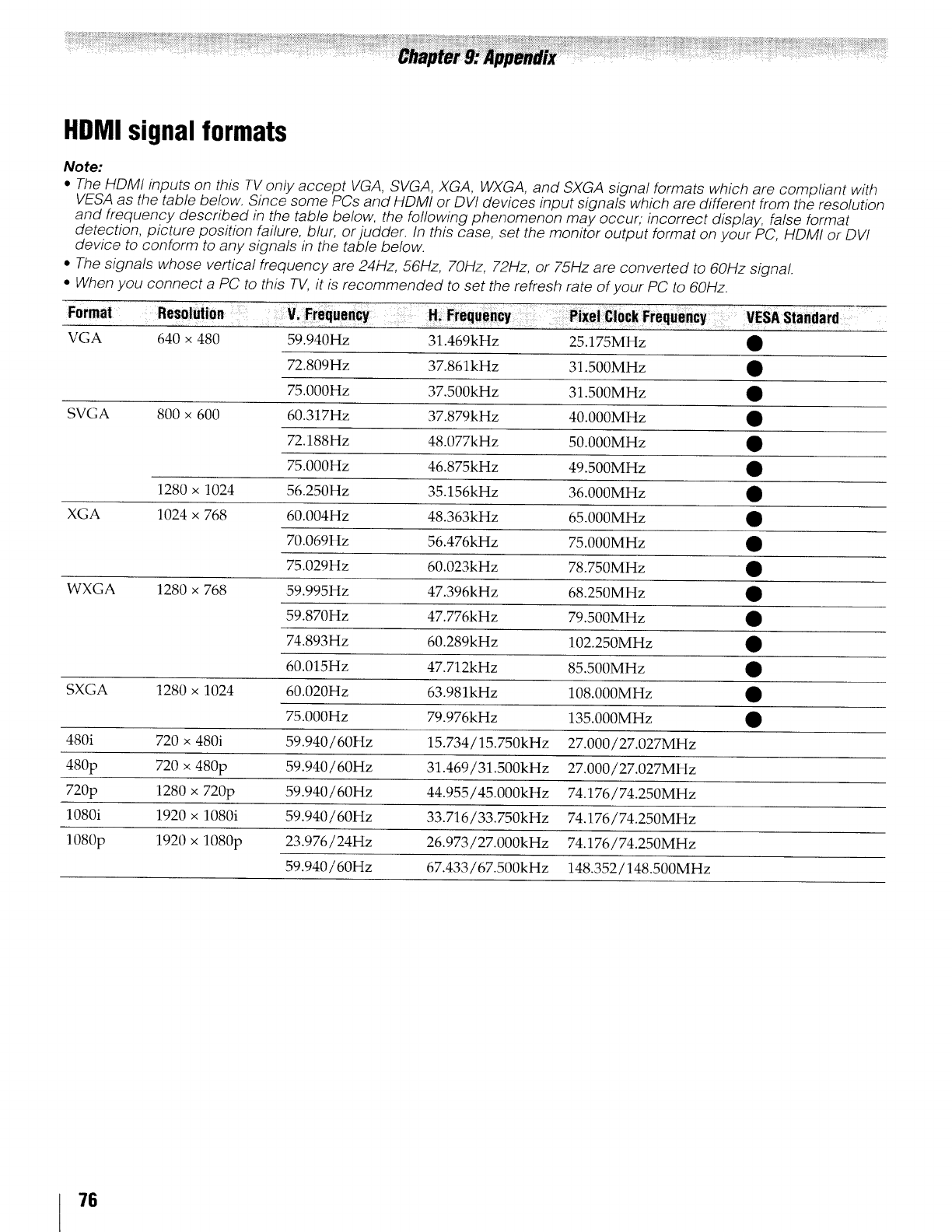
HDMIsignalformats
Note:
•The HDMI inputs on this TV only accept VGA, SVGA, XGA, WXGA, and SXGA signal formats which are compliant with
VESA as the table below. Since some PCs and HDMI or DVI devices input signals which are different from the resolution
and frequency described in the table below, the following phenomenon may occur, incorrect display, false format
detection, picture position failure, blur, or judder. In this case, set the monitor output format on your PC, HDMI or DVl
device to conform to any signals in the table below.
•The signals whose vertical frequency are 24Hz, 56Hz, 70Hz, 72Hz, or 75Hz are converted to 60Hz signa!.
•When you connect a PC to this TV, it is recommended to set the refresh rate of your PC to 60Hz.
Format Resolution Vi Frequency H Frequency Pixel ClockFrequeficy .....
VGA 640 x 480
SVGA 800 x 600
1280 x 1024
1024 x 768
XGA
WXGA 1280 x 768
SXGA 1280 x 1024
480i 720 x 480i
480p 720 x 480p
720p 1280 x 720p
1080i 1920 x 1080i
1080p 1920 x 1080p
VESA Standard :_
59.940Hz 31.469kHz 25.175MHZ •
72.809Hz 37.861kHz 31.500MHz •
75.000Hz 37.500kHz 31.500MHz •
60.317Hz 37.879kHz 40.000MHz •
72.188Hz 48.077kHz 50.000MHz •
75.000Hz 46.875kHz 49.500MHz •
56.250Hz 35.156kHz 36.000MHz •
60.004Hz 48.363kHz 65.000MHz •
70.069Hz 56.476kHz 75.000MHz •
75.029Hz 60.023kHz 78.750MHz •
59.995Hz 47.396kHz 68.250MHz •
59.870Hz 47.776kHz 79.500MHz •
74.893Hz 60.289kHz 102.250MHz •
60.015Hz 47.712kHz 85.500MHz •
60.020Hz 63.981kHz 108.000MHz •
75.000Hz 79.976kHz 135.000MHz •
59.940/60Hz 15.734/15.750kHz 27.000/27.027MHz
59.940/60Hz 31.469/31.500kHz 27.000/27.027MHz
59.940/60Hz 44.955!45.000kHz 74.176i74.250MHz
59.940/60Hz 33.716/33.750kHz 74.176/74.250MHz
23.976/24Hz 26.973/27.000kHz 74.176/74.250MHz
59.940/60Hz 67.433/67.500kHz 148.352/148.500MHz
76
LimitedUnitedStatesWarranty
for LCDTelevisions 26" and Larger
Toshiba America Consumer Products, LLC. ("TACP") makes the
following limited warranties to original consumers in the United
States.
THESE LIMITED WARRANTIES EXTEND TO THE ORIGINAL
CONSUMER PURCHASER OR ANY PERSON RECEIVING
THIS LCD TELEVISION AS A GIFT FROM THE ORIGINAL
CONSUMER PURCHASER AND TO NO OTHER PURCHASER
OR TRANSFEREE.
LCD TELEVISIONS PURCHASED IN THE U.S.A. AND USED
ANYWHERE OUTSIDE OF THE U.S.A., INCLUDING,
WITHOUT LIMITATION, CANADA AND MEXICO, ARE NOT
COVERED BY THESE WARRANTIES.
LCD TELEVISIONS PURCHASED ANYWHERE OUTSIDE OF
THE U.S.A., INCLUDING, WITHOUT LIMITATION, CANADA
AND MEXICO, AND USED IN THE U.S.A., ARE NOT COVERED
BY THESE WARRANTIES.
Limited One (1) Year Warranty on Parts and Labor
TACP warrants this LCD Television and its parts against defects in
materials or workmanship for a period of one (1) year after the date
of original retail purchase. DURING THIS PERIOD, TACP WILL, AT
TACP'S OPTION, REPAIR OR REPLACE A DEFECTIVE PART
WITH A NEW OR REFURBISHED PART WITHOUT CHARGE TO
YOU FOR PARTS OR LABOR. During this period, TACP
Authorized Service Station personnel will come to your home
when warranty service is required. Depending on the type of
repair required, the service will either be performed in your home
or the LCD Television will be taken to a TACP Authorized Service
Station for repair and returned to your home at no cost to you.
Rental Units
The warranty for LCD Television rental units begins on the date of
the first rental or thirty (30) days after the date of shipment to the
rental firm, whichever comes first.
Limited Warranty for Commercial Units
TACP warrants LCD Televisions that are sold and used for
cornmercial purposes as follows: all parts are warranted against
defects in materials or workmanship for a period of ninety (90)
days after the date of original retail purchase. DURING THIS
PERIOD, TACP WILL, AT TACP'S OPTION, REPAIR OR REPLACE
A DEFECTIVE PART WITH A NEW OR REFURBISHED PART
WITHOUT CHARGE TO YOU.
Owner's Manual and Product Registration Card
Read this owner's manual thoroughly before operating this LCD
Television.
Complete and mail the enclosed product registration card or
register your LCD Television online at www.tacp.toshiba.com/
service as soon as possible. By registering your LCD Television
you will enable TACP to bring you new products specifically
designed to meet your needs and help us to contact you in the
unlikely event a safety notification is required under the U.S.
Consumer Product Safety Act. Failure to complete and return
the product registration card does not diminish your
warranty rights.
Your Responsibility
THE ABOVE WARRANTIES ARE SUBJECT TO THE FOLLOWING
CONDITIONS:
(1) You must retain your original bill of sale or provide other
proof of purchase.
(2) All warranty servicing of this LCD Television must be
performed by an Authorized TACP Service Station.
(3) The warranties from TACP are effective only if this LCD
Television is purchased and operated in the Continental
U.S.A. or Puerto Rico.
(4) Labor service charges for set installation, setup,
adjustment of customer controls, and installation or repair
of antenna systems are not covered by this warranty.
Reception problems caused by inadequate antenna
systems, misaligned satellite dishes, cable television
distribution, VCRs, DVD players/recorders, personal
computer level IEEE-1394 devices, and any other
connected signal source device are your responsibility.
(5) Warranties extend only to defects in materials or
workmanship as limited above, and do not extend to any
LCD Television or parts that have been lost or discarded by
you or to damage to the LCD Television or parts caused by
fires, misuse, accident, Acts of God (such as lightning or
fluctuations in electric power), improper installation,
improper maintenance, or use in violation of instructions
furnished by TACP; use or malfunction through
simultaneous use of this LCD Television and connected
equipment; or to units that have been r-nodified or had the
serial number removed, altered, defaced, or rendered
illegible.
How to Obtain Warranty Service
If, after following all of the operating instructions in this manual and
reviewing the section entitled "Troubleshooting," you find that
service is needed:
(1) To find the nearest TACP Authorized Service Station, visit
TACP's website at www.tacp.toshiba.com/service or
contact TACP's Consumer Solution Center toll free at 1-
800-631-3811.
(2) You must present your original bill of sale or other proof of
purchase to the TACP Authorized Service Station.
For additional information, visit TACP's website:
www.tacp.toshiba.com
ALL WARRANTIES IMPLIED BY THE LAW OF ANY STATE OF
THE U.S.A., INCLUDING THE IMPLIED WARRANTIES OF
MERCHANTABILITY AND FITNESS FOR A PARTICULAR
PURPOSE, ARE EXPRESSLY LIMITED TO THE DURATION OF
THE LIMITED WARRANTIES SET FORTH ABOVE. WITH THE
EXCEPTION OF ANY WARRANTIES IMPLIED BY THE LAW OF
ANY STATE OF THE U.S.A. AS HEREBY LIMITED, THE
FOREGOING WARRANTY IS EXCLUSIVE AND IN LIEU OF
ALL OTHER WARRANTIES, GUARANTEES, AGREEMENTS,
AND SIMILAR OBLIGATIONS OF TACP WITH RESPECT TO
THE REPAIR OR REPLACEMENT OF ANY PARTS. IN NO
EVENT SHALL TACP BE LIABLE FOR CONSEQUENTIAL OR
INCIDENTAL DAMAGES (INCLUDING, BUT NOT LIMITED TO,
LOST PROFITS, BUSINESS INTERRUPTION, OR
MODIFICATION OR ERASURE OF RECORDED DATA
CAUSED BY USE, MISUSE OR INABILITY TO USE THIS LCD
TELEVISION).
No person, agent, distributor, dealer, or company is authorized to
change, modify, or extend the terms of these warranties in any
manner whatsoever. The time within which an action must be
commenced to enforce any obligation of TACP arising under the
warranty or under any statute or law of the United States or any
state thereof is hereby limited to ninety (90) days from the date you
discover, or should have discovered, the defect. This limitation
does not apply to implied warranties arising under the taw of any
state of the U.S.A.
THIS WARRANTY GIVES YOU SPECIFIC LEGAL RIGHTS AND
YOU MAY ALSO HAVE OTHER RIGHTS WHICH MAY VARY
FROM STATE TO STATE IN THE U.S.A. SOME STATES OF
THE U.S.A. DO NOT ALLOW LIMITATIONS ON THE
DURATION OF AN IMPLIED WARRANTY, WHEN AN ACTION
MAY BE BROUGHT, OR THE EXCLUSION OR LIMITATION OF
INCIDENTAL OR CONSEQUENTIAL DAMAGES.
THEREFORE, THE ABOVE PROVISIONS MAY NOT APPLY TO
YOU UNDER SUCH CIRCUMSTANCES.
77
LimitedCanadianWarranty
for Toshiba Brand Flat Panel Televisions
Toshiba of Canada Limited ("TCL") makes the following limited
warranties to original consumers in Canada. THESE LIMITED
WARRANTIES EXTEND TO THE ORIGINAL CONSUMER
PURCHASER OR ANY PERSON RECEIVING THIS TOSHIBA
BRAND FLAT PANEL TELEVISION (the "TELEVISION(S)" or
"Television(s)") AS A GIFT FROM THE ORIGINAL CONSUMER
PURCHASER AND TO NO OTHER PURCHASER OR
TRANSFEREE.
TELEVISIONS PURCHASED IN CANADA, AND USED
ANYWHERE OUTSIDE OF CANADA INCLUDING, WITHOUT
LIMITATION, THE UNITED STATES AND MEXICO, ARE NOT
COVERED BY THESE WARRANTIES.
TELEVISIONS PURCHASED ANYWHERE OUTSIDE OF CANADA,
INCLUDING, WITHOUT LIMITATION, THE UNITED STATES AND
MEXICO, AND USED IN CANADA, ARE NOT COVERED BY
THESE WARRANTIES.
Limited One (1) Year Warranty on Parts and Labour
Subject to the more limited warranty if the Television is used for
any commercial or business purposes as set out below, TCL
warrants the Television and its parts against material defects in
materials or workmanship that result in the Television failing for a
period of one (1) year after the date of original retail purchase.
DURING THIS PERIOD, TCL WILL, AT TCL'S OPTION, REPAIR
OR REPLACE A DEFECTIVE PART WITH A NEW OR
REFURBISHED PART WITHOUT CHARGE TO YOU FOR PARTS
OR LABOUR.
(a) FOR TELEVISIONS 32 INCHES OR LESS: YOU MUST
DELIVER THE ENTIRE TELEVISION TO A TCL TELEVISION
AUTHORIZED SERVICE PROVIDER ("ASP"). YOU MUST PAY
FOR ALL TRANSPORTATION AND INSURANCE CHARGES
FOR THE TELEVISION TO AND FROM THE ASP.
(b) FOR TELEVISIONS OVER 32 INCHES: During this period, ASP
personnel will come to your home when warranty service is
required. Depending on the type of repair required, the service
will either be performed in your home or the Television wilt be
taken to an ASP for repair and returned to your home at no cost
to you. IN-HOME SERVICE ONLY APPLIES WITHIN 100
KILOMETERS OF AN ASP. IF YOU ARE NOT WITHIN 100
KILOMETERS OF AN ASP, YOU MUST DELIVER THE ENTIRE
TELEVISION TO AN ASP. YOU MUST PAY FOR ALL
TRANSPORTATION AND INSURANCE CHARGES FOR THE
TELEVISION TO AND FROM THE ASP,
Limited Warranty for Commercial Units
TCL warrants Televisions that are used for any commercial or
business purposes as follows: al! parts are warranted against
material defects in materials or workmanship that result in the
Television failing for a period of ninety (90) days after the date of
original retail purchase. DURING THIS PERIOD, TCL WILL, AT
TCL'S OPTION, REPAIR OR REPLACE THE DEFECTIVE PART
WITH A NEW OR REFURBISHED PART WITHOUT CHARGE TO
YOU.
(c) FOR TELEVISIONS 32 INCHES OR LESS: YOU MUST
DELIVER THE ENTIRE TELEVISION TO AN ASP. YOU
MUST PAY FOR ALL TRANSPORTATION AND
INSURANCE CHARGES FOR THE TELEVISION TO AND
FROM THE ASP.
(d) FOR TELEVISIONS OVER 32 INCHES: During this period, ASP
personnel will come on-site when warranty service is required.
Depending on the type of repair required, the service will
either be performed on-site or the Television will be taken to an
ASP for repair and returned at no cost to you. ON-SITE
SERVICE ONLY APPLIES WITHIN 100 KILOMETERS OF AN
ASP. IF YOU ARE NOT WITHIN 100 KILOMETERS OF AN
ASP, YOU MUST DELIVER THE ENTIRE TELEVISION TO AN
78
ASP. YOU MUST PAY FOR ALL TRANSPORTATION AND
INSURANCE CHARGES FOR THE TELEVISION TO AND
FROM THE ASP.
Rental Units
Thewarranty for Televisionrental unitsbegins with the dateof first
rental or thirty (30)days fromthe date of shipment to the rental
firm, whichever comes first.
Your Responsibility
THEABOVEWARRANTIESARE SUBJECTTOTHE FOLLOWING
CONDITIONS:
(1) You must provide your bi!l of sale or other proof of
purchase.
(2) All warranty servicing of this Television must be performed
by an ASP.
(3) The warranties from TCL are effective only if the Television
is (i) purchased as new and unopened from TCL or from
TCL's authorized distributors, dealers or resellers ("ADR's")
and (ii)located/operated in Canada.
(4) Labour charges for set installation, setup, adjustment of
customer controls, and installation or repair of antenna
systems are not covered by these warranties. Reception
problems caused by inadequate antenna systems are your
responsibility.
(5) Warranties extend only to material defects in materials or
workmanship as limited above, and do not extend to:
a. Service, repairs or replacement made necessary by
accident, misuse, abuse, moisture, liquids, dust, dirt,
neglect, accident, damage, 24/7 applications,
improper installation, improper operation, improper
cleaning, improper maintenance, normal wear and
tear, screen burn or image retention caused by
prolonged display of static images and/or phosphor
aging, or any other externai cause or event, act or
omission outside the control of TCL, including fire,
theft, acts of God, alteration, power failures, power
surges or power shortages, lightning, other electrical
faults, or repairs, modifications or replacements by
persons other than those authorized by TCL to service
the Television;
b. Replacement of missing, discarded or lost parts, the
provision of retrofits, or preventive maintenance;
c. Repair of damage that is cosmetic only or does not
affect the Television functionality, such as wear and
tear, scratches and dents;
d. Service on Toshiba-branded accessory items (such
accessory items may be covered by their own
warranty);
e. Service on third party products or service made
necessary by use of incompatible third party products;
f. Service made necessary by the simultaneous use of
this Television and connected equipment;
g. Modifications to the Television not approved in writing
by TCL, and service made necessary by the use or
installation of non-Toshiba modifications to the
Television;
h. Service of a Television on which the TOSHIBA label or
logo, rating label or serial number have been defaced
or removed;
i. On-site service and repair of the Television; and
j. Damage to the Television caused by failure to follow
the specifications, User manuals or guides as to usage
and/or storage.
Disclaimer and Limitation of Remedy
TO THE EXTENT NOT PRECLUDED BY LAW, ALL OTHER
EXPRESS AND IMPLIED WARRANTIES, CONDITIONS AND
REPRESENTATIONS FOR THIS TELEVISION, INCLUDING THE
IMPLIED WARRANTIES, CONDITIONS AND REPRESENTATIONS
OF MERCHANTABILITY AND FITNESS FOR A PARTICULAR
PURPOSE, ARE HEREBY DISCLAIMED AND EXCLUDED. IF THE
APPLICABLE LAW, STATUTORY OR OTHERWISE, PRECLUDES
THE EXCLUSION OF ANY IMPLIED WARRANTIES, CONDITIONS
AND REPRESENTATIONS THEN SUCH IMPLIED WARRANTIES,
CONDITIONS AND REPRESENTATIONS ARE OTHERWISE
LIMITED IN DURATION TO THE TERM OF THIS EXPRESS
WRI'I-FEN LIMITED WARRANTY. TO THE EXTENT NOT
PRECLUDED BY LAW, STATUTORY OR OTHERWISE, THIS
WRI-I-I-EN WARRANTY SUPERCEDES AND SPECIFICALLY
DISCLAIMS ANY OTHER WARRANTY, CONDITION OR
REPRESENTATION NOT STATED IN THIS WARRANTY,
WHETHER MADE BY TCL, TOSHIBA CORPORATION, THEIR
AFFILIATES, ADRs AND ASPs AND WHETHER MADE ORALLY
OR IN WRITING (INCLUDING ANY STATEMENT IN ANY
BROCHURE, PRESS RELEASE, ANNOUNCEMENT,
ADVERTISEMENT, POINT OF SALE DISPLAY, ETC.).
YOU MUST READ AND FOLLOW ALL SET-UP AND USAGE
INSTRUCTIONS IN THE APPLICABLE USER GUIDES AND/OR
MANUALS. IF YOU FAIL TO DO SO, THIS TELEVISION MAY NOT
FUNCTION PROPERLY AND YOU MAY SUFFER DAMAGE. THIS
WARRANTY WILL NOT COVER ANY SERVICE THAT IS
REQUIRED, IN PART OR IN WHOLE, AS A RESULT OF ANY
FAILURE TO FOLLOW THE SET-UP AND USAGE
INSTRUCTIONS. THIS WARRANTY DOES NOT APPLY AND
SHALL BE VOID AND UNENFORCEABLE IF THE TELEVISION IS
OPENED, SERVICED, OR REPAIRED BY PERSONS OTHER THAN
THOSE AUTHORIZED BY TCL TO SERVICE OR REPAIR THE
TELEVISION.
IF THE TELEVISION FAILS TO WORK AS WARRANTED ABOVE,
YOUR SOLE AND EXCLUSIVE REMEDY SHALL BE REPAIR OR
REPLACEMENT OF THE DEFECTIVE PART. IN NO EVENT WILL
TCL, TOSHIBA CORPORATION THEIR AFFILIATES, ADRs OR
_Ps (THE "RELATED PARTIES") BE LIABLE TO YOU OR ANY
THIRD PARTY FOR ANY DAMAGES, MONEY, REIMBURSEMENT,
COSTS OR EXPENSES. THIS LIMITATION APPLIES TO
DAMAGES, MONEY, REIMBURSEMENT, COSTS OR EXPENSES
OF ANY KIND WHATSOEVER INCLUDING ANY DIRECT OR
INDIRECT DAMAGES, DAMAGE TO PROPERTY OR PERSON,
LOST PROFITS, LOST SAVINGS, INCONVENIENCE OR OTHER
SPECIAL, INCIDENTAL EXEMPLARY OR CONSEQUENTIAL
DAMAGES, WHETHER FOR BREACH OF WARRANTY, BREACH
OF CONTRACT, TORT (INCLUDING NEGLIGENCE), UNDER A
STATUTE OR UNDER ANY OTHER LAW OR FORM OR ACTION,
OR WHETHER ARISING OUT OF THE USE OF OR INABILITY TO
USE THE TELEVISION, EVEN IF ANY OF THE RELATED PARTIES
HAS BEEN ADVISED OF THE POSSIBILITY OF SUCH DAMAGES
OR OF ANY CLAIM BY ANY OTHER PARTY.
No person, agent, distributor, dealer or company is authorized to
change, modify or extend the terms of these warranties in any
manner whatsoever.
Arbitration and Dispute Resolution
To the extent not precluded by law, any claim, dispute,
controversy or disagreement (whether for breach of warranty,
breach of contract, tort (including negligence and negligent and/
or fraudulent misrepresentation), under a statute or under any
other law or form of action) against any of the Related Parties
arising out of, or otherwise relating to: (i) this warranty; (ii) the
Television; (iii) any oral or written representations, statements,
brochures, press releases, advertising, announcement, point of
sale display, or promotional material relating to the Television; (iv)
the relationships that result from this warranty, (the foregoing
claims, disputes controversies and disagreements are collectively
referred to as the "Dispute"), shall be referred to and resolved by
final and binding arbitration (to the exclusion of the courts). To the
extent not precluded by law, you agree to waive any right that you
may have to commence or participate in any representative or
class proceeding against the Related Parties relating to any
Dispute. If and where applicable and to the extent not precluded
by law, you further agree to opt out of any such representative or
class proceedings. Arbitration of any Dispute will be conducted in
the forum and in the manner as agreed to between you and TCL.
Failing such agreement, the arbitration will be conducted by one
arbitrator pursuant to the laws and rules relating to arbitration
generally in force in the jurisdiction in which you reside at the time
that the Dispute arises. To the extent not precluded by law, no
claim, dispute, controversy or disagreement of any other person
may be joined or combined with any Dispute by you, without tile
prior written consent of TCL
Critical Applications
The Television you have purchased is not designed for any
"critical applications." "Critical applications" means life support
systems, medical applications, connections to implanted medical
devices, commercial transportation, nuclear facilities or systems
or any other applications where Television failure could lead to
injury to persons or loss of life or catastrophic property damage.
tF THE CUSTOMER USES THE TELEVISION IN ANY CRITICAL
APPLICATION, THE CUSTOMER - AND NOT TCL, ITS
AFFILIATES, ADRs OR ASPs - ASSUME SOLE AND FULL
RESPONSIBILITY FOR SUCH USE. TCL RESERVES THE RIGHT
TO REFUSE TO SERVICE ANY TELEVISION USED INA CRITICAL
APPLICATION. TCL, ITS AFFILIATES, ADRs AND ASPs HEREBY
DISCLAIM ANY AND ALL LIABILITY, DAMAGES AND
CONSEQUENCES ARISING OUT OF THE SERVICE OR REFUSAL
TO SERVICE SUCH TELEVISION AND FURTHER DISCLAIM ANY
AND ALL LIABILITY, CONSEQUENCES AND DAMAGES THAT
MAY ARISE OR RESULT FROM THE USE OFTHE TELEVISION IN
ANY CRITICAL APPLICATIONS.
General Provisions
If and to the extent that any provision of this limited warranty
should generally be found to be unenforceable, the unenforceable
provision shall be severed from the warranty and deemed not to
form part of the warranty. The remaining provisions of this warranty
shall be and remain valid and enforceable. If and to the extent that
any provision of this limited warranty as it relates to any of the
Related Parties is found to be invalid or unenforceable in respect .....
of that party (the "Excluded Party"), the Excluded Party shal! be
deemed to be severed or excluded from the provision, and the
provision shall remain valid enforceable and applicable in
respect of the other or remaining Related Parties.
To the extent permitted by taw, this limited warranty shall be
governed and construed in accordance with the laws of Ontario.
If there is any inconsistency between this limited warranty, on the
one hand, and any statement in the packaging of the Television or
in any other document enclosed with, or used in the context of the
promotion or sale of, the Television, on the other hand, the
provisions of this limited warranty shall prevail.
How to Obtain Warranty Services
If, after following all of the operating instructions in this manual and
checking the "Troubleshooting" section, you find that service is
needed:
(1) To find the nearest ASP, visit TCL's web site at
www.toshiba.ca, or call toll free 1-800-268-3404
(2) Present your bill of sale or other proof of purchase to the
ASP.
For additional information, visit TCL's website at
www.toshiba.ca
7g
A copy of the GPL source code in this product may be I
i obtained by contacting Toshiba Consumer Solutions at
i (800)631-3811 There will be a charge to cover the costs of
providing the source code.
I A copy of the LGPL source code in this product may be
E
, obtained by contacting Toshiba Consumer Solutions at
I (800)63!-3811, There will be a charge to cover the costs of
providing the source code.
Portions of this software are copyright © <2007> The FreeType
Project (www.freetype.org), All rights reserved.
This software is based in part on the work of the Independen _i
JPEG Group i
......................................................................................................................................................................................................................................................j
80
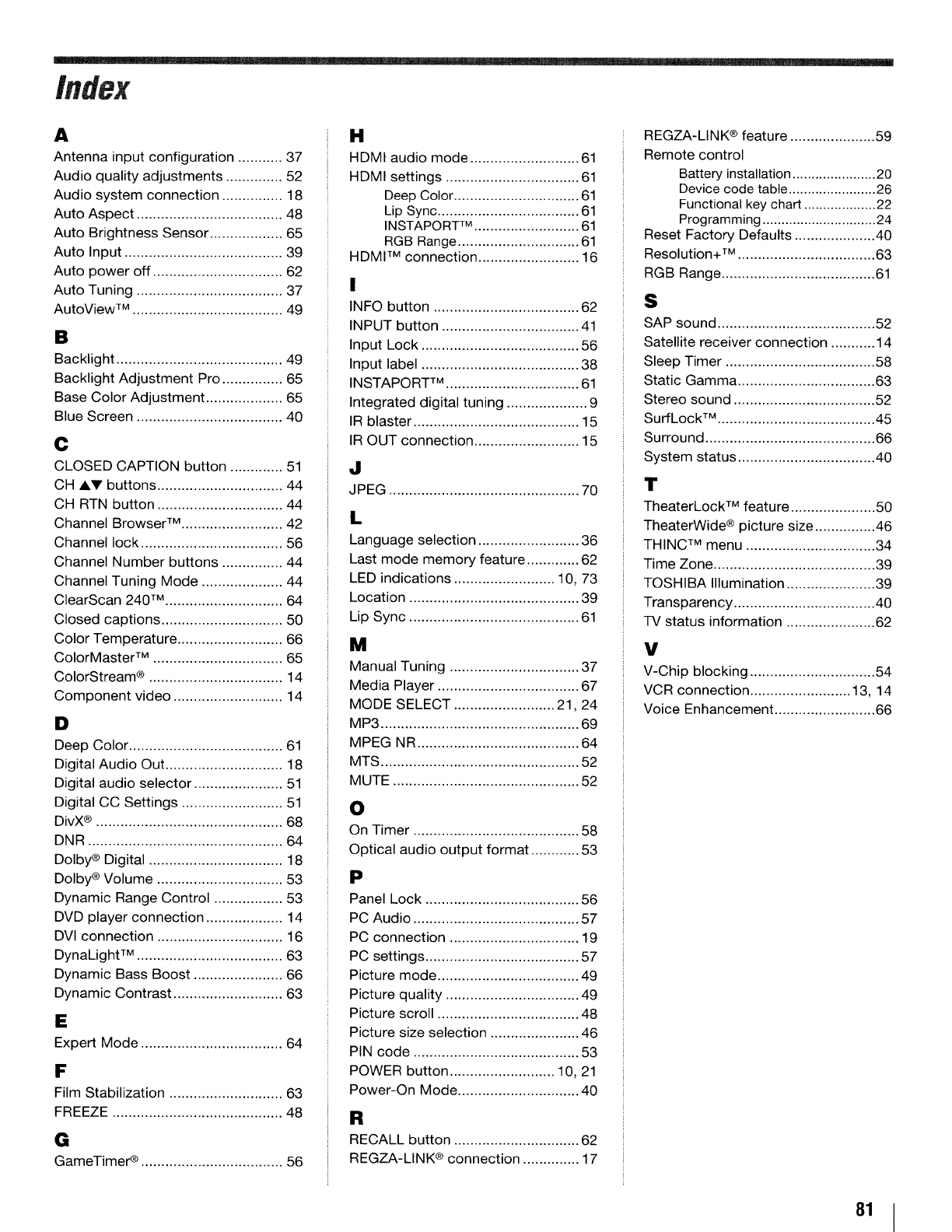
A
Antenna input configuration ........... 37
Audio quality adjustments .............. 52
Audio system connection ............... 18
Auto Aspect .................................... 48
Auto Brightness Sensor .................. 65
Auto Input ....................................... 39
Auto power off ................................ 62
Auto Tuning .................................... 37
AutoView TM ..................................... 49
B
Backlight ......................................... 49
Backlight Adjustment Pro ............... 65
Base Color Adjustment ................... 65
Blue Screen .................................... 40
C
CLOSED CAPTION button ............. 51
CH AV buttons ............................... 44
CH RTN button ............................... 44
Channel Browser TM ......................... 42
Channel lock ................................... 56
Channel Number buttons ............... 44
Channel Tuning Mode .................... 44
ClearScan 240 TM ............................. 64
Closed captions .............................. 50
Color Temperature .......................... 66
ColorMaster TM ................................ 65
ColorStream ® ................................. 14
Component video ........................... 14
D
Deep Color ...................................... 61
Digital Audio Out ............................. 18
Digital audio selector ...................... 51
Digital CC Settings ......................... 51
DivX® .............................................. 68
DNR ................................................ 64
Dolby ® Digital ................................. 18
Dolby ®Volume ............................... 53
Dynamic Range Control ................. 53
DVD player connection ................... 14
DVI connection ............................... 16
DynaLight TM .................................... 63
Dynamic Bass Boost ...................... 66
Dynamic Contrast ........................... 63
E
Expert Mode ................................... 64
F
Film Stabilization ............................ 63
FREEZE .......................................... 48
G
GameTimer _ ................................... 56
H
HDMI audio mode ........................... 61
HDMI settings ................................. 61
Deep Color ............................... 61
Lip Sync ................................... 61
INSTAPORT TM .......................... 61
RGB Range .............................. 61
HDMI TM connection ......................... 16
!
INFO button .................................... 62
INPUT button .................................. 41
Input Lock ....................................... 56
Input label ....................................... 38
INSTAPORT TM ................................. 61
Integrated digital tuning .................... 9
IR blaster ......................................... 15
IR OUT connection .......................... 15
a
JPEG ............................................... 70
L
Language selection ......................... 36
Last mode memory feature ............. 62
LED indications ......................... 10, 73
Location .......................................... 39
Lip Sync .......................................... 61
M
Manual Tuning ................................ 37
Media Player ................................... 67
MODE SELECT ......................... 21,24
MP3 ................................................. 69
MPEG NR ........................................ 64
MTS ................................................. 52
MUTE .............................................. 52
O
On Timer ......................................... 58
Optical audio output format ............ 53
Panel Lock ...................................... 56
PC Audio ......................................... 57
PC connection ................................ 19
PC settings ...................................... 57
Picture mode ................................... 49
Picture quality ................................. 49
Picture scroll ................................... 48
Picture size selection ...................... 46
PIN code ......................................... 53
POWER button .......................... 10, 21
Power-On Mode .............................. 40
R
RECALL button ............................... 62
REGZA-LINK ® connection .............. 17
REGZA-LINK ® feature ..................... 59
Remote control
Battery installation ...................... 20
Device code table ....................... 26
Functional key chart ................... 22
Programming .............................. 24
Reset Factory Defaults .................... 40
Resolution+ TM .................................. 63
RGB Range ...................................... 61
$
SAP sound ....................................... 52
Satellite receiver connection ........... 14
Sleep Timer ..................................... 58
Static Gamma .................................. 63
Stereo sound ................................... 52
SurfLock TM ....................................... 45
Surround .......................................... 66
System status .................................. 40
T
TheaterLock TM feature ..................... 50
TheaterWide ® picture size ............... 46
THINC TM menu ................................ 34
Time Zone ........................................ 39
TOSHIBA Illumination ...................... 39
Transparency ................................... 40
-IV status information ...................... 62
Y
V-Chip blocking ............................... 54
VCR connection ......................... 13, 14
Voice Enhancement ......................... 66
81

TOSHIBA AMERICA CONSUMER PRODUCTS,
Corporate Headquarters: 82 TOTOWA ROAD, WAYNE, NJ 07470, U.S.A.
NATIONAL SERVICE DIVISION: 1420-B TOSHIBA DRIVE, LEBANON, TN 37087, U.S.A.
L.L.C.
TOSHIBA OF CANADA LTD.
HEAD OFFICE: 191 McNABB STREET, MARKHAM, ONTARIO, L3R 8H2, CANADA - TEL: (905) 470-5400
SERVICE CENTERS:
TORONTO: 191 McNABB STREET, MARKHAM, ONTARIO L3R 8H2, CANADA - TEL: (905) 470- 5400
MANUFACTURED BY
TOSHIBA ELECTROMEX, S.A. DE C.V.
AutoView, Channel Browser, DynaLight, ColorMaster, Resolution+, SurfLock, TheaterLock, ClearScan 240 and THINC are
trademarks of Toshiba America Consumer Products, L.L.C.
ColorStream, GameTimer and TheaterWide are registered trademarks of Toshiba America Consumer Products, L.L.C.
REGZA and REGZA-LINK are registered trademarks of Toshiba Corporation.
PRINTED IN MEXICO
(09-03) TOSHIBA
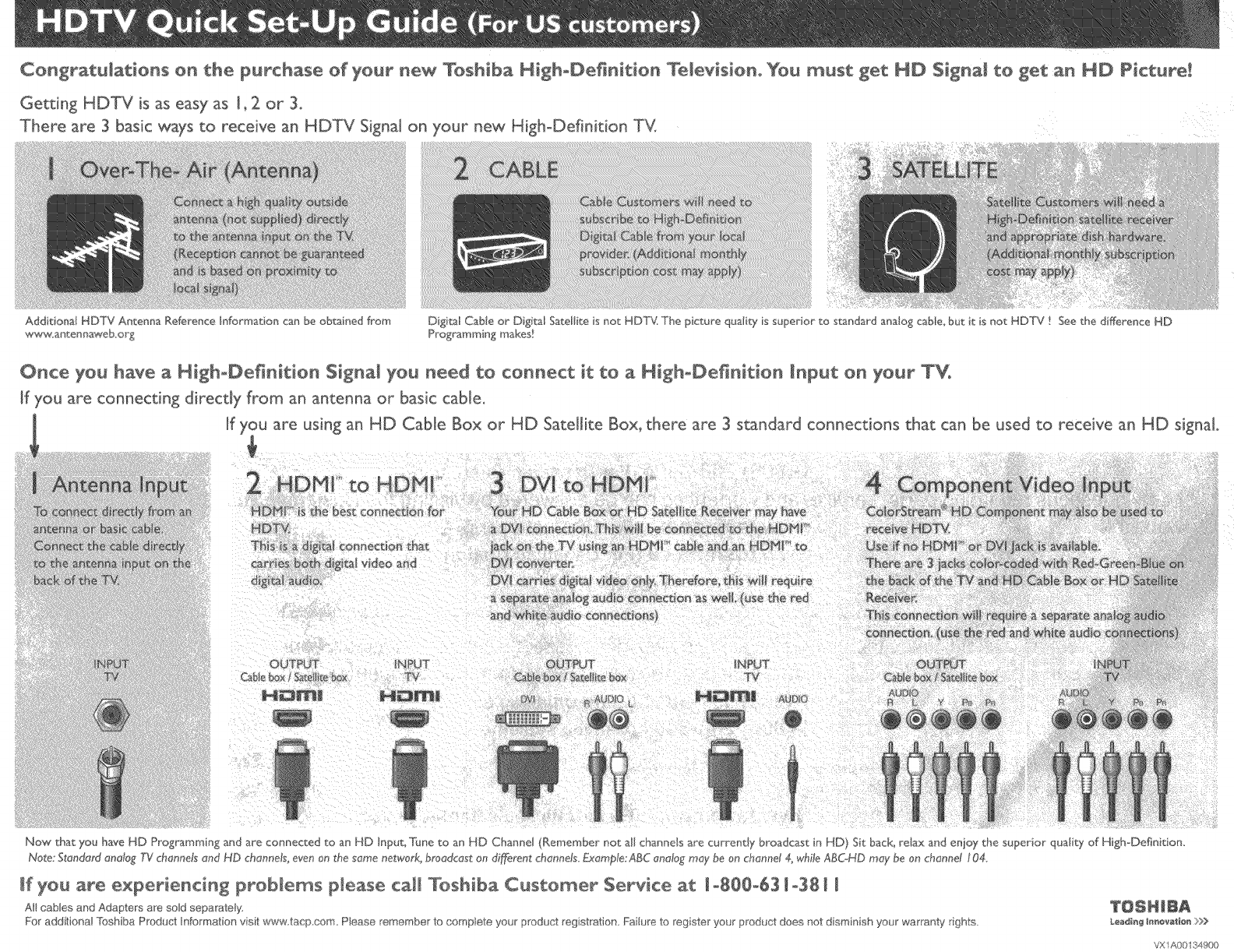
Congratulations on the purchase of your new Toshiba HighoDe_nit_on Te[ev_siono You _ust get HD Signal to get an HD Piet_re_
Getting HDTV is as easy as [, 2 or 3_
There are 3 basic ways to receive an HDTV Signal on your new High-Definition T'4
AddidonaI HDTV Antenna Reference Infernat on can be obtained from
www ant_nnaweb,org
Digital CaMe or Digi_l Satellite is not HD'T'_ The picture qualit 7is superior to standard analog cable but it is not HDTV
Programming mskes_
Seethe difference HD
Once you have a HighoDefinition $igna_ you need to connect it to a H_ghoDe_nition _nput on your TVo
ff you are connecting direcd xfrom an antenna or basic cable.
If you are using an HD Cable Box or HD Satellite Box, there are 3 standard connections that can be used to receive an HD signal
OUTPUT eNPIJT
Gb/e box/S_eI_ _, T_
Now that you have HD P_'_gramming _nd are connected to an HD Input, _Jne to an HD Channe[ (Remember not s_IchanneB are currently broadcast in HD) St back_reJax and enioy the superior quality of High-Definition,
No_e:St_n@N analog TYch_nnds and HD channels even on the same network, bmadcest on did:rent channels.Example:ABe cmdagmay be on channel 4_while ABGHD may be on channd 104.
_f yo_ are experiencing problems p_ease ca_l Toshiba Customer Service at [ o8@0o63 [ °38 _ [
AHcables and Adapters are sold sepa_ate y, T@_ _ __
For additional Toshiba Pnsduc_Information vsit www tacp corn, Pease remember to complete your product reg st_ation FaiIore to register your product does not d sminish your'warranty rights. _,eaa_gm_eva_b_>>>
VX1A0{ 34900

If you are experiencing a technical problem or have questions regarding operation, authorized service centers, warranty or
parts, please contact our Customer Service Department at:
1-(800} 631-3811 (For US Customers)
1-(800) 218-3404 (For Canadian Customers)
Many questions regarding parts, service, and warranties can be answered by visiting the Customer Support Section of our
(For US Customers)
wwwotoshibaoca (For Canadian Customers)
THANK YOU
Si vous 6prouvez des difficult6s techniques ou si vous avez des questions concernant le fonctionnement du produit, les
centres de service autodses, la garantie ou lea pieces, veuillez appeler notre departement du service a la clientele au:
1o(800) 631o3811 (EtatsoUnis seulement}
1o(800) 268-3404 (Canada seulement)
Vous trouverez egalement des r6ponses & de nombreuses questions sur les pi_ces, le service et les garanties en visitant
Jasection Soutien a la clientele de notre site Web:
(EtatsoUnis aeulement)
wwwotoshibaoca (Canada seuJement)
MERCI
**PLEASE SEE OPPOSITE SIDE OF THIS PAPER FOR QUICK SETUP DIRECTIONS**
VX 1A00134900
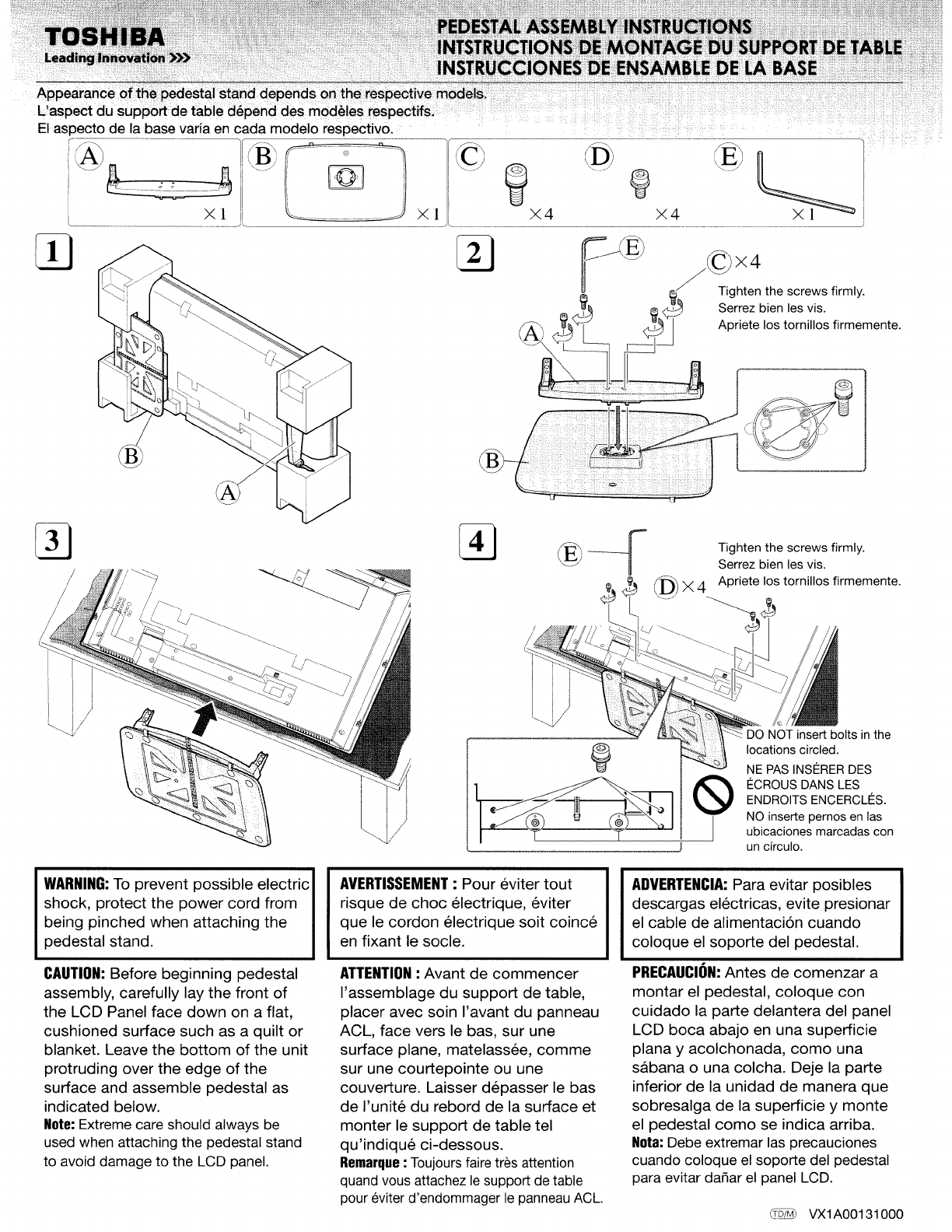
×!
33
Appearance of the pedestal-
L'aspect du support de table depend des modules respectifs.
El aspecto de la base varia en cada modelo respectivo. ........................... /
X4 X4
x4
Tighten the screws firmly.
Serrez bien les vis.
Apriete los tornillos firmemente.
Tighten the screws firmly.
Serrez bien les vis.
Apriete los tornillos firmemente.
NOT insert bolts in the
locations circled.
NE PAS INSt_RER DES
t_CROUS DANS LES
ENDROITS ENCERCLI_S.
NO inserte pernos en las
ubicaciones marcadas con
j un circulo.
WARNING:To prevent possible electric
shock, protect the power cord from
being pinched when attaching the
pedestal stand.
CAUTION:Before beginning pedestal
assembly, carefully lay the front of
the LCD Panel face down on a flat,
cushioned surface such as a quilt or
blanket. Leave the bottom of the unit
protruding over the edge of the
surface and assemble pedestal as
indicated below.
Note:Extreme care should always be
used when attaching the pedestal stand
to avoid damage to the LCD panel.
AVERTISSEMENT: Pour eviter tout
risque de choc electrique, eviter
que le cordon electrique soit coince
en fixant le socle.
ATTENTION: Avant de commencer
I'assemblage du support de table,
placer avec soin I'avant du panneau
ACL, face vers le bas, sur une
surface plane, matelassGe, comme
sur une courtepointe ou une
couverture. Laisser depasser le bas
de I'unite du rebord de la surface et
monter le support de table tel
qu'indique ci-dessous.
Remarque:Toujoursfaire tres attention
quand vous attachez lesupport de table
pour eviter d'endommager le panneauACE
ADVERTENCIA:Para evitar posibles
descargas electricas, evite presionar
el cable de alimentaci6n cuando
coloque el soporte del pedestal.
PRECAUCION:Antes de comenzar a
montar el pedestal, coloque con
cuidado la parte delantera del panel
LCD boca abajo en una superficie
plana y acolchonada, como una
s&bana o una colcha. Deje la parte
inferior de la unidad de manera que
sobresalga de la superficie y monte
el pedestal como se indica arriba.
N0ta:Debe extremar las precauciones
cuando coloque el soporte del pedestal
para evitar dafiar el panel LCD.
_%_ VX1AO0131000
Whencleaningyourcabinet, pleasefirst
removeany or dust from the ace and
_n gently wipe with the enclosed cleaning
cloth or other soft cloth. Harshrubbingor use
of a dirty cleaning cloth or stiff cloth will
scratch the surface of the cabinet.
Quandvousnettoyez votre cabinet, s'il vous
plait, au d_but, enlevez toutes saletGsou
poussi_resqui pourrait _tre sur la surface et
puisdoucementnettoyezavec le chiffon prGvu
a cet effet ou un autre chiffon lisse. Un rude
coupde chiffon ou I'usage d'un chiffon sale ou
rigide rayera la surface du cabinet.
_VXl A00080800
Please send products and other correspondence to:
Toshiba America Consumer Products, L.L.C.
82 Totowa Road
Wayne, NJ 07470
First Class
Postage
Required
Post Office will
not deliver without
proper postage.
Toshiba America Consumer Products, L.L.C.
P.O. Box 3980
Peoria, IL 61612-3980
IMPOHIANT!
TOSHIBA
Image is Everything TM
PRODUCT REGISTRATION CARD
Complete and return this Product Registration Card within 10 days to receive
valuable Toshiba information. Failure to complete and return this card does not
diminish your warranty rights.
See details inside...
If you have comments or suggestions about our product, please write to:
Toshiba America Consumer Products, L.L,C. >> 82 Totowa Roacl >> Wayne, NJ 07470
Copyright © 2004 All Rights Reserved Please seal with tape. Do not staple.
Congratulations for choosing Toshiba, a leader in developing tomorrow's technology today. Toshiba is committed to producing high-quality, reliable and innovative products. To uphold
our commitment to excellence, we need to understand our customers' needs.
Please complete the following Product Registration Card. The information we are asking from you below will help us bring you new products specifically designed to meet your
needs. By registering your product you will automatically be enrolled in our Consumer Information Program, which provides you with the following benefits:
1. PRODUCT SAFETY NOTIFICATION: Registering our product will allow us to contact you in the unlikely event a product safety notification is required.
2. CONFIRMATION OF OWNERSHIP: We will keep the model number, serial number, and other information on this card in our files for up to ten years. In the event of fire, flood or
theft, your registration will serve as your proof of purchase for insurance purposes.
IMPORTANT! To ensure your enrollment
3. ModelNumber III
3. WARRANTY SERVICE: Filling out this card will help us contact you in case there is a problem with this product.
IMPORTANT: Please register your product within 10 days by mail or register online @ www.tacp.toshiba.com/register
1. r-] Mr. r-] Mrs.D Ms.D Miss Email address II
First Name Initial Last Name
II I I IIII II I II II I IIIIIIIIIIIII
Street iApt.No.
I I I I I I I I I I I I I I I I I I I I I I I I I I I
City State Zip Code
I I I II IIIII II IIIIIII I I I I I I
Home telephone number Work telephone number
II IIIIIIIIIII IIIIIIIII _"°a'e°''
Area Code Area Code Month Day Year
in Toshiba's Consumer Information Program, write the complete model number of the product you purchased in the space below,
I I I I I I I 14.S°r'°'"°_erlI I I I I I I I I I
I
°
6.
Price
Have
1.
2.
3.
a.
1.
2.
b.
1.
0°'0_°xc'u0'n0'ax)'lI I I I I 100
you purchased a service contract or extended warranty for this product? 7,
Yes, from my retail dealer 01.No, but contract was offered by my retail dealer 02.
No, contract was not offered 03.
If you answered "yes" to 6, how long does your service contract or extended warranty last? 04.
Ft F]
1 Year 3. 3 Years 06.
2 Years 4. More than 3 Years
Would you like to obtain more information from Toshiba on extended warranties:
DYes 2. DNo
Where was this product purchased?
_ Received as a Gift 07. _ Catalog Showroom
Department Store 08. H Rental Dealer
H
Discount Store 09. H Mail Order
TV/Appliance Store 10. H Premium Offer
Specialty/Electronics Store 11. I I Other
Warehouse/Membership Club
fold here
With #1 being the most important, prioritize the following:
1. Where do you get new product information?
__ newspaper
__ tech magazines
news broadcasts
on-line
__ product literature
__ retail salesperson
other
2, What resources do you use to make your purchase decision?
__ friends/family
on-line research
__ retail salesperson
__ product reviews
other
3. What do you look for when purchasing CE products:
__ style, cosmetics
__ picture quality
brand
__ quality
__ price
__ technology
__ reliability
4. Why did you choose this product?
__ brand image
__ quality
__ price
__ purchased other Toshiba products
__ technology
__ reliability
__ recommended by a friend/family
__ product reviews
Check all that apply
5. Which of the following products do you own?
Product Manufacturer
__ TV - projection TV
__ TV - tabletop
TV Combination
__ TV - flat panel/plasma
__ DVD player
Home Theater in a Box
TiVo ®
__ Home Networking Server
__ Computer
__ Audio Player
__ Digital Camera
__ Digital Camcorder
Receiver
__ Speakers - stand alone
Other
6. May we contact you?
[] Yes [] No Emaih
Thanks for taking the time to fill out this
questionnaire. Your answers will be used for
market research studies and reports.
[] Please check here if, for some reason,
you would prefer not to participate in the opportunity.
VX1A00125200
