Toshiba D R2Su Owners Manual R2SU_Ope(US)H1 146
D-R2SU MANUAL000072939
2014-12-13
: Toshiba Toshiba-D-R2Su-Owners-Manual-128966 toshiba-d-r2su-owners-manual-128966 toshiba pdf
Open the PDF directly: View PDF  .
.
Page Count: 151 [warning: Documents this large are best viewed by clicking the View PDF Link!]
OWNER’S MANUAL
Recording Playback Library Function setup Others
Introduction Editing
OPERATIONS
Read “INSTALLATION GUIDE” first.
PM0015867010
TOSHIBA DVD VIDEO RECORDER
D-R2SU/D-R2SC/D-KR2SU
S
Printed in China
Printed on 70% Recycled Paper
DIGITAL VIDEO
DVD VIDEO RECORDER
© 2004 Toshiba Corporation
D-R2SU
D-R2SC
D-KR2SU
2
Introduction
Table of Contents
Introduction
Caution for safety ................................................ 4
About this product .............................................. 5
Compatible discs ................................................ 6
Index to parts and controls .............................. 12
Front panel ........................................................... 12
Rear panel ............................................................ 14
Remote control ..................................................... 16
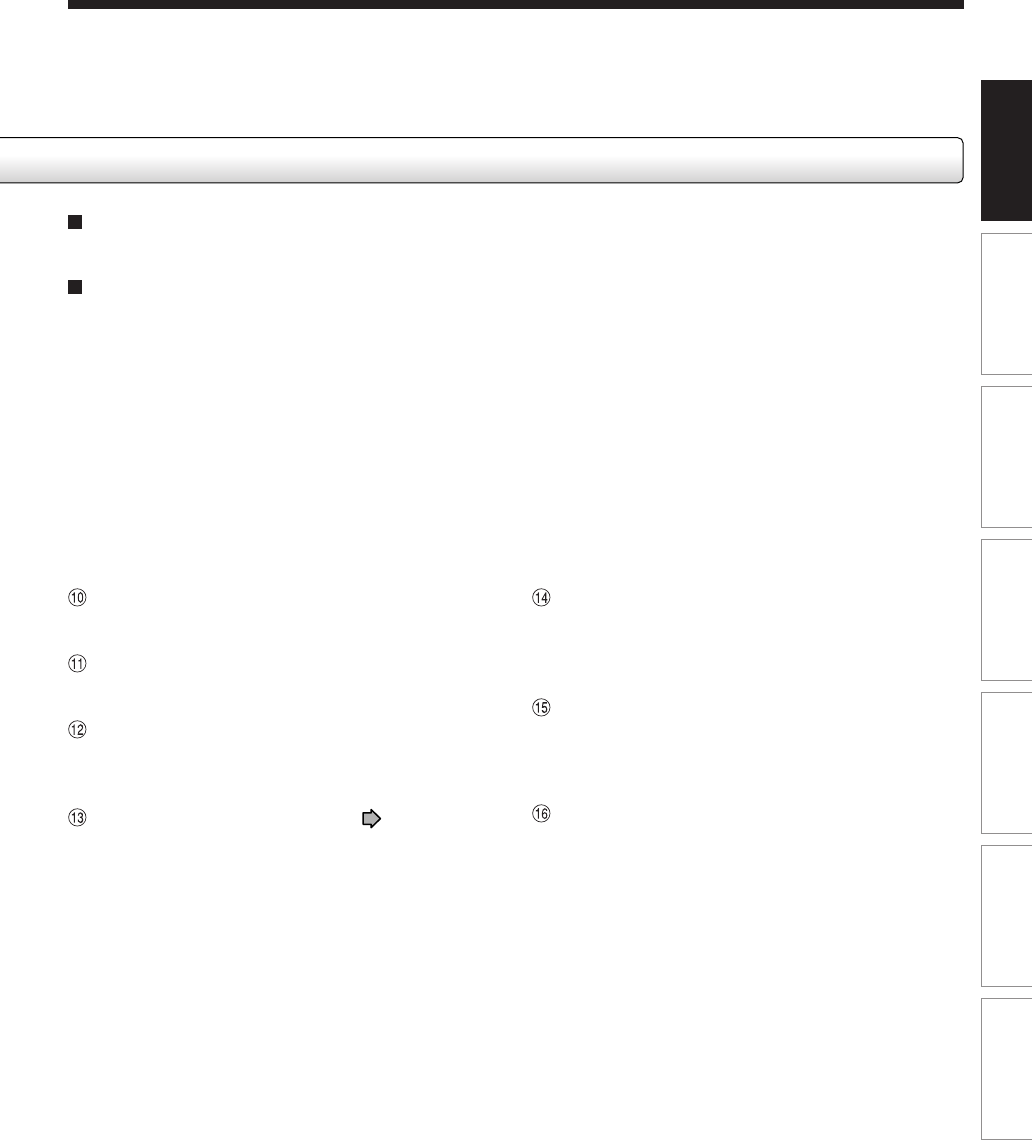
Display ................................................................. 18
Before operating this recorder ........................ 20
Key operation - EASY NAVI & QUICK MENU .. 23
Recording
Before recording ............................................... 26
Initializing a DVD-RAM/RW disc (Logical format) .... 28
DVD-RAM physical format ..................................... 29
Entering characters ............................................... 30
Recording a TV program .................................. 32
Recording an external source .......................... 36
Programming a recording (REC MENU) .......... 39
VCR Plus+ recording ........................................ 46
Others ................................................................. 48
Reservation Disc (“Lock program record”) .............. 48
To delete recorded content .................................... 49
To protect recorded content ................................... 49
Technical information ............................................ 50
Playback
Information on playback ................................... 52
Playing recorded contents
(CONTENT MENU) ............................................. 53
Playing a DVD video disc ................................. 59
Locating a title using the top menu ........................ 60
Pausing a TV broadcast to resume later ......... 61
Playing a TV program currently being
recorded ............................................................. 62
Playing at various speeds ................................ 63
Playing in fast reverse or fast forward .................... 63
Skipping to the next/previous chapter or track ........ 64
Playing in slow-motion .......................................... 64
Playing frame by frame ......................................... 65
Viewing still pictures
(Playing a disc that contains still pictures) .............. 65
Locating by entering the number .................... 66
Locating by entering the number of a desired
section ................................................................. 66
Locating a specific point by entering its elapsed time
(Time Search) ....................................................... 67
Selecting the camera angle .............................. 68
Selecting subtitles ............................................ 69
Zooming a picture ............................................. 70
Selecting the sound .......................................... 71
Viewing JPEG files ............................................ 74
JPEG files compatibility ........................................... 75
Playing MP3/WMA files ..................................... 76
Playable files ........................................................ 77
Watching a TV broadcast in the sub window
(P in P playback) ............................................... 78
Checking the current status and settings ...... 79
Operational status and setting details .................... 79
Using the time bar ................................................. 80
Functions in the Quick Menu ........................... 81
Editing
Before editing .................................................... 86
Creating chapters .............................................. 89
Playlist editing
(Collecting desired scenes) ............................. 94
Creating thumbnails
(Changing the picture on the
CONTENT MENU) .............................................. 99
High speed Library dubbing
(Dubbing only a specified part) ..................... 102
Deleting selected items
(Deleting multiple specified parts) ................ 104
Combine original titles
(Combine two titles into one) ......................... 106
DVD-Video finalizing process ........................ 108
DV recording
(Recording from a digital video camera) ...... 112
3
Recording Playback Editing Library Function setup Others
Introduction
Library
Using Library data........................................... 116
Basic operation of the Library system .................. 116
Checking remaining space on discs ..................... 117
Searching for a disc ............................................ 117
Maintenance of Library data ................................ 118
Function Setup
Customizing the function settings ................ 122
DVD player settings ............................................. 126
Picture/Audio settings ......................................... 129
Display settings .................................................. 131
Operational settings ............................................ 132
DVD recorder operation ....................................... 133
Management settings .......................................... 135
Setting of picture and sound quality for
recording ............................................................ 135
Others
Before calling service personnel ................... 138
Error codes on the display window ............... 141
Recording duration ......................................... 142
Language code list.......................................... 143
Specification .................................................... 144
Limited Warranty DVD PLAYER/RECORDER ..
146
CANADIAN WARRANTY INFORMATION ....... 148
4
Introduction
Introduction
Caution for safety
Read “SAFETY PRECAUTIONS”, “IMPORTANT SAFETY INSTRUCTIONS”,
“Precautions” and others of the “INSTALLATION GUIDE” first.
5
Recording Playback Editing Library Function setup Others
Introduction
About this product
Introduction
Some differences
This DVD recorder is more similar to a computer than it is
to a standard DVD player. In addition to a
microprocessor, it contains an operating system, random
access memory (RAM), and a DVD-RAM/R/RW drive.
The operating system includes software that is
transferred to the RAM when the machine is turned on
and at other times during operation. This transfer can
take time. Thus, when you turn on the DVD recorder, it
may be a minute or so before it is ready to use. Likewise,
other functions may not be performed as quickly as they
would on other AV equipment. In addition, accessing
programs stored on the DVD-RAM/R/RW drive (or
deleting a program from a DVD-RAM or DVD-RW disc)
may take more time. Please take these factors into
consideration as you use the DVD recorder.
Playback Restrictions
This owner’s manual explains the basic instructions for
this recorder. Some DVD video discs are produced in a
manner that allows specific or limited operation during
playback. As such, the recorder may not respond to all
operating commands. This is not a defect in the recorder.
Please refer to the notes on compatible discs later in this
Introduction and to the discussion of DVD playback and
features later in this manual.
“” may appear on the TV screen during operation.
“” means that the operation is not permitted by the
recorder or the disc.
Recording Restrictions
Copy-protected contents of DVD-Video disc, VIDEO CDs
or audio CDs on the market cannot be copied on this
recorder.
Contents without copy protection should be copied or
edited only in accordance with applicable copyright laws,
which may restrict copying or editing. Contents that
permit single copying (copy once contents) can be
recorded onto DVD-RAM discs, with some dubbing and
editing restrictions. DVD-R/RW discs cannot record these
contents.
Compatiblity
In isolated cases, a disc bearing the DVD or CD logo
may not fully and properly play back all features. This
can be due, among other reasons, to problems and
errors that can occur during the creation or recording of
DVD and other software and the manufacture of software
discs (including blank discs). Moreover, because of
variations in the quality of discs, this recorder may not be
able to record on all discs that bear a DVD-RAM, DVD-R
or DVD-RW logo, but you should not encounter difficulty
if you use only high quality recordable DVD discs. If you
happen to encounter difficulties playing or recording a
DVD disc or playing a CD disc, please feel free to call our
Customer Service Hotline at 1-800-319-6684.
6
Introduction
Compatible discs
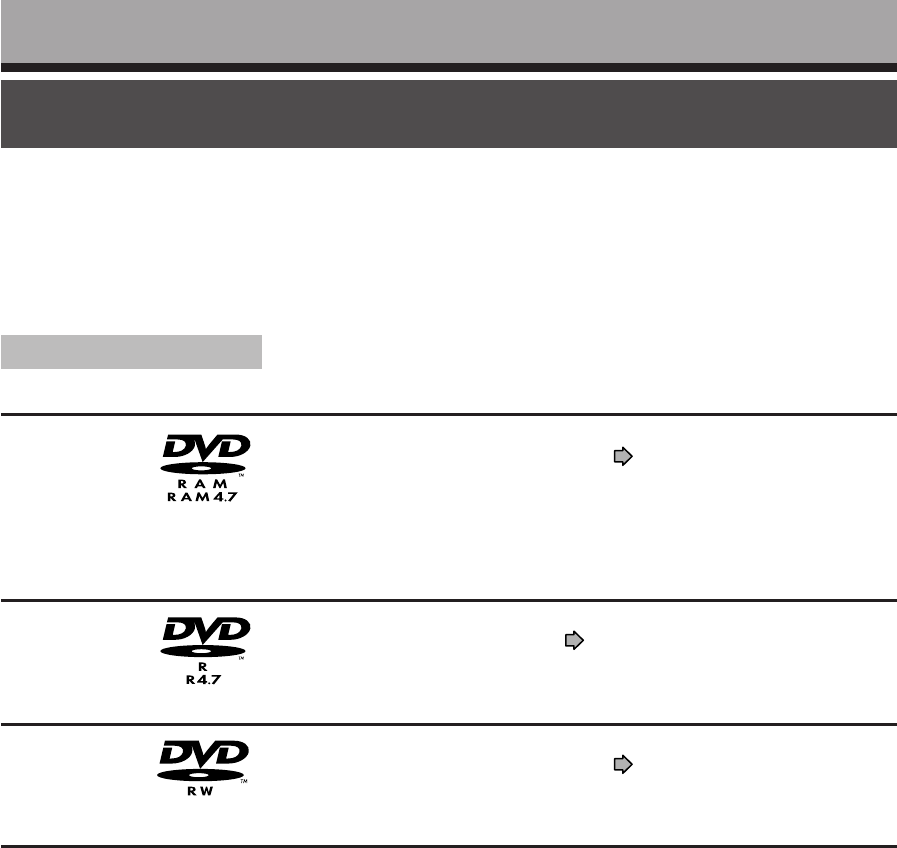
There are many types and formats of discs. Please use the following information to select an
appropriate disc.
Disc
DVD-RAM
DVD-R
DVD-RW
Mark Specification Remarks
•Single sided 4.7GB (12cm (4
3
/
4
in.))
•Double sided 9.4GB (12cm (4
3
/
4
in.))
•4.7GB For General Ver.2.0
(12cm (43/4 in.))
•Ver. 1.1 or later (12cm
(43/4 in.))
Read carefully the section “On DVD-RAM
discs” ( page 8).
Select a DVD-RAM disc that shows a
statement on its package such as “this disc
can be used with video recorders and drives
compatible with 4.7GB DVD-RAM discs” or
“this disc can copy images that permit single
copying.”
Read carefully the section “On DVD-R discs”
( page 9).
Depending on the disc status or the
recording equipment, playback of the disc
may not be possible on this recorder.
Read carefully the section “On DVD-RW
discs” ( page 9).
Depending on the disc status or the
recording equipment, playback of the disc
may not be possible on this recorder.
Notes
•Handle the disc according to the disc instruction manual.
•Depending on the data recording method or the disc status, playback or recording on this recorder may not be possible, even
if the disc is labeled as below. Toshiba cannot assure that all discs bearing the DVD or CD logos will operate as expected.
Please see the discussion of compatibility on page 5.
For recording / playback
Using different disc types for different purposes
DVD-RAM discs for your personal library
DVD-RAM discs comply with the global standard DVD-VR (Video Recording) format, and are optimized for recording of
TV programs. You can rewrite repeatedly without deterioration of an image quality, erase unnecessary parts, divide a
chapter, or specify playback area by frame. Its cartridge is suitable for a longer-term storage and family use, and its
large capacity of 9.4 GB allows more recording space.
DVD-R discs when creating your own original discs for distribution
DVD-R discs are designed to comply with the global standard DVD-Video format, and can be recorded only once.
DVD-R discs are convenient when you edit your original content (recorded personal events such as a wedding party)
with your recorder, transfer them to the recorder and make copies to send to your friends or relatives. The discs can be
played on other compatible DVD players. DVD-RW discs, which are rewriteable, can be used as well.
*DVD-R and DVD-RW may not be the best suited format for recording TV programs. Because of the way the discs are
formatted, it may not be possible to edit or divide the program as you may prefer, to record secondary languages, or
programs that are copy protected in a way that allows only one copy. (NOTE: “Copy once” protected programs
generally can be recorded to DVD-RAM discs.)
*This recorder records on a DVD-R/RW disc in DVD-Video format only. In DVD-VR format, recording is not possible.
We cannot guarantee that DVD-RAM/R/RW discs recorded on this recorder will be playable on all DVD recorders/
players. Similarly, there is no guarantee that all DVD-RAM/R/RW discs recorded on other recorders will be playable on
this player.
7
Recording Playback Editing Library Function setup Others
Introduction
DIGITAL VIDEO
•You cannot play discs other than those listed above.
•You cannot play non-standardized discs even if they may be labeled as above.
•You cannot play discs with specialized encoding (such as SACD discs) or the DVD audio portions of DVD Audio
discs.
•This recorder uses the NTSC color system, and cannot play DVD video discs recorded in any other color system
(PAL, SECAM, etc.), even if they have region marks 1 or
ALL
.
•Toshiba cannot assure that all discs bearing the DVD or CD logos will operate as expected. Please see the
discussion of compatibility on page 5.
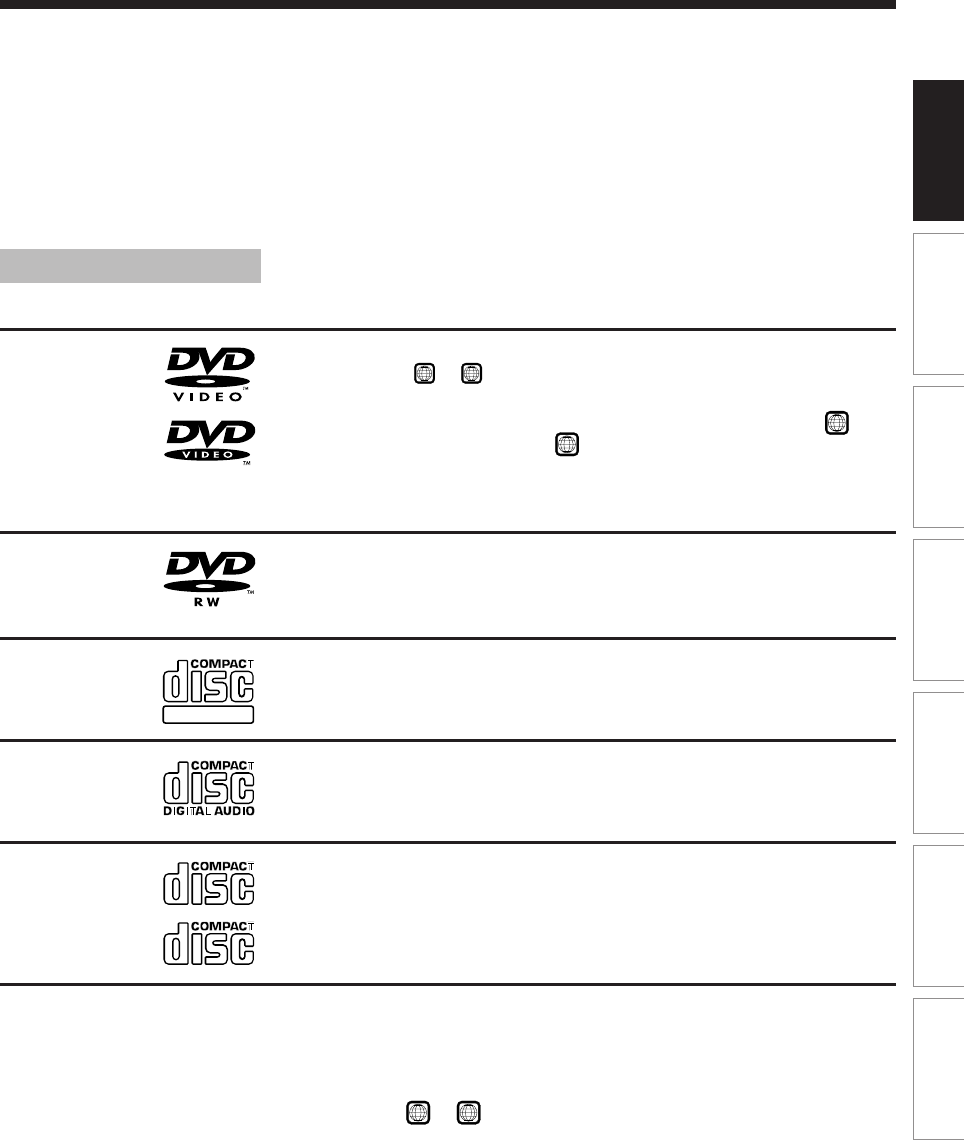
For playback only
DVD video
disc
•12cm (43/4 in.) / 8cm (31/4 in.)
•Region number 1 or
ALL
•Color system: NTSC
The region number of this DVD recorder is 1.
If region numbers, corresponding to a
specific playable area, are printed on your
DVD video disc and you do not find 1 or
ALL
, or the disc is encoded to permit
playback only in regions other than Region 1,
disc playback will not be allowed by the
recorder.
Disc Mark Specification Remarks
CD-R
CD-RW
DVD-RW •12cm (43/4 in.)
•DVD-VR mode
VIDEO CD •12cm (43/4 in.) / 8cm (31/4 in.)
•Color system: NTSC
•Version 1.1 and 2.0
Audio CD
•12cm (43/4 in.)
•CD-DA (audio CD) format
Depending on the disc status, playback may
not be possible.
•12cm (43/4 in.) / 8cm (31/4 in.)
It is not possible to play contents recorded
from programs which are not copy-free.
Depending on the disc status, playback may
not be possible.
8
Introduction
On DVD-RAM discs
Use only DVD-RAM discs that comply with
DVD-RAM standard Version 2.0 or 2.1.
The recorder cannot record on a disc formatted in any
other standard. When using such a disc, initialize it by
using the disc-format function of this recorder.
The recorder may not record, dub, or edit some DVD-
RAM discs, because they are edited/recorded with
another manufacture’s equipment or PC, contain a
large number of titles, or have little remaining capacity.
Also, a DVD-RAM disc may not be edited or recorded
if its title contains still pictures.
DVD-RAM discs formatted in UDF2.0 on a PC are not
compatible with this recorder. Before using these
discs, initialize them on this recorder.
This recorder complies with current copyright
protection technology and can copy a disc only when
the disc permits copying once. When there is no
indication on the disc, copying will not be allowed.
Such an indication on a disc is required also for the
Library Management database.
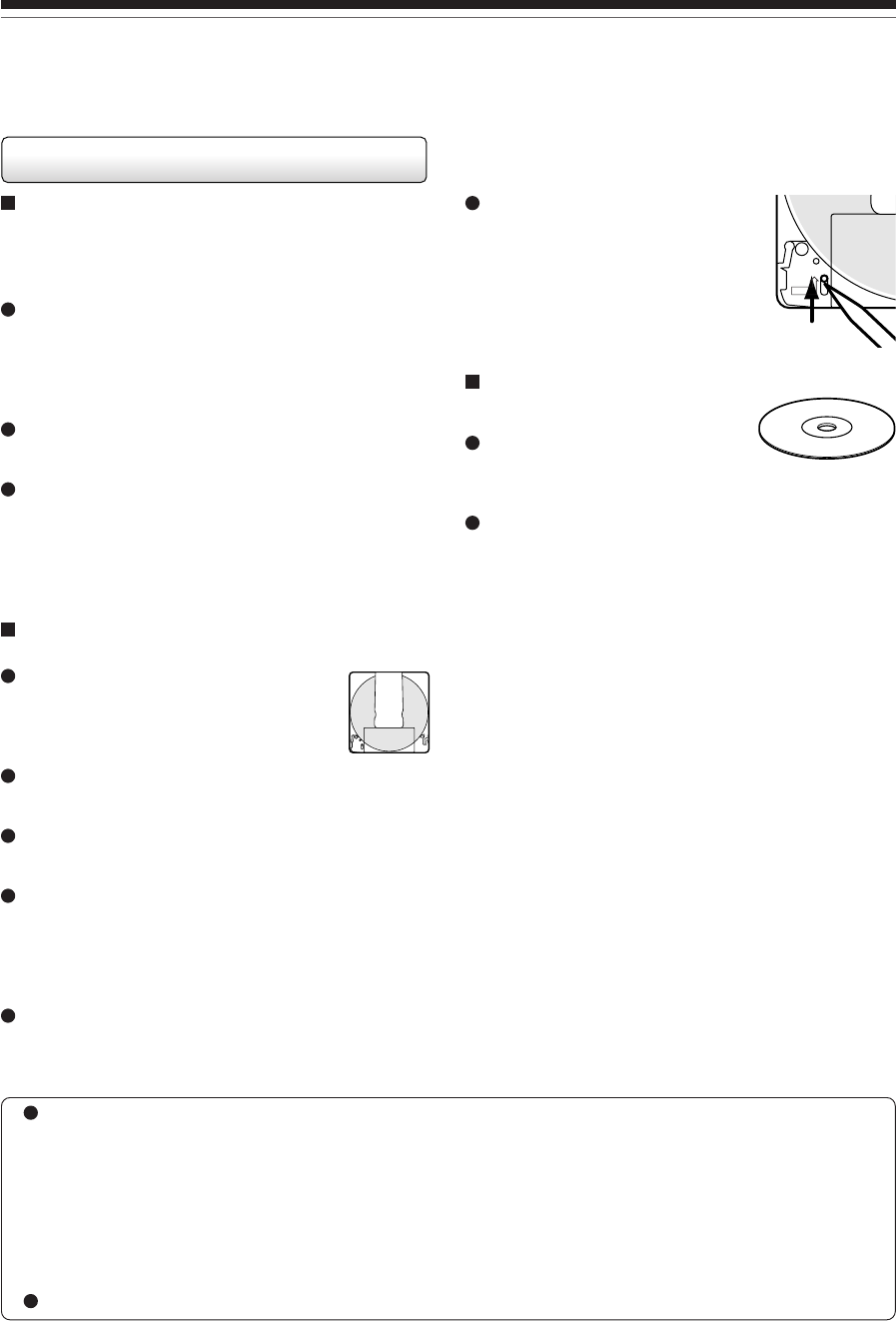
DVD-RAM discs with cartridges are
recommended for recording.
Two types of DVD-RAM discs are
available: ones with cartridges and ones
without cartridges. You can use either of
them with this recorder, but the former
ones are recommended.
In order to record highly detailed data, make sure the
disc is clean. DVD-RAM discs with cartridges are
easier to handle in this regard.
Do not open the cartridge shutter. The disc may not
play, or may not be recorded or edited once it
becomes dirty.
There are two types of DVD-RAM cartridges;
removable (TYPE 2/4) and not removable (TYPE 1). It
is recommended you do not remove the disc even
when you can.
Refer to the instruction manual that comes with the
disc if it is absolutely necessary to remove the disc.
Some commercially available cartridge discs cannot
be recorded or edited once the inside discs are
removed.
To protect recorded contents
Slide the write-protect tab to
“PROTECT” with something small
enough. The disc can play, but
cannot be edited or erased. Refer to
the instructions that come with the
disc.
When using a disc without a
cartridge (commercially
available discs)
Discs without cartridges can easily
attract fingerprints and dust, which
is the reason they are not recommended. If you
cannot avoid using them, handle with proper care.
When you write in a title column on a disc, use a pen
with a soft tip. Do not use a pen with a hard tip, such
as a ballpoint pen.
Recommended discs
The following discs have been tested with this recorder:
9.4 GB double-sided cartridge: Panasonic LM-AD240U
4.7 GB single-sided cartridge: Panasonic LM-AB120U
The company does not hold any responsibility to compensate the contents which should have been recorded,
and any losses or damages (e.g. losses of business profit, or business intermission) that may arise from
malfunction of this recorder (not recording/editing as intended).
Problems arising in the following situations are included.
•When a DVD disc recorded on this recorder is used in a DVD recorder of another manufacturer, or used
(insertion, playback, recording or editing) in a personal computer DVD drive.
•When a DVD that has been used as above is used again in this recorder.
•When a DVD disc recorded in a DVD recorder of another manufacturer, or in a personal computer DVD drive
is used.
Some functions such as Library may not work with PC discs.
PROTECT
Compatible discs (Continued)
9
Recording Playback Editing Library Function setup Others
Introduction
*Operation has been confirmed with recommended discs
and tested disc, but some other discs may not be
usable.
On DVD-R discs
Standards
DVD-R for General Ver.2.0 discs can be used for
recording and playback.
Discs compatible with 2X speed recording (labeled
Ver.2.1/2X etc.) and discs compatible with 4X speed
recording (labeled Ver.2.1/4X etc.) can also be used.
Select discs labeled “for video,” “for recording,” “120
min.” etc.
DVD-R for authoring Ver.1.1 cannot be used.
Recording conditions
Images for which copying is prohibited or restricted
(copy once or copy prohibited) cannot be recorded.
Even if the disc is labeled as CPRM compatible, this
recorder can only be used to record copy-free
material.
Recommended disc
Taiyo-Yuden 4x
Tested discs
Panasonic LM-RF120 (4.7GB/120 min.).
On DVD-RW discs
Standards
Discs labeled DVD-RW Ver.1.1 can be used.
Discs compatible with 2X speed recording (labeled
Ver.1.1/2X etc,) can also be used.
Select discs labeled “for video,” “for recording,” “120
min.” etc.
Recording conditions
Images for which copying is prohibited or restricted
(copy once or copy prohibited) cannot be recorded.
Even if the disc is labeled as CPRM compatible, this
recorder can only be used to record copy-free
material.
DVD-VR mode recording is not possible.
Recommended discs*
Victor/JVC VD-RW47BU
4:3
LB
16:9 LB
16:9 PS
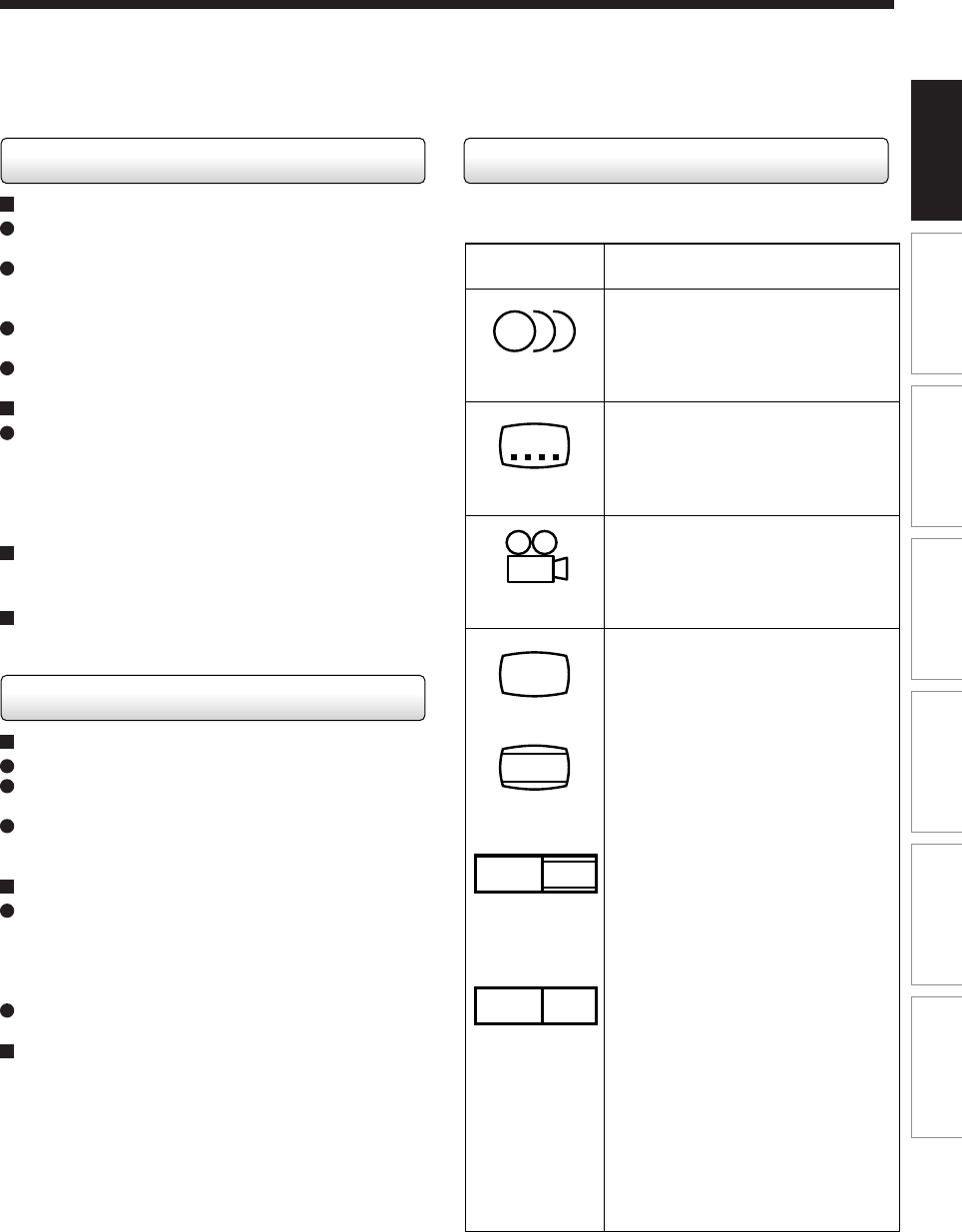
2
2
3
Mark Meanings
Number of audio streams
recorded in the disc.
(2 streams such as English and
Japanese in this example.)
Number of subtitle languages
recorded in the disc.
(2 subtitle languages are
recorded in this example.)
Number of camera angles
recorded in the disc.
(3 camera angles are recorded in
this example.)
Pictures are recorded in the
standard picture shape
(4:3 aspect ratio).
Pictures are recorded in the letter
box picture shape (4:3 aspect
ratio with horizontal black bars in
the top and bottom of pictures).
Pictures are recorded in the 16:9
wide picture shape.
TVs with 4:3 aspect ratio will
display them in the letter box
style.
Pictures are recorded in the 16:9
wide picture shape.
TVs with 4:3 aspect ratio will
display them in the pan scan style
(one or both sides of pictures
are cut).
Actual picture shape may vary
depending on the aspect ratio or
mode selection of the TV.
Marks on DVD video discs
The following are examples of marks and the meanings.
10
Introduction
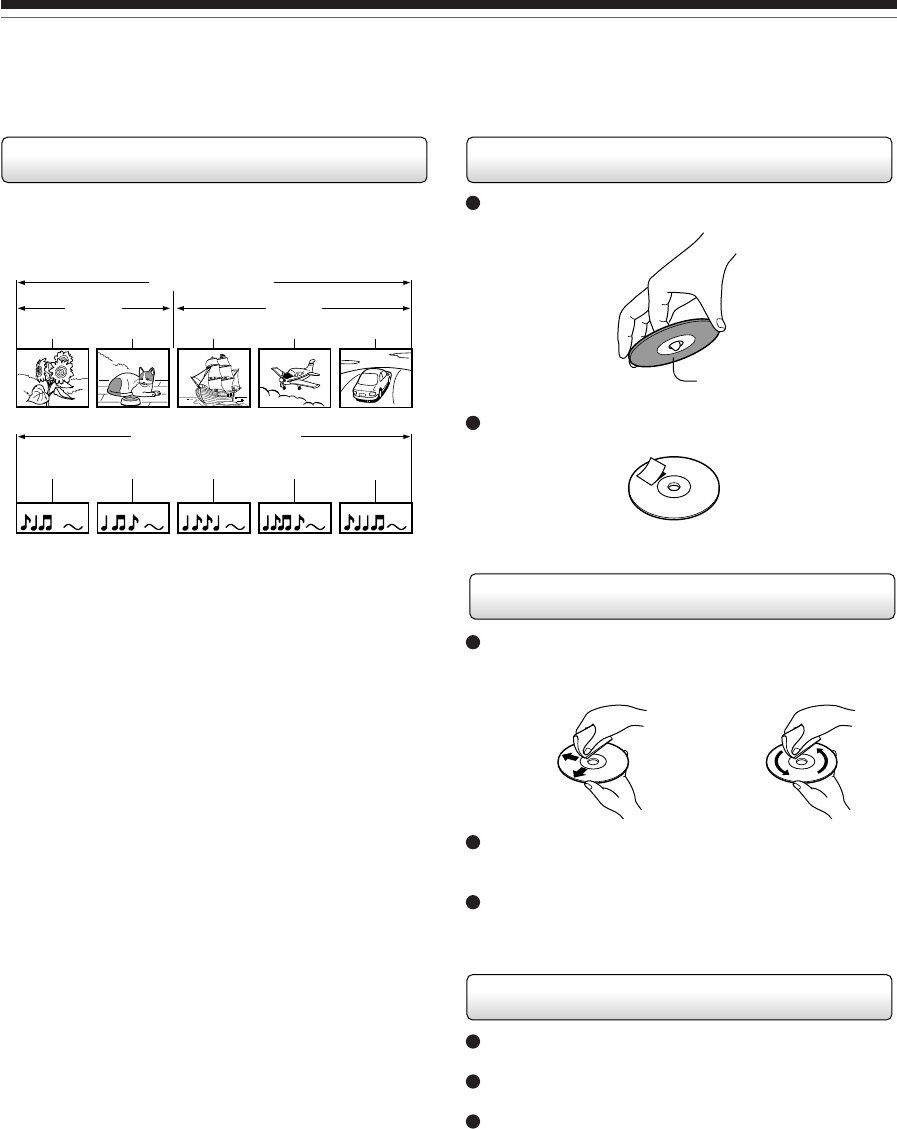
Playback side
On handling discs
Do not touch the playback side of the disc.
Do not stick paper or tape to discs.
On cleaning discs
Fingerprints and dust on the disc cause picture and
sound deterioration. Wipe the disc from the center
outwards with a soft cloth. Always keep the disc clean.
If you cannot wipe off the dust with a soft cloth, wipe
the disc lightly with a slightly moistened soft cloth and
finish with a dry cloth.
Do not use any type of solvent such as thinner,
benzine, commercially available cleaners or antistatic
spray for vinyl LPs. It may damage the disc.
On storing discs
Do not store discs in a place subject to direct sunlight
or near heat sources.
Do not store discs in places subject to moisture and
dust such as a bathroom or near a humidifier.
Store discs vertically in a case. Stacking or placing
objects on discs outside of their case may cause
warping.
DVD video disc
Title 1 Title
2
Chapter 2 Chapter 1 Chapter 2 Chapter 3Chapter 1
Track 1 Track 2 Track 3 Track 4 Track 5
VIDEO CD / audio CD
Structure of disc contents
Normally, DVD video discs are divided into titles, and the
titles are subdivided into chapters.
VIDEO CDs/audio CDs are divided into tracks.
Title: Divided contents of a DVD video disc.
Roughly corresponds to a story title in short
stories.
Chapter: Divided contents of a title. This corresponds
to a chapter in a story.
Track: Divided contents of a VIDEO CD or an audio
CD.
Each title, chapter, or track is assigned a number, which
is called “title number”, “chapter number”, or “track
number” respectively.
Some discs may not have these numbers.
When you record on a DVD-RAM/R/RW disc, one
recording will always equal one title.
Compatible discs (Continued)
Yes
No
Yes No
11
Recording Playback Editing Library Function setup Others
Introduction
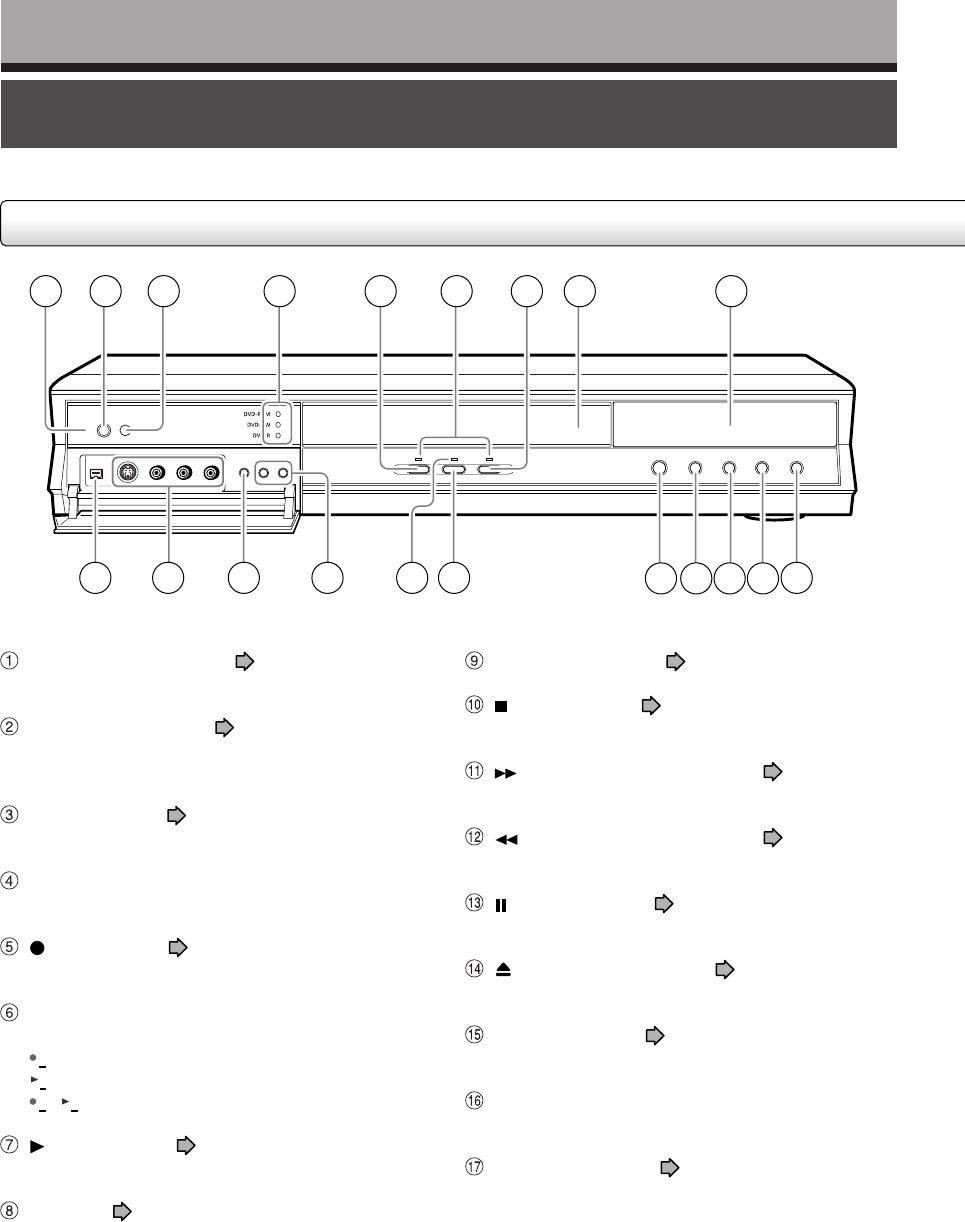
Discs and purposes
The table shows main functions which are available on this recorder per disc category.
This will help you choose discs.
Characteristics on this
recorder
For the first use
Recording a TV program
Erasing recorded contents
Recording additional content
on a recorded disc
Indexing recorded contents
Naming a title
Creating a thumbnail
Collecting favorite scenes
(Playlist Editing)
Making a new title from a Playlist
containing favorite scenes
(Copy within the same disc)
Playing contents recorded on
this recorder, on other devices
When a message appears and
the loaded disc cannot be
used:
DVD-RAM disc
Suitable for repeat use of the
disc, and data storage for
video library. Copy once
contents can be recorded
using a compatible disc.
No preparatory steps
required, however initializing
is recommended.
Ye s
Ye s
Ye s
Ye s
Ye s
Ye s
Ye s
Contents can be played on
any devices compatible with
DVD-RAM discs. Follow the
instruction of the device to
play.
Initialize the disc.
If it is still unusable, try to
execute DVD-RAM Physical
Format.
DVD-RW disc
Suitable for saving data in
DVD-Video format to play on
compatible devices.
You can erase recorded
contents to use the disc
repeatedly.
Initialize the disc.
Ye s
Ye s
If the disc has been executed
DVD-Video finalizing
process, first cancel the
process then delete contents
.
Ye s
If the disc has been executed
DVD-Video finalizing
process, first cancel the
process then delete contents
.
Ye s
Ye s
After you execute DVD-Video
finalizing process on a recorded
disc, you cannot name a title or
create a thumbnail.
No
No
Execute DVD-Video
finalizing process on this
recorder. This process
makes the disc playable on
other compatible devices.
(Some models excepted.)
Initialize the disc.
DVD-R disc
Suitable for saving data in
DVD-Video format to play on
compatible devices.
Once you execute DVD-
Video finalizing process on a
recorded disc so that it can
be played on other players,
you cannot make addition,
correction and deletion of
contents on the disc.
No preparatory steps
required.
Ye s
Ye s
Deleting contents cannot
restore the disc space.
After you execute DVD-
Video finalizing process on a
recorded disc, you cannot
delete contents of the disc.
Ye s
After you execute DVD-
Video finalizing process on a
recorded disc, you cannot
add contents to the disc.
Ye s
Ye s
After you execute DVD-Video
finalizing process on a recorded
disc, you cannot name a title or
create a thumbnail.
No
No
Execute DVD-Video
finalizing process on this
recorder. This process
makes the disc playable on
other compatible devices.
(Some models excepted.)
–
12
Introduction
Index to parts and controls
See pages with arrows for details.
Front panel
1 2 3 4 5 6 87 9
1020 19 18 17 1516 11121314
ON/STANDBY indicator page 20, 21
Displays the operational state of the recorder.
ON/STANDBY button page 20, 21
Turns the power on/restores the unit in the
standby mode.
Remote sensor page 12 in “INSTALLATION
GUIDE”
Media indicator
Indicates the current media.
(REC) button page 34
Starts recording.
Operational status indicator
Indicates the operational status of the recorder.
REC
: Illuminates when recording.
PLAY
: Illuminates when playing.
REC
PLAY
: Illuminates when copying within a disc.
(PLAY) button page 59
Starts playback.
Disc tray page 20
Loads a disc into the disc drive.
Front panel
* The above illustration displays the front panel with the cover open. See the following page on how to open or close the cover.
Front panel display page 18
(STOP) button page 35, 59
Stops playback or recording.
(PICTURE SEARCH) button page 63
Scans the picture forward.
(PICTURE SEARCH) button page 63
Scans the picture backwards.
(PAUSE) button page 35, 59
Stops playback or recording momentarily.
(OPEN/CLOSE) button page 20, 21
Opens and closes the disc tray.
TIMESLIP button page 61, 62
Selects the time slip mode.
TIMESLIP indicator
Lights up in the time slip mode.
CHANNEL buttons page 20, 33
Selects the channel.
13
Recording Playback Editing Library Function setup Others
Introduction
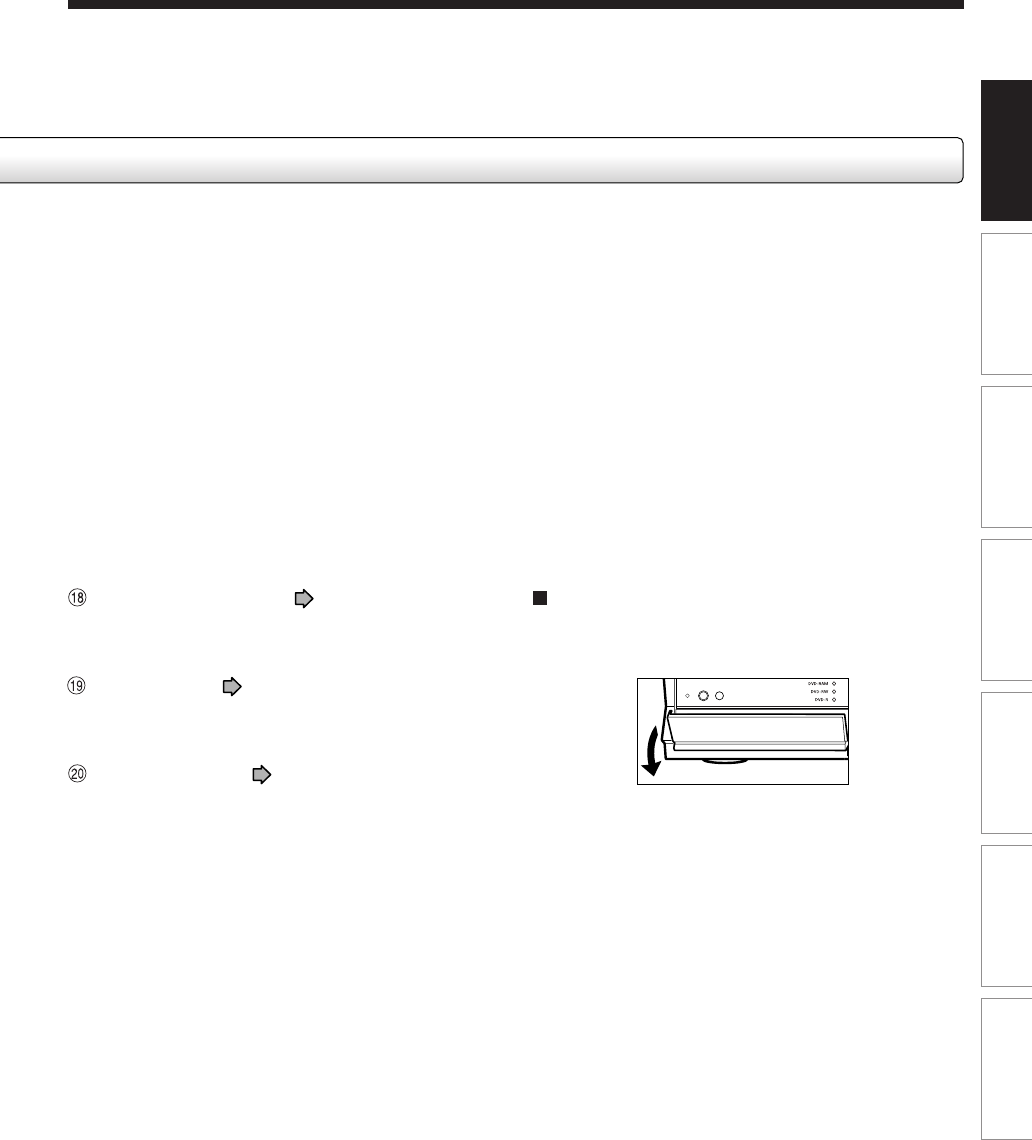
To open or close the cover on the front panel
Put your finger on the left edge of the cover and pull it
down to open.
Note
•Do not place a heavy object on the cover while it is
open. Doing so may damage the recorder.
INPUT SELECT button page 32
Pressing repeatedly selects between various input
sources.
INPUT 2 jacks page 36
Use this when recording from other input source
such as a VCR or a camcorder.
DV input terminal page 112
Use this when recording from a digital video
device such as a digital video camera.
14
Introduction
Index to parts and controls (Continued)
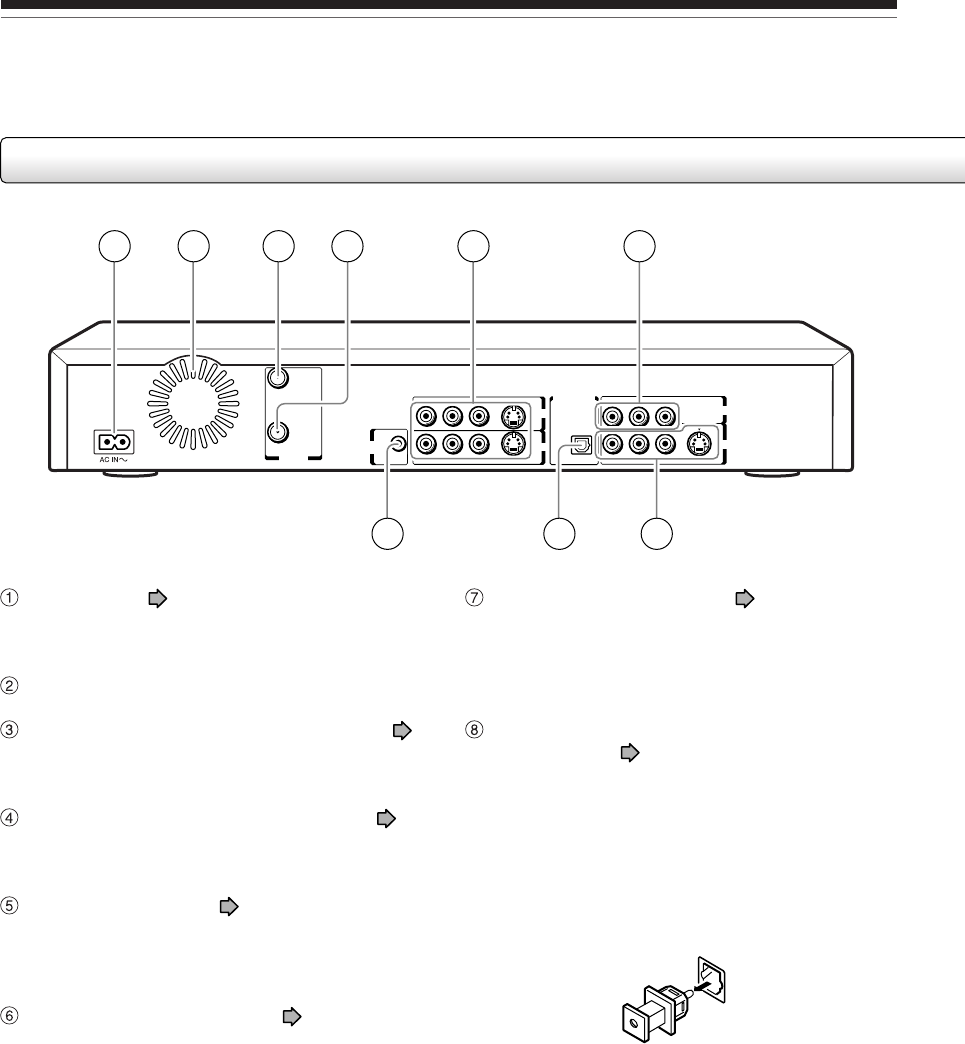
Rear panel
P
B
P
B
VHF/UHF
VIDEOLR VIDEORL
R L VIDEO
S-VIDEO S-VIDEO
S-VIDEO
P
B
YP
R
COMPONENT OUTPUT
OUTPUT
INPUT3
INPUT1
RF OUT
(TO TV)
RF IN
(FROM ANT.)
IR
DIGITAL AUDIO OUTPUT
BITSTREAM/PCM
OPTICAL
CHANNEL
CHANGE
1 4 52 3 6
97 8
CHANNEL CHANGE IR jack page 19 in
“INSTALLATION GUIDE”
Connect the supplied IR control cable to control
cable/satellite channels according to timer
programs.
DIGITAL AUDIO OUT BITSTREAM/PCM
OPTICAL jack page 22, 23, 24 in
“INSTALLATION GUIDE”
Use this to connect the recorder to an audio
receiver equipped with an optical digital audio
input jack.
When connecting the optical digital cable, remove
the cap and fit the connector into the jack firmly.
When not using the jack, keep the cap inserted to
protect it from dust intrusion.
AC IN socket page 15 in “INSTALLATION
GUIDE”
Connects the supplied power cord.
Ventilation fan
VHF/UHF RF IN (FROM ANT.) input socket
page 14 in “INSTALLATION GUIDE”
Connects to an antenna or cable signal.
VHF/UHF RF OUT (TO TV) output socket
page 14 in “INSTALLATION GUIDE”
Connects the supplied coaxial cable to a TV.
INPUT1/INPUT3 jacks page 36
Use this to connect the recorder to output jacks of
external devices such as another player or
camcorder.
COMPONENT OUTPUT jacks page 20 in
“INSTALLATION GUIDE”
Outputs video signals to a connected TV or
monitor.
Connects to a TV or monitor equipped with
component video jacks.
15
Recording Playback Editing Library Function setup Others
Introduction
OUTPUT jacks page 15, 17, 18, 22 in
“INSTALLATION GUIDE”
Outputs video and audio signals to a connected
TV or amplifier.
16
Introduction
Index to parts and controls (Continued)
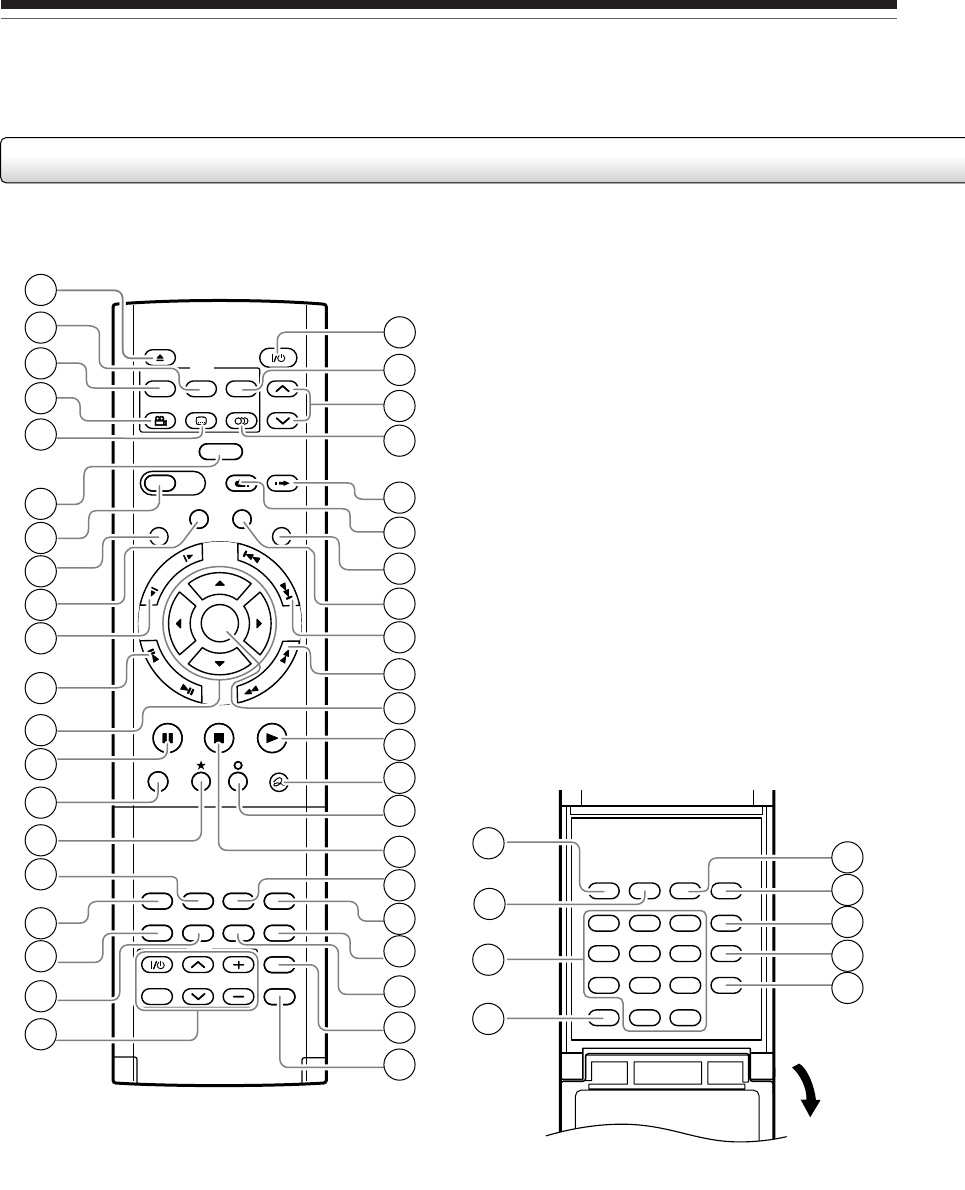
Remote control
ENTER
PLAYSTOPPAUSE
REC
TV/VIDEO CHANNEL
VOLUME
LIBRARY
REC MENU EDIT MENU
CONTENT MENU
EASY
NAVI
ANGLE
OPEN/CLOSE
SUBTITLE
AUDIO
CHANNEL
REMAIN
DIMMER
FL SELECT
ZOOM P in P
TIME BAR
CHP DIVIDE
DISPLAY
INPUT SELECT
PROGRESSIVE
QUICK MENU
INSTANT SKIP
INSTANT REPLAY
TOP MENU
MENU
RETURN
DVD
TV
TIMESLIP
F
R
A
M
E
/
A
D
J
U
S
T
P
I
C
T
U
R
E
S
E
A
R
C
H
S
K
I
P
S
L
O
W
SETUP ENTER
123
456
+10
789
DELETE
T.SEARCH
VCR Plus+
REC MODE
CLEAR
0
EXTEND
TV CODE
1
2
3
4
5
6
7
8
9
10
11
12
13
14
15
16
17
18
19
20
21
44
45
46
47
43 48
49
50
42
41
40
39
38
37
36
35
34
33
32
31
30
29
27
28
26
25
22
23
24
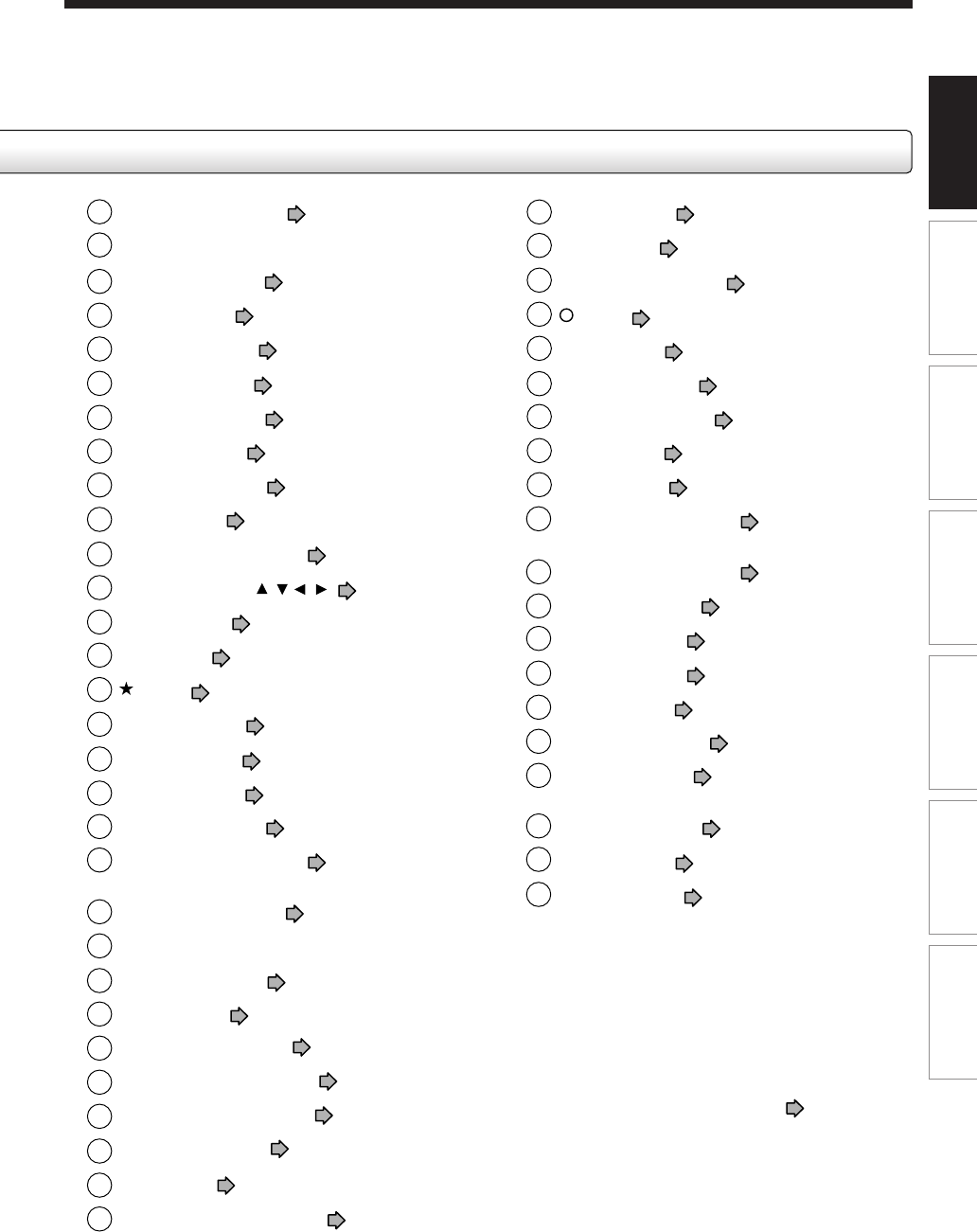
17
Recording Playback Editing Library Function setup Others
Introduction
*1MENU
Use this to display a menu screen that is recorded on
a DVD video disc.
Operate the menu screen as the same manner as
“Locating a title using the top menu ( page 60)”.
A menu screen is not recorded on some discs.
*2RETURN
Returns to the previous screen (the screen may be
specified depending on the disc).
Refer to the instructions of the disc.
OPEN/CLOSE button page 20, 21
MENU button*1
TOP MENU button page 60
ANGLE button page 68
SUBTITLE button page 69
TIMESLIP button page 61, 62
EASY NAVI button page 23
LIBRARY button page 116
REC MENU button page 39
SLOW button page 64
FRAME/ADJUST button page 39, 65
Direction buttons ( / / / ) page 53, 122
PAUSE button page 35, 54
REC button page 34
button page 53
DISPLAY button page 79
REMAIN button page 27
DIMMER button page 19
FL SELECT button page 19
Buttons for TV operation page 46 in
“INSTALLATION GUIDE”
ON/STANDBY button page 20, 21
RETURN button*2
CHANNEL buttons page 20, 33
AUDIO button page 71
INSTANT SKIP button page 63
INSTANT REPLAY button page 63
CONTENT MENU button page 53, 89
EDIT MENU button page 104
SKIP button page 64
PICTURE SEARCH button page 53, 63
ENTER button page 53, 122
PLAY button page 59
QUICK MENU button page 24, 81
button page 122
STOP button page 35
TIME BAR button page 80
CHP DIVIDE button page 89
P in P button page 78
ZOOM button page 70
PROGRESSIVE button page 20 in
“INSTALLATION GUIDE”
INPUT SELECT button page 37
VCR Plus+ button page 46
EXTEND button page 43, 45
Number buttons page 39, 66
SETUP button page 122
REC MODE button page 34
TV CODE button page 46 in
“INSTALLATION GUIDE”
T.SEARCH button page 67
CLEAR button page 66
DELETE button page 49
1
2
3
4
5
6
7
8
9
10
31
32
33
34
35
36
37
38
39
40
41
42
43
44
45
46
47
48
49
50
11
12
13
14
15
16
17
18
19
20
21
22
23
24
25
26
27
28
29
30
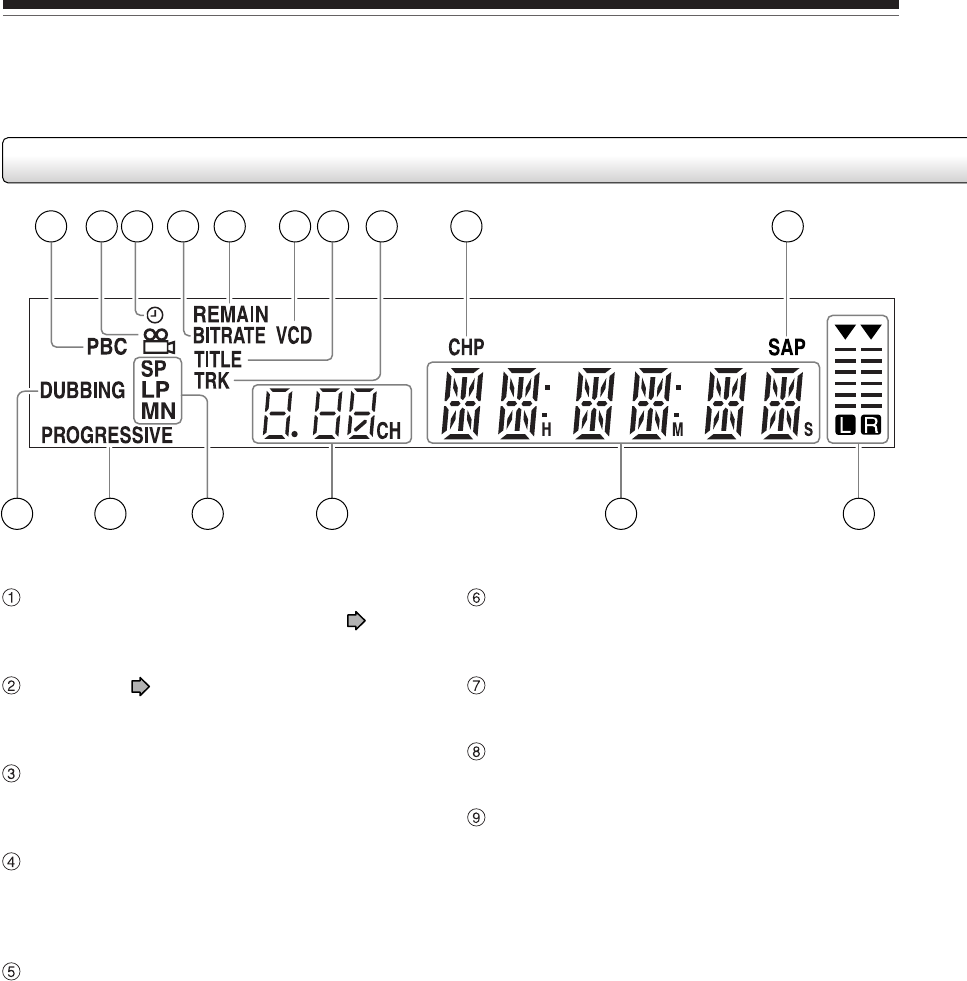
18
Introduction
Index to parts and controls (Continued)
Display
PBC indicator
Illuminates when PBC function is “On” ( page
128) and a PBC-controllable VIDEO CD is loaded.
Angle icon page 68
Illuminates when playing a scene recorded with
multi angles.
Program recording indicator
Illuminates when the recorder holds a timer
program.
Bit rate indicator
Illuminates when displaying the bit rate selected
for recording, or when displaying the actual bit
rate.
REMAIN (Remaining space) indicator
Illuminates when an available recording time is
displayed.
VCD/CD indicator
VCD : Illuminates when a VIDEO CD is loaded.
CD : Illuminates when an audio CD is loaded.
Title indicator
Illuminates when a title number is displayed.
TRK (Track) indicator
Illuminates when a track number is displayed.
CHP (Chapter) indicator
Illuminates when a chapter number is displayed.
1 4 5 6 7 8 92 3
14
10
1611 12 13 15
19
Recording Playback Editing Library Function setup Others
Introduction
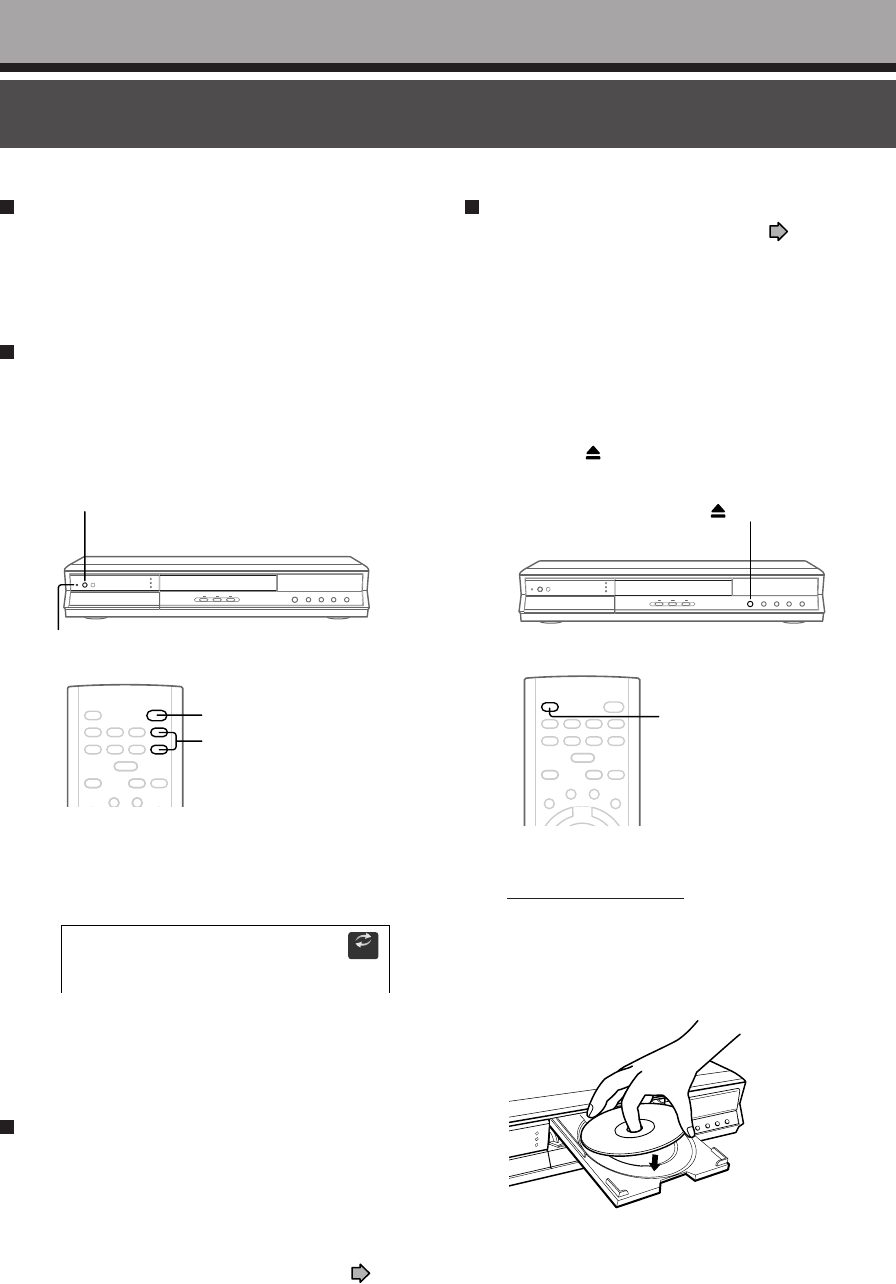
SAP indicator
Illuminates when receiving a SAP broadcast.
DUBBING indicator
Illuminates when copying.
PROGRESSIVE indicator
Illuminates when video signals are output in the
progressive format.
Picture quality mode indicator page 133
The current picture quality mode lights up.
The modes are: MN (Manual)/SP (Standard Play)/
LP (Long Play)/SP+LP+MN (Auto)
Dimming the display
Pressing the DIMMER button on the remote control changes the brightness of the display (normal/dimmed/off).
Switching the display
Every time you press the FL SELECT button, the display changes between the channel, title number, and time.
The display may not change, depending on the disc or recording conditions.
Channel indicator
Displays the current channel or other numbers
such as a title number, track number, bit rate or
input selection.
Multi display
Displays the current time, elapsed time, remaining
time, starting time of programmed recording, chapter
number or message, etc.
Analog output level indicator
Displays the analog output level.
L+R: Stereo and bilingual (left (main) channel and
right (sub) channel)
L : Left (main) channel
R : Right (sub) channel
Off : Mono
Level indicator may not show exact sound level. It
only shows the average level.
20
Is your recorder ready?
•Refer to the supplied “INSTALLATION GUIDE”
manual and finish the necessary preparations.
•Turn on the connected equipment such as a TV or
audio system and select the input from the recorder.
Turning the power on
(This owner’s manual instructions are based on
the assumption that all proper connections have
been completed and the TV is turned on.)
Press ON/STANDBY on the front panel of the
recorder or on the remote control.
When the power turns on, the ON/STANDBY indicator
changes from red (standby mode) to green (operation).
After a few seconds, a start-up screen appears.
The following icon appears at the top right corner of
the screen.
When this icon disappears, the recorder is ready to
operate. If the disc drive contains a disc, it takes a
little longer to start up.
Viewing TV channels through this recorder
After turning the power on, the recorder will output TV
channel signals to the connected TV (also in the stop
mode).
You can select a desired channel by pressing the
CHANNEL buttons, or the number buttons.
(These buttons can select channels of a connected
cable box or satellite system, if “IR control” ( page
37, in “INSTALLATION GUIDE”) is set to “On”.)
ON/STANDBY button
CHANNEL buttons
ON/STANDBY button
ON/STANDBY indicator
Loading
e.g.
Loading a disc
Check disc compatibility beforehand ( page 6, 7)
and use a proper playable disc.
Caution
•Keep your fingers well clear of the disc tray. Neglecting this
may cause serious personal injury. Keep a close watch on
children.
•Do not use a cracked, deformed, or repaired disc.
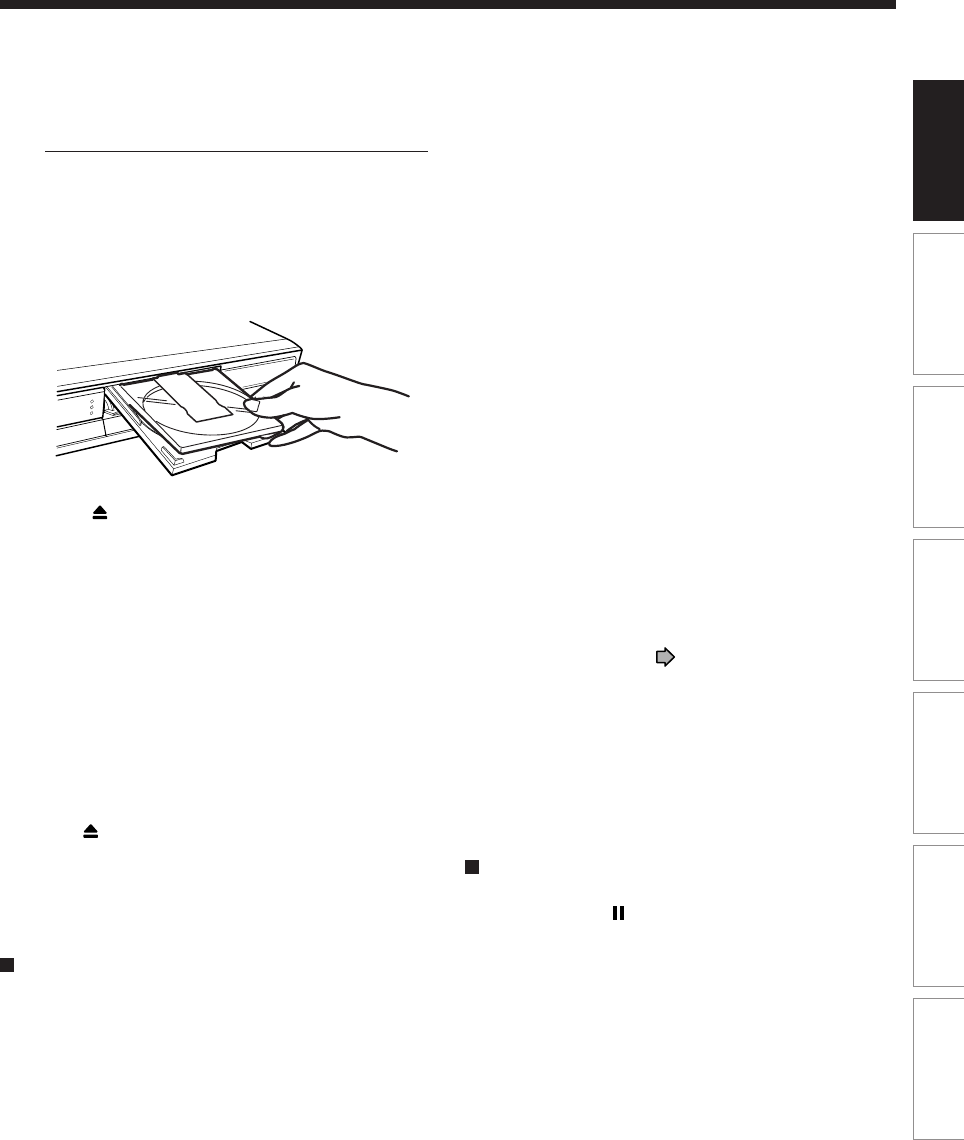
1 Open the disc tray.
Press the button on the front panel or the
OPEN/CLOSE button on the remote control.
2 Insert a disc.
Disc without a cartridge
Insert with the playback side down.
There are two kinds of disc size. Place a disc to fit
the guide. If a disc is out of the guide, it may result
in damage to the disc or malfunction.
Place a disc in the
inside hollow.
Introduction
Before operating this recorder
OPEN/CLOSE button
button
21
Recording Playback Editing Library Function setup Others
Introduction
DVD-RAM disc with cartridge (TYPE1/TYPE2/TYPE4)
Single sided
Turn the printed side up, and insert the cartridge
into the tray frame following the direction of the
arrow on the cartridge.
Double sided
Turn the desired recording/playback side up, and
insert the cartridge into the tray frame following the
direction of the arrow on the cartridge.
3 Close the disc tray.
Press on the front panel or the OPEN/CLOSE
button on the remote control.
Notes
•Use the button on the front panel or the remote control to
open and close the disc tray. Do not push or hold the disc
tray while it is moving. Doing so may cause the recorder to
malfunction.
•Do not insert a disc which is unplayable, or any object
other than a playable disc.
•Do not apply downforce to the disc tray. Doing so may
cause the recorder to malfunction.
•If the disc tray stops while closing, the mechanical
protection system of this recorder will open it. Do not force
it to close. Doing so may cause malfunction.
•If the disc tray will not open, turn the recorder off, and
press the button on the front panel or the OPEN/CLOSE
button on the remote control. This may turn the recorder on
and open the disc tray. If it still won’t open, contact your
nearest TOSHIBA dealer.
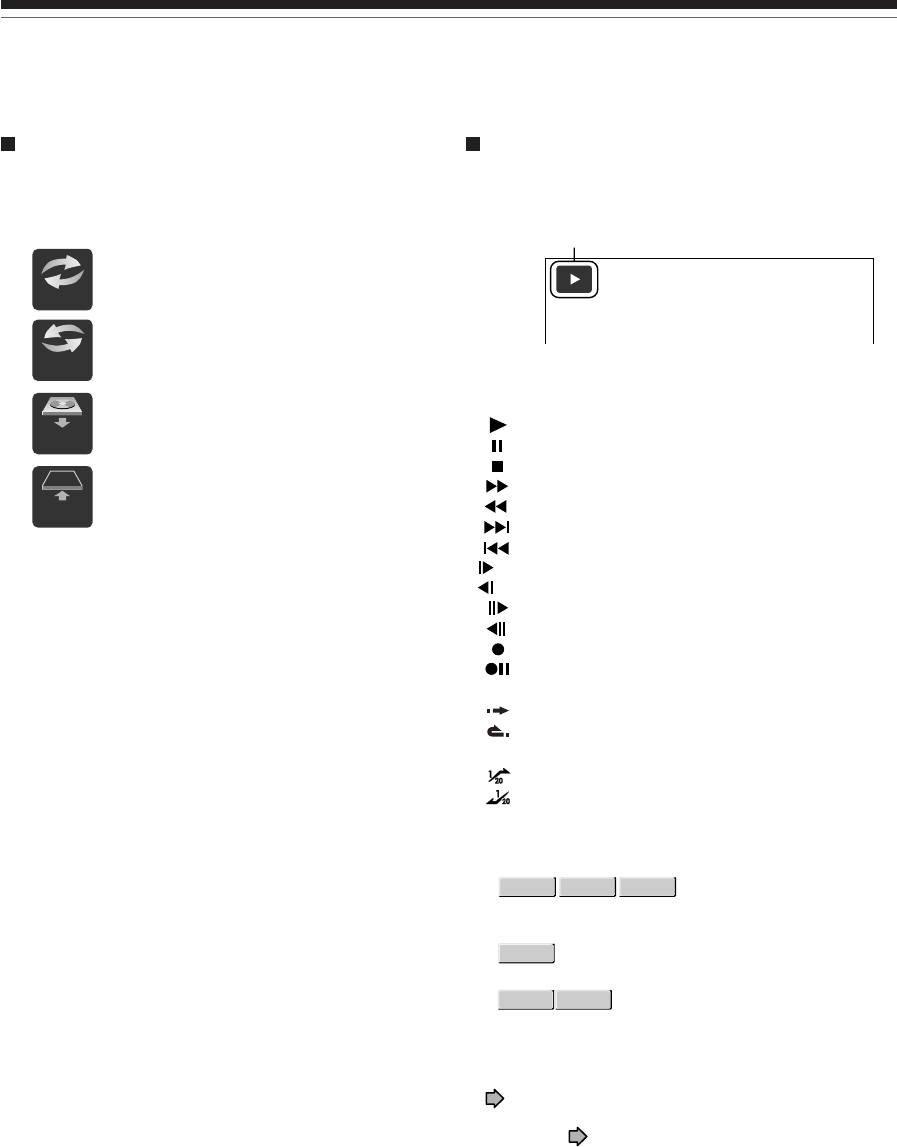
Turning the power off
Press ON/STANDBY on the front panel of the
recorder or on the remote control.
The “Unloading” icon appears at the top right corner of
the screen, and the ON/STANDBY indicator turns red,
then the power turns off (Standby mode.)
Caution
•If the power fails or the power cord is disconnected from a
wall outlet while the recorder is in operation (ON/STANDBY
indicator lit in green), the loaded disc may become
recording disabled. In such a case, executing an
initialization of the disc using the formatting function of the
recorder may refresh it. However, all contents stored on the
disc will be completely erased by this initialization process.
•This recorder may indicate alert messages with some
DVD-RAM discs right after insertion. If such a disc is used
for playback or recording on other equipment, all data in
the disc may be damaged and the disc will not be played.
By executing an initialization of the disc using the
formatting function of the recorder, the disc will become
operational.
•If the recorder freezes and does not respond at all, leave it
alone for about 15 minutes or longer. This may restore the
recorder. After the recorder has recovered, turn it off once
and turn it on again to use as usual. If the recorder is still
inoperable after more than 15 minutes have passed, press
and hold the ON/STANDBY button on the front panel or the
remote control for about 10 seconds or longer. The
recorder is forced to quit and the power turns off. Turn the
recorder on again and use it as usual. (This is an
emergency measure, which may cause losses and/or
damages of data. Avoid casual use of this measure.) (This
15-minute measure is available only when “Screen
Protector” is set to “On.” ( page 131))
Note
•If there are any performance malfunctions of the disc drive,
immediately discontinue use of this recorder, and
disconnect the power cord from a wall outlet, then contact
your dealer. Continuous use of the recorder in such a
condition will aggravate the condition and result in
increased cost and repair time.
Disc tray lock
You can lock the disc tray.
Press and hold on the front panel or PAUSE on
the remote control for longer than about 3
seconds.
To unlock, during stop press the button for longer than
about 3 seconds.
Note
•Turning the power off also unlocks the disc tray.
22
Before operating this recorder (Continued)
Introduction
Status display
Status display
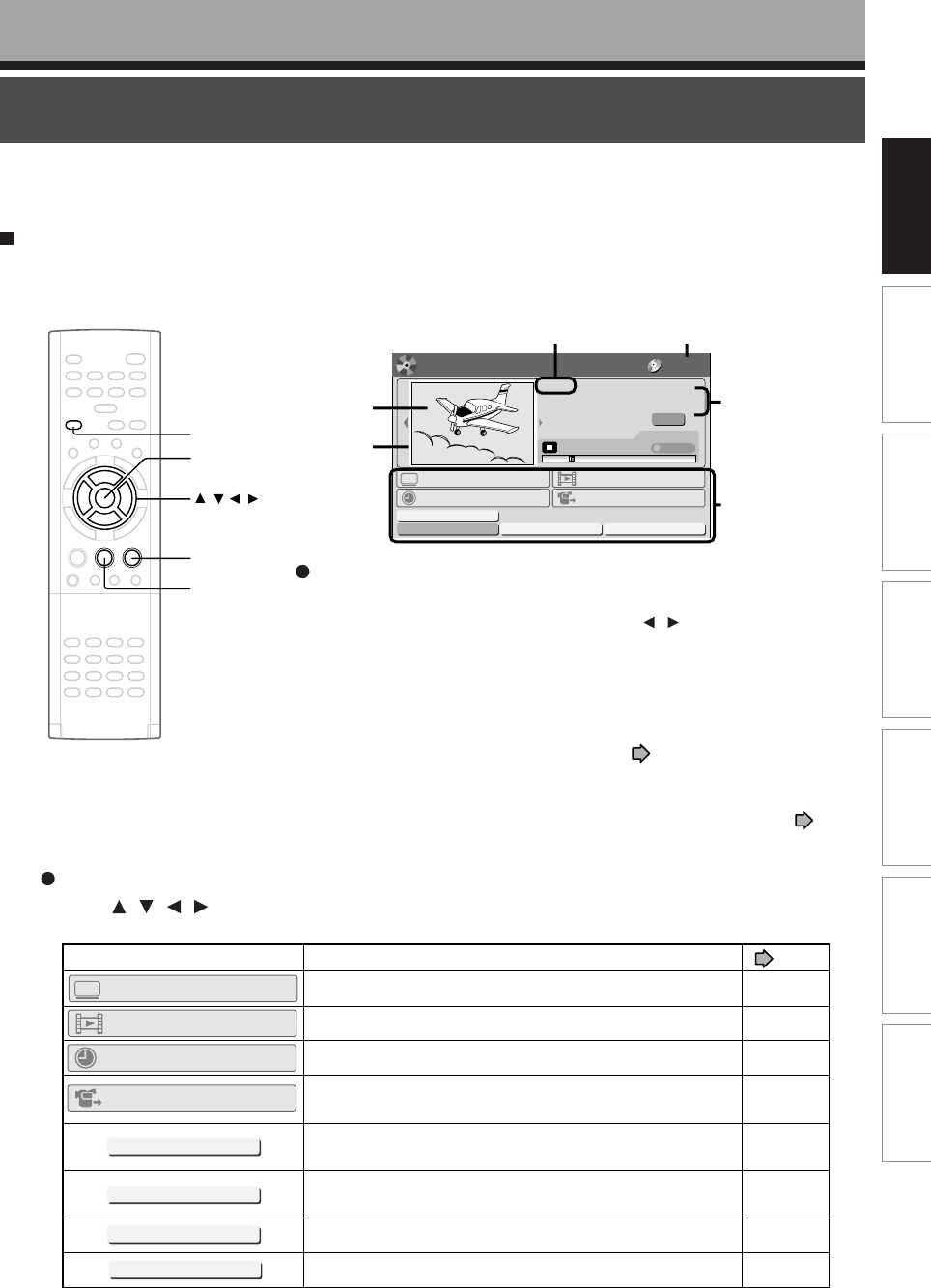
Each time you operate the recorder, the following
displays appear on the TV screen to indicate the
status of the recorder.
e.g.
Main on-screen displays
(Depending on the disc, some of these may not
appear.)
: Playback
: Pause
: Stop
: Fast-forward
: Fast-reverse
: Forward skip*
: Reverse skip*
: Forward slow-motion
: Reverse slow-motion
: Forward frame by frame playback
: Reverse frame by frame playback
: Recording
: Recording pause
: When title playback is completed
: Instant skip
: Instant replay
: Chapter division
: Forward skip by 1/20
: Reverse skip by 1/20
*Accompanied with the followings:
DVD-RAM
DVD-RW
DVD-R
:
Title number/title name and chapter number/
chapter name
DVD-VIDEO
:
Title number and chapter number
VCD
CD
:
Track number
Notes
•To disable the status display, set “On Screen Display”
( page 131) to “Off.”
•You can add the current status of the settings to this
display. See page 79.
x1/2
Title
End
Chapter
Divide
x1/2
Loading
Open
Un
loading
Close
Start-up/Shutdown (closing) icons
These icons are displayed at the top right corner of the
screen when startup or finishing. While they are
flashing, the recorder is operating as follows:
Start-up, reading a disc, finishing the
recording
Unloading a disc, finishing the
operation
Opening a disc tray
Closing a disc tray
23
Recording Playback Editing Library Function setup Others
Introduction
Key operation - EASY NAVI & QUICK MENU
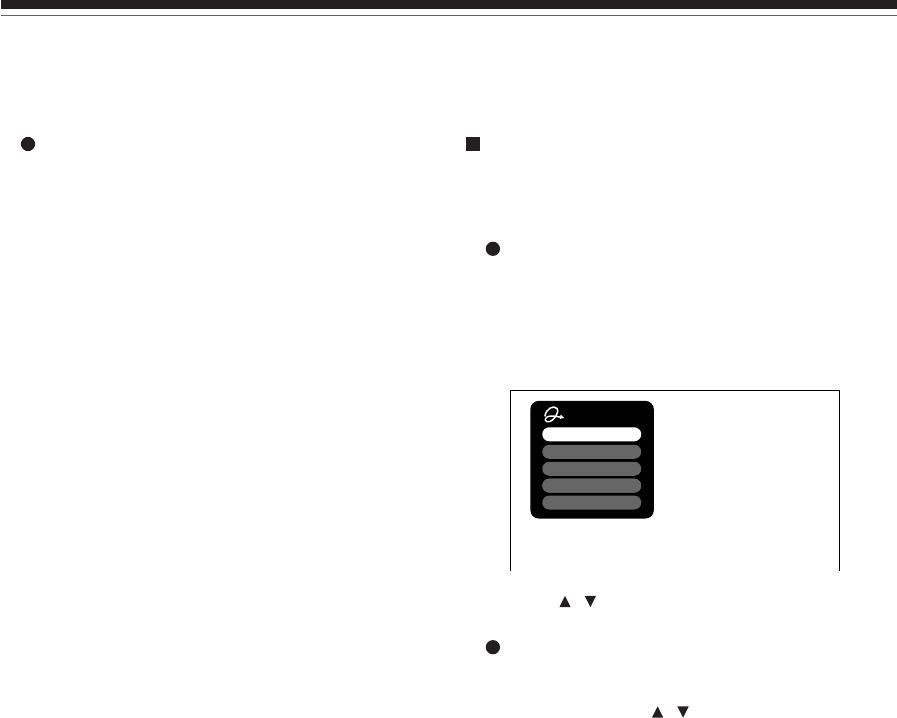
The EASY NAVI button opens the “EASY NAVI Main Menu”, a main gate to the functions of this recorder.
From this menu, you can access the desired functions while viewing a current picture.
Additionally, the QUICK MENU button provides you a sub menu of the current function.
EASY NAVI
Press EASY NAVI.
Sound is muted and the following GUI appears. (Actual displays vary depending on operational status.)
Introduction
Item selection
Press / / / to select an item, then press ENTER.
(Unavailable features are grayed out.)
Operating the finder (For DVD-RAM discs and DVD-R/RW discs
recorded on this recorder and not finalized yet)
1) When the cursor is on the finder, press / .
You can view thumbnails of recorded contents.
2) When you find a desired content, press PLAY or ENTER.
The content is played.
•Pressing the ENTER button enlarges the finder’s playback picture to
the full of the screen.
•You can change playback speed. See page 63.
3) To stop, press STOP.
A current channel broadcast appears. (“TV:xxxch” accompanies.)
•Pressing the REC button starts recording. On recording, see page
25.
(Continued)
ENTER
PLAY
STOP
EASY NAVI
/ / /
005 2004/04/03 07:00am TV:18
TV:12ch
Original
(00:54:30)
00:10:15
DVD-RAM
Play Time
Time Slip
TR
TV Viewing
Delete Title
Finalize (R/RW) Format (RAM/RW) Setup
Timer Recording
Play Contents
DV Recording
Main Menu
NAVI
EASY
DVD-RAM
Disc
Recorded title
last selected
Functions
Appears when the finder shows
the current broadcast.
Finder
Cursor
e.g.
Item Function
–
53
39
112
49
28
122
108
page
A current channel’s broadcast returns.
Recorded contents are listed in a thumbnail view.
A list of timer programs appears.
The setting menu for recording contents from equipment
connected to the DV terminal.
You can delete the current content.
Operate according to the message.
You can execute the DVD-Video finalizing process on the
loaded disc.
You can format the loaded disc.
A setup menu appears.
Delete Title
Finalize (R/RW)
Format (RAM/RW)
Setup
TV Viewing
Timer Recording
Play Contents
DV Recording
24
Key operation - EASY NAVI & QUICK MENU (Continued)
Introduction
Quick Menu operation
To access various optional functions of this recorder,
open the Quick Menu. The Quick Menu displays a list
of selections relevant to your current mode.
Opening a Quick Menu
1) Press the QUICK MENU button.
The following menu (“Quick Menu”) appears.
(Actual selections vary depending on operational
status.)
2) Press / to select an item, then press ENTER.
To exit the Quick Menu
Press QUICK MENU again.
Alternatively
Select “Exit” with / , then press ENTER.
Quick Menu
Title information
Restart title
Auto Power Off
Exit
Bit rate
Special playback mode
e.g.
To exit the EASY NAVI
Press EASY NAVI again.
Note
•For a disc other than the specified one, the finder cannot
be operated. To play the disc, exit the EASY NAVI then
press the PLAY button, or select the “Play Contents”
function.
Recording
Recording variations for many types of programs or
situations.
Before recording
Recording a TV program
Recording an external source
Programing a recording (REC
MENU)
VCR Plus+ recording
Others
Hint on reading this manual
The following icons show the playable discs for each
function described on this instruction manual.
DVD-RAM
: DVD-RAM disc
DVD-RW
: DVD-RW disc
DVD-R
: DVD-R disc
DVD-VIDEO
: DVD video disc
VCD
: VIDEO CD
CD
: Audio CD
(For CD containing JPEG or MP3/WMA files,
see page 74, 76.)
Most instructions are based on remote control operation,
unless otherwise noted. You can use the buttons on the
remote control and those on the main unit as well when
they have the same function.
If copy protection signal is detected during
recording on this recorder, the recording
automatically pauses and a message appears. In
this case, the PAUSE button cannot release the
recording. (It is possible to end the recording by
pressing the STOP button.) If the copy protection
signal continues, the recording will terminate.
26
Conventional video cassette recorders have required tapes to record, while this recorder enables
recording on a DVD-RAM/R/RW disc whenever you want, without selecting an available tape and
confirming a point to start a recording from.
Further, if you use DVD-RAM discs, you can collect necessary scenes and store them in it to make
your own video library.
Is your DVD recorder ready?
Before recording a TV program on this recorder,
insure that channels you want to record are correctly
tuned in on this recorder.
If not tuned in, read the separate “INSTALLATION
GUIDE” volume again, and confirm all the necessary
connections and settings have been done.
Also, insure the clock is set precisely for program
recording. Set the clock using the “Initial settings”
menu ( page 31, INSTALLATION GUIDE).
Disc initializing
Whenever you use a new DVD-RAM/RW disc on this
recorder, be sure to initialize the disc. For DVD-RAM
disc, initialization is indispensable to the database
system of this recorder.
DVD-R discs can be used on this recorder without
initializing.
For details of initialization of DVD-RAM/RW discs, see
page 28.
If an initialized DVD-RAM disc is still unusable, it may
become usable by executing “DVD-RAM physical
format” in the “Management settings” menu.
For “DVD-RAM physical format”, see page 29.
Note on recording on a DVD-RAM disc
Confirm disc compatibility and prepare an available
DVD-RAM disc to record on ( page 6, 8).
Some discs may need to be formatted for use on this
recorder. A message will appear asking you to execute
disc formatting. Follow the procedure displayed on-
screen to format the DVD-RAM disc compatible with
this recorder.
Some DVD-RAM discs formatted on a PC may not be
usable.
Note
•This recorder records on a DVD-RAM disc if it complies
with DVD-RAM standard Version 2.0 or 2.1. However, you
may not record on some DVD-RAM discs that have
complicated contents (often, to protect the recorded data).
When you select a DVD-RAM discs that has already been
recorded, check that the disc is suitable for recording or the
remaining time of the disc is displayed. It is recommended
to use a new DVD-RAM disc for an important recording.
Note on recording on a DVD-RW disc
Confirm disc compatibility and prepare an available
DVD-RW disc to record on ( page 6, 9).
Some discs may need to be initialized for use on the
recorder. A message will appear asking you to execute
disc initializing. Follow the procedure displayed on-
screen for initialize the DVD-RW disc compatible with
this recorder.
Some DVD-RW discs initialized on a PC may not be
usable.
To play a DVD-RW disc recorded on this recorder on
other devices, finalize the DVD-RW disc on this
recorder. ( page 108)
The finalization disables the disc’s rewritability. To
rewrite a finalized DVD-RW disc, cancel the
finalization ( page 111).
•On DVD-RW discs recorded on other devices, you
cannot execute DVD-Video finalize process or
cancel the finalize process, or add recordings on
this recorder.
•You cannot rewrite or edit a DVD-RW disc if
recorded in DVD-VR mode.
•DVD-RW discs which are recorded on other
devices and not finalized yet, cannot be read on this
recorder. Do not rush to initialization. Check that the
contents can be erased or not.
Recording
Before recording
Please be sure to read this critical background information prior to making a recording.
27
Playback
Recording Editing Function setup Others
Introduction Library
Note on recording on a DVD-R disc
Confirm disc compatibility and prepare an available
DVD-R disc to record on ( page 6, 9).
To play a DVD-R disc recorded on this recorder on
other devices, finalize the DVD-R disc on this
recorder. ( page 108)
The finalization permanently disables the disc’s
rewritability. (Canceling the finalization is not possible.)
•DVD-Video finalize process cannot be canceled if
once executed on a DVD-R disc.
•On DVD-R discs recorded on other devices, you
cannot execute DVD-Video finalize process or add
recordings on this recorder.
To check space remaining on a disc
1) Press REMAIN.
The current capacity is displayed at the bottom of
the screen and on the front panel display.
2) After checking the capacity, press the button
again to turn off the display.
Note
•You can also check the capacity of the disc by selecting
“Disc budget calculation” from the Quick Menu within the
REC MENU ( page 44).
Programmed recording and operational status
The recorder gives priority to programmed recordings
in every operating mode. Even if the recorder is
playing, recording or editing, or even in standby mode,
at a starting time of a programmed recording the
recorder will make itself ready or stop those
operations and start the recording.
However, “DVD-Video finalizing process” ( page
108) operations may have priority over programmed
recordings.
Notes
•The “Loading” icon appears in the top right of the screen after recording. This indicates that the unit is executing
the final recording process (writing managing information). Operations other than changing channels cannot be
done until this icon disappears. The time for executing this process differs depending on the recording time or
capacity of the disc.
•Note that all recording content may be deleted if the unit is disconnected from a wall outlet, or a power failure
occurs, during recording.
•If a power failure occurs within five minutes prior to the programed recording start time, the programmed recording
may not be executed.
•A programmed recording may not be executed correctly if scheduled when Daylight-Saving time starts or ends.
When the programmed settings overlap
Before the first recording is completed, the second
program is scheduled to begin recording. When using
a DVD-RAM disc, the recording of the previous
program stops 15 seconds before the next program
starts.
When using a DVD-R or DVD-RW disc, the recording
of the previous program stops about 2 minutes before
the next program starts, to complete data process. In
this 2 minutes, you cannot operate the loaded DVD-R
or DVD-RW disc.
On a programmed recording across the change-
over of Daylight-saving time
•When the clock gains across Daylight-saving time
during a programmed recording, it means that the
recording completion time is consequently set one-
hour earlier. In this case, set the programmed
recording one-hour longer in advance. If not set
accordingly, the programmed recording stops one-
hour shorter.
•When the clock loses across Daylight-saving time
during a programmed recording, it means that the
recording completion time is consequently set one-
hour later. In this case, as the programmed
recording continues one-hour longer, delete
unnecessary chapters by chapter dividing after the
completion of recording.
28
How to initialize a disc
To initialize a DVD-RAM disc, load it in the recorder.
See page 20 for loading a disc.
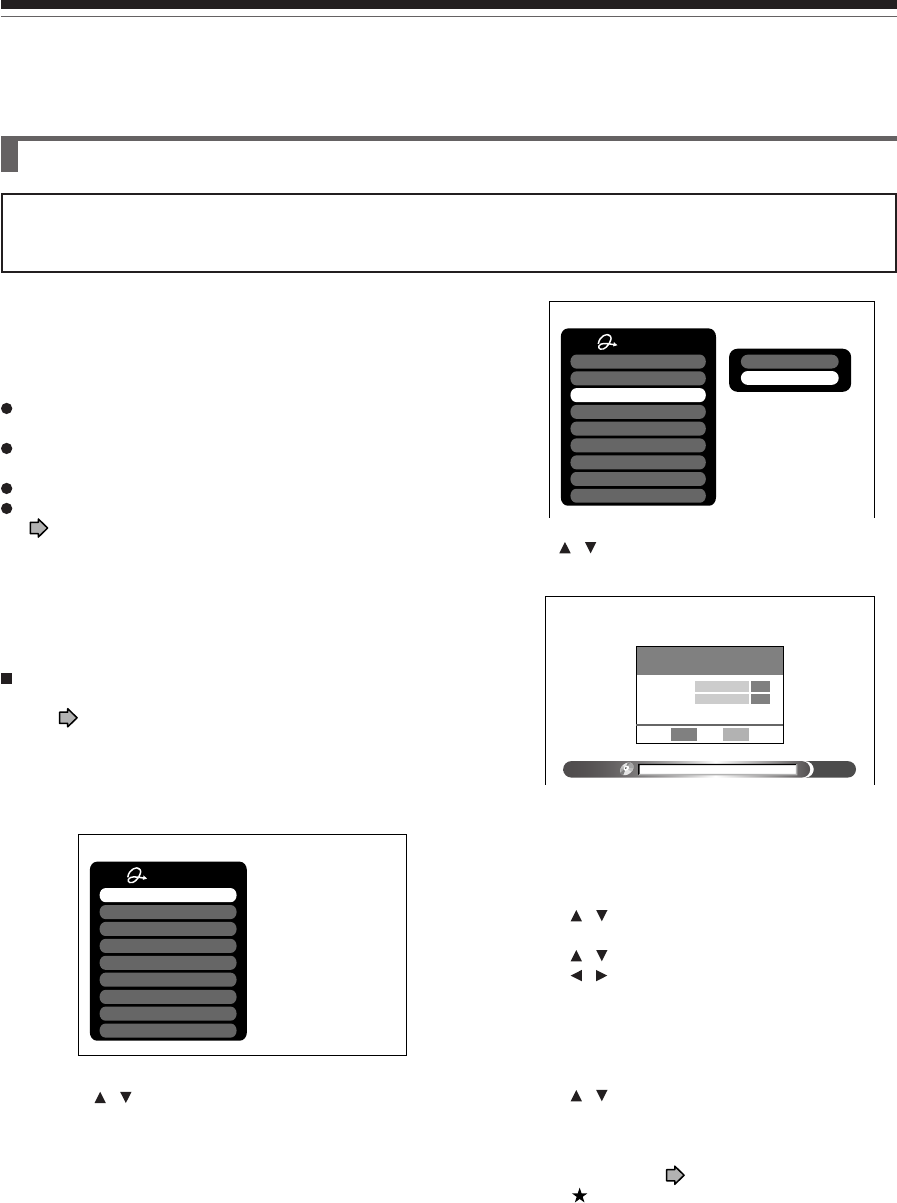
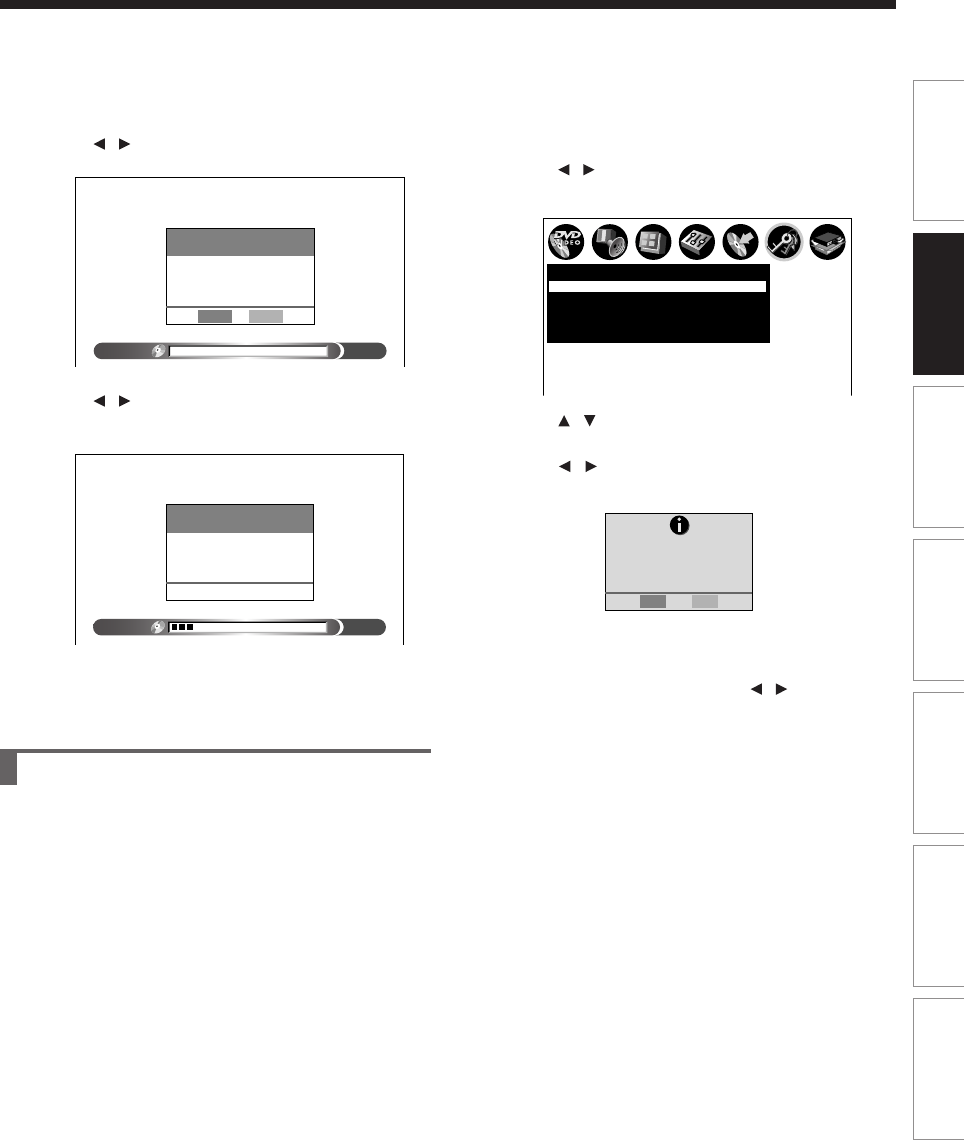
1) During stop, press QUICK MENU.
The following menu appears. (The actual contents
depends on the operational status of the recorder.)
e.g.
2) Press / to select “Disc management,” then
press ENTER.
A sub menu appears on the right side.
e.g.
3) Press / to select “DVD format,” then press
ENTER.
e.g.
Numbering a disc
The recorder automatically numbers discs when
initializing. However, you can assign a desired number
(using 3 digits) and designate sides A and B on a double-
sided disc. (DVD-RW discs cannot be numbered.)
(1) Press the / buttons to select “Edit” of “Disc
Number” then press the ENTER button.
(2) Press the / buttons to select a digit.
(3) Press the / buttons to shift.
(4) Repeat steps (2) and (3).
(5) Press the ENTER button.
Naming a disc
You can name a disc.
(1) Press the / buttons to select “Edit” of “Disc
Name,” then press the ENTER button.
The character input window appears.
(2) Enter a disc name following the procedure of
“Entering characters” ( page 30).
(3) Press the button to eliminate the window.
Before recording (Continued)
Recording
Be sure to read this section prior to using a DVD-RAM/RW disc on this recorder for the first time.
For DVD-R, initializing is not necessary.
Initializing a DVD-RAM/RW disc (Logical format)
A disc should be initialized in the following cases: (The
recorder may display a message to request you to do
so.)
e.g.
When you use a DVD-RAM/RW disc on this recorder
for the first time.
If data fragments produced by repeated recording or
erasing have accumulated.
If a disc error has occurred.
When you want to record on a DVD-RAM disc for PC.
( page 8)
Initializing formats a disc logically and insures that it will
perform to its full capability. However, this erases all data
on the disc, so make sure that it does not matter if data
on the disc is erased whenever you initialize a disc.
Quick Menu
Bit rate
Special playback mode
Disc management
DVD compatible mode
Aspect ratio(Video mode)
DVD-Video:CHP create
SAP
Exit
AV record quality
Disc information
DVD format
%
0
DV D format
Disc Number
Disc Name
Start
Cancel
Edit
Edit
Format
0 0 1 –
Quick Menu
Bit rate
Special playback mode
Disc management
DVD compatible mode
Aspect ratio(Video mode)
DVD-Video:CHP create
SAP
Exit
AV record quality
29
Playback
Recording Editing Function setup Others
Introduction Library
DVD-RAM physical format
Physical formatting is a simple execution for a disc which
cannot be used or read (or which is becoming hard to
read). It may refresh such a disc for recording and
playback. (There is no guarantee that all such discs will
be recovered.)
“DVD-RAM logical format” process only rewrites certain
data on file system and management information,
however, “DVD-RAM physical format” rewrites all data on
a disc, therefore it takes a much longer time to complete.
For a 4.7GB single sided DVD-RAM, about 70 minutes
will be necessary. While processing, all recorder
operations and functions including program recording will
not work until the process is finished. Also this process
erases all data stored on the DVD-RAM disc.
Notes
•The physical format process may fail if executed to a dirty
DVD-RAM disc. Also, the disc may be difficult to record,
even if it finished. Before executing DVD-RAM physical
format process, be sure to confirm the disc is not dirty.
Clean it if necessary. If the disc has scratches or dust
beyond cleaner’s efficacy, do not execute DVD-RAM
physical format process on the disc.
•The following DVD-RAM discs require physical formatting:
–A disc which is not formatted correctly.
–The disc which has errors during writing because of dirt
on the disc, and cannot be further recorded, or cannot
initialize normally.
•You need to start physical formatting from the first step
again when you use a failed disc.
•Physical formatting does not work if the disc contains a lot
of voids beyond the limitation of this recorder.
•If an error occurs in physical formatting, “ERR-01” appears
in the front panel display. To turn off the message, press
the DISPLAY button.
4) Press / to select “Start,” then press ENTER.
5) Press / to select “Start,” then press ENTER.
Initialization starts.
When initialization is completed, the setup window
disappears.
Format
0
DV D format
Start
Entire disc contents excluding
library data will be erased
if disc is formatted. Proceed?
Cancel
%
18
DV D format
Format
DVD
Formatting
%
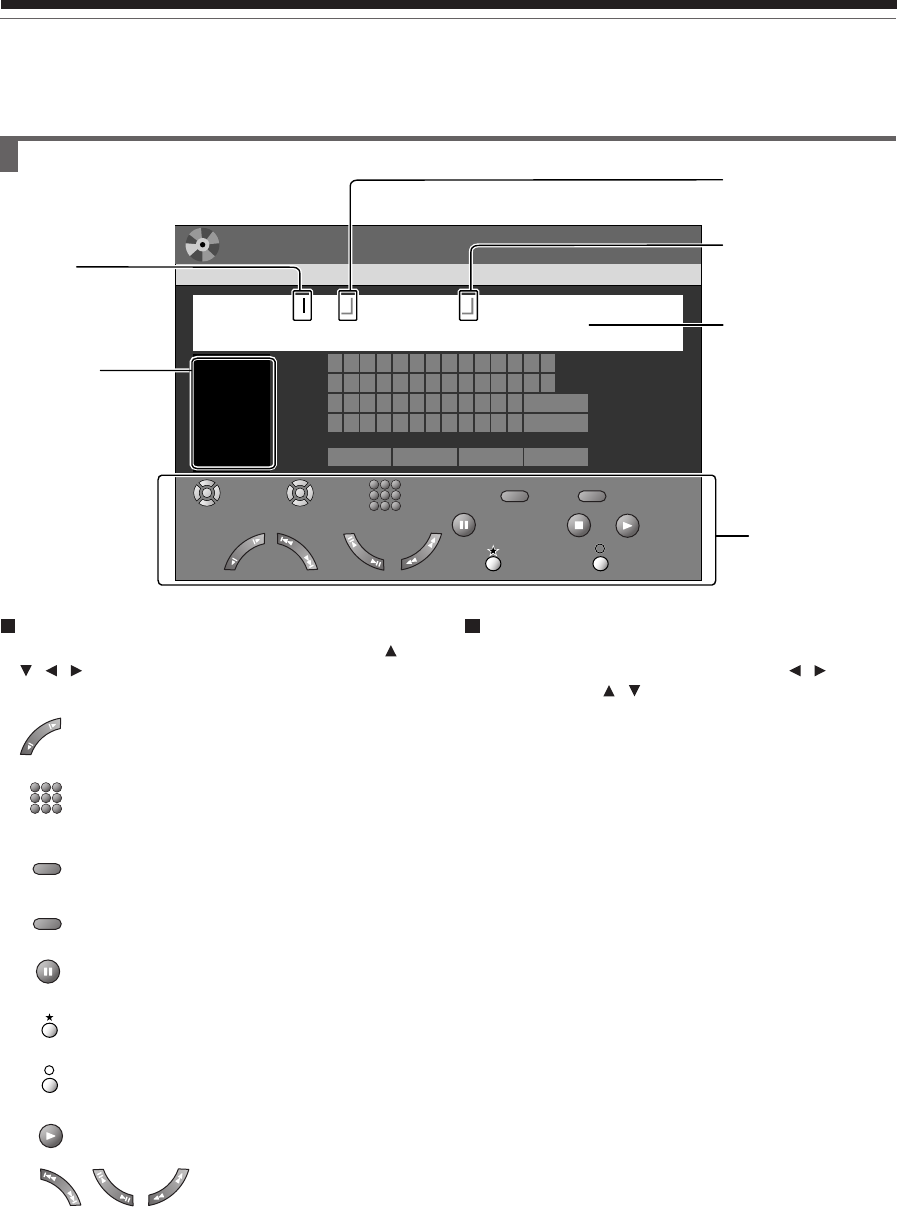
1) During stop, press SETUP.
2) Press / to select “Management settings”
then press ENTER.
3) Press / to select “DVD-RAM physical
format,” then pressENTER.
4) Press / to select “Yes,” then press ENTER
to execute.
To cancel, select “No”, then press the ENTER
button.
5) Read the message, and press / to select
“Yes” or “No”, then press ENTER.
Yes
No
Warning: It will take approximately
70 minutes to format a 4.7GB
DVD-RAM and all data will be erased.
Confirm t
hat timer programing is not
scheduled.
Proceed?
SETUP
Eco. mode
Off
Management settings
DVD-RAM physical format
Software version
DVD drive software
Genre setting
e.g.
e.g.
e.g.
e.g.
30
Before recording (Continued)
Recording
Title information
003
Chapter
English
Spanish
French
German
Italian
etc...
Input
12 3
4 5 6
7 8 9
Select
ReturnSave
Caps Lock
:
Space
All ClearBkSp
Direct(0-9)
Cursor
CLEAR
CLEAR
CLEARDELETE
DELETE
DELETE
12345678 0 -
-
;
#
/
=
/
’9
qwe r t yu i p [ ]o
asdfghjk :
BkSp
l
zxcvbnm, /
Delete
Space Space Space
Clear All
.
,
.
CONTENT
MENU
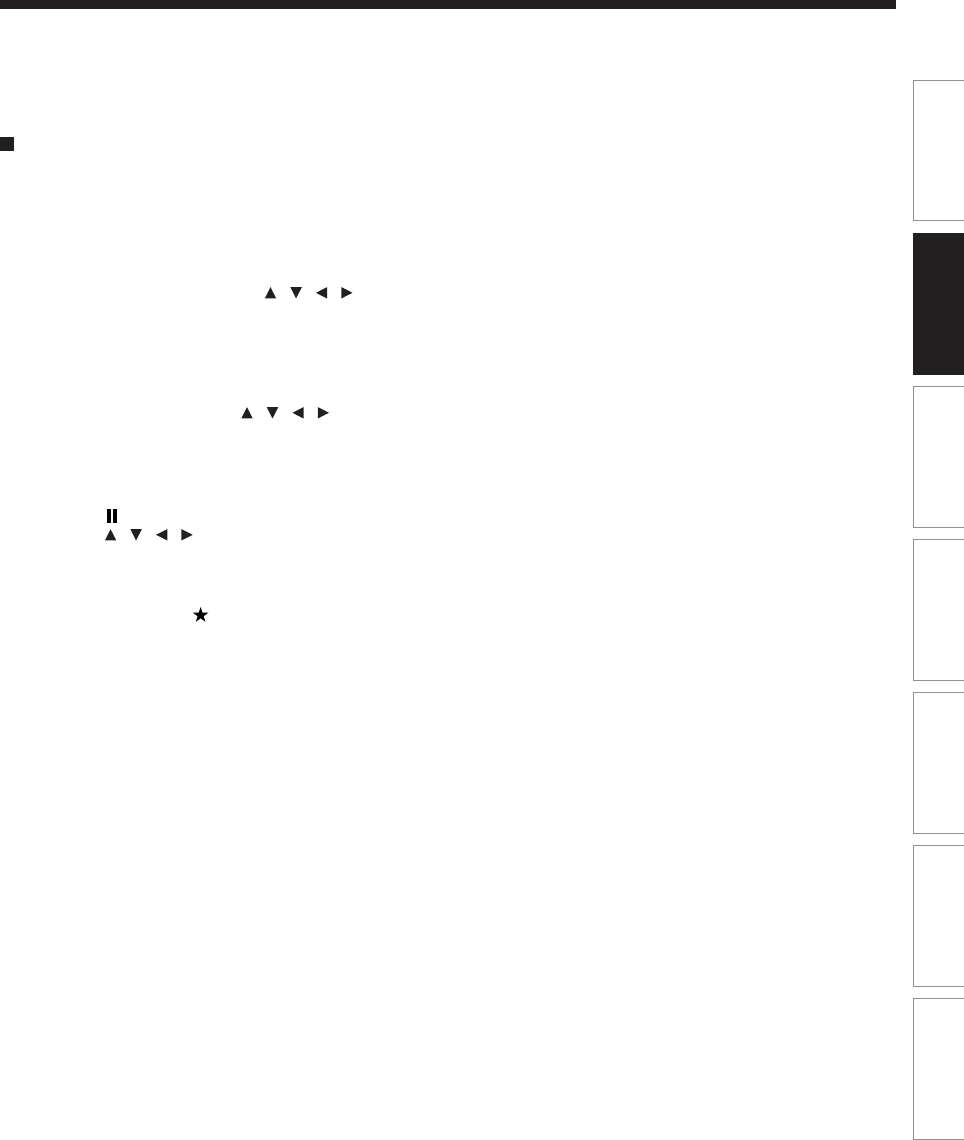
Entering characters
Cursor
An entered character
will appear here.
Language
Operation guide
Estimated end of the
first line on the
CONTENT MENU.
Estimated limit of
characters displayable on
the CONTENT MENU.
The character being
selected appears.
e.g.
Operation guidance of the remote control
To enter the character, normally use the direction /
/ / buttons on the remote. About the other buttons
to be used are shown on the operation guide.
: Shifts a cursor.
: Enters the number.
: Erases one character immediately to the left
side of the cursor.
: Erases all the characters on the input column.
: Caps Lock
: Saves the changes on the input column and
returns to the previous screen.
: Cancels the changes on the input column and
returns to the previous screen.
: Enters a space.
: Enters a symbol.
Switching a language
Before entering a character, move a cursor to the
language selection area by pressing the / buttons.
Then press the / buttons to select a language,
then press the ENTER button.
12 3
456
789
CLEARCLEAR
DELETEDELETE
-
;
#
/,
.
31
Playback
Recording Editing Function setup Others
Introduction Library
Entering characters
The cursor may be followed by unwanted characters.
You can erase them if necessary by either of the
following measures:
Erasing characters
•Erasing all the characters on the writing board
Select “Clear All” by pressing the / / / buttons,
then press the ENTER button.
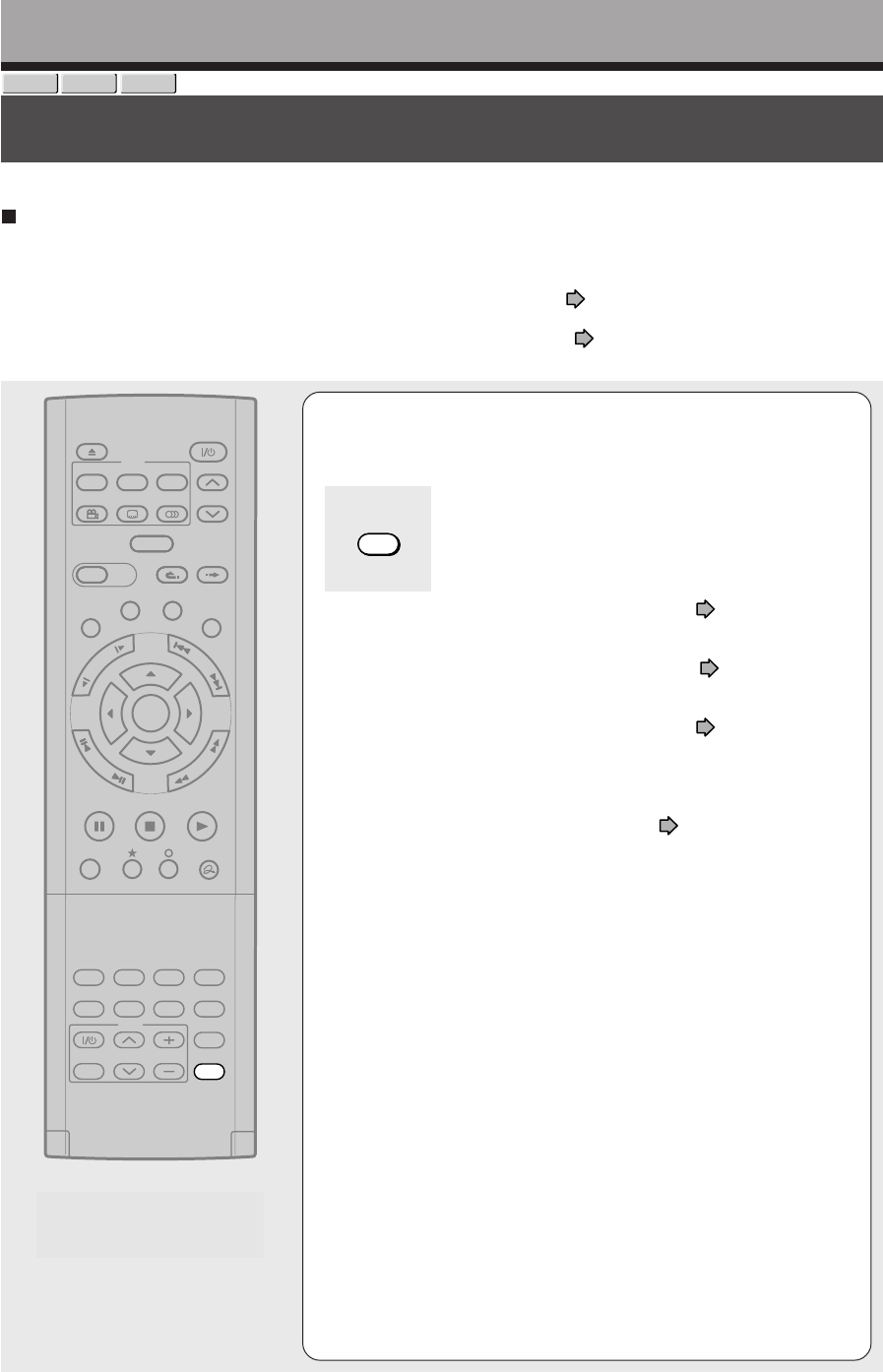
Alternatively, open the lid of the remote control and
press the CLEAR button.
•Erasing one character before the cursor
Select “BkSp” by pressing the / / / buttons,
then press the ENTER button.
Alternatively, open the lid of the remote control and
press the DELETE button.
(1) Press the button to select an input mode.
(2) Press the / / / buttons to select a character,
then press the ENTER button.
The selected character is input on the cursor.
(3) Repeat steps 1 and 2 to enter characters.
(4) When finished, press to save the characters.
The characters you entered appears.
Notes
•You can enter up to 64 characters.
•When unnecessary information appears, or when you want
to alter the input character, press the CLEAR button to
erase all, or press the DELETE button to erase an
unnecessary character.
32
Recording a TV program
To record a TV program currently being broadcast, follow the procedures of this chapter.
Recording
DVD-RAM
DVD-RW
DVD-R
TIMESLIP
EASY
NAVI
INSTANT SKIPINSTANT REPLAY
PLAYSTOPPAUSE
REC
LIBRARY
REC MENU EDIT MENU
CONTENT MENU
ANGLE
OPEN/CLOSE
SUBTITLE
AUDIO
CHANNEL
QUICK MENU
TOP MENU
MENU
RETURN
DVD
F
R
A
M
E
/
A
D
J
U
S
T
P
I
C
T
U
R
E
S
E
A
R
C
H
S
K
I
P
S
L
O
W
ENTER
TV/VIDEO CHANNEL
VOLUME
REMAIN
DIMMER
FL SELECT
ZOOM P in P
TIME BAR CHP DIVIDE
DISPLAY
INPUT SELECT
PROGRESSIVE
TV
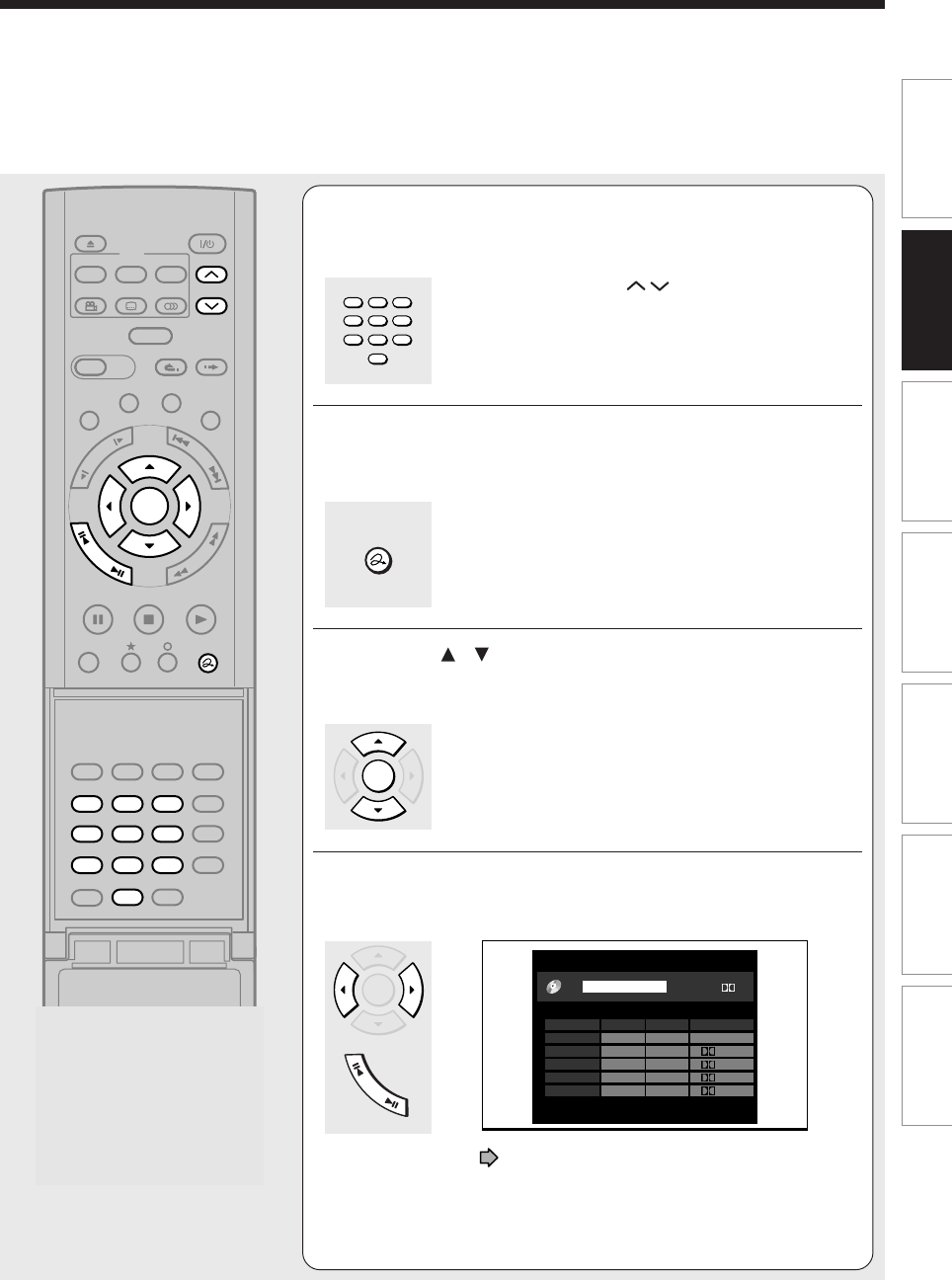
1Press INPUT SELECT repeatedly to select a
recording source.
Each time you press the button, the indicator alternates.
Ch-: To record a TV program or cable program with
recorder tuner.
L-1: To record a source connected to the INPUT1
jacks on the rear panel ( page 36).
L-2: To record a source connected to the INPUT2
jacks on the front panel ( page 36).
L-3: To record a source connected to the INPUT3
jacks on the rear panel ( page 36).
To record a program from a connected set top box, set
the channel to “Ch-3”, “Ch-4”, “L-1” or “L-3” according to
the connection (the same as page 40 on
“INSTALLATION GUIDE”).
If the connection of the supplied IR control cable and
the necessary settings are all done, you can select
channels of the connected set top box with the
recorder’s remote control.
If not, select the proper channel on the set top box to
receive the desired program.
Preparation
•Load a DVD-RAM/R/RW disc into the recorder.
- Load a disc which has sufficient space available to record the program.
- Make sure the loaded disc is not write-protected.
•If you record on a DVD-R or a DVD-RW disc, set “DVD compatible mode” ( page 134) to “Main” or “SAP.” In DVD-
R/RW recording, “Off” setting is regarded as “Main.”
•If you record on a DVD-R or DVD-RW disc, set “Aspect ratio(Video mode)” ( page 134) according to recording
sources.
INPUT SELECT
33
Playback
Recording Editing Function setup Others
Introduction Library
TIMESLIP
EASY
NAVI
INSTANT SKIPINSTANT REPLAY
SETUP ENTER
T.SEARCH
CLEAR
312
VCR Plus+
REC MODE
EXTEND
TV CODE
456
DELETE
+
10
789
0
PLAYSTOPPAUSE
REC
LIBRARY
REC MENU EDIT MENU
CONTENT MENU
ANGLE
OPEN/CLOSE
SUBTITLE
AUDIO
CHANNEL
REC
QUICK MENU
TOP MENU
MENU
RETURN
DVD
F
R
A
M
E
/
A
D
J
U
S
T
P
I
C
T
U
R
E
S
E
A
R
C
H
S
K
I
P
S
L
O
W
ENTER
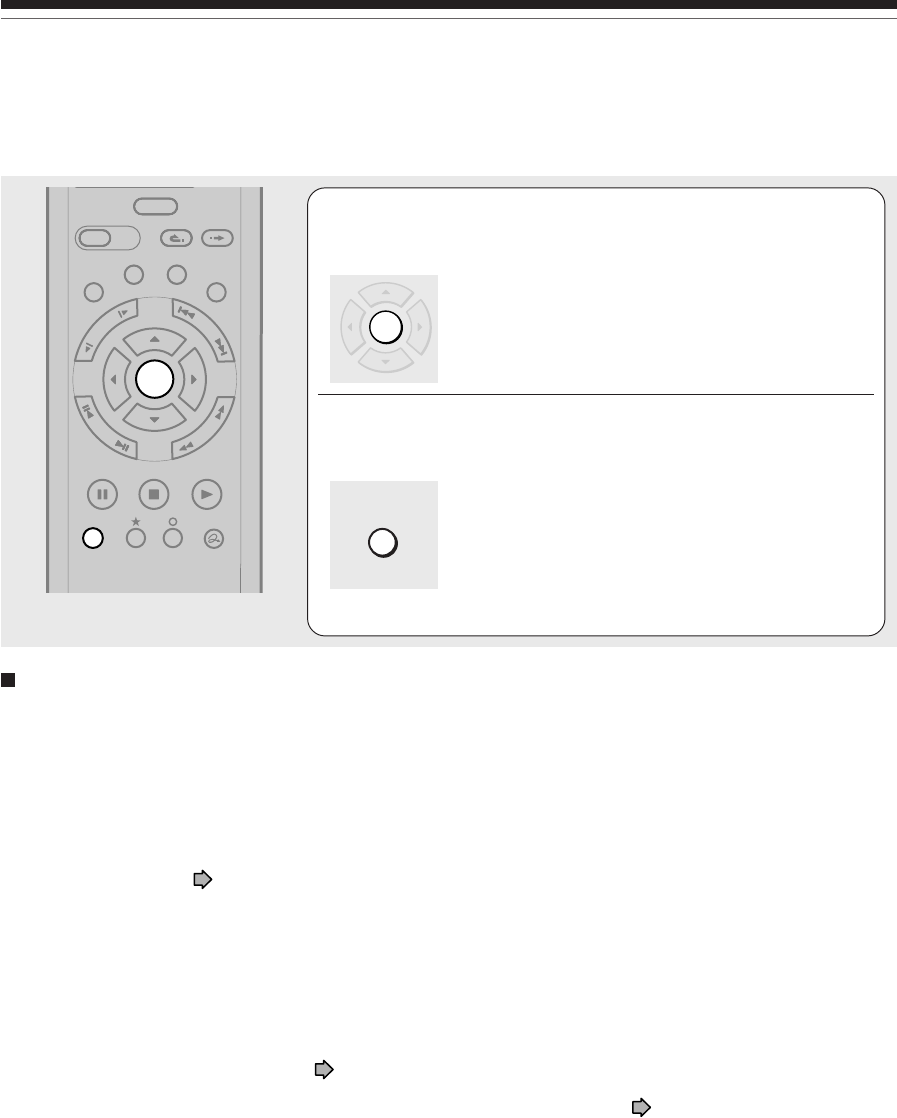
2Press the number buttons to select a channel
to record.
The CHANNEL buttons ( /) are also available.
3Press QUICK MENU to display the Quick
Menu. (If you want to use the default setting for “AV record
quality,” skip to step 7.)
4Press / to select “AV record quality,” then
press ENTER.
5Press ADJUST to select the setting number.
e.g.
See page 40 for details on “Mode”, “Rate” and
“Audio quality”.
(Continued)
123
456
789
0
AV record quality
Custom setting
5
4
3
2
1
D / M1
D / M1
D / M2
D / M1
L-PCM
Manual
Manual
Manual
SP
LP
6. 6
4. 6
2. 2
6. 0
3. 2
ModeSetting Rate
Audio quality
Total recording time: approx. 122min.
(with 4.7 GB unused)
Setting 2
DVD
D/M1
SP
4.6
Open the lid.
QUICK MENU
ENTER
ENTER
F
R
A
M
E
/
A
D
J
U
S
T
34
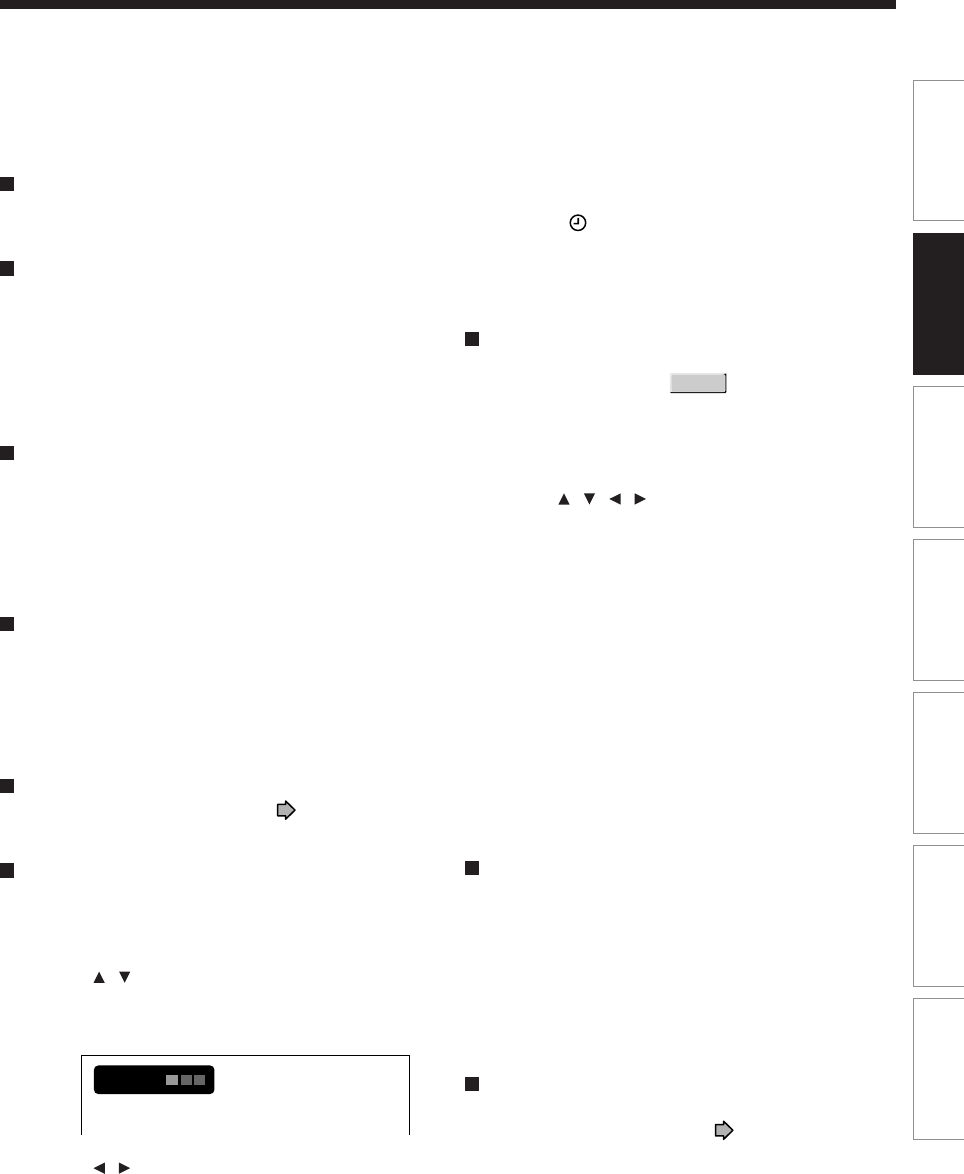
6Press ENTER.
The menu disappears.
7Press REC.
Recording starts.
TIMESLIP
EASY
NAVI
INSTANT SKIPINSTANT REPLAY
PLAYSTOPPAUSE
REC
LIBRARY
REC MENU EDIT MENU
CONTENT MENU
QUICK MENU
F
R
A
M
E
/
A
D
J
U
S
T
P
I
C
T
U
R
E
S
E
A
R
C
H
S
K
I
P
S
L
O
W
ENTER
Recording a TV program (Continued)
Recording
Selecting the recording mode
Before recording, you can select the setting of picture and sound quality. During stop mode, press the REC MODE
button. By pressing the button repeatedly, you can select one from 5 settings of “AV record quality” appearing in the
front panel display.
Notes
•During recording, you cannot change the recording parameters, such as modes, channels, etc.
•The number of titles cannot exceed 99 for any disc.
•During normal recording, you can set the programmed recording using the REC MENU.
•You cannot start recording immediately before a programmed recording starts.
•For recorded sound, see page 73.
•During monaural sound recording, the same sound is recorded on both the left and right channels.
•When “Audio” is set to “L-PCM”, multi-channel sound is recorded as stereo sound. When playing this recorded sound, you
will hear MAIN and SAP sounds simultaneously. Press the AUDIO button to select a desired sound.
•
When “DVD compatible mode” is set to “Main” or “SAP”, the unit records the same sounds on both the left and right channels
when receiving monaural sound. When receiving the multi-channel sound, the selected sound, Main or SAP, is recorded on
both the left and right channels
.
•Depending on the disc contents, pressing the REC button may take a longer time to start recording.
•
When a starting time of a programmed recording comes, a recording in execution is stopped and the programmed recording
starts. If you do not want to stop the recording, cancel the timer program before it starts
.
•
Even if you set “Aspect ratio(Video mode)”
( page 134)
to “16:9”, images are recorded in 4:3 aspect ratio when using a
DVD-R or DVD-RW disc with “Rate” set to “1.4” (Mbps)
.
•Be careful of a programmed recording across the change-over of Daylight-saving time ( page 27).
REC
ENTER
35
Playback
Recording Editing Function setup Others
Introduction Library
To stop recording
Press STOP.
To pause recording (to omit an unnecessary
portion)
During recording, press PAUSE.
To resume recording, press it again.
Note
•Pausing recording automatically creates a new chapter
division at that point.
To change a TV channel to be recorded
1) During recording, press PAUSE.
Recording pauses.
2) Press CHANNEL to change the channel.
3) Press PAUSE to resume recording.
To view a TV program while recording another
1) Start recording on this recorder.
2) On a connected TV, select the TV mode.
3) Using the channel selector of the TV, select a
desired channel on the TV.
To reduce noise on recordings (Rec DNR)
Before recording, set “Rec DNR” ( page 134).
To set an end time of a recording which is in
progress
1) During recording, press QUICK MENU.
The Quick Menu appears.
2) Press / to select “End time” then press
ENTER.
The display changes as follows:
e.g.
3) Press / to select an item then press ADJUST
to change the value.
4) Press ENTER.
Notes
•By setting an end time, it is memorized as a programmed
one, and the indicator in the front panel display
illuminates to indicate that the recorder holds a timer
program of recording.
•The programmed end time must be set for 5 minutes later
than the current time.
To play a title recorded on a DVD-RAM disc
while recording another on the same disc
(Recorded Title Play)
DVD-RAM
During recording, you can play a title recorded on the
same disc.
1) While recording on a DVD-RAM disc, press
CONTENT MENU.
2) Press / / / to select a desired title, then
press ENTER.
Playback of the selected title starts.
Pressing the STOP button stops playback, and the
content currently recorded returns. If you press the
PLAY button, playback resumes from the location
you last stopped.
Notes
•The playback picture may appear after a delay of several
seconds.
•While you are using this function, the following operations/
functions are not available.
- Programmed playback (repeat playback, intro scan etc.)
- Editing (Playlist programming, dubbing, title/chapter
naming, title thumbnail setting, etc.)
•Depending on the data condition, playback may pause.
Creating chapters while recording
Press the CHP DIVIDE button.
The content is divided into two chapters at the point
you pressed the button.
Note
•If you want to divide into chapters at desired points on
DVD-R/RW discs, use this method. On those discs, you
cannot create chapters after recording.
Creating chapters automatically at regular
intervals
Set “DVD-Video:CHP create” ( page 134).
2:13
pm
End time
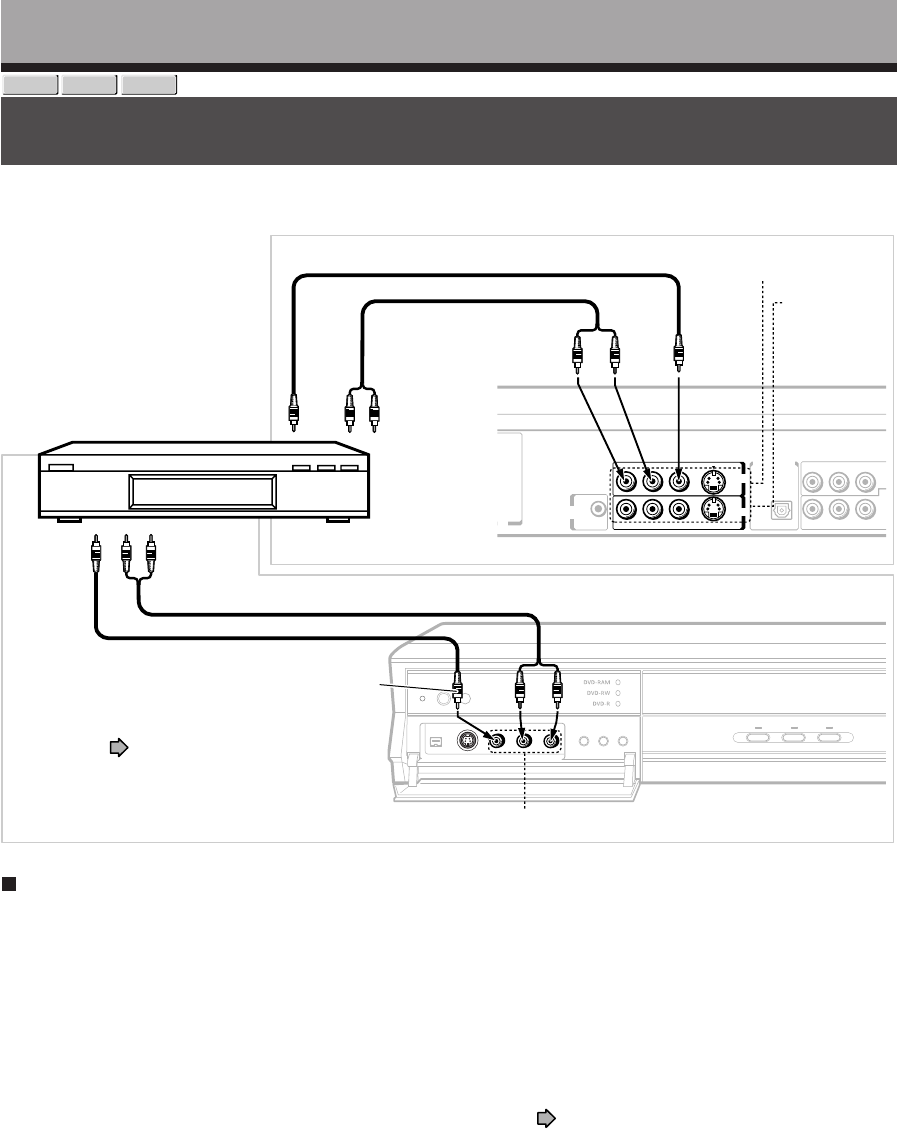
36
P
B
P
B
U
HF
VIDEOLR VIDEORL
R L VIDEO
S-VIDEO
S-VIDEO
P
B
YP
R
C
INPUT3
INPUT1
F
OUT
O
TV)
F
IN
R
OM ANT.)
IR
DIGITAL AUDIO OUTPUT
BITSTREAM/PCM
OPTICAL
CHANNEL
CHANGE
Recording
DVD-RAM
DVD-RW
DVD-R
Recording an external source
You can record programs from connected equipment on a DVD-RAM/R/RW disc.
Preparation
•Load a DVD-RAM/R/RW into the recorder.
–Load a disc which has sufficient remaining space to record the program.
–Make sure the loaded disc is not write-protected.
Notes
•Even if a source of high quality sound track such as DVD audio is recorded with this recorder, the sound quality becomes
regular audio CD’s one.
Refer to the instructions of the connected equipment.
•When you record an external source onto a DVD-R/RW disc, set the connected equipment to output sound you want to
record (if selectable such as multiplex broadcasting), as the recorder records sounds of external source in the stereo type
onto a DVD-R/RW disc, neglecting the setting of “DVD compatible mode” ( page 134).
• DVD-R/RW discs cannot record contents with copy restriction signal embedded (copy-protected or copy once contents),
DVD-RAM discs can record copy once contents.
•Some satellite programs via a connected tuner may contain both 4:3 pictures and 16:9 pictures. DVD-R/RW discs cannot
record such contents, under restriction of DVD-Video standard. To record them, use DVD-RAM discs.
•When both the VIDEO (yellow) jack and the S-VIDEO jack are connected, the S-VIDEO jack has priority.
Connect according to A or B.
A: Using the input jacks on the rear of the recorder
B: Using the input jacks on the front of the recorder
•To record a clearer picture,
use the S video jack.
To video
output jack
To audio
output jacks
Audio cable
Video cable
Rear of the
recorder
INPUT1 (L-1)
Yellow
White
Red
INPUT 2 (L-2)
Yellow White Red
Video cable
Audio cable
To video
output
jack To audio
output jack
For recording from a digital video
camera recorder, etc. connected to
the DV input terminal on the front
panel, see page 112, “DV
recording.”
INPUT3 (L-3)
External equipment
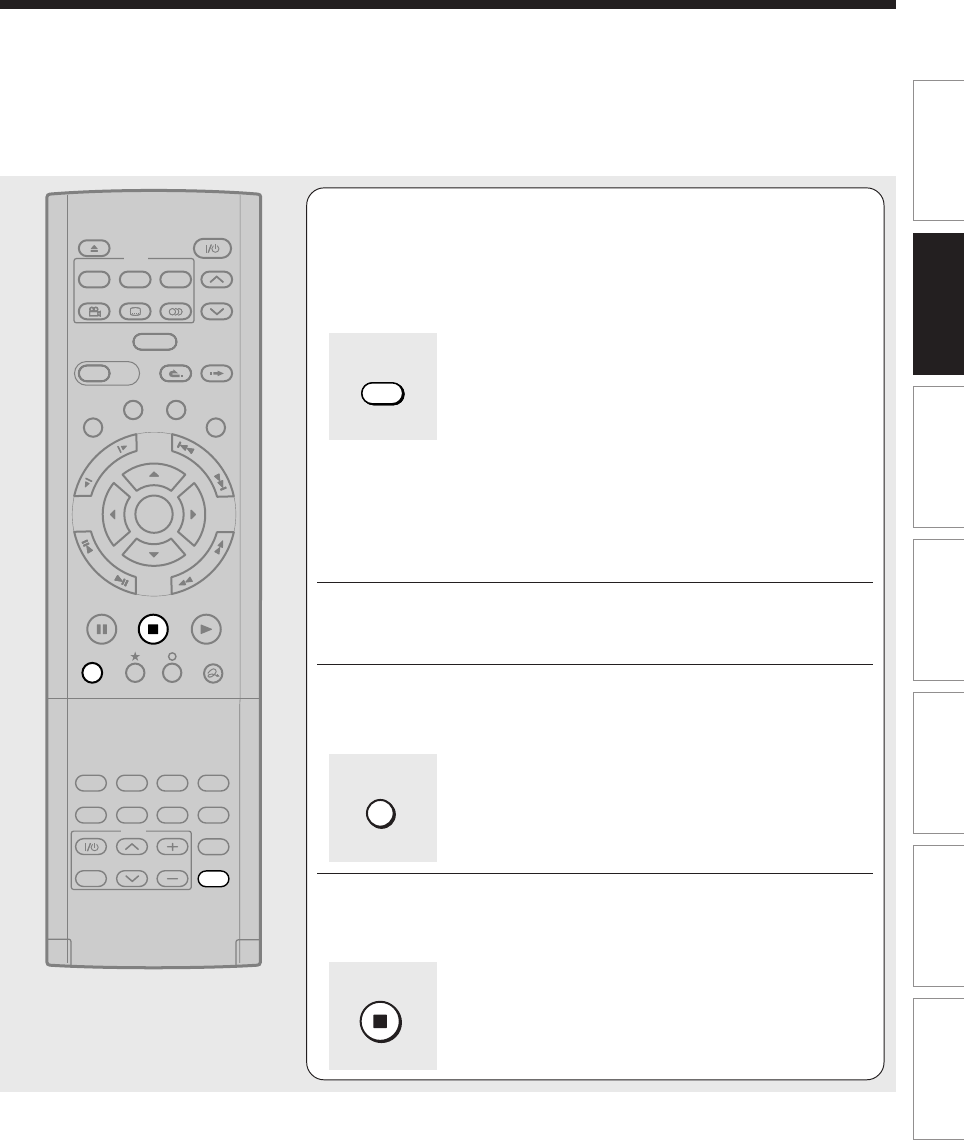
37
Playback
Recording Editing Function setup Others
Introduction Library
1Press INPUT SELECT repeatedly so that “L-1,”
“L-2,” or “L-3” appears on the front panel
display, corresponding to the input in which
the device is connected.
Each time you press the button, the indicator changes.
L-1: To record pictures from equipment connected to
the INPUT 1 jacks on the rear panel.
L-2: To record pictures from equipment connected to
the INPUT 2 jacks on the front panel.
L-3: To record pictures from equipment connected to
the INPUT 3 jacks on the rear panel.
2Start playback of the source content on the
connected equipment.
3Press REC of this recorder to start recording.
4When recording is completed, press STOP.
TIMESLIP
EASY
NAVI
INSTANT SKIPINSTANT REPLAY
PLAYSTOPPAUSE
REC
LIBRARY
REC MENU EDIT MENU
CONTENT MENU
ANGLE
OPEN/CLOSE
SUBTITLE
AUDIO
CHANNEL
QUICK MENU
TOP MENU
MENU
RETURN
DVD
F
R
A
M
E
/
A
D
J
U
S
T
P
I
C
T
U
R
E
S
E
A
R
C
H
S
K
I
P
S
L
O
W
ENTER
TV/VIDEO CHANNEL
VOLUME
REMAIN
DIMMER
FL SELECT
ZOOM P in P
TIME BAR CHP DIVIDE
DISPLAY
INPUT SELECT
PROGRESSIVE
TV
INPUT SELECT
REC
STOP
38
Notes on recording from a connected VCR or camcorder
Check the condition of the source equipment before playing.
Set the equipment in good condition, e.g. clean the head or adjust the tracking, etc. to obtain optimum playback.
Bad condition may produce noises in playback. These noises may be detected as copy protection signals,
resulting in stop of recording on this recorder.
Play a source in an usual mode. Avoid using any correcting or enhancing features, as they may add signals which
can be detected as copy protection signals.
Source quality or tape condition beyond adjustments on the source equipment may stop a recording on this
recorder.
Do not operate the source equipment during recording on this recorder.
Operations such as pausing, resuming, fast-forwarding (CUE) and fast-reversing (REVIEW), etc. may produce
noises, which may be detected as copy protection signals. Therefore, first start playback on the source equipment
to confirm that the desired source can be played properly, and then start recording on this recorder.
Do not operate the source equipment during recording. After completing the desired scene, stop the recording on
the recorder, and then stop the playback on the source equipment. Delete unnecessary scenes using editing
functions ( page 104). If you want to operate the source equipment during recording, pause or stop the
recording. After operating the source equipment, resume the recording as above.
When recording from a camcorder
Follow the above notes. Be sure to power the camcorder by its AC adapter, not batteries. If batteries are used, the
recording may be finished on the way.
Recording
Recording an external source (Continued)
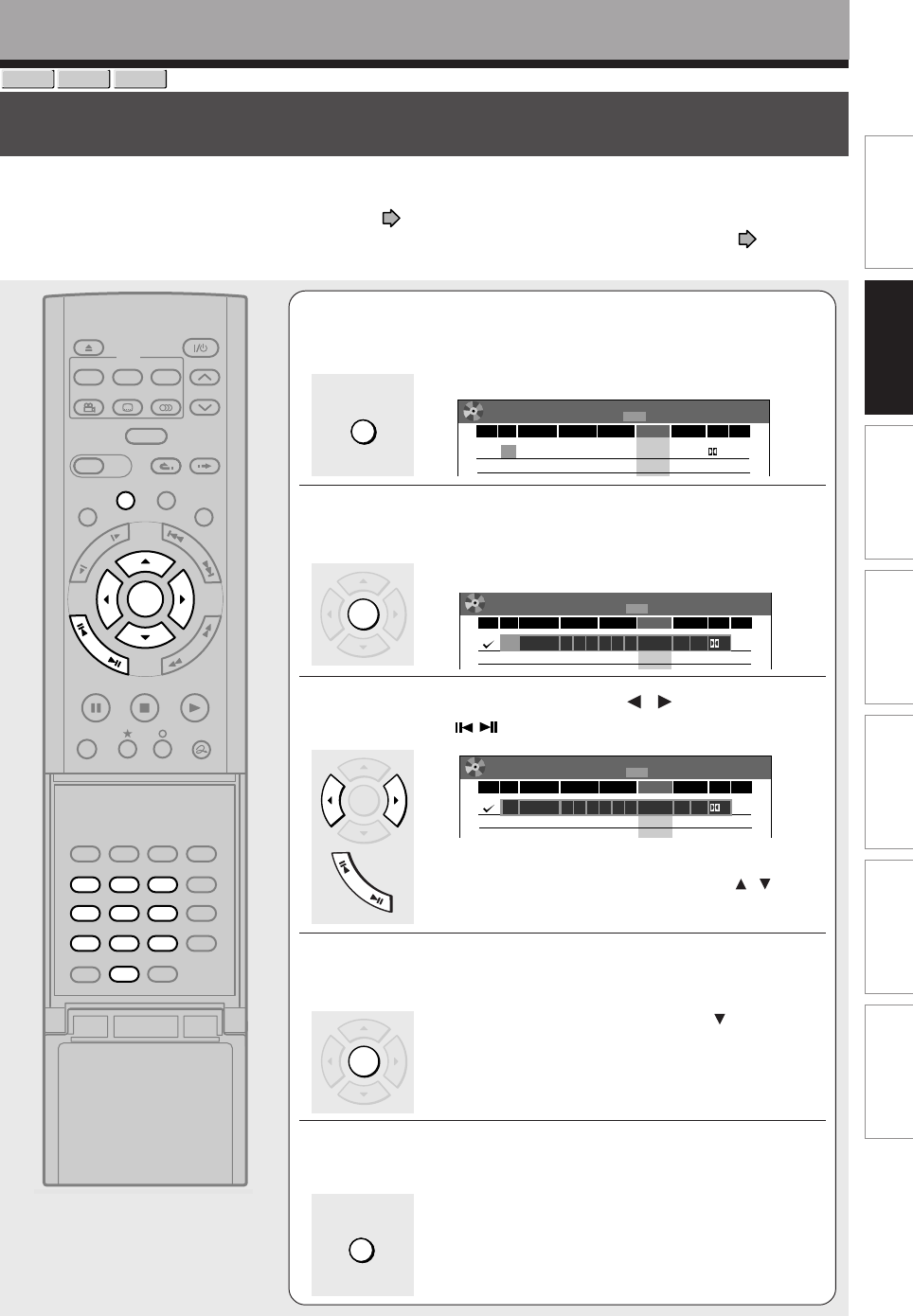
39
Playback
Recording Editing Function setup Others
Introduction Library
Recording
DVD-RAM
DVD-RW
DVD-R
Programing a recording (REC MENU)
Use the REC MENU to program a recording. It will take less time to prepare, as it provides all necessary
information for recording, including estimated disc space remaining.
For more information, see “Before recording” ( page 26).
Be careful when you program a recording across the change-over of Daylight-saving time ( page 27).
1During stop, press REC MENU.
The REC MENU appears.
e.g.
2Press ENTER.
“CH” is ready for setting.
e.g.
3Select an item by pressing / , then press
ADJUST ( /) to set the item.
e.g.
• Refer to the setting items on the next page.
• You can also set the item by pressing the / button.
• “CH” can be input by the number buttons.
4When complete, press ENTER.
To program another recording, press the button to
move to the next line, then repeat steps 2 to 4.
5Press REC MENU to exit.
Your program is entered.
REC
MENU
Timer Programing
1/ 1
9:00 pm
4/3 (Sa)
Audio
Video
MediaEnd
Disc
4.6
D/M1
DVD
CH Date Start
Exec
--- -- --
amam
SP
------- --
-
--
TIMESLIP
EASY
NAVI
INSTANT SKIPINSTANT REPLAY
SETUP ENTER
T.SEARCH
CLEAR
312
VCR Plus+
REC MODE
EXTEND
TV CODE
456
DELETE
+
10
789
0
PLAYSTOPPAUSE
REC
LIBRARY
REC MENU EDIT MENU
CONTENT MENU
ANGLE
OPEN/CLOSE
SUBTITLE
AUDIO
CHANNEL
REC
QUICK MENU
TOP MENU
MENU
RETURN
DVD
F
R
A
M
E
/
A
D
J
U
S
T
P
I
C
T
U
R
E
S
E
A
R
C
H
S
K
I
P
S
L
O
W
ENTER
Open the lid.
REC
MENU
Timer Programing
1/ 1
9:00 pm
4/3 (Sa)
Audio
Video
MediaEnd
Disc
4.6
D/M1
DVD
CH Date Start
Exec
-- --
amam
SP
------- -- --
2
REC
MENU
Timer Programing
1/ 1
9:00 pm
4/3 (Sa)
Audio
Video
MediaEnd
Disc
7
4.6
D/M1
DVD
CH Date Start
Exec
23
4/10 (Sa)
00
pm
8
00
pm
SP
REC MENU
ENTER
F
R
A
M
E
/
A
D
J
U
S
T
ENTER
ENTER
REC MENU
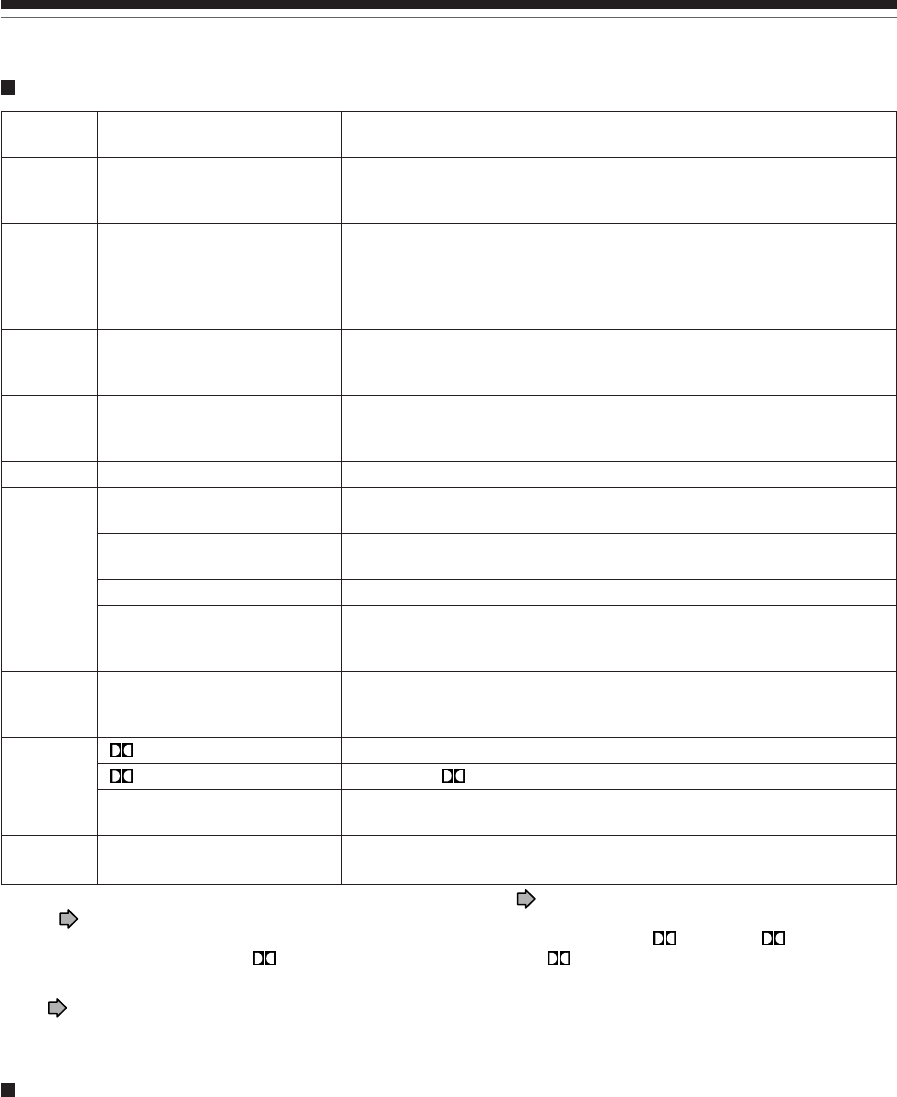
40
Programing a recording (REC MENU) (Continued)
Recording
Suggestions for the picture quality setting
•For normal recording or when you cannot decide which mode to choose.
Select “SP.”
•When you need a longer recording time and video quality is not important
Select “LP.” Inferior to “SP” in picture quality, but it can record longer.
•To record a high quality picture
Select “MN (Manual)” to set a desired bit rate. The higher the bit rate, better the picture quality is, but shorter the
recording length becomes. We recommend that you set about 6.0 Mbps to 6.8 Mbps.
•To fill the disc
Select “AT (Auto).” A bit rate is calculated automatically according to the remaining volume of the disc. Some
contents may not be recorded on the disc even if you select this function. This is not the function to make full use of
the remaining space capacity.
A timer program with this mark will be executed. To disengage, remove
this indicator.
Select a channel you want to record.
(While “L1” - “L3” is selected, the number buttons are not available to
select channels.)
Select a date of a TV program you want to record.
Enter a starting time of recording. (An initial setting is 10 minutes later than
current time.)
You can also use the number buttons under the lid of the remote.
Enter an end time. (Set the timer to begin recording no sooner than 2
minutes past the current time.)
You can also use the number buttons under the lid of the remote.
Fixed. (Not adjustable.)
Standard setting of recording time and picture quality. (Not applicable
when “L-PCM” is selected.)
For longer recording, but inferior to “SP” in picture quality. (Not
applicable when “L-PCM” is selected.)
Customized setting of rate (bit rate).
To set a rate automatically according to the remaining volume of the
disc. (If the disc does not have room for the TV program, the program
cannot be recorded to the end.)
Not applicable when “SP”, “LP” or “AT” is selected. You can set a rate at
intervals of 0.2Mbps from 2.0 to 9.2. (The upper limit of the value
depends on the “Audio” setting.)
Standard setting.
Superior to D /M1. Recommended for recording music programs.
Uncompressed original digital audio. Equal quality to audio CD, but
recordable time will be shorter.
A programmed recording onto a Reservation Disc is marked with an
icon.
Setting items
* If you set summer time on the clock of the recorder, see the notes on page 32 in the “INSTALLATION GUIDE”.
** See page 37 in the “INSTALLATION GUIDE”.
*** The digital recording technology for consumer products of Dolby Laboratories is used for D /M1 and D /M2.
Dolby Digital 192 kbps is set for D /M1 and Dolby Digital 384 kbps for D /M2.
Notes
•See page 50 for details on “Video” and “Audio”.
•If you record with setting the bit rate to about 4.0 Mbps or below, the recorded pictures may not be played properly if change
the playback speed. There will be noise, and the picture quality is lower than other rate settings.
Exec
CH
Date
Start*
End*
Media
Video
(Bit Rate)
Audio
Disc
√
2-69 (TV), 1-125 (Cable),
0-999 (When “IR control”** is
“ON”), L1-L3
Specific date (from today to 2
month later)
Every Sunday to Saturday, Monday
to Thursday, Monday to Friday,
Monday to Saturday, everyday.
12:00 am – 11:59 pm
12:00 am – 11:59 pm
DVD
SP
LP
MN (Manual)
AT (Auto)
1.4, 2.0-9.2
D /M1***
D /M2***
L-PCM
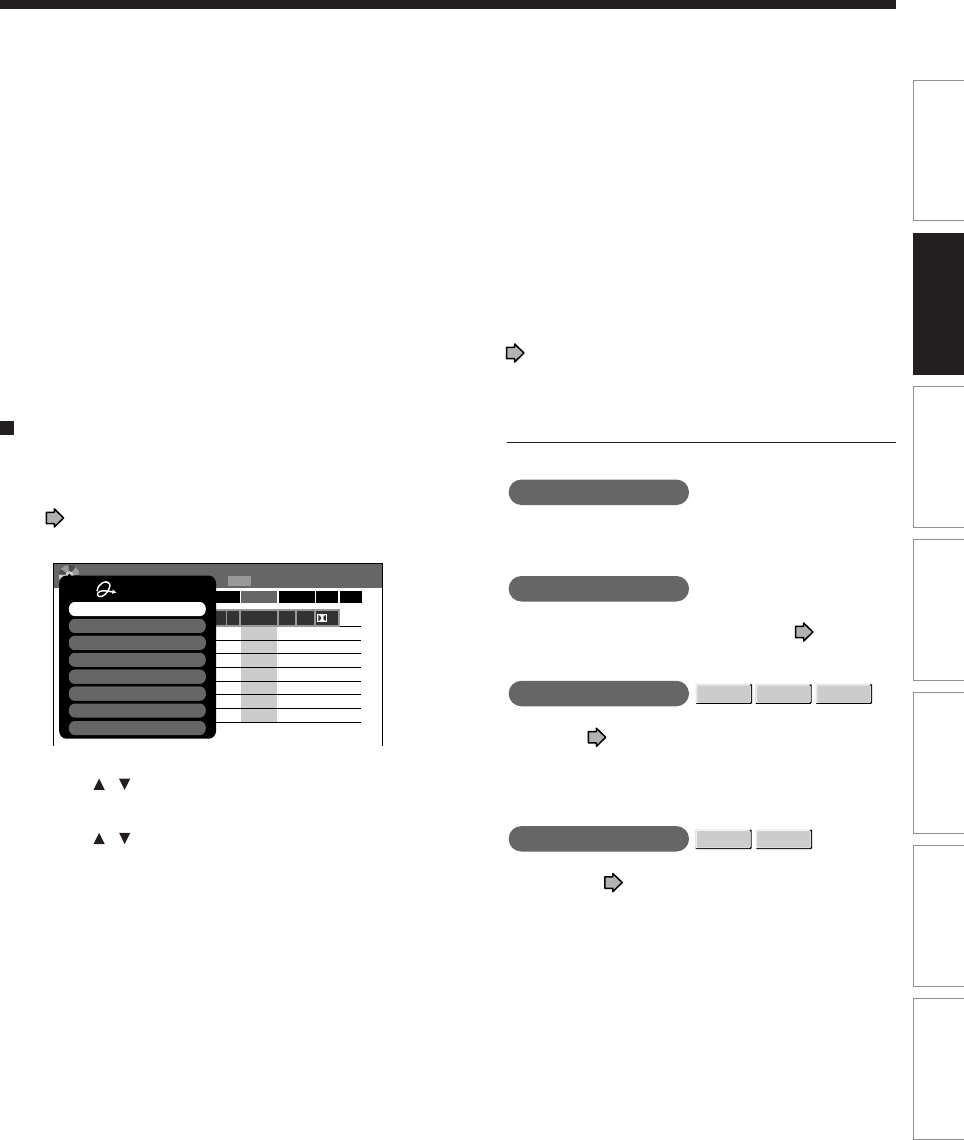
41
Playback
Recording Editing Function setup Others
Introduction Library
Notes
•The disc tray does not close automatically, even when the recording start time arrives. Set the recorder loaded an available
DVD-RAM/R/RW disc beforehand.
•When there is little time before a programmed recording starts, you may not be able to start another recording.
•Playback pauses when a programmed recording starts.
•Do not change the “TV/Cable” selection of the Initial settings while a recording is programmed. If you want to change it,
cancel the program recording. After then, make the programing again if necessary.
•Confirm the “DVD compatible mode” setting. “Main” or “SAP” records main sound or sub-sound of multiplex broadcasts
respectively, and does not record the other. Therefore, select “Main” or “SAP” only when you record onto a DVD-R/RW disc.
•When recording onto a DVD-R/RW disc, set “DVD compatible mode” ( page 134) to the desired recording sound for each
timer program.
Setting the details for every timer program
You can specify detail items for each of your timer
program.
1) Press QUICK MENU at step 3 on
page 39.
The Quick Menu is displayed.
e.g.
2) Press / to select an item and press ENTER.
For details, see “Quick menu items.”
3) Press / to make a selection, and press
ENTER.
The selection you have made for the timer program
is shown at the bottom of the display.
Quick menu items
AV record quality
Select an item from registered selections (1-5) for
the picture and audio quality.
Edit title name
Enter a name for the timer program.
Use the input screen to enter a name ( page 30).
DVD compatible mode
DVD-RAM
DVD-RW
DVD-R
When recording onto a DVD-R/RW disc, make this
selection ( page 134) for each timer program.
“Off” setting is neglected and regarded as “Main” in
DVD-R/RW recording.
Aspect ratio(Video mode)
DVD-RW
DVD-R
Select the aspect ratio when recording onto a DVD-
R/RW disc. ( page 134)
REC
MENU
Timer Programing
1/ 1
9:00 pm
4/3 (Sa)
Audio
Video
MediaEnd
Disc
7
4.6
D/M1
DVD
CH Date Start
Exec
23
4/10 (Sa)
00
pm
8
00
pm
SP
DVD-R Broadcast Record
AV Record Quality
Genre setting
Quick Menu
AV record quality
Edit title name
DVD compatible mode
Chap. mute
Exit
High rate save
Aspect ratio(Video mode)
42
Programing a recording (REC MENU) (Continued)
Recording
High rate save
Use this feature when you want to save space while
using the best picture quality rate for recording.
This will use 9.2 Mbps for recording and reduce the
rate temporarily for the portion where the high rate
is not required where picture is fairly constant.
Off : This feature is disabled and the normal
recording is performed.
On : This feature is enabled.
Notes
•When the audio quality is set to “L-PCM”, the picture
quality is set to “Manual 8.0 Mbps”. When the audio
quality is set to any other selection, the picture
quality is set to “Manual 9.2 Mbps”.
•While this is set to “On,” you cannot change the
mode or rate.
•The space used may not change, depending on the
picture contents.
Chap. mute
DVD-RAM
This feature automatically creates divisions for
chapters when no audio (no audible sound) portion
is found.
For example, when you have recorded a program of
music clips, you can use this feature to jump to the
beginning of a clip during playback. It does not
create completely independent chapters or
automatically divide into chapters when no audio
portion is found.
Off : This feature is disabled.
On : Division for chapters when no audio portion is
found.
Notes
•Divisions for chapters may not be created, depending
on the contents of the program or the condition of no
audio portion, or it may be created at different
positions. A division for a chapter may be created
within a music clip.
•Depending on the specification made for the
recording sound level, a division for a chapter may
not be created or it may be created at different
positions.
•Setting “On” may create many chapters, and their
number may reach the maximum allowed. At that
point, no more chapters can be created. In this case,
decrease the chapters, for example by combining
chapters ( page 106).
•This feature is not available on DVD-R/RW discs. To
create chapters automatically during recording on
DVD-R/RW discs, set “DVD-Video:CHP create.” (
page 134).
Genre setting
You can set a genre before setting programmed
recording.
To see the registered list, refer to Genre setting
( page 135).
Set the genre according to recording contents.
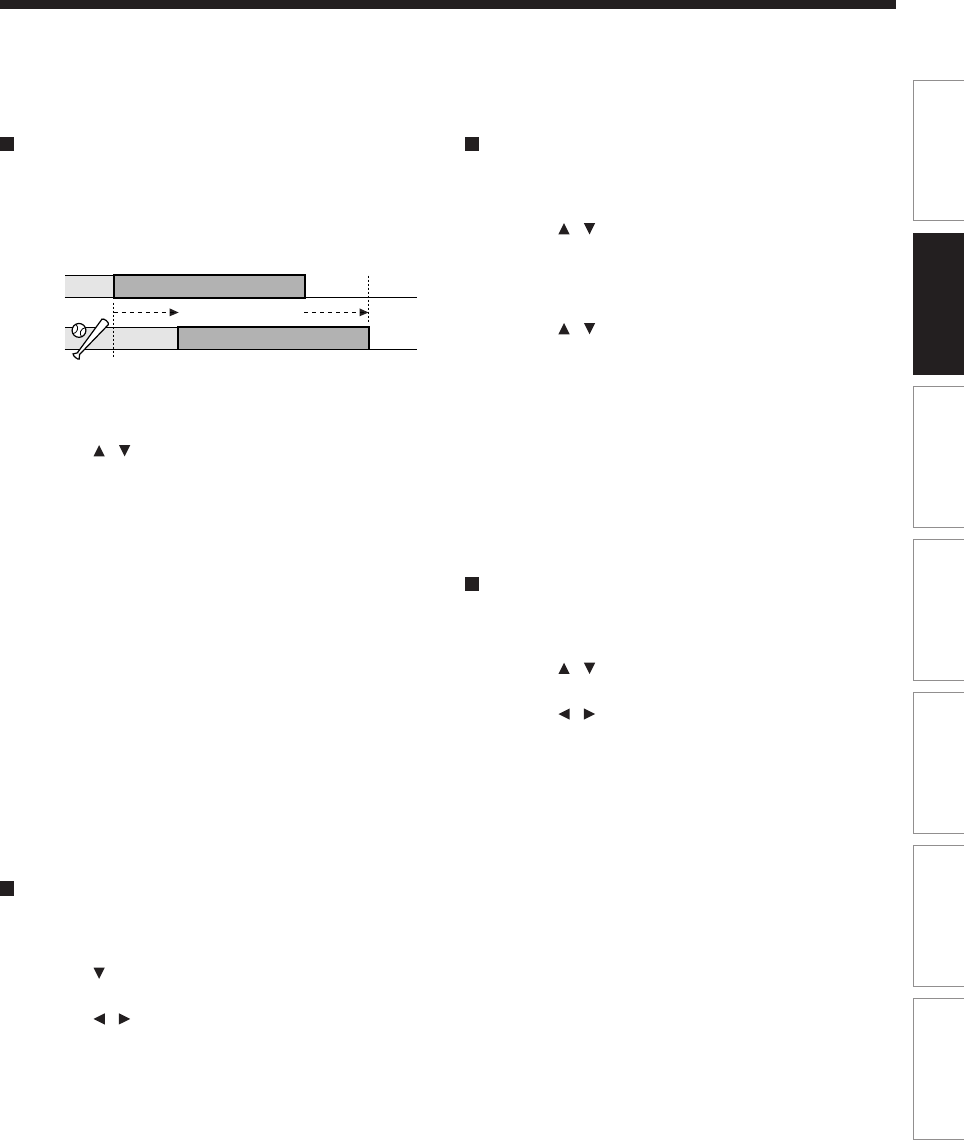
43
Playback
Recording Editing Function setup Others
Introduction Library
1:00pm 1:54pm
1:20pm
20 minutes
extend
Time Shift
2:14pm
Shifting a time period of a recording (Time
Shift)
If a prior TV program extends beyond its scheduled
time and into one that you programmed, you can shift
the programmed start and end time of the recording.
1) Press REC MENU.
The REC MENU appears.
2) Press / to select a timer program you want
to shift the time period.
3) Open the lid of the remote control and press
EXTEND.
“Start time” and “End time” are ready to be input.
4) Press EXTEND repeatedly.
Each time you press the button, “Start time” and
“End time” is shifted in 10 minutes intervals to, up
to 60 minutes later.
5) Press ENTER.
6) Press REC MENU to exit.
Note
•After you shifted the time of a timer program which will be
repeated daily or weekly, you should restore the original
start/stop time for future recordings.
Adding a timer program
1) Press REC MENU.
The REC MENU appears.
2) Press to select a blank line, then press
ENTER.
3) Press / to select the item, then press
ADJUST to set the item.
4) When complete, press ENTER.
5) Press REC MENU to exit.
Note
•While the recorder is preparing for or executing a
programmed recording, you cannot add a timer program
which will start within 5 minutes and 15 seconds from the
current time.
Deleting a timer program
1) Press REC MENU.
The REC MENU appears.
2) Press / to select a timer program you want
to delete.
3) Press QUICK MENU.
The Quick Menu appears.
4) Press / to select “Program cancel”, then
press ENTER.
Check the message, then delete the entry.
5) Press REC MENU to exit.
Note
•You cannot delete a timer program while another is
executed.
Correcting a timer program
1) Press REC MENU.
The REC MENU appears.
2) Press / to select a timer program you want
to change, then press ENTER.
3) Press / to select an item, then press
ADJUST to set the item.
4) Press ENTER.
The modification is registered.
5) Press REC MENU to exit.
Important
•You cannot correct a timer program within 5 minutes before
the recording start time. You can only delete the timer
program.
Note
•You can program a timer recording whose start time has
already passed, unless the another program recording will
start within 5 minutes. The portion of the program before
the recording starts cannot be saved.
e.g.
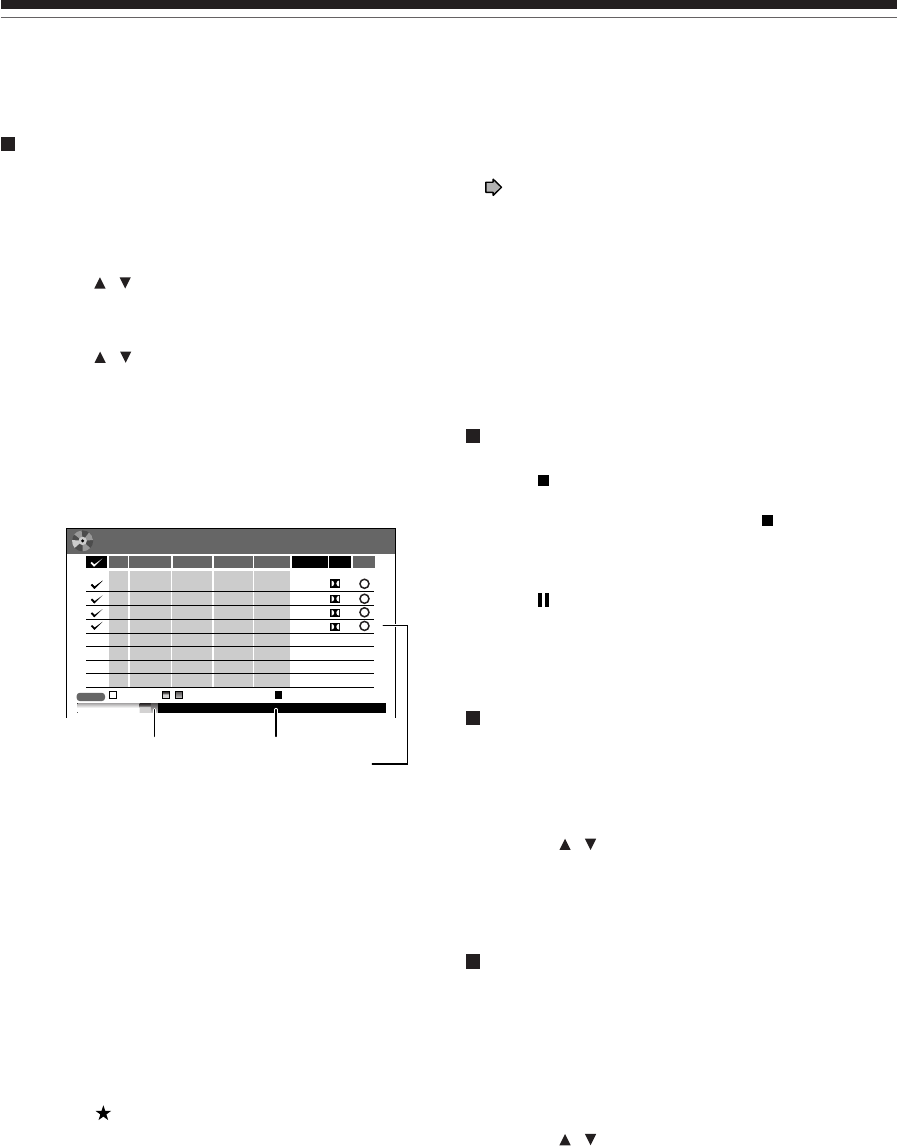
44
Programing a recording (REC MENU) (Continued)
Recording
Remaining volume
1) Press REC MENU.
The REC MENU appears.
2) Press QUICK MENU.
The Quick Menu appears.
3) Press / to select “Disc budget calculation”
then press ENTER.
The Disc budget calculation menu appears.
4) Press / to select a timer program, then
press ENTER or press ADJUST.
The recorder calculates on a bar graph how much
a specific program (identified by a check mark) will
occupy on the disc.
Pressing the ADJUST button can display or remove
the check mark.
e.g.
5) Correct the parameters of the timer program if
necessary.
(Skip to step 7 if you do not need this.)
You can change “Video” and “Audio”.
Select an item you want to modify and press the
ENTER button. The item will be ready to be altered.
Press the ADJUST button to modify. When
complete, press the ENTER button.
You can adjust to a lower mode (SP to LP) and/or
lower the rate to reduce the quality of the recording,
and thus provide more disc capacity (space).
6) Press .
Program modification is registered.
7) Press REC MENU to exit the GUI.
REC
MENU
Disc budget calculation
9:00 pm
4/3 (Sa)
11
6.6
D/M2
DVD
CH
3
4/10 (Sa)
30
::–
–
–
–
:
:
:
:
:
:
pm
11 50
pm
MN
9
6.6
D/M2
DVD
10
4/13 (Tu)
30
pm
10 00
pm
MN
10
2.2
D/M1
DVD
42
4/16 (Fr)
30
pm
11
30
pm
LP
8
4.6
D/M2
DVD
4
4/16 (Fr)
30
pm
11
30
pm
SP
Audio
Video
MediaEnd
Result
Date Start
DVDHDD
Elapsed AvailableSelected(current)
()
DVD
Notes
•When a Reservation disc is inserted in the recorder
( page 48), you cannot check the remaining volume of
other discs.
•The nearest 8 programs are calculated at a time.
•While the recorder is preparing for or executing a
programmed recording, any program modification cannot
be registered. Only programs which will start after 5
minutes or later can be modified.
•Available disc volume is not displayed for a DVD-R/RW
disc on which DVD-Video finalize process was executed.
To stop a programmed recording
To finish,
Press on the front panel twice.
When you press it once, a message appears. While
the message is displayed, press the button once
again.
To pause recording,
Press on the front panel.
To resume recording, press it again.
Turning the power off automatically after
completing a programmed recording
1) While executing a programmed recording,
press QUICK MENU.
The Quick Menu appears.
2) Press / to select “Auto power off” then
press ENTER.
Keeping the power on even after the
programmed recording finished
If the recorder turns itself on to execute a programmed
recording, it will turn itself off after finishing the
recording. You can restrict this and keep the recorder
powered on.
1) While executing a programmed recording,
press QUICK MENU.
2) Press / to select “Continuous power on”
then press ENTER.
Selected entry Available disc volume
When the entry item is marked X, the
recording does not fit. Change the setting.
45
Playback
Recording Editing Function setup Others
Introduction Library
Delaying the end time of a programmed
recording while it is recording
While a programmed recording has started, open
the lid of the remote control and press EXTEND.
The first press displays the programmed end time (in
the front panel display).
Each time you press the button, it is delayed 10
minutes, up to 60 minutes.
Notes
•Pressing a button except EXTEND in the above procedure
will set the currently selected delay.
•You cannot delay the end time of a programmed recording
which will end within 1 minute from the current time.
•Even if you delay the end time of a programmed recording,
the recording will stop when the disc is exhausted.
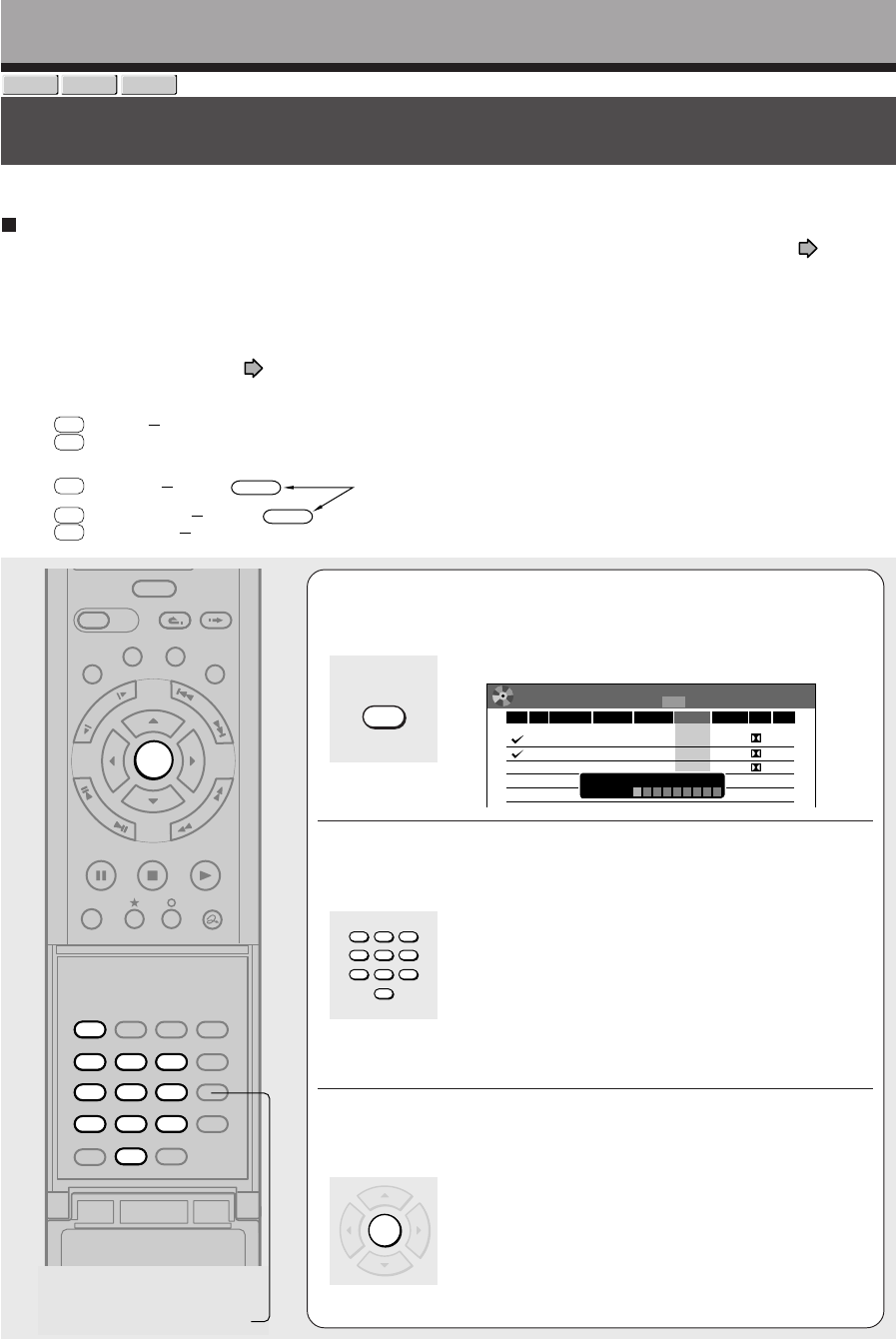
46
Recording
DVD-RAM
DVD-RW
DVD-R
VCR Plus+ recording
You can program a recording simply by entering the corresponding PlusCode® numbers.
Preparation
• Make sure that “Time & date setting”, “Channel setting” and “Guide channel setting” are set correctly ( page 28,
“INSTALLATION GUIDE”).
•Load a DVD-RAM/R/RW disc in the recorder.
– Load a disc which has space available to record the program.
– Make sure the loaded disc is not write-protected.
For cable box or satellite receiver users:
•Finish the set top box setting ( page 36, “INSTALLATION GUIDE”), and turn on the cable box or satellite receiver.
PlusCode®
number
1Open the lid of the remote control, and press
VCR Plus+.
The REC MENU and VCR + setting display appear.
e.g.
2Press the appropriate number buttons to enter
the PlusCode.
•Refer to newspapers or TV magazines to obtain
PlusCodes.
•To correct entered digits, press the CLEAR button to
erase them and press the number buttons to re-enter
again.
Note
•When you enter the number starting from 0, a 9-digit
number is entered.
3Press ENTER.
The entered program is highlighted.
5PM
5:35
FAM Cartoon
POPEYE
MAKING OF A CHAMPION
A look at gymnast and Olympic hopeful Kim
Zmeskal from novice to seasoned competitor.
One of Ted’s teachers stays at the ranch.
TBS Comedy
GOOD TIMES
USA Comedy
MY TWO DADS
NIK Children
HEY DUDE
HBO
725692
237945
793571
586858
2261858
REC
MENU
Timer Programing
1/ 1
9:00 pm
4/3 (Sa)
Audio
Video
MediaEnd
Disc
CH Date Start
Exec
11
6.6
D/M2
DVD
3
4/10 (Sa)
30
-
-
-:
:
:
::
pm
50
pm
MN
9
6.6
D/M2
DVD
10
4/13 (Tu)
30
pm
00
pm
MN
4.6
D/M1
DVD
--- ------ -- -- -- --
am am
SP
11
10
VCR PLUS+
PLUS CODE:
– – – – – – – – –
TIMESLIP
EASY
NAVI
INSTANT SKIPINSTANT REPLAY
SETUP ENTER
T.SEARCH
CLEAR
312
VCR Plus+
REC MODE
EXTEND
TV CODE
456
DELETE
+10
789
0
PLAYSTOPPAUSE
REC
LIBRARY
REC MENU EDIT MENU
CONTENT MENU
REC
QUICK MENU
F
R
A
M
E
/
A
D
J
U
S
T
P
I
C
T
U
R
E
S
E
A
R
C
H
S
K
I
P
S
L
O
W
ENTER
CLEAR
3
456
789
0
12
VCR Plus+
ENTER
VCR Plus+
123
456
789
0
ENTER
e.g.
Open the lid.
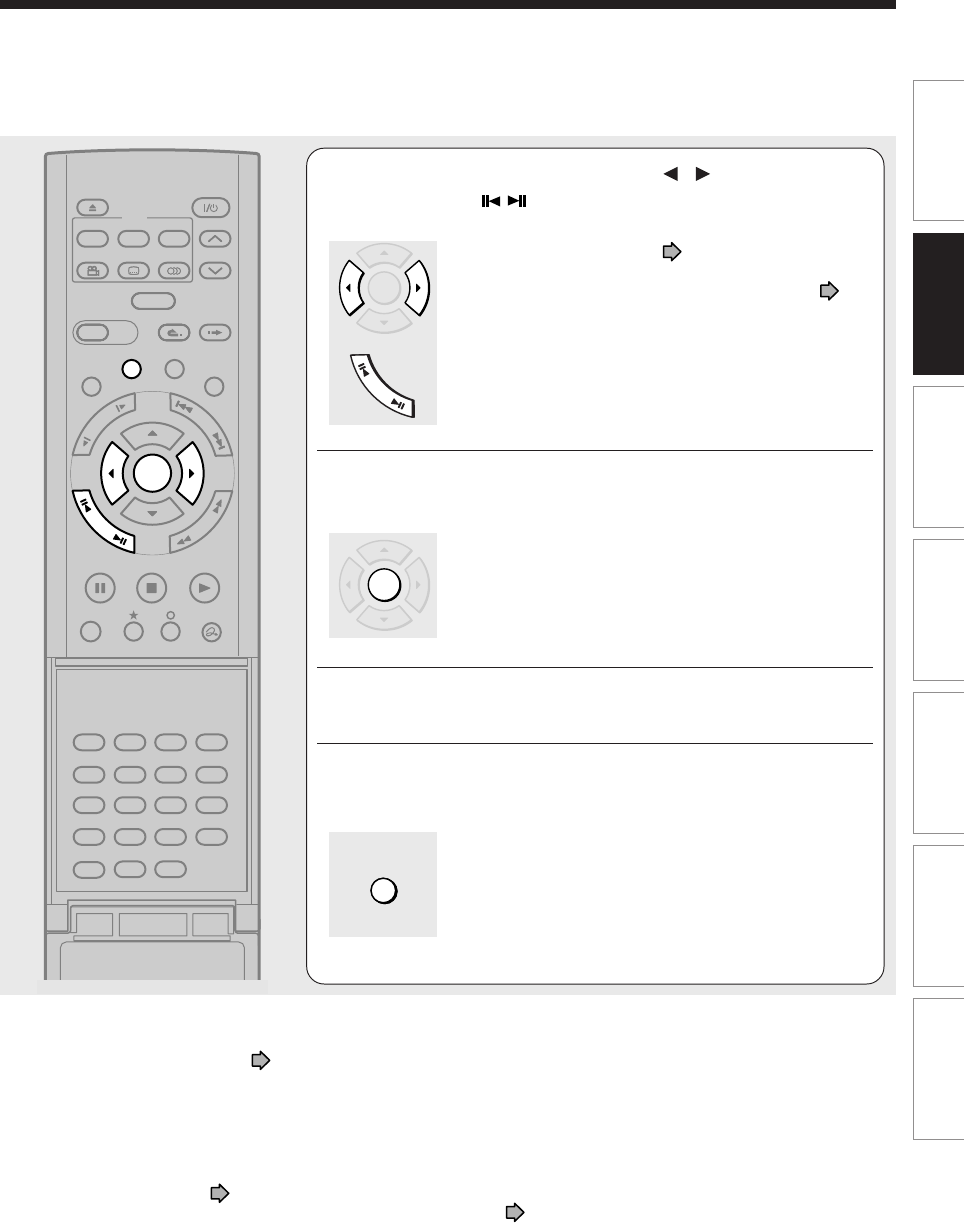
47
Playback
Recording Editing Function setup Others
Introduction Library
Notes
•The maximum timer program capacity is 32. Any new program will be rejected if the recorder is full. To enter a new program,
you must cancel an existing one ( page 43).
•Depending on the program, an actual recording may continue a few minutes longer than programmed.
•Entries made under the following conditions will be rejected.
– when an entry is for a non existing program.
– when the digit order of an entry is in error.
– when the guide channel has not yet been set.
• To erase a timer program, press the QUICK MENU button to display a Quick Menu on the REC MENU. For details, see
“Deleting a timer program” ( page 43).
•When recording onto a DVD-R/RW disc, set “DVD compatible mode” ( page 41) to the desired recording sound for each
timer program.
•In the event of a broadcast delay, the next program starts even if when the start time arrives prior to the end of the previous
program.
4Select an item by pressing / , then press
ADJUST ( /) to set the item, if necessary.
For details about items, see page 40.
Recording channels and “IR control” setting (
page 37, INSTALLATION GUIDE):
When set to “Off”, make sure “CH” shows the channel
you want to record.
When set to “On”, select a channel on the set top box
connected to the input you selected, and keep the set
top box powered on.
5Press ENTER.
6To enter another program, repeat steps 1 to 5.
7After completing all your entries, press REC
MENU.
The REC MENU disappears.
To confirm your data, it is recommended to turn on the
REC MENU again.
TIMESLIP
EASY
NAVI
INSTANT SKIPINSTANT REPLAY
SETUP ENTER
T.SEARCH
CLEAR
312
VCR Plus+
REC MODE
EXTEND
TV CODE
456
DELETE
+10
789
0
PLAYSTOPPAUSE
REC
LIBRARY
REC MENU EDIT MENU
CONTENT MENU
ANGLE
OPEN/CLOSE
SUBTITLE
AUDIO
CHANNEL
REC
QUICK MENU
TOP MENU
MENU
RETURN
DVD
F
R
A
M
E
/
A
D
J
U
S
T
P
I
C
T
U
R
E
S
E
A
R
C
H
S
K
I
P
S
L
O
W
ENTER
ENTER
F
R
A
M
E
/
A
D
J
U
S
T
ENTER
REC MENU

48
Reservation Disc (“Lock program record”)
This function is convenient when you wish to record
multiple serial related programs on the same disc.
The disc on which you write the reservation data is
called “Reservation Disc.” A Reservation Disc may
contain only one reservation.
Once a Reservation Disc is created, you cannot use
other discs to record the same serial program. The
Reservation Disc can be used only for recording a
program reserved for the Reservation Disc.
As an example, if you create a Reservation Disc for a
serial broadcast from 9 pm to 10 pm on Monday, then
you can use that disc only for that program. When you
attempt to make a reservation or record that serial, the
recorder will ask you to insert that Reservation Disc.
1) Load a DVD-RAM disc.
2) Press REC MENU.
The REC MENU appears.
3) Press / to select the program you want to
record.
4) Press QUICK MENU.
The Quick Menu appears.
5) Press / to select “Lock program record”
then “Yes” and press ENTER.
After the recording data is entered, a Reservation
disc icon appears on the REC MENU.
If the Reservation Disc is not loaded, the entry data
and icon are displayed in gray.
To cancel the Reservation Disc setting
Load the disc you want to cancel and select the
recording option on the REC MENU. Press the QUICK
MENU button to select “Unlock program record” then
“Ye s ”, and press the ENTER button.
To delete the information of a Reservation Disc
If you lose a Reservation Disc, delete the information
of the Reservation Disc.
Press the QUICK MENU button to select the program
of which data you want to delete, and press the
QUICK MENU button. Select “Program record unlock”
and then “Unlock selected program.”
If no programmed recording is set on the loaded disc,
press the QUICK MENU button to select “Program
record unlock” and then “Unlock prog. rec. disc”.
If you schedule a date for programmed recording on
the Reservation Disc, the recording information is
automatically deleted after the programmed recording
is completed.
To stop the Reservation Disc recording
Press the STOP button on the front panel once. The
message appears.
While it is displayed, press the STOP button again.
Recording stops.
If the start time of a programmed recording of a
Reservation Disc comes while recording
The currently executed recording has priority. The
programmed recording of the Reservation Disc does
not start.
Recording
Others
DVD-RAM
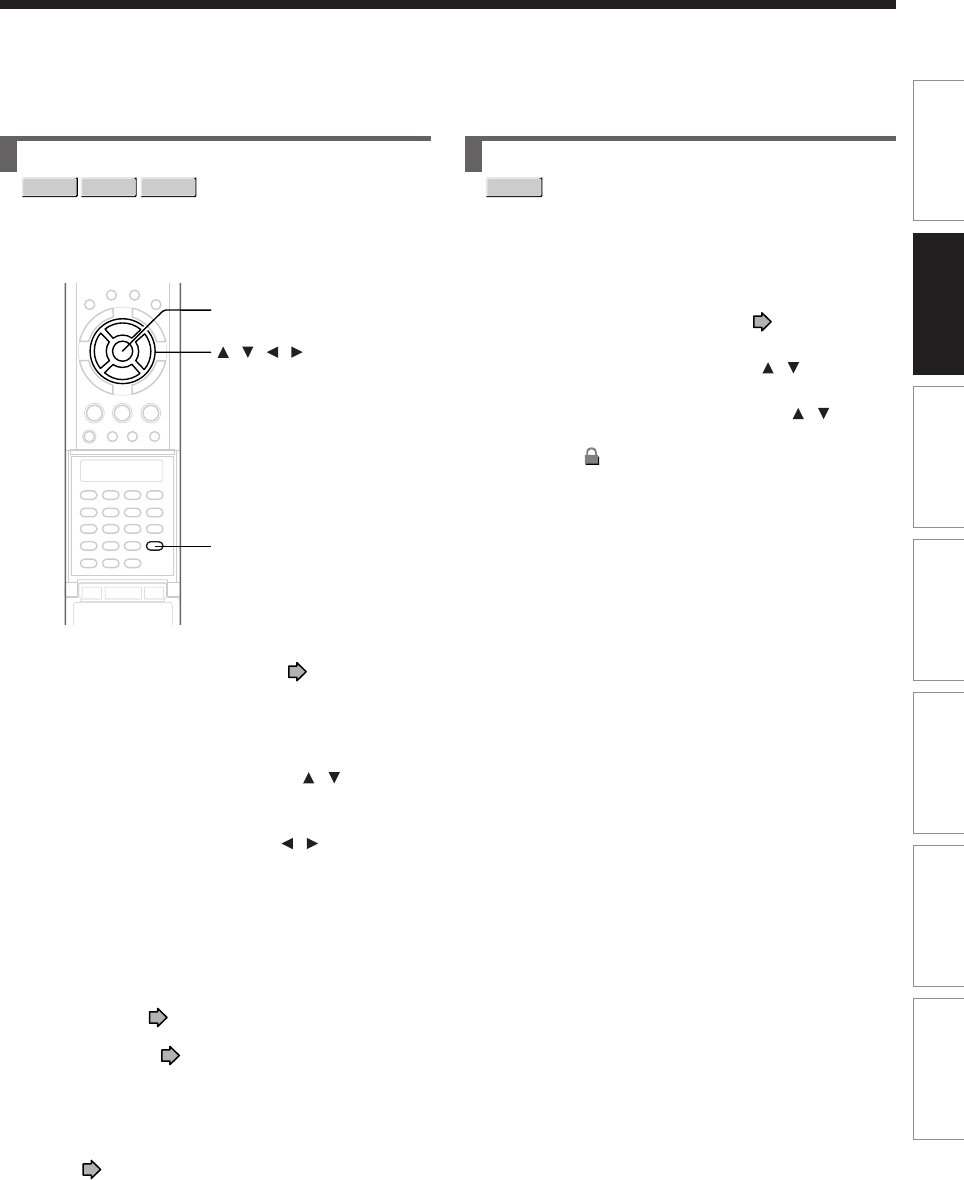
49
Playback
Recording Editing Function setup Others
Introduction Library
To protect recorded content
You can protect recorded content from unexpected
deletion.
Protection is provided for each title (original).
1) Perform steps 1 and 2 in “Playing recorded
contents (CONTENT MENU)” ( page 53) to
select a title.
2) Press QUICK MENU, and press / to select
“Title information”. Then press ENTER.
3) Press QUICK MENU, and press the / to
select “Lock” and then press ENTER.
The mark appears.
Notes
•To cancel protection, repeat this procedure.
•Disc initialization erases all titles on a disc even if they are
protected.
To delete recorded content
Important note
Any deleted title/chapter (original) cannot be restored.
Before deleting, be sure to check contents on the disc.
1) Perform steps 1 and 2 in “Playing recorded
contents (CONTENT MENU)” ( page 53) to
select a title (chapter).
2) Open the lid of the remote control and press
DELETE.
Alternate method:
Press QUICK MENU, then press / to select
“Title delete” (“Chapter delete”) and press
ENTER.
3) Read the message and press / to select
“Yes,” then press ENTER.
Notes
•Deleting a title (a chapter) decreases the numbers of the
succeeding titles (chapters).
•A chapter of about 5 seconds or shorter may not be
deleted. Deleting a short chapter may not change the
display of the available disc volume.
•Deleting a playlist ( page 86) title/chapter does not
affect the original title/chapter.
•Deleting an original ( page 86) title/chapter affects all
the corresponding playlist title/chapters.
•Deleting all chapters in a title erases the title itself.
•Title and chapter which contains still pictures cannot be
deleted.
•On a DVD-R/RW disc, deleting is not possible if the disc is
finalized ( page 108).
•Chapters in a DVD-R/RW disc cannot be deleted.
•
On a DVD-RW disc, only
a title last recorded can restore
the disc capacity by being deleted.
•
On a DVD-R disc, deleting cannot restore the disc capacity
.
ENTER
DELETE
/ / /
DVD-RAM
DVD-RW
DVD-R
DVD-RAM
50
Technical information
About recording time
The recording time of a typical VCR (Video Cassette
Recorder) is determined by the length of a video tape
and recording speed (SP, LP, etc.). Video tapes with
various recording times are available in the market.
On the other hand, the recording time of a DVD-RAM/
R/RW depends on the bit rate (Mbps: amount of data
transmitted per second), which can be varied in
MPEG2 (Moving Picture Experts Group2)
compression technology.
As an example, when you pour water into a bucket
from a faucet, the faster the water flows, the sooner
the bucket is filled with water. On the other hand, the
slower the water flows, the more slowly the bucket is
filled. The DVD-RAM/R/RW is, so to speak, such a
bucket, and the degree you turn the faucet is bit rate,
the time required to fill the bucket with water is the
recording time available for a disc. The higher you set
the bit rate (making much more water flow), the sooner
a disc is filled. Consequently, the recording time
becomes shorter. The lower you set the bit rate, the
longer time it takes to fill a disc.
About picture quality (SP, LP, Auto, Manual mode)
The higher you set the bite rate, the more the volume
of information for the picture. The lower the bit rate, the
less the volume of picture information.
However a high bit rate does not always mean that the
picture quality is high. The difference between the 1.4
Mbps and 9.2 Mbps is obvious, but when comparing
similar bit rates, the difference may be insignificant.
Generally when you set the bit rate low for longer
recording time, the data volume shortage will result in
a lack of detail information. As a result, the picture
quality is decreased (more noticeable with dynamically
moving images). For example, square noises (block
noise) may occur in a scene with fast action or a
scene with light and shadows, such as a water
surface.
This recorder has a two settings, 2 hour recording at
“SP” mode or 4 hour recording at “LP” mode (both
assume a blank 4.7 GB DVD-RAM). It is
recommended to consider the “SP” mode as a
standard mode and use the “LP” mode when you want
to record for long time regardless of the picture quality.
If you want to record for about 2 hours or are uncertain
which one to select, select the “AT ” mode.
On a blank 4.7 GB DVD-RAM disc, the “AT” mode
automatically sets the appropriate bit rate
corresponded to the recording time from about 1 hour
to up to 2 and a half hours so that you can achieve the
best picture quality. If a part of a DVD-RAM disc has
already been recorded, the “AT ” mode sets the bit rate
suitable for the remaining space on the disc. (The
picture quality is determined referring the remaining
space just before recording. When the remaining
space is scarce in the disc, the picture quality may
decrease from what you set beforehand or the
recording may stop halfway.) “AT ” mode is available
also on DVD-R/RW recordings.
When you want to record a music program or
animation with high picture quality, it is recommended
that you select the “Manual” mode. If you select more
than 6 Mbps, you can usually record with considerably
higher picture quality. However the higher you set the
bit rate, the shorter the recording time.
D /M1, D /M2
Sound recording format onto DVD-RAM discs. When
recording, sounds are converted into digital signals
and compressed. In playback, they are extracted to the
original sound. The standard differenciates D /M1
and D /M2 in data volume to use. D /M1 and
D /M2 are applied the digital recording technology
for consumer products of Dolby Laboratories. Dolby
Digital 192 kbps is set for D /M1 and Dolby Digital
384 kbps for D /M2.
L-PCM (Linear PCM)
Sound recording format, like Dolby Digital. However,
sounds are converted into digital signals and recorded
as they are without compression. This process
requires more data than Dolby Digital.
Others (Continued)
Recording

Playback
Play your favorite contents.
Information on playback
Playing recorded contents
(CONTENT MENU)
Playing a DVD video disc
Pausing a TV broadcast to
resume later
Playing a TV program currently
being recorded
Playing at various speeds
Locating by entering the number
Selecting the camera angle
Selecting subtitles
Zooming a picture
Selecting the sound
Viewing JPEG files
Playing MP3/WMA files
Watching a TV broadcast in the
sub window (P in P playback)
Checking the current status and
settings
Functions in the Quick Menu
52
Playback
Information on playback
The operation procedure depends on the kind of disc. See the respective pages for basic procedure to
play the disc.
To play contents recorded onto a DVD-RAM disc
Playing recorded contents (CONTENT MENU) ( page 53)
To play a DVD video disc
Playing a DVD video disc ( page 59)
To play a DVD-R/RW disc
DVD-R/RW discs recorded on this recorder
Playing recorded contents (CONTENT MENU) ( page 53)
DVD-R/RW discs recorded on other devices
Playing a DVD video disc ( page 59)
DVD-R/RW discs recorded in DVD-VR mode
Playing a DVD-RW disc recorded in DVD-VR mode ( page 58)
To switch the picture to view TV broadcasts
Press the STOP button to stop playback.
To start recording
Press the STOP button to stop playback.
Then press the REC button to start recording.
Screen Protection
If you pause playback or display a menu and leave it still for about 15 minutes, the recorder switches the output
picture source to a TV broadcast or connected equipment.
A still picture may be displayed after all titles are played. In this case, the screen protection activates after about 10
seconds.
Notes
•Do not move the recorder during playback. It may damage the disc.
•Occasionally the picture may stop at the last scene, or the main menu may appear after playing.
If you display a still picture such as the main menu on the TV screen for a prolonged period, the TV may be damaged (image
burn). To prevent this, press the STOP button to stop playback.
•A still picture for about 15 minutes while the TIMESLIP indicator illuminates, will return to normal playback. If the playback is
completed, a still picture of the title end will continue unless you press the TIMESLIP button.
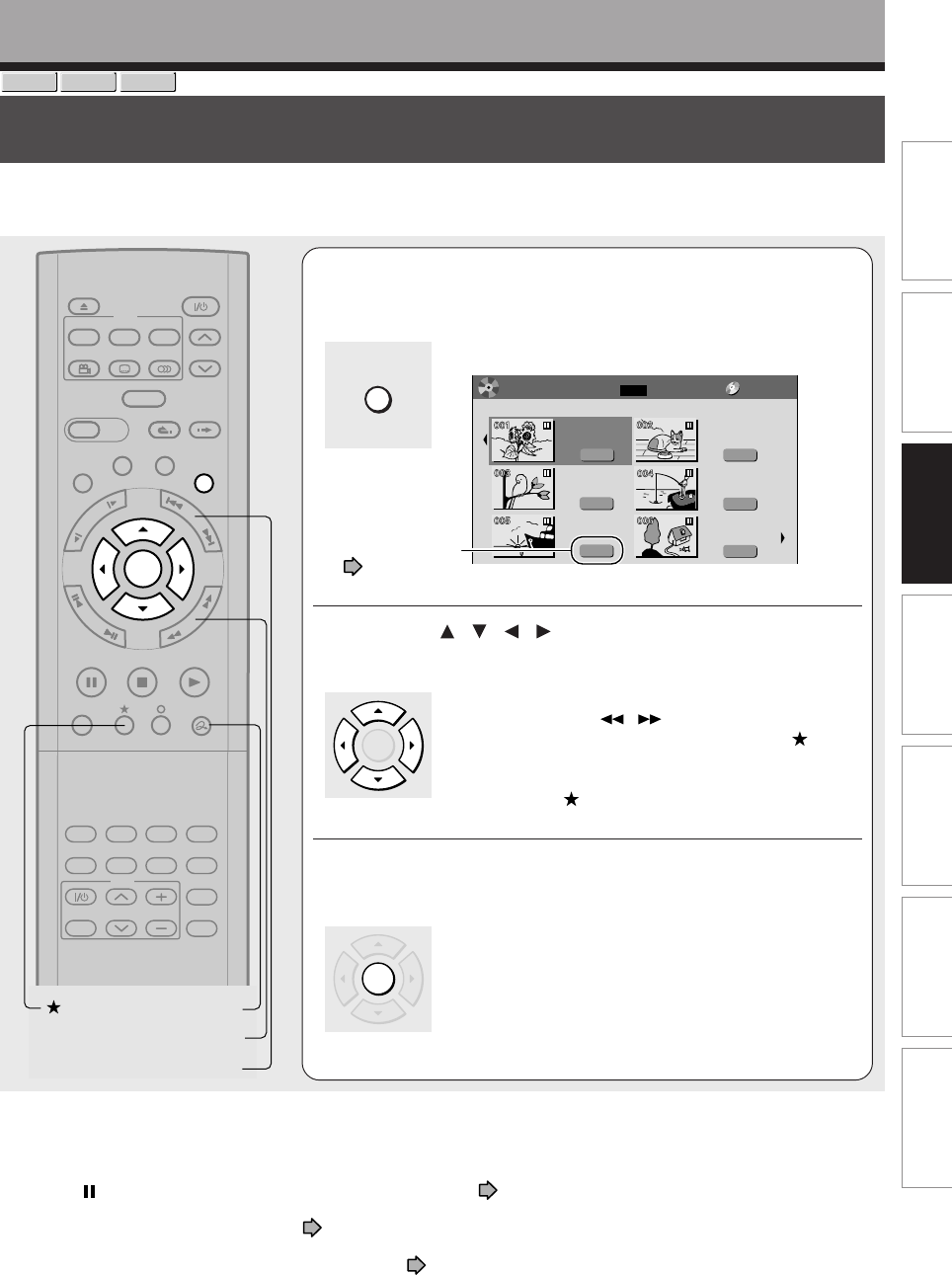
53
Editing Function setup Others
Introduction Library
Recording Playback
DVD-RAM
DVD-RW
DVD-R
Playing recorded contents (CONTENT MENU)
Titles and chapters recorded on a DVD-RAM/R/RW disc are displayed in thumbnail view, so that you can
easily locate a desired one.
Attribution
(original/playlist)
page 86
e.g.
Notes
•In a CONTENT MENU, titles (Original) precede titles (Playlist), in order from the oldest one respectively.
•To turn off the CONTENT MENU, press the CONTENT MENU button. Absence of operations for longer than about 15
minutes also turns off the CONTENT MENU.
•The mark is displayed in every thumbnail when “Title playback” ( page 132) is set to “Title resume”. When set to “Serial
playback”, it is displayed in a thumbnail last operated.
•You can change a thumbnail picture. See page 99.
•You cannot display the CONTENT MENU for DVD-R/RW discs recorded on other devices.
•For playing a recorded title while recording another, see page 35.
•A black thumbnail with “Recording” means that the title is being recorded or its recording will start within 15 seconds. This
thumbnail cannot start playback.
Playback
TIMESLIP
EASY
NAVI
INSTANT SKIPINSTANT REPLAY
PLAYSTOPPAUSE
REC
LIBRARY
REC MENU EDIT MENU
CONTENT MENU
ANGLE
OPEN/CLOSE
SUBTITLE
AUDIO
CHANNEL
QUICK MENU
TOP MENU
MENU
RETURN
DVD
F
R
A
M
E
/
A
D
J
U
S
T
P
I
C
T
U
R
E
S
E
A
R
C
H
S
K
I
P
S
L
O
W
ENTER
TV/VIDEO CHANNEL
VOLUME
REMAIN
DIMMER
FL SELECT
ZOOM P in P
TIME BAR CHP DIVIDE
DISPLAY
INPUT SELECT
PROGRESSIVE
TV
PICTURE SEARCH
QUICK MENU
SKIP
CONTENT MENU
ENTER
ENTER
1During stop or playback, press CONTENT
MENU.
The following CONTENT MENU (Title List) appears.
2Press / / / to select a title (chapter).
You can view succeeding or prior pages by pressing the
PICTURE SEARCH ( / ) button.
To select a chapter, select a title and press the
button.
The Chapter List appears.
By pressing the button again, you can return to the
Title List.
3Press ENTER.
Playback starts from a selected title (chapter).
Original
001:
2004/06/08 07:00
am TV:4
Title List Page
1/ 2
(0:53:45)
Original
2004/06/08 11:00
pm TV:6
(0:29:50)
Original
2004/07/11 07:00
am TV:8
(0:54:30)
Original
2004/07/12 09:00
pm TV:10
(0:51:28)
Original
2004/06/12 09:00
pm TV:3
(0:52:40)
Original
2004/07/12 11:00
pm TV:4
(0:30:08)
MENU
CONTENT
DVD-RAM
54
Playing recorded contents (CONTENT MENU) (Continued)
Playback
To stop playback
Press STOP.
To pause playback (still playback)
Press PAUSE.
To resume normal playback, press the PLAY button or
the PAUSE button.
Note
•Sound is muted during still mode.
Resuming playback from the location last
stopped (Title resume)
DVD-RAM
The recorder memorizes the location you last stopped
playback to resume there.
To use this function, set “Title playback” ( page 132)
to “Title resume.” The recorder will memorize the
location you last stopped at in each title, so you can
resume playback there. For example, if there are 6
titles, you can start each of them as if you had stored
6 video tapes in the recorder.
•To return to the beginning of the title
During playback, press the QUICK MENU button,
then press the / buttons to select “Restart title,”
then press the ENTER button.
•To play another title
Press the CONTENT MENU button to display
“CONTENT MENU Title List,” then select a title.
You can make the recorder memorize only the very
last point, regardless of the number of titles. Set “Title
playback” ( page 132) to “Serial playback.”
•To return to the beginning of the title
Press the SKIP ( ) button repeatedly until the
beginning of the title appears.
•To play the other title
Press the SKIP ( / ) button repeatedly.
PAUSE
Notes
•Depending on the status or the contents, playback may not
start from the location last stopped, but instead another
location. For example, from the beginning of the disc or
title.
•Depending on the disc, there may be a slight difference
between the location the recorder memorized and the
actual location where playback starts.
•This function is not available on DVD-R/RW discs.
•The resuming function will not work if the write-protect tab
is set to “PROTECT” ( page 8).
Playing the digest (Skip Search)
DVD-RAM
This feature repeats playback of about 5 seconds and
skip of 1 minute from the beginning to the end of a
recorded title, so that you can view the digest of it.
1) Perform steps 1 and 2 on page 53, and
select a title that you want to view the digest.
2) Press QUICK MENU.
The Quick Menu is displayed.
3) Press / to select “Special playback mode”,
then press ENTER.
4) Press / to select “Skip search”, then press
ENTER.
The Skip Search starts.
Notes
•This feature can be used only one title (original) recorded
on a DVD-RAM disc.
•While using this feature, you cannot use speed-related
functions such as fast forward or fast reverse.
•If you press the ENTER button while using this feature, the
normal playback starts.
•To cancel this feature, press the STOP button twice.
STOP
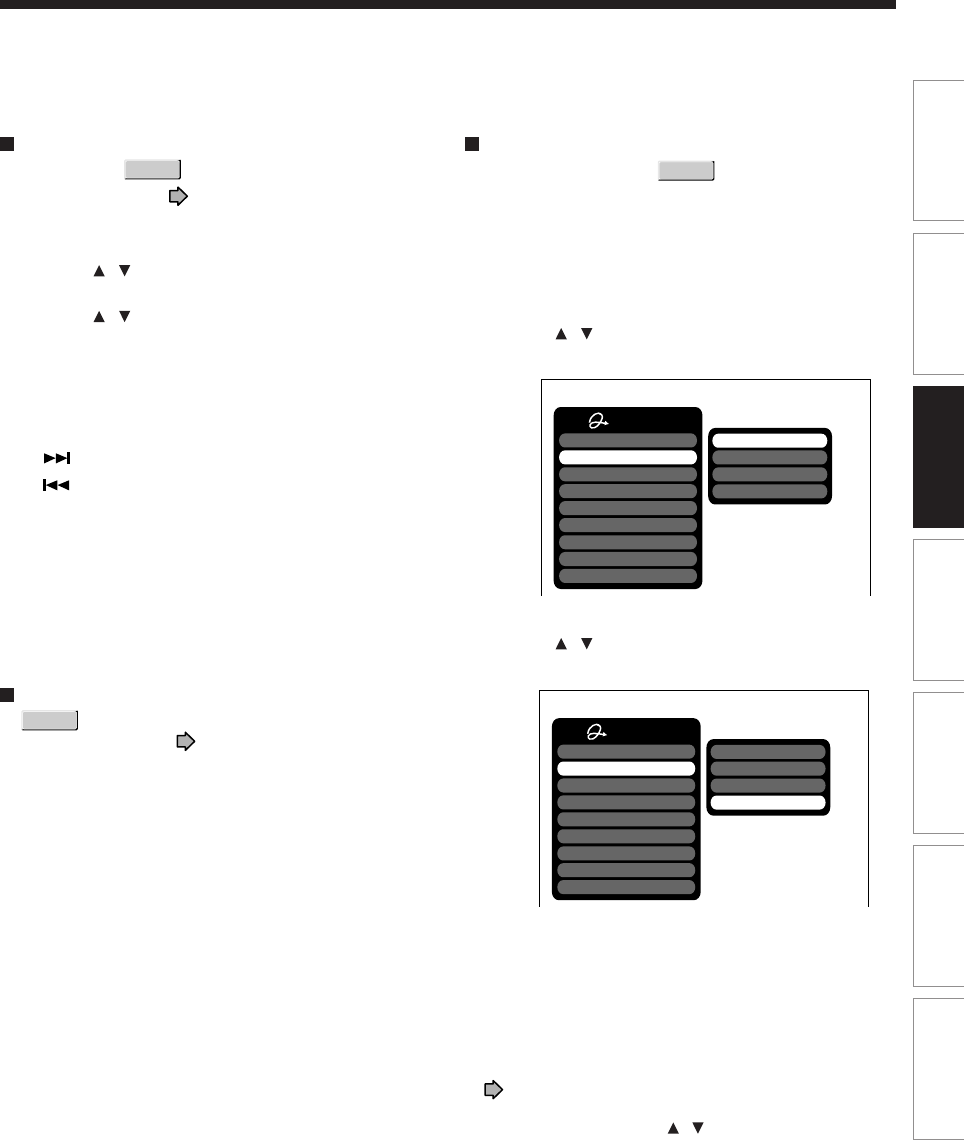
55
Editing Function setup Others
Introduction Library
Recording Playback
Viewing the first scenes of titles (Original)
(Intro scan)
DVD-RAM
1) After step 1 on page 53, press QUICK
MENU.
The Quick Menu appears.
2) Press / to select “Special playback mode”,
then press ENTER.
3) Press / to select “Intro scan”, then press
ENTER.
The recorder plays the first 5 seconds of each title
beginning from title 1.
You can go forward or back by pressing the SKIP
buttons.
: to go to the next title.
: to go back to the current title.
Press twice to go back to the previous title.
4) When you find a desired title, press ENTER.
The selected title is played.
Notes
•To stop Intro scan, press the STOP button twice.
•This feature can be used only titles (Original) recorded on
a DVD-RAM disc.
Playing all titles (original/playlist) in a disc
DVD-RAM
Set “Title playback” ( page 132) to “Serial
playback”. You can play all titles in a DVD-RAM disc in
the order of the thumbnails on the CONTENT MENU,
as if they were recorded in one video tape.
Playing all titles (original) in a disc
(Play all ORG titles)
DVD-RAM
You can play all original titles in a DVD-RAM disc in
the order of the thumbnails on the CONTENT MENU,
as if they were recorded in one video tape.
1) During stop, press QUICK MENU.
The Quick Menu appears.
2) Press / to select “Special playback mode”,
then press ENTER.
e.g.
3) Press / to select “Play all ORG titles”, then
press ENTER.
e.g.
Playback starts from the beginning of title 1.
Notes
•To stop this playback feature, press the STOP button twice.
(However, doing this when you are playing a title recorded
in a DVD-RAM disc while recording on the DVD-RAM disc
( page 35) will stop the recording.)
Alternatively, press the QUICK MENU button to display the
quick menu, and press the / buttons to select “Cancel
play all ORG titles” and press the ENTER button.
•When the last title is complete, this playback feature stops.
•If you select “Repeat all ORG titles” at step 3), this
playback feature repeats.
•A location where you last stopped is memorized. Playback
will resume from there.
Quick Menu
Bit rate
Special playback mode
Disc management
DVD compatible mode
Aspect ratio(Video mode)
DVD-Video:CHP create
SAP
Exit
AV record quality
Intro scan
Skip search
Repeat all ORG titles
Play all ORG titles
Quick Menu
Bit rate
Special playback mode
Disc management
DVD compatible mode
Aspect ratio(Video mode)
DVD-Video:CHP create
SAP
Exit
AV record quality
Intro scan
Skip search
Repeat all ORG titles
Play all ORG titles
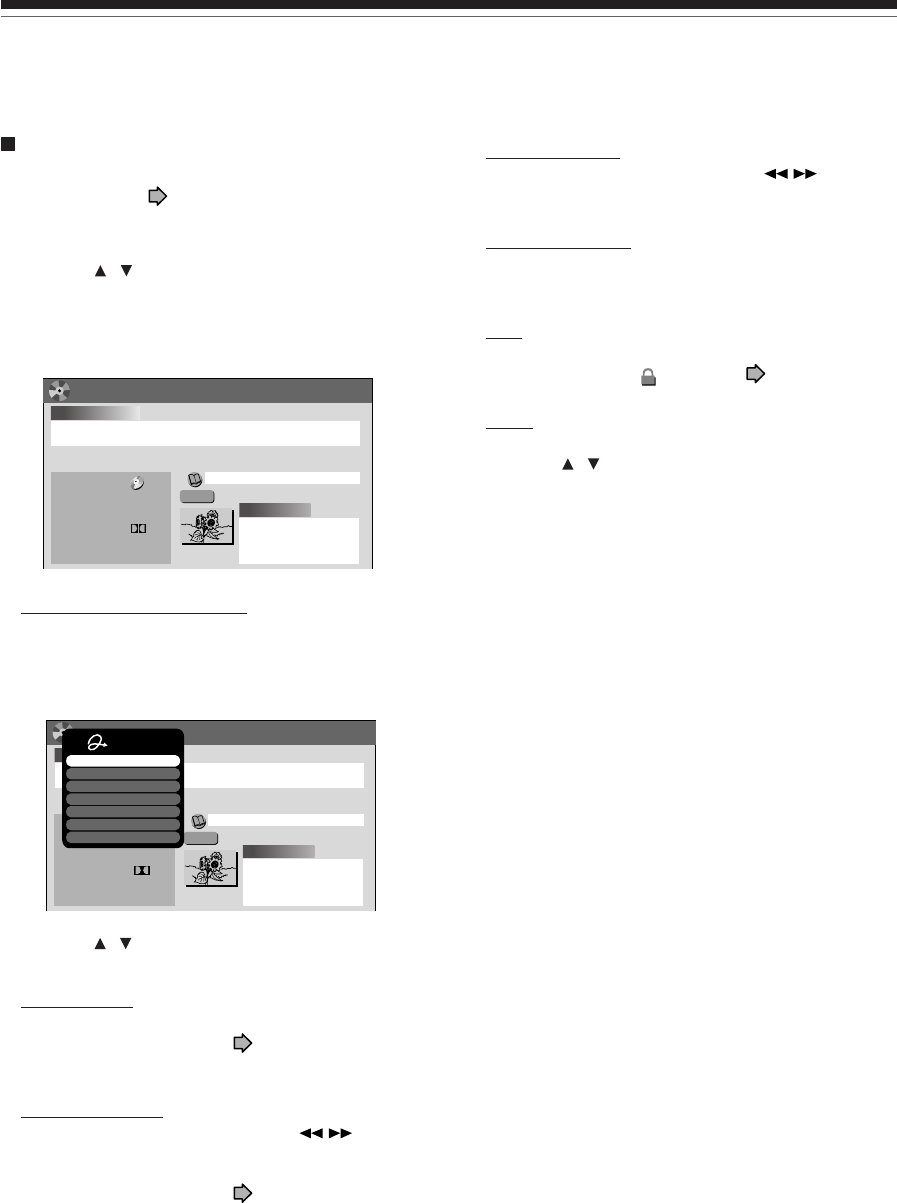
56
Playing recorded contents (CONTENT MENU) (Continued)
Playback
Changing the title information:
1) While the “CONTENT MENU Title Information”
is displayed, press QUICK MENU.
The Quick Menu appears.
e.g.
2) Press / to select an title, then press ENTER.
Edit title name:
The text entry screen is displayed.
Following the procedure on page 30, enter a new
name for the title.
Edit chapter name:
(First press the PICTURE SEARCH ( /) button to
display the chapter you want, then select this item.)
The text entry screen is displayed.
Following the procedure on page 30, enter a new
name for the chapter.
Title informatin
(2:06:32)
3
7/11(Su) 10:00 pm
2004/07/11 10:00pm TV:3
2004
CH
Title : 006
(0:04:15)
Media : Documentary/Culture(General)
Mode :
Rate :
Audio :
0001
Chapter :
Original
LP
2. 2
D/ M1
Off
Off
DVD Mode :
Saving :
MENU
CONTENT
DVD
Title informatin
(2:06:32)
3
7/11(Su) 10:00 pm
2004/07/11 10:00pm TV:3
2004
CH
Title : 006
(0:04:15)
Media : Documentary/Culture(General)
Mode :
Rate :
Audio :
0001
Chapter :
Original
LP
2. 2
D/ M1
Off
Off
DVD Mode :
Saving :
MENU
CONTENT
DVD
Quick Menu
Edit title name
Edit chapter name
Del chapter name
Record date & time
Lock
Genre
Exit
Del chapter name:
(First press the PICTURE SEARCH ( / ) button to
display the chapter you want, then select this item.)
Record date & time:
The recording date is highlighted so that you can
correct the digits.
Lock:
Set the protection for the currently selected title.
The protection icon “” appears. ( page 49)
Genre:
The submenu appears.
Press the / buttons to select a genre, then press
the ENTER button.
A name of the selected genre and the icon appear.
Notes
•To change the title information, be sure to load a DVD-
RAM/R/RW disc which contains the desired title.
•You may not be able to change the title name, etc. of a
DVD-R disc, if the disc is in a certain condition such as a
minimal remaining space.
•You cannot set the protection of titles in DVD-R/RW discs.
•By pressing the O button, you can return to the previous
display.
•To exit these steps, press the CONTENT MENU button.
Checking the background information on a
selected title
1) At step 2 on page 53, select a title (chapter)
then press QUICK MENU.
The Quick Menu appears.
2) Press / to select “Title information”, then
press ENTER.
Detailed information of a selected title (chapter)
appears.
e.g.
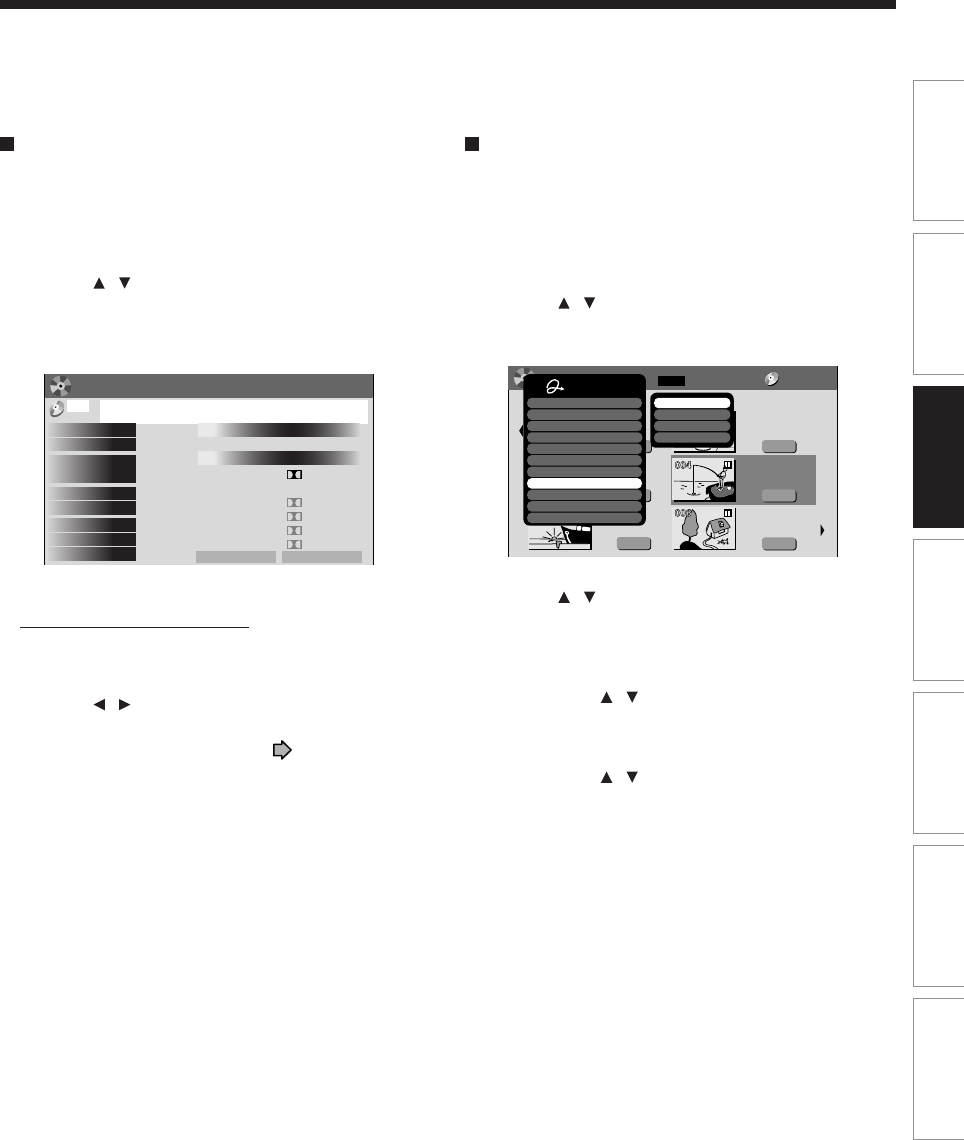
57
Editing Function setup Others
Introduction Library
Recording Playback
Viewing information of a loaded disc
1) Press CONTENT MENU.
The CONTENT MENU appears.
2) Press QUICK MENU.
The Quick Menu appears.
3) Press / to select “Disc information”, then
press ENTER.
You can view information on a loaded disc.
e.g.
Changing the disc information:
You can change the number or name of a DVD-RAM
disc.
1) Press / to select “Edit Disc Number” or
“Edit Disc Name”, then press ENTER.
2) Following the procedure on page 30, enter a
new name for the disc.
To change the disc number, press the ADJUST
button.
Notes
• You cannot change the disc name of a blank DVD-R disc.
After recording, change the disc name.
• You may not be able to change the disc name of a DVD-R
disc, if the disc is in a certain condition such as a minimal
remaining space.
Changing the order of the titles
You can change the order or sort the titles by genre.
1) Press CONTENT MENU.
The CONTENT MENU appears.
2) Press QUICK MENU.
The Quick Menu appears.
3) Press / to select “Display changeover”,
then press ENTER.
e.g.
4) Press / to select the item, then press
ENTER.
• Arrange
The titles are rearranged along with the selected
order.
Press the / buttons to select the order, then
press the ENTER button.
• Sort by genre
Titles of the selected genre are sorted.
Press the / buttons to select the genre, then
press the ENTER button.
• Sort by original
Titles (Original) are sorted.
• Sort by playlist
Titles (Playlist) are sorted.
Note
• The recorder holds your selection until the power is turned
off. To cancel, select “Display changeover” then “Cancel
Arrange/Narrowing” from the Quick Menu.
Disc information
–
Disc Type Record Time (h:m)
Remain Time (h:m)
Edit Disc Number
Edit Disc Name
DVD-RAM
VR mode
4
1:51
0:10
0:05
0:10
0:22
0:07
0:15
D/M1:
L-PCM
:
D/M1:
D/M1:
D/M2:
D/M1:
SP
MN
SP
LP
MN
MN
4.6Mbps /
6.6Mbps /
4.6Mbps /
2.2Mbps /
6.0Mbps /
3.2Mbps /
(
Current)
1)
2)
3)
4)
5)
0
Normal
Lock Off
001
Writing Mode
Original Titles
Playlist Titles
Disc Status
Disc Lock
–
–
Finalize
Increment Rec
Possible
Increment Rec
MENU
CONTENT
Original
2004/06/08 07:00
am TV:4
Title List Page
MENU
CONTENT
1/ 2
(0:53:45)
Original
2004/06/08 11:00
pm TV:6
(0:29:50)
Original
2004/07/11 07:00
am TV:8
(0:54:30)
Original
2004/07/12 09:00
pm TV:10
(0:51:28)
Original
2004/06/12 09:00
pm TV:3
(0:52:40)
Original
2004/07/12 11:00
pm TV:4
(0:30:08)
HDD :
Quick Menu
Title information
Create thumbnail
High speed dubbing
Chapter function
Edit functon
Special playback mode
Disc information
Display changeover
Specific page jump
Title delete
Exit
Arrange
Sort by genre
Sort by original
Sort by playlist
DVD-RAM
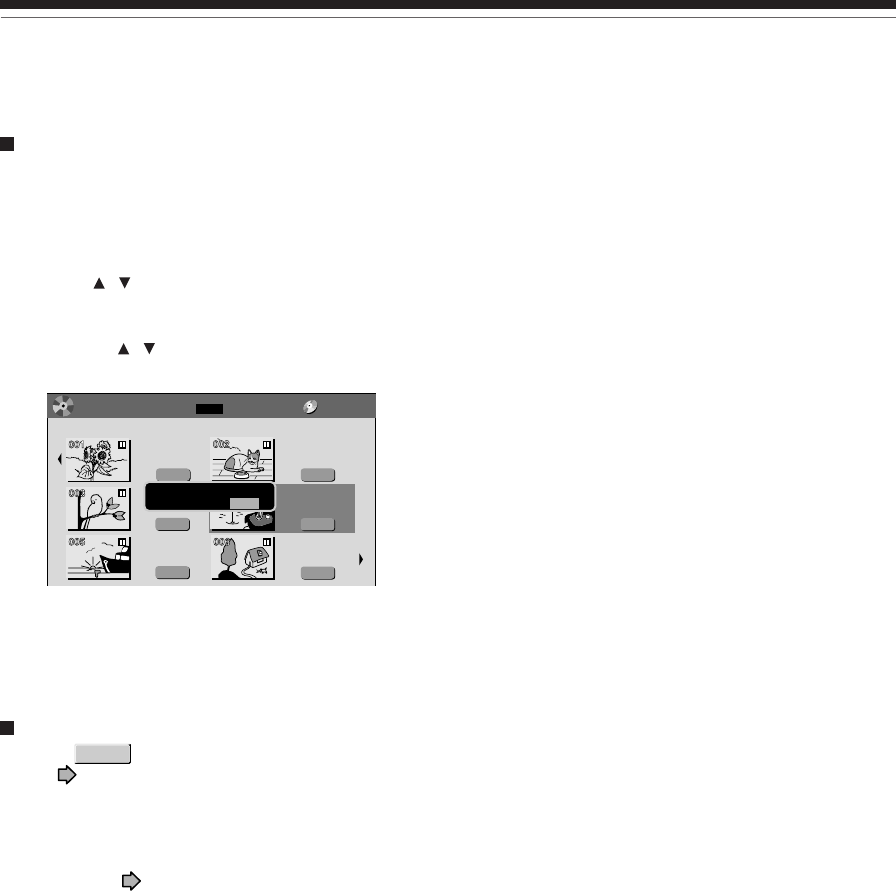
58
Playback
Jumping to a specified page
1) Press CONTENT MENU.
The CONTENT MENU appears.
2) Press QUICK MENU.
The Quick Menu appears.
3) Press / to select “Specific page jump”, then
press ENTER.
4) Enter the page number you want by pressing
ADJUST, / or the number buttons.
e.g.
To clear the number, press the CLEAR button.
5) Press ENTER.
The specified page appears.
Playing a DVD-RW disc recorded in DVD-VR
mode
DVD-RW
See page 53.
Notes
•Some disc’s conditions or discs which contain copy once
contents may not permit proper playback.
•“Title resume” ( page 132) is not available.
Original
2004/06/08 07:00
am TV:4
Title List Page
MENU
CONTENT
1/ 2
(0:53:45)
Original
2004/06/08 11:00
pm TV:6
(0:29:50)
Original
2004/07/11 07:00
am TV:8
(0:54:30)
Original
2004/07/12 09:00
pm TV:10
(0:51:28)
Original
2004/06/12 09:00
pm TV:3
(0:52:40)
Original
2004/07/12 11:00
pm TV:4
(0:30:08)
DVD :
Specific Page Jump
Page Number – – –
DVD-RAM
Playing recorded contents (CONTENT MENU) (Continued)
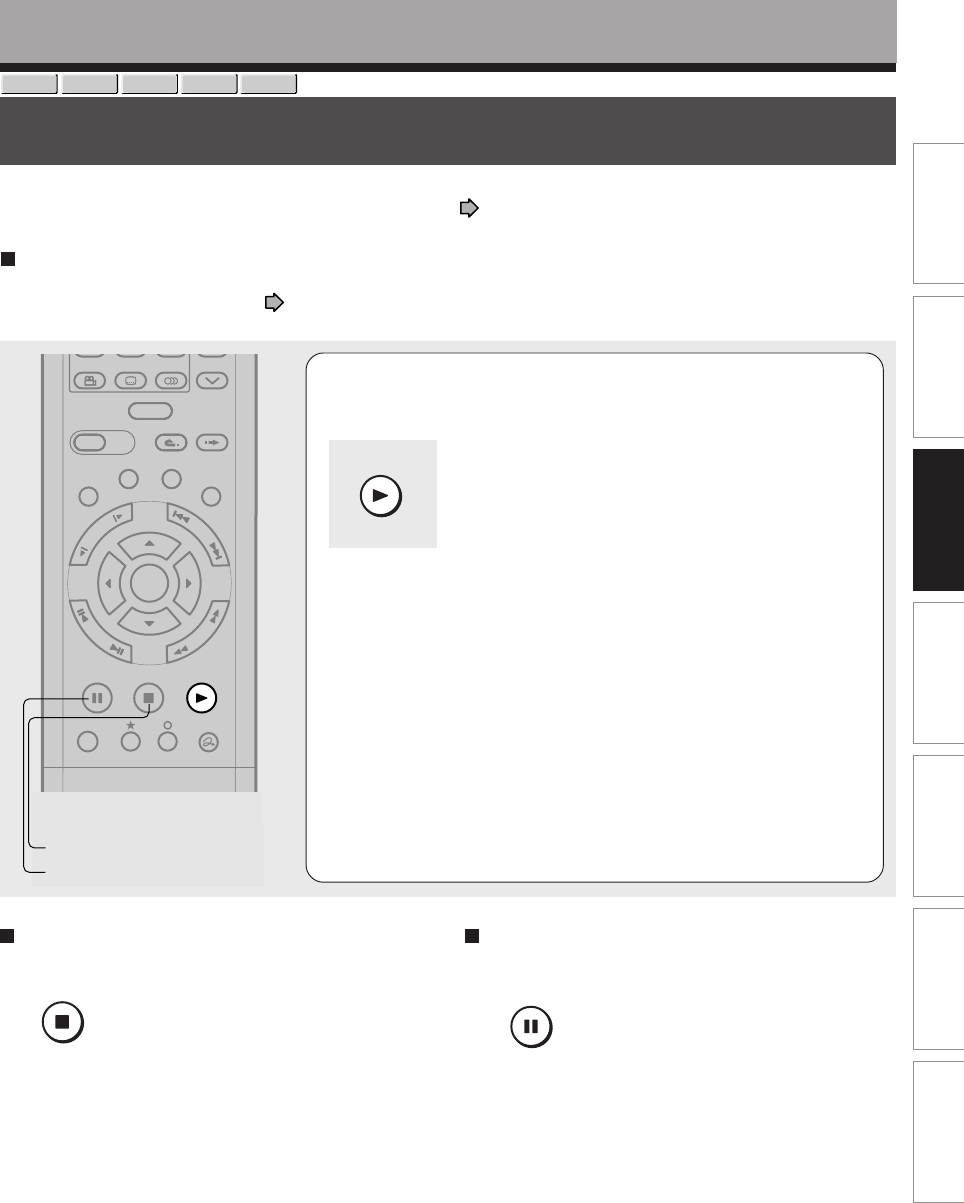
Editing Function setup Others
Introduction Library
Recording Playback
59
Playback
DVD-RW
DVD-VIDEO
VCD CD
DVD-R
Playing a DVD video disc
You can also play VIDEO CDs, audio CDs or finalization processed DVD-R/RW discs in the same manner.
To play recorded contents, follow the instructions on page 53.
Preparation
•Turn on a TV or audio system and select the corresponding input source that the recorder is connected to.
•Load a disc you want to play. ( page 20)
1Press PLAY.
Playback starts.
•Depending on the disc, playback starts automatically
by loading the disc.
•The recorder may take a short time to start playback.
This occurs because the recorder is reading the data
of a disc.
To stop playback
Press STOP.
To pause playback (still playback)
Press PAUSE.
To resume normal playback, press the PLAY button or
the PAUSE button.
Note
•Sound is muted during still mode.
Note
•DVD video disc provides high resolution pictures and a lot of information. Because of this, you may notice some fine picture
noises on TV screen, which you have never seen with regular broadcast TV program. While the amount of noise depends on
the TV you use with the recorder, you should generally reduce the sharpness adjustment on your TV when viewing DVD
video discs.
PLAY
TIMESLIP
EASY
NAVI
INSTANT SKIPINSTANT REPLAY
PLAYSTOPPAUSE
REC
LIBRARY
REC MENU EDIT MENU
CONTENT MENU
ANGLE
SUBTITLE
AUDIO
CHANNEL
QUICK MENU
F
R
A
M
E
/
A
D
J
U
S
T
P
I
C
T
U
R
E
S
E
A
R
C
H
S
K
I
P
S
L
O
W
ENTER
REMAIN
DIMMER
FL SELECT
ZOOM P in P
TIME BAR CHP DIVIDE
DISPLAY
PAUSE
STOP
STOP
PAUSE
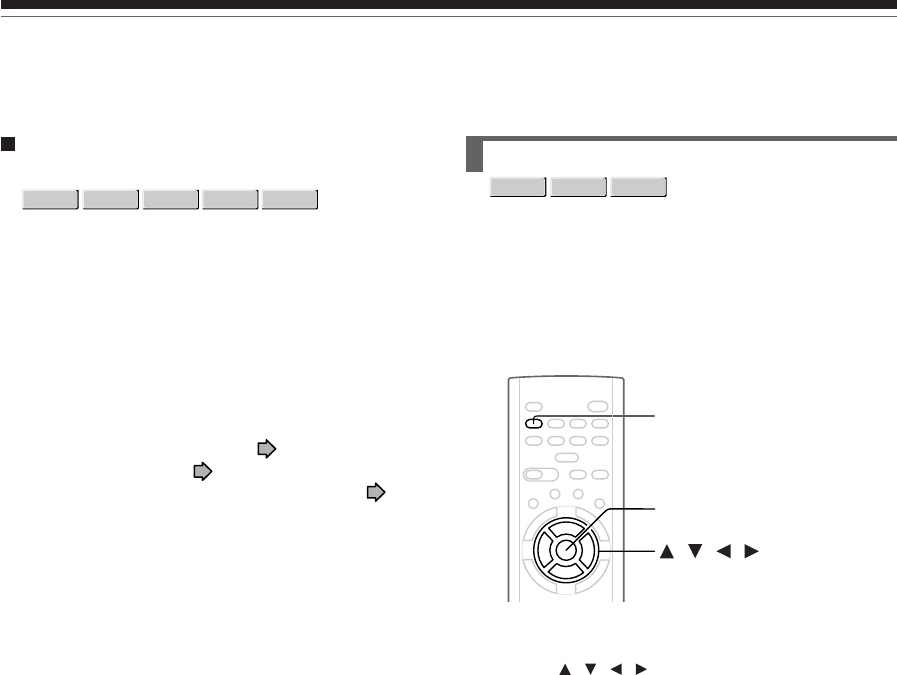
60
Playing a DVD video disc (Continued)
Playback
Resuming playback from the location last
stopped (Resume Play)
You can resume playback from the location where you
stopped.
If you press the PLAY button after stopping playback,
playback resumes from the location you have stopped.
If you stop playback by pressing the STOP button
twice, the resume playback feature will be cancelled.
Notes
•Resume feature cannot function when:
–you select a disc menu language ( page 126) or change
the parental lock setting ( page 127).
–you play a PBC-featured VIDEO CD while “PBC” ( page
128) is set to “On”.
–you open the disc tray.
–you cancel the DVD-Video finalizing process of a DVD-RW
disc.
•There may be a difference in the location where playback
resumes depending on the disc.
•While the recorder retains a location in memory, initial
setting changes with GUI may function only after the
memory is cleared.
Locating a title using the top menu
DVD-RW
DVD-VIDEO
DVD-R
Some DVD video discs may include a top menu, on
which you can view the structure of contents or select
a scene. Most of the top menus automatically appear
in certain scenes, and also are displayed on demand.
Actual operation of the top menu depends on the disc.
This section explains a general example of how to
operate a top menu. Also refer to the instructions of
the disc itself.
1) Press TOP MENU.
2) Press / / / to select the title you want.
If the titles in the top menu are assigned a number,
you can directly locate a specific title by pressing its
designated number with the number buttons.
3) Press ENTER.
Notes
•The instructions above describe basic procedures which
may vary depending on the contents of the DVD video disc.
If different instructions appear on the TV screen, follow
those instructions.
•If you display the top menu during playback and press the
TOP MENU button again without selecting any title, the
recorder may resume playback from the point where you
first pressed the TOP MENU button. (depending on the
actual DVD video disc.)
•This method of locating a title is available only on a disc
that contains a top menu.
•Instruction notes of discs may refer to the button that
displays the top menu as the TITLE button.
DVD-RW
DVD-VIDEO
VCD CD
DVD-R
TOP MENU
ENTER
/ / /
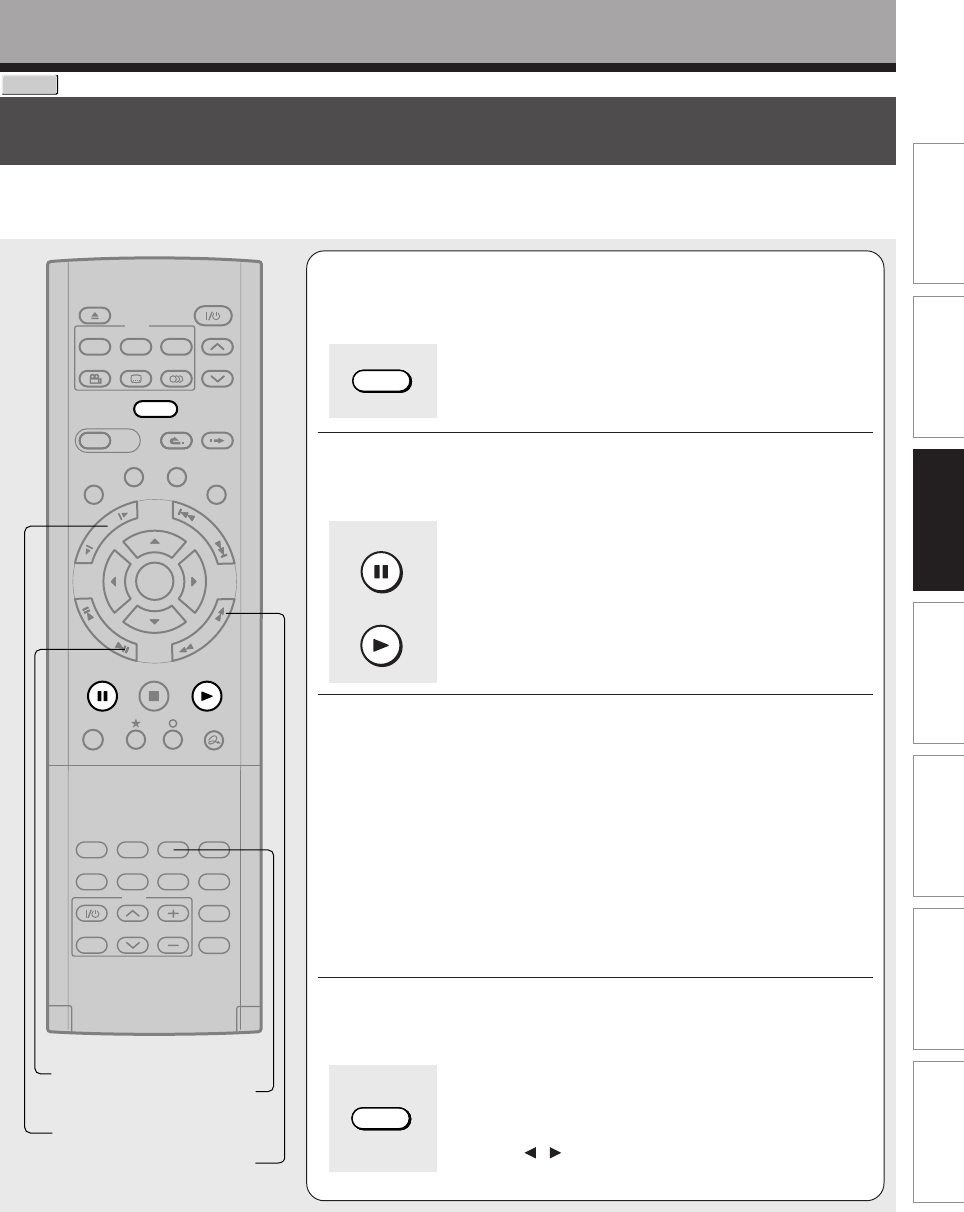
Editing Function setup Others
Introduction Library
Recording Playback
61
Playback
DVD-RAM
Pausing a TV broadcast to resume later
This function enables you to pause a TV broadcast and resume viewing at a later, more convenient time,
by storing the TV broadcast temporarily on a DVD-RAM disc.
1
While viewing a TV broadcast via this recorder
or immediately before it starts, press TIMESLIP
.
The current picture pauses.
The recorder begins to store the broadcast on a DVD-
RAM disc the moment you press the TIMESLIP button.
2
Resume playback by pressing PAUSE or PLAY
.
•You can confirm how far you are from the current
broadcast by pressing the TIME BAR button.
•Playback may not resume immediately after you press
the PLAY or PAUSE button.
3Locate a scene you want by the following
methods.
Fast-forward/fast-reverse:
Press the PICTURE SEARCH button.
Forward/reverse Slow-motion:
Press the SLOW button.
Forward/reverse frame by frame play:
First press the PAUSE button then press the FRAME button.
•To resume normal playback, press the PLAY button.
•You can play in fast-forward to within 10 seconds prior to the
current broadcast.
4Press TIMESLIP to exit this mode.
The recorder stops storing the broadcast on a DVD-
RAM disc.
A message appears and asks you whether you will save
the stored data or erase it.
Press the / buttons to select, then press the ENTER
button.
Notes
•This function is not available during recording.
•Pause TV recording stops when the DVD-RAM disc is filled up. It will not begin if a DVD-RAM disc is full.
•While using this pause TV recording, you cannot program a recording.
•Playback may jump a few seconds back or pause depending on the disc or data condition.
TIMESLIP
EASY
NAVI
INSTANT SKIPINSTANT REPLAY
PLAYSTOPPAUSE
REC
LIBRARY
REC MENU EDIT MENU
CONTENT MENU
ANGLE
OPEN/CLOSE
SUBTITLE
AUDIO
CHANNEL
QUICK MENU
TOP MENU
MENU
RETURN
DVD
F
R
A
M
E
/
A
D
J
U
S
T
P
I
C
T
U
R
E
S
E
A
R
C
H
S
K
I
P
S
L
O
W
ENTER
TV/VIDEO CHANNEL
VOLUME
REMAIN
DIMMER
FL SELECT
ZOOM P in P
TIME BAR CHP DIVIDE
DISPLAY
INPUT SELECT
PROGRESSIVE
TV
FRAME TIME BAR
PICTURE SEARCH
SLOW
TIMESLIP
TIMESLIP
PAUSE
PLAY
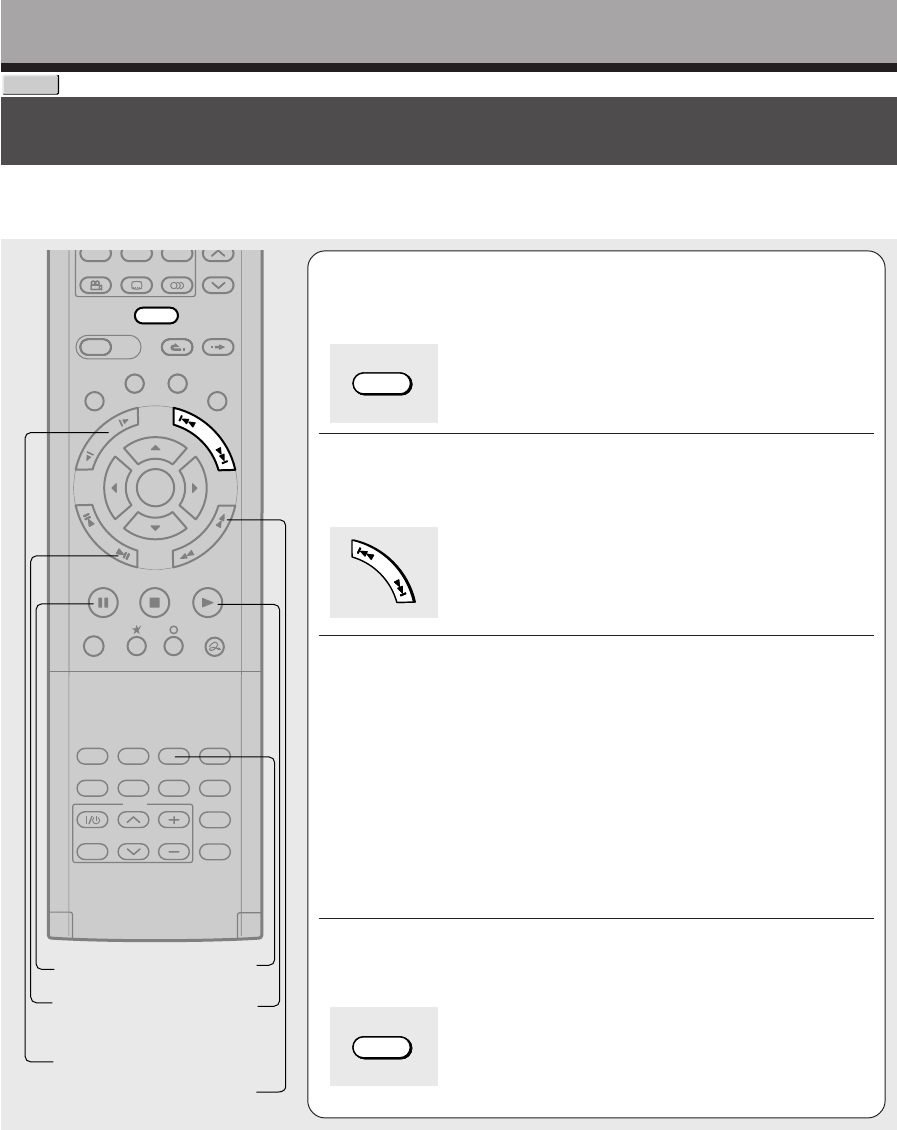
62
IntroductionPlayback
DVD-RAM
Playing a TV program currently being recorded
You can begin playback from the beginning of a program currently being recorded.
You will find this function of great advantage on long programs, as you do not have to wait for the end of
recording to begin playback.
TIMESLIP
EASY
NAVI
INSTANT SKIPINSTANT REPLAY
PLAYSTOPPAUSE
REC
LIBRARY
REC MENU EDIT MENU
CONTENT MENU
ANGLE
SUBTITLE
AUDIO
CHANNEL
QUICK MENU
F
R
A
M
E
/
A
D
J
U
S
T
P
I
C
T
U
R
E
S
E
A
R
C
H
S
K
I
P
S
L
O
W
ENTER
TV/VIDEO CHANNEL
VOLUME
REMAIN
DIMMER
FL SELECT
ZOOM P in P
TIME BAR CHP DIVIDE
DISPLAY
INPUT SELECT
PROGRESSIVE
TV
SLOW
FRAME
PAUSE TIME BAR
PLAY
PICTURE SEARCH
1While recording a TV program on a DVD-RAM
disc, press TIMESLIP.
The recorder displays a TV program as it is being
recorded.
2Go back to the beginning of the TV program
using SKIP.
When you go back to the beginning, playback starts
automatically.
You can confirm how far you are from the current
broadcast by pressing the TIME BAR button.
3Locate a scene you want through the
following operations if necessary.
Fast-forward/fast-reverse:
Press the PICTURE SEARCH button.
Forward/reverse Slow-motion:
Press the SLOW buttons.
Forward/reverse frame by frame play:
First press the PAUSE button then press the FRAME button.
•To resume normal playback, press the PLAY button.
•You can play in fast-forward to within 10 seconds prior to the
current broadcast.
4Press TIMESLIP to exit.
The current broadcast returns.
Notes
•Time slip recording/playback stops when the DVD-RAM disc is filled up. You can play up to a location where the recorder
stopped the recording. The time slip recording/playback cannot begin if a DVD-RAM disc is full.
•The playback picture may appear after a delay of several seconds.
•The playback location will never be identical to the record location in the program. It will always trail the record location by a
few seconds.
•While using time slip recording/playback, you cannot program a recording.
•While the TIMESLIP indicator is on, you cannot change the setting of the feature that turns off the recorder after a
programmed operation has finished.
•Even while “Auto power off” is selected, the recorder does not turn off if the recording end time comes during playback of a
program being recorded.
•Playback may jump a few seconds back or pause depending on the disc or data condition.
S
K
I
P
TIMESLIP
TIMESLIP
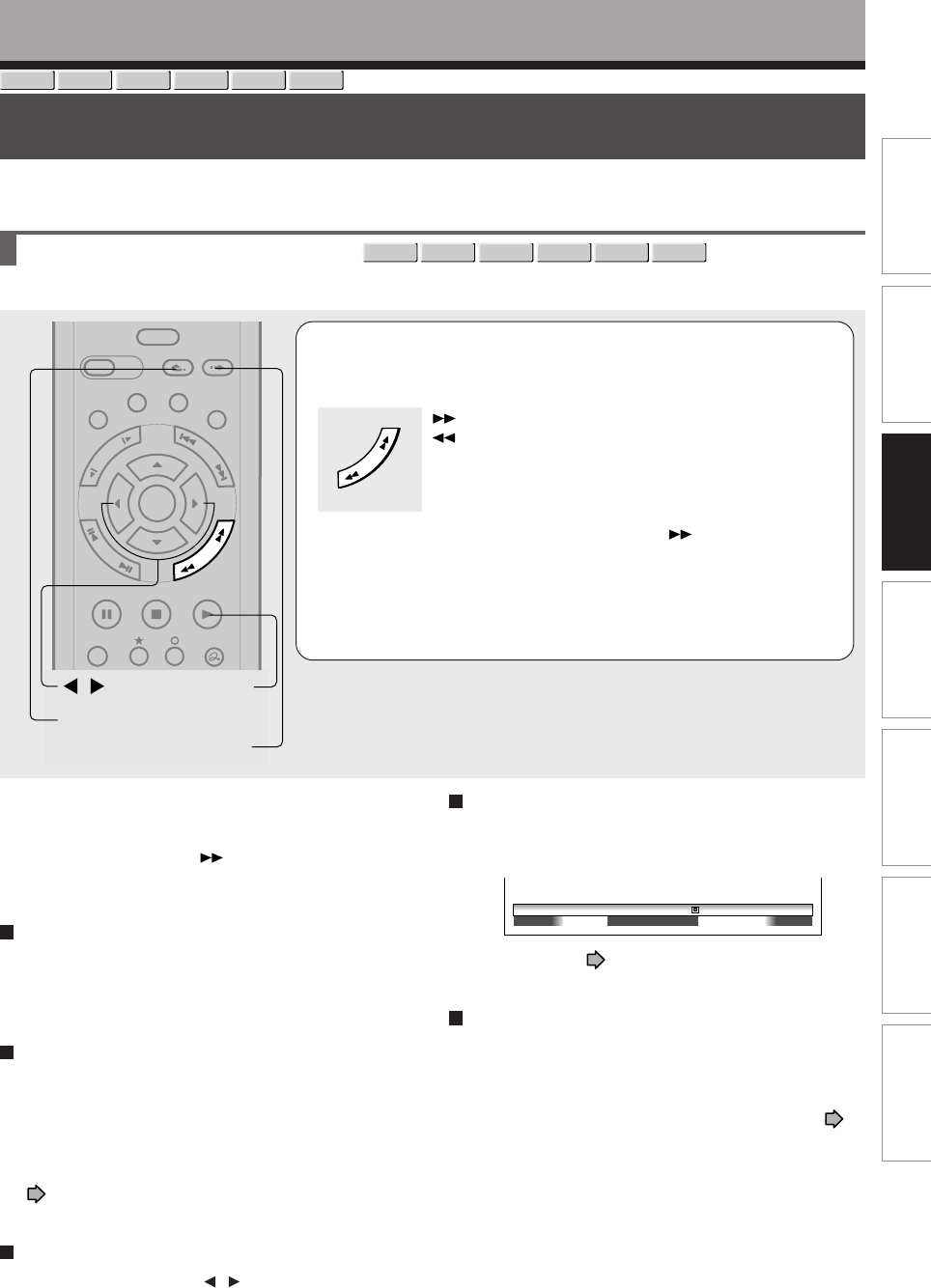
Editing Function setup Others
Introduction Library
Recording Playback
63
Playing at various speeds
Playback
DVD-RAM
DVD-RW
DVD-VIDEO
VCD CD
DVD-R
TIMESLIP
EASY
NAVI
INSTANT SKIPINSTANT REPLAY
PLAYSTOPPAUSE
REC
LIBRARY
REC MENU EDIT MENU
CONTENT MENU
QUICK MENU
F
R
A
M
E
/
A
D
J
U
S
T
P
I
C
T
U
R
E
S
E
A
R
C
H
S
K
I
P
S
L
O
W
ENTER
REMAIN
TIME BAR CHP DIVIDE
DISPLAY
INSTANT REPLAY
PLAY
INSTANT SKIP
/
Playing in fast reverse or fast forward
DVD-RAM
DVD-RW
DVD-VIDEO
VCD CD
DVD-R
1During normal playback, press PICTURE
SEARCH.
: Fast forward playback
: Fast reverse playback
Each time you press the button, the playback speed
changes.
During fast forward playback at “” speed, sound is
reproduced. (Not available on VIDEO CD.)
•This function is not available when you play a title
recorded on a DVD-RAM disc while recording
another.
Notes
•The playback speed may vary depending on the disc.
•Depending on the disc or data condition, picture and sound
in fast forward playback at “ ” speed may be disturbed.
To resume normal playback
Press PLAY.
To skip the contents in pre-determined
increments
During playback, press INSTANT SKIP.
Each time you press the button, you can skip by the
specified time.
You can select the interval per press of the button. See
“Instant skip interval” of “Operational settings”
( page 132).
To skip by 1/20 of whole
During playback, press / .
Each time you press the button, you can skip by 1/20
of the current title or track if it is longer than 1 minute.
Time bar display
Fast-forward or fast-reverse playback automatically
displays a time bar.
e.g.
For details, see page 80.
To skip back in pre-determined increments
During playback, press INSTANT REPLAY.
Each time you press the button, you can go back by
the specified time to resume playback.
You can select the interval per press of the button. See
“Instant replay interval” of “Operational settings” (
page 132).
Notes
•Some discs may not permit this operation.
•Depending on disc structure, some operations may be
limited.
•Depending on playback status, some operations may not
work.
00:00:00 Location 00 :00:24:05F 00:00:40
P
I
C
T
U
R
E
S
E
A
R
C
H
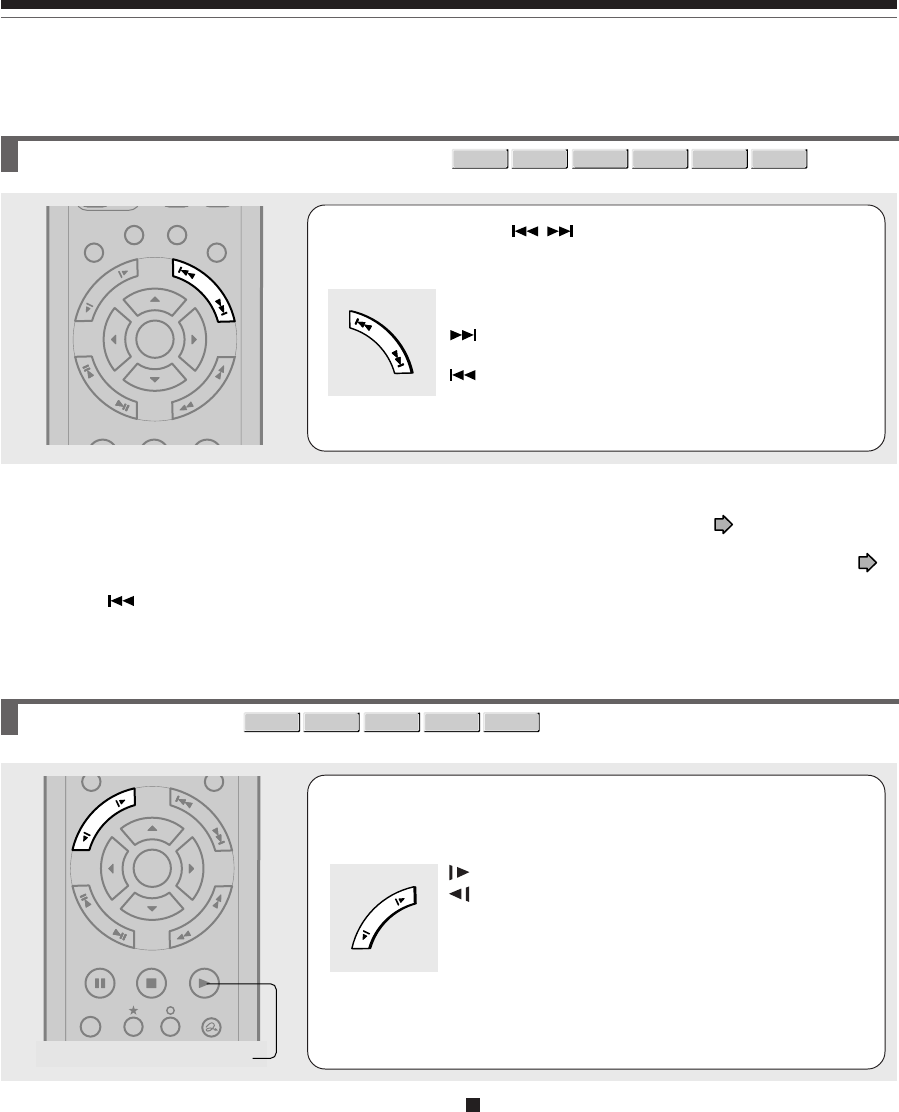
64
Playing at various speeds (Continued)
Playback
Skipping to the next/previous chapter or track
DVD-RAM
DVD-RW
DVD-VIDEO
VCD CD
DVD-R
1Press SKIP ( /) repeatedly until the
chapter or track number you want appears.
Playback starts from the selected chapter or track.
: Playback starts from the beginning of the next
chapter or track.
: Playback starts from the beginning of the current
chapter or track.
When you press twice, playback starts from the
beginning of the previous chapter or track.
Notes
•Some titles may not display chapter numbers.
•When playing a DVD-RAM disc, you can access chapters only in the current title if “Title playback” ( page 132) is set to
“Title resume”. To access chapters in other titles, set to “Serial playback”.
•When playing a DVD video disc or a DVD-R/RW disc, you can locate chapters only in the current title if “DVD title stop” (
page 128) is set to “On”. To access chapters in other titles, set to “Off”. However, in this instance even though you press the
SKIP button ( ) to go back to the previous title, playback starts not from the last chapter of the title but from the first
chapter.
Playing in slow-motion
1Press SLOW during playback.
: Forward slow-motion
: Reverse slow-motion
Each time you press the SLOW button, the slow-motion
speed changes.
Notes
•Slow-motion does not provide smooth playback.
•When playing a VIDEO CD, reverse slow-motion playback
is not available.
•The speed level displayed is approximate.
To resume normal playback
Press PLAY.
PLAYSTOPPAUSE
LIBRARY
REC MENU EDIT MENU
CONTENT MENU
F
R
A
M
E
/
A
D
J
U
S
T
P
I
C
T
U
R
E
S
E
A
R
C
H
S
K
I
P
S
L
O
W
ENTER
DVD-RAM
DVD-RW
DVD-VIDEO
VCD
DVD-R
PLAYSTOPPAUSE
REC
QUICK MENU
F
R
A
M
E
/
A
D
J
U
S
T
P
I
C
T
U
R
E
S
E
A
R
C
H
S
K
I
P
S
L
O
W
ENTER
PLAY
S
K
I
P
S
L
O
W
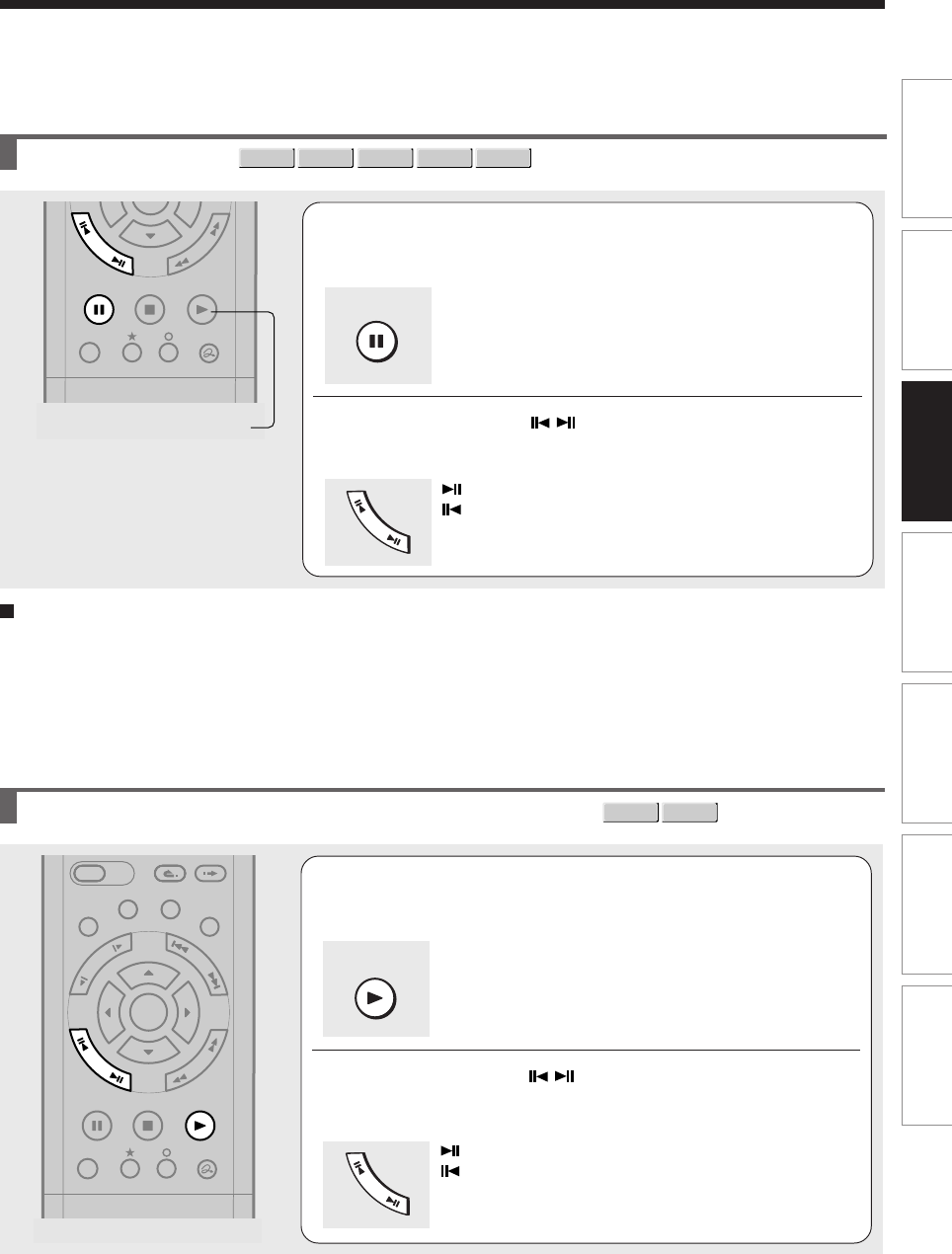
Editing Function setup Others
Introduction Library
Recording Playback
65
Playing frame by frame
DVD-RAM
DVD-RW
DVD-VIDEO
VCD
DVD-R
PLAYSTOPPAUSE
REC
QUICK MENU
F
R
A
M
E
/
A
D
J
U
S
T
P
I
C
T
U
R
E
S
E
A
R
C
H
PLAY
1During playback, press PAUSE.
A still picture is displayed.
2Press FRAME ( / ).
: Playback direction
: Opposite direction
To resume normal playback
Press the PLAY or PAUSE button.
Notes
•Sound is muted during frame by frame playback.
•Frame by frame playback cannot provide smooth playback.
•Picture may advance more than 1 frame at a time.
•Depending on the scene, some frames may not be played.
•When playing a VIDEO CD, reverse frame by frame
playback is not available.
Viewing still pictures (Playing a disc that contains still pictures)
1Press PLAY.
The first still picture on a disc is displayed.
Some DVD video discs may allow you to change the
pictures using the PLAY, ENTER or SKIP button.
2Press FRAME ( / ).
: Displays the next still picture.
: Displays the previous still picture.
EASY
NAVI
INSTANT SKIPINSTANT REPLAY
PLAYSTOPPAUSE
REC
LIBRARY
REC MENU EDIT MENU
CONTENT MENU
QUICK MENU
F
R
A
M
E
/
A
D
J
U
S
T
P
I
C
T
U
R
E
S
E
A
R
C
H
S
K
I
P
S
L
O
W
ENTER
F
R
A
M
E
/
A
D
J
U
S
T
PAUSE
F
R
A
M
E
/
A
D
J
U
S
T
PLAY
DVD-RAM
DVD-VIDEO
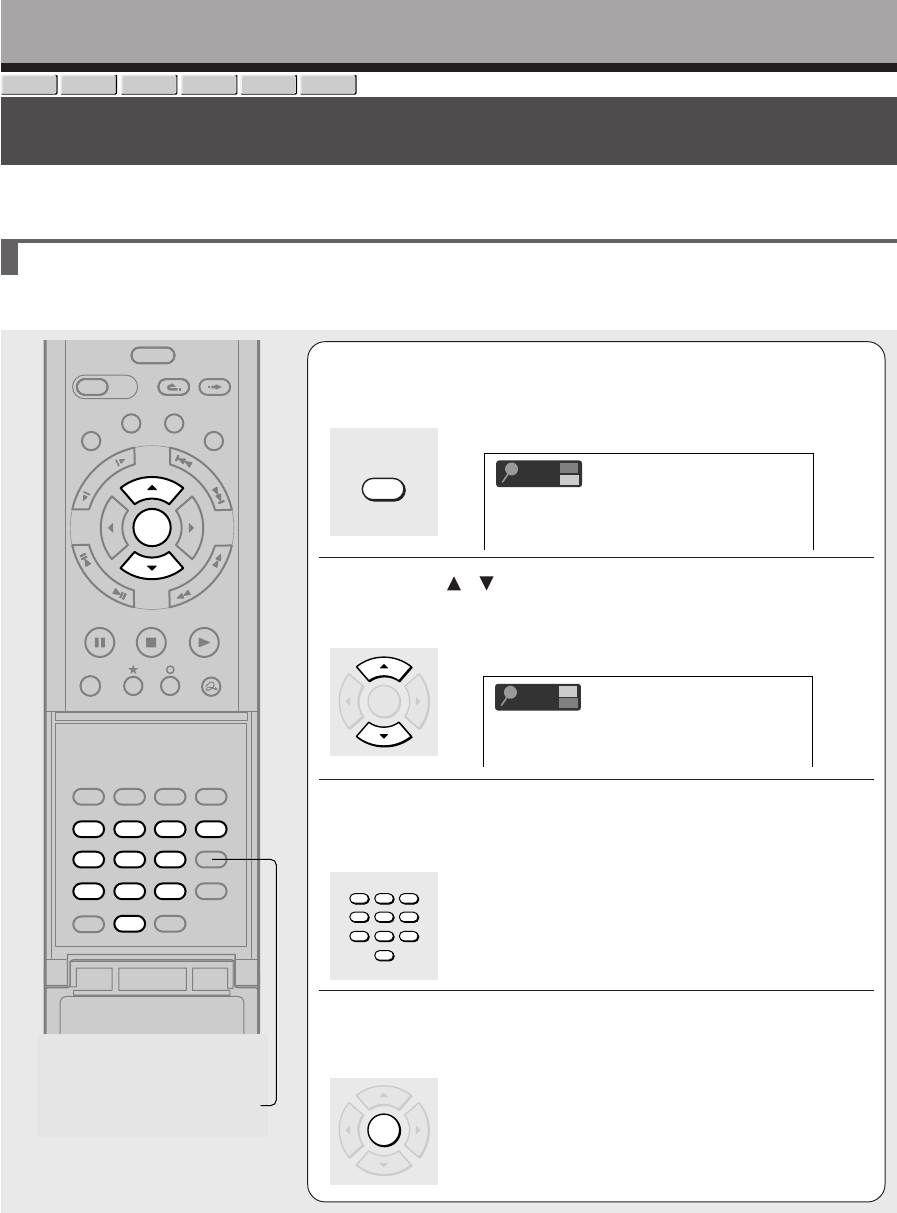
66
Locating by entering the number
Playback
DVD-RAM
DVD-RW
DVD-VIDEO
VCD CD
DVD-R
Locating by entering the number of a desired section
Normally titles, chapters, and tracks are numbered. By entering these numbers, you can access a desired section.
1Press T.SEARCH.
If you are using a VIDEO CD/audio CD, skip step 2.
e.g.
2Press / to select a section (title or chapter)
you want to locate.
e.g. When you want to locate a chapter.
3Press the number buttons to enter a number
of the section.
e.g. To enter 25, press “2”, then press “5”.
4Press ENTER.
Playback starts from the selected location.
Notes
•Pressing the CLEAR button resets the numbers. To clear the display, press the T.SEARCH button several times (depending
on the disc).
•This method of locating a title is available only on a disc that contains title numbers.
•If a title is erased, the numbers of the following titles decrease respectively.
•When you record a new title (Original) on a DVD-RAM disc, it is added prior to current titles (Playlist), and each following title
(Playlist) reference number will advance by a factor of 1.
Title
Search
0001Chapter
001
0001
001
Title
Search
Chapter
TIMESLIP
EASY
NAVI
INSTANT SKIPINSTANT REPLAY
SETUP ENTER
T.SEARCH
CLEAR
312
VCR Plus+
REC MODE
EXTEND
TV CODE
456
DELETE
+
10
789
0
PLAYSTOPPAUSE
REC
LIBRARY
REC MENU EDIT MENU
CONTENT MENU
REC
QUICK MENU
F
R
A
M
E
/
A
D
J
U
S
T
P
I
C
T
U
R
E
S
E
A
R
C
H
S
K
I
P
S
L
O
W
ENTER
CLEAR
T.SEARCH
ENTER
123
456
789
0
ENTER
Open the lid.
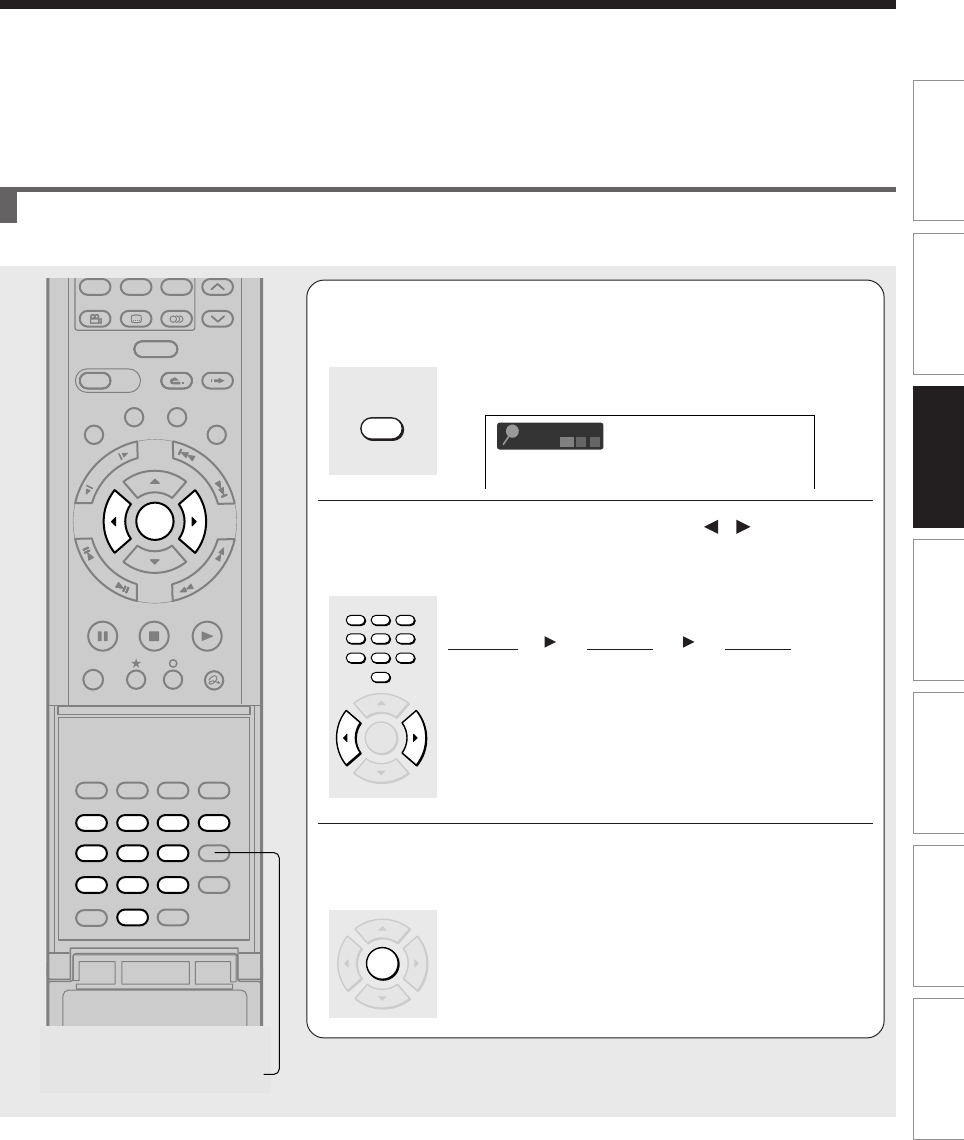
Editing Function setup Others
Introduction Library
Recording Playback
67
Locating a specific point by entering its elapsed time (Time Search)
TIMESLIP
EASY
NAVI
INSTANT SKIPINSTANT REPLAY
SETUP ENTER
T.SEARCH
CLEAR
312
VCR Plus+
REC MODE
EXTEND
TV CODE
456
DELETE
+
10
789
0
PLAYSTOPPAUSE
REC
LIBRARY
REC MENU EDIT MENU
CONTENT MENU
ANGLE
SUBTITLE
AUDIO
CHANNEL
REC
QUICK MENU
F
R
A
M
E
/
A
D
J
U
S
T
P
I
C
T
U
R
E
S
E
A
R
C
H
S
K
I
P
S
L
O
W
ENTER
CLEAR
1Press T.SEARCH.
You may have to press repeatedly, depending on the
disc. Press the button until the following display appears.
e.g.
2Press the number buttons and / to enter
the desired time location on the disc.
e.g. To enter 1 hour, 25 minutes, and 30 seconds
“0” → “1” → “ ” → “2” → “5” → “ ” → “3” → “0”
hour minute second
3Press ENTER.
Playback starts from the selected location.
Notes
•Some discs may not respond to this process.
•Some scenes may not be accessed precisely as you specified.
•This method for accessing specific locations is available only within the current title of a DVD-RAM/R/RW/DVD video disc or
within a current track of a VIDEO CD/audio CD.
•Pressing the CLEAR button resets the numbers.
001
00:0000 :
Title
Search
Time
T.SEARCH
123
456
789
0
ENTER
ENTER
Open the lid.
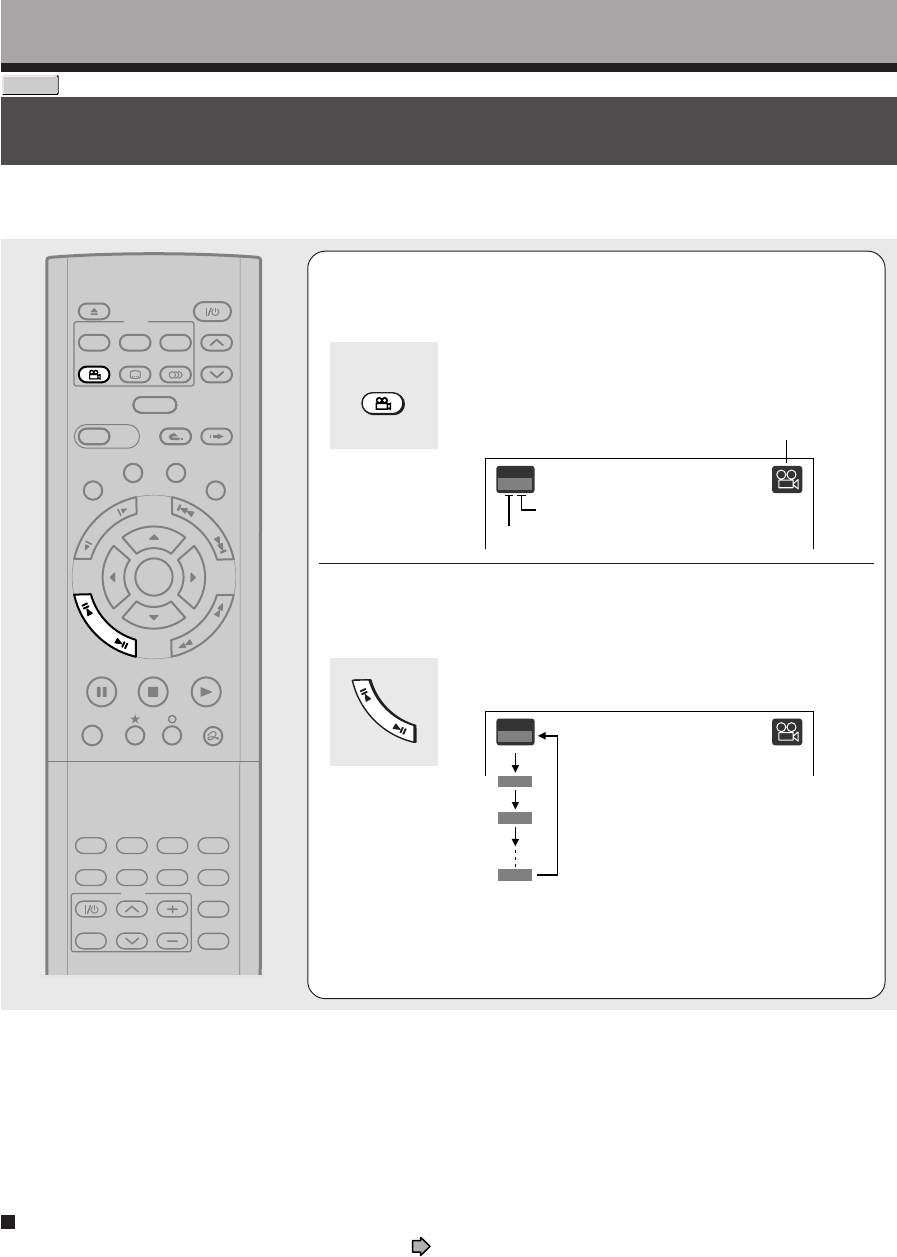
68
Playback
DVD-VIDEO
Selecting the camera angle
If the scene was recorded with multiple angles, you can easily change the camera angle of the scene you
are watching.
Angle
1
/
6
2
/
6
3
/
6
6
/
6
1Press ANGLE while playing a scene recorded
with multiple angles.
While playing a scene recorded with multiple angles, the
angle icon appears on the TV screen and on the front
panel. Press the ANGLE button while the angle icon is
displayed.
e.g.
2Press ADJUST while the angle number is
displayed on the TV screen.
You can also select the camera angle by pressing the
ANGLE button several times.
•The angle icon disappears after about 3 seconds if no
further selections are made.
TIMESLIP
EASY
NAVI
INSTANT SKIPINSTANT REPLAY
PLAYSTOPPAUSE
REC
LIBRARY
REC MENU EDIT MENU
CONTENT MENU
ANGLE
OPEN/CLOSE
SUBTITLE
AUDIO
CHANNEL
QUICK MENU
TOP MENU
MENU
RETURN
DVD
F
R
A
M
E
/
A
D
J
U
S
T
P
I
C
T
U
R
E
S
E
A
R
C
H
S
K
I
P
S
L
O
W
ENTER
TV/VIDEO CHANNEL
VOLUME
REMAIN
DIMMER
FL SELECT
ZOOM P in P
TIME BAR CHP DIVIDE
DISPLAY
INPUT SELECT
PROGRESSIVE
TV
Notes
•You can also change the camera angle during still playback. The camera angle changes to the new setting when you resume
normal playback.
•If you pause a picture immediately after changing a camera angle, the resumed playback picture may not display the new
camera angle.
•Depending on the disc, the camera angle may not change even though the angle number changes.
To turn off the angle icon
Set “On screen display” in the setup menu to “Off” ( page 131).
Most of the on-screen display including the angle icon will not appear.
While the angle icon is flashing on the front panel display, you can change the camera angle.
ANGLE
Angle
1
/
6
Angle icon
Total number of angles
Current selection
F
R
A
M
E
/
A
D
J
U
S
T
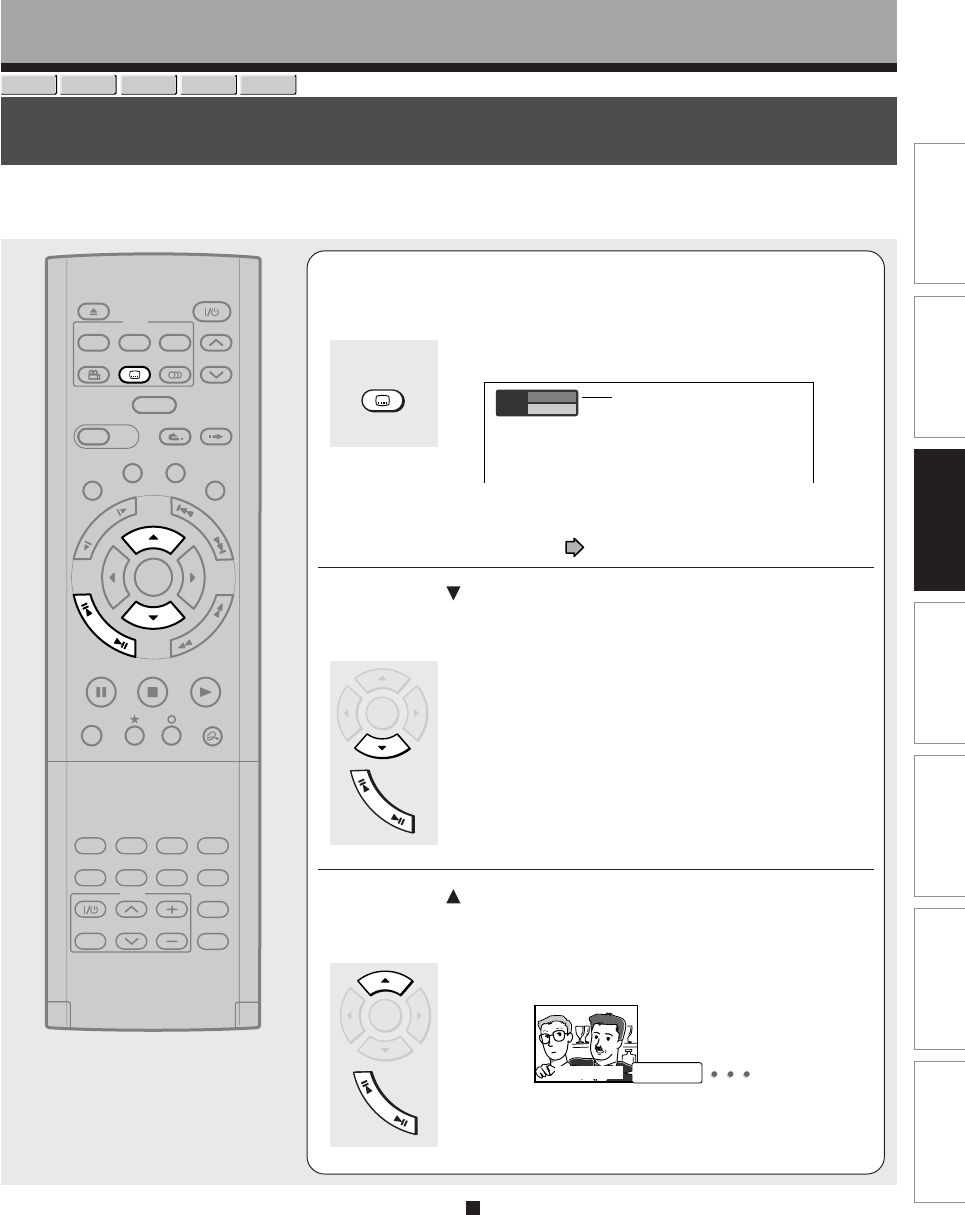
69
Editing Function setup Others
Introduction Library
Recording Playback
Selecting subtitles
You can display subtitles on the TV screen and select a subtitle language from those included on the
disc.
DVD-RAM
DVD-RW
DVD-VIDEO
VCD
DVD-R
Subtitle
Status
1– –
Off
Good evening!
Bonsoir!
1Press SUBTITLE during playback.
The current subtitle setting appears.
e.g.
The language code appears instead of the language
name. Refer to the list of languages and their
abbreviations. ( page 143)
2Press to select “Status,” then press ADJUST
to select “On.”
Skip to step 3 if “On” is already displayed.
3Press to select “Subtitle,” then press
ADJUST to select a language.
The subtitles of recorded languages appear.
The display turns off after about 3 seconds if you do not
make a selection.
TIMESLIP
EASY
NAVI
INSTANT SKIPINSTANT REPLAY
PLAYSTOPPAUSE
REC
LIBRARY
REC MENU EDIT MENU
CONTENT MENU
ANGLE
OPEN/CLOSE
SUBTITLE
AUDIO
CHANNEL
QUICK MENU
TOP MENU
MENU
RETURN
DVD
F
R
A
M
E
/
A
D
J
U
S
T
P
I
C
T
U
R
E
S
E
A
R
C
H
S
K
I
P
S
L
O
W
ENTER
TV/VIDEO CHANNEL
VOLUME
REMAIN
DIMMER
FL SELECT
ZOOM P in P
TIME BAR CHP DIVIDE
DISPLAY
INPUT SELECT
PROGRESSIVE
TV
Setting number and
language
Notes
•Some DVD video discs are set to display subtitles
automatically.
•Depending on the scene, subtitles may not appear
immediately after you set the subtitle function to on.
•Some DVD video discs will allow you to change subtitle
languages and turn subtitles on or off only via the disc
menu.
To turn the subtitles on or off
At step 2, select “Off” by pressing the ADJUST
button.
SUBTITLESUBTITLE
ENTER
F
R
A
M
E
/
A
D
J
U
S
T
ENTER
F
R
A
M
E
/
A
D
J
U
S
T
Playback
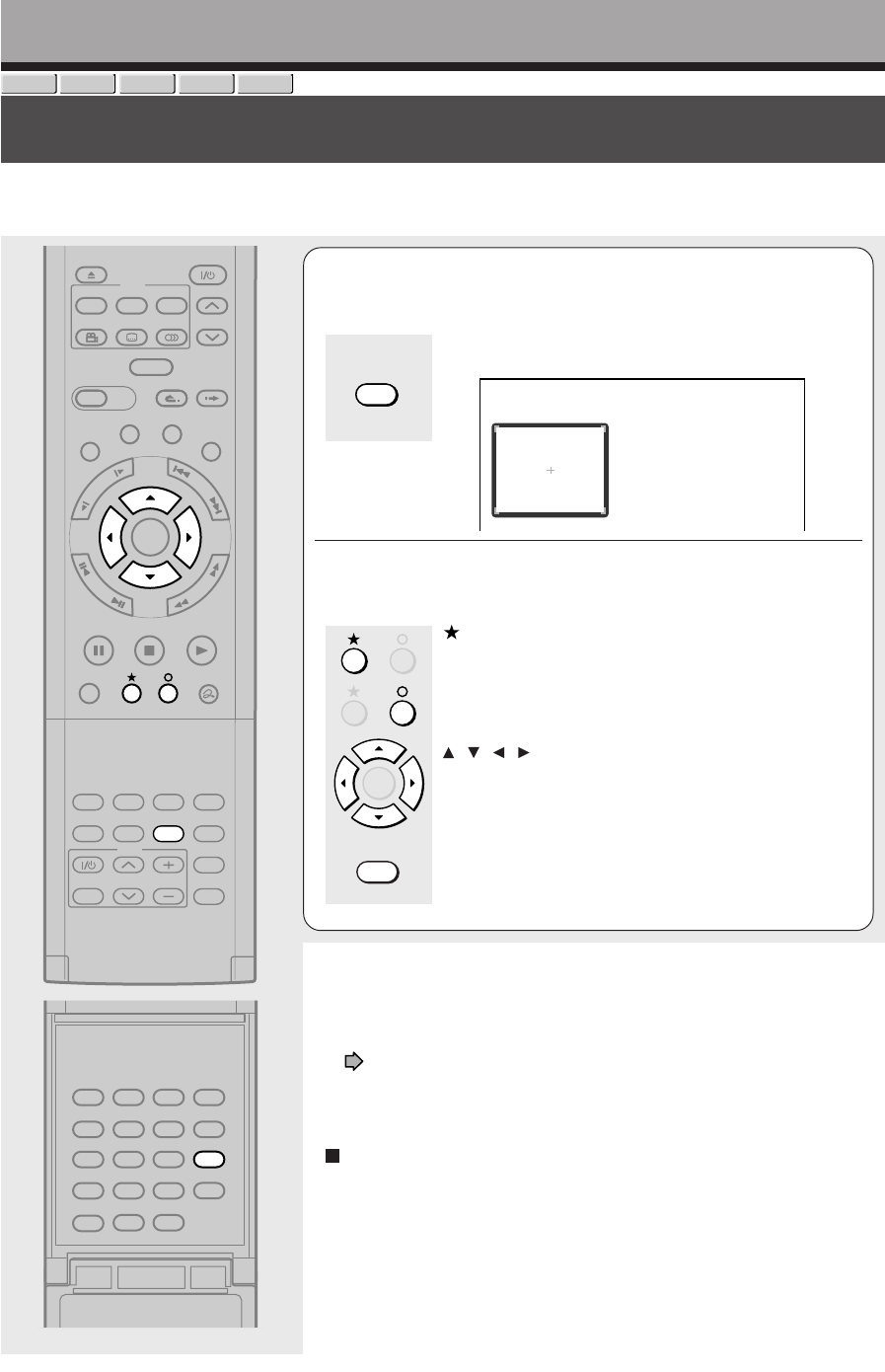
70
Playback
Zooming a picture
You can magnify areas within a picture.
DVD-RAM
DVD-RW
DVD-VIDEO
VCD
DVD-R
1Press ZOOM.
A zoom scope appears.
e.g.
2Select a zoom point and magnification level.
:
Raises the magnification level.
\:
Lowers the magnification level.
/ / / :
Moves the zoom point. (only after the image has been
magnified)
CLEAR:
Returns the zoom point to the center of the picture.
Notes
•Some discs may not respond to zoom feature.
• During some scenes, the buttons may not work as described.
• The zoom feature is canceled when the disc menu is operated.
• The magnification level varies depending on the picture size you select
( page 44, “INSTALLATION GUIDE”).
• The zoom feature is not available while displaying a GUI.
• The zoom feature is canceled when you stop playback or start playback.
To cancel the zoom
Press ZOOM.
TIMESLIP
EASY
NAVI
INSTANT SKIPINSTANT REPLAY
PLAYSTOPPAUSE
REC
LIBRARY
REC MENU EDIT MENU
CONTENT MENU
ANGLE
OPEN/CLOSE
SUBTITLE
AUDIO
CHANNEL
QUICK MENU
TOP MENU
MENU
RETURN
DVD
F
R
A
M
E
/
A
D
J
U
S
T
P
I
C
T
U
R
E
S
E
A
R
C
H
S
K
I
P
S
L
O
W
ENTER
TV/VIDEO CHANNEL
VOLUME
REMAIN
DIMMER
FL SELECT
ZOOM P in P
TIME BAR CHP DIVIDE
DISPLAY
INPUT SELECT
PROGRESSIVE
TV
SETUP ENTER
T.SEARCH
CLEAR
312
VCR Plus+
REC MODE
EXTEND
TV CODE
456
DELETE
+
10
789
0
Open the lid.
ZOOM
ENTER
CLEAR
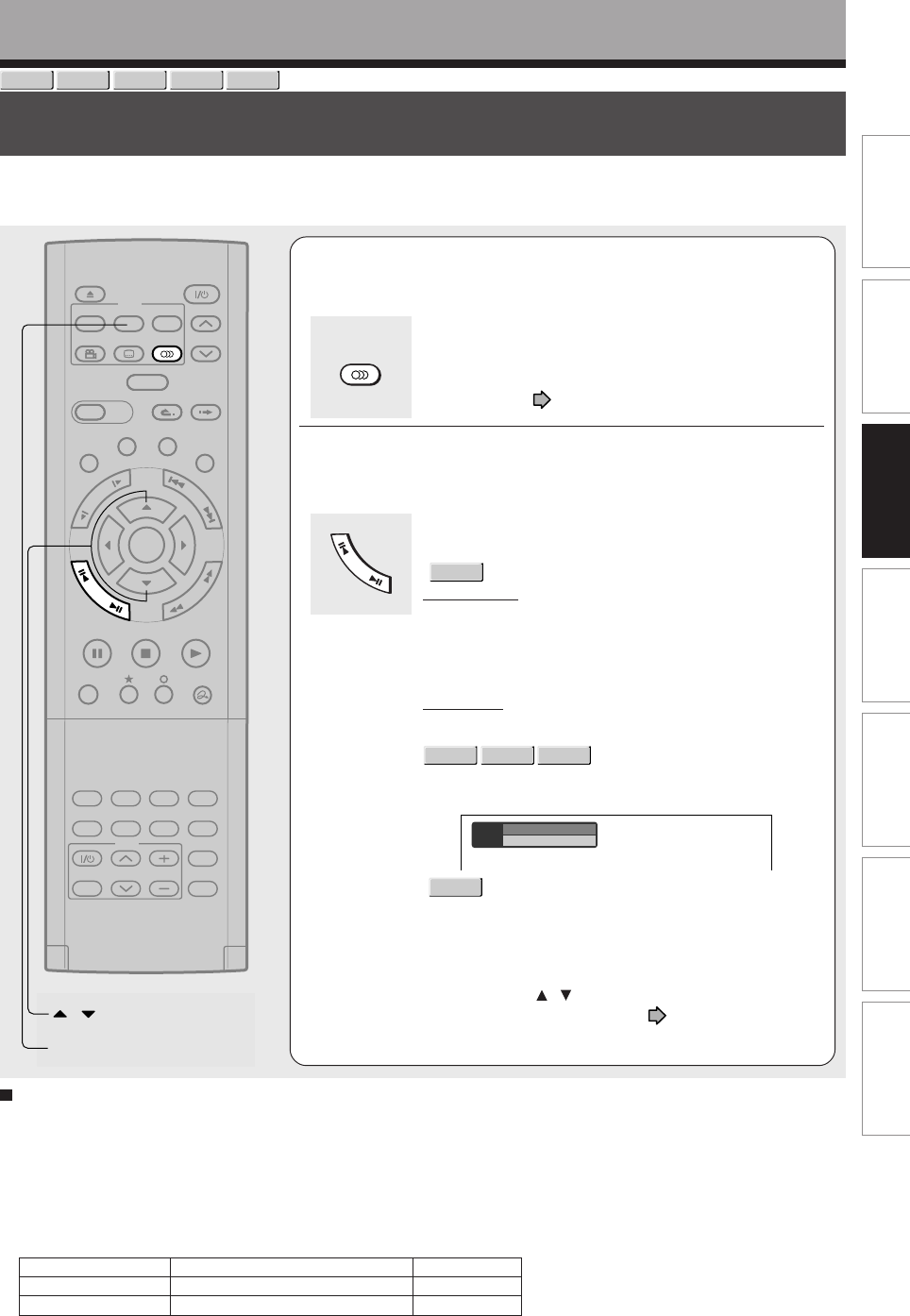
71
Editing Function setup Others
Introduction Library
Recording Playback
Selecting the sound
You can select a preferred language and a sound format.
Playback
DVD-RAM
DVD-RW
DVD-VIDEO
VCD
DVD-R
TIMESLIP
EASY
NAVI
INSTANT SKIPINSTANT REPLAY
PLAYSTOPPAUSE
REC
LIBRARY
REC MENU EDIT MENU
CONTENT MENU
ANGLE
OPEN/CLOSE
SUBTITLE
AUDIO
CHANNEL
QUICK MENU
TOP MENU
MENU
RETURN
DVD
F
R
A
M
E
/
A
D
J
U
S
T
P
I
C
T
U
R
E
S
E
A
R
C
H
S
K
I
P
S
L
O
W
ENTER
TV/VIDEO CHANNEL
VOLUME
REMAIN
DIMMER
FL SELECT
ZOOM P in P
TIME BAR CHP DIVIDE
DISPLAY
INPUT SELECT
PROGRESSIVE
TV
/
MENU
Sound
Output
1
PCM
2ch
English
1Press AUDIO during playback or while
receiving a broadcast.
The current audio setting appears.
The language code appears instead of the language
name. Refer to the list of languages and their
abbreviations. ( page 143)
2Press ADJUST while the audio setting is
displayed on the TV screen.
Variation of channels depends on the disc or the type of
TV broadcast.
•
DVD-RAM
, TV channel signals
Stereo sound
→ “Stereo” (left channel and right channel)
→ “Stereo L” (left channel)
→ “Stereo R” (right channel)
(→ Back to “Stereo”)
SAP sound
“Main” → “SAP” → “Main + SAP” (→ Back to “Main”)
DVD-RW
DVD-VIDEO
DVD-R
Language name / sound recording system / No. of
channels
e.g.
•
VCD
“Stereo” → “Stereo L” → “Stereo R” (→ Back to “Stereo”)
The display turns off if you do not operate for more than
3 seconds.
If you press the / buttons to select “Output,” you can
select the audio output setting ( page 130) by using
the ADJUST buttons.
Sounds in playback
You can play SAP and/or stereo broadcasts with this recorder. Refer to steps 1 and 2 to select a desired audio.
Desired sound
SAP sound
Stereo sound
L, R indicators on the front panel
R (right) is on.
Both R (right) and L (left) are on.
Sound output
SAP
Stereo Sound
MTS Broadcast Compatibility
This recorder can receive or record MTS (Multichannel TV sound) broadcast.
By connecting the recorder to your stereo system or stereo TV, you will experience the SAP or stereo sound.
SAP (Second Audio Program broadcast)
A separate audio program, usually broadcast in a second language with the main language.
AUDIO
AUDIO
F
R
A
M
E
/
A
D
J
U
S
T
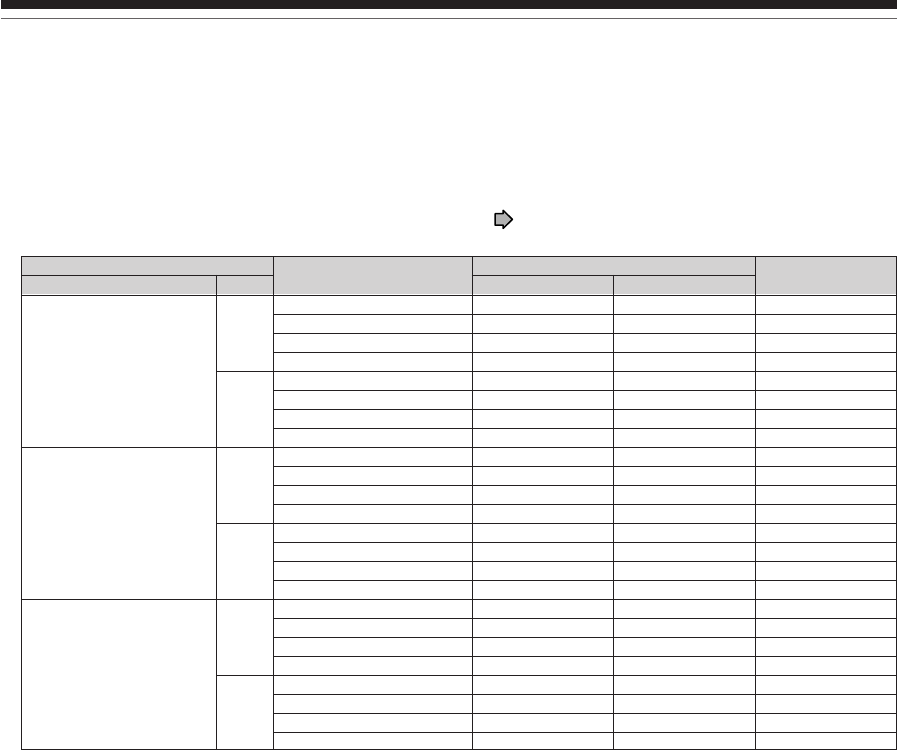
72
Recorded sounds
According to your setting of “SAP” on the setup menu screen, ( page 130), the sound is recorded onto different
channels of the disc below. Set “SAP” to “On” or “Off” appropriately.
Setting on the setup screen Type of receiving broadcast Contents of recorded sound Type of record
DVD Compatible Mode SAP Lch Rch
Off Off Stereo + SAP L R Stereo
Mono + SAP Mono Mono Stereo
Stereo L R Stereo
Mono Mono Mono Stereo
On Stereo + SAP L + R SAP Dual Mono*
Mono + SAP Mono SAP Dual Mono*
Stereo L R Stereo
Mono Mono Mono Stereo
Main Off Stereo + SAP L R Stereo
Mono + SAP Mono Mono Stereo
Stereo L R Stereo
Mono Mono Mono Stereo
On Stereo + SAP L + R L + R Stereo
Mono + SAP Mono Mono Stereo
Stereo L R Stereo
Mono Mono Mono Stereo
SAP Off Stereo + SAP L R Stereo
Mono + SAP Mono Mono Stereo
Stereo L R Stereo
Mono Mono Mono Stereo
On Stereo + SAP SAP SAP Stereo
Mono + SAP SAP SAP Stereo
Stereo L R Stereo
Mono Mono Mono Stereo
Selecting the sound (Continued)
Playback
* This will be “Stereo” when a recording is made with “L-PCM” selected.
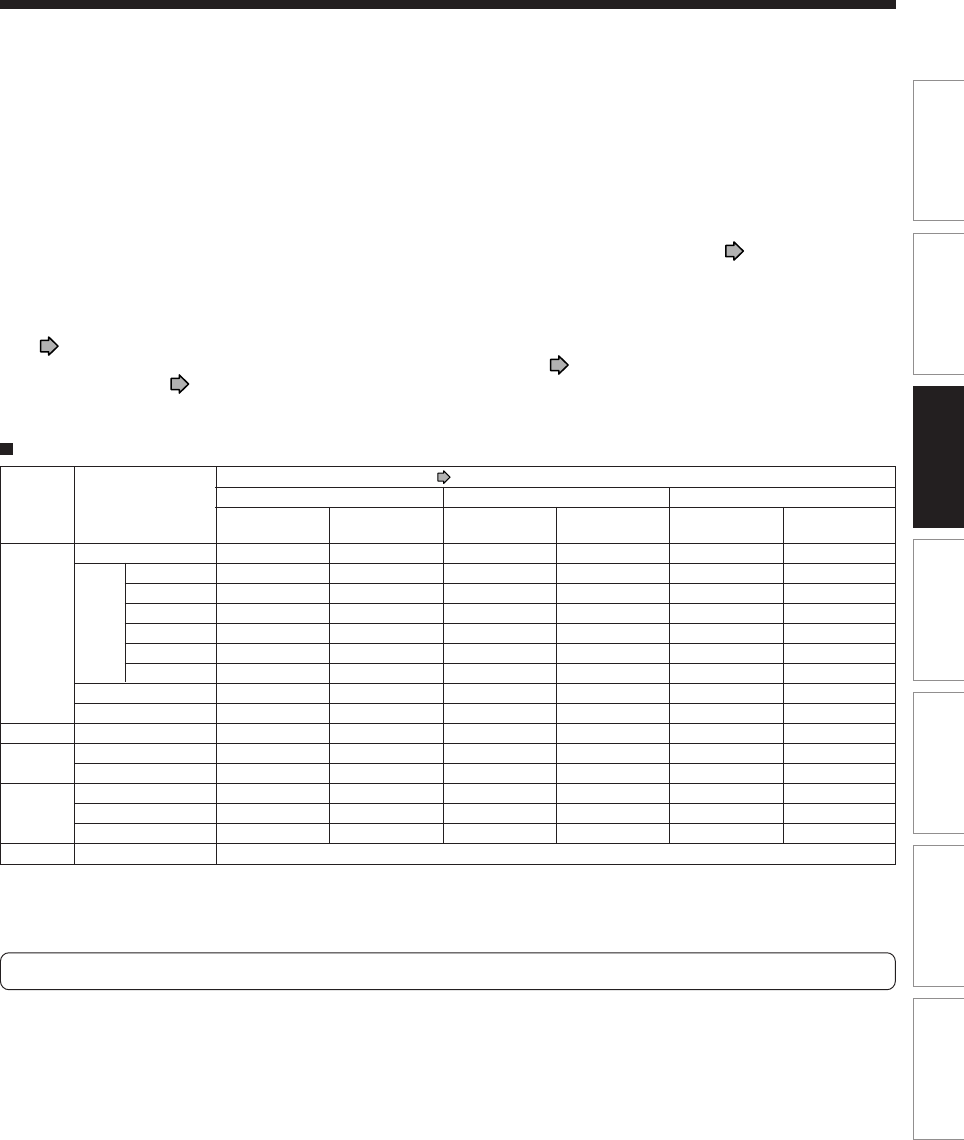
73
Editing Function setup Others
Introduction Library
Recording Playback
Notes
•Some discs allow you to change audio selections only via the disc menu. If this is the case, press the MENU button and
choose the appropriate language from the selections on the disc menu.
•When you turn on the recorder or replace a disc, the recorder returns to the initial default setting. ( page 126)
Depending on the disc, the sound that is specified the disc is played back.
•Immediately after you have switched sounds, there may be a temporary discrepancy between the display and actual
sound.
•The BITSTREAM/PCM jack may not output SAP sound you select. In this instance, set “Audio out select” to “PCM”.
( page 130)
•You cannot change SAP sound if recorded with “DVD compatible mode” ( page 134) set to “Main”. Even when “DVD
compatible mode” ( page 134) is set to “Off,” the recorder regards it as “Main” when recording to a DVD-R/RW disc.
Output sound conversion table
Linear
PCM
48 kHz/16 bit
48 kHz/20 bit
48 kHz/24 bit
96 kHz/16 bit
96 kHz/20 bit
96 kHz/24 bit
Bitstream Analog 2ch PCM
BITSTREAM/
PCM jack
Bitstream
48 kHz/16 bit
48 kHz/16 bit
48 kHz/16 bit
—
—
—
Bitstream
Bitstream
44.1 kHz/16 bit
44.1 kHz/16 bit
Bitstream
Bitstream
48 kHz/16 bit
Bitstream
BITSTREAM/
PCM jack
48 kHz/16 bit
48 kHz/16 bit
48 kHz/16 bit
48 kHz/16 bit
48 kHz/16 bit
48 kHz/16 bit
48 kHz/16 bit
—
48 kHz/16 bit
44.1 kHz/16 bit
44.1 kHz/16 bit
Bitstream
48 kHz/16 bit
48 kHz/16 bit
48 kHz/16 bit
Analog (L/R)
jacks
48 kHz/20 bit
48 kHz/16 bit
48 kHz/20 bit
48 kHz/24 bit
48 kHz/16 bit
48 kHz/20 bit
48 kHz/24 bit
—
48 kHz/16 bit
44.1 kHz/16 bit
44.1 kHz/16 bit
(Noise)
48 kHz/20 bit
48 kHz/16 bit
48 kHz/16 bit
Analog (L/R)
jacks
48 kHz/20 bit
48 kHz/16 bit
48 kHz/20 bit
48 kHz/24 bit
96 kHz/16 bit
96 kHz/20 bit
96 kHz/24 bit
—
48 kHz/16 bit
44.1 kHz/16 bit
44.1 kHz/16 bit
(Noise)
48 kHz/20 bit
48 kHz/16 bit
48 kHz/16 bit
Analog (L/R)
jacks
48 kHz/20 bit
48 kHz/16 bit
48 kHz/20 bit
48 kHz/24 bit
48 kHz/16 bit
48 kHz/20 bit
48 kHz/24 bit
—
48 kHz/16 bit
44.1 kHz/16 bit
44.1 kHz/16 bit
(Noise)
48 kHz/20 bit
48 kHz/16 bit
48 kHz/16 bit
Audio setting ( page 130) and output in the default setting display
Disc
DVD-
video
disc*
VIDEO CD
Audio
CD
DVD-
RAM/RW/
R
CD-R/RW
•Do not select a connection or setting indicated as “Noise” in the above list.
Manufactured under license from Dolby Laboratories. “Dolby” and the double-D symbol are trademarks of Dolby Laboratories.
*“DVD video disc” above does not include DVD-R/RW discs recorded on this recorder.
Sound format
Dolby Digital
DTS
MPEG2
MPEG1
Linear PCM 44.1 kHz/16 bit
DTS
Dolby Digital
Linear PCM 48 kHz/16 bit
MPEG2
MP3/WMA
BITSTREAM/
PCM jack
Bitstream
48 kHz/16 bit
48 kHz/16 bit
48 kHz/16 bit
48 kHz/16 bit
48 kHz/16 bit
48 kHz/16 bit
Bitstream
Bitstream
44.1 kHz/16 bit
44.1 kHz/16 bit
Bitstream
Bitstream
48 kHz/16 bit
Bitstream
44.1 kHz or 32 kHz or 48 kHz/16 bit
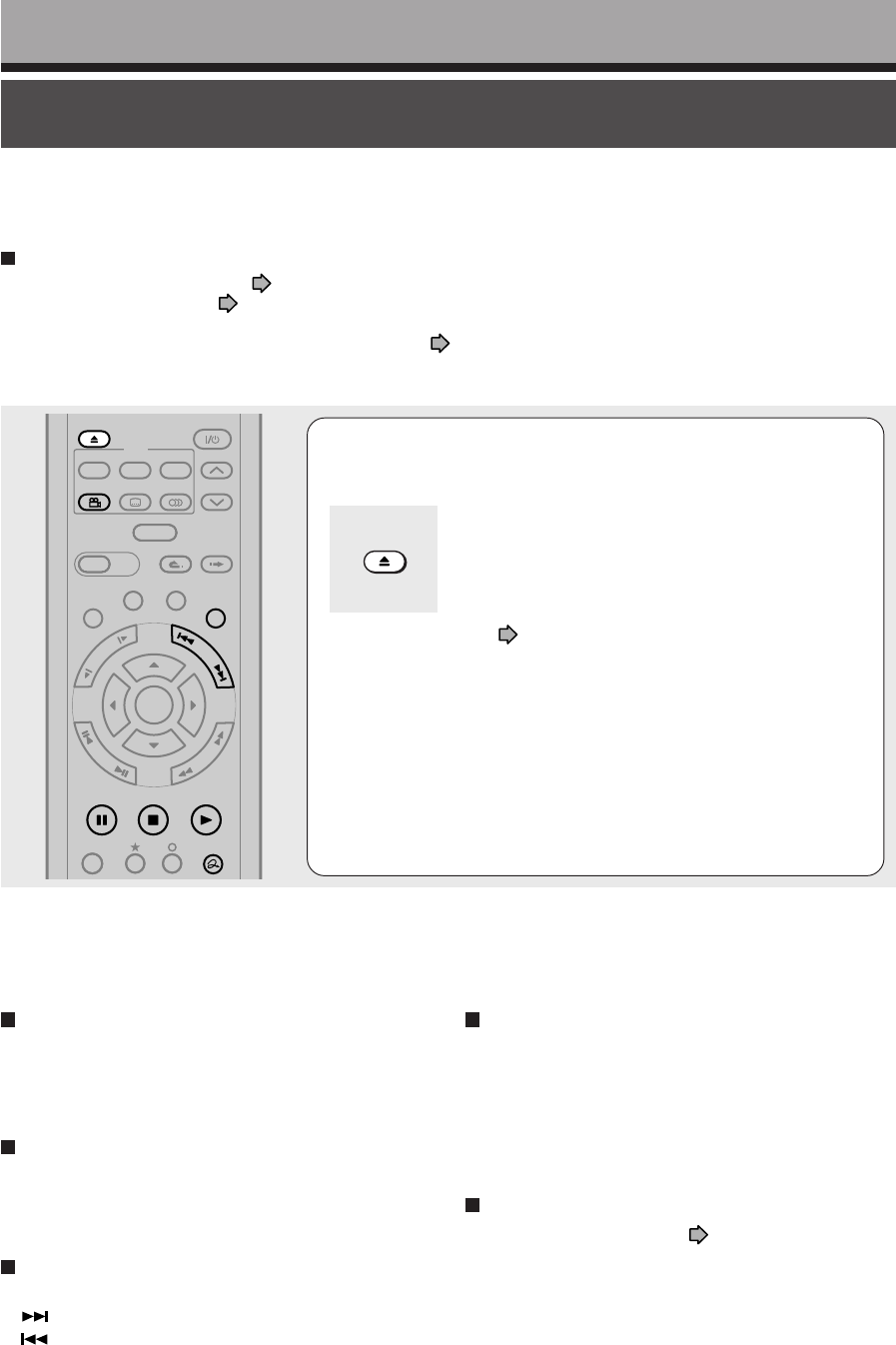
74
Viewing JPEG files
You can play JPEG files that have been recorded on a CD-R or CD-ROM on the recorder.
Playback
Preparations
•Prepare a compatible disc ( page 75) that contains JPEG files you want to view.
•Set “Priority contents” ( page 132) to “Photo”.
•Make your TV shape conform to the 4:3 picture size. Only 4:3 pictures can be played regardless of the function
settings via the on-screen displays of the recorder ( page 44, “INSTALLATION GUIDE”). If the TV is adjusted
to other sizes, e.g. “WIDE,” images will appear to be horizontally expanded. For details, refer to the owner’s
manual of your TV.
1Load a CD that contains JPEG files.
Each photo appears for about 3 seconds (slide show).
If a slide show does not start, press the PLAY button.
Depending on the disc, the “CONTENT MENU Picture
List” appears. See “On the “CONTENT MENU Picture
List”” ( page 75) to operate.
OPEN/CLOSE
Notes
•Some files may not display their own entire images depending on the size.
•Operation to JPEG file will be disabled at about 5 minutes before a programmed recording starts.
TIMESLIP
EASY
NAVI
INSTANT SKIPINSTANT REPLAY
PLAYSTOPPAUSE
REC
LIBRARY
REC MENU EDIT MENU
CONTENT MENU
ANGLE
OPEN/CLOSE
SUBTITLE
AUDIO
CHANNEL
REC
QUICK MENU
TOP MENU
MENU
RETURN
DVD
F
R
A
M
E
/
A
D
J
U
S
T
P
I
C
T
U
R
E
S
E
A
R
C
H
S
K
I
P
S
L
O
W
ENTER
To rotate a picture
Press ANGLE repeatedly.
Each time you press the button, the picture rotates by
90° degree.
Notes
•The rotated image is displayed after its original posture
appears momentarily.
To magnify a picture
Follow the procedure on page 70.
Notes
•The magnified image is displayed after its original posture
appears momentarily.
•For small pictures, the reduction level may be limited.
To stop playback (slide show)
Press STOP.
If you press the PLAY button after pressing the STOP
button, playback will start from the photo you stopped.
To pause playback (slide show)
Press PAUSE.
To resume, press the PAUSE button again or press the
PLAY button.
To skip photos
During playback, press the SKIP button repeatedly.
: To skip forward.
: To skip backward.
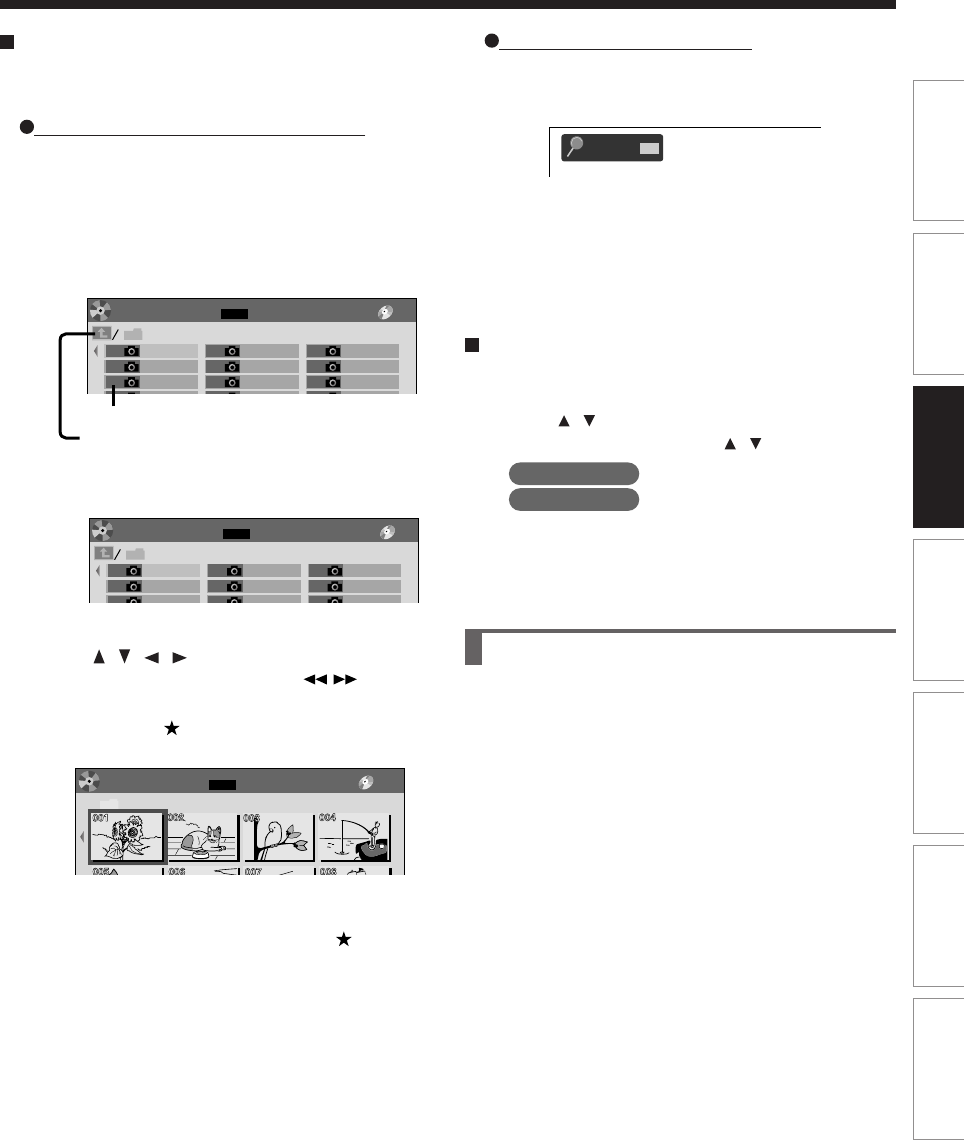
75
Editing Function setup Others
Introduction Library
Recording Playback
JPEG files compatibility
Discs whose compatibility with this recorder has been
confirmed by TOSHIBA are as follows.
CANON QuickCD
FUJICOLOR CD
Kodak Picture CD
NORITSU QSS CD
JPEG disc compatibility with this recorder is limited as
follows:
•Playable discs:
CD-ROM, CD-R
CD-RW is not recommendable.
•CD physical format:
Mode 1, Mode 2 XA Form 1
•File system:
ISO9660 Level 1, 2 or Joliet
•File name:
A file name should be in alphabet and
numerals only, and must incorporate “JPG”
extension.
e.g.“********.JPG”
•Total number of folders:
Less than 256
•Total number of files:
Less than 1000
Some files may not display their own entire image
depending on the size.
Some discs may not permit this operation. Especially,
the following conditions of included files will increase
the disc’s disability.
1. Pixels over 5000 x 5000 in height and/or width
2. File format except Exif
Direct input of a photo number
1) During playback or stop, press T.SEARCH.
An input window appears.
2) Input a photo number using the number buttons
or ADJUST.
3) Press ENTER.
The selected photo appears in full screen.
To change the playback order
1) During playback (slide show) or stop, press
QUICK MENU.
2) Press / to select an item, then press ENTER.
To shift the cursor, press the / buttons.
Reverse : To reverse the order.
Repeat : To repeat the current folder.
3) Press ENTER.
Playback in the selected mode starts.
001
Photo
Search
e.g.
Picture List Page
CD
001
DH100001
004
DH100004
007
DH100003
010
DH100006
DH100009
016
DH100012
019
DH100015
022
DH100018
002
DH100002
Auto
005
DH100001
008
DH100004
011
DH100007
014
DH100010
017
DH100013
020
DH100016
023
DH100019
003
DH100001
006
DH100002
009
DH100005
012
DH100008
015
DH100011
018
DH100014
021
DH100017
024
DH100020
1/ 3
013
CONTENT
MENU
File number
If you select this icon and press the ENTER button,
upper folders appear.
e.g.
Page CD
/ / JPEG
1/ 8
Pictures
CONTENT
MENU
e.g.
Page
CD
001
DH100001
004
DH100004
007
DH100003
002
DH100002
All
005
DH100001
008
DH100004
003
DH100001
006
DH100002
009
DH100005
1/ 3
Picture List
CONTENT
MENU
e.g.
Viewing a specified photo (single view)
Full screen still view.
2 ways are available:
On the “CONTENT MENU Picture List”
1) Press CONTENT MENU.
The “CONTENT MENU Picture List” appears.
Depending on the disc, the recorder creates either
temporary folder, “Auto” or “All”.
“Auto”: For CD of which compatibility confirmed by
TOSHIBA. Only playable files are listed.
“All”: For CD other than above. All files are listed.
• Some CDs may not comply with the above.
2) Press / / / to select a folder or photo.
Pressing the PICTURE SEARCH ( /) button
turns the pages.
If you press the button, the list changes to
thumbnail view (“CONTENT MENU Pictures”).
Pressing the ANGLE button rotates the picture. The
rotation of pictures is kept until the CD is ejected.
To return to the previous list, press the button
again.
3) Press ENTER.
If you select a folder at step 2), repeat steps 2) and
3) until your favorite file appears.
The selected photo appears in full screen.
Notes
•The “CONTENT MENU Picture List” cannot show all the
files in a disc, but only ones regarded as objects of regular
play of the disc.
•The larger the file size is, the longer the thumbnail takes
time to appear.
•Letters of a file/folder name overflowing the given space
are not displayed.
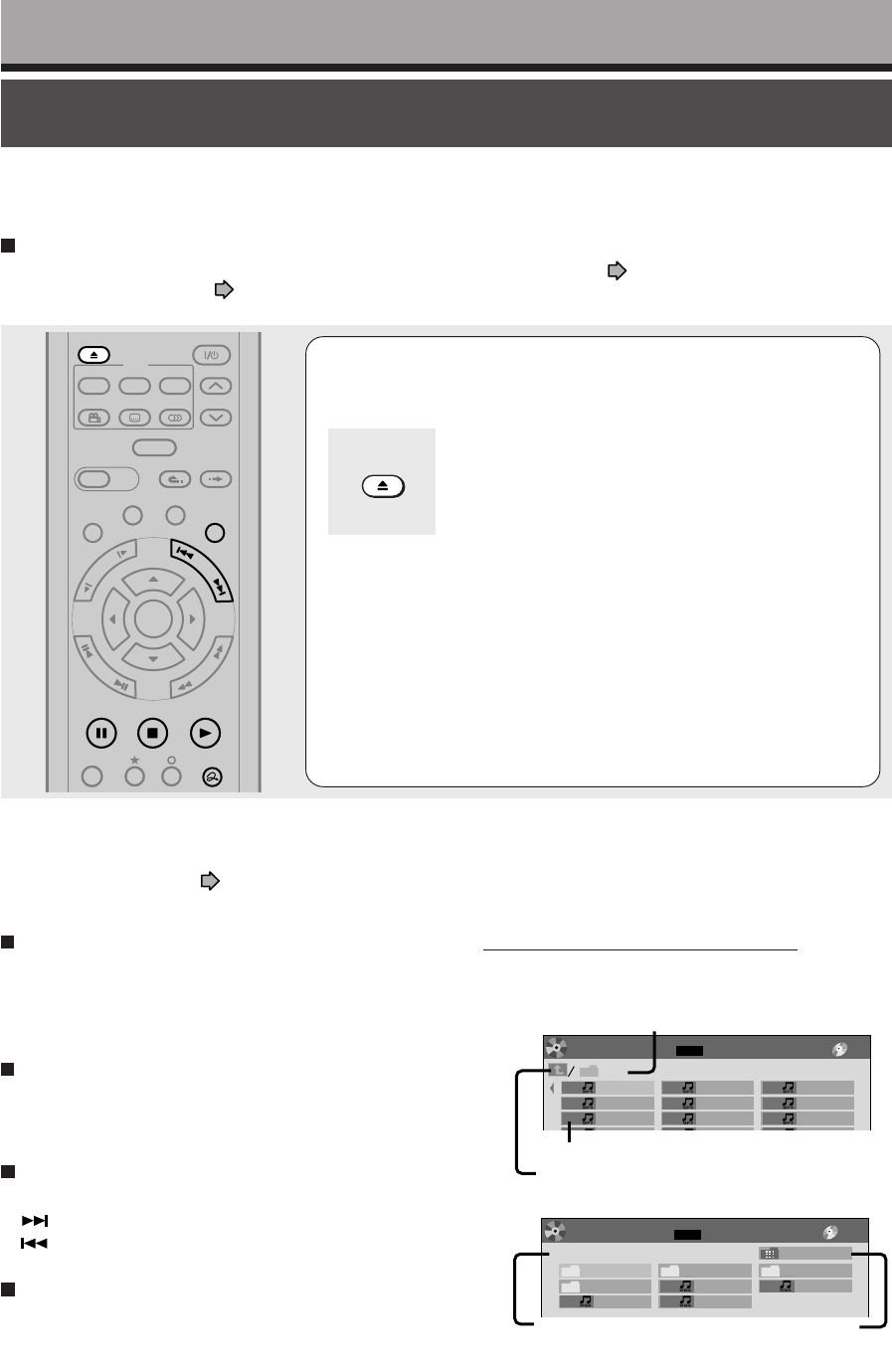
76
Playing MP3/WMA files
You can play MP3/WMA files that have been recorded on a CD-R or CD-ROM on this recorder.
Playback
Preparations
•Make sure that a disc you want to play is compatible with this recorder. See page 77.
•Set “Priority contents” ( page 132) to “Audio”.
1Load a CD that contains MP3/WMA files.
Playback starts from the first track of a current folder.
OPEN/CLOSE
Notes
•WMA tracks copy-protected cannot be played.
•The DIGITAL AUDIO OUT BITSTREAM/PCM jack outputs MP3/WMA sounds in the linear PCM format regardless of the
current “Audio out select” ( page 130) selection.
•You cannot change the playback speed of MP3/WMA playback.
TIMESLIP
EASY
NAVI
INSTANT SKIPINSTANT REPLAY
PLAYSTOPPAUSE
REC
LIBRARY
REC MENU EDIT MENU
CONTENT MENU
ANGLE
OPEN/CLOSE
SUBTITLE
AUDIO
CHANNEL
REC
QUICK MENU
TOP MENU
MENU
RETURN
DVD
F
R
A
M
E
/
A
D
J
U
S
T
P
I
C
T
U
R
E
S
E
A
R
C
H
S
K
I
P
S
L
O
W
ENTER
Page CD
MP3
1/ 1
001
MP3_0001
004
MP3_0004
007
MP3_0007
010
MP3_0010
002
MP3_0002
005
MP3_0005
008
MP3_0008
011
MP3_0011
003
MP3_0003
006
MP3_0006
009
MP3_0009
012
MP3_0012
Audio List
CONTENT
MENU
File number
Current folder
If you select this icon and press the ENTER button,
upper folders appear.
e.g.
Page CD
MP3
JPG_MP3 All
1/ 1
MP3c
MP3a MP3b
002
MP3_0002
003
MP3_0003
001
MP3_0001
004
MP3_0004
Audio List
CONTENT
MENU
e.g.
Disc name The recorder creates temporary
folder “All”, which contains all
playable files.
On the “CONTENT MENU Audio List”
1) Press the CONTENT MENU button.
The “CONTENT MENU Audio List” appears.
To stop playback
Press STOP.
If you press the PLAY button after pressing the STOP
button, playback will start from the the beginning of the
track.
To pause playback
Press PAUSE.
To resume, press the PAUSE button again or press the
PLAY button.
To skip tracks
During playback, press SKIP repeatedly.
: To skip forward.
: To skip backward.
Selecting a track in the disc
2 ways are available:
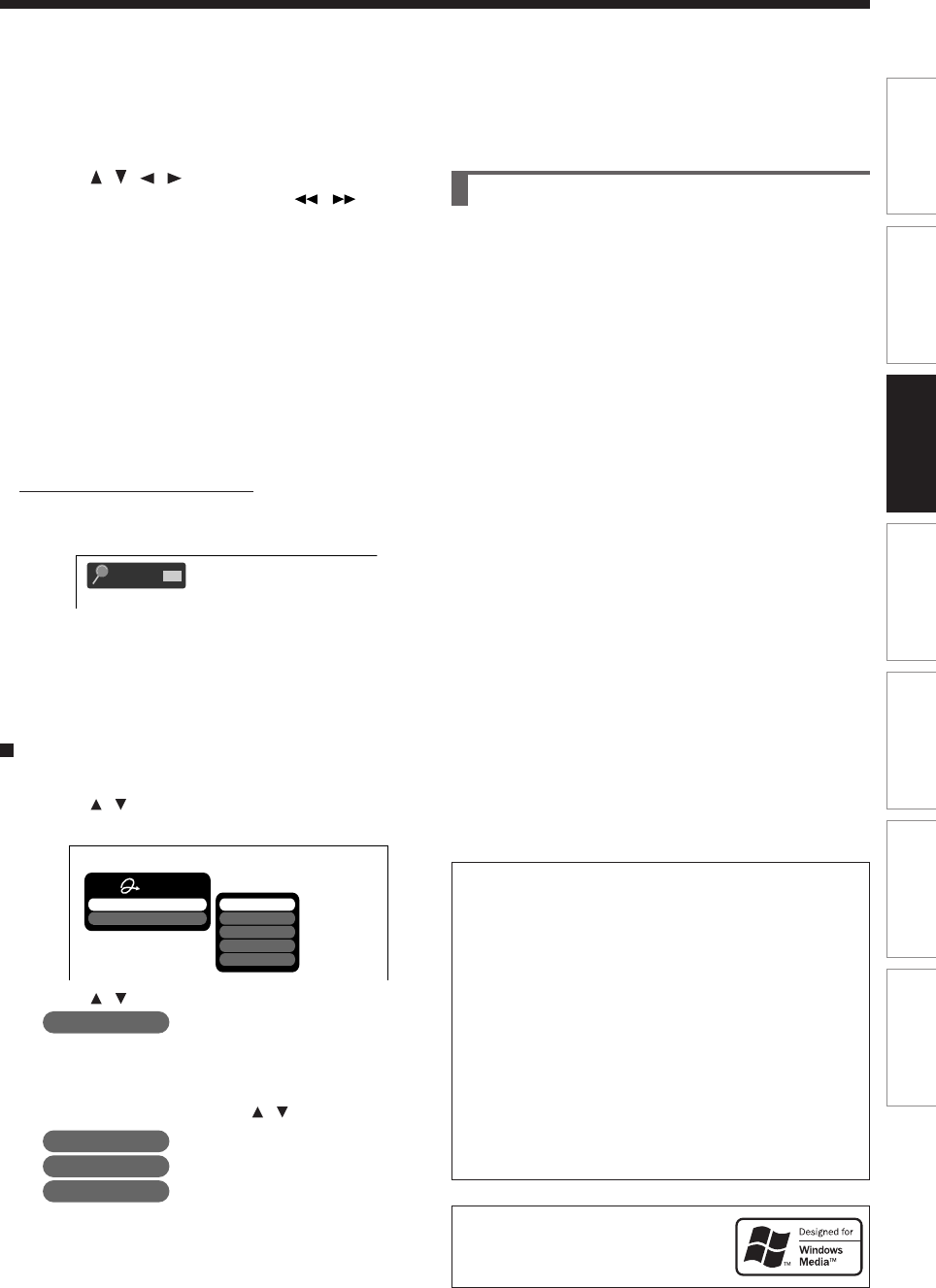
77
Editing Function setup Others
Introduction Library
Recording Playback
Playable files
MP3/WMA disc compatibility with this recorder is
limited as follows:
•Playable discs:
CD-ROM, CD-R
CD-RW is not recommendable.
•Sampling Frequency / Bitrate:
WMA: 32 kHz / 48 Mbps (CBR), VBR
44.1 kHz / 48-192 Mbps (CBR), VBR
48 kHz / 128-192 Mbps (CBR), VBR
MP3: 8 kHz, 11.025 kHz, 12kHz, 16 kHz,
22.05 kHz, 24 kHz / 8-160 kbps (CBR),
VBR
32 kHz, 44.1 kHz, 48 kHz / 32-320 kbps
(CBR), VBR
•CD physical format:
Mode 1, Mode 2 XA Form 1
•File system:
ISO9660 Level 1, 2 or Joliet
•File name:
A file name should be in alphabet and
numerals only, and must incorporate “MP3” or
“WMA” extension.
e.g.“********.MP3”, “********.WMA”
•Total number of folders:
Less than 256
•Total number of files:
Less than 1000
•WMA codec version:
V7, V8, V9
* This recorder supports ID3v2 (ID3 Tag Version 2) of MP3,
to display text data such as names of title and artist.
Some characters may be displayed properly.
This recorder requires discs/recordings to meet certain
technical standards in order to achieve optimal playback
quality. Pre-recorded DVDs are automatically set to these
standards. There are many different types
of recordable disc formats (including CD-R containing
MP3/WMA files). Given the fact that technology in this
area is still maturing, Toshiba cannot guarantee that all
genre of recordable discs will produce optimal playback
quality. The technical criteria set out in this owner’s
manual are meant as a guide only.
Customers should also note that permission is required in
order to download MP3/WMA files and music from the
internet. Toshiba has no right to grant such permission.
Permission should always be sought from the copyright
owner.
Microsoft, Windows Media, and the Windows
Logo are trademarks or registered trademarks
of Microsoft Corporation in both the United
States and other countries.
2) Press / / / to select a track or folder.
Pressing the PICTURE SEARCH ( / ) button
turns the pages.
3) Press ENTER.
If you select a folder at step 2), repeat steps 2) and
3) until your favorite file appears.
Notes
•The “CONTENT MENU Autio List” cannot show all the
tracks in a disc, but only ones regarded as objects of
proper play of the disc.
•Letters of a file/folder name overflowing the given space
are not displayed.
Direct input of a track number
1) During playback or stop, press T.SEARCH.
An input window appears.
2) Input a track number using the number buttons
or the ADJUST button.
3) Press ENTER.
To change the playback order
1) During playback or stop, press QUICK MENU.
2) Press / to select “Special playback mode”,
then press ENTER.
3) Press / to select an item, then press ENTER.
Memory list : To play favorite tracks only in
a favorite order.
Input a track number by using the number buttons
or the ADJUST button.
To shift the cursor, press the / buttons.
Folder repeat : To repeat the current folder.
Track repeat : To repeat the current file.
Track random : To play files in the current
folder in a random order.
Notes
•To cancel these modes, stop the playback or select the
cancel command from the Quick Menu.
001
Track
Search
e.g.
Quick Menu
Special playback mode
Exit
Memory
Memory list
Folder repeat
Track repeat
Track random
e.g.
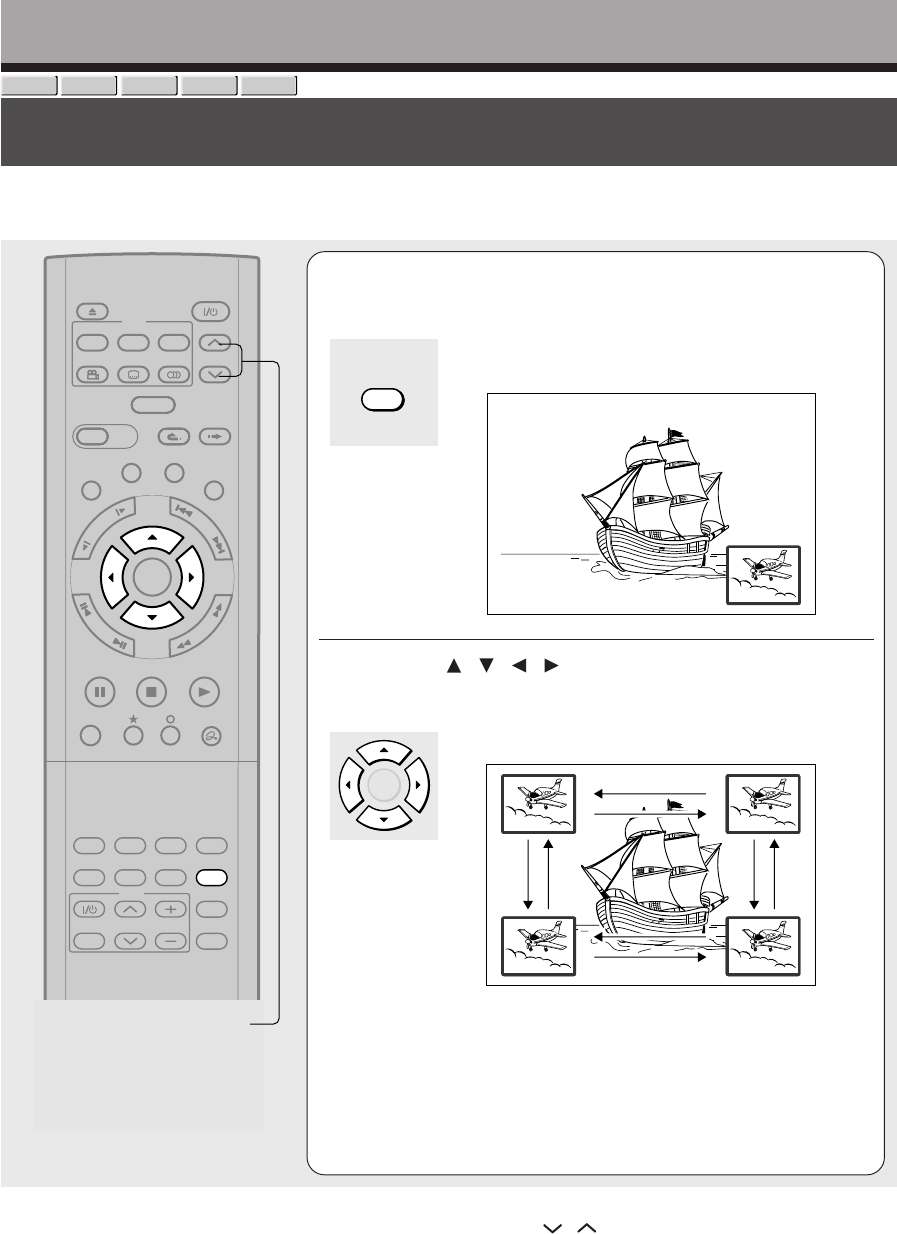
78
Watching a TV broadcast in the sub window (P in P playback)
During playback, you can watch a TV broadcast in the sub window. (P in P : Picture in Picture)
DVD-RAM
DVD-RW
DVD-VIDEO
VCD
DVD-R
1During playback, press P in P.
A sub window (program on the air or on the recording)
appears.
e.g.
2Press / / / to select the position of the
sub window.
You can shift the sub window in following 4 directions.
↑ / ↓ / ← / → is the moving range.
To turn off the sub window, press the P in P button.
TIMESLIP
EASY
NAVI
INSTANT SKIPINSTANT REPLAY
PLAYSTOPPAUSE
REC
LIBRARY
REC MENU EDIT MENU
CONTENT MENU
ANGLE
OPEN/CLOSE
SUBTITLE
AUDIO
CHANNEL
QUICK MENU
TOP MENU
MENU
RETURN
DVD
F
R
A
M
E
/
A
D
J
U
S
T
P
I
C
T
U
R
E
S
E
A
R
C
H
S
K
I
P
S
L
O
W
ENTER
TV/VIDEO CHANNEL
VOLUME
REMAIN
DIMMER
FL SELECT
ZOOM P in P
TIME BAR CHP DIVIDE
DISPLAY
INPUT SELECT
PROGRESSIVE
TV
CHANNEL
Notes
•You can change the channel of the sub window by pressing the CHANNEL / button.
•The P in P function is available only during playback.
•You cannot swap the playback picture with the picture within the sub window, or change the audio settings.
•Press the P in P button during “Chase Play” or “Pause TV”, the actual broadcast appears on the sub window in real time.
•If this function is stopped after shifting the sub window, before you press the P in P button again, the sub window will appear
in the last position you set. However, if you turn off the power, the sub window re-appears in the lower right (default) position.
P in P
ENTER
Playback
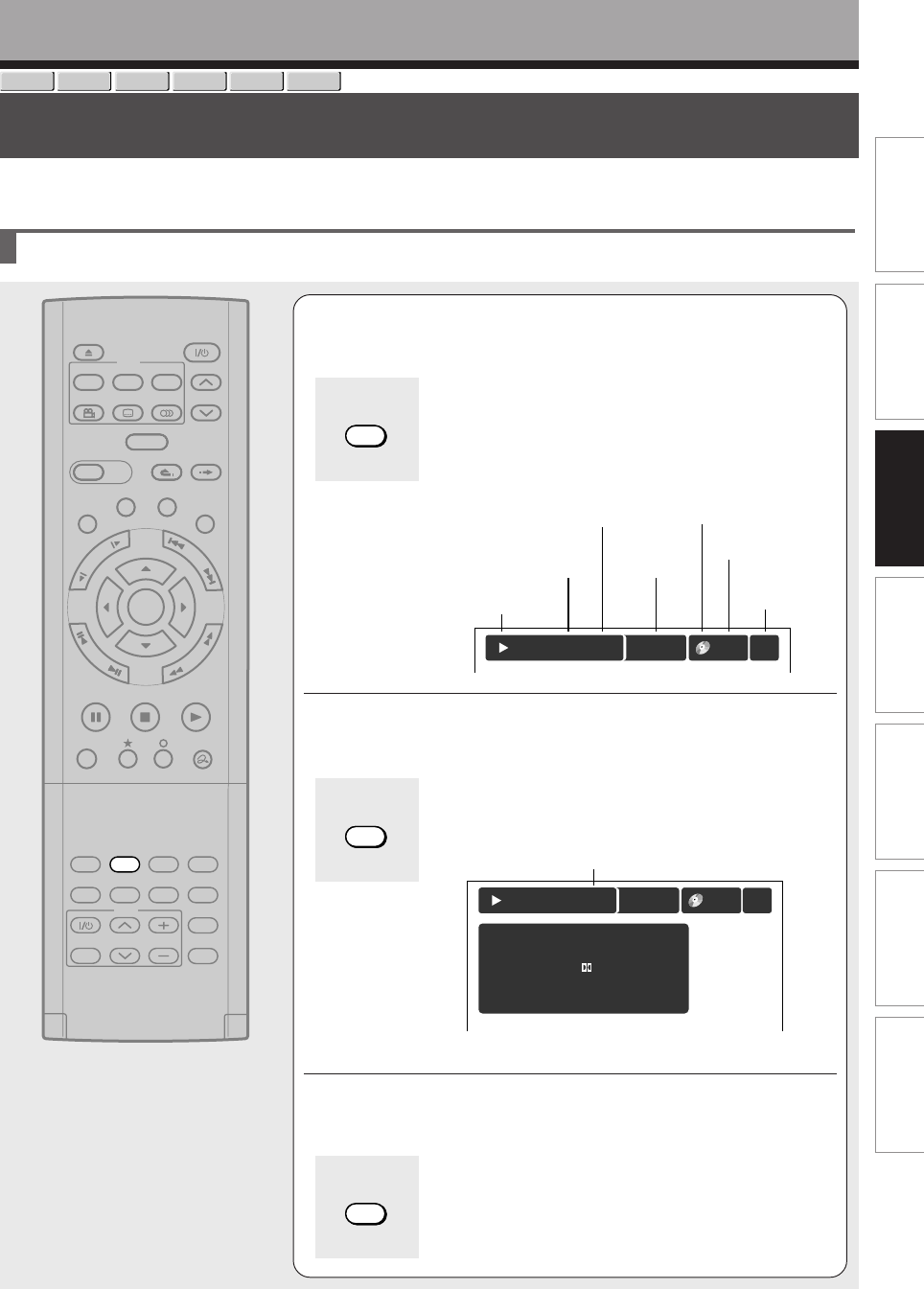
79
Editing Function setup Others
Introduction Library
Recording Playback
1Press DISPLAY.
The following on-screen display appears. (The actual
display varies depending on the disc.)
e.g. while playing a DVD-RAM disc
2Press DISPLAY again.
An expanded display appears.
(Actual display varies depending on the disc.)
e.g.
3Press DISPLAY again to turn the display off.
Operational status and setting details
TIMESLIP
EASY
NAVI
INSTANT SKIPINSTANT REPLAY
PLAYSTOPPAUSE
REC
LIBRARY
REC MENU EDIT MENU
CONTENT MENU
ANGLE
OPEN/CLOSE
SUBTITLE
AUDIO
CHANNEL
QUICK MENU
TOP MENU
MENU
RETURN
DVD
F
R
A
M
E
/
A
D
J
U
S
T
P
I
C
T
U
R
E
S
E
A
R
C
H
S
K
I
P
S
L
O
W
ENTER
TV/VIDEO CHANNEL
VOLUME
REMAIN
DIMMER
FL SELECT
ZOOM P in P
TIME BAR CHP DIVIDE
DISPLAY
INPUT SELECT
PROGRESSIVE
TV
Virtual surround
DNR (Recording)
Picture Quality
Audio Quality
Audio
Audio Output
Subtitle
Off
Off
SP
1 Stereo R Original
Bitstream
– – – Off
:
:
:
:
:
:
:
002:
3
-00:22:01
-00:00:07
0005:Stereo
Title
repeat
Title
Chapter
D/M1
DVD
RAM
Checking the current status and settings
You can confirm operational status and setting details.
Playback
DVD-RAM
DVD-RW
DVD-VIDEO
VCD CD
DVD-R
DISPLAY
DISPLAY
Title No./
Chapter No.
Status display
Mode indicator
Elapsed time of a title/
Elapsed time of a chapter
Playback
mode
Operating disc
Receiving
channel
e.g.
002:
3
00:10 :29
00:05:15
0005:Stereo
Title
repeat
Title
Chapter
DVD
RAM
DISPLAY
Remaining time
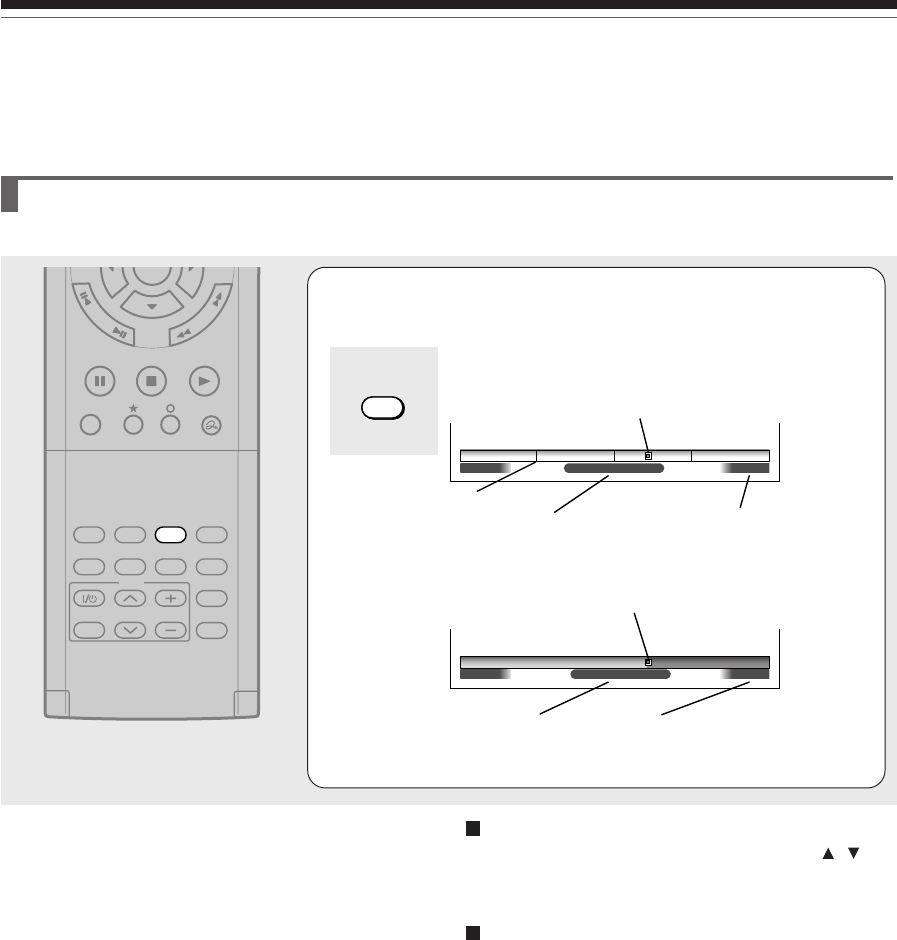
80
Using the time bar
The time bar shows the current progress in playback or recording.
1During playback or recording, press
TIME BAR.
The time bar appears. (The actual display varies
depending on the disc.)
e.g. Playback
e.g. Recording
Locator (Shows the current location.)
Elapsed time Total playing time of a current title
(In the case of a VIDEO CD or
audio CD, it shows the total
playing time of the disc.)
Elapsed recording time (per 30 minutes)
(Recording end time if it comes within 30
minutes.)
Elapsed time
Locator (Shows the current location.)
TIME BAR
PLAYSTOPPAUSE
REC
QUICK MENU
F
R
A
M
E
/
A
D
J
U
S
T
P
I
C
T
U
R
E
S
E
A
R
C
H
ENTER
TV/VIDEO CHANNEL
VOLUME
REMAIN
DIMMER
FL SELECT
ZOOM P in P
TIME BAR CHP DIVIDE
DISPLAY
INPUT SELECT
PROGRESSIVE
TV
01:30:0000:00:00
00:30:0000:00:00
00:55:00:00FLocation
00:18:00Location
Changing the location of the time bar
While the time bar is displayed, press the /
buttons.
The time bar shifts up and down.
Turning off the time bar
Press TIME BAR.
Note
•Time display is an approximation.
Playback
Checking the current status and settings (Continued)
Chapter division
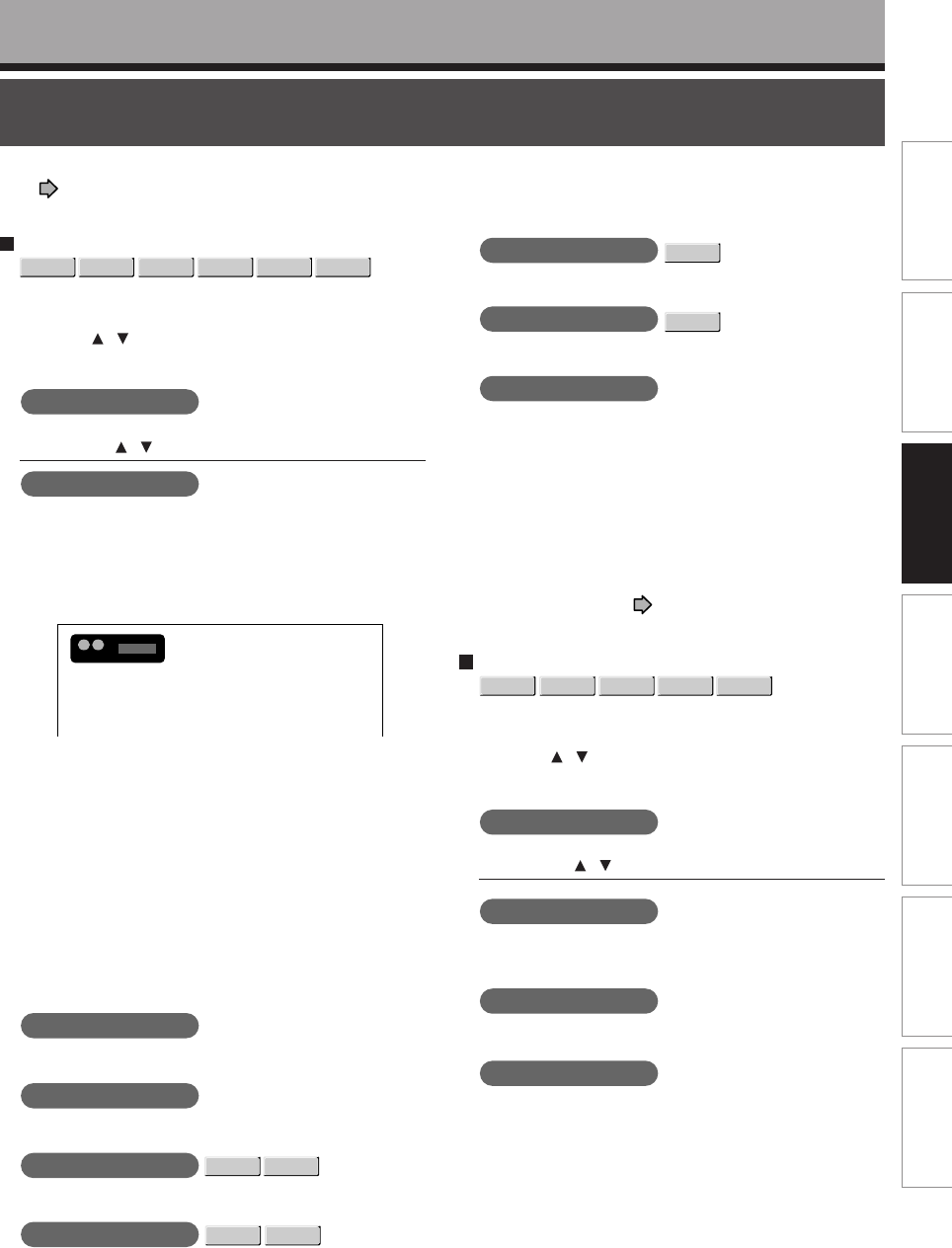
81
Editing Function setup Others
Introduction Library
Recording Playback
Functions in the Quick Menu
Besides these examples, various other ones are introduced on respective pages for your convenience.
See page 24 on how to operate the Quick Menu.
Playback
To play repeatedly (Repeat playback)
DVD-RAM
DVD-RW
DVD-VIDEO
VCD CD
DVD-R
You can repeat a desired section.
1) During playback, press QUICK MENU.
2) Press / to select “Special playback mode”,
then press ENTER.
Special playback mode
The sub menu appears. Select the next item by
pressing the / buttons and the ENTER button.
A-B repeat
:
You can designate a portion in a title or track to repeat
continuously.
If you select “A-B repeat” and press the ENTER
button, the following display appears. Perform steps 1
and 2 below.
e.g.
To cancel the procedure, press the \ button.
1) Press ENTER at the beginning of the segment
(point A) you want to repeat.
The location of point A is memorized.
The display changes to “Set B”.
2) Press ENTER at the end of the segment (point
B).
The location of point B is memorized, and repeat
playback begins between point A and B.
Title repeat
:
To repeat the same title.
Chapter repeat
:
To repeat the same chapter.
Track repeat
VCD CD
:
To repeat the same track.
Disc repeat
DVD-RW
DVD-R
:
To repeat the entire disc.
Repeat all ORG titles
DVD-RAM
:
To repeat all original titles in a disc.
Repeat all PL titles
DVD-RAM
:
To repeat all playlist titles in a disc.
Cancel repeat
: (in Repeat playback mode)
To resume normal playback.
Playback of a DVD-RAM disc stops.
Notes
•Some discs may not permit repeat operation.
•You cannot use the repeat playback function in conjunction
with the random playback function.
•If you press the STOP button during repeat playback, this
operation is canceled.
•While you are performing repeat playback on a DVD-RAM
disc, other operations ( pages 63 to 65) except pause
play are not available.
To play in random order (Random play)
DVD-RW
DVD-VIDEO
VCD CD
DVD-R
You can play sections in random order.
1) During playback or stop, press QUICK MENU.
2) Press / to select “Special playback mode”,
then press ENTER.
Special playback mode
The sub menu appears. Select the next item by
pressing the / buttons and the ENTER button.
Title random
:
Plays all titles in a loaded disc in random order.
Each title is played beginning from chapter 1.
Chapter random
:
Plays all chapters in a current title in random order.
Track random
:
Plays all tracks on a loaded disc in random order.
repeat Set A
B
A
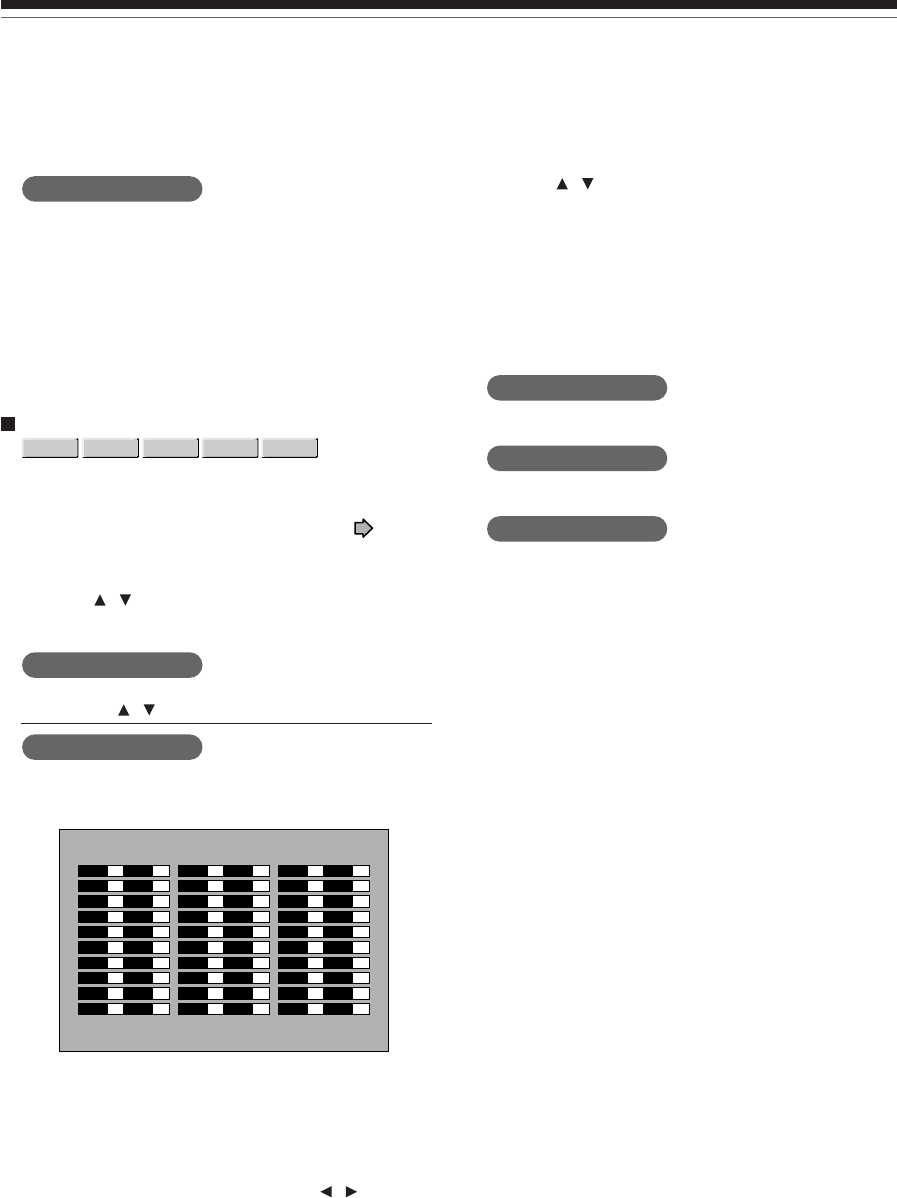
82
Cancel random
: (in Random play mode)
Resumes normal playback.
Notes
•Some discs may not permit random playback operation.
•You cannot use the random playback function in
conjunction with the memory playback function.
•You cannot use the random playback function in
conjunction with the repeat playback function.
•Pressing the STOP button during operation cancels
random playback.
To play in favorite order (Memory playback)
DVD-RW
DVD-VIDEO
VCD CD
DVD-R
You can select 30 titles, chapters, or tracks and play
them in favorite order.
(To play contents in a DVD-RAM disc in favorite order,
make a playlist. For details, see “Editing” on page
86.)
1) During playback or stop, press QUICK MENU.
2) Press / to select “Special playback mode”,
then press ENTER.
Special playback mode
The sub menu appears. Select the next item by
pressing the / buttons and the ENTER button.
Memory list
:
If you select this and press the ENTER button, the
following display appears. Perform the steps below.
e.g.
1) Input numbers of a titles, chapters, or tracks by
using the number buttons, in favorite order.
Input each 3-digit number.
To input a 1- or 2-digit number, first input 0.
(e.g. “0”, “0”, “3”.)
To cancel the numbers, press the CLEAR button.
To input a chapter number, press the / buttons
to shift the cursor.
01 T CT 11 T CT 21 T CT
02 T CT 12 T CT 22 T CT
03 T CT 13 T CT 23 T CT
04 T CT 14 T CT 24 T CT
05 T CT 15 T CT 25 T CT
06 T CT 16 T CT 26 T CT
07 T CT 17 T CT 27 T CT
08 T CT 18 T CT 28 T CT
09 T CT 19 T CT 29 T CT
10 T CT 20 T CT 30 T CT
2) Press / to select the next box, then perform
step 1).
To select another chapter in the same title, you do
not need to select the title number.
Repeat these steps if necessary.
You can program up to 30 selections into memory.
3) Press ENTER.
Memory playback starts.
Memory
: (in normal playback mode)
To display an entry box for one program selection.
Memory release
: (in memory playback mode)
To resume normal playback.
Memory repeat
: (in memory playback mode)
To repeat a current memory playback.
Notes
•Some discs may not permit memory playback operation.
•Inputting numbers of titles, chapters or tracks that a disc
does not contain will result in error.
•You cannot program/change selections during memory
playback. To change selections, cancel memory playback
by pressing the STOP button.
•When you turn off the power, the selected memory is
erased.
•You can exit the memory playback display by pressing the
O button.
Playback
Functions in the Quick Menu (Continued)
83
Editing Function setup Others
Introduction Library
Recording Playback
To display the current bit rate
DVD-RAM
DVD-RW
DVD-VIDEO
DVD-R
1) During playback, press QUICK MENU.
2) Press / to select “Bit rate”, then press
ENTER.
Bit rate
Note
•To turn off the bit rate display, select this item again.
To check information on a title
DVD-RAM
DVD-RW
DVD-R
1) During playback, press QUICK MENU.
2) Press the / buttons to select “Title
information”, then press ENTER.
Title information
To exit the Quick Menu
DVD-RAM
DVD-RW
DVD-VIDEO
VCD CD
DVD-R
Press QUICK MENU again.
or
Press / to select “Exit”, then press ENTER.
Exit

84

Editing
You can create your own movie from your assembled
scenes.
Before editing
Creating chapters
Playlist editing
Creating thumbnails
High speed Library dubbing
Deleting selected Items
Combine Original titles
DVD-Video finalizing process
DV recording
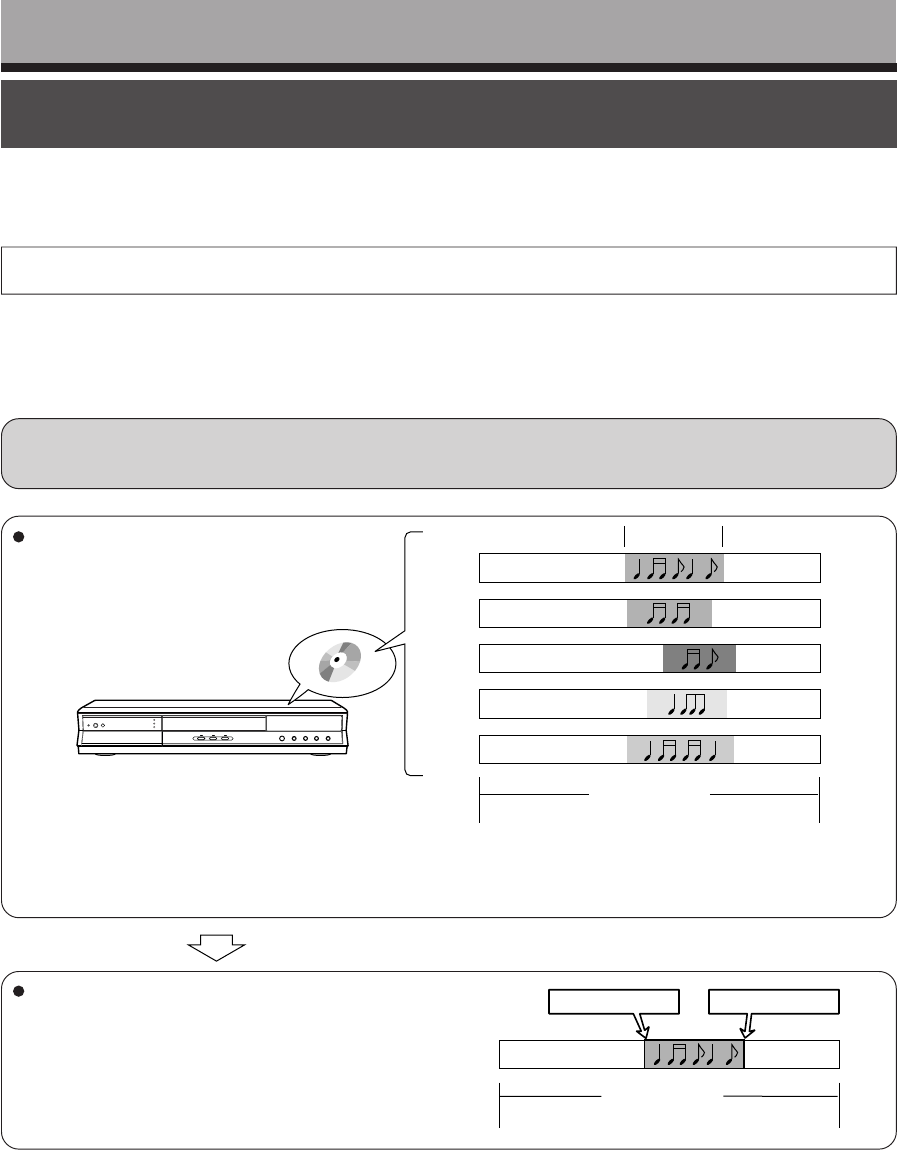
86
Before editing
This section describes information for editing of contents recorded on a DVD-RAM disc. Be sure to read
before performing any editing.
Basic steps of editing
Creating chapters ➔Programming a Playlist ➔Dub (Copy) the Playlist (this will create an Original
title of the desired scenes)
Editing is executed by a title and a chapter. Titles and chapters are classified into “Original” and “Playlist.” First, specify
a desired scene by dividing a title (Original) into chapters. Then compile the necessary chapters (Original) in desired
order by programming a Playlist. Then dub (copy) the Playlist on the same disc. This creates a title (Original).
Refer to the following examples about “Playlist” and “Original.”
Example: Creating your own music compilation by collecting songs from music programs you record from Monday
to Friday.
Editing
You can create one title for one recording.
In the example above, five titles are created, as you recorded programs five times from Monday to Friday. The
content you recorded is called “Title (Original)”
All chapters in a title (Original) are chapters (Original).
Specify the range (a favorite song) you need in
each title (Original).
To specify the range, create a chapter. A segment of
a song becomes one chapter by creating divisions in
a chapter at the beginning and end of a song. In the
example to the right, three chapters (Original) are
created in one title (Original).
Monday
Favorite songs
Title (Original) 1
(including one chapter (Original))
Tuesday
Wednesday
Thursday
Friday
Monday
Chapter 1 Chapter 2 Chapter 3
Division of chapter Division of chapter
Title (Original) 1
(including three chapters (Original))
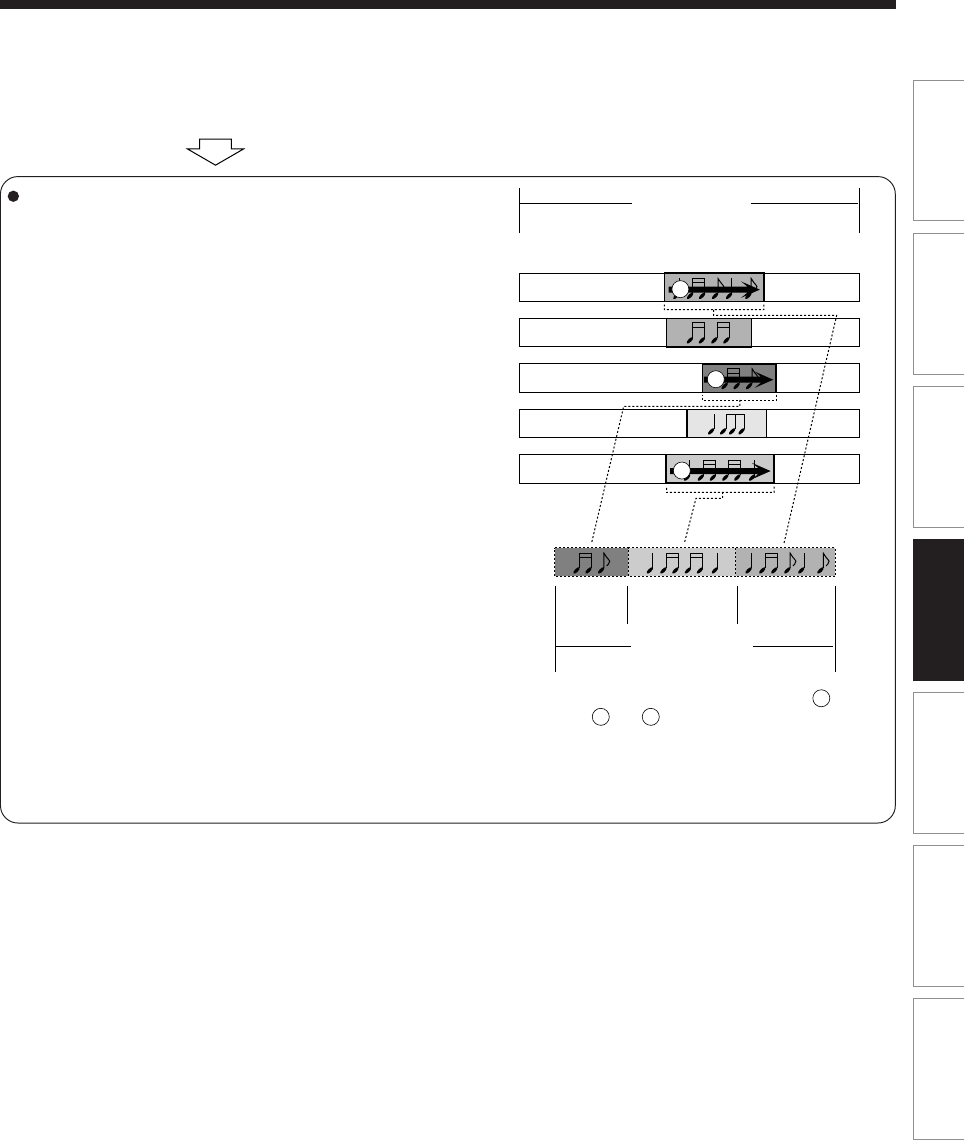
87
Editing Function setup Others
Introduction Library
Recording Playback
These virtual titles or chapters are called “Title (Playlist)” or “Chapter (Playlist)” respectively.
In order to differentiate titles (Playlist) from titles (Original), an Original is displayed on screen as “ORG” and a Playlist
is displayed as “PL”.
Compile chapters in a desired order.
You can select any chapter or order of chapters, as
you want. Also you can assign a title to multiple
chapters.
Each element to be compiled is called a part. In the
example to the right, the three chapters in
Wednesday, Friday, and Monday are the parts.
When compiled, the source chapter (Original)
remains as it is in the title (Original).
A new part is not created by copying the source
chapter (Original). It does not contain actual recorded
content but only exists as an informational sub-set of
the chapter name and the playback order (in the right
example, the chapter names are “Monday,
Wednesday, and Friday” and the playback order is
“Wednesday→Friday→Monday”).
For actual playback, the contents of the source
chapter (Original) are played. Basically, it is a list for
the recorder to go and find the content.
You can create a part from the Original as many
times as you want and you can make different titles
with the same parts by changing the combination or
order.
For parts, you can use not only chapters like in the
example, but also titles (Original) and other Playlist.
You can play the actual recorded content, such as titles (Original) and chapters (Original), or by managing the
Originals and parts, you can virtually create a variety of titles without increasing the use of disc space.
2
1
2 3
1
3
Monday
Title (Original) 1
(including three chapters (Original))
Title (Playlist) 1
(including three chapters (Playlist))
When title (Playlist) 1 is played, ,
and are played in order.
Tuesday
Wednesday
Thursday
Friday
Chapter 1
Chapter
(Playlist) 1
Chapter
(Playlist) 2
Chapter
(Playlist) 3
Chapter 2 Chapter 3
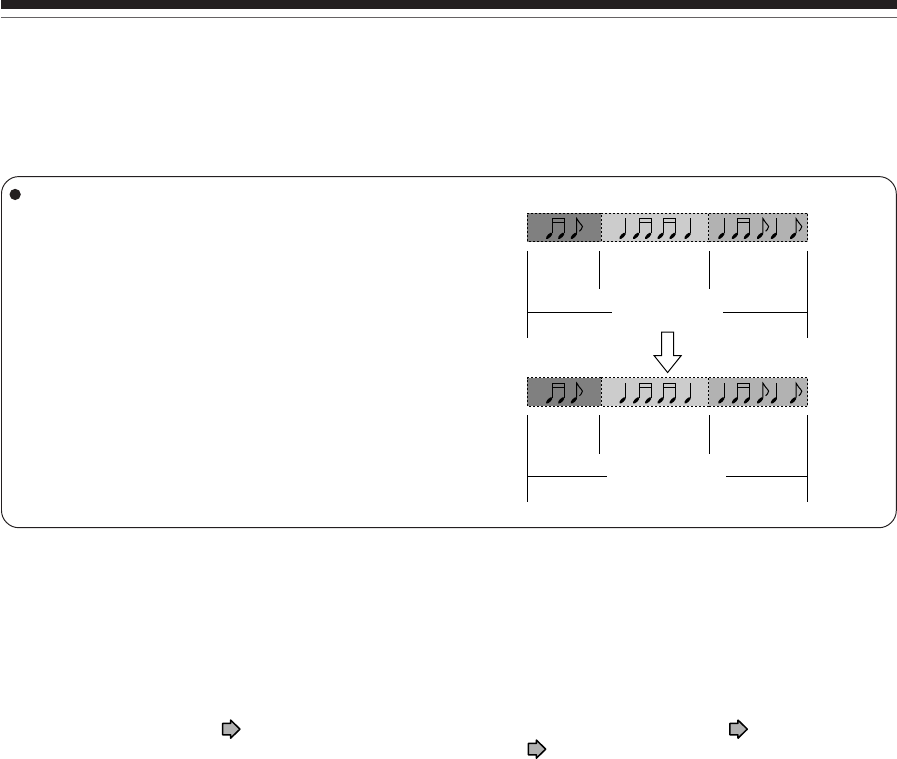
88
Make the compiled chapters into a title (Original).
(Dubbing)
If you just want to play the compiled chapters in
desired order, you only play the Playlist. If you want to
delete a title (Original) which contains unnecessary
chapters, be sure to dub (copy) the Playlist and make
it into a title (Original).
You are now converting the virtual file (playlist) into an
actual file that will become a new original file.
Notes
•A title (Playlist) or a chapter (Playlist) is based on a title (Original) or a chapter (Original). Therefore changing or deleting a
title (Original) or a chapter (Original) will affect the related title (Playlist) or chapter (Playlist).
•Some recorded content cannot be edited (for example, a title including still images).
•The boundary of the title with unnecessary part deleted and titles (Playlist) having different parts cannot be played back
seamlessly (without break).
Proceed to the practical operations.
See “Creating chapters” ( page 89) and “Playlist editing (Collecting desired scenes)” ( page 94).
For the dubbing procedure, see “High speed Library dubbing” ( page 102).
Title (Playlist) 1
Title (Original) 1
Dubbing (Copying)
Playlist
Title
Chapter
(Original) 1
Chapter
(
Original
) 2
Chapter
(
Original
) 3
Chapter
(Playlist) 1
Chapter
(Playlist) 2
Chapter
(Playlist) 3
Before editing (Continued)
Editing
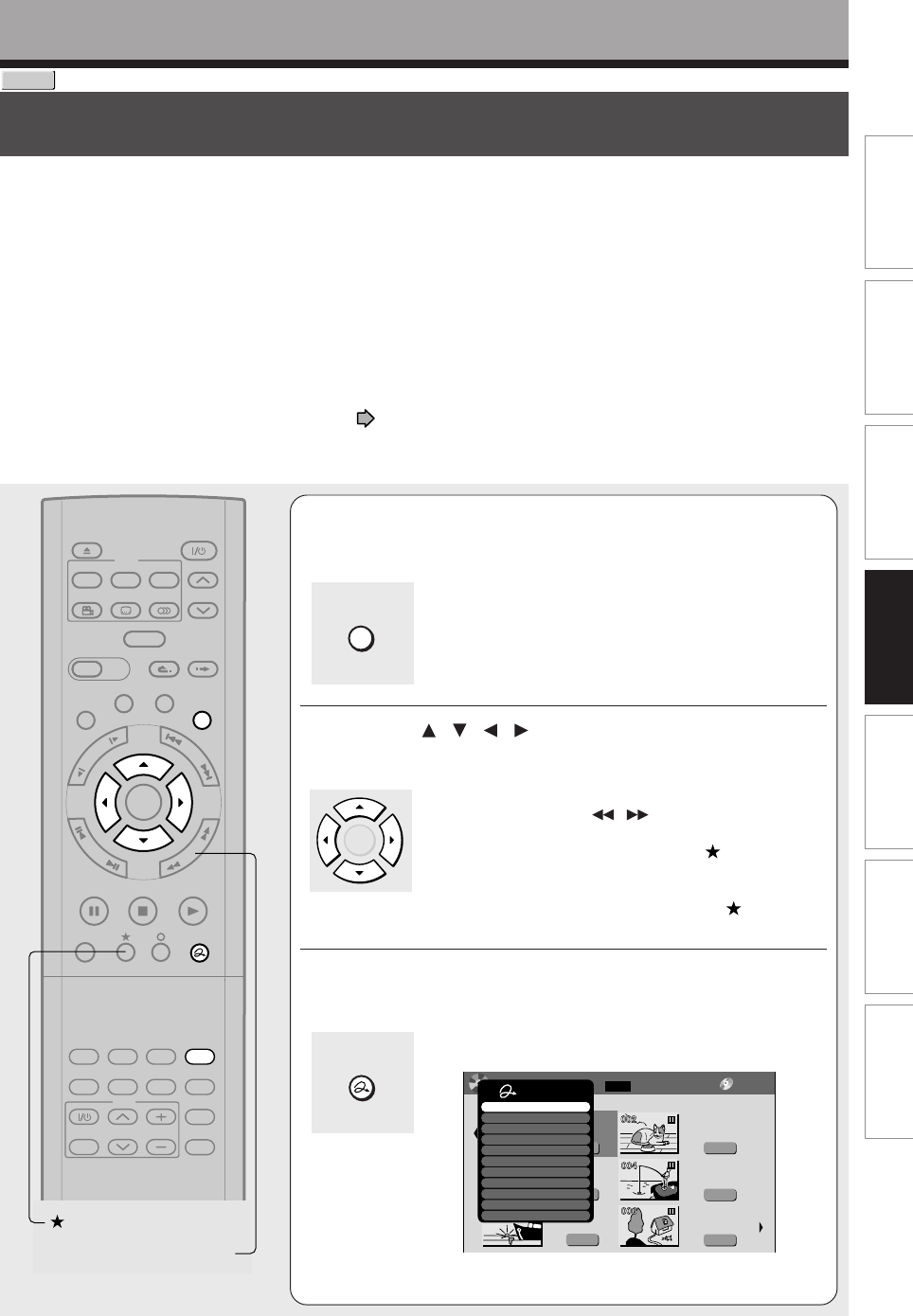
89
Editing Function setup Others
Introduction Library
Recording Playback
Creating chapters
A recording makes 1 title, which includes 1 chapter. By dividing it into several chapters, it will be easier
to access a desired scene, and your editing or playback will be much easier.
1During stop, playback or recording, press
CONTENT MENU.
The “CONTENT MENU Title List” appears.
2Press / / / to select a title.
•To go to the next or previous page, press the
PICTURE SEARCH ( / ) button.
•To select a chapter, first highlight the title that contains
the chapter you want, then press the button.
The display changes to “CONTENT MENU Chapter
List”.
To go back to the title display, press the button
again.
3Press QUICK MENU.
The Quick Menu appears.
e.g.
(Continued)
To create chapters in a title, insert a chapter mark. Playback the content, locate a point where you want to divide, then
press the CHP DIVIDE button. You can insert a chapter mark also while recording, by pressing the CHP DIVIDE
button. (A chapter will also be placed in the recording when you pause.)
The point divides the chapter (into two). You can create multiple chapters by repeating the above operation.
Notes
•Chapters cannot be created in the following modes:
Dubbing / Fast-reverse, Fast-forward / Slow-motion
•You cannot divide a title of a DVD-R/RW disc into chapters. It is possible to create chapters in a DVD-R/RW disc by pressing
the CHP DIVIDE button during recording at the desired points, or by selecting an option that inserts chapter marks
automatically during recording at regular intervals. ( page 134)
If you want to modify the chapter division, or want to place a chapter mark more precisely monitoring the
frame counter, follow the procedures below.
TIMESLIP
EASY
NAVI
INSTANT SKIPINSTANT REPLAY
PLAYSTOPPAUSE
REC
LIBRARY
REC MENU EDIT MENU
CONTENT MENU
ANGLE
OPEN/CLOSE
SUBTITLE
AUDIO
CHANNEL
QUICK MENU
TOP MENU
MENU
RETURN
DVD
F
R
A
M
E
/
A
D
J
U
S
T
P
I
C
T
U
R
E
S
E
A
R
C
H
S
K
I
P
S
L
O
W
ENTER
TV/VIDEO CHANNEL
VOLUME
REMAIN
DIMMER
FL SELECT
ZOOM P in P
TIME BAR CHP DIVIDE
DISPLAY
INPUT SELECT
PROGRESSIVE
TV
PICTURE SEARCH
DVD-RAM
Editing
CONTENT MENU
ENTER
Original
2004/06/08 07:00
am TV:4
Title List Page
1/ 2
(0:53:45)
Original
2004/06/08 11:00
pm TV:6
(0:29:50)
Original
2004/07/11 07:00
am TV:8
(0:54:30)
Original
2004/07/12 09:00
pm TV:10
(0:51:28)
Original
2004/06/12 09:00
pm TV:3
(0:52:40)
Original
2004/07/12 11:00
pm TV:4
(0:30:08)
HDD :
CONTENT
MENU DVD-RAM
Quick Menu
Title information
Create thumbnail
High speed dubbing
Chapter function
Edit functon
Special playback mode
Disc information
Display changeover
Specific page jump
Title delete
Exit
QUICK MENU
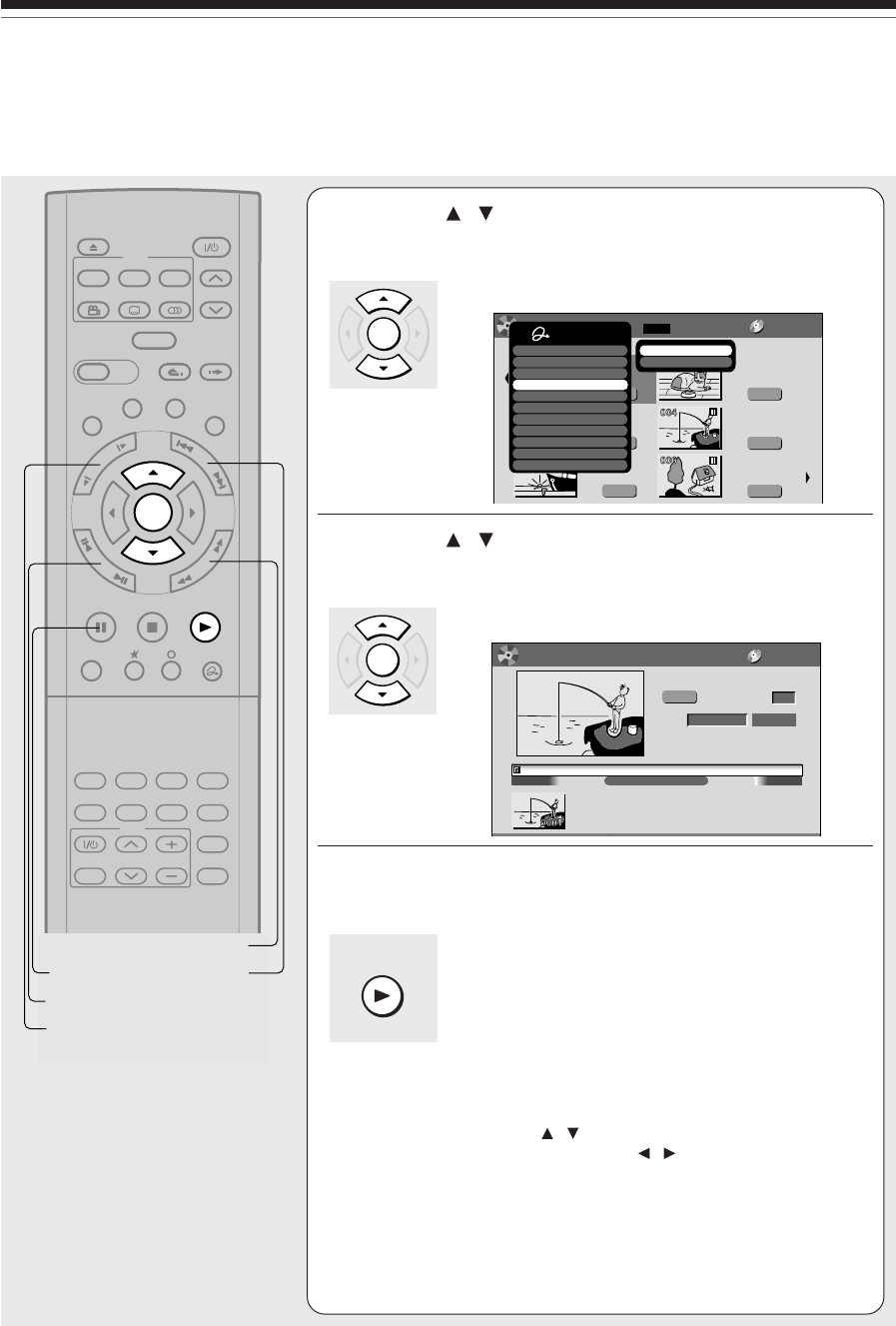
90
Creating chapters (Continued)
Editing
4Press / to select “Chapter function”, then
press ENTER.
The submenu appears.
e.g.
5Press / to select “Chapter editing”, then
press ENTER.
The “EDIT MENU Chapter Editing” appears.
e.g.
6Press PLAY to start playback.
Locate a scene where you want to insert a chapter mark.
You can use the following buttons.
PICTURE SEARCH, SLOW, SKIP, PAUSE,
FRAME/ADJUST, etc.
The locator shows the current position on the time bar.
And the live video plays in the upper left.
•To access other chapters:
Press the / buttons to move to the thumbnail
display, then press the / buttons to select a
desired thumbnail.
To go to the next page, press the PICTURE SEARCH
button.
•You can confirm the first and last scenes of a chapter.
Select a thumbnail and press the ENTER button.
3 seconds of the first and last scenes are played.
TIMESLIP
EASY
NAVI
INSTANT SKIPINSTANT REPLAY
PLAYSTOPPAUSE
REC
LIBRARY
REC MENU EDIT MENU
CONTENT MENU
ANGLE
OPEN/CLOSE
SUBTITLE
AUDIO
CHANNEL
QUICK MENU
TOP MENU
MENU
RETURN
DVD
F
R
A
M
E
/
A
D
J
U
S
T
P
I
C
T
U
R
E
S
E
A
R
C
H
S
K
I
P
S
L
O
W
ENTER
TV/VIDEO CHANNEL
VOLUME
REMAIN
DIMMER
FL SELECT
ZOOM P in P
TIME BAR CHP DIVIDE
DISPLAY
INPUT SELECT
PROGRESSIVE
TV
SLOW
FRAME/ADJUST
PAUSE
PICTURE SEARCH
SKIP
00:54:30
00:00:00:03F
00:00:00
4:3
B
EDIT
MENU
Chapter Editing
Original
Aspect Ratio
Location
To create new chapter, select
desired start point via remote.
To set, press enter.
Divide
DVD-RAM
Title:004 Chapter:0001
Fishing Guide
ENTER
ENTER
PLAY
Original
2004/06/08 07:00
am TV:4
Title List Page
1/ 2
(0:53:45)
Original
2004/06/08 11:00
pm TV:6
(0:29:50)
Original
2004/07/11 07:00
am TV:8
(0:54:30)
Original
2004/07/12 09:00
pm TV:10
(0:51:28)
Original
2004/06/12 09:00
pm TV:3
(0:52:40)
Original
2004/07/12 11:00
pm TV:4
(0:30:08)
001 :
DVD-RAM
CONTENT
MENU Quick Menu
Title information
Create thumbnail
High speed dubbing
Chapter function
Edit functon
Special playback mode
Disc information
Display changeover
Specific page jump
Title delete
Exit
Chapter editing
Auto chapter create
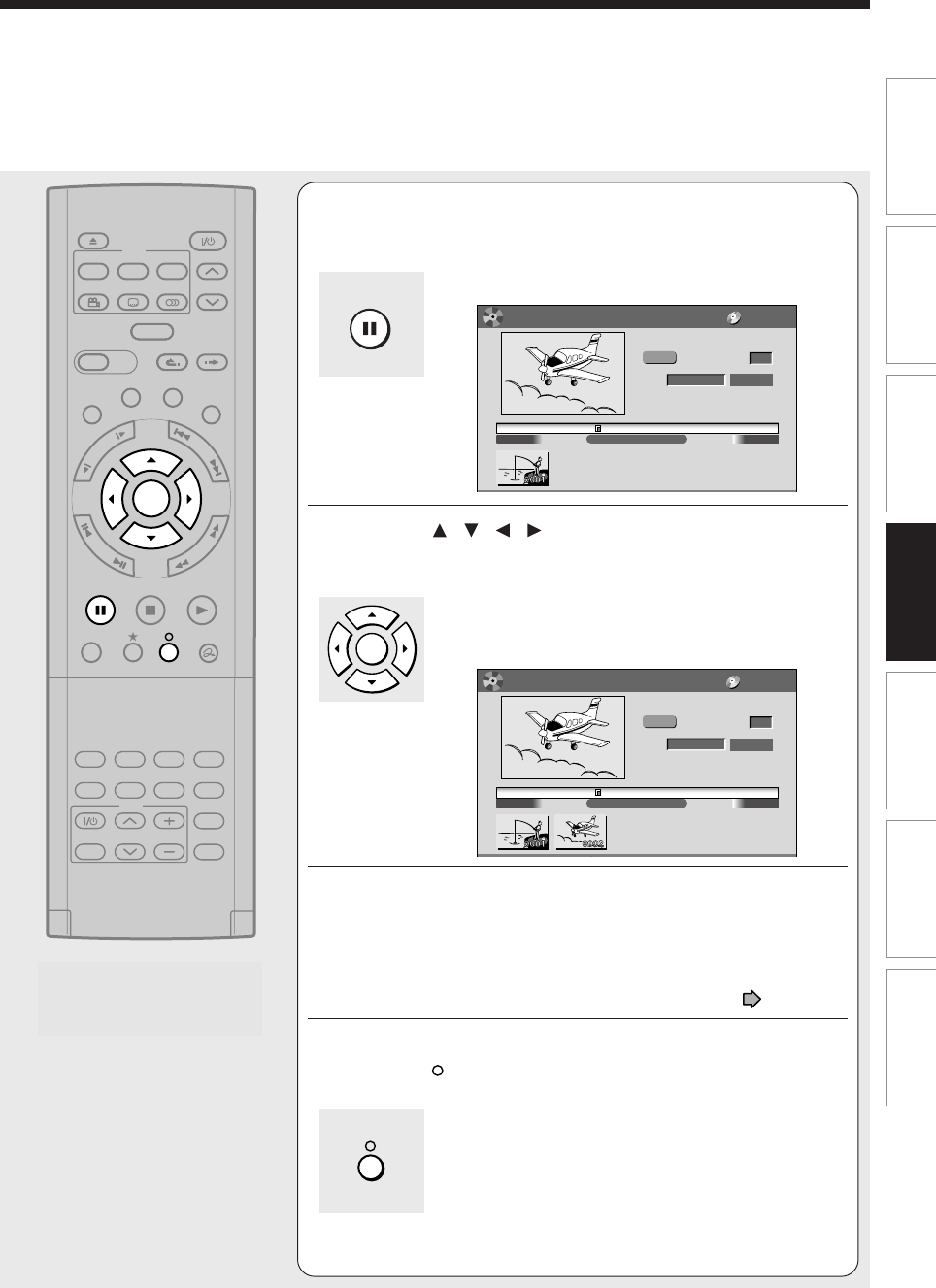
91
Editing Function setup Others
Introduction Library
Recording Playback
7At a point where you want to make a chapter
division, press PAUSE.
The picture pauses.
e.g.
8Press / / / to select “Divide,” then
press ENTER.
A chapter division is created at the selected location,
and the first scene of the new chapter is registered as a
chapter thumbnail.
e.g.
9Repeat steps 6 to 8.
Locations of chapter division are indicated by the markers on the
time bar.
To erase a chapter division, see “Merging chapters” ( page 93).
10
When all chapter divisions have been made,
press .
The recorder displays a message, and starts saving the
chapter divisions on the time bar.
When complete, the CONTENT MENU returns.
TIMESLIP
EASY
NAVI
INSTANT SKIPINSTANT REPLAY
PLAYSTOPPAUSE
REC
LIBRARY
REC MENU EDIT MENU
CONTENT MENU
ANGLE
OPEN/CLOSE
SUBTITLE
AUDIO
CHANNEL
QUICK MENU
TOP MENU
MENU
RETURN
DVD
F
R
A
M
E
/
A
D
J
U
S
T
P
I
C
T
U
R
E
S
E
A
R
C
H
S
K
I
P
S
L
O
W
ENTER
TV/VIDEO CHANNEL
VOLUME
REMAIN
DIMMER
FL SELECT
ZOOM P in P
TIME BAR CHP DIVIDE
DISPLAY
INPUT SELECT
PROGRESSIVE
TV
00:00:21:24F
4:3
B
EDIT
MENU
Chapter Editing
Original
To create new chapter, select
desired start point via remote.
To set, press enter.
DVD-RAM
00:54:3000:00:00
Aspect Ratio
Location Divide
Title:004 Chapter:0001
Fishing Guide
00:54:30
00:00:21:24F
00:00:00
4:3
B
EDIT
MENU
Chapter Editing
Original
Aspect Ratio
Location
To create new chapter, select
desired start point via remote.
To set, press enter.
Divide
DVD-RAM
00:54:3000:00:00 Title:004 Chapter:0001
Fishing Guide
PAUSE
ENTER
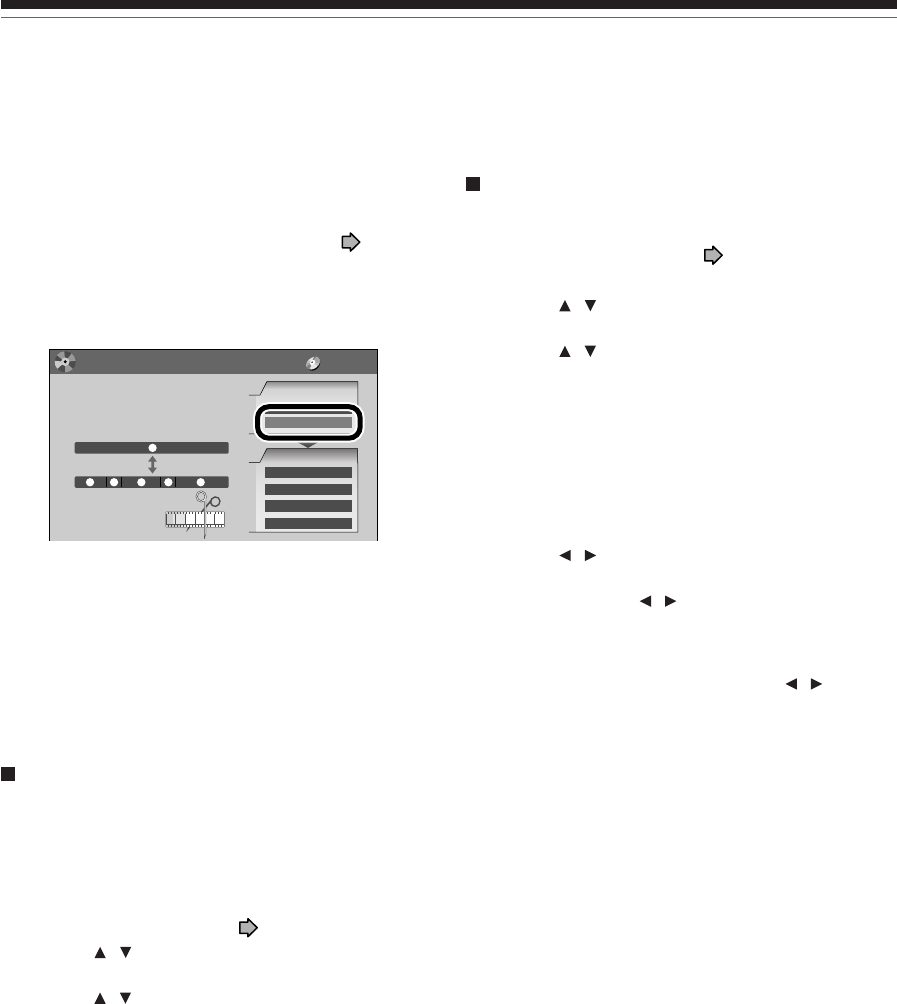
92
Creating chapters (Continued)
Editing
Notes
•This recorder supports a limited number of chapters on a
disc. If exceeded, a message appears. In this event, reduce
the number of chapters by merging chapters. ( page 93)
•The “EDIT MENU Chapter Editing” can also be viewed by
selecting “Chapter Editing” from the “EDIT MENU Main
Menu”.
e.g.
•To exit the EDIT MENU Main Menu, press the EDIT MENU
button.
• Making chapters in a title (Original) does not affect the
related titles (Playlist).
•There may be a small difference between a location you
marked and a chapter division actually played.
•Pausing a recording automatically creates a chapter
division.
Creating chapters automatically when
recording
You can create chapter marks from the beginning of a
title at regular intervals automatically. (Chapter marks
are added to those already existing.)
This is convenient for long programs, such as live
sports games.
1) Perform steps 1 to 4 on pages 89 to 90.
2) Press / to select “Auto chapter create”, then
press ENTER.
3) Press / to select a chapter division interval,
then press ENTER.
Chapter divisions are automatically marked at the
selected intervals.
Editing chapter break
You can adjust positions of chapter marks. You can
shift the beginning of a chapter currently selected.
1) Perform steps 1 to 5 on page 89 to 90.
2) Press QUICK MENU.
3) Press / to select “Chapter break edit mode”,
then press ENTER.
4) Press / to select the item, then press
ENTER.
“by frame (VR mode)”
The chapter mark shifts by one frame.
“by GOP (Video mode)”
The chapter mark shifts by a GOP (about 0.5
second), which is a unit of editing in DVD-Video
format.
5) Press / to select a chapter whose beginning
you want to shift.
6) Press FRAME (II / II) repeatedly until a
desired scene appears.
Select a point while monitoring the thumbnail,
which changes as you press the button.
To operate other chapters, press the / buttons
to select another, then follow the above steps.
7) When complete, press QUICK MENU, and select
“Chapter break edit mode off (by frame)” or
“Chapter Break Edit Mode off (by GOP)” then
press ENTER.
Notes
•You cannot shift a chapter mark beyond the adjacent
chapter marks or a logical gap on recorded data within a
chapter.
•Shifting a chapter mark restores a thumbnail to the
beginning of a chapter. This may occur also on the
previous chapter depending on the data condition.
EDIT
MENU
Main Menu
Chapters can be divided on frame
basis. Chapters can be merged and
assigned names.
Title
Merge
Divide
1
1
5432
Edit Functions
Playlist Editing
DVD-Video Finalizing
Combine ORG Title
Del Selected Items
Source
DV Recording
Chapter Editing
DVD-RAM
Chapter Editing
Chapter Editing
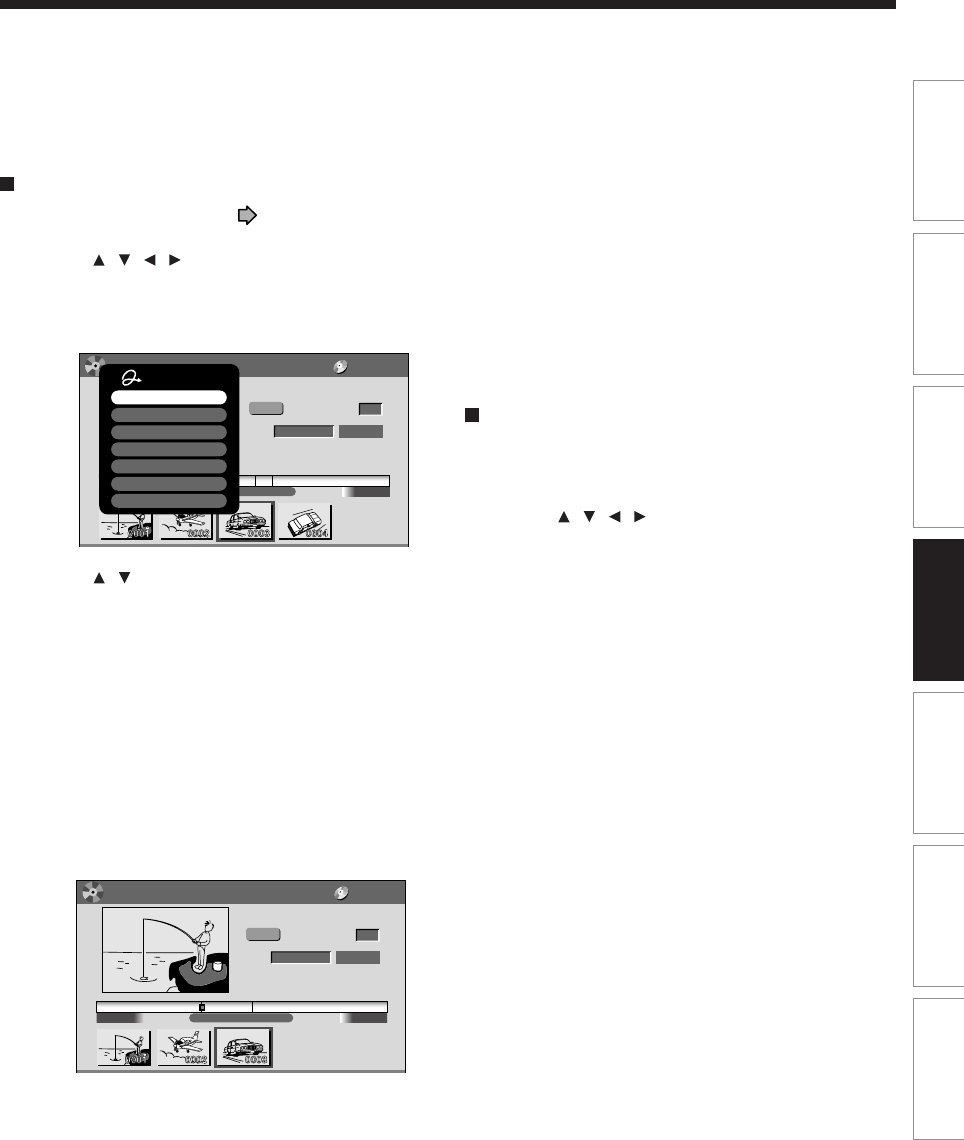
93
Editing Function setup Others
Introduction Library
Recording Playback
Merging chapters
1) Perform steps 1 to 5 on pages 89 to 90, to
view the EDIT MENU Chapter Editing display.
2) Press / / / to highlight a chapter.
Pressing the PICTURE SEARCH button can
access preceding or following pages.
3) Press QUICK MENU.
e.g.
4) Press / to select an item.
Merge with previous cptr:
To delete the chapter division between the selected
chapter and the previous one.
Merge with following cptr:
To delete the chapter division between the selected
chapter and the succeeding one.
Merge all chapters:
To merge all chapters in the title.
5) Press ENTER.
e.g. When “Merge with previous cptr” is selected:
The selected chapter is merged into the previous
chapter and its thumbnail is erased.
Notes
•To turn off the EDIT MENU Main Menu, press the EDIT
MENU button.
•When chapters are merged, the numerical value of
following chapters will decrease correspondingly.
•Merging chapters does not affect the related titles (Playlist).
You can also merge chapters in the title (Playlist). In this
case, the title (Original) is not affected.
•You can access the feature of merging chapters also from
the Quick Menu on the CONTENT MENU Chapter List.
Naming a chapter
1) From the EDIT MENU Chapter Editing, select a
chapter which you want to name.
2) Press QUICK MENU.
3) Press / / / to select “Edit chapter name”,
then press ENTER.
A keyboard appears.
Enter a name following the on-screen icon guides.
Notes
•There is a limit to the number of chapters which can be
named. If exceeded, a message appears.
•You can also access the keyboard to enter a chapter name
by selecting a chapter with the PICTURE SEARCH button
on the CONTENT MENU Title Information, and by
selecting “Edit chapter name” from the Quick Menu on the
CONTENT MENU Chapter List.
•You can change chapter names also on a DVD-R/RW disc,
if the disc is not finalized yet.
00:54:3000:00:00
B
EDIT
MENU
Chapter Create
00:00:21:24F
4:3
Original
Aspect Ratio
Location
To create new chapter, select
desired start point via remote.
To set, press enter.
Divide
DVD-RAM
00:54:3000:00:00 00:54:3000:00:00
Title:004 Chapter:0003
Fishing Guide
Quick Menu
Chapter break edit mode
Merge with previous cptr
Merge with following cptr
Merge all chapters
Edit chapter name
Exit
Auto chapter create
00:54:3000:00:00
B
EDIT
MENU
Chapter Editing
00:00:00:03F
4:3
Original
Aspect Ratio
Location
To create new chapter, select
desired start point via remote.
To set, press enter.
Divide
DVD-RAM
Title:004 Chapter:0003
Fishing Guide
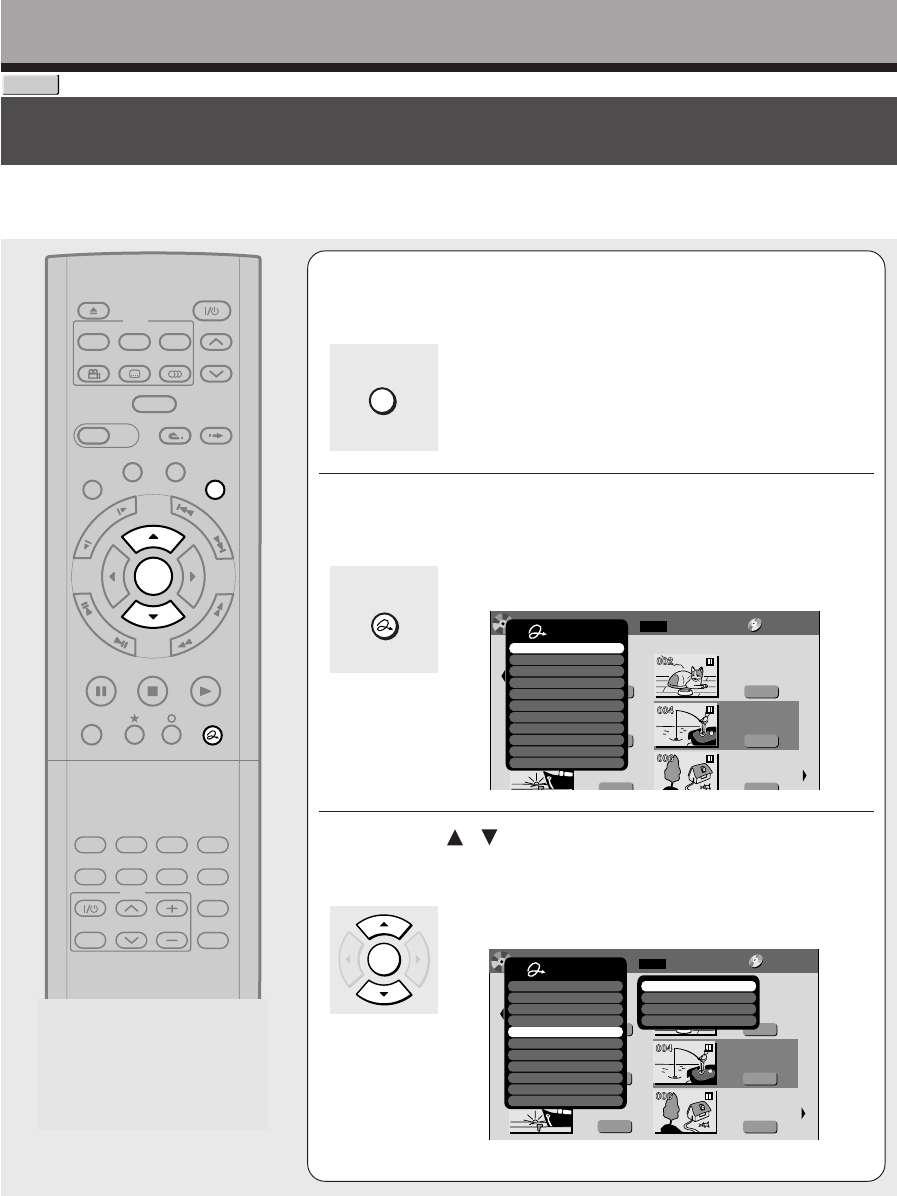
94
Playlist editing (Collecting desired scenes)
Create a “Playlist” to omit unnecessary scenes for dubbing, or compile desired scenes.
Editing
1During stop, playback or recording, press
CONTENT MENU.
The “CONTENT MENU Main Menu” appears.
2Press QUICK MENU.
The Quick Menu appears.
e.g.
3Press / to select “Edit function”, then
press ENTER.
The submenu appears.
e.g.
DVD-RAM
TIMESLIP
EASY
NAVI
INSTANT SKIPINSTANT REPLAY
PLAYSTOPPAUSE
REC
LIBRARY
REC MENU EDIT MENU
CONTENT MENU
ANGLE
OPEN/CLOSE
SUBTITLE
AUDIO
CHANNEL
QUICK MENU
TOP MENU
MENU
RETURN
DVD
F
R
A
M
E
/
A
D
J
U
S
T
P
I
C
T
U
R
E
S
E
A
R
C
H
S
K
I
P
S
L
O
W
ENTER
TV/VIDEO CHANNEL
VOLUME
REMAIN
DIMMER
FL SELECT
ZOOM P in P
TIME BAR CHP DIVIDE
DISPLAY
INPUT SELECT
PROGRESSIVE
TV
CONTENT MENU
ENTER
Original
2004/06/08 07:00
am TV:4
Title List Page
1/ 2
(0:53:45)
Original
2004/06/08 11:00
pm TV:6
(0:29:50)
Original
2004/07/11 07:00
am TV:8
(0:54:30)
Original
2004/07/12 09:00
pm TV:10
(0:51:28)
Original
2004/06/12 09:00
pm TV:3
(0:52:40)
Original
2004/07/12 11:00
pm TV:4
(0:30:08)
HDD :
DVD-RAM
MENU
CONTENT
Quick Menu
Title information
Create thumbnail
High speed dubbing
Playlist editing
Original title combination
Playlist(Mon-Fri)
Playlist(everyweek)
Chapter function
Edit functon
Special playback mode
Disc information
Display changeover
Specific page jump
Title delete
Exit
QUICK MENU
Original
2004/06/08 07:00
am TV:4
Title List Page
1/ 2
(0:53:45)
Original
2004/06/08 11:00
pm TV:6
(0:29:50)
Original
2004/07/11 07:00
am TV:8
(0:54:30)
Original
2004/07/12 09:00
pm TV:10
(0:51:28)
Original
2004/06/12 09:00
pm TV:3
(0:52:40)
Original
2004/07/12 11:00
pm TV:4
(0:30:08)
001 :
DVD-RAM
MENU
CONTENT
Quick Menu
Title information
Create thumbnail
High speed dubbing
Chapter function
Edit functon
Special playback mode
Disc information
Display changeover
Specific page jump
Title delete
Exit
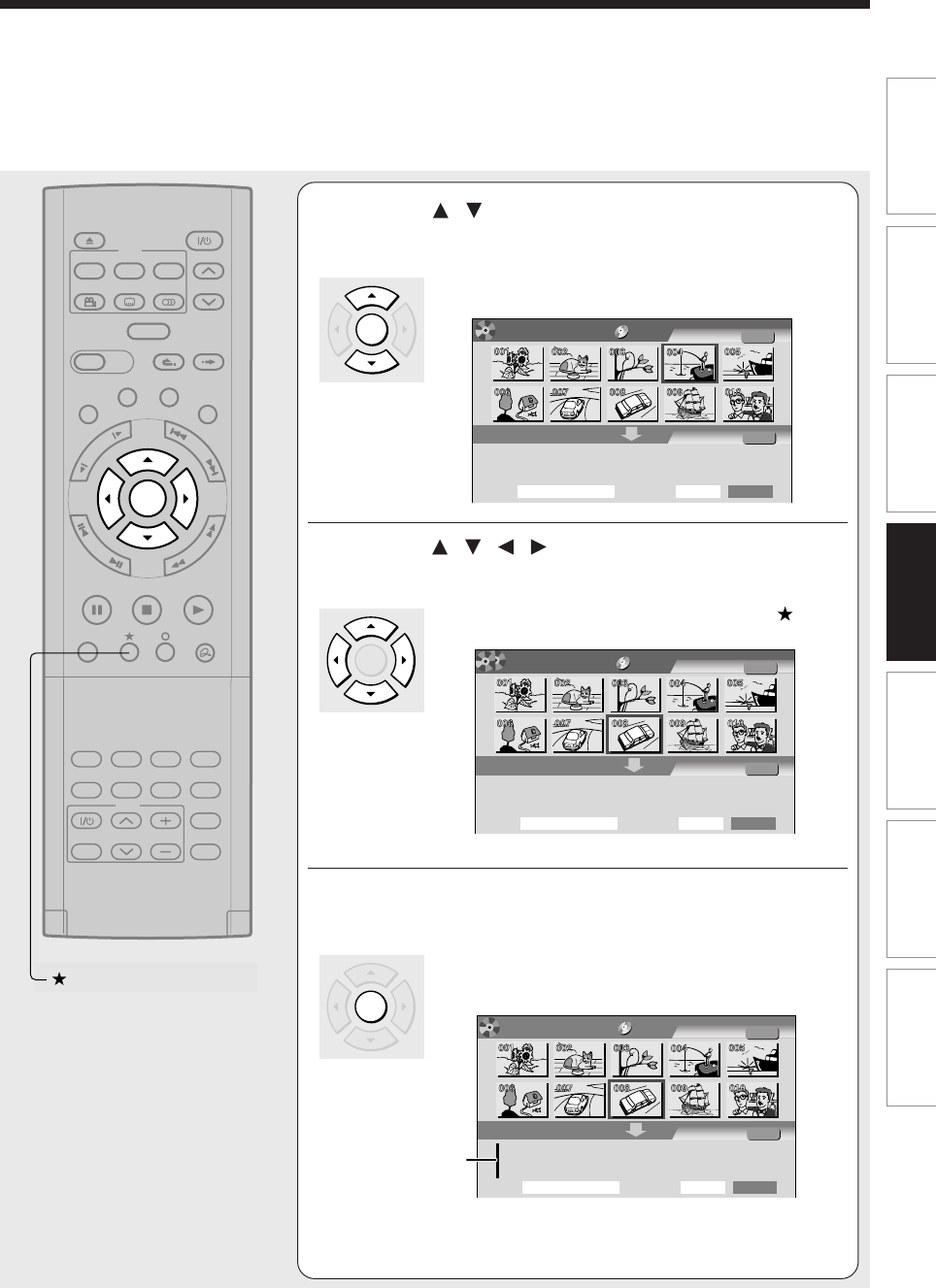
95
Editing Function setup Others
Introduction Library
Recording Playback
4Press / to select “Playlist editing”, then
press ENTER.
The “EDIT MENU Playlist editing” appears.
e.g.
5
Press / / / to select a title or chapter
.
To select between titles and chapters, press the button
.
e.g.
6Press ENTER.
A cursor appears, indicating the point where the
selected item will be inserted.
e.g.
(Continued)
TIMESLIP
EASY
NAVI
INSTANT SKIPINSTANT REPLAY
PLAYSTOPPAUSE
REC
LIBRARY
REC MENU EDIT MENU
CONTENT MENU
ANGLE
OPEN/CLOSE
SUBTITLE
AUDIO
CHANNEL
QUICK MENU
TOP MENU
MENU
RETURN
DVD
F
R
A
M
E
/
A
D
J
U
S
T
P
I
C
T
U
R
E
S
E
A
R
C
H
S
K
I
P
S
L
O
W
ENTER
TV/VIDEO CHANNEL
VOLUME
REMAIN
DIMMER
FL SELECT
ZOOM P in P
TIME BAR CHP DIVIDE
DISPLAY
INPUT SELECT
PROGRESSIVE
TV
AAA
BB
Playlist editing
Source:Title
Object :Title
Original
PlayList
StartTitle: Entire time:
EDIT
MENU
DVD-RAM
ENTER
ENTER
Cursor
AAA
B
B
Playlist editing
Source:Title
Object :Title
Original
PlayList
StartTitle: Entire time:
EDIT
MENU
DVD-RAM
ENTER
A
B
Playlist editing
Source:Title
Object :Title
Original
PlayList
StartTitle: Entire time:
EDIT
MENU
DVD-RAM
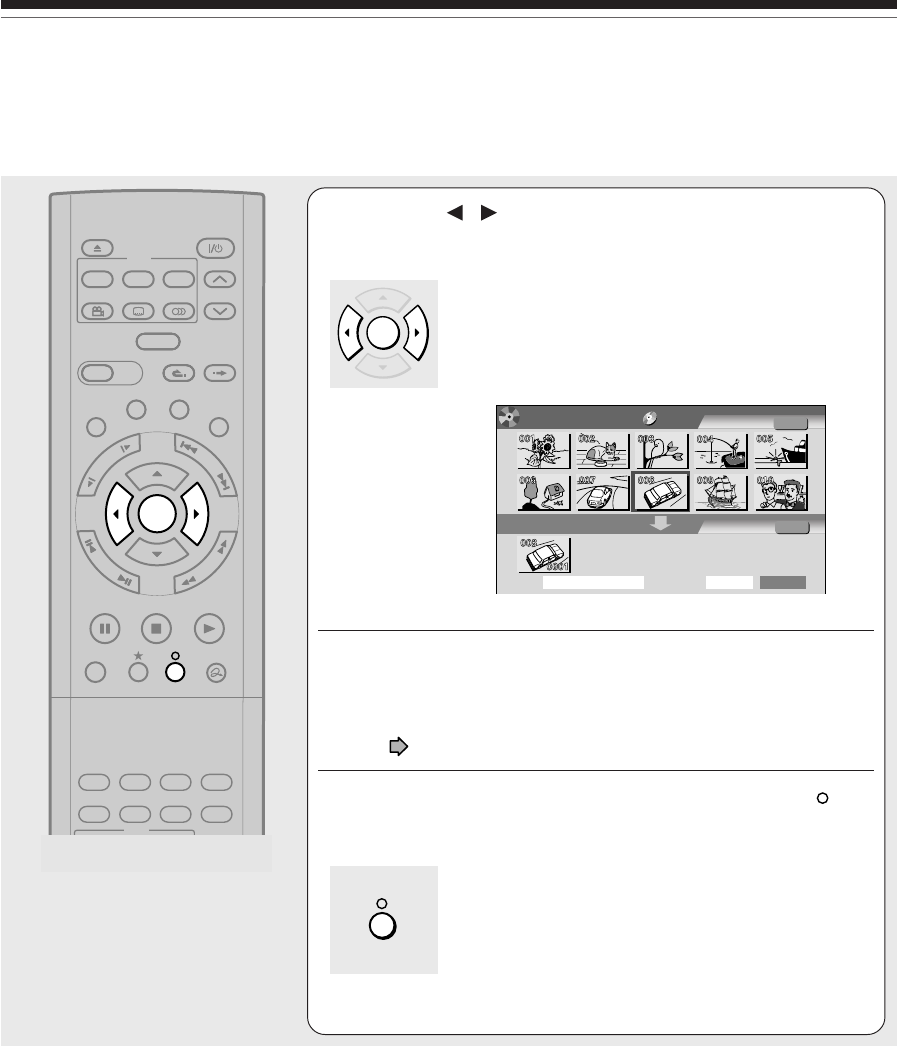
96
7Press / to select a point where you want to
insert the item, then press ENTER.
If there are no parts in the lower area, leave the cursor
to the left and press the ENTER button.
The selected part is inserted at the location of the
cursor.
e.g.
8Repeat steps 4 to 6 to insert items.
To cancel the selection, see “Canceling selection of a part”
( page 97).
9When all items have been inserted, press .
The recorder displays a message, and starts saving the
Playlist.
When complete, the CONTENT MENU returns.
Notes
•You can access the “EDIT MENU Playlist editing” also by selecting “Playlist editing” on the EDIT MENU.
•If you delete titles and chapters (Original), the corresponding titles and chapters (Playlist) are also deleted. Contrarily, if you
delete titles and chapters (Playlist), the corresponding titles and chapters (Original) are not deleted.
•Playback may pause if a gap between the content is played.
•There may be a small difference between the chapter boundary and the actual playback picture.
•A title or chapter which is being edited cannot be selected as an item.
•You cannot add a title of still pictures, or a title or a chapter which contains both still and moving pictures, to a playlist.
•By copying (dubbing) a Playlist, a title (Original) of the same contents is created.
•You cannot program a Playlist of contents recorded on a DVD-R/RW disc.
•Down arrow on the thumbnails means: Orange: This title already selected. Green trimmed: Some chapters in this title already
selected. Green: This title already selected.
•A black thumbnail with “Recording” means that the title is being recorded or its recording will start within 15 seconds. This
thumbnail cannot start playback.
TIMESLIP
EASY
NAVI
INSTANT SKIPINSTANT REPLAY
PLAYSTOPPAUSE
REC
LIBRARY
REC MENU EDIT MENU
CONTENT MENU
ANGLE
OPEN/CLOSE
SUBTITLE
AUDIO
CHANNEL
QUICK MENU
TOP MENU
MENU
RETURN
DVD
F
R
A
M
E
/
A
D
J
U
S
T
P
I
C
T
U
R
E
S
E
A
R
C
H
S
K
I
P
S
L
O
W
ENTER
TV/VIDEO CHANNEL
VOLUME
REMAIN
DIMMER
FL SELECT
ZOOM P in P
TIME BAR CHP DIVIDE
DISPLAY
INPUT SELECT
PROGRESSIVE
TV
AAA
BB
Playlist editing Source:Title
Object :Title
Original
PlayList
StartTitle: 2004/05/07 10:30am 00:13:45
Entire time:
EDIT
MENU
DVD-RAM
Playlist editing (Continued)
Editing
ENTER
97
Editing Function setup Others
Introduction Library
Recording Playback
Canceling selection of a part
1) From the “EDIT MENU Playlist editing”, press
/ / / to select a part to cancel.
2) Press QUICK MENU.
The Quick Menu appears.
3) Press / to select “Cancel selected title”,
then press ENTER.
The part you have selected is canceled.
Confirming the first and last scenes of a part or
a Playlist
You can play the first and last 3 seconds of a scene
(Preview). (If a title contains several chapters, the first
and last scenes of the chapters are also played.)
Preview of a part:
1) At step 5 on page 95, select a title or a
chapter, then press QUICK MENU.
2) Press / to select “Preview”, then press
ENTER.
Preview of all parts:
1) Move the cursor to an any part (in the lower
area), then press QUICK MENU.
2) Press / to select “Preview all playlists”, then
press ENTER.
Confirming the title information
1) At step 5 on page 95, select a title or a
chapter, then press QUICK MENU.
2) Press / to select “Title information” then
press ENTER.
Correcting a Playlist
You can add or delete parts to correct a Playlist.
1) From the CONTENT MENU, select a Playlist to
correct.
2) Press QUICK MENU.
3) Press / to select “Playlist re-editing” and
then press ENTER.
The “EDIT MENU Playlist editing” appears.
Follow the procedure from steps 4 on page 95,
add or delete parts as necessary.
Note
• You cannot edit a title (Playlist) of still pictures, or a title
(Playlist) which contains both still and moving pictures.
Using a part in a Playlist also in another Playlist
1) In play or stop mode of a Playlist title, press
EDIT MENU.
The “EDIT MENU Main Menu” appears.
2) Press / / / to select “Playlist editing,”
then press ENTER.
The “EDIT MENU Playlist editing” appears.
3) Press / / / to select “Start” then press
ENTER.
The areas of title name and part selection become
blank.
4) Following the procedures outlined on page
95, make a Playlist.
Naming a title (Playlist)
1) From the “EDIT MENU Playlist editing”, move a
cursor to the lower side (selected parts) then
press QUICK MENU.
2) Press / to select “Edit title name,” then
press ENTER.
A keyboard appears.
3) Following the procedures outlined on page
30, enter a title name.
Note
• You can name a title also while viewing its information.
From the “CONTENT MENU Title List”, select a title and
press the QUICK MENU button then select “Title
information” by the / buttons and the ENTER button.
Further press the QUICK MENU button, and select “Edit
title name” by the / buttons and the ENTER button.
98
Playlist editing (Continued)
Editing
Making a Playlist of recorded contents where
starting times are the same (i.e. daily or weekly
recordings)
This will help to sort serials.
1) From the “CONTENT MENU Title List”, press
QUICK MENU.
2) Press / to select “Edit function”, then press
ENTER.
3) Press / to select the item.
“Playlist(every week)”
To sort out programs recorded on the same time of
the same day of the week to make a Playlist.
“Playlist(Mon-Fri)”
To sort out programs recorded on the same time on
Monday to Friday to make a Playlist.
4) Press ENTER.
Notes
•Only titles (Original) can be sorted.
•The maximum number of sorted titles is 99.
•If you modify the recording start time or date of one of the
recorded serials, the title will not be sorted out. Contrarily,
any program can be sorted if its channel, recording start
time and date are modified as the same as others.
•“Playlist (Mon-Fri)” can sort titles even if they are not
complete 5 collections of Monday to Friday, on condition
that they have the same channel and recording start time,
and any recording date except Saturday and Sunday.
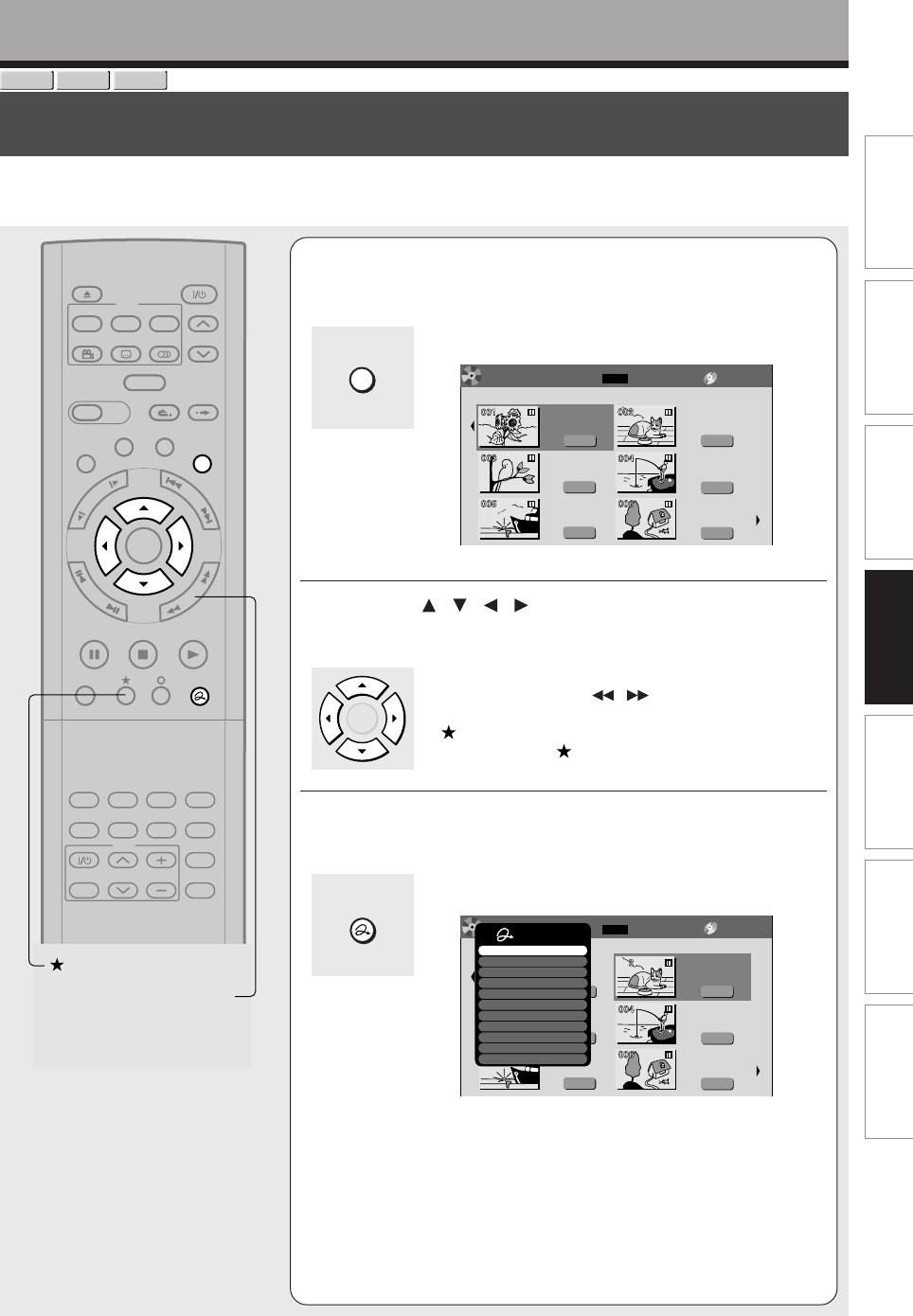
99
Editing Function setup Others
Introduction Library
Recording Playback
Editing
Creating thumbnails
(Changing the picture on the CONTENT MENU)
You can register your favorite scene as a thumbnail displayed on the CONTENT MENU.
On a finalized DVD-R/RW disc, this feature is not available.
CONTENT MENU
DVD-RAM
DVD-RW
DVD-R
TIMESLIP
EASY
NAVI
INSTANT SKIPINSTANT REPLAY
PLAYSTOPPAUSE
REC
LIBRARY
REC MENU EDIT MENU
CONTENT MENU
ANGLE
OPEN/CLOSE
SUBTITLE
AUDIO
CHANNEL
QUICK MENU
TOP MENU
MENU
RETURN
DVD
F
R
A
M
E
/
A
D
J
U
S
T
P
I
C
T
U
R
E
S
E
A
R
C
H
S
K
I
P
S
L
O
W
ENTER
TV/VIDEO CHANNEL
VOLUME
REMAIN
DIMMER
FL SELECT
ZOOM P in P
TIME BAR CHP DIVIDE
DISPLAY
INPUT SELECT
PROGRESSIVE
TV
PICTURE SEARCH
(Continued)
e.g.
1During stop or playback, press CONTENT
MENU.
The “CONTENT MENU Title List” appears.
2Press / / / to select a title whose
thumbnail you want to change.
•To go to the next or previous page, press the
PICTURE SEARCH ( / ) button.
•To select a chapter, select a title and press the
button. The Chapter List appears.
By pressing the button again, you can return to the
Title List.
3Press QUICK MENU.
The Quick Menu appears.
Original
001 :
2004/06/08 07:00
am TV:4
Title List Page
1/ 2
(0:53:45)
Original
2004/06/08 11:00
pm TV:6
(0:29:50)
Original
2004/07/11 07:00
am TV:8
(0:54:30)
Original
2004/07/12 09:00
pm TV:10
(0:51:28)
Original
2004/06/12 09:00
pm TV:3
(0:52:40)
Original
2004/07/12 11:00
pm TV:4
(0:30:08)
DVD-RAM
CONTENT
MENU
ENTER
QUICK MENU
e.g.
Original
2004/06/08 07:00
am TV:4
Page
1/ 2
(0:53:45)
Original
2004/07/11 07:00
am TV:8
(0:54:30)
Original
2004/07/12 09:00
pm TV:10
(0:51:28)
Original
2004/06/12 09:00
pm TV:3
(0:52:40)
Original
2004/07/12 11:00
pm TV:4
(0:30:08)
001 :
Original
2004/06/08 11:00
pm TV:6
(0:29:50)
DVD-RAM
Title List
CONTENT
MENU Quick Menu
Title information
Create thumbnail
High speed dubbing
Chapter function
Edit functon
Special playback mode
Disc information
Display changeover
Specific page jump
Title delete
Exit
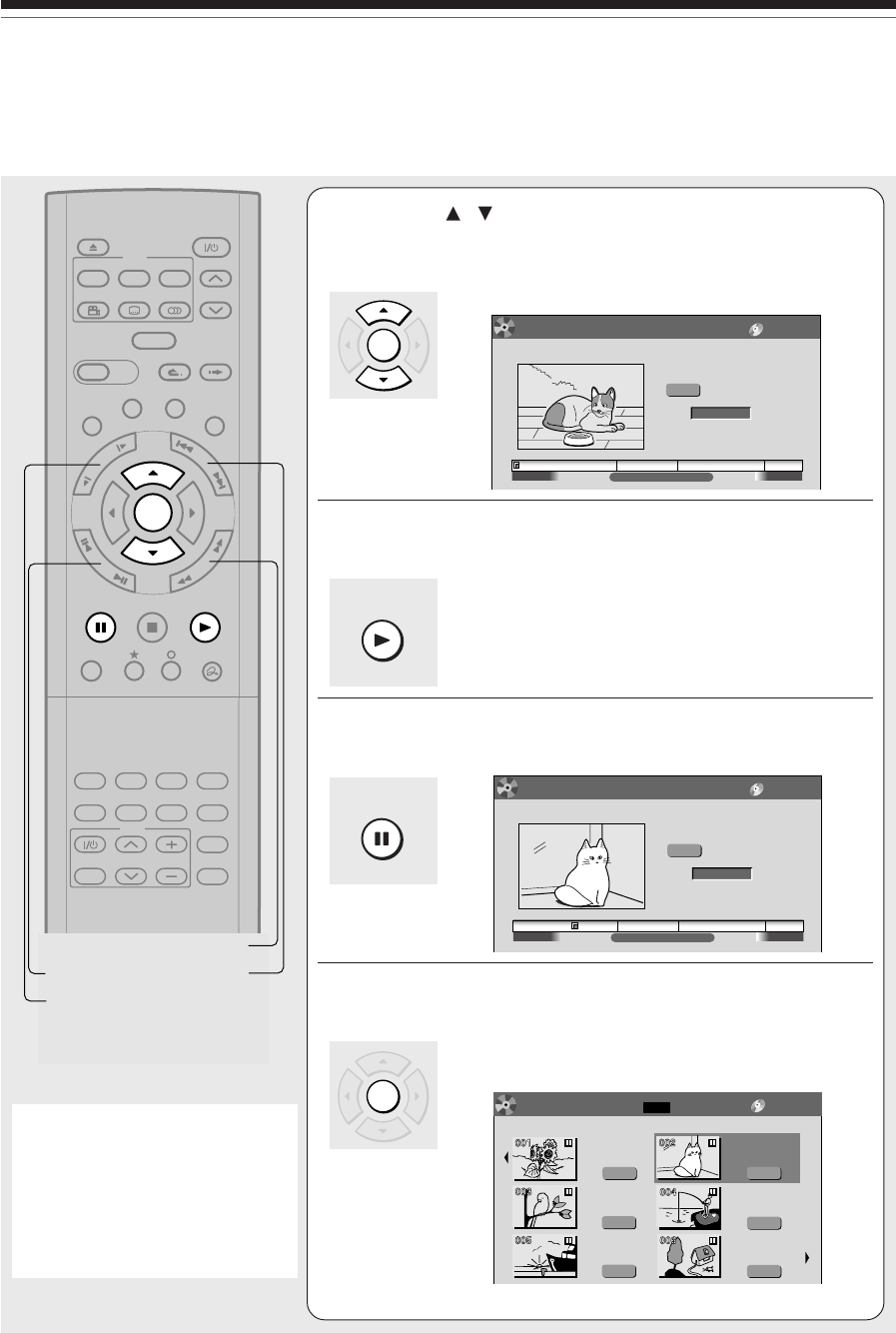
100
4Press / to select “Create thumbnail”
(or “Create CHP thumbnail” if selected a
chapter at step 2), then press ENTER.
The “CONTENT MENU Create Thumbnail” appears.
e.g.
5Press PLAY to start playback.
Locate a scene you want to capture as a thumbnail.
You can use the following buttons.
PICTURE SEARCH, FRAME, SLOW, SKIP, PAUSE, etc.
6At the point where you want to capture a
thumbnail image, press PAUSE.
e.g.
7Press ENTER.
The CONTENT MENU returns. The selected scene is
displayed as a thumbnail.
e.g.
Note
•There may be a small difference
between a thumbnail made on the
Create Thumbnail display and that
displayed in the CONTENT MENU.
Operation with the PICTURE
SEARCH button may extend the
difference.
TIMESLIP
EASY
NAVI
INSTANT SKIPINSTANT REPLAY
PLAYSTOPPA U S E
REC
LIBRARY
REC MENU EDIT MENU
CONTENT MENU
ANGLE
OPEN/CLOSE
SUBTITLE
AUDIO
CHANNEL
QUICK MENU
TOP MENU
MENU
RETURN
DVD
F
R
A
M
E
/
A
D
J
U
S
T
P
I
C
T
U
R
E
S
E
A
R
C
H
S
K
I
P
S
L
O
W
ENTER
TV/VIDEO CHANNEL
VOLUME
REMAIN
DIMMER
FL SELECT
ZOOM P in P
TIME BAR CHP DIVIDE
DISPLAY
INPUT SELECT
PROGRESSIVE
TV
SLOW
FRAME
PICTURE SEARCH
SKIP
Creating thumbnails (Continued)
Editing
00:29:50
2004/06/08 11:00pm Ch:6
00:00:00
(0:29:50)
B
00:00:00:03F
Original
Location
Create Thumbnail
Select desired thumbnail image via
remote. To set, press enter.
Title:002 Chapter:0001
DVD-RAM
CONTENT
MENU
00:29:50
2004/06/08 11:00pm Ch:6
00:00:00
(0:29:50)
B
00:06:25:23F
Original
Location
Create Thumbnail
Select desired thumbnail image via
remote. To set, press enter.
Title:002 Chapter:0001
DVD-RAM
CONTENT
MENU
Original
001 :
2004/06/08 07:00
am TV:4
Page
1/ 2
(0:53:45)
Original
2004/07/11 07:00
am TV:8
(0:54:30)
Original
2004/07/12 09:00
pm TV:10
(0:51:28)
Original
2004/06/12 09:00
pm TV:3
(0:52:40)
Original
2004/07/12 11:00
pm TV:4
(0:30:08)
Original
2004/06/08 11:00
pm TV:6
(0:29:50)
DVD-RAM
Title List
CONTENT
MENU
PLAY
ENTER
ENTER
PAUSE
101
Editing Function setup Others
Introduction Library
Recording Playback
Notes
•You cannot create thumbnails of chapters in a title that
contains a still picture.
•If you create a chapter thumbnail, and then shift the
chapter mark ( page 92) or record or edit the disc on
other devices, the chapter thumbnail may return to the top
of the chapter.
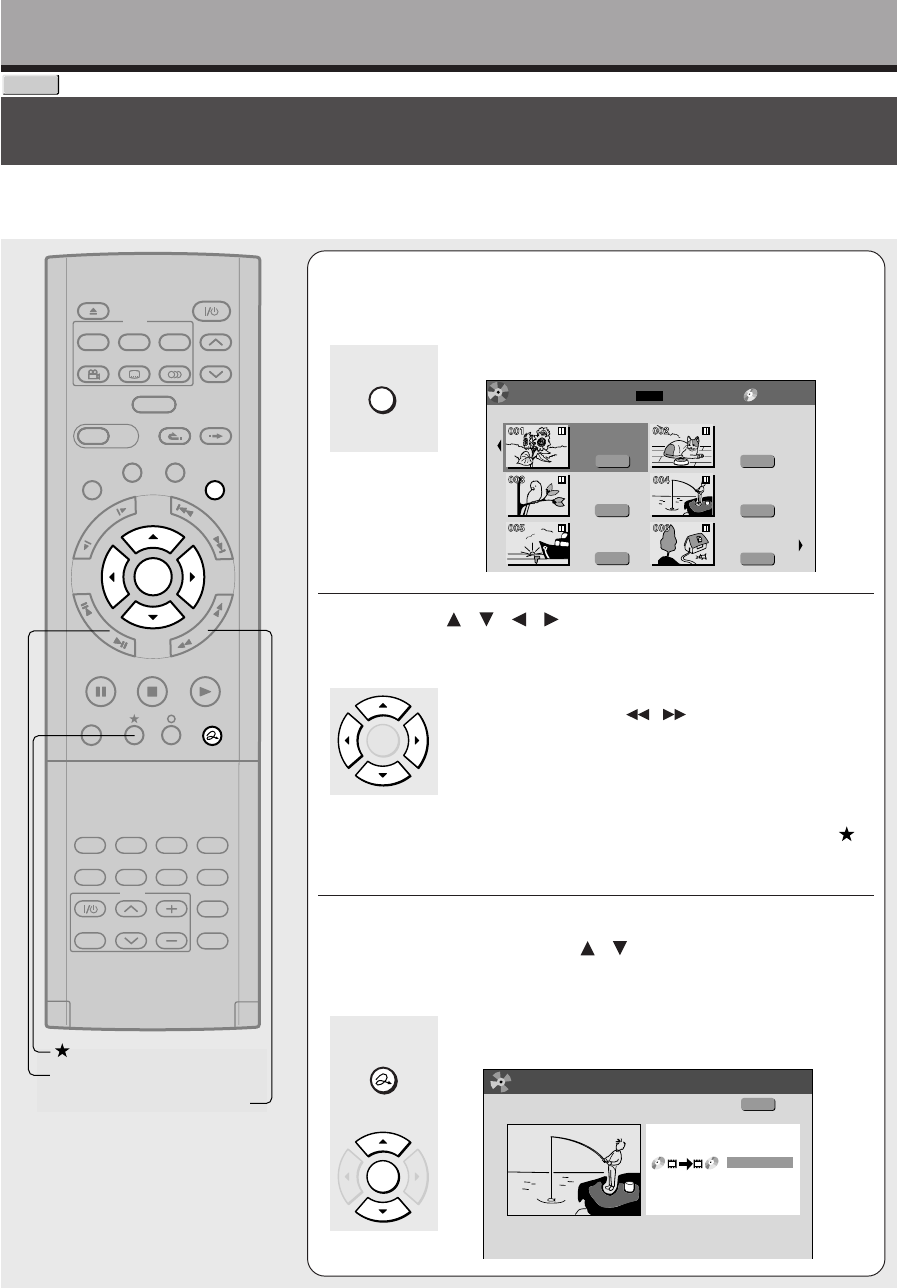
102
Editing
DVD-RAM
1During playback or stop, press CONTENT
MENU.
The “CONTENT MENU Title List” appears.
2Press / / / to select a part (a title or
chapter) to copy or move.
•You can go forward/back to pages by pressing the
PICTURE SEARCH ( / ) button.
You can jump to a page by specifying the page
number.
Press the QUICK MENU button, select “Specific page
jump”. Use the ADJUST button to change the page
number.
•To select a chapter, highlight a title and press the
button. If you press the button again, the title list re-
appears.
3Press QUICK MENU then select “High speed
dubbing” pressing / from the Quick Menu,
then press ENTER.
The “CONTENT MENU High Speed Library Dubbing”
appears.
e.g.
e.g.
High speed Library dubbing (Dubbing only a specified part)
This section explains how to copy a title or chapter recorded on a DVD-RAM disc within the same disc at
high speed (high speed: in a shorter time than actual playing time of the title or chapter). Follow this
procedure when you convert a playlist into an original title.
CONTENT MENU
QUICK MENU
ENTER
TIMESLIP
EASY
NAVI
INSTANT SKIPINSTANT REPLAY
PLAYSTOPPAUSE
REC
LIBRARY
REC MENU EDIT MENU
CONTENT MENU
ANGLE
OPEN/CLOSE
SUBTITLE
AUDIO
CHANNEL
QUICK MENU
TOP MENU
MENU
RETURN
DVD
F
R
A
M
E
/
A
D
J
U
S
T
P
I
C
T
U
R
E
S
E
A
R
C
H
S
K
I
P
S
L
O
W
ENTER
TV/VIDEO CHANNEL
VOLUME
REMAIN
DIMMER
FL SELECT
ZOOM P in P
TIME BAR CHP DIVIDE
DISPLAY
INPUT SELECT
PROGRESSIVE
TV
PICTURE SEARCH
ADJUST
Original
001 :
2004/06/08 07:00
am TV:4
Page
1/ 2
(0:53:45)
Original
2004/06/08 11:00
pm TV:6
(0:29:50)
Original
2004/07/11 07:00
am TV:8
(0:54:30)
Original
2004/07/12 09:00
pm TV:10
(0:51:28)
Original
2004/06/12 09:00
pm TV:3
(0:52:40)
Original
2004/07/12 11:00
pm TV:4
(0:30:08)
DVD-RAM
Title List
CONTENT
MENU
(0:52:40)
2004/06/10 09:00pm TV:4
B
High Speed Library Dubbing
Original
(Saves Original)
Same Disc
CONTENT
MENU
ENTER
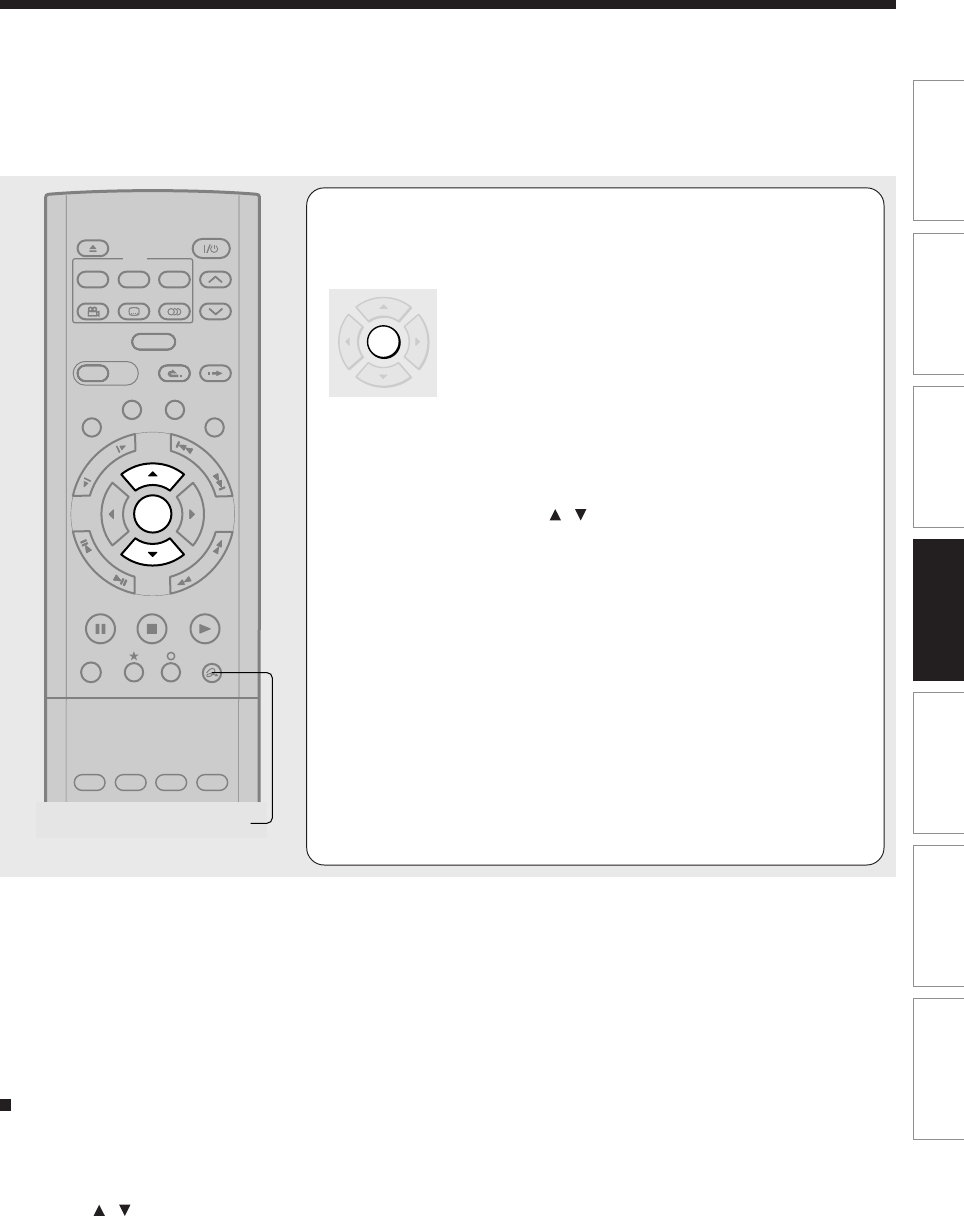
103
Editing Function setup Others
Introduction Library
Recording Playback
4Press ENTER.
Copying starts.
A new title with the same contents is reproduced on the
same disc.
The job progress is displayed on the screen and the
front panel display.
When the job finishes, the graph disappears and the
buzzer sounds.
You can set the recorder to turn off automatically when
the job finishes.
(1) During the operation, press the QUICK MENU button.
(2) Press the / buttons to select “Auto power off”.
(3) Press the ENTER button.
Notes
•Copying a Playlist makes an Original, leaving the Playlist as it is.
•A title or a chapter becomes a title by being copied.
•Copying is interrupted when a program recording is about to start.
•Copying using a DVD video disc, VIDEO CD, audio CD, CD-R, CD-RW, DVD-R or DVD-RW disc is not possible.
•If copying is not allowed due to some conditions, such as lack of disc space, etc., a message will appear. Follow the
procedure indicated there.
•Depending on the contents, some reference information or appendix data may not be copied.
•A title that contains a still picture cannot be copied.
To cancel copying halfway through the
operation
1) During copying, press QUICK MENU.
The Quick Menu appears.
2) Press / to select “Cancel dubbing”, then
press ENTER.
Note
•Cancellation of a copying operation will result in deletion of
a portion of the title or chapter already copied.
TIMESLIP
EASY
NAVI
INSTANT SKIPINSTANT REPLAY
PLAYSTOPPAUSE
REC
LIBRARY
REC MENU EDIT MENU
CONTENT MENU
ANGLE
OPEN/CLOSE
SUBTITLE
AUDIO
CHANNEL
QUICK MENU
TOP MENU
MENU
RETURN
DVD
F
R
A
M
E
/
A
D
J
U
S
T
P
I
C
T
U
R
E
S
E
A
R
C
H
S
K
I
P
S
L
O
W
ENTER
REMAIN
DIMMER
FL SELECT
ZOOM P in P
TIME BAR CHP DIVIDE
DISPLAY
PROGRESSIVE
TV
QUICK MENU
ENTER
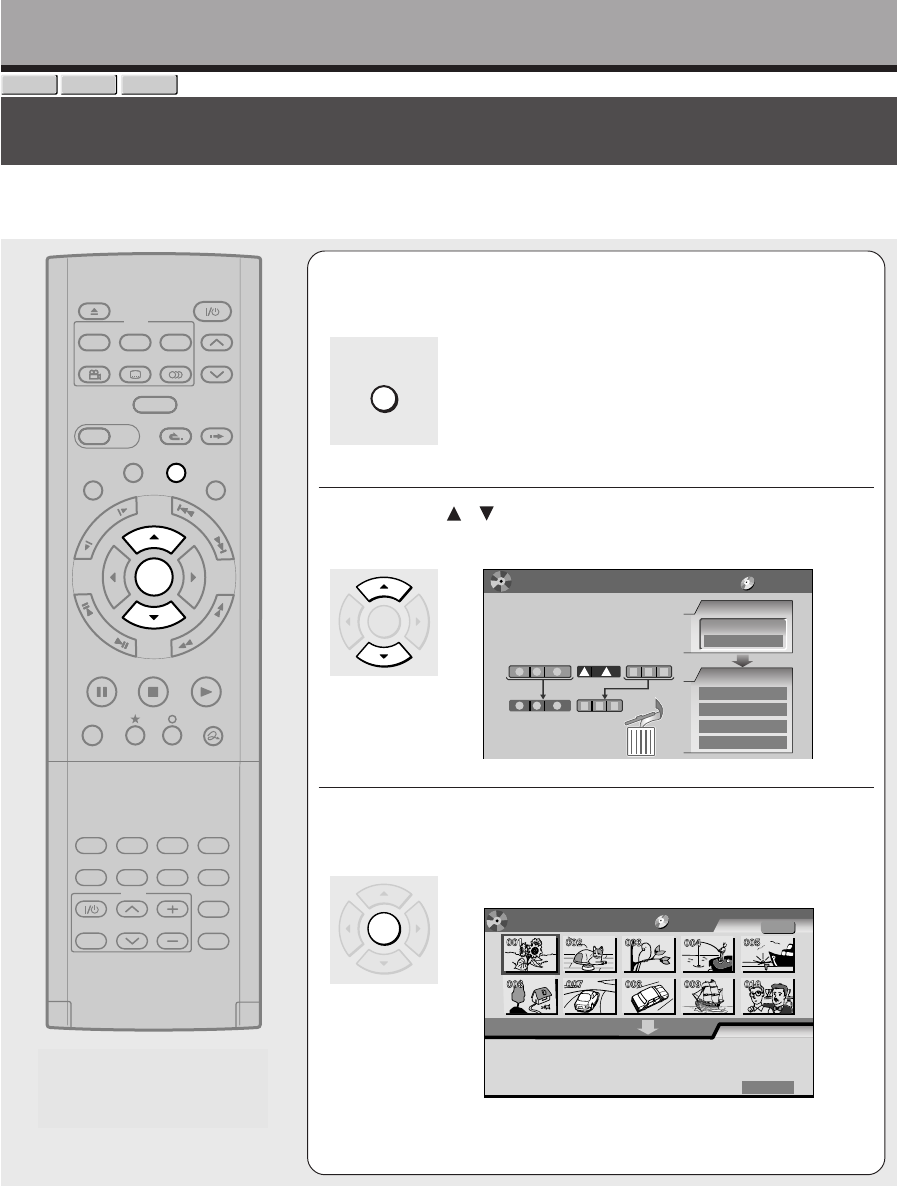
104
Editing
Deleting selected items (Deleting multiple specified parts)
This section explains how to simultaneously delete unnecessary titles, or unnecessary chapters.
On a finalized DVD-R/RW disc, this feature is not possible.
DVD-RAM
DVD-RW
DVD-R
TIMESLIP
EASY
NAVI
INSTANT SKIPINSTANT REPLAY
PLAYSTOPPAUSE
REC
LIBRARY
REC MENU EDIT MENU
CONTENT MENU
ANGLE
OPEN/CLOSE
SUBTITLE
AUDIO
CHANNEL
QUICK MENU
TOP MENU
MENU
RETURN
DVD
F
R
A
M
E
/
A
D
J
U
S
T
P
I
C
T
U
R
E
S
E
A
R
C
H
S
K
I
P
S
L
O
W
ENTER
TV/VIDEO CHANNEL
VOLUME
REMAIN
DIMMER
FL SELECT
ZOOM P in P
TIME BAR CHP DIVIDE
DISPLAY
INPUT SELECT
PROGRESSIVE
TV
1During playback or stop, press EDIT MENU.
The “EDIT MENU Main Menu” appears.
2Press / to select “Del Selected Items”.
e.g.
3Press ENTER.
The “EDIT MENU Del Selected Items” appears.
e.g.
Thumbnails of the parts in the disc are displayed in the
upper area.
AAA
BB
Del Selected Items
Title
Object
Original
Start
EDIT
MENU
DVD-RAM
321
321
3
2
1
3
2
1
1 2
EDIT
MENU
Main Menu
Del Selected Items
Several titles or unnecessary chapters
in several titles can be deleted at one
time.
Title Title Title
Edit Functions
Playlist Editing
Combine ORG Title
DVD-Video Finalizing
Del Selected Items
Source
DV Recording
Chapter Editing
Del Selected Items
DVD-RAM
EDIT MENU
ENTER
ENTER
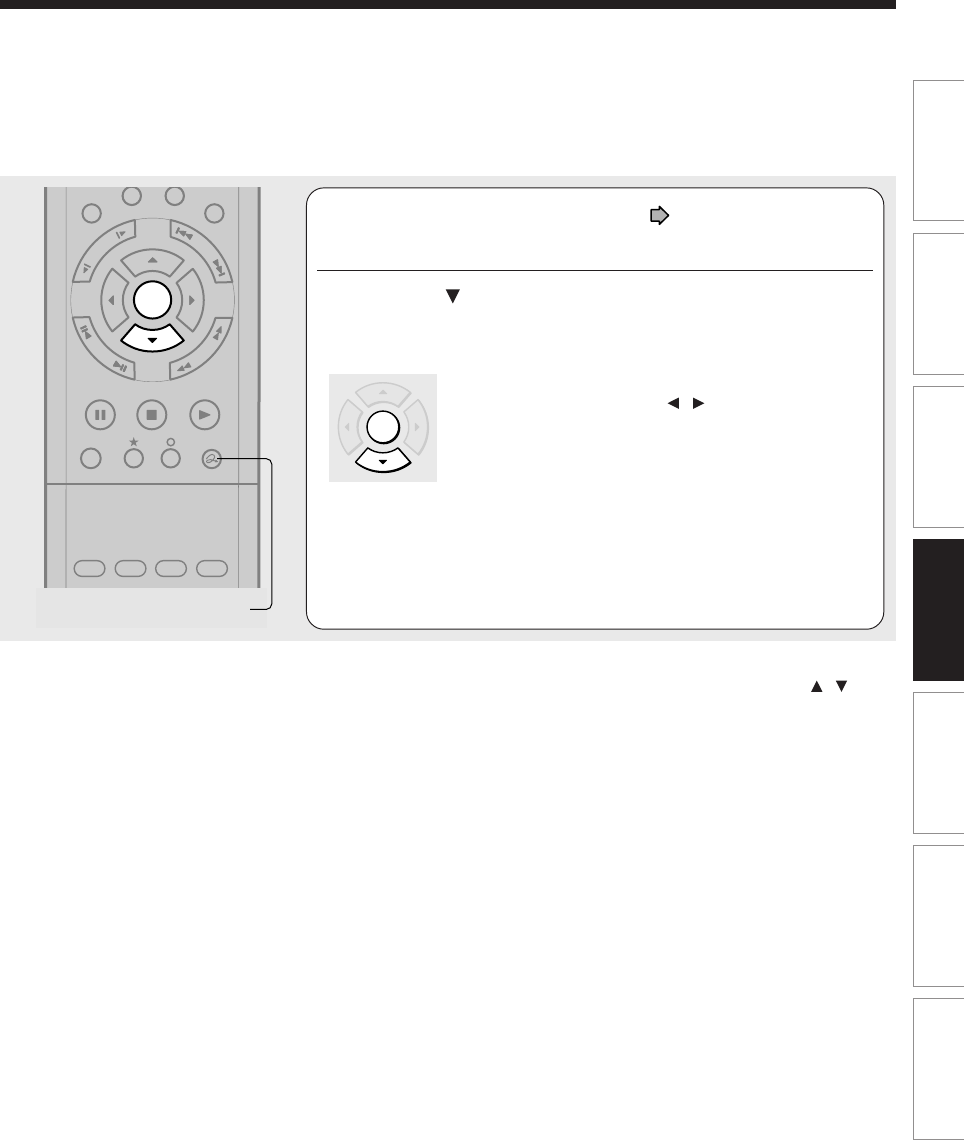
105
Editing Function setup Others
Introduction Library
Recording Playback
Notes
•To confirm the first and last scenes of an item, first select an item then press the QUICK MENU button. Press the /
buttons to select “Preview” (or “Title information”) then press the ENTER button. This is available only on contents recorded in
DVD-RAM discs.
•Titles and chapters show their names for about 2 seconds at the bottom of the screen when they are selected.
•On a DVD-RW disc, deleting can restore the disc space only by deleting the last recorded title.
•Deleting cannot be canceled once started. Be careful when executing the deletion process.
•If you select a title for the part to be removed, you cannot select chapters in that title.
•Chapters in DVD-R/RW discs cannot be selected to delete.
4Following steps 4 to 6 on page 94, 95,
assemble the items to delete.
5Press repeatedly to select “Start”, then
press ENTER.
The recorder begins the deletion process.
To cancel deleting, press the / buttons to select
“No”, then press the ENTER button.
When the process is finished, the “EDIT MENU Main
Menu” returns.
PLAYSTOPPAUSE
REC
LIBRARY
CONTENT MENU
QUICK MENU
F
R
A
M
E
/
A
D
J
U
S
T
P
I
C
T
U
R
E
S
E
A
R
C
H
S
K
I
P
S
L
O
W
ENTER
REMAIN
DIMMER
FL SELECT
ZOOM P in P
TIME BAR CHP DIVIDE
DISPLAY
PROGRESSIVE
TV
QUICK MENU
ENTERENTER
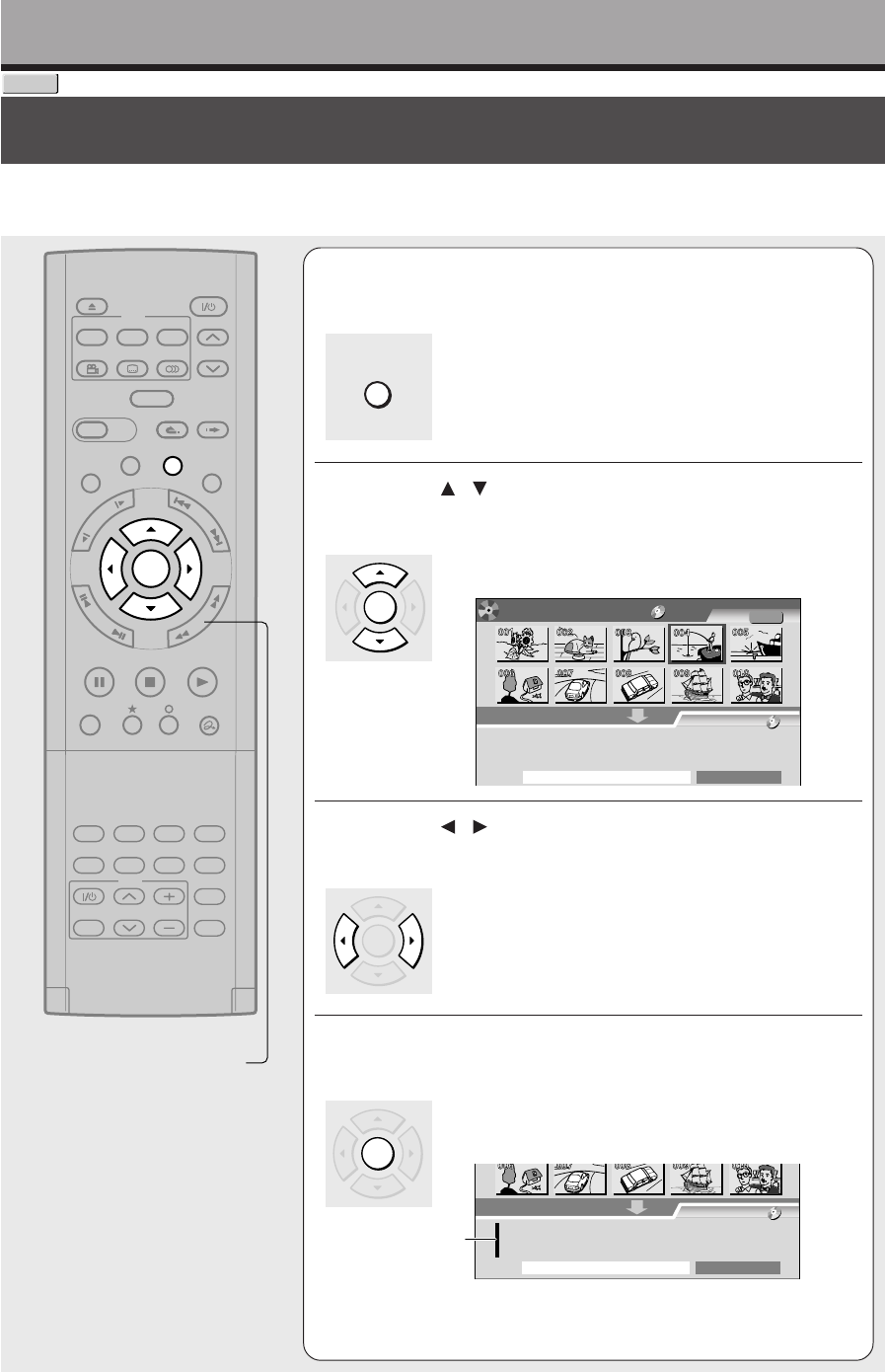
106
Editing
Combine Original titles (Combine two titles into one)
Use this feature to combine two titles into one. The second title is deleted as the second title is added to
the end of the first title.
1During playback or stop, press EDIT MENU.
The “EDIT MENU Main Menu” appears.
2Press / to select “Combine ORG Title”,
then press ENTER.
The “EDIT MENU Combine ORG Title” appears.
e.g.
3Press / to select the first title to merge.
Press the PICTURE SEARCH button to move to the
previous or next page.
4Press ENTER.
The cursor appears in the lower area of the screen (the
title to merge to).
e.g.
Cursor
TIMESLIP
EASY
NAVI
INSTANT SKIPINSTANT REPLAY
PLAYSTOPPAUSE
REC
LIBRARY
REC MENU EDIT MENU
CONTENT MENU
ANGLE
OPEN/CLOSE
SUBTITLE
AUDIO
CHANNEL
QUICK MENU
TOP MENU
MENU
RETURN
DVD
F
R
A
M
E
/
A
D
J
U
S
T
P
I
C
T
U
R
E
S
E
A
R
C
H
S
K
I
P
S
L
O
W
ENTER
TV/VIDEO CHANNEL
VOLUME
REMAIN
DIMMER
FL SELECT
ZOOM P in P
TIME BAR CHP DIVIDE
DISPLAY
INPUT SELECT
PROGRESSIVE
TV
PICTURE SEARCH
DVD-RAM
AAA
B
Combine ORG Title Title
Object :DVD
Original
Start combining
Title:
For source, only 2 titles (original)
can e selected. After combined,
the second title is included into the
first one.
EDIT
MENU
DVD-RAM
ENTER
ENTER
ENTER
EDIT MENU
AAA
B
B
Object :DVD
Start combining
Title:
For source, only 2 titles (original)
can e selected. After combined,
the second title is included into the
first one.
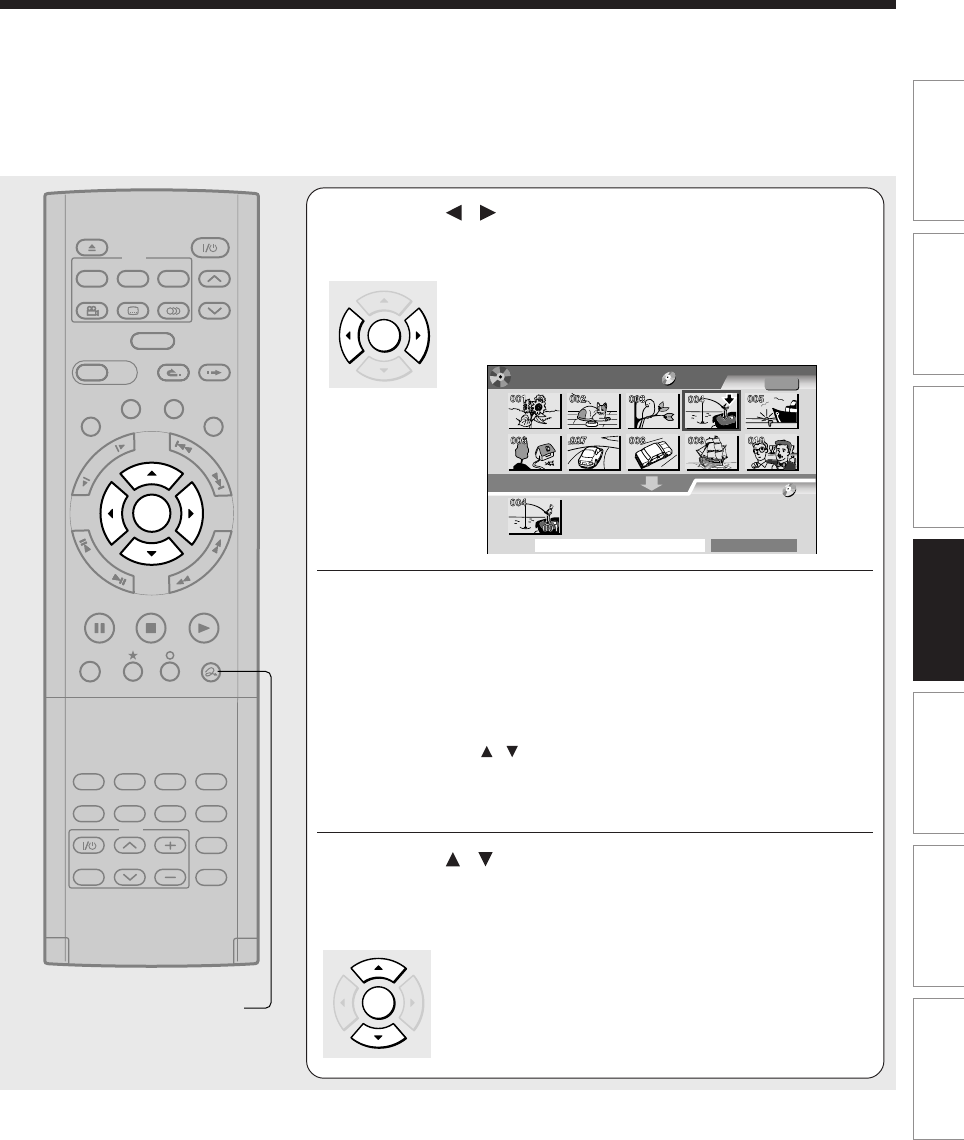
107
Editing Function setup Others
Introduction Library
Recording Playback
5Press / to select the location to put the
part and press ENTER.
It is fixed at the left side at the beginning. Press the
ENTER button. The selected part moved into the
location of the cursor.
e.g.
6Perform steps 3 to 5 and select the second
title.
You cannot select the same title.
To cancel the registered part:
1) Select the part that you want to cancel, and press the QUICK
MENU button to display the Quick Menu.
2) Press the / buttons to select “Cancel selected title” (or
“Clear all selected items” for cancelling the selection of
multiple items at a time).
3) Press the ENTER button.
7Press / to select “Start combining”and
press ENTER, then select “Yes” and press
ENTER.
The combining process starts.
Notes
•You cannot stop the combining process after it has started.
•You cannot combine a protected title or a title containing still pictures.
•The title name of the first title is given to the title after combining.
•The second title is combined into the first title, maintaining the chapter divisions and chapter names.
•Titles and chapters show their names for about 2 seconds at the bottom of the screen when they are selected.
•You can not use playlists as part of combined titles.
TIMESLIP
EASY
NAVI
INSTANT SKIPINSTANT REPLAY
PLAYSTOPPAUSE
REC
LIBRARY
REC MENU EDIT MENU
CONTENT MENU
ANGLE
OPEN/CLOSE
SUBTITLE
AUDIO
CHANNEL
QUICK MENU
TOP MENU
MENU
RETURN
DVD
F
R
A
M
E
/
A
D
J
U
S
T
P
I
C
T
U
R
E
S
E
A
R
C
H
S
K
I
P
S
L
O
W
ENTER
TV/VIDEO CHANNEL
VOLUME
REMAIN
DIMMER
FL SELECT
ZOOM P in P
TIME BAR CHP DIVIDE
DISPLAY
INPUT SELECT
PROGRESSIVE
TV
QUICK MENU
AAA
BB
Combine ORG Title Title
Object :DVD
Original
Start combining
Title:
For source, only 2 titles (original)
can e selected. After combined,
the second title is included into the
first one.
EDIT
MENU
DVD-RAM
ENTER
ENTER
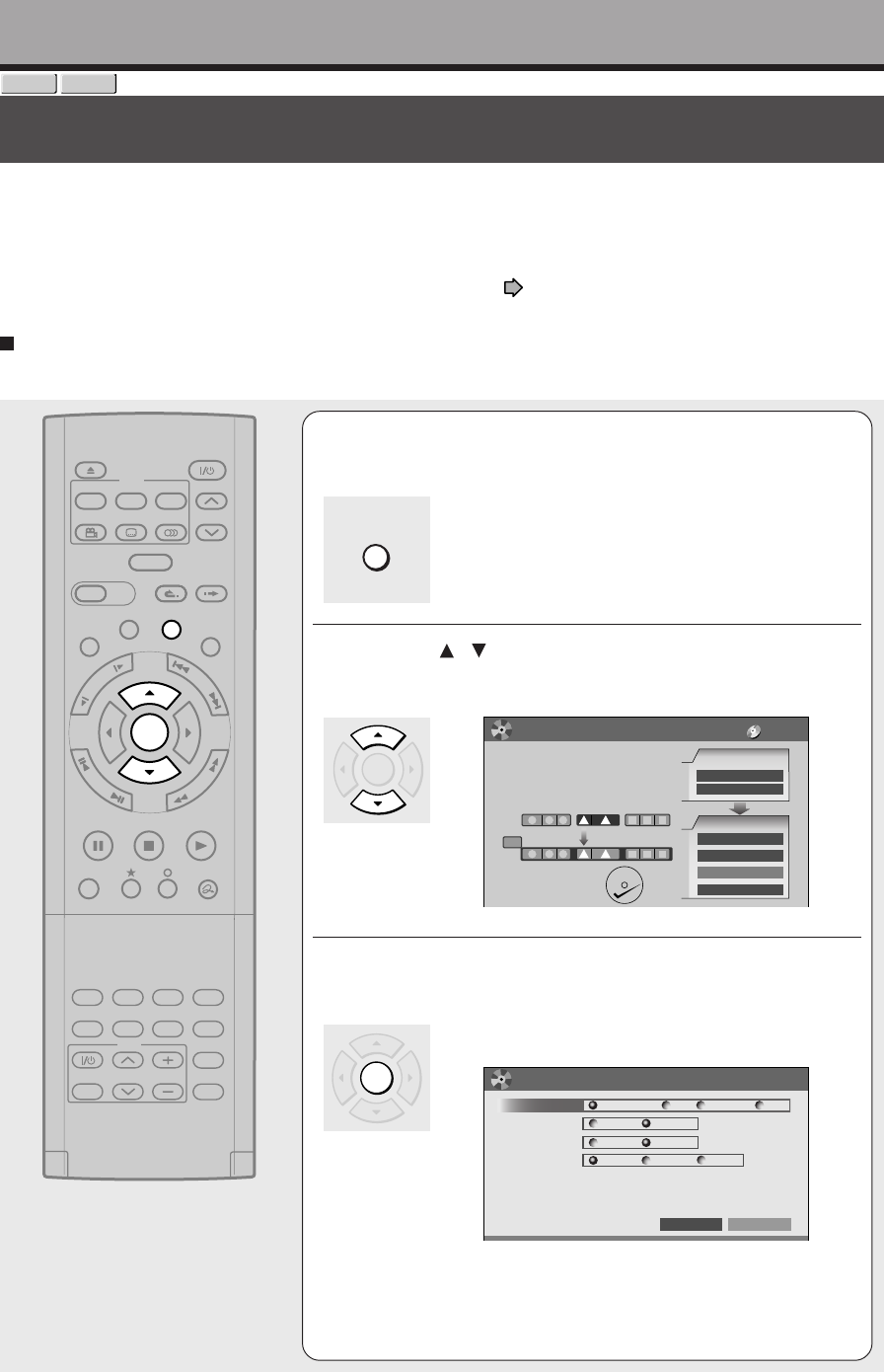
108
Editing
DVD-Video finalizing process
The recorder processes recorded data in a DVD-R/RW disc so that it can be played on other compatible
devices.
Important
•You cannot rewrite data onto a disc after you execute the DVD-Video finalizing process. However, the disabled rewritability of
a DVD-RW disc can be restored by canceling the process of the disc. ( page 111) On DVD-R discs, canceling of the DVD-
Video finalizing process is not available.
Preparation
•Load a DVD-R/RW disc you want to execute the finalizing process.
1During playback or stop, press EDIT MENU.
The “EDIT MENU Main Menu” appears.
2Press / to select “DVD-Video Finalizing”.
e.g.
3Press ENTER.
A display of option settings appears.
e.g.
TIMESLIP
EASY
NAVI
INSTANT SKIPINSTANT REPLAY
PLAYSTOPPAUSE
REC
LIBRARY
REC MENU EDIT MENU
CONTENT MENU
ANGLE
OPEN/CLOSE
SUBTITLE
AUDIO
CHANNEL
QUICK MENU
TOP MENU
MENU
RETURN
DVD
F
R
A
M
E
/
A
D
J
U
S
T
P
I
C
T
U
R
E
S
E
A
R
C
H
S
K
I
P
S
L
O
W
ENTER
TV/VIDEO CHANNEL
VOLUME
REMAIN
DIMMER
FL SELECT
ZOOM P in P
TIME BAR CHP DIVIDE
DISPLAY
INPUT SELECT
PROGRESSIVE
TV
EDIT MENU
ENTER
ENTER
DVD-RW
DVD-R
Title
Finalize
Menu
Title Title
321 3
2
1
1 2
321 3
2
1
1 2
EDIT
MENU
Main Menu
Edit Functions
Playlist Editing
DVD-Video Finalizing
Combine ORG Title
Del Selected Items
Source
DV Recording
Chapter Editing
DVD-R
DVD-Video Finalizing
DVD-Video Finalizing
Used to crete compatibility between
the recorded DVD-R/-RW and
DVD Players. Also used for setting up
“menu picture”, etc.
EDIT
MENU
DVD–Video Finalize(Option Settings)
NextReturn
Menu Create
Title+Chapter Title Chapter None
Start Play
Menu
Title 1
After play one title
Menu
Next Title
After play final title
Menu
Title 1
Stop
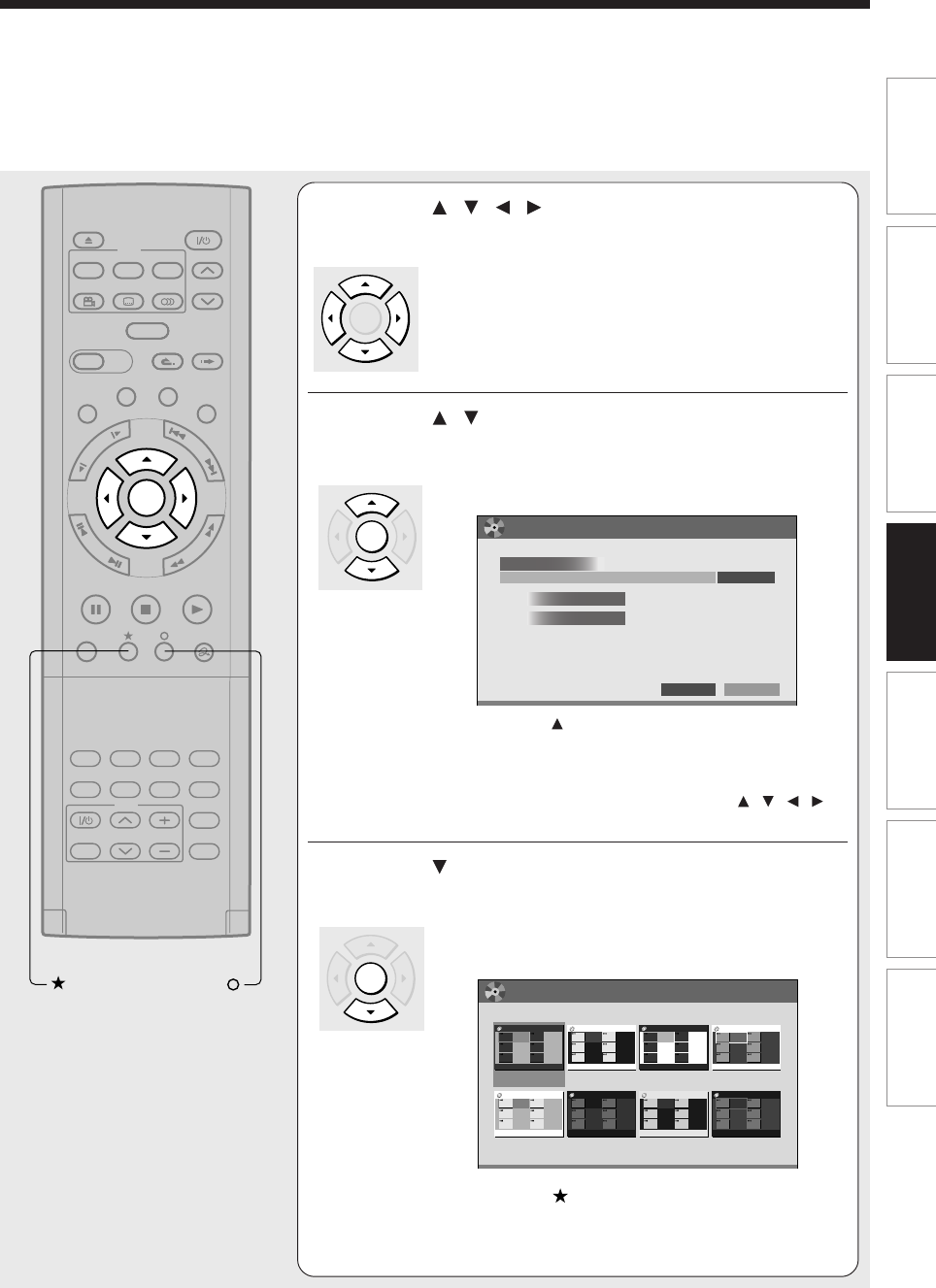
109
Editing Function setup Others
Introduction Library
Recording Playback
4Press / / / to select.
As you select each item, its function is explained.
When “Menu Create” is set to “None”:
“Start Play” and “After play one title” are automatically
omitted.
5Press / to select “Next”, then press
ENTER.
Information on data to be processed appears.
e.g.
If you press the button to select “Edit Name” then
press the ENTER button, a keyboard appears so that
you can enter a title name.
When “Menu Create” is set to “None”:
Select “Writing” at the right bottom by the / / /
buttons and press the ENTER button. Skip to step 10.
6Press to select “Next”, then press ENTER.
When “Menu Create” is set to “Title+Chapter” or “Title”, a
display of title menu selection appears.
e.g.
If you press the button, you can preview the selected
menu. To return, press the O button.
(Continued)
TIMESLIP
EASY
NAVI
INSTANT SKIPINSTANT REPLAY
PLAYSTOPPAUSE
REC
LIBRARY
REC MENU EDIT MENU
CONTENT MENU
ANGLE
OPEN/CLOSE
SUBTITLE
AUDIO
CHANNEL
QUICK MENU
TOP MENU
MENU
RETURN
DVD
F
R
A
M
E
/
A
D
J
U
S
T
P
I
C
T
U
R
E
S
E
A
R
C
H
S
K
I
P
S
L
O
W
ENTER
TV/VIDEO CHANNEL
VOLUME
REMAIN
DIMMER
FL SELECT
ZOOM P in P
TIME BAR CHP DIVIDE
DISPLAY
INPUT SELECT
PROGRESSIVE
TV
ENTER
ENTER
DVD–Video Finalize (Disc Information)
Edit Name
11
1 hour 24 min.
Total title number
Total time
Disc Name
F1 GP Vol.2
EDIT
MENU
Return Next
DO NOT
MR. SATO, PLEASE JOIN US TO CREATE MANUALS
LEAVE HERE
DO NOT
LEAVE HERE
DO NOT
LEAVE HERE
DO NOT
LEAVE HERE
DO NOT
LEAVE HERE
DO NOT
LEAVE HERE
DO NOT
LEAVE HERE
DO NOT
LEAVE HERE
DO NOT
LEAVE HERE
DO NOT
LEAVE HERE
DO NOT
LEAVE HERE
DO NOT
LEAVE HERE
DO NOT
LEAVE HERE
DO NOT
LEAVE HERE
DO NOT
LEAVE HERE
DO NOT
LEAVE HERE
DO NOT
LEAVE HERE
DO NOT
LEAVE HERE
DO NOT
LEAVE HERE
DO NOT
LEAVE HERE
DO NOT
LEAVE HERE
DO NOT
LEAVE HERE
DO NOT
LEAVE HERE
DO NOT
LEAVE HERE
Deep Blue Olive Sepia Light Blue
DO NOT
LEAVE HERE
DO NOT
LEAVE HERE
DO NOT
LEAVE HERE
DO NOT
LEAVE HERE
DO NOT
LEAVE HERE
DO NOT
LEAVE HERE
DO NOT
LEAVE HERE
DO NOT
LEAVE HERE
DO NOT
LEAVE HERE
DO NOT
LEAVE HERE
DO NOT
LEAVE HERE
DO NOT
LEAVE HERE
DO NOT
LEAVE HERE
DO NOT
LEAVE HERE
DO NOT
LEAVE HERE
DO NOT
LEAVE HERE
DO NOT
LEAVE HERE
DO NOT
LEAVE HERE
DO NOT
LEAVE HERE
DO NOT
LEAVE HERE
DO NOT
LEAVE HERE
DO NOT
LEAVE HERE
DO NOT
LEAVE HERE
DO NOT
LEAVE HERE
Orange Cyber Green Lavender Cyber Red
MR. SATO, PLEASE JOIN US TO CREATE MANUALSMR. SATO, PLEASE JOIN US TO CREATE MANUALSMR. SATO, PLEASE JOIN US TO CREATE MANUALS
MR. SATO, PLEASE JOIN US TO CREATE MANUALS MR. SATO, PLEASE JOIN US TO CREATE MANUALSMR. SATO, PLEASE JOIN US TO CREATE MANUALSMR. SATO, PLEASE JOIN US TO CREATE MANUALS
BA
DVD–Video Finalize (Title Menu Select)
EDIT
MENU
ENTERENTER
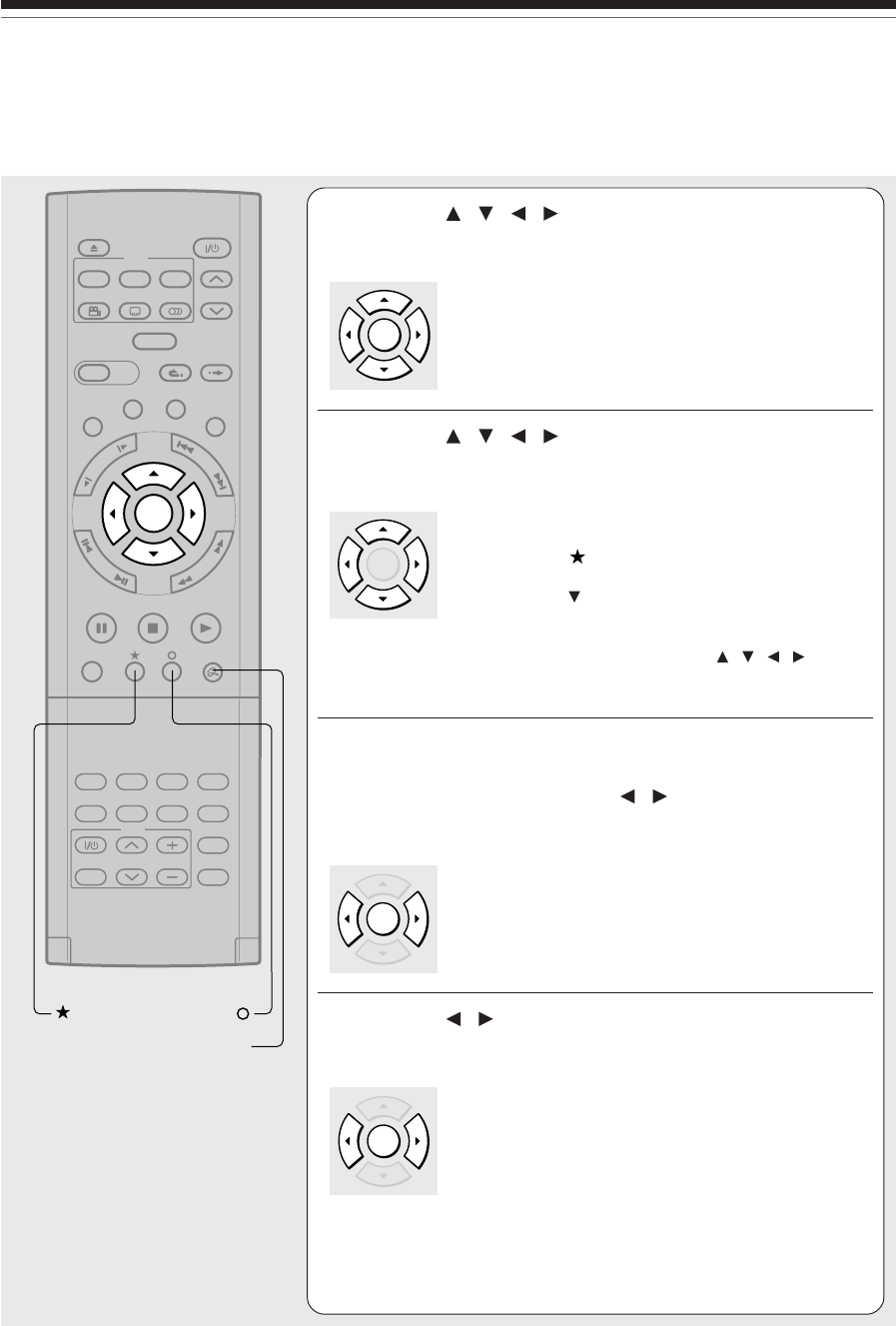
110
Editing
7Press / / / to select the title menu, then
press ENTER.
A display of menu selection for chapters appears.
8Press / / / to select the chapter menu.
A selected menu is applied to all chapters. You cannot
allocate a menu to each chapter.
If you press the button, you can preview the selected
menu. To return, press the O button.
If you press the button during preview, to select
“Return” then press the ENTER button, you can go to
the preview of the selected title menu. To return to
preview of chapter menu, press the / / / buttons
to select a number next to “Chapter Menu” then press
the ENTER button.
9While viewing the “EDIT MENU DVD-Video
Finalize (Chapter Menu Select)”, press ENTER,
and select “Yes” using / , then press
ENTER.
A message appears to ask you if you want the power to
turn off automatically or not when the process is
completed.
10
Press / to select “Yes” or “No” then press
ENTER.
A message disappears and the finalize process starts.
The progress is displayed on the screen and in the front
panel display on the recorder.
TIMESLIP
EASY
NAVI
INSTANT SKIPINSTANT REPLAY
PLAYSTOPPAUSE
REC
LIBRARY
REC MENU EDIT MENU
CONTENT MENU
ANGLE
OPEN/CLOSE
SUBTITLE
AUDIO
CHANNEL
QUICK MENU
TOP MENU
MENU
RETURN
DVD
F
R
A
M
E
/
A
D
J
U
S
T
P
I
C
T
U
R
E
S
E
A
R
C
H
S
K
I
P
S
L
O
W
ENTER
TV/VIDEO CHANNEL
VOLUME
REMAIN
DIMMER
FL SELECT
ZOOM P in P
TIME BAR CHP DIVIDE
DISPLAY
INPUT SELECT
PROGRESSIVE
TV
QUICK MENU
ENTER
ENTER
ENTER
ENTER
DVD-Video finalize process (Continued)
111
Editing Function setup Others
Introduction Library
Recording Playback
Notes
•DVD-R/RW discs recorded on this recorder may not be
recognized on other devices unless you execute DVD-
Video finalizing process to them.
•You can record onto a DVD-R disc additionally to the limit
of the disc capacity, unless you execute the DVD-Video
finalizing process to it. Deleting of recorded titles is also
possible, however, the disc space cannot be restored.
•You can record additional content onto a DVD-RW disc
additionally to the limit of the disc capacity unless you
execute the DVD-Video finalizing process to it. Deleting of
recorded titles is also possible, however, the disc space
can be restored only by the volume of the title last
recorded.
•On DVD-RW discs, it is possible to cancel the DVD-Video
finalizing process or to initialize for a new use.
To cancel the finalize process
DVD-RW
You can cancel the DVD-Video finalizing process
executed to a DVD-RW disc so that the disc can be
recordable again.
1) During stop, press QUICK MENU.
A quick menu appears.
2) Press / to select “Disc management” then
press ENTER.
3) Press / to select “Cancel finalization” then
press ENTER.
4) Read the message, and press / to select
“Yes”, then press ENTER.
The process starts.
Notes
•While the recorder is ready to start a programmed
recording, you cannot cancel the DVD-Video finalizing
process.
•You cannot cancel the DVD-Video finalizing process
executed on a DVD-RW disc recorded on other device.
•You cannot cancel the DVD-Video finalizing process
executed on a DVD-RW disc if the disc is protected.
•Canceling the DVD-Video finalizing process may shift the
thumbnails of titles/chapters.
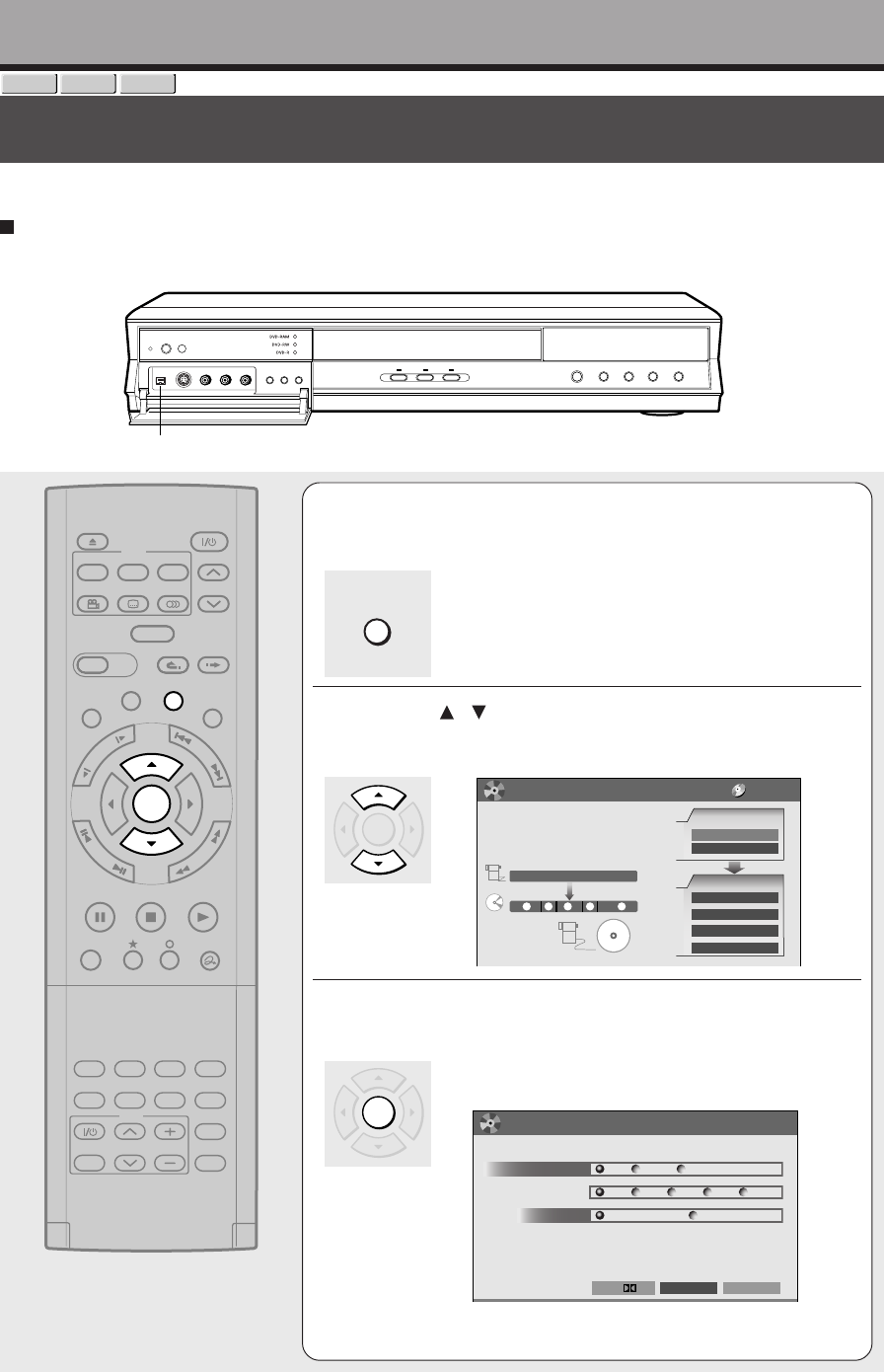
112
Editing
DV recording (Recording from a digital video camera)
You can connect a DV format digital video camera to the DV terminal to record from it.
Preparation
•Connect a DV format digital video camera to the DV terminal on the front panel.
1During playback or stop, press EDIT MENU.
The “EDIT MENU Main Menu” appears.
2Press / to select “DV Recording”.
e.g.
3Press ENTER.
The “EDIT MENU DV Recording (Option Setting)”
appears.
e.g.
This display appears also when a DV format digital video
camera connected to the DV terminal is turned on
.
DV terminal
DVD-RAM
DVD-RW
DVD-R
TIMESLIP
EASY
NAVI
INSTANT SKIPINSTANT REPLAY
PLAYSTOPPAUSE
REC
LIBRARY
REC MENU EDIT MENU
CONTENT MENU
ANGLE
OPEN/CLOSE
SUBTITLE
AUDIO
CHANNEL
QUICK MENU
TOP MENU
MENU
RETURN
DVD
F
R
A
M
E
/
A
D
J
U
S
T
P
I
C
T
U
R
E
S
E
A
R
C
H
S
K
I
P
S
L
O
W
ENTER
TV/VIDEO CHANNEL
VOLUME
REMAIN
DIMMER
FL SELECT
ZOOM P in P
TIME BAR CHP DIVIDE
DISPLAY
INPUT SELECT
PROGRESSIVE
TV
EDIT MENU
ENTER
ENTER
Recording
DV Original Picture
Saved Title
321
3 4 521
DV Recording
DV Recording
When using DV terminal, it is used for
setting up Auto Chapter Creation and
AV Record Quality.
Main Menu
Edit Functions
Playlist Editing
DVD-Video Finalizing
Combine ORG Title
Del Selected Items
Source
DV Recording
Chapter Editing
EDIT
MENU
DVD-RAM
Change
DV Chapter Create
Off
B
By Date By Scene
DVD-Video: CHP Create
Off 5min. 10min. 15min. 20min.
DV Audio Input
Stereo1 (L1+R1) Stereo2 (L2+R2)
EDIT
MENU
D/M1
SP 4.6
AV Record Quality
DV Recording (Option Setting)
Next
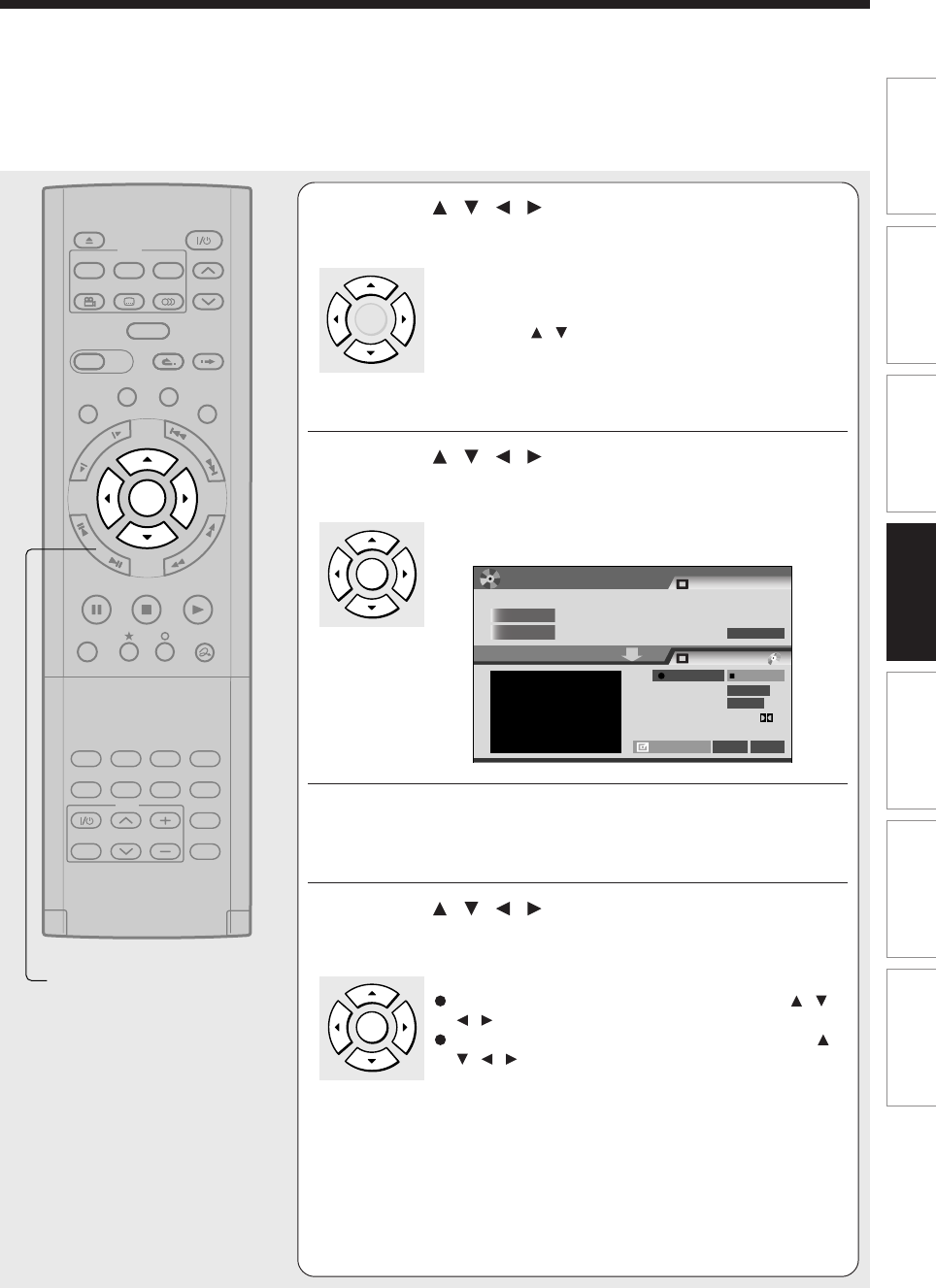
113
Editing Function setup Others
Introduction Library
Recording Playback
4Press / / / to make the settings.
As you select each item, an explanation is provided.
To change the picture and sound rates:
1) Press the / buttons to select “Change” then press
the ENTER button.
2) On the “AV record quality” display, press the
ADJUST button to select a setting number.
3) Press the ENTER button.
5Press / / / to select “Next”, then press
ENTER.
Details on the recording appears.
e.g.
6Play the connected DV format digital video
camera and pause the play at a desired scene.
7Press / / / to select “Rec”, then press
ENTER.
Recording starts.
To pause the recording, select “Pause” by the / /
/ buttons then press the ENTER button.
To stop the recording, select “Stop (Save)” by the /
/ / buttons then press the ENTER button.
TIMESLIP
EASY
NAVI
INSTANT SKIPINSTANT REPLAY
PLAYSTOPPAUSE
REC
LIBRARY
REC MENU EDIT MENU
CONTENT MENU
ANGLE
OPEN/CLOSE
SUBTITLE
AUDIO
CHANNEL
QUICK MENU
TOP MENU
MENU
RETURN
DVD
F
R
A
M
E
/
A
D
J
U
S
T
P
I
C
T
U
R
E
S
E
A
R
C
H
S
K
I
P
S
L
O
W
ENTER
TV/VIDEO CHANNEL
VOLUME
REMAIN
DIMMER
FL SELECT
ZOOM P in P
TIME BAR CHP DIVIDE
DISPLAY
INPUT SELECT
PROGRESSIVE
TV
ADJUST
ENTER
ENTER
ENTER
Equipment with DV Terminal
Recording Media : DVD
BA
Return
End
Stop(Save)
Rec
Full Display
Manufacturer
Equipment
Playback Time
00 : 02 : 09 : 16F
Recording Time
Remaining Space
00 : 00 : 11
DV Recording
AV Record Quality
DV Chapter Create
071 : 49
SP
4.6
D/M 1
Off
Rec
EDIT
MENU
“Play” and then “Pause” with the connected equipment to DV.

114
Editing
DV recording (Recording from a digital video camera) (Continued)
Notes
•The DV terminal of this recorder supports only input from a
DV format digital video camera. It cannot output to a
connected device. Some models of DV format digital video
cameras may be not compatible.
•At step 5, you can enlarge the video image by selecting
“Full Display”, then pressing the ENTER button.
•If “DV Chapter Create” is set to “Off” and you record onto a
DVD-R/RW disc, chapters are automatically made
according to the “DVD-Video:CHP create” setting
( page 134). The number of chapters has the limit.
Chapters are divided with a margin of about 0.5 second or
less according to the DVD-Video standard.
•DV recording does not start in the following cases:
- While recording or in the time slip mode.
- While operating a REC MENU, CONTENT MENU or
LIBRARY MENU.
- If the recorder’s clock is not set yet.
- Within 5 minutes before a programmed recording starts, or
during a programmed recording.
•If a DV recording overlaps with a programmed recording,
the DV recording will stop 5 minutes before the
programmed recording starts, and the programmed
recording will be executed.
•DV recording does not work if the DV terminal is connected
equipment other than DV format digital video camera, such
as a PC.
•Depending on the connected DV format digital video
camera, the display at step 5 may not show “Manufacturer”
or “Equipment”.
•If the DV terminal is connected to more than one DV format
digital video camera, DV recording may not work properly.
For proper functioning of DV recording, connect only one
device to the DV terminal.
•Do not keep the DV terminal connected unless you record
from a DV format digital video camera, as it may give
influence on the recorder if operated.
•If you start a recording and do not operate for about 15
minutes, the display switches to the full mode, when
“Screen protector” ( page 131) is set to “On.” Pressing
the ENTER button while “Detail Display” is selected can
restore the previous display.
•When you want to record both stereo 1 and stereo 2
sounds from a DV format digital video camera, additionally
make a connection to the audio input jacks on this recorder
using cables such as audio/video cables supplied with the
DV format digital video camera. ( page 36)
•If a DV format digital video camera is not recognized, pull
out the plug and connect it again.
•Some models of DV format digital video cameras may
support a different compression format. From such
equipment, recording is not possible.
•Depending on the models of DV format digital video
cameras, recording may not work properly or some
functions may be disabled.
•On an input source from a DV tape which is partly recorded
over, “DV Chapter Create” may not work properly.

Library
To facilitate your collecting.
Using Library data
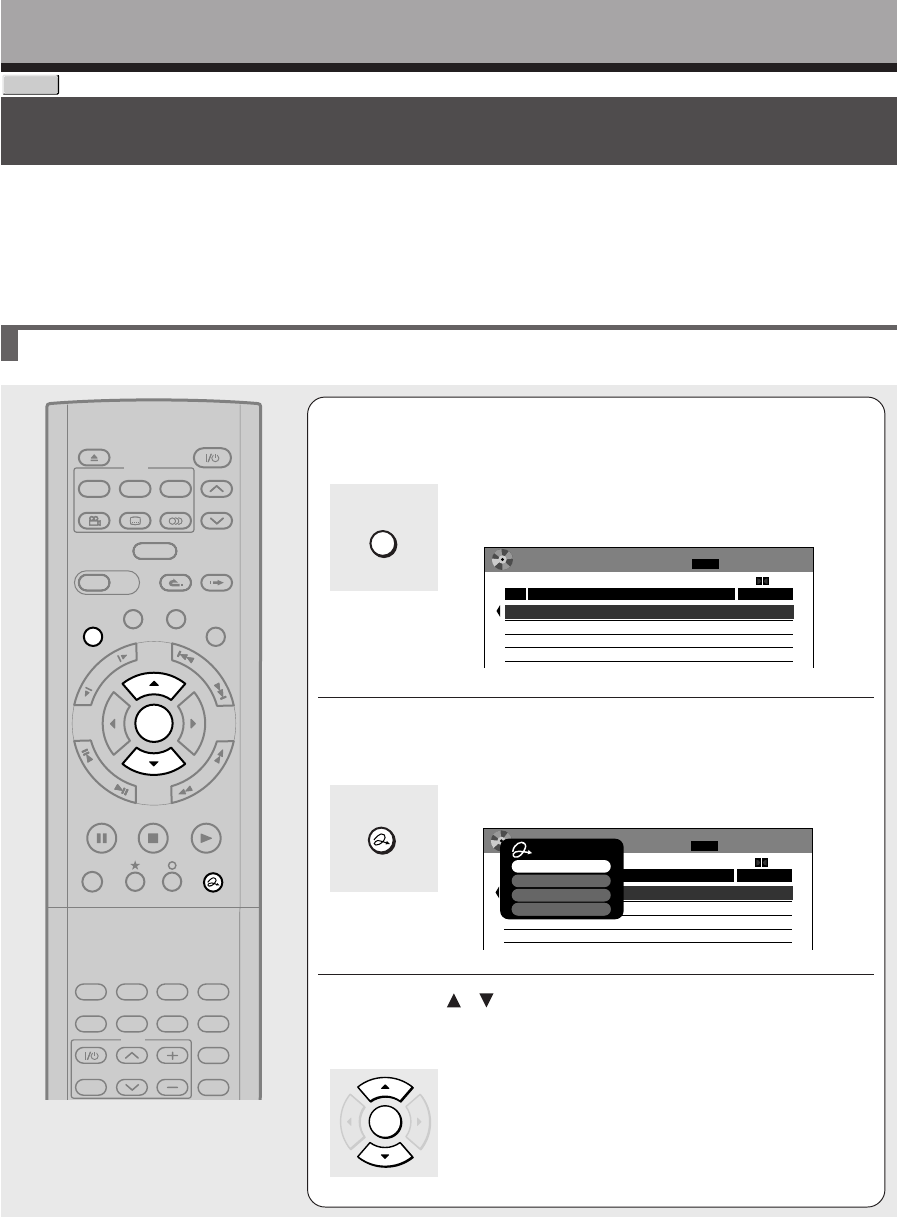
116
Library
DVD-RAM
Using Library data
The recorder has a database called “Library”. This database provides a list of numbers, names and
remaining spaces of all registered DVD-RAM discs. On this list, you will easily find a desired or available
disc.
You can utilize Library data as follows.
•To check or change information of disc.
•To check the remaining space of a DVD-RAM disc.
Basic operation of the Library system
Notes
•To cancel this procedure, press the LIBRARY button.
•The Library system does not support DVD-R/RW discs.
•For proper function of the Library system, use DVD-RAM discs that shows a statement on its package such as “This disc can
copy images that permit copying once.” If you use a DVD-RAM disc without such a statement, and then operate it on other
device, the library data of the disc may not function properly.
•The capacity of the database is 60 discs.
•The LIBRARY MENU may not display all characters of a registered name of a disc.
1Press LIBRARY.
The “LIBRARY MENU DVD All Disc No. Summary”
appears.
e.g.
2Press QUICK MENU.
A Quick Menu appears.
e.g.
3Press / to select an item, then press
ENTER.
For details on each item, see from the next page.
TIMESLIP
EASY
NAVI
INSTANT SKIPINSTANT REPLAY
PLAYSTOPPAUSE
REC
LIBRARY
REC MENU EDIT MENU
CONTENT MENU
ANGLE
OPEN/CLOSE
SUBTITLE
AUDIO
CHANNEL
QUICK MENU
TOP MENU
MENU
RETURN
DVD
F
R
A
M
E
/
A
D
J
U
S
T
P
I
C
T
U
R
E
S
E
A
R
C
H
S
K
I
P
S
L
O
W
ENTER
TV/VIDEO CHANNEL
VOLUME
REMAIN
DIMMER
FL SELECT
ZOOM P in P
TIME BAR CHP DIVIDE
DISPLAY
INPUT SELECT
PROGRESSIVE
TV
LIBRARY
MENU
DVD All Disc No. Summary
Disc Name
No.
Estimated
001
2h02m
45m
BASEBALL GAMES
002
CARTOONS
Current default data rate : SP
1/ 1
4.6
6/22 (Tu) 2:49 pm
LIBRARY
MENU
DVD All Disc No. Summary
Disc Name
No.
Estimated
001
2h02m
45m
BASEBALL GAMES
002
CARTOONS
4.6
Current default data rate : SP
1/ 1
6/22 (Tu) 2:49 pm
Quick Menu
AV record quality
Exit
Library management
Specific page jump
D /M
1
4.6
LIBRARY
QUICK MENU
ENTER
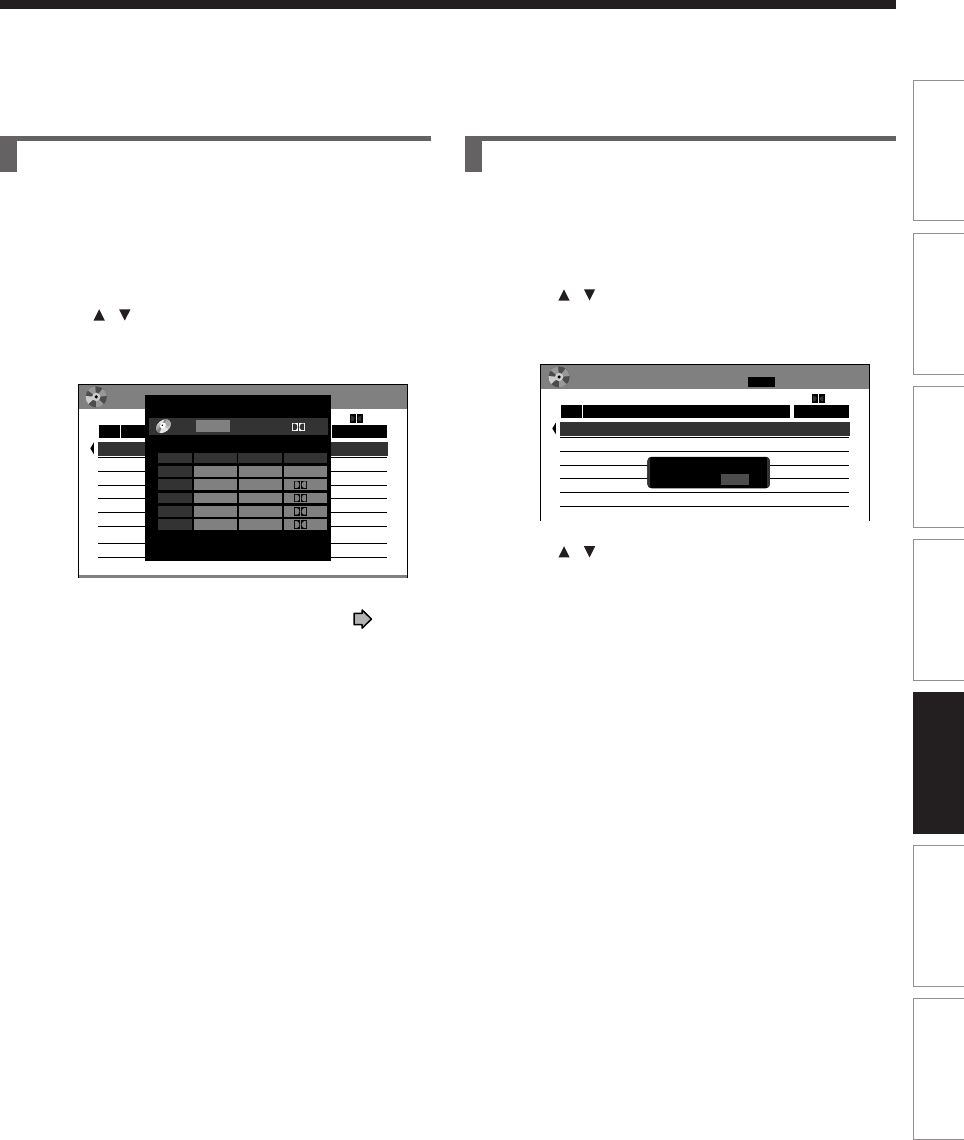
117
Playback
Recording Editing Function setup Others
Introduction Library
Checking remaining space on discs
1) Load a DVD-RAM disc and press LIBRARY.
2) Press QUICK MENU.
3) Press / to select “AV record quality” then
press ENTER.
e.g.
4) Press ADJUST and select the setting ( page
133).
5) Press ENTER.
Remaining space is estimated on the condition that
you record with the selected setting.
Searching for a disc
1) Press LIBRARY.
2) Press QUICK MENU.
3) Press / to select “Specific page jump”, then
press ENTER.
e.g.
4) Press / or ADJUST to enter the page
number.
5) Press ENTER.
The designated page appears.
LIBRARY
MENU
DVD All Disc No. Summary
Disc Name
No.
Estimated
001
2h02m
45m
BASEBALL GAMES
002
CARTOONS
Current default data rate : SP
1/ 4
D /M
1
4.6
6/22 (Tu) 2:49 pm
Total recording time: approx. 122min.
(with 4.7 GB unused)
Custom setting
5
4
3
2
1
L-PCM
Manual
Manual
Manual
SP
LP
6. 0
4. 6
2. 2
6. 0
3.2
Mode Rate
Audio quality
Setting
SP
4. 6
- - -
D /M2
D /M1
D /M1
D /M1
D /M1
AV record quality
DVD
DVD All Disc No. Summary
Disc Name
No.
Estimated
001
2h02m
45m
BASEBALL GAMES
002
CARTOONS
Current default data rate : SP
1/ 1
D /M
1
4.6
LIBRARY
MENU
6/22 (Tu) 2:49 pm
Specific Page Jump
Page Number ---
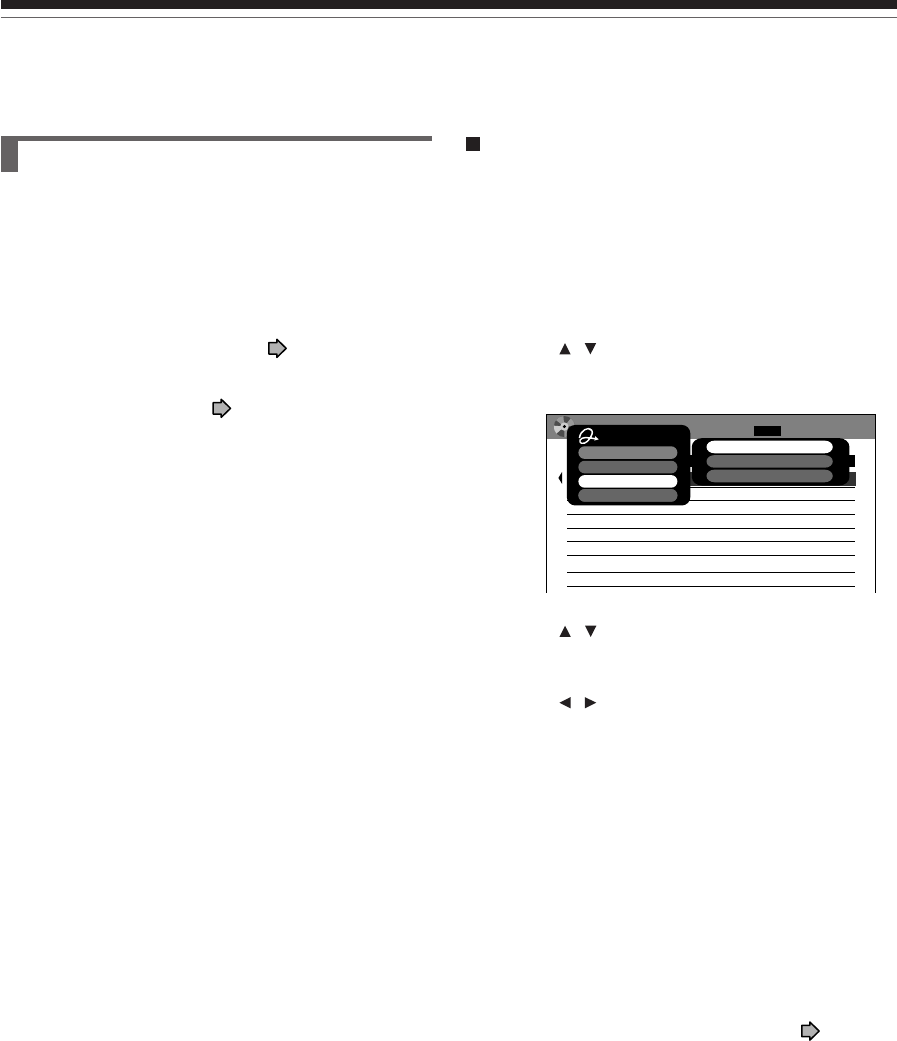
118
e.g.
Registering a disc manually
1) Load a DVD-RAM disc that contains information
you want to add.
2) Press LIBRARY.
3) Press QUICK MENU.
4) Press / to select “Library management”,
then press ENTER.
5) Press / to select “Add disc”, then press
ENTER.
6) Press / to select “Yes”, then press ENTER.
Disc information is registered.
To cancel, select “No”.
Notes
•To use disc information in a DVD-RAM disc recorded on
another device, as the Library Management data of the
recorder, be sure to follow the procedure of “Registering a
disc manually” to add the data to the Library Management
system.
•If you record content on a DVD-RAM disc on the recorder
and edit the content on the other device, Library data of the
disc may be lost or the disc may not function properly.
•When you manually register a disc, several discs in same
number consequently may be registered. In such a case, it
is recommended to change the disc number ( page 57).
Using Library data (Continued)
Library
Maintenance of Library data
The recorder usually controls the Library Management
system automatically. However, in the following cases,
you must maintain and create data manually.
•When you want to add information about a disc, (for
example when you use a DVD-RAM disc recorded
on another device, etc.), to the Library Management
system of the recorder.
→ “Registering a disc manually” ( page 118).
•When you restart the “Library” database.
→ “Erasing Library data” ( page 119).
DVD All Disc No. Summary
Disc Name
No.
Estimated
001
2h02m
45m
BASEBALL GAMES
002
CARTOONS
Current default data rate : SP
1/ 1
D /M
1
4.6
LIBRARY
MENU
6/22 (Tu) 2:49 pm
Quick Menu
AV record quality
Exit
Library management
Specific page jump
Del disc no. from library
Add disc
Delete all DVD-RAM information
119
Playback
Recording Editing Function setup Others
Introduction Library
Forced deletion of disc numbers
A number of an inactive disc can be deleted from the
Library Management, so that it can be assigned to a
new disc.
1) Press LIBRARY.
2) Press QUICK MENU.
3) Press / to select “Library management”,
then press ENTER.
4) Press / to select “Del disc no. from library”,
then press ENTER.
5) Press ADJUST to select a number to delete,
then press ENTER.
Erasing Library data
You can erase all Library data stored in the recorder to
restart the database.
1) Press LIBRARY.
2) Press QUICK MENU.
3) Press / to select “Library management”,
then press ENTER.
4) Press / to select “Delete all DVD-RAM
information”, then press ENTER.
5) Press ENTER.
6) Press / to select “Yes”, then press ENTER.

Function Setup
You can change the default settings to customize
performance to your preference.
Customizing the function
settings
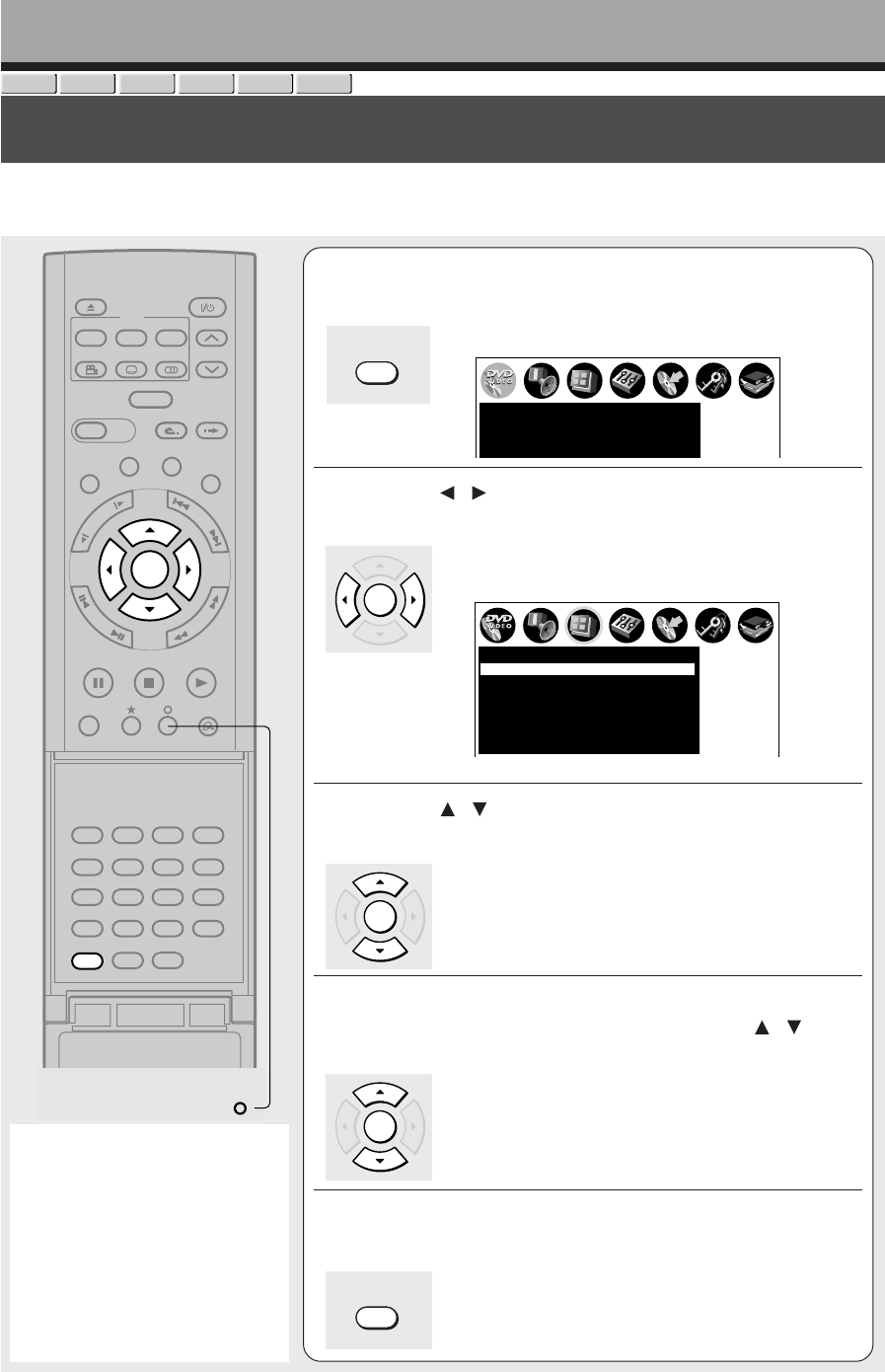
122
Function Setup
DVD-RAM
DVD-RW
DVD-VIDEO
VCD CD
DVD-R
Customizing the function settings
You can change the default settings to customize performance to your preference.
Notes
• The SETUP button can function
even during normal playback.
However some items may be
grayed out and they cannot be
selected. In this case, try again
after playback is stopped.
• The SETUP button does not
function during recording,
Recorded Title Play, Chase Play
or Pause TV modes.
TIMESLIP
EASY
NAVI
INSTANT SKIPINSTANT REPLAY
SETUP ENTER
T.SEARCH
CLEAR
312
VCR Plus+
REC MODE
EXTEND
TV CODE
456
DELETE
+
10
789
0
PLAYSTOPPAUSE
REC
LIBRARY
REC MENU EDIT MENU
CONTENT MENU
ANGLE
OPEN/CLOSE
SUBTITLE
AUDIO
CHANNEL
REC
QUICK MENU
TOP MENU
MENU
RETURN
DVD
F
R
A
M
E
/
A
D
J
U
S
T
P
I
C
T
U
R
E
S
E
A
R
C
H
S
K
I
P
S
L
O
W
ENTER
Open the lid.
1During stop, press SETUP.
The following setup display appears.
2
Press / to select the icon of a group that
contains a desired item, then press ENTER.
For details on each setting, see the next page.
e.g. When “Display settings” is selected:
3Press / to select a desired item, then press
ENTER.
4Refer to the explanations on pages beginning
from 126, to change the selection by / or
other buttons, then press ENTER.
•To select another item in the same group, repeat
steps 3 to 4.
•To shift to another group, press the O button then
repeat steps 2 to 4.
5Press SETUP.
The setup display disappears and the setting is
completed.
SETUP
Transparency
Startup screen
On screen display
Display settings
Background
Closed caption
Screen protector
TV shape 4:3LB
On
25%
On
On
Blue
TV
SETUP
e.g.
DVD subtitle language
DVD audio language
DVD player settings
DVD disc menu language English
English
No subtitle
ENTER
ENTER
ENTER
SETUP
SETUP
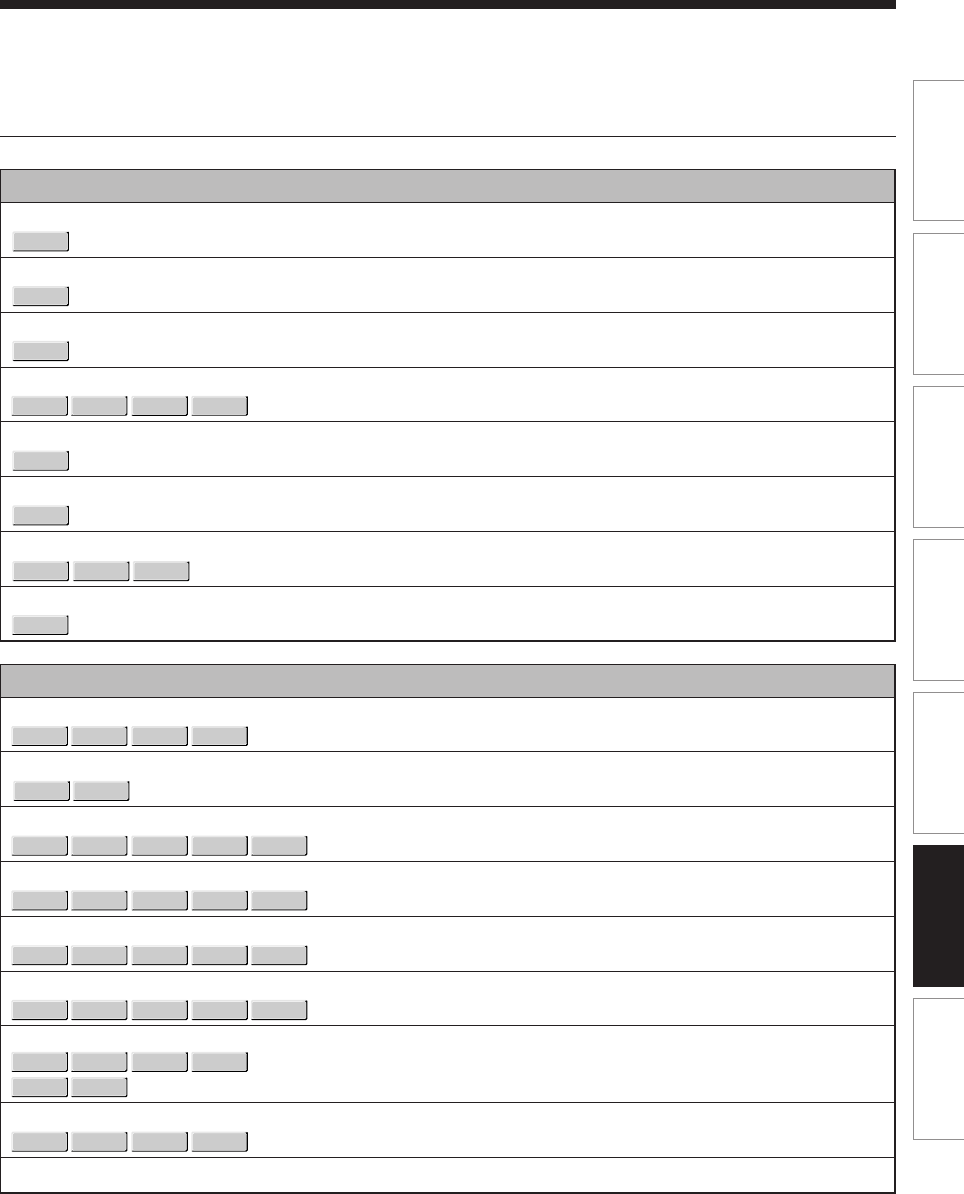
123
Recording Playback Editing Library Function setup Others
Introduction
Setting
DVD player settings
DVD disc menu language
DVD-VIDEO
DVD audio language
DVD-VIDEO
DVD subtitle language
DVD-VIDEO
DVD dynamic range control
DVD-RAM
DVD-RW
DVD-VIDEO
DVD-R
Karaoke vocal
DVD-VIDEO
DVD parental lock
DVD-VIDEO
DVD title stop
DVD-RW
DVD-VIDEO
DVD-R
PBC
VCD
Picture/Audio settings
Pause/Still
DVD-RAM
DVD-RW
DVD-VIDEO
DVD-R
Black level
DVD-VIDEO
VCD
Custom picture select
DVD-RAM
DVD-RW
DVD-VIDEO
VCD
DVD-R
Custom picture setting
DVD-RAM
DVD-RW
DVD-VIDEO
VCD
DVD-R
Progressive conversion
DVD-RAM
DVD-RW
DVD-VIDEO
VCD
DVD-R
Play DNR
DVD-RAM
DVD-RW
DVD-VIDEO
VCD
DVD-R
Audio out select
DVD-RAM
DVD-RW
DVD-VIDEO
VCD CD
DVD-R
Virtual surround
DVD-RAM
DVD-RW
DVD-VIDEO
DVD-R
SAP
(Continued)
Page
126
126
126
127
127
127
128
128
129
129
129
129
129
130
130
130
130
Details
To select a preferred language for disc menus.
To select a preferred language for the sound track.
To select a preferred language for subtitles.
To turn on or off a function that makes faint sounds easier to
hear even if you lower the volume during late-hour playback.
To turn on or off the vocal output during DVD KARAOKE disc
playback.
To turn the parental lock function on or off.
To turn on or off a feature that automatically stops playback
after a title has been viewed.
To use the menu screen when playing a PBC-controllable
VIDEO CD.
To select the resolution of still pictures. (Field/Frame)
To select the black level of playback pictures.
To select from standard or three customized picture settings.
To customize picture quality settings and store them.
To select the system of output signal. (Only when connected
to a PROGRESSIVE TV.)
To select a setting for playback at a reduced noise level.
To select an output sound format corresponding to your
system connection.
To turn on or off expansive virtual surround sound effects from
just two speakers.
To monitor and record SAP broadcast.
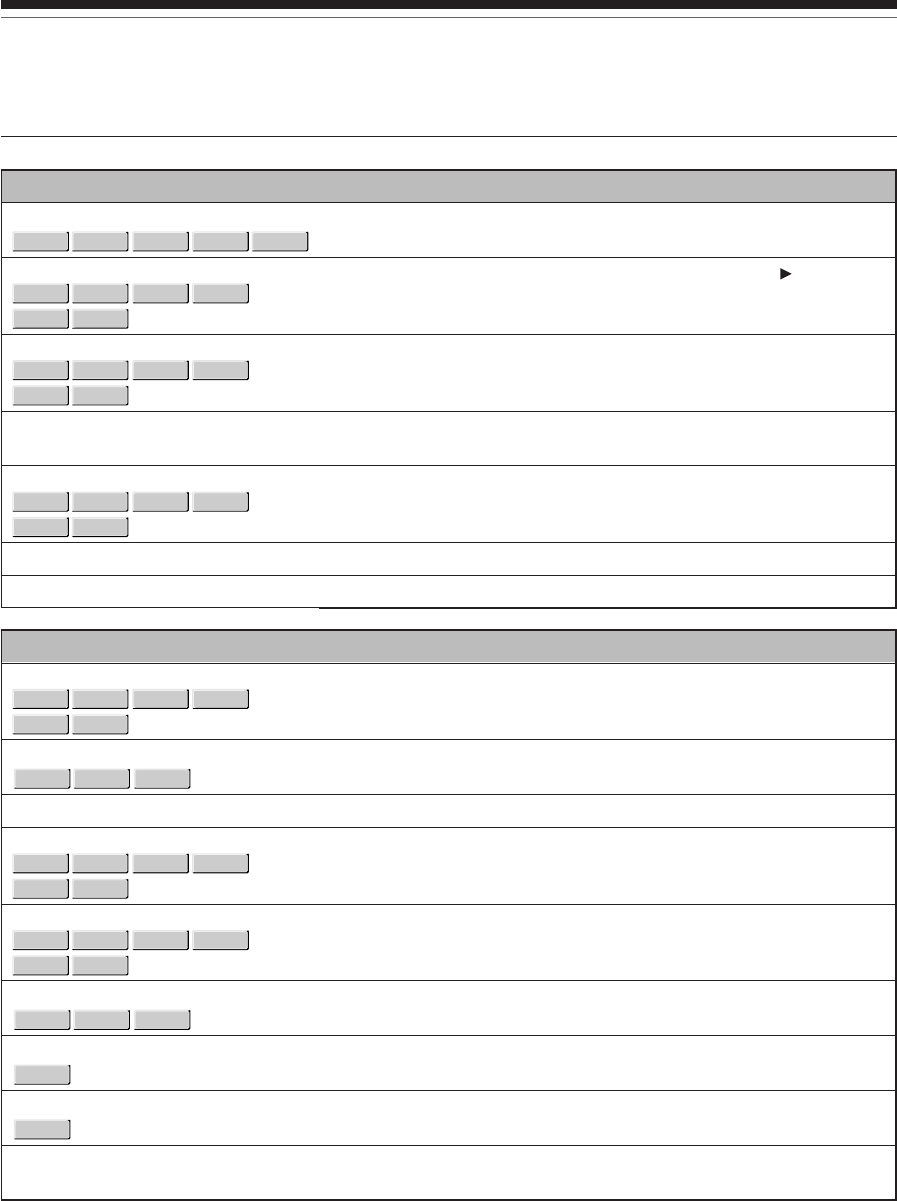
124
Setting
Display settings
TV shape
DVD-RAM
DVD-RW
DVD-VIDEO
VCD
DVD-R
On screen display
DVD-RAM
DVD-RW
DVD-VIDEO
VCD CD
DVD-R
Transparency
DVD-RAM
DVD-RW
DVD-VIDEO
VCD CD
DVD-R
Startup screen
Screen protector
DVD-RAM
DVD-RW
DVD-VIDEO
VCD CD
DVD-R
Background
Closed caption
Operational settings
Operation beep
DVD-RAM
DVD-RW
DVD-VIDEO
VCD CD
DVD-R
Recording complete beep
DVD-RAM
DVD-RW
DVD-R
IR code
Instant skip interval
DVD-RAM
DVD-RW
DVD-VIDEO
VCD CD
DVD-R
Instant replay interval
DVD-RAM
DVD-RW
DVD-VIDEO
VCD CD
DVD-R
Title thumbnail point
DVD-RAM
DVD-RW
DVD-R
Title playback
DVD-RAM
Still group interval
DVD-RAM
Priority contents
Details
To select a picture size according to the aspect ratio of your
TV.
To turn on or deactivate the operational status display (e.g., )
on the TV screen.
To select the transparency of the GUI relative to background
pictures.
To turn on or off the Start-up Screen setting that makes the
background picture appear automatically when turning on the power.
To turn the screen saver on or off.
To select a display status when no video signals are present.
To select where you turn on or off closed caption.
To turn on or off the confirmation beeper announcing when
each remote command is received.
To select whether or not a buzzer sounds when dubbing and
so forth is finished.
To switch the codes that operate the recorder.
To set the width to skip when the INSTANT SKIP button is
pressed once.
To set the width to go back when the INSTANT REPLAY
button is pressed once.
To select the position of the thumbnail image counting from
the beginning of the title that has been recorded.
To activate resume play per title or continuous play.
To select an interval of still picture display.
To select the playback priority between JPEG (picture) files
and MP3/WMA (audio) files.
Page
131
131
131
131
131
131
131
132
132
132
132
132
132
132
132
132
Customizing the function settings (Continued)
Function Setup
125
Recording Playback Editing Library Function setup Others
Introduction
Initial settings See page 28, “INSTALLATION GUIDE”.
Setting
DVD recorder operation
AV record quality
DVD-RAM
DVD-RW
DVD-R
Picture record mode
DVD-RAM
DVD-RW
DVD-R
Audio input level
DVD-RAM
DVD-RW
DVD-R
Aspect ratio(Video mode)
DVD-RW
DVD-R
DVD compatible mode
DVD-RAM
DVD-RW
DVD-R
DVD-Video:CHP create
DVD-RW
DVD-R
Rec DNR
DVD-RAM
DVD-RW
DVD-R
3D Y/C separation
DVD-RAM
DVD-RW
DVD-R
Management settings
Genre setting
DVD-RAM
DVD-RW
DVD-R
Eco. mode
DVD-RAM physical format
DVD-RAM
Software version
DVD drive software
Details
To select a set of picture and sound quality settings for
manual programme recording.
To make further setting when you cannot adjust the image
quality with “Custom Picture Setting” of the “Picture/Audio
Settings”.
To adjust the level of recording sound.
To set the aspect ratio for DVD-R/RW recording.
To set the audio for DVD-R/RW recording.
To set whether or not chapters are to be automatically created
at a specified interval for DVD-R/RW recording.
To activate or deactivate the 3D digital noise reduction.
To activate or deactivate the 3D digital filter to execute Y/C
(Brightness/Color) separation.
To register the frequently used genre in the menu.
To set the front panel display to turn on/off in the standby
mode.
To perform physical formatting of a DVD-RAM disc.
To display the version of the software. The version is only
displayed and cannot be set.
To display the version of the DVD drive software.
The version is only displayed and it cannot be set.
Page
133
133
133
134
134
134
134
134
135
135
29
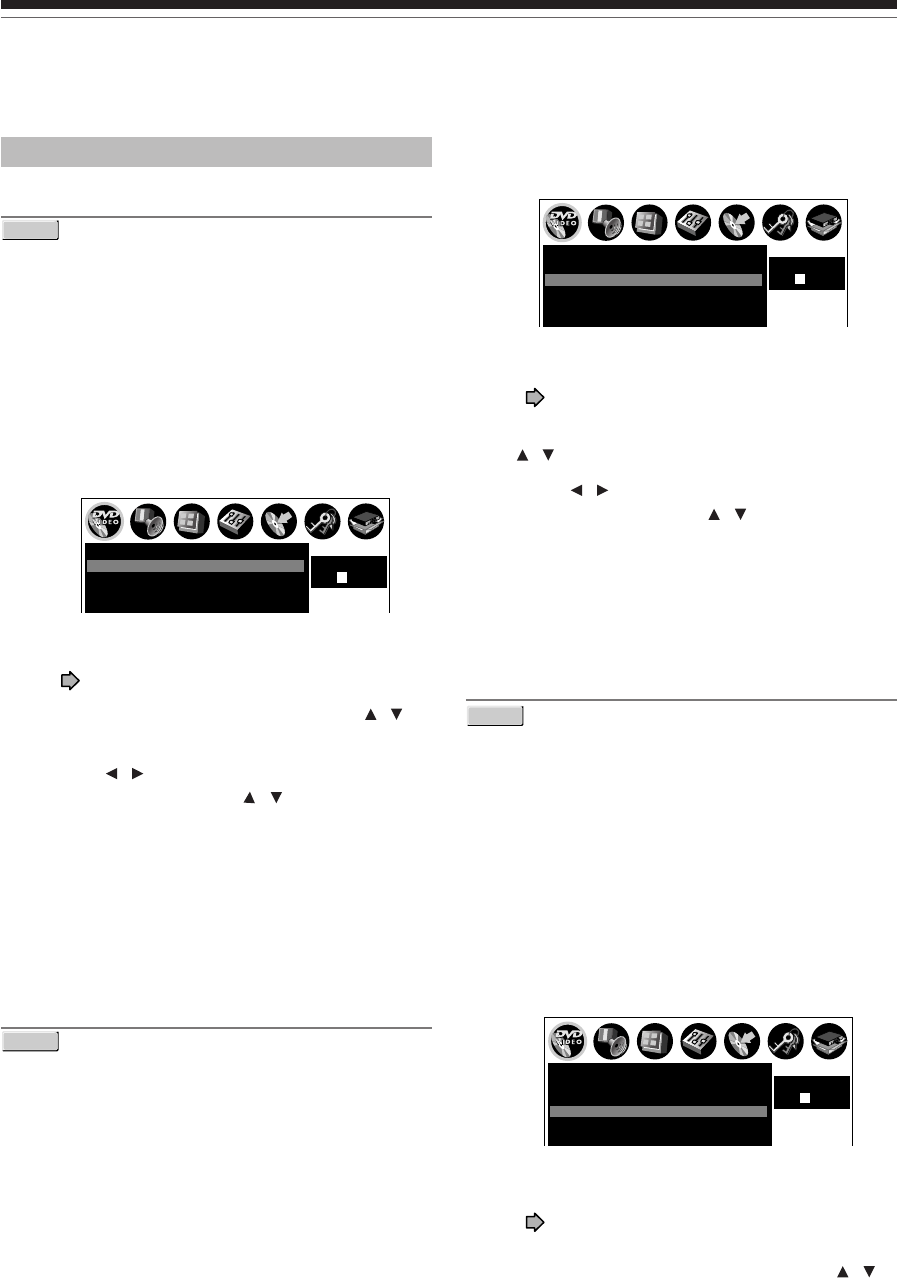
126
Customizing the function settings (Continued)
Function Setup
1) Obtain the language code of the preferred
language from the Language code list
( page 143).
2) Select the first character by pressing
/ (or ADJUST).
3) Press / to shift. Select the second
character by pressing / (or ADJUST).
4) Press ENTER.
Note
•Some DVD video discs may be played in a different
language from that you selected. A prior language may be
programmed by the disc.
DVD subtitle language
DVD-VIDEO
English:
To display subtitles in English.
French:
To display subtitles in French.
Spanish:
To display subtitles in Spanish.
No Subtitle:
To disable subtitles.
Others:
To make a further choice.
After pressing the ENTER button, follow steps 1) – 4)
below.
1) Obtain the language code of the preferred
language from the Language code list
( page 143).
2) Select the first character by pressing /
(or ADJUST).
DVD player settings
DVD disc menu language
DVD-VIDEO
English:
To display disc menus in English.
French:
To display disc menus in French.
Spanish:
To display disc menus in Spanish.
Others:
To make a further language choice.
After pressing the ENTER button, follow steps 1) – 4)
below.
1) Obtain the language code of the preferred
language from the Language code list
( page 143).
2) Select the first character by pressing /
(or ADJUST).
3) Press / to shift. Select the second
character by pressing / (or ADJUST).
4) Press ENTER.
Note
•Some DVD video discs may not include your preset
language. In this case, the recorder automatically displays
disc menus consistent with the disc’s initial language
setting.
DVD audio language
DVD-VIDEO
English:
To play sound tracks recorded in English.
French:
To play sound tracks recorded in French.
Spanish:
To play sound tracks recorded in Spanish.
Others:
To make further choices.
After pressing the ENTER button, follow steps 1) - 4)
below.
SETUP
e.g.
DVD subtitle language
DVD dynamic range control
DVD audio language
DVD player settings
DVD disc menu language English
English
No subtitle
On
Code
EN
SETUP
e.g.
DVD subtitle language
DVD dynamic range control
DVD player settings
Karaoke vocal
DVD disc menu language English
English
No subtitle
On
Off
Code
EN
DVD audio language
SETUP
e.g.
DVD dynamic range control
DVD player settings
Karaoke vocal
DVD disc menu language English
English
No subtitle
On
Off
Code
––
DVD audio language
DVD subtitle language
127
Recording Playback Editing Library Function setup Others
Introduction
3) Press / to shift. Select the proceeding
character by pressing / (or ADJUST).
4) Press ENTER.
Notes
•Some DVD video discs may be set to display subtitles in a
different language from that you selected. A prior subtitle
language may be programmed by the disc.
•Some DVD video discs allow you to change subtitle
selections only via the disc menu. In this case, press the
MENU button and choose the appropriate subtitle
language from the selection on the disc menu.
DVD dynamic range control
DVD-RAM
DVD-RW
DVD-VIDEO
DVD-R
Turns on or off a function that makes faint sounds easier
to hear even if you lower the volume during late-hour
playback.
Off:
The DVD dynamic range control does not function.
On:
The DVD dynamic range control functions.
Notes
•This function is available only for a disc recorded in Dolby
Digital format.
•Depending on the disc you play back, the actual effect of
this function differs.
Karaoke vocal
DVD-VIDEO
Off:
The main vocal sound is not output.
On:
The main vocal sound is output.
Notes
•This function is available only for a DVD KARAOKE disc
recorded in Dolby Digital Multi Channel format.
•If you want to enjoy the KARAOKE function, connect an
amplifier or other such device to this recorder.
DVD parental lock
DVD-VIDEO
DVD video discs equipped with the Parental Lock
function have a predetermined limitation level. The
limitation level or limitation method may differ depending
on the disc. For example the total disc may not be played
back, or an extreme violent scene maybe cut or replaced
automatically by another scene.
Important
•Depending on discs, it may not be evident whether the
disc is compatible with the Parental Lock function.
Make sure that the Parental Lock function you set is
activated correctly.
On:
Select this to activate the Parental Lock function or to
change the setting.
After pressing the ENTER button, follow steps 1) – 3)
below.
Off:
Deactivate the Parental Lock function.
After pressing the ENTER button, follow steps 1)
below.
1) Enter a 4-digit password by using the
number buttons, then press ENTER.
If you make a mistake entering your password,
press the CLEAR button before pressing the
ENTER button, and re-enter the correct
password.
2) Press / / / to move the cursor. Then
press ADJUST to enter the code of a
country/area whose standards were used to
rate the DVD video disc, referring to the list
below.
(Continued)
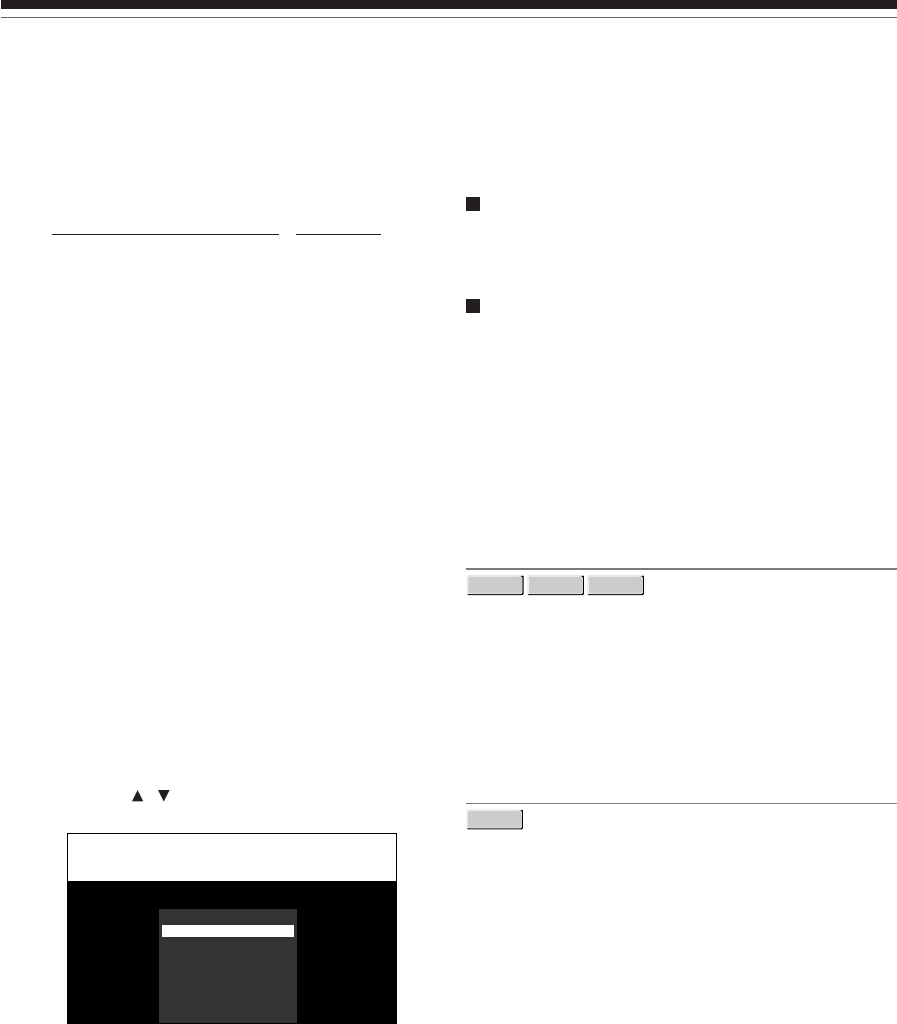
128
Customizing the function settings (Continued)
Function Setup
Country/Area Code
AUSTRALIA AU
BELGIUM BE
CANADA CA
CHINA CN
CHINA HONG KONG HK
DENMARK DK
FINLAND FI
FRANCE FR
GERMANY DE
INDONESIA ID
ITALY IT
JAPAN JP
MALAYSIA MY
NETHERLANDS NL
NORWAY NO
PHILIPPINES PH
RUSSIAN FEDERATION RU
SINGAPORE SG
SPAIN ES
SWEDEN SE
SWITZERLAND CH
TAIWAN TW
THAILAND TH
UNITED KINGDOM GB
UNITED STATES US
3) Select the desired limitation level by
pressing / , and then press ENTER.
e.g.
Unless the Parental lock function is set to
“Off”, a disc that has a higher limitation level
than your selected limitation level cannot be
played back. For example, if you select level 7,
discs exceeding level 8 are locked and cannot
be played back.
When “US” is selected, its limitation level
corresponds to the following settings.
Level 7 : NC-17 Level 3 : PG
Level 6 : R Level 1 : G
Level 4 : PG13
To change the limitation level of the Parental
Lock function
Follow step 1) - 3) above.
To change the password
1) Press STOP 4 times after selecting “On” and
“Off” in order, and then press ENTER.
The password is cleared.
2) Enter a new 4-digit password by using the
number buttons.
3) Press ENTER.
DVD title stop
DVD-RW
DVD-VIDEO
DVD-R
Off:
Plays back all following titles on the disc after the
current title has been viewed.
On:
Recorder is stopped after playback of current title
being viewed is completed.
PBC
VCD
Off:
Selects normal playback without using the menu
screen of a PBC-controllable VIDEO CD.
On:
Selects playback using the menu screen of a PBC-
controllable VIDEO CD.
DVD parental lock level setting
Area Code U S
Level 8 Prohibited
Level 7 Allowed
Level 6
Level 5
Level 4
Level 3
Level 2
Level 1
129
Recording Playback Editing Library Function setup Others
Introduction
Picture/Audio settings
Pause/Still
DVD-RAM
DVD-RW
DVD-VIDEO
DVD-R
Auto:
Normal setting. Pause the moving image without
blurring.
Frame:
Displays high resolution still image.
Black level
DVD-VIDEO
VCD
Normal:
Normal black level.
Enhanced:
To display deeper, richer black than in “Normal” setting.
Custom picture select
DVD-RAM
DVD-RW
DVD-VIDEO
VCD
DVD-R
Select from between 4 picture settings (Normal, Setting
1-3) you stored in the memory.
Custom picture setting
DVD-RAM
DVD-RW
DVD-VIDEO
VCD
DVD-R
You can adjust fine picture quality and store up to 3
custom picture settings in the memory of the recorder.
1) Press / to select a desired setting from 3
settings, and then press ENTER.
2) Press / to select adjustable items, and
then press / to select each parameter.
Brightness
(0) Darker ⇔ Brighter (7)
Contrast
(–7) Lower ⇔ Higher (0)
Color
(–7) Duller ⇔ Brighter (0)
Edge enhance
(OFF) Soft ⇔ Sharp (ON)
3) After adjusting the items, press ENTER.
Progressive conversion
DVD-RAM
DVD-RW
DVD-VIDEO
VCD
DVD-R
There are two types of source content in pictures
recorded in DVD video discs: film content (pictures
recorded from films at 24 frames per second) and video
content (video signals recorded at 30 frames per
second). Make this selection according to the type of
content being viewed.
Auto:
Select this position normally.
The DVD player automatically detects source content,
film or video, of playback source, and converts that
signal in the progressive output format in an
appropriate method.
Video:
The DVD player filters video signal, and converts it in
the progressive output format appropriately.
Suitable for playback of video content pictures.
Film:
The DVD player converts film content pictures in the
progressive output format appropriately.
Suitable for playback of film content pictures.
The progressive output feature will be most effective
under this selection.
Note
•Depending on the disc, pictures may be cut off or doubled.
SETUP
e.g.
Custom picture select
Off
Virtual surround
Off
SAP
NormalBlack level
Normal
Picture/Audio settings
Play DNR
Pause / Still Auto
Auto
Progressive conversion
Bitstream
Audio out select
Setting 1
Setting 2
Setting 3
Custom picture setting
130
Play DNR
DVD-RAM
DVD-RW
DVD-VIDEO
VCD
DVD-R
Selects a setting for playback at a reduced noise level.
Press the / buttons to select an item then select “On”
or “Off” using the / buttons.
3D-DNR:
Off:
Not activated.
On:
Reduces the noise levels of brightness signals and
color signals present in the video signal during
playback.
Mosquito NR:
Off:
Not activated.
On:
Reduces mosquito (flicker) noise occurring in the
contour sections of images.
Block NR:
Off:
Not activated.
On:
Reduces noise that appears in the form of blocks
(block noise) in a portion of the screen during
playback of images with rapid movement.
DNR is the abbreviation for Digital Noise Reduction.
Notes
•DNR effects vary depending on the disc.
•Detailed images may no longer be visible depending on
the scene due to the effects of DNR.
•Depending on the disc or scene, “On” may produce
undesirable picture artifacts or increase noises on
contours. In this instance, select “Off.”
•While you are using the zoom feature, “DNR” does not
function.
Audio out select
DVD-RAM
DVD-RW
DVD-VIDEO
VCD CD
DVD-R
Selects an output sound format corresponding to your
audio system connection.
For details about output sound selection, see page 73.
Bitstream:
Select this when an amplifier equipped with built-in
Dolby Digital, DTS or MPEG1 decoder is connected to
this recorder.
When you play back a disc recorded in Dolby Digital,
DTS or MPEG1 format, digital audio signal is output.
Customizing the function settings (Continued)
Function Setup
Analog 2ch:
Select this when a TV or other audio device is
connected to this recorder via the ANALOG output
connectors.
PCM:
Select this when a 2ch digital stereo amplifier is
connected to this recorder. When you play back a disc
recorded in Dolby Digital or MPEG1 format, the sound
is converted to the PCM (2ch) format and output.
Virtual surround
DVD-RAM
DVD-RW
DVD-VIDEO
DVD-R
This lets you playback discs with acoustic effects having
greater depth and presence even when using only two
speakers.
Off:
Virtual surround effect not activated.
On:
Virtual surround effect activated.
Notes
•This function is only activated when playing back a disc
recorded with Dolby Digital.
•This function is only activated when “Audio out select” is
set to “PCM” if the BITSTREAM/PCM jack of this DVD
recorder is connected to an amplifier or similar device.
•When the virtual surround effect is activated, Dolby
Progressive Sound may be deactivated or sound differently
than usual.
•When the virtual surround effect is activated, the volume
may sound differently than usual.
•Set “Virtual surround” to “Off” if the audio sounds distorted.
Manufactured under license from QSound Labs, Inc. U.S. patent
Nos. 5,105,462, 5,208,860 and 5,440,638 and various foreign
counterpart. Copyright QSound Labs, Inc. 1998-2002. QXpanderTM
is a trademark of QSound Labs, Inc. All rights reserved.
SAP
SAP (Second Audio Program broadcast) is separate
audio program, usually broadcast in a second language
with the main language.
Off:
The main sound is received.
On:
SAP sound (second language) is received.
131
Recording Playback Editing Library Function setup Others
Introduction
Display settings
TV shape
DVD-RAM
DVD-RW
DVD-VIDEO
VCD
DVD-R
Select a picture size according to the aspect ratio of your
TV.
For details on this setting, see “TV shape setting”
( page 44, “INSTALLATION GUIDE”).
On screen display
DVD-RAM
DVD-RW
DVD-VIDEO
VCD CD
DVD-R
Off:
Deactivates the operational status display (e.g., ) on
the TV screen.
On:
Activates the operational status display (e.g., ) on
the TV screen.
Transparency
DVD-RAM
DVD-RW
DVD-VIDEO
VCD CD
DVD-R
Selects the transparency of the GUI and its relationship
to the background image.
0% : 25% : 50%
Startup screen
Off:
The startup screen is not displayed.
On:
The startup screen appears automatically when
turning on the power.
Screen protector
DVD-RAM
DVD-RW
DVD-VIDEO
VCD CD
DVD-R
To reduce TV screen damage (image burn), this function
disengages the pause mode of a playback image. The
display returns to the normal TV screen when the
recorder remains idle for more than 15 minutes. In time
slip mode, the playback pause is released.
If this function is set to “On”, the recorder, if freezes, may
return to the normal by leaving it for about 15 minutes or
longer.
Off:
Deactivates the Screen Protector function.
On:
Activates the Screen Protector function.
Note
•Toshiba does not guarantee that this function protects the
TV screen by all means.
Background
Selects a screen color when receiving no video signals
such as selecting a non-broadcasting channel.
Off:
No color.
Black:
Black is displayed.
Blue:
Blue is displayed.
Important
•Depending on signal reception, the Background setting
may be cleared. To prevent this, set this function to
“Off”.
Closed caption
To select where you turn on or off closed caption.
Off:
To disable closed caption.
TV:
Closed caption data is decoded on the connected TV.
To turn on or off closed caption, operate the connected
TV.
Recorder:
Closed caption data is decoded on this recorder.
You cannot turn off closed caption on the connected
TV.
Notes
•While the recorder is sending signals in the progressive
output format, closed caption is disabled regardless of this
setting.
•Depending on the signal condition, closed caption may not
be displayed properly. In this case, select “Off.”
132
Operational settings
Operation beep
DVD-RAM
DVD-RW
DVD-VIDEO
VCD CD
DVD-R
Turn on or off a confirmation beeper announcing when a
command is received.
Off:
Turns off the beep sound.
On:
Turns on the beep sound.
Note
•You cannot turn off beeps for alerts irrespective of this
setting.
Recording complete beep
DVD-RAM
DVD-RW
DVD-R
This is used to set whether or not a buzzer sounds when
dubbing and so forth is finished.
Off:
Buzzer does not sound.
On:
Buzzer sounds.
Note
•You cannot turn off beeps for alerts irrespective of this
setting.
IR Code
Switches the codes to operate the recorder. If you use
the second and third TOSHIBA DVD video recorders, set
the different remote codes for each recorder to avoid
confusion in the response of the recorders.
For details about this setting, refer to “Operating the
second and third TOSHIBA DVD video recorders with the
remote control of this recorder” ( page 48,
“INSTALLATION GUIDE”).
DR 1 : DR 2 : DR 3
Instant skip interval
DVD-RAM
DVD-RW
DVD-VIDEO
VCD CD
DVD-R
Sets how much time is skipped when the INSTANT SKIP
button is pressed.
5 sec. : 10 sec. : 30 sec. : 5 min.
Instant replay interval
DVD-RAM
DVD-RW
DVD-VIDEO
VCD CD
DVD-R
Sets how far back is replayed when the INSTANT
REPLAY button is pressed.
5 sec. : 10 sec. : 30 sec. : 5 min.
Title thumbnail point
DVD-RAM
DVD-RW
DVD-R
For recorded titles, sets how far a scene from the start is
set as the title thumbnail.
0 sec. : 3 sec. : 10 sec. : 35 sec. : 1 min. : 5 min.
Note
•Thumbnails can also be changed to other scenes.
See page 99.
Title playback
DVD-RAM
Sets the resume play per title.
Title resume:
Remembers the point where you stop playback.
Allows you to resume the playback from that point.
Serial playback:
You can play back titles (Original, Playlist) stored in
the DVD-RAM continuously.
Because there is no division between titles, the
recorder remembers only the last point where you
stopped playback.
Still group interval
DVD-RAM
Sets an interval for display of still pictures (in seconds)
when playing back a collection of still images.
1 sec. : 2 sec. : 3 sec. : 5 sec. : 10 sec. : Default
Priority contents
To select the playback priority between JPEG (picture)
files and MP3/WMA (audio) files.
Photo: JPEG files take priority over MP3/WMA files.
Audio: MP3/WMA files take priority over JPEG files.
Note
•If this selection does not correspond to disc contents, the
recorder will take a longer time to start playback of the
disc.
Customizing the function settings (Continued)
Function Setup
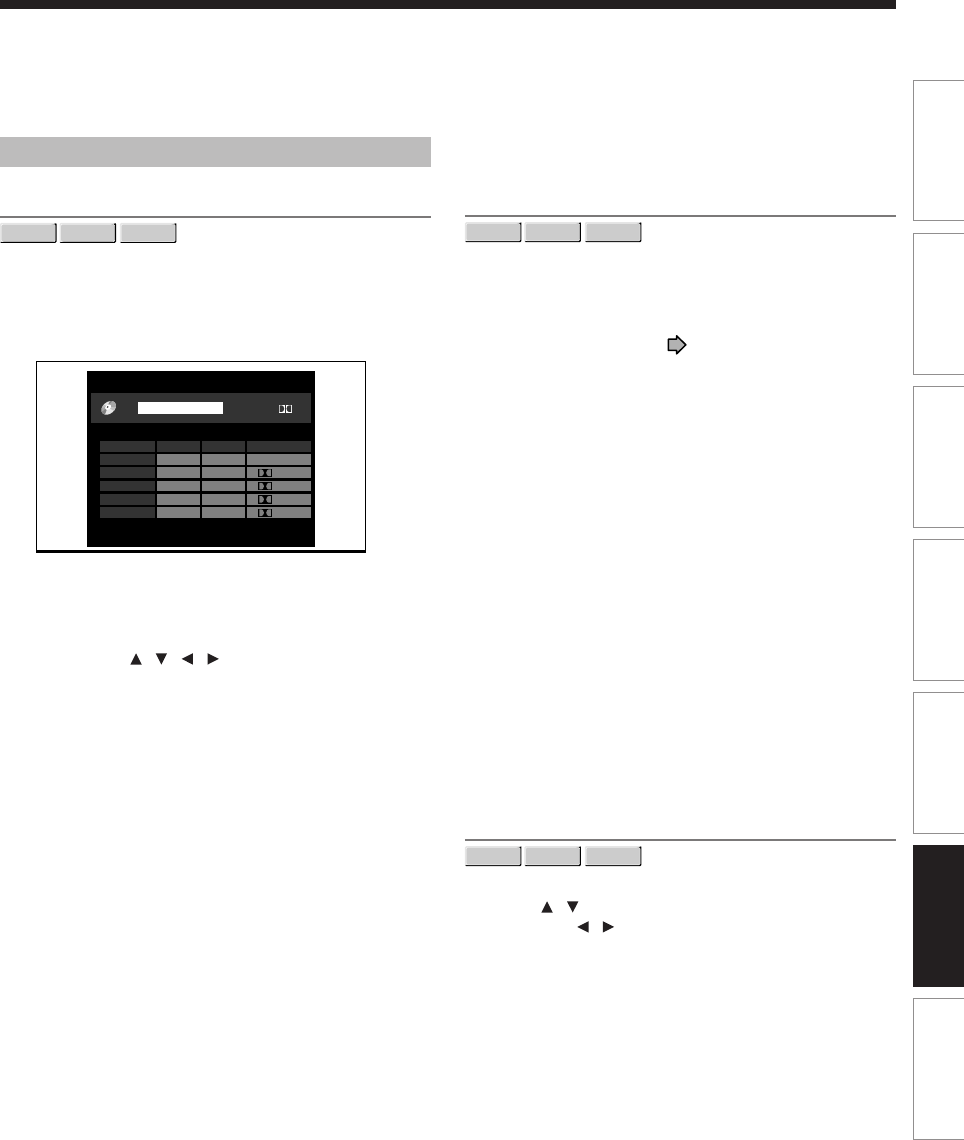
133
Recording Playback Editing Library Function setup Others
Introduction
DVD recorder operation
AV record quality
DVD-RAM
DVD-RW
DVD-R
You can select from 5 combined picture and sound
quality recording settings prior to actual recording.
Actual selection applied becomes the default setting for
the normal recording or programmed recording.
e.g.
•To make a combination of picture and sound
quality settings.
1)
Press the / / / buttons to select the
desired item (“Mode”, “Rate”, or “Audio quality”)
.
2) Press the ADJUST button to change the setting
of each item.
•To apply the combination of picture and sound
quality settings.
1) Press the ADJUST button to change the
setting.
You can confirm the available recording time for
the selected setting on the bottom screen.
2) Press the ENTER button.
Notes
•You can change the combination of picture and sound
quality settings also by displaying the Quick Menu on a
LIBRARY MENU or during stop mode, then selecting “AV
record quality”. Either of the above methods updates the
setting of this recorder.
•If you set “SP” or “LP”, you cannot select “L-PCM”.
•Depending on the sound quality settings, the upper limit for
the picture quality setting differs.
•You can adjust the manual rate for picture quality by
0.2 Mbps from 2.0 to 9.2. (You cannot set the rate from 1.4
to 2.0.)
Picture record mode
DVD-RAM
DVD-RW
DVD-R
Adjusts problems with the brightness of video signals of
TV broadcasts or other external input.
(Only use this setting when you cannot adjust the
brightness satisfactorily with the Custom picture setting in
the Picture/Audio settings ( Page 129) of this
recorder.)
Important:
•This setting changes the video signal to record and the
recorded signal is not returned to the original state even
when this setting is changed after recording. When
duplicating from VHS tape, if you can check the video
recording state beforehand, we recommend first playing
back for a while and checking the overall brightness
tendency, then setting an appropriate mode.
Standard:
The brightness of signals received with this recorder
and external input signals is adjusted automatically.
This is normally the setting to use.
Mode 1:
This setting is used to record the signals darker when
the screen is too bright.
Mode 2, 3, 4:
As the number rises, the signals are recorded brighter.
Use these modes to adjust the brightness.
Audio input level
DVD-RAM
DVD-RW
DVD-R
Sets the audio input level of recorded sound.
Press the / buttons to select the desired item, and
then press the / buttons to adjust the input level.
TV/Cable (L):
Sets the input level for the left channel.
(R):
Sets the input level for the right channel.
Line1, 2, 3 (L):
Sets the input level for the left channel of the external
input connectors.
(R):
Sets the input level for the right channel of the external
input connectors.
AV record quality
Custom setting
5
4
3
2
1
D / M1
D / M1
D / M2
D / M1
L-PCM
Manual
Manual
Manual
SP
LP
6. 6
4. 6
2. 2
6. 0
3. 2
ModeSetting Rate
Audio quality
Total recording time: approx. 122min.
(with 4.7 GB unused)
- - -
DVD
D/M1
SP
4.6
134
Aspect ratio(Video mode)
DVD-RW
DVD-R
To set the aspect ratio when recording onto a DVD-R/RW
disc.
4:3:
Fixes the aspect ratio at 4:3.
16:9:
Fixes the aspect ratio at 16:9.
Note
•When the bit rate on “AV record quality” is set to
“1.4(Mbps)”, pictures are recorded in 4:3 aspect ratio even
if “16:9” is selected.
DVD compatible mode
DVD-RAM
DVD-RW
DVD-R
To set whether or not recording is to be performed in the
format for which recording is allowed by the DVD-Video
standard (video, audio and other data) during recording.
Off:
When recording on a DVD-RAM disc, both the main
and SAP sounds are recorded.
When recording on a DVD-R/RW disc, this is
ineffective. The recorder will automatically regard this
as “Main,” and record sound of the main channel only in
stereo. Select “Main” or “SAP” for a DVD-R/RW
recording.
Main:
Records sound of the main channel only in stereo.
SAP:
Records sound of the SAP channel only in stereo.
Notes
•When you select the manual rate of the picture quality
between 3.0 and 3.8 and set this mode to “Main” or “SAP”,
the picture quality may become lower than when you set
this mode to “Off”.
•You can change the setting from the Quick Menu.
DVD-Video:CHP create
DVD-RW
DVD-R
To set whether chapters are to be automatically created
at a selected interval during DVD-R/RW recording.
Off:
Chapters are not set.
5 min. : 10 min. : 15 min. : 20 min.
To set the interval at which chapters are automatically
created to 5, 10, 15 or 20 minutes.
Note
•The number of chapters has the upper limit, which varies
depending on the disc condition. If the number reaches it,
no more chapters are created.
Rec DNR
DVD-RAM
DVD-RW
DVD-R
Selects the level of 3D digital noise reduction that can
reduce noises of a picture with many noise, depending
on pictures.
Off:
Deactivates the 3D digital noise reduction.
On:
Sets the normal level.
Expanded:
Increases digital noise reduction.
Notes
•When you set “Rec DNR” to “On” or “Expanded” and set
“3D Y/C Separation” to “On”, the priority changes
depending on the input selection. If you select the S-video
input, “Rec DNR” has priority. When you select the built-in
tuner or composite input, “3D Y/C Separation” has priority.
•If you want to avoid an afterimage, set this setting to “Off”.
3D Y/C separation
DVD-RAM
DVD-RW
DVD-R
The 3D digital comb filter executes Y/C (Brightness/
Color) separation to reduce the color irregularity or cross
color interference.
Off:
Deactivates this function. In an area where the
broadcast reception is poor, select this mode.
On:
Activates this function. In normal conditions, select
this.
Note
•Refer to the “Notes” in the above “Rec DNR”.
Customizing the function settings (Continued)
Function Setup
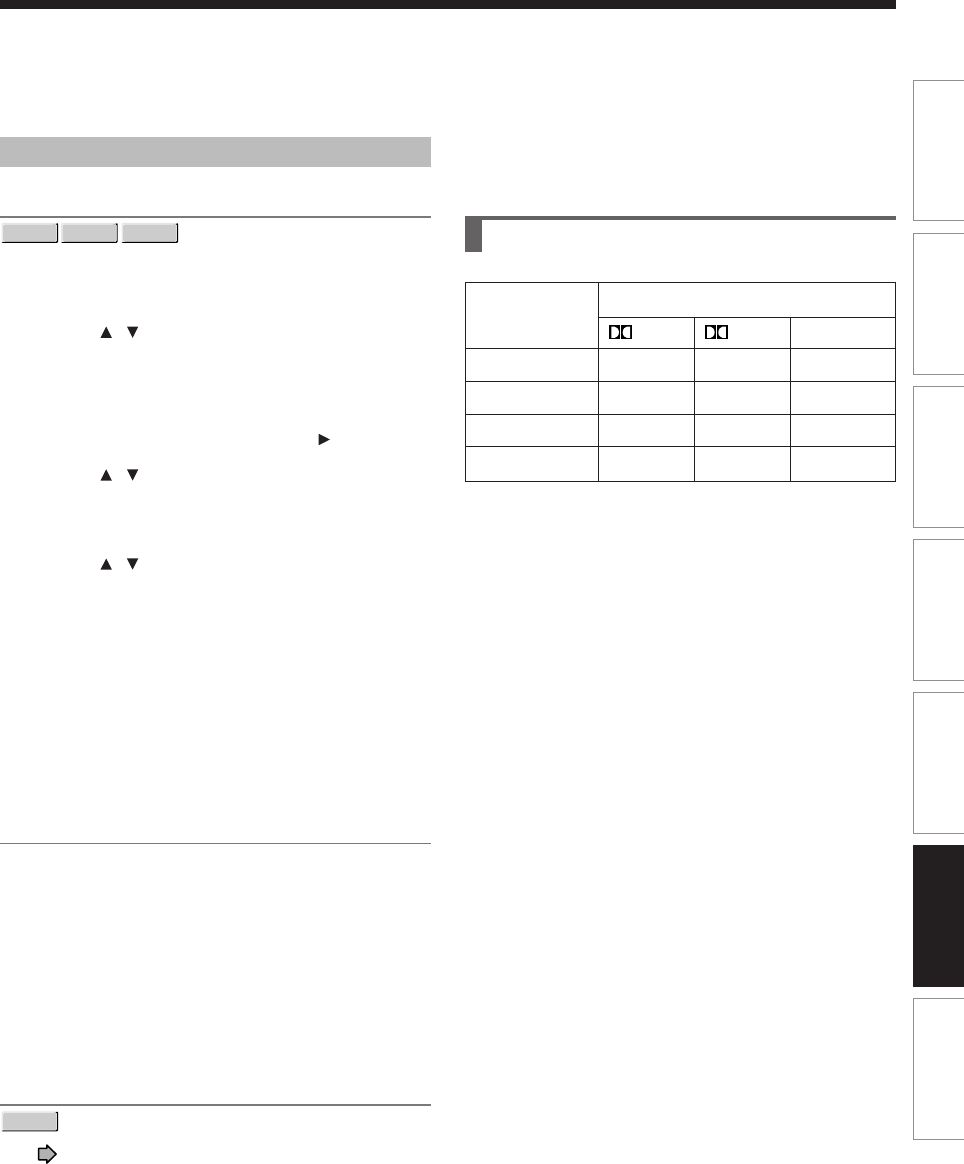
135
Recording Playback Editing Library Function setup Others
Introduction
Management settings
Genre setting
DVD-RAM
DVD-RW
DVD-R
This registers a frequently used genre name onto the
menu. Genre names registered here are displayed in the
“Genre” on the Quick Menu.
1) Press / to select a position in the “Cur-
rent Genre List” you want to change, then
press ENTER.
A list of genres appears.
You can turn the pages using the button.
2) Press / to select a genre, then press
ENTER.
A list of genre names appears.
3) Press / to select a genre name, then
press ENTER.
The selected genre name replaces the previous
one of the position you selected at step 1).
4)
Repeat steps 1) to 3) to register genre names.
5) When genre names are registered, press the
O button to return to the “Management
settings” menu.
Eco. mode
To set the front panel display to turn on/off in the standby
mode.
Off:
Sets the front panel display to turn on in the standby
mode.
On:
Sets the front panel display to turn off in the standby
mode.
DVD-RAM physical format
DVD-RAM
See page 29.
Picture quality
setting
SP
LP
MN
Auto
Setting of picture and sound quality for recording
Sound setting
D /M1 D /M2 L-PCM
Ye s
Ye s
Ye s
Ye s
Ye s
Ye s
Ye s
Ye s
No
No
Ye s
Ye s

Others
Before calling service personnel
Error codes on the display
window
Recording duration
Language code list
Specification
138
Before calling service personnel
If you experience any of the following difficulties while using this unit, check the list below before consulting your
nearest Toshiba dealer.
Others
Power
The power is not turned on.
•The power cord is not connected securely.
→Connect the power cord securely.
Connection to your TV
There is no TV picture.
•The video cable to this recorder and your TV is not
connected securely.
→Connect the video cable to this recorder and your
TV securely.
•The input select on your TV is not set property.
→Select the input to which this recorder is
connected.
TV reception
There is no picture.
•The antenna cable is not connected securely.
→Reconnect the antenna cable securely.
There is poor reception.
•Channel settings are not completed.
→Set the channels.
•The antenna cable is not connected securely.
→Reconnect the antenna cable securely.
•Antenna signal is poor.
→Consult your dealer for adjustment.
Playback
A DVD or CD does not play.
•The format of the recorded data does not correspond
to this recorder, or the region number is neither “1”
nor “ALL”.
→Check the disc.
•A defective or dirty disc is inside.
→Change the disc.
During playback, picture noise appears.
•Picture noise may appear in the following cases. It is
not a malfunction.
→There is picture noise in the original recording.
→Weather, reception conditions may cause noise.
→The data transmission rate is set to low.
→The image data processing of this recorder cannot
follow dynamic movement on the screen. (Low
video data rate)
→A physical error has occured on the DVD disc.
If an error occurs during reading data of a disc,
block-noises may be produced there. Repeated
reading of this location where the error occurred
(retry) can decrease the generation of block noise.
However, it can also raise the possibility of
unintended delays or stops of playback. In order to
prevent them, the recorder limits the number of times
of retry.
139
Recording Playback Others
Introduction Editing Function setup
Library
Program
Timer programming cannot be completed.
•Clock setting has not been completed.
→Complete the clock setting ( page 31,
“INSTALLATION GUIDE”).
•The programs list is full.
→Cancel unwanted programs ( page 43).
VCR Plus+ recording does not work properly.
•Guide channel setting is not completed.
→Complete the guide channel setting ( page 40,
“INSTALLATION GUIDE”).
•TV/Cable setting is not completed.
→Complete TV/Cable setting ( page 34,
“INSTALLATION GUIDE”).
Recording
Data cannot be recorded on a DVD-RAM disc.
•The disc is protected from deleting data.
→Set the write-protect tab to the opposite of
“PROTECT” ( page 8).
•The disc is protected by a PC or the recorder.
→Disable the protection on the device which
protected the disc.
•The disc space is not sufficient.
→Delete unwanted data ( page 49) or prepare a
new disc.
•The disc is not initialized.
→Initialize the disc ( page 28).
•The disc may contain errors.
→Complete the physical format on the disc
( page 29).
•The physical format on the disc is not completed.
→Complete the physical format on the disc
( page 29).

140
Remote control
The remote control does not work.
•The batteries in the remote control are exhausted.
→Replace all the batteries in the remote control
( page 12, “INSTALLATION GUIDE”).
•The light emitter of the remote control is not pointed
at the receptor of this recorder.
→Point the emitter of the remote control at the
receptor of this recorder.
•The receptor of this recorder is located too far away
from the remote control.
→Operate the remote control within 7 meters (23 ft)
from the receptor of this recorder.
•There are obstacles between the remote control and
this recorder.
→Remove any obstacles.
•The receptor is disturbed by sunlight or fluorescent
light.
→Change the place of this recorder or shield the
light.
•The remote mode is not appropriate.
→Adjust the remote mode of the remote control and
this recorder ( page 48, “INSTALLATION
GUIDE”).
Clock
The clock blinks.
→Complete the initial setting again ( page 28,
“INSTALLATION GUIDE”).
The clock does not keep time.
→Set the time and date manually ( page 31,
“INSTALLATION GUIDE”).
→Set “Summer time” or “Time zone” correctly
( page 32, “INSTALLATION GUIDE”).
Before calling service personnel (Continued)
Others
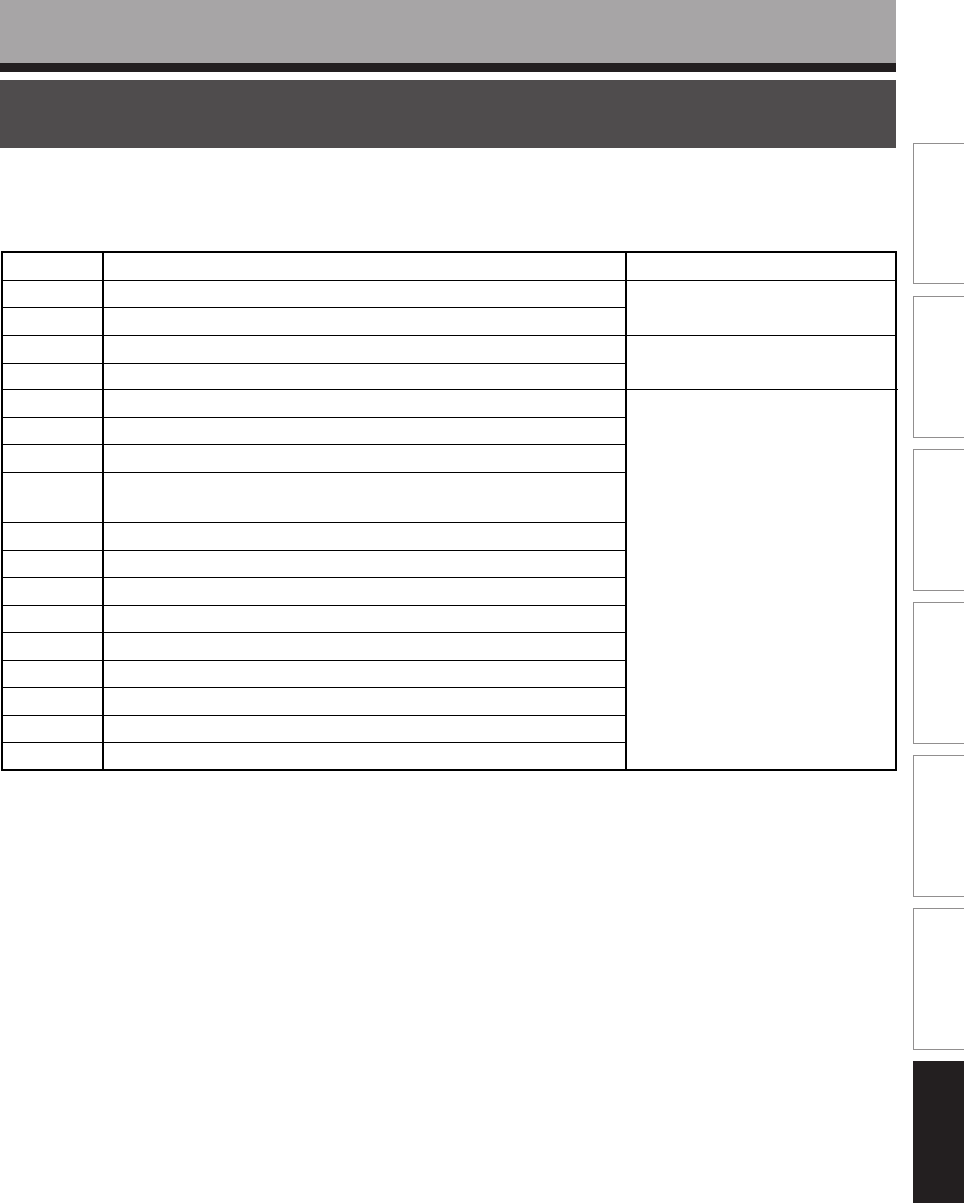
141
Recording Playback Others
Introduction Editing Function setup
Library
Error codes on the display window
The recorder display shows error codes in addition to the message screen.
Main examples are as follows.
The “**” in the “ERR - **” message indicates an error code. To delete this display, press the DISPLAY
button on the remote control.
Others
Note
• If you find an error code other than listed above, consult your nearest TOSHIBA dealer.
Error code
Description
ERR-01 Error detected in the physical format.
ERR-04 Failure detected in reading/recording of Library data.
ERR-2E Error detected in encoding or creating of menu
ERR-2F Overflow of the menu size detected.
ERR-30 Exceeded maximum number of menus detected.
ERR-31 Recovery of writing executed, depending on conformity of disc
and drive.
ERR-32 No compatibility of disc format detected.
ERR-33 Write-protection information on a disc detected.
ERR-34 Copy-restricted data or control information error detected.
ERR-35 Exceeded volume detected before recording.
ERR-36 Failure in recording. (title not saved)
ERR-37 Failure in recording. (title saved)
ERR-38 Failure in copying. (title not saved)
ERR-39 Failure in copying. (title saved)
ERR-3A Unexpected error.
• During recording onto
DVD-R/RW discs.
ERR-14 DVD disc access error detected.
Other errors detected.
ERR-15
• When creating a DVD-video.
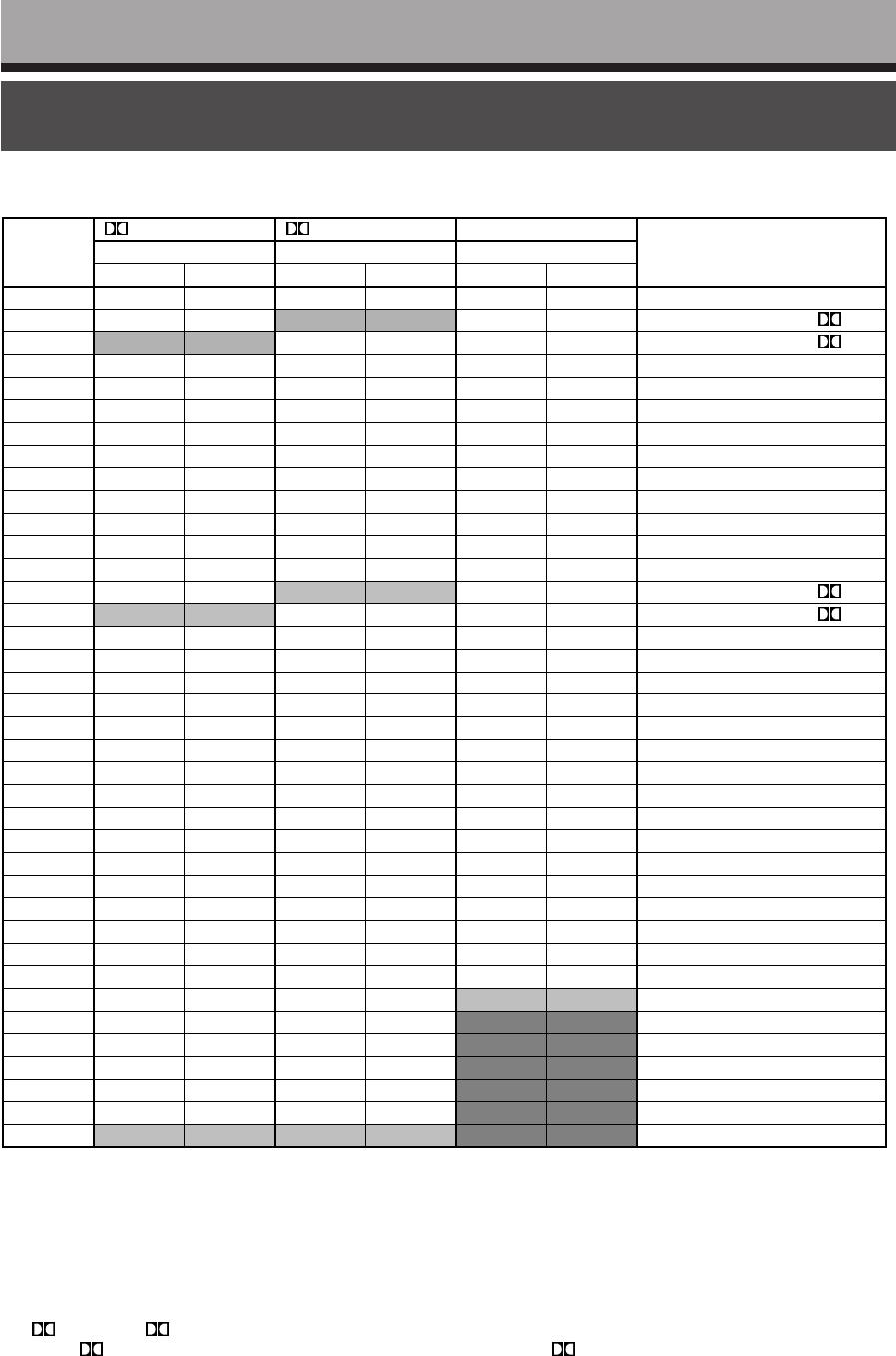
142
Recording duration
Others
•The recording duration listed above is reference only. Not guaranteed.
•This recording duration applies to the DVD-RAM disc in its initialized condition. The display may vary depending on
the disc.
•If you subtract the actual recording duration from the duration listed in this table, the calculated time period does not
represent the remaining time.
•The consumption of space may vary depending on the picture and sound conditions of the recorded content.
•Use the remaining disc space display feature to see the remaining space in the DVD-RAM disc.
For D /M1 and D /M2, the digital recording technology for consumer products of Dolby Laboratories is used.
Setting 1 ( D /M1) records in Dolby Digital at 192 kbps, and Setting 2 ( D /M2) records at 384 kbps.
1.4
2.0
2.2
2.4
2.6
2.8
3.0
3.2
3.4
3.6
3.8
4.0
4.2
4.4
4.6
4.8
5.0
5.2
5.4
5.6
5.8
6.0
6.2
6.4
6.6
6.8
7.0
7.2
7.4
7.6
7.8
8.0
8.2
8.4
8.6
8.8
9.0
9.2
06
04
04
03
03
03
03
02
02
02
02
02
02
02
02
01
01
01
01
01
01
01
01
01
01
01
01
01
01
01
01
01
01
01
01
01
01
01
07
22
01
43
27
14
02
51
42
33
26
19
13
07
02
57
52
48
44
40
37
34
31
28
26
23
21
18
16
14
12
11
09
07
06
04
03
01
05
04
03
03
03
03
02
02
02
02
02
02
02
02
01
01
01
01
01
01
01
01
01
01
01
01
01
01
01
01
01
01
01
01
01
01
01
01
28
02
44
28
14
02
52
42
34
26
19
13
07
02
57
52
48
44
41
37
34
31
28
26
23
21
19
16
14
13
11
09
07
06
04
03
01
00
03
02
02
02
02
02
02
02
01
01
01
01
01
01
01
01
01
01
01
01
01
01
01
01
01
01
01
01
01
01
01
01
21
44
36
28
21
14
08
03
58
53
49
45
41
38
35
32
29
26
24
21
19
17
15
13
11
09
08
06
05
03
02
00
Picture
quality rate
Hour Minute
Sound rate
D /M1(192kbps)
DVD-RAM
Hour Minute
D /M2(384kbps)
DVD-RAM
Hour Minute
Remarks
L-PCM
DVD-RAM
Picture quality rate for LP with D /M2.
Picture quality rate for LP with D /M1.
Picture quality rate for SP with D /M2.
Picture quality rate for SP with D /M1.
Manual maximum setting for L-PCM.
Maximum value for the manual mode.
143
Recording Playback Others
Introduction Editing Function setup
Library
Language code list
Others
Table of languages and their abbreviations
– – –
CHI (ZH)
DUT (NL)
ENG (EN)
FRE (FR)
GER (DE)
ITA (IT)
JPN (JA)
KOR (KO)
MAY (MS)
SPA (ES)
AA
AB
AF
AM
AR
AS
AY
AZ
BA
BE
BG
BH
BI
BN
BO
BR
CA
CO
CS
CY
DA
DZ
EL
EO
ET
EU
FA
FI
FJ
FO
FY
GA
GD
GL
No alternate
language
Chinese
Dutch
English
French
German
Italian
Japanese
Korean
Malay
Spanish
Afar
Abkhazian
Afrikaans
Amharic
Arabic
Assamese
Aymara
Azerbaijani
Bashkir
Belorussian
Bulgarian
Bihari
Bislama
Bengali, Bangla
Tibetan
Breton
Catalan
Corsican
Czech
Welsh
Danish
Bhutani
Greek
Esperanto
Estonian
Basque
Persian
Finnish
Fiji
Faroese
Frisian
Irish
Scottish Gaelic
Galician
GN
GU
HA
HI
HR
HU
HY
IA
IE
IK
IN
IS
IW
JI
JW
KA
KK
KL
KM
KN
KS
KU
KY
LA
LN
LO
LT
LV
MG
MI
MK
ML
MN
MO
MR
MT
MY
NA
NE
NO
OC
OM
OR
PA
PL
PS
PT
QU
RM
RN
RO
RU
RW
SA
SD
SG
SH
SI
SK
SL
SM
SN
SO
SQ
SR
SS
ST
SU
SV
SW
TA
TE
TG
TH
TI
TK
TL
TN
TO
TR
TS
TT
TW
UK
UR
UZ
VI
VO
WO
XH
YO
ZU
Guarani
Gujarati
Hausa
Hindi
Croatian
Hungarian
Armenian
Interlingua
Interlingue
Inupiak
Indonesian
Icelandic
Hebrew
Yiddish
Javanese
Georgian
Kazakh
Greenlandic
Cambodian
Kannada
Kashmiri
Kurdish
Kirghiz
Latin
Lingala
Laotian
Lithuanian
Latvian, Lettish
Malagasy
Maori
Macedonian
Malayalam
Mongolian
Moldavian
Marathi
Maltese
Burmese
Nauru
Nepali
Norwegian
Occitan
(Afan) Oromo
Oriya
Panjabi
Polish
Pashto, Pushto
Portuguese
Quechua
Rhaeto-Romance
Kirundi
Rumanian
Russian
Kinyarwanda
Sanskrit
Sindhi
Sango
Serbo-Croatian
Singhalese
Slovak
Slovenian
Samoan
Shona
Somali
Albanian
Serbian
Siswati
Sesotho
Sundanese
Swedish
Swahili
Ta m i l
Telugu
Tajik
Thai
Tigrinya
Turkmen
Tagalog
Setswana
Tongan
Turkish
Tsonga
Tatar
Tw i
Ukrainian
Urdu
Uzbek
Vietnamese
Volapük
Wolof
Xhosa
Yoruba
Zulu
Abbreviation
Language
Abbreviation
Language
Abbreviation
Language

144
Specification
Others
■Power requirement during operation
34W
■Power requirement at standby
2.7W or below (Eco mode: off)
0.8W or below (Eco mode: on)
■Power supply
120V AC, 60 Hz
■Mass
4.2kg
■External dimension
Width 430 x Height 78 x Depth 325mm
■Incoming channels
TV: 2-69CH, Cable:1-125CH
■Antenna input/output terminal
VHF/UHF: 75Ω, F Connector
■Signal system
Standard NTSC Color TV system
■Laser
Semiconductor laser, Wavelength: 650nm/780nm
■Format
DVD-VR format
DVD-Video format
■Image recording system
MPEG2
■Sound recording system
Dolby digital M1, M2, Linear PCM
■VIDEO input
1.0Vp-p (75Ω), Sync signal negative,
Pin jack x 3 systems, 2 at rear, 1 in front
■VIDEO output
1.0Vp-p (75Ω), Sync signal negative,
Pin jack x 1 systems, 1 at rear
■S-VIDEO input
(Y) 1.0Vp-p (75Ω), Sync signal negative,
(C) 0.286Vp-p (75Ω), 2 at rear, 1 in front
Mini DIN4 Pin x 3 systems
■S-VIDEO output
(Y) 1.0Vp-p (75Ω), Sync signal negative,
(C) 0.286Vp-p (75Ω), 1 at rear
Mini DIN4 Pin x 1 system
■COMPONENT output (Y, PB, PR)
Y output (green), 1.0Vp-p (75Ω),
Sync signal negative, Pin jack x 1 system
PB, PR output (blue, red), 0.7Vp-p (75Ω),
Pin jack x 1 system each
■AUDIO input
2.0V (rms), 50kΩ or below, pin jack
(L, R) x 3 systems
2 at rear, 1 in front
■AUDIO output
2.0V (rms), 200Ω or above, pin jack
(L, R) x 1 system
1 at rear
■DIGITAL AUDIO OUTPUT
BITSTREAM/PCM (OPTICAL terminal)
Optical connector x 1 system
■CHANNEL CHANGE IR jack
This is for connection of the supplied IR control cable
only.
■DV input
4-pin x 1 in front
145
Recording Playback Others
Introduction Editing Function setup
Library
■Remote control
Wireless remote control (SE-R0123)
■Operating conditions
Temperature: 41°F ~ 95°F (5°C ~ 35°C),
Position: Horizontal
■Clock display
12 hour digital display
■Clock accuracy
Quartz (monthly deviation: approximately ±30
seconds)
•The design and specifications may change without prior
notice.
•The Illustrations and screens described in this manual
may be exaggerated or simplified for easy recognition
and may be slightly different from the actual unit.

146
Limited Warranty DVD PLAYER/RECORDER
Toshiba America Consumer Products, L.L.C,. (“TA C P ”) makes the following limited warranties to original consumers in
the United States. THESE LIMITED WARRANTIES EXTEND TO THE ORIGINAL CONSUMER PURCHASER OR ANY
PERSON RECEIVING THIS DVD PLAYER/RECORDER AS A GIFT FROM THE ORIGINAL CONSUMER
PURCHASER AND TO NO OTHER PURCHASER OR TRANSFEREE.
PRODUCTS PURCHASED IN THE U.S.A. AND USED IN CANADA ARE NOT COVERED BY THESE WARRANTIES.
PRODUCTS PURCHASED IN CANADA AND USED IN THE U.S.A. ARE NOT COVERED BY THESE WARRANTIES.
Owner’s Manual and Demographic Card
You should read this owner’s manual thoroughly before
operating this DVD PLAYER/RECORDER. You should
complete and mail the enclosed Demographic card within
ten days after you, or the person who has given you this
product as a gift, purchased this DVD PLAYER/
RECORDER. This is one way to enable TACP to provide
you with better customer service and improved products.
Failure to return the Demographic card will not affect
your rights under this warranty.
Your Responsibility
THE ABOVE WARRANTIES ARE SUBJECT TO THE
FOLLOWING CONDITIONS:
(1) You must provide your bill of sale or other proof of
purchase.
(2) All in-warranty servicing of this DVD PLAYER/
RECORDER must be made by a specified
Authorized TACP Service Station.
(3) The warranties from TACP are effective only if the
DVD PLAYER/RECORDER is purchased and
operated in the U.S.A. or Puerto Rico.
(4) Labor service charges for set installation, set up,
adjustment of customer controls and installation or
repair of hook up related items and/or antenna
systems are not covered by these warranties.
Reception problems caused by inadequate antenna
systems are your responsibility.
(5) Warranties extend only to defects in materials or
workmanship as limited above and do not extend to
any DVD PLAYER/RECORDER or parts which have
been lost or discarded by you or to damage to DVD
PLAYER/RECORDER or parts caused by misuse,
accident, Acts of God, such as lightning or
fluctuations in electric power, improper installation,
improper maintenance or use in violation of
instructions furnished by TACP; or to units which
have been modified or had the serial number
removed, altered, defaced or rendered illegible.
Limited Ninety (90) Day Warranty on Labor*
TACP warrant this DVD PLAYER/RECORDER and its
parts against defects in materials or workmanship for a
period of ninety (90) days after the date of original retail
purchase. DURING THIS PERIOD, TACP WILL, AT
TA C P ’s OPTION, REPAIR OR REPLACE A DEFECTIVE
PART WITH A NEW OR REFURBISHED PART
WITHOUT CHARGE TO YOU FOR PARTS OR LABOR.
YOU MUST DELIVER THE ENTIRE DVD PLAYER/
RECORDER TO AN AUTHORIZED TACP SERVICE
STATION. YOU MUST PAY FOR ALL
TRANSPORTATION AND INSURANCE CHARGES FOR
THE DVD PLAYER/RECORDER TO AND FROM THE
SERVICE STATION.
Limited One (1) Year Warranty on Parts*
TACP further warrant the parts in this DVD PLAYER/
RECORDER against defects in materials or
workmanship for a period of one (1) year after the date of
original retail purchase. DURING THIS PERIOD, TACP
WILL, AT TACP ’S OPTION, REPAIR OR REPLACE A
DEFECTIVE PART WITH A NEW OR REFURBISHED
PART WITHOUT CHARGE TO YOU FOR THE PART,
PROVIDED THAT IF A DEFECTIVE PART IS REPAIRED
OR REPLACED AFTER NINETY (90) DAYS FROM THE
DATE OF ORIGINAL RETAIL PURCHASE, THE
CONSUMER PAYS ALL LABOR CHARGES INVOLVED
IN THE REPAIR OR REPLACEMENT. YOU MUST
DELIVER THE ENTIRE DVD PLAYER/RECORDER TO
AN AUTHORIZED TACP SERVICE STATION. YOU
MUST PAY FOR ALL TRANSPORTATION AND
INSURANCE CHARGES FOR THE DVD PLAYER/
RECORDER TO AND FROM THE SERVICE STATION.
*Rental Units
The warranty for rental units begins with the first rental or
thirty (30) days from the date of shipment to the rental
firm, whichever comes first.
*Commercial Units
DVD PLAYER/RECORDER(s) sold and used for
commercial purposes have a limited ninety (90) day
warranty.
147
Recording Playback Others
Introduction Editing Function setup
Library
HOW STATE LAW RELATES TO WARRANTY
THIS WARRANTY GIVES YOU SPECIFIC LEGAL
RIGHTS, AND YOU MAY ALSO HAVE OTHER RIGHTS
WHICH MAY VARY FROM STATE TO STATE IN THE
U.S.A. SOME STATES OF THE U.S.A. DO NOT ALLOW
LIMITATIONS ON HOW LONG AN IMPLIED
WARRANTY LASTS, WHEN AN ACTION MAY BE
BROUGHT, OR THE EXCLUSION OR LIMITATION OF
INCIDENTAL OR CONSEQUENTIAL DAMAGES, SO
THE ABOVE LIMITATIONS OR EXCLUSIONS MAY NOT
APPLY TO YOU UNDER SUCH CIRCUMSTANCES.
How to Obtain Warranty Services
If, after following all of the operating instructions in this
manual and checking the section “Before calling service
personnel”, you find that service is needed:
(1) For instructions on how to obtain warranty service
for your DVD PLAYER/RECORDER, contact TACP
Call Center’s toll free number at 1-866-583-7353.
(2) You must include a copy or original bill of sale or
other proof of purchase along with the entire DVD
PLAYER/RECORDER to the Authorized TACP
Service Station specified by the Call Center. You
must pay for all transportation and insurance
charges for the DVD PLAYER/RECORDER to the
Service Station.
For additional information, visit TACP’s web site:
www.tacp.toshiba.com.
Time for Taking Action
ALL WARRANTIES IMPLIED BY THE LAW OF ANY
STATE OF THE U.S.A., INCLUDING THE IMPLIED
WARRANTIES OF MERCHANTABILITY AND FITNESS
FOR A PARTICULAR PURPOSE, ARE EXPRESSLY
LIMITED TO THE DURATION OF THE LIMITED
WARRANTIES SET FORTH ABOVE. WITH THE
EXCEPTION OF ANY WARRANTIES IMPLIED BY THE
LAW OF ANY STATE OF THE U.S.A. AS HEREBY
LIMITED, THE FOREGOING WARRANTY IS
EXCLUSIVE AND IN LIEU OF ALL OTHER
WARRANTIES, GUARANTEES, AGREEMENTS AND
SIMILAR OBLIGATIONS OF TACP WITH RESPECT TO
THE REPAIR OR REPLACEMENT OF ANY PARTS. IN
NO EVENT SHALL TACP OR BE LIABLE FOR
CONSEQUENTIAL OR INCIDENTAL DAMAGES.
No person, agent, distributor, dealer or company is
authorized to change, modify or extend the terms of
these warranties in any manner whatsoever. The time
within which action must be commenced to enforce any
obligation of TACP arising under this warranty or under
any law of the United States or of any state thereof is
hereby limited to 90 days from the date you discovered or
should have discovered, the defect. This limitation does
not apply to implied warranties arising under the law of
any state of the U.S.A.
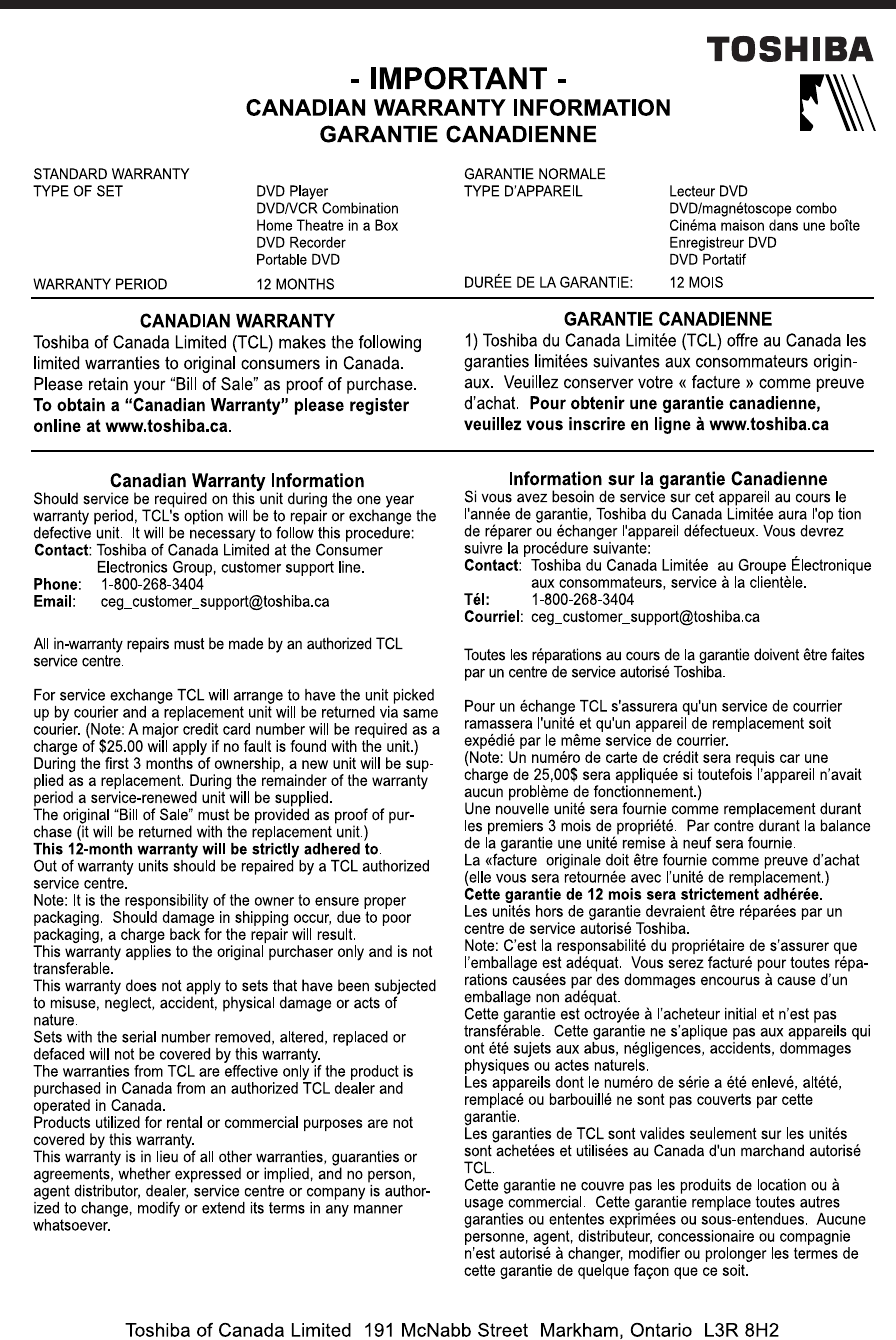
148
149
Recording Playback Others
Introduction Editing Function setup
Library
Memo

150
Memo
151
Recording Playback Others
Introduction Editing Function setup
Library
Memo
