Toshiba Md14F51 Owners Manual 5S00101B [E] (Cover)
2014-12-13
: Toshiba Toshiba-Md14F51-Owners-Manual-131966 toshiba-md14f51-owners-manual-131966 toshiba pdf
Open the PDF directly: View PDF  .
.
Page Count: 52
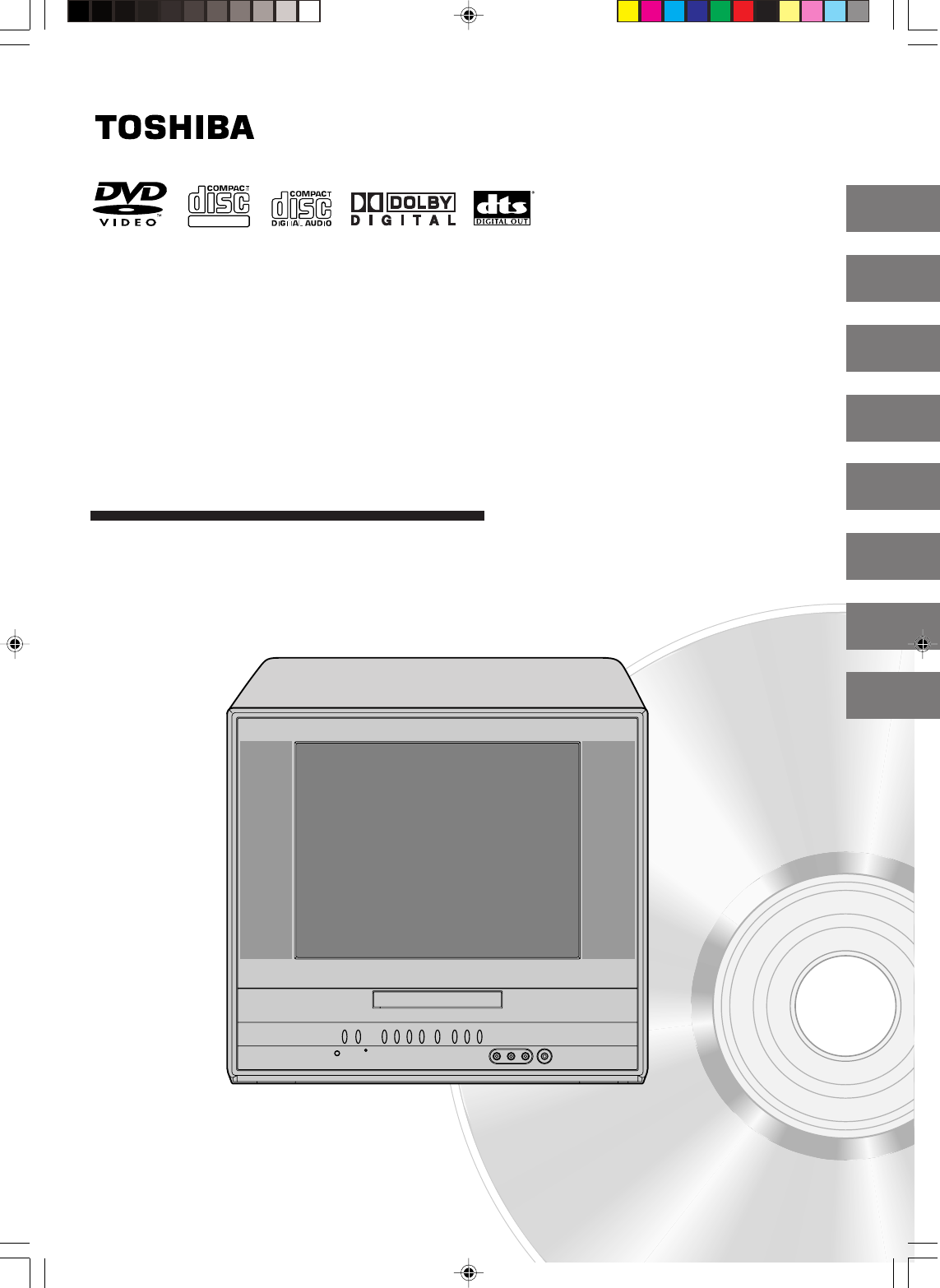
COMBINATION FLAT COLOR
TELEVISION AND DVD VIDEO
PLAYER
OWNER’S MANUAL
2
13
18
28
31
39
Introduction
Connections
Basic setup
Basic playback
Advanced playback
Function setup
DIGITAL VIDEO
©2005 Toshiba Corporation
45
Others
Before operating the unit, please read this manual thoroughly.
20
TV operation
MD14F51
5S00101B [E] (Cover) 2/23/05, 5:36 PM1
2
Introduction
Dear Customer,
Thank you for purchasing this Toshiba TV. This manual will
help you use the many exciting features of your new TV.
Before operating the TV, please read this manual
completely, and keep it nearby for future reference.
Safety Precautions
WARNING
TO REDUCE THE RISK OF FIRE OR ELECTRIC
SHOCK, DO NOT EXPOSE THIS APPLIANCE TO
RAIN OR MOISTURE.
CAUTION: To reduce the risk of electric shock, do
not use the polarized plug with an extension
cord, receptacle, or other outlet unless the
blades can be inserted completely to prevent
blade exposure.
NOTE TO CATV INSTALLERS
This is a reminder to call the CATV system installer’s
attention to Article 820-40 of the NEC, which provides
guidelines for proper grounding and, in particular,
specifies that the cable ground shall be connected to the
grounding system of the building, as close to the point of
cable entry as practical. For additional antenna
grounding information, see items 25 and 26 on page 4.
NOTICE OF POSSIBLE ADVERSE
EFFECTS ON TV PICTURE TUBE
If a fixed (non-moving) pattern remains on the TV
screen for long periods of time, the image can
become permanently ingrained in the picture tube.
This type of damage is NOT COVERED BY YOUR
WARRANTY. See item 33 on page 4.
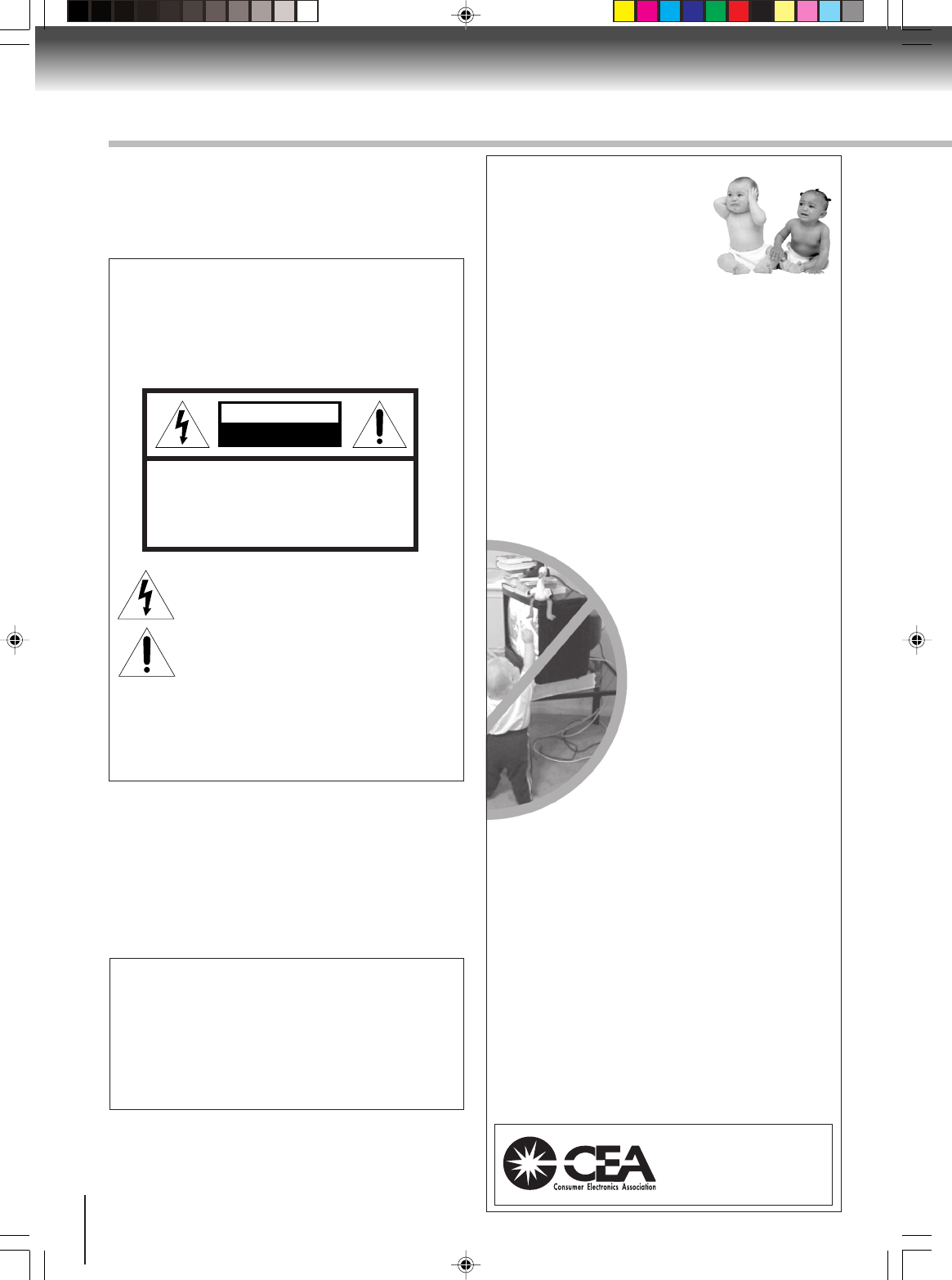
It Makes A Difference
Where Your TV Stands
Congratulations on your purchase! As you enjoy
your new TV, keep these safety tips in mind:
The Issue
If you are like most consumers, you have a TV in your
home. Many homes, in fact, have more than one TV.
The home theater entertainment experience is a growing
trend, and larger TVs are popular purchases; however,
they are not always supported on the proper TV stands.
Sometimes TVs are improperly secured or
inappropriately situated on dressers, bookcases, shelves,
desks, audio speakers, chests, or carts. As a result, TVs
may fall over, causing unnecessary injury.
Toshiba Cares!
The consumer electronics industry
is committed to making home
entertainment enjoyable and safe.
The Consumer Electronics
Association formed the Home
Entertainment Support Safety
Committee, comprised of TV and
consumer electronics furniture
manufacturers, to advocate
children’s safety and educate
consumers and their families about
television safety.
Tune Into Safety
One size does NOT fit all! Use appropriate
furniture large enough to support the weight of your
TV (and other electronic components).
Use appropriate angle braces, straps, and anchors to
secure your furniture to the wall (but never screw
anything directly into the TV).
Carefully read and understand the other enclosed
instructions for proper use of this product.
Do not allow children to climb on or play with
furniture and TVs.
Avoid placing any item on top of your TV (such as a
VCR, remote control, or toy) that a curious child may
reach for.
Remember that children can become excited while
watching a program and can potentially push or pull
a TV over.
Share our safety message about this hidden hazard
of the home with your family and friends. Thank you!
2500 Wilson Blvd.
Arlington, VA 22201 U.S.A.
Tel. 703-907-7600 Fax 703-907-7690
www.CE.org
CEA is the Sponsor, Producer and
Manager of the International CES
®
0303
The lightning symbol in the triangle tells you that the
voltage inside this product may be strong enough to
cause an electric shock. DO NOT TRY TO SERVICE
THIS PRODUCT YOURSELF.
The exclamation mark in the triangle tells you that
important operating and maintenance instructions
follow this symbol.
RISK OF ELECTRIC SHOCK
DO NOT OPEN
CAUTION
CAUTION:
TO REDUCE THE RISK OF ELECTRIC
SHOCK, DO NOT REMOVE COVER
(OR BACK). NO USER-SERVICEABLE
PARTS INSIDE. REFER SERVICING TO
QUALIFIED SERVICE PERSONNEL.
IMPORTANT SAFEGUARDS IM
Child Safety
5S00101B [E] (P02-05) 2/23/05, 5:36 PM2
3
Introduction
IMPORTANT SAFEGUARDS
Important Safety Instructions
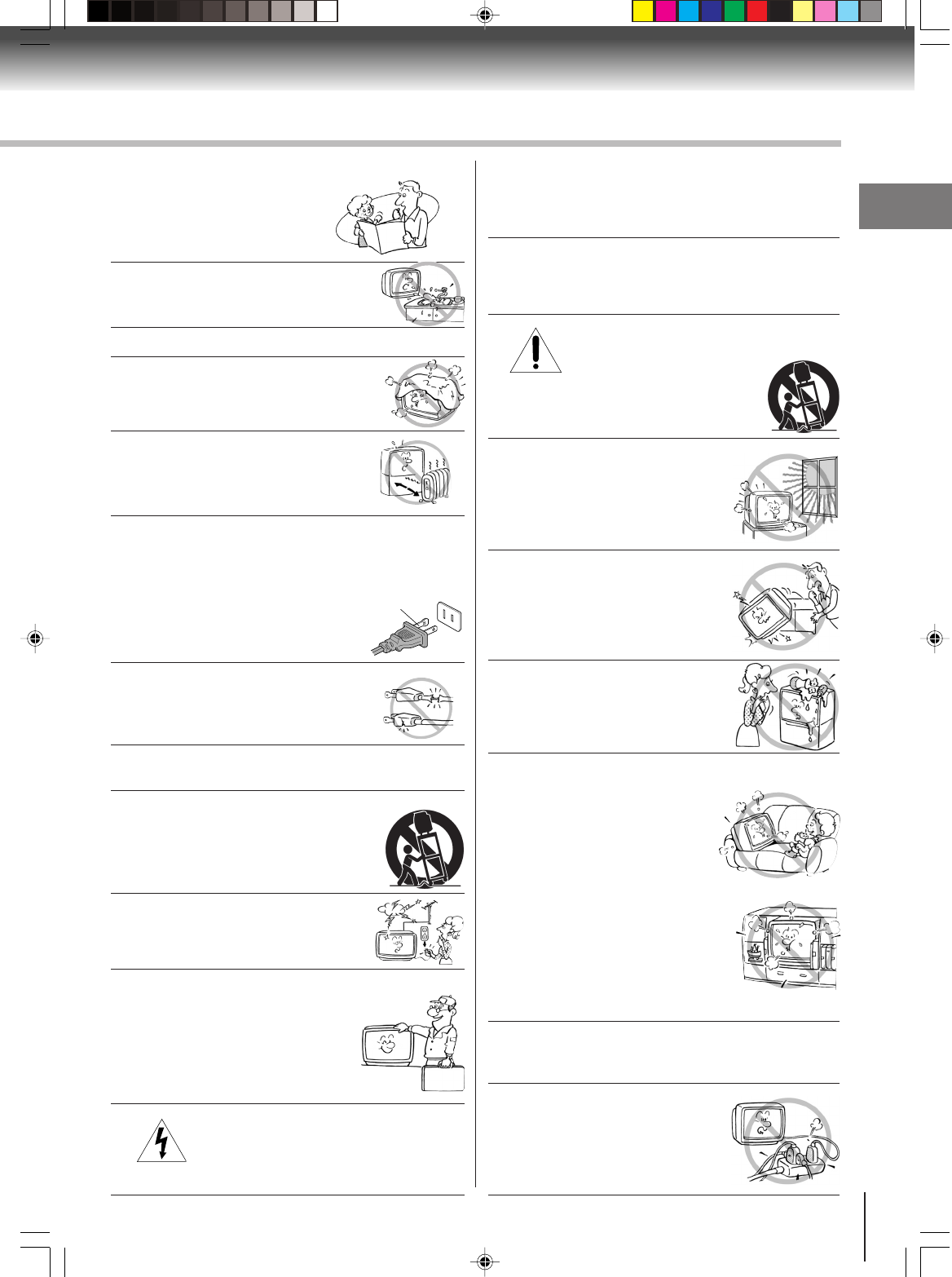
1) Read these instructions.
2) Keep these instructions.
3) Heed all warnings.
4) Follow all instructions.
5) Do not use this apparatus near
water.
6) Clean only with a dry cloth.
7) Do not block any ventilation
openings. Install in accordance with
the manufacturer’s instructions.
8) Do not install near any heat
sources such as radiators, heat
registers, stoves, or other apparatus
(including amplifiers) that produce heat.
9) Do not defeat the safety purpose of the polarized
or grounding type plug. A polarized plug has two
blades with one wider than the other. A grounding
type plug has two blades and a third grounding
prong. The wide blade or the third
prong are provided for your safety.
If the provided plug does not fit into
your outlet, consult an electrician
for replacement of the obsolete outlet.
10) Protect the power cord from being
walked on or pinched, particularly at
plugs, convenience receptacles, and
the point where it exits the apparatus.
11) Only use attachments/accessories specified by
the manufacturer.
12) Use only with the cart, stand, tripod,
bracket, or table specified by the
manufacturer, or sold with the
apparatus. When a cart is used, use
caution when moving the cart/apparatus
combination to avoid injury from tip-over.
13) Unplug this apparatus during
lightning storms or when unused
for long periods of time.
14) Refer all servicing to qualified service personnel.
Servicing is required when the apparatus has
been damaged in any way, such as
power supply cord or plug is damaged,
liquid has been spilled or objects have
fallen into the apparatus, the apparatus
has been exposed to rain or moisture, does
not operate normally, or has been dropped.
15) CAUTION: To reduce the risk of electric
shock, do not use the polarized plug
with an extension cord, receptacle, or other
outlet unless the blades can be inserted
completely to prevent blade exposure.
Installation, Care, and Service
Installation
Follow these recommendations and precautions and heed
all warnings when installing your TV:
16) Never modify this equipment. Changes or
modifications may void: a) the warranty, and b) the
user’s authority to operate this equipment under the
rules of the Federal Communications Commission.
17) DANGER: RISK OF SERIOUS PERSONAL
INJURY, DEATH, OR EQUIPMENT
DAMAGE! Never place the TV on
an unstable cart, stand, or table. The TV
may fall, causing serious personal injury,
death, or serious damage to the TV.
18) Never place or store the TV in direct
sunlight; hot, humid areas; areas
subject to excessive dust or vibration;
or locations with temperatures at or
below 41°F (5°C).
19) Always place the TV on the floor
or a sturdy, level, stable surface that
can support the weight of the unit.
20)
Never place items such as vases,
aquariums, or candles on top of the TV.
21) Never block or cover the slots or
openings in the TV cabinet back,
bottom, and sides. Never place
the TV:
•on a bed, sofa, rug, or similar
surface;
•too close to drapes, curtains,
or walls; or
•in a confined space such as a
bookcase, built-in cabinet, or any
other place with poor ventilation.
The slots and openings are provided
to protect the TV from overheating
and to help maintain reliable
operation of the TV.
22) Never allow anything to rest on or roll over the power
cord, and never place the TV where the power cord is
subject to wear or abuse.
23) Never overload wall outlets and
extension cords.
0303
Wide plug
QUALIFIED
SERVICE
TECHNICIAN
5S00101B [E] (P02-05) 2/23/05, 5:36 PM3
4
Introduction
24)Always operate this equipment from
a 120V AC, 60 Hz power source only.
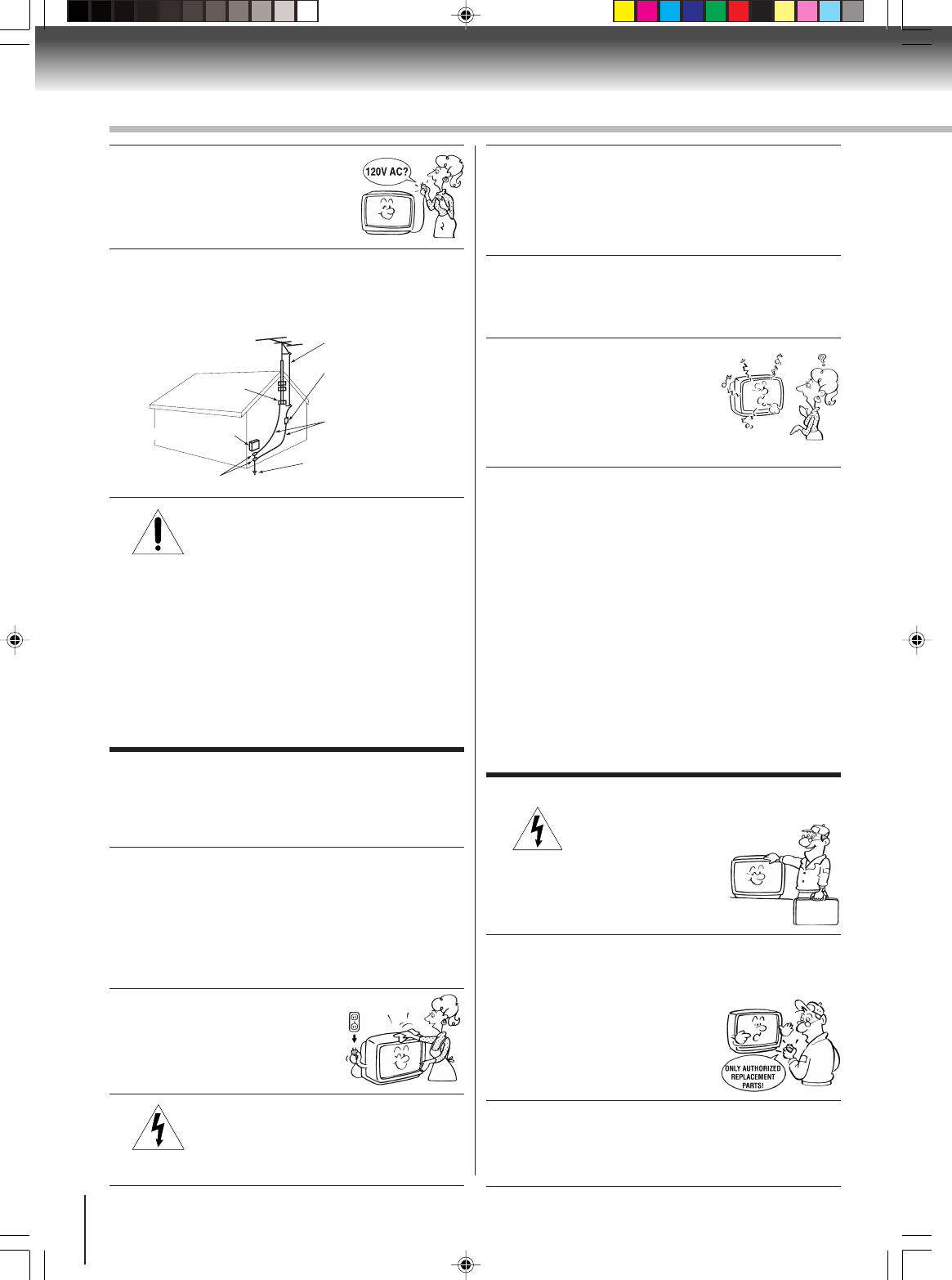
25) Always make sure the antenna system is properly
grounded to provide adequate protection against
voltage surges and built-up static charges (see Section
810 of the National Electric Code).
26) DANGER: RISK OF SERIOUS
PERSONAL INJURY OR DEATH!
•Use extreme care to make sure you
are never in a position where your body (or any item
you are in contact with, such as a ladder or
screwdriver) can accidentally touch overhead power
lines. Never locate the antenna near overhead power
lines or other electrical circuits.
•Never attempt to install any of the following during
lightning activity:
a) an antenna system; or b) cables, wires, or any home
theater component connected to an antenna or phone
system.
Care
For better performance and safer operation of your
TOSHIBA TV, follow these recommendations and
precautions:
27) Always sit approximately 10–25 feet away from the TV
and as directly in front of it as possible. The picture can
appear dull if you sit too far to the left or right of the
TV, or if sunlight or room lights reflect on the screen.
Turn the TV off to check for reflections on the screen,
and then remove the source of reflections while
viewing the TV.
28) Always unplug the TV before
cleaning. Never use liquid or
aerosol cleaners.
29) WARNING: RISK OF ELECTRIC SHOCK!
Never spill liquids or push objects of any
kind into the TV cabinet slots.
30) [This item applies to projection TVs only.] If the air
temperature rises suddenly (for example, when the TV
is first delivered), condensation may form on the
lenses. This can make the picture appear distorted or
the color appear faded. If this happens, turn off the TV
for 6 to 7 hours to allow the condensation to evaporate.
31)For added protection of your TV from lightning and
power surges, always unplug the power cord and
disconnect the antenna from the TV if you leave the TV
unattended or unused for long periods of time.
32) During normal use, the TV may make
occasional snapping or popping
sounds. This is normal, especially
when the unit is being turned on or
off. If these sounds become frequent
or continuous, unplug the power cord
and contact a Toshiba Authorized Service Center.
33) Possible Adverse Effects on TV Picture Tube: If a
fixed (non-moving) pattern remains on the TV screen
for long periods of time, the image can become
permanently ingrained in the picture tube and cause
subtle but permanent ghost images. This type of
damage is NOT COVERED BY YOUR WARRANTY.
Never leave your TV on for long periods of time while it
is displaying the following formats or images:
•Fixed Images, such as PIP/POP windows, stock
tickers, video game patterns, TV station logos, closed
captions, and websites.
•Special Formats that do not use the entire screen.
For example, viewing letterbox style (16:9) media on a
normal (4:3) display (gray bars at top and bottom of
screen); or viewing normal style (4:3) media on a
widescreen (16:9) display (gray bars on left and right
sides of screen).
Service
34) WARNING: RISK OF ELECTRIC
SHOCK! Never attempt to service the
TV yourself. Opening and
removing the covers may expose
you to dangerous voltage or other
hazards. Refer all servicing to a
Toshiba Authorized Service Center.
35) If you have the TV serviced:
•Ask the service technician to use only replacement
parts specified by the manufacturer.
•
Upon completion of service, ask
the service technician to perform
routine safety checks to determine
that the TV is in safe operating
condition.
36)When the TV reaches the end of its useful life, ask a
qualified service technician to properly dispose of the
TV. Improper disposal may result in a picture tube
implosion and possible personal injury.
IMPORTANT SAFEGUARDS S
Ground clamp
Antenna discharge unit
(NEC Section 810-20)
Grounding conductors
(NEC Section 810-21)
Power service grounding
electrode system (NEC Art 250 Part H)
Ground clamps
Antenna lead-in wire
Electric service equipment
QUALIFIED
SERVICE
TECHNICIAN
0303
5S00101B [E] (P02-05) 2/23/05, 5:36 PM4
5
Introduction
SAFETY PRECAUTION/ Power source
CAUTION:
THIS DIGITAL VIDEO PLAYER EMPLOYS A LASER SYSTEM.
TO ENSURE PROPER USE OF THIS PRODUCT, PLEASE READ
THIS OWNER'S MANUAL CAREFULLY AND RETAIN FOR FU-
TURE REFERENCE. SHOULD THE UNIT REQUIRE MAINTE-
NANCE, CONTACT AN AUTHORIZED SERVICE LOCATION.
USE OF CONTROLS, ADJUSTMENTS OR THE PERFORMANCE
OF PROCEDURES OTHER THAN THOSE SPECIFIED HEREIN
MAY RESULT IN HAZARDOUS RADIATION EXPOSURE.
TO PREVENT DIRECT EXPOSURE TO LASER BEAM, DO NOT
TRY TO OPEN THE ENCLOSURE. VISIBLE LASER RADIATION
MAY BE PRESENT WHEN THE ENCLOSURE IS OPENED. DO
NOT STARE INTO BEAM.
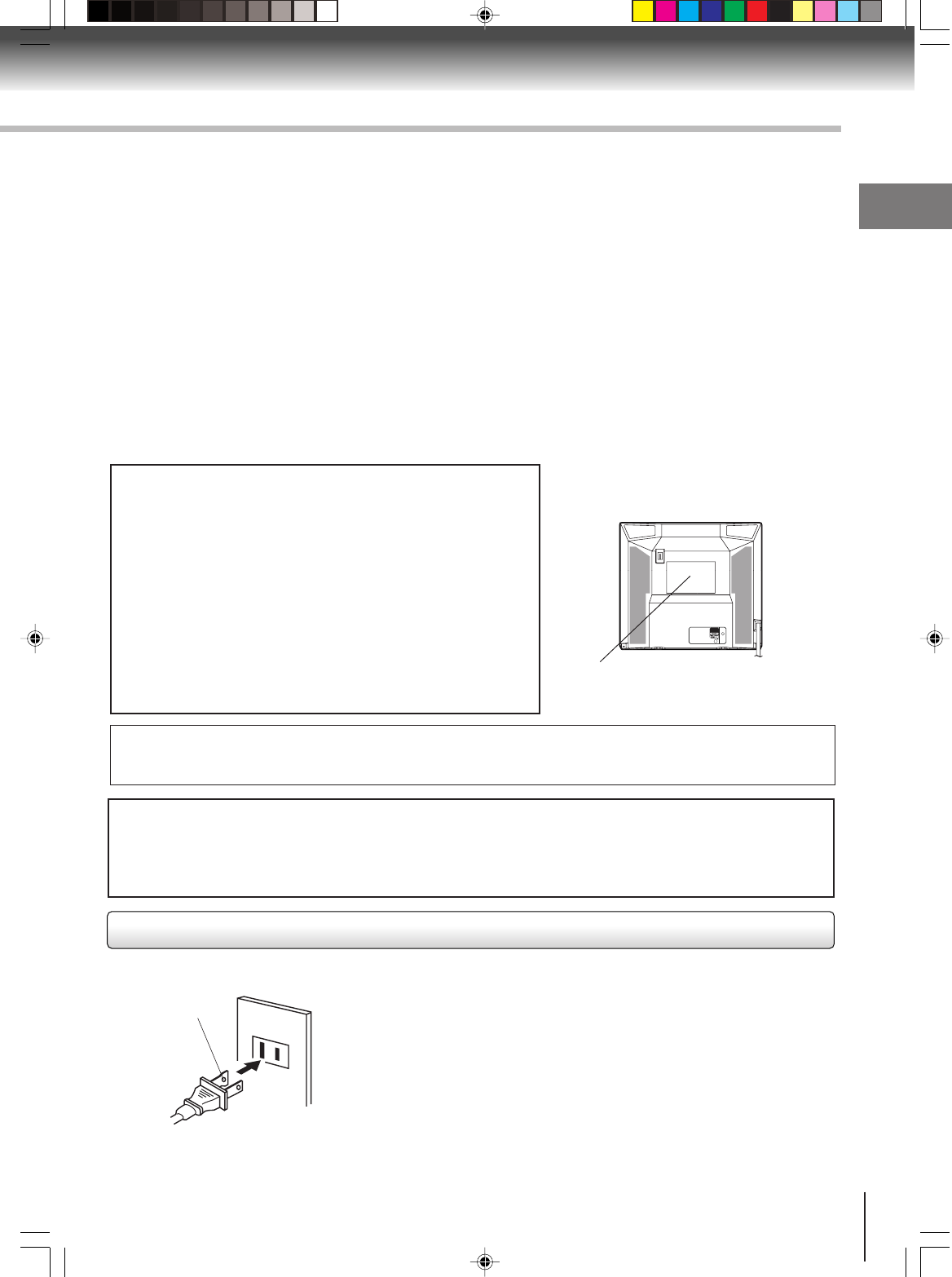
Location of the required Marking
The rating sheet and the safety caution
are on the rear of the unit.
WARNING: This product contains a laser beam. Do not attempt to stare at the beam through the DVD disc tray
or the ventilation openings. Staring directly at the beam may cause permanent damage to your
eyesight.
WARNING: This equipment has been tested and found to comply with the limits for a Class B digital device,
pursuant to Part 15 of the FCC Rules. These limits are designed to provide reasonable protection
against harmful interference in a residential installation. This equipment generates, uses and can
radiate radio frequency energy and, if not installed and used in accordance with the instructions, may
cause harmful interference to radio communications.
However, there is no guarantee that interference will not occur in a particular installation. If this
equipment does cause harmful interference to radio or television reception, which can be determined
by turning the equipment off and on, the user is encouraged to try to correct the interference by one
or more of the following measures:
-Reorient or relocate the receiving antenna.
-Increase the distance between the equipment and receiver.
-Connect the equipment into an outlet on a circuit different from that to which the receiver is
connected.
-Consult the dealer or an experienced radio/TV technician for help.
CAUTION: Changes or modifications not expressly approved by the party responsible for compliance with the
FCC (Federal Communications Commission) Rules could void the user's authority to operate this
equipment.
COPYRIGHT: It is permissible to record television programs, films, video tapes and other material only in the event
that third party copyrights and other rights are not violated.
CERTIFICATION: COMPLIES WITH
FDA RADIATION PERFORMANCE
STANDARDS, 21 CFR SUBCHAPTER J.
IMPORTANT RECYCLING INFORMATION
This product uses both Cathode Ray Tube (CRT) and other components that contain lead. In your
community there might be regulations that require you to dispose these materials
properly under environmental considerations. Please contact your local authorities, or the Electronic
Industries Alliance (http://www.eiae.org) for disposal or recycling information.
TO USE AC POWER SOURCE
Use the AC polarized line cord provided for operation on AC. Insert the AC
cord plug into a standard 120V 60Hz polarized AC outlet.
Notes:
•Never connect the AC line cord plug to other than the specified voltage (120V
60Hz). Use the attached power cord only.
•If the polarized AC cord does not fit into a non-polarized AC outlet, do not
attempt to file or cut the blade. It is the user’s responsibility to have an
electrician replace the obsolete outlet.
•If you cause a static discharge when touching the unit and the unit fails to
function, simply unplug the unit from the AC outlet and plug it back in. The
unit should return to normal operation.
•If the AC cord plug is plugged in for the first time, wait for approx. 5 seconds
before pressing the POWER button.
AC Outlet
Wider Hole
and Blade
Power source
Polarized AC Cord Plug
(One blade is wider than the other.)
5S00101B [E] (P02-05) 2/23/05, 5:36 PM5
Introduction
6
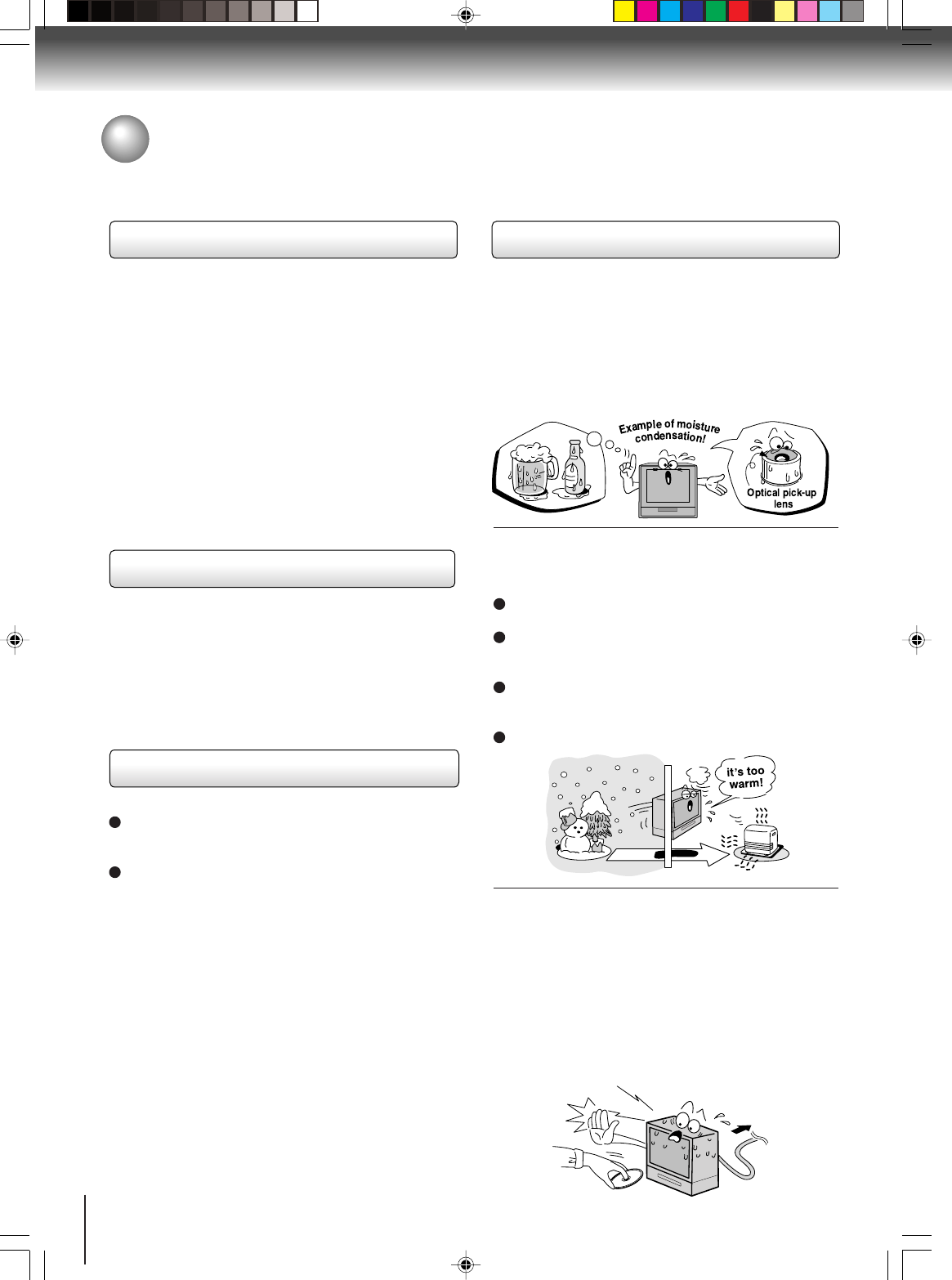
Notes on moisture condensation
Moisture condensation damages the unit. Please
read the following carefully.
Moisture condensation occurs, for example, when you
pour a cold drink into a glass on a warm day. Drops of
water form on the outside of the glass. In the same way,
moisture may condense on the optical pick-up lens
inside this unit, one of the most crucial internal parts of
the unit.
3Moisture condensation occurs during the
following cases.
When you bring the unit directly from a cold place to
a warm place.
When you use the unit in a room where you just
turned on the heater, or a place where the cold wind
from the air conditioner directly hits the unit.
In summer, when you use the unit in a hot and humid
place just after you move the unit from an air
conditioned room.
When you use the unit in a humid place.
3Do not use the unit when moisture condensation
may occur.
If you use the unit in such a situation, it may damage
discs and internal parts. Remove the disc, connect
the power cord of the unit to the wall outlet, turn on
the unit, and leave it for two or three hours. After two
or three hours, the unit will have warmed up and
evaporated any moisture. Keep the unit connected to
the wall outlet and moisture condensation will seldom
occur.
Precautions
Notes on handling
3When shipping the unit, the original shipping carton
and packing materials come in handy. For maximum
protection, repack the unit as it was originally packed
at the factory.
3Do not use volatile liquids, such as insect spray, near
the unit. Do not leave rubber or plastic products to
contact the unit for prolonged period. They will leave
marks on the finish.
3The top and rear panels of the unit may become
warm after a long period of use. This is not a
malfunction.
3When the unit is not in use, be sure to remove the
disc and turn off the power.
3If you do not use the unit for a long period, the unit
may not function properly in the future. Turn on and
use the unit occasionally.
Notes on locating
3Place the unit on a level surface. Do not use it on a
shaky or unstable surface such as a wobbling table or
inclined stand. The loaded disc may become dis-
aligned and damage the unit.
3When you place this unit near a TV, radio, or VCR,
the playback picture may become poor and the sound
may be distorted. In this case, place the unit away
from the TV, radio, or VCR.
Notes on cleaning
Use a soft, dry cloth for cleaning.
Use a dry cloth to wipe it dry.
Do not use any type of solvent, such as thinner and
benzine, as they may damage the surface of the unit.
If you use a chemical saturated cloth to clean the unit,
follow that product’s instructions.
Wait!
Wall outlet
5S00101B [E] (P06-07) 2/23/05, 5:36 PM6
Introduction
7
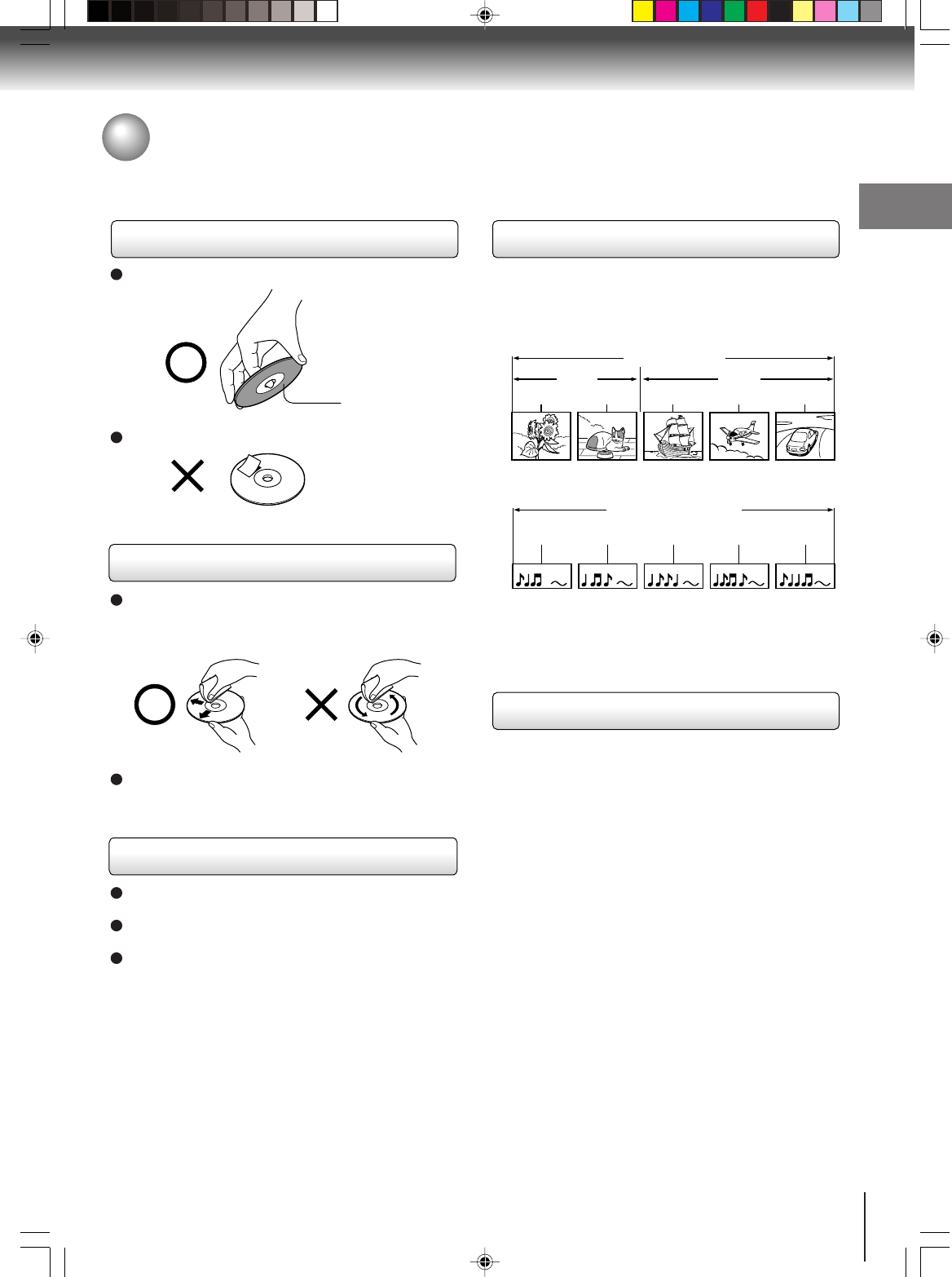
Structure of disc contents
Normally, DVD video discs are divided into titles, and
the titles are sub-divided into chapters. Video CDs and
Audio CDs are divided into tracks.
DVD video disc
Video CD/Audio CD
Each title, chapter or track is assigned a number, which
is called “title number”, “chapter number” or “track
number” respectively.
There may be discs that do not have these numbers.
Notes on copyright
The unauthorized recording, use, distribution, or
revision of copyrighted materials including, without
limitation, television programs, videotapes, and DVDs,
is prohibited under the Copyright Laws of the United
States and other countries, and may subject you to civil
and criminal liability.
This product incorporates copyright protection
technology that is protected by method claims of certain
U.S. patents and other intellectual property rights
owned by Macrovision Corporation and other rights
owners. Use of this copyright protection technology
must be authorized by Macrovision Corporation, and is
intended for home and other limited viewing uses only
unless otherwise authorized by Macrovision
Corporation. Reverse engineering or disassembly is
prohibited.
On handling discs
Do not touch the playback side of the disc.
Do not attach paper or tape to discs.
On cleaning discs
Fingerprints and dust on the disc cause picture and
sound deterioration. Wipe the disc from the center
outwards with a soft cloth. Always keep the disc
clean.
Do not use any type of solvent such as thinner,
benzine, commercially available cleaners or antistatic
spray for vinyl LPs. It may damage the disc.
On storing discs
Do not store discs in a place subject to direct sunlight
or near heat sources.
Do not store discs in places subject to moisture and
dust such as a bathroom or near a humidifier.
Store discs vertically in a case. Stacking or placing
objects on discs outside of their case may cause
warping.
Playback side
Title 1 Title 2
Chapter 1 Chapter 2 Chapter 1 Chapter 2 Chapter 3
Track 1 Track 2 Track 3 Track 4 Track 5
DVD video disc
Video CD/Audio CD
Notes on discs
5S00101B [E] (P06-07) 2/23/05, 5:36 PM7
8
Introduction
DIGITAL VIDEO
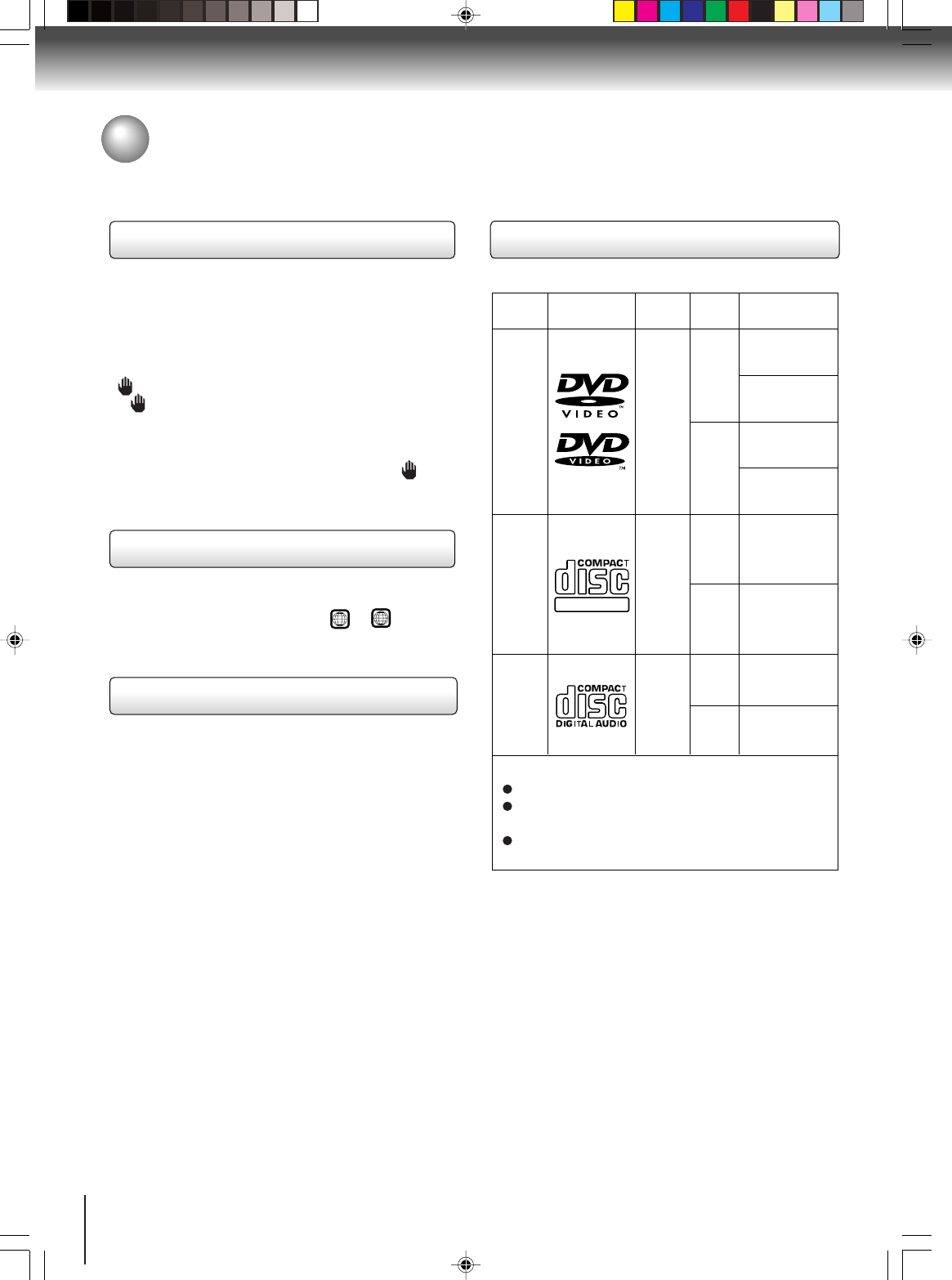
Playable discs
This unit can play the following discs.
•You cannot play discs other than those listed above.
•You cannot play discs of DVD-RAM, DVD-ROM,
Photo CD, etc., or non standardized discs even if they
may be labeled as above.
•Some CD-R/RWs can not be played back depending
on the recording conditions.
•This unit uses the NTSC color system, and cannot
play DVD video discs recorded in any other color
system (PAL, SECAM, etc.).
DVD
video
discs
Disc Mark
Contents
Disc
Size
Maximum
playback time
Video
CDs
Approx. 4 hours
(single sided disc)
Approx. 8 hours
(double sided disc)
Approx. 80 minutes
(single sided disc)
Approx. 160 minutes
(double sided disc)
Approx. 74 minutes
Approx. 20 minutes
8 cm
12 cm
8 cm
12 cm
Audio
+
Video
(moving
pictures)
Audio
+
Video
(moving
pictures)
Audio
CDs
Approx. 74 minutes
Approx. 20 minutes
8 cm
(CD
single)
12 cm
Audio
The following discs are also available.
DVD-R/RW discs of DVD video format
CD-R/CD-RW discs of CD-DA, Video CD or JPEG
format
Kodak Picture CD and FUJICOLOR CD format
Some of these discs may be incompatible.
Notes on discs (Continued)
About this owner’s manual
This owner’s manual explains the basic instructions of
this unit. Some DVD video discs are produced in a
manner that allows specific or limited operation during
playback. As such, the unit may not respond to all
operating commands. This is not a defect in the unit.
Refer to instruction notes of discs.
“” may appear on the TV screen during operation.
A “ ” means that the operation is not permitted by the
unit or the disc.
For example, sometimes it is unable to stop the
playback of copyright message of the disc when the
STOP (3) button is pressed. Alternatively, the “ ”
may also indicate that the feature is not available for the
disc.
Notes on region numbers
The region number of this unit is 1. If region numbers,
which stand for their playable area, are printed on your
DVD video disc and you do not find
1
or
ALL
, disc
playback will not be allowed by the player. (In this case,
the unit will display a message on-screen.)
On Video CDs
This DVD supports Video CDs equipped with the PBC
(Version 2.0) function. (PBC is the abbreviation of
Playback Control.) You can enjoy two playback
variations depending on types of discs.
•Video CD not equipped with PBC function
(Version 1.1)
Sound and movie can be played on this DVD in the
same way as an audio CD.
•Video CD equipped with PBC function
(Version 2.0)
In addition to operation of a Video CD not equipped
with the PBC function, you can enjoy playback of
interactive software with search function by using the
menu displayed on the TV screen (Menu Playback).
Some of the functions described in this owner’s
manual may not work with some discs.
Because of problems and errors that can occur during the
creation of DVD software and/or the manufacture of DVD
discs, Toshiba cannot guarantee that this player will play
every feature of every DVD bearing the DVD logo. As one
of the creators of DVD technology, Toshiba DVD players
are manufactured using the highest standards of quality,
and as a result, such incompatibilities are rare. If you
happen to experience any difficulty playing a DVD on a
Toshiba DVD player, please feel free to call our Contact
listed in “How to Obtain Warranty Service” (see page 51).
5S00101B [E] (P08-12) 2/23/05, 5:36 PM8

9
Introduction
Contents
Introduction
IMPORTANT SAFEGUARDS ............................ 2
SAFETY PRECAUTIONS ................................. 5
Precautions ....................................................... 6
Notes on discs................................................... 7
Contents ............................................................ 9
Identification of controls .................................. 10
Connections
Antenna connections....................................... 13
Cable TV connections ..................................... 14
Connecting to optional equipment................... 15
Basic setup
Starting setup .................................................. 18
Setting the language ....................................... 19
TV operation
TV operation.................................................... 20
Closed captions............................................... 22
To memorize channels .................................... 23
Setting the V-Chip ...........................................24
Picture control adjustment............................... 26
Adjusting the picture preference ..................... 26
Stereo and Second Audio Program (SAP) ...... 27
Basic playback
Playing a disc .................................................. 28
Advanced playback
Zooming ......................................................... 31
Locating desired scene .................................. 31
Marking desired scenes ................................. 32
Repeat playback............................................. 33
A-B Repeat playback...................................... 33
Program playback .......................................... 34
Random playback........................................... 34
Changing angles ............................................ 35
Title selection ................................................. 35
DVD menu...................................................... 35
Changing soundtrack language ..................... 36
Subtitles ......................................................... 36
Disc status...................................................... 37
To turn off the PBC ........................................ 37
JPEG playback............................................... 38
Function setup
Customizing the function settings .................. 39
Temporary disabling of rating level
by DVD disc ................................................... 44
Others
Language code list ......................................... 45
Troubleshooting ............................................. 46
Reception disturbances.................................. 48
Specifications ................................................. 49
Limited United States Warranty ..................... 50
5S00101B [E] (P08-12) 2/23/05, 5:37 PM9
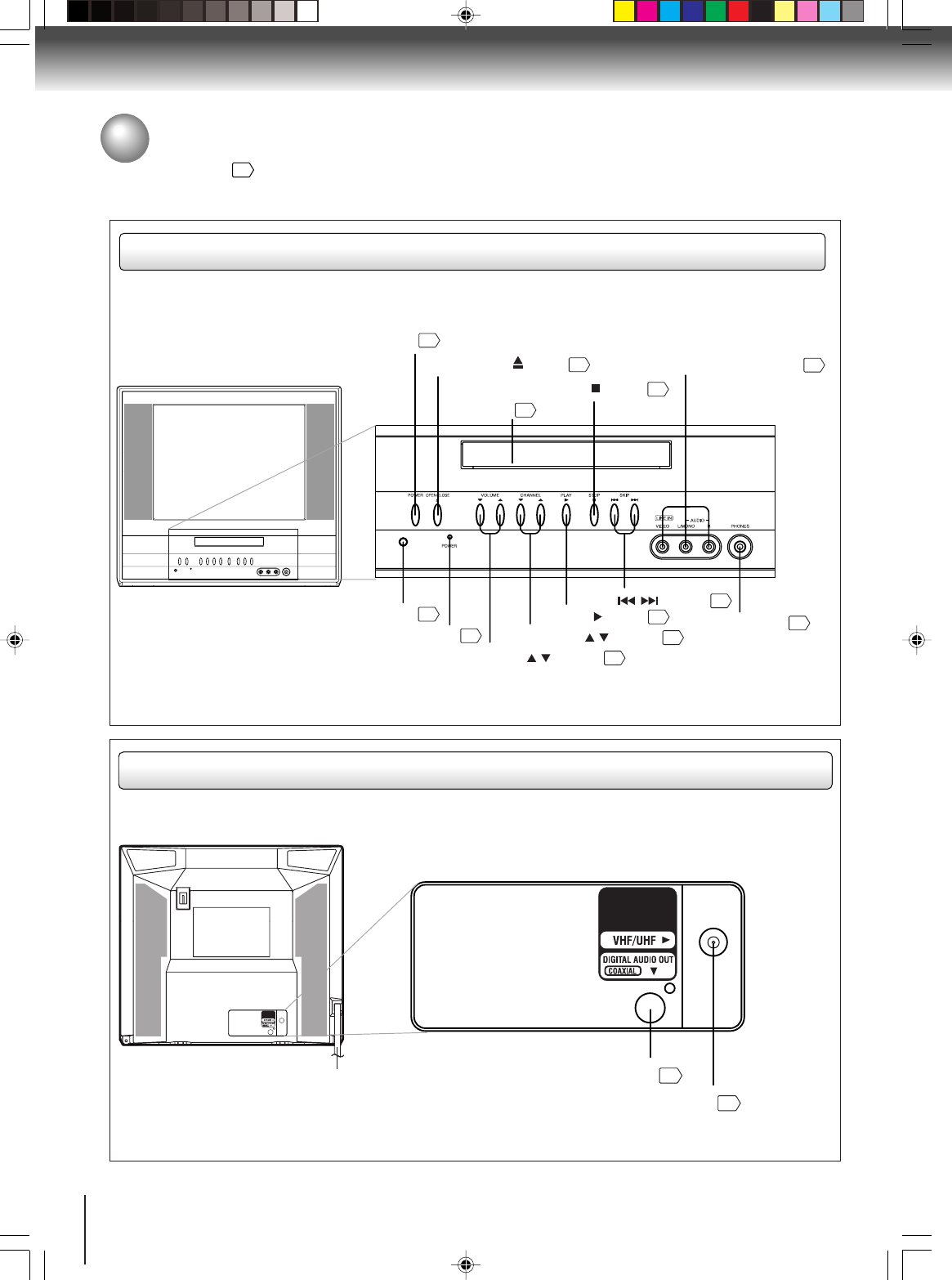
10
Introduction
POWER button
Remote sensor
12
PHONES jack
21
Disc tray
18
28
28
15
STOP ( ) button
20
VOLUME ( / ) buttons
PLAY ( ) button
28
CHANNEL ( / ) buttons
21
SKIP ( / ) buttons
30
AUDIO (L/R)/VIDEO IN jacks (LINE)
28
OPEN/CLOSE ( ) button
POWER indicator
20
Front
Rear
Identification of controls
See the page in for details.
COAXIAL DIGITAL AUDIO OUT jack
16
RF IN jack
13
AC power cord
5S00101B [E] (P08-12) 2/23/05, 5:37 PM10
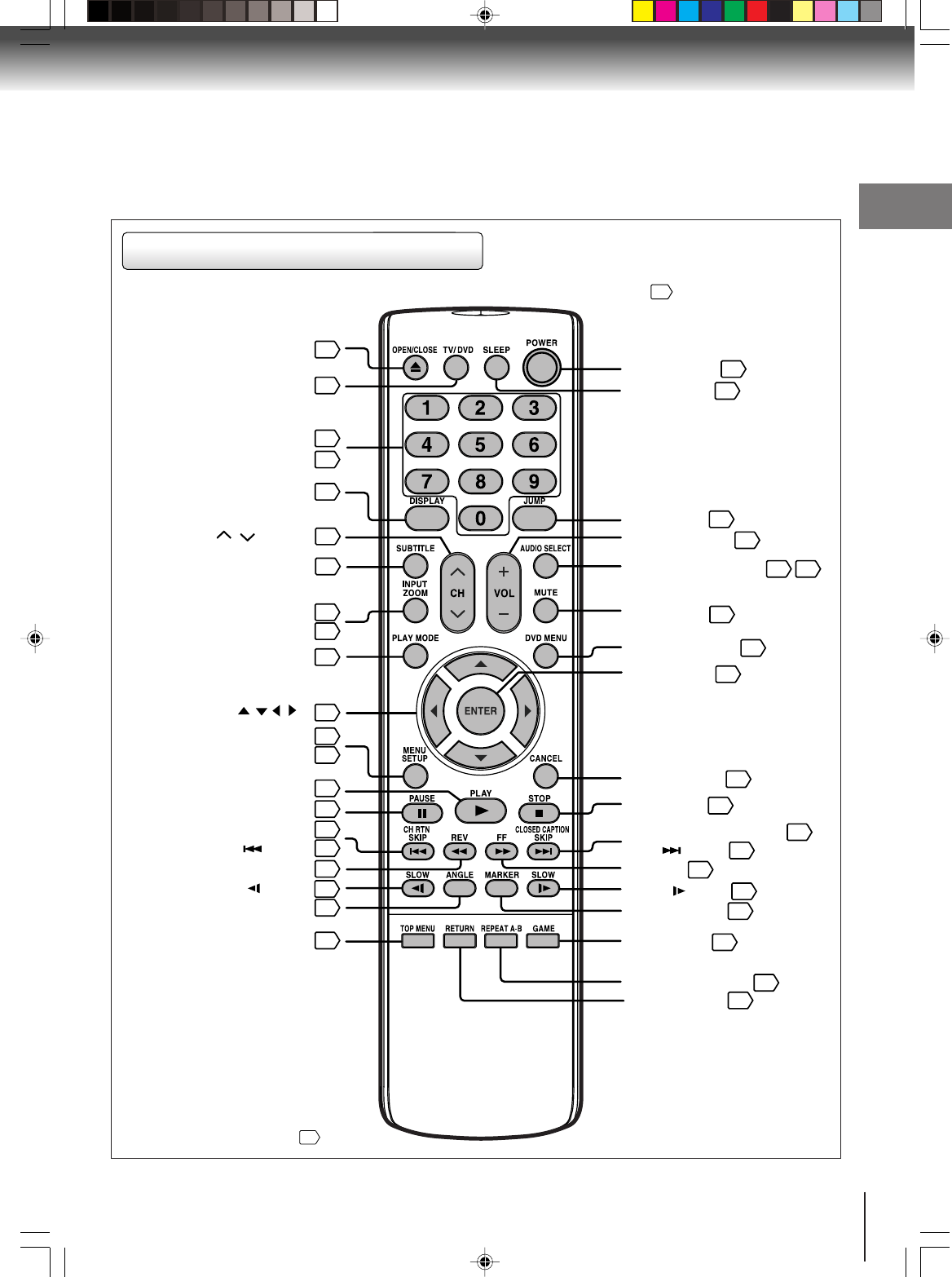
11
Introduction
Remote control
The instructions in this manual describe the function on the remote control. See the page in for details.
*DVD MENU button
Use the DVD MENU button to
display the menu included on
many DVD video discs.
To operate a menu, follow the
instructions in “DVD menu.”
35
POWER button
OPEN/CLOSE button
TV/DVD button
DISPLAY button
SUBTITLE button
INPUT button
ZOOM button
PLAY MODE button
SETUP button
PLAY button
CH RTN button
REV button
ANGLE button
TOP MENU button
SLOW button
CH / buttons
28
28
20
24
21
36
21
15
31
SLEEP button
21
JUMP button
AUDIO SELECT button
VOL +/
-
buttons
MUTE button
DVD MENU button
ENTER button
CANCEL button
STOP button
FF button
SLOW button
MARKER button
GAME button
REPEAT A
-
B button
RETURN button
button
SKIP
31
27 36
20
21
35
18
18
28
CLOSED CAPTION button
22
30
30
30
32
15
33
39
SKIP button
Direct channel
selection buttons (0-9)
Number buttons (0-9)
33
39
MENU button
19
18
28
21
PAUSE button
29
30
30
30
35
35
Direction buttons ///
()
18
5S00101B [E] (P08-12) 2/23/05, 5:37 PM11
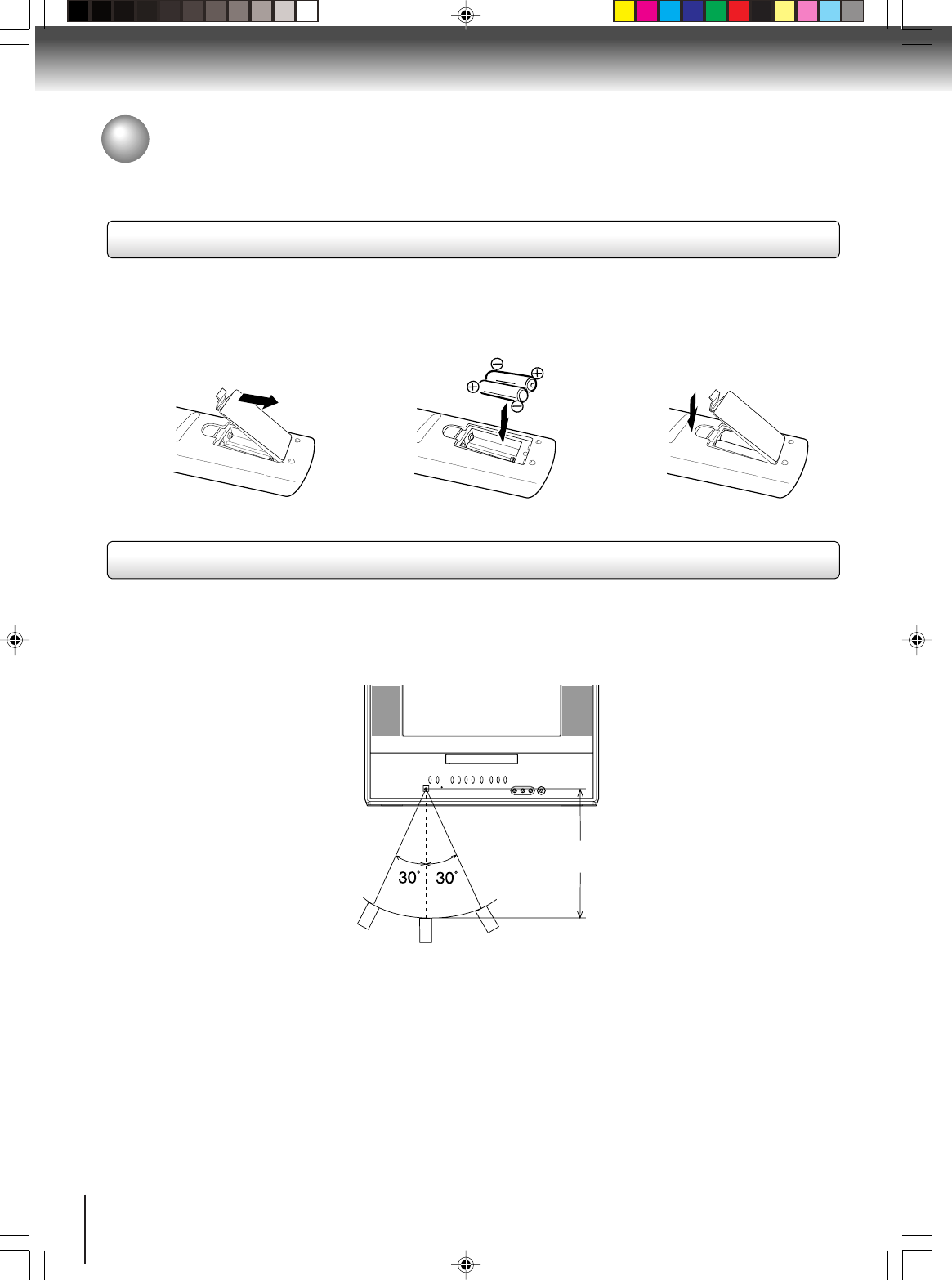
12
Introduction
12 3
•Aim the remote control at the remote sensor and press control buttons to operate.
•Operate the remote control within 30° angle on either side of the remote sensor, up to a distance of approx. 5
meters.
Replace the compartment
cover.
Install two “R03/AAA”
batteries (supplied), paying
attention to the polarity
diagram in the battery
compartment.
Open the battery compart-
ment cover in the direction of
the arrow.
Inserting batteries
Operation
Approx. 5 meters
Identification of controls (Continued)
Caution:
Never throw batteries into a fire.
Notes:
•Be sure to use AAA size batteries.
•Dispose of batteries in a designated disposal area.
•Batteries should always be disposed of with the environment in mind. Always dispose of batteries in accord-
ance with applicable laws and regulations.
•If the remote control does not operate correctly, or if the operating range becomes reduced, replace batteries
with new ones.
•When necessary to replace batteries in the remote control, always replace both batteries with new ones.
Never mix battery types or use new and used batteries in combination.
•Always remove batteries from remote control if they are dead or if the remote control is not to be used for an
extended period of time. This will prevent battery acid from leaking into the battery compartment.
5S00101B [E] (P08-12) 2/23/05, 5:37 PM12
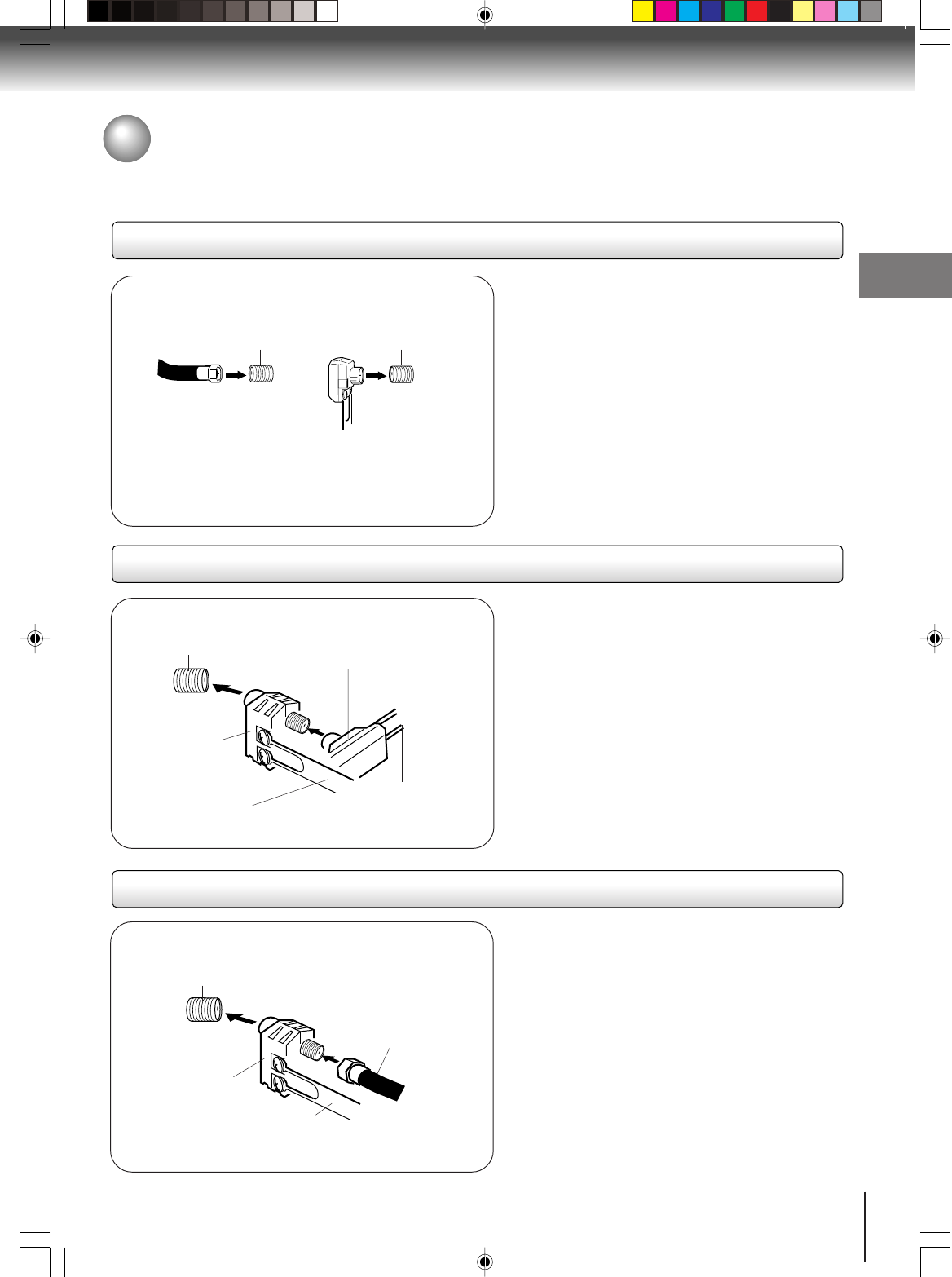
13
Connections
75 ohm coaxial cable
(not supplied)
300-75 ohm matching
transformer (supplied)
300-75 ohm matching
transformer (supplied)
UHF 300 ohm
twin-lead wire
(not supplied)
VHF 300 ohm
twin-lead wire
(not supplied)
UHF 300 ohm
twin-lead wire
(not supplied)
VHF 75 ohm
(not supplied)
Antenna
jack
Antenna
jack
Antenna
jack
Combiner
(not supplied)
Antenna
jack
Combiner
(not supplied)
Connect the 75 ohm cable from the combination
VHF/UHF antenna to the antenna jack.
If your combination VHF/UHF antenna has a 300
ohm twin-lead wire, the use of the 300-75 ohm
matching transformer may be necessary.
Connect the UHF 300 ohm twin-lead wire to the
combiner (not supplied). Connect the VHF 300
ohm twin-lead wire to the 300-75 ohm matching
transformer. Attach the transformer to the combiner,
then attach the combiner to the antenna jack.
Connect the VHF 75 ohm cable and UHF 300 ohm
twin-lead wire to the combiner (not supplied).
Attach the combiner to the antenna jack.
Combination VHF/UHF antenna (Separate VHF and UHF 300 ohm twin-lead wires)
Antenna connections
If you are using an indoor or outdoor antenna, follow the instructions below that correspond to your antenna system. If
you are using a cable TV service (CABLE), see page 14 for Cable TV connections.
Separate VHF/UHF antennas (75 ohm VHF cable and 300 ohm UHF twin-lead wires)
Combination VHF/UHF antenna (Single 75 ohm cable or 300 ohm twin-lead wire)
Connections
5S00101B [E] (P13-23) 2/23/05, 5:37 PM13
14
Connections
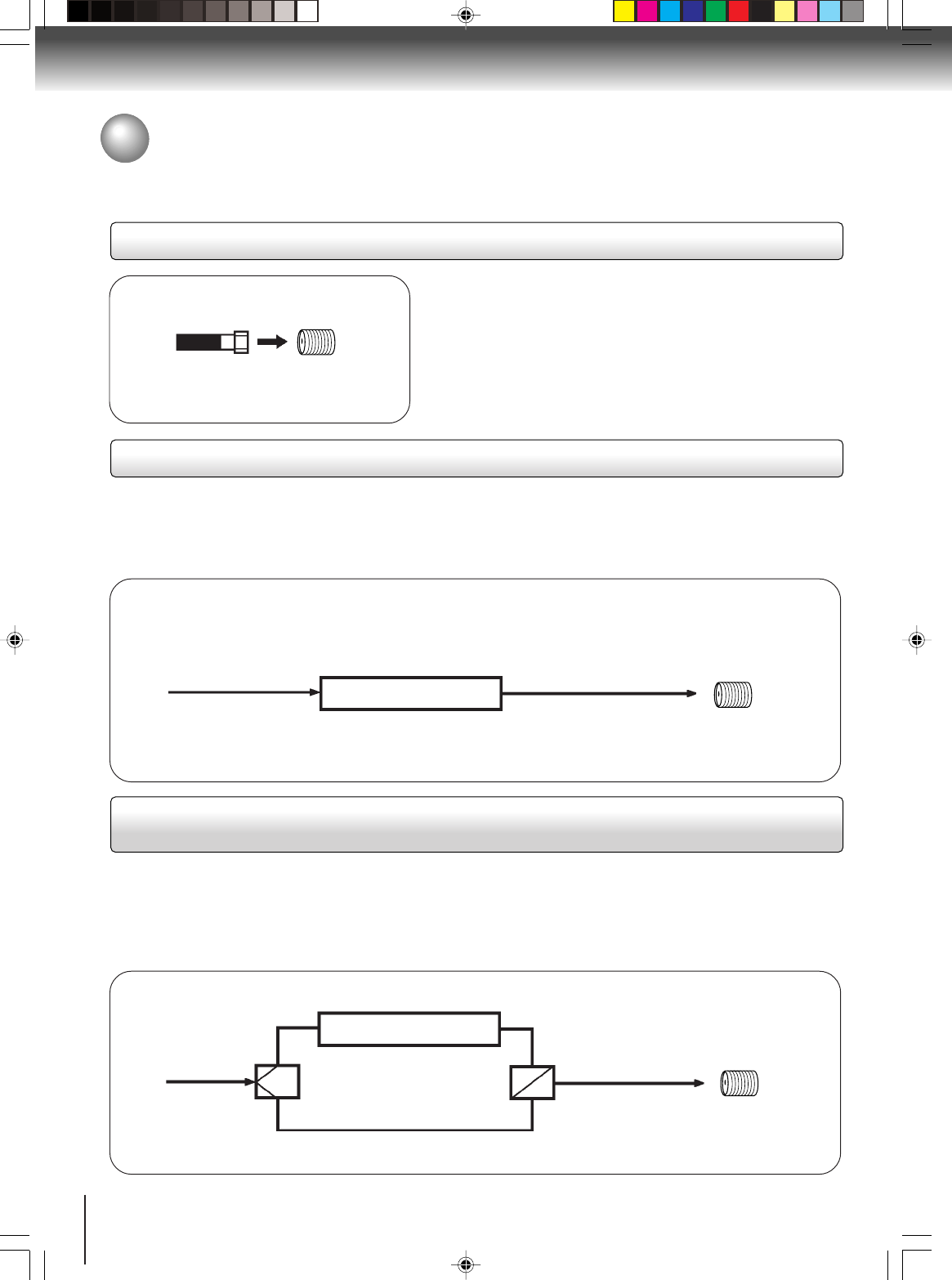
For basic cable service not requiring a converter/descrambler
box, connect the Cable TV 75 ohm coaxial cable directly to the
Antenna jack on the back of the TV/DVD.
75 ohm
coaxial cable
If you subscribe to a cable TV service in which basic channels are unscrambled and premium channels require the
use of a converter/descrambler box, you may wish to use a signal splitter and an A/B Switch box (available from the
cable company or an electronics supply store). Follow the connections shown below. With the switch in the “B”
position, you can directly tune any nonscrambled channels on your TV/DVD. With the switch in the “A” position, tune
your TV/DVD to the output of the converter/descrambler box (usually channel 3 or 4) and use the converter/
descrambler box to tune scrambled channels.
Incoming
75 ohm
Cable TV
75 ohm cable
to TV/DVD
Antenna
jack
Antenna
jack
Converter/
descrambler
If you subscribe to a cable TV service which requires the use of a converter/descrambler box, connect the
incoming 75 ohm coaxial cable to the converter/descrambler box. Using another 75 ohm coaxial cable, connect
the output jack of the converter/descrambler box to the antenna jack on the TV/DVD. Follow the connections
shown below. Set the TV/DVD to the output channel of the converter/descrambler box (usually channel 3 or 4)
and use the converter/descrambler box to select channels.
For subscribers to basic cable TV service
For subscribers to scrambled cable TV service
For subscribers to unscrambled basic cable TV service with scrambled
premium channels
Splitter B
A
Incoming
75 ohm
Cable TV
A/B switch
75 ohm cable
to TV/DVD
Converter/
descrambler Antenna
jack
Cable TV connections
This TV/DVD has an extended tuning range and can tune most cable channels without using a Cable TV converter box.
Some cable companies offer “premium pay channels” in which the signal is scrambled. Descrambling these signals for
normal viewing requires the use of a descrambler device which is generally provided by the cable company.
5S00101B [E] (P13-23) 2/23/05, 5:37 PM14
15
Connections
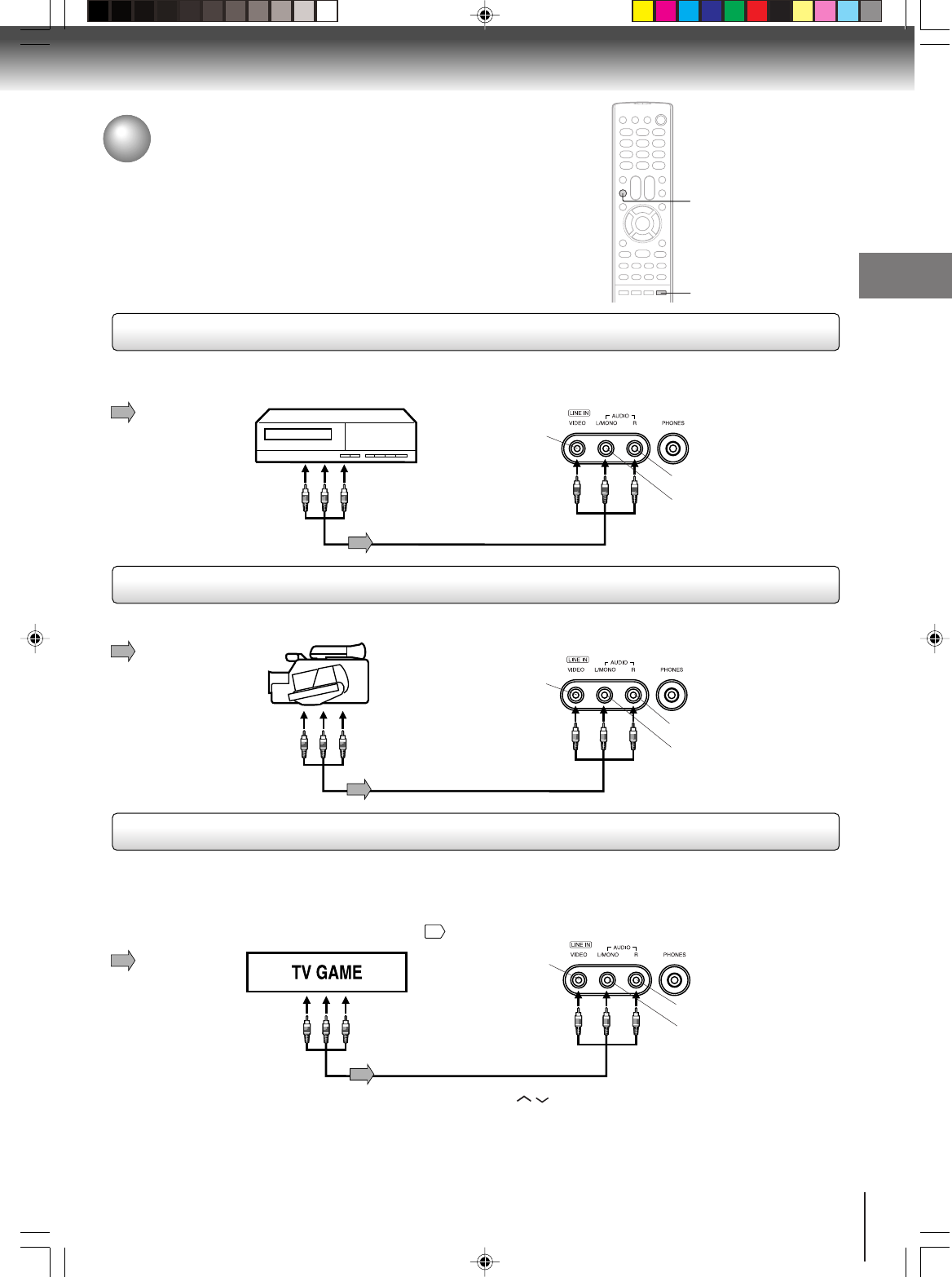
Press the INPUT to select the “LINE” (external input) to use the TV as a monitor.
Operate your VCR as usual.
To playback from the camcorder, connect the camcorder to the TV/DVD as shown.
You can enjoy playing a TV game on the screen by adjusting to suitable brightness for your eyes.
1. Connect a TV Game to the TV/DVD.
2. Press GAME. The GAME mode screen appears.
•This TV/DVD has the GAME mode function
21
.
VCR
To Audio/Video OUT
Front of TV/DVD
VIDEO IN
AUDIO IN (L)
AUDIO IN (R)
Front of TV/DVD
Camcorder
To Audio/Video OUT
Audio/Video cable (not supplied)
VIDEO IN
AUDIO IN (L)
AUDIO IN (R)
Front of TV/DVD
Audio/Video cable (not supplied)
To Audio/Video OUT
VIDEO IN
AUDIO IN (L)
AUDIO IN (R)
INPUT
GAME
To connect the TV/DVD to a VCR
To connect the TV/DVD to a camcorder
To connect the TV/DVD to a TV Game
Connecting to optional equipment
You can enjoy VCR, camcorder or TV game with connection to external
input. To select the external input, press INPUT and select “LINE” mode.
Notes:
•You can also change the TV screen to LINE by pressing the CH / buttons.
•The TV/DVD can also be used as a display device for many video games. However, due to the wide variety of different
types of signal generated by these devices and subsequent hook-up variations required, they have not all been included
in the suggested connection diagrams. You'll need to consult each component's Owner's Manual for additional
information.
•The unauthorized recording, use, distribution, or revision of television programs, videotapes, DVDs and other materials,
is prohibited under the Copyright Laws of the United States and other countries, and may subject you to civil and/or
criminal liability.
Audio/Video cable (not supplied)
: Signal flow
: Signal flow
: Signal flow
5S00101B [E] (P13-23) 2/23/05, 5:37 PM15
16
Connections
Connecting to optional equipment (Continued)
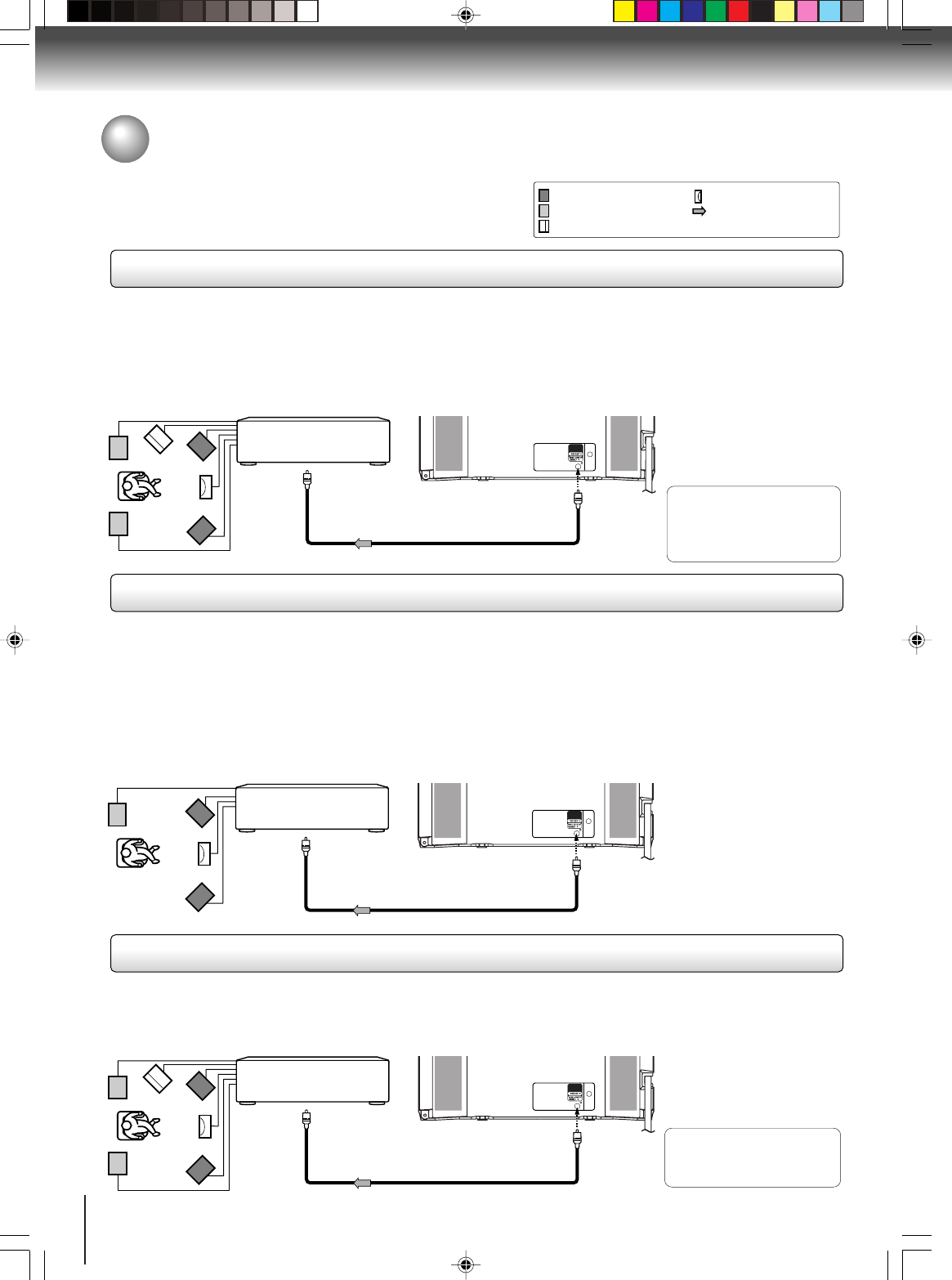
You can enjoy high quality dynamic sounds by connecting the
TV/DVD to optional audio equipment. : Front speaker
: Rear speaker
: Sub woofer
: Center speaker
: Signal flow
Dolby Digital
Dolby Digital is the surround sound technology used in theaters showing the latest movies, and is now available to
reproduce this realistic effect in the home. You can enjoy motion picture and live concert DVD video discs encoded via the
Dolby Digital recording system with this dynamic realistic sound by connecting the TV/DVD to a 6 channel amplifier
equipped with a Dolby Digital decoder or Dolby Digital processor. If you have a Dolby Surround Pro Logic decoder, you will
obtain the full benefit of Pro Logic from the same DVD movies that provide full 5.1-channel Dolby Digital soundtracks, as
well as from titles with the Dolby Surround mark.
Connecting to an amplifier equipped with a Dolby Digital decoder
Manufactured under license
from Dolby Laboratories.
“Dolby”, “Pro Logic”, and the
double-D symbol are trade-
marks of Dolby Laboratories.
Amplifier equipped with a
Dolby Digital decoder
To COAXIAL
type digital
audio input
75 Ω coaxial cable (not supplied)
Dolby Surround Pro Logic
You can enjoy the dynamic realistic sound of Dolby Surround Pro Logic by connecting an amplifier and speaker system (right
and left front speakers, a center speaker, and one or two rear speakers).
3With an amplifier equipped with Dolby Digital
Connect the equipment the same way as described in “Connecting to an amplifier equipped with a Dolby Digital decoder.”
Refer to that amplifier’s owner’s manual and set the amplifier so you can enjoy Dolby Surround Pro Logic sound.
3With an amplifier not equipped with Dolby Digital
Connect the equipment as follows.
• This connection is only suitable for Video CDs and Audio CDs.
Amplifier equipped with
Dolby Surround Pro Logic
* Connect one or two rear speak-
ers. The output sound from the
rear speakers will be monaural
even if you connect two rear
speakers.
Connecting to an amplifier equipped with a DTS decoder
Digital Theater Systems (DTS)
DTS is a high quality surround technology used in theaters and now available for home use, on DVD video discs or audio CDs.
If you have a DTS decoder or processor, you can obtain the full benefit of 5.1 channel DTS encoded sound tracks on DVD
video discs or audio CDs.
“DTS” and “DTS Digital Out”
are trademarks of Digital
Theater Systems, Inc.
Amplifier equipped with
a DTS decoder
To COAXIAL
type digital
audio input 75 Ω coaxial cable (not supplied)
To COAXIAL
type digital
audio input
*
75 Ω coaxial cable (not supplied)
Connecting to an amplifier equipped with Dolby Surround Pro Logic
* This section uses the following reference mark.
•Use DVD video discs
encoded via the Dolby
Digital recording system.
•Use DVD video discs
encoded via the Dolby
Digital recording system.
5S00101B [E] (P13-23) 2/24/05, 10:27 AM16
17
Connections
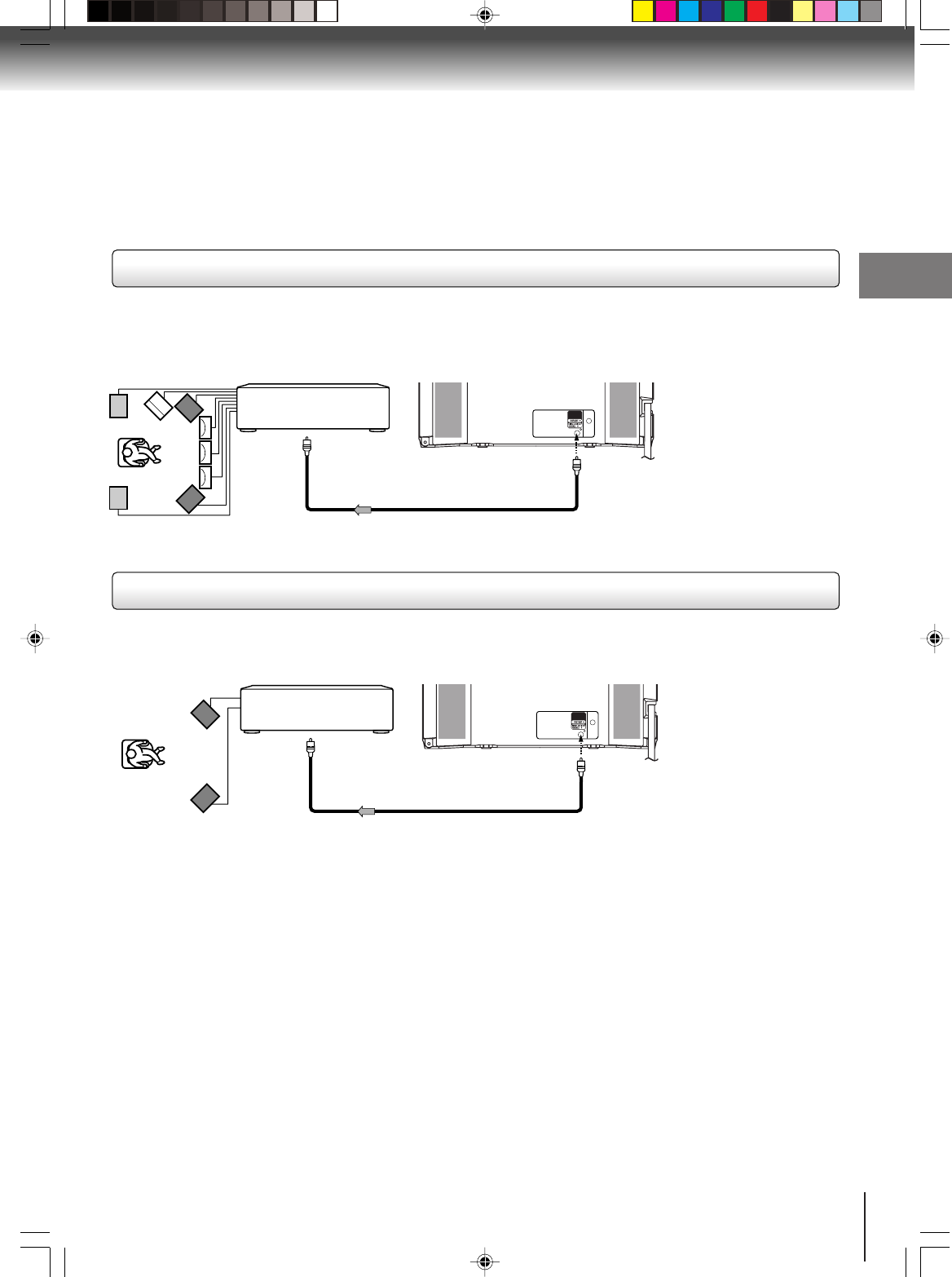
MPEG2 sound
You can enjoy motion picture and live concert DVD video discs encoded via the MPEG2 recording system with dynamic
realistic sound by connecting an amplifier equipped with an MPEG2 audio decoder or MPEG2 audio processor.
Connecting to an amplifier equipped with an MPEG2 audio decoder
Connecting to an amplifier equipped with a digital audio input
2 channel digital stereo
You can enjoy the dynamic sound of 2 channel digital stereo by connecting an amplifier equipped with a digital audio input
and speaker system (right and left front speakers).
Notes:
•DO NOT connect the COAXIAL DIGITAL AUDIO OUT jack of the TV/DVD to the AC-3 RF input of a Dolby Digital Receiver.
This input on your A/V Receiver is reserved for Laserdisc use only and is incompatible with the COAXIAL DIGITAL AUDIO
OUT jack of the TV/DVD.
•Connect the COAXIAL DIGITAL AUDIO OUT jack of the TV/DVD to the “COAXIAL” input of a Receiver or Processor.
•Refer to the owner’s manual of the connected equipment as well.
•When you connect the TV/DVD to other equipment, be sure to turn off the power and unplug all of the equipment from the
wall outlet before making any connections.
•The output sound of the TV/DVD has a wide dynamic range. Be sure to adjust the receiver’s volume to a moderate
listening level. Otherwise, the speakers and your hearing may be damaged by a sudden high volume sound.
•Turn off the amplifier before you connect or disconnect the TV/DVD’s power cord. If you leave the amplifier power on, the
speakers may be damaged.
Amplifier equipped with an
MPEG2 audio decoder
To COAXIAL
type digital
audio input 75 Ω coaxial cable (not supplied)
Amplifier equipped with a
Digital audio input
To COAXIAL
type digital
audio input 75 Ω coaxial cable (not supplied)
•Use DVD video discs
encoded via the Dolby
Digital recording system.
5S00101B [E] (P13-23) 2/23/05, 5:37 PM17
18
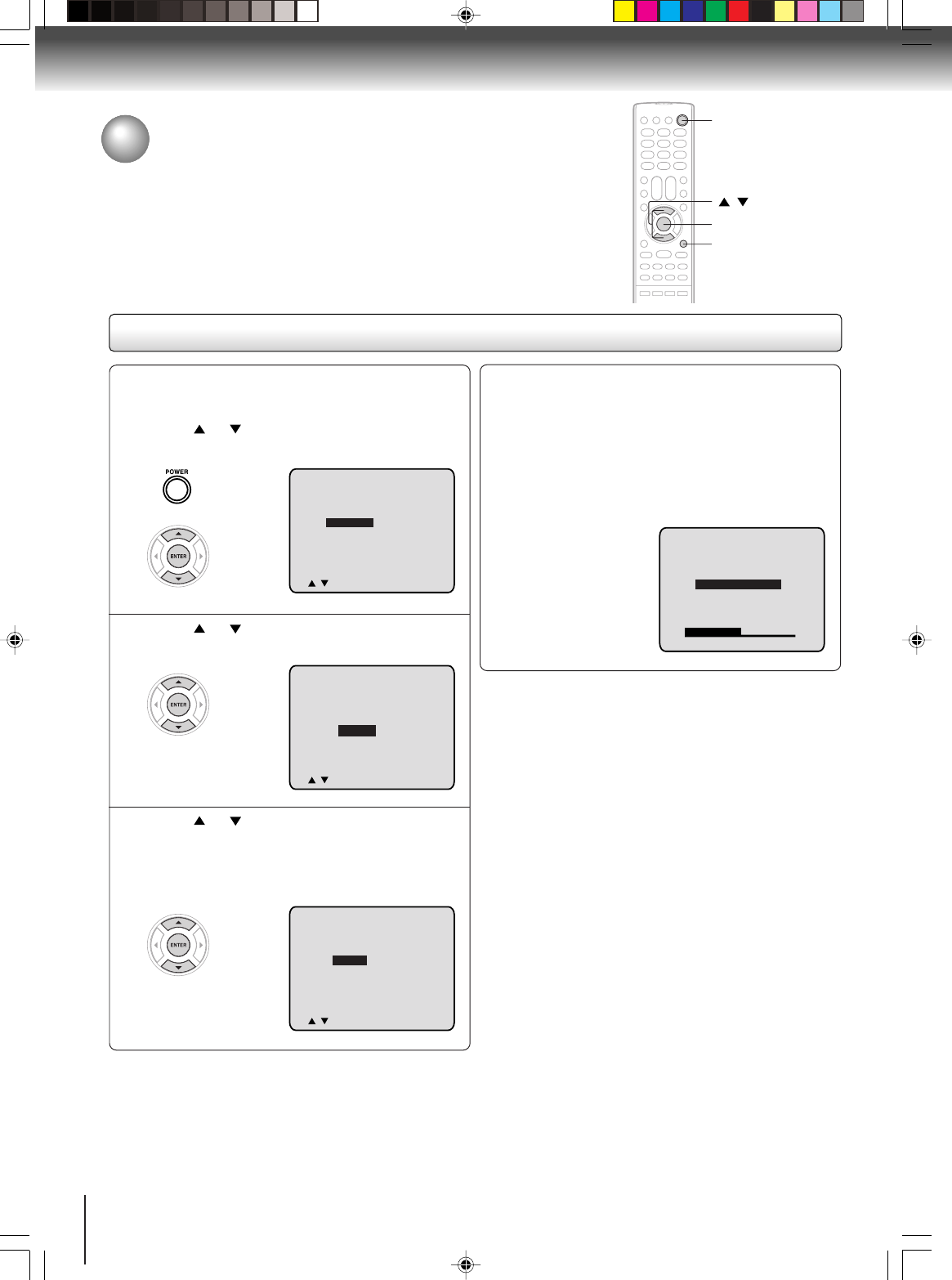
Starting setup
The STARTING SETUP function makes installing your TV/DVD easily. It leads
you the Language selection, TV/CABLE selection and auto channel memory
automatically.
IMPORTANT: Make sure that the antenna or cable TV system connection
is made!
Starting setup
Press or to select “TV” or “CABLE”, then
press ENTER.
Press or to select “START”, then press
ENTER.
If you select “CANCEL” and press ENTER, the
STARTING SETUP stops and changes to the TV
screen.
1
2
3
Now the “AUTO CH MEMORY” starts.
After the starting setup is completed, the TV
channel appears on the screen.
Note:
If you press CANCEL in the process of “AUTO CH
MEMORY” you can do starting setup function again.
4
Note:
The starting setup function will work only when you press
POWER for the first time.
Press POWER.
The starting setup function begins and the
Language setup menu appears on the screen.
Press or to select your desired
language, then press ENTER.
LANGUAGE/IDIOMA/LANGUE
ENGLISH
ESPAÑOL
FRANCAIS
//
ENTER><
CHANNEL PLAN
TV
CABLE
//
ENTER><
//
ENTER><
AUTO SETUP
START
CANCEL
AUTO CH MEMORY
STOP : CANCEL
Basic setup
POWER
/
ENTER
CANCEL
5S00101B [E] (P13-23) 2/23/05, 5:37 PM18
19
Notes:
•If the unit does not operate properly, or No key operation
(by the unit and/or the remote control): Static electricity,
etc., may affect the player's operation. Disconnect the AC
power cord once, then connect it again.
•The TV section has its own menu and also DVD section has
its own menu
39
.
/ / /
ENTER
MENU
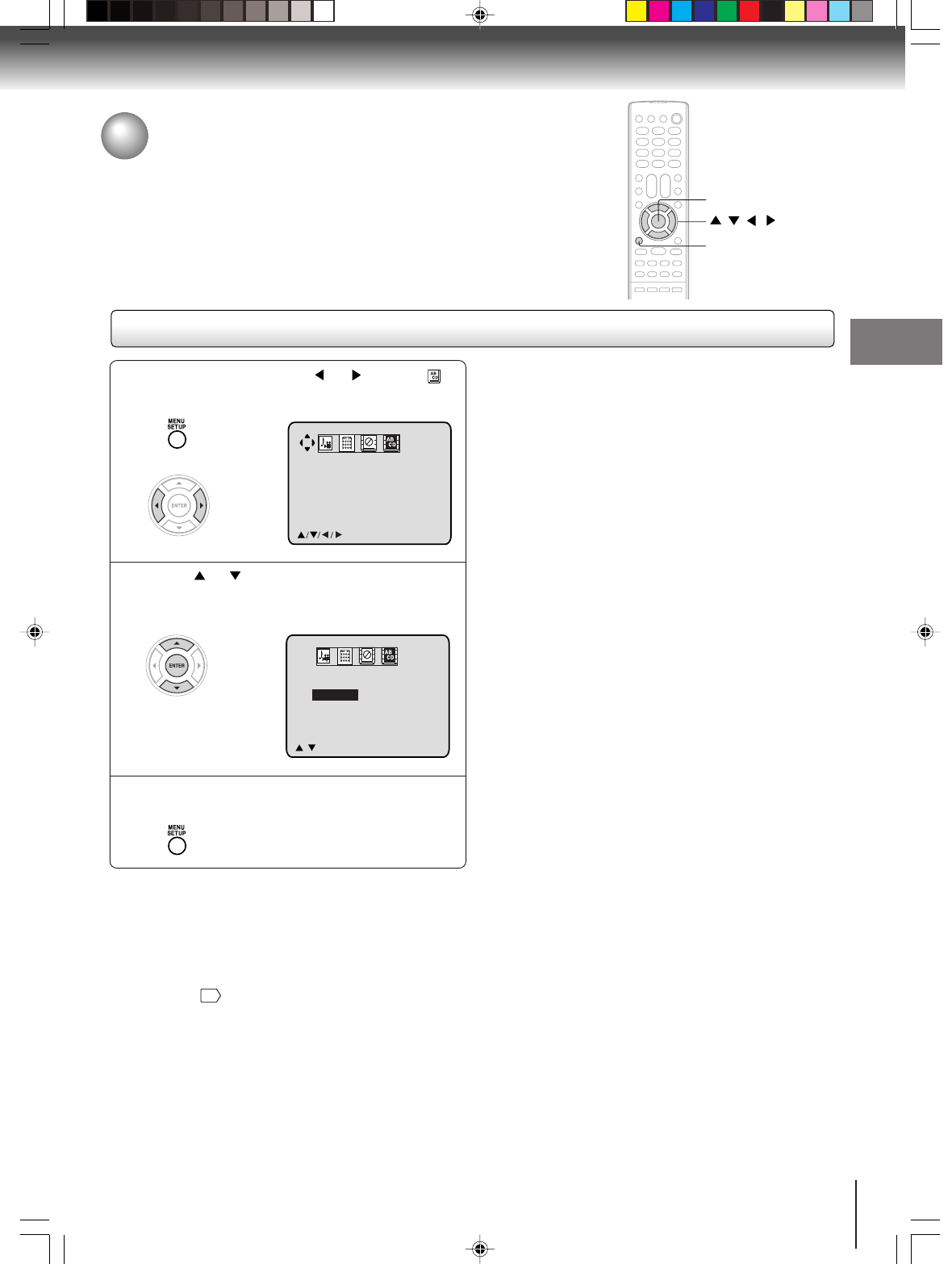
Press or to select the desired language:
English (ENGLISH), Spanish (ESPAÑOL) or
French (FRANCAIS), then press ENTER.
2
Press MENU, then press or to select
option.
1
Press MENU repeatedly until the menu screen
is cleared.
3
LANGUAGE/IDIOMA/LANGUE
ENGLISH
ESPAÑOL
FRANCAIS
//
ENTER/MENU
LANGUAGE/IDIOMA/LANGUE
ENGLISH
ESPAÑOL
FRANCAIS
/MENU
Setting the language
This TV/DVD can display the on screen language in English, Spanish or French.
Select the language you prefer first, then proceed with the other menu
options.
Setting the language
Basic setup
5S00101B [E] (P13-23) 2/23/05, 5:37 PM19
20
TV operation
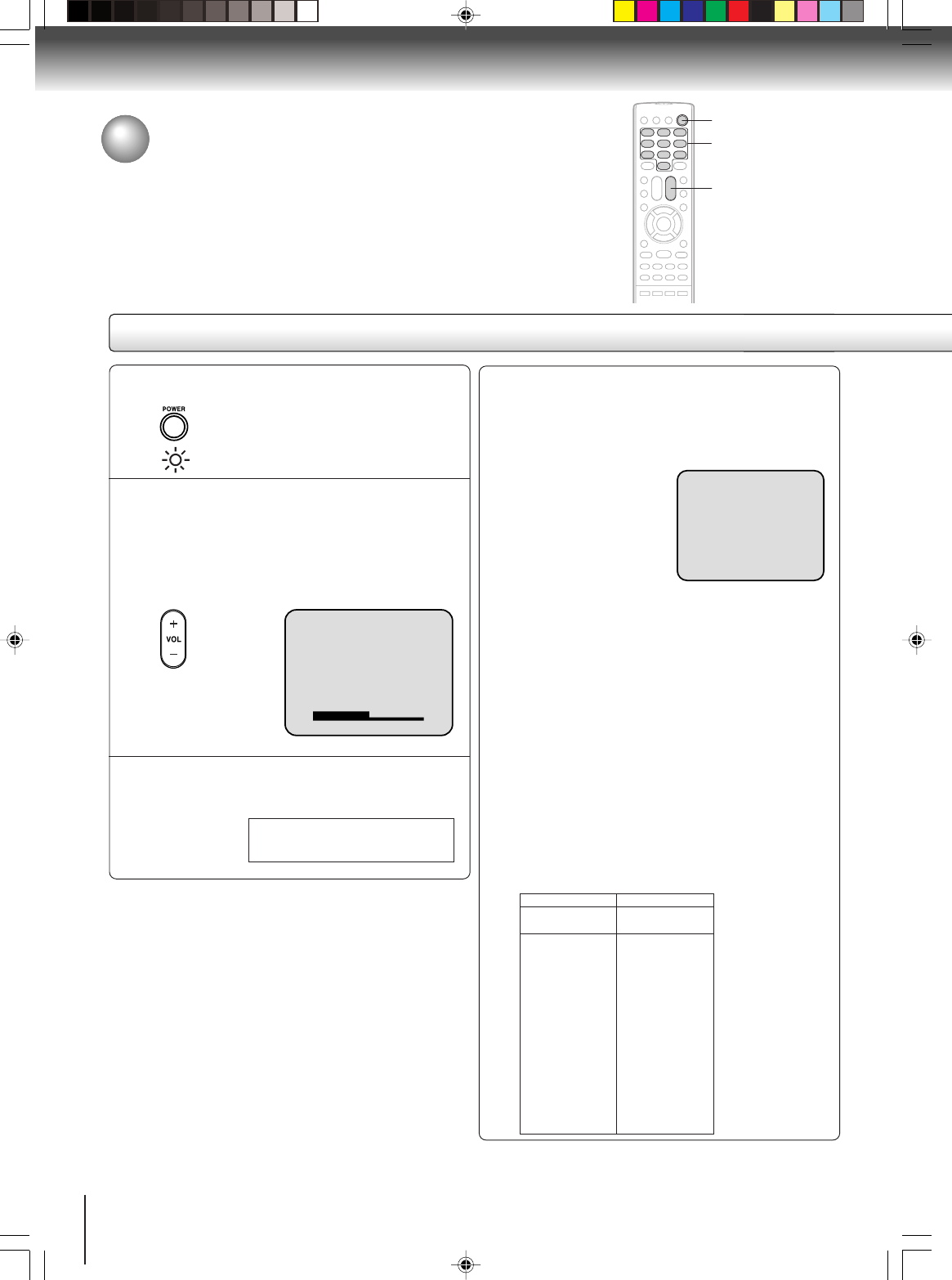
TV operation
Adjust the volume level by pressing VOL + or –.
The volume level will be indicated on the
screen by green bars. As the volume level
increases, so do the number of bars. If the
volume decreases, the number of green bars
also decreases.
Set the TV/CABLE selection to the appropriate
position. (See page 23.)
1
2
3
Press Direct channel selection buttons (0–9)
to select the channel.
TV mode direct channel selection
When the TV/CABLE selection is in the TV position, all
channels can be instantly selected by using two
buttons. (for example, to
select channel 2, press “0”,
then “2”. If you press only “2”,
channel selection will be
delayed for a few seconds.)
For channels 10 and above,
press the 2 digits in order.
4
Notes:
•If a channel with no broadcast is selected, the sound will auto-
matically be muted.
•If a station being viewed stops broadcasting, the TV will auto-
matically shut itself off after 15 minutes.
To turn on the TV/DVD, press POWER.
The Power indicator will light.
POWER
VOL +/–
0–9
VOLUME 32
TV - VHF/UHF channels
CABLE
- Cable TV channels
CH 02
CABLE mode direct channel selection
When the TV/CABLE selection is in the CABLE
position, channels can be selected as follows:
TO SELECT CABLE TV CHANNELS:
1-9: Press “0” twice, then 1-9 as needed.
Example, to select channel 2, press
“002”.
10-12: Press “0”, then the remaining 2 digits.
Example, to select channel 12, press
“012”.
13-99: Press the 2 digits in order. Example, to
select channel 36, press “36”.
100-125: Press the 3 digits in order. Example, to
select channel 120, press “120”.
CABLE
VHF
2-13
STD/HRC/IRC
14-36
(A) (W)
37-59
(AA) (WW)
60-85
(AAA) (ZZZ)
86-94
(86) (94)
95-99
(A-5) (A-1)
100-125
(100) (125)
01
(5A)
TV
VHF
2-13
UHF
14-69
TV operation
NOTE FOR CHANNELS 1-12:
If only 1 or 2 buttons are pressed, the corresponding
channel will be selected in 2 seconds.
5S00101B [E] (P13-23) 2/23/05, 5:37 PM20
21
TV operation
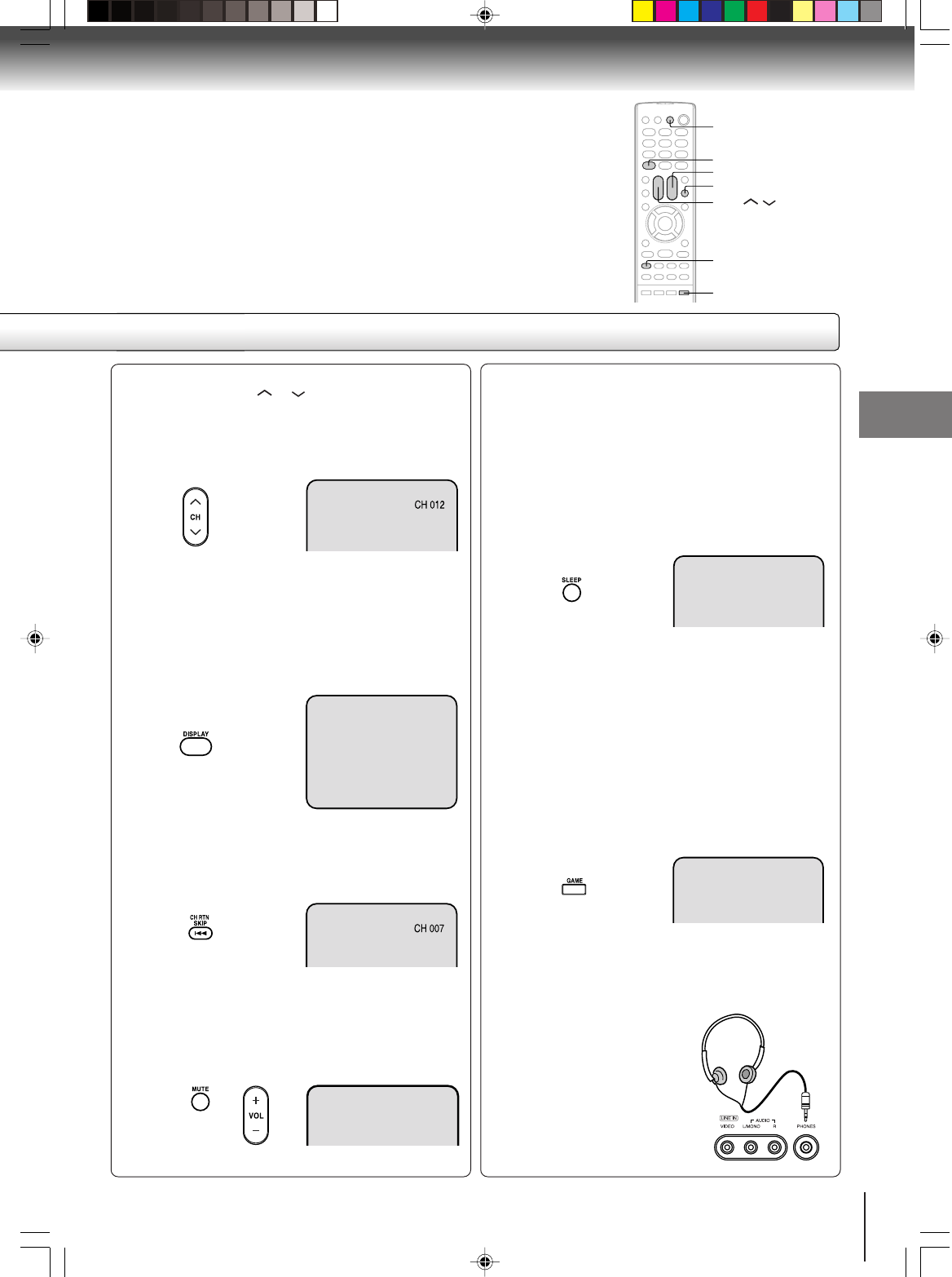
■ CHANNEL UP/DOWN
Press and release CH or . The channel automati-
cally stops at the next channel set into memory.
For proper operation, before selecting channels, they
should be set into the memory. See page 23 “To
memorize channels”.
■ DISPLAY
Press DISPLAY to display the current informations on
the screen. Press DISPLAY again to clear the display.
•Channel number or external input mode
•Stereo or SAP (Second Audio Program) audio status
•Audio output status
■ CH RETURN
This button allows you to go back to the last channel
selected by pressing CH RTN. Press CH RTN again to
return to the last channel you were watching.
■ MUTE
Press MUTE to switch off the sound. The TV/DVD’s
sound will be silenced and “MUTE” will briefly appear on
the screen. The sound can be switched back on by
pressing this button again or one of VOL + /–.
DISPLAY
CH /
STEREO SAP CH 012
SEL. STEREO
SLEEP
120
MUTE
■ SLEEP
To set the TV/DVD to turn off after a preset amount of
time, press SLEEP on the remote control. The clock
will count down 10 minutes for each press of SLEEP
(120, 110, ...10, 0). After the sleep time is programmed,
the display will appear briefly every ten minutes to
remind you that the sleep timer is operating. To confirm
the sleep timer setting, press SLEEP and the remain-
ing time will be displayed for a few seconds. To cancel
the sleep timer, press SLEEP repeatedly until the
display turns to 0.
■ GAME MODE
After connecting a TV Game to the unit, press GAME.
The TV screen changes to the Game mode.
•The Game mode screen is adjusted to the suitable
brightness for your eyes.
•Game timer function: After one hour the Game timer
display will appear every 30 minutes for approx. 5
seconds showing how long the time has passed up
to 4 hours.
• If GAME is pressed during standby mode, the unit
turns on automatically and the Game mode screen
appears on the screen.
■ HEADPHONES
Insert a stereo headphones (not supplied) with a 1/8”
mini plug into the PHONES jack on the front panel. If
you connect headphones, the sound from TV speakers
is muted.
CH RTN
GAME
VOL +/–
MUTE
SLEEP
GAME
5S00101B [E] (P13-23) 2/23/05, 5:37 PM21
22
TV operation
Closed captions
Captions: This closed caption mode will display text on the screen in English or another language (depending on the
setting of the closed captions CH 1/2).
Generally, closed captions in English are transmitted on captions channel 1 and closed captions in other languages
are transmitted on captions channel 2.
Text: The text closed caption mode will usually fill the screen with a programming schedule or other information.
After selecting a closed caption mode, it will stay in effect until it is changed, even if the channel is changed.
If the captions signal is lost due to a commercial or a break in the signal, the captions will reappear when the signal is
received again. If the channels are changed, the captions will be delayed approximately 10 seconds. The captions will
appear in places on the screen where they will least interfere with the picture, usually on the bottom of the screen.
News programs will usually show three-line closed captions which scroll onto the screen.
Most other shows provide two or three lined captions placed near the character who is speaking so the viewer can
follow the dialogue. Words in italics or underlined describe titles, words in foreign languages or words requiring empha-
sis. Words that are sung usually appear enclosed by musical notes.
For television programs broadcasting with closed captions, look in your TV guide for the closed captions symbol (CC).
TO VIEW CLOSED CAPTIONS
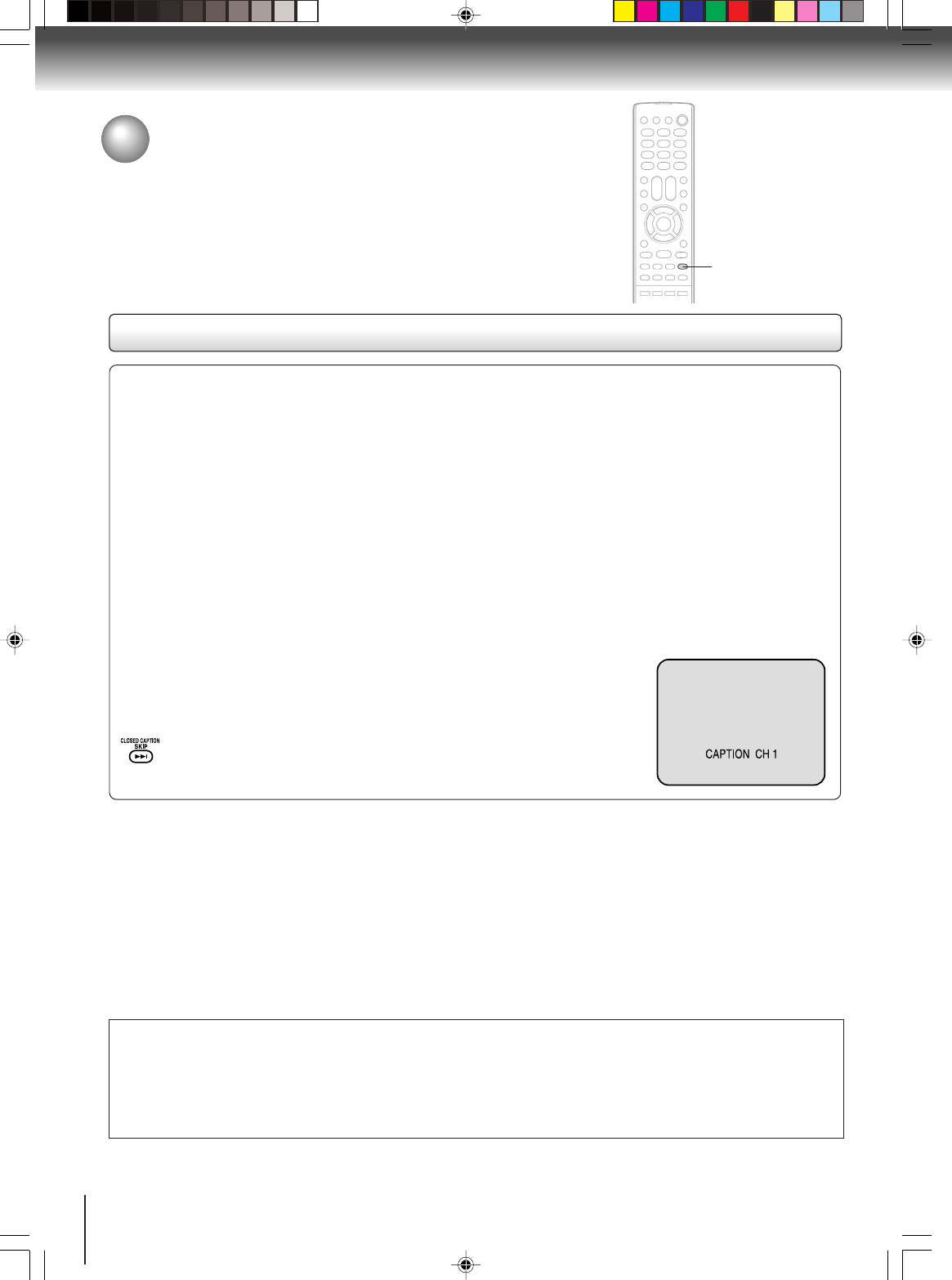
Press CLOSED CAPTION to switch between normal TV and the two closed caption
modes (captions and full screen text). Closed captioning will display text on the screen
for hearing impaired viewers.
Closed captions
WHAT IS CLOSED CAPTIONING?
This television has the capability to decode and display closed captioned
television programs. Closed captioning will display text on the screen for
hearing impaired viewers or it will translate and display text in another
language.
Notes:
•When selecting closed captions, the captioning will be delayed approximately 10 seconds.
•If no caption signal is received, no captions will appear, but the television will remain in the caption mode.
•Misspellings or unusual characters may occasionally appear during closed captioning. This is normal with closed captioning,
especially with live programs. This is because during live programs, captions are also entered live. These transmissions do not
allow time for editing.
•When captions are being displayed, on-screen displays, such as volume and mute may not be seen or may interfere with closed
captions.
•Some cable systems and copy protection systems may interfere with the closed captioned signal.
•If using an indoor antenna or if TV reception is very poor, the closed caption decoder may not appear or may appear with
strange characters or misspelled words. In this case, adjust the antenna for better reception or use an outdoor antenna.
CLOSED
CAPTION
NOTICE OF POSSIBLE ADVERSE EFFECT ON TV PICTURE TUBE
Avoid displaying stationary images on your TV screen for extended periods of time. Fixed (non-moving) images (such as
still PIP/POP windows, black/gray bars in wide-screen or PIP/POP formats, stock tickers, video game patterns, TV station
logos, closed captions, and websites) can become permanently ingrained in the picture tube. This type of damage is
NOT COVERED BY YOUR WARRANTY.
5S00101B [E] (P13-23) 2/23/05, 5:37 PM22
23
TV operation
/ / /
MENU
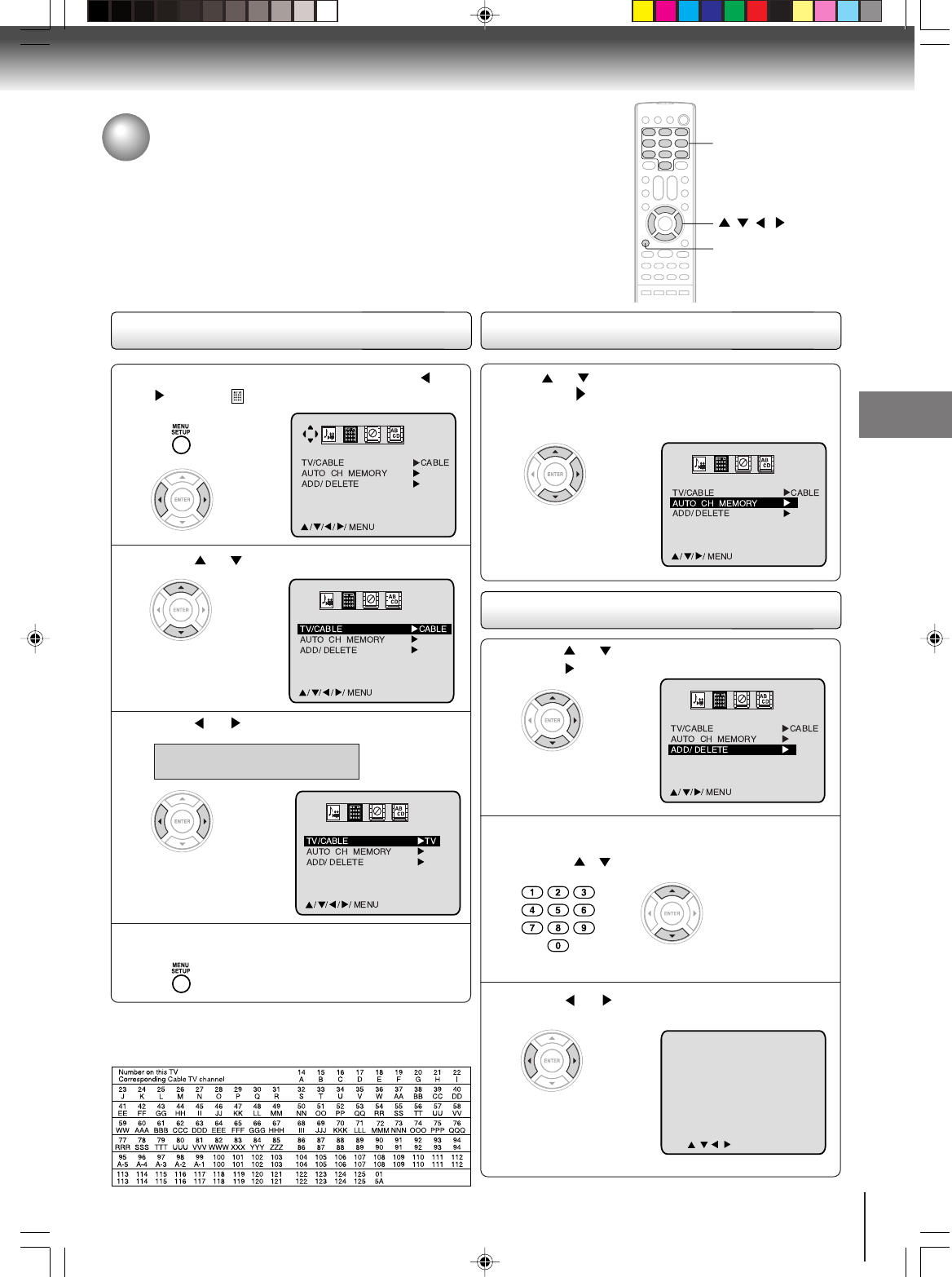
Press or to select “TV/CABLE”.
1
2
Press MENU in the TV mode, then press or
to select option.
Press MENU repeatedly until the menu screen is
cleared.
4
Press or to select “TV” or “CABLE”.
3TV - VHF/UHF channels
CABLE - Cable TV channels
Cable TV chart
The chart below is typical of many cable system channel
allocations.
TV/CABLE selection
To memorize channels
This TV/DVD is equipped with a channel memory feature which allows
channels to skip up or down to the next channel set into memory, skipping over
unwanted channels. Before selecting channels, they must be programmed into
the TV/DVD’s memory. In addition to normal VHF and UHF channels, this TV/
DVD can receive up to 113 Cable TV channels. To use this TV/DVD with an
antenna, set the TV/CABLE selection to the TV position. When shipped from
the factory, this selection is in the CABLE position.
0–9
ADD
0-9
CH 001
/////
MENU
To ADD/DELETE channels
Press or to select the “AUTO CH MEMORY”,
then press .
The TV will begin memorizing all the channels
available in your area.
Automatic memory tuning
Press or to select “ADD/DELETE”, then
press .
1
Press or to select “ADD” or “DELETE”,
whichever function you want to perform.
3
2Select the desired channel to be added or
deleted using Direct
channel selection buttons
(0–9) or / .
5S00101B [E] (P13-23) 2/23/05, 5:38 PM23
24
TV operation
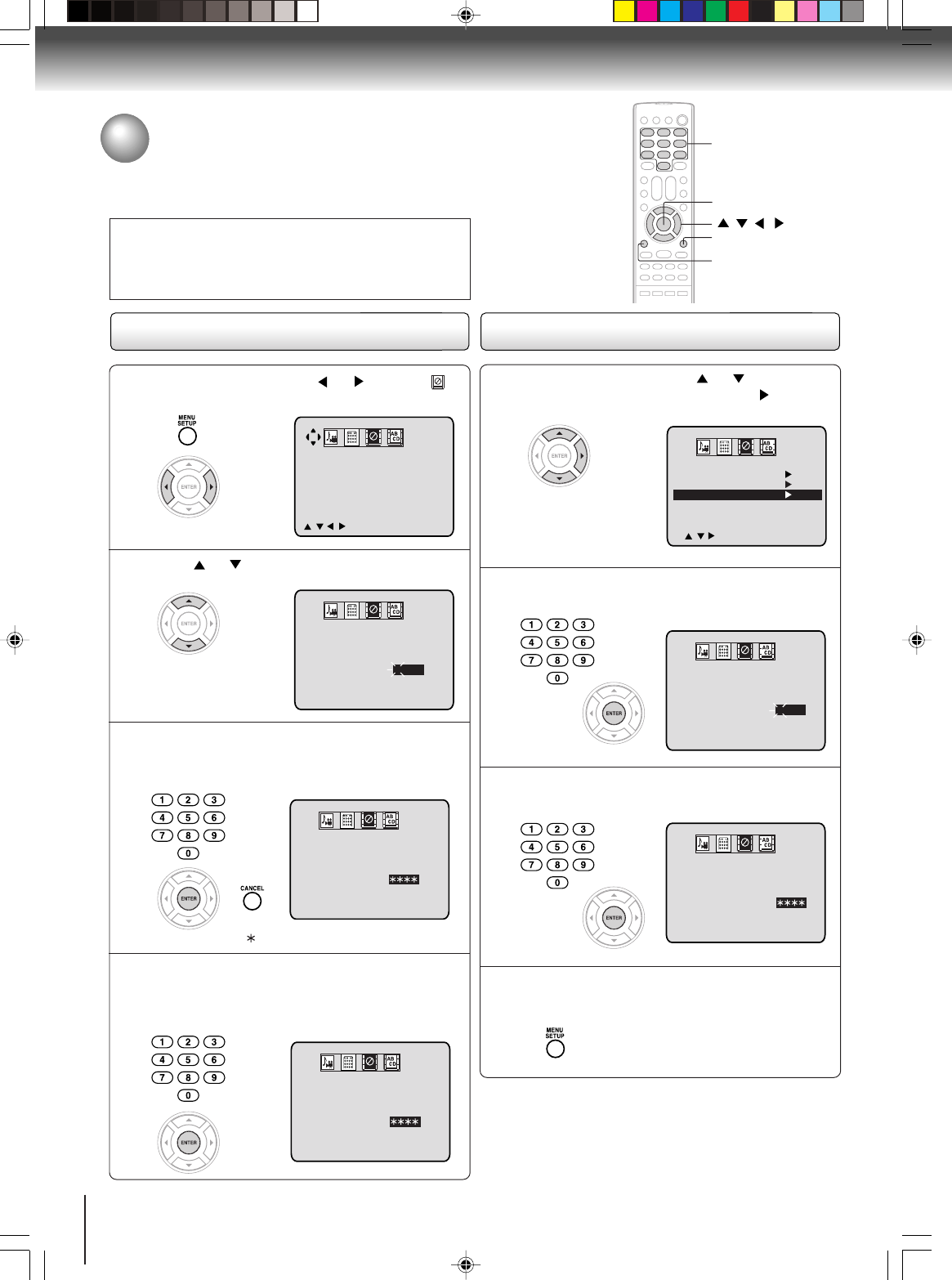
To register password
Notes:
•If you forget the password, you cannot set the V-Chip.
•To avoid forgetting the password, write it down and keep in
the safe place.
Press or to select “PASSWORD”.
1
2
Press MENU, then press or to select
option.
Enter the same password again using Number
buttons (0–9) for safety, then press ENTER.
Now the password was registered and V-Chip
setting menu will appear on the display.
4
Enter the password (4 digits) using Number
buttons (0–9), then press ENTER.
•If you put a wrong number, press CANCEL.
3
0–9
/ / /
ENTER
MENU
“” appears instead of the number.
CANCEL
0
–
9/ENTER/CANCEL/MENU
V-CHIP SET
NEW
PASSWORD : – – – –
////
MENU
V-CHIP SET
NEW
PASSWORD : – – – –
0
–
9/ENTER/CANCEL/MENU
V-CHIP SET
NEW
PASSWORD :
V-CHIP SET
CONFIRM
PASSWORD :
0
–
9/ENTER/CANCEL/MENU
Setting the V-Chip
An age limitation can be set to forbid children to watch programs according to
“TV RATING” and “MOVIE RATING” level set. To use the V-Chip function,
you must register a password.
To change password
Enter the new password using Number buttons
(0–9), then press ENTER.
2
In the V-CHIP menu, press or to select
“CHANGE PASSWORD”, then press .
1
Enter the same password again using Number
buttons (0–9) for safety, then press ENTER.
3
Press MENU repeatedly until the menu screen
is cleared.
4
V-CHIP
V-CHIP SET
CHANGE PASSWORD
OFF
///
MENU
0-9/ENTER/CANCEL/MENU
CHANGE PASSWORD
NEW
PASSWORD : – – – –
0-9/ENTER/CANCEL/MENU
CHANGE PASSWORD
CONFIRM
PASSWORD :
5S00101B [E] (P24-27) 2/23/05, 5:38 PM24
25
TV operation
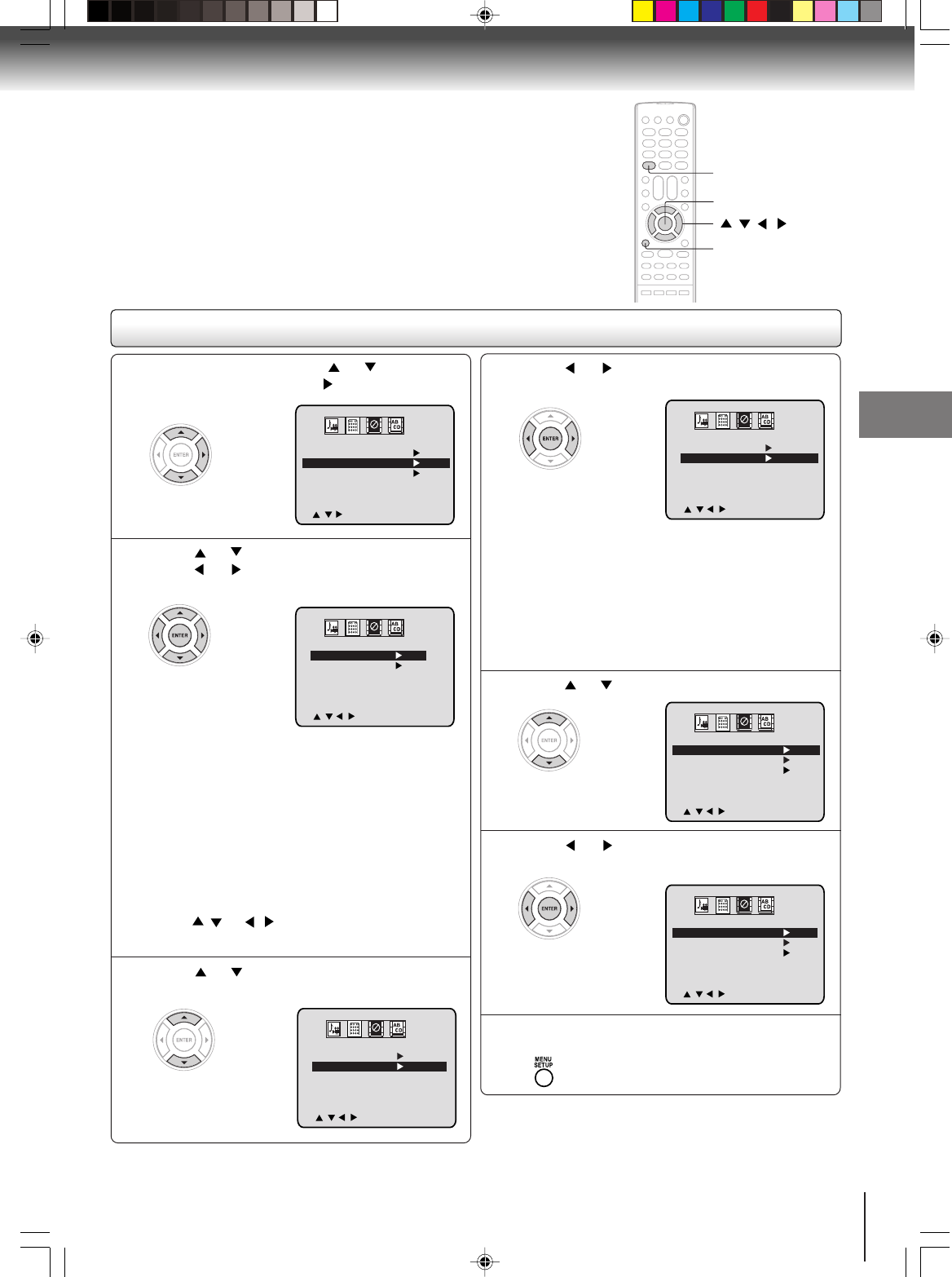
Press or to select “MOVIE RATING”.
1
3
In the V-CHIP menu, press or to select
“V-CHIP SET”, then press .
Press or to select
desired rating.
After setting, press ENTER.
4
Press or to select “V-CHIP”.
5
To set the V-Chip
OFF : TV RATING is not set
TV-Y : All children
TV-Y7 : 7 years old and above
TV-G : General audience
TV-PG : Parental guidance
TV-14 : 14 years old and above
TV-MA: 17 years old and above
When you select TV- Y7, TV-PG, TV-14 or TV-MA,
press DISPLAY to show the contained rating.
Press / or / to select the desired item you
want.
Press or to select “TV RATING”, then
press or to display the desired setting.
After setting, press ENTER.
2OFF : MOVIE RATING is not set
G:All ages
PG : Parental guidance
PG-13 : Parental guidance less than 13 years old
R:Under 17 years old Parental guidance
suggested
NC-17 : 17 years old and above
X:Adult only
V-CHIP
V-CHIP SET
CHANGE PASSWORD
ON
////
MENU
Press or to display “ON”.
Now your settings were set into the memory.
6
Press MENU repeatedly until the menu screen is
cleared.
7
To use after the TV is protected
When the program applied to the V-Chip setting is received,
enter the
password, then press ENTER. Protection can be
canceled.
Note:
The V-Chip function is activated only on programs that have
the rating signal.
MENU
/ / /
DISPLAY
V-CHIP
V-CHIP SET
CHANGE PASSWORD
OFF
///
MENU
V-CHIP SET
TV RATING
MOVIE RATING
TV-Y
OFF
////
ENTER/MENU
V-CHIP
V-CHIP SET
CHANGE PASSWORD
OFF
////
MENU
V-CHIP SET
TV RATING
MOVIE RATING
TV-Y
PG-13
////
ENTER/MENU
V-CHIP SET
TV RATING
MOVIE RATING
TV-Y
OFF
////
ENTER/MENU
ENTER
5S00101B [E] (P24-27) 2/23/05, 5:38 PM25
26
TV operation
4
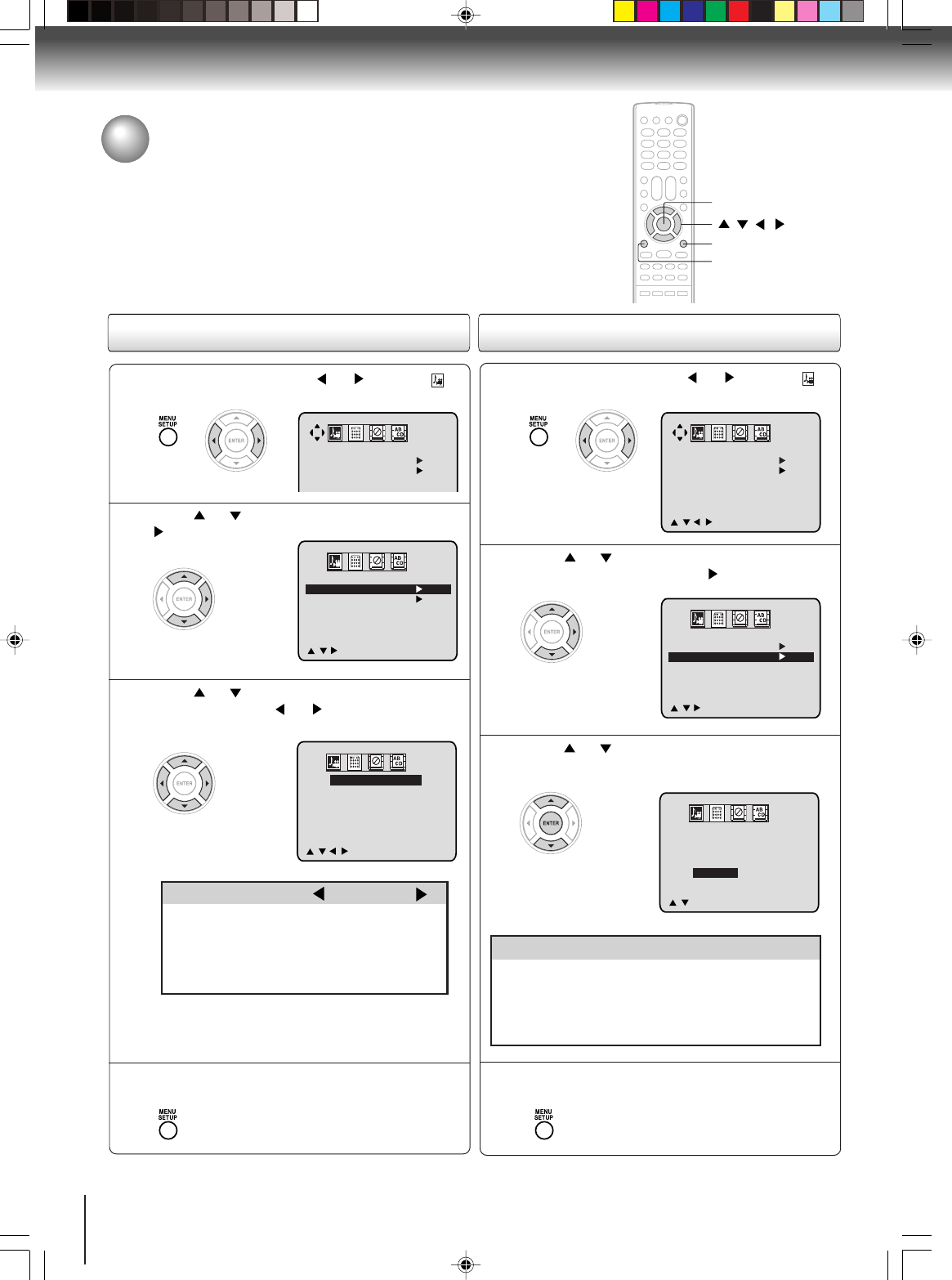
Press or to select the desired picture
mode, then press ENTER.
3
PICTURE PREFERENCE
STANDARD
SPORTS
MOVIE
MEMORY
//
ENTER / MENU
After your desired setting press MENU
repeatedly until the menu screen is cleared.
Press or to select “PICTURE”, then press
.
1
2
Press MENU, then press or to select
option.
After your desired setting press MENU
repeatedly until the menu screen is cleared.
4
Note:
The CONTRAST default setting is set to maximum
(+32) at the factory.
Picture control adjustment/
Adjusting the picture preference
Picture controls are factory preset but you can adjust them individually as follows:
And also you can select four picture modes—Standard, Sports, Movie, and
Memory—as described in the following table:
Press or to select the item you want to
adjust, then press or to adjust the setting.
3
CANCEL
/ / /
MENU
PICTURE
PICTURE PREFERENCE
PICTURE
PICTURE PREFERENCE
///
MENU
////
CANCEL / MENU
BRIGHTNESS
CONTRAST
COLOR
TINT
SHARPNESS
0
+32
0
0
0
33
33
3To return all adjustments to the factory preset levels
Press CANCEL while making picture adjustments.
Picture control adjustment Adjusting the picture preference
Press or to select “PICTURE
PREFERENCE”, then press .
1
2
Press MENU, then press or to select
option.
PICTURE
PICTURE PREFERENCE
///
MENU
PICTURE
PICTURE PREFERENCE
////
MENU
Note:
You cannot select “PICTURE PREFERENCE” in the Game
mode.
ENTER
Mode Picture quality
STANDARD Standard picture quality (factory-set)
SPORTS Bright and dynamic picture (factory-set)
MOVIE Movie-like picture setting (factory-set)
MEMORY Your personal preferences (set by you;
see “Picture control adjustment” as left)
Selection Pressing
BRIGHTNESS darker lighter
CONTRAST lower higher
COLOR paler deeper
TINT reddish greenish
SHARPNESS softer sharper
5S00101B [E] (P24-27) 2/23/05, 5:38 PM26
27
TV operation
Stereo and Second Audio Program (SAP)
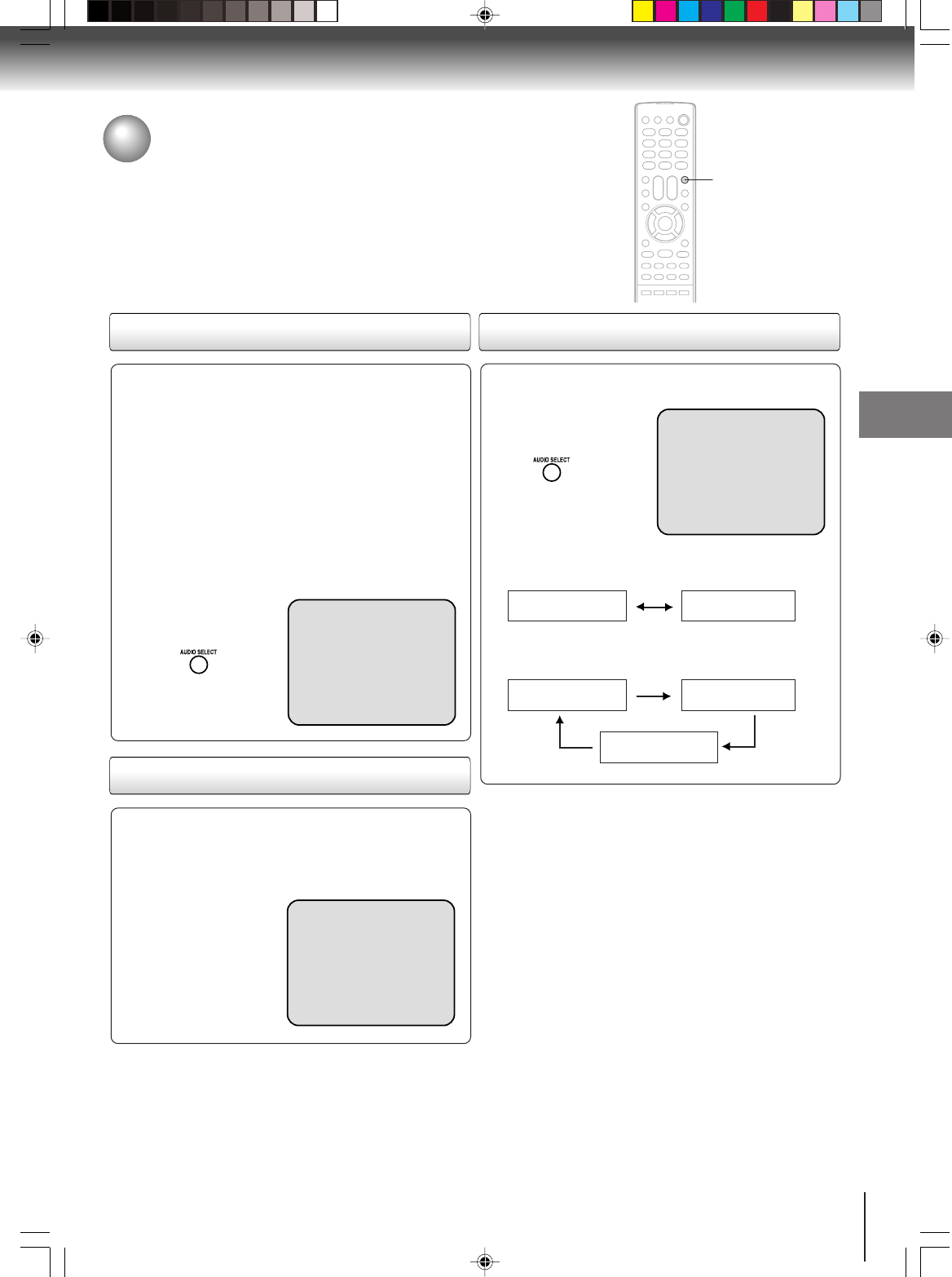
The TV/DVD is equipped with a feature known as multi-channel TV sound or
MTS. MTS broadcasts greatly enhance TV viewing by bringing you programs
with high fidelity stereo sound.
MTS also provides an extra channel called the Second Audio Program or SAP
which broadcasters can use to transmit a second language for bilingual transmis-
sion or for other purposes.
To select desired soundListening to stereo sound
MONO + SAP BROADCASTING
STEREO SAP CH 013
STEREO CH 013
Press AUDIO SELECT to select the desired sound.
SEL. STEREO
When the TV is turned on or a channel selection is
made, make certain the “STEREO” appears on the
screen. This means that Stereo broadcasting is
available. You can enjoy stereo sound from the left
and right speakers.
•When mono broadcasting is received, no indication is
displayed.
•If the broadcast signal is not strong enough or clear
stereo sound is not available, press AUDIO SELECT to
change to mono sound. The noise should be elimi-
nated. Press it again to return to the stereo sound.
Listening to SAP (Second Audio Program)
When the TV is turned on or a channel selection is
made, make certain the SAP appears on the screen.
This means that the Second Audio Program broad-
casting is available.
MONO SOUND
(MAIN) SAP SOUND
AUDIO SELECT
STEREO+SAP BROADCASTING
STEREO SOUND
(MAIN)
MONO SOUND
(MAIN)
SAP SOUND
5S00101B [E] (P24-27) 2/23/05, 5:38 PM27
28
Basic playback
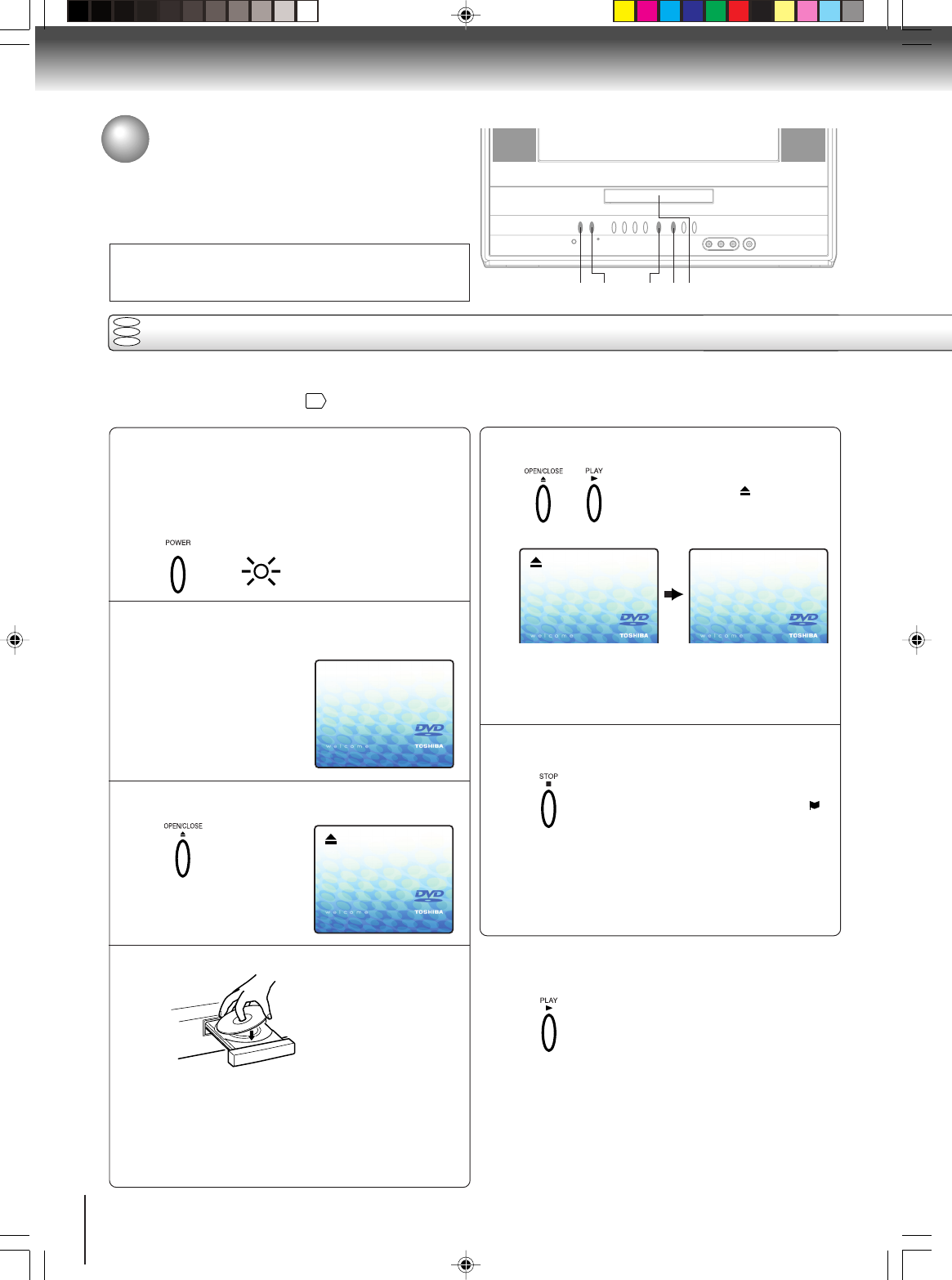
Press OPEN/CLOSE or PLAY.
The disc tray closes automatically.
On the TV-screen, “ ” changes to
“Reading” and then playback
commences.
Press STOP to end playback.
3 Resuming facility
•The unit records the stopped
point, depending on the disc. “ ”
appears on the screen. Press
PLAY to resume playback (from
the scene point).
•If you press STOP again or un
load the disc (“3” appears on the
screen.), the unit will clear the
stopped point.
Reading
DVD
VCD
CD
Reading
Preparations:
•Insert the AC cord plug into a standard 120V 60Hz polarized AC outlet. If the AC cord plug is plugged in for the first time,
you need to set “Starting setup”
18
.
•When connecting to other equipment, turn power off.
1Press POWER on the unit or on the remote con-
trol to turn on the unit.
The Power indicator will light.
•Every time you press POWER, the TV/DVD starts
from TV mode.
•When using an amplifier, switch on the amplifier.
5
2Press TV/DVD to select DVD mode.
The DVD startup screen will appear on the screen.
“Reading” display will change to “No Disc”. (If DVD
disc has already loaded,
playback will start auto-
matically.)
3Press OPEN/CLOSE.
The disc tray opens.
4Place the disc on the disc tray.
Basic playback
•There are two different disc sizes. Place the disc
in the correct guide on the disc tray. If the disc is
out of the guide, it may damage the disc and
cause the unit to malfunction.
•Do not place a disc which is unplayable on the
disc tray.
•A menu screen will appear on the TV screen, if
the disc has a menu feature.
Press C/D or B/A to select title, then press ENTER.
Title is selected and play commences.
6
3To start playback in the stop mode
Press PLAY.
Note:
If the unit does not operate properly:
Static electricity, etc., may affect the player's operation. Discon-
nect the AC power cord once, then connect it again.
Playing a disc
This section shows you the basics on how to play a disc.
CAUTION
Keep your fingers well clear of the disc tray as it is closing.
Neglecting to do so may cause serious personal injury. 13,5 5 6 4
OR
With the playback
side down
5S00101B [E] (P28-31) 2/23/05, 5:38 PM28
29
Basic playback
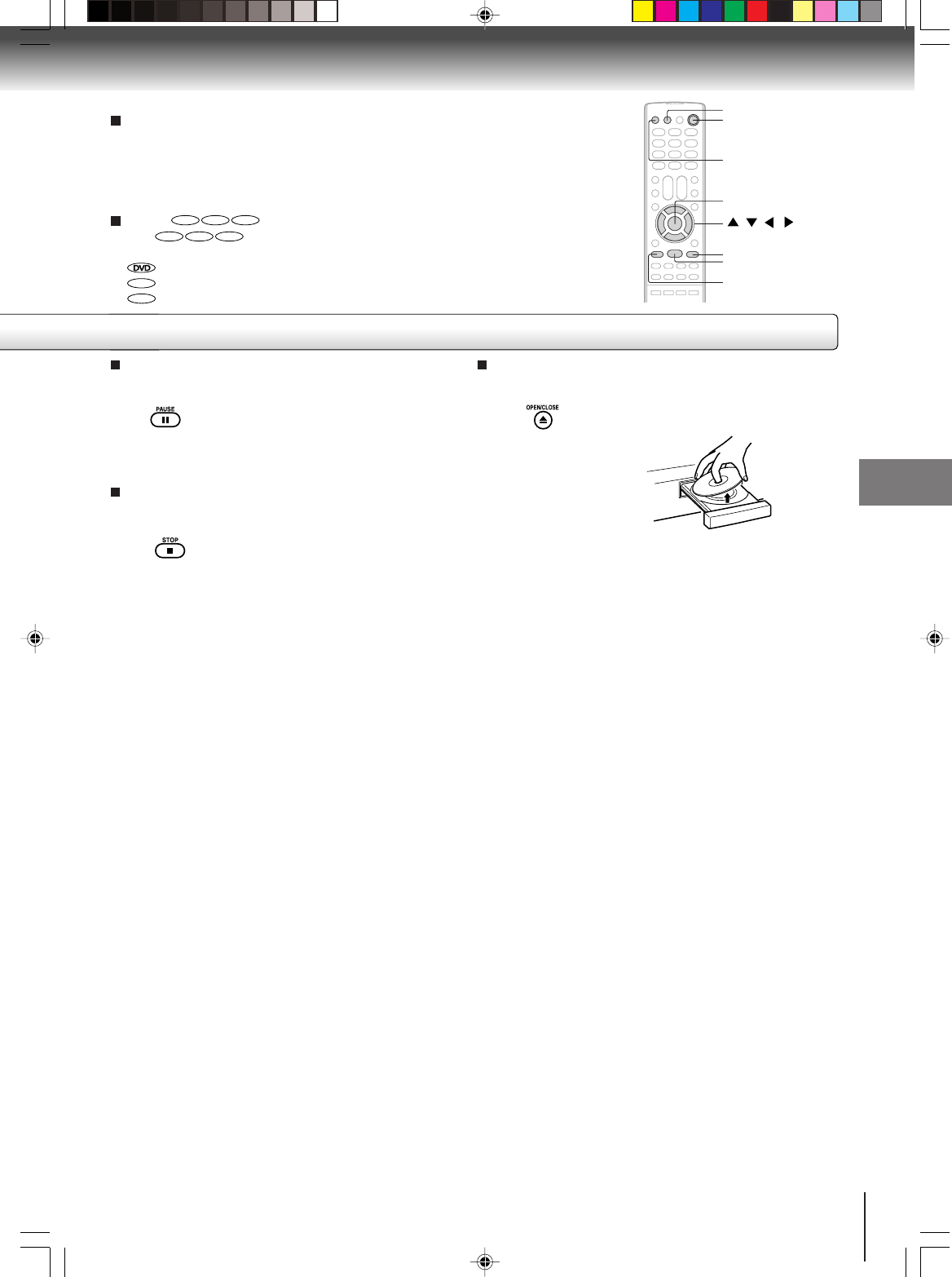
To pause playback (still mode)
Press PAUSE during playback.
To resume normal playback, press
PLAY.
•The sound is muted during still
mode.
To stop playback
Press STOP.
To remove the disc
Press OPEN/CLOSE.
Remove the disc after the disc tray
opens completely.
Be sure to press OPEN/CLOSE to close the disc tray
after you remove the disc.
STOP
PAUSE
Notes:
•If a non-compatible disc is loaded, “Incorrect Disc”, “Region Code Error” or “Parental Error” will appear on the TV screen
according to the type of loaded disc. In this case, check your disc again (see pages 8 and 43).
•Some discs may take a minute or so to start playback.
•When you set a single-faced disc label downwards (i.e. the wrong way up) and press OPEN/CLOSE or PLAY on the unit,
“Reading” will appear on the display for a few minutes and then “Incorrect Disc” will continue to be displayed.
•Some discs may not work the resuming facility.
• Resuming cannot function when you play a PBC-featured Video CD while the PBC is on. To turn off the PBC, see page 37.
•Some playback operations of DVDs may be intentionally fixed by software producers. Since this unit plays DVDs according
to the disc contents the software producers designed, some playback features may not be available. Also refer to the
instructions supplied with the DVDs.
•Do not move the unit during playback. Doing so may damage the disc.
• Use OPEN/CLOSE to open and close the disc tray. Do not push the disc tray while it is moving. Doing so may cause the unit
to malfunction.
•Do not push up on the disc tray or put any objects other than discs on the disc tray. Doing so may cause the unit to
malfunction.
• In many instances, a menu screen will appear after playback of a movie is completed. Prolonged display of an on-screen
menu may damage your television set, permanently etching that image onto its screen. To avoid this, be sure to press
POWER on your remote control once the movie is completed.
•There may be a slight delay between you pressing the button and the function activating.
To obtain a higher quality picture
Occasionally, some picture noise not usually visible during a normal broadcast
may appear on the TV screen while playing a DVD video disc because the high
resolution pictures on these discs include a lot of information. While the amount of
noise depends on the TV you use with this unit, you should generally reduce the
sharpness adjustment on your TV when viewing DVD video discs.
About
DVD VCD CD
The
DVD VCD CD
icons on the heading bar show the playable discs for the
function described under that heading.
: You can use this function with DVD video discs.
VCD
: You can use this function with Video CDs.
CD
: You can use this function with Audio CDs and CD-R/RW CDs.
PLAY
OPEN/CLOSE
POWER
TV/DVD
ENTER
/ / /
5S00101B [E] (P28-31) 2/23/05, 5:38 PM29
30
Basic playback
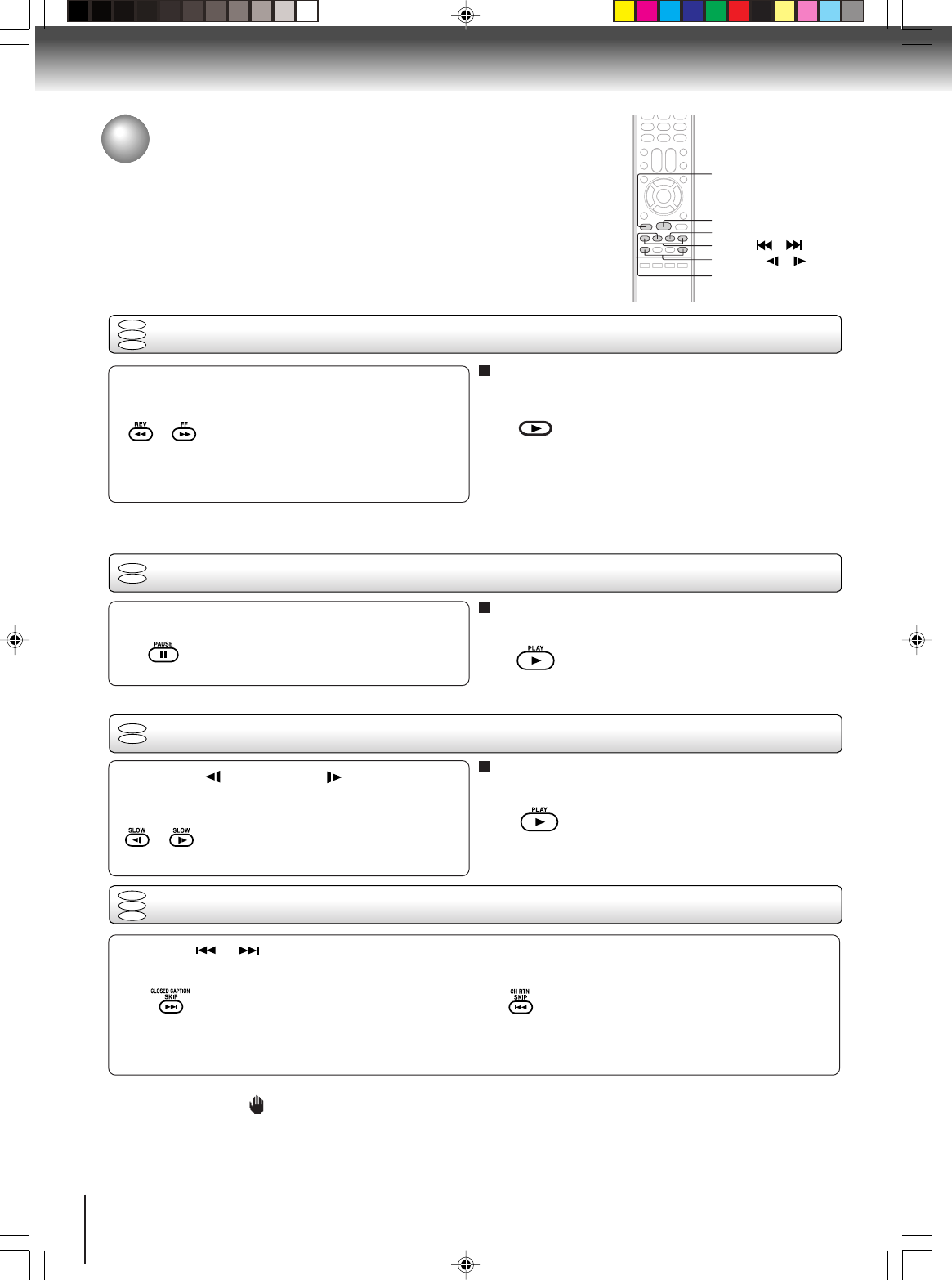
Playing frame by frame
Playing in fast reverse or fast forward directions
Press REV or FF during playback.
REV:Fast reverse playback
FF:Fast forward playback
Each time you press REV or FF, the
playback speed changes.
To resume normal playback
Press PLAY.
Notes:
•The TV/DVD mutes sound and subtitles during reverse and
forward scan of DVD/VCD video discs. However, the TV/DVD
plays sound during fast forward or fast reverse play of audio
CDs.
• The playback speed may differ depending on the disc.
Press PAUSE during still playback.
Each time you press PAUSE, the
picture advances one frame.
To resume normal playback
Press PLAY.
Note:
The sound is muted during frame by frame playback.
Press SLOW (REVERSE) or (FORWARD)
during playback.
Each time you press the button, the
slow-motion speed changes.
To resume normal playback
Press PLAY.
Notes:
•The sound is muted during slow-motion playback.
•The Video CD cannot play Reverse Slow.
Press SKIP or repeatedly to display the chapter or track number you want.
Playback starts from the selected chapter or track.
To locate succeeding chapters or
tracks.
Playback starts from the beginning of
the current chapter or track.
When you press twice in quick successions,
playback starts from the beginning of
the preceding chapter or track.
•A prohibition symbol “ ” may appear at the upper left of the screen. This symbol means either the feature you tried is not
available on the disc, or the TV/DVD cannot access the feature at this time. This does not indicate a problem with the TV/DVD.
•The unit is capable of holding a still video image or On screen display image on your television screen indefinitely. If you leave
the still video image or On screen display image displayed on your TV for an extended period of time, you risk permanent
damage to your television screen. Projection televisions are very susceptible.
Notes:
DVD
VCD
DVD
VCD
DVD
VCD
CD
DVD
VCD
CD
Playing in slow-motion
Locating a chapter or track
PLAY
FF
PAUSE
SLOW /
SKIP /
REV
PLAY
Playing a disc (Continued)
Note:
Press and hold SKIP on the unit during playback to play forward or in reverse.
Afterwards, each time you press and hold SKIP, the playback speed will change.
5S00101B [E] (P28-31) 2/23/05, 5:38 PM30
31
Advanced playback
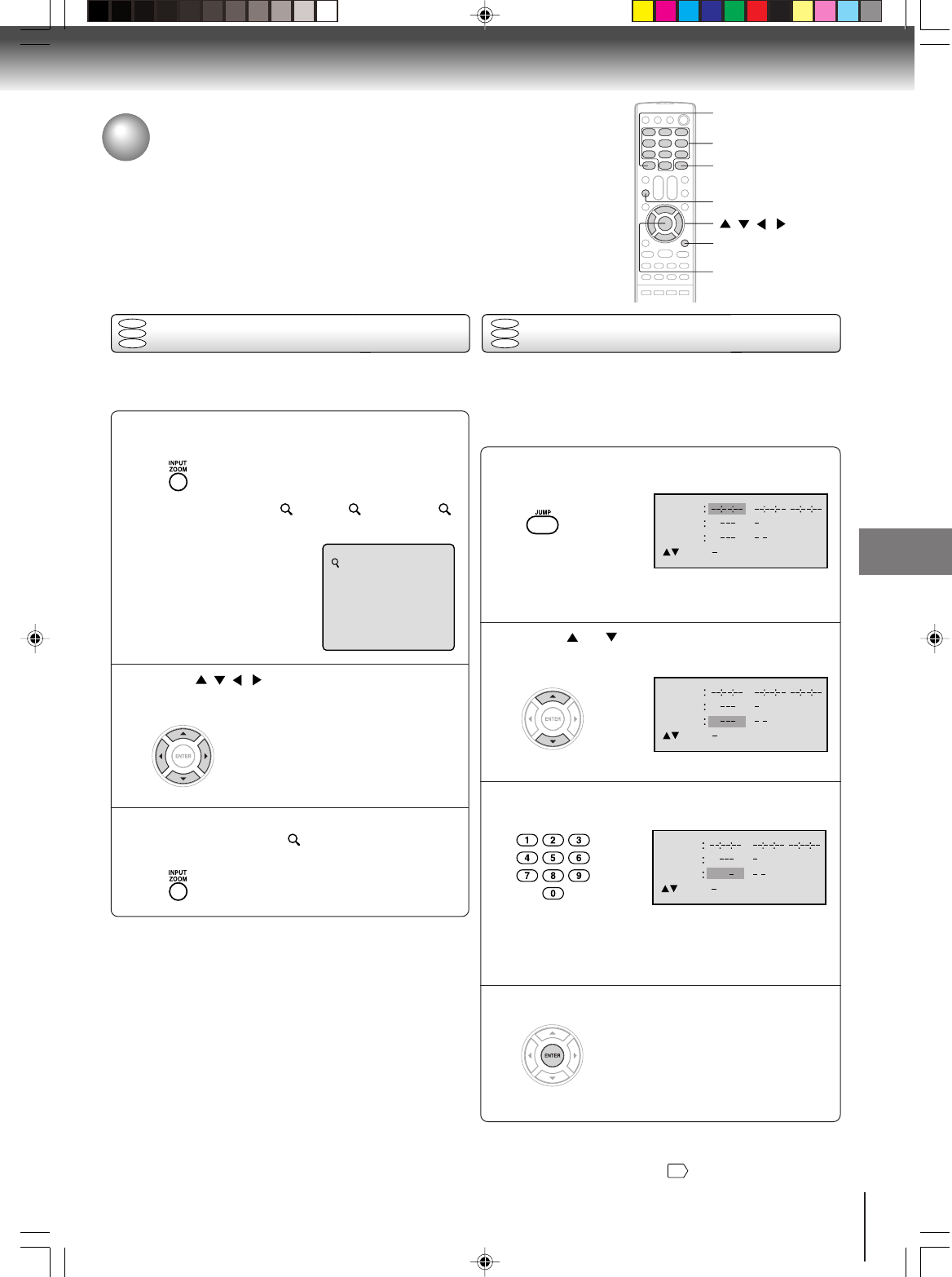
Press / / / to view a different part of the
frame.
You may move the frame from the
center position to UP, DOWN, LEFT
or RIGHT direction.
In the zoom mode press ZOOM repeatedly to
return to a 1:1 view ( Off).
Press JUMP during playback or stop mode.
• “Time” only works in playback or
resume stop mode.
Press or to select the “Time”, “Title” or
“Chapter”.
Press Number buttons (0–9) to change the
number.
•If you input a wrong number, press
CANCEL.
•Refer to the package supplied with
the disc to check the numbers.
Press ENTER. Playback starts.
•When you change the title,
playback starts from Chapter 1
of the selected title.
•Some discs may not work in the
above operation.
1
DVD
VCD
CD
Time
Title
Chapter
/Enter/0 9/Cancel/Jump
/6
/
/
Time
Title
Chapter
/Enter/0 9/Cancel/Jump
/6
/
/
Time
Title
Chapter
/Enter/0 9/Cancel/Jump
/6
/
/
12
/ / /
Zooming/Locating desired scene
ZOOM
CANCEL
0–9
ENTER
JUMP
DISPLAY
Advanced playback
Zooming
Press ZOOM during playback.
The center part of the image will be
zoomed in.
Each press of ZOOM will change the
ZOOM 1 (x 1.3), 2 (x 1.5) and 3
(x 2.0).
This unit will allow you to zoom in on the frame image. You
can then make selections by switching the position of the
frame.
Notes:
•You can select the Pause, Slow or Search playback in the zoom
mode.
•Some discs may not respond to zoom feature.
Note:
In case of the Video-CD playback with PBC, the JUMP does not
work. To turn off PBC, see page
37
.
Locating desired scene
1
2
3
1
2
4
3
DVD
VCD
CD
Use the title, chapter and time recorded on the DVD disc to
locate the desired point to play back. In the case of VCD/CD
discs, time and track are used to locate the desired point to
play back.
To check the title, chapter and time, press DISPLAY.
5S00101B [E] (P28-31) 2/23/05, 5:39 PM31
32
Advanced playback
Marking the scenes Returning to the scenes
1
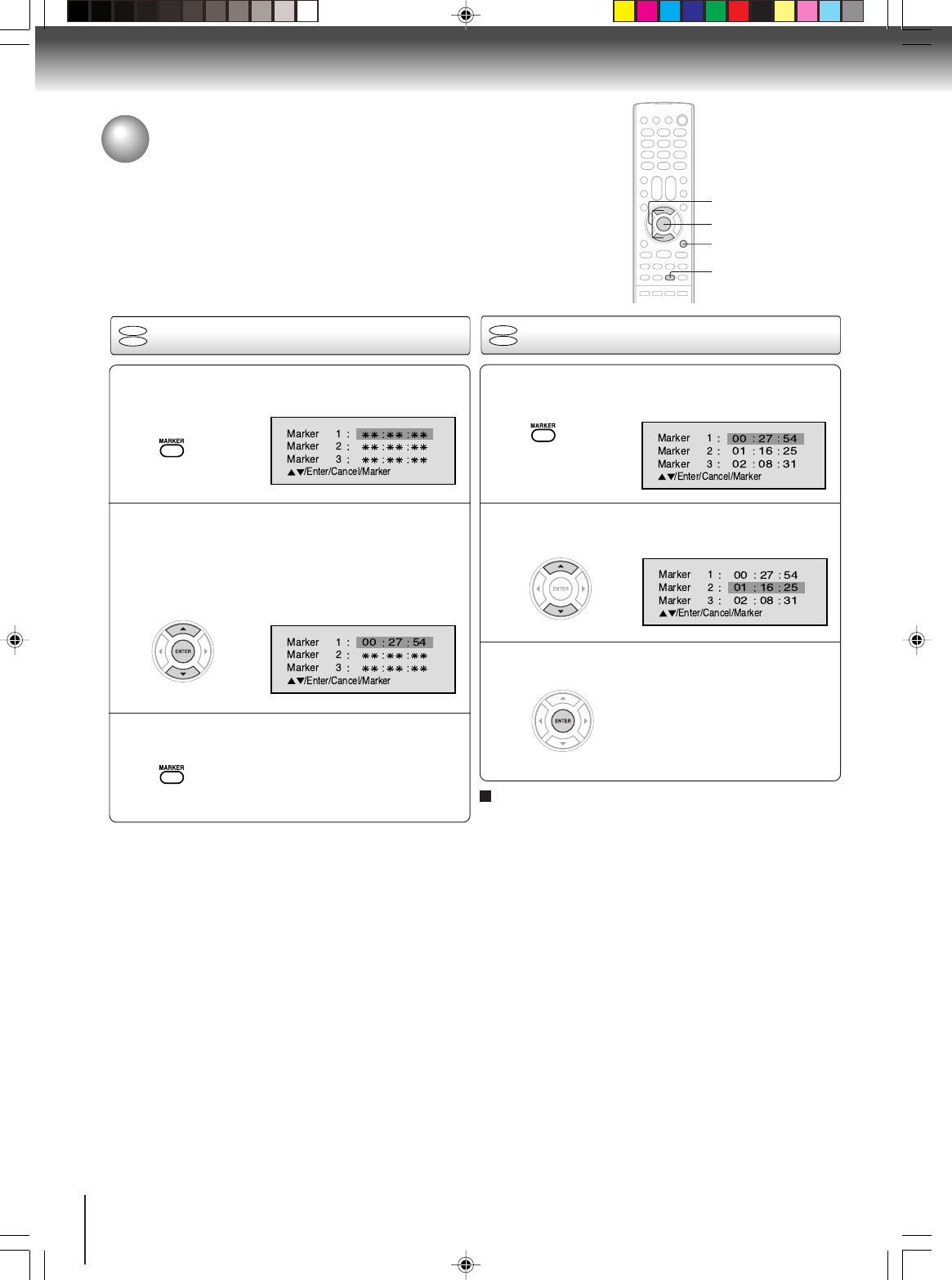
Press MARKER during playback or stop mode.
2
1
3
Marking desired scenes
The unit stores the points that you want to watch again up to 3 points.
You can resume playback from each scene.
2
3
Notes:
•Some discs may not work with the marking operation.
•The marking is cancelled when you open the disc tray or turn
the power off.
•Some subtitles recorded around the marker may fail to
appear.
To cancel the Marker
Follow the above steps 1~2, then press CANCEL.
ENTER
CANCEL
MARKER
C/D
Press MARKER during playback.
Select the blank Marker using C or D.
Then press ENTER at the desired scene.
•Repeat this procedure to set the
other 2 scenes.
Press MARKER to remove this display.
Press ENTER.
Playback starts from the marked
scene.
Press C or D to select the Marker 1-3.
DVD
VCD
DVD
VCD
5S00101B [E] (P32-33) 2/23/05, 5:39 PM32
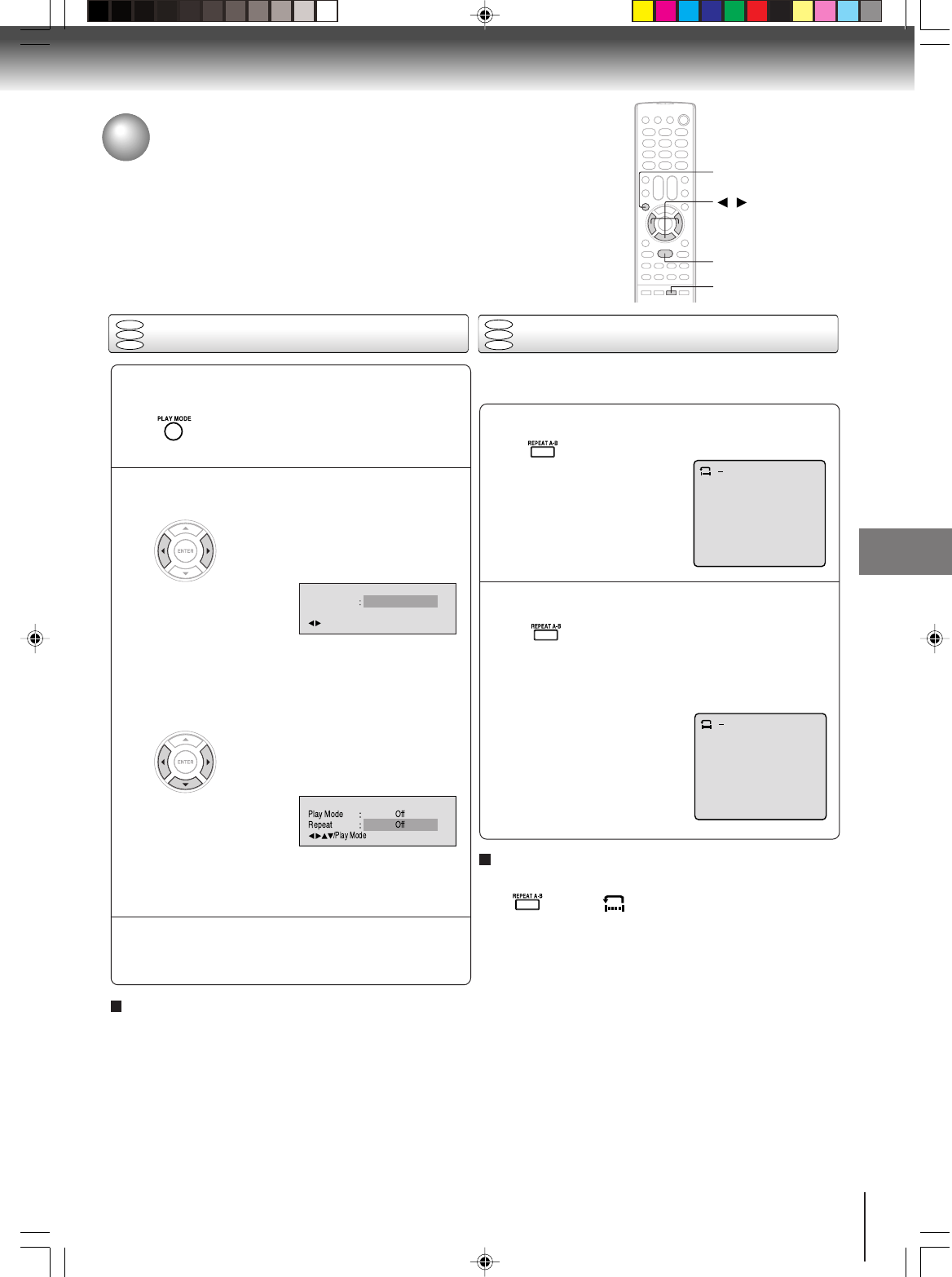
33
Advanced playback
[Audio CD, Video CD]
Press DD
DD
D to select “Repeat”.
Press BB
BB
B/AA
AA
A to select “Track” or “All”.
The unit automatically starts repeat
playback after finishing the current
track.
•If you set the repeat mode during stop mode,
press PLAY to start Repeat playback.
1
Press REPEAT A-B during playback.
The start point is selected.
A-B repeat playback allows you to repeat material between
two selected points.
2
Notes:
•In A-B Repeat mode, subtitles near the A or B locations may
not be displayed.
•You cannot set the A-B Repeat for the scenes that include
multiple angles.
•A-B Repeat playback does not work when Repeat playback is
activated.
•You may not be able to set A-B Repeat, during certain scenes
of the DVD.
•A-B Repeat does not work with an interactive DVD.
•A-B Repeat is prohibited when PBC is on.
To resume normal playback
Press REPEAT A-B again.
“
Off
” appears on the screen.
DVD
VCD
CD
A
AB
DVD
VCD
CD
Repeat playback A-B Repeat playback
PLAY MODE
REPEAT A-B
/ /▼
Repeat playback/A-B Repeat playback
1
Press PLAY MODE during playback or stop mode.
Press PLAY MODE again to make the screen
disappear.
3
2
Repeat Off
/Play Mode
Notes:
•Some discs may not work with the repeat operation.
•In case of Video CD with PBC, repeat functions are prohib-
ited during playback.
[DVD]
Press BB
BB
B/AA
AA
A to select “Chapter” or “Title”.
The unit automatically starts repeat
playback after finishing the current title
or chapter.
To resume normal playback
Select Repeat : “Off” in step 2.
PLAY
Press REPEAT A-B again.
The end point is selected. Playback
starts at the point that you selected.
Playback stops at the end point, re-
turns to Point A automatically, then
starts again.
5S00101B [E] (P32-33) 2/23/05, 5:39 PM33
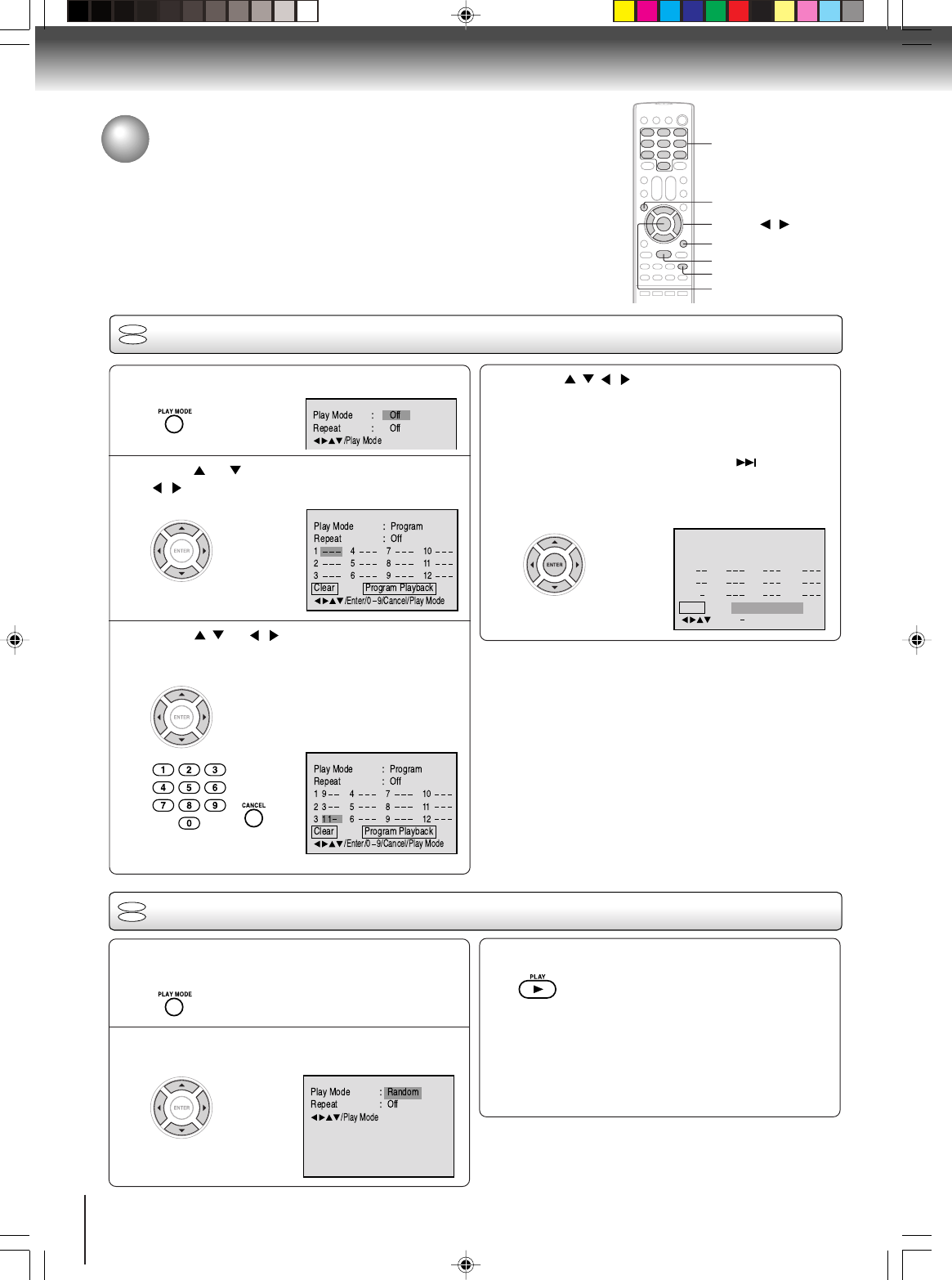
34
Advanced playback
Program playback/Random playback
You can arrange the playback order of tracks or files on the disc. And also
the unit selects tracks or files at random and playback them. These feature
works for Audio CD, Video CD and JPEG CD.
ENTER
▲/▼//
PLAY MODE
0–9
CANCEL
Program playback
VCD
CD
Press PLAY MODE in the stop mode.
Press or to select Play Mode, then press
/ to select “Program”.
Press / or / to select the programming
position. Use Number buttons (0–9) to input the
Track or file numbers.
•To program others, repeat step 3.
•If you input a wrong number, press
CANCEL.
1
2
3
4
Clear Program Playback
5811
6912
4710
Repeat
:
Off
Play Mode
:
Program
/Enter/0 9/Cancel/Play Mode
23
31
1
19
Press / / / to select “Program Playback”
and press ENTER.
The programs you selected will start to playback in
the order.
•In case of JPEG file, press SKIP to continue
the program playback.
•To resume normal playback, select Play Mode:
“Off” in step 2.
Notes:
•In playing back the Video CD with PBC, you cannot set
Program playback.
• The program is cancelled when you open the disc tray or
turn the power off.
■To change the program
1. In the program mode, press C/D/B /A to select the track
number.
2. Press Number buttons (0–9) to select the track number to
be replaced.
■To clear the program one by one
In the program mode, press C/D/B/A to select the track
number. Then press CANCEL.
■To clear all the programs
In the program mode, press C/D/B/A to select “Clear”. Then
press ENTER.
Random playback
VCD
CD
Press CC
CC
C/DD
DD
D to select Play Mode, then press
BB
BB
B/AA
AA
A to select “Random”.
1
Press PLAY
.
The Random Playback will start.
3
2
Note:
In playing back the Video CD with PBC, you can not set
Random playback.
Press PLAY MODE during playback or stop
mode.
•If you set “Random” during playback mode,
Random playback will begin after the track that is
currently being played has ended.
•To resume normal playback, select Play Mode:
“Off” in step 2.
PLAY
SKIP7
5S00101B [E] (P34-38) 2/23/05, 5:39 PM34
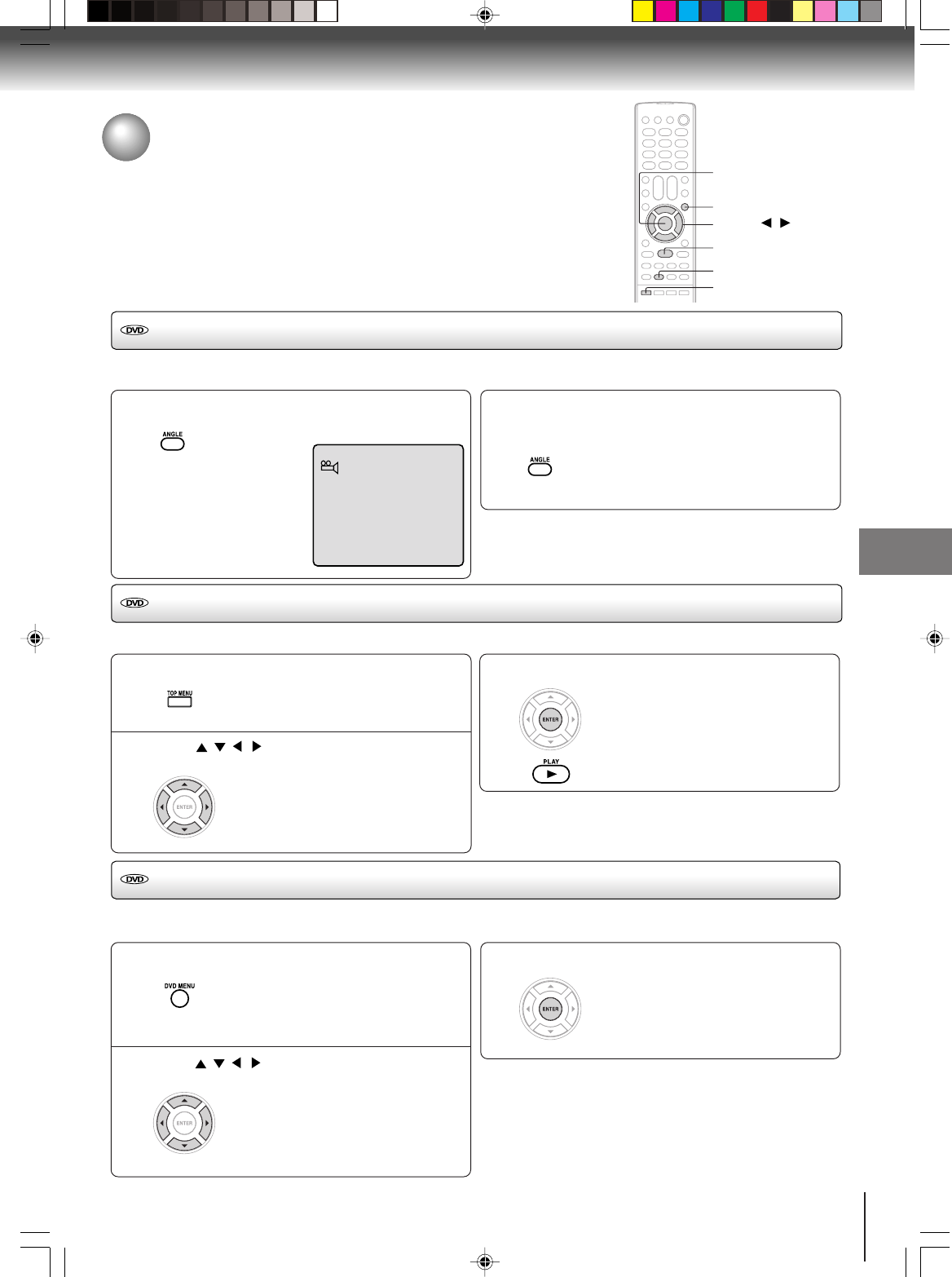
35
Advanced playback
Changing angles
ANGLE
ENTER
▲/▼//
TOP MENU
PLAY
DVD MENU
Title selection
DVD menu
Press ANGLE during playback.
The current angle will appear.
When playing back a disc recorded with multi-angle facility, you can change the angle that you are viewing the scene from.
1
Press ANGLE repeatedly until the desired angle
is selected.
2
Note:
Depending on the DVD, you may not be able to change the
angles even if multi-angles are recorded on the DVD.
1/9
Press TOP MENU during playback.
Title menu appears on the screen.
Two or more titles are recorded on some discs. If the title menu is recorded on the disc, you can select the desired title.
1
Press ENTER or PLAY.
The playback of the selected title will
start.
3
Note:
Depending on the DVD, you may not be able to select the title.
Depending on the DVD, a “title menu” may simply be called a
“menu” or “title” in the instructions supplied with the disc.
2
Press DVD MENU during playback.
The DVD menu appears on the screen.
• Press DVD MENU again to resume
playback at the scene when you
pressed DVD MENU.
Press / / / to select the desired item.
Some DVDs allow you to select the disc contents using the menu.
When you play back these DVDs, you can select the subtitle language and sound-track language, etc. using the menu.
1
Press ENTER.
The menu continues to another
screen. Repeat steps 2 and 3 to set
the item completely.
3
2
Changing angles/Title selection/DVD menu
Note:
Depending on the DVD, you may not be able to resume
playback from the scene point when you pressed DVD MENU.
Press / / / to select the desired title.
5S00101B [E] (P34-38) 2/23/05, 5:39 PM35
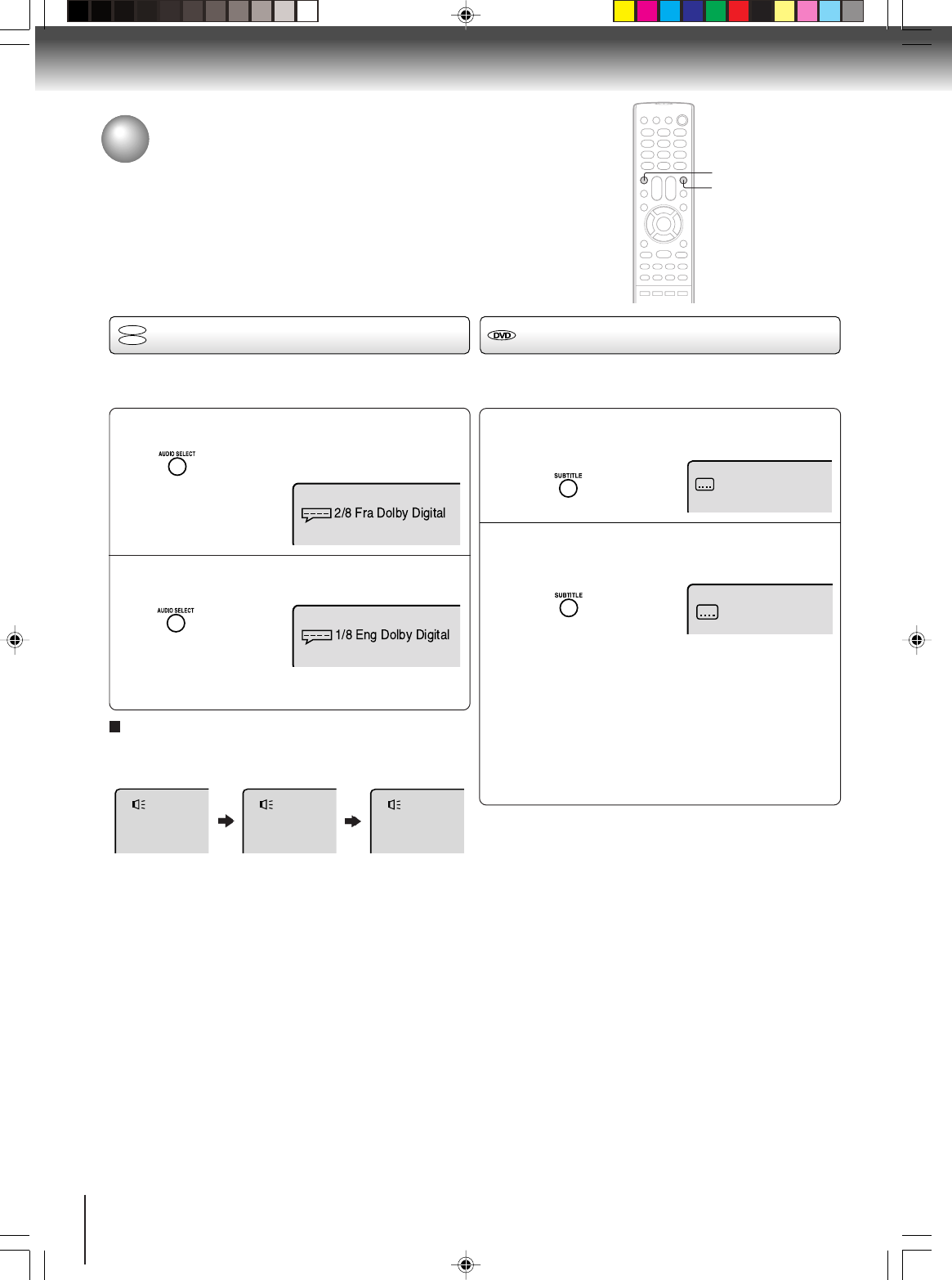
36
Advanced playback
1
2
Press AUDIO SELECT during playback.
The current soundtrack language will
appear.
Press AUDIO SELECT repeatedly until the desired
language is selected.
•The on screen display will disappear after a few
seconds.
Changing soundtrack language/
Subtitles
You can select the language when you play a multilin-
gual disc.
Notes:
•If the desired language is not heard after pressing the
button several times, the language is not recorded on the disc.
•Changing soundtrack language is cancelled when you
open the disc tray. The initial default language or available
language will be heard if the disc is played back again.
•If you select DTS in playing DTS-encoded disc, no sound
will be heard from the TV/DVD’s speakers.
In case of Video CD playback
Audio type changes as follows each time you press
AUDIO SELECT.
LR
L
R
AUDIO SELECT
When playing back a disc recorded with subtitles, you can
select the subtitle language or turn the subtitle off.
To turn off the subtitle, press SUBTITLE until
“Off” appears.
•The on screen display will disappear after a
few seconds.
1
Notes:
•Depending on the DVD, you may not be able to change
subtitles, or to turn subtitles on or off.
•While playing a DVD, the subtitle may change when you
open or close the disc tray.
•In some cases, a selected subtitle language may not be
changed immediately.
Off
Subtitles
Press SUBTITLE repeatedly during playback until
your desired language appears.
1/8 Eng
2
Changing soundtrack language
DVD
VCD
SUBTITLE
5S00101B [E] (P34-38) 2/23/05, 5:39 PM36
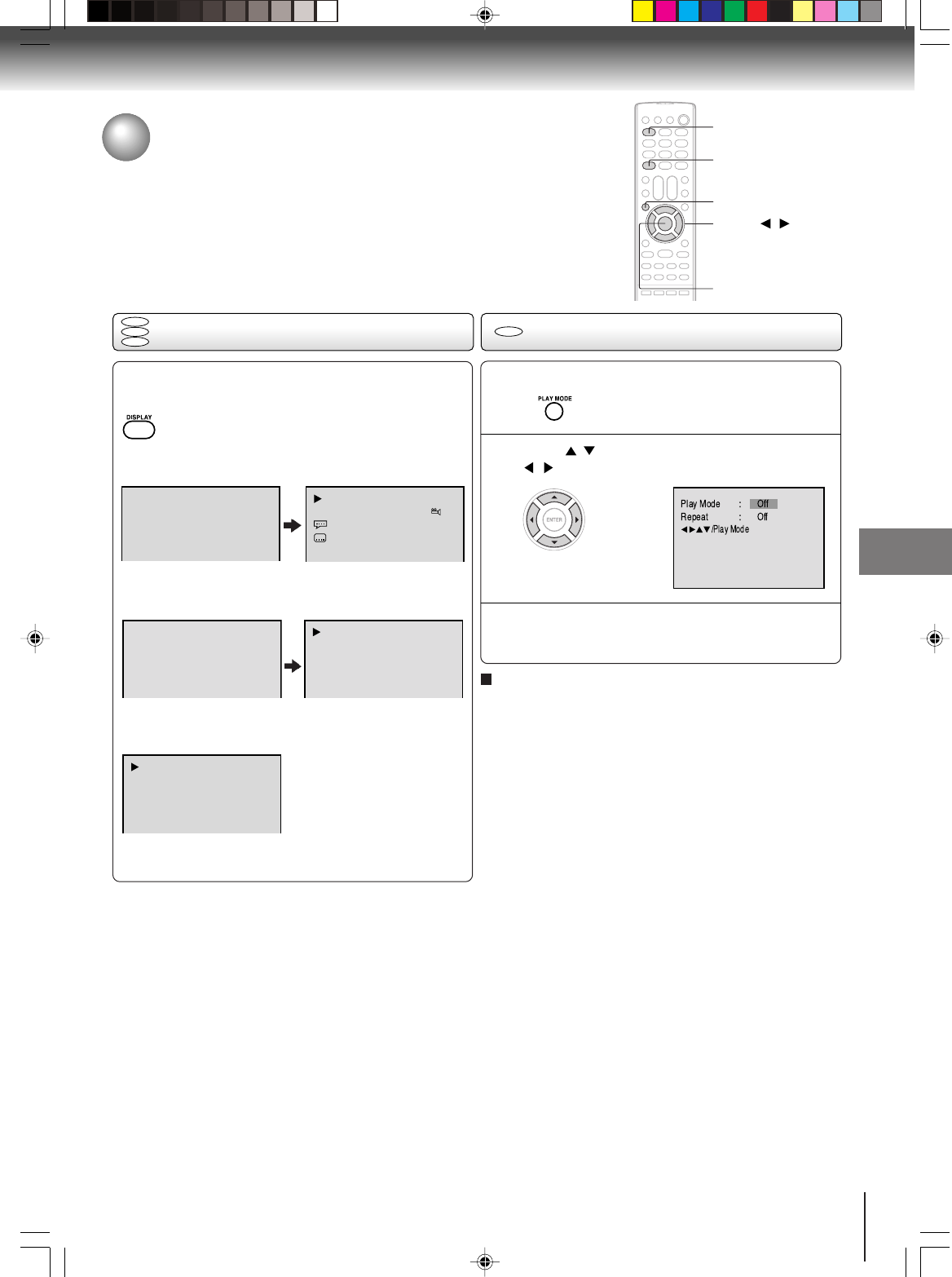
37
Advanced playback
Disc status/To turn off the PBC
1
DISPLAY
ENTER
With each press of DISPLAY, the status of the disc
will appear on the screen and change as follows.
DVD
To make status display disappear, press DISPLAY again.
Video CD
When you playback the CD disc, the status display will
appear on the screen and continue displaying.
00:34:56 01:12:33 00:34:56 01:12:33
1/9
Title 1/99
1/8
1/32
Chapter 1/999
Eng Dolby Digital
Eng
00:12 04:32 00:12 04:32
Track –/–
PBC
34:56 71:33
Track 11/99
To make status display disappear, press DISPLAY again.
Audio CD
Disc status
VCD
To turn off the PBC
DVD
VCD
CD
▲/▼/ /
PLAY MODE
Press / to select Play Mode, then press
/ to select “Off”.
1
Press PLAY MODE in the stop mode.
2
Press PLAY MODE again to make the screen
disappear.
3
Select Play Mode : “PBC” in step 2.
Note:
You can also turn off the PBC by pressing number button 1
and ENTER in the stop mode.
To turn on the PBC
5S00101B [E] (P34-38) 2/23/05, 5:39 PM37
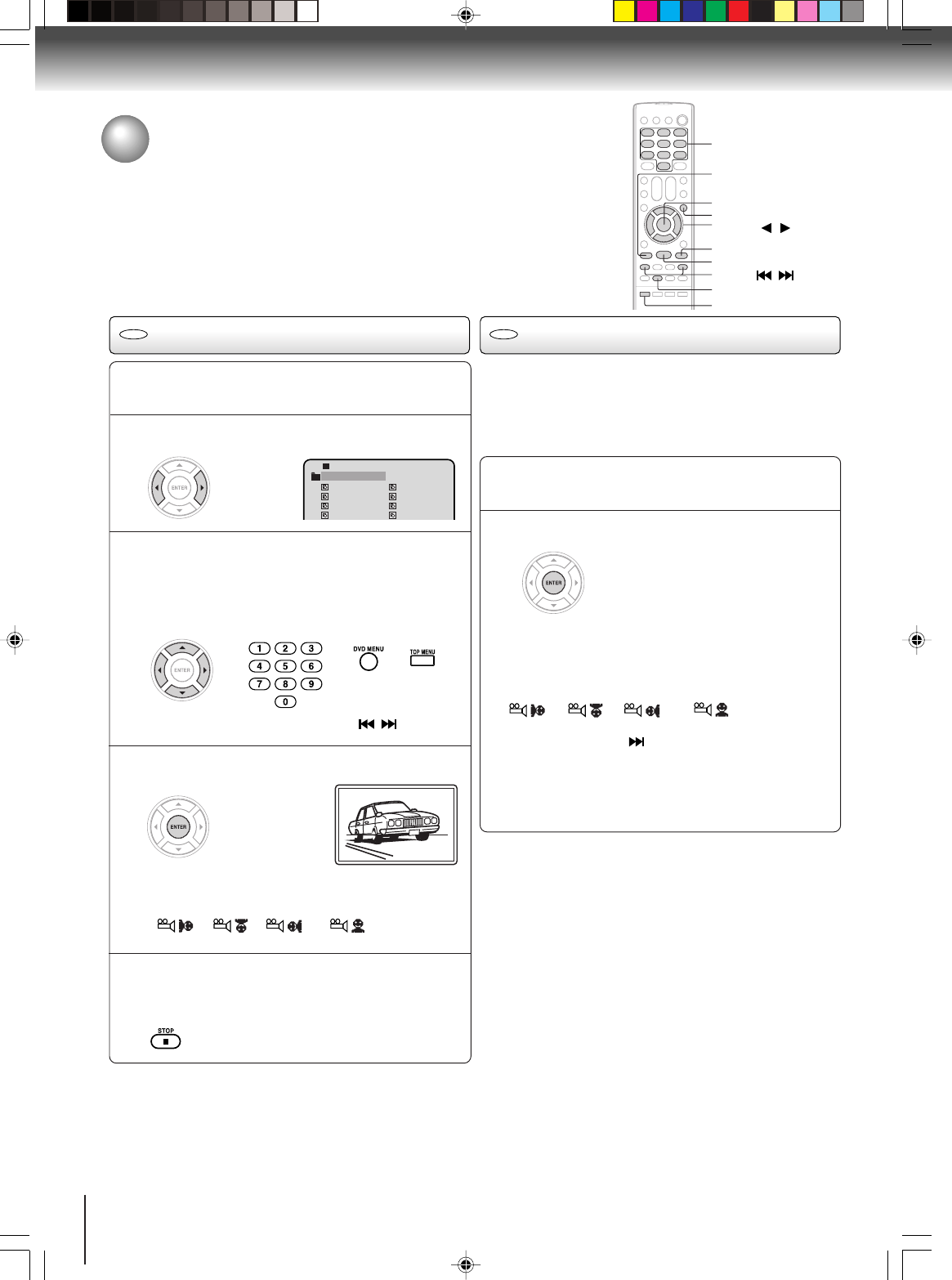
38
Advanced playback
The slide show enables you to view pictures (files) one after
another automatically.
Preparation:
Set “JPEG Interval” setting to “5 Seconds”, “10 Seconds” or
“15 Seconds” (see page 42).
Select your desired starting file for the slide
show in the step 3 as left.
2
Press ENTER to start slide show from the se-
lected file.
•If you press PAUSE during the slide show, the slide
show stops temporary. “ 4 ” appears briefly on the pic-
ture.
If the picture appears upside down or sideways, press
ANGLE repeatedly until it’s right side up.
“”, “ ”, “ ” or “ ” appears briefly
on the screen.
Press PLAY or SKIP again to resume the slide show.
•When the slide show playback finished the file list ap-
pears.
•To stop the slide show, press STOP. The file list ap-
pears.
1
JPEG CD playback Slide show playback
ENTER
▲/▼//
STOP
PLAY
0–9
SKIP
/
ANGLE
TOP MENU
DVD MENU
PAU S E
JPEG playback
You can select your desired JPEG file on the file menu and picture menu.
The selected JPEG file is automatically adjusted to the TV screen. (When the
aspect ratio of the JPEG file is different to your TV screen, the black bar will
appear at the top and bottom, or the both sides of the TV screen.
CAUTION:
Some JPEG CDs cannot be played back depending on the recording conditions.
JPEG CD Information
Limitations on JPEG CD playback
•JPEG CD is the disc that is standardized by ISO9660, its
file name must include 3-digits extension letters, “jpg”.
• The directory and file names of the JPEG CD must be
correspond to the ISO standardized files.
•This unit can read 600 files per disc. If a disc has more than
600 files, it reads up to 600 files, the remaining files will be
omitted.
• The unit is able to recognize up to a maximum of 50
directories per disc.
•It may take more than one minute for this unit to read JPEG
files depending on its structure.
Limitations on display
•The maximum number for display is 16 letters. Available
letters for display are the following: capital or small
alphabets of A through Z, numbers of 0 through 9, and _
(under score).
•Other letters than those above are replaced in hyphen.
Notes on JPEG files
To play back JPEG CD in the recorded order,
1. Use JPEG software that records data alphabetically or
numerically.
2. Name each file including two-digit or three-digit number
(ex. “01” “02” or “001” “002”).
3. Refrain from making too many sub-folders.
Notes:
•The picture menu is displayed when the FUJICOLOR CD or
the Kodak Picture CD are played. To display the file menu,
press TOP MENU.
•During JPEG-Playback, you cannot use SEARCH, A-B Re-
peat functions.
•You can use Repeat (Track or All), Random functions and
Program playback for JPEG CD playback. (See pages 33 and
34.)
Place a disc on which JPEG files have been
recorded onto the tray.
1
A file menu screen will appear on the screen.
Press BB
BB
B/AA
AA
A to select folder.
2
Press CC
CC
C/DD
DD
D/BB
BB
B/AA
AA
A or Number buttons (0–9) to se-
lect the desired file.
To display a picture menu, press DVD MENU.
(To return to a file menu, press TOP MENU.)
Press B/A or C/D to select the desired file.
3
•To display next list, press SKIP / .
Press ENTER. The selected picture appears on
the screen.
4
Press STOP to end playback.
The file menu appears on the screen.
If you want to watch the other file, repeat steps
3 ~ 4.
5
Rotating an image
You can rotate an image by 90 degrees by pressing
ANGLE during playback of the image.
“”, “ ”, “ ” or “ ” appears briefly
on the screen.
CD CD
1
-
/36
2
3
4
Pic-1
CD
Pic-2
Pic-3
Pic-4
8
9
10
11
Pic-8
Pic-9
Pic-10
Pic-11
Collection
5S00101B [E] (P34-38) 2/23/05, 5:39 PM38
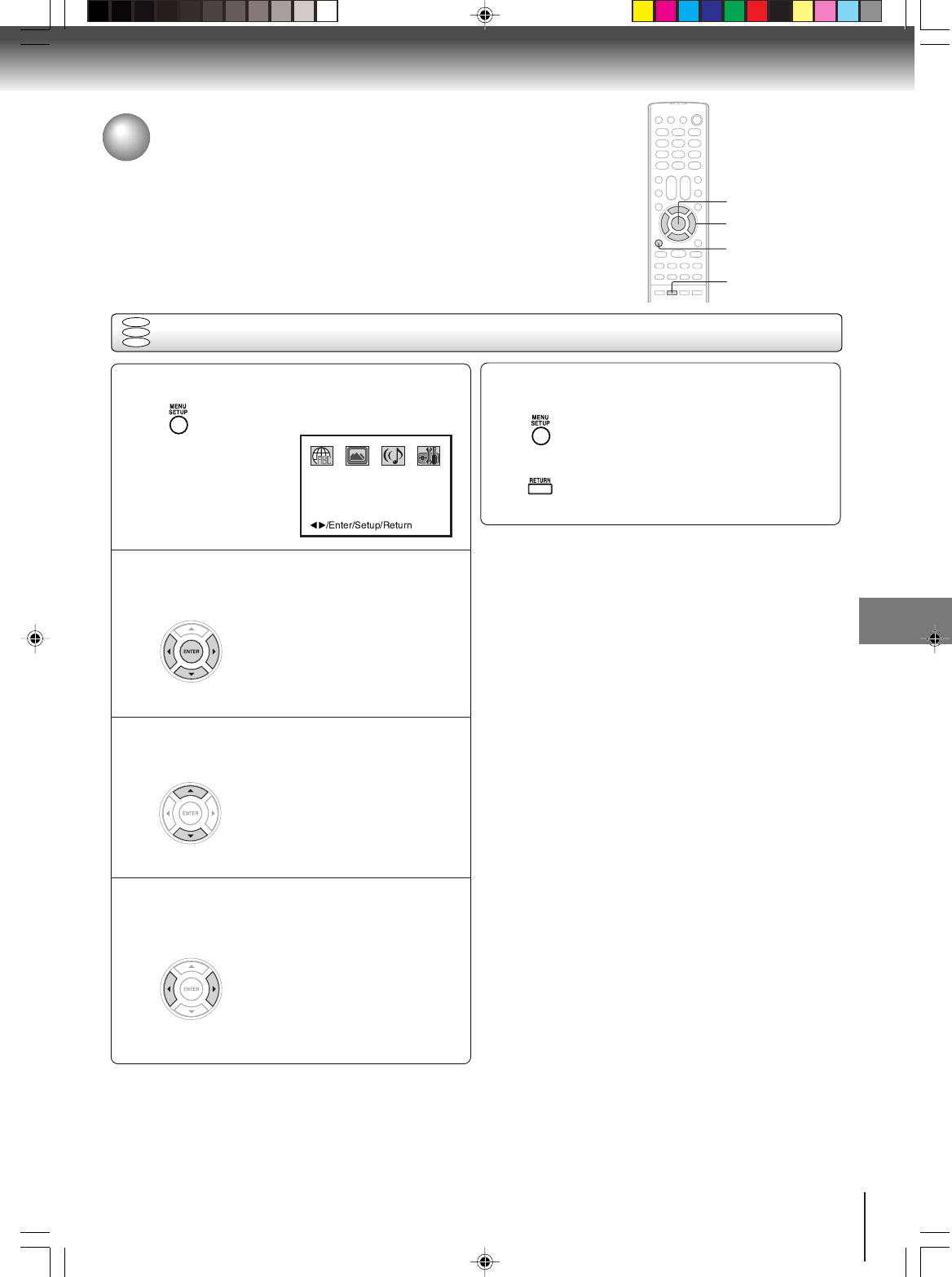
39
Function setup
Setting procedure
Press SETUP during stop mode.
The following on-screen display
appears.
1
2
3
To make SETUP screen disappear, press
SETUP or RETURN.
5
Customizing the function settings
You can change the default settings to customize performance
to your preference.
ENTER
C/D/B/A
•Repeat steps 3 and 4 to change
other settings.
•To select another operation, go
back to step 2 by pressing C
repeatedly.
Press B or A to select the desired section, then
press D or ENTER.
Press C or D to select the desired option.
4
Change the selection using B or A, by referring
to the corresponding pages 41~43.
SETUP
DVD
VCD
CD
RETURN
Function setup
5S00101B [E] (P39-44) 2/23/05, 5:40 PM39
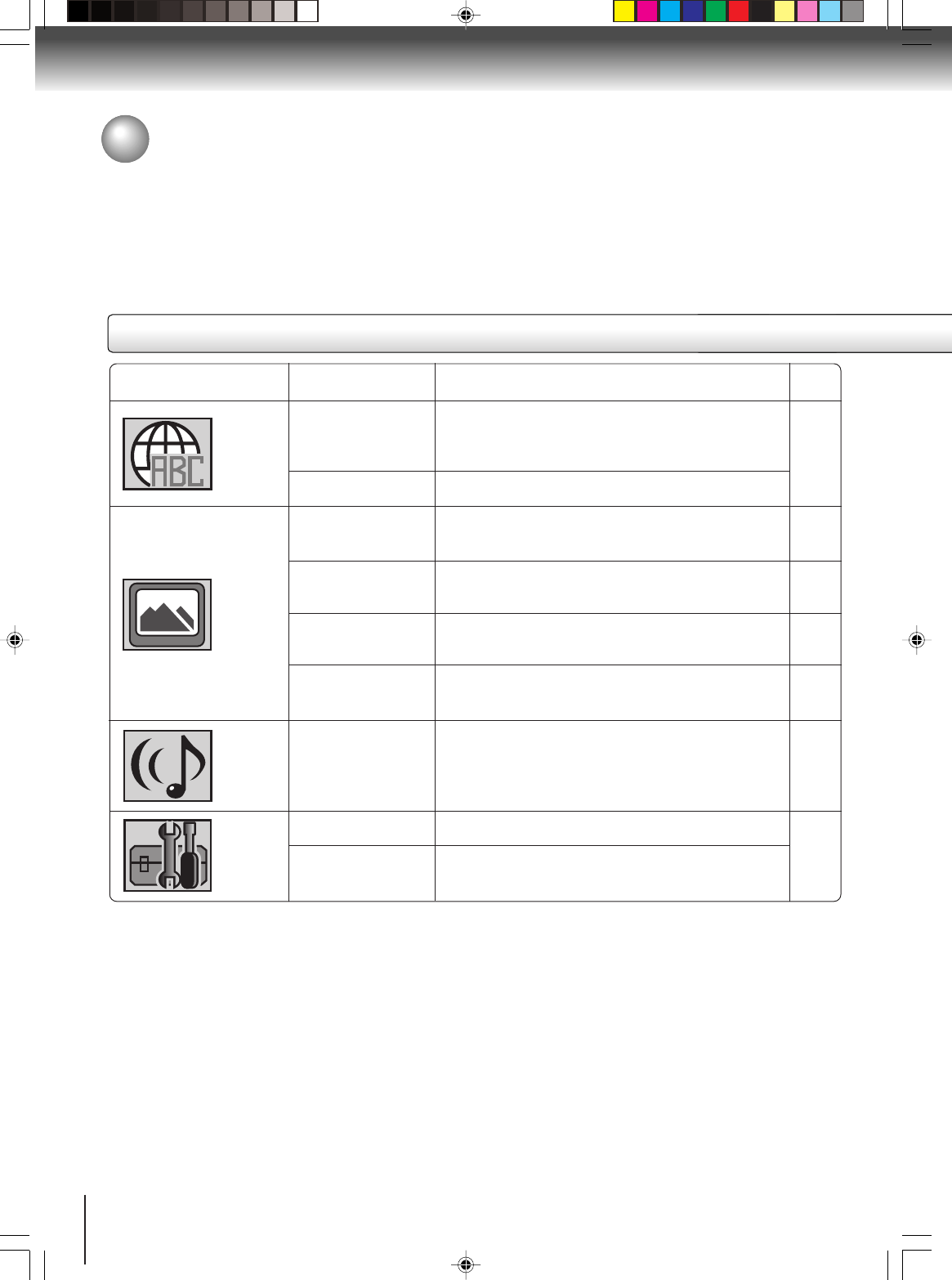
40
Function setup
Section Option
Menu
Subtitle
Audio
OSD
Tv Screen
Display
Picture Mode
JPEG Interval
DRC
Password
Parental
Details
To select the language of “Menu”, “Subtitle” and
“Audio” if more than one language are recorded on
the disc.
To select a preferred language for on screen display.
To select a picture size according to the aspect
ratio of your TV.
To turn on or de-activate the operational status dis-
play on the screen.
To select a preferred picture mode from “Video”,
“Film” or “Auto”.
To select a preferred setting for the slide show play-
back.
To select On or Off for DRC (Dynamic Range Con-
trol).
Input 4-digit password to set the parental level.
To select a preferred parental level for the parental
setting.
Page
41
41
41
42
42
42
43
Setting details
Customizing the function settings (Continued)
5S00101B [E] (P39-44) 2/23/05, 5:40 PM40
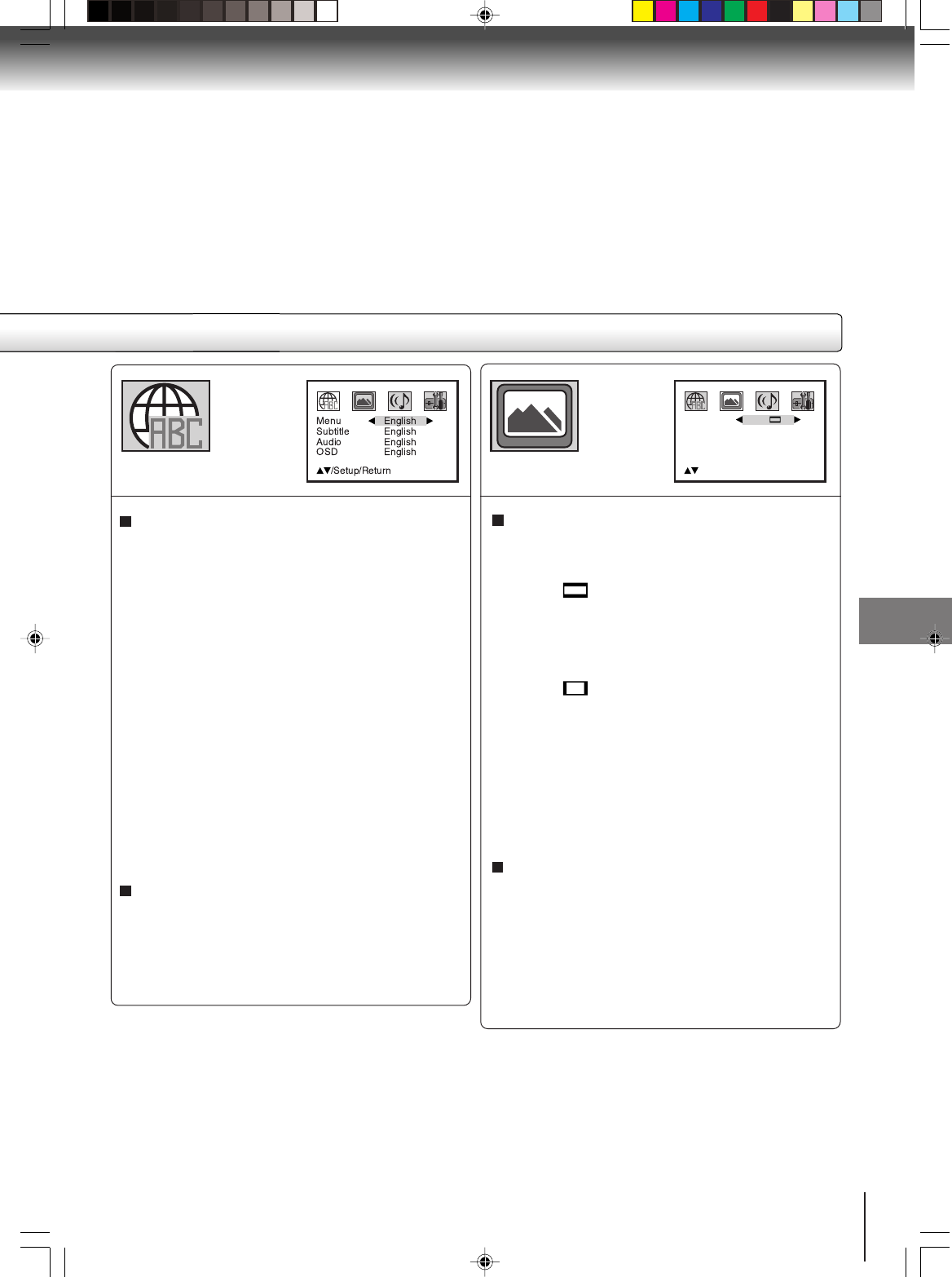
41
Function setup
Menu, Subtitle, Audio
You can select the language of “Menu”, “Subtitle” and
“Audio” if more than one languages are recorded onto
the disc.
English, Francais, Espanol:
The selected language will be heard or seen.
Other:
Other language can be selected (see the
“Language code list” on page 45).
Original: (Audio)
The unit will select the first-priority language of
each disc.
Off: (Subtitle)
Subtitles do not appear.
Note:
If the selected language is not recorded on the disc, the
first-priority language is selected.
Tv Screen
You have the following screen sizes to choose from:
4:3
Letter box:
Select this mode when connecting to a conventional
TV. When playing back a wide screen-DVD disc, it
displays the wide picture with black bands at the
top and bottom of screen.
4:3
Pan scan:
It displays the wide picture on the whole screen
with left and right edges automatically cut off.
Press OPEN/CLOSE to view in the selected screen size.
Note:
If the DVD disc is not formatted in the pan & scan style,
it displays 4:3 style.
OSD
The setup language can be selected.
English: To display OSD language is English.
Francais: To display OSD language is French.
Espanol: To display OSD language is Spanish.
Display
On screen display can be switched on or off when you
press the buttons.
On: On screen displays appear when you press
the buttons (factory setting).
Off: On screen displays do not appear when you
press any buttons.
Tv Screen
Display
Picture Mode
4:3
On
Auto
JPEG Interval Off
/Setup/Return
5S00101B [E] (P39-44) 2/23/05, 5:40 PM41
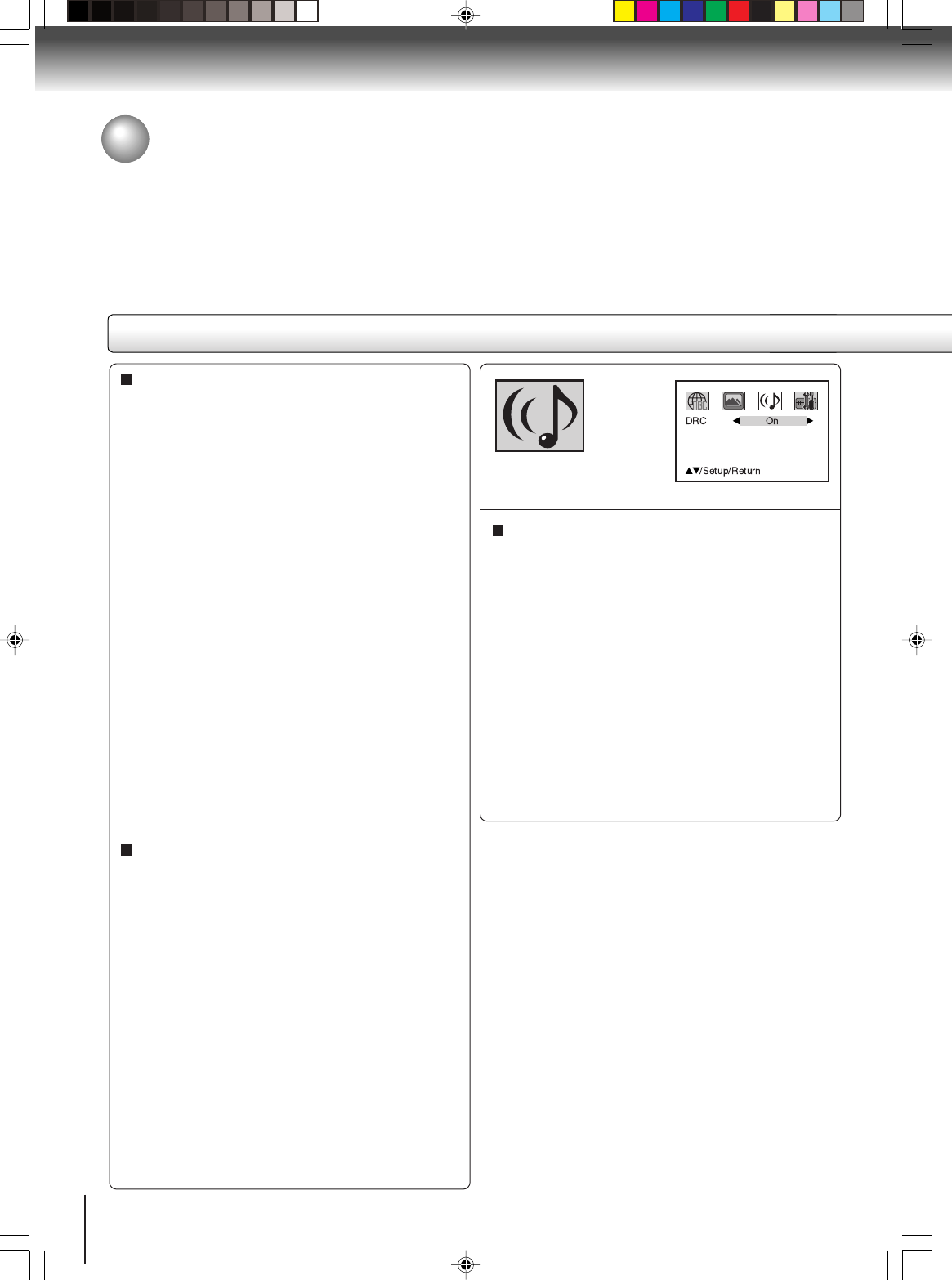
42
Function setup
JPEG Interval
You can continuously play back all JPEG files automati-
cally.
After the setting below, start playing the disc on which
JPEG files have been recorded.
Off:
Plays back one file at a time.
5 Seconds:
Plays back images in the form of a slide show at
5 second intervals.
10 Seconds:
Plays back images in the form of a slide show at
10 second intervals.
15 Seconds:
Plays back images in the form of a slide show in
15 second intervals.
Picture Mode
There are two types of source content in pictures re-
corded in DVD video discs: film content (pictures re-
corded from films at 24 frames per second) and video
content (video signals recorded at 30 frames per sec-
ond). Make this selection according to the type of content
being viewed.
Auto: Select this position normally.
The DVD player automatically detects source
content, film or video, of playback source,
and converts that signal in the progressive
output format in an appropriate method.
Film: The DVD player converts film content pictures
in the progressive output format appropri-
ately. Suitable for playback of film content
pictures. The progressive output feature will
be most effective under this selection.
Video: The DVD player filters video signal, and
converts it in the progressive output format
appropriately.
Suitable for playback of video content
pictures.
Note:
Depending on the disc, pictures may be cut off or doubled.
In this case, select “Video”.
Setting details
On: Loud sound such as explosion or similar
is toned down slightly when played back.
This makes it suitable for when it is con-
nected to a stereo.
Off: It plays back at the recording level on the
disc.
Notes:
•This function works only during playback of Dolby Digital
recorded discs.
•The level of Dynamic Range Reduction may differ
depending on DVD video disc.
DRC
DRC (Dynamic Range Control) enables you to control
the dynamic range so as to achieve a suitable sound for
your equipment.
Customizing the function settings (Continued)
5S00101B [E] (P39-44) 2/23/05, 5:40 PM42
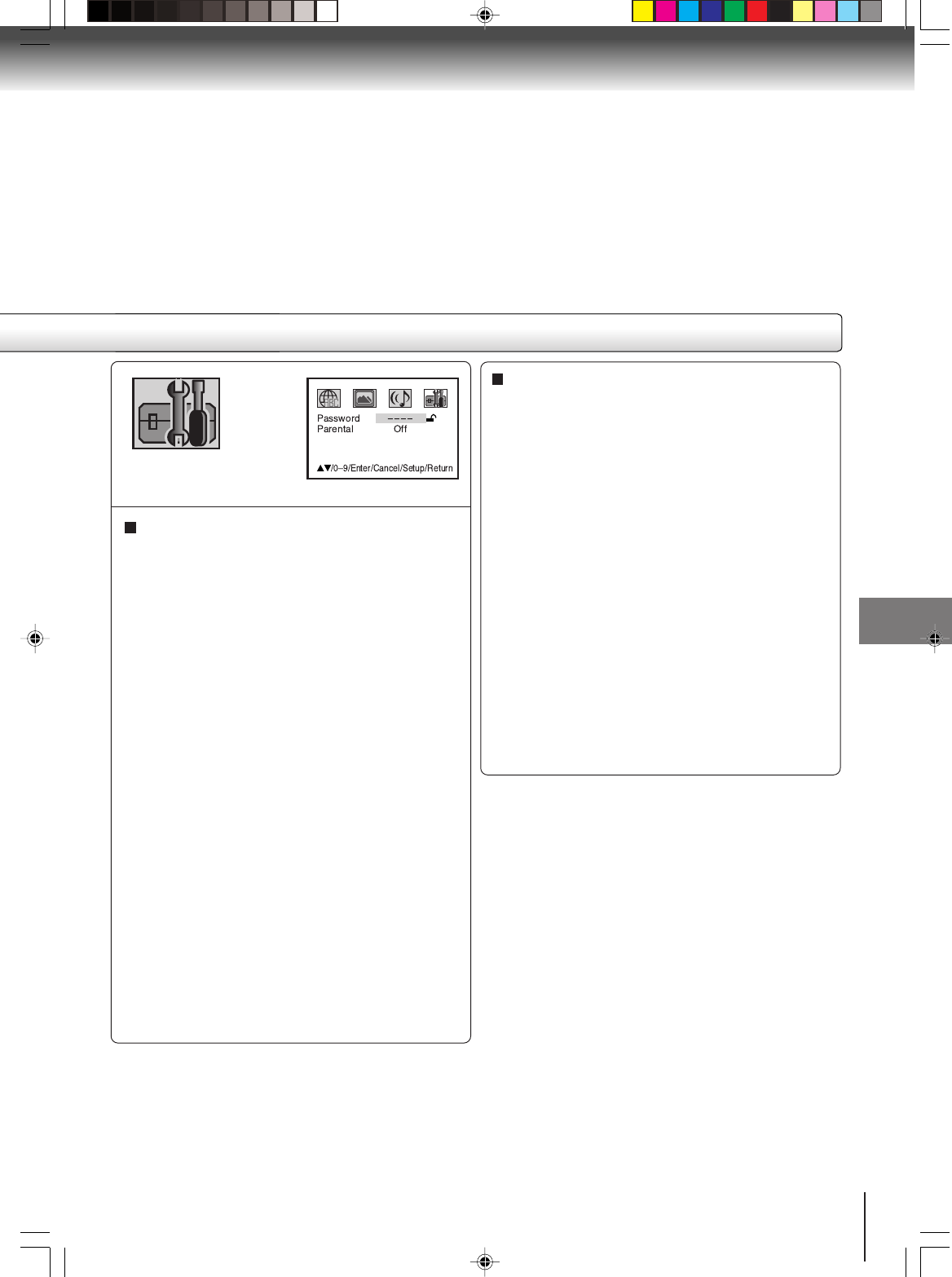
43
Function setup
Parental control setting
Some discs are specified not suitable for children.
Such discs can be limited not to play back with the unit.
1) Press C or D to select “Parental”, then press B
or A until the level you require appears.
• Level Off: The parental control setting does not
function.
• Level 8: All DVD software can be played back.
• Level 1: DVD software for adults cannot be
played back.
Select from the level 1 to level 8. The limitation will
be more severe as the level number is lower.
2) Press C or D to select “Password”.
Press Number buttons (0–9) to input a 4-digit
password. Be sure to remember this number!
•If you input a wrong number, press CANCEL.
3) Press ENTER to store the password.
Note: Now the rating is locked and the setting can
not be changed unless you enter the correct pass
word.
4) Press OPEN/CLOSE to activate Parental control
setting. (See “Temporary disabling of rating level
by DVD disc” on page 44.)
Notes:
•Depending on the discs, the unit cannot limit playback.
•Some discs may not be encoded with specific rating
level information though its disc jacket says “adult.” For
those discs, the age restriction will not work.
Note:
If each setup (pages 41~43) has been completed, the unit
can always be worked under the same conditions (espe-
cially with DVD discs).
Each setup will be retained in the memory even if you turn
the power off.
To change the parental level
1) Press C or D to select “Password”.
2) Press Number buttons (0–9) to enter the password
you have stored.
3) Press ENTER.
• The rating is now unlocked.
4) Press C or D to select “Parental”, then press B
or A to change the parental level.
5) Press C or D to select “Password”, then press
Number buttons (0–9) to enter the password.
Note: You can change the password if you want.
6) Press ENTER.
Now the parental level is changed and locked.
If you forget the password...
1. Press OPEN/CLOSE to open the disc tray.
2. Remove the disc.
3. Press OPEN/CLOSE again to close the disc tray.
“No Disc” appears on the screen.
4. While holding STOP down on the front panel, press
7 on the remote control. “PASSWORD CLEAR”
appears on the screen.
5. Enter a new password again.
5S00101B [E] (P39-44) 2/23/05, 5:40 PM43
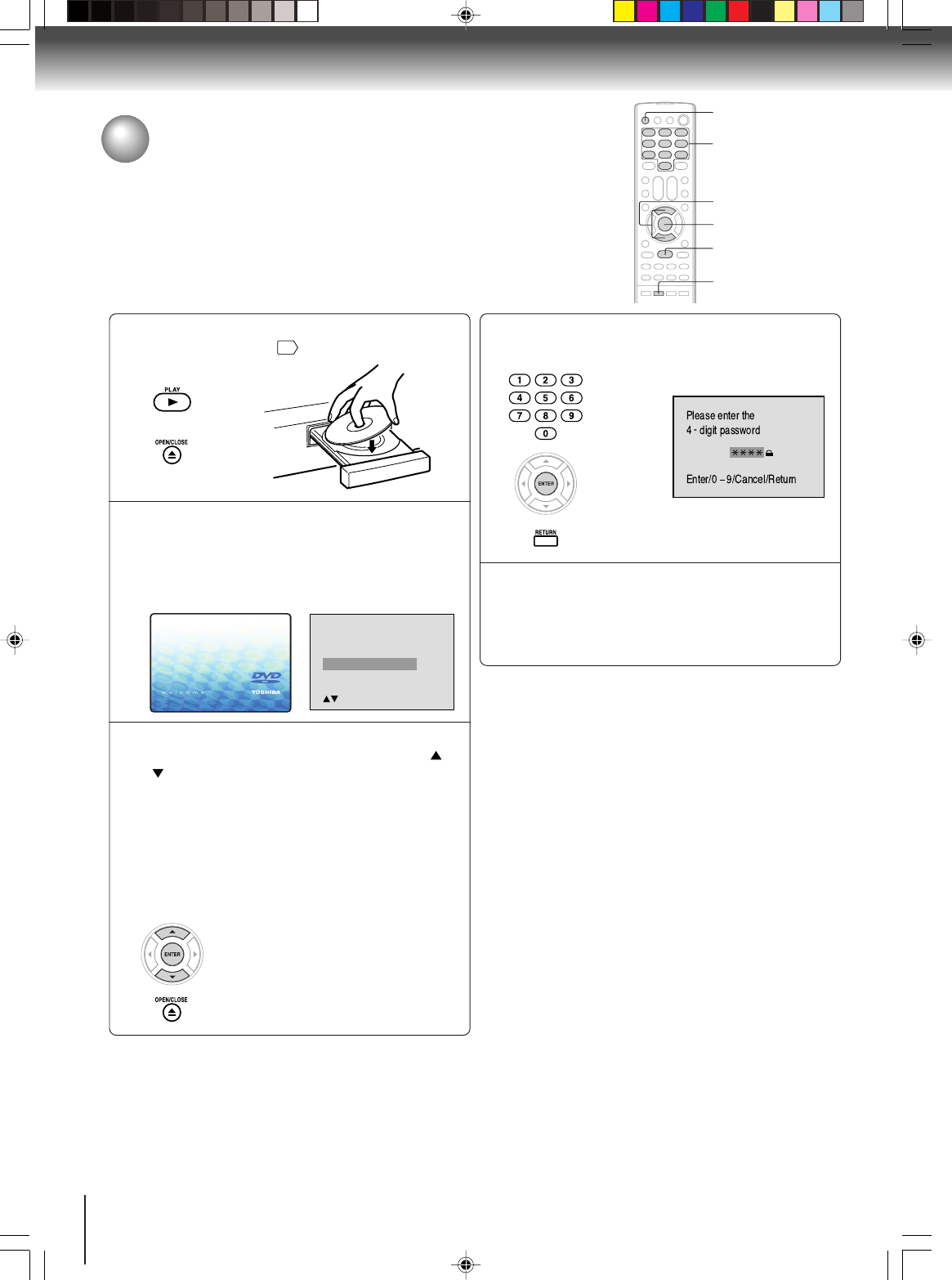
44
Function setup
Load a DVD disc and press PLAY or OPEN/
CLOSE on the unit
28
.
If the DVD disc has been designed to temporarily
cancel the Rating level, the screen which follows
the “Reading” screen will change, depending on
which disc is played. If you select “YES” with the
ENTER key, “Your disc exceeds the parental
control level#.” screen will then appear.
If you wish to cancel the set rating level tempo-
rarily, select “Parental Control Level” with or
, then press ENTER. If the 4-digit password at
step 2 on page 43 has been set, the password
entering screen will appear as shown in step 4.
Alternatively, if the password has not been set,
playback will commence. If you don’t know (or
have forgotten) the password, select “Cancel
Picture”.
The setting screen will disappear. Press OPEN/
CLOSE to remove the disc.
ENTER
▲/▼
RETURN
0–9
PLAY
OPEN/CLOSE
Temporary disabling of rating level by DVD disc
Depending on the DVD disc, the disc may try to temporarily cancel the rating
level that you have set.
It is up to you to decide whether to cancel the rating level or not.
Note:
This temporary cancellation of rating level will be kept until the
disc is ejected.
When the disc is ejected, the original rating level will be set again
automatically.
1
Enter the password with Number buttons (0–9).
Then press ENTER.
To exit from the entry, press RETURN.
4
2
3
5
Your disc exceeds
the parental control level#.
Parental Control Level
Cancel Picture
/Enter/Return
Playback will commence if the entered
password was correct.
Reading
5S00101B [E] (P39-44) 2/23/05, 5:40 PM44
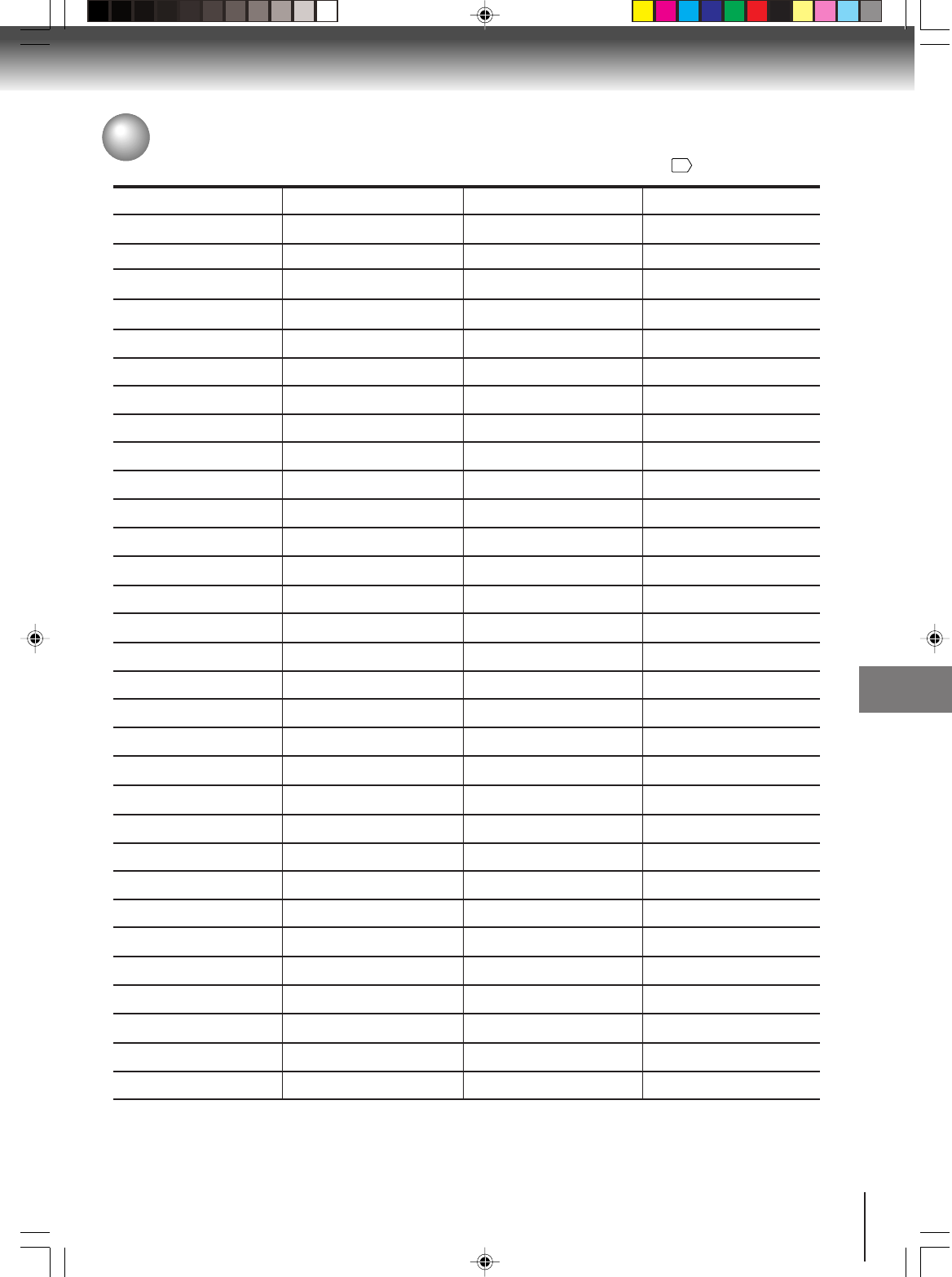
45
Others
Language code list
Enter the appropriate code number for the initial settings “Menu”, “Subtitle” and/or “Audio”
41
.
Abkhazian 1112 Fiji 1620 Lingala 2224 Singhalese 2919
Afar 1111 Finnish 1619 Lithuanian 2230 Slovak 2921
Afrikaans 1116 French 1628 Macedonian 2321 Slovenian 2922
Albanian 2927 Frisian 1635 Malagasy 2317 Somali 2925
Amharic 1123 Galician 1722 Malay 2329 Spanish 1529
Arabic 1128 Georgian 2111 Malayalam 2322 Sundanese 2931
Armenian 1835 German 1415 Maltese 2330 Swahili 2933
Assamese 1129 Greek 1522 Maori 2319 Swedish 2932
Aymara 1135 Greenlandic 2122 Marathi 2328 Tagalog 3022
Azerbaijani 1136 Guarani 1724 Moldavian 2325 Tajik 3017
Bashkir 1211 Gujarati 1731 Mongolian 2324 Tamil 3011
Basque 1531 Hausa 1811 Nauru 2411 Tatar 3030
Bengali; Bangla 1224 Hebrew 1933 Nepali 2415 Telugu 3015
Bhutani 1436 Hindi 1819 Norwegian 2425 Thai 3018
Bihari 1218 Hungarian 1831 Oriya 2528 Tibetan 1225
Breton 1228 Icelandic 1929 Panjabi 2611 Tigrinya 3019
Bulgarian 1217 Indonesian 1924 Pashto, Pushto 2629 Tonga 3025
Burmese 2335 Interlingua 1911 Persian 1611 Turkish 3028
Byelorussian 1215 Irish 1711 Polish 2622 Turkmen 3021
Cambodian 2123 Italian 1930 Portuguese 2630 Twi 3033
Catalan 1311 Japanese 2011 Quechua 2731 Ukrainian 3121
Chinese 3618 Javanese 2033 Rhaeto-Romance2823 Urdu 3128
Corsican 1325 Kannada 2124 Romanian 2825 Uzbek 3136
Croatian 1828 Kashmiri 2129 Russian 2831 Vietnamese 3219
Czech 1329 Kazakh 2121 Samoan 2923 Volapük 3225
Danish 1411 Kirghiz 2135 Sanskrit 2911 Welsh 1335
Dutch 2422 Korean 2125 Scots Gaelic 1714 Wolof 3325
English 1524 Kurdish 2131 Serbian 2928 Xhosa 3418
Esperanto 1525 Laothian 2225 Serbo-Croatian 2918 Yiddish 2019
Estonian 1530 Latin 2211 Shona 2924 Yoruba 3525
Faroese 1625 Latvian, Lettish 2232 Sindhi 2914 Zulu 3631
Others
Language Name Code Language Name Code Language Name Code Language Name Code
5S00101B [E] (P45-49) 2/23/05, 5:40 PM45
46
Others
SYMPTOMS POSSIBLE SOLUTIONS
•Make sure the power cord is plugged in.
•Try another AC outlet.
•Power is off, check fuse or circuit breaker.
•Unplug unit, then plug it back in.
Poor reception on some channels.
Horizontal or diagonal bars on
screen.
Poor sound or no sound.
TV/DVD does not operate.
•Check antenna connections, reorient antenna.
•Check for sources of possible interference.
•
Station or Cable TV experiencing problems, tune to another station.
•Station signal is weak, reorient antenna to receive weaker station.
•Check for sources of possible interference.
Poor picture or no picture.
•Station or Cable TV experiencing problems, tune to another station.
•Check antenna or Cable TV connections, reorient antenna.
•Check for sources of possible interference.
•Check picture control adjustments.
•Station or Cable TV experiencing problems, tune to another station.
•Check Volume adjustments.
•Check for sources of possible interference.
Poor color or no color.
•Station or Cable TV experiencing problems, tune to another station.
•Make sure channels are set into memory.
•Check picture control adjustments.
•Check antenna or Cable TV connections, reorient antenna.
•Check for sources of possible interference.
Picture wobbles or drifts.
•Station or Cable TV experiencing problems, tune to another station.
•Make sure channels are set into memory.
•Cable TV company is scrambling signal.
•Check antenna orientation.
No CATV reception.
•Check all Cable TV connections.
• Set TV/CABLE selection to the CABLE position.
•Station or Cable TV system problems, try another station.
•Make sure TV/CABLE selection is in the appropriate position.
•If using antenna, check UHF antenna connections.
No reception above channel 13.
TV shuts off.
•No broadcast on station tuned.
•Sleep Timer is set.
•Power interrupted.
Closed - Caption is not activated.
•TV station experiencing problems or program tuned is not closed
captioned. Try another channel.
• Check Cable TV connection or VHF/UHF antenna, reposition or
rotate antenna.
•Press the CLOSED CAPTION button to turn on the closed
caption decoder.
•Select proper language in the menu options.
Display is not shown in your
language.
Use the following check list for troubleshooting when you have problems with your unit. Consult your local dealer
or service outlet if problems persist.
Be sure all connections are properly made when using with other units.
POWER
TV BROADCAST RECEPTION
PAGE
20
20
48
5
20
13, 14
48
26
20
13,14
48
20
23
26
13, 14
48
20
23
–
13, 14
14
23
20
13,14
48
23
13
20
21
–
20
13,14
22
19
Troubleshooting
5S00101B [E] (P45-49) 2/23/05, 5:40 PM46
47
Others
Playback does not start when the
title is selected.
•Check the Parental setup.
Audio soundtrack and/or subtitle
language is not changed when
you play back a DVD.
•Multilingual language is not recorded on the DVD disc.
No subtitle. •Some discs have no subtitles.
•Subtitles are cleared. Press the SUBTITLE button.
Playback doesn’t start.
•No disc is inserted.
•The disc may be dirty. Clean up the disc.
•The unit cannot play CD-ROMs, etc.
No picture. • TV/DVD selector is not set correctly.
No sound.
• Check the input selector of the amplifier is set properly.
•The unit is in the special playback mode.
•Select the correct Audio Output position on AV amplifier.
Picture is distorted during fast
reverse/forward playback.
•The picture will be distorted occasionally.
Stopping playback, search, slow-
motion play, repeat play, or
program play, etc. cannot be
performed.
•Some discs may not do some of the functions.
No on-screen display. • Select Display On.
No surround sound. • The setup does not match your stereo system.
The remote control does not
function.
•Aim at the remote control at the remote sensor.
•Operate within approx. 5 meters or reduce the light in the room.
•Clear the path of the beam.
•The batteries are weak. Replace the batteries.
•Check the batteries are inserted correctly.
The unit or remote operation key
is not functioning.
•Turn off the unit and unplug the AC power cord for several min-
utes, then replug it.
28
7
8
28
–
30
–
41
16
12
–
–
Angle cannot be changed. • Multi-angles are not recorded on the DVD disc.
•The function is prohibited with the unit or the disc.
“ ” appears on the screen.
–
43
36
36
35
30
SYMPTOMS POSSIBLE SOLUTIONS PAGE
REMOTE CONTROL
DVD
5S00101B [E] (P45-49) 2/23/05, 5:40 PM47
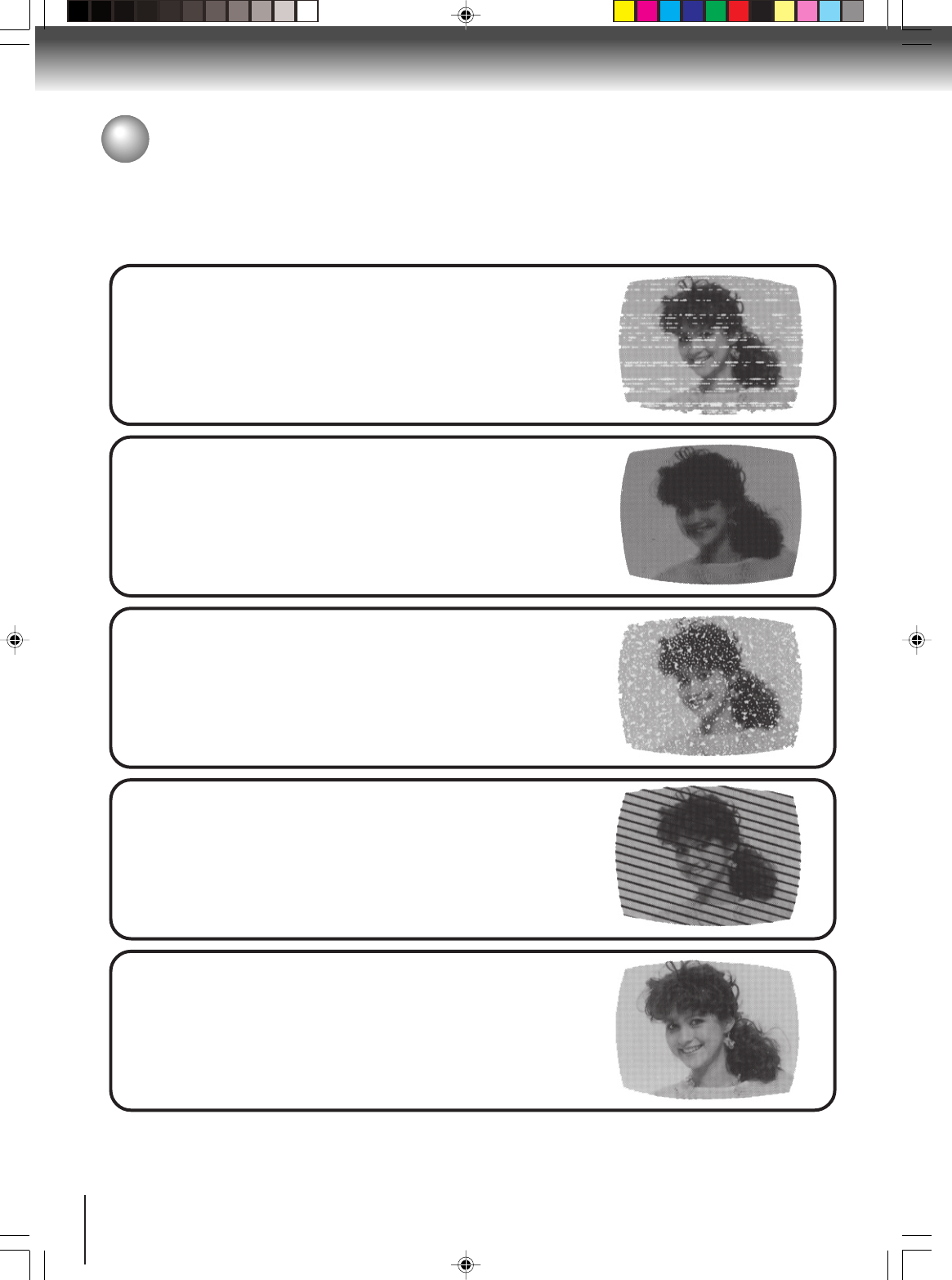
48
Others
Most types of television interference can be remedied by adjusting the height and position of the VHF/UHF
antenna. Outdoor antennas are recommended for best results. The most common types of television
interference are shown below. If one of these symptoms appear when the TV/DVD is connected to a Cable
TV system, the disturbance may be caused by the local Cable TV company broadcast.
GHOSTS
Ghosts are caused by the television signal following two paths. One is
the direct path and the other is reflected by tall buildings, hills or other
large objects. Changing the direction or position of the antenna may
improve the reception.
IGNITION
Black spots or horizontal streaks may appear, the picture may flutter or
drift. Usually caused by interference from automobile ignition systems,
neon lamps or AC powered tools and appliances such as drills or hair
dryers.
SNOW
If the TV/DVD is located far from the TV station, in a fringe reception
area where the signal is weak, small dots may appear in the picture.
If the signal is extremely weak, the installation of a larger external
antenna may be necessary.
RADIO FREQUENCY INTERFERENCE (RFI)
Caused by two-way radios, this type of interference produces moving
ripples or diagonal streaks in the picture. Some cases may cause a
loss of contrast in the picture. Changing the direction and position of
the antenna or installing an RFI filter may improve the picture.
PICTURE SIZE VARIATION
A slight picture size variation is normal when you adjust the CONTRAST
or BRIGHTNESS settings.
CARE AND MAINTENANCE
To prevent fire or shock hazard, disconnect the TV/DVD from the power source before cleaning.
The finish on the cabinet may be cleaned with mild soap and a soft, damp cloth and cared for as other furniture.
Use caution when cleaning or wiping the plastic parts.
Reception disturbances
5S00101B [E] (P45-49) 2/23/05, 5:40 PM48
49
Others
Remote control (DC-SB1) ..................................... 1
Batteries (R03/AAA) ............................................. 2
300-75 Ω matching transformer ............................ 1
* Screen size is approximate.
• This model complies with the above specifications.
• Designs and specifications are subject to change without notice.
• This model may not be compatible with features and/or specifications that may be added in the future.
Specifications
181 channel freq. synthesized
VHF 2-13
UHF 14-69
CATV 125 Channels
UHF/VHF: 75 Ω coaxial
DVD (12 cm, 8 cm), CD (12 cm, 8 cm)
DVD: 4 Hz-22 kHz, CD: 4 Hz-20 kHz
Temperature: 5˚C-40˚C (41˚F-104˚F), Operating status: Horizontal
Power supply
Power consumption
Picture tube
Speaker
Audio output power
Weight
Dimensions
Tuner
Antenna input
Applicable disc
Frequency range
Operating conditions
General
Input/Output
Video input 1.0 V (p-p), 75 Ω, negative sync., pin jack x 1
Audio input –8 dBm, 50 kΩ, negative sync., pin jack (L/R) x 1
Audio output (DIGITAL COAXIAL) 0.5 V (p-p), 75 Ω, pin jack x 1
AC 120 V 60 Hz
Operation: 90 W, Stand by: 5 W
14 Inch* (357.0 mm diagonal)
1-1/2 x 2-11/16 inches (38.1 x 68.6 mm), 8 ohm x 2
2.5 W + 2.5 W
29.8 lbs (13.5 kg)
Width: 17-5/16 inches (440 mm)
Height: 15-1/2 inches (393 mm)
Depth: 15-1/2 inches (392.5 mm)
Supplied accessories
5S00101B [E] (P45-49) 2/23/05, 5:40 PM49

50
Limited United States Warranty
for CRT-based TV/DVD Combinations, TV/VCR Combinations, and TV/DVD/VCR Combinations,
25” and Smaller (“TV Combination(s)”)
Toshiba America Consumer Products, L.L.C. ("TACP") makes the following limited warranties to original consumers in
the United States. THESE LIMITED WARRANTIES EXTEND TO THE ORIGINAL CONSUMER PURCHASER OR
ANY PERSON RECEIVING THIS TV COMBINATION AS A GIFT FROM THE ORIGINAL CONSUMER PURCHASER
AND TO NO OTHER PURCHASER OR TRANSFEREE.
TV COMBINATIONS PURCHASED IN THE U.S.A. AND USED ANYWHERE OUTSIDE OF THE U.S.A., INCLUDING,
WITHOUT LIMITATION, CANADA AND MEXICO, ARE NOT COVERED BY THESE WARRANTIES.
TV COMBINATIONS PURCHASED ANYWHERE OUTSIDE OF THE U.S.A., INCLUDING, WITHOUT LIMITATION,
CANADA AND MEXICO, AND USED IN THE U.S.A., ARE NOT COVERED BY THESE WARRANTIES.
Limited Ninety (90) Day Warranty on Labor
TACP warrants this TV Combination and its parts against
defects in materials or workmanship for period of ninety (90)
days after the date of original retail purchase. DURING THIS
PERIOD, TACP WILL, AT TACP'S OPTION, REPAIR OR
REPLACE A DEFECTIVE PART WITH A NEW OR
REFURBISHED PART WITHOUT CHARGE TO YOU FOR
PARTS OR LABOR.
Limited One (1) Year Warranty on Parts
TACP further warrants the parts in this TV Combination
against defects in materials or workmanship for a period of
one (1) year after the date of original retail purchase.
DURING THIS PERIOD, TACP WILL, AT TACP'S OPTION,
REPAIR OR REPLACE A DEFECTIVE PART WITH A NEW
OR REFURBISHED PART WITHOUT CHARGE TO YOU
FOR THE PART, PROVIDED THAT IF A DEFECTIVE PART
IS REPAIRED OR REPLACED AFTER NINETY (90) DAYS
AFTER THE DATE OF ORIGINAL RETAIL PURCHASE,
YOU MUST PAY ALL LABOR CHARGES IN CONNECTION
WITH THE REPAIR OR REPLACEMENT THEREOF.
Limited Two (2) Year Warranty on Picture Tube
TACP further warrants the picture tube in this TV
Combination against defects in materials or workmanship for
a period of two (2) years after the date of original retail
purchase. DURING THIS PERIOD, TACP WILL, AT TACP'S
OPTION, REPAIR OR REPLACE A DEFECTIVE PICTURE
TUBE WITH A NEW OR REFURBISHED PICTURE TUBE
WITHOUT CHARGE TO YOU, PROVIDED THAT IF A
DEFECTIVE PICTURE TUBE IS REPAIRED OR
REPLACED AFTER ONE (1) YEAR AFTER THE DATE OF
ORIGINAL RETAIL PURCHASE, YOU MUST PAY FOR ALL
LABOR CHARGES IN CONNECTION WITH THE REPAIR
OR REPLACEMENT THEREOF.
Rental Units
The warranty for TV Combination rental units begins on the
date of the first rental or thirty (30) days after the date of
shipment to the rental firm, whichever comes first.
Limited Warranty for Commercial Units
TACP warrants TV Combinations that are sold and used for
commercial purposes as follows: all parts are warranted
against defects in materials or workmanship for a period of
ninety (90) after the date of original retail purchase.
DURING THIS PERIOD, TACP WILL, AT TACP'S OPTION,
REPAIR OR REPLACE A DEFECTIVE PART WITH A NEW
OR REFURBISHED PART WITHOUT CHARGE TO YOU.
Owner's Manual and Product Registration Card
Read this owner’s manual thoroughly before operating this
TV Combination.
Complete and mail the enclosed product registration card or
register your TV Combination online at
www.tacp.toshiba.com/service as soon as possible. By
registering your TV Combination you will enable TACP to
bring you new products specifically designed to meet your
needs and help us to contact you in the unlikely event a
safety notification is required under the U.S. Consumer
Product Safety Act. Failure to complete and return the
product registration card does not diminish your warranty
rights.
Your Responsibility
THE ABOVE WARRANTIES ARE SUBJECT TO THE
FOLLOWING CONDITIONS:
(1) You must retain your original bill of sale or provide
other proof of purchase.
(2) All warranty servicing of this TV Combination must be
performed by an Authorized TACP Service Station.
(3) The warranties from TACP are effective only if this TV
Combination is purchased and operated in the
Continental U.S.A. or Puerto Rico.
(4) Labor service charges for set installation, setup,
adjustment of customer controls and installation or repair
of antenna systems are not covered by this warranty.
Reception problems caused by inadequate antenna
systems, misaligned satellite dishes, cable television
distribution, VCRs, DVD players/recorders, personal
computer level IEEE-1394 devices, and any other
connected signal source device are your responsibility.
(5) Warranties extend only to defects in materials or
workmanship as limited above, and do not extend to any
TV Combination or parts that have been lost or
discarded by you or to damage to the TV Combination or
parts caused by fires, misuse, accident, Acts of God
(such as lightning or fluctuations in electric power),
improper installation, improper maintenance, or use in
violation of instructions furnished by TACP; use or
malfunction through simultaneous use of this TV
Combination and connected equipment; or to units that
have been modified or had the serial number removed,
altered, defaced, or rendered illegible.
5S00101B [E] (P50-Back) 2/23/05, 5:40 PM50
51
Others
How to Obtain Warranty Service
If, after following all of the operating instructions in this
manual and reviewing the section
entitled "Troubleshooting," you find that service is needed:
(1) To find the nearest TACP Authorized Service Station,
visit TACP's website at www.tacp.toshiba.com/service
or contact TACP's Consumer Solution Center toll free at
1-800-631-3811.
(2) You must present your original bill of sale or other proof
of purchase to the TACP Authorized Service Station. You
must deliver the entire TV Combination to a TACP
Authorized Service Station. You must pay for all
transportation and insurance charges for the TV
Combination to and from the TACP Authorized Service
Station.
For additional information, visit TACP's website:
www.tacp.toshiba.com
ALL WARRANTIES IMPLIED BY THE LAW OF ANY
STATE OF THE U.S.A., INCLUDING THE IMPLIED
WARRANTIES OF MERCHANTABILITY AND FITNESS
FOR A PARTICULAR PURPOSE, ARE EXPRESSLY
LIMITED TO THE DURATION OF THE LIMITED
WARRANTIES SET FORTH ABOVE. WITH THE
EXCEPTION OF ANY WARRANTIES IMPLIED BY THE
LAW OF ANY STATE OF THE U.S.A. AS HEREBY
LIMITED, THE FOREGOING WARRANTY IS EXCLUSIVE
AND IN LIEU OF ALL OTHER WARRANTIES,
GUARANTEES, AGREEMENTS, AND SIMILAR
OBLIGATIONS OF TACP WITH RESPECT TO THE REPAIR
OR REPLACEMENT OF ANY PARTS. IN NO EVENT
SHALL TACP BE LIABLE FOR CONSEQUENTIAL OR
INCIDENTAL DAMAGES (INCLUDING, BUT NOT LIMITED
TO, LOST PROFITS, BUSINESS INTERRUPTION, OR
MODIFICATION OR ERASURE OF RECORDED DATA
CAUSED BY USE, MISUSE OR INABILITY TO USE THIS
TV COMBINATION).
No person, agent, distributor, dealer or company is authorized
to change, modify or extend the terms of these warranties in
any manner whatsoever. The time within which an action
must be commenced to enforce any obligation of TACP arising
under the warranty or under any statute, or law of the United
States or any state thereof, is hereby limited to ninety (90)
days from the date you discover or should have discovered,
the defect. This limitation does not apply to implied warranties
arising under the law of any state of the U.S.A.
THIS WARRANTY GIVES YOU SPECIFIC LEGAL RIGHTS
AND YOU MAY ALSO HAVE OTHER RIGHTS WHICH MAY
VARY FROM STATE TO STATE IN THE U.S.A. SOME
STATES OF THE U.S.A. DO NOT ALLOW LIMITATIONS
ON THE DURATION OF AN IMPLIED WARRANTY, WHEN
AN ACTION MAY BE BROUGHT, OR THE EXCLUSION OR
LIMITATION OF INCIDENTAL OR CONSEQUENTIAL
DAMAGES. THEREFORE, THE ABOVE PROVISIONS MAY
NOT APPLY TO YOU UNDER SUCH CIRCUMSTANCES.
5S00101B [E] (P50-Back) 2/23/05, 5:40 PM51
Printed in Thailand
J5S00101B SH 05/04
K
5S00101B [E] (P50-Back) 2/23/05, 5:40 PM52
