7106507151 TL WPA7510 KIT(EU)(US)(UK)(AU) V1 Quick Installation Guide
2017-02-23
: Tp-Link 7106507151 Tl-Wpa7510 Kit(Eu)(Us)(Uk)(Au) V1 Quick Installation Guide 7106507151_TL-WPA7510 KIT(EU)(US)(UK)(AU)_V1_Quick Installation Guide
Open the PDF directly: View PDF  .
.
Page Count: 2
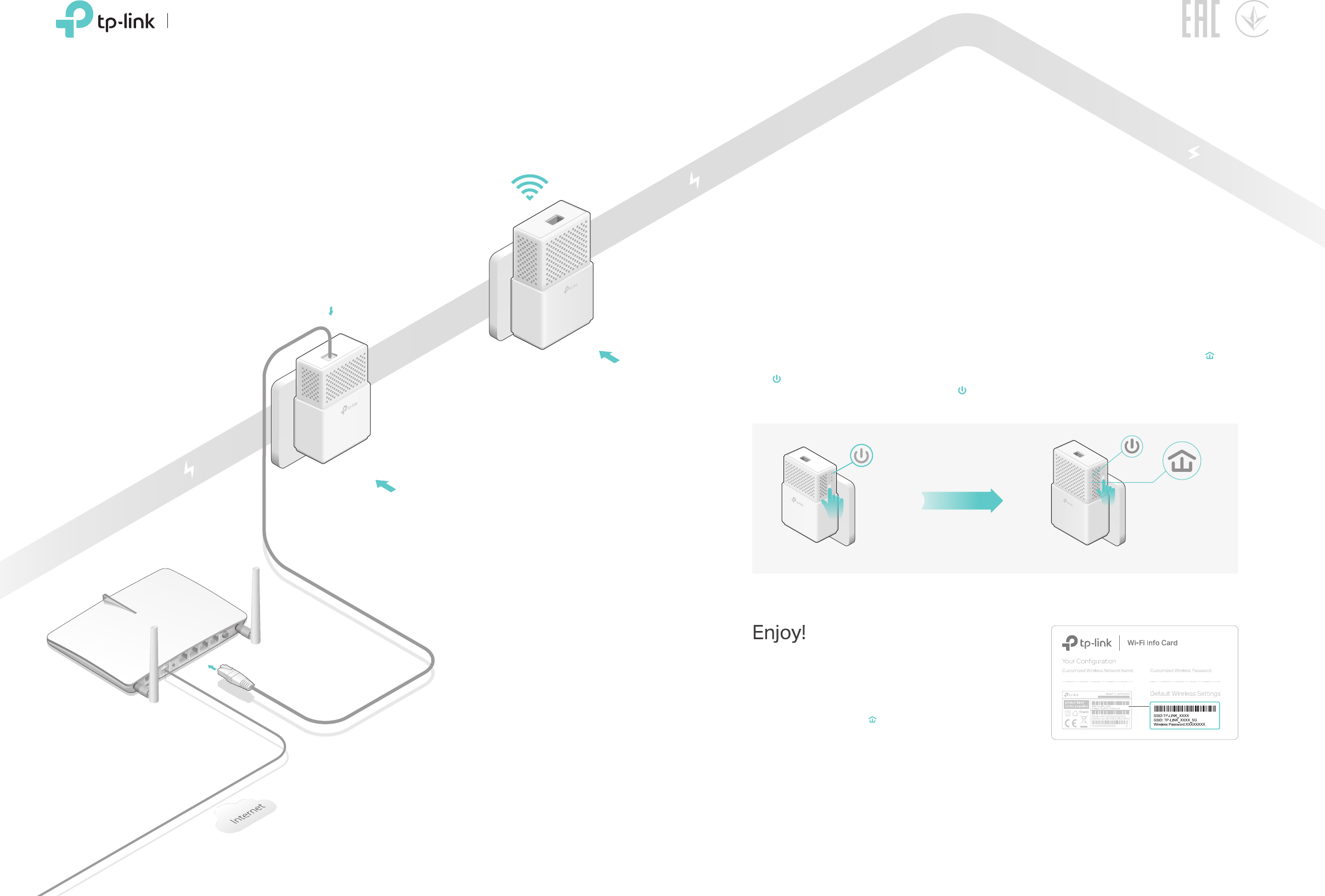
Ethernet Cable
Hello, I’m here.
Follow me to extend your Wi-Fi network.
Extender
TL-WPA7510
Adapter TL-PA7010
(For demonstration only)
2
Pair the powerline devices.
4
3
Note: If the Power LED does not
blink, press the Pair button again.
Press the Pair button on the
adapter for 1 second. The Power
LED starts blinking.
AWithin 2 minutes, press the
Pair button on the extender
for 1 second. The Power
LED starts blinking.
BWhen the Powerline LED on
the extender turns solid, the
pairing process is complete.
C
Extender
TL-WPA7510
within 2 minutes
Adapter
TL-PA7010
Powerline
Note: A red Powerline LED indicates poor signal strength.
Move the extender to another location.
Relocate the extender to the Wi-Fi “dead” zone.
Use the SSID (network name) and password on
the provided Wi-Fi Info Card to connect to the
internet.
Plug the two powerline devices
into power outlets on the same
electrical circuit.
Note: It is recommended to plug in
these powerline devices next to each
other and then relocate the extender
to the desired location at step 4.
TL-WPA7510 KIT
Router
WAN LAN
1
1000Mbps
1000Mbps
Blinking
Pair
1000Mbps
Blinking
1000Mbps
Pair
LED
Wi-Fi
Reset
On
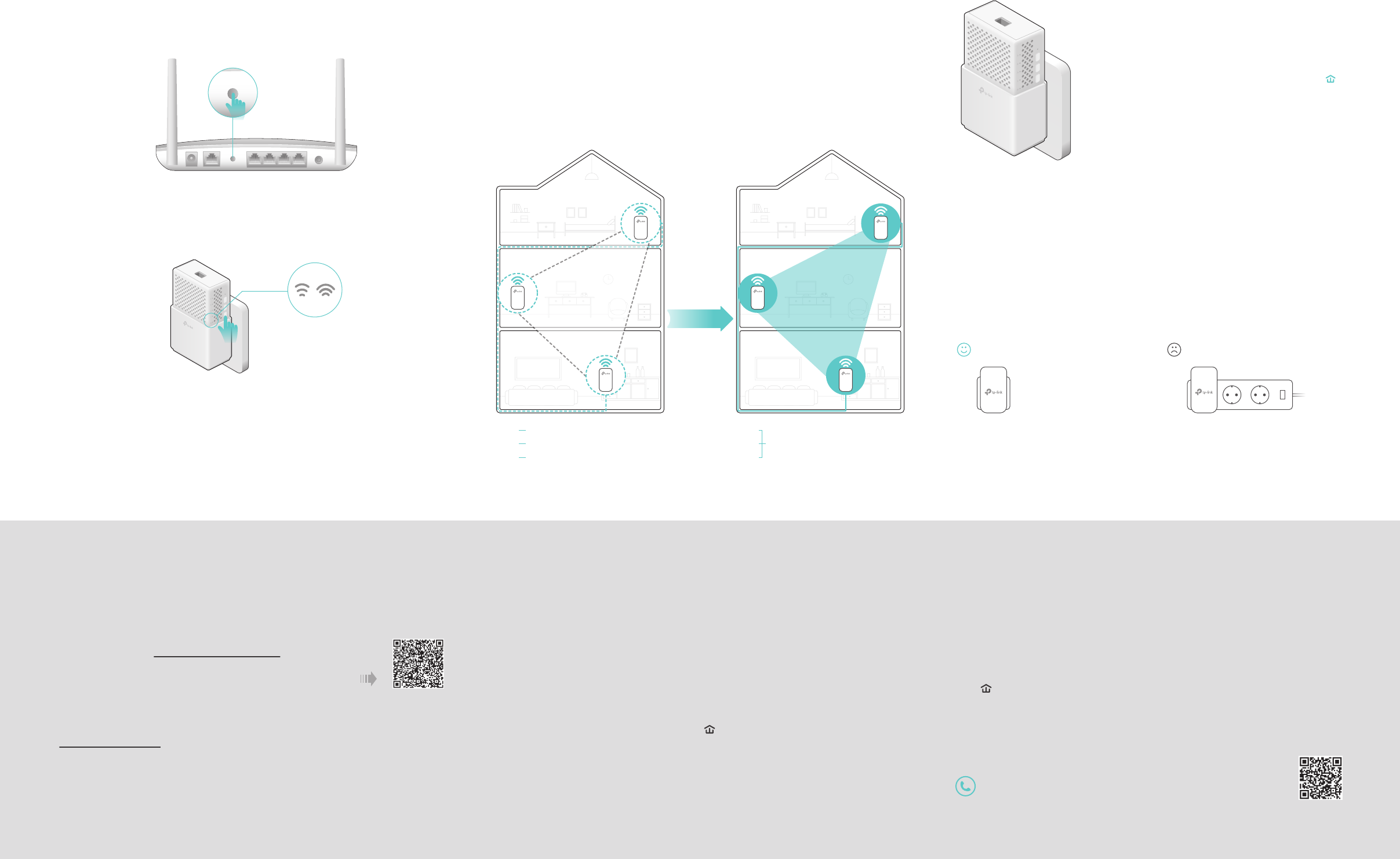
Wi-Fi Move technology helps to keep all Wi-Fi settings and LED
schedules on your powerline extenders in sync after your powerline
devices are paired.
The settings automatically sync from one powerline extender to another
when pairing a new device to the secured powerline network.
Wi-Fi Move is enabled by default and can be accessed via the extender's
web interface. For more details, please refer to the User Guide at
http://www.tp-link.com.
Within 2 minutes, press the Wi-Fi button on the extender for 1
second. The 2.4GHz and 5GHz Wi-Fi LEDs start blinking.
2.
When the 2.4GHz and 5GHz Wi-Fi LEDs blink quickly for 3
seconds and then stay on, the Wi-Fi Clone process is complete.
3.
Using tpPLC utility and app for basic conguration:
Find and download the tpPLC Utility on the product’s
Support page at http://www.tp-link.com.
Download the tpPLC App from the App Store or
Google Play, or simply scan the QR code.
Using web interface for advanced conguration:
Connect your device to the powerline extender wirelessly and visit
http://tplinkplc.net. Use ‘admin’ for both username and password
upon initial login.
©2017 TP-Link 7106507151 REV1.0.1
Frequently Asked Questions
Q1. How to reset my powerline extender?
A. With the extender plugged in, press and hold the Reset button until all LEDs turn o.
When the LEDs turn back on, the reset process is complete.
Q2. What can I do if there is no internet connection in my powerline
network?
A1. Make sure all powerline adapters and extenders are on the same electrical circuit.
A2. Make sure each device’s Powerline LED is on. If not, pair your devices again.
A3. Make sure all hardware devices are correctly and securely connected.
A4. Check if you have an internet connection by connecting the computer directly to
the modem or router.
A5. Make sure your computer’s IP address is in the same segment as your router’s.
Easy Management
Q3. What can I do if a successfully-paired extender does not
reconnect after relocating?
A1. Make sure all powerline adapters and extenders are on the same electrical
circuit.
A2. Pair it again with another powerline device, and make sure the Powerline LED
is on before relocating it.
A3. Check for possible interference, such as washers, air conditioners or other
household appliances that may be too close to one of the powerline devices.
Plug it into the integrated electrical socket to remove some electrical noise if
your powerline device has an integrated electrical socket.
Note: For advanced settings, please refer to the User Guide on our ocial website at
http://www.tp-link.com.
Wi-Fi Clone Button LegendWi-Fi Auto-Sync
Wi-Fi Clone allows you to copy the main router’s wireless settings
(SSID and password) to the powerline extender in seconds.
Plug in the powerline extender near your router, and press the
WPS button on the router.
1.
DIFFERENT
Wi-Fi
Settings
B
C
A
B
C
A
SAME
Wi-Fi
Settings
Auto-Sync
A
B
C
Wi-Fi SSID: ABC Password: 123
AWi-Fi SSID: ABC
Wi-Fi SSID: DEF
Wi-Fi SSID: GHI
B
C
Password: 123
Password: 456
Password: 789
WPSWAN LAN
Wireless Router
WPS
Pair
Press for 1 second to pair two powerline devices.
Press for about 8 seconds until the powerline LED
is o to leave the current powerline network.
Plug the powerline devices into wall outlets instead of power strips.
Attention
Wall Outlet Power Strip
LED
Press for 1 second to turn all LEDs on or o.
Note: By default, both 2.4GHz and 5GHz wireless settings will be copied at the same time. If
not, please try Wi-Fi Clone again or manually change the wireless settings via tpPLC Utility
or web interface.
Note: If you want to end the Wi-Fi Clone process, press the Wi-Fi button on the extender
again.
Wi-Fi
Press for 1 second to start Wi-Fi clone.
Press for about 5 seconds to turn Wi-Fi on or o.
Reset
Press for at least 5 seconds until all LEDs turn o and
then back on to reset the powerline extender.
1000Mbps
Pair
LED
Wi-Fi
Reset
Extender TL-WPA7510
1000Mbps
PairLED
Wi-Fi
Reset
For technical support and more information, please visit
http://www.tp-link.com/support, or simply scan the QR code.
