7106506878_EAP225_IG EAP225 V2 Installlation Guide
Eap225(Eu) V1 Ig 1477020000555N EAP225(EU)_V1_IG_1477020000555n EAP225(EU)_V1_IG_1477020000555n static.tp-link.com 3:
Eap225(Us) V1 Ig 1477020194856S EAP225(US)_V1_IG_1477020194856s EAP225(US)_V1_IG_1477020194856s static.tp-link.com 3:
2017-02-10
: Tp-Link Eap225 V2 Installlation Guide EAP225_V2_Installlation Guide
Open the PDF directly: View PDF  .
.
Page Count: 2
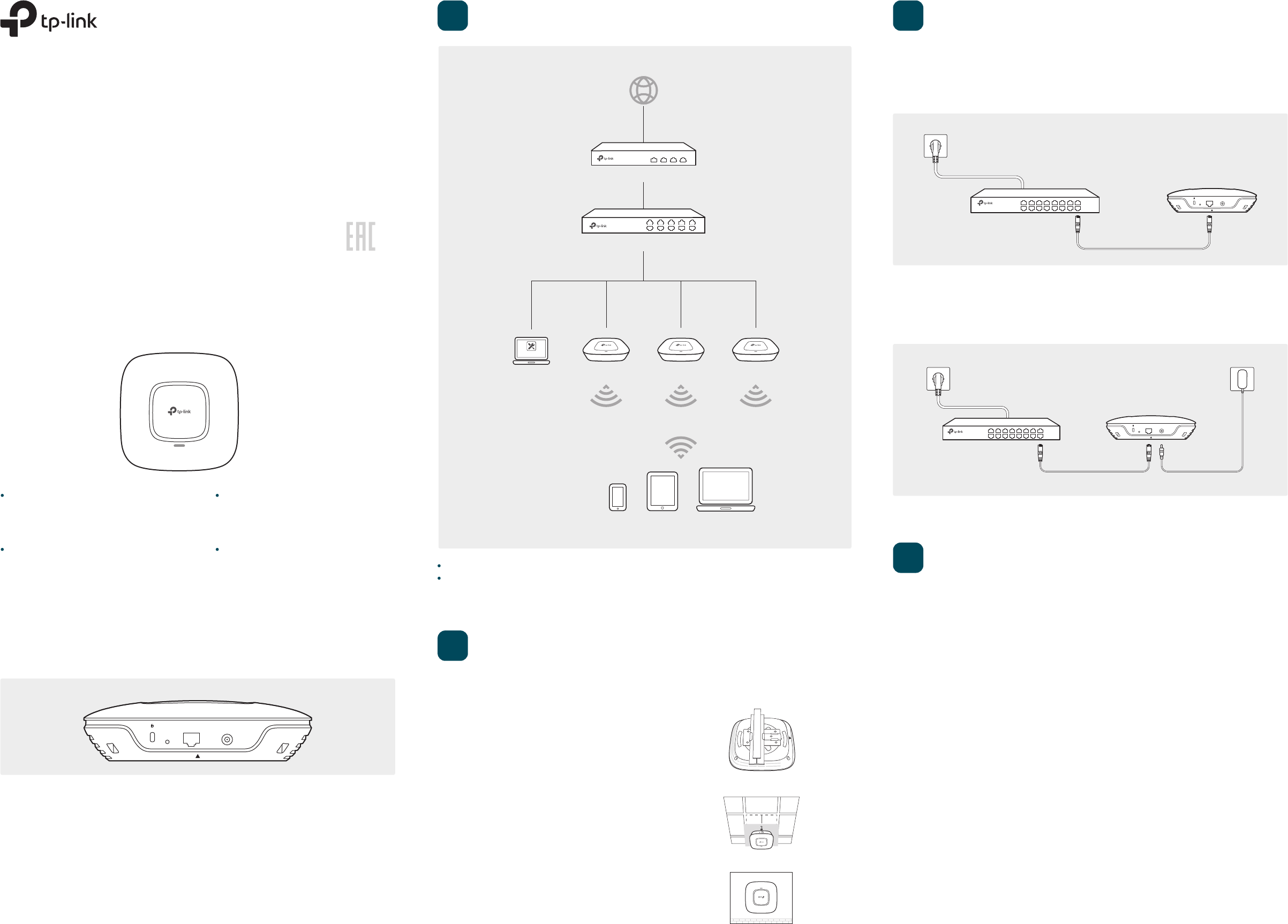
Typical Network Topology
Hardware Installation
2
Software Configuration
The EAP can be powered via a PSE device (such as a PoE switch) or a power adapter.
Power Supply
A DHCP server (typically a router) is required to assign IP addresses to the EAPs and clients in your local network.
The management host can be in the same or different network segment with the EAPs.
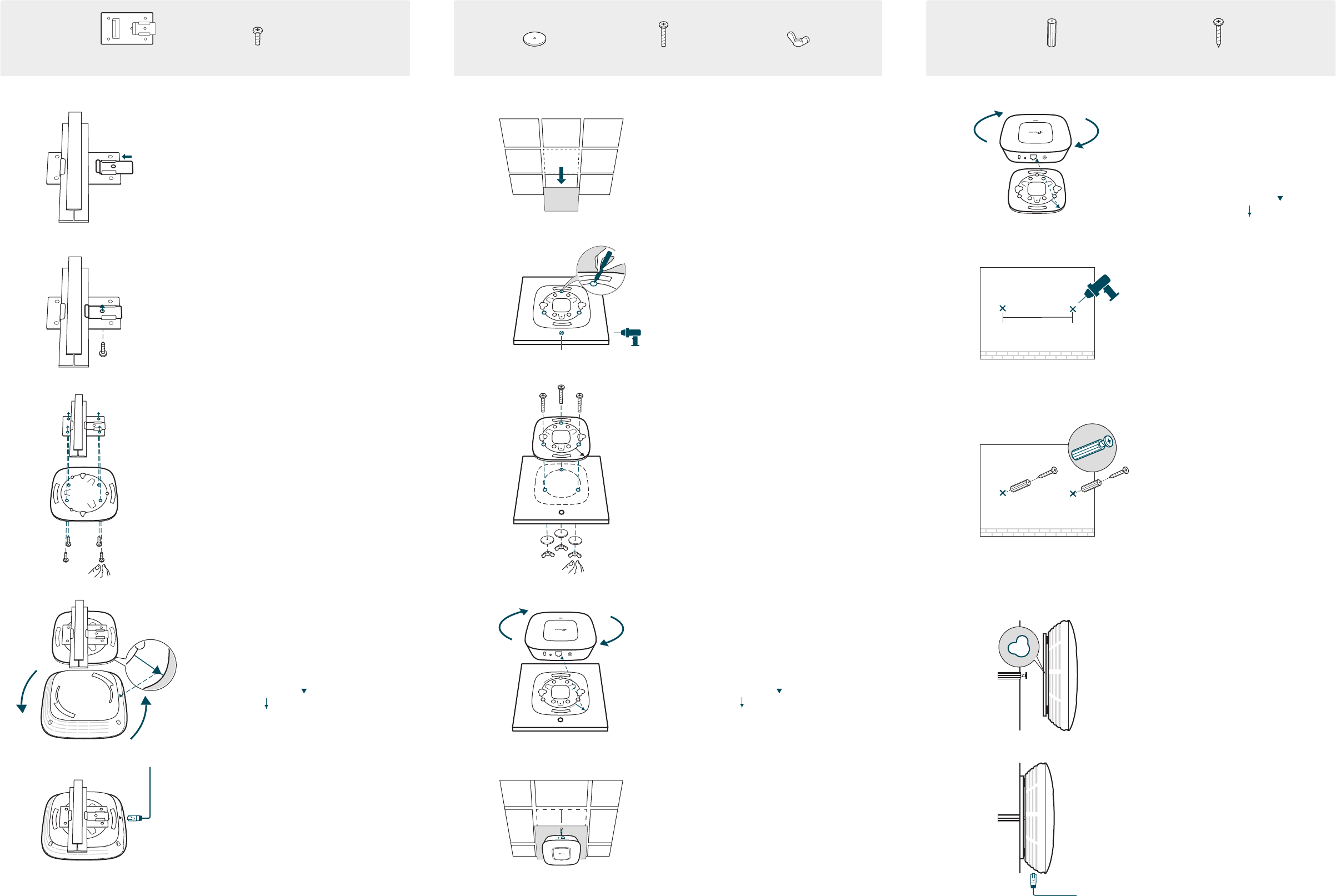
Option 1: Ceiling Rail Mounting
Option 2: Ceiling Mounting
Option 3: Wall Mounting
The EAP can be ceiling rail mounted, ceiling-mounted, or wall-mounted.
The instructions for various mounting options are on the back of this Quick Installation Guide.
To quickly set up a wireless network connection with mass EAPs, please follow the steps
below.
Note: The IP address of the management host must be reachable for the EAPs in the network. In this example, the
management host is in the same LAN as the EAPs.
Connect an Ethernet cable from the PoE switch to the ETHERNET port.
Via PoE Switch
For More Congurations
You can now manage your wireless network and view network statistics using the EAP
Controller. Please refer to the EAP Controller User Guide for more information about
conguring and using the Controller software.
Step 1: Installing the EAP Controller
On the management host, download the EAP Controller installation file from the product
support page at www.tp-link.com. Run the file and follow the wizard to install the EAP
Controller.
Step 2: Configuring the EAP Controller
Launch the EAP Controller and follow the configuration wizard to create a primary wireless
network. After the wizard is finished, a login screen will appear. Enter the admin name and
password you created and click Sign In.
Step 3: Adopting the EAP devices
Adopt the EAP devices in the Controller management interface to change their status from
Pending to Connected.
PoE Switch
RESET ETHERNET POWER
Switch
RESET ETHERNET POWER
Power Adapter
Quick Installation Guide
EAP225
AC1200 Wireless Dual Band Gigabit Access Point
LED Indication
Interface Panel
RESET
With the device powered on, press and hold the button for about 8 seconds until the LED
flashes red, then release the button. The device will restore to factory default settings.
The device is working properly.
Solid green
System errors. RAM, Flash,
Ethernet, WLAN or firmware may
be malfunctioning.
Flashing red
The device is being reset to its
factory default settings.
Double-flashing red, green, yellow
Firmware update is in progress. Do not
disconnect or power o the device.
Flashing yellow
RESET ETHERNET POWER
The port is used to connect to a router or a switch to transmit data or to a PSE (Power
Sourcing Equipment), such as a PoE switch, for both data transmission and Power over
Ethernet (PoE) through Ethernet cabling.
ETHERNET
This port is used to connect to the provided power adapter to power the EAP. The other end
of the power adapter connects to a standard electrical wall outlet.
POWER
1 3
4
Via Power Adapter
Plug one end of the provided power adapter into the POWER port of the EAP and the other
end to a standard electrical wall outlet.
EAPEAPEAP
Management Host
Switch
Router
Internet
Clients
EAP Controller
Option 1: Ceiling Rail Mounting Option 3: Wall Mounting
Option 2: Ceiling Mounting
M3×20 Self-tapping Screws (Qty.3)
M3×28 Plastic Wall Anchors(Qty.3)
5
Connect the Ethernet cable to the
ETHERNET port on the EAP.
5
Feed the Ethernet cable through the hole
and set the ceiling tile back into place.
Connect the Ethernet cable to the
ETHERNET port.
5
Connect the Ethernet cable to the
ETHERNET port.
2
Make two small pencil marks on the
wall. Make sure the two marks are level
and 98.6mm apart.
Drill a 6mm hole through the center of
each mark.
Note: Install the EAP with the Ethernet port downward.
2
Place the mounting bracket in the center
of the ceiling tile. Mark three positions for
the screw holes and a position for the
Ethernet cable hole.
Drill three 4mm holes for the screws and a
25mm hole for the Ethernet cable at the
marked positions.
2
Use an M3×6 pan-head screw to secure
the T-rail Clip onto the ceiling rail.
1
Position the Ceiling T-rail Clip and push
the movable part toward the rail base.
1
Remove the ceiling tile.
3
Insert the plastic wall anchors into the
6mm holes and drive the self-tapping
screws into the anchors. Do not drive
the screws all the way in and leave
enough clearance to hang the EAP.
3
Secure the mounting bracket to the
ceiling tile using three M3x30 pan-head
screws, washers and wing nuts, as shown
on the left.
3
Attach the mounting bracket to the
Ceiling T-rail Clip using four M3x6
pan-head screws.
4
Hang the EAP on the screws. Make sure
the EAP is firmly seated against the
wall.
4
Attach the EAP to the mounting bracket by
aligning the arrow mark on the EAP with
the arrow mark on the mounting bracket,
then rotate the EAP until it locks into place,
as shown on the left.
Ceiling T-rail Clip M3×6 Pan-head Screws(Qty.5) Wing Nuts (Qty.3)Washers(Qty.3) M3×30 Pan-head Screws (Qty.3)
Hole for Ethernet cable
X3
98.6mm
©2016 TP-Link 7106506878 REV2.0.1
1
Attach the EAP to the mounting bracket
by aligning the arrow mark on the EAP
with the arrow mark on the mounting
bracket, then rotate the EAP until it
locks into place, as shown on the left.
4
Attach the EAP to the mounting bracket by
aligning the arrow mark on the EAP with
the arrow mark on the mounting bracket,
then rotate the EAP until it locks into place,
as shown on the left.
