How To Avoid Attacks
How To Avoid Attacks How_to_avoid_attacks How_to_avoid_attacks press images resources static.tp-link.com 3:
2016-08-02
: Tp-Link How To Avoid Attacks How_to_avoid_attacks press images_r
Open the PDF directly: View PDF  .
.
Page Count: 2
How to avoid TD-W8961NDv3 been exploited for internet attacks
In 2014, it is reported that many wireless routers can potentially be used by hackers, to
attack some servers in the internet. Here is the detail of this issue:
http://www.theguardian.com/technology/2014/apr/01/uk-wifi-routers-internet-attacks
We’ve found that our TD-W8961ND v3 has this issue and fixed it by upgrading to the latest
firmware. Below is the detailed instruction how to get it fixed:
1. Download version 140305
from http://uk.tp-link.com/resources/software/TD-W8961ND_V3_140305_UK.zip and
extract the file to somewhere on your PC
2. Download version 140331
from http://uk.tp-link.com/resources/software/TD-W8961ND_V3_140331_UK.zip and
extract the file to somewhere on your PC
3. Follow these instructions to upgrade to 140305.
Step 1
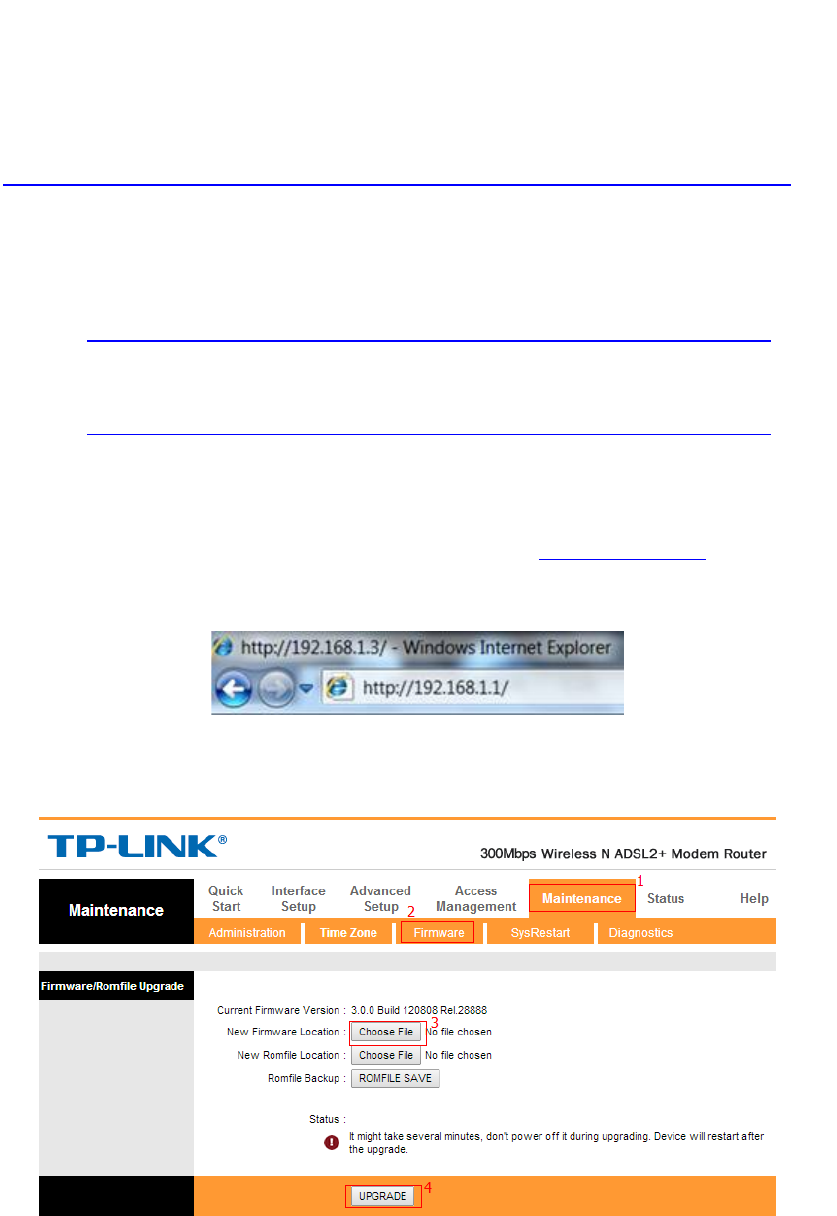
Log into TD-W8961ND v3’s web manage page by typing http://192.168.1.1 in the
address bar of the web browser (such as Internet Explorer, Firefox). The username and
password are both admin unless you have changed it before.
Step 2
Click Maintenance ->Firmware click the Browse button to choose the firmware you
already extracted in the folder.
Step 3
Click the UPGRADE button. The device will reboot automatically after the upgrading has
been finished. Please wait about 3 minutes.
Step 4
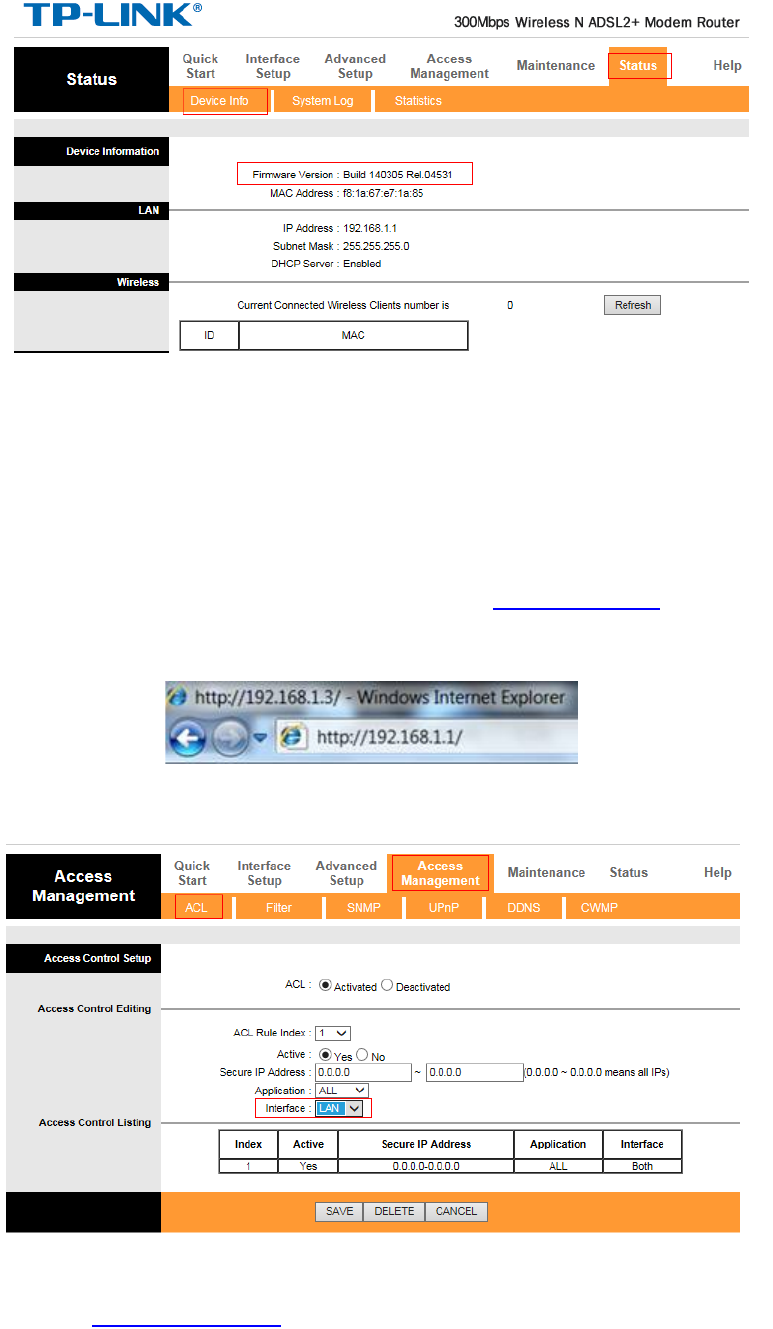
Click Status-> Device Info, verify that the router’s firmware has been upgraded.
4. Follow the steps above again to upgrade it to 140331
After upgrading the firmware to 140331, you unit will not be involved in the attacking.
Besides, to make your device more secure, you can keep remote access function of your
router disabled if it is not essential to you. To do this, you can:
Step 1
Log into TD-W8961ND v3’s web manage page by typing http://192.168.1.1 in the
address bar of the web browser (such as Internet Explorer, Firefox). The username and
password are both admin unless you have changed it before.
Step 2
Click Access Managenment ->ACL, and make sure the Interface is LAN.
For any questions or help please call our TP-LINK 24 hour technical support line 0845 147
0017 or e-mail support.uk@tp-link.com .
