TL MR6400 V1 QIG
Tl-Mr6400 V1 Qig TL-MR6400_V1_QIG TL-MR6400_V1_QIG doc down_res static.tp-link.com 3:
Tl-Mr6400 V1 Qig TL-MR6400_V1_QIG TL-MR6400_V1_QIG doc down res static.tp-link.com 3:
Tl-Mr6400 V1 Qig TL-MR6400_V1_QIG TL-MR6400_V1_QIG resources static.tp-link.com 3:
2016-07-31
: Tp-Link Tl-Mr6400 V1 Qig TL-MR6400_V1_QIG _r
Open the PDF directly: View PDF  .
.
Page Count: 2
Quick Installation Guide
300Mbps Wireless N 4G LTE Router
Connect the Hardware
Verify the Hardware
Connection
Enjoy the Internet
TL-MR6400
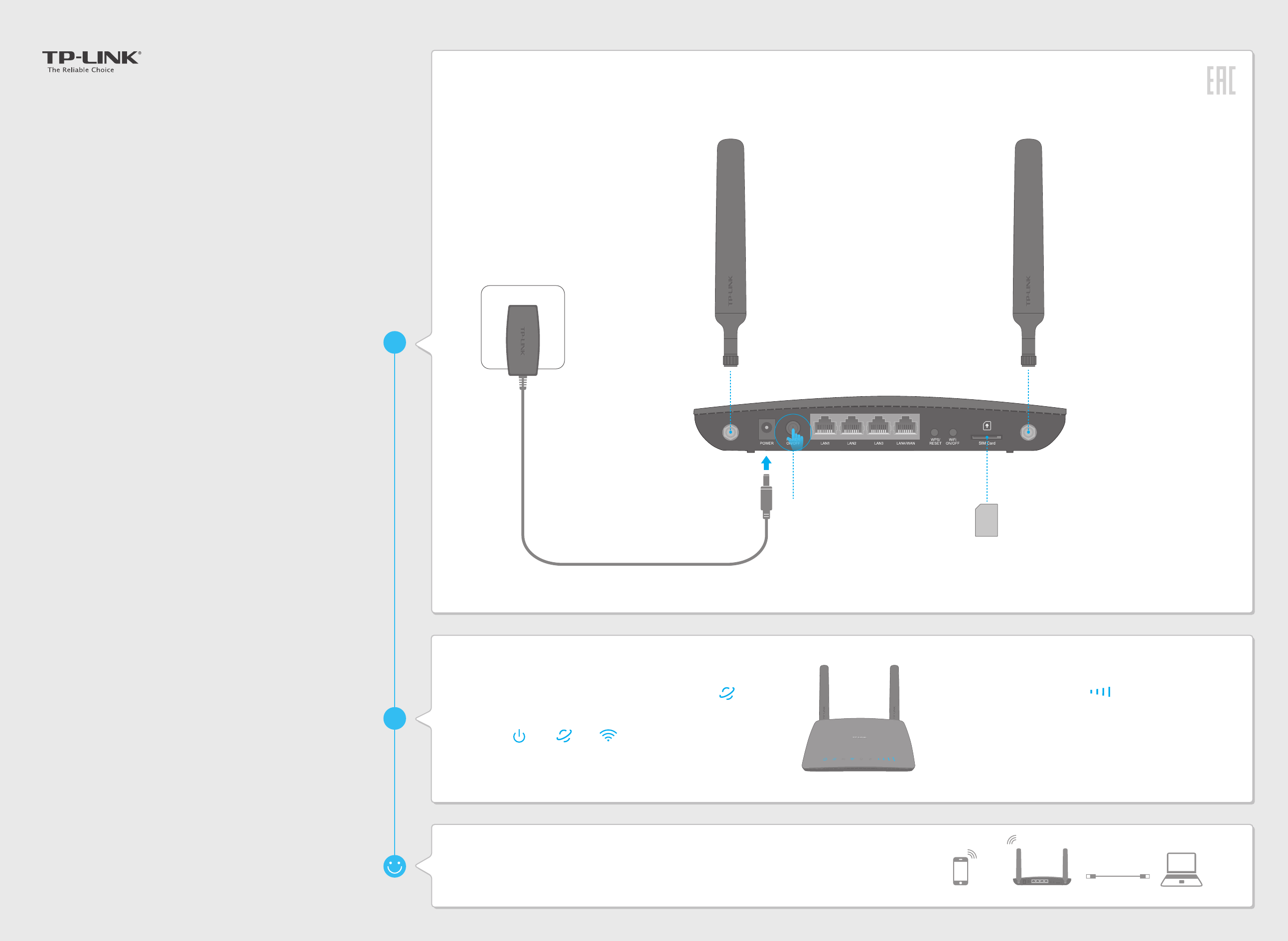
1Install the 4G LTE antennas and
position them upwards.
3 Turn on the router.
For better Internet connection, make sure 3 to 4 bars
of the Signal Strength LED are lit. Otherwise,
relocate the router to a location that receives a strong
mobile Internet signal, such as near a window.
Wired: Connect your computers to the router's LAN ports via Ethernet cables.
Wireless: Connect using the SSID (wireless network name) and Wireless Password
printed on the product label at the bottom of the router.
2Insert the SIM card into the slot
until you hear a click.
Note: Micro or Nano-SIM card must be converted
using a standard SIM card adapter provided by
TP-LINK.
Wireless TL-MR6400 Wired
Verify the hardware connection by checking the
following LEDs’ status. If the Internet LED is on,
your router is connected to the Internet successfully.
Power
On On
Internet
On
Wireless
FAQ (Frequently Asked Questions)
Q1. What can I do if the login page does not appear?
A1. Verify that the computer is set to obtain an IP address automatically from the
router.
A2. Verify that http://tplinkmodem.net or http://192.168.1.1 is correctly entered in
the web browser and click Login.
A3. Use another web browser and try again.
A4. Reboot your router and try again.
A5. Disable and enable the active network adapter and try again.
Q2. What can I do if I cannot access the Internet?
A1. Verify that your SIM card is an LTE, WCDMA or GSM card.
A2. Verify that your SIM card is in your ISP’s service area.
A3. Verify that your SIM card has sucient credit.
A4. Check the LAN connection:
Open a web browser and enter http://tplinkmodem.net or http://192.168.1.1 in the
address bar. If the login page does not appear, refer to FAQ > Q1 and then try again.
A5. Check your ISP parameters:
1) Open a web browser and log in to the web management page.
2) Go to Network > LTE Dial Up to verify the parameters (including the APN, Username
and Password) provided by your ISP are correctly entered. If the parameters are
incorrect, click Create and enter the correct parameters, then select the new prole
from the Prole Name list.
A6. Check the PIN settings:
1) Open a web browser and log in to the web management page.
2) Go to Network > PIN Management to verify if PIN is required. If it is, enter the correct
PIN provided by your ISP, and click Apply.
A7. Check the Data Limit:
1) Open a web browser and log in to the web management page.
2) Go to Network > LTE Data Settings to verify if the Total(Monthly) Used exceeds the
Total(Monthly) Allowance. If it does, click Correct and set Total(Monthly) Used to 0
(zero), or disable Data Limit.
A8. Check the Mobile Data:
1) Open a web browser and log in to the web management page.
2) Go to Network > LTE Dial Up to verify that Mobile Data is enabled. If not, enable it to
access the Internet.
A9. Check the Data Roaming:
1) Conrm with your ISP if you are in a roaming service area. If you are, open a web
browser and log into the web management page.
2) Go to Network > LTE Dial Up to enable the Data Roaming.
Note: If the login page does not appear, please refer to FAQ > Q1.
©2015 TP-LINK
Note: The router can also be used (or configured) in Standard Wireless Router Mode for ADSL/Cable
connections. For more information, please refer to the User Guide on TP-LINK official website:
www.tp-link.com.
LED Indicators
LED Status Indication
O
On
On/O
Flashing
O
On
O
On
O
On
O
On
(Wireless)
(WPS)
(LAN)
(Internet)
(Power)
On
Flashing
O
System initialization is complete.
System initializing or rmware upgrading is in process. Do not
disconnect or power o the router.
Power is o.
Internet connection is available.
No Internet connection.
The router is using the 4G network.
The router is using another network other than the 4G network.
The wireless radio is enabled.
The wireless radio is disabled.
At least one LAN port is connected.
No LAN port is connected.
Turns On when a WPS synchronization is established and
automatically turns O about 5 minutes later.
A wireless device is trying to connect to the network via WPS.
This process may take up to 2 minutes.
Indicates the mobile Internet signal strength the router receives
in the current location. More lit bars indicates a better signal
strength.
No signal.
(4G)
(Signal
Strength)
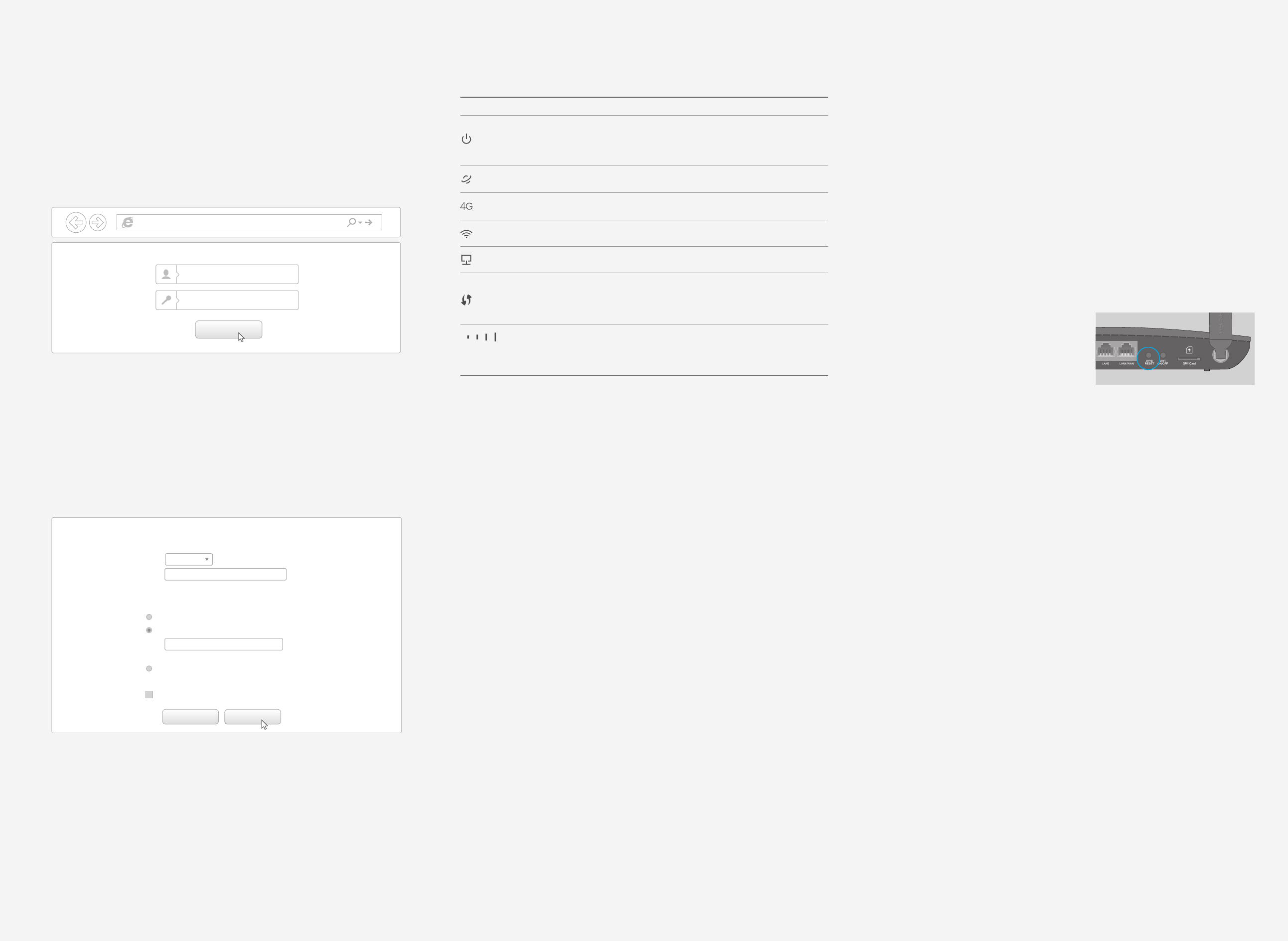
1. Make sure your computer is connected to the router (via wired or
wireless connection).
2. Launch a web browser and type in http://tplinkmodem.net or
http://192.168.1.1. Use admin for both user name and password,
and then click Login.
3. Go to Quick Setup and click Next.
4. Select your Region and Timezone, then click Next.
5. The Dial-up page shows the ISP information of the SIM card inserted.
If you have connected to the Internet, click Next to continue.
6. On the Wireless page, you can customize your wireless network name
and password.
7. Click Finish to make the settings take effect.
Q3. How do I restore the router to its factory default settings?
Q4. What can I do if I forget my web management page password?
Q5. What can I do if I forget my wireless network password?
A. Refer to FAQ > Q3 to restore the router to its factory default settings and then use
the default User Name admin and Password admin to log in.
A1. The default Wireless Password is printed on the product label of the router.
A2. If the default Wireless Password has been changed, log in to the router's web
management page and go to Wireless > Wireless Security to retrieve or reset
your password.
A1. With the router powered on, press and
hold down the WPS/RESET button on the
rear panel of the router until the Power
LED starts ashing. The router will restore
and reboot automatically.
A2. Log in to the web management page of
the router, and go to System Tools >
Factory Defaults, click Restore and wait
until the reset process completes.
WPS/RESET Button - Press and hold until the
Power LED starts ashing.
Login
admin
admin
http://tplinkmodem.net
Next
Back
Wireless Radio:
Then Internet Settings have been completed, now please configure the wireless settings.
Wireless Security:
Wireless Password:
Disable Security
WPA-PSK/WPA2-PSK
TP-LINK_XXXX
XXXXXXXX
Wireless Network Name: (Also called the SSID)
(Use the current security settings.)
Enable
No Change
More Avanced Wireless Settings
(You can enter ASCII characters between 8 and 63 or Hexadecimal characters between 8 and 64.)
Customize the 4G LTE Router
7106505855 REV1.0.1
