T528G Manual
Samsung-Samsung-Video-Games-Sgh-T528G-Users-Manual-283372 samsung-samsung-video-games-sgh-t528g-users-manual-283372
Manual manual manual docs 5764 pub tpassets.devicebits.com 3:
SGH-T528G to the manual b1c637ed-ddeb-4575-bcf1-fdb38fac9577
2015-10-15
: Tp Manual manual docs 5764
Open the PDF directly: View PDF  .
.
Page Count: 131 [warning: Documents this large are best viewed by clicking the View PDF Link!]
- SGH-T528G
- Table of Contents
- Section 1: Getting Started
- Section 2: Understanding Your Phone
- Section 3: Call Functions
- Section 4: Entering Text
- Section 5: Contacts and Your Address Book
- Section 6: Multimedia
- Section 7: Messaging
- Section 8: Change Your Settings
- Section 9: Connections
- Section 10: Applications
- Section 11: My folders
- Section 12: Tools

SGH-T528G
MOBILE PHONE
User Manual
Please read this manual before operating your
phone, and keep it for future reference.
T528G.book Page i Thursday, January 27, 2011 8:15 PM

TracFone_T528G_UDKA8_MM_012711_F6
Intellectual Property
All Intellectual Property, as defined below, owned by or which is otherwise the
property of Samsung or its respective suppliers relating to the SAMSUNG Phone,
including but not limited to, accessories, parts, or software relating there to (the
“Phone System”), is proprietary to Samsung and protected under federal laws,
state laws, and international treaty provisions. Intellectual Property includes, but is
not limited to, inventions (patentable or unpatentable), patents, trade secrets,
copyrights, software, computer programs, and related documentation and other
works of authorship. You may not infringe or otherwise violate the rights secured by
the Intellectual Property. Moreover, you agree that you will not (and will not attempt
to) modify, prepare derivative works of, reverse engineer, decompile, disassemble,
or otherwise attempt to create source code from the software. No title to or
ownership in the Intellectual Property is transferred to you. All applicable rights of
the Intellectual Property shall remain with SAMSUNG and its suppliers.
Samsung Telecommunications America (STA),
LLC
©2011 Samsung Telecommunications America, LLC is a registered trademark of
Samsung Electronics America, Inc. and its related entities.
Do you have questions about your Samsung Mobile Phone?
For 24 hour information and assistance, we offer a new FAQ/ARS System
(Automated Response System) at:
www.samsung.com/us/support
Headquarters:
1301 E. Lookout Drive
Richardson, TX 75082
Toll Free Tel:
Customer Care Center:
1000 Klein Rd.
Plano, TX 75074
1.888.987.HELP (4357)
Internet Address:
http://www.samsungusa.com
T528G.book Page ii Thursday, January 27, 2011 8:15 PM

GH68-32644A
Printed in China
T9 Text Input is licensed by Tegic Communications and is covered by U.S. Pat.
5,818,437; U.S. Pat. 5,953,541; U.S. Pat. 6,011,554 and other patents pending.
ACCESS® and NetFront™ are trademarks or registered trademarks of ACCESS Co.,
Ltd. in Japan and other countries.
The Bluetooth® word mark, figure mark (stylized “B Design”), and combination
mark (Bluetooth word mark and “B Design”) are registered trademarks and are
wholly owned by the Bluetooth SIG.
microSD™ and the microSD logo are Trademarks of the SD Card Association.
Openwave® is a registered Trademark of Openwave, Inc.
and are trademarks of SRS Labs, Inc. CS Headphone and WOW
HD technologies are incorporated under license from SRS Labs, Inc.
Open Source Software
Some software components of this product incorporate source code covered under
GNU General Public License (GPL), GNU Lesser General Public License (LGPL),
OpenSSL License, BSD License and other open source licenses. To obtain the
source code covered under the open source licenses, please visit:
http://opensource.samsungmobile.com/index.jsp
.
SAR Information
Your wireless phone is a radio transmitter and receiver. It is designed and
manufactured not to exceed the emission limits for exposure to radio frequency (RF)
energy set by the Federal Communications Commission (FCC) of the U.S.
Government. These limits are part of comprehensive guidelines and establish
permitted levels of RF energy for the general population. The guidelines are based
on the safety standards that were developed by independent scientific organizations
through periodic evaluation of scientific studies.
T528G.book Page iii Thursday, January 27, 2011 8:15 PM
TracFone_T528G_UDKA8_MM_012711_F6
The standards include a substantial safety margin designed to assure the safety of
all persons, regardless of age and health.
The exposure standard for wireless phones employs a unit of measurement known
as Specific Absorption Rate (SAR). The SAR limit set by the FCC is 1.6 W/kg. The
highest SAR values for this model phone were Head: 0.62 W/kg,
Body-worn: 1.08 W/kg.
Disclaimer of Warranties; Exclusion of Liability
EXCEPT AS SET FORTH IN THE EXPRESS WARRANTY CONTAINED ON THE
WARRANTY PAGE ENCLOSED WITH THE PRODUCT, THE PURCHASER TAKES THE
PRODUCT “AS IS”, AND SAMSUNG MAKES NO EXPRESS OR IMPLIED WARRANTY OF
ANY KIND WHATSOEVER WITH RESPECT TO THE PRODUCT, INCLUDING BUT NOT
LIMITED TO THE MERCHANTABILITY OF THE PRODUCT OR ITS FITNESS FOR ANY
PARTICULAR PURPOSE OR USE; THE DESIGN, CONDITION OR QUALITY OF THE
PRODUCT; THE PERFORMANCE OF THE PRODUCT; THE WORKMANSHIP OF THE
PRODUCT OR THE COMPONENTS CONTAINED THEREIN; OR COMPLIANCE OF THE
PRODUCT WITH THE REQUIREMENTS OF ANY LAW, RULE, SPECIFICATION OR
CONTRACT PERTAINING THERETO. NOTHING CONTAINED IN THE INSTRUCTION
MANUAL SHALL BE CONSTRUED TO CREATE AN EXPRESS OR IMPLIED WARRANTY
OF ANY KIND WHATSOEVER WITH RESPECT TO THE PRODUCT. IN ADDITION,
SAMSUNG SHALL NOT BE LIABLE FOR ANY DAMAGES OF ANY KIND RESULTING
FROM THE PURCHASE OR USE OF THE PRODUCT OR ARISING FROM THE BREACH
OF THE EXPRESS WARRANTY, INCLUDING INCIDENTAL, SPECIAL OR
CONSEQUENTIAL DAMAGES, OR LOSS OF ANTICIPATED PROFITS OR BENEFITS.
T528G.book Page iv Thursday, January 27, 2011 8:15 PM

1
Table of Contents
Section 1: Getting Started .....................................................5
Setting Up Your Phone . . . . . . . . . . . . . . . . . . . . . . . . . . . . . . . . . . . . . . . . . . 5
Charging the Battery . . . . . . . . . . . . . . . . . . . . . . . . . . . . . . . . . . . . . . . . . . . . 7
Switching the Phone On or Off . . . . . . . . . . . . . . . . . . . . . . . . . . . . . . . . . . . . 8
Locking the Touch Screen . . . . . . . . . . . . . . . . . . . . . . . . . . . . . . . . . . . . . . . 8
Setting Up Voice Mail . . . . . . . . . . . . . . . . . . . . . . . . . . . . . . . . . . . . . . . . . . . 9
Section 2: Understanding Your Phone ................................11
Features . . . . . . . . . . . . . . . . . . . . . . . . . . . . . . . . . . . . . . . . . . . . . . . . . . . . 11
Front View . . . . . . . . . . . . . . . . . . . . . . . . . . . . . . . . . . . . . . . . . . . . . . . . . . 12
Side Views . . . . . . . . . . . . . . . . . . . . . . . . . . . . . . . . . . . . . . . . . . . . . . . . . . 14
Rear View . . . . . . . . . . . . . . . . . . . . . . . . . . . . . . . . . . . . . . . . . . . . . . . . . . . 15
Display Layout . . . . . . . . . . . . . . . . . . . . . . . . . . . . . . . . . . . . . . . . . . . . . . . 16
Menu Navigation . . . . . . . . . . . . . . . . . . . . . . . . . . . . . . . . . . . . . . . . . . . . . 19
Widgets . . . . . . . . . . . . . . . . . . . . . . . . . . . . . . . . . . . . . . . . . . . . . . . . . . . . 23
Widget List Navigation . . . . . . . . . . . . . . . . . . . . . . . . . . . . . . . . . . . . . . . . . 28
Understanding the Events Widget . . . . . . . . . . . . . . . . . . . . . . . . . . . . . . . . . 30
Section 3: Call Functions .....................................................32
Displaying Your Phone Number . . . . . . . . . . . . . . . . . . . . . . . . . . . . . . . . . . 32
Making a Call . . . . . . . . . . . . . . . . . . . . . . . . . . . . . . . . . . . . . . . . . . . . . . . . 32
Making a Call from the Address Book . . . . . . . . . . . . . . . . . . . . . . . . . . . . . . 34
Answering a Call . . . . . . . . . . . . . . . . . . . . . . . . . . . . . . . . . . . . . . . . . . . . . 34
Dialing Options . . . . . . . . . . . . . . . . . . . . . . . . . . . . . . . . . . . . . . . . . . . . . . . 35
Recent Calls . . . . . . . . . . . . . . . . . . . . . . . . . . . . . . . . . . . . . . . . . . . . . . . . . 35
Call Time . . . . . . . . . . . . . . . . . . . . . . . . . . . . . . . . . . . . . . . . . . . . . . . . . . . 36
Data Counter . . . . . . . . . . . . . . . . . . . . . . . . . . . . . . . . . . . . . . . . . . . . . . . . 36
Options During a Call . . . . . . . . . . . . . . . . . . . . . . . . . . . . . . . . . . . . . . . . . . 36
Section 4: Entering Text ......................................................41
Keys . . . . . . . . . . . . . . . . . . . . . . . . . . . . . . . . . . . . . . . . . . . . . . . . . . . . . . . 41
Using the QWERTY Keypad . . . . . . . . . . . . . . . . . . . . . . . . . . . . . . . . . . . . . . 42
T528G.book Page 1 Thursday, January 27, 2011 8:15 PM
2
Changing the Text Input Mode . . . . . . . . . . . . . . . . . . . . . . . . . . . . . . . . . . . 44
Using T9 Mode . . . . . . . . . . . . . . . . . . . . . . . . . . . . . . . . . . . . . . . . . . . . . . . 44
Using Abc In Portrait Mode . . . . . . . . . . . . . . . . . . . . . . . . . . . . . . . . . . . . . . 47
Using Numeric In Portrait Mode . . . . . . . . . . . . . . . . . . . . . . . . . . . . . . . . . . 48
Using Symbols . . . . . . . . . . . . . . . . . . . . . . . . . . . . . . . . . . . . . . . . . . . . . . . 48
Using Emoticon (EMO) Mode . . . . . . . . . . . . . . . . . . . . . . . . . . . . . . . . . . . . . 49
Section 5: Contacts and Your Address Book ......................50
Adding a New Contact . . . . . . . . . . . . . . . . . . . . . . . . . . . . . . . . . . . . . . . . . 50
Using Contacts . . . . . . . . . . . . . . . . . . . . . . . . . . . . . . . . . . . . . . . . . . . . . . . 53
Address Book Options . . . . . . . . . . . . . . . . . . . . . . . . . . . . . . . . . . . . . . . . . . 54
FDN Mode . . . . . . . . . . . . . . . . . . . . . . . . . . . . . . . . . . . . . . . . . . . . . . . . . . 55
Groups . . . . . . . . . . . . . . . . . . . . . . . . . . . . . . . . . . . . . . . . . . . . . . . . . . . . . 56
Favorites . . . . . . . . . . . . . . . . . . . . . . . . . . . . . . . . . . . . . . . . . . . . . . . . . . . . 56
Section 6: Multimedia ..........................................................59
Music Player . . . . . . . . . . . . . . . . . . . . . . . . . . . . . . . . . . . . . . . . . . . . . . . . . 65
Video Player . . . . . . . . . . . . . . . . . . . . . . . . . . . . . . . . . . . . . . . . . . . . . . . . . 68
Pictures . . . . . . . . . . . . . . . . . . . . . . . . . . . . . . . . . . . . . . . . . . . . . . . . . . . . 69
Camera . . . . . . . . . . . . . . . . . . . . . . . . . . . . . . . . . . . . . . . . . . . . . . . . . . . . . 71
Using the Camera . . . . . . . . . . . . . . . . . . . . . . . . . . . . . . . . . . . . . . . . . . . . . 71
Camera and Camcorder Options . . . . . . . . . . . . . . . . . . . . . . . . . . . . . . . . . . 73
Using the Camcorder . . . . . . . . . . . . . . . . . . . . . . . . . . . . . . . . . . . . . . . . . . 80
Games . . . . . . . . . . . . . . . . . . . . . . . . . . . . . . . . . . . . . . . . . . . . . . . . . . . . . 83
Section 7: Messaging ..........................................................84
Types of Messages . . . . . . . . . . . . . . . . . . . . . . . . . . . . . . . . . . . . . . . . . . . . 84
Creating and Sending Messages . . . . . . . . . . . . . . . . . . . . . . . . . . . . . . . . . . 84
Additional Message Options . . . . . . . . . . . . . . . . . . . . . . . . . . . . . . . . . . . . . 85
Viewing New Received Messages . . . . . . . . . . . . . . . . . . . . . . . . . . . . . . . . . 87
Using Message Options . . . . . . . . . . . . . . . . . . . . . . . . . . . . . . . . . . . . . . . . . 88
Using Email . . . . . . . . . . . . . . . . . . . . . . . . . . . . . . . . . . . . . . . . . . . . . . . . . 89
Using Exchange Email . . . . . . . . . . . . . . . . . . . . . . . . . . . . . . . . . . . . . . . . . . 89
Voicemail . . . . . . . . . . . . . . . . . . . . . . . . . . . . . . . . . . . . . . . . . . . . . . . . . . . 90
Messaging Settings . . . . . . . . . . . . . . . . . . . . . . . . . . . . . . . . . . . . . . . . . . . 90
T528G.book Page 2 Thursday, January 27, 2011 8:15 PM
3
Templates . . . . . . . . . . . . . . . . . . . . . . . . . . . . . . . . . . . . . . . . . . . . . . . . . . 90
Deleting Messages . . . . . . . . . . . . . . . . . . . . . . . . . . . . . . . . . . . . . . . . . . . . 90
Used Space . . . . . . . . . . . . . . . . . . . . . . . . . . . . . . . . . . . . . . . . . . . . . . . . . 90
Section 8: Change Your Settings .........................................92
Sound Profile . . . . . . . . . . . . . . . . . . . . . . . . . . . . . . . . . . . . . . . . . . . . . . . . 92
Display and Light Settings . . . . . . . . . . . . . . . . . . . . . . . . . . . . . . . . . . . . . . 95
Time and Date . . . . . . . . . . . . . . . . . . . . . . . . . . . . . . . . . . . . . . . . . . . . . . . 96
Phone Settings . . . . . . . . . . . . . . . . . . . . . . . . . . . . . . . . . . . . . . . . . . . . . . . 96
Call Settings . . . . . . . . . . . . . . . . . . . . . . . . . . . . . . . . . . . . . . . . . . . . . . . . . 98
Connectivity . . . . . . . . . . . . . . . . . . . . . . . . . . . . . . . . . . . . . . . . . . . . . . . . 100
Applications Settings . . . . . . . . . . . . . . . . . . . . . . . . . . . . . . . . . . . . . . . . . 100
Memory Management . . . . . . . . . . . . . . . . . . . . . . . . . . . . . . . . . . . . . . . . 102
Section 9: Connections ......................................................103
Browser . . . . . . . . . . . . . . . . . . . . . . . . . . . . . . . . . . . . . . . . . . . . . . . . . . . 103
Bluetooth . . . . . . . . . . . . . . . . . . . . . . . . . . . . . . . . . . . . . . . . . . . . . . . . . . 104
PC Connections . . . . . . . . . . . . . . . . . . . . . . . . . . . . . . . . . . . . . . . . . . . . . 107
Section 10: Applications ....................................................109
Accessing the Applications Menu . . . . . . . . . . . . . . . . . . . . . . . . . . . . . . . . 109
My Space . . . . . . . . . . . . . . . . . . . . . . . . . . . . . . . . . . . . . . . . . . . . . . . . . . 109
Facebook . . . . . . . . . . . . . . . . . . . . . . . . . . . . . . . . . . . . . . . . . . . . . . . . . . 110
Browser . . . . . . . . . . . . . . . . . . . . . . . . . . . . . . . . . . . . . . . . . . . . . . . . . . . 110
Section 11: My folders .......................................................111
My folders Functions . . . . . . . . . . . . . . . . . . . . . . . . . . . . . . . . . . . . . . . . . 111
Applications . . . . . . . . . . . . . . . . . . . . . . . . . . . . . . . . . . . . . . . . . . . . . . . . 113
Audio . . . . . . . . . . . . . . . . . . . . . . . . . . . . . . . . . . . . . . . . . . . . . . . . . . . . . 113
Games . . . . . . . . . . . . . . . . . . . . . . . . . . . . . . . . . . . . . . . . . . . . . . . . . . . . 114
Pictures . . . . . . . . . . . . . . . . . . . . . . . . . . . . . . . . . . . . . . . . . . . . . . . . . . . 114
Tools . . . . . . . . . . . . . . . . . . . . . . . . . . . . . . . . . . . . . . . . . . . . . . . . . . . . . 115
Other Files . . . . . . . . . . . . . . . . . . . . . . . . . . . . . . . . . . . . . . . . . . . . . . . . . 115
Used Space . . . . . . . . . . . . . . . . . . . . . . . . . . . . . . . . . . . . . . . . . . . . . . . . 115
Section 12: Tools ...............................................................116
Tools . . . . . . . . . . . . . . . . . . . . . . . . . . . . . . . . . . . . . . . . . . . . . . . . . . . . . 116
T528G.book Page 3 Thursday, January 27, 2011 8:15 PM
4
Camera . . . . . . . . . . . . . . . . . . . . . . . . . . . . . . . . . . . . . . . . . . . . . . . . . . . . 116
Music Player . . . . . . . . . . . . . . . . . . . . . . . . . . . . . . . . . . . . . . . . . . . . . . . . 116
Voice Recognition . . . . . . . . . . . . . . . . . . . . . . . . . . . . . . . . . . . . . . . . . . . . 116
Record Audio . . . . . . . . . . . . . . . . . . . . . . . . . . . . . . . . . . . . . . . . . . . . . . . 118
Alarms . . . . . . . . . . . . . . . . . . . . . . . . . . . . . . . . . . . . . . . . . . . . . . . . . . . . 119
Calendar . . . . . . . . . . . . . . . . . . . . . . . . . . . . . . . . . . . . . . . . . . . . . . . . . . . 120
Recent Calls . . . . . . . . . . . . . . . . . . . . . . . . . . . . . . . . . . . . . . . . . . . . . . . . 122
Memo . . . . . . . . . . . . . . . . . . . . . . . . . . . . . . . . . . . . . . . . . . . . . . . . . . . . . 122
Tasks . . . . . . . . . . . . . . . . . . . . . . . . . . . . . . . . . . . . . . . . . . . . . . . . . . . . . 123
Calculator . . . . . . . . . . . . . . . . . . . . . . . . . . . . . . . . . . . . . . . . . . . . . . . . . . 123
Tip Calculator . . . . . . . . . . . . . . . . . . . . . . . . . . . . . . . . . . . . . . . . . . . . . . . 124
Converter . . . . . . . . . . . . . . . . . . . . . . . . . . . . . . . . . . . . . . . . . . . . . . . . . . 124
World Clock . . . . . . . . . . . . . . . . . . . . . . . . . . . . . . . . . . . . . . . . . . . . . . . . 125
Timer . . . . . . . . . . . . . . . . . . . . . . . . . . . . . . . . . . . . . . . . . . . . . . . . . . . . . 126
Stopwatch . . . . . . . . . . . . . . . . . . . . . . . . . . . . . . . . . . . . . . . . . . . . . . . . . 127
T528G.book Page 4 Thursday, January 27, 2011 8:15 PM
Getting Started 5
Section 1: Getting Started
This section explains how to start using your phone by charging your battery, setting
up your voice mail and installing a memory card.
Setting Up Your Phone
SIM Card
Your phone comes with a pre-installed SIM card.
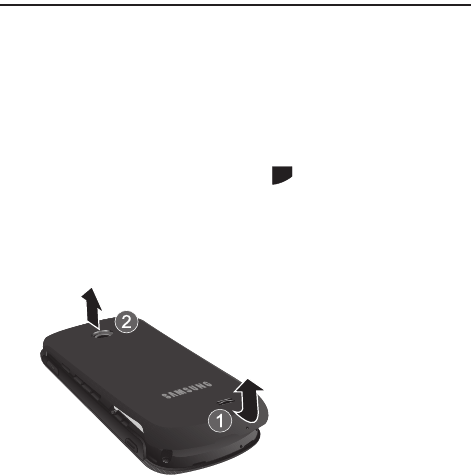
Removing the Battery Cover
1. If the phone is turned on, press and hold until the phone turns off.
2. Remove the battery cover by placing your thumbnail into the slot at the
bottom of the phone (1). If you have fragile nails, use a pointed object.
3. Lift the cover up and off the phone (2).
PWR
END
T528G.book Page 5 Thursday, January 27, 2011 8:15 PM
6
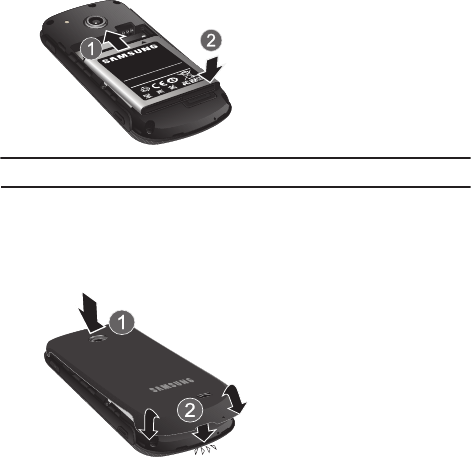
Installing the Battery
1. Insert the battery into the opening on the back of the phone, making sure the
gold contacts align (1).
2. Gently press down to secure the battery (2).
Note:
Make sure the battery is properly installed before switching on the phone.
Replacing the Battery Cover
1. Place the battery cover on the back of the phone and press down (1).
2. Press down on the bottom of the phone (2) until you hear a light click.
T528G.book Page 6 Thursday, January 27, 2011 8:15 PM
Getting Started 7
Charging the Battery
Your phone is powered by a rechargeable Li-ion battery. The Travel Adapter used to
charge the battery is included with your phone. Use only Samsung-approved
batteries and chargers.
Note:
Before using your phone for the first time, you must fully charge the battery. A discharged
battery requires approximately 4 hours to recharge fully.
Although you can use the phone while the battery is charging, doing so requires
additional charging time.
Long backlight settings, searching for service, vibrate mode, browser use, and other
variables may reduce the battery’s talk and standby times.
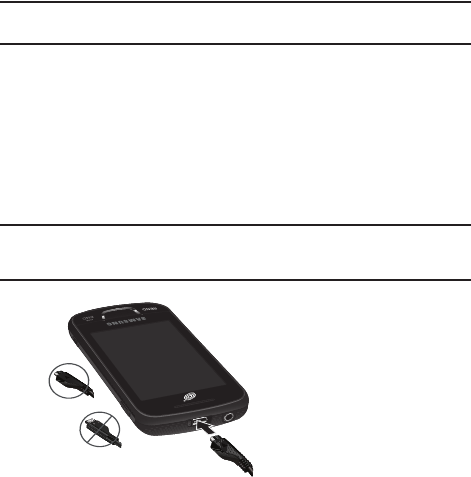
Using the Travel Adapter
1. With the battery installed, lift and rotate the plastic cover of the Power/
Accessory Interface connector at the top of the phone.
Important!:
Verify that the battery is properly installed prior to connection. If the battery is not
properly installed and the wall charger is connected, the handset may power off and on
continuously, preventing proper operation.
2. Plug the travel adapter connector into the jack on your phone.
Correct
Incorrect
T528G.book Page 7 Thursday, January 27, 2011 8:15 PM
8
3. Plug the travel adapter power plug into a standard AC wall outlet.
4. When the battery is fully charged, the phone displays a message telling you
the battery is full. Remove the connector from the phone.
Note:
Failure to unplug the wall charger before you remove the battery can cause damage to the
phone.
Warning!:
If your handset has a touch screen display, please note that a touch screen responds
best to a light touch from the pad of your finger. Using excessive force when pressing on
the touch screen may damage the tempered glass surface and void the warranty.
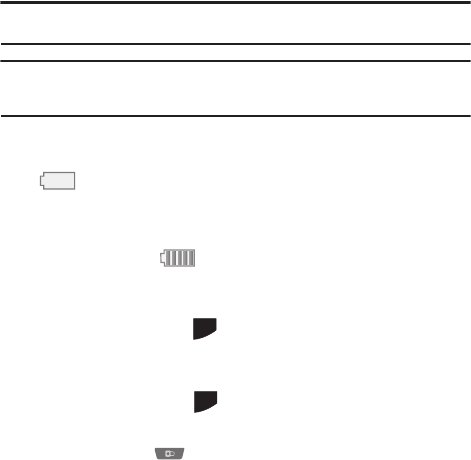
Low Battery Indicator
When the battery is weak and only a few minutes of talk time remain, the battery
icon ( ) blinks and the device sounds a warning tone at regular intervals. In
this condition, your phone conserves its remaining battery power, not by turning off
the backlight, but by entering the dimming mode. For a quick check of your battery
level, glance at the battery charge indicator located in the upper-right corner of your
device’s display. Five bars ( ) indicate a full charge.
When the battery level becomes too low, the phone automatically turns off.
Switching the Phone On or Off
1. To turn on, press and hold until the phone switches on. The phone
launches the activation splash screen and searches for the network. Once the
network is found, you can make or receive calls.
2. To turn off, press and hold until the phone switches off.
Locking the Touch Screen
1. Press the Lock Key on the upper right side of the phone to lock the
touch screen.
PWR
END
PWR
END
T528G.book Page 8 Thursday, January 27, 2011 8:15 PM
Getting Started 9
2. Press and hold the Lock Key to unlock the touch screen.
– or –
Touch and hold on the Idle screen
to unlock the touch screen.
Setting Up Voice Mail
1. In Idle mode, press , then touch and hold .
You may be prompted to enter a password.
Note:
You can also access your voicemail from the on-screen keypad by touching then
pressing or touch
Call
.
2. Follow the tutorial to create a password, record a greeting, and record your
name.
Note:
These steps may be different depending on your network.
Accessing Voice Mail
1. In Idle mode, press , then touch and hold .
2. When connected, follow the voice prompts from the voice mail center.
Accessing Voice Mail From Another Phone
1. Dial your wireless phone number.
2. When you hear your voicemail greeting, press (the asterisk key on the
phone you are using).
3. Enter your passcode using the on-screen keypad.
SEND
T528G.book Page 9 Thursday, January 27, 2011 8:15 PM
10
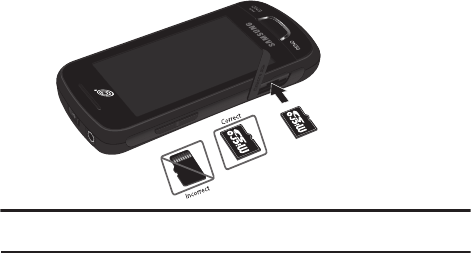
Installing the Memory Card
Your phone also supports the use of a memory card (microSD™) for storage of
data, music, pictures, and video files. Your phone supports up to a 16 GB memory
card.
䊳
Push the microSD card into the slot until it clicks.
Note:
Make sure the microSD gold contact pins are oriented as shown and the card is securely
inserted.
T528G.book Page 10 Thursday, January 27, 2011 8:15 PM

Understanding Your Phone 11
Section 2: Understanding Your Phone
This section outlines some key features of your phone. It also describes the screen and
the icons that appear when the phone is in use.
Features
Your phone is lightweight and easy to use, and it offers many useful features. The
following list outlines a few of the features included in your phone.
•
Touch screen with menu driven access to features and options
•
Widgets
•
Bluetooth
®
Wireless Technology
•
Camera/Camcorder
•
Mobile Email
•
Browser
•
Memory Card slot for optional microSD
TM
card
•
Tools feature provides access to Camera, Music Player, Voice recognition, Record Audio,
Alarms, Calendar, Recent Calls, Memo, Tasks, Calculator, Tip Calculator, Converter,
World Clock, Timer and Stopwatch.
T528G.book Page 11 Thursday, January 27, 2011 8:15 PM
12
Front View
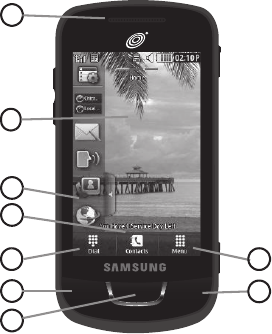
1.
External speaker
: allows you to hear the caller.
2. Display: shows the information needed to operate your phone, such as the
received signal strength, phone battery level, time, and so on.
3. Widget tab: allows you to open the Widget toolbar.
4. Contacts key: allows you to access your current Contacts, Groups, and
Favorites lists.
5. Dial key: allows you to access the Phone Functions menu, such as Dialer,
Contacts, and Create message screen.
SEND
END
PWR
7
3
2
1
4
5
8
9
6
T528G.book Page 12 Thursday, January 27, 2011 8:15 PM
Understanding Your Phone 13
6. Talk/Send key: allows you to power on the phone, make or answer a call,
and access your call history, Call Manager, and Block Caller features. Press
and hold to redial the last phone number.
7. Back key: allows you to return to the previous menu while in menu mode.
While in the Web browser, allows you to return to the previous page. In Idle
mode, allows you to launch the Prepaid menu.
8. Power/End key: ends a call. Press and hold to turn the phone on or off. While
in a menu, pressing this key once cancels the current input and twice returns
the phone to Idle mode.
9.
Menu key
: allows you to access your phone menus and widgets in Idle mode.
While in the Menu screen, the
Menu
key is replaced with the
Message
key. The
Message
key allows you to create new text or multimedia messages.
T528G.book Page 13 Thursday, January 27, 2011 8:15 PM
14
Side Views
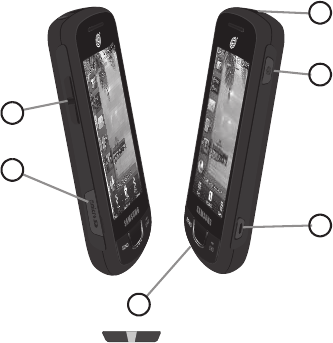
1.
Volume key
: ( ) allows you to adjust the ringer volume while in
standby mode or adjust the voice volume during a call. When receiving an
incoming call, briefly press down either end of the volume key to mute the
ring tone. Press and hold either end of the volume key to reject the call and
send it directly to voicemail. Adjusts text size when reading a message or
using the browser in the Applications folder.
2. Memory Card Slot: allows you to plug in an optional microSD memory card
for additional multimedia file storage.
3.
Microphone
: allows other callers to hear you when you are speaking to them.
1
2
3
4
5
6
T528G.book Page 14 Thursday, January 27, 2011 8:15 PM
Understanding Your Phone 15
4.
Camera/Camcorder key
: ( ) allows you to take pictures or videos when
you are in camera or camcorder mode. In Idle mode, press to launch the
camera/camcorder.
5. Lock key: ( ) lets you lock or unlock the touch screen. For more
information on locking your phone, see “Locking and Unlocking the Phone”
on page 19.
6. Power/Accessory Interface connector: allows you to connect a Travel
Charger or other optional accessories such as a USB/data cable or a hands-
free headset.
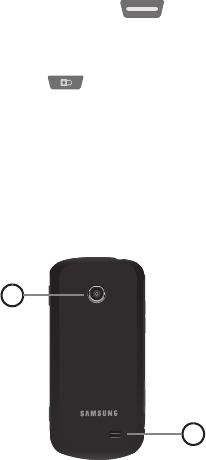
Rear View
1.
Camera lens
: is used to take pictures and shoot videos.
2.
External speaker
: allows you to hear when the Speakerphone is turned on.
1
2
T528G.book Page 15 Thursday, January 27, 2011 8:15 PM
16
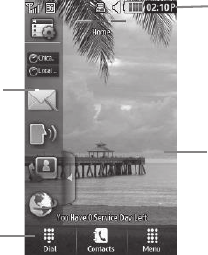
Display Layout
Your display screen provides a wealth of information about phone status and
options, as well as providing access to the Widget List. For more information about
the Widget List, see “Widgets” on page 23.
The display has four main areas:
Function Categories
Function categories are shortcuts to
Dial
for dialing a number,
Contacts
for
accessing the contacts list, and
Menu
for displaying the icons for application and
folder access. While viewing the Main Menus, the
Menu
category changes to
Message
, which can be used to view and create messages.
Indicators
Widget List
Main Display
Area
Function
Categories
T528G.book Page 16 Thursday, January 27, 2011 8:15 PM

Understanding Your Phone 17
Icons
This list identifies the icons that appear in your phone display and Indicator area:
Displays your current signal strength. The greater the
number of bars, the stronger the signal.
Indicates that the Airplane Mode is active. You cannot
send or receive any calls or access online information.
Displays when you are out of your service area.
Displays when a call is in progress.
Displays within the lock screen when a call has been
missed.
Displays your battery’s charge level. The more bars you
see, the more power you have remaining.
Displays when your connection to a 3G network is
active.
Displays when an internal microSD memory card is
detected.
Displays when the phone is connected to a computer
with a supported USB cable connection.
Displays within the Indicators area when a new text
message is received.
T528G.book Page 17 Thursday, January 27, 2011 8:15 PM

18
Displays within the Indicators area when a new email
message is received.
Displays within the Indicators area when a new
multimedia message is received.
Displays within the Indicators area when a new voice
mail is received.
Displays within the Indicators area when a new WAP
message is received.
Displays when Inbox is full - Text Message.
Displays when you set an alarm to ring at a specified
time. For more information, refer to “Alarms” on
page 119.
Displays when the Sound profile is set to Normal.
Displays when Silent Mode is activated.
Displays when the Sound profile is set to Driving.
Displays when the Sound profile is set to Outdoor.
Displays when Bluetooth is activated.
T528G.book Page 18 Thursday, January 27, 2011 8:15 PM
Understanding Your Phone 19
Menu Navigation
This section explains the menu navigation for your phone.
•
Touching an on-screen option activates the feature.
•
Menu lists can be viewed by using your fingertip to scroll up or down the on-screen list or
by pressing the volume key up or down.
Locking and Unlocking the Phone
When your phone is locked, there are two ways to unlock your phone:
• Press and hold the Lock Key
located on the upper right side of your phone.
•
Touch and hold on the Idle screen.
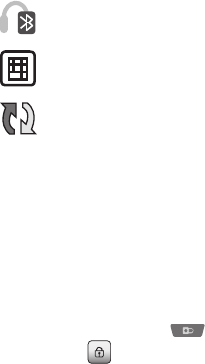
Displays when a Bluetooth stereo headset has been
paired with the phone.
Displays when a TTY device has been inserted.
Displays when your Address Book is synchronizing
with the Address Book, the network backup service.
T528G.book Page 19 Thursday, January 27, 2011 8:15 PM
20
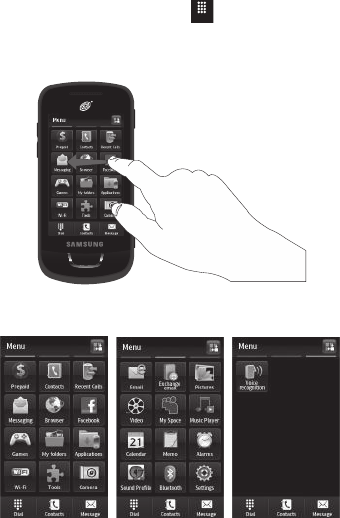
Navigating Through the Main Menus
Your phone originally has three main menus. Some icons can be deleted and
replaced with new icons.
1. From the Idle screen, touch . Main Menu 1 is displayed.
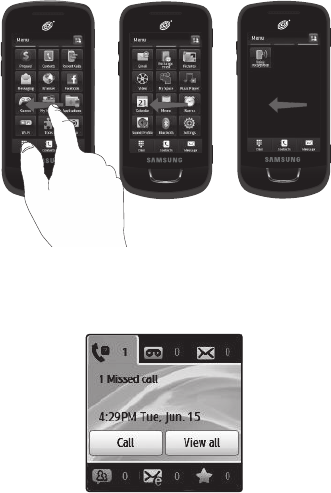
2. Drag your finger across the Main Menus to scroll through the three Main
Menus. You can scroll in either direction.
The icons initially contained in the three Main Menus are shown below.
Menu
SEND
END
PWR
T528G.book Page 20 Thursday, January 27, 2011 8:15 PM

Understanding Your Phone 21
Opening an Application
䊳
Tap the associated on-screen icon.
•
Press to exit from the current menu and return to the previous screen.
•
Press to exit from the current location or function, cancel your input, and return to
the Idle screen.
Navigating Through Menus
As you navigate through a menu, options display on the screen as scrollable lists.
Function categories, located at the bottom of most screens, provide access to
additional screen options.
To navigate a scrollable list:
1. From the Idle screen, touch .
2. Scroll through the main menus and press an icon to make your selection.
3. You can perform the following operations:
•
Touch an on-screen entry field to activate it.
•
Firmly press and slide your finger up or down the screen to scroll through lists of menu
items.
•
Navigate through a long list by pressing the volume key up or down.
Scrolling Through Field Entries
Some screens ask you to assign a value to an on-screen field by either touching the
up or down selection arrows or by quickly sliding through these values by using
your fingertip. An example of these actions can be found on the Alarm page.
1. Touch ➔
Tools
➔
Alarms
➔
Create Alarm
.
2. Touch the
Alarm Time
field and use the
Keypad
mode to adjust the
Hour
,
Minute
, and
AM
/
PM
values manually or the
Wheel
mode by using the
+
(up)
or
-
(down) buttons or by quickly sweeping your fingertip over the numbers.
PWR
END
Menu
Menu
T528G.book Page 21 Thursday, January 27, 2011 8:15 PM

22
Menu Navigation Notation
The following notation shows an example of a statement used in this manual to
direct you to a menu, submenu or menu item.
䊳
In Idle mode, touch ➔ My folders ➔ Tools
➔ Calendar.
This notation directs you to perform the following operations:
•
Touch the
Menu
soft key.
•
Touch the
My folders
icon.
•
Scroll to and touch
Tools
in the My folders menu.
•
Scroll to and touch
Calendar
in the Tools menu.
According to the selections you make, soft keys display to provide more options:
Touch More ➔ Calendar Settings ➔ View by.
This notation directs you to perform the following operations:
•
Touch the
More
soft key.
•
Scroll to and touch
Calendar Settings
in the list of options.
•
Scroll to
View by
in the Calendar Settings list.
Menu
T528G.book Page 22 Thursday, January 27, 2011 8:15 PM
Understanding Your Phone 23
Widgets
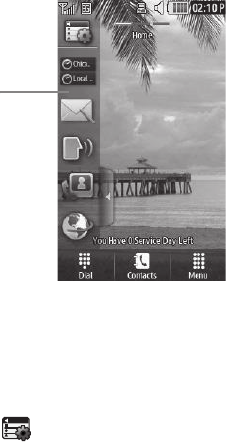
A Widget List is located on the left of the Idle screen providing access to the
following programs: Widget Setting, Analog Clock, Digital Clock, Dual Clock, Create
Message, Buddy List, Voice Recognition, Browser, Today, Calendar, Pictures,
Games, Widget Memo 1, 2, and 3, Message Inbox, Record Audio, Memo, Timer, Go
on a Diet, Birthday, Sound Profile, Bluetooth, Calculator, Video, Google Search, AP
Mobile, MySpace, Facebook, Twitter, Samsung Apps and AccuWeather.com.
You can customize the Widget List by keeping the widgets docked in the list or by
dragging them anywhere on the Idle screen.
Displaying and Hiding Widgets
To select the items that are displayed or hidden in the Widget List:
1. From Idle mode, touch the Widget List to open it.
2. Touch to display the Widget menu.
Widget
List
T528G.book Page 23 Thursday, January 27, 2011 8:15 PM

24
3. Touch the box to place a check mark next to each Widget you want to display.
– or –
Touch the box to remove the check mark from Widgets you want to hide.
The following table contains descriptions of available Widgets.
Widget Manager
: allows you to choose which
widgets to display on the Widget List.
Analog Clock
: displays the current time on an
analog clock.
Digital Clock
: displays the current time on a digital
clock.
Dual Clock
: displays current time in other user-
defined international locations.
For more information, refer to “World Clock” on
page 125.
Music Player
: allows you to play music files stored
on the phone and external card and control the
playback.
Create Message
: allows you to create new text or
picture messages. For more information, refer to
“Creating and Sending Messages” on page 84.
07:27P
zone1
zone2
T528G.book Page 24 Thursday, January 27, 2011 8:15 PM

Understanding Your Phone 25
Buddy List
: displays the Favorites list. You can use
the pull-down Contacts menu to select all Contacts
and Groups.
• Drag and drop the Buddy List onto the desktop
to view the contacts by Favorites, Groups, or
by all Contacts. These favorites are listed and
can be edited in
Address Book
➔
Favorites
.
Voice Recognition
: allows you to use your voice to
dial, look up contacts, launch applications, and
navigate phone menus. Follow the on-screen
tutorial.
Browser
: opens the Mobile Web home page.
Today
: displays the current date (month/day/year).
Calendar
: allows you to access the Calendar
feature.
With the Calendar feature, you can:
• Consult the calendar by month, week, or day.
• Set schedules and note anniversaries.
• Write memos to keep track of your schedule.
• Set an alarm to act as a reminder.
Pictures
: allows you to view the list of photos
downloaded from the web server, received in
messages, or taken by the camera. You can assign
an image as wallpaper.
Monday
9 Jan 2009
Monday
9 Jan 2009
T528G.book Page 25 Thursday, January 27, 2011 8:15 PM

26
Games
: allows you to access your Games folder.
Widget Memo 1
: allows you to write a short memo
to keep on your Widget List or main display. The
Widget Memo is limited to 80 characters.
Widget Memo 2
: allows you to write a short memo
to keep on your Widget List or main display. The
Widget Memo is limited to 80 characters.
Widget Memo 3
: allows you to write a short memo
to keep on your Widget List or main display. The
Widget Memo is limited to 80 characters.
Message Inbox
: allows you to access your inbox.
Record Audio
: allows you to record voice memos.
Memo
: allows you to access the Memo feature.
Timer
: allows you to access your Timer.
Go on a Diet
: allows you to see how many days have
pasted since starting a diet. Touch the icon and
touch
Start
to start keeping track of days.
T528G.book Page 26 Thursday, January 27, 2011 8:15 PM

Understanding Your Phone 27
Birthday
: displays an on-screen alert for up to 5
upcoming birthdays, according to information
entered in the Address Book for a contact birthday.
Sound Profile
: allows you to quickly modify your
current sound profile.
Bluetooth
: From this application you can activate
Bluetooth and configure it so other Bluetooth
devices can see your device by name.
Calculator
: allows you to use the built-in calculator.
Video
: allows you to play videos stored on
the phone.
Google Search
: allows you to perform Google
searches on the Mobile Web.
AP Mobile
: provides access to international,
national and local news.
MySpace
: allows you to sign up for an account and
to create and customize your profile with photos,
videos.
Facebook
: allows you to sign up for an account and
to create and customize your profile with photos,
videos.
T528G.book Page 27 Thursday, January 27, 2011 8:15 PM

28
Widget List Navigation
You can drag the widgets to any of the three Idle screens to use the application or
feature, then drag it back to the Widget List when you are finished. There are three
different widget Idle screens you can use. You can have different widgets on all
three Idle screens.
Accessing the Widget List
1. Tap the Widget List tab, located on the left side of the main display, to open
the Widget (quick access) Bar.
2. Tap the Widget List tab or anywhere on the Idle screen to close the Widget
List.
Undocking Widgets
You can easily customize the Widget List by either keeping these mini-apps docked
within the bar itself or undocking them by dragging onto your Main display screen.
1. Touch and hold the widget.
2. While still holding the icon, in a single motion, drag it over to the new location
and release your finger from the screen. The application is now located on
the Idle screen.
Twitter
: allows you to sign up for an account and to
create and customize your profile with photos,
videos.
Samsung Apps.
: allows you to access Samsung
Apps.
AccuWeather.com
: allows you to access
AccuWeather.com using your browser.
T528G.book Page 28 Thursday, January 27, 2011 8:15 PM

Understanding Your Phone 29
Note:
You can drag a widget to a location of your choice on the Idle screen or just touch the widget
on the Widget List and it displays in the center of the Idle screen.
Rearranging Widgets
You can customize the Widget List by moving the widgets. You can place your
frequently used widgets at the top of the list.
1. Touch and hold the widget.
2. While still holding the icon, drag it away from the Widget List and drop it on
the main screen. Then drag it back into its new location in the list.
Activating a Widget
1. Locate your widget. If the widget is on the Widget List, touch it to move it to
an Idle screen.
2. Touch the icon to activate the mini-application (widget).
Scrolling Through the Widget List
Although the Widget List contains a number of widgets, it can only display six
widget icons at one time on the bar.
䊳
Use your fingertip to scroll up and down along the Widget List.
T528G.book Page 29 Thursday, January 27, 2011 8:15 PM
30
Accessing Multiple Widget Idle Screens
䊳
Drag your finger along the three bars at the top of the Idle screen to scroll
through the three widget Idle screens. You can scroll in either direction.
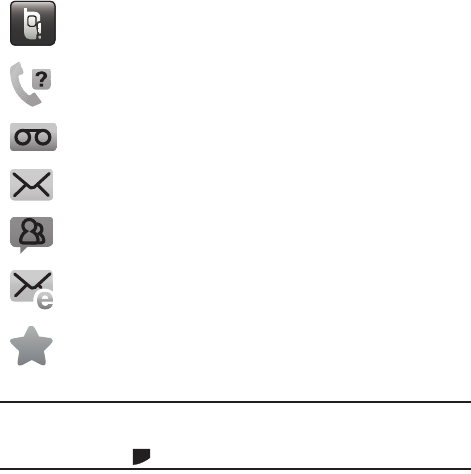
Understanding the Events Widget
The Event Widget is an area that displays on the screen to inform you of calendar
events, missed calls, or when new messages have been sent to the phone.
SEND
END
PWR
SEND
END
PWR
SEND
END
PWR
214-555-8374
T528G.book Page 30 Thursday, January 27, 2011 8:15 PM
Understanding Your Phone 31
The following is a description of these on-screen notification tabs:
Note:
When you drag the Event Widget to the Idle screen, it will remain there until you drag it back
to the Widget List. When the Event Widget automatically appears on the Idle screen after an
event has taken place, it will automatically return to the Widget List after you have confirmed
the event or pressed .
Displays when the Event Widget is parked on the
Widget List.
Displays as a tab within the Event Widget when a call
has been missed.
Displays as a tab within the Event Widget when a new
voice mail message is received.
Displays as a tab within the Event Widget when a new
message is received.
Displays as a tab within the Event Widget when a new
chat message is received.
Displays as a tab within the Event Widget when a new
email message is received.
Displays as a tab within the Event Widget when a
scheduled event has been missed.
PWR
END
T528G.book Page 31 Thursday, January 27, 2011 8:15 PM
32
Section 3: Call Functions
This section describes how to make or answer a call.
Displaying Your Phone Number
䊳
Touch ➔
Settings
➔
Calls
➔
General
➔
Show My Number
➔
Show Number
.
Making a Call
1. From the Idle screen, touch and use the on-screen keypad to enter the
number you want to dial.
2. Touch or press .
Note:
When you activate the
Auto Redial
option in the Voice Call menu, the phone automatically
redials up to 10 times when the person does not answer the call or is already on the phone.
For more information, refer to “Call Settings” on page 98.
Making an International Call
1. Touch , then touch and hold . The + character appears.
2. Use the on-screen keypad to enter the country code, area code, and
phone number.
•
If you make a mistake, touch until the desired numbers have been deleted.
3. Touch or press .
Manual Pause Dialing
To manually call a number with pause(s) without storing it in your Contacts list:
1. Touch and use the on-screen keypad to enter the phone number.
2. Press and hold to add a two-second pause. Use the keypad to enter
the additional numbers.
Menu
Call
SEND
Call
SEND
T528G.book Page 32 Thursday, January 27, 2011 8:15 PM
Call Functions 33
Tip:
You can create pauses longer than two seconds by entering multiple P pauses.
3. Touch or press .
Correcting an Entered Number
Use the following steps to correct an entry when dialing.
䊳
Touch
to delete the previous character entered.
Ending a Call
䊳
Press the key to end a call.
Dialing a Recent Number
All incoming, outgoing, and missed calls are recorded in the Calls menu. If
the number or caller is listed in your Address Book, the associated name is
also displayed.
1. From the Idle Screen, briefly press .
2. Find the number by touching the drop down arrow to the right to view the call
logs from the various options screens. Choose from: All, Missed, Made
and Received
.
3. Touch next to the desired phone number or entry name, if already in
your Address Book.
– or –
Select the log to enter the
Details
page, then touch
Call
or press to dial
the number.
Call
SEND
PWR
END
SEND
SEND
T528G.book Page 33 Thursday, January 27, 2011 8:15 PM

34
Making a Call from the Address Book
You can store phone numbers that you use regularly on the SIM card or in the
phone’s memory. These entries are collectively called the Address Book.
Answering a Call
When a call is received the phone rings and displays the caller’s phone number or
name, if stored in the Address Book.
1. At the incoming call screen, press and hold
Accept
to answer the call.
– or –
Press to answer the call.
•
If the
Any Key
option is activated (
Menu
➔
Settings
➔
Calls
➔
General
➔
Call
Answer
), you can press any key to answer a call except .
2. Touch and hold
Reject
to reject the call and send it to your Voice Mail.
3. Touch and hold
Reject + Msg
to reject the call, send it to your Voice Mail, and
create a message to send the caller. There are also prepared messages you
can choose and quickly send to the caller.
4. Press to end the call.
Note:
You can answer a call while using the Address Book or any other menu feature. After ending
the call, the phone returns to the previously active function screen.
Other Answering Options
When receiving an incoming call, press and hold either end of the volume key to
reject the call and send it directly to Voice Mail.
SEND
PWR
END
PWR
END
T528G.book Page 34 Thursday, January 27, 2011 8:15 PM

Call Functions 35
Dialing Options
From the Idle screen and Main menu, you have the option to access the Dialer and
initiate a call by touching . When you manually enter numbers from the on-
screen keypad, you see three icons displayed on the bottom of the screen.
After you start entering numbers, possible contact names and numbers appear in a
box under the number. If the number you intend to enter displays, touch the box to
complete the number automatically.
Recent Calls
The phone stores the numbers of the calls you have dialed, received, or missed in
the Calls menu. You can access this menu by from the Idle screen by doing one of
the following:
1. Briefly press .
– or –
Touch ➔
Tools
➔
Recent Calls
.
Call
: Press
Call
to dial the current number entered
using the on-screen keypad.
More
: displays a menu of options:
Send Message
and
Save to Address Book
. Press
Send Message
to create
a new text message and address it to the manually
entered number. Press
Save to Address Book
to add or
update an Address Book entry.
Delete key
: after entering a number, touch to erase a
single character or press and hold to erase the entire
string of numbers.
Call
More
SEND
Menu
T528G.book Page 35 Thursday, January 27, 2011 8:15 PM

36
2. Touch the drop-down list located at the top right of the screen to select from
All
,
Missed
,
Made
and
Received
. If the number or caller is listed in your
Address Book, the associated name is displayed.
You can select a recent call to view details, return the call, save to your address
book, send a message or delete the call.
Call Time
The Call Time menu shows the call time for the following: Last Call Duration, Total
Dialed, Dialed Voice Calls, Dialed Data Calls, Total Received, Received Voice Calls,
Received Data Calls and Total Call Duration. After reviewing you can select Reset
All.
䊳
Touch ➔
Tools
➔
Recent Calls
➔
Call Manager
➔ Call Time.
Data Counter
Data counter refers to the amount of data (volume) to and from the phone. The
following data items are displayed: Last Sent, Last Received, Total Sent and Total
Received. Touch
Reset
to set these counters back to zero.
䊳
Touch ➔
Tools
➔
Recent Calls
➔
Call Manager
➔ Data Counter.
Options During a Call
Your phone provides a number of control functions that you can use during a call.
Adjusting the Call Volume
During a call, to adjust the earpiece volume, use the
Volume
key on the left side of
the phone.
䊳
Press
Up
(top area of the volume key) to increase the volume level and press
Down
(bottom area of the volume key) to decrease the volume level.
In Idle mode, press the
Volume
key
Up
or
Down
to adjust the ringer volume.
Menu
Menu
T528G.book Page 36 Thursday, January 27, 2011 8:15 PM

Call Functions 37
In-Call Options
During an active call there are several functions available by touching a
corresponding on-screen button.
•
Speaker On/Off
: routes the phone audio through either the speaker or through
the earpiece.
–
Slide
Speaker
to
On
to route the audio through the speaker. (You can adjust the speaker
volume using the volume key.)
–
Slide
Speaker
to
Off
to use the phone’s earpiece (see
“Using the Speakerphone During
an Active Call”
on page 38.)
•
Mute/Unmute
: turns the onboard microphone either on or off.
–
Touch and hold the on-screen
Mute
button during a call to mute the microphone.
–
Touch and hold the on-screen
Unmute
button during a call to unmute the microphone.
•
Dial
:
to display the on-screen keypad where you can choose to initiate a New call or display
your Contacts
•
Hold/Resume
: to place the current active call on hold or to resume the call after it has been
placed on hold.
•
More
: to access additional in-call options such as:
–
Address Book:
to display your current Address Book entries.
–
Save to Address Book
: to save the current phone number into your Address Book if it is not
already saved.
–
Send Message
:
to send a new text message.
–
Memo
:
to write a memo concerning this call.
Placing a Call on Hold
You can place the current call on hold at any point during a conversation. You can
also make another call while you have a call in progress, if your network supports
this service.
1. While on a call, touch . This action places the current caller on hold
and displays
Held
.
2. You can later reactivate this call by touching .
Hold
Resume
T528G.book Page 37 Thursday, January 27, 2011 8:15 PM

38
To make a new call while you have a call in progress
1. Touch .
2. Touch ➔
Address Book
to look up a number in the Address Book.
– or –
Touch ➔ enter the new number ➔ .
3. Press to dial the second number. Once connected, each call is displayed
within either an
In Call
or
On Hold
tab. The caller currently on hold appears
within the
On Hold
tab.
Switching Between Calls
When you have an active call and a call on hold, you can switch between the
two calls by touching . Press when you are ready to end the
active call.
Using the Speakerphone During an Active Call
While in an active call, you can activate the speakerphone by sliding the Speaker on
bar to the right.
1. Use the
Volume
key (located on the left side of your phone) to adjust
the volume.
2. To deactivate the speakerphone, slide the
Speaker
off
bar to the left.
Switching Off the Microphone (Mute)
You can temporarily switch your phone microphone off, so that the other person
cannot hear you.
Hold
More
Dial
Call
SEND
Swap
PWR
END
T528G.book Page 38 Thursday, January 27, 2011 8:15 PM

Call Functions 39
Call Waiting
The Call Waiting feature allows you to answer an incoming call while you have a
call in progress, if this service is supported by the network, and you have set the
➔Settings ➔ Call
s
➔
Voice Call
➔
Call Waiting
menu to Activated. You are
notified of an incoming call by a call waiting tone.
To answer a call while you have a call in progress
1. Touch and hold
Accept
or to answer the next incoming call. The first call
is automatically put on hold.
2. To switch between the two calls, touch Swap, which places the current call
on hold and then activates the previous call.
To end a call on hold
1. Touch the
On Hold
tab and touch adjacent to the caller you want to
disconnect.
2. Press to end the current active call.
3-Way Calling (Multi-Party Calling)
The 3-Way or Multi-Party feature allows you to answer a series of incoming calls
and place them on hold.
If this service is supported by the network, and the SIM has the feature enabled, all
calls can be joined together. You are notified of an incoming call by a call waiting
tone. To activate the call waiting feature, see “Call Waiting” on page 39.
1. Press or
Accept
to answer the first incoming call.
2. Press or
Accept
to answer the next incoming call. The first call is
automatically put on hold.
Menu
SEND
PWR
END
SEND
SEND
T528G.book Page 39 Thursday, January 27, 2011 8:15 PM

40
3. Press ➔ to join with both of your callers, the active call and the
call on hold, in a single multi-party call.
4. Press to end the call.
SEND
PWR
END
T528G.book Page 40 Thursday, January 27, 2011 8:15 PM
Entering Text 41
Section 4: Entering Text
This section outlines how to select the desired text input mode when entering
characters into your phone. This section also describes how to use the T9 predictive
text entry system to reduce the number of key strokes associated with entering text.
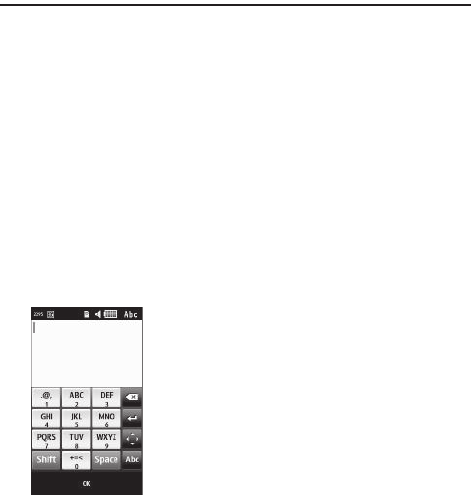
Your phone comes equipped with an orientation detector that can tell if the phone is
being held in an upright (portrait) or sideways (landscape) orientation. This is useful
when entering text. If the phone is sideways, an on-screen, QWERTY keypad is
displayed. When upright, the alphanumeric keypad is displayed.
Keys
You can enter characters into your phone by using an on-screen portrait keypad or a
landscape QWERTY keypad. Depending on which format you use, the keys are
associated with different letters, special characters, or numbers. Refer to the
following layouts to determine which keys are associated with letters, special
characters, or numbers.
Create New Message
Portrait Keypad
T528G.book Page 41 Thursday, January 27, 2011 8:15 PM
42
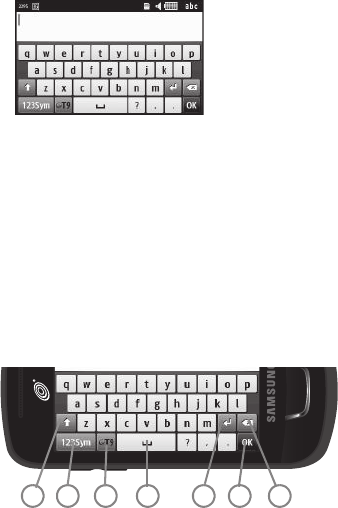
From a screen where you can enter text, rotate your phone counterclockwise to a
Landscape orientation and the on-screen QWERTY keypad displays.
By default, the first letter of an entry is capitalized and all consecutive letters are
kept in lowercase unless you touch the
Shift
key. After entering a character, the
cursor automatically advances to the next space after two seconds or when you
enter a character on a different key.
Using the QWERTY Keypad
This phone also offers the convenience of an on-screen QWERTY keypad. Using the
QWERTY keypad to type letters, numbers, punctuation, and other special characters
into text entry fields or other applications should be simpler and faster than using
the portrait keypad.
Create New Message
Landscape Keypad
SEND
32
14 5 6 7
T528G.book Page 42 Thursday, January 27, 2011 8:15 PM
Entering Text 43
The following keys perform special functions when entering text:
1.
Shift:
Press to switch between uppercase and lowercase characters.
2.
123Sym:
Press once to type special characters and numbers that appear on
the QWERTY keys. Examples: $, @, #, !, 1, 2. Press again to deactivate this
function. Touch either or on the button to cycle through
additional keys.
3.
T9
: Press to activate the T9 mode in either
abc
(all lower case) or
(where the keys default to lowercase until the
Shift
key is touched
[activated]). This is achieved by repeatedly pressing the button to toggle the
current state.
Note:
The
EMO
option is available only when
123Sym
mode has been selected.
EMO
: Press to display Emoticons. Touch a character on the screen. After all
characters have been selected, press
OK
,
Abc
, or
123Sym
.
4.
Space
: Press to insert an empty space. Press twice to insert a period and a
space to begin a new sentence.
5.
Enter:
Press to move the insertion point to the next line in a message.
6.
OK
: Press to accept the choices offered when navigating through a menu.
7.
Backspace
: Press to delete the previous character, similar to the backspace
key on a computer keyboard.
The keypad provides keys labeled with alphabetic characters. Touch the key
corresponding to the character you want to enter.
1/21/2
T528G.book Page 43 Thursday, January 27, 2011 8:15 PM

44
Changing the Text Input Mode
To enter text when storing a name in your Address Book, creating your personal
greeting or scheduling events on your calendar, you can enter alphanumeric
characters by using your phone keypad in portrait mode or in qwerty mode. Tape
the text entry screen to display the on-screen keypad.
Your phone has the following text input modes:
•
T9 Abc
: allows you to enter words with only one keystroke per letter. The T9 mode
automatically compares the series of keystrokes you make with an internal linguistic
dictionary to determine the most likely word, thus requiring fewer keystrokes than the
traditional Abc mode.
•
T9 ABC
: allows you to enter all capital alpha characters in T9 mode.
•
T9 abc
: allows you to enter lower case alpha characters in T9 mode.
•
Abc
: allows you to enter initial caps alpha characters.
•
ABC
: allows you to enter alpha characters in all caps.
•
abc
: allows you to enter lower case alpha characters.
•
Numeric
: allows you to enter numbers.
•
Symbols
: allows you to enter symbols, such as punctuation marks.
•
Emoticons
: allows you to enter Emoticons.
Note:
When characters can be entered in a field, the text input mode indicator displays on the top
right portion of the screen.
Using T9 Mode
T9 is a predictive text input mode that allows you to key in any character using
single keystrokes. This text input mode is based on a built-in dictionary.
To enter a word in T9 mode while in Portrait Mode:
1. Start entering a word by pressing the 2 through 9 keys. Touch each key only
once for each letter.
T528G.book Page 44 Thursday, January 27, 2011 8:15 PM

Entering Text 45
Example:
To enter “Hello” in T9 mode, touch the 4, 3, 5, 5, and 6 keys.
The word that you are typing displays on the screen. It may change with each
consecutive key that you touch.
2. Enter the whole word before editing or deleting the keystrokes.
3. When the word correctly displays, go to Step 4.
If the word does not display correctly, touch the
Next
key to display other word
choices from which you can choose. If these choices do not include the word
you want to use, switch to
Abc
mode and enter the word you want.
Example:
Both the words “Of” and “Me” use the 6 and 3 keys. The phone displays the most
commonly used choice first.
4. Press
Space
to insert a space and start the next word.
To enter a word in T9 mode while in Landscape Mode:
1. Begin typing a word by pressing the A through Z keys. Touch a key for each
letter.
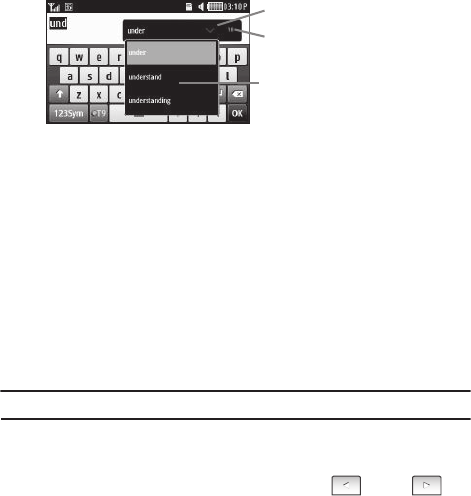
2. The word that you are typing displays on the screen. A list of word options
displays and includes a number indicating the number of words available. The
word and list of words may change as you type it.
T528G.book Page 45 Thursday, January 27, 2011 8:15 PM
46
3. Scroll up and down in the word options box to select the desired word.
4. If these choices do not include the word you want to use, add a new word into
the T9 dictionary.
To add a new word into the T9 dictionary:
1. If the word does not display in the alternate choices, touch the pull-down
menu (Landscape Mode), scroll to the end of the list, and select
Add word
.
2. Enter the word you want to add using
Abc
mode. For more information, refer
to “Changing the Text Input Mode” on page 44.
3. Touch OK to accept the newly added word. The word is added to the T9
dictionary and becomes a word for the associated key press series.
Note:
The
Add word
feature may not be available for some languages.
To enter periods, hyphens, and other special characters while in Portrait Mode:
1. Touch
T9Ab
➔
Symbols
and then touch the corresponding key. If the symbol
does not display on the initial screen, touch the left or right key
to display the next set of symbols.
2. Touch
SYM
➔
T9 Abc
to return to the
T9Abc
input mode.
Touch to see list.
Number of words
in list.
Scroll up and down,
and touch the
correct word.
T528G.book Page 46 Thursday, January 27, 2011 8:15 PM
Entering Text 47
To shift case in T9 mode:
1. Touch
Shift.
2. Touch the desired letter on the keypad. There are three cases: Initial capital,
Capital lock, and Lower case.
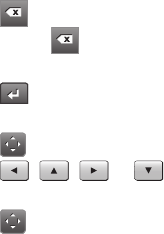
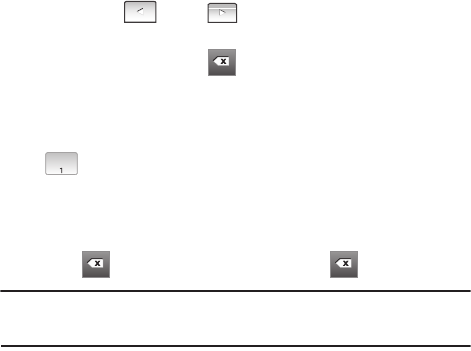
To delete letters:
1. Touch .
2. Touch and hold to clear the display.
To move the insertion point to the next line in a message:
䊳
Touch .
To navigate within existing text in Portrait Mode:
1. Touch to display the navigation keys.
2. Touch , , , or to move the cursor in the indicated
direction.
3. Touch to return to text entry mode.
Touch
OK
to complete the message and return to the previous screen.
Using Abc In Portrait Mode
If you choose not to use Predictive Text (T9):
1. Touch
T9Ab
➔
Abc.
2. Use the 2 through 9 keys to enter text.
3. Touch the key, labeled with the letter you want. Once for the first letter, twice
for the second letter, and so on.
T528G.book Page 47 Thursday, January 27, 2011 8:15 PM
48
Using Numeric In Portrait Mode
Use the
Numeric
mode to enter numbers into a text message.
1. Touch
T9Ab
➔
Numeric.
2. Touch the keys corresponding to the digits you want to enter.
Using Symbols
Symbols mode enables you to insert symbols and punctuation marks into text.
To enter symbols in Portrait Mode:
1. Touch
T9Ab
➔
Symbols
to display a list of symbols.
2. Touch the desired symbol key.
3. Touch the left or right key to display the next set of symbols, if
the symbol does not display on the initial screen.
4. To clear the symbol(s), touch .
5. Touch
SYM
➔
Abc
to return to the
Abc
input mode.
6. To enter a period, comma, hyphen, question mark, exclamation point, @,
colon, left and right parentheses, apostrophe, slash, or the number 1, touch
. ABC mode applies grammar rules to ensure correct punctuation.
To enter symbols in Landscape Mode:
1. Touch the
123Sym
key and touch the symbol on the key that displays the
symbol you need.
2. Touch to clear the symbol(s). Touch and hold to clear the display.
Tip:
The cursor moves to the right when you touch a different key. When entering the same letter
twice or a different letter on the same key, wait for a few seconds for the cursor to
automatically move to the right, and then select the next letter.
.@,.@,
T528G.book Page 48 Thursday, January 27, 2011 8:15 PM
Entering Text 49
Using Emoticon (EMO) Mode
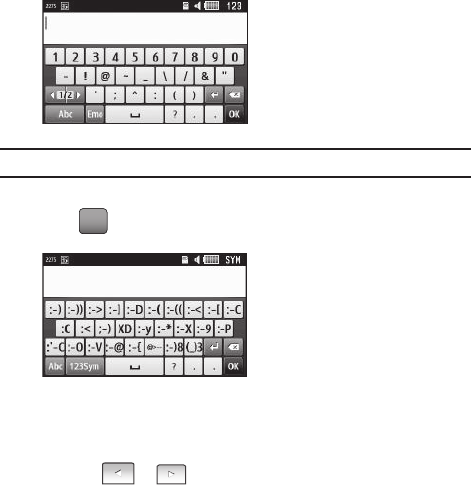
1. Rotate your phone counterclockwise to a Landscape orientation.
Note:
The
EMO
option is available only when
123Sym
mode has been selected.
2. Touch the Text Input Mode button at the bottom of the screen and
touch .
3. After all characters have been selected, press
OK
,
Abc
, or
123Sym
.
To enter Emoticons into a text message in Portrait Mode:
1. Touch
T9Ab
➔
Emoticons.
2. Touch the or key to display the three Emoticon screens.
3. After all characters have been selected, press
OK
or
EMO
.
EmoEmo
T528G.book Page 49 Thursday, January 27, 2011 8:15 PM
50
Section 5: Contacts and Your Address Book
This section allows you to manage your daily contacts by storing their name and
number in your Address Book.
Adding a New Contact
Use the following procedure to store a new contact to your Address Book.
1. Touch ➔
Create Contact
. This opens the Add New Contact screen.
2. Touch the image icon and assign a picture to the new entry by choosing one
of three options:
• Reset
: although not an option with a new entry, deletes any previously assigned image.
•Take Photo
: to use the camera to take a new picture and assign it to this entry.
• Caller Image
: to retrieve a previously stored image from your Pictures folder and assign it
to this entry. Select an image and touch to assign the image and return to the
previous
Add New Contact
screen.
3. Touch the
First Name
and
Last Name
fields and use the on-screen keypad to
enter names for the new entry, and touch
OK
.
4. Touch the
Mobile
field and use the on-screen keypad to enter the phone
number for the entry, and touch
OK
.
Touch if you want to change the category type of the entry. Choose from
the following:
Home
,
Work
,
Fax
, or
Others
.
5. Use your fingertip to scroll down the screen and touch any of the remaining
fields to update their information. Touch
OK
, if required, to save your updates.
Available fields consist of:
•Home
: allows you to enter the contact’s home phone number.
•Email
: adds a contact email address for this entry.
•Group
: assigns this contact to a group. Touch a group type to complete the assignment.
Contacts
T528G.book Page 50 Thursday, January 27, 2011 8:15 PM

Contacts and Your Address Book 51
• Ringtone
: assigns a ringtone for this contact information. Choose from
Tones
,
Music
, or
Recorded Audio
categories. Touch a music file to play a short sample and then touch
to complete the assignment.
• Birthday
: assigns a calendar date for the contact’s birthday. Touch
Set
to store the new
date. For more information, refer to
“Scrolling Through Field Entries”
on page 21.
•Note
: allows you to enter notes associated with this contact. For more information, refer to
“Entering Text”
on page 41.
6. To add more fields to your contact, touch
Add More Fields
. The following
optional fields display:
• Mobile
: adds an additional Mobile number field for the entry.
•Home
: adds an additional Home number field for the entry.
•Work
: adds an additional Work number field for the entry.
•Fax
: adds an additional Fax number field for the entry.
•Others
: adds an Others field for the entry.
•Email
: adds an additional contact Email address field for this entry.
•URL
: adds a website’s URL to the entry.
•DTMF
: adds a DTMF tone string for use with this entry.
•Group
: creates an additional group field for group assignment.
• Message Tone
: adds a field used to assign a message tone that sounds when messages
are received from this contact.
• Nickname
: adds a field that can be used to enter a nickname for the entry. The Nickname
is not displayed when calls are made to or received from the contact.
•Company
: adds a Company field for this entry.
•Job Title
: adds a Job Title field for this entry.
• Address - Home
: adds a field used to assign a physical home address for this entry.
• Address - Work
: adds a field used to assign a physical work address for this entry.
T528G.book Page 51 Thursday, January 27, 2011 8:15 PM

52
7. Touch the box next to an individual field to add that field.
– or –
Touch
All
to select all fields.
8. Touch
Done
to store the new fields to the entry and return to the previous
screen.
9. Touch the new fields to enter information.
10. Touch
Save
to store the new entry into the Address Book.
Saving a Number Before a Call
1. Touch and use the on-screen keypad to enter your number.
2. Touch
More
➔
Save to Address Book
➔
New
.
– or –
Select
Update
to edit an existing contact.
Saving a Number After a Call Has Ended
1. Press to bring up the recent calls screen.
– or –
Touch ➔
Tools
➔
Recent Calls
.
2. Touch a phone number from the list to reveal the Details page for the phone
entry.
3. Touch
Add to Phonebook
➔
New
.
– or –
Select
Update
to edit an existing contact.
SEND
Menu
T528G.book Page 52 Thursday, January 27, 2011 8:15 PM
Contacts and Your Address Book 53
Adding Pauses to Contact Numbers
When you call automated systems, you are often required to enter a password or
account number. Instead of manually entering the numbers each time, you can store
the numbers in your Contacts along with special characters called pauses.
To add a pause to a Contact:
1. Touch , and then touch the name to open the Contact.
2. Touch
Edit
and then touch the
Phone Number
field.
3. Touch the screen at the place where the additional numbers need to be
added.
4. Press and hold to add a two-second pause, and use the keypad to
enter the additional numbers.
Note:
If more than a two-second pause is required, press and hold as many times as needed
to add additional two-second pauses.
5. Touch
OK
. Touch
Save
to store your changes.
Using Contacts
Dialing a Number from Address Book
Once you have stored phone numbers in the Address Book, you can dial them easily
and quickly by either using their SIM card location number or by using the Search
field to locate the entry.
Finding an Address Book Entry
You can store phone numbers and their corresponding names to your SIM card and
to your phone onboard memory. Your Address Book refers to the information stored
in one or both of these locations.
Contacts
T528G.book Page 53 Thursday, January 27, 2011 8:15 PM
54
1. To access your Address Book in Idle mode, touch ➔
Contacts
. The
Address Book window displays.
2. In the Address Book window, touch
Contacts
to see your contacts list.
3. Select
Contacts
in the drop down menu in the upper right corner of the
display. Additional entry categories include Groups and Favorites.
4. In the Contacts list, drag the
Power Search
tab on the left side of the display to
search your contacts alphabetically. When you get to the first letter of the first
name you are looking for, release the tab and scroll to your selection.
5. Touch adjacent to the selected entry to make the call.
Address Book Options
1. Touch and touch an Address Book name from the list .
2. Touch to reveal your options:
•Call
:
allows you to call a currently selected entry.
• Send Message
:
allows you to send a text message or a multimedia message to the
selected entry.
3. Press to return to the previous Entry Options page.
4. Touch
Edit
to alter the properties of the current entry such as: Name, Mobile
number, Home number, or Email address. Touch
Save
to store your changes.
5. Touch
Delete
to delete the current address book entry from the Phone or the
SIM card.
6. Touch
More
to reveal the following options:
• Mark as Default
: allows you to select a default number if more than one number is listed
for contact.
• Print via Bluetooth
: allows you to send the selected contact entry information to a
Bluetooth compatible printer.
Menu
Contacts
T528G.book Page 54 Thursday, January 27, 2011 8:15 PM
Contacts and Your Address Book 55
• Send Business Card via
: allows you to send a message to the selected entry that
contains the information from an Address Book Business Card entry that you have on file.
This can be sent as either a message or by way of Bluetooth.
• Add to Favorites
: allows you to add the selected contact to your favorites.
FDN Mode
FDN (Fixed Dialing Number) mode, if supported by your SIM card, restricts your
outgoing calls to a limited set of phone numbers. When this feature is enabled, you
can make calls only to phone numbers stored in the FDN list on the SIM card.
Note:
FDN Mode must be set to
On
in the
Menu
➔
Settings
➔
Phone
➔
Security
➔
Fixed dialing
mode
option before you can add, change, or delete contacts on the FDN List.
Changing the FDN Mode Status
1. In Idle mode, touch ➔
Settings
➔
Phone
➔
Security
.
2. Scroll down to the
Fixed dialing mode
field and touch
On
(to enable fixed
dialing) or
Off
to disable the option.
Important!:
While Fixed Dial Mode is enabled, you will NOT be able to dial any number other than a
created Fixed Dial Number.
Creating New FDN Numbers
With the Fixed Dial mode On, follow these procedures:
1. In Idle mode, touch ➔
Contacts
➔
FDN C
ontacts
➔
Create FDN
.
Note:
If FDN is Off: touch
Menu
➔
Contacts
➔
Address Book Settings
➔
Fixed Dial Contacts
➔
Create FDN
. Then follow Steps 2-7.
2. Enter your PIN2 password and touch
Confirm
. This number is provided to you
by your Service Provider.
Menu
Menu
T528G.book Page 55 Thursday, January 27, 2011 8:15 PM

56
3. Touch
Name
and use the on-screen alphanumeric keypad to enter a name for
this FDN contact. Touch
OK
.
4. Touch
Phone number
and use the on-screen numeric keypad to enter a
contact phone number for this FDN contact. Touch
OK
.
5. Touch the SIM card location field to then use the on-screen numeric keypad
to enter a location value for the entry on the SIM card. Touch
OK
.
6. Touch
Save
to store the new FDN entry.
7. Press to return to Idle mode.
Groups
Creating New Group
You can manage your contacts by forming groups and customizing alerts.
䊳
In Idle mode, touch ➔
Contacts
➔
Groups
➔
Create Group
.
Favorites
Once you have stored phone numbers in the Address Book, you can add them to
your Favorites list.
Adding Favorites to Your Address Book
1. In Idle mode, touch ➔
Contacts
➔
Favorites
.
2. Touch
Add
.
3. Touch the Contact you want to add to your Favorites.
Removing Favorites from Your Address Book
1. In Idle mode, touch ➔
Contacts
➔
Favorites
.
2. Touch
Remove
.
PWR
END
Menu
Menu
Menu
T528G.book Page 56 Thursday, January 27, 2011 8:15 PM

Contacts and Your Address Book 57
3. To select, touch the
Wastebasket
icon in front of the Contact you want to
remove from your Favorites.
4. Touch
OK
. The contact is removed from your Favorites.
Changing the Order of Your Favorites
1. In Idle mode, touch ➔
Contacts
➔
Favorites
.
2. Touch
Change Order
.
3. Drag the entry to the desired location in your Favorites.
4. Touch
OK
.
Finding My Own Phone Number
This menu allows you to access your own phone number.
䊳
In Idle mode, touch ➔
Contacts
➔
Address Book Settings
➔
Own
Number
➔
<voice line #>
. Your number displays.
Checking the Address Book Used Space
You can check how many names and numbers are stored in the Address Book, in
both the SIM card and the phone memory and the capacity for both.
1. In Idle mode, touch ➔
Contacts
➔
Address Book Settings
➔
Used Space.
• Phone
: indicates how many Address Book entries out of a possible 2000 are in use.
•USIM
: indicates how many entries out of a possible 250 are in use on your SIM card.
–
Additional No. 1
: if you have added additional numbers to contacts saved on the SIM card, this
is a counter of the number of SIM contacts with a second number saved on your SIM card.
–
Additional No. 2
:if you have added additional numbers to contacts saved on the SIM card, this
is a counter of the number of SIM contacts with a third number saved on your SIM card.
–
Additional No. 3
:if you have added additional numbers to contacts saved on the SIM card, this
is a counter of the number of SIM contacts with a forth number saved on your SIM card.
–
Email
: indicates how many email addresses exist on your SIM card.
Menu
Menu
Menu
T528G.book Page 57 Thursday, January 27, 2011 8:15 PM

58
•FDN
: indicates how many entries out of a possible 40 are in use on your FDN SIM
memory.
Note:
Depending on the SIM card, the number of entries may differ.
2. Press to return to Idle mode.
PWR
END
T528G.book Page 58 Thursday, January 27, 2011 8:15 PM

Multimedia 59
Section 6: Multimedia
This section explains how to use the multimedia features of your phone, including
Music, Music Player, Video Player, Gallery, Camera, and Camcorder.
Adding Music to Your Handset
Music files (ringtones and full tracks) can be added to your handset by using one or
more of the following methods:
•
Purchase and download music and ringtones directly to your handset over your wireless
carrier’s network by using the Music – Shop Music feature (also accessible from My
folders).
Note:
Audio files smaller than 300 KB are treated as ringtones, whereas audio files larger
than 300 KB are stored in the Music Folder. To listen to music smaller than 300 KB,
go to
Menu
➔
My folders
➔
Audio
➔
Music
. You can not assign an MP3 file larger than
300 KB as a ringtone.
•
Transfer music files from a personal computer using a media player application and an
optional USB Data Cable and an optional microSD
TM
Memory Card.
Note:
When the Bluetooth feature is active on your handset, USB communication is not available.
To transfer files to your handset, turn off the Bluetooth functionality (
Menu
➔
Bluetooth
or
Menu
➔
Settings
➔
Connectivity
➔
Bluetooth
).
Note:
The maximum number of songs you can synchronize between your phone and your PC
is 1500.
Transferring Music from a Personal Computer
In order to download music from the computer to your handset, a microSD card and
USB data cable are required. These items are sold separately.
1. Using your computer, open your preferred Windows Media Digital Rights
Management (WMDRM) PC music management client.
T528G.book Page 59 Thursday, January 27, 2011 8:15 PM

60
2. Download the selected song to your library.
Note:
If the music file is protected, Media Player blocks the playing or synching of that file.
3. Verify the pre-insertion of the microSD card into the handset. For more
information, refer to “Installing the Memory Card” on page 10.
4. Use the USB adapter cable to connect the handset to the target PC. When an
active connection has been established, a USB icon ( ) appears on the
phone.
Note:
If the target computer does not detect the newly connected handset or provide an MTP
Player dialog window on the PC screen, please follow steps 6 - 9.
5. Touch ➔
Settings
➔
Connectivity
➔
Select USB mode
➔
Media player
.
For more information, refer to “Configuring Your Phone USB Settings” on
page 107.
6. Once the USB connection has been established, the handset displays
“
Connected
” and the computer screen then shows your device. If the
detection occurs, skip to step 8.
7. Locate the song on your computer and using your right mouse button, click
Copy
.
8. Open the Removable Disk drive corresponding to the microSD card location
on the phone.
9. Open the
Music
folder (for example, ...\Card\Music) you want to upload from
the handset.
10. Using your right mouse button, click
Paste
. This step begins the download
process.
Menu
T528G.book Page 60 Thursday, January 27, 2011 8:15 PM

Multimedia 61
Note:
The Music Player does not necessarily support all features of a particular file format nor all
the variations of those formats. The Music Player includes support for Windows Media Digital
rights Management (WMDRM), which allows you to play some purchased or subscription
content. Copyright protections may prevent some images, music (including ringtones), and
other content from being copied, modified, transferred, or forwarded.
Playing Music Through a Stereo Bluetooth Device
Your device supports the Stereo Bluetooth profile (A2DP), and, when connected to a
stereo Bluetooth headset, plays back music in stereo from the phone through the
headset.
1. Pair and connect your handset to a stereo Bluetooth device. For more
information, refer to “Connecting to Other Bluetooth Devices” on page 105.
2. From the list of compatible devices, select the previously paired Bluetooth
headset to begin listening to your song through the headset.
3. Touch ➔
Tools
➔
Music Player
➔
All music
.
4. Select a song to play within the Music Player.
Playing Music While Using the Phone
The Music Player allows you to play music in the background while performing
other tasks on your phone. The music pauses when an incoming call is accepted
and resumes when the call is ended. Music continues to play when you receive a
Text Message, a Multimedia Message, or an Instant Message.
The other functions you can use are:
•
Call
: make or receive a call (music player is paused)
•
Messaging
: send or receive a text or multimedia message. Music continues to play unless
an audio clip is received as a part of a multimedia message.
•
Browser
: browse the web (music continues to play).
Menu
T528G.book Page 61 Thursday, January 27, 2011 8:15 PM
62
•
Music Player
: turns on Music Player, or allows you to use full-screen controls of the music
player.
•
Games
: lets you play games while listening to music.
Important!:
When you are finished using the Music Player function, you must press to stop
the function to prevent the battery from losing its charge. Pausing the player
continues to use the battery.
Music Player Settings
1. Touch ➔
Tools
➔
Music Player
➔
Settings
.
2. Touch
On
or
Off
to either activate or deactivate the Background playing
option. This determines whether you want the music to play in the
background while outside of the player.
3. Touch
Save
.
Using Playlists
Playlists are used to assign songs to a list of preferred media, which can then be
grouped into a list for later playback. These Playlists can be created using either the
handset’s Music Player options menu or from within a third party music application
(such as Windows Media Player) and then downloaded to the handset.
Creating a Playlist
䊳
Touch ➔
Tools
➔
Music Player
➔
Playlists
➔
Create playlist
.
Adding Songs to a Playlist
䊳
Touch ➔
Tools
➔
Music Player
➔
Playlists
.
Changing the order of songs in a Playlist
1. Touch ➔
Tools
➔
Music Player
➔
Playlists
.
2. Touch a previously created playlist.
3. Touch
More
➔
Change Order
.
PWR
END
Menu
Menu
Menu
Menu
T528G.book Page 62 Thursday, January 27, 2011 8:15 PM

Multimedia 63
4. Touch a song.
5. Touch the new location. The first song is moved to the new location.
6. Touch
OK
when all changes have been made.
Removing songs from a Playlist
1. Touch ➔
Tools
➔
Music Player
➔
Playlists
.
2. Touch a previously created playlist.
3. Touch
Remove Tracks
.
4. Touch the box next to any available music file you want to remove.
– or –
Touch
Select All
to select all available songs in the list.
5. Touch
Remove
and wait for the songs to be deleted from the current playlist.
Transferring Music Using a Media Application
A USB cable, microSD card, and a current version of a media application (such as
Napster® or Windows Media Player®) are required for this procedure.
1. Open the media player on your personal computer (if you are using Windows
Media Player, use version 10.0 or higher).
Note:
The Napster application can be downloaded at www.napster.com. Subscription fees
may apply.
2. Touch ➔
Settings
➔
Connectivity
➔
Select USB mode
➔
Media player.
For more information, refer to “Configuring Your Phone USB Settings” on
page 107.
Menu
Menu
T528G.book Page 63 Thursday, January 27, 2011 8:15 PM

64
3. Use the USB adapter cable to connect the handset to the target PC. When
an active connection has been established, a USB icon ( ) appears on
the phone.
4. Once the USB connection has been established, the handset displays
“
Connected
” and the computer screen then shows your phone.
Note:
The following steps reflect the procedure used with Windows Media Player. If you are using
either Napster or some other form of media player, you should refer to that application’s
Help files for specific directions.
5. If this is your first time connecting your phone to Windows Media Player you
need to enter a unique name for this phone connection. This assigns a name
to both the phone (when recognized) and to the internal microSD card.
6. Click
Finish
to continue to the application. You should then notice that the
Sync tab is active and displaying a connection with the phone and displaying
the name you created.
7. From within the Windows Media Player application, click on the Sync tab.
Available songs are then listed on the left side of the application.
8. If not already active, click the
Sync
tab.
9. Choose the destination location for the media files. The
Card
entry you named
appears in a drop-down list on the left side of the screen.
10. Click on the
Library
entry (from the left column) and select a category to
reveal available songs.
11. Click a song from the center column and drag it into the Sync List section of
the current page. This then places the current song on a “wait list” for update
to the target location within the phone.
T528G.book Page 64 Thursday, January 27, 2011 8:15 PM

Multimedia 65
12. Click the Start Sync button (at the bottom of the Sync List) to begin uploading
the selected songs to your handset. A “synchronization in progress”
message appears on the application. Do not unplug the handset during this
process. Once complete, a
Sync Results
folder then appears below the device
entry to indicate sync status.
13. It is now safe to unplug the USB connector from the handset.
Importing a Playlist from Windows Media Player
1. Open Windows Media Player on your computer (version 10.0 or higher).
2. Use the USB adapter cable to connect the handset to the target PC. When
an active connection has been established, a USB icon ( ) appears on
the phone.
3. Once the USB connection has been established, the handset displays
“
Connected
” and the computer screen then shows your phone.
4. If not already active, click the
Sync
tab.
5. Locate the Playlists section (upper-left).
6. Right-click a playlist entry and select
Add to ‘Sync List’.
7. Click the Start Sync button (at the bottom of the Sync List) to begin uploading
the selected playlist to your handset.
8. It is now safe to unplug the USB connector from the handset.
Music Player
The Music Player is an application that can play music files. The music player
supports files with extensions AAC, AAC+, eAAC+, MP3, WMA, 3GP, MP4, and M4A.
Launching the Music Player allows you to navigate through your music library, play
songs, and create playlists (music files bigger than 300 KB are displayed).
T528G.book Page 65 Thursday, January 27, 2011 8:15 PM

66
Using the Music Player
1. Touch ➔
Tools
➔
Music Player
.
– or –
Drag from the Widget List and touch it.
2. Touch a library category (All music, Artist, Album, Genre, or Playlists) to view
the available music files.
3. Scroll through the list of songs and touch an entry to begin playback.
Music Player Functions
1. Touch any of the following on-screen buttons during playback to activate
their features:
Shuffle mode button:
• Shuffle On: the current list of songs are
randomly shuffled for playback.
• Shuffle Off: songs play in order and are not
shuffled.
Equalizer button:
Equalizer presets include: NORM (normal),
ROCK, POP, DANC (dance), CLAS (classical),
JAZZ, WIDE, DYNA (dynamic), and SURR
(surround). Your phone is using the SRS™
solution. WIDE = WOWHD (Voice), and DYNAMIC
= WOWHD.
Menu
NORMNORM
T528G.book Page 66 Thursday, January 27, 2011 8:15 PM

Multimedia 67
2. Touch the player menu options at the bottom of the screen to reveal additional
menu functions:
•Library
: displays the Music Player library view (Now playing, All music, Artist, Album,
Genre, and Playlists).
• Minimize
: reduces the player and leaves it running in the background so you can navigate
to other programs or activities.
Repeat button:
• Repeat one: repeats the currently playing
song.
• Repeat all: replays the current list when the
list ends.
• Play All: plays the current song list once.
• Touch quickly to move to the beginning of
the current song.
• Touch and hold to play the previous song.
• Touch once to play the current song.
• Touch once to pause the current song.
• Advances to the next song.
• Touch and hold to fast forward through the
current song.
T528G.book Page 67 Thursday, January 27, 2011 8:15 PM
68
•More
: provides access to options such as:
–
Add to playlist
: allows you to add the current audio file to a selected playlist.
–
Send via
: allows you to send the current file via a message attachment or as a data file
delivered to a Bluetooth-capable device.
–
Settings
: allows you to access the Background playing Settings menu.
–
Properties
: allows you to view basic information for the current song such as Name, Format,
Size, Forwarding, Date created, and Location. This option also allows you to view media
information such as Artist, Title, Album, Track length, Genre, Recording date, and Format.
Video Player
The Video Player application plays video files stored on your microSD card.
1. Touch ➔
Video
.
All videos that you have on your memory card display.
2. Touch the video that you want to play.
The video begins to play and the following video controls are available:
Pause the video.
Start the video after being paused.
Rewind the video.
Fast-forward the video.
Original screen size view (Landscape
mode only).
Full-screen view (Landscape mode only).
Menu
1
x
T528G.book Page 68 Thursday, January 27, 2011 8:15 PM

Multimedia 69
Pictures
The Pictures menu is where you view photos. You can also perform basic editing
tasks, view a slide show, set photos as wallpaper or contact image, and share as a
picture message.
䊳
Touch ➔
Pictures
.
From the Pictures page you can access the following menu options:
•
Create Folder
: create a new folder on either the Phone or Memory Card.
•
Manage
: allows you to move or copy an existing unlocked folder or file.
•
More
: provides you with the ability to Delete, Rename, Sort by, Send via Bluetooth,
Bluetooth Visibility, and Lock or Unlock certain files or folders.
Image Features
Touch a graphic from the Pictures page to display the image. From the image viewer
page, you have access to both macro functions (Zoom) and menu options. If the
icons and options do not appear when the picture displays, touch the screen below
the picture.
•
Up and Down Arrows
: allow you to magnify the current image. Touch and hold the picture
and drag it up and down to zoom out.
•
Send
: lets you send the currently active image as part of a new multimedia message or to
an external device via Bluetooth.
•
Set as
: allows you to assign the current image as either your current Wallpaper or as a
display Caller Image used by a specific entry within your Address Book.
•
More
: allows you to choose from the following image options:
–
Delete
: allows you to delete the current picture.
–
Rename
: allows you to rename the current picture.
–
Slide show
: allows you to play a slide show using the pictures currently available from within
the Pictures folder. Touch the screen and touch
Pause
or
Play
to stop or resume the slide
show. Touch
Previous
or
Next
to navigate through the pictures.
–
Edit
: allows you to edit the current image by applying various image effects. For more
information, refer to
“Editing Images”
on page 70.
Menu
T528G.book Page 69 Thursday, January 27, 2011 8:15 PM
70
–
Print via
: allows you to make a selected graphic printable by either USB or Bluetooth printer.
–
Properties
: displays a listing of the image’s properties such as: name, format, resolution,
size, and so on.
Note:
Editing is only available for unlocked images or non-DRM images.
Editing Images
1. Touch ➔
Pictures
➔
<image>
.
2. Touch
More
➔
Edit
➔
File
➔
Open
or
Save as
(to save a renamed copy of
this image).
– or –
Touch
More
➔
Edit
and select from any of the following:
• Effects
: allows you to choose from among several effects such as:
Filter
,
Style
,
Warp
, or
Partial Blur
.
• Adjust
: allows you to adjust
Auto Level
,
Brightness/Contrast
, and
Color
.
• Undo
: allows you to reverse the previous change.
3. Touch the tab above
Undo
to display the following additional options:
Rotate
and
Flip
the picture. Touch the buttons to
rotate or flip (left to right or top to bottom) the
current picture.
Resize
the image. Touch the new size and touch
OK
.
Crop
the image. Drag the frame to position it.
Touch
OK
to crop the area.
Insert Text
on the image. Drag the text to position it.
Menu
T528G.book Page 70 Thursday, January 27, 2011 8:15 PM
Multimedia 71
Camera
This section explains how to use the camera on your phone. You can take
photographs and shoot video by using the built-in camera functionality. Your 2.0
megapixel camera produces photos in JPEG format.
Important!:
Do not take photos of people without their permission.
Do not take photos in places where cameras are not allowed.
Do not take photos in places where you may interfere with another person’s privacy.
Using the Camera
Taking Photos
Taking pictures with your device’s built-in camera is as simple as choosing a
subject, pointing the camera, then pressing the camera key.
Note:
When taking a photo in direct sunlight or in bright conditions, shadows may appear on the
photo.
1. In Idle mode, press the Camera key to activate the camera mode.
Insert Image
on the current image. Drag the frame
to position the inserted picture.
Insert
Emoticon
on the current image. Touch either
end of the emoticon list to scroll through the
possibilities and touch an emoticon. Drag the
emoticon to position it.
Insert
Clip Art
on the image.Touch either end of the
clip art list to scroll through the possibilities and
touch an item. Drag the emoticon to position it.
T528G.book Page 71 Thursday, January 27, 2011 8:15 PM

72
2. Using the phone’s main display screen as a viewfinder, adjust the image by
aiming the camera at the subject.
3. Press the Up or Down Volume keys to adjust the zoom of your image. (Zoom
is not available when the resolution is set to the maximum setting.)
4. Press the Camera key until the shutter sounds. (The picture is automatically
stored in your designated storage location. If no microSD is installed, all
pictures are stored on the Phone.) For more information, refer to “Camera
and Camcorder Options” on page 73.
Note:
The number of JPEG pictures taken and the number of pictures remaining on the selected
media appears in the top center part of the screen. The remaining number of pictures is an
approximate number based on the current image size.
5. If desired, before taking the photo, you can touch on-screen icons to access
various camera options.
6. When viewing a picture after you have taken it,
touch and hold the picture to
zoom in on an area of the picture
. You can magnify the picture up to x2.0.
7. Press to return to the viewfinder.
T528G.book Page 72 Thursday, January 27, 2011 8:15 PM
Multimedia 73
Camera and Camcorder Options
Options are represented by icons across both sides of the screen.
Note:
The options disappear after a few seconds. Touch the screen to make them reappear.
Camera, Camcorder
: allows you to take a photo or record a
video. Once you change the mode, the corresponding
indicator appears at the top left of the display. Choose
Camera or Camcorder.
Recording Mode
: allows you to set the Recording mode to
either Normal (limited only by available space on
destination location) or Limit for MMS (limited by MMS size
restrictions). (Recording mode is only available in
Camcorder mode).
Shooting Mode
: allows you to set the shooting mode.
Options are:
•
Single
: take a single photo and view it before returning
to the shooting mode.
•
Continuous
: take a succession of consecutive photos
by pressing and holding the Camera key.
T528G.book Page 73 Thursday, January 27, 2011 8:15 PM

74
•
Panorama
: take a landscape photo by taking an initial
photo and then adding additional images to itself. The
guide box lets you view the area where the second
part of the panoramic picture should fall within by
highlighting the box in yellow. If you hold the camera
still when it turns yellow, the picture is automatically
taken. Repeat this step for up to six segments. When
you are done, press the Camera key.
•
Smile Shot
: the camera focuses on the face of your
subject. Once the camera detects the person’s smile,
it takes the picture.
•
Mosaic
: take multiple photos and then group them
together into a single final photo.
•
Frame
: allows you to choose a custom frame border
for your image. Choose from one of the 20 available
frames.
Camera Resolution
: allows you to set the image size to
either: 2M (1600 x 1200), 1.3M (1280 x 960),
0.3M (640 x 480), or 320 x 240.
Camcorder Resolution
: allows you to set the video size to
either: 320 x 240 or 176 x 144.
320320
240240
T528G.book Page 74 Thursday, January 27, 2011 8:15 PM

Multimedia 75
Settings (lower left corner)
: allows you to customize your
camera and camcorder settings. Choose from the following
options:
Camera and Camcorder
:
•
Effects
: allows you to change the color tone or apply
special effects to the photo. Options include: None,
Black and white, Sepia, Negative, or Watercolor.
Camera
:
•
Exposure Meter
: allows you to set how the camera
measures or meters the light source: Matrix,
Center-weighted, or Spot.
•
Night Mode
: allows you to turn On or Off the Night
mode depending on the lighting conditions.
•
Image Quality
: allows you to set the image quality to:
Superfine, Fine, or Normal.
Camcorder
:
•
Video Quality
: allows you to set the video quality to:
Superfine, Fine, or Normal.
T528G.book Page 75 Thursday, January 27, 2011 8:15 PM

76
Camera and Camcorder Settings tab (upper right corner)
:
The following are additional camera and camcorder
settings.
•
Guidelines
: allows you to turn the guidelines On or Off.
•
Review
: allows you to activate the instant review
feature where images are displayed immediately after
review (On or Off).
•
Shutter Sound
: allows you to set the Shutter sound to
three different shutter sound or to turn it off. (Only
available in Camera mode.)
•
Audio Recording
: allows you to record audio while
recording video. Selecting Off, temporarily mutes the
microphone and records only video.
(Only available in Camcorder mode).
•
Storage
: allows you to configure the default storage
location for images and videos as either Phone or
Memory card (if inserted).
•
GPS Connection
: allows you to turn GPS
On
or
Off
.
(Only available in Camcorder mode)
•
White Balance
: allows you to set this option to one of
the following choices: Auto, Daylight, Incandescent,
Fluorescent, or Cloudy.
•
Timer
: allows you to set a timer for how long to wait
before taking a picture or video. Options include: Off, 2
Seconds, 5 Seconds, and 10 Seconds.
T528G.book Page 76 Thursday, January 27, 2011 8:15 PM
Multimedia 77
Pictures and Videos Folder Options
After you take a photo or shoot a video, you can access various options from the
Pictures and Videos Folder page.
Touch
➔ and then touch one of the available options:
•
Send
: lets you send the currently active image as part of a new multimedia message or to
an external device via Bluetooth.
•
Delete
: erases the currently selected image or video.
•
More
: touch this option to display the following options:
–
Set as
: allows you to assign the current image as either your current Wallpaper or as a
display Caller Image used by a specific entry within your Address Book.
–
Slide show
: allows you to view your pictures and videos in a slide show.
–
Edit
: allows you to edit the current image using any of the following options:
• File
: allows you to open another picture folder and picture or to save the current picture
under a new name.
• Effects
: allows you to choose from among several effects.
• Adjust
: allows you to adjust
Auto level
,
Brightness
/
Contrast
, and
Color
.
• Undo
: allows you to reverse the previous change. Touch the tab above
Undo
to display
additional options.
–
Rename
: allows you to rename the picture using the on-screen keypad.
Brightness
: allows you to adjust the brightness level by
moving the slider across the page.
Quickview
: allows you to access the options page for a
selected image or video. Options include: Send (Via
Message or Bluetooth), Delete, and More (Set as, Edit, Slide
show, Rename or Properties).
T528G.book Page 77 Thursday, January 27, 2011 8:15 PM
78
–
Properties
: Displays Basic Info and Media Info about the current picture or video, such as
name, format, resolution, size, and so on.
Note: Edit
and
Set as
features are not available when the camcorder mode is active.
Press to return to the previously active camera or camcorder page where
you can take another photo or shoot a new video.
Accessing the Pictures Folder
1. Touch ➔
Pictures
.
2. Touch a photo to open it in the viewer.
Options available from the main Pictures folder before you select a picture are:
•
Create Folder
: create a new folder on either the Phone or Memory Card.
•
Manage
: allows you to
Move
or
Copy
an existing, unlocked picture or pictures.
–
Touch the box next to each picture you want to move or copy or touch
Select All
to move or
copy all pictures
–
Touch
Move
or
Copy
.
–
Select the folder to which the pictures should be moved or copied or create a new folder.
•
More
: provides the following options:
–
Delete
: allows you to delete one or more pictures.
–
Rename
: allows you to rename pictures.
–
Sort by
: allows you to sort pictures by Date, Type, Name, or Size.
–
Send via Bluetooth
: allows you to send one or more pictures to a Bluetooth device.
–
Bluetooth Visibility
: allows you to make the one or more pictures visible to Bluetooth
devices. This option only appears on photographs taken with your camera.
–
Lock/Unlock
: allows you to lock or unlock one or more pictures to prevent deletion. Lock
prevents a picture from being deleted. Unlock allows the picture to be deleted.
Menu
T528G.book Page 78 Thursday, January 27, 2011 8:15 PM

Multimedia 79
Selecting and Using the Pictures Folder
Touch a picture from the Pictures page to display the image. From the image viewer
page, you have access to both macro functions (Zoom) and menu options.
•
Zoom
: Touch and hold the picture to zoom in on an area of the picture. Touch and drag the
picture to move the area of the picture that is visible. Use the inset image to navigate
around the picture.
•
Send
: lets you send the currently active image as part of a new multimedia message or to
an external device via Bluetooth.
•
Set as
: allows you to assign the current image as either your current Wallpaper or as a
display Caller Image used by a specific entry within your Address Book.
•
More
: allows you to choose from the following image options:
–
Delete
: allows you to delete the current picture.
–
Rename
: allows you to rename the current picture.
–
Slide show
: allows you to play a slide show using the pictures currently available from within
the Pictures folder. Touch the screen and touch
Pause
or
Play
to stop or resume the slide
show. Touch
Previous
or
Next
to navigate through the pictures.
–
Edit
: allows you to edit the current image by applying various image effects. ?
–
Print via
: allows you to make a selected graphic printable by a Bluetooth printer.
–
Properties
: displays a listing of the image’s properties such as: name, format, resolution,
size, and so on.
Assigning an Image as a Wallpaper
1. Touch ➔
Pictures
➔
<image>
.
2. Touch
Set as
➔
Wallpaper
.
3. Touch the screen to reveal the adjustment tools:
•
Touch and hold the picture to zoom in on an area of the picture. Touch and drag the
picture to move the area of the picture that is visible. Use the inset image at the bottom left
of the screen to navigate around the picture.
•Rotate
: orients the current image in either a landscape or portrait orientation.
4. Touch
Set
to store the new settings and assign the wallpaper image.
Menu
T528G.book Page 79 Thursday, January 27, 2011 8:15 PM
80
Assigning an Image to an Address Book Entry
1. Touch ➔
Pictures
➔
<image>
.
2. Touch
Set as
➔
Caller Image
➔
Search Contact
, touch an entry, and
touch
Save
.
– or –
Touch
Set as
➔
Caller Image
➔
Create Contact
and create a new Address
Book entry with the image already assigned.
Using the Camcorder
In addition to taking photos, the camera also doubles as a camcorder allowing you
to also record, view, and send videos.
Shooting Video
Tip:
When shooting video in direct sunlight or in bright conditions, it is recommended that you
provide your subject with sufficient light by having the light source behind you.
1. In Idle mode, press the Camera key located on the lower right-hand
side of the phone to activate the camera mode.
2. Touch then touch
Camcorder
().
3. Using the phone’s main display screen as a viewfinder, adjust the image by
aiming the camera at the subject.
4. Press the Camera key again to begin shooting video.
5. Touch or the Camera key to stop the recording and save the video file to
your Videos folder.
6. Once the file has been saved, touch to play back your video for review.
7. Press to return to the viewer.
Menu
T528G.book Page 80 Thursday, January 27, 2011 8:15 PM
Multimedia 81
Camcorder Options
Camcorder options are represented by icons across both sides of the screen.
For more information, refer to “Camera and Camcorder Options” on page 73.
Camcorder Options after a Video is Taken
After you finish shooting a video, you can use various options that appear as icons
on the screen. Touch an icon to activate the function.
䊳
Touch
➔ and then touch one of the available options:
•
Send
: lets you send the currently active video as part of a new multimedia message or to an
external device via Bluetooth.
•
Delete
: erases the currently selected video.
•
More
: allows you to choose from the following video options:
–
Slide show
: allows you to view your pictures and videos in a slide show.
–
Rename
: allows you to rename the video.
–
Properties
: displays file information such as name, format, resolution, size, and so on.
Note: Edit
and
Set as
are not available features when the camcorder mode is active.
Press to return to the previously active camera or camcorder page where
you can shoot a new video.
Accessing the Video Folder
䊳
Touch ➔
My folders
➔
Video
.
Options available from the main Video folder before you select a video are:
•
Create Folder
: create a new folder on either the Phone or Memory Card.
•
Manage
: allows you to
Move
or
Copy
an existing, unlocked video or videos.
–
Touch the box next to each video you want to move or copy or touch
Select All
to move or
copy all videos.
–
Touch
Move
or
Copy
.
–
Select the folder to which the videos should be moved or copied or create a new folder.
Menu
T528G.book Page 81 Thursday, January 27, 2011 8:15 PM
82
•
More
: provides you with the options Delete, Rename, Sort by, Send via Bluetooth, Bluetooth
Visibility, and Lock/Unlock for certain videos.
–
Delete
: allows you to delete one or more videos.
–
Rename
: allows you to rename videos.
–
Sort by
: allows you to sort video clips by Date, Type, Name, or Size.
–
Send via Bluetooth
: allows you to send one or more videos to a Bluetooth device.
–
Bluetooth Visibility
: allows you to make one or more videos visible to Bluetooth devices.
–
Lock/Unlock
: allows you to lock or unlock one or more videos to prevent deletion. Lock
prevents a video clip from being deleted. Unlock allows the video clip to be deleted.
Once you have selected the video to play, your options are (touch for options in
landscape mode):
•
Send via
: allows you to send the video clip as part of a new multimedia message or to an
external Bluetooth device.
•
Properties
: displays file information such as name, format, resolution, size, and so on.
Touch the icon in the upper right corner of the display screen to change the Display
Mode from original size to full screen or full screen in ratio.
•
Original Size
( ): allows you to change the display mode to the original size.
•
Full-Screen View
( ): allows you to change the display mode to the full-screen option
while the video is playing. The entire screen is used, which may cause some minor
distortion.
•
Pause/Resume
: (
/ )
allows you to pause the video being played and then
resume playing.
•
Previous/Next
: (
/ )
touch briefly to jump to either the previously played video or
the next file in the Videos folder. Touch and hold to rewind or fast forward.
•
Exit
: takes you back to the Videos page.
1
x
T528G.book Page 82 Thursday, January 27, 2011 8:15 PM

Multimedia 83
Games
The
Games
menu option allows you to shop for games. You can download new
games and then save them to the
Games
folder.
1. Touch ➔
Games
.
2. From the
Games
menu, touch
Buy Games
to launch the browser.
3. Follow the on-screen instructions.
Note:
Service charges and subscription purchase may be required.
Menu
T528G.book Page 83 Thursday, January 27, 2011 8:15 PM

84
Section 7: Messaging
This section describes how to send or receive different types of messages. It also
includes the features and functionality associated with messaging.
Types of Messages
Your phone provides the following message types:
•
Text Messages
•
Multimedia (Pictures and Video) Messages
•
Email Messages
The Short Message Service (SMS) lets you send and receive text messages to and
from other mobile phones or email addresses. To use this feature, you may need to
subscribe to your service provider’s message service.
The Multimedia Messaging Service (MMS) lets you send and receive multimedia
messages (such as picture messages and video messages) to and from other
mobile phones or email addresses. To use this feature, you may need to subscribe
to your service provider’s multimedia message service.
Important!:
When creating a message, adding an image, a sound file, or a video clip to a text
message changes the message from a text message to a multimedia message.
Messaging icons are displayed at the top of the screen and indicate when
messages are received and their type. For more information, refer to “Icons” on
page 17.
Creating and Sending Messages
1. Touch ➔
Messaging
➔
Create Message
.
– or –
While in a Main menu, touch
at the bottom of the display.
Menu
Message
T528G.book Page 84 Thursday, January 27, 2011 8:15 PM
Messaging 85
2. Add a recipient by touching
Tap to add recipient
and then selecting an
associated option:
• Enter manually
: to manually enter a destination using a valid cellular phone number.
• Recent contacts
: to select a recipient from a list of recently sent messages.
•Contacts
: to select a recipient from your Contacts list (valid entries must have a wireless
phone number or email address).
•Group
: to select a recipient from the Group list.
•FDN contacts
: to select a recipient from your Fixed Dial Contacts list (if FDN mode has
been turned on).
3. Touch the empty text field and use the on-screen keypad to enter a message.
– or –
Rotate the phone counterclockwise on its side to display the QWERTY keypad.
4. Touch
OK
(on-screen keypad mode) to save your text and return to the
message screen.
5. Add more recipients by touching the recipient field.
6. Review your message and touch
Send
.
Additional Message Options
1. Touch
Insert
to perform one of the following options:
•Picture
: allows you to choose an existing image from the Pictures list, then add it to your
message by touching .
•Video
: allows you to choose an existing video from the Videos list, then select .
• Audio
: allows you to choose an existing audio file from the Audio list, then add it to your
message by touching .
• Text templates
:
allows you to insert one of the preset message templates to the text (for
example, “Where is the meeting?”).
• Take picture
: allows you to temporarily exit the message, take a photo with the phone’s
built-in camera, and then add it to your message by touching
Add
.
T528G.book Page 85 Thursday, January 27, 2011 8:15 PM
86
• Record video
: allows you to temporarily exit the message, record a video clip using the
phone’s built-in camcorder, and then add it to your message by touching
Add
.
• Record Audio
: allows you to temporarily exit the message, record an audio clip using the
phone’s microphone, and then add it to your message by touching
Add to message
.
•Favorites URL
: allows you to temporarily exit the message, access your Favorites list,
select the URLs you would like to add to the current message by touching the box next to
the URL, and then touching
Add
.
•Contact Info
: allows you to choose an existing Address Book entry, select any or all
information by touching the box next to the field, and then add it to your message by
touching
Insert
.
2. Touch
More
to perform one of these additional options:
• Attach Files
: allows you to add either a file, card, or other information such as a calendar
entry, task, or note.
–
File
: allows you to insert an audio file, graphic, or video clip to your message as an attached file.
–
Business card
: allows you to insert the contact information for an entry from Address Book
directly to your message as an attached file.
–
Event
: allows you to insert an Event entry from your calendar directly to your message as an
attached file.
–
Tasks
: allows you to insert an entry from your calendar tagged as a Task directly to your
message as an attached file.
–
Memo
: allows you to insert a presaved Memo (text) directly to your message as an attached file.
–
Favorites URL
: allows you to add a web address from your Favorites list of Internet sites as an
attachment to the message.
• Add subject
or
Remove subject
: allows you to either add or delete a subject field for the
new message (multimedia messages only).
• Save to Drafts
: saves the current message to the Drafts folder.
• Save as Template
: allows you to save the message as a template so you can use it again
later.
• Delivery Options
: allows you to configure the options associated with sending the
message.
T528G.book Page 86 Thursday, January 27, 2011 8:15 PM
Messaging 87
3. When you have finished composing your message, touch Send to and
confirm the recipient(s) or add additional recipients.
4. Touch
Send
to deliver the message to the selected recipients.
Attaching a Business Card to a Message
To attach your Business Card to an outgoing message, follow these steps:
1. Touch ➔
Contacts
➔
Address Book Settings
➔
My Business Card
.
2. Create your Business Card by entering the information that you want and
touch
Save
.
3. Touch
More
➔
Send Business Card via
➔
Message
.
4. Enter your message and touch
OK
.
5. Add recipient(s) and touch
Send
.
Viewing New Received Messages
1. In Idle mode, new messages are indicated by icons and a
New Messages
pop-
up.
2. Touch the
View all
button from the New Messages pop-up.
Note:
Once you view the message, it is removed from this notification screen. Go to
Menu
➔
Messaging
➔
Inbox
to access your messages.
3. Touch a message you want to view. The selected message appears in the
display.
Tip:
When viewing a text message, press the volume key
Up
or
Down
to increase or decrease the
font size of the message text.
Menu
T528G.book Page 87 Thursday, January 27, 2011 8:15 PM

88
4. To play a multimedia message, touch or Retrieve.
•
To pause playback of the multimedia message, touch
.
•
To stop playback of the multimedia message, touch
Stop
.
5. To scroll through the message (if additional text pages have been added),
touch the screen and in a single motion, scroll up or down the page.
6. When you have finished, press .
Using Message Options
Message options at the Inbox level differ according to the message type, what you
have done with the message, and whether you are viewing the message. Some of
the main message category types include:
•
Inbox
: stores any incoming message (text or multimedia).
•
Outbox
: stores a copy of the messages you have sent.
•
Drafts
: stores unsent messages that you want to edit or send later.
䊳
With the list of current message displayed, use any of the following menu
options:
•List by
: sort the current list based on one of the following criteria (the criteria is different
depending on the type of message):
–
Date, Sender, Recipient, Read/Unread, Message type, Subject, Size, or Lock/Unlock status.
•Delete
: deletes one or more messages. Touch the box next to each entry you want to
delete or touch
Select All
to select all entries. Touch
Delete
to complete the process.
䊳
With a message open for reading, use any of the following menu options:
•Reply / Reply to
: allows you to compose and send a reply to the message. This option
reads
Reply
when replying to an SMS (Text) message or
Reply to
when replying to an
MMS (Multimedia) message.
•Delete
: deletes the current message.
T528G.book Page 88 Thursday, January 27, 2011 8:15 PM

Messaging 89
•More
: provides these additional message functions:
–
Forward
: allows you to forward the message.
–
Save to Address Book
: allows you to save the recipient or sender’s information from the
message to your Address Book as either a New or Updated entry. For more information, refer to
“Contacts and Your Address Book”
on page 50.
–
Move to phone/Move to SIM
: if a message is stored in the SIM card, it is saved to the phone’s
memory. If a message is stored in the phone’s memory, it is then saved to the SIM card.
–
Backup to memory card
: allows you to save the message to your memory card.
–
Save as Template
: allows you to save text and multimedia as a template.
–
Save to
: allows you to save the message as an Event or a Memo.
–
Save Attachment
: allows you to save any selected attachments. If the
filename matches
one you already have in your folder, you are prompted to rename the filename. This option only
appears for multimedia messages.
–
Print via Bluetooth
: allows you to print the contents of the message on a Bluetooth compatible
printer.
–
Properties
: allows you to see properties of a message such as Subject, Date, From, To,
Size, Priority, Delivery report, and Read report.
This option only appears for multimedia
messages.
–
Lock/Unlock
: allows you to secure a selected message by protecting it from accidental
alterations.
This option only appears for multimedia messages.
Using Email
To sign into your Email, follow the on-screen prompts in the Email setup wizard to
configure your phone for your email account.
䊳
Touch ➔
Messaging
➔
Email
.
Using Exchange Email
Configure your Exchange Email by entering your information in the fields at the on-
screen prompts: Server URL, User Name, Password, Domain, turn on or off Use SSL.
Menu
T528G.book Page 89 Thursday, January 27, 2011 8:15 PM

90
Voicemail
The Voicemail selection allows you to set up voicemail for your phone and to access
your voice messages.
䊳
Touch ➔
Messaging
➔
Voicemail
.
Messaging Settings
The Messaging Settings menu allows you to configure the settings for Auto Delete
Inbox, Text Messages, Multimedia Messages, Email and Voicemail.
䊳
Touch ➔
Messaging
➔
Messaging Settings
.
Templates
Besides entering text in your message by using the keypad keys, you can include
preloaded Templates and create your own. You can also create and store
multimedia templates.
䊳
Touch ➔
Messaging
➔
Templates
.
Select Text templates or Multimedia templates to add a stored template to your
message or to create a new template.
Deleting Messages
When your phone memory is full, use the Delete by Folder option to erase obsolete
messages and free memory for new messages. You can delete messages in these
folders: Inbox, Read, Unread, Email, Outbox and Drafts.
䊳
Touch ➔
Messaging
➔
Delete by Folder
.
Used Space
You can check the amount of the memory being used and the memory remaining
for Multimedia, Email and Text messages. The display shows the total space
including the used and free space. You can also view how much space is currently
occupied by each message box.
Menu
Menu
Menu
Menu
T528G.book Page 90 Thursday, January 27, 2011 8:15 PM

Messaging 91
1. Touch ➔
Messaging
➔
Used Space
.
2. Touch a particular folder for review using the drop-down list box.
3. Touch the box next to a message to delete messages based on size.
– or –
Touch
Select All
to select all messages in the list.
4. Touch
Delete
.
5. Press to return to the main menu.
Menu
T528G.book Page 91 Thursday, January 27, 2011 8:15 PM

92
Section 8: Change Your Settings
This section includes tips on how to use your phone’s features, as well as how to
change and customize the display settings, call handling, security settings, and
other settings associated with your phone.
Sound Profile
This menu allows you to specify how you are informed of incoming calls and
messages as well as other notification sounds your phone can make.
Selecting a Profile
1. Touch ➔
Settings
➔
Sound Profile
.
2. Touch the radio button next to the profile name. The selected profile
activates. Choices include:
•Normal
: The phone’s profile defaults to Normal where the incoming Call alert type is set
to Vibration & Melody.
•Silent
: This mode is convenient when you want to stop the phone from making noise, in a
theater for example.
•Driving
: In this mode, the speaker is active and launches the currently selected Call alert
type when the associated notification is activated.
• Outdoor
: Use this mode if you are outdoors, and might not be able to hear the phone, or
you need an increased volume in order to hear the phone. For example, you might be
jogging and need the phone to vibrate and ring loudly.
Silent Profile
Turn on the Silent profile by one of the following methods:
䊳
Touch ➔
Settings
➔
Sound Profile
➔
Silent
.
– or –
From the on-screen dial pad, touch and hold the key.
Silent profile on
is displayed. Touch and hold again, to change back to Normal profile.
Menu
Menu
T528G.book Page 92 Thursday, January 27, 2011 8:15 PM

Change Your Settings 93
Editing the Profiles
The four sound profiles have settings for incoming calls, messages, and other
notification sounds your phone can make.
1. Touch to the right of the radio button of the profile you want to edit.
2. Touch the drop-down menu (upper-right of the screen) and select the settings
you want to change:
Call
,
Message
, or
Phone
.
Note:
Some
Call
,
Message
, and
Phone
settings may not be available for each profile type.
Editing Call Settings
1. Select the
Call Alert Type
field and select one of the following and touch
Save
:
•Melody
: the phone rings using the ring melody selected in the Voice Call Ringtone menu.
• Vibration then Melody
: the phone vibrates and then starts ringing.
• Vibration & Melody
: the phone vibrates and plays a melody simultaneously.
2. Touch the
Voice Call Ringtone
field, touch to select a ringtone and touch
Save
.
3. Drag the
Ringtone Volume
slider to the volume level you desire (range is
1 through 7).
4. Touch
Save
to return to the Sound Profile menu.
Editing Message Settings
1. Touch the
Message Alert Type
field, select one of the following and touch
Save
:
•Melody
: the phone rings using the ring melody selected in the Message Alert Tone menu.
•Vibration
: the phone vibrates 2 times.
• Vibration & Melody
: the phone vibrates and plays a melody simultaneously.
•Mute
: the phone is silent and does not play a melody or vibrate.
2. Touch the
Message Alert Tone
field, then touch to select
Cloud, Haze, Postbox,
Postman, Sherbet, Stepping stones
or
Transparent piano
, and touch
Save
.
T528G.book Page 93 Thursday, January 27, 2011 8:15 PM
94
3. Touch the
Message Alert Repetition
pull-down and select one of the following
options and touch
Save
:
•Once
: repeats the message alert once.
•Every 2 Min
: repeats the message every two minutes.
4. Drag the
Alert Tone Volume
slider to the volume level you desire (range is 1
through 7).
5. Touch
Save
to return to the Sound Profile menu.
Editing Phone Settings
1. Touch the
Keypad Tone
pull-down and select one of the following tones and
touch
Save
:
• Beep
• Glossy
•Mute
2. Touch the
Power On Type
field, select one of the following and touch
Save
:
•Melody
: the phone rings using the ring melody.
•Vibration
: the phone vibrates but does not play a melody.
• Vibration & Melody
: the phone vibrates and plays a melody simultaneously.
•Mute
: the phone is silent and does not play a melody or vibrate.
3. Touch the
Power Off Type
field, select one of the following and touch
Save
:
•Melody
: the phone rings using the ring melody.
•Vibration
: the phone vibrates but does not ring.
• Vibration & Melody
: the phone vibrates and plays a melody simultaneously.
•Mute
: the phone is silent and does not play a melody or vibrate.
4. Drag the
Phone Sound Volume
slider to the volume level you desire (range is
0 through 7).
T528G.book Page 94 Thursday, January 27, 2011 8:15 PM

Change Your Settings 95
Touch
Save
to return to the Sound Profile menu.
Display and Light Settings
In this menu, you can change various settings for the display or backlight.
1. Touch ➔
Settings
➔
Display and Light
.
2. Select one of the following options:
•
Wallpaper
•
Widget
•
Font Type
•
Brightness
•
Backlight Time
Wallpaper
This menu allows you to change the background image displayed on the Main
screens.
1. Touch ➔
Settings
➔
Display and Light
➔
Wallpaper.
2. Touch a panel that corresponds to the Main screen that you want to change.
3. Touch
Pictures
, scroll through the pictures, and touch the name area of a
picture to view a full screen image.
4. Touch one of the following options:
•
Set
: assigns the current image as the new wallpaper image that appears for the Main
screen selected.
•Rotate
: allows you to rotate the image clockwise 90 degrees for each touch.
5. Touch to the left of a picture name to immediately apply it as wallpaper.
Widget
The Widget settings menu allows you to select the widget applications that appear
docked on the Idle screen.
Menu
Menu
T528G.book Page 95 Thursday, January 27, 2011 8:15 PM
96
For more information, refer to “Widgets” on page 23.
Font Type
You can select one of three font options for the text style in the phone display.
1. Touch ➔
Settings
➔
Display and Light
➔
Font Type
.
2. Select
Type1
,
Type2
, or
Type3
and touch
Save
.
Brightness
Allows you to adjust the display brightness for the LCD to see better within different
lighting conditions.
䊳
Touch ➔
Settings
➔
Display and Light
➔ Brightness.
Backlight Time
The backlight turns the screen on using a preset brightness level. When the set time
runs out (8 seconds, 15 seconds, 30 seconds, 1 minute, 3 minutes or 10 minutes),
the touch screen turns off. The phone can also be set to lock when the Backlight
Time runs out.
䊳
Touch ➔
Settings
➔
Display and Light
➔ Backlight Time.
Note:
Modifying this setting will impact your battery life.
Time and Date
This menu allows you to change settings that affect the current time and date
displayed, the time format and the date format.
䊳
Touch ➔
Settings
➔
Time and Date
.
Phone Settings
To customize various phone settings:
䊳
Touch ➔
Settings
➔
Phone
.
Menu
Menu
Menu
Menu
Menu
T528G.book Page 96 Thursday, January 27, 2011 8:15 PM

Change Your Settings 97
Language
This menu allows you to select a display language for Screen Text and Input
Language. Choose from Automatic, English and Español.
䊳
Touch ➔
Settings
➔
Phone
➔
Language
.
Touch Panel Auto Lock
The Touch Panel Auto Lock feature locks your phone when the Backlight turns off.
To modify this feature, follow these steps:
䊳
Touch ➔
Settings
➔
Phone
➔
Touch Panel Auto-lock
.
Security
The Security feature enables you to restrict the use of your phone by others and to
restrict the types of calls. You modify the following settings in the Security menu:
Lock Phone, Lock SIM Card, Check PIN Code, Lock Applications, Fixed dialing mode,
Change Phone Password, Change PIN Code and Change PIN2 Code.
Various codes and passwords are used to protect the features of your phone.
䊳
Touch ➔
Settings
➔
Phone
➔
Security
.
Reset Phone
You can easily reset your phone to its default settings. To reset your phone:
1. Touch ➔
Settings
➔
Phone
➔
Reset Phone
.
2. At the
All settings reset to factory defaults. Continue?
prompt, touch Yes to
reset or No to cancel.
3. Enter your phone password, if prompted, and touch
Confirm
.
4. After the phone settings have been reset, the
Reset Phone done
confirmation
displays.
Once your phone resets to its default settings for those selected options, it
automatically restarts in order to incorporate the new settings.
Menu
Menu
Menu
Menu
T528G.book Page 97 Thursday, January 27, 2011 8:15 PM
98
Note:
User Data, such as contacts, messages, pictures, videos, and music, is not deleted.
Restore Phone
The Restore Phone option is the same as the Reset Phone option described above in
that all settings are reset to factory defaults. However, with the Restore Phone
option, all user data is deleted.
Warning!:
All User Data such as contacts, messages, pictures, videos, and music will be deleted.
Ensure that you remove your MicroSD card if applicable because it will be erased with
the Restore Phone option.
Airplane Mode
Airplane Mode allows you to use many of your phone features when you are in an
airplane or any other area where making calls or receiving calls or data is
prohibited. When your phone is in Airplane Mode, it cannot send or receive calls or
access online information. The Airplane Mode icon ( ) appears in place of the
signal strength indicator when active.
1. Touch ➔
Settings
➔
Phone
.
2. Touch On or Off from the
Airplane Mode
field.
3. Press to return to the previous Phone settings page.
Call Settings
䊳
Touch ➔
Settings
➔
Calls
.
Adjusting the General Call Settings
1. Touch
General
and select from the following options:
•Show My Number
: allows you to select how your caller ID is handled when an outgoing
call is initiated. This is what others see on their Caller ID screen. This value can be made
blank if you do not want your number displayed to other users.
Menu
Menu
T528G.book Page 98 Thursday, January 27, 2011 8:15 PM

Change Your Settings 99
• Auto Reject
: allows you to set up and add numbers to a Reject List, which causes those
numbers to be automatically sent to voice mail.
–
Touch either
On
or
Off
to activate or deactivate the function.
–
If active (On), touch the
Reject List Add Number
field to enter or search for numbers.
–
Touch
Save
to save the Reject List numbers.
–
Touch the box to the left of
Unknown
to reject any unidentifiable number.
• Quick Reply
: allows you to select and send a quick, one-line reply to a caller.
–
Touch one of the message text areas to edit the message with the on-screen keypad.
–
Touch a button to the right of the message text areas to quickly send the message text.
• Call Answer
: selects how your phone answers incoming calls. Selections are: The send
key, Any key, and Automatic (Time: 1 second through 5 seconds).
• Call Status Tones
: allows you to activate an alert tone for one of two available status
categories. Touch an option to make your selection and then touch
Save
to store your new
selection. Options include:
–
Call Connect Tone
: allows you to activate an alert tone when the a connection has been made.
–
Minute Minder
: allows you to activate an alert tone that sounds every minute the call is active.
• Alerts on Call
: activates an alert tone for new messages being received during an active
call. Touch
Save
to store setting.
• TTY mode
: TTY (also known as a TDD or Text Telephone) is a telecommunications device
that allows people who are deaf or hard of hearing, or who have speech or language
disabilities, to communicate with a telephone. This phone comes TTY-ready and only
requires the insertion of the TTY device to enable this feature.
2. Press to return to the Calls settings page.
TTY Settings
TTY (also known as a TDD or Text Telephone) is a telecommunications device that
allows people who are deaf or hard of hearing, or who have speech or language
disabilities, to communicate with a telephone. This phone comes TTY-ready and
only requires the insertion of the TTY device to enable this feature.
T528G.book Page 99 Thursday, January 27, 2011 8:15 PM

100
To access the TTY settings:
䊳
Insert a TTY connector into the Headset/Adapter jack (on the top of the phone)
to enable this function.
For additional technical support you may access the following website:
http://
www.samsungtelecom.com/contact_us/accessibility.asp
or call 1-888-987-4357.
Adjusting the Voice Call Settings
1. Touch
Voice Call
and select from the following options:
• Call Waiting
: this network service informs you when someone is trying to reach you
during another call. You can specify individual call waiting options for voice calls and data
calls.
–
Touch of the available options:
Activate
,
Deactivate
,
Check Status
(checks the status of this
service on your account).
•Auto Redial
: the phone automatically redials the last active number if the call was either
cut off or you were unable to connect.
–
Touch either
On
or
Off
to activate or deactivate the function.
–
Touch
Save
to store the new setting.
2. Press repeatedly to return to the Settings page.
Connectivity
The phone has several communication and connection parameters that can be
edited. For more information, refer to “Connections” on page 103.
Applications Settings
The Applications Settings feature allows you to configure the onboard applications:
Messaging, Browser, Music Player, Record Audio, Calendar and Address Book.
䊳
Touch ➔
Settings
➔ Applications Settings.
Menu
T528G.book Page 100 Thursday, January 27, 2011 8:15 PM

Change Your Settings 101
Browser Settings
To configure the parameters on the onboard browser, use the Browser
Settings page.
䊳
Touch ➔
Settings
➔ Applications Settings ➔
Browser
.
In Browser Settings, touch any of the following fields to adjust settings:
•
Clear Caches
: deletes the information stored in the cache. The cache stores the most
recently accessed pages.
•
Delete Cookies
: delete cookies. Cookies are pieces of personal information sent to a web
server while navigating the web.
•
Cookie Options
: sets whether cookies are stored on your phone (
Accept All
or
Reject All
). If
you select
Prompt
, the phone asks you to save the cookies on every page requiring cookies.
•
Delete History
: deletes the record of any previously visited websites.
•
Preferences
:
changes the settings for the web browser to suit your preference.
•
About Browser
: displays the access version and copyright information about the browser.
Calendar Settings
To configure the starting day and view that is used when opening the Calendar
application.
1. Touch ➔
Settings
➔ Applications
Settings
➔
Calendar
.
2. Touch either of the following fields and edit the information:
•
Starting Day
: allows you to choose which day marks the first day in your calendar week
(Sunday or Monday).
•
View by
: allows you to choose the default view for appointments used by the Calendar
application when launched (Month, Week, or Day).
3. Touch
Save
.
Menu
Menu
T528G.book Page 101 Thursday, January 27, 2011 8:15 PM

102
Address Book Settings
To configure your Address Book application.
1. Touch ➔
Settings
➔ Applications
Settings
➔
Address Book
.
2. Touch one of the following fields and edit the information:
• My Business Card
: creates and attaches a virtual business card to be used as an
attachment to outgoing messages. For more information, see
“Attaching a Business
Card to a Message”
on page 87.
• Save New Contacts to
: defines the destination for new contact entries (Phone, SIM card,
or Always ask).
• View Contacts from
: to filter the display of current Address Book entries. Options
include: All, Phone, or SIM card.
• Own Number
: to display your current phone number.
•Fixed Dial Contacts
: assigns phone numbers as FDN entries.
•Used Space
: displays the memory storage allocation (total available and remaining) within
both your Phone, SIM card, and FDN list.
3. Touch
Save
, if required.
4. Press to return to the Settings page.
Memory Management
You can easily check the amount of memory being used for storing data, such as
messages, media, calendar data, or contacts entries. You can also delete any
selected information from your phone:
1. Touch ➔
Settings
➔
Memory Management
.
2. Touch any of the following options:
• Clear Phone Memory
•Memory Card Details
•Used Space
Menu
Menu
T528G.book Page 102 Thursday, January 27, 2011 8:15 PM
Connections 103
Section 9: Connections
This section describes the various connections your phone can make including
accessing the Internet with your Browser, connecting to other devices with
Bluetooth, and connecting your device to a PC.
Browser
To access the Browser:
1. Touch ➔
Applications
➔
Browser
.
2. Touch to view options or touch for full screen mode.
Home Web Page
When you access the Browser, the home web page displays. The blue bar at the top
of the display disappears when the page is fully loaded. The home web page
contains the following items:
•
Address Bar
: touch the address bar to display the on-screen keypad. Use the keypad to
enter a new URL and touch
Go
to display the new web page.
•
Recent Pages
: touch the recent pages tab to display a drop-down list of recently
viewed pages. Touch an entry in the list to go to that web page.
•
Previous or Next Page
: touch the Previous button or the next Next button to navigate
between previously viewed web pages.
•
Home Page
: touch the Home Page button to return to the home web page.
•
Web Page Reload
: touch the Web Page Reload button to reload the current web page.
•
Search
: touch the Search button to display the on-screen keypad. Use the keypad to
enter a search word or phrase. Touch
Search Options
to choose between
Google Search
or
Yahoo Search
. Touch
Search
(portrait) or
OK
(landscape) to initiate the search.
Menu
T528G.book Page 103 Thursday, January 27, 2011 8:15 PM

104
•
Add to Favorites
: touch the Add to Favorites button to add the current URL to your
Favorites. To add a different URL to your Favorites, touch the
Enter URL Address
field to
display the on-screen keypad. Use the keypad to enter the new URL and touch
OK
. Touch
the
Title
field, use the on-screen keypad to enter a title, and touch
OK
. Touch
Save
to store
the new favorite.
•
Favorites
: touch the Favorites button to display a list of your favorite URLs. Touch an
entry in the list to transfer to the web page or choose from the following options:
–
Add New
: to add a new favorite.
–
Delete
: to delete an existing favorite. You can only delete URLs that you have added, which
are marked with
–
More
:
•Go to Home
: return to the home web page.
• Copy URL to Message
: touch next to the URL you want to copy into a new text message
and touch
Done
. The message Create screen displays with the URL.
• Send URL via
: lets you send a URL as a message attachment or to a Bluetooth device.
•
Browser Settings
: touch the Browser Settings button to access various browser
related options such as clearing caches, deleting cookies, cookie options, deleting browser
history, web page details, preferences, and about browser.
Bluetooth
Bluetooth is a short-range wireless communications technology capable of
exchanging information over a distance of about 30 feet without requiring a
physical connection. Unlike infrared, you do not need to line up the devices to beam
information with Bluetooth. If the devices are within a range of one another, you can
exchange information between them, even if they are located in different rooms.
The following Bluetooth options are available:
T528G.book Page 104 Thursday, January 27, 2011 8:15 PM
Connections 105
Activation
1. From Idle mode, touch ➔
Bluetooth
.
– or –
Touch ➔
Settings
➔
Connectivity
➔
Bluetooth
.
2. Touch the Phone icon to activate Bluetooth.
– or –
Touch to deactivate Bluetooth.
Device Name
1. Touch ➔
Bluetooth
➔
My info
.
2. Touch the
Name
field, touch and hold to erase the current name.
3. Use the on-screen keypad to enter the new name for this device and touch
OK
.
4. Touch
Save
.
Phone Visibility
1. Touch ➔
Bluetooth
➔
Visible
.
2. Touch
Yes
or
No
to enable or disable the visibility, or discoverability, of your
phone.
•
Your phone becomes visible to other devices when you transmit your device name to
others in your area. This allows other devices to detect your phone and request a
connection. If your phone is not visible, you can still detect and connect to other devices
while still hiding yourself from others.
Connecting to Other Bluetooth Devices
1. Touch ➔
Bluetooth
➔
Search
.
•
Detected Bluetooth devices then appear as buttons on the Bluetooth page.
2. Touch the desired device to begin pairing.
Menu
Menu
Menu
Menu
Menu
T528G.book Page 105 Thursday, January 27, 2011 8:15 PM

106
3. Touch the
Passkey
field, enter the passkey used by the target device and
touch
OK
.
4. Select a connection option and touch
Pair
.
5. Once the target device accepts the pair, your new device shows as connected
(green) within the Bluetooth page.
Bluetooth Secure Mode
When the Bluetooth Visibility is turned on, your phone is wirelessly transmitting its
phone name and status to every device within its range. This transmission can pose
a security risk and incite unauthorized connection to your phone. It is recommended
that you remain hidden unless necessary.
Remote SIM Mode
This mode allows you to turn On or Off Remote SIM Mode. Remote SIM mode, when
set to On, allows the Bluetooth phone car kit to access the contact information
stored on the SIM card.
Note:
There is a risk that another Bluetooth device (user) can access and modify your SIM card
features and data.
1. Touch ➔
Settings
➔
Connectivity
➔
Bluetooth
➔
My info
.
2. Touch
On
or
Off
from the
Remote SIM mode
field.
3. Touch
Save
.
Bluetooth Services
The Bluetooth specification is a protocol that describes how the short-range
wireless technology works, whereas services describe the individual devices that
are supported. These services reduce the chance that incompatible devices are
allowed to connect to your phone.
Menu
T528G.book Page 106 Thursday, January 27, 2011 8:15 PM

Connections 107
•
Headset
: a Bluetooth headset enables both incoming and outgoing calls using Bluetooth
headsets.
•
Handsfree
: a Bluetooth car kit or speakerphone enables both incoming and outgoing calls.
•
Bluetooth Stereo Headset
: used to make calls and listen to music through the Bluetooth
stereo headset.
•
Serial Port
: used to connect to other Bluetooth devices through a virtual serial port.
•
Dial up
: used to provide Internet access for Bluetooth devices through the phone’s modem.
•
Basic Printing
: used to print images, text messages, personal data such as namecards,
appointments, and so on, through a remote Bluetooth printer.
•
File transfer
: used to transfer files to and from Bluetooth devices.
•
Object Push
: used to exchange personal data (namecards, Address Book contacts, and so
on) with Bluetooth devices.
•
SIM Access
: provides access to the SIM card on the phone.
PC Connections
You can connect your device to a PC using an optional PC data cable using various
USB connection modes. When you connect the device to a PC, you can synchronize
files with Windows Media Player, transfer data to and from your device directly, or
launch Samsung PC Studio when a USB connection is detected.
Configuring Your Phone USB Settings
This menu selects the method of communication for the USB port.
Note:
The Bluetooth feature
must first be disabled before initiating a USB connection
with the phone.
Prior to connecting the USB cable to the phone, install the latest version of the PC Studio
application. This application installs the necessary USB drivers onto your machine. For a free
download of PC Studio, go to www.samsung.com/us/support.
T528G.book Page 107 Thursday, January 27, 2011 8:15 PM

108
1. Touch ➔
Settings
➔
Connectivity
➔
Select USB mode
.
2. Select one of the following USB modes:
• Ask on connection
: causes the phone to present a “Select USB Mode” pop-up when you
connect to the PC. You can then choose from either:
Samsung PC Studio
,
Media player
,
or
Mass storage
.
• Samsung PC Studio
: sets PC Studio to launch as the default application when a USB
connection is detected.
• Media player
: sets the Media Player to launch as the default application when a USB
connection is detected.
• Mass storage
: allows you to utilize the onboard storage capacity of the phone’s microSD
card to store and upload files. This option allows your computer to detect the phone’s
microSD card as a removable storage drive.
3. Touch
Save
.
Menu
T528G.book Page 108 Thursday, January 27, 2011 8:15 PM
Applications 109
Section 10: Applications
Accessing the Applications Menu
The Applications menu option allows you to access applications that are on the
phone: My Space, Facebook, or you can launch your Browser. You can download
applications and save them to the Applications folder.
1. Touch ➔
Applications
.
– or –
Touch ➔
My folders
➔
Applications.
2. From the
Applications
menu, touch a pre-installed application or an
application you have previously downloaded.
My Space
Use this application to log in to your MySpace application and get automatic status
updates.
1. Touch ➔
Applications
➔
My Space
.
2. Touch the
Email
and
Password
fields, use the on-screen keypad to enter your
information, and touch
OK
.
3. Touch the box next to
Remember me
to save your Email and Password
information.
4. Touch
Login
to connect to MySpace.
5. Follow the on-screen instructions.
Menu
Menu
Menu
T528G.book Page 109 Thursday, January 27, 2011 8:15 PM

110
Facebook
Use this application to log in to your Facebook application and get automatic status
updates.
1. Touch ➔
Applications
➔
Facebook
.
2. Touch the
Email
and
Password
fields, use the on-screen keypad to enter your
information, and touch
OK
.
3. Touch the box next to
Remember me
to save your Email and Password
information.
4. Touch
Log in
to connect to Facebook.
5. Follow the on-screen instructions.
Browser
Browser allows you to access the internet. For more information, refer to “Browser”
on page 103.
Menu
T528G.book Page 110 Thursday, January 27, 2011 8:15 PM

My folders 111
Section 11: My folders
The topics covered in this section include Applications, Audio, Games, Pictures,
Tools, Video, Other Files, and Used Space.
1. Touch ➔
My folders
.
2. Select from one of the following functions:
Applications
,
Audio
,
Games
,
Pictures
,
Tools
,
Video
,
Other Files
,
or
Used Space
.
3. If you have a memory card in your phone, touch the filter drop down (upper-
right of My folders page) to filter the entries based on their current location
(
All
,
Phone
, or
Memory Card
).
My folders Functions
This page provides you with several functions that can be activated from virtually
any page within the My folders directories. Most editing features are only applicable
to those files/folders that are not locked, and therefore editable.
1. Touch ➔
My folders
.
2. Select from the following:
• Create Folder
: create a new folder on either the Phone or Memory Card.
• Manage
: allows you to move or copy an existing unlocked folder or file.
•More
: provides you with the ability to Delete, Rename, Sort by, Send via Bluetooth,
Bluetooth Visibility, and Lock/Unlock certain files or folders.
Creating a New Folder
1. Touch ➔
My folders
➔
Create Folder
.
2. If you have a microSD card inserted, you are asked where you want the new
folder created. Select
Phone
or
Memory Card
.
Menu
Menu
Menu
T528G.book Page 111 Thursday, January 27, 2011 8:15 PM

112
3. Use the on-screen alphanumeric keypad to create a new name for the folder
and touch
OK
to create the folder.
Managing Files and Folders
1. Touch ➔
My folders
➔
Manage
.
2. Select a migration option by touching either
Move
or
Copy
.
•Move
: takes an unlocked file or folder and moves it to a new location.
•Copy
: takes the selected file or folder and duplicates it in the new location.
3. Touch the box next to an individual, unlocked entry.
– or –
Touch
Select All
to select all available, unlocked entries.
4. Touch
Move
or
Copy
.
5. Touch
Phone
or
Memory Card
depending on where you want to copy or move
the files.
6. Select the folder to copy or move the files to. Touch
New Folder
to create a
new folder.
7. Touch
Paste Here/Move Here
to copy or move the files.
More Functionality
1. Touch ➔
My folders
➔
More
.
2. Select an on-screen option:
•Delete
: erases selected files and folders.
•Rename
: renames the selected files and folders.
•Sort by
: sorts the current available files and folders using either: Date, Type, Name, or
Size.
• Send via Bluetooth
: sends a selected file via Bluetooth to another compatible device.
Menu
Menu
T528G.book Page 112 Thursday, January 27, 2011 8:15 PM

My folders 113
• Bluetooth Visibility
: allows you to make specific files or folders visible to other Bluetooth
devices.
•Lock
: locks or unlocks available files and folders.
Applications
The
Applications
menu provides access to My Space, and Facebook and
the Browser.
Audio
The
Audio
option allows you to shop for tones, answer tones, and music. You
can also access previously stored (pre-recorded) audio files from your internal
microSD card.
Tones
You can shop, download, and save to your Downloaded Ringtones folder.
1. Touch ➔
My folders
➔
Audio
➔
Tones
.
A menu displays to give you the option of either shopping for tones or
selecting from files previously stored to your phone.
2. Touch Buy Tones and select a file to download. Follow the on-screen options.
(These files are downloaded and stored in the Tones folder.)
– or –
Touch an available entry.
3. From the playback page, touch
Set as
and select from the following options:
• Call Rintone
: allows you to assign the tone as the call rintone.
• Caller Ringtone
: select one of the following:
–
Search Contact
: allows you to assign a ringtone to someone in your Contacts list.
–
Create Contact
: allows you to create a new contact to assign a ringtone to.
•Alarm Tone
: allows you to assign the tone to an alarm.
Menu
T528G.book Page 113 Thursday, January 27, 2011 8:15 PM

114
Music
This menu displays a list of all your purchased songs. When you download music, it
is stored in the Music folder. To access this menu use the following steps:
1. Touch ➔
My folders
➔
Audio
➔
Music
.
2. Touch a music file to begin playback.
3. To exit, press .
For more information, refer to “Music Player” on page 65.
Recorded Audio
This menu shows a list of saved voice memos. When a voice memo is recorded and
saved, it is stored in the Recorded Audio folder. To access this menu use the
following steps:
1. Touch ➔
My folders
➔
Audio
➔
Recorded Audio
.
2. Touch a pre-recorded memo to begin playback.
3. To exit, press .
Creating a new audio recording
1. Touch ➔
Tools
➔
Record Audio
.
2. To start recording, touch .
Games
The
Games
menu option allows you to shop games using AppCenter. You can
download new games, then save them to the
Games
folder.
Pictures
The Pictures menu option allows you to shop for and download new graphics
(using AppCenter), then save them to your
Pictures
folder.
Menu
Menu
Menu
T528G.book Page 114 Thursday, January 27, 2011 8:15 PM

My folders 115
Buy Graphics
1. Touch ➔
My folders
➔
Picture
s ➔
Buy Graphics
.
2. Follow the on-screen options to purchase the new image. The file is
downloaded and stored in the
Pictures
folder.
Tools
The Tools folder provides access to the Camera, the Music Player, Voice
Recognition, Record Audio, Alarms, the Calendar, Recent Calls, Memo, Tasks,
Calculator, Tip Calculator, Converter (for currency, length, weight, volume, area, and
temperature), World Clock, Timer, Stopwatch and SIM App.
Other Files
This feature provides additional storage of other miscellaneous file types that may
not fit into any of the previous categories.
To access the Other Files menu:
䊳
Touch ➔
My folders
➔
Other Files
.
Used Space
The Used Space menu option allows you to view the usage and available memory
for Applications, Audio, Games, Pictures, Video, and Other Files. To access the Used
Space option, use the following steps:
1. Touch ➔
My folders
➔
Used Space
.
2. Choose from
Applications
,
Audio
,
Games
,
Pictures
,
Video
, or
Other Files
.
3. Press to return to the
Used Space
menu.
Menu
Menu
Menu
T528G.book Page 115 Thursday, January 27, 2011 8:15 PM

116
Section 12: Tools
The on-board applications (such as camera, camcorder, calendar, and alarms) can
be supplemented with additional applications that can be purchased through the
Samsung Apps.
Tools
Tools are applications that allow you to use your handset for a variety of non-phone
related activities. To access any of the tools, perform the following:
䊳
Touch ➔
Tools
.
Camera
For more information, refer to “Camera” on page 71.
Music Player
For more information, refer to “Music Player” on page 65.
Voice Recognition
Nuance Voice Recognition software is an advanced speech recognition software
used to activate a wide variety of functions on your phone. Nuance software
automatically voice activates (up to 2,000 contacts) for voice dialing and searching.
No pre-recording or training needed. Speak a contact name naturally to dial and use
your voice to look up contacts, launch applications, and navigate phone menus.
1. Touch ➔
Tools
➔ Voice recognition.
2. At the voice prompt, say a command. The list of available commands is listed
below.
Note:
This list of voice commands is briefly displayed.
Menu
Menu
T528G.book Page 116 Thursday, January 27, 2011 8:15 PM
Tools 117
Say a Command Options
•
Call <Name or #>
: dials a name or number listed in your contact list. If multiple numbers
exist (such as, home, work, or other), say the name and the number type (location).
•
Send Text <Name or #>
: displays the Send Text screen.
•
Lookup <Name>
: allows you to use a voice command to locate and display contact
information stored in the Contacts list.
•
Go To <Menu>
: accesses all the features of your phone if they are activated, such as:
Calendar, Ringtones, Address Book, Voicemail, and Games.
•
Check <Item>
: lets you check your phone's status in the same report (Status, Messages,
Missed Calls, Time, Signal Strength, Network, Battery, My Phone Number, and Volume).
While the
Say a command
screen displays, you have two options:
•
Tutorial
: provides examples of how to use the voice commands.
•
Settings
: lists the settings for voice command software such as: Confirmation, Adaptation,
Audio Modes, Speakerphone, and About.
If the phone does not recognize your command, the Command not recognized
screen displays with two options:
•
Help
: provides instructions on how to use voice commands.
•
Restart
: touch and try the command options again.
Speak clearly when giving your command. There is no need to speak slowly or with
added emphasis. The voice recognition software has been optimized to understand
your speech in its natural form. If it does not recognize your command after a few
seconds, a voice prompt asks you to “please try again”. If it does not recognize your
command again, the Command not recognized screen displays “Try again?”. Say or
touch
Yes
or
No
.
You must end your current Voice Commands call before you can make another call
using Voice Commands. To make a 3-way call, only the first call can be made using
Voice Commands.
T528G.book Page 117 Thursday, January 27, 2011 8:15 PM

118
Voice Recognition Tips
•
Wait for the tone before you speak.
•
Speak clearly and at a normal volume.
•
There is no need to use paused speech. The voice recognition software has been trained to
recognize natural speech and performs best when you speak naturally.
•
In very noisy environments, it may be helpful to use a headset or a Bluetooth headset.
Contacts List Voice Activation
On startup, Nuance Voice Recognition software reads your Contacts list and voice-
activates all the names.
When you add or change contacts, the software automatically reloads and voice-
activates the list.
Record Audio
Record Audio allows you to record voice memos. It also allows you to send your
audio clip to other people as an attachment of an MMS message. Recording time
varies based on the available memory within the phone.
1. Touch ➔
Tools
➔ Record Audio.
2. To start recording, touch . Record a memo by speaking into the
microphone.
3. During the recording process, you can either touch Stop ( ) to stop and
save the recording or Pause ( ) to temporarily halt the recording. Once the
audio recording has stopped, the message is automatically saved.
4. Once stopped, choose from one of the following options:
•Play
:
()
allows you to play the memo.
• Record
: allows you to save the current memo and begin another session.
• Send via
: allows you to send your voice clip to other people using either a message or to
a Bluetooth device.
Menu
T528G.book Page 118 Thursday, January 27, 2011 8:15 PM
Tools 119
•More
: provides these additional functions.
–
Delete
: allows you to delete the current memo.
–
Set as
: allows you to set the current recording as Call Ringtone, a Caller Ringtone for a specific
contact or an Alarm Tone.
–
Properties
: displays the Name, Format, Size, and so on, of the current recording.
5. To exit, press or press .
Recorded Audio Folder
This folder shows a list of audio clips that have been recorded and saved. To access
this folder, use the following steps:
䊳
Touch ➔
My folders
➔
Audio
➔
Recorded Audio
.
Record Audio Settings
To configure the filename and maximum length for a recording.
䊳
From Idle mode, touch ➔
Tools
➔
Record Audio
➔
Settings
.
Alarms
This feature allows you to name an alarm and set it to ring at a specific time.
1. Touch ➔
Tools
➔
Alarms
➔
Create Alarm
.
The following options display:
• Alarm Name
: allows you to use a specific name for the alarm. The name appears on the
display when the alarm activates.
•Alarm Time
: allows you to set the time at which the alarm sounds. Use the
Keypad
mode
to adjust the
Hour
,
Minute
, and
AM
/
PM
values manually or the
Wheel
mode by using the
+
(up) or
-
(down) buttons or by quickly sweeping your fingertip over the numbers. Touch
Set
to save the new values.
Note:
To change the time format, see “Time and Date” on page 96.
PWR
END
Menu
Menu
Menu
T528G.book Page 119 Thursday, January 27, 2011 8:15 PM

120
•Alarm Repeat
: use this option to set the repeating status for the alarm. Touch the box
next to each day you would like to use for the current alarm. Touch the box next to
Everyday
to select all days. Touch the box next to
Once Only
to activate the alarm only
one time at the
Alarm Time
. Touch
Save
to save the repeat option.
•Snooze
: use this option to set a Snooze duration (5, 10, 15, 20, or 30 Minutes) and a
Snooze repeat (1, 2, 3, 5, or 10 Times).
• Set Details
: allows you to modify the following additional features:
–
Alarm Type
: sets the way in which the alarm sounds when activated (Melody, Vibration,
Vibration then Melody, Vibration & Melody).
–
Alarm Tone
: sets the sound file that is played when the alarm is activated.
–
Alarm Volume
: adjusts the alarm’s volume (1 through 7).
2. Touch
Save
to store the alarm details and
Save
again to store this new event.
Turning Off an Alarm
To stop the alarm when it rings, perform one of these steps:
䊳
Press and hold
Stop
until the alarms stops.
– or –
Press any key, such as: volume, or .
– or –
Press and hold
Snooze
, if this option is set in the alarm setting.
Calendar
The calendar feature allows you to view the Month, Week, and Day layout views. It
also shows any Missed Alarm Events that have occurred.
Creating a New Event
1. Touch ➔
Tools
➔
Calendar
➔
Create.
The
Event
screen displays.
PWR
END
Menu
T528G.book Page 120 Thursday, January 27, 2011 8:15 PM
Tools 121
2. Touch the
Title
field and use the on-screen keypad to enter a name for this
specific event. Touch
OK
to save the new name.
3. Touch the
Start Date
field. The Start date screen displays. Use the
Keypad
mode to enter the
Month
,
Day
, and
Year
manually or the
Wheel
mode by using
the
+
(up) or
-
(down) buttons or by quickly sweeping your fingertip over the
numbers.Touch
Set
to complete the process.
4. Touch the
Start Time
field. The Start time screen displays. Use the
Keypad
mode to enter the
Hour
,
Minute
, and
AM
/
PM
values manually or the
Wheel
mode by using the
+
(up) or
-
(down) buttons or by quickly sweeping your
fingertip over the numbers. Touch
Set
to save the new values.
Note:
In Wheel mode, touching and holding down the + and - keys increases the speed at which
the numbers scroll through each reel.
5. Touch the
Alarm
field and select a time for the alarm to begin alerting you of
the upcoming event. Touch
Save
to store the new alert time.
•
Choices include: Off, On Time, 30 Minutes before, 1 Hour before, 1 Day before, and 1
Week before. You can also customize your own defined schedule.
6. Touch
Set Details
to configure the following additional parameters for the new
event:
• End Date
: enter final date for this event to occur. This is useful if the alarm is for a
repeating event. Touch
Set
to store the date.
• End Time
: enter final time for this repeating event. Touch
Set
to store the time.
• Details
: enter a description for this event. Touch
OK
to store the name.
•Location
: enter a location for this event. Touch
OK
to store the name.
•Alarm Tone
: allows you to choose an alarm tone. Once highlighted, navigate to Tones and
select an audio file. Touch to assign the file as your new alarm tone.
T528G.book Page 121 Thursday, January 27, 2011 8:15 PM

122
• Set Holiday
: allows you to indicate whether the event is a holiday. Touch
On
or
Off
.
• Repeat
: allows you to set the number of repetitions allowed for this event (Off, Everyday,
Every Week, Every Month, or Every Year). Once selected, all remaining alarm settings are
enabled. Touch
Save
to store the option.
• Repeat Until
: allows you to set as duration for this appointment by assigning an expiration
date.
7. Touch
Save
➔
Save
to store the new event.
Viewing an Event
1. Touch ➔
Tools
➔
Calendar
➔
Event List
.
A listing of all upcoming events is displayed.
2. Touch an event from the Event page to open it.
3. To exit, press or press .
Deleting an Event
䊳
Touch ➔
Tools
➔
Calendar
➔
Event List
➔
Delete
.
Recent Calls
The phone stores the numbers of the calls you have dialed, received, or missed in
the Recent Calls menu. If the number or caller is listed in your Address Book, the
associated name displays.
For more information, refer to “Recent Calls” on page 35.
Memo
This option allows you to create memos to add to your events.
1. Touch ➔
Tools
➔
Memo
➔
Create Memo
.
2. Use the on-screen keypad to enter a new memo and touch
OK
.
Menu
PWR
END
Menu
Menu
T528G.book Page 122 Thursday, January 27, 2011 8:15 PM

Tools 123
Tasks
This option allows you to create a “to do” entry of tasks, which are created in a
similar fashion to previously described Calendar entries.
1. Touch ➔
Tools
➔
Tasks
➔
Create Task
.
2. Select any of the following options:
• Title
: enter a title for this task, which can be up to 100 characters.
•Priority
: allows you to assign the task a priority of High, Medium, or Low.
•Start Date
: enter a date for this task to begin.
•Due Date
: enter a date for this task to end.
•Status
: allows you to assign a current project status of Completed or Ongoing.
3. Touch
Set Details
to access additional options:
• Details
: enter a detailed description for this task, which can be up to 100 characters.
•Alarm
: allows you to set a time, prior to the event, for the event alerts to begin. Options
include Off, On Start Date, On Due Date, 1 Day before Starting, 2 Days before Starting, or
1 Week before Starting. You can also customize an exact date.
•Alarm Time
: enter a time for this alarm to sound. Touch
Set
to assign the new time.
•Alarm Tone
: allows you to choose an alarm tone. Once selected, navigate to Tones, select
a file, and touch to assign the audio file as the current alarm tone.
4. Touch
Save
➔
Save
to store the new task.
Calculator
With this feature, you can use the phone as a calculator. The calculator provides the
basic arithmetic functions; addition, subtraction, multiplication, and division.
1. Touch ➔
Tools
➔
Calculator
.
2. Enter the first number using the on-screen numeric keys.
3. Enter the operation for your calculation by touching the corresponding on-
screen arithmetic function key.
Menu
Menu
T528G.book Page 123 Thursday, January 27, 2011 8:15 PM

124
4. Enter the second number.
5. To view the result, touch equals (
=
).
Tip Calculator
Tip Calculator automatically calculates the following amounts:
•
Gratuity (tip)
•
Individual payment (for groups)
Calculations are based on the total amount of the check, a selected percentage, and
the number of people paying.
1. Touch ➔
Tools
➔
Tip Calculator
.
2. Touch the
Bill
field and use the keypad to enter the total amount of the bill
and press
Result
.
3. If needed, touch the
Tip
field and use the keypad to change the tip percentage
and press
Result
.
4. If needed, touch the
Split
field and use the keypad to change the number of
persons that are splitting the bill and press
Result
.
5. The amount of the Tip, the bill Total, and the amount each person should pay
appear in the lower half of the screen.
6. Touch
Reset
to clear the fields and start over.
Converter
Your phone comes with a built-in conversion application. This conversion menu
provides the following conversion categories:
•
Currency
•
Length
•
Weight
•
Volume
Menu
T528G.book Page 124 Thursday, January 27, 2011 8:15 PM

Tools 125
•
Area
•
Temperature
1. Touch ➔
Tools
➔
Converter
.
2. Select the specific converter function by touching one of the above on-screen
conversion functions.
•
Each converter function has a field for the type of unit to be converted and the type of unit
to be converted to. An additional field allows you to input the unit amount to convert.
3. Enter the main value by touching the first on-screen value field (top left of the
page).
4. Use the popup keypad to enter the necessary value and touch
OK
.
5. Touch the drop-down list (upper-right) to select the desired source unit. This
is the value you are converting “
from
”.
•
The resulting converted values (“
to
”) are automatically displayed in a list.
6. Touch
Reset
to erase the current values and begin again.
7. To exit, press or press .
World Clock
World Clock allows you to view the time of day or night in other parts of the world.
World Clock displays time in 100 different cities within all 24 time zones around the
world.
1. Touch ➔
Tools
➔
World Clock
➔
Add
.
2. Drag the on-screen map to find the desired global region.
Menu
PWR
END
Menu
T528G.book Page 125 Thursday, January 27, 2011 8:15 PM

126
3. Touch a representative city from a desired area. If the correct city area is then
highlighted in a different color, your selection was accurately read and you
can touch
OK
.
– or –
If not read correctly, repeat the previous two steps until your selection is
correct.
4. Touch the sun symbol next to the time to add (
On
) or remove (
Off
) Daylight
Savings Time.
Timer
You can use this feature to set a countdown timer. Use a timer to count down to an
event based on a preset time length of hours, minutes, and seconds.
1. Touch ➔
Tools
➔
Timer
.
2. Select a countdown time length for the alert by setting the hours, minutes,
and seconds value.
Enter a time length by using either the
+
or
-
buttons or by quickly sliding
your fingertip over the numbers.
Note:
Touching and holding down the + and - keys increases the speed at which the numbers
scroll through each reel.
3. Touch
Start
to begin the timer and touch
Stop
to pause the timer.
4. Touch
Reset
to clear the current timer and display the Timer set screen.
Menu
T528G.book Page 126 Thursday, January 27, 2011 8:15 PM

Tools 127
Stopwatch
You can use this feature to measure intervals of time.
1. Touch ➔
Tools
➔
Stopwatch
➔
Start
.
2. Touch
Lap
to mark a unit of time per lap. You can record up to 50 lap times.
3. Touch
Stop
to stop the stopwatch.
4. Touch
Reset
to erase all times recorded.
Menu
T528G.book Page 127 Thursday, January 27, 2011 8:15 PM
