Trango Systems M900S Digital Transceiver User Manual M900S Manual rev A 1
Trango Systems Inc Digital Transceiver M900S Manual rev A 1
Contents
manual

M900S™
900 MHz Wireless Broadband System
USER MANUAL
December 8, 2003
Revision A
-DRAFT-
for BETA Firmware Version 0.1

Table of Contents Trango
Trango Broadband Wireless — Access5830 User Manual Rev. D page ii
Table of Contents
Preface...............................................................................................................................................................................................iv
FCC Information............................................................................................................................................................................. iv
Warranty Information...................................................................................................................................................................... iv
Section 1 Introduction.......................................................................................................................................................................1
Overview..........................................................................................................................................................................................1
SmartPolling™ Overview ................................................................................................................................................................1
Section 2 Hardware Overview...........................................................................................................................................................3
M900S AP and SU Hardware Components ....................................................................................................................................3
Section 3 Getting Started..................................................................................................................................................................4
Connections and Power ..................................................................................................................................................................4
Opmode and Radio Management Concepts...................................................................................................................................5
Browser Interface ............................................................................................................................................................................6
Command Line Interface.................................................................................................................................................................8
Telnet..........................................................................................................................................................................................8
Troubleshooting..........................................................................................................................................................................8
Reset Button...............................................................................................................................................................................8
Section 4 Basic Configuration via Browser Interface ....................................................................................................................9
Configuring AP Subscriber Unit Database ......................................................................................................................................9
Configure Other Basic AP Parameters..........................................................................................................................................11
Configure Basic SU Parameters ...................................................................................................................................................13
LED Summary...............................................................................................................................................................................13
Evaluate Link Quality.....................................................................................................................................................................14
RF Link Loopback Test .................................................................................................................................................................14
SU Ranging / RSSI Test................................................................................................................................................................15
Advanced Setup Page...................................................................................................................................................................15
Other Key Parameters...................................................................................................................................................................16
Site Survey Page...........................................................................................................................................................................17
Section 5 Basic Configuration via CLI...........................................................................................................................................18
Access Point Basic Settings..........................................................................................................................................................18
Subscriber Unit Basic Settings......................................................................................................................................................20
Subscriber Unit Database Settings ...............................................................................................................................................21
Section 6 Mounting Hardware ........................................................................................................................................................23
Cabling and Grounding Considerations ........................................................................................................................................24
Section 7 Deployment......................................................................................................................................................................26
Site Selection.................................................................................................................................................................................26
Site Survey ....................................................................................................................................................................................26
AP Search and SU Antenna Alignment.........................................................................................................................................27
Link Management Commands ......................................................................................................................................................28
Section 8 Management....................................................................................................................................................................32
SU Management from AP .............................................................................................................................................................32
TCP/IP of Radio at Other End of Wireless Link.............................................................................................................................32
Loading Multiple SUs into SUDB using DLOAD Command..........................................................................................................33
SNMP ............................................................................................................................................................................................33
Objects for Monitoring and Control................................................................................................................................................33
SNMP Setup..................................................................................................................................................................................34
Appendix A Command Set Reference ...........................................................................................................................................36
Appendix B Specifications..............................................................................................................................................................38

Table of Figures Trango
Trango Broadband Wireless — M900S User Manual Rev. 1A page iii
Table of Figures
Figure 1-1 Typical Point-to-Multipoint Deployment..............................................................................................................................1
Figure -2-1 Basic Components of an M900S Radio ............................................................................................................................3
Figure 2-2 Bottom of Radio..................................................................................................................................................................3
Figure 2-3 Back of Radio .....................................................................................................................................................................4
Figure 2-4 Side of Radio & Location of Reverse Polarity SMA Connector..........................................................................................4
Figure 3-1 Wiring Diagram...................................................................................................................................................................5
Figure 3-2 Browser Interface Login Page ............................................................................................................................................6
Figure 3-3 Web Browser System Information Page.............................................................................................................................7
Figure 4-1 Bottom of M900S Radio with LEDs ..................................................................................................................................14
Figure 5-1 Reference Table of Basic AP System Information ...........................................................................................................18
Figure 5-2 Reference Table of Basic SU System Information ...........................................................................................................20
Figure 6-1 M900S Mounting Hardware Assembly ............................................................................................................................23
Figure 6-2 Alternative Mounting........................................................................................................................................................23
Figure 6-3 Articulation for M900S with Mono Pod Mount (not supplied) ...........................................................................................24
Figure 6-4 Grounding Example..........................................................................................................................................................24

Preface
Trango Broadband Wireless — M900S User Manual Rev. 1A page iv
Preface
This manual covers basic configuration and installation of the Access5830 Wireless Broadband System and applies to the following
radio part numbers:
M900S-AP 900 MHz Access Point
M900S-SU 900 MHz Subscriber Unit
FCC Information
This device complies with Part 15 of FCC Rules and Regulations. Operation is subject to the following two conditions: (1) This device
may not cause harmful interference and (2) this device must accept any interference received, including interference that may cause
undesired operation.
This equipment has been tested and found to comply with the limits for a Class B digital device, pursuant to Part 15 of the FCC Rules.
These limits are designed to provide reasonable protection against harmful interference in a residential installation. This equipment
generates, uses, and can radiate radio-frequency energy and, if not installed and used in accordance with these instructions, may
cause harmful interference to radio communications. However, there is no guarantee that interference will not occur in any particular
installation. If this equipment does cause harmful interference to radio or television reception, which can be determined by turning the
equipment off and on, the user is encouraged to correct the interference by one of more of the following measures:
1) Reorient the antenna;
2) Increase the separation between the affected equipment and the unit;
3) Connect the affected equipment to a power outlet on a different circuit from that which the receiver is connected to;
4) Consult the dealer and/or experienced radio/TV technician for help.
FCC ID: NCYM900S
IMPORTANT NOTE: Intentional or unintentional changes or modifications must not be made unless under the express consent of the
party responsible for compliance. Any such modifications could void the user’s authority to operate the equipment and will void the
manufacturer’s warranty. To comply with FCC RF exposure requirements, the following antenna installation and device operating
configurations must be satisfied. The antenna for this unit must be fixed and mounted on outdoor permanent structures with a
separation distance of at least two meters from all persons. Furthermore, it must not be co-located or operating in conjunction with any
other antenna or transmitter.
Warranty Information
Radios from Trango Broadband Wireless are warranted from one year from date of purchase. Please see www.trangobroadband.com
for complete description of warranty coverage and limitations.
Introduction
Trango Broadband Wireless — User Manual Access5830 Rev. D Page 1
Section 1 Introduction
Your Trango Broadband M900S radio system provides a reliable and robust means to deliver broadband access and wireless Ethernet
connectivity to a wide geographic region. This section will familiarize you with basic operational concepts as well as an overview of the
hardware and the various components of the M900S system.
Overview
The M900S is a highly versatile and cost effective outdoor point-to-multipoint solution for wireless broadband service providers
enterprise connectivity applications. The M900S delivers 3 Mbps over the air, and operates in the 900 MHz ISM band. Each
radio includes an integrated built-in dual polarized (horizontal and vertical) antenna as well as a connector for the attachment of
an external antenna such as a yagi or an omni style antenna
The M900S system is classified as a Layer 2 multi-point bridge. Authentication of SUs is performed using a secure, proprietary
method at the MAC level, and thus all forms of Ethernet traffic and unlimited IP addresses will pass seamlessly over the system.
There is no limitation on the number of IP addresses or hardware devices that an individual SU may have physically connected to an
M900S radio.
Both APs and SUs can be easily configured and managed (either locally or remotely) through built in serial and Ethernet
interfaces, along with a web browser provisioning tool for quick set up and deployment. The M900S radios are powered using
"Power over Ethernet" for ease and low-cost installation. Both APs and SUs feature a handy "site survey" tool to check for
interference.
The M900S system consists of two types of radios: Access Points (AP) and Subscriber Units (SU). The AP unit acts as a hub in a star
configuration wireless multipoint network supporting up to 126 subscriber units. The AP delivers wireless broadband service (Ethernet
connectivity) to one or more SUs according to a proprietary adaptive dynamic polling algorithm called SMARTPolling™ Network
operators can co-locate multiple APs at a single cell site, thus increasing the aggregate throughput available at each wireless point of
presence (POP).
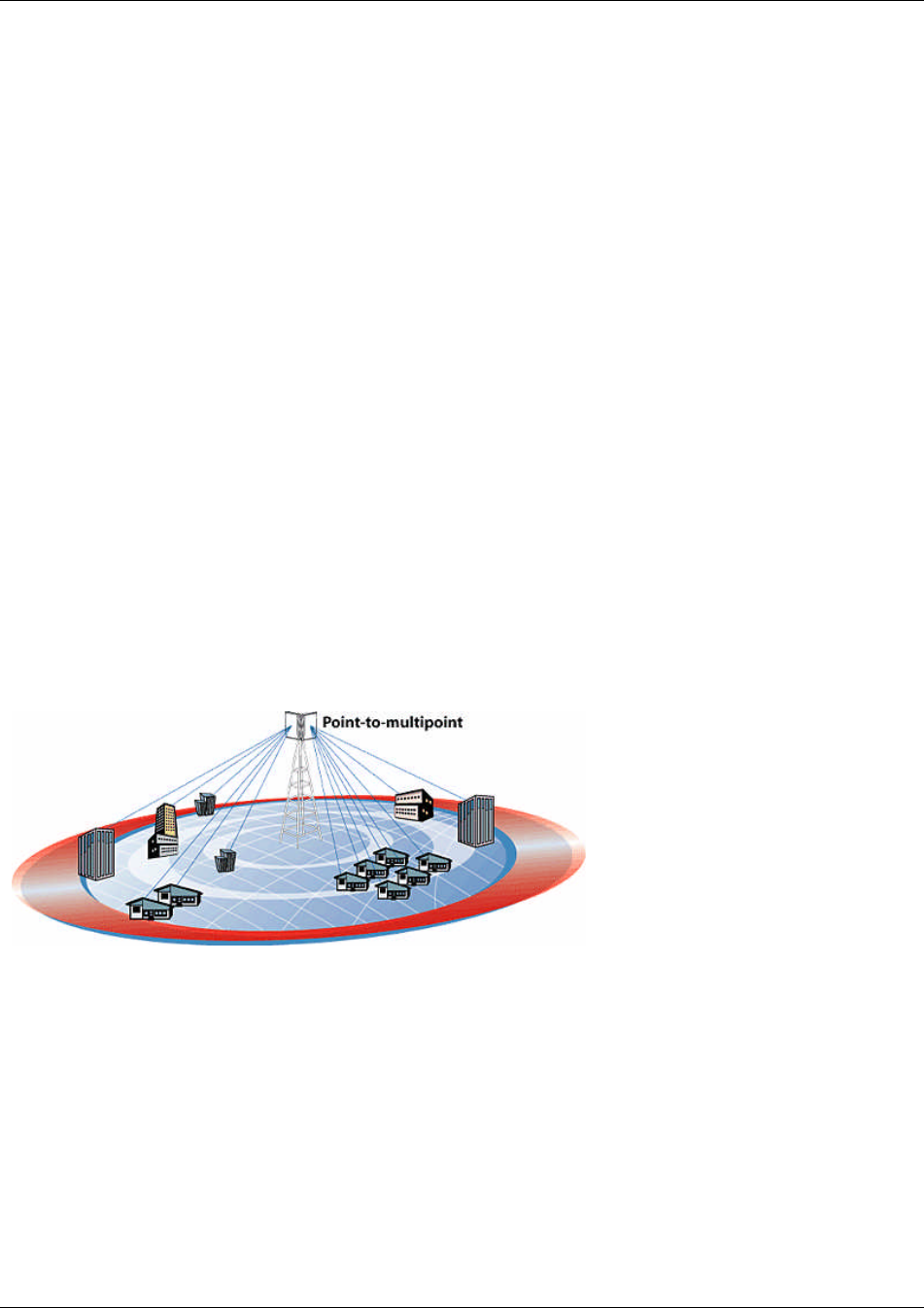
Figure 1-1 Typical Point-to-Multipoint Deployment
The M900S AP provides a host of comprehensive tools and functions. The AP typically resides at the center of the point-to-multipoint
(PMP) network and performs all management functions including the allocation of bandwidth for all associated SUs.
SmartPolling™ Overview
One of the major advantages of the M900S system is the ability of the AP to handle multiple SU connections and share the
3 Mbps data throughput very efficiently. Bandwidth allocation is managed by the AP’s SMARTPolling algorithm according to
provisioning rules set up by the system administrator. The AP polls each SU in a round robin format to determine if the SU
has data to transfer. The SU only transmits the data “upstream” to the AP when the AP gives authorization via a “transmit
grant”. The SU parses every “downstream” data packet from the AP and identifies packets intended for it. In order for an
SU to communicate with an AP, the system administrator must first add the MAC address and ID number of the SU to the
user database in the AP. The SmartPolling algorithm will poll active SUs more often thus making the most efficient use of
the 3 Mbps bandwidth. Several other parameters are considered in the SmartPolling algorithm including Committed
Information Rate (CIR), Maximum Information Rate (MIR), and Priority Setting.

Introduction
Trango Broadband Wireless — User Manual Access5830 Rev. D Page 2
Each of the above parameters are set in the AP by the system administrator and cannot be controlled at the SU. These
parameters will be covered in greater detail later in this text.
When power is first applied to a properly installed SU, it will scan all available channels, searching for an AP with matching
Base ID and MAC in its SU Database. The SU will then stop on that channel and respond to the AP using maximum RF
power. Before the AP can add the SU to the polling list, it must authenticate the SU by verifying the MAC address, and
performing a ranging operation to the SU.
Upon successfully locating and ranging the SU, the AP will then add the SU to the normal polling list and, it will adjust the
RF transmit power in the SU based on the Target RSSI parameter in the AP. This process is referred to as “power leveling”.
Hardware Overview
Trango Broadband Wireless — User Manual Access5830 Rev. D Page 3
Section 2 Hardware Overview
This section provides detail about each radio in the M900S family. Each radio in the M900S family includes built-in, electronically
switchable dual-polarized antennas as well as a reverse polarity SMA connector for the attachment of an external antenna. All units
are designed for outdoor installation, powered by Power-over-Ethernet (POE) for ease of installation. The M900S Access Point, as
well as the M900S subscriber units provide channels of operation within the 900 MHz ISM band which spans from 902 MHz to 928
MHz. Default channel spacing is 6 MHz, allowing for 4 non-overlapping channels.
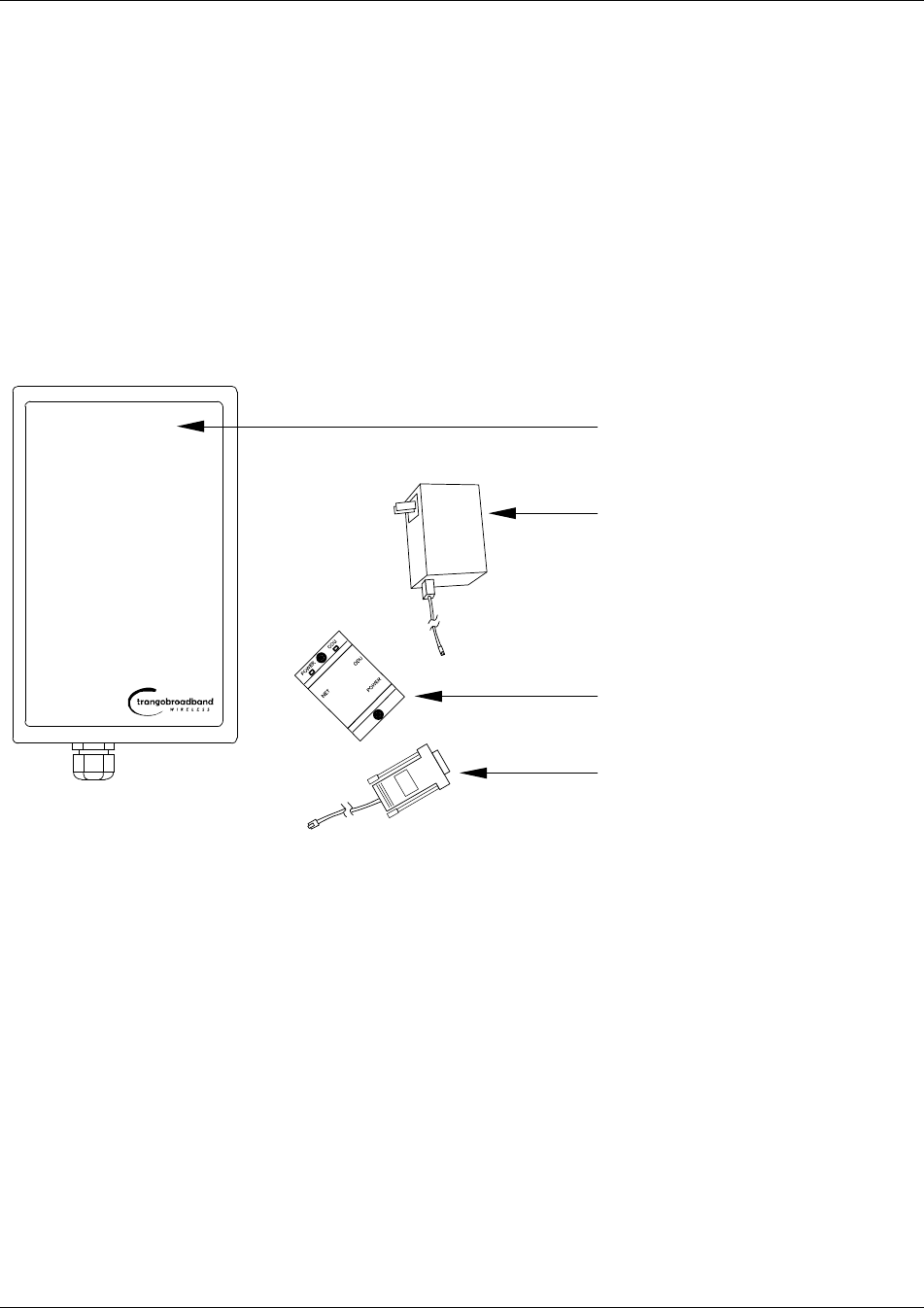
M900S AP and SU Hardware Components
Each radio comes equipped with the radio itself, a power-over-Ethernet (PoE) J-Box, an AC adapter, and mounting hardware. The
Access5830 AP (part #M900S-AP) also includes a serial programming cable.
Figure -2-1 Basic Components of an M900S Radio
Radio (AP or SU) antenna
Power Supply (120 VAC-20 VDC)
J Box (Power over Ethernet Injector)
Serial Programming Cable (AP Only)
Figure 2-2 Bottom of Radio
picture of bottom of radio w/label for Ethernet Port and LED
cover
At the bottom of the M900S are two access ports: a twist-on weatherproof cable port for RJ-45 Ethernet (and PoE), and a translucent
access cover plug over the unit’s diagnostic LEDs and reset button. The LEDs will be discussed later in this text.
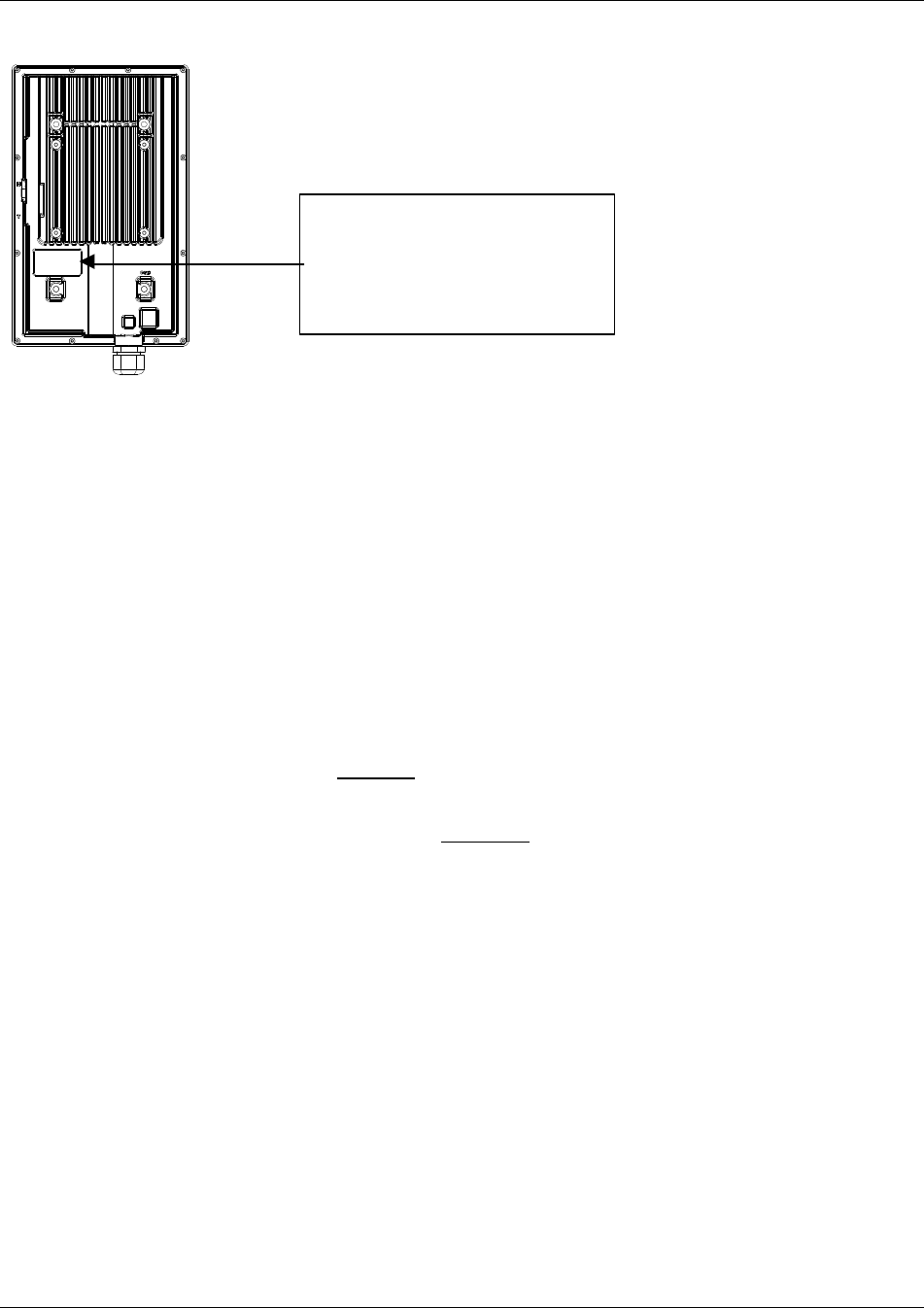
The radio’s model number and FCC ID, MAC ID, and Serial # are located on the side of the radio.
Getting Started
Trango Broadband Wireless — User Manual Access5830 Rev. D Page 4
Figure 2-3 Back of Radio
Figure 2-4 Side of Radio & Location of Reverse Polarity SMA Connector
Insert picture of side of radio showing rev. polarity SMA Connector
Section 3 Getting Started
This section explains how to power your radios, establish TCP/IP connectivity to the radios, as well as how to access the HTTP
browser and the command line interfaces.
Connections and Power
Connection and powering of radios is the same for APs and SUs.
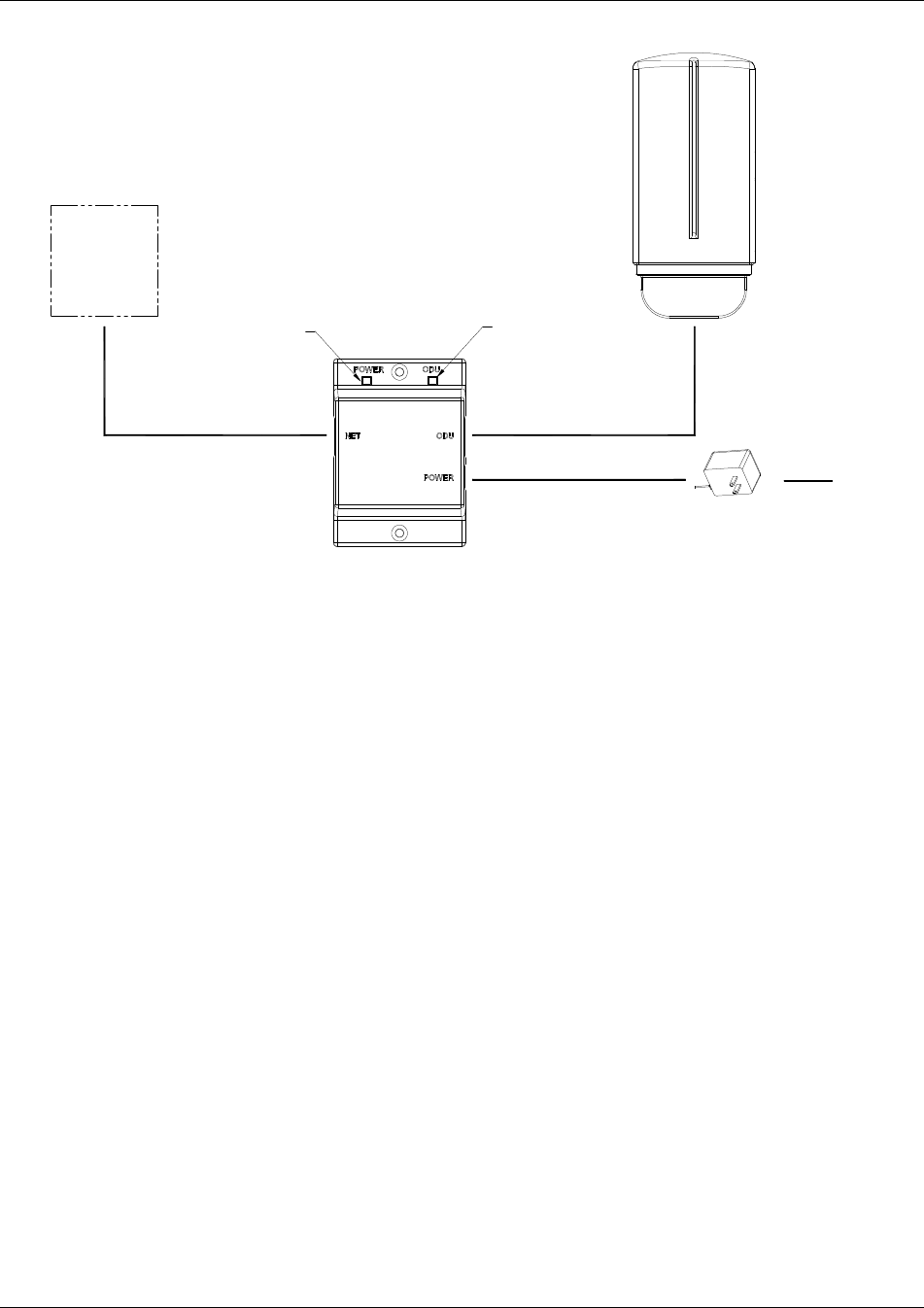
?? Connect a Cat-5 (straight through) Ethernet cable (we recommend shielded twisted pair) between the ODU (out door unit)
port of the J-box and the RJ-45 connector on the radio. Note that this cable will carry power over Ethernet (PoE).
?? If connecting to a COMPUTER, use a Cross-Over Ethernet cable from the NET port of the J-box to the computer’s Ethernet
port.
If connecting to a HUB, SWITCH, or ROUTER, use a Straight-Thru cable.
?? Plug the AC adapter into an AC outlet.
Trango Broadband Wireless
M9000S-AP Rev. A
S/N: 00000XXXX
MAC: 00 01 DE 00 02 F3
FCC ID: NCYM900SAP
Canada: XXXXXXXXXX
This equipment has been tested and found to comply with the limits for a Class B digital device,
pursuant to Part 15 of the FCC Rules. These limits are
Getting Started
Trango Broadband Wireless — User Manual Access5830 Rev. D Page 5
Figure 3-1 Wiring Diagram
CAT-5
STRAIGHT-THRU CABLE
20 VOLT POWER
SUPPLY
AC POWER
POWER OVER ETHERNET
J BOX
INDICATES POWER TO RADIO
INDICATES POWER TO J BOX
NETWORK
OR
COMPUTER
USE STRAIGHT-THRU CABLE
USE CROSS-OVER CABLE IF TO COMPUTER
IF TO HUB, SWITCH OR ROUTER
CAT-5
Both green LEDs on the J-box should be lit, indicating power is present at the J-box as well as the radio.
You are now ready to configure the radio via the Ethernet port.
Opmode and Radio Management Concepts
Proper connections to the radios and careful IP/routing & planning will enable the network administrator to access and manage the
radios remotely over the network.
Radio management over TCP/IP can be performed from PCs connected to the Ethernet side of each radio. Further, PCs connected to
the AP can manage the SU over their wireless connection; and, PCs connected to the SU can manage the AP, provided that switch 7
(TCP/IP for SU) is enabled at the AP. Switches will be covered later in this text.
Opmode
To fully understand radio management for the Access5830 system, it is important to be familiar with the concept of operation mode or
“opmode”.
APs can be in one of two opmodes; “OFF” opmode, or “AP” opmode. When in “OFF” opmode, the radio is not transmitting, and it is
not attempting to associate with SUs. Alternatively, when in “AP” opmode, the radio is transmitting, and is attempting to associate with
SUs. Similarly, SUs have two opmodes: “SU” opmode or “OFF” opmode.
Certain functions, such as the site survey function and the SU RSSI function can only be performed while the radio is in opmode
“OFF”. See Appendix D – Command Set Reference for a complete listing of commands, and the appropriate opmode(s) for each
command.
Switch Settings
M900S firmware includes several “switches” which are used to set certain operational parameters of the radios. Switch settings can
be changed via the HTTP browser interface or the Command Line Interface. For purposes of radio TCP/IP management, the following
three switches are important:
SU Switch 2 - TCP/IP access to SU from AP side of network requires that the SU’s switch 2 (SW 2 – TCP/IP for AP) be “ON”.
Default setting for SW 2 (from factory) is “ON”.
Getting Started
Trango Broadband Wireless — User Manual Access5830 Rev. D Page 6
AP and SU Switch 5 – In order to utilize the radio’s HTTP Browser interface, switch 5 (SW 5) must be “ON”. Default seting for SW
5 (from factory) is “ON”.
SU Switch 6 - TCP/IP access direct to SU from SU side of network requires that switch 6 (SW 6) be “ON”. Default setting for SW
6 (from factory) is “ON”. If SW 6 is off, TCP/IP access to SU from SU the SU side of the network is possible only if SU’s opmode is
OFF.
AP Switch 5 – TCP/IP access to AP from SU side of network requires that the AP’s switch 7 (SW 7 – TCP/IP for SU) be “ON”.
Default setting for SW 7 (from factory) is “OFF”.
Browser Interface
The HTTP browser interface is a powerful and easy-to-use configuration and management tool. The pages originate from the radio
itself, so no additional software is needed on the managing PC other than a web browser.
The browser interface’s functionality is a subset of the commands available in the command line interface (CLI). To use the browser
interface – the following must be present:
?? An Ethernet connection between a PC and the radio
?? Ethernet PC connection with subnet that is routable to the radio (default IP address=192.168.100.100)
?? A web browser (i.e. Microsoft Internet Explorer)
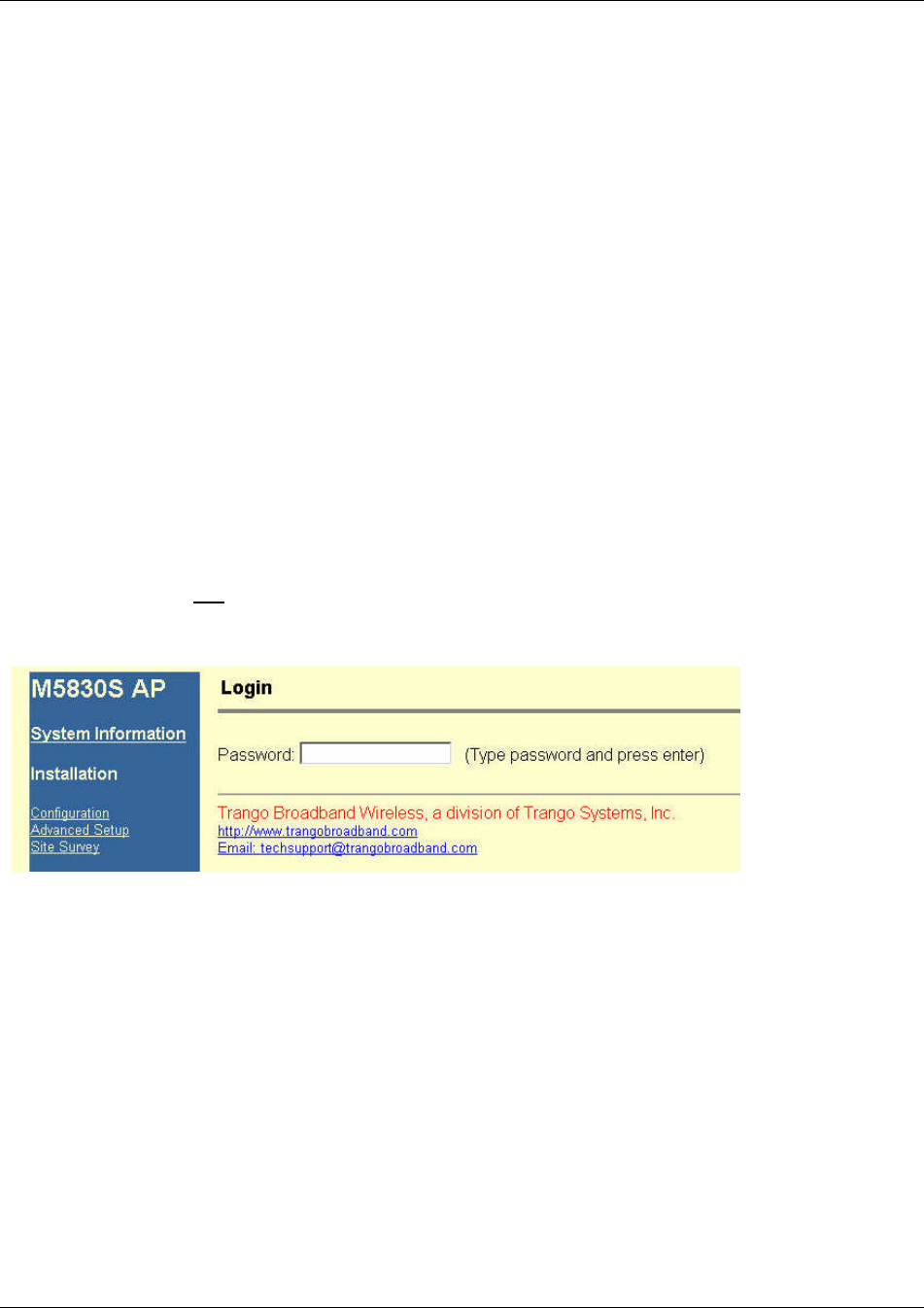
In order to use the browser interface – simply connect the radio to a PC, and type the radio’s IP address into the web browser (i.e.
Microsoft Internet Explorer). This will bring up a logon page.
? Note: Most pages are similar for Access Points and Subscriber Units. When there are significant differences, both are included
in this text. With each page there is a brief description of the major features. For more discussion on any feature see the Command
Set Reference, or click the Help hyperlink.
Figure 3-2 Browser Interface Login Page
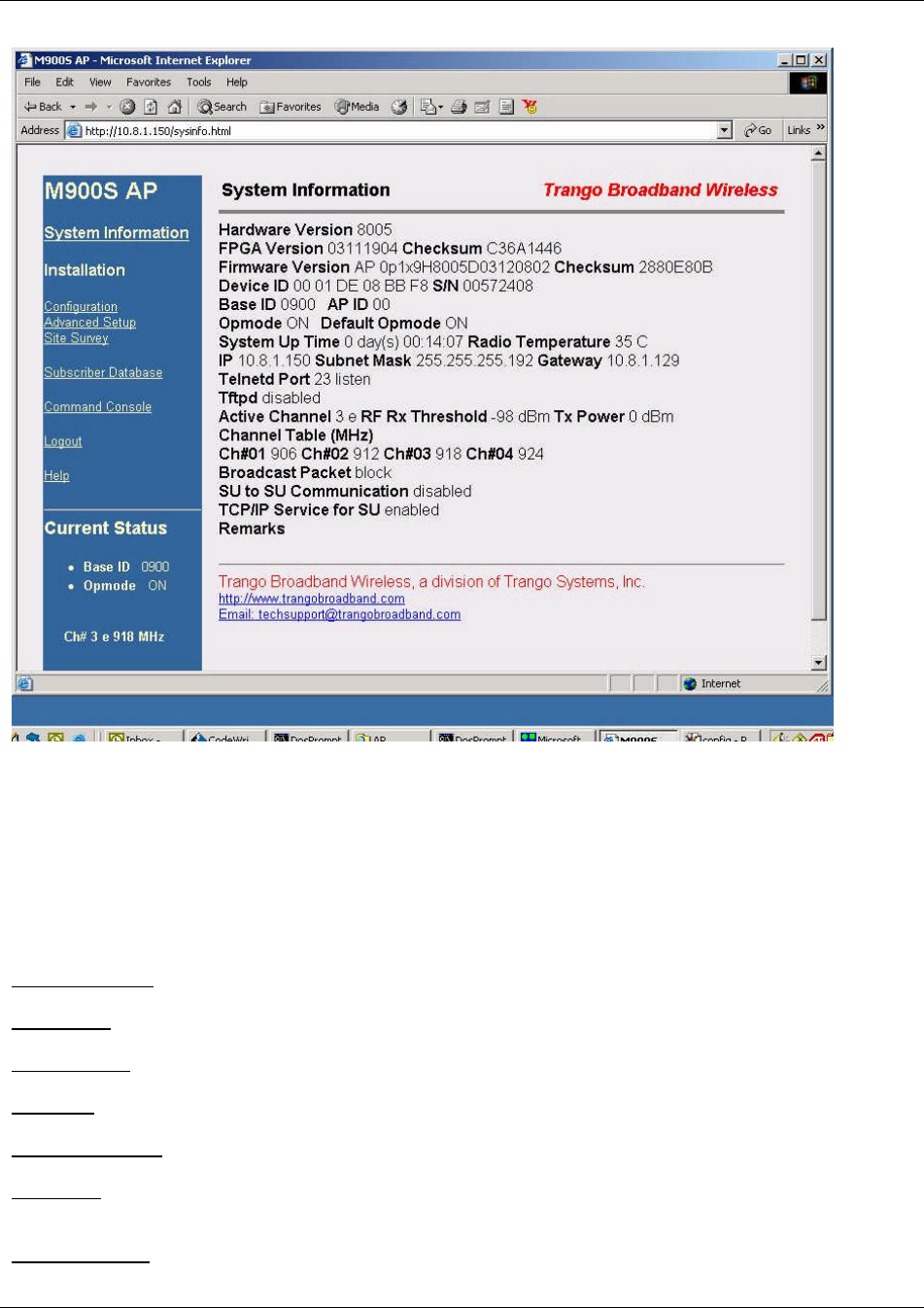
Type the password (default trango) and continue. This will bring up the radio’s system information page.
Getting Started
Trango Broadband Wireless — User Manual Access5830 Rev. D Page 7
Figure 3-3 Web Browser System Information Page
Figure 2-3 shows system information for an Access Point. Basic system information for a subscriber unit is similar and is covered in
detail later in this text.
The following describes the primary features and pages of the HTTP Browser interface:
Navigation Column: Each page features a navigation column which runs along the left-hand side of the page. The model number of
the radio is listed at the top of the navigation column. On the bottom of the navigation column is the Current Status of the radio
including its Base ID, current Opmode, channel, antenna selection, and frequency.
The navigation column also features links to each of the following pages:
System Information: This page shows most of the basic configuration parameters of the radio. It is the first page shown after login.
Configuration: The essential parameters, such as Base ID, channel and polarization are set here.
Advanced Setup: The advanced RF parameters, such as transmit power are set here.
Site Survey: From here, in Opmode Off, the user can conduct a spectrum analysis.
Subscriber Database: This is the page for defining which SUs can associate to the AP.
Link Control: This page shows which SUs are associated. This page also provides several tools for evaluating the quality of the
wireless link.
Command Console: From this page, the user can run any console command which is not interactive (i.e. ipconfig). The results are
reported back via HTTP screen. For a complete list of console commands, type "help" or “?” in the entry field.

Getting Started
Trango Broadband Wireless — User Manual Access5830 Rev. D Page 8
Logout: This link will end the current HTTP session with the radio.
Help: The Browser Interface features useful Help pages which explain all listed parameters. To access the help pages click on the
Help link.
For a complete description on use of the Browser Interface, see Appendix A.
Command Line Interface
Although most radio functions can be managed via the browser interface, the command line interface (CLI) does provide slightly more
functionality. The CLI can be accessed through Telnet.
Telnet
Open a command prompt (DOS) session on your PC. Open a Telnet session by typing:
telnet [ip address of radio]
Example:
C:>telnet 192.168.100.100
All Trango radios (AP and SU) come factory pre-configured with a default IP address 192.168.100.100. In Telnet, you will be greeted
with current hardware and firmware information and prompted for a password. Type in the password and press enter. The factory
default password is trango.
To terminate a CLI session (Telnet or Serial) type the command logout.
? Note: Type help, or ? for a listing of all CLI commands. Type help <command> for the syntax of a particular command.
The majority of the CLI commands will be covered throughout this text as well as in Appendix B on the Command Set Reference.
Troubleshooting
If you can not telnet into the radio or open an HTTP browser session, check cable connections, ensure proper use of cross-over vs.
straight-through cable, ensure PC’s subnet is routable to radio’s IP address. If you can still not access the radio’s management
interfaces, consult the troubleshooting guide which is available at www.trangobroadband.com in the Technical Support area of the
website.
Reset Button
M900S APs and SUs feature a reset button (located under the translucent plug which can be pressed with a small object such as a
paper clip. Pressing the reset button will reset all of the radio’s parameters (including IP address and passwords) to factory default
192.168.100.100 and password trango. The reset button can be useful if you forget or are unsure of the radio’s IP address/password.

Basic Configuration via Browser Interface
Trango Broadband Wireless — User Manual Access5830 Rev. D Page 9
Section 4 Basic Configuration via Browser Interface
This section describes a few more basic concepts and how to establish a basic wireless link between AP and SU, using the Browser
(HTTP) Interface . This section is written to address only the most basic steps in establishing a link in the lab, or a bench-top
environment. It is highly recommended to read the other sections of this manual to gain an understanding of all important
configuration parameters and procedures prior to deploying any wireless equipment.
In this section you will:
?? Learn about AP and SU Basic Configuration Screens and Parameters
?? Populate Access Point’s Subscriber Unit Data Bases (SUDB) with at least one SU.
?? Configure Other Basic AP Parameters
?? Configure Basic SU Parameters
?? Establish a Wireless Link
?? Evaluate Link Quality
The Access5830 uses the concept of “association” to indicate that the APs and SUs are communicating. If all parameters are properly
set, the AP will begin actively searching for the SUs in its SU database (SUDB). Once an active SU is detected, the authentication and
association process will begin.
Essentials to Establish a Wireless Link with M900S Series Radios
?? Base ID in AP and SU must match
?? MAC Address of SU must match an entry in the subscriber unit database (SUDB)
?? AP must be in Opmode “AP”
?? SU must be in Opmode “SU”
?? Adequate signal strength must be received at each radio
If all of these parameters are met, and if the AP and SU are within range - and properly aligned, the wireless link will automatically
establish itself and Ethernet traffic will begin to pass between the radios.
? Note: This section utilizes the Browser Interface as the configuration tool. For the equivalent CLI commands, see Section 5.
Configuring AP Subscriber Unit Database
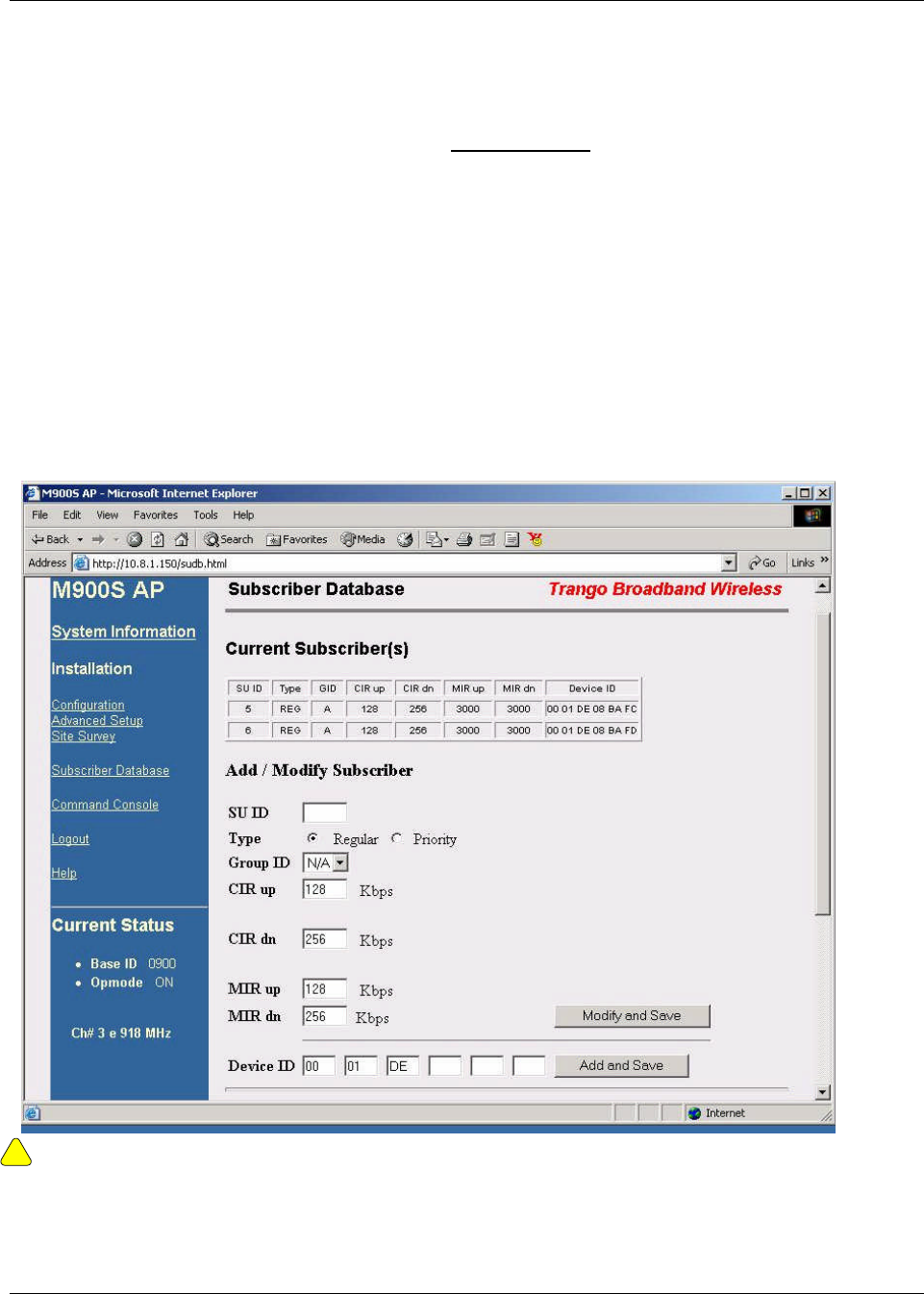
Prior to establishing a wireless link, the user must configure the Subscriber Unit Database (SUDB) in the AP with each SU’s MAC
address and related settings. The subscriber unit database includes detailed information about each SU. The user uses the
Subscriber Database page to add, modify, and delete SUs. The key information for each SU includes the following:
SU ID: User Definable subscriber unit ID (1…8190)
TYPE: PR Priority or REG Regular. Priority SUs are favored in the dynamic polling process and thus respond with
less latency than regular SUs.
Group: SU to SU Group # (1..F in hex) for SU to SU communications. Only SUs with same SU to SU group # may
communicate with each another.
CIR UP: Committed Information Rate from SU to AP. Minimum upstream rate (measured in Kbps) at which the SU will
attempt to deliver bandwidth to the AP. Maximum setting is 3000.
CIR DOWN: Committed Information Rate from AP to SU. Minimum rate (measured in Kbps) at which the AP will attempt to
deliver bandwidth to this SU. Maximum setting is 3000.
MIR UP: Maximum Information Rate from SU to AP. Maximum upstream rate (measured in Kbps) at which the SU will
attempt to deliver bandwidth to the AP. Maximum setting is 3000.
MIR UP: Maximum Information Rate from AP to SU. Maximum rate (measured in Kbps) at which the AP will attempt to
deliver bandwidth to this SU. Maximum setting is 3000.
DEVICE ID: MAC address of the SU. The MAC address and BASE ID are the basis for authentication with the AP.
Basic Configuration via Browser Interface
Trango Broadband Wireless — User Manual Access5830 Rev. D Page 10
. To set up an SU in the SU Database, complete the following steps:
1. Connect to the AP (see Getting Started) and open the Subscriber Database page.
2. Enter SU ID
3. Select: either PRIORITY or REGULAR.
4. If SU will be part of an SU to SU group, enter the SU to SU group number.
5. CIR up: (SU to AP Committed Information Rate) – minimum upstream bandwidth for the SU in Kbps.
6. CIR dn: (AP to SU Committed Information Rate) – minimum downstream bandwidth for the SU in Kbps.
7. MIR up: (SU to AP Maximum Information Rate) – maximum upstream bandwidth for the SU in Kbps.
8. MIR dn: (AP to SU Maximum Information Rate) – maximum downstream bandwidth for the SU in Kbps.
9. Device ID is the MAC Address of the SU
10. Save and Activate changes
!
Important! Always remember to Save and Activate changes, or the SUDB will revert back to its previous state after power cycle or
reboot.

Basic Configuration via Browser Interface
Trango Broadband Wireless — User Manual Access5830 Rev. D Page 11
Configure Other Basic AP Parameters
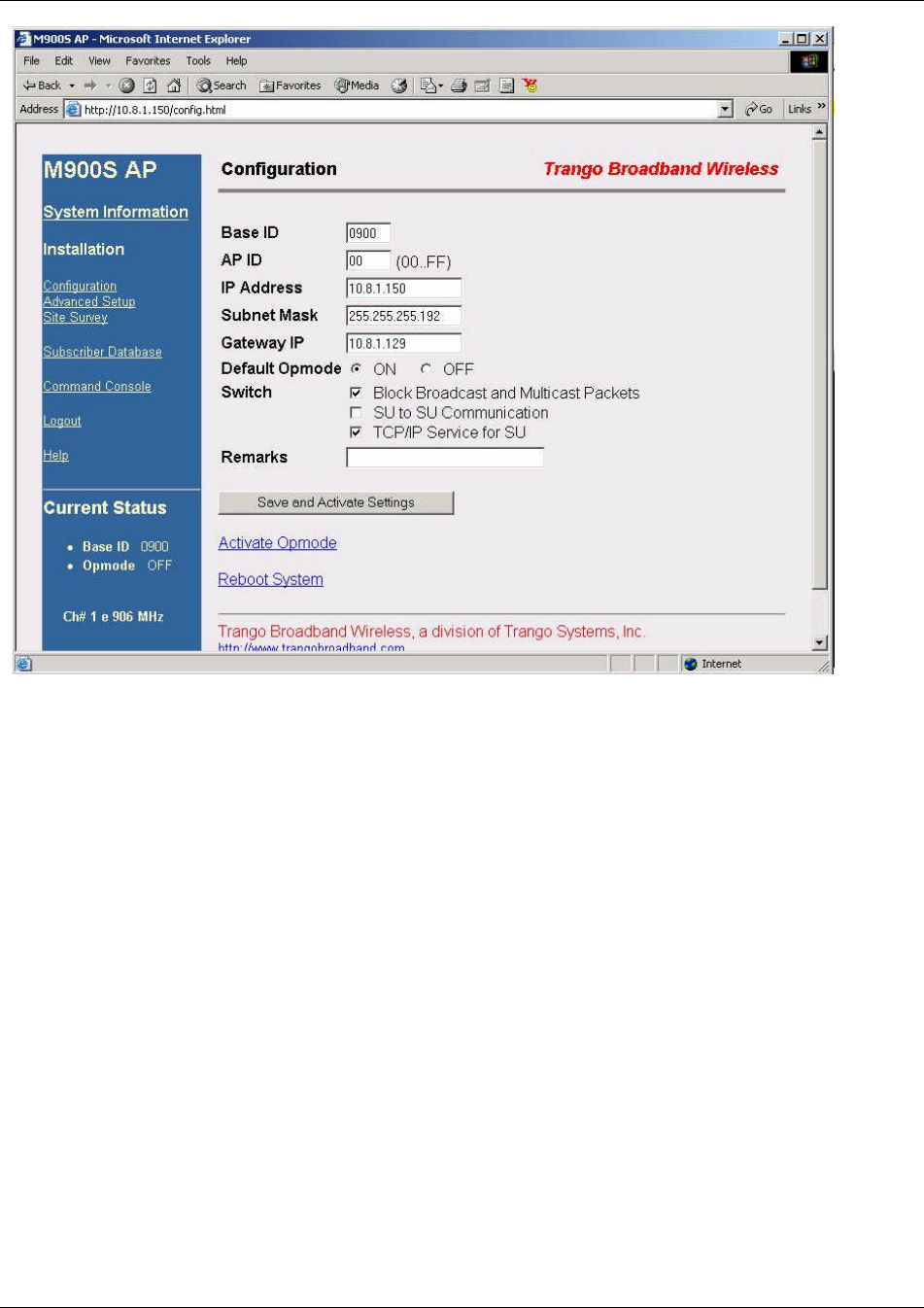
In addition to setting up the SU in the SU Database, the following settings from the AP’s Configuration page must be set (or left at
default).
Base ID: Four character, alphanumeric, user definable base station ID. Input of BASEID shall be in the format of xxxx. Where
x is any character from the set : { 0..9; a..z; A..Z; '!@#$%^&*()_+[]\<>,./?' } . The Base ID is typically assigned to a
single AP or a group of APs at a particular cell site. The Base ID in AP must match the Base ID in SU in order for
link to be established. This parameter can only be changed while opmode is "OFF".
AP ID: User definable AP ID (00-FF). This parameter is for informational purposes only and does not play a role in
authentication or the establishment of a working wireless link. This parameter can only be changed while opmode
is “OFF”.
IP Address, Subnet Mask, Gateway:
The IP configuration of this radio for configuration, and network management purposes. Since this is a layer-II
device, these parameters do not play a role in the establishment of the wireless link.
Default Opmode:
Operation mode of the radio after power cycle or reboot. When the radio enters "AP" mode, it will be transmitting.
When the radio enters "OFF" mode the radio is not transmitting, but can be accessible via the Ethernet port. The
radio can be put into opmode "OFF" regardless of its default opmode by telnetting into the radio within the first 30
seconds after power cycle or reboot.
Active Channel/Polarization:
The current channel and antenna polarization of this unit when Opmode is "AP".
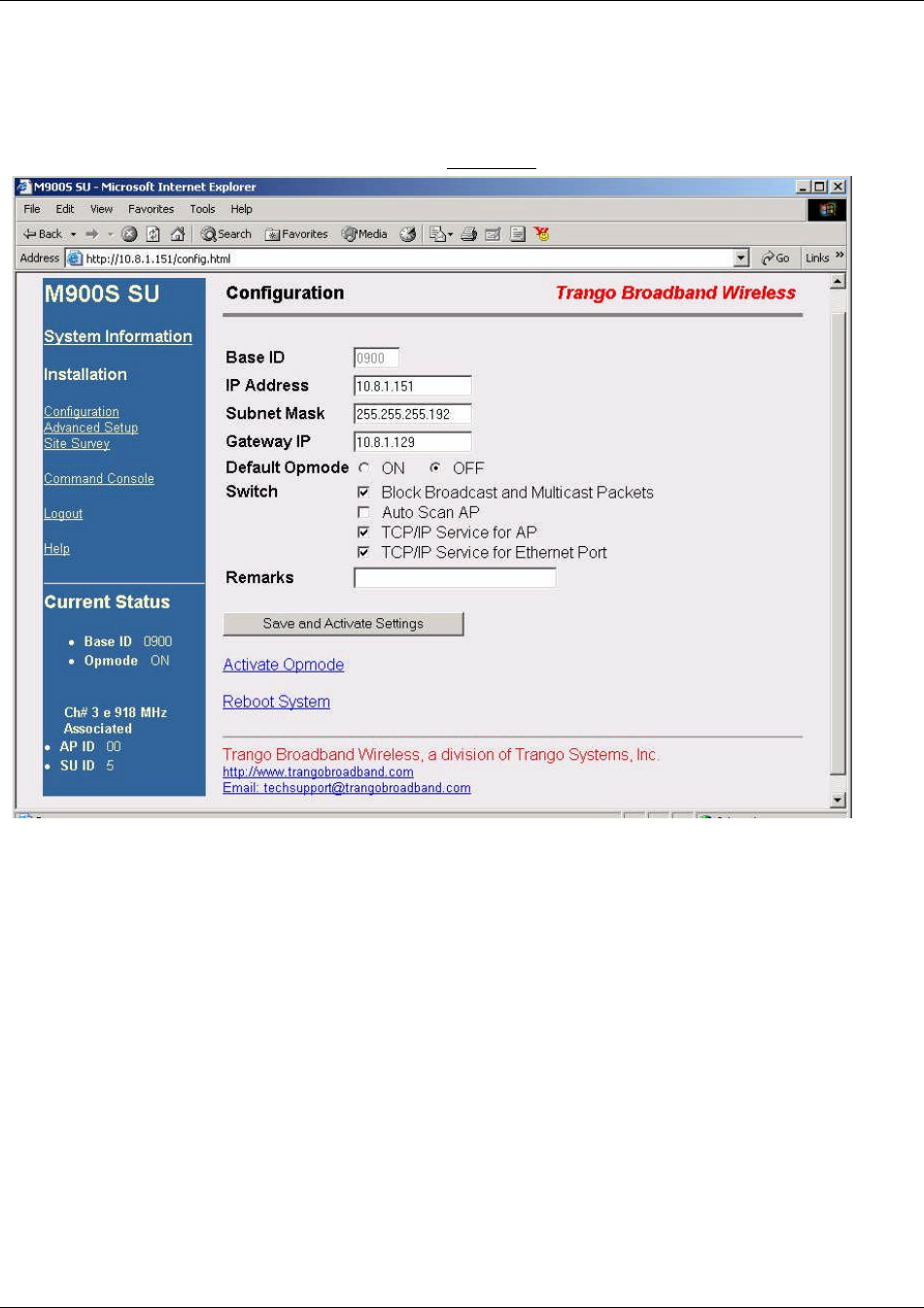
To configure the AP’s other basic settings, complete the following steps:
1. Connect to the AP (see Getting Started) and open the Configuration page.
Basic Configuration via Browser Interface
Trango Broadband Wireless — User Manual Access5830 Rev. D Page 12
2. Set Base ID (Must match the SU)
3. Set AP ID (used to identify the AP, not essential to establishing a link)
4. Set IP, Subnet, and Gateway (Not essential for a link)
5. Set Default Opmode to "ON"
6. Set Active Channel
7. Set Antenna Polarization (H or V) or choose E for external antenna
8. Save and Activate Settings
9. Reboot System
At this point the AP will begin actively searching for any SU in its SU database. Once an active SU is detected, the authentication and
association process will begin. The red LED on the bottom of the AP should be lit, indicating that the radio is in Opmode “AP” and
transmitting.
Basic Configuration via Browser Interface
Trango Broadband Wireless — User Manual Access5830 Rev. D Page 13
Configure Basic SU Parameters
In order to establish a working link, the Base ID in the SU must match the Base ID of the AP
To set up the SU, complete the following steps:
1. Connect to the SU (see Getting Started) and open the Configuration page.
2. Set Base ID (Must match the AP)
3. Set IP, Subnet, and Gateway (Not essential for a link)
4. Set Default Opmode to "ON"
5. Save and Activate Settings
6. Reboot System (This will terminate your HTTP session)
At this point, if all parameters have been set correctly, and if the radios are within range – a wireless link between the AP and SU will
automatically become established.
LED Summary
At this point it is useful to learn about the various LEDs which can be found on the bottom of the radio These LEDs can assist the
user in determining radio and link status.
It should be noted, however, that in “Survey” mode, no LEDs shall light up except the LNKST and ACTST LEDs. The unit shall have
LED indicators to indicate the following:
a) 10/100 LED
Green: Illuminated when link speed is negotiated at 100 BaseT. It is off when link speed is 10 BaseT.
Basic Configuration via Browser Interface
Trango Broadband Wireless — User Manual Access5830 Rev. D Page 14
b) ACT LED
Red: Link and Activity. Illuminated when a link is established. Will blink when link activity is detected.
c) RSSI LEDs (4)
In all modes except “Survey”, the unit’s four yellow LEDs shall indicates the level of RF
signal being received from a valid AP.
Yellow LED 1 (leftmost): On when RSSI is greater or equal to –85 dBm
Yellow LED 2 : On when RSSI is greater or equal to –75 dBm
Yellow LED 3 : On when RSSI is greater or equal to –65 dBm
Yellow LED 4 (rightmost): On when RSSI is greater or equal to –55 dBm.
If no signal is detected the LEDs will not be on at all.
In addition, these 4 LEDs shall flash once to indicate the 'factory reset' button has been
activated.
d) ASSOCIATION LED(green): Blinking at:
Once every second when unit is powered on but opmode is OFF
Twice per second while in SU opmode and scanning for an AP.
Solid after unit is associated with an AP.
Figure 4-1 Bottom of M900S Radio with LEDs
Insert new LED picture here
Evaluate Link Quality
It takes approximately 60 seconds for the radios to complete the boot-up cycle, which includes switching on the Opmode,
handshaking, and association. If the AP is busy servicing many SUs, the association process may take slightly longer. The radio’s
firmware includes several useful tools to assist in determining which SUs are associated, and the quality of each link. One method for
verifying link quality is by using the Link Control page.
Insert Link Control Page Here
On this page the user can immediately see which SUs have associated. In the page shown, SU ID# 107 is associated, and SU IDs 11,
22, 33, and 44 are not. Consider "Power Off" status synonymous with "not associated."
Powerleveling takes place automatically every time an SU associates, so in most cases it is not necessary to manually run
powerleveling. Power leveling is described in the deployment section of this manual.
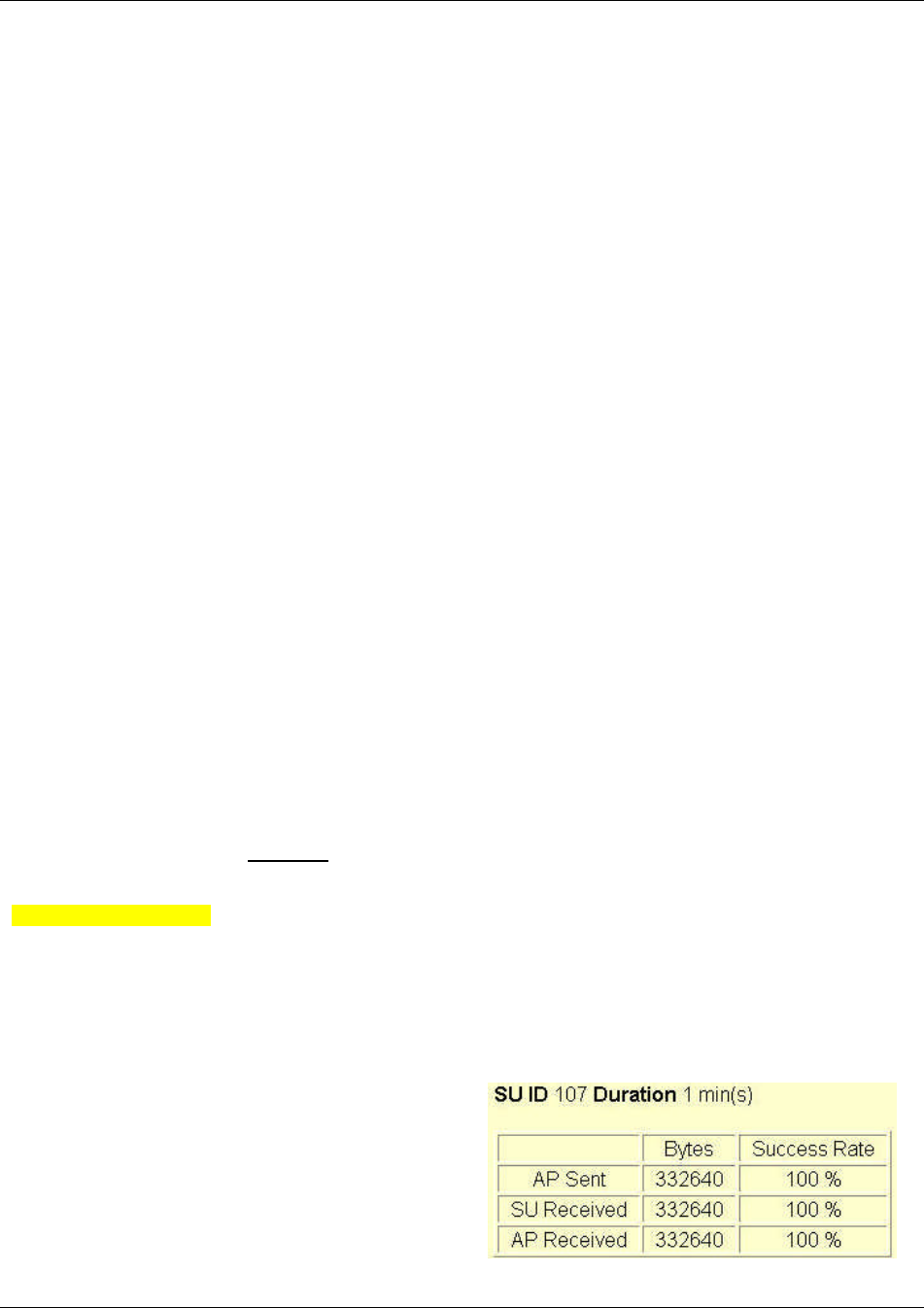
RF Link Loopback Test
The RF Link Loopback test in one of the built-in tools for evaluating
the quality of the wireless link. Specify an SU ID and time in
minutes to conduct the test. The test is prioritized, so it will take
precedence over all other traffic. 1600 byte packets are sent and
received between the SU and AP at 50 millisecond intervals over
the time specified. The success rate, and number of packets in
bytes is reported for SU and AP Received.
Basic Configuration via Browser Interface
Trango Broadband Wireless — User Manual Access5830 Rev. D Page 15
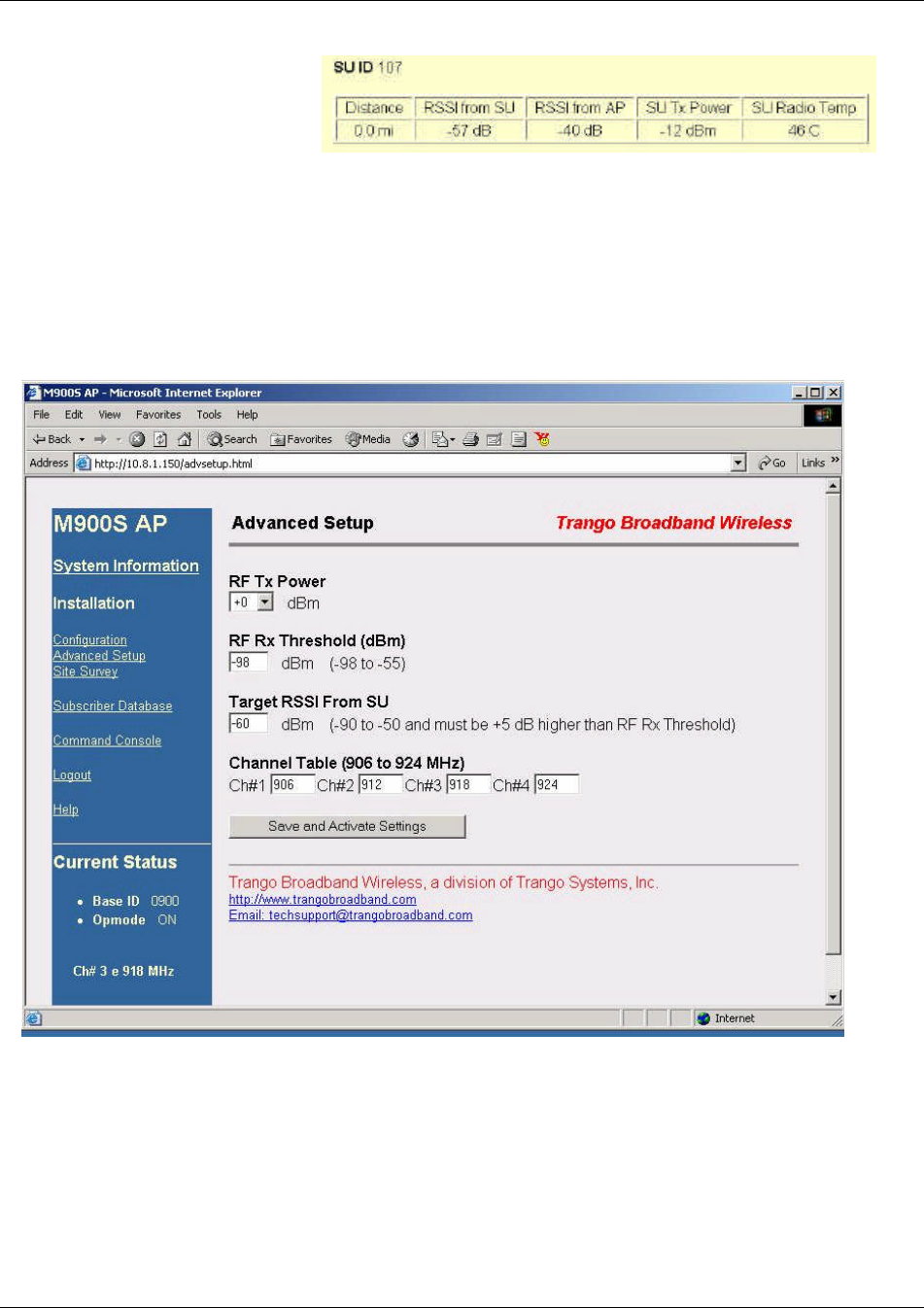
SU Ranging / RSSI
Test
For specified SU reports the distance from
AP in miles, SU Tx Power, SU temperature,
and the received signal strength for uplink
and downlink. Use a link budget calculator to analyze results.
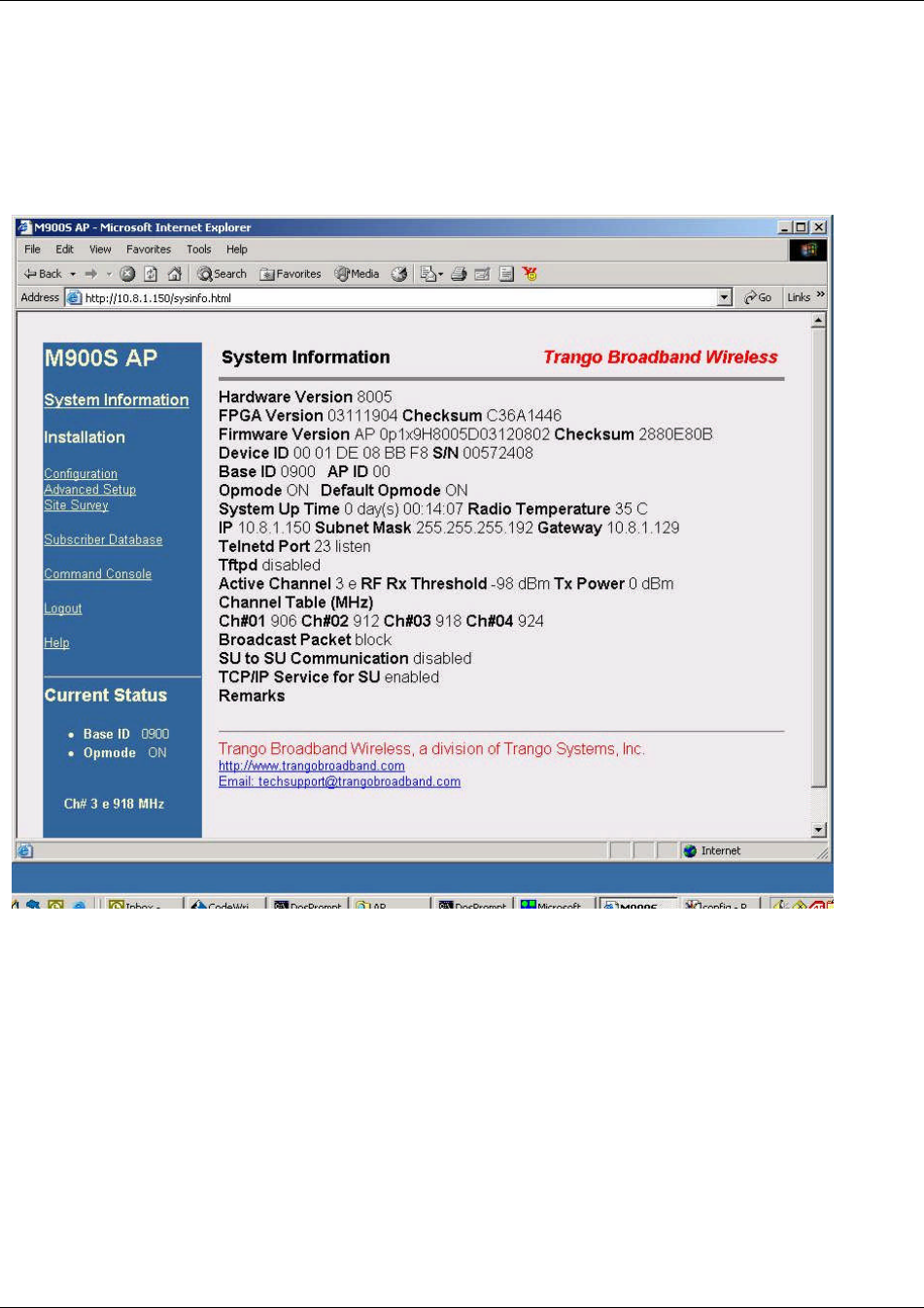
Advanced Setup Page
The advanced set up page includes several important parameters including RF TX Power, target RSSI from SU (AP only). This
screen also includes the radio’s channel table which can be configured by the user.
RF Tx Power: Sets the conducted RF power output of the radio. Highest allowable setting is 26 dBm. Lowest setting is –4
dBm. This value does not include antenna gain. Higher number is more power.
RF Rx Threshold: Sets the receive threshold of the radio. The radio will not process signals received below this level, so it is
very useful for interference mitigation. For smaller radius of operation use a higher threshold (-75 is higher
than -80).
Target RSSI from SU: Used by the powerleveling process to automatically adjust the RF output power level of all SUs in a sector so
the signal strength from each SU as measured at the AP will be roughly equal. Make sure that all SUs are
power leveled after changing this number (See Link Control page).
Basic Configuration via Browser Interface
Trango Broadband Wireless — User Manual Access5830 Rev. D Page 16
Channel Table: Assigns channel numbers to actual frequencies of operation. Default settings allow the largest number of
channels (4) within the band, while still maintaining 6 MHz channel spacing.
Other Key Parameters
This section describes the remainder of the parameters listed on the System Information page. Most of these parameters are the
same for both APs and SUs.
Hardware Version: Hardware version is factory-set and can not be changed by user.
FPGA Version: Low level field programmable gate array firmware currently loaded on the radio. Normally the FPGA firmware will not
require upgrading.
Firmware Version: Main firmware. In this example, the version part of the string is 0p1 (v0.1) , the hardware code is H8005, and the
remainder of the string is a date code.
Device ID: MAC address of the radio.
S/N: Serial number of the radio.
Telnetd Port: User changeable telnet port of radio.
TFTPd: Current status of TFTP daemon. Used for uploading firmware.
MIR Threshold: Enable/Disable the Maximum Information Rate (MIR) Threshold. The MIR Threshold is the aggregate throughput on
the AP at which the AP will start to enforce CIR rules for SUs.
Active Channel: The channel currently being used by the radio.

Basic Configuration via Browser Interface
Trango Broadband Wireless — User Manual Access5830 Rev. D Page 17
RFRx Threshold: Sets the receive threshold of the radio. The radio will not process signals received below this level, so it is very
useful for interference mitigation. For smaller radius of operation use a higher threshold (-65 is higher than -70).
Broadcast Packet: This software switch (0) enables/disables the blocking of Ethernet control packet except ICMP and ARP to reduce
the amount of unnecessary overhead introduced to the wireless link.
SU to SU Communication: If enabled (via switch 3), SUs with matching SU to SU groups (except group 0) can communicate in peer-
to-peer mode via the AP without the need for a router behind the AP.
TCP/IP Service for SU: If enabled, the AP can be accessed via TCP/IP (Telnet or HTTP) from the SU side of the network via the
wireless link.
Remarks: User definable radio information (i.e. customer name, address of installation, and so on). Maximum 28 characters can be
stored
Site Survey Page
This is a useful tool for detecting interference. It is not meant as a substitute for a Spectrum Analyzer. The radio must be in Opmode
"Off" in order to use this feature. Enter the number of minutes desired for the survey, and select the polarization (H or V), or E for
external antenna. Click "Start Survey". A survey of the default 4 channels will be performed. Results are reported in dBm per channel
as average and peak. A channel is reported to be "Clear" if the peak and average are below the RF Rx Threshold by more than 8 dB.
Basic Configuration via CLI
Trango Broadband Wireless — User Manual Access5830 Rev. D Page 18
Section 5 Basic Configuration via CLI
It is important for users to be familiar with the CLI interface as well as the Browser Interface. This section covers how to utilize the
radio’s CLI interface to establish a working wireless link. Much of the information presented here is similar to the information
presented in Section 4.
In this section, the most common settings are discussed using the CLI. Topics include:
?? Access Point Basic Settings
?? Subscriber Unit Basic Settings
?? Subscriber Unit Database Settings
A comprehensive treatment of radio settings is found in the appendix on the Command Set Reference.
See “Getting Started” section for description of how to access the radio via Telnet or Serial Interface
Access Point Basic Settings
After logging onto an AP or SU , it is good practice to type the sysinfo command to see the radio’s basic system information. Example
(Access Point):
insert AP sysinfo example here
Many of these parameters can be changed by the user. A description of each of these changeable parameters, along with the related
command is shown in the table below.
!
Important! When changing settings, it is usually necessary to type the save ss command in order to update the radio’s flash
memory. If you do not type the save ss command, the setting will be lost the next time the radio is rebooted. The command
save ss is equivilent to updateflash systemsetting.
.
Figure 5-1 Reference Table of Basic AP System Information
AP SYSTEM INFORMATION PARAMETERS AND RELATED COMMANDS
AP Parameter Description Related CLI Command
Device ID MAC Address of AP N/A
Base ID Specifies the cell or cluster to which
the AP belongs. Base ID must match
in AP and SU in order to establish a
wireless link.
set baseid <baseid>
Example:
#>Set baseid aa12
AP ID Informational parameter used to
provide a unique number for each
AP, useful for AP sector planning.
Please note that AP ID is not used by
the system for SU authentication.
set apid <apid>
Example:
#>Set apid 33
Opmode Current Opmode of radio. Opmode on y
This sets radio in Opmode ON. To set radio in Opmode OFF,
reboot, and access radio via Ethernet port in first 30 seconds.
Alternatively, change the default opmode to OFF, save, and
reboot.
Default Opmode Determines the Opmode (“ON” or
“OFF”) of the radio after power cycle.
When the parameter is set to “ON”,
the radio will progress into “ON”
Opmode automatically after
set defaultOpmode <ap or off>
Example:
#>set defaultopmode on

Basic Configuration via CLI
Trango Broadband Wireless — User Manual Access5830 Rev. D Page 19
AP SYSTEM INFORMATION PARAMETERS AND RELATED COMMANDS
AP Parameter Description Related CLI Command
reboot/power cycle.
Opmode Start Determines the amount of time the
radio will remain in Opmode OFF
after reboot before progressing to the
default Opmode.
set defaultOpmode ap [<time (sec)>]
Example:
#>set defaultopmode on 60
IP
Subnet
Gateway
IP, Subnet, and Gateway address of
radio. ipconfig [<new ip> <new subnet mask> <new gateway>]
Example:
#>ipconfig 10.1.1.2 255.0.0.0 10.1.1.1
Tftpd Status Tftpd status (on or off). Tftpd should
be turned on to import file into radio
(such as new firmware). Default is
off. TFTPD will revert to Off after
rebooting.
tftpd <on|off>
Example:
#>tftpd on
MIR Threshold (On or Off) Enable/Disable the Maximum
Information Rate (MIR) Threshold. set mir [on|off]
Example:
#>set mir on
MIR Threshold Kbps User specified MIR Threshold to
determine total throughput level at
which AP serves only CIR
(committed information rate) to
associated SUs.
When MIR Threshold is disabled, the
AP will serve MIR for all its SUs.
When MIR Threshold is activated,
and the network traffic exceeds the
MIR threshold, the AP will only serve
CIR for all its SUs.
When MIR Threshold is activated,
and the network traffic does NOT
exceed the MIR threshold, the AP
will still serve MIR for all its SUs.
set mir threshold [<Kbps>]
Example:
#>set mir threshold 2000
Active Channel Current RF channel and polarization
(v)ertical or (h)orizontal. freq writescan [<ch#> <v|h>]
Example:
#>freq writescan 5 v
This command will change the channel of the AP to 5,
vertical.
RF Rx Threshold Specifies the receiver sensitivity of
the AP. It is a powerful tool when the
radio is in a noisy environment. AP
will block out any signal received
which is below the RF Rx threshold.
Separate settings exist for both ISM
and UNII bands.
rfrxth <-90|-85|-80|-75|-70|-65>
examples:
#>rfrxth –70
RF Tx Power Current transmit power of the AP not
including antenna gain. power <set> <min|max|<dBm>>
Examples:
#>power set 10
Channel Table Assigned frequencies to channels.
All channels may be re-assigned as
desired by the administrator.
freq writechannel [<ch#> <freq>]
Example:
#>freg writechannel 3 910
This command will change channel 3 to 910 Mhz.
Broadcast Packet Filter This software switch (0)
enables/disables the blocking of
Ethernet control packet except ICMP
and ARP to reduce the amount of
unnecessary overhead introduced to
sw 0 [on|off] (default is on)
Example:
#>sw 0 on

Basic Configuration via CLI
Trango Broadband Wireless — User Manual Access5830 Rev. D Page 20
AP SYSTEM INFORMATION PARAMETERS AND RELATED COMMANDS
AP Parameter Description Related CLI Command
the wireless link
Remarks User definable radio information (i.e.
customer name, address of
installation, and so on). Maximum 28
characters can be stored.
remarks [remarks]
Example:
#>remarks 123 Elm Street
Subscriber Unit Basic Settings
Logon to the SU, and to receive a comprehensive snapshot of the system’s configuration info and status, type the command sysinfo.
Insert sample of SU sysinfo here
Many of these parameters can be changed by the user. A description of each of these changeable parameters, along with the related
command is shown in the table below.
!
Important! When changing settings, it is usually necessary to type the save ss command in order to update the radio’s flash
memory. If you do not type the save ss command, the setting will be lost the next time the radio is rebooted. The command
save ss is equivilent to the command updateflash systemsetting.
Figure 5-2 Reference Table of Basic SU System Information
SU SYSTEM INFORMATION PARAMETERS AND RELATED COMMANDS
SU Parameter Description Related CLI Command
Device ID MAC Address of the SU N/A
Base ID Specifies the cell or cluster to
which the SU belongs. set baseid <baseid>
Example:
#>Set baseid aa12
SU ID Together with Base ID is the
unique identifier of this SU used in
association. It is used to execute
commands from the AP on this
specific SU.
set suid <suid>
Example:
#>set suid 5
AP ID Informational parameter that
shows to which AP the SU is
associated. Please note that AP
ID is not used by the system for
SU authentication.
set apid <apid>
Informational Parameter
Example:
#>set apid 33
Opmode Current Opmode of radio. Opmode on y
This sets radio in Opmode ON. To set radio in Opmode
OFF, reboot, and access radio via Ethernet port in first 30
seconds. Alternatively, change the default opmode to OFF,
save, and reboot..
Default Opmode Determines the Opmode (“SU” or
“OFF”) of the radio after power
cycle. When the parameter is set
to “ON”, the radio will progress
into “ON” Opmode automatically
after reboot/power cycle.
set defaultOpmode <su or off>
Example:
#>set defaultopmode on
Opmode Start Determines the amount of time
the radio will remain in Opmode
OFF after reboot before
progressing to the default
set defaultopmode on [<time (sec)>]
Example:
#>set defaultopmode on 60

Basic Configuration via CLI
Trango Broadband Wireless — User Manual Access5830 Rev. D Page 21
SU SYSTEM INFORMATION PARAMETERS AND RELATED COMMANDS
SU Parameter Description Related CLI Command
Opmode.
IP
Subnet
Gateway
IP, Subnet, and Gateway address
of radio. ipconfig [<new ip> <new subnet mask> <new gateway>]
Example:
#>ipconfig 10.1.1.3 255.0.0.0 10.1.1.1
Tftpd Tftpd status (on or off). Tftpd
should be turned on to import file
into radio (such as new firmware).
Default is off. TFTPD will revert to
Off after rebooting.
tftpd <on|off>
Example:
#>tftpd on
RF Tx Power Current transmit power of the SU
not including antenna gain. This is
controlled by the AP during the
power levelling process.
Informational Parameter – can not be manually changed by
user.
Active Channel Shows the channel used in the
current association, and
"Associated" or "Disconnected"
depending on the association
status.
Information Parameter – the active channel will be set once
the SU scans and begins the association process with an
AP.
Broadcast Packet Filter This software switch (switch 0)
enables/disables the blocking of
Ethernet control packet except
ICMP and ARP to reduce the
amount of unnecessary overhead
introduced to the wireless link.
sw <sw#>=0..6 [on|off] (default is on)
Example:
#>sw 0 on
AP Autoscan This software switch (switch 1) is
to turn AP autoscan on or off. sw 1 [on|off] (default is on)
TCP/IP for AP This software switch (switch 2)
when on, allows users at the AP
side of the network to telnet or
HTTP into the SU.
sw 2 [on|off] (default is on)
Example:
#>sw 2 off
TCP/IP for LocalEth This software switch (switch 6)
when on, allows users on the
wired side of the SU to telnet or
HTTP into the SU.
sw 6 [on|off] (default is on)
Remarks User definable radio information
(i.e. customer name, address of
installation, and so on). Maximum
28 characters can be stored.
remarks [remarks]
Example:
#>remarks 678 Oak Ave
Counters:
RF Tx RF Rx
Eth Tx Eth Rx
This is an average of wired and
wireless, transmit and received
traffic in kilabits per second.
Informational Parameter
Subscriber Unit Database Settings
Once you are familiar with the AP’s basic system information presented above, you are ready to add one or more SUs to the SU
database (sudb). There are three basic commands related to the SU database: sudb add, sudb cirmir, sudb defaultcirmir, sudb
view, and save sudb.
Adding an SU
To add an SU to the database, you will need to know the following information:

Basic Configuration via CLI
Trango Broadband Wireless — User Manual Access5830 Rev. D Page 22
1. MAC ID of SU (printed on the back of the SU)
2. Polling priority; either PRIORITY or REGULAR.
? Note: SUs designated as PRIORITY will get polled more often by the AP.
To add an SU to the database, use the following command and syntax:
sudb add <suid> <pr|reg> <device id>
suid: SU ID
pr: priority user
reg: regular user
<device id>: xx xx xx xx xx xx in hexadecimal (this is the MAC address of the SU)
Example:
#>sudb add 5 pr F3 3C 50 67 89 D4
In this example an SU ID 5 was added as a Priority SU . The MAC ID of this SU is F3 3C 50 67 89 D4.
? Note: You can add up to 2000 entries in the SU database. It is recommended that users not enter any more SU’s than
necessary since excessive numbers of inactive SU’s in the database may negatively impact system performance.
CIR / MIR Commands
The default CIR/MIR setting is 3000 kbps for upsteam and downstream values.
To change the SU’s CIR/MIR settings, use the following command:
sudb cirmir <<suid>|all> <cir dn> <cir up> <mir dn> <mir up>
Example:
#>sudb cirmir 5 128 256 3000 3000
To change the default CIR/MIR values, use the following command:
sudb defaultcirmir <default cir dn> <default cir up> <default mir dn> <default mir up>
Example:
#>sudb defaultcirmir 256 256 512 512
To view the entries in the SU database, type the command sudb view.
To save the changes you have made to the SU database, type save sudb
Other important SU database related commands are sudb delete and sudb modify. See Appendix D for detailed descriptions of
these commands.
!
Important! After updating the SU database, type the command save sudb to save the SU database. If you do not save, the sudb file
will revert back to its previous state after power cycle or reboot.
Mounting Hardware
Trango Broadband Wireless — User Manual Access5830 Rev. D Page 23
Section 6 Mounting Hardware
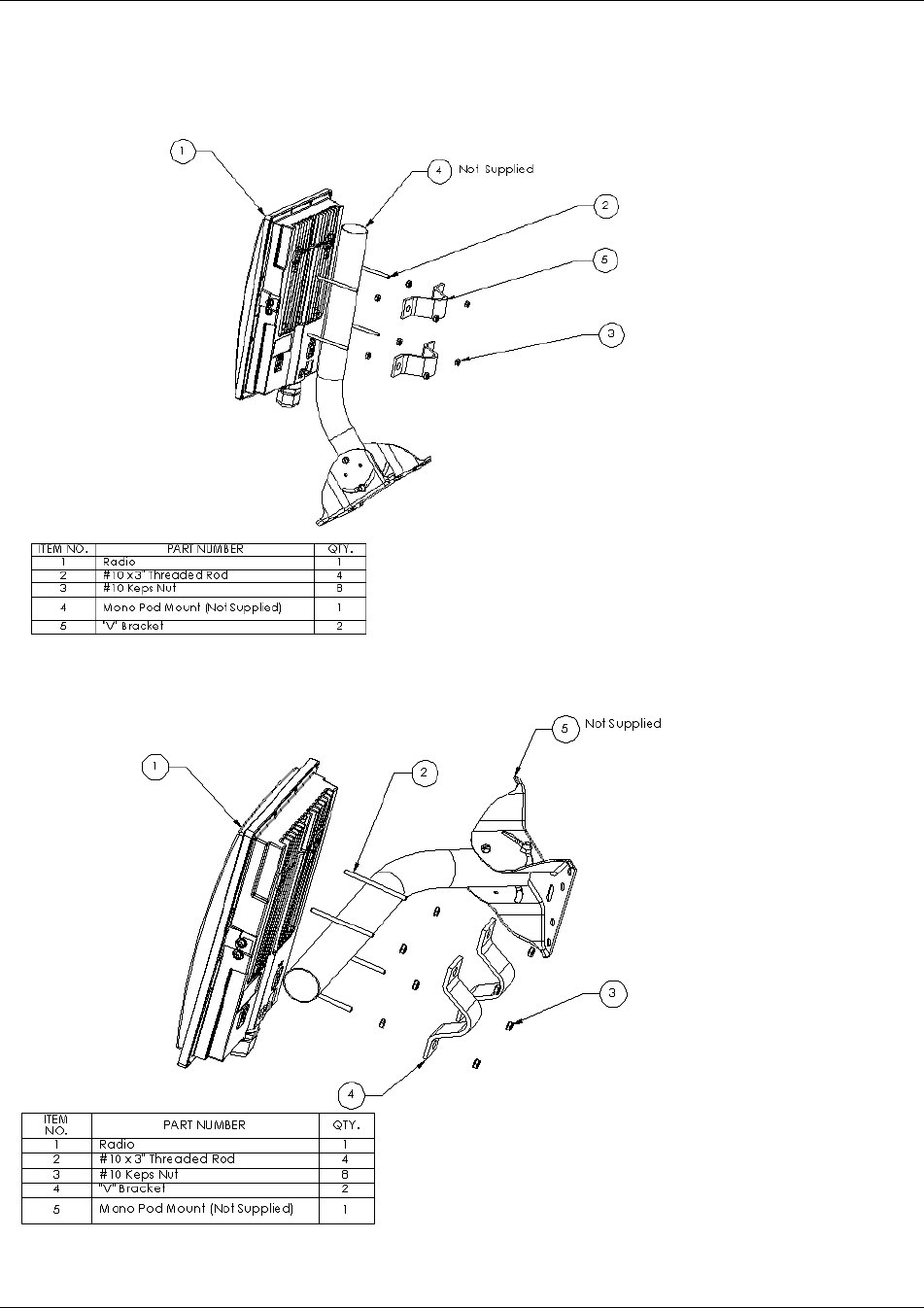
Figure 6-1 M900S Mounting Hardware Assembly
Figure 6-2 Alternative Mounting
Mounting Hardware
Trango Broadband Wireless — User Manual Access5830 Rev. D Page 24
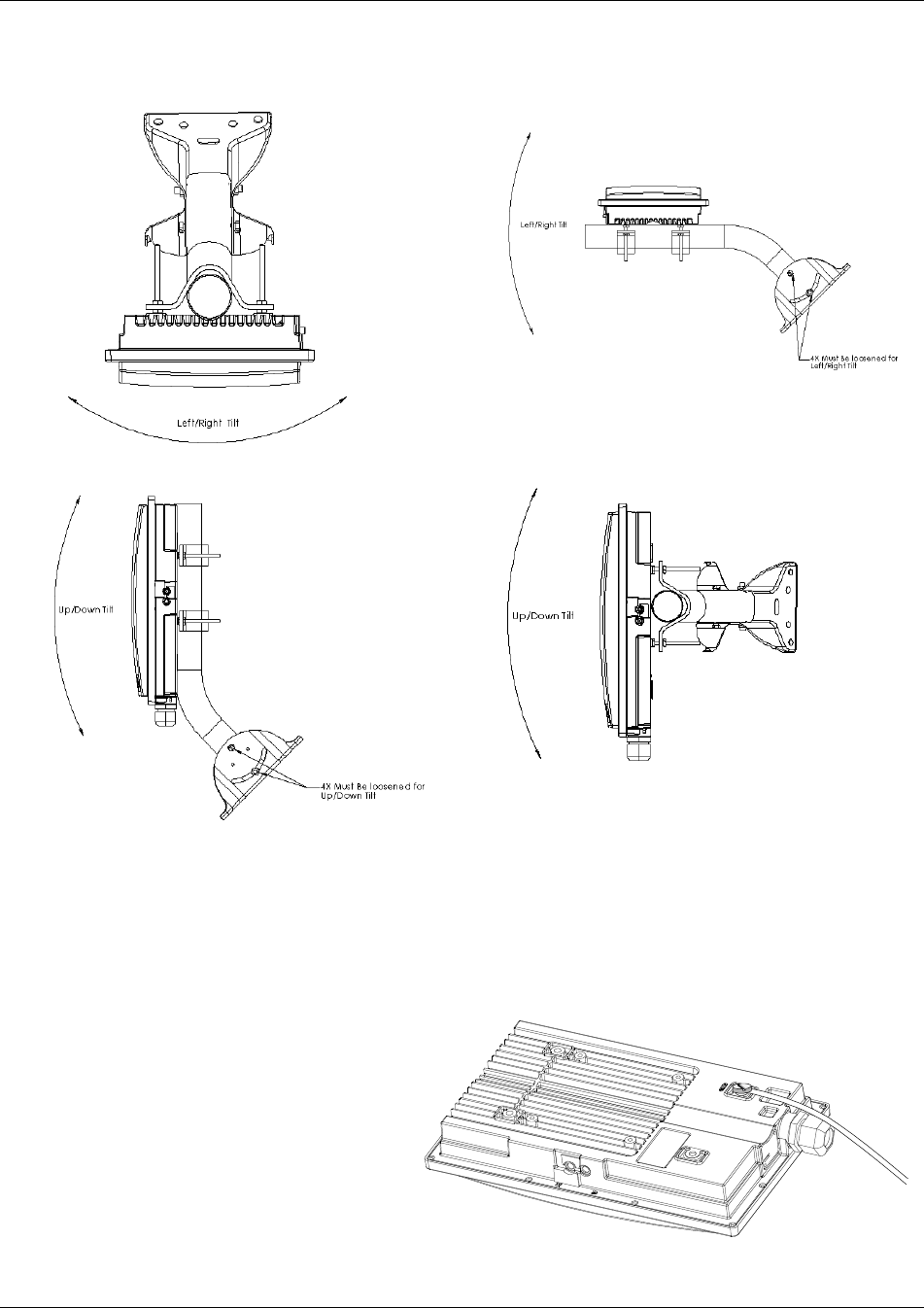
Figure 6-3 Articulation for M900S with Mono Pod Mount (not supplied)
Standard Mounting Alternative Mounting
Cabling and Grounding Considerations
Figure 6-4 Grounding Example
Shielded twisted pair Cat-5 cable is recommended for all installations.
Proper mounting of the radio includes con
sideration for
grounding. Please note that if the radio is attached to a
metal pole which is earth-
grounded, no other grounding
is necessary. If the radio is not earth-
grounded via the
mounting bracket, you must attach a grounding wire to
the grounding s
tud on the back of the radio as per the
adjacent diagram.

Mounting Hardware
Trango Broadband Wireless — User Manual Access5830 Rev. D Page 25
? Note: Access to the radio RJ-45 Port and LED status lights are purposely located at the bottom of the radio to minimize the risk
of water intrusion. Do not mount the radio upside down.
? Note: The J-Box is not a weatherized device and must be located either indoors or in a weather-protected cabinet.
Shielded twisted pair Cat-5 cable is recommended for all installations. The shield within the Cat-5 cable does not need to be grounded
if the radio itself is grounded. It is important to consider that most Cat-5 cable will deteriorate over time if exposed to the weather
(especially direct sunlight). It is recommended that installers place all Cat-5 cables inside conduit. Plastic or conduit is sufficient. If
metal conduit is used, it is not necessary to use shielded Cat-5 cable.
? Note: It is imperative that the radio be COMPLETELY SEALED at both the Ethernet port as well as the Serial Port access
cover. The contracting weather-proofing clamp at the bottom of the Ethernet port must be securely tightened around the cable if
conduit is not used. Proper sealing of the radio will ensure that moisture will not enter the enclosure of the radio. Without proper
sealing, moisture may enter the radio and potentially cause damage which will not be covered under warranty.
? Note: It is important to provide strain relief and drip loop for STP Cat-5 cables.

Deployment
Trango Broadband Wireless — User Manual Access5830 Rev. D Page 26
Section 7 Deployment
Once you are familiar with the basic operation of the radios you are ready for deployment in the field. The deployment process
consists of the following steps:
?? Site Selection
?? Site Survey
?? Channel Planning
?? SU Antenna Alignment
?? Link Management Commands
Site Selection
Proper site selection for your AP will help ensure a successful deployment. Site selection will depend on a wide variety of factors, but
from the radio’s performance standpoint, please consider the following:
?? Path from AP to SU should provide as few obstructions as possible, thus it is advisable to place AP as high as possible on a
tall building or tower
?? Ethernet cable limit is 300 feet from Ethernet device (router, switch) to radio
?? Radios require grounding for optimal performance
?? AP provides sector coverage of 60 degrees azimuth and 10 degrees elevation
?? Consider nearby sources of interference which could degrade performance of radio. Mount radios as far from sources of
interference as possible
? Note: See Appendix C – RF Primer for more information on site selection.
Site Survey
Both the AP and SU provide a powerful on-board site survey tool. This tool will tell you if there is interference present in the 900 MHz
ISM band.
In order to use the survey command, the radio must be in Opmode “OFF”. The survey can be performed for any specified amount of
time (in seconds) and for either the horizontal or vertical polarization.
Prior to performing the site survey, place the radio in the installation spot, and aim the radio in the desired direction.
After the specified period, the results of this command will provide you with a listing of each channel in the band, the average signal
received, and the maximum signal received during the survey period.
In general you will be looking for frequencies with signal strength of –85 dBm or lower. If interference is present on various channels, it
is recommended that you chose clean channels or alternate polarizations for your deployment. If it is not possible to use a clean
channel/polarization combination, there are various methods available to mitigate the affects of interference. These methods include
the use of the RFRX THRESHOLD settings, or the use of external shields on the AP.
The survey can be run from either the browser interface or the command line interface.
See Example on following page:
#> survey 30 h
Running site survey for 30 secs. Press any key to stop

Deployment
Trango Broadband Wireless — User Manual Access5830 Rev. D Page 27
Freq 902 MHz peak -73 dBm max avg -91 dBm
Freq 904 MHz peak -83 dBm max avg -94 dBm
Freq 906 MHz Ch 1 peak -90 dBm max avg -96 dBm
Freq 908 MHz peak -82 dBm max avg -94 dBm
Freq 910 MHz peak -84 dBm max avg -94 dBm
Freq 912 MHz Ch 2 peak -83 dBm max avg -94 dBm
Freq 914 MHz peak -90 dBm max avg -96 dBm
Freq 916 MHz peak -83 dBm max avg -94 dBm
Freq 918 MHz Ch 3 peak -90 dBm max avg -96 dBm
Freq 920 MHz peak -83 dBm max avg -94 dBm
Freq 922 MHz peak -83 dBm max avg -94 dBm
Freq 924 MHz Ch 4 peak -51 dBm max avg -56 dBm ****
Freq 926 MHz peak -60 dBm max avg –72 dBm **
Freq 928 MHz peak –55 dBm max avg –72 dBm **
Once the site survey is completed, you are ready to install your radios. It is recommended that APs be installed first. The reason for
this is that the SU has a built-in RSSI tool which will help you properly aim the SU at the AP to achieve maximum signal strength.
AP Search and SU Antenna Alignment
Once the AP is installed, and aligned in the correct general direction, it is time to install the SU. The hardware installation of the SU is
identical to the AP, including considerations for line-of-sight, cable distances, cable type, weather sealing, and grounding.
Once the SU is installed and aimed in the general direction of the AP, it is time to perform an RSSI (relative signal strength indicator)
test to determine the signal strength from the AP, and to precisely align the SU antenna for maximum signal strength.
Although it is possible to rely upon the subscriber unit’s LEDs for alignment, more precise RSSI readings are available from the
command line interface SSRSSI command.
In conjunction with the SSRSSI command, it is also useful to perform the APSEARCH command which will tell you which AP is
providing an adequate signal at the location of the SU.
AP Search
1. Ensure AP is in opmode “AP”
2. Run the APSearch command to verify which AP is providing the strongest signal strength.
Example:
#> apsearch
Ch 1 906 MHz h peak -99 dBm avg -96 dBm
v peak -99 dBm avg -97 dBm
e peak -99 dBm avg -97 dBm
Ch 2 912 MHz h peak -99 dBm avg -97 dBm
v peak -99 dBm avg -97 dBm
e peak -99 dBm avg -97 dBm
Ch 3 918 MHz h peak -99 dBm avg -97 dBm
v peak -99 dBm avg -97 dBm
e peak -99 dBm avg -97 dBm
Ch 4 924 MHz h peak -44 dBm avg -45 dBm B11 A 1 peak -44 dBm avg -45 dBm
rx 1545 pkts
v peak –62 dBm avg -75 dBm
e peak -99 dBm avg -97 dBm
#>
SSRSSI Command for Antenna Alignment
Step 1 Telnet into the SU (while in Opmode “OFF”). Type command ssrssi <channel> <polarization>
In this example of a survey on
horizontal polarization for 30
seconds, the largest amount of
energy is detected on channel 4.
The asterisks, ****, indicate the
highest amounts of energy detecte
d
and correspond to the number of
amber colored LEDs lit.
In this example, an AP is detected on
channel 4, polarization horizontal. Further,
the Base ID is 11, and the AP ID is 1.

Deployment
Trango Broadband Wireless — User Manual Access5830 Rev. D Page 28
Step 2 The telnet session screen will begin a continuous readout of the received signal strength. As you read the RSSI reading,
move the antenna in the horizontal and vertical planes until the maximum RSSI reading is achieved. For short links you can expect an
RSSI of –60 dBm or better. For longer links and RSSI of –80 dBm is acceptable. Any RSSI of less than –85 dBm may be too weak for
the radios to reliably associate and pass data.
Examples:
#> ssrssi 2 v
Press [space] then [enter] to stop
AP ? -97 dBm
AP ? -97 dBm
AP ? -97 dBm
#>
#> ssrssi 6 v
Press [space] then [enter] to stop
AP ? -58 dBm
AP ? -58 dBm
AP ? -58 dBm
#>
#> ssrssi 6 h
Press [space] then [enter] to stop
AP 11 -44 dBm
AP 11 -46 dBm
AP 11 -47 dBm
#>
Step 3 If it is not possible to receive an adequate RSSI reading, it may be necessary to reorient the AP (up/down, left/right), to
increase the output power of the AP, or to move the SU to a location with better line-of-sight conditions to the AP.
Once you are satisfied with the RSSI reading, tighten down the SU in the optimum position. To stop the RSSI continuous readout, hit
SPACE ENTER.
SU Alignment Using LEDs
The LED RSSI indicators on the bottom of the radio provide a handy alignment tool. If all four LEDs are lit, the unit is receiving –60
dBm or stronger. If no LEDs are lit, there is not sufficient signal strength to establish a wireless link.
Lit LEDs Signal Strength
0 LED <-85 dBm
1 LED -85 dBm
2 LED -80 dBm
3 LED -75 dBm
4 LED -70 dBm
Link Management Commands
Once the radios are properly aligned for maximum RSSI, ensure the SU’s default Opmode is “ON” and that all configuration
parameters are correct.
Reboot the SU. Once the SU enters Opmode “ON”, the authentication process will begin, and the two radios will begin to associate.
From the AP side, there are several basic diagnostics commands such as su ping, su status, and su testrflink to ensure that a
reliable RF link has been established. It may take one minute or more for the association process to complete. This process may take
longer if there are many SUs in the sector.
If all tests show favorable results, the wireless link will automatically begin passing Ethernet traffic between the radios.
ssrssi 2 v — In this example very little energy was
detected, although the AP was in Opmode
"AP", since the wrong frequency and
polarization were used.
ssrssi 6 v — In this example the right channel was
used, but the wrong polarization, so a
significant amount of energy was detected, the
AP can not be discerned because the SU is
looking for energy on a particular frequency
and polarization.
ssrssi 6 h — Here, the correct channel and
polarization show the most energy, and the SU
is able to discern the AP ID.

Deployment
Trango Broadband Wireless — User Manual Access5830 Rev. D Page 29
In establishing and diagnosing the quality of the link between AP and SU(s), there are a few commands which are especially useful.
All of these commands are performed at the AP. A summary of these commands follows:
su
Displays the status of all SUs in the AP’s database. SUs in the SU database will appear by SU ID, classified into one of the following
status categories: Associated, Associating, and OFF.
su live
Displays a list of SU’s that are currently associating with the AP (by SU ID).
Example:
#> su live
----------- Live -----------
88
--> 1 SU
Success.
? Note: In this, and the following, examples the SU ID is 88
su ping <su#>
AP will send 10 RF pings to the designated SU ID. The response from each ping will indicate latency (in micro-seconds) and the
strength (RSSI) of the signal received back from the SU for each of the 10 pings. Note this command will also tell you the distance
from the AP to the SU.
Example:
#> su ping 88
[#Begin]
[0088]
Ping #0 -> 292 us [-43 dB]
Ping #1 -> 288 us [-43 dB]
Ping #2 -> 286 us [-43 dB]
Ping #3 -> 287 us [-43 dB]
Ping #4 -> 287 us [-43 dB]
Ping #5 -> 287 us [-43 dB]
Ping #6 -> 287 us [-43 dB]
Ping #7 -> 287 us [-43 dB]
Ping #8 -> 290 us [-43 dB]
Ping #9 -> 288 us [-43 dB]
suid 88: range[avg/min/max 288/286/292 us] max rssi[-43 dBm] distance[0.1 mi]
[#End]
Success.
su status <su #>
AP will poll the SU for SU’s current status and will provide information such as SU range from AP, signal strength received at SU from
AP, SU temperature, etc. .
Example:
#> su status 88
[#Begin]
[suid] 88
[tm] 10566282
[rf rx] 40 Kbits/s
[rf tx] 0 Kbits/s
[eth rx] 0 Kbits/s
[eth tx] 40 Kbits/s
[rssi] -46
[tx power] -8
[temp] 42
[#End]
Success.
The up time in milliseconds
Wireless received kilobits/second
Wireless transmitted kilobits/second
Wired received kilobits/second
Wired transmitted kilobits/second
Signal strength in dBm at the SU
Transmit power at the SU
Temperature of the SU in Celius

Deployment
Trango Broadband Wireless — User Manual Access5830 Rev. D Page 30
rssi
This command can only be executed on the SU while in Opmode "SU"
#> rssi
[ 1] peak -44 dBm avg -45 dBm ****
[ 2] peak -44 dBm avg -45 dBm ****
[ 3] peak -44 dBm avg -45 dBm ****
[ 4] peak -44 dBm avg -45 dBm ****
[ 5] peak -44 dBm avg -44 dBm ****
[ 6] peak -44 dBm avg -50 dBm ****
linktest <su#>
This command checks the integrity of the wireless link from the standpoint of performance. AP will send 500 large packets to the SU
and the SU will return what it receives to the AP. Small numbers of errors are inconsequential. A perfect link (without dropped
packets) will yield average throughput over 3,000 kbps. If heavy packet loss occurs it may be caused by interference or multi-path.
Example:
#> linktest 88
[suid] 88 [pkt len] 1600 bytes [# of pkts per cycle] 500 [cycle] 10
0 [AP Tx]500 [AP Rx]500 [AP RxErr]0 [SU Tx]500 [SU Rx]500 [SU RxErr]0
1277ms 3023 kbps
1 [AP Tx]500 [AP Rx]500 [AP RxErr]0 [SU Tx]500 [SU Rx]500 [SU RxErr]0
1278 ms 3019 kbps
.
.
9 [AP Tx]500 [AP Rx]500 [AP RxErr]0 [SU Tx]500 [SU Rx]500 [SU RxErr]0
1277 ms 3015 kbps
[AP Total nTx] 5000 pkts
[AP Total nRx] 5000 pkts
[AP Total nRxErr] 0 pkts
[SU Total nTx] 5000 pkts
[SU Total nRx] 5000 pkts
[SU Total nRxErr] 0 pkts
[AP to SU Error Rate] 0.00 %
[SU to AP Error Rate] 0.00 %
[Avg of Throughput] 3002 kbps
su testrflink <su#> This command also checks the integrity of the wireless link from the standpoint of packet loss. Relative
to the Linktest command, however this test does not provide as much detail. In this test, the AP will
send 20 large packets to the SU and the SU will in turn send the same 20 packets back to the AP. The
expected result of an error free link is 20..20..20, indicating (in the following sequence) 20 packets sent
from AP, 20 packets received back at AP, 20 packets received at SU. Any results other than 20..20..20
indicate lost packets, most likely due to interference or inadequate signal to noise ratio.
The “r” is used in this command to repeat the rf link test repeatedly until the user terminates the test by
hitting SPACE ENTER.
#> su testrflink 8000 r
Press [space] then [enter] to stop
[len] 1512
[suid] 8000
[ 0] ...........[AP Tx] 20 [AP Rx] 20 [SU Rx] 20
[ 1] ...........[AP Tx] 20 [AP Rx] 20 [SU Rx] 20
[ 2] ...........[AP Tx] 20 [AP Rx] 20 [SU Rx] 20

Deployment
Trango Broadband Wireless — User Manual Access5830 Rev. D Page 31
[ 3] ...........[AP Tx] 20 [AP Rx] 20 [SU Rx] 20
[ 4] ...........[AP Tx] 20 [AP Rx] 20 [SU Rx] 20
[ 5] ...........[AP Tx] 20 [AP Rx] 20 [SU Rx] 20
Success.
#>
As another example, a result of 20..10..18 would indicate 20 packets sent from AP, 18 packets
received at SU, 10 packets received back at the AP. For thorough results it is recommended you run
the command repeatedly for at least 1 minute or more to determine if packets are passing without error
consistently over time.

Management
Trango Broadband Wireless — User Manual Access5830 Rev. D Page 32
Section 8 Management
In this section the following topics will be discussed:
?? SU Management from AP
?? TCP/IP SU Management
?? Security
?? SNMP
SU Management from AP
Network management can be performed by the following methods
?? HTTP Interface
?? CLI See Appendix on Command Set Reference
?? SNMP Manager Discussed in this section, below
The AP provides functionality and several commands which permit the management of associated SUs. In fact, most system management
functions are performed by issuing commands from the AP. Presented below are a few examples of these commands:
su <ping|info|status> <suid>
su powerleveling <all|suid>
su ipconfig <suid> <new IP> <new subnet> <new gateway>
su reboot <all|suid>
su restart <all|suid>
su testrflink <all|suid> [r]
su testrflink aptx [<pkt,20..100>]
su sw <suid> <sw #> <on|off>
Note: SU commands issued from the AP will automatically update the SU’s flash memory. No save ss command is necessary.
As an example, you can change SUs password for a single SU or all SUs in sector: su password <suid> <pwd> <pwd>
Example: su password 7 hello hello to remotely change the password on SU#7 to “hello”
As another example, to change the SUs IP, subnet, and gateway: su ipconfig <suid> <new ip> <new subnet> <new gateway>
Type the following:
#>su ipconfig 7 192.168.10.10 255.255.255.0 192.168.10.1
In this example SU ID #7’s IP address is changed to 192.168.10.10, the subnet mask is changed to 255.255.255.0, and the gateway is
changed to 192.168.10.1.
A complete description of these commands and many others can be found in Appendix on Command Set Summary.
TCP/IP of Radio at Other End of Wireless Link
As noted in the “Getting Started” section, it is possible to use Telnet and the HTTP interface to manage the SU from the AP side of the
wireless connection as long as switch #2 (TCP/IP for AP switch) is turned on at the SU. To turn on switch 2 (while logged onto the AP) use
the following command:
su sw <su-id|all> 2 on
Example: su sw 2 all on to turn on switch 2 for all associated SUs.
It is also possible to use Telnet and the HTTP interface to manage the AP from the SU side of the wireless connection as long as switch #7
(TCP/IP for SU switch) is turned on at the AP. To turn on switch AP (while logged onto the AP) use the following command:
sw 7 on

Management
Trango Broadband Wireless — User Manual Access5830 Rev. D Page 33
Loading Multiple SUs into SUDB using DLOAD Command
To load a full database of SU entries into the AP database, you need to create a subscriber database in ASCII text file format. As shown
below, each row represents all information for one SU. Each column is an information field, which includes: SU ID, SU to SU group, service
level, CIR, MIR, and MAC address.
0001 0001 3000 9999 0001 de01 0203 --- Subscriber 1
…
0003 0011 5000 9999 0001 de04 0506
0004 0011 0512 9999 0001 de01 0203 --- Subscriber 4
0000 0000 0000 0000 0000 0000 0000 --- End of file indicator
---- ---- ---- ---- --------------
| || | | |
| || | | |---------- MAC Address
| || | |-------------------- MIR (Kbps)
| || |------------------------- CIR (Kbps)
| ||----------------------------- Service level
| | (5: priority user)
| | (1: regular user)
| |------------------------------ Peer-to-peer group #
| | (1 to F in hex)
|----------------------------------- SU ID (1~8192)
1. telnet into the AP, run command tftpd on to enable tftp process
2. tftp the file to the AP from your DOS prompt example: tftp <IP of AP> put mySUs.txt
3. telnet into the AP
4. Run command sudb dload to load and activate the database
5. Run command sudb view to verify the database entries
Run command updateflash sudb to write the database to non-volatile memory.
SNMP
The M900S supports Simple Network Management Protocol (SNMP) for network management. Network management consists of the
following 4 categories: configuration, accounting, alarm, monitoring, and control. These capabilities allow the network operator to provide
superior services through higher network availability and integrated accounting system. For more information on SNMP and its uses, you
can visit http://www.faqs.org/faqs/snmp-faq/.
The Trango SNMP solution supports MIB-II (system only) and the Trango proprietary Management Information Base (MIB). The SNMP
agent resides on the AP ONLY. It gathers health and status, performance statistics from all SUs locally, then responds back to the SNMP
manager upon request.
Users interested in using the SNMP functionality should review the entire Access5830 MIB for a complete understanding of its features.
The following is an overview of a few of the more commonly used SNMP objects in the Access5830 system.
Objects for Monitoring and Control
SU Bandwidth Monitoring
?? suEthRxAvgThroughputLog – Average payload data throughput (in Kbits/sec) received on the Ethernet port over the period
specified by suStatisticsSamplePeriod (1 ~ 60 minutes).
?? suEthTxAvgThroughputLog - Average payload data throughput (in Kbits/sec) transmitted on the Ethernet port over the period
specified by suStatisticsSamplePeriod (1 ~ 60 minutes).
?? suRfRxAvgThroughputLog - Average payload data throughput (in Kbits/sec) received on the RF link over the period specified by
suStatisticsSamplePeriod (1 ~ 60 minutes).
?? suRfTxAvgThroughputLog - Average payload data throughput (in Kbits/sec) transmitted on the RF link over the period specified
by suStatisticsSamplePeriod (1 ~ 60 minutes).
?? suRfInOctets – Number of octets of payload transmitted from AP’s RF port.
?? suRfOutOctets – Number of octets of payload received from AP’s RF port.

Management
Trango Broadband Wireless — User Manual Access5830 Rev. D Page 34
AP Bandwidth Monitoring
?? aptrafficEthRxAvgThroughputLog – Average payload data throughput (in Kbits/sec) received on the Ethernet port over the
period of 1 minute.
?? aptrafficEthTxAvgThroughputLog – Average payload data throughput (in Kbits/sec) transmitted on the Ethernet port over a
period of 1 minute.
?? aptrafficRfRxAvgThroughputLog – Average payload data throughput (in Kbits/sec) received on the RF link over a period of 1
minute.
?? aptrafficRfTxAvgThroughputLog – Average payload data throughput (in Kbits/sec) transmitted on the RF link over the period of
1 minute.
?? aptrafficEthInOctets – Number of octets of payload received on the Ethernet port
?? aptrafficEthOutOctets – Number of octets of payload transmitted on the Ethernet port
?? aptrafficRfInOctets – Number of octets of payload received on the RF port
?? aptrafficRfOutOctets – Number of octets of payload transmitted on the RF port
Link Status Monitoring –Various traps are defined as follows:
?? Cold start – when SNMP agent starts running
?? Link Up – when the AP enters Opmode “AP”
?? Link Down – when the AP reboots
?? SU Link Up – when SU associates to the AP
?? SU Link Down – when SU disassociates from the AP
?? “AP” Opmode Failure – when AP fails to enter Opmode “AP”
AP and SU Control – SNMP also provides several control capabilities. The majority of the features available on the CLI are also available
via SNMP. Here are a few of these features:
?? Add/delete subscriber
?? Change channel
?? Set power
?? Set radio sensitivity
Review the Trango MIB (trango_m5830sap_1p0.mib) for the complete listing of MIB Objects.
SNMP Setup
Trango Broadband provides only the MIB portion of the SNMP Management system. The radios act as individual agents, and it is up the
user to provide an SNMP Manager software from a third party vendor. Below is an example of the setup process for SNMPc from Castle
Rock™.
1. Unzip trangopkg.zip file to a local temporary directory.
2. Go to your local temporary directory, you will see 4 files shown below.
a. trango_m900sap_1p0.mib – M900S AP MIB file
b. trango.ico – M900S AP icon
c. autoico.txt – instruction file (Selects Trango icon automatically during initial set-up.)
3. Copy trango_m900sap_1p0.mib file to C:\Program Files\SNMPc Network Manager\mibfiles
4. Copy autoico.txt file to C:\Program Files\SNMPc Network Manager\mibfiles
5. Copy trango.ico file to C:\Program Files\SNMPc Network Manager\bitmaps
6. The MIB needs to be compiled into the SNMPc database
By default, the Read Community is set to “public”, and Write Community is set to “private” in the AP. The Trap Community is
“SNMP_trap”. The manager needs to have the same settings in order to communicate with the AP successfully.
To send traps from the AP, set the following:
?? trap destination IP (Trango MIB object trapconfig–trapconfigInfo)
?? trap community string (Trango MIB object trapconfig–aptrpTable-AptrpEntry)
?? enable each trap (Trango MIB object traponfig–aptrpTable-AptrpEntry)
For all the set operations, set object SaveAndActivate at apsystem-apsystemInfo to write the information to FLASH.

Management
Trango Broadband Wireless — User Manual Access5830 Rev. D Page 35

Trango Broadband Wireless — User Manual M900S Rev. A Draft Page 36
Appendix A Command Set Reference
Command Description AP/SU Opmode Remarks
? display complete help pages except “eng” Both On/Off
? <command> search and display command’s help Both On/Off
antenna <e | h | v> select antenna mode Both On/Off
aprssi <ch#> <antenna, h | v | e> scan two strongest APs SU Off
Apsearch scan all channels to look for APs SU Off
arq <on | off | <maxpkt, 1..1000> |
<lowrate, 1..10> | list> manage the automatic re-transmission queue engine Both On/Off
Bye same as “logout” Both On/Off
Exit same as “logout” Both On/Off
Freq display current channel Both On/Off
freq <ch#> change current channel Both On/Off
freq channeltable display channel table Both On/Off
freq writechannel [<ch #> <freq>]… build channel and write to flash
<ch #> = 1..4 (M900) or 1..8 (M2400),
<freq> = 906..924 (M900) or 2405..2478 (M2400)
Both On/Off
Help display complete help page except “eng” Both On/Off
help <command> search and display command’s help Both On/Off
ipconfig [<new ip> <new subnet
mask> <new gateway>] assign radio’s ip, subnet mask and gateway ip Both On/Off
linktest <txrx|rxtx> <suid> [<pkt len,
bytes> [<# of pkts> [<# of cycle>]]]
check wireless link’s quality
pktlen = 64..1760,
# 0 pkts = 1..500
# of cycles = 1..100000
Both On
Logout log out console Both On/Off
maclist <no arguments | reset> display or reset current mac table Both On/Off
Opmode display current opmode Both On/Off
opmode on [y] set opmode to be on and use “y” if opmode is not as
same as default Both Off
password <rw|ro> <new pwd> <new
pwd> specify new password (max 15 octs) Both On/Off
ping <ip address> ping local Ethernet device Both On/Off It only works for local
Ethernet devices, not
SU or any device
behind SU.
Power display current tx power level Both On/Off default = max. power
value
power <set, min|max|<dBm>> specify tx power for both band AP On/Off SU’s power will be
adjusted by AP when
association
Reboot reboot unit Both On/Off
remarks [<str>] string length should be 1 to 32 characters Both On/Off
Reset reset radio to be the factory default, then reboot Both On/Off reset system settings
back to factory default
settings
rfrxth <-90|-85|-80|-75|-70|-65>* specify RF rx threshold Both On/Off default = -90 for both
band
rfrxthreshold …* same as “rfrxth” Both On/Off
Rssi display current Rx rssi Both On/Off
rssi r + display Rx rssi continuously Both On/Off
save <mainimage | mm | fpgaimage>
<* | <current chscksum>> <* | <new
checksum>>
get image from tftp buffer, verify checksum and write
to flash memory at main or fpga image section.
*: skip checksum verification
Both On/Off
save <systemsetting | ss>
write current configuration into flash memory at system
Both On/Off

Trango Broadband Wireless — User Manual M900S Rev. A Draft Page 37
configuration section
save <sudb> write downloaded su dbase into flash memory after
unpacking Both On/Off
set apid <ap-id> set ap id, <ap-id> = 1..255 Both Off
set baseid <base-id> set base station id, <base-id> = 1..9999 Both Off
set defaultopmode <on | off> set default opmode Both On/Off default opmode is off, 0
= 30 sec
set httpport [<port #>] set or display HTTPD port number
port # = 1..65534 Both On/Off default = 80
set snmpcomm <read | write | trap id#
|trap all> set SNMP read or write or trap community string Both On/Off
set snmpsample <min, 1..60> set SNMP sample period Both On/Off
set telnetport [<port #>] specify telnet port, <port #> = 1..65534 Both On/Off default = 23
ssrssi <ch #> <v | h> display rssi on the current channel Both On/Off
sudb add <suid> <pr|re> <mac> Add new su to sudb AP On/Off
sudb cirmir <<suid>|all> <cir dn> <cir
up> <mir dn> <mir up> Change su’s cir mir setting AP On/Off
sudb defaultcirmir <default cir dn>
<default cir up> <default mir dn>
<default mir up>
set MIR/CIR values to default values AP On/Off all setting values will be
3000Kbps
sudb delete <<suid>|all> Delete su in sudb AP On/Off
sudb dload unpack the su entries dowloaded from tftp and store
them to su dbase AP On/Off
sudb gid <suid>|all> <0..15> Change su’s group id AP On/Off
sudb view Display all sudb AP On/Off
survey <search time, sec> <antenna,
h | v | e> spectrum analysis pf the entire band Both Off
sw display current sw setting Both On/Off
sw 0 [on | off] set sw #0 - packet filter for broadcast/multicast Both On/Off default = on
need to update flash
sw 1 [on | off] set sw #1 – su’s scan ap (su only) SU On/Off default = on
need to update flash
sw 2 [on | off] set sw #2 – su’s TCP/IP service for ap SU On/Off default = off
need to update flash
sw 3 [on | off] set sw #3 – SU to SU service AP On/Off default = off
need to update flash
sw 5 [on | off]* set sw #5 - httpd enable / disable Both On/Off default = on
need to update flash
sw 6 [on | off]* set sw #6 - tcp/ip service for ethernet port (su only) SU On/Off default = off
need to update flash
sw 7 [on | off] set sw #7 - tcp/ip service for su AP On/Off default = off
need to update flash
sysinfo display system configuration Both On/Off
temp display current temperature Both On/Off
tftpd <on | off> enable or disable tftpd service Both On/Off
time display current time Both On/Off
tm display current time mark Both On/Off
updateflash <mainimage | fpgaimage>
<* | <current chscksum>> <* | <new
checksum>>
get image from tftp buffer, verify checksum and write
to flash memory at main or fpga image section.
*: skip checksum verification
Both On/Off
updateflash [systemsetting | ss] write current configuration into flash memory at system
configuration section Both On/Off
updateflash sudb> write downloaded su dbase into flash memory after
unpacking AP On/Off
ver display
1. version number and date code
2. firmware and fpga version code
Both On/Off

Trango Broadband Wireless — User Manual M900S Rev. A Draft Page 38
3. firmware and fpga image checksum
Appendix B Specifications
All specifications apply to M900S-AP and M900S-SU unless otherwise noted.
Radio Transmit Specifications
Storable Channels: 4 memory locations
Agility: 906 to 924 MHz in 1 MHz increments
Default channels-
Channel 1: 906 MHz
Channel 2: 912 MHz
Channel 3: 918 MHz
Channel 4: 924 MHz
Power Control Range: Max: +26 dBm +/- 1 Min: -4 dBm +/- 2 Step: 1 dB
Pout: +26 dBm max
Ant. Gain: 10 dBi
EIRP: +36 dBm (4 Watt)
Freq. Stability: +/- 2.5 ppm PLL stabilized over temperature
Freq. Plan: Single upconversion, 140 MHz IF
Modulated BW: 6.2 MHz (null to null, 40 dB down)
2nd Harmonic atten: Per CFR47 part 15.407
LO Supression: Per CFR47 part 15.407
Receiver Specifications
Storable Channels: 4 memory locations
Agility: 906 to 924 MHz in 1 MHz increments
Default channels-
Channel 1: 906 MHz
Channel 2: 912 MHz
Channel 3: 918 MHz
Channel 4: 924 MHz
Cascade Noise Figure: < 7 dB
Receiver Sensitivity:
3.250 MBPS Rate: - 88 dBm typical-1600 byte packet
(1x10⁻⁶ BER) - 88 dBm typical-64 byte packet
Image Rejection: > 90 dB
Frequency Plan: Single conversion, IF at 140 MHz
LO stability: +/- 1.5 ppm PLL stabilized (+/-2.5ppm) over temperature

Trango Broadband Wireless — User Manual M900S Rev. A Draft Page 39
Ethernet I/O Specifications
Data Input/Output:
Connector: Shielded RJ-45 Jack
Signaling Format: IEEE802.3i (10baseT) and IEEE802.3u (100baseT) compliant
Auto-Negotiation: Fully supports IEEE802.3-2002 Sect. 2 Clause 28
Bridging Frame Size: 60 to 1600 bytes
Mngmt Frames: 60 to 1472 bytes. (includes PING, TELNET, TFTP, HTTP )
Protection: Bi-directional transient voltage protection diodes on all data lines
compliance with:
IEC61000-4-2 (ESD)
IEC61000-4-4 (EFT)
IEC61000-4-5 (Lightning)
Power Specifications
Input Voltage: Input voltage range at unit is 10.5 VDC to 24 VDC max
Power is supplied via unused pins of the RJ-45 Jack. Power is
injected into Ethernet cable using a junction box provided.
Current Cons.: 400 mA in transmit and receive modes at max power using 24 V
standard adapter (8 W) and 10 ft cable from J-BOX to unit.
Protection: 28 volt Transient Voltage Suppression (TVS) on power input.
Note: Voltages above 28 volts will cause damage to unit.
Mechanical and Environmental Specifications
General
Material: High Temp Polycarbonate radome and diecast metal enclosure.
Size: 12.5” x 8” x 2.75” including mounting studs
Weight: 4 lb
Mounting: 2 U-Brackets, all-thread rod, nuts and washers
Connectors/Indicators
RF Output: Integral internal patch antenna per Part 15C, 15.203.
External RP-SMA-f connector for external antenna.
FCC Compliance: The transceiver shall comply with the following:
FCC Part 15.407
FCC Part 15.207(a)
Operating Temp: -40 to 60 deg C
Storage: -40 to 85 deg C
Humidity: 100 % When sealed properly
NEMA Rating: NEMA 4
Shock: Sustain 3 axis drop from 5 feet
Standard External Power Supply
24 Volt DC Power adapter and J-Box supplied with product.
Type: Linear wallmount transformer
Input: 120 VAC
Output: 24 VDC +/- 1 V
Max current: 1000 mA
Connector: 5mm DC Barrel-type Plug.
Standard External Power-over-Ethernet Junction Box

Trango Broadband Wireless — User Manual M900S Rev. A Draft Page 40
Type: In-line female-to-female RJ-45 adapter for CAT-5 Ethernet cable
Connectors:
Eth. In: Shielded RJ-45 Jack
DC Input: 5mm DC Barrel-type Jack.
Eth. Out & DC Out: Shielded RJ-45 Jack
Pinout for Eth. Out: Power (+) on pins 7+8, ground (-) on pins 4+5 and eth. data on
pins 1,2,3 & 6
Indicators: 2 LEDs to indicate power and a connection to radio.
Protection: Resettable fuse for DC input.
Integrated Antenna
Type: Air-loaded Patch Antenna
Polarization: Vertical or Horizontal Polarization, electrically selectable
Frequency: 902 to 928 MHz
Gain: +10 +/- 1 dBiL
Az Beamwidth: 60 degrees (3 dB pts)
El Beamwidth: 60 degrees (3 dB pts)
Cross Pol: >15 dB
Front/Back Ratio: 12 dB
VSWR: < 2.0:1 over Bandwidth