Transact Technologies Itherm 280 Users Manual 28 07765C M280i Programmers Guide
2015-02-02
: Transact-Technologies Transact-Technologies-Itherm-280-Users-Manual-487071 transact-technologies-itherm-280-users-manual-487071 transact-technologies pdf
Open the PDF directly: View PDF  .
.
Page Count: 349 [warning: Documents this large are best viewed by clicking the View PDF Link!]
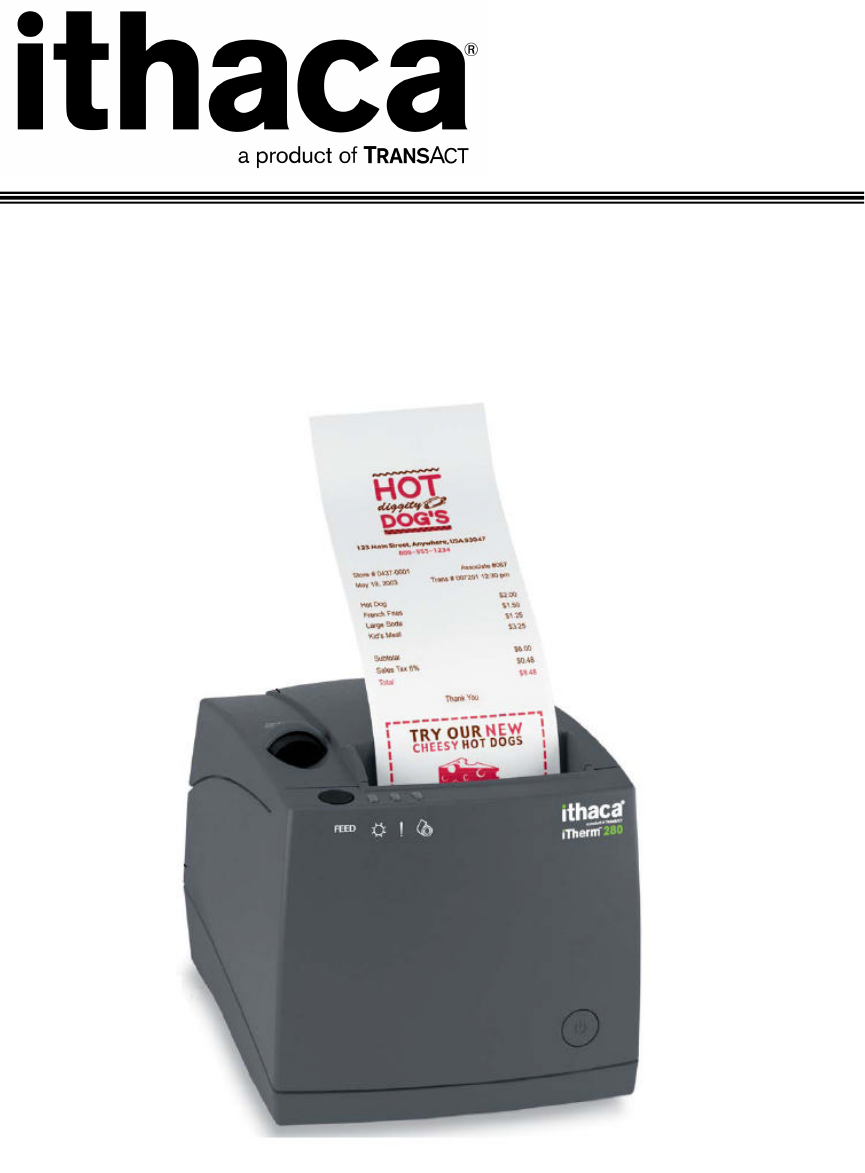
iTherm® 280
International Version
Programmer’s Guide
PN 28-07764, Rev C April 2009
This page intentionally left blank
28-07764 Rev C Page 1
Change History
Rev A Initial Release
Rev B Sept 2007
Added Periodic status back
Added user defined code page description.
Added double byte code page support
Rev C April 2009
Revised Page mode section
Added several internal code pages
Added Multi-byte Code page support
Page 2 Rev C 28-07764
Federal Communications Commission Radio
Frequency Interference Statement
The iTherm® 280 Printer complies with the limits for a Class A computing device in
accordance with the specifications in Part 15 of FCC rules. These regulations are
designed to minimize radio frequency interference during installation; however, there is
no guarantee that radio or television interference will not occur during any particular
installation. Interference can be determined by turning the equipment off and on while
the radio or television is on. If the printer causes interference to radio or television
reception, try to correct the interference by one or more of the following measures:
1. Reorient the radio or television receiving antenna
2. Relocate the printer with respect to the receiver
3. Plug the printer and receiver into different circuits
If necessary, the user should consult their dealer or an experienced radio/television
technician for additional suggestions. The user may find the following booklet prepared
by the Federal Communications Commission helpful: How to Identify and Resolve
Radio/TV Interference Problems. This booklet is available from the US Government
Printing Office, Washington, DC 20402. Ask for stock number 004-000-00345-4.
Canadian Department of Communications Radio
Interference Statement
The iTherm® 280 Printer does not exceed Class A limits for radio noise emissions from
digital apparatus set out in the Radio Interference Regulations of the Canadian
Department of Communications.
Regulatory Compliance
FCC Class A
ULc
CE Mark
UL 1950
TUV
28-07764 Rev C Page 3
Disclaimer
NOTICE TO ALL PERSONS RECEIVING THIS DOCUMENT:
The information in this document is subject to change without notice. No part of this
document may be reproduced, stored or transmitted in any form or by any means,
electronic or mechanical, for any purpose, without the express written permission of
TransAct Technologies, Inc. ("TransAct"). This document is the property of and contains
information that is both confidential and proprietary to TransAct. Recipient shall not
disclose any portion of this document to any third party.
TRANSACT DOES NOT ASSUME ANY LIABILITY FOR DAMAGES INCURRED,
DIRECTLY OR INDIRECTLY, FROM ANY ERRORS, OMISSIONS OR
DISCREPANCIES IN THE INFORMATION CONTAINED IN THIS DOCUMENT.
TransAct cannot guarantee that changes in software and equipment made by other
manufacturers, and referred to in this publication, do not affect the applicability of
information in this publication.
Copyright
© 2007-2009 TransAct Technologies, Inc. All rights reserved.
Revision Level C
April 2009
Printed in USA
Trademarks
Some of the product names mentioned herein are used for identification purposes only
and may be trademarks and/or registered trademarks of their respective companies.
BANKjet, 50Plus, Insta-Load, Ithaca, "Made to Order. Built to Last", Magnetec, PcOS,
POSjet, PowerPocket, iTherm and TransAct are registered trademarks and Epic 950,
Flex-Zone, imPort, ithaColor, KITCHENjet, Momentum, QDT and TicketBurst are
trademarks of TransAct Technologies, Inc.
Page 4 Rev C 28-07764
Table of Contents
Change History ............................................................................................................... 1
Federal Communications Commission Radio Frequency Interference Statement ........... 2
Canadian Department of Communications Radio Interference Statement ....................... 2
Regulatory Compliance ................................................................................................... 2
Disclaimer ....................................................................................................................... 3
Copyright ........................................................................................................................ 3
Trademarks ..................................................................................................................... 3
Table of Contents ............................................................................................................ 4
Figures ............................................................................................................................ 9
Tables ............................................................................................................................. 9
Introducing your iTherm® 280 Printer ........... 11
About your iTherm® 280 Printer ..................................................................................... 13
Who Should Read This Guide? ..................................................................................... 14
What Is Included in This Guide? ................................................................................... 14
Warranty Options .......................................................................................................... 14
Technical and Sales support ......................................................................................... 15
On-line Technical Support ..................................................................................... 15
Telephone Technical Support ................................................................................ 15
Return Materials Authorization and Return Policies ............................................... 16
Service Programs .................................................................................................. 16
Sales Support ........................................................................................................ 16
Contact Information ............................................................................................... 16
iTherm® 280 Specifications and Requirements
...................................................................... 19
iTherm® 280 Specifications and Requirements ............................................................. 21
iTherm® 280 Thermal Printer Models ........................................................................... 21
Standard Features ........................................................................................................ 21
Optional Features ......................................................................................................... 23
General Specifications .................................................................................................. 24
Printing Specifications ........................................................................................... 24
Physical Characteristics ................................................................................................ 24
Dimensions ........................................................................................................... 24
Weight ................................................................................................................... 25
Electrical Characteristics ............................................................................................... 26
Internal AC Powered ............................................................................................. 26
External Powered DC ............................................................................................ 26
Thermal Print Head ....................................................................................................... 26
Media Specifications ..................................................................................................... 27
Receipt Paper ....................................................................................................... 27
Buzzer .......................................................................................................................... 29
Cover Interlock .............................................................................................................. 29
Display Pass Through ................................................................................................... 29
Communications Interface............................................................................................. 30
Parallel Interface ................................................................................................... 30
RS-232 Serial Interface ......................................................................................... 31
USB Interface ........................................................................................................ 31
28-07764 Rev C Page 5
Ethernet 10-Base-T adapter .................................................................................. 32
802.11b Wireless Interface .................................................................................... 32
Cash Drawer ......................................................................................................... 33
Interface Description ............................................................................................. 33
Cash Drawer Pin Assignments .............................................................................. 33
Vertical Wall Mount Kit Option ....................................................................................... 35
Setup Procedures .......................................... 37
Verifying the Configuration ............................................................................................ 39
Verify the Communications Interface Card ............................................................ 39
Changing Interface Cards ...................................................................................... 39
Removing the Old Interface Card .......................................................................... 39
Cash Drawer Configuration ................................................................................... 40
Configuring the Cash Drawer Interface .................................................................. 40
Installing Cables ............................................................................................................ 41
Connecting power ................................................................................................. 41
Connecting Communications Cables ..................................................................... 42
Verify the Firmware Configuration ......................................................................... 43
Installing Paper ............................................................................................................. 43
Printer Drivers and Printer Controls ............................................................................... 44
Definitions for terms you will see in this guide: ...................................................... 44
Getting Started – Questions to Ask ............................................................................... 45
Do you want to use USB and simulate a communication port? .............................. 45
Do you want to use an Ethernet interface and simulate a communication port? .... 45
Are you using OPOS (UnifiedPOS/UPOS)? .......................................................... 46
Do you want to print from a Windows application? ................................................ 46
Windows Printer Driver ................................................................................................. 47
PC Hardware ................................................................................................................ 47
GDI ............................................................................................................................... 47
OPOS driver ................................................................................................................. 48
PC Hardware ................................................................................................................ 48
USB driver .................................................................................................................... 49
Ethernet Virtual Serial driver ......................................................................................... 50
POSPrinter ActiveX Control (POSPrinter OCX) ............................................................. 51
PC Hardware ................................................................................................................ 51
Where to get more information .............................................................................. 52
How to Operate the iTherm® 280 Printer ....... 53
How to Operate the iTherm® 280 Printer ....................................................................... 55
* Button........................................................................................................................ 55
FEED Button ................................................................................................................. 55
Indicator Lights (LED) ................................................................................................... 56
Power Indicator (LED) ........................................................................................... 56
Error Indicator (LED) ............................................................................................. 56
Paper Indicator (LED) ............................................................................................ 56
Fault Indicators ............................................................................................................. 56
Testing the Printer Overview ......................................................................................... 58
Using Self-Test, Configuration, and Hex Dump Mode ........................................... 58
Hex-dump Mode .................................................................................................... 60
Level 0 Diagnostics ............................................................................................... 61
Boot Loader Mode ................................................................................................. 61
Page 6 Rev C 28-07764
Configuring Your iTherm® 280 Printer ........... 63
Configuration Mode Overview ....................................................................................... 65
Most Frequent Configuration Incompatibilities ....................................................... 65
How to Change Configuration Settings ......................................................................... 65
Entering into Configuration Mode .......................................................................... 65
Using Configuration Mode ............................................................................................. 66
Remote Configuration ................................................................................................... 69
Setting up for Color Paper ............................................................................................. 69
Custom Color ........................................................................................................ 69
Programming Codes ...................................... 71
Control Codes Overview ............................................................................................... 73
Nomenclature................................................................................................................ 73
Standard Emulation ............................................................................................... 74
IPCL Codes ........................................................................................................... 74
EPOS Emulation ................................................................................................... 74
Axiohm .................................................................................................................. 74
Ithaca® Microline Emulation ................................................................................... 74
Application Development .............................................................................................. 74
Ithaca Control Codes and Commands .......................................................................... 75
PcOS Printer Control Codes .................................................................................. 75
Quick PcOS Reference Chart ................................................................................ 76
Low Level Paper Motion Control ............................................................................ 82
Horizontal Motion Control ...................................................................................... 83
Vertical Motion Control .......................................................................................... 85
Feed to Black Dot .................................................................................................. 91
Character Pitch ..................................................................................................... 93
Character Font ...................................................................................................... 96
Character Sets and Code Pages ........................................................................... 98
Double-Byte and Multi-Byte Code Page Description Files ................................... 100
Code page selection ............................................................................................ 100
Page Mode .......................................................................................................... 113
Graphic Mode ...................................................................................................... 123
Graphics Compression ........................................................................................ 129
User Store (Graphic Save) .................................................................................. 129
User Macros ........................................................................................................ 137
Bar Codes ........................................................................................................... 139
Electronic Journal ................................................................................................ 149
Miscellaneous Control ......................................................................................... 161
Remote Power Control ........................................................................................ 169
Documented Extended Control commands ......................................................... 170
Printer Status ...................................................................................................... 171
Inquire Commands .............................................................................................. 172
ESC/POSTM Codes ..................................................................................................... 181
Differences between Epson TM T90 and iTherm® 280 ........................................ 181
Supported TM-T88 Commands ................................................................................... 183
Undocumented TM-T88 Commands ........................................................................... 186
Supported TM-T90 Commands ................................................................................... 187
TM-T88 / TM-T90 and ESC/POSTM Command Descriptions ....................................... 191
Print and Feed Commands ......................................................................................... 191
Line Spacing Commands ............................................................................................ 193
28-07764 Rev C Page 7
Character Commands ................................................................................................. 193
Panel Button Commands ............................................................................................ 202
Paper Sensor Commands ........................................................................................... 203
Print Position Commands ............................................................................................ 205
Bit-Image Commands ................................................................................................. 209
Status Commands ...................................................................................................... 210
Printing Paper Command ............................................................................................ 216
Page Mode ................................................................................................................. 217
Bar Code Commands.................................................................................................. 220
Mechanism Control Commands .................................................................................. 223
Miscellaneous Commands .......................................................................................... 224
Macro Function Commands ........................................................................................ 230
User-defined Images and Graphics Commands .......................................................... 231
Ithaca® Specific iTherm® 280 Commands ................................................................... 236
Panel Button Commands ..................................................................................... 236
Paper Out/Low Sensor Commands ..................................................................... 236
iTherm® Citizen Emulation .......................................................................................... 238
iTherm® Star Emulation ............................................................................................... 238
iTherm® Axiohm Emulation ......................................................................................... 238
iTherm® 280 Color Graphics ......................... 239
Printing Graphics ........................................................................................................ 241
Character Graphics ............................................................................................. 241
APA Graphics ...................................................................................................... 244
iTherm® 280 Universal Color Graphics ........................................................................ 247
Print File Graphics ............................................................................................... 248
Store Graphics in the printer: ............................................................................... 249
How universal graphics is done ........................................................................... 250
How to use IPCL commands in text strings ......................................................... 250
Cautions .............................................................................................................. 251
Universal Color Command Descriptions .............................................................. 252
iTherm® 280 Coupon-Cut-Logo Feature ...................................................................... 254
Unicode and Fonts ....................................... 255
Unicode and Fonts ....................................... 257
Fonts ........................................................................................................................... 257
Character Generation .......................................................................................... 257
Character Definition ............................................................................................. 258
Internal Fonts ...................................................................................................... 260
Character Cache ................................................................................................. 260
Custom Fonts ...................................................................................................... 261
Stacked or Linked fonts ....................................................................................... 261
Font Storage ....................................................................................................... 261
Unicode....................................................................................................................... 262
Unicode Encoding ............................................................................................... 262
Bitmap Fonts ....................................................................................................... 265
File system and the POR.INI file ................................................................................. 268
Font Size and Spacing ................................................................................................ 273
Font Size and Spacing command interactions ..................................................... 274
Legacy Printer Features that Have Changed .............................................................. 280
Dynamic code page definition.............................................................................. 280
Page 8 Rev C 28-07764
File System .................................................. 281
File System Interface .................................................................................................. 283
File System commands ....................................................................................... 283
iTherm® 280 Extended Printer Control ......... 289
Communications .......................................... 297
Protocol and Print Buffers ........................................................................................... 299
USB ............................................................................................................................ 302
USB Support ....................................................................................................... 302
TCP/IP ........................................................................................................................ 303
Print Server Features Standard Ethernet Connection .......................................... 303
Supported Protocols ............................................................................................ 303
User Interface/Configuration ................................................................................ 303
Other ................................................................................................................... 303
Parallel Port ................................................................................................................ 304
Parallel Port Protocol ........................................................................................... 304
Printer Buffer Size ............................................................................................... 305
Parallel Port Inquire and IEEE 1284 .................................................................... 305
Parallel Port Plug and Play .................................................................................. 307
Serial Port ................................................................................................................... 309
Serial Port Protocol ............................................................................................. 309
Print Buffer Flow .................................................................................................. 311
Printer Buffer Size ............................................................................................... 313
Serial Mode Plug and Play .................................................................................. 313
Using DSR .......................................................................................................... 313
Serial Device Identification .................................................................................. 314
Serial Port Inquire................................................................................................ 315
Display Pass Through ................................................................................................. 316
Remote Power Control ................................................................................................ 316
Remote Printer Reset.................................................................................................. 317
Reset in Serial Mode ........................................................................................... 317
Reset in Parallel Mode ........................................................................................ 317
Miscellaneous Communication Features ..................................................................... 318
Power-cycle Recovery ......................................................................................... 318
Data Pass-through .............................................................................................. 318
Multi-drop Configuration ...................................................................................... 318
Off-line Active ...................................................................................................... 319
Recovery from Mechanical Errors ............................................................................... 320
Programmer’s Notes ................................................................................................... 321
Appendix A: Internal Code Pages................. 323
Appendix B - ASCII Code Table .................... 324
Appendix C: Unicode Character Addresses ... 325
Appendix D: WGL4.0 Character Addresses ... 327
Appendix E: GB18030 Character Addresses . 331
Appendix F Windows 1252 Latin 1 ............... 338
Appendix G: Ordering Supplies .................... 341
28-07764 Rev C Page 9
Index ........................................................... 343
Figures
Figure 1 Receipt Printing, Tear off Position .................................................................. 28
Figure 2 Cash Drawer Pin Definitions ........................................................................... 33
Figure 3 Cash Drawer Selection.................................................................................... 40
Figure 4 3-pin mini DIN plug.......................................................................................... 42
Figure 5 Windows Print Driver ....................................................................................... 47
Figure 6 OPOS or UPOS .............................................................................................. 48
Figure 7 USB Driver ...................................................................................................... 49
Figure 8 Ethernet Virtual Serial Driver ........................................................................... 50
Figure 9 POSPrinter OCX ............................................................................................. 51
Figure 10 Page Mode Entry Orientations .................................................................... 114
Figure 11 Page mode set printable area ..................................................................... 117
Figure 12 Default Page mode printed area .................................................................. 118
Figure 13 Defined Page mode printed area ................................................................. 119
Figure 14 Code 39 full 128 character encoding ........................................................... 141
Figure 15 Expanded Function coding .......................................................................... 143
Figure 16 Code 128 encoding values .......................................................................... 144
Figure 17 Example of Character Graphics .................................................................. 241
Figure 18 Example Commands for a Sample Receipt ................................................. 242
Figure 19 Sample Receipt ........................................................................................... 243
Figure 20 Receipt with graphics .................................................................................. 247
Figure 21 Typical POS System ................................................................................... 299
Figure 22 Host to Printer Link ...................................................................................... 300
Figure 23 Printer Communications Buffer Flow ........................................................... 301
Figure 24 Parallel-port Data Timing ............................................................................. 304
Figure 25 Parallel Port ACK Timing Options ............................................................... 305
Figure 26 Serial Port Flow Control Using DTR ............................................................ 309
Figure 27 XON/XOFF Serial Port Flow Control ........................................................... 310
Tables
Table 1 Standard Power Input Requirements ................................................................ 26
Table 2 Power Input Requirements with the 24-volt DC Power ..................................... 26
Table 3: Paper Grades-Monochrome ............................................................................ 27
Table 4 Parallel Interface Pin-outs ................................................................................ 30
Table 5 Serial Interface Pin-outs ................................................................................... 31
Table 6 Cash Drawer Pin Assignment ........................................................................... 34
Table 7 Serial interface pin out ...................................................................................... 42
Table 8 Parallel interface pin out ................................................................................... 42
Table 9 Error Blink Codes ............................................................................................. 57
Table 10 Character Pitch .............................................................................................. 94
Table 11 Inter-character Spacing .................................................................................. 95
Table 12 Language Table ID’s .................................................................................... 101
Table 13 Euro Character Substitution Matrix ............................................................... 103
Page 10 Rev C 28-07764
Table 14 Paper Sensor Commands ............................................................................ 165
Table 15 Paper Sensor Commands ............................................................................ 166
Table 16 Supported TM-T90 Commands .................................................................... 185
Table 17 Undocumented TM-T90 Commands............................................................. 186
Table 18 Supported EPOS Commands ....................................................................... 187
Table 19 Select Character Font Table ......................................................................... 194
Table 20 International Character Sets ......................................................................... 195
Table 21 Character Code Pages ................................................................................. 197
Table 22 Character Code Table .................................................................................. 198
Table 23 Print Modes .................................................................................................. 199
Table 24 Rotation Modes ............................................................................................ 200
Table 25 Paper Sensor Commands ............................................................................ 203
Table 26 Paper Sensor Commands ............................................................................ 204
Table 27 Print Density Selection ................................................................................. 209
Table 28 Automatic Status Back (ASB) Values for <n> ............................................... 210
Table 29 Automatic Status Back (ASB) First Byte (Printer Information) ....................... 211
Table 30 Automatic Status Back (ASB) Second Byte (Error Information) .................... 211
Table 31 Automatic Status Back (ASB) Third Byte (Paper Sensor Information) .......... 212
Table 32 Automatic Status Back (ASB) Fourth Byte (Paper Sensor Information) ........ 212
Table 33 Paper Sensor Status (<n> = 1, 49) ............................................................... 212
Table 34 Drawer Kick-out Connector Status (<n> = 2, 50) .......................................... 213
Table 35 Values for the Status Function, <n>.............................................................. 213
Table 36 Printer Status (<n> = 1) ................................................................................ 213
Table 37 Off line Status (<n> = 2) ............................................................................... 214
Table 38 Error Status (<n> = 3)................................................................................... 214
Table 39 Paper Roll Sensor Status (<n> = 4) .............................................................. 214
Table 40 Peripheral Status (<n> = 0, 48) .................................................................... 215
Table 41 Paper Status ................................................................................................ 215
Table 42 Bar Code System Based on <m> ................................................................. 221
Table 43 Printing Position of HRI Characters .............................................................. 222
Table 44 Font for Human Readable Interpretation (HRI) Characters ........................... 222
Table 45 Horizontal size of the bar code ..................................................................... 222
Table 46 Printer ID ...................................................................................................... 224
Table 47 Type ID (<n> = 2 or 50) ................................................................................ 224
Table 48 Peripheral Device Bit Definitions .................................................................. 226
Table 49 Macro Control Bit Definitions ........................................................................ 230
Table 50 User-defined Bit-image Resolutions ............................................................. 235
Table 51 Character Pitch ............................................................................................ 279
Table 52 Parallel-port Timing ...................................................................................... 305
Table 53 Paper Ordering Information .......................................................................... 341
Table 54 Cables Ordering Information ........................................................................ 341

28-07764 Rev C Page 11
chapter
1
Introducing your iTherm® 280 Printer
Page 12 Rev C 28-07764
This page intentionally left blank

iTherm® 280 Programmer’s Guide About Your iTherm® 280 Printer
28-07764 Rev C Page 13
About your iTherm® 280 Printer
The Ithaca iTherm® 280 printer represents the very latest technology for use for thermal
receipt printing for point-of-sale and retail environments. It builds upon the architecture of
Ithaca’s proven thermal printers, together with a host of features specifically designed to
improve the performance of your receipt-printing applications, including:
• Crisp, clear receipt printing in either one or two colors
• Fast 8 inches per second print speed
• Rugged spill-resistant cover
• Large 4-inch paper roll capacity with drop-in loading
• Protected internal power supply
• Ethernet and USB interfaces
• Wireless option for reduced cable clutter
• Application-controllable buzzer
• Configurable cash drawer functionality
The iTherm® 280 also offers a wide range of programmable features, including color and
font control, APA graphics support, bar codes, and support for over 60 language
character sets. These features let you quickly and easily integrate more layout and
printing options than ever – while giving you the reliability, durability and uptime you
have come to expect from Ithaca printers.

About Your iTherm® 280 Printer iTherm® 280 Programmer’s Guide
Page 14 Rev C 28-07764
Who Should Read This Guide?
This document provides information and programming specifications for operators who
will integrate the iTherm® 280 printer into their kitchen operations.
What Is Included in This Guide?
This Programmer’s Guide includes information on the features and programming
interface of the iTherm® 280 printer. It provides the following information to support your
programming and implementation efforts:
• Warranty and technical support information.
• Specifications and functionality description.
• Programming information, including documentation of low-level and high-level
command interfaces, as well as sample scripts to guide your own implementation
efforts.
We want you to have a trouble-free implementation with your Ithaca printer. For any
issues not covered in this guide, quality technical support is available on-line at
www.transact-tech.com, or by telephone at (607) 257-8901 or (877) 7ithaca. Consult
the following pages for more details about our support services.
Warranty Options
All iTherm® 280 printers come with a standard 24-month standard warranty covering
both parts and labor that starts upon shipment from the factory. An optional extended
warranty, covering both parts and labor for an additional 12 months, may be purchased
separately. For more information concerning the warranty options, please contact the
Sales Department at TransAct’s Ithaca facility. You are responsible for insuring any
product returned for service, and you assume the risk of loss during shipment to Ithaca.
C.O.D. packages are not accepted and warranty repairs are subject to the terms and
conditions as stated on the Ithaca warranty policy.

iTherm® 280 Programmer’s Guide About Your iTherm® 280 Printer
28-07764 Rev C Page 15
Technical and Sales support
Your Ithaca printer is backed by the resources of TransAct Technologies, a global
technology firm with dedicated technical support and sales assistance. Here is how we
can help you:
On-line Technical Support
Our web site at www.transact-tech.com is your on-line portal to obtaining technical
assistance with your Ithaca printer. Click on Ithaca link and then the Technical Support
link to find documentation for your iTherm® 280 printer, including a current copy of this
Programmer’s Guide featuring:
o Command codes and descriptions.
o Character fonts.
o Printer features.
o Communication specifics.
Other utilities available include a font utility, a color converter and a terminal application
for communicating with your printer, as well as the following drivers and utilities:
Windows 95/98/Me Print Driver with Documentation Part No. 100-9167
Windows NT 4.0 2K and XP Print Driver with Documentation Part No. 100-9170
OPOS Drivers with Documentation Part No. 100-9732
Master Character Set Definitions Part No. 100-9785
Our on-line support site also includes a convenient e-mail assistance request form,
where you can submit support requests 24 hours a day, and receive a return contact
from a TransAct support technician during regular business hours.
Telephone Technical Support
Live telephone support is available Monday through Friday from 8 AM to 5 PM Eastern
US time, excluding holidays. We can provide general information about programming for
your iTherm® 280 printer, technical support, documentation, or assistance in sending a
printer for service. To obtain telephone support, call TransAct's Ithaca Facility at (607)
257-8901 and ask for Technical Support. To help us serve you faster, please have the
following information ready when you call:
• The Model Number and Serial Number of the printer.
• A list of any other peripheral devices attached to the same port as the printer.
• What application software, operating system, and network (if any) you are using.
• What happened and what you were doing when the problem occurred.
• How you tried to solve the problem.

About Your iTherm® 280 Printer iTherm® 280 Programmer’s Guide
Page 16 Rev C 28-07764
Return Materials Authorization and Return Policies
If the technical support person determines that the printer should be serviced at our
facility, and you want to return the printer for repair, we will issue you the Returned
Materials Authorization (RMA) number that is required before returning the printer.
Repairs are warranted for 90 days from the date of repair or for the balance of the
original warranty period, whichever is greater. Please prepare the printer being returned
for repair as follows:
• Pack the printer to be returned in the original packing material.
• Packing material may be purchased from TransAct's Ithaca Facility.
• Do not return any accessories unless asked to do so by a support technician.
• Write the RMA number clearly on the outside of the box.
Service Programs
TransAct Technologies Incorporated has a full service organization to meet your printer
service and repair requirements. If your printer needs service, please contact your
service provider first. If any problems still persist, you can directly contact the Ithaca
facility’s Technical Support Department at (607) 257-8901 or (877) 7ithaca for a return
authorization. International customers should contact your distributor for services.
TransAct offers the following service programs to meet your needs.
• Extended Warranty.
• Depot Repair.
• Maintenance Contract.
• Internet Support.
Sales Support
To order supplies, receive information about other Ithaca products, or obtain information
about your warranty, contact our Sales Department at the contact telephone or fax
numbers listed below. To receive information on International distribution, visit our web
site at www.transact-tech.com.
Contact Information
TransAct Technologies Incorporated
Ithaca Facility
20 Bomax Drive
Ithaca, NY 14850 USA
Telephone (877) 7ithaca or (607) 257-8901
Main fax (607) 257-8922

iTherm® 280 Programmer’s Guide About Your iTherm® 280 Printer
28-07764 Rev C Page 17
Sales fax (607) 257-3868
Technical Support fax (607) 257-3911
Web site www.transact-tech.com

28-07764 Rev C Page 19
chapter
2
iTherm® 280 Specifications and Requirements
Page 20 Rev C 28-07764
This page intentionally left blank
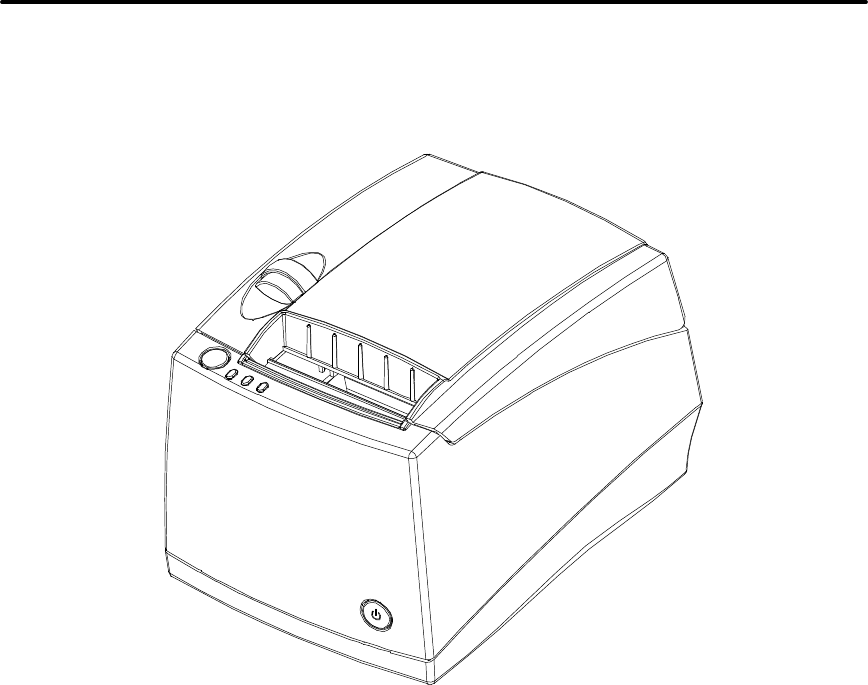
iTherm® 280 Programmer’s Guide Specifications and Requirements
28-07764 Rev C Page 21
iTherm® 280 Specifications and Requirements
iTherm® 280 Thermal Printer Models
• iTherm® 280-P: parallel interface printer
• iTherm® 280-S: serial interface printer
• iTherm® 280-USB: USB interface printer
Standard Features
The following features are common to the entire family of thermal printers:
• Print Speed for text is 8 inches per second (200 mm/sec) (monochrome)
• 8.0 inches per second paper feed speed
• 3.15 inch (80 mm.) print zone
• 44/57 characters per line
• Built-in self-ranging External Power supply
• Clam-shell paper loading
• Single RJ11 cash drawer driver with status (Single RJ12)
• Parallel (25 or 36 pin), serial (9 or 25 pin) RS232C, and USB interface
• Configurable receiver buffer
• Self diagnostics
• Set up and configuration utility program

Specifications and Requirements iTherm® 280 Programmer’s Guide
Page 22 Rev C 28-07764
• CPI selections from 8 to 30 CPI1
• Paper Out sensor
• Multiple printer emulations: Ithaca PcOS and Epson Extended,
• Maximum 8K buffer (adjustable)
• 2 Megabytes Flash Memory
• 2 Megabytes RAM
• APA and Epson graphics
• Bar Codes: Code 39, Code 93, Code 128, Interleaved 2 of 5, UPC-A, UPC-
E, EAN-8, EAN-13, EAN-14, PDF417 stacked symbology and Codabar
• WGL4.0 Character set.
• Metal receipt tear off
• 8 dots/mm. thermal print head resolution
• ON/OFF button located on front of printer
• Cable routing strain relief
• Power/Error/Paper LEDs
• Paper feed button
• Cover open button
• Settable cash drawer configurations (Ithaca, Epson, or Star)
• Spill proof design- vertical main PCB mounting
• 58 mm. or 80 mm. paper width – factory-settable
• 4.0 inch (101 mm.) Paper roll diameter
• Portrait/landscape printing under Windows
• Page mode printing
• Cover Open sensor
• Electronic journal capability
• Internal counters for hours on, cuts, print lines and errors
• 100 km print head life
• 60 million print line printer MCBF (excluding knife)
• Strong break-away paper cover
• 1,000,000 cuts cutter life (partial cut)
• Buzzer
• 2 color printing (4 inches per second print speed)
1 Character spacing is adjustable from 1 to 30 CPI. Typical values will be between 8 and 20 CPI
depending on the font selected. Values of 13.3, 14.86, or 17.3 are typical for each resident font.
2 CPI’s greater than 16 will not be supported in NLQ fonts

iTherm® 280 Programmer’s Guide Specifications and Requirements
28-07764 Rev C Page 23
Optional Features
The following options are available on some of the models:
• Vertical Wall Mount Kit
• Adjustable paper low
• OCR TrueType font
• Chinese GB18030 Font.
• Custom interfaces and emulations
• DC powered version through Hosiden type connector
Specifications and Requirements iTherm® 280 Programmer’s Guide
Page 24 Rev C 28-07764
General Specifications
Printing Specifications
Printing method: Thermal Sensitive Line Dot System
Vertical/Horizontal dot pitch: 0.125 mm.
Resolution: 8 dots per mm (203 DPI)
Line feed pitch: 3.2 mm. (.125 inches)
Print zone (maximum) 80 mm (3.15 inch)
Print speed (monochrome): 8 inches per second
Print Speed (two color): 4 inches per second
Number of print elements: 640 dots in-line
Physical Characteristics
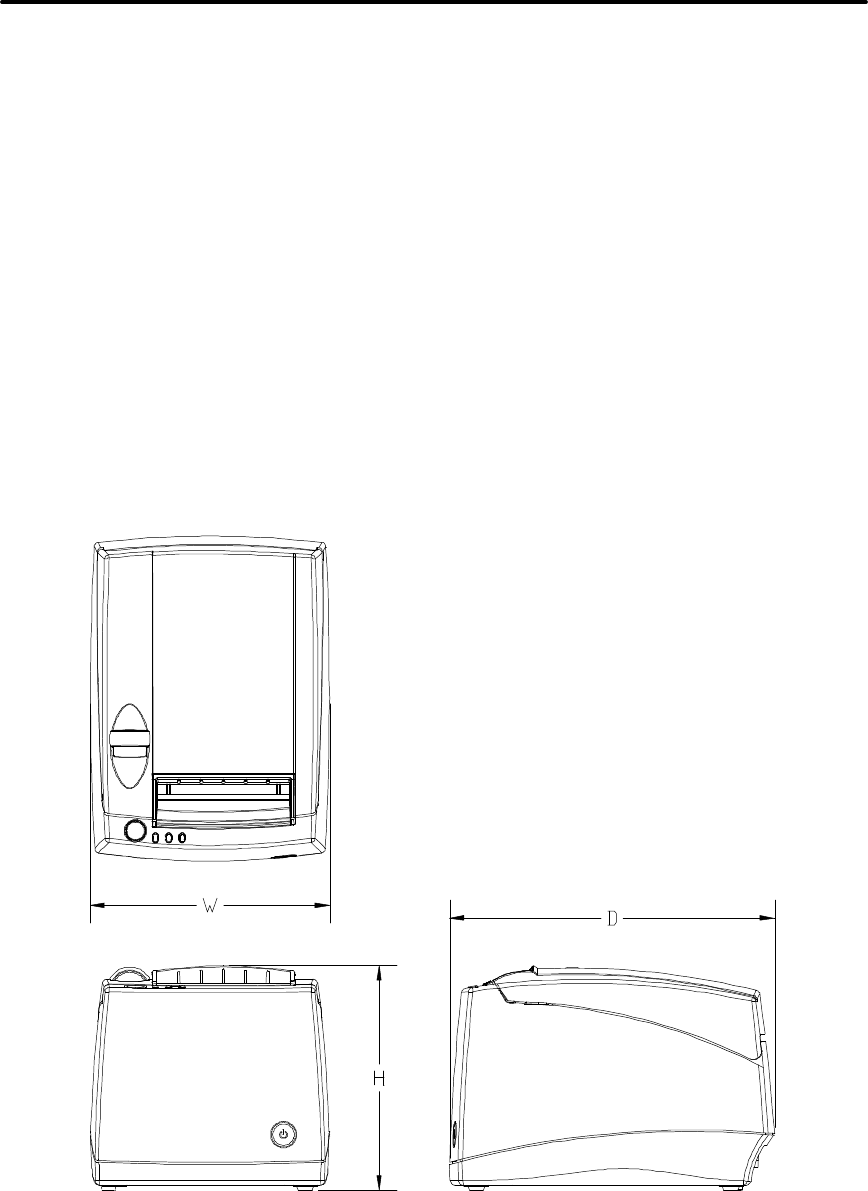
Dimensions

iTherm® 280 Programmer’s Guide Specifications and Requirements
28-07764 Rev C Page 25
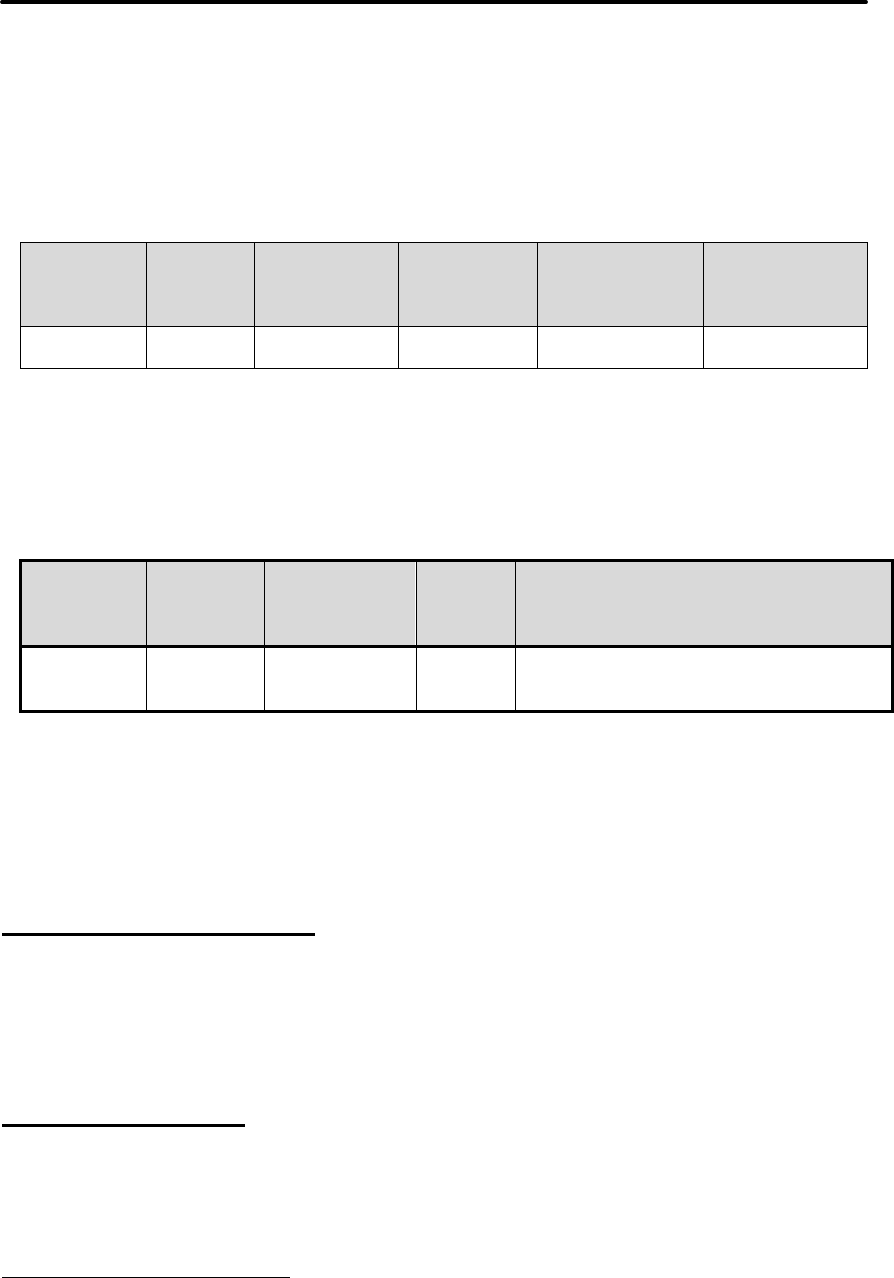
Max Dimensions
W D H
Dimensions in
inches 6.25 8.50 5.87
Weight
Approximate weight: 4.6 lb.
Shipping weight: 6.0 lb.
Specifications and Requirements iTherm® 280 Programmer’s Guide
Page 26 Rev C 28-07764
Electrical Characteristics
Internal AC Powered
The iTherm® 280 Printer is designed to be AC self-powered in domestic and
international markets. The printer is equipped with a universal input power supply that is
designed to operate worldwide without modification.
Supply
Voltage
Rating
(VAC)
Supply
Voltage
Range
(VAC)
Frequency
(Hz) Rated Power
(watts) Idle Current
(amps) Printing Current
(amps)
100-240 90-264 47 – 63 45 .1A @ 120VAC
.05 A @ 240VAC 1.4 A @ 120VAC
.7 A @ 240VAC
Table 1 Standard Power Input Requirements
External Powered DC
Optionally, the iTherm® 280 Printer can be operated with 24-volt DC power supplied
from a host terminal or external supply. Connection to this printer version is made via a
three-pin Hosiden type connector.
Supply
Voltage
Rating
(VDC)
Supply
Voltage
Range
(VDC)
Frequency (Hz) Idle
Current
(amps)
Current (amps)
24
-5+10% 22.8 –
26.42 DC 0.125 A
2.0 A (Cash Drawer Fire)
3.5 A (Printing maximum for < 1 minute)
4.8 A Peak (< 167 msec.)
Table 2 Power Input Requirements with the 24-volt DC Power
The iTherm® 280 can be configured to operate with various power supplies. If a DC
power supply with less capability is used, the printer must be configured for reduced
power and the printer will print slower.
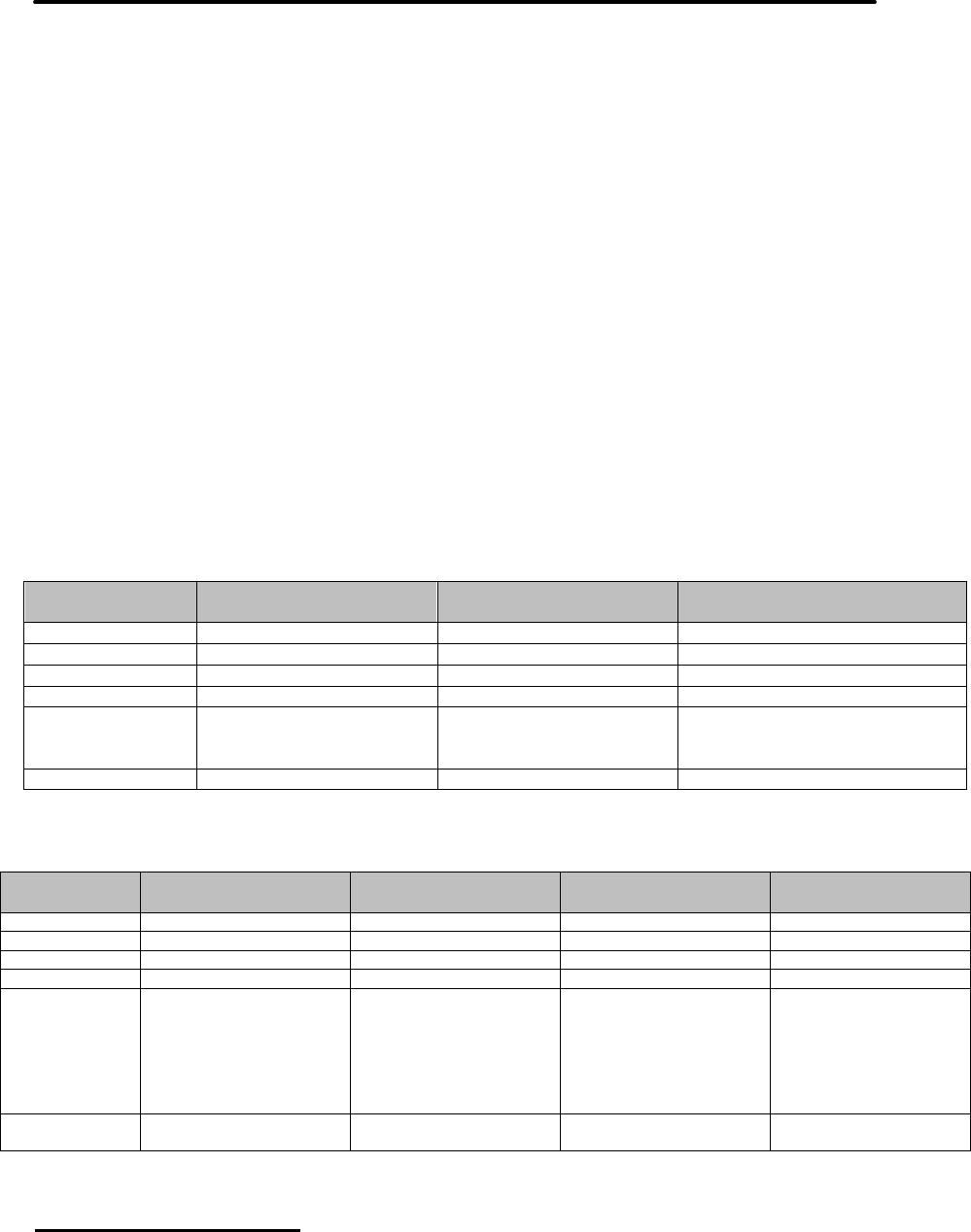
Thermal Print Head
Thermal Print Head Overview:
Number of heat elements: 640
Heat element pitch: 0.125 mm (8 dots/mm.)
Print width: 80 mm. +/- 0.2 mm.
Pulse Life: 100 million pulses
Abrasion Life: 100 km.
Vertical dot pitch 0.264 mm (0.0104 inch) or 96 DPI
Operating Temperature 5-45 degrees C
Humidity: 10-90 % RH (non-condensing)
Operation Precautions:
• Do not print without paper.
• Clean the head with ethyl-alcohol after power is removed from the printer. This will
remove foreign particles or paper dust which may degrade print quality.
• Be sure to set the paper width in the printer’s configuration to agree with the paper
being used (58 or 80 mm width).
2 For DC powered printers, the cash drawer is supplied directly from the DC input supply. The
cash drawer requirements may affect the allowable range of voltages.
iTherm® 280 Programmer’s Guide Specifications and Requirements
28-07764 Rev C Page 27
• Once narrow paper has been used, some part of the print head always contacts the
platen. If 80 mm. paper is used after setting up and running 58 mm. paper, the head
or the cutter blade may be worn out. Never change the paper width from narrow to
wide (58 to 80 mm.) once you set the paper width to narrow (58 mm.).
Media Specifications
Receipt Paper
Paper feed method Friction feed
Paper feed pitch Default - 1/8 inch
Paper width 80 mm: 79.5 +/- 0.5 mm. (3.13 +/- 0.02 inches)
58 mm: 57.5 +/- 0.5 (2.26 +/- 0.02 inches)
Roll diameter 101.6 mm. (4.0 inches) Max.
Paper thickness 0.06 to 0.09 mm. (.00225 to .0035 inches)
Roll paper core Inside diameter .445 to .635 inches
Outside diameter .730 to .860 inches
Roll footage 400 feet (min.)
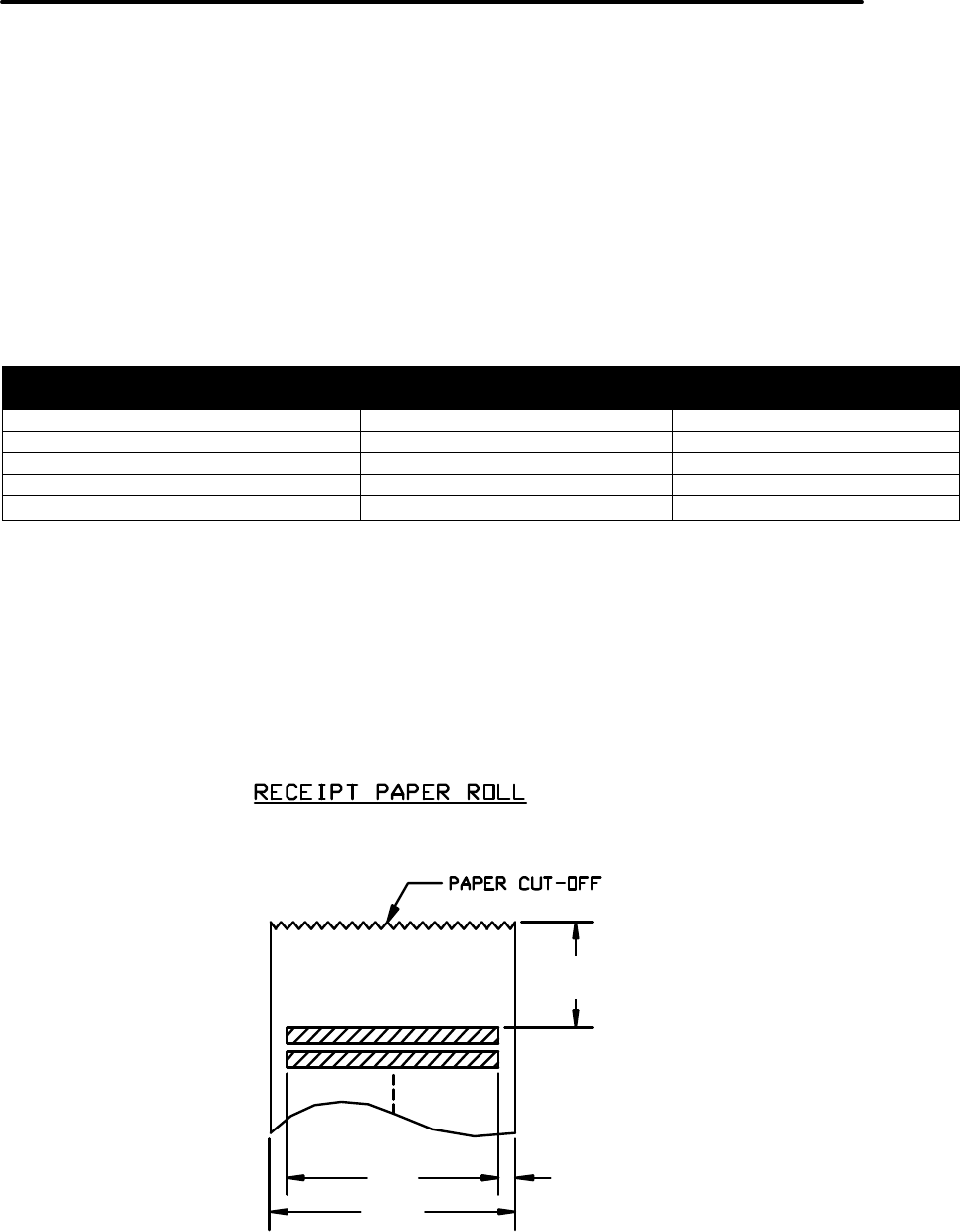
Thermal Paper Grades (Monochrome)
Paper
Manufacturer Kanzaki P-300 Kanzaki P-310 Appleton Alpha 400-2.3
Basis Weight 14.1 lbs. 14.2 lbs. 14.5 lbs.
Caliper .00225 mils .00226 mils .00235 inches
Image color black Black Black
Brightness 85% 85% 87%
Activation Temp. Initial: 74+/-5°C
Effective: 87 +/- 5°C
Optimum: 100 +/- 5°C
Initial:73 +/-5°C
Effective: 83 +/- 5°C
Optimum: 88 +/- 5°C
Initial:77.2°C
Optimum: 104.8 +/- 5°C
Smoothness (bekk) 325 sec. Ave. 325 sec.Ave. 200 (bekk).
Table 3: Paper Grades-Monochrome
Thermal Paper Grades (color)
Paper
Manufacturer Kanzaki P-320 RB Kanzaki P-320 BB Appleton Dual RB Appleton Dual BB
Basis Weight 14.6 lbs. 14.6 lbs. 15.6 lbs. 15.6 lbs.
Caliper .00227 mils .00227 mils .00235 mils .00235 mils
Brightness 87 % 87 % 89.5 % 87.8 %
Image color Red/Black: Blue/Black Red/Black: Blue/Black
Thermal
Response Initial(Red):80 +/-5°C
Initial(B):98 +/-5°C
Effective(Red): 87 +/- 5°C
Effective(B): 116 +/- 5°C
Optimum(Red):100 +/-5°C
Optimum(B):130 +/-5°C
Initial(Blue):74 +/-5°C
Initial(B):90 +/-5°C
Effective(Blue): 80 +/- 5°C
Effective(B): 120 +/- 5°C
Optimum(Blue):90 +/-5°C
Optimum(B):130 +/-5°C
Initial(Red):77.8 +/-5°C
Initial(B):77.8 +/-5°C
Optimum(Red):90.5 +/-5°C
Optimum(B):103.3 +/-5°C
Initial(Blue):69.4 +/-5°C
Initial(B):69.4 +/-5°C
Optimum(Blue):82 +/-5°C
Optimum(B):118 +/-5°C
Smoothness
(bekk) 500 sec. ave. 500 sec. ave. 250 sec./min. 250 sec./min.
Table 8: Paper Grades-Color
Paper Usage Precautions:
• The life of the thermal head, when two-color paper is used, is reduced to half of the
life when single-color thermal paper is used.
Specifications and Requirements iTherm® 280 Programmer’s Guide
Page 28 Rev C 28-07764
• Use only specified thermal paper. If other paper is used, print quality, head life, and
cutter life may deteriorate.
Paper Out
A receipt paper out sensor is provided as a standard feature. It senses when there is
approximately .5 inches length of paper left on the paper roll.
Paper Low
A receipt paper-low sensor is provided as an optional feature. An operator adjustable
paper-low assembly will be provided to allow the printer to sense when the paper roll
diameter is between .94 to 1.29 inches (approximate). It is adjustable to compensate for
various paper core dimensions.
Paper Low Adjustment Settings Approximate Paper Remaining
(in feet) Paper Roll Diameter
UPPER LIMIT: 2 turns (counter clockwise) 29’ 1.29"
1 turn (counter clockwise) 23’ 1.203"
FACTORY SETTING 18' 1.115"
1 turn (clockwise) 13' 1.028"
LOW LIMIT: 2 turns (clockwise) 8.5‘ .940“
Notes:
• These measurements are approximate. Paper roll used for testing had paper roll
core outside diameter of .750 inches, and inside diameter is .625 inches. Results will
vary depending on core O.D./I.D. dimensions.
• Paper roll core should meet or exceed paper width.
• Results based on thermal paper .0025 inches thick.
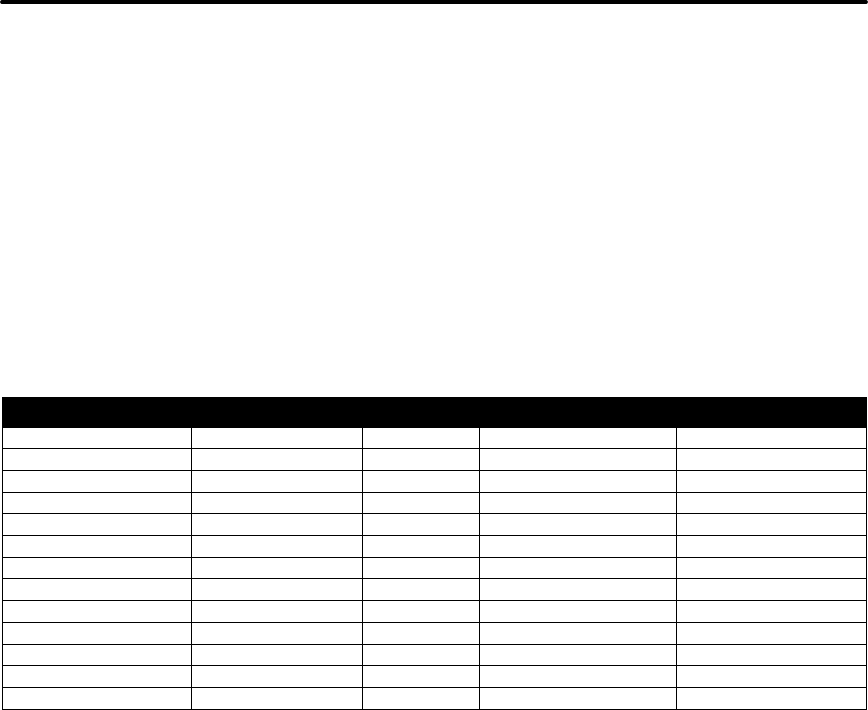
• The receipt printable area is as shown in the following diagram.
1.00”
2.83
3.15
0.15
Figure 1 Receipt Printing, Tear off Position
The paper tear off is positioned 1 inch from the last line of print

iTherm® 280 Programmer’s Guide Specifications and Requirements
28-07764 Rev C Page 29
Receipt Printing, Auto Cutter Position
A receipt auto-cutter is a standard feature with all iTherm™ 280 Printers.
Cutter type Rotary
Media width 3.13 +/- .02 inches (79.5 +/- .5 mm)
Media thickness range 0.0025 to 0.0035 inch
Cut to line of print 0.70 inch
Cutter life 1,000,000 cuts
Partial Cut tab: .125 inches +/- .0625 inches (right edge of receipt)
Cut time: Less than 350 milliseconds
Buzzer
A buzzer is provided as a standard feature. It is triggered upon command from the host
terminal to make a sound loud enough to be heard under noisy conditions. It will produce
a sound pressure level of at least 90 dBA, 1 foot from the front of the printer.
Cover Interlock
A paper cover interlock switch is provided as a standard feature. When the paper cover
is open, the printer is off-line, and will not print.
Display Pass Through
The display pass through feature allows a pole display to be interconnected with the
printer. The printer is connected to a host system with a special serial cable. The host
sends serial data to the printer and the printer sends serial data to the pole display. The
printer does not provide power to the display. During normal printer operation, no data is
passed to the display. In pass through mode, all received data is passed on to the
display.
Specifications and Requirements iTherm® 280 Programmer’s Guide
Page 30 Rev C 28-07764
Communications Interface
Parallel Interface
Your printer features two parallel interfaces:
• An IEEE 1284-A 25-pin, D-shell connector, with pin-outs that interface to a
standard IBM PC parallel printer interface with a one-to-one cable.
• An IEEE 1284-B, which is a standard Centronics 36-pin connector.
Both interface cards provide a dual cash drawer interface. The following table lists
interface signals and corresponding pins.
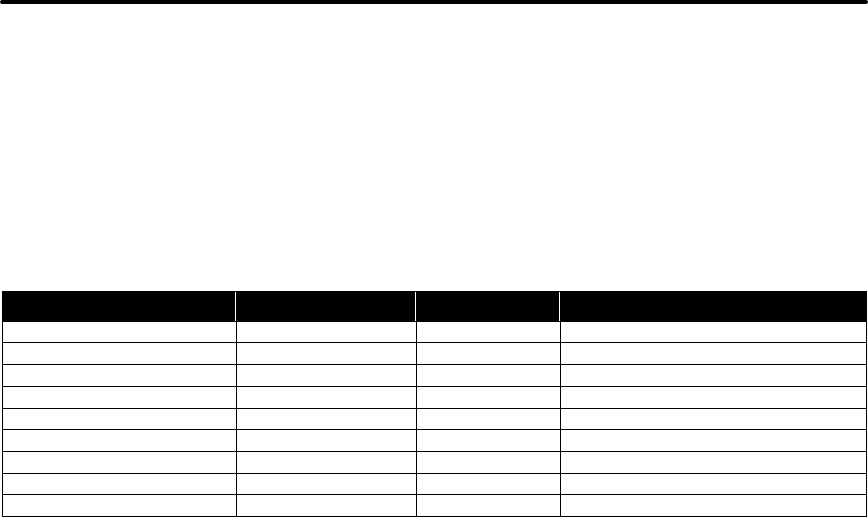
25-pin Connector 36-pin Connector Signal Description Direction
Pin 1 Pin 1 STROBE Clock data to printer Host to Printer
Pins 2-9 Pins 2-9 D0 - D7 Data Host to Printer
Pin 10 Pin 10 ACK\ Printer accepted data Printer to Host
Pin 11 Pin 11 BUSY Printer busy Printer to Host
Pin 12 Pin 12 PE Paper Out/Status Printer to Host
Pin 13 Pin 13 SLCT Printer selected Printer to Host
Pin 14 Pin 14 AUTOFD Autofeed paper Host to Printer
Pin 15 Pin 32 FAULT\ Printer error Printer to Host
Pin 16 Pin 31 INIT\ Initialize printer Host to Printer
Pin 17 Pin 36 SLIN Select printer Host to Printer
Pin 17 FG Frame ground Printer to Host
- Pin 18 +5V Peripheral logic high Printer to Host
Pins 18-25 Pins 16, 19-30 GND Ground
Table 4 Parallel Interface Pin-outs
Signal Levels
Voltage levels 0 V and +5 V (nominal)
Logic levels
Logic one
Driver +2.4 V to +5 V
Receiver +2.0 V to +5 V
Logic zero
Driver 0 V to +0.4 V
Receiver 0 V to +0.8 V
Current requirements
Logic one Source 0.25 ma at +2.4 V
Logic zero Sink 16 ma
Line termination
Data and control 3.3k ohm to +5 V
Strobe 1.2k ohm to +5 V
iTherm® 280 Programmer’s Guide Specifications and Requirements
28-07764 Rev C Page 31
RS-232 Serial Interface
Serial Port Features
The serial port features are as follows:
Baud Rates 300, 600, 1200, 2400, 4800, 9600, 19.2K, 38.4K, and 57.6K
Bit Patterns 8-bit no parity; 8-bit odd; 8-bit even; 7-bit no parity; 7-bit odd; 7-bit even
Flow Control DTR and XON/XOFF
9-pin 25-pin Signal Description
Pin 1 Pin 8 Not Connected
Pin 2 Pin 3 RX Receive Data
Pin 3 Pin 2 TX Transmit Data
Pin 4 Pin 20 DTR Data Terminal Ready
Pin 5 Pin 7 GND Signal Ground
Pin 6 Pin 6 DSR Data Set Ready
Pin 7 Pin 4 RTS Request to Send
Pin 8 Pin 5 CTS Clear to Send
Pin 9 Pin 11 Not Connected
Table 5 Serial Interface Pin-outs
Signal Voltage and Current levels
The serial interface meets EIA RS232 interface specifications:
Voltage Levels Max +-15 Volts
Min +- 3 Volts
Mark = Off = -3 to –15 Volts
Space = On = +3 to +15 Volts
Because both the host and printer are DTE's (Data Terminal Equipment), they use the
same serial port pin-outs. If the cable that is used to connect the host to the printer is a
pin-to-pin inter-connect, it will not work. Therefore, a null modem or turn-around cable
must be used to interconnect the host and the printer.
Display Pass Through
The display pass through feature allows a pole display to be interconnected with the
printer. The printer is connected to a host system with a special serial cable. The host
sends serial data to the printer and the printer sends serial data to the pole display. The
printer does not provide power to the display. During normal printer operation, no data is
passed to the display. In pass through mode, all received data is passed on to the
display.
USB Interface
The USB interface is a Version 1.1 interface that is Version 2.0 compliant. The standard
USB interface card is implemented through a Standard Series "B" Receptacle as defined
in the USB Specification. The printer is self-powered and does not draw power from the
standard type B USB interface cable.
The Standard USB Type B connector has the following pin functions:
Pin Signal

Specifications and Requirements iTherm® 280 Programmer’s Guide
Page 32 Rev C 28-07764
1 Vbus (+5 V dc) (Not used in the iTherm® 280)
2 Minus data
3 Plus data
4 Ground
Note: The standard USB interface does not have enough power to run the
printer.
Ethernet 10-Base-T adapter
An IP addressable 10-Base-T Ethernet adapter is available for the iTherm® 280 printer.
It provides for web page configuration and supports bi-directional RAW and Telnet
interfaces. All protocols are implemented to the extent necessary to support printing
from Windows™ platforms; specific protocols supported include the following:
• Line Printer Daemon Protocol (LPR) – RFC1179
• Simple Network Management Protocol (SNMP) – RFC1157
• Printer MIB – RFC1759
• Port 9100 (Raw data)
• Service Location Protocol (SLP) – RFC2165
• The TFTP Protocol (Revision 2) – RFC1350
• Telnet COM Port Control Option – RFC2217
• Hypertext Transfer Protocol – HTTP/1.1 – RFC2616
Refer to the 100-05072 Wired Ethernet Programmer’s Guide for features and additional
setup information.
Note: The Ethernet adapter supports only the Ithaca Cash Drawer
interface.
802.11b Wireless Interface
An 802.11b wireless interface is available for the iTherm® 280 printer, allowing wireless
operation of the printer within a specified distance of a base unit. Contact TransAct
technical support for more information on this interface.
iTherm® 280 Programmer’s Guide Specifications and Requirements
28-07764 Rev C Page 33
Cash Drawer
Interface Description
The iTherm® 280 Printer supports a single cash drawer with status. The driver in the
printer is capable of supplying 24 V DC at up to 1.5 amps for up to 250 milliseconds. The
iTherm® 280 Printer defines cash drawer closed as switch open. If the drawer is
disconnected, it will be viewed by the printer as closed. Since the printer does not act on
the cash drawer status, the application can interpret cash drawer status any way it
wants.
Driver connector type (standard) Single RJ12 connectors with 24V sink drivers
Driver voltage 24 volts (Refer to power supply specification).
Driver current 1 amp maximum with current limit
Pulse duration 250 msec. maximum
Drawer status Open/close drawer status provided to printer
Cash Drawer Pin Assignments
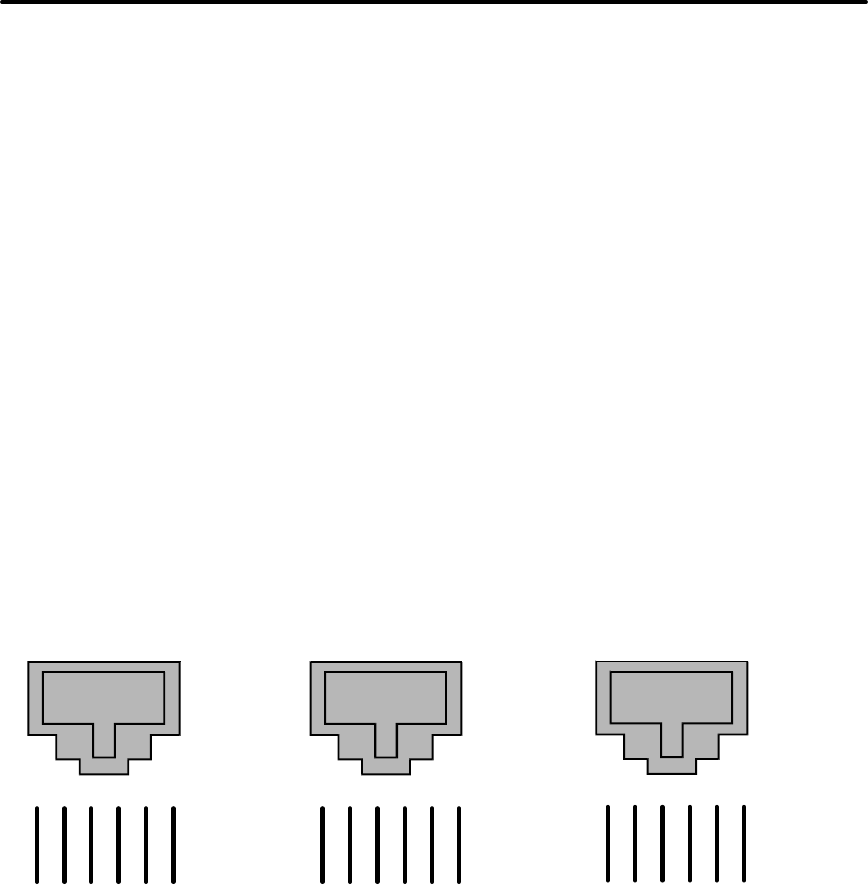
Figure 2 Cash Drawer Pin Definitions
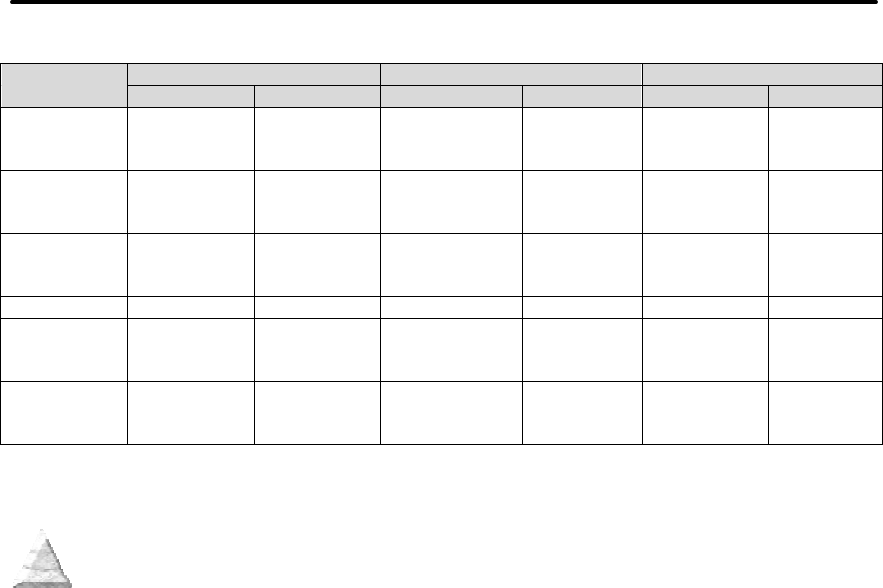
The cash drawer can be configured for one of three configurations; Ithaca, Epson, or
Star. The Main Controller PCB has three (3) six-pin headers, one each configuration.
The cash drawer harness is identical, and is plugged into the appropriate header at time
of factory build. The header position defines the configuration of the cash drawer. This
design allows for changing the cash drawer in the field by a trained technician. Refer to
the markups on the board when determining where the harness should be installed to
work in the three different configurations.
1
2
3
4
5
6
1
2
3
4
5
6
1
2
3
4
5
6
pin 1 CD2-
pin 2 CD1 Sense
pin 3 Ground
pin 4 CD Drive + (+24V)
pin 5 CD1-
pin 6 Not Connected
pin 1 Not Connected
pin 2 CD1-
pin 3 CD1 Sense
pin 4 CD Drive + (+24V)
pin 5 CD2-
pin 6 Ground
pin 1 Not Connected
pin 2 CD1-
pin 3 CD Drive + (+24V)
pin 4 CD Drive + (+24V)
pin 5 CD2-
pin 6 CD1 Sense
Ithaca Epson Star
Specifications and Requirements iTherm® 280 Programmer’s Guide
Page 34 Rev C 28-07764
Ithaca
Epson
Star
Pin Number Signal Name Direction Signal Name Direction Signal Name Direction
1 Frame
ground Drawer kick-
out drive
signal 2
Output Sink
Drive Frame
ground
2 Drawer kick-
out drive
signal 1
Output Sink
Drive Drawer
open/close
signal
Input Drawer kick-
out drive
signal 1
Output
Sink Drive
3 Drawer
open/close
signal
Input Signal ground +24V DC
4 +24V DC +24V DC +24V DC
5 Drawer kick-
out drive
signal 2
Output Sink
Drive Drawer kick-
out drive
signal 1
Output Sink
Drive Drawer kick-
out drive
signal 2
Output
6 Signal
Ground Frame Ground Drawer
Open/Close
signal
Input
Table 6 Cash Drawer Pin Assignment

iTherm® 280 Programmer’s Guide Specifications and Requirements
28-07764 Rev C Page 35
Vertical Wall Mount Kit Option
A kit is available as an add-on option that allows the iTherm® 280 printer to be vertically
mounted to a wall. It is comprised of a metal mounting bracket that attaches to the base
of the printer with two M6 thread-cutting screws. Additional hardware is required to
mount the bracket to the wall. The hardware should be installed into wall studs to
ensure that the printer mounting meets the following conditions:
• The mounting to the wall must withstand 4 times the printer weight in downward and
outward directions.
• The kit must include mounting instructions to explain how to meet the load test
• The firewall or the outer housing of the printer is maintained between the controller
PCB and the mounting wall.

28-07764 Rev C Page 37
chapter
3
Setup Procedures
Page 38 Rev C 28-07764
This page intentionally left blank

iTherm® 280 Programmer’s Guide Setup Procedures
28-07764 Rev C Page 39
Verifying the Configuration
Before you install an iTherm® 280 Printer into your system, you should verify that the printer is
configured as required by your system. There are four parts to this verification process.
1. Verify that the communications interface card is the correct one.
2. Verify that the cash drawer interface is configured correctly.
3. Verify that the power connection is correct.
4. Verify that the firmware in the printer is configured correctly.
Verify the Communications Interface Card
There are several basic types of interface cards, and each has variations. Make sure your
printer has the correct interface card.
Parallel Interface
• Centronics 36-pin interface
• 25-pin D shell
Serial Interface
• 9-pin D shell interface
• 25-pin D shell interface
USB Interface
• Standard 4-pin
Ethernet 10-Base-T Adapter
• Standard Ethernet port connector
802.11b Wireless Interface
• Wireless interface pre-installed within printer unit
It is easy to distinguish most of the interface cards other than the 25-pin serial and 25-pin
parallel interface cards. To determine what interface is installed, refer to the configuration
receipt shipped with the printer, or enter configuration mode and look at the verification printout.
If a serial interface card is installed, the printout will refer to the RS-232 serial interface. If the
parallel interface card is installed, the printout will refer to the parallel interface.
Changing Interface Cards
The interface card on the iTherm® 280 Printer can be changed in the field.
In most cases, interface cards are interchangeable without altering the printer firmware.
However, you may have to load new firmware and/or a new boot loader before you change the
interface cards. Check with Technical Support for firmware compatibility between interface
cards before ordering.
Removing the Old Interface Card
1. Turn over the printer, taking care not to allow the cover to open or the paper to fall.
2. Disconnect the current communications and cash drawer cables.
3. If equipped, unsnap the power supply retainer and slide out the power supply.
4. Disconnect the power supply from the interface card.
5. Remove the interface retaining screw.
6. Slide the interface card sideways-towards the power supply pocket-and remove it.

Setup Procedures iTherm® 280 Programmer’s Guide
Page 40 Rev C 28-07764
Cash Drawer Configuration
Verify the Cash Drawer Interface
The printer is shipped from the factory with a cash drawer interface label on the bottom of the
printer. You should always verify that the cash drawer you are using matches the printer’s cash
drawer interface label. If there is no cash drawer label, you should remove the communications
interface card and verify the setting. See "Configuring the Cash Drawer Interface" on page 40 .
There are many vendors of cash drawers. If you are unsure what the cash drawer interface is,
contact the cash drawer vendor for more information.
If you find that the cash drawer does not match the printer, you may change the printer's cash
drawer interface configuration. If the cash drawer interface no longer matches the label on the
printer, please remove the label.
Install the new interface card
1. Slide the interface card into the printer. Make sure the interface card sits flush with the
printer. The retaining screws should also line up with the mounting holes.
2. Install the retaining screws.
3. Connect the communications interface card and any cash drawer cables.
4. Turn over the printer, and reconnect the power.
Configuring the Cash Drawer Interface
CD interface drawing not yet available.
Figure 3 Cash Drawer Selection
The cash drawer connector may be connected to one of three internal connectors on the
controller board. To access the internal connector, you must first remove the interface adapter.
Removing the interface card
1. Unplug the printer
2. Turn over the printer. Take care not to allow the cover to open or the paper to fall.
3. Disconnect the current communications and cash drawer cables.
4. Remove the interface retaining screw2.
5. Slide the interface card towards the back of the printer and remove it.
Reconfigure the cash drawer
1. Slide the cash drawer socket out of the slot in the frame.
2. Unplug the socket harness from the main circuit board.
3. Plug the harness into the connector for the desired interface.
4. Reinstall the cash drawer socket into the frame.
Re-Install the interface card
1. Slide the interface card into the printer. Make sure the interface card sits flush with the
printer. The retaining screws should also line up with the mounting holes.
2. Install the retaining screws.
3. Connect the communications interface card and any cash drawer cables.
4. Turn over the printer, and reconnect the power.

iTherm® 280 Programmer’s Guide Setup Procedures
28-07764 Rev C Page 41
Installing Cables
Three cables are required to be connected to the printer.
1. Power
2. Communications
3. Cash Drawer
Connecting power
The iTherm® 280 Printer is generally supplied with a built-in power supply. As an option, the
printer is available without a power supply.
Internal Supply
The internal supply connects to an outside power source with a standard two wire power cord.
Setup Procedures iTherm® 280 Programmer’s Guide
Page 42 Rev C 28-07764
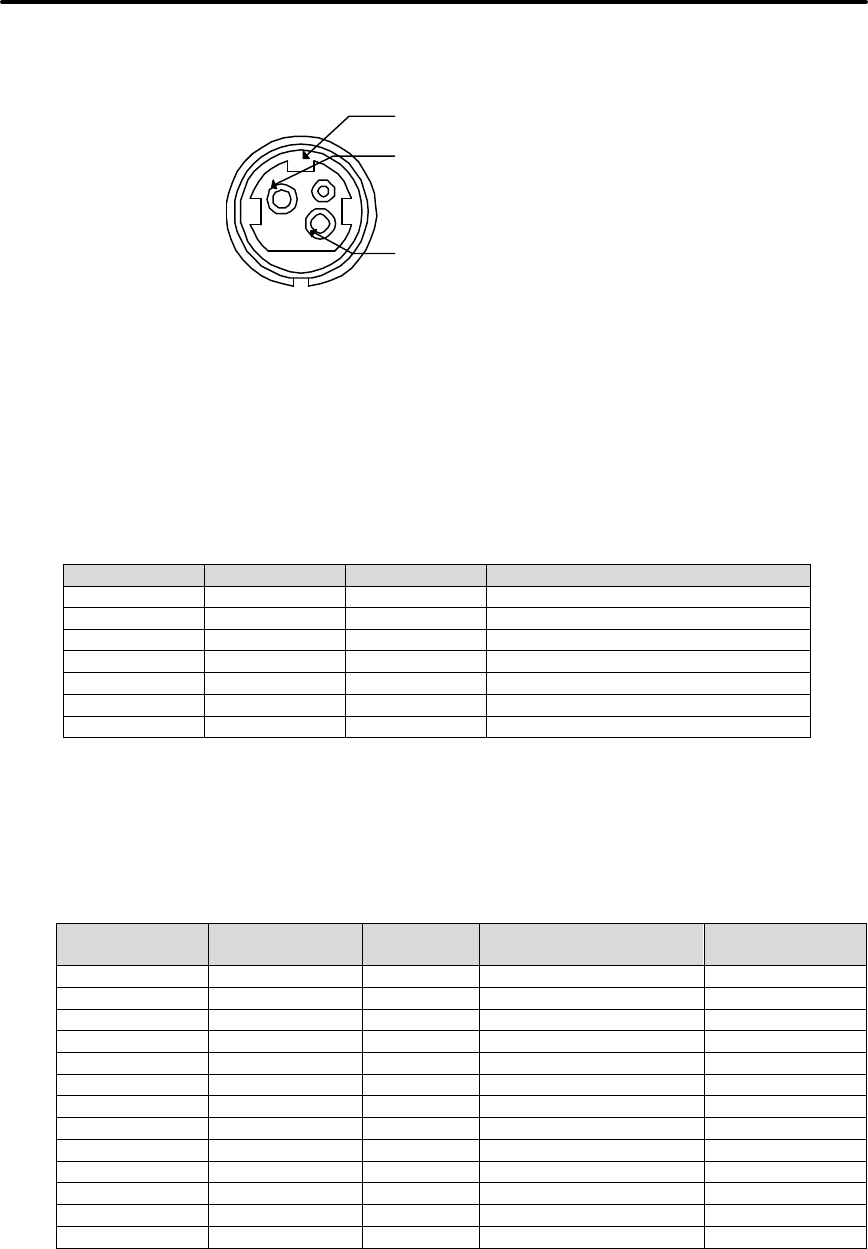
Earth Ground
+24 Volt Supply
Ground (+24 V dc)
External Supply
If an external supply is used a 3 pin mini DIN plug is provided for the external 24 Volt supply.
Figure 4 3-pin mini DIN plug
Connecting Communications Cables
The iTherm® 280 has a number of different communications interfaces.
Serial
The serial interface connector is either a 9-pin or 25-pin mail D shell interface. The pin-out is
shown below
9-pin 25-pin Signal Description
Pin 2 Pin 3 RX Receive Data
Pin 3 Pin 2 TX Transmit Data
Pin 4 Pin 20 DTR Data Terminal Ready
Pin 5 Pin 7 GND Signal Ground
Pin 6 Pin 6 DSR Data Set Ready
Pin 7 Pin 4 RTS Request to Send
Pin 8 Pin 5 CTS Clear to Send
Table 7 Serial interface pin out
Parallel
The parallel interface connection is very similar to the serial interface connection. It can be a
36-pin Centronics (IEEE 1284-B) or a 25-Pin female D-Shell (IEEE 1284-A) connector. The pin-
out of both connectors are shown below
25-pin
Connector 36-pin
Connector Signal Description Direction
Pin 1 Pin 1 STROBE Clock data to printer Host to Printer
Pins 2-9 Pins 2-9 D0 - D7 Data Host to Printer
Pin 10 Pin 10 ACK\ Printer accepted data Printer to Host
Pin 11 Pin 11 BUSY Printer busy Printer to Host
Pin 12 Pin 12 PE Paper Out/Status Printer to Host
Pin 13 Pin 13 SLCT Printer selected Printer to Host
Pin 14 Pin 14 AUTOFD Auto-feed paper Host to Printer
Pin 15 Pin 32 FAULT\ Printer error Printer to Host
Pin 16 Pin 31 INIT\ Initialize printer Host to Printer
Pin 17 Pin 36 SLIN Select printer Host to Printer
Pin 17 FG Frame ground Printer to Host
- Pin 18 +5V Peripheral logic high Printer to Host
Pins 18-25 Pins 16, 19-30 GND Ground
Table 8 Parallel interface pin out

iTherm® 280 Programmer’s Guide Setup Procedures
28-07764 Rev C Page 43
USB
The USB connector can be one of two types: a standard Type B connector, as in commonly
used in the PC industry, or a POS Powered USB connector. In the case of the powered USB
connector, there are a number of different versions. Make sure you are using a 24 volt DC
version, and the 24 volt supply meets the requirements of the iTherm® 280 printer and any cash
drawer that is connected to the printer.
A powered USB interface is a special order option. There are several standards for the power
interface. Make sure that you inform TransAct is aware of what interface you require, and that
that interface connector is supported by the iTherm® 280.
Verify the Firmware Configuration
An example receipt is Included in the box your printer shipped in that will show how the printer
was configured before it shipped from our Ithaca facility. Compare this information to your
system requirements. Pay attention to the emulation and the communications link. If they are
wrong, the printer may appear inoperative. If the configuration is not correct, refer to the section
on changing the iTherm® 280 configuration. If there are a number of printers to be installed and
you want the identical configuration in each, you can use the universal configuration program to
record the configuration on one printer, and replicate it over a group. The configuration program
is available from Transact technical support.
Installing Paper
It is easy to install paper in the iTherm® 280.
1. Open the paper cover by grasping the green cover release between your thumb and
forefinger, and squeeze the release. This will pop the cover up.
2. Open the cover and install a roll of paper with the paper coming off of the bottom of the
roll.
3. Lay the paper tail over the front of the printer and center it over the paper path.
4. Close the cover. When the cover is closed, the printer will feed several inches of paper
to make sure the paper is aligned in the printer. If equipped with a cutter, the printer will
automatically cut the paper tail and the printer is now ready to print. If the printer is not
equipped with a cutter, the operator should remove the paper tail.

Setup Procedures iTherm® 280 Programmer’s Guide
Page 44 Rev C 28-07764
Printer Drivers and Printer Controls
Definitions for terms you will see in this guide:
OS – The Operating System, which is the operating software underlying a computer
system. Examples of OS’s include Microsoft Windows® (9x/Me/2000/XP), Linux, Unix,
and OS2.
Application - A software program that a person uses to perform a function, such as a
point of sale (POS) application. Also referred to as a program.
Driver - Software that makes hardware do something (something useful, we hope!). A
driver translates (or converts) a software command to a command that specific hardware
can understand. Types of drivers include printer drivers, port drivers, OPOS drivers, and
USB drivers.
OCX/ActiveX - a software component that utilizes Microsoft’s OLE (Object linking and
embedding).
API - Application Programming Interface, or the language used to develop applications
for devices such as printers. In the generic sense, the term “the API” refers to the
Windows Operating System API. Types of APIs include Windows API, Visual Basic API,
Delphi API, and MFC API.

Setup Procedures iTherm® 280 Programmer’s Guide
28-07764 Rev C Page 45
Getting Started – Questions to Ask
Most driver software for TransAct Technologies printers fall into one of three main
categories:
• They support or emulate a specific type of communications port – for example, a
USB port driver, or a driver to emulate a serial port via an Ethernet interface.
• They support the industry standard OPOS (OLE Point of Sale) interface for point of
sale printer applications.
• They support a direct printer interface, such as the Windows printer API or low-level
printer commands.
The questions below can help clarify which types of drivers may be appropriate for your
printer. The following section then examines each of the most common types of driver
software in detail.
Do you want to use USB and simulate a
communication port?
The TransAct Virtual Serial (TVS) USB Driver allows your application to think that it is
communicating with a serial port, but is actually using the USB link to communicate with
the printer. This driver should be downloaded and installed when requested as part of
the Windows Plug and Play process, or may be preinstalled.
Some of TransAct Technologies printers support a composite USB interface. This
interface allows a Windows print driver to be installed to a windows USB printer port as
well as supporting a virtual serial port. In some cases the printer USB port is
configurable, and either the windows printer port or the virtual serial port may be
disabled. If you will be using OPOS, you should disable the Windows printer interface.
If you are going to use only the Windows printer API, you can but do not need to disable
the virtual serial interface.
Do you want to use an Ethernet interface and simulate
a communication port?
The TransAct Ethernet Virtual Serial (VSerial) Driver allows your application to think that
it is communicating with a serial port, but is actually using the Ethernet link to
communicate with the printer. This driver should be downloaded and installed when
required. There is currently no reliable Windows Plug and Play protocol for Ethernet
devices.

Setup Procedures iTherm® 280 Programmer’s Guide
Page 46 Rev C 28-07764
Are you using OPOS (UnifiedPOS/UPOS)?
If you are using an application that is written to interface with the OPOS (OLE Point of
Sale) standard, then the TransAct Technologies OPOS driver will allow you to
communicate with most TransAct Technologies printers. The OPOS driver provides the
mechanisms to print in all of the print modes supported by the printer.
Note: The TransAct Technologies OPOS driver only supports Microsoft Windows
operating systems.
Note: If you are using a USB printer, you will also need to install the TransAct
Technologies Virtual Serial (TVS) driver.
Note: If you are using an Ethernet printer, UPOS can be configured to interact directly
with the printer. In this case, you do not need the VSerial Ethernet driver.
Do you want to print from a Windows application?
Microsoft supports a Windows Printing API for Windows applications. This interface is
intended to support typical Windows page printers, and has features such as begin
document, end document, and tray selection. While this is not an ideal environment for a
POS printer, there are cases where such functionality is required.
To support this environment TransAct Technologies provides a Windows print driver with
extensions for POS, which may be downloaded and installed for most TransAct
Technologies printers.
Please read the Ithaca Printer API documentation included with the driver. A POS
printer is not the same as a typical consumer printer and requires unique consideration
when using a Windows printer API interface.
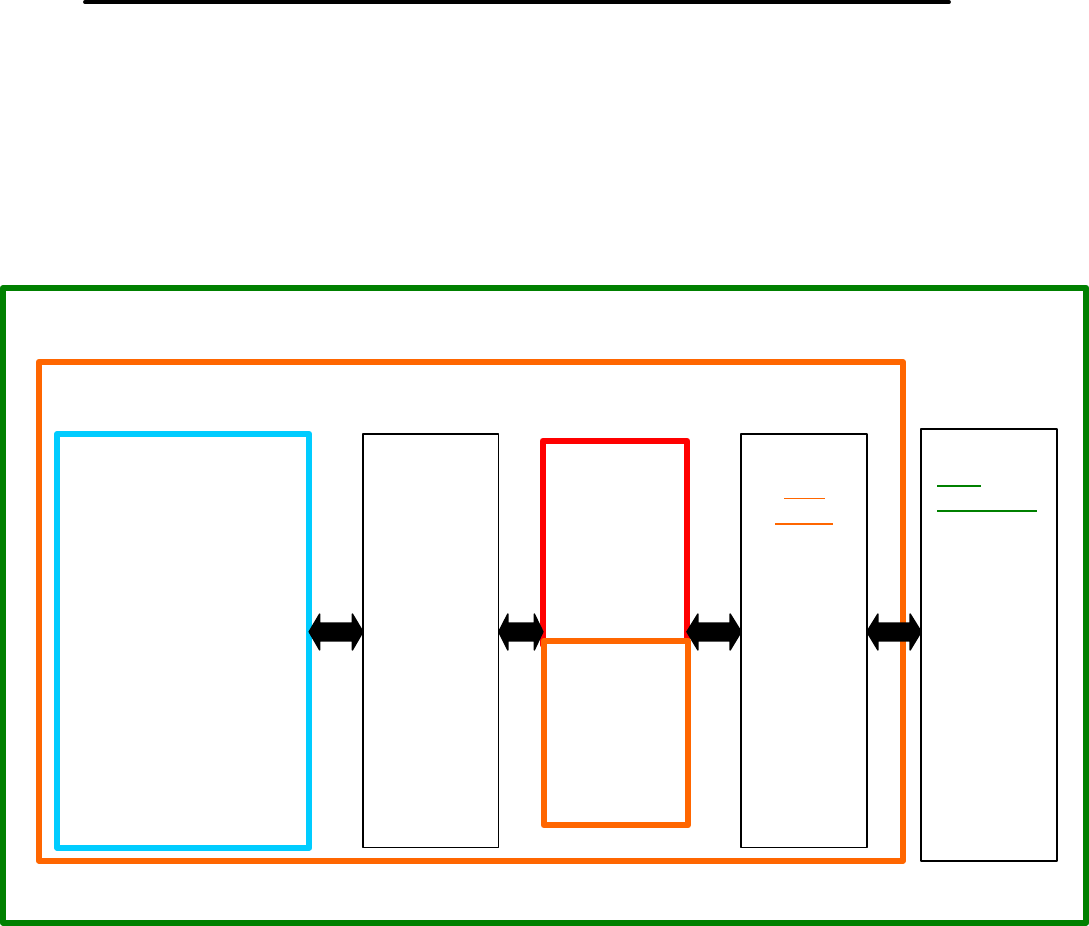
Setup Procedures iTherm® 280 Programmer’s Guide
28-07764 Rev C Page 47
Windows Printer Driver
A Windows printer driver is a specific type of driver defined by Microsoft that the OS
uses to translate drawing commands by a Windows application to a specific printer’s
command set. A standard Windows printer driver is a graphics page mode driver, and is
not a POS (point of sale) driver. (Have you ever had to open a cash drawer that was
connected to your printer at home?)
Figure 5 Windows Print Driver
When to use a windows printer driver:
Use a printer driver when writing a program that uses the Windows API to send print
information to the printer.
When not to use a windows printer driver:
When a program wants to send printer command codes to the printer, or when a
program wants to get information back from a printer.
PC Har
dware
Window’s Operating System
Windows Print
Application
GDI
Graphics
Device
Interface
Part of the
Windows
API
Printer
Driver
Port
Driver
Serial
OR
Parallel
OR
USB
OR
Other
Port
Hardware
Serial
OR
Parallel
OR
USB bus.
OR
Other
Printer
Driver
Setup Procedures iTherm® 280 Programmer’s Guide
Page 48 Rev C 28-07764
OPOS driver
An OPOS driver is an implementation of the UnifiedPOS (UPOS) specification.
It provides an application interface for retail devices such as a POS printer, scanner,
cash drawer, pole display, MICR, scale, or others.
Figure 6 OPOS or UPOS
When to use an OPOS driver:
When an application is written that invokes the retail device functions based on the
UPOS specification, in a vendor independent manner, OPOS can be used on the
Microsoft Windows platform. It allows access to all the features of a retail device without
having to deal with specific device commands. It also allows information to be retrieved
from the retail device.
When not to use an OPOS driver:
When the application is written using the Windows print API, and device specific
commands are sent directly through the application to the device.
PC Hardware
Window’s Operating System
POS Application OPOS POSPrinter Driver
(Service)
Port
Driver
Serial
OR
Parallel
OR
USB
OR
Other
Port
Hardware
Serial
OR
Parallel
OR
USB bus.
OR
Other
OPOS Cash
Drawer Driver
(Service)
OPOS Printer
Control (ActiveX)
OPOS Cash
Drawer Control
(ActiveX)
Setup Procedures iTherm® 280 Programmer’s Guide
28-07764 Rev C Page 49
USB driver
A USB driver is a low level device driver, required for USB communication with the
printers. It is a Windows Plug and Play driver and needs to be installed for USB printers,
when the printer is initially plugged into the system.
Figure 7 USB Driver
When to use the USB driver:
A USB driver is needed whenever data is to be sent to or received from the printer using
the USB interface. It is needed with both the Windows and the OPOS drivers, when
these drivers use the USB interface as the underlying communication path. It is also
needed if the application does not use either the OPOS or the Windows driver, but
needs to communicate directly with the printer using the USB interface.
When not to use the USB driver:
A USB driver is not needed if the application uses any of the other forms of
communication such as serial, parallel, or Ethernet, and does not use USB.
Window’s Operating System
OPOS
Driver
Windows
Driver
Windows
Print App.
USB Interface
USB Interface
USB Interface
USB
Driver
USB
PRINTER
Setup Procedures iTherm® 280 Programmer’s Guide
Page 50 Rev C 28-07764
Ethernet Virtual Serial driver
A VSerial driver is a low level device driver, which appears to Windows and your
application as a serial com port. However, all of the data sent to and received from the
serial com port actually comes from the Ethernet printer.
Figure 8 Ethernet Virtual Serial Driver
When to use the Ethernet Virtual Serial driver:
An Ethernet Virtual Serial Driver is needed whenever data is to be sent to or received
from the printer using the Ethernet interface, but needs to appear to the application as a
serial port.
When not to use the Ethernet Virtual Serial driver:
An Ethernet Virtual Serial driver is not needed if the application is able to directly interact
with an Ethernet printer using TCP/IP Protocol.
Window’s Operating System
User
Application
Driver
Virtual Serial
Link Virtual
Driver
Ethernet
Printer
With Print
Server
Setup Procedures iTherm® 280 Programmer’s Guide
28-07764 Rev C Page 51
POSPrinter ActiveX Control (POSPrinter OCX)
This is not a driver; but rather a software component that provides a connection from an
application to a port driver. This allows an application to communicate “directly” with a
printer. This approach allows an application to send commands to the printer if desired,
similar to the legacy DOS approach once used to communicate with a POS printer.
Figure 9 POSPrinter OCX
When to use the POSPrinter OCX:
When the application writer wants complete control of what is sent to the printer. The
application must take the responsibility of sending the correct codes to the printer as well
as detecting error conditions, and graceful recovery from error situations.
When not to use the POSPrinter OCX:
When you do not want to deal with the low-level commands sent to the printer.
PC Hardware
Window’s Operating System
POS Application POSPrinter.ocx
ActiveX Control
Port
Driver
Serial
OR
Parallel
OR
USB
OR
Eternet
OR
Other
Port
Hardware
Serial
OR
Parallel
OR
USB bus.
OR
Ethernet
OR
Other
Printer
Driver

Setup Procedures iTherm® 280 Programmer’s Guide
Page 52 Rev C 28-07764
Where to get more information
Additional information about Driver and support programs are available for your Transact
Sales representative, from
Transact customer support or from the TransAct Technologies Web site.

28-07764 Rev C Page 53
chapter
4
How to Operate the iTherm® 280 Printer
Page 54 Rev C 28-07764
This page intentionally left blank

How to Operate the ITherm® 280 iTherm® 280 Programmer’s Guide
28-07764 Rev C Page 55
How to Operate the iTherm® 280 Printer
Your iTherm® 280 printer contains two buttons and three (LED) indicator lights. In
addition to power control and feeding paper, these two buttons can be used to perform
functions like self-testing, clearing errors and printer configuration. They are:
* BUTTON This is the standby or power down button, located on front face of the
printer’s cabinet
FEED Located on bottom portion of printer’s keypad
* Button
The iTherm® 280 has been designed to remain connected to a power source at all times.
The * button on the iTherm® 280 Printer does not completely remove power from the
printer. Because of this, the * button is used to alternately switch the printer between
OFF and ON modes. The * button does not disconnect power to the printer. The printer
is truly off only when the AC power supply is disconnected. You will notice that none of
the indicator lights will be on when the printer is in OFF. When the printer enters ON
mode, the green power indicator light will be activated. The operational state of the
iTherm® 280 can be determined by looking at the Power Indicator Light (LED).
When the * button is pressed or the power down command is received, the iTherm® 280
Printer enters an OFF low power mode. The printer is not completely off, but is in
Standby mode 3.
Standby mode is remembered even if the power is removed. Whenever power is turned
back on, the printer starts, performs Level 0 diagnostics, and re-enters Standby mode.
FEED Button
The FEED button feeds paper through the printer. By pressing the FEED button
momentarily, the paper will be fed one line at a time. Pressing and holding the FEED
button will make the printer feed paper continuously until the button is released.
3 The printer draws about four watts of power in Standby.

How to Operate the ITherm® 280 iTherm® 280 Programmer’s Guide
Page 56 Rev C 28-07764
Indicator Lights (LED)
The three iTherm® 280 indicator lights are:
• Power LED Indicates printer activity and non-recoverable errors
• Error LED Indicates problems and probability of recovery
• Paper LED Indicates paper status (paper low)
Power Indicator (LED)
The power indicator lets the user know that the printer is ON. If the POWER indicator
blinks in conjunction with the ERROR indicator, the printer is experiencing a non-
recoverable error: see the fault indicators discussed below. If the POWER indicator blinks
and there is no error indicator blinking, the printer is being held in reset by the host.
Error Indicator (LED)
The ERROR indicator lets the user know that the printer is experiencing a problem. If the
POWER indicator is lit (not blinking), the error is generally recoverable without data loss.
If the POWER indicator is blinking, a non-recoverable error has occurred: see the fault
indicators below. If the error is not operator recoverable, a power cycle may correct the
problem. If a power cycle does not correct the fault, the printer must be serviced.
Paper Indicator (LED)
The PAPER indicator signals the paper status. If the printer is equipped with a paper low
option, the PAPER indicator will blink when the paper is low. The low sensor is adjustable,
and the amount of paper remaining is dependent on the adjustment. If the PAPER
indicator is lit with the error indicator, the printer is out of paper: in this case, the printer
stops printing and waits for the paper to be changed.
Fault Indicators
The ERROR indicator is the primary fault indicator, and is either always on or blinking if a
fault has occurred. There are three types of faults:
Fully-recoverable faults Paper out or cover open
Semi-recoverable faults Head jam
Non-recoverable faults Component failure
How to Operate the ITherm® 280 iTherm® 280 Programmer’s Guide
28-07764 Rev C Page 57
Fully-recoverable and Status
A fully-recoverable error will restart printing exactly where it stopped when the error
occurred. Printing will resume after error has been properly addressed. A status
recoverable error is very similar to a fully-recoverable error. Additionally, status is used
to display when the printer consumables may need replacing.
Semi-recoverable
A semi-recoverable error is determined by whether or not the printer has to be shut off
and turned back on while attending to the problem. The amount of information lost is
dependent on the type of error and the state of the information being processed.
Non-recoverable
A non-recoverable error produces information loss.
Error Blink Codes
If during normal operation, the ERROR indicator is lit and the POWER indicator is blinking,
a minor error occurred. The POWER indicator shows the error by blinking a pattern.
Cycling the power restarts the printer. Blink patterns are defined as follows.
1 Blink (1 blink, pause)
__¦__________________¦______
2 Blink (2 blinks, pause)
__¦__¦_______________¦__¦___
3 Blink (3 blinks pause)
__¦__¦__¦____________¦__¦__¦_
A similar pattern is followed for other blink counts. Error indications are as follows:
Error Indicated Blink Count
Unused 1
Configuration Read 2
Configuration Write 3
Software Error 4
Auto Cutter Error 5
Unused 6
User Store Format Error 7
Electronic Journal Format Error 8
Flash Operation Error 9
Internal Memory Error 12
Communication Adapter Error 14
Operating System Error 15
Table 9 Error Blink Codes

How to Operate the ITherm® 280 iTherm® 280 Programmer’s Guide
Page 58 Rev C 28-07764
Testing the Printer Overview
Using Self-Test, Configuration, and Hex Dump Mode
Self-Test Mode allows you to perform a series of tests to show if the printer is functioning
correctly. Self-Test Mode also allows you to print a summary of how your iTherm® 280 is
currently configured. Use this printout to compare your printer’s settings to your system’s
requirements. Specific attention should be given to emulation and communications
settings. For serial printers, the baud rate and other RS-232 interface settings are
important. If there is a configuration problem, you should use Configuration Mode to
make any changes necessary.
Entering Self-Test, and Configuration mode
To enter self test and or configuration mode, perform the following sequence of
operations:
1. Press and release the * button to turn the printer OFF. (The power indicator light
will be off.)
2. Press and hold the Feed button.
3. While holding the Feed button, press and release the * button.
4. When the red, error indicator light blinks, release the Feed button
5. Follow the directions printed on the receipt to cycle through and select the
desired TEST option.
The iTherm® 280 has a total of seven Self-Test and or configuration options. Two are
designed to be useful when performing on-site print evaluations. One option allows the
printers electronic journal to be maintained, one allows the printers configuration to be
changed, and two are designed for factory setup by TransAct.
Testing the printer
Use the following two TEST options when verifying basic printer operation.
TEST-Receipt
The receipt test is the primary test option to use when determining if the printer is
functioning correctly.
The receipt test is mostly used during the early stages of troubleshooting, to eliminate
the possibility that the problem is occurring with the printer. If the printer experiences a
failure, and the error indicator light is activated, call TransAct’s Ithaca Facility’s Technical
Support Department.
TEST-Head Test
This test performs a test pattern that will print all the head print elements and verify that
the drive roll is free from defects. The print head has two heating elements per dot
position. A print element is not considered bad unless both elements are missing. If the
head test shows that there is an inconsistency in the drive roll it may be debris or a void.
If debris is indicated, cleaning the drive roll should correct the problem. If this does not
correct the problem, contact TransAct’s Ithaca Facility’s Technical Support Department.

How to Operate the ITherm® 280 iTherm® 280 Programmer’s Guide
28-07764 Rev C Page 59
Maintaining the Electronic Journal
The iTherm® 280 has an electronic journal option. It is possible to configure the printer
with a journal station. This selection allows the information saved in the electronic journal
to be printed and maintained by the operator.
Operation of this mode will be described later in the manual under Electronic Journal
Operation.
It the Electronic Journal is unintentionally initialized, it may be deactivated by this option
as well. If the Electronic Journal is password protected, the manual Electronic Journal
option will be disabled.
Configuring Options
The configuration option allows the configuration of the printer to be printed and, if
necessary, changed. When configuration mode is entered, the current configuration, the
Current User store status, and the current totals are printed. If any printer errors have
occurred, a hardware and software error log may also be printed. At the end of the print
out are instructions on how to use configuration mode. Please read these instructions
carefully, as they are not the same as Self-Test. You may exit configuration mode at
any time, without affecting the printer configuration, by pressing the power button.
TEST- Configuration
The content of the configurable features will alter based on the hardware installed.
There will be at least three groups of options:
1. Emulation
2. Communications
3. General Options
Under emulation the instruction set or emulation of the printer may be changed.
Available options will depend on the model of printer, however Ithaca PcOS is always
available. Other options may be Epson TM88, TM90, Microline, and Ithaca M50.
Under Communications, the way the printer deals with the communications port can be
adjusted. The printer will only show communications options that deal with the
communications adapter installed.
Under General Options, all other configurable features of the printer can be adjusted.
The default language, paper options, electronic Journal features, and print defaults may
be set.
Details of all printer options and features will de discussed later in this manual.
Factory Test
The printer is equipped with several factory test modes. These test options are only used
for factory burn-in and testing.
TEST-Burn-in
TEST-Rolling ASCII

How to Operate the ITherm® 280 iTherm® 280 Programmer’s Guide
Page 60 Rev C 28-07764
Hex-dump Mode
Hex-dump mode is used to diagnose communication problems with the printer. As
information is received by the printer, the information is converted to a Hex/ASCII format
and printed. No translation is made, which means no commands are interpreted. All
information is converted to Hex/ASCII and printed on the receipt tape. If a carriage return
is sent to the printer, it is translated to 0D in the hexadecimal field and "." in the ASCII
field.
Entering Hex-dump Mode
To enter hex-dump mode, perform the following sequence of operations:
1. Press and release the * button to turn the printer OFF. (The power indicator light
will be off.)
2. Press and hold the Feed button.
3. While holding the Feed button, press and release the * button.
4. When the red, error indicator light blinks, continue to hold the Feed button until
the blink pattern changes (about 5 seconds). After the pattern changes, release
the line feed button and the printer will enter Hex-dump mode.
Hex-dump format
The format follows.
54 68 69 73 20 69 73 20 This is
61 20 74 65 73 74 0D 0A a test..
Several indications of printer and host communication problems can be deduced from
hex dump mode. If the printer is printing all 3F "?" symbols, the parity or the number of
bits is wrong. If the printer is printing 3F "?" symbols when it should be printing other
characters, the communications are probably incorrect, such as the parity, baud rate, or
bit length setting. If the printer prints incorrect characters (like Hex C1 instead of Hex 41
"A"), it is set for 8-bit data, and the host is set for 7-bit. In most cases, the print problem
can be traced to the host and printer being configured differently.

How to Operate the ITherm® 280 iTherm® 280 Programmer’s Guide
28-07764 Rev C Page 61
Level 0 Diagnostics
Level 0 diagnostics always and only run at power up, e.g. power being applied. These
diagnostics perform the following tasks:
Cold Power On
1. Basic System Integrity
2. Vector Integrity
3. RAM Test
4. Flash Boot Loader Integrity
5. Flash Firmware Integrity (NOTE: If the firmware is corrupted, the printer will remain in boot load.)
6. Start Normal Firmware
7. Verify Configuration Integrity
8. Interface Card Configuration
9. User-store Integrity
10. Start Kernel, Verify Multitasking, Start Tasks
Once the kernel is running, the following tests must pass to allow operation. However, if any test
fails (except the knife home test), the remaining tests will generate recoverable faults and normal
operation will start as soon as the fault is cleared. These tests are also run when operation is
resumed from OFF.
11. Cover Closed Check
12. Knife Home (if installed)
13. Paper Present
14. Place Printer On-line, Start Normal Operation
The first phase of testing consists of step 1-5, and determines that the boot loader is
accurate and the printer firmware is correct. Tests 1 through 4 produce non-recoverable
errors if they fail, in which case the power must be removed from the printer and the
printer returned for service. If the boot loader is intact, but the main firmware is
corrupted, the printer automatically enters boot loader mode, where the firmware can
then be reloaded into the printer.
Boot Loader Mode
The boot loader cannot be entered during normal operation. Boot loader mode can only
be entered in one of two ways: (1) when Level 0 Diagnostics finds that the firmware
check (also known as a cyclical redundancy check, or CRC) is bad, or (2) manually.
To manually enter the boot loader, hold the * button while the power is applied. The
ERROR Indicator comes on, and the POWER indicator blinks. At this time, the firmware
boot program is operating and the boot load file may be sent to the printer. When the
printer receives the boot load file, the printer will automatically restart if the firmware load
was successful. If the load fails, the printer will remain in boot load mode. If the load
fails, reset the printer by removing the power and restarting it.

28-07764 Rev C Page 63
chapter
5
Configuring Your iTherm® 280 Printer
Page 64 Rev C 28-07764
This page intentionally left blank

Configuring Your ITherm® 280 Printer iTherm® 280 Programmer’s Guide
28-07764 Rev C Page 65
Configuration Mode Overview
There are two ways to configure the iTherm® 280 printer: the first is to use the manual
configuration sequence by using the keypad controls, and the second is to use
TransAct’s remote configuration software. TransAct Technologies offers the use of a
remote CONFIG program as a fast, easy way for system integrators to configure or
reconfigure your iTherm® 280 printer. To obtain more information, or the latest version of
the CONFIG program, call our Sales Department or Technical Support.
Most Frequent Configuration Incompatibilities
Parallel Printer
Emulation
Carriage Return Options
Serial Printer
Emulation
RS-232 Serial Interface (baud rate)
Carriage Return Options
How to Change Configuration Settings
Entering into Configuration Mode
1) Place the printer in standby by pressing the * button.
2) Press and hold the Feed button while pressing and releasing the * button.
3) When the error indicator blinks, indicating a stuck key, release the Feed key and
enter Self Test Mode.
4) Press and hold the Feed button until the next test is printed. Then release the Feed
button.
5) Repeat step 4 until “Test-Configuration” is printed.
6) Press and release the Feed button briefly. The current configuration will then be
printed.
7) You are now in Configuration Mode.
After you enter Configuration Mode, the printer will print the current configuration, the
current totals and the error logs, if any. Save this printout as a guide to changing the
configuration, and in case you wish to return the printer to the previous configuration.
Each emulation can have different configurable features. If you are changing the
emulation, note that the printout that was printed at the beginning of the configuration
process may be incorrect for the new emulation, and the configurable features may be
different. If you are using this print out as a configuration guide, and you are changing
the emulation, you may wish to save the new emulation and then re-enter Configuration
Mode to change other options. This will print all the available features for the new
emulation.

Configuring Your ITherm® 280 Printer iTherm® 280 Programmer’s Guide
Page 66 Rev C 28-07764
Using Configuration Mode
The Feed button is used to select and change configuration setting. By pressing and
releasing the Feed button, the parameter to be changed can be selected. By pressing
and holding the Feed button, the value of the selected parameter will change.
The following chart lists some of the potential parameters and their options.
Parameter
Definition
Options
Default
Emulation Mode Printers command set Ithaca PcOS, Epson TM-
TXX, ESC/POS,
Microline, Ithaca M50
Ithaca PcOS
Model Type of Epson Printer TM-T85, TM-T88II, TM-
T88III, TM-T90 TM-T88II
Paper Colors
Black Dot Eo This option allows the
Custom Black or Custom
Color paper Black
energy to be set.
10 to 40 24
Red Dot Eo This option allows the
Custom Color paper
Color energy to be set.
10 to 40 12
Color This option selects the
secondary paper color Monochrome, Red,
Green, or Blue None
Density Adjust This is a fine adjustment
for the print density. -50 to + 50 0
Baud Rate Serial Communications
Bit rate 300, 600, 1200, 2400,
4800, 9600, 19200,
38400, 57600,115200
19200
Mode Number of bits, parity
and stop bits. 7 bit or 8 bit
Even, Odd, No Parity
1 or 2 Stop Bits
8 Bit, No parity, 1 Stop
bit
Handshaking Flow control options Ready/Busy
Xon/Xoff
None
Ready/Busy
Receive Error What happens when an
error is detected. Prints ?
Ignores the data. Prints ?
Windows PnP Flag for Windows Plug
and Play active. Enabled,
Disabled Enabled.
DTR/RTS Signal What RS232 signals are
used for flow control DTR, RTS, or Both DTR
and RST Both DTR and RTS
CTS/DSR Signal How CTS and DSR used None (Not used) None (Not used)
Multidrop Mode Flag for multidrop active Off, A, B, or C Address Off
Busy-to-ACK Relationship of Busy to
ACK on the IEEE1284
interface.
ACK while Busy
ACK in Busy
ACK after Busy
ACK in Busy
Select/Deselect Command used for
printer select and
deselect (Microline and
M50 only)
DC3/DC1
DC1/DC3 DC3/DC1
Code Page or
Language Set What character set is
used for a default. See appendix 0 or 437
Zero Is the zero slashed, un-
slashed or defined by
the language set.
Slashed
Un-Slashed
Follow Language set
Defined by the language
set.
Font Sets the size of the
default font 9x24, 10x24, 13x24, or
15x24 12 x 24
CPI Sets the default
characters per inch Value may be form 10 to
24 characters per inch 15

Configuring Your ITherm® 280 Printer iTherm® 280 Programmer’s Guide
28-07764 Rev C Page 67
Smoothing Flag for whether scaled
characters smoothed. Enabled, Disabled Enabled
Paper Width Width of the paper
installed. 80 or 58 mm paper and
print zone from 608 to
256 dots
80 mm and 576 dots.
Bar Code Width Default barcode line
width. 1 to 8 3
10CPI (DC2)
ESC v
nINIT/ENQ<10>
Carriage Return This option defines how
CR and LF characters
are used.
Normal, Ignore LF,
Ignore CR ,
Add LF to CR,
Add CR to LF,
Add to Both,
Use CR as Print
Ithaca Emulation:
Normal
Epson Emulation: Ignore
CR.
Axiohm Emulation: Use
CR as Print.
Off-Line Option This option defines what
conditions place the
printer off line.
Normal: Cover open,
paper out, and buffer
full.
Buffer full only.
Normal.
Line Spacing How many lines per inch
are printed by default. 6, 7.5, or 8 lines per
inch. Ithaca Emulation: 8
Most others: 6
Input Buffer This option specifies
how large the input
buffer is.
40 Characters
256 Characters
1024 Characters
2048 Characters
4096 Characters
8192 Characters
One Line
8192 Characters
Print Energy Control
Paper This option will select a
paper type by brand
name.
Generic Black
Generic Color
Custom Black
Custom Color
Optima POS
Kanzaki P-320
Kanzaki P-350
Kanzaki P-320RB
Kanzaki P-320GB
Kanzaki P-320BB
Appleton RB100-2.3
Appleton GB100-2.3
Appleton BB100-2.3
Generic Black
PreHeat Temp. This sets the
temperature that the pint
head tries to maintain.
See the section on Head
pre-heat later in the
manual.
25
Power Supply The printer uses an 80W
internal supply. If an
external supply is used,
this adjustment will limit
the printer to the power
indicated.
60 to 120 Watts 80
Page Length This options sets the
default form feed page
length.
0 – 60 lines.
0 disables the form feed 40
Cash Drawer CMD The Microline option has
two potential cash
drawer commands
ESC +
BEL BEL

Configuring Your ITherm® 280 Printer iTherm® 280 Programmer’s Guide
Page 68 Rev C 28-07764
CD ESC BEL Parm. The Microline Emulation
has the option of using
the ESC BEL command
to operate the cash
drawer
Enabled
Disabled Disabled
Microline Mode There are three
Microline modes M50, M50 Plus, OKI
ML192 M50
Cash Drawer Time The cash drawer fire
time is adjustable in the
Ithaca emulation.
10 to 250 Ms 250 Ms
Cash Drawer Sense The sense of the cash
drawer open status can
be reversed.
Normal,
Inverted Normal
External User Store Flag for user store in use
or configurable. If the
user store is in use and
has data in it, it can not
be reconfigured.
In use or configurable. Not Settable.
Electronic Journal This specifies the
amount of external flash
available for the
electronic journal or user
data space.
1 to 31 64K blocks 2
External User Store This indicates the
amount of external flash
that is available for user
storage (Graphics and
characters.)
1 to 31 64K Blocks This is not settable. It
equals 32 – the
Electronic Journal
setting.
EJ Manual Print This sets whether or not
the manual electronic
journal options are
available.
Enabled
Disabled Enabled
EJ Record Numbers This options sets
weather or not the
record number is printed
with journal entries.
Enabled
Disabled Enabled
User Store This option sets a lock
on user store that
prevents any changes to
the data.
Unlocked
Locked Unlocked
On/Off Switch This option disables the
On/Off switch Enabled
Disabled Enabled
Audio Alert This option configures
the operation of the
audio alert
Off, 50 ms to 1 Second
in 50 mSec steps 250 mS
Cutter Option This activates or
deactivates the auto
cutter
Active
Inactive Active if the printer is
equipped with an auto
cutter.
Pre-Cut Feed or Tear
Point Adjust This option sets how
much the cut point is
adjusted before the auto
cut or manual tear-off.
0 or none to 20 mm. 0
Cutter Speed This option adjusts the
auto cutter speed to
allow the use of thicker
paper.
130 to 80 where 80 is
the slowest speed. 100
Note: There are other features that may be configurable. It is intended
that if you need to change them, you will contact TransAct Technical
support for assistance.
Configuring Your ITherm® 280 Printer iTherm® 280 Programmer’s Guide
28-07764 Rev C Page 69
Remote Configuration
Remote configuration is provided for all printers, and is accessed through a series of
extended diagnostic and configuration commands. The TransAct universal configuration
program will allow the configuration to be read, edited, and written back to the printer. It
will also allow the configuration of one printer to be recorded and replicated over a
number of printers. The program is available from TransAct Technical Support or by
downloading it from the Internet – consult the section On-line Technical Support for
further details.
Setting up for Color Paper
The iTherm® 280 may be configured to print two color thermal paper. For good print
quality, the printer should be configured to print the paper being used. If the paper you
are using is included in the list of papers displayed during printer configuration, that
configuration should be used. If not, the printer should be set to Generic Color. If this
does not produce acceptable print quality, you may select Custom Color.
Custom Color
When using Custom Color, start with a read setting of about 0.12 mJ/sq.mm and a black
energy of 0.24 mJ/sq.mm. First, adjust the black level to produce acceptable black print.
DO NOT EXCEE
D
0.40
mJ/sq.mm
,
or the paper may start to stick to the
print head and cause paper jams. Setting the Black energy too high will
also slow the printer down. All color papers tested by TransAct will
operate with black levels less than 0.35 mJ/sq.mm. When the Black
energy is set, adjust the Color value.
NEVER
e
xceed the Black
e
nergy with the Color energy. The color level
can be very critical. Do not attempt to make the color darker by increasing
the energy to the point where black starts to appear, the print quality will
not be consistent.

28-07764 Rev C Page 71
chapter
6
Programming Codes
Page 72 Rev C 28-07764
This page intentionally left blank

iTherm® 280 Programmer’s Guide Programming Codes
28-07764 Rev C Page 73
Control Codes Overview
This Programmer's Guide is designed to help users of the iTherm® 280 printer develop
applications. iTherm® 280 Printers are specialized point-of-sale printers that have
several features not normally found on general-purpose printers. Because of these
special features, iTherm® 280 Printers have unique control codes. This programmer's
guide documents the control codes that are unique to the iTherm® 280 Printer.
Nomenclature
When describing control codes, confusion often occurs as to whether the description is
decimal, hexadecimal, or ASCII. To minimize the problem, this programmer’s guide uses
the following nomenclature when describing control code sequences.
[ ] Encloses a control character. [ ] represents a single, 8-bit value as
defined in the standard ASCII tables. The ASCII Code Table in Appendix
B lists the control codes. An example would be [ESC], which would
represent a 1BH or 27 decimal.
< > Encloses an 8-bit value in decimal format. The value is from zero to 255.
An example is <2>, which represents 02H or 2 decimal.
<n> Indicates a variable parameter. The variable parameter, <n>, can have a
value from zero to 255. The meaning of <n> is described and defined in
the description of the command.
<n1> <n2> Indicates that there are two parameters, <n1> and <n2>, where both can
have values from zero to 255.
<m1> <m2> Is an Ithaca® Printer Control Language (IPCL) parameter consisting of
two digits where <m1> and <m2> are ASCII characters from zero to nine.
The parameter is combined to form a value from zero to 99. If <m3> is
included, the parameter is combined to be from zero to 999. If two values
are specified, there must be two bytes added to the IPCL code. That is, if
the command specifies <m1> <m2> and the desired value is five, it must
be specified as 05.
x All other characters in control strings represent ASCII characters. For
example, [ESC] 1 represents 1BH followed by 31H.
In many cases, applications require that control sequences be specified in hexadecimal
or decimal codes. In most cases, commands are specified in ASCII, hexadecimal, and
decimal. The ASCII Code Table in Appendix B (page 324) lists ASCII, hexadecimal, and
decimal equivalents.

Programming Codes iTherm® 280 Programmer’s Guide
Page 74 Rev C 28-07764
Standard Emulation
The standard control codes for the iTherm® 280 Printer are extensions and subsets of
the PcOS IBM emulation provided on other Ithaca® products. In some cases, an
application designed for a Series 50 Printer with IBM code sets will function with a
iTherm® 280 Printer.
IPCL Codes
Ithaca® Printer Control Language (IPCL) codes are part of PcOS and designed to control
a printer without using control characters (i.e. characters less than 20H). Only the
standard PcOS emulation supports IPCL.
In rare cases, an IPCL code will interfere with the text that is to be printed. The IPCL
translator can be disabled with an [ESC] y <4> command.
EPOS Emulation
ESC/POS4 is referred to here as EPOS. The iTherm® 280 Printer supports two Epson
emulations. One emulation is for the TM-T88, and the other is an enhanced TM-T90
emulation.
Specific EPSON compatibility features, such as its Automated Status Back
(ASB) feature, are available as an option from TransAct Technologies.
Command codes pertaining to these features are documented as
“licensed” within the command description.
It is intended that the standard Ithaca® PcOS emulation be used for new
applications. Not all features of iTherm® 280 Printers are supported by EPOS –
specifically, the ability to print color horizontal graphics is not supported.
Axiohm
The printer contains an Axiohm A793 emulation that will allow the printer to replace an
Axiohm thermal print in most applications. Note that the iTherm® 280 does not support
the printer configuration commands provided in the A793 Printer. The iTherm® 280
should be configured through the keypad or with the TransAct configuration program.
Ithaca® Microline Emulation
The iTherm® 280 printer supports several Microline emulations. These emulations allow
the iTherm® 280 Printer to replace some older Ithaca® M50 printers with Microline
commands. This emulation is not documented here. Refer to our Microline Emulation
Programmer’s Guide (12-03244) for more information.
Application Development
To aid application development, several chapters in this manual are designed to help the
programmer understand the iTherm® 280 Printer. The next chapter provides a detailed
description of each of the commands. Subsequent chapters provide explanations of
4 ESC/POS is a registered trademark of the Seiko Epson Corporation.

iTherm® 280 Programmer’s Guide Programming Codes
28-07764 Rev C Page 75
how the printer works, including a description of the internal print buffer, communications
link, and interaction between the host computer and printer.
Ithaca Control Codes and Commands
Throughout this Programmer's Guide, charts and tables list commands and features. In
most cases, the charts cross-reference the page that describes the command. Code
summary charts, arranged by code and function, are provided to help quickly find
commands.
PcOS Printer Control Codes
The following section defines the iTherm® 280 Ithaca® PcOS emulation. The native,
Ithaca® PcOS emulation provides the most flexibility and control over the printer. It is
consistent with most previous Ithaca® PcOS products, and should be used when the
printer is placed in a new application.
One new feature in the iTherm® 280 Printer is the ability to print color graphics, and the
control codes for color graphics are all new. Due to the complexity of color graphics,
TransAct provides several drivers to integrate into your application. TransAct does not
recommend that you generate drivers. In addition, TransAct has created several tools
that can be used to generate and maintain graphic images and files for print on the
iTherm® 280. Information about drivers and tools are available on the TransAct web site
and on a TransAct Software Developer’s Toolkit. For more information about either of
these options, contact Technical Support.

Programming Codes iTherm® 280 Programmer’s Guide
Page 76 Rev C 28-07764
Quick PcOS Reference Chart
Description ASCII Hex IPCL equivalent
code Page
Low Level paper Motion
Line feed. [LF] 0AH &%LF 82
Carriage return. [CR] 0DH &%CR 82
Horizontal Motion
Back space. [BS] 08H &%BS 83
Horizontal tab. [HT] 09H &%HT 83
Set horizontal tab stops. [ESC] D <n1> <n2>
... <ni> <0> 1BH,44H none 83
Set horizontal position. [ESC] n <n1> <n2> 1BH,6EH &%HP<m1>
<m2> <m3> 84
Set justification.
n=0 Left
n=1 Center
n=2 Right
n=8 Left (No line feed)
n=9 Center (No line feed)
n=10 Right (No line feed)
[ESC] a <n> 1BH,61H &%JR {n=2}
&%JC {n=1}
&%JL {n=0}
84
Reset horizontal and vertical tab stops. [ESC] R 1BH,52H &%HV 84
Set left/right print margins.
n
1
= Left margin, n
2
= Right margin
[ESC] X <n1><n2> 1BH,58H none 161
Select Minimum character Height and
Width in points
[ESC] + P<w><h> 1BH 50H none 278
Select Minimum character Height and
Width in ¼ points
[ESC] + p<w><h> 1BH 70H none 278
Ver
tical Motion
Perform a fine line feed. [ESC] J <n> 1BH,4AH &%FM <m1>
<m
2
> <m
3
> 85
Set 1/8-inch line spacing. [ESC] 0 1BH,30H &%ST 86
Set 7/72-inch line spacing. [ESC] 1 1BH,31H &%SG 86
Begin variable line spacing. (Enable [ESC]
A <n>).
[ESC] 2 1BH,32H none 87
Set variable line spacing to n/216 inch. [ESC] 3 <n> 1BH,33H &%SV <m1>
<m
2
> <m
3
> 85
Set variable line spacing to n/72 inch. [ESC] A <n> 1BH,41H none 86
Feed <n> lines at current spacing. [ESC] d <n> 1BH,64H &%FL <m1>
<m
2
> 87
Set vertical tab stops. [ESC] B <n1> <n2>
<n
3
>...<n
i
> 0 1BH,42H none 88
Vertical tab. [VT] 0BH &%VT 88
Form feed. [FF] 0CH &%FF 89
Feed to black dot [ESC][VT] 1BH,0BH None 91
Set top of form. [ESC] 4 1BH,34H &%TF 89
Set form length in lines. [ESC] C <n> 1BH,43H &%SL <m1>
<m
2
> 89
Select Minimum character Height and
Width in points
[ESC] + P<w><h> 1BH 50H none 278
Select Minimum character Height and
Width in ¼ points
[ESC] + p<w><h> 1BH 70H none 278
Begin auto line feed. (n=0, end n=1) [ESC] 5 <n> 1BH,35H &%CA {n=0}
&%MA {n=1} 90
Set form length in inches. [ESC] C [NUL] <n> 1BH,43H &%SI <m1>
<m
2
> 89

iTherm® 280 Programmer’s Guide Programming Codes
28-07764 Rev C Page 77
Description ASCII Hex IPCL equivalent
code Page
Reverse line feed.
[ESC] ] 1BH,5DH &%LR 90
Character Pitch
Set character spacing in points [ESC]+I<n> 1BH 2BH
49H None 276
Set character spacing in ¼ points [ESC]+i<n> 1BH 2BH
69H None 277
Set character spacing in points with
adjustment
[ESC]+J<n> 1BH 2BH
4AH None 277
Set character spacing in ¼ points with
adjustment
[ESC]+j<n> 1BH 2BH
6AH None 278
Begin 10 CPI character pitch. [DC2] 12H &%F3 93
Begin 12 CPI character pitch. [ESC] : 1BH,3AH &%F2 93
Begin 17 CPI character pitch. [SI] 0FH &%F1 93
Set character pitch. [ESC] [ P <n> 1BH,5BH,
50H &%F<n> 94
Set inter-character spacing. [ESC] V <n> 1BH,56H none 95
Begin 24 CPI character pitch [ESC][SI] 1BH,0FH &%F4 93
Select Minimum character Height and
Width in ¼ points
[ESC] + p<w><h> 1BH 70H none 278
Set left/right print margins.
n
1
= Left margin, n
2
= Right margin
[ESC] X <n1><n2> 1BH,58H none 161
Character Font
Select font [ESC] + 3 <ID> 1BH 2BH
31H none 270
Select font by name [ESC] + N
Filename<0> 1BH 2BH
4EH none 271
Define Stacked Font [ESC] + S <ID1>
<ID
2
> … 1BH 2BH
53H none 270
Set stroke font Brush Size [ESC] + B <w> 1BH 2BH
42H none 279
Select Minimum character Height and
Width in points
[ESC] + P<w><h> 1BH 50H none 278
Select Minimum character Height and
Width in ¼ points
[ESC] + p<w><h> 1BH 70H none 278
Begin 12 x 12 draft print. [ESC] # <0> 1BH,23H,
00H &%QT 96
Set print quality mode.
n=0 Draft (12 x 12)
n=1 Large draft (12 x 14)
n=2 NLQ (24 x 16)
n=3 NLQ (24 x 16)
n=4-7 Repeats 0-3
[ESC] I <n> 1BH,49H &%QT {n=0}
&%QU {n=1}
&%QL {n=2}
&%QS {n=3}
96
Begin rotated font. (See command
description).
[ESC] P <n> 1BH,50H &%RI
&%RF
&%RN
97
Select character code page. [ESC] [ T <nh> <nl> 1BH,5BH,
54H &%CP <m1>
<m
2
> <m
3
> <m
4
> 101
Insert Euro character. [ESC] [ C <n> 1BH,5BH,
43H &%EU 102
Print control character. [ESC] ^ <n> 1BH,5EH &%CC <m1>
<m
2
> <m
3
> 102
Redefine character set. [ESC] [ S … 1BH,5BH,
53H… 104
Define user-defined characters. [ESC] = <y> <c1>
<c
2
>… 1BH,3DH none 105
Enable user-defined characters. [ESC] > <n> 1BH,3EH none 106
Cancel user-defined characters. [ESC] $ 1BH,24H none 106

Programming Codes iTherm® 280 Programmer’s Guide
Page 78 Rev C 28-07764
Description ASCII Hex IPCL equivalent
code Page
Print control character. [ESC] ^ <n> 1BH,5EH &%CC <m1>
<m
2
> <m
3
> 102
Print Unicode character [ESC] “ <nL><nH> 1BH,22H &%PU <m1>
<m2> <m3> <m4>
<m
4
>
102
Character Attributes
Select color. [ESC] c <n> 1BH,63H &%CL <m1> 107
Begin one-line double-wide print. [SO] 0EH &%MW 107
Cancel one-line double-wide print. [DC4] 14H &%MN 107
Multi-line double-wide double-high mode.
n=0 Standard mode
n=1 Double-wide
n=2 Double-high
3 = Both
[ESC] W <n> 1BH,57H &%FS {n=0}
&%FD {n=1}
&%FH {n=3}
108
Enable/disable Strike Through.
n=0 End
n=1 Begin
[ESC] _ <n> 1BH,5FH &%CO {n=0}
&%MO {n=1} 108
Begin underline mode.
n = 0 End
n = 1 Begin
[ESC] - <n> 1BH,2DH &%CU {n=0}
&%MU {n=1} 110
Begin enhanced print. [ESC] G 1BH,47H &%ME 110
End enhanced print. [ESC] H 1BH,48H &%CE 110
Begin emphasized print. [ESC] E 1BH,45H &%MM 110
End emphasized print. [ESC] F 1BH,46H &%CM 111
Set print style. (See command description.) [ESC] [ @ ... 1BH,5BH,
40H… &%DH
&%SH 109
Select superscript. [ESC] S <0> 1BH,53H,
00H &%SP 111
Select subscript. [ESC] S <1> 1BH,53H,
01H &%SB 111
End superscript or subscript. [ESC] T 1BH,54H &%SE 111
Begin italics. [ESC] % G 1BH,25H,
47H &%MI 112
End italics. [ESC] % H 1BH,25H,
48H &%CI 112
Rotated Print
Page Mode
Select page mode [ESC] t <n> 1BH,74H &%PM <m1> 114
Set page mode page position [ESC] o <n1> … 1BH,6FH 122
Exit page mode [FF] 0CH &%FF 122
APA Graphics
Print single-density graphics.
<n1>=0...255
<n2>=0…3
len=<n
1
> + 256 * <n
2
>
[ESC] K <n1> <n2> 1BH,4BH none 123
Print half-speed double-density graphics. [ESC] L <n1> <n2> 1BH,4CH none 123
Print full-speed double-density graphics. [ESC] Y <n1> <n2> 1BH,59H none 123
Print quad-density graphics. [ESC] Z <n1> <n2> 1BH,5AH none 124
Select bidirectional or unidirectional print.
n=0 Bidirectional
n=1 Unidirectional
[ESC] U <n> 1BH,55H &%GU {n=1}
&%GB {n=0} 125
Print graphics in mode <m>. [ESC] * <m> <n1>
<n
2
> 1BH,2AH none 124
Reassign graphic mode. [ESC] ? <m><n> 1BH,3FH none 124
Two Color Graphics

iTherm® 280 Programmer’s Guide Programming Codes
28-07764 Rev C Page 79
Description ASCII Hex IPCL equivalent
code Page
Process horizontal graphics data. [ESC] h <color>
<length> <format>
<data>
1BH,68H none 127
Set horizontal graphic mode. [ESC] * <m> <0>
<0> 1BH,2AH none 128
User Store
Begin named macro record. [ESC] [US] b
<Name..> <0> 1BH,1FH,
62H &%UB
<Name..><0> 132
Save macro data in user store. [ESC] [US] m
<Name..> <0> 1BH,1FH,
6DH &%UM
<Name..><0> 133
End named macro record. [ESC] [US] e
<Name..> <0> 1BH,1FH,
65H &%UG
<Name..><0> 133
Load item from user store. [ESC] [US] l
<Name..> <0> 1BH,1FH,
6CH &%UL
<Name..><0> 134
Save user-defined characters. [ESC] [US] c
<Name..> <0> 1BH,1FH,
63H &%UC
<Name..><0> 133
Run macro data from user store. [ESC] [US] r
<Name..> <0> 1BH,1FH,
72H &%UR
<Name..><0> 134
Flag item as a start-up macro. [ESC] [US] s
<Name..> <0> 1BH,1FH,
6DH &%US
<Name..><0> 134
Delete item from user store. [ESC] [US] d
<Name..> <0> 1BH,1FH,
64H &%UD
<Name..><0> 134
Flush information from user store. [ESC] [US] f ALL
<0> 1BH,1FH,
66H,00H &%UF 135
Transfer user store to extended user store [ESC] [US] t ALL
<0> 1BH,1FH,
66H,00H &%UF 135
Report on user store. [ESC] [US] q
<Name..> <0> 1BH,1FH,
72H &%UQ
<Name..><0> 136
Return a report on user store [ESC] [US] ?
<Name..> <0> 1BH,1FH,
72H &%UQ
<Name..><0> 136
Process user macro. [ESC] g <0> 1BH,67H,
00H &%GP 138
Start macro record. [ESC] g <1> 1BH,67H,
01H &%GS 138
Stop macro record. [ESC] g <2> 1BH,67H,
02H &%GE 138
Stop macro record and save. [ESC] g <3> 1BH, 67H,
03H &%GW 138
Bar Codes
Print bar code.
n=0 Interleave 2 of 5
n=1 Code 39
n=2 Code 128
n=3 UPC A
n=4 EAN-13
n=5 UPC E
n=6 EAN-8
n= 7 Code 93
n = 8 Codabar
[ESC] b <n> ...
[ETX] 1BH,62H &%25 {n=0}
&%39 {n=1}
&%12 {n=2}
&%UP {n=3}
&%EA {n=4}
&%UE {n=5}
&%E8 {n=6}
&%93 {n=7}
139
PDF 417 bar code control [ESC] [EM] E <f>
<v> 1BH 19H
45H none 146
Set bar code height.
n=0 Restore defaults
n=1 - 9 Number of passes
(0.11 inch per pass)
[ESC] [EM] B <n> 1BH,19H,
42H &%BH
<m1><m2> 147
Set bar code width [ESC] [EM] W <n> 1BH 19H
57H &%BW <m> 147
Set bar code justification, HRI print mode,
and print direction.
[ESC] [EM] J <n> 1BH,19H,
4AH &%BJ<m1><m2> 147
Unicode

Programming Codes iTherm® 280 Programmer’s Guide
Page 80 Rev C 28-07764
Description ASCII Hex IPCL equivalent
code Page
Initiate Unicode UTF-16BE encoding [ESC] + H 1BH 2BH
48H none 271
Initiate Unicode UTF-16LE encoding [ESC] + L 1BH 2BH
4CH none 271
Initiate Unicode UTF-8 encoding (MBCS) [ESC] + M 1BH 2BH
4DH none 271
Initiate Unicode UTF-8 Text only encoding
(MBCS)
[ESC] + T 1BH 2BH
54H none 272
Initiate normal 8-bit ASCII character
encoding
[ESC] + A 1BH 2BH
41H none 272
File System Commands
Open File [ESC][RS] O<Mod>
FileName<0> 1BH 1EH
4FH none 283
Return Free Space for Open File [ESC][RS] S 1BH 1EH
53H none 284
Return Free Space for Partition [ESC][RS] s 1BH 1EH
73H none 284
Return Last File Command Status [ESC][RS] ? 1BH 1EH
3FH none 286
Close File [ESC][RS] C 1BH 1EH
43H none 285
Close All Files [ESC][RS] K 1BH 1EH
4BH none 285
Open File [ESC][RS] O
FileName<0> 1BH 1EH
4FH none 283
Set/Clear File Attributes [ESC][RS] A <Atb>
FileName<0> 1BH 1EH
41H none 285
Write File Data [ESC][RS] W <LL>
<L
H
> <data> 1BH 1EH
57H none 286
Read File Data [ESC][RS] R <LL>
<L
H
> 1BH 1EH
52H none 287
File Directory File [ESC][RS] I 1BH 1EH
49H none 287
Delete all Files in partition [ESC][RS] E <p> 1BH 1EH
45H none 287
De-fragment File system [ESC][RS] F 1BH 1EH
46H none 287
Electronic Journal
Electronic journal initialize and set
password
[ESC][GS]I
<Password> <0> 1BH 1DH
49H %&EI 151
Electronic journal erase the electronic
journal
[ESC][GS]E
<Password> <0> 1BH 1DH
45H &%EC 151
Print the electronic journal [ESC][GS]P< Sl>
<S
h
>< L
l
> <L
h
> 1BH 1DH
50H &%EP 152
Report the electronic journal [ESC][GS]R< Sl> <
S
h
>< L
l
> <L
h
> 1BH 1DH
52H &%EQ 152
Electronic journal begin entry ESC]l <3> 1BH 6CH %&EB
Electronic journal suspend entry [ESC]l <2> 1BH 6CH &%ES 160
Electronic journal resume entry [ESC]l <1> 1BH 6CH &%ER 160
Electronic journal end entry [ESC]l <0> 1BH 6CH &%EE 160
Electronic journal mode begin
(journal station)
[ESC]{ 1BH 7BH None 159
Miscellaneous Commands
Disable paper out sensor. [ESC] 8 1BH,38H &%PF 161
Enable paper out sensor. [ESC] 9 1BH,39H &%PO 161

iTherm® 280 Programmer’s Guide Programming Codes
28-07764 Rev C Page 81
Description ASCII Hex IPCL equivalent
code Page
Set left/right margins.
n1 = Left margin
n2 = Right margin
[ESC] X <n1><n2> 1BH,58H none 161
Clear print buffer. [CAN] 18H &%RP 162
Query marker. [ESC] q <n> 1BH,71H none 162
Open cash drawer.
n=1 Cash Drawer 1
n=2 Cash Drawer 2
[ESC] x <n> 1BH,78H &%D1 {n=1}
&%D2 {n=2} 163
Perform Auto Cut [ESC] v 1BH,76H &%FC 163
Audio alert. [BEL] 07H &%BL 164
Configure audio alert. [ESC] [BEL] <n1>
<n2> <n3> 1BH,07H none 164
Print suppress
and data pass through.
[ESC] < <n> 1BH,3CH &%PT <n> 166
Initialize printer. [ESC] @ 1BH,40H none 163
Enable paper error mode operation. [ESC] p <n> 1BH,70H &%PE <m1>
<m2> 164
Enable dynamic response [ESC] w <n> 1BH,77H none 154
Begin multi-drop control. [SOH] <n> 01H none 170
Inquire status. (Refer to command
descriptions.)
[ENQ] <n> 05H none 172
Inquire cash drawer 1 status [ENQ] <1> 05H01H none 172
Control Periodic Status [ESC][EM]P 1BH, 19H,
50H none 179
Control Periodic Status [ESC][EM]p 1BH, 19H,
70H none 179
Extended Diagnostics
Set control feature commands. [ESC] y <n> 1BH,79H &%Y0 - 9 or
&%YX<m1>
<m2><m3> (for
numbers >9)
167
Extended diagnostics. [ESC] ~ <n> 1BH,7EH none 168

Programming Codes iTherm® 280 Programmer’s Guide
Page 82 Rev C 28-07764
Low Level Paper Motion Control
Print/Paper Motion
[CR] Carriage return
ASCII [CR]
Hexadecimal 0DH
Decimal <13>
IPCL &%CR
EPOS 0DH
Description The [CR] command prints the contents of the print buffer (if any) and
resets the next character print position to the left margin. A line feed is
not performed unless auto-feed is active. The print rotation direction and
the left margin command define the left margin.
[LF] Line feed
ASCII [LF]
Hexadecimal 0AH
Decimal <10>
IPCL &%LF
EPOS 0AH
Description The [LF] command prints the contents of the buffer (if any) and advances
paper one line at the current default line spacing. The next character
print position is not reset to the left margin unless auto-CR is active.

iTherm® 280 Programmer’s Guide Programming Codes
28-07764 Rev C Page 83
Horizontal Motion Control
Several commands can be used to control the horizontal position of characters. Many
applications use space control to position fields. However, the iTherm® 280 Printer has
the ability to control character position with horizontal tab stops. This is done using the
horizontal tab [HT] to move to those tab stops.
[HT] Horizontal tab
ASCII [HT]
Hexadecimal 09H
Decimal <9>
IPCL &%HT
EPOS [HT]
Description The [HT] command inserts spaces in the print buffer up to the next tab
stop. The default tab locations are every eight spaces.
[BS] Back space
ASCII [BS]
Hexadecimal 08H
Decimal <8>
IPCL &%BS
EPOS [BS]
Description The [BS] command moves the print buffer one character width to the left.
The pointer position cannot be moved to the left of the left margin. [BS]
does not cause the buffer to be printed; rather, the following data is OR'ed
with the previous data.
[ESC] D Set horizontal tab stops
ASCII [ESC] D <n1> <n2> <n3> ... <ni> 0
Hexadecimal 1BH 44H <n1> <n2> <n3> ... <ni> 00H
Decimal <27> <68> <n1> <n2> <n3> ... <ni> <0>
IPCL none
EPOS [ESC] D <n1> <n2> <n3> ... <ni> 0
Description The [ESC] D <n1> <n2> <n3> ... <ni> 0 command sets tab stops at the
character columns specified by <n>. The end of the settings is specified
by a <0>. All previously set tabs will be cleared. The restore-default
procedure other than to re-specify the tabs. Column sizes are in
accordance with the current character pitch. Setting tabs that are beyond
the station width is possible. A [CR] is inserted when the tab is used.
Printing begins at the home position. The power up default is every eight
spaces, i.e., 9, 17, 25, and so on.

Programming Codes iTherm® 280 Programmer’s Guide
Page 84 Rev C 28-07764
[ESC] R Reset horizontal and vertical tab stops
ASCII [ESC] R
Hexadecimal 1BH 52H
Decimal <27> <82>
IPCL &%HV
EPOS none
Description The [ESC] R command resets horizontal and vertical tab stops to the
power up configuration. The power up horizontal default is every eight
spaces, i.e., 9, 17, 25, and so on. The vertical default is every line.
[ESC] a Set Justification
ASCII [ESC] a <n>
Hexadecimal 1BH 61H <n>
Decimal <27> <97> <n>
IPCL &%JL, &%JC, &%JR
EPOS [ESC] a <n>
Description The [ESC] a <n> command sets the horizontal justification.
Where <n> 0 = Left justified &%JL
1 = Center justified &%JC
2 = Right justified &%JR
8 = Left justified (no line feed) None
9 = Center justified (no line feed) None
10 = Right justified (no line feed) None
The print format of the printer can be right, center, or left justified. The
value of <n> specifies the justification. The power on default is left
justified.
Note: The justify commands do not affect graphics.
[ESC] n Set horizontal position
ASCII [ESC] n <n1> <n2>
Hexadecimal 1BH 6EH <n1> <n2>
Decimal <27> <110> <n1> <n2>
IPCL &%HP <m1> <m2> <m3>
EPOS [ESC]$ <n1> <n2>
Description The [ESC] <n> <n1> <n2> command sets the print position to <n1> + <n2>
* 256 in 1/196 inches.
iTherm® 280 Programmer’s Guide Programming Codes
28-07764 Rev C Page 85
Vertical Motion Control
[ESC] j Perform a fine line feed
ASCII [ESC] J <n>
Hexadecimal 1BH 4AH <n>
Decimal <27> <74> <n>
IPCL &%FM <m1> <m2> <m3>
EPOS [ESC] J <n>
Description The [ESC] J <n> command prints the contents of the buffer and performs
a line feed of n/216 inch. The default line spacing value is not changed.
The next character print position is reset to the left margin if the Auto-CR
mode is set.
Notes:
• In EPOS mode, the command performs feeds in n/144-inch
increments.
• Immediately after APA graphics, the command is adjusted for the
difference between 72 dpi graphics and 96 dpi print.
[ESC] 3 Set variable line spacing to n/216 inch
ASCII [ESC] 3 <n>
Hexadecimal 1BH 33H <n>
Decimal <27> <51> <n>
IPCL &%SV <m1> <m2> <m3>
EPOS [ESC] 3 <n>
Description The [ESC] 3 <n> command sets the default line spacing to n/216 inch.
Set n = 1 to 255. The line feed spacing used by [LF] is set to values other
than 1/8 or 7/72 inch. The command takes effect immediately.
Note: In EPOS mode, the command performs line feeds in n/144-inch
increments.
Programming Codes iTherm® 280 Programmer’s Guide
Page 86 Rev C 28-07764
[ESC] 0 Set line spacing to 1/8 inch
ASCII [ESC] 0
Hexadecimal 1BH 30H
Decimal <27> <48>
IPCL &%ST
EPOS [ESC] 2
Description The [ESC] 0 command sets the default line spacing to 1/8 inch (27/216
inch), which is the standard eight lines per inch line spacing at initial
power-up.
Note: In EPOS mode, the command sets 1/6-inch spacing or six lines per
inch.
[ESC] 1 Set line spacing to 21/216 inch or 7/72 inch
ASCII [ESC] 1
Hexadecimal 1BH 31H
Decimal <27> <49>
IPCL &%SG
EPOS none
Description The [ESC] 1 command sets the default line spacing to 21/216 inch. Use
21/216-inch line spacing for all-points-addressable (APA) graphics
printing.
[ESC] A Set variable line spacing to n/72 inch
ASCII [ESC] A <n>
Hexadecimal 1BH 41H <n>
Decimal <27> <65> <n>
IPCL none
EPOS none
Description The [ESC] A <n> command sets the default line spacing to n/72. Set n =
1 to 85. Variable line spacing does not take effect until enabled by the
[ESC] 2 command. The command is provided to maintain backward
compatibility with the Ithaca® Series 50, OKIDATA, IBM, and other
printers. It can also be used to print on preprinted forms.

iTherm® 280 Programmer’s Guide Programming Codes
28-07764 Rev C Page 87
[ESC] 2 Enable [ESC] A <n> variable line spacing
ASCII [ESC] 2
Hexadecimal 1BH 32H
Decimal <27> <50>
IPCL none
EPOS none
Description The [ESC] 2 command is a companion to the [ESC] A <n> command and
puts the specified line spacing into effect. It remains in effect until
another line spacing command is issued.
[ESC] d Feed <n> lines at the current spacing
ASCII [ESC] d <n>
Hexadecimal 1BH 64H <n>
Decimal <27> <100> <n>
IPCL &%FL <m1> <m2>
EPOS [ESC] d
Description The [ESC] d <n> command prints the contents of the buffer (if any) and
performs <n> line feeds at the current line spacing. The command does
not change the default line spacing value. The next character print
position is reset to the left margin.
Note: The IPCL command prints from 00 to 99 lines. For example, if you
wish to feed 12 lines, the IPCL command would be as follows: &%FL12.
Function Reverse feed <n> lines at the current spacing
ASCII [ESC] e <n>
Hexadecimal 1BH 65H <n>
Decimal <27> <101> <n>
IPCL &%FB <m1> <m2>
EPOS [ESC] e
Description The [ESC] e <n> command prints the contents of the buffer (if any) and
performs <n> reverse line feeds at the current line spacing. The
command does not change the default line spacing value. The next
character print position is reset to the left margin.
Note: The IPCL command prints from 00 to 99 lines. For example, if you
wish to feed 12 lines, the IPCL command would be as follows: &%FL12.
Programming Codes iTherm® 280 Programmer’s Guide
Page 88 Rev C 28-07764
[VT] Vertical tab
ASCII [VT]
Hexadecimal 0BH
Decimal <11>
IPCL &%VT
EPOS (VT)
Description The printer sets a line counter to the top of the form at reset and when a
set top of form command is issued. By setting vertical tab stops, various
form positions can be reached with a [VT] operation.
[ESC] B Set vertical tab stops
ASCII [ESC] B <n1> <n2> <n3> ... <ni> 0
Hexadecimal 1BH 42H <n1> <n2> <n3> ... <ni> 00H
Decimal <27> <66> <n1> <n2> <n3> ... <ni> <0>
IPCL none
EPOS [ESC] B <n1> <n2> <n3> ... <ni> 0
Description The [ESC] B <n1> <n2> <n3> ... <ni> 0 command sets tab stops at line
positions specified by <n>. The end of the setting is specified by a <0>.
All previously set tabs will be cleared. If nn is less than nn-1, then the
command is in error, and all of the following information is printed. In
other words, tab stops must be entered sequentially in order to be
accepted. A total of 64 tab stops can be specified. (The power on default
is a vertical tab on every line).
[ESC] R Reset horizontal and vertical tab stops
ASCII [ESC] R
Hexadecimal 1BH 52H
Decimal <27> <82>
IPCL &%HV
EPOS none
Description The [ESC] R command resets horizontal and vertical tab stops to power
up configuration. The power up horizontal default is every eight spaces,
i.e., 9, 17, 25, etc. The vertical default is every line.
iTherm® 280 Programmer’s Guide Programming Codes
28-07764 Rev C Page 89
[FF] Form feed
ASCII [FF]
Hexadecimal 0CH
Decimal <12>
IPCL &%FF
EPOS none
Description The [FF] command performs a form feed to the top of the form.
Note: The form feed command can be disabled. Set the form length to
zero.
[ESC] 4 Set top of form
ASCII [ESC] 4
Hexadecimal 1BH 34H
Decimal <27> <52>
IPCL &%TF
EPOS [ESC] L
Description The [ESC] 4 command sets the top of form to the current position.
[ESC] C Set form length in lines
ASCII [ESC] C <n>
Hexadecimal 1BH 43H <n>
Decimal <27> <67> <n>
IPCL &%SL <m1> <m2>
EPOS [ESC] C <n>
Description The [ESC] C <n> command sets the form length to <n> lines at the
current line spacing. If the current page position is greater than the new
page length, the command also sets the current position as the top of
form.
[ESC] C [NUL] Set form length in inches
ASCII [ESC] C [NUL] <n>
Hexadecimal 1BH 43H <0> <n>
Decimal <27> <67> <0> <n>
IPCL &%SI <m1> <m2>
EPOS none
Description The [ESC] C [NUL] <n> command sets the form length to <n> inches. If
the current page position is greater than the new page length, the
command also sets the current position as the top of form. If zero inches
are specified, the form feed and vertical tab commands are ignored.
Programming Codes iTherm® 280 Programmer’s Guide
Page 90 Rev C 28-07764
[ESC] 5 Begin auto line feed
ASCII [ESC] 5 <n>
Hexadecimal 1BH 35H <n>
Decimal <27> <53> <n>
IPCL &%MA (Begin)
IPCL &%CA (End)
EPOS none
Description The [ESC] 5 <1> command sets auto line feed mode. [ESC] 5 <0>
command ends auto line feed mode.
Note: The begin and end auto line feed command overrides the
configuration setting.
[ESC] ] Reverse line feed
ASCII [ESC] ]
Hexadecimal 1BH 5DH
Decimal <27> <93>
IPCL &%LR
EPOS none
Description The [ESC] ] command performs a reverse line feed at the current line
spacing.
Note: The iTherm® 280 Printer can tolerate no more than 1/2 inch of
reverse feed.

iTherm® 280 Programmer’s Guide Programming Codes
28-07764 Rev C Page 91
Feed to Black Dot
An option for the iTherm® 280 is a black dot sensor. This command is supported by a
feed to black dot command.
Note:
This is a special order
option
,
and requires an additional sensor and
modified firmware. It is not possible to field retrofit a standard iTherm® 280
with a black dot sensor.
Function Feed to Black Dot
ASCII [ESC][VT]<n>
Hexadecimal !BH,0BH,<n>
Decimal <27><11><n>
IPCL None
EPOS [GS][VT]<n>
Where n <n> is the number of inches to feed while looking for the black marker.
Description The [ESC][VT] command performs feeds the paper until the black dot is
positioned as configured.
The iTherm keeps track of the location of the black dot and will feed
paper until the black dot is positioned as configured.
There are three configurable Black Dot parameters. The Dot Width, and
the Offset may be adjusted to operate with a specific paper. The
Calibration is preset and should not be changed.
Function Adjusting the width and offset of the Black Dot
ASCII ESC ~ W nl nh m
Hexadecimal 1B 7E 57 nl nh m
Decimal 27 126 87 nl nh m
Where n = The offset adjustment of the Black dot in n/203 inches where n =
nl + 256*nh. Default is 304 or 1.5 inches. Values greater than 368 will set
n to 368.
m = The Width of the black dot in m/203 inches. The default is 76 or
0.375 inches. Values less than 51 will be ignored.
The offset adjustment is the position of the black dot in relation to the cut point. If n = 0
the cut point will be in the center of the black dot. If the value of n = 304, the cut point
will be 1.5 inches above the black dot.
Note:
This command may be issued as part of an application. If the
values in the configuration match the requested values, no operation
occurs.
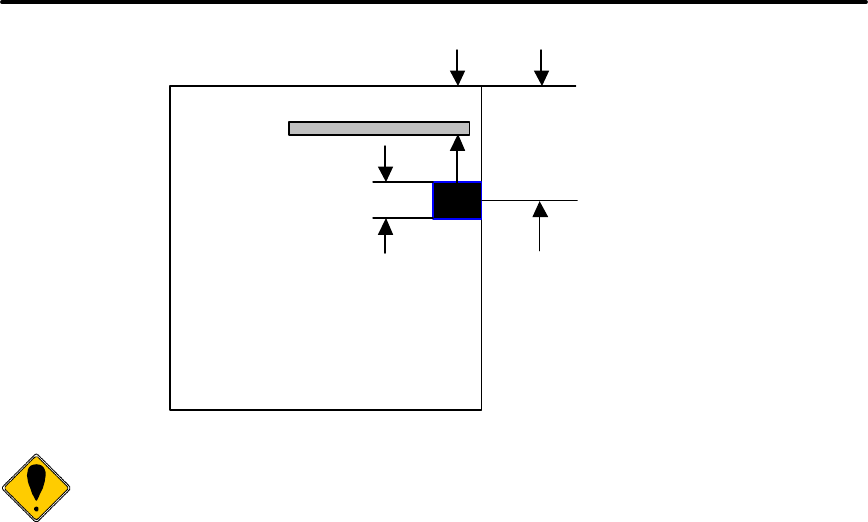
Programming Codes iTherm® 280 Programmer’s Guide
Page 92 Rev C 28-07764
m/203 (m/8) Dot Width
n/203 (n/8)
Cut to Center of black dot
Back of Ticket
0.8 (.20) to first line of print
Dimensions in Inches (mm)
Note:
This command interacts with the Feed to Black Dot command. If
the Black Dot paper Option is set, the black dot position specified by this
command will be used for the Cover Close operation.

iTherm® 280 Programmer’s Guide Programming Codes
28-07764 Rev C Page 93
Character Pitch
Character pitch commands that set specific characters per inch (cpi) disable any right-
side spacing set by the [ESC] V <n> command. In addition, when font changes are
made, the character pitch is maintained.
[DC2] Begin 10 cpi character pitch
ASCII [DC2]
Hexadecimal 12H
Decimal <18>
IPCL &%F3
EPOS [ESC][SP] <n>
Description The [DC2] command sets 9.905 characters per inch print pitch.
[ESC] : Begin 12 cpi character pitch
ASCII [ESC] :
Hexadecimal 1BH 3AH
Decimal <27> <58>
IPCL &%F2
EPOS [ESC] [SP] <n>
Description The [ESC] : command sets 12.235 characters per inch print pitch.
[SI] Begin 17 cpi character pitch
ASCII [SI]
Hexadecimal 0FH
Decimal <15>
IPCL &%F1
EPOS [ESC] [SP] <n>
Description The [SI] command sets 17.333 characters per inch print pitch.
[ESC] [SI] Begin 24 cpi character pitch
ASCII [ESC] [SI]
Hexadecimal 1BH 0FH
Decimal <27> <15>
IPCL &%F4
EPOS [ESC] [SP] <n>
Description The [ESC] [SP] command sets 23.111 characters per inch print pitch.
Programming Codes iTherm® 280 Programmer’s Guide
Page 94 Rev C 28-07764
[ESC] [ P Set character pitch
ASCII [ESC] [ P <n>
Hexadecimal 1BH 5BH 50H <n>
Decimal <27> <91> <80> <n>
IPCL &%F1, &%F2, &%F3, &%F4, &%F5, &%F6, &%F7
EPOS [ESC] [SP] <n>
Description The [ESC] [ P <n> command sets character per inch print pitch to <n>.
The printer resolution limits the exact print pitch. The following table lists
the exact pitch for various values on <n>.
<n> Resulting
Characters
per Inch
IPCL
1 1.00
2 2.00
3 3.01
4 4.00
5 4.95
6 5.94
7 6.93
8 8.00 &%F7
9 9.04
10 9.90 &%F3
11 10.95
12 12.23 &%F2
13 13.00
14 13.87
15 14.86 &%F6
<n> Resulting
Characters
per Inch
IPCL
16 16.00
17 17.33 &%F1
18 17.33
19 18.91
20 20.8 &%F5
21 20.8
22 23.11
23 23.11
24 23.11 &%F4
25 23.11
26 26
27 26
28 26
29 29.71
30 29.71
Table 10 Character Pitch
This command disables any right-side spacing set by the [ESC] V command. In addition
when font changes are made, the character pitch is maintained.
iTherm® 280 Programmer’s Guide Programming Codes
28-07764 Rev C Page 95
[ESC] V Set inter-character spacing
Mode Global
ASCII [ESC] V <n>
Hexadecimal 1BH 56H <n>
Decimal <27> <86> <n>
IPCL none
EPOS [ESC] [SP] <n>
Description The [ESC] V <n> command sets inter-character spacing by adding white
space between characters. The value of <n> sets the spacing in 216ths
of an inch. The printer can only set the spacing in 208ths of an inch and
converts 216ths to the nearest 208th of an inch. Each font has a basic
size, and the inter-character spacing value is added to the basic size.
Therefore, the affect of this command on characters per inch (cpi) will
depend on the font selected.
Note
1
:
The [ESC] V <n> command disables any pitch settings
established by pitch set commands that establish a cpi (like [ESC] [ P
<n>). After a set right-side spacing command is issued, the pitch will vary
with font selection. Font selections use the current, active, right-side
spacing.
Note
2
:
With the inter
-
character spacing command, the pitch cannot be
set less than the font size. Therefore, it is not as effective as the pitch
command, [ESC] [ P <n>. The following table lists the cpi equivalent for
several values of <n>.
The following table lists the cpi equivalent for several values of <n>.
<n> Small Draft (cpi) Large Draft (cpi) NLQ (cpi)
0 17.33 14.86 13
1 16 13.9 12.24
2 14.86 13 11.6
3 13.9 12.24 10.9
4 13 11.6 10.4
5 12.24 10.9 9.90
Table 11 Inter-character Spacing

Programming Codes iTherm® 280 Programmer’s Guide
Page 96 Rev C 28-07764
Character Font
[ESC] # Begin 12 x 12 draft print mode
ASCII [ESC] # <0>
Hexadecimal 1BH 23H 00H
Decimal <27> <35> <0>
IPCL &%QT
EPOS [ESC] ! <n>
Description The [ESC] # <0> command begins 12 x 12 draft print mode. Draft print is
provided to maintain compatibility with other Ithaca® products.
[ESC] I Set print quality mode
ASCII [ESC] I <n>
Hexadecimal 1BH 49H <n>
Decimal <27> <73> <n>
IPCL &%QT 12 x 12 draft mode
&%QU 12 x 14 large draft mode
&%QL 24 x 16 near letter quality (NLQ) mode
&%QS 24 x 16 near letter quality (NLQ) mode
EPOS [ESC] x <n> and/or [ESC] ! <n>
Description The [ESC] I <n> (e.g. capital “i”) command begins draft, large draft or
near letter quality print mode.
Where n 0 = 12 x 12 draft
1 = 12 x 14 large draft
2 = 24 x 16 near letter quality (NLQ)
3 = 24 x 16 near letter quality (NLQ)
4 - 7 repeats 0 - 3
Draft print modes are high-speed print modes intended to provide quality
print with minimal ink usage. The 12 x 12 draft font is the most efficient.
The 12 x 14 large draft font produces a larger more readable character
but with added ink usage. NLQ print mode is a two pass half-speed font.
It provides what is generally regarded as near letter quality print at
reduced speed with greater ink usage.
Note 1: In EPOS mode, [ESC] x <n> is similar to [ESC] I <n>. [ESC] ! <n>
performs a similar function; however, NLQ is not available.
Note 2: NLQ fonts cannot be rotated 90° or 270°.
Note
3
:
Switching from draft to NLQ modes causes the printer to print all
previously received information. Consequently, auto-center and right
justify do not print mixed draft and NLQ font as expected.

iTherm® 280 Programmer’s Guide Programming Codes
28-07764 Rev C Page 97
[ESC] P Begin rotated font/Right to left entry
ASCII [ESC] P <n>
Hexadecimal 1BH 50H <n>
Decimal <27> <80> <n>
IPCL &%RI {n=2}
&%RF {n=1}
&%RN {n=0}
EPOS [ESC] V <n>
Description The [ESC] P <n> command sets the print font to a rotated 90° or 270°
font.
Where n n = 0 Normal
n = 1 Rotate 90° (Single pass, 12 x 12 draft)
n = 2 Rotate 270° (Single pass, 12 x 12 draft)
n = 5 Rotate 90° (Two pass, 12 x 12 draft or 12 x 14 large draft)
n = 6 Rotate 270° (Two pass, 12 x 12 draft or 12 x 14 large draft)
n = 8 Enter Text right to left
n = 9 Enter Text right to left and Rotate 90° (Single pass, 12 x 12 draft)
n = 10 Enter Text right to left and Rotate 270° (Single pass, 12 x 12 draft)
n = 11 Enter Text right to left and Rotate 90° (Two pass, 12 x 12 draft or
12 x 14 large draft)
n = 12 Enter Text right to left and Rotate 270° (Two pass, 12 x 12 draft or
12 x 14 large draft)
In Modes 1 and 2, 12 x 12 draft font is rotated 90 or 270° and printed in a
single pass. Double wide and double high fonts are available. However,
because the font is rotated, double wide makes the characters taller and
double high makes the characters wider. Modes 1 and 2 distort the font,
but they produce the fastest rotated print.
Modes 5 and 6 rotate the 12 x 12 draft or 12 x 14 large draft and maintain
the aspect ratio of the fonts. Modes 5 and 6 require two passes by the
print cartridge, which slows the print time considerably. The font that is
rotated by Mode 5 or 6 is selected by the [ESC] I <n> command. <n>
may be zero or one.
NLQ fonts cannot be rotated 90° or 270°. The current pitch sets the
spacing between lines. If eight characters per inch (cpi) is set, the printer
produces the equivalent of eight lines per inch (lpi) rotated print.
Modes 8-12 allow right to left text entry. (Note: right to left text entry is
not supported in formatted rotated print mode (See the [ESC]r command
for formatted rotated print.)

Programming Codes iTherm® 280 Programmer’s Guide
Page 98 Rev C 28-07764
Character Sets and Code Pages
The iTherm® 280 Printer is primarily intended to be used in Unicode based systems.
However to provide legacy support, the printer supports 8 bit and double byte ASCII
encoding with code pages.
When not using Unicode or double byte encoding, the printer is restricted to the 8 bit
ASCII character set. To support international languages, the characters that are
assigned to each of the 256 possible locations can be remapped to any character in the
Unicode standard. Typically, the first 32 characters are reserved for control characters.
The next 72 are typically fixed to alpha numeric and punctuation. The upper 128
characters are typically redefined to characters that support the specific language or
country. These mappings are generally referred to as codepages.
The iTherm® 280 provides several legacy commands to select a country code or
codepage maps. However, they all simply select an ASCII to Unicode translation map.
Several predefined mappings to provide legacy support are internal to the printer, but the
majority of the maps are placed in the printer’s file system. This allows any preexisting
codepage mapping to be defined as well as the ability to define custom mappings unique
to your application.
Codepage description files
The format of the codepage description file is somewhat flexible. The basic format is
that each line will specify an ASCII character ID and the Unicode character that is to
appear in that ASCII ID location.
The file format is one character per line with the first value being the ASCII ID and the
second value being the Unicode address. The file should be something like this:
0x00 0x0000 # NULL
0x01 0x0001 # START OF HEADING
0x02 0x0002 # START OF TEXT
0x03 0x0003 # END OF TEXT
...
or
\Language = USA
\Code Page = 437
0x00 0x0000 ; 0 NULL
0x01 0x263A ; 9786 WHITE SMILE
0x02 0x263B ; 9787 BLACK SMILE
0x03 0x2665 ; 9829 BLACK HEART SUIT
0x04 0x2666 ; 9830 BLACK DIAMOND SUIT
0x05 0x2663 ; 9827 BLACK CLUB SUIT
...
or
0 0 ; NULL
1 9786 ; WHITE SMILE
2 9787 ; BLACK SMILE
3 9829 ; BLACK HEART SUIT
4 9830 ; BLACK DIAMOND SUIT
5 9827 ; BLACK CLUB SUIT

iTherm® 280 Programmer’s Guide Programming Codes
28-07764 Rev C Page 99
...
or
SYMBOL SET = WE
/name = Windows 3.1 Latin 2
/pcl char = E
...
/symbols =
32 0x0020 ; Space Code, Prntabl Thin Space
33 0x0021 ; Exclamation
34 0x0022 ; Neutral Double Quote
5 0x0023 ; Number
36 0x0024 ; Dollar
...
or
\Language = USA
\Code Page = 437
0x00 - 0x0000 ; 0 NULL
0x01 - 0x263A ; 9786 WHITE SMILE
0x02 - 0x263B ; 9787 BLACK SMILE
0x03 - 0x2665 ; 9829 BLACK HART SUIT
0x04 - 0x2666 ; 9830 BLACK DIAMOND SUIT
0x05 - 0x2663 ; 9827 BLACK CLUB SUIT
...
or
\Language = USA
\Code Page = 437
0x00 = 0x0000 ; 0 NULL
0x01 = 0x263A ; 9786 WHITE SMILE
0x02 = 0x263B ; 9787 BLACK SMILE
0x03 = 0x2665 ; 9829 BLACK HART SUIT
0x04 = 0x2666 ; 9830 BLACK DIAMOND SUIT
0x05 = 0x2663 ; 9827 BLACK CLUB SUIT
Numbers beginning with 0x… are treated as hexadecimal, all other as decimal. Any line
beginning with a non-numeric value is ignored. Any information after the Unicode value
is ignored. Not all of the ASCII ID’s need to be present, however, only ID’s present will
be affected.
There are two ways to select a codepage file. The first is by using the standard code
page select command. If this command is used, the file name is critical; it must follow
the format of Cpxyz.CPM. The xyz is the code page number that is being selected in the
command. For example CP850.CPM would be referred to as 850. If the legacy
commands are to be used to select file based code page mapping, the selection mode
must be selected in the printer’s configuration.
The second form is by name. This command is free form and will select any file present
which will then be to use it as a code page definition. If the file is not a code page file,
you will get unexpected results. If the file does not exist, the command is ignored. Any
extension may be used for a codepage map, however, it is best to use the .CPM
extension, with a descriptive filename recommended. For example ISO8859-1.CPM
would be a good choice for the ISO8859-1 code page.

Programming Codes iTherm® 280 Programmer’s Guide
Page 100 Rev C 28-07764
Double-Byte and Multi-Byte Code Page Description
Files
In ASCII mode the iTherm® 280 Printer supports double byte code pages. Currently
there are 4 double-byte codepages available and one multi-byte.
Double Byte code pages available are: Code page 932, 936, 949 and 950
Multi-byte code page available are GB18030-2000.
These code pages require an appropriate Unicode font be loaded that support all the
characters in the requested code page.
Due to the large number of characters in these code pages. These files are not
supported in a customer definable ASCII form like the Code page descriptions files
described above. They are compiled and compressed into a 2 or 3 file code description
set. One file is like the Code page description file in that it may be referenced just like
the normal code page description files. The other two files are double byte and multi-
byte decode files and are referenced in the master code page description. These files
not distributed with the standard printer but are available from Transact upon request.
Code page selection
In ASCII mode the iTherm® 280 Printer supports over 40 different international character
sets by default. In IBM and EPOS printers, there are two ways of selecting a character
set.
One way substitute’s international characters in the upper 128 characters of a standard
character set. The substitution technique supports a few different countries. However, as
more and more countries were added, too many characters were being replaced, and it
became a problem for the application to match the characters displayed and printed.
To solve this problem, a second method of selecting a character set was developed –
code pages. The printer and display use the same code page, and the application
displays and prints the same characters. IBM and EPOS defined new commands to
select code pages, and left the old commands in effect.
The iTherm® 280 Printer supports international character sets as well as code pages. To
allow the most flexibility for the application programmer, both methods are extended in
the iTherm® 280 Printer.
The iTherm® 280 Printer allows the IBM code page selection command to choose
character sets as well as normal IBM code pages. The EPOS character set select
command has been extended to allow additional character sets over and above the 11
defined by EPOS. The EPOS5 code page select command has not been extended
because there is no EPOS definition beyond the first six ID’s.
All characters in code pages as well as character sets are addressed as zero through
255. (Characters below 32 must be addressed with the [ESC] ^ <n> command.) Code
pages may be changed at any time and are active for all features including rotated print.
5 Epson provides limited code page support through ID to code page translation. Only six
translations are defined.
iTherm® 280 Programmer’s Guide Programming Codes
28-07764 Rev C Page 101
To allow other code pages to be created by an application, a redefine character set
command is provided.
As discussed above, there are two commands for language selection in IBM mode. The
first is [ESC] !, which selects one of 19 international character sets. The [ESC] !
command does not allow all of the possible character sets to be selected, it is provided
for compatibility with older programs only. The second is [ESC] [ T, which selects any
code page. In EPOS mode, the [ESC] R command has been expanded to select any
code page.
[ESC] ! Select international character set
ASCII [ESC] ! <n>
Hexadecimal 1BH 21H <n>
Decimal <27> <33> <n>
IPCL &%CS <n>
EPOS [ESC] R <n>
Description The [ESC] ! <n> command selects international character set <n>. In
standard mode, the value of <n> is as follows.
<n> Language <n> Language
64-‘@’ ASCII (slashed zero) 73-‘I’ Italian
65-‘A’ ASCII (unslashed zero) 74-‘J’ French Canadian
66-‘B’ British 75-‘K’ Spanish
67-‘C’ German 76-‘L’ Swedish II
68-‘D’ French 77 -‘M’ Swedish III
69-‘E’ Swedish 78-‘N’ Swedish IV
70-‘F’ Danish 79-‘O’ Turkish
71-‘G’ Norwegian 80-‘P’ Swiss I
72-‘H’ Dutch 81-‘Q’ Swiss II
Table 12 Language Table ID’s
[ESC] [ T Select character code page
ASCII [ESC] [ T <nh> <nl>
Hexadecimal 1BH 5BH 54H <nh> <nl>
Decimal <27> <91> <84> <nh> <nl>
IPCL &%CP <m1> <m2> <m3> <m4>
EPOS [ESC] t <n>
Description The [ESC] [ T <nh> <nl> command selects character code page <nh>
<nl>. The iTherm® 280 Printer supports many code pages. The following
code pages are supported.
Refer to Appendix A for a list of supported code page.

Programming Codes iTherm® 280 Programmer’s Guide
Page 102 Rev C 28-07764
Note:
The code page field is a 16
-
bit field that
is
a function of
the code
page numbers <nh> and <nl>, e.g. (<nh> * 256) +<nl>. For example, 1 *
256 + 181 = 437. For the IPCL command, the page is specified in ASCII
as a 4-byte field.
Note:
If the code page is not found in the internal translation,
the code
page requested is translated into a code page file name and if a user
defined file is found, it will be used as the code page definition.
Function Select character code page by name. All
ASCII [ESC] + C Codepage.CPM <0>
Hexadecimal 1BH 2BH 43H
Decimal <27> <43> <67>
CodePage File name from 5 to 30 characters.
Description The [ESC] + C command will select and read a code page encoding file.
If the file does not exist, the current code page will be selected. If the
code page definition is not complete, only the character locations defined
by the file will be effected.
Note:
Code page translations only occur in ASCII mode. This command has no e
ffect
in Unicode mode.
[ESC] ^ Print control character
ASCII [ESC] ^ <n>
Hexadecimal 1BH 5EH <n>
Decimal <27> <94> <n>
IPCL &%CC <m1> <m2> <m3>
EPOS [ESC] ^ <n>
Description The [ESC] ^ <n> command allows characters from zero to 31 codes to be
printed. During normal operation, characters from zero to 31 are control
characters. The command turns off control code translation for the
following character. <n> can be from zero to 255.
[ESC] “ Print Unicode character
ASCII [ESC] “ <nL><nH>
Hexadecimal 1BH 22H <nL><nH>
Decimal <27> <34> <nL><nH>
IPCL &%PU<m1> <m2> <m3><m4> <m5>
EPOS [ESC] “ <nL><nH>
Description The [ESC] “<nL><nH>command allows any Unicode character to be
directly addressed and inserted into the print data. <nL><nH> can range
in value from zero to 65535.
[ESC] [ C Insert Euro character
iTherm® 280 Programmer’s Guide Programming Codes
28-07764 Rev C Page 103
ASCII ESC] [ C <n>
Hexadecimal 1BH 5BH 43H <n>
Decimal <27> <91> <67> <n>
IPCL &%EU
Description The [ESC] [ C <n> command allows an application to replace any
character in the currently active character set with the Euro character.
The character to be replaced is defined by <n>. For example, if the
currently active character set is CP 850 (multi-lingual) and 0D5H
character is to be the Euro character, "1BH 5BH 43H 0D5H" replaces the
character at 0D5H with the Euro symbol.
Euro Character Substitution Matrix
Name Epson IBM Code Page Insertion Point (hex)
850 26 850 0xD5
Turkey 857 57 857 0XD5
Win Cyrillic 52 1022 0X88
Win Turkish 51 1021 0X80
Win Greek 50 1020 0X80
Win Hebrew 62 1032 0X80
Win Baltic 68 1034 0X80
Table 13 Euro Character Substitution Matrix

Programming Codes iTherm® 280 Programmer’s Guide
Page 104 Rev C 28-07764
[ESC] [ S Redefine character set
ASCII [ESC] [ S <LL> <LH> <BC> <T1L><T1H> <T2L><T2H> <T3L><T3H>
…<TnL><TnH>
Hexadecimal 1BH 5BH 53H …
Decimal <27> <91> <83> …
IPCL none
Description The [ESC] [ S <LL> <LH> <BC> <T1L><T1H> <T2L><T2H> <T3L><T3H> …
<TnL><TnH> command allows an application to replace or redefine the
active character set mapping in the printer, where <LL> <LH> defines the
total length of the following data:
<LL> + 256 * <LH> = 1 + 2 * the total number of characters to be replaced;
<BC> is the first character in the active map to be replaced
<T1H> <T1L>6 is the internal address of the replacement character image.
The mapping of a print pattern to each character address is referred to a
code page or character set. At any given time, the printer character set is
comprised of 256 characters. Each character is addressed by an 8-bit
value generally referred to as a character code. For example, if you want
to print an ‘A’, it would be addressed by sending a <65> decimal to the
printer. Sixty-five predefined code pages or character maps assign
characters to a particular address built into the printer. Occasionally, an
application needs to redefine a character or group of characters in a code
page. The iTherm® 280 Printer allows the map for any code page to be
redefined or replaced. The define character set command allows any
character or group of characters to be replaced with any other printable
character. Unicode addressing is used. The redefine character set
command is used as follows:
[ESC] [ S <3> <0> <35> <90> <1>
^^^^^ ^^ ^^^^^^
| | +- 346th Character in the Master Set
| | [(1 * 256) + 90]
| +------- 35th Character
+--------------- 3 bytes to follow [(0 * 256) + 3]
The new map remains until the printer is power cycled or the character set is
redefined. The code page and character set commands completely redefine the
table.
6 The internal character map is provided in the Master Character Set Definitions Guide, PN
100-9785.

iTherm® 280 Programmer’s Guide Programming Codes
28-07764 Rev C Page 105
[ESC] = Define user-defined characters
ASCII [ESC] = <y> <c1> <c2> [<x1> <d1> … d(y x x1)] … [<xk> <d1> … d (y x xk)]
Hexadecimal 1BH 3DH <y> …
Decimal <27> <51> <y> …
Range y = 2 or 3
32 ≤ c1 ≤ c2 ≤ 126
0 ≤ x ≤ 12 (12 x 12 font)
0 ≤ x ≤ 14 (12 x 14 font)
0 ≤ x ≤ 16 (24 x 16 font)
0 ≤ d1 … d (y x x) ≤ 255
IPCL none
Description The [ESC] = <y> <c1> <c2> [<x1> <d1> … d(y x x1)] … [<xk> <d1> … d (y x
xk)] command defines user-defined characters from character code <c1>
to <c2>. <y> and <x> are the configurations of a user-defined character.
<y> specifies the number of bytes in the vertical direction. <x> specifies
the number of bytes in the horizontal direction. Character code ranges
from 32 (20H) to 126 (7EH) can be defined by <c1> and <c2>. Up to 32
user-defined characters can be defined. Data (<d>) specifies a bit printed
to one and not printed to zero. At the default, user-defined characters are
not defined and the internal character set is printed. Once the user-
defined characters have been defined, they are available until [ESC] $ is
executed; the user-defined characters are redefined; the power is turned
off; or the printer is reset.
Each internal font (draft, large draft, and NLQ) has its own 32-character
storage area. If possible, the currently selected font will be used to select
which user-defined font is defined. If the font being defined is not suitable
for the currently selected mode, a suitable font will be temporarily
selected for the definition. If <y> = 2, the 12 x 12 draft font or the 12 x 14
large draft font can be defined. If <y> = 3, only the 16 x 24 NLQ font can
be defined. If <y> = 2 and the NLQ font is active, the large draft user-
defined font will be loaded. If <y> = 3 and a draft font is active, the NLQ
user-defined font will be loaded.

Programming Codes iTherm® 280 Programmer’s Guide
Page 106 Rev C 28-07764
[ESC] $ Cancel user-defined characters
ASCII [ESC] $
Hexadecimal 1BH 24H
Decimal <27> <36>
IPCL none
Description The [ESC] $ command removes all user-defined characters from the
printer’s memory. After the user-defined characters are canceled, the
internal character set is printed.
[ESC] > Enable user-defined characters
ASCII [ESC] > <n>
Hexadecimal 1BH 3EH <n>
Decimal <27> <62> <n>
Range <0>, <1>, 0, or 1
1 Enables the characters
0 Disables the characters
IPCL none
Description The [ESC] > <n> command enables or disables the user-defined
characters. The internal character set is printed.
iTherm® 280 Programmer’s Guide Programming Codes
28-07764 Rev C Page 107
Character Attributes
[ESC] c Select color
ASCII [ESC] c <n>
Hexadecimal 1BH 63H <n>
Decimal <27> <99> <n>
IPCL &%CL <m1>
EPOS none
Description The [ESC] c <n> command selects the print color, and should match the
color of the paper installed.
Where <n> 0 = Black
1 = Red
2 = Green
3 = Blue
[SO] Begin one-line double-wide print
ASCII [SO]
Hexadecimal 0EH
Decimal <14>
IPCL &%MW
EPOS none
Description The [SO] command causes subsequent characters to be printed at twice
the currently selected character width. For example, ten cpi becomes five
cpi, 17 cpi becomes 8.5 cpi, etc. The [SO] command remains in effect
until: A valid line terminator is received ([CR], [LF], or [ESC] J <n> (fine
line feed)); The command is canceled; or the maximum number of
characters per line is reached and the printer performs an auto-print.
[DC4] Cancel one-line double-wide print
ASCII [DC4]
Hexadecimal 14H
Decimal <20>
IPCL &%MN
EPOS none
Description The [DC4] command cancels one-line double-wide mode set by the [SO]
command and allows single- and double-wide characters to be printed on
the same line.

Programming Codes iTherm® 280 Programmer’s Guide
Page 108 Rev C 28-07764
[ESC] _ Enable/Disable Strike Through
ASCII [ESC] _ <n>
Hexadecimal 1BH 5FH 01H
Decimal <27> <95> <n>
IPCL &%MO (Begin)
IPCL &%CO (End)
EPOS [ESC] ! <n>
Description The [ESC] _ <1> command begins strike through print mode. All
subsequent text, leading spaces, and trailing spaces are over-scored.
[ESC] _ <0> ends the mode.
[ESC] W Multi-line double-wide and double-high mode
ASCII [ESC] W <n>
Hexadecimal 1BH 57H <n>
Decimal <27> <87> <n>
IPCL &%FD {n = 1}
&%FS {n = 0}
&%FHA {n = 3}
(Note: Single-wide, double-high mode is not available in IPCL mode.)
EPOS [ESC] ! <n>
Description The [ESC] W <n> command controls multi-line double-wide or double-
high mode, where n specifies the mode:
n = 0 is standard single-wide and single-high;
n = 1 begins double-wide;
n = 2 begins double-high; and
n = 3 begins double-wide double-high.
Note: The [ESC] W <n> command does not affect line spacing.
Note: In EPOS mode, [ESC] ! <n> performs a similar function; however,
near letter quality (NLQ) is not available.
Where n Bits 76543210 Function
1------- Underline
--1----- Double-wide
---1---- Double-high
-------X Font: 0 = draft; 1 = large draft
iTherm® 280 Programmer’s Guide Programming Codes
28-07764 Rev C Page 109
[ESC] [ @ Set print style: double-wide, double-high, italic control
ASCII [ESC] [ @ [EOT] [NUL] <k> [NUL] <n> <m>
Hexadecimal 1BH 5BH 40H 04H 00H <k> 00H <n> <m>
Decimal <27> <91> <64> <04> <0> <K> <0> <n> <m>
IPCL &%DH Double-high, double-wide, and double-space
&%SH Single-high, single-wide, and single-space
Also, see [ESC] W above.
Description The [ESC] [ @ [EOT] [NUL] <k> [NUL] <n> <m> command sets double-
wide, double-high, and italic print mode.
Where k bits k 76543210
----xxxx Italic control
0 ----0000 No change
1 ----0001 Italics On
2 ----0010 Italics Off
Where n bits n 76543210
----0nnn Height multiplier (Maximum 4)
0 ----0000 No change
xxxx---- Line spacing
0 0000---- No change
Where m bits m 76543210
----0nnn Width multiplier (Maximum 4)
0 ----0000 No change
Note: The maximum height and width multiplier is four.
Programming Codes iTherm® 280 Programmer’s Guide
Page 110 Rev C 28-07764
[ESC] - Begin underline
ASCII [ESC] - <n>
Hexadecimal 1BH 2DH 01H
Decimal <27> <45> <n>
IPCL &%MU (Begin)
IPCL &%CU (End)
EPOS [ESC] ! <n>
Description The [ESC] - <1> command begins underline print mode. All subsequent
text, leading spaces, and trailing spaces are underlined. [ESC] - <0>
ends the mode.
Note: In EPOS mode, [ESC] ! <n> performs a similar function; however,
near letter quality (NLQ) is not available.
[ESC] G Begin enhanced print
ASCII [ESC] G
Hexadecimal 1BH 47H
Decimal <27> <71>
IPCL &%ME
EPOS [ESC] G <1>
Description All subsequent text is printed in enhanced print mode (two passes with a
vertical offset). Enhanced printing provides a deeper resolution of each
character and may enhance multiple part forms printing.
[ESC] H End enhanced print mode
ASCII [ESC] H
Hexadecimal 1BH 48H
Decimal <27> <72>
IPCL &%CE
EPOS [ESC] G <0>
Description The [ESC] H command cancels enhanced print mode and returns to the
currently selected font.
[ESC] E Begin emphasized print mode
ASCII [ESC] E
Hexadecimal 1BH 45H
Decimal <27> <69>
IPCL &%MM
EPOS [ESC] E <1>
Description The [ESC] E command begins emphasized print mode (one pass with
horizontal offset). Emphasized print is bolder than normal print.

iTherm® 280 Programmer’s Guide Programming Codes
28-07764 Rev C Page 111
[ESC] F End emphasized print mode
ASCII [ESC] F
Hexadecimal 1BH 46H
Decimal <27> <70>
IPCL &%CM
EPOS [ESC] E <0>
Description The [ESC] F command cancels emphasized print mode.
[ESC] S <0> Select superscript
ASCII [ESC] S <0>
Hexadecimal 1BH 53H 00H
Decimal <27> <83> <0>
IPCL &%SP
EPOS none
Description The [ESC] S <0> command selects superscript. The following characters
are printed half size on the upper side of the print line.
Note: Superscript is not available in all print modes.
[ESC] S <1> Select subscript
ASCII [ESC] S <1>
Hexadecimal 1BH 53H 01H
Decimal <27> <83> <1>
IPCL &%SB
EPOS none
Description The [ESC] S <1> command selects subscript. The following characters
are printed half size on the bottom side of the print line.
Note: Subscript is not available in all print modes.
[ESC] T End superscript or subscript
ASCII [ESC] T
Hexadecimal 1BH 54H
Decimal <27> <84>
IPCL &%SE
EPOS none
Description The [ESC] T command ends superscript or subscript.

Programming Codes iTherm® 280 Programmer’s Guide
Page 112 Rev C 28-07764
[ESC] % G Begin italics
ASCII [ESC] % G
Hexadecimal 1BH 25H 47H
Decimal <27> <37> <71>
IPCL &%MI
EPOS [ESC] 4
Description The [ESC] % G command begins italic print mode.
Note: Italics are not available in all print modes.
[ESC] % H End italics
ASCII [ESC] % H
Hexadecimal 1BH 25H 48H
Decimal <27> <37> <72>
IPCL &%CI
EPOS [ESC] 5
Description The [ESC] % H command ends italic print mode.

iTherm® 280 Programmer’s Guide Programming Codes
28-07764 Rev C Page 113
Page Mode
The iTherm® 280i supports two operational modes, standard and page mode. In
standard mode, as a line of text is received it is buffered and printed when the line feed
is received. In page mode the printer waits for a complete “page” (a number of lines) to
be received before printing the complete page. The advantage of page mode is that text
and/or graphics can be placed anywhere on the page, in any order, and in any of 4
orientations.
How to use page mode
Page mode requires two phases to operate correctly.
1. Page definition
a. Define the master page size either just before or just after
entering page mode.
b. Optionally define a sub page.
The master page defines the maximum page size, all sub
pages must be smaller and contained within the master
page. Master and sub page definitions are always done
base on the 0 degree orientation not the current rotation.
c. Optionally set an orientation. This may be 0, 90, 180 or 270
degrees.
d. Optionally set the entry position. This is based on the current
sub page and the current rotation.
e. Enter text or graphics.
f. Go to step b to define additional sub pages or step c to change
the orientation.
2. Print the page.
Page Definition
The [ESC]t command will start page definition and define the initial orientation. An
[ESC]t command during page definition will change the orientation and reset the entry
location back to the top left corner of that orientation.
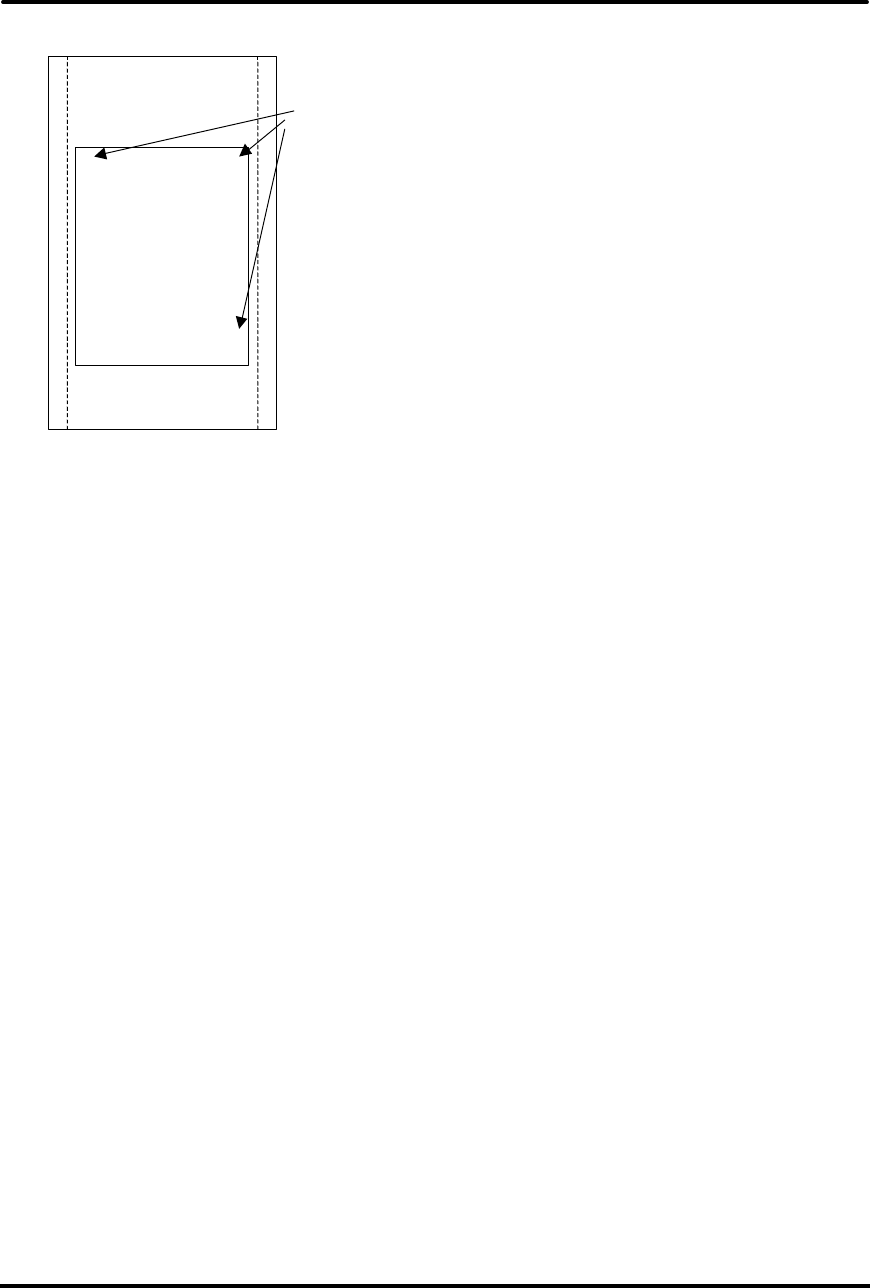
Programming Codes iTherm® 280 Programmer’s Guide
Page 114 Rev C 28-07764
Receipt or
Inserted Form
B > > > > >
A > > > > >
D > > > > >
C > > > > >
Initial entry
location
Figure 10 Page Mode Entry Orientations
The [ESC] u command wet the maximum page dimensions. Note that these dimensions
are always based on 0 degree rotation.
Enter text and/or graphics as required.
Auto-cutter and page mode
You may embed an auto-cutter command with in a page definition. The auto-cut
command may be placed anywhere in the page definition, however, it will be processed
after the page is printed. To prevent the cut from occurring in the page, it will be
preceded with a feed that will place the end of the page about 0.125 inches above the
auto-cut position.
Mechanism commands in page mode
In general, mechanism commands received during page mode will be processed if the
result will not affect the printed result.
Stopping page mode definition
The following operations will stop a page mode definition:
1) [ESC]@ Printer initialize command.
2) Real time reset request [ENQ]<10>
3) Turning the printer off.
Printing the page
The [FF] command starts the printing process.
Printing starts at the current paper position. The complete page definition is printed
excluding any blank information at the bottom of the page.
If the [FF] command is used to print the page, the memory used to store the page image
is not maintained and is released to be used by other functions.
Function Select page mode
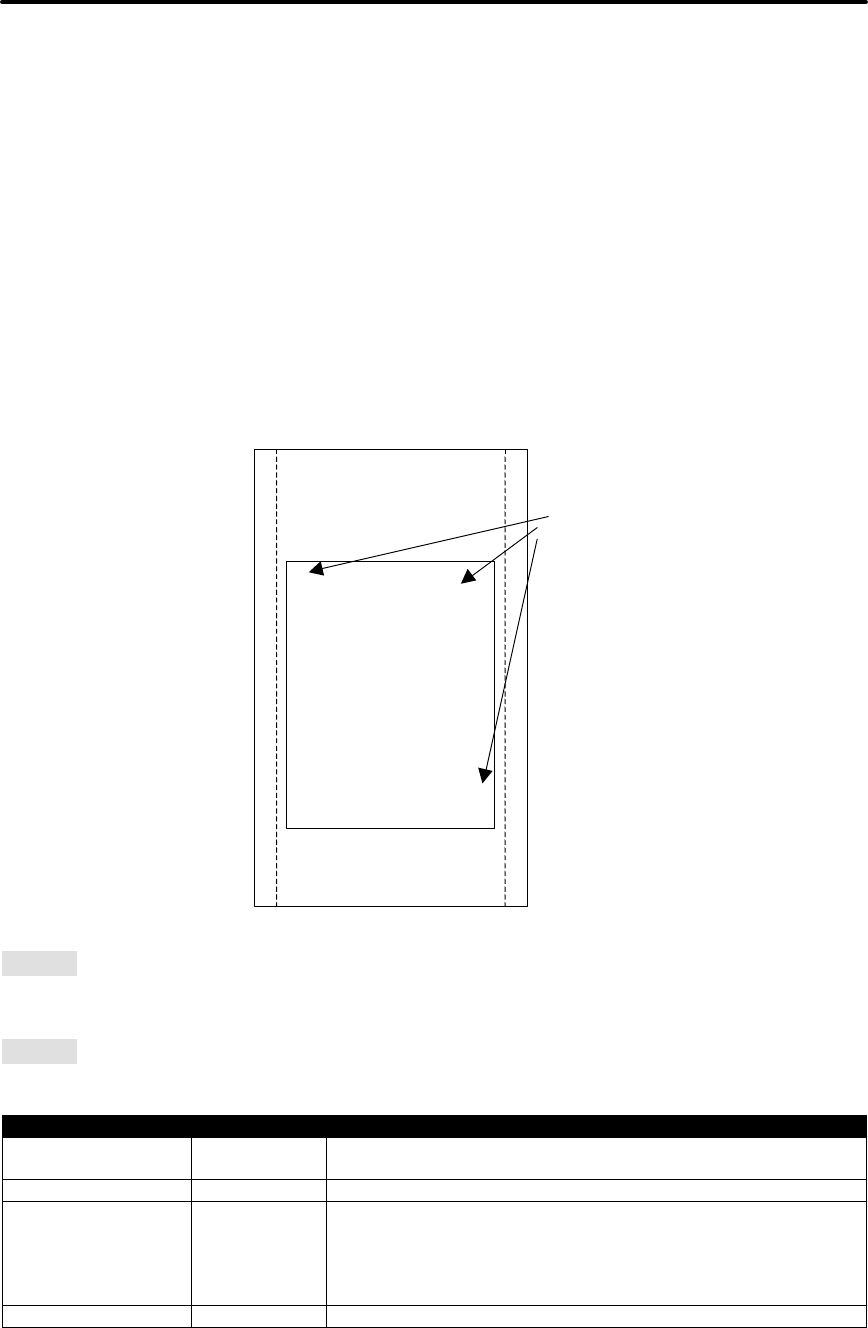
iTherm® 280 Programmer’s Guide Programming Codes
28-07764 Rev C Page 115
ASCII [ESC] t<x> or [ESC] [SUB] t
Hexadecimal 1BH 74H<x> or 1BH 1AH 74H
Decimal <27><116><x> or <27><26><116>
IPCL &%PM<x1>
EPOS [ESC] L
Description This command activates page mode and sets the orientation.
This command may also be issued during page definition. When issued
in page mode it resets the orientation and entry position, but does not
cause the currently defined image to be erased or printed.
Where x = 0 for standard orientation (Direction A).
x = 1 for 270° Rotation (Direction B)
x = 2 for 180° Rotation (Direction C)
x = 3 for 90° Rotation (Direction D)
Receipt or
Inserted Form
B > > > > >
A > > > > >
D > > > > >
C > > > > >
Initial entry
location
Note 1:
This command saves the current right and left margin and sets them to the
maximum values for the orientation currently defined.
Note 2:
During page mode definition almost all printer commands are active. The
following table lists the exceptions.
Command
Active
Action
Cash drawer
commands Yes Immediate action
Bell command Yes Immediate action
Auto cut commands Delayed The printer will perform a feed to cut and then operate the auto
cutter after the page is printed. The cut command may be
anywhere in the definition. If the page is printed twice, the Auto
cut command must be reissued after the first print to generate
additional cuts.
Electronic journal No This command is like a station select and is not active. You
Programming Codes iTherm® 280 Programmer’s Guide
Page 116 Rev C 28-07764
station select cannot store page mode images in the electronic journal. A
page mode command in journal station mode will exit journal
mode.
Electronic journal
entries Yes You can make journal entries as part of a page description.
They are saved as text and not part of the page.
Status requests Yes The status is returned during definition.
Printer initialize
command Yes Cancels page mode definition and returns the printer to standard
mode.
Set top of form No You must set the top of form outside of page mode. The form
position is maintained after the page is printed.
Vertical tab No The definition of a vertical tab is ambiguous in page mode and is
ignored.
Macro definitions No You can not define or delete a macro while in page mode. You
can, however, invoke a macro or stored graphic. You can not
enter page mode while in a macro definition.
Note 3: Unless specified by a page mode set page size command, the default page size
is the full paper width for about 14 inches. Printing starts at the current paper position.
The complete page definition is printed excluding any blank information at the bottom of
the page.
Function Set Print Area in Page Mode Enhanced
ASCII [ESC] [SUB] S <XOL><XOH><<YOL><YOH><WL><WH>< HL><HH>
Hexadecimal 1BH 1AH 53H <XOL><XOH><<YOL><YOH><WL><WH>< HL><HH>
Decimal <27><26><83><XOL><XOH><<YOL><YOH><WL><WH>< HL><HH>
IPCL None
EPOS [ESC] W
Description This command Sets the position and size of the initial area in page mode
and sub pages.
Where: <XOL><XOH> the x direction offset Min 0
<YOL><YOH> the y direction offset Min 0
<WL><WH> the width in dots Max 576
< HL><HH> the height in dots Max 3000
This command should always be sent before or immediately after page mode is entered
to define the initial page size.
Once in page mode (after the [ESC]t command) the command can be sent multiple
times so that several different print areas, aligned in different print directions, can be
developed in the printer’s page buffer before being printed using the Print Page Mode
commands
(FF or ESC FF).
The starting position of the print area is the upper left of the area to be printed. The
Yoffset is in the y direction and is YO dots and the Xoffset is in the x direction and is XO
dots in. The length of the area to be printed in the y direction is set to H dots. The length
of the area to be printed in the x direction is set to W dots.
The set print area command may be invoked multiple times while in page mode. The
first invocation specifies the initial master page size. Following invocations will define
iTherm® 280 Programmer’s Guide Programming Codes
28-07764 Rev C Page 117
smaller windows within the initially defined page. If the Set page size command is not
used, the page size will default to the maximum size.
The orientation of the set print area command is always based on 0 degrees regardless
of the current orientation setting. This includes if the command is sent before the start
page mode command, after the start page mode command, or as a sub-page.
Note: The maximum printable area in the x direction is 576/203 or 3.15
inches.
Note: The maximum printable area in the y direction is 2999/203 or 14.78
inches.
Note: Only the used portion of the page is printed. That is the page length
will only include what actually has print data. See illustration below.
Figure 11 Page mode set printable area
YOffset <OL><OH>
Height
<
H
L
><
H
H
>
Width
<
W
L
><
W
H
>
XOffset <OL><OH>
Programming Codes iTherm® 280 Programmer’s Guide
Page 118 Rev C 28-07764
Figure 12 Default Page mode printed area
Previous cut
edge
Start of page
definition
Max width is 576 dots
End of page
definition
Cut point is after
bottom most print
data.
Cut to print offset
0.7 in or 18mm
Bottom most print data
Unused page area
is not printed
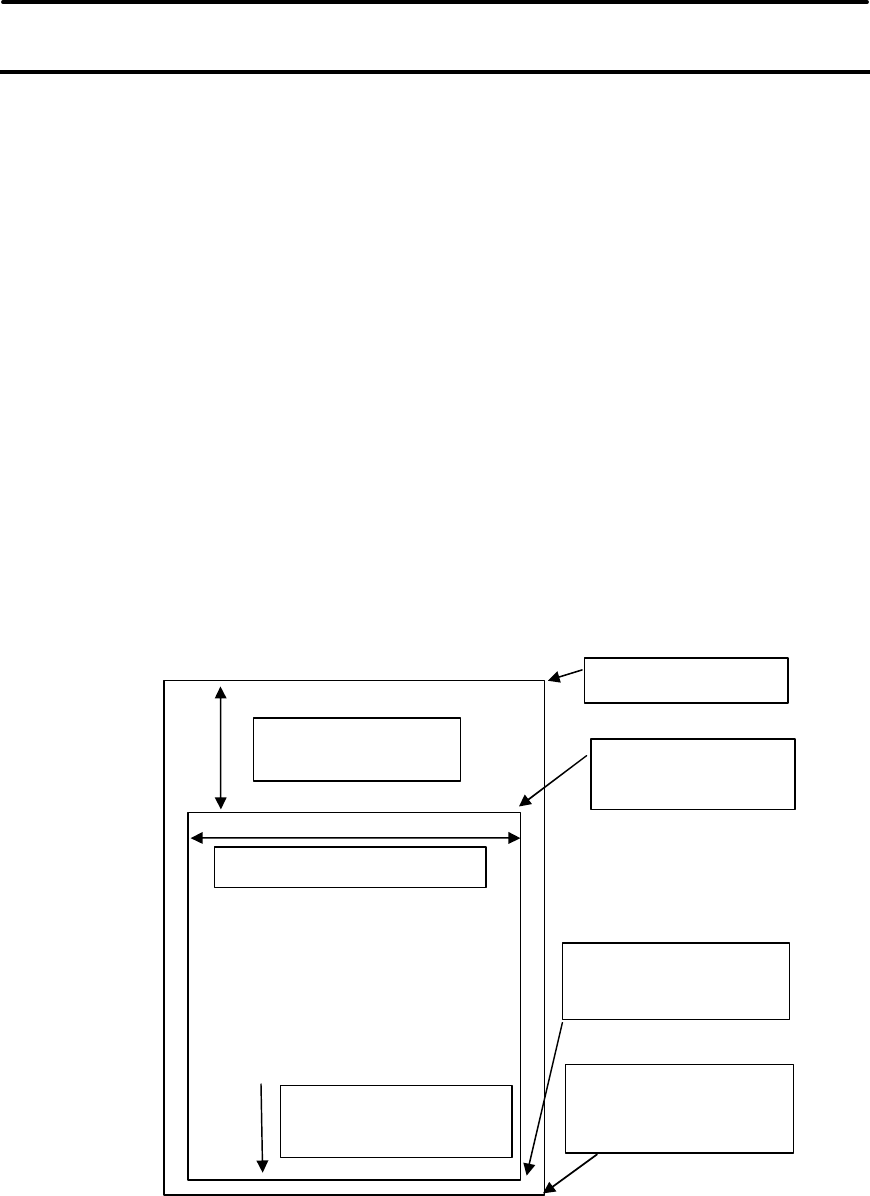
iTherm® 280 Programmer’s Guide Programming Codes
28-07764 Rev C Page 119
Function Set Printed Area in Page Mode Enhanced
ASCII [ESC] [SUB] W <XOL><XOH><<YOL><YOH><WL><WH>< HL><HH>
Hexadecimal 1BH 1AH 57H <XOL><XOH><<YOL><YOH><WL><WH>< HL><HH>
Decimal <27><26><87><XOL><XOH><<YOL><YOH><WL><WH>< HL><HH>
IPCL None
EPOS [ESC] W
Description This command is similar Set Print Area in Page Mode command above,
however it will force the complete page to be printer rather than only what
is used. It will define sub pages, however is intended to set the initial
page size.
Where: <XOL><XOH> the x direction offset Min 0
<YOL><YOH> the y direction offset Min 0
<WL><WH> the width in dots Max(576)
< HL><HH> the height in dots Max(3000)
This command should always be sent before or immediately after select page mode
command and will define the initial page size. This command differs from the Set Print
Area in Page Mode command in that it does not allow the page to be shortened. The
complete page is printed even if it is not used.
Figure 13 Defined Page mode printed area
Previous cut
edge
Start of page
definition
Max width is 576 dots
End of page
definition
Cut point after
bottom of page
definition
Cut to print offset
0.7 in or 18mm
Bottom most print data
Unused page area
is not printed

Programming Codes iTherm® 280 Programmer’s Guide
Page 120 Rev C 28-07764
Function Set Print Area in Page Mode Legacy Support Command
ASCII [ESC] u <OL><OH><WL><WH>< HL><HH>
Hexadecimal 1BH 75H <OL><OH><WL><WH>< HL><HH>
Decimal <27><117><OL><OH><WL><WH>< HL><HH>
IPCL &%PS<0000><WWWW><HHHH>
EPOS [ESC] W
Description This command Sets the position and size of the printing initial area in
page mode and sub pages.
Where: <OL><OH> the y direction offset Default(0)
<WL><WH> the width in dots Default(576)
< HL><HH> the height in dots Default(3000)
This command should always be sent before or immediately after page mode is entered
to define the initial page size.
Once in page mode (after the [ESC]t command) the command can be sent multiple
times so that several different print areas, aligned in different print directions, can be
developed in the printer’s page buffer before being printed using the Print Page Mode
commands
(FF or ESC FF).
The starting position of the print area is the upper left of the area to be printed. The
offset is in the x direction and is O dots. The length of the area to be printed in the y
direction is set to H dots. The length of the area to be printed in the x direction is set to
W dots. (Note that the Y offset is always 0)
The set print area command may be invoked multiple times while in page mode. The
first invocation specifies the final page height. Following invocations will define smaller
windows within the initially defined page. If the Set page size command is not used, the
page size will default to the maximum size.
The orientation of the set print area command is always based on 0 degrees regardless
of the current orientation setting. This includes if the command is sent before the start
page mode command, after the start page mode command, or as a sub-page.
Note: The maximum printable area in the x direction is 576/203 or 3.15
inches.
Note: The maximum printable area in the y direction is 2999/203 or 14.78
inches.
Note: The printed page length will only include what actually has print
data.
iTherm® 280 Programmer’s Guide Programming Codes
28-07764 Rev C Page 121
Function Set Page Mode Entry Position
ASCII [ESC] [SUB] A <XL><XH><YL><YH>
Hexadecimal 1BH 1AH 41H<XL><XH><YL><YH>
Decimal <27><26><65><XL><XH> <YL><YH>
IPCL &%PY<XXXX><YYYY>
EPOS [ESC] W
Description This command sets the horizontal and vertical entry position to anywhere
on the page. It is only valid in page mode. If the value specified is
beyond the page boundary, the command is ignored. (X and Y refers to
the current active orientation specified by the [ESC]t command, and is not
same as the page definition of X and Y.)
The X and Y positions are in dots.
Y = Yh* 256 + Yl dots from the top
X = Xh* 256 + Xl dots from the left
Note: You can also use the [ESC]J, [ESC]M. [ESC]d and [ESC]e commands to
position the print on the page.
Function Set Page Mode Entry Position Relative
ASCII [ESC] [SUB] R <XL><XH><YL><YH>
Hexadecimal 1BH 1AH 52H <XL><XH><YL><YH>
Decimal <27><26><82><XL><XH> <YL><YH>
IPCL None
EPOS [ESC] W
Description This command sets the horizontal and vertical entry position to anywhere
on the page. It is only valid in page mode. If the value specified is
beyond the page boundary, the command is ignored. (X and Y refers to
the current active orientation specified by the [ESC]t command, and is not
same as the page definition of X and Y.)
The X and Y positions are in dots.
Y = Yh* 256 + Yl dots from the current Y
X = Xh* 256 + Xl dots from the current X
Note: You can also use the [ESC]J, [ESC]M. [ESC]d and [ESC]e commands to
position the print on the page.

Programming Codes iTherm® 280 Programmer’s Guide
Page 122 Rev C 28-07764
Function Set Page Mode Entry Position Legacy Support
ASCII [ESC] o <XL><XH><YL><YH><F>
Hexadecimal 1BH 6FH <XL><XH><YL><YH><F>
Decimal <27><111><XL><XH> <YL><YH><F>
IPCL None
EPOS [ESC] W
Description This command sets the horizontal and vertical entry position to anywhere
on the page. It is only valid in page mode. If the value specified is
beyond the page boundary, the command is ignored. (X and Y refers to
the current active orientation specified by the [ESC]t command, and is not
same as the page definition of X and Y.)
The X and Y positions are in dots.
Y = Yh* 256 + Yl dots from the top
X = Xh* 256 + Xl dots from the left
The F parameter is a flag that specifies if this command is an absolute
position command or relative to the current position. If its value is <1> the
command is processed as a relative position command, and if its value is
<0> the command is interpreted as an absolute position command.
Note: You can also use the [ESC]J, [ESC]M. [ESC]d and [ESC]e commands to
position the print on the page.
Function Exit Page Mode
ASCII [FF] or [ESC][SUB] P
Hexadecimal 0CH or 1BH 1AH 50H
Decimal <12> or <27><26><80>
IPCL &%FF
EPOS [FF]
Description This command exits page mode definition and starts the print process. If
the printer is not in page mode, this command is treated as a normal form
feed command.
Note:
When page mode finishes printing, the left and right margins are restored to the
values before the select page mode command. All other format changes are
preserved.
iTherm® 280 Programmer’s Guide Programming Codes
28-07764 Rev C Page 123
Graphic Mode
The iTherm® 280 Printer conforms to the basic definition of IBM all-points-addressable (APA)
graphic commands. It is not designed to print large quantities of graphical data. The printer only
prints graphics that are 2.5 inches wide. At this time, there is not a graphics mode for Epson
emulation.
The iTherm® 280 Printer always prints in one of the native resolutions of 104 x 96, 208 x 96, 104
x 192, or 208 x 192 dpi. To provide compatibility with the standard IBM APA resolutions, the
printer internally modifies the graphics to print as expected. The printer converts the vertical
resolution by altering the [ESC] J command (which is typically used for vertical spacing) and
adjusting it so that horizontal passes touch as expected. The requested horizontal resolution is
converted by data scaling. Because the vertical dpi of the printer is always greater, the resulting
APA graphics printed on the iTherm® 280 Printer are slightly smaller than the same graphic
printed on an impact printer. All of this is done transparently to the application; however, loss of
resolution may result in some modes. If desired the [ESC] * <m> command can be used to
select the native resolution.
Note 1:
If the
iTherm
®
280
Printer is used with programs that con
vert text
to graphics, the printer is slower than if the printer is sent ASCII text. The
iTherm® 280 Printer is supported by a Windows’ print driver that allows
applications to select supported fonts.
Note 2: Generally, the horizontal graphic commands provide faster print
than the APA graphic commands.
Standard APA Graphics
[ESC] K Print single-density graphics (60h x 72v dpi)
ASCII [ESC] K <n1> <n2>
Hexadecimal 1BH 4BH <n1> <n2>
Decimal <27> <75> <n1> <n2>
IPCL none
Description The [ESC] K <n1> <n2> command prints <n1> + 256 * <n2> bytes of single-
density graphics (60 dpi).
[ESC] L Print half-speed double-density graphics (120h x 72v dpi)
ASCII [ESC] L <n1> <n2>
Hexadecimal 1BH 4CH <n1> <n2>
Decimal <27> <76> <n1> <n2>
IPCL none
Description The [ESC] L <n1> <n2> command prints <n1> + 256 * <n2> bytes of double-
density graphics (120 dpi) at half speed, allowing full and half dots to be printed.
[ESC] Y Print full-speed double-density graphics (120h x 72v dpi)

Programming Codes iTherm® 280 Programmer’s Guide
Page 124 Rev C 28-07764
ASCII [ESC] Y <n1> <n2>
Hexadecimal 1BH 59H <n1> <n2>
Decimal <27> <89> <n1> <n2>
IPCL none
Description The [ESC] Y <n1> <n2> command prints <n1> + 256 * <n2> bytes of double-
density graphics (120 dpi) at full speed with no consecutive dots. (The mode is
generally used to print 120h by 144v dpi resolutions in two passes).
[ESC] Z Print quad-density graphics (240h x 72v dpi)
ASCII [ESC] Z <n1> <n2>
Hexadecimal 1BH 5AH <n1> <n2>
Decimal <27> <90> <n1> <n2>
IPCL none
Description The [ESC] Z <n1> <n2> command prints <n1> + 256 * <n2> bytes of quad-density
graphics (240 dpi) at half speed with no consecutive dots. (The mode is
generally used to print 240h by 144v dpi resolutions in two passes).
Extended APA Graphics
[ESC] * Print graphics in mode <m> (60h/ 120h/ 240h x 72v dpi)
ASCII [ESC] * <m> <n1> <n2>
Hexadecimal 1BH 2AH <m> <n1> <n2>
Decimal <27> <42> <m> <n1> <n2>
IPCL none
Description The [ESC] * <m> <n1> <n2> command selects one of three graphic modes as
specified by <m>.
Where <m> 0 60 dpi Full speed 8-bit slices
1 120 dpi Half speed 8-bit slices
2 120 dpi Full speed 8-bit slices
3 240 dpi Full speed 8-bit slices
4 80 dpi Full speed 8-bit slices
5 72 dpi Full speed 8-bit slices
6 90 dpi Full speed 8-bit slices
7 144 dpi Full speed 8-bit slices
8,9 Not supported
10 104 x 96 dpi 1 horizontal 1 vertical pass
11 208 x 96 dpi 2 horizontal 1 vertical pass
12 104 x 192 dpi 1 horizontal 2 vertical passes
13 208 x 192 dpi 2 horizontal 2 vertical passes
15,16 Not supported
[ESC] ? Reassign graphic mode
ASCII [ESC] ? <m> <n>

iTherm® 280 Programmer’s Guide Programming Codes
28-07764 Rev C Page 125
Hexadecimal 1BH 3FH <m> <n>
Decimal <27> <63> <m> <n>
IPCL none
Description The [ESC] ? <m> <n> command reassigns graphic mode <m> to resolution <n>.
Possible values for <m> are K, L, Y, or Z. Resolutions, <n>, are zero to seven as
follows:
Where <m> 0 60 dpi Full speed 8-bit slices Default for K
1 120 dpi Half speed 8-bit slices Default for L
2 120 dpi Full speed 8-bit slices Default for Y
3 240 dpi Full speed 8-bit slices Default for Z
4 80 dpi Full speed 8-bit slices
5 72 dpi Full speed 8-bit slices
6 90 dpi Full speed 8-bit slices
7 144 dpi Full speed 8-bit slices
10 104 x 96 dpi 1 horizontal, 1 vertical pass
11 208 x 96 dpi 2 horizontal, 1 vertical pass
12 104 x 192 dpi 1 horizontal, 2 vertical passes
13 208 x 192 dpi 2 horizontal, 2 vertical passes
Note: Modes 11 through 13 are designed to support horizontal graphics
and not intended for APA graphics.
[ESC] U <1> Select unidirectional print
ASCII [ESC] U <1>
Hexadecimal 1BH 55H 01H
Decimal <27> <85> <1>
IPCL &%GU
EPOS ESC] U <1>
Description The [ESC] U <1> command prints all data in unidirectional print mode to improve
line to line registration for graphical data.
Note: Unidirectional print should be canceled before normal text is printed.
Print time is slowed if it is not canceled.

Programming Codes iTherm® 280 Programmer’s Guide
Page 126 Rev C 28-07764
[ESC] U <0> Select bidirectional print
ASCII [ESC] U <0>
Hexadecimal 1BH 55H 00H
Decimal <27> <85> <0>
IPCL &%GB
EPOS [ESC] U <0>
Description The [ESC] U <0> command prints all data in bi-directional, logic-seeking print
mode.

iTherm® 280 Programmer’s Guide Programming Codes
28-07764 Rev C Page 127
Horizontal Graphics (Color Graphics)
The iTherm® 280 Printer supports graphics sent as horizontal scan lines. Individual scan lines of
graphic data are sent to the printer one line at a time. Although the iTherm® 280 Printer only
supports two colors, the horizontal graphic command interface gives full color support for printer
graphics. Full color support is provided to establish a full color standard for future printers. Color
data is sent in one of three color planes. Typically, a red plane or scan line is sent, then green
and blue. The sequence of lines defines one row of dots that is printed on the paper.
The horizontal graphic commands do not include resolution information. Therefore, only once
before sending graphics data, set the graphics resolution by sending the [ESC] * command with
a zero length (no data). The graphic resolution sets the internal graphic mode of the printer. The
printer stays in graphic mode until it is changed by another command. Note that the bar code
generation and other graphic commands change graphics mode. The format of the horizontal
graphic command follows.
For additional information on color graphics, see Chapter 7, “Color Graphics.”
[ESC] h Process horizontal graphics data
ASCII [ESC] h <color> <length> <format> <data>
Hexadecimal 1BH 68H
Decimal <27> <104>
IPCL None
EPOS None
Description The [ESC] h <color> <length> <format> <data> command processes horizontal
graphic data, where <color> is a byte that specifies the color of the data being
sent.
<color> = 0 Use Previously Selected Color
1 Red
2 Green
4 Blue
Note 1:
Red, green, and blue pixels set to one at the same location result
in a white dot, while red, green, and blue pixels set to zero form a black
dot. For black print, one represents a black dot and zero represents a
white dot.
Note 2: More than one color may be set at a time – for example, setting
the color to six would set green and blue simultaneously.
<length> = byte specifying the length of the data including the format byte, ranging from 0 to
254 (255 is reserved for future use.)

Programming Codes iTherm® 280 Programmer’s Guide
Page 128 Rev C 28-07764
<format> = byte specifying the format of the graphics data.
0 for raw data
1 for bit wise RLE compression
8 for byte wise RLE compression
254 for difference compression
255 for same as previous scan line data
<data> = the data bytes that define the graphics to be printed.
[ESC] * Set horizontal graphic mode
ASCII [ESC] * <m> <0> <0>
Hexadecimal 1BH 2AH <m> <0> <0>
Decimal <27> <42> <m> <0> <0>
IPCL none
Description The [ESC] * <m> <0> <0> command selects one of the three graphic modes
specified by <m>. The two bytes after the mode must be zero.
Where <m> 0,2,3,4,5,6,7 Standard Graphic Modes (See ESC * command
documentation in previous section.)
8,9 Not supported
10 104 x 96 dpi 1 horizontal, 1 vertical pass
11 208 x 96 dpi 2 horizontal, 1 vertical pass
12 104 x 192 dpi 1 horizontal, 2 vertical passes
13 208 x 192 dpi 2 horizontal, 2 vertical passes
14,15,16 Not supported
Note 1: Only modes 10 thorough 13 should be selected for horizontal
graphics.
Example Command Comment
[ESC] * <10> <0> <0> Set resolution to 100x96 dpi.
[ESC] h <1> <9> <0> <eight data bytes> Send 8-bytes red pixels.
[ESC] h <2> <9> <0> <eight data bytes> Send 8-bytes green pixels.
[ESC] h <3> <9> <0> <eight data bytes> Send 8-bytes blue pixels.
LF Send line feed to force print of any buffered data not yet printed.
Note 2:
Graphic data is committed to paper when more than 12 dot row
s
have been transmitted to the printer. If less than 12 dot rows have been
sent, they are not printed until the line is terminated (i.e. a line feed
command is sent). To make graphics faster to send and smaller to store,
several algorithms are included with the graphic command to compress
the data.

iTherm® 280 Programmer’s Guide Programming Codes
28-07764 Rev C Page 129
Graphics Compression
Although the printer compression algorithms are documented, it is recommended that our
Windows’ printer driver be used to generate a graphic image. Our Windows’ printer driver
selects the best compression method to use on a scan line by scan line basis. The print driver
can be directed to print to file, creating a .prn file. When creating a .prn file, it is recommended
that the Start/End Doc settings be cleared in the Start/End Doc tab of the printer properties
page. After the .prn file is created, it can be read and sent to the printer by the host application.
Bit wise RLE. In bit wise RLE compression, the Most Significant Bit (MSB) compression of
each data byte denotes if the compressed data represents one or zero bits. Bits zero through
six indicate how many bits are represented as a one or zero. A 34 Hex (34H) represents 34H
bits set to zero. A 97H represents 17H bits set to one.
[ESC] h <1> <5> <1> <34H> <97H> <8fH> <09H>
Byte wise RLE. In byte wise RLE compression, data is represented in byte Compression pairs.
The first byte is a count, and the second is the graphics data. The graphics data byte is
repeated the number of times represented by the count byte.
[ESC] h <1> <5> <8> <09H> <ffH> <02H> <55H>
Where <09H> <ffH> means repeat ffH nine times and <02H> <55H> means repeat 55H two
times.
Difference Compression. In difference compression, data is represented in byte pairs. In
compression, the first byte is an index into the byte stream, as it would exist if sent in an
uncompressed format. The second byte is the data that is different in the new scan line data.
Think of compression mode as, “The scan line is the same as the previous except for the byte at
a specific position.”
[ESC] h <1> <5> <254> <03H> <d5H> <0bH> <51H>
Where <03H> <d5H> means use the previously transmitted scan line data but change byte 3 to
a d5H and change byte 11 (0bH) to a 51H.
Same-as-previous Compression. In same-as-previous compression, the command does not
contain any graphics data. The command specifies that the printer is to use the previous scan
line data for the current scan line.
[ESC] h <1> <1> <255>.
User Store (Graphic Save)
The iTherm® 280 Printer maintains a 16K (16384 bytes) section of flash memory and up to
192K of extended flash memory to save user information. The information can be either macros
or user-defined characters. These groups of data are indexed by name, and may be called up at
any time after they are stored. See the sections on Macros and User-defined Characters for
definitions of these functions.
To allow the host application to maintain these groups of data, a series of user store
maintenance commands are available. As referenced earlier in this manual, the user can define
a limited number of custom characters and define a macro. These character/macro definitions
Programming Codes iTherm® 280 Programmer’s Guide
Page 130 Rev C 28-07764
can also be saved in user store. However, only one character definition and one macro can be
active at any time. One macro and one user-defined character definition can be flagged to load
and run at startup. If a flag is set, the printer will automatically process the macro and/or load
the user-defined character set at initialization.
Because user store is intended to be loaded only a few times and then printed as part of normal
operation, the programmer must take some care during the definition phase. The programmer
must assume the responsibility to assure the 16K buffer size is not exceeded. User store can
save macros and user-defined character sets.
When the basic user store is full, it can be moved to extended user store. Individual items in the
extended user store can not be erased. The entire extended user store must be erased all at
once. You may place two items in user store with the same name and the last defined item will
be used.
Defining Macros
Macros can be defined two ways. The first is by using the begin and end named macro
commands. These commands start the recording process and automatically save the macro
when it is complete. The macro data is not processed, as it is sent to the printer.
Function Begin named macro record
ASCII [ESC] [US] b <Name..> <0>
Then send the data to be recorded. The printer does not process the data. The
terminating <0> may be replaced with an & or redefined. See [ESC] [EM]T<n> or
&%UT<n> on page 136.
Function End name macro record
ASCII [ESC] [US] e <Name..> <0>
The second way to define macros is to use [ESC] g commands to define the
macro, and then the save macro data command to save the data. The
terminating <0> may be replaced with an & or redefined. See [ESC] [EM]T<n> or
&%UT<n> on page 136.
Function Start macro record
ASCII [ESC] g <1>Then send the data to be recorded. (The data is processed and
printed).
Function Stop macro record
ASCII [ESC] g <2>Then save the macro.
Function Save macro data
ASCII [ESC] [US] m <Name..><0>
Saving User-defined Characters. To save user-defined characters, first define
the character set.
iTherm® 280 Programmer’s Guide Programming Codes
28-07764 Rev C Page 131
Function Define user-defined characters
ASCII [ESC] = <y> <c1> <c2> [x1 d1 … d(y x x1)] … [xk d1 … d(y x xk)]
Second, save the definition in the nonvolatile flash memory with the appropriate
command.
Save the definition. Note the "Save user-defined characters" command saves all
three character definitions.
Function Save user-defined characters
ASCII [ESC] [US] c <Name..> <0>
Third, load the character set or load and run the macro.
To restore the character definitions, issue a load item command with the name of
the character set to be loaded.
The terminating <0> may be replaced with an & or redefined. See [ESC]
[EM]T<n> or &%UT<n> on page 136.
Function Load item from user store
ASCII [ESC] [US] l <Name..> <0>
If the item referenced is a user-defined character set, it is loaded into the current
definition. If it is a macro, it is loaded into the macro buffer. It is not processed or
printed.
To help maintain the user-store area, the following commands can be used.
The terminating <0> may be replaced with an & or redefined. See [ESC]
[EM]T<n> or &%UT<n> on page 136.
Function Flag as a start-up macro
ASCII [ESC] [US] s <Name..> <0>
The [ESC] [US] s <Name..> <0> command flags the referenced item to be
processed at startup. No more than one user character definition and user data
item may be flagged.
The terminating <0> may be replaced with an & or redefined. See [ESC]
[EM]T<n> or &%UT<n> on page 136.
Function Remove item from user store
ASCII [ESC] [US] e <Name..> <0>
The [ESC] [US] e <Name..> <0> command removes an item from user store and
frees up its space. The terminating <0> may be replaced with an & or redefined.
See [ESC] [EM]T<n> or &%UT<n> on page 136.
Programming Codes iTherm® 280 Programmer’s Guide
Page 132 Rev C 28-07764
Function Flush information from user store
ASCII [ESC] [US] f ALL <0> Base User Store
or [ESC] [US] f EXT <0> Extended User Store.
Description The [ESC] [US] f ALL <0> command clears all of the information to the user store
and frees the data space. The [ESC] [US] f EXT <0> command clears all of the
information in the extended the user store.
The terminating <0> may be replaced with an & or redefined. See [ESC]
[EM]T<n> or &%UT<n> on page 136.
Function Report on user store
ASCII ESC] [US] q <0>
Description The [ESC] [US] q <0> prints or returns information about the contents of and
available space in user store.
Note:
A configuration option is available that locks the user store data.
The configuration option prevents the occurrence of new user store data
operation until the lock is manually reset and accidental deletion of the
saved information. The user-defined character buffer and/or user data
buffer may be redefined and used but cannot be stored.
The terminating <0> may be replaced with an & or redefined. See [ESC]
[EM]T<n> or &%UT<n> on page 136.
User-Store Commands
Function Begin named macro record
ASCII [ESC] [US] b <Name..> <0>
Hexadecimal 1BH 1FH 62H
Decimal <27> <31> <98>
IPCL &%UB <Name..> <0>
EPOS none
Description The [ESC] [US] b <Name..> <0> command erases the current macro, initializes
the macro buffer structure, and redirects the following data to the macro buffer. It
uses the <Name..> field as a reference. If the name already exists in the flash
user store, the command is ignored. The command must be followed by the
"End name macro record" command with the same name. If the data that follows
is larger than the macro buffer (about 16K), the macro definition is terminated
without saving any data.
The terminating <0> may be replaced with an & or redefined. See [ESC]
[EM]T<n> or &%UT<n> on page 136.
iTherm® 280 Programmer’s Guide Programming Codes
28-07764 Rev C Page 133
Function End named macro record
ASCII [ESC] [US] e <Name..> <0>
Hexadecimal 1BH 1FH 65H
Decimal <27> <31> <101>
IPCL &%UG <Name..> <0>
EPOS none
Description The [ESC] [US] e <Name..> <0> command ends the macro record operation and
saves the macro to flash. It uses the <Name..> field to verify the command end
and must match the "Begin named macro record" command. If the name already
exists in the flash user store or the macro memory is exceeded, the command is
valid, and the <Name..> field prints. If there is not enough room in the flash user
store for the macro, the save is not performed, but the macro buffer is valid.
The terminating <0> may be replaced with an & or redefined. See [ESC]
[EM]T<n> or &%UT<n> on page 136.
Function Save macro data in user store
ASCII [ESC] [US] m <Name..> <0>
Hexadecimal 1BH 1FH 6DH
Decimal <27> <31> <109>
IPCL &%UM <Name..> <0>
EPOS [GS] -…<Name..> <0> is from one to 15 characters and must be null terminated.
Description The [ESC] [US] m <Name..> <0> command saves the current macro buffer
structure into the flash user-store area. It uses the <Name..> field as a reference
name. If the name already exists in the flash user store, the command does not
store the data.
The terminating <0> may be replaced with an & or redefined. See [ESC]
[EM]T<n> or &%UT<n> on page 136.
Function Save user-defined characters
ASCII [ESC] [US] c <Name..> <0>
Hexadecimal 1BH 1FH 63H
Decimal <27> <31> <99>
IPCL &%UC <Name..><0>
EPOS [GS] 6<Name..> <0> is from one to 15 characters and must be null terminated.
Description The [ESC] [US] c <Name..> <0> command saves the current user-defined
character structure in the flash user-save storage area. It uses the<Name..> field
as a reference. If the name already exists in the flash user store, the command
will not store the data.
The terminating <0> may be replaced with an & or redefined. See [ESC]
[EM]T<n> or &%UT<n> on page 136.

Programming Codes iTherm® 280 Programmer’s Guide
Page 134 Rev C 28-07764
Function Load item from user store
ASCII [ESC] [US] l <Name..> <0>
Hexadecimal 1BH 1FH 6CH
Decimal <27> <31> <108>
IPCL &%UL <Name..> <0>
EPOS [GS] 0<Name..> <0> is from one to 15 characters and must be null terminated.
Description The [ESC] [US] l <Name..> <0> command loads the referenced item into the
appropriate structure. If the item referenced is a user-defined character set, it is
loaded into the current user-character definition, which does not affect the active
state of user-defined characters. If it is a macro, it is loaded into the macro
buffer, but it is not inserted into the data stream. [ESC] g <0> inserts the macro
buffer into the data stream. If the named item does not exist, the command does
nothing.
The terminating <0> may be replaced with an & or redefined. See [ESC]
[EM]T<n> or &%UT>n> on page 136.
Function Run macro data from user store
ASCII [ESC] [US] r <Name..> <0>
Hexadecimal 1BH 1FH 72H
Decimal <27> <31> <114>
IPCL &%UR <Name..> <0>
EPOS [GS] 0<Name..> <0> is from one to 15 characters and must be null terminated.
Description The [ESC] [US] r <Name..> <0> command loads the referenced macro into the
macro buffer. The macro buffer is then inserted into the data stream. If the
named item does not exist or is not a macro, nothing happens.
The terminating <0> may be replaced with an & or redefined. See [ESC]
[EM]T<n> or &%UT<n> on page 136.
Function Flag item as a start-up macro
ASCII [ESC] [US] s <Name..> <0>
Hexadecimal 1BH 1FH 73H
Decimal <27> <31> <115>
IPCL &%US <Name..> <0>
EPOS [GS] 0<Name..> <0> is from one to 15 characters and must be null terminated.
Description The [ESC] [US] s <Name..> <0> command flags the referenced item to be
processed at startup. Only one user character definition and one macro may be
flagged to run at startup.
Note: If a character definition is loaded at startup, it is automatically made
active.
The terminating <0> may be replaced with an & or redefined. See [ESC]
[EM]T<n> or &%UT<n> on page136
Function Delete item from user store
ASCII [ESC] [US] d <Name..> <0>
Hexadecimal 1BH 1FH 64H
Decimal <27> <31> <100>

iTherm® 280 Programmer’s Guide Programming Codes
28-07764 Rev C Page 135
IPCL &%UD <Name..> <0>
EPOS [GS] 1 <Name..> <0> is from one to 15 characters and must be null terminated.
Description The [ESC] [US] d <Name..> <0> command removes an item from user store and
frees up space. If the item does not exist, the command does nothing.
The terminating <0> may be replaced with an & or redefined. See [ESC]
[EM]T<n> or &%UT>n> on page 136.
Function Transfer all items from user store to extended user store.
ASCII [ESC] [US] t <0>
Hexadecimal 1BH 1FH 74H
Decimal <27> <31> <116>
IPCL &%UX <0>
EPOS None
Description This command transfers the information in the base 16K user store to the
extended user store. The base user store is erased if the transfer was
successful.
The terminating <0> may be replaced with an & or redefined. See [ESC]
[EM]T<n> or &%UT>n> on page 136.
Function Flush information from user store or extended user store
ASCII [ESC] [US] f ALL <0> User Store.
Or [ESC] [US] f EXT <0> Extended User Store.
Hexadecimal 1BH 1FH 66H 00H
Decimal <27> <31> <102> <0>
IPCL &%UF
EPOS [GS] 5
Description The [ESC] [US] f ALL <0> command clears all entries in user store and frees the
data space. It must have the name, “ALL” (in uppercase) attached. If “EXT” is
substituted for “ALL”, extended user store (If any) is cleared.
The terminating <0> may be replaced with an & or redefined. See [ESC]
[EM]T<n> or &%UT>n> on page 136.

Programming Codes iTherm® 280 Programmer’s Guide
Page 136 Rev C 28-07764
Function Report on user store
ASCII [ESC] [US] q <0> Print a user store report
Or [ESC] [US] ? <0> Return a formatted user store report
Hexadecimal 1BH 1FH 71H
Decimal <27> <31> <113>
IPCL &%UQ <Name..> <0>
EPOS [GS] 3
Description The [ESC] [US] q <Name..> <0> command prints a status report. The file name
is ignored and may be omitted. The NUL must be present. The intention of the
command is to aid in macro development.
The terminating <0> may be replaced with an & or redefined. See [ESC]
[EM]T<n> or &%UT<n> on page 136.
Note: The report is also printed as part of the configuration report.
Function Redefine User Store Termination Character
ASCII [ESC] [EM] T <n>
Hexadecimal 1BH 19H 54H <n>
Decimal <27> <25> <84> <n>
IPCL &%UT <n>
EPOS None
Description This command allows the terminator used to signal the end of the name field in
User Store commands to be modified. The value of <n> is used (in addition to
the <0>) for the terminator. The value of n may be from 0 to 255.
The default value for the second terminator is &. If this command redefines the
terminator to something other than &, the & will no longer function.
Example If &%UT% were sent to the printer, the user store command to run macro
"Demo" would be &%URDemo%.

iTherm® 280 Programmer’s Guide Programming Codes
28-07764 Rev C Page 137
User Macros
The user macro feature works by inserting the macro data buffer into the printer data stream
when the print user-store data command is encountered.
Macros can be any data normally sent to the printer including graphics. (Note: user-store
maintenance and inquire commands may not be included in the macro definitions.) The printer
stores macro data in a RAM-based storage buffer as it is received and processed. The storage
buffer may then be saved to a flash-based user store or inserted into the print data stream. If a
macro is recalled from user store, it is expanded into the macro buffer and replaces whatever is
currently there.
Programming Considerations
The flash (nonvolatile) memory has a limited number of write cycle operations. Consequently,
the number of saves should be limited. The buffer should not be saved on a transaction by
transaction basis, but rather a maximum of once per day.
The buffer is initially about 16K7 bytes long. All commands8 and print data are placed in the
buffer and must be included in the size limits. The printer does not indicate when the buffer is
full. The application must make sure that the buffer is not overfilled. The printer simply stops
saving information when it is full. As the buffer fills, the input data is printed normally. The effect
of the macro start command is to clear the buffer and to start to save the input data. The macro
stop command stops saving data and initializes internal pointers for the next print. To store the
data in the nonvolatile flash, it must be named and saved by one of the user-store save
commands.
When the macro buffer is inserted into the data stream, configuration commands (like font or
pitch changes) remain in effect after the macro is processed. Illegal commands are placed in the
buffer and take up space.
Horizontal color graphics should be sent to the printer compressed. If the data is not
compressed, it is saved in the macro buffer. If the buffer is saved into the user-store nonvolatile
flash, there must be enough room in the user store for all of the data. As user-store space is
used, the macro buffer will be larger than the available space in user store. Only the used space
is saved, but it is possible to define a macro that does not fit in the remaining user-store space.
7 The actual buffer is smaller because of the overhead.
8 IPCL commands are converted by the printer into an equivalent [ESC] code and then placed in the save
buffer. The equivalent [ESC] code should be used to calculate the size of the save buffer data.

Programming Codes iTherm® 280 Programmer’s Guide
Page 138 Rev C 28-07764
[ESC] g <0> Process user macro
ASCII [ESC] g <0>
Hexadecimal 1BH 67H 00H
Decimal <27> <103> <0>
IPCL &%GP
EPOS [ESC] g <0>
Description The [ESC] g <0> command prints the user-store data buffer.
[ESC] g <1> Start macro record
ASCII [ESC] g <1>
Hexadecimal 1BH 67H 01H
Decimal <27> <103> <1>
IPCL &%GS
EPOS ESC] g <1>
Description The [ESC] g <1> command clears the user-store data buffer and begins
recording data. The next 2000 bytes (including characters and commands) are
recorded.
[ESC] g <2> Stop macro record
ASCII [ESC] g <2>
Hexadecimal 1BH 67H 02H
Decimal <27> <103> <2>
IPCL &%GE
EPOS [ESC] g <2>
Description The [ESC] g <2> command stops recording user-store data information. The
buffer is not saved into the nonvolatile memory.
[ESC] g <3> Stop macro record and save
ASCII [ESC] g <3>
Hexadecimal 1BH 67H 03H
Decimal <27> <103> <3>
IPCL &%GW
EPOS [ESC] g <3>
Description The [ESC] g <3> command stops recording graphic save information. The buffer
is saved into the user-store nonvolatile memory under the name, "ESCg3_Save"
Note: The [ESC] g <3> command is supplied for compatibility with the
Series 80PLUS and 90PLUS printers.

iTherm® 280 Programmer’s Guide Programming Codes
28-07764 Rev C Page 139
Bar Codes
The iTherm® 280 Printer supports the ability to print bar codes. The printer offers a number of
formats as defined below. The host does not need to form the graphic image for these bar
codes. The host need only send the printer the information to be bar coded and a graphic is
generated by the printer. In some cases, a check character is required by the format. In most
cases, the printer generates the check character and inserts it correctly in the format. The
printer uses internal graphic modes to form bar code images, and the images are adjusted for
ink bleed. In general, the bar codes generated by sending graphic data to the printer are not as
readable as the bar codes the printer generates. Bar codes are printed at a 203 x 203
resolution.
Barcodes may be printed horizontally or vertically. When printed vertically the length of the
barcode can be greater (i.e. more characters can be printed). You can not print human readable
interpretation (HRI) characters in vertical mode. It is generally better to print vertical barcodes by
printing horizontal barcodes in page mode rotated 90° or 270°. You can then mix HRI and other
text with the barcodes.
Function Print bar code
ASCII [ESC] b <n> {information} [ETX]
Hexadecimal 1BH 62H <n> ... 03H
Decimal <27> <98> <n> ... <3>
IPCL &%25 ... [CR] Interleaved 2 of 5
&%39 ... [CR] Code 39
&%12 ... [CR] Code 128
&%28 .<m1> <m2> Code 128 (allows a two character length,
preceding the information)
&%UP ... [CR] UPC A
&%UE ... [CR] UPC E
&%EA .. [CR] EAN-13
&%E8 ... [CR] EAN-8
&%93 .. [CR] Code 93
&%CB .. [CR] Codabar
EPOS [ESC] b <n> or [GS] k <n>
Description The [ESC] b <n> {information} [ETX] command prints information as a bar code.
The bar code is centered on the print zone.
Where n = 0 Interleaved 2 of 5 Numeric (0-9) only; must be even number of digits
1 Code 39 26 uppercase letters (A-Z); 10 digits (0-9)
(See description for full 128 character set support)
2 Code 128 Three sets of 106 different characters
(See description for character set selection)
3 UPC A Numeric (0-9) only; 11 digits
4 EAN-13 Numeric (0-9) only; 12 digits
5 UPC E Numeric (0-9) only; 11 digits
6 EAN-8 Numeric (0-9) only; 7 digits
7 Code 93 26 letters; 10 digits (0-9); and 7 special characters
8 Codabar 10 digits (0-9); 4 start/stop characters,
A, B, C, and D; and 6 special characters.
9 PDF-417 2D alpha Numeric (See notes below)
12 EAN-14 Numeric (0-9) only 14 digits

Programming Codes iTherm® 280 Programmer’s Guide
Page 140 Rev C 28-07764
Note: You may print barcodes in page mode. If you rotate these barcodes
90° or 180° you can get significantly longer barcodes.
Interleaved 2 of 5
Interleaved 2 of 5 is a high-density, self-checking, continuous, numeric bar code. It is mainly
used where fixed-length numeric fields are required. The data field must be an even number of
characters. If an odd data field is sent to the iTherm® 280 printer, it will be zero padded. Due to
space limitations, only 16 characters can be printed.

iTherm® 280 Programmer’s Guide Programming Codes
28-07764 Rev C Page 141
Code 39
Code 39 is an alphanumeric bar code. It is a discrete, self-checking, variable-length code. The
printer prints the complete data field. The number of characters that can be printed depends on
the bar width scaling. If the bar code scale is set to 2, 17 characters may be printed per line.
There are two modes of operation for the Code 39 barcodes. The first is in a variable length
format. In this mode all characters sent to the printer will be printed up to the termination
character. Only 0-9, A-Z -, period, and space may be printed. $, %, +, and / Characters may be
used as escape characters for full 128 character support. If illegal characters are passed to the
printer, they are converted to legal codes. (For example, a would be converted to A).
In full 128 character mode, the printer will encode the full 128 character set. In this mode, the
first character received must be the length. IE. [ESC]k<1><n>… where n specifies the number
of characters to follow. The characters following n characters may be from 0to 127. Values
greater than 127 are converted to printable characters by removing the 8th bit.
The following table specifies the Code 39 character set.
ASCII Code
NUL %U
SOH $A
STX $B
ETH $C
EOT $D
ENQ $E
ACK $F
BEL $G
BS $H
HT $I
LF $J
VT $K
FF $L
CR $M
SO $N
SI $O
DLE $P
DC1 $Q
DC2 $R
DC3 $S
DC4 $T
NAK $U
SYN $V
ETB $W
CAN $X
EM $Y
SUB $Z
ESC %A
FS %B
GS %C
RS %D
US %E
ASCII Code
SP Space
! /A
" /B
# /C
$ /D
% /E
& /F
' /G
( /H
) /I
* /J
+ /K
, /L
- -
. .
/ /O
0 0
1 1
2 2
3 3
4 4
5 5
6 6
7 7
8 8
9 9
: /Z
; %F
< %G
= %H
> %I
? %J
ASCII Code
@ %V
A A
B B
C C
D D
E E
F F
G G
H H
I I
J J
K K
L L
M M
N N
O O
P P
Q Q
R R
S S
T T
U U
V V
W W
X X
Y Y
Z Z
[ %K
\ %L
] %M
^ %N
_ %O
ASCII Code
` %W
a +A
b +B
c +C
d +D
e +E
f +F
g +G
h +H
i +I
j +J
k +K
l +L
m +M
n +N
o +O
p +P
q +Q
r +R
s +S
t +T
u +U
v +V
w +W
x +X
y +Y
z +Z
{ %P
| %Q
} %R
~ %S
DEL %T
Figure 14 Code 39 full 128 character encoding

Programming Codes iTherm® 280 Programmer’s Guide
Page 142 Rev C 28-07764
Code 128
Code 128 is an alphanumeric bar code. It is a high-density, variable-length, continuous code,
which employs multiple element widths. Code 128 has three possible start codes. The start
code defines the code set, Code A, B, or C that will be used to generate the barcode. The
iTherm® 280 allows the code set to be specified, or it can be select by the printer based on the
information in the data field.
To specify code set: [ESC] b <2> <Code>{information} [ETX]
If the first character in the data field <Code> is a start code as shown in Figure 15 below, the
printer will print the complete data field from the selected set. Due to space limitations, only ten
characters can be printed. The check digit is generated and printed by the printer. Characters
are also specified as shown in Figure 15.
To have the printer selected code set and automatically generate an optimal barcode, the value
of Code should be the length.
[ESC] b <2> <Length>{information}
If the first character <Length> is from 1 to 31, the printer will automatically select Code A, B, or
C depending on the data present. If the data is all numeric, the data can be printed as pairs.
This effectively doubles the amount of data that can be printed. The check digit is generated
and printed by the printer.
Note:
If the first character is greater than <31> and not <135> through
<137>, the printer will discard the first character and print the data as
defined in Code A..
Space is defined as a <0>, which makes programming difficult and causes control character
conflicts for the printer. To solve the problem, the iTherm® 280 Printer subtracts 32 from all
characters that are to be included in the bar code. In the Code 128 definition, an ‘A’ is <33>;
however, the printer converts an ASCII ‘A’ (<65>) to a <33> internally. This sets Code 128C and
the start codes off by 32.
Barcode 128 consists of 107 unique symbols. 101 of the symbols take on different meanings
based on the start code or an embedded shift code sequence. Code stick A consists of
alphanumeric characters and ASCII control codes (see the table below). Code stick B consists
of Alpha numeric with lower case alpha, Code stick C consists of numeric pairs.
In automatic mode, any ASCII data from 0 to 127 could be entered. Values less than 32 will be
encoded as Code stick A NUL- US, values from 96 through 127 will be encoded from Code stick
B. Where ever possible numeric pairs will be encoded from Code stick C.
In the past, FNC1, FNC2, FNC3, and FNC4 have not been accessible to the programmer. The
EAN 128 barcode requires that FNC1 be made available. To provide EAN 128 compatibility, the
acceptable character range has been expanded by 10 to include the ability to specify FNC1,
FNC2, FNC3 and FNC4. In automatic mode, values of 130-132 will be accepted, however, the
resulting barcode may be unreadable.
iTherm® 280 Programmer’s Guide Programming Codes
28-07764 Rev C Page 143
128 Code Value in
Decimal Value in
Hex
FNC3 128 80
FNC2 129 81
Not Valid 130 82
131 83
132 84
FNC4 133 85
FNC1 134 86
Start A 135 87
Start B 136 88
Start C 137 89
Figure 15 Expanded Function coding
Note: In automatic mode, FNC4 is always specified as 133 regardless of
what code stick is currently active.
In most cases, the iTherm® supreme will generate the most compact barcode for you. However,
if it is desirable to have complete control, the programmer should use manual mode.

Programming Codes iTherm® 280 Programmer’s Guide
Page 144 Rev C 28-07764
Code 128 Encoding iTherm Manual
Encoding
Code Stick Code
128
Value
Decimal
Value Hex
Value
Code
A Code
B Code
C
Space Space 00 00 32 20
! ! 01 01 33 21
" " 02 02 34 22
# # 03 03 35 23
$ $ 04 04 36 24
% % 05 05 37 25
& & 06 06 38 26
' ' 07 07 39 27
( ( 08 08 40 28
) ) 09 09 41 29
* * 10 10 42 2A
+ + 11 11 43 2B
, , 12 12 44 2C
- - 13 13 45 2D
. . 14 14 46 2E
/ / 15 15 47 2F
0 0 16 16 48 30
1 1 17 17 49 31
2 2 18 18 50 32
3 3 19 19 51 33
4 4 20 20 52 34
5 5 21 21 53 35
6 6 22 22 54 36
7 7 23 23 55 37
8 8 24 24 56 38
9 9 25 25 57 39
: : 26 26 58 3A
; ; 27 27 59 3B
< < 28 28 60 3C
= = 29 29 61 3D
> > 30 30 62 3E
? ? 31 31 63 3F
@ @ 32 32 64 40
A A 33 33 65 41
B B 34 34 66 42
C C 35 35 67 43
D D 36 36 68 44
E E 37 37 69 45
F F 38 38 70 46
G G 39 39 71 47
H H 40 40 72 48
I I 41 41 73 49
J J 42 42 74 4A
K K 43 43 75 4B
L L 44 44 76 4C
M M 45 45 77 4D
N N 46 46 78 4E
O O 47 47 79 4F
P P 48 48 80 50
Q Q 49 49 81 51
R R 50 50 82 52
S S 51 51 83 53
T T 52 52 84 54
U U 53 53 85 55
Code 128 Encoding iTherm Manual
Encoding
Code Stick Code
128
Value
Decimal
Value Hex
Value
Code
A Code
B Code
C
V V 54 54 86 56
W W 55 55 87 57
X X 56 56 88 58
Y Y 57 57 89 59
Z Z 58 58 90 5A
[ [ 59 59 91 5B
\ \ 60 60 92 5C
] ] 61 61 93 5D
^ ^ 62 62 94 5E
_ _ 63 63 95 5F
NUL ` 64 64 96 60
SOH
a 65 65 97 61
STX
b 66 66 98 62
ETH
c 67 67 99 63
EOT
d 68 68 100 64
ENQ
e 69 69 101 65
ACK
f 70 70 102 66
BEL
g 71 71 103 67
BS
h 72 72 104 68
HT
i 73 73 105 69
LF
j 74 74 106 6A
VT
k 75 75 107 6B
FF
l 76 76 108 6C
CR
m 77 77 109 6D
SO
n 78 78 110 6E
SI
o 79 79 111 6F
DLE
p 80 80 112 70
DC1
q 81 81 113 71
DC2
r 82 82 114 72
DC3
s 83 83 115 73
DC4
t 84 84 116 74
NAK u 85 85 117 75
SYN
v 86 86 118 76
ETB w 87 87 119 77
CAN x 88 88 120 78
EM
y 89 89 121 79
SUB
z 90 90 122 7A
ESC
{ 91 91 123 7B
FS
| 92 92 124 7C
GS
} 93 93 125 7D
RS
~ 94 94 126 7E
US
DEL 95 95 127 7F
FNC3 FNC3 96 96 128 80
FNC2 FNC2 97 97 129 81
Shift Shift 98 98 130 82
Code
C Code
C 99 99 131 83
Code
B FNC4 Code
B 100 132 84
FNC4 Code
A Code
A 101 133 85
FNC1 102 134 86
Start Code A 103 135 87
Start Code B 104 136 88
Start Code C 105 137 89
Stop - -
Figure 16 Code 128 encoding values

iTherm® 280 Programmer’s Guide Programming Codes
28-07764 Rev C Page 145
UPC A
UPC A is a fixed-length, numeric, continuous code that employs four element widths.
The printer supports Universal Product Code Version A, E, EAN-8, and EAN-13. Version
A encodes 11 digits. Typically, the UPC A format starts with a number system digit, five-
digit manufacturer’s code, five-digit product code, and a check digit. The printer makes
no assumptions about any of the codes except the check digit. The printer prints an UPC
bar code with the 11 digits sent to it and generates the check digit. If fewer than 11 digits
are sent, the remaining digits will be zeros. The printer prints an UPC that is about 130%
the size of the UPC nominal standard, which provides optimal readability.
UPC E
UPC E is a zero suppression version of UPC. The printer requires that the first digit is
zero for number system zero. If it is not zero, the bar code is not printed. The printer
does the compression based on the compression rules for UPC E, prints an UPC bar
code based on the 11 digits sent to it, and generates the check digit. If fewer than 11
digits are sent, the remaining digits will be zeros. The printer prints an UPC that is about
130% the size of the UPC nominal standard, which provides optimal readability.
EAN-13
EAN-13 is a fixed-length, numeric, continuous code that employs four element widths.
The printer supports EAN-13, which is a superset of UPC that encodes 12 digits.
Typically, the format starts with a number set digit, which defines how the next six digits
are encoded. The next five digits have fixed encoding. The last is a check digit. The
printer prints an EAN-13 bar code with the 12 digits sent to it and generates the check
digit. If fewer than 12 digits are sent, the remaining digits will be zeros. The printer prints
an EAN-13 bar code that is about 130% the size of the nominal standard, which provides
optimal readability.
EAN-8
EAN-8 is a fixed-length, numeric, continuous code that employs four element widths.
The printer supports EAN-8, which is a superset of UPC that encodes seven digits. The
printer prints an EAN-8 bar code with the seven digits sent to it and generates the check
digit. If fewer than seven digits are sent, the remaining digits will be zeros. The printer
prints an EAN-8 bar code that is about 130% the size of the nominal standard, which
provides optimal readability.
EAN-14
EAN-14 It is a high-density, fixed-length, numeric, continuous code, which employs
multiple element widths. EAN-14, is a subset of Code 128 that encodes FNC1 and 14
digit pairs. If fewer than 14 digits are sent, leading zeros will be added to complete the
code.
Code 93
Code 93 is a variable-length, alphanumeric bar code. The complete data field is printed
by the printer. Due to space limitations, only 10 characters can be printed.
Codabar
Codabar is a variable-length format, primarily used for numeric symbols. It offers 16 data
characters, including the numeric digits zero through nine, and -, $, :, /, ., and +. Four
unique start/stop characters, designated A, B, C, and D, are also available. Due to space
limitations, only 12 characters can be printed.

Programming Codes iTherm® 280 Programmer’s Guide
Page 146 Rev C 28-07764
Note 1: A [CR] may also be used in place of the [ETX] to end the bar code
data field.
Note 2: Only information that is usable in a particular bar code will be
printed.
PDF 417
PDF 417 is a two dimensional barcode that will encode the full ASCII character set. As it
encodes the full set including control characters, the length of the following data must be
provided to the printer. The form of the command is as follows:
[ESC]b<9><nL><nH><d1> … <dn>
Where the data length is (nH * 256) + nL. The length is limited to be from 1 to 2048
characters.
To control the formation of the barcode, the x and y aspect ratios, rows and columns,
and error correction levels can be altered.
Function PDF 417 bar code control
ASCII [ESC] [EM] E <f> <v>
Hexadecimal 1BH 19H 45H <f> <v>
Decimal <27> <25> <69><f> <v>
IPCL None
EPOS None
Description This command alters the way PDF 417 barcodes are generated and
printed.
Where f = Feature to control and v = the value of the feature.
f = C, 43H, 67 Set encoding columns. v = 1-30, 0 sets to auto.
f = R, 52H, 82 Set encoding rows. v = 3-90, 0 sets to auto.
f = X, 58H, 88 Set encoding X aspect. v = 2-6, 3 is default.
f = Y, 59H, 89 Set encoding Y aspect. v = 2-32, 9 is default.
f = E, 45H, 69 Set error correction level.
If v between 1 and 40 it is interpreted as a percentage of the data.
If v is between 48 and 56 it is set to a specific level of 0 to 8.
If v = 0, it will return it to the default setting of 10%.
Typically the row and columns should be set to 0 so that auto encoding will be used.
The X and Y aspect represent the number of dots horizontally and vertically to form the
smallest image element. Values of 2 for each produce very small elements, and is
probably too small unless good paper is used. The defaults are 3 by 9, which produce
easily readable barcodes.
Error correcting levels are selected using one of two methods. The first is a fixed level.
iTherm® 280 Programmer’s Guide Programming Codes
28-07764 Rev C Page 147
v Level Code Word
48 Level 0 2
49 Level 1 4
50 Level 2 8
51 Level 3 16
52 Level 4 32
53 Level 5 64
54 Level 6 128
55 Level 7 256
56 Level 8 512
The second way is to determine correction level based on the amount of data in the
barcode. This is determined by calculating a correction ration based on the formula
Cf = (v * 0.1 * Len)
Cf Level Code Word
0-3 Level 1 4
4-10 Level 2 8
11-20 Level 3 16
21-45 Level 4 32
46-100 Level 5 64
101-200 Level 6 128
201-400 Level 7 256
401 Up Level 8 512
Function Set bar code height
ASCII [ESC] [EM] B <n>
Hexadecimal 1BH 19H 42H <n>
Decimal <27> <25> <66> <n>
IPCL &%BH <m>
EPOS [GS] h <n>
Description The [ESC] [EM] B <n> command sets the bar code height where <n>*24
is the number dots. The default is n = 4, and results in a barcode that is
about 0.47 inches high.
Function Set bar code width
ASCII [ESC] [EM] W <n>
Hexadecimal 1BH 19H 57H <n>
Decimal <27> <25> <87> <n>
IPCL &%BW <m>
EPOS [GS] w <n>
Description The [ESC] [EM] w <n> command sets the minimum bar width. The value
may be between 1 and 8. The default is 3.
Note: A value of 1 may result in barcodes that are unreadable with some
readers.

Programming Codes iTherm® 280 Programmer’s Guide
Page 148 Rev C 28-07764
Function Set bar code justification, human readable interpretation (HRI)
character print mode, and print direction
ASCII [ESC] [EM] J <n>
Hexadecimal 1BH 19H 4AH <n>
Decimal <27> <25> <74> <n>
IPCL &%BJ <m1> <m2>
EPOS none
The power on default is center justified with HRI characters not printed.
Description The [ESC] [EM] J <n> command selects the operation of the bar code
justification, HRI characters, and print direction.
Where n bits n IPCL 76543210
------xx Justified
0 00 ------00 Left
1 01 ------01 Center
2 02 ------10 Right
--xx---- HRI characters
0 00 --00---- Not printed
16 16 --01---- Printed above the bar code
32 32 --10---- Printed below the bar code
48 48 --11---- Printed above and below the bar code
-x------ Vertical print mode. (Page mode may
work better)
0 00 -0------ Bar code printed in horizontal
direction (default)
64 64 -100---- Bar code printed in vertical direction
Note 1: The [ESC] [EM] J <n> command only affects bar code printing.
Note 2:
HRI is not available in vertical print mode. You may print normal
barcodes in page mode, which will provide for HRI and significantly longer
barcodes.

iTherm® 280 Programmer’s Guide Programming Codes
28-07764 Rev C Page 149
Electronic Journal
The iTherm® 280 has the capability to store electronic journal9 data in flash memory.
There are two ways entries can be made into the electronic journal. The first is by
selecting the journal station. The second is by requesting that print data be placed into
the electronic journal.
Before the electronic journal can be used, it must be configured and initialized.
Configuring the Electronic Journal
The iTherm® 280 has about10 1024K bytes of flash that can be assigned to the electronic
journal or to extended user store. The 1024K is segmented in 64K segments, which may
be assigned to either to electronic journal or extended user store. That is you can assign
2 segments or 128K to the electronic journal and the remaining segments will be
assigned to extended user store.
When electronic journal is in use, you can not reconfigure the configuration of the
extended flash memory. If you want to reconfigure the flash, the electronic journal must
be erased. To erase the electronic journal you must know the password that was
assigned when it was initialized. When printers are initially configured by TransAct, the
extended flash is erased and partitioned but not initialized. Before you use the electronic
journal you must initialize it.
CAUTION:
You can use the extended user store without initializing the
electronic journal. If any data has been stored in the extended user store,
it will be lost if the extended flash is repartitioned.
CAUTION:
The printer does not st
op if the electronic journal runs out of
memory. If the printer were to stop there would be no way for the host to
print and clear the journal. The host system should monitor the Journal
with the [ENQ]<25> command. This command will return the electronic
journal status and report how much memory is remaining (See page 154).
When the free electronic journal space is less than a predetermined
amount, the journal should be printed or retrieved and then reinitialized.
Electronic Journal Security
Electronic journal security is provided by applying a password to the erase feature of the
electronic journal. Additionally, there is a factory set configuration that disables the ability
for the operator to print the journal through the keypad.
It is possible to assign a blank password to the electronic journal. If this is done either
through the keypad or by host control, the manual print mode will be allowed to erase
and reinitialize the journal.
9 It must be noted that the iTherm® 280 does not maintain the current time or date. If a journal
entry is to contain the time and/or date, the host system must transfer this as printable text.
10 The amount of free flash depends on the version of code installed and the amount of flash used
for enhanced language support.

Programming Codes iTherm® 280 Programmer’s Guide
Page 150 Rev C 28-07764
It is up to the end user of the iTherm® 280 to implement and use the level of security that
is required.
CAUTION:
If you have initialized the electronic journal and don’t know the
password, there is no way to erase the electronic journal without returning
the printer for service. The warranty does not cover this. All iTherm® 280’s
are shipped with the electronic journal partitioned and erased but not
initialized.

iTherm® 280 Programmer’s Guide Programming Codes
28-07764 Rev C Page 151
Initializing the Electronic Journal
Once the electronic journal is partitioned, it can be initialized. Initializing the electronic
journal sets the password and formats the flash to accept journal entries. Each entry
may be any length up to 8K. Entries greater than 8K are truncated. Entries will be added
to the electronic journal until it is full. If the electronic journal is full, entries will be lost.
The [ENQ]<25> command can be used to query the state of the electronic journal.
Electronic Journal Configuration and Reporting Commands
Function Initialize and Set Password
ASCII [ESC][GS]I<Password><0>
Hexadecimal 1BH 1DH 49H <Password><0x00>
Decimal <27> <29><73> <Password><0>
IPCL &%EI<Password>&
EPOS
Description This command initializes the electronic journal and sets the password that
allows the electronic journal to be erased. The password may be up to 14
characters and may contain any alphanumeric characters.
Note: The electronic journal can not be deleted without this password.
Function Erase the Electronic Journal
ASCII [ESC][GS]E<Password><0>
Hexadecimal 1BH 1DH 45H <Password><0x00>
Decimal <27> <29><50> <Password><0>
IPCL &%EC<Password>&
EPOS
Description This command erases all of the electronic journal. The password was set
using the [ESC][GS]I command.
Note: The electronic journal can not be deleted without this password.

Programming Codes iTherm® 280 Programmer’s Guide
Page 152 Rev C 28-07764
Function Print the Electronic Journal
ASCII [ESC][GS]P< Sl>< Sh>< Ll>< Lh>
Hexadecimal 1BH 1DH 50H < Sl>< Sh>< Ll>< Lh>
Decimal <27> <29><80> < Sl>< Sh>< Ll>< Lh>
IPCL &%EP <S> <L> (L and S are 4 digits ie. 00100020 for 20 records starting
at 10)
EPOS
Description This command prints all or part of the electronic journal. <Sh>*256 + <Sl>
specifies the first record to be printed and <Lh>*256 + <Ll> specifies the
number of records to print. If <Lh>*256 + <Ll> are 0, records from the
specified start to the last record are printed. Setting both start and end to
0 will print the complete contents of the electronic journal.
Note: The first record is identified as record 1.
Function Report the Electronic Journal
ASCII [ESC][GS]R< Sl>< Sh>< Ll>< Lh>
Hexadecimal 1BH 1DH 52H < Sl>< Sh>< Ll>< Lh>
Decimal <27> <29><82> < Sl>< Sh>< Ll>< Lh>
IPCL &%EQ <S> <L> (L and S are 4 digits ie. 00100020 for 20 records starting
at 10)
EPOS
Description This command reports all or part of the electronic journal. <Sh>*256 +
<Sl> specifies the first record to be printed and <Lh>*256 + <Ll> specifies
the number of records to report. If <Lh>*256 + <Ll> are 0, all records from
the specified start to the end are reported. Setting both start and end to 0
will report the complete contents of the journal.
Note: The first record is identified as record 1.
The report format will be as follows:
[STX] Record number [SOH] Record Text [ETX]
…
[EOT]
iTherm® 280 Programmer’s Guide Programming Codes
28-07764 Rev C Page 153
Function Set the Electronic Journal Record Header
ASCII [ESC][GS]F<String %d><0>
Hexadecimal 1BH 1DH 46H
Decimal <27> <29><70>
IPCL None
EPOS
Description This command allows the record separator that is printed between
records to be changed. The default format is:
\r\nRecord %d\r\n
Where: \r represents CR, \n represents LF, %d represents the position of the
record number.
Note: The %d must be present.
Note: This follows standard “C” programming conventions. Most
standard “C” formatting print parameters may be used.
Note: The record header many be totally disabled by a
configuration option.
Function Print/Report an Electronic Journal Log
ASCII [ESC][GS]L Print the report
Or [ESC][GS]l Return the report
Hexadecimal 1BH 1DH 4CH or 6CH
Decimal <27> <29><76> or <108>
IPCL &%UL (No IPCL for returning the report)
EPOS
Description This command prints or returns a summary of the electronic journal. The
format is as follows:
Electronic journal is inactive. (The electronic journal is off, or not
initialized)
or Electronic journal has xxxx Records and is full.
or Electronic journal has xxxx Records with yyyyyy bytes free.

Programming Codes iTherm® 280 Programmer’s Guide
Page 154 Rev C 28-07764
Function Query the Electronic Journal
ASCII [ENQ]<25>
Hexadecimal 05H 19H
Decimal <05> <25>
IPCL None
EPOS
Description This is a real time status request that returns the current state of the
electronic journal.
Return Format: [NAK]<25><42><nH><nL>
[NAK] EJ is not active. It is either off, not initialized or full. If nH*256 + nL
is not zero, the EJ is available but not initialized and nH*256 + nLis the
available space in K (1024) bytes.
or [ACK]<25><42><nH><nL>
[ACK] the EJ is active an available and nH*256 + nLis the available space
in K (1024) bytes.
Function Enable Dynamic Response
ASCII [ESC] w <n>
Hexadecimal 1BH 77H <n>
Decimal <27> <119> <n>
IPCL none
EPOS [GS] a <n>
Where n Defines the features that cause dynamic responses
Where Bit 0 Cash Drawer 0 ACK/NAK <1>
1 Cash Drawer 1 ACK/NAK <2>
2 Paper low status ACK/NAK <3>
3 Paper out status ACK/NAK <4>
4 Electronic Journal (Low/Out) ACK/NAK<25><low><high>
5 Validation Form present ACK/NAK <7>
6 Mechanical Error Status ACK/NAK <14>
7 Cover status ACK/NAK <8>
Description Dynamic status can be used to allow the host to sense status changes
without sending repeated inquire commands. The operation of the
dynamic response varies depending on the configuration of the printer. If
the printer is configured for serial or USB operation the status is
automatically returned to the host. If the printer is configured for parallel,
IEEE 1284 operation, the HOST must initiate a reverse channel request
to return the status.
Note
For mechanical error status to function, the "Buffer Full
Only" off line option should be selected.
Note The electronic journal status follows the format of the
[ENQ]<25> response and reports the amount of electronic
journal memory remaining.

iTherm® 280 Programmer’s Guide Programming Codes
28-07764 Rev C Page 155
Printing/Reporting and Resetting the Electronic Journal
The electronic journal may be printed on the receipt or reported to the host. The printed
report will print each journal entry with an entry separator defined by the user (or, if not
defined, with a default). The journal can be erased and reinitialized at any time. It is up
to the host application to assure the electronic journal is reported or printed before it is
erased. To provide some level of security on the erase process, the erase function is
password protected. The password is set by the previous initialize command. See the
[ESC][GS]I and E commands for further details.
There are two ways to print the electronic journal: one is under host control, and the
second is by entering journal print mode and using the keypad to control the printout.
Journal Entering and using Journal Print Mode
Journal print mode can be used to initialize, print then erase the electronic journal. To
provide a level of security for the journal, if the electronic journal is initialized under
software control and a password is provided, the electronic journal can not be erased in
journal print mode. There is also a factory configured mode that completely disables this
feature.
To enter Journal Print Mode:
1. Press and release the * Button to switch the printer into STANDBY/OFF mode. (The
POWER INDICATOR LIGHT will be not be illuminated.)
2. Press and hold the FEED Button.
3. While holding the FEED Button, press and release the * Button.
4. When the red, ERROR INDICATOR LIGHT blinks, release the FEED Button.
5. Follow the directions printed on the receipt to cycle through the options until
Electronic Journal is selected. Press and hold the FEED button until Electronic
journal mode is entered. Then select the desired option.
The available options are:
1. Initialize Journal. (If the electronic journal is not initialized)
2. Print Complete Journal.
3. Erase Complete Journal. (If the electronic journal is not password protected)
4. Print Last 20 Records
5. Print First Record.
6. Skip 10 Records.
7. Back 10 Records.
8. Print remaining journal.
9. Print last record.
When journal print is entered, the printer will print a short list of instructions, the available
options, and a summery of the total number of records in the journal and the amount of
space left.

Programming Codes iTherm® 280 Programmer’s Guide
Page 156 Rev C 28-07764
Journal Print Mode Options
Initialize Journal
If this option is offered, the journal has never been initialized. Selecting this option will
initialize the journal with no password. Once initialized, the journal configuration can not
be changed unless the journal is erased by command.
Print Complete Journal.
This option will print the complete journal log from record 1 to the end. The printer will
use the default configuration and emulation to print the log. That is if the printer is
configured for Ithaca PcOS emulation and set to 6 lpi, large draft 16 cpi, the printer will
print the log with these defaults. If a journal entry has been saved with print mode
settings they will take effect for all following entries.
Erase Complete Journal.
If the electronic journal is not password protected, this option will erase the complete
journal and reinitialize it.
Printing part of the journal.
• Print Last 20 Records
• Print First Record.
• Skip 10 Records.
• Back 10 Records.
• Print Remaining Journal.
• Print Last Record.
These commands will allow part of the journal to be printed. For example if the last 10
journal entries are to be printed, select print last record, then back 10 and then print
remaining journal.
Security
The security of the journal is up to the user. If the journal is host controlled, it should be
password protected and if manual printing is not desirable, the printer should be
configured so as to disable manual printing. The TransAct printer configuration utility will
allow set and clear this feature. When iTherm® 280 printers leave the factory, the
electronic journal is erased and is not initialized.

iTherm® 280 Programmer’s Guide Programming Codes
28-07764 Rev C Page 157
Electronic Journal Entries
There are two ways to place information in the electronic journal. The first is by selecting
journal mode. The second is by requesting that validation or receipt information is copied
into the electronic journal.
If you select journal mode, information sent to the printer is not printed, but stored in the
flash memory. The information is stored as records in a linked list. Whenever a “journal
mode begin” command is received, a new record is started. When journal mode is
exited, the record is finished, closed and the link updated. This journal mode is intended
to be printed at a later time. No printer control codes are allowed in the journal. Only
[CR], [HT] and [LF] commands are allowed. Any other control character will end the
journal record. Use [EOT] or [NUL] to provide the most graceful exit from journal mode.
The other way to place information in the electronic journal is with carbon copy mode. In
this mode select information sent to the validation or receipt station is carbon copied into
the electronic journal. A record is started with the “Electronic Journal Begin” command
and ended with the “Electronic Journal End” command. There is an “Electronic Journal
Suspend” and “Electronic Journal Resume” which allows some information not to be
saved.
[esc][P<12[esc]I<1>[esc]0[esc]a<1>
[ESC][@<4><0><0><0><34><2>[ESC]c<1>
QUICK MART[CR][LF]
[ESC][@<4><0><0><0><17><1>
1234 Rt1 Anytown,CT[CR][LF]
[esc]c<0>[esc]I<0>
203-123-4567[cr][lf]
[esc][P<15>[esc]a<0>[CR][LF]
[esc]l<3> Start journal record
---{Date:0} {Time:0:}--[cr][lf]
ST# 2000 OP# 00067 TE# 021 0035[CR][LF]
[esc]l<2> Suspend the record
KLEENEX FAM D04 QTY 1 1.68 J[CR][LF]
RITZ D01 QTY 1 2.50 D[CR][LF]
CHIPS D01 QTY 1 1.50 D[CR][LF]
STORAGE BAG D04 QTY 1 1.50 J[CR][LF]
[esc]<1> Resume the record
SUB TOTAL 8.68[CR][LF]
SALES TAX 1.50[CR][LF]
------[CR][LF]
TOTAL 10.18[CR][LF]
CASH TEND 20.00[CR][LF]
[ESC]c<1>
CHANGE DUE 9.82[CR][LF]
[ESC]c<0>
[esc]l<0> End the record
[esc]a<1>[LF][LF][ESC][@<4><0><0><0><34><2>
THANK YOU [CR][LF]
[ESC][@<4><0><0><0><17><1>
FOR SHOPPING WITH US[cr][lf]
[esc]a<0>[esc]d<15>[esc]v

Programming Codes iTherm® 280 Programmer’s Guide
Page 158 Rev C 28-07764
The resulting journal entry would then only contain:
---{Date:0} {Time:0:}--
ST# 2000 OP# 00067 TE# 021 0035
SUB TOTAL 8.68
SALES TAX 1.50
------
TOTAL 10.18
CASH TEND 20.00
CHANGE DUE 9.82
In carbon copy mode any printer control commands in the record data will be added to
the journal record. As the records are printed, those commands will be used to format
the print. Some care should be taken to assure that only format control command that
you intend to be printed later get in the journal.
Note:
Information is gathered in packets or 16 byte
s. If power is lost
before the record is closed, up to 16 bytes of information may be lost. The
link list will be repaired, with data loss, when power is next applied.

iTherm® 280 Programmer’s Guide Programming Codes
28-07764 Rev C Page 159
Journal mode
Journal mode is a station select command. All data sent to the printer, following the
journal mode select command, is stored in the EJ as a single record. Any control
commands sent to the electronic journal will end the journal entry. An EOT, NUL or any
printer command will end journal mode. Typically an EOT, CAN or station select will be
used to end the journal mode.
Function Electronic Journal Mode Begin
ASCII [ESC]{
Hexadecimal 1BH 7BH
Decimal <27> <123>
IPCL None
EPOS
Description The function enters journal mode. When in journal mode, commands are
parsed and any command that is not appropriate is removed, causes
journal mode to exit, or is saved.
The following commands are ignored:
[ESC][BEL] [ESC][EM] [ESC]! [ESC]4 [ESC]8
[ESC]9 [ESC]? [ESC]C [ESC]v
The following commands cause the journal to stop and will be processed again after the
journal information is saved.
[ESC][FS] [ESC][FF] [ESC][GS] [ESC][US] [ESC]"
[ESC]$ [ESC]* [ESC]@ [ESC]= [ESC]>
[ESC]K [ESC]L [ESC]Y [ESC]Z [ESC]f
[ESC]j [ESC]k [ESC]l [ESC]m [ESC]o
[ESC]t [ESC]u [ESC]y [ESC]{ [ESC]~
The following commands are processed and not placed in the journal:
[ESC]q [ESC]w [ESC]x [BEL]
All other commands are placed in the journal, and will be processed when the journal is
printed.
The [EOT] (4 or 4H) and CAN (24 or 14H) will cause the journal to stop and will not be
processed again.
In typical operation, a station select command should be used to exit journal mode.
Note that any station select including another Journal select will close the journal entry.
If a Journal select is processed in Journal mode, the current record will be closed, and a
new record opened.

Programming Codes iTherm® 280 Programmer’s Guide
Page 160 Rev C 28-07764
Carbon Copy Journal Mode
Carbon copy mode allows information sent to the receipt or validation station to be
copied into the electronic journal. An electronic journal entry is started with a “Start
Carbon Copy” mode command and continues until a station select command is received
or a “Stop Carbon Copy” command is received. The carbon copy operation may be
suspended and restarted by a “Carbon Copy Suspend” and “Carbon Copy Resume”
command. (Note: “Carbon Copy Suspend” and “Carbon Copy Resume” commands do
not generate new electronic journal records.)
Function Electronic Carbon Copy Begin
ASCII [ESC]l <3>
Hexadecimal 1BH 6CH<3>
Decimal <27> <108><3>
IPCL &%EB
EPOS
Description This command begins a carbon copy journal entry.
Function Electronic Carbon Copy Suspend
ASCII [ESC]l <2>
Hexadecimal 1BH 6CH<2>
Decimal <27><108><2>
IPCL &%ES
EPOS
Description This command temporarily suspends carbon copy journal entry.
Function Electronic Carbon Copy Resume
ASCII [ESC]l <1>
Hexadecimal 1BH 6CH<1>
Decimal <27><108><1>
IPCL &%ER
EPOS
Description This command resumes a temporarily suspended carbon copy journal
entry.
Function Electronic Carbon Copy End
ASCII [ESC]l <0>
Hexadecimal 1BH 6CH<0>
Decimal <27> <108><0>
IPCL &%EE
EPOS
Description This command ends a carbon copy journal entry.
iTherm® 280 Programmer’s Guide Programming Codes
28-07764 Rev C Page 161
Miscellaneous Control
[ESC] 8 Disable paper out sensor
ASCII [ESC] 8
Hexadecimal 1BH 38H
Decimal <27> <56>
IPCL &%PF
EPOS none
Description The [ESC] 8 command temporally disables the paper out sensor. The
printer does not stop printing or go off-line when it senses it is out of
paper. The inquire commands still return paper out status.
[ESC] 9 Enable paper out sensor
ASCII [ESC] 9
Hexadecimal 1BH 39H
Decimal <27> <57>
IPCL &%PO
EPOS none
Description The [ESC] 9 command enables paper sensing and is intended to reverse
the effect of the disable paper out sensor command. If the printer is out
of paper when the command is issued, it goes off-line.
[ESC] X Set left/right print margins
ASCII [ESC] X <n1> <n2>
Hexadecimal 1BH 58H <n1> <n2>
Decimal <27> <88> <n1> <n2>
IPCL none
EPOS [ESC] l, [ESC] Q
Description The [ESC] X <n1> <n2> command sets left and right print margins in
characters from the home position. Where n1 = left margin and n2 = right
margin, the absolute position depends on the current print pitch. If the left
and right margins are set to the right of the current horizontal position, the
new margins become valid in the same line. If the left margin is set to the
left of the current horizontal position and the right margin set to the right
of the current horizontal position, the right margin setting becomes valid in
the same line, but the left margin setting becomes valid in the next line.
When the left and right margins are set to the left of the current horizontal
position, both left and right margin settings appear to become valid in the
next line because an auto-CR is performed by the subsequent data.

Programming Codes iTherm® 280 Programmer’s Guide
Page 162 Rev C 28-07764
[CAN] Clear print buffer
ASCII [CAN]
Hexadecimal 18H
Decimal <24>
IPCL &%RP
EPOS [CAN]
Description The [CAN] command clears the print buffer and any unprinted information
in the printer received before it. If the input buffer is not being processed
because the printer is out of paper or a form is not inserted, the [CAN]
command will not be processed until after the error is cleared. The [CAN]
command does not restore default conditions; it only clears the print
buffer.
[ESC] q Query marker
ASCII [ESC] q <n>
Hexadecimal 1BH 71H <n>
Decimal <27> <113> <n>
IPCL none
EPOS none
Description The [ESC] q <n> command returns a status to the host when it is
processed.
Response [SOH] <n>
The [ESC] q <n> command may be placed in the print data and, when
processed by the printer, will return a progress status marker. The value
of <n> can be any 8-bit value. It is returned to the host unaltered. The
intent is for it to be a sequence number. The command can be used to
track the print progress of the printer or verify that data has been printed.
Note:
The [ESC] q <n> command is a line terminator that causes the
printer to print all previous data. If a normal line terminator like a [CR] is
not supplied, right justify and auto-center do not function correctly. All
data is left justified. [ESC] q does not perform a [CR] or [LF] function.
iTherm® 280 Programmer’s Guide Programming Codes
28-07764 Rev C Page 163
[ESC] x Open cash drawer
ASCII [ESC] x <n>
Hexadecimal 1BH 78H <n>
Decimal <27> <120> <n>
IPCL &%D1 (Cash Drawer 1)
&%D2 (Cash Drawer 2)
EPOS [ESC] p
Description The [ESC] x <n> command charges the cash drawer, <n>, for 150 ms.
Where <n> = <1> (01H) or 1 (31H) for Cash Drawer 1
<2> (02H) or 2 (32H) for Cash Drawer 2
The time period that drawer is activated can be changed in the
configuration menu. Activation time ranges from 25 ms to 250 ms.
Note 1:
Cash drawer open
commands are processed as part of print data.
They are not immediate commands and are not processed until found in
the input buffer by the print processor.
Note 2:
Cash Drawer 2 is factory configurable in one of two modes. Either
pin 2 or 3 is active depending on an internal jumper setting. The factory
default is pin 3. Cash Drawer 1 is always on pin 2. The cash drawer
status is defined as an open circuit for drawer closed.
[ESC] v Perform Auto Cut
ASCII [ESC] v
Hexadecimal 1BH 76H <n>
Decimal <27><118>
IPCL &%FC &%PC
EPOS [ESC] i or [ESC] m
Description The [ESC] v command operated the auto cutter.
Note: The auto cutter is optional. If the auto cutter is not installed this
command will be ignored.
[ESC] @ Initialize the printer
ASCII [ESC] @
Hexadecimal 1BH 40H
Decimal <27> <64>
Description The [ESC] @ command initializes the printer. All settings, including
character font and line spacing, are canceled.
Programming Codes iTherm® 280 Programmer’s Guide
Page 164 Rev C 28-07764
[BEL] Audio alert
ASCII [BEL]
Hexadecimal 07H
Decimal <7>
IPCL &%BL
EPOS [BEL]
Description When enabled, the [BEL] command starts the audio alert sequence. The
default is a single sound, lasting the period of time defined by the audio
alert setting. If the audio alert is off, it does not function.
[ESC] [BEL] Configure audio alert
ASCII [ESC] [BEL] <n1> <n2> <n3>
Hexadecimal 1BH 07H <n1> <n2> <n3>
Decimal <27> <7> <n1> <n2> <n3>
IPCL None
EPOS None
Description The [ESC] [BEL] <n1> <n2> <n3> command alters the way the audio alert
sounds.
The default is a single sound lasting the period of time defined by the audio alert setting.
The [ESC] [BEL] <n1> <n2> <n3> command allows the sound to be
altered.
Where <n1> is the number of alert cycles
<n2> is the on time of the alert cycle in ten Ms intervals
<n3> is the off time of the alert cycle in ten Ms intervals
[ESC] p 5 Enable/disable paper feed
ASCII [ESC] p 5 <n>
Hexadecimal 1BH 70H 35H <n>
Decimal <27> <112> <53> <n>
Range 0 ≤ n ≤ 255
Description The [ESC] p 5 <n> command enables or disables the FEED button. When
the least significant bit (LSB) of <n> = one, the FEED button is disabled;
when it is zero, the button is enabled. To prevent problems caused by
accidentally pressing the FEED button, use the command to disable it.
The FEED button is temporarily enabled, regardless of how the command
is set during the wait time set by the [GS] z 0 command for paper
insertion and during the recovery confirmation time.
Where <n> Bit 0 = 1 the FEED button is disabled
Bit 0 = 0 the button is enabled.
iTherm® 280 Programmer’s Guide Programming Codes
28-07764 Rev C Page 165
[ESC] p 4 Select paper sensor(s) to stop printing
ASCII [ESC] p 4 <n>
Hexadecimal 1BH 70H 34H <n>
Decimal <27> <112> <52> <n>
Range 0 ≤ n ≤ 255
Description The [ESC] p 4 <n> command selects the sensors that tell the printer to
stop printing. The default setting occurs when only the Paper Out sensor
stops printing. When the paper roll near-end sensor is enabled and the
sensor detects a near-end condition during printing, the printer completes
the current line and then automatically goes off-line. Replacing a new
paper roll restarts the printing. When the paper roll near-end sensor is
disabled and a paper near-end condition is detected during printing, the
paper out LED comes on, but the printer continues to print.
Note: The ITherm® does not allow the Paper Out sensor to be disabled. It
is always on.
<n> is defined as follows:
Bit On/Off Hexadecimal Decimal Function
0,1 Off 00H <0> Paper roll near-end sensor disabled
On 01H,02H,03H <1>,<2>,<3> Paper roll near-end sensor enabled
7 - 00H <0> Undefined
Table 14 Paper Sensor Commands
[ESC] p 3 Select paper sensor(s) to output paper-end signals
ASCII [ESC] p 3 <n>
Hexadecimal 1BH 70H 33H <n>
Decimal <27> <112> <51> <n>
Range 0 ≤ n ≤ 255
Description The [ESC] p 3 <n> command selects the paper sensor that outputs a
paper-end signal to the parallel interface when a paper-end is detected.
The default setting is when all sensors are enabled. (<n> = 15). It is
possible to select multiple sensors to output signals. If any of the sensors
detect a paper end, the paper end signal is output. The command is only
available with a parallel interface. The paper-end sensor is an option. If
the sensor is not equipped, the settings of bits 0 and 1 of the command
are not effective.
Programming Codes iTherm® 280 Programmer’s Guide
Page 166 Rev C 28-07764
Bit On/Off Hexadecimal Decimal Function
0 Off 00H <0> Paper roll near-end sensor disabled
On 01H <1> Paper roll near-end sensor enabled
1 Off 00H <0> Paper roll near-end sensor disabled
On 02H <2> Paper roll near-end sensor enabled
2 Off 00H <0> Paper roll end sensor disabled
On 04H <4> Paper roll end sensor enabled
3 Off 00H <0> Paper roll end sensor disabled
On 08H <8> Paper roll end sensor enabled
4-7 - - - Undefined
Table 15 Paper Sensor Commands
[ESC] < Enable print suppress and data pass through
ASCII [ESC] < <n>
Hexadecimal 1BH 3CH <n>
Decimal <27> <60> <n>
IPCL &%PT <n>
EPOS [ESC] = <n>
Description The [ESC] < <n> command provides print suppress and data pass
through features.
Where Bit 0 Printer select
Bit 1 Pass through On
Bits 2 - 7 Undefined
If Bit 0 is clear, the printer stops processing data. If Bit 1 is set, the data
is passed through the printer and sent out on the serial port.
Note
1
:
The pass through command is preprocessed. It is processed as
soon as it is received. The printer may continue to print while previously
received data is processed. The printer must be on-line and ready to
activate the command.
Note
2
:
Pass through should only be used with serial printers. If the
printer is configured for parallel operation, the data is still pass through on
the IEEE 1284 port. In most cases this is not useful.
Note 3: When Ithaca® Series 50 Printer compatibility is being used, these
commands do not function. Series 50 Printer pass through must be used.
Note
4
:
Multi
-
drop is not operational during
suppress and pass through. If
a multi-drop address is present in the pass through data, it is not
processed.

iTherm® 280 Programmer’s Guide Programming Codes
28-07764 Rev C Page 167
[ESC] y Set control feature commands
ASCII [ESC] y <n>
Hexadecimal 1BH 79H <n>
Decimal <27> <121> <n>
IPCL &%Y0-9 or &%YX <m1> <m2> <m3> (for numbers greater than nine)
EPOS [ESC] y <n>
Where n 0 Reinitializes the printer and forces Citizen mode
1 Reinitializes the printer and forces Star mode
2 Reinitializes the printer and forces iTherm® 280 mode
3 Reinitializes the printer and forces extended EPOS mode
4 Disables IPCL commands
5 Enables IPCL commands
6 Disables inquire processing (All command preprocessing is
disabled.)
7 Enables inquire processing
8 Enables extended diagnostics
9 Print Current Configuration
10 Not used
11 Overlays the current character chart with Group 2 OCR MA
Characters
12 Replaces the OCR characters with normal characters
13 Not used
14 Forces head maintenance
15 Print Current totals
16 Enable Test Font
17 Requests the printer to enter remote OFF.
18 Requests the printer to exit remote OFF.
20 Print alignment settings
Description The [ESC] y <n> command enables and disables command set features.
It is possible that the IPCL commands will interfere with print data. If this
occurs, the IPCL can be disabled with an [ESC] y <4> command.
Note 1: Once IPCL commands are disabled, the Enable IPLC command
will not be a valid IPCL code.
Note 2:
[ESC] y <0>, <1>, <2>, and <3> allow the printer to switch
between emulation modes. When the switch takes place, the current print
buffer is printed, and the printer reinitializes. These commands do not
permanently change the configuration. A power on reset restores the
mode that was configured in menu mode. A reset by command or from
the INIT pin does not restore the mode.

Programming Codes iTherm® 280 Programmer’s Guide
Page 168 Rev C 28-07764
Note 3:
[ESC] y <6> and <7> enable and disable the inquire process.
These commands are not processed as they are received, but are
buffered then processed. The buffering process allows inquire commands
sent after a disable to be answered. In addition, inquires sent after an
enable may not be answered. (See additional notes 3 and 4 on the next
page).
Note 4:
The printer has a resident OCR
-
MA font. It is defined and
mapped per ANSI X3.111-1986. Once mapped into a code page, it can
be removed by issuing an [ESC] y <12> command or a code-page select
command.
Note 5: In EPOS mode, the [ESC] y command is active.
[ESC] ~ Extended Configuration and Control
ASCII [ESC] ~ <n>
Hexadecimal 1BH 7EH <n>
Decimal <27> <126> <n>
IPCL none
EPOS [ESC] ~ <n>
Description The [ESC] ~ <n> commands are extended diagnostics commands. They
must all be preceded with an enabling command. These commands (in
general) are not intended to be used by the end user.
iTherm® 280 Programmer’s Guide Programming Codes
28-07764 Rev C Page 169
Remote Power Control
The iTherm® 280 Printer has a remote power control command that instructs it to enter
OFF mode. When the command is issued, the printer performs print cartridge
maintenance and enters OFF mode. Unlike pushing the * button, remote power mode
leaves the communications active. All commands except the exit power down command
are ignored.
[ESC] y Remote Power Control
ASCII [ESC] y <n>
Hexadecimal 1BH 79H <n>
Decimal <27> <121> <n>
IPCL &%YX17 or &%YX18
EPOS [ESC] y <n>
Where n 17 Requests the printer to enter remote OFF.
18 Requests the printer to exit remote OFF
Description Inquiry (ENQ) commands are accepted and answered in remote power
down mode. The printer reactivates if the * button is pressed or a power
up command is received.
Note 1:
If power is lost after the power down command is issued, the
printer remembers it is in power down mode but does not reactivate the
communications link. The * button must be pushed to return the printer to
full operation.
Note 2: This command is not available in STAR mode.

Programming Codes iTherm® 280 Programmer’s Guide
Page 170 Rev C 28-07764
Documented Extended Control commands
The iTherm® 280 has a number of Extended Control commands designed to make
operation and maintenance of the printer easier for the host application. For further
details, refer to the ITherm® Extended Control discussion in Chapter 8.
[SOH] Begin multi-drop control
ASCII [SOH] <n>
Hexadecimal 01H <n>
Decimal <1> <n>
IPCL none
Where <n> is the printer address. Addresses of A, B, or C are configurable.
Description The printer must be addressed in multi-drop mode. [SOH] <n> is the
addressing command. If the printer is configured with an address of ‘A,’ it
operates when addressed. When any other address is sent to the printer,
it enters print suppress mode. An address of ‘Z’ is n universal address
that activates the printer.

iTherm® 280 Programmer’s Guide Programming Codes
28-07764 Rev C Page 171
Printer Status
Status Inquire
The iTherm® 280 Printer is designed for use as part of an automated system where the
host computer makes every attempt to correct problems with the printer. In addition, the
host application requires that it be able to obtain more information from the printer than
is typical of normal computer printers. For example, a normal computer printer does not
have cash drawers, such additional features require that the standard printer protocol be
extended to deal with the added features of a point-of-sale (POS) printer.
All inquire commands are processed as they are received (preprocessed or real time)
and require a response from the printer. Consequently, parallel, IEEE 1284 bidirectional
communications, USB or bidirectional serial operation is required.
The iTherm® 280 Printer looks at and evaluates all commands as they are received, and
does not respond to inquire commands that happen to be embedded in graphics or other
commands. (Refer to the buffer and preprocessor descriptions in later sections.)
In all cases, inquire commands are responded to by an acknowledged (ACK) or a not
acknowledged (NAK) and then the command ID, which allows the host application to
make multiple requests and receive identifiable responses. If the printer is configured for
serial or USB operation the status is automatically returned to the host. If the printer is
configured for parallel, IEEE 1284 operation, the HOST must initiate a reverse channel
request to return the status.
Serial and USB Mode Inquire
All inquire (ENQ) commands require a response from the printer. During serial operation,
all inquire commands are responded to by an acknowledged (ACK) or not acknowledged
(NAK), the command ID, and in some cases status. Most status responses sequences
contain a length field to help decode and separate responses.
In general the printer should be configured for “Buffer Full Only” off-line operation if
inquire commands are used. This prevents the printer from using flow control for
anything but buffer full. The programmer must take on the responsibility for assuring that
inquire commands are used to maintain status of the printer.
The printer always accepts serial data even when it is off-line. The printer has reserve
buffer space that allows additional information to be received even if the printer is
signaling buffer full or off-line. Because inquire commands are processed before they go
into the buffer, the printer responds even when it is busy printing.
In serial mode, the response to an inquiry should be received by the host before another
inquire command is issued to the printer. When the printer receives an inquiry, it
generates a response. If inquiries are sent to the printer too quickly, the printer spends
all of its time responding and does not have time to print.

Programming Codes iTherm® 280 Programmer’s Guide
Page 172 Rev C 28-07764
IEEE 1284 Mode Inquire
In parallel, IEEE 1284 mode, status information can be returned to the host through the
IEEE 1284 reverse channel. After the host makes an inquire request, it activates IEEE
1284 mode 0 reverse channel and waits for a response from the printer. The response to
the inquire is identical to serial mode in format.
The printer always accepts IEEE 1284 reverse-channel requests but does not accept
inquire commands when off-line. It is possible to obtain status when off-line by placing
the printer in dynamic response mode before the printer goes off-line. The IEEE 1284
reverse channel responds to status changes even when the printer is off-line.
In general, the printer should be configured for “Buffer Full Only” off-line operation if
inquire commands are used. This prevents the printer from using flow control for
anything but buffer full. The programmer must take on the responsibility for assuring that
inquire commands are used to maintain status of the printer.
Inquire Commands
[ENQ] Inquire printer status
ASCII [ENQ] <n>
Hexadecimal 05H <n>
Decimal <5> <n>
IPCL none
EPOS [GS] r or [DLE] [ENQ] or [DLE] [EOT]
Description The [ENQ] <n> command inquires about the printer’s status and returns a
result.
Note: When the printer is off-line, inquires may not be accepted.
[ENQ] <1> Inquire Cash Drawer 1 status
ASCII [ENQ] <1>
Hexadecimal 05H 01H
Decimal <5> <1>
Function Cash Drawer 1 Status
Response ACK <1> (06H 01H) Cash Drawer 1 is closed.
NAK <1> (15H 01H) Cash Drawer 1 is open.
Cash drawer status is defined as open circuit being drawer closed.
[ENQ] <3> Inquire receipt paper low status
ASCII [ENQ] <3>
Hexadecimal 05H 03H
Decimal <5> <3>
Function Receipt paper low
Response ACK <3> (06H 03H) Receipt paper is present.
NAK <3> (15H 03H) Receipt paper is low.
iTherm® 280 Programmer’s Guide Programming Codes
28-07764 Rev C Page 173
[ENQ] <4> Inquire receipt paper out status
ASCII [ENQ] <4>
Hexadecimal 05H 04H
Decimal <5> <4>
Function Receipt paper exhausted
Response ACK <4> (06H 04H) Receipt paper is present
NAK <4> (15H 04H) Receipt paper is exhausted
[ENQ] <8> Inquire cover open status
ASCII [ENQ] <8>
Hexadecimal 05H 08H
Decimal <5> <8>
Function Cover open/closed status
Response ACK <8> (06H 08H) The cover is closed
NAK <8> (15H 08H) The cover is open
[ENQ] <9> Is the buffer empty? Clear the IEEE 1284 buffer.
ASCII [ENQ] <9>
Hexadecimal 05H 09H
Decimal <5> <9>
Function The [ENQ] <9> command allows the host to know when the print buffer is
empty. If IEEE 1284 is active, the command also clears the response
buffer.
Response ACK <9> (06H 09H) The buffer is empty.
NAK <9> (15H 09H) The buffer is not empty.
[ENQ] <10> Request printer reset
ASCII [ENQ] <10>
Hexadecimal 05H 0AH
Decimal <5> <10>
Function Reset printer
Response Serial Parallel
ACK <10> (06H 0AH) No response
The command was accepted.
NAK <10> (15H 0AH)
The command was rejected.
Description The ENQ <10>, EPOS DLE ENQ <n> commands and the INIT pin all
have the same effect and are referred to as reset commands. To prevent
data loss, the printer tries to finish printing the buffered data. When
operator intervention with the printer is required for any reason, data loss
results. The reset operation is saved until the printer goes idle.
In the case of a slip request command or any command that waits for the
operator, the printer is idle. If the printer is idle and a reset command is
received or pending, the printer resets, and the buffer clears. If the host
resets an operator intervention operation, any remaining buffered data is
cleared.

Programming Codes iTherm® 280 Programmer’s Guide
Page 174 Rev C 28-07764
When the printer receives a reset command, the printer goes off-line
and/or busy until the reset completes. In serial mode, the printer may
have information in its high-speed buffer that was received after the reset
command but before the reset was processed. If the host application
continues to send information to the printer after a reset command, some
of that information may be processed before the reset is processed. In
parallel mode, the printer goes busy after the reset is received but before
the next byte is accepted. The printer accepts an [ENQ] <10> in parallel
mode. It, however, is not acknowledged. If both the serial and parallel
ports are active, the serial reset is not acknowledged either because the
reset operation removes the parallel response. In IEEE 1284 mode, the
response buffer is cleared by a reset command, which prevents
responses in IEEE 1284 mode as well.
Note: If reset inhibit is set in the configuration menu, this command is
ignored.
[ENQ] <11> Inquire power cycle status
ASCII [ENQ] <11>
Hexadecimal 05H 0BH
Decimal <5> <11>
Function Has the printer been power cycled since the last request?
Response ACK <11> (06H 0BH)
Printer has been power cycled since the last [ENQ] <11>
NAK <5> (15H 0BH)
Printer has not power cycled since the last [ENQ] <11>
Description The first time after a reset, the command returns [ACK] <11>, after that
the command returns [NAK] <11>. The command allows the application
to determine if the printer has been power cycled and needs to be
reinitialized. The [ENQ] <10> command and the INIT signal on the
parallel port both cause the printer to return power up status.
[ENQ] <14> Inquire Mechanical error status
ASCII [ENQ] <14>
Hexadecimal 05H 0EH
Decimal <5> <14>
Function Error status
Response ACK <14> (06H 0EH) No mechanical errors
NAK <14> (15H 0EH) Mechanical error has occurred
(Use [ENQ]<22> to identify the error)
Note: For this status request to function, the "Buffer Full Only" off-line
option should be selected.
iTherm® 280 Programmer’s Guide Programming Codes
28-07764 Rev C Page 175
[ENQ] <15> Inquire printer state
ASCII [ENQ] <15>
Hexadecimal 05H 11H
Decimal <5> <15>
Function The [ENQ] <15> command returns the current printer state
Note [ENQ] <17> also returns the current printer state, but it should not be
used as it conflicts with XON/XOFF flow control.
Response [ACK] <15> <n> <r1> <r2>…
Where <15> is the echo of the command ID.
<n> is the number of return bytes + 40 (28H)
(to prevent confusion with XON/XOFF).
<r1>: bit 0 = 1 always
bit 1 = Cover is closed.
bit 2 = Receipt paper is out.
bit 3 = 0
bit 4 = Printer is waiting in an error mode. Use [ENQ]<22> to identify the
specific error and [ENQ]<10> to recover
bit 5 = 0
bit 6 = 1 always
bit 7 = 0 always
<r2>: bit 0 - 5 = 0 always
bit 6 = 1 always
bit 7 = 0 always
Note: For this status request to function, the "Buffer Full Only" off-line
option should be selected.

Programming Codes iTherm® 280 Programmer’s Guide
Page 176 Rev C 28-07764
[ENQ] <20> Inquire all printer status
ASCII [ENQ] <20>
Hexadecimal 05H 14H
Decimal <5> <20>
Function The [ENQ] <20> command returns all status flags
Response [ACK] <20> <n> <r1> <r2>…
Where <20> is the echo of command ID.
<n> is the number of return bytes + 40
(28H) (to prevent confusion with XON/XOFF).
<r1>: bit 0 = Cash Drawer 1 is open.
bit 1 = Cash Drawer 2 is open
bit 2 = Receipt paper is out.
bit 3 = 0
bit 4 = Receipt paper error occurred. (low or out)
bit 5 = 0
bit 6 = 1 always
bit 7 = 0 always
<r2>: bit 0 = 1 always
bit 1 = Cover is closed.
bit 2 = Buffer is empty.
bit 3 = Printer has been power cycled,
Reading this does not affect the state of the power-cycled flag.
(Use [ENQ] <11> to reset the power cycled bit.)
bit 4 = Printer is waiting in an error mode. Use [ENQ]<22> to identify the
specific error and [ENQ]<10> to recover
bit 5 = 0
bit 6 = 1 always
bit 7 = 0 always
<r3>: bit 0 = 1 always (Receipt Station)
bit 1 = 0
bit 2 = 0
bit 3 = 0
bit 4 = Undefined
bit 5 = Printer is blocking print (Cover is open or out of paper.)
bit 6 = 1 always
bit 7 = 0 always
<r4>: bit 0 = Printer supports receipts.
bit 1 = Printer supports inserted forms.
bit 2 = Printer supports multiple colors
bit 3 = Printer supports cutter.
bit 4 = Printer supports partial cuts.
bit 5 = 0
bit 6 = 1 always
bit 7 = 0 always
<r5>: Percentage of ink remaining on Head 1 (0-100) + 40 (28H)
<r6>: Percentage of ink remaining on Head 2 (0-100) + 40 (28H)
<r7>: Current multi-head alignment (0-16, 8 = 0 offset)

iTherm® 280 Programmer’s Guide Programming Codes
28-07764 Rev C Page 177
[ENQ] <21> Inquire printer ID
ASCII [ENQ] <21>
Hexadecimal 05H 15H
Decimal <5> <21>
Function The [ENQ] <21> command returns the printer IEEE 1284 ID string.
Response [ACK] <21> <n> {ID string}
Where <21> is the echo of the command ID and <n> is the number of return bytes in
the ID string {ID string} is the IEEE ID return string, which follows:
MFG:Ithaca-Periph.;
CMD:PJ1000CL,IPCL;
CLS:PRINTER;
MDL:1000 PcOS;
DES:Ithaca-Peripherals iTherm® 280;
REV:PE1200-01.16
OPTS:$20xy
Where x is a bit field defined as follows:
bit 0 = 1 Red paper support
bit 1 = 1 Green paper support
bit 2 = 1 Blue paper support
bit 3 = Always 0
bit 4 = Always 1
bit 5 = Always 1
bit 6 = Always 0
bit 7 = Always 0
The y is a bit field defined as follows:
bit 0 = 0
bit 1 = Knife is installed.
bit 2 = 0
bit 3 = Always 0
bit 4 = Always 1
bit 5 = Always 1
bit 6 = Always 0
bit 7 = Always 0

Programming Codes iTherm® 280 Programmer’s Guide
Page 178 Rev C 28-07764
[ENQ] <22> Inquire Error status
ASCII [ENQ] <22>
Hexadecimal 05H 17H
Decimal <5> <22>
Function The [ENQ] <22> command reports on the error status.
Response [ACK] <22> <n> <r>
Where <22> is the echo of the command ID.
<n> is the number of return bytes + 40 (28H)
(to prevent confusion with XON/XOFF).
<r1>: Bit status as follows:
bit 0 = Cover is open.
bit 1 = Receipt Paper is Low
bit 2 = Receipt paper is out.
bit 3 = Ink is Low (This is set if either cartridge is low)
bit 4 = Either or Both Cartridges are removed.
bit 5 = The Auto-Cutter has faulted.
bit 6 = 1 always
bit 7 = An serious error has occurred.
Note 1:
If bit 7 is set, a
serious error has occurred. The printer is not able
to recover from type of error without operator intervention. If bit 7 is set
without bit 5 (Auto-cutter fault) then the print carriage has faulted, which is
probably caused by a paper jam or a component failure. The host system
may issue an [ENQ]<10> (Reset Request command) to attempt to
recover. The Reset Request will reset the printer to an initial power up
state. All data will be lost.
Note 2:
When a serious error occurs (bit 7 set) the printer ent
ers a static
state. Status responses will reflect the state of the printer when the error
occurred.
Note 3: For this status request to function during a serious error, the
"Buffer Full Only" off line option should be selected.

iTherm® 280 Programmer’s Guide Programming Codes
28-07764 Rev C Page 179
[ENQ] <23> Inquire user-store status
ASCII [ENQ] <23>
Hexadecimal 05H 17H
Decimal <5> <23>
Function The [ENQ] <23> command reports on the user-store status.
Response [ACK] <23> <Report> <0>
Where <23> is the echo of command ID. The report is a null terminated string with the
following format:
12345[CR][LF] (Free user store)
12345 Type Name…[CR][LF] (First entry) etc.
12345 Type Name…[CR][LF] (Last entry) <0>
Type The type field describes the type of information.
M = macro
C = character definition
[ENQ] <24> Inquire Color status
ASCII [ENQ] <24>
Hexadecimal 05H 18H
Decimal <5> <24>
Function The [ENQ] <24> command reports Color Cartridge status.
Response [ACK] <24> <Length+40><n1><n2><n3>
Where <24> Is the echo of command
<n1> Secondary Paper Color 0 = Not installed, 1 = Red, 2 = Green, 4 = Blue
<n2> Primary Paper Color 1 = Red, 2 = Green, 4 = Blue 16 = Black
<n3> Pen Status
bit 0 = Not defined
bit 1 = Not defined
bit 2 = Secondary Cartridge not installed
bit 3 = Primary Cartridge not installed
bit 4 = Secondary Cartridge low on ink.
bit 5 = Primary Cartridge low on ink.
bit 6 = 1 always
bit 7 = 0 always
[ESC] [EM]P<n> Activate Periodic Status Back
ASCII [ESC] [EM] P<n>
Hexadecimal 1BH 19H 50H <n>
Decimal <27> <25> <80><n>
IPCL None
EPOS None
Description This command activates the periodic status back feature. It will
automatically return an [ENQ]<20> status (See page Error! Bookmark

Programming Codes iTherm® 280 Programmer’s Guide
Page 180 Rev C 28-07764
not defined.) on a periodic bases. The value of n is the period in 100 MS
intervals. This command is saved through power cycles. Once set it
need not be set again, however you can set it the same value repeatedly
as it is only saved if it is changed. In general it should not be changed on
a regular bases.
Where n = Interval in 100 MS increments. IE 20 = 2 Seconds. Setting the value
to 0 disables the feature.
Note: Periodic status back can also be activated with the [ESC][EM]p command,
however it is not save during a power cycle.
[ESC] [EM]p<n> Activate Periodic Status Back
ASCII [ESC] [EM] p<n>
Hexadecimal 1BH 19H 70H <n>
Decimal <27> <25> <112><n>
IPCL None
EPOS None
Description This command temporarily disables and enables the periodic status back
feature if previously activated with the [ESC][EM]P command.
Where n = 0 disables PSB and n = (non zero) Enables PSB at the interval
defined by the [ESC][EM]P command.
If not previously activated with the [ESC][EM]P command, this command
will activate it but not save the value through a power cycle.
Where n = Interval in 100 MS increments. IE 20 = 2 Seconds. Setting the value
to 0 disables the feature.

iTherm® 280 Programmer’s Guide Programming Codes
28-07764 Rev C Page 181
ESC/POSTM Codes
The EPOS codes that are supported by the iTherm® 280 Printer are listed in this section.
TransAct Technologies, Inc. has no control over how Epson extends or changes these
control codes, and can make no guarantees as to the operation of our printer when it
replaces an Epson printer. The TM-T90 and EPOS emulation’s are intended to make it
as easy as possible to replace an Epson printer with an iTherm® 280 Printer.
The iTherm® 280 Printer provides two Epson emulations. The first emulation is as close
as possible to the TM-T90 Printer and tries to make the iTherm® 280 Printer a drop in
replacement. However, when the iTherm®280 Printer is in Epson TM-T90 emulation
mode, it is subject to the same limitations as a TM-T90 Printer.
The second Epson emulation is EPOS mode. It extends and enhances the TM-T90
emulation to remove some of the restrictions and give access to some of the iTherm®
280 Printer features not addressed by the TM-T90. It is intended that the standard
Ithaca® PcOS emulation be used for new applications.
The following section lists all TM-T90 and EPOS commands that are processed. They
are as close as possible to Epson’s definitions. The user must remember that the
iTherm® 280 EPOS emulation, unlike the TM-T90 emulation, is not designed as a drop in
replacement for an Epson printer. The iTherm® 280 Printer is designed to bring new and
unique features and functionality’s to a point-of-sale receipt printer. These features are
not always compatible with Epson printers.
Note: The Epson emulation does not support Unicode, Double Byte or
downloaded True Type fonts.
Differences between Epson TM T90 and iTherm® 280
In a few minor ways, the operation and programming iTherm® 280 is not identical to a
TM-T90. The following is a summary of key differences.
Page Mode
The page mode in the iTherm® 280 operates in the same way as the TM-T88 and the
TM-T90, however, the page size can be larger if the ESC/POS emulation is selected.
Undocumented Epson Commands
There are a number of undocumented commands in Epson printers. Where TransAct is
aware of these commands, they have been duplicated in the iTherm® 280 Printer.
Real-time Status
The iTherm® 280 Printer is available in serial and parallel versions. Epson supports
parallel operation through a parallel to serial interface. Consequently, the response times
for the iTherm® 280 Printer are generally faster. The iTherm® 280 Printer implements the
IEEE 1284 nibble-mode standard. If an application requires real-time status from the
printer, the IEEE 1284 bi-directional protocol must be used. The iTherm® 280 Printer
does not support byte mode. If the iTherm® 280 Printer is used in an IEEE 1284

Programming Codes iTherm® 280 Programmer’s Guide
Page 182 Rev C 28-07764
compliant system, byte mode should be an extension and the default should be nibble
mode.
The iTherm® 280 Printer supports the EPOS real-time status commands [DLE] [ENQ]
and [DLE] [EOT] and are preprocessed by the printer. The printer supports all the
response bit fields as defined by the TM-T88 and TM-T90 Printers. See the descriptions
below. The iTherm® 280 Printer looks at and evaluates all commands as they are
received and does not respond to [DLE] [ENQ] or [DLE] [EOT] commands that happen
to be embedded in graphics or other commands. (Refer to the buffer and preprocessor
descriptions in later sections.)
iTherm® 280 Programmer’s Guide Programming Codes
28-07764 Rev C Page 183
Supported TM-T88 Commands
Print and Feed Commands
Command Name Page
LF 0AH Print and line feed 191
CR 0DH Print and carriage return 191
ESC d 1BH,64H Print and feed <n> lines 191
ESC J 1BH,4AH Print and feed paper <n> vertical units 192
Line Spacing Commands
Command Name Page
ESC 2 1BH,32H Select default line spacing, 1/6 lpi 193
ESC 3 1BH,33H Set line spacing 193
Character Commands
Command Name Page
ESC SP 1BH,20H Set right-side character spacing 193
ESC ! 1BH,21H Select print mode(s) 199
ESC % 1BH,25H Select/cancel user-defined character sets 193
ESC & 1BH,26H Define user-defined characters 194
ESC - 1BH,2DH Turn underline mode on/off 199
ESC ? 1BH,3FH Cancel user-defined characters 194
ESC E 1BH,45H Turn emphasized mode on/off 199
ESC G 1BH,47H Turn double-strike mode on/off 200
ESC M 1BH,4DH Select character font 194
ESC R 1BH,52H
Select an international character set
195
ESC V 1BH,56H Turn on/off 90° rotation mode 200
ESC t 1BH,74H Select character code table 198
ESC { 1BH,7BH Turn upside-down printing mode on/off 200
GS ! 1DH,21H Select character size 201
GS B 1DH,42H Turn white/black reverse printing mode on/off 198
Panel Button Commands
Command Name Page
ESC c 5 1BH,63H,
35H Enable/disable panel buttons 202
Paper Sensor Commands
Command Name Page
ESC c 4 1BH,63H,
34H Select paper sensor(s) to stop printing 203
ESC c 3 1BH,63H,
33H Select paper sensor(s) to output paper out
signals 204

Programming Codes iTherm® 280 Programmer’s Guide
Page 184 Rev C 28-07764
Supported TM-T88 Commands
Print Position Commands
Command Name Page
HT 09H Set horizontal tab positions 206
ESC $ 1BH,24H Set absolute print position 205
ESC D 1BH,44H Set horizontal tab positions 207
ESC \ 1BH,5CH Set relative print position 205
ESC a 1BH,61H Select justification 206
GS L 1DH,4CH Set left margin 207
GS T 1DH,54H Set print position to the beginning of the line 205
GS W 1DH,57H Set printing area width 207
Bit-image Command
Command Name Page
ESC * 1BH,2AH Select bit-image mode 209
GS v 0 1DH,76H,30
H Print raster bit image 209
Status Commands
Command Name Page
DLE EOT 10H,04H Real-time status transmission 213
DLE ENQ 10H,05H Real-time status request to printer 213
GS a 1DH,61H Enable/disable Automatic Status Back (ASB) 210
GS r 1DH,72H Transmit status 212
Bar Code Commands
Command Name Page
GS H 1DH,48H Select printing position of HRI characters 222
GS f 1DH,66H Select font HRI characters 222
GS h 1DH,68H Set bar code height 221
GS k 1DH,6BH Print bar code 220
GS w 1DH,77H Set bar code width 220
Mechanism Control Commands
Command Name Page
GS V 1DH,56H Select cut mode and cut paper 223

iTherm® 280 Programmer’s Guide Programming Codes
28-07764 Rev C Page 185
Supported TM-T88 Commands
Miscellaneous Commands
Command Name Page
DLE DC4 <1> 10H,14H,01H Generate pulse in real-time 225
DLE DC4 <2> 10H,14H,02H Execute power-off sequence 225
DLE DC4 <8> 10H,14H,08H Clear buffers 225
ESC = 1BH,3DH Select peripheral device status 226
ESC @ 1BH,40H Initialize printer 224
ESC p 1BH,70H Generate pulse 225
GS ( A 1DH,28H,41
H Enter Test Mode 228
GS I 1DH,49H Transmit printer ID 224
GS P 1DH,50H Set horizontal and vertical motion units 224
GS b 1DH,62H Turns smoothing mode on/off 201
GS c 1DH,63H Print counter 228
GS g 0 1DH,67H,30
H Initialize maintenance counter 228
GS g 2 1DH,67H,32
H Transmit maintenance counter value 229
Macro Function Commands
Command Name Page
GS : 1DH,3AH Start/end macro definition 230
GS ^ r t m 1DH,5EH Execute macro 230
Page Mode Commands
Command Name Page
FF 0CH Print and return to standard mode 89
CAN 18H Cancel print data in page mode 217
ESC FF 1BH,0CH Print data in page mode 220
ESC L 1BH,4CH Select Page mode 218
ESC S 1BH,53H Switches from page mode to standard
mode 218
ESC T 1BH,54H Select print direction in page mode 218
ESC W 1BH,57H Set printing area in page mode 218
GS $ 1DH,24H Set absolute vertical print position in page
mode 220
GS \ 1DH,5CH Set relative vertical print position in page
mode 220
User-defined Memory Commands
Command Name Page
GS * 1DH,2AH Define single user-defined bit-image 234
GS / 1DH,2FH Print single user-defined bit-image 235
Table 16 Supported TM-T90 Commands

Programming Codes iTherm® 280 Programmer’s Guide
Page 186 Rev C 28-07764
Undocumented TM-T88 Commands
Command Name
ESC I Auto Cut 223
ESC m Auto Cut 223
ESC u Transmit Peripheral Device Status 214
ESC v Transmit Paper status 215
Table 17 Undocumented TM-T90 Commands

iTherm® 280 Programmer’s Guide Programming Codes
28-07764 Rev C Page 187
Supported TM-T90 Commands
Print and Feed Commands
Command Name Page
LF 0AH Print and line feed 191
CR 0DH Print and carriage return 191
ESC d 1BH,64H Print and feed <n> lines 191
ESC e 1BH,65H Print and reverse feed <n> lines 191
ESC J 1BH,4AH Print and feed paper <n> vertical units 192
ESC K 1BH,4BH Print and reverse feed [<n> x (1/144)]
inches 192
ESC j 1BH,6AH Print and reverse feed 192
Line Spacing Command
Command Name Page
ESC 2 1BH,32H Select default line spacing, 1/6 lpi 193
ESC 3 1BH,33H Set line spacing 193
Character Commands
Command Name Page
ESC SP 1BH,20H Set right-side character spacing 193
ESC ! 1BH,21H Select print mode(s) 199
ESC % 1BH,25H Select/cancel user-defined character sets 193
ESC & 1BH,26H Define user-defined characters 194
ESC - 1BH,2DH Turn underline mode on/off 199
ESC 4 1BH,34H Set italics mode 201
ESC 5 1BH,35H Reset italics mode 201
ESC ? 1BH,3FH Cancel user-defined characters 194
ESC E 1BH,45H Turn emphasized mode on/off 199
ESC G 1BH,47H Turn on/off double-strike mode 200
ESC M 1BH,4DH Select character font 194
ESC R 1BH,52H Select an international character set 195
ESC V 1BH,56H Turn on/off 90° rotation mode 200
ESC [ T 1BH,5BH, 54H Select character code table 196
ESC ^ 1BH,5EH Print control character 198
ESC r 1BH,72H Select color 198
ESC t 1BH,74H Select character code table 198
ESC { 1BH,7BH Turn on/off upside-down printing mode 200
GS ! 1DH,21H Set character size 201
GS # 1DH,23H Insert euro character 198
GS B 1DH,42H Turn white/black reverse printing mode
on/off 198
Panel Button Commands
Command Name Page
ESC c 5 1BH,63H, 35H Enable/disable panel buttons 202
Table 18 Supported EPOS Commands

Programming Codes iTherm® 280 Programmer’s Guide
Page 188 Rev C 28-07764
Supported TM-T90 Commands
Paper Sensor Commands
Command Name Page
ESC c 4 1BH,63H, 34H Select paper sensor(s) to stop printing. 203
ESC c 3 1BH,63H, 33H Select paper sensor(s) to output paper out
signals. 204
ESC c 1 1BH, 63H,
31H Select paper types for command settings 217
ESC c 0 1BH, 63H,
30H Select paper types for printing 216
Print Position Commands
Command Name Page
BS 08H Set back space 206
HT 09H Set horizontal tab positions 206
ESC $ 1BH,24H Set absolute print position 205
ESC < 1BH,3CH Return home 208
ESC D 1BH,44H Set horizontal tab positions 207
ESC Q 1BH,51H Set right margin in characters 208
ESC U 1BH,55H Turn on/off unidirectional printing mode 207
ESC \ 1BH,5CH Set relative print position 205
ESC a 1BH,61H Select justification 206
ESC l 1BH,6CH Set left right margin in characters 208
GS L 1DH,4CH Set left margin 207
GS T 1DH,54H Set print position to the beginning of the
line 205
GS W 1DH,57H Set printing area width 207
Bit-image Commands
Command Name Page
ESC * 1BH,2AH Select bit-image mode 209
GS v 0 1DH,76H,30H Print raster bit image 209
Status Commands
Command Name Page
DLE EOT 10H,04H Transmit real-time status 213
DLE ENQ 10H,05H Real-time status request to printer 227
ESC u 1BH, 75H Transmit peripheral status 214
ESC v 1BH, 76H Transmit paper status 215
GS a 1DH,61H Enable/disable automatic status back
(ASB) 210
GS r 1DH,72H Transmit status 212

iTherm® 280 Programmer’s Guide Programming Codes
28-07764 Rev C Page 189
Supported TM-T90 Commands
Bar Code Commands
Command Name Page
GS H 1DH,48H Select printing position of HRI characters 222
GS f 1DH,66H Select font HRI characters 222
GS h 1DH,68H Set bar code height 221
GS k 1DH,6BH Print bar code 220
GS w 1DH,77H Set bar code width 220
Mechanism Control Commands
Command Name Page
GS V 1DH,56H Select cut mode and cut paper 223
ESC I 1BH,69H Set partial knife cut 223
ESC m 1BH,69H Set partial knife cut 194
BEL 07H Sound buzzer 223
ESC BEL 1BH,07H Sound buzzer 223
Miscellaneous Commands
Command Name Page
DLE DC4 <1> 10H,14H,01H Generate pulse in real-time 225
DLE DC4 <2> 10H,14H,02H Execute power-off sequence 225
DLE DC4 <8> 10H,14H,08H Clear buffers 225
ESC = 1BH,3DH Select peripheral device status 226
ESC @ 1BH,40H Initialize printer 224
ESC p 1BH,70H Generate pulse 225
GS ( A 1DH, 28H,41H
Enter test mode
228
GS I 1DH,49H Transmit printer ID 224
GS P 1DH,50H Set horizontal and vertical motion units 224
GS b 1DH,62H Turns smoothing mode on/off 201
GS c 1DH,63H Print counter 228
GS g 0 1DH,67H,30H Initialize maintenance counter 228
GS g 2 1DH,67H,32H Transmit maintenance counter value 229
Macro Function Commands
Command Name Page
GS : 1DH,3AH Start/end macro definition 230
GS ^ r t m 1DH,5EH Execute macro 230
GS _ 1DH,5FH Delete start-up macro definition 231
Page Mode Commands
Command Name Page
FF 0CH Print and return to standard mode 89
CAN 18H Cancel print data in page mode 162
ESC FF 1BH,0CH Print data in page mode 220
ESC L 1BH,4CH Select Page mode 218
ESC S 1BH,53H Switches from page mode to standard
mode 218
ESC T 1BH,54H Select print direction in page mode 218
ESC W 1BH,57H Set printing area in page mode 218
GS $ 1DH,24H Set absolute vertical print position in page
mode 220
GS \ 1DH,5CH Set relative vertical print position in page
mode 220
Programming Codes iTherm® 280 Programmer’s Guide
Page 190 Rev C 28-07764
Supported TM-T90 Commands
User-defined Memory Commands
Command Name Page
GS - <Name> … 1DH,2DH,
<Name> … Define user-defined bit image 231
GS 0 <Name> …
<m> 1DH,30H,
<Name> … Print user-defined bit image 233
GS 1 <Name> … 1DH,31H,
<Name> … Erase single entry from nonvolatile
memory 233
GS * 1DH,2AH Define single user-defined bit-image 234
GS / 1DH,2FH Print single user-defined bit-image 235
GS 3 1DH,33H Query nonvolatile memory pool
information 235
GS 5 1DH,35H Erase all entries from nonvolatile
memory 233
GS 6 1DH,36H Save user-defined character set 235
GS 7 1DH,37H Select user-defined character set 235
Extended Electronic Journal Commands
Electronic Journal Commands
Command Name Page
[ESC][GS]I
<Password><0> 1BH 1DH 49H Electronic journal initialize and set
password 151
[ESC][GS]E
<Password><0> 1BH 1DH 45H Electronic journal erase the electronic
journal 151
[ESC][GS]P< Sl>
<S
h
>< L
l
>< L
h
> 1BH 1DH 50H Print the electronic journal 152
[ESC][GS]R< Sl> <
S
h
>< L
l
>< L
h
> 1BH 1DH 52H Report the electronic journal 152

iTherm® 280 Programmer’s Guide Programming Codes
28-07764 Rev C Page 191
TM-T88 / TM-T90 and ESC/POSTM Command
Descriptions
The TM-T90 and EPOS emulation’s are grouped together. The TM-T90 emulation is a subset of
the EPOS emulation. The EPOS-only commands are noted.
Print and Feed Commands
Function Print and Line Feed
ASCII [LF]
Hexadecimal 0AH
Decimal <10>
Description The [LF] command prints the data in the print buffer and feeds one line. The
amount of paper fed per line is based on the value set using the line spacing
command. The default setting is 1/6 inch.
Function Print and Carriage Return
ASCII [CR]
Hexadecimal 0DH
Decimal <13>
Description When auto line feed is enabled, [CR] functions in the same way as [LF]. When
auto line feed is disabled, [CR] prints the data in the print buffer and does not
feed the paper.
Function Print and Feed <n> Lines
ASCII [ESC] d <n>
Hexadecimal 1BH 64H <n>
Decimal <27> <100> <n>
Range 0 ≤ n ≤ 255
Description The [ESC] d <n> command prints the data in the print buffer and feeds <n> lines.
The amount of paper fed per line is based on the value set using the line spacing
command. The maximum paper feed amount is 40 inches. The default setting of
the paper feed amount is 1/6 inch.
Function Print and Reverse Feed<n> Lines
ASCII [ESC] e <n>
Hexadecimal 1BH 65H <n>
Decimal <27> <101> <n>
Range 0 ≤ n ≤ 255
Description The [ESC] e <n> command prints the data in the print buffer and feeds <n> lines
in the reverse direction. The amount of paper fed per line is based on the value
set using the line spacing command. The maximum reverse paper feed amount
is 48/144 inch. The default setting of the paper feed amount is 1/6 inch.

Programming Codes iTherm® 280 Programmer’s Guide
Page 192 Rev C 28-07764
Function Print and Feed Paper
ASCII [ESC] J <n>
Hexadecimal 1BH 4AH <n>
Decimal <27> <74> <n>
Range 0 ≤ n ≤ 255
Description The [ESC] J <n> command prints the data in the print buffer and feeds the paper
[n x (1/144)] inches, which means that the printer can feed the paper in half-dot
units. The command is used to temporarily feed a specific length without
changing the line spacing set by other commands.
Function Print and Reverse Feed <n> Lines
ASCII [ESC] K <n>
Hexadecimal 1BH 4BH <n>
Decimal <27> <75> <n>
Range 0 ≤ n ≤ 48
Description The [ESC] K <n> command prints the data in the print buffer and feeds the paper
[<n> x (1/144)] inches in the reverse direction. Consequently, the printer can
feed the paper in half-dot units in the reverse direction. The command is used to
temporarily feed a specific length without changing the line spacing set by other
commands.
Function Print and Reverse Feed
ASCII [ESC] j
Hexadecimal 1BH 6AH
Decimal <27> <106>
Range 0 ≤ n ≤ 48
Description The [ESC] j command prints the data in the print buffer and feeds the paper one
line in reverse.
iTherm® 280 Programmer’s Guide Programming Codes
28-07764 Rev C Page 193
Line Spacing Commands
Function Select Default Line Spacing
ASCII [ESC] 2
Hexadecimal 1BH 32H
Decimal <27> <50>
Description The [ESC] 2 command sets the line spacing to 1/6 inch, which is equivalent to 12
dots.
Function Set Line Spacing
ASCII [ESC] 3 <n>
Hexadecimal 1BH 33H <n>
Decimal <27> <51> <n>
Range 0 ≤ n ≤ 255
Description The [ESC] 3 <n> command sets the line spacing to [<n> x (1/144)] inches. The
default setting of the paper feed amount is 1/6 inch (<n> = 24). The line spacing
can be set in half-dot units.
Character Commands
Function Set Right-Side Character Spacing
ASCII [ESC] SP <n>
Hexadecimal 1BH 20H <n>
Decimal <27> <32> <n>
Range 0 ≤ n ≤ 255
Description The [ESC] SP <n> sets the right-side character spacing in [<n> x (1/160)] inches.
It is used to change the spacing between characters. The default right-side
character spacing is set to zero. (<n> = 0). Right-side character spacing can be
set in half-dot units.
Function Select/Cancel User-Defined Character Set
ASCII [ESC] % <n>
Hexadecimal 1BH 25H <n>
Decimal <27> <37> <n>
Range 0 ≤ n ≤ 255
Description The [ESC] % <n> command selects or cancels the user-defined character set.
When the least significant bit (LSB) of <n> is one, the user-defined character set
is selected. When <n> is zero, the internal character set is selected, which is the
default setting.

Programming Codes iTherm® 280 Programmer’s Guide
Page 194 Rev C 28-07764
Function Define User-Defined Characters
ASCII [ESC] & <y> <c1> <c2> [x1 d1 … d(y x x1)] … [xk d1 … d(y x xk)]
Hexadecimal 1BH 26H y c1 c2 [x1 d1 … d(y x x1)] … [xk d1 … d(y x xk)]
Decimal <27> <38> y c1 c2 [x1 d1 … d(y x x1)] … [xk d1 … d(y x xk)]
Range y = 2
32 ≤ c1 ≤ c2 ≤ 126
0 ≤ x ≤ 12 (9 x 9 font)
0 ≤ x ≤ 9 (7 x 9 font)
0 ≤ d1 … d(y x x) ≤ 255
Description The [ESC] & <y> <c1> <c2> [x1 d1 … d(y x x1)] … [xk d1 … d(y x xk)] command
defines user-defined characters from character code <c1> to <c2>. <y> and <x>
are the configurations of user-defined characters. <y> specifies the number of
bytes in the vertical direction. <x> specifies the number of bytes in the horizontal
direction. Character codes ranging from ASCII code 20H (32) to 7EH (126) can
be defined by <c1> and <c2>. Up to 19 user-defined characters can be defined.
Data (<d>) specifies a bit printed to one and not printed to zero. At the default,
user-defined characters are not defined, and the internal character set is printed.
Once the user-defined characters have been defined, they are available until
[ESC] @ or [ESC] ? is executed; the user-defined characters are redefined; the
power is turned off; or the printer is reset.
Function Cancel User-Defined Characters
ASCII [ESC] ? <n>
Hexadecimal 1BH 3FH <n>
Decimal <27> <63> <n>
Range 32 ≤ n ≤ 126
Description The [ESC] ? <n> command cancels the user-defined characters defined for
character code <n>. After the user-defined characters are canceled, the internal
character set is printed.
Function Select Character Font
ASCII [ESC] M <n>
Hexadecimal 1BH 4DH <n>
Decimal <27> <77> <n>
Range 0,1,48,49
Description The [ESC] M <n> command selects one-byte character font.
<n> Function
0, 48 Page 0 [PC437 (U.S.A. and Standard Europe)]
1, 49 Page 1 [PC850 (Multilingual)]
Table 19 Select Character Font Table

iTherm® 280 Programmer’s Guide Programming Codes
28-07764 Rev C Page 195
Function Select an International Character Set
ASCII ESC R <n>
Hexadecimal 1BH 52H <n>
Decimal <27> <82> <n>
Range 0 ≤ n ≤ 74
Default <n> = 0
Description The ESC R <n> command selects an international character set, <n>, from the
following table.
International Character Sets
Country Epson ID Country Epson ID
ASCII 0 Greek 437 38
French 1 Greek 928 39
German 2 Greek 437 CYPRUS 41
British 3 ECMA-94 42
Danish I 4 Canada French 43
Swedish I 5 Cyrillic I-855 44
Italian 6 Cyrillic II-866 45
Spanish I 7 East Europe Latin II-852 46
Japanese 8 Greek 869 47
Norwegian 9 Windows East Europe 49
Danish II 10 Windows Greek 50
Spanish II 11 Latin 5 (Windows Turkey) 51
Latin American 12 Windows Cyrillic 52
French Canadian 13 Hungarian CWI 54
Dutch 14 Kamenicky (MJK) 55
Swedish II 15 ISO Latin 4 (8859/4) 56
Swedish III 16 Turkey_857 57
Swedish IV 17 Roman-8 58
Turkish 18 Hebrew NC (862) 60
Swiss I 19 Hebrew OC 61
Swiss II 20 Windows Hebrew 62
Cyrillic II-866 21 KBL- Lithuanian 63
Polska Mazovia 22 Ukrainian 66
ISO Latin 2 23 ISO Latin 6 (8859/10) 67
Serbo Croatic I 24 Windows Baltic 68
Serbo Croatic II 25 Cyrillic-Latvian 69
Multilingual 26 Bulgarian 72
Norway 27 Icelandic-861 73
Portugal 28 Baltic 774 74
Turkey 29 Arabic 93
Table 20 International Character Sets
Programming Codes iTherm® 280 Programmer’s Guide
Page 196 Rev C 28-07764
Function Select Character Code Table
ASCII ESC [ T <nh> <nl>
Hexadecimal 1BH 5BH 54H <nh> <nl>
Decimal <27> <91> <84> <nh> <nl>
Default <nh> = 1
<nl> = 181 (Code Page 437)
Description The ESC [ T <nh> <nl> command selects a code page, <n>, from the character
code table.
Code Page Country Decimal <nh> <nl> Hex <nh> <nl>
64 USA (Slashed 0) 64 0H,040H
65 USA (Unslashed 0) 0,65 0H,041H
66 British 0,66 0H,042H
67 German 0,67 0H,043H
68 French 0,68 0H,044H
69 Swedish I 0,69 0H,045H
70 Danish 0,70 0H,046H
71 Norwegian 0,71 0H,047H
72 Dutch 0,72 0H,048H
73 Italian 0,73 0H,049H
74 French Canadian 0,74 0H,04AH
75 Spanish 0,75 0H,04BH
76 Swedish II 0,76 0H,04CH
77 Swedish III 0,77 0H,04DH
78 Swedish IV 0,78 0H,04EH
79 Turkish 0,79 0H,04FH
80 Swiss I 0,80 0H,050H
81 Swiss II 0,81 0H,051H
91 Welsh 0,91 0H,05BH
93 Arabic 0,93 0H,05DH
437 USA 1,181 1H,0B5H
774 Baltic 774 3,6 3H,006H
850 Multilingual 3,82 3H,052H
852 East Europe Latin II-852 3,84 3H,054H
855 Cyrillic I-855 3,87 3H,057H
857 Turkey 857 3,89 3H,059H
858 Multilingual Euro 3,90 3H,05AH
860 Portugal 3,92 3H,05CH
861 Icelandic-861 3,93 3H,05DH
862 Hebrew NC (862) 3,94 3H,05EH
863 Canada French 3,95 3H,05FH
865 Norway 3,97 3H,061H

iTherm® 280 Programmer’s Guide Programming Codes
28-07764 Rev C Page 197
Code Page Country Decimal <nh> <nl> Hex <nh> <nl>
866 Cyrillic II-866 3,98 3H,062H
869 Greek 869 3,101 3H,065H
895 Kamenicky (MJK) 3,127 3H,07FH
1008 Greek 437 3,240 3H,0F0H
1009 Greek 928 3,241 3H,0F1H
1011 Greek 437 CYPRUS 3,243 3H,0F3H
1012 Turkey 3,244 3H,0F4H
1013 Cyrillic II-866 3,245 3H,0F5H
1014 Polska Mazovia 3,246 3H,0F6H
1015 ISO Latin 2 3,247 3H,0F7H
1016 Serbo Croatic I 3,248 3H,0F8H
1017 Serbo Croatic II 3,249 3H,0F9H
1018 ECMA-94 3,250 3H,0FAH
1019 Windows East Europe 3,251 3H,0FBH
1020 Windows Greek 3,252 3H,0FCH
1021 Latin 5 (Windows Turkey) 3,253 3H,0FDH
1022 Windows Cyrillic 3,254 3H,0FEH
1024 Hungarian CWI 4,0 4H,000H
1026 ISO Latin 4 (8859/4) 4,2 4H,002H
1027 Ukrainian 4,3 4H,003H
1028 Roman-8 4,4 4H,004H
1029 ISO Latin 6 (8859/10) 4,5 4H,005H
1030 Hebrew NC (862) 4,6 4H,006H
1031 Hebrew OC 4,7 4H,007H
1032 Windows Hebrew 4,8 4H.008H
1033 KBL- Lithuanian 4,9 4H,009H
1034 Windows Baltic 4,10 4H,00AH
1035 Cyrillic-Latvian 4,11 4H,00BH
1072 Bulgarian 4,48 4H,030H
Table 21 Character Code Pages
Programming Codes iTherm® 280 Programmer’s Guide
Page 198 Rev C 28-07764
Function Print Control Character
ASCII [ESC] ^ <n>
Hexadecimal 1BH 5EH <n>
Decimal <27> <94> <n>
Range 0 ≤ n ≤ 255
Description The [ESC] ^ <n> command allows characters from zero to 31 codes to be
printed. During normal operation, characters from zero to 31 are control
characters. Control code translation is turned off for the following character.
Function Insert Euro Character
ASCII GS # <n>
Hexadecimal 1DH 23H <n>
Decimal <29> <35> <n>
Description The GS # <n> command allows an application to replace any character in the
currently active character set with the Euro character. The character to be
replaced is defined by <n>. For example, if the currently active character set is
code page 850 (multilingual) and the 0D5H character is to be the Euro character,
1DH 23H replaces the character at 0D5H with the Euro symbol.
Function Turn Color Mode ON/OFF
ASCII [ESC] r <n>
Hexadecimal 1BH 72H <n>
Decimal <27> <114> <n>
Range <n> = 0, 1, 48, 49
Description The [ESC] r <n> command turns on or off color mode. When <n> = 1 or 49, color
mode is turned on, and when <n> = 0 or 48, color mode is turned off. The default
setting is <n> = 0.
Function Select Character Code Table
ASCII [ESC] t <n>
Hexadecimal 1BH 74H <n>
Decimal <27> <116> <n>
Range 0 ≤ n ≤ 5; <n> = 254, 255
Description The [ESC] t <n> command selects a page, <n>, from the character code table as
follows. The alphanumeric characters (20H to 7FH) are the same for each page.
The graphic characters (80H to FFH) are different for each page. The default
setting is page 0.
<n> Character Code Table
0 Page 0 [PC437 (U.S.A. and Standard Europe)]
1 Page 1 [PC850 (Multilingual)]
2 Page 2 [PC850 (Multilingual)]
3 Page 3 [PC860 (Portuguese)]
4 Page 4 [PC863 (Canadian-French)]
5 Page 5 [PC865 (Nordic)]
255 Page 255 [Space page]
Table 22 Character Code Table
iTherm® 280 Programmer’s Guide Programming Codes
28-07764 Rev C Page 199
Function Select Print Mode(s)
ASCII [ESC] ! <n>
Hexadecimal 1BH 21H <n>
Decimal <27> <33> <n>
Range 0 ≤ n ≤ 255
Description The [ESC] ! <n> command selects print modes using <n> as follows. The default
character font is 7 x 9. The defaults for the other print modes are set to <n> = 1.
Bit Off/On Hexadecimal Decimal Function
0 Off 00H <0> Select 9 x 9 character font.
On 01H <1> Select 7 x 9 character font.
1,2 - - - Undefined
3 Off 00H <0> Emphasized mode is not selected.
On 08H <8> Emphasized mode is selected.
4 Off 00H <0> Double-height mode is not selected.
On 10H <16> Double-height mode is selected.
5 Off 00H <0> Double-wide mode is not selected.
On 20H <32> Double-wide mode is selected.
6 - - - Undefined
7 Off 00H <0> Underline mode is not selected.
On 80H <128> Underline mode is selected.
Table 23 Print Modes
Function Turn ON/OFF Underline Mode
ASCII [ESC] - <n>
Hexadecimal 1BH 2DH <n>
Decimal <27> <45> <n>
Range <n> = 0, 1, 48, 49
Description The [ESC] - <n> command turns on or off underline mode. When <n> = 1 or 49,
underline mode is turned on, and when <n> = 0 or 48, underline mode is turned
off. The default setting is <n> = 0.
Function Turn ON/OFF Emphasized Mode
ASCII [ESC] E <n>
Hexadecimal 1BH 45H <n>
Decimal <27> <69> <n>
Range 0 ≤ n ≤ 255
Description The [ESC] E <n> command turns on or off emphasized mode. When the least
significant bit (LSB) of <n> = 1, emphasized mode is turned on; when it is 0,
emphasized mode is turned off. The default setting is <n> = 0. Emphasized and
double-strike printing appear the same.

Programming Codes iTherm® 280 Programmer’s Guide
Page 200 Rev C 28-07764
Function Turn ON/OFF Double-Strike Mode
ASCII [ESC] G <n>
Hexadecimal 1BH 47H <n>
Decimal <27> <71> <n>
Range 0 ≤ n ≤ 255
Description The [ESC] G <n> command turns on or off double-strike mode. When the least
significant bit (LSB) of <n> = 1, double-strike mode is turned on; when it is 0,
double-strike mode is turned off. The default setting is <n> = 0. Double-strike
and emphasized printing appear the same.
Function Turn ON/OFF Upside-Down Print Mode
ASCII [ESC] { <n>
Hexadecimal 1BH 7BH <n>
Decimal <27> <123> <n>
Range 0 ≤ n ≤ 255
Description The [ESC] { <n> turns on or off upside-down printing mode. When the least
significant bit of <n> = 1, upside-down printing mode is turned on; when it is 0,
upside-down printing mode is turned off. The default setting is <n> = 0. When
upside-down mode is turned on, the printer prints 180° rotated characters from
right to left. The line printing order is not reversed, so the order of the data
transmitted is important. The command is enabled only when input at the
beginning of a line.
Function Turn ON/OFF 90° Rotation Mode
ASCII ESC V <n>
Hexadecimal 1BH 56H <n>
Decimal <27> <86> <n>
Range <n> = 0, 1, 2, 48, 49, 50
Description The ESC V <n> command turns on/off 90° clockwise rotation mode. The
command is only enabled in standard mode. In page mode, an internal flag is
activated, and the command is enabled when the printer returns to standard
mode.
<n> Function
0, 48 Turns off all rotation modes
1, 49 Turns on 90° clockwise rotation mode
2, 50 Turns on 90° counterclockwise rotation mode
Table 24 Rotation Modes
iTherm® 280 Programmer’s Guide Programming Codes
28-07764 Rev C Page 201
Function Set Character Size
ASCII GS ! <n>
Hexadecimal 1DH 21H <n>
Decimal <29> <33> <n>
Description The GS ! <n> command sets the horizontal and vertical scaling. The upper
nibble is the horizontal scale, and the lower nibble is the vertical scale. The
minimum size is x1, and the maximum size is x2.
Where <n> xxxx0000 Vertical scale 1
xxxx0001 Vertical scale 2
0000xxxx Horizontal scale 1
0001xxxx Horizontal scale 2
Function Begin Italics
ASCII [ESC] 4
Hexadecimal 1BH 34H
Decimal <27> <52>
Description The [ESC] 4 command begins italics print mode.
Note: Italics are not available in all print modes.
Function End Italics
ASCII [ESC] 5
Hexadecimal 1BH 35H
Decimal <27> <53>
Description The [ESC] 5 command ends italics print mode.
Description The [ESC] % H command ends italic print mode.
Function Turns smoothing on/off
ASCII [GS] b <n>
Hexadecimal 1DH 62H <n>
Decimal <29> <98> <n>
Description The [GS] b <n> command turns smoothing mode on or off.
• When the LSB of n is 0, smoothing mode is turned off.
• When the LSB of n is 1, smoothing mode is turned on.

Programming Codes iTherm® 280 Programmer’s Guide
Page 202 Rev C 28-07764
Panel Button Commands
Function Enable/Disable Paper Feed
ASCII [ESC] c 5 <n>
Hexadecimal 1BH 63H 35H <n>
Decimal <27> <99> <53> <n>
Range 0 ≤ n ≤ 255
Description The [ESC] c 5 <n> command enables or disables the FEED Button. When the
least significant bit (LSB) of <n> = one, the FEED Button is disabled; when it is
zero, the button is enabled. To prevent problems caused by accidentally
pressing the FEED Button, use the command to disable it. The FEED Button is
temporarily enabled, regardless of how the command is set during the wait time
set by the [GS] z 0 command for paper insertion and during the recovery
confirmation time.
Where <n> Bit 0 = 1 the FEED Button is disabled
Bit 0 = 0 the button is enabled.

iTherm® 280 Programmer’s Guide Programming Codes
28-07764 Rev C Page 203
Paper Sensor Commands
Function Select Paper Sensor(s) to Stop Printing
ASCII [ESC] c 4 <n>
Hexadecimal 1BH 63H 34H <n>
Decimal <27> <99> <52> <n>
Range 0 ≤ n ≤ 255
Description ESC c 4 n selects whether to stop printing or not when the paper low is detected.
There are three sensors in the TM-88 or TM-90 that are simulated in the iTherm®
280: the paper roll low, paper roll end sensor, and validation sensor. The paper
roll low sensor is enabled when either bit 0 or bit 1 is on. The paper roll end
sensor is enabled when either bit 2 or bit 3 is on. The validation sensor is
enabled when either bit 6 or bit 7 is on. When a paper low or a paper out is
detected, printing stops after printing the current line. The printer goes off line
after printing stops. Installing a new roll starts printing again. The default setting
is n=12. If the paper roll low sensor or paper roll end sensor is disabled and a
paper out is detected, printing does not stop. The printer does not go off line, and
the Paper Out LED comes on. When the validation sensor is enabled and a
paper-end is detected, the printer ejects the paper after printing as much as
possible and enters the paper waiting state. When the validation sensor is
disabled and a paper-end is detected, the printer does not stop printing and eject
the paper. It is possible to select multiple sensors to stop printing. Then when
any sensor detects a paper-end, printing stops. When a paper sensor is enabled
with this command, printing stops only when the corresponding paper is selected
for printing. Print sheet can be selected by using ESC c 0.
Note: The iTherm® 280 does not allow the paper out sensor to be
disabled.
The paper sensor(s) used to stop printing are selected by using n as follows:
Bit Off/On Hex Decimal Function
0 Off 00 0 Paper roll low sensor disabled.
On 01 1 Paper roll low sensor enabled.
1 Off 00 0 Paper roll low sensor disabled.
On 02 2 Paper roll low sensor enabled.
2- 3 — — — Paper roll end sensor enabled (always on)
4-5 — — — Undefined.
6 Off 00 0 Validation sensor disabled.
On 40 64 Validation sensor enabled.
7 Off 00 0 Validation sensor disabled.
On 80 128 Validation sensor enabled.
Table 25 Paper Sensor Commands
Programming Codes iTherm® 280 Programmer’s Guide
Page 204 Rev C 28-07764
Function Select Paper Sensor(s) to Output Paper-End Signals
ASCII [ESC] c 3 <n>
Hexadecimal 1BH 63H 33H <n>
Decimal <27> <99> <51> <n>
Range 0 ≤ n ≤ 255
Description ESC c 3 n selects whether to output paper-end signals or not to a parallel
interface. The default setting is n=15. The paper roll low, paper roll end, and
validation sensors can be selected. When the sensors are selected to output
signals and any sensor detects a paper-end, the paper-end signal is output.
When all sensors are disabled, and a paper out is detected, status is always a
paper present. The paper roll low sensor is enabled when either bit 0 or bit 1 or
both is on. The paper roll end sensor is enabled when either 2 or 3 or both bits is
on. The validation sensor is enabled when either 6 or 7 or both bits are on. This
command is enabled only with a parallel interface and is ignored with a serial
interface.
The paper sensor(s) used to output paper-end signals are selected by using n as
follows:
Bit Off/On Hex Decimal Function
0 Off 00 0 Paper roll low sensor disabled.
On 01 1 Paper roll low sensor enabled.
1 Off 00 0 Paper roll low sensor disabled
On 04 2 Paper roll low sensor enabled.
2 Off 00 0 Paper roll end sensor disabled.
On 04 4 Paper roll end sensor enabled.
3 Off 00 0 Paper roll end sensor disabled.
On 08 8 Paper roll end sensor enabled.
4-5 — — — Undefined.
6 Off 00 0 Validation sensor disabled.
On 40 64 Validation sensor enabled.
7 Off 00 0 Validation sensor disabled.
On 80 128 Validation sensor enabled.
Table 26 Paper Sensor Commands
Note: The electronic journal will not stop the printer. Bits 0,1,2 and 3 all
control the receipt station.
iTherm® 280 Programmer’s Guide Programming Codes
28-07764 Rev C Page 205
Print Position Commands
Function Set Print Position to the beginning of print line
ASCII [GS] T <n>
Hexadecimal 1DH 54H <nl> <nh>
Decimal <29> <84> <nl> <nh>
Range 0 ≤ n ≤ 1
48 ≤ n ≤ 49
Description The GS T <n> command sets the print position to the beginning of the print line.
<n> Function
0, 48 Sets the print position after the data in the print buffer is deleted.
1, 49 Sets the print position after the data in the print buffer is printed
When printing is specifies (n=1,49), the printer prints the data in the print buffer
and executes a line feed based on the line feed amount set.
When deleting is specified (n=0,48), the printer cancels the print data in the print
buffer, and keeps other data or setting values except for the print data.
Function Set Absolute Print Position
ASCII [ESC] $ <nl> <nh>
Hexadecimal 1BH 24H <nl> <nh>
Decimal <27> <36> <nl> <nh>
Range 0 ≤ nl ≤ 255
0 ≤ nh ≤ 255
Description The ESC $ <nl> <nh> command sets the print starting position from the beginning
of the line.
Function Set Relative Print Position
ASCII [ESC] \ <nl> <nh>
Hexadecimal 1BH 5CH <nl> <nh>
Decimal <27> <92> <nl> <nh>
Range 0 ≤ nl ≤ 255
0 ≤ nh ≤ 255
Description The ESC \ <nl> <nh> command sets the print starting position based on the
current position and the distance from the current position to [(nl + nh x 256) x
horizontal unit]. When standard more is selected, the horizontal motion unit set
by GS P is used. When page mode is selected, the horizontal or vertical motion
unot set by GS P is used for the print direction set by ESC T.

Programming Codes iTherm® 280 Programmer’s Guide
Page 206 Rev C 28-07764
Function Select Justification
ASCII [ESC] a <n>
Hexadecimal 1BH 61H <n>
Decimal <27> <97> <n>
Range 0 ≤ n ≤ 2
48 ≤ n ≤ 50
Description The [ESC] a <n> command aligns all the data in one line to a specified position.
Left justification is selected when <n> = 0 or 48, centering is selected when <n>
= 2 or 50. The default setting is left justification. (<n> = 0). The command is
enabled only when input at the beginning of a line.
Function Set Back Space
ASCII [BS]
Hexadecimal 08H
Decimal <8>
Description The [BS] command moves the print buffer one character width to the left. The
pointer position cannot be moved to the left of the left margin. [BS] does not
cause the buffer to be printed; the following data is OR’ed with the previous data.
Function Set Horizontal Tab
ASCII [HT]
Hexadecimal 9H
Decimal <10>
Description The [HT] command moves the print position to the next horizontal tab position.
The command is used to align character columns. The command is ignored
unless another horizontal tab position has been set.
iTherm® 280 Programmer’s Guide Programming Codes
28-07764 Rev C Page 207
Function Set Horizontal Tab Positions
ASCII [ESC] D <n1> … <nk> NUL
Hexadecimal 1BH 44H <n1> … <nk> 00
Decimal <27> <68> <n1> … <nk> <0>
Range 1 ≤ n ≤ 255
0 ≤ k ≤ 32
Description The [ESC] D <n1> … <nk> NUL command sets the horizontal tab positions. <n>
specifies the column number for setting a horizontal tab position. The command
deletes any previously set, horizontal tab positions. Up to 32 tab positions can
be set. The default tab positions are at intervals of eight characters for 7 x 9 font.
Function Set Left Margin
ASCII GS L <nl> <nh>
Hexadecimal 1DH 4CH <nl> <nh>
Decimal <29> <76> <nl> <nh>
Range 0 ≤ nl ≤ 255
0 ≤ nh ≤ 255
Description The GS L <nl> <nh> command sets the left margin using nl and n
h. The left
margin is set to [(nl + nh × 256) × horizontal motion unit)] from the beginning of
the line. In standard mode, the command is enabled only when input at the
beginning of a line. In page mode, an internal flag is activated, and the
command is enabled when the printer returns to standard mode.
Function Set Printing Area Width
ASCII GS W <nl> <nh>
Hexadecimal 1DH 57H <nl> <nh>
Decimal <29> <87> <nl> <nh>
Range 0 ≤ nl ≤ 255
0 ≤ nh ≤ 255
Description The printing area width is set to [(nl + nh × 256) × horizontal motion unit)] from the
left margin. In standard mode, the command is enabled only when input at the
beginning of a line. In page mode, an internal flag is activated, and the
command is enabled when the printer returns to standard mode.
Function Turn ON/OFF Uni-Directional Printing Mode
ASCII [ESC] U <n>
Hexadecimal 1BH 55H <n>
Decimal <27> <85> <n>
Range 0 ≤ n ≤ 255
Description The [ESC] U <n> command turns on/off unidirectional printing mode. When the
least significant bit (LSB) of <n> = 1, unidirectional printing is turned on. When
LSB = 0, unidirectional printing is turned off, and i-directional printing is turned
on. Unidirectional printing can be turned on when printing double-high
characters to ensure that the top and bottom of the characters are aligned. <n>
= 0 is the default setting.

Programming Codes iTherm® 280 Programmer’s Guide
Page 208 Rev C 28-07764
Function Set Left Margin
ASCII [ESC] l <n>
Hexadecimal 1BH 6CH <n>
Decimal <27> <108> <n>
Range 0 ≤ n ≤ 255
Description The [ESC] 1 <n> command sets the left margin using <n>. The left margin is set
to <n> characters from the beginning of the line.
Function Set Right Margin
ASCII [ESC] Q <n>
Hexadecimal 1BH 51H <n>
Decimal <29> <81> <n>
Range 0 ≤ n ≤ 255
Description The [ESC] Q <n> command sets the right margin using <n>. The right margin is
set to <n> characters from the beginning of the line.
Function Return Home
ASCII [ESC] <
Hexadecimal 1BH 3CH
Decimal <27> <60>
Description The [ESC] < command moves the print head to the home position.
iTherm® 280 Programmer’s Guide Programming Codes
28-07764 Rev C Page 209
Bit-Image Commands
Function Select Bit-Image Mode
ASCII [ESC] * <m> <nl> <nh> <dl> … <dk>
Hexadecimal 1BH 2AH <m> <nl> <nh> <dl> … <dk>
Decimal <27> <42> <m> <nl> <nh> <dl> … <dk>
Range <m> = 0, 1, 32, 33
0 ≤ nl ≤ 255
0 ≤ nh ≤ 3
0 ≤ d ≤ 255
k = nl + nh x 256 for <m> = 0 or 1
k = (nl + nh x 256) * 3 for <m> = 32 or 33
Description [ESC] * <m> <nl> <nh> <dl> … <dk> command selects a bit-image mode using
<m> for the number of dots specified by (nl + nh x 256) in mode 0 or 1 and (nl +
nh x 256)*3 in mode 32 or 33 and <d> indicates the bit image data. Set a bit to
one to print a dot, or set a bit to zero to not print a dot. Use the command to print
a predefined picture or logo. The modes selectable by <m> are listed below.
<m> Mode Vertical Direction Horizontal Direction
Dot Density Number of
Dots Dot Density Number of
Dots
0 8-dot single density 101 dpi 8 80 dpi 200
1 8-dot double density 101 dpi 8 160 dpi 400
32 24 dot single density 101 dpi 24 120 dpi 300
33 24 dot double density 203 dpi 24 240 dpi 600
Table 27 Print Density Selection
Programming Codes iTherm® 280 Programmer’s Guide
Page 210 Rev C 28-07764
Status Commands
Function Enable/Disable Automatic Status Back (ASB)
ASCII [GS] a <n>
Hexadecimal 1DH 61H <n>
Decimal <29> <97> <n>
Range 0 ≤ n ≤ 255
Description The [GS] a <n> command selects a status for ASB transmission. ASB is enabled
if any status item is selected. The printer automatically transmits a 4-byte status
message whenever the status changes. Multiple status items can be enabled or
disabled. When <n> = 0, ASB is disabled.
The default depends on the offline mode configuration. If offline buffer full only is
set the ASB is defaulted on. When the printer is disabled by the [ESC] =
command and ASB is enabled, the printer transmits a 4-byte status message
every time the status changes. The paper roll low sensor is an option. If the
printer is not equipped with the paper low sensor, bits 0 and 1 of the third byte
are always on, with paper adequate status. Bit 3 of the second byte is always,
“No error.” The status items are selected using <n> as follows:
Bit Off/On Hex Decimal Status for Automatic Status Back (ASB)
0 Off 00H <0> Drawer kick-out connector pin 3 status
disabled
On 01H <1> Drawer kick-out connector pin 3 status enabled
1 Off 00H <0> On-line/off line disabled
On 02H <2> On-line/off line enabled
2 Off 00H <0> Error status disabled
On 04H <4> Error status enabled
3 Off 00H <0> Paper roll sensor status disabled
On 08H <8> Paper roll sensor status enabled
- - - - Undefined
Table 28 Automatic Status Back (ASB) Values for <n>
Note:
This command and the Automatic Status Back feature
are licensed
from Epson, and is only available in the Full Epson Emulation of the
firmware. Problems with this command are frequently caused by not using
the correct version of the firmware. Contact Transact sales and/or
technical support for this added cost option.
iTherm® 280 Programmer’s Guide Programming Codes
28-07764 Rev C Page 211
Bit Off/On Hex Decimal Status for Automatic Status Back (ASB)
0 Off 00H <0> Not used; fixed to Off
1 Off 00H <0> Not used; fixed to Off
2 Off 00H <0> Drawer kick-out connector pin 3 low
On 04H <4> Drawer kick-out connector pin 3 high
3 Off 00H <0> On-line
On 08H <8> Off line
4 On 10H <16> Not used; fixed to On
5 - - - Undefined
6 Off 00H <0> Paper is not being fed by the FEED Button
On 40H <64> Paper is being fed by the FEED Button
7 Off 00H <0> Not used; fixed to Off
Table 29 Automatic Status Back (ASB) First Byte (Printer Information)
Bit Off/On Hex Decimal Status for Automatic Status Back (ASB)
0 - - <0> Undefined
1 - - <0> Undefined
2 Off 00H <0> No mechanical error
On 04H <4> Mechanical error occurred
3 Off 00H <0> No Auto-cutter error
On 08H <8> Auto-cutter error occurred
4 Off 00H <0> Not used; fixed to off
5 Off 00H <0> No unrecoverable error
11
On 20H <32> Unrecoverable error occurred
6 Off 00H <0> No temporary abnormality of the print head
temperature (high temperature)
On 40H <64> Temporary abnormality of the print head
temperature (high temperature) occurred
7 Off 00H <0> Not used; fixed to Off
Table 30 Automatic Status Back (ASB) Second Byte (Error Information)
11 The iTherm® 280 can not recover from mechanical errors without flushing the input buffer. All
print data will be lost if a mechanical error occurs.
Programming Codes iTherm® 280 Programmer’s Guide
Page 212 Rev C 28-07764
Bit Off/On Hex Decimal Status for Automatic Status Back (ASB)
0 Off 00H <0> Journal memory adequate
On 01H <1> Journal memory low (Less than 8K)
1 Off 00H <0> Paper low sensor: paper adequate
On 02H <2> Paper low sensor: paper low
2 Off 00H <0> Journal memory adequate
On 04H <4> Journal memory exhausted.
3 Off 00H <0> Paper out sensor: paper present
On 08H <8> Paper out sensor: paper not present
4 Off 00H <0> Not used; fixed to Off
5,6 - - - Undefined
7 Off 00H <0> Not used; fixed to Off
Table 31 Automatic Status Back (ASB) Third Byte (Paper Sensor Information)
Bit Off/On Hex Decimal Status for Automatic Status Back (ASB)
0-3 - - - Undefined
4 Off 00H <0> Not used; fixed to Off
5,6 - - - Undefined
7 Off 00H <0> Not used; fixed to Off
Table 32 Automatic Status Back (ASB) Fourth Byte (Paper Sensor Information)
Function Transmit Status
ASCII [GS] r <n>
Hexadecimal 1DH 72H <n>
Decimal <29> <114> <n>
Range 1 ≤ n ≤ 2
49 ≤ n ≤ 50
Description The [GS] r <n> command transmits the status specified by <n> as follows: paper
sensor status as one byte of data when <n> = 1 or 49, and drawer kick-out
connector status when <n> = 2 or 50. The paper present status of bits 2 and 3
for the paper sensor status is not transmitted because the printer goes off line
when a paper out is detected by the paper out sensor. The paper roll low sensor
is an option. If the sensor is not installed, bits 0 and 1 for the paper sensor status
are always in the “Paper adequate” status.
Bit Off/On Hex Decimal Status
0 Off 00H <0> Journal Memory adequate
On 01H <1> Journal Memory low (Less than 8K)
1 Off 00H <0> Paper low sensor: paper adequate
On 02H <2> Paper low sensor: paper low
2 Off 00H <0> Journal Memory adequate
On 04H <4> Journal Memory exhausted.
3 Off 00H <0> Paper out sensor: paper present
On 08H <8> Paper out sensor: paper not present
4 Off 00H <0> Not used; fixed to Off
5,6 - - - Undefined
7 Off 00H <0> Not used; fixed to Off
Table 33 Paper Sensor Status (<n> = 1, 49)
iTherm® 280 Programmer’s Guide Programming Codes
28-07764 Rev C Page 213
Bit Off/On Hex Decimal Status
0 Off 00H <0> Drawer kick-out connector pin 3 low
On 01H <1> Drawer kick-out connector pin 3 high
1-3 - - - Undefined
4 Off 00H <0> Not used; fixed to Off
5,6 - - - Undefined
7 Off 00H <0> Not used; fixed to Off
Table 34 Drawer Kick-out Connector Status (<n> = 2, 50)
Function Transmit Real-Time Status
ASCII [DLE] [EOT] <n>
Hexadecimal 10H 04H <n>
Decimal <16> <4> <n>
Range 1 ≤ n ≤ 4
Description The [DLE] EOT <n> command transmits the specified status in real time. The
command is executed if the printer is off line, the print buffer is full, or an error
occurs. If the printer goes off line due to a paper-end condition, bit 5 of the
printer status (waiting for on-line recovery) is on from the time the paper roll is
inserted to the time the printer goes on-line. See the [GS] z 0 command for
details of the on-line recovery wait time. The paper roll low sensor is an option.
If the printer does not have a paper low sensor, bits 2 and 3 of the paper roll
sensor status will always be “Paper adequate.” Bit 3 of the second byte is always
“No error occurred.”
<n> Function
1 Transmit printer status
2 Transmit off line status
3 Transmit error status
4 Transmit paper roll sensor status
Table 35 Values for the Status Function, <n>
Bit Off/On Hexl Decimal Status
0 Off 00H <0> Not used; fixed to off
1 On 02H <2> Not used; fixed to on
2 Off 00H <0> Drawer kick-out connector pin 3 low
On 04H <4> Drawer kick out connector pin 3 high
3 Off 00H <0> On-line
On 08H <8> Off line
4 On 10H <16> Not used; fixed to on
5 - - - Undefined
6 - - - Undefined
7 Off 00H <0> Not used; fixed to off
Table 36 Printer Status (<n> = 1)
Programming Codes iTherm® 280 Programmer’s Guide
Page 214 Rev C 28-07764
Bit Off/On Hexl Decimal Status
0 Off 00H <0> Not used; fixed to off
1 On 02H <2> Not used; fixed to on
2 - - - Undefined
3 Off 00H <0> Paper is not being fed by the FEED
Button
On 08H <8> Paper is being fed by the FEED Button
4 On 10H <16> Not used; fixed to on
5 Off 00H <0> No paper out stop
On 20H <32> Printing stops due to paper out
6 Off 00H <0> No error
On 40H <64> Error occurs
7 Off 00H <0> Not used; fixed to off
Table 37 Off line Status (<n> = 2)
Bit Off/On Hex Decimal Status
0 Off 00H <0> Not used; fixed to off
1 On 02H <2> Not used; fixed to on
2 Off 00H <0> No mechanical error
On 04H <4> Mechanical error occurred
3 Off 00H <0> No auto-cutter error
On 08H <8> Auto-cutter error occurred
4 On 10H <16> Not used; fixed to on
5 Off 00H <0> Unrecoverable error occurred
12
On 20H <32> Recoverable error occurred
6 Off 00H <0> Not used; fixed to off
7 Off 00H <0> Not used; fixed to off
Table 38 Error Status (<n> = 3)
Bit Off/On Hex Decimal Status
0 Off 00H <0> Not used; fixed to off
1 On 02H <2> Not used; fixed to on
2,3 Off 00H <0> Paper low sensor: paper adequate
On (0CH) (<12>) Paper low sensor: paper low
4 On 10H <16> Not used; fixed to on
5,6 Off 00H <0> Paper out sensor: paper adequate
On 60H <96> Paper out sensor: paper not present
7 Off 00H <0> Not used; fixed to off
Table 39 Paper Roll Sensor Status (<n> = 4)
Function Transmit Peripheral Status
ASCII [ESC] u <n>
Hexadecimal 1BH 75H <n>
Decimal <27> <117> <n>
Range n = 0
Description The [ESC] r <n> command transmits peripheral status has been replaced by the
[GS] r command. The iTherm® 280 return cash drawer status as specified below.
Bit Off/On Hex Decimal Status
12 The iTherm® 280does not allow buffer recovery on unrecoverable errors. Following the recovery
process will not restore the data buffers.
iTherm® 280 Programmer’s Guide Programming Codes
28-07764 Rev C Page 215
0 Off 00H <0> Pin 3 is Low
On (03H) (3) Pin 3 is High
1 – 7 Off 00H <0> Not used; fixed to Off
Table 40 Peripheral Status (<n> = 0, 48)
Function Transmit Paper Sensor Status
ASCII [ESC] v
Hexadecimal 1BH 76H
Decimal <27> <118>
Description The [ESC] v command has been replaced by the [GS] r command. The [ESC] v
command transmits paper status has been replaced by the [GS] r command.
The iTherm® 280 return paper status as specified below. If the Electronic Journal
is enabled, Journal Low and Out are supported by this command
Electronic Journal Disabled
Bit Off/On Hex Decimal Status
0,1 Off 00 <0> Receipt Paper present
On 02H <2> Receipt Paper Low or not present
2,3 Off 00 <0> Cover is closed
On 04H <4> Cover is open
4 Off 00 <0> Not used, fixed Off
5 Off 00 <0> Slip is present
On 04H <4> Slip is not present
6 ON 20H <64> Fixed On
7 Off 00 <0> Not used, fixed Off
Electronic Journal Enabled
Bit Off/On Hex Decimal Status
0 Off 00H <0> Journal Space adequate > 8K
On 01H <1> Journal Space Low < 8K
1 Off 00 <0> Receipt Paper present
On 02H <2> Receipt Paper Low or not present
2 Off 00 <0> Cover is closed
On 04H <4> Cover is open
3 Off 00 <0> Journal is active and not full (Cover
Closed)
On 08H <8> Journal Full and has been disabled (or
Cover Open)
4 Off 00 <0> Not used, fixed Off
5 Off 00 <0> Slip is present
On 04H <4> Slip is not present
6 ON 20H <64> Fixed On
7 Off 00 <0> Not used, fixed Off
Table 41 Paper Status
Programming Codes iTherm® 280 Programmer’s Guide
Page 216 Rev C 28-07764
Printing Paper Command
Function Select Paper Type for Printing
ASCII [ESC] c 0 <n>
Hexadecimal 1BH 63H 30H <n>
Decimal <27> <99> <48> <n>
Range n = 1, 1 ≤ n ≤ 3, 8 ≤ n ≤ 11
Description ESC c 0 n selects paper type(s) for printing. User’s have the option to select
either Paper roll or validation paper. Both bits 0 and 1 indicate paper roll and if
either of them is available, the paper roll is selected as the print sheet. Validation
and paper roll can be selected simultaneously, but in this case, be sure to use a
pressure sensitive paper so that the printing result is on the paper roll. At this
time, the setting values for validation are available for ESC 2, ESC 3, GS L, and
GS W. This command is enabled only when processed at the beginning of a line.
When previously disabled validation paper is enabled, the printer waits for the
validation to be inserted. When previously enabled validation paper is disabled,
the printer ejects the paper. The default setting is n = 1. The paper type(s) are
selected for printing by using n as follows:
Bit Off/On Hex Decimal Function
0 Off 00 0 Electronic Journal disabled.
On 01 1 Electronic Journal enabled
1 Off 00 0 Paper roll disabled.
On 02 2 Paper roll enabled.
2 Off 00 0 Slip Paper Disabled (EPOS only)
On 04 4 Slip Paper enabled (EPOS only)
3 Off 00 0 Validation paper disabled.
On 08 8 Validation paper enabled.
4–7 — — — Undefined.
Note:
The TM88 and TM90
do not support the electronic
j
ournal. The
electronic journal may be printed and reported in the same way as the
Ithaca PcOS emulation. The full range of [ESC][GS] journal control
commands are available in EPOS mode. See the section on initializing,
printing and reporting the electronic journal starting on page 151.
In EPOS mode, the electronic journal and the paper roll may be both
selected. As there is limited space in the electronic journal, the amount of
data sent the journal should be limited.
Note: In EPOS emulation the iTherm® 280 printer will recognize the
Epson Slip Select command and enter Validation mode.
iTherm® 280 Programmer’s Guide Programming Codes
28-07764 Rev C Page 217
Function Select Paper Type for Command Settings
ASCII [ESC] c 1 <n>
Hexadecimal 1BH 63H 31H <n>
Decimal <27> <99> <49> <n>
Range n = 1, 1 ≤ n ≤ 3, 8 ≤ n ≤ 11
Description ESC c 1 n selects paper type(s) for setting. Paper roll and validation paper are
available. Both bits 0 and 1 indicate paper roll and if either of them is available,
the paper roll is selected as the print sheet. The commands that need to select
paper types for setting are ESC 2, ESC 3, GS L, and GS W. The value of n is
used as follows:
Bit Off/On Hex Decimal Function
0 Off 00 0 Not Used.
On 01 1 Not Used.
1 Off 00 0 Paper roll disabled.
On 02 2 Paper roll enabled.
2 — — — Undefined.
3 Off 00 0 Validation paper disabled.
On 08 8 Validation paper enabled.
4–7 — — — Undefined.
Function Select Paper Type for Command Settings
ASCII [ESC] f <t1><t2>
Hexadecimal 1BH 66H <t1><t2>
Decimal <27> <116> <t1><t2>
Range 0 ≤ t1 ≤ 15
0 ≤ t2 ≤ 64
Description ESC f t1 t2 sets the time that the printer waits for validation paper to be inserted
to t1 × 1 minutes, and the time from detection of the validation to the start of
printing to t2 × 0.1 seconds. When t1=0, the validation waiting time is not set and
the printer continues waiting for a validation to be inserted. The default validation
waiting time is not set, and the start operation time is set to 10 seconds (t1=0,
t2=10). This setting alone, however, does not cause the printer to immediately
start waiting for a validation to be inserted. The setting becomes effective when
validation paper is used. DLE ENQ is used to cancel the validation waiting state.
Page Mode
Function Cancel Print Data in Page Mode
ASCII [CAN]
Hexadecimal 18H
Decimal <24>
Description CAN In page mode, deletes all the print data in the current printable area.
Programming Codes iTherm® 280 Programmer’s Guide
Page 218 Rev C 28-07764
Function Select Page Mode
ASCII [ESC] L
Hexadecimal 1BH 4CH
Decimal <27> <76>
Description ESC L Switches from standard mode to page mode and starts the page mode
definition.
Function Set Printing Area in Page Mode
ASCII [ESC] W xL xH yL yH dxL dxH dyL dyH
Hexadecimal 1BH 57H xL xH yL yH dxL dxH dyL dyH
Decimal <27> <87> xL xH yL yH dxL dxH dyL dyH
Range 0 ≤ (xL + xH x 256) ≤ 65535 (0 ≤ xL ≤ 255, 0 ≤ xH ≤ 255)
0 ≤ (yL + yH x 256) ≤ 65535 (0 ≤ yL ≤ 255, 0 ≤ yH ≤ 255)
1 ≤ (dxL + dxH x 256) ≤ 65535 (0 ≤ dxL ≤ 255, 0 ≤ dxH ≤ 255)
1 ≤ (dyL + dyH x 256) ≤ 65535 (0 ≤ dyL ≤ 255, 0 ≤ dyH ≤ 255)
Description ESC W sets the position and the size of the printing area.
• Horizontal starting position = [(xL + xH × 256) × (horizontal motion units)].
• Vertical starting position = [(yL + yH × 256) × (vertical motion units)].
• Horizontal printing area width = [(dxL + dxH × 256) × (horizontal motion units)].
• Vertical printing area width = [(dyL + dyH × 256) × (vertical motion units)].
Function Select Standard Mode
ASCII [ESC] S
Hexadecimal 1BH 53H
Decimal <27> <83>
Description ESC S Switches from page mode to standard mode with out printing the page.
All page definition is lost.
Function Select Page Mode Entry Direction
ASCII [ESC] T <n>
Hexadecimal 1BH 54H <n>
Decimal <27> <84>
Description ESC T Select print direction in page mode
This command may also be issued during page definition. When issued in page mode it resets
the orientation and entry position but does not cause the currently defined image
to be erased or printed.
Where x = 0 for standard orientation (Direction A).
x = 1 for 270° Rotation (Direction B)
x = 2 for 180° Rotation (Direction C)
x = 3 for 90° Rotation (Direction D)
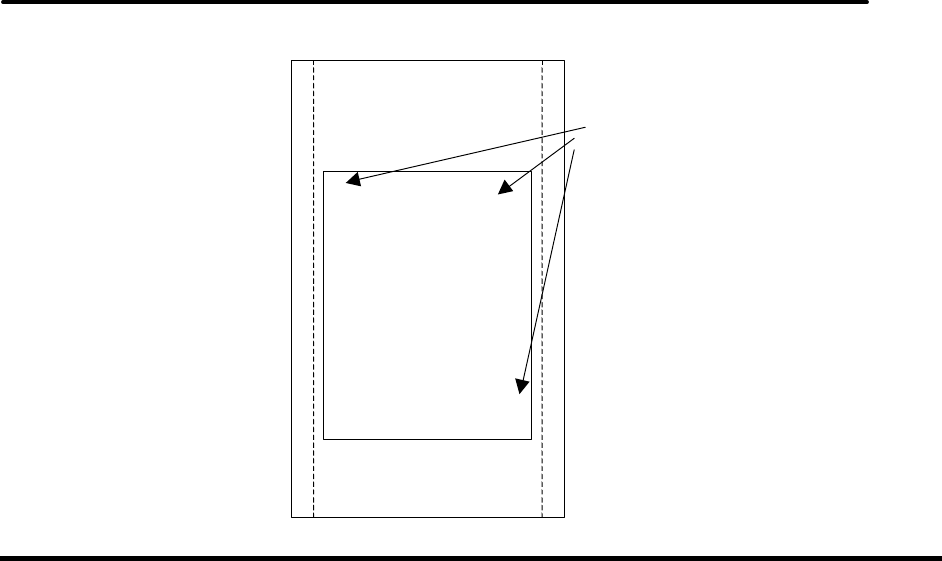
iTherm® 280 Programmer’s Guide Programming Codes
28-07764 Rev C Page 219
Receipt or
Inserted Form
B > > > > >
A > > > > >
D > > > > >
C > > > > >
Initial entry
location
Function Print and return to standard mode (in page mode0
ASCII [FF]
Hexadecimal 0CH
Decimal <12>
Description [FF] In page mode, prints the data in the print buffer collectively and returns to
standard mode.
Programming Codes iTherm® 280 Programmer’s Guide
Page 220 Rev C 28-07764
Function Print data in page mode
ASCII [ESC][FF]
Hexadecimal 1BH,0CH
Decimal <27><12>
Description [ESC][FF] Prints the page as it is currently defined and reenters page mode
without deleting the page definition.
Function Set Absolute Vertical Print Position in Page Mode
ASCII [GS]$
Hexadecimal 1DH,24H
Decimal <29><36>
Description GS $ sets the absolute vertical print starting position to [nL + nH x 256)
x (vertical or horizontal motion units)] in page mode.
Function Set Relative Vertical Print Position in page mode
ASCII [GS] \ <nl> <nh>
Hexadecimal 1BH 5CH <nl> <nh>
Decimal <27> <92> <nl> <nh>
Range 0 ≤ nl ≤ 255
0 ≤ nh ≤ 255
Description The [GS] \ <nl> <nh> command sets the print starting position based on the
current position and the distance from the current position to [(nl + nh × 256) ×
vertical or horizontal unit.
Bar Code Commands
Function Print Bar Code
1ASCII GS k <m> <dl> … <dk> NUL Mode 1 <m> between 0 and 6
Hexadecimal 1DH 6BH <m> <dl> … <dk> 00
Decimal <29> <107> <m> <dl> … <dk> 0
2ASCII GS k <m> <n> <dl> … <dn> Mode 2 <m> between 65 and 73 <n> = Length of
<d>
Hexadecimal 1DH 6BH <m> <n> <dl> … <dn>
Decimal <29> <107> <m> <n> <dl> … <dn>
Range 1 0 ≤ m ≤ 6 (k and d depend on the bar code system used.)
2 65 ≤ m ≤ 73 (n and d depend on the bar code system used.)
Description The GS k <m> <dl> … <dk> NUL command selects a bar code system and prints
the bar code. If <m> is between 65 and 73, the length must be specified. If <m>
is between 0 and 6, the data must be null terminated. (See the descriptions
below.)
Mode <m> Bar Code System Number of Characters Remarks
1 0 UPC A 11
≤
k
≤
12 48
≤
d
≤
57
1 1 UPC E 11
≤
k
≤
12 48
≤
d
≤
57
1 2 JAN-13 (EAN-13) 12
≤
k
≤
13 48
≤
d
≤
57
1 3 JAN-8 (EAN-8) 7
≤
k
≤
8 48
≤
d
≤
57
1 4 Code 39 1
≤
k 48
≤
d
≤
57, 65
≤
d
≤
90
d = 32, 36, 37, 43, 45, 46, 47
1 5 ITF 1
≤
k (even number) 48
≤
d
≤
57
iTherm® 280 Programmer’s Guide Programming Codes
28-07764 Rev C Page 221
1 6 Codabar 1
≤
k 48
≤
d
≤
57, 65
≤
d
≤
68
d = 32, 36, 37, 43, 45, 46, 47, 58
2 65 UPC A 11
≤
k
≤
12 48
≤
d
≤
57
2 66 UPC E 11
≤
k
≤
12 48
≤
d
≤
57
2 67 JAN-13 (EAN-13) 12
≤
k
≤
13 48
≤
d
≤
57
2 68 JAN-8 (EAN-8) 7
≤
k
≤
8 48
≤
d
≤
57
2 69 Code 39 1
≤
n
≤
255 48
≤
d
≤
57, 65
≤
d
≤
90
d = 32, 36, 37, 43, 45, 46, 47
2 70 ITF 1
≤
n
≤
255
(even number) 48
≤
d
≤
57
2 71 Codabar 1
≤
n
≤
255 48
≤
d
≤
57, 65
≤
d
≤
68
d = 32, 36, 37, 43, 45, 46, 47, 58
2 72 Code 93 1
≤
n
≤
255 0
≤
d
≤
127
2 73 Code 128 2
≤
n
≤
255 0
≤
d
≤
127
Table 42 Bar Code System Based on <m>
[Description for 1]
<d> indicates the character code to be printed. A null (00 Hex) character ends
the bar code definition.
[Description for 2]
<n> indicates the number of bytes of bar code data to be processed immediately
following <n>. Additionally, <d> indicates the character code to be printed.
The following apply to both
GS k <m> <dl> … <dk> NUL
GS k <m> <n> <dl> … <dn>:
If the horizontal width exceeds the printing area, the printer only feeds the paper.
These commands feed as much paper as necessary to print the bar code
according to the GS h command. These commands are enabled only when no
data exists in the print buffer. When data does exist in the print buffer, the printer
processes the data following <m> as normal data. After printing a bar code, the
print position is set at the beginning of the line. These commands are not
effected by print modes (emphasized, underline, character size, etc.)
Note:
Barcode 39 allows the “*” character to be used as a start and stop
flag. If the “*” is used, the length specified must be at least as long as the
desired barcode.
Function Set Bar Code Height
ASCII GS h <n>
Hexadecimal 1DH 68H <n>
Decimal <29> <104> <n>
Range 1 ≤ n ≤ 255
Default 0.90 inch high
Description The GS h <n> command sets the height of the bar code. The bar code height is
set to n/180 inch.
Function Select Printing Position of HRI Characters
ASCII GS H <n>
Hexadecimal 1DH 48H <n>
Programming Codes iTherm® 280 Programmer’s Guide
Page 222 Rev C 28-07764
Decimal <29> <72> <n>
Range 0 ≤ n ≤ 3, 48 ≤ n ≤ 51
Description The GS H <n> command selects the printing position of HRI (Human Readable
Interpretation) characters when printing a bar code. <n> selects the printing
position as follows.
<n> Printing position
0, 48 Not printed
1, 49 Above bar code
2, 50 Below bar code
3, 51 Both above and below the bar code
Table 43 Printing Position of HRI Characters
Function Select Font for HRI Characters
ASCII GS f <n>
Hexadecimal 1DH 66H <n>
Decimal <29> <102> <n>
Range <n> = 0, 1, 48, 49
Description The GS f <n> command selects a font for the HRI (Human Readable
Interpretation) characters used when printing a bar code. <n> selects a font from
the following table.
<n> Font
0, 48 Font A (14 x 12)
1, 49 Font B (12 x 12)
Table 44 Font for Human Readable Interpretation (HRI) Characters
Function Set Bar Code Width
ASCII GS w <n>
Hexadecimal 1DH 77H <n>
Decimal <29> <119> <n>
Range 2 ≤ n ≤ 6
Description The GS w <n> command sets the size of the bar code as follows.
N Multi-level bar code Binary-level bar code
Module width (mm) Thin element width (mm) Thick element width (mm)
2 0.250 0.250 0.626
3 0.375 0.375 1.001
4 0.500 0.500 1.251
5 0.626 0.626 1.627
6 0.751 0.751 2.002
Table 45 Horizontal size of the bar code

iTherm® 280 Programmer’s Guide Programming Codes
28-07764 Rev C Page 223
Mechanism Control Commands
Function Select cut mode and cut paper
ASCII [GS] V <m> <n>
Hexadecimal 1DH 56H <m> <n>
Decimal <29> <86> <m> <n>
Description When <m> = 1 or 49, <n> is not used and a partial cut is performed. When <m>
= 66, [GS] V <m> <n> executes a partial cut (one point left uncut) after paper is
fed [cutting position (<n> x approximately 1/144 inch)]. When using the
command, there is a gap between the auto-cutter position and the print position.
The [GS] V <m> <n> command is only effective when input at the beginning of a
line. The [GS] V <m> <n> command executes paper feeding to the manual
cutting position.
Function Partial knife cut
ASCII [ESC] i
Hexadecimal 1BH 69H
Decimal <27> <105>
Description The [ESC] i command performs a partial knife cut.
Function Perform a partial knife cut
ASCII [ESC] m
Hexadecimal 1BH 6DH
Decimal <27> <109>
Description The [ESC] m command performs a partial knife cut.
Function Sound buzzer
ASCII [BEL]
Hexadecimal 07H
Decimal <07>
Description The [BEL] command sounds the internal buzzer, if equipped.
Function Sound buzzer
ASCII [ESC] BEL
Hexadecimal 1BH 07H
Decimal <27> <07>
Description The [ESC] BEL command sounds the internal buzzer, if equipped.
Programming Codes iTherm® 280 Programmer’s Guide
Page 224 Rev C 28-07764
Miscellaneous Commands
Function Set Horizontal and Vertical Motion Units
ASCII [GS] P x y
Hexadecimal 1DH 50H x y
Decimal <29> <80> x y
Range 0 ≤ x ≤ 255
Default x = 180, y = 360
Description The GS P x y command sets the horizontal and vertical motion units to 1/x inches
and 1/y inches, respectively. When x and y are set to zero, the default setting of
each value is used.
Note:
This feature is licensed from Epson, and is only available in the Full
Epson Emulation of the firmware. Problems with this command are
frequently caused by not using the correct version of the firmware.
Contact Transact sales and/or technical support for this added cost option.
Function Initialize the Printer
ASCII [ESC] @
Hexadecimal 1BH 40H
Decimal <27> <64>
Description The [ESC] @ command initializes the printer. All settings, including character
font and line spacing, are canceled.
Function Transmit Printer ID
ASCII [GS] I <n>
Hexadecimal 1DH 49H <n>
Decimal <29> <73> <n>
Range 1 ≤ n ≤ 3
49 ≤ n ≤ 51
Description The [GS] I <n> command transmits the printer ID specified by <n> below. Each
printer ID consists of one byte of data.
<n> Printer ID Hex ID
1,49 Printer model ID 0DH
2,50 Type ID 20H or 32D
13
3,51 ROM version ID 2H or 2D.
Table 46 Printer ID
Bit Off/On Hex Decimal Function
0 Off 00H <0> No two-byte character code
1 Off 00H <0> Not Auto-cutter equipped
On 02H <2> Auto-cutter equipped
2,3 - - - Undefined
4 Off 00H <0> Not used; fixed to off
5,6 - - - Undefined
7 Off 00H <0> Not used; fixed to off
Table 47 Type ID (<n> = 2 or 50)
Function Generate Pulse
13 The Epson Type ID and ROM version are based on the Epson TM-88 documentation and a
sample printer. This value can be reconfigured to any 8 bit value.
iTherm® 280 Programmer’s Guide Programming Codes
28-07764 Rev C Page 225
ASCII [ESC] p <m> <t1> <t2>
Hexadecimal 1BH 70H <m> <t1> <t2>
Decimal <27> <112> <m> <t1> <t2>
Range <m> = 0, 1, 48, 49
0 ≤ t1 ≤ 255
0 ≤ t2 ≤ 255
Description The [ESC] p <m> <t1> <t2> command sends a pulse (on time = <t1> x 2 msec) to
the specified connector pin. When <m> = 1 or 48, the pulse is sent to drawer-
kick-out connector pin 2. When <m> = 0 or 48, the pulse is sent to drawer-kick-
out connector pin 2; when <m> = 1 or 49, the pulse is sent to drawer-kick-out
connector pin 5.
Function Generate Pulse in real time
ASCII [DLE] [DC4] <1> <m> <t>
Hexadecimal 10H 14H <1> <m> <t>
Decimal <16> <20> <1> <m> <t>
Range 0 ≤ m ≤ 8
0 ≤ t ≤ 8
Description The [DLE] [DC4] <1> <m> <t> command sends a pulse specified by <t> in real-
time to the connector pin specified by <m> as follows:
<m> Connector pin
0 Drawer kick-out connector pin 2
1 Drawer kick-out pin 5
Note:
This feature is licensed from Epson, and is only available in the Full
Epson Emulation of the firmware. Problems with this command are
frequently caused by not using the correct version of the firmware.
Contact Transact sales and/or technical support for this added cost option.
Function Execute power-off sequence
ASCII [DLE] [DC4] <2> <a> <b>
Hexadecimal 10H 14H <2> <a> <b>
Decimal <16> <20> <2> <a> <b>
Range a = 1
b = 8
Description The [DLE] [DC4] <2> <a> <b> command executes the printer power-off
sequence as follows:
Stores the values of the maintenance counter.
Transmits the following power-off status (Header + Status + NUL)
Power off status Hex Decimal Amount of data
Header 3BH 59 1 byte
Status 30H 48 1 byte
NUL 00H 0 1 byte
Executes the printer power off
Function Clear buffer(s)
ASCII [DLE] [DC4] <8> d1…d7
Programming Codes iTherm® 280 Programmer’s Guide
Page 226 Rev C 28-07764
Hexadecimal 10H 14H <8> d1…d7
Decimal <16> <20> <8> d1…d7
Range d1=1, d2=3, d3=20, d4=1, d5=6, d6=2, d7=8
Description The [DLE] [DC4] <8> command clears all data stored in the receive buffer and
the print buffer.
Transmits the following three bytes of data
Hex Decimal Amount of data
Header 37H 55 1 byte
Flag 25H 37 1 byte
NUL 00H 0 1 byte
Enters in standard mode
Function Select Peripheral Device Status
ASCII [ESC] = <n>
Hexadecimal 1BH 3DH <n>
Decimal <27> <61> <n>
Range 1 ≤ n ≤ 3
Description The [ESC] = <n> command selects the device to which the host computer sends
data, based on the value of <n> listed below.
Bit Off/On Hex Decimal Function
0 Off 00H <0> Printer disabled
On 01H <1> Printer enabled
1 Off 00H <0> Customer display disabled
On 02H <2> Customer display enabled
2-7 - - - Undefined
Table 48 Peripheral Device Bit Definitions
Note: Epson Customer display is not supported by the iTherm® 280
printer.
iTherm® 280 Programmer’s Guide Programming Codes
28-07764 Rev C Page 227
Function Real-Time Request to Printer
ASCII [DLE] [ENQ] <n>
Hexadecimal 10H 05H <n>
Decimal <16> <5> <n>
Range <n> = 0, 2
Description The [DLE] ENQ <n> command responds to a request from the host computer
specified by <n> as shown below. The command is also executed when the
printer is disabled. When the printer stops printing due to a paper-end condition,
<n> = 0 is only effective when the printer is waiting for on-line recovery from the
time the paper roll is inserted to the time the printer goes on-line. The on-line
recovery wait time is confirmed by the printer status of ASB or the [DLE] EOT
command. <n> = 2 is only effective when a recoverable error occurs. The
printer can recover from an error without turning off the power. Whether an error
occurs or not can be confirmed by the ASB status or the error status of the [DLE]
EOT command.
Where <n> 0 Recovers to on-line
2 Recovers from an error after clearing the receive and print buffers
Note:
This feature is licensed from Epson, and is only avai
lable in the Full
Epson Emulation of the firmware. Problems with this command are
frequently caused by not using the correct version of the firmware.
Contact Transact sales and/or technical support for this added cost option.
Programming Codes iTherm® 280 Programmer’s Guide
Page 228 Rev C 28-07764
Function Enter Test Mode
ASCII [GS] ( A <2> <0> <n> <m>
Hexadecimal 1DH 28H 41H <2> <0> <n> <m>
Decimal <29> <40> <65> <2> <0> <n> <m>
Description This command places the printer into test mode based on the parameters <n>
and <m>.
Where <n> may be 0, 1, 2, 48, 49, or 50. It is intended to select the print station. The
iTherm® 280 will accept any of these values
Where <m> 1 or 49 Selects Hex Dump mode. You must press the * Button to exit this mode
2 or 50 Selects Printer Configuration print out.
3 or 51 Selects Rolling ASCII test pattern. You must press * Button to exit this
mode.
Function Print counter
ASCII [GS] c:
Hexadecimal 1DH 63H
Decimal <29> <99>
Description Sets the serial counter value in the print buffer and increments or decrements the
counter value.
• After setting the current counter value in the print buffer as print data (a
character string), the printer counts up or down based on the count mode set
Function Initialize maintenance counter
ASCII [GS] g 0 m nl nh:
Hexadecimal 1DH 67H 30H
Decimal <29> <103> <48>
Description Initializes the resettable maintenance counter to 0.
• nl, nh specifies the maintenance counter number as (nl + nh x 256)
Counter number Counter [Unit]
Hex Decimal
14 20 Number of line feeds: Roll paper
15 21 Number of energizing head: Roll paper
32 50 Number of autocutter operation
46 70 Print operation time
• Frequent write command executions by this command may damage the NV
memory. Therefore, it is recommended to write to the NV memory no more than
10 times a day.
• While processing this command, the printer is BUSY while writing data to the
NV counter memory and stops receiving data. Therefore it is prohibited to
transmit data including the real-time commands during the execution of this
command
iTherm® 280 Programmer’s Guide Programming Codes
28-07764 Rev C Page 229
Function Transmit maintenance counter
ASCII [GS] g 2 m nl nh:
Hexadecimal 1DH 67H 32H
Decimal <29> <103> <50>
Description Transmits the value of the specified maintenance counter.
• nl, nh specifies the maintenance counter number as (nl + nh x 256)
Counter number Counter [Units] Kind of counter
Hex Decimal
14 20 Number of line feeds: roll paper can be reset
14 20 Number of times energizing head: roll paper
14 20 Number of autocutter operations
14 20 Printer operation time
14 20 Number of line feeds: roll paper cumulative
14 20 Number of times energizing head: roll paper
14 20 Number of autocutter operations
14 20 Printer operation time
• The contents of the maintenance counter are as follows:
Hexadecima Decimal Amount of data
Header 5FH 95 1 byte
Data 30H-39H 48-57 1-10 bytes
NUL 00H 0 1 byte
• During the transmission of block data values in the maintenance counter, the printer ignores
the real-time commands. Also, the printer does not transmit ASB even when the ASB is
enabled. Therefore, the user cannot confirm changes in the printer status during these periods.
• The counter values may be different from the actual counts depending on time differences at
power off or the occurrence of an error.

Programming Codes iTherm® 280 Programmer’s Guide
Page 230 Rev C 28-07764
Macro Function Commands
Function Start/End Macro Definition
ASCII [GS] :
Hexadecimal 1DH 3AH
Decimal <29> <58>
Description The [GS] : command starts or ends macro definition. Macro definition starts
when the command is received during normal operation and ends when it is
received during the macro definition. The macro definition can contain up to
2048 bytes. If the definition exceeds 2048 bytes, the excess data will not be
stored.
Function Execute Macro
ASCII GS ^ r t m
Hexadecimal 1DH 5EH r t m
Decimal <29> <94> r t m
Range 0 ≤ r ≤ 255
0 ≤ t ≤ 255
m = See below
Description The GS ^ r t m command executes a macro definition. The r specifies the
number of times to execute the macro. When Bit 1 of m is set, r is ignored, and
the macro is executed infinitely. t specifies the waiting time for executing the
macro; it is t × 100 msec for every macro execution. m specifies macro
executing mode. When the LSB of m = 0, the macro executes r times
continuously with the interval specified by t. When the LSB of m = 1, the printer
remains idle and waits for the FEED Button to be pressed (after waiting for the
period specified by t). After the button is pressed, the printer executes the macro
once. The printer repeats the operation r times. When Bit 5 of m is set, the
current macro definition is saved into the printer’s nonvolatile flash memory as a
start-up macro without executing it. The macro definition is executed upon
power-up using the parameters specified by the GS ^ r t m command. If the
printer is powered-up into self-test mode, the macro definition will not be
executed. A saved macro definition can be deleted with the GS _ command.
Bit Off/On Hexl Decimal Function
0 Off 00 0 Macro executes r times continuously with
the interval specified by t
On 01 1 FEED Button controlled operation with
time interval t
1-4 - - - Undefined
5 On 20 32 Value given by r is ignored and macro is
run infinitely
6 On 40 64 Save start-up macro definition to flash
memory without executing
7 - - - Undefined
Table 49 Macro Control Bit Definitions

iTherm® 280 Programmer’s Guide Programming Codes
28-07764 Rev C Page 231
Function Delete Start-Up Macro Definition
ASCII GS _
Hexadecimal 1DH 5FH
Decimal <29> <95>
Description The GS _ command deletes a start-up macro definition previously created by the
GS ^ command. If a start-up macro was not previously defined, the command
will be ignored.
User-defined Images and Graphics Commands
Function Define user-defined bit image
ASCII GS - <Name..> <0> x y d1 … d(x x y x 8)
Hexadecimal 1DH 2DH <Name..> <0> x y d1 … d(x x y x 8)
Decimal <29> <45> <Name..> <0> x y d1 … d(x x y x 8)
Range 1 ≤ x ≤ 255
1 ≤ y ≤ 255
0 ≤ d ≤ 255
<Name> = a 15-byte maximum length name to identify the image
Description GS - defines a bit-image for storage in the nonvolatile memory pool. The printer
maintains an area of flash memory specifically designated for multiple bit-image
storage. The area can contain as many bit-images as its size permits. (A
printout of the amount of nonvolatile memory remaining can be obtained by
performing a printer self test.) Each image is uniquely identified by the name
given to it by the <Name> parameter. The name of the bit-image can be from
one to 15 bytes long and contain any alphanumeric characters as well as spaces.
The format of the bit-image is identical to that defined by the GS * command.
The GS _ command must be entered in standard mode only at the beginning of a
print line. Any image may be up to 2048 bytes long. If the size of the image is
larger than the space remaining in the nonvolatile buffer, the image will not be
saved. When the last byte of bit-image data is received and there is ample
space in the nonvolatile buffer for the bit-image, the bit image will be saved.
The following basic example demonstrates how to define an 8-bit x 8-bit block
with the name “MY IMAGE”. A representation of the format of a downloaded bit-
image is depicted below.
Programming Codes iTherm® 280 Programmer’s Guide
Page 232 Rev C 28-07764
Column one
d1
dy
+1
...
...
....
d2
dy
+2
....
....
....
....
....
....
dy
PRINT #1, CHR$(29),CHR$(45), REM Enter the GS command
PRINT #1, ”MY IMAGE”,CHR$(0); REM Define the image name
PRINT #1, CHR$(1),CHR$(1); REM Image size (8 x 8 bits)
PRINT #1, CHR$(255),CHR$(255),CHR$(255),CHR$(255); REM Send 8 bytes of image
PRINT #1, CHR$(255),CHR$(255),CHR$(255),CHR$(255) REM data
⇐ d(x×y×8)
d
n
MSB
LSB
→
iTherm® 280 Programmer’s Guide Programming Codes
28-07764 Rev C Page 233
Function Print User-Defined Bit Image
ASCII GS 0 <Name..> <0><m>
Hexadecimal 1DH 30H <Name..> 0H<m>
Decimal <29> <48> <Name..> <0><m>
Range <Name..> = a 15-byte maximum length name to identify the image.
Description GS 0 prints a bit-image from storage in the nonvolatile memory pool. The name
of the bit-image can be from one to 15 bytes long and contain any alphanumeric
characters as well as spaces. GS searches the nonvolatile memory pool for the
first occurrence of the image identified by <Name..>. If the image is found, it will
be printed. If the image cannot be found, the command will be ignored. The
following basic example demonstrates how to print the stored bit-image named
“MY IMAGE”:
PRINT #1 CHR$(29), CHR$(48) REM Enter the GS 0 command
PRINT #1 “MY IMAGE”, CHR$(0) CHR$(0) REM Enter the image name
Where <m> selects a mode from the table below.
Hex Decimal Mode Vertical Dot Density
(dpi) Horizontal Dot
Density (dpi)
00 0 Normal 203 203
01 1 Double-wide 203 101
02 2 Double-high 101 203
03 3 Quadruple 101 101
Function Erase single entry from nonvolatile memory EPOS ONLY
ASCII GS 1 <Name..> <0>
Hexadecimal 1DH 31H <Name..> 0H
Decimal <29> <49> <Name..> <0>
Range <Name> = a 15-byte maximum alphanumeric name to identify the image
Description GS 1 deletes a single entry (bit-image or character set) from storage in the
nonvolatile memory pool.
Function Erase all entries from nonvolatile memory EPOS ONLY
ASCII GS 5
Hexadecimal 1DH 35H
Decimal <29> <53>
Description GS 5 erases the entire contents of the nonvolatile memory pool and frees up the
memory for new entries.
Note 1 No protection for the GS 5 command exists. All user store will be erased.
Programming Codes iTherm® 280 Programmer’s Guide
Page 234 Rev C 28-07764
Function Define Single User-Defined Bit-Image
ASCII GS * x y d1 … d(x x y x 8)
Hexadecimal 1DH 2AH x y d1 … d(x x y x 8)
Decimal <29> <42> x y d1 … d(x x y x 8)
Range 1 ≤ x ≤ 255
1 ≤ y ≤ 48
0 ≤ d ≤ 255
Description The GS * x y d1 … d(x x y x 8) command defines a single downloaded bit-image
using the number of dots specified by x and y in the RAM buffer area (volatile
memory). The number of dots in the horizontal direction is x x 8. The number of
dots in the vertical direction is y x 8. If (x x y x 8) exceeds the size of the buffer,
the image is truncated. d indicates bit-image data and specifies a bit printed to
one and not printed to zero. After a downloaded bit-image is defined, it may be
saved to the nonvolatile flash storage buffer using the ESC ‘ command where it
remains indefinitely. Otherwise, the image remains in the RAM buffer where it is
available until ESC @ or ESC & is executed; the power is turned off; or the
printer is reset. A representation of the format of a downloaded bit-image is
depicted below.
Column one
d1
dy
+1
...
...
....
d2
dy
+2
....
....
....
....
....
....
dy
⇐ d(x × y × 8)
d
n
MSB
LSB
→
iTherm® 280 Programmer’s Guide Programming Codes
28-07764 Rev C Page 235
Function Print single user-defined bit-image
ASCII GS / <m>
Hexadecimal 1DH 2FH <m>
Decimal <29> <47> <m>
Description The GS / <m> command prints a downloaded or stored bit-image using the mode
specified by <m>. <m> selects a mode from the table below.
Hex Decimal Mode Vertical Dot Density
(dpi) Horizontal Dot
Density (dpi)
00 0 Normal 203 203
01 1 Double-wide 203 101
02 2 Double-high 101 203
03 3 Quadruple 101 101
Table 50 User-defined Bit-image Resolutions
Function Save User-Defined Character Set
ASCII GS 6 <Name..> <0>
Hexadecimal 1DH 36H <Name..> 0H
Decimal <29> <54> <Name..> <0>
Range <Name> = a 15-byte maximum alphanumeric name to identify the image.
Description GS 6 <Name..> <0> saves the current character set created by the [ESC] &
command to the nonvolatile memory pool. If no character set has been defined,
the command stores an empty definition structure.
Function Select User-Defined Character Set
ASCII GS 7 <Name..> <0>
Hexadecimal 1DH 37H <Name..> 0H
Decimal <29> <55> <Name..> <0>
Range <Name..> = a 15-byte maximum alphanumeric name to identify the image.
Description GS 7 <Name..> <0> selects a previously saved user-defined character set. If the
character set does not exist, the command is ignored.
Function Query Nonvolatile Memory Pool Information
ASCII GS 3
Hexadecimal 1DH 33H
Decimal <29> <51>
Description The GS 3 command prints a summary of the user-store usage. It is intended to
help with the generation and maintenance of user store.
Note 1 The report is printed as part of the configuration report.

Programming Codes iTherm® 280 Programmer’s Guide
Page 236 Rev C 28-07764
Ithaca® Specific iTherm® 280 Commands
The iTherm® 280 has a number of extended control commands designed to make operation
and maintenance of the printer easier for the host application refer to the iTherm® 280 extended
control discussion on page 170.
Panel Button Commands
Function Enable/Disable Paper Feed
ASCII [ESC] p 5 <n>
Hexadecimal 1BH 70H 35H <n>
Decimal <27> <112> <53> <n>
Range 0 ≤ n ≤ 255
Description The [ESC] c 5 <n> command enables or disables the FEED Button.
Where <n> Bit 0 = 1 the FEED Button is disabled
Bit 0 = 0 the button is enabled.
Paper Out/Low Sensor Commands
Function Paper Low Sensor
ASCII [ESC] p 4 <n>
Hexadecimal 1BH 70H 34H <n>
Decimal <27> <112> <52> <n>
Range 0 ≤ n ≤ 255
Description The [ESC] c 4 <n> command determines if the printer stops printing when paper
low is detected.
Where <n> 0 Printer continues to print with paper low.
1 Printer stops printing when paper low is detected.
Function Paper Error Signal Control
ASCII [ESC] p 3 <n>
Hexadecimal 1BH 70H 33H <n>
Decimal <27> <112> <51> <n>
Range 0 ≤ n ≤ 255
Description The [ESC] c 3 <n> command controls how the paper error pin on the parallel
interface operates.
Where <n> Bit 0 controls paper low operation.
If Bit 0 = 1 Paper low will set the paper error pin.
If Bit 0 = 0 Paper low will not effect the paper error pin.
Bit 2 controls how paper out effects the paper error pin.
If Bit 2 = 1 Paper out will set the paper error pin.
If Bit 2 = 0 Paper out will not effect the paper error pin.
Note: The paper out sensor will always stop printing.
The default setting allows only paper out to control the paper error pin.
The Epson section has the following description of the enable/disable paper feed command.

iTherm® 280 Programmer’s Guide Programming Codes
28-07764 Rev C Page 237
Description The [ESC] c 5 <n> command enables or disables the FEED Button. When the
least significant bit (LSB) of <n> = one, the FEED Button is disabled; when it is
zero, the button is enabled.

Programming Codes iTherm® 280 Programmer’s Guide
Page 238 Rev C 28-07764
iTherm® Citizen Emulation
The iTherm® 280 printer uses a subset of the Epson emulation for Citizen.
iTherm® Star Emulation
The iTherm® 280 printer has Star emulation that will allow the iTherm to replace most
Star printers with similar features to the iTherm.
Star used a real time cash drawer command that uses features patented by Epson. If
you use the Star real time cash drawer command, you must use the added cost licensed
firmware.
iTherm® Axiohm Emulation
The iTherm® 280 printer has an Axiohm emulation that closely matches the A793 and
A794 printers. The Axiohm command set (for the most part) is a superset of the Epson
emulation. Because several of the Axiohm commands make use of features that
patented by Epson, you must use the added cost licensed firmware to use these
commands. If you don’t need those commands and features, using the standard iTherm
firmware will result in a lower cost printer.

28-07764 Rev C Page 239
chapter
7
iTherm® 280 Color Graphics
Page 240 Rev C 28-07764
This page intentionally left blank

ITherm® 280 Color Graphics iTherm® 280 Programmer’s Guide
28-07764 Rev C Page 241
Printing Graphics
The iTherm® 280 Printer has bit-image graphic capability and a full PC-compatible
graphic character set. The bit image format is similar to that used on other personal
computer printers. Three modes of operation are available. Single-density is the fastest
mode. It makes a single unidirectional 60 dpi print pass. Full-speed double-density
mode makes two passes with a half-dot offset. Full-speed double-density mode is half
the speed of single-density mode, but it prints at 120 dpi. Half-speed double-density
mode is half the speed of full-speed double-density; however, the print quality is
enhanced.
Character Graphics
Character graphics is the term for joining individual characters together to produce a
mosaic of characters that form a graphic image. The simplest method uses an * (or any
other character) to form an image. For example, ITHACA® might be formed as follows.
*** *** * * ** *** **
* * * * * * * * * *
* * ***** **** * ****
* * * * * * * * * *
*** * * * * * *** * *
Figure 17 Example of Character Graphics
The extended character set of the printer supports line graphic characters that can be
combined to form windows and other shapes. For the shapes to join from line to line,
the spacing must be set properly.
All characters are in a nine-dot-high character cell. The dots are 1/60 inch apart.
Therefore, the line spacing should be 10/60 or 1/6 inch. The set fine line space
command can be used to set the line spacing. If possible, the spacing should be
reduced slightly to overlap the rows, which prevents any white spacing from appearing
between the lines. The following example illustrates the use of extended character
graphics.

iTherm® 280 Programmer’s Guide ITherm® 280 Color Graphics
Page 242 Rev C 28-07764
[ESC]:
[ESC]3<27>
[ESC]a<1>
<201>
<205><205><205><205><205><205><205><205><205>
<205><205><205><205><205><205><205><205><205>
<205><205><205><205>
<187>[CR][LF]
<186> ITHACA PRINTERS <186>[CR][LF]
<186> <186>[CR][LF]
<200>
<205><205><205><205><205><205><205><205><205>
<205><205><205><205><205><205><205><205><205>
<205><205><205><205>
<188>[CR][LF]
[ESC]a<0>
[ESC]0
[ESC][P<15>
[CR][LF]
ST# 2000 OP# 00067 TE# 021 0035[CR][LF]
KLEENEX FAM D04 QTY 1 1.68 J[CR][LF]
RITZ D01 QTY 1 2.50 D[CR][LF]
CHIPS D01 QTY 1 1.50 D[CR][LF]
STORAGE BAG D04 QTY 1 1.50 J[CR][LF]
SUB TOTAL 7.18[CR][LF]
SALES TAX 1 .50[CR][LF]
------[CR][LF]
TOTAL 7.68[CR][LF]
CASH TEND 20.00[CR][LF]
CHANGE DUE 12.23[CR][LF]
[CR][LF]
Figure 18 Example Commands for a Sample Receipt
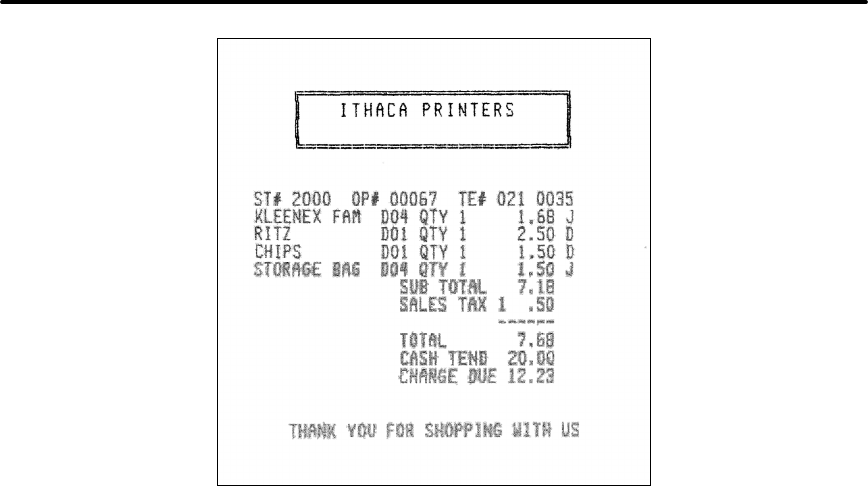
ITherm® 280 Color Graphics iTherm® 280 Programmer’s Guide
28-07764 Rev C Page 243
Figure 19 Sample Receipt
When printing line graphics, the data path to the printer must be eight bits. Seven-bit
serial protocols do not access the extended characters. The extended characters
require that the form be reverse fed. Consequently, printing line graphics on the receipt
may be less than acceptable.

iTherm® 280 Programmer’s Guide ITherm® 280 Color Graphics
Page 244 Rev C 28-07764
APA Graphics
The printer is capable of all-points-addressable (APA) or horizontal graphics.
Generating a graphic image by hand is time consuming and tedious. It is recommended
that a graphic package be used to create a graphic image. The following procedure will
help with the setup.
Procedure for APA graphics:
1. Generate the graphic image in the program of your choice. APA graphics only
support monochrome images.
2. Make sure the paper size chosen fits the printer (3 inches wide with 0.25-inch
margins). If the paper size cannot be set, print a portion of the page.
3. Print the graphic to a file using a generic, IBM, graphic, 9-pin driver. The standard
IBM resolutions are 240 x 216 dpi, 120 x 72 dpi, and 60 x 72 dpi. The iTherm® 280
Printer supports all three resolutions. For good resolution with reasonable speed,
use 120 x 72 dpi.
4. Print the graphic image to a file.
5. Edit the resulting file to remove any unwanted form control, and insert the iTherm®
280 form control.
6. Make the resulting file available to your application, so it can be sent to the printer
when required.

ITherm® 280 Color Graphics iTherm® 280 Programmer’s Guide
28-07764 Rev C Page 245
Color Graphics
The iTherm® 280 is a two-color printer as rather than a full color printer. A full color
printer forms the various colors of an image by mixing inks of different colors on the
paper. The amount of each color determines the hue. Typically the paper is white and
no ink produces a white. Mixing yellow and cyan produces a red and mixing cyan,
magenta, and yellow in equal amounts produces a black or gray. If the printer has a
forth cartridge, it will be black and conserves the color cartridges ink.
The iTherm® 280 is a two-color printer. It has white (the paper), and two predefined
colors. Typically one of the colors is black, and the other is a highlight color. The high
light color is primarily used in text printing to highlight a line, and typically is red.
When the iTherm® 280 generates graphics, both colors are used to generate the image.
Because the program that generates the graphic image data should not need to be
aware of the colors available in the printer, three color planes are sent to the printer.
The printer is aware of what colors the cartridges are that will generate the image. The
printer will converts the full color image information into a two color image.
If the iTherm® 280 printer is configured with a black color and a highlight color, there is
no point in the printers mixing the highlight color with black. If however, the iTherm® 280
printer is configured with two colors other than black, the printer attempts to mix the
colors to generate black. (Note that in text mode the colors are not mixed.) This
requires that there be two basic modes of color graphic generation.
If the iTherm® 280 printer is configured with two colors, the printer will mix the two colors
on the thermal paper, using the primary and the secondary color. Because there are
three primary colors, the printer is unable to print full color. The printer follows the rules
for mixing colors and it if the result is ambiguous (because of the missing color), the
printer will print with the primary color. This results in a image made up of primary color
dots, secondary color dots and mixed dots. The mixed dots color may not be black but a
mixture of whatever colors are installed.
In text mode, the primary color is assigned as the default color and the secondary color
is assigned as the alternate highlight color. In most cases the darkest color should be
initialized as the primary color.
The Ithaca® Windows print driver provides the translation from Windows color to the
three color planes. When a graphic is created for the iTherm® 280 Printer, the colors
used must take into account that colors other than the highlight color will print black.
The Ithaca® Windows driver helps adjust the color content and generates the desired
print from a full color image14.

iTherm® 280 Programmer’s Guide ITherm® 280 Color Graphics
Page 246 Rev C 28-07764
Procedure for color horizontal graphics:
There are many ways to generate graphics for the iTherm® 280 printer. The easiest is to
use the PJColor program. (See the next section.) The other way is to use the Ithaca
windows driver and capture the output to a file.
To generate an image using the windows print driver:
1. Generate the graphic image in the program of your choice. Use colors consistent
with the two colors installed in the printer.
2. Make sure the paper size you pick fits the printer (3 inches wide with 0.25-inch
margins).
3. The iTherm® 280 print driver should be installed (even if the printer is not connected).
4. Set up the print driver to print the graphic to a file using whatever resolution is
required.
5. Print the graphic image to a file.
6. Later, when you want to print the graphic, simply copy the file to the printer with your
application.
7. You may also copy the graphic to the graphic save buffer and then request the
printer to retrieve and print it without re-sending the graphic data.
Optionally, process the color image with the Ithaca® color image processor14 in the
PJColor program. The program can print the image or generate a printable file.
14 Ithaca® Color Image Processor is patent pending
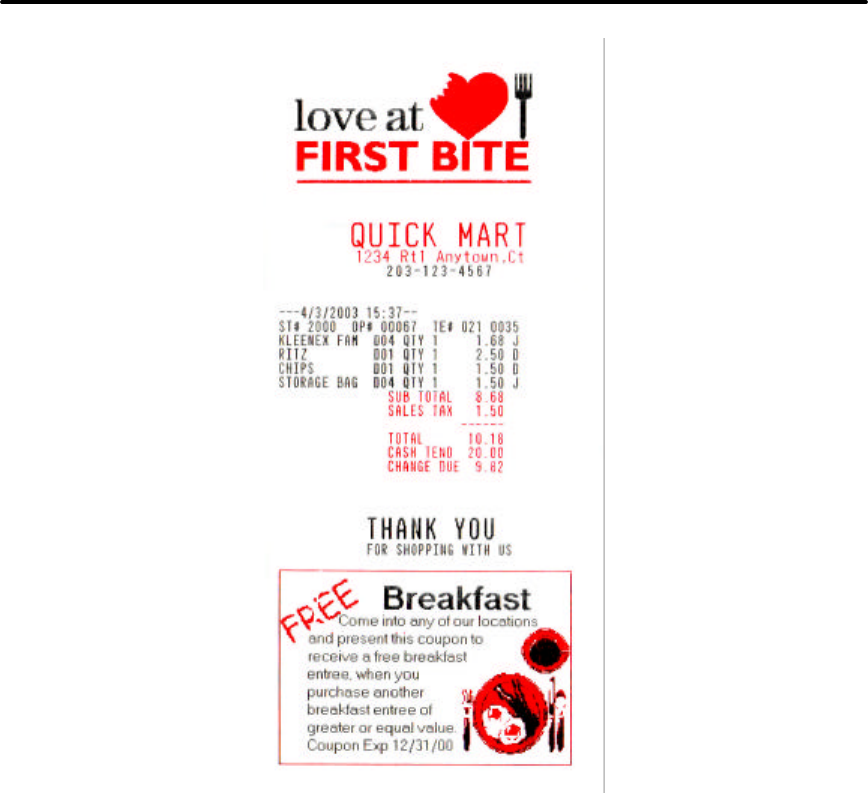
ITherm® 280 Color Graphics iTherm® 280 Programmer’s Guide
28-07764 Rev C Page 247
Figure 20 Receipt with graphics
As with all graphics, the data path to the printer must be eight bits. Seven-bit protocols
do not work.
iTherm® 280 Universal Color Graphics
Starting with Version 1.88 of the iTherm® 280 Printer firmware supports the ability to print
two color graphics in all emulations. This support is an enhancement to the original TM-
U200, ESC/POS, Star, and Citizen printer emulations.
The intent of Universal Color Graphic support is to allow the iTherm® 280 color graphics
capability to be used in existing applications that do not support color graphics.
There are several ways to add color graphics to an existing application. The easiest for
you will depend on how much control you have over your application. At a minimum, you

iTherm® 280 Programmer’s Guide ITherm® 280 Color Graphics
Page 248 Rev C 28-07764
should be able to change the name printed on the top of a receipt. With the PJColor15
program you can store a named graphic into the printer an print it by changing the text
name to match the stored graphic. For example, if your receipt has a name like "Joe's
Market", you can save a graphic in the printer named "Joe's" and then change the "Joe's
Market" to "&%URJoe's&" When the iTherm® 280 finds "&%URJoe's&", it is replaced
with the stored graphic.
Some applications allow a graphic file to be sent to the printer. In this case PJColor can
generate the graphic file and then your application can send it to the printer. This file will
support two color print.
PJColor also has a feature that will allow you to generate a file that will define the
graphic to be stored into the printer. You can then use this file to setup any number of
printers with the same graphic.
If you are using a windows print driver (other than the Transact iTherm® 280 driver) to
support your printer, you will not be able to send color graphics to the printer through the
print driver. The print driver will not support universal color graphics. You can however,
store the graphic in the printer and use IPCL commands to print the stored graphic. (You
must select a printer resident font for this to work.)
The following is a short summary and how to description of these features.
Print File Graphics
PJColor can generate a print file that may be sent to the printer in any emulation and
produce a two color print graphic.
To generate a print file.
1) Start PJColor
2) Under Settings, Select the iTherm® 280 printer. Then select the emulation that
machines the printer.
3) Select the resolution you would like to have the printer use to print the graphics. Low
resolutions are faster, high resolutions produce better graphics.
4) Load the graphics Image you wish to print.
5) Select the communications port and configuration.
6) Adjust the image to produce the effect you would like. The lower graphic window
displays an approximation of the printed image.
7) When you are satisfied with the graphic, press the "Print to a File" button. PJColor
will ask what file you would like to receive the print data.
8) This file can be sent to the printer and the graphic will be printed.
15 The PJColor program has been enhanced to provide several ways to create color
Logos and Coupons and make them available to the iTherm® 280 printer.

ITherm® 280 Color Graphics iTherm® 280 Programmer’s Guide
28-07764 Rev C Page 249
Store Graphics in the printer:
PJColor can store a graphic in the iTherm® 280 Printer or generate a file that will store a
graphic in the printer.
To Store a graphic in the printer
1) Start PJColor
2) Under Settings, Select the iTherm® 280 printer. Then select the emulation that you
will be setting the printer to.
3) Select the resolution you would like to have the printer use to print the graphics. Low
resolutions are faster, high resolutions produce better graphics.
4) Select the communications port and protocol that is to be used to communicate to
the printer.
5) Load the graphics Image you wish to print.
6) Adjust the image to produce the effect you would like. The lower graphic window
displays an approximation of the printed image.
7) When you are satisfied with the graphic, press the "Store in Printer" button. PJColor
will attempt to interrogate the printer and will display the graphics currently in the
printer if any. (Note: If PJColor cannot communicate with the printer, only the "Save
to File" option will be allowed.)
8) Make sure there is enough room in the printer for the graphic.
9) Insert a name in the "Macro Name" box. Keep it simple, this name will be used later
to print the graphic.
10) Record the graphic in the printer.
Print a stored graphic.
In the data stream to the printer enter "&%URName&" and the graphic will print in place
of the "&%URName&" data. The "Name" must be identical to the name entered earlier.
Generate a file to store graphics into a printer
To generate a file that will store a graphic into a printer, follow the same procedure to
store a graphic in a printer up through step 8. Then:
1) Insert a name in the "Macro Name" box. Keep it simple, this name will be used later
to print the graphic
2) Press the "Save to File" button. This will allow you to select a file where the stored
universal graphic information is saved.
3) This file contains an "erase any previous graphic with the same name" command, "a
save new graphic with this name" command and the graphics information.
4) This file can then be sent to the printer and the graphic will be saved in the printer.
Note: If the target printer does not have enough room for the graphic information to
be stored, the graphic will not be stored.

iTherm® 280 Programmer’s Guide ITherm® 280 Color Graphics
Page 250 Rev C 28-07764
How universal graphics is done
The printer extends all the emulations to support two additional escape sequences and
adds limited IPCL support.
IPCL (Ithaca Printer Control Language) is an ASCII method of sending printer
commands to the printer. In Ithaca PcOS emulation, IPCL command support is
extensive. In other emulations, IPCL support is limited to the following commands.
&%CR Insert a [CR]
&%LF Insert a [LF]
&%UAxxx Feed xxx paper steps and cycle auto-cutter
&%CLx Select Color where x = 0 for the Primary or 1,2,3 for secondary
&%UBName& Begin defining universal graphic "Name"
&%UGName& End the definition of "Name"
&%URName& Run (print) universal graphic "Name"
&%UDName& Remove universal graphic "Name" from nonvolatile memory
&%USName& Flag universal graphic "Name" to be run when the printer is
turned on
&%UFALL& Erase all stored universal graphics. (Erases all User Store)
&%UQ& Prints a directory of the universal graphics currently stored in the
printer
&%UTx Changes the Name termination character from "&" to "x". "x" may
range from 21H to 255H
Note:
The & used to flag the end of the Name string is not valid in PcOS
Ithaca emulation mode. You should use <0> or define the terminator with
the &%UTx command.
The extended Escape sequences are [ESC][US]… and [ESC][FS]…
The [ESC][US] commands are the same as the PcOS emulation. The [ESC][FS]
commands are not intended to be used by the customer. They provide the universal
graphics support. Because graphics would be very difficult to generate and are not
supported by any graphics drives other than PJColor .
How to use IPCL commands in text strings
If your software allows you to pass text strings to the printer, you should be able to use
the universal graphics commands. Most POS software allows user customization of the
text message printed at the beginning and the end of the receipt.
To use the Universal IPCL commands simply place them in a text string like the following
example; note that your results may vary depending on the operation system, software
and the ability to pass ASCII Characters.
Load and store named graphic image
• First you must create the graphic image using the PJColor Color Image
Converter and save the image to a file. See the section “Generate a file to store
graphics into a printer” above.

ITherm® 280 Color Graphics iTherm® 280 Programmer’s Guide
28-07764 Rev C Page 251
• Send the following text strings to the printer using whatever means is available to
you. &%UBLogo& Begin defining macro "Logo"
&%UGLogo& End the Definition of "Logo"
&%UMLogo& Save Macro "Logo" to nonvolatile memory
• A graphic image named “Logo” should now be stored in the nonvolatile memory.
• To verify the image is present, use the “&%UQ&” IPCL command or the PJColor
Color Image Converter to print the name and size of the stored images.
Recall and print stored named graphic image
• Send the following text string to the printer using whatever means is available to
you. &%URLogo& Run Macro "Logo" (Print the macro)
Cautions
Universal graphics information is stored in the same place as user defined characters
and user defined macros. If you are using an emulation such as ESC/POS that supports
macros and/or user defined characters, universal graphics will compete for space with
these functions. In addition, the "&%UFALL&" (Erase universal graphics) will also erase
any user defined graphics and macros.
If you are using the Ithaca PcOS emulation, these commands are identical with the User
Store commands except for the terminator character. You may change the NUL
terminator to "&" with "&%UT&" if you find the "&" easier.

iTherm® 280 Programmer’s Guide ITherm® 280 Color Graphics
Page 252 Rev C 28-07764
Universal Color Command Descriptions
&%UB <Name..>& Begin named universal graphic record
IPCL &%UB <Name..>&
Description The &%UB <Name..>& command initializes the universal graphic buffer
structure, and redirects the following data to the universal graphic buffer.
It uses the <Name..> field as a reference. If the name already exists in
the flash user store, the command is ignored. The command must be
followed by the "End name universal graphic record" command with the
same name. If the data that follows is larger than the universal graphic
buffer (about 16K), the universal graphic definition is terminated without
saving any data.
&%UG <Name..>& End named universal graphic record
IPCL &%UG <Name..>&
Description The &%UG <Name..>& command ends the universal graphic record
operation and saves the universal graphic to flash. It uses the <Name..>
field to verify the command end and must match the "Begin named
universal graphic record" command. If the name already exists in the
flash user store or the universal graphic memory is exceeded, the
command is invalid, and the <Name..> field prints.
&%UR <Name..>& Run universal graphic data from user store
IPCL &%UR <Name..>&
Description The &%UR <Name..>& command loads the referenced universal graphic
into the universal graphic buffer. The universal graphic buffer is then
inserted into the data stream. If the named item does not exist or is not a
universal graphic, the iTherm® 280 ignores the command.
&%US <Name.. >& Flag item as a start-up universal graphic
IPCL &%US <Name.. >&
Description The &%US <Name.. >& command flags the referenced item to `be
processed at startup. Only one user character definition and one
universal graphic may be flagged to run at startup.
&%UD <Name..>& Delete item from user store
IPCL &%UD <Name..>&
Description The &%UD <Name..>&command removes an item from user store and
frees up space. If the item does not exist, the iTherm® 280 ignores the
command.
&%UFALL& Flush information from user store
IPCL &%UFALL&
Description The &%UFALL& command clears all entries in user store and frees the
data space. It must have the name, “ALL” (in uppercase) attached.

ITherm® 280 Color Graphics iTherm® 280 Programmer’s Guide
28-07764 Rev C Page 253
&%UQ& Report on user store
IPCL &%UQ&
Description The &%UQ& command prints a status report. The intention of the
command is to aid in universal graphic development.
&%UT<n> Redefine User Store Termination Character
IPCL &%UT<n>
Description This command allows the terminator used to signal the end of the name
field in User Store commands to be modified. The value of <n> is used
for the terminator. The value of n may be from 0 to 255.
Example If &%UT% were sent to the printer the User Store command to run
universal graphic "Demo" would be &%URDemo%.
&%CL Set Print Color
IPCL &%CL <n>
Description This command allows various colors to be selected on printer emulations
that do not support color text.
Where n: 0 Print with the Left cartridge (Typically Black)
1, 2, 3 Print with the Right cartridge (Typically Red, Blue, or Green)
&%UA Cycle Auto-Cutter
IPCL &%UA <m1> <m2> <m3>
Description This command feeds m/96 inches of paper and cycles the auto cutter.
Where m: m = m1 * 100 + m2 *10 + m3
iTherm® 280 Programmer’s Guide ITherm® 280 Color Graphics
Page 254 Rev C 28-07764
iTherm® 280 Coupon-Cut-Logo Feature
The iTherm® 280 printer has a feature that will allow a coupon and or logo graphic to
printed as part of the existing auto cutter command.
To activate this feature, it must first be configured. Configuration consists of specifying
in what order the Coupon-Cut-Logo is processed and optionally, how much paper is to
be feed after the new cut operation.
Once configured, the Coupon and/or logo must be defined and loaded into the printer.
The “Universal Graphics” feature should be used to define and load the graphic. The
Coupon is named “Coupon”, and the Logo is named “Logo”. They may be saved in any
resolution and of any size. They also need not be all graphics.
The existing application cut command will be replaced by the Coupon-Cut-Logo
operation. Configuration options are as follows:
Cut Command Logo:
Cut-Logo Perform Feed to cut, then cut, and then print the Logo.
Coupon-Cut Print the Coupon, Feed to Cut, and Cut.
Logo-Cut Print the Logo, Feed to Cut, and Cut.
Cut-Coupon Perform Feed to cut, then cut, and then print the Coupon.
Coupon-Cut-Logo Print the Coupon, Feed to cut, Cut, ad then print the Logo.
Logo-Cut-Coupon Print the Logo, Feed to cut, Cut, ad then print the Coupon.
Cut-Logo-Coupon Perform the Feed to cut, Print the Logo and then the Coupon.
Cut-Coupon-Logo Perform the Feed to cut, Print the Coupon and then the Logo.
Logo-Coupon-Cut Print the Logo, then the Coupon, feed to cut and Cut.
Coupon-Logo-Cut Print the Coupon, then the Logo, feed to cut and Cut.
Disabled Perform the Normal cut.
Cut Command Logo Feed: 0 to 80 mm.

28-07764 Rev C Page 255
chapter
8
Unicode and Fonts
Page 256 Rev C 28-07764
This page intentionally left blank

iTherm® 280 Programmer’s Guide ITherm® 280 Unicode and Fonts
28-07764 Rev C Page 257
Unicode and Fonts
Fonts
Your TransAct® ITherm 280 printer uses outline and/or stroke based scalable fonts. These fonts
provide you with additional font options as well as improved character appearance, while
functioning transparently within legacy applications.
Such fonts represent a substantial improvement to the so-called bitmap fonts that are
traditionally used for thermal printers, which are based on a pixel by pixel definition of
characters. With a fixed size and fixed character spacing, these bitmap fonts were limited to
specific magnification factors from 2-8X, and required scaling and smoothing at larger font
sizes. Moreover, such scaling and smoothing operations were often unsuitable for complex
fonts such as Asian characters, where changes to pixel layout actually risk changing character
meanings.
To take full advantage of scalable fonts, the ITherm 280 supports additional commands and
features, including:
1) Character size selection by points
2) Character pitch selection by points
3) Variable character spacing if desired
4) Custom fonts
5) Unicode support for international language support
6) Enhanced code page support for ASCII based applications.
Character Generation
The font technology in the ITherm 280 printer uses standard outline fonts (sometimes referred
to as TrueType fonts) or stroke fonts. Both technologies are scalable, however each has unique
advantages.
Outline characters
Outline characters use points along the edge of the character to describe the
character. The character generator defines the edge and then fills in the
enclosed space to define the character.
This type of character generation produces very well formed characters and
produces the best looking characters. However, it requires more storage than
stroke fonts, and is best for non-Asian fonts.
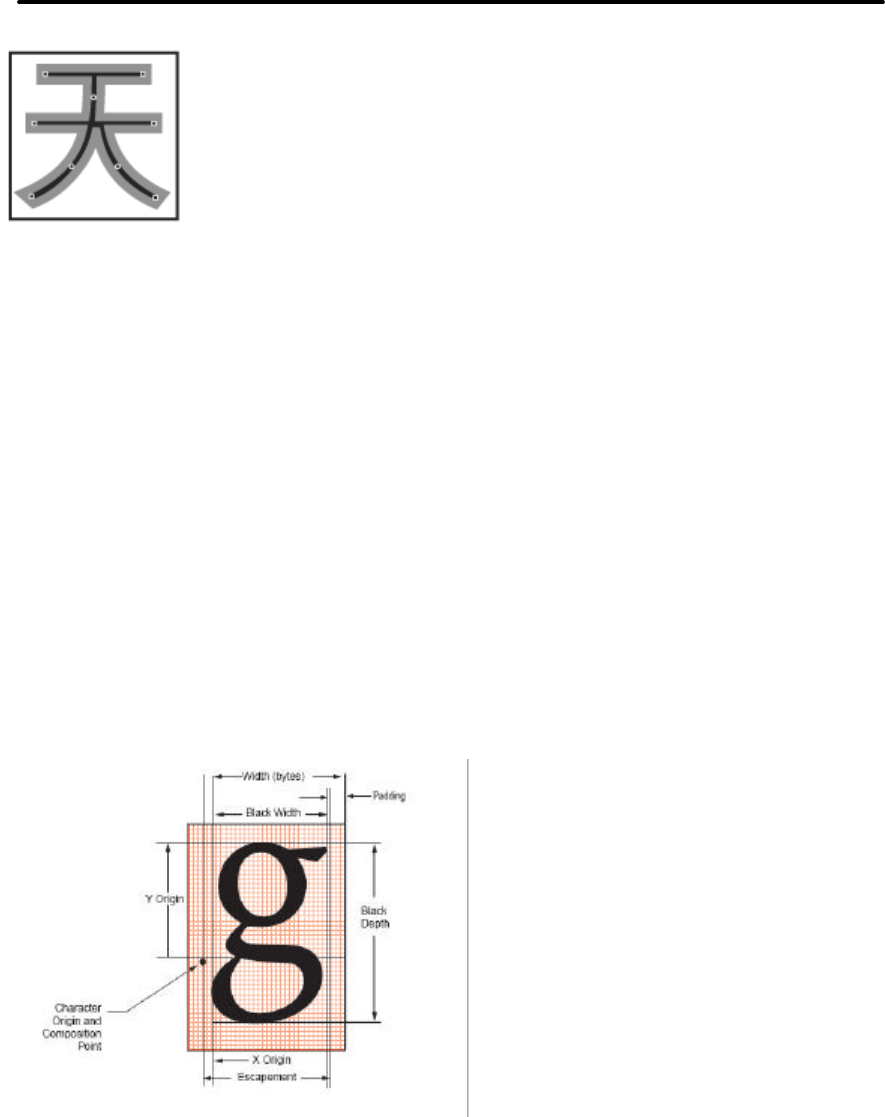
ITherm® 280 Unicode and Fonts iTherm® 280 Programmer’s Guide
Page 258 Rev C 28-07764
Stroke-based characters
With stroke based characters, the points stored are along the center line. Less
than half the points are needed to render stroke based characters. This
improves character-generation performance and uses less space.
This type of character generation is fast and efficient, and is ideally suited for
Asian fonts.
Character Definition
True Type and Stroke fonts are designed as a complete font with character cell size and
character position in the cell based on the overall font design. Typical the characters are
defined as vectors and stored as coordinates on a character cell grid. The grid is in an arbitrary
design unit and may be up to 4096 units on a side.
In most systems character sizes is specified as a point size where the point size refers to the
character height. The character width is typically variable and designed to produce the optimal
appearance. The font rendering system must take the requested point size and generate a
character based on the original design units and produce a character that is the correct size and
position for the printer.
In most font designs, the vertical point size includes white space between lines. The font
designer defines the height of the character cell in design units for all characters then defines a
character origin that will be used for all the characters in the font. The designer then defines
individual character sizes based on how the font is supposed to look and all the characters that
are to be included. Characters are then positioned in the cell based on this origin. All
characters in the font are then based on the same rules. The white space between lines in
defined to be above the character.
The information available at print time is listed above. The complete cell is not provided, only
the escapement, black width and depth and the x and y offsets to the origin are available. The
printer cannot arbitrarily shorten the cell height that was defined by the font designer even
though the provided character may fit in a smaller space. Using these rules, may result in
characters that at first appear too small with excessive white space between lines, however this
is how the font was designed. The printer must allow the minimum line spacing based on the

iTherm® 280 Programmer’s Guide ITherm® 280 Unicode and Fonts
28-07764 Rev C Page 259
point selection and not on the actual character height of any given characters. Second
guessing the font designer can have very bad results when character are encountered that use
the full cell.
Asian fonts require slightly different rules for character placement and are not as one would
expect. The Asian ideographs are positioned on center of mass, rather than on a baseline. The
Latin data in Asian typefaces must be built on the same rules. As a result, when Latin
characters are scaled the expected baselines do not line up. Asian fonts are also fixed pitch,
however, Latin character in the font are basically ½ the width of the typical Asian character.
Character Size
The character generation engine used in the ITherm 280 internally uses a standard point based
system to specify the character size. One point is 1/72 of an inch. Therefore a 72 point
character would form a character suitable to generate one line per inch printing. The typical
application might refer to a 12 point character. This is the character height and not the width.
The character width typically varies on character by character bases; for example, the lower
case “i” is much narrower than the upper case “W”.
Font selection commands for selecting character sizes in legacy applications are also
supported. For printers such as the ITherm 280, two or three character sizes are generally
predefined with a dot matrix size of 10x24 or 13x24 dots, and this fixed size may then be double
or tripled to provide larger characters when needed. To supply legacy support, the ITherm 280
will automatically select the appropriate character size to support the legacy font and character
scaling commands.
In the ITherm 280, the horizontal and vertical point size may be set independently. Typically
this type of printer would print a tall, narrow, mono-spaced character. Tall narrow mono-spaced
character provides a very readable print with easy column alignment while using less paper than
standard type fonts. This type of font is sometimes referred to as a condensed font.
Selecting Character Size
The ITherm 280 provides two ways to specify character size. The legacy or classic font
selection method is based on dot matrix size. The second method is based on the standard
type points system. The advantage of the type point system is that the print produced by the
printer will match what is displayed by the host system, as both use the same system for
describing the characters produced.
Legacy or Classic Method
With the classic method, the application selects a character size and then sets the character
spacing by adding or removing dot spaces between the characters. Using the scaled font, the
ITherm 280 provides 3 basic predefined character sizes. The smallest is a 10x24 dot-like16 font
and is typically printed in pitches from 16 to 20 characters per inch (CPI). The next larger font is
13 x 24 dot-like, and is typically printed in pitches from 14 to 16 CPI. The largest font is 14 x 24
dot-like font and is typically printed at pitches from 10 to 14 CPI.
The ITherm 280 always prints at 203 dots per inch (dpi) and always uses the scalable font to
form characters. The resulting characters are not necessarily exactly the dot size indicated, but
16 Characters are dot-like because they are not guaranteed to be exactly at an exact dot equivalent. They
are spaced in a fixed character cell that provides equivalent spacing and alignment as a fixed character
size, however the actual character size is defined by the font designer.

ITherm® 280 Unicode and Fonts iTherm® 280 Programmer’s Guide
Page 260 Rev C 28-07764
are always spaced in a fixed dot cell provided that the legacy commands are used. Adding or
subtracting space between characters achieves different character pitches with a fixed
character cell size. As each dot has a fixed size and position, only specific pitches are possible.
Character spacing may also be selected by requesting a print pitch based on characters pre
inch. Once again, the results are not exact.
If the requested spacing is zero, the character spacing will be defined by the character
definition, and will result in variable spacing.
Line spacing
The legacy commands select line spacing as lines per inch. With scalable characters, the lines
per inch is a minimum spacing. If a character is larger then the spacing between lines, the line
spacing will be increased to allow enough room for the characters on that line.
Selecting character size by points.
In addition to the legacy or classic method of character size selection, the ITherm 280 allows
selection by point size. Point sizes from 4 to 72 points may be selected for both the horizontal
and vertical axes. If a horizontal point size of zero (0) is selected for the horizontal spacing the
characters are printed using variable spacing based on the character definition, using the
vertical point size for the horizontal point size.
To provide fine control over character size, two commands are available, one of which specifies
the size in points, and the other of which specifies the size in ¼-point increments.
If the font is a stroke font, the boldness of the characters is controlled through variations in
individual stroke width.
Internal Fonts
The ITherm 280 is provided by default with a standard WGL4 outline-based font, and optionally
with an additional GB18030 stroke-based font. Additional user defined outline or stroke fonts
may be used as required.
The default font provided with the ITherm 280 is called “Andale Mono Regular” from Monotype.
This is a fixed-pitch font that produces good results when compared to legacy bitmap fonts. As
another alternative, the printer may be ordered with a variable-pitch font, which will allow
variable-pitch printing.
Character Cache
The ITherm 280 supports a high speed character cache that can cache character bitmaps,
outlines, tiles, or bands of characters. The caching technique is based on a least-recently used
(LRU) algorithm. The Cache contains an entry for each size of character used. The amount of
space in the cache used by each character is dependant on the size of the character.
At power up, the character cache is empty. The first ticket will require that all characters to be
printed be generated from the vector data. This will typically make the first ticket slightly slower
than subsequent tickets. It is also possible to define a user defined font with different metrics
that will cause the cache to be flushed when any of the user characters are being accessed. If
this should occur, the user defined font should be changed to match the other fonts in the
printer.

iTherm® 280 Programmer’s Guide ITherm® 280 Unicode and Fonts
28-07764 Rev C Page 261
Custom Fonts
The ITherm 280 supports TrueType fonts. There are several companies that will provide
custom character sets. The ITherm 280 uses fonts provided by Monotype. You can contract
Monotype through their website www.fonts.com, or by phone in U.S. & Canada (toll-free 1-800-
424-8973, directly at 1-781-970-6020), or the United Kingdom (Free Phone 0800 371242, direct
+44 (0)1737 765959.)
Stacked or Linked fonts
The ITherm 280 also uses a font stacking technology where fonts are linked together. This
means that as each character is looked up, the first font in the stack containing the character is
then printed. For example, if a customer would like to replace several standard characters with
custom characters, a user defined font can be provided that would, if first in the link, replace the
characters n the standard font.
It may also be desirable to stack fonts to provide a precedent for how individual characters are
looked up. For example:
• An application may wish to alter the appearance of several characters for security.
• It might be necessary to define a group of special symbols for a specific
application.
• It might be necessary to supplement a font with special characters like OCR
characters.
To provide this flexibility, the ITherm 280 has the ability to link up to 8 fonts together. When this
is done, the first font in the link is searched first. If the character is not defined, the next font in
the link is searched. This process is continued until the character is found or the last font is
searched.
There are two ways to define a linked font. This first is to define a default linked font in the
POR.INI file. If it link font is defined in the POR.INI file, it will be selected as the default power
on font. Selecting font 0 will select the linked font provided that a link font is defined.
It is also possible to dynamically define a linked font. This requires that the fonts to be linked be
aliased to a font id in the POR.INI file. Defining a linked font does not necessarily activate it. If
the linked font was not already active, it must be selected by selecting font 0.
Font Storage
The ITherm 280 supports a Flash file system used to store fonts, custom graphic and custom
macros. A file system interface is provided for this system, where the host application may
download files. In addition, TransAct Technologies provides a file loading tool that runs on
Windows® based systems.
To allow flexible and easy support for all kinds of fonts, fonts are stored in the ITherm 280
printer as a standard font file. These files are typically not visible to the user, however; TransAct
Technologies provides a support tool that will allow the user to load their own font directly from
Windows and change the way fonts are printed. It is also possible for the host application to
load fonts into the printer.
The printer can contain up to 99 unique and selectable fonts. Any font may be selected at any
time. In addition up to 8 fonts may be linked or stacked together. Some standard character size

ITherm® 280 Unicode and Fonts iTherm® 280 Programmer’s Guide
Page 262 Rev C 28-07764
and character pitch commands are supported as legacy commands. The appearance of the
print using those commands has been optimized using the TransAct WGL4 font. If you elect to
use your own font, or the GB18030 font, you may wish to use the scalable font control
commands to select the character size and spacing rather than the legacy commands.
TransAct Technologies provides a basic WGL4 font with the printer. This may be supplemented
or replaced with a GB18030 Chinese font upon request. The printer will accept TrueType and
compressed stroke fonts as defined by Monotype. If required, the customer may supplement
the TransAct supplied fonts with their own custom fonts.
WARNING:
If you elect to load fonts into the printer you must have proper
rights to that font. Do not download a font to the printer if you do not have
the right to use the font as a downloaded printer font.
Unicode
As computer systems started to address more and more international environments, the classic
ASCII standard with code pages became unworkable. Several competing systems were
developed. however it was clear that a standard needed to be developed. In 1991 Version 1.0
of the Unicode standard was developed, to standardize how and where characters are to be
addressed in an expanded addressing scheme. In 2000 Version 3.0 of the Unicode standard
was published and generally accepted. The ITherm 280 follows this standard for character
placement and encoding17.
Note
:
If a custom font is used that is not in Unicode order, the order of the font will be
used as if it were in Unicode order. Any subsequent character mappings will assume to
be in Unicode order and may not produce the desired effects.
Unicode Encoding
The ITherm 280 Printer supports Unicode character addressing using Unicode Transform
Format or UTF as defined in the Version 3.0 Unicode Specification. There are several forms of
UTF encoding.
UTF-16 is the most straightforward way to access characters above 255. UTF-16 essentially
sends two 8-bit bytes that form a 16-bit address to access the desired character. Basic UTF-16
does not define the byte order. If you wish to use UTF-16 and allow the printer to determine the
byte order, you must send the byte order mark (0xFEFF) before you send any characters. To
prevent loss of byte order synchronization, you should periodically send the byte order mark to
resynchronize the printer with your application. If UTF-16 is selected, all data sent to the printer
must be 16 bits. All commands and command parameters are also 16 bit, however only values
between 0 and 255 are valid. Note that 24 bit encoding is not supported.
UTF-16BE uses the big-endian method of sending the two bytes. This method sends the high
byte first and then the low byte. It is not required to send the byte order mark (0xFEFF) for the
correct byte order to be initialized. However, to prevent loss of byte order synchronization, you
should periodically send the byte order mark to resynchronize the printer with your application. If
17 The Version 3.0 Unicode standard defines a 24 bit addressing method that is not supported by the Epic
430TM. The Epic 430TM is limited to a 16-bit address value. Values greater than 65535 will be truncated
to 16 bits.
iTherm® 280 Programmer’s Guide ITherm® 280 Unicode and Fonts
28-07764 Rev C Page 263
UTF-16BE is selected, all data sent to the printer must be 16 bits. All commands and command
parameters are also 16 bit, however only values between 0 and 255 are valid.
UTF-16LE uses the little-endian method of sending the two bytes. This method sends the low
byte first and then the high byte. It is not required to send the byte order mark (0xFEFF) for the
correct byte order to be initialized. However, to prevent loss of byte order synchronization, you
should periodically send the byte order mark to resynchronize the printer with your application. If
UTF-16LE is selected all data sent to the printer must be 16 bits. All commands and command
parameters are also 16 bit, however only values between 0 and 255 are valid.
UTF-8 uses a Multiple Byte Character Sequence (MBCS) to identify the desired Unicode
character. This encoding method is less straightforward but preserves some of the 8-bit
character of ASCII encoding.. This method uses unique bit sequences at the MSBs of a byte to
determine its location and meaning within the MBCS encoding. See the table below for more
information. If UTF-8 is selected all data sent to the printer must be encoded. All command
parameters over 127 must be encoded in UTF-8.
UTF-8TXT uses a Multiple Byte Character Sequence (MBCS) to identify the desired Unicode
character. This encoding method is identical to UTF-8 except command parameters over 127
are not UTF-8 encoded. They must be sent unmodified as 8-bit values.
Note
:
Extended UTF encoding past 65534 is not supported in UTF
-
16 or UTF
-
8. Only
Unicode addresses from 0 to 65534 are supported by the ITherm 280 Printer.
Scalar Value 1
st
Byte 2nd Byte 3rd Byte
000000000xxxxxxx 0xxxxxxx
00000yyyyyxxxxxx 110yyyyy 10xxxxxx
Zzzzyyyyyyxxxxxx 1110zzzz 10yyyyyy 10xxxxxx
NOTE: 4 byte encoding is not supported.
UTF-8TXT is probably the easiest mode to use. It allows normal 8 bit
commands and graphics while still supporting the full Unicode character
encoding range. Typically ITherm 280 Printers are shipped set to this
mode.
ITherm® 280 Unicode and Fonts iTherm® 280 Programmer’s Guide
Page 264 Rev C 28-07764
Unicode Encoding Example
3 Byte output Example
Hex Character Code: FA11
FA 11 - Original Hex Code(s)
11111010 000100001 - Converted to Binary
1111 1010 00 0100001 - Underlined by section (ending of output byte)
Section A Section B Section C
4 digits 6 digits 6 digits
1110 1111 10 101000 10 010001 - 3 (8bit) Binary numbers
EF A8 91 - 3 Hex Bytes to Output
<239> <168> <145> - 3 decimals to output

iTherm® 280 Programmer’s Guide ITherm® 280 Unicode and Fonts
28-07764 Rev C Page 265
Bitmap Fonts
It is possible to use bitmap fonts with the ITherm 280 Printer. Bitmap fonts are fixed pitch and
are not scalable. They will only function as legacy fonts. The printer is optionally supplied with
4 legacy bitmap fonts. They are in a 10x24, 12x24 draft font format and a 16x24 near letter
quality format. They are defined as follows:
BMFont0 = chr10x24.bft 10 x 24 draft font with typical spacing of 16 characters per inch
BMFont1 = chr12x24.bft 12 x 24 draft font with typical spacing of 14 characters per inch
BMFont2 = chr16x24.bft 16 x 24 NLQ font with typical spacing of 12 characters per inch
BMFont4 = ocr16x24.bft 16 x 24 OCR font with typical spacing of 12 characters per inch
It is possible to define a custom bitmap font. Transact supports a bitmap font compiler that will
convert a bitmap font picture file into a compressed bitmap file that may be loaded into the
printer as a bitmap (.bft) font file.
The input to the program is a text file in a predefined format consisting of a font description and
then character definitions consisting of the character ID and then the character definition. The
format is as follows: (Note lines preceded with # characters are comments.
# 11 by 24 font with a base line at 22
# F=X is not used in Thermal Products
W=11 H=24 B=22 F=0
; N=0000 U=0000 NULL
01 ...........
02 ...........
03 ...........
04 ...........
05 ...........
06 ...........
07 ...........
08 ...........
09 ...........
10 ...........
11 ...........
12 ...........
13 ...........
14 ...........
15 ...........
16 ...........
17 ...........
18 ...........
19 ...........
20 ...........
21 ...........
22 ...........
23 ...........
24 ...........
; N=0001 U=0020 SPACE
01 ...........
02 ...........

ITherm® 280 Unicode and Fonts iTherm® 280 Programmer’s Guide
Page 266 Rev C 28-07764
03 ...........
04 ...........
05 ...........
06 ...........
07 ...........
08 ...........
09 ...........
10 ...........
11 ...........
12 ...........
13 ...........
14 ...........
15 ...........
16 ...........
17 ...........
18 ...........
19 ...........
20 ...........
21 ...........
22 ...........
23 ...........
24 ...........
; N=0002 U=0021 EXCLAMINATION MARK
01 ...........
02 ...........
03 ...00......
04 ...00......
05 ...00......
06 ...00......
07 ...00......
08 ...00......
09 ...00......
10 ...00......
11 ...00......
12 ...00......
13 ...00......
14 ...00......
15 ...00......
16 ...00......
17 ...........
18 ...........
19 ...........
20 ..0000.....
21 ..0000.....
22 ..0000.....
23 ...........
24 ...........
; N=0003 U=0022 QUOTATION MARK
01 ...........
02 ...........
03 .00..00....
04 .00..00....

iTherm® 280 Programmer’s Guide ITherm® 280 Unicode and Fonts
28-07764 Rev C Page 267
05 .00..00....
06 .00..00....
07 .00..00....
08 ...........
09 ...........
10 ...........
11 ...........
12 ...........
13 ...........
14 ...........
15 ...........
16 ...........
17 ...........
18 ...........
19 ...........
20 ...........
21 ...........
22 ...........
23 ...........
24 ...........
; N=0004 U=0023 NUMBER SIGN
01 ...........
02 ...........
03 ...........
04 .....00....
05 ..00.00....
06 ..00.00....
07 ..00.00....
08 ..00.0000..
09 ..0000000..
10 0000000....
11 0000.00....
12 ..00.00....
13 ..00.00....
14 ..00.0000..
15 ..0000000..
16 0000000....
17 0000.00....
18 ..00.00....
19 ..00.00....
20 ..00.00....
21 ..00.......
22 ...........
23 ...........
24 ...........
The characters must be in sequential order and must be assigned Unicode character codes.
N=0001 is a sequence number in hex and is not used in controlling character generation or
order. U=0021 is the Unicode address in hex and the characters must be in ascending Unicode
address order.

ITherm® 280 Unicode and Fonts iTherm® 280 Programmer’s Guide
Page 268 Rev C 28-07764
File system and the POR.INI file
The ITherm 280 Printer supports a file system to support TransAct Technologies fonts and allow
the user to load and link custom fonts.
The POSFile tool provides a Windows interface to the printer and will allow fonts and
configuration files to be loaded into the printer. This tool can read and write the POR.INI file,
however the TransAct supplied fonts can not be read or deleted from the printer.
TrueType18 and Compressed Stroke Fonts19 are supported by the ITherm 280 Printer. User-
defined TrueType fonts many be defined and loaded into the printer, however, once in the
printer they can not be extracted. (This protects the copyrights on the font.)
The POR.INI file is used to control how fonts are encoded, named, identified and linked, as well
as allowing how the font to be printed is controlled. In addition the POR.INI file defines how
each legacy font is defined and printed.
The POR.INI file is divided into sections:
• [encoding]
This section defines how the printer encodes the character set. It may be ASCII with
code page, or Unicode. If ASCII is selected the default code page is selected and/or
defined in this section.
• [font]This section defines how the scalable fonts are named and generated. You can
control the font cache size and partitions, the Hinting, link fonts and font abstractions.
• [bmfont]
This section defines and abstracts any bitmap font definitions.
• [Legacy]
This section defines how the previously defined fonts are used to generate legacy fonts
for each emulation.
The following is an example of the POR.INI file:
; Default System Configuration.
[encoding]
mode = UTF8TXT
;NOTE: A code page is only used in ASCII mode.
;To specify a code page, use one of the following forms:
;CodePage = 437
;CPFile = CP8959-1.cpm
;To remap Unicode characters, define a UniRemap.cpm file.
;UniMapfile = UniRemap.cpm
[font]
;Optionally specify the Cache Partitions
;Fontcache = 320,256,64
;True Type font hinting may be disabled by setting Nohint to 1
;Nohint = 0
;Specify Linked fonts starting with LinkFont1.
;LinkFont1 will be searched first.
;You may specify up to 8 fonts in a linked font.
;if Link Fonts are defined, they will be Font0.
18 Some but not all features of Open Type fonts are supported. Open Type fonts are not recommended.
19 Compressed Stroke fonts are supplied by MonoType Inc.

iTherm® 280 Programmer’s Guide ITherm® 280 Unicode and Fonts
28-07764 Rev C Page 269
LinkFont1 = TactMOD.ttf
LinkFont2 = TactWGL.ttf
LinkFont3 = TactGB18030.ccc
;From 1 to 99 fonts may be defined
Font1 = TactMOD.ttf
Font2 = TactWGL.ttf
Font3 = TactGB18030.ccc
Font4 = TactOCR.ttf
;The brush size effects only stroke fonts.
Brush = 100
[legacy]
;EmulationMode = Font,Horizontal,Vertical,Width.
; Where:
; If Font = 0 Use Linkfont else 1-4 above.
; If Font is 100 or greater use BMFont (Font - 100). BMFonts only used
Width.
; Horizontal and Vertical are in 8th points, Width in Dots.
Epson1 = 0,56,72,10
Epson2 = 0,64,72,14
PcOS1 = 0,56,72,10
PcOS2 = 0,64,72,14
PcOS3 = 0,80,80,18
PcOS4 = 0,80,80,20
PcOSOCR = 4,80,80,20
[bmfont]
;There may be up to 8 bitmap fonts.
;Bitmap fonts are fixed sizes and have no options
BMFont0 = chr10x24.bft
BMFont1 = chr13x24.bft
BMFont2 = chr15x24.bft
BMFont3 = chs15x24.bft
BMFont4 = ocr15x24.bft
Font1 through Font99 may be defined, and the font number is the alias used by the set font
command, e.g. Font23 is selected by doing a select font 23 command. Font 0 is reserved for
selecting the linked font.
The printer may contain one default linked font. A linked font is a method of allowing the user to
replace characters in a standard font with custom characters, described in more detail in an
earlier section. The POR.INI file is one way of defining a linked font. In the above POR.INI file
link the link font consists of User, TactWGL, and the TactGB18030 fonts. When a character is
to be printed, the user font will be searched followed by TactWGL and then the TactGB18030
font. The first font containing the character will define the character.
Bitmap fonts are not recommended, they should only be used if an exact bitmap is required.
Bitmap fonts are not scalable like true type fonts, only the normal 2X, 3X and so on scaling is
available. TransAct Technologies can upon request and signing an NDA provide tools to allow
the customer to develop there own bitmap fonts. These fonts must be in Unicode order but only
need support the specific characters needed in the font. NOTE: When loaded and made
available the legacy select font commands should select the bitmap font by adding 100 to the
font ID. For example to use BMFont0, select font 100 in the Legacy font definition. (Note: Only
the font ID is used from the legacy font definition if a bitmap font is selected.)

ITherm® 280 Unicode and Fonts iTherm® 280 Programmer’s Guide
Page 270 Rev C 28-07764
Legacy font definitions define the Size, spacing, font, quality and spot size to be used to
generate a legacy font. For example the PcOS [esc] I<0> font select command will select
PcOS1 font. (Note that the font select and the Font ID are offset by one.) The font size is
defined in 1/8th point units. This gives a lot of control of the size. Because the ITherm 280
printer prints discreet dots that are relative large (from a font point view), changes in character
size will appear to jump. That is small changes in size will not appear to alter the character and
them an 1/8th point change will make a dramatic change. If you wish to change the font and/or
the character size select a size in the middle of the step. Even though small changes don’t
appear to have an effect, small changes do occur in the font generation and a value in the
middle works best. The X and Y Spot size effects how the characters are generated. The spot
size is equivalent to selecting a paint brush. A small spot is a small paint brush and therefore
requires a lot mot brush strokes to form the character. As the dots printed by the printer are
always the same size, defining a small spot will cause more dots to be used to form the
character. Depending on how the font was defined, it is advantageous to select a large brush
size and affectively reduce the number of dots in the character. There are no real guidelines for
selecting Spot size. You have to play with it until you get acceptable results with your font. If
you select a high quality print mode. This value can be set to nominal. (Nominal is 100).
Function Select Font All
ASCII [ESC] + 3 <ID>
Hexadecimal 1BH 2BH 31H
Decimal <27> <43> <51>
Description The [ESC] + 3 command selects the font for printing. This command is used to
select a previously loaded font based on its alias.
Note:
Selecting font 0 will select the linked font. If the selected font does not exist, the
previous font will remain in effect.
Note:
Selecting font
10
0 will select
bit map
font
0
.
101 is bitmap font 1 and so on. Up
to 7 bitmap fonts may be present.
Function Define a Stacked or Linked Font All
ASCII [ESC] + S <ID1> <ID2> <ID2> … <0>
Hexadecimal 1BH 2BH 53H
Decimal <27> <43> <83>
Description The [ESC] + S command defines but does not select a stacked or linked font set.
This command will define a linked list of previously loaded and aliased fonts into
a linked font stack. The font ID is the same ID as in the select font command.
Up to 8 fonts may be linked. The last entry must be 0. If the font does not exist,
it will not be made part of the link.
Note:
You must select font 0
to activate the linked font.
Note:
You can not use bitmap fonts as part of a linked font.
.
iTherm® 280 Programmer’s Guide ITherm® 280 Unicode and Fonts
28-07764 Rev C Page 271
Function Select Font by name All
ASCII [ESC] + N <FileName> <0>
Hexadecimal 1BH 2BH 31H
Decimal <27> <43> <51>
Description The [ESC] + N command selects the font for printing by file name. This
command is used to select a previously loaded font by its file name. If the
selected font does not exist, the previous font will remain in effect.
Note:
This command may be undesirable because it embeds in the application a file
name that you may wish to change in the future. By using the Alias ID the font name
may change, but the application will remain constant.
Note:
This
command may be
used to load and select a bitmap font. If a bitmap font is
selected with this command, it will define bitmap font 7 and select it. Once loaded, it
may be reselected by selecting font 107.
Function Initiate Unicode UTF-16BE Encoding All
ASCII [ESC] + H
Hexadecimal 1BH 2BH 48H
Decimal <27> <43> <72>
Description The [ESC] + H command will put the printer into UTF-16BE character encoding
mode of operation. If you wish to access characters above 255, you must select
a Unicode encoding such as UTF-16BE.
UTF-16 is the most straightforward way to access characters above 255, sending
two 8-bit bytes that form a 16-bit address to access the desired character.
UTF-16BE uses the big-endian method of sending the two bytes. This method
sends the high byte first and then the low byte.
Note:
Once selected, all information sent to the printer must then use this encoding,
even for non-print commands.
Function Initiate Unicode UTF-16LE Encoding All
ASCII [ESC] + L
Hexadecimal 1BH 2BH 4CH
Decimal <27> <43> <76>
Description The [ESC] + L command will put the printer into UTF-16LE character encoding
mode of operation. If you wish to access characters above 255, You must select
a Unicode encoding such as UTF-16LE.
UTF-16 is the most straightforward way to access characters above 255, sending
two 8-bit bytes that form a 16-bit address to access the desired character.
UTF-16LE uses the little-endian method of sending the two bytes. This method
sends the low byte first and then the high byte.
Note:
Once selected, all information sent to the printer must
then use this encoding,
even for non-print commands.
Function Initiate Unicode UTF-8 Encoding (MBCS) All
ITherm® 280 Unicode and Fonts iTherm® 280 Programmer’s Guide
Page 272 Rev C 28-07764
ASCII [ESC] + M
Hexadecimal 1BH 2BH 4DH
Decimal <27> <43> <77>
Description The [ESC] + M command will put the printer into UTF-8 character encoding mode
of operation. If you wish to access characters above 255, You must select a
Unicode encoding such as UTF-8.
UTF-8 uses a Multiple Byte Character Sequence (MBCS) to identify the desired
Unicode character. This encoding method is less straightforward. This method
uses unique bit sequences at the MSBs of a byte to determine its location and
meaning within the MBCS encoding. See the table below for more information.
Note:
Once selected, all information sent to the printer must then use this encoding,
even for non-print commands.
Scalar Value 1
st
Byte 2nd Byte 3rd Byte
000000000xxxxxxx 0xxxxxxx
00000yyyyyxxxxxx 110yyyyy 10xxxxxx
zzzzyyyyyyxxxxxx 1110zzzz 10yyyyyy 10xxxxxx
Function Initiate Unicode UTF-8 Text only Encoding (MBCS) All
ASCII [ESC] + T
Hexadecimal 1BH 2BH 54H
Decimal <27> <43> <84>
Description The [ESC] + T command will put the printer into UTF-8 Text only character
encoding mode of operation. This mode is identical to the UTF-8 mode
described above, except commands and there parameters are not UTF encoded.
For example the following command would be used to select underline on:
[ESC] W 128.
If true UTF-8 encoding were in effect, the 128 parameter would be UTF encoded
to [ESC] W 194 128. With UTF-8 Text only mode this command is simply [ESC]
W 128.
Note:
This command also applies
to graphic data being sent to the printer. The graphic
data is a command and not text. It is not UTF-8 encoded.
Function Initiate Normal 8-bit ASCII Character Encoding All
ASCII [ESC] + A
Hexadecimal 1BH 2BH 41H
Decimal <27> <43> <65>
Description The [ESC] + A command will put the printer into normal character encoding mode
of operation. One byte = one character. In this mode international characters
must be selected by selecting the appropriate code page for translation.
iTherm® 280 Programmer’s Guide ITherm® 280 Unicode and Fonts
28-07764 Rev C Page 273
Font Size and Spacing
The font typically defines the character size and line spacing. The typical font is proportional
spaced. That is the spacing between characters varies. This is not always the most desirable
mode of operation. To give the programmer some additional control over character spacing and
line height, the Accutherm Supreme provides a width and height override command.
The following table converts dots to CPI (Characters Per Inch) points and ¼ points and is useful
in calculating point size settings.
Dots
1/203” Characters per Inch
(CPI) Points
1/72” ¼ Points
1/288”
8 25.38 2.84 11.35
9 22.56 3.19 12.77
10 20.30 3.55 14.19
11 18.45 3.90 15.61
12 16.92 4.26 17.02
13 15.62 4.61 18.44
14 14.50 4.97 19.86
15 13.53 5.32 21.28
16 12.69 5.67 22.70
17 11.94 6.03 24.12
18 11.28 6.38 25.54
19 10.68 6.74 26.96
20 10.15 7.09 28.37
21 9.67 7.45 29.79
22 9.23 7.80 31.21
23 8.83 8.16 32.63
24 8.46 8.51 34.05
25 8.12 8.87 35.47
26 7.81 9.22 36.89
27 7.52 9.58 38.31
28 7.25 9.93 39.72
29 7.00 10.29 41.14
41 4.95 14.54 42.56
48 4.23 17.02 68.10
51 3.98 18.09 72.35
68 2.99 24.12 96.47
101 2.01 35.82 143.29

ITherm® 280 Unicode and Fonts iTherm® 280 Programmer’s Guide
Page 274 Rev C 28-07764
Font Size and Spacing command interactions
There are interactions between some of the following commands and some of the legacy font
selection commands. These interactions need to be considered when developing a application
for this printer.
This printer uses a font rendering engine that relies on the font to provide character size and
spacing information. Unfortunately, legacy applications assume all characters are the same and
that the character size and spacing is fixed. To force the characters rendered by the font
rendering engine to conform to legacy modes of operation, some post generation processing is
performed to reposition the characters into a fixed size cell.
The set minimum character height and width ([ESC] + P and [ESC] + p), the set character
spacing ([ESC] + I, [ESC] + i, [ESC] + J and [ESC] + j), the set minimum line spacing ([ESC] + V
and [ESC] + v), and the legacy font select and spacing commands all interact.
The set minimum character height and width ([ESC] + P and [ESC] + p) commands set
character size but in two different ways. In most systems a character point size refers only to
the line spacing and indirectly to the character height. That is also true. The vertical character
height referenced in these commands refer to the character height including the white space
between lines. The horizontal character width is defined by the font. Normally only the
character height would be specified and the width would be defined by the font and that’s how
these commands work if the Width is defined as zero. If the width is defined as zero this is used
as a flag to the printer to generate characters as defined by the font and use the character width
returned by the font. In effect the vertical point size passed to the font rendering engine is the
same as the horizontal value. The added effect of the width being passed as zero is that any
enforced horizontal spacing is disables. IE the effect of the [ESC] + I, [ESC] + i, [ESC] + J and
[ESC] + j commands are disabled. If the width is not zero, the [ESC] + I, [ESC] + i, [ESC] + J
and [ESC] + j remain in effect and only the resulting character size is changed, the horizontal
spacing is not changed.
The legacy [ESC] ! <n> select the print mode effectively issues a set minimum character height
and width command followed by a set character spacing command without effecting the pseudo
fixed spacing flag.
The pseudo fixed spacing flag is a further complication required for dealing with fonts that are
not truly fixed pitch. In some cases a fixed pitch font will have more that one character size
depending on what the character is used for. This generally only affects Asian fonts where the
ideograms are generally twice as wide as Latin characters. In fixed spacing mode, the printer
will put the rendered character at whatever spacing is requested even if they don’t fit. If the
character is too big, it will overlap the previous and next character. To allow a fixed pitch
operation that deals with small and large fixed pitch character, the printer has a pseudo-fixed
pitch flag that will increase the spacing in multiples of the requested spacing until it fits.
The following table lists the commands and how they interact.
Command
Zero
Character
width
Character
height
Cell Width
Pseudo Fixed
pitch flag
[ESC] + P,
[ESC] + p
Width 0
Same as
Height
Fr
om
command
From Font
No effect

iTherm® 280 Programmer’s Guide ITherm® 280 Unicode and Fonts
28-07764 Rev C Page 275
[ESC] + P,
[ESC] + p
Width
Not Zero
From
Command
From
command
Based on
set character
spacing
command
Will be used if
previously set
and character
spacing is not
being defined
by the font
[ESC] + I,
[ESC] + i
Value 0
No eff
ect
No effect
From Font
Set Off but has
no effect
[ESC] + I,
[ESC] + i
Value
Not zero
No effect
No effect
From
Command
Set Off
[ESC] + J,
[ESC] + j
Value 0
No effect
No effect
From Font
Set On but has
no effect
[ESC] + J,
[ESC] + j
Value
Not zero
No ef
fect
No effect
A multiple of
the value
defined by the
command
Set On
[ESC]I <n>
From
POR.INI
definition
From
POR.INI
definition
As defined by
command
Will be used if
previously set.
ITherm® 280 Unicode and Fonts iTherm® 280 Programmer’s Guide
Page 276 Rev C 28-07764
Function Set minimum character height and width in points. All
ASCII [ESC] + P <w><h>
Hexadecimal 1BH 2BH 50H
Decimal <27> <43> <80>
Range w = 0, 4 – 72 h = 4 - 72
The [ESC] + P command will set the minimum character width or height based on “w” for the
width and “h” for height, where “w” and “h” are in points, defined as 1/72nd of an inch increments.
If the character width is set to zero, the height will be used for the width and proportional
spacing will be used.
NOTE: The set pitch command will take precedence unless this command
selects 0 width.
Function Set minimum character height and width in ¼ points. All
ASCII [ESC] + p <w><h>
Hexadecimal 1BH 2BH 70H
Decimal <27> <43> <112>
Range w = 0, 16 – 255 h = 16 - 255
The [ESC] + p command will set the minimum character width or height based on “w” for the
width and “h” where “w” and “h” are in ¼ points or 1/288th of an inch increments. This
approximates setting characters by dot.
If the character width is set to zero, the height will be used for the width and proportional
spacing will be used.
NOTE: The set pitch command will take precedence unless this command
selects 0 width.
Function Set Character spacing in points. All
ASCII [ESC] + I <d>
Hexadecimal 1BH 2BH 49H
Decimal <27> <43> <73>
Range d = 0, 4 – 72
The [ESC] + I command will set the character spacing in points, where one point is defined as
1/72nd of an inch. This command will force mono-space printing. It will override any character
spacing set by the set character height and width commands defined above. This spacing will
be enforced until deactivated by setting the value to 0 or if the set character height and width
commands use a 0 for the width indicating proportional spacing should be used. This command
differs from the [ESC] + J command in that all characters are centered on the fixed cell size. It
the character is too big for the cell, it may overlap the previous and next character. The
character size is not adjusted to fit the cell.
If d = 0 variable spacing is selected.

iTherm® 280 Programmer’s Guide ITherm® 280 Unicode and Fonts
28-07764 Rev C Page 277
NOTE: If the current character size is too large for the selected spacing,
the characters will overlap. Variable spacing is recommended.
Function Set Character spacing in ¼ points. All
ASCII [ESC] + i <d>
Hexadecimal 1BH 2BH 69H
Decimal <27> <43> <105>
Range d = 0, 16 – 255
The [ESC] + i command will set the character spacing in points, where ¼ point is defined as
1/288th of an inch. This command will force mono-space printing. It will override any character
spacing set by the set character height and width commands defined above. This spacing will
be enforced until deactivated by setting the value to 0 or if the set character height and width
commands use a 0 for the width indicating proportional spacing should be used. This command
differs from the [ESC] + j command in that all characters are centered on the fixed cell size. It
the character is too big for the cell, it may overlap the previous and next character. The
character size is not adjusted to fit the cell.
If d = 0 variable spacing is selected.
NOTE: If the current character size is too large for the selected spacing,
the characters will overlap. Variable spacing is recommended.
Function Set Character spacing in points with adjustment. All
ASCII [ESC] + J <d>
Hexadecimal 1BH 2BH 4AH
Decimal <27> <43> <74>
Range d = 0, 4 – 72
The [ESC] + J command will set the character spacing in points, where one point is defined as
1/72nd of an inch. This command will force mono-space printing. It will override any character
spacing set by the set character height and width commands defined above. This spacing will
be enforced until deactivated by setting the value to 0 or if the set character height and width
commands use a 0 for the width indicating proportional spacing should be used. This command
differs from the [ESC] + I command in that if the character is too large for the cell, the cell will be
expanded in multiples of <d> until the character fits.
If d = 0 variable spacing is selected. However, note that the cell adjustment flag will remain set
and if legacy commands are used they will allow the cell to be expanded.
NOTE: If the current character size is too large for the selected spacing,
the cell size will be expanded
Function Set Character spacing in points with adjustment. All
ASCII [ESC] + j <d>
Hexadecimal 1BH 2BH 6AH

ITherm® 280 Unicode and Fonts iTherm® 280 Programmer’s Guide
Page 278 Rev C 28-07764
Decimal <27> <43> <106>
Range d = 0, 16 – 255
The [ESC] + j command will set the character spacing in points, where ¼ point is defined as
1/288th of an inch. This command will force mono-space printing. It will override any character
spacing set by the set character height and width commands defined above. This spacing will
be enforced until deactivated by setting the value to 0 or if the set character height and width
commands use a 0 for the width indicating proportional spacing should be used. This command
differs from the [ESC] + i command in that if the character is too large for the cell, the cell will be
expanded in multiples of <d> until the character fits.
If d = 0 variable spacing is selected. However, note that the cell adjustment flag will remain set
and if legacy commands are used they will allow the cell to be expanded.
NOTE: If the current character size is too large for the selected spacing,
the characters will overlap. Variable spacing is recommended.
Function Set minimum Line Spacing in Points All
ASCII [ESC] + V <d>
Hexadecimal 1BH 2BH 56H
Decimal <27> <43> <86>
Range d = 0, 4 – 72
The [ESC] + V command will set the line spacing in points, where one point is defined as 1/72nd
of an inch.
If d = 0 variable spacing is selected.
NOTE: This is the minimum spacing. If the character height setting
requires a larger spacing, the character height will override this setting.
Function Set minimum Line Spacing in ¼ Points All
ASCII [ESC] + v <d>
Hexadecimal 1BH 2BH 76H
Decimal <27> <43> <118>
Range d = 0, 16 – 255
The [ESC] + v command will set the line spacing in ¼ points, where ¼ point is defined as
1/288th of an inch.
ASCII [ESC] + v <d>
Hexadecimal 1BH 2BH 76H
Decimal <27> <43> <118>
Range d = 0, 16 – 255
If d = 0 variable spacing is selected.
iTherm® 280 Programmer’s Guide ITherm® 280 Unicode and Fonts
28-07764 Rev C Page 279
NOTE: This is the minimum spacing. If the character height setting
requires a larger spacing, the character height will override this setting.
Function Set stroke font brush size. All
ASCII [ESC] + B <w>
Hexadecimal 1BH 2BH 42H
Decimal <27> <43> <66>
Range w = 0, 6 – 200
Description The [ESC] + B command will set brush stroke percentage for stroke fonts. If the
brush size is set to zero the font design stroke width will be used.
Values from 6 to 200 represent 0.4 to 12% of the em-width of the font. The default for most
fonts is about 3%. The ITherm 280 using the GB18030 font supplied by TransAct Technologies
produces the best characters with a brush size of about 100.
Note:
The default value for the Brush stroke may be set in the POR.INI file.
[ESC] [ P Set character pitch (Legacy mode command) PcOS
ASCII [ESC] [ P <n>
Hexadecimal 1BH 5BH 50H <n>
Decimal <27> <91> <80> <n>
IPCL &%F1, &%F2, &%F3, &%F4, &%F5, &%F6, &%F7
EPOS [ESC] [SP] <n>
Description The [ESC] [ P <n> command sets character per inch print pitch to <n>. The
printer resolution limits the exact print pitch. The following table lists the exact
pitch for various values on <n>.
<n> Resulting
Characters
per Inch
IPCL
1 1.00
2 2.00
3 3.01
4 4.00
5 4.95
6 5.94
7 6.93
8 8.00 &%F7
9 9.04
10 9.90 &%F3
11 10.95
12 12.23 &%F2
13 13.00
14 13.87
15 14.86 &%F6
<n> Resulting
Characters
per Inch
IPCL
16 16.00
17 17.33 &%F1
18 17.33
19 18.91
20 20.8 &%F5
21 20.8
22 23.11
23 23.11
24 23.11 &%F4
25 23.11
26 26
27 26
28 26
29 29.71
30 29.71
Table 51 Character Pitch

ITherm® 280 Unicode and Fonts iTherm® 280 Programmer’s Guide
Page 280 Rev C 28-07764
This command disables any right-side spacing set by the [ESC] V command. It enforces
this spacing on the current font selection even if the character is too large for the
spacing. In addition, when font changes are made, the character pitch is maintained.
Legacy Printer Features that Have Changed
Because this product employs outline and stroke font character generation, support for
several legacy features are changed from standard iThem 280 version.
Dynamic code page definition
Dynamic code page definition is still supported when in ASCII mode, however Unicode is
now used for the source character locations.

28-07764 Rev C Page 281
chapter
9
File System
Page 282 Rev C 28-07764
This page intentionally left blank

iTherm® 280 Programmer’s Guide ITherm® 280 File System
28-07764 Rev C Page 283
File System Interface
The ITherm 280 provides a file system to support fonts, configuration information, user graphics
and macros.
There are a number of commands that are provided to support the file system. In general, files
need to be opened for read or write, read or written, and then closed. There is a command that
will delete a file, and print or return a file directory.
TransAct Technologies provides a Windows® based tool that will interact with the ITherm 280
and provide a drag and drop interface to the file system.
The file system in the ITherm 280 is partitioned into two sections, one for internal system use by
the printer, and one for user information.
The system partition is referred to as partition 0. It is reserved for fonts, configurations and code
page files. This partition can not be deleted or completely erased. The second partition is for all
other information. There is a command that will erase all the files in this partition. The partition
where files are placed is determined by the three character extension.
File System commands
Function Open File command. All
ASCII [ESC] [RS] O < Mode > <space> < Filename ><0>
Hexadecimal 1BH 1EH 4FH
Decimal <27> <30> <79>
Mode Mode of operation “r” for read or “w” for write.
FileName File name from 1 to 30 characters including a three character extension.
Description The [ESC] [RS]O command will select and open a file for the selected operation.
If the file being opened for write exists, the existing file will be overwritten. Note
that only one file may be open for external operations at any one time.
The Mode and FileName take the following format and must be null terminated:
r Filename.ext<0>
Valid Modes are:
“r” Read.
“w” Write
“w+” Write Append (Future enhancement)
“ram” open a RAM file for write.
Note:
RAM files capability is an optio
n and not available on all products.
File Extensions are any three characters. The following are predefined and reserved for internal
use.
Extension
Partition
0= System
Definition
ITherm® 280 File System iTherm® 280 Programmer’s Guide
Page 284 Rev C 28-07764
1= User
.udf 1 Undefined macro type
.mac 1 Command Macro
.img 1 Graphic image. (Internal format)
.bgp 1 Bitmapped internal graphic
.chr 1 User Character definition
.cfg 0 configuration.
.ttf 0 true type font
.ccc 0 compressed stroke font
.btf 0 Bitmap font definition
.cpm 0 code page map.
.bmp 1 bitmap graphic file
.gph 1 raster graphic file.
.ini 0 System information file
.fcg 0 Field Configuration File
.upd 0 System Update file
.sys 0 Load image
.sy_ 0 Compressed load image.
Note: All other file extensions will be placed in Partition 1 (user space)
Function Return Free space for Open FIle. All
ASCII [ESC] [RS] S
Hexadecimal 1BH 1EH 53H
Decimal <27> <30> <83>
Description The [ESC] [RS]S command will return an identifier byte and 4 additional bytes
representing a 32 bit value (LSB First) representing the amount of free space in the partition
containing the open file.
The format is as follows:
S <B7-0><B15-8><B23-16><B31-24>
Function Return Free space for this partition. All
ASCII [ESC] [RS] s<n>
Hexadecimal 1BH 1EH 73H
Decimal <27> <30> <115>
Where n = The partition
Description The [ESC] [RS]s command will return an identifier byte and 4 additional bytes
representing a 32 bit value (LSB First) representing the amount of free space in the partition.
The format is as follows:
S <B7-0><B15-8><B23-16><B31-24>
iTherm® 280 Programmer’s Guide ITherm® 280 File System
28-07764 Rev C Page 285
Function Close File command. All
ASCII [ESC] [RS] C
Hexadecimal 1BH 1EH 43H
Decimal <27> <30> <67>
Description The [ESC] [RS]C command will close the currently open file.
Function Close All Files command. All
ASCII [ESC] [RS] K
Hexadecimal 1BH 1EH 4BH
Decimal <27> <30> <75>
Description The [ESC] [RS]K command will close the font system and close all currently open
files. Internal fonts will be reopened automatically if used.
Function Delete File command. All
ASCII [ESC] [RS] D <Filename><0>
Hexadecimal 1BH 1EH 44H
Decimal <27> <30> <68>
FileName File name from 1 to 30 characters including a three character extension, null
terminated.
Description The [ESC] [RS]D command will select and delete a file.
Note:
Some of the system files are protected and can not be deleted.
Function Set/Clear File Attributes command. All
ASCII [ESC] [RS] A < Attbs > <space> < Filename ><0>
Hexadecimal 1BH 1EH 41H
Decimal <27> <30> <64>
Attbs File attributes to modify.
FileName File name from 1 to 30 characters including a three character extension.
Each file has several attributes associated to it. They include S, R, and H.
Attribute Syntax Name Use
S +S or -S System This is a system file.
R +R or -R Read Only This file cannot be erased or modified.
H +H or -H Hidden This file is hidden and not displayed in
the directory listing.
NOTE: Attributes can be combined, however, each needs to have the + or – as a prefix.
To allow these attributes to be set and cleared, the [ESC][RS]A command can be used. The
format is as follows:
[ESC][RS]A-R-S FileName<0>
This command will remove the Read only and System attributes form File name.
Function Return the last file command status. All
ITherm® 280 File System iTherm® 280 Programmer’s Guide
Page 286 Rev C 28-07764
ASCII [ESC] [RS] ?
Hexadecimal 1BH 1EH 3FH
Decimal <27> <30> <63>
The [ESC][RS]? Command requests the file system to return the status of the last file operation.
This command, returns an identifier byte, followed by 2 bytes indicating the status results of the
last file command. The format will be as follows:
?<Status><Details> or 3F, (47 or 42), <Details>
Where:
Status = ‘G’ for success and ‘B’ for Failure
Detail = Detailed status as a binary byte with bit definitions as follows:
Bit Hex Decimal Function
0 01 1 File Open
1 02 2 File in Write Mode
2 04 4 The Read response is shorter than requested
and EOF has been encountered.
3 08 8 The file is already open.
4 10 16 The file system has no space for the preceding
operation. Could be out of Flash or out of Buffer
space.
5 20 32 A write operation has been attempted to a read
only file.
6 40 64 File requested was not found
8 80 128 An error has occurred. Other bits may be set
that give additional detail. (This bit determines
the G or B status in the previous byte)
Function Write File command. All
ASCII [ESC] [RS] W <LL><LH><… data ..>
Hexadecimal 1BH 1EH 57H
Decimal <27> <30> <87>
Description The [ESC] [RS]W command sends data to the printer to be stored in the file. The
<LL><LH> parameters specify the length of data that will follow where the length
is LH * 256 + LL. The data is treated as binary data with no translations.

iTherm® 280 Programmer’s Guide ITherm® 280 File System
28-07764 Rev C Page 287
Function Read File command. All
ASCII [ESC] [RS] R <LL><LH>
Hexadecimal 1BH 1EH 52H
Decimal <27> <30> <82>
Description The [ESC] [RS]R command requests that data be read from the file and returned
to the host.
The <LL><LH> parameters specify the length of data that should be returned where LH * 256 +
LL specifies the number of returned bytes. The data is treated as binary data
with no translations. If there is not enough data in the file to make up the
requested length, only the available data is returned.
Function Generate and return a file directory report. All
ASCII [ESC] [RS] I
Hexadecimal 1BH 1EH 49H
Decimal <27> <30> <73>
Description The [ESC] [RS]I command requests that a formatted text directory be returned
from the printer. Each line is null terminated.
Function Erase all files in a partition All
ASCII [ESC] [RS] X <p>
Hexadecimal 1BH 1EH 58H
Decimal <27> <30> <88>
<p> selects the partition. 0 = System, 1 = User.
Description The [ESC] [RS]X command requests that the selected partition be reformatted.
Reformatting the system partition <0> is not recommended, as it will erase all
fonts and render the printer unusable.
Function De-fragment the file system. All
ASCII [ESC] [RS] F
Hexadecimal 1BH 1EH 46H
Decimal <27> <30> <70>
Description The [ESC] [RS]F command forces the file system to go through the file system
and clean up deleted file sectors. All sectors flagged for deletion are actually
erased and consolidated when this command is issued.
Note:
File space is not necessarily freed up by a file delete. Sectors may be marked
for deletion but still be present but inactive in the file system. These sectors take up
flash space. Each cluster has a fixed number of sectors, and if the number of deleted
sectors in a cluster exceed a predefined threshold, the cluster is de-fragmented
automatically. This command forces all clusters to be de-fragmented.

ITherm® 280 File System iTherm® 280 Programmer’s Guide
Page 288 Rev C 28-07764
Function Verify files. All
ASCII [ESC] [RS] V
Hexadecimal 1BH 1EH 56H
Decimal <27> <30> <86>
Description The [ESC] [RS]V opens and reads the VERIFY.CFG file. This file contains a list
of all files that are to be validated in the printer and the expected CRC of the file.
If all the files verify, this command will return VG followed by it’s 2 byte CRC. If
any of the files do not verify, the command will return VB followed by it’s 2 byte
CRC.
For example the file might look like this:
Por.ini 0x06FF
Only the Por.ini file will be checked in this example.
An additional and optional feature of this command is that it can verify the CRC of the operating
firmware. By adding “Firmware” as a file name, this command will recalculate the Firmware
CRC and compare it to the master value. If the recalculation does not match the master value,
this command will return a failed response. The file would be as follows to add the Firmware
check. By using the master value, this file need not be updated if the firmware is updated.
Por.ini 0x06FF
Firmware
By knowing the CRC of the Verify.cfg file, the host application can verify that all the other files
are correct (and optionally the firmware) without knowing anything about the other files of
firmware.
Note: The typical printer is not shipped with a Verify.cfg file.
Note: This command is not performed as a condition of normal operation. It is up to the host
application to refuse to use the printer if this command returns a fail to verify status.
Note:
if the Verify.cfg file is not present, the verify command will return VB and a 0
CRC.

28-07764 Rev C Page 289
chapter
10
iTherm® 280 Extended Printer Control
Page 290 Rev C 28-07764
This page intentionally left blank

iTherm® 280 Programmer’s Guide IThermTM Extended Printer Control
28-07764 Rev C Page 291
The iTherm® 280 printer has a number of Extended Control commands that allow an application
to better track and maintain the printer. These commands are in all emulations20.
The printer maintains a log of printer activity. This activity may be returned to the host with the
[ESC]~ T command. This command returns a ~T followed by four binary bits that make up a 32
bit unsigned integer. The description of the command below describes the format in full.
The printer also contains a number of commands that will force the printer to perform specific
functions to help maintain the printer or print information about the printer. The functions
available are:
1) Print Current Configuration
2) Print current log totals
Note:
Each of these commands follow
the ESC~ or ESCy format. Other
functions are performed by these basic commands. Do not attempt to use
any undocumented version of these commands. The extended diagnostics
commands may affect the print quality and performance of the printer. In
some cases, the commands may degrade the performance of the print
cartridge or mechanism.
Function Read and Return Totals
ASCII [ESC] ~ T <n>
Hexadecimal 1BH 7EH 54H <n>
Decimal <27> <126> <84> <n>
Description This command returns the current statistics for parameter n. The value returned
will be ~T<n> with the next 4 bytes being an unsigned integer. For example:
[ESC]~T<1> Request cover open count
Returns: ~T<1><0><0><1><100> or 256 + 100 or 356 cover opens
Values of n Request:
0 Black Dots
1 Red Dots
2 Pink Dots
3 Cover Opens
4 Paper Outs
5 Line Feeds
6 Characters Printed
7 Cash Drawer1
8 Cash Drawer2
9 Standby Cycles
20 The Star emulation does not allow the use of [ESC] y commands for extended diagnostics. The [ESC]
y commands are not available.
IThermTM Extended Printer Control iTherm® 280 Programmer’s Guide
Page 292 Rev C 28-07764
10 Power Up Resets
11 Watchdog Resets
12 Base Flash Erases
13 Ext Flash Erases
14 Auto Cutter Cycles
15 Init Requests
16 Error Vectors
17 Auto Cutter Faults
18 Power On Time (Min.)
19 System Active Time (Min.)
20 Over Temperature
21 Cutter Re-Home
iTherm® 280 Programmer’s Guide IThermTM Extended Printer Control
28-07764 Rev C Page 293
Function: Set Secondary Paper Color
ASCII: [ESC] ~ R<c> or [ESC] ~ L<c>
Hex: 1BH 7EH 52H or 1BH 7EH 4CH
Decimal: <27><126><82> or <27><126><76>
Description: This command reconfigures the secondary paper colors. This command
should only be use when the colors of the installed paper are changed.
This configuration must match the secondary colors as specified by the
PJColor program for the color graphics to match the PJColor preview.
[ESC] ~ L<c> sets the left or primary color and [ESC] ~ R<c> sets the
right or secondary color.
You can set the Left cartridge to any color and you can set the right
cartridge color to any color but black.
Secondary Color <c> in Decimal <c> in Hex
RED 1 01H
GREEN 2 02H
BLUE 4 04H
Note:
These commands change the configuration of the printer that is
stored in nonvolatile memory. The values take effect immediately and will
remain until changed by these commands or manual configuration. This
command should only be used when needed.

IThermTM Extended Printer Control iTherm® 280 Programmer’s Guide
Page 294 Rev C 28-07764
Function Print Current Configuration and Totals
ASCII [ESC] y <9> or [ESC] ~ <9>
Hexadecimal 1BH 79H 09H
Decimal <27> <121> <9>
Description This command forces the printer to print the current configuration. To
function correctly it must be issued with the printer in the proper emulation
mode. It is intended to be printed in the default Ithaca® configuration but
will print in any configuration.
Note: This command must be preceded with an ESC y <8>.
Function Print Current Totals
ASCII [ESC] y <15>
Hexadecimal 1BH 79H 0FH
Decimal <27> <121> <15>
Description This command forces the printer to print the current totals log.
Note: This command must be preceded with an ESC y <8>.
Function Print Current Print Setup Values
ASCII [ESC] y <20> or [ESC] ~ <20>
Hexadecimal 1BH 79H 14H
Decimal <27> <121> <20>
Description This command forces the printer to print the current setup values.
Note: This command must be preceded with an ESC y <8>.
Function: Set Electronic Journal Print Configuration Control
ASCII: [ESC] ~ j <n>
Hex: 1BH 7EH 6AH
Decimal: <27><126><105>
Description: This command reconfigures the electronic journal print mode record
separator and manual printing modes
Where n = 76543210 Bit values
------X0 Manual Electronic Journal Print mode is Enabled
------X1 Manual Electronic Journal Print mode is Disabled
------0X A Record separation line is printed that may contain a
record number.
------1X No Record separation line is printed.
Note: Both parameters must be set at the same time by this command.
Note:
The
r
ecord separation configura
tion may be set in manual
configuration mode. This command will reset the configuration to the
value specified here.

iTherm® 280 Programmer’s Guide IThermTM Extended Printer Control
28-07764 Rev C Page 295
Notes: This command performs a configuration update, and should not be
done on a regular basis.
Notes: This command must be preceded with an ESC y <8> to enable it.

28-07764 Rev C Page 297
chapter
11
Communications
Page 298 Rev C 28-07764
This page intentionally left blank
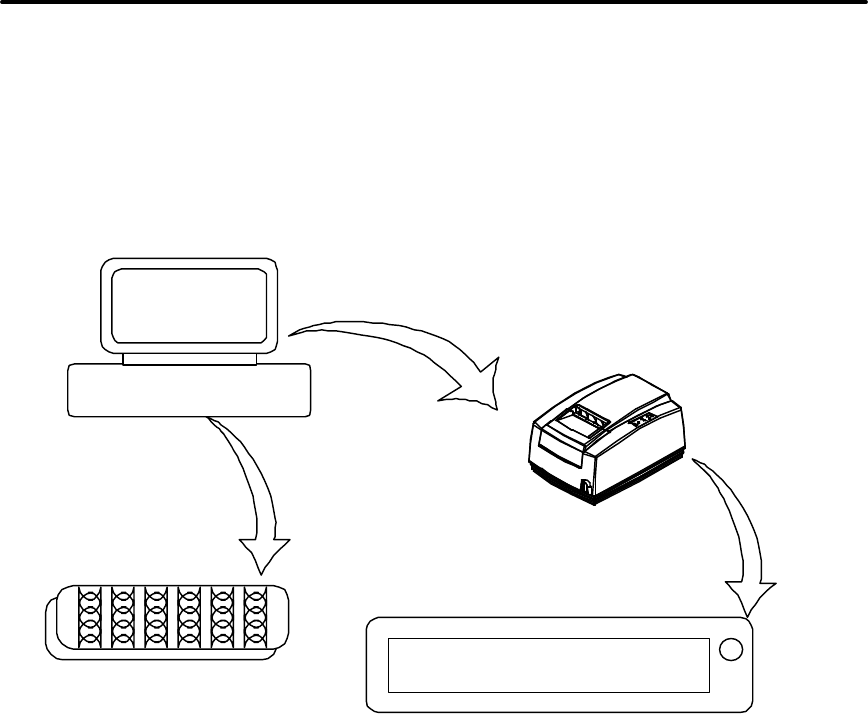
iTherm® 280 Programmer’s Guide Communications
28-07764 Rev C Page 299
Protocol and Print Buffers
The following figure illustrates the communication flow from host computer to printer and
from printer to cash drawer.
Host computer
Printer to cash
drawer
Host to printer link
Cash drawer
Keypad
Host to
keypad
Printer
Figure 21 Typical POS System
For the host to printer communication link, the iTherm® 280 printer supports serial or
parallel communications. The serial and parallel ports both follow standards developed
for the personal computer environment.
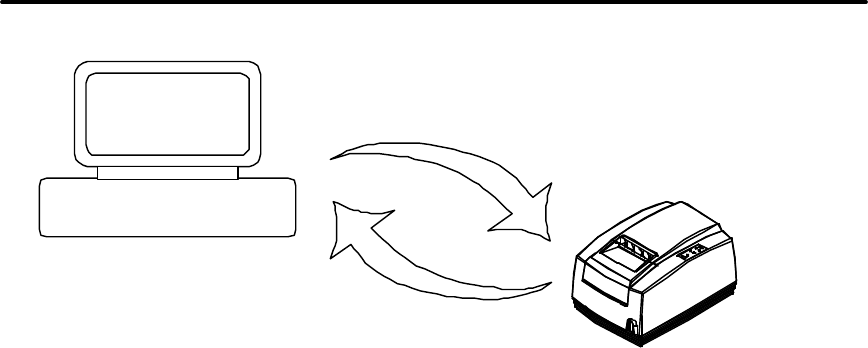
Communications iTherm® 280 Programmer’s Guide
Page 300 Rev C 28-07764
Host computer
Data to printer
Status and flow control back
Printer
Figure 22 Host to Printer Link
In most cases, the host computer is capable of sending information to the printer much
faster than the printer can print it. To prevent information from being lost, a flow control
mechanism is provided. The mechanism is called the flow control protocol. The goal of
the flow control protocol is to exchange as much information as possible as fast as
possible without losing any data. The iTherm® 280 printer supports three flow control
protocols, two in serial mode and one in parallel.
From the printer’s point of view, four basic functions are required of communications. All
four are common to all three flow control protocols. There must be a communication
driver, status inquire procedure, storage buffer, and print control mechanism that is using
the data.
The communication port is either the serial port hardware or the parallel port hardware
and the associated communication software driver.
A means for the host to bypass the buffer for status information, referred to here as an
inquirer processor, is also required because the buffer offsets the printer in time from the
host. (The printer is generally behind the host).
The storage print buffer is a software implemented, first-in first-out (FIFO) circular buffer.
It stores information in an asynchronous fashion where information can be placed in it at
any rate and retrieved from it at any rate, but the information order is not altered. All
buffers have a finite size, and if information is put in faster than it is removed, the buffer
will overflow. To avoid overflow, a flow control mechanism is required.
The print control mechanism is the remainder of the printer hardware and control
software. It interprets control codes and operates the control panel, print head, and cash
drawer interface.
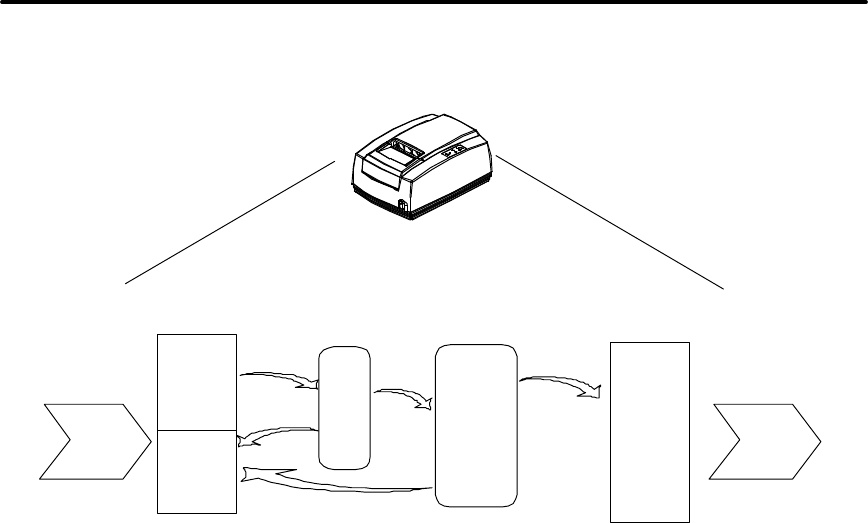
iTherm® 280 Programmer’s Guide Communications
28-07764 Rev C Page 301
The following figure illustrates the four basic parts of printer flow control.
Data
Getting full/
Data
getting empty
Print buffer Print control
Serial or parallel
connection Print head
Status
Data
Status
Printer
ENQ
processor
Data
Communications
port
Figure 23 Printer Communications Buffer Flow
The communication port is either serial or parallel and is controlled by a software
communication driver. The driver receives data and returns requested status. As
information is received from the host, data is taken from the communication port
hardware by the driver, preprocessed to look for status inquire commands, and placed in
the buffer. When the buffer input function finds that the buffer is getting full, it notifies the
communication driver to implement flow control. Flow control attempts to stop further
information from being sent from the host.
The print control software takes information from the buffer, as it needs it and can use it.
When the buffer output function finds that the buffer is getting low, it notifies the
communication driver that the information flow can be resumed (if it was stopped) and
allows more information to be placed in the buffer.
The iTherm® 280 printer has a configurable input buffer. The printer can be configured
to allow from 40 to 8196 bytes of input buffer. Consequently, up to 8196 characters (or
control codes) can be sent to the printer before they are interpreted and printed. In
effect, the host computer can get 8196 characters ahead of the printer. In all cases, the
buffer resumes communications when it is half empty. For example, if the buffer is
configured to be 2048, the printer will signal stop when 2048 bytes are in the buffer;
resume will be signaled when 1024 bytes remain. Inquire commands are preprocessed,
which means they are found in the input data stream and acted upon as they are
received. The status returned is valid as of the time the command is received. This is
termed real-time status even though inquire commands are preprocessed and still
placed in the buffer. Real-time status assures that data is not lost when the inquire
sequence is part of another command. However, the buffer may also be filled by inquire
commands if the printer is waiting for some activity.

Communications iTherm® 280 Programmer’s Guide
Page 302 Rev C 28-07764
USB
USB stands for Universal Serial Bus. It was originally conceived in the early 90’s and
officially recognized by Compaq, Intel, Microsoft and NEC. The development of USB
has been slow, however, with the release of Windows 95 SR2 development accelerated.
Windows 2000 now fully supports USB as do Windows 98 SE, and Windows Me. A
technical discussion of USB is beyond the scope of this document. If you would like
more information about USB, visit the USB web site at www.usb.org.
USB Support
POS printers are different from typical Windows printers in several ways. Microsoft has
recognized these differences and has been working with the USB Device Working Group
to generate a set of standards that would abstract all point-of-sale devices at the
application level. At this time a workable standard for POS is years away. So while
Microsoft is interested in POS in the long term, Microsoft’s immediate goal is to enable
POS USB devices a way that is compatible with existing service objects.
In order to support USB POS devices under the existing software architecture, Microsoft
is providing the POSUSB driver model to allow USB POS devices to interface as serial
COM ports to service object DLLs.
The Transact USB Printer interface is based on this Microsoft POSUSB driver model. It
provides full bi-directional interface to the printer and allows most existing applications to
interface to the USB Ithaca® iTherm® 280 as if it were on a serial COM port. In addition
we have allowed the printer to register as a composite device. This allows the printer to
appear in the system as a USB print device as well as a COM port. If you are using a
windows printer driver (ours or the Generic driver) you can assign the printer to the USB
port.
We hope that supporting the USB Ithaca iTherm® 280 as a composite device provides
the best of both worlds to our customer.
The USB Driver is available from customer support and by download from our web site.
Transact has written a POSPrinter.OCX ActiveX that will allow you to easily interface to
our printers. It is used by all of our demonstration programs. This OCX is available for
use with customer applications. It works with printers installed on Serial COM ports, LPT
ports, TCP/IP and USB. A USB compatible version is available from customer support
or from our web site.

iTherm® 280 Programmer’s Guide Communications
28-07764 Rev C Page 303
TCP/IP
A 10-BaseT Ethernet adapter is available for the Ithaca iTherm® 280 printer. This Wired
Ethernet Adapter provides a fast and easiest way to network and share printers in your
system. Ethernet provides a consistent common connection between printers and
computers using standard protocols supported by Windows® 95, 98, Me, NT, 2000, XP,
as well as many other platforms. Ethernet is probably the most common networking
medium, and thus allows printers to be easily added, moved and removed with
inexpensive common cabling and off the self components.
Print Server Features Standard Ethernet Connection
• 10 Mbps Speed
• 10 Base T RJ45 network connection
• Network Traffic LED indicator
• Configured through networked PC Web Browser
• Works with Virtually All Major Operating Systems
• Integrated into the Printer
• Large RAM Buffer for fast continuous printing
• 512K Flash Memory for Future Upgrades
Supported Protocols
• Line Printer Daemon Protocol (LPR)
• Port 9100 (RAW)
• The TFTP Protocol (Revision 2)
• Telnet COM Port
• Hypertext Transfer Protocol (for configuration)
User Interface/Configuration
• HTTP/Web Interface
• Login Page
• Configuration Page
o IP Address / Subnet Mask
o Auto-IP, DHCP, Static IP…
o Printer Textual Name (User Defined)
o Printer Location String (User Defined)
o Protocols Enabled/Disabled, Port
o LPR, Port 9100, Telnet
• Adapter Firmware Update
Other
• Push Button for Initial IP Address reset and adapter reset.
• Self-Diagnostics
• Firmware Upgrade via TFTP and HTTP
For more information and a users guide refer to the Transact Ethernet Users Guide
(100-05072).
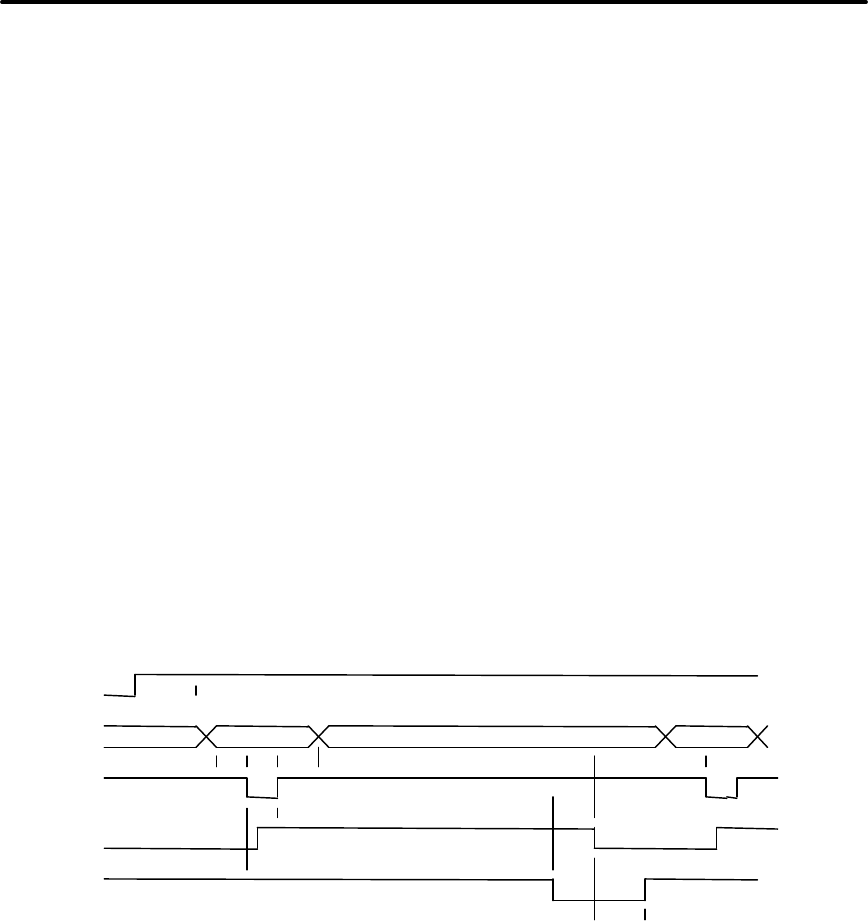
Communications iTherm® 280 Programmer’s Guide
Page 304 Rev C 28-07764
Parallel Port
Parallel Port Protocol
The iTherm® 280 parallel port behaves just as any printer connected to a personal
computer. The parallel interface accepts 8-bits of data from the host. The strobe signal
from the host is used to indicate that data is available. When the printer sees the strobe
signal and accepts the data, it asserts a busy signal. The busy signal indicates to the
host that the printer has accepted the data and is working on it. After the printer absorbs
the data and is ready to accept another byte, the printer asserts acknowledged (ACK),
negates busy, and then finally negates ACK.
The host computer should meet the following parallel-port specifications and timing. In a
standard personal computer, the strobe signal is generated by software writes to the
parallel-port control port, which is typically done in the bios or some parallel-port driver.
As personal computers become faster, it is up to the software to assure that the strobe
signal does not get too narrow. One microsecond is the minimum pulse width that
should be sent down a cable. Shorter pulse widths (500 nanoseconds) will be accepted
by the printer. The cable can introduce significant signal degeneration and skew.
The data must be valid before the strobe signal is asserted and remain so until the
strobe is removed. A 500 nanosecond setup and hold time is required by the printer.
The following chart illustrates parallel-port timing.
INIT
Pin 16
DATA
Pins 2-9
STROBE
Pin 1
BUSY
Pin 11
ACK
Pin 10
<-- Dhld
<--Tstb
Dstu---> < >
> Bhld---> <
Ahld ----> <
Sdly -----> <
Dstu 500 nS (Min)
Dhld 500 nS (Min)
Tstb 1 uS (Min)
Bhld Approx. 5 uS
Ahld Approx. 5 uS
Sdly 3 uS (Min)
Data Data
< ---- Rdly
Rdly Approx. 2 seconds
<---------------- ---------------> Tcycle
Tcycle 200 - 280 uS Typ.
Figure 24 Parallel-port Data Timing
To implement flow control, the busy signal is asserted by the printer outside the normal
data-transfer sequence. The busy signal has several uses, but it always indicates that
the printer cannot accept information. The busy signal may happen at any time and may
not adhere to the above timing chart in all cases. It is up to the host's parallel-port driver
to handle all possible busy states. It is important that the host driver does not hang up if
it takes some time for an acknowledged (ACK) response to a strobe signal. Standard
personal computer parallel-port hardware implements an interrupt on the ACK signal to
make flow control easier.
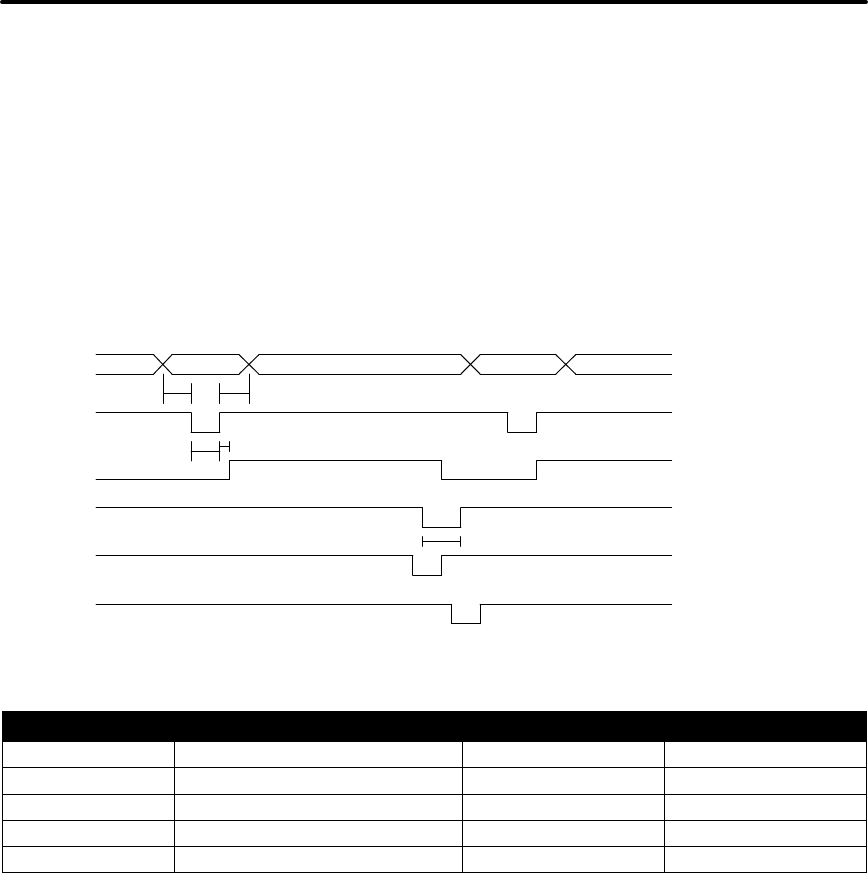
iTherm® 280 Programmer’s Guide Communications
28-07764 Rev C Page 305
Some systems may wish to change the details of how the strobe, busy, and
acknowledged signals interact. The parallel-port option features define how the strobe,
busy, and acknowledged signals operate. In normal mode, the printer follows the
standard (Centronics) parallel-port conventions. With Options 1 and 3, the
acknowledged and busy signals change simultaneously, which is sometimes referred to
as ack-after-busy. Options 2 and 3 force busy high on the rising edge of the strobe,
which is sometimes referred to as busy-while-strobe timing. In all cases, the data is
latched on the rising edge of the strobe. In most cases, the normal timing mode gives
the best results.
Figure 25 Parallel Port ACK Timing Options
Legend Time Interval Minimum Maximum
t1 DATA Setup to STB 0.5 uS
t2 STB Width 0.5 uS 500 uS
t3 DATA Hold after STB 0.5 uS
t4 BUSY Delay after STB 0 0.5 uS
t5 ACK Pulse Width 2.5 uS
Table 52 Parallel-port Timing
Note: Altered STB timing to take data on the falling edge of STB can be generated as a
factory option.
Printer Buffer Size
The iTherm® 280 printer has a configurable buffer size. It can be set from 40 to 8192
bytes. The configurable buffer allows an application to control how far ahead the buffer
gets from the printer. The smaller the buffer, the tighter the control will be. It is up to the
application developer to select the optimal buffer size.
Parallel Port Inquire and IEEE 1284
The iTherm® 280 printer supports the IEEE 1284 bidirectional parallel peripheral
interface standard. The IEEE 1284 standard provides for a bidirectional link on the
parallel port. The iTherm® 280 Printer only supports Modes 0 and 4, which provide a
nibble mode reverse channel for printer identification and status inquire commands. It is
Data
STB
BUSY
ACK
ACK
ACK
ACK-while-BUSY
ACK-in-BUSY
ACK-after-BUSY
t1
t2
t3
t4
t5

Communications iTherm® 280 Programmer’s Guide
Page 306 Rev C 28-07764
beyond the scope of this guide to describe the IEEE 1284 protocol. The complete
specification is available from the Institute of Electrical and Electronic Engineers, Inc. at
www.ieee.org.
IEEE 1284 Response Buffer
The iTherm® 280 printer has a 256-byte buffer that contains information to be returned
by the IEEE 1284 reverse link. Information is placed in the buffer in the same format as
RS-232 serial information is returned.
Inquire commands sent to the printer in IEEE 1284 mode place responses to the
commands in the IEEE 1284 reverse-channel buffer. The buffer is then transmitted to
the host when it requests the reverse channel.
Mode 4
Mode 4 allows the printer to return identification information to the host system. The
iTherm® 280 printer returns:
xx,yy length of following data, 2 bytes with MSB first
MANUFACTURER TransAct Technologies
COMMAND SET IPCL
MODEL 1000
COMMENT Rev. x.xx
ACTIVE COMMAND SET IPCL
When a Mode 4 request is made, the IEEE 1284 buffer is cleared before the ID is sent.
Mode 0
Mode 0 provides a reverse channel for information from the printer. Normal responses
to inquire commands are placed in the IEEE 1284 reverse-channel buffer. The Mode 0
reverse-channel request begins returning information to the host. The host may
terminate the transmission at any time. If the link is terminated between nibbles, the last
nibble is retransmitted on the next request. If a complete byte is transmitted, it is deleted
from the IEEE 1284 reverse-channel buffer.
An inquire command can clear the reverse-channel buffer before placing its response in
the buffer.
The IEEE 1284 buffer is limited to 1000 characters. If the buffer is not emptied by
reverse-channel requests, the buffer overflows. The buffer is a first-in first-out (FIFO)
buffer, and the last data placed in the buffer is lost.
Time-outs
IEEE 1284 specifies time-outs for various phases of the protocol. The iTherm® 280
printer treats time-outs as minimums. The printer time outs at the specified period only if
it is idle during the complete phase.
Active State
The IEEE 1284 reverse channel may be activated at any time as long as the printer is
not busy with data. If the printer is off-line or the cover is open, the reverse channel may

iTherm® 280 Programmer’s Guide Communications
28-07764 Rev C Page 307
be activated. If the printer is placed back on-line while the reverse channel is active, the
printer will not exit the reverse-channel mode.
Inquire Responses
In general, inquire commands place two-byte responses in the IEEE 1284 reverse-
channel buffer. The two bytes are the same as the serial mode responses. In IEEE
1284 mode, the printer remains busy until the inquire command is processed, assuring
responses in real time. To receive the response, the host must ask for it. It is possible
for the host to make a number of requests and wait for the responses; however, the
status returned is valid at the time the request was made.
It is also possible for the dynamic response mode to be activated and the reverse-
channel mode to be opened. The reverse channel then changes from reverse-idle to
reverse-data available as the status changes. The application must be careful in
dynamic response mode that the dynamic responses are not left active when the reverse
channel is closed. If the dynamic responses are active when the reverse channel
closes, the output buffer overflows. If data is in the buffer when dynamic responses are
activated, it will not be replaced by the current status. If dynamic response is off and a
buffer-clear command is issued followed by activation of dynamic responses, the buffer
will contain fresh data. If the buffer-clear command is issued after the dynamic response
is activated, the buffer will be cleared and any unread responses will be lost.
Parallel Port Plug and Play
Microsoft Windows implements Plug and Play (PnP) by doing a special parallel, IEEE
1284 inquire during boot. The iTherm® 280 Printer responds to the inquiry if IEEE 1284
is active.
If the Windows PnP configuration flag is set in the printer, IEEE 1284 will be active for all
parallel-port modes. For example, PnP in parallel mode forces IEEE 1284. For PnP to
work, the host must have an IEEE 1284-compatible port adapter, and the cable used to
connect to the printer must support all of the interface signals.
The Plug and Play response follows.
Device ID string:
Manufacturer: TransAct.;
CMD:M280CL,IPCL;
CLS:PRINTER;MDL M280 PcOS;
DES:Ithaca M280;
REV:x.xx;OPTS;$9xyz
PnP ID: LPTENUM\Ithaca-Perph.M280_P4D21
Device Description: Ithaca M280
Device Class: Printer
OPTS Field Description
OPTS;$6XYZ

Communications iTherm® 280 Programmer’s Guide
Page 308 Rev C 28-07764
where X is a model definition. X will be 3 if the printer is in the native iTherm® 280
emulation. 5 indicates that the printer is in some other emulation. Y and Z are bit fields
that designate the options attached to the printer.
Bit
Y
Z
Bit 0 Color Support active 0
Bit 1 Undefined Knife module attached
Bit 2 Undefined 0
Bit 3 0 0
Bits 4-5 1 1
Bits 6-7 0 0
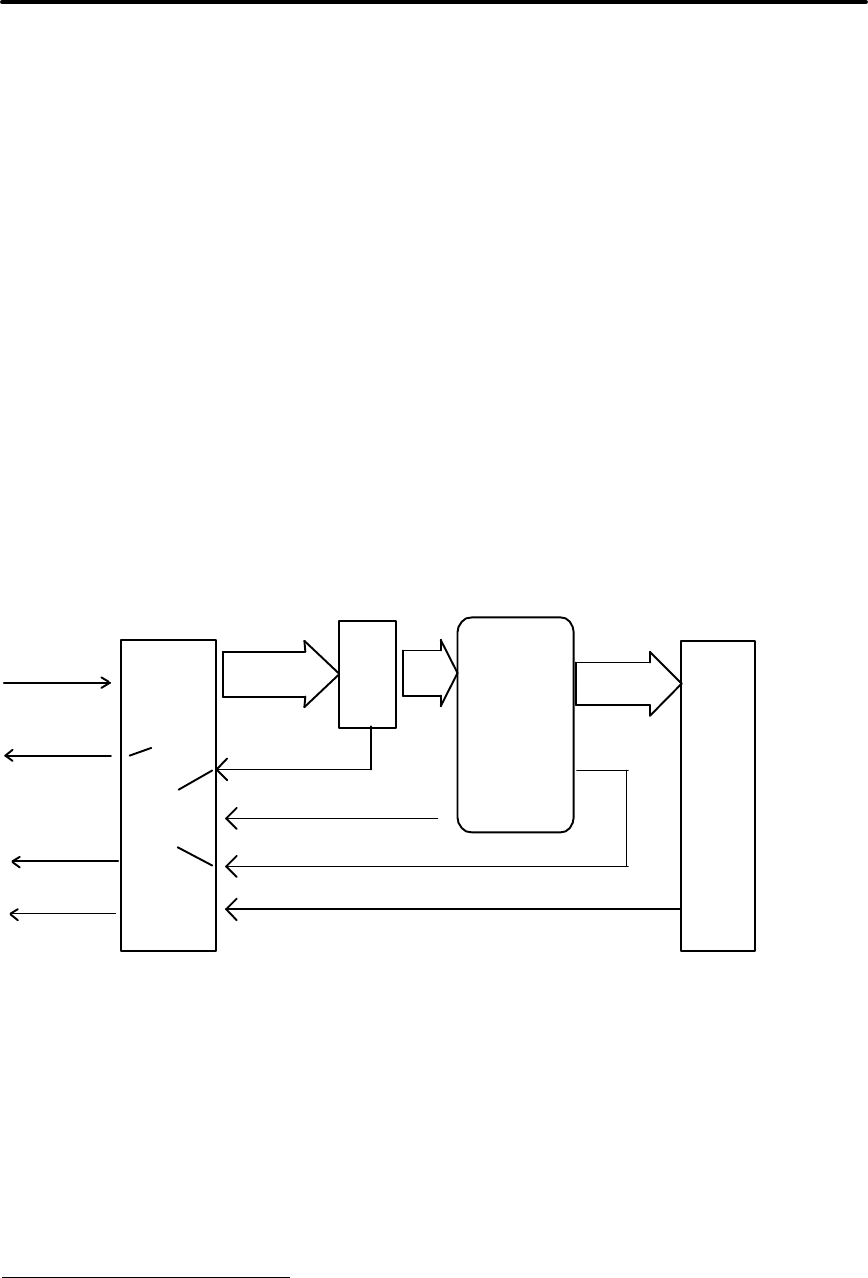
iTherm® 280 Programmer’s Guide Communications
28-07764 Rev C Page 309
Serial Port
Serial Port Protocol
The serial port supports two flow control standards, XON/XOFF and Ready/Busy
(sometimes called Data Terminal Ready (DTR) or hardware handshake).
When Ready/Busy flow control is selected, the printer can be configured to use DTR,
Request to Send (RTS), or both for flow control. If only DTR is selected for flow control,
RTS will indicate the cover is open or the printer has faulted. The following discussion
assumes the DTR is being used for flow control.
The Ready/Busy protocol generally uses the DTR signal to indicate to the host computer
that the printer is not ready to accept data. The host should stop sending data to the
printer as soon as possible. Because the host may not notice the DTR signal until it has
transmitted several bytes of data to the printer, the printer continues to except up to
25521 bytes of data after it indicates that it is not ready. Figure 26 Serial Port Flow
Control Using DTR illustrates how the Ready/Busy protocol works, and Figure 27
XON/XOFF Serial Port Flow Control illustrates how the XON/XOFF protocol works.
Serial
Communications
Port
Data
Buffer Getting Empty
Select Key
Printer Control
Software
Print
Buffer
RTS = Request to Send DTR = Data Terminal Ready
Data In
Serial
Data Out
(Not Used for
Flow Control)
DTR
RTS
DTR
Clear
Set
Inquire
Response
40 - 8K
Data
Buffer Getting Full
Data
ENQ Response
Data
ENQ
Proc.
Figure 26 Serial Port Flow Control Using DTR
21 The buffer always signals it is full before it overflows. The size of the reserve depends on the
buffer size selected. It is always at least 255 bytes.
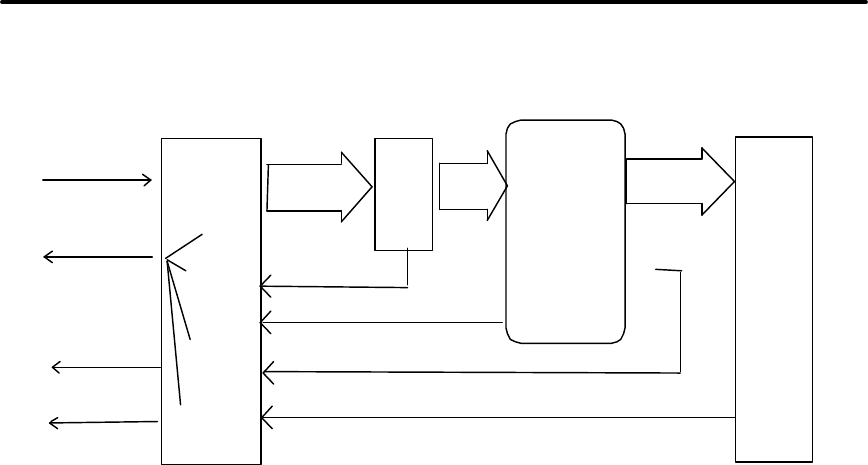
Communications iTherm® 280 Programmer’s Guide
Page 310 Rev C 28-07764
Serial
Communications
Port
Data
Buffer Getting Full
Buffer Getting Empty
Data
Select Key
Printer Control
Software
Print
Buffer
40 - 8K
RTS = Request to Send DTR = Data Terminal Ready
Data In
Serial
Data Out
(Not Used for
Flow Control)
DTR
RTS
Send
XOFF
Send
XON
Send
XON or XOFF
Inquire
Commands
Data
ENQ Response
Data
ENQ
Proc.
Figure 27 XON/XOFF Serial Port Flow Control
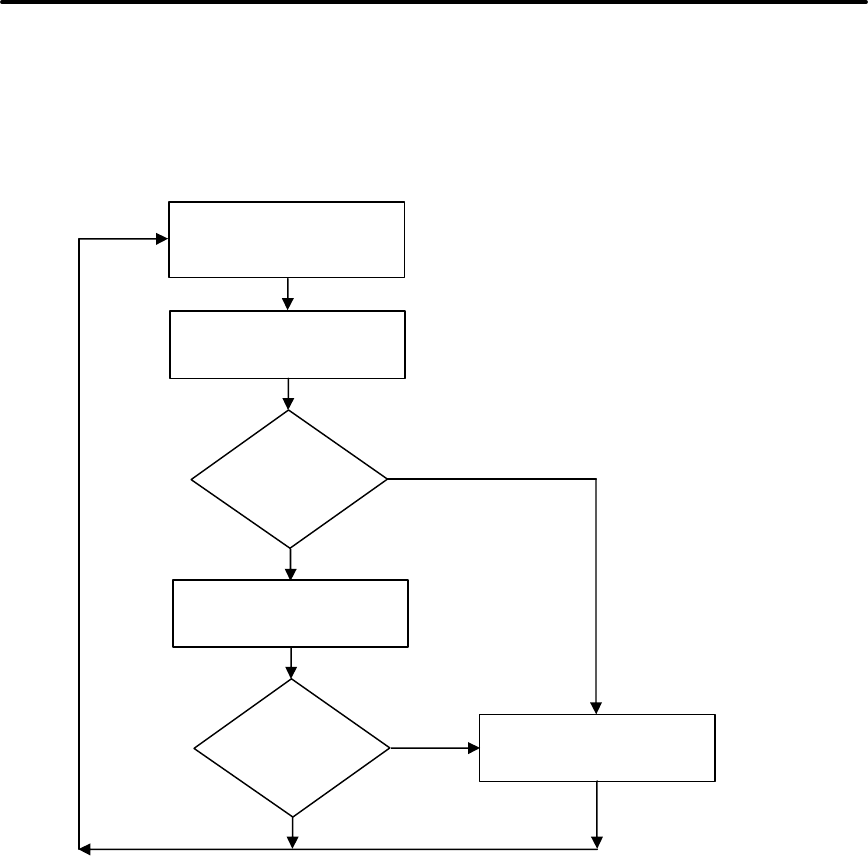
iTherm® 280 Programmer’s Guide Communications
28-07764 Rev C Page 311
Print Buffer Flow
Flow Chart 1 illustrates how the communications driver acquires data from the serial port
and places it in the buffer using Ready/Busy or XON/XOFF flow control.
Flow Chart 1 Serial Buffer Operation
At the top of this flow chart, the driver is waiting for data. When data is received from the
host, the printer checks to see if it is an inquire command. If the data is an inquire, it is
responded to and placed in the buffer. If not, the data is placed in the buffer without
response. The buffer is then checked to see if it is full before the internal pointer is
incremented. If it is not full, the pointer is incremented in preparation for the next data
byte. The buffer is checked by looking to see if it has passed a high watermark. If the
buffer has, the communication driver is notified, and it resets DTR to indicate to the host
that no more data should be sent.
Wait for data from the
host.
Place data in the print
buffer.
Is the
buffer full?
Clear the DTR signal or
transmit XOFF.
Update the buffer
pointers.
Is the buffer
past the high
watermark?
No
Yes
No
Yes
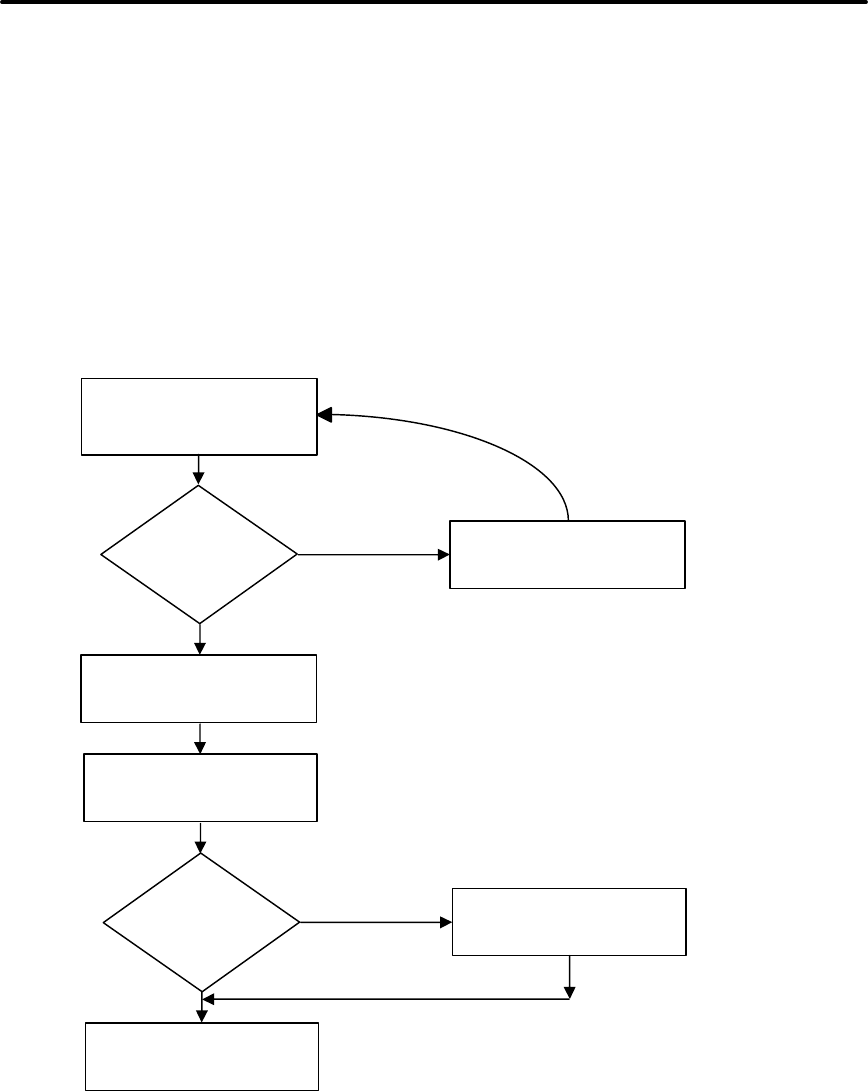
Communications iTherm® 280 Programmer’s Guide
Page 312 Rev C 28-07764
Flow Chart 2 illustrates how the print control software takes data from the buffer and
controls flow. At the top of the chart, the print control software asks for data. If there is
no data in the buffer, a “no data flag” is returned. The print software must then wait for
data. If there is data in the buffer, it is read, and the pointers are updated. The buffer is
then checked to see how much information is left. If the buffer is below a low watermark
(about 100 bytes left), the communication driver is notified, and DTR is reasserted.
When XON/XOFF flow control is used, the flow is similar to DTR flow except that DTR is
not used and XON/XOFF control characters are transmitted back to the host on the
serial link. The XON/XOFF advantage is that only three wires are required to
interconnect to a printer. The disadvantage is that a serial-port receiver driver must be
written for the host.
Flow Chart 2 Print Controller Using Data
Return data to print
controller.
Is the buffer
below the low
watermark?
No
Set DTR or transmit
XON.
Yes
The print controller needs
data to print or a
command to decode.
Return to print controller
with no data available.
Acquire data from the
buffer.
Is there any
data in the
buffer?
Move buffer pointers to
the next data byte.
Yes
Loop through idle
task, and then look
for more data.
No

iTherm® 280 Programmer’s Guide Communications
28-07764 Rev C Page 313
When the printer is on, the print controller looks for data. If there is data, it processes it.
Flow control is done when the data is taken from the buffer and the amount of data in the
buffer is less than a prescribed amount. The low watermark is set based on the
expected environment. The iTherm® 280 Printer sets the low watermark at half the
buffer size or 1024 characters whichever is smaller. The low watermark gives the host
application time to get more data to the printer before the printer uses up what it has.
When XON/XOFF protocol is implemented, it is possible for the host to miss an XON or
an XOFF. To prevent this from causing a communication lockup, the printer sends an
XOFF for every character received after the high watermark is reached. If the printer
detects that the serial data link is inactive, it sends out an XON about every two
seconds. When the printer cover is opened, an XOFF is sent. An XOFF is sent even
when the internal data buffer is past the high watermark and is done to allow the host to
know that the printer is not ready.
Printer Buffer Size
The size of the iTherm® 280 buffer is configurable, which allows an application to control
how far ahead of the printer it can get before being asked to wait. The buffer size can be
set from 256 to 6144 bytes (not including the 64-character high-speed buffer). The
smaller the buffer, the tighter the control will be. It is up to the developer to select the
optimal buffer size for an application.
Serial Mode Plug and Play
Microsoft has defined a Plug and Play (PnP) protocol to identify devices on serial links.
The enumeration process is designed to find and automatically configure a device driver
for the printer. It is done by toggling the control lines in a specific sequence that is
recognized by the printer. The peripheral then responds such that Windows can identify
the device.
To allow the printer to look for and respond to the sequence, EISA PnP must be
enabled. When enabled in serial mode, the flow control is forced to Request to Send
(RTS) with Data Terminal Ready (DTR) static.
Using DSR
Windows uses the host’s Data Set Ready (DSR) line (the printer’s DTR line) on the
serial port to determine whether a device is attached to the port. When Windows is
booted (or does PnP), the system sets the host’s DTR and RTS to zero and waits
approximately 200 milliseconds. It then sets the DTR to one and waits another 200
milliseconds. After 200 milliseconds, the system checks to see whether the DSR line is
high. This indicates that a serial device is attached to the serial port. The system
responds by setting RTS high and waits to receive the device identification string.
In some devices, such as the serial mouse, the DSR line can be held high by tying it
directly to the DTR line. When the mouse is connected to the serial port on the personal
computer, the power supplied through the DTR line also raises DSR high. For Plug and
Play compatibility, RTS flow control is used at the printer, because DSR must stay high
as long as the device is attached to the serial port.

Communications iTherm® 280 Programmer’s Guide
Page 314 Rev C 28-07764
Serial Device Identification
The serial device must report its identification to the system using an identification string
at 1200 baud. The identification string consists of 18 fields that identify the device, class
of the device, and other compatible devices. Only five of the fields are required by all
serial devices; all others are optional. The identification string used by the iTherm® 280
Printer follows.
028H Start of ASCII response
0,1 PnP Rev
'IPR0210' Unique ID (IPR plus revision level)
\PRINTER Printer
\M280 PcOS Model
\SC: 19200,N,8,1
Serial Configuration: Baud, Parity, Bits, Stop Bits
xxH Check-sum
029H End PnP
Note:
The model field may be altered to generate PnP ID’s other than
“M280 PcOS” by special order.
When the identification is complete, the printer returns to the baud rate
specified in the configuration.
iTherm® 280 Programmer’s Guide Communications
28-07764 Rev C Page 315
Serial Port Inquire
The serial port inquire is more straightforward than parallel mode. The serial
acknowledged (ACK) or not acknowledged (NAK) responses follow a uniform format, the
ACK or NAK is always followed by the command ID that requested it. This makes the
design of the host application easier because the response can be identified and always
follows the same format.
Flow Chart 3 Inquire Flow
The host sends an [ENQ] <id> (form sensor status) request to the printer. The printer
responds with an [ACK] <id> indicating that the request was identified, status true.
Inquire commands affect the printer’s performance. Communication is a high priority for
the printer. Inquire commands take processing time away from the print tasks. It is
possible to ask for so much status that the printer slows. In serial mode, it is important
that the response to an inquiry is received by the host before another command is
issued. When an inquiry is received by the printer, it is buffered in a high-speed
processing queue. When the printer has time, it empties the queue and processes the
inquiries. The printer responds to the command as soon as the second byte of the
command is taken from the high-speed buffer. If the host is looking for a form to be
inserted, it should not send status requests as fast as it can. The host will receive a
response to all of them. If the host did not wait for a response to each, there would be
unnecessary responses.
In IEEE 1284 mode, inquire responses are placed in an IEEE 1284 transmit queue.
When the IEEE 1284 reverse channel is open, the responses are returned to the host. It
is important that after each request the reverse channel be opened. Inquire responses
remain in the queue until read. If the [ENQ] <9> command is sent to the printer, the
IEEE 1284 buffer will be cleared, and only the response to the [ENQ] <9> will remain.
The host sends an
inquire to the printer
asking for the form
sensor status. The printer receives
the request and
preprocesses it.
The printer responds
with an [ACK] <id> or
[NAK] <id> indicating
the form sensor
status.
The host receives the
response and
decodes it.

Communications iTherm® 280 Programmer’s Guide
Page 316 Rev C 28-07764
Display Pass Through
The display pass through feature allows a pole display to be interconnected with the
printer. The printer is connected to a host system with a special serial cable. The host
sends serial data to the printer and the printer sends serial data to the pole display. The
printer does not provide power to the display. During normal printer operation, no data is
passed to the display. In pass through mode, all received data is passed on to the
display.
The restrictions and considerations for pass through are:
1. Pass through only works on serial printers with DTR flow control.
2. XON/XOFF mode does not work correctly.
3. All inquire ([ENQ]) commands are active when not in actual pass through mode.
If, for example, an [ENQ] command for cash drawer status is received by the
printer, the response is transmitted. When pass through is active, all data except
the [ENQ] is passed. The printer does not look for or act on any commands
other than inquires.
4. If pass through data is sent to the printer in continuous mode (i.e. as fast as
possible), each [ENQ] character in the sequence delays the transmit data by one
byte. The printer buffer size is limited. If the buffer overruns, data will be lost.
5. Modem handshake signals from the printer are not controlled during past
through. Their state is set by printer status. Opening the cover toggles the
control lines. When the printer cover is open, it accepts data, including all [ENQ]
commands. If an [ENQ] # is received when off-line, pass through is entered.
6. Previously buffered data is processed by the printer in pass through mode.
Printer performance is degraded by the processing of pass through data.
7. In 8-bit, no parity mode, data is passed through unaltered. In all other modes,
the parity is checked, stripped, and then regenerated by the printer.
8. Pass through has no affect on a printer in parallel mode.
Remote Power Control
The iTherm® 280 Printer has a remote power control command that instructs it to enter
OFF. When the command is issued, the printer performs print cartridge maintenance
and enters OFF. Unlike pushing the * button, remote power mode leaves the
communications active. All commands except the exit power down command are
ignored.
[ESC] y Remote Power Control
ASCII [ESC] y <n>
Hexadecimal 1BH 79H <n>
Decimal <27> <121> <n>
IPCL &%YX17 or &%YX18
EPOS [ESC] y <n>
Where n 17 Requests the printer to enter remote OFF
18 Requests the printer to exit remote OFF

Communications iTherm® 280 Programmer’s Guide
28-07764 Rev C Page 317
Description Inquiry (ENQ) commands are accepted and answered in remote power
down mode. The printer reactivates if the * button is pressed or a power
up command is received.
Note: If power is lost after the power down command is issued, the printer
remembers it is in power down mode but does not reactivate the
communications link. The * button must be pushed to return the printer
to full operation.
Note: This command is not available in STAR mode.
Remote Printer Reset
Reset in Serial Mode
It is possible to generate a software printer reset in serial mode. The [ENQ] <10>
command requests that the printer reset. (This is not a hardware reset). The reset
completely initializes the hardware and software, but the printer does not recover from a
loss of software control.
Note: If the printer mode was changed by the [ESC] y <2> or <3>
command, a soft reset will not return to the power on default.
The command flow is as follows:
• The [ENQ] <10> is acknowledged. During cleanup and initialization, the printer is
placed off-line. Before the printer initializes, it tries to clean up its input buffer
and other internal processes.
• The printer’s software is reinitialized.
• The power-cycled flag is set.
• The print head is homed and re-calibrated.
• The printer goes back on-line.
Reset in Parallel Mode
In parallel mode, driving the INIT signal on the parallel port for 100 milliseconds
generates a software reset. It takes about two seconds for the printer to recover from a
reset. The [ENQ] <10> command has the same effect, but it is not acknowledged.

Communications iTherm® 280 Programmer’s Guide
Page 318 Rev C 28-07764
Miscellaneous Communication Features
Power-cycle Recovery
Sometimes the host needs to know if the printer was power cycled. An example would
be after the receipt tape was changed. It is not necessary to turn off the printer to
change the receipt. However, if the operator does, any information sent to the printer
before the power cycle will be lost.
The iTherm® 280 Printer has a flag that is set after a reset. The flag stays set until the
host requests a reset. The [ENQ] <11> command reads the flag. If the command
returns power-cycled status, the power has been reset or power cycled since the last
request. All unprinted information has been lost.
If the print operation is critical, it is a good idea to check the power-cycle flag before and
after all transactions. An alternate approach is to check the flag after every off-line to
on-line transition.
Note: If the printer mode was changed by the [ESC] y <2> or <3> command, a power-
cycle reset will return to the initial configuration.
Data Pass-through
The iTherm® 280 Printer supports data pass-through (sometimes referred to as display
pass-through). Data pass-through is activated by the print-suppress command with the
pass-through bit set. In pass-through mode, the printer can be requested to transmit any
data that it receives. When this is the case, the printer’s inquire commands are active
but of little use. Typically, the printer’s transmit data is connected to the next device in
line. Inquire commands have no data path back to the host. If pass-through is to be
used, it is a good idea to deactivate the inquire commands. (Use [ESC] y <6>).
Before pass-through data can be used, it must be activated in the configuration menu,
which is the third selection in the print-suppress/pass option.
All data after, but not including, the print-suppress command is pass through. When
deactivated, the print-suppress command is again not pass through. During pass
through the multi-drop commands are active (if configured).
The printer will act upon a multi-drop control command found in the pass-through data.
If the printer is deselected during pass-through, it stops passing on the data. When the
printer is re-addressed, data pass-through is active.
Multi-drop Configuration
The iTherm® 280 Printer supports a multi-drop configuration where up to three printers
can be connected in parallel. Each printer has a different address A, B, or C. The
printer does not accept any print information unless it is addressed. Multi-drop
configuration is only available in serial mode, as parallel printers cannot be connected
together.

Communications iTherm® 280 Programmer’s Guide
28-07764 Rev C Page 319
Off-line Active
A configuration flag that prevents the printer from going off-line (in most cases) is
available. Off-line mode allows the application to query the printer for status rather than
assume a status from the control signals. The feature allows the host application to
query the printer at all times except when there is no power; a full input buffer; or a hard
failure. For example, when the printer’s cover is open, the printer stops printing but still
accepts data and inquiries. The inquire cover status command returns, “Cover open.”
Hard failures result when there is no power or a printer fault occurs. If the printer is off-
line, either the input buffer is full or a hard fault has occurred. The host application
should not allow the input buffer to fill.

Communications iTherm® 280 Programmer’s Guide
Page 320 Rev C 28-07764
Recovery from Mechanical Errors
The Ithaca Inquire commands and the Epson [DLE][ENQ] and [DLE][EOT] commands
allow most printer error status to be read and in some cases recovery attempted. Paper
jams and auto-cutter faults can be recovered, however, any data not previously printed
will be lost.
If the application is to support error recovery, the application should use the appropriate
status request commands to query the printer periodically. If an error response is such
that the fault is recoverable, the host application should interact with the operator and
request that the fault be corrected. (IE. Clear Paper Jam) When the operator indicates
that the problem has been corrected, the host can issue a reset request.
If a serious error occurs, the printer will halt and enter fault error mode. If the fault is
such that the printer can maintain communications with the host, the print status request
and response system will remain active. The status of the system will however remain
static, i.e. the status responses will reflect the state of the system when the fault
occurred.
There are errors that cannot be reported to the host system. These errors are such that
the integrity of the printer do not allow continued operation. That is there is no way to
report the error. These errors occur (for the most part) during power up diagnostics.
They are as follows:
EEPROM READ ERROR Power up only
The Internal EEPROM is not readable or the check sum is bad.
Pressing the Power Button will attempt to rewrite the configuration information.
This may leave the printer configured incorrectly.
EEPROM WRITE ERROR Power up/down and Configuration only
The Internal EEPROM is defective. There is no recovery.
SOFTWARE ERROR VECTOR Can occur at any time.
These errors can occur during operation. They signal a serious problem with the
system. In most cases this error will also generate a Watch Dog reset. A power
cycle will generally recover normal printer operation. An ESD event or a
firmware bug generally causes these errors. The printer maintains an error log,
this log contains additional information about the fault and is printed during
manual configuration. The information in this log should be reported to Transact
to identify the exact cause of the fault.
USERSTORE FORMAT ERROR Power up or User Store Write Operations
The User Store data in FLASH has an invalid format. Pressing the Power Button
will erase the user store and reformat it. This can be caused by a firmware
update.
FLASH WRITE ERROR Power up or User Store Write Operation.
The Program Flash has failed. There is no recovery from this error.
COM ADAPTER ERROR Power up only
The communications interface card is not supported by the firmware or is
missing. There is no recovery.

Communications iTherm® 280 Programmer’s Guide
28-07764 Rev C Page 321
Programmer’s Notes
When the serial port is used, it is important that the output lines from the printer not be
shorted or back driven. If the signals are not to be used, they should be left open.
Pins 3, 4, and 7 (of the 9 pin connector) are outputs from the printer. If any one of these
signals is grounded or back driven, the other two outputs will be degraded.
The best time to configure the printer by the host with remote configuration is during
system setup or software update.

iTherm® 280 Programmer’s Guide Appendix
28-07764 Rev C Page 323
Appendix A: Internal Code Pages
Code
Page
Country Code/Language Set
Decimal <n
h
>
<n
l
>
Hex <n
h
> <n
l
>
64 USA (Slashed 0) 0,64 0H,040H
65 USA (Unslashed 0) 0,65 0H,041H
66 British 0,66 0H,042H
67 German 0,67 0H,043H
68 French 0,68 0H,044H
69 Swedish I 0,69 0H,045H
70 Danish 0,70 0H,046H
71 Norwegian 0,71 0H,047H
72 Dutch 0,72 0H,048H
73 Italian 0,73 0H,049H
74 French Canadian 0,74 0H,04AH
75 Spanish 0,75 0H,04BH
76 Swedish II 0,76 0H,04CH
77 Swedish III 0,77 0H,04DH
78 Swedish IV 0,78 0H,04EH
79 Turkish 0,79 0H,04FH
80 Swiss I 0,80 0H,050H
81 Swiss II 0,81 0H,051H
437 USA 1,181 1H,0B5H
737 Greek 2,225 2H,0E1H
850 Multilingual 3,82 3H,052H
852 East Europe Latin II-852 3,84 3H,054H
855 Cyrillic I-855 3,87 3H,057H
857 Turkey 857 3,89 3H,059H
858 Multilingual Euro 3,90 3H,05AH
866 Cyrillic II-866 3,98 3H,062H
1004 IS08859 3,236 3H,0ECH
1250 Windows 1250
Central Europe 4,226 4H,0E2H
1251 Windows 1251 Cyrillic 4,227 4H,0E3H
1252 Windows 1252 Latin 1 4,228 4H,0E4H
1253 Windows 1253 Greek 4,229 4H,0E5H
1254 Windows 1254 Turkish 4,230 4H,0E6H
1257 Windows 1257 Baltic 4,233 4H,0E9H
28591 ISO8859-1 Latin 1 111,175 6FH,AFH
28592 ISO8859-2 Latin 2 111,176 6FH,B0H
28593 ISO8859-3 Latin 3 111,177 6FH,B1H
28594 ISO8859-4 Baltic 4 111,178 6FH,B2H
28595 ISO8859-5 Cyrillic 111,179 6FH,B3H
28597 ISO8859-7 Greek 111,181 6FH,B5H
28599 ISO8859-9 Turkish 111,183 6FH,B7H
28605 ISO8859-15 Latin 9 111,189 6FH,BDH
Note: The [ESC]! Select international character set command uses Code Pages
64-81 and represent old DOS code page maps. They are provided to support of
legacy applications.
They are not recommended for new applications.
Appendix iTherm® 280 Programmer’s Guide
Page 324 Rev C 28-07764
Appendix B - ASCII Code Table
Hex Decimal ASCII
00 0 NULL
01 1 SOH
02 2 STX
03 3 ETX
04 4 EOT
05 5 ENQ
06 6 ACK
07 7 BEL
08 8 BS
09 9 HT
0A 10 LF
0B 11 VT
0C 12 FF
0D 13 CR
0E 14 SO
0F 15 SI
10 16 DLE
11 17 DC1
12 18 DC2
13 19 DC3
14 20 DC4
15 21 NAK
16 22 SYN
17 23 ETB
18 24 CAN
19 25 EM
1A 26 SUB
1B 27 ESC
1C 28 FS
1D 29 GS
1E 30 RS
1F 31 US
Hex Decimal ASCII
20 32 (SP)
21 33 !
22 34 "
23 35 #
24 36 $
25 37 %
26 38 &
27 39 '
28 40 (
29 41 )
2A 42 *
2B 43 +
2C 44 ,
2D 45 -
2E 46 .
2F 47 /
30 48 0
31 49 1
32 50 2
33 51 3
34 52 4
35 53 5
36 54 6
37 55 7
38 56 8
39 57 9
3A 58 :
3B 59 ;
3C 60 <
3D 61 =
3E 62 >
3F 63 ?
Hex Decimal ASCII
40 64 @
41 65 A
42 66 B
43 67 C
44 68 D
45 69 E
46 70 F
47 71 G
48 72 H
49 73 I
4A 74 J
4B 75 K
4C 76 L
4D 77 M
4E 78 N
4F 79 O
50 80 P
51 81 Q
52 82 R
53 83 S
54 84 T
55 85 U
56 86 V
57 87 W
58 88 X
59 89 Y
5A 90 Z
5B 91 [
5C 92 \
5D 93 ]
5E 94 ^
5F 95 _
Hex Decimal ASCII
60 96 `
61 97 a
62 98 b
63 99 c
64 100 d
65 101 e
66 102 f
67 103 g
68 104 h
69 105 i
6A 106 j
6B 107 k
6C 108 l
6D 109 m
6E 110 n
6F 111 o
70 112 p
71 113 q
72 114 r
73 115 s
74 116 t
75 117 u
76 118 v
77 119 w
78 120 x
79 121 y
7A 122 z
7B 123 {
7C 124 |
7D 125 }
7E 126 ~
7F 127 (sp)

iTherm® 280 Programmer’s Guide Appendix
28-07764 Rev C Page 325
Appendix C: Unicode Character Addresses
Note: This information is based on the Unicode 3.0 Standard. For specific character
locations see the Unicode standard.
Note: The Accutherm Supterme does not contain all possible Unicode characters. The
default character sets are defined by the WGL4 and GB18030 standards.
Unicode Range Use
0x0000 0x007F C0 Controls and Basic Latin
0x0000 0x001F C0 controls
0x0020 0x007F ASCII
0x0080 0x00FF C1 Controls and Latin-1 Supplement
0x00A0 0x00FF Latin1
0x0100 0x017F Latin Extended-A
0x0180 0x024F Latin Extended-B
0x0250 0x02AF IPA Extensions
0x02B0 0x02FF Spacing Modifier Letters
0x0300 0x036F Combining Diacritical Marks
0x0370 0x03FF Greek
0x0400 0x04FF Cyrillic
0x0500 0x052F Unassigned zone 0500-052F
0x0530 0x058F Armenian
0x0590 0x05FF Hebrew
0x0600 0x06FF Arabic
0x0700 0x08FF Unassigned 0700-08FF
0x0900 0x097F Devanagari. Based on ISCII 1988
0x0980 0x09FF Bengali. Based on ISCII 1988
0x0A00 0x0A7F Gurmukhi. Based on ISCII 1988
0x0A80 0x0AFF Gujarati. Based on ISCII 1988
0x0B00 0x0B7F Oriya. Based on ISCII 1988
0x0B80 0x0BFF Tamil. Based on ISCII 1988
0x0C00 0x0C7F Telugu. Based on ISCII 1988
0x0C80 0x0CFF Kannada. Based on ISCII 1988
0x0D00 0x0D7F Malayalam. Based on ISCII 1988
0x0D80 0x0DFF Unassigned zone 0D80-0DFF
0x0D80 0x0DFF Sinhala (Pre-Unicode 2.0)
0x0E00 0x0E7F Thai. Based on TIS 620-2529
0x0E80 0x0EFF Lao. Based on TIS 620-2529
0x0F00 0x0F7F Burmese (Pre-Unicode 2.0)
0x0F00 0x0FBF Tibetan
0x0F80 0x0FFF Khmer (Pre-Unicode 2.0)
0x1000 0x105F Tibetan (Pre-Unicode 2.0)
0x1060 0x109F Mongolian (Pre-Unicode 2.0)
0x10A0 0x10FF Georgian
0x1100 0x11FF Hangul Jamo
0x1100 0x11F9 Korean combining alphabet
0x1200 0x137F Ethiopian (Post-Unicode 2.0)
0x13A0 0x13FF Cherokee (Post-Unicode 2.0)
0x1400 0x167F Canadian Syllabics (Post-Unicode 2.0)
0x16A0 0x1DFF Unassigned zone 16A0-1DFF
0x1E00 0x1EFF Latin Extended Additional
0x1F00 0x1FFF Greek Extended
0x2000 0x206F General Punctuation

Appendix iTherm® 280 Programmer’s Guide
Page 326 Rev C 28-07764
0x2070 0x209F Superscripts and Subscripts
0x20A0 0x20CF Currency Symbols
0x20D0 0x20FF Combining Diacritical Marks for Symbols
0x2100 0x214F Letter like Symbols
0x2150 0x218F Number Forms
0x2190 0x21FF Arrows
0x2200 0x22FF Mathematical Operators
0x2300 0x23FF Miscellaneous Technical
0x2400 0x243F Control Pictures
0x2440 0x245F Optical Character Recognition
0x2460 0x24FF Enclosed Alphanumerics
0x2500 0x257F Box Drawing
0x2580 0x259F Block Elements
0x25A0 0x25FF Geometric Shapes
0x2600 0x26FF Miscellaneous Symbols
0x2700 0x27BF Dingbats
0x27C0 0x27FF Unassigned zone 27C0-27FF
0x2800 0x28FF Braille Pattern Symbols (Post-Unicode 2.0)
0x2900 0x2FFF Unassigned zone 2900-2FFF
0x3000 0x303F CJK Symbols and Punctuation
0x3040 0x309F Hiragana
0x30A0 0x30FF Katakana
0x3100 0x312F Bopomofo
0x3130 0x318F Hangul Compatibility Jamo. Based on KSC 5601
0x3190 0x319F Kanbun
0x31A0 0x31FF Unassigned zone 31A0-31FF
0x3200 0x32FF Enclosed CJK Letters and Months
0x3300 0x33FF CJK Compatibility
0x3400 0x4DFF CJK Unified Ideograph Extension A (Post-
Unicode 2.0)
0x4E00 0x9FA5 CJK Unified Ideographs
0x9FA6 0xABFF Unassigned zone 9FA6-ABFF
0xAC00 0xD7A3 Hangul Syllables
0xD7A4 0xD7FF Unassigned zone D7A4-D7FF
0xD800 0xDB7F High Surrogates
0xDB80 0xDBFF Private Use High Surrogates
0xDC00 0xDFFF Low Surrogates
0xE000 0xF8FF Private Use Area
0xF900 0xFAFF CJK Compatibility Ideographs
0xFB00 0xFB4F Alphabetic Presentation Forms
0xFB50 0xFDFF Arabic Presentation Forms-A
0xFE20 0xFE2F Combining Half Marks
0xFE30 0xFE4F CJK Compatibility Forms
0xFE50 0xFE6F Small Form Variants
0xFE70 0xFEFF Arabic Presentation Forms-B
0xFEFF 0xFEFF Special
0xFF00 0xFFEF Half width and Full width Forms
0xFFF0 0xFFFF Specials
0xFFF0 0xFFFD Specials
0xFFFE 0xFFFF Not character codes

iTherm® 280 Programmer’s Guide Appendix
28-07764 Rev C Page 327
Appendix D: WGL4.0 Character Addresses
There are 654 Characters in this set.
Unicode Character
0020 space
0021 exclamation mark
0022 quotation mark
0023 number sign
0024 dollar sign
0025 percent sign
0026 ampersand
0027 apostrophe
0028 left parenthesis
0029 right parenthesis
002a asterisk
002b plus sign
002c comma
002d hyphen-minus
002e period
002f slash
0030 digit zero
0031 digit one
0032 digit two
0033 digit three
0034 digit four
0035 digit five
0036 digit six
0037 digit seven
0038 digit eight
0039 digit nine
003a colon
003b semicolon
003c less-than sign
003d equals sign
003e greater-than sign
003f question mark
0040 commercial at
0041 Latin capital letter a
0042 Latin capital letter b
0043 Latin capital letter c
0044 Latin capital letter d
0045 Latin capital letter e
0046 Latin capital letter f
0047 Latin capital letter g
0048 Latin capital letter h
0049 Latin capital letter i
004a Latin capital letter j
004b Latin capital letter k
004c Latin capital letter l
004d Latin capital letter m
004e Latin capital letter n
004f Latin capital letter o
0050 Latin capital letter p
0051 Latin capital letter q
0052 Latin capital letter r
0053 Latin capital letter s
0054 Latin capital letter t
0055 Latin capital letter u
0056 Latin capital letter v
0057 Latin capital letter w
0058 Latin capital letter x
0059 Latin capital letter y
005a Latin capital letter z
005b left square bracket
005c backslash
005d right square bracket
005e circumflex accent
005f underline
0060 grave accent
0061 Latin small letter a
0062 Latin small letter b
0063 Latin small letter c
0064 Latin small letter d
0065 Latin small letter e
0066 Latin small letter f
0067 Latin small letter g
0068 Latin small letter h
0069 Latin small letter i
006a Latin small letter j
006b Latin small letter k
006c Latin small letter l
006d Latin small letter m
006e Latin small letter n
006f Latin small letter o
0070 Latin small letter p
0071 Latin small letter q
0072 Latin small letter r
0073 Latin small letter s
0074 Latin small letter t
0075 Latin small letter u
0076 Latin small letter v
0077 Latin small letter w
0078 Latin small letter x
0079 Latin small letter y
007a Latin small letter z
007b left curly bracket
007c vertical line
007d right curly bracket
007e tilde
00a0 no-break space
00a1 inverted exclamation mark
00a2 cent sign
00a3 pound sign
00a4 currency sign
00a5 yen sign
00a6 broken bar
00a7 section sign
00a8 diaeresis
00a9 copyright sign
00aa feminine ordinal indicator
00ab left guillemet
00ac not sign
00ad soft hyphen
00ae registered trade mark sign
00af macron, overline
00b0 degree sign
00b1 plus-minus sign
00b2 superscript two
00b3 superscript three
00b4 acute accent
00b5 micro sign
00b6 paragraph sign
00b7 middle dot, kana conjoctive
00b8 cedilla
00b9 superscript one
00ba masculine ordinal indicator
00bb right guillemet
00bc vulgar fraction one quarter
00bd vulgar fraction one half
00be vulgar fraction three quarters
00bf inverted question mark
00c0 Latin capital letter a with grave accent
00c1 Latin capital letter a with acute accent
00c2 Latin capital letter a with circumflex accent
00c3 Latin capital letter a with tilde
00c4 Latin capital letter a with diaeresis
00c5 Latin capital letter a with ring above
00c6 Latin capital letter a with e
00c7 Latin capital letter c with cedilla
00c8 Latin capital letter e with grave accent
00c9 Latin capital letter e with acute accent
00ca Latin capital letter e with circumflex accent
00cb Latin capital letter e with diaeresis
00cc Latin capital letter i with grave accent
00cd Latin capital letter i with acute accent
00ce Latin capital letter i with circumflex accent
00cf Latin capital letter i with diaeresis
00d0 Latin capital letter eth
00d1 Latin capital letter n with tilde
00d2 Latin capital letter o with grave accent
00d3 Latin capital letter o with acute accent
00d4 Latin capital letter o with circumflex accent
00d5 Latin capital letter o with tilde
00d6 Latin capital letter o with diaeresis
00d7 multiplication sign
00d8 Latin capital letter o with oblique stroke
00d9 Latin capital letter u with grave accent
00da Latin capital letter u with acute accent
00db Latin capital letter u with circumflex accent
00dc Latin capital letter u with diaeresis
00dd Latin capital letter y with acute accent
00de Latin capital letter thorn
00df Latin small letter sharp s
00e0 Latin small letter a with grave accent
00e1 Latin small letter a with acute accent

Appendix iTherm® 280 Programmer’s Guide
Page 328 Rev C 28-07764
00e2 Latin small letter a with circumflex accent
00e3 Latin small letter a with tilde
00e4 Latin small letter a with diaeresis
00e5 Latin small letter a with ring above
00e6 Latin small letter a with e
00e7 Latin small letter c with cedilla
00e8 Latin small letter e with grave accent
00e9 Latin small letter e with acute accent
00ea Latin small letter e with circumflex accent
00eb Latin small letter e with diaeresis
00ec Latin small letter i with grave accent
00ed Latin small letter i with acute accent
00ee Latin small letter i with circumflex accent
00ef Latin small letter i with diaeresis
00f0 Latin small letter eth
00f1 Latin small letter n with tilde
00f2 Latin small letter o with grave accent
00f3 Latin small letter o with acute accent
00f4 Latin small letter o with circumflex accent
00f5 Latin small letter o with tilde
00f6 Latin small letter o with diaeresis
00f7 division sign
00f8 Latin small letter o with oblique stroke
00f9 Latin small letter u with grave accent
00fa Latin small letter u with acute accent
00fb Latin small letter u with circumflex accent
00fc Latin small letter u with diaeresis
00fd Latin small letter y with acute accent
00fe Latin small letter thorn
00ff Latin small letter y with diaeresis
0100 Latin capital letter a with macron
0101 Latin small letter a with macron
0102 Latin capital letter a with breve
0103 Latin small letter a with breve
0104 Latin capital letter a with ogonek
0105 Latin small letter a with ogonek
0106 Latin capital letter c with acute accent
0107 Latin small letter c with acute accent
0108 Latin capital letter c with circumflex
0109 Latin small letter c with circumflex
010a Latin capital letter c with dot above
010b Latin small letter c with dot above
010c Latin capital letter c with caron
010d Latin small letter c with caron
010e Latin capital letter d with hacek
010f Latin small letter d with hacek
0110 Latin capital letter d with stroke
0111 Latin small letter d with stroke
0112 Latin capital letter e with macron
0113 Latin small letter e with macron
0114 Latin capital letter e with breve
0115 Latin small letter e with breve
0116 Latin capital letter e with dot above
0117 Latin small letter e with dot above
0118 Latin capital letter e with ogenek
0119 Latin small letter e with ogenek
011a Latin capital letter e with hacek
011b Latin small letter e with hacek
011c Latin capital letter g with circumflex
011d Latin small letter g with circumflex
011e Latin capital letter g with breve
011f Latin small letter g with breve
0120 Latin capital letter g with dot above
0121 Latin small letter g with dot above
0122 Latin capital letter g with cedilla
0123 Latin small letter g with cedilla
0124 Latin capital letter h with circumflex
0125 Latin small letter h with circumflex
0126 Latin capital letter h with stroke
0127 Latin small letter h with stroke
0128 Latin capital letter i with tilde
0129 Latin small letter i with tilde
012a Latin capital letter i with macron
012b Latin small letter i with macron
012c Latin capital letter i with breve
012d Latin small letter i with breve
012e Latin capital letter i with ogonek
012f Latin small letter i with ogonek
0130 Latin capital letter i with dot above
0131 Latin small letter i without dot above
0132 Latin capital ligature ij
0133 Latin small ligature ij
0134 Latin capital letter j with circumflex
0135 Latin small letter j with circumflex
0136 Latin capital letter k with cedilla
0137 Latin small letter k with cedilla
0138 Latin small letter kra
0139 Latin capital letter l with acute accent
013a Latin small letter l with acute accent
013b Latin capital letter l with cedilla
013c Latin small letter l with cedilla
013d Latin capital letter l with hacek
013e Latin small letter l with hacek
013f Latin capital letter l with middle dot
0140 Latin small letter l with middle dot
0141 Latin capital letter l with stroke
0142 Latin small letter l with stroke
0143 Latin capital letter n with acute accent
0144 Latin small letter n with acute accent
0145 Latin capital letter n with cedilla
0146 Latin small letter n with cedilla
0147 Latin capital letter n with hacek
0148 Latin small letter n with hacek
0149 Latin small letter n preceded by apostrophe
014a Latin capital letter eng
014b Latin small letter eng
014c Latin capital letter o with macron
014d Latin small letter o with macron
014e Latin capital letter o with breve
014f Latin small letter o with breve
0150 Latin capital letter o with double acute accent
0151 Latin small letter o with double acute accent
0152 Latin capital ligature o with e
0153 Latin small ligature o with e
0154 Latin capital letter r with acute accent
0155 Latin small letter r with acute accent
0156 Latin capital letter r with cedilla
0157 Latin small letter r with cedilla
0158 Latin capital letter r with hacek
0159 Latin small letter r with hacek
015a Latin capital letter s with acute accent
015b Latin small letter s with acute accent
015c Latin capital letter s with circumflex
015d Latin small letter s with circumflex
015e Latin capital letter s with cedilla
015f Latin small letter s with cedilla
0160 Latin capital letter s with hacek
0161 Latin small letter s with hacek
0162 Latin capital letter t with cedilla
0163 Latin small letter t with cedilla
0164 Latin capital letter t with hacek
0165 Latin small letter t with hacek
0166 Latin capital letter t with stroke
0167 Latin small letter t with stroke
0168 Latin capital letter u with tilde
0169 Latin small letter u with tilde
016a Latin capital letter u with macron
016b Latin small letter u with macron
016c Latin capital letter u with breve
016d Latin small letter u with breve
016e Latin capital letter u with ring above
016f Latin small letter u with ring above
0170 Latin capital letter u with double acute accent
0171 Latin small letter u with double acute accent
0172 Latin capital letter u with ogonek
0173 Latin small letter u with ogonek
0174 Latin capital letter w with circumflex
0175 Latin cmall letter w with circumflex
0176 Latin capital letter y with circumflex
0177 Latin small letter y with circumflex
0178 Latin capital letter y with diaeresis
0179 Latin capital letter z with acute accent
017a Latin small letter z with acute accent
017b Latin capital letter z with dot above
017c Latin small letter z with dot above
017d Latin capital letter z with hacek
017e Latin small letter z with hacek
017f Latin small letter long s
0192 Latin small letter script f,florin sign
01fa Latin capital letter a with ring above and acute
01fb Latin small letter a with ring above and acute
01fc Latin capital ligature ae with acute
01fd Latin small ligature ae with acute
01fe Latin capital letter o with stroke and acute
01ff Latin small letter o with stroke and acute
02c6 nonspacing circumflex accent
02c7 modifier letter hacek
02c9 modifier letter macron
02d8 breve
02d9 dot above
02da ring above
02db ogonek
02dc nonspacing tilde
02dd modifier letter double prime

iTherm® 280 Programmer’s Guide Appendix
28-07764 Rev C Page 329
0384 Greek tonos
0385 Greek dialytika tonos
0386 Greek capital letter alpha with tonos
0387 Greek ano teleia
0388 Greek capital letter epsilon with tonos
0389 Greek capital letter eta with tonos
038a Greek capital letter iota with tonos
038c Greek capital letter omicron with tonos
038e Greek capital letter upsilon with tonos
038f Greek capital letter omega with tonos
0390 Greek small letter iota with dialytika and tonos
0391 Greek capital letter alpha
0392 Greek capital letter beta
0393 Greek capital letter gamma
0394 Greek capital letter delta
0395 Greek capital letter epsilon
0396 Greek capital letter zeta
0397 Greek capital letter eta
0398 Greek capital letter theta
0399 Greek capital letter iota
039a Greek capital letter kappa
039b Greek capital letter lamda
039c Greek capital letter mu
039d Greek capital letter nu
039e Greek capital letter xi
039f Greek capital letter omicron
03a0 Greek capital letter pi
03a1 Greek capital letter rho
03a3 Greek capital letter sigma
03a4 Greek capital letter tau
03a5 Greek capital letter upsilon
03a6 Greek capital letter phi
03a7 Greek capital letter chi
03a8 Greek capital letter psi
03a9 Greek capital letter omega
03aa Greek capital letter iota with dialytika
03ab Greek capital letter upsilon with dialytika
03ac Greek small letter alpha with tonos
03ad Greek small letter epsilon with tonos
03ae Greek small letter eta with tonos
03af Greek small letter iota with tonos
03b0 Greek small letter upsilon with dialytika and tonos
03b1 Greek small letter alpha
03b2 Greek small letter beta
03b3 Greek small letter gamma
03b4 Greek small letter delta
03b5 Greek small letter epsilon
03b6 Greek small letter zeta
03b7 Greek small letter eta
03b8 Greek small letter theta
03b9 Greek small letter iota
03ba Greek small letter kappa
03bb Greek small letter lamda
03bc Greek small letter mu
03bd Greek small letter nu
03be Greek small letter xi
03bf Greek small letter omicron
03c0 Greek small letter pi
03c1 Greek small letter rho
03c2 Greek small letter final sigma
03c3 Greek small letter sigma
03c4 Greek small letter tau
03c5 Greek small letter upsilon
03c6 Greek small letter phi
03c7 Greek small letter chi
03c8 Greek small letter psi
03c9 Greek small letter omega
03ca Greek small letter iota with dialytika
03cb Greek small letter upsilon with dialytika
03cc Greek small letter omicron with tonos
03cd Greek small letter upsilon with tonos
03ce Greek small letter omega with tonos
0401 Cyrillic capital letter io
0402 Cyrillic capital letter dje
0403 Cyrillic capital letter gje
0404 Cyrillic capital letter ukrainian ie
0405 Cyrillic capital letter dze
0406 Cyrillic capital letter byelorussian-ukrainian i
0407 Cyrillic capital letter yi
0408 Cyrillic capital letter je
0409 Cyrillic capital letter lje
040a Cyrillic capital letter nje
040b Cyrillic capital letter tshe
040c Cyrillic capital letter kje
040e Cyrillic capital letter short u
040f Cyrillic capital letter dzhe
0410 Cyrillic capital letter a
0411 Cyrillic capital letter be
0412 Cyrillic capital letter ve
0413 Cyrillic capital letter ghe
0414 Cyrillic capital letter de
0415 Cyrillic capital letter ie
0416 Cyrillic capital letter zhe
0417 Cyrillic capital letter ze
0418 Cyrillic capital letter i
0419 Cyrillic capital letter short i
041a Cyrillic capital letter ka
041b Cyrillic capital letter el
041c Cyrillic capital letter em
041d Cyrillic capital letter en
041e Cyrillic capital letter o
041f Cyrillic capital letter pe
0420 Cyrillic capital letter er
0421 Cyrillic capital letter es
0422 Cyrillic capital letter te
0423 Cyrillic capital letter u
0424 Cyrillic capital letter ef
0425 Cyrillic capital letter ha
0426 Cyrillic capital letter tse
0427 Cyrillic capital letter che
0428 Cyrillic capital letter sha
0429 Cyrillic capital letter shcha
042a Cyrillic capital letter hard sign
042b Cyrillic capital letter yeru
042c Cyrillic capital letter soft sign
042d Cyrillic capital letter e
042e Cyrillic capital letter yu
042f Cyrillic capital letter ya
0430 Cyrillic small letter a
0431 Cyrillic small letter be
0432 Cyrillic small letter ve
0433 Cyrillic small letter ghe
0434 Cyrillic small letter de
0435 Cyrillic small letter ie
0436 Cyrillic small letter zhe
0437 Cyrillic small letter ze
0438 Cyrillic small letter i
0439 Cyrillic small letter short i
043a Cyrillic small letter ka
043b Cyrillic small letter el
043c Cyrillic small letter em
043d Cyrillic small letter en
043e Cyrillic small letter o
043f Cyrillic small letter pe
0440 Cyrillic small letter er
0441 Cyrillic small letter es
0442 Cyrillic small letter te
0443 Cyrillic small letter u
0444 Cyrillic small letter ef
0445 Cyrillic small letter ha
0446 Cyrillic small letter tse
0447 Cyrillic small letter che
0448 Cyrillic small letter sha
0449 Cyrillic small letter shcha
044a Cyrillic small letter hard sign
044b Cyrillic small letter yeru
044c Cyrillic small letter soft sign
044d Cyrillic small letter e
044e Cyrillic small letter yu
044f Cyrillic small letter ya
0451 Cyrillic small letter io
0452 Cyrillic small letter dje
0453 Cyrillic small letter gje
0454 Cyrillic small letter ukrainian ie
0455 Cyrillic small letter dze
0456 Cyrillic small letter byelorussian-ukrainian i
0457 Cyrillic small letter yi
0458 Cyrillic small letter je
0459 Cyrillic small letter lje
045a Cyrillic small letter nje
045b Cyrillic small letter tshe
045c Cyrillic small letter kje
045e Cyrillic small letter short u
045f Cyrillic small letter dzhe
0490 Cyrillic capital letter ghe with upturn
0491 Cyrillic small letter ghe with upturn
1e80 Latin capital letter w with grave
1e81 Latin small letter w with grave
1e82 Latin capital letter w with acute
1e83 Latin small letter w with acute
1e84 Latin capital letter w with diaeresis
1e85 Latin small letter w with diaeresis
1ef2 Latin capital letter y with grave
1ef3 Latin small letter y with grave

Appendix iTherm® 280 Programmer’s Guide
Page 330 Rev C 28-07764
2013 en dash
2014 em dash
2015 horizontal bar
2017 double low line
2018 left single quotation mark
2019 right single quotation mark
201a single low-9 quotation mark
201b single high-reversed-9 quotation mark
201c left double quotation mark
201d right double quotation mark
201e double low-9 quotation mark
2020 dagger
2021 double dagger
2022 bullet
2026 horizontal ellipsis
2030 per mille sign
2032 prime
2033 double prime
2039 single left-pointing angle quotation mark
203a single right-pointing angle quotation mark
203c double exclamation mark
203e overline
2044 fraction slash
207f superscript Latin small letter n
20a3 french franc sign
20a4 lira sign
20a7 peseta sign
20ac euro currency symbol
2105 care of
2113 script small l
2116 numero sign
2122 trademark sign
2126 ohm sign
212e estimated symbol
215b vulgar fraction one eighth
215c vulgar fraction three eighths
215d vulgar fraction five eighths
215e vulgar fraction seven eighths
2190 leftwards arrow
2191 upwards arrow
2192 rightwards arrow
2193 downwards arrow
2194 left right arrow
2195 up down arrow
21a8 up down arrow with base
2202 partial differential
2206 increment
220f n-ary product
2211 n-ary summation
2212 minus sign
2215 division slash
2219 bullet operator
221a square root
221e infinity
221f right angle
2229 intersection
222b integral
2248 almost equal to
2260 not equal to
2261 identical to
2264 less-than or equal to
2265 greater-than or equal to
2302 house
2310 reversed not sign
2320 top half integral
2321 bottom half integral
2500 box drawings light horizontal
2502 box drawings light vertical
250c box drawings light down and right
2510 box drawings light down and left
2514 box drawings light up and right
2518 box drawings light up and left
251c box drawings light vertical and right
2524 box drawings light vertical and left
252c box drawings light down and horizontal
2534 box drawings light up and horizontal
253c box drawings light vertical and horizontal
2550 box drawings double horizontal
2551 box drawings double vertical
2552 box drawings down single and right double
2553 box drawings down double and right single
2554 box drawings double down and right
2555 box drawings down single and left double
2556 box drawings down double and left single
2557 box drawings double down and left
2558 box drawings up single and right double
2559 box drawings up double and right single
255a box drawings double up and right
255b box drawings up single and left double
255c box drawings up double and left single
255d box drawings double up and left
255e box drawings vertical single and right double
255f box drawings vertical double and right single
2560 box drawings double vertical and right
2561 box drawings vertical single and left double
2562 box drawings vertical double and left single
2563 box drawings double vertical and left
2564 box drawings down single and horizontal double
2565 box drawings down double and horizontal single
2566 box drawings double down and horizontal
2567 box drawings up single and horizontal double
2568 box drawings up double and horizontal single
2569 box drawings double up and horizontal
256a box drawings vertical single and horizontal double
256b box drawings vertical double and horizontal single
256c box drawings double vertical and horizontal
2580 upper half block
2584 lower half block
2588 full block
258c left half block
2590 right half block
2591 light shade
2592 medium shade
2593 dark shade
25a0 black square
25a1 white square
25aa black small square
25ab white small square
25ac black rectangle
25b2 black up-pointing triangle
25ba black right-pointing pointer
25bc black down-pointing triangle
25c4 black left-pointing pointer
25ca lozenge
25cb white circle
25cf black circle
25d8 inverse bullet
25d9 inverse white circle
25e6 white bullet
263a white smiling face
263b black smiling face
263c white sun with rays
2640 female sign
2642 male sign
2660 black spade suit
2663 black club suit
2665 black heart suit
2666 black diamond suit
266a eighth note
266b Beamed eighth notes
f001 fi ligature
f002 fl ligature
fb01 Fi ligature
fb02 Fl ligature
Note: This information is based on the
Microsoft's Typography web page

iTherm® 280 Programmer’s Guide Appendix
28-07764 Rev C Page 331
Appendix E: GB18030 Character Addresses
There are 28575 Characters in this set.
UNICODE CHARACTER
0020 SPACE
0021 EXCLAMATION MARK
0022 QUOTATION MARK
0023 NUMBER SIGN
0024 DOLLAR SIGN
0025 PERCENT SIGN
0026 AMPERSAND
0027 APOSTROPHE
0028 LEFT PARENTHESIS
0029 RIGHT PARENTHESIS
002A ASTERISK
002B PLUS SIGN
002C COMMA
002D HYPHEN-MINUS
002E FULL STOP
002F SOLIDUS
0030 DIGIT ZERO
0031 DIGIT ONE
0032 DIGIT TWO
0033 DIGIT THREE
0034 DIGIT FOUR
0035 DIGIT FIVE
0036 DIGIT SIX
0037 DIGIT SEVEN
0038 DIGIT EIGHT
0039 DIGIT NINE
003A COLON
003B SEMICOLON
003C LESS-THAN SIGN
003D EQUALS SIGN
003E GREATER-THAN SIGN
003F QUESTION MARK
0040 COMMERCIAL AT
0041 LATIN CAPITAL LETTER A
0042 LATIN CAPITAL LETTER B
0043 LATIN CAPITAL LETTER C
0044 LATIN CAPITAL LETTER D
0045 LATIN CAPITAL LETTER E
0046 LATIN CAPITAL LETTER F
0047 LATIN CAPITAL LETTER G
0048 LATIN CAPITAL LETTER H
0049 LATIN CAPITAL LETTER I
004A LATIN CAPITAL LETTER J
004B LATIN CAPITAL LETTER K
004C LATIN CAPITAL LETTER L
004D LATIN CAPITAL LETTER M
004E LATIN CAPITAL LETTER N
004F LATIN CAPITAL LETTER O
0050 LATIN CAPITAL LETTER P
0051 LATIN CAPITAL LETTER Q
0052 LATIN CAPITAL LETTER R
0053 LATIN CAPITAL LETTER S
0054 LATIN CAPITAL LETTER T
0055 LATIN CAPITAL LETTER U
0056 LATIN CAPITAL LETTER V
0057 LATIN CAPITAL LETTER W
0058 LATIN CAPITAL LETTER X
0059 LATIN CAPITAL LETTER Y
005A LATIN CAPITAL LETTER Z
005B LEFT SQUARE BRACKET
005C REVERSE SOLIDUS
005D RIGHT SQUARE BRACKET
005E CIRCUMFLEX ACCENT
005F LOW LINE
0060 GRAVE ACCENT
0061 LATIN SMALL LETTER A
0062 LATIN SMALL LETTER B
0063 LATIN SMALL LETTER C
0064 LATIN SMALL LETTER D
0065 LATIN SMALL LETTER E
0066 LATIN SMALL LETTER F
0067 LATIN SMALL LETTER G
0068 LATIN SMALL LETTER H
0069 LATIN SMALL LETTER I
006A LATIN SMALL LETTER J
006B LATIN SMALL LETTER K
006C LATIN SMALL LETTER L
006D LATIN SMALL LETTER M
006E LATIN SMALL LETTER N
006F LATIN SMALL LETTER O
0070 LATIN SMALL LETTER P
0071 LATIN SMALL LETTER Q
0072 LATIN SMALL LETTER R
0073 LATIN SMALL LETTER S
0074 LATIN SMALL LETTER T
0075 LATIN SMALL LETTER U
0076 LATIN SMALL LETTER V
0077 LATIN SMALL LETTER W
0078 LATIN SMALL LETTER X
0079 LATIN SMALL LETTER Y
007A LATIN SMALL LETTER Z
007B LEFT CURLY BRACKET
007C VERTICAL LINE
007D RIGHT CURLY BRACKET
007E TILDE
007F <CONTROL>
00A4 CURRENCY SIGN
00A7 SECTION SIGN
00A8 DIAERESIS
00B0 DEGREE SIGN
00B1 PLUS-MINUS SIGN
00B7 MIDDLE DOT
00D7 MULTIPLICATION SIGN
00E0 LATIN SMALL LETTER A WITH GRAVE
00E1 LATIN SMALL LETTER A WITH ACUTE
00E8 LATIN SMALL LETTER E WITH GRAVE
00E9 LATIN SMALL LETTER E WITH ACUTE
00EA LATIN SMALL LETTER E WITH CIRCUMFLEX
00EC LATIN SMALL LETTER I WITH GRAVE
00ED LATIN SMALL LETTER I WITH ACUTE
00F2 LATIN SMALL LETTER O WITH GRAVE
00F3 LATIN SMALL LETTER O WITH ACUTE
00F7 DIVISION SIGN
00F9 LATIN SMALL LETTER U WITH GRAVE
00FA LATIN SMALL LETTER U WITH ACUTE
00FC LATIN SMALL LETTER U WITH DIAERESIS
0101 LATIN SMALL LETTER A WITH MACRON
0113 LATIN SMALL LETTER E WITH MACRON
011B LATIN SMALL LETTER E WITH CARON
012B LATIN SMALL LETTER I WITH MACRON
0144 LATIN SMALL LETTER N WITH ACUTE
0148 LATIN SMALL LETTER N WITH CARON
014D LATIN SMALL LETTER O WITH MACRON
016B LATIN SMALL LETTER U WITH MACRON
01CE LATIN SMALL LETTER A WITH CARON
01D0 LATIN SMALL LETTER I WITH CARON
01D2 LATIN SMALL LETTER O WITH CARON
01D4 LATIN SMALL LETTER U WITH CARON
01D6 LATIN SMALL LETTER U WITH DIAERESIS AND
MACRON
01D8 LATIN SMALL LETTER U WITH DIAERESIS AND
ACUTE
01DA LATIN SMALL LETTER U WITH DIAERESIS AND
CARON
01DC LATIN SMALL LETTER U WITH DIAERESIS AND
GRAVE
0251 LATIN SMALL LETTER ALPHA
0261 LATIN SMALL LETTER SCRIPT G
02C7 CARON (MANDARIN CHINESE THIRD TONE)
02C9 MODIFIER LETTER MACRON (MANDARIN CHINESE
FIRST TONE)
02CA MODIFIER LETTER ACUTE ACCENT (MANDARIN
CHINESE SECOND TONE)
02CB MODIFIER LETTER GRAVE ACCENT (MANDARIN
CHINESE FOURTH TONE)
02D9 DOT ABOVE (MANDARIN CHINESE LIGHT TONE)
0391 GREEK CAPITAL LETTER ALPHA
0392 GREEK CAPITAL LETTER BETA
0393 GREEK CAPITAL LETTER GAMMA
0394 GREEK CAPITAL LETTER DELTA
0395 GREEK CAPITAL LETTER EPSILON
0396 GREEK CAPITAL LETTER ZETA
0397 GREEK CAPITAL LETTER ETA
0398 GREEK CAPITAL LETTER THETA
0399 GREEK CAPITAL LETTER IOTA
039A GREEK CAPITAL LETTER KAPPA
039B GREEK CAPITAL LETTER LAMDA
039C GREEK CAPITAL LETTER MU
039D GREEK CAPITAL LETTER NU
039E GREEK CAPITAL LETTER XI
039F GREEK CAPITAL LETTER OMICRON

Appendix iTherm® 280 Programmer’s Guide
Page 332 Rev C 28-07764
03A0 GREEK CAPITAL LETTER PI
03A1 GREEK CAPITAL LETTER RHO
03A3 GREEK CAPITAL LETTER SIGMA
03A4 GREEK CAPITAL LETTER TAU
03A5 GREEK CAPITAL LETTER UPSILON
03A6 GREEK CAPITAL LETTER PHI
03A7 GREEK CAPITAL LETTER CHI
03A8 GREEK CAPITAL LETTER PSI
03A9 GREEK CAPITAL LETTER OMEGA
03B1 GREEK SMALL LETTER ALPHA
03B2 GREEK SMALL LETTER BETA
03B3 GREEK SMALL LETTER GAMMA
03B4 GREEK SMALL LETTER DELTA
03B5 GREEK SMALL LETTER EPSILON
03B6 GREEK SMALL LETTER ZETA
03B7 GREEK SMALL LETTER ETA
03B8 GREEK SMALL LETTER THETA
03B9 GREEK SMALL LETTER IOTA
03BA GREEK SMALL LETTER KAPPA
03BB GREEK SMALL LETTER LAMDA
03BC GREEK SMALL LETTER MU
03BD GREEK SMALL LETTER NU
03BE GREEK SMALL LETTER XI
03BF GREEK SMALL LETTER OMICRON
03C0 GREEK SMALL LETTER PI
03C1 GREEK SMALL LETTER RHO
03C3 GREEK SMALL LETTER SIGMA
03C4 GREEK SMALL LETTER TAU
03C5 GREEK SMALL LETTER UPSILON
03C6 GREEK SMALL LETTER PHI
03C7 GREEK SMALL LETTER CHI
03C8 GREEK SMALL LETTER PSI
03C9 GREEK SMALL LETTER OMEGA
0401 CYRILLIC CAPITAL LETTER IO
0410 CYRILLIC CAPITAL LETTER A
0411 CYRILLIC CAPITAL LETTER BE
0412 CYRILLIC CAPITAL LETTER VE
0413 CYRILLIC CAPITAL LETTER GHE
0414 CYRILLIC CAPITAL LETTER DE
0415 CYRILLIC CAPITAL LETTER IE
0416 CYRILLIC CAPITAL LETTER ZHE
0417 CYRILLIC CAPITAL LETTER ZE
0418 CYRILLIC CAPITAL LETTER I
0419 CYRILLIC CAPITAL LETTER SHORT I
041A CYRILLIC CAPITAL LETTER KA
041B CYRILLIC CAPITAL LETTER EL
041C CYRILLIC CAPITAL LETTER EM
041D CYRILLIC CAPITAL LETTER EN
041E CYRILLIC CAPITAL LETTER O
041F CYRILLIC CAPITAL LETTER PE
0420 CYRILLIC CAPITAL LETTER ER
0421 CYRILLIC CAPITAL LETTER ES
0422 CYRILLIC CAPITAL LETTER TE
0423 CYRILLIC CAPITAL LETTER U
0424 CYRILLIC CAPITAL LETTER EF
0425 CYRILLIC CAPITAL LETTER HA
0426 CYRILLIC CAPITAL LETTER TSE
0427 CYRILLIC CAPITAL LETTER CHE
0428 CYRILLIC CAPITAL LETTER SHA
0429 CYRILLIC CAPITAL LETTER SHCHA
042A CYRILLIC CAPITAL LETTER HARD SIGN
042B CYRILLIC CAPITAL LETTER YERU
042C CYRILLIC CAPITAL LETTER SOFT SIGN
042D CYRILLIC CAPITAL LETTER E
042E CYRILLIC CAPITAL LETTER YU
042F CYRILLIC CAPITAL LETTER YA
0430 CYRILLIC SMALL LETTER A
0431 CYRILLIC SMALL LETTER BE
0432 CYRILLIC SMALL LETTER VE
0433 CYRILLIC SMALL LETTER GHE
0434 CYRILLIC SMALL LETTER DE
0435 CYRILLIC SMALL LETTER IE
0436 CYRILLIC SMALL LETTER ZHE
0437 CYRILLIC SMALL LETTER ZE
0438 CYRILLIC SMALL LETTER I
0439 CYRILLIC SMALL LETTER SHORT I
043A CYRILLIC SMALL LETTER KA
043B CYRILLIC SMALL LETTER EL
043C CYRILLIC SMALL LETTER EM
043D CYRILLIC SMALL LETTER EN
043E CYRILLIC SMALL LETTER O
043F CYRILLIC SMALL LETTER PE
0440 CYRILLIC SMALL LETTER ER
0441 CYRILLIC SMALL LETTER ES
0442 CYRILLIC SMALL LETTER TE
0443 CYRILLIC SMALL LETTER U
0444 CYRILLIC SMALL LETTER EF
0445 CYRILLIC SMALL LETTER HA
0446 CYRILLIC SMALL LETTER TSE
0447 CYRILLIC SMALL LETTER CHE
0448 CYRILLIC SMALL LETTER SHA
0449 CYRILLIC SMALL LETTER SHCHA
044A CYRILLIC SMALL LETTER HARD SIGN
044B CYRILLIC SMALL LETTER YERU
044C CYRILLIC SMALL LETTER SOFT SIGN
044D CYRILLIC SMALL LETTER E
044E CYRILLIC SMALL LETTER YU
044F CYRILLIC SMALL LETTER YA
0451 CYRILLIC SMALL LETTER IO
2010 HYPHEN
2013 EN DASH
2014 EM DASH
2015 HORIZONTAL BAR
2016 DOUBLE VERTICAL LINE
2018 LEFT SINGLE QUOTATION MARK
2019 RIGHT SINGLE QUOTATION MARK
201C LEFT DOUBLE QUOTATION MARK
201D RIGHT DOUBLE QUOTATION MARK
2025 TWO DOT LEADER
2026 HORIZONTAL ELLIPSIS
2030 PER MILLE SIGN
2032 PRIME
2033 DOUBLE PRIME
2035 REVERSED PRIME
203B REFERENCE MARK
20AC EURO SIGN
2103 DEGREE CELSIUS
2105 CARE OF
2109 DEGREE FAHRENHEIT
2116 NUMERO SIGN
2121 TELEPHONE SIGN
2160 ROMAN NUMERAL ONE
2161 ROMAN NUMERAL TWO
2162 ROMAN NUMERAL THREE
2163 ROMAN NUMERAL FOUR
2164 ROMAN NUMERAL FIVE
2165 ROMAN NUMERAL SIX
2166 ROMAN NUMERAL SEVEN
2167 ROMAN NUMERAL EIGHT
2168 ROMAN NUMERAL NINE
2169 ROMAN NUMERAL TEN
216A ROMAN NUMERAL ELEVEN
216B ROMAN NUMERAL TWELVE
2170 SMALL ROMAN NUMERAL ONE
2171 SMALL ROMAN NUMERAL TWO
2172 SMALL ROMAN NUMERAL THREE
2173 SMALL ROMAN NUMERAL FOUR
2174 SMALL ROMAN NUMERAL FIVE
2175 SMALL ROMAN NUMERAL SIX
2176 SMALL ROMAN NUMERAL SEVEN
2177 SMALL ROMAN NUMERAL EIGHT
2178 SMALL ROMAN NUMERAL NINE
2179 SMALL ROMAN NUMERAL TEN
2190 LEFTWARDS ARROW
2191 UPWARDS ARROW
2192 RIGHTWARDS ARROW
2193 DOWNWARDS ARROW
2196 NORTH WEST ARROW
2197 NORTH EAST ARROW
2198 SOUTH EAST ARROW
2199 SOUTH WEST ARROW
2208 ELEMENT OF
220F N-ARY PRODUCT
2211 N-ARY SUMMATION
2215 DIVISION SLASH
221A SQUARE ROOT
221D PROPORTIONAL TO
221E INFINITY
221F RIGHT ANGLE
2220 ANGLE
2223 DIVIDES
2225 PARALLEL TO
2227 LOGICAL AND
2228 LOGICAL OR
2229 INTERSECTION
222A UNION
222B INTEGRAL
222E CONTOUR INTEGRAL
2234 THEREFORE
2235 BECAUSE
2236 RATIO
2237 PROPORTION
223D REVERSED TILDE (LAZY S)
2248 ALMOST EQUAL TO

iTherm® 280 Programmer’s Guide Appendix
28-07764 Rev C Page 333
224C ALL EQUAL TO
2252 APPROXIMATELY EQUAL TO OR THE IMAGE OF
2260 NOT EQUAL TO
2261 IDENTICAL TO
2264 LESS-THAN OR EQUAL TO
2265 GREATER-THAN OR EQUAL TO
2266 LESS-THAN OVER EQUAL TO
2267 GREATER-THAN OVER EQUAL TO
226E NOT LESS-THAN
226F NOT GREATER-THAN
2295 CIRCLED PLUS
2299 CIRCLED DOT OPERATOR
22A5 UP TACK
22BF RIGHT TRIANGLE
2312 ARC
2460 CIRCLED DIGIT ONE
2461 CIRCLED DIGIT TWO
2462 CIRCLED DIGIT THREE
2463 CIRCLED DIGIT FOUR
2464 CIRCLED DIGIT FIVE
2465 CIRCLED DIGIT SIX
2466 CIRCLED DIGIT SEVEN
2467 CIRCLED DIGIT EIGHT
2468 CIRCLED DIGIT NINE
2469 CIRCLED NUMBER TEN
2474 PARENTHESIZED DIGIT ONE
2475 PARENTHESIZED DIGIT TWO
2476 PARENTHESIZED DIGIT THREE
2477 PARENTHESIZED DIGIT FOUR
2478 PARENTHESIZED DIGIT FIVE
2479 PARENTHESIZED DIGIT SIX
247A PARENTHESIZED DIGIT SEVEN
247B PARENTHESIZED DIGIT EIGHT
247C PARENTHESIZED DIGIT NINE
247D PARENTHESIZED NUMBER TEN
247E PARENTHESIZED NUMBER ELEVEN
247F PARENTHESIZED NUMBER TWELVE
2480 PARENTHESIZED NUMBER THIRTEEN
2481 PARENTHESIZED NUMBER FOURTEEN
2482 PARENTHESIZED NUMBER FIFTEEN
2483 PARENTHESIZED NUMBER SIXTEEN
2484 PARENTHESIZED NUMBER SEVENTEEN
2485 PARENTHESIZED NUMBER EIGHTEEN
2486 PARENTHESIZED NUMBER NINETEEN
2487 PARENTHESIZED NUMBER TWENTY
2488 DIGIT ONE FULL STOP
2489 DIGIT TWO FULL STOP
248A DIGIT THREE FULL STOP
248B DIGIT FOUR FULL STOP
248C DIGIT FIVE FULL STOP
248D DIGIT SIX FULL STOP
248E DIGIT SEVEN FULL STOP
248F DIGIT EIGHT FULL STOP
2490 DIGIT NINE FULL STOP
2491 NUMBER TEN FULL STOP
2492 NUMBER ELEVEN FULL STOP
2493 NUMBER TWELVE FULL STOP
2494 NUMBER THIRTEEN FULL STOP
2495 NUMBER FOURTEEN FULL STOP
2496 NUMBER FIFTEEN FULL STOP
2497 NUMBER SIXTEEN FULL STOP
2498 NUMBER SEVENTEEN FULL STOP
2499 NUMBER EIGHTEEN FULL STOP
249A NUMBER NINETEEN FULL STOP
249B NUMBER TWENTY FULL STOP
2500 BOX DRAWINGS LIGHT HORIZONTAL
2501 BOX DRAWINGS HEAVY HORIZONTAL
2502 BOX DRAWINGS LIGHT VERTICAL
2503 BOX DRAWINGS HEAVY VERTICAL
2504 BOX DRAWINGS LIGHT TRIPLE DASH HORIZONTAL
2505 BOX DRAWINGS HEAVY TRIPLE DASH HORIZONTAL
2506 BOX DRAWINGS LIGHT TRIPLE DASH VERTICAL
2507 BOX DRAWINGS HEAVY TRIPLE DASH VERTICAL
2508 BOX DRAWINGS LIGHT QUADRUPLE DASH
HORIZONTAL
2509 BOX DRAWINGS HEAVY QUADRUPLE DASH
HORIZONTAL
250A BOX DRAWINGS LIGHT QUADRUPLE DASH
VERTICAL
250B BOX DRAWINGS HEAVY QUADRUPLE DASH
VERTICAL
250C BOX DRAWINGS LIGHT DOWN AND RIGHT
250D BOX DRAWINGS DOWN LIGHT AND RIGHT HEAVY
250E BOX DRAWINGS DOWN HEAVY AND RIGHT LIGHT
250F BOX DRAWINGS HEAVY DOWN AND RIGHT
2510 BOX DRAWINGS LIGHT DOWN AND LEFT
2511 BOX DRAWINGS DOWN LIGHT AND LEFT HEAVY
2512 BOX DRAWINGS DOWN HEAVY AND LEFT LIGHT
2513 BOX DRAWINGS HEAVY DOWN AND LEFT
2514 BOX DRAWINGS LIGHT UP AND RIGHT
2515 BOX DRAWINGS UP LIGHT AND RIGHT HEAVY
2516 BOX DRAWINGS UP HEAVY AND RIGHT LIGHT
2517 BOX DRAWINGS HEAVY UP AND RIGHT
2518 BOX DRAWINGS LIGHT UP AND LEFT
2519 BOX DRAWINGS UP LIGHT AND LEFT HEAVY
251A BOX DRAWINGS UP HEAVY AND LEFT LIGHT
251B BOX DRAWINGS HEAVY UP AND LEFT
251C BOX DRAWINGS LIGHT VERTICAL AND RIGHT
251D BOX DRAWINGS VERTICAL LIGHT AND RIGHT
HEAVY
251E BOX DRAWINGS UP HEAVY AND RIGHT DOWN
LIGHT
251F BOX DRAWINGS DOWN HEAVY AND RIGHT UP
LIGHT
2520 BOX DRAWINGS VERTICAL HEAVY AND RIGHT
LIGHT
2521 BOX DRAWINGS DOWN LIGHT AND RIGHT UP
HEAVY
2522 BOX DRAWINGS UP LIGHT AND RIGHT DOWN
HEAVY
2523 BOX DRAWINGS HEAVY VERTICAL AND RIGHT
2524 BOX DRAWINGS LIGHT VERTICAL AND LEFT
2525 BOX DRAWINGS VERTICAL LIGHT AND LEFT HEAVY
2526 BOX DRAWINGS UP HEAVY AND LEFT DOWN LIGHT
2527 BOX DRAWINGS DOWN HEAVY AND LEFT UP LIGHT
2528 BOX DRAWINGS VERTICAL HEAVY AND LEFT LIGHT
2529 BOX DRAWINGS DOWN LIGHT AND LEFT UP HEAVY
252A BOX DRAWINGS UP LIGHT AND LEFT DOWN HEAVY
252B BOX DRAWINGS HEAVY VERTICAL AND LEFT
252C BOX DRAWINGS LIGHT DOWN AND HORIZONTAL
252D BOX DRAWINGS LEFT HEAVY AND RIGHT DOWN
LIGHT
252E BOX DRAWINGS RIGHT HEAVY AND LEFT DOWN
LIGHT
252F BOX DRAWINGS DOWN LIGHT AND HORIZONTAL
HEAVY
2530 BOX DRAWINGS DOWN HEAVY AND HORIZONTAL
LIGHT
2531 BOX DRAWINGS RIGHT LIGHT AND LEFT DOWN
HEAVY
2532 BOX DRAWINGS LEFT LIGHT AND RIGHT DOWN
HEAVY
2533 BOX DRAWINGS HEAVY DOWN AND HORIZONTAL
2534 BOX DRAWINGS LIGHT UP AND HORIZONTAL
2535 BOX DRAWINGS LEFT HEAVY AND RIGHT UP LIGHT
2536 BOX DRAWINGS RIGHT HEAVY AND LEFT UP LIGHT
2537 BOX DRAWINGS UP LIGHT AND HORIZONTAL HEAVY
2538 BOX DRAWINGS UP HEAVY AND HORIZONTAL LIGHT
2539 BOX DRAWINGS RIGHT LIGHT AND LEFT UP HEAVY
253A BOX DRAWINGS LEFT LIGHT AND RIGHT UP HEAVY
253B BOX DRAWINGS HEAVY UP AND HORIZONTAL
253C BOX DRAWINGS LIGHT VERTICAL AND HORIZONTAL
253D BOX DRAWINGS LEFT HEAVY AND RIGHT VERTICAL
LIGHT
253E BOX DRAWINGS RIGHT HEAVY AND LEFT VERTICAL
LIGHT
253F BOX DRAWINGS VERTICAL LIGHT AND HORIZONTAL
HEAVY
2540 BOX DRAWINGS UP HEAVY AND DOWN
HORIZONTAL LIGHT
2541 BOX DRAWINGS DOWN HEAVY AND UP
HORIZONTAL LIGHT
2542 BOX DRAWINGS VERTICAL HEAVY AND
HORIZONTAL LIGHT
2543 BOX DRAWINGS LEFT UP HEAVY AND RIGHT DOWN
LIGHT
2544 BOX DRAWINGS RIGHT UP HEAVY AND LEFT DOWN
LIGHT
2545 BOX DRAWINGS LEFT DOWN HEAVY AND RIGHT UP
LIGHT
2546 BOX DRAWINGS RIGHT DOWN HEAVY AND LEFT UP
LIGHT
2547 BOX DRAWINGS DOWN LIGHT AND UP HORIZONTAL
HEAVY
2548 BOX DRAWINGS UP LIGHT AND DOWN HORIZONTAL
HEAVY
2549 BOX DRAWINGS RIGHT LIGHT AND LEFT VERTICAL
HEAVY
254A BOX DRAWINGS LEFT LIGHT AND RIGHT VERTICAL
HEAVY
254B BOX DRAWINGS HEAVY VERTICAL AND
HORIZONTAL
2550 BOX DRAWINGS DOUBLE HORIZONTAL
2551 BOX DRAWINGS DOUBLE VERTICAL
2552 BOX DRAWINGS DOWN SINGLE AND RIGHT DOUBLE
2553 BOX DRAWINGS DOWN DOUBLE AND RIGHT SINGLE

Appendix iTherm® 280 Programmer’s Guide
Page 334 Rev C 28-07764
2554 BOX DRAWINGS DOUBLE DOWN AND RIGHT
2555 BOX DRAWINGS DOWN SINGLE AND LEFT DOUBLE
2556 BOX DRAWINGS DOWN DOUBLE AND LEFT SINGLE
2557 BOX DRAWINGS DOUBLE DOWN AND LEFT
2558 BOX DRAWINGS UP SINGLE AND RIGHT DOUBLE
2559 BOX DRAWINGS UP DOUBLE AND RIGHT SINGLE
255A BOX DRAWINGS DOUBLE UP AND RIGHT
255B BOX DRAWINGS UP SINGLE AND LEFT DOUBLE
255C BOX DRAWINGS UP DOUBLE AND LEFT SINGLE
255D BOX DRAWINGS DOUBLE UP AND LEFT
255E BOX DRAWINGS VERTICAL SINGLE AND RIGHT
DOUBLE
255F BOX DRAWINGS VERTICAL DOUBLE AND RIGHT
SINGLE
2560 BOX DRAWINGS DOUBLE VERTICAL AND RIGHT
2561 BOX DRAWINGS VERTICAL SINGLE AND LEFT
DOUBLE
2562 BOX DRAWINGS VERTICAL DOUBLE AND LEFT
SINGLE
2563 BOX DRAWINGS DOUBLE VERTICAL AND LEFT
2564 BOX DRAWINGS DOWN SINGLE AND HORIZONTAL
DOUBLE
2565 BOX DRAWINGS DOWN DOUBLE AND HORIZONTAL
SINGLE
2566 BOX DRAWINGS DOUBLE DOWN AND HORIZONTAL
2567 BOX DRAWINGS UP SINGLE AND HORIZONTAL
DOUBLE
2568 BOX DRAWINGS UP DOUBLE AND HORIZONTAL
SINGLE
2569 BOX DRAWINGS DOUBLE UP AND HORIZONTAL
256A BOX DRAWINGS VERTICAL SINGLE AND
HORIZONTAL DOUBLE
256B BOX DRAWINGS VERTICAL DOUBLE AND
HORIZONTAL SINGLE
256C BOX DRAWINGS DOUBLE VERTICAL AND
HORIZONTAL
256D BOX DRAWINGS LIGHT ARC DOWN AND RIGHT
256E BOX DRAWINGS LIGHT ARC DOWN AND LEFT
256F BOX DRAWINGS LIGHT ARC UP AND LEFT
2570 BOX DRAWINGS LIGHT ARC UP AND RIGHT
2571 BOX DRAWINGS LIGHT DIAGONAL UPPER RIGHT TO
LOWER LEFT
2572 BOX DRAWINGS LIGHT DIAGONAL UPPER LEFT TO
LOWER RIGHT
2573 BOX DRAWINGS LIGHT DIAGONAL CROSS
2581 LOWER ONE EIGHTH BLOCK
2582 LOWER ONE QUARTER BLOCK
2583 LOWER THREE EIGHTHS BLOCK
2584 LOWER HALF BLOCK
2585 LOWER FIVE EIGHTHS BLOCK
2586 LOWER THREE QUARTERS BLOCK
2587 LOWER SEVEN EIGHTHS BLOCK
2588 FULL BLOCK
2589 LEFT SEVEN EIGHTHS BLOCK
258A LEFT THREE QUARTERS BLOCK
258B LEFT FIVE EIGHTHS BLOCK
258C LEFT HALF BLOCK
258D LEFT THREE EIGHTHS BLOCK
258E LEFT ONE QUARTER BLOCK
258F LEFT ONE EIGHTH BLOCK
2593 DARK SHADE
2594 UPPER ONE EIGHTH BLOCK
2595 RIGHT ONE EIGHTH BLOCK
25A0 BLACK SQUARE
25A1 WHITE SQUARE
25B2 BLACK UP-POINTING TRIANGLE
25B3 WHITE UP-POINTING TRIANGLE
25BC BLACK DOWN-POINTING TRIANGLE
25BD WHITE DOWN-POINTING TRIANGLE
25C6 BLACK DIAMOND
25C7 WHITE DIAMOND
25CB WHITE CIRCLE
25CE BULLSEYE
25CF BLACK CIRCLE
25E2 BLACK LOWER RIGHT TRIANGLE
25E3 BLACK LOWER LEFT TRIANGLE
25E4 BLACK UPPER LEFT TRIANGLE
25E5 BLACK UPPER RIGHT TRIANGLE
2605 BLACK STAR
2606 WHITE STAR
2609 SUN
2640 FEMALE SIGN
2642 MALE SIGN
2FF0 IDEOGRAPHIC DESCRIPTION CHARACTER LEFT TO
RIGHT
2FF1 IDEOGRAPHIC DESCRIPTION CHARACTER ABOVE
TO BELOW
2FF2 IDEOGRAPHIC DESCRIPTION CHARACTER LEFT TO
MIDDLE AND RIGHT
2FF3 IDEOGRAPHIC DESCRIPTION CHARACTER ABOVE
TO MIDDLE AND BELOW
2FF4 IDEOGRAPHIC DESCRIPTION CHARACTER FULL
SURROUND
2FF5 IDEOGRAPHIC DESCRIPTION CHARACTER
SURROUND FROM ABOVE
2FF6 IDEOGRAPHIC DESCRIPTION CHARACTER
SURROUND FROM BELOW
2FF7 IDEOGRAPHIC DESCRIPTION CHARACTER
SURROUND FROM LEFT
2FF8 IDEOGRAPHIC DESCRIPTION CHARACTER
SURROUND FROM UPPER LEFT
2FF9 IDEOGRAPHIC DESCRIPTION CHARACTER
SURROUND FROM UPPER RIGHT
2FFA IDEOGRAPHIC DESCRIPTION CHARACTER
SURROUND FROM LOWER LEFT
2FFB IDEOGRAPHIC DESCRIPTION CHARACTER
OVERLAID
3000 IDEOGRAPHIC SPACE
3001 IDEOGRAPHIC COMMA
3002 IDEOGRAPHIC FULL STOP
3003 DITTO MARK
3005 IDEOGRAPHIC ITERATION MARK
3006 IDEOGRAPHIC CLOSING MARK
3007 IDEOGRAPHIC NUMBER ZERO
3008 LEFT ANGLE BRACKET
3009 RIGHT ANGLE BRACKET
300A LEFT DOUBLE ANGLE BRACKET
300B RIGHT DOUBLE ANGLE BRACKET
300C LEFT CORNER BRACKET
300D RIGHT CORNER BRACKET
300E LEFT WHITE CORNER BRACKET
300F RIGHT WHITE CORNER BRACKET
3010 LEFT BLACK LENTICULAR BRACKET
3011 RIGHT BLACK LENTICULAR BRACKET
3012 POSTAL MARK
3013 GETA MARK
3014 LEFT TORTOISE SHELL BRACKET
3015 RIGHT TORTOISE SHELL BRACKET
3016 LEFT WHITE LENTICULAR BRACKET
3017 RIGHT WHITE LENTICULAR BRACKET
301D REVERSED DOUBLE PRIME QUOTATION MARK
301E DOUBLE PRIME QUOTATION MARK
3021 HANGZHOU NUMERAL ONE
3022 HANGZHOU NUMERAL TWO
3023 HANGZHOU NUMERAL THREE
3024 HANGZHOU NUMERAL FOUR
3025 HANGZHOU NUMERAL FIVE
3026 HANGZHOU NUMERAL SIX
3027 HANGZHOU NUMERAL SEVEN
3028 HANGZHOU NUMERAL EIGHT
3029 HANGZHOU NUMERAL NINE
303E IDEOGRAPHIC VARIATION INDICATOR
3041 HIRAGANA LETTER SMALL A
3042 HIRAGANA LETTER A
3043 HIRAGANA LETTER SMALL I
3044 HIRAGANA LETTER I
3045 HIRAGANA LETTER SMALL U
3046 HIRAGANA LETTER U
3047 HIRAGANA LETTER SMALL E
3048 HIRAGANA LETTER E
3049 HIRAGANA LETTER SMALL O
304A HIRAGANA LETTER O
304B HIRAGANA LETTER KA
304C HIRAGANA LETTER GA
304D HIRAGANA LETTER KI
304E HIRAGANA LETTER GI
304F HIRAGANA LETTER KU
3050 HIRAGANA LETTER GU
3051 HIRAGANA LETTER KE
3052 HIRAGANA LETTER GE
3053 HIRAGANA LETTER KO
3054 HIRAGANA LETTER GO
3055 HIRAGANA LETTER SA
3056 HIRAGANA LETTER ZA
3057 HIRAGANA LETTER SI
3058 HIRAGANA LETTER ZI
3059 HIRAGANA LETTER SU
305A HIRAGANA LETTER ZU
305B HIRAGANA LETTER SE
305C HIRAGANA LETTER ZE
305D HIRAGANA LETTER SO
305E HIRAGANA LETTER ZO
305F HIRAGANA LETTER TA
3060 HIRAGANA LETTER DA
3061 HIRAGANA LETTER TI

iTherm® 280 Programmer’s Guide Appendix
28-07764 Rev C Page 335
3062 HIRAGANA LETTER DI
3063 HIRAGANA LETTER SMALL TU
3064 HIRAGANA LETTER TU
3065 HIRAGANA LETTER DU
3066 HIRAGANA LETTER TE
3067 HIRAGANA LETTER DE
3068 HIRAGANA LETTER TO
3069 HIRAGANA LETTER DO
306A HIRAGANA LETTER NA
306B HIRAGANA LETTER NI
306C HIRAGANA LETTER NU
306D HIRAGANA LETTER NE
306E HIRAGANA LETTER NO
306F HIRAGANA LETTER HA
3070 HIRAGANA LETTER BA
3071 HIRAGANA LETTER PA
3072 HIRAGANA LETTER HI
3073 HIRAGANA LETTER BI
3074 HIRAGANA LETTER PI
3075 HIRAGANA LETTER HU
3076 HIRAGANA LETTER BU
3077 HIRAGANA LETTER PU
3078 HIRAGANA LETTER HE
3079 HIRAGANA LETTER BE
307A HIRAGANA LETTER PE
307B HIRAGANA LETTER HO
307C HIRAGANA LETTER BO
307D HIRAGANA LETTER PO
307E HIRAGANA LETTER MA
307F HIRAGANA LETTER MI
3080 HIRAGANA LETTER MU
3081 HIRAGANA LETTER ME
3082 HIRAGANA LETTER MO
3083 HIRAGANA LETTER SMALL YA
3084 HIRAGANA LETTER YA
3085 HIRAGANA LETTER SMALL YU
3086 HIRAGANA LETTER YU
3087 HIRAGANA LETTER SMALL YO
3088 HIRAGANA LETTER YO
3089 HIRAGANA LETTER RA
308A HIRAGANA LETTER RI
308B HIRAGANA LETTER RU
308C HIRAGANA LETTER RE
308D HIRAGANA LETTER RO
308E HIRAGANA LETTER SMALL WA
308F HIRAGANA LETTER WA
3090 HIRAGANA LETTER WI
3091 HIRAGANA LETTER WE
3092 HIRAGANA LETTER WO
3093 HIRAGANA LETTER N
309B KATAKANA-HIRAGANA VOICED SOUND MARK
309C KATAKANA-HIRAGANA SEMI-VOICED SOUND MARK
309D HIRAGANA ITERATION MARK
309E HIRAGANA VOICED ITERATION MARK
30A1 KATAKANA LETTER SMALL A
30A2 KATAKANA LETTER A
30A3 KATAKANA LETTER SMALL I
30A4 KATAKANA LETTER I
30A5 KATAKANA LETTER SMALL U
30A6 KATAKANA LETTER U
30A7 KATAKANA LETTER SMALL E
30A8 KATAKANA LETTER E
30A9 KATAKANA LETTER SMALL O
30AA KATAKANA LETTER O
30AB KATAKANA LETTER KA
30AC KATAKANA LETTER GA
30AD KATAKANA LETTER KI
30AE KATAKANA LETTER GI
30AF KATAKANA LETTER KU
30B0 KATAKANA LETTER GU
30B1 KATAKANA LETTER KE
30B2 KATAKANA LETTER GE
30B3 KATAKANA LETTER KO
30B4 KATAKANA LETTER GO
30B5 KATAKANA LETTER SA
30B6 KATAKANA LETTER ZA
30B7 KATAKANA LETTER SI
30B8 KATAKANA LETTER ZI
30B9 KATAKANA LETTER SU
30BA KATAKANA LETTER ZU
30BB KATAKANA LETTER SE
30BC KATAKANA LETTER ZE
30BD KATAKANA LETTER SO
30BE KATAKANA LETTER ZO
30BF KATAKANA LETTER TA
30C0 KATAKANA LETTER DA
30C1 KATAKANA LETTER TI
30C2 KATAKANA LETTER DI
30C3 KATAKANA LETTER SMALL TU
30C4 KATAKANA LETTER TU
30C5 KATAKANA LETTER DU
30C6 KATAKANA LETTER TE
30C7 KATAKANA LETTER DE
30C8 KATAKANA LETTER TO
30C9 KATAKANA LETTER DO
30CA KATAKANA LETTER NA
30CB KATAKANA LETTER NI
30CC KATAKANA LETTER NU
30CD KATAKANA LETTER NE
30CE KATAKANA LETTER NO
30CF KATAKANA LETTER HA
30D0 KATAKANA LETTER BA
30D1 KATAKANA LETTER PA
30D2 KATAKANA LETTER HI
30D3 KATAKANA LETTER BI
30D4 KATAKANA LETTER PI
30D5 KATAKANA LETTER HU
30D6 KATAKANA LETTER BU
30D7 KATAKANA LETTER PU
30D8 KATAKANA LETTER HE
30D9 KATAKANA LETTER BE
30DA KATAKANA LETTER PE
30DB KATAKANA LETTER HO
30DC KATAKANA LETTER BO
30DD KATAKANA LETTER PO
30DE KATAKANA LETTER MA
30DF KATAKANA LETTER MI
30E0 KATAKANA LETTER MU
30E1 KATAKANA LETTER ME
30E2 KATAKANA LETTER MO
30E3 KATAKANA LETTER SMALL YA
30E4 KATAKANA LETTER YA
30E5 KATAKANA LETTER SMALL YU
30E6 KATAKANA LETTER YU
30E7 KATAKANA LETTER SMALL YO
30E8 KATAKANA LETTER YO
30E9 KATAKANA LETTER RA
30EA KATAKANA LETTER RI
30EB KATAKANA LETTER RU
30EC KATAKANA LETTER RE
30ED KATAKANA LETTER RO
30EE KATAKANA LETTER SMALL WA
30EF KATAKANA LETTER WA
30F0 KATAKANA LETTER WI
30F1 KATAKANA LETTER WE
30F2 KATAKANA LETTER WO
30F3 KATAKANA LETTER N
30F4 KATAKANA LETTER VU
30F5 KATAKANA LETTER SMALL KA
30F6 KATAKANA LETTER SMALL KE
30FC KATAKANA-HIRAGANA PROLONGED SOUND MARK
30FD KATAKANA ITERATION MARK
30FE KATAKANA VOICED ITERATION MARK
3105 BOPOMOFO LETTER B
3106 BOPOMOFO LETTER P
3107 BOPOMOFO LETTER M
3108 BOPOMOFO LETTER F
3109 BOPOMOFO LETTER D
310A BOPOMOFO LETTER T
310B BOPOMOFO LETTER N
310C BOPOMOFO LETTER L
310D BOPOMOFO LETTER G
310E BOPOMOFO LETTER K
310F BOPOMOFO LETTER H
3110 BOPOMOFO LETTER J
3111 BOPOMOFO LETTER Q
3112 BOPOMOFO LETTER X
3113 BOPOMOFO LETTER ZH
3114 BOPOMOFO LETTER CH
3115 BOPOMOFO LETTER SH
3116 BOPOMOFO LETTER R
3117 BOPOMOFO LETTER Z
3118 BOPOMOFO LETTER C
3119 BOPOMOFO LETTER S
311A BOPOMOFO LETTER A
311B BOPOMOFO LETTER O
311C BOPOMOFO LETTER E
311D BOPOMOFO LETTER EH
311E BOPOMOFO LETTER AI
311F BOPOMOFO LETTER EI
3120 BOPOMOFO LETTER AU
3121 BOPOMOFO LETTER OU
3122 BOPOMOFO LETTER AN
3123 BOPOMOFO LETTER EN

Appendix iTherm® 280 Programmer’s Guide
Page 336 Rev C 28-07764
3124 BOPOMOFO LETTER ANG
3125 BOPOMOFO LETTER ENG
3126 BOPOMOFO LETTER ER
3127 BOPOMOFO LETTER I
3128 BOPOMOFO LETTER U
3129 BOPOMOFO LETTER IU
3220 PARENTHESIZED IDEOGRAPH ONE
3221 PARENTHESIZED IDEOGRAPH TWO
3222 PARENTHESIZED IDEOGRAPH THREE
3223 PARENTHESIZED IDEOGRAPH FOUR
3224 PARENTHESIZED IDEOGRAPH FIVE
3225 PARENTHESIZED IDEOGRAPH SIX
3226 PARENTHESIZED IDEOGRAPH SEVEN
3227 PARENTHESIZED IDEOGRAPH EIGHT
3228 PARENTHESIZED IDEOGRAPH NINE
3229 PARENTHESIZED IDEOGRAPH TEN
3231 PARENTHESIZED IDEOGRAPH STOCK
32A3 CIRCLED IDEOGRAPH CORRECT
338E SQUARE MG
338F SQUARE KG
339C SQUARE MM
339D SQUARE CM
339E SQUARE KM
33A1 SQUARE M SQUARED
33C4 SQUARE CC
33CE SQUARE KM CAPITAL
33D1 SQUARE LN
33D2 SQUARE LOG
33D5 SQUARE MIL
3400-4DB5 CJK UNIFIED IDEOGRAPH EXTENSION A
4E00-9FA5 CJK UNIFIED IDEOGRAPH
E78D-E796 PRIVATE USE AREA
E7C7-E7C8 PRIVATE USE AREA
E815-E864 PRIVATE USE AREA
F92C CJK COMPATIBILITY IDEOGRAPH-F92C
F979 CJK COMPATIBILITY IDEOGRAPH-F979
F995 CJK COMPATIBILITY IDEOGRAPH-F995
F9E7 CJK COMPATIBILITY IDEOGRAPH-F9E7
F9F1 CJK COMPATIBILITY IDEOGRAPH-F9F1
FA0C CJK COMPATIBILITY IDEOGRAPH-FA0C
FA0D CJK COMPATIBILITY IDEOGRAPH-FA0D
FA0E CJK COMPATIBILITY IDEOGRAPH-FA0E
FA0F CJK COMPATIBILITY IDEOGRAPH-FA0F
FA11 CJK COMPATIBILITY IDEOGRAPH-FA11
FA13 CJK COMPATIBILITY IDEOGRAPH-FA13
FA14 CJK COMPATIBILITY IDEOGRAPH-FA14
FA18 CJK COMPATIBILITY IDEOGRAPH-FA18
FA1F CJK COMPATIBILITY IDEOGRAPH-FA1F *
FA20 CJK COMPATIBILITY IDEOGRAPH-FA20
FA21 CJK COMPATIBILITY IDEOGRAPH-FA21
FA23 CJK COMPATIBILITY IDEOGRAPH-FA23 *
FA24 CJK COMPATIBILITY IDEOGRAPH-FA24
FA27 CJK COMPATIBILITY IDEOGRAPH-FA27
FA28 CJK COMPATIBILITY IDEOGRAPH-FA28
FA29 CJK COMPATIBILITY IDEOGRAPH-FA29
FE30 PRESENTATION FORM FOR VERTICAL TWO DOT
LEADER
FE31 PRESENTATION FORM FOR VERTICAL EM DASH
FE33 PRESENTATION FORM FOR VERTICAL LOW LINE
FE34 PRESENTATION FORM FOR VERTICAL WAVY LOW
LINE
FE35 PRESENTATION FORM FOR VERTICAL LEFT
PARENTHESIS
FE36 PRESENTATION FORM FOR VERTICAL RIGHT
PARENTHESIS
FE37 PRESENTATION FORM FOR VERTICAL LEFT CURLY
BRACKET
FE38 PRESENTATION FORM FOR VERTICAL RIGHT CURLY
BRACKET
FE39 PRESENTATION FORM FOR VERTICAL LEFT
TORTOISE SHELL BRACKET
FE3A PRESENTATION FORM FOR VERTICAL RIGHT
TORTOISE SHELL BRACKET
FE3B PRESENTATION FORM FOR VERTICAL LEFT BLACK
LENTICULAR BRACKET
FE3C PRESENTATION FORM FOR VERTICAL RIGHT BLACK
LENTICULAR BRACKET
FE3D PRESENTATION FORM FOR VERTICAL LEFT
DOUBLE ANGLE BRACKET
FE3E PRESENTATION FORM FOR VERTICAL RIGHT
DOUBLE ANGLE BRACKET
FE3F PRESENTATION FORM FOR VERTICAL LEFT ANGLE
BRACKET
FE40 PRESENTATION FORM FOR VERTICAL RIGHT ANGLE
BRACKET
FE41 PRESENTATION FORM FOR VERTICAL LEFT
CORNER BRACKET
FE42 PRESENTATION FORM FOR VERTICAL RIGHT
CORNER BRACKET
FE43 PRESENTATION FORM FOR VERTICAL LEFT WHITE
CORNER BRACKET
FE44 PRESENTATION FORM FOR VERTICAL RIGHT WHITE
CORNER BRACKET
FE49 DASHED OVERLINE
FE4A CENTRELINE OVERLINE
FE4B WAVY OVERLINE
FE4C DOUBLE WAVY OVERLINE
FE4D DASHED LOW LINE
FE4E CENTRELINE LOW LINE
FE4F WAVY LOW LINE
FE50 SMALL COMMA
FE51 SMALL IDEOGRAPHIC COMMA
FE52 SMALL FULL STOP
FE54 SMALL SEMICOLON
FE55 SMALL COLON
FE56 SMALL QUESTION MARK
FE57 SMALL EXCLAMATION MARK
FE59 SMALL LEFT PARENTHESIS
FE5A SMALL RIGHT PARENTHESIS
FE5B SMALL LEFT CURLY BRACKET
FE5C SMALL RIGHT CURLY BRACKET
FE5D SMALL LEFT TORTOISE SHELL BRACKET
FE5E SMALL RIGHT TORTOISE SHELL BRACKET
FE5F SMALL NUMBER SIGN
FE60 SMALL AMPERSAND
FE61 SMALL ASTERISK
FE62 SMALL PLUS SIGN
FE63 SMALL HYPHEN-MINUS
FE64 SMALL LESS-THAN SIGN
FE65 SMALL GREATER-THAN SIGN
FE66 SMALL EQUALS SIGN
FE68 SMALL REVERSE SOLIDUS
FE69 SMALL DOLLAR SIGN
FE6A SMALL PERCENT SIGN
FE6B SMALL COMMERCIAL AT
FF01 FULLWIDTH EXCLAMATION MARK
FF02 FULLWIDTH QUOTATION MARK
FF03 FULLWIDTH NUMBER SIGN
FF04 FULLWIDTH DOLLAR SIGN
FF05 FULLWIDTH PERCENT SIGN
FF06 FULLWIDTH AMPERSAND
FF07 FULLWIDTH APOSTROPHE
FF08 FULLWIDTH LEFT PARENTHESIS
FF09 FULLWIDTH RIGHT PARENTHESIS
FF0A FULLWIDTH ASTERISK
FF0B FULLWIDTH PLUS SIGN
FF0C FULLWIDTH COMMA
FF0D FULLWIDTH HYPHEN-MINUS
FF0E FULLWIDTH FULL STOP
FF0F FULLWIDTH SOLIDUS
FF10 FULLWIDTH DIGIT ZERO
FF11 FULLWIDTH DIGIT ONE
FF12 FULLWIDTH DIGIT TWO
FF13 FULLWIDTH DIGIT THREE
FF14 FULLWIDTH DIGIT FOUR
FF15 FULLWIDTH DIGIT FIVE
FF16 FULLWIDTH DIGIT SIX
FF17 FULLWIDTH DIGIT SEVEN
FF18 FULLWIDTH DIGIT EIGHT
FF19 FULLWIDTH DIGIT NINE
FF1A FULLWIDTH COLON
FF1B FULLWIDTH SEMICOLON
FF1C FULLWIDTH LESS-THAN SIGN
FF1D FULLWIDTH EQUALS SIGN
FF1E FULLWIDTH GREATER-THAN SIGN
FF1F FULLWIDTH QUESTION MARK
FF20 FULLWIDTH COMMERCIAL AT
FF21 FULLWIDTH LATIN CAPITAL LETTER A
FF22 FULLWIDTH LATIN CAPITAL LETTER B
FF23 FULLWIDTH LATIN CAPITAL LETTER C
FF24 FULLWIDTH LATIN CAPITAL LETTER D
FF25 FULLWIDTH LATIN CAPITAL LETTER E
FF26 FULLWIDTH LATIN CAPITAL LETTER F
FF27 FULLWIDTH LATIN CAPITAL LETTER G
FF28 FULLWIDTH LATIN CAPITAL LETTER H
FF29 FULLWIDTH LATIN CAPITAL LETTER I
FF2A FULLWIDTH LATIN CAPITAL LETTER J
FF2B FULLWIDTH LATIN CAPITAL LETTER K
FF2C FULLWIDTH LATIN CAPITAL LETTER L
FF2D FULLWIDTH LATIN CAPITAL LETTER M
FF2E FULLWIDTH LATIN CAPITAL LETTER N
FF2F FULLWIDTH LATIN CAPITAL LETTER O
FF30 FULLWIDTH LATIN CAPITAL LETTER P
FF31 FULLWIDTH LATIN CAPITAL LETTER Q

iTherm® 280 Programmer’s Guide Appendix
28-07764 Rev C Page 337
FF32 FULLWIDTH LATIN CAPITAL LETTER R
FF33 FULLWIDTH LATIN CAPITAL LETTER S
FF34 FULLWIDTH LATIN CAPITAL LETTER T
FF35 FULLWIDTH LATIN CAPITAL LETTER U
FF36 FULLWIDTH LATIN CAPITAL LETTER V
FF37 FULLWIDTH LATIN CAPITAL LETTER W
FF38 FULLWIDTH LATIN CAPITAL LETTER X
FF39 FULLWIDTH LATIN CAPITAL LETTER Y
FF3A FULLWIDTH LATIN CAPITAL LETTER Z
FF3B FULLWIDTH LEFT SQUARE BRACKET
FF3C FULLWIDTH REVERSE SOLIDUS
FF3D FULLWIDTH RIGHT SQUARE BRACKET
FF3E FULLWIDTH CIRCUMFLEX ACCENT
FF3F FULLWIDTH LOW LINE
FF40 FULLWIDTH GRAVE ACCENT
FF41 FULLWIDTH LATIN SMALL LETTER A
FF42 FULLWIDTH LATIN SMALL LETTER B
FF43 FULLWIDTH LATIN SMALL LETTER C
FF44 FULLWIDTH LATIN SMALL LETTER D
FF45 FULLWIDTH LATIN SMALL LETTER E
FF46 FULLWIDTH LATIN SMALL LETTER F
FF47 FULLWIDTH LATIN SMALL LETTER G
FF48 FULLWIDTH LATIN SMALL LETTER H
FF49 FULLWIDTH LATIN SMALL LETTER I
FF4A FULLWIDTH LATIN SMALL LETTER J
FF4B FULLWIDTH LATIN SMALL LETTER K
FF4C FULLWIDTH LATIN SMALL LETTER L
FF4D FULLWIDTH LATIN SMALL LETTER M
FF4E FULLWIDTH LATIN SMALL LETTER N
FF4F FULLWIDTH LATIN SMALL LETTER O
FF50 FULLWIDTH LATIN SMALL LETTER P
FF51 FULLWIDTH LATIN SMALL LETTER Q
FF52 FULLWIDTH LATIN SMALL LETTER R
FF53 FULLWIDTH LATIN SMALL LETTER S
FF54 FULLWIDTH LATIN SMALL LETTER T
FF55 FULLWIDTH LATIN SMALL LETTER U
FF56 FULLWIDTH LATIN SMALL LETTER V
FF57 FULLWIDTH LATIN SMALL LETTER W
FF58 FULLWIDTH LATIN SMALL LETTER X
FF59 FULLWIDTH LATIN SMALL LETTER Y
FF5A FULLWIDTH LATIN SMALL LETTER Z
FF5B FULLWIDTH LEFT CURLY BRACKET
FF5C FULLWIDTH VERTICAL LINE
FF5D FULLWIDTH RIGHT CURLY BRACKET
FF5E FULLWIDTH TILDE
FFE0 FULLWIDTH CENT SIGN
FFE1 FULLWIDTH POUND SIGN
FFE2 FULLWIDTH NOT SIGN
FFE3 FULLWIDTH MACRON *
FFE4 FULLWIDTH BROKEN BAR
FFE5 FULLWIDTH YEN SIGN

Appendix iTherm® 280 Programmer’s Guide
Page 338 Rev C 28-07764
Appendix F Windows 1252 Latin 1
Windows 1252 Latin 1 to Unicode translation
ASCII Unicode Character
0x00 0x0000 NULL
0x01 0x0001 START OF HEADING
0x02 0x0002 START OF TEXT
0x03 0x0003 END OF TEXT
0x04 0x0004 END OF TRANSMISSION
0x05 0x0005 ENQUIRY
0x06 0x0006 ACKNOWLEDGE
0x07 0x0007 BELL
0x08 0x0008 BACKSPACE
0x09 0x0009 HORIZONTAL TABULATION
0x0A 0x000A LINE FEED
0x0B 0x000B VERTICAL TABULATION
0x0C 0x000C FORM FEED
0x0D 0x000D CARRIAGE RETURN
0x0E 0x000E SHIFT OUT
0x0F 0x000F SHIFT IN
0x10 0x0010 DATA LINK ESCAPE
0x11 0x0011 DEVICE CONTROL ONE
0x12 0x0012 DEVICE CONTROL TWO
0x13 0x0013 DEVICE CONTROL THREE
0x14 0x0014 DEVICE CONTROL FOUR
0x15 0x0015 NEGATIVE ACKNOWLEDGE
0x16 0x0016 SYNCHRONOUS IDLE
0x17 0x0017 END OF TRANSMISSION BLOCK
0x18 0x0018 CANCEL
0x19 0x0019 END OF MEDIUM
0x1A 0x001A SUBSTITUTE
0x1B 0x001B ESCAPE
0x1C 0x001C FILE SEPARATOR
0x1D 0x001D GROUP SEPARATOR
0x1E 0x001E RECORD SEPARATOR
0x1F 0x001F UNIT SEPARATOR
0x20 0x0020 SPACE
0x21 0x0021 EXCLAMATION MARK
0x22 0x0022 QUOTATION MARK
0x23 0x0023 NUMBER SIGN
0x24 0x0024 DOLLAR SIGN
0x25 0x0025 PERCENT SIGN
0x26 0x0026 AMPERSAND
0x27 0x0027 APOSTROPHE
0x28 0x0028 LEFT PARENTHESIS
0x29 0x0029 RIGHT PARENTHESIS
0x2A 0x002A ASTERISK
0x2B 0x002B PLUS SIGN
0x2C 0x002C COMMA
0x2D 0x002D HYPHEN-MINUS
0x2E 0x002E FULL STOP
0x2F 0x002F SOLIDUS
0x30 0x0030 DIGIT ZERO
0x31 0x0031 DIGIT ONE
0x32 0x0032 DIGIT TWO
0x33 0x0033 DIGIT THREE
0x34 0x0034 DIGIT FOUR
0x35 0x0035 DIGIT FIVE
0x36 0x0036 DIGIT SIX
0x37 0x0037 DIGIT SEVEN
0x38 0x0038 DIGIT EIGHT
0x39 0x0039 DIGIT NINE
0x3A 0x003A COLON
0x3B 0x003B SEMICOLON
0x3C 0x003C LESS-THAN SIGN
0x3D 0x003D EQUALS SIGN
0x3E 0x003E GREATER-THAN SIGN
0x3F 0x003F QUESTION MARK
0x40 0x0040 COMMERCIAL AT
0x41 0x0041 LATIN CAPITAL LETTER A
0x42 0x0042 LATIN CAPITAL LETTER B
0x43 0x0043 LATIN CAPITAL LETTER C
0x44 0x0044 LATIN CAPITAL LETTER D
0x45 0x0045 LATIN CAPITAL LETTER E
0x46 0x0046 LATIN CAPITAL LETTER F
0x47 0x0047 LATIN CAPITAL LETTER G
0x48 0x0048 LATIN CAPITAL LETTER H
0x49 0x0049 LATIN CAPITAL LETTER I
0x4A 0x004A LATIN CAPITAL LETTER J
0x4B 0x004B LATIN CAPITAL LETTER K
0x4C 0x004C LATIN CAPITAL LETTER L
0x4D 0x004D LATIN CAPITAL LETTER M
0x4E 0x004E LATIN CAPITAL LETTER N
0x4F 0x004F LATIN CAPITAL LETTER O
0x50 0x0050 LATIN CAPITAL LETTER P
0x51 0x0051 LATIN CAPITAL LETTER Q
0x52 0x0052 LATIN CAPITAL LETTER R
0x53 0x0053 LATIN CAPITAL LETTER S
0x54 0x0054 LATIN CAPITAL LETTER T
0x55 0x0055 LATIN CAPITAL LETTER U
0x56 0x0056 LATIN CAPITAL LETTER V
0x57 0x0057 LATIN CAPITAL LETTER W
0x58 0x0058 LATIN CAPITAL LETTER X
0x59 0x0059 LATIN CAPITAL LETTER Y
0x5A 0x005A LATIN CAPITAL LETTER Z
0x5B 0x005B LEFT SQUARE BRACKET
0x5C 0x005C REVERSE SOLIDUS
0x5D 0x005D RIGHT SQUARE BRACKET
0x5E 0x005E CIRCUMFLEX ACCENT
0x5F 0x005F LOW LINE
0x60 0x0060 GRAVE ACCENT
0x61 0x0061 LATIN SMALL LETTER A
0x62 0x0062 LATIN SMALL LETTER B
0x63 0x0063 LATIN SMALL LETTER C
0x64 0x0064 LATIN SMALL LETTER D
0x65 0x0065 LATIN SMALL LETTER E
0x66 0x0066 LATIN SMALL LETTER F
0x67 0x0067 LATIN SMALL LETTER G
0x68 0x0068 LATIN SMALL LETTER H
0x69 0x0069 LATIN SMALL LETTER I
0x6A 0x006A LATIN SMALL LETTER J
0x6B 0x006B LATIN SMALL LETTER K
0x6C 0x006C LATIN SMALL LETTER L
0x6D 0x006D LATIN SMALL LETTER M
0x6E 0x006E LATIN SMALL LETTER N
0x6F 0x006F LATIN SMALL LETTER O
0x70 0x0070 LATIN SMALL LETTER P
0x71 0x0071 LATIN SMALL LETTER Q
0x72 0x0072 LATIN SMALL LETTER R
0x73 0x0073 LATIN SMALL LETTER S
0x74 0x0074 LATIN SMALL LETTER T
0x75 0x0075 LATIN SMALL LETTER U
0x76 0x0076 LATIN SMALL LETTER V
0x77 0x0077 LATIN SMALL LETTER W
0x78 0x0078 LATIN SMALL LETTER X
0x79 0x0079 LATIN SMALL LETTER Y
0x7A 0x007A LATIN SMALL LETTER Z
0x7B 0x007B LEFT CURLY BRACKET
0x7C 0x007C VERTICAL LINE
0x7D 0x007D RIGHT CURLY BRACKET
0x7E 0x007E TILDE
0x7F 0x007F DELETE
0x80 0x20AC EURO SIGN
0x81 0x0000
0x82 0x201A SINGLE LOW-9 QUOTATION MARK
0x83 0x0192 LATIN SMALL LETTER F WITH HOOK
0x84 0x201E DOUBLE LOW-9 QUOTATION MARK
0x85 0x2026 HORIZONTAL ELLIPSIS
0x86 0x2020 DAGGER
0x87 0x2021 DOUBLE DAGGER
0x88 0x02C6 MODIFIER LETTER CIRCUMFLEX ACCENT
0x89 0x2030 PER MILLE SIGN
0x8A 0x0160 LATIN CAPITAL LETTER S WITH CARON

iTherm® 280 Programmer’s Guide Appendix
28-07764 Rev C Page 339
0x8B 0x2039 SINGLE LEFT-POINTING ANGLE
QUOTATION MARK
0x8C 0x0152 LATIN CAPITAL LIGATURE OE
0x8D 0x0000
0x8E 0x017D LATIN CAPITAL LETTER Z WITH CARON
0x8F 0x0000
0x90 0x0000
0x91 0x2018 LEFT SINGLE QUOTATION MARK
0x92 0x2019 RIGHT SINGLE QUOTATION MARK
0x93 0x201C LEFT DOUBLE QUOTATION MARK
0x94 0x201D RIGHT DOUBLE QUOTATION MARK
0x95 0x2022 BULLET
0x96 0x2013 EN DASH
0x97 0x2014 EM DASH
0x98 0x02DC SMALL TILDE
0x99 0x2122 TRADE MARK SIGN
0x9A 0x0161 LATIN SMALL LETTER S WITH CARON
0x9B 0x203A SINGLE RIGHT-POINTING ANGLE
QUOTATION MARK
0x9C 0x0153 LATIN SMALL LIGATURE OE
0x9D 0x0000
0x9E 0x017E LATIN SMALL LETTER Z WITH CARON
0x9F 0x0178 LATIN CAPITAL LETTER Y WITH
DIAERESIS
0xA0 0x00A0 NO-BREAK SPACE
0xA1 0x00A1 INVERTED EXCLAMATION MARK
0xA2 0x00A2 CENT SIGN
0xA3 0x00A3 POUND SIGN
0xA4 0x00A4 CURRENCY SIGN
0xA5 0x00A5 YEN SIGN
0xA6 0x00A6 BROKEN BAR
0xA7 0x00A7 SECTION SIGN
0xA8 0x00A8 DIAERESIS
0xA9 0x00A9 COPYRIGHT SIGN
0xAA 0x00AA FEMININE ORDINAL INDICATOR
0xAB 0x00AB LEFT-POINTING DOUBLE ANGLE
QUOTATION MARK
0xAC 0x00AC NOT SIGN
0xAD 0x00AD SOFT HYPHEN
0xAE 0x00AE REGISTERED SIGN
0xAF 0x00AF MACRON
0xB0 0x00B0 DEGREE SIGN
0xB1 0x00B1 PLUS-MINUS SIGN
0xB2 0x00B2 SUPERSCRIPT TWO
0xB3 0x00B3 SUPERSCRIPT THREE
0xB4 0x00B4 ACUTE ACCENT
0xB5 0x00B5 MICRO SIGN
0xB6 0x00B6 PILCROW SIGN
0xB7 0x00B7 MIDDLE DOT
0xB8 0x00B8 CEDILLA
0xB9 0x00B9 SUPERSCRIPT ONE
0xBA 0x00BA MASCULINE ORDINAL INDICATOR
0xBB 0x00BB RIGHT-POINTING DOUBLE ANGLE
QUOTATION MARK
0xBC 0x00BC VULGAR FRACTION ONE QUARTER
0xBD 0x00BD VULGAR FRACTION ONE HALF
0xBE 0x00BE VULGAR FRACTION THREE QUARTERS
0xBF 0x00BF INVERTED QUESTION MARK
0xC0 0x00C0 LATIN CAPITAL LETTER A WITH GRAVE
0xC1 0x00C1 LATIN CAPITAL LETTER A WITH ACUTE
0xC2 0x00C2 LATIN CAPITAL LETTER A WITH
CIRCUMFLEX
0xC3 0x00C3 LATIN CAPITAL LETTER A WITH TILDE
0xC4 0x00C4 LATIN CAPITAL LETTER A WITH
DIAERESIS
0xC5 0x00C5 LATIN CAPITAL LETTER A WITH RING
ABOVE
0xC6 0x00C6 LATIN CAPITAL LETTER AE
0xC7 0x00C7 LATIN CAPITAL LETTER C WITH CEDILLA
0xC8 0x00C8 LATIN CAPITAL LETTER E WITH GRAVE
0xC9 0x00C9 LATIN CAPITAL LETTER E WITH ACUTE
0xCA 0x00CA LATIN CAPITAL LETTER E WITH
CIRCUMFLEX
0xCB 0x00CB LATIN CAPITAL LETTER E WITH
DIAERESIS
0xCC 0x00CC LATIN CAPITAL LETTER I WITH GRAVE
0xCD 0x00CD LATIN CAPITAL LETTER I WITH ACUTE
0xCE 0x00CE LATIN CAPITAL LETTER I WITH
CIRCUMFLEX
0xCF 0x00CF LATIN CAPITAL LETTER I WITH DIAERESIS
0xD0 0x00D0 LATIN CAPITAL LETTER ETH
0xD1 0x00D1 LATIN CAPITAL LETTER N WITH TILDE
0xD2 0x00D2 LATIN CAPITAL LETTER O WITH GRAVE
0xD3 0x00D3 LATIN CAPITAL LETTER O WITH ACUTE
0xD4 0x00D4 LATIN CAPITAL LETTER O WITH
CIRCUMFLEX
0xD5 0x00D5 LATIN CAPITAL LETTER O WITH TILDE
0xD6 0x00D6 LATIN CAPITAL LETTER O WITH
DIAERESIS
0xD7 0x00D7 MULTIPLICATION SIGN
0xD8 0x00D8 LATIN CAPITAL LETTER O WITH STROKE
0xD9 0x00D9 LATIN CAPITAL LETTER U WITH GRAVE
0xDA 0x00DA LATIN CAPITAL LETTER U WITH ACUTE
0xDB 0x00DB LATIN CAPITAL LETTER U WITH
CIRCUMFLEX
0xDC 0x00DC LATIN CAPITAL LETTER U WITH
DIAERESIS
0xDD 0x00DD LATIN CAPITAL LETTER Y WITH ACUTE
0xDE 0x00DE LATIN CAPITAL LETTER THORN
0xDF 0x00DF LATIN SMALL LETTER SHARP S
0xE0 0x00E0 LATIN SMALL LETTER A WITH GRAVE
0xE1 0x00E1 LATIN SMALL LETTER A WITH ACUTE
0xE2 0x00E2 LATIN SMALL LETTER A WITH
CIRCUMFLEX
0xE3 0x00E3 LATIN SMALL LETTER A WITH TILDE
0xE4 0x00E4 LATIN SMALL LETTER A WITH DIAERESIS
0xE5 0x00E5 LATIN SMALL LETTER A WITH RING
ABOVE
0xE6 0x00E6 LATIN SMALL LETTER AE
0xE7 0x00E7 LATIN SMALL LETTER C WITH CEDILLA
0xE8 0x00E8 LATIN SMALL LETTER E WITH GRAVE
0xE9 0x00E9 LATIN SMALL LETTER E WITH ACUTE
0xEA 0x00EA LATIN SMALL LETTER E WITH
CIRCUMFLEX
0xEB 0x00EB LATIN SMALL LETTER E WITH DIAERESIS
0xEC 0x00EC LATIN SMALL LETTER I WITH GRAVE
0xED 0x00ED LATIN SMALL LETTER I WITH ACUTE
0xEE 0x00EE LATIN SMALL LETTER I WITH CIRCUMFLEX
0xEF 0x00EF LATIN SMALL LETTER I WITH DIAERESIS
0xF0 0x00F0 LATIN SMALL LETTER ETH
0xF1 0x00F1 LATIN SMALL LETTER N WITH TILDE
0xF2 0x00F2 LATIN SMALL LETTER O WITH GRAVE
0xF3 0x00F3 LATIN SMALL LETTER O WITH ACUTE
0xF4 0x00F4 LATIN SMALL LETTER O WITH
CIRCUMFLEX
0xF5 0x00F5 LATIN SMALL LETTER O WITH TILDE
0xF6 0x00F6 LATIN SMALL LETTER O WITH DIAERESIS
0xF7 0x00F7 DIVISION SIGN
0xF8 0x00F8 LATIN SMALL LETTER O WITH STROKE
0xF9 0x00F9 LATIN SMALL LETTER U WITH GRAVE
0xFA 0x00FA LATIN SMALL LETTER U WITH ACUTE
0xFB 0x00FB LATIN SMALL LETTER U WITH
CIRCUMFLEX
0xFC 0x00FC LATIN SMALL LETTER U WITH DIAERESIS
0xFD 0x00FD LATIN SMALL LETTER Y WITH ACUTE
0xFE 0x00FE LATIN SMALL LETTER THORN
0xFF 0x00FF LATIN SMALL LETTER Y WITH DIAERESIS
iTherm® 280 Programmer’s Guide Appendix
28-07764 Rev C Page 341
Appendix G: Ordering Supplies
ITherm® supplies can be ordered easily direct from the TransAct website (www.transact-
tech.com) or our telephone number within the US toll free: (877) 7ithaca. (other inquires:
(607) 257-8901). When calling by phone, please ask for the Sales Department.
Receipt Paper Type Dimensions Stock Number
Black Monochrome
Thermal One-Ply, 24 rolls per box 3.125” wide x 4” diameter 100-04410
Red Color Thermal One-Ply, 24 rolls per box Red/Black 3.125” wide x 4” diameter 100-04400
Blue Color Thermal One-Ply, 24 rolls per box Blue/Black 3.125” wide x 4” diameter 100-04401
Green Color Thermal One-Ply, 24 rolls per box Green/Black 3.125” wide x 4” diameter 100-04402
NOTE: Green Thermal paper may not be available. Contact Transact Sales for availability.
Table 53 Paper Ordering Information
Cables
Stock Number
110V Power Cable
(USA)
98-02174
220V Power Cable
(Australia)
98-02178
230V Power Cable
(International)
98-02175
230V Power Cable
(IND/South Africa)
98-02179
240V Power Cable
(UK)
98-02176
Parallel Communication Cable
25-pin male to 25-pin male
36-pin Centronics to 25-pin male
253-9800007
253-9800002
Serial Communication Cable
9-pin Female to 9-pin Female
9-pin Female to 25-pin Female
10-2020
10-2021
Table 54 Cables Ordering Information
Domestic and International power cables available. Call for more information
Drivers Available:
Windows® 95/98/Me Print Driver and Documentation 98-9171
Windows® 2000/NT 4.0 Print Driver and Documentation 98-9172
OPOS Print Driver Manual 100-9730
OPOS Print Driver Disk 1 / Disk 2 100-9731 / 100-9732
Software Developer’s Toolkit (CD-ROM) 100-02440

iTherm® 280 Programmer’s Guide Index
28-07764 Rev C Page 343
Index
[BEL] Audio alert, 163, 164
[BEL] Sound buzzer, 223
[BS] Insert back space, 83
[BS] Set back space, 206
[CAN] Clear print buffer, 162
[CR] Print and carriage return, 191
[CR] Set carriage return, 82
[DC2] Begin 10 cpi, 93
[DC4] End one-line double-wide print, 107
[DLE] [DC4] <1> <m> <t> Generate pulse in real
time, 225
[DLE] [DC4] <2> <a> <b> Executes the printer
power-off sequence, 225
[DLE] [DC4] <8> d1…d7 Clear Buffer(s), 225
[DLE] ENQ <n> Real-time request to printer, 227
[DLE] EOT <n> Transmit real-time status, 213
[ENQ] <1> Inquire Cash Drawer 1 status, 172
[ENQ] <10> Request printer reset, 173
[ENQ] <11> Request printer power cycle status, 174
[ENQ] <14> Inquire mechanical error status, 174
[ENQ] <15> Inquire printer state, 175
[ENQ] <20> Inquire all printer status, 176
[ENQ] <21> Inquire printer ID, 177
[ENQ] <22> Inquire Error Status, 178
[ENQ] <23> Inquire user-store status, 179
[ENQ] <3> Inquire receipt paper low status, 172
[ENQ] <4> Inquire receipt paper out status, 173
[ENQ] <8> Inquire cover open status, 173
[ENQ] <9> Inquire buffer status, 173
[ENQ] <n> Inquire printer status, 172
[ESC] - <1> Begin underline, 108, 110
[ESC] - <n> Turn on/off underline mode, 199
[ESC] \ <nl> <nh> Set relative print position, 205
[ESC] ! <n> Select international character set, 101,
102, 270, 271, 272, 276, 277, 278, 279, 283, 284,
285, 286, 287, 288
[ESC] ! <n> Select print mode(s), 199
[ESC] # <0> Begin 12 x 12 draft print, 96
[ESC] $ <nl> <nh> Set absolute print position, 205
[ESC] $ <nl> <nh> Set print position to beginning, 205
[ESC] $ Cancel user-defined characters, 106
[ESC] % <n> Select/cancel user-defined character set,
193
[ESC] % G Begin italics, 112
[ESC] % H End italics, 112
[ESC] & <y> <c1> <c2> … Define user-defined
characters, 194
[ESC] * <m> <0> <0> Set horizontal graphics mode,
128
[ESC] * <m> <n1> <n2> Print graphics in mode <m>,
124
[ESC] * <m> <nl> <nh> <dl> … <dk>Select bit-
image mode, 209
[ESC] ? <m> <n> Reassign graphic mode, 124
[ESC] ? <n> Cancel user-defined characters, 194
[ESC] @ Initialize the printer, 163, 224
[ESC] [ @ ... Double-wide, double-high italics, 109
[ESC] [ C <n> Insert Euro character, 103
[ESC] [ P <n> Set character pitch, 94, 279
[ESC] [ S... Redefine character set, 104
[ESC] [ T <nh> <nl> Select character code page, 101
[ESC] [BEL] <n1> <n2> <n3> Audio alert control, 164
[ESC] [EM] B <n> Set bar code height, 147
[ESC] [EM] J <n> Set bar code justification and HRI
modes, 148
[ESC] [SI] Begin 24 cpi, 93
[ESC] [US] 1 <Name..> <0> Load item process, 131
[ESC] [US] b <Name..> <0> Begin named macro
record, 130, 132
[ESC] [US] c <Name..> <0> Save user-defined
characters, 131, 133
[ESC] [US] d <Name..> <0> Delete item from user
store, 134, 135
[ESC] [US] e <Name..> <0> End name macro record,
133
[ESC] [US] e <Name..> <0> Remove item from user
store, 131
[ESC] [US] e <Name..> <0> Stop name macro record,
130
[ESC] [US] f ALL <0> Flush user store, 132, 135
[ESC] [US] l <Name> <0> Load macro/character, 134
[ESC] [US] m <Name..> <0> Save macro data, 133
[ESC] [US] m <Name..> Save macro data, 130
[ESC] [US] q <Name..> <0> Query user store, 136
[ESC] [US] r <Name> <0> Run macro data, 134
[ESC] [US] s <Name..> <0> Flag as a start-up macro,
131
[ESC] [US] s <Name..> <0> Flag start-up macro, 134
[ESC] ] Reverse line feed, 90
[ESC] ^ <n> Print control character, 102, 198
[ESC] { <n> Turn on/off upside-down print mode,
200
[ESC] { Electronic Journal Begin, 159
[ESC] < <n> Enable data pass through, 166
[ESC] < <n> Enable print suppress, 166
[ESC] < Return home, 208
[ESC] <n> <n1> <n2> Set horizontal position, 84
[ESC] = <n> Select peripheral device status, 226
[ESC] = <y> <c1> <c2> … Define user-defined
characters, 105
[ESC] = y c1 c2…Define user-defined characters, 131
[ESC] > <n> Enable user-defined characters, 106
[ESC] 0 Set line spacing to 27/216 inch, 86
[ESC] 1 <n> Set left margin, 208
[ESC] 1 Set line spacing to 7/72 inch, 86
[ESC] 2 Enable variable line spacing, 87
[ESC] 2 Select default line spacing, 193
[ESC] 3 <n> Set line spacing, 193
[ESC] 3 <n> Set line spacing to n/216 inch, 85
[ESC] 4 Begin italics, 201
[ESC] 4 Set top of form, 89
[ESC] 5 <01> Begin auto line feed, 90
[ESC] 5 End italics, 201
[ESC] 8 Disable paper out sensor, 161
[ESC] 9 Enable paper out sensor, 161
[ESC] a <n> Select justification, 206

Index iTherm® 280 Programmer’s Guide
Page 344 Rev C 28-07764
[ESC] a <n> Set justification, 84
[ESC] A <n> Set variable line spacing to n/72 inch, 86
[ESC] b <n> ... Print bar code, 139, 146, 179, 180
[ESC] B <n1> <n2> … <ni> 0 Set vertical tab stops,
88
[ESC] Begin 12 cpi, 93
[ESC] BEL Sound buzzer, 223
[ESC] C [NUL] <n> Set form length in inches, 89
[ESC] c <n> Select color, 107
[ESC] C <n> Set form length in lines, 89
[ESC] c 3 <n> Select paper sensor(s) to output paper-
end signals, 204, 236
[ESC] c 4 <n> Select paper sensor(s) to stop printing,
203, 236
[ESC] c 5 <n> Enable/disable paper feed, 202, 236
[ESC] d <n> Feed <n> lines at current spacing, 87
[ESC] d <n> Print and feed <n> lines, 191
[ESC] D <n1> <n2> <n3> … <ni> 0 Set horizontal tab
stops, 83
[ESC] D <n1> … <nk> NUL Set horizontal tab
positions, 207
[ESC] e <n> Print and reverse feed <n> lines, 191
[ESC] E <n> Turn on/off emphasized mode, 199
[ESC] E Begin emphasized print, 110
[ESC] F End emphasized print, 111
[ESC] f Select receipt station, 115, 116, 119, 120, 121,
122
[ESC] g <0> Process user macro, 138
[ESC] g <1> Start macro record, 130, 138
[ESC] g <2> Stop macro record, 130, 138
[ESC] g <3> Stop macro record and save, 138
[ESC] G <n> Turn on/off double-strike mode, 200
[ESC] G Begin enhanced print, 110
[ESC] h <color> <length> <format> <data> Process
color graphics, 127
[ESC] h <color> <length> <format> <data> Process
horizontal graphics, 127
[ESC] H End enhanced print, 110
[ESC] I <n> Set print quality mode, 96
[ESC] i Partial knife cut, 223
[ESC] J <n> Fine line feed, 85
[ESC] J <n> Fine linefeed, 151, 152, 153, 154
[ESC] J <n> Print and feed paper, 192
[ESC] j Print and reverse feed, 192
[ESC] K <n> Print and reverse feed <n> lines, 192
[ESC] K <n1> <n2> Print single-density graphics, 123
[ESC] L <n1> <n2> Print half-speed double-density
graphics, 123
[ESC] l Electronic Journal Carbon Copy, 160
[ESC] M <n> Select character font table, 194
[ESC] m Perform a partial knife cut, 223
[ESC] p <m> <t1> <t2> Generate pulse, 225
[ESC] P <n> Begin rotated font, 97
[ESC] p 3 <n> Select paper sensor(s) to output paper-
end signals, 165
[ESC] p 4 <n> Select paper sensor(s) to stop printing,
165
[ESC] p 5 <n> Enable/disable paper feed, 164
[ESC] q <n> Query marker, 162
[ESC] Q <n> Set right margin, 208
[ESC] R <n> Select an international character set, 195
[ESC] r <n> Turn color mode on/off, 198
[ESC] R Reset horizontal and vertical tab stops, 84, 88
[ESC] S <0> Select superscript, 111
[ESC] S <1> Select subscript, 111
[ESC] SP <n> Set right-side character spacing, 193
[ESC] t <n> Select character code table, 198
[ESC] T End superscript or subscript, 111
[ESC] U <0> Begin bi-directional print, 126
[ESC] U <1> Begin unidirectional print, 125
[ESC] U <n> Turn on/off unidirectional printing
mode, 207
[ESC] V <n> Set intercharacter spacing, 95
[ESC] V <n> Turn on/off 90° rotation mode, 200
[ESC] W <n> Double-wide, double-high mode, 108
[ESC] w <n> Enable dynamic response, 154
[ESC] x <n> Open cash drawer, 163
[ESC] X <n1> <n2> Set left/right print margin, 161
[ESC] y <n> Set feature control, 167
[ESC] Y <n1> <n2> Print full-speed double-density
graphics, 124
[ESC] Z <n1> <n2> Print quad-density graphics, 124
[FF] Set form feed, 89, 91
[GS] \ <nl> <nh> Set relative vertical print position in
page mode, 220
[GS] a <n> Enable/disable Automatic Status Back,
210
[GS] b <n> Turns smoothing on/off, 201
[GS] c Print counter, 228
[GS] g 0 Initialize maintenance counter, 228
[GS] g 2 Transmits maintenance counter, 229
[GS] I <n> Transmit printer ID, 224
[GS] P x y Set horizontal and vertical motion units,
224
[GS] r <n> Transmit status, 212
[GS] Start/end macro definition, 230
[GS] V <m> <n> Select cut mode and cut paper, 223
[HT] Set horizontal tab, 83, 206
[LF] Print and line feed, 191
[LF] Set line feed, 82
[SI] Begin 17 cpi, 93
[SO] Begin one-line double-wide print, 107
[SOH] <n> Begin multi-drop control, 170
[VT] Set vertical tab, 88
10 CPI Character Pitch, Beginning, 93
12 CPI Character Pitch, Beginning, 93
12 x 12 Draft Print Mode, Beginning, 96
17 CPI Character Pitch, Beginning, 93
24 CPI Character Pitch, Beginning, 93
APA Graphics, Printing, 124
Appendix A
Ordering Supplies, 341
Application Development, 74
Audio Alert, Configuring, 164
Auido alert, 164
Auto cut, Performing, 163
Auto Line Feed, Beginning, 90
Automatic Status back, Enable/Disable, 210
Back Space, 83
Bar Code Commands, 220
Bar Code, Print, 139, 146, 179, 180
Bar Code, Set height, 147
Bar Code, Set Justification, Print Direction, 148
Bar Codes, 139

iTherm® 280 Programmer’s Guide Index
28-07764 Rev C Page 345
Begin Italics, 112
Bi-directional Printing, Beginning, 126
Bit Image Mode, Selecting, 209
Bit-Image Command, 209
Boot Loader Mode, 61
Buffer, 306
Carriage Return, 82
Cash Drawer 1 Status, Inquire, 172
Cash drawer, Opening, 163
Change User Store Terminator, 136
Changing Interface Cards, 39
Character attributes, 107
Character Code Page, Setting, 101
Character Code table, Selecting, 196
Character Code Table, Selecting, 198
Character Commands, 193
Character Pitch, Setting, 94, 279
Character Set, Redefining, 104
Character Spacing, Setting, 193
Clear Buffer(s), 225
Code Page Definitions, 323
Color Graphics, 245
Color Mode, Turning on/off, 198
Commands, User-store, 132
Communication
Features, 318
Parallel Port, 304
Serial Port, 309
Communications Interface, 30
Configuration
Remote, 69
Configuration Control, Extending, 168
Configuration Mode
Overview, 65
Connecting Communication Cables, 42
Connecting Power, 41
Control Character, Printing, 102
Control Codes
Overview, 73
Control Codes and Commands, 75
Control Feature, Setting, 167
Cover Open Status, Inquire, 173
Current Requirements, 30
Cut Mode/Cut paper, Selecting, 223
Data pass-through, 318
Display Pass Through, 31, 316
Display pass-through, 318
Double Density Graphics, Full-Speed Printing, 124
Double Density Graphics, Half-Speed Printing, 123
Double Strike Mode, On/Off, 200
Dynamic Response, Enable, 154
Emphasized Mode, On/Off, 199
Emphasized Print Mode, Beginning, 110
Emphasized Print Mode, Ending, 111
End Italics, 112
Enhanced Print Mode, Ending, 110
Enhanced print, Beginning, 110
Entering Configuration Mode, 65
Entering Self-Test Mode, 58
EPOS
Codes, 181
command summary, 187
EPOS 90° Rotation Mode, On/Off, 200
EPOS Absolute Print Position, Setting, 205
EPOS Back Space, Setting, 206
EPOS Bar Code Height, Setting, 221
EPOS Bar Code, Printing, 220
EPOS Character Size, Setting, 201
EPOS Control Character, Printing, 198
EPOS Emulation, 74
EPOS Euro Character, Insert, 198
EPOS Execute Macro, 230
EPOS HRI Characters, Selecting Font, 222
EPOS HRI Characters-Printing Position, Selecting,
221
EPOS Italics, Beginning, 201
EPOS Italics, Ending, 201
EPOS Knife Cut-Partial, 223
EPOS Knife Cut-Partial, Performing, 223
EPOS Macro Definition, Start/End, 230
EPOS margin-eft, Setting, 208
EPOS Margin-left, Setting, 207
EPOS Margin-Right, Setting, 208
EPOS Motion Units, Setting, 224
EPOS Nonvolatile Memory, Erasing All Entries, 233
EPOS Nonvolatile Memory, Erasing Single Entry, 233
EPOS Page Mode Commands, 217
EPOS Paper Error Signal Control, 236
EPOS Printing Area Width, Setting, 207
EPOS Query Nonvolatile Memory Pool Information,
235
EPOS Relative Print Position, Setting, 205
EPOS Relative Vertical Print Position in page mode,
Setting, 220
EPOS Set Print to beginning of print line, 205
EPOS Sound Buzzer, 223
EPOS Startup Macro Definition, Deleting, 231
EPOS Unidirectional Printing Mode, On/Off, 207
EPOS User Defined Bit Image, Define, 234
EPOS User Defined Bit Image, Defining, 231
EPOS User Defined Bit Image, Printing, 233, 235
EPOS User Defined Character Set, Saving, 235
EPOS User Defined Character Set, Selecting, 235
EPOS, Print and Reverse Feed, 192
Error Status, Inquire, 178
ESC [ T <nh> <nl> Select character code table, 196
Euro Character, Inserting, 103
Executes power-off sequence, 225
Extended APA Graphics, 124
Extended Diagnostics
Hex-Dump, 60
Firmware Configuration, 43
Flow control
Data Terminal Ready (DTR), 309
Ready/Busy, 309
XON/XOFF, 309
Form Feed, 89, 91
Form Length, Setting Inches, 89
Form Length, Setting Lines, 89
Forming characters, 257
Generate Pulse, 225
Generate Pulse in real time, 225
Graphic
Mode, 123

Index iTherm® 280 Programmer’s Guide
Page 346 Rev C 28-07764
Graphic Data, Processing, 127
Graphic Mode, Reassigning, 124
Graphic mode, Set Horizontal, 128
Graphic save, 129
Graphics
all-points-addressable (APA), 244
Character, 241
color, 127
horizontal, 127
Horizontal, 244
printing, 241
GS - <Name..> <0> x y d1…d(x x y x 8)Define user-
defined bit image, 231
GS ! <n> Set character size, 201
GS # <n> Insert Euro character, 198
GS * x y d1 … d(x x y x 8) Define single user-defined
bit-image, 234
GS / <m> Print single user-defined bit-image, 235
GS ^ r t m Execute macro, 230
GS _ Delete start-up macro definition, 231
GS 0 <Name..> <0> Print user-defined bit image, 233
GS 1 <Name..> <0> Erase single entry from
nonvolatile memory, 233
GS 3 Query nonvolatile memory pool information,
235
GS 5 Erase all entries from nonvolatile memory pool,
233
GS 6 <Name..> <0> Save user-defined character set,
235
GS 7 <Name..> <0> Select user-defined character set,
235
GS f <n> Select font for HRI characters, 222
GS H <n> Select printing position of HRI characters,
221
GS h <n> Set bar code height, 221
GS k <m> <dl> … <dk> NUL Print bar code, 220
GS L <nl> <nh> Set left margin, 207
GS w <n> Set bar code width, 222
GS W <nl> <nh> Set printing area width, 207
Home, Returning, 208
Horizontal Motion Control, 83
Horizontal Position, Setting, 84
Horizontal Tab, 83
Horizontal Tab Positions, Setting, 207
Horizontal tab Stops, Setting, 83
Horizontal Tab, Setting, 206
IEEE 1284 buffer, Clearing, 173
Indicator Lights, 56
Indicators
Fault, 56
Initialize maintenance counter, 228
Initialize the Printer, 163, 224
Ink Cartridges
Ordering, 341
Inquire Commands, 172
Installing Cables, 41
Installing New Interface Cards, 40
Installing Paper, 43
Intercharacter Spacing, Setting, 95
International Character Set, Selecting, 101, 102, 195,
270, 271, 272, 276, 277, 278, 279, 283, 284, 285,
286, 287, 288
International Character Sets, 195
IPCL Codes, 74
Ithaca Specific iTherm™ 280 Commands, 236
Justification, Selecting, 206
Justification, Setting, 84
LED indicator
error, 56
paper, 56
power, 56
Level 0 diagnostics, 61
Line feed, 82
Line Feed Button, 55
Line Feed, Performing, 85
Line Feed, Reverse, 90
Line Spacing Commands, 193
Line Spacing, Enabling, 87
Line Spacing, Feeding Lines, 87
Line Spacing, Select Default, 193
Line Spacing, Set at 2 ½, 16-inch and 7/72 inch, 86
Line Spacing, Set-1/8 inch, 86
Line Spacing, Set-n/216 inch, 85
Line Spacing, Setting, 193
Line Spacing-Variable, Setting, 86
Machanical Error Status, Inquire, 174
Macro Data, Run from user Store, 134
Macro Data, Saving, 130
Macro Data, Saving in user Store, 133
Macro Record, Beginning, 130
Macro Record, Ending, 133
Macro Record, Ending name, 130
Macro Record, Start, 138
Macro Record, Starting, 130, 132
Macro Record, Stop, 138
Macro Record, Stop and Save, 138
Macro Record, Stopping, 130
Macro, Flag on Startup, 134
Macro-Function Commands, 230
Mechanism Control Commands, 223
Microline Emulation, 74
Miscellaneous Commands, 224
Multidrop configuration, 318
Multi-Drop Control, Beginning, 170
Multiline Mode, 108
OFF Button, 55
Off-line active, 319
One Line/Double Wide Print, Beginning, 107
One Line/Double Wide Print, Canceling, 107
Output Paper end Signals, Selecting Paper Sensors,
165, 204
Panel Button Commands, 202
paper Feed, Enable, Disable, 164, 202
Paper Feed, Enable/Disable, 236
Paper Low Sensor, 236
Paper Motion, 82
Paper Out Sensor, disable, 161
Paper Out Sensor, enabling, 161
Paper Out Status, Inquire, 173
Paper Sensor Commands, 203
Paper Sensors, Selecting to Stop Printing, 165, 203
Parallel Interface Connector, 42
Parallel port timing, 304
PcOS Control Codes, 75

iTherm® 280 Programmer’s Guide Index
28-07764 Rev C Page 347
PcOS Quick Reference Chart, 76
Peripheral Devise Status, Selecting, 226
Plug and Play
parallel, 307
Serial, 313
Power Control, Remote, 169, 316
Power Cycle Status, Inquire, 174
Power-cycle recovery, 318
Print and Carriage Return, 191
Print and Feed Lines, 191
Print and Feed Paper, 192
Print and Line Feed, 191
Print and Reverse Feed Lines, 191, 192
Print Buffer Flow, 311
Print Buffer Size, 313
Print buffer, control, 162
Print buffers, 299
Print counter, 228
Print Current Configuration, 294
Print Current totals, 294
Print margins, setting, 161
Print Modes, Selecting, 199
Print Position Commands, 205
Print Quality Mode, Setting, 96
Print Style, Setting, 109
Print Supress/Data Pass Through, Enabling, 166
Printer Care, 55
Printer ID, Inquire, 177
Printer Reset, Requesting, 173
Printer State, Inquire, 175
Printer Status, 171
Printer Status, Inquire, 172, 176
Process User Macro, 138
Programmer’s Notes, 321
Programming Considerations, 137
Quad Density Graphics, Printing, 124
Query marker, 162
Read and return Totals, 291
Real Time Status, Transmitting, 213
real-time Request to Printer, 227
Recovery form Mechanical Errors, 320
Regulatory Compliance, 2
Remote Power Control, 169, 316
Remote Reset, 317
Removing Old Interface Cards, 39, 40
Rotated Font, Beginning, 97
Select Character Font Table, 194
Select Color, 107
Select Subscript, 111
Select Superscript, 111
Self-Test
Using, 58
Serial Device Identification, 314
Serial Interface Communication, 31
Serial Interface Connector, 42
Serial port
flow control, 309
Serial Port
Inquire, 315
Signal Levels, 30
Single Density Graphics, Printing, 123
Specifications and Requirements, 21
Standard APA Graphics, 123
Standard Emulation, 74
Start up Macro, Flagging, 131
Status Commands, 210
Status Inquire, 171
Status, Inquire Receipt Paper Low, 172
Superscript and Subscript, 111
Supplies
Ink Cartridges, 341
Ordering Cables, 341
Ordering Paper, 341
Tab Stops, Resetting, 84, 88
Testing the Printer, 58
TM T90 and EPOS Command Descriptions, 191
TM-90
Command Summary, 183
Top of Form, Setting, 89
Transmit Printer ID, 224
Transmit Status, 212
Transmits maintenance counter, 229
Turns smoothing on/off, 201
Underline Mode, On/Off, 199
Underline, Beginning, 108, 110
Unidirectional Printing, Beginning, 125
Upside down Print Mode, On/Off, 200
USB Interface Connector, 43
User Defined Character Set, Selecting, 193
User Defined Character, Saving, 131, 133
User Defined Characters, Canceling, 106, 194
User Defined Characters, Defining, 105, 131, 194
User Defined Characters, Enabling, 106
User macros, 137
User store, 129
User Store Status, Inquire, 179
User Store, Delete item, 134, 135
User Store, Flush Information, 132, 135
User Store, Load item, 134
User Store, Loading item, 131
User Store, Removing Item, 131
User Store, Report, 136
User Store, Reporting, 132
User-Defined Memory Commands, 231
Using Configuration Mode, 66
Using DSR, 313
Verify Cash Drawer Interface, 40
Vertical Tab, 88
Vertical Tab Stops, Setting, 88
