Truly A6102 3D PAD User Manual

Truly Industrial (ShanWei) Ltd 3D PAD Users Manual

User Manual

TRULY Industrial(ShanWei)Ltd.Address: North Truly Industrial City, Dong Chong St., Shanwei City, Guangdong Province, ChinaToll-free service line: 400-830-1989Fax: +86-660-338-0759E-mail:service.sale@truly.com.cnWebsit:www.trulymid.com Quick Start GuideA61o2
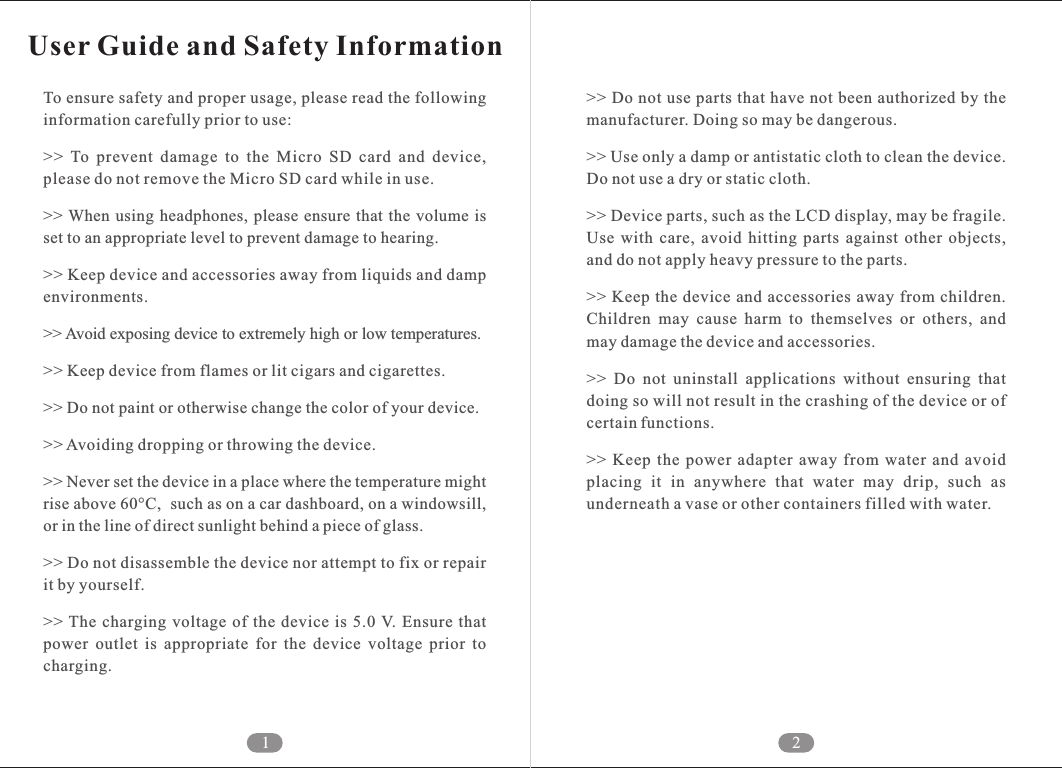
1 2User Guide and Safety InformationTo ensure safety and proper usage, please read the following information carefully prior to use:>>  To  prevent  damage  to  the  Micro  SD  card  and  device, please do not remove the Micro SD card while in use.>> When  using  headphones,  please  ensure  that  the volume is set to an appropriate level to prevent damage to hearing. >> Keep device and accessories away from liquids and damp environments. >> Avoid exposing device to extremely high or low temperatures. >> Keep device from flames or lit cigars and cigarettes. >> Do not paint or otherwise change the color of your device. >> Avoiding dropping or throwing the device. >> Never set the device in a place where the temperature might rise above 60°C,  such as on a car dashboard, on a windowsill, or in the line of direct sunlight behind a piece of glass.>> Do not disassemble the device nor attempt to fix or repair it by yourself.>> The  charging  voltage of  the device  is  5.0 V. Ensure  that power  outlet  is  appropriate  for  the  device  voltage  prior  to charging.>> Do not use parts that have not been authorized by the manufacturer. Doing so may be dangerous.>> Use only a damp or antistatic cloth to clean the device. Do not use a dry or static cloth. >> Device parts, such as the LCD display, may be fragile. Use  with  care,  avoid  hitting  parts  against  other  objects, and do not apply heavy pressure to the parts. >> Keep the device and accessories  away from children. Children  may  cause  harm  to  themselves  or  others,  and may damage the device and accessories. >>  Do  not  uninstall  applications  without  ensuring  that doing so will not result in the crashing of the device or of certain functions. >>  Keep  the  power  adapter  away  from  water  and  avoid placing  it  in  anywhere  that  water  may  drip,  such  as underneath a vase or other containers filled with water.
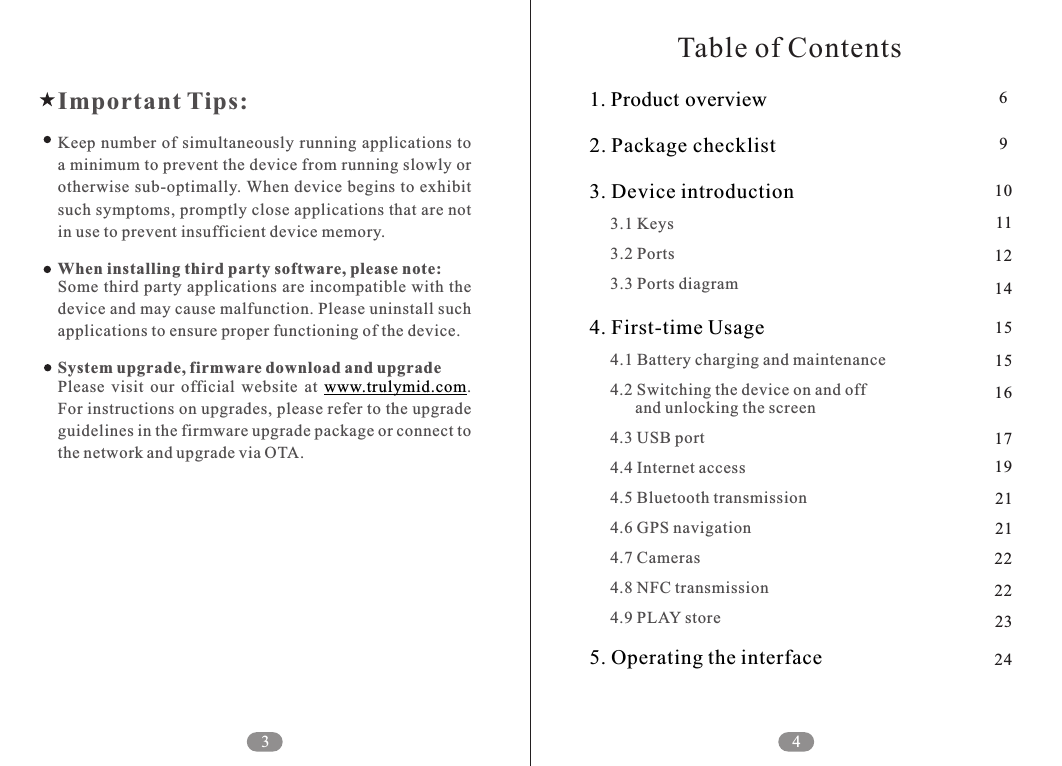
34Table of ContentsImportant Tips:Keep number  of simultaneously  running applications to a minimum to prevent the device from running slowly or otherwise sub-optimally. When device begins to exhibit such symptoms, promptly close applications that are not in use to prevent insufficient device memory. When installing third party software, please note:Some third party applications are incompatible with the device and may cause malfunction. Please uninstall such applications to ensure proper functioning of the device.System upgrade, firmware download and upgradePlease  visit  our  official  website  at  . For instructions on upgrades, please refer to the upgrade guidelines in the firmware upgrade package or connect to the network and upgrade via OTA.www.trulymid.com1. Product overview2. Package checklist                                                  3. Device introduction4. First-time Usage5. Operating the interface     3.1 Keys     3.2 Ports     3.3 Ports diagram     4.1 Battery charging and maintenance     4.2 Switching the device on and off            and unlocking the screen     4.3 USB port     4.4 Internet access     4.5 Bluetooth transmission     4.6 GPS navigation     4.7 Cameras     4.8 NFC transmission     4.9 PLAY store69101112141515161719212122222324
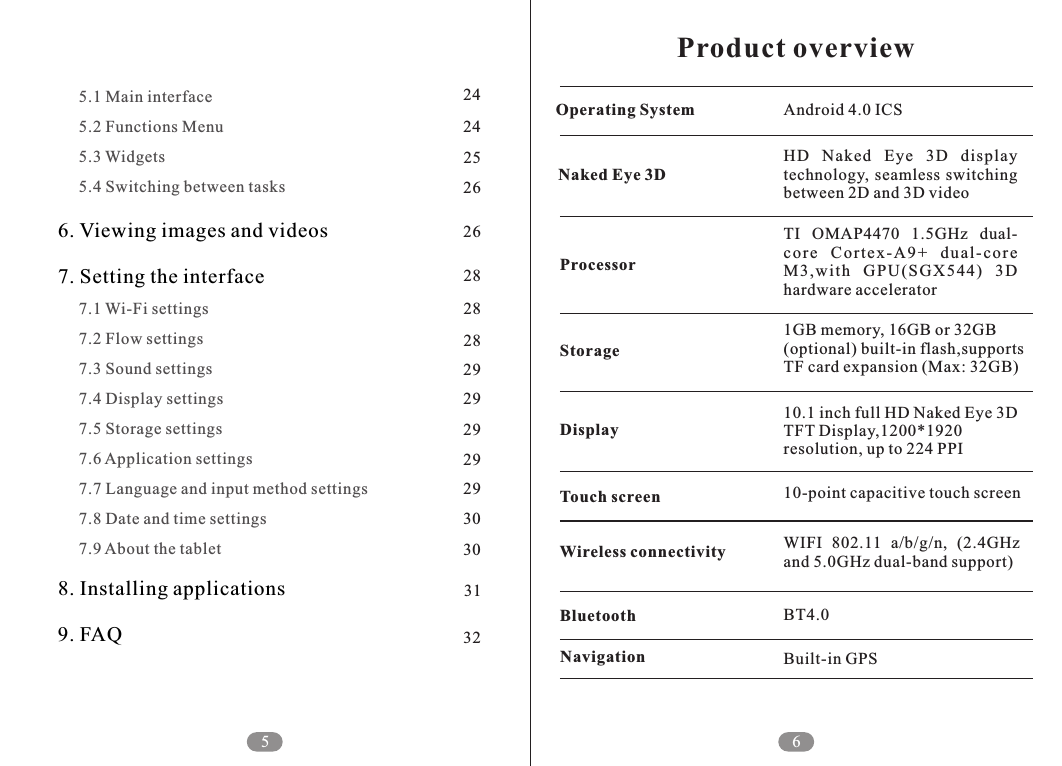
5     5.1 Main interface     5.2 Functions Menu     5.3 Widgets     5.4 Switching between tasks     7.1 Wi-Fi settings     7.2 Flow settings     7.3 Sound settings     7.4 Display settings     7.5 Storage settings     7.6 Application settings     7.7 Language and input method settings     7.8 Date and time settings     7.9 About the tablet6. Viewing images and videos7. Setting the interface8. Installing applications9. FAQ6Product overviewBT4.0Built-in GPSBluetoothNavigationHD  Naked  Eye  3D  display technology,  seamless switching between 2D and 3D videoTI  OMAP4470  1.5GHz  dual-co r e  C o rte x -A9 +  d u al- c ore M3 ,w it h  GPU (S GX 54 4)  3D hardware accelerator1GB memory, 16GB or 32GB (optional) built-in flash,supports TF card expansion (Max: 32GB)10.1 inch full HD Naked Eye 3D TFT Display,1200*1920 resolution, up to 224 PPI10-point capacitive touch screenWIFI  802.11  a/b/g/n,  (2.4GHz and 5.0GHz dual-band support)Android 4.0 ICSOperating SystemNaked Eye 3DProcessorStorageDisplayTouch screenWireless connectivity2424252626282828292929292930303132
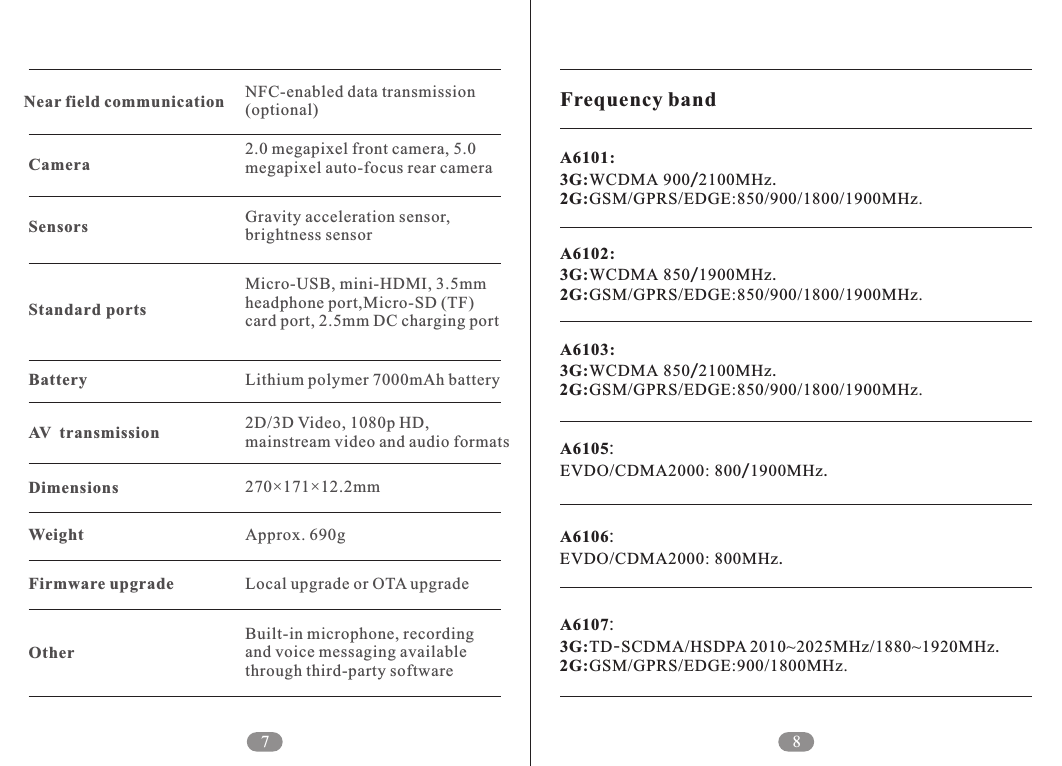
7 8Micro-USB, mini-HDMI, 3.5mm headphone port,Micro-SD (TF) card port, 2.5mm DC charging portLithium polymer 7000mAh battery2D/3D Video, 1080p HD, mainstream video and audio formatsNFC-enabled data transmission (optional)2.0 megapixel front camera, 5.0 megapixel auto-focus rear cameraGravity acceleration sensor, brightness sensorNear field communicationCameraSensorsStandard portsBatteryAV transmission270×171×12.2mmDimensionsApprox. 690gWeightLocal upgrade or OTA upgradeFirmware upgradeBuilt-in microphone, recording and voice messaging available through third-party softwareOtherFrequency bandA6101:3G:WCDMA 900/2100MHz.A6102:3G:WCDMA 850/1900MHz.A6103:3G:WCDMA 850/2100MHz.A6105:EVDO/CDMA2000: 800/1900MHz.A6106:A6107:3G:TD-SCDMA/HSDPA 2010~2025MHz/1880~1920MHz.2G:GSM/GPRS/EDGE:850/900/1800/1900MHz.2G:GSM/GPRS/EDGE:850/900/1800/1900MHz.2G:GSM/GPRS/EDGE:850/900/1800/1900MHz.EVDO/CDMA2000: 800MHz.2G:GSM/GPRS/EDGE:900/1800MHz.
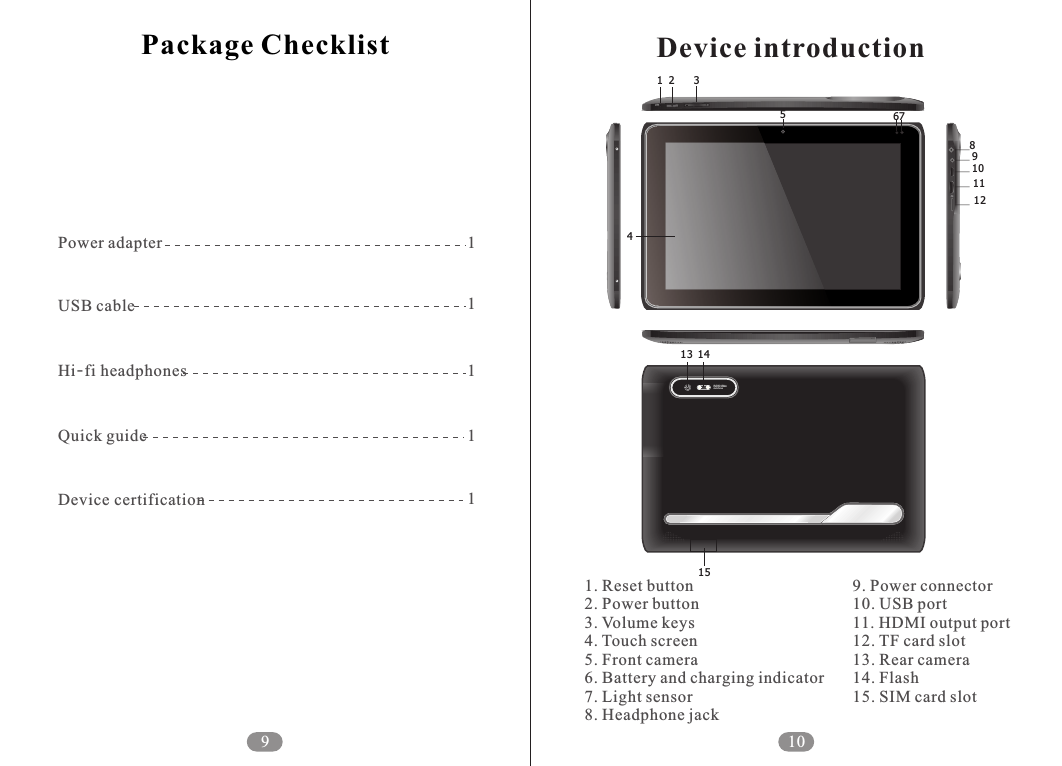
Package Checklist1111Power adapterUSB cableHi-fi headphonesQuick guide1Device certification910RST5. 0 Mega P ixelAuto focusFull HD Video21 356789101112413 14151. Reset button2. Power button3. Volume keys4. Touch screen5. Front camera6. Battery and charging indicator7. Light sensor8. Headphone jack9. Power connector10. USB port11. HDMI output port12. TF card slot13. Rear camera14. Flash15. SIM card slotDevice introduction
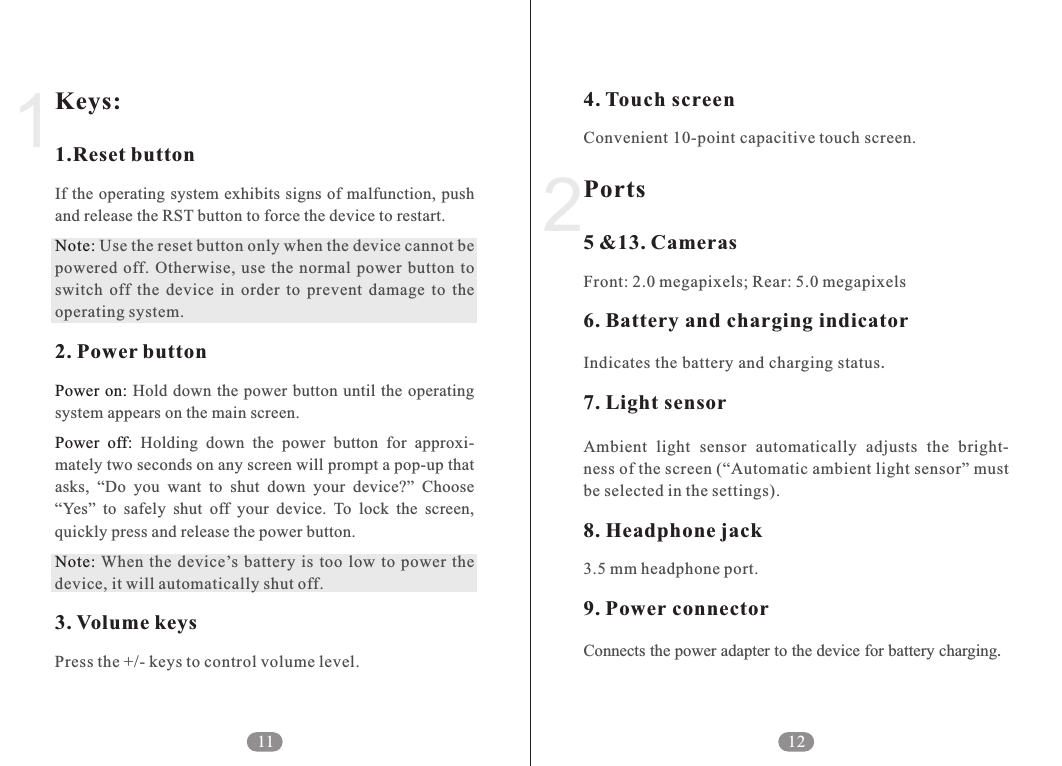
4. Touch screenPorts5 &13. Cameras6. Battery and charging indicator7. Light sensor8. Headphone jack9. Power connectorConvenient 10-point capacitive touch screen.Front: 2.0 megapixels; Rear: 5.0 megapixelsIndicates the battery and charging status.Ambient  light  sensor  automatically  adjusts  the  bright-ness of the screen (“Automatic ambient light sensor” must be selected in the settings).3.5 mm headphone port.Connects the power adapter to the device for battery charging.212Keys:1.Reset buttonNote:2. Power buttonPower on:Power  off:Note:3. Volume keysIf the operating system exhibits signs of malfunction, push and release the RST button to force the device to restart.  Use the reset button only when the device cannot be powered  off.  Otherwise, use  the normal  power  button  to switch  off  the  device  in  order  to  prevent  damage  to  the operating system. Hold down  the power button until the  operating system appears on the main screen.   Holding  down  the  power  button  for  approxi-mately two seconds on any screen will prompt a pop-up that asks,  “Do  you  want  to  shut  down  your  device?”  Choose “Yes”  to  safely  shut  off  your  device.  To  lock  the  screen, quickly press and release the power button. When  the  device’s battery  is  too  low  to  power  the device, it will automatically shut off.Press the +/- keys to control volume level.111
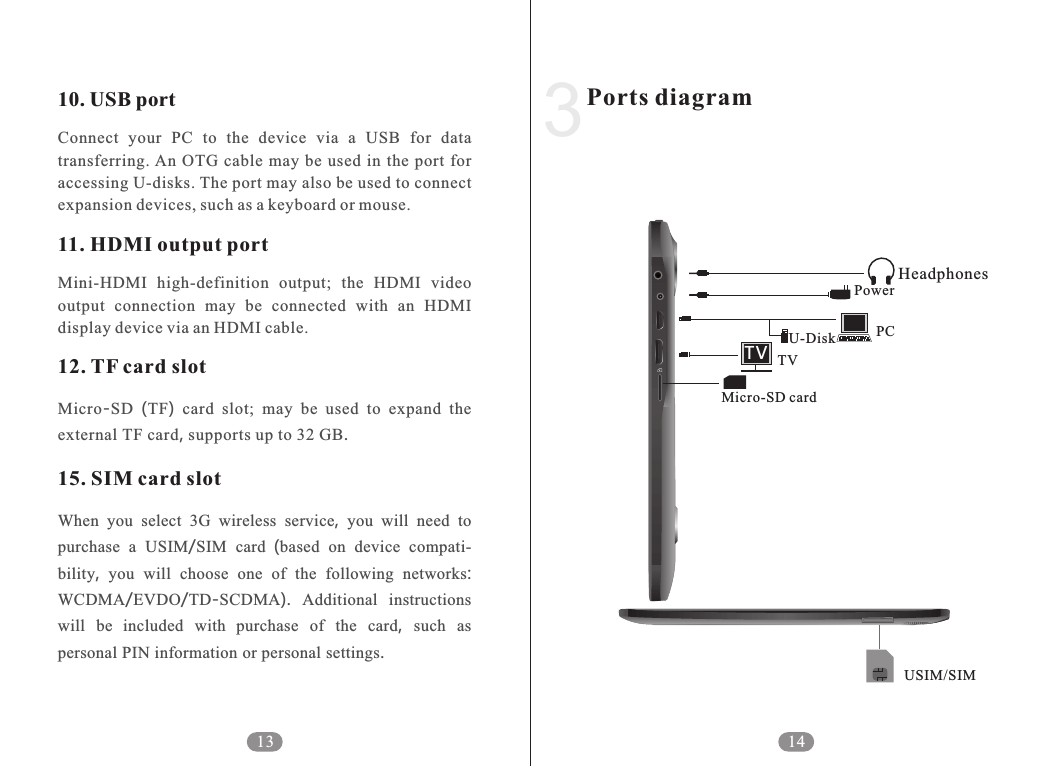
10. USB port11. HDMI output port12. TF card slot15. SIM card slot Connect  your  PC  to  the  device  via  a  USB  for  data transferring. An  OTG  cable  may  be  used  in  the  port  for accessing U-disks. The port may also be used to connect expansion devices, such as a keyboard or mouse.Mini-HDMI  high-definition  output;  the  HDMI  video output  connection  may  be  connected  with  an  HDMI display device via an HDMI cable.Micro-SD  (TF)  card slot; may be used to expand the external TF card, supports up to 32 GB.When you select 3G wireless service,  you will need to purchase a USIM/SIM card  (based on device compati-bility,  you will choose one of the following networks: WCDMA/EVDO/TD-SCDMA).  Additional instructions will be  included with  purchase of the card,  such as personal PIN information or personal settings. 13Ports diagram314TVHeadphonesPowerPCU-DiskTVMicro-SD cardUSIM/SIM
other chemical batteries (such as dry cells), batteries with different capacities, or batteries of different brands. If the battery begins to emit an odor, heats up, changes in color, changes  in  shape,  or  exhibits  any  other  abnormal  signs during  charging  or  storage,  immediately  remove  the battery from the device and stop charging. If the battery is no  longer  charging,  please  disconnect  it  from  the  power adapter.  The  battery  must  be  placed  out  of  the  reach  of children.  If  the  battery  is  accidentally  swallowed,  go  to the hospital  immediately. If the  battery  begins to  leak  or emits  a  gas-like  smell,  quickly  remove  it  from  the presence  of any  fire to  prevent the battery  from catching on  fire.  If  the  battery  is  leaking  and  electrolyte  liquid comes  into  contact  with  the  eyes,  do  not  rub  the  eyes. Flush  the  eyes  with  clean  water  and  go  to  the  hospital immediately  to  prevent  long-term  damage.  Using  an incompatible  replacement  battery  model  may  result  in risk  of  explosion.  Batteries  should  be  disposed  of  at authorized battery recycling centers. When the device is powered off, press and hold the power button  down  for  approximately  two  seconds.  The indicator  light  will  become  blue  and  the  device  will Switching the device on and off and unlocking the screen216Battery charging and maintenanceNote: Note:When  using  in  the  first  time,  please  charge  the  battery until it is fully charged. Charging can be performed with just  the  power  adapter.  For  the  first  two  times,  charge the device for eight hours. Subsequently, simply charge the  device  until  the  battery  indicator  shows  that  the device is fully charged. The  device  uses  a  built-in  polymer  battery.  The appropriate adapter must be used in charging the device. While charging, the battery icon will move in a scrolling motion.  When  charging  is  complete,  the  battery  icon will  stop  scrolling.  To  prolong  the  lifetime  of  the device, it is recommended to use the batteries.If the device will  be left unused for long periods of  time,  charge  the  phone  once  a  month  and  allow  the power  to  drain  to  prevent  damage  resulting  from  the battery  dying.  When the device  automatically  turns off due  to  low  battery  power,  connect  it  to  the  power adapter.  The  screen  will  notify  you  that  the  device cannot  be  powered  on  until  it  has  been  sufficiently charged.  The  device  will  require  more  time  to  charge when  it  is  charging  while  in  use.  We  recommend charging the device when it is not in use.   Do  not  place  the  battery  in  the  microwave  or  a pressure tank; do not use the battery in conjunction with 1First-time Usage15
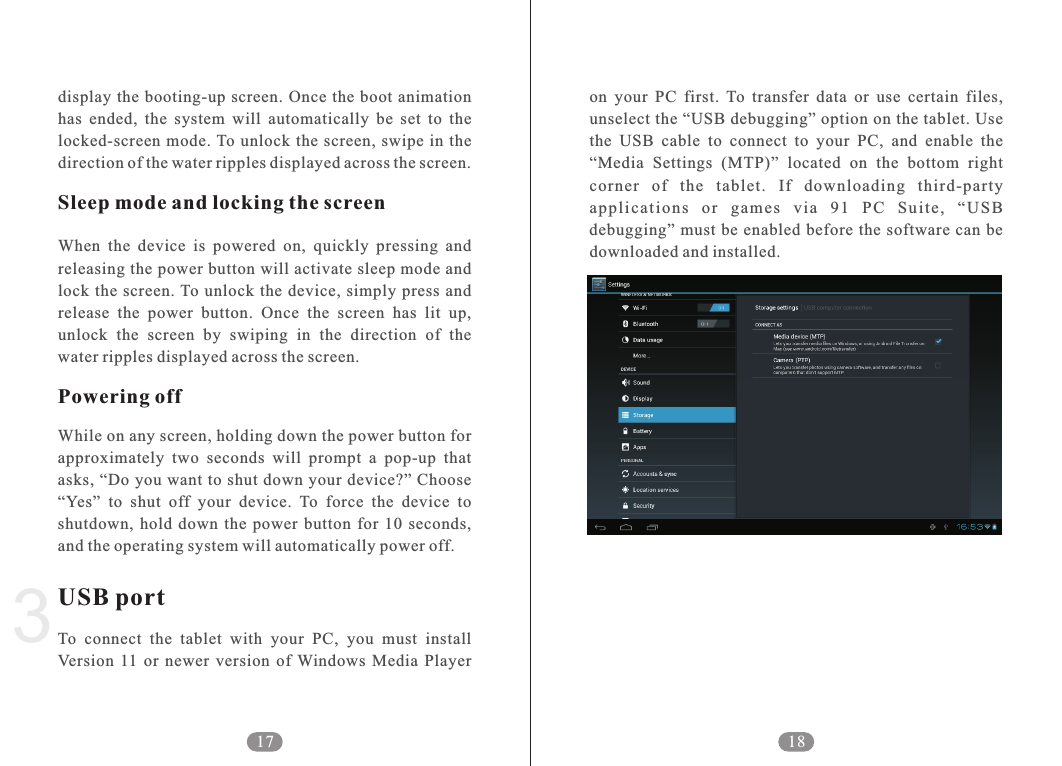
on  your  PC  first.  To  transfer  data  or  use  certain  files, unselect the “USB debugging” option on the tablet. Use the  USB  cable  to  connect  to  your  PC,  and  enable  the “Media  Settings  (MTP)”  located  on  the  bottom  right corner  of  the  tablet.  If  downloading  third-party ap p li c at i ons  o r  g ame s  v ia  91  PC  Su i te ,  “ U SB debugging”  must be enabled  before  the software  can be downloaded and installed. 183display  the booting-up  screen. Once  the  boot animation has  ended,  the  system  will  automatically  be  set  to  the locked-screen  mode. To unlock  the screen,  swipe  in  the direction of the water ripples displayed across the screen.When  the  device  is  powered  on,  quickly  pressing  and releasing the power button will activate sleep mode and lock the  screen. To unlock  the  device,  simply  press  and release  the  power  button.  Once  the  screen  has  lit  up, unlock  the  screen  by  swiping  in  the  direction  of  the water ripples displayed across the screen.While on any screen, holding down the power button for approximately  two  seconds  will  prompt  a  pop-up  that asks, “Do you want  to shut  down your device?” Choose “Yes”  to  shut  off  your  device.  To  force  the  device  to shutdown,  hold  down  the  power  button  for  10  seconds, and the operating system will automatically power off.To  connect  the  tablet  with  your  PC,  you  must  install Version  11  or  newer  version  of  Windows  Media  Player Sleep mode and locking the screenPowering offUSB port17
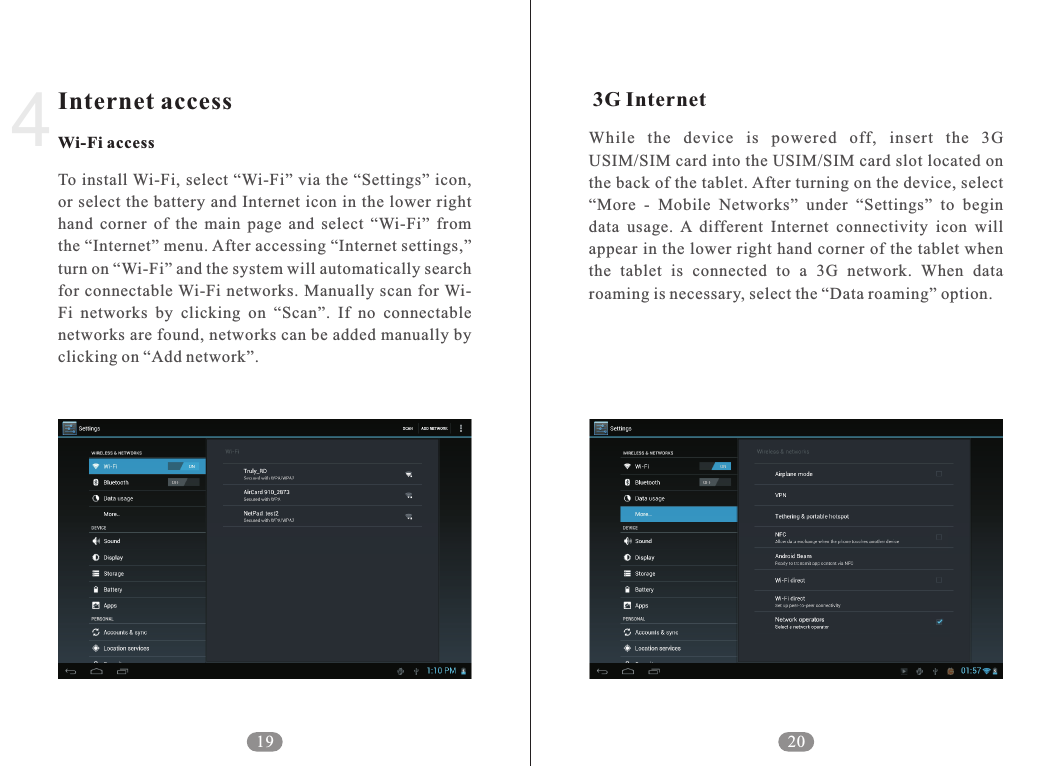
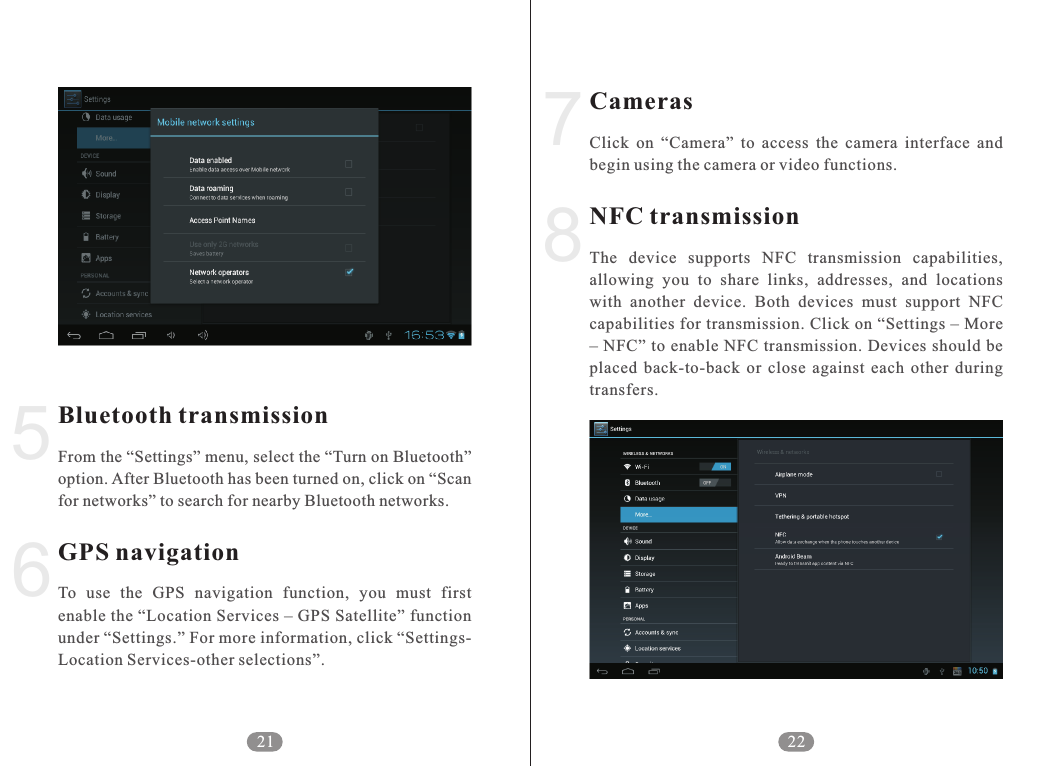
      While  the  device  is  powered  off,  insert  the  3G USIM/SIM card into the USIM/SIM card slot located on the back of the tablet. After turning on the device, select “More  -  Mobile  Networks”  under  “Settings”  to  begin data  usage.  A  different  Internet  connectivity  icon  will appear in the lower right hand corner of the tablet when the  tablet  is  connected  to  a  3G  network.  When  data roaming is necessary, select the “Data roaming” option.3G Internet194Internet accessWi-Fi accessTo install Wi-Fi, select  “Wi-Fi” via the  “Settings”  icon, or select the battery and Internet icon in the lower  right hand  corner  of  the  main  page  and  select  “Wi-Fi”  from the “Internet” menu. After accessing “Internet settings,” turn on “Wi-Fi” and the system will automatically search for  connectable Wi-Fi  networks.  Manually  scan for Wi-Fi  networks  by  clicking  on  “Scan”.  If  no  connectable networks are found, networks can be added manually by clicking on “Add network”. 20
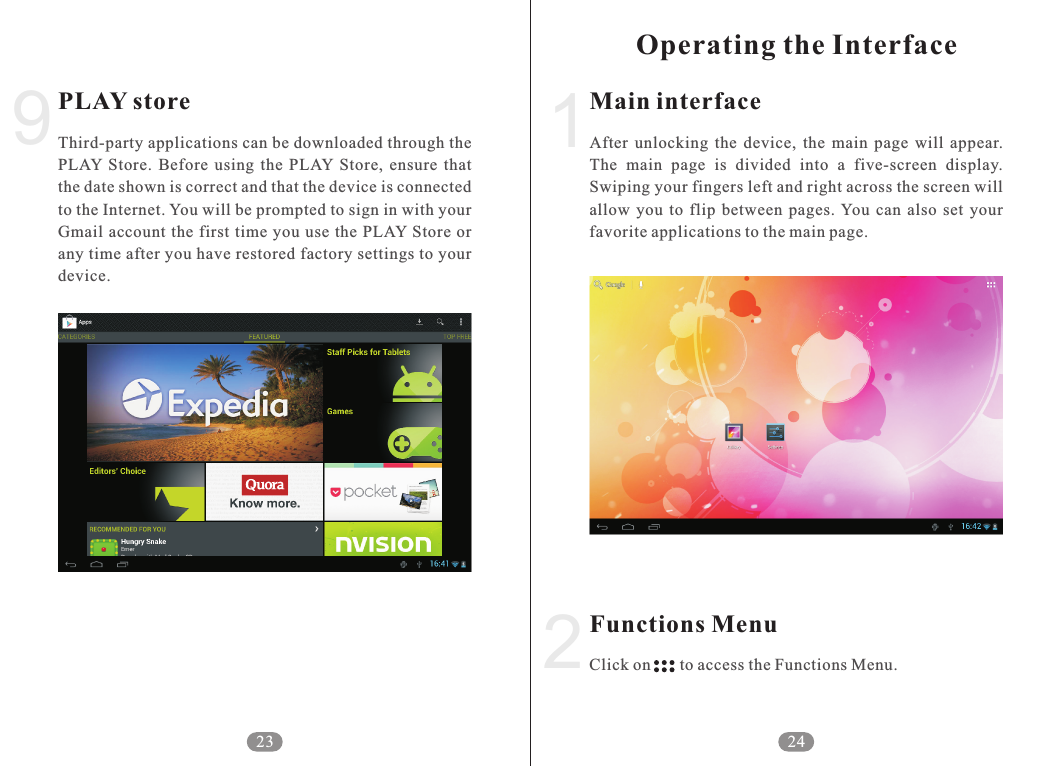
CamerasNFC transmissionClick  on  “Camera”  to  access  the  camera  interface  and begin using the camera or video functions. The  device  supports  NFC  transmission  capabilities, allowing  you  to  share  links,  addresses,  and  locations with  another  device.  Both  devices  must  support  NFC capabilities for transmission. Click on “Settings – More – NFC” to enable NFC transmission. Devices should be placed  back-to-back  or  close  against  each  other  during transfers. 228756Bluetooth transmissionGPS navigationFrom the “Settings” menu, select the “Turn on Bluetooth” option. After Bluetooth has been turned on, click on “Scan for networks” to search for nearby Bluetooth networks.To  use  the  GPS  navigation  function,  you  must  first enable the “Location Services – GPS Satellite” function under “Settings.” For more information, click “Settings-Location Services-other selections”.21
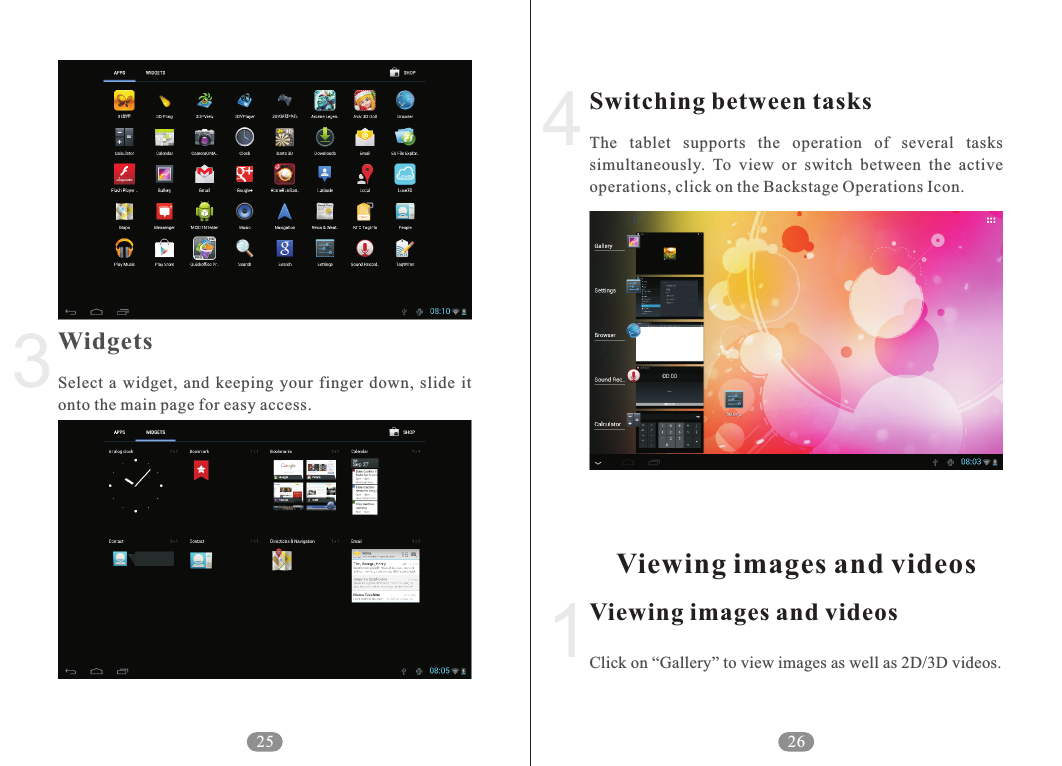
2Main interfaceFunctions MenuAfter  unlocking  the  device,  the  main  page  will  appear. The  main  page  is  divided  into  a  five-screen  display. Swiping your fingers left and right across the screen will allow  you  to  flip  between  pages. You  can  also  set  your favorite applications to the main page.Click on       to access the Functions Menu.241Operating the Interface9PLAY storeThird-party applications can be downloaded through the PLAY  Store.  Before  using  the  PLAY  Store,  ensure  that the date shown is correct and that the device is connected to the Internet. You will be prompted to sign in with your Gmail account  the  first time  you use the PLAY Store or any time after you have restored factory settings to your device.23
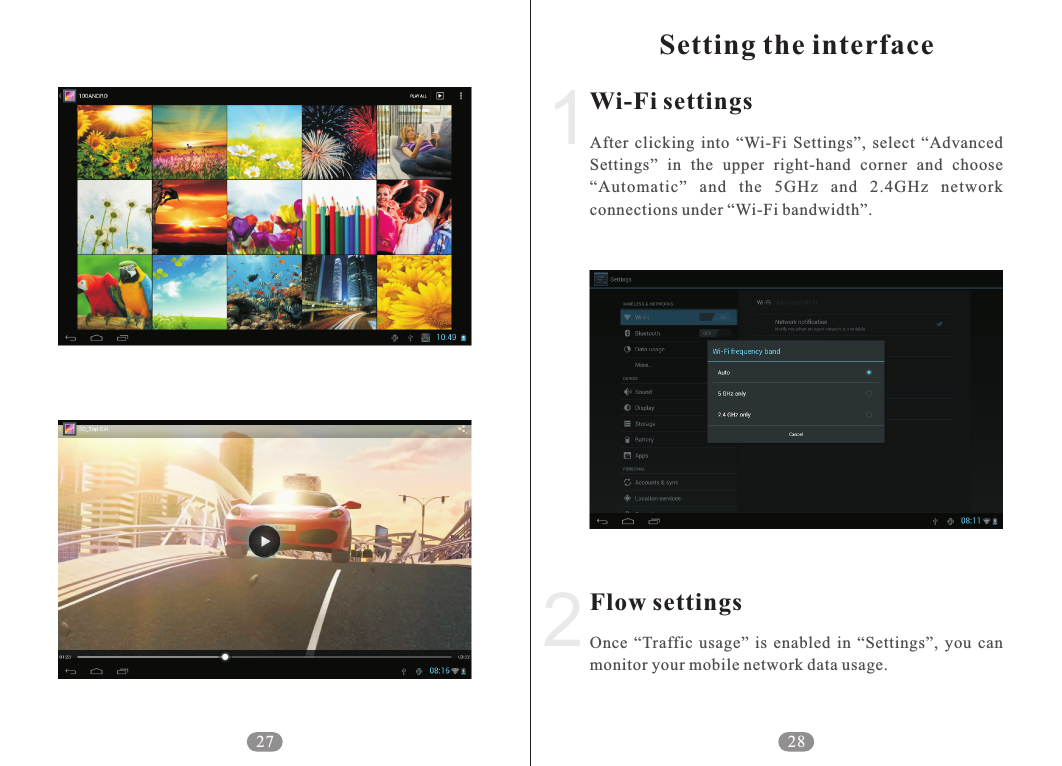
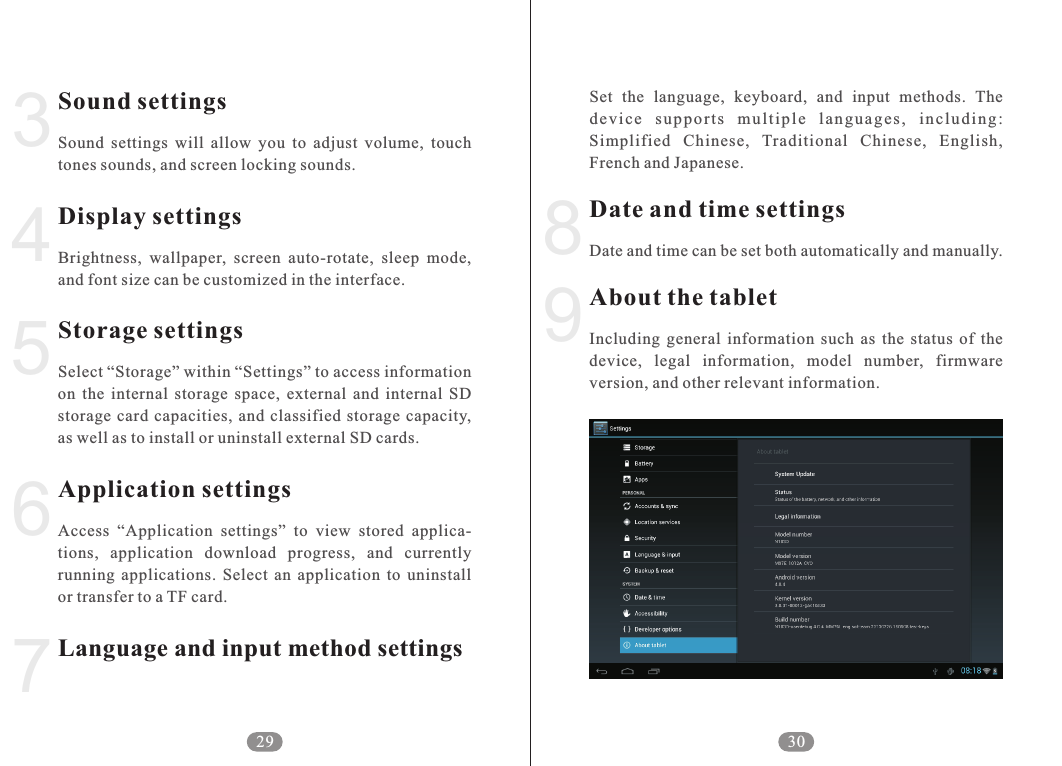
Switching between tasksViewing images and videosViewing images and videosThe  tablet  supports  the  operation  of  several  tasks simultaneously.  To  view  or  switch  between  the  active operations, click on the Backstage Operations Icon.Click on “Gallery” to view images as well as 2D/3D videos.1264WidgetsSelect  a  widget,  and  keeping  your  finger  down,  slide  it onto the main page for easy access.325
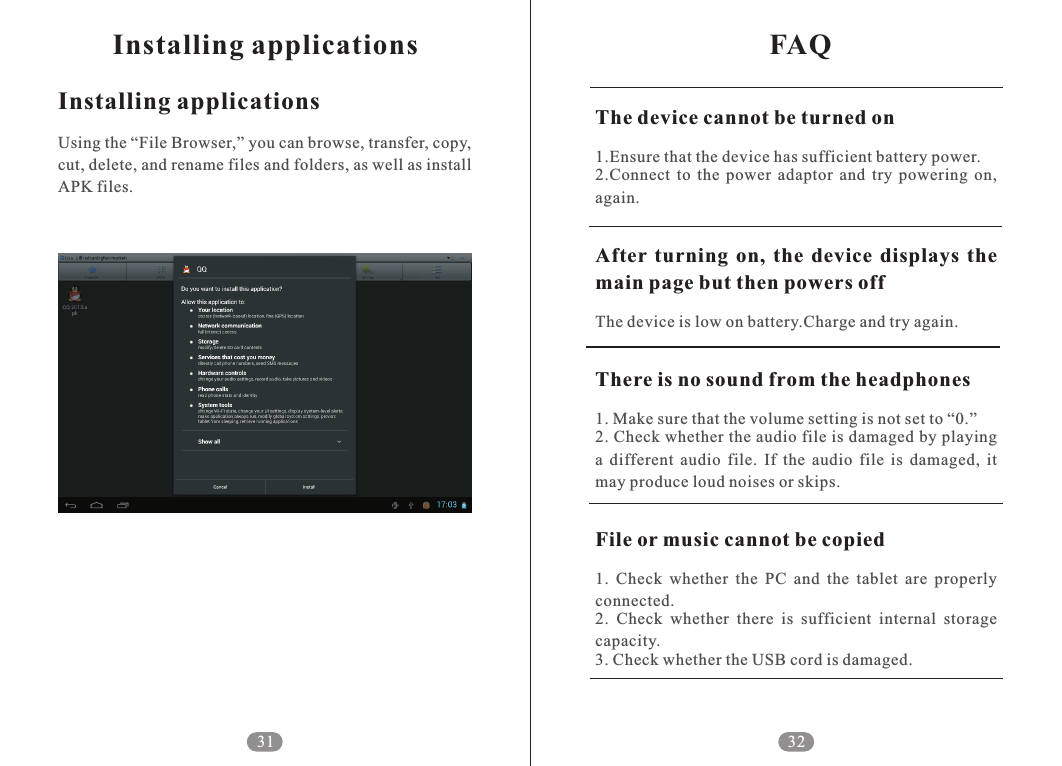
Setting the interface2Wi-Fi settingsFlow settingsAfter  clicking  into  “Wi-Fi  Settings”,  select  “Advanced Settings”  in  the  upper  right-hand  corner  and  choose “Automatic”  and  the  5GHz  and  2.4GHz  network connections under “Wi-Fi bandwidth”.Once  “Traffic  usage”  is  enabled  in  “Settings”,  you  can monitor your mobile network data usage.28127
9Set  the  language,  keyboard,  and  input  methods.  The dev i c e  s u ppo r t s  m u l tip l e  l a n guag e s ,  i n clu d i n g: Simplified  Chinese,  Traditional  Chinese,  English, French and Japanese.Date and time can be set both automatically and manually.Including  general  information  such  as  the  status  of  the device,  legal  information,  model  number,  firmware version, and other relevant information.Date and time settingsAbout the tablet30834567Sound settingsDisplay settingsStorage settingsApplication settingsLanguage and input method settingsSound  settings  will  allow  you  to  adjust  volume,  touch tones sounds, and screen locking sounds.Brightness,  wallpaper,  screen  auto-rotate,  sleep  mode, and font size can be customized in the interface.Select “Storage” within “Settings” to access information on  the  internal  storage  space,  external  and  internal  SD storage  card  capacities,  and  classified  storage capacity, as well as to install or uninstall external SD cards. Access  “Application  settings”  to  view  stored  applica-tions,  application  download  progress,  and  currently running  applications.  Select  an  application  to  uninstall or transfer to a TF card.29
FAQ32The device cannot be turned onAfter  turning  on,  the  device  displays  the main page but then powers offThere is no sound from the headphones1.Ensure that the device has sufficient battery power.2.Connect  to  the  power  adaptor  and  try  powering  on, again.The device is low on battery.Charge and try again.1. Make sure that the volume setting is not set to “0.”2. Check whether the audio file is damaged by playing a  different  audio  file.  If  the  audio  file  is  damaged,  it may produce loud noises or skips.1.  Check  whether  the  PC  and  the  tablet  are  properly connected. 2.  Check  whether  there  is  sufficient  internal  storage capacity. 3. Check whether the USB cord is damaged.File or music cannot be copiedInstalling applicationsInstalling applicationsUsing the “File Browser,” you can browse, transfer, copy, cut, delete, and rename files and folders, as well as install APK files.31
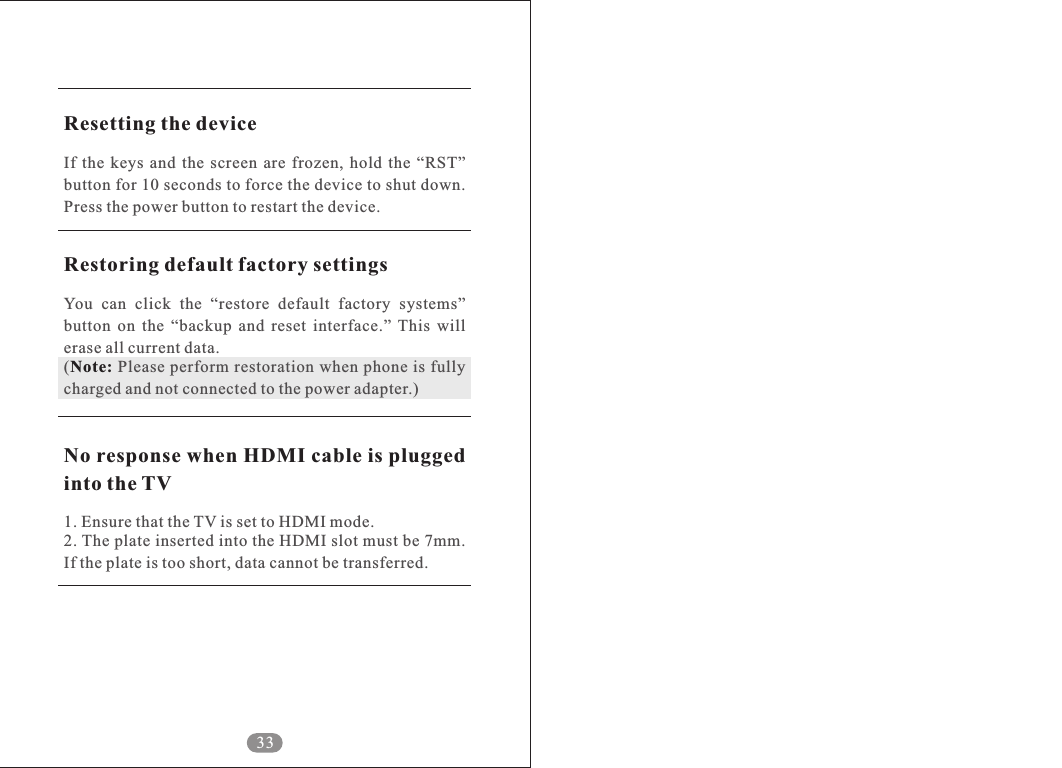
33Resetting the deviceRestoring default factory settingsNote:No response when HDMI cable is plugged into the TVIf  the  keys  and  the  screen  are  frozen,  hold  the  “RST” button for 10 seconds to force the device to shut down. Press the power button to restart the device. You  can  click  the  “restore  default  factory  systems” button  on  the  “backup  and  reset  interface.”  This  will erase all current data.(  Please perform restoration when phone is fully charged and not connected to the power adapter.)1. Ensure that the TV is set to HDMI mode.2. The plate inserted into the HDMI slot must be 7mm. If the plate is too short, data cannot be transferred.
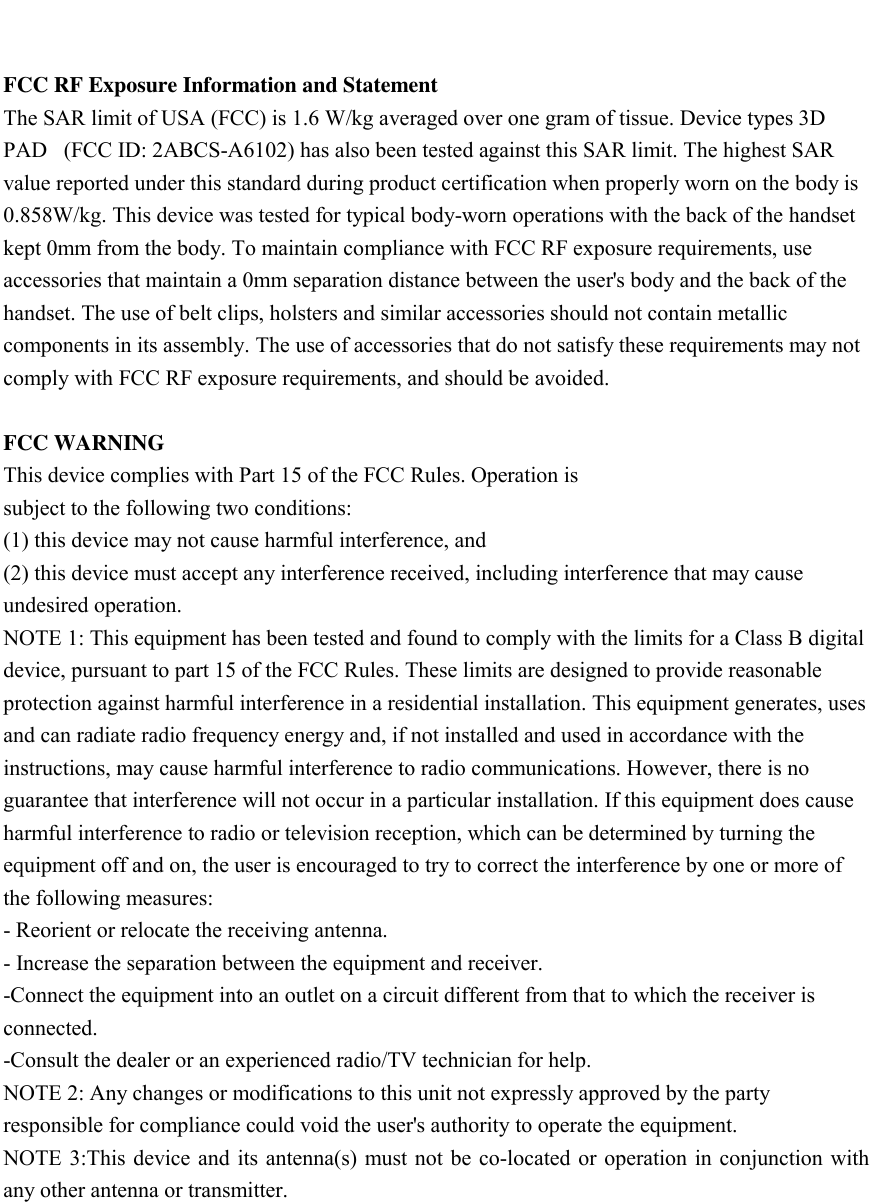
   FCC RF Exposure Information and Statement The SAR limit of USA (FCC) is 1.6 W/kg averaged over one gram of tissue. Device types 3D PAD   (FCC ID: 2ABCS-A6102) has also been tested against this SAR limit. The highest SAR value reported under this standard during product certification when properly worn on the body is 0.858W/kg. This device was tested for typical body-worn operations with the back of the handset kept 0mm from the body. To maintain compliance with FCC RF exposure requirements, use accessories that maintain a 0mm separation distance between the user's body and the back of the handset. The use of belt clips, holsters and similar accessories should not contain metallic components in its assembly. The use of accessories that do not satisfy these requirements may not comply with FCC RF exposure requirements, and should be avoided.  FCC WARNING This device complies with Part 15 of the FCC Rules. Operation is subject to the following two conditions: (1) this device may not cause harmful interference, and (2) this device must accept any interference received, including interference that may cause undesired operation. NOTE 1: This equipment has been tested and found to comply with the limits for a Class B digital device, pursuant to part 15 of the FCC Rules. These limits are designed to provide reasonable protection against harmful interference in a residential installation. This equipment generates, uses and can radiate radio frequency energy and, if not installed and used in accordance with the instructions, may cause harmful interference to radio communications. However, there is no guarantee that interference will not occur in a particular installation. If this equipment does cause harmful interference to radio or television reception, which can be determined by turning the equipment off and on, the user is encouraged to try to correct the interference by one or more of the following measures: - Reorient or relocate the receiving antenna. - Increase the separation between the equipment and receiver. -Connect the equipment into an outlet on a circuit different from that to which the receiver is connected. -Consult the dealer or an experienced radio/TV technician for help. NOTE 2: Any changes or modifications to this unit not expressly approved by the party responsible for compliance could void the user's authority to operate the equipment. NOTE 3:This device and  its antenna(s) must not be co-located or operation in conjunction with any other antenna or transmitter.

Navigation menu