Truly N701 NetPad User Manual

Truly Industrial(Shanwei) Ltd. NetPad Users Manual

Contents

User Manual

TRULY Netpad Tablet PCN701 Series ManualSuitable for the following models:N701 N701E N701G N701EGN701T N701W N701TG N701WG
Netpad N701 Series ManualGuide to safe and effective useFor safe and effective use, please read carefully         the following information before use. When using the files in the T-Flash card, do not pull out the card so as to avoid     damage to the memory card or the machine. When using the headset, please make sure the headset volume is within the      acceptable range to avoid damage to your hearing. Always pay full attention during driving. Checking navigation system screen  during driving may lead to serious traffic accident. In order to avoid accident,   please pull over the car before operating the GPS system. The map data inside   the GPS system may be different from actual road conditions, so it can only be  used as a reference. Please use the system in compliance with actual traffic  rules. The Company will not be held responsible for any traffic accident or  other accident caused by the use of the system. Do not let the machine and its accessories come into contact with liquid or     moisture environment. Do not place the machine in the environment with too high or too low     temperature. Do not place the machine aside the flame or lighted cigar or cigarette.  Do not paint or varnish the machine.   Do not drop or throw the machine. Do not place the machine at where the temperature may exceed 60°C such as on      the car dashboard, window sill or behind the glass exposed to direct sunlight etc. Do not attempt to disassemble the machine, and do not repair the machine and      accessories without authorization. The charging voltage of the machine is 5.0V. Please confirm before use. Do not use any charger not specified by the manufacturer of the machine,       otherwise there will be potential danger. Use only a damp or anti-static cloth to clean the machine. Do not use dry cloth      or cloth with static to wipe the machine.- 1-
 As the components such as LCD are breakable parts, please take good care        and do not let the machine under impact or strong compression. Do not let children play with the machine or its accessories. Children are         likely to cause injury to themselves or others, and may inadvertently         damage the machine or its accessories. Do not freely uninstall the application in the system so as to avoid that the   machine or part of the feature is not functional. The adapter of this product should not be subjected to water splashing or  water droplets, and items filled with liquid such as vase should not be   placed on the adapter.- 2-
Content- 3-1. Before use…………………………………………………… -4-1.1 The appearance and various parts……………………………………  -4-1.2 Before use ……………………………………………………………   -5-1.2.1  Buttons ………………………………………………………… -5-1.2.2  Batteries …………………………………………………………. -5-1.2.3  MICRO SD card …………………………………………………. -5-1.2.4  SIM or USIM card ………………………………………………. -5-2. Main interface operation and setting ……………………………………… -7-2.1 Main interface ……………………………………………………… -8-2.2 Task bar and task bar icon ……………………………………………… -9-2.3 Setting ……………………………………………………………… -10-2.3.1  Wi-Fi connection ………………………………………...……… -10-2.3.2  3G network connection…………………………………………… -12-2.3.3  Sound and display ………………………………………………… -17-  2.3.4  Location and security …………………………………………… -18-2.3.5  Application ……………………………………………………… -18-2.3.6  Account and synchronization ………………………………………. -19-2.3.7  SD card and system memory ……………………………………… -20-2.3.8  Language and keyboard ………………………………………… -20-2.3.9  Date and events …………………………………………………… -20-2.4.0  About the mobile multimedia …………………………………… -21-3. Electronic Market ………………………………………………………… -22-3.1 Login and use of the Electronic Market …………………………… -22-4. Browser ………………………………………………………………… -25-5. GPS and MAPS ………………………………………………………… -26-5.1 MAPS ………………………………………………………………… -26-5.2 GPS maps …………………………………………………………… -27-Appendix I: Technical Data ……………………………………………… -28-Appendix II: Technical Data ……………………………………………… -29-1.2.5  Connecting the computers ……………………………………… -6-
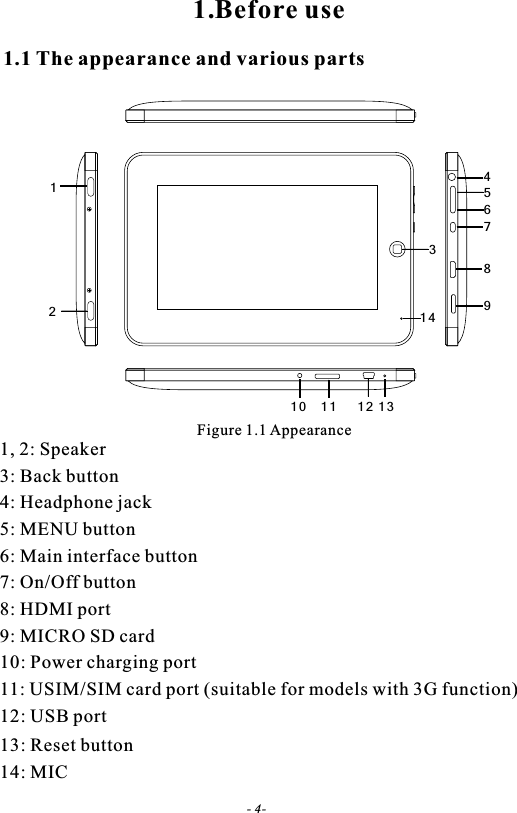
1 0 1 1 1 2 1 35312467891 41.1 The appearance and various partsFigure 1.1 Appearance1.Before use1, 2: Speaker3: Back button4: Headphone jack5: MENU button6: Main interface button7: On/Off button8: HDMI port9: MICRO SD card10: Power charging port11: USIM/SIM card port (suitable for models with 3G function)12: USB port13: Reset button14: MIC- 4-
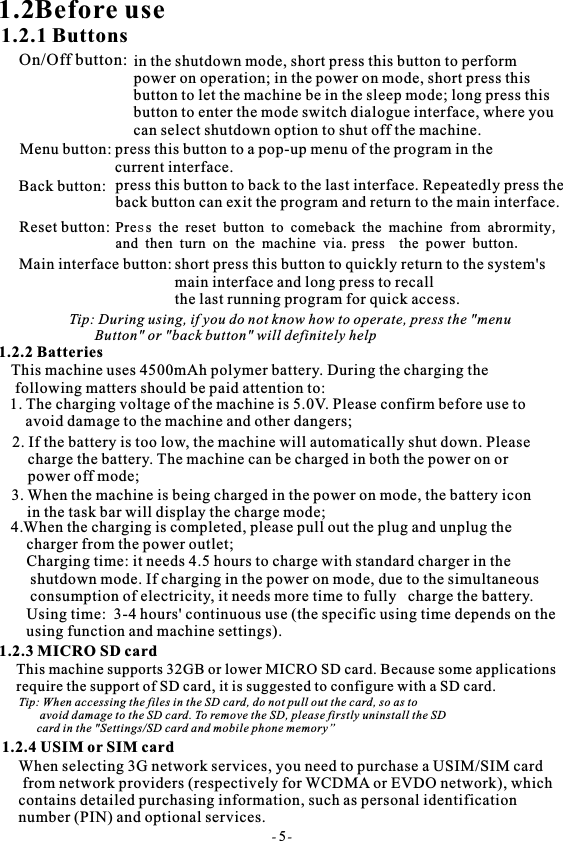
1.2Before use1.2.1 ButtonsOn/Off button: in the shutdown mode, short press this button to performpower on operation; in the power on mode, short press this button to let the machine be in the sleep mode; long press this button to enter the mode switch dialogue interface, where youcan select shutdown option to shut off the machine.Menu button: press this button to a pop-up menu of the program in thecurrent interface.Back button: press this button to back to the last interface. Repeatedly press the back button can exit the program and return to the main interface.Reset button:Main interface button: short press this button to quickly return to the system's main interface and long press to recall ​ ​the last running program for quick access.Tip: During using, if you do not know how to operate, press the "menu        Button" or "back button" will definitely help1.2.2 BatteriesThis machine uses 4500mAh polymer battery. During the charging the following matters should be paid attention to:1. The charging voltage of the machine is 5.0V. Please confirm before use to     avoid damage to the machine and other dangers;2. If the battery is too low, the machine will automatically shut down. Please    charge the battery. The machine can be charged in both the power on or    power off mode;3. When the machine is being charged in the power on mode, the battery icon     in the task bar will display the charge mode; 4.When the charging is completed, please pull out the plug and unplug the    charger from the power outlet;   Charging time: it needs 4.5 hours to charge with standard charger in the     shutdown mode. If charging in the power on mode, due to the simultaneous     consumption of electricity, it needs more time to fully   charge the battery.         Using time:  3-4 hours' continuous use (the specific using time depends on the using function and machine settings).1.2.3 MICRO SD cardThis machine supports 32GB or lower MICRO SD card. Because some applications  require the support of SD card, it is suggested to configure with a SD card.Tip: When accessing the files in the SD card, do not pull out the card, so as to       avoid damage to the SD card. To remove the SD, please firstly uninstall the SD      card in the "Settings/SD card and mobile phone memory”1.2.4 USIM or SIM cardWhen selecting 3G network services, you need to purchase a USIM/SIM card from network providers (respectively for WCDMA or EVDO network), which contains detailed purchasing information, such as personal identification number (PIN) and optional services.- 5-Press the reset button to comeback the machine from abrormity,and then turn on the machine via.press  the power button.
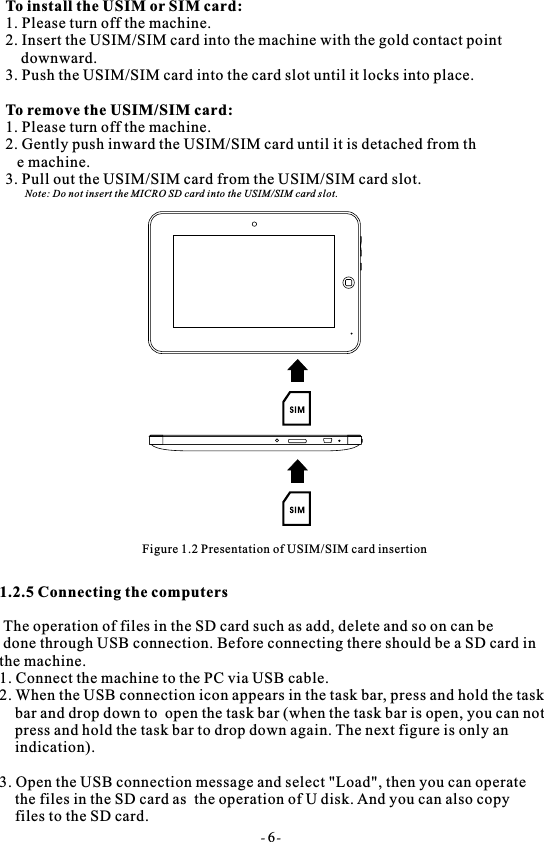
- 6-To install the USIM or SIM card: 1. Please turn off the machine.2. Insert the USIM/SIM card into the machine with the gold contact point     downward.3. Push the USIM/SIM card into the card slot until it locks into place.To remove the USIM/SIM card:1. Please turn off the machine.2. Gently push inward the USIM/SIM card until it is detached from th   e machine.3. Pull out the USIM/SIM card from the USIM/SIM card slot.     Note: Do not insert the MICRO SD card into the USIM/SIM card slot.Figure 1.2 Presentation of USIM/SIM card insertion1.2.5 Connecting the computers The operation of files in the SD card such as add, delete and so on can be done through USB connection. Before connecting there should be a SD card in the machine.1. Connect the machine to the PC via USB cable.2. When the USB connection icon appears in the task bar, press and hold the task    bar and drop down to  open the task bar (when the task bar is open, you can not    press and hold the task bar to drop down again. The next figure is only an    indication).3. Open the USB connection message and select "Load", then you can operate     the files in the SD card as  the operation of U disk. And you can also copy     files to the SD card.
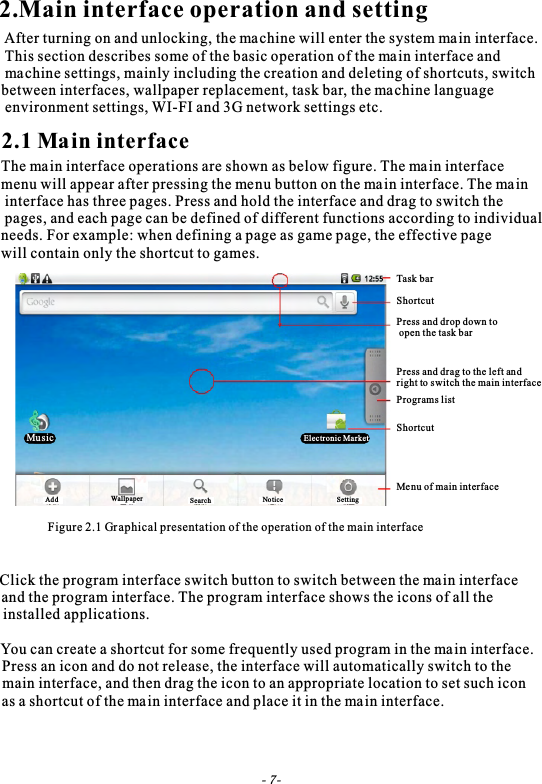
2.Main interface operation and setting After turning on and unlocking, the machine will enter the system main interface. This section describes some of the basic operation of the main interface and machine settings, mainly including the creation and deleting of shortcuts, switch between interfaces, wallpaper replacement, task bar, the machine language environment settings, WI-FI and 3G network settings etc.2.1 Main interfaceThe main interface operations are shown as below figure. The main interface menu will appear after pressing the menu button on the main interface. The main interface has three pages. Press and hold the interface and drag to switch the pages, and each page can be defined of different functions according to individual needs. For example: when defining a page as game page, the effective page will contain only the shortcut to games.Figure 2.1 Graphical presentation of the operation of the main interfaceTask barShortcutPress and drop down to open the task barPress and drag to the left and right to switch the main interfacePrograms listShortcutMenu of main interfaceMusic Electronic MarketAdd Wallpaper Search Notice Setting Click the program interface switch button to switch between the main interface and the program interface. The program interface shows the icons of all theinstalled applications.You can create a shortcut for some frequently used program in the main interface.                                                                                                                                                                                                                                                            Press an icon and do not release, the interface will automatically switch to the  main interface, and then drag the icon to an appropriate location to set such icon as a shortcut of the main interface and place it in the main interface.- 7-
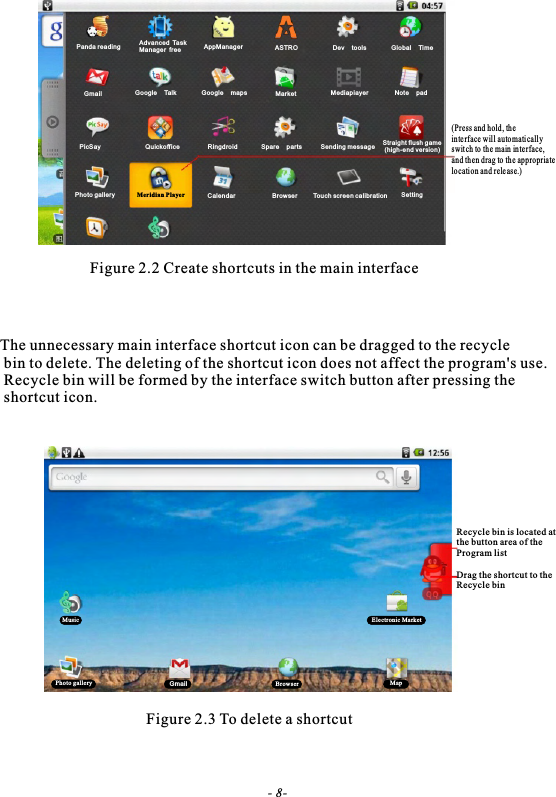
Figure 2.2 Create shortcuts in the main interfaceThe unnecessary main interface shortcut icon can be dragged to the recycle bin to delete. The deleting of the shortcut icon does not affect the program's use. Recycle bin will be formed by the interface switch button after pressing the shortcut icon.Figure 2.3 To delete a shortcutPanda reading AppManagerAdvanced TaskManager free ASTRO Dev tools Global Ti meGmail Google Ta lk Market Mediapiayer N ot e padPicSay Quickoff ic e Ringdroid Spare partsGoogle mapsSending message Straight flush game (high-end version)Photo gallery Meridian Player Calendar Browser Touch screen calibration Setting(Press and hold, th e inte rface will auto mati call y swit ch to the main in te rface,and th en drag to the appropriatelocati on and rele ase.)Recycle bin is located at the button area of theProgram listDrag the shortcut to theRecycle bin Music Electronic MarketPhoto gallery Gmail Browser Map- 8-
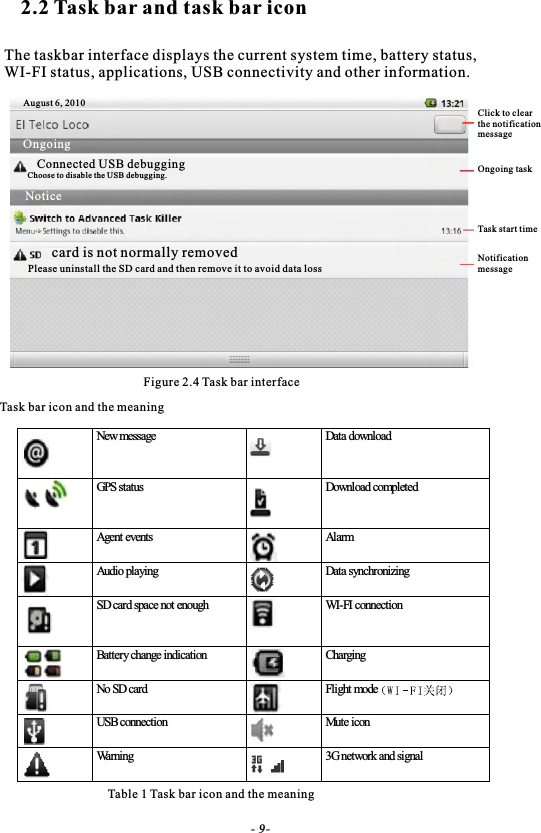
2.2 Task bar and task bar iconThe taskbar interface displays the current system time, battery status, WI-FI status, applications, USB connectivity and other information.Table 1 Task bar icon and the meaningFigure 2.4 Task bar interface New message   Data download   GPS status   Download completed   Agent events  Alarm   Audio playing  Data synchronizing  SD card space not enough   WI-FI connection  Battery change indication   Charging   No SD card   Flight mode (WI-FI off)  USB connection  Mute icon   Warning  3G network and signal  Task bar icon and the meaningAugust 6, 2010Connected USB debuggingChoose to disable the USB debugging.Ongoingcard is not normally removedPlease uninstall the SD card and then remove it to avoid data lossClick to clear the notification messageOngoing taskTask start timeNotificationmessage- 9-Notice
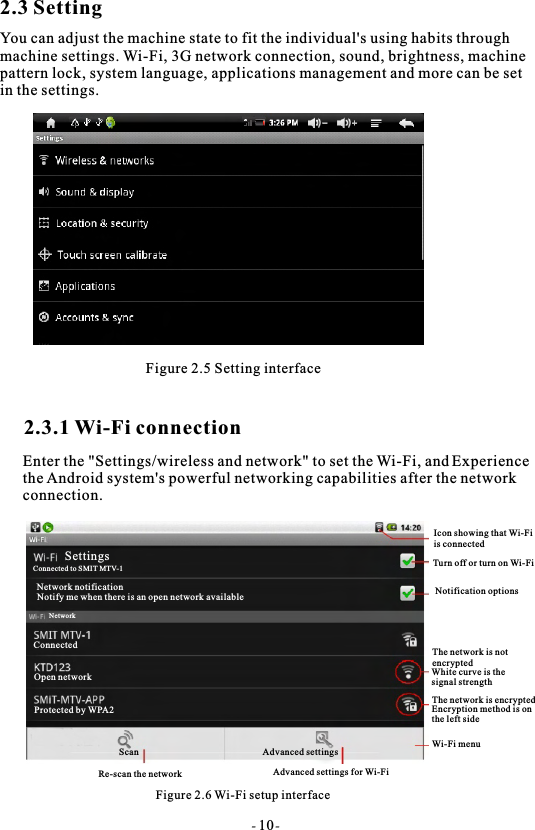
2.3 SettingYou can adjust the machine state to fit the individual's using habits through machine settings. Wi-Fi, 3G network connection, sound, brightness, machine pattern lock, system language, applications management and more can be setin the settings.Figure 2.5 Setting interface2.3.1 Wi-Fi connectionEnter the "Settings/wireless and network" to set the Wi-Fi, andthe Android system's powerful networking capabilities after the networkconnection.Figure 2.6 Wi-Fi setup interfaceSettingWireless and ne tworkSound and displayLocation and safetyApplicationsAccount and synchronizationPrivacyConnected to SMIT MTV-1SettingsNetwork notificationNotify me when there is an open network availableNetworkConnectedOpen networkProtected by WPA2ScanRe-scan the networkAdvanced settingsAdvanced settings for Wi-FiIcon showing that Wi-Fiis connectedTurn off or turn on Wi-FiNotification optionsThe network is notencryptedWhite curve is the signal strengthThe network is encryptedEncryption method is on the left sideWi-Fi menu- 10-Experience
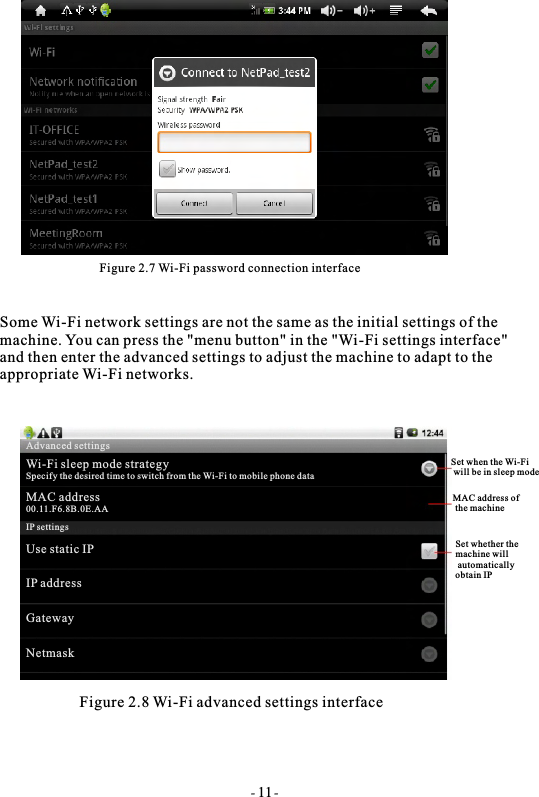
Figure 2.7 Wi-Fi password connection interfaceSome Wi-Fi network settings are not the same as the initial settings of themachine. You can press the "menu button" in the "Wi-Fi settings interface" and then enter the advanced settings to adjust the machine to adapt to theappropriate Wi-Fi networks.Figure 2.8 Wi-Fi advanced settings interface- 11-Set when the Wi-Fi will be in sleep modeMAC address of the machineSet whether the machine will automatically obtain IPAdvanced settingsWi-Fi sleep mode strategySpecify the desired time to switch from the Wi-Fi to mobile phone dataMAC address 00.11.F6.8B.0E.AAIP settingsUse static IPIP addressGatewayNetmask
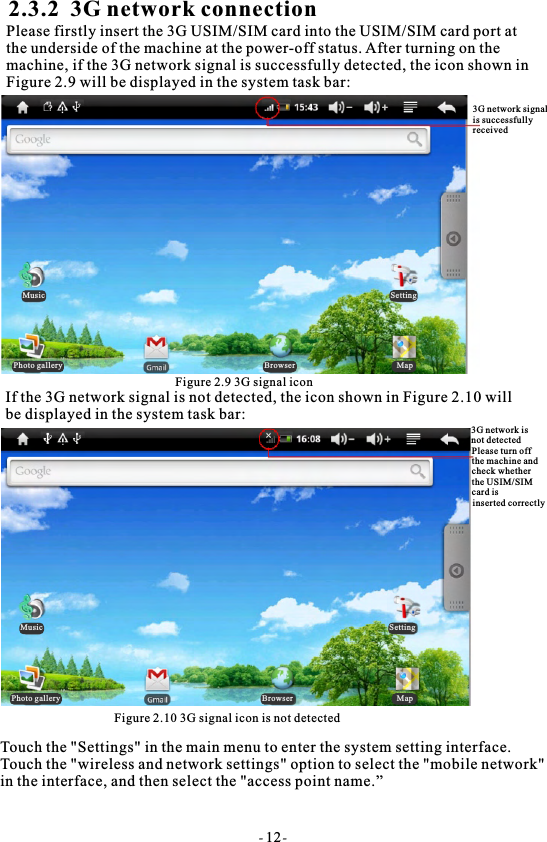
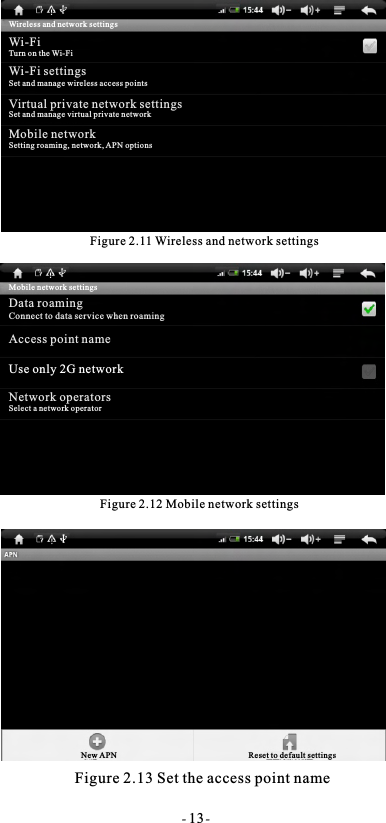
2.3.2  3G network connectionPlease firstly insert the 3G USIM/SIM card into the USIM/SIM card port at the underside of the machine at the power-off status. After turning on the machine, if the 3G network signal is successfully detected, the icon shown inFigure 2.9 will be displayed in the system task bar:Figure 2.9 3G signal iconIf the 3G network signal is not detected, the icon shown in Figure 2.10 willbe displayed in the system task bar:Figure 2.10 3G signal icon is not detectedTouch the "Settings" in the main menu to enter the system setting interface. Touch the "wireless and network settings" option to select the "mobile network" in the interface, and then select the "access point name.”- 12-3G network signalis successfullyreceived3G network is not detectedPlease turn off the machine and check whether the USIM/SIMcard isinserted correctlyMusic SettingPhoto gallery Browser MapMusic SettingPhoto gallery Browser Map
Figure 2.11 Wireless and network settingsFigure 2.12 Mobile network settingsFigure 2.13 Set the access point name- 13-Wireless and network settingsWi-FiTurn on the Wi-FiWi-Fi settingsSet and manage wireless access pointsVirtual private network settingsSet and manage virtual private networkMobile networkSetting roaming, network, APN optionsMobile network settingsData roamingConnect to data service when roamingAccess point nameUse only 2G networkNetwork operatorsSelect a network operatorNew APN Reset to default settings
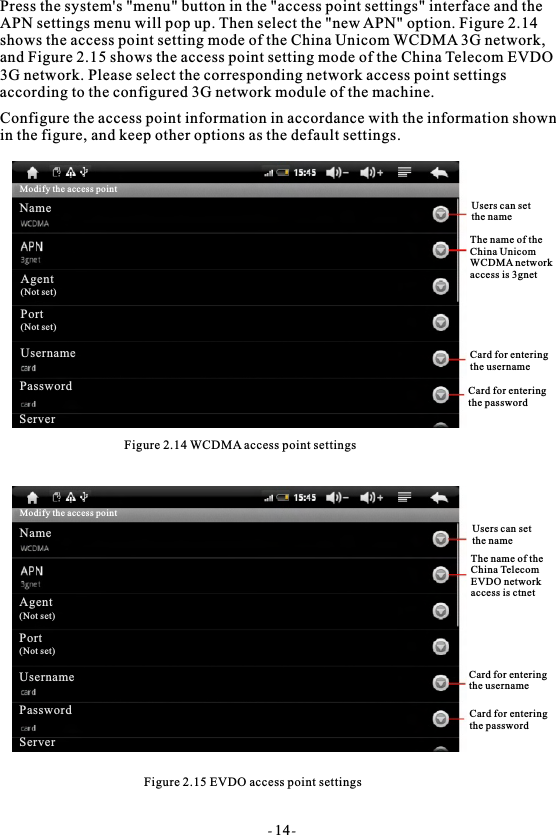
Press the system's "menu" button in the "access point settings" interface and theAPN settings menu will pop up. Then select the "new APN" option. Figure 2.14 shows the access point setting mode of the China Unicom WCDMA 3G network, and Figure 2.15 shows the access point setting mode of the China Telecom EVDO 3G network. Please select the corresponding network access point settings according to the configured 3G network module of the machine.Configure the access point information in accordance with the information shownin the figure, and keep other options as the default settings.Figure 2.14 WCDMA access point settingsFigure 2.15 EVDO access point settingsUsers can set the nameThe name of theChina UnicomWCDMA networkaccess is 3gnetCard for entering the usernameCard for enteringthe passwordUsers can setthe nameThe name of theChina Telecom EVDO network access is ctnetCard for enteringthe usernameCard for enteringthe passwordModify the access pointNameAgent(Not set)Port(Not set)UsernamePasswordServerModify the access pointNameAgent(Not set)Port(Not set)UsernamePasswordServer- 14-
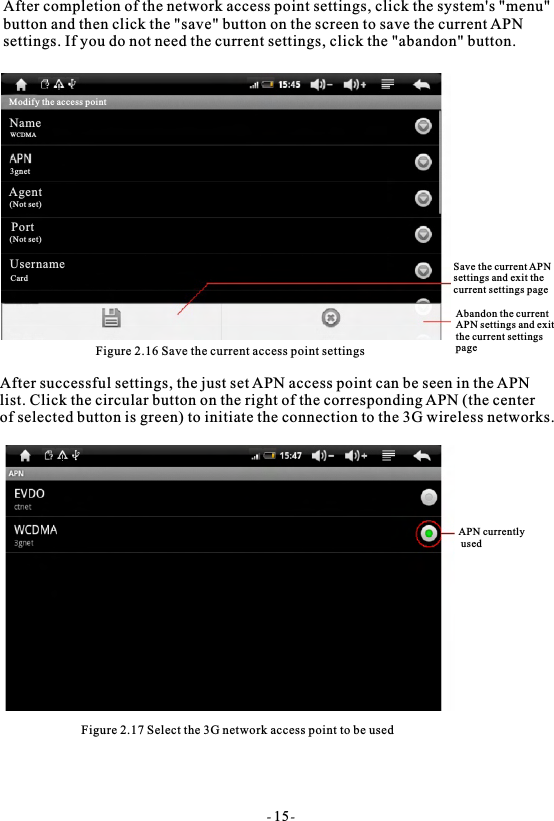
After completion of the network access point settings, click the system's "menu" button and then click the "save" button on the screen to save the current APN settings. If you do not need the current settings, click the "abandon" button.Figure 2.16 Save the current access point settingsAfter successful settings, the just set APN access point can be seen in the APN list. Click the circular button on the right of the corresponding APN (the center of selected button is green) to initiate the connection to the 3G wireless networks. Figure 2.17 Select the 3G network access point to be usedAPN currently usedSave the current APNsettings and exit the current settings pageAbandon the currentAPN settings and exitthe current settingspage- 15-Modify the access pointNameWCDMAAgent(Not set)Port(Not set)UsernameCard3gnet
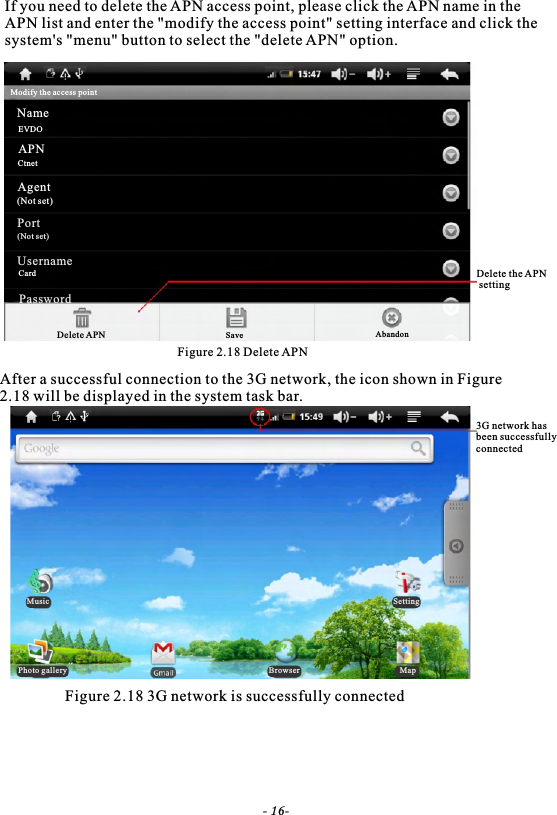
If you need to delete the APN access point, please click the APN name in theAPN list and enter the "modify the access point" setting interface and click the system's "menu" button to select the "delete APN" option.Figure 2.18 Delete APNAfter a successful connection to the 3G network, the icon shown in Figure 2.18 will be displayed in the system task bar.Figure 2.18 3G network is successfully connectedDelete the APN setting3G network has been successfully connected- 16-Modify the access pointNameEVDOAPNCtnetAgent(Not set)Port(Not set)UsernameCardPasswordDelete APN Save AbandonMusicPhoto gallery Browser MapSetting
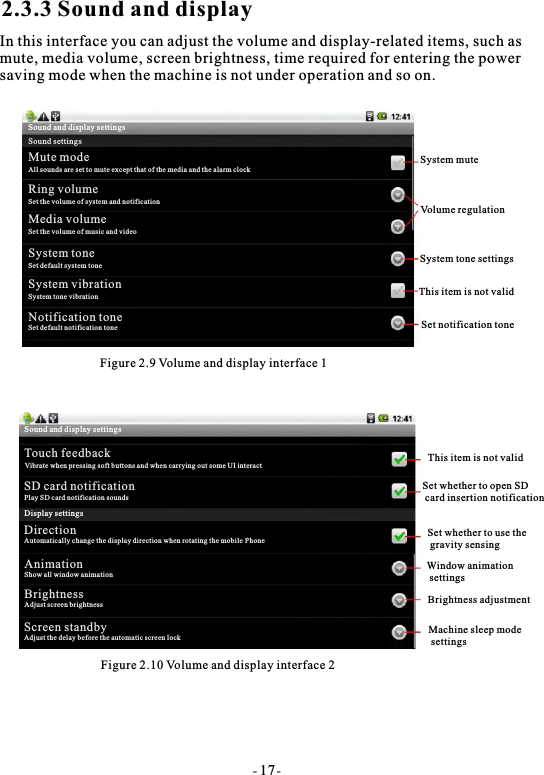
2.3.3 Sound and displayIn this interface you can adjust the volume and display-related items, such asmute, media volume, screen brightness, time required for entering the powersaving mode when the machine is not under operation and so on.Figure 2.9 Volume and display interface 1Figure 2.10 Volume and display interface 2System muteVolume regulationSystem tone settingsThis item is not validSet notification toneThis item is not validSet whether to open SD card insertion notificationSet whether to use the gravity sensingWindow animation settingsBrightness adjustmentMachine sleep mode settings- 17-Sound and display settingsSound settingsMute modeAll sounds are set to mute except that of the media and the alarm clockRing volumeSet the volume of system and notificationMedia volumeSet the volume of music and videoSystem toneSet default system toneSystem vibrationSystem tone vibrationNotification toneSet default notification toneSound and display settingsTouch feedbackVibrate when pressing soft buttons and when carrying out some UI interactSD card notificationPlay SD card notification soundsDisplay settingsDirectionAutomatically change the display direction when rotating the mobile Phone  AnimationShow all window animationBrightnessAdjust screen brightnessScreen standbyAdjust the delay before the automatic screen lock
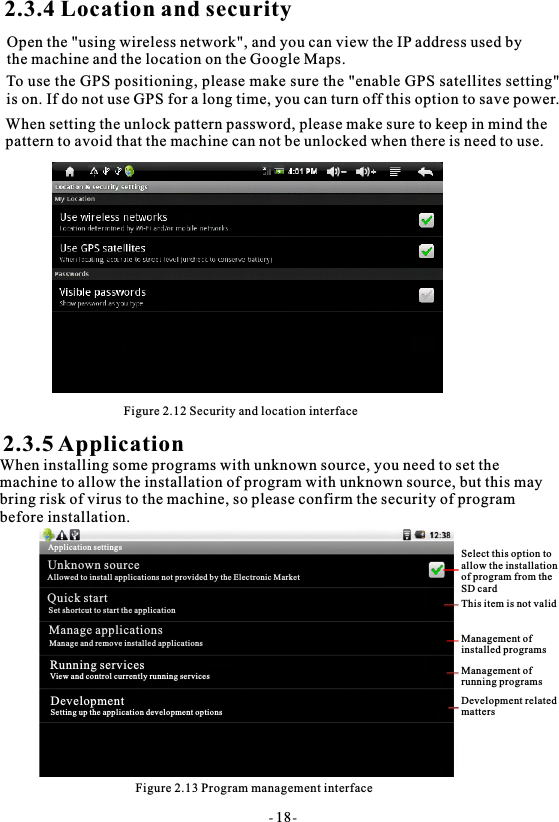
2.3.4 Location and securityTo use the GPS positioning, please make sure the "enable GPS satellites setting"is on. If do not use GPS for a long time, you can turn off this option to save power.When setting the unlock pattern password, please make sure to keep in mind the pattern to avoid that the machine can not be unlocked when there is need to use.Figure 2.12 Security and location interface2.3.5 ApplicationWhen installing some programs with unknown source, you need to set themachine to allow the installation of program with unknown source, but this maybring risk of virus to the machine, so please confirm the security of program before installation.Figure 2.13 Program management interface- 18-Select this option to allow the installation of program from the SD cardThis item is not validManagement of installed programsManagement ofrunning programsDevelopment relatedmattersApplication settingsUnknown sourceAllowed to install applications not provided by the Electronic MarketQuick startSet shortcut to start the applicationManage applicationsManage and remove installed applicationsRunning servicesView and control currently running servicesDevelopmentSetting up the application development optionsOpen the "using wireless network", and you can view the IP address used by the machine and the location on the Google Maps.
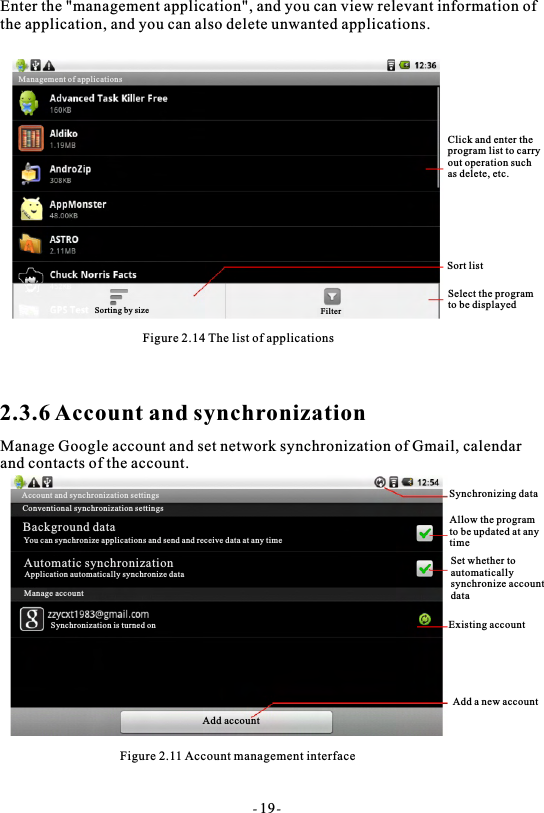
Enter the "management application", and you can view relevant information ofthe application, and you can also delete unwanted applications.Figure 2.14 The list of applications2.3.6 Account and synchronizationManage Google account and set network synchronization of Gmail, calendar and contacts of the account.Figure 2.11 Account management interfaceClick and enter the program list to carry out operation suchas delete, etc.Sort listSelect the programto be displayedSynchronizing dataAllow the programto be updated at anytimeSet whether to automatically synchronize accountdataExisting accountAdd a new account- 19-Sorting by size FilterAccount and synchronization settingsConventional synchronization settingsBackground dataYou can synchronize applications and send and receive data at any timeAutomatic synchronizationApplication automatically synchronize dataManage accountSynchronization is turned onAdd accountManagement of applications
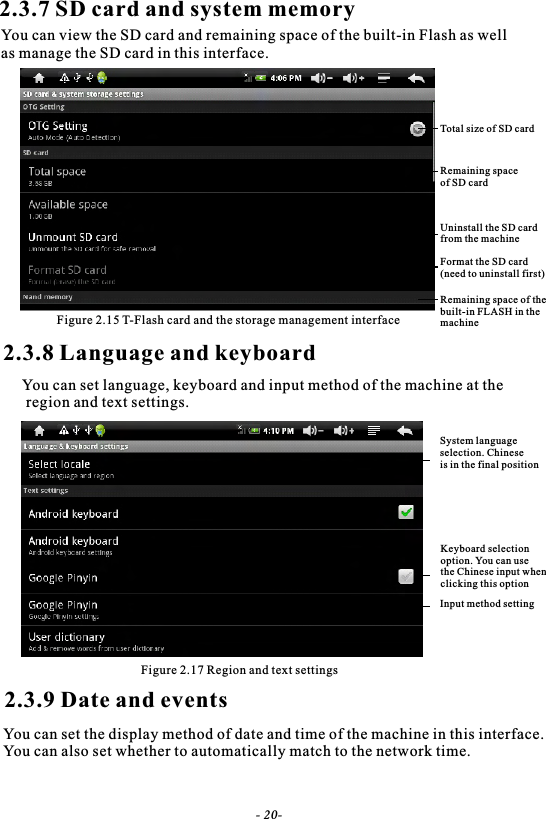
2.3.7 SD card and system memoryYou can view the SD card and remaining space of the built-in Flash as well as manage the SD card in this interface.Figure 2.15 T-Flash card and the storage management interface2.3.8 Language and keyboardYou can set language, keyboard and input method of the machine at the region and text settings.Figure 2.17 Region and text settings2.3.9 Date and eventsYou can set the display method of date and time of the machine in this interface. You can also set whether to automatically match to the network time.- 20-Total size of SD cardRemaining space of SD cardUninstall the SD card from the machineFormat the SD card(need to uninstall first)Remaining space of thebuilt-in FLASH in themachineSystem languageselection. Chinese is in the final positionKeyboard selection option. You can use the Chinese input whenclicking this optionInput method setting
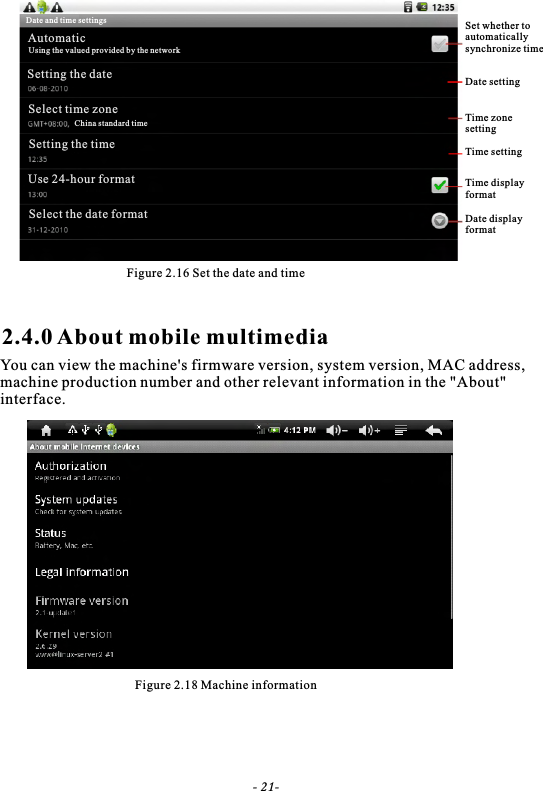
Figure 2.16 Set the date and time2.4.0 About mobile multimediaYou can view the machine's firmware version, system version, MAC address, machine production number and other relevant information in the "About"interface.Figure 2.18 Machine informationSet whether to automatically synchronize timeDate settingTime zone settingTime settingTime displayformatDate displayformat- 21-Date and time settingsAutomaticUsing the valued provided by the networkSetting the dateSelect time zoneChina standard timeSetting the timeUse 24-hour formatSelect the date format
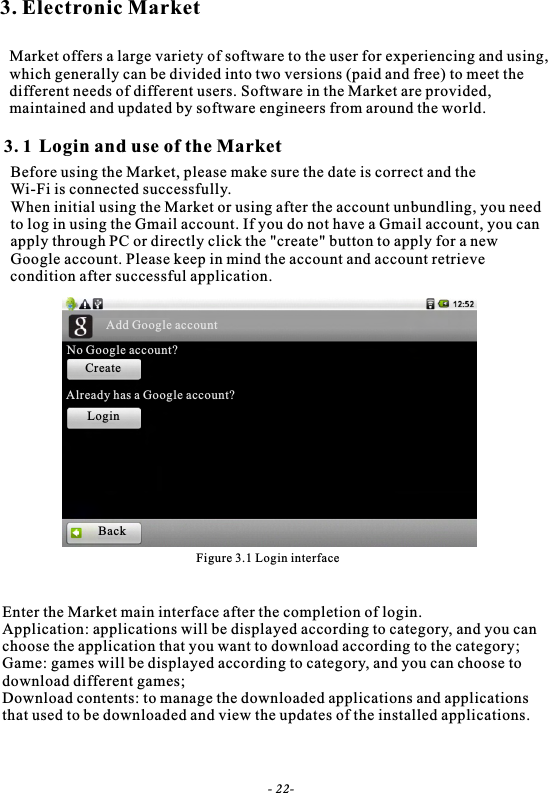
3. Electronic MarketMarket offers a large variety of software to the user for experiencing and using,which generally can be divided into two versions (paid and free) to meet the different needs of different users. Software in the Market are provided, maintained and updated by software engineers from around the world.Figure 3.1 Login interfaceLogin and use of the Market3. 1Before using the Market, please make sure the date is correct and theWi-Fi is connected successfully.When initial using the Market or using after the account unbundling, you needto log in using the Gmail account. If you do not have a Gmail account, you canapply through PC or directly click the "create" button to apply for a newGoogle account. Please keep in mind the account and account retrieve condition after successful application.Enter the Market main interface after the completion of login.Application: applications will be displayed according to category, and you canchoose the application that you want to download according to the category;Game: games will be displayed according to category, and you can choose todownload different games;Download contents: to manage the downloaded applications and applications that used to be downloaded and view the updates of the installed applications.- 22-Add Google accountNo Google account?CreateLoginAlready has a Google account?Back
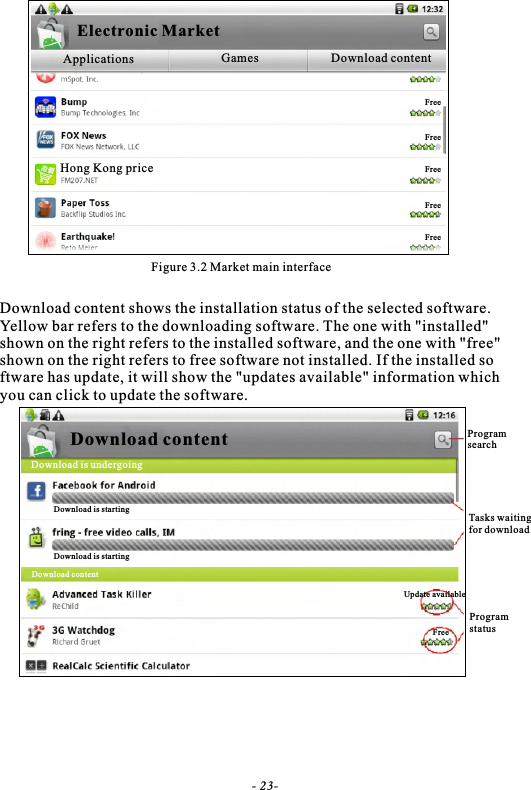
Figure 3.2 Market main interfaceDownload content shows the installation status of the selected software. Yellow bar refers to the downloading software. The one with "installed" shown on the right refers to the installed software, and the one with "free"shown on the right refers to free software not installed. If the installed software has update, it will show the "updates available" information whichyou can click to update the software.Tasks waiting for download- 23-Electronic MarketApplications Games Download contentHong Kong priceFreeFreeFreeFreeFreeDownload contentDownload is undergoingDownload is startingDownload is startingUpdate availableFreeDownload contentProgram searchProgram status
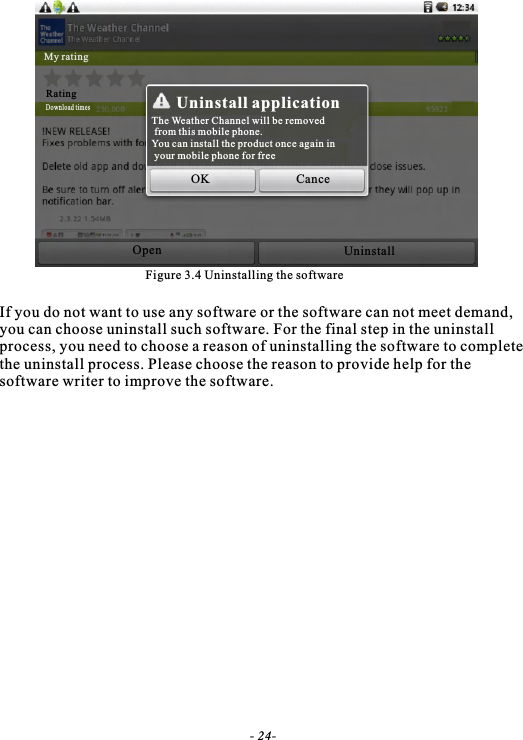
Figure 3.4 Uninstalling the softwareIf you do not want to use any software or the software can not meet demand, you can choose uninstall such software. For the final step in the uninstall process, you need to choose a reason of uninstalling the software to complete the uninstall process. Please choose the reason to provide help for the software writer to improve the software.- 24-Uninstall applicationThe Weather Channel will be removed from this mobile phone.You can install the product once again in your mobile phone for freeOK CanceOpen UninstallMy ratingRatingDownload times
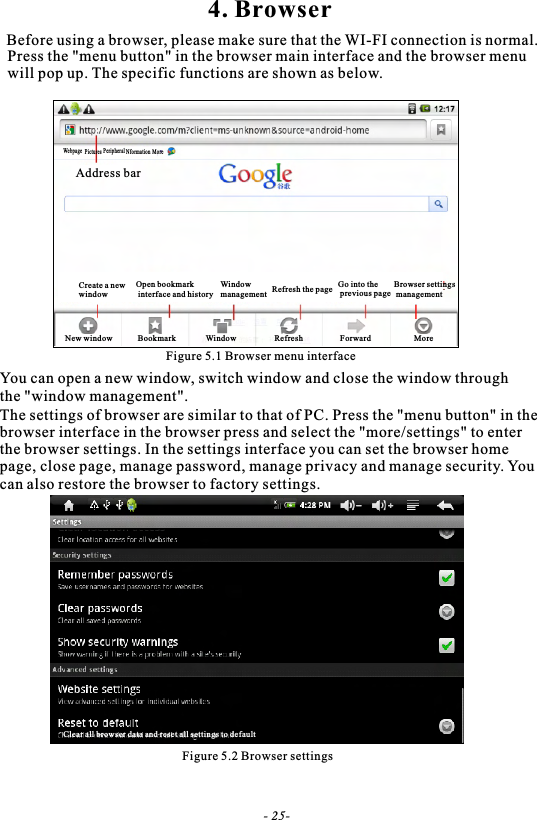
Figure 5.1 Browser menu interfaceYou can open a new window, switch window and close the window through the "window management".The settings of browser are similar to that of PC. Press the "menu button" in thebrowser interface in the browser press and select the "more/settings" to enterthe browser settings. In the settings interface you can set the browser homepage, close page, manage password, manage privacy and manage security. Youcan also restore the browser to factory settings.Create a new windowOpen bookmark interface and historyNew window Bookmark4. BrowserBefore using a browser, please make sure that the WI-FI connection is normal.Press the "menu button" in the browser main interface and the browser menu will pop up. The specific functions are shown as below.Figure 5.2 Browser settingsWebpage Pictures Peripheral Nformation MoreAddress barWindow management Refresh the page Go into the previous pageBrowser settings managementWindow Refresh Forward MoreClear all browser data and reset all settings to default- 25-
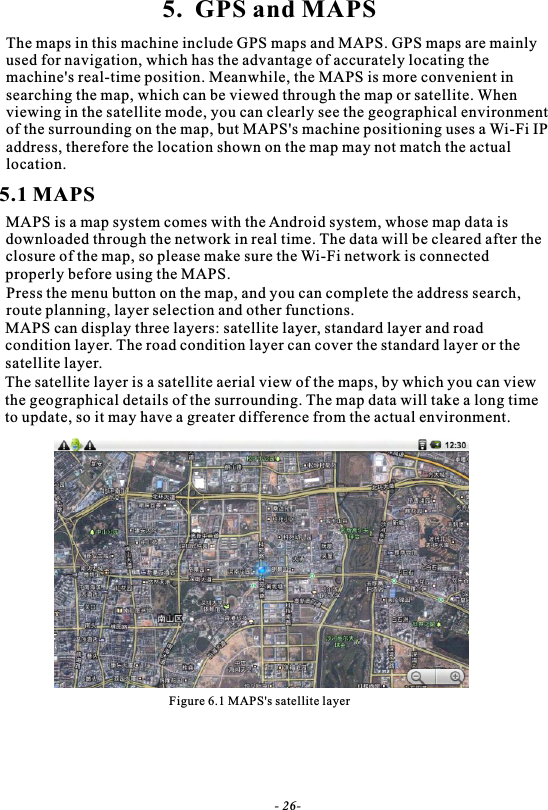
5.  GPS and MAPSThe maps in this machine include GPS maps and MAPS. GPS maps are mainlyused for navigation, which has the advantage of accurately locating themachine's real-time position. Meanwhile, the MAPS is more convenient in searching the map, which can be viewed through the map or satellite. When viewing in the satellite mode, you can clearly see the geographical environment of the surrounding on the map, but MAPS's machine positioning uses a Wi-Fi IPaddress, therefore the location shown on the map may not match the actual location.5.1 MAPSMAPS is a map system comes with the Android system, whose map data is downloaded through the network in real time. The data will be cleared after theclosure of the map, so please make sure the Wi-Fi network is connected properly before using the MAPS.Press the menu button on the map, and you can complete the address search, route planning, layer selection and other functions.MAPS can display three layers: satellite layer, standard layer and road condition layer. The road condition layer can cover the standard layer or thesatellite layer.The satellite layer is a satellite aerial view of the maps, by which you can viewthe geographical details of the surrounding. The map data will take a long timeto update, so it may have a greater difference from the actual environment.Figure 6.1 MAPS's satellite layer- 26-
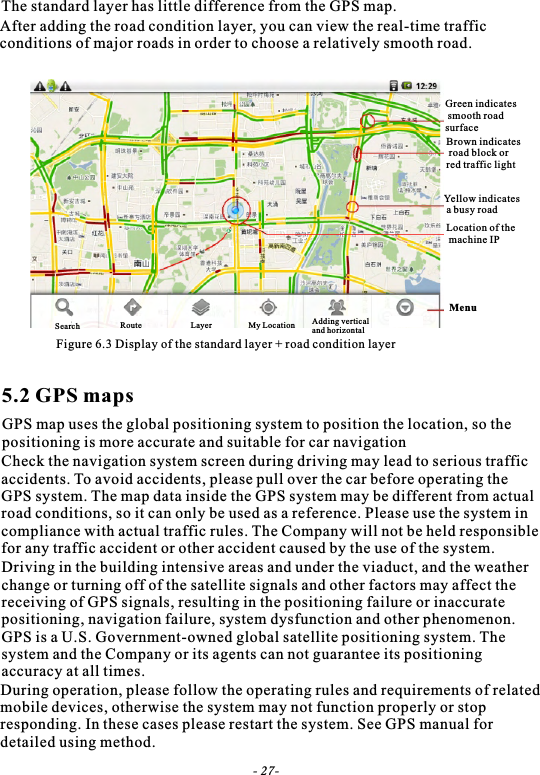
The standard layer has little difference from the GPS map.After adding the road condition layer, you can view the real-time traffic conditions of major roads in order to choose a relatively smooth road.Figure 6.3 Display of the standard layer + road condition layerGreen indicates smooth roadsurfaceBrown indicates road block or red traffic lightYellow indicates a busy roadLocation of the machine IPMenu5.2 GPS mapsGPS map uses the global positioning system to position the location, so the positioning is more accurate and suitable for car navigationCheck the navigation system screen during driving may lead to serious traffic accidents. To avoid accidents, please pull over the car before operating theGPS system. The map data inside the GPS system may be different from actualroad conditions, so it can only be used as a reference. Please use the system incompliance with actual traffic rules. The Company will not be held responsiblefor any traffic accident or other accident caused by the use of the system.Driving in the building intensive areas and under the viaduct, and the weatherchange or turning off of the satellite signals and other factors may affect the receiving of GPS signals, resulting in the positioning failure or inaccurate positioning, navigation failure, system dysfunction and other phenomenon. GPS is a U.S. Government-owned global satellite positioning system. The system and the Company or its agents can not guarantee its positioning accuracy at all times.During operation, please follow the operating rules and requirements of relatedmobile devices, otherwise the system may not function properly or stop responding. In these cases please restart the system. See GPS manual for detailed using method.- 27-Search Route Layer My Location Adding vertical and horizontal
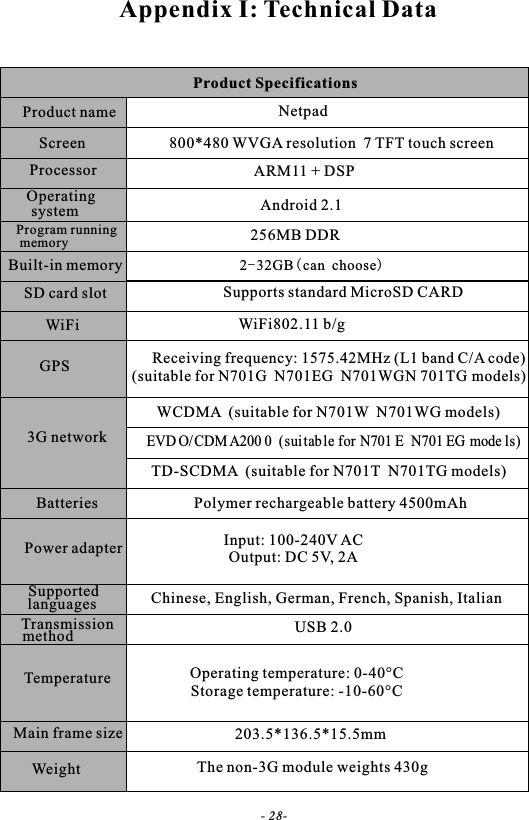
- 28-Appendix I: Technical DataProduct SpecificationsProduct name NetpadScreen 800*480 WVGA resolution  7 TFT touch screenProcessor ARM11 + DSPOperating system Android 2.1Program running memory 256MB DDRBuilt-in memory 2-32GB(can choose)SD card slot Supports standard MicroSD CARDWiFi WiFi802.11 b/gGPSReceiving frequency: 1575.42MHz (L1 band C/A code)(suitable for N701G  N701EG  N701WGN 701TG models)3G networkWCDMA  (suitable for N701W  N701WG models)EVD O/CDM A200 0  (suitable for N701 E  N701 EG mode ls)TD-SCDMA  (suitable for N701T  N701TG models)Batteries Polymer rechargeable battery 4500mAhPower adapter Input: 100-240V ACOutput: DC 5V, 2ASupported languages Chinese, English, German, French, Spanish, ItalianTransmission method USB 2.0Operating temperature: 0-40°CStorage temperature: -10-60°CTemperatureMain frame size 203.5*136.5*15.5mmWeight The non-3G module weights 430g
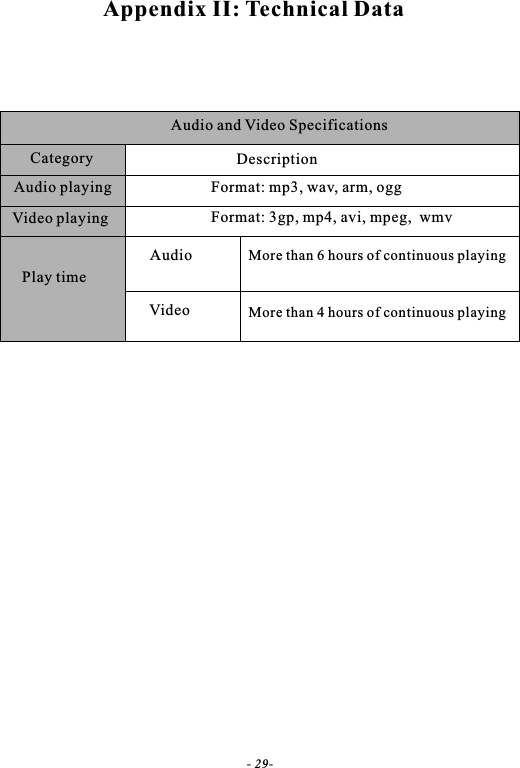
Appendix II: Technical DataAudio and Video SpecificationsCategory DescriptionAudio playing Format: mp3, wav, arm, oggVideo playing Format: 3gp, mp4, avi, mpeg,  wmvPlay timeAudioVideoMore than 6 hours of continuous playingMore than 4 hours of continuous playing- 29-
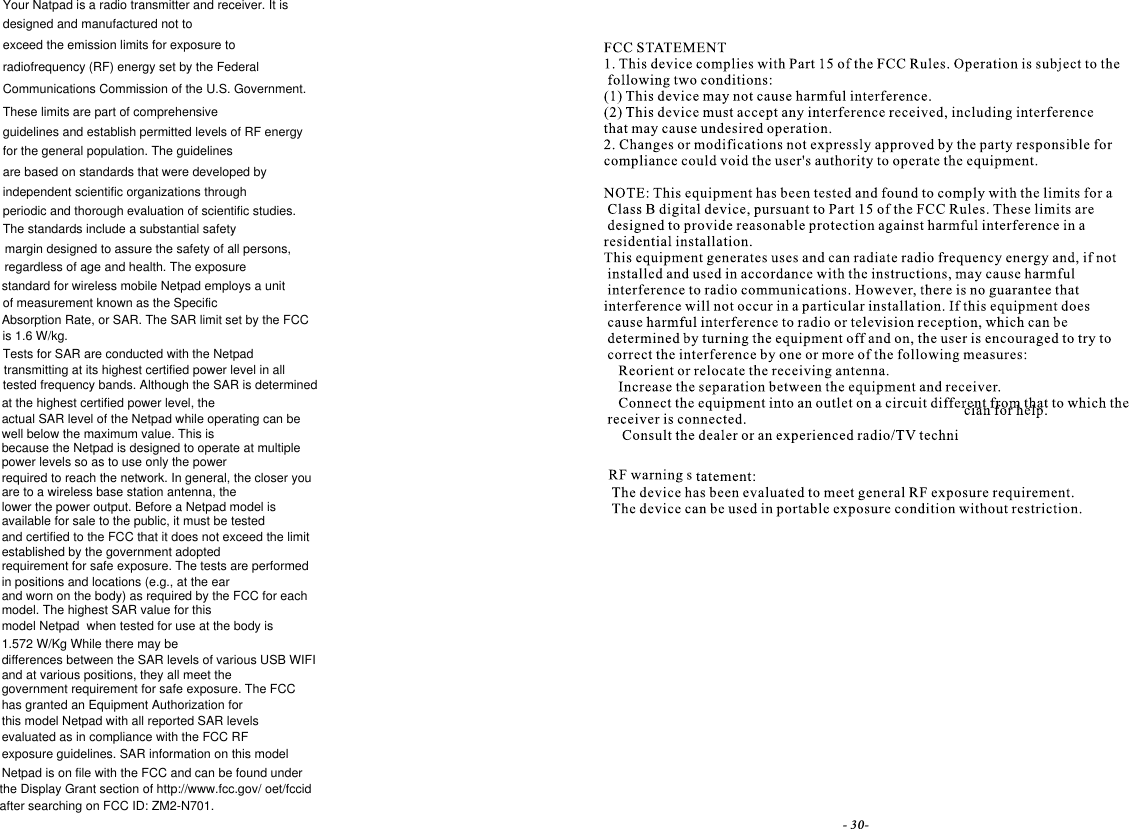
tested frequency bands. Although the SAR is determined- 30-designed and manufactured not toexceed the emission limits for exposure toradiofrequency (RF) energy set by the FederalCommunications Commission of the U.S. Government.These limits are part of comprehensiveguidelines and establish permitted levels of RF energyfor the general population. The guidelinesare based on standards that were developed byindependent scientific organizations throughperiodic and thorough evaluation of scientific studies.The standards include a substantial safetymargin designed to assure the safety of all persons,regardless of age and health. The exposureof measurement known as the SpecificAbsorption Rate, or SAR. The SAR limit set by the FCCis 1.6 W/kg.transmitting at its highest certified power level in allYour Natpad is a radio transmitter and receiver. It isat the highest certified power level, thewell below the maximum value. This ispower levels so as to use only the powerrequired to reach the network. In general, the closer youare to a wireless base station antenna, theavailable for sale to the public, it must be testedand certified to the FCC that it does not exceed the limitestablished by the government adoptedrequirement for safe exposure. The tests are performedin positions and locations (e.g., at the earand worn on the body) as required by the FCC for eachmodel. The highest SAR value for thisdifferences between the SAR levels of various USB WIFIand at various positions, they all meet thegovernment requirement for safe exposure. The FCChas granted an Equipment Authorization forevaluated as in compliance with the FCC RFexposure guidelines. SAR information on this modelthe Display Grant section of http://www.fcc.gov/ oet/fccidafter searching on FCC ID: ZM2-N701.Tests for SAR are conducted with the Netpadthis model Netpad with all reported SAR levelsactual SAR level of the Netpad while operating can bestandard for wireless mobile Netpad employs a unitNetpad is on file with the FCC and can be found underbecause the Netpad is designed to operate at multiplemodel Netpad  when tested for use at the body islower the power output. Before a Netpad model is1.572 W/Kg While there may be
Truly Industrial (Shanwei) Co., Ltd.Address: Industrial City, North Dongchong Rd., Shanwei, Guangdong Province, ChinaFax: 0660-3380759E-mail: service.sale@truly.com.cnhttp://www.truly.com.hkFree advisory hotline: 400-830-1989Headquarters: Truly International Holdings LimitedAddress: Building 2, Chung Shun Knitting Centre, 1-3Wing Yip Street, Kwai Chung, New Territories, Hong KongTel: (852) 2487 9803Fax: (852) 2146 5756, 2480 0018, 2480 0126http://www.truly.com.hkFree advisory hotline: 400-830-1989

Navigation menu