Tsuen Shing BM-244TX 2.4GHz Digital Baby Monitoring System - Baby Unit User Manual Manual

Tsuen Shing Enterprises Limited 2.4GHz Digital Baby Monitoring System - Baby Unit Manual

Manual

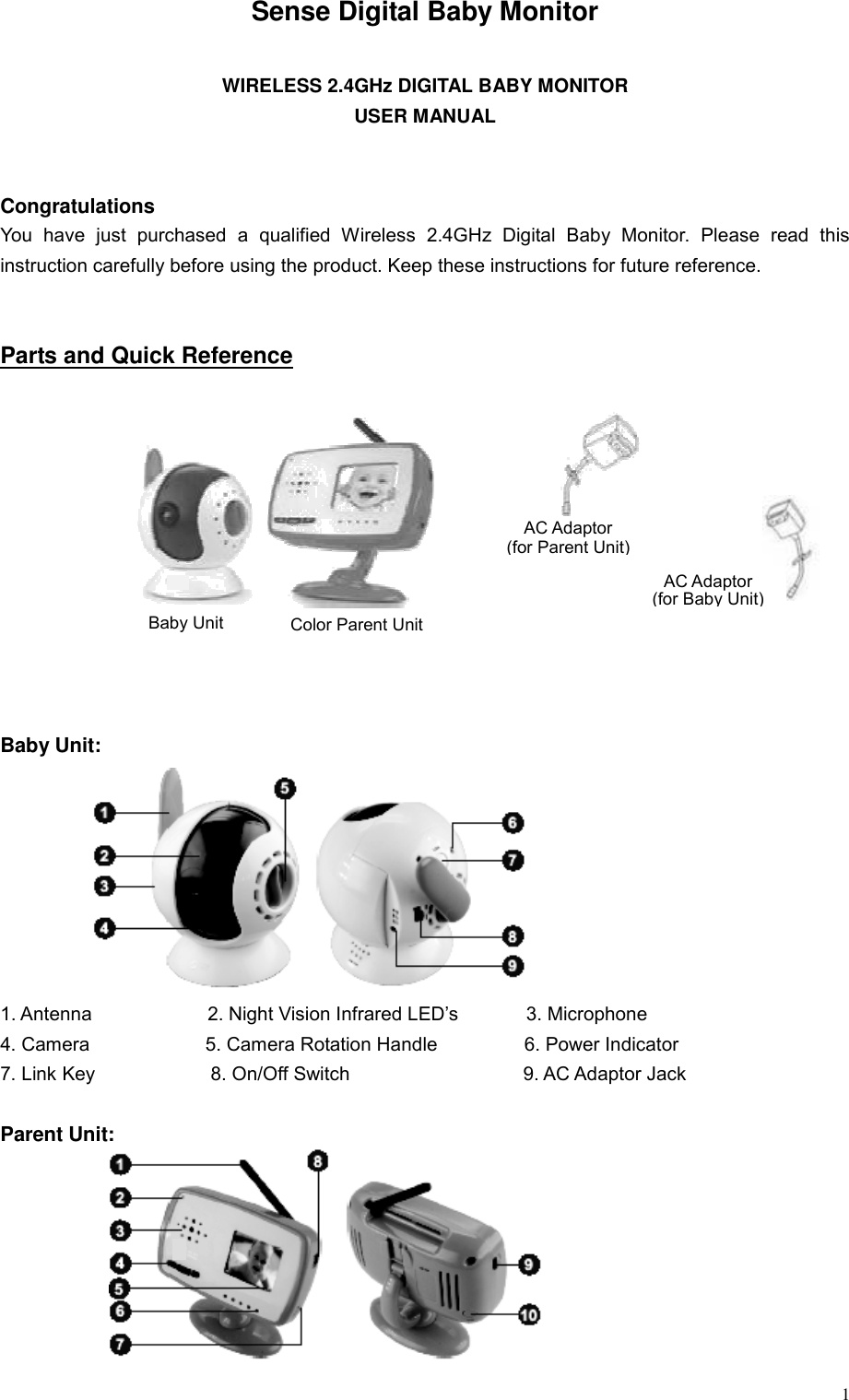
 1Sense Digital Baby Monitor  WIRELESS 2.4GHz DIGITAL BABY MONITOR USER MANUAL   Congratulations You have just purchased a qualified Wireless 2.4GHz Digital Baby Monitor. Please read this instruction carefully before using the product. Keep these instructions for future reference.   Parts and Quick Reference             Baby Unit:         1. Antenna            2. Night Vision Infrared LED’s       3. Microphone 4. Camera            5. Camera Rotation Handle         6. Power Indicator 7. Link Key            8. On/Off Switch                  9. AC Adaptor Jack  Parent Unit:        AC Adaptor (for Parent Unit)AC Adaptor (for Baby Unit) Baby Unit  Color Parent Unit
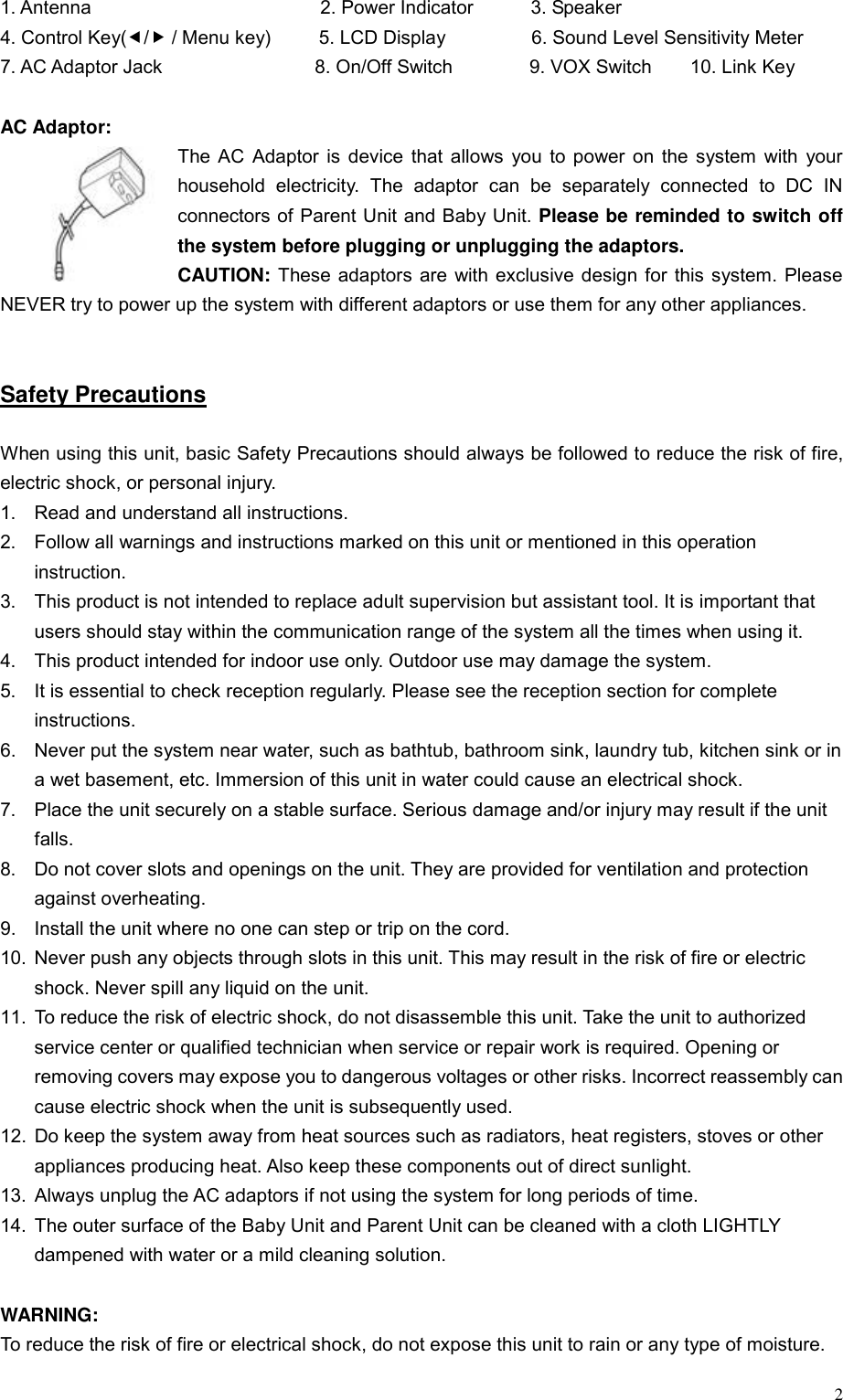
 21. Antenna                        2. Power Indicator      3. Speaker 4. Control Key(e/f / Menu key)     5. LCD Display         6. Sound Level Sensitivity Meter    7. AC Adaptor Jack                8. On/Off Switch        9. VOX Switch    10. Link Key  AC Adaptor: The AC Adaptor is device that allows you to power on the system with your household electricity. The adaptor can be separately connected to DC IN connectors of Parent Unit and Baby Unit. Please be reminded to switch off the system before plugging or unplugging the adaptors. CAUTION: These adaptors are with exclusive design for this system. Please NEVER try to power up the system with different adaptors or use them for any other appliances.       Safety Precautions  When using this unit, basic Safety Precautions should always be followed to reduce the risk of fire, electric shock, or personal injury. 1.  Read and understand all instructions. 2.  Follow all warnings and instructions marked on this unit or mentioned in this operation instruction. 3.  This product is not intended to replace adult supervision but assistant tool. It is important that users should stay within the communication range of the system all the times when using it. 4.  This product intended for indoor use only. Outdoor use may damage the system. 5.  It is essential to check reception regularly. Please see the reception section for complete instructions. 6.  Never put the system near water, such as bathtub, bathroom sink, laundry tub, kitchen sink or in a wet basement, etc. Immersion of this unit in water could cause an electrical shock. 7.  Place the unit securely on a stable surface. Serious damage and/or injury may result if the unit falls. 8.  Do not cover slots and openings on the unit. They are provided for ventilation and protection against overheating. 9.  Install the unit where no one can step or trip on the cord. 10.  Never push any objects through slots in this unit. This may result in the risk of fire or electric shock. Never spill any liquid on the unit. 11.  To reduce the risk of electric shock, do not disassemble this unit. Take the unit to authorized service center or qualified technician when service or repair work is required. Opening or removing covers may expose you to dangerous voltages or other risks. Incorrect reassembly can cause electric shock when the unit is subsequently used. 12.  Do keep the system away from heat sources such as radiators, heat registers, stoves or other appliances producing heat. Also keep these components out of direct sunlight. 13.  Always unplug the AC adaptors if not using the system for long periods of time. 14.  The outer surface of the Baby Unit and Parent Unit can be cleaned with a cloth LIGHTLY dampened with water or a mild cleaning solution.  WARNING:  To reduce the risk of fire or electrical shock, do not expose this unit to rain or any type of moisture.
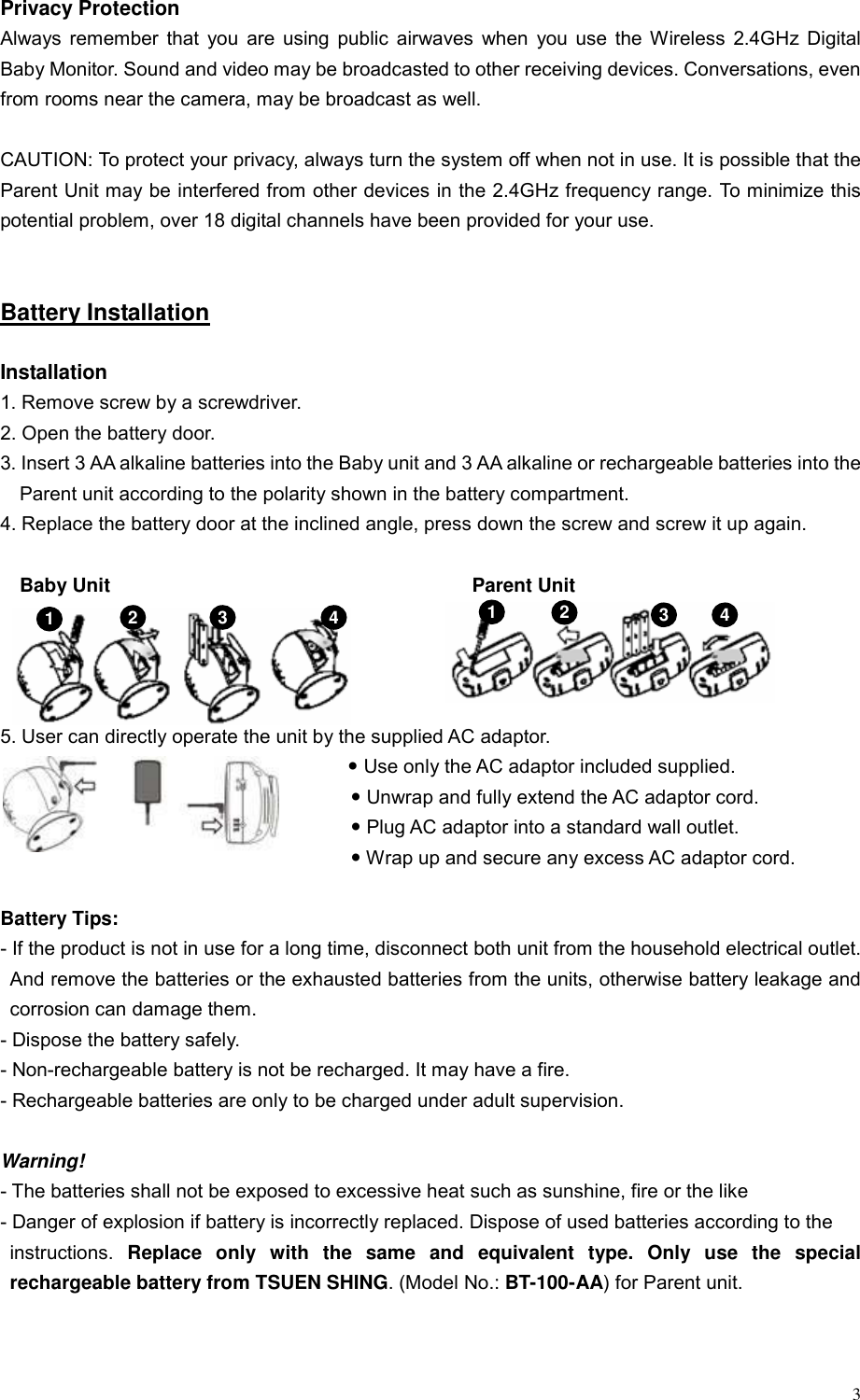
 3 Privacy Protection Always remember that you are using public airwaves when you use the Wireless 2.4GHz Digital Baby Monitor. Sound and video may be broadcasted to other receiving devices. Conversations, even from rooms near the camera, may be broadcast as well.  CAUTION: To protect your privacy, always turn the system off when not in use. It is possible that the Parent Unit may be interfered from other devices in the 2.4GHz frequency range. To minimize this potential problem, over 18 digital channels have been provided for your use.     Battery Installation  Installation 1. Remove screw by a screwdriver.   2. Open the battery door. 3. Insert 3 AA alkaline batteries into the Baby unit and 3 AA alkaline or rechargeable batteries into the Parent unit according to the polarity shown in the battery compartment. 4. Replace the battery door at the inclined angle, press down the screw and screw it up again.  Baby Unit                                     Parent Unit                                5. User can directly operate the unit by the supplied AC adaptor. y Use only the AC adaptor included supplied.   y Unwrap and fully extend the AC adaptor cord.   y Plug AC adaptor into a standard wall outlet. y Wrap up and secure any excess AC adaptor cord.  Battery Tips: - If the product is not in use for a long time, disconnect both unit from the household electrical outlet. And remove the batteries or the exhausted batteries from the units, otherwise battery leakage and corrosion can damage them. - Dispose the battery safely. - Non-rechargeable battery is not be recharged. It may have a fire. - Rechargeable batteries are only to be charged under adult supervision.    Warning! - The batteries shall not be exposed to excessive heat such as sunshine, fire or the like - Danger of explosion if battery is incorrectly replaced. Dispose of used batteries according to the   instructions.  Replace only with the same and equivalent type. Only use the special rechargeable battery from TSUEN SHING. (Model No.: BT-100-AA) for Parent unit.    1  2  3  43  4 12
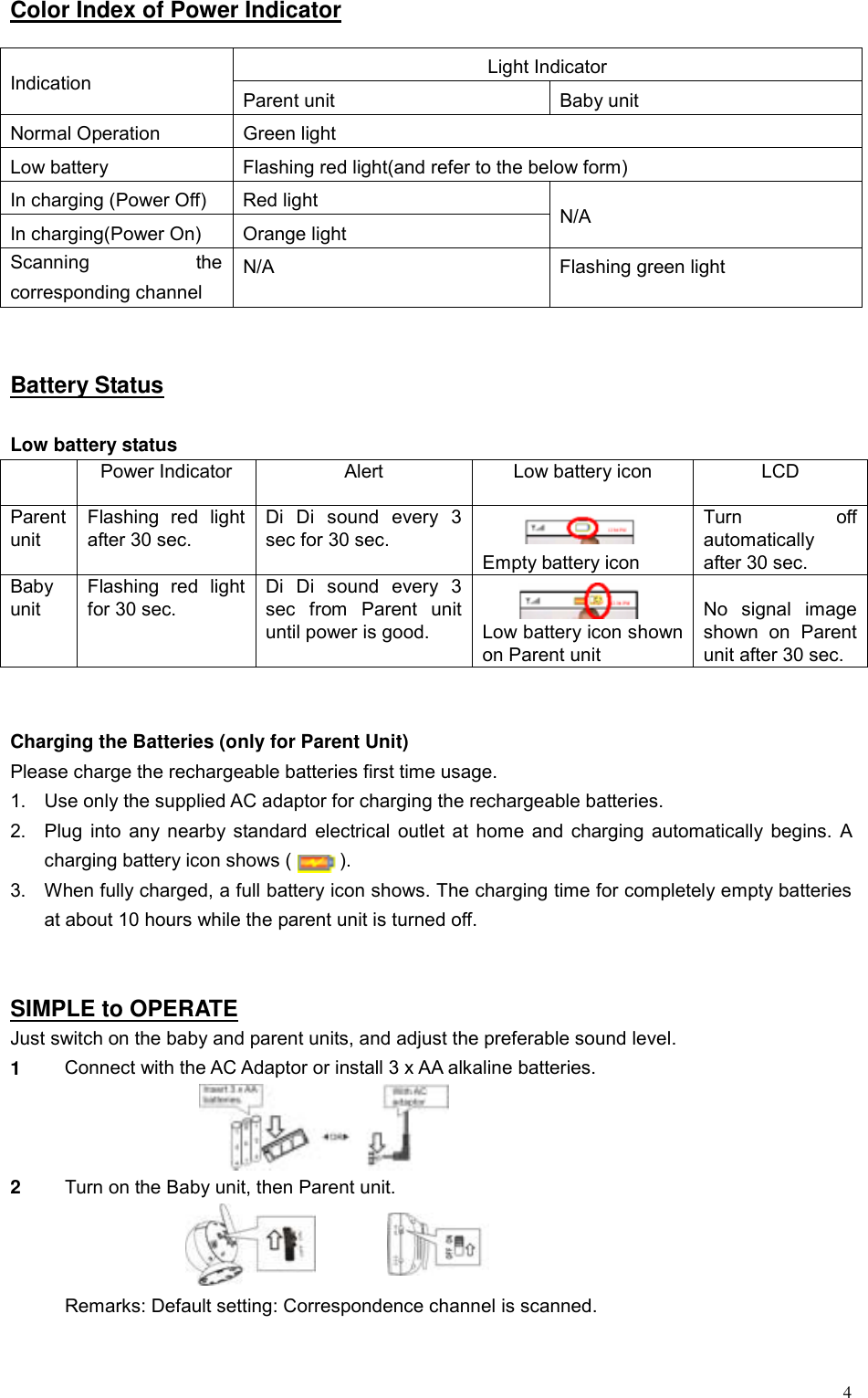
 4Color Index of Power Indicator  Light Indicator Indication  Parent unit  Baby unit Normal Operation  Green light Low battery  Flashing red light(and refer to the below form) In charging (Power Off)  Red light In charging(Power On)  Orange light  N/A Scanning the corresponding channel N/A  Flashing green light   Battery Status  Low battery status   Power Indicator  Alert  Low battery icon  LCD Parent unit Flashing red light after 30 sec. Di Di sound every 3 sec for 30 sec.   Empty battery icon Turn off automatically after 30 sec. Baby unit Flashing red light for 30 sec. Di Di sound every 3 sec from Parent unit until power is good.   Low battery icon shown on Parent unit  No signal image shown on Parent unit after 30 sec.   Charging the Batteries (only for Parent Unit) Please charge the rechargeable batteries first time usage.   1.  Use only the supplied AC adaptor for charging the rechargeable batteries. 2.  Plug into any nearby standard electrical outlet at home and charging automatically begins. A charging battery icon shows (          ). 3.  When fully charged, a full battery icon shows. The charging time for completely empty batteries at about 10 hours while the parent unit is turned off.   SIMPLE to OPERATE Just switch on the baby and parent units, and adjust the preferable sound level. 1  Connect with the AC Adaptor or install 3 x AA alkaline batteries.  2  Turn on the Baby unit, then Parent unit.         Remarks: Default setting: Correspondence channel is scanned.
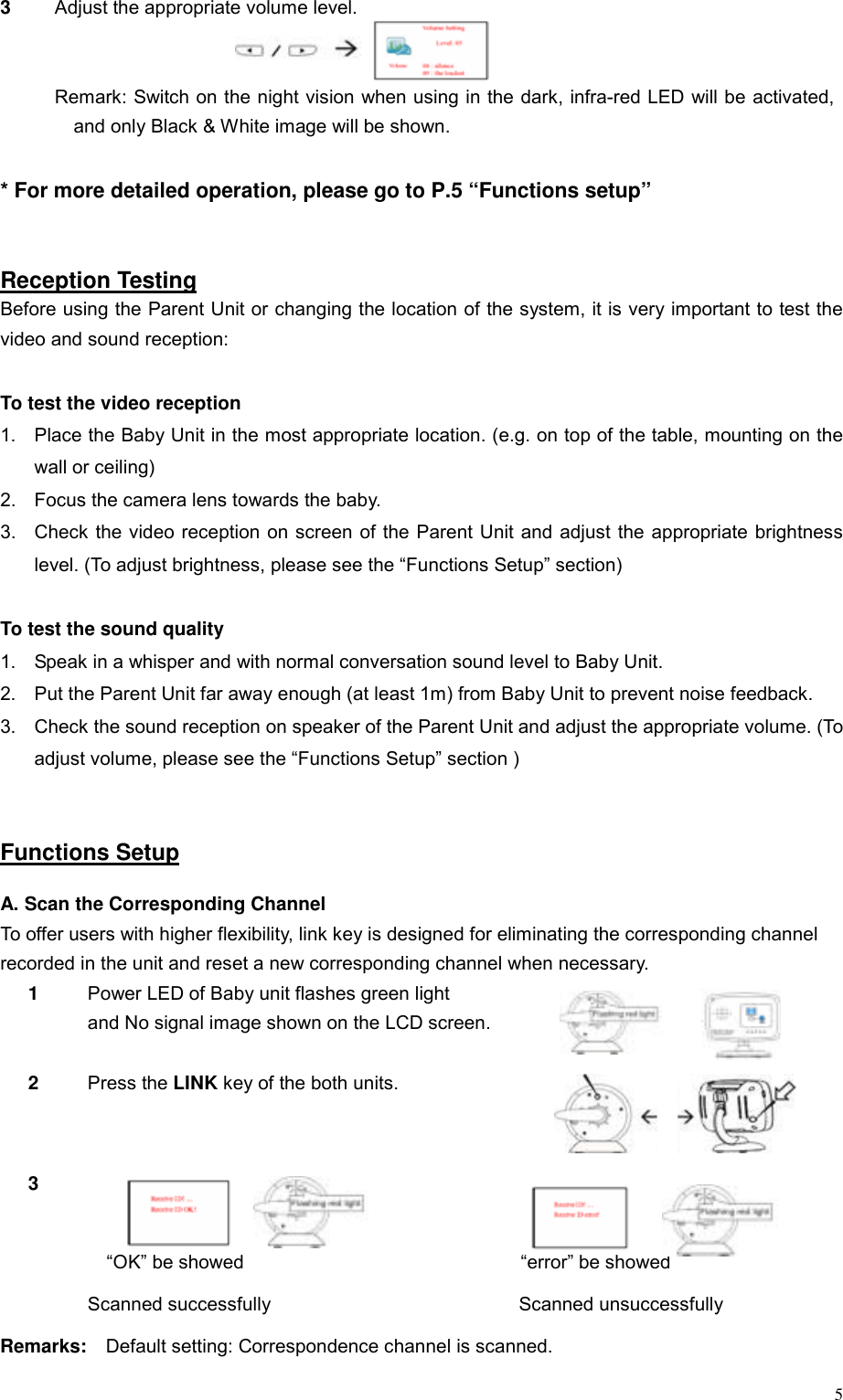
 53  Adjust the appropriate volume level.   Remark: Switch on the night vision when using in the dark, infra-red LED will be activated, and only Black & White image will be shown.  * For more detailed operation, please go to P.5 “Functions setup”   Reception Testing Before using the Parent Unit or changing the location of the system, it is very important to test the video and sound reception:  To test the video reception 1.  Place the Baby Unit in the most appropriate location. (e.g. on top of the table, mounting on the wall or ceiling)   2.  Focus the camera lens towards the baby.   3.  Check the video reception on screen of the Parent Unit and adjust the appropriate brightness level. (To adjust brightness, please see the “Functions Setup” section)  To test the sound quality 1.  Speak in a whisper and with normal conversation sound level to Baby Unit. 2.  Put the Parent Unit far away enough (at least 1m) from Baby Unit to prevent noise feedback. 3.  Check the sound reception on speaker of the Parent Unit and adjust the appropriate volume. (To adjust volume, please see the “Functions Setup” section )   Functions Setup  A. Scan the Corresponding Channel To offer users with higher flexibility, link key is designed for eliminating the corresponding channel   recorded in the unit and reset a new corresponding channel when necessary. 1  Power LED of Baby unit flashes green light   and No signal image shown on the LCD screen.            2   Press the LINK key of the both units.   3      “OK” be showed                             “error” be showed  Scanned successfully                          Scanned unsuccessfully Remarks:  Default setting: Correspondence channel is scanned.
 6 B. Baby Monitor Functions Setup  B1. Parent Unit Screen     1. Signal               2. Zoom-in     3. Alarm On            4. Night Vision    5. Parent unit Battery    6. Baby unit Battery     7. Clock Time          8. Baby live video  B2. Main Menu     1. Mode               2. Night Vision     3. Camera            4. Settings  5. Info                6. Exit   Press MENU key to open main menu. Use e/f key to choose the options.  B3. Functions Description Note: After finishing operation for each functions of main menu, to return to the live video(if available), select and press Back/Exit, or wait for about 10 seconds and parent unit will return to live video on its own.—[ Use e/f key to select , MENU key to confirm ]  The below menu operating , use e/f key to select , MENU key to confirm  1. Mode There are 3 operation mode: Normal, Video off & Sleep  1> Enter Mode menu.    2> Select the desired mode    3> Confirm and return to live video.  mode Display Description Normal  Video and voice.   5 sounds level meter will indicate the sound strength.  Video off  Voice transmission only. Press any key on the Parent unit to turn into Normal mode. Nothing can be seen or listened from Parent unit   Press any key on the Parent unit to turn into Normal mode.Sleep  When turned on VOX, the Parent unit can be wake up by a suddenly voice like baby crying.
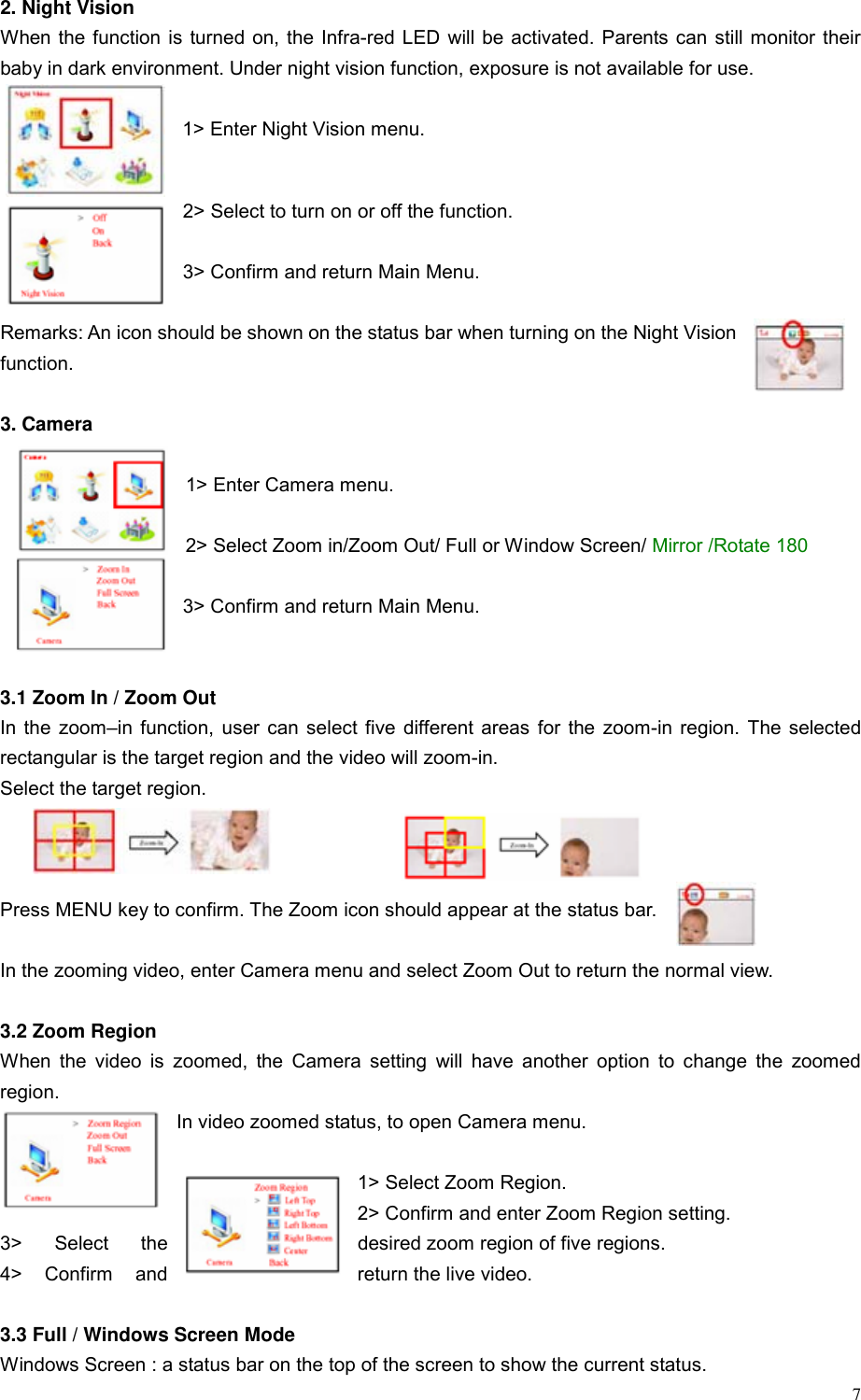
 7 2. Night Vision When the function is turned on, the Infra-red LED will be activated. Parents can still monitor their baby in dark environment. Under night vision function, exposure is not available for use.    1> Enter Night Vision menu.  2> Select to turn on or off the function.  3> Confirm and return Main Menu.  Remarks: An icon should be shown on the status bar when turning on the Night Vision function.   3. Camera  1> Enter Camera menu.  2> Select Zoom in/Zoom Out/ Full or Window Screen/ Mirror /Rotate 180  3> Confirm and return Main Menu.   3.1 Zoom In / Zoom Out In the zoom–in function, user can select five different areas for the zoom-in region. The selected rectangular is the target region and the video will zoom-in.   Select the target region.      Press MENU key to confirm. The Zoom icon should appear at the status bar.    In the zooming video, enter Camera menu and select Zoom Out to return the normal view.  3.2 Zoom Region When the video is zoomed, the Camera setting will have another option to change the zoomed region. In video zoomed status, to open Camera menu.  1> Select Zoom Region. 2> Confirm and enter Zoom Region setting. 3>  Select  the  desired zoom region of five regions. 4> Confirm and  return the live video.   3.3 Full / Windows Screen Mode Windows Screen : a status bar on the top of the screen to show the current status.
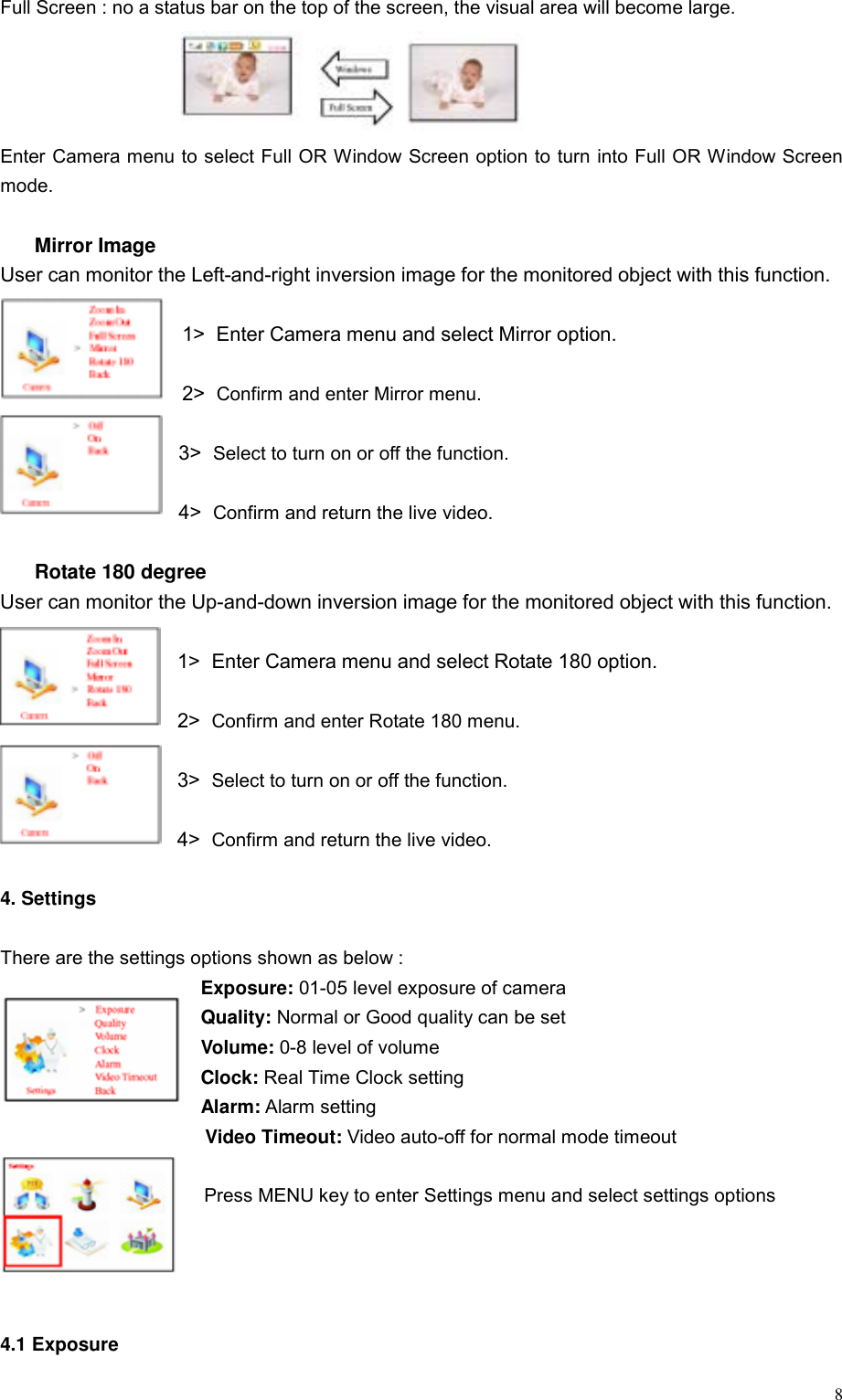
 8Full Screen : no a status bar on the top of the screen, the visual area will become large.     Enter Camera menu to select Full OR Window Screen option to turn into Full OR Window Screen mode.    Mirror Image User can monitor the Left-and-right inversion image for the monitored object with this function.  1>  Enter Camera menu and select Mirror option.    2>  Confirm and enter Mirror menu.  3>  Select to turn on or off the function.  4>  Confirm and return the live video.    Rotate 180 degree User can monitor the Up-and-down inversion image for the monitored object with this function.  1>  Enter Camera menu and select Rotate 180 option.  2>  Confirm and enter Rotate 180 menu.  3>  Select to turn on or off the function.  4>  Confirm and return the live video.  4. Settings  There are the settings options shown as below :   Exposure: 01-05 level exposure of camera Quality: Normal or Good quality can be set Volume: 0-8 level of volume Clock: Real Time Clock setting Alarm: Alarm setting Video Timeout: Video auto-off for normal mode timeout    Press MENU key to enter Settings menu and select settings options     4.1 Exposure
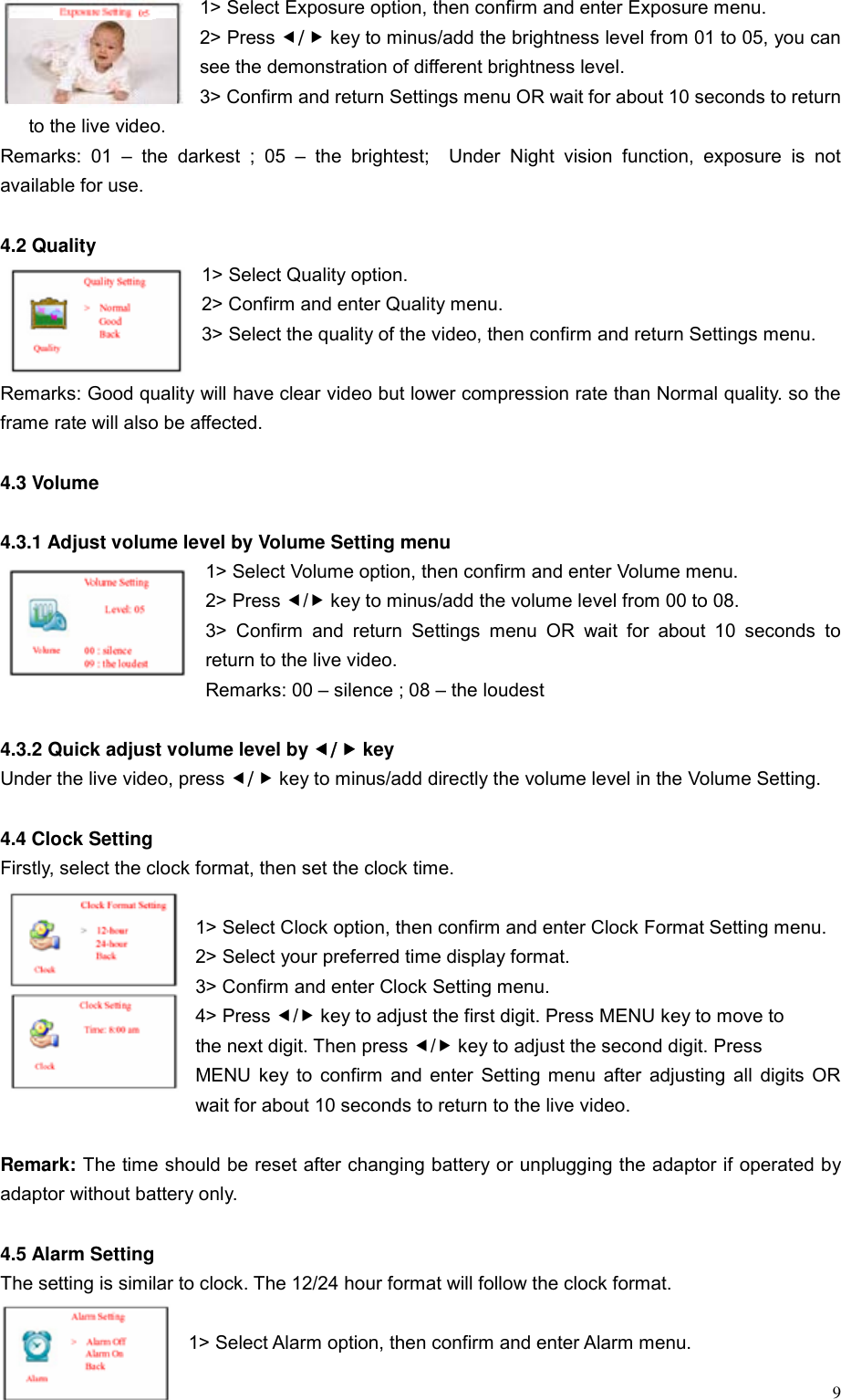
 91> Select Exposure option, then confirm and enter Exposure menu. 2> Press e/f key to minus/add the brightness level from 01 to 05, you can see the demonstration of different brightness level. 3> Confirm and return Settings menu OR wait for about 10 seconds to return to the live video.   Remarks: 01 – the darkest ; 05 – the brightest;  Under Night vision function, exposure is not available for use.  4.2 Quality   1> Select Quality option. 2> Confirm and enter Quality menu. 3> Select the quality of the video, then confirm and return Settings menu.  Remarks: Good quality will have clear video but lower compression rate than Normal quality. so the frame rate will also be affected.  4.3 Volume  4.3.1 Adjust volume level by Volume Setting menu 1> Select Volume option, then confirm and enter Volume menu. 2> Press e/f key to minus/add the volume level from 00 to 08. 3> Confirm and return Settings menu OR wait for about 10 seconds to return to the live video. Remarks: 00 – silence ; 08 – the loudest  4.3.2 Quick adjust volume level by e/f key Under the live video, press e/f key to minus/add directly the volume level in the Volume Setting.        4.4 Clock Setting   Firstly, select the clock format, then set the clock time.  1> Select Clock option, then confirm and enter Clock Format Setting menu. 2> Select your preferred time display format. 3> Confirm and enter Clock Setting menu. 4> Press e/f key to adjust the first digit. Press MENU key to move to   the next digit. Then press e/f key to adjust the second digit. Press   MENU key to confirm and enter Setting menu after adjusting all digits OR wait for about 10 seconds to return to the live video.  Remark: The time should be reset after changing battery or unplugging the adaptor if operated by adaptor without battery only.  4.5 Alarm Setting The setting is similar to clock. The 12/24 hour format will follow the clock format.  1> Select Alarm option, then confirm and enter Alarm menu.
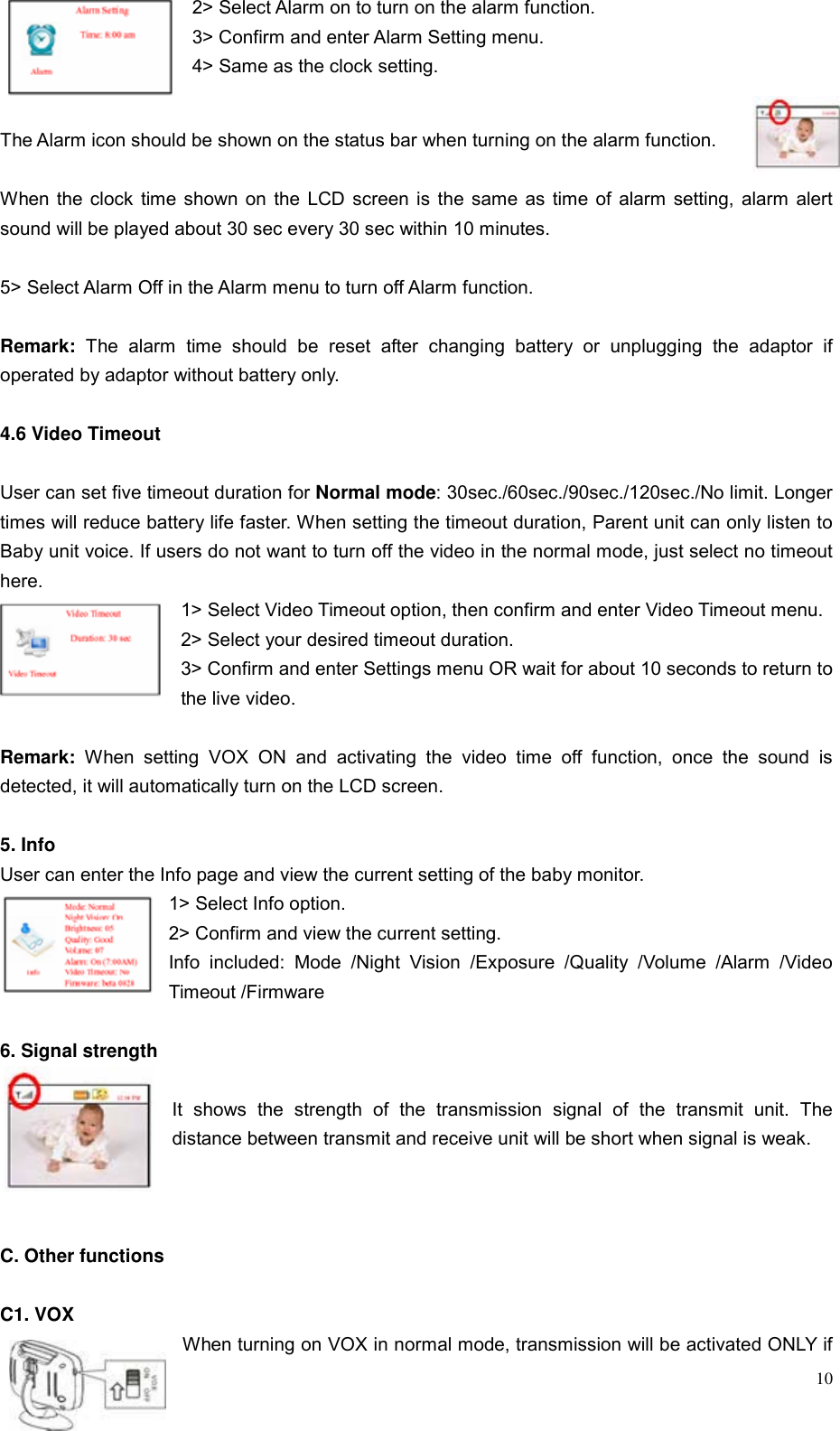
 102> Select Alarm on to turn on the alarm function. 3> Confirm and enter Alarm Setting menu. 4> Same as the clock setting.  The Alarm icon should be shown on the status bar when turning on the alarm function.  When the clock time shown on the LCD screen is the same as time of alarm setting, alarm alert sound will be played about 30 sec every 30 sec within 10 minutes.   5> Select Alarm Off in the Alarm menu to turn off Alarm function.  Remark:  The alarm time should be reset after changing battery or unplugging the adaptor if operated by adaptor without battery only.  4.6 Video Timeout  User can set five timeout duration for Normal mode: 30sec./60sec./90sec./120sec./No limit. Longer times will reduce battery life faster. When setting the timeout duration, Parent unit can only listen to Baby unit voice. If users do not want to turn off the video in the normal mode, just select no timeout here. 1> Select Video Timeout option, then confirm and enter Video Timeout menu. 2> Select your desired timeout duration. 3> Confirm and enter Settings menu OR wait for about 10 seconds to return to the live video.  Remark: When setting VOX ON and activating the video time off function, once the sound is detected, it will automatically turn on the LCD screen.  5. Info User can enter the Info page and view the current setting of the baby monitor. 1> Select Info option. 2> Confirm and view the current setting. Info included: Mode /Night Vision /Exposure /Quality /Volume /Alarm /Video Timeout /Firmware  6. Signal strength  It shows the strength of the transmission signal of the transmit unit. The distance between transmit and receive unit will be short when signal is weak.    C. Other functions  C1. VOX When turning on VOX in normal mode, transmission will be activated ONLY if
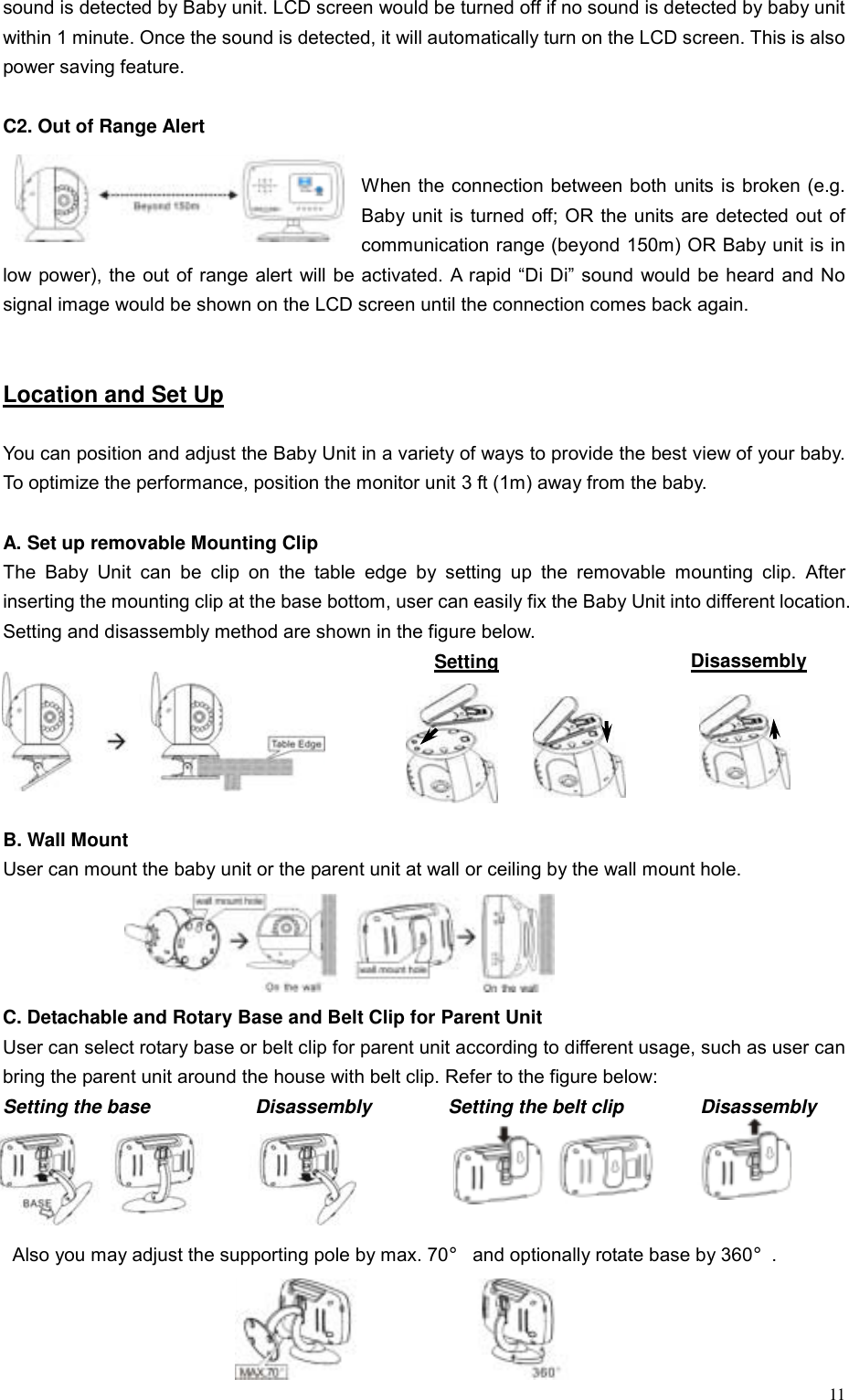
 11sound is detected by Baby unit. LCD screen would be turned off if no sound is detected by baby unit within 1 minute. Once the sound is detected, it will automatically turn on the LCD screen. This is also power saving feature.  C2. Out of Range Alert  When the connection between both units is broken (e.g. Baby unit is turned off; OR the units are detected out of communication range (beyond 150m) OR Baby unit is in low power), the out of range alert will be activated. A rapid “Di Di” sound would be heard and No signal image would be shown on the LCD screen until the connection comes back again.   Location and Set Up  You can position and adjust the Baby Unit in a variety of ways to provide the best view of your baby. To optimize the performance, position the monitor unit 3 ft (1m) away from the baby.  A. Set up removable Mounting Clip   The Baby Unit can be clip on the table edge by setting up the removable mounting clip. After inserting the mounting clip at the base bottom, user can easily fix the Baby Unit into different location. Setting and disassembly method are shown in the figure below. Setting                Disassembly      B. Wall Mount User can mount the baby unit or the parent unit at wall or ceiling by the wall mount hole.    C. Detachable and Rotary Base and Belt Clip for Parent Unit User can select rotary base or belt clip for parent unit according to different usage, such as user can bring the parent unit around the house with belt clip. Refer to the figure below: Setting the base           Disassembly        Setting the belt clip        Disassembly            Also you may adjust the supporting pole by max. 70° and optionally rotate base by 360°.
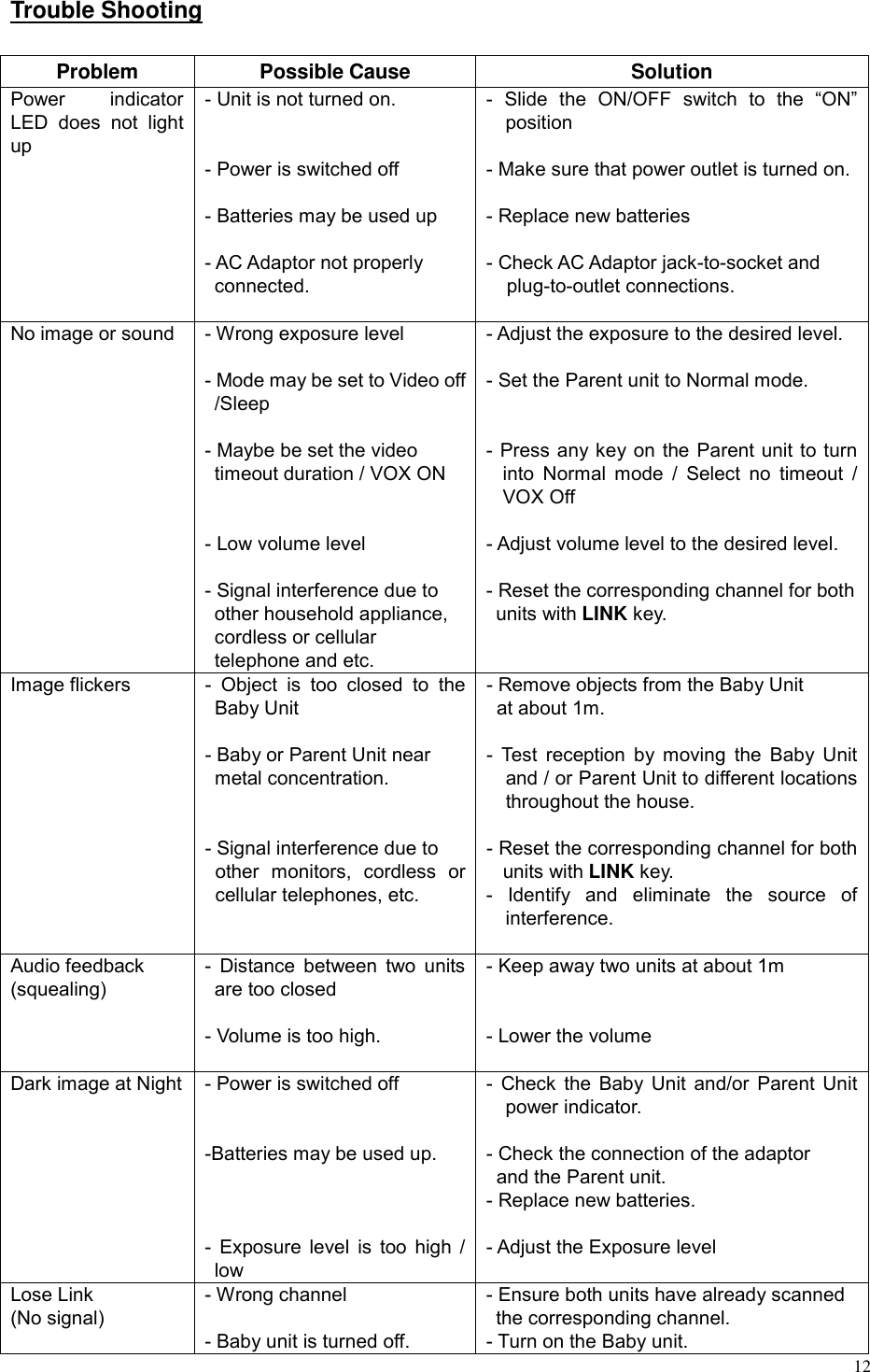
 12  Trouble Shooting  Problem Possible Cause  Solution Power indicator LED does not light up - Unit is not turned on.   - Power is switched off  - Batteries may be used up  - AC Adaptor not properly   connected.  - Slide the ON/OFF switch to the “ON” position  - Make sure that power outlet is turned on. - Replace new batteries  - Check AC Adaptor jack-to-socket and   plug-to-outlet connections.  No image or sound  - Wrong exposure level    - Mode may be set to Video off /Sleep  - Maybe be set the video   timeout duration / VOX ON   - Low volume level  - Signal interference due to other household appliance, cordless or cellular   telephone and etc. - Adjust the exposure to the desired level.  - Set the Parent unit to Normal mode.   - Press any key on the Parent unit to turn into Normal mode / Select no timeout / VOX Off  - Adjust volume level to the desired level.  - Reset the corresponding channel for both units with LINK key.    Image flickers  - Object is too closed to the Baby Unit  - Baby or Parent Unit near   metal concentration.   - Signal interference due to other monitors, cordless or cellular telephones, etc.   - Remove objects from the Baby Unit   at about 1m.  - Test reception by moving the Baby Unit and / or Parent Unit to different locations throughout the house.  - Reset the corresponding channel for both units with LINK key.   - Identify and eliminate the source of interference.  Audio feedback   (squealing) - Distance between two units are too closed  - Volume is too high.  - Keep away two units at about 1m   - Lower the volume   Dark image at Night - Power is switched off     -Batteries may be used up.    - Exposure level is too high / low - Check the Baby Unit and/or Parent Unit power indicator.  - Check the connection of the adaptor   and the Parent unit. - Replace new batteries.  - Adjust the Exposure level  Lose Link (No signal) - Wrong channel  - Baby unit is turned off. - Ensure both units have already scanned the corresponding channel. - Turn on the Baby unit.
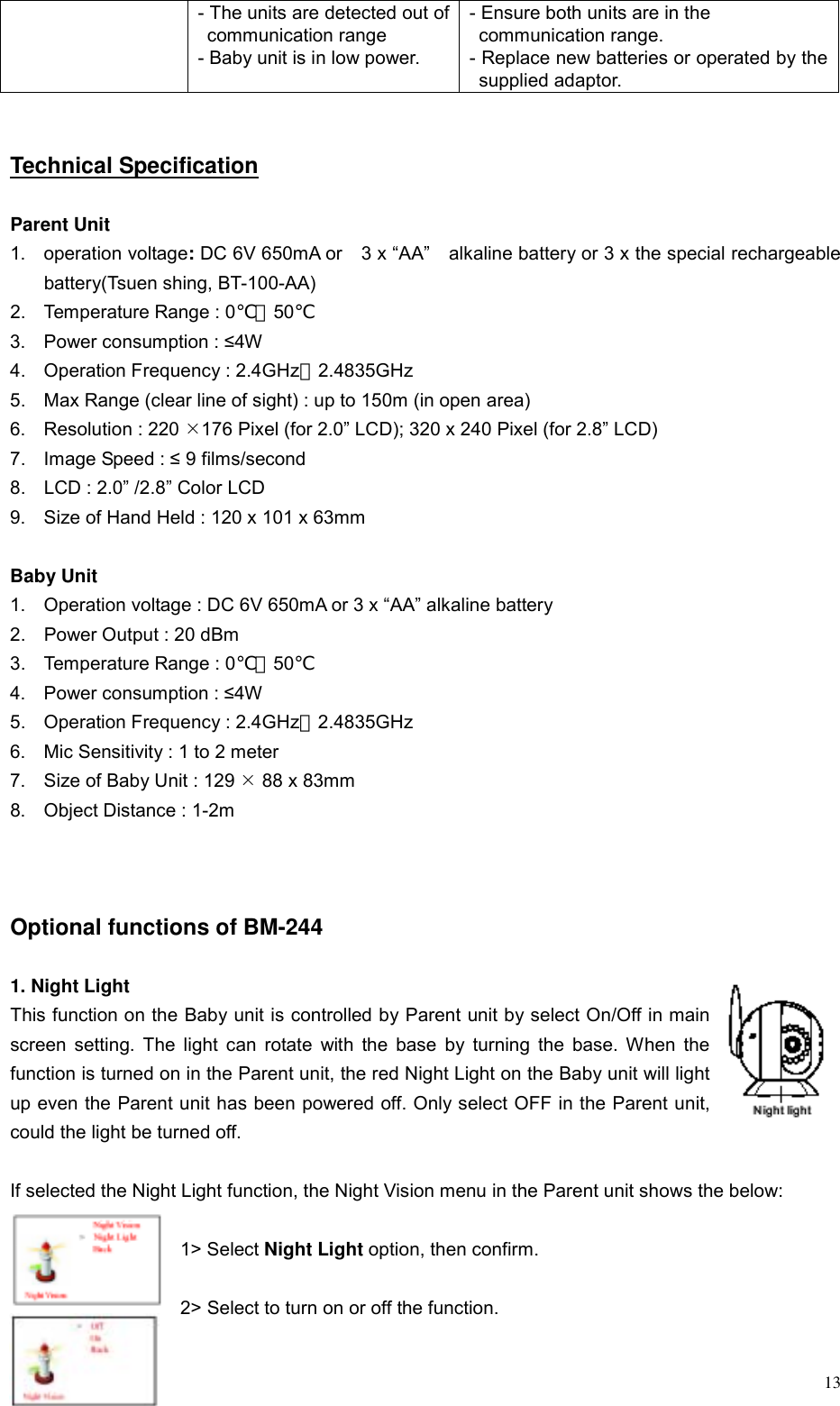
 13- The units are detected out of communication range - Baby unit is in low power. - Ensure both units are in the   communication range. - Replace new batteries or operated by the supplied adaptor.   Technical Specification  Parent Unit 1. operation voltage: DC 6V 650mA or    3 x “AA”    alkaline battery or 3 x the special rechargeable battery(Tsuen shing, BT-100-AA) 2.  Temperature Range : 0℃~50℃  3.  Power consumption : ≤4W  4.  Operation Frequency : 2.4GHz~2.4835GHz 5.  Max Range (clear line of sight) : up to 150m (in open area) 6. Resolution : 220 ¯176 Pixel (for 2.0” LCD); 320 x 240 Pixel (for 2.8” LCD) 7.  Image Speed : ≤ 9 films/second 8.  LCD : 2.0” /2.8” Color LCD   9.  Size of Hand Held : 120 x 101 x 63mm  Baby Unit 1.  Operation voltage : DC 6V 650mA or 3 x “AA” alkaline battery 2.  Power Output : 20 dBm 3.  Temperature Range : 0℃~50℃ 4.  Power consumption : ≤4W 5.  Operation Frequency : 2.4GHz~2.4835GHz 6.  Mic Sensitivity : 1 to 2 meter 7.  Size of Baby Unit : 129 ¯ 88 x 83mm 8.  Object Distance : 1-2m    Optional functions of BM-244  1. Night Light   This function on the Baby unit is controlled by Parent unit by select On/Off in main screen setting. The light can rotate with the base by turning the base. When the function is turned on in the Parent unit, the red Night Light on the Baby unit will light up even the Parent unit has been powered off. Only select OFF in the Parent unit, could the light be turned off.  If selected the Night Light function, the Night Vision menu in the Parent unit shows the below:    1> Select Night Light option, then confirm.  2> Select to turn on or off the function.
 143> Confirm and return the Night Vision menu.  [ Use e/f key to select , MENU key to confirm ]   2. Melody Function   There was lullaby function for baby sleeping. Baby unit can play 6 songs melody for baby. This function can be selected by Parent unit. Parent can select Melody 1, Melody 2, ……, Melody 6, Melody All, Melody off for baby.    If selected the Melody function, the Settings menu in the Parent unit shows the below:  1> Select Melody option. then confirm and enter Melody menu.  2> Select your desired melody(1-6 or All).    3> Confirm and return Settings menu OR wait for about 10 seconds to return to       the live video. [ Use e/f key to select , MENU key to confirm ]  The selected melody will be played in the Baby unit even the Parent unit has been powered off. Only select Close in Melody menu of Parent unit, could the songs melody on the Baby unit be turned off.   3. Quality for 2.8” LCD screen version ( Resolution : 320 x 240 Pixel ) When selected 2.8” LCD, Quality setting as the below.   Normal quality will have clear video and 2.8” size image but lower compression rate. Good quality will have 2.0” size image but faster compression rate than Normal quality.       FCC Statement:  Caution: The user is cautioned that changes and modifications made to the equipment without the approval of manufacturer could void the user’s authority to operate this equipment.  Notes: This equipment has been tested and found to comply with the limits for a Class B digital device, pursuant to part 15 of the FCC Rules. These limits are designed to provide reasonable protection against harmful interference in a residential installation, this equipment generates, uses and can radiate harmful interference to radio communications. However, there is no guarantee that interference will not occur in a particular installation. If this equipment does cause harmful interference to radio or television reception, which can be determined by turning the equipment off and on, the user is encouraged to try to correct the interference by one or
 15more of the following measures: - Reorient or relocate the receiving antenna. - Increase the separation between the equipment and receiver. - Connect the equipment into an outlet on a circuit different from that to which the   receiver is connected. - Consult the dealer or an experienced radio/TV technician for help.  To comply with FCC and Industry Canada RF radiation exposure limits for general populatin/uncontrolled exposure, both BABY unit and PARENT unit must be installed to provide a separation distance of at least 20cm from users and must not be collocated or operated in conjunction with any other antenna or transmitter.  Industry Canada:. Operation of BABY and PARENT units are subject to the following two conditions: (1) these devices may not cause interference, and (2) these devices must accept any interference, including interference that may cause undesired operation of the devices.

Navigation menu