Tsuen Shing WT402 2 Way Radio User Manual MANUAL
Tsuen Shing Enterprises Limited 2 Way Radio MANUAL
Manual
1
WT-402 Instruction Manual
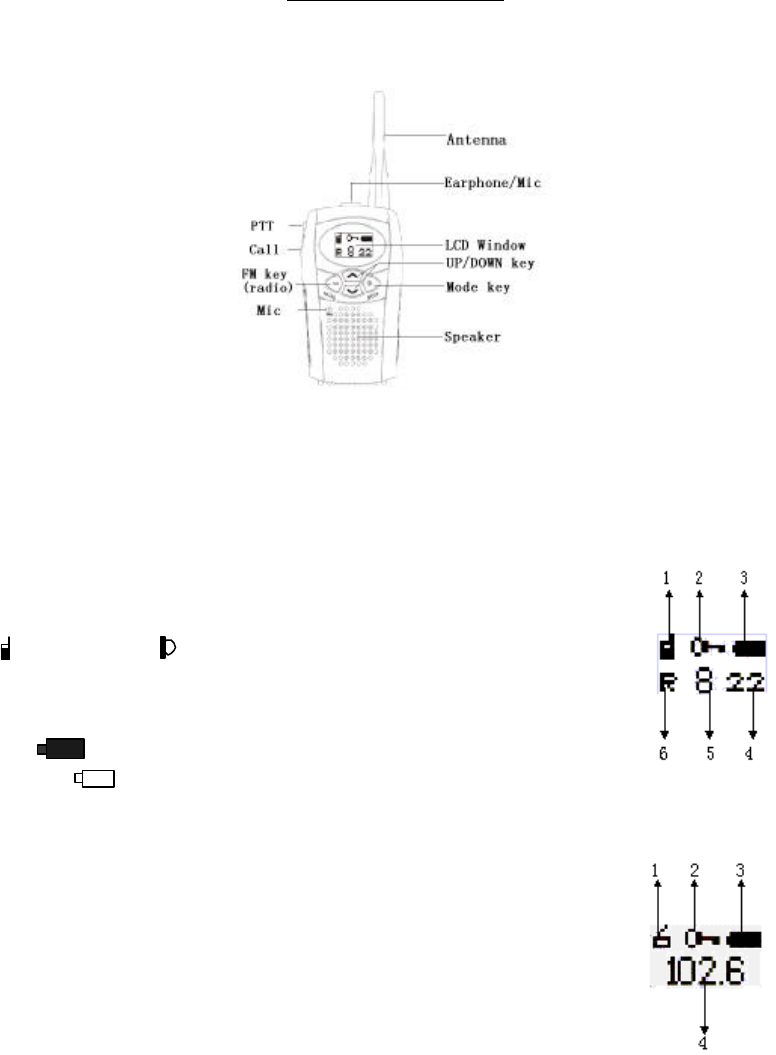
Key Location Graph
FRS Main Screen (Figure 1)
1—The FRS Icon
-- Normal Status VOX Status
2—Key Lock Icon
3—Battery Icon
--Full
-- Empty The unit will make a “beep” sound every 15
seconds
to let you know you have to change the batteries.
4—Sub-code
--CTCSS code (1-38 sub-codes)
--No Display (No any code)
5—Channels (1-14)
6—“R” means receiving --“T” means transmitting
Radio Main ScreenFigure 2
1—Radio Icon –in FM Radio status
2—Key Lock Icon
3—Battery Icon (same as the FRS, See Figure 1)
4—FM Broadcasting Station—Current FM broadcasting station
(Figure 1)
(Figure 2)

2
Installing Batteries
1. Rotate the belt clip anti-clockwise
2. Open the battery door
3. Install the batteries according to the anode-cathode signs shown
in the battery compartment
4. Close the battery door and rotate the belt clip clockwise.
Note: please use 4”AAA” batteries
QUICK GUIDE
1. When the unit is ready
A – Open the unitinstall the batteries & press the MODE key for 1
sec., then you can hear a “DI”, it means the unit is ready.
B -- UnlockIf the unit has been locked (Refer to Figure 1)press
the MODE key first, then press the UP key in 1 sec. After
that the lock will be unlocked, and a “DI, DI” sound will be
heard (Refer to Figure 3).
2. How to talk with your friend
A. You must make sure the unit is on the FRS status (As Figure 3),
if the unit is on FM radio statusplease press the FM key to
change it on the FRS status.
B. Select the same channel & sub-code as that of your friend’s,
e.g. CH 8, SUBCODE 22)
B1-In figure 3, press the UP key to enter the Figure 4
B2-Press the MODE key to enter figure 5
B3-Press the UP/DOWN key to select the channel from 1 to 14.
In this case, you need to choose channel 8
B4-Press the MODE key to confirm the setting & return the
main menu (Figure 3)
B5-In the figure 3, press the UP/DOWN key to enter figure 6
B6-Press the MODE key to enter figure 7
B7-Press the UP/DOWN key to select the sub-code from 0-38.
In this case, you need to choose subcode 22.
B8-Press the MODE key to confirm the setting and return the
main menu (Figure 3)
C. Press the CALL or PTT key to connect the other side
--Press the CALL key once to make a call ring tone or
press the PTT key as long as you would like to talk to
the other user. If the device is in the transmitting status,
(Figure 3)
(Figure 4)
(Figure 5)
(Figure 6)
(Figure 7)
(Figure 8)
(Figure 9)

3
“T” would be displayed on the LCD. (Refer to Figure
8).
D. Release the CALL or PTT key to receive the signal from the
other user.
--Release the CALL/PTT key and wait for signal, Refer to Figure 9,
if “R” is displayed, it means that the device is in the receiving
status. You can hear the call ring tone or the talk from the other
user.
3. How to hear the FM station
A. Press the FM key to change you unit status is in FM radio
station. (as Figure 10)
B. To select the FM radio station (e.g. FM 102.6 MHz)
B1—In the figure 10, press the UP key to enter the figure 11
B2—Press the MODE key to enter the figure 12
B3—Press the UP/DOWN key to change the FM radio station
that you like. (e.g. 87.5-108.0 MHz)
B4—Press the MODE key to confirm the setting & return the
main
FM screen figure10
C. To adjust the suitable volume
C1—In the figure 10press the UP/DOWN key to enter the
figure 13
C2—Press the MODE key to enter the figure 14
C3—Press the UP/DOWN key to adjust the volume until you
are satisfied.
C4—Press the MODE key to confirm the setting and return the
main screen figure 10.
Figure 10
(Figure 11)
(Figure 12)
(Figure 13)
(Figure 14)

4
Functions Setup
1Setup the FRS Function
------To make sure your unit is in FRS status first, (Figure 15)if
the unit is in FM radio status, please press the FM key to return
the FRS status then setting the below functions.
A----Changing Channels
A1---In figure 15, press the UP key to enter figure 16
A2---Press the MODE key to enter figure 17
A3---Press the UP/DOWN key to change the channel
1-14,it’ll change the channel number sequentially from 1
to 8 or the other way round if pressing time over 1
second .
A4---Press the MODE key to confirm the setting and return the
main screen.
B----Changing Subcodes
B1--- In figure 15, press the UP/DOWN key to enter the figure
18.
B2---Press the MODE key to enter figure 19
B3--- Press the UP/DOWN key, it will change the subcodes
sequentially from 1 to 38 or the other way round, if
pressing time is over 1 sec.
B4--- Press MODE key to confirm the setting and return the
main screen.
C----To Adjust the Suitable Volume
C1---In figure 15, press the UP /DOWN key to enter the figure
20
C2---Press the MODE key to enter figure 21.
C3---In figure 21, press the UP/DOWN key to change the
VOL level, it’ll change the VOL continually if you press the
UP/DOWN key more than 1 second.
C4—Press the MODE key to confirm the setting and return the
main screen.
(Figure 15)
(Figure 16)
(Figure 17)
(Figure 18)
(Figure 19)
Figure 20
Figure 21
5
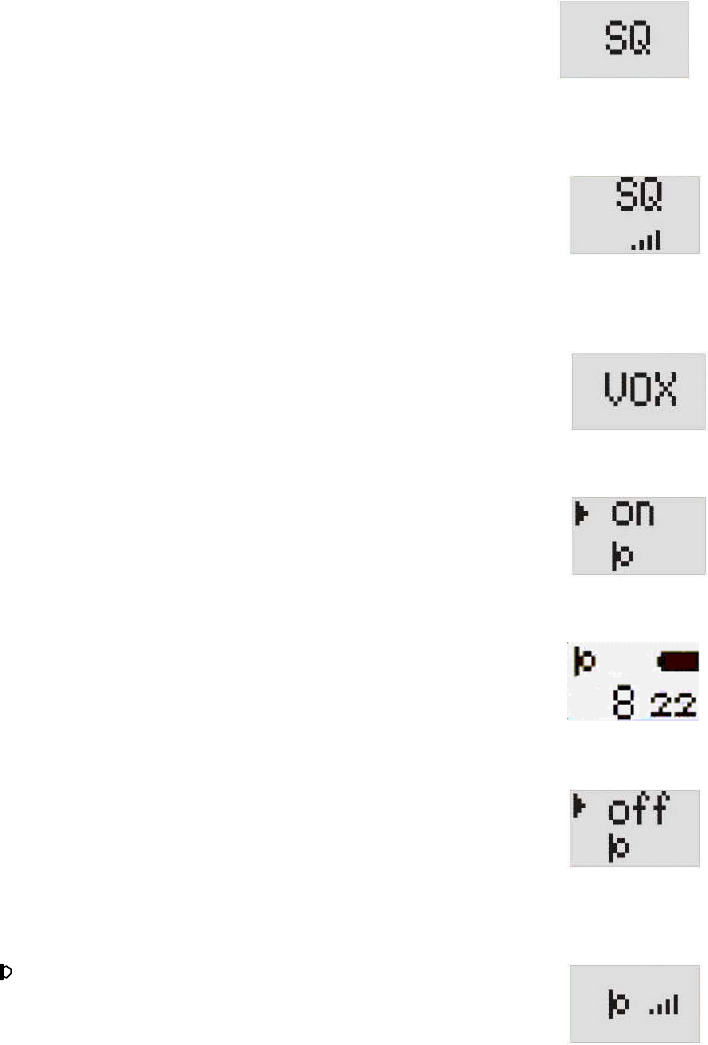
D----Changing SQ
D1---In figure 15, press the UP/ DOWN key to enter figure 22.
D2---Then press the MODE key to enter its figure 23
D3---Press the UP/DOWN key to change the SQ level, it’ll
change the SQ continually if you press the UP/DOWN key
more than 1 second.
D4---Then press the MODE key again to confirm the setting and
return the main screen.
E----Open/Close the VOX & Modulation Sensitivity
Ea----Open the VOX
Ea1---In figure 15, press the UP/DOWN key to enter figure 24.
Ea2---Press the MODE key to enter figure 25
Ea3---Press the UP/DOWN key to move the arrow on the
selectable item “on”.
Ea4---Press the MODE key to confirm the VOX has been
opened, and returned to the main VOX screen figure 26.
Eb---Off the VOX
Eb1---In figure 15, press the UP/DOWN key to enter figure
24.
Eb2---Press the MODE key to enter its figure 27
(after the VOX has been opened)
Eb3---Press the UP/DOWN key to move the arrow on the
selectable item “off”.
Eb4---Press the MODE key to close the VOXand return the
main screen.
Ec---Changing the VOX Sensitivity
Ec1---In figure 25 or 27, press the UP/DOWN key to move the
arrow on the “ ”
Ec2---Press the MODE key to enter figure 28.
Ec3---Press the UP /DOWN key to change the sensitivity of
VOXit will change the VOX continually if you press the
UP/DOWN key more than 1 second.
Ec4---Press the MODE key to confirm it is in the main screen.
Figure 22
(Figure 23)
Figure 24
Figure 25
Figure 26
(Figure 27)
(Figure 28)

6
F----To select the Call Tone
F1---In figure 15, press the UP/DOWN key to enter figure 29
F2---Then press the MODE key again to enter the figure 30
F3---Press the UP/DOWN key to select the tone (1-14)the tone
number will be change continually if you press the
UP/DOWN key more than 1sec.
(each call tone would be displayed for you during your selecting
procedure)
F4---Press the MODE key to confirm the setting and return the
main screen.
G----Open/Close the MON Function
G1---In figure 15, press the UP/DOWN key to enter figure 31.
G2 ---Press the MODE key to open the MON function (as figure
32)
G3 ---When the MON function has been activated, only SQ &
VOL menu are effective, their setup method has been
mentioned above.
G4---In figure 32, press the MODE key to switch off the MON
function.
H----Open/Close the Channel & the auto-scan of Sub-code
Ha ---Turn on ON
Ha1---In figure 15, press the UP/DOWN key to enter figure 33
Ha2---Press the MODE key to enter its figure 34
Ha3---Press the UP/DOWN key to move the arrow on “UP” or
“DOWN”, in this way, you can choose the scanning direction
Ha4---Press the MODE key to confirm the scanning direction &
to enter figure 35
Ha5---Both of the channel number & the sub-code number are
changing, it will stop 10 seconds when the unit find a channel
and a subcodein which transmission is taking place. Press
the MODE key to confirm and stop scanning. After that,
you would stay in that particular channel and subcode. If
you do not press the MODE key, after 10 seconds, scanning
will take place again, unless you switch off the auto-scan
function.
Hb ---OFFWhen the scan is opened
Hb1---In figure 15, press the UP/DOWN key to enter figure
36.
Hb2---Press the MODE key to confirm switch MON off.
(Figure 29
Figure 30
(Figure 31)
(Figure 32)
Figure 33
Figure 34
Figure 35
(Figure 36)

7
2 Setup the FM Radio Function
------ To make sure your unit is in the FM radio status first, (Figure
37)if the unit is in FRS status, please press the FM KEY to return
the FM radio status then setting the below functions.
A----To Select the FM Radio Station
A1---In figure 37, press the UP/DOWN key to enter figure 38
A2---Press the MODE key to enter figure 39
A3---Press the UP/DOWN key to change the FM radio station in your
preferred direction.
A4---Press the MODE key to confirm the setting & return the main
FM radio screen figure 37.
BAuto-scan of the FM Station
B1---In figure 37, press the UP/DOWN key to enter figure 38
B2---Press the MODE key to enter figure 39
B3---In figure 39, press the UP/DOWN key 1sec.the radio
station will auto-scan up or down, LCD would change to figure
40 while scanning is taking place.
B4---The radio station is changing automatically, when it
finds a station frequency will stay there for10 seconds, press
the MODE key to confirm choosing the frequency, and
auto-scan would be finished. Otherwise, it will scan
repeatedly after 10 seconds unless you switch off the auto-scan.
CTo adjust the Suitable Volume
C1---In figure 37, press the UP/DOWN key to enter figure 41
C2---Press the MODE key to enter figure 41
C3—Press the UP/DOWN key to adjust the volume until you are
satisfied.
C4—Press the MODE key to confirm the setting and return the main
screen.
DSelect to return to the FRS Status
D1---In the figure 37, press the UP/DOWN key to enter the figure 43
D2---Press the MODE key to enter the figure 44
D3---Press the UP/DOWN key to select “Auto” or “Manu”
D4---Press the MODE key to confirm
(Auto---means when the unit receive a signal from the other user, it
will switch to the FRS status from FM radio status automatically.
(Manu---means when the unit receive from the other user, it will
inform you first, then you can decide to stay in FM Radio Status or
to go to FRS Status)
Figure 37
(Figure 38)
(Figure 39)
Figure 40
(Figure 41)
Figure 42
Figure 43
Figure 44
8
E----What to do if FRS signal comes while the unit is in FM radio
status
E1---While listening to FM Radio, and the unit setting is in
auto-to-FRS status (Auto), once a FRS signal come s, the unit will
return the FRS status automatically.
E2---While listening to FM Radio, and the unit setting is in
manual-to-FRS status (Manu), once a FRS signal comes, it will
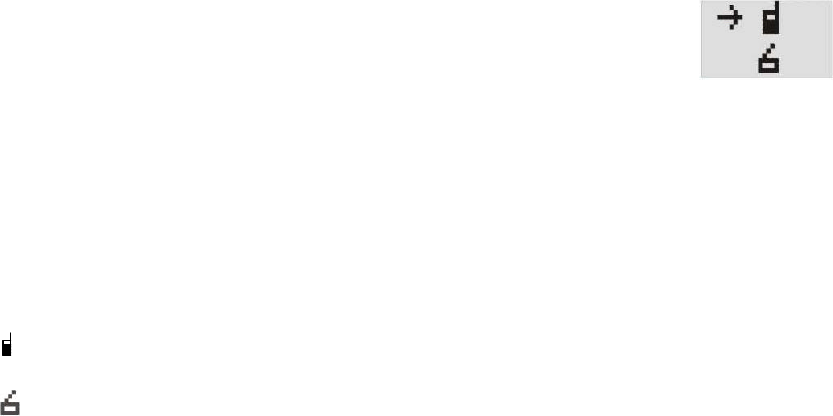
display the select menu as shown in figure 45. At the same time, it
will send out “beep” sound once and LCD will flash in every 0.5
second. Flashing light will last for 10 seconds in total.
E3---Press the UP/DOWN key to select whether you would like to go
to FRS status or to stay in FM radio status, then press the MODE key
for confirm. (If the key has been locked, the device must be
unlocked first)
-- means return the FRS status
-- means stay on the FM radio station
F---To press the PTT to return the FRS status
---In the FM radio status, whenever you press the PTT key, the
device will go to the FRS status, when you release the PTT key, it
will come back to the FM radio status.
n If the device receive a signal from the other user, it will display
menu as shown in figure 45 automatically, provided the device
is in manual-to-FRS status.
n Or it will return to the FRS status automatically, provided the
device is in auto-to-FRS status.
Figure 45

9
3Setup others function
A LCD Backlit (Figure 46) (Figure 47)
A-1 LCD Backlit would be on for about 8 sec., once a key is pressed.
A-2 Turn on and off the LED light (Colour Selection)
- Press UP/Down Key when the in the status as what Figure 15 shown, in this way
the menu in Figure 46 will be pulled down.
- in the menu of Figure 46, press MODE KEY to enter the menu of Figure 47
- in the menu of Figure 47, press UP/DOWN KEY to select C0-C2
- Press MODE KEY to confirm the colour of Backlit selected, the unit will
return to the status shown in Figure 15.
BKey lock or unlock
----In the main FRS or FM radio screen, press the MODE key firstthen press the UP key in 1 sec., you can
lock or unlock for all the keys, except PTT key.
CAuto-resume of the menus
----When the menu is opened, if there is no operation in 5 seconds, it will return to the main screen
automatically after 5 seconds.
DFast Changing
----Used the UP or DOWN key to select the menu or adjust channel, subcode, volume setting, etc., it will
no. of channel and subcode or the volume setting in sequentially, if you press the UP or Down key for more
than 1 second.
DLCD BACKLIT
----LCD Backlit will be on for about 8 second when any key is pressed.
4 Power Off
----In the main FRS or FM radio screen, pressing the MODE key 3 seconds will switch off
the unit.
10
=======================================================
TECHNICAL SPECIFICATIONS
Description Specs
Channels 14
Codes 38
Operating Frequency UHF-462.5625 to 467.7125MHz
Modulation FM
Talk Range Up to 2 miles
Power Source 4 AAA Alkaline Batteries or Accessories accumulator
LCD Backlit
FM Radio 87.5 to 108.0 MHz
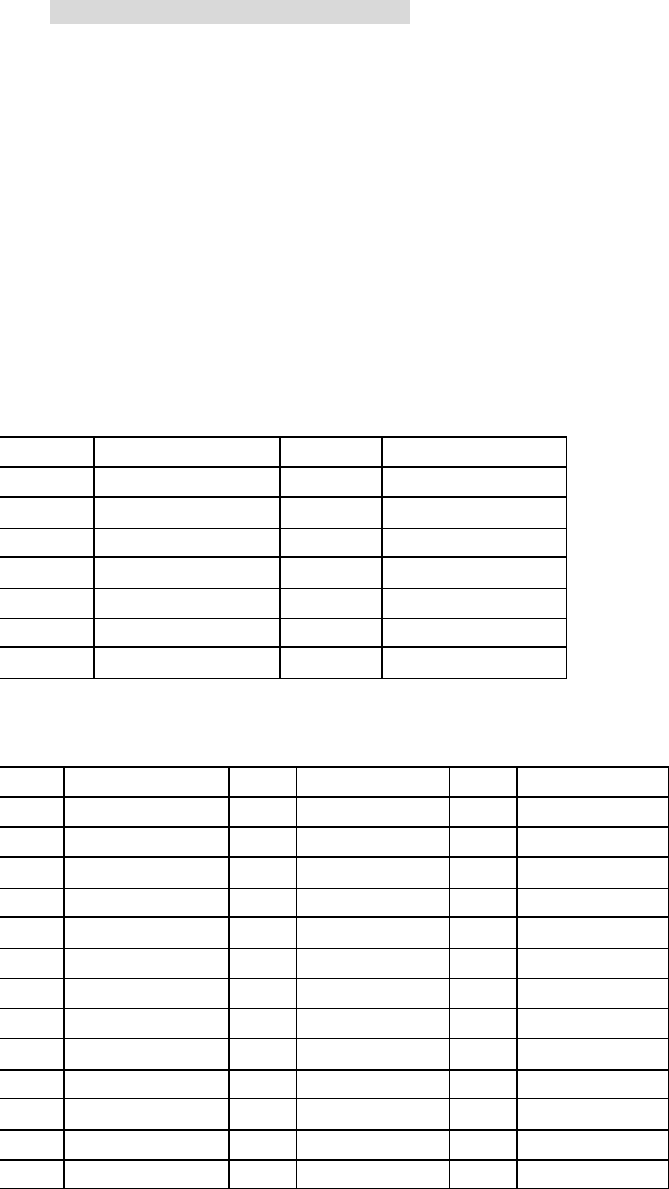
Channel Frequency Chart
Channel Frequency (MHz) Channel Frequency (MHz)
1 462.5625 8 467.5625
2 462.5875 9 467.5875
3 462.6125 10 467.6125
4 462.6375 11 467.6375
5 462.6625 12 467.6625
6 462.6875 13 467.6875
7 462.7125 14 467.7125
Interference Eliminator Code Chart
Code Frequency (Hz) Code Frequency (Hz) Code Frequency (Hz)
1 67.0 14 107.2 27 167.9
2 71.9 15 110.9 28 173.8
3 74.4 16 114.8 29 179.9
4 77.0 17 118.8 30 186.2
5 79.7 18 123.0 31 192.8
6 82.5 19 127.3 32 203.5
7 85.4 20 131.8 33 210.7
8 88.5 21 136.5 34 218.1
9 91.5 22 141.3 35 225.7
10 94.8 23 146.2 36 233.6
11 97.4 24 151.4 37 241.8
12 100 25 156.7 38 250.3
13 103.5 26 162.2
11
Troubleshooting of FRS
Problem Solution
No Po wer Reposition or replace batteries
Message Not Transmitted Make sure the Push-to-Talk button is
completely pressed as you transmit.
Reposition or replace batteries.
Message Not Received Confirm radios have the same Channel and
Interference Eliminator Code settings.
Make sure Push-to-Talk is not inadvertently
being pressed.
Reposition or replace batteries
Obstructions, operating indoors or in vehicles
may interfere with communication. Change
your location.
Check to make sure volume is enough to hear.
Hearing Other Conversation Confirm Interference Eliminator Code is set,
or Noise on a Channel (active settings are 1-38).
Shared Channel or Interference Eliminator
Code may be in use, try another.
Limited Talk Range Steel/concrete structures, heavy foliage and use
Use in buildings and in vehicles will decrease range,
check for clear line of sight to improve transmission.
Wearing radio close to body such as in a pocket or on
a belt will decrease range, change location of radio.
Heavy Static or interference Radios too close. Radios must be at least 5 feet apart,
increase your distance.
Radios too far apart. Obstacles interfere with transmission.
Talk range is up to 2 miles in clear, unobstructed conditions.
Troubleshooting of FM
Problem Solution
The sound is unclear and has cacophony. To check if the frequency what the LCD display is the same
frequency which corresponding the radio station, enter into the
frequency setup, used UP/DOWN to modulate the frequency.
Not is local broadcasting station, the signal is weakly,

12
modulating the frequency to the others which signal is strong.
Disturbed by the electricity who around the unit or radio
equipment, please keep away.
Can’t scan the signal of broadcasting station Electricity isn’t full, change the battery
The signal of broadcasting station is weakly, modulation the
frequency manually.
Modulating the location (place)
Can’t receive the broadcasting station Electricity isn’t full, change the battery
In the building what made by the steel-concrete or in the
vehicle, the receiving function will be weakly, please replace
the location.
Closed to the object what has absorbed the signal of
electromagnetism, please keep away.