Turtle Beach X12 Quickstartguide Owner S Manual Quick Start Guide
2014-07-06
: Turtle-Beach Turtle-Beach-X12-Quickstartguide-Owner-S-Manual turtle-beach-x12-quickstartguide-owner-s-manual turtle-beach pdf
Open the PDF directly: View PDF  .
.
Page Count: 11
For the full user guide, please go to www.turtlebeach.com/products/X12
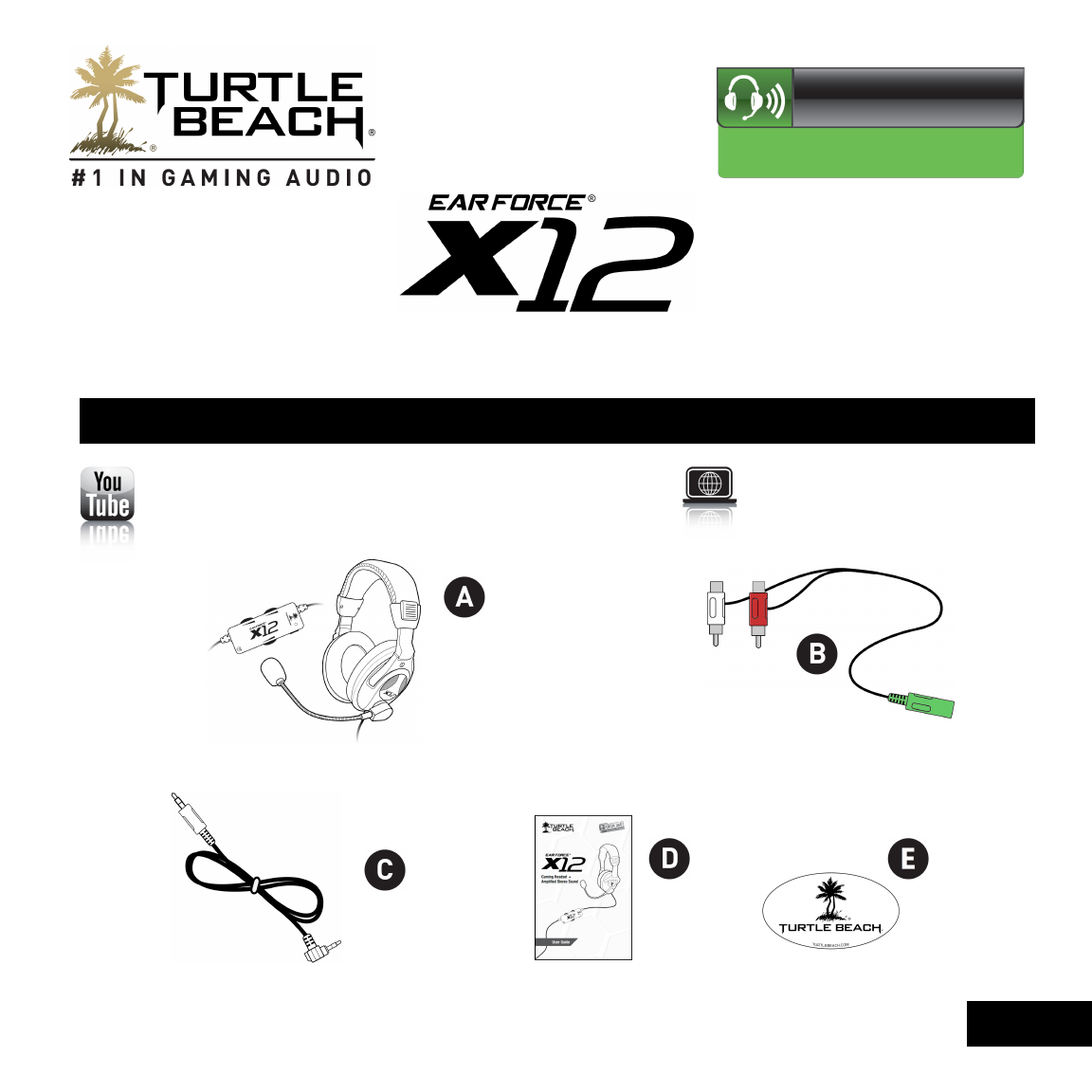
Package Contents
Ear Force X12 Headset with In-line Amplifier RCA Splitter Cable
Quick Start Guide
Xbox 360® Talkback Cable* User Guide Turtle Beach Sticker
1
Product support and warranty
information:
TurtleBeach.com/support
Watch Turtle Beach product training videos at:
Youtube.com/TurtleBeachVideos
W I R E D
For: Xbox 360®
* For best Xbox LIVE chat performance, use with official Microsoft Xbox 360 products.
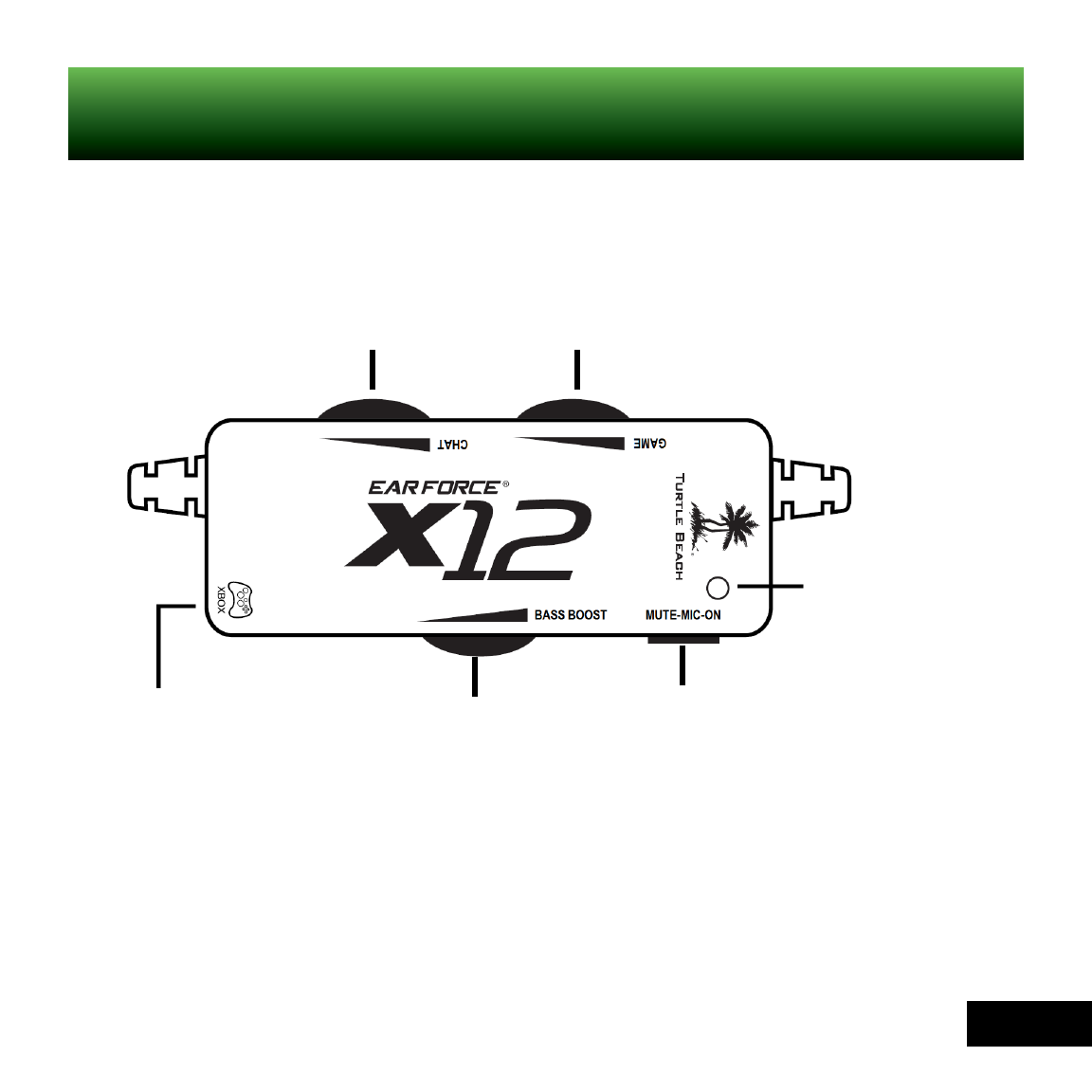
Xbox 360
Talkback
Cable jack
Bass Boost Dial Mic Switch
Mic LED
Green = Mic On
Red = Mic Muted
Chat Volume Dial Game Volume Dial
2
Headset/Amplifier Controls
3
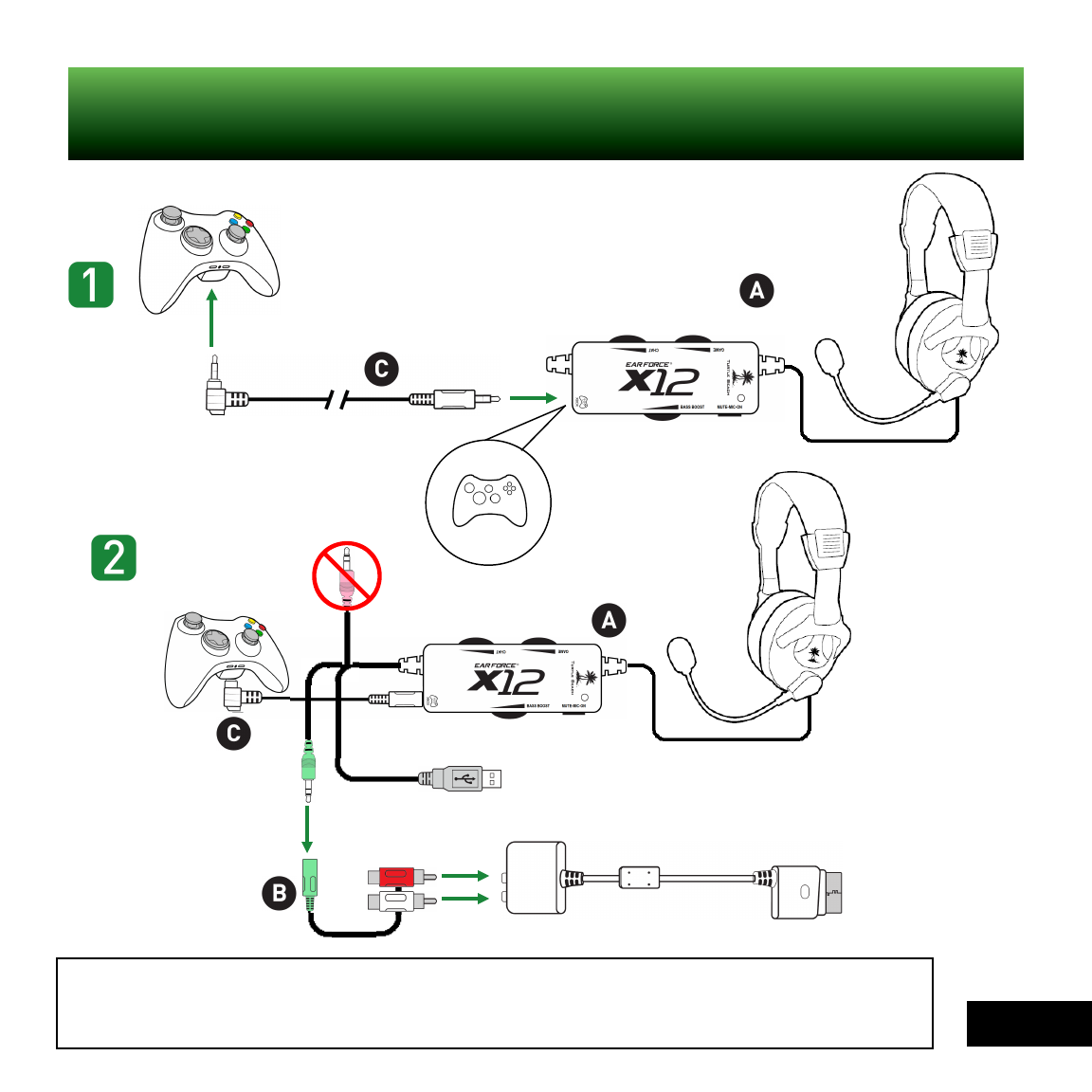
* An Xbox 360 Audio Adapter (available on TurtleBeach.com) is required only if your TV does not have
red/white AUDIO OUT RCA jacks, and if you are using an HDMI cable to connect your game console to your TV.
NOTE: AUDIO IN jacks will not send sound out to your headset; you need AUDIO OUT.
**Xbox 360
Audio Adapter
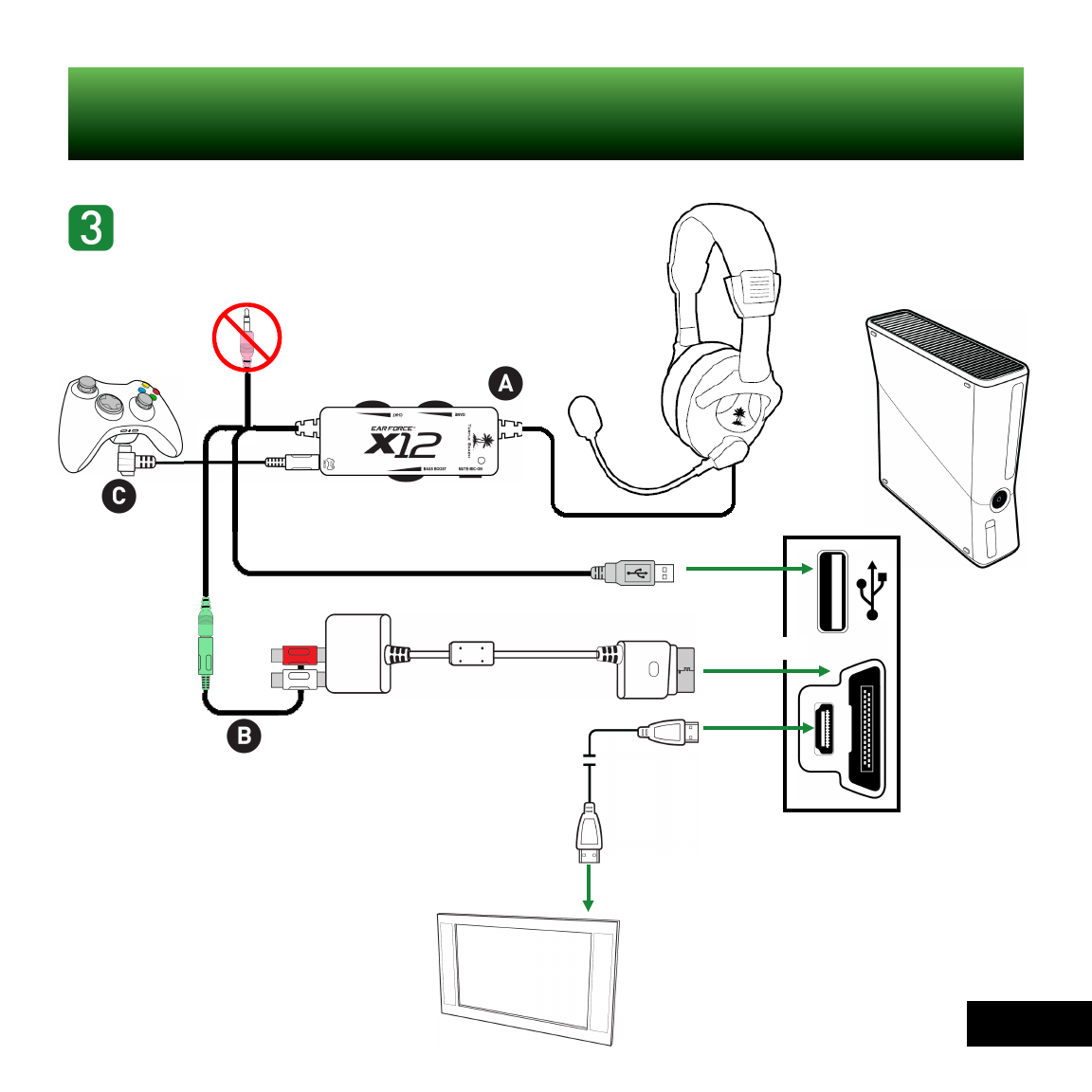
Xbox 360 Setup – HDMI
XBOX
4
HDMI
Cable
Xbox 360 Setup – HDMI (Continued)
Xbox 360 Back Panel
to A/V Port
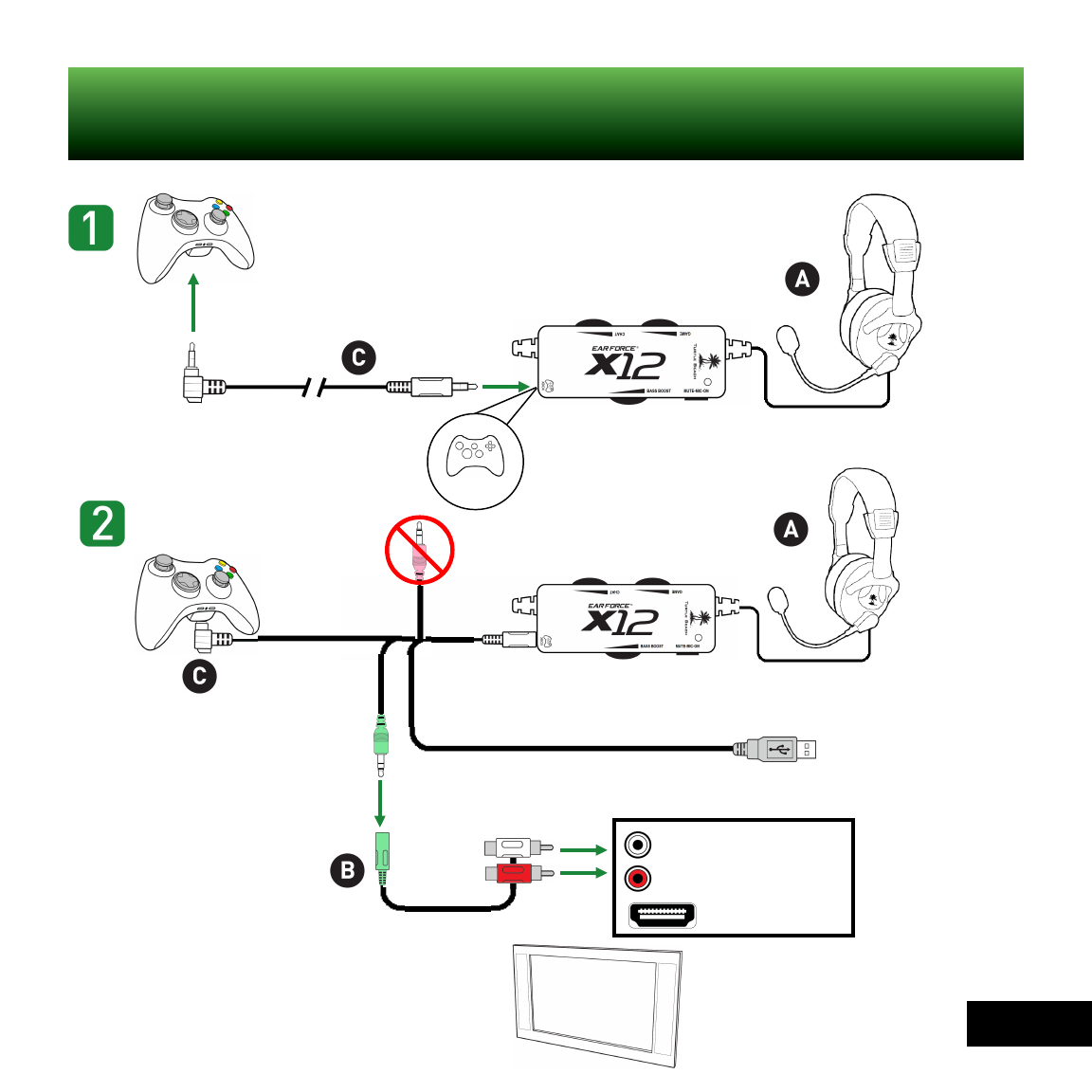
Xbox 360 Setup – HDMI Alternate
Right Audio Out (Red)
Left Audio Out (White)
HDMI In
XBOX
5

Right Audio Out (Red)
Left Audio Out (White)
HDMI In
to HDMI port
Xbox 360 Back Panel
Xbox 360 Setup – HDMI Alternate (Continued)
6
HDMI
Cable

Xbox 360 Setup – RCA
XBOX
Xbox 360 A/V Cable
7
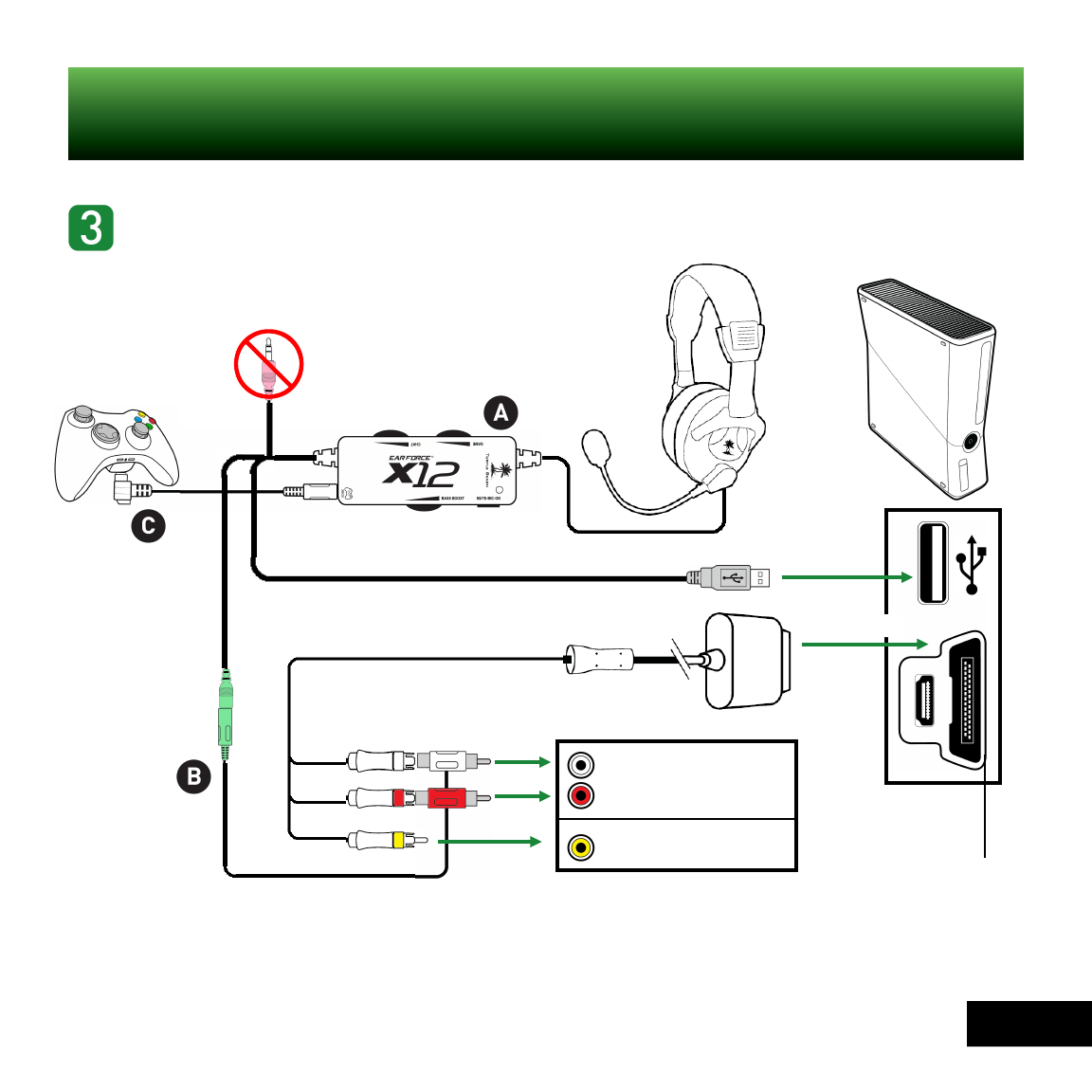
Xbox 360 A/V Cable
Video In (Yellow)
Right Audio In (Red)
Left Audio In (White)
A/V port
Xbox 360 Back Panel
to A/V port
Xbox 360 Setup – RCA (Continued)
8
9
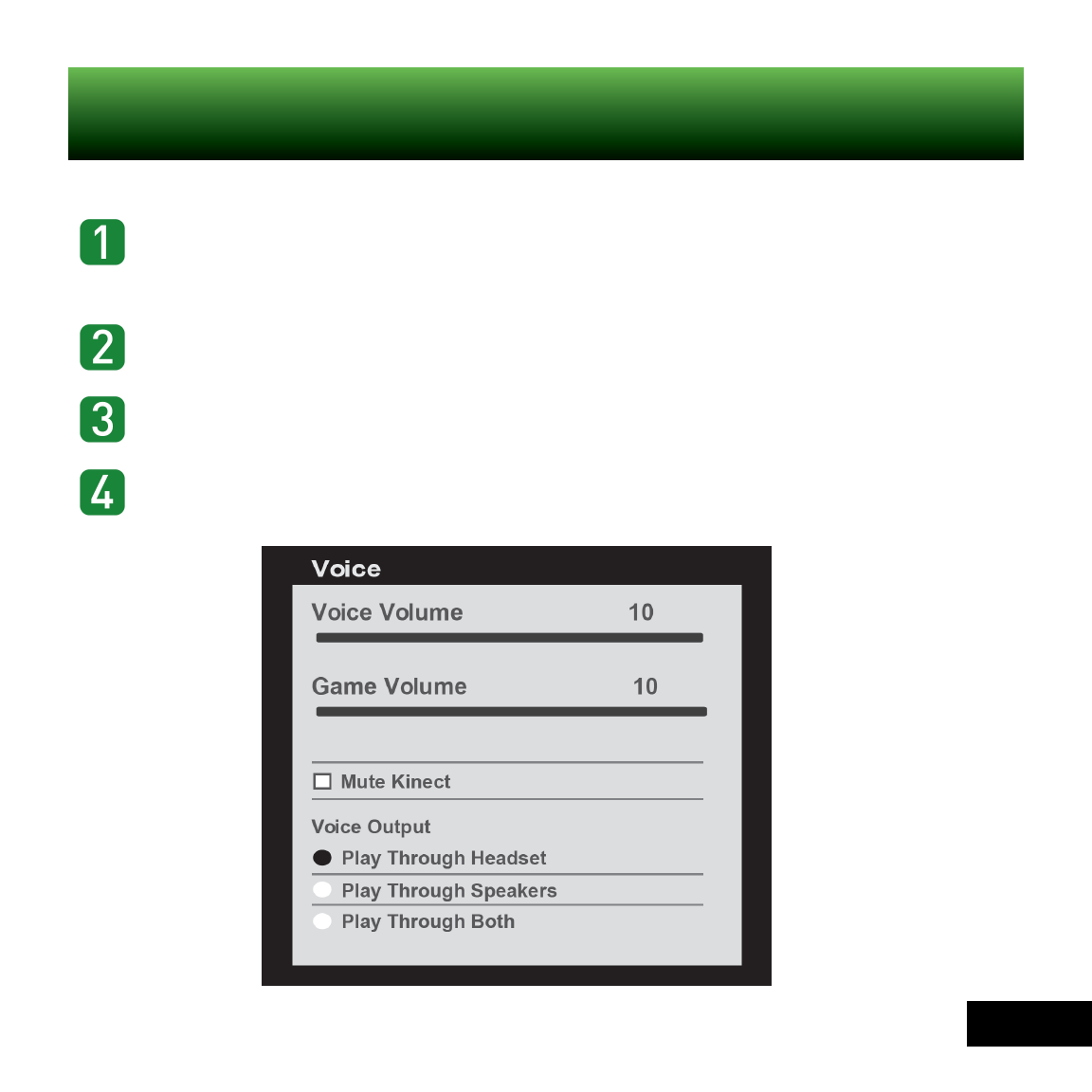
Xbox 360 Chat Configuration
Press the silver Xbox Guide button on your Xbox 360
controller. Go to Settings > Preferences > Voice.
• Set Voice Volume to “10”
• Set Game Volume to “10”
• Set Voice Output to “Play Through Headset”
10
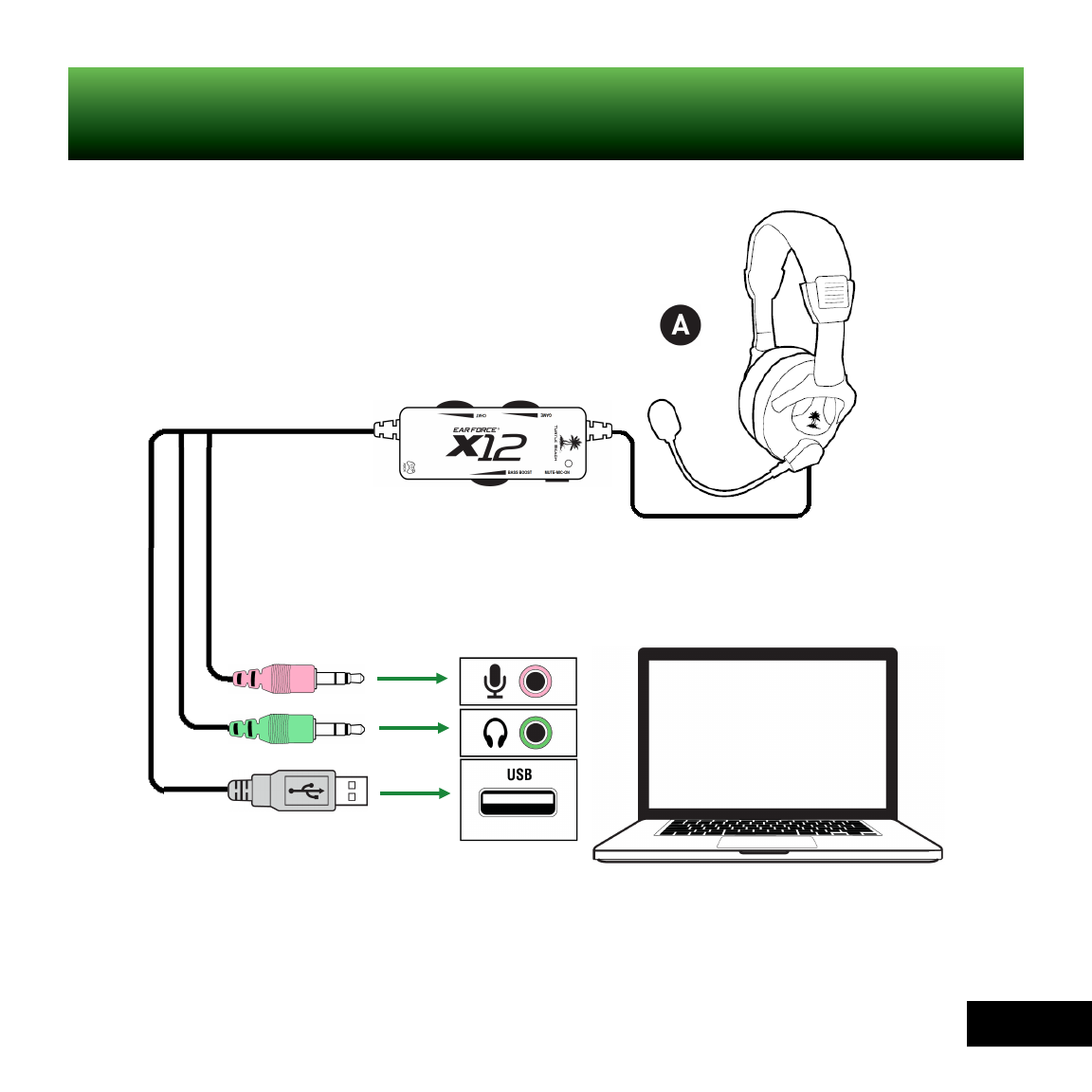
PC Connections
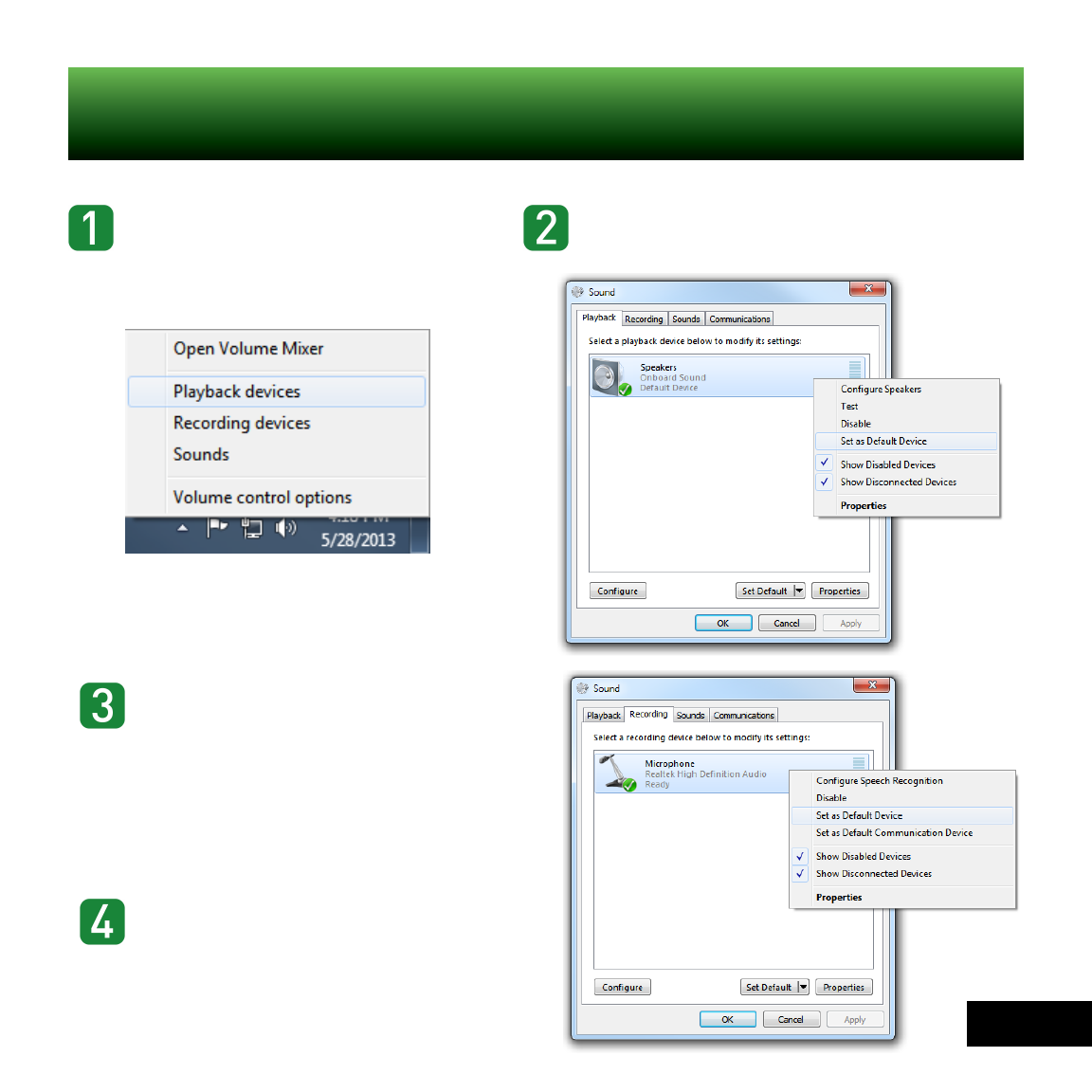
Right-click the Speaker
icon in your task bar and
select “Playback devices”.
PC Setup
Right-click “SPEAKERS” and
select “Set as Default Device”.
Click the “Recording” tab, then
right-click “Microphone” and
select “Set as Default Device”.
If you speak into the mic, you
should see the green bars on
the right move.
Click the “OK” button at the
bottom of the window to exit.
11
