U tec Group UL3 Ultraloq Smart Lock User Manual User Guide 20160229 V1 3

U-tec Group Inc. Ultraloq Smart Lock User Guide 20160229 V1 3

User manual

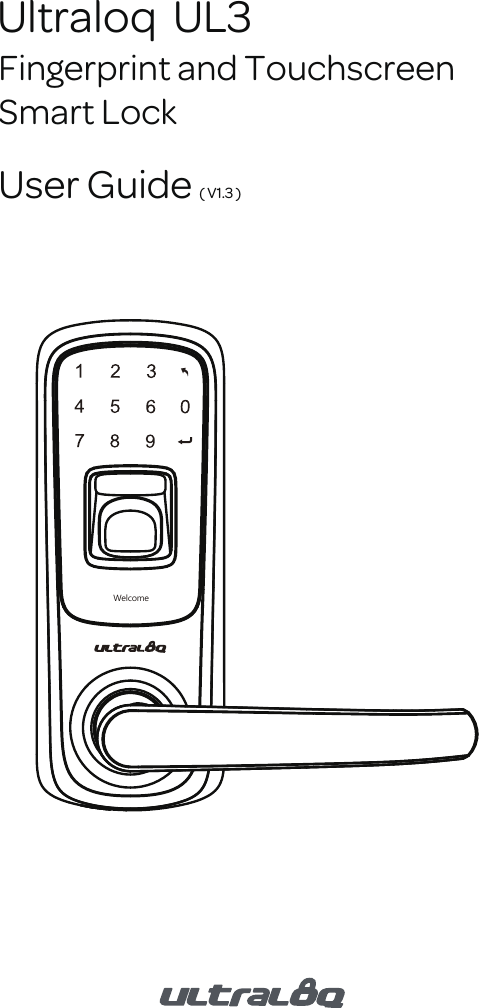
Ultraloq  UL3Fingerprint and TouchscreenSmart LockUser Guide ( V1.3 )Welcome
- 1 -Register Your LockTo ensure the best warranty coverage and customer service, please register your product at http://store.u-tec.com/account/loginWarranty StatementsSee www.u-tec.com for specific warranty details and limitations, or contact U-tec’s Customer Service .* This guide contains important information about your lock!Operation VideoPlease watch our easy step by step operation video before attempting to use your Ultraloq UL3 Fingerprint and Touchscreen Smart Lock.If you have questions regarding the installation process please contact us at customerservice@u-tec.comwww.u-tec.com/supportNeed Help?For technical documents and morePlease visit www.u-tec.com/supportTel: 844-HEY-UTEC (844-439-8832)Email: customerservice@u-tec.com
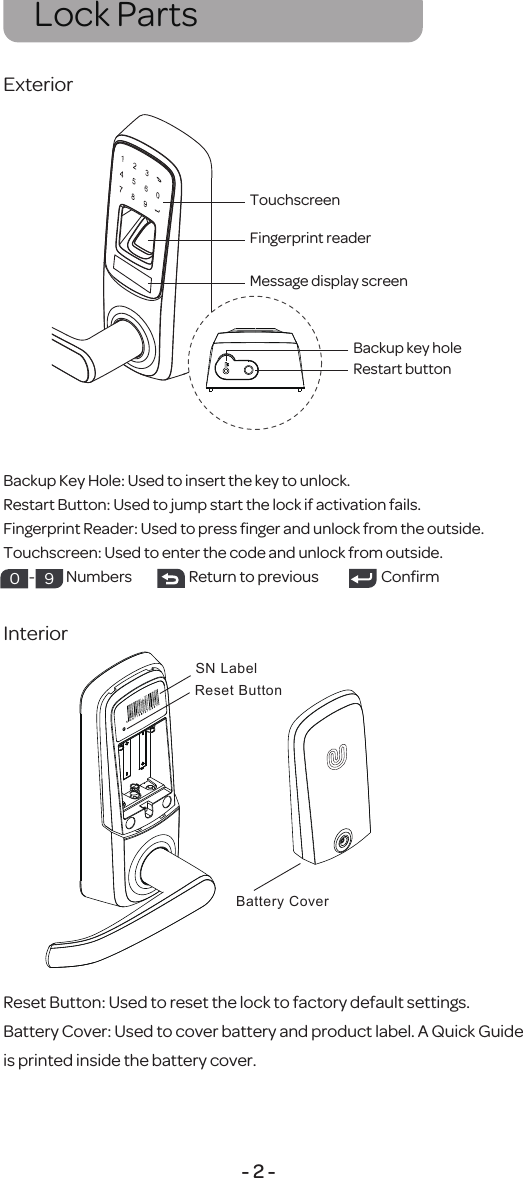
- 2 -ExteriorInteriorLock PartsTouchscreenFingerprint readerMessage display screenBackup key holeRestart buttonBattery CoverReset ButtonSN LabelReset Button: Used to reset the lock to factory default settings.Battery Cover: Used to cover battery and product label. A Quick Guide is printed inside the battery cover.Backup Key Hole: Used to insert the key to unlock.Restart Button: Used to jump start the lock if activation fails. Fingerprint Reader: Used to press finger and unlock from the outside.Touchscreen: Used to enter the code and unlock from outside.         -           Numbers                    Return to previous                      Confirm0 9
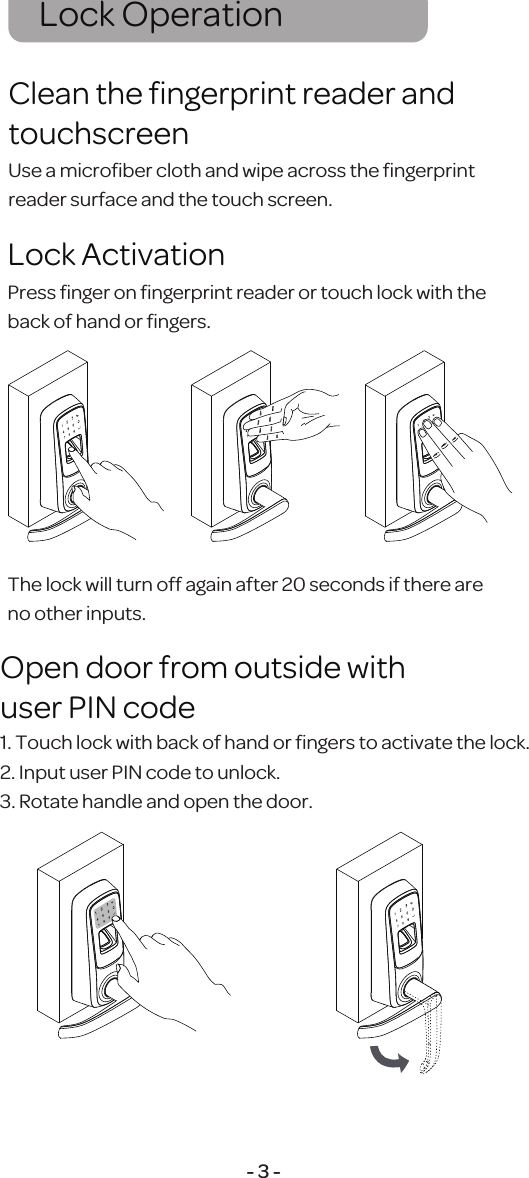
Lock Operation - 3 -1. Touch lock with back of hand or fingers to activate the lock.2. Input user PIN code to unlock.3. Rotate handle and open the door.Open door from outside withuser PIN codePress finger on fingerprint reader or touch lock with the back of hand or fingers.The lock will turn off again after 20 seconds if there are no other inputs.Use a microfiber cloth and wipe across the fingerprint reader surface and the touch screen.Clean the fingerprint reader and touchscreenLock Activation
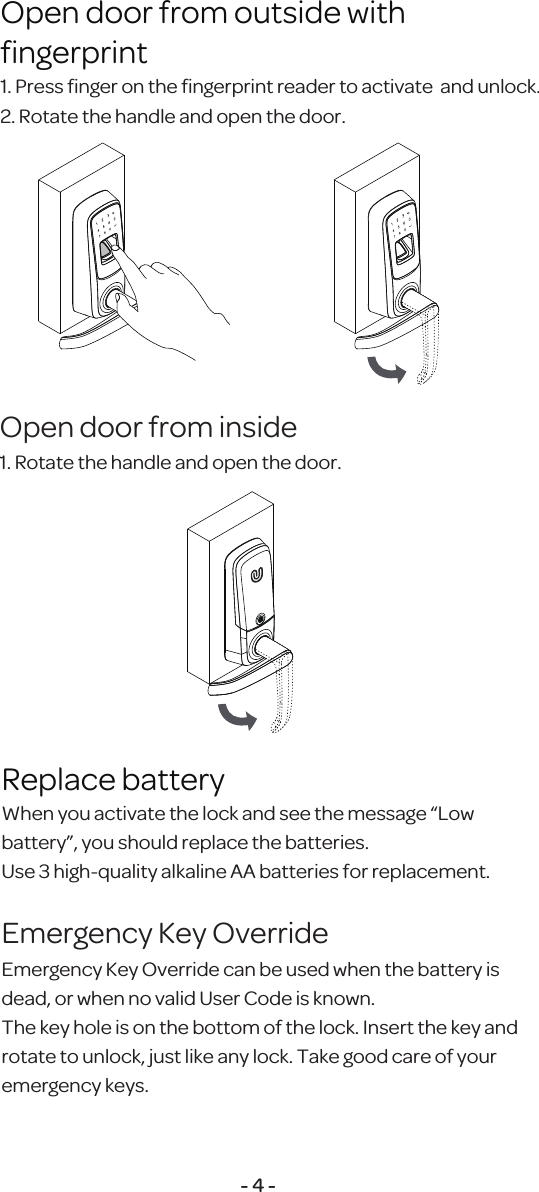
1. Press finger on the fingerprint reader to activate  and unlock.2. Rotate the handle and open the door.Open door from outside withfingerprint1. Rotate the handle and open the door.Open door from inside- 4 -When you activate the lock and see the message “Low battery”, you should replace the batteries. Use 3 high-quality alkaline AA batteries for replacement.Replace batteryEmergency Key Override can be used when the battery is dead, or when no valid User Code is known.The key hole is on the bottom of the lock. Insert the key and rotate to unlock, just like any lock. Take good care of your emergency keys.Emergency Key Override
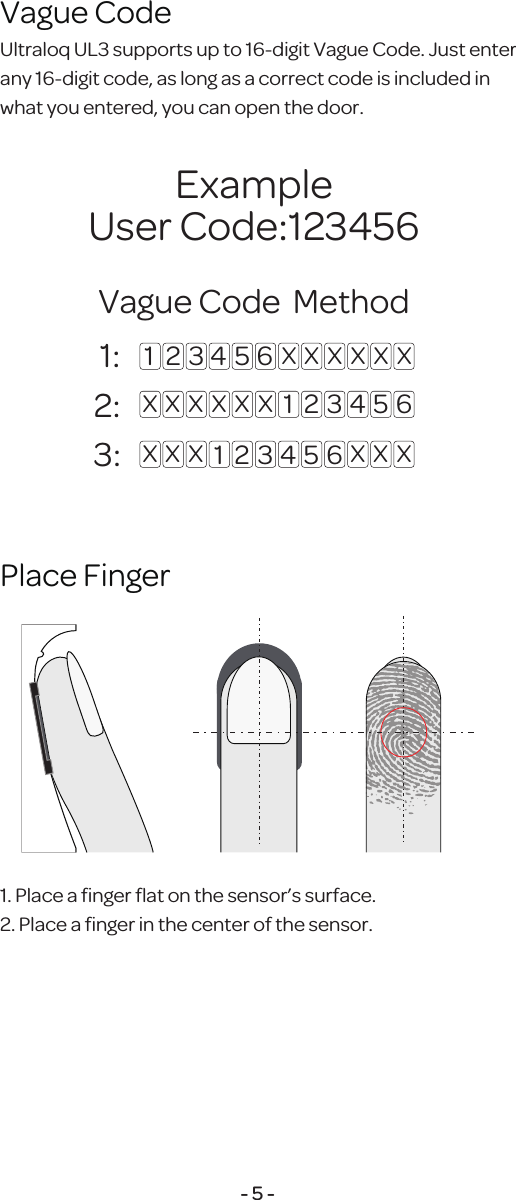
Ultraloq UL3 supports up to 16-digit Vague Code.Just enter any 16-digit code, as long asa correct codeis included inwhat you entered, you canopen the door.Vague Code 1. Place a finger flat on the sensor’s surface.2. Place a finger in the center of the sensor.Place Finger- 5 - 1: 2:3: 1 2 3 4 5 6 X X X X X X1 2 3 4 5 6X X X X X X1 2 3 4 5 6X X X X X XExampleUser Code:123456Vague Code  Method
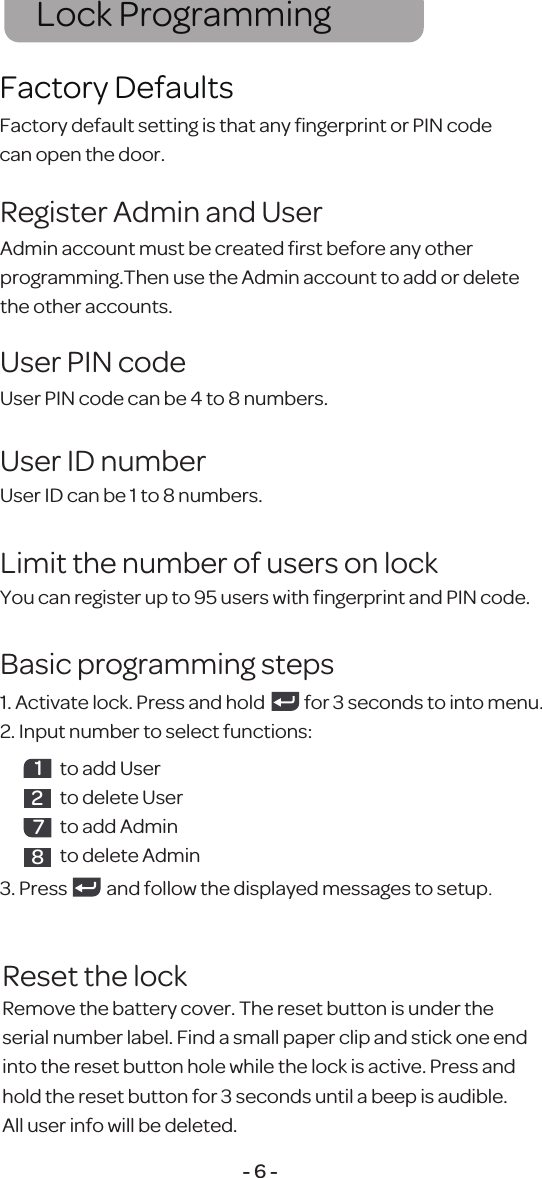
Admin account must be created first before any otherprogramming.Then use the Admin account to add or delete the other accounts.Register Admin and UserFactory default setting is that any fingerprint or PIN codecan open the door.Factory DefaultsLock Programming- 6 -User PIN code can be 4 to 8 numbers.User PIN codeUser ID can be 1 to 8 numbers.User ID numberYou can register up to 95 users with fingerprint and PIN code.Limit the number of users on lock1. Activate lock. Press and hold           for 3 seconds to into menu.2. Input number to select functions:3. Press           and follow the displayed messages to setup.Basic programming steps1to add Userto delete Userto add Adminto delete Admin287Reset the lockRemove the battery cover. The reset button is under the serial number label. Find a small paper clip and stick one end into the reset button hole while the lock is active. Press and hold the reset button for 3 seconds until a beep is audible. All user info will be deleted.
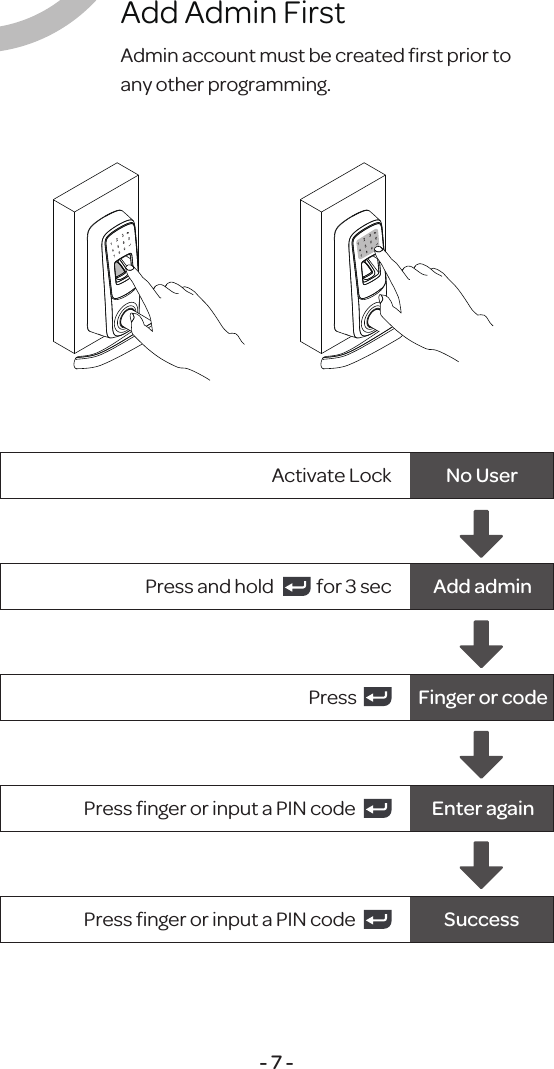
Add Admin First- 7 -Admin account must be created first prior to any other programming.Activate Lock No UserAdd adminPress and hold            for 3 secFinger or codePressEnter againPress finger or input a PIN codeSuccessPress finger or input a PIN code1
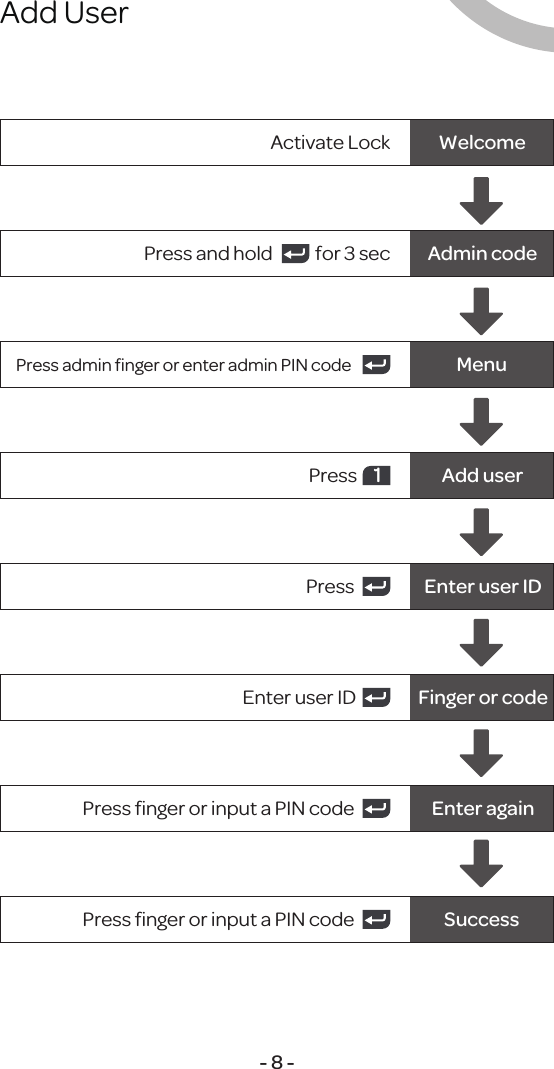
Add User- 8 -Activate Lock WelcomeAdmin codePress and hold            for 3 secMenuPress admin finger or enter admin PIN codeAdd userPress  1Press  Enter user IDEnter user ID Finger or codePress finger or input a PIN code Enter againPress finger or input a PIN code Success2
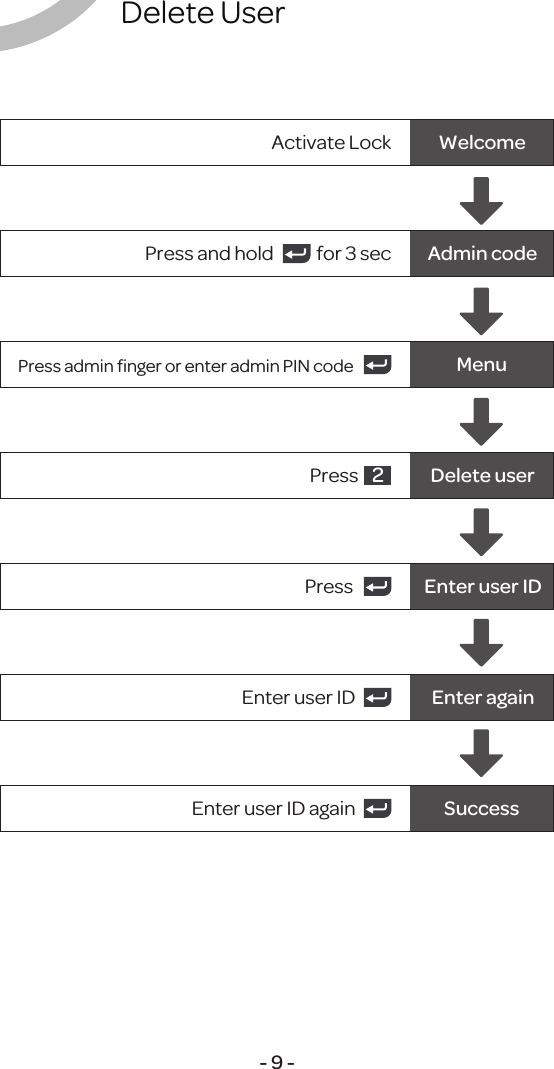
Delete User- 9 -Activate Lock WelcomeAdmin codePress and hold            for 3 secPress admin finger or enter admin PIN code MenuDelete userPress  2Press  Enter user IDEnter user ID Enter againEnter user ID again Success3
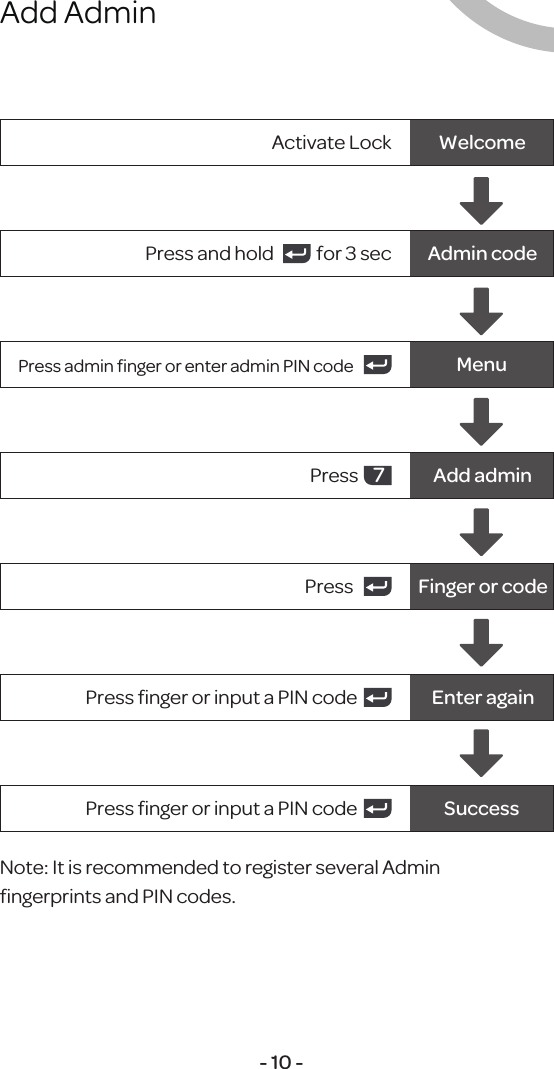
Add Admin- 10 -Activate Lock WelcomeAdmin codePress and hold            for 3 secMenuPress admin finger or enter admin PIN codePress  Finger or codePress finger or input a PIN code Enter againNote: It is recommended to register several Adminfingerprints and PIN codes.Press finger or input a PIN code SuccessAdd adminPress  74
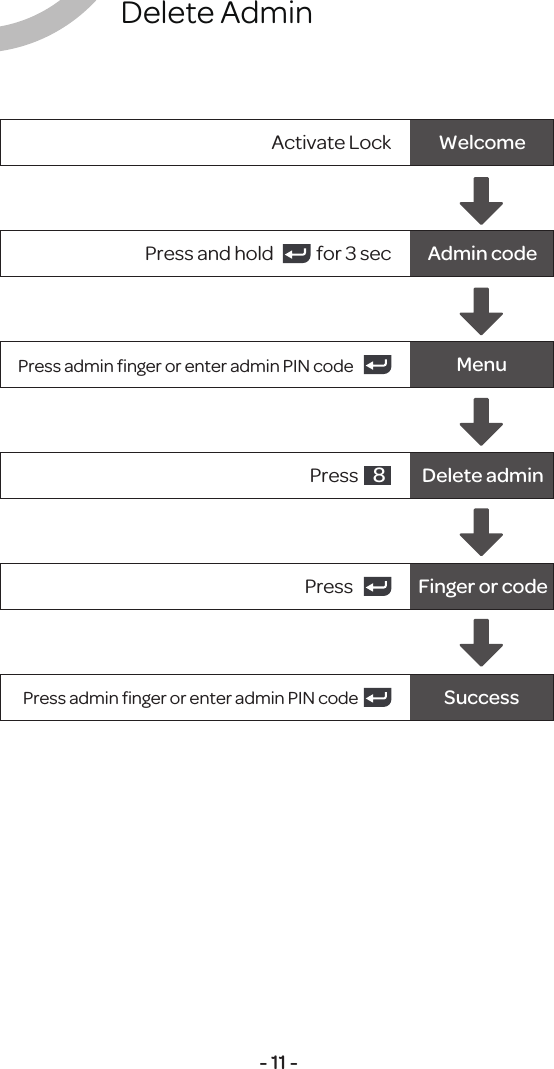
Delete Admin- 11 -Activate Lock WelcomeAdmin codePress and hold            for 3 secMenuPress admin finger or enter admin PIN codePress  Finger or codePress admin finger or enter admin PIN code SuccessDelete adminPress  85
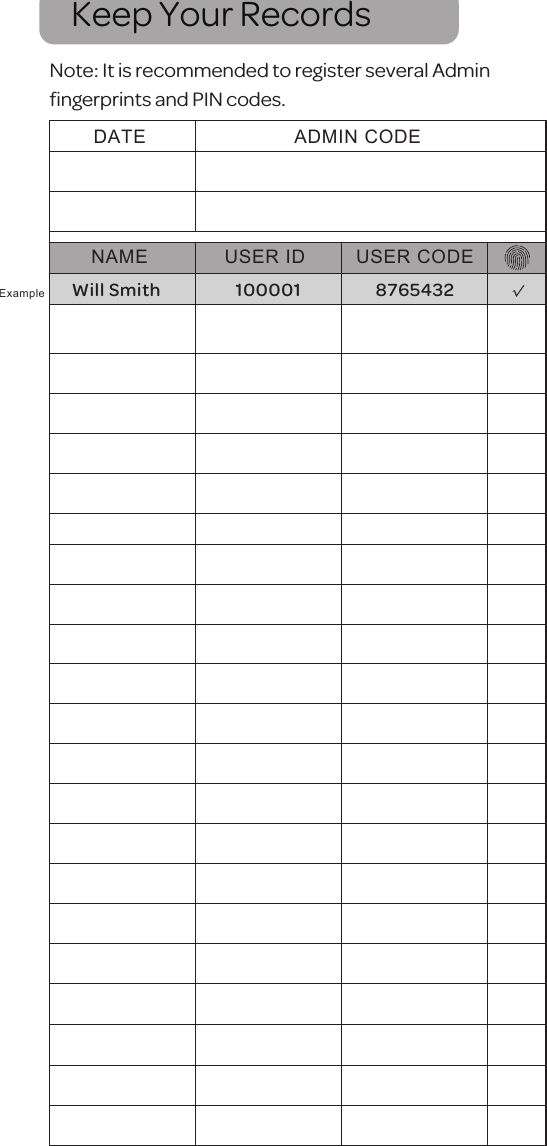
Keep Your RecordsDATE ADMIN CODENAMEWill Smith 100001 8765432ExampleUSER ID USER CODE√Note: It is recommended to register several Adminfingerprints and PIN codes.
NoteDate / /
U-tec and Ultraloq brands and products are trademarked and protected  under law in the United States. Unauthorized use is prohibited.2016 © U-tec Group Inc. All Rights Reserved.Ultraloq is sub-brand of U-tec Group Inc.
   This device complies with Part 15 of the FCC Rules. Operation is subject to the following two  conditions: (1) this device may not cause harmful interference, and (2) this device must accept any  interference received, including interference that may cause undesired operation.  Changes or modifications not expressly approved by the party responsible for compliance could  void the user's authority to operate the equipment.  NOTE: This equipment has been tested and found to comply with the limits for a Class B digital  device, pursuant to Part 15 of the FCC Rules. These limits are designed to provide reasonable  protection against harmful interference in a residential installation. This equipment generates, uses  instructions, may cause harmful interference to radio communications. However, there is no  guarantee that interference will not occur in a particular installation. If this equipment does cause  harmful interference to radio or television reception, which can be determined by turning the  equipment off and on, the user is encouraged to try to correct the interference by one or more of  the following measures:  -- Reorient or relocate the receiving antenna.  -- Increase the separation between the equipment and receiver.  -- Connect the equipment into an outlet on a circuit different from that to which the receiver is  connected.  -- Consult the dealer or an experienced radio/TV technician for help.

Navigation menu