UNIGRAND 140903 MobileXfer User Manual MobileXfer UM ENG 0107x
UNIGRAND LTD MobileXfer MobileXfer UM ENG 0107x
UNIGRAND >
User manual

MobileXfer_UM_ENG_0107
1
MobileXfer User Manual
Thank you for purchasing MobileXfer. Please read this manual carefully to
install and use MobileXfer properly. Happy MobileXfering!
Content
➀
MobileXfer USB Adapter X 1
➁
User Manual X 1
Operating Systems and Requirements
System requirements are listed below:
Desktop MobileXfer
➀ Windows 7 SP1 or later versions.
➁ Mac OS 10.8 or later versions.
MobileXfer App
➀ Android 4.3 or later versions.
➁ iOS 7 or later versions.
➂
Bluetooth 4.0 is required for mobile devices.
Software for Download
Please download software applications of Windows (PC) and OSX (Mac) from
the following link:
http://mobilexfer.com/downloads
Please refer the page 4 for the installation of MobileXfer mobile apps for
Android and iOS.
MobileXfer_UM_ENG_0107
2
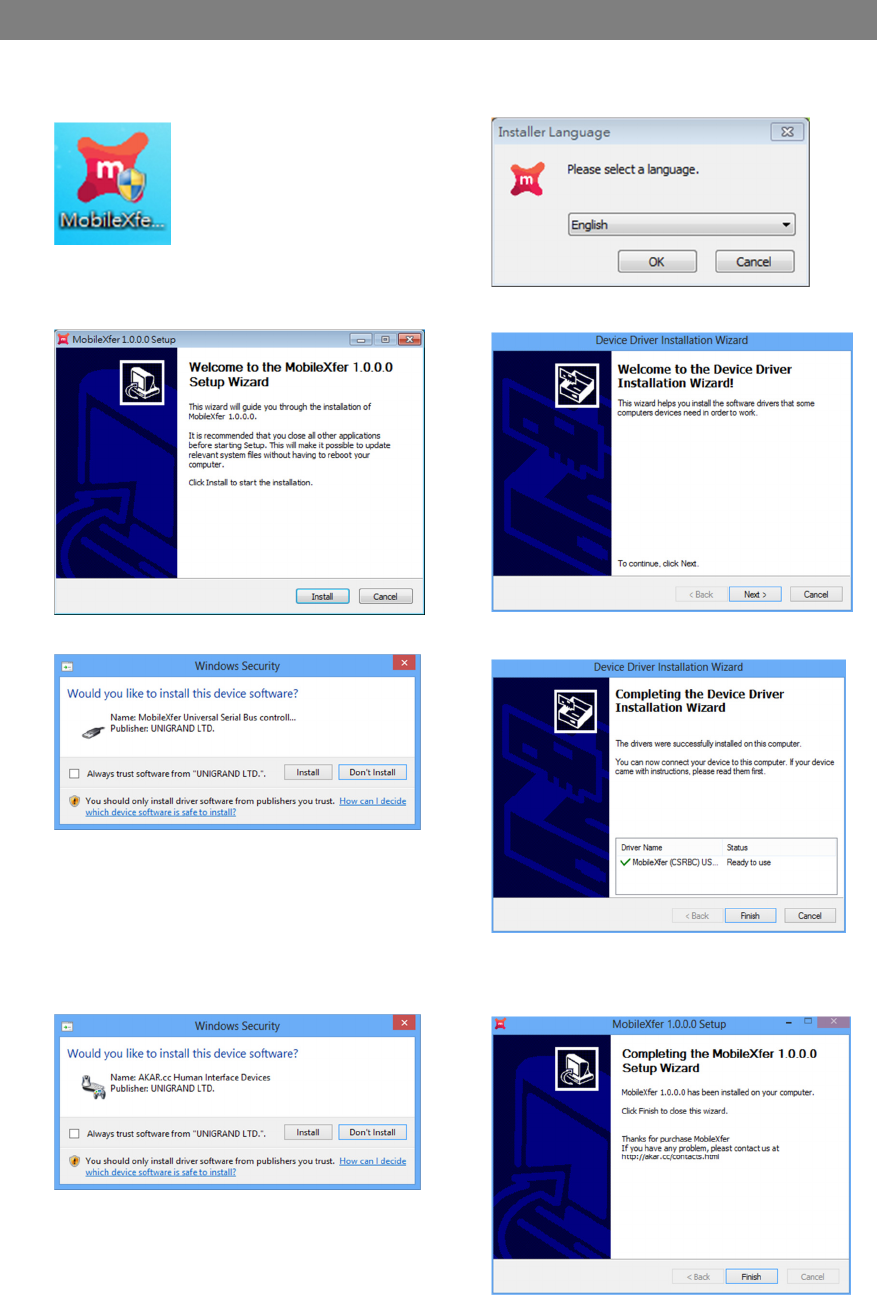
Software Installation for Windows
➀
Launch “MobileXfer_Installer.exe” to
install the MobileXfer software.
➁
Select a installation language to
continue.
➂
Press “install” to continue. ➃
Press “Next” to continue.
➄
Press “install” to continue. ➅
Press “Finish” to continue.
➆
Press “install” to continue. ➇
Press “Finish” to complete the
installation
MobileXfer_UM_ENG_0107
3
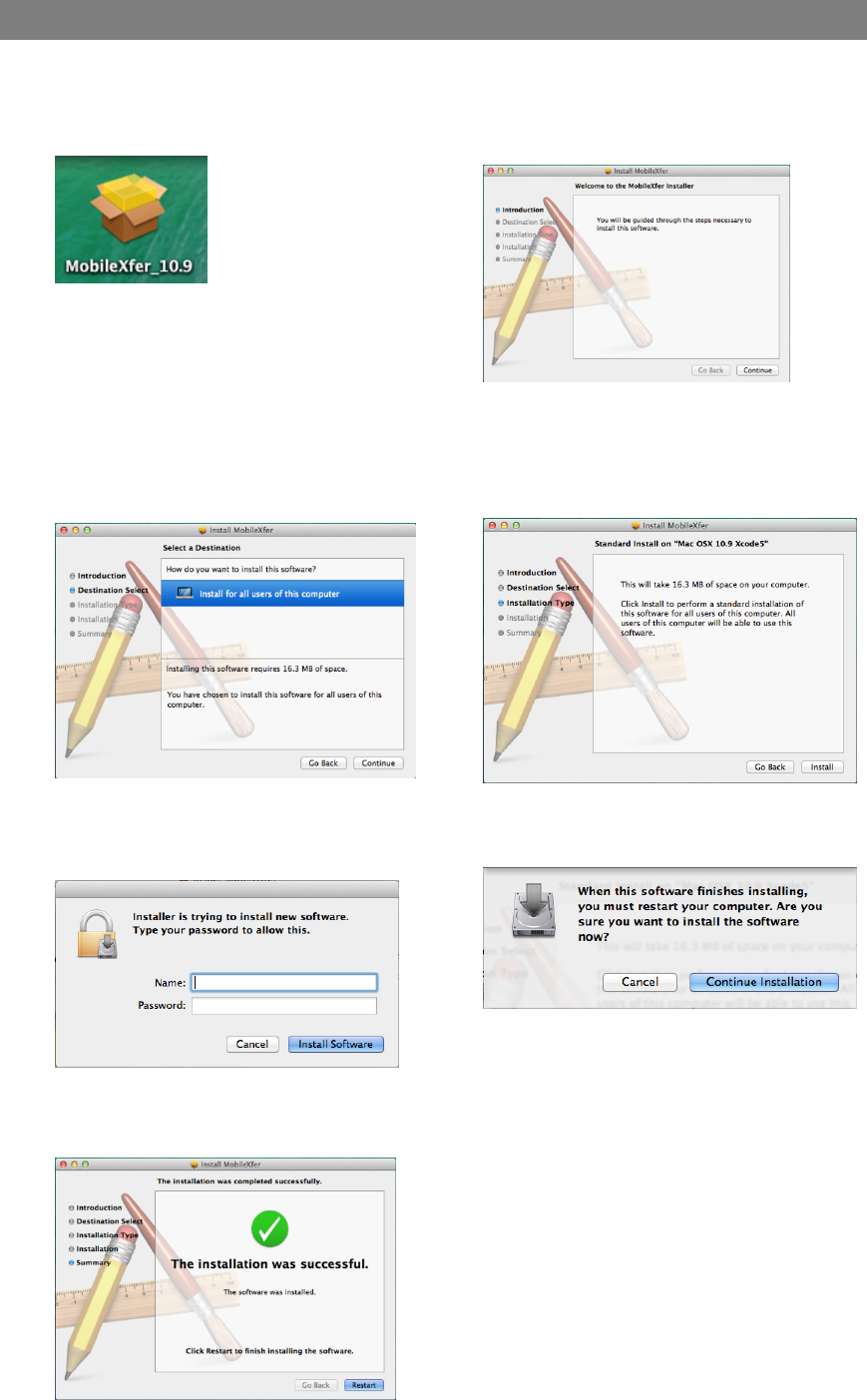
Software Installation for Mac OSX
➀
Choose “MobileXfer_10.9” to install
for OSX 10.9, or “MobileXfer_10.8”
to install for OSX 10.8
➁
Press “Continue” to continue.
➂
Select “Install for users of this
computer”, and press “Continue”
to continue.
➃
Press “Install” to continue.
➄
Enter your password, and press
“Install Software” to continue.
➅
Press “Continue Installation” to
continue.
➆
Press “Restart” to complete the
installation.
MobileXfer_UM_ENG_0107
4
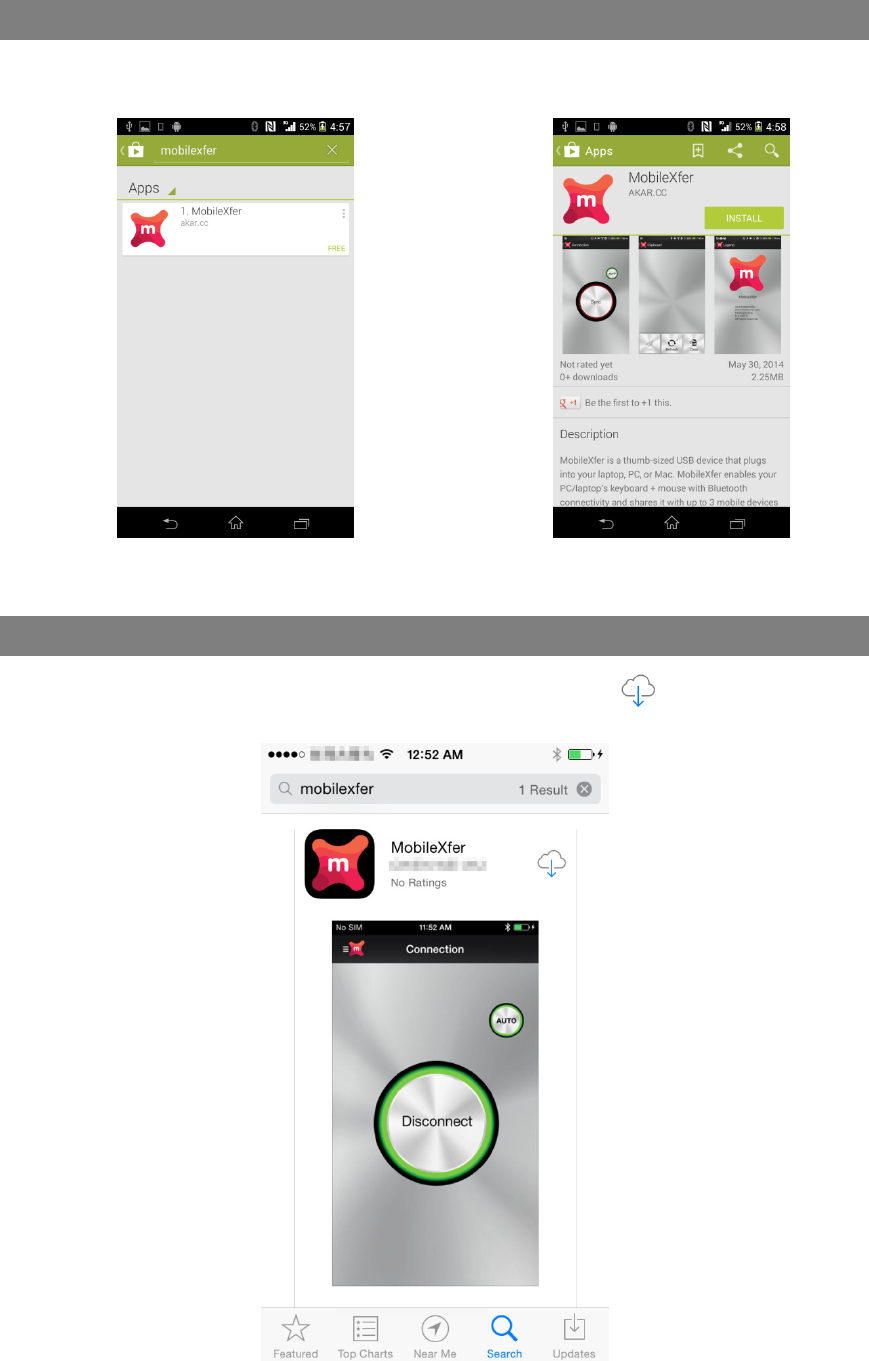
MobileXfer App Installation for Android
➀
Search “MobileXfer” and find the
app in Google Play.
➁
Press “Install” to install the app.
MobileXfer App Installation for iOS
Search “MobileXfer” and find the app in App Store, and press to install the app.
MobileXfer_UM_ENG_0107
5
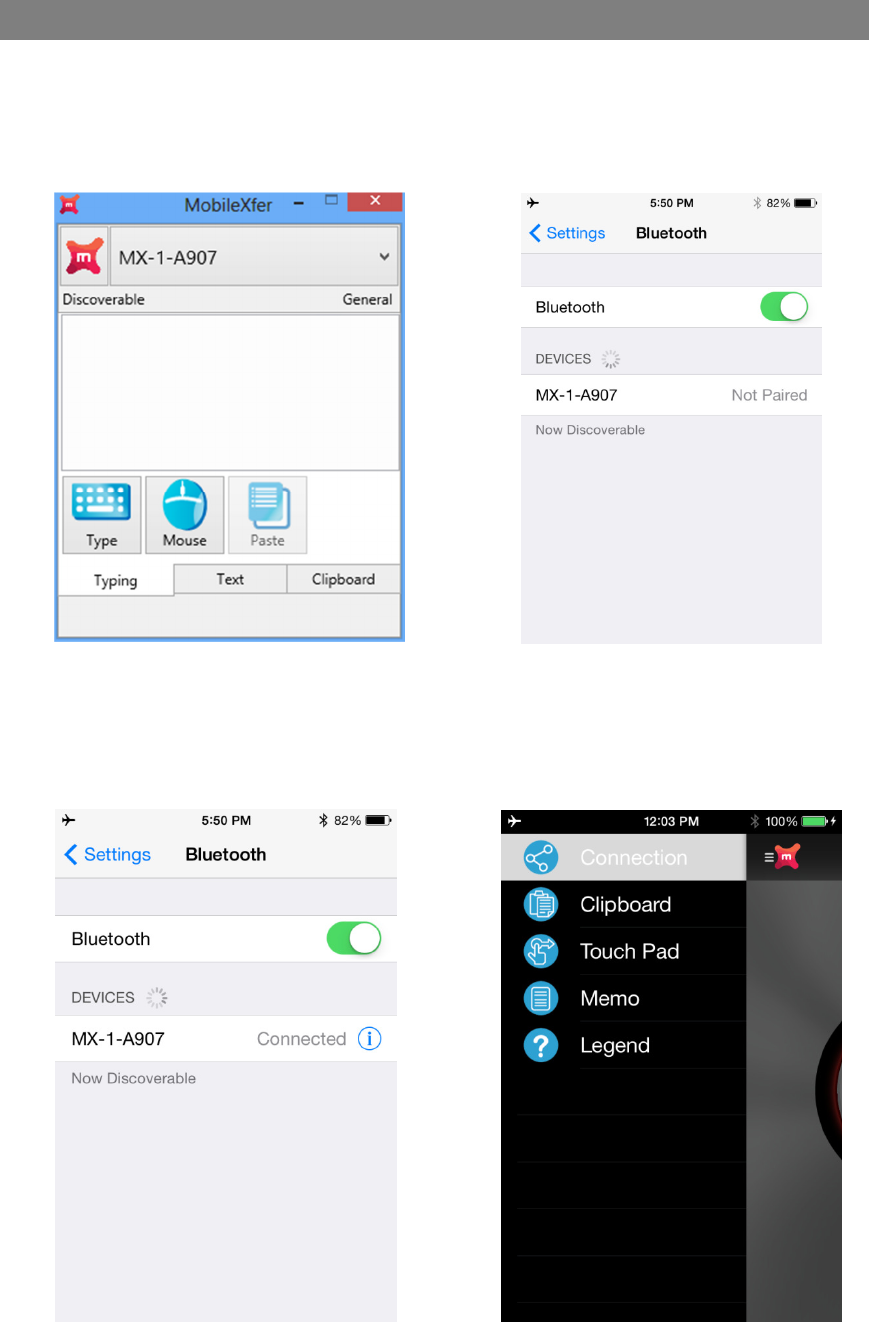
Pair / sync with mobile devices at the first time
➀
At the first time to use, MobileXfer
becomes discoverable automatically.
➁
Use a mobile device to pair / sync the
MobileXfer desktop. The mobile
device will find “MX-1-A907” in this
example.
➂
Select “MX-1-A907” to pair / sync.
Then the mobile device will
connect to the MobileXfer
desktop.
➃
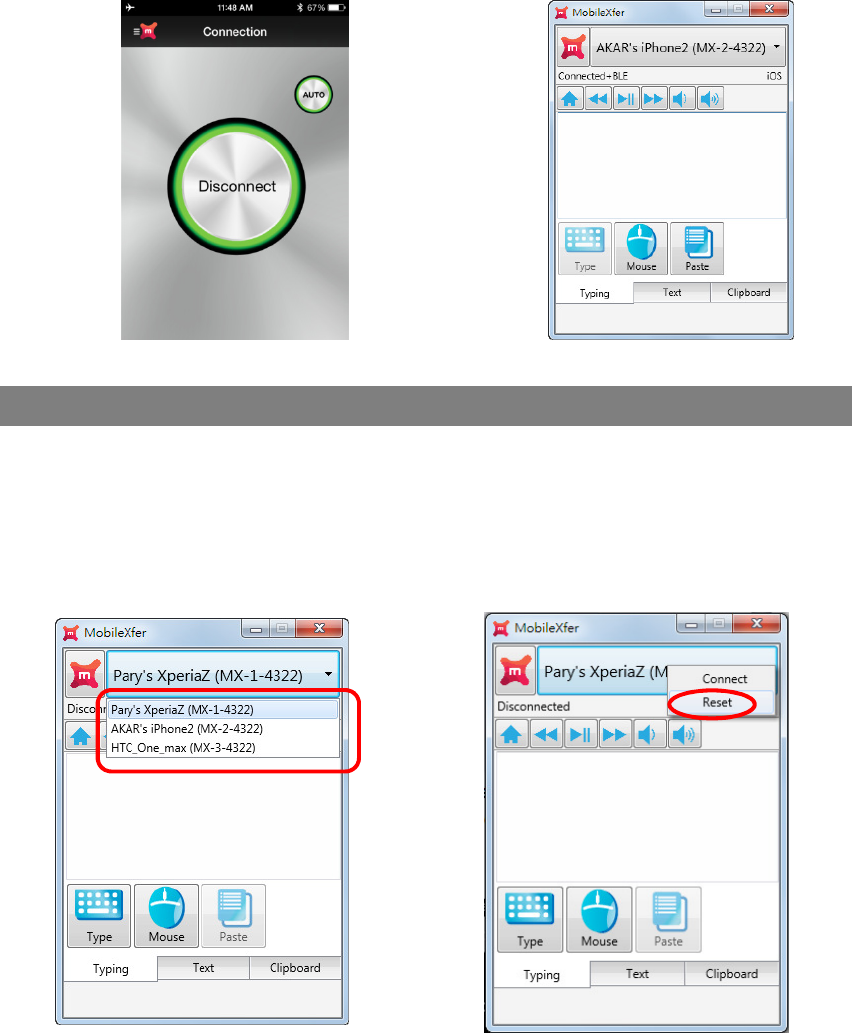
Launch the MobileXfer app in the
mobile device, and select
“Connection”
MobileXfer_UM_ENG_0107
6
➄
Press “Sync” to connect to the
MobileXfer desktop with BLE
(Bluetooth Low Energy).
➅
The connections are done. The
MobileXfer desktop shows
“Connected+BLE”.
All functions are enabled.
Pair / Sync to another mobile device
➀
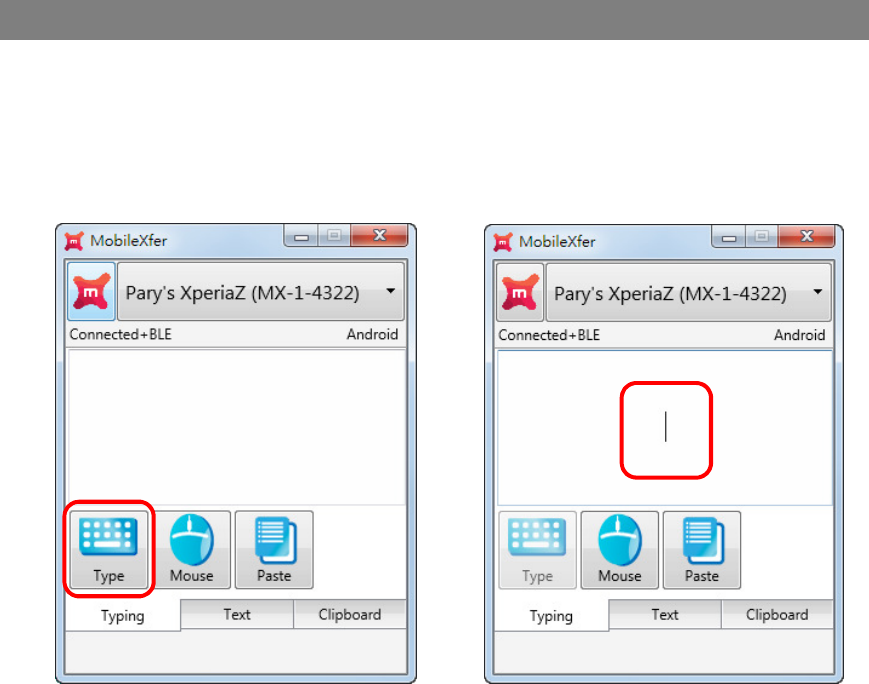
Click the device name button
(“Pary’s XperiaZ” in this example) to
choose which connection slot to
use*. Go to the next step directly if
the device is what you want.
➁
Right click on the name button, and
click “Reset”.
➂
Then follow the “Pair / Sync with
Mobile devices in the first time”
section to pair / sync.
*The desktop MobileXfer can connect to three mobile devices at the same time.
*You can also use function keys F1 to F3 to switch the connection slots.
MobileXfer_UM_ENG_0107
7
Type into mobile devices
➀
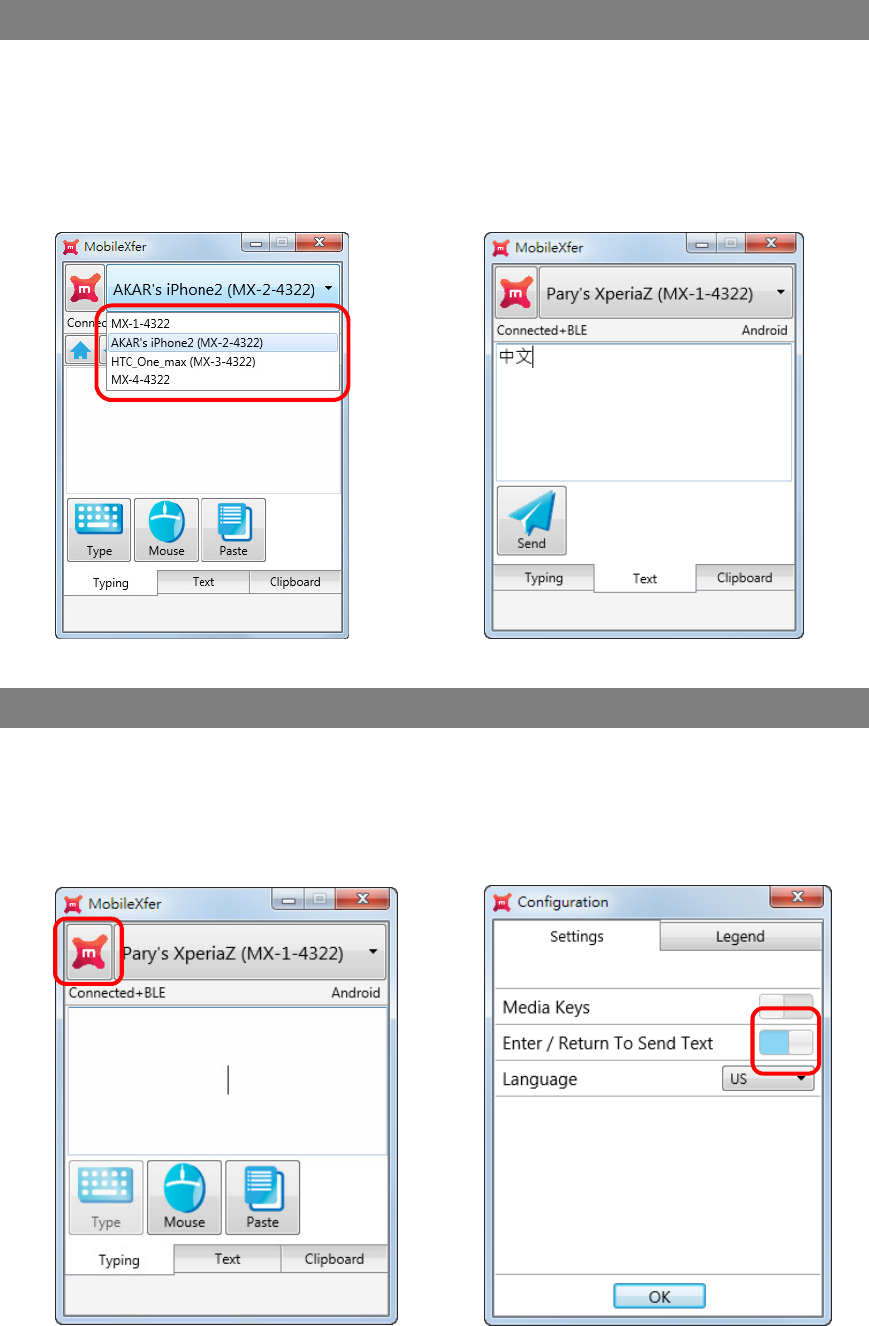
Click the device name button
(“Pary’s XperiaZ” in this example) to
choose which connection slot to use.
Go to the next step if the name
button is what you want.
➁
Click the “Type” button. Then start to
type to input into the mobile device.
MobileXfer_UM_ENG_0107
8
Type text of any language into mobile devices
➀
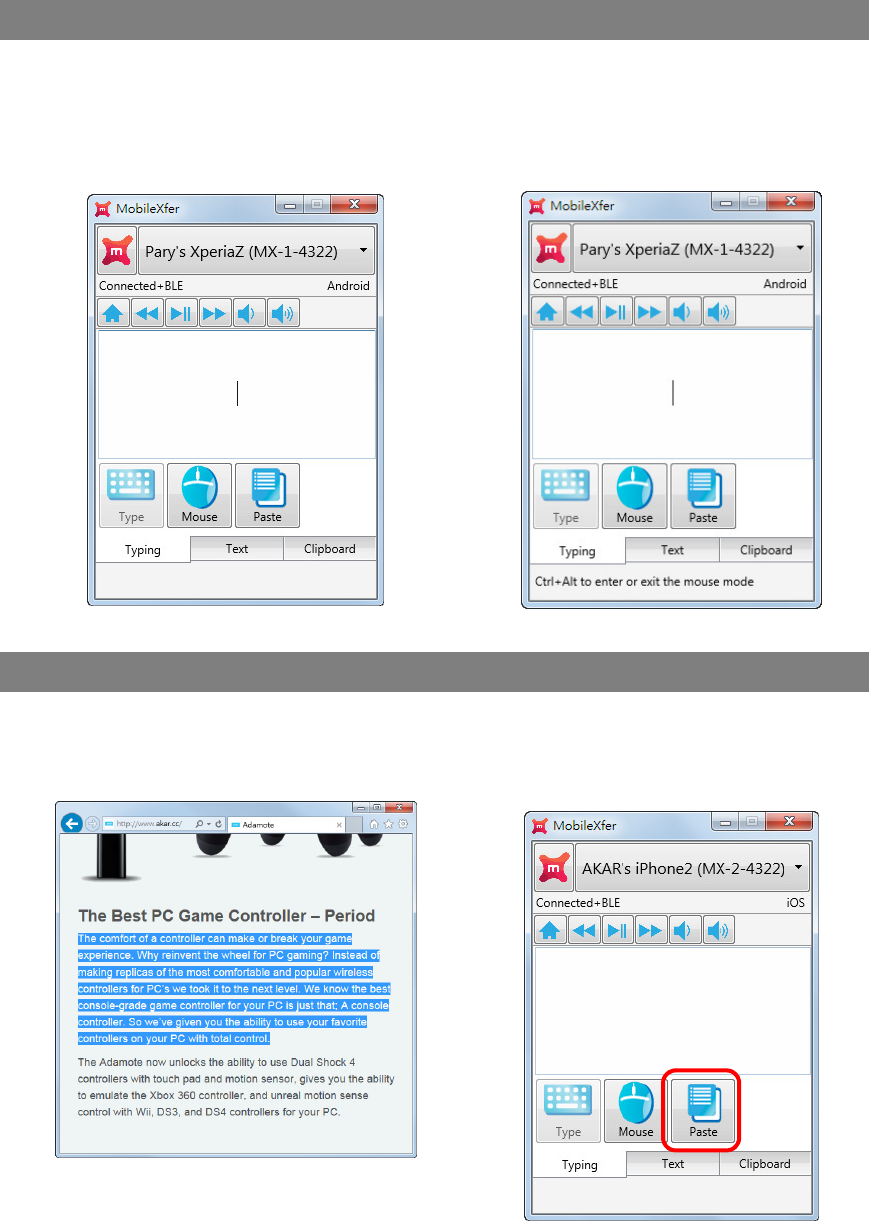
Click the name button (“AKAR’s
iPhone2” in this example) to choose
which connection slot to use.
Go to the next step if the name
button is what you want.
➁
Click the “Type” button. Then start to
type to input into the mobile device.
You can switch input methods to type
any languages, like Chinese or
Japanese etc.
Enter / Return to send text
➀
Click the logo button to enter the
configuration.
➁
Click “Enter / Return to Send Text” to
enable. When it is enabled, the whole
Unicode text will be send when Enter
/Return is pressed.
MobileXfer_UM_ENG_0107
9
Mouse for the mobile device (Android only)
➀
Click the “Mouse” button or
“Ctrl+Alt” to enter the mouse mode.
➁
Then the desktop mouse is
transferred to the mobile device.
Press “Ctrl+Alt” to exit the mouse
mode.
Copy and Paste from the desktop to mobile devices
➀
Copy any text from any application. ➁
Switch to the desktop MobileXfer, and
click the “Paste” button to paste the
text to the mobile device.
MobileXfer_UM_ENG_0107
10
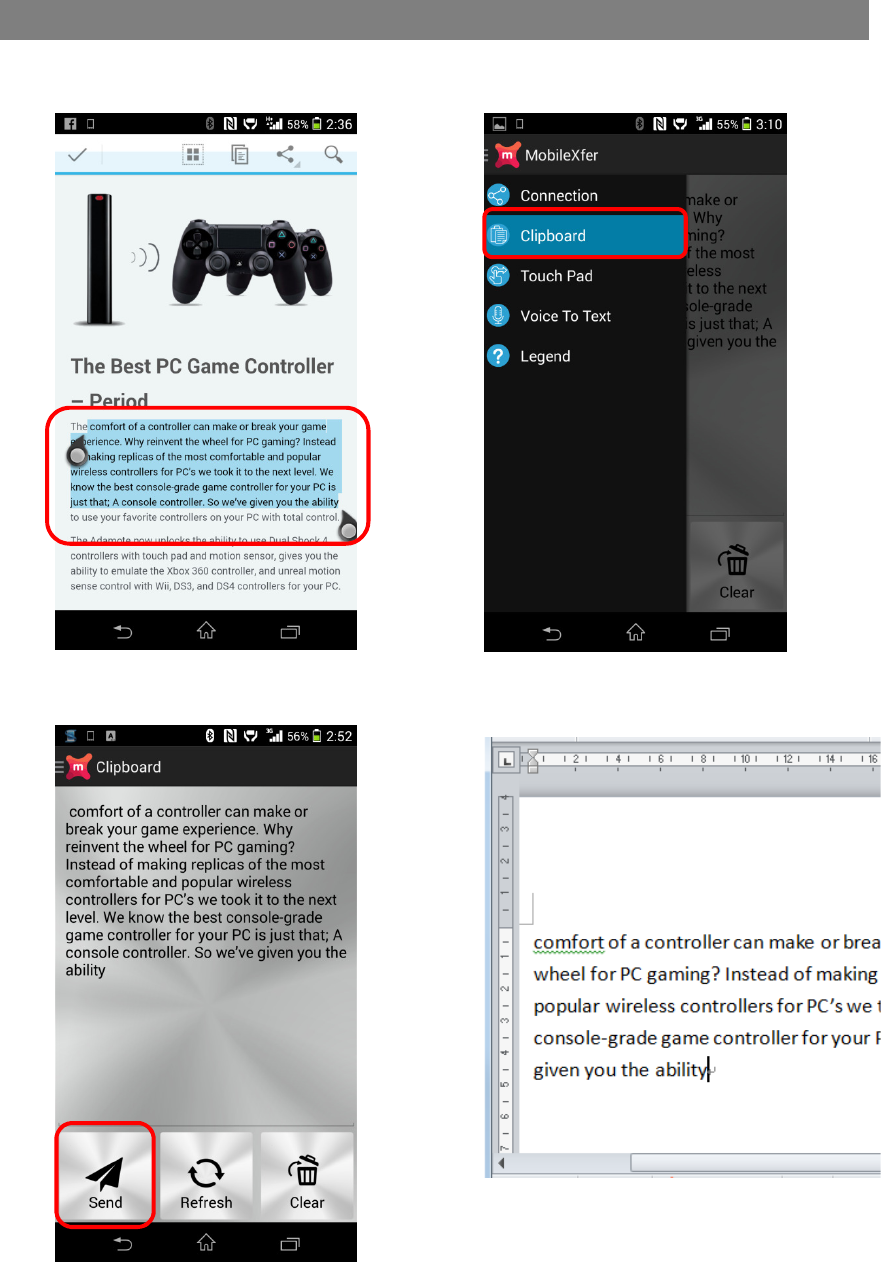
Copy and paste from the mobile device to the desktop
➀
Copy any text from any app on the
mobile device.
➁
Switch to the MobileXfer app, and
choose “Clipboard”.
➂
Click “Send” to send the text to the
desktop.
➃
In the desktop, choose any application
and paste the text.
MobileXfer_UM_ENG_0107
11
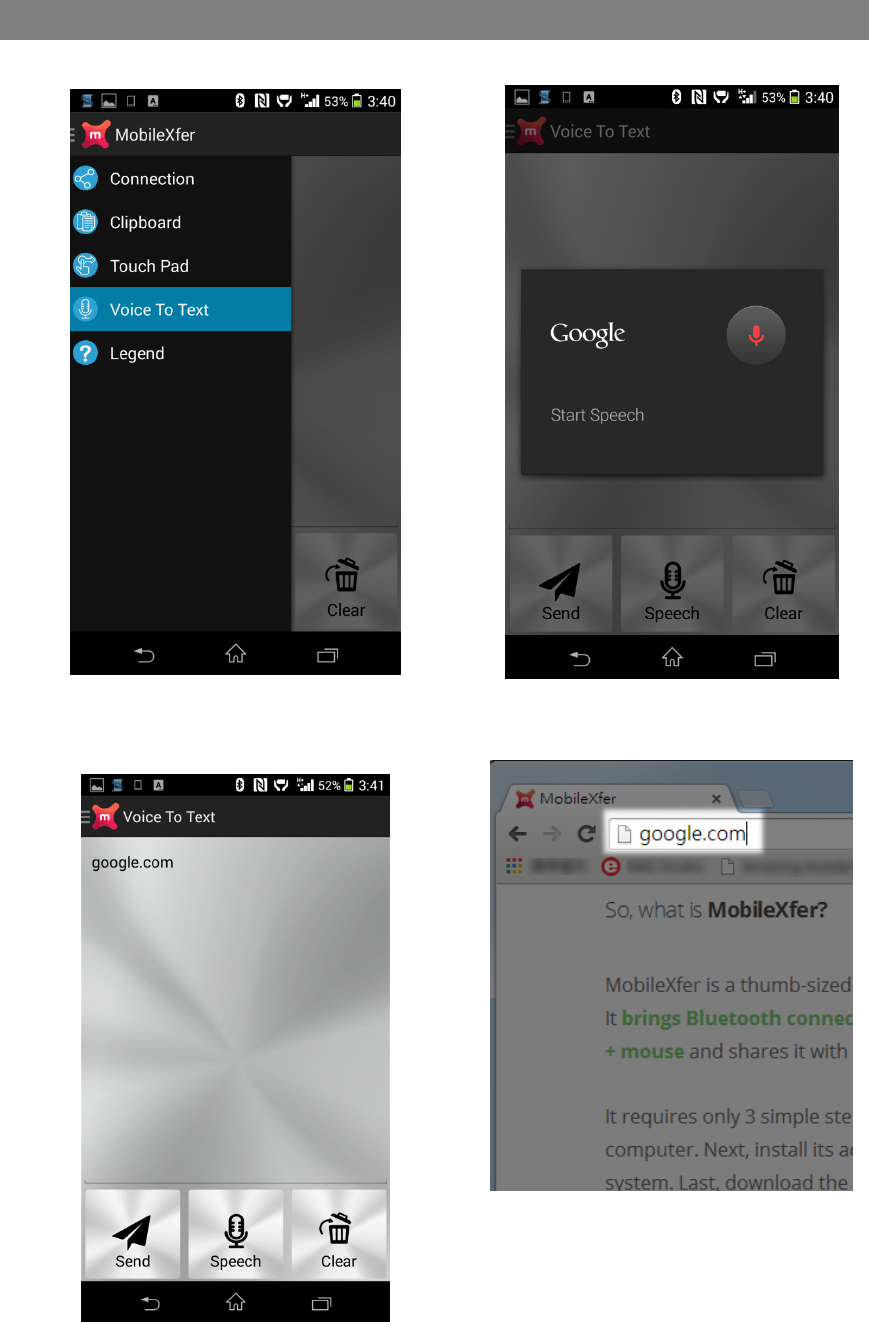
Voice to text to send to the desktop (Android)
➀
Select “Voice to text” ➁
Speak and Google recognizes texts.
➂
Click “Send” to send the text to the
desktop MobileXfer.
➃
Go to the application in the desktop
and paste it.

MobileXfer_UM_ENG_0107
12
Edit the memo to send to the desktop (iOS)
➀
Select “Memo”. ➁
Type or use Siri to edit the memo.
➂
Click “Send” to send the text to the
desktop MobileXfer.
➃
Go to the application in the desktop
and paste it.
MobileXfer_UM_ENG_0107
13
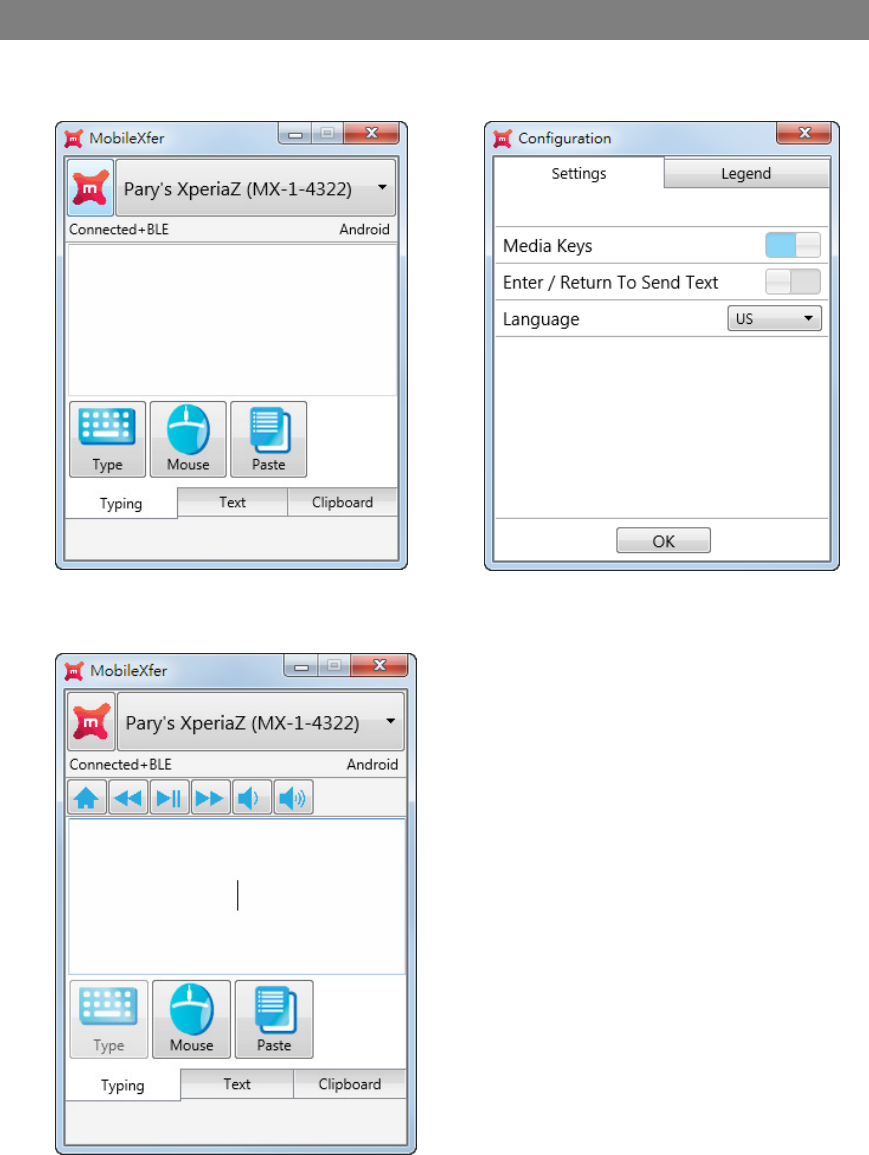
Media Keys
➀
Click the logo button to enter the
configuration.
➁
Click “Media Keys” to enable media
keys.
➂
The buttons from left to right are “Home” (F5), “Prev Track” (F6), “Play/Pause”
(F7), “Next Track” (F8), “Volume Down” (F9), “Volume Up” (F10).
MobileXfer_UM_ENG_0107
14
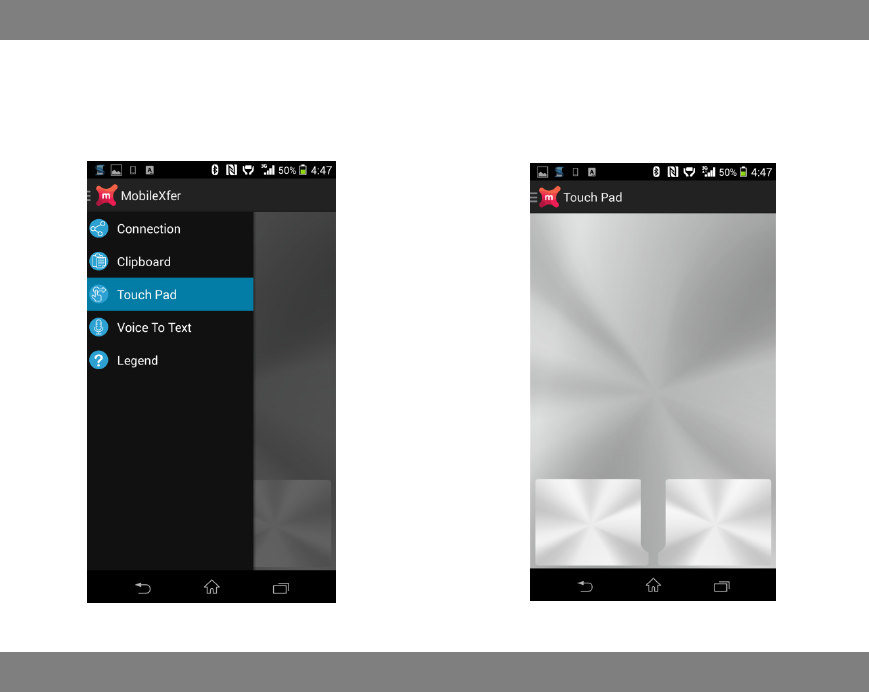
Touch Pad Emulation
➀
Select “Touch Pad” ➁ Use the mobile device as a touch pad. It
has one left button and one right button
in the bottom of the touch pad.
Shortcut Tips
➀
Use “Alt+Tab” to switch between different application, and the desktop
MobileXfer is just like an application which has a small external window which is
the screen of the connected mobile device.
➁
Use “Ctrl+C” to copy and switch to the desktop MobileXfer and then “Ctrl+V” to
paste the text to the mobile device directly.
➂
Use “F1”, “F2”, “F3” to switch different mobile devices.
➃
Use “Esc” to return the previous page in mobile devices.
FCC ID : 2AATY140903
This device complies with Part 15 of the FCC Rules. Operation is subject to the following
two conditions: (1) this device may not cause harmful interference, and (2) this device must
accept any interference received, including interference that may cause undesired
operation.
“Changes or modifications not expressly approved by the party responsible for compliance
could void the user's authority to operate the equipment.”
“NOTE: This equipment has been tested and found to comply with the limits for a Class B
digital device, pursuant to Part 15 of the FCC Rules. These limits are designed to provide
reasonable protection against harmful interference in a residential installation. This
equipment generates, uses and can radiate radio frequency energy and, if not installed and
used in accordance with the instructions, may cause harmful interference to radio
communications. However, there is no guarantee that interference will not occur in a
particular installation. If this equipment does cause harmful interference to radio or
television reception, which can be determined by turning the equipment off and on, the user is
encouraged to try to correct the interference by one or more of the following
measures:
-- Reorient or relocate the receiving antenna.
-- Increase the separation between the equipment and receiver.
-- Connect the equipment into an outlet on a circuit different from that to which the receiver
is connected.
-- Consult the dealer or an experienced radio/TV technician for help.”