UNITEK TECHNOLOGY DX02 Body Worn Camera User Manual DX02 x

SHENZHEN UNITEK TECHNOLOGY CO., LTD Body Worn Camera DX02 x

15_DX02 UserMan

Model: DX02  Foreword Thank  you  for  purchasing  our  product.  Please  read  this  manual carefully before use and keep it for future reference.    Assertion The company reserves the final right to interpret the contents given in  the  manual,  and  the  contents  are  subject  to  change  without further  notice.  This  manual  is  prepared  only  for  users'  reference. The  Company  is  committed  to  continuously  improving  customer operation  experience,  and  the  real  object  shall  prevail  in  case  the product disaccords with the manual.  Safety information To  use  the  product,  please  read  carefully  and  learn  about  the following safety measures.  Never  try  to  open  the  housing  of  the  products  since  only authorized maintainers are allowed to maintain the products.  Body worn camera may show a temperature rise after it works for a long time, and that is really not a fault.  Use only the attachments provided by the manufacturer.  Slam  into  the  product  artificially,  submerge  the  complete machine,  or  place  the  product  in  a  hot  environment  higher than 60 degrees for a long time. The Company will assume no responsibility for any damages to the product caused by the practices above.     User Manual
 TABLE OF CONTENTS SECTION I   DESCRIPTION OF COMPONENTS ............................................. 3 SECTION II BASIC OPERATION   .................................... 4 2.1 STARTUP ......................................................................................................... 4 2.2 VIDEO RECORDING ......................................................................................... 4 2.3 PHOTO TAKING ............................................................................................... 5 2.4 AUDIO RECORDING ......................................................................................... 6 2.5 INFRARED NIGHT VIEWING ............................................................................. 6 2.6 PLAYBACK ...................................................................................................... 6 2.7 INTERPHONE SPEECH TRANSMISSION FUNCTION ............................................. 8 2.8 RESETTING ..................................................................................................... 8 2.9 VIDEO RESOLUTION RATIO .............................................................................. 9 2.10 PHOTO-TAKING RESOLUTION RATIO .............................................................. 9 2.11 SEGMENTATION TIME .................................................................................... 9 2.12 MOTION DETECTION FUNCTION ................................................................... 9 2.13 INDICATOR STATE ......................................................................................... 9 2.14 VOICE BROADCAST ...................................................................................... 9 2.15 LANGUAGE ................................................................................................. 10  2.16 GPS………………………………………………………...………………10 2.17 AES ENCRYPTION FUNCTION (OPTIONAL) ................................................. 10 SECTION   IIIINSTALLATION AND USE OF MANAGEMENT SOFTWARE (BASIC EDITION).................. ............................................................................... 11 3.1 OVERVIEW OF SOFTWARE .............................................................................. 11 3.2 OPERATING SYSTEM ..................................................................................... 12 3.3 INSTALLATION OF DRIVER ............................................................................ 12 3.4 OPEN THE MANAGEMENT SOFTWARE ............................................................ 16 3.5 OPERATING INSTRUCTIONS FOR THE MANAGEMENT SOFTWARE .................... 16
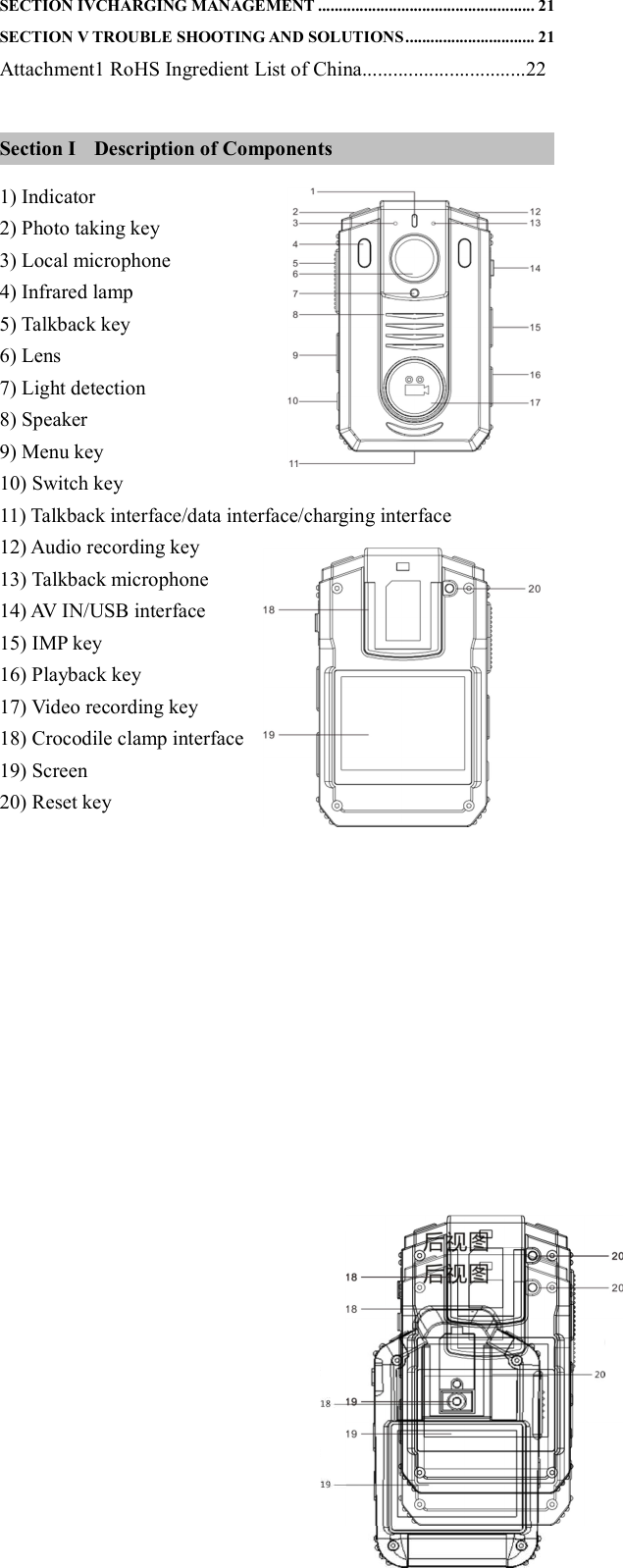
 SECTION IVCHARGING MANAGEMENT .................................................... 21 SECTION V TROUBLE SHOOTING AND SOLUTIONS ............................... 21 Attachment1 RoHS Ingredient List of China................................22  Section I    Description of Components 1) Indicator                                 2) Photo taking key   3) Local microphone 4) Infrared lamp 5) Talkback key                                               6) Lens 7) Light detection 8) Speaker 9) Menu key 10) Switch key 11) Talkback interface/data interface/charging interface 12) Audio recording key 13) Talkback microphone 14) AV IN/USB interface 15) IMP key 16) Playback key 17) Video recording key 18) Crocodile clamp interface 19) Screen 20) Reset key
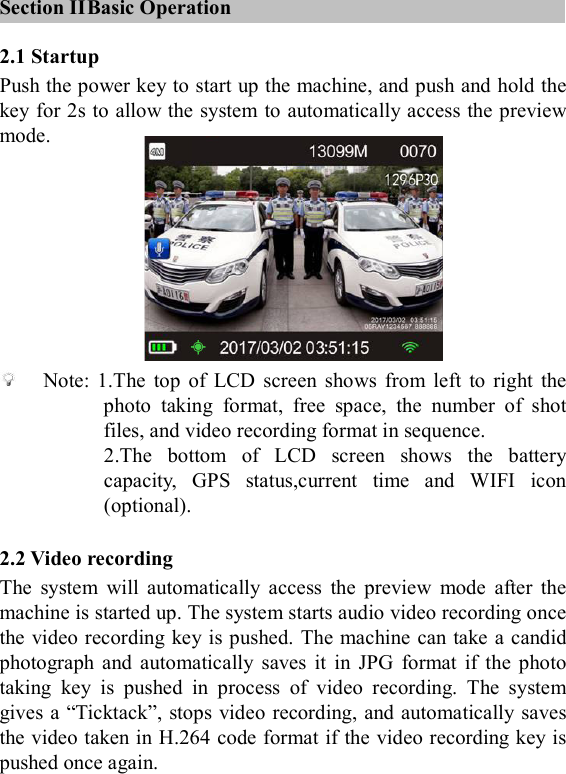
   Section II Basic Operation 2.1 Startup Push the power key to start up the machine, and push and hold the key for 2s to allow the system to automatically access the preview mode.         Note:  1.The  top  of  LCD  screen  shows  from  left  to  right  the photo  taking  format,  free  space,  the  number  of  shot files, and video recording format in sequence. 2.The  bottom  of  LCD  screen  shows  the  battery capacity,  GPS  status,current  time  and  WIFI  icon (optional).  2.2 Video recording The  system  will  automatically  access  the  preview  mode  after  the machine is started up. The system starts audio video recording once the video recording key is pushed. The machine can take a candid photograph  and  automatically  saves  it  in  JPG  format  if  the  photo taking  key  is  pushed  in  process  of  video  recording.  The  system gives a “Ticktack”, stops video recording, and automatically saves the video taken in H.264 code format if the video recording key is pushed once again.
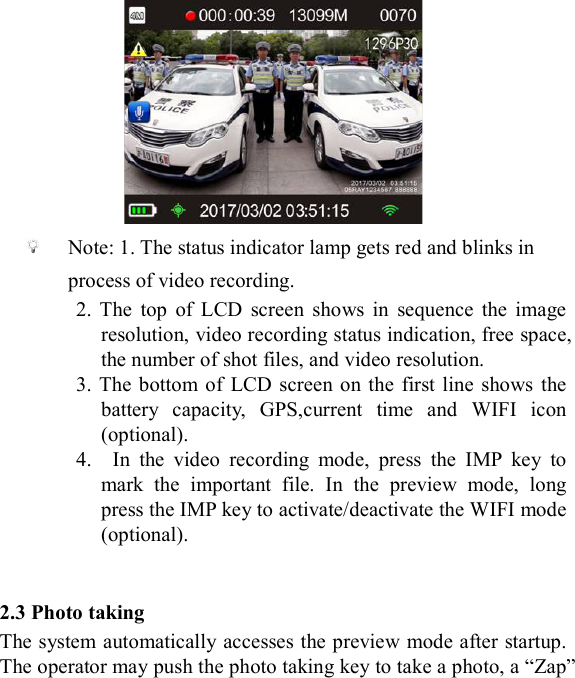
               Note: 1. The status indicator lamp gets red and blinks in process of video recording. 2.  The  top  of  LCD  screen  shows  in  sequence  the  image resolution, video recording status indication, free space, the number of shot files, and video resolution. 3. The  bottom of  LCD  screen on  the  first line  shows the battery  capacity,  GPS,current  time  and  WIFI  icon (optional).   4.    In  the  video  recording  mode,  press  the  IMP  key  to mark  the  important  file.  In  the  preview  mode,  long press the IMP key to activate/deactivate the WIFI mode (optional).   2.3 Photo taking The system automatically accesses the preview mode after startup. The operator may push the photo taking key to take a photo, a “Zap”
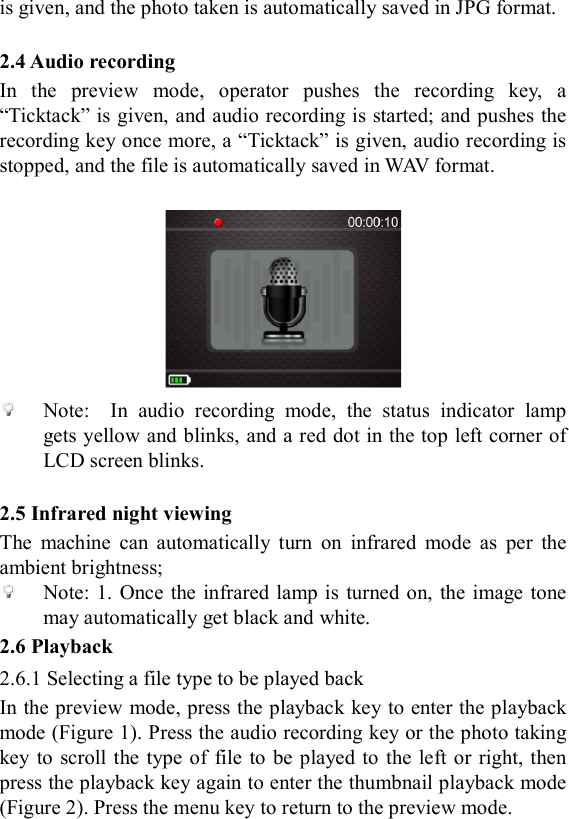
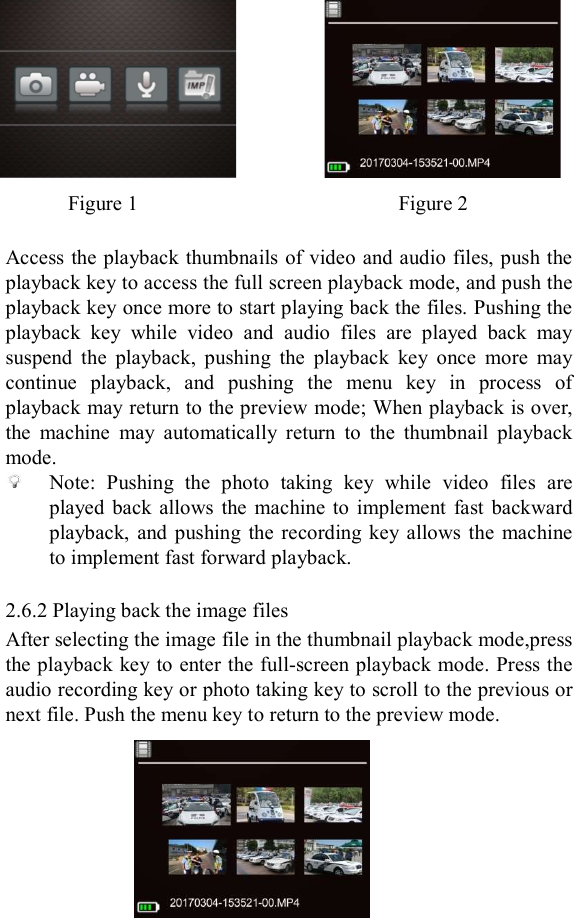
 is given, and the photo taken is automatically saved in JPG format.  2.4 Audio recording In  the  preview  mode,  operator  pushes  the  recording  key,  a “Ticktack” is given, and audio recording is started; and pushes the recording key once more, a “Ticktack” is given, audio recording is stopped, and the file is automatically saved in WAV format.    Note:    In  audio  recording  mode,  the  status  indicator  lamp gets yellow and blinks, and a red dot in the top left corner of LCD screen blinks.  2.5 Infrared night viewing The  machine  can  automatically  turn  on  infrared  mode  as  per  the ambient brightness;  Note: 1.  Once the infrared lamp is  turned on,  the  image tone may automatically get black and white. 2.6 Playback 2.6.1 Selecting a file type to be played back In the preview mode, press the playback key to enter the playback mode (Figure 1). Press the audio recording key or the photo taking key to scroll  the type  of file  to  be played to the left or  right, then press the playback key again to enter the thumbnail playback mode (Figure 2). Press the menu key to return to the preview mode.
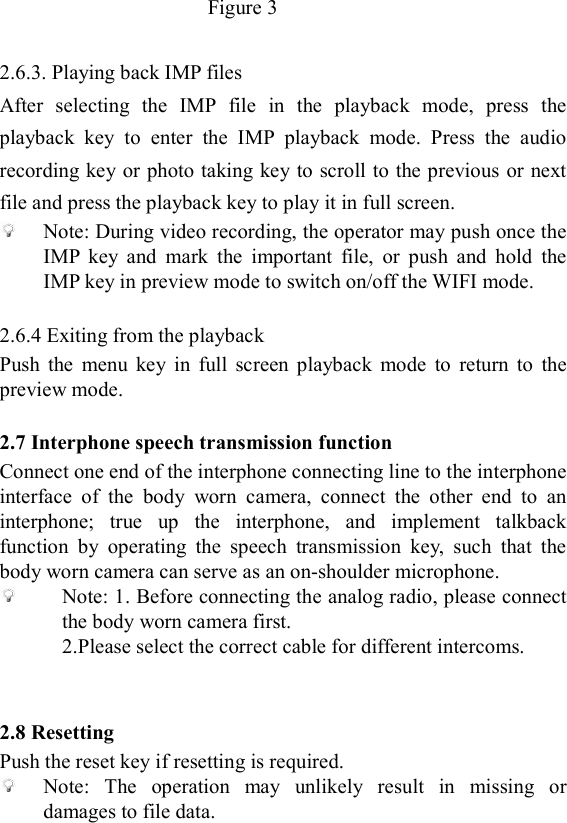
       Figure 1                                                  Figure 2  Access the playback thumbnails of video and audio files, push the playback key to access the full screen playback mode, and push the playback key once more to start playing back the files. Pushing the playback  key  while  video  and  audio  files  are  played  back  may suspend  the  playback,  pushing  the  playback  key  once  more  may continue  playback,  and  pushing  the  menu  key  in  process  of playback may return to the preview mode; When playback is over, the  machine  may  automatically  return  to  the  thumbnail  playback mode.  Note:  Pushing  the  photo  taking  key  while  video  files  are played  back  allows the  machine  to  implement  fast  backward playback,  and  pushing  the  recording  key allows the  machine to implement fast forward playback.  2.6.2 Playing back the image files After selecting the image file in the thumbnail playback mode,press the playback key to enter the full-screen playback mode. Press the audio recording key or photo taking key to scroll to the previous or next file. Push the menu key to return to the preview mode.
  Figure 3                                                                                    2.6.3. Playing back IMP files After  selecting  the  IMP  file  in  the  playback  mode,  press  the playback  key  to  enter  the  IMP  playback  mode.  Press  the  audio recording key or photo taking key to scroll to the previous or next file and press the playback key to play it in full screen.  Note: During video recording, the operator may push once the IMP  key  and  mark  the  important  file,  or  push  and  hold  the IMP key in preview mode to switch on/off the WIFI mode.  2.6.4 Exiting from the playback Push  the  menu  key  in  full  screen  playback  mode  to  return  to  the preview mode.  2.7 Interphone speech transmission function Connect one end of the interphone connecting line to the interphone interface  of  the  body  worn  camera,  connect  the  other  end  to  an interphone;  true  up  the  interphone,  and  implement  talkback function  by  operating  the  speech  transmission  key,  such  that  the body worn camera can serve as an on-shoulder microphone.  Note: 1. Before connecting the analog radio, please connect the body worn camera first.   2.Please select the correct cable for different intercoms.   2.8 Resetting Push the reset key if resetting is required.  Note:  The  operation  may  unlikely  result  in  missing  or damages to file data.
 2.9 Video resolution ratio Operator  may  set  up  the  video  recording  resolution  ratio  of  the body worn camera. Select"1296P30:2304×1296(30)","1080P30:1920×1080(30)","720P60:1280×720(60)","720P30:1280×720(30)"or"480P30:848×480(30)", and then press the menu key to exit.    2.10 Photo-taking resolution ratio Operator  may  set  up  the  photo-taking  resolution  ratio  of  body worn camera. Select"33M:7696X4329","21M:6108X3440","16M:5376X3024","12M:4838X2722","5M:3226X1814"or"4M:2688X1512",and then press the menu key to exit.  2.11 Segmentation time Operator may set up the video recording segmentation time of the body worn camera. Select  "5  min",  "10  min",  "15  min", "25min"  or  "OFF",  and  then press the menu key to exit.  2.12 Motion Detection Function Open  the  function  through  the  menu  such  that  the  machine  can automatically  turn  on  video  recording  or  photo  taking  once collision or swinging reaches the triggering status.  2.13 Indicator State Open the  function through the menu to allow the machine to give prompt by status indicator lamp at startup.  2.14 Voice Broadcast Open the  function through the menu to allow the machine to give voice prompt at video recording.
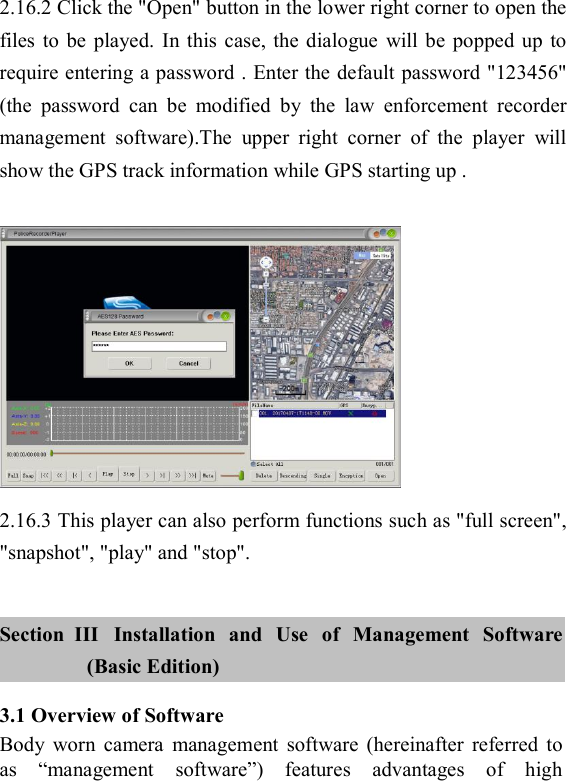
 2.15 Language Select the language prompt through the menu: Chinese and English.  2.16 GPS GPS  Locating: The  body  worn  camera  has  built-in  GPS, the latitude  and  longitude  information  will  be  showed  on  the recorded video. There is a dot icon shown in the lower left corner , yellow  means  searching  GPS  signal  ,  green  means  GPS  signal usable , grey means no signal . The video can be played through the GPS player developed by Unitek itself.  2.17 AES Encryption Function (Optional) The  global pioneer AES128  recording file  encryption algorithm is able to provide a strong security protection for your data. When playing an AES-encrypted file in the body worn camera, an AES  icon  will  be  shown  in  the  video  playback  menu  and  IMP playback  menu.  To  play  this  file  with  any  other  device,  it  is required  to  use  the  “GPSAESPlayer”  which  is  supplied  with product.  A  password  must  be  entered  before  playing  any AES-encrypted file and the default initial password is 123456. Note: The file of GPSAESPlayer is contained in the CD supplied with the product. When clicking it to use, you will be prompted to install  ffdshow  and  LAVFilters  programs.  Please  download  and install these programs. 2.16.1  Click  the  “GPSAESPlayer”  icon  in  the  CD  to  call  up  the main interface of GPSAESPlayer”.
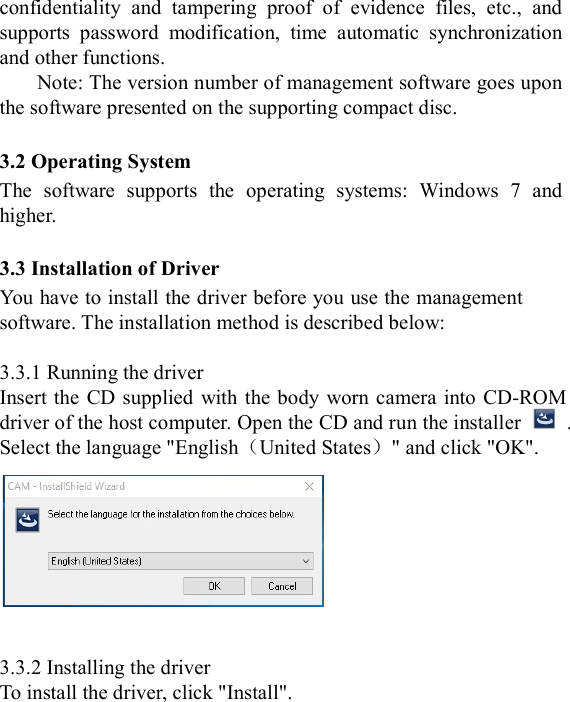
    2.16.2 Click the "Open" button in the lower right corner to open the files  to  be  played.  In  this  case,  the  dialogue  will be popped  up  to require entering a password . Enter the default password "123456" (the  password  can  be  modified  by  the  law  enforcement  recorder management  software).The  upper  right  corner  of  the  player  will show the GPS track information while GPS starting up .     2.16.3 This player can also perform functions such as "full screen", "snapshot", "play" and "stop".  Section   III  Installation  and  Use  of  Management  Software (Basic Edition) 3.1 Overview of Software Body  worn  camera  management  software  (hereinafter  referred  to as  “management  software”)  features  advantages  of  high
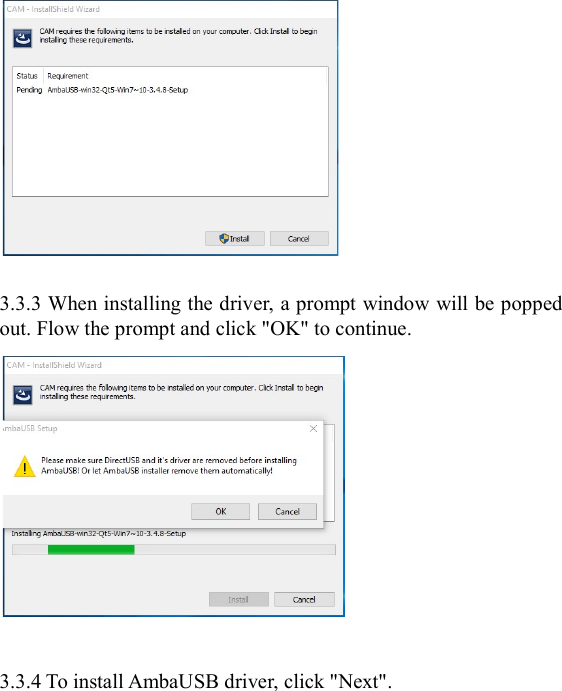
 confidentiality  and  tampering  proof  of  evidence  files,  etc.,  and supports  password  modification,  time  automatic  synchronization and other functions. Note: The version number of management software goes upon the software presented on the supporting compact disc.  3.2 Operating System The  software  supports  the  operating  systems:  Windows  7  and higher.  3.3 Installation of Driver You have to install the driver before you use the management software. The installation method is described below:  3.3.1 Running the driver Insert the CD supplied  with the body worn camera  into  CD-ROM driver of the host computer. Open the CD and run the installer    . Select the language "English(United States)" and click "OK".     3.3.2 Installing the driver To install the driver, click "Install".
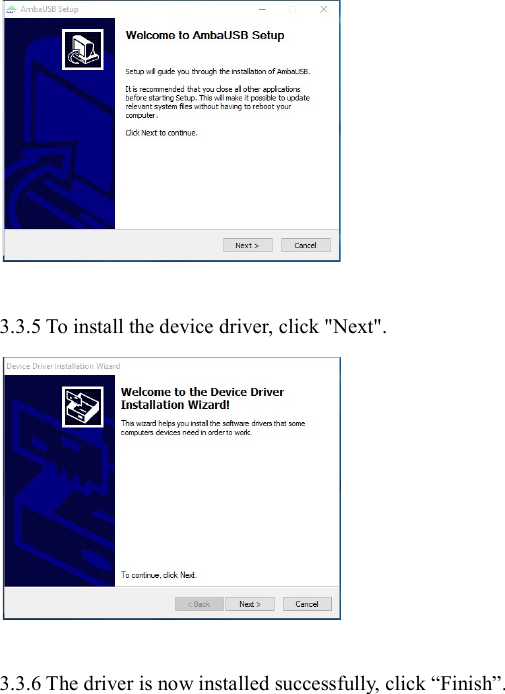
   3.3.3 When installing the driver, a prompt window will be popped out. Flow the prompt and click "OK" to continue.   3.3.4 To install AmbaUSB driver, click "Next".
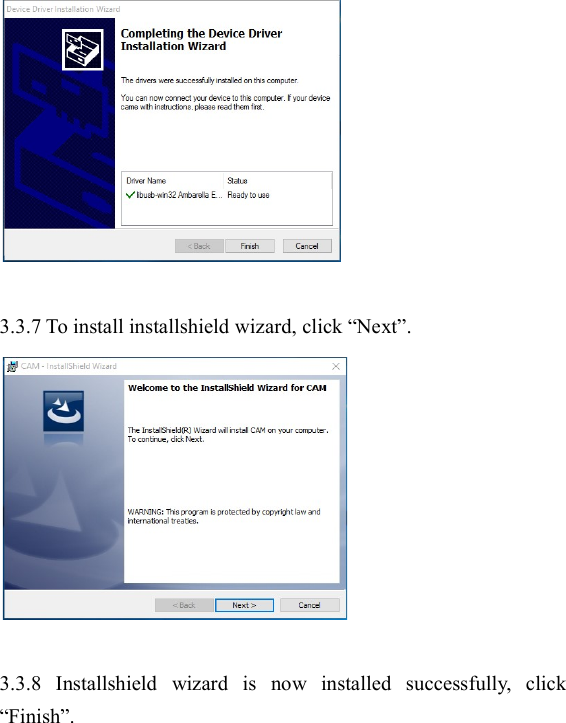
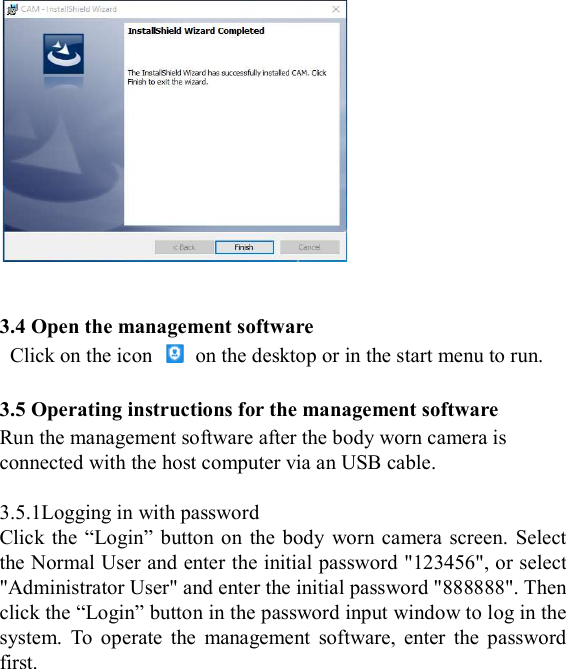
   3.3.5 To install the device driver, click "Next".   3.3.6 The driver is now installed successfully, click “Finish”.
   3.3.7 To install installshield wizard, click “Next”.   3.3.8  Installshield  wizard  is  now  installed  successfully,  click “Finish”.
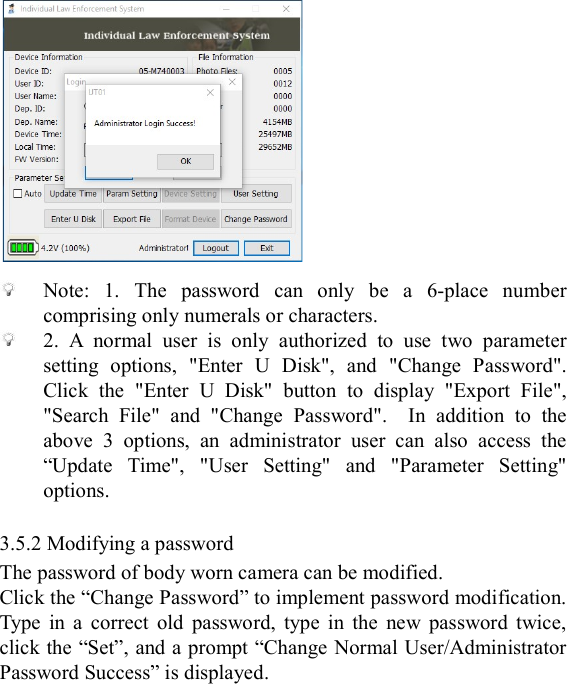
   3.4 Open the management software   Click on the icon    on the desktop or in the start menu to run.  3.5 Operating instructions for the management software Run the management software after the body worn camera is connected with the host computer via an USB cable.    3.5.1Logging in with password Click the  “Login”  button on  the body  worn camera screen.  Select the Normal User and enter the initial password "123456", or select "Administrator User" and enter the initial password "888888". Then click the “Login” button in the password input window to log in the system.  To  operate  the  management  software,  enter  the  password first.
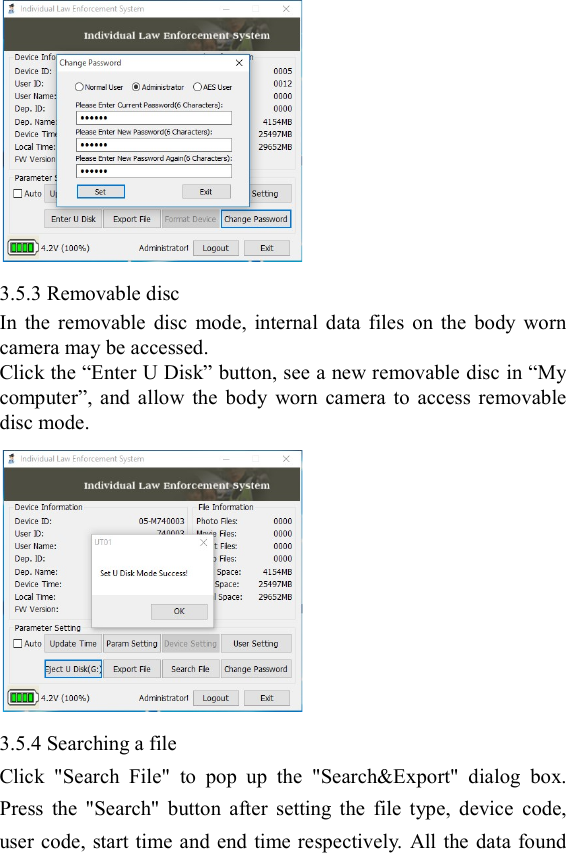
   Note:  1.  The  password  can  only  be  a  6-place  number comprising only numerals or characters.  2.  A  normal  user  is  only  authorized  to  use  two  parameter setting  options,  "Enter  U  Disk",  and  "Change  Password". Click  the  "Enter  U  Disk"  button  to  display  "Export  File", "Search  File"  and  "Change  Password".    In  addition  to  the above  3  options,  an  administrator  user  can  also  access  the “Update  Time",  "User  Setting"  and  "Parameter  Setting" options.  3.5.2 Modifying a password The password of body worn camera can be modified. Click the “Change Password” to implement password modification. Type  in  a  correct  old  password,  type  in  the  new  password  twice, click the “Set”, and a prompt “Change Normal User/Administrator Password Success” is displayed.
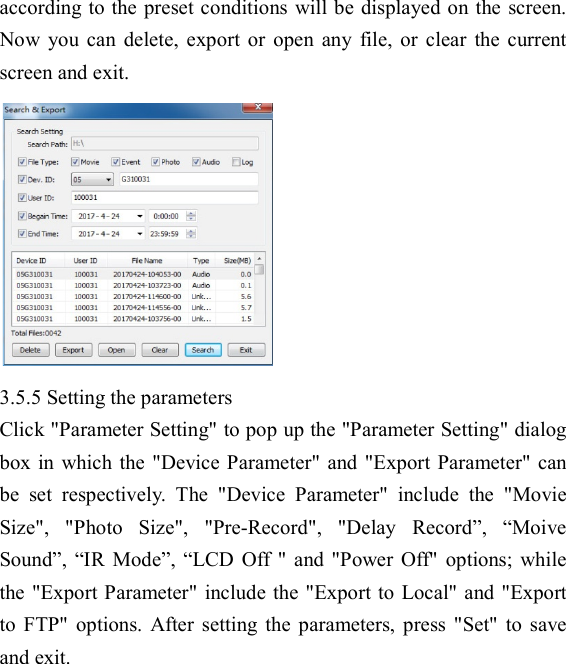
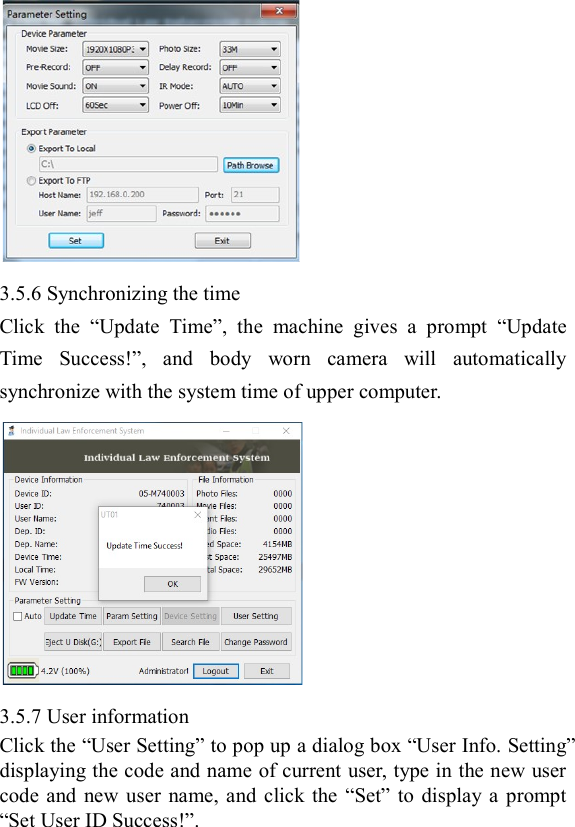
  3.5.3 Removable disc In  the  removable  disc  mode,  internal  data  files  on  the  body  worn camera may be accessed. Click the “Enter U Disk” button, see a new removable disc in “My computer”,  and  allow  the  body  worn  camera  to  access  removable disc mode.    3.5.4 Searching a file   Click  "Search  File"  to  pop  up  the  "Search&Export"  dialog  box. Press  the  "Search"  button  after  setting  the  file  type,  device  code, user code, start time and end  time respectively. All the data found
 according to the preset conditions will be displayed on the screen. Now  you  can  delete,  export  or  open  any  file,  or  clear  the  current screen and exit.  3.5.5 Setting the parameters Click "Parameter Setting" to pop up the "Parameter Setting" dialog box in  which  the "Device  Parameter" and "Export Parameter" can be  set  respectively.  The  "Device  Parameter"  include  the  "Movie Size",  "Photo  Size",  "Pre-Record",  "Delay  Record”,  “Moive Sound”,  “IR  Mode”, “LCD  Off " and  "Power  Off"  options;  while the "Export Parameter" include the "Export to Local" and "Export to  FTP"  options.  After  setting  the  parameters,  press  "Set"  to  save and exit.
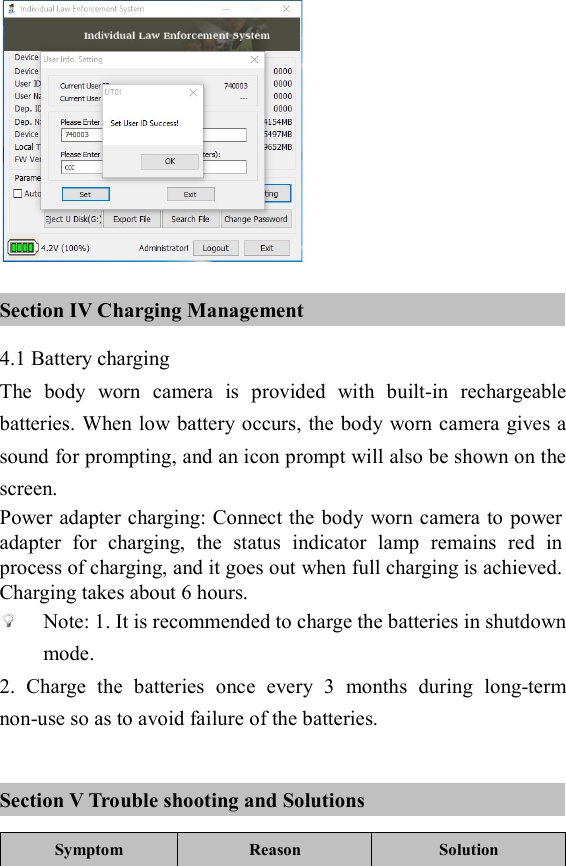
  3.5.6 Synchronizing the time Click  the  “Update  Time”,  the  machine  gives  a  prompt  “Update Time  Success!”,  and  body  worn  camera  will  automatically synchronize with the system time of upper computer.  3.5.7 User information Click the “User Setting” to pop up a dialog box “User Info. Setting” displaying the code and name of current user, type in the new user code  and  new user name,  and  click  the  “Set” to  display a  prompt “Set User ID Success!”.
  Section IV Charging Management 4.1 Battery charging The  body  worn  camera  is  provided  with  built-in  rechargeable batteries. When low battery occurs, the body worn camera gives a sound for prompting, and an icon prompt will also be shown on the screen. Power adapter charging: Connect the body worn camera to power adapter  for  charging,  the  status  indicator  lamp  remains  red  in process of charging, and it goes out when full charging is achieved. Charging takes about 6 hours.  Note: 1. It is recommended to charge the batteries in shutdown mode. 2.  Charge  the  batteries  once  every  3  months  during  long-term non-use so as to avoid failure of the batteries.  Section V Trouble shooting and Solutions Symptom Reason  Solution
 Impossible to start  The  battery  power is insufficient   Fully  charge  the batteries using a power adapter Display incorrect time/date  Time  displayed  on body worn  camera is inaccurate  Access  file management system to set  up  the  time  over again Photo taking/video recording obtains blurring and unclear images  Lens is dirty  Clean  the  lens  using clean flannelette The recorder is not recognized when it is connected to the management system  USB  cable  is  inserted improperly  Type  in  an  incorrect password  Reinsert the USB  Check  whether  the typed-in  password  is correct Power adapter fails to charge the batteries  Poor  contact  to  the power cord   Power  plug  is loosened  Check  whether  the body worn camera and power  adapter  for good contact  Check  and  insert  the plug properly Accessory 1 RoHS Ingredient List of China Names  and  contents  of  hazardous  substances  or  elements entrained by the product:   Poisonous and harmful substance or element
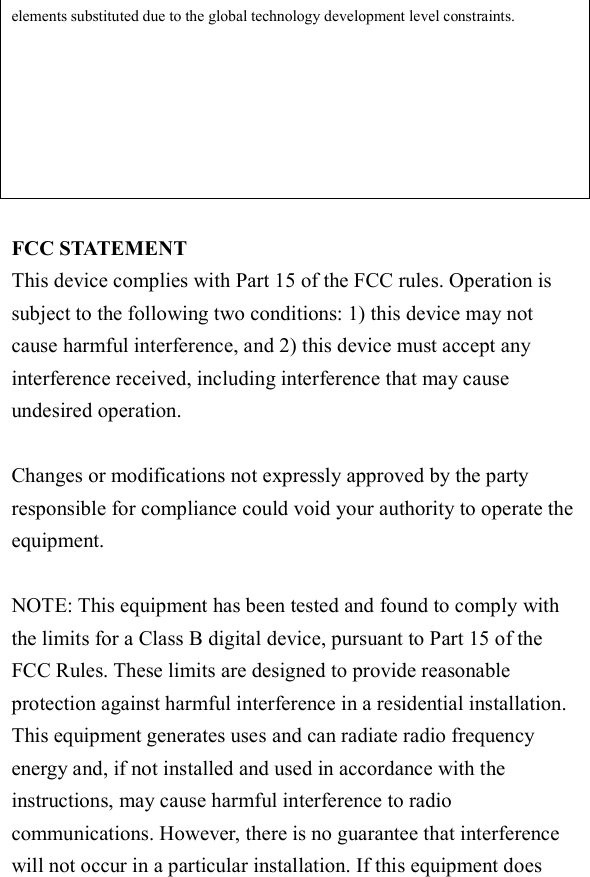
 Component name Lead (Pb) Mercury (Hg) Cadmium (Cd) Sexavalent chrome (Cr) Polybrominated Biphenyls (PBB) PBDE Housing body ○  /  /  /  /  / Key plating ○  /  /  /  /  / LCD screen ○  /  /  /  /  / Attachment wires ×  /  ○  /  /  / Lens devices ×  /  ○  /  /  / Resistance ×  /  /  /  /  / Circuit board /  ○  ○  ○  ○  ○ Battery  ○  /  ○  /  /  / ○: Indicating that contents of toxic hazardous substances in all homogeneous materials of the component are below the limits specified in SJ/T11363-2006. ×:  Indicating  that  the  content  of  the  toxic  hazardous  substance  in  one  type  of homogeneous  material  of  the  component  is  higher  than  the  limits  specified  in SJ/T11363-2006. /: Indicating that the toxic hazardous substance is not detected in the component. Note:  Up  to  90%  of  components  of  the  product  are  made  of  non-harmful environment-friendly  materials,  and  the  components  containing  toxic  hazardous substances  are  applied  in  the  product  since  people  fail  to  have  the  toxic  substances  or
 elements substituted due to the global technology development level constraints.  FCC STATEMENT This device complies with Part 15 of the FCC rules. Operation is subject to the following two conditions: 1) this device may not cause harmful interference, and 2) this device must accept any interference received, including interference that may cause undesired operation.  Changes or modifications not expressly approved by the party responsible for compliance could void your authority to operate the equipment.  NOTE: This equipment has been tested and found to comply with the limits for a Class B digital device, pursuant to Part 15 of the FCC Rules. These limits are designed to provide reasonable protection against harmful interference in a residential installation. This equipment generates uses and can radiate radio frequency energy and, if not installed and used in accordance with the instructions, may cause harmful interference to radio communications. However, there is no guarantee that interference will not occur in a particular installation. If this equipment does
 cause harmful interference to radio or television reception, which can be determined by turning the equipment off and on, the user is encouraged to try to correct the interference by one or more of the following measures:  Reorient or relocate the receiving antenna.  Increase the separation between the equipment and receiver.  Connect the equipment into an outlet on a circuit different from that to which the receiver is connected.   Consult  the  dealer  or  an  experienced  radio/TV  technician  for help.

Navigation menu