Unicorn Information System DW220U Wireless Network Adapter User Manual
unicorn information system Wireless Network Adapter
Manual

Wireless Network Adapter Users’ Guide
unicorn information system
Model:DW-220U

Wireless Network Adapter Users’ Guide
-1-
Chapter 1 Introduction
DW-220U is a 11N wireless USB network adapter with up
to 150Mbps wireless transmission rate. It complies with the
latest IEEE802.11n standard, and is compatible with 802.11b/g
wireless devices. With mini and exquisite design, it is easy to
carry along. It supports WPS encryption method to quickly
implement wireless encryption and secure network; supports
WMM to better smooth video and sound; supports Windows 7,
Vista, Windows XP, Windows 2000, MAC OS, Linux operation
systems etc.
In conclusion, DW-220U is a high-performance and
cost-effective 11N wireless USB network adapter with good
signal, long transmission range etc.
1.1 Package Contents
One Wireless USB network adapter
One Software CD (includes user guide)
1.2 LED Indicator Description
There is one status indicator on the side of this wireless network

Wireless Network Adapter Users’ Guide
-2-
adapter. It always remains ON when working correctly and
flashes when transferring data.
1.3 Product Features
Supports 150Mbps receiving and sending rate
Complies with IEEE 802.11n and is compatible with IEEE
802.11b/g standards
Provides USB2.0 port
Supports 20MHz/40MHz frequency width
Detects network and changes the transmission rate
automatically
Provides two work modes: Infrastructure and Ad-Hoc
Supports 64/128-bit WEP encryption, and WPA, WPA2
encryption methods
Provides WPS encryption button to easily implement
wireless encryption and secure network
Compatible with Windows 7, Vista, Windows XP, Windows
2000, MAC OS, Linux systems, etc.
Supports WMM to better smooth your sound and video
1.4 Product Usage
W311M/W311Ma Wireless USB Adapter offers fast, reliable and
cost- effective solution for wireless access. It is best used in the
following circumstances:

Wireless Network Adapter Users’ Guide
-3-
1. Enables staff members who require greater mobility in the
office to have access to wireless networks anywhere inside their
company.
2. Enables wireless communication for companies or places
which are not suitable for wired LAN installation because of
budget or building environment restrictions, such as historical
buildings, rentals, or places for short-term usage.
3. Suits businesses or individual who often changes network
topology.
4. Suits company or individual who would like to avoid using
expensive cables or renting lines etc.
1.5 Before Installation
1. Please peruse this user guide before you install and use the
product.
2. Please close or uninstall the configuration programs of other
manufacturers’ before you install the configuration programs of
W311M/W311Mato avoid possible UI collision.
3.In order to avoid possible network collision between this
Unicorn network adapter and those of other manufactures, we
recommend you to first disable the network of other

Wireless Network Adapter Users’ Guide
-4-
manufacturer when installaing drive.
1.6 Disable other manufacturer’s
wireless network adapter
1. Right click “My Computer” and select “Properties. Then select
“Hardware” and click “Device Manager”
2.Select the wireless network adapter you want to disable then
right click and select“Disable”
1.7 Product Maintenance
1. Please keep the product away from water and humid
environment to guarantee its normal performance
2. Protect it against other nocuous substances (such as acid and
alkali etc).
3. Please don’t keep the product directly exposed to the sun or
other object emitting great heat.
Wireless Network Adapter Users’ Guide
-5-
Chapter 2 Installation Guide
This chapter will assist you in installing network adapter software
packet by using the included CD. The software packet program
has integrated driver and configuration software. So when you
are installing driver the configuration software will be
automatically installed as well.
Windows XP is used as an example to explain the installation
steps. Installation in other operation systems, please refer to
their corresponding prompts.
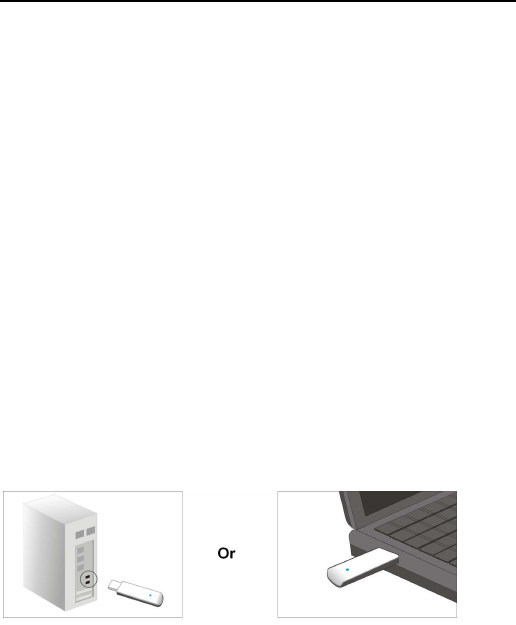
1. Please insert the Wireless USB Adapter into the USB port
of your computer.
2. System will pop up a “Found New Hardware”dialogue box.
We recommend you to select “Cancel”and use the attached
quick installation CD to easily install driver and configuration
software.
3. Insert the included CD into the CD drive of your computer to

Wireless Network Adapter Users’ Guide
-6-
auto-run the program. (If it doesn’t auto-run, please double click
“Unicorn.exe”in the CD,). When the welcome screen appears
click “Run”button.
4. Tick “I accept the terms of the license agreement” and click
“Next”.
5. There are two installation methods: one is to install driver and
Unicorn WLAN Config Tool. The other is to install driver only .
We recommend you to use the default installation method.
6. Click “Install” to install the driver and configuration software.
7. Click “Finish” to finish the driver and configuration software.
Chapter 3 Client Utility Interface
This wireless USB network adapter uses Unicorn client
utility interface (In the following text it is abbreviated to UI). All
functions can be configured via this software.
Select “Start”—“All Programs” —“Unicorn Wireless”— Unicorn
Wireless Utility”, or click the “Unicorn Wireless Utility” shortcut
on your PC’s desktop to start UI.
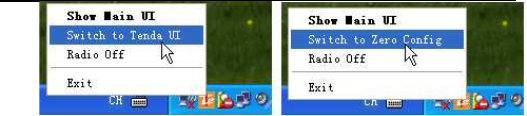
Click Unicorn UI on the right-down corner on the desktop to
switch Unicorn UI and Zero config, and to exit UI etc.
Wireless Network Adapter Users’ Guide
-7-
Note:
1. In Windows 7and VISTA, there is no switch function between
Unicorn UI and Zero config.
2. Operation on Unicorn UI becomes impossible when wireless
is disabled or it is switched to Zero config.
3 In Windows 2000 system, you need to use Unicorn UI to
conduct wireless configuration.
4.In Windows XP or Windows 2003 system, if you want to use
the system internally attached wireless configuration program to
configure the network adapter, please first disable Unicorn UI or
switch UI to Zero config.
5. Client application program is “Station Mode” (Client Mode) by
default.
mode (Client Mode) and AP mode (soft AP Mode).3

Wireless Network Adapter Users’ Guide
-8-
3.1.1 Network Status
The Network Status window displays status information
regarding the wireless network as the picture below:
3.1.2 Site Survey
The Site Survey interface displays the available wireless
networks in the area. When you select a wireless network name
the detailed information of this selected wireless network will be
displayed.
Before you connect wireless network, please click “Refresh” to
update the wireless network list and select the one you want to
connect, then click “Connect” button.
When connecting wireless network, a dialogue box will pop up.
For the un-encrypted network, directly confirm instead of
changing the configuration, however for the encrypted wireless
network, configuration of key is needed.

Wireless Network Adapter Users’ Guide
-9-
3.1.3 Profile Management
This window saves the general wireless network parameters
and profiles, which helps the wireless adapter to quickly connect
to the wireless network you want. Clicking a entry in the list
displays the detailed information of the selected profile. To
connect to wireless network, click “Connect” or double click
wireless network name.
Modify: To modify Site Status and Security Setting of the
existing profiles.
Delete: To delete the existing profiles.
New: To create a new profile and configure the site status and
security setting.
1. Create a new configuration file
1)Click “New” to create a new file.
2)Configure “Site Status” in the appearing dialogue box. There
are Infrastructure and Ad-Hoc two network types and the default
is Infrastructure as the below picture shows.
Infrastructure is a application mode which integrates the wired

Wireless Network Adapter Users’ Guide
-10-
and wireless LAN architectures. What makes it different from
Ad-Hoc is that the computer installed with the wireless network
adapter has to fulfill wireless communication via AP or wireless
router. It has “wireless AP + wireless network adapter” mode and
“wireless router + wireless network adapter” mode.
Ad-Hoc is a special wireless mobile network application mode.
All nodes in the network are all equal.
When you are using wireless network adapter to connect AP or
wireless router, please select Infrastructure.
3) Security Setting: enables you to configure authentication type,
encryption type, and key. The relevant configurations here must
be the same as those of the connected AP or router.
Note: If the wireless router or AP you want to connect closes
SSID broadcast function, the wireless network adapter will not
be able to scan this wireless network SSID. However, you can
create the corresponding configuration file to connect.
4)Finish the above, the added wireless network information
will be shown in the profile name list. Select the profile name and

Wireless Network Adapter Users’ Guide
-11-
click “Connect” or double click profile name to connect the
wireless network device.
5)After successful connection, click “Status” to view the
connection status as the picture below.
2. Ad-Hoc connection
1)Set the IP address of the wireless network adapter you want
to connect at the same net segment.
2)Click “New”.
3)Configure Site Status: Input SSID to identify the wireless
network and select Ad-Hoc for network type.
4)Security Setting: Configures authentication, encryption type
and key. Click OK.
5)The added wireless network information will be shown in the
profile list. Select the profile name and click “Connect” or double
click the profile name.
6)Search wireless network in devices of other nodes. Double
click the wireless network you want to connect and it will prompt
you to input a key. After that, click “Connect”.

Wireless Network Adapter Users’ Guide
-12-
7)It shows as the picture below after successful connection.
3.1.4 Statistics
Statistics is used to calculate the total Rx and Tx data packets,
including the successful and error packet amount.
Clear: click this button to delete the existing statistics and restart
new statistics.
3.1.6 WPS Setting
WPS setting is enabled only on WPS-compliant wireless devices.
It helps you to quickly configure the wireless network security.
Refresh: To update the Pin code.
Rescan: To rescan the WPS-enabled wireless network in the
area.
Disconnect: To disconnect from a connected wireless network.
PIN:
::
: Click this button for PIN mode connection.
PBC:
::
:Click this button for PBC mode connection.
Please refer to appendix 3 for detailed configuration steps for
PIN and PBC.

Wireless Network Adapter Users’ Guide
-13-
3.2 AP Mode
AP Mode Overview
Wireless network adapter can also serve as an access point to
transmit wireless signals and create a wireless network, allowing
other wireless clients to access the network.
Click the AP Mode on configuration interface to enter the AP
Mode.
3.2.1 Basic Setting
This window is used to configure the AP’s basic parameters,
including SSID, wireless mode and channel (SSID is Unicorn by
default, and channel is 1 by default).
SSID: Wireless network’s ID name scanned by wireless adapter
as a network identifier.
Channel: 1~11 channels provided.
Restore Default: to restore the set parameters to factory default
settings.
Apply: to make the configurations effective.
3.2.2 Security Setting
This window is used to configure the wireless network’s security
authentication information.

Wireless Network Adapter Users’ Guide
-14-
WEP:
::
:Supports 10/26 bits Hex characters or 5/13 ASCII.
WPA-PSK:
::
:Supports 8-63-bit ASCII or 8-64 Hex characters.
WPA2-PSK:Supports 8-63-bit ASCII or 8-64 Hex characters.
WPA-PSK/WPA2-PSK:
::
:Supports 8-63-bit ASCII or 8-64 hex
characters.
Note:
The Hex characters include numbers 0~9 and letters a-f.
ASCII characters include any Arabic digitals/letters and
characters.
1. Configure AP Mode
1)First input the SSID which is easy to be identified by you in the
basic settings and keep other information unchanged.
2)Select “WPA-PSK”in the drop-down menu of authentication
type under security setting. Choose “AES”as encryption type,
input a key and click “Apply”.
3)Other clients can have the following picture after their
scanned usable wireless networks are successfully connected.
3.2.3 Access Control
Access Control is based on the MAC address to allow or prohibit

Wireless Network Adapter Users’ Guide
-15-
a specified client’s access to this wireless network.
Product Specification
Standard IEEE802.11g, IEEE802.11b, IEEE802.11n
Port USB2.0
Frequency Range 2412-2462MHz for 11b/g/n(HT20)
2422-2452MHz for 11n(HT40)
Transmission Rate
11b:1Mbps
11g:6Mbps
11n(HT20):6.5Mbps
11n(HT40):13.5Mbps
Transmission Power
Max 12.67dBm
Modulation Method OFDM, CCK
Working Temper. 0℃~45℃
Storage Temper. -40°c ~70℃
Working Humidity 10%~95%RH non-condensing

Wireless Network Adapter Users’ Guide
-16-
FCC Statement
This device complies with Part 15 of the FCC Rules. Operation
is subject to the following two conditions: (1) This device may
not cause harmful interference, and (2) this device must accept
any interference received, including interference that may cause
undesired operation.
This equipment has been tested and found to comply with the
limits for a Class B digital device, pursuant to Part 15 of the FCC
Rules. These limits are designed to provide reasonable
protection against harmful interference in a residential
installation. This equipment generates, uses and can radiate
radio frequency energy and, if not installed and used in
accordance with the instructions, may cause harmful
interference to radio communications. However, there is no
guarantee that interference will not occur in a particular
installation. If this equipment does cause harmful interference
to radio or television reception, which can be determined by
turning the equipment off and on, the user is encouraged to try
to correct the interference by one of the following measures:

Wireless Network Adapter Users’ Guide
-17-
- Reorient or relocate the receiving antenna.
- Increase the separation between the equipment and
receiver.
- Connect the equipment into an outlet on a circuit different
from that
to which the receiver is connected.
- Consult the dealer or an experienced radio/TV technician
for help.
FCC Caution: Any changes or modifications not expressly
approved by the party responsible for compliance could void the
user's authority to operate this equipment.
This transmitter must not be co-located or operating in
conjunction with any other antenna or transmitter.
The manufacturer is not responsible for any radio or TV
interference caused by unauthorized modifications to this
equipment.
Radiation Exposure Statement
This equipment complies with FCC radiation exposure limits set
forth for an uncontrolled environment. This equipment should be
installed and operated with minimum distance 20cm between
the radiator & your body.