Uniden Dss 2455 2465 Users Manual
2465 75c88b37-f053-4af0-97e6-ffd9e2836ade Uniden Cordless Telephone 2465 User Guide |
2015-02-10
: Uniden Uniden-Dss-2455-2465-Users-Manual-359791 uniden-dss-2455-2465-users-manual-359791 uniden pdf
Open the PDF directly: View PDF  .
.
Page Count: 76
2465
Digital Spread
Spectrum provides
the longest range,
the clearest sound
and the best privacy.
DSS
2455/
Guide
Quick Start
[ i ]
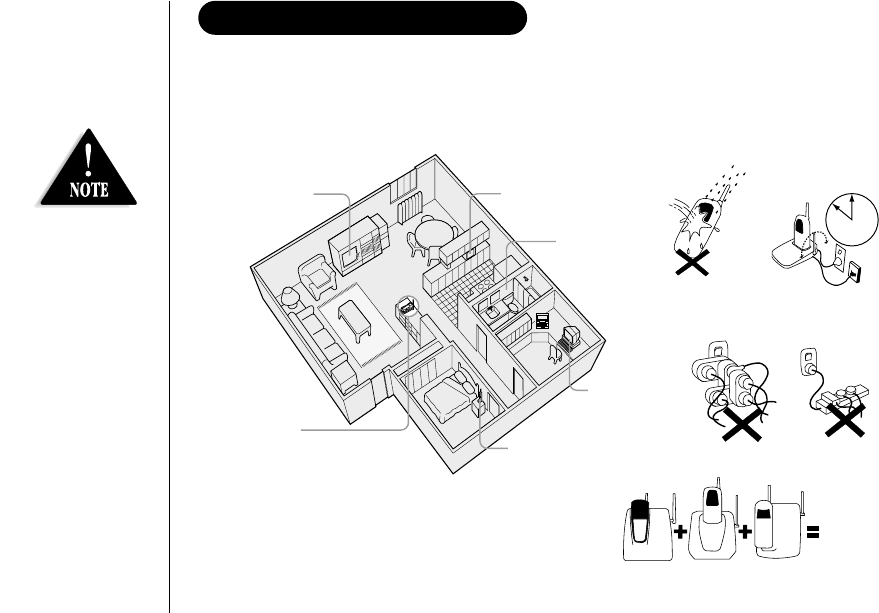
INSTALLATION & SAFETY
•This symbol
indicates important
operating and
servicing instructions.
•The earcap of this
telephone may attract
and retain small
metallic objects.
3
AVOID -
connecting
more than
phones as ringing
may be impaired
AVOID -
multi power boards.
CHARGE -
the new phone
for 17 - 20 hrs.
AVOID -
Moisture
Don’t -
overload the
power outlet.
AVOID -
moisture
AVOID -
Television sets and
other electronic
appliances AVOID -
Microwave ovens
AVOID -
Computers
AVOID -
other cordless
telephones
CHOOSE -
a central location
Note: Ringing will not be impaired by
adding extra cordless handsets.
Choosing the best location for your phone.
When choosing a location for your phone there are a number of appliances the phone
should not be near, and areas you should avoid.
UP308BH (DSS2465) ENG OM 8/6/03 10:32 AM Page i
[ ii ]
QUICK START GUIDE
The Quick Start Guide is a very condensed version of
the Owner’s Manual. It is designed to allow you to get
your phone installed and operating as quickly as
possible - however it does not attempt to explain any
of the advanced features of the DSS2455 and
DSS2465 series.
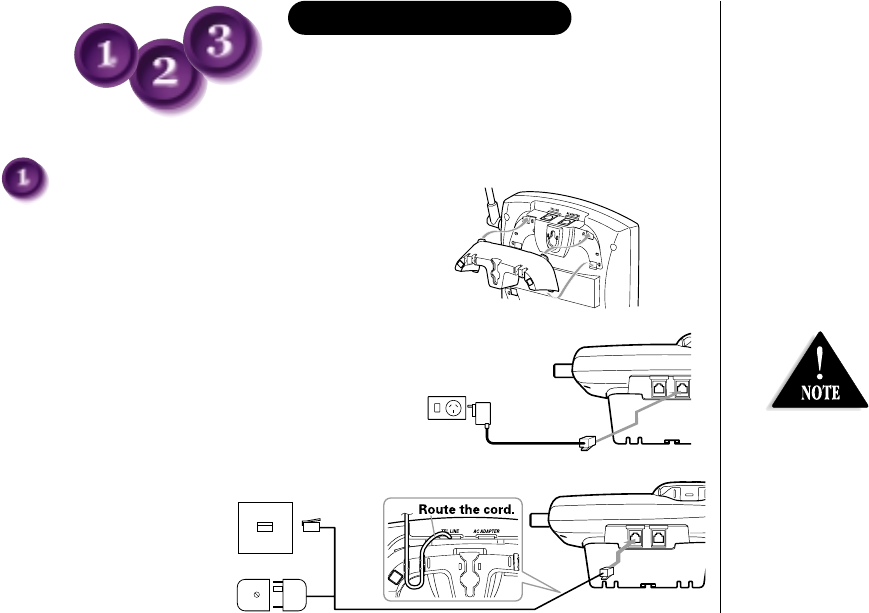
1) Install the desk top/wall mount bracket into the
notches on the base top for desk top mounting.
For wall mounting, see “Mounting the Base Unit on
a Wall” on page 6.
2) Connect the AC adapter to the AC ADAPTER
jack and to a standard AC wall outlet.
3) Connect the telephone
line cord to the TEL LINE
jack and to a telephone
socket on the wall.
Make sure the AC
Adapter/s remains
switched ON at all
times. Use only
the Uniden AC
Adapter/s supplied
with this unit.
Start
Here!
Installing the Base Unit
To AC outlet
AC adapter
(supplied)
To AC adapter
Australia
New Zealand
Telephone line cord (supplied)
To TEL LINE
To telephone
socket
UP308BH (DSS2465) ENG OM 8/6/03 10:32 AM Page ii
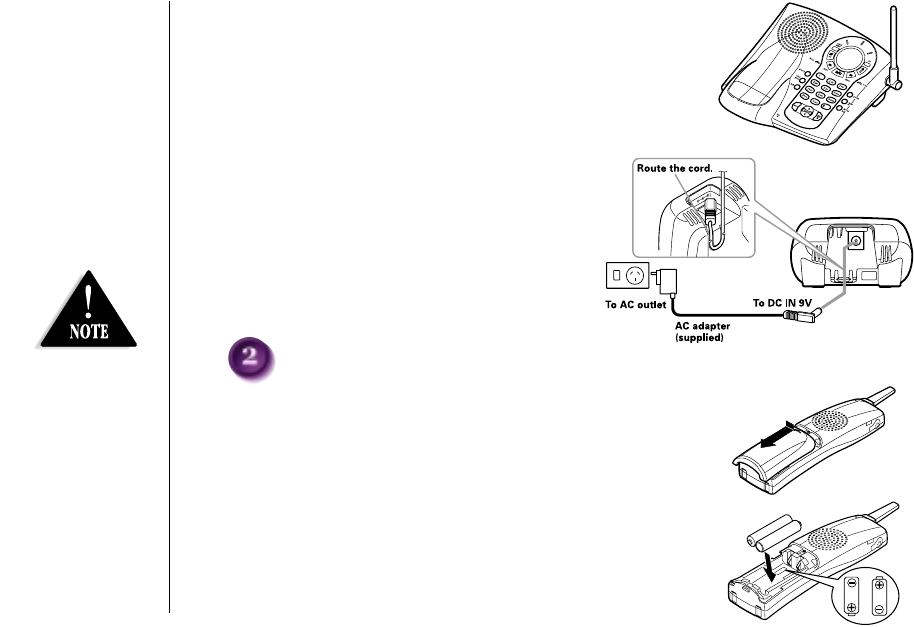
Installing the AA batteries
1) Press down on the battery cover release and slide the
cover down until it comes off.
2) Install the batteries supplied with your phone, observing
correct + - polarity.
•Use only “AA”
rechargeable Ni-MH
batteries. Do Not use
Alkaline, Lithium, or
non-rechargeable
batteries. Using
incorrect batteries
could damage or limit
the performance of
this unit.
•Recharge your phone
on a regular basis by
returning the handset
to the charger after
each phone call.
[ iii ]
4) Set the base on a desk or tabletop.
5) Rise the antenna to a vertical position.
Connecting the charger - DSS2465 only
1) Connect the AC adapter into the charging
cradle and to a AC wall outlet.
2) Set the charger on a desk or tabletop, and
place the handset in the charger with the
keypad facing forward (see “Installing the
AA batteries” below to install the batteries.
UP308BH (DSS2465) ENG OM 8/6/03 10:32 AM Page iii
[ iv ]
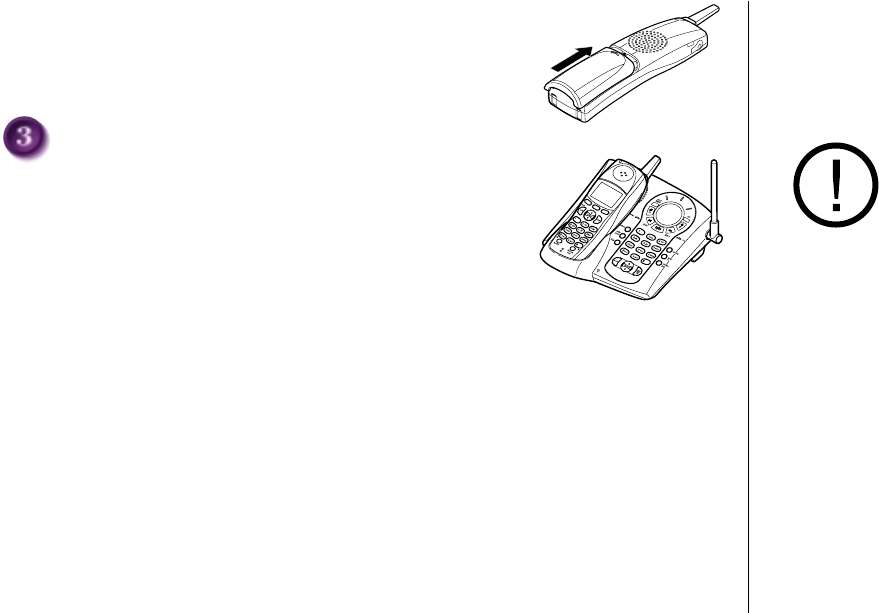
3) Securely close the battery compartment cover by sliding it up
until it snaps into place.
Charging the handset
1) Place the handset in the charging cradle with the keypad
facing up.
The DSS2455 and DSS2465 series will only work with “AA” Ni-MH
rechargeable batteries. If you use any other type of batteries,
the display will show “Use rechargeable battery only”.
• After installing the batteries in the handset, charge your handset at least 17-20 hours.
2) Make sure the charge LED illuminates. If the LED does not illuminate, check to see that
the AC adapter is plugged in and switch on. Clean the handset and base charge contacts
with a pencil eraser.
During a power cut
or if the AC Adapter
is switched off,
this telephone
will not operate.
UP308BH (DSS2465) ENG OM 8/6/03 10:32 AM Page iv

[ v ]
CONTENTS
INSTALLATION & SAFETY i
QUICK START GUIDE ii
CONTENTS v
GETTING STARTED 1
Controls and Functions 1
Uniden Company Philosophy 3
Welcome 3
Features 4
Checking the Package Contents 5
Terminology 5
Mounting the Base Unit on a Wall 6
Battery Maintenance 6
Installing the Beltclip 7
Headset Installation 8
Display and Icons 8
About Soft Key Function 9
DSS2455/DSS2465 Flow Chart 10
About the Menu 12
Setting up the Menu 15
BASICS 23
Making and Receiving Calls 23
Placing a Call on Hold 24
Redialing a Call 24
Adjusting the Earpiece and Handset Speaker Volume 26
Clarity Booster 26
Ringer Mute (temporarily) 27
Mute Microphone 27
Traveling Out-of-Range 27
Flash and Call Waiting 28
New Message LED 28
PHONEBOOK 29
Storing Phone Numbers, Names,
Distinctive Rings, and Speed Dial 29
Steps for Entering Names and Special Characters 31
Viewing the Phonebook 33
Making Calls Using the Phonebook 34
Speed Dialing 34
Editing or Erasing a Stored Name, Phone Number,
Distinctive Ring, and Speed Dial 35
Chain Dialing 36
Memory Dialing (base only) 36
CALLER ID 37
Viewing the Caller ID List 38
Deleting Information from the Caller ID List 39
Using the Caller ID Message List 40
THE INTEGRATED ANSWERING DEVICE 41
Turning the Answering System On/Off 42
Setting up your Answering System 42
Using your Answering System 49
Remote Operation 52
EXPANDING YOUR PHONE 55
Connecting the Charger 55
Register the Handset 56
Using Two Way Communication between the Handsets
Anywhere without the Base (DirectLink) 57
3-Way Conferencing 58
4-Way Conferencing 58
Intercom/Call Transfer Feature 59
ADDITIONAL INFORMATION 61
Changing the Digital Security Code 61
Note on Power Sources 62
TROUBLESHOOTING 63
INDEX 66
REMOTE OPERATION CARD 67
WARRANTY 69
UP308BH (DSS2465) ENG OM 8/6/03 10:32 AM Page v
[ 1 ]
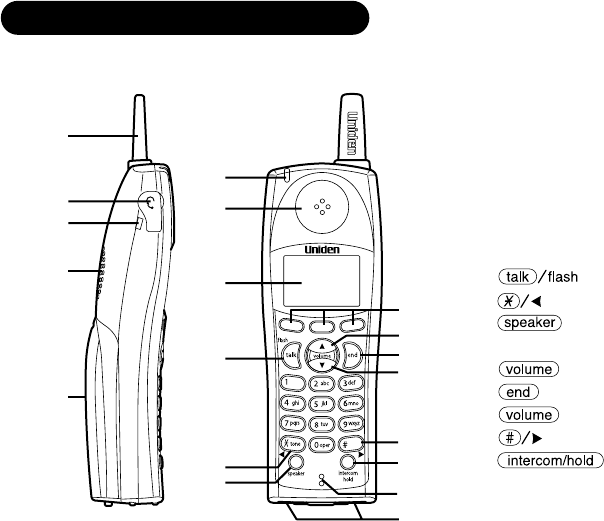
CONTROLS AND FUNCTIONS
2
1
3
5
4
6
7
8
9
10
11
19
13
12
16
17
14
18
15
1. Handset Antenna
2. Headset Jack Cover
3. Beltclip Hole
4. Hands Free Speaker
5. Handset Battery Compartment
6. New Message LED
7. Handset Earpiece
8. LCD Display
9. Key
10. Key
11. Key
12. Soft Keys
13. /▲(up) Key
14. Key
15. /▼(down) Key
16. Key
17. Key
18. Handset Microphone
19. Handset Charging Contacts
GETTING STARTED
UP308BH (DSS2465) ENG OM 8/6/03 10:33 AM Page 1
[ 2 ]
20
27
28
29
30
31
32
33
21 22 23 24 25 26
34
35
36
37
38
39
40
41
42
43
44
45
46 47
(DSS2465 only)
48
50
49
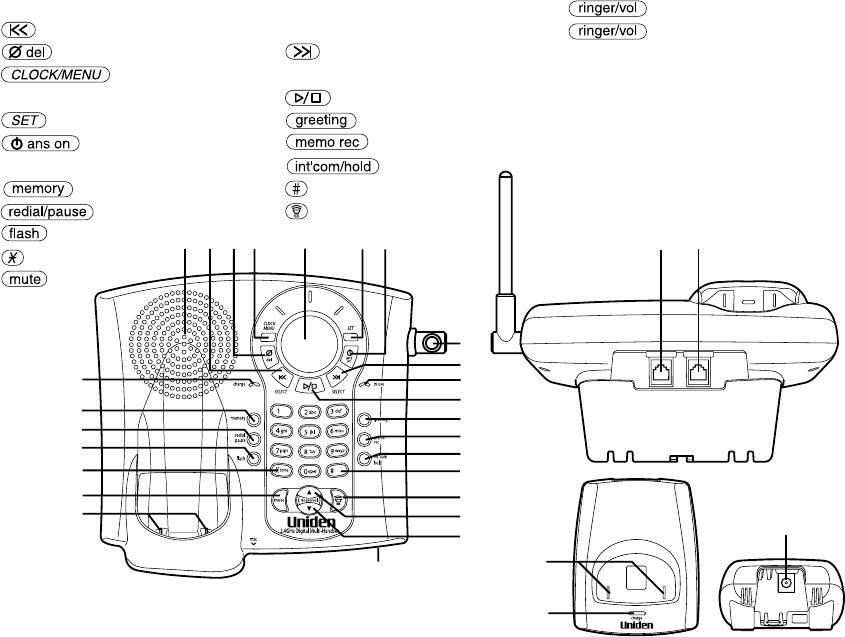
20. Base Speaker
21. (repeat)/SELECT Key
22. (delete) Key
23. Key
24. Message Counter Display
25. Key
26. (answer on) Key
27. Charge LED
28. Key
29. Key
30. Key
31. Key
32. Key
43. (volume) / ▲(up) Key
44. (volume) / ▼(down) Key
45. Microphone
46. Telephone Input
47. DC Power Input
48. Charging Contacts (DSS2465 only)
49. Charge LED (DSS2465 only)
50. DC Power Input (DSS2465 only)
33. Base Charging Contacts
34. Base Antenna
35. (skip)/SELECT Key
36. In use LED
37. (play/stop) Key
38. Key
39. (record) Key
40. Key
41. Key
42. (talk) Key/speaker LED
UP308BH (DSS2465) ENG OM 8/6/03 10:33 AM Page 2

[ 3 ]
Congratulations on your purchase of this Uniden DSS2455 or DSS2465 series Multi Handset Cordless System
telephone. This unit is different from conventional cordless telephones. It can support up to 4 handsets. Using
extra handsets (optional), you can establish a 4-way conference call (2 handsets-Base Speaker Phone-an outside
line, or 3 handsets-an outside line). Additionally, with 4-way conference using 2 handsets, another 2 handsets can
establish an intercom call. You can now place a fully featured cordless handset anywhere in your home or office
where AC power is available to connect the handset chargers.
Note: Some illustrations in this manual may differ from the actual unit for explanation purposes.
WELCOME
To bring outstanding wireless communication products to people’s lives throughout the world.
UNIDEN COMPANY PHILOSOPHY
UP308BH (DSS2465) ENG OM 8/6/03 10:33 AM Page 3

[ 4 ]
Great features of this cordless phone include:
• Designed and Engineered in Japan
• 2.4GHz Digital Spread Spectrum
• Integrated Digital Answering Machine
• Multi (4) Handset Capable (2 handsets Included (DSS2465 only))
• Long Range (up to 1km) #
• Dual Keypad (Backlit on Handsets)
• Digital Duplex Speakerphones on Handset and Base
Advanced Alpha Display Caller ID Features:
• Alpha Memory Dialling
• POP ID - Caller Name Identification*
• 16 Individual Caller Tone Allocation (8 Rings/8 Melodies)
• 100 Caller ID * Memories with Phonebook
• 4 Line Backlit Full Dot Matrix LCD Display with Clock
• Maxi-Sound - Extra Loud Handset Volume Control
• Intercom/Announce Call Transfer
• Handset Conferencing (for example, 2 handsets + Base + Outside Call)
• Two-Way Communication between Handsets Anywhere without the Base
• Conversation Record
• And More!
FEATURES
* Caller ID and POP ID features work only if you subscribe to the service provided by your local telephone company.
There is usually a fee for this service.
#Range may vary depending on environmental and/or topographical conditions.
UP308BH (DSS2465) ENG OM 8/6/03 10:33 AM Page 4
[ 5 ]
CHECKING THE PACKAGE CONTENTS
Make sure you have received the following items in the package. If any of these items are missing or damaged,
contact your retailer.
• Base unit (1)
• Handset [DSS2455 (1) / DSS2465 (2)]
• AC adapter [DSS2455 (1) / DSS2465 (2)]
• Rechargeable batteries [DSS2455 (2) / DSS2465 (4)]
Also included:
• This Owner’s Manual
• Other Printed Material
Uniden Australia Pty Limited Service Division
Ph : 1300 366 895
We can also be reached
at www.uniden.com.au
Uniden New Zealand Limited Service Division
Ph : 0800 4 UNIDEN
(0800 4864 336)
We can also be reached
at www.uniden.co.nz
Throughout this manual, terms such as Standby and Talk Mode are used. Below is the terminology explanation.
Standby Mode - The handset is not in use, is off the cradle, and or has not been pressed.
A dial tone is not present.
Talk Mode - The handset is not in the cradle and or has been pressed enabling a dial
tone. “Talk” appears on the display.
DirectLink - Two way communication between the handset anywhere without the base.
TERMINOLOGY
• Telephone cord or adapter (1) (Australia)
• Telephone cord (1) (New Zealand)
• Beltclip [DSS2455 (1) / DSS2465 (2)]
• Charger (1) [DSS2465 only]
UP308BH (DSS2465) ENG OM 8/6/03 10:33 AM Page 5
[ 6 ]
BATTERY MAINTENANCE
Battery use time (per charge)
Fully charged (17-20 hours charge time)
• Up to 7 hours continuous use (up to 5 hours when the clarity booster is on)
• Up to 14 days when the handset is in the standby mode (up to 24 hours when in DirectLink mode)
Recharge your phone on a regular basis by returning the handset to the charger after each phone call.
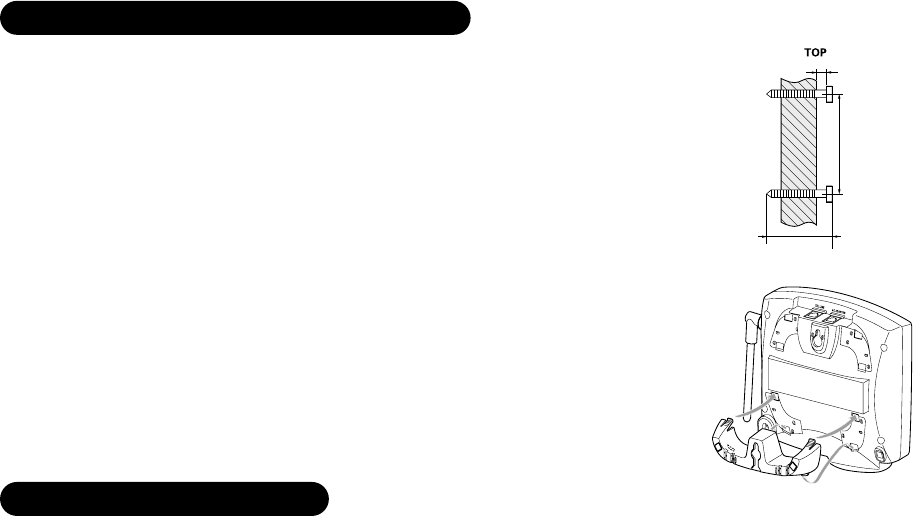
MOUNTING THE BASE UNIT ON A WALL
You can mount your base directly to the wall. Before doing this, consider the following:
• Avoid electrical cables, pipes, or other items behind the mounting location that could
cause a hazard when inserting screws into the wall.
• Mount your phone within distance of a working phone jack.
• Make sure the wall material is capable of supporting the weight of the base and handset.
• Use screws with anchoring devices suitable for the wall material where the base unit will
be placed.
1) Insert two mounting screws into the wall (with their appropriate anchoring device),
10cm apart. Allow about 3mm between the wall and screwheads for mounting the phone.
2) Snap the desk top/wall mount bracket into the notches on the base bottom.
3) Plug the AC adapter into the AC ADAPTER jack on the telephone and then into a
Standard AC wall outlet.
4) Plug the telephone line cord into the TEL LINE jack on the telephone and then into
the telephone socket on the wall.
5) Align the mounting slots on the base with the mounting posts on the wall.
6) Then push in and down until the phone is firmly seated.
This phone also can be mounted on any standard telephone wall plate (for Australia).
1) Snap the desk top/wall mount bracket into the notches on the base bottom.
2) Refer to step 3 through 6 to mount the base.
3mm
10cm
35mm
UP308BH (DSS2465) ENG OM 8/6/03 10:33 AM Page 6
[ 7 ]
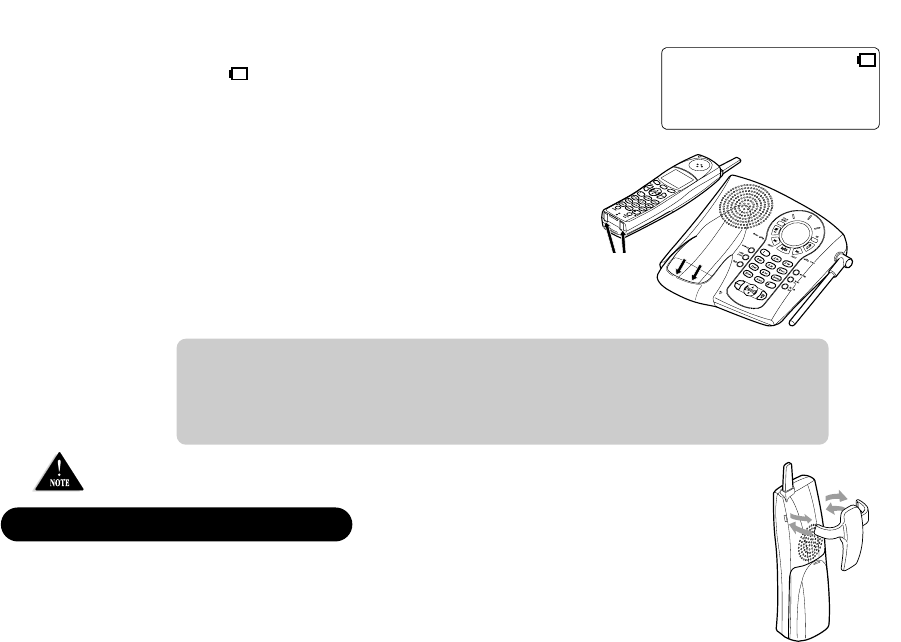
Cleaning the battery charging contacts
To maintain a good charge, it is important to clean the charging
contacts on both the handset and the base unit once a month.
Use a dry cloth or pencil eraser to clean.
Low battery alert
When the batteries are very low and need to be charged, the phone is programmed to eliminate functions in order to save power.
The batteries need to be charged when:
- The empty battery icon appears.
- “Low Battery” appears in the display.
If the phone is in the standby mode, none of keys will operate. If you are on a call,
complete your conversation as quickly as possible, and return the handset to the cradle.
Low Battery
contacts
INSTALLING THE BELTCLIP
To attach the beltclip
Insert the beltclip into the holes on each side of the handset. Press down until it clicks into place.
To remove the beltclip
Pull both sides of the beltclip to release the tabs from the holes.
Battery replacement and handling
When the operating time becomes short, even after a battery is
recharged, please replace the battery.
Please use only “AA” rechargeable Ni-MH batteries.
Caution
• Use only “AA” rechargeable Ni-MH batteries.
• Do not remove the batteries from the handset to charge them.
• Never throw the batteries into a fire, disassemble them, or heat them.
• Do not remove or damage the battery casing.
To avoid the risk of personal injury or property damage from fire or electrical shock, only use the
Uniden adapter model specifically designated for this product, and “AA” rechargeable Ni-MH batteries.
UP308BH (DSS2465) ENG OM 8/6/03 10:33 AM Page 7
[ 8 ]
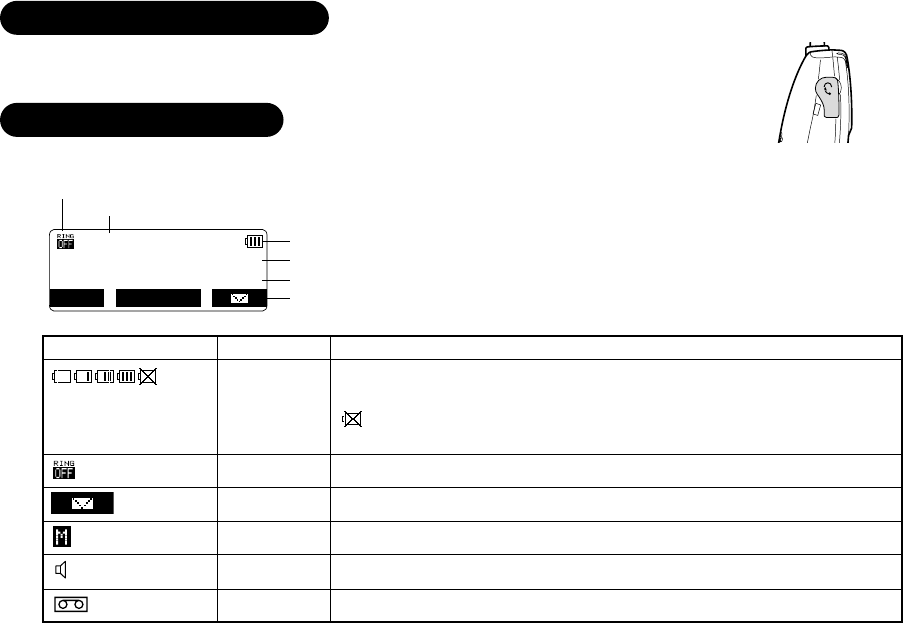
Your phone may be used with an optional headset, the Uniden HS910. To use this feature,
insert the headset plug into the headset jack. Your phone is ready for hands-free conversations.
HEADSET INSTALLATION
DISPLAY AND ICONS
Handset ID and Banner
Number of new Caller ID calls received
Battery icon
Soft keys
(These will not be displayed while the handset is charging in the cradle.)
Ringer off icon (when the ringer is Off)
Day of the week and time (hh:mm/A/P)
SUN 12:00A
Handset #1
New: 5
MENU CID
RDL
PB
Example of the standby mode display
ICON STATUS DESCRIPTION
Battery icons indicate the handset battery status. This icon cycles
Standby/Talk depending on the battery status (empty, low, medium, and full).
indicates that the batteries installed are not for use with this
phone, remove the batteries immediately.
Standby Ringer off icon indicates that ringer is set to Off.
Standby Handset Remote soft key is used to play an incoming message remotely.
Talk Mute icon appears when you mute the handset.
Talk Speaker icon appears when the handset speaker phone is used.
Talk Recording icon appears while recording a conversation.
UP308BH (DSS2465) ENG OM 8/6/03 10:33 AM Page 8
[ 9 ]
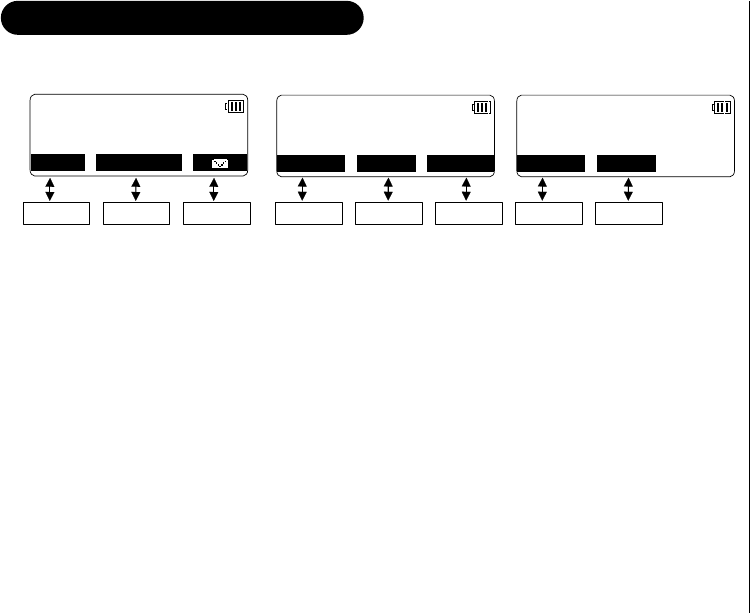
ABOUT SOFT KEY FUNCTION
In the standby mode In the talk mode
(Australia model) (New Zealand model)
Soft key functions consists of soft key icons and soft keys (No. 1, 2, and 3). Each soft
key corresponds to the icon displayed above, and each icon will be changed depending
on the operation. Press the corresponding soft key to enter a menu, or select an item.
In this manual, we refer to this combination of icons and keys as the soft key.
For example, you will use the soft keys when you want to:
- Access the main menu
- Access Caller ID messages stored
- Store or edit phone numbers
- Redial one of the last three numbers dialed from the handset
- Etc….
Note: The soft key icons will not appear while charging the handset.
SUN 12:00A
Handset #1
New: 5
MENU CID
RDL
PB
Soft key 1 Soft key 2 Soft key 3
Talk 999:59
1234567890
MUTE MENU
CALL WAIT
Soft key 1 Soft key 2 Soft key 3
Talk 999:59
1234567890
MUTE MENU
Soft key 1 Soft key 2
UP308BH (DSS2465) ENG OM 8/6/03 10:33 AM Page 9
[ 10 ]
OKBACK
<HANDSET SETUP>
Ringer Tones
Distinct. Ring
Auto Talk
Anykey Answer
Contrast
Banner
Ringer Volume
DirectLink Mode
Handset Setup
Answ. Setup
OKBACK
▲
or
▼
▼
Setup the menu
(see pages 16-18).
OK soft key
OK soft key
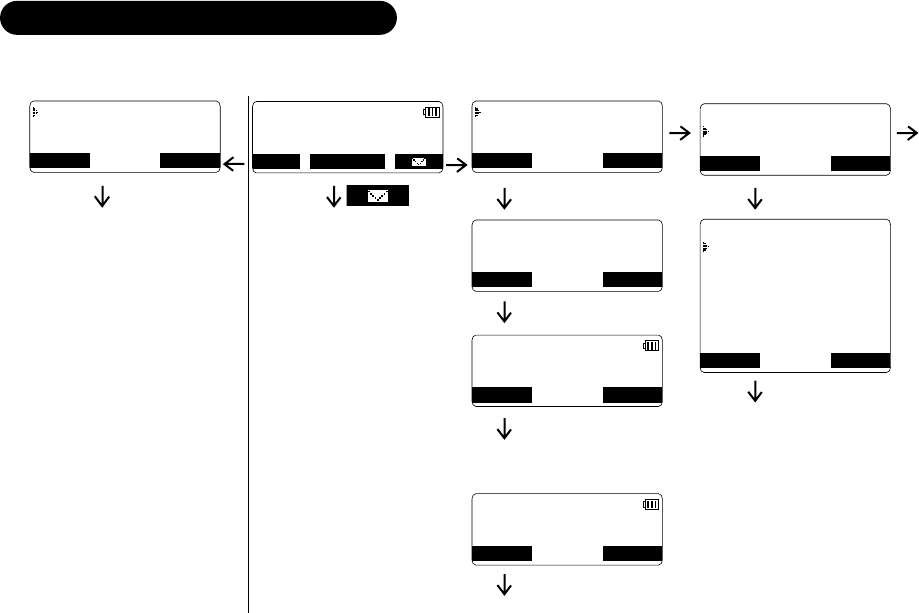
DSS2455/DSS2465 FLOW CHART
Caller ID
Redial History
Phonebook
BACK BACK OK
SUN 12:00A
Handset #1
New: 5
MENU CID
RDL
PB
DirectLink Mode
Handset Setup
Answ. Setup
BACK OK
To enter
DirectLink mode
press [ENTER]
BACK BACK ENTER
SUN 12:00A
Handset #1
DirectLink Mode
CANCEL DirectLink
SUN 12:00A
Handset #1
DirectLink Mode
CANCEL DirectLink
• From the standby mode
▲
or
▼
Setup the menu:
•See page 37 for Caller ID.
•See page 24 for Redial.
•See page 29 for Phonebook.
Play incoming
messages remotely
(see page 52).
Go to DirectLink operation
(see pages 16, 57).
Select a menu,
then press the
OK soft key.
CID
RDL
PB
M
E
N
U
▼
OK soft key
ENTER soft key
DirectLink soft key
Normal standby mode
CANCEL soft key, then OK.
UP308BH (DSS2465) ENG OM 8/6/03 10:33 AM Page 10
[ 11 ]
Talk 999:59
1234567890
MUTE MENU
CALL WAIT
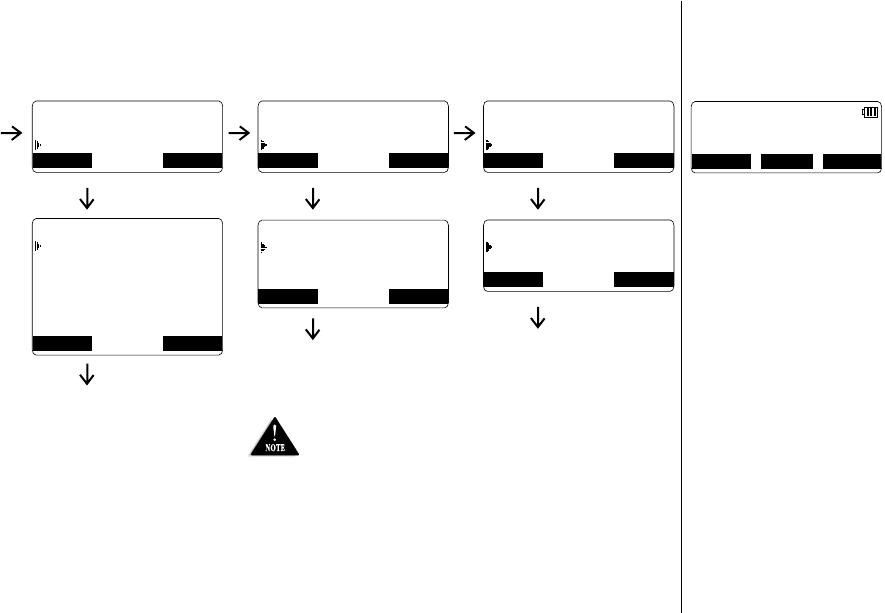
• From the Talk mode
•Press the MUTE soft key to
mute a call (see page 27).
•Press the MENU soft key,
then select:
-“Booster On” to improve
the sound quality
(see page 26).
-“Recording” to record the
conversation (see page 51).
-“Caller ID” to view Caller
ID list (see page 38).
-“Phonebook” to view
phonebook locations
(see page 33).
-“Redial History” to view
the last three numbers
dialed (see page 24).
•Press the CALL WAIT soft key
to access the Call Waiting (see
page 28) (Australia only).
Handset Setup
Answ. Setup
Global Setup
OKBACK
Answ. Setup
Global Setup
System Reset
OKBACK
▼ ▼
OK soft key
OKBACK
<GLOBAL SETUP>
Name Tag
Insert 0
Day & Time
▲
or
▼
Setup the menu
(see pages 21).
OK soft key
OK soft key
DirectLink Mode
Handset Setup
Answ. Setup
BACK OK
▼
OKBACK
<ANSW. SETUP>
Security Code
Ring Time
Record Time
Message Alert
Answer Mode
Call Screen
▲
or
▼
Setup the menu
(see pages 19-20).
OK soft key
<SYSTEM RESET>
Deregister HS
Replacing Base
BACK BACK OK
▲
or
▼
Setup the menu
(see page 22).
OK soft key
OK soft key
“Insert 0” is available only for
New Zealand model.
UP308BH (DSS2465) ENG OM 8/6/03 10:33 AM Page 11
[ 12 ]
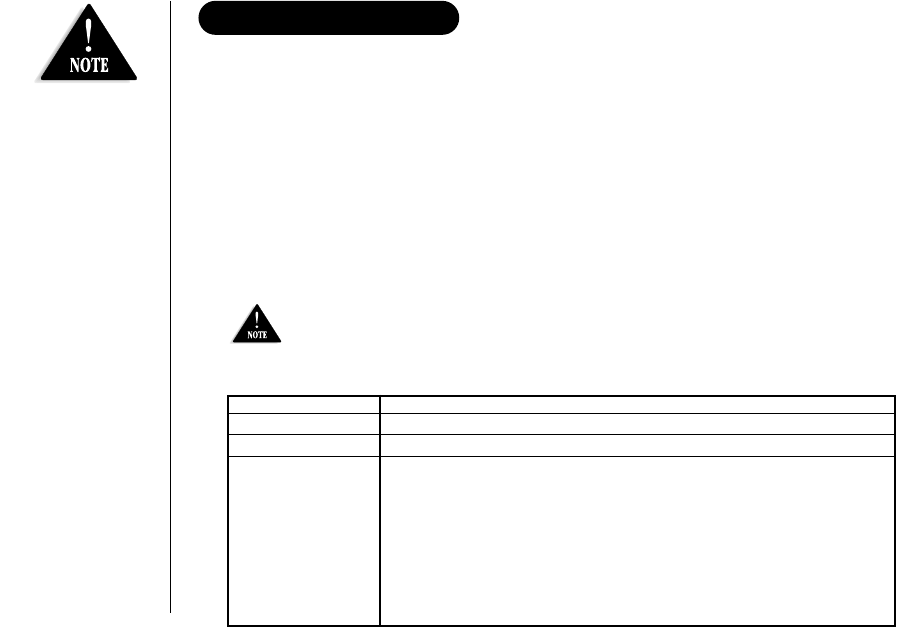
Most of the handset settings are set from the menu. The menu has 5 main menus
(DirectLink Mode, Handset Setup, Answ. Setup, Global Setup, and System Reset)
and submenus respectively.
Summary of the Main Menu and Submenu
Two Way Communication between the Handsets Anywhere without the
Base (DirectLink)
Select this menu to enter the Two Way Communication between the Handsets Anywhere
without the Base (DirectLink) mode. If you have 2 or more handsets, a pair of handsets
work as transceivers. Use them at a shopping mall to stay in contact with family and
friends. To use this feature, you must set the two handsets to the DirectLink mode first
(see page 16).
ABOUT THE MENU
Handset Setup
All settings must be set separately for each handset in the Handset Setup menu.
DirectLink menu only applies when you have 2 or more handsets.
Submenu name Description
Ringer Volume Adjust the ringer volume (see page 16).
Ringer Tones Adjusting the ringer tone (see page 17).
Distinct. Ring Set the distinctive ring (see page 17). “Distinctive Ring” allows you to
(Distinctive ring) preset memory locations with a designated ring tone. When an incoming call
is received and the Caller ID information matches the information in one of
the memory locations, the distinctive ring that has been stored for that
particular Caller will sound.
If you have set multiple memory locations with distinctive rings,
switching the setting to “Distinctive Off” will result in no distinctive ringing.
All incoming calls will have a normal ring tone. Switching to “Distinctive On”
will activate all programmed distinctive ring memory locations.
For Answ. Setup,
Global Setup, and
System Reset
(Deregister HS)
menu, make sure the
line is not in use,
and the handsets are
within the range
limits of the base.
UP308BH (DSS2465) ENG OM 8/6/03 10:33 AM Page 12
[ 13 ]
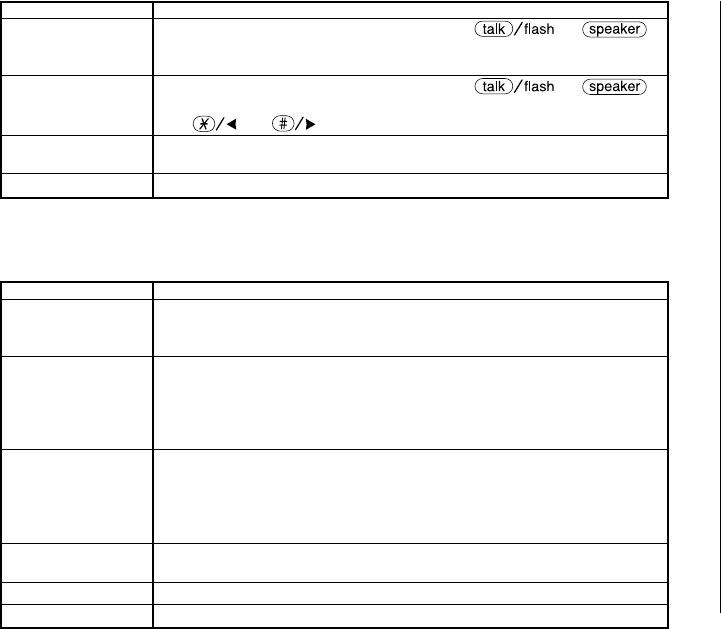
Submenu name Description
Auto Talk Allows you to answer the phone without pressing or .
When the AutoTalk is set to On, simply remove the handset from the cradle
and the phone automatically answers the call (see page 17).
Anykey Answer Allows you to answer the phone without pressing or .
When the Anykey Answer is On, you can answer a call by pressing any number
key, , or on the handset (see page 18).
Banner Customize the name of your handset, and display it in the LCD in the standby
mode. For example, you can name the handset “John” (see page 18).
Contrast Adjust the handset LCD brightness for better viewing (10 levels) (see page 18).
Answering Setup
This menu allows you to set up Answering Machine settings from your handset. You can
also set these setup menus from the base (see page 44).
Submenu name Description
Security Code Select a two-digit Personal Identification Number (PIN) code. A PIN code is
required to play your messages from a remote location, you will need to enter
a two-digit PIN code (see page 19).
Ring Time Allows you to set the number of rings the caller hears before your answering
system plays the outgoing message. You can set the ring time to answer after
4, 6, or 9 rings. Setting “TS” (Toll Saver), the answering system picks up
after 6 rings if you have new messages, and after 9 rings if there are none
(see page 19).
Record Time Set the duration for recording the incoming messages. You have three record
time options. The options “1 minute” or “4 minutes” set the duration for
recording the incoming messages. “Announce only” answers the call with the
preset greeting or your personal greeting but prevents the caller from leaving
a message (see page 19)
Message Alert Lets you know when you have a new incoming message by sounding a short
alert tone (see page 20).
Call Screen Set the call screening feature to On or Off (see page 20).
Answer Mode Set your answering system to On or Off (see page 20).
UP308BH (DSS2465) ENG OM 8/6/03 10:33 AM Page 13
[ 14 ]
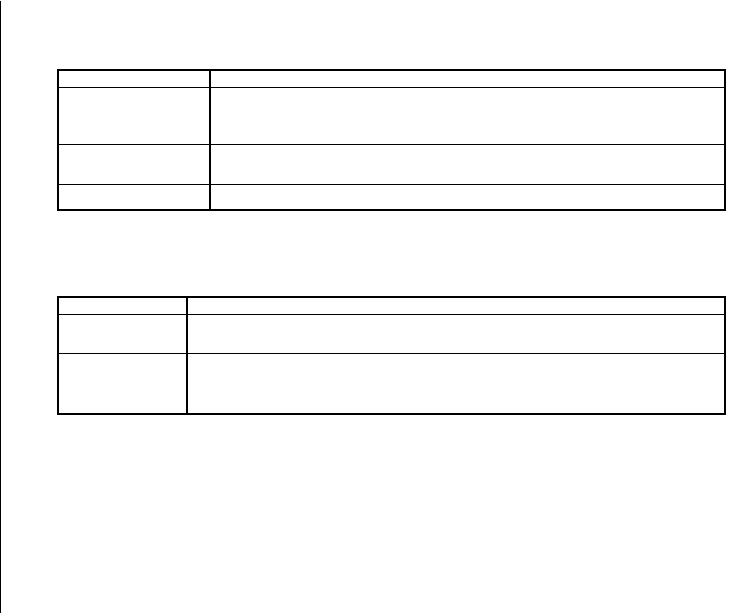
Global Setup
If you change the setting in one of the handsets, you change the settings for all
handset(s) in the Global Setup menu. Only one handset can change a setting at a time.
Submenu name Description
Name Tag (POP ID) Display the stored name with the Caller ID telephone number, if the displayed
Caller ID telephone number is exactly the same as a number stored in the
phone book (see page 21).
Insert 0 Add “0” or “00” to the number, when you receive the Caller ID message
(New Zealand only) (see page 21).
Day & time Set the day and time of your display (see page 21).
System Reset
This menu is used to clear the handset ID from the base, or the base ID from
the handset.
Submenu name Description
Deregister HS Clear the handset ID from the base. Use this menu, for example when
you change the digital security code (see page 22).
Replacing Base Clear the base ID. Use this menu, for example, if you wish to deregister
the base to use the handset with another base of the DSS series
(DSS2415/DSS2455/DSS2465 series) (see page 22).
UP308BH (DSS2465) ENG OM 8/6/03 10:33 AM Page 14
[ 15 ]
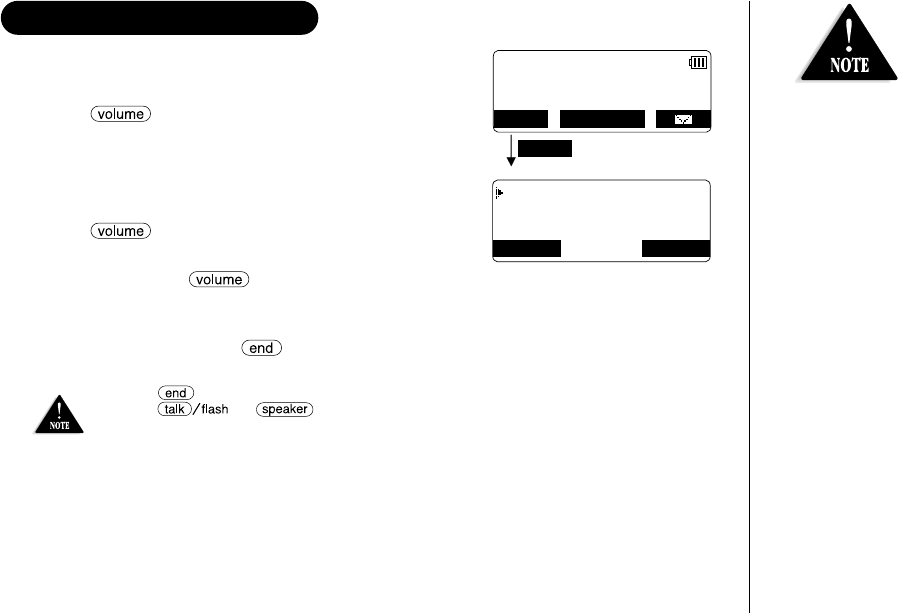
Entering the Menu
1) Press the MENU soft key in the standby mode.
2) Use /▲or ▼to move the pointer to a
desired main menu (DirectLink Mode, Handset Setup,
Answ. Setup, Global Setup, and System Reset).
3) Press the OK soft key to enter the menu. To return to
the previous screen, press the BACK soft key.
4) Use /▲or ▼to select a desired submenu,
then press the OK soft key to enter.
In the submenu, /▲or ▼is used to select an item. Press the OK soft key to
confirm your selection. To return to the previous screen, press the BACK soft key. For
detailed instructions, see the following sections for the desired submenu.
5) To exit the menu, press .
•If any of the following occurs during the menu operation, the operation will be cancelled.
- Press .
- Press or .
- Charge the handset.
- Receive an outside/intercom call or page.
•If the handset remains idle for 30 seconds, the phone will return to the standby mode.
MENU
SUN 12:00A
Handset #1
New: 5
MENU CID
RDL
PB
DirectLink Mode
Handset Setup
Answ. Setup
BACK OK
SETTING UP THE MENU
For Answering Setup
menu, you can also
set them from the
base (see page 44).
UP308BH (DSS2465) ENG OM 8/6/03 10:33 AM Page 15
[ 16 ]
DirectLink Mode
Entering the Two Way Communication between the Handsets
Anywhere without the Base
1) Enter the “DirectLink Mode” menu (see “Entering the Menu” on page 15).
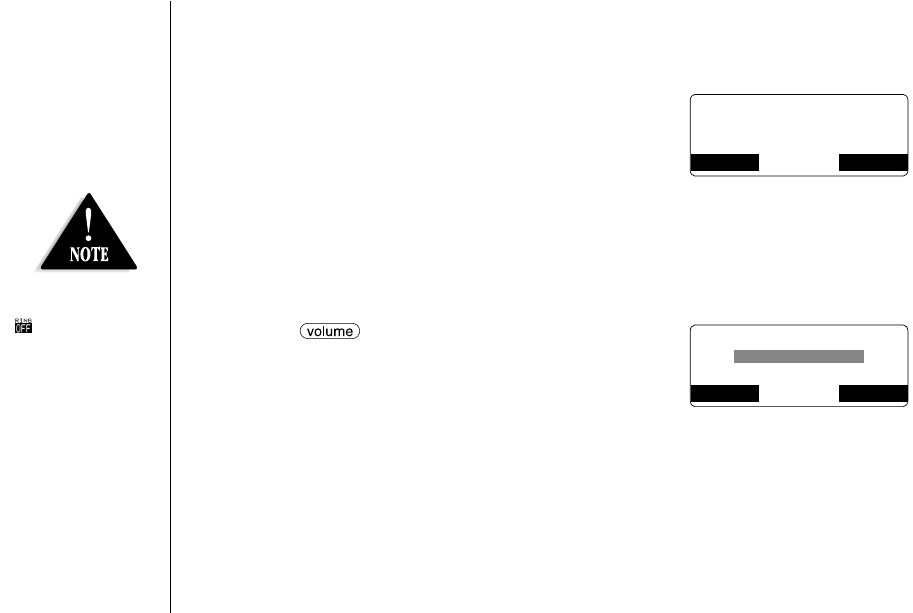
2) Press the ENTER soft key to enter the DirectLink
mode. You will hear a confirmation tone, and
“DirectLink Mode Complete” appears.
3) To return back to the normal mode, exit the DirectLink
mode. To exit the DirectLink mode, press the CANCEL
soft key, then the OK soft key, or return the handset to the cradle.
Handset Setup
Setting a Ringer Volume
1) Enter the “Handset Setup” menu, then the “Ringer Volume” submenu
(see “Entering the Menu” on page 15).
2) Press /▲or ▼to adjust the ringer settings
(Ringer Volume Off, Ringer Volume Low, or
Ringer Volume High). You will hear a ringer or
melody at the Selected volume (if you select “Ringer
Volume Off”, no ringer or melody will sound).
3) Press the OK soft key. You will hear a confirmation tone.
To enter
DirectLink mode
press [ENTER]
BACK BACK ENTER
Ringer Volume
High
BACK OK
•If you select “Ringer
Volume Off”,
icon appears in
the display.
UP308BH (DSS2465) ENG OM 8/6/03 10:33 AM Page 16
[ 17 ]
Selecting a Ringer Tone
1) Enter the “Handset Setup” menu, then the “Ringer Tones” submenu (see
“Entering the Menu” on page 15).
You can choose from 8 ringers or 8 melodies:
- Ringers [Flicker, Clatter, Soft Alert, Wake Up, Light Bug,
Beep Boop, Tone Board, Chip Chop]
- Melodies [Beethoven’s Symphony #9 (Beethoven9), For
Elise (Elise), We Wish You A Merry Christmas (Merry-
Xmas), Home Sweet Home (Hm Swt Hm), Lorri Song #6 (Lorri Song), When the Irish
Eyes Are Smiling (Irish Eyes), Aura Lee, Let Me Call You Sweet Heart (Sweetheart)]
2) Press /▲or ▼to move the pointer. You will hear the ringer or melody as
you scroll through the options.
3) Press the OK soft key. You will hear a confirmation tone.
Distinctive Ringer Setup
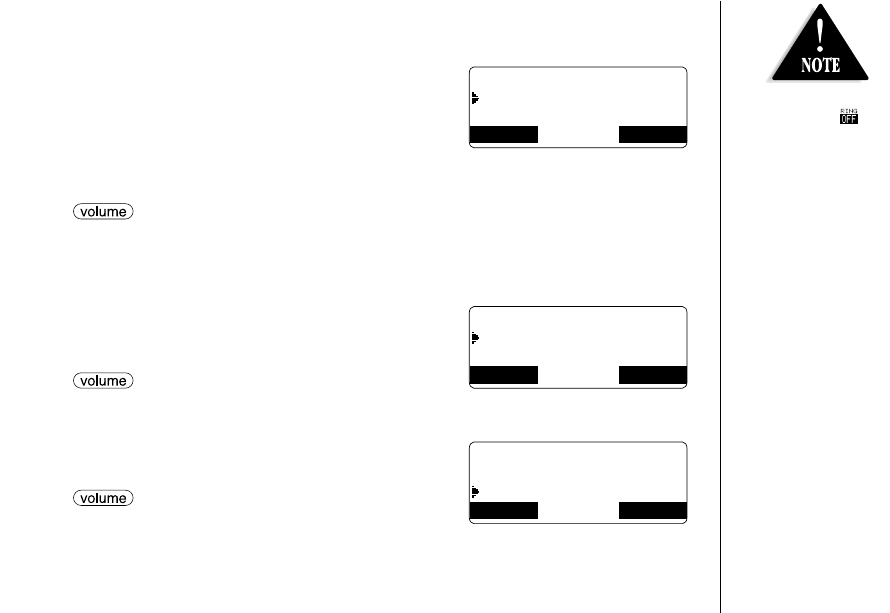
1) Enter the “Handset Setup” menu, then the
“Distinct. Ring” submenu (see “Entering the Menu”
on page 15).
2) Press /▲or ▼to select “On” or “Off”.
3) Press the OK soft key. You will hear a confirmation tone.
Setting the Auto Talk
1) Enter the “Handset Setup” menu, then the “Auto
Talk” submenu (see “Entering the Menu” on page 15).
2) Press /▲or ▼to change the selection,
“On” or “Off”.
3) Press the OK soft key. You will hear a confirmation tone.
OKBACK
Ringer Tones
Flicker
Clatter
Distinctive Ring
On
Off
BACK BACK OK
Auto Talk
On
Off
BACK BACK OK
If you set the ringer
volume to Off ,
the ringer tone will
not sound.
UP308BH (DSS2465) ENG OM 8/6/03 10:33 AM Page 17
[ 18 ]
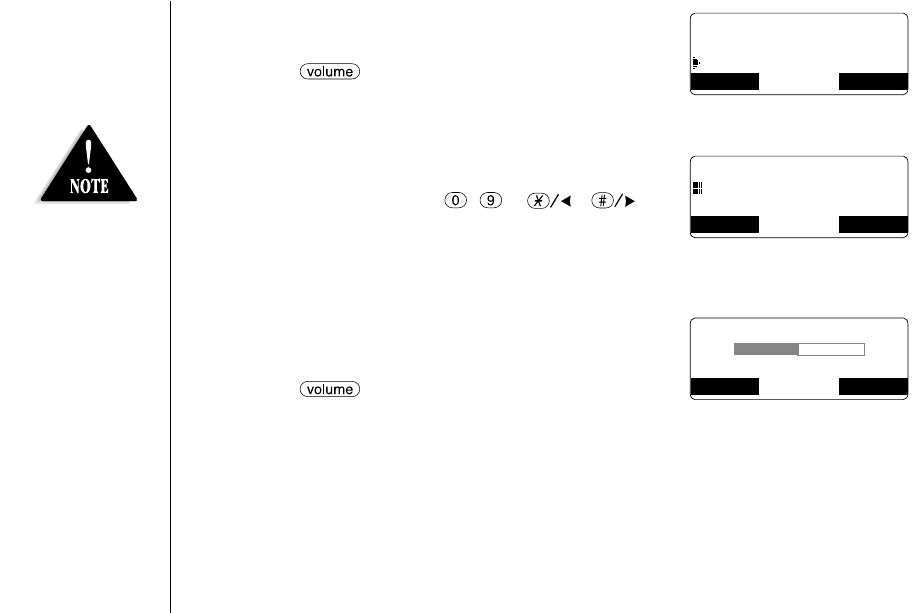
Setting the Anykey Answer
1)
Enter the “Handset Setup” menu, then the “Anykey
Answer” submenu (see “Entering the Menu” on page 15).
2) Press /▲or ▼to change the selection,
“On” or “Off”.
3) Press the OK soft key and you will hear a confirmation tone.
Setting the Banner
1) Enter the “Handset Setup” menu, then the “Banner”
submenu (see “Entering the Menu” on page 15).
2) Use the number keypad ( - ), , ,
or the DELETE soft key to enter or edit the name.
To delete all characters, press and hold the DELETE soft
key, then enter the new name.
3) Press the OK soft key. You will hear a confirmation tone.
Adjusting the LCD Contrast
1) Enter the “Handset Setup” menu, then the
“Contrast” submenu (see “Entering the Menu”
on page 15).
2) Press /▲or ▼to adjust the contrast
of the LCD (10 levels).
3) Press the OK soft key. You will hear a confirmation tone.
Anykey Answer
On
Off
BACK BACK OK
Banner
BACK OK
Contrast
- +
BACK BACK OK
If you don’t enter a
banner, the phone
will use the handset
ID for the banner
(for example:
Handset #1).
UP308BH (DSS2465) ENG OM 8/6/03 10:34 AM Page 18
[ 19 ]
Answering System Setup
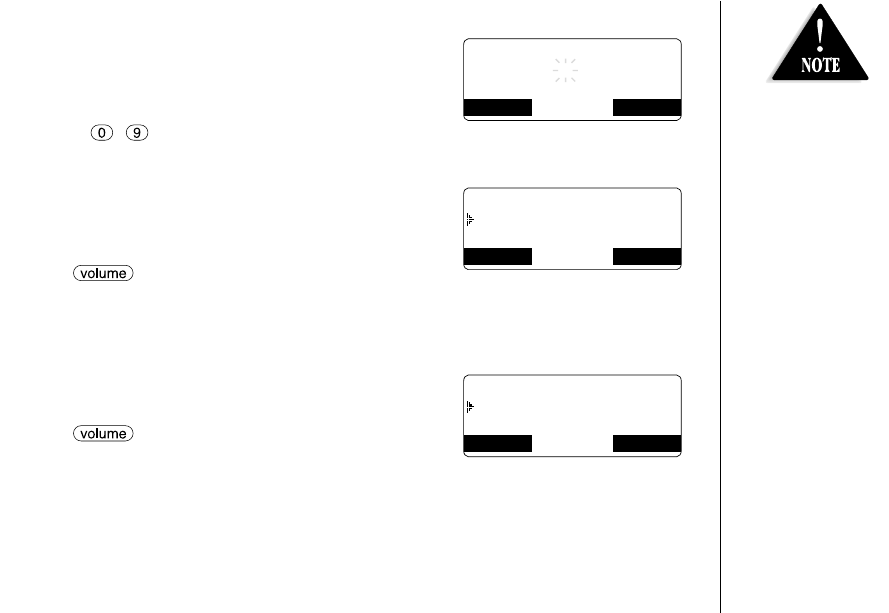
Setting a PIN Code
1) Enter the “Answ. Setup” menu, then the “Security
Code” submenu (see “Entering the Menu” on page 15).
2) Enter a two-digit PIN code (01-99) using the number
keypad ( - ).
3) Press the OK soft key. You will hear a confirmation tone.
Setting the Ring Time
1) Enter the “Answ. Setup” menu, then the “Ring
Time” submenu (see “Entering the Menu” on page 15).
2) Press /▲or ▼to select a Ring Time (Toll
Saver,4 Times,6 Times, or 9 Times).
3) Press the OK soft key. You will hear a confirmation tone.
Setting the Record Time
1) Enter the “Answ. Setup” menu, then the “Record
Time” submenu (see “Entering the Menu” on page 15).
2) Press /▲or ▼to select Record Time
(1 Minute,4 Minutes, or Announce Only).
3) Press the OK soft key. You will hear a confirmation tone.
For Answering Setup
menu, you can also
set them from the
base (see page 44).
Security Code
80
BACK OK
Ring Time
Toll Saver
4 Times
OKBACK
Record Time
1 Minute
4 Minutes
OKBACK
UP308BH (DSS2465) ENG OM 8/6/03 10:34 AM Page 19
[ 20 ]
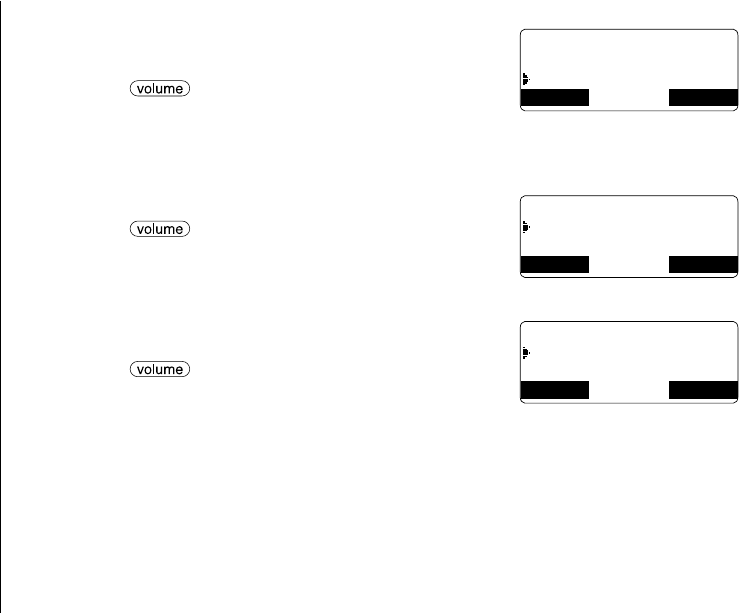
Setting the Message Alert On or Off
1) Enter the “Answ. Setup” menu, then the “Message
Alert” submenu (see “Entering the Menu” on page 15).
2) Press /▲or ▼to choose “On” or “Off”.
3) Press the OK soft key. You will hear a confirmation tone.
Setting the Call Screen
1) Enter the “Answ. Setup” menu, then the “Call Screen”
submenu (see “Entering the Menu” on page 15).
2) Press /▲or ▼to choose “On” or “Off”.
3) Press the OK soft key. You will hear a confirmation tone.
Setting the Answer Mode
1) Enter the “Answ. Setup” menu, then the “Answer
Mode” submenu (see “Entering the Menu” on page 15).
2) Press /▲or ▼to choose “On” or “Off”.
3) Press the OK soft key. You will hear a confirmation tone.
Message Alert
On
Off
BACK BACK OK
Call Screen
On
Off
BACK BACK OK
Answer Mode
On
Off
BACK BACK OK
UP308BH (DSS2465) ENG OM 8/6/03 10:34 AM Page 20
[ 21 ]GETTING STARTED
Global Setup
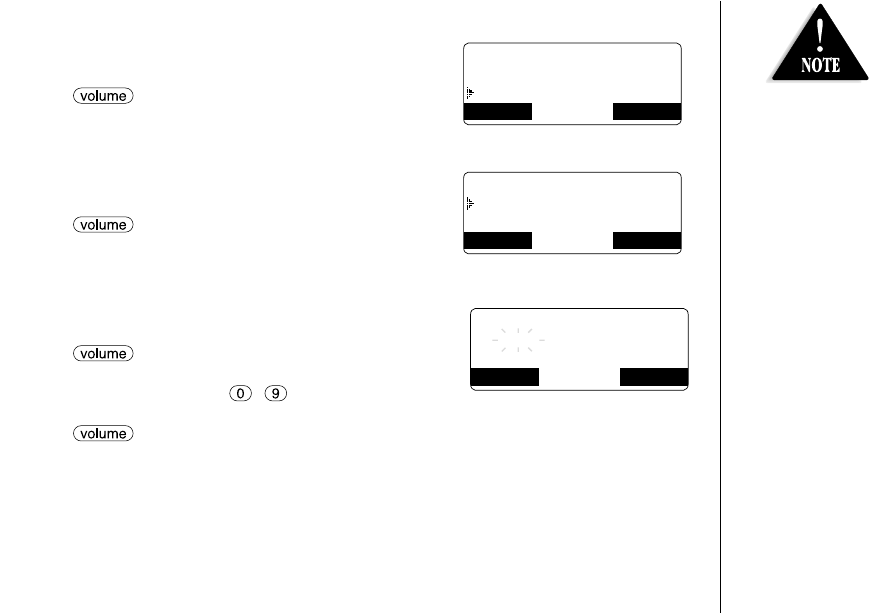
Setting Name Tag (POP ID)
1) Enter the “Global Setup” menu, then the “Name
Tag” submenu (see “Entering the Menu” on page 15).
2) Press /▲or ▼to change the selection, “On”
or “Off”.
3) Press the OK soft key. You will hear a confirmation tone.
Setting Insert Zero (New Zealand only)
1) Enter the “Global Setup” menu, then the “Insert
0” submenu (see “Entering the Menu” on page 15).
2) Press /▲or ▼to change the selection, “On”
or “Off”.
3) Press the OK soft key. You will hear a confirmation tone.
Setting Day and Time
1) Enter the “Global Setup” menu, then the “Day &
Time” submenu (see “Entering the Menu” on page 15).
2) Press /▲or ▼to select the day of the week,
then press the NEXT soft key.
3) Press the number keypad ( - ) to set the time, then
press the NEXT soft key.
4) Press /▲or ▼to choose “AM” or “PM”, then
press the OK soft key. You will hear a confirmation tone.
Day & Time
SUN 12:00 AM
BACK BACK NEXT
OKBACK
Name Tagging
On
Off •When a Global
setting is changed
from one handset,
this affects all
registered handsets.
•For setting the Day
and Time, the idle
time-out is extended
to 2 minutes.
Insert 0
On
Off
BACK BACK OK
UP308BH (DSS2465) ENG OM 8/6/03 10:34 AM Page 21
[ 22 ]
System Reset
Deregister the Handset
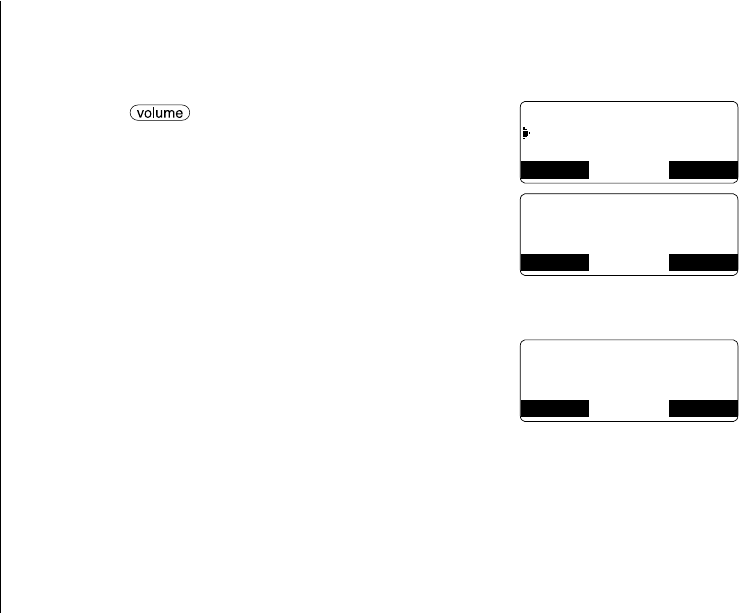
1) Enter the “System Reset” menu, then the “Deregister HS” submenu (see
“Entering the Menu” on page 15).
2) Press /▲or ▼to select the handset ID to be
deregistered from the list, then press the OK soft key.
3) Press the OK soft key. You will hear a confirmation tone.
When deregistration is complete, “Deregistration
Complete” appears.
4) After deregistering the handset, move to “Deregister the
Base Setting” below.
Deregister the Base Setting
1) Enter the “System Reset” menu, then the
“Replacing Base” submenu (see “Entering the
Menu” on page 15). “Do you want to replace
Base?” appears.
2) Press the OK soft key. You will hear a confirmation tone.
The base information will be deleted.
When replacing the base is complete, “Please Register” appears, register the
handset(s) to the new base (see page 56).
Which Handset?
Handset #1
Handset #2
BACK BACK OK
Are you sure
to deregister
Handset #1?
BACK BACK OK
Do you want to
replace Base?
BACK BACK OK
UP308BH (DSS2465) ENG OM 8/6/03 10:34 AM Page 22
[ 23 ]
BASICS
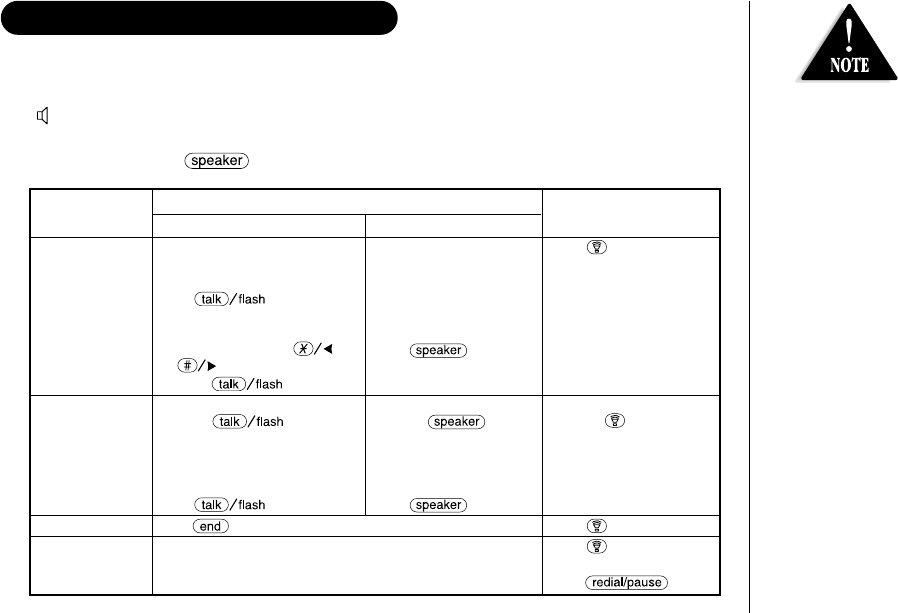
On the handset, you may also use the speakerphone while talking to an outside call.
Using the handset speakerphone is called “hands-free conversation”. This feature allows
you to easily communicate while performing other tasks, such as cooking.
appears on the handset display during hands-free conversations.
You can easily switch a call from normal conversation to “hands-free conversation”. To
switch a call, press during the call.
MAKING AND RECEIVING CALLS
•To set “Auto talk”, see
page 17 or “Anykey
Answer”, see page 18.
•The handset
microphone is located
at the bottom of the
handset (see “Controls
and Functions” on
page 1). Position
yourself as near to the
handset as possible
and speak clearly.
•If the line is in use by
another handset(s),
“Line In Use”
appears in all
registered handset’s
display, that are not
in use.
•The base microphone
is located under the
base. Position
yourself as near to the
base as possible and
speak clearly.
From the Handset From the Base
Normal conversation Hands-free conversation
To answer a call Handset On the Cradle Press (talk).
Pick up the handset (AutoTalk)
or pick up the handset and
press .
Handset Off the Cradle Handset Off the Cradle
Press any number key, , Press .
or (Anykey Answer),
or press .
To make a call Handset Off the Cradle Handset Off the Cradle
1) Press . 1) Press . 1) Press (talk).
2) Listen for the dial tone. 2) Listen for the dial tone. 2) Listen for the dial tone.
3) Dial the number. 3) Dial the number. 3) Dial the number.
OR OR
Dial the number, then Dial the number, then
press . press .
To hang up
Press , or return the handset to the cradle (Auto Standby).
Press (talk).
To enter a pause When you dial the number in the standby mode, Press (talk).
within the press the PAUSE soft key. When you dial the number,
dialing sequence “P” appears in the display, which represents a pause. press .
UP308BH (DSS2465) ENG OM 8/6/03 10:34 AM Page 23
[ 24 ]
PLACING A CALL ON HOLD
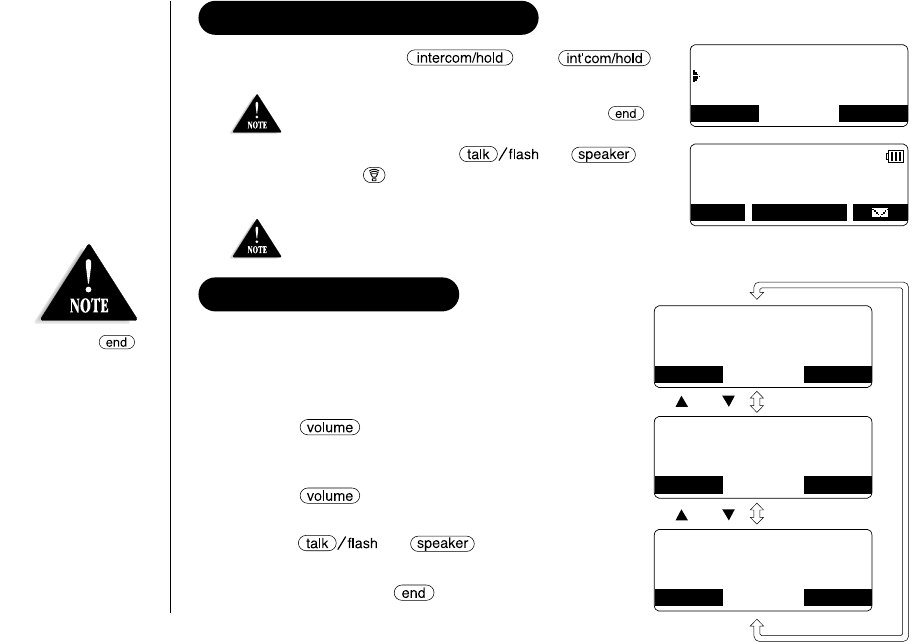
1) During a call, press (or
on the base).
2) To talk to the caller, press or on
a handset (or (talk) on the base). The phone will
return back to the call.
You can hold a call for 5 minutes, when 5 minutes has
passed, the call is disconnected and the phone returns to
the standby mode.
Once 10 seconds has passed or when you press ,
the call will be put on hold.
Hold,to transfer
Handset #2
Handset #3
BACK BACK OK
MENU CID
RDL
PB
Line On Hold
Handset #1
New: 1
REDIALING A CALL
<Redial1>
BACK DELETE
<Redial2>
5452930
BACK DELETE
<Redial3>
BACK DELETE
6567983
0295979035
or
or
The last three phone numbers dialed can be
quickly redialed.
Redialing from Standby Mode
1) Press the CID RDL PB soft key in the standby mode.
2) Press /▲or ▼to select “Redial
History”, then press the OK soft key. The phone
number that was last dialed appears in the display.
3) Press /▲or ▼to toggle through the last
three phone numbers dialed.
4) Press or .
The selected number is dialed.
5) To hang up, press .
•If you press ,
the operation
is canceled.
•When the telephone is
automatically redialing
a number, the speaker
function is disabled
for a few seconds.
UP308BH (DSS2465) ENG OM 8/6/03 10:34 AM Page 24
[ 25 ]
Redialing from the Base
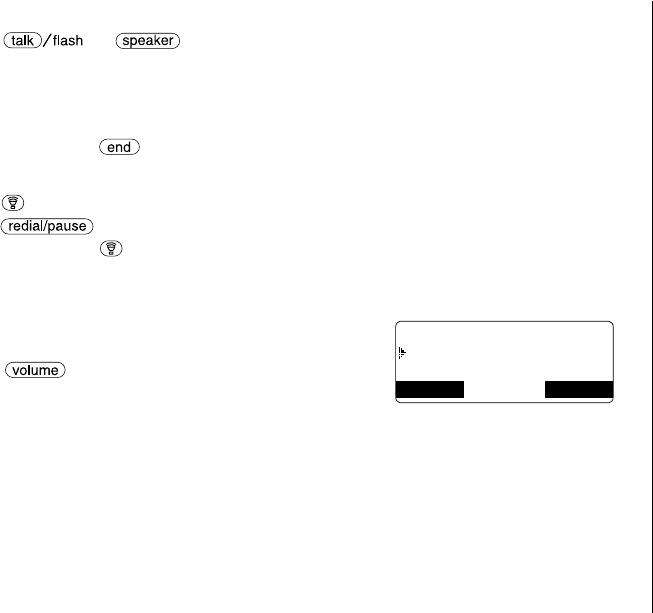
1) Press (talk).
2) Press on the base. The last number dialed from the base is redialed.
3) To hang up, press (talk).
Deleting a Redial Record
1) In the standby mode, recall the desired number by following steps 1-3 in
“Redialing from Standby Mode”.
2) Press the DELETE soft key.
3) Press /▲or ▼to choose “Yes”.
4) Press the OK soft key. The redialed number is deleted.
Delete Redial1?
Yes
No
BACK BACK OK
Redialing from Talk Mode
1) Press or , then press the MENU soft key.
2) Select the number you dialed by following steps 2-3 in “Redialing from Standby Mode”.
To return to go back, press the BACK soft key.
3) Press the DIAL soft key.
4) To hang up, press .
UP308BH (DSS2465) ENG OM 8/6/03 10:34 AM Page 25
[ 26 ]
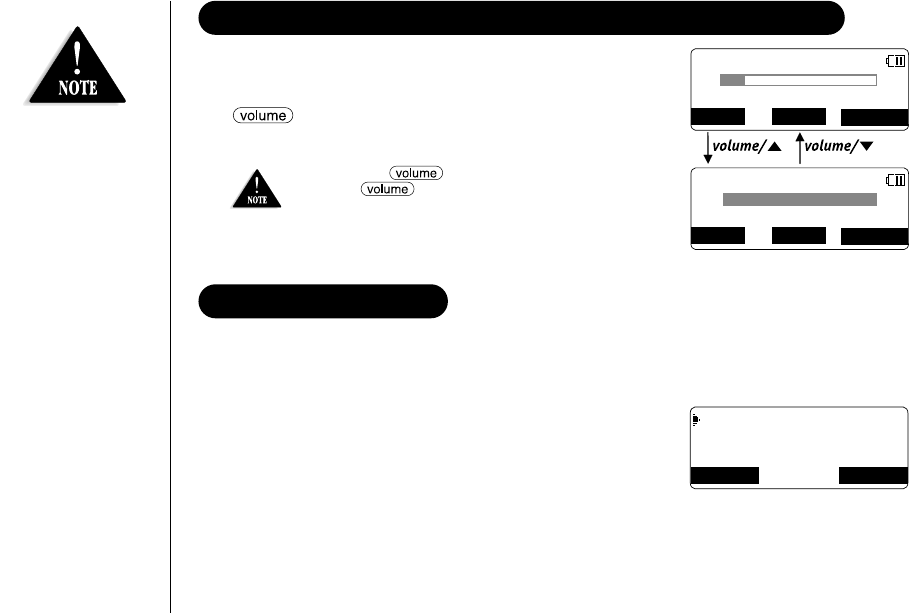
ADJUSTING THE EARPIECE AND HANDSET SPEAKER VOLUME
You can select different volume levels for the handset
earpiece and the handset speaker (4 levels: Low to Max).
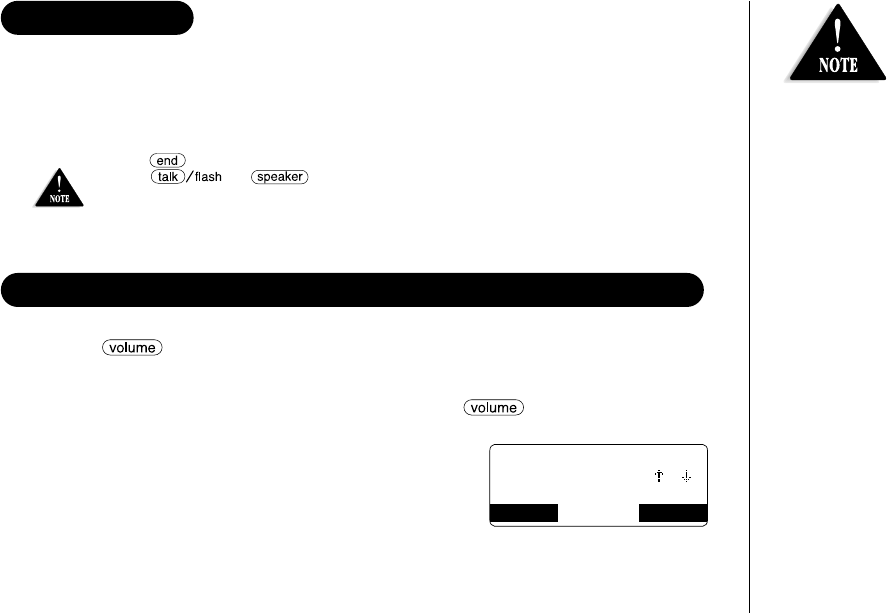
The volume can only be adjusted during a call. Press
/▲or ▼to select the volume settings. When you
hang up, the phone keeps the last volume setting selected.
•If you press /▲in the maximum volume
level or /▼in the lowest volume level,
you will hear a beep.
•CALL WAIT soft key appears only for Australia model.
Talk 0:15
- Volume +
MUTE MENU
Talk 0:15
- Volume +
MUTE MENU
CALL WAIT
CALL WAIT
•To adjust the base
ringer or speaker
volume, see page
43-44.
•Normally, the talk
time duration is 7
hours, however, when
the Clarity Booster is
On, the talk time
duration will be up to
5 hours with fully
charged batteries.
•Clarity booster
automatically turns
off after each call.
CLARITY BOOSTER
If you encounter interference while using your phone, you can manually improve the
sound quality for clear operation. This works only when you make an outside call.
1) Press the MENU soft key.
2) Select “Booster On”, then the OK soft key.
“Clarity Booster” appears in the display.
To turn Off the Clarity Booster, press the MENU soft
key, select “Booster Off”, then press the OK soft
key again.
Recording
Caller ID
Booster On
BACK BACK OK
UP308BH (DSS2465) ENG OM 8/6/03 10:34 AM Page 26
[ 27 ]
TRAVELING OUT-OF-RANGE
During a call, as you begin to move your handset too far from your base unit, noise
may increase. If you pass the range limits of the base unit, you will hear a beep and
“Out of Range” appears, then the handset returns to the standby mode. You may
return back to the call if you move your handset within the range limits of the base,
and press or within 30 seconds.
MUTE MICROPHONE
With the handset
You can temporarily turn Off the microphone so that the person you are talking with
cannot hear you.
During a telephone call, press the MUTE soft key to turn Off the microphone. “Mute” and
appear in the display. Press the MUTE OFF soft key to cancel muting.
With the base
While using the base speakerphone, press on the base to turn Off the microphone.
Press again, or press (talk) to cancel muting.
If you press
to cancel muting, the
call is disconnected
and the phone will
return to the
standby mode.
You can temporarily mute the handset and the base ringer tone. To mute the handset
ringer tone, when the handset is off the cradle and the phone is ringing, press the
MUTE soft key. To mute the base ringer tone, press on the base. The ringer tone
will return to the previous setting starting with the next incoming call.
RINGER MUTE (temporarily)
UP308BH (DSS2465) ENG OM 8/6/03 10:34 AM Page 27
[ 28 ]
NEW MESSAGE LED
The new message LED on the handset is designed to work with your answering system.
The LED flashes when you have new messages in your answering system.
The LED stops flashing when all new messages are played back (see “Using your
Answering System” on page 49).
FLASH AND CALL WAITING
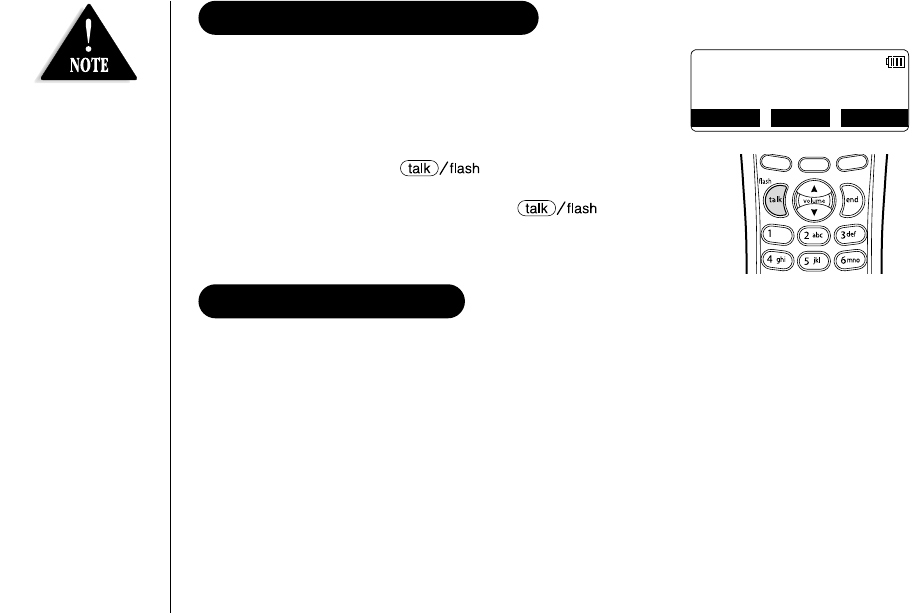
If the call waiting tone sounds during a call:
AUSTRALIA: Press the CALL WAIT soft key.
NEW ZEALAND: Press to switch between callers.
To return to the original caller, press again.
You must subscribe
through your local
telephone company
to receive Call
Waiting Service.
Talk 0:09
0295679035
MUTE MENU
CALL WAIT
UP308BH (DSS2465) ENG OM 8/6/03 10:35 AM Page 28
[ 29 ]
PHONEBOOK
Phonebook allows you to dial a number using just a few key presses.
Your phone stores names/numbers in the phonebook memory location, and you can
search names in alphabetical order. You have a total of 100 locations that can be used
for the phonebook (including the Speed dials) and Caller ID messages.
1) When the phone is in the standby mode, press the CID RDL PB soft key.
2) Press /▲or ▼to move pointer to “Phonebook”, then press
the OK soft key. The handset displays the following items:
(1st line) The number of the phonebook locations used
(2nd line) How to search (press the number keypad, /▲or ▼)
(3rd line) How to enter the storing operation (press the STORE soft key)
(4th line) The BACK and the STORE soft keys.
STORING PHONE NUMBERS, NAMES, DISTINCTIVE RINGS, AND SPEED DIAL
PHONEBOOK
Phonebook : 50
Search [A-Z/ / ]
Store [STORE]
BACK BACK STORE
•If any of the following occurs during a phonebook operation, the operation will be canceled.
-
Press . The phone will return to the standby mode (or the call will be disconnected).
-Press or .
-Receive an outside/intercom call or page.
-Charge the handset
•If the handset remains idle for 30 seconds, the phone will return to the standby mode
(or back to the call).
You have a total of
100 locations.
However, Caller ID
messages and
Phonebook share the
memory locations.
UP308BH (DSS2465) ENG OM 8/6/03 10:35 AM Page 29
[ 30 ]
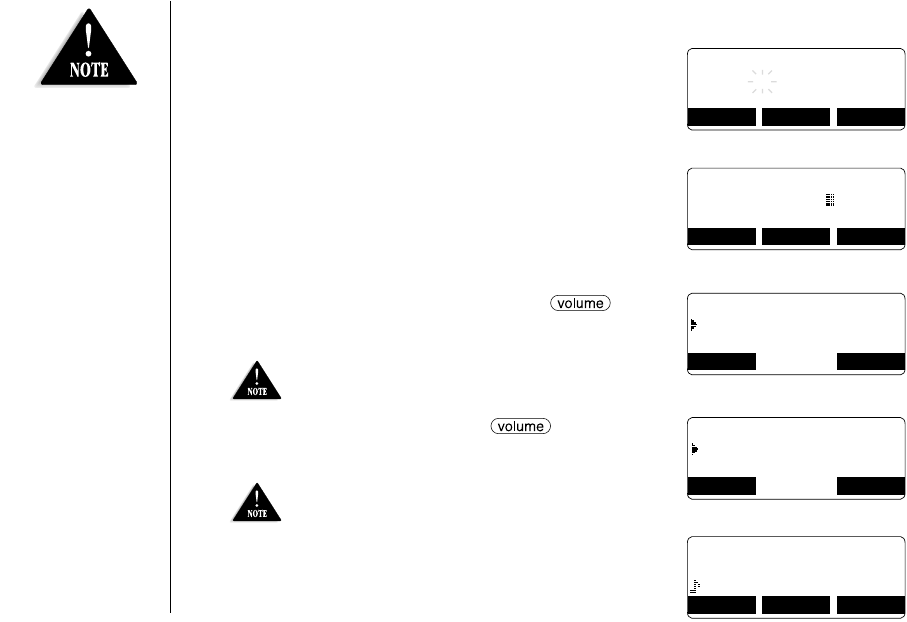
3) Press the STORE soft key, “Store/Edit Name” appears.
4) Enter the name (up to 16 characters) by using the
number keypad (see the “Steps for Entering Names and
Special Characters” on page 31).
If a name is not required, go to step 5. <No Name>
will be used as the name.
5) Press the OK soft key to store the name,
“Store/Edit No.” appears.
6) Press the number keypad to enter the phone number
(up to 20 digits), press the OK soft key to store
the number.
7) “Distinctive Ring” appears. Press /▲or
▼to move the pointer to one of the Distinctive Ring
options, then press the OK soft key.
8) “Speed Dial” appears. Press /▲or ▼
to move the pointer to select the Speed dial
location (10 locations: SPD1-SPD0).
9) Press the OK soft key. You will hear a confirmation
tone and “Done!” appears in the display.
If you choose not to store a “Distinctive Ring”,
simply select the “No Selectn” option.
If you choose not to store the name/number as a Speed
Dial, simply select the “No Selectn” option.
Store/Edit Name
BACK DELETE OK
Movies
Store/Edit No.
DELETE PAUSE OK
8007303456
Distinctive Ring
No Selectn
Flicker
BACK OK
Speed Dial
No Selectn
SPD1:<Empty>
BACK OK
Movies
0800123456789
Flicker /SPD2
BACK DELETE EDIT
•Selecting a speed
dial location where a
number is already
stored, releases the
old number’s speed
dial setting. The new
number will be
stored in the speed
dial location.
•When the memory is
full, you will hear a
beep and “Memory
Full” appears. You
cannot store names
and numbers.
•The pause key counts
as one digit. Pressing
the PAUSE soft key
more than once
increases the length
of the pause between
numbers. Each pause
represents a 2
second delay.
•Distinctive ringing
will only operate if
you subscribe to the
Caller ID service.
UP308BH (DSS2465) ENG OM 8/6/03 10:35 AM Page 30
[ 31 ]
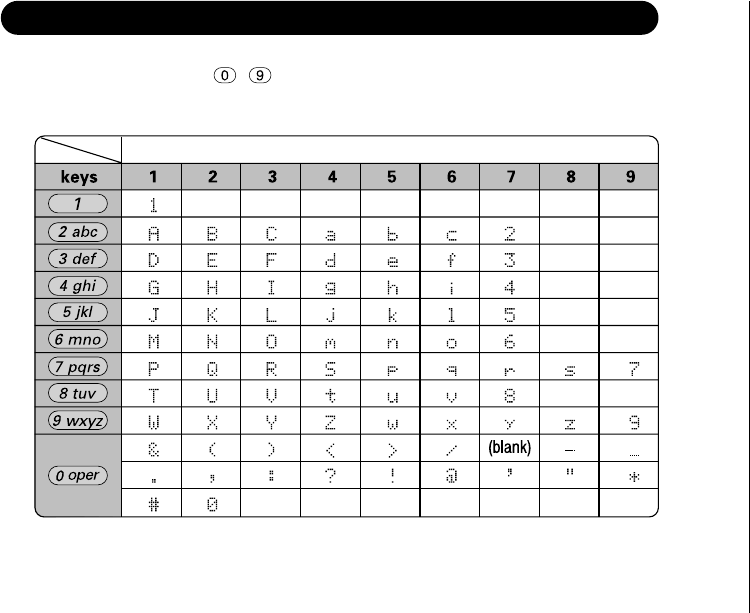
STEPS FOR ENTERING NAMES AND SPECIAL CHARACTERS
Refer to the letters on the number keys to select the desired characters. With each
press of a number key ( - ), the displayed character appears in the following
order: Upper case letters first, lower case letters next and finally the number
corresponding to the key.
Number of times key is pressed
UP308BH (DSS2465) ENG OM 8/6/03 10:35 AM Page 31

[ 32 ]
If you make a mistake while entering a name
Use or to move the cursor to the incorrect character.
Press the DELETE soft key to erase the wrong character, then enter the correct
character. To delete all characters, press and hold the DELETE soft key.
For example, to enter Movies:
1) When the phone is in the standby mode, recall the “Phonebook” menu by
following steps 1-2 in “Storing Phone Numbers, Names, Distinctive Rings, and
Speed Dial” on page 29.
2) Press the STORE soft key, “Store/Edit Name” appears.
3) Press 6once to select “M”, then press to move the cursor to the right.
4) Press 6six times to select “o”.
5) Press 8six times to select “v”.
6) Press 4six times to select “i”.
7) Press 3five times to select “e”.
8) Press 7eight times to select “s”.
9) When finished, press the OK soft key.
To continue to store the telephone number, proceed to step 6 on page 30.
If the next character
uses the same number
key, you must press
to move the
cursor over. Otherwise
the next time you
press the number key,
it changes the
character that was
previously set.
UP308BH (DSS2465) ENG OM 8/6/03 10:35 AM Page 32
[ 33 ]
•“/SPDn” appears
when you view a
speed dial.
•During a call, don’t
press or
the call will
be disconnected.
VIEWING THE PHONEBOOK
Your phone stores names/numbers in the phonebook memory locations, and you can
search names in alphabetical order. You can view the phonebook even while the phone
is in use.
1) Press the CID RDL PB soft key (or the MENU soft key during a call).
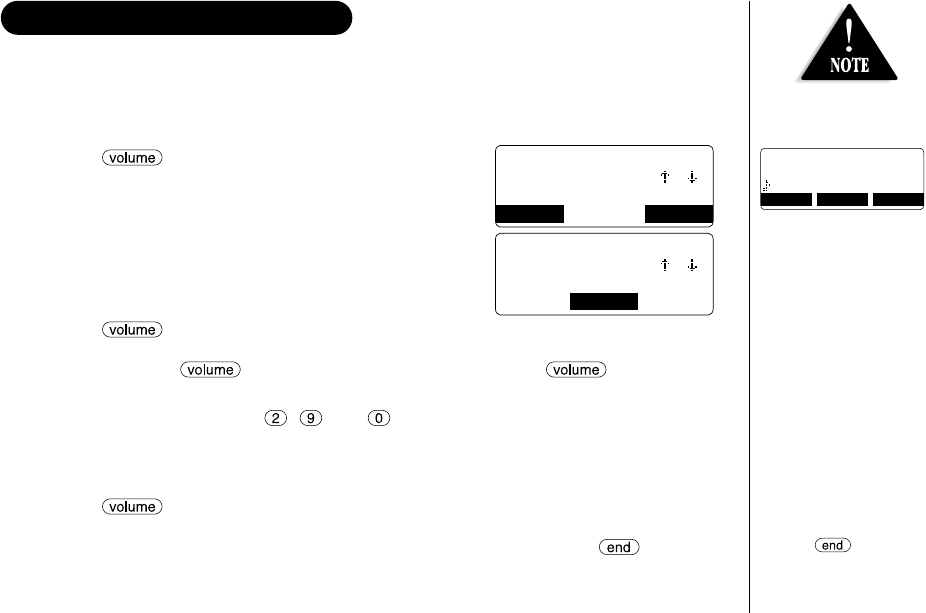
2) Press /▲or ▼to move the pointer to
“Phonebook”, then press the OK soft key.
If you recall the phonebook during a call,
the following screen appears.
3) Press /▲or ▼, or the number keypad to scroll through the phonebook
locations. Phonebook locations appear in alphabetical order (from first to last
when you press /▼, from last to first when you press /▲).
Or, refer to the letters on the number keys to select the first letter of the desired
name.
Press a number key ( - and ) once for the first letter, press twice
for the second letter, and so on. The first location that begins with the letter you
entered appears.
For example, to search for “Movies”, press 6once.
Press /▲or ▼until the phonebook location is displayed.
4) To finish the viewing operation, press the BACK soft key repeatedly or .
Phonebook : 50
Search [A-Z/ / ]
Store [STORE]
BACK BACK STORE
Phonebook : 50
Search [A-Z/ / ]
BACK BACK OK
Movies
0800123456789
Flicker /SPD2
BACK DELETE EDIT
UP308BH (DSS2465) ENG OM 8/6/03 10:35 AM Page 33
[ 34 ]
MAKING CALLS USING THE PHONEBOOK
From Standby Mode
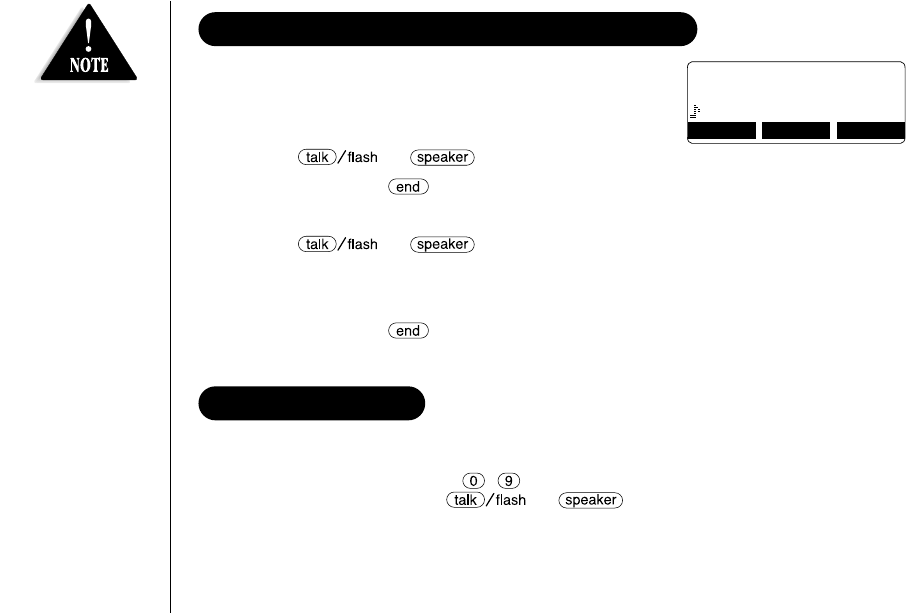
1) When the phone is in the standby mode, view the
phonebook location to dial (see “Viewing the
Phonebook” on page 33).
2) Press or . The displayed number is dialed.
3) To hang up press .
From Talk Mode
1) Press or .
2) View the phonebook location to dial (see “Viewing the Phonebook” on page 33).
3) Press the DIAL soft key. The number in the displayed phonebook location is dialed.
4) To hang up press .
SPEED DIALING
If you store a phone number in a speed dial memory location (10 locations: SPD1 -
SPD0), you can use the speed dialing feature. When the phone is in the standby mode,
press and hold a number key ( - ) associated with the speed dial until the phone
number appears, then press or . The number stored in the speed
dial (SPD1 - SPD0) is dialed.
Movies
0800123456789
Flicker /SPD2
BACK DELETE EDIT
While the telephone is
automatically dialing
a number form speed
dial memory, the
speaker phone
function is disabled
for a few seconds.
UP308BH (DSS2465) ENG OM 8/6/03 10:35 AM Page 34
[ 35 ]
1) When the phone is in the standby mode,
press the CID RDL PB soft key.
2) Press /▲or ▼to move the pointer to
“Phonebook”, then press the OK soft key.
3) Press /▲or ▼, or the number keypad to view
the phonebook locations (see “Viewing the Phonebook” on page 33).
a. Editing the Stored Data
1) When the phonebook location to be edited appears, press the EDIT soft key.
“Store/Edit Name” appears.
2) Follow the steps 4 to 8 under “Storing Phone
Numbers, Names, Distinctive Rings, and Speed Dial”
on page 30 to complete the editing operation.
3) Press the OK soft key. You will hear a confirmation tone.
b. Deleting the Stored Data
1) When the phonebook location to be deleted appears, press the DELETE soft key.
“Delete Memory?” appears.
2) Press /▲to move the pointer to “Yes”.
3) Press the OK soft key. You hear a confirmation tone.
“Deleted!” appears in the display.
EDITING OR ERASING A STORED NAME, PHONE
NUMBER, DISTINCTIVE RING, AND SPEED DIAL
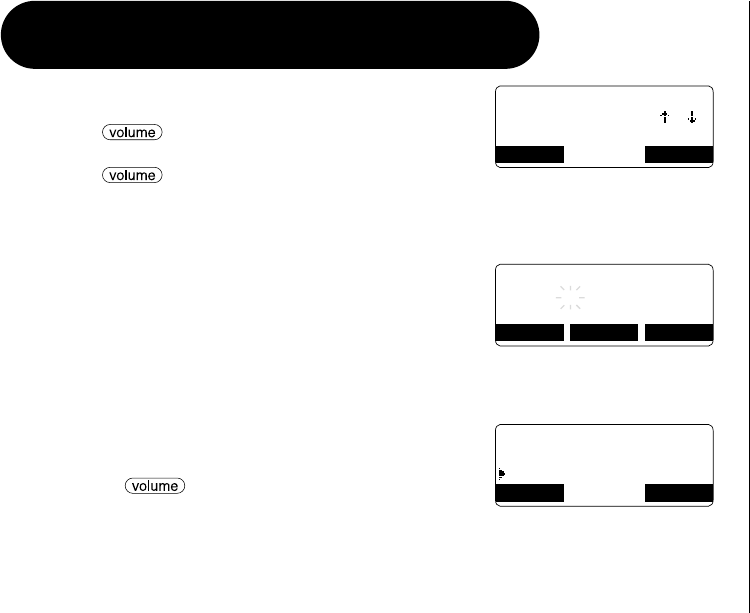
Phonebook : 50
Search [A-Z/ / ]
Store [STORE]
BACK BACK STORE
Store/Edit Name
BACK DELETE OK
Movies
Delete Memory?
Yes
No
BACK BACK OK
UP308BH (DSS2465) ENG OM 8/6/03 10:35 AM Page 35
[ 36 ]
CHAIN DIALING
The memory locations in the handset are not limited to phone numbers. You can
also store a group of numbers (up to 20 digits), that you need to enter once your
call connects. This is referred to as Chain Dialing.
An example of this is a bank account number. Store a special number in the
phonebook location (refer to “Storing Phone Numbers, Names, Distinctive Rings and
Speed Dial” on page 29). Once you have called your bank, and when you are
prompted to enter the account number, just as you do when viewing the phonebook
location, view the special number, then press the DIAL soft key.
MEMORY DIALING (base only)
You can store 10 phone numbers in the base, and make calls with memory dialing
from the base.
Storing Phone Numbers
1) Press in the standby mode.
2) Enter the number you wish to store. (The number cannot exceed 20 digits.)
3) Press . Enter the memory location number (0-9) on the keypad.
You will hear a confirmation tone.
Deleting the Stored Data
1) Press in the standby mode.
2) Press again.
3) Enter the memory location number (0-9) you wish to delete.
You will hear a confirmation tone.
Making Calls with Memory Dialing
1) Press (talk) in the standby mode.
2) Press . Enter the memory location number (0-9) to dial the number.
•The 10 memory
locations in the base
are independent from
the handset.
•If you have not
pressed any key for
30 seconds, the
phone returns to the
standby mode.
•If you make or
receive a call, the
operation is canceled.
UP308BH (DSS2465) ENG OM 8/6/03 10:35 AM Page 36
[ 37 ]
CALLER ID
You must subscribe to Caller ID service to use this feature.
When the telephone rings, the Caller ID feature allows you to view the caller’s name and
phone number in the display before you answer the phone. Additionally, you can dial the
displayed number and store the information for memory dialing.
Important:
Memory locations for Caller ID messages and Phonebook locations (including Speed Dials)
are common, you can store up to 100 in total. A Caller ID message is not stored when
you have stored 100 of the phonebook locations. The earliest Caller ID message is
overwritten when you have stored 100 of the phonebook locations and Caller ID
messages in total.
•If you answer a call
before the Caller ID
message is received
(Example: before the
second ring), the
Caller ID message will
not appear.
•When the call is
received via a
telephone company
that does not offer
Caller ID service, the
caller´s phone number
does not appear. (This
includes some
international calls.)
•When the call is via a
private branch
exchange (PBX), the
caller´s phone number
may not appear.
1) When the Caller ID message is received, the display shows the caller’s phone
number along with the date and time. The incoming call information is stored
in the Caller ID record.
The current telephone
network in Australia and
New Zealand does not
show the caller name.
CALLER ID
•If any of the following occurs during Caller ID operation, the operation will be canceled.
-
Press . The phone will return to the standby mode (or the call will be disconnected).
-Press or .
-Receive an outside/intercom call or page.
-Charge the handset.
•If the handset remains idle for 30 seconds, the phone will return to the standby mode
(or back to the call).
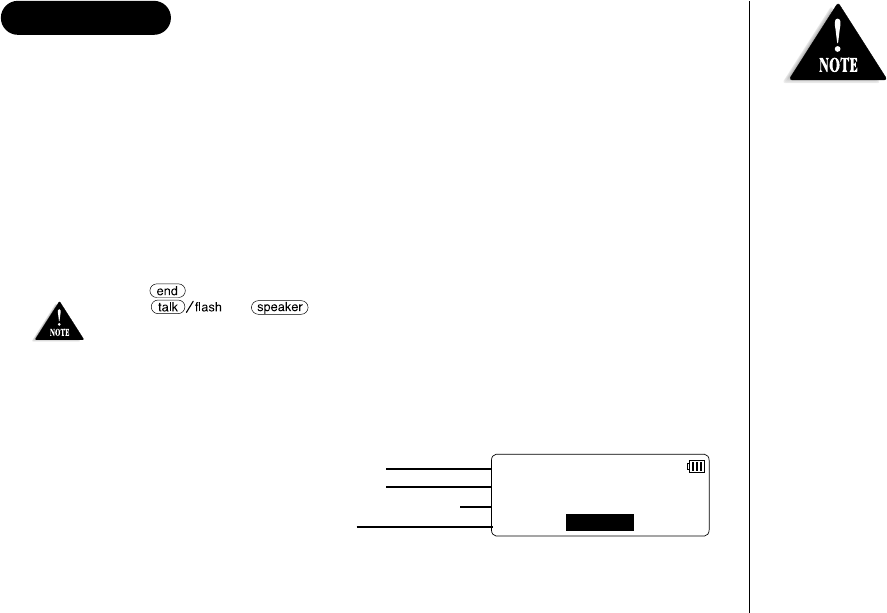
31/12 12:30AM
Jane Smith
0295979035
MUTE
The date and
time received
Caller’s name
Caller’s phone number
Soft keys
UP308BH (DSS2465) ENG OM 8/6/03 10:35 AM Page 37
[ 38 ]
VIEWING THE CALLER ID LIST
The Caller ID list stores information for incoming calls – even unanswered calls.
You can store 100 of the Caller ID messages and Phonebook locations (including Speed
Dials) in total. You can view the Caller ID list during a call or when the phone is in the
standby mode.
1) Press the CID RDL PB soft key in the standby mode (or the MENU soft key during a call).
2) Press /▲or ▼to move the pointer to “Caller ID”, then press the OK soft
key. The screen shows the number of new messages and the total number of messages.
3) To view the Caller ID messages in historical order (from new to old or from old to
new), repeatedly press /▼to scroll through the messages from the latest
to the earliest, or /▲to scroll back through the messages.
Or, to view the Caller ID messages with alphabetical search, press the number
key pad ( - and ) with the letter associated with the first letter of the
desired message.
4) To finish the viewing operation, press the BACK soft key repeatedly or .
You may receive any one of the following messages:
When invalid data is received “Incomplete Data”
When a private name or number is received “Private”
When a unknown name or number is received “Unavailable”
When the mobile phone number and date are received “Mobile”
When a call is coming from a payphone (Australia only) “Payphone”
When a overseas call is received (New Zealand only) “OVERSEAS CALL”
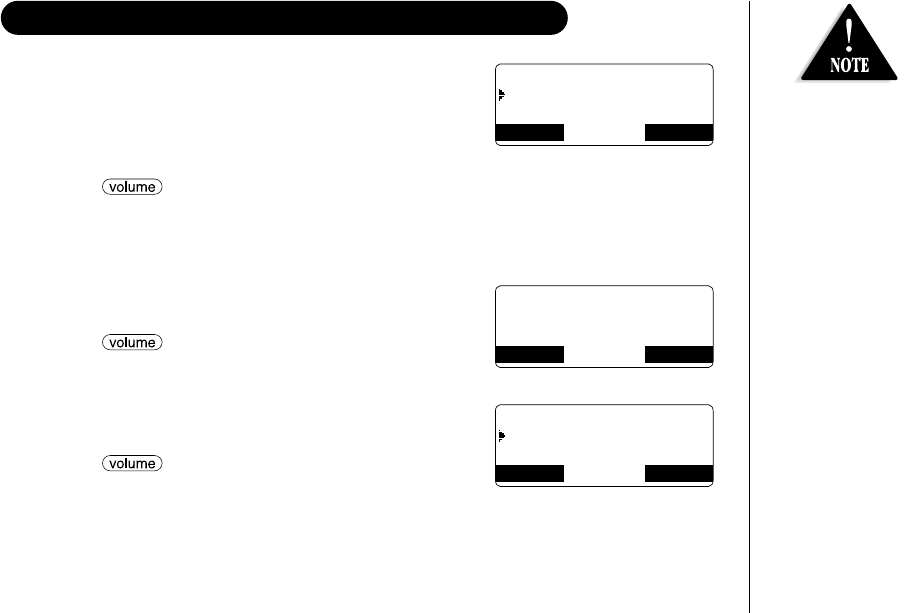
2) When you pick up the phone, the display changes to “Talk” (AutoTalk feature is set
to on).
Once you view the Caller ID list with alphabetical search, you cannot switch back to historical
order (from new to old or from old to new) unless you exit and re-enter the operation.
•The number of calls
from the same Caller
ID appears next to
the received time.
Once you have
reviewed the new
message, the number
will be cleared
and disappears.
•During a call, don’t
press
or the call will
be disconnected.
UP308BH (DSS2465) ENG OM 8/6/03 10:35 AM Page 38
[ 39 ]
Deleting a Caller ID message
1) When the phone is in the standby mode, view the Caller
ID information to be deleted (see “Viewing the Caller ID
List” on page 38).
2) Press the DELETE soft key.
“Delete Caller ID” appears.
3) Press /▲or ▼to choose “Yes”.
4) Press the OK soft key.You will hear a confirmation tone.
Deleting all Caller ID names/numbers
1) When the phone is in the standby mode,
press the CID RDL PB soft key.
2) Press /▲or ▼to move the pointer to
“Caller ID”, then press the OK soft key.
The number of new and total records appear.
3) Press the DELETE soft key.
4) Press /▲or ▼to choose “Yes”.
5) Press the OK soft key.You will hear a confirmation tone.
DELETING INFORMATION FROM THE CALLER ID LIST
Once the Caller ID
data has been
deleted, the
information cannot
be retrieved.
Delete Caller ID
Yes
No
BACK BACK OK
Caller ID
New : 5
Total: 25
BACK DELETE
Delete All?
Yes
No
BACK OK
UP308BH (DSS2465) ENG OM 8/6/03 10:35 AM Page 39
[ 40 ]
Calling a party from the Caller ID list
From Standby mode
1) When the phone is in the standby mode, view the Caller
ID message (see “Viewing the Caller ID List” on page 38).
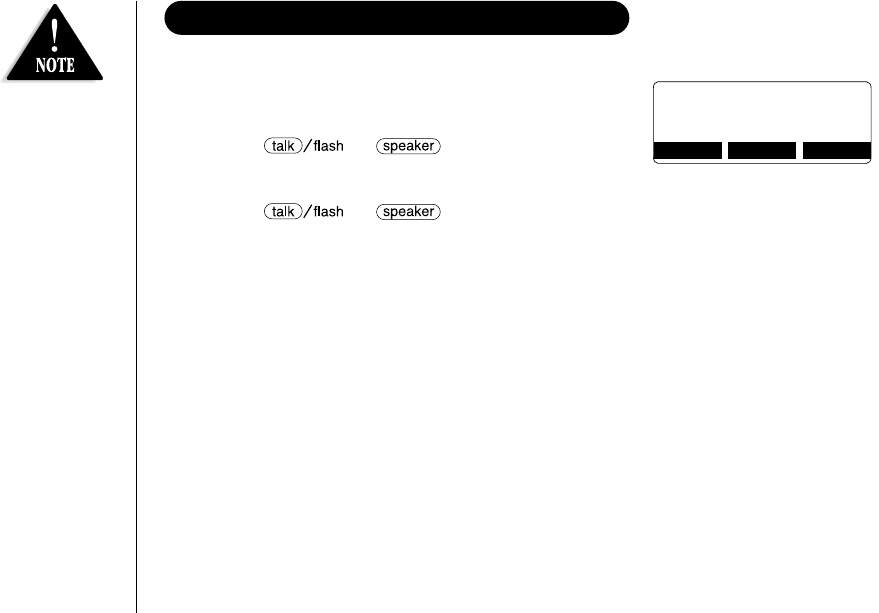
2) Press or . The displayed phone
number dials automatically.
From Talk mode
1) Press or .
2)
View the Caller ID message you want to dial (see “Viewing the Caller ID List” on page 38).
3) Press the DIAL soft key. The displayed phone number will be dialed.
Adding Zero to Caller ID message (New Zealand only)
While you review Caller ID information while the Insert Zero option is set to On, “0” is
inserted. Refer to page 21 “Setting Insert Zero (New Zealand only)” to set the Insert
Zero option to On or Off. New Zealand Telecom customers should leave Insert Zero to On.
Other New Zealand companies may require Insert Zero set to Off.
Storing Caller ID messages in the Phonebook
Messages shown in the Caller ID list can be stored in the phonebook. Using the incoming
call information (i.e., Caller ID list), the phone number and name of the party on the
Caller ID list can be stored in memory.
1) When the phone is in the standby mode, view the Caller ID message to be stored.
Then press the STORE soft key. “Store/Edit Name” appears.
2) To complete the setting, follow the steps 5-9 in “ Storing Phone Numbers, Names,
Distinctive Rings, and Speed dial” on page 30.
USING THE CALLER ID MESSAGE LIST
12/12 12:30AM
Jane Smith
0295979035
BACK DELETE STORE
•You cannot make a call
from the Caller ID list
if your phone is
connected to a private
branch exchange (PBX).
•If a call comes in via a
telephone system that
does not offer Caller ID
service, no information
is stored.
•If the Caller ID
message was received
as a private/unknown
number, or the
message does not
have the number,
you cannot store
the message in
the Phonebook.
•Even if the 100
memory locations are
full, the message will
be stored in the
Phonebook. However,
the message will be
erased from the Caller
ID list.
UP308BH (DSS2465) ENG OM 8/6/03 10:35 AM Page 40

[ 41 ]
THE INTEGRATED
ANSWERING DEVICE
The phone has a built-in answering system that answers and records incoming calls.
You can also use your answering system to record a conversation, leave a voice memo
message, or to announce a special outgoing message to callers when you’re away from
your phone.
Features
•Digital Tapeless Recording •Approx. 14 Minutes of Recording Time
•Call Screening On/Off •Selectable Outgoing Messages
•Voice Prompts for Menu Setup Guidance •Time and Day Announcement
•Remote Message Retrieval •Toll Saver
•Conversation Recording •Voice Memo
•Remote Operation from the Handset •Message Alert
Digital Tapeless Recording allows you to quickly review, save, or delete the messages
you choose. You will never have to worry about a tape wearing out, jamming, or
resetting improperly.
The Integrated Answering System is easy and convenient to use, but please read through
all of the instructions carefully.
THE INTEGRATED ANSWERING DEVICE
UP308BH (DSS2465) ENG OM 8/6/03 10:35 AM Page 41
[ 42 ]
•When the answering
system is full, “”
appears on the base.
You should delete
some messages so
that the system can
record new messages.
TURNING THE ANSWERING SYSTEM ON/OFF
1) To turn the answering system On, press in the standby mode.
After the announcement “Answering System is on”, the current greeting message will
be played and you will hear a confirmation tone. The message counter displays the
number of messages stored in memory. If the display flashes, then there are new
messages waiting for you.
2) To turn the answering system Off, press . After the announcement
“Answering System is off”, the message counter display will no longer be illuminated.
You can also turn the Answering System On or Off from the handset using the menu
mode (see page 20).
SETTING UP YOUR ANSWERING SYSTEM
Setting your outgoing message (Greeting)
When you receive a call, the answering system automatically plays either the
pre-recorded message or your own greeting.
Pre-recorded message
The following message is pre-recorded:
“Hello, no one is available to take your call. Please leave a message after the tone.”
Recording a personal outgoing message (Greeting)
You can record a greeting up to 30 seconds long (must be more than 2 seconds long).
1) When the phone is in the standby mode, press and hold .
2) Start your recording after the announcement “Record greeting”.
The message counter displays “”, then begins to count down.
3) When you have finished recording your greeting, press , or .
You will hear a confirmation tone and your recorded greeting plays back for you.
•Position yourself as
near to the base as
possible and speak
clearly when
recording your
outgoing message.
•If you make an
outside call, or a call
is received on this
base during the
operation, the
operation is canceled.
UP308BH (DSS2465) ENG OM 8/6/03 10:35 AM Page 42
[ 43 ]
Choosing between the two outgoing messages
When the phone is in the standby mode, press . Press again when
the outgoing message is played. Each time is pressed, the outgoing message
is switched between the pre-recorded and the personal outgoing message.
Deleting an outgoing message
To delete the personal outgoing message, press while the message is playing.
The system announces “Greeting has been deleted”.
Setting the base ringer volume
You have four ringer volume options. One allows you to turn the base ringer off.
The other three are volume levels.
1) When the phone is in the standby mode, press /▲or ▼. You hear the
ringer at the current volume level (“” High, “” Medium, “” Low, or “” Off)
(if you set the base ringer volume to off “Ringer Off” is announced), and it appears
on the base.
2) Press /▲or ▼repeatedly until the desired ringer volume appears. You
will hear a ringer at the selected volume level. The system returns to the standby
mode.
You can also set the base ringer volume while the phone is ringing. Press
/▲or ▼repeatedly to select the desired ringer volume.
•If an outside call is
received during this
operation, the
operation is canceled.
•If you press /▲
in the maximum
volume level (3) or
/▼in
the ringer off (0), you
will hear a beep.
UP308BH (DSS2465) ENG OM 8/6/03 10:36 AM Page 43
[ 44 ]
Press and hold
/▲or ▼
on the base to scroll
quickly through the
volume levels.
Adjusting the speaker volume level
When the base speaker is in use, press /▲or ▼on the base to adjust the
volume. Press /▲for louder or /▼for softer.
The numbers 1-10 appear on the base indicating the volume levels. 1 being the softest
and 10 being the loudest.
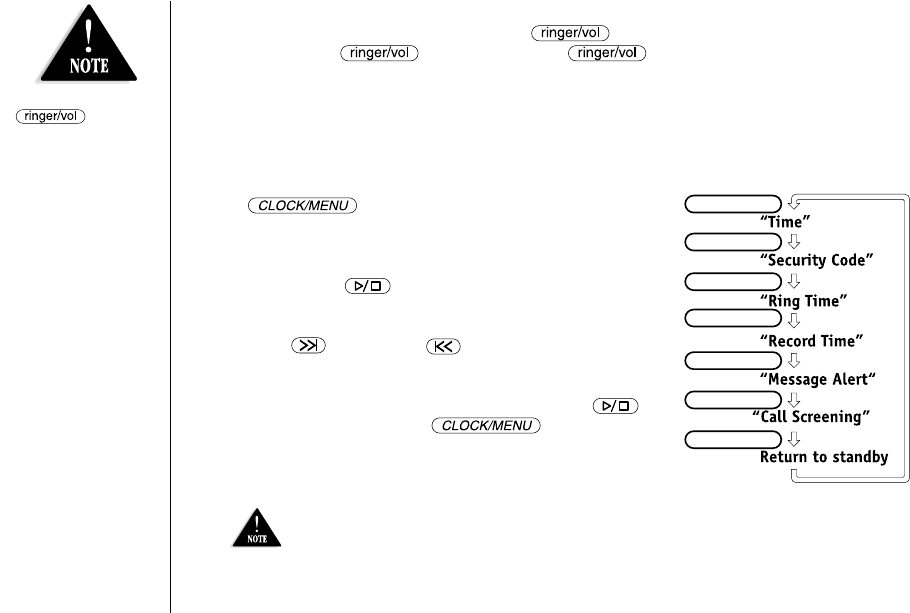
Using the menu mode
The Menu mode allows you to set the following Answering System functions.
•To scroll through the menu options, repeatedly press
on the base in the standby mode.
The system returns to standby after the last menu
option. A confirmation tone sounds to indicate the
standby mode.
•If you press , the operation is canceled.
•If the system remains idle for about 5 seconds after
the announcement, the system returns to standby.
Once /SELECT or /SELECT is pressed, the
idle time is extended to 10 seconds.
•If there is an incoming call, the operation is canceled.
•When you have completed the setting, press to
exit the menu mode, or to move to the
next menu option.
•You can also set these menus from the handset. See
“Answering System Setup” on page 19 for instructions.
CLOCK/MENU
CLOCK/MENU
CLOCK/MENU
CLOCK/MENU
CLOCK/MENU
CLOCK/MENU
CLOCK/MENU
For your convenience, voice prompts will guide you
through the menu setup mode.
UP308BH (DSS2465) ENG OM 8/6/03 10:36 AM Page 44
[ 45 ]
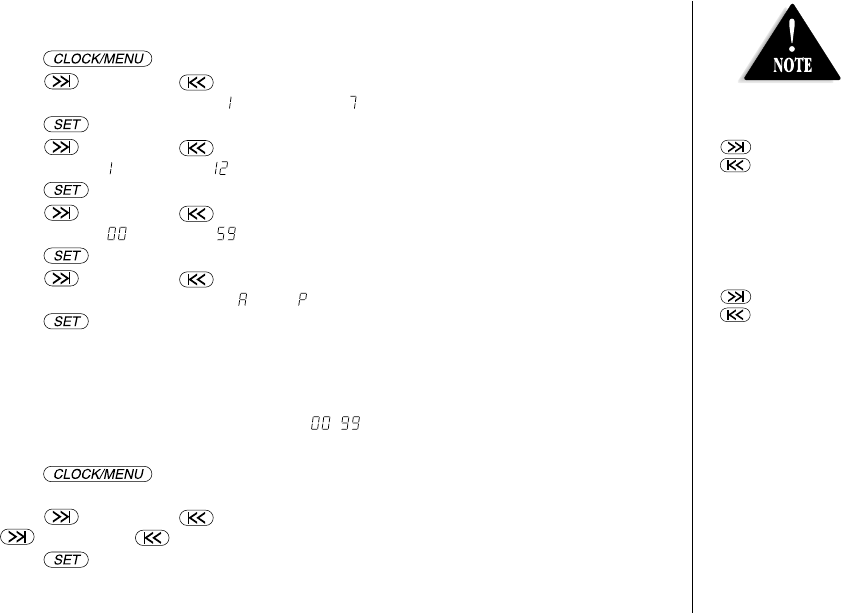
Setting the Time
Follow these steps to set the clock on the answering system to the correct time.
1) Press .
2) Press /SELECT or /SELECT until the correct day is announced and the
corresponding number (from “” Sunday to “” Saturday) appears.
3) Press to select the day.
4) Press /SELECT or /SELECT until you hear the correct hour setting.
The numbers “” through “” appear on the base as each hour is announced.
5) Press to select the hour.
6) Press /SELECT or /SELECT until you hear the correct minute setting.
The numbers “” through “” appears on the base as each minute is announced.
7) Press to select the minute.
8) Press /SELECT or /SELECT until you hear the correct AM or PM setting.
The message counter displays “” or “”.
9) Press to select the AM/PM setting.
A confirmation tone sounds, the day and time you set are announced for your review.
Setting a PIN code
To play your messages from a remote location, you will need to enter a two-digit
Personal Identification Number (PIN) code ( - ). To select a PIN code, perform
the following steps:
1) Press twice. The current PIN code appears on the base
and it is announced.
2) Press /SELECT or /SELECT until the desired number appears. Press and hold
/SELECT or /SELECT to quickly scroll through the numbers on the display.
3) Press to select the PIN code.
A confirmation tone sounds, the system announces the new PIN code.
•Normally, if the
system remains idle
for 10 seconds after
/SELECT or
/SELECT is
pressed, the system
will return to
standby. However, for
setting the time, the
idle time is extended
to 2 minutes.
•Press and hold
/SELECT or
/SELECT to
quickly scroll through
the numbers on
the display.
•Time stamp will not
be heard until you
have set the time.
UP308BH (DSS2465) ENG OM 8/6/03 10:36 AM Page 45
[ 46 ]
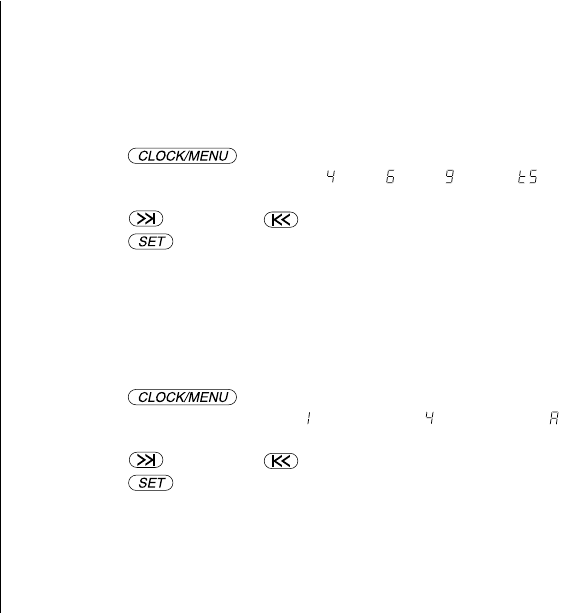
Setting the ring time
The ring time setting allows you to set the number of rings the caller hears before your
answering system plays the outgoing message. You can set the ring time to answer after
four, six, or nine rings. Setting “TS” (Toll Saver), the answering system picks up after
six rings if you have new messages, and after nine rings if there are none. This way, if
you make a long distance call to check your messages, you can hang up after the sixth
ring to avoid billing charges.
1) Press three times.
The current ring time setting (“” 4, “” 6, “” 9 or “” Toll saver) appears on
the base and it is announced.
2) Press /SELECT or /SELECT until the desired ring time appears.
3) Press to select the new ring time.
A confirmation tone sounds, the system announces the new ring time.
Selecting the message record time
You have three record time options. The options “1minute” or “4minutes” set the
duration for recording the incoming messages. “Announce only” answers the call
with the preset greeting or your personal greeting but prevents the caller from
leaving a message.
1) Press four times.
The current recording time (“” 1 minute, “” 4 minutes, “” Announce only No
recording) appears on the base and it is announced.
2) Press /SELECT or /SELECT until the desired message record time appears.
3) Press to select the new recording time.
A confirmation tone sounds, the system announces the new record time.
UP308BH (DSS2465) ENG OM 8/6/03 10:36 AM Page 46
[ 47 ]
Announce only feature
The Announce only feature plays a pre-recorded outgoing message “Hello, no one is available
to take your call. Please call again.”, and it will not allow the caller to leave a message. To
set “Announce only”, follow the steps on page 46. The outgoing message automatically
switches to announce only message. To choose between the pre-recorded message or your
own personal greeting, press , when the outgoing message
is played.
If you want to use your own greeting, or want to change your greeting to omit the prompt
to leave a message, refer to “Recording a personal outgoing message (Greeting)” on page 42.
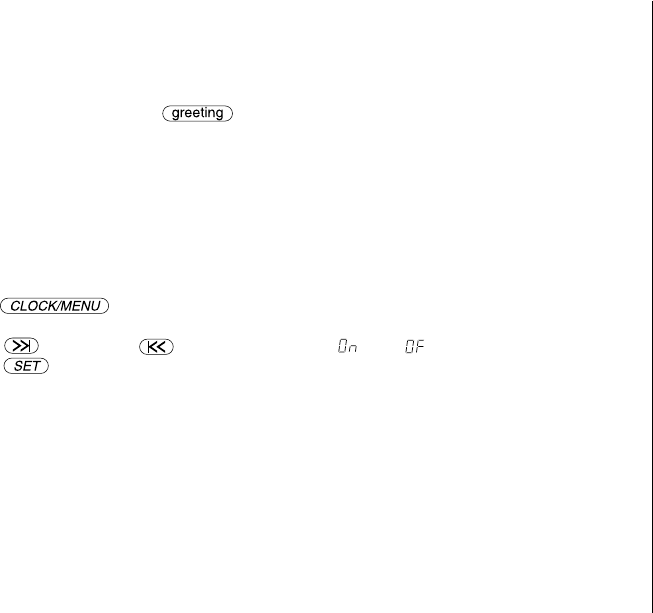
Setting the message alert
Message Alert feature lets you know when you have a new incoming message by sounding a
short alert tone.
If you set the Message Alert On, and when a new message is received, the alert tone will
sound every 15 seconds.
1) Press five times. The current setting (On or Off) appears on the base and
it is announced.
2) Press /SELECT or /SELECT to choose “” or “”.
3) Press .
A confirmation tone sounds, the system announces the current setting you have selected.
When the first new message is received, the alert tone will begin to sound.
Turning the message alert tone Off by pressing any key
To quickly turn Message Alert tone Off, press any key on the base unit and the tone will
automatically deactivate.
Turning the message alert tone Off when you are away from your phone
When all new messages are played back using the remote playback feature (see pages 52-54)
the Message Alert will automatically deactivate. The tone will not deactivate until all new
messages are played back.
UP308BH (DSS2465) ENG OM 8/6/03 10:36 AM Page 47
[ 48 ]
Setting the call screen
You can screen calls when the Call Screen function is set to On.
1) Press six times.
The current Call Screen setting (On or Off) appears on the base.
2) Press /SELECT or /SELECT to choose “” or “”.
3) Press . A confirmation tone sounds, and the system announces the new setting.
You can mute the Call Screen temporarily. When the system is answering, press .
The Call Screen function resumes when the system is no longer in answering mode.
Additionally, to adjust the volume, press /▲or ▼.
If you set the answering system to Off, you cannot screen a call.
Screening a call
To screen an incomming call, do the steps as follows:
After the answering system answers, the base speaker will let you hear the calls as
the machine records the message.
To answer the call, press (talk) or pick up the handset from the base (when
AutoTalk is set to On). If the handset is away from the base, press ,
or any number key, , or (when Anykey Answer is set to On). The
answering system will disconnect automatically.
UP308BH (DSS2465) ENG OM 8/6/03 10:36 AM Page 48
[ 49 ]
USING YOUR ANSWERING SYSTEM
The message counter displays the number of messages stored in memory. If the display
flashes, then there are new messages waiting for you. The answering system is designed to
play your new messages first. After you play all your new messages, you can then play your
old messages.
Playing your messages
1) When the phone is in the standby mode, press .
The system announces the number of new and old messages while the message counter
displays only the number of new messages. The time and day that each message was
received is announced after the message is played.
2) When all new messages have been played, you hear a confirmation tone and the system
announces “End of message”. The system returns to standby. After you have reviewed
your new messages, you can play your old messages by again pressing .
Once you have listened to a new message, it then becomes an old message. The old
messages will be played in the order in which they were received.
Repeating a message
1) Press to review your messages. The number of stored messages is announced.
2) To repeat the current message, press /SELECT after a few seconds of beginning
the message. To quickly scroll backwards through a message, press and hold /SELECT.
To repeat the previous message, press /SELECT within a few seconds (about 4
seconds during remote operation) after a message begins playing. If you have several
messages, press /SELECT repeatedly until you return to the message you want to
replay. If the current message is the first new message, the system plays back from the
beginning of the current message (it does not go back into the old message group).
3) Press at any time to stop reviewing messages and return to standby.
The message counter shows the number of messages stored in memory.
•If an outside call is
received during this
operation, the
operation is canceled.
•To stop playing your
messages, press
again at any time.
•When the answering
system is full, “”
appears on the base.
You should delete some
messages so that the
system can record new
messages. (Refer to
“Deleting a message”
on page 50.)
UP308BH (DSS2465) ENG OM 8/6/03 10:36 AM Page 49

[ 50 ]
Skipping a message
1) Press to review your messages. The number of stored messages is announced.
2) Press /SELECT at anytime to skip to the next message.
Each time /SELECT is pressed, the system scans forward one message. If you
have several messages, press /SELECT repeatedly to find the message you
want to play. To quickly scroll through a message, press and hold /SELECT.
The system advances through the playback at double speed.
3) Press at anytime to stop reviewing your messages and return to standby.
The message counter shows the number of messages stored in memory.
Deleting a message
To maintain maximum record time, delete the old messages.
1) Press to review your messages.
2) Press at anytime during the message to delete the message.
You hear a confirmation tone and the message is deleted.
To delete all messages, press in the standby mode. Press again after
the announcement “To delete all message, press delete again”.
When you try to delete all messages without first listening to your new messages, you
hear several short beeps followed by an announcement “Please playback all messages”.
This protects you from accidentally erasing messages you have not yet reviewed.
Important:
When you press , you are permanently deleting the message. Once deleted, the
message cannot be replayed or retrieved.
UP308BH (DSS2465) ENG OM 8/6/03 10:36 AM Page 50
[ 51 ]
•The voice memo messages are recorded as an incoming messages.
•When the answering system is full, “” appears on the display and recording is terminated.
•If an outside call is received during the operation, the operation is canceled.
Voice memo
The voice memo function allows the user to record messages (more than 2 seconds and
within 4 minutes).
1) Press and hold . You hear a beep.
2) Start your recording after the announcement “Record Memo Message” and a
confirmation tone. The message counter displays “”.
3) When you have finished, press , , or to stop recording.
The system returns to standby.
•A recorded conversation is treated as an incoming message and will be added to the
stored messages.
•You cannot record 3-way or intercom conversations.
•When the answering system becomes full, “” appears on the display and recording
is terminated.
Recording a conversation
You can record a conversation from the handset or the base (more than 2 seconds and
within 10 minutes).
From the handset
1) During a conversation, press the MENU soft key on the handset.
2) Press /▲or ▼to select “Recording”, then press the OK soft key.
appears on the handset, and “” flashes on the base.
A tone, that can be heard by both parties, sounds during recording.
3) Press the STOP soft key to finish recording. You will hear a confirmation tone.
From the base
1) During a conversation using the base speaker phone, press and hold on
the base until you hear a confirmation tone. The unit begins recording and “”
flashes on the display.
A tone, that can be heard by both parties, sounds during recording.
2) To stop recording, press or . You hear a confirmation tone.
UP308BH (DSS2465) ENG OM 8/6/03 10:36 AM Page 51
[ 52 ]
You can operate your answering system from a remote location using any touch-tone
telephone or the handset.
Remote access away from home
You can check, play, or delete messages, even record a new greeting message when
you are away from home. Additionally, you can turn On or Off your answering system
from a remote location.
REMOTE OPERATION
•Time stamp will not be heard until you have set the time. See “Setting the Time”
on page 45.
•The system will only playback messages for four minutes and then it returns to the
command waiting mode. To continue playing your messages, press #then 2again
within 15 seconds.
•
If you enter an incorrect PIN code three times, you will hear a beep and the system will
return to standby.
•During the remote operation, “” appears on the base.
1) Call your telephone number and wait for the system to answer. If the answering
system is off, it will answer after about 15 rings and sounds a series of beeps.
2) During the greeting message (or a series of beeps when the answering system is
off), press #and enter your PIN code within 2 seconds (see “Setting a PIN Code”
on page 19 or 45).
3) The answering system announces the current time and the number of messages
stored in memory. You hear “To play incoming messages, press pound two. For
help, press pound-zero”. You will hear a beep.
4) Enter a command within 15 seconds, each command there after must be entered
within 2 seconds. You may select a command from the following chart:
For your convenience
a remote operation
card is provided for
you to use while
away from home
(refer to page 67).
UP308BH (DSS2465) ENG OM 8/6/03 10:36 AM Page 52
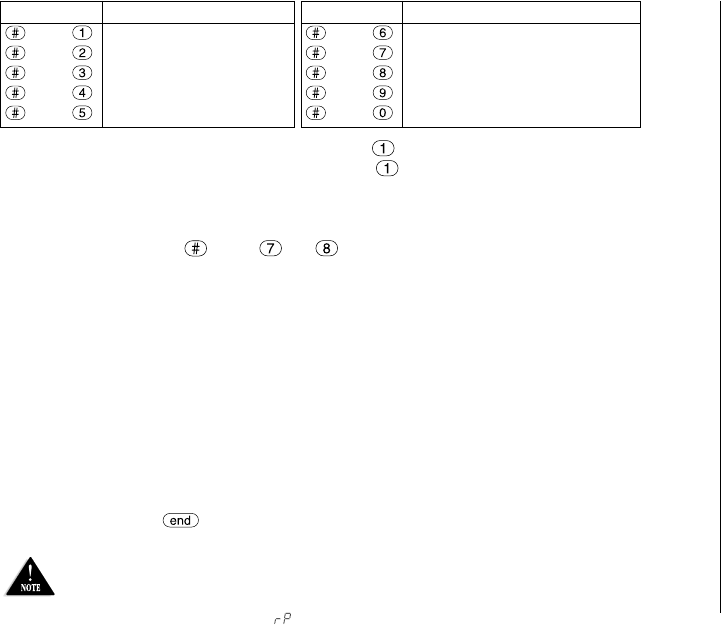
[ 53 ]
Command Function
then Answering System On
then Memo Record/Stop **
then Greeting Message Record/Stop **
then Answer System Off
then Help Guidance
Command Function
then Repeat a Message*
then Playing incoming Messages
then Skipping a Message
then Deleting a Message
then Stop Operation
* For Repeat a Message function, press #then within about four seconds to
repeat the previous message, or press #then after about four seconds to
repeat the current message.
** For Memo Record and Greeting Message Record function, the first time you enter
the corresponding command, it starts the Recording function. If you want to stop
the recording, press then or .
5) After the command has finished, you hear intermittent beeps indicating that the
system is in the command waiting mode. You may enter another command at this
time from the chart above.
6) When you are finished, hang up to exit the system. The answering system
automatically returns to standby.
Remote access with the handset
You can check your new incoming messages, skip, repeat, or delete your incoming
messages with the handset. For example, you can install the answering system in the
living room, and check your incoming message from a bedroom with the handset.
You can also use speakerphone on the handset for remote operation (see “Making and
receiving calls” on page 23).
•If you press before the answering system answers, the phone will return to standby.
•When the answering system does not answer within 6 seconds, you hear a beep and the
phone will return to standby.
•The base’s keypad is disabled during remote operation.
•When you receive a call, the remote operation is canceled.
•You can change the handset volume during a remote operation.
•During the remote operation “” appears on the base.
UP308BH (DSS2465) ENG OM 8/6/03 10:37 AM Page 53
[ 54 ]
Repeating a message
After a message begins playing, press the soft key within about four seconds to
repeat the previous message, or press the soft key after about four seconds to
repeat the current message.
Skipping a message
While the message is playing, press the soft key on the handset. Each time
the soft key is pressed, the system scans forward one message.
Deleting a message
While the message is playing, Press the DELETE soft key on the handset. The message
playing is deleted.
Playing incoming messages
1) When the phone is in the standby mode, press the soft key on the handset.
“Remote Playback” appears on the handset display. The answering system
announces the current time and the number of messages stored in the memory.
Messages will be played in the order in which they were received. The time and
day that each message was received is announced after the message is played.
2) When you are finished, hang up to exit the system. The answering system
automatically returns to standby.
When the last message has been played, the system announces “End of messages”.
And the system returns to standby.
•If you have new
messages and old
messages, only the
new messages will
be repeated.
•If you press the
soft key while
the earliest message
is playing, you can
repeat only the
current message.
•If you have new
messages and old
messages, only the
new messages will be
played. After you
have reviewed your
new messages, you
can play your old
messages by again
pressing the
soft key. Once you
have listened to a
new message, it then
becomes an
old message.
UP308BH (DSS2465) ENG OM 8/6/03 10:37 AM Page 54
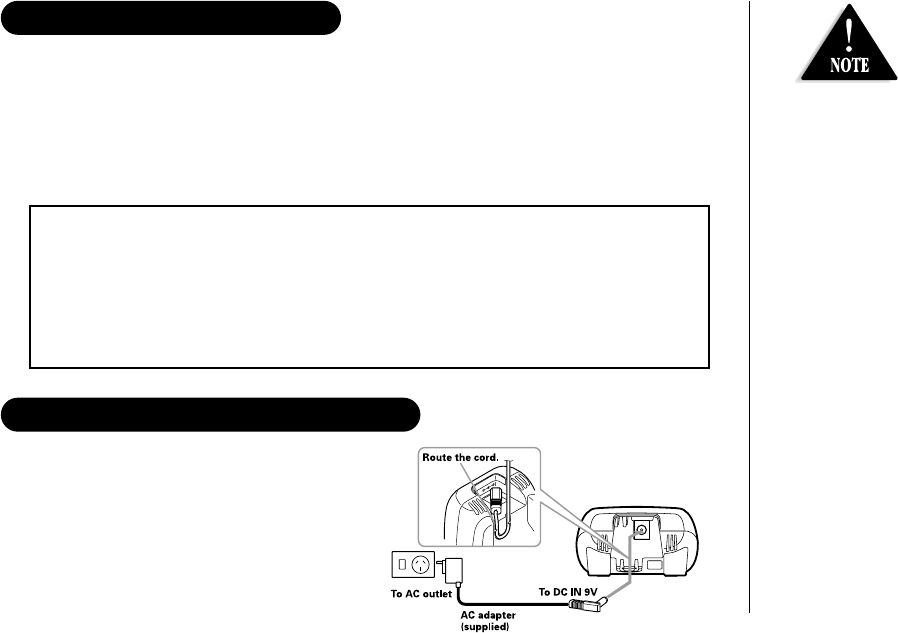
[ 55 ]
EXPANDING
YOUR PHONE
CONNECTING THE CHARGER
1) Connect the AC adapter into the charging
cradle and to a AC wall outlet.
2) Set the charger on a desk or tabletop, and
place the handset in the charger with the
keypad facing forward (see “Installing the
AA batteries” on page iii to install
the batteries.
Your phone supports up to 4 handsets (including the handset(s) supplied with your
phone). You can now place a fully featured cordless handset anywhere AC power is
available to connect the handset charger.
Effective combinations, for example:
- 4-way conferencing (the base, 2 handsets, and one outside line), while on an intercom
call using the other 2 handsets, or
- 4-way conferencing (3 handsets and an outside line)
EXPANDING YOUR PHONE
•To use the DSS2405,
register it to the
DSS2455 or DSS2465
series base.
•Save this manual for
detailed operation.
•All of the handsets
ring when a call
is received.
IMPORTANT:
•If you purchase a DSS2405 extra handset, please register the handset to the
DSS2455 or DSS2465 series base before use. The DSS2405 will not operate until it
is registered.
•If you change a setting of the Global Setup and Answering Setup menu in one of
the handsets, you change settings for all the handsets. For all other features they
must be set separately through each handset.
UP308BH (DSS2465) ENG OM 8/6/03 10:37 AM Page 55
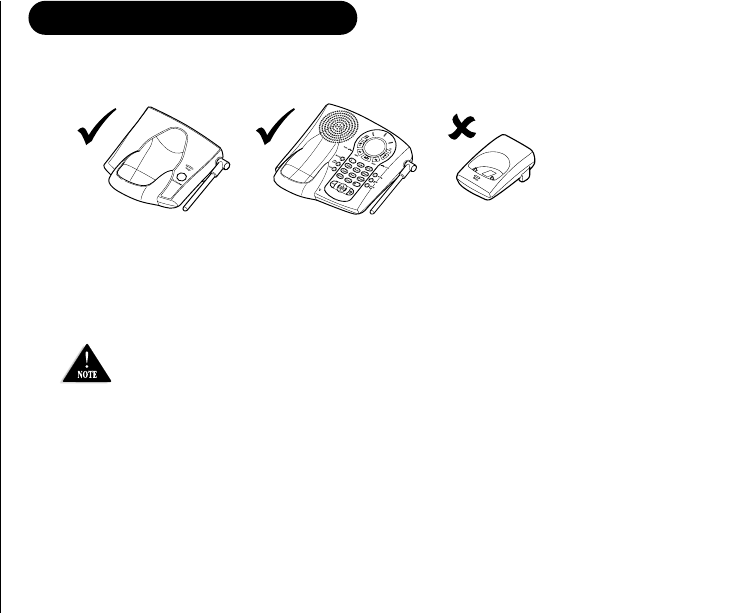
[ 56 ]
REGISTER THE HANDSET
If you purchase an extra handset, you need to register the handset to the main base
before use. Only one handset can be registered at a time.
The handset ID for the supplied handset(s) was assigned at the factory, which has #1
(#1 and #2 for DSS2465) in the display. When you register additional handset to the
base, the handset ID will be assigned.
An extra handset can be registered when the base is in the standby mode.
1) Before registering the extra handset, charge the phone’s battery for 10 minutes.
2) Place the extra handset in the main base unit to begin registration.
3) While the handset is registering, “Handset Registering” will appear in the LCD.
When “Registration Complete” is displayed, the handset has been registered to
the base. If “Registration Failed” appears, please try these steps again.
4) Place the handset back in the charging cradle and fully charge the phone’s battery for
17 to 20 hours.
DSS2415
Main Base DSS2455/2465
Main Base Charger
UP308BH (DSS2465) ENG OM 8/6/03 10:37 AM Page 56
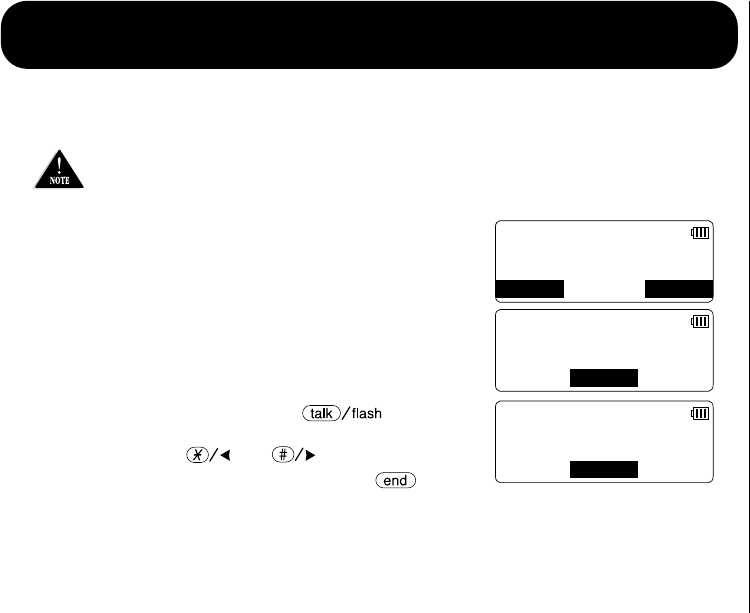
[ 57 ]
To use this feature, you must enter the two handsets into the DirectLink mode first.
To enter the DirectLink mode eeSee page 16
DirectLink call
1) When the phone is in the DirectLink standby mode,
press the DirectLink soft key (example of DirectLink
from handset #1).
2) Select the party by pressing the number keys (1-4).
Your handset will page the other handset.
3) On the receiving handset, press or the
ANSWER soft key, or if Anykey Answer is On, press
any number key, , or .
4) When you finish your conversation, press or
END soft key on either handset. Return the handset to the cradle, or press the
CANCEL soft key then the OK soft key to return to normal mode.
USING TWO WAY COMMUNICATION BETWEEN THE HANDSETS
ANYWHERE WITHOUT THE BASE (DIRECTLINK)
•During DirectLink mode, batteries use time when fully charged is as follows:
- Up to 7 hours continuous use.
- Up to 24 hours in the standby mode.
•Placing the handset in the cradle causes the handset to exit the DirectLink mode.
SUN 12:00A
Handset #1
DirectLink Mode
CANCEL DirectLink
To DirectLink
press 1-4
BACK
DirectLink
from Handset #1
BACK ANSWER OK
UP308BH (DSS2465) ENG OM 8/6/03 10:37 AM Page 57
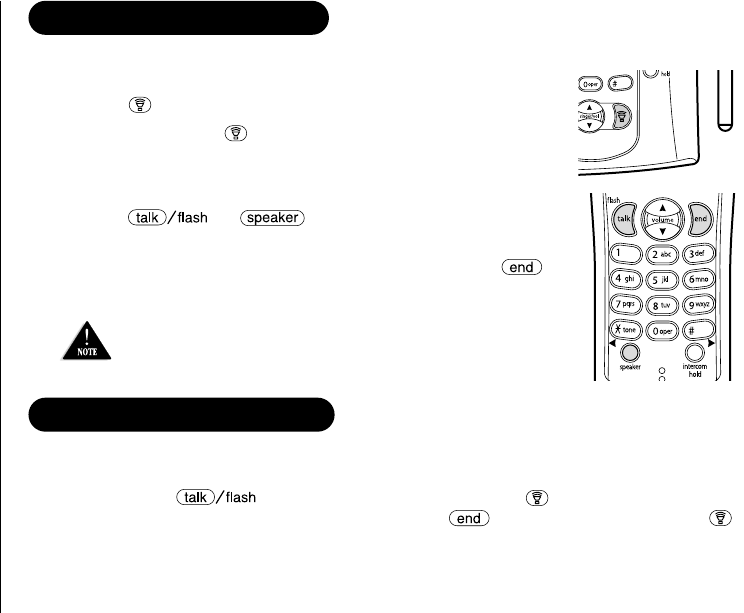
[ 58 ]
4-WAY CONFERENCING
Fourth person, at either the handset or the base, may be added to the conference call.
For example, to add a fourth party to an ongoing conference call at the base or another
handset, press on the fourth party’s handset (or (talk) on the base). To
remove either caller from your conversation, press on the party’s handset (or
(talk) on the base). The other parties will still be connected to the call.
3-WAY CONFERENCING
The phone permits 3-way conversations between the handset, base, and an outside line.
When speaking on the handset
1) Press (talk) on the base to initiate the 3-way conversation.
2) To hang up, press (talk) on the base. The handset will still
be connected to the call.
When speaking on the base
1) Press or on the handset to initiate the
3-way conversation.
2) To hang up, return the handset to the cradle, or press on
the handset. The base will still be connected to the call.
For DSS2455, if you purchase a DSS2405 extra handset, the
phone permits 4-way conversation, see “4-way Conferencing”
below for details.
UP308BH (DSS2465) ENG OM 8/6/03 10:37 AM Page 58
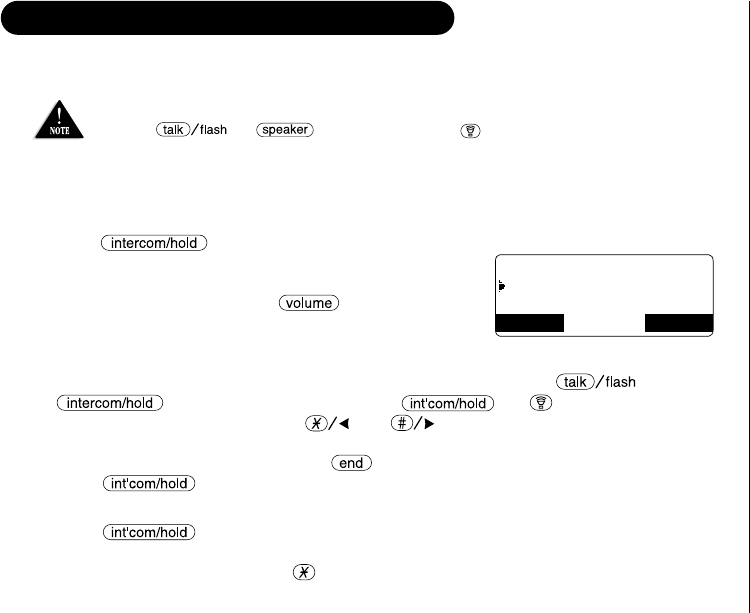
[ 59 ]
Intercom
From handset to handset or to the base
1) Press in the standby mode.
2) Select the base or the handset you want to talk with
from the selection list within 30 seconds. To select the
handset (or the base), press /▲or ▼, then
press the OK soft key.
If you select “All”, all handsets will be paged. An
intercom tone sounds.
3) On the receiving handset (or the base), to answer the call, press ,
, or the ANSWER soft key (or or (talk) on the
base). Or press any number key, , or (when Anykey Answer is On), or
pick up the handset from the cradle (when AutoTalk is On).
4) To hang up the intercom call, press or the END soft key on either handset (or
press on the base).
From the base to a handset
1) Press on the base in the standby mode.
2) Select the handset you want to talk with by pressing the number key (1-4).
To page all the handsets press .
3) Follow the steps 3-4 under “From handset to handset or to the base”.
To intercom
Handset #2
Handset #3
BACK BACK OK
INTERCOM/CALL TRANSFER FEATURE
Intercom and Call Transfer features are available for your phone.
•If the party is busy or out of range, you will hear a beep and the handset returns to the
standby mode.
•If any of the following occurs, the operation will be canceled.
- Press or on the handset, and (talk) on the base.
- Receive an outside/intercom call or page (while selecting the other handset).
•When the party does not answer within 1 minute, Intercom or Call Transfer is canceled.
UP308BH (DSS2465) ENG OM 8/6/03 10:37 AM Page 59
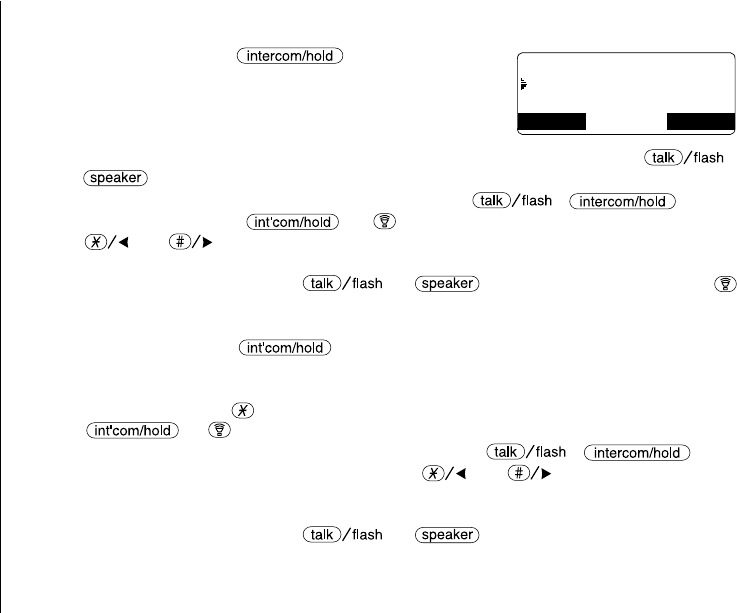
[ 60 ]
Call Transfer Feature
From handset to handset or to the base
1) During a call, press on the handset.
2) Select a handset or the base to transfer the call to
within 10 seconds (refer to step 2 under “From handset
to handset or to the base” in the intercom section).
The call will automatically be placed on hold, and an
intercom tone sounds. To cancel the transfer, press the CANCEL soft key, ,
or the BACK soft key on the initiating handset.
3) On the receiving handset, to answer the page, press , , or the
ANSWER soft key (or or (talk) on the base). Or press any number key,
, or (when Anykey Answer is On), or pick up the handset from the cradle
(when AutoTalk is On). The intercom mode is activated, but the caller is still on hold.
4) To speak to the caller, press or on the receiving handset (or
(talk) on the base).
From the base to a handset
1) During a call, press on the base. The call will automatically be placed
on hold.
2) Select the handset you want to talk with by pressing the number key (1-4). To page all
the handsets press . An intercom tone sounds. To cancel the transfer, press
or (talk) on the base.
3) On the receiving handset, to answer the page, press , , or the
ANSWER soft key. Or press any number key, , or (when Anykey Answer is
On), or pick up the handset from the cradle (when AutoTalk is On). The intercom mode
is activated, but the caller is still on hold.
4) To speak to the caller, press or on the receiving handset
Hold,to transfer
Handset #2
Handset #3
BACK BACK OK
UP308BH (DSS2465) ENG OM 8/6/03 10:37 AM Page 60

[ 61 ]
ADDITIONAL
INFORMATION
The digital security code is an identification code used to connect the handset and the
base unit. Normally, setting the code is not necessary. In the rare situation that you
suspect another cordless telephone is using the same security code, you can change the
code. To change the digital security code:
1. Perform the “System Reset” menu options (“Deregister the Handset” and
“Replacing the Base Setting”) for all the handsets you have (see page 14).
2. To register all the handsets do the following steps:
1) Place a handset, one at a time in the base.
2) Registration starts automatically.
While registering “Handset Registering” appears in the display.
3) When the registration is complete, “Registration Complete” appears in
the display.
4) Repeat steps 1 - 3 for another handsets.
If the registration fails, “Registration Failed” appears in the display. Try the steps
above again.
CHANGING THE DIGITAL SECURITY CODE
UP308BH (DSS2465) ENG OM 8/6/03 10:37 AM Page 61

[ 62 ]
NOTE ON POWER SOURCES
Battery replacement and handling
When the operating time becomes short, even after a battery is recharged, please replace the battery.
Please use only “AA” rechargeable Ni-MH batteries.
Warning
To avoid the risk of personal injury or property damage from fire or electrical shock, only use the Uniden
adapter model specifically designated for this product, and “AA” rechargeable Ni-MH batteries.
Caution
•Use only “AA” rechargeable Ni-MH batteries.
•Do not remove the batteries from the handset to charge them.
•Never throw the batteries into a fire, disassemble them, or heat them.
•Do not remove or damage the battery casing.
UP308BH (DSS2465) ENG OM 8/6/03 10:37 AM Page 62

[ 63 ]
TROUBLESHOOTING
If your phone is not performing to your expectations, please try these simple steps first.
Symptom Suggestion
The charge LED won’t illuminate •Make sure the AC adapter is plugged into the base (or the charger
when the handset is placed in (for DSS2465 only)) and wall outlet.
the cradle. •Make sure the handset is properly seated in the cradle.
•Make sure the charging contacts on the handset and the base
(or the charger (for DSS2465 only)) are clean.
The audio sounds weak •Move the handset and/or base to a different location away from metal
and/or scratchy. objects or appliances and try again.
•Make sure that you are not too far from the base.
Can’t make or receive calls. •Check both ends of the base telephone line cord.
•Make sure the AC adapter is plugged into the base and wall outlet.
•Disconnect the AC adapter for a few minutes, then reconnect it.
•Remove the base ID (see “Deregister the Base Setting” on page 22) and
register the handset to the base (see “Register the Handset” on page 56).
•Make sure that you are not too far from the base.
•
If an outside call is already established, you may not be able to make another
outside call.
Can’t make an internal call. •Make sure that the receiving handset is not already in use.
•Make sure that the handset or the base is in the standby mode.
•When a handset is recording a conversation, an intercom call from or to the
base is not available. Make sure a handset is not recording a conversation.
UP308BH (DSS2465) ENG OM 8/6/03 10:37 AM Page 63

[ 64 ]
Symptom Suggestion
The handset or the base doesn’t •Charge the batteries in the handset for 17-20 hours by placing the handset
ring or can’t receive an on the base or charging cradle.
intercom call. •The handset may be too far away from the base unit.
•Place the base unit away from appliances or metal objects.
•Remove the base ID (see “Deregister the Base Setting” on page 22) and
register the handset to the base (see “Register the Handset” on page 56).
•If more than 3 handsets are in use, you may not be able to page.
“Unavailable” appears in •Make sure that another handsets or the base is not in use, and try the
the display. phone again.
•Make sure that you are not too far from the base.
Severe noise interference. •Keep the handset away from microwave ovens, computers, remote control
toys, wireless microphones, alarm systems, intercoms, room monitors,
fluorescent lights, and electrical appliances.
•Move to another location or turn off the source of interference.
The Caller ID does not display. •The handset was picked up before the second ring.
•The call was placed through a switchboard.
•Call your local telephone company to verify your Caller ID service is current.
You cannot register the •Please make sure your batteries are charged at least 10 minutes
handset at the base. (see “Register the Handset” on page 56).
•Remove the base ID (see “Deregister the Base Setting” on page 22) and
register the handset to the base (see “Register the Handset” on page 56).
•Only 4 handsets can be registered to the base.
The handset doesn’t communicate •Remove the base ID (see “Deregister the Base Setting” on page 22) and
with the base or other handsets. register the handset to the base (see “Register the Handset” on page 56).
•Make sure that you have registered all handsets.
UP308BH (DSS2465) ENG OM 8/6/03 10:37 AM Page 64

[ 65 ]
Symptom Suggestion
The handset or the base can’t •Make sure that more than 3 handsets (or 2 handsets when the base is used
join the conversation. for the conference) are not in use.
•When recording a conversation, the 2nd handset (or the base) cannot join
the conversation.
The answering system •Make sure the base unit is plugged in.
does not work. •Make sure that the answering system is turned On.
•Make sure that the message record time is not set to Announce only
(see page 47).
Messages are incomplete. •The incoming messages may be too long. Remind callers to leave a
brief message.
•The memory may be full. Delete some or all of the saved messages.
After a power failure, the •Record your greeting again. The default message should remain.
outgoing message is deleted.
No sound on the base unit •Adjust the speaker volume on the base unit.
speaker during call monitoring •Make sure the call screen feature is set to On.
or message playback.
Cannot access remote call-in •Make sure you are using the correct PIN number.
features from another •Make sure that the touch-tone phone you’re using can transmit the tone
touch-tone phone. for at least two seconds. If it cannot, you may have to use another phone
to access your phone.
Time stamp cannot be heard. •Make sure you have set the time (see “Setting Day and Time” on page 21
or “Setting the Time” on page 45).
If you still have a problem. •Call our customer Service Division at
1300 366 895 (Australia) or
0800 4864 336 (New Zealand).
UP308BH (DSS2465) ENG OM 8/6/03 10:37 AM Page 65

[ 66 ]
INDEX
0 - 9
3-way conferencing ....................58
4-way conferencing ....................58
16 ring options ..........................17
A
Announce only feature ................47
Answering system
Deleting a message ..................50
Playing your messages ..............49
Recording a conversation ..........51
Remote access..........................52
Repeating a message ................49
Skipping a message ..................50
Turning On/Off ........................42
Anykey answer............................18
AutoTalk....................................17
B
Banner......................................18
Base speaker volume ..................44
Battery
Preparing and charging ..............iv
Replacement and handling ..........7
Beltclip ......................................7
Booster ....................................26
C
Caller ID
Caller ID service ......................37
Calling....................................40
Call Waiting ............................28
Deleting..................................39
Storing....................................40
Using......................................40
Viewing ..................................38
Call transfer feature ....................60
Chain dialing ............................36
Clock ........................................45
Conversation, recording ..............51
D
Deregister the handset ................22
Digital security code ..................61
Distinctive ringer........................17
E, F, G, H
Earpiece volume..........................26
Expanding your phone ................55
Hands-free conversation ..............23
Headset installation......................8
I, J, K, L
Intercom ..................................59
LCD contrast ..............................18
M, N, O
Making a call ............................23
Memory dialing ..........................36
Mute ........................................27
New Message LED........................28
Outgoing Message ......................42
Overseas Calls ............................38
P, Q
Package contents..........................5
Phonebook ................................29
Editing....................................35
Erasing....................................35
Making calls ............................34
Storing....................................29
Viewing ..................................33
R
Receiving a call..........................23
Redialing a call ..........................24
Register the handset ..................56
Remote access
away from home ......................52
from your handset ....................53
Ringer volume ............................16
S
Setting up
base unit..................................ii
handset ..................................iii
Soft key function..........................9
Speed dialing ............................34
T, U, V, W, X, Y, Z
Transferring a call ......................60
Troubleshooting..........................63
Voice memo ..............................51
Warranty....................................69
UP308BH (DSS2465) ENG OM 8/6/03 10:37 AM Page 66
[ 67 ]
REMOTE OPERATION CARD
CUT
REMOTE OPERATION CARD
Remote access away from
home
1. Call your phone number from a
touch-tone phone.
2. During the outgoing message,
press # and enter your PIN code.
The answering system announces
the number of messages stored in
memory and the help guidance.
3. To quit, hang up the phone.
Turn on the answering
system remotely
1. Call your phone and let it ring
15 times until you hear a beep.
2. Press # and then enter your
PIN code.
3. Press # then 5 to stop
the announcement.
4. Press # then 6 to turn the
answering system on.
UP308BH (DSS2465) ENG OM 8/6/03 10:37 AM Page 67
[ 68 ]
CUT
Task Key
Repeat a Message
Playing incoming Messages
Skipping a Message
Deleting a Message
Stop Operation
Answering System On
Memo Record/Stop
Greeting Message Record/Stop
Answer System Off
Help Guidance
UP308BH (DSS2465) ENG OM 8/6/03 10:37 AM Page 68

[ 69 ]
One Year Limited Warranty
Important: Evidence of original purchase is required for warranty service.
Warrantor: Uniden Australia Pty Limited A.B.N. 58 001 865 498
Uniden New Zealand Limited
ELEMENT OF WARRANTY: Uniden warrants to the original retail owner for the duration of this warranty, its DSS2455/DSS2465
(herein after referred to as the Product), to be free from defects in materials and craftsmanship with only the limitations or
exclusions set out below. Warranty is only valid in the original country of purchase.
WARRANTY DURATION: This warranty to the original retail owner only, shall terminate and be of no further effect 12 months
after the date of original retail sale. This warranty will be deemed invalid if the product is;
(A) Damaged or not maintained as reasonable and necessary,
(B) Modified, altered or used as part of any conversion kits, subassemblies, or any configurations not sold by Uniden,
(C) Improperly installed,
(D) Repaired by someone other than an authorized Uniden Repair Agent for a defect or malfunction covered by this warranty,
(E) Used in conjunction with any equipment or parts or as part of a system not manufactured by Uniden.
PARTS COVERED: This warranty covers for one (1) year, the Base Unit and Handset only. All accessories (AC Adapter etc)are
covered for 90 days only.
STATEMENT OF REMEDY: In the event that the product does not conform to this warranty at any time while this warranty is in
effect, the warrantor at its discretion, will repair the defect or replace the product and return it to you without charge for parts
or service. THIS WARRANTY DOES NOT COVER OR PROVIDE FOR THE REIMBURSEMENT OR PAYMENT OF INCIDENTAL OR
CONSEQUENTIAL DAMAGES. THIS GUARANTEE IS IN ADDITION TO AND DOES NOT IN ANY WAY AFFECT YOUR RIGHTS UNDER THE
CONSUMER GUARANTEE ACT.
PROCEDURE FOR OBTAINING PERFORMANCE OR WARRANTY: In the event that the product does not conform to this warranty, the
Product should be shipped or delivered, freight pre-paid, with evidence of original purchase (eg. a copy of the sales docket), to
the warrantor at:
Customers in other States should ship or deliver the Product freight pre-paid to their nearest Uniden Authorized Repair Centre
(Contact Uniden for the nearest Warranty Agent to you).
WARRANTY
UNIDEN AUSTRALIA PTY LIMITED SERVICE DIVISION UNIDEN NEW ZEALAND LIMITED SERVICE DIVISION
345 Princes Highway, Rockdale NSW 2216 150 Harris Road, East Tamaki, Auckland
Ph 1300 366 895 Fx (02) 9599 3278 Ph 0800 4 UNIDEN (4 864 336) Fx (09) 274 4253
We can also be reached on the We can also be reached on the
www.uniden.com.au www.uniden.co.nz
[ 69 ]
UP308BH (DSS2465) ENG OM 8/6/03 10:37 AM Page 69
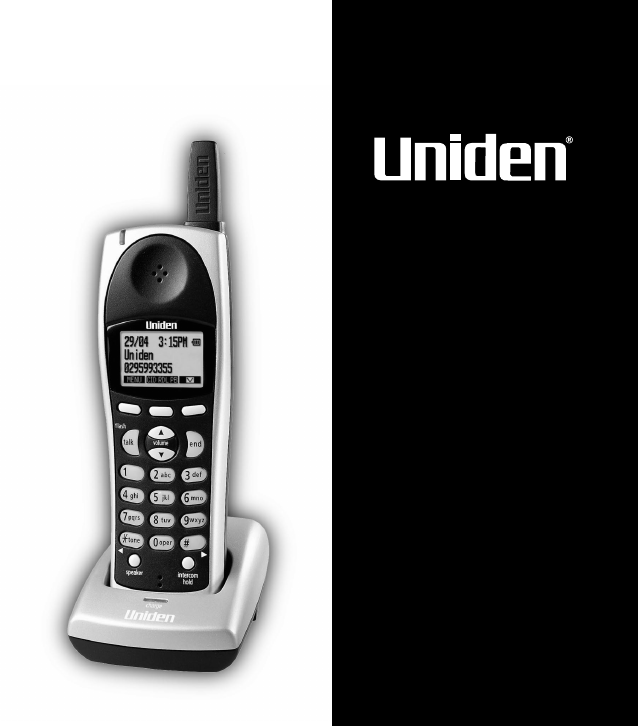
Additional Handset & Charger
Expand Your System!
DSS2405 HANDSET & CHARGER
Easily expand your cordless phone system by adding the
DSS2405 Handset and Charger*. The DSS2405 gives you
the mobility you need to stay connected with friends and
family. Place this handset and charger in any convenient
location, no need for an extra phone jack! Another
innovation from Uniden, the company that bring
outstanding wireless communication products to people's
lives throughout the world.
AVAILABLE AT PARTICIPATING RETAIL STORES
Optional 2.4 Ghz
Cordless Handset and
Charging Cradle
For use with Multi
Handset Cordless
Systems: DSS2415,
DSS2455/2465
Digital Spread Spectrum
Call Transfer
Caller ID
No Phone Jack Needed
* Operates with
Multi Handset
Cordless Systems:
DSS2415
DSS2455/2465
© 2003
Uniden Australia Pty Limited
Uniden New Zealand Limited
Printed in China
UPZZ01308BZ
