Uniden Exi7960 Owners Manual EXI 7960H1 5 VA.vp
Uniden-Exi7960-Users-Manual-359891 uniden-exi7960-users-manual-359891
EXI7960 to the manual b948268c-8d28-4664-b79f-3d9434e91f2c
2015-05-27
: Uniden Uniden-Exi7960-Owners-Manual-725908 uniden-exi7960-owners-manual-725908 uniden pdf
Open the PDF directly: View PDF  .
.
Page Count: 33
- CONTENTS
- Introduction 2
- Installing and Adjusting Your Phone 4
- Using Your New Phone 15
- Making and Receiving Calls 15
- Flash and Call Waiting 15
- Storing a Phone Number in Memory 16
- Editing a Phone Number in Memory 17
- Erasing a Number from Memory 18
- Using Memory Dialing 19
- Chain Dialing 19
- Using Caller ID 20
- Using Redial 25
- Using the Tone Feature 25
- Selecting a Different Channel 25
- Traveling Out-of-Range 26
- Troubleshooting 27
- Specifications 29
- CONTENTS
- exi7960H1-5 Va foldout.pdf
- CONTENTS
- Introduction 1
- Installing and Adjusting Your Phone 3
- Using Your New Phone 14
- Making and Receiving Calls 14
- Flash and Call Waiting 14
- Storing a Phone Number in Memory 15
- Editing a Phone Number in Memory 16
- Erasing a Number from Memory 17
- Using Memory Dialing 18
- Chain Dialing 18
- Using Caller ID 19
- Using Redial 24
- Using the Tone Feature 24
- Selecting a Different Channel 24
- Traveling Out-of-Range 24
- Troubleshooting 25
- Specifications 27
- CONTENTS
- CONTENTS
- 7960VA front cvr.pdf
- CONTENTS
- Introduction 2
- Installing and Adjusting Your Phone 4
- Using Your New Phone 15
- Making and Receiving Calls 15
- Flash and Call Waiting 15
- Storing a Phone Number in Memory 16
- Editing a Phone Number in Memory 17
- Erasing a Number from Memory 18
- Using Memory Dialing 19
- Chain Dialing 19
- Using Caller ID 20
- Using Redial 25
- Using the Tone Feature 25
- Selecting a Different Channel 25
- Traveling Out-of-Range 26
- Troubleshooting 27
- Specifications 29
- CONTENTS
- CONTENTS
- 7960VA pg 14.pdf
- CONTENTS
- Introduction 2
- Installing and Adjusting Your Phone 4
- Using Your New Phone 15
- Making and Receiving Calls 15
- Flash and Call Waiting 15
- Storing a Phone Number in Memory 16
- Editing a Phone Number in Memory 17
- Erasing a Number from Memory 18
- Using Memory Dialing 19
- Chain Dialing 19
- Using Caller ID 20
- Using Redial 25
- Using the Tone Feature 25
- Selecting a Different Channel 25
- Traveling Out-of-Range 26
- Troubleshooting 27
- Specifications 29
- CONTENTS
- CONTENTS

EXI 7960
900 MHz Cordless
Phone with
Caller ID
MANUAL
OWNER’S
C:...EXI 7960H1-5 VA.vp
Fri Oct 08 15:41:57 1999
Color profile: Disabled
Composite Default screen
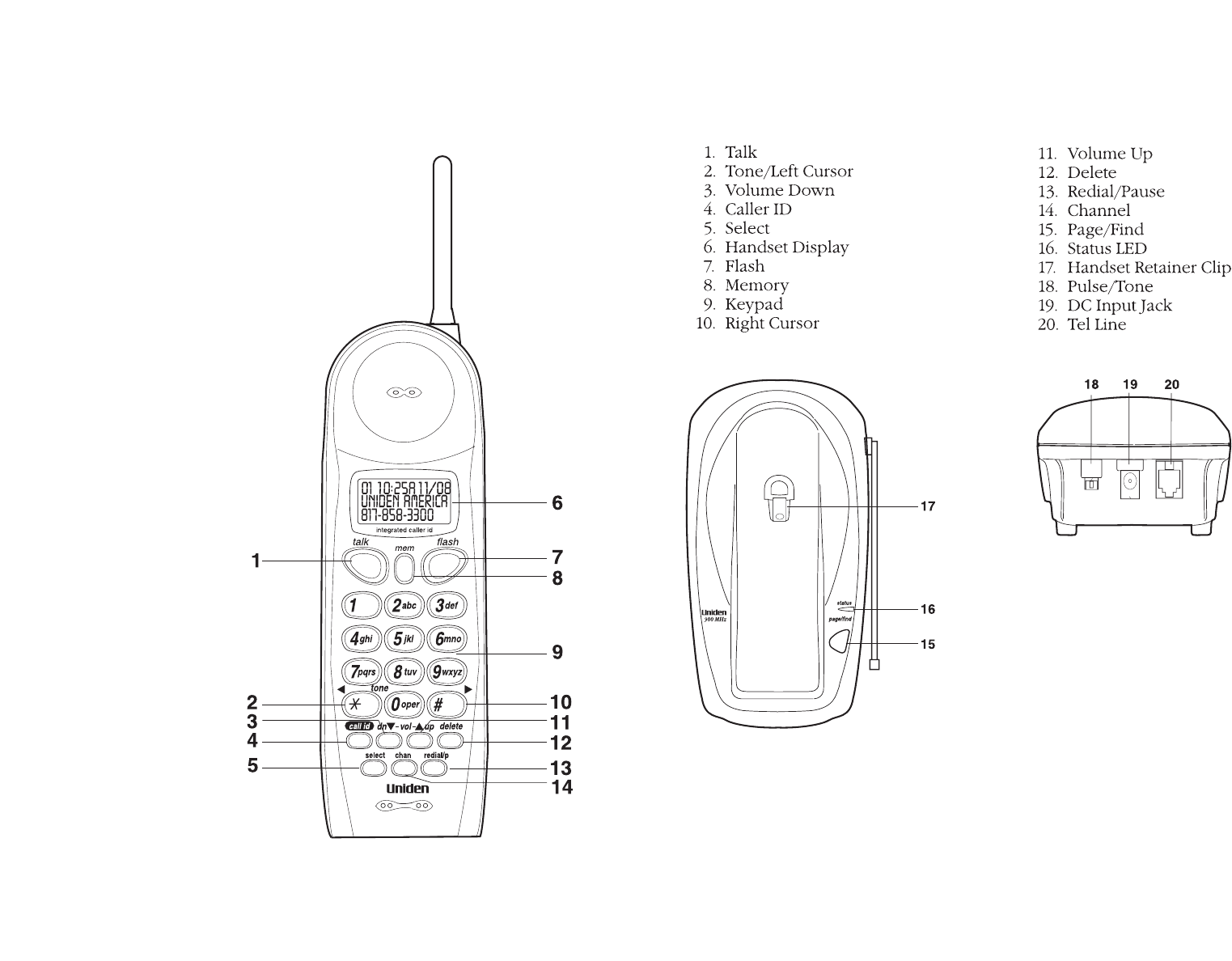
AND FUNCTIONS
CONTROLS

At Uniden, we’ll take care of you!
If you need any assistance with this product,
please call our Customer Hotline at:
1-800-297-1023
PLEASE DO NOT RETURN THIS PRODUCT TO THE PLACE OF PURCHASE.
Our Uniden representatives will be happy to help you
with any matters regarding the operation of this unit,
available accessories, or any other related matters.
Hours: M-F 7:00 a.m. To 7:00 p.m., Central Standard Time
Thank you for purchasing this Uniden product.
C:...EXI 7960H1-5 VA.vp
Tue Oct 05 16:59:42 1999
Color profile: Disabled
Composite Default screen

CONTENTS
OF YOUR OWNER’S MANUAL
CONTENTS
Introduction ................................2
•Welcome.......................................2
•Features .......................................2
•Included in Your Package ..........................3
Installing and Adjusting Your Phone .............4
•Desk/Tabletop Installation .........................4
•Wall Installation .................................5
•Installing the Handset Battery Pack..................11
•Charging the Battery Pack ........................12
•Cleaning the Battery Contacts ......................12
•Setting the Pulse/Tone Switch......................13
•Adjusting the Ringer and volume Controls ............13
•Using the Page Feature ...........................14
•Automatic Digital Code Security ....................14
Using Your New Phone .......................15
•Making and Receiving Calls........................15
•Flash and Call Waiting ...........................15
•Storing a Phone Number in Memory ................16
•Editing a Phone Number in Memory.................17
•Erasing a Number from Memory ...................18
•Using Memory Dialing ...........................19
•Chain Dialing ..................................19
•Using Caller ID .................................20
•Using Redial ...................................25
•Using the Tone Feature...........................25
•Selecting a Different Channel ......................25
•Traveling Out-of-Range ...........................26
Troubleshooting ............................27
•Quick Reference Chart ...........................27
Specifications ..............................29
Fold out the front cover of this
reference guide to use the handy
“Controls and Functions” page
for reference.
Introduction
Installing and
Adjusting
Using Your
New Phone
Troubleshooting
Specifications
C:...EXI 7960H1-5 VA.vp
Tue Oct 05 16:59:43 1999
Color profile: Disabled
Composite Default screen

WELCOME
Congratulations on your purchase of the Uniden EXI 7960 cordless
telephone. This phone is designed for reliability, long life, and
outstanding performance.
FEATURES
•900 MHz Technology •Call Waiting Caller ID
•3-line Backlit Display •30 Number Caller ID Memory
•Face Up/Face Down Charging •10 Memory Dial Locations
•32 Digit Redial •Pulse/Tone Dialing
•Page/Find •7 Hour Talk Time
•Handset Earpiece and Ringer
Volume Control
•Hearing Aid Compatible
The EXI 7960 features include AutoTalk™ and AutoStandby™.
AutoTalk allows you to answer a call by just removing the handset
from the base so you don’t have to waste time pushing buttons or
flipping switches. AutoStandby allows you to hang up by simply
returning the handset to the base.
The UltraClear Plus™ true compander circuitry virtually eliminates
background noise. This innovative technology, together with 40
different channels, provides you with the best possible reception during
all your conversations.
To protect you against misbilled calls which might result from your phone
being activated by other equipment, the EXI 7960 has Random Code™
digital security which automatically selects one of over 65,000 digital
security codes for the handset and base. Also, the AutoSecure™ feature
electronically locks your phone when the handset is in the base.
To get the most from your phone, please read this reference guide thoroughly.
Also, be sure to complete the product registration form and mail it in.
Be sure to visit our web site at: www.uniden.com.
2
TO YOUR NEW PHONE
INTRODUCTION
C:...EXI 7960H1-5 VA.vp
Tue Oct 05 16:59:44 1999
Color profile: Disabled
Composite Default screen
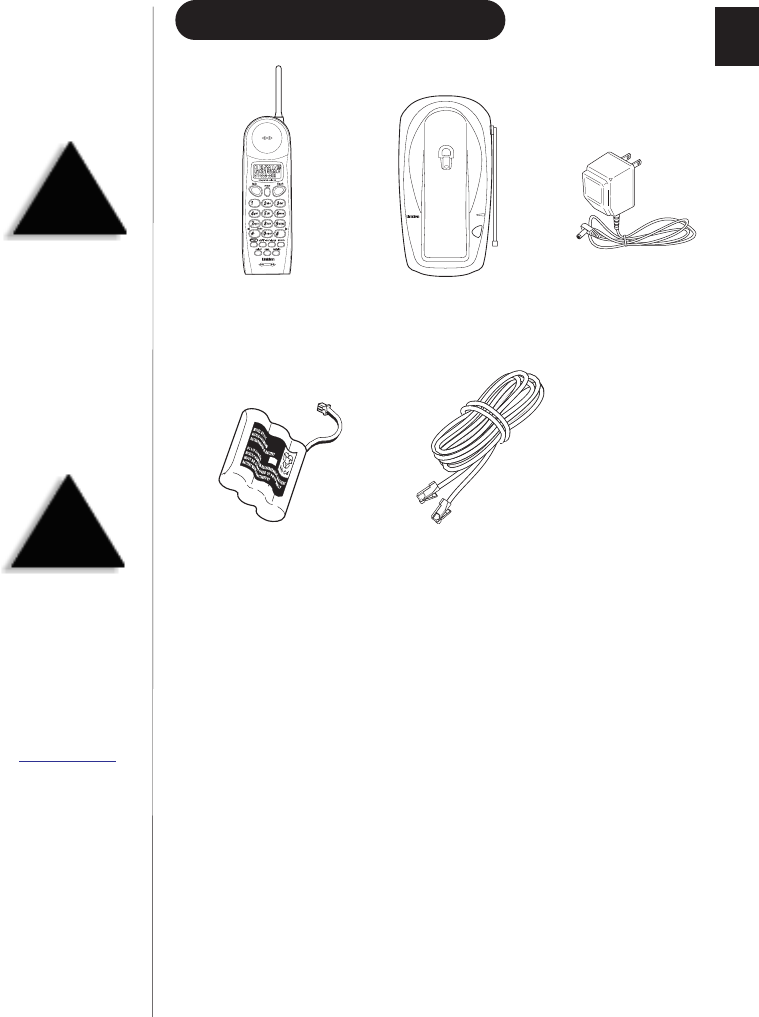
INCLUDED IN YOUR PACKAGE
•This Owner’s Manual
•Precautions and Important Safety Instructions
•Registration Card
•Quick Reference Guide
3
Handset
page/find
status
900 MHz
Base AC Adapter
Rechargeable Battery Long Telephone Cord
NOTE
If any of these items are
missing or damaged,
contact the Uniden Parts
Department at (800)554-3988.
Hours are from 8:30 a.m. to
5:00 p.m. Central Time,
Monday through Friday. We
can also be reached on the
web at www.uniden.com.
TIP
To get the most from your
phone, please read this
reference guide thoroughly.
Also be sure to complete
and mail the product
registration form.
C:...EXI 7960H1-5 VA.vp
Tue Oct 05 16:59:45 1999
Color profile: Disabled
Composite Default screen
DESK/TABLETOP INSTALLATION
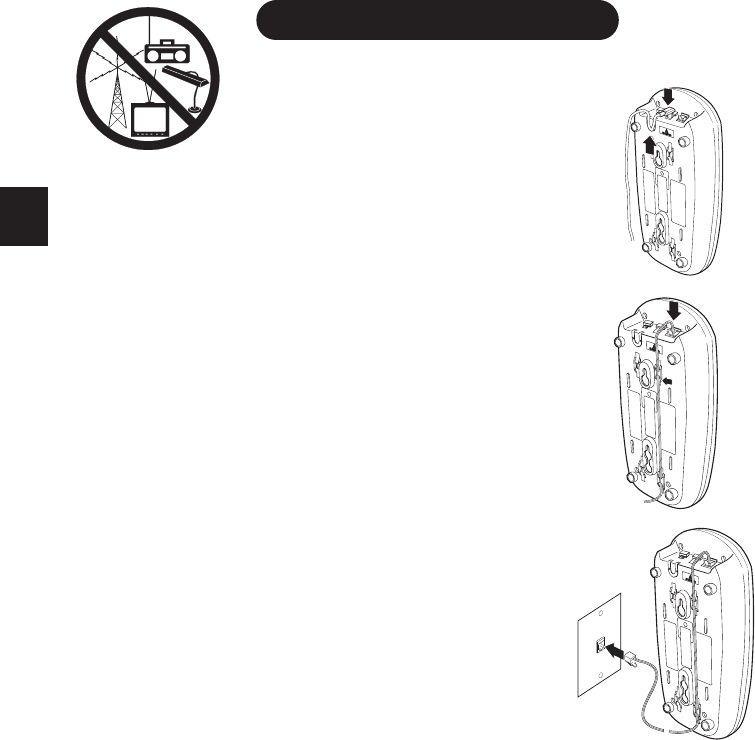
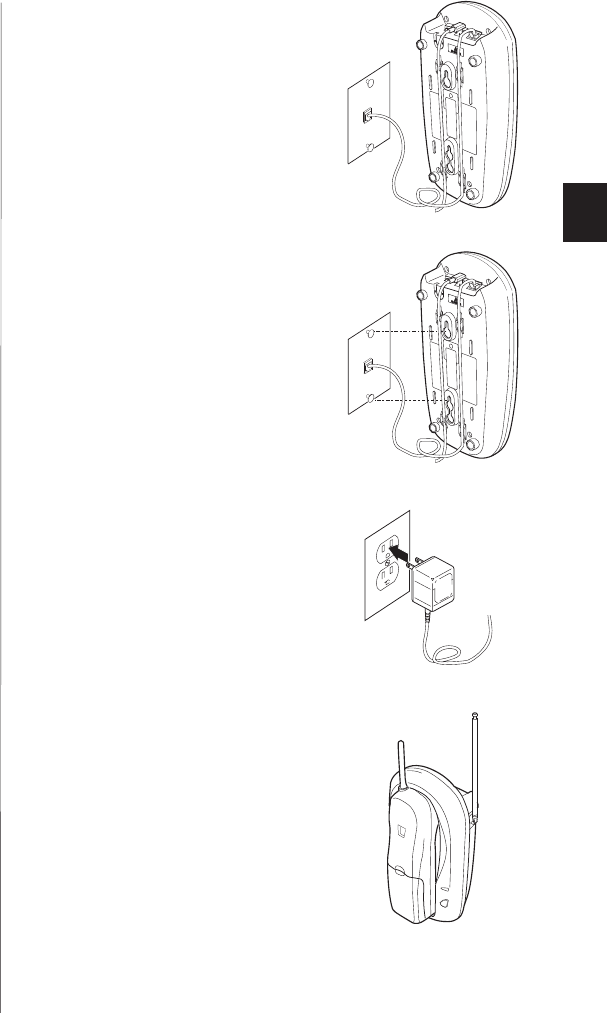
1) Plug the AC adapter cord into the
DC input jack on the back of
the base, then place the AC
adapter cord inside the molded
strain relief.
2) Plug one end of the long
telephone cord into the
TEL LINE jack on the base, then
place the telephone cord into the
right molded channel cord holder.
3) Plug the other end of the long
telephone cord into the telephone
wall jack. (Remember, the phone
must be fully charged before you
can use it.)
4
AND ADJUSTING YOUR PHONE
INSTALLING
TIP
When choosing a location for
your phone, keep the base unit
and the handset away from
electrical noise caused by
objects like motors and
fluorescent lighting.
C:...EXI 7960H1-5 VA.vp
Tue Oct 05 16:59:47 1999
Color profile: Disabled
Composite Default screen
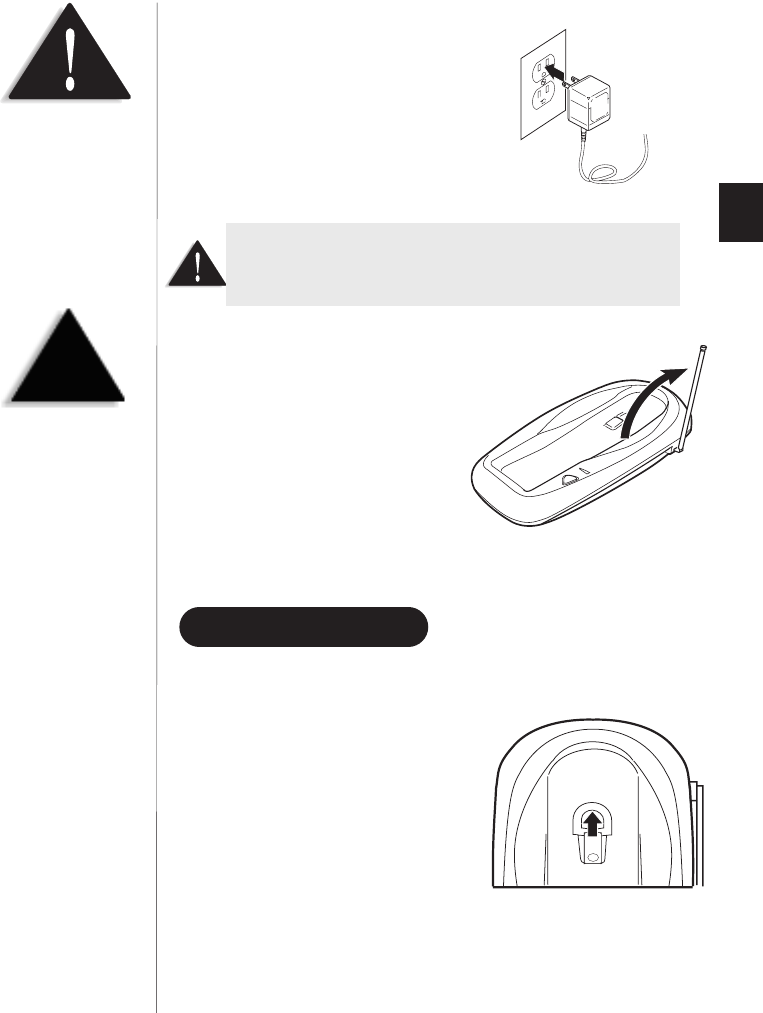
4) Plug the AC adapter into a
standard 120 V AC wall outlet.
5) Raise the antenna to a
vertical position.
WALL INSTALLATION
tSetting the Handset Retainer for Wall Mounting
1) Remove the handset retainer on
the base by sliding it upward.
5
HINT
Before using your phone,
fully charge the Nickel-
Cadmium battery pack for
15-20 hours.
Use only the Uniden AC adapter supplied with this phone
and DO NOT use an outlet controlled by a wall switch.
Place the power cord so that
it does not create a trip
hazard or where it could
become chafed and create
an electrical hazard
or fire.
C:...EXI 7960H1-5 VA.vp
Tue Oct 05 16:59:49 1999
Color profile: Disabled
Composite Default screen
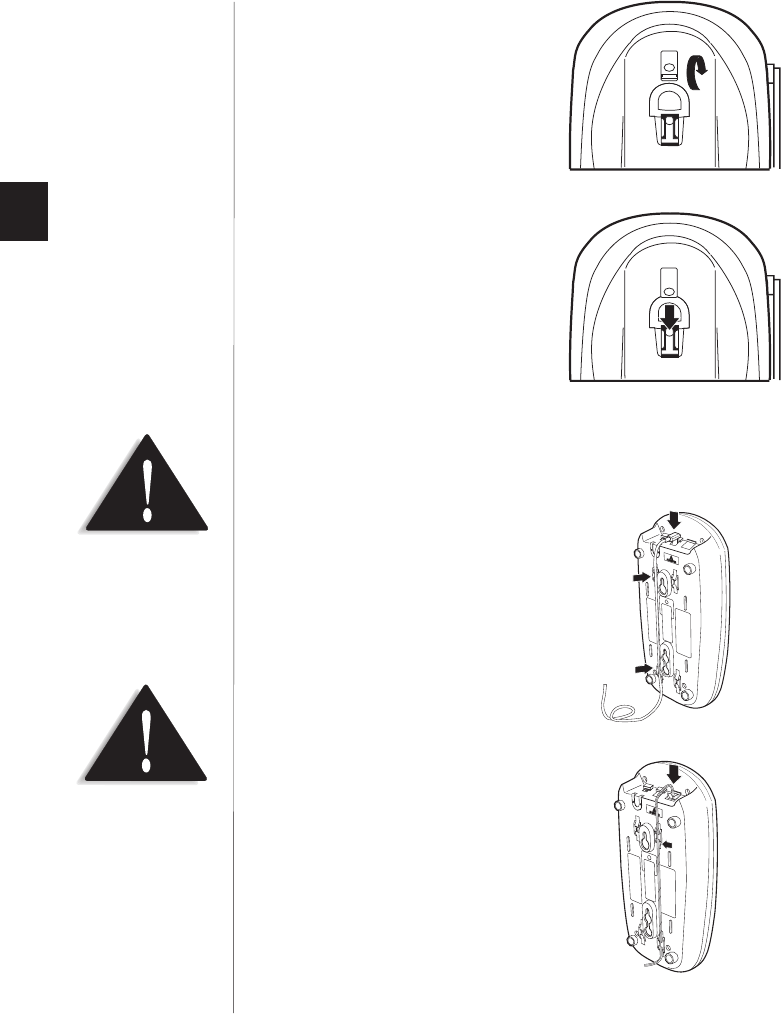
2) Flip the handset retainer over so
the tab is facing up.
3) Slide the handset retainer back
onto the base.
tStandard Wall Plate Mounting
This phone can be mounted on any standard telephone wall plate.
1) Plug the AC adapter into the DC
input jack on the back of the
base, then place the AC adapter
cord inside the left molded
channel cord holder.
2) Plug a short telephone cord into the
TEL LINE jack on the base, then
place the telephone cord inside the
right molded channel cord holder.
6
DO NOT use an outlet
controlled by a wall switch.
Before you plug the other end
of the telephone cord into the
modular jack on the wall,
charge the battery (refer to
“Charging the Battery Pack,”
page 12).
C:...EXI 7960H1-5 VA.vp
Tue Oct 05 16:59:50 1999
Color profile: Disabled
Composite Default screen
3) Plug the other end of the cord
into the wall jack. (Remember, the
phone must be fully charged before
you can use it.)
4) Place the base on the two posts of
the wall plate and slide it downward
to secure.
5) Plug the AC adapter into a standard
120 V AC wall outlet that is not
controlled by a wall switch.
6) Raise the antenna on the base.
7
C:...EXI 7960H1-5 VA.vp
Tue Oct 05 16:59:52 1999
Color profile: Disabled
Composite Default screen
tDirect Wall Mounting
If you don’t have a standard wall plate, you can mount your phone
directly to the wall. Before mounting your cordless telephone, consider
the following:
•Select a location away from electrical cables, pipes, or other items
behind the mounting location. Inserting screws into areas such as this
can be hazardous.
•Try to mount your phone within 10 - 15 feet of a working phone jack in
order to avoid excessive cord length. Remember, you are not mounting
your phone to a wall plate with a built-in phone jack.
•If the selected mounting area has no wooden support beams directly
behind it, you will need the appropriate anchoring devices in order for
the wall to properly support your phone.
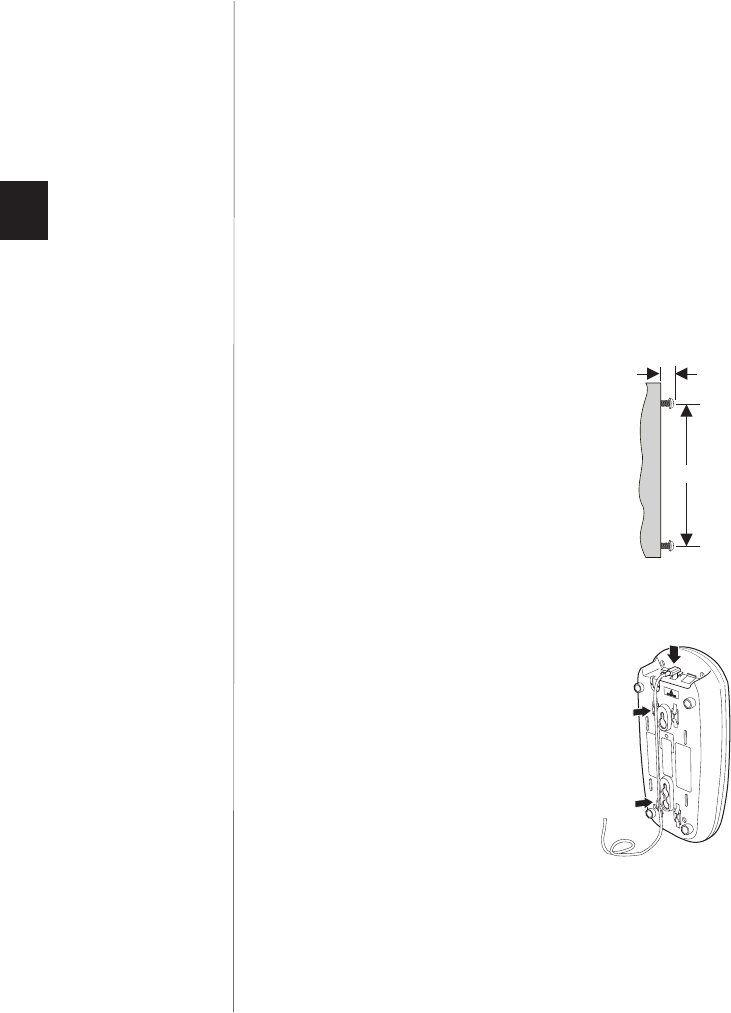
1) Insert two mounting screws into
the wall, with their appropriate
anchoring device if necessary,
3-15/16 inches apart. Allow about
3/16 of an inch between the wall
and screw heads for mounting
the phone.
2) Set the handset retainer. (Refer to “Setting the Handset Retainer for
Wall Mounting” on page 5.)
3) Plug the AC adapter into the DC
input jack on the back of the base
and place the cord inside the left
molded channel cord holder.
8
3/16 in.
3 15/16 in.
C:...EXI 7960H1-5 VA.vp
Tue Oct 05 16:59:53 1999
Color profile: Disabled
Composite Default screen
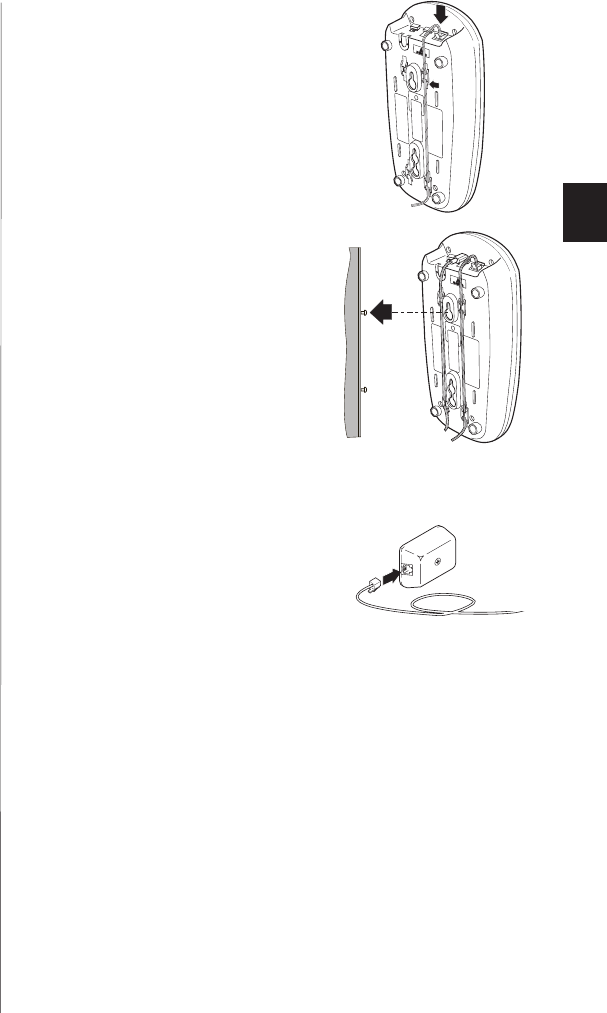
4) Plug one end of the long telephone
cord into the TEL LINE jack on the
back of the base and place the
telephone cord into the right molded
channel cord holder.
5) Place the base on the screws and push
it downward to secure.
6) Plug the other end of the telephone
cord into the wall jack.
9
C:...EXI 7960H1-5 VA.vp
Tue Oct 05 16:59:54 1999
Color profile: Disabled
Composite Default screen
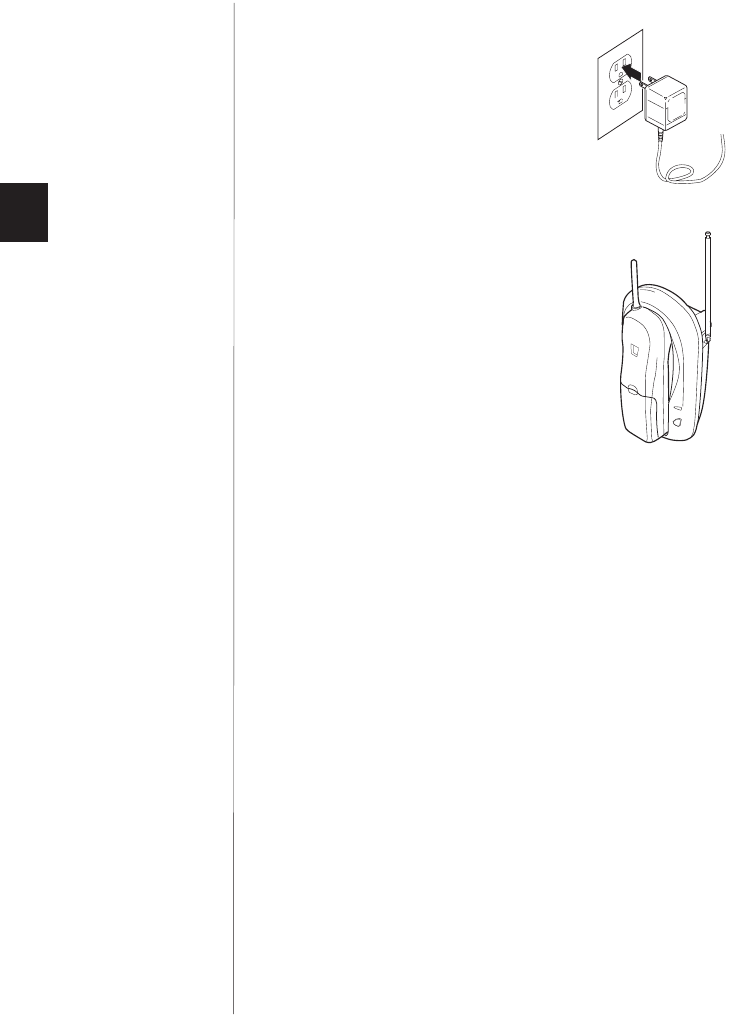
7) Plug the AC adapter into a standard
120 V AC wall outlet that is not
controlled by a wall switch.
8) Raise the antenna on the base.
10
C:...EXI 7960H1-5 VA.vp
Tue Oct 05 16:59:55 1999
Color profile: Disabled
Composite Default screen
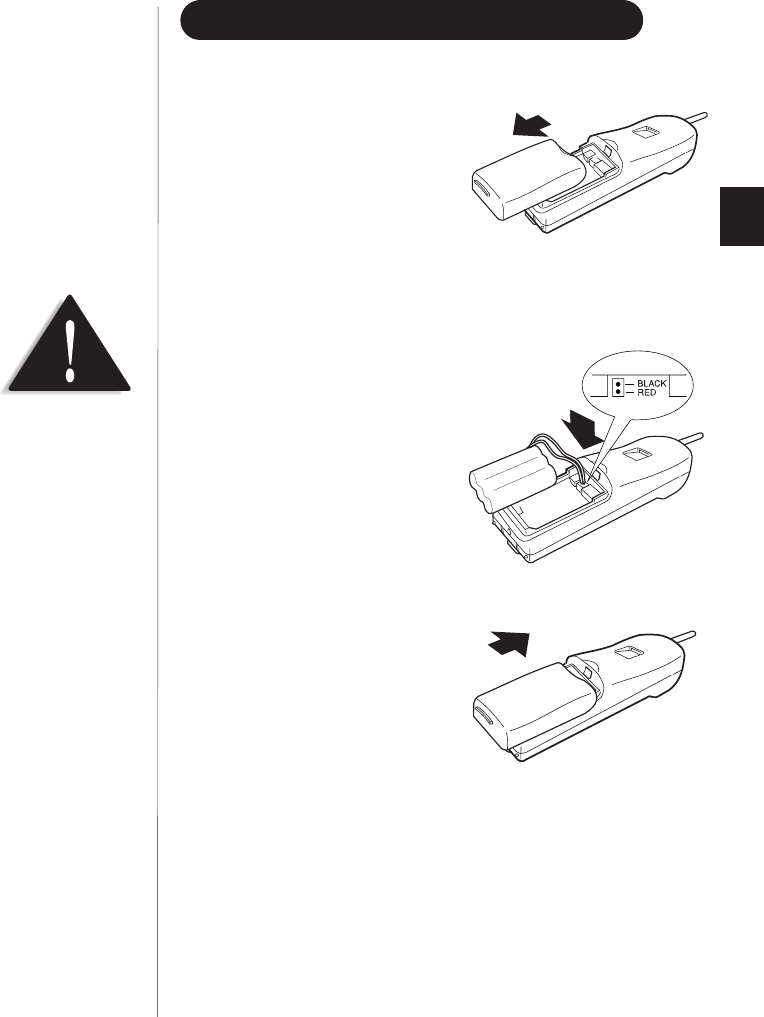
INSTALLING THE HANDSET BATTERY PACK
1) Remove the handset battery cover
by pressing in on the cover
release and sliding it downward.
2) Plug the battery’s cable into
the handset.
3) Slide the battery cover on until it
snaps into place.
11
Use only the Uniden battery
(BT-905) supplied with your
phone.
C:...EXI 7960H1-5 VA.vp
Tue Oct 05 16:59:56 1999
Color profile: Disabled
Composite Default screen
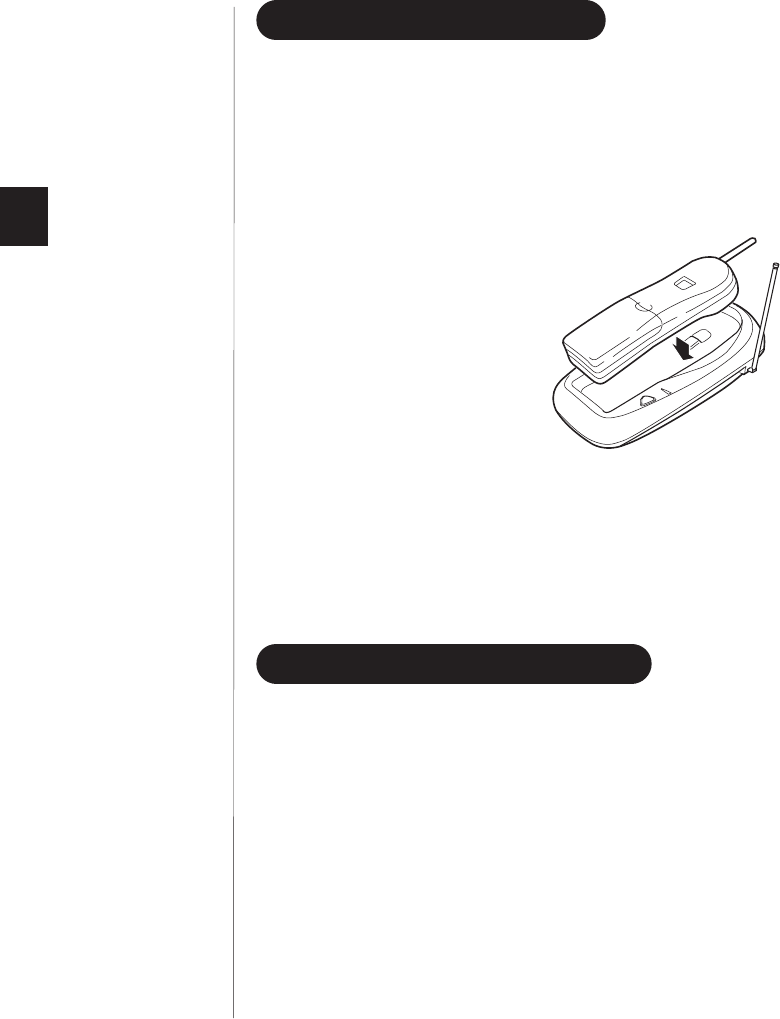
CHARGING THE BATTERY PACK
tInitial battery charging
Before plugging the phone line into your new phone for the first time,
fully charge the rechargeable battery pack for 15-20 hours
without interruption.
1) Place the handset on the base.
2) Make sure that
status
LED lights.
If the LED doesn’t light, check to
see that the AC adapter is plugged
in and that the handset makes
good contact with the base
charging contacts.
tLow battery indicator
When the battery pack is very low and needs to be charged, the phone
is programmed to eliminate functions in order to save power. The
handset beeps. Complete your conversation as quickly as possible and
return the handset to the base for charging.
CLEANING THE BATTERY CONTACTS
To maintain a good charge, clean all charging contacts on the handset
and base about once a month with a pencil eraser or other contact
cleaner. DO NOT use liquids or solvents; you may damage your phone.
12
C:...EXI 7960H1-5 VA.vp
Tue Oct 05 16:59:56 1999
Color profile: Disabled
Composite Default screen
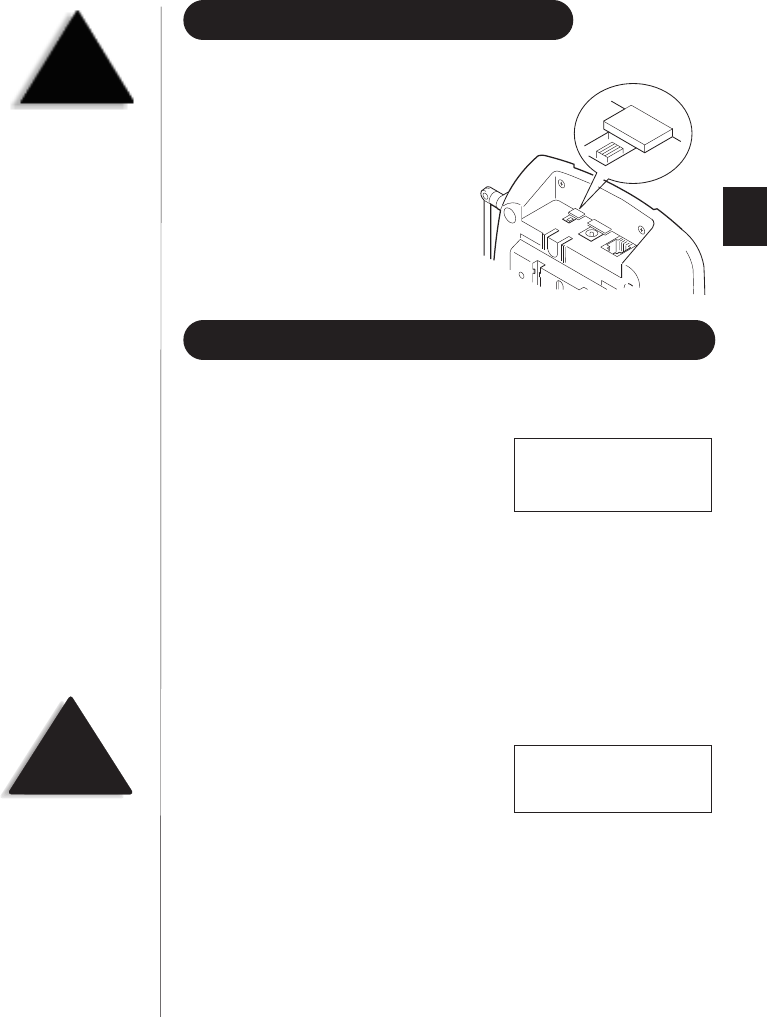
SETTING THE PULSE/TONE SWITCH
Be sure the
PULSE/TONE
switch
is in the
TONE
position unless your
local phone system uses pulse dialing.
ADJUSTING THE RINGER AND VOLUME CONTROLS
tHandset Ringer Tone and Volume
Your EXI 7960 lets you choose from
two ringer tones, Type A and Type B.
Each tone has a low and high volume
setting. When the phone is in standby
mode, press the
vol
sor tkey on the handset to select the handset
ringer tone and volume. As you change the settings, the selection appears
on the LCD.
tHandset Earpiece Volume
The EXI 7960 comes with four volume settings for the handset earpiece
- normal, medium, high and loud.
During a call, press
vol
sto increase
the earpiece volume, press
vol
tto
decrease the earpiece volume. As you
increase or decrease the volume, your selection
appears on the LCD.
When you hang up, the EXI 7960 keeps the last volume setting selected.
13
TIP
Most phone systems use tone
dialing. Check with your
local phone company if
you’re not sure whether your
system is tone or pulse.
PULSE-TONE
Ring Type B
High
Talk 0:15
<High>
NOTE
You can only adjust the
earpiece volume setting
during a call.
C:...EXI 7960H1-5 VA.vp
Tue Oct 05 16:59:58 1999
Color profile: Disabled
Composite Default screen
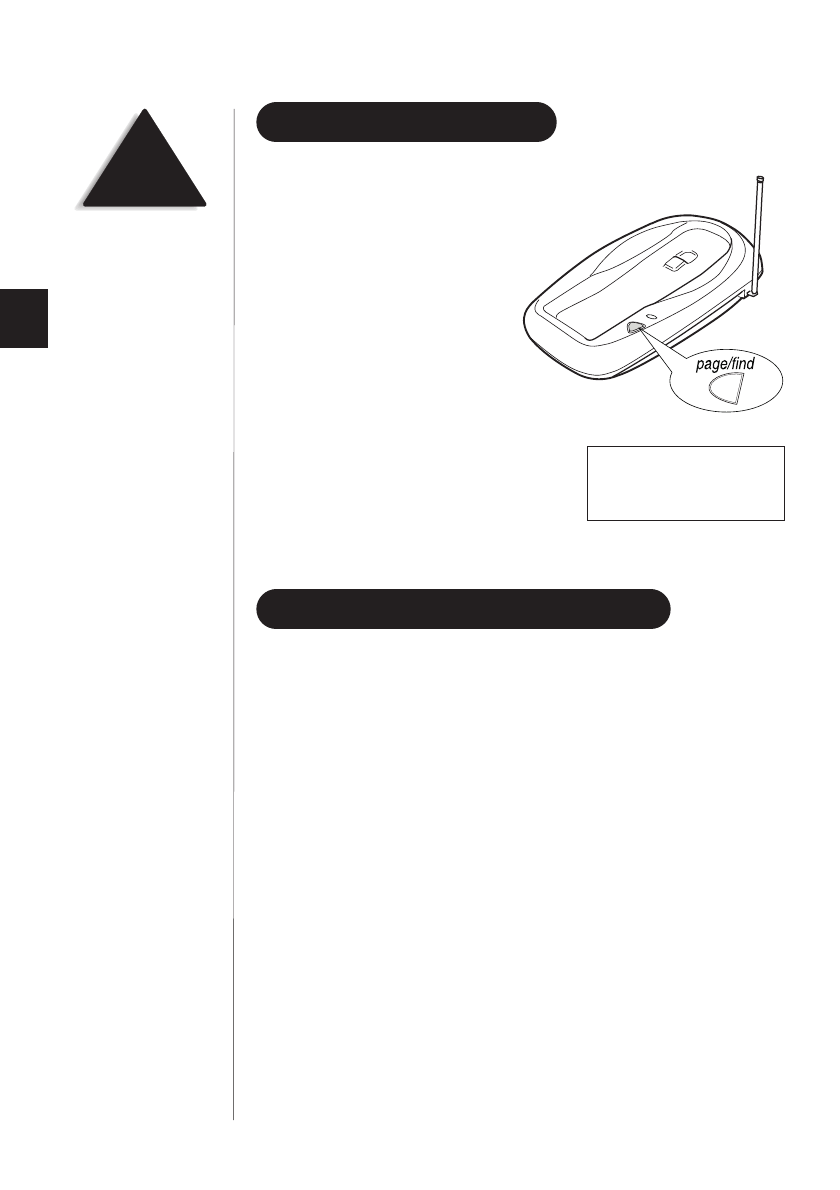
USING THE PAGE FEATURE
1) To locate the handset when it is not
on the base, press and release the
page/find
key.
2) The handset beeps for 60 seconds and
the following screen appears:
3) Once you have found the handset, press any key to end the page.
AUTOMATIC DIGITAL CODE SECURITY
To prevent other parties from making unauthorized calls on your
phone line, a digital code was added to the EXI 7960. Your phone’s
handset and base share this code, which is randomly set each time you
place the handset in the charging cradle.
To reestablish communication between the handset and the base in the
event of a power failure:
1) Restore power to the base.
2) Place the handset in the base and press
page/find
.
3) Pick up the handset from the base.
4) Return the handset to the base.
The
status
LED blinks to indicate that the digital security code is reset.
14
NOTE
When an incoming call is
received during paging,
paging is stopped and the
telephone is switched to the
incoming call.
Paging
C:...EXI 7960H1-5 VA.vp
Thu Oct 21 10:50:29 1999
Color profile: Disabled
Composite Default screen
Using YourNew Phone
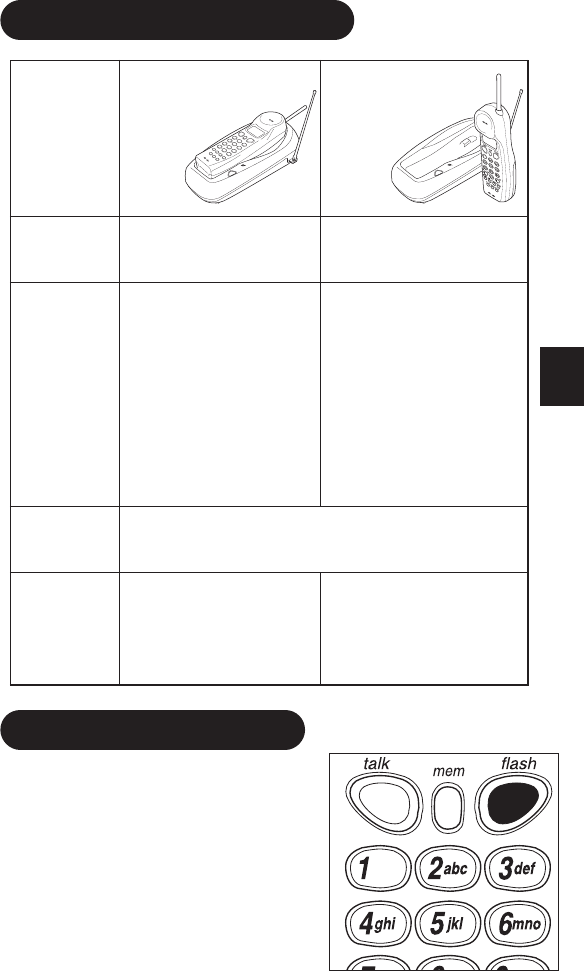
MAKING AND RECEIVING CALLS
Handset
On Base
Handset
Off Base
To answer
a call
Pick up the handset
(AutoTalk) or press
talk
.
Press any button (Autotalk)
or press
talk
.
To make
a call
1) Pick up the handset.
2) Press
talk
.
3) Listen for the dial tone.
4) Dial the number.
OR
1) Pick up the handset.
2) Dial the number, then
press
talk
.
1) Press
talk
.
2) Listen for the dial tone.
3) Dial the number.
OR
Dial the number, then
press
talk
.
To hang up Press
talk
, or return the handset to the
base (AutoStandby).
To redial
1) Pick up the handset.
2) Press
talk
.
3) Listen for the dial tone.
4) Press
redial
.
1) Press
talk
.
2) Listen for the dial tone.
3) Press
redial
.
FLASH AND CALL WAITING
If you have “call waiting” service
and a call waiting tone sounds
while you are on a call, press
flash
to accept the waiting call.
There is a short pause, then you
will hear the new caller. To
return to the original caller,
press
flash
again.
15
USING
YOUR NEW PHONE
C:...EXI 7960H1-5 VA.vp
Tue Oct 05 17:00:01 1999
Color profile: Disabled
Composite Default screen
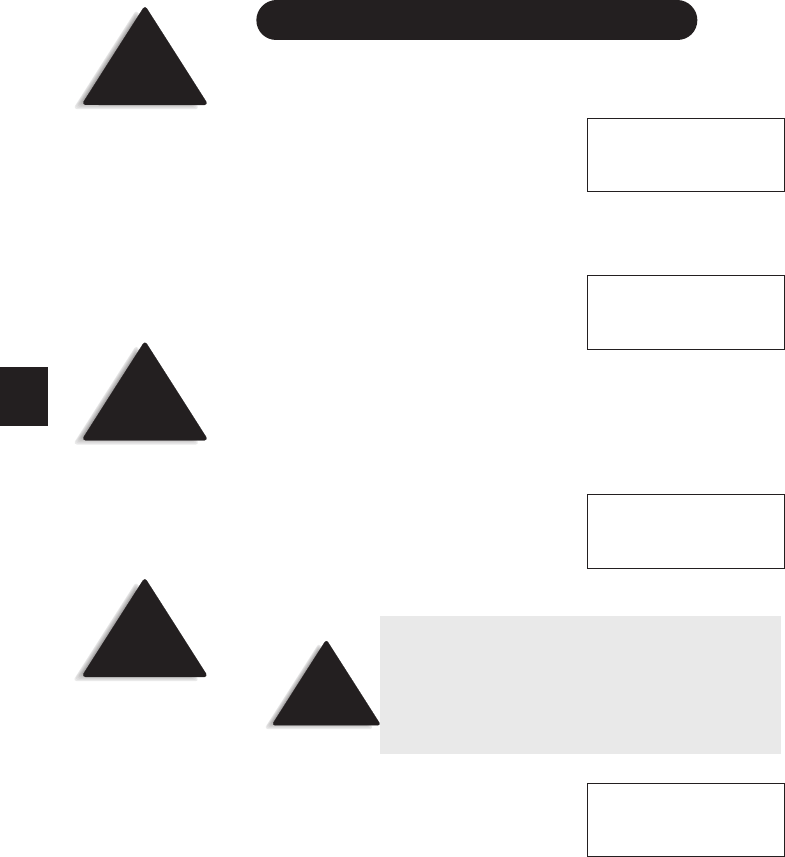
STORING A PHONE NUMBER IN MEMORY
1) Remove the handset from the base.
2) Press and hold
mem
for two seconds.
A short tone will sound and the
following screen appears.
3) Use the :and ;keys or number keypad to choose the memory
location where you would like to enter a number.
4) Press
select
. The following screen appears,
and a cursor flashes indicating that the
display is ready for the name to be entered.
5) Use the :and ;keys to scroll through the character menu. Use the
<and >keys to move the cursor to the desired location, and enter the name.
6) If you make a mistake, press
delete
to erase the character you just
entered. Or press and hold
delete
to erase the entire line.
7) Press
select
. The following screen
appears, and a cursor flashes indicating
that the display is ready for the number.
8) Enter the phone number with the handset keypad.
9) Press
select.
The handset beeps and
displays a confirmation screen. For
example, if you store a name and number
into memory location number one, the
display shows Memory 1 Stored.
10)Press
mem
or return the handset to the charging cradle to exit store
mode. Or, wait 20 seconds for the phone to return to standby.
16
HINT
The character menu
consists of letters, symbols,
and numbers.
NOTE
The pause button counts
as one digit. Pressing
pause
more than once
increases the length of pause
between numbers.
NOTE
Whenever you are using a
menu screen, you must press
a key within 20 seconds or the
phone will return to standby.
You may also press
mem
to exit a memory menu at
any time.
Memory Store
1>
2
Store Name
z
Store Number
z
NOTE
When entering numbers, press
pause
to enter a
pause in the dialing sequence. The display shows
aP. The pause feature is useful for long distance
calling, credit card dialing, or sequences requiring
pause between digits.
Memory 1 Stored
C:...EXI 7960H1-5 VA.vp
Tue Oct 05 17:00:03 1999
Color profile: Disabled
Composite Default screen
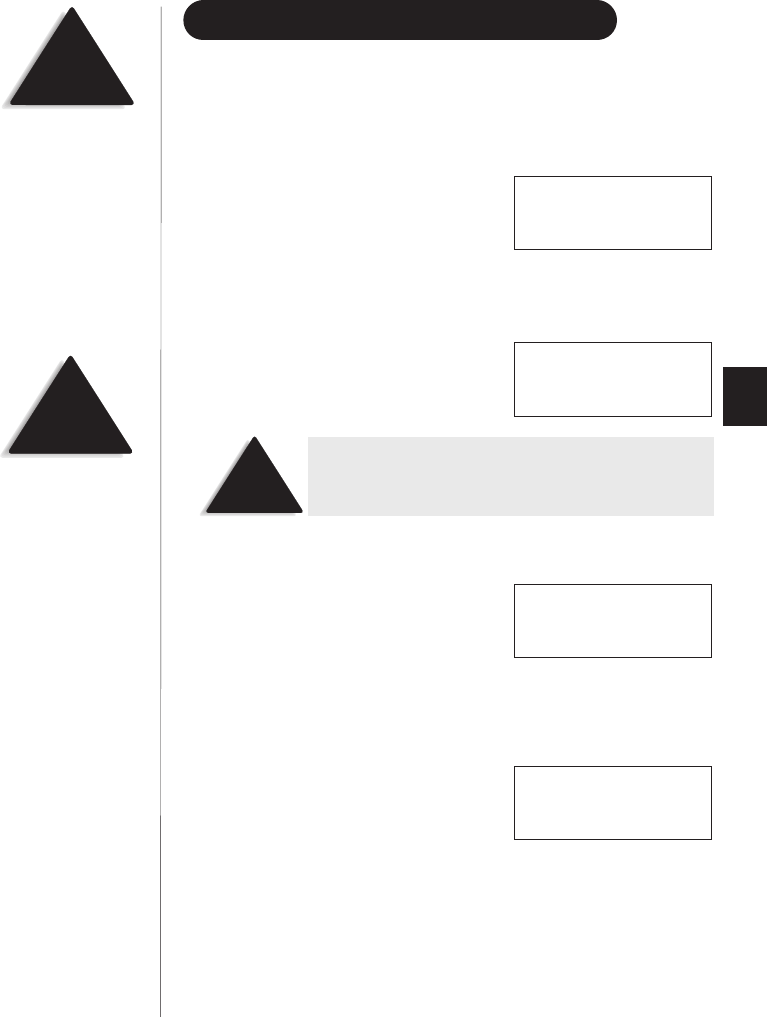
EDITING A PHONE NUMBER IN MEMORY
Follow these steps to edit a phone number that you have already
programmed into memory.
1) Remove the handset from the base.
2) Press and hold
mem
for two seconds.
The display shows the Memory Store
screen and any saved numbers.
3) Use the :and ;keys or number keypad to select the memory
location you would like to edit. The <and >keys toggle between the
names display and the numbers display.
4) Press
select
. The following screen appears
with the memory location number that
you have selected in the display
5) With >cursor next to Edit Memory,
press
select
. The following screen appears,
and a cursor flashes indicating that the
display is ready for the name to be edited.
6) Use the :and ;keys to scroll through the character menu. Use the
<and >keys to move the cursor to the desired location, and enter the name.
7) Press
select
. The following screen
appears, and a cursor flashes indicating
that the display is ready for the number
to be edited.
8) Enter the phone number with the number keypad.
17
NOTE
If you select Go Back
at any time, no changes are
made and the handset
shows the Memory
Store screen.
NOTE
Whenever you are using a
menu screen, you must press
a key within 20 seconds or
the phone will return to
standby. You may also press
memory
to exit a memory
menu at any time.
>Edit Memory 1
Delete Memory 1
Go Back
Memory Store
1>KAYSIE SCHLITZ
2 UNIDEN
NOTE
You may move the >cursor down to Go Back and
press
select
if you would like to exit this menu.
Store Name
KAYSIE SCHLITZ
Store Number
8175551212
C:...EXI 7960H1-5 VA.vp
Tue Oct 05 17:00:04 1999
Color profile: Disabled
Composite Default screen
9) Press
select.
The handset beeps and
displays a confirmation screen. For
example, if you store a name and number
into memory location number one, then
the handset shows Memory 1 Stored.
10)The display then returns to the Memory Store screen. You may select
another number to edit (return to step 3) or you may press
mem
to
return to standby.
ERASING A NUMBER FROM MEMORY
Use these steps to erase a programmed number from memory. Once a
number is erased, that memory location may be programmed with a
new number.
1) Remove the handset from the base.
2) Press and hold
mem
for two seconds.
The handset shows the Memory Store
screen with any saved numbers displayed.
3) Use the :and ;keys or number keypad to select the memory
location you would like to delete. The <and >keys toggle between the
names display and the numbers display.
4) Press
select
. The following screen
appears with the memory location
number that you have selected in
the display.
5) Use the ;keytomovethe>cursor
down to the Delete Memory command.
6) Press
select
. The following confirmation
screen appears.
7) Use the :keytomovethe>cursor to the Yes command.
18
NOTE
If you select Go Back
at any time, no changes are
made and the handset shows
the Memory Store screen.
NOTE
If you select No , no changes
are made and the handset
shows the Memory
Store screen.
Memory 1 Stored
Memory Store
1>KAYSIE SCHLITZ
2 UNIDEN
>Edit Memory 1
Delete Memory 1
Go Back
Edit Memory 1
>Delete Memory 1
Go Back
Delete Memory?
Yes
>No
C:...EXI 7960H1-5 VA.vp
Tue Oct 05 17:00:05 1999
Color profile: Disabled
Composite Default screen
8) Press
select
. There is a confirmation
tone, and the handset displays
Memory 1 Deleted.
9) The display then returns to the Memory Store screen. You may select
another number to delete (return to step 3) or you may press
mem
to
return to standby.
USING MEMORY DIALING
Follow the steps below to dial a number using a programmed
memory location.
1) Press
mem
. The handset displays
your programmed memory locations.
2) Use the :and ;keys or the number
keypad to select the memory location
you would like to dial.
3) Press
talk
and the number dials.
CHAIN DIALING
On certain occasions after dialing a number, you may be requested to
enter an access code, such as your account number. You can enter this
number into a memory location for later use by doing the following.
1) Store the access code into one of the memory locations (0-9). See
“Storing A Phone Number in Memory” (page 16).
2) Dial the party or service main number.
19
HINT
Use the <and >keys to
toggle between the names
and the numbers displayed
in memory.
NOTE
If you already know the memory location of the
number you wish to dial, press
talk
then
mem
and
the memory location. The phone will automatically
dial the number.
Memory 1 Deleted
1>KAYSIE SCHLITZ
2 Uniden
3 Grandma
1 KAYSIE SCHLITZ
2>Uniden
3 Grandma
C:...EXI 7960H1-5 VA.vp
Tue Oct 05 17:00:07 1999
Color profile: Disabled
Composite Default screen
3) When you need to enter the special number, press
mem
followed by
the memory location (0-9).
USING CALLER ID
You must subscribe to Caller ID from your phone company in
order to use this feature.
tSetting Up Caller ID Options
There are three Caller ID setup options available; Autotalk, CIDCW, and
Area Code.
Auto Talk allows you to answer the phone without pressing the
talk
button. If the phone rings when Autotalk is on, simply remove the
handset from the cradle and the phone automatically answers the call.
If the phone rings when Autotalk is off, you must press
talk
to answer
the call. This option is useful to help you screen your calls
more effectively.
CIDCW (Caller ID on Call Waiting) performs the same as regular
Caller ID on a call waiting number. You must subscribe to CIDCW
from your phone company in order to use this feature.
If you enter your 3-digit area code number in the Area Code
option, your local area code does not appear in Caller ID messages.
When reviewing Caller ID messages, you will see only the local seven
digit number. For calls received from outside your local area code, you
will see a full 10-digit number.
To change your Caller ID options:
1) Press and hold
call id
for two seconds.
A short tone will sound and the
following screen appears.
20
NOTE
You must subscribe to
CIDCW from your phone
company in order to use
this feature.
HINT
You may use the <and >
keys to toggle between
numbers when programming
the area code.
NOTE
If your calling area requires 10-digit dialing, do
not program this option.
1>Auto Talk:Off
2 CIDCW :On
3 Area Code:
C:...EXI 7960H1-5 VA.vp
Tue Oct 05 17:00:08 1999
Color profile: Disabled
Composite Default screen
2) Use the :and ;keys to move the cursor to the selection that you
would like to change. Press the
select
key to toggle between On and
Off for Autotalk and CIDCW. Press
select
and use the number
keypad to enter or change the area code, then press
select
again. (You hear a
confirmation tone indicating the area code has been changed.)
3) After you have made your selections, press
call id
and return the
handset to the base. The
status
LED flashes, indicating that your
setup changes are now effective.
tScreening Your Calls
Caller ID allows you to review caller
information before you answer your
phone. When the phone rings, the
display shows the date, time, call count,
name, and phone number of the caller.
If your Caller ID service is number only,
then the name does not appear on the second line.
If a name or number is not available, the display will show a
message such as Incomplete Data,Private Number,
Private Name, etc.
tUsing CIDCW (Caller ID on Call Waiting)
1) During a call when you hear the
Call Waiting tone, check the handset
for the name and number of the
incoming caller.
2) Press
flash
to accept the incoming call. See page 14 for
additional information.
21
NOTE
If you have no New Caller ID
Messages, then the “New”
display is blank. Only the
“Total” display appears.
NOTE
Once a Caller ID message
has been viewed, it is no
longer considered a
new message.
Talk 0:00
Schlitz Kaysie
817-555-1212
12/21 12:30PM 03
Schlitz Kaysie
817-555-1212
C:...EXI 7960H1-5 VA.vp
Tue Oct 05 17:00:09 1999
Color profile: Disabled
Composite Default screen
tReviewing Caller ID Numbers
Your phone stores the most recent 30 numbers in Caller ID memory. If
the memory is full, a new call replaces the oldest number. To review
your Caller ID numbers, follow the steps below.
1) Press
call id
, and the Caller ID
summary screen appears. The screen
shows the number of new callers and
the total number of callers stored in
Caller ID memory. (This screen appears
on the display whenever the handset is
face up in the base.)
2) Press ;to scan through the list. The
most recent call appears first, with the
date, time, call count, name, and phone
number. Press :to scan back
through the list.
3) Once you have reviewed your oldest
call, the following screen appears.
Press
call id
to return to standby.
tCalling a Caller ID Number
1) Press
call id
, and the Caller ID
summary screen appears. The screen
shows the number of new callers and
the total number of callers stored in
Caller ID memory.
2) Select the number that you would like to
dial. Press ;to scan forward and :to
scan back through the list.
3) Press
talk
and the number automatically dials.
22
NOTE
Your phone stores the most
recent 30 numbers in Caller
ID memory. If the memory
is full, a new call replaces
the oldest number.
New:01
Total : 02
12/21 12:30PM 03
Schlitz Kaysie
817-555-1212
End
NOTE
Once you have viewed all of your Caller ID numbers
and reached the “End” display, the list does not cycle
back to the beginning. You must press :to view
your previous calls.
New:01
Total : 02
12/21 12:30PM 03
Schlitz Kaysie
817-555-1212
NOTE
If you have no Caller ID
messages, then the total is
shown as 00.
HINT
For long distance dialing,
press
1
toadda1tothe
number in the display.
C:...EXI 7960H1-5 VA.vp
Tue Oct 05 17:00:10 1999
Color profile: Disabled
Composite Default screen
tStoring a Caller ID Number Into a Memory Location
1) Press
call id
, and the Caller ID
summary screen appears. The screen
shows the number of new callers and
the total number of callers stored in
Caller ID memory.
2) Press ;or :to find the number that
you would like to store, then press
mem
to store the selection.
3) The select location screen appears. Use
the :and ;keys to select a blank
memory location where you would like to
store the number. (If you want to replace
an existing number with the Caller ID
number, skip to step 5.)
4) Press
select
. A confirmation tone sounds, and the number is
programmed. (Do not complete steps 5 and 6.)
5) If you choose to replace an existing
number with the Caller ID number,
press
select,
and the following
screen appears.
6) Use the :key to move the cursor to Yes and press
select
.A
confirmation tone sounds, and the number is programmed.
tDeleting a Caller ID Number
To delete a single Caller ID message, follow the steps below.
1) Press
call id
, and the Caller ID
summary screen appears. The screen
shows the number of new callers and
the total number of callers stored in
Caller ID memory.
2) Select the number that you would like to
delete. Press ;to scan forward and :to
scan backwards through the list.
23
NOTE
If you select No, then the
Caller ID screen returns.
New:01
Total : 02
12/21 12:30PM 03
Schlitz Kaysie
817-555-1212
Select Location
1>KAYSIE SCHLITZ
2 UNIDEN
Yes
>No
Replace Memory?
HINT
The <and >keys to toggle
between the names display
and the numbers display.
New:01
Total : 02
12/21 12:30P 03
Schlitz Kaysie
817-555-1212
C:...EXI 7960H1-5 VA.vp
Tue Oct 05 17:00:12 1999
Color profile: Disabled
Composite Default screen

3) Press
delete
, and the following
screen appears.
4) Press
select
or
delete
. A confirmation tone sounds and the Caller ID
screen returns with the next message displayed.
5) After you have deleted the Caller ID
number, the display shows End.
Press
call id
to return to standby.
tDeleting All Caller ID Numbers
To delete all of your Caller ID numbers, follow the steps below.
1) Press
call id
, and the Caller ID
summary screen appears. The screen
shows the number of new callers and
the total number of callers stored in
Caller ID memory.
2) Press
delete
, and the following
screen appears.
3) Use the :key to move the cursor to Yes, then press
select
or
delete
.
4) A confirmation tone sounds, and the
following screen appears.
5) Press
call id
to return to standby.
24
Delete Message?
>Yes
No
End
New:01
Total : 02
Delete All?
Yes
>No
Total:00
C:...EXI 7960H1-5 VA.vp
Tue Oct 05 17:00:13 1999
Color profile: Disabled
Composite Default screen
USING REDIAL
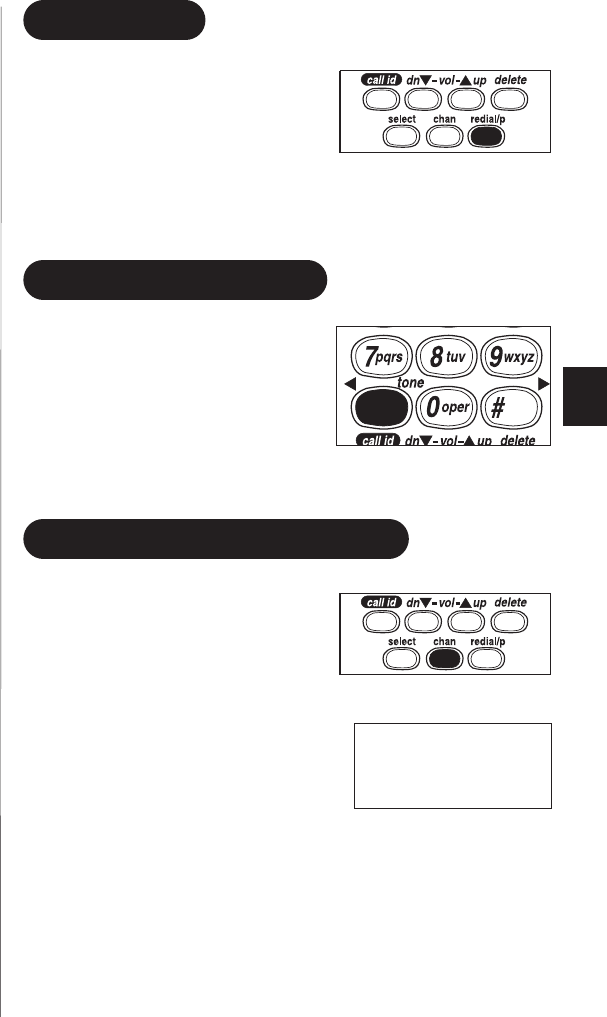
Press
redial/p
to call the last number
dialed. The number redialed can be up
to 32 digits long.
If you press
redial/p
before pressing
the
talk
key, you can edit the number
using the
delete
key.
USING THE TONE FEATURE
If you are dialing in the pulse mode
and need to enter tone digits, press
tone
to enter the digits. Once the call
has ended, the tone mode is canceled
and pulse dialing resumes. The tone
feature applies only when the base
unit is set to pulse.
SELECTING A DIFFERENT CHANNEL
If you encounter interference while
using your phone, you can manually
change the channel for clearer
operation. This function works only
when the phone is in use.
The
chan
button on the handset allows
you to choose between 40 channels.
During the course of a conversation,
if you hear static or noise which makes
it difficult to hear, press
chan
. The
following screen appears and
the phone changes to a different channel.
25
Scanning
C:...EXI 7960H1-5 VA.vp
Tue Oct 05 17:00:14 1999
Color profile: Disabled
Composite Default screen

TRAVELING OUT-OF-RANGE
During a call, as you begin to move too far from your base unit, noise
increases. If you pass the range limits of the base unit, your call will
terminate within 20 seconds.
26
C:...EXI 7960H1-5 VA.vp
Tue Oct 05 17:00:14 1999
Color profile: Disabled
Composite Default screen

QUICK REFERENCE CHART
If your phone is not performing to your expectations, please try these
simple steps. If you are still unable to resolve the problem, contact your
place of purchase or call customer service at (800)297-1023.
PROBLEM SUGGESTION
The charge light won’t come
on when the handset is
placed in the base.
•Make sure the AC adapter is
plugged into the base and
wall outlet.
•Make sure the handset is properly
seated in base.
•Make sure the charging contacts on
the handset and base are clean.
The audio sounds weak
and/or scratchy.
•Make sure that the base antenna is
in a vertical position.
•Press
chan
to help eliminate
background noise.
•Move the handset and/or base to a
different location away from metal
objects or appliances and
try again.
Can’t make or receive calls. •Check both ends of the base
telephone line cord.
•Make sure the AC adapter is
plugged into the base and
wall outlet.
•Disconnect the AC adapter for a few
minutes, then reconnect it.
•Reset security code (see page 13).
27
YOUR NEW PHONE
TROUBLESHOOTING
C:...EXI 7960H1-5 VA.vp
Tue Oct 05 17:00:15 1999
Color profile: Disabled
Composite Default screen

PROBLEM SUGGESTION
The handset doesn’t ring or
receive a page.
•The Nickel-Cadmium battery pack
may be weak. Charge the battery
on the base unit for 15-20 hours.
•The handset may be too far away
from the base unit.
•Place the base unit away from
appliances or metal objects.
•Reset security code (see page 13).
28
C:...EXI 7960H1-5 VA.vp
Tue Oct 05 17:00:15 1999
Color profile: Disabled
Composite Default screen

Specifications
GENERAL
The EXI 7960 complies with FCC Parts 15 and 68.
Frequency control: PLL
Modulation: DBPSK
Operating temperature: -10º to 50º C (+14º F to +122º F)
BASE
Frequency: 925.997 to 927.947 MHz (40 channels)
Power requirements: 9 V 210 mA, or 9V 180mA (from AC adapter)
Size: 4-3/8 in. (W) x 2-1/4 in. (D) x 8-1/2 in. (H)
Weight: Approx. 11.1 oz.
HANDSET
Frequency: 902.052 to 904.002 MHz (40 channels)
Power requirements: Rechargeable Nickel-Cadmium battery pack
Size (without antenna): 2-1/8 in. (W) x 1-1/2 in. (D) x 7 in. (H)
Weight: Approx. 8.6 oz. (including battery)
Battery: BT-905
Capacity 600 mAH, 3.6V
Talk mode 7 hours
Standby mode 14 days
Specifications, features, and availability of optional accessories are
all subject to change without prior notice.
29
OF YOUR NEW PHONE
SPECIFICATIONS
C:...EXI 7960H1-5 VA.vp
Tue Oct 05 17:00:16 1999
Color profile: Disabled
Composite Default screen

THANK YOU
FOR PURCHASING A UNIDEN PHONE!
Covered under one or more of the following U.S. patents:
4,511,761 4,523,058 4,595,795 4,797,916 5,381,460 5,426,690
5,434,905 5,491,745 5,533,010 5,574,727 5,650,790 5,660,269
5,661,780 5,663,981 5,671,248 5,717,312 5,754,407 5,768,345
5,787,356 5,838,721
© 1999 Uniden America Corporation
All rights reserved • Printed in China
C:...EXI 7960H1-5 VA.vp
Tue Oct 05 16:59:42 1999
Color profile: Disabled
Composite Default screen
