Uniden Tru448 Owners Manual
2015-05-27
: Uniden Uniden-Tru448-Owners-Manual-725969 uniden-tru448-owners-manual-725969 uniden pdf
Open the PDF directly: View PDF  .
.
Page Count: 71
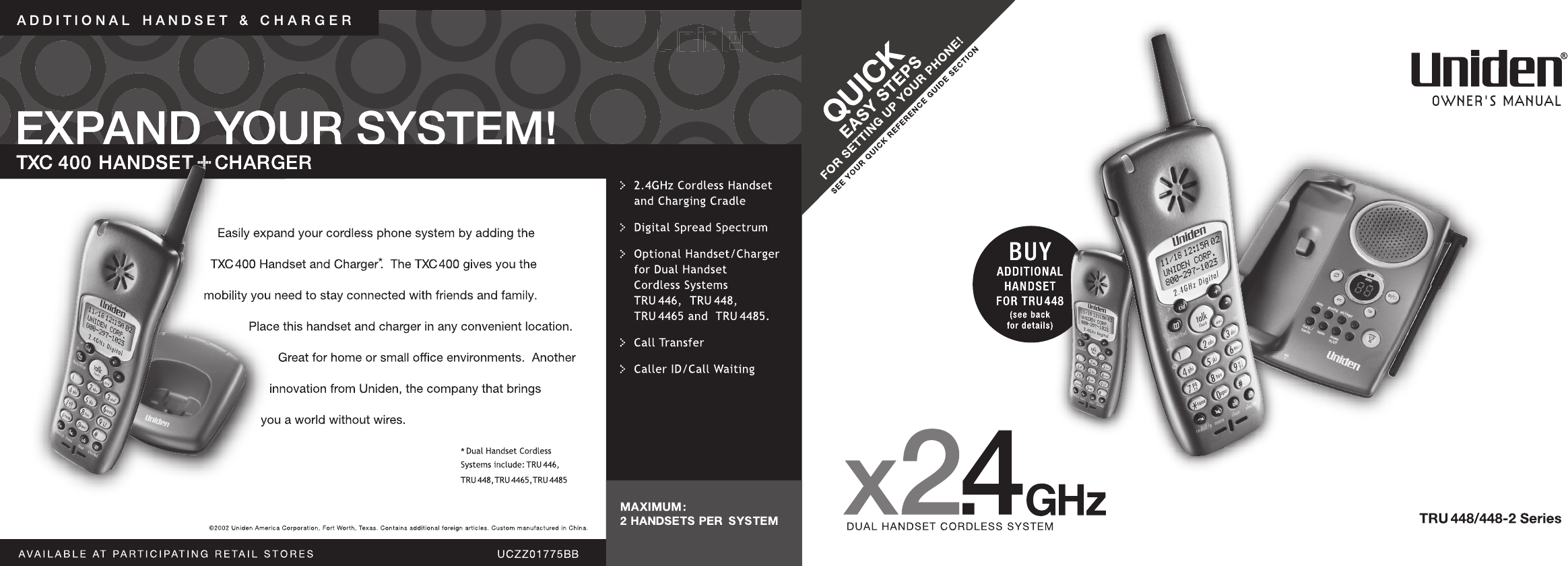
TRU448_OM 4/9/02 12:16 PM Page ii

www.uniden.com
TRU448_OM 4/9/02 12:16 PM Page 1

[ 2 ]
Contents
WELCOME/FEATURES 3
QUICK REFERENCE GUIDE 5
CONTROLS AND FUNCTIONS 6
GETTING STARTED 8
Read This First 8
Checking the Package Contents 9
Setting up the Phone 10
Terminology 14
Mounting the Base Unit on a Wall 15
Setting Caller ID Options 17
Selecting a Language 19
BASICS 20
Making and Receiving Calls 20
Redialing a Call 21
Ringer Volume Setup 22
Ringer Tone Setting 22
Distinctive Ringer Setup 23
Adjusting the Earpiece Volume 23
Mute Microphone 24
Tone Dialing Switch-over 24
Traveling Out-of-Range 24
Selecting a Different Channel 25
Find Handset 25
3-way Conferencing 25
Transferring a Call 26
Flash and Call Waiting 27
New Message LED 27
PHONEBOOK 28
Storing Phone Numbers, Names,
Distinctive Rings, and Speed Dial 28
Steps for Entering Names and Special Characters 29
Viewing the Phonebook 31
Making Calls Using the Phonebook 32
Speed Dialing 32
Editing or Erasing a Stored Name, Phone Number
Distinctive Ring, and Speed Dial 33
RocketDial (One Touch Dialing) 33
Chain Dialing 34
CALLER ID 35
Viewing the Caller ID List 36
Deleting Information from the Caller ID List 37
Using the Caller ID Message List 38
Call Waiting Deluxe Features 39
THE INTEGRATED ANSWERING DEVICE 40
Turning the Answering System On/Off 40
Setting up your Answering System 41
Using your Answering System 47
Remote Operation 50
EXPANDING YOUR PHONE 53
How to Distinguish the Original Handset
and the Second Handset 53
Registering the Second Handset 53
Call Transfer Feature 54
Second Handset Operation 55
ADDITIONAL INFORMATION 57
Changing the Digital Security Code 57
Installing the Beltclip 58
Headset Installation 58
Note on Power Sources 59
Maintenance 59
General Information 60
TROUBLESHOOTING 61
PRECAUTIONS & WARRANTY 63
I.C. NOTICE 65
INDEX 66
REMOTE OPERATION CARD 67
TRU448_OM 4/9/02 12:16 PM Page 2

Welcome
Features
Congratulations on your purchase of the Uniden cordless telephone. This phone is designed and
engineered to exacting standards for reliability, long life and outstanding performance. To enjoy
the best performance from this phone’s features, please read this manual carefully and save it for
future reference.
Note: Some illustrations in this manual may differ from the actual unit for
explanation purposes.
As an Energy Star® Partner, Uniden has determined that this product or product
models meets the Energy Star® guidelines for energy efficiency.
Energy Star® is a U.S. registered mark.
•2.4 GHz Spread Spectrum Technology
•Integrated Answering Device
(Trilingual Announcement Option)
•Two Handset Expandability
•Caller ID and Call Waiting Caller ID
•Dynamic Memory Location for Caller ID
Messages and Phonebook Locations
(up to 100 numbers in total)
•Trilingual Language Option
•6 Hour Talk Time
•10 Day Standby Battery Life
•3-Line, 16 Character Backlit Handset Display
•One Touch Dialing
[ 3 ]INTRODUCTION/FEATURES
•Call Transfer
•32 Digit Redial / 3 Last Number Redial Locations
•10 Distinctive Ring Options
(6 ringers and 4 melodies)
•Flash and Pause
•Find Handset
•Hearing Aid Compatible
•Tone/Pulse Dialing
•Handset Earpiece and Ringer Volume Control
•Base Speaker Phone
•3-way Conference Operation
•Handset Remote Operation
TRU448_OM 4/9/02 12:16 PM Page 3

[ 4 ] INTRODUCTION/FEATURES[ 4 ]
The TRU448 series features include AutoTalk™ and AutoStandby™. AutoTalk allows you to answer
a call by just removing the handset from the base so you don’t have to waste time pushing
buttons. AutoStandby allows you to hang up by simply returning the handset to the base.
To protect you against mis-billed calls, which might result from your phone being activated by
other equipment, the TRU448 series has Random Code™digital security, which automatically
selects one of over 65,000 digital security codes for the handset and base. Also, AutoSecure™
electronically locks your phone when the handset is in the base.
RocketDial™is a one touch speed dial key that automatically dials your most important or
frequently called number. The number dialed, is a preset number stored by the user.
Digital Spread Spectrum Technology utilizes a “wider frequency band” vs. a “single narrow band”
used in standard digital transmissions. The result is a more secure conversation with the clarity
of digital sound, extended range, and minimal interference from other cordless phones.
Be sure to visit our web site: www.uniden.com
Uniden® is a registered trademark of Uniden America Corporation.
AutoTalk, AutoStandby, Random Code, AutoSecure, and RocketDial are trademarks of
Uniden America Corporation.
TRU448_OM 4/9/02 12:16 PM Page 4
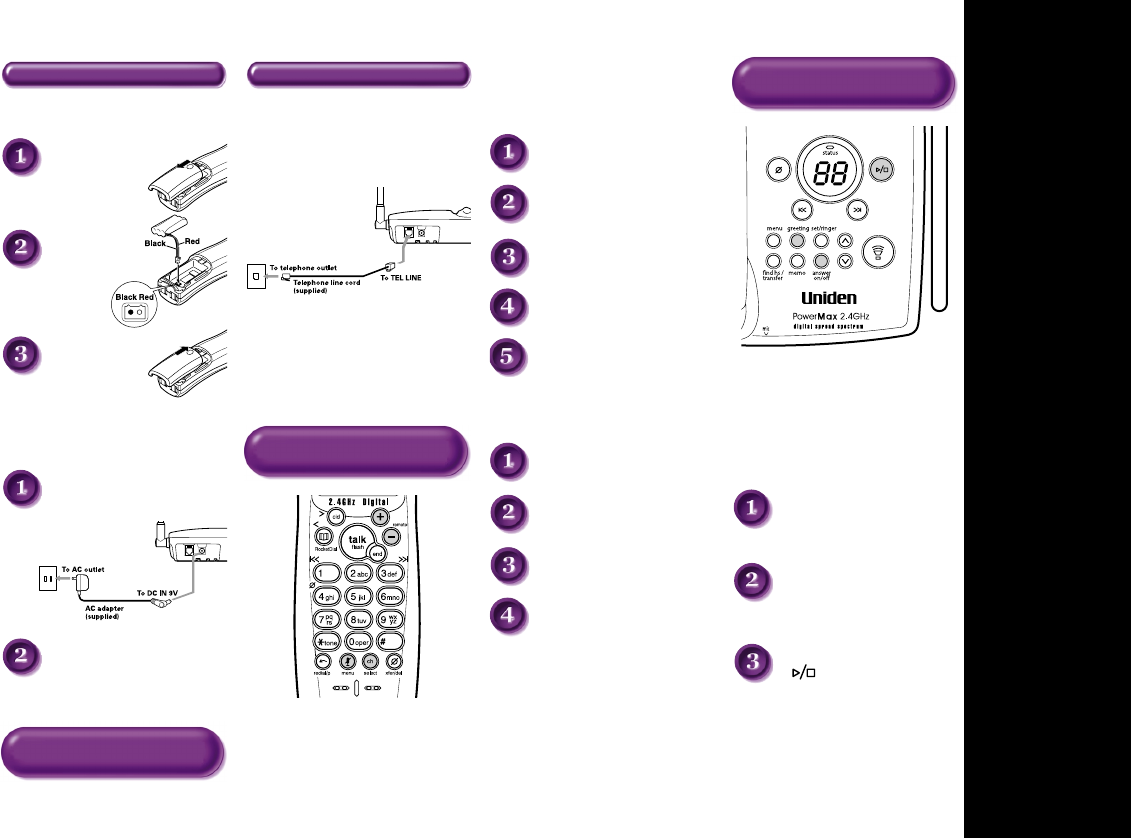
QUICK REFERENCE GUIDE
INSTALL THE HANDSET BATTERY
Remove the cover.
Connect the battery
pack connector with
the correct polarity.
Replace the cover.
PLUG INTO AC POWER
Plug the AC adapter cord into the base
unit and then to a 120V AC outlet.
Place the handset in the base .
CONNECT TO A PHONE LINE
When the handset battery pack is fully charged,
plug the telephone cord into the base unit and
then into a telephone wall jack.
Your phone is set for tone dialing. If your local
network requires pulse dialing, please see
“Setting up the phone, Choose the dialing mode”
in your owner’s manual.
TO SELECT CALLER ID OPTIONS
Press menu/mute.
Press +or -to move the pointer to
“Caller ID Setup”, then
press select/ch.
Press +or -to move the pointer to an
option, then press select/ch.
Press +or -to change the
option setting.
Press select/ch and return the
handset to the base.
TO CHOOSE THE LANGUAGE
Press menu/mute.
Press +or -to move the pointer
to “Language”, then
press select/ch.
Press +or -to change the
option setting.
Press select/ch and return the
handset to the base.
TO TURN THE ANSWERING
SYSTEM ON/OFF
Press answer on/off to turn On the system. To
turn Off the system, press answer on/off again.
TO SET GREETING MESSAGE
Press and hold greeting.
Start recording your message. Position
yourself as near to the base as possible.
When finished, press greeting
or .
Note:
You must charge the battery pack
continuous
for 15-20 hours
before using the phone.
Note: Three Caller ID options
are available: Auto Talk, Caller
ID on Call Waiting (CIDCW) and
Area Code.
Step 1 Charging the Battery Step 4 Setting Up
Answering System
Step 2 Connecting
Step 3 Setting up the Caller
ID Options/Language
QUICK REFERENCE GUIDE [ 5 ]
TRU448_OM 4/9/02 12:16 PM Page 5
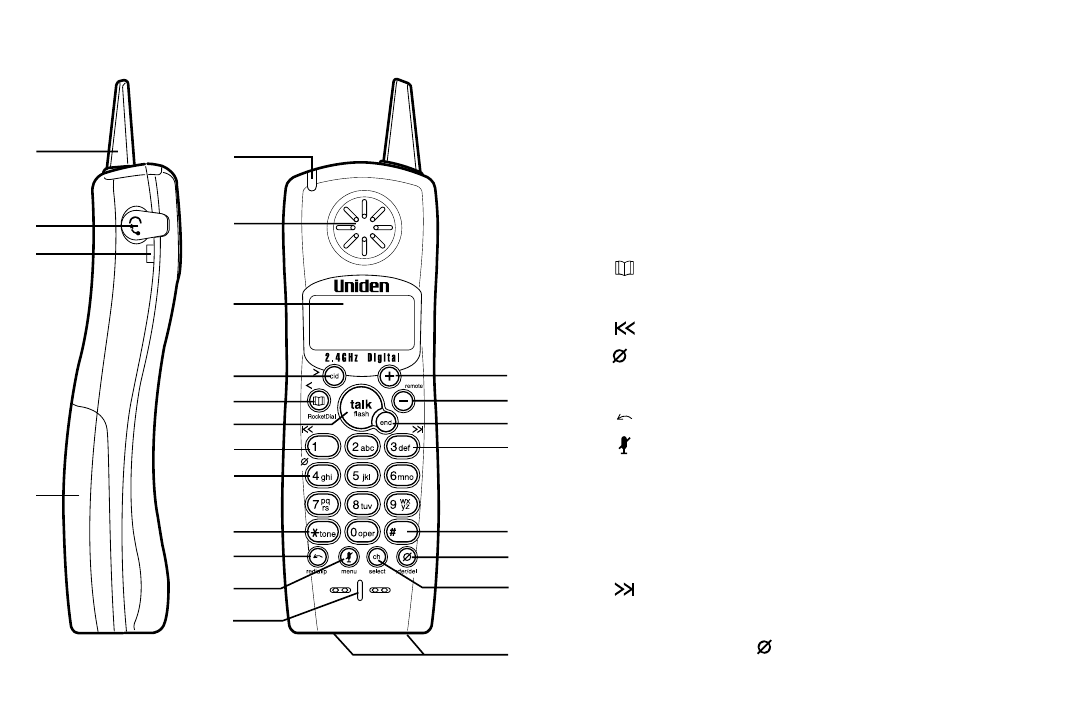
[ 6 ] CONTROLS AND FUNCTIONS[ 6 ]
Controls and Functions
1
4
5
2
3
6
7
8
11
12
9
10
13
14
15
17
18
19
20
21
22
23
24
16
1. Handset Antenna
2. Headset Jack Cover
3. Beltclip Hole
4. Handset Battery Compartment
5. New Message LED
6. Handset Earpiece
7. LCD Display
8. CID (Caller ID)/> (right cursor) Key
9. (Phonebook)/RocketDial/< (left cursor) Key
10. Talk/flash Key
11. (repeat)/1 Key
12. (delete) (for remote operation)/4 Key
13. */tone Key
14. (redial)/p (pause) Key
15. (mute)/menu Key
16. Handset Microphone
17. +(up) Key
18. -(down)/remote Key
19. End Key
20. (skip)/3 Key
21. #Key
22. Xfer (transfer)/ del (delete) Key
23. Ch (channel)/select Key
24. Handset Charging Contacts
TRU448_OM 4/9/02 12:16 PM Page 6
25
26
27
28
29
30
31
32
33
34
44
36
37
35
38
39
40
41
42
43
45 46
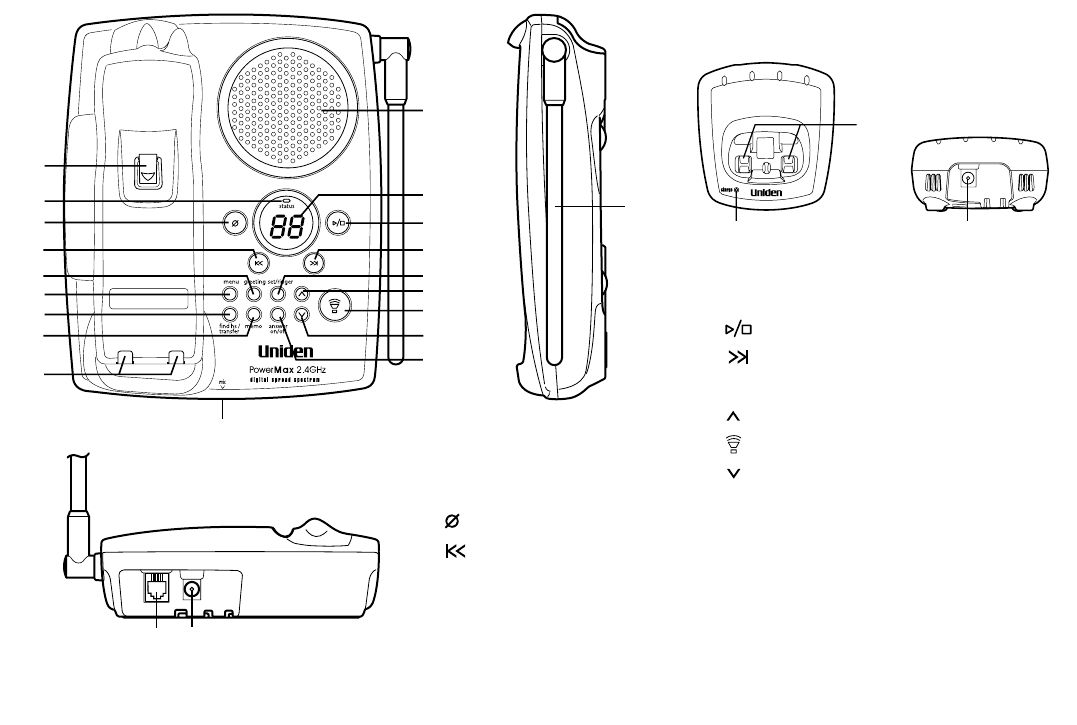
25. Handset retainer clip
26. Status LED
27. (delete) Key
28. (repeat) Key
29. Greeting Key
30. Menu Key
31. Find hs/transfer Key
32. Memo Key
33. Base charging contacts
CONTROLS AND FUNCTIONS [ 7 ]
48
47
(TRU448-2 only)
49
34. Base Speaker
35. Message Counter Display
36. (play/stop) Key
37. (skip) Key
38. Set/ringer Key
39. (up) Key
40. (talk) Key/speaker LED
41. (down) Key
42. Answer on/off Key
43. Microphone
44. Base Antenna
45. Telephone Line Jack
46. DC IN 9V Jack
47. Charging Contacts (TRU448-2 only)
48. Charge LED (TRU448-2 only)
49. DC Power Input (TRU448-2 only)
TRU448_OM 4/9/02 12:16 PM Page 7

GETTING STARTED[ 8 ]
Read this First
This cordless telephone must be set up before use. Follow these steps:
About the digital security code
This cordless telephone uses a digital
security code to prevent unauthorized
access to your base unit. This security
code prevents other cordless handsets
from making calls through your base
unit. If you want to reset the security
code, see page 57.
Step 1 (page 9)
Unpack the telephone and accessories.
Step 2 (page 10)
Next, choose the best location to set up the
base unit.
Step 3 (page 11 to 14)
Then, insert the battery pack into the handset.
Connect the base unit. You must charge the battery
pack for 15-20 hours before plugging into the
phone line and using the phone.
Step 4 (page 17 to 19)
Finally, set the Caller ID options, and store your area
code in the memory to use the Caller ID service.
Choose the language of your display.
Note: Skip the area code setting if your calling area
requires 10-digit dialing.
TRU448_OM 4/9/02 12:16 PM Page 8

GETTING STARTED [ 9 ]
GETTING STARTED
Checking the Package Contents
Uniden Parts Department
(800) 554-3988
Hours: M-F 7:00 a.m. to 5:00 p.m. CST.
We can also be reached on the web at www.uniden.com.
Make sure you have received the following items in the package. If any of these items
are missing or damaged, contact the Uniden Parts Department.
•Base unit (1)
•Handset [TRU448 (1) / TRU448-2 (2)*]
•AC adapter [TRU448 (1) / TRU448-2 (2)]
•Rechargeable battery [TRU448 (1) / TRU448-2 (2)]
•Long telephone cord (1)
•Short telephone cord (1)
•Beltclip [TRU448 (1) / TRU448-2 (2)]
•Charger (1) [TRU448-2 only]
Also included:
•This Owner’s Manual
•Other Printed Material
* For operations and restrictions on the second handset, read “Expanding Your Phone”
on page 53.
TRU448_OM 4/9/02 12:16 PM Page 9
GETTING STARTED[ 10 ]
Do the following steps:
A. Choose the best location C. Connect the base unit
B. Install the battery pack D. Choose the dialing mode
A. Choose the best location
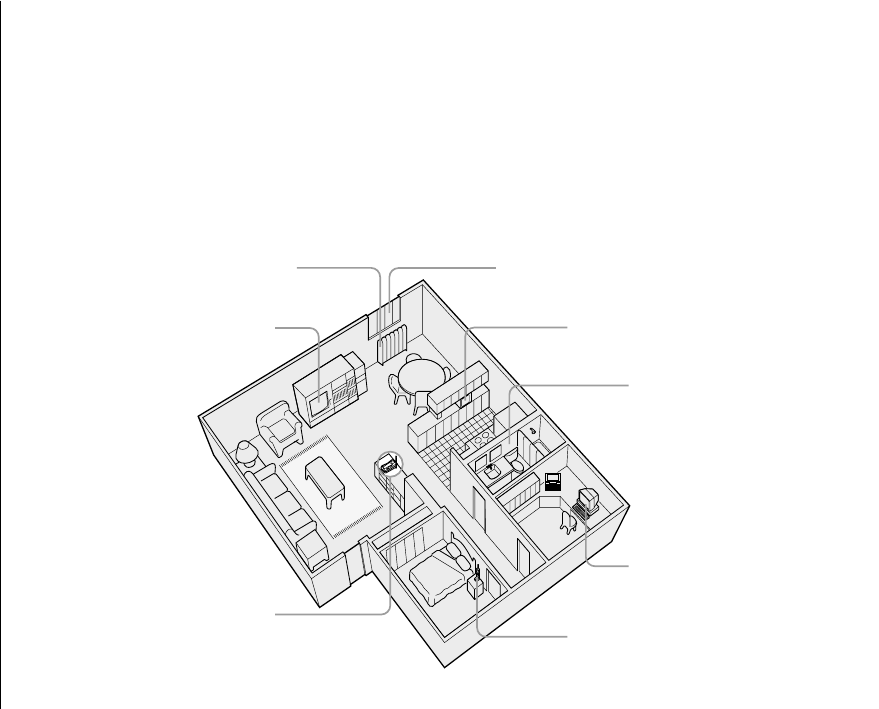
Before choosing a location for your new phone, read “Installation Considerations” on
page 64. Here are some important guidelines you should consider:
Avoid excessive moisture,
extremely low temperatures,
dust, mechanical vibration,
or shock
Setting up the Phone
Avoid heat sources, such as
radiators, air ducts, and sunlight
Avoid television sets and
other electronic equipment
Avoid noise sources such as a window by a
street with heavy traffic
Avoid microwave ovens
Avoid personal computers
Avoid other cordless telephones
Choose a central location
TRU448_OM 4/9/02 12:16 PM Page 10
GETTING STARTED [ 11 ]
GETTING STARTED
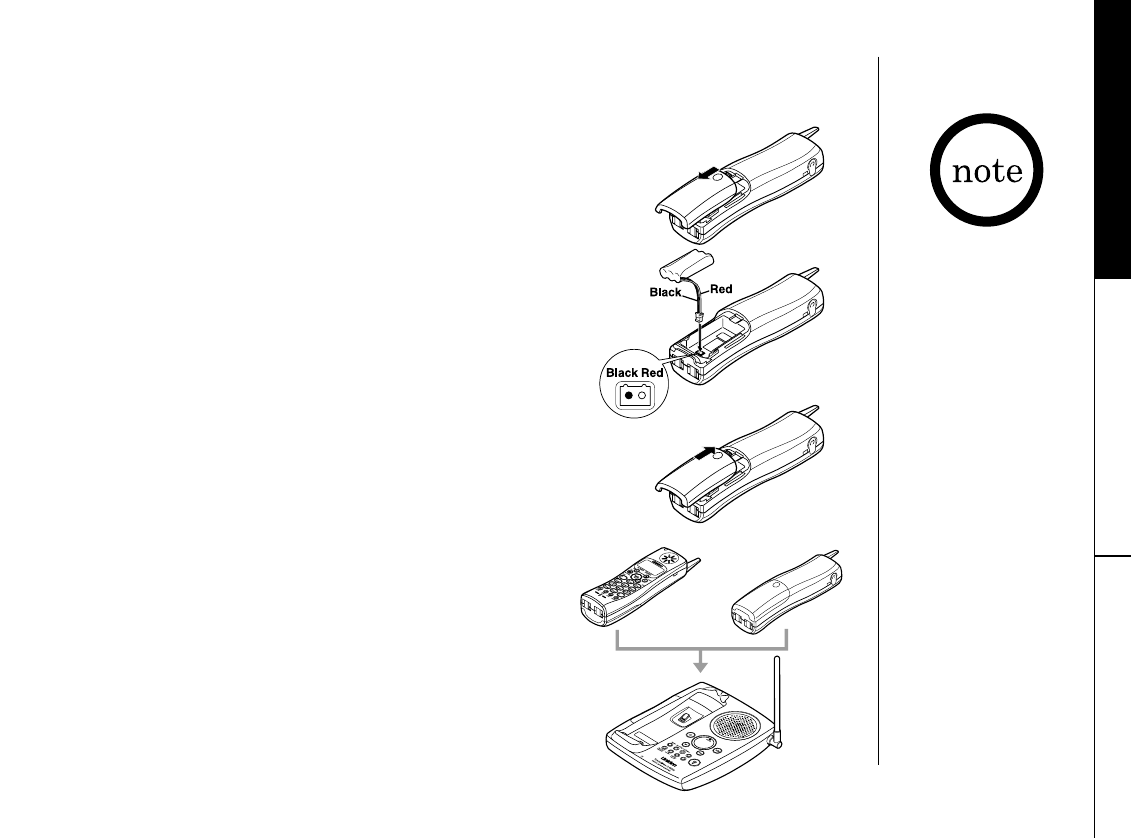
B. Install the battery pack
Charge the battery pack for at least 15-20 hours before
plugging the phone line into your base unit.
1) Press down on the battery cover release and slide the cover
down until it comes off.
2) Connect the battery pack connector observing the correct
polarity (black and red wires) to the jack inside the
battery compartment.
Do not exert any force on this connection. It could cause
damage to the battery or to the handset. The plastic
connectors will fit together in only one way. Once you are
certain that you have made a good connection, then insert
the battery pack into the battery compartment. Do not
pinch the wires.
3) Securely close the battery compartment cover by sliding it
up until it snaps into place.
4) Place the handset in the charging cradle with the keypad
either facing up or down.
•Use only the Uniden
battery (BT-446)
supplied with your
phone. Replacement
batteries are also
available through the
Uniden Parts
Department.
(See page 9.)
•Recharge your phone
on a regular basis by
returning the handset
to the base after each
phone call.
TRU448_OM 4/9/02 12:16 PM Page 11
GETTING STARTED[ 12 ]
Battery use time (per charge)
Fully charged
•6 hours continuous use
•10 days when the handset is in the standby mode
Cleaning the battery charging contacts
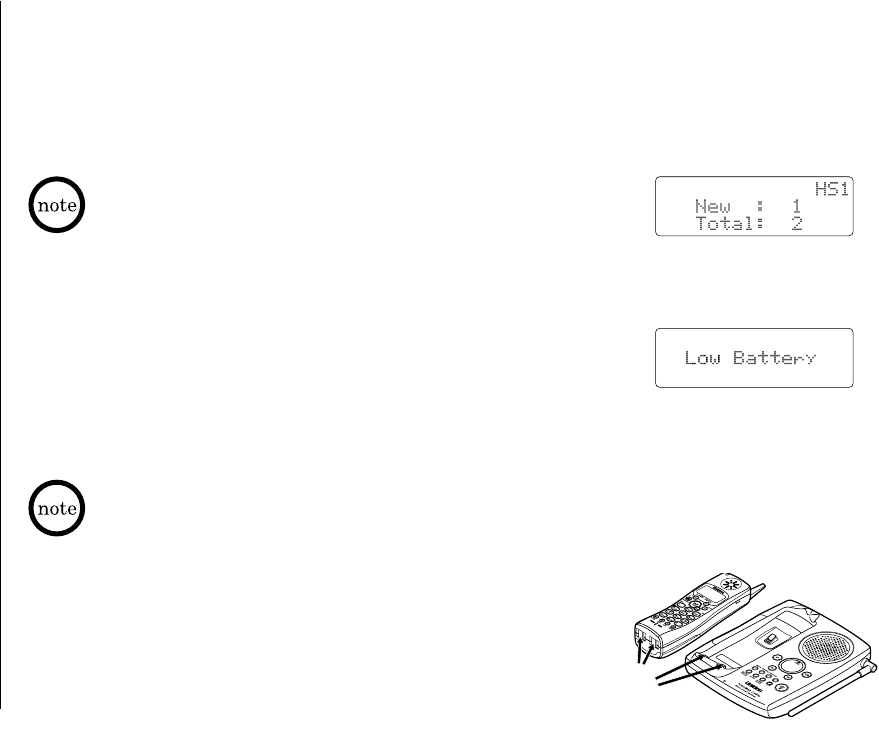
To maintain a good charge, it is important to clean the
battery contacts on the handset and base unit with a
dry cloth or a pencil eraser about once a month.
Do not use any liquids or solvents.
contacts
The last number dialed in the redial memory is retained for up to
2 minutes while you replace the battery pack.
When you charge the handset, Caller ID summary screen and the name
of the handset, HS1 appears. For TRU448-2, if HS2 appears, you are
charging the handset No.2.
Low battery alert
When the battery pack is very low and needs to be charged, the
phone is programmed to eliminate functions in order to save power.
If the phone is in the standby mode, ”Low Battery” appears on
the LCD and none of the keys will operate. If the phone is in use,
”Low Battery” appears and the handset beeps. Complete your
conversation as quickly as possible and return the handset to the
base unit for charging.
TRU448_OM 4/9/02 12:16 PM Page 12
GETTING STARTED [ 13 ]
C. Connect the base unit
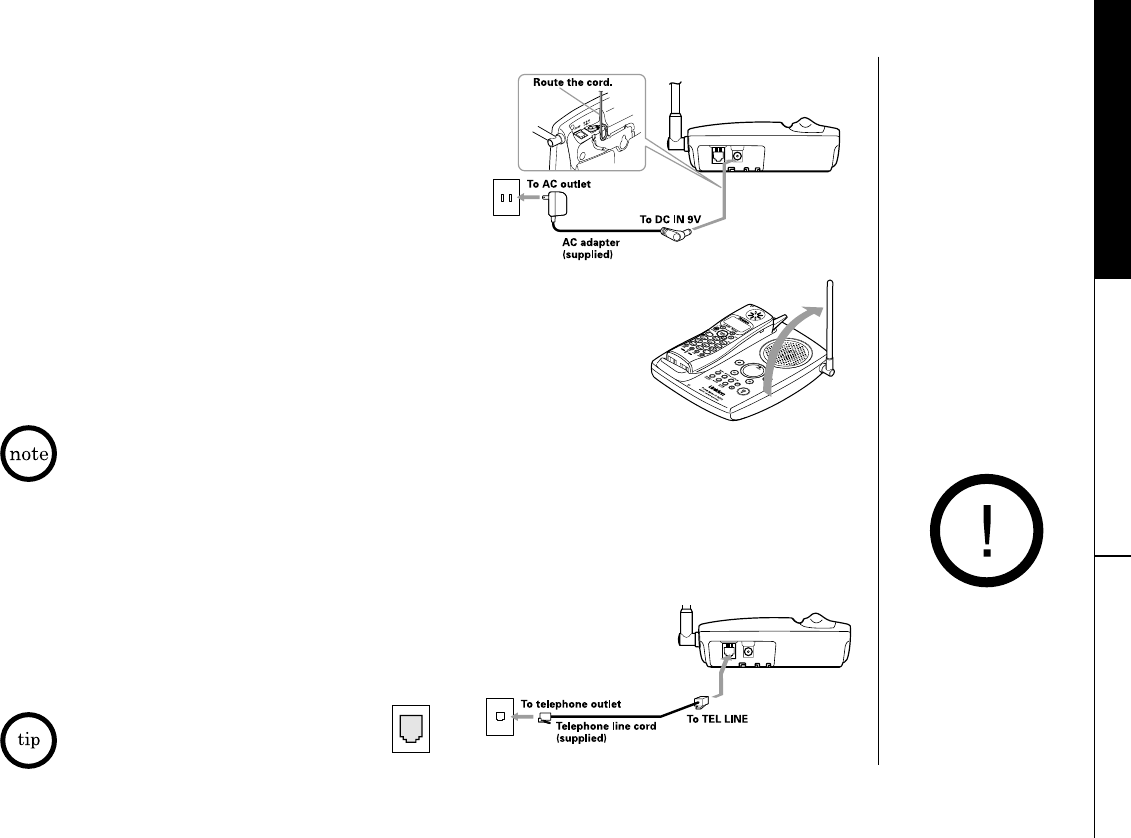
1) Connect the AC adapter to the DC IN 9V jack and
to a standard 120V AC wall outlet.
2) Set the base and charger (for TRU448-2 only) on
a desk or tabletop, and place the handset in the
base unit as shown.
3) Raise the antenna to a vertical position.
4) Make sure the status LED illuminates. If the LED does not
illuminate, check to see that the AC adapter is plugged in and that
the handset makes good contact with the base charging contacts.
Place the power cord so
that it does not create
a trip hazard or where
it could become chafed
and create a fire or
electrical hazard.
•Use only the supplied AD-312 AC adapter.
Do not use any other AC adapter.
•Connect the AC adapter to a continuous power supply.
•Place the base unit close to the AC outlet so that you can unplug the AC
adapter easily.
•After installing the battery pack in the handset, charge your handset at least 15-20
hours before plugging into the phone line. Once the handset battery pack is fully
charged, connect the telephone line cord to the base and telephone wall outlet.
5) Connect the telephone line cord to the TEL LINE jack
and to a telephone outlet once the handset is fully
charged.
If your telephone outlet isn't
modular type, contact your telephone
company for assistance. Modular
GETTING STARTED
TRU448_OM 4/9/02 12:16 PM Page 13
[ 14 ] GETTING STARTED
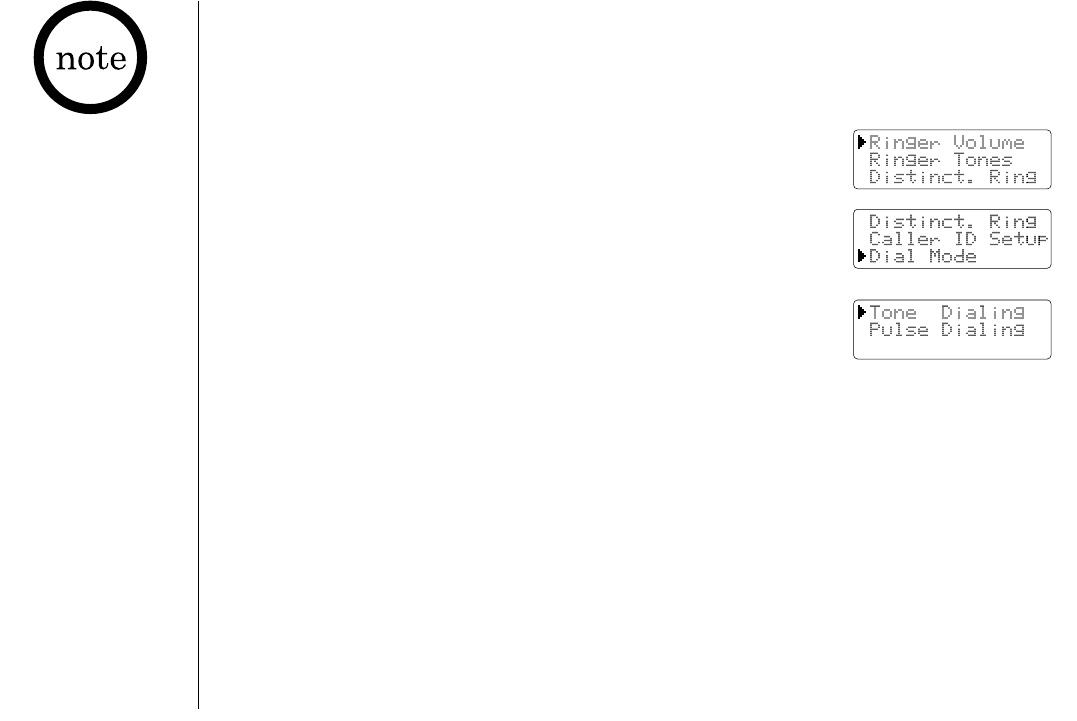
D. Choose the dialing mode
Most phone systems use tone dialing, which sends DTMF tones through the phone lines.
However some phone systems still use pulse dialing such as in rural areas. The default
setting is tone dialing. Depending on your dialing system, set the mode as follows:
1) When the phone is in the standby mode, press menu/mute.
2) Press -to move the pointer to “Dial Mode”.
3) Press select/ch and the display will show the current setting.
(The initial setting is Tone.)
4) Press +or -to change the selection.
5) Press select/ch and a confirmation tone will sound.
6) Press end to exit.
Throughout this manual, terms such as Standby and Talk Mode are used. Below is the
terminology explanation.
Standby Mode - The handset is not in use, is off the base, and talk/flash has not been
pressed. A dial tone is not present and the display is blank.
Talk Mode - The handset is not on the base and talk/flash has been pressed enabling a dial
tone. “Talk” appears on the display.
Terminology
•If you are not sure of
your dialing system,
set the unit to tone
dialing. Make a trial
call. If the call
connects, leave the
setting as is,
otherwise set the unit
to pulse dialing.
•If your phone system
requires pulse dialing
and you need to send
DTMF tones in certain
situations during a
call, you may
“switch-over” to tone
dialing. (Refer to
“Tone Dialing Switch-
over” on page 24.)
TRU448_OM 4/9/02 12:16 PM Page 14
GETTING STARTED [ 15 ]
GETTING STARTED
Mounting the Base Unit on a Wall
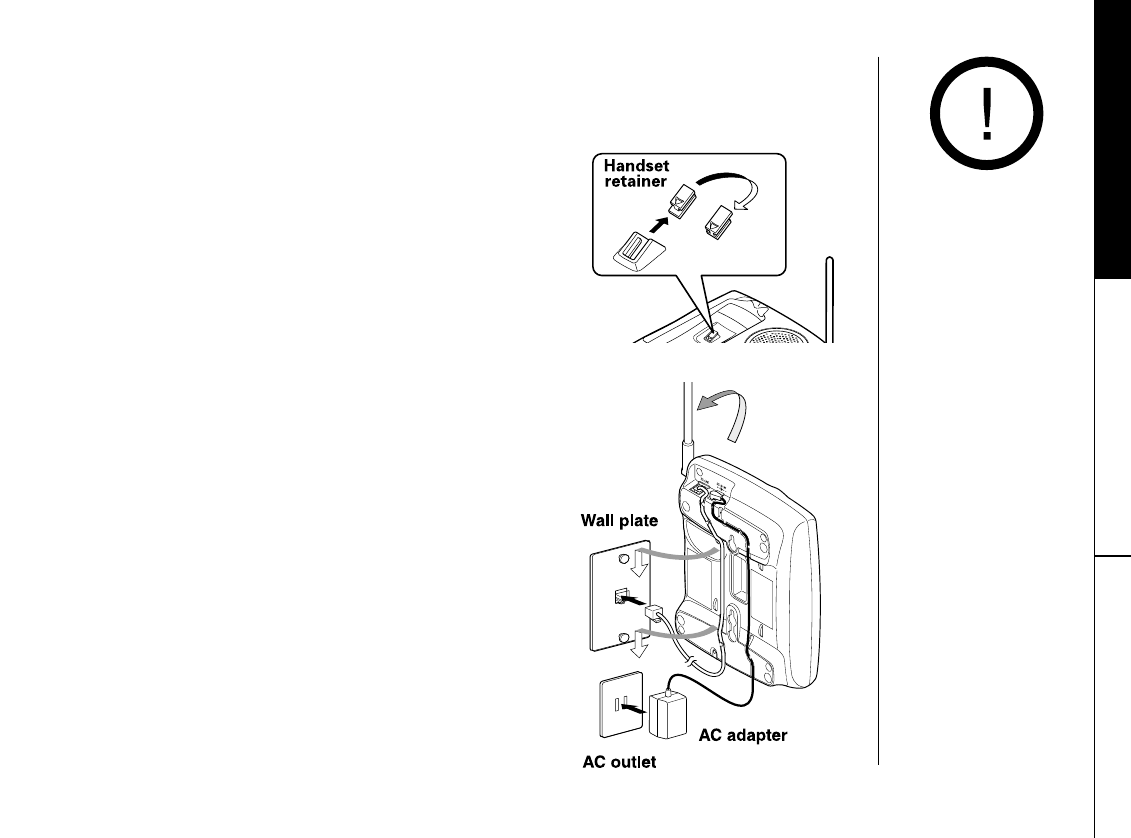
Setting the handset retainer clip for wall mounting
1) On the base unit, pull the handset retainer out of the
slot. Rotate it clockwise 180 degrees.
2) Flip the retainer from front to back. Slide it back into
the slot so that the lip of the retainer is up and the oval
is down. The retainer holds the handset in place.
Standard wall plate mounting
This phone can be mounted on any standard telephone wall plate.
1) Plug the AC adapter into the DC IN 9V jack. Route the AC
adapter cord inside the molded wiring channel as shown.
2) Plug the AC adapter into a standard 120V AC wall outlet.
3) Plug the short telephone line cord into the TEL LINE
jack. Route the cord inside the molded wiring channel
as shown.
4) Plug the telephone line cord into the telephone outlet.
5) Raise the antenna to a vertical position.
6) Align the mounting slots on the base with the mounting
posts on the wall. Push in and down until the phone is
firmly seated.
Do not use an
outlet controlled
by a wall switch.
TRU448_OM 4/9/02 12:16 PM Page 15
GETTING STARTED[ 16 ]
Direct wall plate mounting
If you don’t have a standard wall plate, you can mount your phone directly
to the wall. Before doing this, consider the following:
•Avoid electrical cables, pipes, or other items behind the mounting
location that could cause a hazard when inserting screws into the wall.
•Try to mount your phone within 10 - 15 feet of a working phone jack to
avoid excessive cord lengths.
•Make sure the wall material is capable of supporting the weight of the
base and handset.
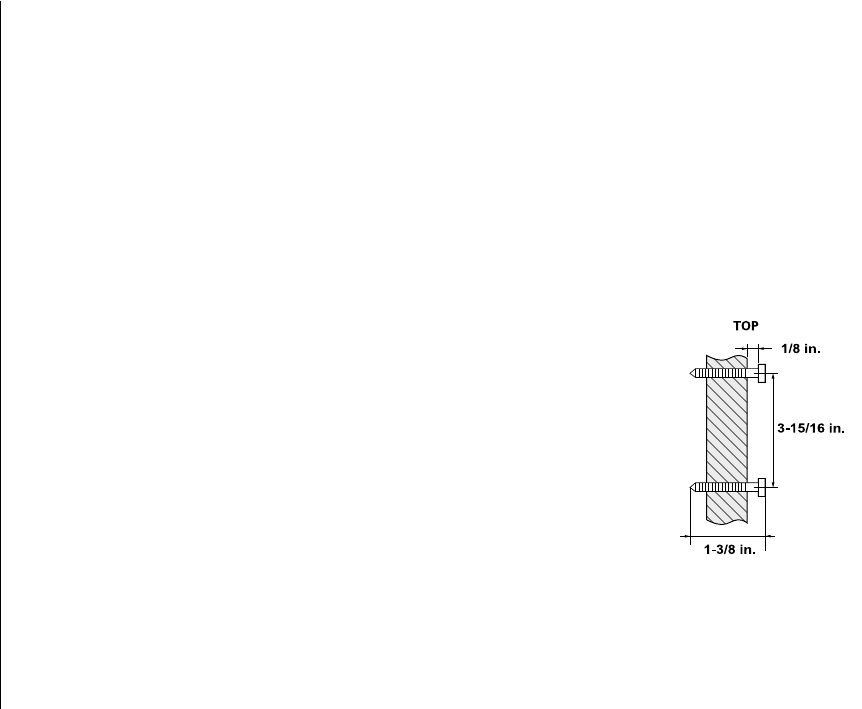
•Use #10 screws (minimum length of 1-3/8 inches) with anchoring devices
suitable for the wall material where the base unit will be placed.
1) Insert two mounting screws into the wall, (with their
appropriate anchoring device), 3-15/16 inches apart. Allow
about 1/8 of an inch between the wall and screw heads for
mounting the phone.
2) Set the retainer clip if necessary.
3) Refer to steps 1 through 6 on page 15 to mount the telephone.
TRU448_OM 4/9/02 12:16 PM Page 16
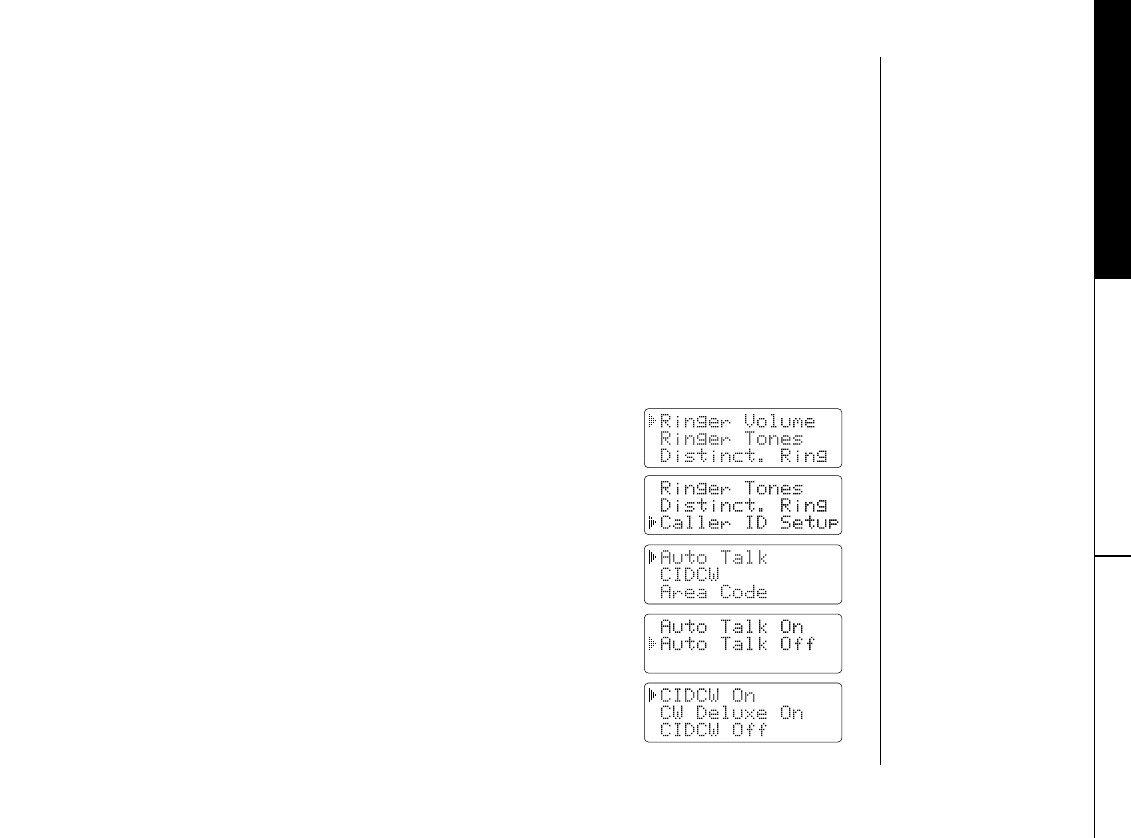
To change your Caller ID options:
1) When the phone is in the standby mode, press menu/mute.
2) Press +or -to move the pointer to “Caller ID Setup”,
then press select/ch.
3) Press +or -to choose “Auto Talk” or “CIDCW”, then
press select/ch.
4) Press +or -to change the selection.
AutoTalk: “Auto Talk On” or “Auto Talk Off”
CIDCW: “CIDCW On”, “CW Deluxe On” or “CIDCW Off”
5) Press select/ch and a confirmation tone will sound. To complete
the setting, make sure to return the handset to the base.
[ 17 ]GETTING STARTED
Setting Caller ID Options
GETTING STARTED
There are three Caller ID setup options available: AutoTalk, CIDCW (Caller ID on Call
Waiting), and Area Code. See page 18 for Area Code setup instructions.
AutoTalk allows you to answer the phone without pressing talk/flash. If the phone rings
when AutoTalk is On, simply remove the handset from the base and the phone
automatically answers the call. Or if the handset is not on the base, press any number key,
*tone, or #to answer the call. If you set AutoTalk to Off, you must press talk/flash to
answer the call.
Caller ID on Call Waiting (CIDCW) performs the same as regular Caller ID on a call
waiting number. CW Deluxe allows you to handle call waiting calls in seven different ways.
(See page 39.)
You must subscribe to CIDCW from your phone company in order to use this feature.
The CW Deluxe is a separate service available through your phone company.
TRU448_OM 4/9/02 12:17 PM Page 17
GETTING STARTED[ 18 ]
Entering your Area Code
If you enter a 3-digit area code number in the “Area Code” option, your local area
code does not appear in Caller ID messages. For calls received from outside your local
area code, you will see a full 10-digit number.
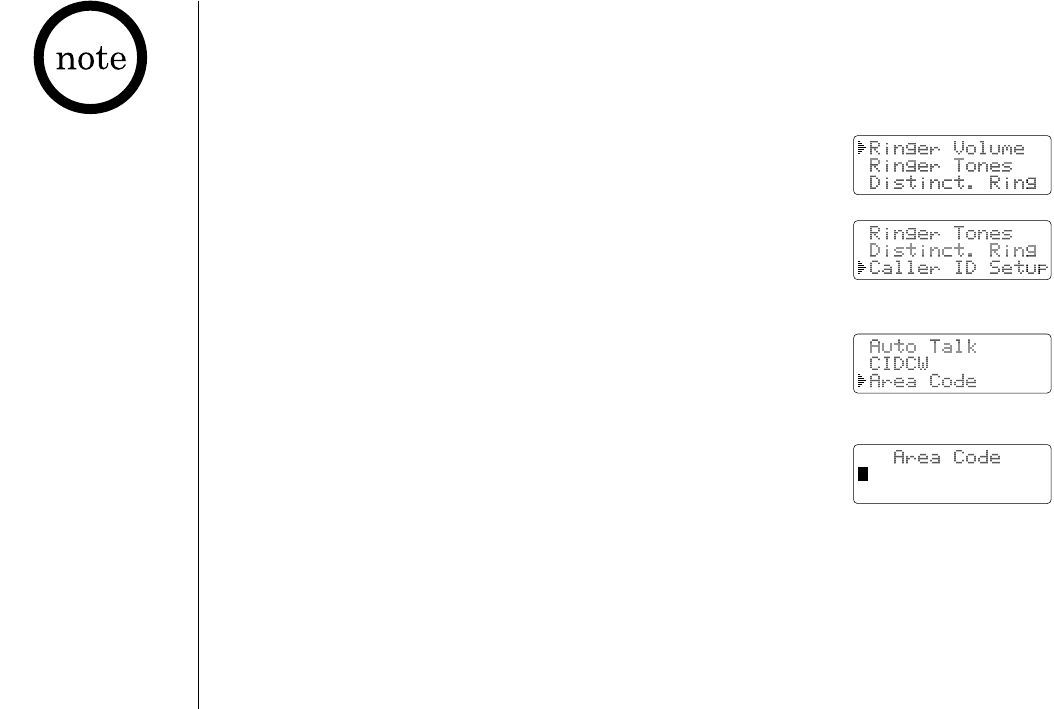
1) When the phone is in the standby mode, press menu/mute.
2) Press +or -to move the pointer to “Caller ID Setup”,
then press select/ch.
3) Press +or -to move the pointer to “Area Code”,
then press select/ch.
4) Use the number keypad (0to 9) to enter a 3-digit area code.
5) Press select/ch, and a confirmation tone will sound.
•If your calling area
requires 10-digit
dialing, do not
program this option.
•When the area code
has already been
stored in memory,
the stored area code
will be displayed. To
change it, press
xfer/del and the
number keypad to
enter the new
area code.
•To complete the
setting, press
select/ch, then
return the handset
to the base.
TRU448_OM 4/9/02 12:17 PM Page 18
[ 19 ]
GETTING STARTED
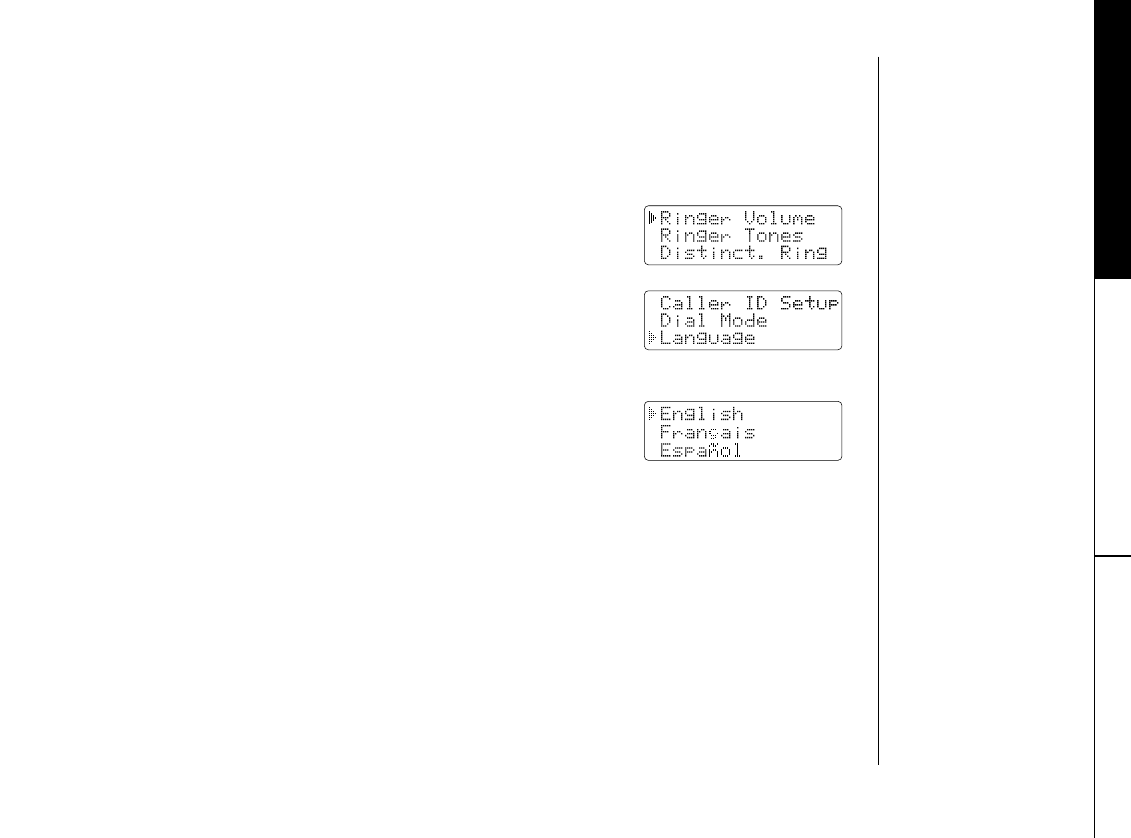
Language option can be used to choose the language of your display. You can select
English, French, or Spanish.
1) When the phone is in the standby mode, press menu/mute.
2) Press -to move the pointer to “Language“,
then press select/ch.
3) Press +or -to choose English, French (Français), or
Spanish (Español).
4) Press select/ch, and a confirmation tone will sound.
GETTING STARTED
Selecting a Language
TRU448_OM 4/9/02 12:17 PM Page 19
BASICS[ 20 ]
Making and Receiving Calls
Refer to page 17
“Setting Caller ID
Options” to turn the
AutoTalk feature On if
desired. Any key
answer can be used
only when AutoTalk is
set to On.
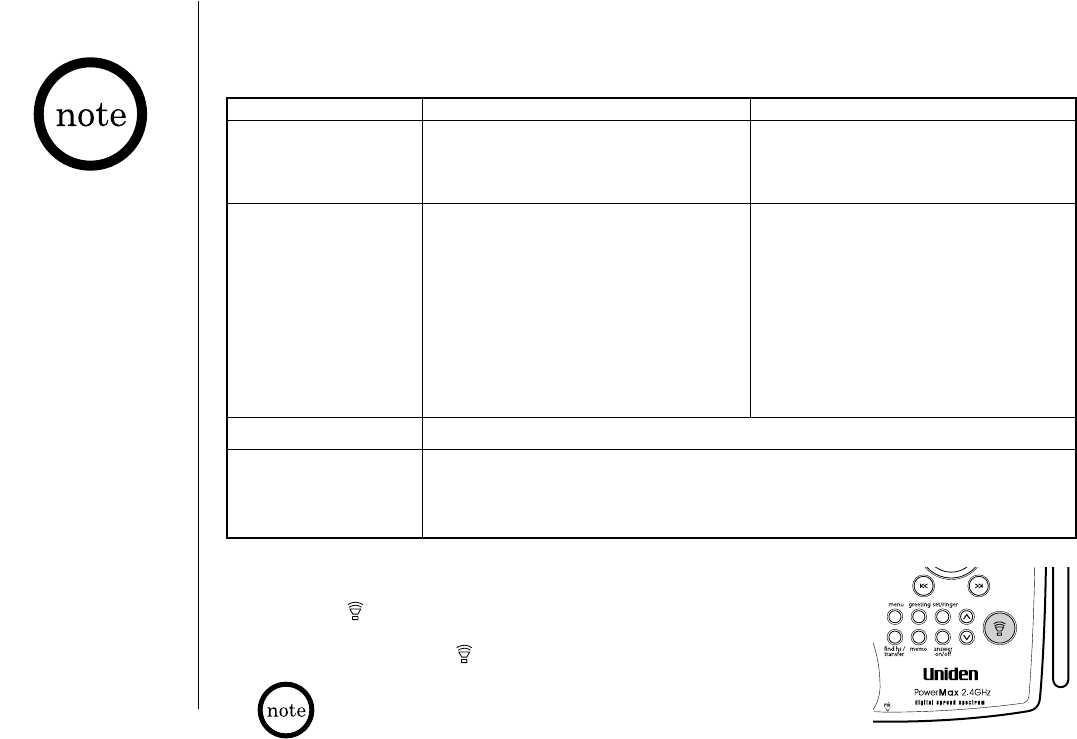
Handset On Base Handset Off Base
To answer a call Pick up the handset (AutoTalk) Press any number key, *tone,
or pick up the handset and or #(Any Key Answer), or
press talk/flash. press talk/flash.
To make a call 1) Pick up the handset. 1) Press talk/flash.
2) Press talk/flash. 2) Listen for the dial tone.
3) Listen for the dial tone. 3) Dial the number.
4) Dial the number.
OR OR
1) Pick up the handset. Dial the number, then
2) Dial the number, then press press talk/flash.
talk/flash.
To hang up Press end, or return the handset to the base (AutoStandby).
To enter a pause When you dial the number, press redial/p before pressing
within the dialing talk/flash. “P” appears in the display which represents
sequence a pause.
From the handset
From the base (Receiving calls only)
1) Press (talk) and begin speaking.
2) To hang up, press (talk).
The base microphone is located under the base. Position yourself
as near to the base as possible.
TRU448_OM 4/9/02 12:17 PM Page 20
[ 21 ]BASICS
BASICS
Redialing a Call
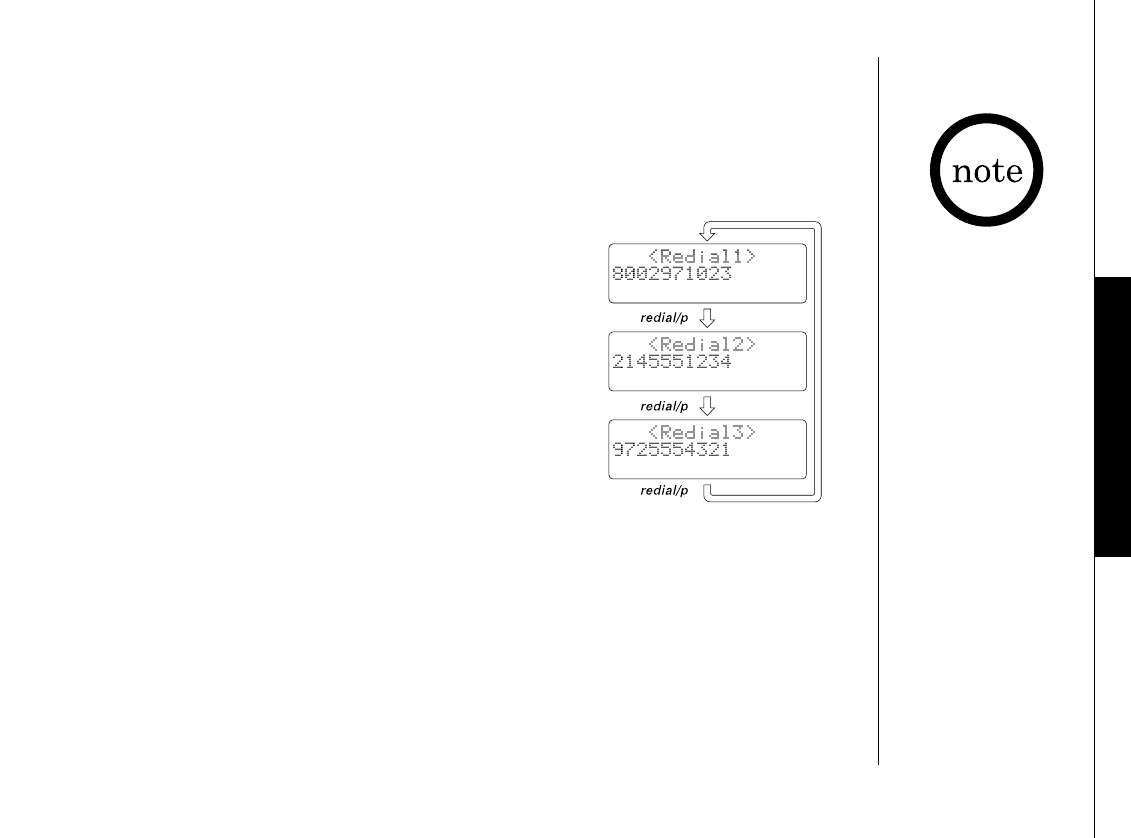
The last three phone numbers dialed can be quickly redialed.
Redialing from Standby Mode
1) Press redial/p. The phone number that was last dialed
appears on the display.
2) Press redial/p again. Each press of redial/p will display
one of the last three numbers dialed.
3) Press talk/flash. The selected number is dialed. To hang
up, press end.
Redialing from Talk Mode
1) Press talk/flash.
2) Press redial/p. The last number dialed will be displayed and redialed. To hang up,
press end.
•If the number
exceeds 32 digits,
only the first 32
digits are retained
for redial.
•If you have not
pressed any key for
30 seconds, the
phone returns to
standby mode.
•If you press end,
the operation is
canceled and the
phone will return to
the standby mode.
•If the redial memory
is empty, you will
hear a beep.
•When using the
redial feature in talk
mode, only the last
number dialed will
be displayed.
TRU448_OM 4/9/02 12:17 PM Page 21
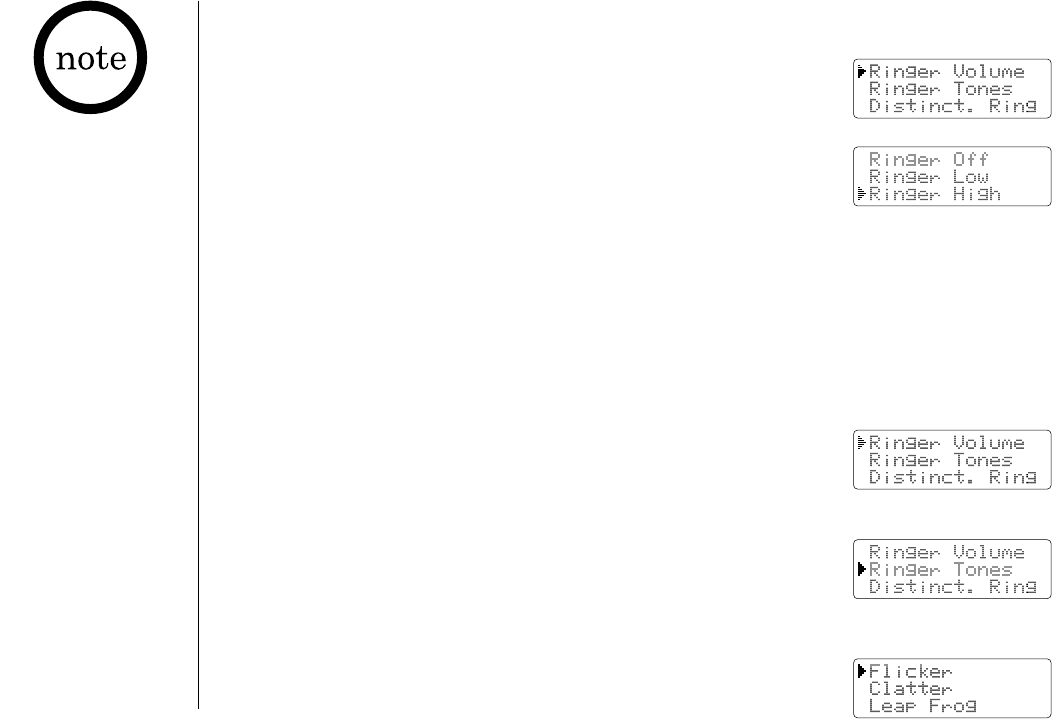
1) When the phone is in the standby mode, press menu/mute.
2) Press select/ch.
3) Press +or -to move the pointer through the ringer
settings (Ringer Off, Ringer Low, or Ringer High).
You will hear a ringer or melody at the selected volume.
4) Press select/ch, and you will hear a confirmation tone.
Ringer Mute (temporarily)
You can temporarily mute the ringer tone. When the handset is off the base and the
phone is ringing, press end. The ringer tone will return to the previous setting starting
with the next incoming call.
[ 22 ] BASICS
•If you select
“Ringer Off”,
“Ringer Off”
appears on the
display when you
make or receive
calls, or charging
the handset.
Ringer Volume Setup
1) When the phone is in the standby mode, press menu/mute.
2) Press -to move the pointer to “Ringer Tones”, then
press select/ch.
You can choose from 6 ringers or 4 melodies:
- Ringer [Flicker, Clatter, Leap Frog, Ping Ball, Reminder,
Soft Alert]
- Melodies [Beethovens9, For Elise (Elise), Merry Christmas
(Merry-Xmas), Home Sweet Home (Hm Swt Hm)]
3) Press +or -to move the pointer. You will hear the ringer or
the melody as you scroll through the options.
4) Press select/ch and you will hear a confirmation tone.
Ringer Tone Setting
•If you set the ringer
to Off, the ringer
tone will not sound.
TRU448_OM 4/9/02 12:17 PM Page 22
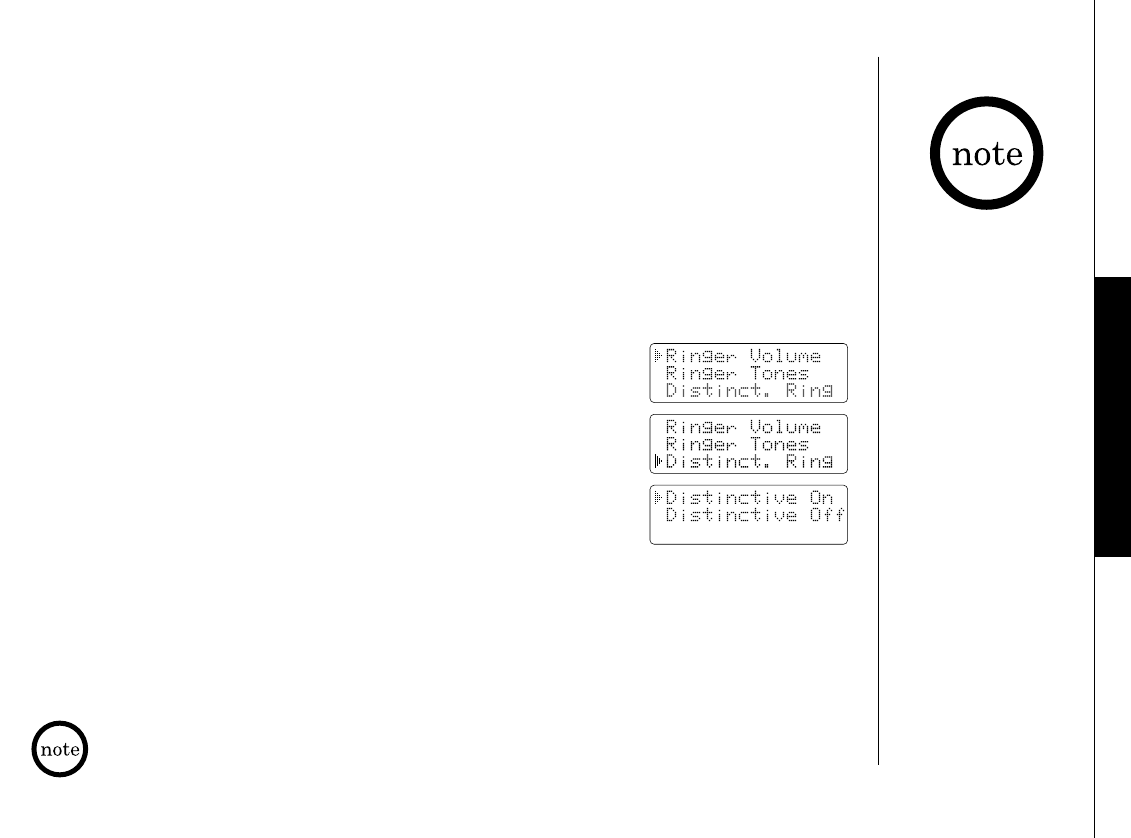
“Distinctive Ringer” allows you to preset memory locations with a designated ring tone.
When an incoming call is received and the Caller ID information matches the information
in one of the memory locations, the Distinctive Ring that has been stored for that
particular caller will sound.
If you have set multiple memory locations with distinctive rings, switching the setting
to “Distinctive Off” will result in no distinctive ringing. All incoming calls will
have a normal ring tone. Switching to “Distinctive On” will activate all programmed
distinctive ring memory locations.
1) When the phone is in the standby mode, press menu/mute.
2) Press -to move the pointer to “Distinct. Ring”,
then press select/ch.
3) Press +or -to choose “Distinctive On”
or “Distinctive Off”.
4) Press select/ch and you will hear a confirmation tone.
BASICS [ 23 ]
BASICS
Distinctive Ringer Setup
Adjusting the Earpiece Volume
The handset earpiece volume settings (Volume Low, Volume Medium, Volume High, and
Volume Maximum) can only be adjusted during a call. Press -or +to select the volume
setting. When you hang up, the phone keeps the last volume setting selected.
When you press +in maximum volume level or -in lowest volume level,
an error tone sounds.
See “Storing Phone
Numbers, Names,
Distinctive Rings,
and Speed Dial” on
page 28 for storing a
Distinctive Ring in
the Phonebook.
TRU448_OM 4/9/02 12:17 PM Page 23
BASICS[ 24 ]
Mute Microphone
•The tone feature
only applies when
the dial mode is set
to pulse.
•This special number
can be stored in a
memory location.
This is referred to as
Chain Dialing. (See
page 34.)
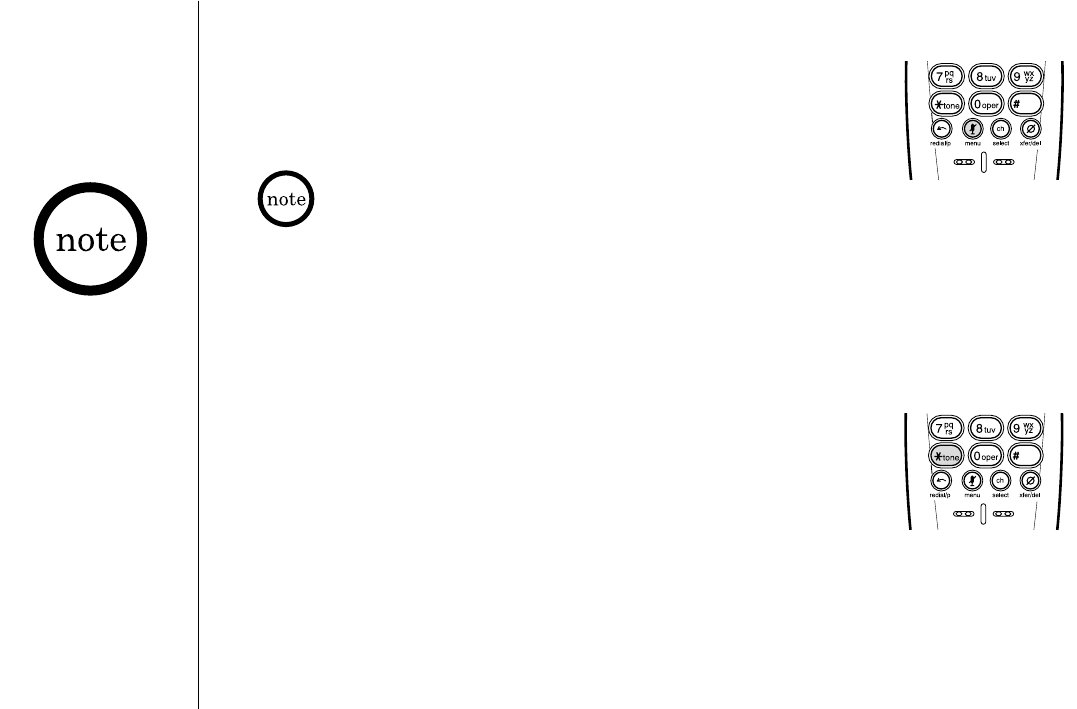
You can temporarily turn Off the microphone so that the person you
are talking with cannot hear you. During a telephone call press and
hold menu/mute to turn Off the microphone, and “Mute” appears on
the display. Press menu/mute again to cancel muting.
If you press end to cancel muting, the call is disconnected and the phone
will return to standby mode.
Tone Dialing Switch-over
Some telephone companies use equipment that requires pulse dialing
(sometimes referred to as rotary dialing). If you need to enter tone
dialing digits, you can switch-over to tone dialing during the call.
For example, entering your bank account number after you have
called your bank.
Initially make your call with the pulse dialing mode. Once your call
connects, press *tone. Enter the desired number. These digits will
be sent as tone dialing. Once the call ends, the tone mode is
canceled and pulse dialing mode resumes.
Traveling Out-of-Range
During a call, as you begin to move your handset too far from your base unit, noise
increases. If you pass the range limits of the base unit, your call will terminate within
30 seconds.
TRU448_OM 4/9/02 12:17 PM Page 24
[ 25 ]
BASICS
Find Handset
BASICS
Selecting a Different Channel
If you encounter interference while using your phone, you can manually change the phone’s
channel for clear operation. This function works only when the phone is in use.
Press select/ch. “Scanning” appears on the display, indicating the phone is changing to
another channel. For more information on interference, refer to “Radio Interference” on page 64.
•If the handset
battery is
completely drained,
the handset will not
beep when paging.
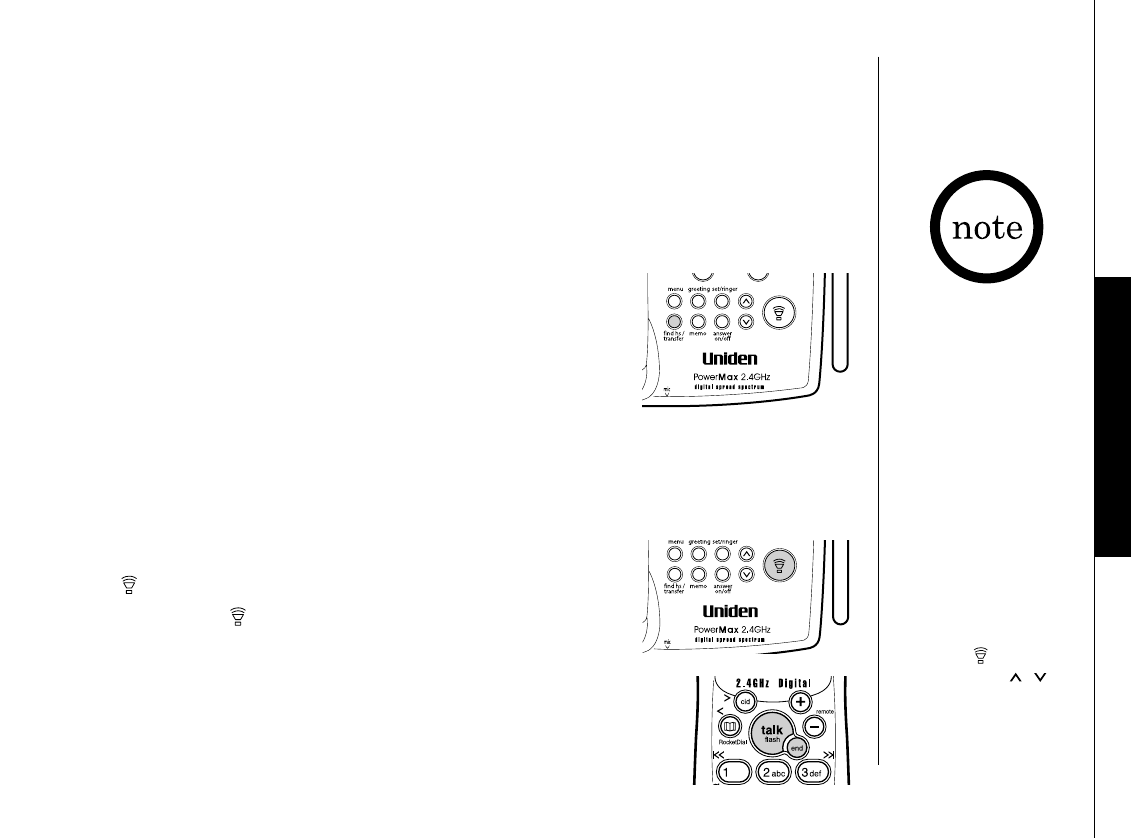
To locate the handset, press find hs/transfer on the base.
The handset beeps for 60 seconds, and “Paging” appears on
the display.
Paging is canceled when pressing any key on the handset or
find hs/transfer on the base. Additionally, if you receive an
incoming call, page is canceled.
3-Way Conferencing
The Uniden TRU448 series permits 3-way conversations between the
handset, base, and an outside line.
When speaking on the handset
1) Press (talk) on the base to initiate the 3-way conversation.
2) To hang up, press (talk) on the base. The handset will still
be connected to the call.
When speaking on the base
1) Press talk/flash on the handset to initiate the 3-way conversation.
2) To hang up, return the handset to the base, or press end on the
handset. The base will still be connected to the call.
•If you press
xfer/del on the
handset during the
3-way conversation,
you will hear a beep.
•During the 3-way
conversation, all
the base keys
except (talk)
and volume
are disabled.
TRU448_OM 4/9/02 12:17 PM Page 25
BASICS[ 26 ]
Transferring a Call
To transfer from the handset to the base
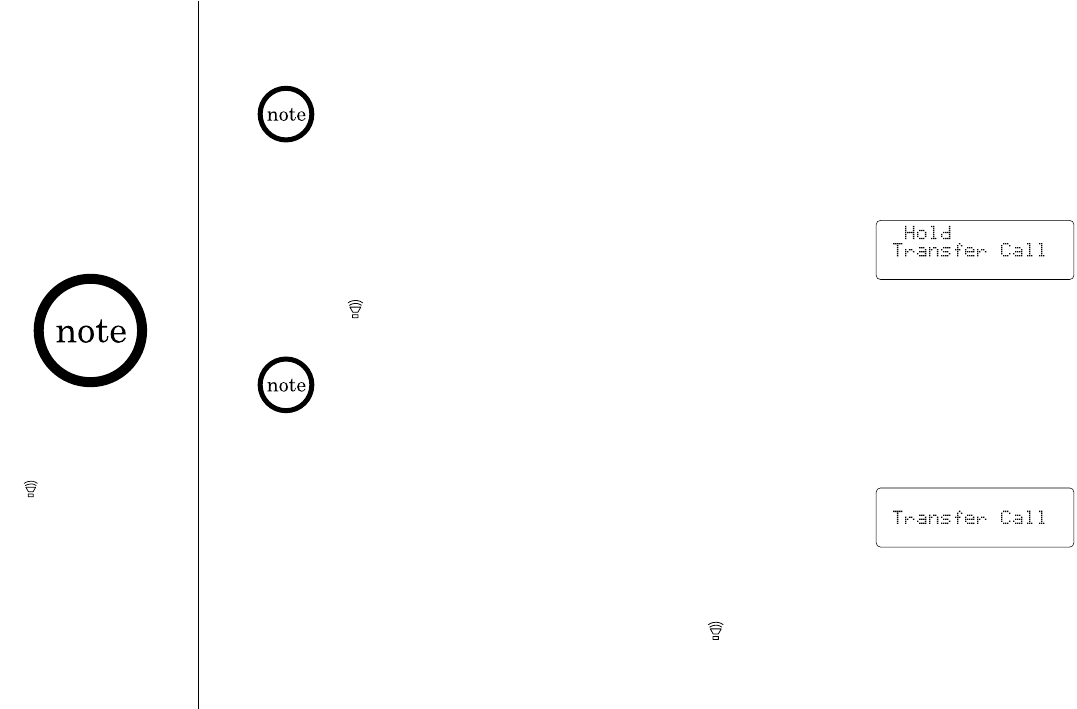
1) Press xfer/del on the handset during a call. The call will
automatically be placed on hold and the transfer tone sounds on
the handset and the base.
2) Press (talk) on the base to receive a transferred call. The handset will return
to the standby mode. To cancel the transfer, press xfer/del or talk/flash.
•If you transfer a call and it is not picked up after 5 minutes, the call will be disconnected.
The handset returns to the standby mode.
•Returning the handset to the base will not cancel the transfer.
•When the handset is off the base, and if you place the handset on the base while the
transfer tone sounds, you can receive a transferred call by picking up the handset (When the
AutoTalk is On).
While transferring a call, keys on the handset except talk/flash and xfer/del are disabled.
To transfer from the base to the handset
With the find hs/transfer key
1) Press find hs/transfer on the base during a call. The call will
automatically be placed on hold and the transfer tone sounds on
the handset and the base.
2) Press talk/flash on the handset. (Pick up the handset from the base, or press the
number keypad, *tone, or #(when the AutoTalk is On)). The transfer tone stops. To
cancel the transfer, press find hs/transfer or (talk) on the base.
While transferring
a call, keys on the
base except
(talk) and
find hs/transfer
are disabled.
TRU448_OM 4/9/02 12:17 PM Page 26
BASICS [ 27 ]
Flash and Call Waiting
If you have Call Waiting service and a call waiting tone sounds while
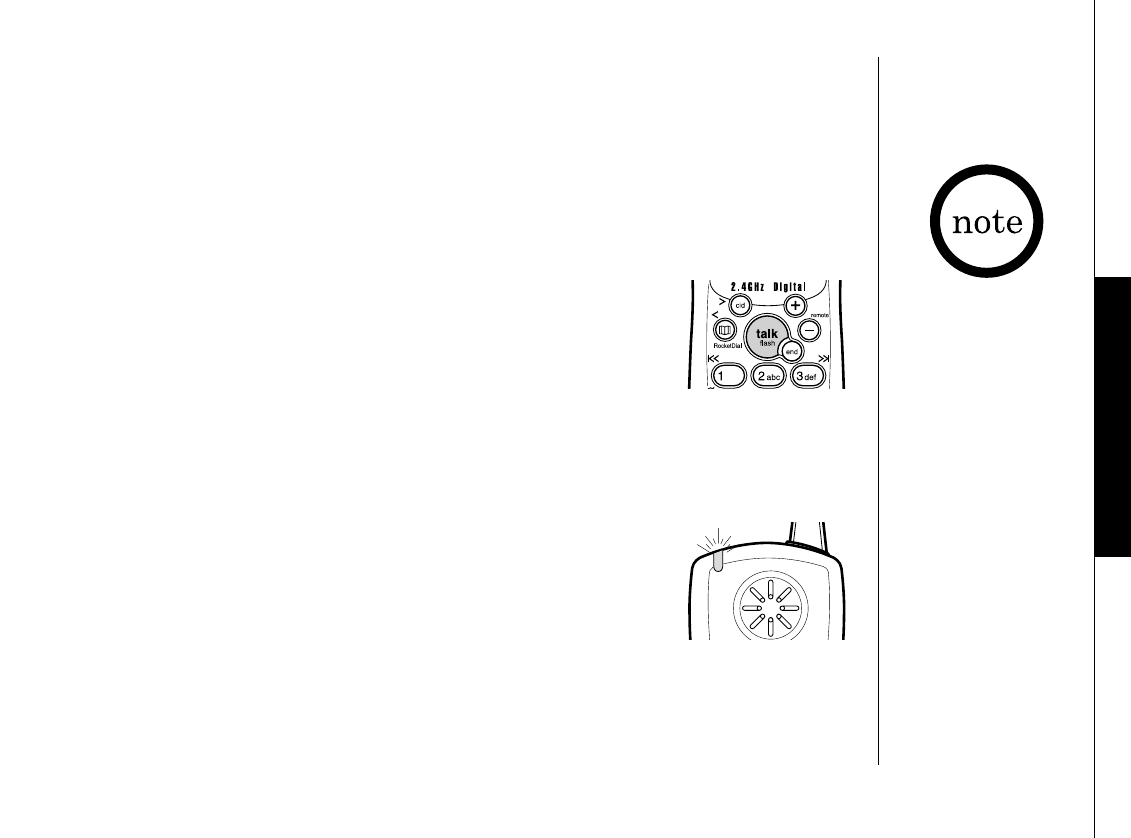
you are on a call, press talk/flash to accept the waiting call. There is
a short pause, then you will hear the new caller. To return to the
original caller, press talk/flash again.
New Message LED
The New Message LED on the handset is designed to work with your
answering system. The LED flashes when you have new messages in your
answering system.
The LED stops flashing when all new messages are played back (see
“Using your Answering System” on page 47).
You must subscribe
through your local
telephone company
to receive Call
Waiting Service.
With the Speakerphone feature
When the Speakerphone is in use and the handset is on the base, a call will be
transferred to the handset when you pick up the handset from the base.
For the call transfer between the second handset and the handset or the base,
see “Call Transfer Feature” on page 54.
BASICS
TRU448_OM 4/9/02 12:17 PM Page 27
PHONEBOOK[ 28 ]
Phonebook allows you to dial a number using just a few key presses.
Your phone stores names/numbers in the phonebook memory location, and you can search
names in alphabetical order. You have a total of 100 locations that can be used for the
phonebook (including the Speed dial locations) and Caller ID messages.
Storing Phone Numbers, Names, Distinctive
Rings, and Speed Dial
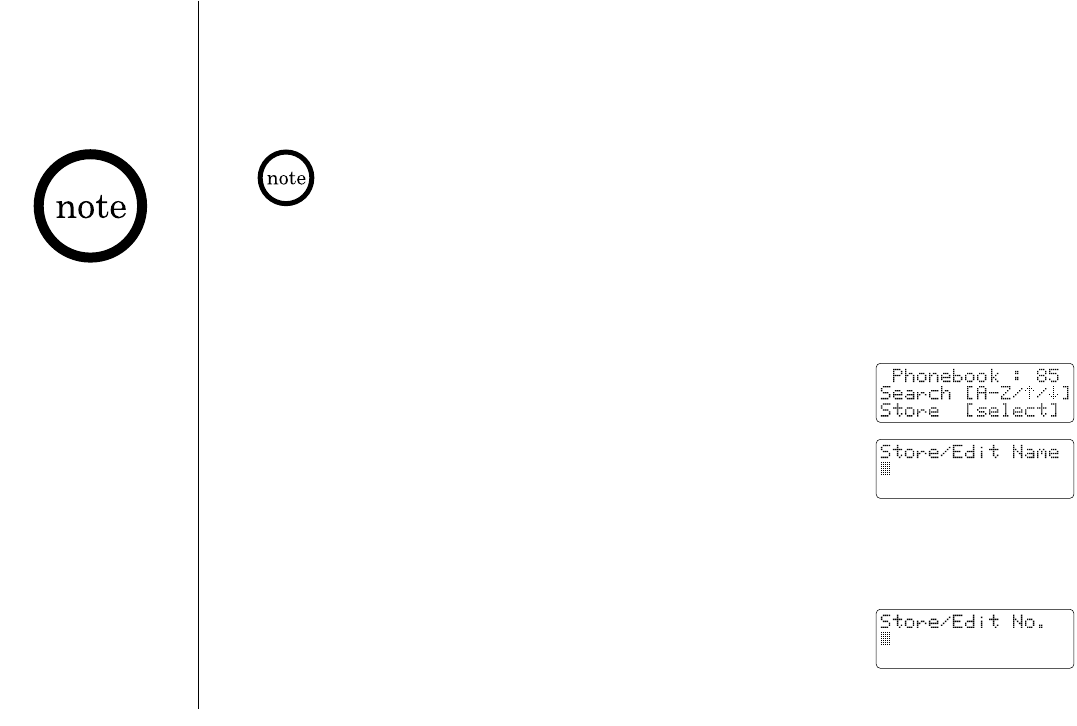
1) When the phone is in the standby mode, press pb/rocket/<. The handset displays the
number of the phonebook locations used, and information on searching and storing
phonebook locations.
(1st line) the number of the phonebook locations used
(2nd line) How to search (the number keypad, +or -)
(3rd line) How to enter the storing operation (Press select/ch)
2) Press select/ch, then “Store/Edit Name” appears.
3) Store the name (up to 16 characters) by using the number keypad.
• See the “Steps for entering names and special characters” (see page 29).
• Use cid/> and pb/rocket/< to move the cursor to the desired location.
• Use xfer/del to delete characters as needed.
• Press and hold xfer/del to delete all the characters.
If a name is not required, go to step 4.
4) Press select/ch to store the name, then
“Store/Edit No.” appears.
5) Press the number keypad to enter the phone number (up to 20 digits),
then press select/ch to store the number.
•If you press end or
don’t press a key
within 30 seconds
while in the storing
operation, the phone
will return to the
standby mode.
•When the memory is
full, you will hear a
beep and “Memory
Full” appears. You
cannot store names
and numbers.
•The pause key
counts as one digit.
Pressing redial/p
more than once
increases the
length of pause
between numbers.
If you get an incoming call, a transferring call, or page, the operation is canceled.
Phonebook
TRU448_OM 4/9/02 12:17 PM Page 28
8) Press select/ch. You will hear a confirmation tone and “Done!”
appears on the display.
7) “Speed Dial” appears. Then press -to move the pointer to select
the speed dial location (10 locations: SPD1-SPD0).
PHONEBOOK [ 29 ]
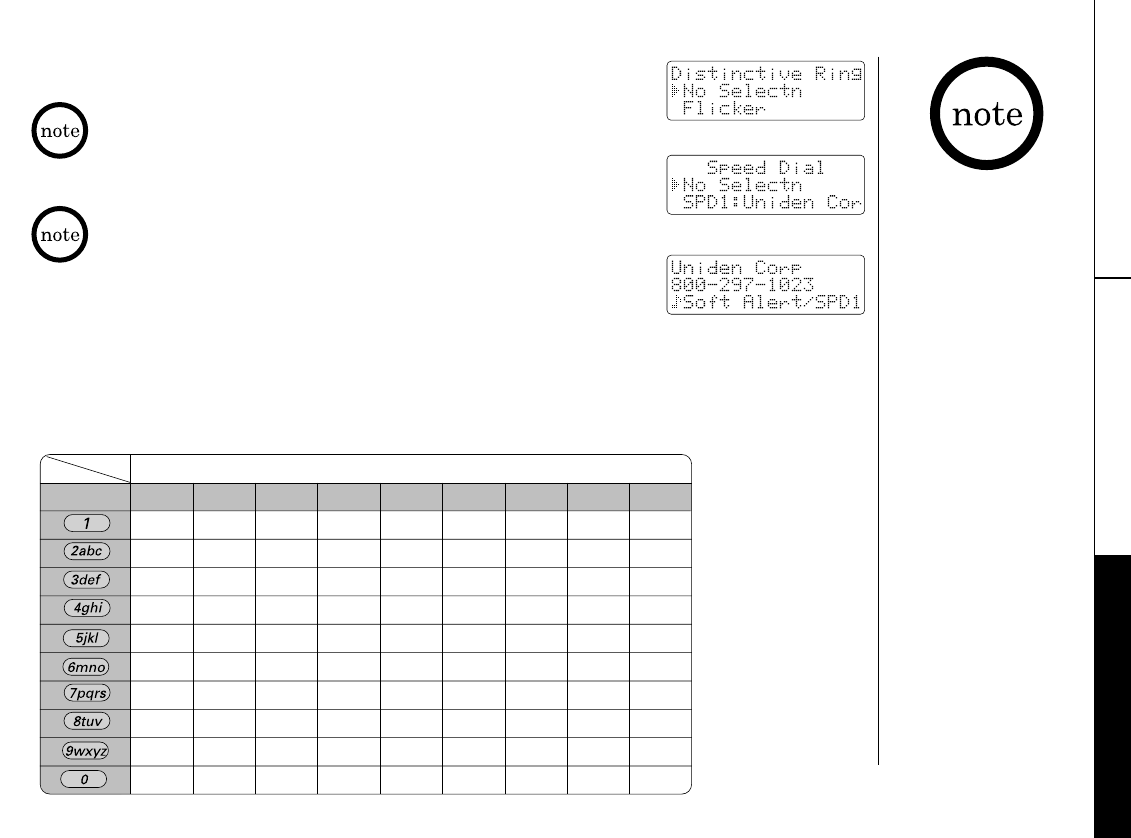
Steps for Entering Names and Special Characters
Refer to the letters on the number keys to select the desired characters. With each press of
a number key (0-9), the displayed character appears in the following order: Upper case
letters first, lower case letters next and finally the number corresponding to the key.
keys
PHONEBOOK
6) “Distinctive Ring” appears. Then press +or -to move the
pointer to one of the Distinctive Ring options, then press select/ch.
If you choose not to store a “Distinctive Ring”,
simply select the “No Selectn” option.
If you choose not to store the name/number as a Speed Dial,
simply select the “No Selectn” option.
If you select a speed
dial location where a
name/number is
already stored, the
new name/number
will replace the old
name/number, and
the old name/number
will be stored as a
phonebook location.
Number of times key is pressed
123456789
1
ABCabc2
DEFdef3
GHIghi4
JKLjkl5
MNOmno6
PQRSpqrs7
TUVtuv8
WXYZwxyz9
*#-&()
(blank) 0
TRU448_OM 4/9/02 12:17 PM Page 29

PHONEBOOK[ 30 ]
For example, to enter Uniden:
1) When the phone is in the standby mode, press pb/rocket/<. The handset displays the
number of phonebook locations you have stored, and how to search and store the
phonebook locations.
2) Press select/ch, then “Store/Edit Name” appears.
3) Press 8twice.
4) Press 6five times.
5) Press 4six times.
6) Press 3four times, then press cid/> to move the cursor to the right.
7) Press 3five times.
8) Press 6five times.
9) When finished, press select/ch.
To continue to store the telephone number, proceed to step 5 on page 28.
If the next character uses the same number key, you must press cid/> to move the cursor over.
Otherwise the next time you press the number key, it changes the character that was previously set.
If you make a mistake while entering a name
Use pb/rocket/< or cid/> to move the cursor to the incorrect character. Press xfer/del to
erase the wrong character, then enter the correct character. To delete all characters, press
and hold xfer/del.
TRU448_OM 4/9/02 12:17 PM Page 30
PHONEBOOK [ 31 ]
•“/SD” appears on the
display when you
review the RocketDial,
and “/SPDn” appears
when you review a
Speed dial.
•If you view the
phonebook during a
call and receive a
CIDCW (Caller ID on
Call Waiting), the
viewing operation will
be canceled.
•If you press end while
in the operation, the
phone will return to
the standby mode
(or a call will be
disconnected when
you view the
phonebook during
a call).
•If you don’t press a
key within 30 seconds
while in the
operation, the phone
will return to the
standby mode (or back
to a call when you
view the phonebook
during the call).
Viewing the Phonebook
Your phone stores names/numbers in the phonebook memory locations, and you can
search names in alphabetical order. You can view the phonebook during a call as well as
when the phone is in the standby mode.
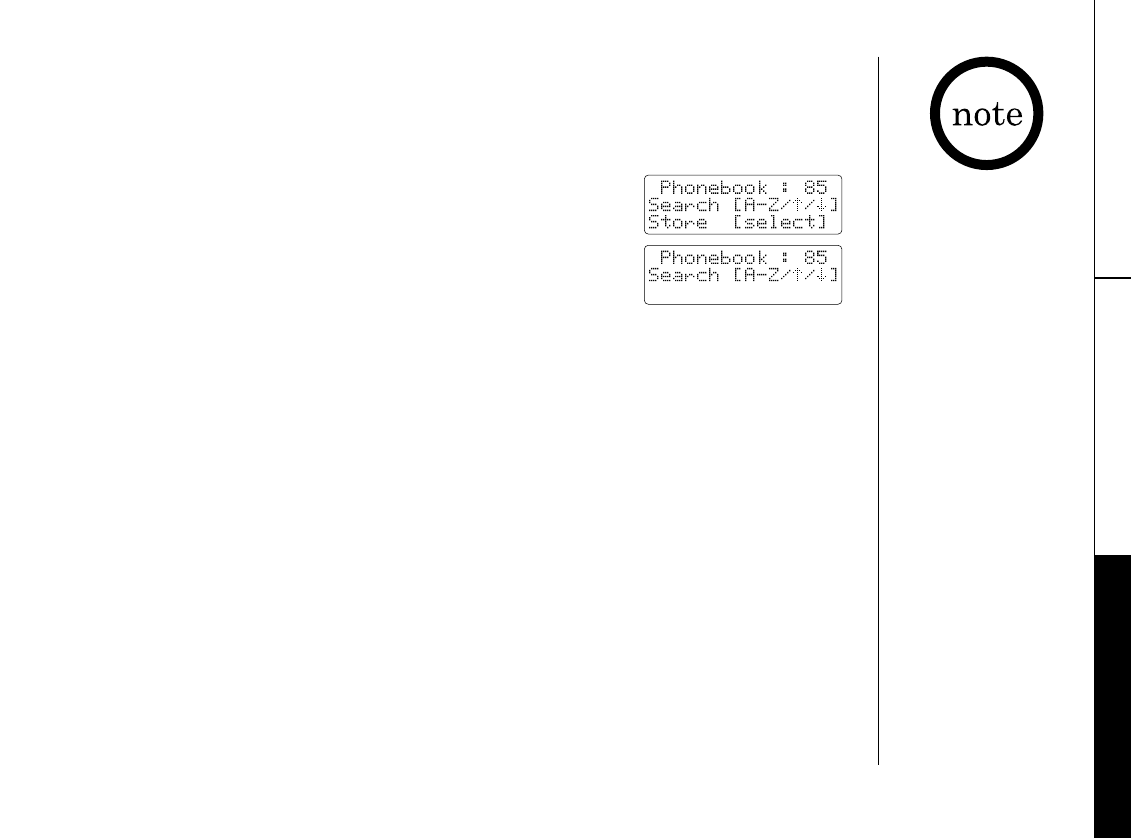
1) Press pb/rocket/<.
If you press pb/rocket/< during a call, the following
screen appears.
2) Press +or -, or the number keypad to view the phonebook locations.
a) Alphabetical order
Ascending order: Press -to view locations. The location in the RocketDial
appears first in the display. Each time -is pressed, phonebook locations appear
in ascending order.
Descending order: Press +to view locations. A name starting with a number or a
mark, or unknown name appears first. Each time +is pressed, phonebook locations
appear in descending order.
b) From a number key
Refer to the letters on the number keys to select the first letter of the desired name.
Press a number key until any name with the same initial is displayed (See the table in
“Steps for Entering Names and Special Characters” on page 29).
For example, to search for “Uniden”, press 8 two times. Press -or +until the name is
displayed. If you press +while the first name in “U” is displayed, a name starting
with “T” will appear, or if you press -while the last name in “U” is displayed, a name
starting with “V” will appear.
3) Press pb/rocket/< (if you view the phonebook during a call) or end.
PHONEBOOK
TRU448_OM 4/9/02 12:17 PM Page 31

PHONEBOOK[ 32 ]
Making Calls Using the Phonebook
From Standby Mode
1) When the phone is in the standby mode, press pb/rocket/<.
2) Press +or -to view the phonebook locations (see “Viewing the
Phonebook” on page 31).
3) Press talk/flash. The displayed number is dialed.
From Talk Mode
1) Press talk/flash.
2) Press pb/rocket/<.
3) Press +or -to view the phonebook locations (see “Viewing the
Phonebook” on page 31).
4) Press select/ch. The number in the displayed phonebook location
is dialed.
Speed Dialing
If you select a speed dial memory location (10 locations: SPD1 – SPD0) when storing a phone
number in the phonebook dial location, you can use the speed dialing feature. When the
phone is in the standby mode, press and hold a number key (0-9) associated with the speed
dial, then press talk/flash. The phone number in the speed dial (SPD1 – SPD0) is dialed.
TRU448_OM 4/9/02 12:17 PM Page 32
[ 33 ]PHONEBOOK
1) When the phone is in the standby mode, press pb/rocket/<.
2) Press +or -, or the number keypad to view the phonebook
locations (see “Viewing the Phonebook” on page 31).
a. Editing the Stored Data
1) When the phonebook location to be edited appears, press
select/ch. “Store/Edit Name” appears.
2) Follow the steps 3 to 7 under “Storing Phone Numbers, Names, Distinctive Rings, and
Speed Dial” on page 28-29 to complete editing operation.
3) Press select/ch. You will hear a confirmation tone and “Done!” appears on the display.
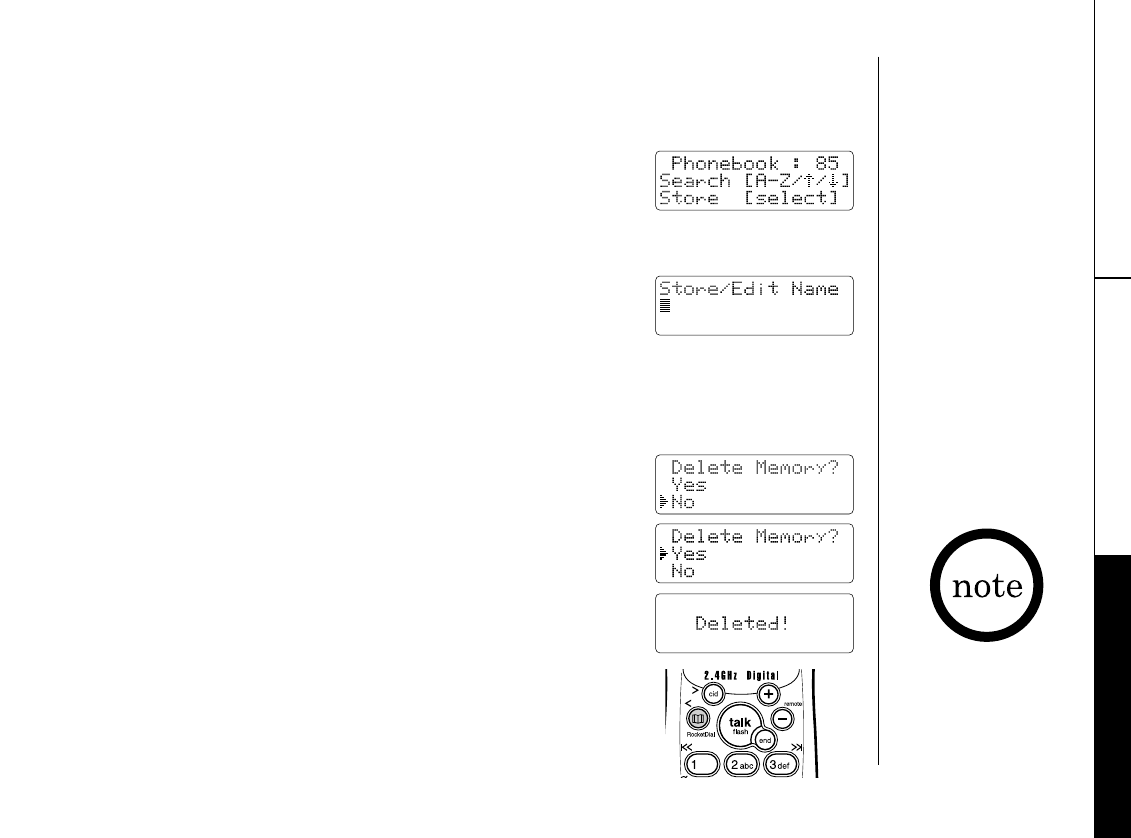
b. Deleting the Stored Data
1) When the phonebook location to be deleted appears, press
xfer/del. “Delete Memory?” appears.
2) Press +to move the pointer to “Yes”.
3) Press select/ch. You hear a confirmation tone. “Deleted!”
appears in the display.
Editing or Erasing a Stored Name, Phone Number,
Distinctive Ring, and Speed Dial
RocketDial (One Touch Dialing)
You can store a number you dial often in the RocketDial. The rocket
dialing allows you to dial a number with one key press.
PHONEBOOK
Memory location for
the RocketDial is
independent from
the memory location
for the phonebook.
TRU448_OM 4/9/02 12:18 PM Page 33
Storing the RocketDial
1) When the phone is in the standby mode, press pb/rocket/<.
2) Press -once to display the RocketDial menu, then press
select/ch. Store the name, phone number, and distinctive ring by
following the steps 3 to 6 under “Storing the Phone Numbers,
Names, Distinctive Rings, and Speed Dial” on page 28-29.
Making calls with the RocketDial
When the phone is in the standby mode, press and hold pb/rocket/<.
The number in the rocket location is dialed.
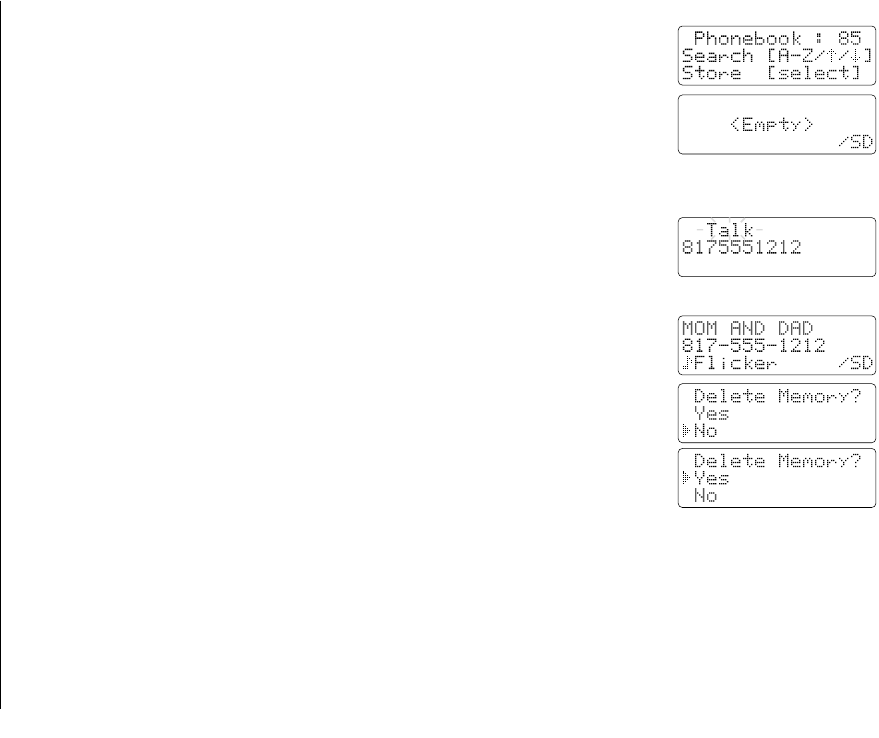
Deleting the RocketDial
1) When the phone is in the standby mode, press pb/rocket/<.
2) Press -to display the RocketDial menu.
3) Press xfer/del.
4) Press +to move the pointer to “Yes”.
5) Press select/ch. You will hear a confirmation tone.
PHONEBOOK[ 34 ]
Chain Dialing
The memory locations in the handset are not limited to phone numbers. You can also store a
group of numbers (up to 20 digits), that you need to enter once your call connects. This is
referred to as Chain Dialing.
An example of this is a bank account number. Store the special number in the RocketDial.
(Refer to “Storing Phone Numbers, Names, Distinctive Rings, and Speed Dial” on page 28.)
Once you have called your bank, and when you are prompted to enter the account number,
press pb/rocket/< and -to select the number in the RocketDial, then press select/ch.
TRU448_OM 4/9/02 12:18 PM Page 34
You must subscribe to Caller ID service to use this feature.
When the telephone rings, the Caller ID feature allows you to view the caller’s name and
phone number on the display before you answer the phone. Additionally, you can dial the
displayed number and store the information for memory dialing.
Make sure you have turned on the Caller ID/Call Waiting feature (See page 17).
Important:
Memory locations for Caller ID messages and Phonebook locations are common, you can
store up to 100 in total. Caller ID messages will not be stored when you have stored 100
entries in each phonebook locations. The earliest Caller ID message is overwritten when you
have stored 100 entries in each phonebook locations and Caller ID messages in total.
CALLER ID [ 35 ]
•If you answer a call
before the Caller ID
message is received
(Example: before the
second ring), the
Caller ID message will
not appear nor will it
be stored in memory.
•When the call is
received via a
telephone company
that does not offer
Caller ID service,
the caller´s phone
number and name
will not appear.
(This includes some
international calls.)
•When the call is
via a private branch
exchange (PBX),
the caller´s phone
number and name
may not appear.
If you get an incoming call, a transferring call, or page, the operation is canceled.
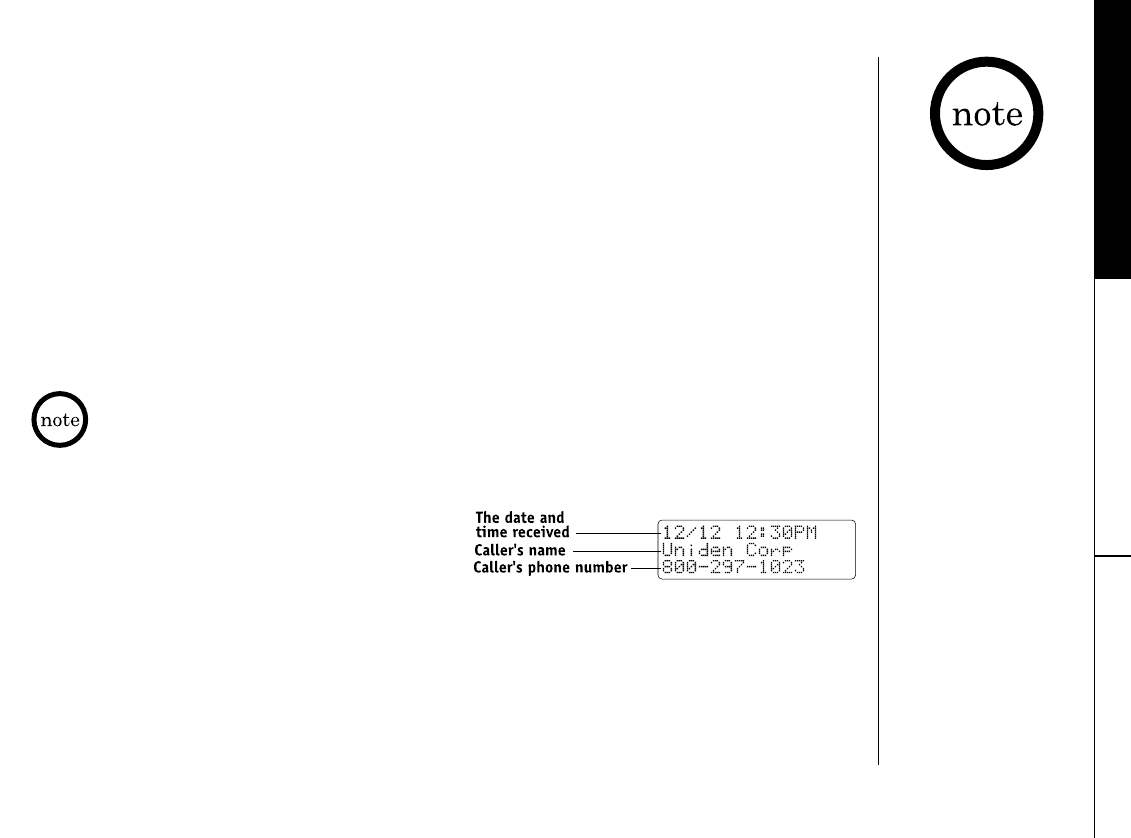
1) When the Caller ID message is received, the display shows the caller’s name and phone
number along with the date and time. The incoming call information is stored in the
Caller ID record. If the Caller ID service
includes the caller’s name, the name will
appear on the display (up to 15 characters).
You may receive any one of the following messages:
When invalid data is received “Incomplete Data”
When a private name is received “Private Name”
When a private number is received “Private Number”
When a unknown name is received “Unknown Name”
When a unknown number is received “Unknown Number”
2) When you pick up the phone, the display changes to “Talk”.
(If AutoTalk feature is set to On.)
CALLER ID
Caller ID
TRU448_OM 4/9/02 12:18 PM Page 35
CALLER ID[ 36 ]
Viewing the Caller ID List
•The number of calls
from the same Caller
ID appears next to
the received time.
Once you have
reviewed the new
message, the number
will be cleared
and disappears.
•If you press end
while in the
operation, the phone
will return to the
standby mode (or
the call will be
disconnected when
you view the Caller
ID list during a call).
•If you don’t press
a key within 30
seconds while
performing this
operation, the phone
will return to the
standby mode (or
back to a call when
you view the Caller
ID list during a call).
The Caller ID list stores information for incoming calls – even unanswered calls. You can
store 100 of the Caller ID messages and phonebook locations (including Speed dials) in total.
You can view the Caller ID list during a call or when the phone is in the standby mode.
1) Press cid/>.
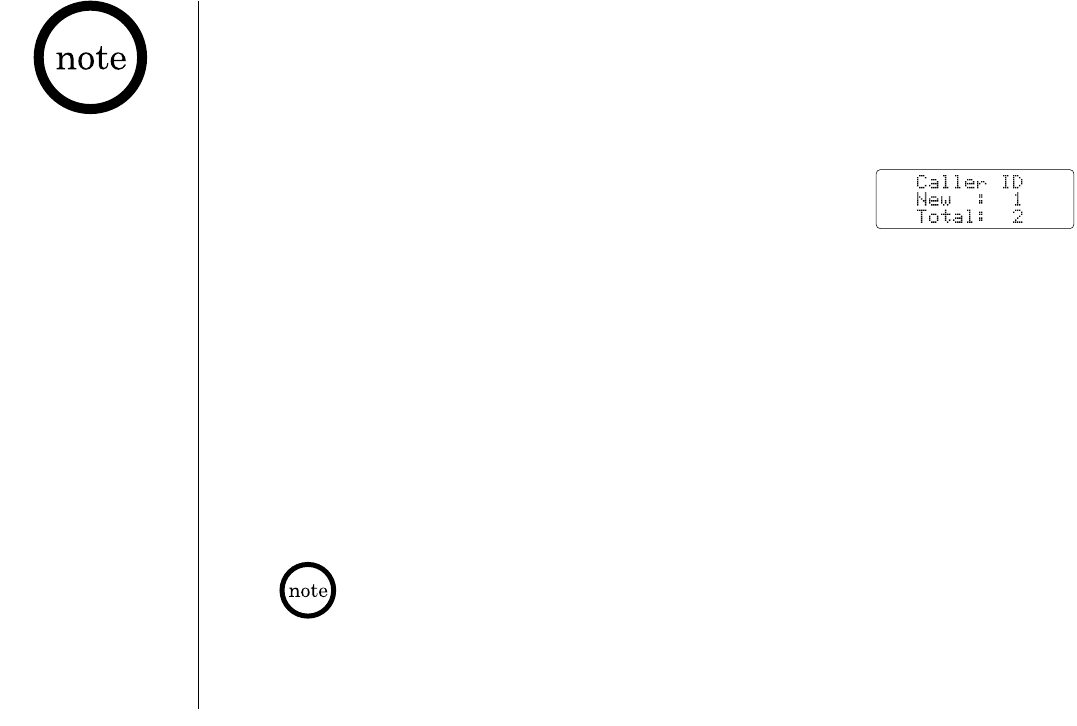
The summary screen appears. The screen shows the number of
new messages and the total number of messages.
2) View the Caller ID messages by following these procedures.
From new to oldest:
a. Press -to display the latest Caller ID message.
b. Press -to see the previous message.
From oldest to new:
a. Press +to display the earliest Caller ID message.
b. Press +to see the next message.
In alphabetic order:
Press the number keypad (2-9and 0) to display the Caller ID messages in alphabetical
order. Refer to the letters on the number keys to select the desired letter.
3) Press cid/> (if you view the Caller ID list during a call) or end.
Once you view the Caller ID list in alphabetical order, you cannot switch to the Caller ID display in
historical order (from new to old or from old to new) unless you exit the operation.
TRU448_OM 4/9/02 12:18 PM Page 36
Deleting a Caller ID message
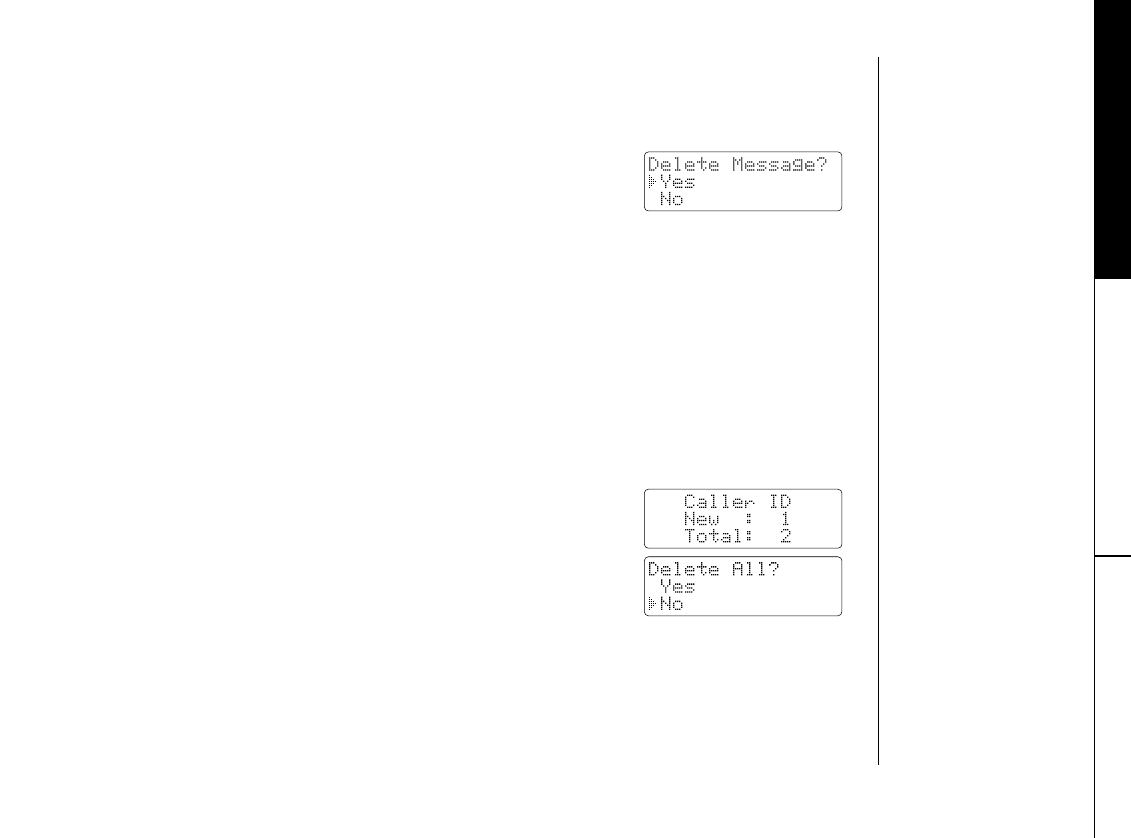
1) While the incoming Caller ID information is displayed,
press xfer/del.
“Delete Message?” appears.
2) Press +or -to choose “Yes” or “No”.
3) Press select/ch or xfer/del.
When the pointer is at “YYeess”:A tone sounds and the Caller ID message is deleted. The
next or previous Caller ID message is then displayed.
When the pointer is at “NNoo”:The display returns to the Caller ID message.
Deleting all Caller ID names/numbers
1) Press cid/>.
2) Press xfer/del.
3) Press +or -to choose “Yes” or “No”.
4) Press select/ch or xfer/del.
When the pointer is at “YYeess”:A tone sounds and all stored Caller ID messages are deleted.
When the pointer is at “NNoo”:The display returns to the summary screen.
CALLER ID [ 37 ]
Deleting Information from the Caller ID List
CALLER ID
TRU448_OM 4/9/02 12:18 PM Page 37
Calling a party from the Caller ID list
From Standby mode
1) Press cid/>. The summary screen appears. The screen shows the
number of new messages and the total number of messages.
2) Use the number keypad (2-9and 0), +, or -to view the Caller ID message list.
3) Press talk/flash. The displayed phone number dials automatically.
From Talk mode
1) Press talk/flash.
2) Press cid/>. The summary screen appears.
3) View the Caller ID message you want to dial.
4) Press select/ch. The displayed phone number will be dialed.
Long Distance calls and Area Code Setting/Cancellation
While the present Caller ID information is displayed, pressing *tone will place or remove the
prefix “1” in the display to set the call for a long distance call, or pressing #will set or
cancel an area code. (See page 18.)
Storing Caller ID messages in the Phonebook/RocketDial
Messages shown in the Caller ID list can be stored in the phonebook. Using the incoming call
information (i.e., Caller ID list), the phone number and name of the party on the Caller ID
list can be stored in memory.
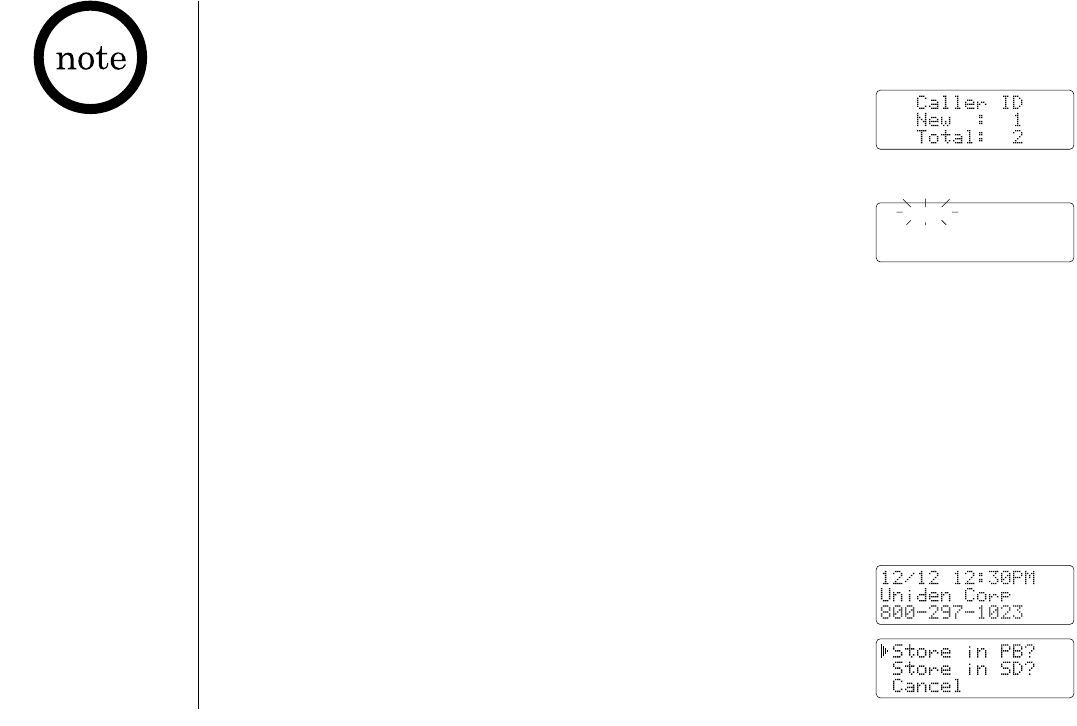
1) When the phone is in the standby mode, while the incoming
Caller ID information is displayed, press pb/rocket/<.
2) Press +or -to choose “Store in PB?” (Phonebook locations)
or “Store in SD?” (RocketDial location). To cancel Storing,
select “Cancel”.
CALLER ID[ 38 ]
Using the Caller ID Message List
•You cannot make a
call from the Caller ID
list if your phone is
connected to a
private branch
exchange (PBX).
•When a long distance
call has been set,
“1” appears in
the display.
•If a call comes in via
a telephone system
that does not offer
Caller ID service, no
information is stored.
Talk
8002971023
TRU448_OM 4/9/02 12:18 PM Page 38
CALLER ID [ 39 ]
Call Waiting Deluxe Features
•To activate features,
select “CW Deluxe
On” in the Caller ID
setup. See page 17.
•You can also answer a
waiting call
immediately by
pressing talk/flash,
the first caller will be
placed on hold. To
return to the original
caller, press
talk/flash again.
3) Press select/ch. A confirmation screen will appear.
Your TRU448 series is pre-programmed with seven call waiting options. You may select to ask
the calling party to hold, send them a busy message, forward them to your voice mail, or
answer and drop the first caller. You may also select to conference them into the current call
or, at any time, choose to drop the first or drop the last caller.
Check with your local telephone company for a full list of options.
Your TRU448 series gives you new options for call waiting. At the touch of a button, you can
place the caller on hold, send them to your voice mail service, or conference them into your
current call. You may be required to subscribe to Call Waiting and Call Waiting Deluxe to use
these features. Not all features are available in all areas. Check with your local telephone
company for details.
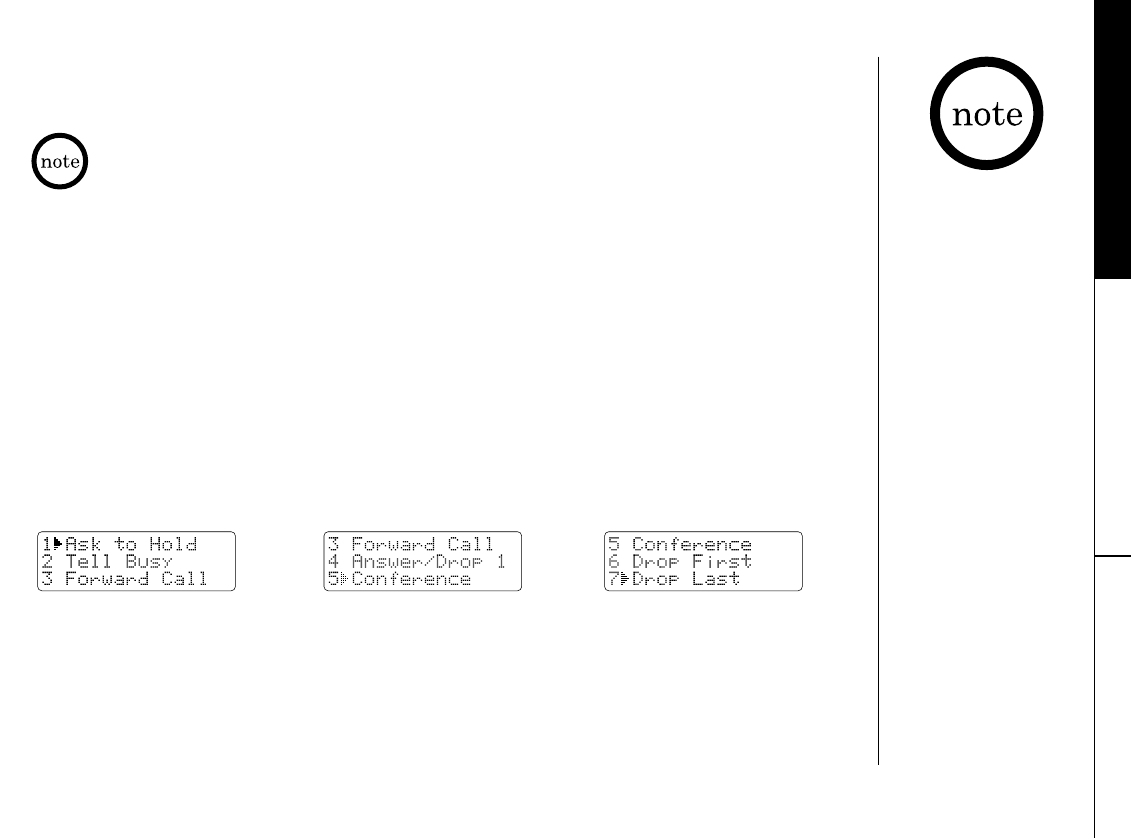
1) When you receive a call waiting call, press menu/mute for a list of options.
2) Press +or -, or the number keypad (1- 7) to select an option. For example:
CALLER ID
•You cannot store a Caller ID message in the phonebook if a phone number does not appear in
the message.
•You cannot set the distinctive ring or speed dial in this step. If you would like to set these
options, use the edit mode in the phonebook to edit the stored data.
•Even if the memory locations are full, the message will be stored in the Phonebook, however, the
message will be erased from the Caller ID List.
•If data is already stored in the RocketDial, the old data will be overwritten by the new data.
3) Press select/ch. You will hear a confirmation tone.
press
-
4 times
press
-
2 times
TRU448_OM 4/9/02 12:18 PM Page 39
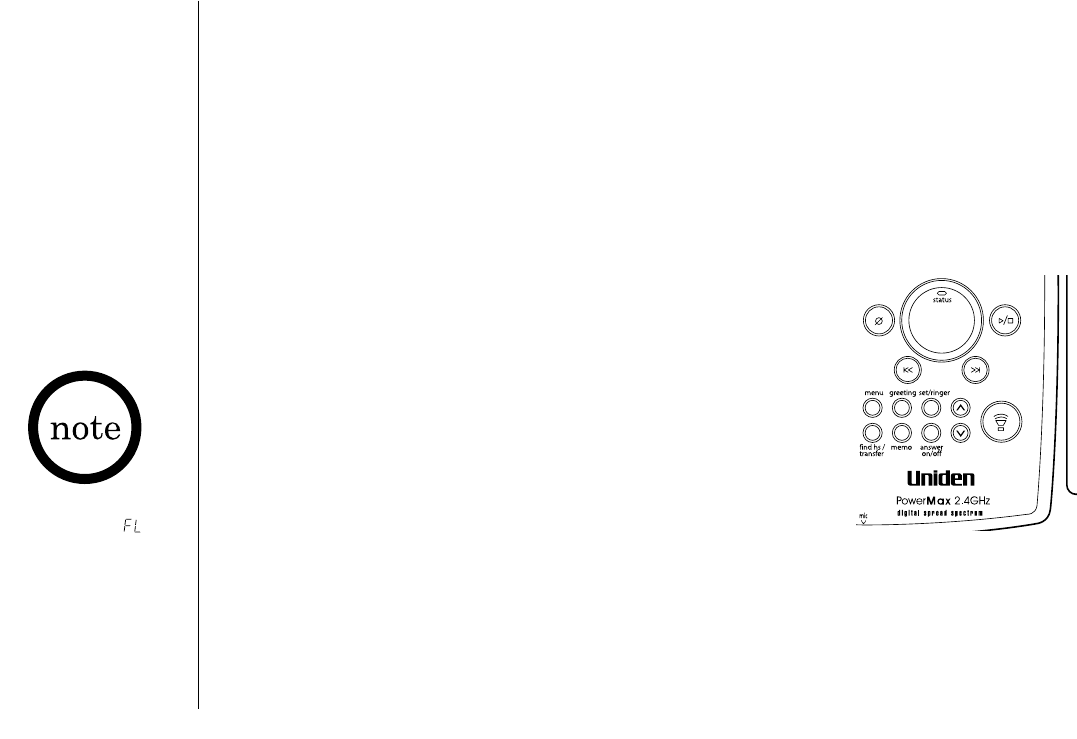
The TRU448 series has a built-in answering system that answers and records incoming
calls. You can also use your answering system to record a conversation, leave a voice
memo message, or to announce a special outgoing message to callers when you’re away
from your phone.
Features
•Digital Tapeless Recording •Approx. 10 Minutes of Recording Time
•Call Screening •Selectable Outgoing Messages
•Voice Prompts for Menu Setup Guidance •Time and Day Announcement
•Remote Message Retrieval •Toll Saver
•Conversation Recording •Voice Memo
•Trilingual Language Option •Message Alert
•Remote Operation by the Handset
Digital Tapeless Recording allows you to quickly review, save, or
delete the messages you choose. You will never have to worry
about a tape wearing out, jamming, or resetting improperly.
The Integrated Answering System is easy and convenient to use,
but please read through all of the instructions carefully.
The Integrated Answering Device
When the answering
system is full, “”
appears on the base,
and the system
announces “No
remaining time”. You
should delete some
messages so that the
system can record new
messages. (Refer to
“Deleting a message” on
page 48.)
Turning the Answering System On/Off
1) To turn the answering system On, press answer on/off in the standby mode.
The current greeting message will be played and you will hear a confirmation tone.
The message counter displays the number of messages stored in memory. If the
display flashes, then there are new messages waiting for you.
2) To turn the answering system Off, press answer on/off. After the announcement
“Answer off”, the message counter display will no longer be illuminated.
THE INTEGRATED ANSWERING DEVICE[ 40 ]
TRU448_OM 4/9/02 12:18 PM Page 40

THE INTEGRATED ANSWERING DEVICE [ 41 ]
THE INTEGRATED
ANSWERING DEVICE
Screen Incoming Calls
You can screen calls when the answering system is On.
1) After the answering system answers, the base speaker will let you hear the calls as the
machine records the message.
2) To answer the call, press (talk) or pick up the handset from the base (when AutoTalk
is set to On). If the handset is away from the base, press talk/flash or, any number key,
*tone, or #(when AutoTalk is set to On). The answering system will disconnect
automatically.
•If the speaker volume
is set to “0”, you
cannot use the call-
screening feature.
•You can adjust the
base speaker volume
by pressing volume
or while
screening a call.
•If you set the
answering system to
Off and the system
doesn’t answer after
ten rings, you cannot
screen a call.
Setting up your Answering System
Setting your outgoing message (Greeting)
When you receive a call, the answering system automatically plays either the pre-recorded
message or your own greeting.
Pre-recorded message
The following message is pre-recorded:
“Hello, no one is available to take your call. Please leave a message after the tone.”
Recording a personal outgoing message (Greeting)
You can record a greeting up to 30 seconds long (more than 2 seconds).
1) When the phone is in the standby mode, press and hold greeting.
2) Start your recording after the announcement “Record greeting”. The message counter
displays “”, then begins to count down.
3) When you have finished recording your greeting, press greeting or . You will hear a
confirmation tone and your recorded greeting plays back for you.
•Position yourself as
near to the base as
possible and speak
clearly when
recording your
outgoing message.
TRU448_OM 4/9/02 12:18 PM Page 41
THE INTEGRATED ANSWERING DEVICE[ 42 ]
Choosing between the two outgoing messages
When the phone is in the standby mode, press greeting. Press greeting again when the
outgoing message is played. Each time greeting is pressed, the outgoing message is
switched between the pre-recorded and the personal outgoing message.
Deleting an outgoing message
To delete the personal outgoing message, press while the message is playing. The system
announces “greeting has been deleted”.
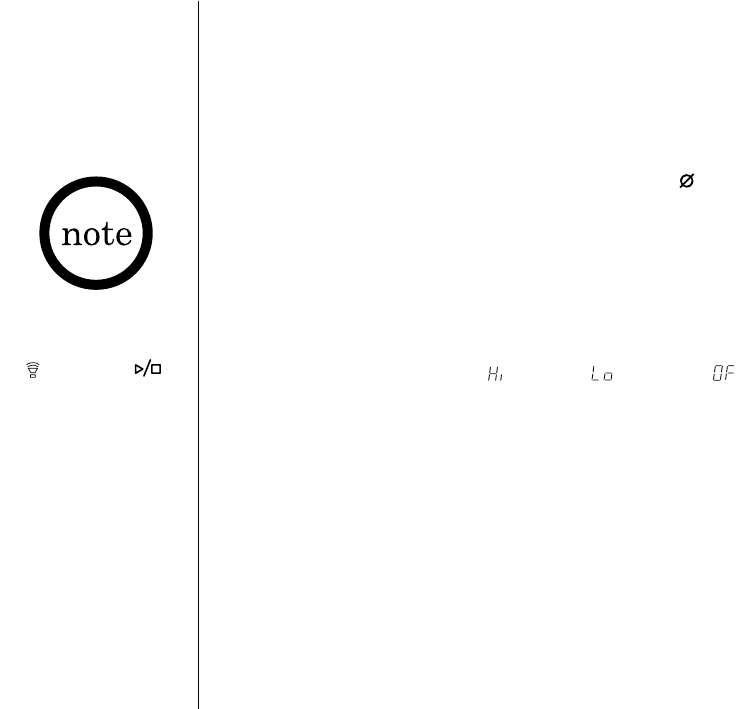
Setting the base ringer volume
You have three ringer options. One allows you to turn the base ringer off. The other two are
volume levels.
1) When the phone is in the standby mode, press set/ringer. You hear the ringer at the
current volume level (“” High, “” Low, or “” Off) (if you set the base ringer
volume to off “off” is announced), and it appears on the base.
2) Press set/ringer until the desired ringer volume appears. The system returns to the
standby mode.
You can also set the base ringer volume while the phone is ringing, press set/ringer
repeatedly to select the desired ringer volume.
If you receive an
incoming call or
press talk/flash,
(talk), or
the operation will
be canceled.
TRU448_OM 4/9/02 12:18 PM Page 42
THE INTEGRATED ANSWERING DEVICE [ 43 ]
THE INTEGRATED
ANSWERING DEVICE
•When you press
in the maximum
volume level (9) or
in lowest volume
level (0), an error
tone sounds.
•Press and hold
or on the base
to scroll quickly
through the
volume levels.
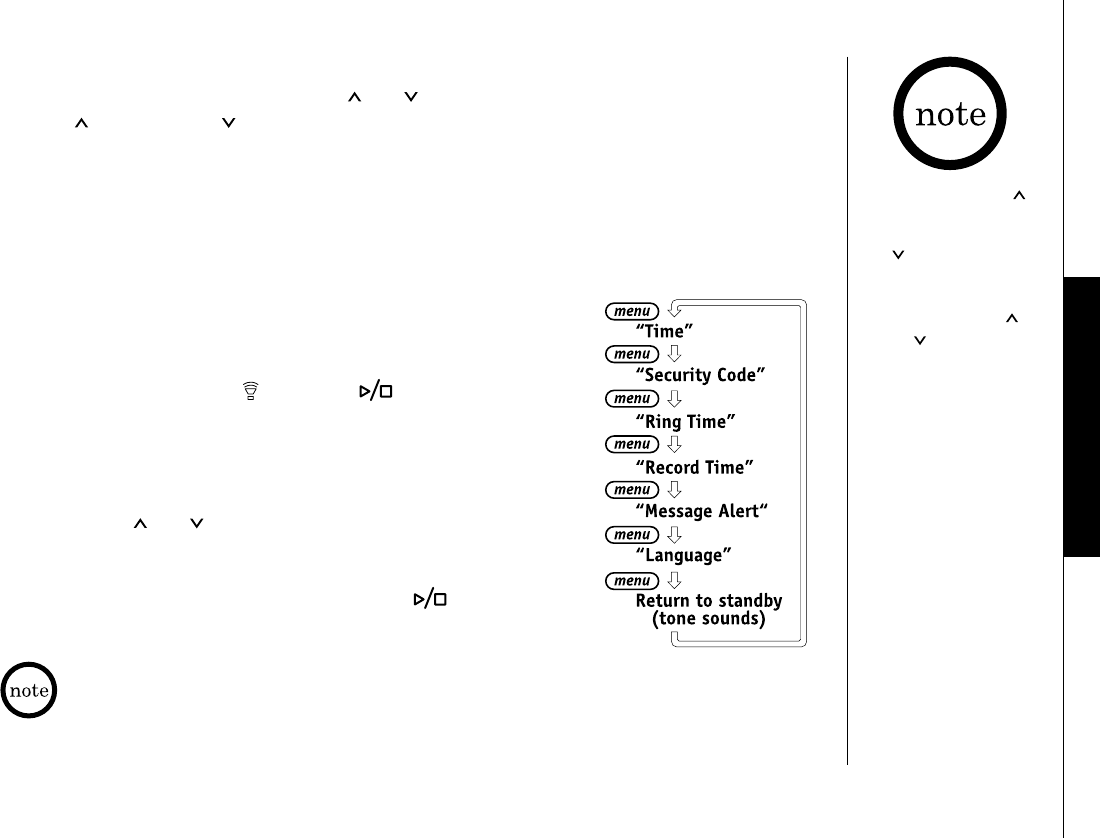
Adjusting the speaker volume level
When the base speaker is in use, press or on the base to adjust the volume. Press
volume for louder or for softer.
The numbers 0-9 appear on the base indicating the volume levels. 0 being the softest and 9
being the loudest.
Using the Menu Mode
The Menu mode allows you to set the following Answering System functions.
•To scroll through the menu options, repeatedly press menu on
the base in the standby mode. The system returns to standby
after the last menu option. A confirmation tone sounds to
indicate the standby mode.
•If you press talk/flash, (talk), or during the menu
setup, the operation will be canceled.
•The idle time default setting is 30 seconds. If the system
remains idle for 30 seconds, you will hear a beep and the system
returns to standby.
•You can use or to adjust the announcement volume level
during a voice prompt/guidance.
•If there is an incoming call, the operation is canceled.
•When you have completed the setting, press to exit the
menu mode, or menu to move to the next menu option.
For your convenience, voice prompts will guide you through the menu setup mode.
TRU448_OM 4/9/02 12:18 PM Page 43
THE INTEGRATED ANSWERING DEVICE[ 44 ]
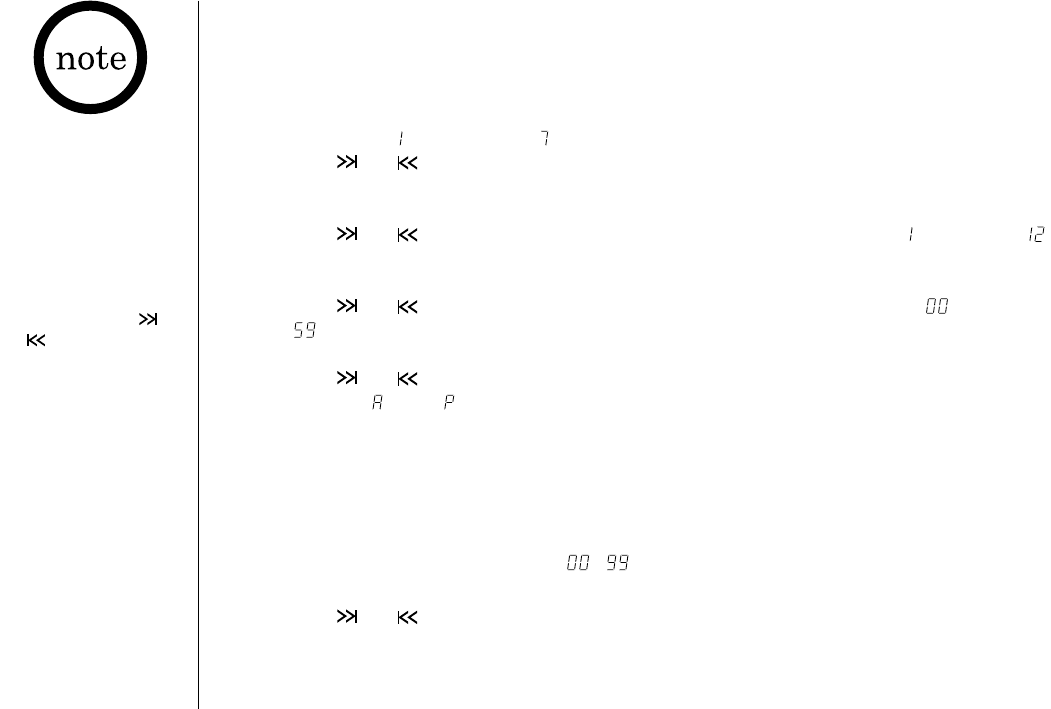
Setting the Time
The clock on the TRU448 series answering system starts when power is supplied to the base.
Follow these steps to set the clock to the correct time.
1) Press menu.
The system announces the current time. The message counter displays the day of the
week (from “” Sunday to “” Saturday).
2) Press or until the correct day is announced and the corresponding number
appears.
3) Press set/ringer to select the day.
4) Press or until you hear the correct hour setting. The numbers “” through “”
appear on the base as each hour is announced.
5) Press set/ringer to select the hour.
6) Press or until you hear the correct minute setting. The numbers “” through
“” appear on the base as each minute is announced.
7) Press set/ringer to select the minute.
8) Press or until you hear the correct AM or PM setting. The message counter
displays “” or “”.
9) Press set/ringer to select the AM/PM setting.
A confirmation tone sounds, the system announces “Time” and, the day and time are
announced for your review.
Setting a Personal Security Code
To play your messages from a remote location, you will need to enter a two-digit Personal
Identification Number (PIN) code ( - ). To select a PIN, perform the following steps:
1) Press menu twice. The current PIN code is announced as it appears on the base.
2) Press or until the desired number appears.
3) Press set/ringer to select the PIN code.
A confirmation tone sounds, the system announces “Security code” and the new PIN code.
•Normally the idle
time for the menu
mode is 30 seconds
before the system
returns to standby.
However, for setting
the time, the idle
time is extended to
two minutes.
•Press and hold or
to quickly scroll
through the numbers
on the display.
TRU448_OM 4/9/02 12:18 PM Page 44

THE INTEGRATED ANSWERING DEVICE [ 45 ]
THE INTEGRATED
ANSWERING DEVICE
Setting the Ring Time
The ring time setting allows you to set the number of rings the caller hears before your
answering system plays the outgoing message. You can set the ring time to answer after two,
four, or six rings. Setting “TS” (Toll Saver), the answering system picks up after two rings if you
have new messages, and after four rings if there are none. This way, if you make a long distance
call to check your messages, you can hang up after the second ring to avoid billing charges.
1) Press menu three times.
The current ring time setting is announced (“” 2, “” 4, “” 6, “” Toll saver), and
it appears on the base.
2) Press or until the desired ring time appears.
3) Press set/ringer to select the new ring time.
A confirmation tone sounds, the system announces “Ring time” and the new ring time.
Selecting the message record time
You have three record time options. The options “1minute” or “4minutes” set the duration
for recording the incoming messages. “Announce only” answers the call with the preset
greeting or your personal greeting but prevents the caller from leaving a message.
1) Press menu four times.
You hear the current recording time (“” 1 minute, “” 4 minutes, “” Announce only),
and it appears on the base.
2) Press or until the desired message record time appears.
3) Press set/ringer to select the new recording time.
A confirmation tone sounds, the system announces “Record time” and the new record time.
Announce only feature
The Announce only feature plays a pre-recorded outgoing message or your own personal
outgoing message, but it will not allow the caller to leave a message. To set “Announce only”,
follow the steps above. To choose between the pre-recorded message or your own personal
greeting, press greeting, when the outgoing message is played. Press greeting to select the
greeting of your choice.
When using the
Announce only
feature, you may
want to change your
outgoing message,
if the message
prompts the caller
to leave a message.
The pre-recorded
message changes
automatically.
TRU448_OM 4/9/02 12:18 PM Page 45

THE INTEGRATED ANSWERING DEVICE[ 46 ]
A confirmation tone sounds. If you want to use your own greeting, you may want to change
your greeting to omit the prompt to leave a message. Refer to “Recording a personal outgoing
message (Greeting)” on page 41.
The following message is pre-recorded:
“Hello, no one is available to take your call. Please call again.”
Setting the Message Alert
Message Alert feature lets you know when you have a new incoming message by sounding a short alert tone.
If you set the Message Alert On, and when a new message is received, the Alert Tone will
sound every 15 seconds. Set the Message Alert to On or Off by using the menu key.
1) Press menu five times. The current setting (On or Off) is announced, and it appears on the base.
2) Press or to choose “” or “”.
3) Press set/ringer.
A confirmation tone sounds, the system announces “Message Alert” and the current setting you
have selected. When the first new message is received, the alert tone will begin to sound.
Turning the Message Alert tone Off by pressing any key
To quickly turn Message Alert Off, press any key on the base unit and the tone will
automatically deactivate. To reset, go back into the menu setup mode (steps 1 - 3 above).
Turning the Message Alert tone Off when you are away from your phone
When all new messages are played back using the remote playback feature (see page 50) the Message
Alert will automatically deactivate. The tone will not deactivate until all messages are played back.
Selecting the Language
You can select the Language of your answering system announcements to English, French, or Spanish.
1) Press menu six times.
The current setting (“” English, “” French, or “” Spanish) appears on the base, and
it is announced (“Hello” English, “Bonjour” French, or “Hola” Spanish).
2) Press or to select the language.
3) Press set/ringer.
A confirmation tone sounds, the system announces the new setting in the selected language.
TRU448_OM 4/9/02 12:18 PM Page 46

THE INTEGRATED ANSWERING DEVICE [ 47 ]
THE INTEGRATED
ANSWERING DEVICE
Using your Answering System
The message counter displays the number of messages stored in memory. If the display flashes,
then there are new messages waiting for you. The TRU448 series is designed to play your new
messages first. After you play all your new messages, you can then play your old messages.
Playing your messages
1) When the phone is in the standby mode, press .
The system announces the number of new and old messages while the message counter
displays only the number of new messages. The time and day that each message was
received is announced after the message is played. The message counter will then display
the number of current stored messages.
2) When all new messages have been played, you hear a beep and the system announces “End
of message”. The system returns to standby. After you have reviewed your new messages,
you can play your old messages by again pressing . Once you have listened to a new
message, it then becomes an old message. The old messages will be played in the order in
which they were received.
Repeating a message
1) Press to review your messages. The number of stored messages is announced.
2) To repeat the current message, press after a few seconds of beginning the message.
To quickly scroll backwards through a message, press and hold .
To repeat the previous message, press within a few seconds (about 4 seconds during
remote operation) after a message begins playing. If you have several messages, press
repeatedly until you return to the message you want to replay. If the current message is the
first new message, the system plays back from the beginning of the current message (it does
not go back into the old message group).
3) Press at any time to stop reviewing messages and return to standby. The message
counter shows the number of messages stored in memory.
•To stop playing your
messages, press
again at any time.
•When the answering
system is full, “”
appears on the base,
and the system
announces “No
remaining time”.
You should delete
some messages so
that the system can
record new messages.
(Refer to “Deleting
a message” on
page 48.)
TRU448_OM 4/9/02 12:19 PM Page 47

THE INTEGRATED ANSWERING DEVICE[ 48 ]
Skipping a message
1) Press to review your messages. The number of stored messages is announced.
2) Press at anytime to skip to the next message.
Each time is pressed, the system scans forward one message. If you have several
messages, press repeatedly to find the message you want to play. To quickly
scroll through a message, press and hold . The system advances through the
playback at double speed.
3) Press at anytime to stop reviewing your messages and return to standby. The
message counter shows the number of messages stored in memory.
Deleting a message
To maintain maximum record time, delete the old messages.
1) Press to review your messages.
2) Press at anytime during the message to delete the message.
You hear a beep and the message is deleted.
3) To delete all messages, press in the standby mode. Press again after the
announcement “to delete all message, press delete again.”.
When you try to delete all messages without first listening to your new messages, you
hear several short beeps followed by an announcement “Please playback all messages”.
This protects you from accidentally erasing messages you have not yet reviewed.
Important:
When you press , you are permanently deleting the message. Once deleted, the
message cannot be replayed.
TRU448_OM 4/9/02 12:19 PM Page 48
THE INTEGRATED ANSWERING DEVICE [ 49 ]
THE INTEGRATED
ANSWERING DEVICE
•The voice memo
messages are
recorded as
incoming messages.
•When the answering
system is full, “”
appears on the
display and recording
is terminated.
•If there is an
incoming call, or if
you press talk/flash
on the handset or
(talk) on the
base, the operation
will be canceled.
Voice memo
The voice memo function allows the user to record messages (more than 2 seconds and
within 10 minutes).
1) Press and hold memo. You hear a beep.
2) Start your recording after the announcement “Record memo message” and a
confirmation tone. The message counter displays “”.
3) When you have finished, press memo or to stop recording. The system returns
to standby.
Recording a conversation
You can record a conversation while you are using your phone (more than 2 seconds
and within 10 minutes).
1) During a conversation from the handset, press and hold memo on the base. The unit
begins recording and “” flashes on the message counter.
A beep, that can be heard by both parties, sounds during recording.
2) To stop recording, press or memo. You hear a confirmation tone.
•A recorded
conversation is
treated as a typical
message and will be
added to the
stored messages.
•You cannot record a
3-way conversation
or a conversation
using the
speakerphone.
TRU448_OM 4/9/02 12:19 PM Page 49
THE INTEGRATED ANSWERING DEVICE[ 50 ]
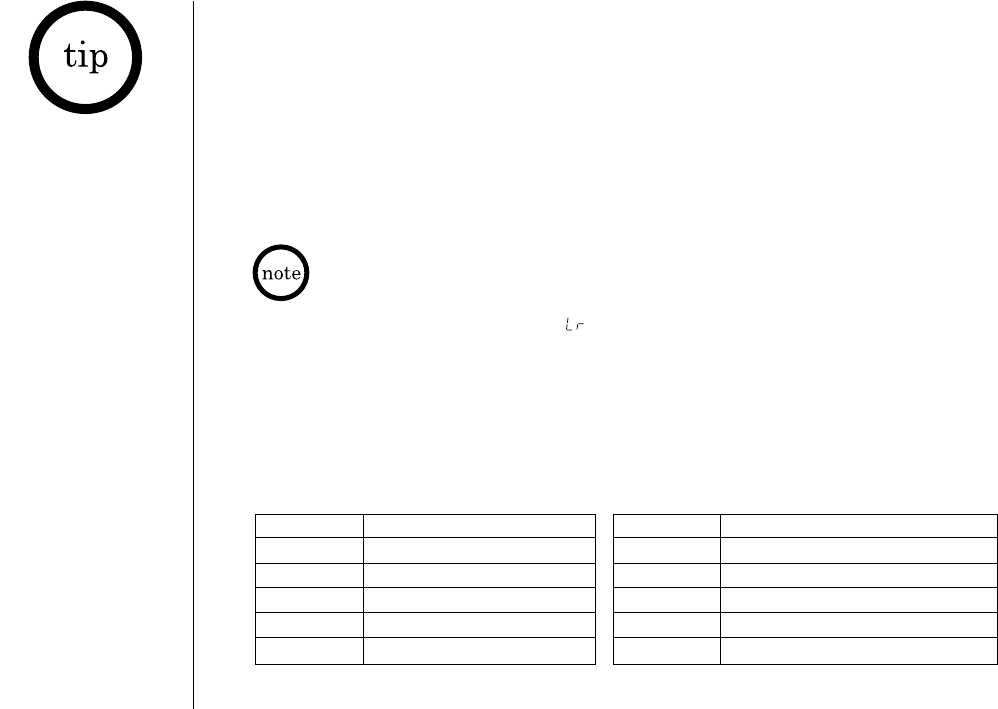
Command Function
#then 1Repeat a Message
#then 2Playing incoming Messages
#then 3Skipping a Message
#then 4Deleting a Message
#then 5Stop Operation
Command Function
#then 6Answering System On
#then 7Memo Record/Stop *
#then 8Greeting Message Record/Stop *
#then 9Answer System Off
#then 0Help Guidance
You can operate your answering system from a remote location using any touch-tone
telephone or the handset.
Remote access away from home
You can check, play, or delete messages, even record a new greeting message when you
are away from home. Additionally, you can turn On or Off your answering system from a
remote location.
Remote Operation
•You must enter a command within 15 seconds of entering command waiting mode or the answering
system automatically hangs up and returns to standby.
•The system will only playback messages for four minutes and then it returns to command waiting
mode. To continue playing your messages, press #then 2 again within 15 seconds.
•
If you enter an incorrect PIN code three times, you will hear a beep and the system will return to standby.
•During the remote operation, “” appears on the base.
1) Call your telephone number.
2) During the greeting message, press #and enter your PIN code within 2 seconds.
(See “Setting a Personal Security Code”, page 44).
3) The answering system announces the current time and the number of messages stored
in memory. You hear “To play incoming messages, press pound two. For help, press
pound zero”. You will hear intermittent beeps.
4) You may select a command from the following chart:
For your convenience
a remote operation
card is provided for
you to use while away
from home (refer to
page 67).
*For Memo Record and Greeting Message Record function, the first time you enter the
corresponding command, it starts the Recording function. If you want to stop the recording,
press #then 7or 8.
TRU448_OM 4/9/02 12:19 PM Page 50
THE INTEGRATED ANSWERING DEVICE [ 51 ]
THE INTEGRATED
ANSWERING DEVICE
5) After the command has finished, you hear intermittent beeps indicating that the system
is in the command waiting mode. You may enter another command at this time from the
chart above.
6) When you are finished, hang up to exit the system. The answering system automatically
returns to standby.
Turn on the answering system remotely
If you have forgotten to turn On your answering system, you can turn it On remotely from
any touch-tone telephone.
1) Call your telephone number.
2) Wait ten rings until the system answers. You hear a beep.
3) Press #and then enter your PIN code within 2 seconds. The answering system announces
the day and time, and the number of messages stored in memory. You hear “To play
incoming messages, press pound two. For help, press pound zero”.
4) Press #then 6 to turn the answering system On.
5) Hang up the phone and subsequent calls will be answered by the system.
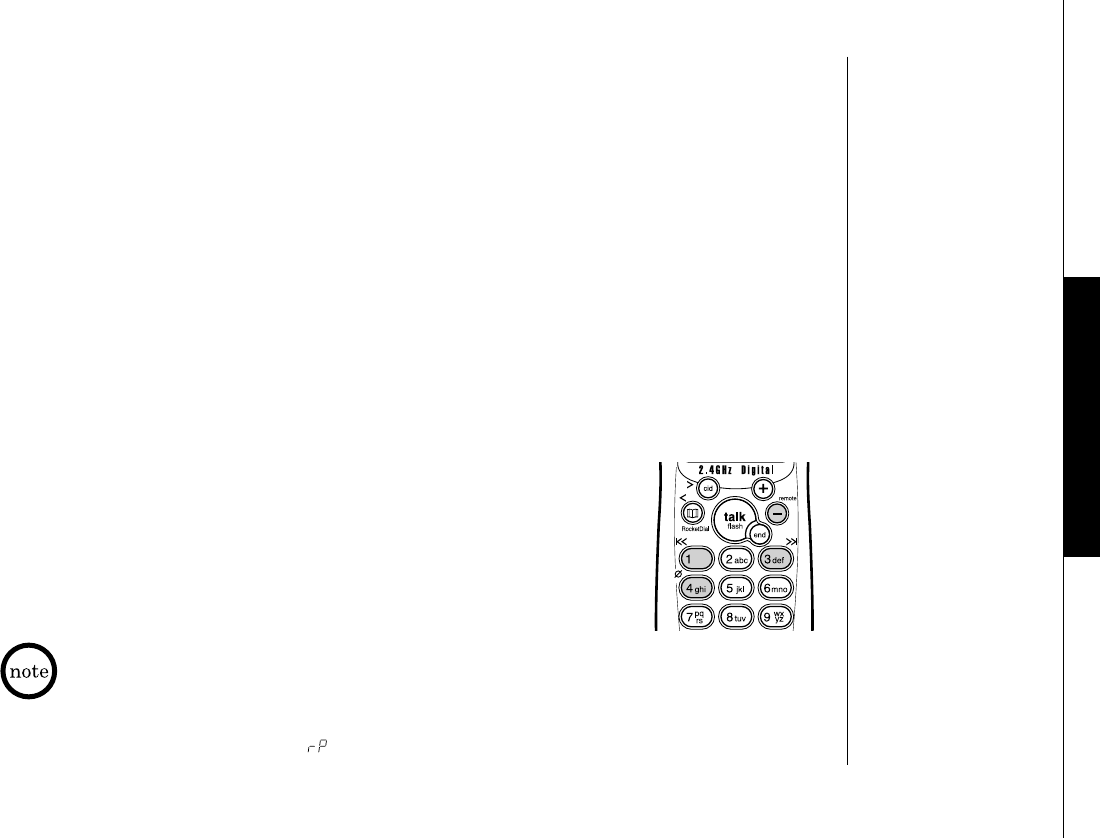
Remote access with the handset
You can check your new incoming messages, skip, repeat, or delete
your incoming messages with the handset. For example, you can
install the answering system in the living room, and check your
incoming message from a bedroom with the handset.
•If you press end before the answering system answers, the phone will
return to standby.
•When the answering system does not answer within 7 seconds, you hear a
beep and the phone will return to standby.
•The base’s keypad is disable during remote operation.
•When you receive a call, the remote operation is canceled.
•You can change the handset volume and channel during a remote operation.
•During the remote operation “” appears on the base.
TRU448_OM 4/9/02 12:19 PM Page 51

THE INTEGRATED ANSWERING DEVICE[ 52 ]
Repeating a message
After a message begins playing, press /1 within about four seconds to repeat the
previous message, or press /1 after about four seconds to repeat the current message.
Skipping a message
While the message is playing, press /3 on the handset. Each time /3 is pressed,
the system scans forward one message.
Deleting a message
While the message is playing, Press /4 on the handset. The message playing is deleted.
•If you have new
messages and old
messages, only the
new messages will
be repeated.
•If you press /1
while the earliest
message is played,
you can repeat only
the current message.
Playing incoming messages
1) When the phone is in the standby mode, press -/remote on the handset.
The answering system announces the current time and the number of messages
stored in the memory. You will hear a confirmation tone. Messages will be played in
the order in which they were received and “Remote Play Back” appears on the
handset display. The time and day that each message was received is announced
after the message is played.
2) When the last message has been played, the system announces “End of message.”
And the system returns to standby.
•If you have new
messages and old
messages, only the
new messages will be
played. After you
have reviewed your
new messages, you
can play your old
messages by again
pressing -/remote.
Once you have
listened to a new
message, it then
becomes an old
message.
TRU448_OM 4/9/02 12:19 PM Page 52

EXPANDING YOUR PHONE [ 53 ]
How to Distinguish the Original Handset
and the Second Handset
The original handset and the second handset are identical in appearance. To distinguish
the original and the second handset, place the handset in the base charger. If you charge
the second handset, HS2 appears, otherwise HS1 appears. There are some restrictions on
the second handset, see “Second Handset Operation” on page 55.
Your phone supports up to 2 handsets (the original handset and the second handset). You
can now place a fully featured cordless handset anywhere AC power is available to connect
the handset charger. Additionally, you can transfer an outside call to another handset.
Expanding Your Phone
•We refer to the TXC400 handset and the TRU448-2 handset No.2 as the second handset, and the
TRU448 handset and TRU448-2 handset No.1 as the original handset in this section.
•Before use, you need to charge the battery pack for at least 15-20 hours, and for the TXC400
handset, register the handset.
Registering the Second Handset
You need to register the second handset before using (for TXC400 only). To register the
second handset, simply place the second handset on the original base with the keypad
facing down, until you hear a confirmation tone. If the TRU448 base is wall mounted, you
will need to hold the second handset to the TRU448 base, until the status LED on the
base is illuminated. You will need to re-register the second handset each time you change
the digital security code of the original unit.
If you did not hear the confirmation tone, please register the additional handset again.
EXPANDING YOUR
PHONE
TRU448_OM 4/9/02 12:19 PM Page 53

To transfer a call (to the second handset)
1) Press xfer/del on the handset (or transfer on the base) during a call. The call
will automatically be placed on hold and the transfer tone will sound.
2) When the other handset receives the call, the transfer tone stops. To cancel the
transfer, press xfer/del or talk/flash on the handset (or transfer or (talk)
on the base).
To receive a transferred call (from the second handset)
Pick up the original handset (when AutoTalk is set to On), or press talk/flash to
answer the transferred call. Additionally, you can answer the transferred call by
pressing any number key, *tone, or #(when AutoTalk is set to On). To receive a
transferred call with the base , press (talk) on the base.
EXPANDING YOUR PHONE[ 54 ]
Call Transfer Feature
You can transfer an outside call to the other handset.
•If you transfer the call and it is not picked up after 5 minutes, the call
will be disconnected.
•For information on transferring a call between the original handset and
base, see “Transferring a Call” on page 26.
TRU448_OM 4/9/02 12:19 PM Page 54

EXPANDING YOUR PHONE [ 55 ]
Setting up
Charging
•Charge the second handset for 15-20 hours before using.
•When you charge the second handset, the display shows the name of the handset, HS2.
Dialing mode
Dialing mode is a universal setting. When the mode is changed on the original handset,
the setting for the second handset is changed as well.
CIDCW
•CIDCW setting is a universal setting. When the setting is changed on the original
handset, the CIDCW setting for the second handset is changed as well.
•CW Deluxe setting is independent from the original handset. To set the CW Deluxe setting
on the second handset, do the following.
1) When the phone is in the standby mode, press menu/mute.
2) Press -or +to move the pointer to “Caller ID Setup”, then press select/ch.
3) Press -or +to select “CW Deluxe”, then press select/ch.
4) Press -or +to select “CW Deluxe On” to active CW Deluxe features,
then press select/ch.
Registration
For the TRU448-2 handset No.2, you can use it with the TRU448-2 base without
registering the handset. However, you need to register the TRU448-2 handset No.2 each
time you change the digital security code of the original base. Follow the instructions
under “Registering the Second Handset” on page 53.
Second Handset Operation
EXPANDING YOUR
PHONE
TRU448_OM 4/9/02 12:19 PM Page 55

EXPANDING YOUR PHONE[ 56 ]
Operation
Making and receiving calls
•If you press talk/flash on the handset while the other handset is in use, you will hear a
beep and the handset will return to the standby mode.
•If you charging the second handset and pick it up at the same time when you pick the
original handset from the base, the call will be transferred to the second handset.
Security code
You can change the digital security code, only from the original handset.
Memory locations (Redial memory/Dynamic memory locations)
Memory locations in the original handset and the second handset are independent.
Page
If you press any key on a handset while paging, the paging sound from the other handset
will stop as well.
3-way conversation
You can initiate the 3-way conversation with the second handset. However, a 3-way
conversation cannot be conducted between the second handset, original handset, and an
outside call.
Caller ID
•When you receive a CIDCW during a call, the Caller ID information will not be displayed
or stored in the other handset. Each handset works independently when in this mode.
•To display CIDCW on the second handset, you must turn On the CIDCW or CW Deluxe on
the original unit.
TAD
Signs for the remote handset features (remote, , , and ) are not printed on
the TXC400.
Others
•You can’t use or purchase the second handset as an alternative of the original handset.
•Save this owner’s manual. The TXC400 owner’s manual describes only the instructions
specific to the second handset. For detailed operation, refer to this owner’s manual
(for TRU448).
Only one handset can
establish a call.
TRU448_OM 4/9/02 12:19 PM Page 56

ADDITIONAL INFORMATION [ 57 ]
The digital security code is an identification code used to connect the handset and the
base unit. Normally, setting the code is not necessary. The first time you charge your
handset, the security code is automatically set. (See “About the digital security code”,
page 8.) In the rare situation that you suspect another cordless telephone is using the
same security code, you can change the code. To change the digital security code,
deregister the code, then register a different code.
Deregister the Digital Security Code
1) Remove the handset from the base. In the standby mode, press and hold
xfer/del and end for 10 seconds. You will hear a confirmation tone.
“De-Register?” appears.
2) Press +to select “Yes”, then select/ch. You will hear a confirmation tone, and
“Deregistration Complete” appears.
Changing the Digital Security Code
•If you have not pressed any key for 30 seconds while in the deregistering operation, the phone
returns to the standby mode.
•While in the deregistering operation, if you receive an incoming call, page, or transferring call,
or charge the handset, or press talk/flash or end, the operation is canceled and the phone
will return to the standby mode.
ADDITIONAL
INFORMATION
TRU448_OM 4/9/02 12:19 PM Page 57

ADDITIONAL INFORMATION[ 58 ]
Register the Security Code
1) Unplug the AC adapter.
2) Press and hold find hs/transfer on the base while you plug in the AC Adapter
until the status LED on the base flashes.
3) Press talk/flash. “Handset Registering” appears.
When the operation is finished “Registration Complete” appears and the
status LED is turned Off. You will hear a confirmation tone and the phone returns
to the standby mode.
Installing the Beltclip
To attach the beltclip
Insert the beltclip into the holes on each side of the handset.
Press down until it clicks.
To remove the beltclip
Pull both sides of the beltclip to release the tabs from the holes.
Your phone may be used with an optional headset, the Uniden HS910. To
use this feature, insert the headset plug into the headset jack. Your phone
is ready for hands-free conversations. (Headset may be purchased by calling
the Uniden Parts Department or visiting the web site. See page 9.)
Headset Installation
•You must complete the registration operation within 30 seconds, or the phone returns to
standby mode.
•During the registration operation, you cannot receive an incoming call, page, or make a call.
TRU448_OM 4/9/02 12:19 PM Page 58

ADDITIONAL INFORMATION [ 59 ]
Note on Power Sources
Battery replacement and handling
When the operating time becomes short, even after a battery is recharged, please replace the battery. With normal
usage, your battery should last about one year.
Please contact your place of purchase or the Uniden Parts Department for a replacement battery (See page 9).
Warning:
To avoid the risk of personal injury or property damage from fire or electrical shock, only use the Uniden battery
model and Uniden adapter model specifically designated for this product.
Power Failure
During the period that the power is off, you will not be able to make or receive calls with the telephone.
Caution
•Use the specified Uniden battery pack (BT-446).
•Do not remove the battery from the handset to charge it.
•Never throw the battery into a fire, disassemble it, or heat it.
•Do not remove or damage the battery casing.
Maintenance
When slightly dirty
Wipe with a soft, dry cloth.
When very dirty
Wipe with a soft cloth that has been dampened with diluted,
neutral detergent. Dry with a dry cloth.
When the charging terminals become dirty
Wipe with a dry cloth or a pencil eraser, if necessary.
Caution
Do not use paint thinner, benzene,
alcohol, or other chemical products.
Doing so may discolor the surface of the
telephone and damage the finish.
ADDITIONAL
INFORMATION
TRU448_OM 4/9/02 12:19 PM Page 59

[ 60 ] ADDITIONAL INFORMATION
General Information
The phone complies with FCC Parts 15 and 68. Operating temperature: 0 ºC to +50 ºC (+32 ºF to +122 ºF)
AC Adapter Information
AC Adapter part number: AD-312 for the base / AD-446 for the charger (TRU448-2 only)
Input Voltage: 120V AC 60Hz
Output Voltage: 9V DC 350 mA for the base / 9V DC 210 mA for the charger (TRU448-2 only)
Battery Information
Battery part number: BT-446
Capacity: 800 mAH, 3.6V
Battery use time (per charge)
From fully charged
Talk mode duration: 6 hours
Standby mode duration: 10 days
Recharge your phone on a regular basis by returning the handset to the base after each phone call. When the operating
time becomes short, even after the battery is recharged, please replace the battery. With normal usage, the battery
should last about one year.
A replacement Uniden adapter and battery may be purchased at your local Uniden dealer or by contacting the Uniden
Parts Department (800) 554-3988. Hours are from 7:00 a.m. to 5:00 p.m. CST, Monday through Friday. We can also be
reached on the web at www.uniden.com.
Specifications, features, and availability of optional accessories are all subject to change without prior notice.
If the handset is left off of the base, the actual Talk mode duration will be
reduced respective to the amount of time the handset is off the base.
TRU448_OM 4/9/02 12:19 PM Page 60

TROUBLESHOOTING [ 61 ]
Troubleshooting
If your phone is not performing to your expectations, please try these simple steps first.
Symptom Suggestion
The status LED won’t illuminate when •Make sure the AC adapter is plugged into the base and wall outlet.
the handset is placed in the base. •Make sure the handset is properly seated in the base.
•Make sure the charging contacts on the handset and base are clean.
The audio sounds weak •Move the handset and/or base to a different location away from metal objects
and/or scratchy. or appliances and try again.
•Press select/ch to help eliminate background noise.
•Make sure that you are not too far from the base.
Can’t make or receive calls. •Check both ends of the base telephone line cord.
•Make sure the AC adapter is plugged into the base and wall outlet.
•Disconnect the AC adapter for a few minutes, then reconnect it.
•Change the digital security code (See page 57).
•Make sure that you are not too far from the base.
The handset doesn’t ring or •The battery pack may be weak. Charge the battery on the base unit
receive a page. for 15-20 hours.
•The handset may be too far away from the base unit.
•Place the base unit away from appliances or metal objects.
•Change the digital security code (See page 57).
Severe noise interference. •Keep the handset away from microwave ovens, computers, remote control toys,
wireless microphones, alarm systems, intercoms, room monitors, fluorescent lights,
and electrical appliances.
•Move to another location or turn off the source of interference.
TROUBLESHOOTING
TRU448_OM 4/9/02 12:19 PM Page 61

TROUBLESHOOTING[ 62 ]
Symptom Suggestion
The Caller ID does not display. •The handset was picked up before the second ring.
•The call was placed through a switchboard.
•Call your local telephone company to verify your Caller ID service is current.
•Charge the handset.
The handset doesn’t communicate •Change the digital security code (See page 57).
with the base or the other handset. •Make sure that you have registered the second handset (TXC400 only).
The second handset can’t join •Only one handset at a time can talk with an outside caller. To allow a different
the conversation. handset to talk to the caller, transfer the call to the other handset.
The answering system does not work. •Make sure the base unit is plugged in.
•Make sure that the answering system is turned on.
•Make sure that the message record time is not set to ANN (See page 45).
Messages are incomplete. •The incoming messages may be too long. Remind callers to leave a brief message.
•The memory may be full. Delete some or all of the saved messages.
After a power failure, the outgoing •Record your greeting again. The default message should remain.
message is deleted.
No sound on the base unit •Adjust the speaker volume on the base unit.
speaker during call monitoring
or message playback.
Cannot access remote call-in features •Make sure you are using the correct PIN number.
from another touch-tone phone. •Make sure that the touch-tone phone you’re using can transmit the tone
for at least two seconds. If it cannot, you may have to use another phone to access
your message
If you still have a problem. •Call our customer hotline at 1-800-297-1023.
TRU448_OM 4/9/02 12:19 PM Page 62
Precautions!
Before you read anything else, please observe the following:
Warning!
Uniden America Corporation DOES NOT represent this unit to be
waterproof. To reduce the risk of fire, electrical shock, or damage to
the unit, DO NOT expose this unit to rain or moisture.
Rechargeable Nickel-Metal-Hydride Battery Warning
•
This equipment contains a rechargeable Nickel-Metal-Hydride battery.
•Nickel is a chemical known to state of California to cause cancer.
•The rechargeable Nickel-Metal-Hydride battery contained in this
equipment may explode if disposed of in a fire.
•Do not short-circuit the battery.
•Do not charge the rechargeable Nickel-Metal-Hydride battery used
in this equipment in any charger other than the one designed to
charge this battery as specified in the owner’s manual. Using
another charger may damage the battery or cause the battery
to explode.
Rechargeable Nickel-Metal-Hydride
Batteries Must Be Recycled or
Disposed of Properly
Important Safety Instructions
When using your telephone equipment, these basic safety
precautions should always be followed to reduce the risk of fire,
electrical shock, and injury to persons:
1. Read and understand all instructions.
2. Follow all warnings and instructions marked on the product.
3. Unplug this product from the wall outlet before cleaning. Use a
dry cloth for cleaning without liquid or aerosol cleaners.
4. Do not use this product near water; for example, near a bathtub,
wash bowl, kitchen sink or laundry tub, in a wet basement, or
near a swimming pool.
5. Do not place this product on an unstable cart, stand, or table.
The telephone may fall, causing serious damage to the unit.
6. Slots and openings in the cabinet and the back or bottom are
provided for ventilation. To protect the product from
overheating, these openings must not be blocked or covered.
This product should never be placed near or over a radiator or
heat register. This product should not be placed in a built-in
installation unless proper ventilation is provided.
7. This product should be operated only from the type of power
source indicated on the marking label. If you are not sure of the
type of power supply to your home, consult your dealer or local
power company.
8. Do not allow anything to rest on the power cord. Do not locate
this product where the cord will be damaged by persons walking
on it.
9. Do not overload wall outlets and extension cords, as this can
result in the risk of fire or electrical shock.
10. Never push objects of any kind into this product through cabinet
slots, as they may touch dangerous voltage points or short out
parts that could result in a risk of fire or electric shock. Never
spill liquid of any kind on the product.
11.
To reduce the risk of electric shock, do not disassemble this
product. Take it to qualified service personnel when service or
repair work is required. Opening or removing covers may expose
you to dangerous voltages or other risks. Incorrect reassembly can
cause electric shock when the appliance is subsequently used.
12. Unplug this product from the wall outlet and refer servicing to
qualified service personnel under the following conditions:
A.When the power supply cord is damaged or frayed.
B.If liquid has been spilled into the product.
C. If the product has been exposed to rain or water.
D.If the product does not operate normally when following the
operating instructions. (Adjust only those controls that are
covered by the operating instructions. Improper adjustment
of other controls may result in damage and will often require
extensive repair work by a qualified technician.)
E. If the product has been dropped or the cabinet has
been damaged.
F. If the product exhibits a distinct change in performance.
13. Do not use the telephone to report a gas leak in the vicinity of
the leak.
Additional Battery Safety Precautions
Caution! To reduce the risk of fire or injury to persons by the
battery, read and follow these instructions:
1. Use only the Uniden battery pack specified in the
owner’s manual.
2. Do not dispose of the battery pack in a fire. The cell may
explode. Check the Nickel Metal Hydride battery disposal package
insert for disposal instructions.
3. Do not open or mutilate the battery pack. Released electrolyte is
corrosive and may cause damage to the eyes or skin. It may be
toxic if swallowed.
4. Exercise care in handling the battery in order not to short the
battery with conducting materials such as rings, bracelets, and
keys. The battery or conductor may overheat and cause burns.
5. Charge the battery pack provided with or identified for use with
this product only in accordance with the instructions and
limitations specified in the owner¬s manual provided for
this product.
6. Observe proper polarity orientation between the battery pack and
battery charger.
SAVE THESE INSTRUCTIONS!
Important Electrical Considerations
Unplug all electrical appliances when you know an electrical storm
is approaching. Lightning can pass through your household wiring
and damage any device connected to it. This phone is no exception.
Warning!
Please do not attempt to unplug any appliance during an
electrical storm.
The FCC Wants You To Know
Changes or modifications to this product not expressly approved by
Uniden, or operation of this product in any way other than as
detailed by the owner’s manual, could void your authority to operate
this product. The equipment cannot be used on public coin phone
service provided by the telephone company. Connection to party line
service is subject to state tariffs. (Contact the state public utility
commission, public service commission or corporation commission
for information.)
Range
Your new phone is designed to achieve the maximum possible range
by transmitting and receiving according to the highest specifications
set forth by the FCC. We have rated this phone to operate at a
maximum distance with the qualification that the range depends
upon the environment in which the telephone is used. Many factors
limit range, and it would be impossible to include all the variables
in our rating. The Maximum Range rating of this phone is meant to
be used as a means of comparison against other range claims.
PRECAUTIONS & WARRANTY [ 63 ]
The exclamation point within an equilateral
triangle is intended to alert the user to the
presence of important operating and maintenance
(servicing) instructions in the literature
accompanying the appliance.
PRECAUTIONS &
WARRANTY
TRU448_OM 4/9/02 12:19 PM Page 63

PRECAUTIONS & WARRANTY[ 64 ]
Telephone Line Problems
The FCC has granted the telephone company the right to disconnect
service in the event that your phone causes problems on the
telephone line. Also, the telephone company may make changes in
facilities and services which may affect the operation of your unit.
However, your telephone company must give adequate notice in
writing prior to such actions to allow you time for making necessary
arrangements to continue uninterrupted service.
If you are having trouble with your telephone service, you must first
disconnect your phone to determine if it is the cause of your
problem. If you determine that it is the cause, you must leave it
disconnected until the trouble has been corrected.
Radio Interference
Radio interference may occasionally cause buzzing and humming in
your cordless handset, or clicking noises in the base. This
interference is caused by external sources such as TV, refrigerator,
vacuum cleaner, fluorescent lighting, or electrical storm. Your unit is
NOT DEFECTIVE. If these noises continue and are too distracting,
please check around your home to see what appliances may be
causing the problem. In addition, we recommend that the base not
be plugged into a circuit that also powers a major appliance
because of the potential for interference. Be certain that the
antenna on the unit is fully extended when needed.
In the unlikely event that you consistently hear other voices or
distracting transmissions on your phone, you may be receiving radio
signals from another cordless telephone or other source of
interference. If you cannot eliminate this type of interference, you
need to change to a different channel.
Finally, it should be noted that some cordless telephones operate at
frequencies that may cause interference to nearby TVs and VCRs. To
minimize or prevent such interference, the base of the cordless
telephone should not be placed near or on top of a TV or VCR. If
interference is experienced, moving the cordless telephone farther
away from the TV or VCR will often reduce or eliminate
the interference.
More than One Cordless Telephone
If you want to use more than one cordless telephone in your home,
they must operate on different channels. Press the channel key to
select a channel that provides the clearest communication.
Cordless Telephone Privacy
Cordless telephones are radio devices. Communications between the
handset and base of your cordless telephone are accomplished by
means of radio waves which are broadcast over the open airways.
Because of the inherent physical properties of radio waves, your
communications can be received by radio receiving devices other
than your own cordless telephone unit. Consequently, any
communications using your cordless telephone may not be private.
Installation Considerations
Selecting a Location
Before choosing a location for your new phone, there are some
important guidelines you should consider:
•The location should be close to both a phone jack and continuous
power outlet. (A continuous power outlet is an AC outlet which
does not have a switch to interrupt its power.)
•Keep the base and handset away from sources of electrical noise
such as motors or fluorescent lighting.
•Be sure there is sufficient space to fully extend the base antenna.
•The base can be placed on a desk or tabletop or mounted on a
standard telephone wall plate.
•You should charge your new phone for 15-20 hours before
completing the installation or using the handset.
Telephone Line Outlets
There are two types of phone outlets:
Modular Jack
Most phone equipment available now uses modular jacks. Phone
cords are fitted with a molded plastic connector which plugs into
this type of jack. If you do not have modular phone jacks,
contact your local telephone company for information about
their installation.
Hardwired Jack
Some equipment is wired directly to a phone jack, and these types
of installations require a modular jack converter. This type of
installation is not difficult; however, you should contact your
Uniden telephone dealer or a telephone supply store for advice
about the proper adapter or converter for your particular situation.
Connecting the Telephone Cords
Consider these safety guidelines before connecting the
telephone cords:
Caution!
•Never install telephone wiring during a lightning storm.
•Never touch uninsulated telephone wires or terminals unless the
telephone line has been disconnected.
•Use caution when installing or modifying telephone lines.
Applying Power to the Base
This phone requires an AC outlet, without a switch to interrupt
power, and the included AC adapter. To relieve strain on the DC plug
when the phone is placed on a desk or table, wrap the power cord
around the strain relief notch on the bottom of the base.
NOTE: Place the power cord so that it does not create a trip
hazard, or where it could become chafed and create a fire
or other electrical hazards.
Plug the AC Adapter into a standard 120 VAC wall outlet.
Do not use an outlet controlled by a wall switch.
Use only the Uniden AC Adapter supplied with
this phone.
One Year Limited Warranty
Important: Evidence of original purchase is required for
warranty service.
WARRANTOR: UNIDEN AMERICA CORPORATION (“Uniden”)
ELEMENTS OF WARRANTY: Uniden warrants, for one year, to the
original retail owner, this Uniden Product to be free from defects in
materials and craftsmanship with only the limitations or exclusions
set out below.
WARRANTY DURATION: This warranty to the original user shall
terminate and be of no further effect 12 months after the date of
original retail sale. The warranty is invalid if the Product is
(A) damaged or not maintained as reasonable or necessary,
(B) modified, altered, or used as part of any conversion kits,
subassemblies, or any configurations not sold by Uniden,
(C) improperly installed, (D) serviced or repaired by someone other
than an authorized Uniden service center for a defect or
malfunction covered by this warranty, (E) used in any conjunction
with equipment or parts or as part of any system not manufactured
by Uniden, or (F) installed or programmed by anyone other than as
detailed by the owner’s manual for this product.
STATEMENT OF REMEDY: In the event that the product does not
conform to this warranty at any time while this warranty is in
effect, warrantor will either, at its option, repair or replace the
defective unit and return it to you without charge for parts,
service, or any other cost (except shipping and handling) incurred
by warrantor or its representatives in connection with the
performance of this warranty. Warrantor, at its option, may replace
the unit with a new or refurbished unit. THE LIMITED WARRANTY
SET FORTH ABOVE IS THE SOLE AND ENTIRE WARRANTY PERTAINING
TO THE PRODUCT AND IS IN LIEU OF AND EXCLUDES ALL OTHER
WARRANTIES OF ANY NATURE WHATSOEVER, WHETHER EXPRESS,
IMPLIED OR ARISING BY OPERATION OF LAW, INCLUDING, BUT NOT
LIMITED TO ANY IMPLIED WARRANTIES OF MERCHANTABILITY OR
FITNESS FOR A PARTICULAR PURPOSE. THIS WARRANTY DOES NOT
COVER OR PROVIDE FOR THE REIMBURSEMENT OR PAYMENT OF
INCIDENTAL OR CONSEQUENTIAL DAMAGES. Some states do not
allow this exclusion or limitation of incidental or consequential
damages so the above limitation or exclusion may not apply to you.
LEGAL REMEDIES: This warranty gives you specific legal rights, and
you may also have other rights which vary from state to state. This
warranty is void outside the United States of America.
PROCEDURE FOR OBTAINING PERFORMANCE OF WARRANTY: If, after
following the instructions in the owner’s manual you are certain
that the Product is defective, pack the Product carefully (preferably
in its original packaging). The Product should include all parts and
accessories originally packaged with the Product. Include evidence
of original purchase and a note describing the defect that has
caused you to return it. The Product should be shipped freight
prepaid, by traceable means, to warrantor at:
Uniden America Corporation
Parts and Service Division
4700 Amon Carter Blvd.
Fort Worth, TX 76155
(800) 297-1023, 8 a.m. to 5 p.m. CST, Monday through Friday
TRU448_OM 4/9/02 12:19 PM Page 64

[ 65 ]
INDUSTRIAL CANADA
INFORMATION
INDUSTRIAL CANADA INFORMATION
I.C. Notice
TERMINAL EQUIPMENT
NOTICE: This equipment meets the applicable Industry Canada Terminal Equipment Technical Specifications.
This is confirmed by the registration number. The abbreviation, IC, before the registration number signifies
that registration was performed based on a Declaration of Conformity indicating that Industry Canada
technical specifications were met. It does not imply that Industry Canada approved the equipment.
NOTICE: The Ringer Equivalence Number (REN) for this terminal equipment is marked on the equipment itself.
The REN assigned to each terminal equipment provides an indication of the maximum number of terminals
allowed to be connected to a telephone interface. The termination on an interface may consist of any
combination of devices subject only to the requirement that the sum of the Ringer Equivalence Numbers of all
the devices does not exceed five.
RADIO EQUIPMENT
The term “IC:” before the radio certification number only signifies that Industry Canada technical
specifications were met.
Operation is subject to the following two conditions: (1) this device may not cause interference, and (2) this
device must accept any interference, including interference that may cause undesired operation of the device.
“Privacy of communications may not be ensured when using this telephone”.
TRU448_OM 4/9/02 12:19 PM Page 65

INDEX[ 66 ]
Index
0 - 9
3-way conferencing........................25
10 ring options ............................22
A
Announce only feature....................45
Answering system
Deleting a message ....................48
Playing your messages ................47
Recording a conversation ............49
Remote access ..........................51
Repeating a message ..................47
Skipping a message ....................48
Turning on/off ..........................40
Area Code ....................................18
AutoTalk ......................................17
B
Base speaker volume ......................43
Battery pack
Preparing and charging ..............11
Replacement and handling ..........59
Beltclip ......................................58
C
Caller ID ......................................35
Caller ID service ........................35
Calling ....................................38
Call Waiting ........................17, 39
Deleting ..................................37
Setting ....................................17
Storing ....................................38
Using ......................................38
Viewing....................................36
Call transfer feature ......................54
Chain dialing ................................34
Channel ......................................25
Clock ..........................................44
Conversation, recording ..................49
D
Deluxe Call Waiting Features ............39
Dialing mode ................................14
Digital security code ..................8, 57
Distinctive Ringer ..........................23
E, F, G, H
Earpiece volume ............................23
General information ......................60
Greeting ......................................41
Headset installation ......................58
I, J, K, L
Important Safety Instructions ..........63
I.C. Notice ..................................65
Language ....................................19
M, N, O
Maintenance ................................59
Making a call ................................20
Memory dialing ............................32
Mute ..........................................24
New message LED ..........................27
One touch dialing ..........................33
Outgoing message..........................41
P, Q
Package contents ............................9
Phonebook ..................................28
Editing ....................................33
Erasing ....................................33
Making calls..............................32
Storing ....................................28
Viewing....................................31
Precautions ..................................63
R
Receiving a call ............................20
Redialing a call ............................21
Registering the second handset........53
Remote access
Away from home ........................50
From your handset ....................51
Repeating a message ......................47
Ringer volume ..............................22
RocketDial....................................33
S
Second handset operation ..............55
Setting up....................................10
Base unit ................................13
Handset ..................................11
Skipping message ..........................48
Speed dialing................................32
T, U, V, W, X, Y, Z
Transferring a call..........................54
Receive from the second handset ....54
Transfer to the second handset ........54
Troubleshooting ............................61
Voice Memo ..................................49
Warranty ......................................64
TRU448_OM 4/9/02 12:19 PM Page 66
REMOTE OPERATION CARD [ 67 ]
Remote Operation Card
REMOTE OPERATION
CARD
CUT
REMOTE OPERATION CARD
TRU448 series
Remote access away from
home
1. Call your phone number from a
touch-tone phone.
2. During the outgoing message,
press # and enter your PIN code.
The answering system announces
the number of messages stored in
memory and the help guidance.
3. To quit, hang up the phone.
Turn on the answering
system remotely
1. Call your phone and let it ring
10 times until you hear a beep.
2. Press # and then enter your
PIN code.
3. Press # then 5 to stop
the announcement.
4. Press # then 6 to turn the
answering system on.
TRU448_OM 4/9/02 12:19 PM Page 67
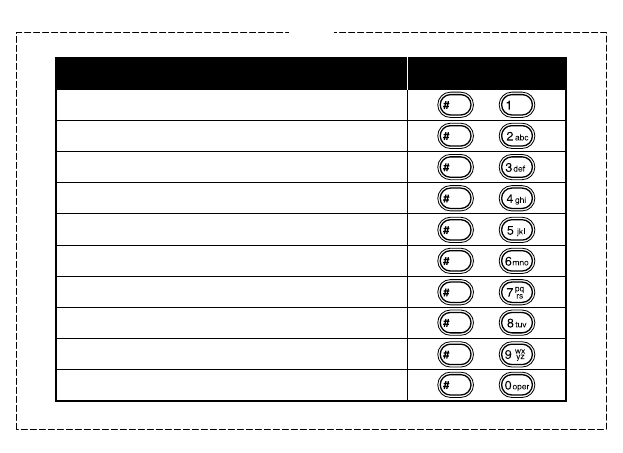
REMOTE OPERATION CARD[ 68 ]
CUT
Task Key
Repeat a Message
Playing incoming Messages
Skipping a Message
Deleting a Message
Stop Operation
Answering System On
Memo Record/Stop
Greeting Message Record/Stop
Answer System Off
Help Guidance
TRU448_OM 4/9/02 12:19 PM Page 68

At Uniden, we’ll take care of you!
If you need any assistance with this product, please call our Customer Hotline at
1-800-297-1023
PLEASE DO NOT RETURN THIS PRODUCT TO THE PLACE OF PURCHASE.
Our Uniden representatives will be happy to help you with any matters regarding
the operation of this unit, available accessories, or any other related matters.
Thank you for purchasing a Uniden product.
Hours: M-F 8:00 AM to 5:00 PM CST.
May be covered under one or more of the following U.S. patents:
4,511,761 4,523,058 4,595,795 4,797,916 5,381,460 5,426,690
5,434,905 5,491,745 5,533,010 5,543,605 5,574,727 5,581,598
5,650,790 5,660,269 5,661,780 5,663,981 5,671,248 5,696,471
5,717,312 5,732,355 5,754,407 5,758,289 5,768,345 5,787,356
5,794,152 5,801,466 5,825,161 5,838,721 5,864,619 5,893,034
5,912,968 5,915,227 5,929,598 5,930,720 5,960,358 5,987,330
6,044,281 6,070,082 6,125,277 6,253,088
?
Accessibility
For information on the accessibility features of this product, please call
1-800-874-9314 (V/TTY)
TRU448_OM 4/9/02 12:19 PM Page 69
