Universal Remote Control Powerpack Owners Manual OCE 0048B(RF 200)
Universal-Remote-Control-Rf20-Users-Manual-338514 universal-remote-control-rf20-users-manual-338514
Univeral-Remote-Urc-Rfs200-Owners-Manual univeral-remote-urc-rfs200-owners-manual
RF20 to the manual 35bb2e63-3e04-4726-8713-d9d0a7e3f20f
2015-03-09
: Universal-Remote-Control Universal-Remote-Control-Powerpack-Owners-Manual-643779 universal-remote-control-powerpack-owners-manual-643779 universal-remote-control pdf
Open the PDF directly: View PDF  .
.
Page Count: 61
simply MORE powerful
RF20
™
2
CONTNETS
1
The RF20 Remote
WELCOME
500 Mamaroneck Avenue, Harrison, NY 10528
Phone: (914) 835-4484 Fax: (914) 835-4532
MASTERCONTROL™ RF20 Owner’s Manual
© 2006 Universal Remote Control, Inc.
The information in this manual is copyright protected. No part of this manual may be copied or
reproduced in any form without prior written consent from Universal Remote Control, Inc.
UNIVERSAL REMOTE CONTROL, INC. SHALL NOT BE LIABLE FOR OPERATIONAL, TECHNICAL OR
EDITORIAL ERRORS / OMISSIONS MADE IN THIS MANUAL. The information in this manual may be
subject to change without prior notice. MASTERCONTROL, PowerBlaster, MacroPower, and
SimpleSound are trademarks of Universal Remote Control, Inc. All other brand or product names
are trademarks or registered trademarks of their respective companies or organizations.
LOCATION OF
CONTROLS
Keypad Layout 3
GETTING STARTED Overview 4
Battery Installation 4
Activating Component Commands 5
Light Button 6
BASIC SETUP Overview 7
Pre-Programmed Code Method 7
Learning Method 15
Transmitting (Busy Signal) Icon. 19
Child Lock Feature 19
CUSTOMIZING YOUR RF20
WITH SPECIAL ADVANCED
FEATURES
Customizing the LCD Screen 20
Favorite Channel Setup 23
MacroPower™ Setup 26
SimpleSound™ Setup &
Other 'Punch Throughs' 30
Setting Backlight Options 32
Hiding & Adding Pages 33
Recalling Pre-programmed
Setup Code Numbers 35
Cloning other RF20s 36
ERASING
COMMANDS
Overview 37
Erasing Learned Button,Macro or Favorite
Channel Commands 37
Re-setting RF20 to Original
Factory Default Settings 39
THE OPTIONAL
POWERBLASTERTM PowerBlasterTM 41
PRE-PROGRAMMED
CODE TABLES TV 45
CABLE 48
DVD 50
VCR 53
AUDIO 56
SAT 59
CD 60
DVR 62
AUX 63
Pre-Programmed Code Tables 44
OTHER INFO FAQ 65
Warranty 66
Specifications 66
Information To The User 67
Warning 67
NOTE 68
PREPROGRAMMED
CODE NOTES Pre Programmed Code Notes 43
Congratulations on purchasing Universal
Remote Control’s MASTERCONTROL™
RF20 Pre-programmed and Learning
Remote Control!
You now have the power to control your
entire home entertainment system with
one easy-to-use remote.
The RF20 can be used with thousands of
audio/video Components because of the
extensive code library pre-programmed
into the remote. And, the RF20’s
impressive lineup of special advanced
features can automate and customize the
operation of your system in many ways.
So... get ready to sit back, relax and
simplify your home entertainment
experience.
The Quick Setup DVD Program Guide
supplied with the RF20 will assist you in
programming your remote by guiding you
through an easy step-by-step process.
This Owner’s Manual is designed as a
companion reference source to the DVD
Guide, should you need to refer back to a
particular section, or review certain
instruction detail not covered in the DVD.
However, if you are unable to watch the
DVD Guide for some reason, everything
you need to know about programming the
RF20 is contained in this Manual.
Congratulations!
The RF20 Remote
3 4
CONTROL LOCATIONS
Keypad Layout
GETTING STARTED
Getting Started-Overview
This is what MASTERCONTROL™ RF20 is all about!
The RF20 is designed to operate up to 10 different Audio/Video Components
and is pre-programmed to operate virtually all brands of TV, VCR, DVD and CD
Players, Cable Set Top Boxes, Satellite Receivers, TiVo and other DVRs, Audio
Components, Tape Decks, Multimedia PCs, XM Radio, Ipod, X-Box, Lighting
Controls and other custom installation products. It also offers an impressive
lineup of special features designed to provide you with many time-saving con-
veniences and enhance your overall entertainment experience. However, we
strongly recommend that you fully complete all of the Basic Setup steps before
proceeding to customize your RF20 with any of the special advanced features.
Battery Installation
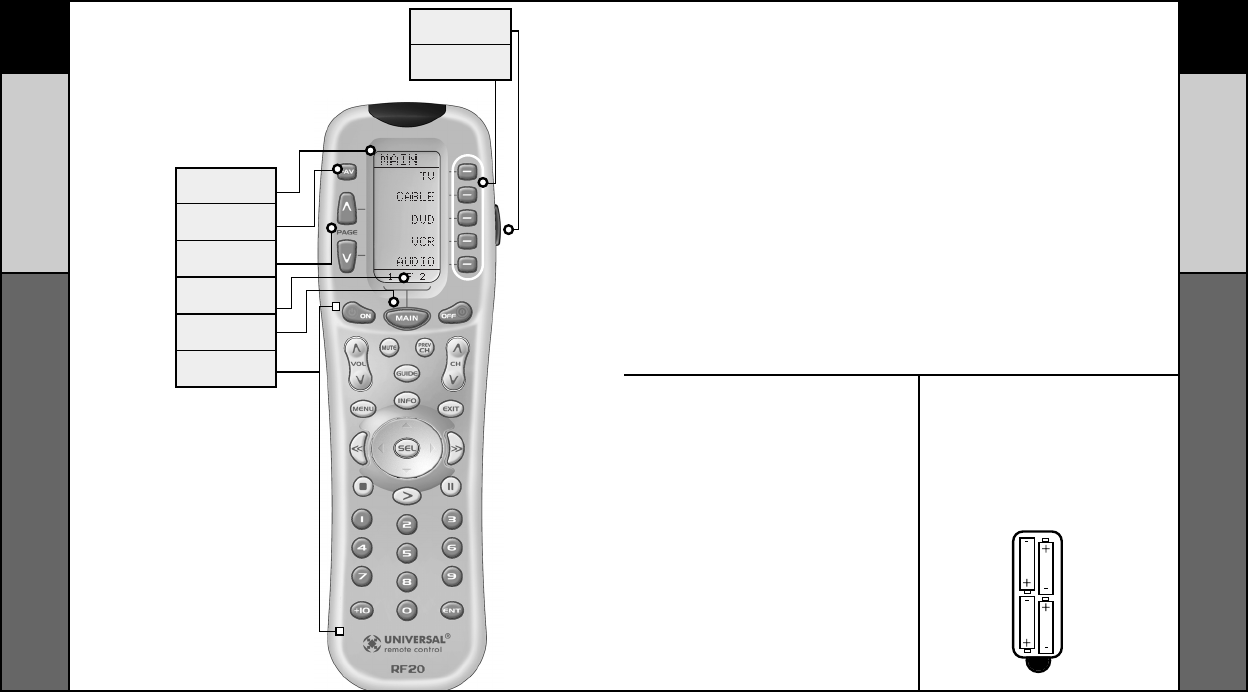
The very first step is to insert the four
AAA batteries that are included in the
package into the battery compart-
ment located in the back of the
remote. Just press the tab and lift off
the cover.
Please be sure to insert the batteries
correctly as you see in the diagram.
Remember, there is a positive and
negative end to each battery and you
can tell by the + (positive) and
- (negative) symbols. Once the
batteries are correctly installed,
replace the cover.
Now you’re ready to start!
Overview & Battery Installation
TITLE
FAVORITE
CHANNEL
PAGE
BUTTONS
changes the page of
buttons displayed
PAGE
NUMBERS
MAIN
BUTTON
takes you to the main menu
FUNCTION
BUTTONS
LIGHT
BUTTON
SCREEN-LABELED
DISPLAY BUTTONS
5 6
GETTING STARTED
GETTING STARTED
Activating Component Commands
LIGHT BUTTON
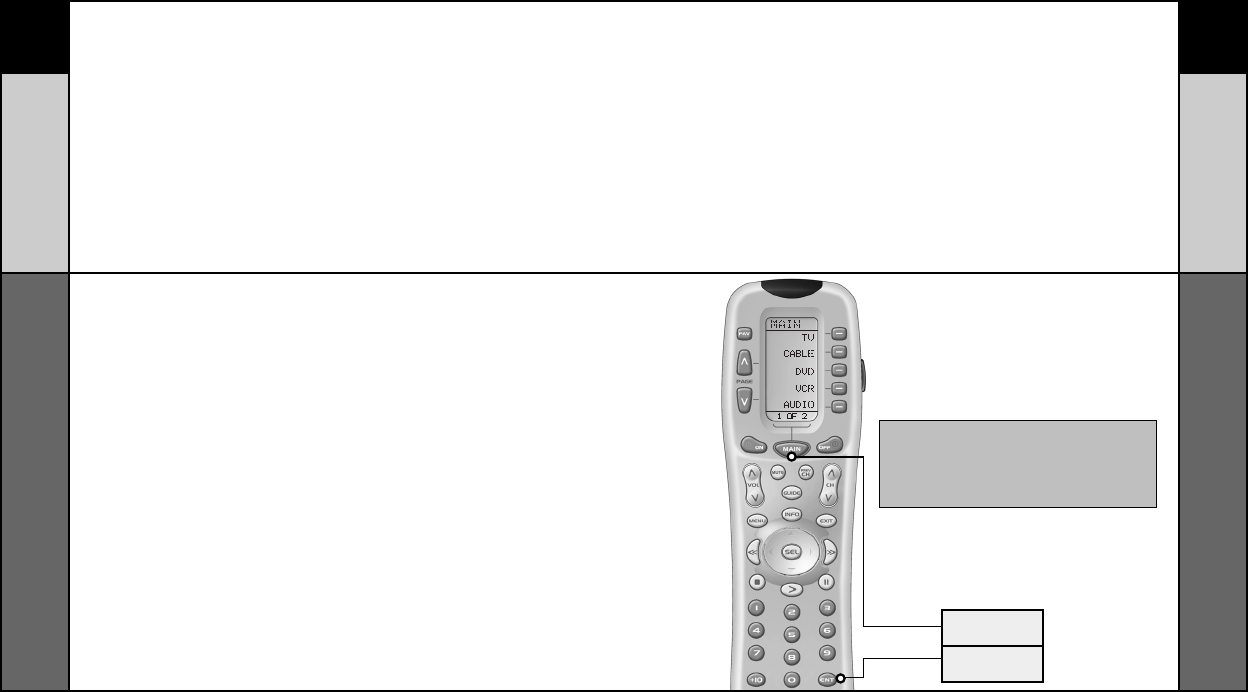
Activating Component Commands –
Simple, Easy, Intuitive
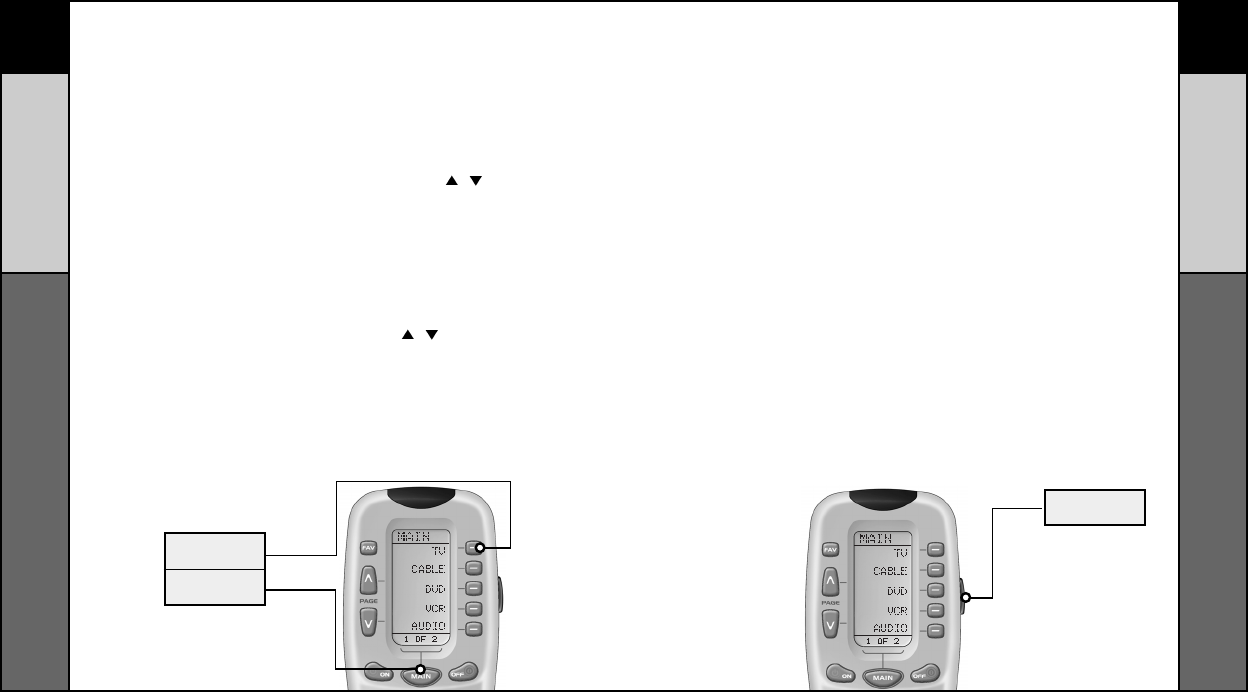
Once you’ve programmed RF20 for your
Components, all you have to do to operate
a specific Component is first, press the
MAIN button. This will display Page 1 of
the MAIN menu on the LCD screen. Page
1 of the MAIN menu displays five
Components. Then, simply select the
Component you want to operate by
pressing the corresponding Screen-
Labeled Component Display Button on the
right side of the LCD Screen. As an
example, if you press the TV Display
Button, the display label at the top of the
screen will change from MAIN to TV, and
all the but- tons on RF20 will work your TV.
To operate another Component, simply
press the MAIN button again to return to
Page 1 of the MAIN menu and select the
next Component you want to operate.
If you don’t see the Component you want
to control on Page 1 of the MAIN menu,
just use the PAGE ( ) ( ) buttons on the
left side of the screen to bring up Page 2
of the MAIN menu which displays an
additional five Components.
Each Component is provided with five
pages of pre-labeled command display
buttons (or space for additional command
display buttons). Once again, simply use
the PAGE ( ) ( ) buttons to take you to
the next command page, or return you to
the previous command page.
Light Button
The fully backlit keypad makes the RF20 easy to use in the dark or dim lighting
conditions. Simply press the LIGHT button to backlight all the keypad buttons and
LCD screen.
To turn off the backlight, press the LIGHT button again, or just wait ten seconds (the
backlight automatically shuts itself off). Lights out!
Try it out!
TV DEVICE
BUTTON
MAIN
BUTTON
LIGHT
BUTTON
7 8
Overview &
Pre-Programmed Code Method
Pre-Programmed Code Method
BASIC SETUP
BASIC SETUP
Basic Setup - Overview
There are two ways to program the RF20:
• The Pre-Programmed Code Method
• The Learning Method
The Pre-Programmed Code Method allows you to set up all the buttons at once, so
it’s the fastest and easiest of the two methods. The Learning Method allows you to
transfer functions from other remotes (old or new), one button at a time.
Pre-Programmed Code Method
STEP 1:
The pre-programmed 3-digit codes are
found in the back of this Manual on page
45. The codes are listed by Component
category (i.e., TV, VCR, DVD, etc.), then by
brand name. For instance, if you want to
locate a code for a Sony TV, first locate
the TV category, and then look for the
Sony brand.
Once you have located the 3-digit code (or
in some cases, several code numbers) for
the Component that you want to operate
with your RF20, write them ALL down on a
piece of note paper. It’s important that you
write down all the codes because
only one code is going to work for you.
STEP 2:
Now, turn on the Component you want to
program... let’s say your TV to start. Look
up your TV’s manufacturer setup code
from your reference list.
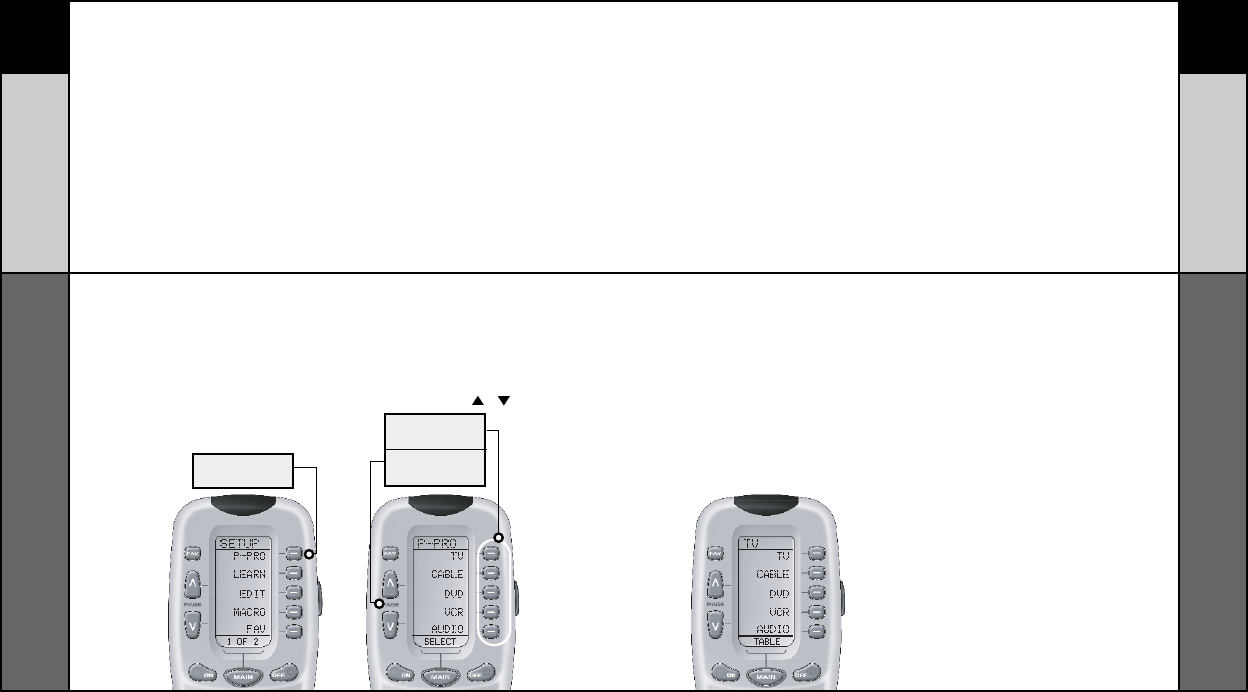
STEP 3:
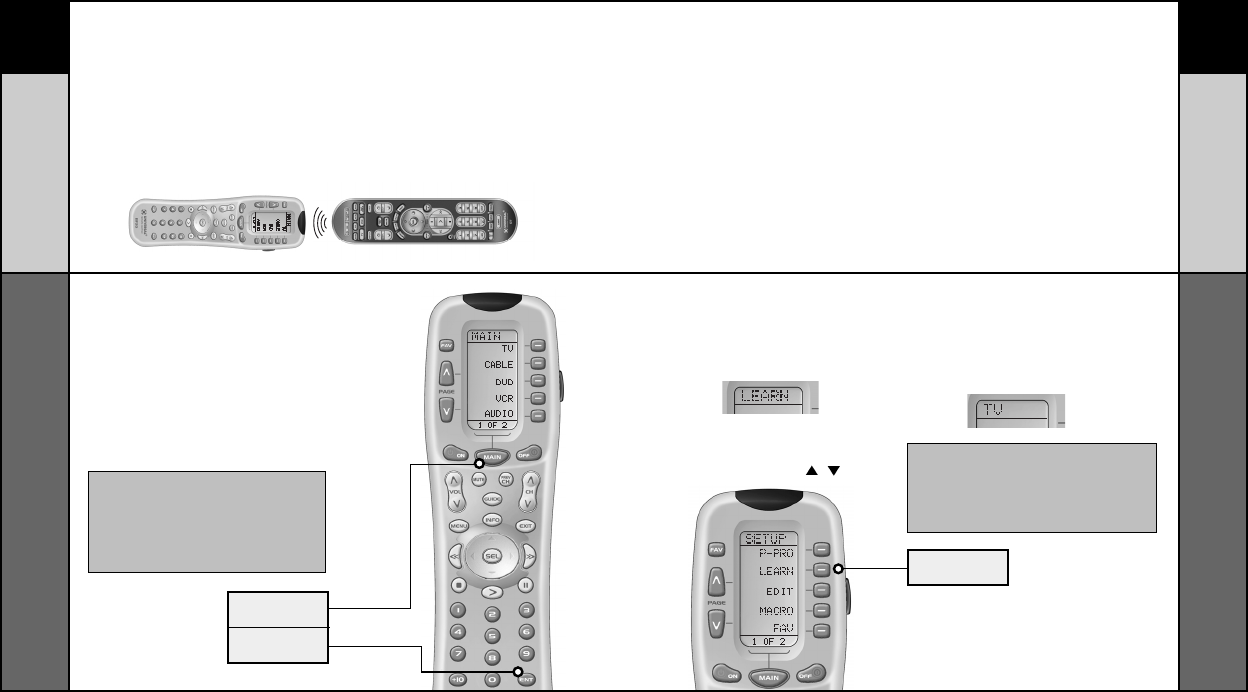
Press and hold the MAIN and ENT (Enter) but-
tons at the same time for approximately 3 sec-
onds, until the word “SETUP” is displayed at the
top of the LCD screen. This signals that you are
now in setup mode.
IMPORTANT:
You now have 30 seconds to perform the next step
while you are in SETUP mode. If you don’t press a
button within 30 seconds, SETUP will disappear
from the screen, signaling that you have exited
setup mode and you will need to start over.
MAIN
BUTTON
ENTER
BUTTON
910
BASIC SETUP
BASIC SETUP
Pre-Programmed Code Method
Pre-Programmed Code Method
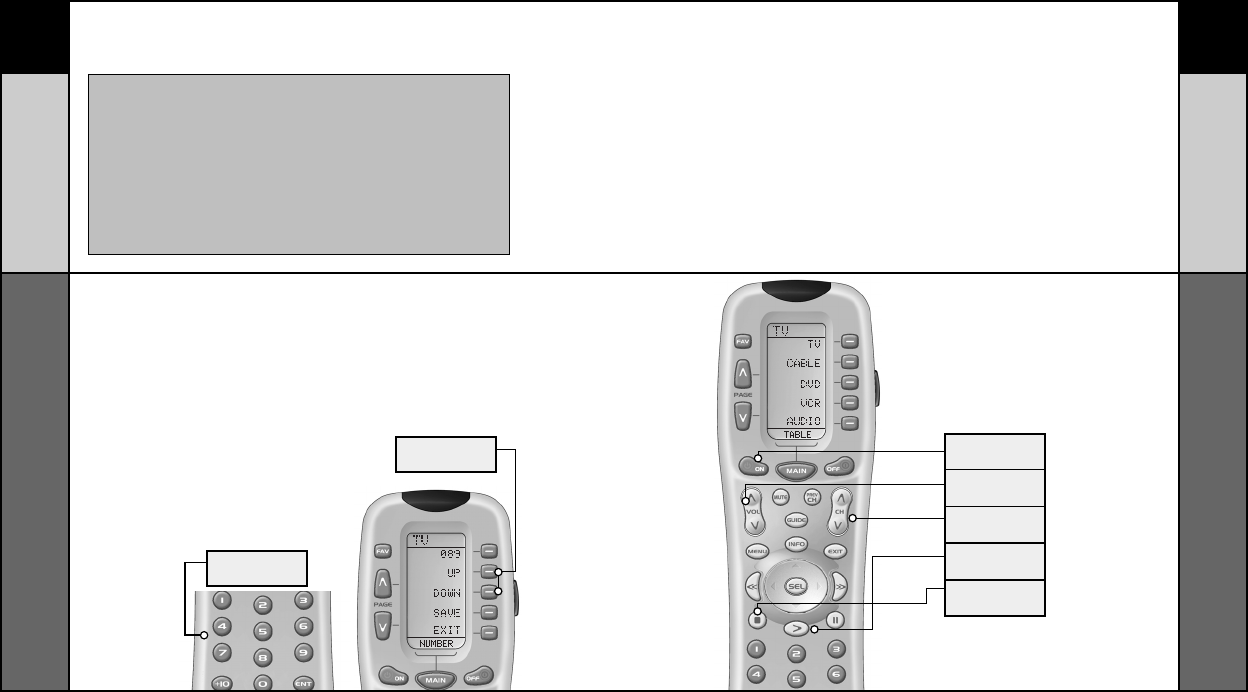
STEP 4:
Press the P-PRO display button
to select the Pre-Programmed
Method.
The screen will then display the five
Components from Page 1 of the MAIN
menu.
To display Page 2 of the MAIN menu
that lists an additional five Components,
simply press the PAGE ( ) ( ) buttons.
STEP 5:
Press the Component display button you
want to program.
For example: If you want to setup the TV
Component button, press the TV
Component display button. The display at
the bottom of the LCD screen will flash
“FROM - TABLE”.
STEP 6:
In this step you verify the type of compo-
nent you plan to operate with this compo-
nent button. For example: If you plan
to operate the TV component with the TV
button, simply press the TV display button
once again. However, if for example you
are setting up AUX to operate a second
DVD Player, you would first need to press
AUX in Step 5, and then DVD in Step 6.
FIRST FIVE
DEVICE NAMES
PAGE
BUTTONS
P-PRO
BUTTON
11 12
BASIC SETUP
BASIC SETUP
Pre-Programmed Code Method
Pre-Programmed Code Methoda
NOTE:
If the Component fails to turn off after you have entered all
the code numbers listed for your brand, you can scan through
all the other code numbers that are pre-loaded into the RF20
for that Component (in this case TV) by using the UP or
DOWN display buttons on the screen. (There is a chance that
your Component was actually manufactured by another
brand.) However, most of the code tables are so large that it
is usually faster to use the Learning Method on Page 15.
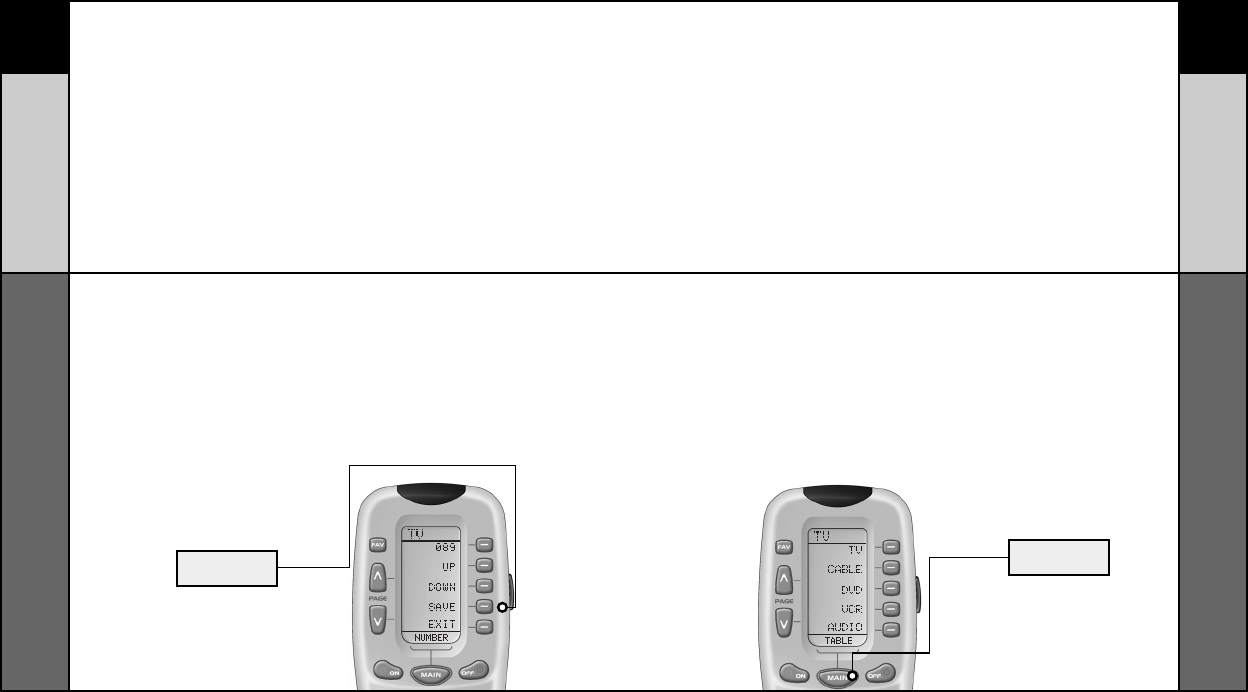
STEP 7:
Point the RF20 toward the Component you
want to program, (in this example, TV), and
punch in the 3-digit code that you wrote
down for that specific Component. Use the
Number buttons 0-9 on the remote to
punch in the code. If the 3-digit code
number that you just punched in is
correct, the Component will turn off. If the
Component does not turn off, continue
entering code numbers from your list until
the Component turns off. Somebrands
have several possible code numbers.
STEP 8:
When the Component turns off, press the
ON button to turn the Component back on.
Now you can test the Volume and Channel
buttons (for TV), or PLAY and STOP (for
VCR and DVD) to make sure they all work.
If any of the buttons do not work properly,
you need to find a new correct code. For
example, maybe your Sony TV turned off
with code number 147, but the volume
controls did not work properly. If this is
the case, try the next code number listed
for that Component until you find a perfect
match.
ON
BUTTON
VOLUME
BUTTONS
CHANNEL
BUTTONS
PLAY
BUTTON
STOP
BUTTON
UP & DOWN
BUTTONS
NUMBER
BUTTONS
13 14
BASIC SETUP
BASIC SETUP
Pre-Programmed Code Method
Pre-Programmed Code Methoda
STEP 9:
Once you have found the right code, save
the code number by pressing the SAVE
display button that appears on the LCD
screen. The LCD screen will blink
“SAVED” two times, signaling that the
code number has been successfully
saved.
STEP 10 :
Exit SETUP mode by pressing the MAIN
button two times.
When the LCD screen displays MAIN, you
are back in normal operating mode.
NOW, PROGRAM THE REST OF YOUR
COMPONENTS BY REPEATING STEPS 1
THROUGH 9. IN MOST SYSTEMS,YOU
CAN FINISH BASIC SETUP IN JUST A
FEW MINUTES AND PUT ALL YOUR OLD
REMOTES AWAY.
IF YOU ARE STILL MISSING COMMANDS
TO CONTROL ANY OF YOUR COMPO-
NENTS, USE THE LEARNING METHOD
ON PAGE 15.
SAVE
BUTTON
MAIN
BUTTON
15 16
BASIC SETUP
BASIC SETUP
Learning Method
Learning Method
Learning Method
The RF20 can actually ‘learn’ commands from other remote controls (old or new),
one-button-at-a-time, so it will never become obsolete. RF20 is the last remote
you’ll ever need!
Just follow these simple steps:
STEP 1:
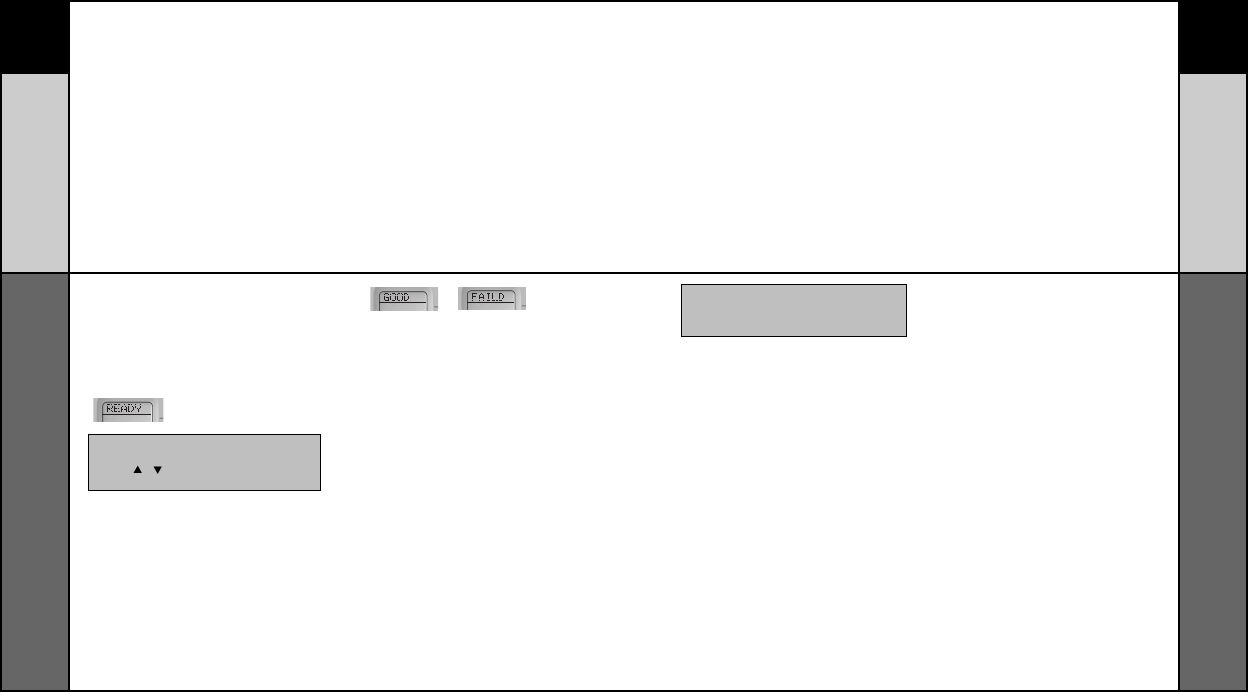
Line-up the RF20 with the other remote control, head-
to-head, one or two inches apart.
STEP 2:
On the RF20, press and hold the MAIN and ENT (Enter)
buttons at the same time for approximately three sec-
onds, until the word “SETUP” is displayed at the top of
the LCD screen. This signals you are now in SETUP
mode.
IMPORTANT
You now have 30 seconds to perform the
next step while you are in SETUP mode. If
you don’t press a button within 30 seconds,
SETUP will disappear from the screen, sig-
naling that you have exited setup mode and
you will need to start over.
STEP 3:
Press the LEARN display button on the LCD
screen. The top of the screen will change to
“LEARN” and display the five Components
from Page 1 of the MAIN menu.
STEP 4:
Select the Component you want to teach
commands to by pressing that Component
display button on the LCD screen (in this
example, TV). The top of the TV screen will
change to “TV”.
To display Page 2 of the MAIN menu that
lists an additional five Components,
simply press the PAGE ( ) ( ) buttons.
NOTE: If you want to teach any command to a
Component button, press the desired Component
display button once the top of the screen dis-
plays “MAIN”, by pressing the PAGE button. The
top of the screen wil change to “READY”. Then
go to STEP 6.
MAIN
BUTTON
ENTER
BUTTON
LEARN
BUTTON
17 18
BASIC SETUP
BASIC SETUP
Learning Method
Learning Method
STEP 5:
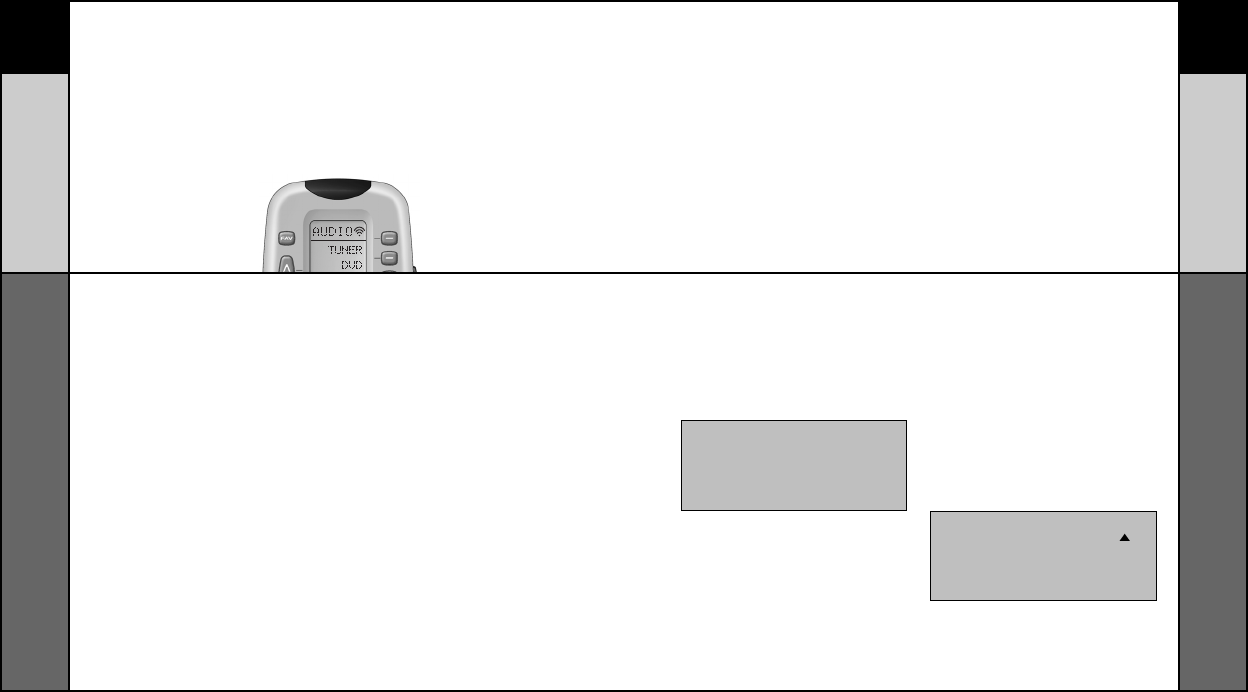
Press any button on the RF20 that you
want to teach a command to. The top of
the screen will change to “READY” and
the bottom of the screen will display the
button name you pressed.
STEP 6:
Press and hold the button on the other
remote control that you want to ‘teach’ to
the RF20 until the LCD display on the RF20
changes to either “GOOD” or “FAILD”. If
the “GOOD” label appears on top of the
display, you were successful. If the
“FAILD” label appears on top of the display,
try ‘teaching’ thesame button to the RF20
once again by repeating STEPS 5 and 6.
STEP 7:
Now, continue to teach the RF20 any other
commands from your other remotes by
repeating STEPS 4 through 6 (to go back
to STEP 4, simply press MAIN once).
STEP 8:
Once you have completed teaching all the
button commands to the RF20, return to
normal operation by pressing the MAIN
button twice.
• Move to another room. Plasma TVs, sun-
light, halogen or quartz lighting can inter-
fere with the learning process.
• Even though the old remote seems to be
working fine, put in fresh alkaline
batteries.
• Gradually vary the distance between the
remote controls.
Try 1”, 2” and so on, up to 4 feet.
• Try tapping the button on your old remote
instead of pressing and holding it during
the learning process.
Some additional Information regarding the
Learning Process:
• Learned functions override any existing
pre-programmed functions on the
remote control.
• All buttons can be learned except for the
PAGE, MAIN and LIGHT buttons.
• Learned functions are automatically
erased when a new function is learned
on the same button.
• Learned functions are retained even
after a different Setup Code Number is
programmed into the remote.
• To return to an original pre-programmed
function, a learned function must be
erased.
NOTE: If you don't see the display button you
would like to teach on the LCD screen, use the
PAGE ( ) ( ) buttons. The only buttons you
can't teach are the PAGE and MAIN buttons.
NOTE: Test all your new commands. If any of them
don’t work, try the Learning Method again, follow-
ing these suggestions:
19 20
BASIC SETUP
CUSTOMIZING
Transmitting (Busy Signal) Icon
Customizing the LCD Screen
Transmitting (Busy Signal) Icon
When a command is being transmitted, an icon will appear in the upper right corner of the
LCD screen. This indicates that a signal is being sent. This is particularly useful when
setting up Macros and FAVs, since it flashes with every step of a sequence of commands.
Customizing Your RF20 with Special Advanced Features
After you’ve finished all your basic setup, you can choose to make operation easier by
customizing the RF20 just the way you want, using the Special Advanced Setup Features
described in this section.
Customizing the LCD Screen
You can easily edit or change the name of any of the display buttons (including Favorite
Channels) on the LCD screen by following these steps:
CHILD LOCK FEATURE
This ‘child-lock’ feature prevents the unauthorized use of the remote control by
children. It blocks all operations of the remote control.
To Activate:
Press the +10 and ENT (Enter) buttons simultaneously for 3 seconds. The bottom of
the LCD will blink “LOCKED” three times and then display “LOCKED”.
To Return to Normal Operation:
Press the +10 and ENT (Enter) buttons simultaneously again for 3 seconds. The LCD
will display the last use mode.
STEP 1:
Press and hold the MAIN and ENT (Enter)
buttons at the same time for approximately
3 seconds, until the word “SETUP” is
displayed at the top of the LCD screen.
This signals that you are now in setup
mode.
STEP 2:
Press the EDIT display button.
The LCD display will change to the EDIT
menu.
STEP 3:
Press the TEXT display button.
The screen will display the list of
Components and “EDIT” will appear at
the top of the screen.
STEP 4:
Navigate to the Component and page
where there is a button label you want to
EDIT, selecting between the FAV, MAIN,
COMPONENT display buttons; then using
the PAGE button.
IMPORTANT:You now have 30 seconds to per-
form the next step while you are in SETUP
mode. If you don’t press a button within 30 sec-
onds, SETUP will disappear from the screen,
signaling that you have exited setup mode and
you will need to start over.
NOTE: If you wish to change the name of
a Component button, press the Page ( ) Up
button twice. The top of the display will
change to MAIN, and you can navi-
gate to MAIN page 1 or page 2 before
going on to Step 5.
21 22
CUSTOMIZING
CUSTOMIZING
Customizing the LCD Screen
Customizing the LCD Screen
STEP 5:
Press the button you wish to edit.
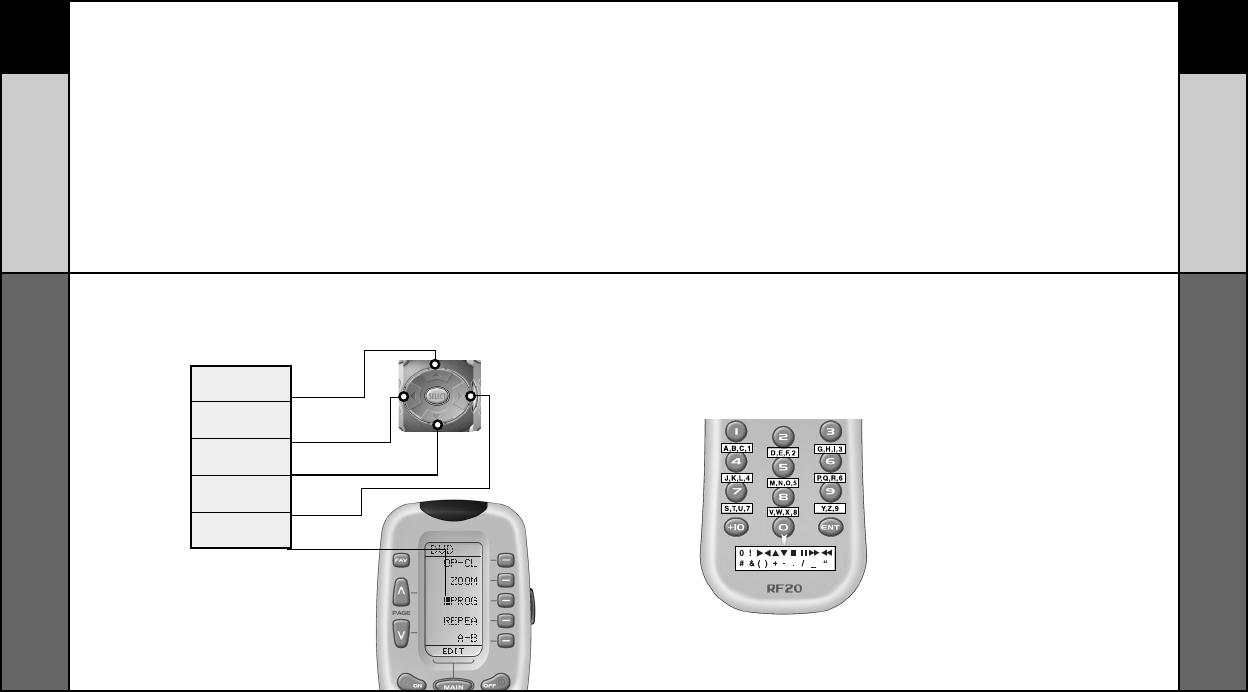
The first character space of your
button label will start to blink.
STEP 6:
Change the character by using any of the
number keys.
Each press of the same number button
selects the next character of that
number’s group, as shown in the
diagram below.
STEP 7:
Once the character you want appears,
move to the next space by pressing the
Right cursor button.
STEP 8:
When you are finished editing the button,
press the button you edited and “SAVED”
will flash at the bottom of the display.
To change any other button labels on the
same Component, press the next button,
then repeat steps 6-8. If you wish to edit a
button on another Component, press the
MAIN button once, then repeat Steps 4-8.
STEP 9:
Once you’ve finished editing buttons,
press the MAIN button four times to
return to normal operation.
UP CURSOR
Button deletes all text
LEFT CURSOR
Moves blinking
character left
DOWNCURSOR
deletes the currently
blinking character
RIGHT CURSOR
Moves blinking
character right
BLINKING
CHARACTER
23 24
Favorite Channel Setup
CUSTOMIZING
CUSTOMIZING
Favorite Channel Setup
Favorite Channel Setup
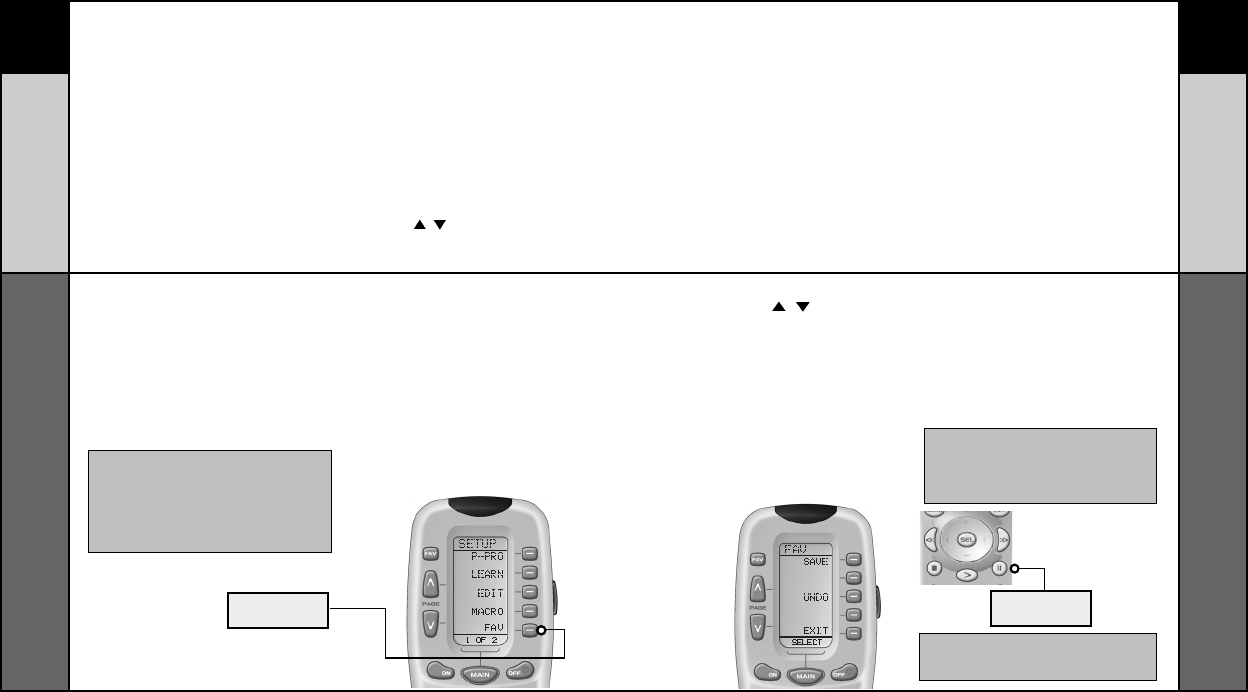
This is one of RF20’s most desirable features. Once it’s set up, you can select up to 40
favorite channels with the press of a button - without the need to remember or type in a
channel number. Let the channel surfing begin!
To access Favorite Channel listings, simply press the FAV button to display Page 1 of
Favorite Channel listings. There are eight pages of Favorite Channels, with five Channels
on each page, for a total of 40 Channels. Just use the PAGE ( )( ) buttons to locate the
Channel you want to setup. Each Channel can be setup to be instantly selected with the
press of one button.
IMPORTANT:
You now have 30 seconds to perform the
next step while you are in SETUP mode. If
you don’t press a button within 30 seconds,
SETUP will disappear from the screen, sig-
naling that you have exited setup mode and
you will need to start over.
FAV
BUTTON
STEP 3:
Use the PAGE ( ) ( ) buttons until you
locate the name (i.e.,ABC, CBS, NBC) of
the favorite channel you want to setup.
STEP 4:
Press the favorite channel display button
you want to setup.
The top of the screen will change to show
the channel name. The bottom of the screen
displays “STEP0”, indicating that you have
not entered the channel number yet.
STEP 5:
Press either the TV, SAT or CABLE
Component button (select the
Component you use to enter channel
numbers).
STEP 6:
Press each of the number buttons for
the channel.
Note: If a number is repeated when set-
ting the channel (for example, channel “33” or
“522”), it is usually best to set a half second delay
in between the identi-cal numbers by pressing
the (II) PAUSE button. Each press of the PAUSE
button increases the delay by a half second.
PAUSE
BUTTON
STEP 1:
Press and hold the MAIN and ENT (Enter)
buttons at the same time for approximately
3 seconds, until the word “SETUP” is
displayed at the top of the LCD screen.
This signals that you are now in setup
mode.
STEP 2:
Press the FAV display button.
The top of the display will show “FAV”.
The bottom of the display will flash
“SELECT”
NOTE: Some brands of television require an
ENT (Enter) command after the channel num-
bers.
To setup a Favorite Channel button, follow these steps:
25 26
CUSTOMIZING
CUSTOMIZING
MacroPower
™
Setup
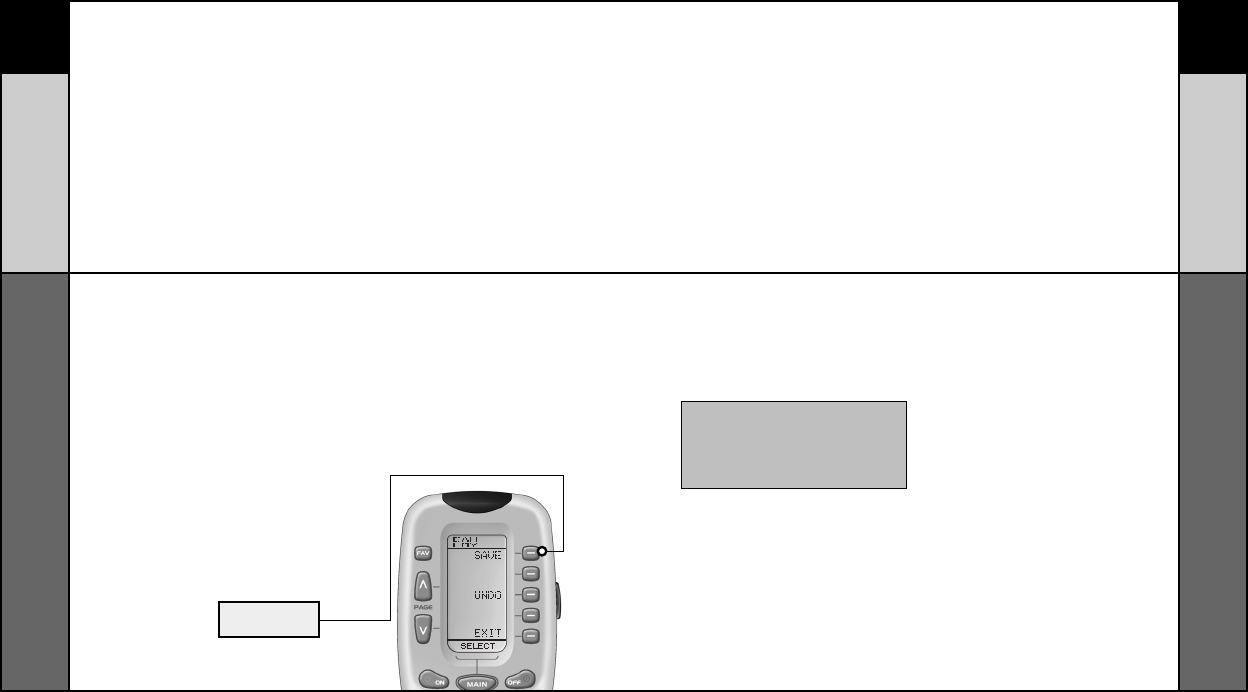
STEP 7:
Press the LIGHT button after you enter the
channel number.
A new screen appears displaying SAVE,
UNDO or EXIT.
STEP 8:
To save the channel you entered, press
the SAVE display button. The UNDO
display button lets you erase the last
entry. The EXIT display button erases all
entries for this button.
STEP 9:
When you are finished setting up Favorite
Channel buttons, press the MAIN button
twice to return to normal operation.
STEP 1:
Press and hold the MAIN and ENT (Enter)
buttons at the same time for approximately
3 seconds, until the word “SETUP” is
displayed at the top of the LCD touch screen.
This signals that you are now in setup mode.
STEP 2:
Press the MACRO display button on the LCD
screen. The top of the screen will display
“MACRO”. The bottom of the display will
flash “SELECT”.
STEP 3:
Press the ON button. “ON” will display at the
top of the LCD screen. “STEP0” will display at
the bottom of the screen indicating that no
macro steps have been entered yet.
STEP 4:
Press the first component display button you
want the Macro to turn on (in this example,
TV) and “TV” will display at the top of the
screen and “STEP 1” at the bottom.
STEP 5:
Then, press the ON button to confirm the
command and “STEP 2” will display at the
bottom of the screen. (NOTE: Whenever a
button is pressed, another Macro step is
counted and dis-played at the bottom of the
screen.)
STEP 6:
Now, press the MAIN button to return to the
Main Component listing. (“STEP 3” will display
at the bottom of the screen.)
MacroPower™ Setup
MacroPower™ is a unique feature that enables you to turn all of your Components
ON or OFF, at the same time, simply with the press of one button.
We call that a “Macro”. What would normally take multiple remotes and button
pushes, the RF20 can accomplish with the press of one button. In addition to the
Power ON or OFF buttons, any of the Display buttons (on any Component or Page)
can be set to be Macro buttons as well. Feel the power!
To setup a Power ON macro button that will turn ON several components at the
same time (for example, TV, VCR and CABLE), follow these easy steps:
IMPORTANT: You now have 30 seconds to per-
form the next step while you are in SETUP
mode. If you don’t press a button within 30 sec-
onds, SETUP will disappear from the screen,
signaling that you have exited setup mode and
you will need to start over.
Favorite Channel Setup
SAVE
BUTTON
27 28
CUSTOMIZING
CUSTOMIZING
STEP 7:
Press the second component display
button that you want the Macro to turn on
(in this example, VCR) and “VCR” will
display at the top of the screen. (“STEP 4”
will display at the bottom of the screen.)
STEP 8:
Then, press the ON button to confirm the
command. (“STEP 5” will display at the
bottom of the screen.)
STEP 9:
Now, press the MAIN button to return to
the Main Component listing. (“STEP 6” will
display at the bottom of the screen.)
STEP 10:
Press the third component display button
that you want the Macro to turn on (in this
example, CABLE) and “CABLE” will
display at the top of the screen.
(“STEP 7” will display at the bottom of the
screen.)
STEP 11:
Then, press the ON button to confirm
the command. (“STEP 8” will display at
the bottom of the screen.)
You can also program delays in
between commands by pressing the
(II) PAUSE button. Each press adds half
a second to the delay.
STEP 12:
Press the LIGHT button to end your macro.
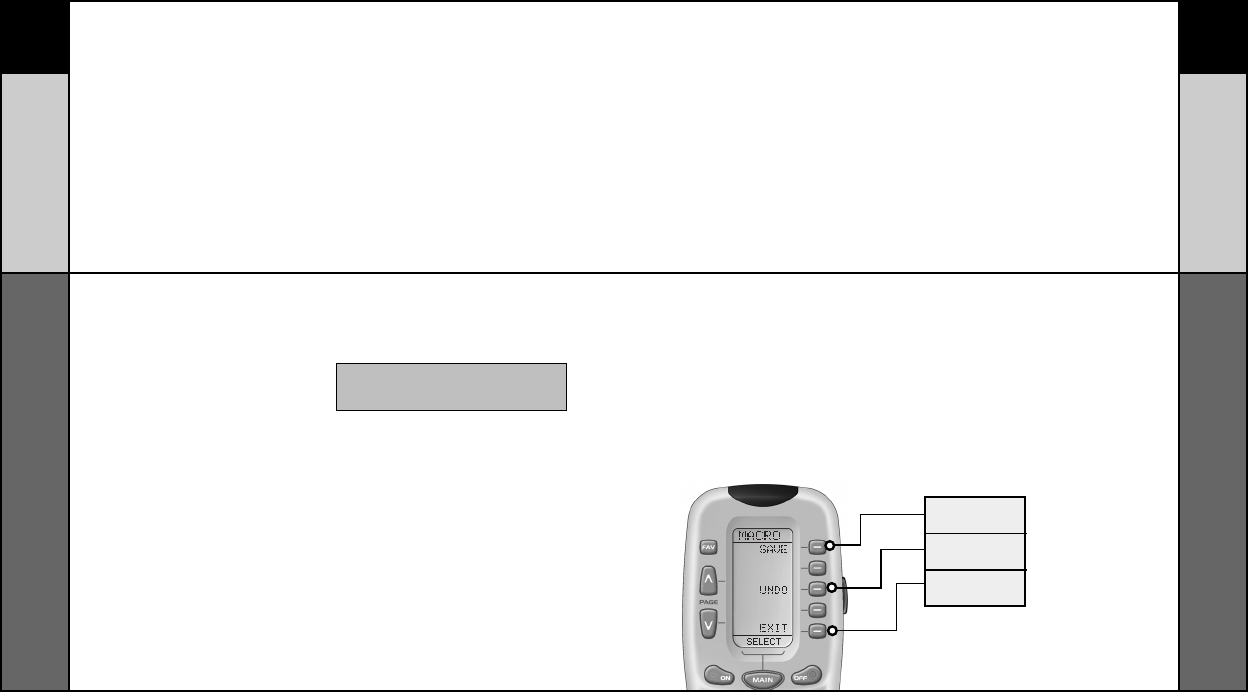
A new screen will appear:
STEP 13:
If you are satisfied with your macro, press
the SAVE display button. The UNDO
display button lets you erase the last step.
The EXIT display button erases all the
macro steps.
STEP 14:
Press the MAIN button twice to return to
normal operation.
NOTE : Don’t worry about the number of steps.
Each macro button can store up to 190 steps,
so you are not likely to run out of steps!
MacroPower
™
Setup
MacroPower
™
Setup
SAVE
BUTTON
UNDO
BUTTON
EXIT
BUTTON
29 30
CUSTOMIZING
MacroPower
™
Setup
CUSTOMIZING
Advanced Macro Options:
SETTING UP A POWER OFF MACRO:
Simply follow the same steps as outlined above, except press the OFF button in
place of the ON button.
SETTING A COMPONENT BUTTON AS MACRO:
If you wish to set one of the Component buttons as a macro, in STEP 3, press the
Page Up button twice. The top of the display will change to MAIN, and you can
navigate to MAIN page 1 or page 2. Press the Component button you want to set as
a Macro button. The top of the screen will display the button label you selected.
Select the Component and Page that has a button you want in your Macro using
the MAIN, Component and Page buttons.
Simply press the button(s) with the command(s) you want in your Macro. Then
complete and save the Macro by following STEPs 12 and 13 as outlined above.
PROGRAMMING A “PRESS & HOLD” MACRO:
Another option for Component button macros is to only send the macro if the button
is pressed and held. This is setup by entering a delay as the first step of the macro.
The amount of delay determines how long the user must press the button before
the macro is sent. The advantage of this option is that a normal press of the
COMPONENT button will simply switch Components without sending the macro
command.
SimpleSound™ Setup & Other ‘Punch Throughs’
SimpleSound™ is a dynamic feature that gives you total volume control over all the
Components in your system, even those without their own built-in volume control, such
as TiVo, DVD and VCR... saving you the hassle and inconvenience of constantly needing
to switch between Component modes on the remote. With SimpleSound™, you can set
the RF20’s volume control buttons to always control the sound in your system, even
when you’re in VCR or DVD mode, without switching back to AUDIO or TV.
Even more exciting, SimpleSound™ is what is called a ‘Punch Through’ feature and is
not limited strictly to volume control. Click and enjoy!
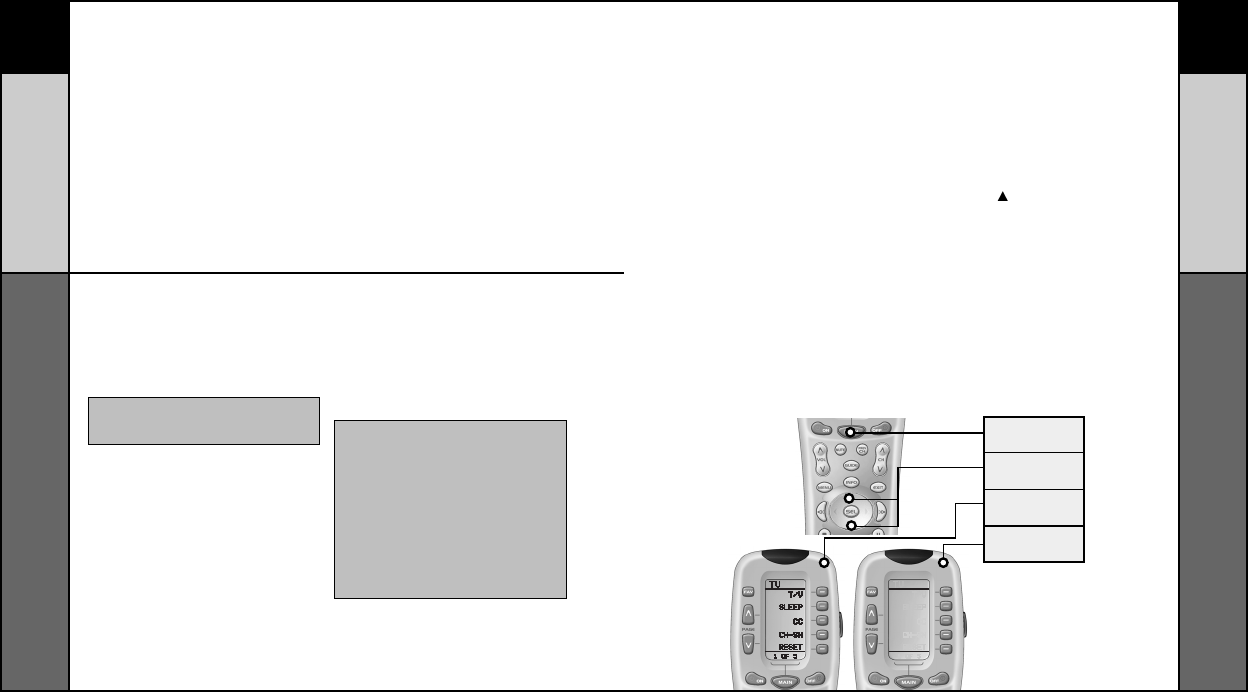
STEP 1:
In a basic home entertainment system, the
sound may come from your TV. In a more
advanced system, the sound may come from
your audio Component such as a Surround
Sound Receiver or Home Theatre system. So,
first, you need to identify which Component
you want to use in your system for sound.
STEP 2:
Press and hold the MAIN and ENT (Enter)
buttons at the same time for approximately 3
seconds, until the word “SETUP” is dis-
played at the top of the LCD screen. This
signals that you are now in setup mode.
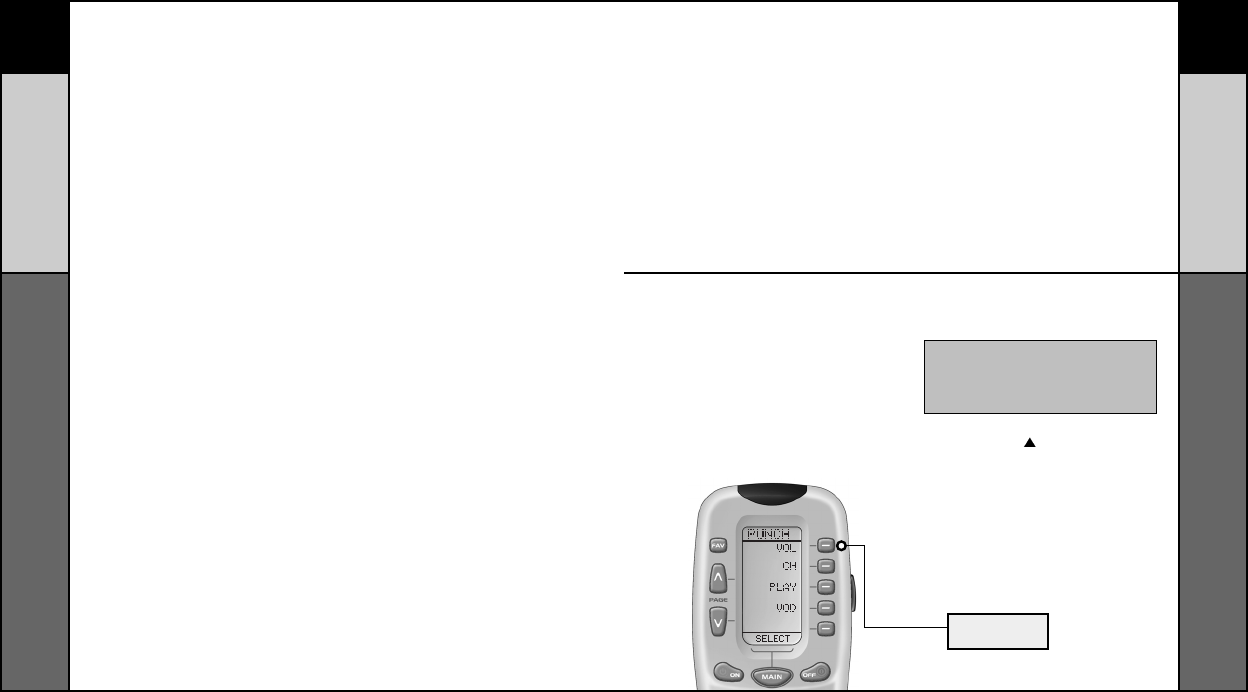
STEP 3:
Press the PAGE ( ) UP button to display
Page 2 of the Setup Menu on the LCD
screen. Press the PUNCH display button.
STEP 4:
Then press the VOL (Volume) display button.
The screen will display “VOL” at the top. This
sets up the group of three buttons (Volume
Up, Volume Down and Mute) in one action!
IMPORTANT:You now have 30 seconds to perform the
next step while you are in SETUP mode. If you don’t
press a button within 30 seconds, SETUP will
disappear from the screen, signaling that you have
exited setup mode and you will need to start over.
SimpleSound Setup &
Other ‘Punch Throughs’
VOLUME
BUTTON
31 32
CUSTOMIZING
CUSTOMIZING
SimpleSound Setup &
Other "Punch Throughs"
Setting Backlight Options
The bottom of the display flashes
“PUNCH TO”. Press the button for the
Component that doesn’t have volume
control commands yet (i.e.,DVD). This is
the Component you are going to PUNCH
TO for the volume and mute commands.
STEP 5:
The bottom of the display will then flash
“PUNCH FROM”. Now select the
Component that has the volume com-
mands you want to use (i.e.,TV for sys-
tems using the TV speakers, AUDIO for
systems with surround sound receivers).
The bottom of the display will flash
“SAVED”.
STEP 6:
Repeat STEPS 4-5 until all your
Components operate the volume perfectly.
STEP 7:
Press the MAIN button twice to return to
normal operating mode and test your
SimpleSound™ settings.
Simply perform the steps outlined above,
but in STEP 4, press one of the control
options (CH, PLAY or VOD).
NOTE: If you want to PUNCH TO the MAIN
Component, press the POWER OFF button at
this time.
NOTE: The Punch Through feature is not limited to
volume and can also be applied to channel selection
or other functions. If you find yourself switching to a
particular Component frequently to use a group of
controls, consider using Punch Through for another
group, as listed here:
VOL Volume Up,Volume Down and Mute
CH Channel Up, Channel Down, Previous Ch
and Channel (0-9) buttons.
PLAY Play, Stop, Pause, Rewind and Fast Forward
VOD Guide, Menu, Info, Exit, Up, Down, Left,
Right, Select
Setting Backlight Options
You can customize the backlighting feature to suit your specific preferences by fol-
lowing these simple steps:
Adjusting Length of Backlight Time
You can adjust the amount of time that the RF20 backlight stays on by entering the
SETUP mode and proceeding to page 2 (using the PAGE ( ) UP button), then pressing
the LIGHT display button on the LCD screen (not the Backlight button). Then enter the
amount of time you would like the light to stay on using the number pad (0-99 sec-
onds). After making your selection, press the SAVE display button.
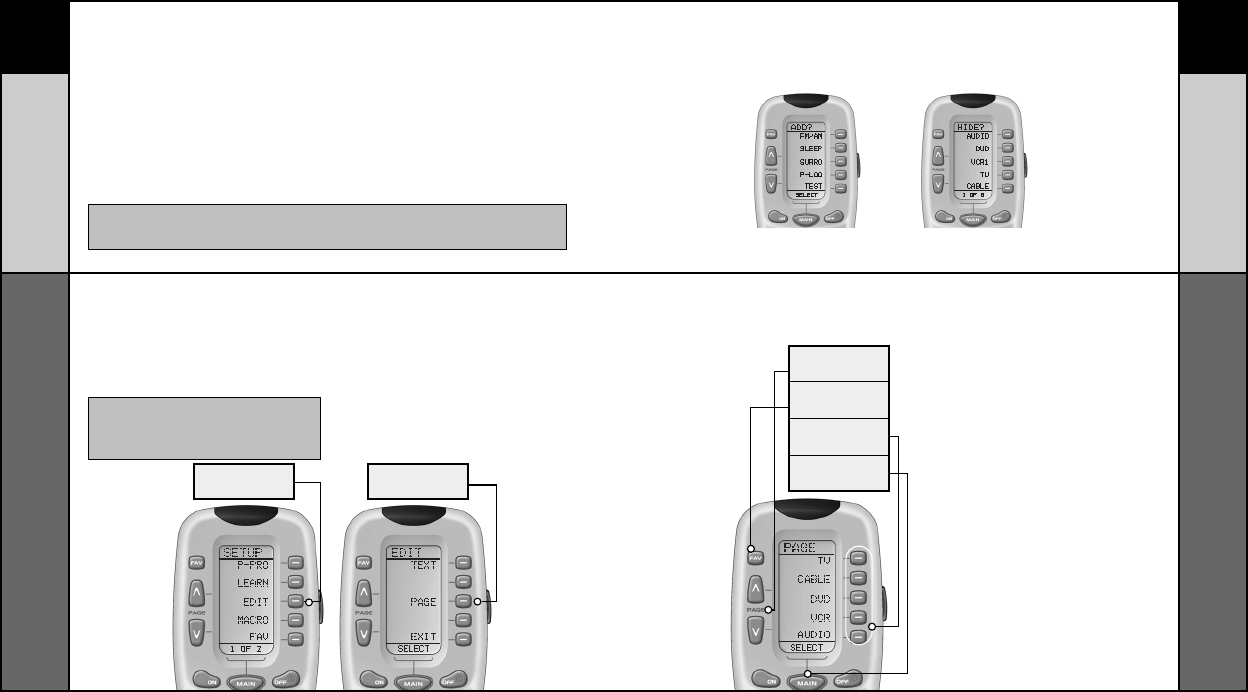
Adjusting Contrast
You can make the text darker by pressing both the MAIN and cursor UP buttons at the
same time. To make the text appear lighter, press both the MAIN and cursor DOWN
buttons at the same time.
Turning OFF Backlighting
If you don’t want backlighting at all (this extends battery life), press the ON display but-
ton that appears on the screen. The ON will change to OFF. Press the SAVE display
button. Exit the setup mode by pressing the MAIN button.
MAIN
BUTTON
UP & DOWN
CURSOR
HIGH
CONTRAST
LOW
CONTRAST
33 34
CUSTOMIZING
CUSTOMIZING
Hiding and Adding Pages
Hiding and Adding Pages
Each of your RF20 Components actually contains eight pages. However, only five pages
are visible in the factory default setting. Three page are hidden in each Component.
If you wish to use the hidden pages, you can ADD it. If you don’t want to use some of
the existing pages, you can HIDE them. You can add or hide pages on Components OR
on your favorite channel pages using this simple process:
NOTE: Be sure to program your Macros before you hide pages with potential macros in them. You
can’t access hidden pages during macro setup. However, after you finish Macro setup, you can hide
pages without affecting operation of your macros.
IMPORTANT:You now have 30 seconds to perform
the next step while you are in SETUP mode. If you
don’t press a button within 30 seconds, SETUP will
disappear from the screen, signaling that you have
exited setup mode and you will need to start over.
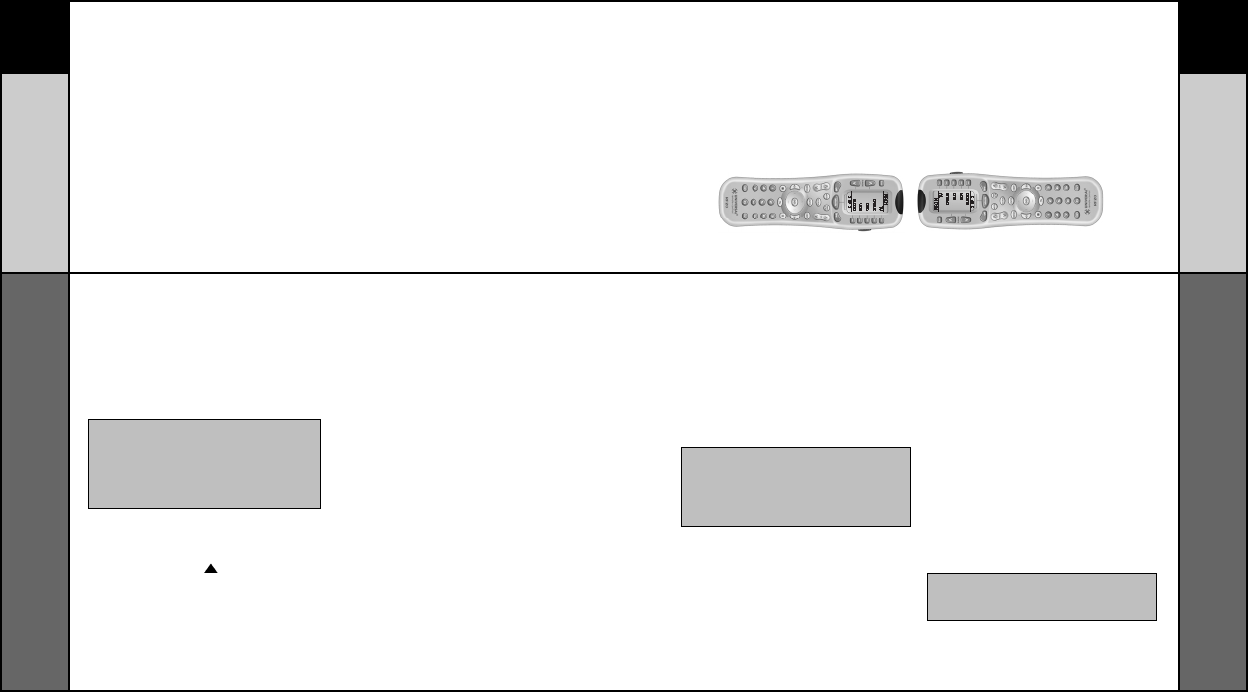
STEP 1:
Press and hold the MAIN and ENT (Enter)
buttons at the same time for approximately 3
seconds, until the word “SETUP” is
displayed at the top of the LCD screen. This
signals that you are now in setup mode.
STEP 2:
Press the EDIT display button on the LCD
screen.
STEP 3:
Press the PAGE display button once the
screen changes to EDIT mode.
STEP 4:
“PAGE” appears at the top of the screen.
Now, you can navigate to any page, using
the MAIN,
COMPONENT,
FAV, and PAGE
display
buttons.
STEP 5:
When you select a page, the top of the
screen indicates whether you want to
“ADD?” or “HIDE?” the page displayed.
When you want to change a page’s visi-
bility (i.e., either ADD or HIDE), simply
press the LIGHT button.
STEP 6:
You can continue to ADD or HIDE pages
on other Components by repeating Steps
4 and 5.
STEP 7:
When you are finished adding and hiding
pages, press the MAIN button four times
to return to normal operation.
This page is hidden. To ADD
it, press the LIGHT button.
This page is visible.To HIDE
it, press the LIGHT button.
Hiding and Adding Pages
PAGE
BUTTON
FAV
BUTTON
COMPONENT
BUTTONS
MAIN
BUTTON
EDIT
BUTTON
PAGE
BUTTON
35 36
CUSTOMIZING
CUSTOMIZING
Cloning Other RF20s
Recalling Pre-Programmed Setup Code Numbers
In case you didn’t write down the Pre-Programmed Code Numbers that you used to
set up your RF20, you can easily recall them using this simple process:
Cloning Other RF20s
If you are fortunate enough to own more than one RF20, you’ll be happy to know
that you can easily copy and transfer all the setup from one RF20 to another. Just
follow these easy steps:
STEP 1:
Press and hold the MAIN and ENT (Enter)
buttons at the same time for approximately
3 seconds, until the word “SETUP” is
displayed at the top of the LCD touch
screen. This signals that you are now in
setup mode.
STEP 2:
Go to Page 2 of the Setup Menu by
pressing the PAGE ( ) button.
STEP 3:
Press the RECAL display button on the
LCD screen. The display will change to the
Recall screens. The screen automati-
cally switches between four screens,
alternately flashing Page 1 components
and code numbers, then Page 2 compo-
nents and code numbers.
STEP 4:
Write down the code numbers as
they appear for future reference.
Page 43 of this manual provides a
convenient space for you to record your
code numbers.
STEP 5:
Return to normal operation by pressing
the MAIN button twice.
STEP 1:
For both the programmed RF20 that you
want to clone, and unprogrammed RF20,
press and hold the MAIN and ENT (Enter)
buttons at the same time for pproximately 3
seconds, until the word “SETUP” is dis-
played at the top of their respective LCD
screens. This signals that both remotes are
now in setup mode.
STEP 2:
Press a PAGE button on each remote to
bring up Page 2 of Setup and display the
CLONE button.
STEP 3:
Press the CLONE button on each remote.
STEP 4:
Align the two RF20s head-to- head, about
an inch apart.
STEP 5:
Press the RECV display button on the
unprogrammed RF20 that you want to
setup by cloning.
STEP 6:
Press the SEND display button on the
programmed RF20 that you want to clone.
STEP 7:
Press the START button on the unpro-
grammed RF20, and then press the START
button on the programmed RF20 that you
want to clone.
STEP 8:
Return to normal operation by pressing
the MAIN button twice.
IMPORTANT:You now have 30 seconds to
perform the next step while you are in SETUP
mode. If you don’t press a button within 30
seconds, SETUP will disappear from the screen,
signaling that you have exited setup mode and
you will need to start over.
IMPORTANT:You now have 30 seconds to
perform the next step while you are in SETUP
mode. If you don’t press a button within 30
seconds, SETUP will disappear from the screen,
signaling that you have exited setup mode and
you will need to start over.
NOTE: Cloning typically takes about 40 seconds.
After successful cloning is completed, the
newly cloned RF20 will flash “GOOD”.
Recalling Pre-Programmed
Setup Code Numbers
37 38
ERASING COMMANDS
ERASING COMMANDS
Erasing Learned Buttons, Macros or
Favorite Channels
Erasing Commands - Overview
You can erase an individual button with a learned command, a macro or a favorite
channel. You can erase an ENTIRE Component’s learned command or macro buttons.
You can also erase ALL your learned commands on all Components or all your macros
or favorite channels everywhere.
If you really want a fresh start, it is possible to reset everything to the factory default
settings.
Erasing Learned Buttons, Macros or Favorite Channels
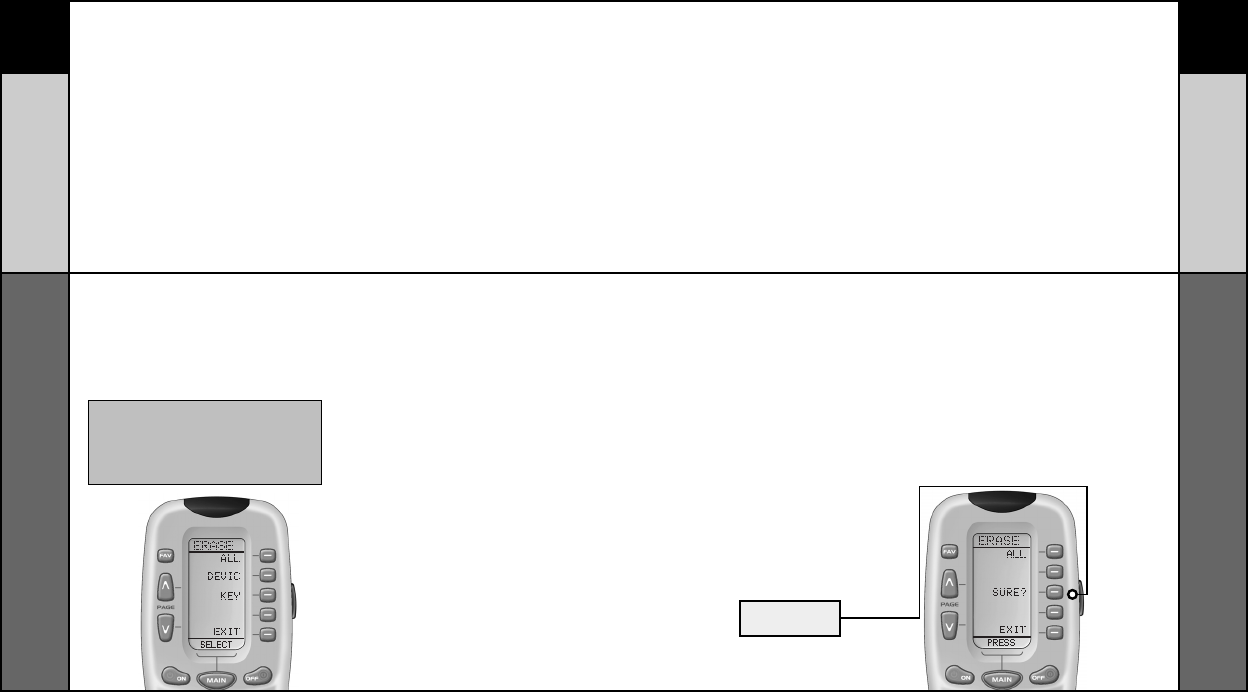
STEP 1:
Press and hold the MAIN and ENT (Enter)
buttons at the same time for approximately
3 seconds, until the word “SETUP” is
displayed at the top of the LCD screen. This
signals that you are now in setup mode.
STEP 2:
Press a PAGE button to display Page 2 of
Setup.
STEP 3:
Press the ERASE display button on the
LCD screen.
STEP 4:
Press either the LEARN, MACRO or FAV
button. The following screen appears:
ALL - Erases ALL of the specified
(Learned, Macro or FAV but-tons every-
where in the RF20)
DEVICE - Erases all learned or Macro
buttons in a single Component (NOTE:
This option is not available for FAVs.)
KEY - Erases one button only.
STEP 5:
If you press ALL, the RF20 displays a
“SURE?” button. After the SURE button is
pressed, all the buttons will be erased.
If you press DEVICE, a list of Components will
appear. Press the Component button that you
wish to erase. The bottom of the screen will
flash ERASE twice, then ERASED.
If you press KEY, you’ll have to navigate to
the Component and Page you want using the
MAIN, COMPONENT and PAGE buttons.
Press a button to erase it. The bottom of the
display will flash ERASE twice, then ERASED.
STEP6:
To return to normal operating mode,
press the MAIN button four times.
IMPORTANT:You now have 30 seconds to
perform the next step while you are in SETUP
mode. If you don’t press a button within 30
seconds, SETUP will disappear from the screen,
signaling that you have exited setup mode and
you will need to start over.
Erasing Learned Buttons, Macros or
Favorite Channels
SURE
BUTTON
39 40
ERASING COMMANDS
ERASING COMMANDS
Re-setting RF20 to Original
Factory Default Settings
Re-setting RF20 to Original Factory Default Settings
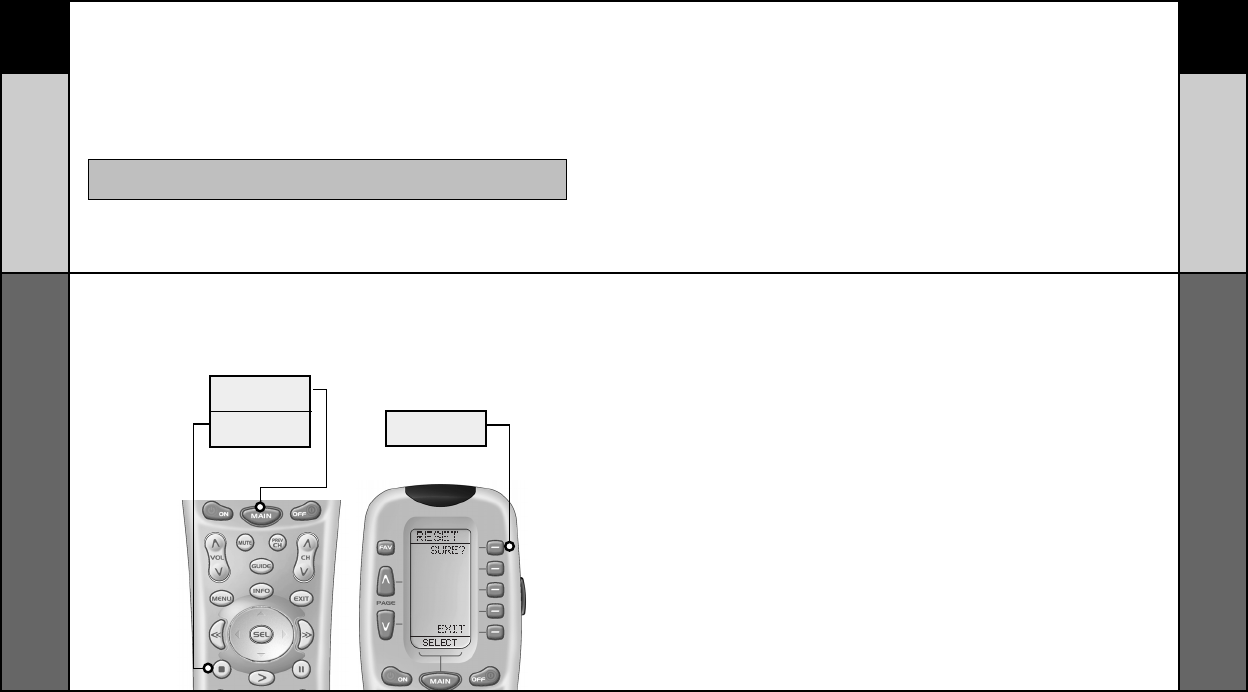
If you want to start with a clean slate, you can re-set the RF20 its original factory default
settings by performing the following steps.
NOTE: This process will essentially erase EVERYTHING you have pro-
grammed into the RF20.
STEP 1:
Press and hold both the MAIN and the
STOP buttons for 10 seconds.
STEP 2:
After 10 seconds, the RESET screen
appears. Press the ALL button. The RF20
will display a “SURE?” button. Press the
SURE button to erase all of your settings
and return to the factory default setup
Re-setting RF20 to Original
Factory Default Settings
MAIN
BUTTON
STOP
BUTTON
SURE
BUTTON
41 42
THE POWER BLASTER
THE POWER BLASTER
‘Barrier -Free’ RF control
‘Barrier -Free’ RF control
The Optional PowerBlaster
TM
(for ‘barrier-free’ RF con-
trol) [Sold separately]
Of all the fabulous RF20 features, this is probably the most exciting. When used in
combination with the optional PowerBlaster
TM
, the RF20 becomes an amazing
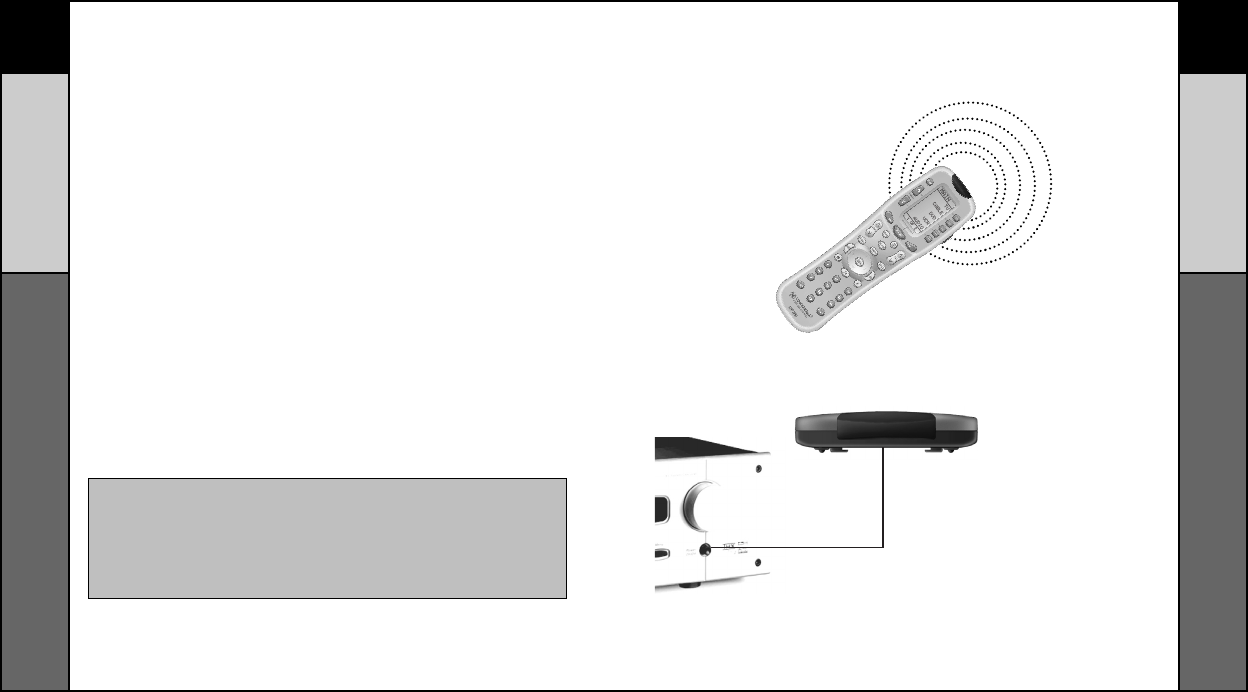
remote control powerhouse that sends multi-directional RF (Radio Frequency)
signals that pass through walls, doors and floors - both indoors and outdoors.
This changes everything! It enables you to control Components that are completely
out-of-sight, up to 100’ away. The PowerBlaster
TM
picks up RF20’s radio frequency
signals from any direction, regardless of distance, so RF20 doesn’t need to be
pointed directly at any Component. Just imagine - no more pointing! Now you can
close your entertainment center doors, hide your Components, and still control
them with ease. Control outdoor speakers on your patio. Control your Components
anywhere!
One of the best things about this is -- nothing has to be done to the RF20 for this
feature to work. Every time you press a button on the RF20, it sends both a
standard IR (Infrared Command) AND an RF (Radio Frequency) signal. If you install
the PowerBlaster
TM
kit, it will automatically receive RF20’s radio signals and trans-
late them into the infrared commands that control your Components.
NOTE: The RF20's radio signals will not control Components directly.
You must have a PowerBlaster
TM
to receive the RF20's radio signals.
Components that came with "no pointing" radio remote controls cannot
be operated by the RF20 unless the Component can be switched to
standard IR (Infrared Control) via its internal menus. Some remote
control ceiling fans are radio only and cannot be operated by the RF20.
The RF20 sends radio signal to the PowerBlasterTM, which is a radio receiver
The PowerBlasterTM converts radio signals to standard infrared commands and
sends them out via a built-in front blaster to Components in the same cabinet
space.
Self-adhesive “flashers” (included in the PowerBlaster
TM
kit) affix to the front panels of your
Components. The flashers relay infrared commands to Components out-of-sight of the
PowerBlaster’s front blaster. The flashers plug into PowerBlaster’s rear flasher line output
jacks. Each flasher has a 10’ cable to easily reach Components on nearby shelves.
43 44
PRE-PROGRAMMED CODE NOTES
PRE-PROGRAMMED CODE TABLES
Pre-Programmed Code Notes
Pre-Programmed Code Tables
Pre-Programmed Code Notes
Record the three digit codes for your system here
AUDIO
DVD
CD
SAT
TV
VCR
CABLE
AUX
LIGHT
TAPE
PHONO
TV2
VCR2
DVR
LDP
XM RADIO
IPOD
X-BOX
Pre-Programmed Code Tables
The RF20’s Pre-Programmed code library is divided into categories (TV, VCR, AUX,
etc.). Each category actually includes many types of Components. For example, the
VCR category includes TV/VCR combo units.
Within each category, the code numbers are listed in rows by brand (Sony,
Panasonic, B & K, etc.). Some brands have more than one three digit code for you
to try. Just circle the correct row and refer to it while you setup (step by step
instructions for using Pre-Programmed codes are found on page 7).
TV TVs, Plasmas, Projectors and Monitors
CABLE Cable TVs and Web TVs
DVD DVD Players and TV/DVD Combos
VCR VCRs and TV/VCR Combos
AUDIO Amps, Preamps, A/V Receivers and XM Radios
SAT Satellite Receivers
CD CD Players and CD Changers
DVR TiVo, Replay and other DVR’s
AUX Tape Decks, Lighting Controls, Multimedia PCs,
Xbox, iPod and Custom Installation Products
46
CODE TABLES
TV
45
TV
CODE TABLES
ADMIRAL 072 081 161 160
ADVENT 247
AKAI 197 146 248 404 405
A MARK 112 143
AMPRO 167 073 157 183
AMSTRAD 052
ANAM 043 054 056 080 112 131
AOC 197 004 112 058
APEX DIGITAL 006 310
AUDIOVOX 076 273
BARCO 233
BLAUPUNKT 088
BROKSONIC 238
CAIRN 201
CANDLE 197 002 003 004
CAPEHART 058
CETRONIC 043
CITIZEN 197 002 003 004 043 101 103 143
CLASSIC 043
CONCERTO 004
CONTEC 043 050 051
CORONADO 143
CRAIG 043 054
CROWN 043 143
CURTIS MATHES 197 101 004 143
CXC 043
DAEWOO 004 016 043 044 076 103 114 125 127 143
DAYTRON 004 143
DELL 320 319 321
DREAMVISION 235 345
DWIN 177 257
DYNASTY 043
DYNATECH 062
EIKI 187
ELECTROHOME 143 024 076 196
EMERSON 028 048 043 155 005 197 004 047 050 051 076 096 143 151
153 154
EPSON 324
ESA 323
FISHER 007 057
FUJITSU 246 198 346
FUNAI 028 043
FUTURETECH 043
GATEWAY 242 268
GE 160 144 165 073 197 008 009 034 056 074 130 155 161 004
091 157 183
GEM 387
GOLDSTAR 113 116 102 004 106 112 119 127 143
HALL MARK 004
HANNSPREE 381
HITACHI 011 163 166 004 009 010 012 023 075 143 158 072
HP 378 316 327
HYUNDAI 337 338
INFINITY 164
BRAND CODE NUMBERS
INFOCUS 333 230 330
INSIGNIA 350 399 403 052 164
JBL 164
JCPENNEY 004 024 197 008 009 030 065 101 143 156 160
JENSEN 013
JVC 038 034 070 083 145 199 210 240 241
KEC 043
KENWOOD 197 070
KLOSS 002 059
KMC 143
KTV 043 197 143 154
LG 363 113 116 102 004 106 112 119 127 143 243 284 365
LODGENET 072
LOEWE 164
LOGIK 072
LUXMAN 004
LXI 166 007 015 052 081 160 164
MAGNAVOX 164 059 197 003 060 061 004 063 064 127 022 160 094 239
226 273 390
MARANTZ 197 164 184
MATSUI 164
MAXENT 242
MEMOREX 007 072 004
METZ 088
MGA 197 004 024 028 042
MINERVA 088
MINTEK 362
MITSUBISHI 124 109 024 004 028 040 042 146 191
MTC 197 004 062 101
NAD 015 025
NEC 272 132 130 134 197 040 016 024 056 019 236 262
NIKEI 043
NUVISION 351
ONKING 043
ONWA 043
OPTOMA 265 270
OPTONICA 019 081
ORION 096
PANASONIC 080 034 056 092 164 208
PHILCO 197 003 059 060 064 164 004 024 056 063
PHILIPS 164 005 093 038 197 003 004 059 127 184 206 239 259
PIONEER 335 135 025 197 018 023 116 393 272
POLAROID 138 268 328 353 354 356 388
PORTLAND 004 143
PROSCAN 144 160 161 165 167
PROTON 004 131 058 143 171 173 193
PROTRON 392 398
QUASAR 034 056 092
RADIO SHACK 019 004 143 043 127
RCA 333 160 165 065 156 144 161 197 004 024 056 152 023 074
REALISTIC 007 019 043 047
ROCTEC 186
RUNCO 168 169 178 179 180 181 182 183 073 157 340 395
SAMPO 197 058 004 202
BRAND CODE NUMBERS
47 48
CODE TABLES
CODE TABLES
TV
CABLE / WEBTV
SAMSUNG 258 050 089 101 105 004 127 143 160 228 229
SANYO 166 007 020 053 057 082 187
SCEPTRE 276
SCOTT 028 043 004 048 143
SEARS 015 030 004 007 028 057 143 094 160 082 165 166
SELECO 189 200 205 227
SHARP 251 081 019 014 170 028 029 004 022 143 175
SIEMENS 088
SIM2 189 200 205 227
SIGNATURE 072
SOLE 231 232
SONY 277 070 139 147 126 185 194 085 213 279
SOUNDESIGN 028 004 003 043
SPECTRICON 112
SSS 004 043
SUPRE MACY 002
SVA 328
SYLVANIA 197 003 059 060 063 064 164 044 160 127
SYNTAX OLEVIA 376 363
TANDY 081
TATUNG 056 062
TECHNICS 034 080
TECHWOOD 004
TEKNIKA 002 003 004 024 028 043 072 101 143
TELEFUNKEN 037 046 086 087
TELERENT 072
TERA 172
TMK 004
TOSHIBA 138 015 030 007 040 062 101 325
TOTEVISION 143
UNIVERSAL 008 009
VIDEO CONCEPTS 146
VIDIKRON 174 184 188 192 340
VIDTECH 004
VIEWSONIC 242 389 390
VIZIO 386 387
WARDS 004 008 009 019 028 060 061 063 064 072 074 143 164
034
WESTING HOUSE 076 280
WINBOOK 339
YAMAHA 197 004
YORK 004
YUPITERU 043
ZENITH 073 072 095 103 157 183 243 284
ZONDA 112
ABC 004 103 003 039 042 046 053
ADELPHIA 043 074
ADVANCED NEWHOUSE 043
ALTRIO 043
AMERICAST 099
ARCHER 005 007 014
ARMSTONG 074
AT&T BROADBAND 074
ATLANTIC BROADBAND 043 074
BELL SOUTH 099
BLUE RIDGE 043 074
BRESNAN 074
BRIGHT HOUSE 043 110
BUCKEYE COMM 074
CABLEVISION 043 074 108
CENTURION 092
CENTURY 007
CHARTER 043 074
CITIZEN 007
COGECO 074
COMBANO 080 081
COMCAST 043 074 110
COMSAT 074
COX DIGITAL 043 074
DIGICABLE 101
EAGLE 020 030 040
EASTERN 057 066
ECHOSTAR 106
ELECTRICORD 032
GEMINI 008 054
GENERAL ELECTRIC 072
GENERAL INSTRUMENT 074 103 104
GNC 099
GOLDEN CHANNEL 030
HAMLIN 049 050 055
HITACHI 103 055
INSIGHT 074
JERROLD 074 004 103 002 003 008 009 010 069
MAGNAVOX 010 012 064 079 095 094
MASSILLON 074
MEDIA ONE 107
MEDICOM 074
MEMOREX 052
MITSUBISHI 102
MOTOROLA 074 110 109 111
MOVIE TIME 028 032
MOXI 111
NCTC 074
NSC 015 028 038 071
OAK 031 037 053
PACE 043 074
PANASONIC 044 047
PARAGON 052
PHILIPS 006 012 013 020 085 095
BRAND CODE NUMBERS BRAND CODE NUMBERS
49 50
CODE TABLES
CODE TABLES
CABLE / WEBTV
DVD
PIONEER 043 103 034 051 063 076 105
PRUCER 059
PULSAR 052
RCA 047
RCN 074
RECOTON 098
REGAL 049 050
REGENCY 057
RODGERS 043
SAMSUNG 030
SCIENTIFIC ATLANTA 043 011 003 041 042 045 046
SEREN 043
SERVICE ELECTRIC 074
SHAW 074
SIGECOM 043
SONY 096 108
SPRUCER 047 078
STARCOM 002 004 008 009
STARGATE 008 030 097 104
SUSQUEHANNA 043 074
TIME WARNER 043 074
TOCOM 039 040 056
TOSHIBA 052
UNITED CABLE 004 053
UNIVERSAL 005 007 014 032 035
VIDEOTRON 043
VIEWSTAR 012 015 018 086 087 088 089
WIDE OPEN WEST 043 099
ZENITH 052 060 093 100
AIWA 146
AKAI 281
ALPINE 098
APEX DIGITAL 087 111 115 112 116
ARCAM 122
CAMBRIDGE AUDIO 215
CARY AUDIO DESIGN 174
CLASSE 167
COBY 258
DENON 007 080 173
FUNAI 143
GATEWAT 175
GE 026 027
GO VIDEO 137 218 220 221 222
HARMAN KARDON 084 140
HITACHI 101
ILO 268
INSIGNIA 143
INTEGRA 142 180
JVC 012
KENWOOD 151
KLH 135
KISS 179 279
KRELL 104
LEXICON 148
LG 091 057 074
LITEON 264 265
MAGNAVOX 066 096 143
MALATA 267
MARANTZ 083 095
MERIDIAN 153
MITSUBISHI 017
MYRYAD 102 134
NAD 088 155
NAKAMICHI 103
ONKYO 076 035 180
OPPO 266
PANASONIC 021 042 138 139 144 150
PHILIPS 066 083 095 105 166
PIONEER 023 092 099 107 108 131
POLAROID 233 234 237
PRIMARE 193 194
PROCEED 086
PROSCAN 026 027
RCA 026 027
RJTECH 269
ROTEL 204
SAMSUNG 056 070 119 165 170 137 159
SANSUI 154
SANYO 147
SENSORY SCIENCE 222 223
SHARP 094
SONY 033 118 145 126 191
SYLVANIA 143
BRAND CODE NUMBERSCODE NUMBERSBRAND
51 52
CODE TABLES
CODE TABLES
DVD
DVD
MAGNAVOX 032 121
MARANTZ 211
MITSUBISHI 121
NAD 121
OPTIMUS 049 013
PANASONIC 113
PHILIPS 032
PIONEER 106 117 121
RADIO SHACK 120
RCA 002
REALISTIC 049
RUNCO 127
SANYO 075
SHARP 152 013
SONY 053 110
TECHNICS 113
THETA DIGITAL 032
TOSHIBA 152 106
YAMAHA 043 129
SYMPHONIC 143
TAG MCLAREN 156
TATUNG 102
TEAC 270
THOMPSON 026 027
THULE 177
TOSHIBA 035 034 130 141 164 188 273
VENTURER 149
VINC 161
YAMAHA 042 089 166 195 197
ZENITH 057 074 091
DVD-TV/DVD Combos
AIWA 146
AKAI 281
FUNAI 143
INSIGNIA 143
SAMSUNG 165
SYLVANIA 143
SYMPHONIC 143
TOSHIBA 130
DVD-TV/DVD/VCR Combos
MAGNAVOX 143
PANASONIC 144
SYLVANIA 143
TOSHIBA 164
DVD-DVD/VCR Combos
GO VIDEO 137 218
PANASONIC 150
PHILIPS 105 (VCR Functions for VCR 067)
POLAROID 234
SAMSUNG 137 159
SANSUI 154
SONY 145
TOSHIBA 141
ZENITH 091 (VCR Functions for VCR171)
DVD-DVD Recorder
GATEWAY 175
GO VIDEO 220 221 222
ILO 268
KISS 279
LITEON 265
PANASONIC 139
SENSORY SCIENCE 222
SONY 191
TOSHIBA 188
DVD-LD
DENON 206 207
FUNAI 120
KENWOOD 152 013
BRAND CODE NUMBERS BRAND CODE NUMBERS
53 54
CODE TABLES
CODE TABLES
VCR
VCR
AIWA 034 161
AKAI 016 146 043 046 124 125 142
AMPRO 072
ANAM 031
AUDIO DYNAMICS 012 023 039 043
BROOKSONIC 035 037 129
CANON 028 031
CAPEHART 108
CRAIG 003 040 135
CURTIS MATHES 031 041
DAEWOO 111 116 117 119 005 007 010 065 108 110 112
DAYTRON 108
DBX 012 023 039 043
DYNATECH 034 053
ELECTROHOME 059
EMERSON 006 029 035 017 025 027 031 034 036 037 046 101 129 131
138 153 162 116
FISHER 003 010 008 009
FUNAI 034
GE 031 072 147 063 107 109 144
GO VIDEO 132 136 155 040 115
GOLDSTAR 101 106 114 013 020 012 123
HARMAN KARDON 012 045
HITACHI 004 026 150 018 034 043 063 137 160 013
INSTANTREPLAY 031
JCL 031
JCPENNEY 012 013 015 040 066 101
JENSEN 043
JVC 048 043 130 150 055 060 012 031 050 152 166
KENWOOD 014 048 034 047
LG 101 106 114 013 020 012 123
LLOYD 034
LXI 034 003 009 017 106
MAGIN 040
MAGNAVOX 067 031 034 068 041 156 164
MARANTZ 067 069 012 031 156
MARTA 101
MATSUI 027 030
MEI 031
MEMOREX 101 003 010 014 031 034 053 072 102 134 139
MGA 045 046 059
MINOLTA 013 020
MITSUBISHI 059 061 151 013 020 045 046 051 142 049 168
MTC 034 040
MULTITECH 024 034
NEC 012 023 039 043 048
NORDMENDE 043
OPTONICA 053 054
ORION 025
PANASONIC 066 070 145 083 133 140 157 163 074 167
PENTAX 013 020 031 063
PHILCO 031 034 067
PHILIPS 031 067 034 101 054 071 156
PILOT 101
PIONEER 021 013 048
PORTLAND 108
PULSAR 072
QUARTZ 002 014
QUASAR 066 145 075
RADIO SHACK 123
RCA 107 109 144 147 158 041 145 013 020 140 034 040
REALISTIC 003 008 010 014 031 034 040 053 054 101
RICO 058
RUNCO 148
SALORA 014
SAMSUNG 102 104 113 115 112 120 032 040 066 107 109 122 125
SANSUI 022 043 048 135
SANYO 003 010 007 014 134 102
SCOTT 017 037 112 129 131
SEARS 003 008 010 014 081 013 101 009 017 073 112
SHARP 149 054 031 159 165
SHINTOM 024
SIGNATURE 034
SONY 056 057 058 077 052 003 078 076 031 149 154
SOUNDESIGN 034
STS 013
SYLVANIA 031 034 059 067
SYMPHONIC 034
TANDY 010 034
TATUNG 039 043
TEAC 034 039 043
TECHNICS 031 070
TEKNIKA 031 019 034 101
THOMAS 034
TMK 006
TOSHIBA 112 131 079 008 059 047 082 013 042 081
TOTEVISION 040 101
UNITECH 040
VECTOR RESEARCH 012
VICTOR 048
VIDEO CONCEPTS 012 034 046 141
VIDEOSONIC 040
WARDS 003 013 017 024 031 034 040 053 054 131
YAMAHA 012 034 039 043
ZENITH 072 080 056 048 101 034 058
VCR-TV/VCR Combos
DAEWOO 005 117
EMERSON 153
FUNAI 034
GOLDSTAR 101 123
HITACHI 034
JCPENNEY 101
LG 101 123
LLOYD 034
MAGNAVOX 034 067
MEMOREX 101
PANASONIC 070 167
BRAND CODE NUMBERS BRAND CODE NUMBERS
55 56
CODE TABLES
CODE TABLES
VCR
AUDIO
PHILIPS 034 067
RADIO SHACK 123
RCA 034
SEARS 101
SONY 057 154
SYLVANIA 067
SYMPHONIC 034
THOMAS 034
ZENITH 034
ADC 007
ADCOM 082 092 225 161 269 355 356 366
AIWA 170 018 104 202 203 213 211 188
AKAI 138 189
AMC 125 126 127 128 258 281 282 038
AMEND 054
AMX 196
ANGSTROM 142
ANTHEM 335 336 337 338 339
ARCAM 141 418 419
ATLANTIC TECHNOLOGY 342
AUDIO ACCESS 147
AUDIO ALCHEMY 135
AUDIO DESIGN 194 221 011
AUDIO EASE 021 196 207
AUDIO FILE 071
AUDIO MATRIX 167
AUDIO SOURCE 273
AUDIO TECHNICA 134
B & K 096 097
BOSE 070 170 224 347 409 459 460 532
BOSTON ACOUSTICS 447
BRYSTON 023
CAMBRIDGE AUDIO 522
CARVER 006 028 061 071 201 214 226 180 185 022 029 077 284
CASIO 076
CHIRO 140
CINEMA SOUND 034 134
CITATION 148 272
CLARION 026
CLASSE 537
COMPAQ 382
CURTIS MATHES 076
DELPHI 415 515
DENON 002 034 109 215 229 230 027 037 234 259 330 340 341 349 350
400 401 402 444 564
EAD 466
EIGER 149
ELAN 057 290
ENLIGHTENED AUDIO 099 098
ESCIENT 368 381 451 452 453 454
FANFARE 352
FISHER 047 214 180 182 297
FLEXTRONICS 378
FOSGATE 062 231
FOSGATE AUDIONICS 342
GE 056 260
GOLDSTAR 008
HAFLER 174
HARMAN KARDON 231 233 254 153 154 118 121 227 277 317 318 365
HITACHI 020
IMERGE 371
INKEL 197
INSIGNIA 589
BRAND CODE NUMBERS BRAND CODE NUMBERS
57 58
CODE TABLES
CODE TABLES
AUDIO
AUDIO
INTEGRA 354 438
JAMO 398
JBL 263
JCPENNEY 076 216
JEFF ROWLAND 206
JENSEN 058
JVC 240 163 191 114 266 279 291
KENWOOD 026 066 145 146 181 190 197 192 182 199 151 222 180 005 280
374 550
KINERGETICS 220 140
KLH 331
KOSS 216 573
KRELL 150 072 376 384
KYOCERA 007
LEXICON 120 235 236 237 357 358 359 360 361 362 363 364
LINN 124 377
LUXMAN 137 139 052 165 115 004 009
LXI 076 056
MAGNAVOX 086 164 152 208
MARANTZ 006 028 031 040 063 185 186 251 265 119 289 296 492
MCINTOSH 238 286
MCS 076
MERIDIAN 100 012 013
MITSUBISHI 242 243 204
MONDIAL 157 158 042 043 081 112
MYRYAD 276 293
NAD 186 113 283 478 479
NAKAMICHI 111 244 245 172 183 287
NEC 176
NIRO 343
NILES 403
ONKYO 017 046 064 107 108 187 079 080 090 179 209 270 275 438
OPTIMUS 026 041 138
OUTLAW 342
PANASONIC 032 195 219 177 292 383 516
PARASOUND 129 130 132 261 294 295 333 334
PHAST 196
PHILIPS 249 250 251 063 119
PIONEER 014 033 039 044 045 050 069 159 168 116 035 078 198 480
POLKAUDIO 029 515
PRIMARE 464
PROCEED 144 268
RCA 010 048 117 156 067 288
REALISTIC 019 056 073 075 095
REQUEST 351
REVOX 162
ROTEL 074 083 085
RUSSOUND 379 391 392
SAMSUNG 016 571
SANSUI 040 048 110 119 065 228
SANYO 047 059
SCOTT 019 091
SEARS 076
SHARP 026 094 131 175 181
SHERWOOD 024 038 055 102 103 105 106 051 030 447
SIRIUS 585
SONY 018 093 223 247 248 160 166 015 101 184 218 271 353 369 372
380 417 421
SOUNDESIGN 036
SOUNDMATTERS 375
SOUNDSTREAM 084 088
SSI 068
SUMO 171
SUNFIRE 344 345 346 494
TAEKWANG 138
TEAC 005 019 049 111 212 217
TECHNICS 122 176 193 219 178 177 200 257 262
THETA DIGITAL 136
TOSHIBA 060 087 198 278
WARDS 180
XM SATELLITE RADIO 415 515
YAMAHA 026 253 169 067 173 205 264 232 089 264 274 285 332 373 432
433
ZENITH 143 210
AUDIO-XM Radios & Tuners
BOSE 170 532
DELPHI 415 515
FANFARE 352
KENWOOD 550
POLKAUDIO 515
SIRIUS 585
SONY 380
XM SATELLITE RADIO 415 515
BRAND CODE NUMBERS BRAND CODE NUMBERS
59 60
CODE TABLES
CODE TABLES
SAT
CD
CABLEVISION / VOOM 148
DIRECTV 173
ECHOSTAR / DISH 122 167 168
EXPRESSVU 122
GENERAL ELECTRIC 151 106 150
GENERAL INSTRUMENT 148
GOI 122
HITACHI 139 140
HTS 122
HUGHES 161 162 068 154 165 166 108 117
JVC 122
LG 170
MAGNAVOX 136
MEMOREX 136
MITSUBISHI 068 154
MOTOROLA 148
NEXT LEVEL 148
PANASONIC 142 160
PANSAT 172
PAYSAT 136
PHILIPS 152 153 156 068 154 136 108 117
PROSCAN 151 106 150
RADIOSHACK 148
RCA 151 106 150
SAMSUNG 123 155 163 169 175
SKY 164
SONY 103
STAR CHOICE 148
TOSHIBA 127 068 154 157 158
UNIDEN 136
ZENITH 159
ADCOM 062 042
AIWA 059 065 088 089 105 122 170 187
AKAI 085 195 202
AMC 231 232
AMEND 118
ARCAM 238
AUDIO ACCESS 119 147
AUDIO EASE 165
AUDIO TECHNICA 046
BSR 037 057
CALIFORNIA AUDIO 103 008
CAPETRONIC 063
CARRERA 057 080
CARVER 185 041 044 050 086 107 130 134 135 138 139 203 204 167
CASIO 111 182
CLARINETTE 182
CREEK 159
CROWN 035
DENON 002 123
EMERSON 042 069 102
FISHER 050 185 134 008
FRABA 111
GENEXXA 010 069 102
GOLDSTAR 080
HAITAI 093
HARMAN KARDON 018 033 047 208
HITACHI 042 175
INKEL 130 143 144
JCPENNEY 014 061 092 141
JENSEN 158
JVC 004 022 136 163 213 214 242 243
KENWOOD 185 007 023 055 071 072 142 137 254
KOSS 061
KRELL 241
KYOCERA 005
LOTTE 102
LUXMAN 011 028 070 076 249 252
LXI 059
MAGNAVOX 044 107
MARANTZ 027 041 044 051 077 107 209 246
MCINTOSH 212 247
MCS 014 073 092
MEMOREX 010
MISSION 044 107
MITSUBISHI 179
MITSUMI 153
MODULAIRE 182
MONDIAL 147
MYRYAD 244 155
NAD 006 005 067 178
NAKAMICHI 217 218 219 095
NEC 014 062
NIKKO 046
NSM 044 107
BRAND CODE NUMBERS BRAND CODE NUMBERS
61 62
CODE TABLES
CODE TABLES
CD
DVR
ONKYO 030 038 039 168 169
OPTIMUS 010 050 057 058 081 082 083 085 093 195
PANASONIC 103 201 172 008 068 248
PARASOUND 233 240
PHILIPS 041 044 107 246 253
PIONEER 010 020 025 056 174 175 176
PROCEED 239
PROTON 044 107 228
QUASAR 103 008
RADIO SHACK 182
RCA 017 042 150
REALISTIC 042 050 051 102 181 182 187
ROTEL 044 107 161 178 250
SAE 044 107
SANSUI 044 069 107 128 171 190 125
SANYO 050
SCOTT 069 102
SHARP 026 031 051 066
SHERWOOD 003 019 051 096 112 115 119 166
SIGNATURE 033
SONY 048 081 097 126 133 177 225 226 164
SOUNDESIGN 251
SUMO 155
SYLVANIA 044 107
SYMPHONIC 052 181
TAEKWANG 195 085
TANDY 010
TEAC 015 034 036 051 052 101 131 140 079
TECHNICS 060 103 200 172 184 008 068
TECHWOOD 076
THETA DIGITAL 234 235
TOSHIBA 006 067 091 160 148
VECTOR RESEARCH 080
VICTOR 004 022 114 124
WARDS 185 033
YAMAHA 024 046 054 186 183 245
YORX 182
DISH 122
ECHOSTAR 122
HUGHES 108 117
HUMAX 117
JVC 122
PHILIPS 108 090 117
RCA 109
REPLAY NETWORKS 075
SONY 104 105
TIVO 090 117
TOSHIBA 117
BRAND CODE NUMBERS BRAND CODE NUMBERS
63 64
CODE TABLES
CODE TABLES
AUX
AUX
3M 152
AIWA 164
APPLE/iPod 412 401
ARCHER 155
AURORA MULTIMEDIA 220
AUTON 191
BOSE 409
CELADON 221
CRESTRON 213 214 215 216 217 218
DELL 261 262
DMX 156
DRAPER SCREEN 204
DREAMVISION 097
DWIN 080 253
EVERQUEST 206
EXTRON 151
FAROUDJA 184
FUJI 209
GATEWAY 261 262
HAUPPAUGE 294 295
HP 261 262
HUNTERDOUGLAS 219
JERROLD 153
JVC 185
KENWOOD 185
KENSINGTON 406
KEYSPAN 297
LITE-TOUCH 208 257
LUTRON 158 159 077
MAKITA 186 201
MICROSOFT/XBOX 408 107
MINDPATH 205
NILES 160 187
NSM 161
PIANO DISC PLUS 085
POLKAUDIO 162
RUSSOUND 081
SCIENTIFIC ATLANTA 163 156
SIMA 082
SOLO ELECTRONICS 207
SOMFY 078 079
SONY 164 165 166 261 262
STARCOM 153
TURBOSCAN 167
VELODYNE 203
X-10 183 093
XANTECH 168 169 170 171 172 188 189
AUX-TAPE
AIWA 015 071 100 114
CARVER 006 008 027 024 036
DENON 105 227 229
FISHER 064
GOLDSTAR 011
HARMAN KARDON 233
JVC 106 116 239 240
KENWOOD 005 013 023 026 064 145 146 181 190
LINN 124
LUXMAN 035 137 139
MAGNAVOX 027
MARANTZ 014 027 056 065 087
MCINTOSH 238
MITSUBISHI 242 243
NAD 029 048
NAKAMICHI 244 245 025
ONKYO 002 012 016 017 018 019 115
OPTIMUS 026 054 055
PANASONIC 007 010 032 088 195
PHILIPS 027 087
PIONEER 003 039 047 050 066 098 222
QUASAR 007 088
SANSUI 027 113 119 224
SHARP 026 057 131 175 181
SHERWOOD 038 004 028 030 033 034
SONY 020 022 052 084 089
TEAC 009 059 212
TECHNICS 007 010 076 088 109 122 193
TOSHIBA 112
VICTOR 106
YAMAHA 021 026 031 067 040
AUX-Media PC Controls
DELL 261 262
GATEWAY 261 262
HAUPPAUGE 294 295
HP 261 262
KEYSPAN 297
SONY 261 262
TOSHIBA 261 262
WINBOOK 261 262
AUX - Gaming System Controls
MICROSOFT/XBOX 408 107
SONY/PS2 414
AUX-iPod Controls
APPLE/iPod 412 401
BOSE 409
KENSINGTON 406
BRAND CODE NUMBERS BRAND CODE NUMBERS
65 66
OTHER INFO
OTHER INFO
Frequently Asked Questions
Warranty/ Specifications
Warranty
Universal Remote Control’s MastercontrolTM RF20 is covered against any manufacturers
defects or workmanship for a period of one year from the date of purchase if purchased
from an authorized Universal Remote Control dealer. Units purchased from online auction
sites or other unauthorized resellers have no warranty. This warranty does not cover the
following items:
- Damage from misuse, neglect, or acts of nature
- Products that have been modified or incorporated into other products
- Products purchased more than 12 months ago
- Units purchased from unauthorized dealers or companies
Specifications
Learning Capability - 825 IR commands at standard frequencies (15kHz to 100kHz)
Macro Capability - 453 Macros of up to 190 steps each
IR Range (Line of Sight via Infrared): 30-50 feet, depending on the environment
RF Range (radio frequency): 50 to 100 feet, depending upon the environment
RF Frequency: 418MHz
Weight: 7.1 oz. (with batteries)
Size: 8.5” x 2.5” x 1”
Batteries: Four AAA Alkaline batteries included
LCD Size: 0.88” x 1.88”
Frequently Asked Questions
What is a “macro” button?
A “macro” is a button on the RF20 that you setup to make a lot of things happen when you
press it. For example, to watch a DVD in most home theaters requires several remote
controls and many button presses (power up the TV, power up the surround sound,
power up the DVD player, set the TV to the correct video input, set the surround sound to
the correct audio input and finally; press play on the DVD player remote control).
Instead of pressing all of those buttons one at a time, the RF20 enables you to setup one
button that does all those steps automatically with one press. For more information on
how and why you should setup macro buttons, watch the Quick Setup DVD Program
Guide or refer to pages 26-29 in this Manual.
If the batteries run out, will I lose my settings?
No. The RF20 stores all of your settings in non-volatile FLASH memory. You could remove
the batteries for months, replace them at your convenience, and the RF20 would still
remember your settings.
Who can I call for more answers?
The Universal Remote Control Technical Support and Customer Service staff are ready to
answer any questions you might have.
Call us at 1-914-835-4484
Monday - Friday, 9AM to 6PM (EST)
6867
OTHER INFO
Information To The User/Warning
Information To The User
This equipment has been tested and found to comply with the limits
for a Class B digital device, pursuant to part 15 of the FCC Rules.
These limits are designed to provide reasonable protection against
harmful interference in a residential installation.
This equipment generates, uses and can radiate radio frequency
energy and, if not installed and used in accordance
with the instructions, may cause harmful interference to
radio communications.
However, there is no guarantee that interference will not occur
in a particular installation. If this equipment does cause harmful
interference to radio or television reception, which can be determined
by turning the equipment off and on, the user is encouraged to try to
correct the interference by one more of the following measures:
Reorient or relocate the receiving antenna.
Increase the separation between the equipment and receiver.
Connect the equipment into an outlet on a circuit different
from that to which the receiver is connected.
Consult the dealer or an experienced radio/TV technician for help.
Warning
Changes or modifications not expressly approved by the manufacturer
could void the user's authority to operate the equipment.
Note : The manufacturer is not responsible for any Radio or TV
interference caused by unauthorized modifications to this equipment.
Such modifications could void the user's authority to operate the equipment.
NOTE
OTHER INFO
simply MORE powerful
RF20
™
MANUAL DEL PROPIETARIO
Control Remoto Universal
500 Mamaroneck Avenue
Harrison, NY 10528
Phone: 1-914-835-4484
FAX: 1-914-835-4532
www.universalremote.com
simply MORE powerful
RF20
7069
El control remoto RF20
BIENVENIDA
500 Mamaroneck Avenue, Harrison, NY 10528
Teléfono: (914) 835-4484 Fax: (914) 835-4532
Manual del propietario del MASTERCONTROL™ RF20
© 2006 Universal Remote Control, Inc.
La información que aparece en este manual tiene protección de registro de los derechos de autor.
Ninguna parte de este manual se podrá copiar ni reproducir de ningún modo sin el consentimiento
previo por escrito de Universal Remote Control, Inc.. UNIVERSAL REMOTE CONTROL, INC., NO SERÁ
RESPONSABLE DE ERRORES O/Y OMISIONES OPERACIONALES, TÉCNICOS O EDITORIALES QUE
HAYA EN ESTE MANUAL. La información que contiene éste último puede estar sujeta a
cambios sin previo aviso. MASTERCONTROL, PowerBlaster, MacroPower y Simple Sound son marcas
comerciales de Universal Remote Control, Inc. Todas las demás marcas y otros nombres de produc-
tos son marcas comerciales o registradas de sus respectivas compañías u organizaciones.
¡Lo felicitamos por haber comprado
el control remoto aprendiz y prepro-
gramado MASTERCONTROL™ RF20
de Universal Remote Control! Ahora
tiene a su disposición el poder de
utilizar el sistema completo de
entretenimiento en el hogar con un
control remoto de uso sencillo.
El RF20 se puede usar con miles de
componentes de audio y video
debido a la amplia biblioteca de
códigos preprogramados en el
control remoto. Además, el conjunto
impresionante de características
especiales avanzadas del RF20
puede automatizar y personalizar
el funcionamiento de su sistema de
muchos modos distintos. Por con-
siguiente... dispóngase a tomar
asiento, relajarse y simplificar sus
experiencias de entretenimiento
en el hogar.
La Quick Setup DVD Program
Guide (guía de programa de DVD
para configuración rápida) le
ayudará a programar su control
remoto, conduciéndolo a través
de un proceso sencillo de paso
a paso. El Manual del propietario
se destina a ser una fuente de
consulta adjunta a la Guía DVD,
en el caso de que necesite
volver a ver alguna sección en
particular o repasar ciertos
detalles de instrucciones que
no se cubran en el DVD. Sin
embargo, si por alguna razón no
puede ver la Guía DVD, todo lo
que necesitará saber para
programar el RF20 se encuentra
en este manual.
¡FELICIDADES!
CONTENIDO
El control remoto RF20
UBICACIÓN DE
LOS CONTROLES
Disposición del teclado numérico 71
COMIENZO Panorámica 72
Instalación de baterías 72
Activación de comandos de componentes 73
El botón LIGHT (LUZ) 74
CONFIGURACIÓN
BÁSICA
Panorámica 75
Método de códigos preprogramados 75
Método de aprendizaje 83
Icono de transmisión (señal de ocupado) 87
Característica de bloqueo para niños 87
PERSONALIZACIÓN
DE SU RF20
Personalización de la pantalla de LCD 88
Configuración de canales favoritos 91
Configuración de MacroPower™94
Configuración de SimpleSound™98
Otros “Punch Throughs”98
Configuración de efectos de retroiluminación 100
Ocultamiento y adición de páginas 101
Reposición de números de códigos
de configuración preprogramados 103
Clonación de otros RF20 104
BORRADO DE
COMANDOS
Panorámica 105
Borrado de comandos aprendidos de
botones, macros o canales favoritos 105
Regreso del RF20 a los valores de
fábrica por defecto 107
EL POWERBLASTER™
OPCIONAL
PowerBlaster™109
TABLAS DE CÓDIGOS
PREPROGRAMADOS
TELEVISIÓN45
CABLE 48
DVD 50
VCR 53
AUDIO 56
SAT 59
CD 60
DVR 62
AUX 63
Tablas de códigos preprogramados 112
OTROS DATOS Preguntas frecuentes 113
Garantía 114
Especificaciones 114
Notas 114
NOTAS DE CÓDIGOS
PREPROGRAMADOS
Notas de códigos preprogramados 111
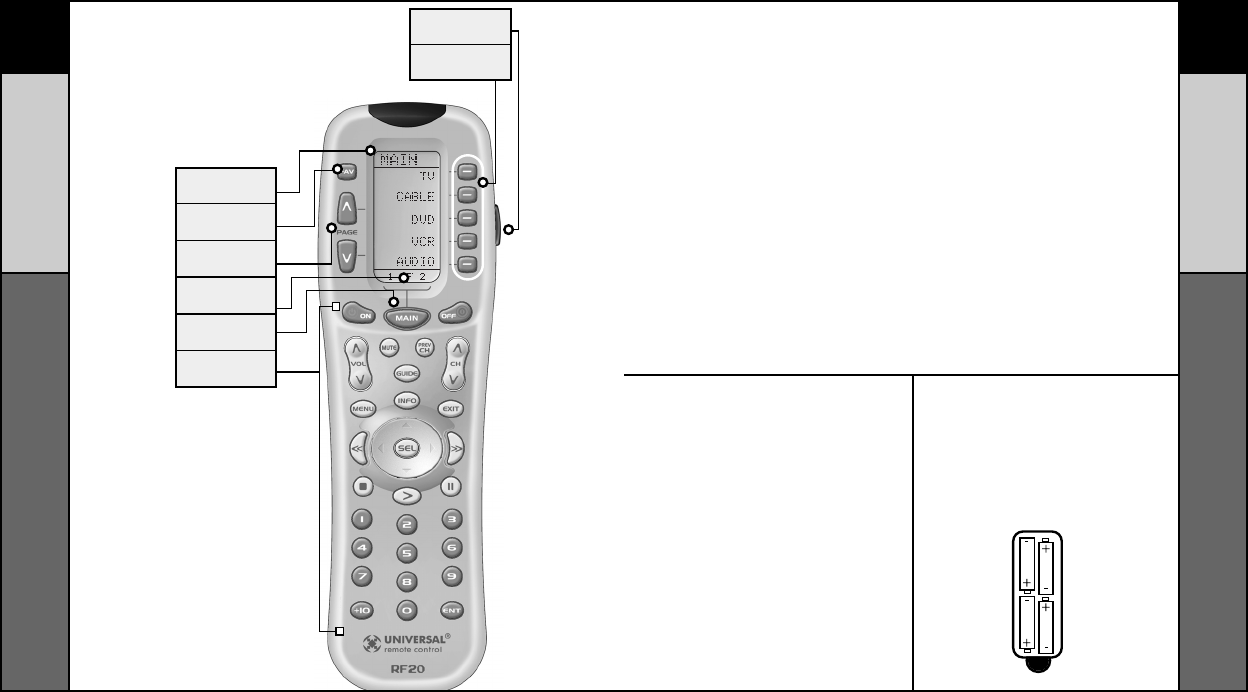
72
COMIENZO
71
UBICACIONES DE CONTROLES
TÍTULO
CANAL
FAVORITO
BOTONES PAGE
(PÁGINAS)
Cambian la página del botón
presentado
NÚMEROS DE
PÁGINAS
BOTÓN MAIN
(PRINCIPAL)
Le lleva al menú principal
BOTONES DE
FUNCIONES
BOTÓN LIGHT
(LUZ)
BOTONES DE PRESENTACIÓN
INDICADOS EN LA PANTALLA
Instalación de baterías
El primer paso consiste en
insertar las cuatro baterías AAA
que se incluyen en el paquete
en el compartimiento correspon-
diente, que se encuentra en la
parte de atrás del control remoto.
Oprima la lengüeta y levante la
cubierta. Tenga la bondad de
asegurarse de insertar las
baterías correctamente, como se
indica en el diagrama. Recuerde
que cada una de las baterías
tiene un extremo positivo y el otro
negativo y podrá determinarlos
por medio de los símbolos +
(positivo) y – (negativo). Una vez
que las baterías estén instaladas
correctamente, vuelva a poner la
cubierta en su lugar. ¡Ya estará
listo para comenzar!
Panorámica del comienzo
¡Esto es lo que es el MASTERCONTROL™ RF20!
El RF20 se diseñó para que maneje hasta diez componentes
distintos de audio y video y está preprogramado para controlar
virtualmente todas las marcas de TELEVISORES, reproductoras
de VCR, DVD y CD, cajas convertidoras de televisión por cable,
receptores satelitales, TiVo y otros DVR, componentes de audio,
grabadoras de cinta, PC Multimedia, radios XM, Ipod, X-Box,
controles de iluminación y otros productos de instalaciones
personalizadas. Ofrece también un conjunto impresionante de
características especiales diseñadas para proporcionarle muchos
dispositivos convenientes de ahorro de tiempo y realzar sus
experiencias de entretenimiento en general. Sin embargo, le
recomendamos encarecidamente que complete todos los pasos
de configuración básica antes de tratar de personalizar su RF20
con cualquiera de las características especiales avanzadas.
Panorámica e instalación
de baterías
Disposición del
teclado numérico
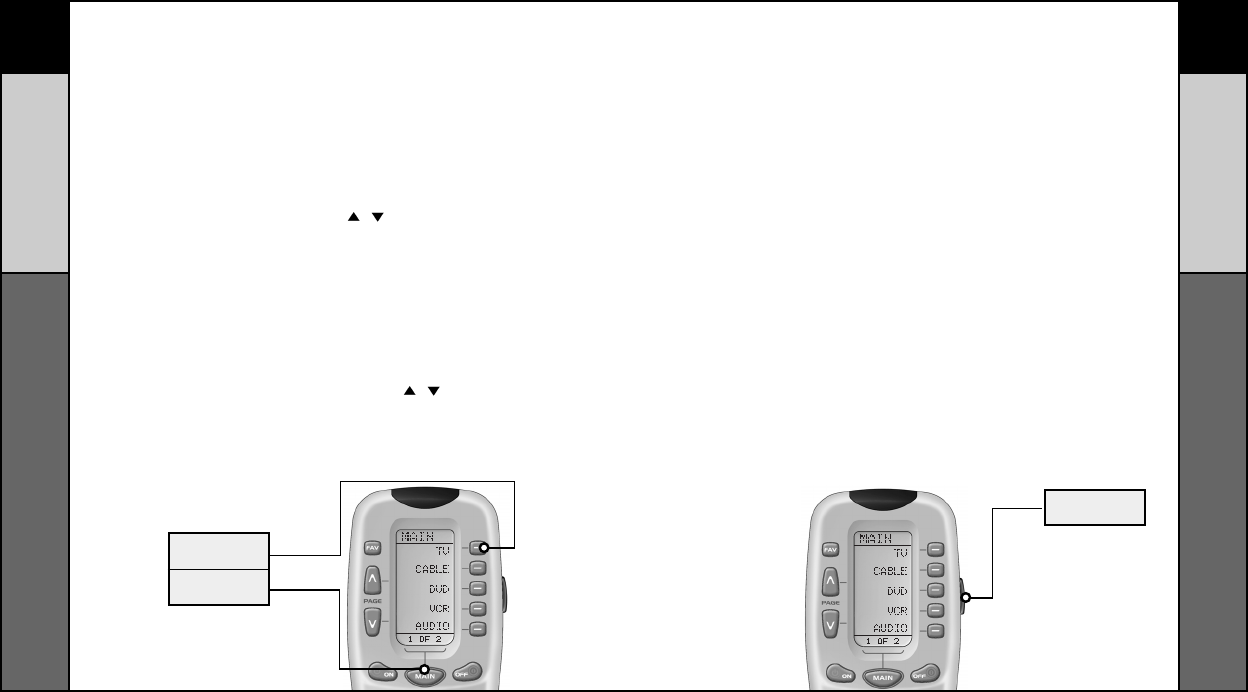
7473
COMIENZO
Activación de comandos de componentes–
De modo simple, fácil e intuitivo
Una vez que haya programado el RF20
para sus componentes, todo lo que
tendrá que hacer para lograr que fun-
cione un componente dado será oprimir
primeramente el botón MAIN (PRINCI-
PAL). Esto hará que aparezca la página 1
del menú MAIN (PRINCIPAL) en la pan-
talla de LCD. En la página 1 del menú
MAIN (PRINCIPAL) se presentan cinco
componentes. Luego, seleccione simple-
mente el componente que desee hacer
que funcione, oprimiendo el botón corre-
spondiente de presentación del compo-
nente indicado en la pantalla, en el lado
derecho de la pantalla de LCD. Por ejem-
plo, si oprime el botón TV para pre-
sentación, la palabra que se encuentra
en la parte superior de la pantalla pasará
de MAIN (PRINCIPAL) a TV y todos los
botones de su RF20 harán que funcione la
TV (televisión). Para manejar otro compo-
nente, sólo tendrá que volver a pulsar el
botón MAIN (PRINCIPAL) para regresar a
la página 1 del menú y escoger el sigu-
iente componente que quiera activar.
Si no ve el componente que desee mane-
jar en la página 1 del menú MAIN (PRIN-
CIPAL), use los botones PAGE (PÁGINA)
() ( ) del lado izquierdo de la pantalla
para que aparezca la página 2 del menú
MAIN (PRINCIPAL) que presenta cinco
componentes adicionales.
Cada componente se proporciona con
cinco páginas de botones de pre-
sentación de comandos prerrotulados (o
espacios para botones adicionales de
presentación de comandos). Una vez
más, use simplemente los botones PAGE
(PÁGINA) ( ) ( ) para ir a la página
siguiente de comandos o para regresar a
la página anterior de comandos.
BOTÓN TV DEVICE
(DISPOSITIVO DE
TELEVISIÓN)
BOTÓN MAIN
(PRINCIPAL)
BOTÓN
LIGHT (LUZ)
BOTÓN LIGHT (LUZ)
El teclado completamente iluminado por detrás hace que sea fácil
usar el RF20 en condiciones de oscuridad o escasa iluminación.
Sólo tiene que oprimir el botón LIGHT (LUZ) para que se iluminen
todos los botones del teclado y la pantalla LCD. Para apagar la ilu-
minación de fondo, vuelva a oprimir el botón LIGHT (LUZ) o
espere diez segundos (y la iluminación se desactivará
automaticamente). ¡Apaguen las luces!
¡Pruébelo!
Activación de comandos de
componentes
COMIENZOBOTÓN LIGHT (LUZ)
El botón Light (Luz)
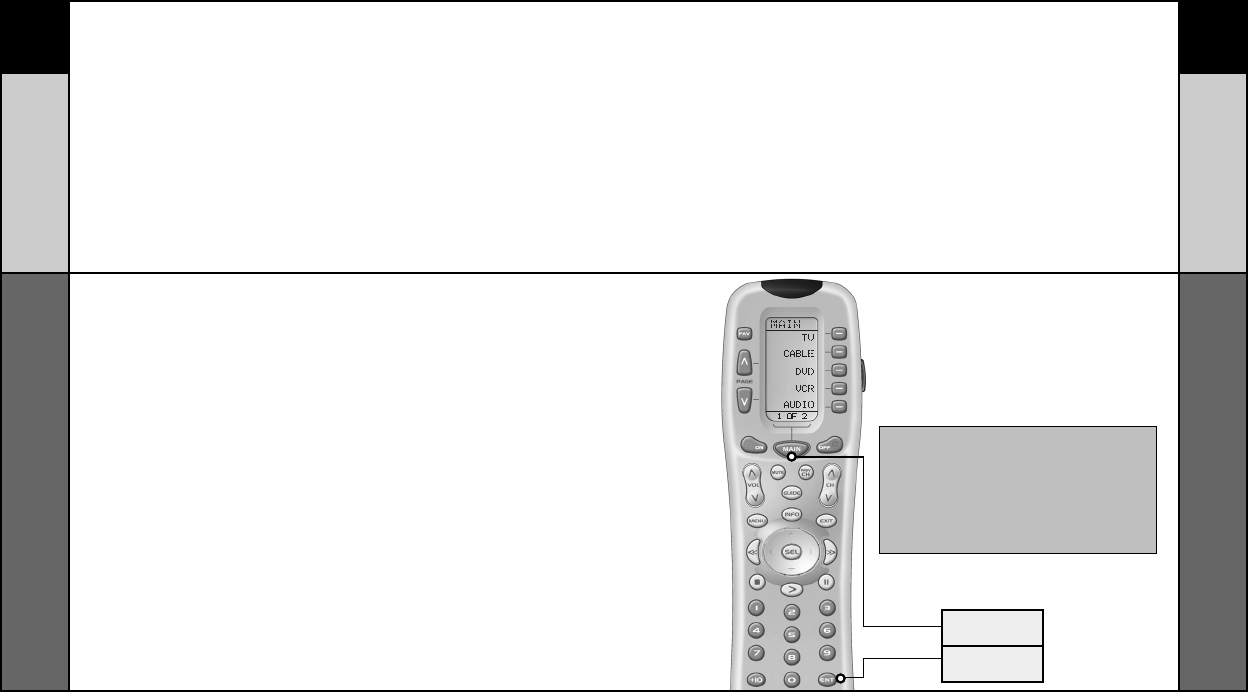
7675
CONFIGURACIÓN BÁSICA
Configuración básica – Panorámica
Hay dos modos de programar el RF20:
• Método de códigos preprogramados
• Método de aprendizaje
El método de códigos preprogramados le permite ajustar todos los botones al
mismo tiempo, de modo que es el más rápido y sencillo
de los dos. El método de aprendizaje le permite transferir funciones
de otros controles remotos (antiguos o nuevos), de botón en botón.
Método de códigos preprogramados
PASO 1:
Los códigos preprogramados de
tres dígitos se encuentran en la
parte posterior de este manual,
en la página 45. Los códigos se
enumeran por categorías de
componentes (o sea, TV, VCR,
DVD, etc.) y, luego, por marcas.
Por ejemplo, si desea encontrar
un código para un televisor
Sony, localice primeramente la
categoría TV y, luego, busque la
marca Sony.
Una vez que haya encontrado el
código de tres dígitos (o bien, en
algunos casos, varios números
de códigos) para el componente
que desee hacer que funcione
con su RF20, anótelos TODOS en
un papel. Es importante que
anote todos los números de
códigos porque sólo funcionará
para usted uno de ellos.
PASO 2:
A continuación, encienda el
componente que desee progra-
mar... por ejemplo, para que se
active el televisor. Vea el código
de configuración del fabricante
de su televisor en la lista de
consulta.
PASO 3:
Pulse y mantenga oprimidos al mismo tiempo
el botón MAIN (PRINCIPAL) y el ENT (Enter o
Intro) durante aproximadamente tres segundos,
hasta que aparezca la palabra “SETUP”
(“CONFIGURACIÓN”) en la parte superior de la
pantalla de LCD. Esto indicará que se encuentra
en el modo de configuración.
MPORTANTE: Ahora tendrá a su disposición
30 segundos para efectuar el paso siguiente
mientras esté en el modo SETUP
(CONFIGURACIÓN). Si no oprime un botón
en un lapso de 30 segundos, SETUP
(CONFIGURACIÓN) desaparecerá de la
pantalla, indicándole que ha salido del
modo de configuración y tendrá que volver
a comenzar la operación.
BOTÓN MAIN
(PRINCIPAL)
BOTON ENTER
(INTRO)
Método de códigos
preprogramados
CONFIGURACIÓN BÁSICA
Método de códigos preprogramados
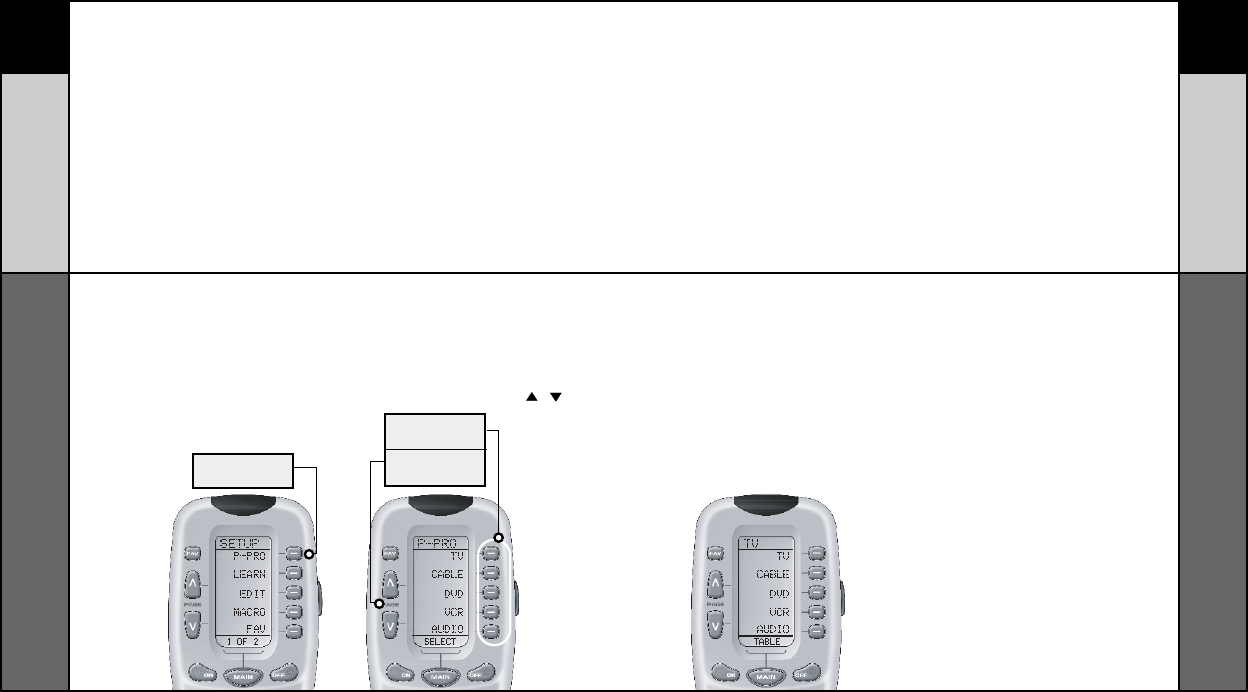
7877
CONFIGURACIÓN BÁSICA
PASO 4:
Oprima el botón de presentación
P-PRO para escoger el método
preprogramado.
Entonces, en la pantalla aparecerán los
cinco componentes de la página 1 del menú
MAIN (PRINCIPAL).
Para pasar a la página 2 del menú MAIN
( PRINCIPAL ) que proporciona otros cinco
componente adicionales, sólo tendrá que
pulsar los botones PAGE (PÁGINA) ( ) ( ).
PRIMEROS CINCO
NOMBRES DE DIS-
POSITIVOS
BOTONES PAGE
(PÁGINAS)
BOTÓN P-PRO
PASO 5:
Pulse el botón de presentación
del componente que desee
programar. Por ejemplo: si desea
configurar el botón del compo-
nente TV (TELEVISIÓN), pulse
el botón de presentación de TV.
En la parte inferior de la pantalla
de LCD parpadeará “FROM –
TABLE” (“DE LA – TABLA”).
PASO 6:
En este paso se verifica el tipo de
componente que desee manejar
con este botón. Por ejemplo: si
desea activar el televisor con el
botón TV, pulse simplemente una
vez más el botón de presentación
de TV. Sin embargo, si está con-
figurando por ejemplo AUX para
manejar una segunda reproduc-
tora de DVD, tendrá que oprimir
primeramente AUX en el paso 5 y,
a continuación, DVD en el paso 6.
Método de códigos preprogramados
CONFIGURACIÓN BÁSICA
Método de códigos preprogramados
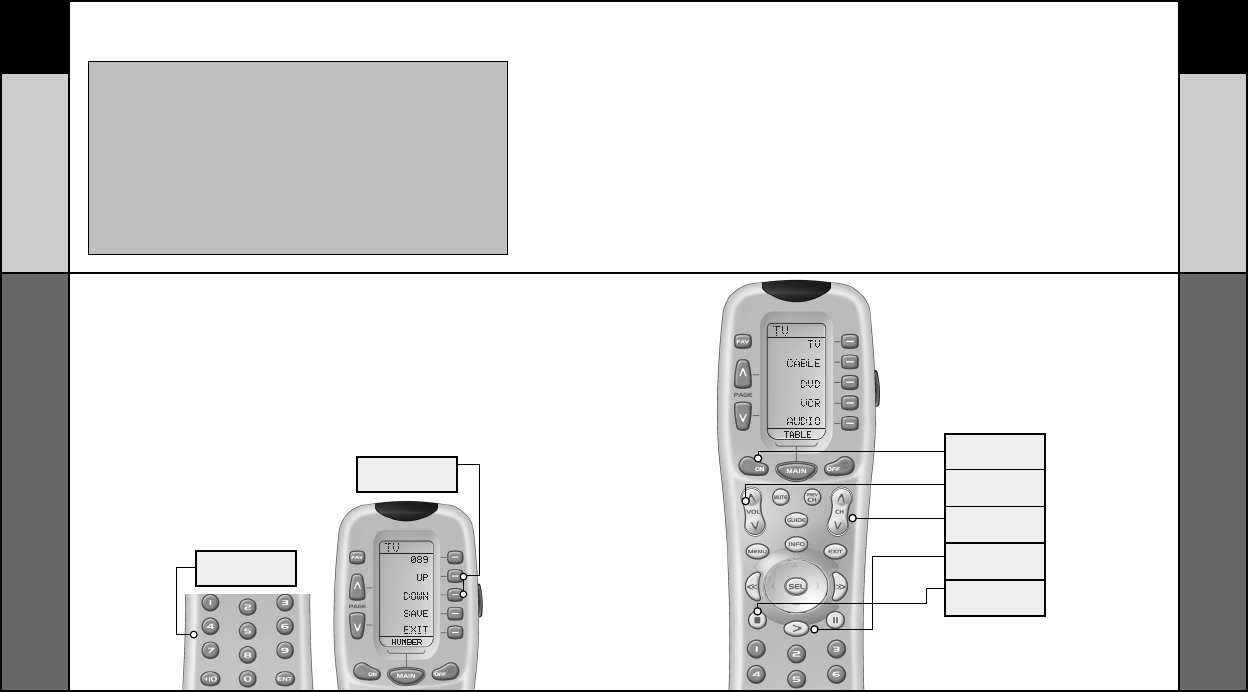
79 80
CONFIGURACIÓN BÁSICA
NOTA:
Si su componente no se apaga cuando haya introducido
todos los números de códigos para su marca, podrá explo-
rar todos los demás números de códigos preestablecidos
en el RF20 para el componente de que se trate (en este
caso, TV), utilizando los botones UP (ARRIBA) y DOWN
(ABAJO) de presentación en la pantalla. (Es probable que
su componente lo habrá fabricado en realidad otra marca).
No obstante, la mayoría de las tablas de códigos son tan
grandes que por lo común es más rápida la utilización del
método de aprendizaje de la página 83.
PASO 7:
Apunte el RF20 hacia el componente que
desee programar (en este ejemplo : TV) y
teclee el código de tres dígitos que haya ano-
tado para dicho componente específico.
Use los botones numéricos 0 a 9 en el control
remoto para introducir el código. Si el número
de código que haya tecleado es correcto, el
componente se apagará. Si no lo hace así,
siga introduciendo números de códigos de su
lista hasta que se apague. Algunas marcas
tienen varios números de códigos posibles.
PASO 8:
Cuando se apague el componente, pulse el
botón ON (ENCENDIDO) para volver a acti-
varlo. A continuación podrá probar los
botones de volumen y canales (para TV) o
PLAY (REPRODUCCIÓN) (para VCR o DVD)
con el fin de comprobar que funcionen bien.
Si alguno de los botones no responde de
modo apropiado, tendrá que encontrar un
nuevo código que sea correcto.
BOTÓN ON
(ENCENDIDO)
BOTONES VOL
(VOLUMEN)
BOTONES CH
(CANALES)
BOTÓN PLAY
(REPRODUCCIÓN)
BOTÓN STOP
(DETENCIÓN)
Por ejemplo, es posible que su TV
Sony se apague con el número
de código 147; pero que los con-
troles de volumen no funcionen
bien. Si ocurre esto, pruebe con
el siguiente número de código
incluido en la lista para ese
componente hasta que logre
una coincidencia perfecta.
BOTONES UP
(ARRIBA) y
DOWN (ABAJO)
BOTONES
NUMÉRICOS
CONFIGURACIÓN BÁSICA
Método de códigos preprogramados
Método de códigos preprogramados
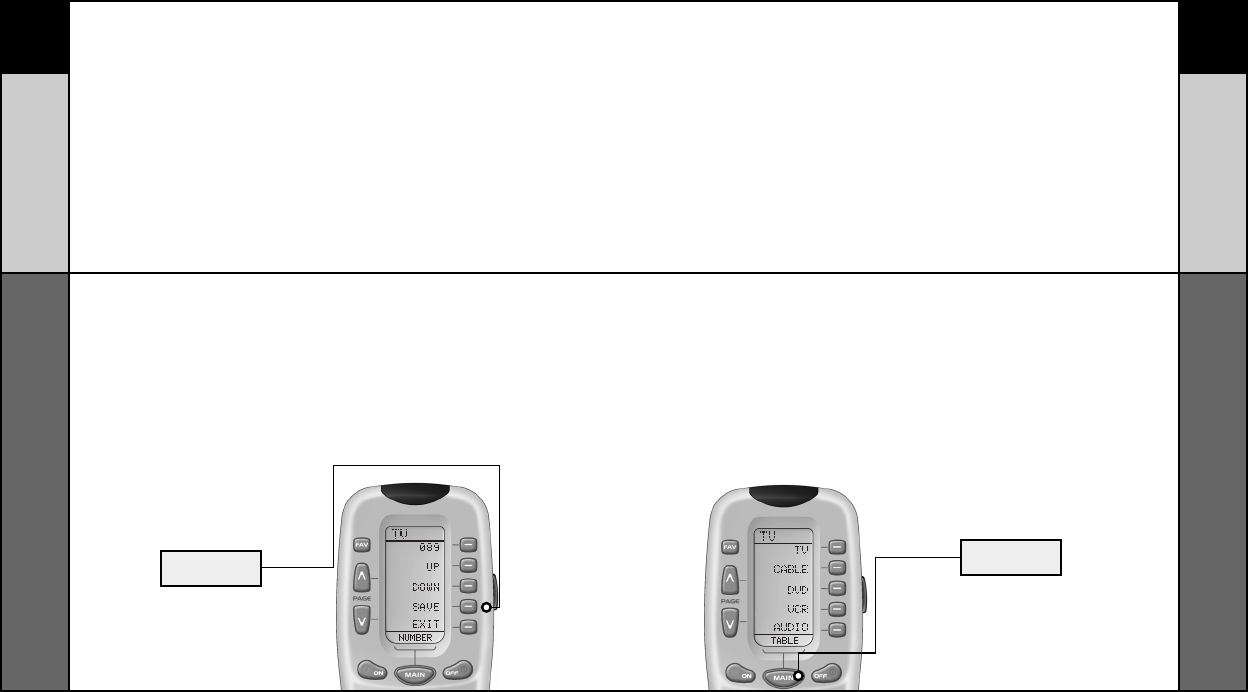
81 82
CONFIGURACIÓN BÁSICA
PASO 9:
Una vez que haya encontrado el
código correcto, almacénelo pul-
sando el botón de presentación
SAVE (ALMACENAMIENTO) que
aparece en la pantalla de LCD.
Parpadeará en ésta última dos
veces la palabra “SAVED”
(“ALMACENADO”), indicando
que se ha almacenado con
éxito el número de código.
BOTÓN SAVE
(ALMACENAMIENTO)
PASO 10 :
Salga del modo SETUP
(CONFIGURACIÓN) pulsando
dos veces el botón MAIN
(CONFIGURACIÓN). Cuando
aparezca MAIN (PRINCIPAL)
en la pantalla de LCD habrá
regresado al funcionamiento
normal.
A CONTINUACIÓN, PROGRAME EL RESTO DE
SUS COMPONENTES, REPÍTIENDO LOS PASOS
1 A 9. EN LA MAYORÍA DE LOS SISTEMAS,
PODRÁ TERMINAR LA CONFIGURACIÓN
BÁSICA EN UNOS CUANTOS MINUTOS Y
DESPRENDERSE DE TODOS SUS CONTROLES
REMOTOS ANTIGUOS.
SI LE FALTAN TODAVÍA COMANDOS PARA
CONTROLAR CUALQUIERA DE SUS COMPO-
NENTES, USE EL MÉTODO DE APRENDIZAJE
DE LA PÁGINA 83.
BOTÓN MAIN
(PRINCIPAL)
CONFIGURACIÓN BÁSICA
Método de autobúsqueda programada
Método de códigos preprogramados
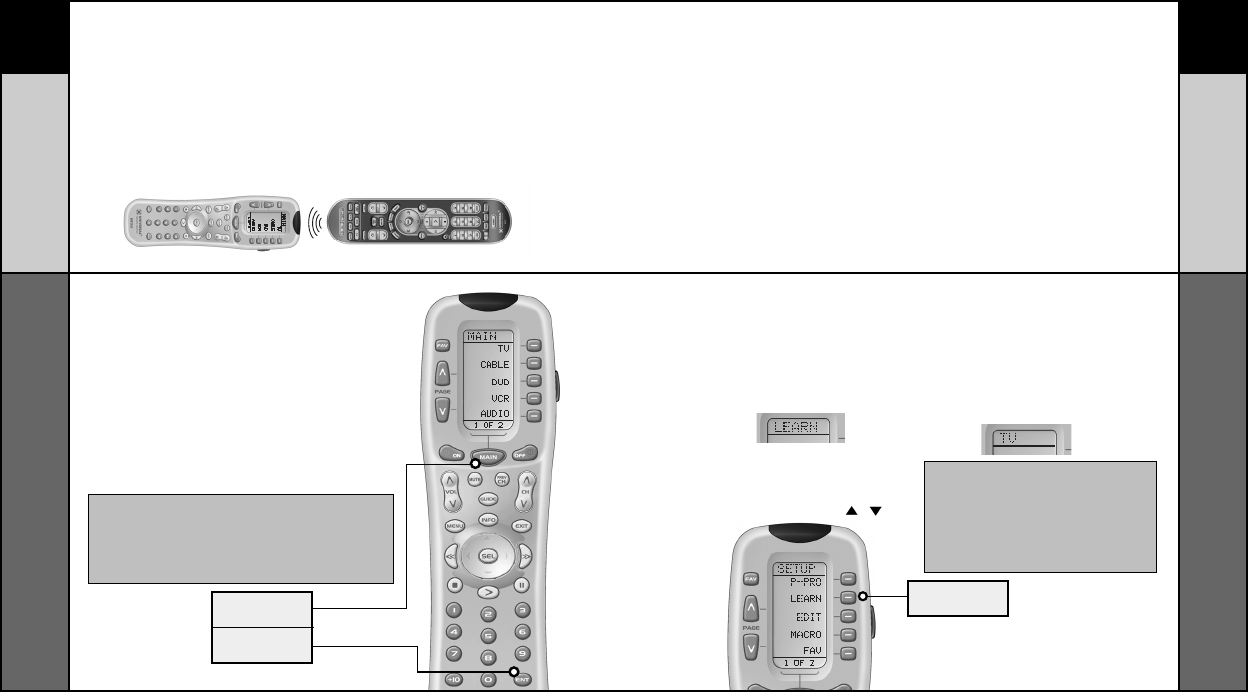
84
CONFIGURACIÓN BÁSICA
83
CONFIGURACIÓN BÁSICA
Método de aprendizaje
Método de aprendizaje
El RF20 puede “aprender” realmente comandos de otros controles
remotos (antiguos o nuevos), de botón en botón, de modo que nunca
se hará obsoleto. ¡El RF20 es el último control remoto que necesitará!
Sólo tiene que seguir estos pasos sencillos:
PASO 1:
Alinee el RF20 con el otro control remoto, cabeza a
cabeza, a de dos y medio a cinco centímetros (una a
dos pulgadas de distancia).
PASO 2:
En el RF20, Pulse y mantenga oprimidos al mismo tiempo los
botones MAIN (PRINCIPAL) y ENT (Enter o Intro) durante
aproximadamente tres segundos, hasta que aparezca la pal-
abra “SETUP” (“CONFIGURACIÓN”) en la parte superior de
la pantalla de LCD. Esto indicará que se encuentra en la actu-
alidad en el modo SETUP (CONFIGURACIÓN).
BOTÓN MAIN
(PRINCIPAL)
BOTÓN ENTER
(INTRO)
PASO 3:
Oprima el botón de presentación LEARN
(APRENDIZAJE) en la pantalla de LCD. La
parte superior de la pantalla pasará a
“LEARN” (“APRENDIZAJE”) y presentará
los cinco componentes de la página 1 del
menú MAIN (PRINCIPAL).
Para pasar a la página 2 del menú MAIN
(PRINCIPAL que contiene otros cinco com-
ponentes adicionales, pulse simplemente
los botones PAGE (PÁGINAS) ( ) ( ).
PASO 4:
Seleccione el componente al
que desee enseñarle comandos,
pulsando el botón de presentación
de componente de la pantalla de
LCD (en este ejemplo: TV). La
parte superior de la pantalla
de LCD pasará a “TV”.
BOTÓN LEARN
(APRENDIZAJE)
Método de aprendizaje
IMPORTANTE: Ahora tendrá a su disposición 30 segundos
para efectuar el paso siguiente mientras esté en el modo
SETUP (CONFIGURACIÓN). Si no oprime un botón en un
lapso de 30 segundos, SETUP (CONFIGURACIÓN) desapare-
cerá de la pantalla, indicándole que ha salido del modo de
configuración y tendrá que volver a comenzar la operación.
NOTA: Si desea enseñarle cualquier comando
a un botón de componente, pulse el botón de
presentación de dispositivo deseado una vez
que aparezca “MAIN” (“PRINCIPAL”) en la
parte superior de la pantalla, oprimiendo el
botón PAGE (PÁGINAS). La parte superior de
la pantalla pasará a “READY” (“LISTO”).
Luego, vaya al paso 6.
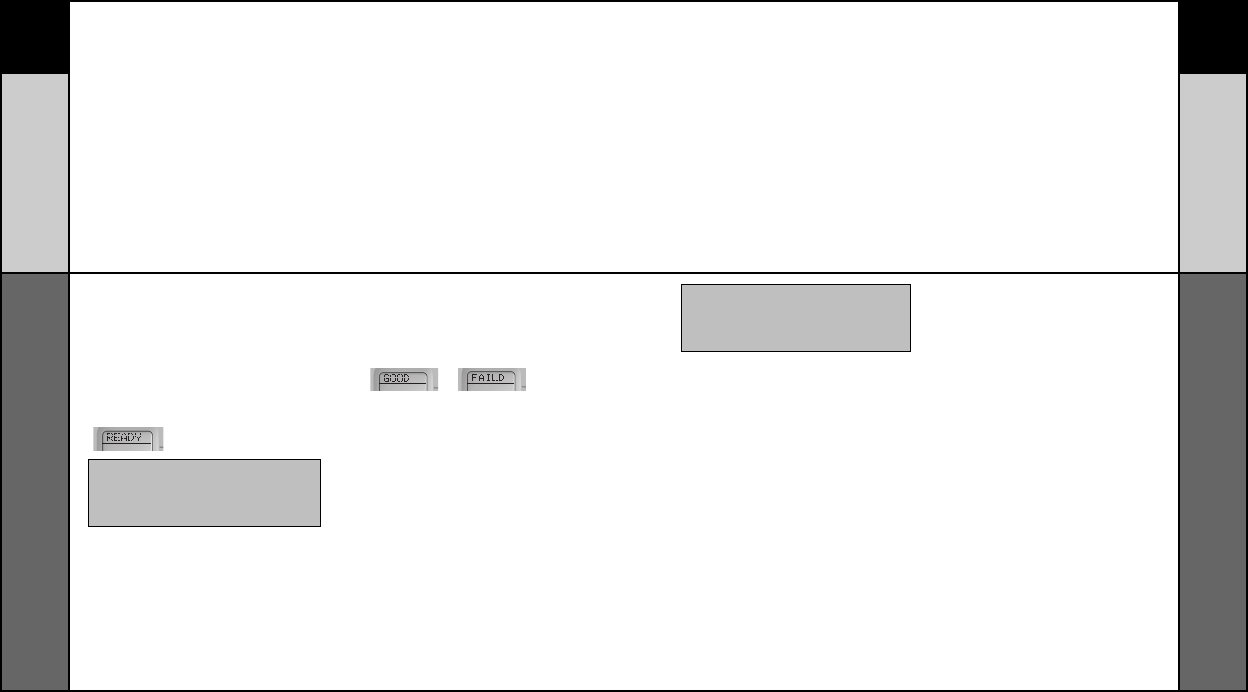
86
CONFIGURACIÓN BÁSICA
Método de aprendizaje
85
CONFIGURACIÓN BÁSICA
PASO 5:
Pulse cualquier botón del RF20 al
que desee enseñarle un comando.
La parte superior de la pantalla
pasará a “READY” (“LISTO”) y en
la parte inferior se presentará el
nombre del botón que haya
oprimido.
PASO 6:
Pulse y mantenga oprimido el botón
del otro control remoto que desee
“enseñarle” al RF20 hasta que la
presentación en la pantalla de LCD
del RF20 pase ya sea a “GOOD”
(“BUENO”) o “FAIL” (“FALLO”).
Si aparece el rótulo “GOOD”
(“BUENO”) en la parte superior
de la pantalla, habrá tenido éxito.
Si aparece la palabra “FAIL”
(“FALLO”), trate de “enseñarle” el
mismo botón al RF20 una vez más,
repitiendo los PASOS 5 y 6.
PASO 7:
Luego, siga enseñándole al RF20
cualesquiera otros comandos de sus
demás controles remotos, repitiendo
los PASOS 4 a 6 (para volver al PASO
4 sólo tendrá que pulsar MAIN
(PRINCIPAL) una vez).
PASO 8:
Una vez que haya terminado de
enseñarle todos los comandos
de botones al RF20, vuelva al fun-
cionamiento normal oprimiendo el
botón MAIN (PRINCIPAL) dos veces.
NOTA: Si no ve en la pantalla de LCD el botón
de presentación al que desee enseñarle, use
los botones PAGE (PÁGINAS) (p) (q). Los únicos
botones a los que no podrá enseñarles son el
PAGE (PÁGINAS) y el MAIN (PRINCIPAL).
• Vaya a otra habitación. Los televisores
de plasma, los rayos del sol, la iluminación
de halógeno o la de cuarzo pueden obsta-
culizar el proceso de aprendizaje.
• Aun cuando el viejo control remoto
parezca estar funcionando bien, póngale
nuevas baterías alcalinas.
• Haga variar gradualmente la distancia
entre los controles remotos. Pruebe 2.5,
5 cm (1 o 2 pulgadas) y así sucesivamente,
hasta llegar a 1.2 m (4 pies).
• Trate de darle un golpecito al botón
de su viejo control remoto, en lugar de
pulsarlo y mantenerlo oprimido durante
el proceso de aprendizaje.
Información adicional sobre el proceso
de aprendizaje:
• Las funciones aprendidas sobreseen
cualesquiera funciones existentes que
se hayan preprogramado en el
control remoto.
• Todos los botones se pueden aprender
excepto los de PAGE (PÁGINA), MAIN
(PRINCIPAL) y LIGHT (LUZ).
• Las funciones aprendidas se borran
automáticamente cuando se aprende una
nueva función en el mismo botón.
• Las funciones aprendidas se retienen
incluso después de que se haya progra-
mado en el control remoto un número de
código diferente.
• Para volver a una función preprogra-
mada original, se deberá borrar una
función aprendida.
NOTA: Pruebe todos sus nuevos coman-
dos. Si alguno de ellos no funciona, pruebe
otra vez con el método de aprendizaje,
siguiendo las recomendaciones que se
dan a continuación:
Método de aprendizaje
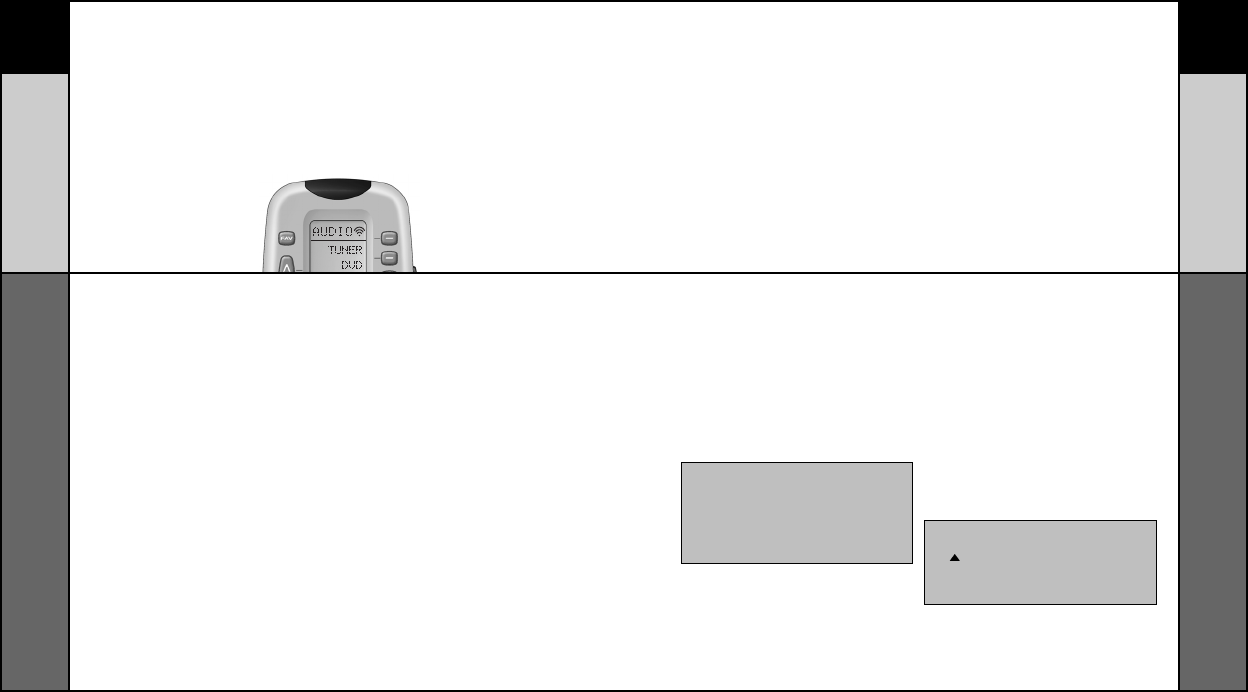
88
PERSONALIZACIÓN
87
CONFIGURACIÓN BÁSICA
Icono de transmisión (señal de ocupado)
Cuando se esté transmitiendo un comando, aparecerá un icono en el
lado de la extrema derecha de la pantalla de LCD. Esto indica que se
está enviando una señal. Esto resulta especialmente útil al configurar
macros y FAV, puesto que parpadea con cada paso de una secuencia
de comandos.
CARACTERÍSTICA DE BLOQUEO PARA NIÑOS
Esta característica de “bloqueo para niños” impide que los pequeños
utilicen el control remoto sin autorización. Bloquea todas las funciones
del control remoto.
Para activarlo:
Pulse simultáneamente los botones +10 y ENT (Enter o Intro) durante
3 segundos. En la pantalla de LCD parpadeará “LOCK” (“BLOQUEO”)
tres veces y, luego, permanecerá “LOCK” (“BLOQUEO”).
Para volver al funcionamiento normal:
Vuelva a pulsar al mismo tiempo el botón +10 y el de ENT (Enter o Intro)
durante tres segundos. En la pantalla de LCD aparecerá el último modo
de uso.
Personalización de su RF20 con características
especiales avanzadas
Después de que haya concluido su configuración básica, podrá decidir que el
manejo sea más fácil, personalizando el RF20 del modo que desee, por medio de
las características especiales avanzadas de configuración que se describen en
esta sección.
Personalización de la pantalla de LCD
Podrá modificar o cambiar con facilidad el nombre de cualquiera de los botones
de presentación (incluyendo los canales favoritos) en la pantalla de LCD, siguien-
do los pasos que se indican a continuación:
PASO 1:
Pulse y mantenga oprimidos al
mismo tiempo el botón MAIN
(PRINCIPAL) y el ENT (Enter o Intro)
durante aproximadamente tres
segundos, hasta que aparezca la
palabra “SETUP” (“CONFIGURACIÓN”)
en la parte superior de la pantalla de
LCD. Esto indicará que se encuentra
en el modo de configuración.
PASO 2:
Pulse el botón de presentación
EDIT (CORRECCIÓN). La presentación
de la pantalla de LCD pasará al menú
de EDIT (CORRECCIÖN).
PASO 3:
Pulse el botón de presentación TEXT
(TEXTO). En la pantalla aparecerán la
lista de componentes y la palabra “EDIT”
(CORRECCIÓN) en la parte superior.
PASO 4:
Navegue a la página y el componente
donde haya un rótulo de botón que
quiera corregir, escogiendo entre los
botones de presentación FAV, MAIN
(PRINCIPAL) y COMPONENT
(COMPONENTE). Luego, use el botón
PAGE (PÁGINAS).
IMPORTANTE: Ahora tendrá a su disposición 30
segundos para efectuar el paso siguiente mientras
esté en el modo SETUP (CONFIGURACIÓN). Si no
oprime un botón en un lapso de 30 segundos,
SETUP (CONFIGURACIÓN) desaparecerá de la pan-
talla, indicándole que ha salido del modo de configu-
ración y tendrá que volver a comenzar la operación.
NOTA: Si desea cambiar el nombre de un botón
de componente, pulse dos veces el botón Page
Up ( ) (Página arriba). La parte superior de la
pantalla pasará a MAIN (PRINCIPAL), y podrá ir
a la página 1 o la 2 del menú MAIN (PRINCIPAL)
antes de llegar al paso 5.
Icono de transmisión
(señal de ocupado)
Personalización de
la pantalla de LCD
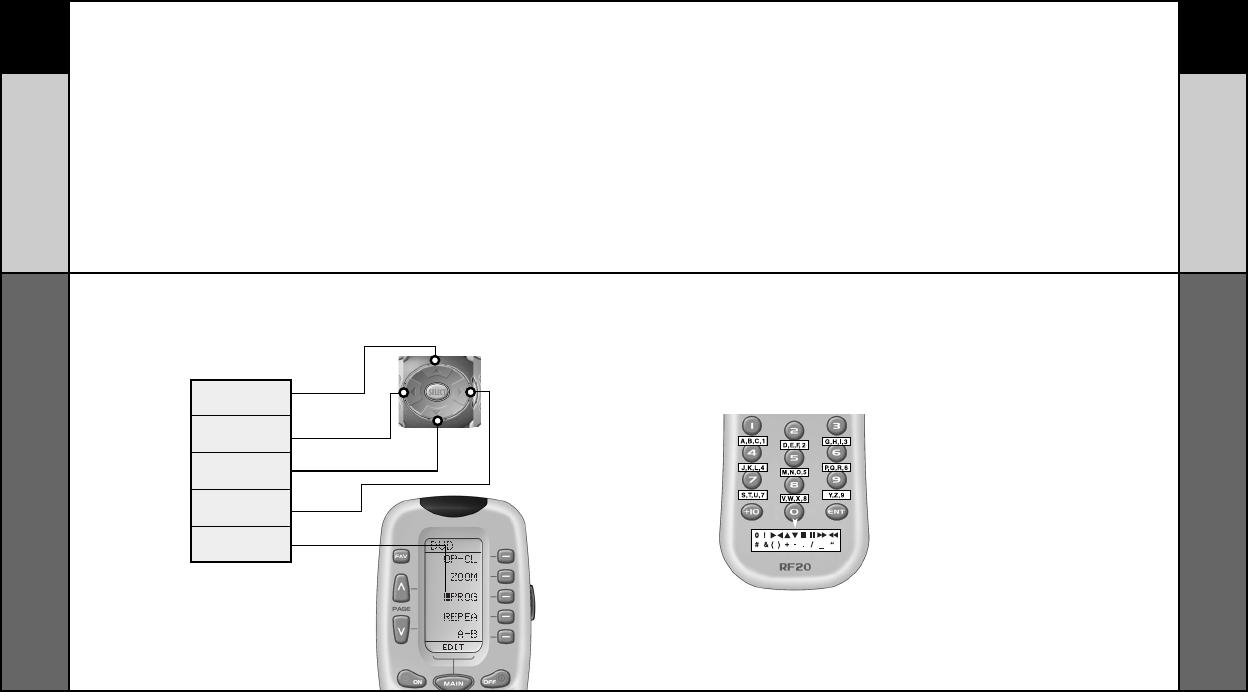
9089
PERSONALIZACIÓN
Personalización de
la pantalla de LCD
PASO 5:
Pulse el botón que desee
corregir. El primer espacio de
carácter del nombre de su
botón comenzará a parpadear.
PASO 8:
Cuando haya acabado de corre-
gir el botón, pulse el que haya
corregido y aparecerá “SAVED”
(“ALMACENADO”) en la parte
inferior de la pantalla.
Para cambiar los rótulos de
cualquier otro botón en el mismo
componente, pulse el siguiente
botón y, a continuación, repita
los pasos 6 a 8. Si desea corregir
un botón en otro componente,
pulse una vez el botón MAIN
(PRINCIPAL) y, luego, repita los
pasos 4 a 8.
PASO 9:
Una vez que haya terminado la
corrección de los botones, pulse
cuatro veces el botón MAIN
(PRINCIPAL) para volver al
funcionamiento normal.
PASO 6:
Cambie el carácter utilizando
cualquiera de las teclas numéricas.
Cada pulsación del mismo botón
numérico escogerá el carácter sigu-
iente de su grupo, como se muestra
en el diagrama que sigue.
PASO 7:
Una vez que aparezca el carácter
que desee, vaya al siguiente espa-
cio oprimiendo el botón de cursor
a la derecha.
PERSONALIZACIÓN
Personalización de
la pantalla de LCD
UP CURSOR
(CURSOR ARRIBA)
El botón borra todo el texto
LEFT CURSOR (CURSOR
A LA IZQUIERDA)
Desplaza el carácter
parpadeante a la izquierda
DOWN CURSOR
(CURSOR ABAJO)
Borra el carácter que esté
parpadeando
RIGHT CURSOR (CURSOR
A LA DERECHA)
Desplaza el carácter
parpadeante a la derecha
CARÁCTER
PARPADEANTE
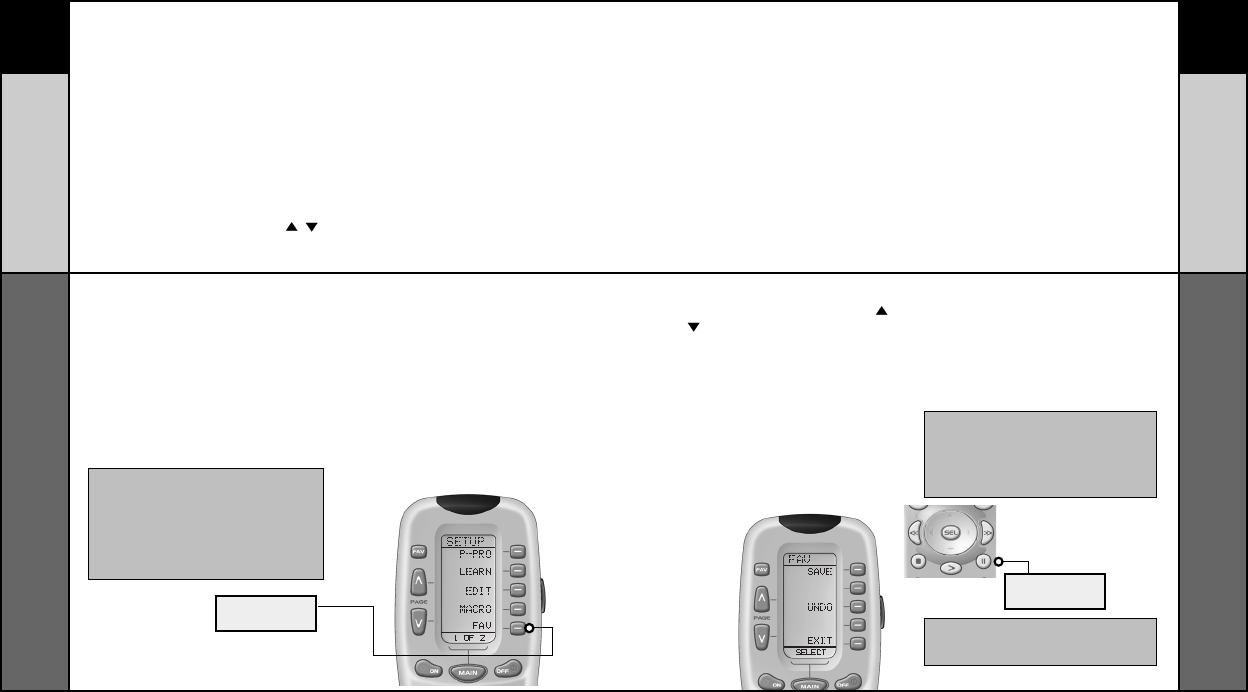
9291
PERSONALIZACIÓN
Configuración de canales favoritos
Esta es una de las características más convenientes del RF20. Una
vez configurada, podrá seleccionar hasta 40 canales favoritos mediante
la pulsación de un botón – sin necesidad de recordar ni teclear un
número de canal. ¡Deje que empiece el recorrido de canales!
Para ingresar a la lista de Favorite Channel (Canales favoritos), pulse
simplemente el botón FAV para que aparezca la página 1 de la lista de
canales favoritos. Hay ocho páginas de canales favoritos, con cinco de
ellos en cada una de ellas, para un total de 40 canales. Sólo tendrá que
usar los botones PAGE (PÁGINA) ( () para encontrar el canal que
desee configurar. Cada canal se podrá ajustar para que se seleccione
instantáneamente al pulsar un botón.
Para configurar un botón Favorite Channel (Canales favoritos), siga los pasos que
se indican a continuación:
PASO 1:
Pulse y mantenga oprimidos al mismo
tiempo el botón MAIN (PRINCIPAL) y el ENT
(Enter o Intro) durante aproximadamente tres
segundos, hasta que aparezca la palabra
“SETUP” (“CONFIGURACIÓN”) en la parte
superior de la pantalla de LCD. Esto indicará
que se encuentra en el modo de configuración.
PASO 2:
Pulse el botón de presentación FAV.
En la parte superior de la pantalla
aparecerá FAV. En la parte inferior
de la pantalla parpadeará
“SELECT” (“SELECCIÓN”).
IMPORTANTE: Ahora tendrá a su disposición
30 segundos para efectuar el paso siguiente
mientras esté en el modo SETUP
(CONFIGURACIÓN). Si no oprime un botón en un
lapso de 30 segundos, SETUP (CONFIGURACIÓN)
desaparecerá de la pantalla, indicándole que ha
salido del modo de configuración y tendrá que
volver a comenzar la operación.
BOTÓN FAV
PASO 3:
Utilice los botones PAGE (PÁGINA) ( )
() hasta que encuentre el nombre (por
ejemplo: ABC, CBS, NBC) del canal favorito
que quiera configurar.
PASO 4:
Pulse el botón de presentación del canal
favorito que desee configurar. En la parte
superior de la pantalla aparecerá entonces el
nombre del canal. En la parte inferior se pre-
sentará “STEP0” (“PASO0”) para indicar que
no ha introducido todavía el número del canal.
PASO 5:
Pulse el botón de componente TV, SAT o
CABLE (seleccione el componente que utilice
para introducir números de canales).
PASO 6:
Oprima cada uno de los botones
numéricos para el canal.
Nota: Si se repite un número al configurar el
canal (por ejemplo, canal “33” o “522”), lo
mejor suele ser introducir una demora de medio
segundo entre los números de identificación,
oprimiendo el botón (II) PAUSE (PAUSA).
Cada pulsación del botón PAUSE (PAUSA)
incrementará la demora en medio segundo.
Algunas marcas de televisores requieren
un comando ENT (Enter o Intro) después
de los números de canales.
BOTÓN PAUSE
(PAUSA)
Configuración de
canales favoritos
PERSONALIZACIÓN
Configuración de
canales favoritos
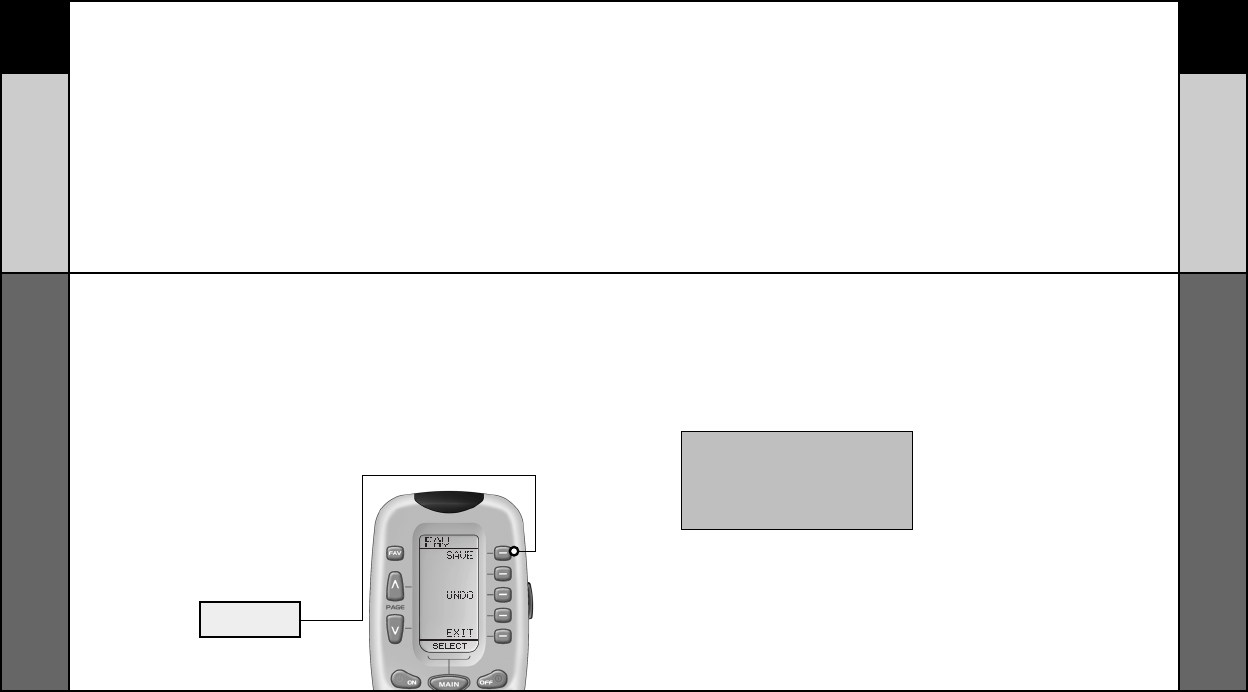
94
PERSONALIZACIÓN
93
PERSONALIZACIÓN
PASO 7:
Pulse el botón LIGHT (LUZ) después de
introducir el número de canal.
Aparecerá una nueva pantalla que
mostrará SAVE (ALMACENAMIENTO),
UNDO (VUELTA ATRÁS) o EXIT (SALIDA).
PASO 8:
Para almacenar el canal que haya intro-
ducido, pulse el botón de presentación
de SAVE (ALMACENAMIENTO). El botón
de presentación UNDO (VUELTA ATRÁS)
le permitirá borrar la última introducción.
El botón de presentación EXIT (SALIDA)
borrará todas las introducciones del
botón de que se trate.
PASO 9:
Cuando haya terminado de ajustar los
botones de canales favoritos, pulse dos
veces el botón MAIN (PRINCIPAL) para
regresar al funcionamiento normal.
Configuración de
canales favoritos
BOTÓN SAVE
(ALMACENAMIENTO)
PASO 1:
Pulse y mantenga oprimidos al mismo tiempo
el botón MAIN (PRINCIPAL) y el ENT (Enter o
Intro) durante aproximadamente tres segun-
dos, hasta que aparezca la palabra “SETUP”
(“CONFIGURACIÓN”) en la parte superior de
la pantalla de LCD. Esto indicará que se
encuentra en el modo de onfiguración.
PASO 2:
Pulse el botón de presentación MACRO en la
pantalla de LCD. En la parte superior apare-
cerá “MACRO”. En la parte inferior de la pan-
talla parpadeará “SELECT” (“SELECCIÓN”).
PASO 3:
Pulse el botón ON (ENCENDIDO), Aparecerá
“ON” (“ENCENDIDO”) en la parte superior de
la pantalla de LCD. En la inferior se presentará
“STEP0” (“PASO0”), indicando que todavía no
se han introducido pasos de macro.
PASO 4:
Pulse el primer botón de presentación del com-
ponente que desee que encienda el macro (en
este ejemplo: TV) y aparecerá “TV” en la parte
superior de la pantalla y “STEP 1” (“PASO 1”)
en la inferior.
PASO 5:
Luego, pulse el botón ON (ENCENDIDO) para
confirmar el comando y aparecerá “STEP 2”
(“PASO 2”) en la parte inferior de la pantalla.
(NOTA: Siempre que se pulse un botón, se
contará otro paso de macro y se presentará
en la parte inferior de la pantalla).
PASO 6:
A continuación, pulse el botón MAIN (PRIN-
CIPAL) para volver a la lista principal de com-
ponentes. (Aparecerá “STEP 3” (“PASO 3”)
en la parte inferior de la pantalla).
Configuración de MacroPower™
MacroPower™ es una característica única que le permite ENCENDER y APAGAR
todos sus componentes al mismo tiempo, mediante la pulsación de un solo botón. A
esto lo llamamos “macro”. Lo que requeriría normalmente varios controles remotos y
diversas pulsaciones de botones, el RF20 lo puede realizar al oprimir un solo botón.
Además de los botones de ENCENDIDO y APAGADO de la alimentación, cualquiera
de los botones de presentación (en cualquier componente o página) se podrá ajus-
tar también para que sea de macros. ¡Sienta el poder de todo esto!
Para configurar un botón de macro de ENCENDIDO que ACTIVE varios
componentes al mismo tiempo (por ejemplo: TV, VCR y CABLE), siga los
pasos que se indican a continuación:
IMPORTANTE: Ahora tendrá a su disposición 30 segun-
dos para efectuar el paso siguiente mientras esté en el
modo SETUP (CONFIGURACIÓN). Si no oprime un botón
en un lapso de 30 segundos, SETUP (CONFIGURACIÓN)
desaparecerá de la pantalla, indicándole que ha salido
del modo de configuración y tendrá que volver a
comenzar la operación.
Configuración
de MacroPower
™
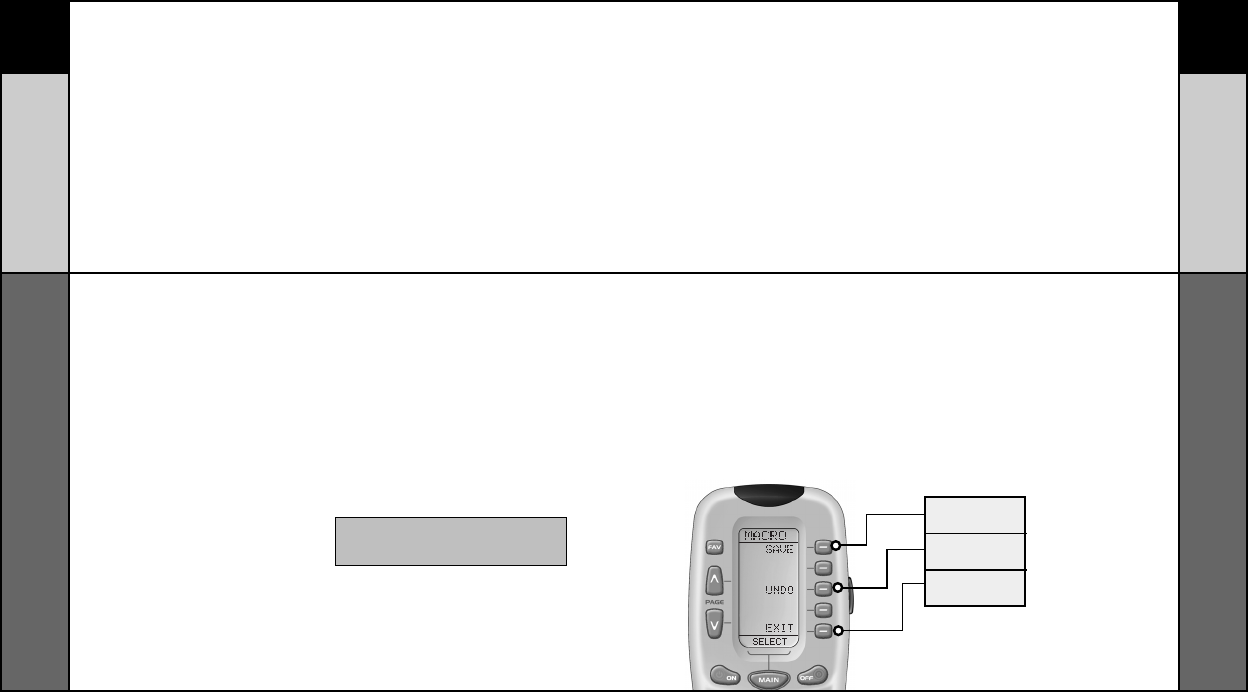
96
PERSONALIZACIÓN
95
PERSONALIZACIÓN
PASO 7:
Pulse el botón de presentación
del segundo componente que
desee que encienda el macro (en
este ejemplo: VCR) y aparecerá
“VCR” en la parte superior de la
pantalla. (“STEP 4” (“PASO 4”) se
presentará en la parte inferior).
PASO 8:
Luego, pulse el botón ON
(ENCENDIDO) para confirmar el
comando. (Aparecerá “STEP 5”
(“PASO 5”) en la parte inferior
de la pantalla).
PASO 9:
Luego, pulse el botón MAIN
(PRINCIPAL) para volver a la lista
principal de componentes. (Se
presentará “STEP 6” (“PASO 6”)
en la parte inferior de la pantalla).
PASO 10:
Pulse el botón de presentación
del tercer componente que
desee que encienda el macro
(en este ejemplo: CABLE) y
aparecerá “CABLE” en la parte
superior de la pantalla. (“STEP 7”
(“PASO 7”) se presentará en la
parte inferior).
PASO 11:
A continuación, pulse el botón ON
(ENCENDIDO) para confirmar el
comando. (Aparecerá “STEP 8”
(“PASO 8”) en la parte inferior
de la pantalla).
También podrá programar retrasos
entre los comandos pulsando el
botón (II) PAUSE (PAUSA) Cada
pulsación de dicho botón agregará
medio segundo al retraso.
NOTA: No se preocupe de la cantidad de pasos.
Cada botón de macro puede almacenar hasta
190 pasos. ¡No es probable que los agote!
Configuración de
MacroPower
™
PASO 12:
Pulse el botón LIGHT (LUZ) para
terminar su macro. Aparecerá
una pantalla nueva.
PASO 13:
Si está contento con su macro, pulse el
botón de presentación SAVE (ALMACE-
NAMIENTO). El botón de presentación
UNDO (VUELTA ATRÁS) le permite borrar
el último paso. El botón de presentación
EXIT (SALIDA) borra todos los pasos del
macro.
PASO 14:
Pulse dos veces el botón MAIN
(PRINCIPAL) para regresar al
funcionamiento normal.
BOTÓN SAVE
(ALMACENAMIENTO)
BOTÓN UNDO
(VUELTA ATRÁS)
BOTÓN EXIT
(SALIDA)
Configuración de
MacroPower
™
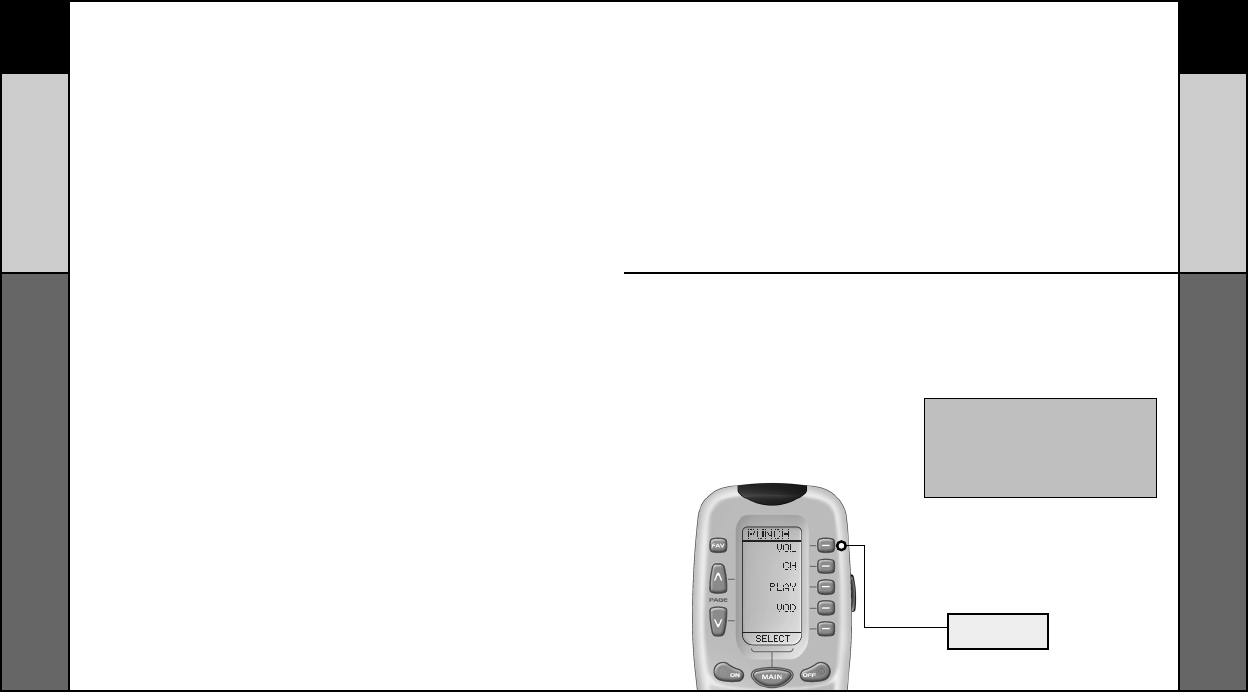
98
CONFIGURACIÓN AVANZADA
97
PERSONALIZACIÓN
Opciones avanzadas de macros:
AJUSTE DE UN MACRO DE APAGADO
Siga simplemente los mismos pasos que se indicaron en lo que ante-
cede, con excepción de que deberá pulsar el botón OFF (APAGADO) en
lugar del ON (ENCENDIDO).
AJUSTE COMO MACRO DE UN BOTÓN DE
COMPONENTE
Si desea configurar uno de los botones de componentes como macro,
en el PASO 3, pulse dos veces el botón Page Up (Página arriba). La
parte superior de la pantalla pasará a MAIN (PRINCIPAL y podrá recor-
rer la página 1 o la 2. Pulse el botón de componente que desee configu-
rar como macro. En la parte superior de la pantalla aparecerá el nombre
del botón que haya escogido. Seleccione el componente y la página que
contenga el botón que quiera en su macro, utilizando los botones MAIN
(PRINCIPAL), de componente y página. Simplemente, pulse el o los
botones con el o los comandos que desee en su macro. Luego, com-
plete la operación y almacene el macro siguiendo los PASOS 12 y 13,
como se indicó en lo que antecede.
PROGRAMACIÓN DE UN MACRO DE “PULSE
Y MANTENGA OPRIMIDO”:
Otra opción para los botones de macro es la de enviar sólo los
comandos de macro si el botón se pulsa y mantiene oprimido.
Esto se ajusta introduciendo un retraso en el primer paso del
macro. La cantidad de demora determina durante cuánto tiempo
deberá oprimir el usuario el botón antes de que se envíe el
macro. La ventaja de esta opción es la de que una pulsación
normal del botón de COMPONENTE cambiará simplemente de
componentes sin enviar el comando de macro.
Configuración de SimpleSound™ y otros
“Punch Throughs”
SimpleSound™ es una característica dinámica que le proporciona control total de volumen
sobre todos los componentes del sistema, incluso los que no tengan su propio control de
volumen integrado, tales como los TiVo, DVD y VCR... ahorrándole la molestia y los inconve-
nientes de tener que cambiar continuamente de modos de componentes en el control remo-
to. Con SimpleSound™ podrá ajustar los botones de control de volumen para manejar siem-
pre el volumen de su sistema, incluso cuando esté en el modo de VCR o DVD, sin tener que
pasar a AUDIO o TV. Lo que es todavía más interesante en SimpleSound™ es lo que se
conoce como característica de “Punch Through”, que no se limita estrictamente al control
del volumen. ¡Chasquee y disfrute!
PASO 2:
Pulse y mantenga oprimidos al
mismo tiempo el botón MAIN
(PRINCIPAL) y el ENT (Enter o
Intro) durante aproximadamente
tres segundos, hasta que
aparezca la palabra “SETUP”
(“CONFIGURACIÓN”) en la parte
superior de la pantalla de LCD.
Esto indicará que se encuentra
en el modo de configuración.
PASO 1:
En el sistema básico de entretenimiento
en el hogar, el sonido puede proceder de
un televisor. En un sistema más avanza-
do, puede provenir de un componente de
audio como un Surround Sound Receiver
o un sistema de Teatro hogareño (Home
Theatre). Por consigiente, primeramente
deberá identificar qué componente desea
utilizar para el sonido en su sistema.
IMPORTANTE: Ahora tendrá a su disposición 30
segundos para efectuar el paso siguiente mientras
esté en el modo SETUP (CONFIGURACIÓN). Si no
oprime un botón en un lapso de 30 segundos, SETUP
(CONFIGURACIÓN) desaparecerá de la pantalla,
indicándole que ha salido del modo de configuración
y tendrá que volver a comenzar la operación.
BOTÓN VOLUME
(VOLUMEN)
Configuración de
MacroPower
™
Configuración de SimpleSound
™
y otros “Punch Throughs”
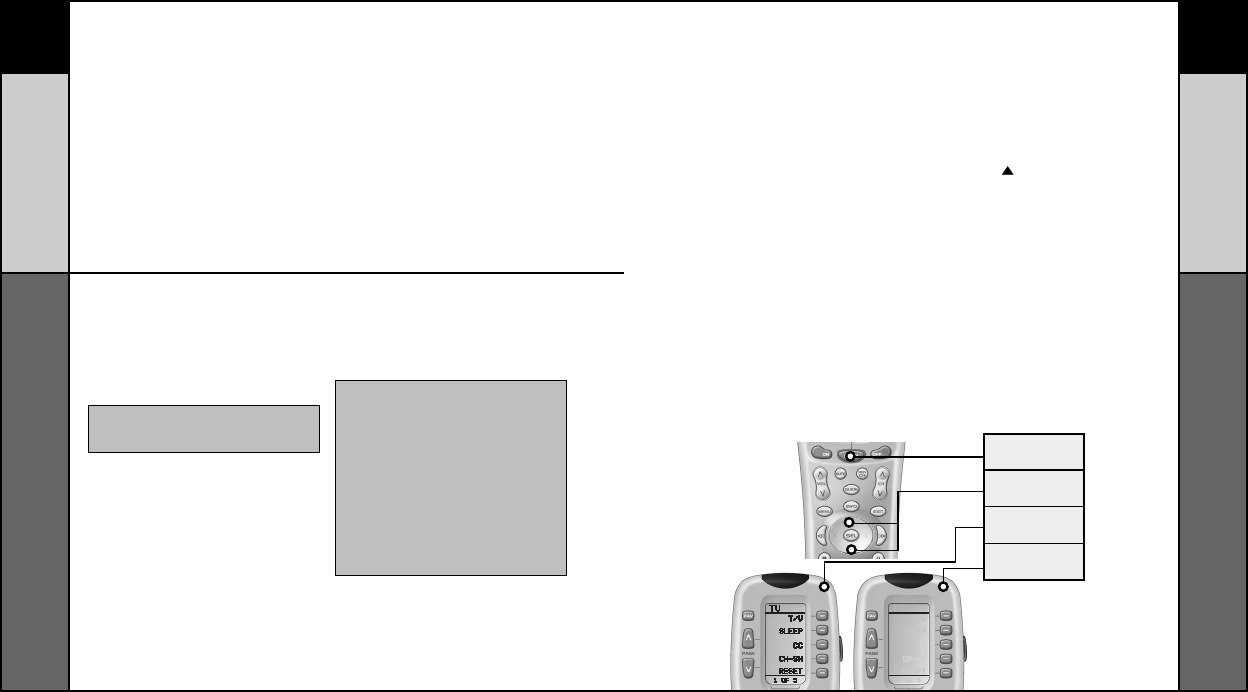
100
PERSONALIZACIÓN
99
CONFIGURACIÓN AVANZADA
PASO 4:
El botón de presentación hace que parpadee
“PUNCH TO”. Pulse el botón del COMPONENTE
que no tenga todavía comandos de control de
volumen (por ejemplo: DVD). Este es el compo-
nente que va a PUNCH TO (PERFORAR) para
los comandos de volumen y mudo.
PASO 5:
El botón de presentación parpadeará entonces
“PUNCH FROM”. A continuación, seleccione el
componente que tenga los comandos de volu-
men que desee utilizar (por ejemplo: TV para
sistemas utilizando los altoparlantes de TV,
AUDIO para los que usen receptores de sonido
circundante). En la parte inferior de la pantalla
parpadeará “SAVED” (“ALMACENADO”).
PASO 6:
Repita los PASOS 4 y 5 hasta que todos sus com-
ponentes activen el volumen perfectamente.
PASO 7:
Pulse dos veces el botón MAIN
(PRINCIPAL) para volver al fun-
cionamiento normal y pruebe
sus ajustes de SimpleSound™.
Siga simplemente los pasos
anteriores; pero, en el PASO 3,
oprima una de las opciones de
control (CH (CANAL), PLAY
(REPRODUCCIóN) o VDD).
NOTA: Si desea PUNCH TO al componente
MAIN (PRINCIPAL), pulse en este momento el
botón POWER OFF (APAGADO).
NOTA: La característica PUNCH THROUGH
(PERFORACIÓN) no se limita al volumen y se puede
aplicar también a la selección de canales u otras
funciones. Si pasa con frecuencia a un componente
dado para utilizar un grupo de controles, considere
la posibilidad de usar Punch Through para otro
grupo, como se indica aquí:
VOL Volumen arriba, Volumen abajo y Mudo.
CH (CANAL) Canal arriba, Canal abajo,
Canal previo y botones de canales (0-9).
PLAY Reproducción, Detención, Pausa,
Retroceso rápido Y Avance rápido.
VDD Guía, Menú, Info, Salida, Arriba,
Abajo, Izquierda, Derecha, Selección
Configuración de opciones de retroiluminación
Podrá personalizar la características de retroiluminación para ajustarla a sus
preferencias específicas, siguiendo los pasos que se indican a continuación:
Ajuste de la duración de la retroiluminación
Podrá configurar la cantidad de tiempo que la retroiluminación del RF20 per-
manecerá encendida, entrando en el modo SETUP (CONFIGURACIÓN) y
yendo a la página 2 (utilizando el botón PAGE (PÁGINA) ( ) UP (ARRIBA)) y
oprimiendo a continuación el botón de presentación LIGHT (LUZ) en la pan-
talla de LCD (no el botón de Backlight (Retroiluminación)). Luego, introduzca
la cantidad de tiempo que permanecerá encendida, utilizando el teclado
numérico (0 a 99 segundos). Después de efectuar su selección, pulse el
botón de presentación SAVE (ALMACENAMIENTO).
Ajuste del contraste
Podrá oscurecer el texto oprimiendo al mismo tiempo el botón MAIN
(PRINCIPAL) y el de cursor UP (ARRIBA). Para que el texto esté más claro,
pulse simultáneamente el botón MAIN (PRINCIPAL) y el DOWN (ABAJO).
Cómo apagar la retroiluminación
Si no quiere retroiluminación en absoluto (lo que prolonga la duración de la
batería), pulse el botón de presentación ON (ENCENDIDO) que aparece en la
pantalla. El ON (ENCENDIDO) pasará a OFF (APAGADO). Oprima el botón de
presentación SAVE (ALMACENAMIENTO). Salga del modo de configuración
pulsando el botón MAIN (PRINCIPAL).
BOTÓN MAIN
(PRINCIPAL)
UP & DOWN
CURSOR
(CURSOR ARRIBA y ABAJO)
HIGH CONTRAST
(CONTRASTE ELEVADO)
LOW CONTRAST
(CONTRASTE BAJO)
Configuración de SimpleSound
™
y otros “Punch Throughs”
Configuración de opciones
de retroiluminación
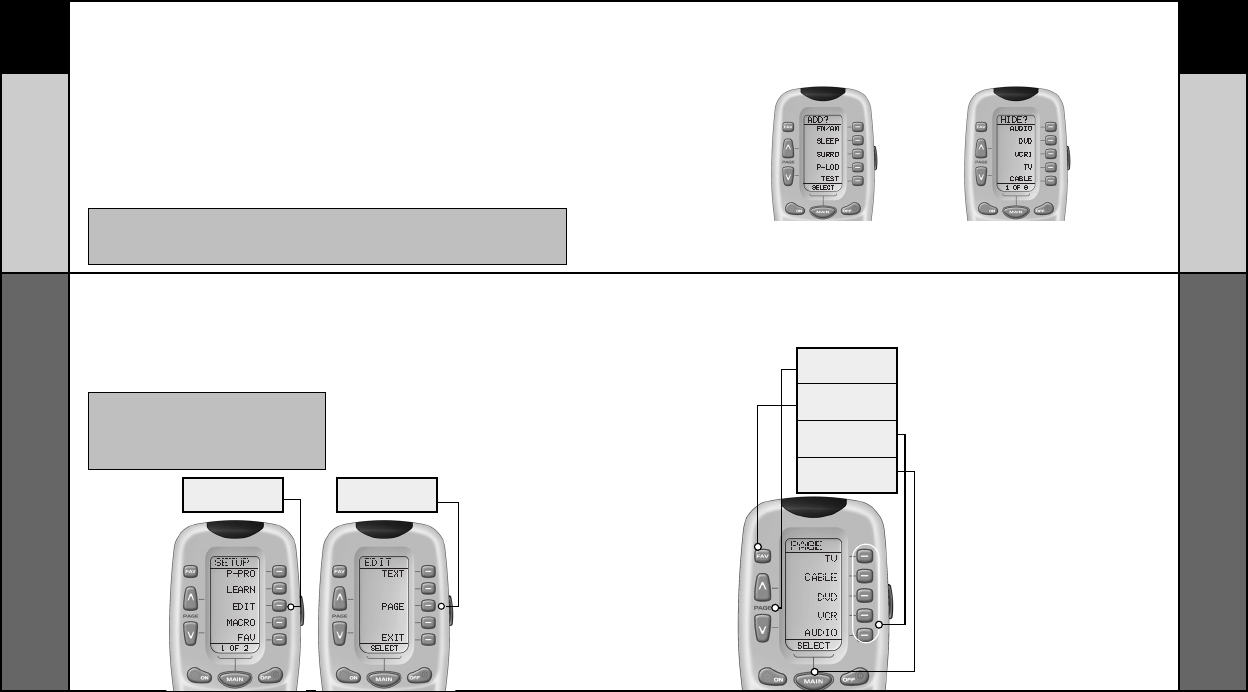
102
PERSONALIZACIÓN
101
PERSONALIZACIÓN
Ocultamiento y adición de páginas
Cada uno de sus componentes en el RF20 contiene en realidad ocho páginas. Sin
embargo, sólo cinco de ellas son visibles en los ajustes por defecto de fábrica. Tres
páginas se encuentran ocultas en cada componente. Si quiere utilizar las páginas
ocultas, podrá AGREGARLAS (ADD). Si no quiere usar algunas de las páginas exis-
tentes, podrá OCULTARLAS (HIDE). Podrá agregare u ocultar páginas en compo-
nentes O en las de sus canales favoritos mediante este procedimiento sencillo:
NOTA: Asegúrese de programar sus macros antes de ocultar páginas que puedan
contener macros. No podrá ingresar a páginas ocultas durante la configuración de
macros. Sin embargo, después de que concluya dicha configuración de macros,
podrá ocultar páginas sin afectar el funcionamiento de los macros mismos.
IMPORTANTE: Ahora tendrá a su disposición 30
segundos para efectuar el paso siguiente mientras
esté en el modo SETUP (CONFIGURACIÓN). Si no
oprime un botón en un lapso de 30 segundos,SETUP
(CONFIGURACIÓN) desaparecerá de la pantalla,
indicándole que ha salido del modo de configu-
ración y tendrá que volver a comenzar la operación.
RACIÓN”) en la parte superior de la
pantalla de LCD. Esto indicará que se
encuentra en el modo de configuración.
PASO 2:
Pulse el botón de presentación EDIT
(CORRECCIÓN) en la pantalla de LCD.
PASO 3:
Pulse el botón de presentación PAGE
(PÁGINA) una vez que la pantalla
pase al modo EDIT (CORRECCIÓN).
PASO 1:
Pulse y mantenga oprimidos al mismo
tiempo el botón MAIN (PRINCIPAL) y el
ENT (Enter o Intro) durante aproximada-
mente tres segundos, hasta que aparez-
ca la palabra “SETUP” (“CONFIGU-
Ocultamiento y adición
de páginas
PASO 5:
Cuando selecciones una página, la parte
superior de la pantalla indicará si quiere
“ADD?” (¿AGREGAR?”) o “HIDE?”
(“¿OCULTAR?”) la página presentada.
Cuando quiera cambiar la visibilidad de
una página (o sea, AGREGARLA (ADD) u
OCULTARLA (HIDE)), sólo tendrá que
pulsar el botón LIGHT (LUZ).
PASO 6:
Podrá seguir AGREGANDO
(ADD) u OCULTANDO (HIDE)
páginas en otros componentes,
repitiendo los pasos 4 y 5.
PASO 7:
Cuando haya terminado de
agregar u ocultar páginas, pulse
el botón MAIN (PRINCIPAL)
cuatro veces para regresar
al funcionamiento normal.
PASO 4:
“PAGE” aparece en la parte superior de la
pantalla. Ahora podrá ir a cualquier página,
utilizando los botones de presentación
MAIN (PRINCIPAL),
COMPONENT
(COMPONENTE),
FAV y PAGE
(PÁGINA).
Esta página está oculta. Para AGREGARLA
(ADD), pulse el botón LIGHT (LUZ)
Esta página está visible. Para OCULTARLA
(HIDE), pulse el botón LIGHT (LUZ).
BOTÓN EDIT
(CORRECCIÓN)
BOTÓN PAGE
(PÁGINA)
BOTÓN PAGE
(PÁGINA)
BOTÓN
FAV
BOTONES
COMPONENTS
(COMPONENTES)
BOTÓN MAIN
(PRINCIPAL)
Ocultamiento y adición
de páginas
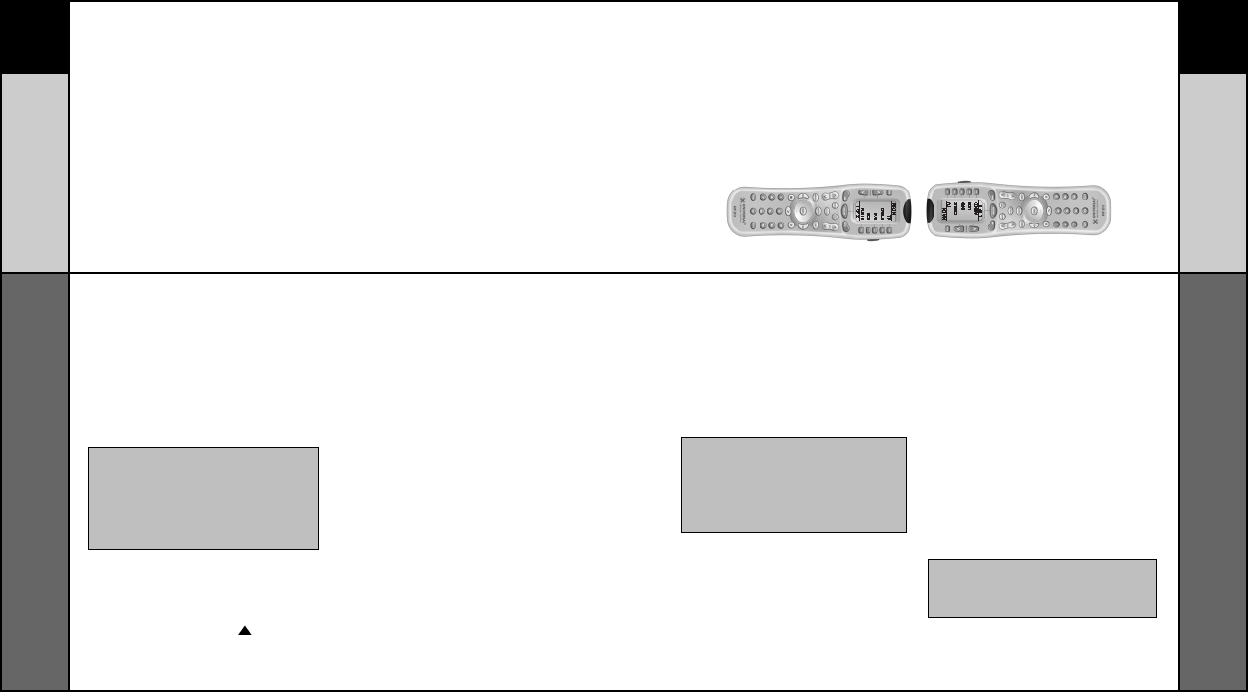
104
PERSONALIZACIÓN
Clonación de otros RF20
103
PERSONALIZACIÓN
Reposición de números de códigos de
configuración preprogramados
En el caso de que no haya anotado los números de códigos
preprogramados que haya utilizado para configurar su RF20, podrá
recuperarlos con facilidad, mediante el proceso sencillo que sigue:
PASO 1:
Pulse y mantenga oprimidos al mismo
tiempo el botón MAIN (PRINCIPAL) y el
ENT (Enter o Intro) durante aproximada-
mente tres segundos, hasta que aparezca
la palabra “SETUP” (“CONFIGURACIÓN”)
en la parte superior de la pantalla de LCD.
Esto indicará que se encuentra en el
modo de configuración.
PASO 2:
Vaya a la página 2 del menú de
configuración (Setup), pulsando
el botón PAGE (PÁGINA) ( ).
PASO 3:
Pulse el botón RECALL (REPOSICIÓN) en
la pantalla de LCD. La pantalla pasará a las
de Recall (Reposición). La imagen variará
automáticamente entre cuatro pantallas
distintas, haciendo que parpadeen alter-
nativamente los componentes y números
de códigos de la página 1 y, luego, los de
la página 2.
PASO 4:
Anote los números de códigos,
conforme vayan apareciendo, para
consultas futuras. En la página 111
de este manual se proporciona un
espacio conveniente para que
anote sus números de códigos.
PASO 5:
Vuelva al funcionamiento normal
pulsando dos veces el botón MAIN
(PRINCIPAL).
IMPORTANTE: Ahora tendrá a su disposición 30
segundos para efectuar el paso siguiente mientras
esté en el modo SETUP (CONFIGURA- CIÓN). Si no
oprime un botón en un lapso de 30 segundos, SETUP
(CONFIGURACIÓN) desaparecerá de la pantalla,
indicándole que ha salido del modo de configuración
y tendrá que volver a comenzar la operación.
Reposición de números de códigos
de configuración preprogramados
PASO 1:
Para el RF20 programado que desee clonar y el
que todavía no se haya programado, pulse y man-
tenga oprimidos al mismo tiempo el botón MAIN
(PRINCIPAL) y el ENT (Enter o Intro) durante aprox-
imadamente tres segundos, hasta que aparezca la
palabra “SETUP” (“CONFIGURACIÓN”) en la parte
superior de la pantalla de LCD. Esto indicará que
se encuentra en el modo de configuración.
PASO 2:
Pulse un botón PAGE (PÁGINA) en cada uno de
los controles remotos para que aparezca la página
2 de la configuración y que se presente el botón
CLONE (CLONACIÓN).
PASO 3:
Pulse el botón CLONE (CLONACIÓN) en cada
control remoto.
PASO 4:
Alinee los dos RF20, cabeza con cabeza, a
una distancia de aproximadamente 25 mm
(una pulgada).
PASO 5:
Pulse el botín de presentación RECV en el RF20
no programado que desee configurar mediante
la clonación.
PASO 6:
Pulse el botón de presentación SEND (ENVÍO)
en el RF20 programado que desee clonar.
PASO 7:
Pulse el botón START (COMIENZO) en el RF20 no
programado y, luego, el del RF20 programado que
desee clonar.
PASO 8:
Regrese al funcionamiento normal pulsando
dos veces el botón MAIN (PRINCIPAL).
NOTA: Por lo común, la clonación requiere aproximada-
mente 40 segundos. Después de que haya concluido la
clonación con éxito, el RF20 recién clonado mostrará
parpadeando la palabra “GOOD” (“BUENO”).
Clonación de otros RF20
Si tiene la buena fortuna de poseer más de un RF20, le agradará saber
que podrá copiar y transferir con facilidad todos los ajustes de un RF20
a otro. Para ello, sólo tendrá que seguir estos pasos sencillos:
IMPORTANTE: Ahora tendrá a su disposición 30 segun-
dos para efectuar el paso siguiente mientras esté en el
modo SETUP (CONFIGURACIÓN). Si no oprime un botón
en un lapso de 30 segundos, SETUP (CONFIGURACIÓN)
desaparecerá de la pantalla, indicándole que ha salido
del modo de configuración y tendrá que volver a comen-
zar la operación.
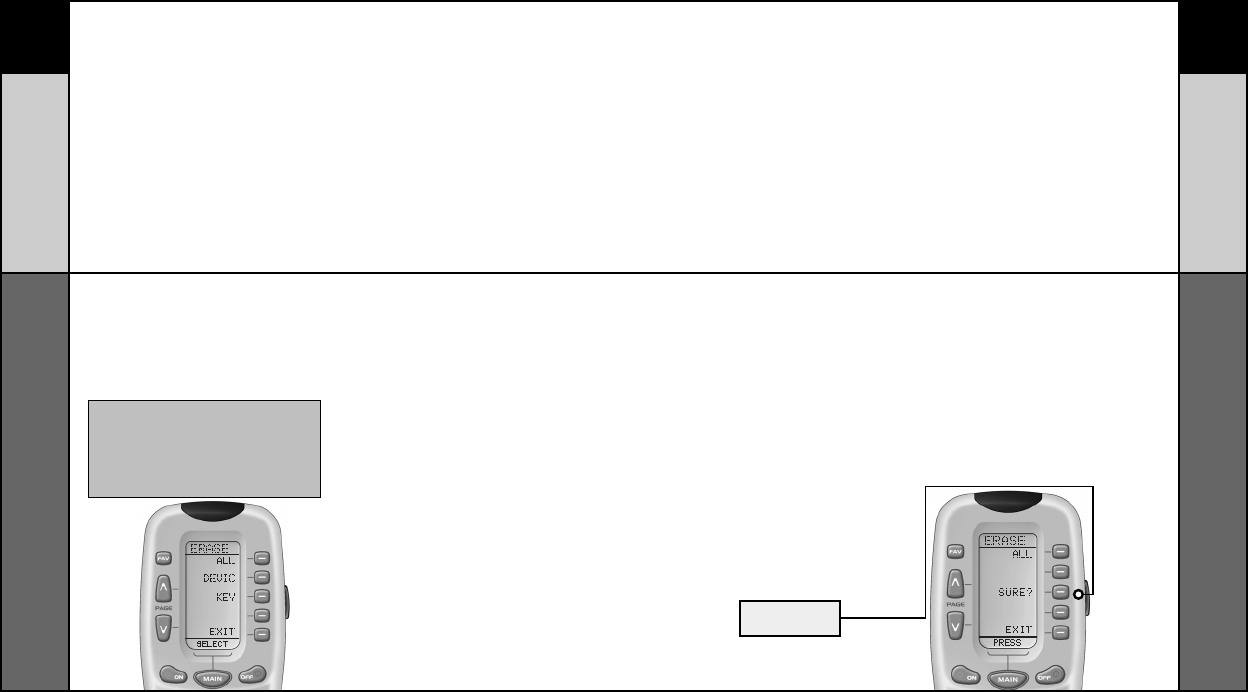
106105
BORRADO DE COMANDOS
Borrado de comandos - Panorámica
Podrá borrar un botón individual con un comando aprendido, un macro
o un canal favorito. Podrá borrar los botones de comandos aprendidos
o macros de un componente COMPLETO. También podrá borrar TODOS
sus comandos aprendidos en todos los componentes o todos sus
macros o canales favoritos en cualquier sitio.
Si desea realmente partir de cero, es posible reconfigurar todo a sus
ajustes originales de fábrica por defecto.
Borrado de botones aprendidos, macros o canales favoritos
PASO 1:
Pulse y mantenga oprimidos al mismo
tiempo el botón MAIN (PRINCIPAL) y el
ENT (Enter o Intro) durante aproximada-
mente tres segundos, hasta que aparezca
la palabra “SETUP” (“CONFIGURACIÓN”)
en la parte superior de la pantalla de LCD.
Esto indicará que se encuentra en el
modo de configuración.
PASO 2:
Pulse un botón PAGE (PÁGINA) para pre-
sentar la página 2 de la configuración.
PASO 3:
Pulse el botón de presentación ERASE
(BORRADO) en la pantalla de LCD.
PASO 4:
Pulse ya sea el botón LEARN (APREN-
DIZAJE), el MACRO o el FAV. Aparecerá
la pantalla que sigue:
ALL (TODO) – Borra TODO lo especifica-
do ( Botones aprendidos, de macros o
FAV en todo el RF20).
DEVICE (DISPOSITIVO) – Borra todos los
botones aprendidos o de macros en un
componente indivi-dual (NOTA: Esta
opción no está disponible para los FAV).
KEY (TECLA) – Borra sólo un botón.
IMPORTANTE: Ahora tendrá a su disposición 30 segun-
dos para efectuar el paso siguiente mientras esté en el
modo SETUP (CONFIGURACIÓN). Si no oprime un botón
en un lapso de 30 segundos, SETUP (CONFIGURACIÓN)
desaparecerá de la pantalla, indicándole que ha salido
del modo de configuración y tendrá que volver a comen-
zar la operación.
Borrado de comandos aprendidos de
botones, macros o canales favoritos
PASO 5:
Si pulsa ALL (TODO), el RF20
presentará un botón “SURE?”
(“¿SEGURO?”). Después de que
se pulse el botón SURE (SEGURO),
se borrarán todos los botones.
Si pulsa DEVICE (DISPOSITIVO),
aparecerá una lista de compo-
nentes. Pulse el del que desee
borrar. En la parte inferior de la
pantalla parpadeará ERASE (BO-
RRADO) dos veces y, luego, pre-
sentará ERASED (ELIMINADO).
Si pulsa KEY (TECLA), deberá
navegar al componente y la pági-
na que desee, utilizando los
botones MAIN (PRINCIPAL),
COMPONENT (COMPONENTE) y
PAGE (PÁGINA). Pulse un botón
para borrarlo. El botón de pre-
sentación parpadeará dos veces
ERASE (BORRADO) y, luego,
aparecerá ERASED (ELIMINADO).
PASO 6:
Para volver al funcionamiento
normal, pulse cuatro veces el
botón MAIN (PRINCIPAL).
BOTÓN SURE
(SEGURO)
BORRADO DE COMANDOS
Borrado de comandos aprendidos de
botones, macros o canales favoritos
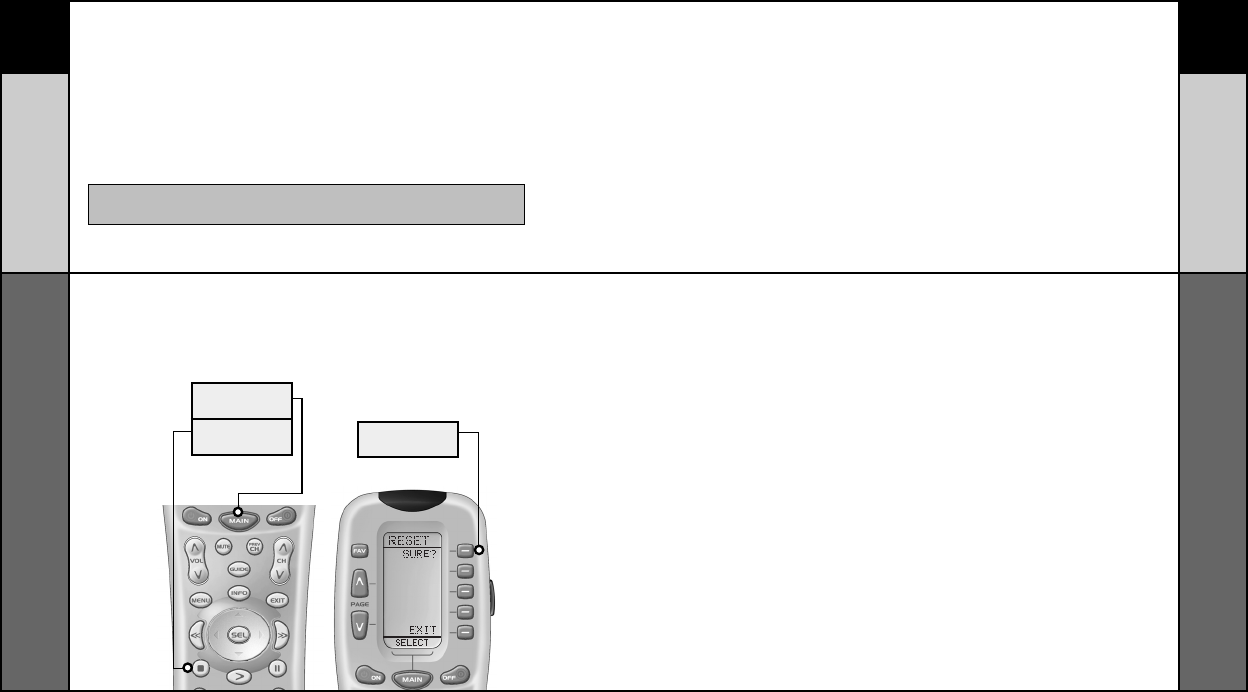
108
BORRADO DE COMANDOS
107
BORRADO DE COMANDOS
Regreso del RF20 a los valores originales
de fábrica por defecto
Si desea comenzar con la pizarra limpia, podrá restaurar el RF20 a sus
valores originales de fábrica por defecto mediante los pasos que siguen.
NOTA: Este proceso borrará esencialmente TODO lo que
haya programado en el RF20.
PASO 2:
Al cabo de diez segundos, aparecerá la
pantalla RESET (RESTAURACIÓN). Pulse
el botón ALL (TODO). El RF20 presentará
un botón “SURE?” (“¿SEGURO?”).
Pulse el botón SURE (SEGURO) para bor-
rar todos sus ajustes y regresar a la con-
figuración de fábrica por defecto.
PASO 1:
Pulse y mantenga oprimidos
durante 10 segundos los
botones MAIN (PRINCIPAL)
y STOP (DETENCIÓN).
BOTÓN MAIN
(PRINCIPAL)
BOTÓN STOP
(DETENCIÓN) BOTÓN SURE
(SEGURO)
Regreso del RF20 a los valores
originales de fábrica por defecto
Regreso del RF20 a los valores
originales de fábrica por defecto
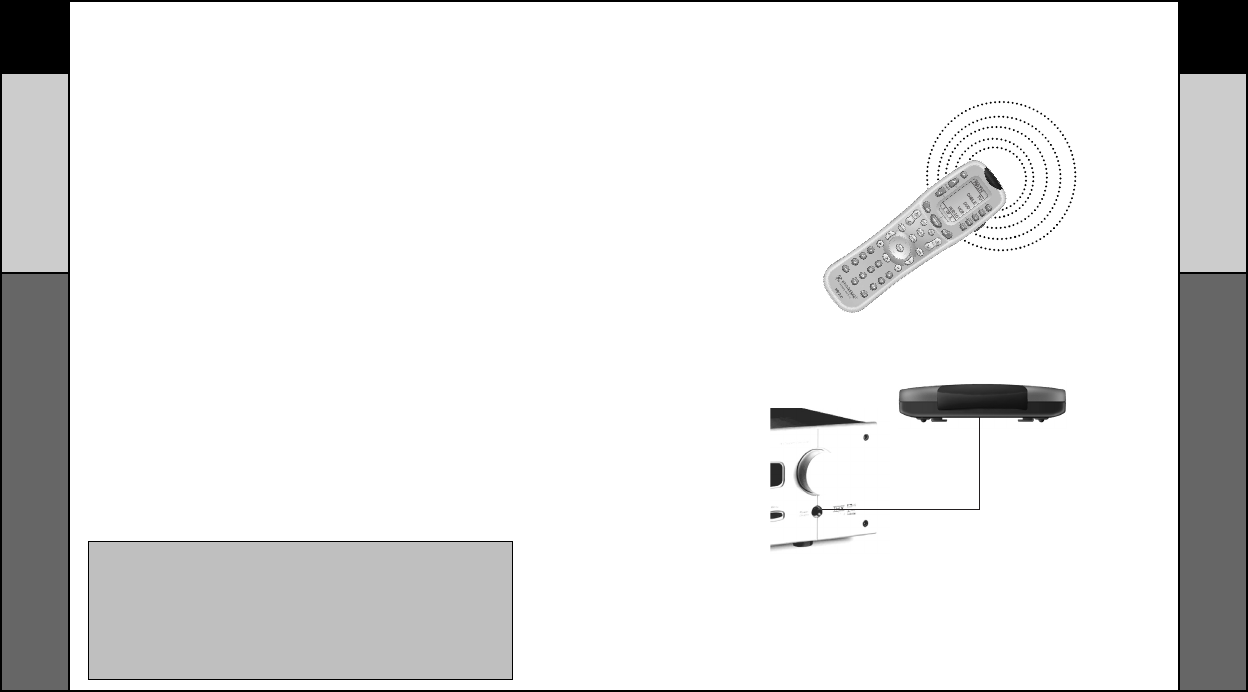
109 110
EL POWERBLASTER™
EL POWERBLASTER™
Control de RF “sin barreras”
Control de RF “sin barreras”
El PowerBlaster™ opcional
(para control de RF “sin barreras”)
[Se vende por separado]
De entre todas las características fabulosas del RF20, ésta es proba-
blemente la más interesante. Cuando se utiliza en combinación el
PowerBlaster™ opcional, el RF20 se convierte en un asombroso dis-
positivo poderoso de control remoto que envía señales multidirec-
cionales de RF (radiofrecuencias) que atraviesan paredes, puertas y
pisos – tanto en interiores como al exterior.
¡Esto lo cambia todo! Le permite controlar componentes que están
completamente fuera de la vista, a una distancia de hasta 30 m (100
pies). El PowerBlaster™ capta las señales de radiofrecuencias del
RF20 de cualquier dirección, sea cual sea la distancia, de modo que el
RF20 no necesita apuntar directamente a ningún componente.
¡Imagínese: no hay que apuntar más!. Ahora podrá cerrar las puertas
de su centro de diversiones, ocultar sus componentes y, de todos
modos, controlarlos con facilidad. Controle los altavoces o altopar-
lantes para exteriores en su patio. ¡Controle sus componentes en
cualquier sitio!
Una de las cosas más interesantes a este respecto es que no hay
que hacerle nada al RF20 para que funcione esta característica.
Cada vez que oprima un botón del RF20 enviará tanto un IR (comando
infrarrojo) COMO una señal de RF (radiofrecuencias). Si instala el
equipo de PowerfBlaster™, recibirá automáticamente las señales de
radio del RF20 y las traducirá a los comandos infrarrojos que con-
trolan sus componentes.
“Destelladores” autoadhesivos (incluidos en el paquete del PowerBlaster™)
se adosan a los tableros frontales de sus componentes. Los destelladores
retransmiten comandos infrarrojos a componentes situados fuera de la vista
del activador frontal del PowerBlaster™. Los destelladores se enchufan en las
clavijas de receptáculos de la línea de destellador trasero del PowerBlaster™.
Cada destellador tiene un cable de 3 m (10 pies) para llegar con facilidad a
componentes situados en anaqueles cercanos.
El PowerBlaster™ convierte las señales de radio en comandos infrarrojos estándar y
los envía por mediación de un activador frontal integrado a los componentes en el
mismo espacio de consola.
El RF20 envía señales de radio al PowerBlaster™, que es un receptor de radio.
NOTA: Las señales de radio del RF20 no controlan directamente a los
componentes. Deberá tener un PowerBlaster™ para recibir las
señales de radio del RF20. Los componentes que poseen controles
remotos por radio “sin apuntar” no podrán controlarse con el RF20 a
menos que el dispositivo de que se trate se pueda enlazar a un IR
(control de infrarrojos) estándar por medio de sus menús internos.
Algunos ventiladores de techo a control remoto son sólo de radio y no
se pueden activar mediante el RF20.
112111
NOTAS DE CÓDIGOS PREPROGRAMADOS
NOTAS DE CÓDIGOS PREPROGRAMADOS
Anote aquí los códigos de tres dígitos para su sistema:
AUDIO
DVD
CD
SAT
TV
VCR
CABLE
AUX
LIGHT (LUZ)
TAPE
PHONO (FONÍA)
TV2
VCR2
DVR
LDP
XM RADIO
IPOD
X-BOX
Tabla de Códigos Preprogramados
La biblioteca de códigos preprogramados del RF20 se divide en
categorías (TV, VCR, AUX, etc.). Cada una de éstas últimas incluye
en realidad muchos tipos de componentes. Por ejemplo, la de VCR
comprende unidades combo de TV/VCR.
Dentro de cada categoría, los números de códigos se enumeran en
hileras por marcas (Sony, Panasonic, B & K, etc.). Algunas marcas
tienen más de un código de tres dígitos para que los pruebe. Encierre
en un círculo la hilera correcta y consúltela mientras efectúa la
configuración (en la página 73 se dan instrucciones paso a paso
para la utilización de los códigos preprogramados).
TV TV, PLASMAS, PROYECTORES Y MONITORES
CABLE TV DE CABLE Y TV DE WEB
DVD REPRODUCTORES DE DVD Y COMBOS DE TV/DVD
VCR VCR Y COMBOS DE TV/VCR
AUDIO AMPLIFICADORES, PREAMPLIFICADORES,
RECEPTORES DE A/V Y RADIOS XM
SAT RECEPTORES SATELITALES, TIVO, REPRODUCTORES Y
OTROS DVR
CD REPRODUCTORES Y CAMBIADORES DE CD
DVR TIVO, REPLAY Y OTROS DVR.
AUX GRABADORAS DE CINTA, CONTROLES DE ILUMINACIÓN,
PC MULTIMEDIOS, XBOX, IPOD Y PRODUCTOS DE
INSTALACIONES ESPECIALES.
TABLAS DE CÓDIGOS PREPROGRAMADOS
Tablas de códigos
preprogramados
Preguntas frecuentes
114113
Preguntas frecuentes
¿Qué es un botón “macro”?
Un “macro” es un botón del RF20 que configura para que haga
muchas cosas cuando lo oprima. Por se ejemplo, para ver un DVD
en la mayoría de los teatros hogareños (home theaters) se necesitan
varios controles remotos y pulsar muchos botones (encendido del
televisor, activación del sonido circundante, encendido de la repro-
ductora de DVD, ajuste de la televisión en la entrada de video correcta,
ajuste del sonido circundante en la entrada de audio apropiada y,
finalmente, pulsación de la reproducción en el control remoto
del DVD).
En lugar de pulsar todos esos botones de uno en uno, el RF20 le
permite configurar un botón que haga todas esas cosas automática-
mente, con una sola pulsación. Para obtener más información sobre
cómo y por qué debe configurar sus botones macro, vea la Guía de
programa DVD de configuración rápida o consulte las páginas 94 a
97 de este manual.
Si se agotan las baterías, ¿perderé mis ajustes?
No. El RF20 almacena todos sus ajustes en una memoria FLASH
no volátil. Puede retirar las baterías durante varios meses y el RF20
seguirá recordando de todos modos sus ajustes.
¿A quién puedo dirigirme para obtener más respuestas?
El personal de Remote Control Technical Support y Customer
Service (Respaldo Técnico de Universal Remote Control y el
Servicio a los Clientes) está listo para responder a las preguntas
que desee hacerles.
Llámenos al teléfono 1-914-835-4484
Lunes a viernes, de las 9:00 a las 18:00 horas (ESTE).
Garantía
El Mastercontrol™ RF20 de Universal Remote Control está cubierto
contra cualesquiera defectos de fabricación o mano de obra durante
un periodo de un año a partir de la fecha de adquisición en un dis-
tribuidor autorizado de Universal Remote Control. Las unidades
adquiridas en sitios de subastas en línea o de otros revendedores
no autorizados no tienen garantías. Esta garantía no cubre los
conceptos que siguen:
• Daños por mal uso, negligencia o desastres naturales
• Productos que se hayan modificado o incorporado en
otros dispositivos
• Productos adquiridos hace más de 12 meses
• Unidades adquiridas en comerciantes o compañías que
no tengan autorización.
Especificaciones
Capacidad de aprendizaje – 825 comandos IR a frecuencias
estándar (15 kHz a 100 kHz).
Capacidad de macros – 453 macros de hasta 190 pasos cada uno.
Gama de IR (Línea de visión por medio de infrarrojos) – 9 a 15 m
(30 a 50 pies) dependiendo del ambiente.
Gama de RF (radiofrecuencias): 15 a 30 m (50 a 100 pies),
dependiendo del ambiente.
Frecuencia de RF: 418 MHz
Peso: 201 g (7.1 onzas) (con baterías)
Tamaño: 21.6 x 6.4 x 2.54 cm (8.5 x 2.5 x 1 pulgadas)
Baterías: Se incluyen cuatro baterías alcalinas AAA
Tamaño de pantalla de LCD: 22.35 x 47.75 mm (0.88 x 1.88 pulgadas).
OTROS DATOS
Especificaciones y garantías
Preguntas frecuentes
PREGUNTAS FRECUENTES
116
OTROS DATOS
115
OTROS DATOS
NOTAS
NOTAS
500 Mamaroneck Avenue,
Harrison, NY 10528
Teléfono: (914) 835-4484
Fax: (914) 835-4532
www.universalremote.com
simply MORE powerful
RF20
MANUAL DEL
PROPIETARIO
OCE-0048B_rev01
