Universal Remote Control Urc Home Theater Master Mx 980 Users Manual
Univeral-Remote-Mx-980-Owners-Manual univeral-remote-mx-980-owners-manual
MX-980 to the manual b64d95ed-2507-49e8-a116-11fdc92fb99b
2015-01-26
: Universal-Remote-Control Universal-Remote-Control-Urc-Home-Theater-Master-Mx-980-Users-Manual-338558 universal-remote-control-urc-home-theater-master-mx-980-users-manual-338558 universal-remote-control pdf
Open the PDF directly: View PDF  .
.
Page Count: 16
- Color LCD & the Screen Buttons
- Optional RF “No Rules” Opera...
- Connecting the Battery Pack
- Using the Charging Base
- Programming the MX-980
- Selecting a New “Activity”
- Using the MX-980 to Control ...
- Displaying the Setup Screens
- Main Settings Menu
- Adjusting the Display
- Sound Volume
- System Settings Menu
- Information Menu
- Setting Time
- Specifications
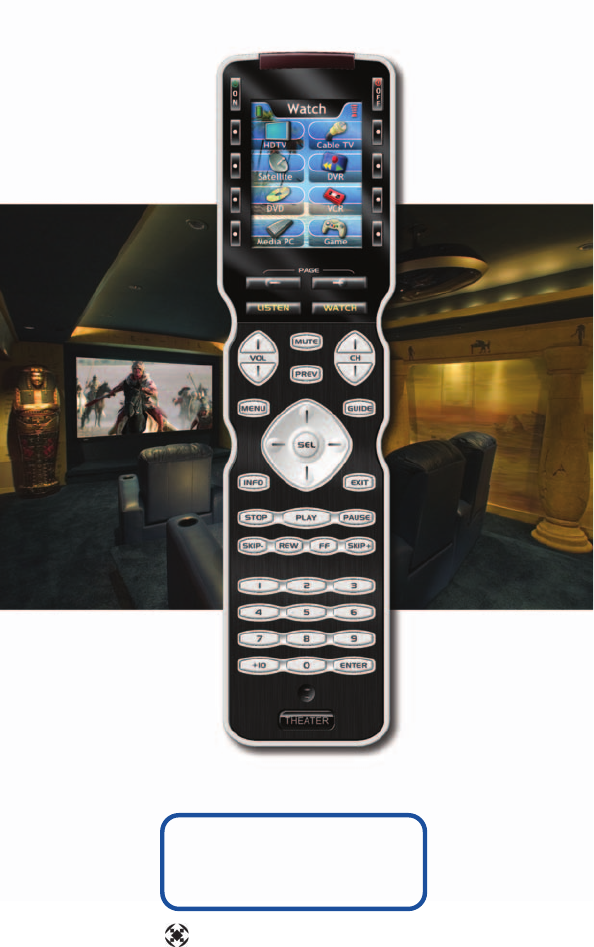
Operating Your System
With the MX-980
COMPLETE
™
Universal Remote Control®
CONTROL
COMPLETE

This remote control was
Custom Programmed for you by:
For questions about your Custom Programming call:
Custom Programming of a complex home theater and/or a multi-
room system is one of the most challenging tasks within an
audio/video installation. It involves an intimate knowledge of how the
components interact and exact details on the proper sequences of
control.
Only a Complete Control dealer has the requisite experience and
training to quickly and effectively customize a remote control for
true automated operation.
Congratulations on your choice!
MX-980 Owners Manual © 2007 Universal Remote Control, Inc.
Front Cover Photo courtesy of Stone Glidden, King of Prussia and
Doylestown, PA
www.stoneglidden.com
The information in this manual is copyright protected. No part of this man-
ual may be copied or reproduced in any form without prior written consent
from Universal Remote Control, Inc.
UNIVERSAL REMOTE CONTROL, INC. SHALL NOT BE LIABLE FOR OPERA-
TIONAL, TECHNICAL OR EDITORIAL ERRORS/OMISSIONS MADE IN THIS
MANUAL.
The information in this manual may be subject to change without prior
notice.
Complete Control is a registered trademark of Universal Remote Control,
Inc. Entertainment Made Simple is a trademark of Universal Remote
Control, Inc. All other brand or product names are trademarks or registered
trademarks of their respective companies or organizations.
Universal Remote Control, Inc.
500 Mamaroneck Avenue, Harrison, NY 10528
Phone: (914) 835-4484 Fax: (914) 835-4532

MX-980 OWNERS MANUAL
Table of Contents
Introduction 4
Using the Color LCD & the Screen Buttons 4
Optional RF “No Rules” Operation 5
Connecting the Battery Pack 6
Using the Charging Base 7
Programming the MX-980 7
Selecting a New “Activity” 8
Using the MX-980 to Control an “Activity” 9
Displaying the Setup Screens 10
Main Settings Menu 11
Adjusting the Display 11
Sound Volume 12
System Settings Menu 12
Information Menu 13
Setting Time 13
Specifications 15
Page 1
MX-980 OWNERS MANUAL
Congratulations!
You’ve purchased a unique synthesis of hardware and software engi-
neering, the Complete Control MX-980. The MX-980 achieves a mag-
nificent combination of power and flexibility, simplifying and automat-
ing operation of even the most complex system.
Automatic Backlighting
The integral motion sensor detects any movement of the remote
control and automatically backlights the screen. You do not have to
press any button to display the screen. Any movement of the MX-
980 renews the backlighting.
Integrated Sound Signaling
The MX-980 incorporates a small speaker for beeps. Anytime you
press a button, the MX-980 signals that it has understood your com-
mand with a beep sound.
Using the Color LCD and the Screen Buttons
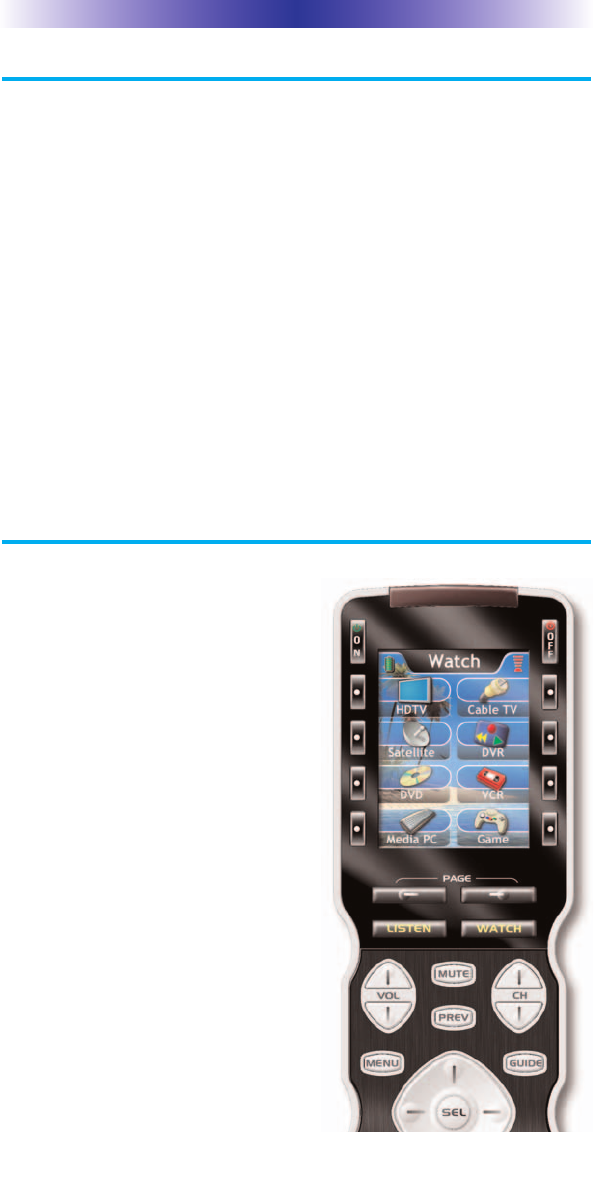
The MX-980 is equipped with a
bright easy to read LCD screen
which your installer will customize
for your system. The screen labels
the eight hard buttons (easy to find
by feel) positioned on either side of
the screen. Normally, the screen is
“split” so each button is allocated
to a specific function (as shown on
the right). This provides you with
the ability to see and operate up to
8 functions on a single screen.
However, your installer can com-
bine two buttons to create a single
row that can be accessed by either
adjacent button. This simplifies
operation for the entire family and
enables convenient operation for
both left and right-handed users for
important functions you use fre-
quently.
Page 2
MX-980 OWNERS MANUAL
Optional RF “No Rules” Operation
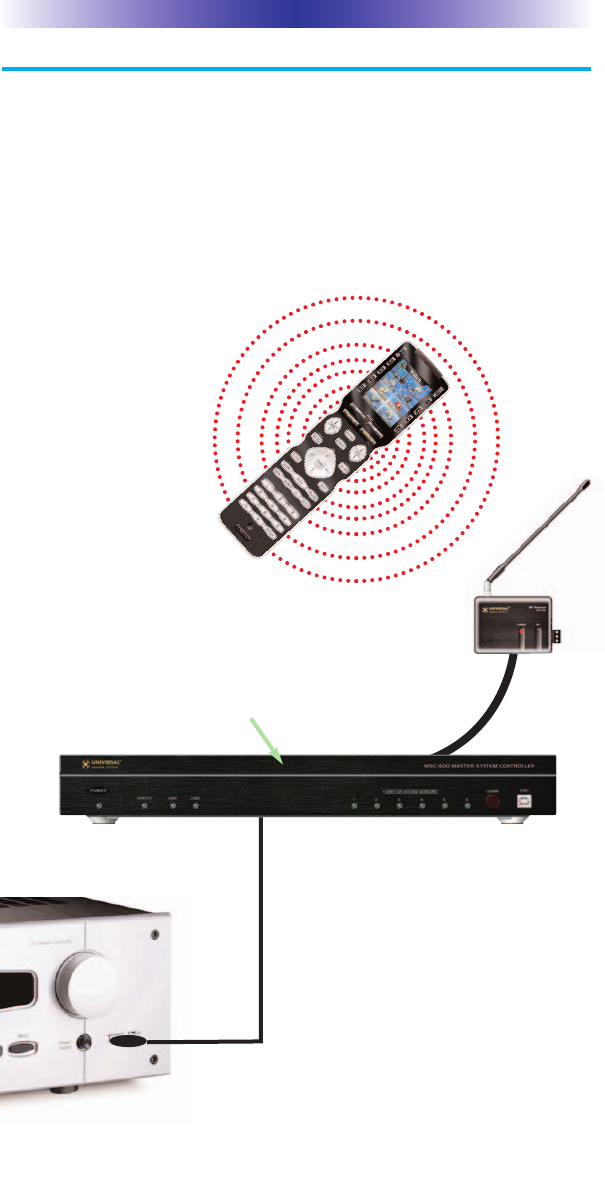
In combination with an MSC-400 Master System Controller, or an
RF Base Station, the MX-980 can control your system without being
in line-of-sight of the equipment.
The MSC-400 enhances the capabilities of the MX-980 by storing and
issuing Smart Macros to your main system components. It is triggered
by RF Smart Macro commands via RF (radio frequency). In addition,
your MX-980 can control components in secondary rooms and systems
via MRF-350 or MRF-260 RF base stations
4. Self-adhesive “Flashers” affix to the
Infrared sensors on the front panels of
your components. Uniquely, all Complete
Control base stations can also connect to
components with rear panel IR Inputs via
adjustable IR Line Outputs.The MSC-400
offers RS-232 control via rear panel con-
nections as well.
3.The MSC-400 can control IR, RS232 and Relay controlled
devices.
1.The MX-980 sends radio
waves in every direction, so
you don’t have to point the
remote anymore!
2.The RFX-250 RF Sensor can be freely
positioned for optimal reception.
Page 3
MX-980 OWNERS MANUAL
Connecting the Battery Pack
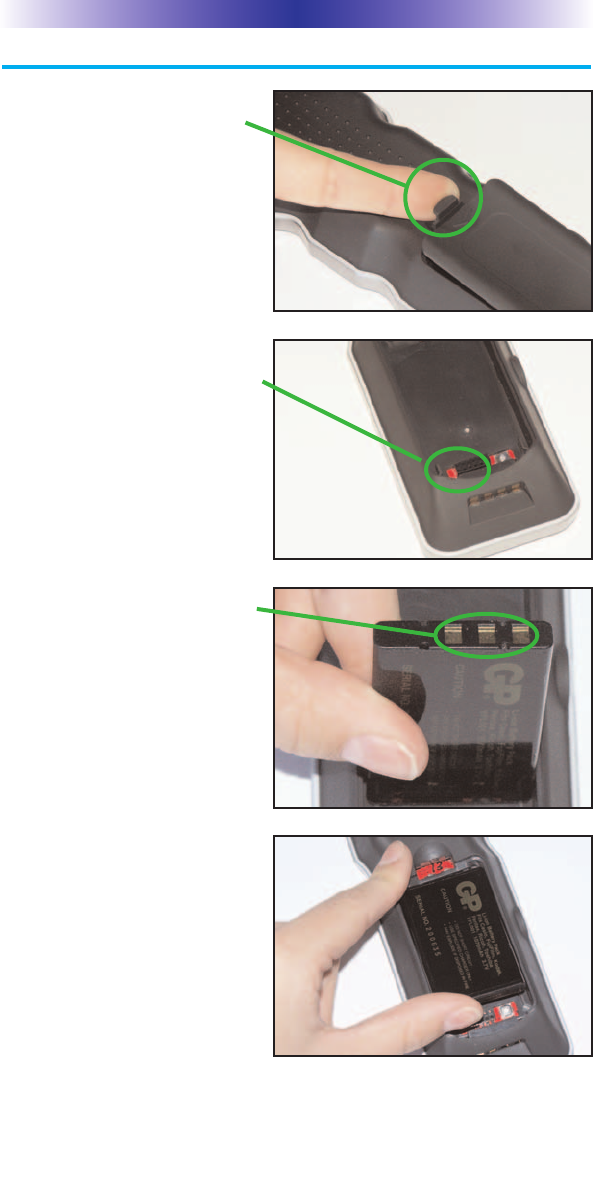
Open the battery cover by
depressing the release and
pulling back the cover on the
back of the control. Remove
the cover.
Observe the three contacts for
the battery at the bottom left of
the battery compartment.
Observe the contacts on the
battery
First, angle the battery so that
the contacts connect to the
contacts inside the battery
compartment. Then let the
base of the battery down.
Apply gentle pressure against
the spring action of the con-
tacts to fit the battery into
place.
Now, replace the battery
cover.
Page 4
MX-980 OWNERS MANUAL
Using the Charging Base
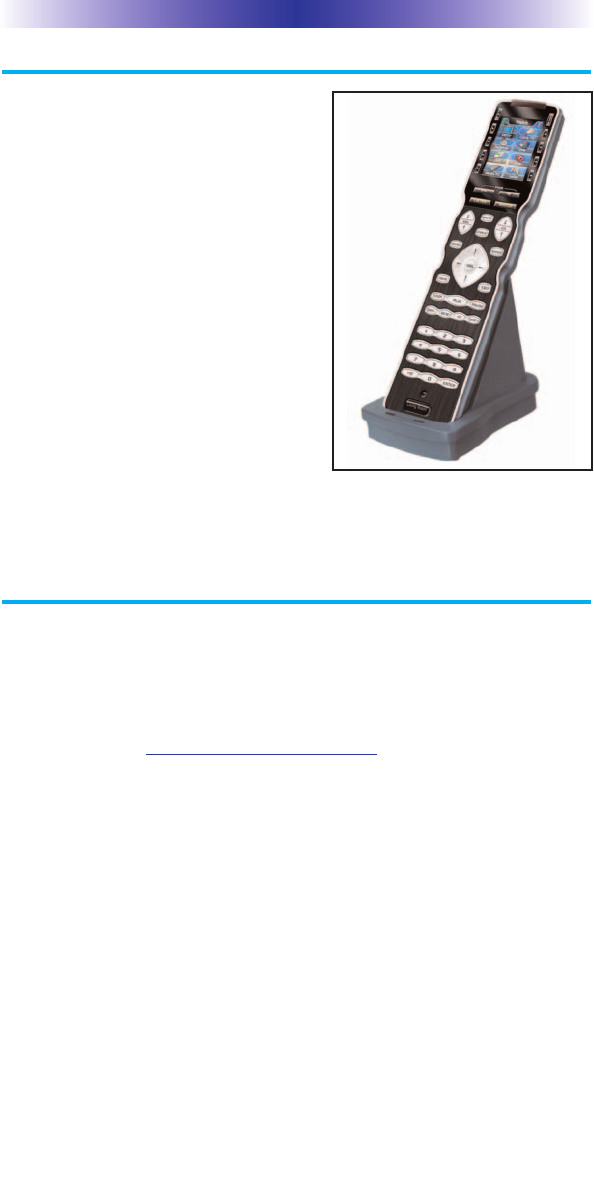
Plug the 5V DC adapter into a
power outlet and into the back of the
charging base.
Gently place the MX-980 into the
cradle of the charging base.
The Status light should immediately
light. Red indicates that it is charging.
Blue shows that it is fully charged.
There is no harm in leaving the MX-
980 on its charging base whenever it
is not in use. The Lithium Ion battery
cannot be overcharged.
Programming the MX-980
The MX-980 is programmed via a Windows PC equipped with a
USB port (programming cable included), using our proprietary soft-
ware, MX-980 Editor. You could download this software from our
website:
www.universalremote.com
However, although some enthusiasts have learned to use the setup
software, to fully automate an audio/video system the user must
have a detailed knowledge of how the system is connected and
operated. We highly recommend that you use a professional
audio/video installer to program your MX-980 so you will be able
to enjoy all the benefits of the MX-980 as well as one touch opera-
tion via macros.
The MX-980 on it’s Charger.
Page 5
MX-980 OWNERS MANUAL
Selecting a New “Activity”
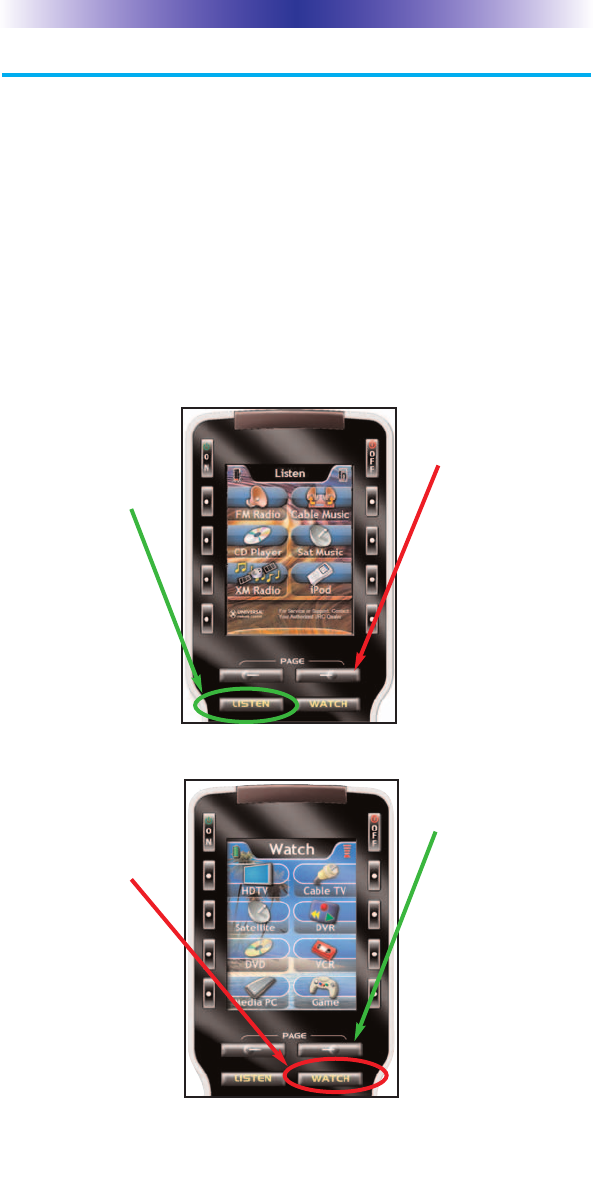
The MX-980’s WATCH and LISTEN buttons display the activities
you can control with your MX-980. When you want to watch some-
thing else (a DVD movie, a videotape or an HDTV broadcast), sim-
ply press the WATCH button and select the new activity. When you
want to listen to the radio or to a CD, touch the LISTEN button and
select what you would like to listen to.
Your installer will have programmed the button you pressed to
totally configure your system to watch or listen to whatever you
selected. Now, the screen will change, and all of the LCD buttons
will be reconfigured to give you full control of your system while
watching or listening to your selection!
When you press
the LISTEN but-
ton, you can see
the most fre-
quently used
activities you
have for listening
in your system.
Press either of the
PAGE buttons to
see any other
available choices.
You may have only
one page or your
system may have
several pages of
“Listening
Activities”.
When you press
the WATCH but-
ton, you can see
the most fre-
quently used
activities you
have for watch-
ing the sources
in your system.
Press either of the
PAGE buttons to
see any other
available choices.
You may have only
one page or your
system may have
several pages of
“Watching
Activities”.
Page 6
MX-980 OWNERS MANUAL
Using the MX-980 to Control an “Activity”
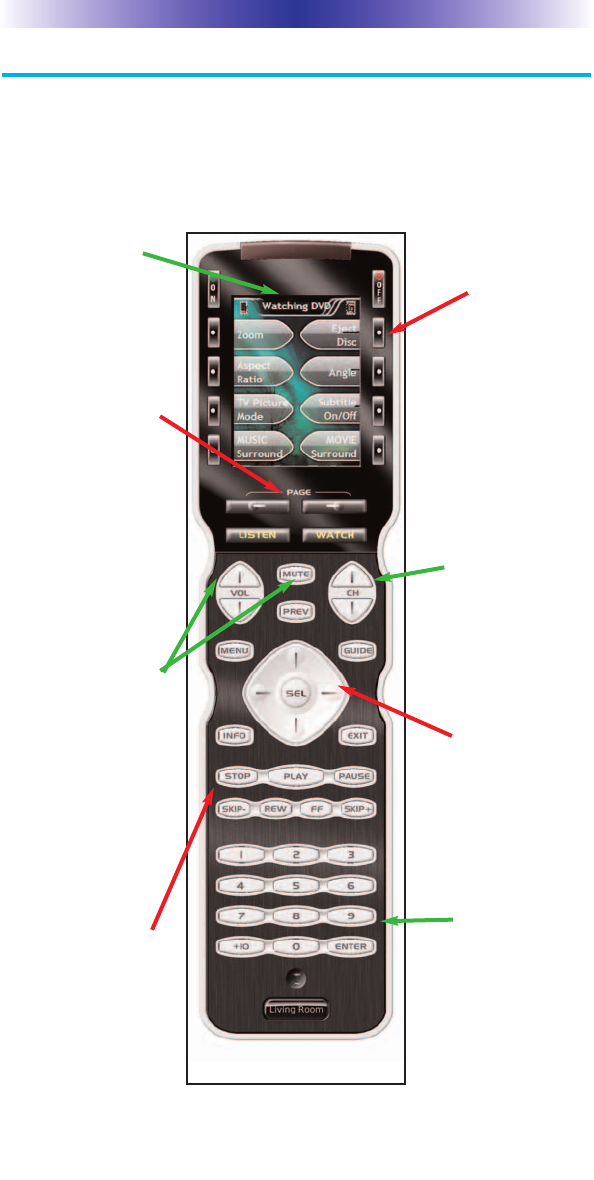
Once you’ve selected a new activity, the MX-980 displays the title
of the activity at the top of the screen. Below the title, the LCD dis-
plays the customized names of any special features you need for
the activity. All the hard buttons of the MX-980 have now changed
to functions optimized for this activity.
The number but-
tons operate when
the selected activity
requires them.
The Title displays
the activity you
have selected.
The Volume and
Mute buttons
always control the
sound regardless of
what screen is dis-
played.
Press either of the
PAGE buttons to
see any other avail-
able choices. You
may have only one
page or your sys-
tem may have sev-
eral pages of spe-
cial features for this
activity.
The transport but-
tons (Play, Stop,
Skip-, Skip+ and
Pause) operate when
the selected activity
requires them.
The 4 way cursor
buttons enable you
to navigate on
screen guides and
menus with ease.
The Channel but-
tons operate when
the selected activity
requires them.
The LCD button
labels describe spe-
cial features for this
activity. When
there are two func-
tions, you press the
corresponding but-
ton, when a single
function is listed,
you can press
either the left or the
right side button.
Page 7
MX-980 OWNERS MANUAL
Displaying the Setup Screens
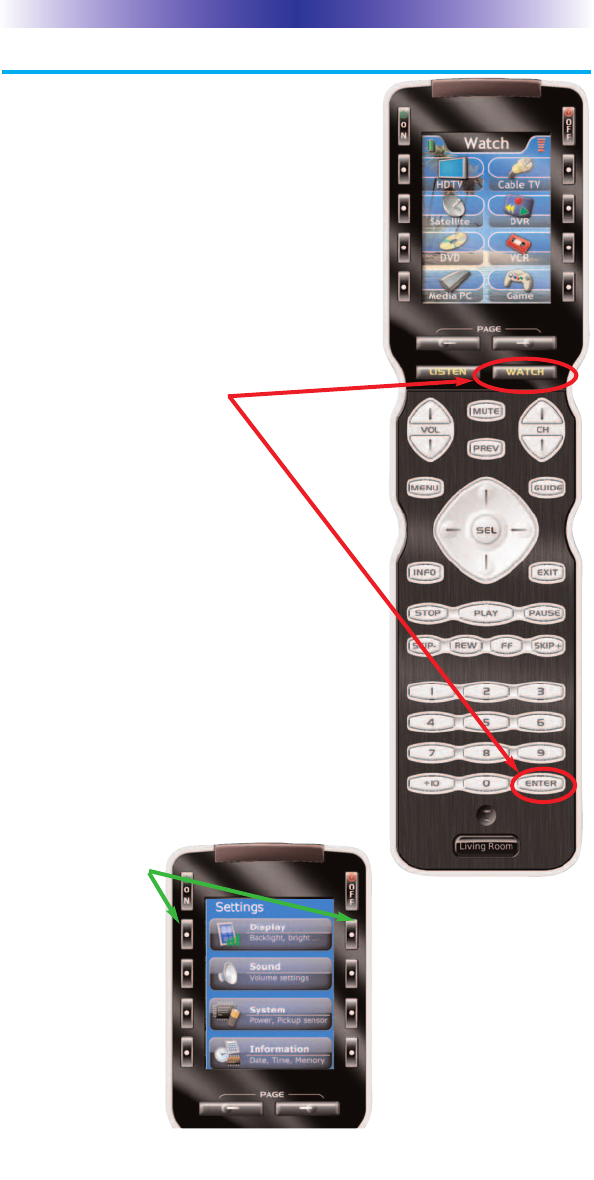
You can adjust the settings of the MX-980
whenever you like by pressing and holding
both the WATCH and the ENTER button at
the same time for three seconds.If you do
not press any button on the SETUP screen
within 30 seconds, the MX-980 will time out
and automatically return to normal opera-
tion. You can return to normal operation
before that by pressing either the WATCH or
the LISTEN button.
At the same time, press and
hold both the WATCH button
and the ENTER button. When
the SETUP screen appears, you
can release the two buttons.
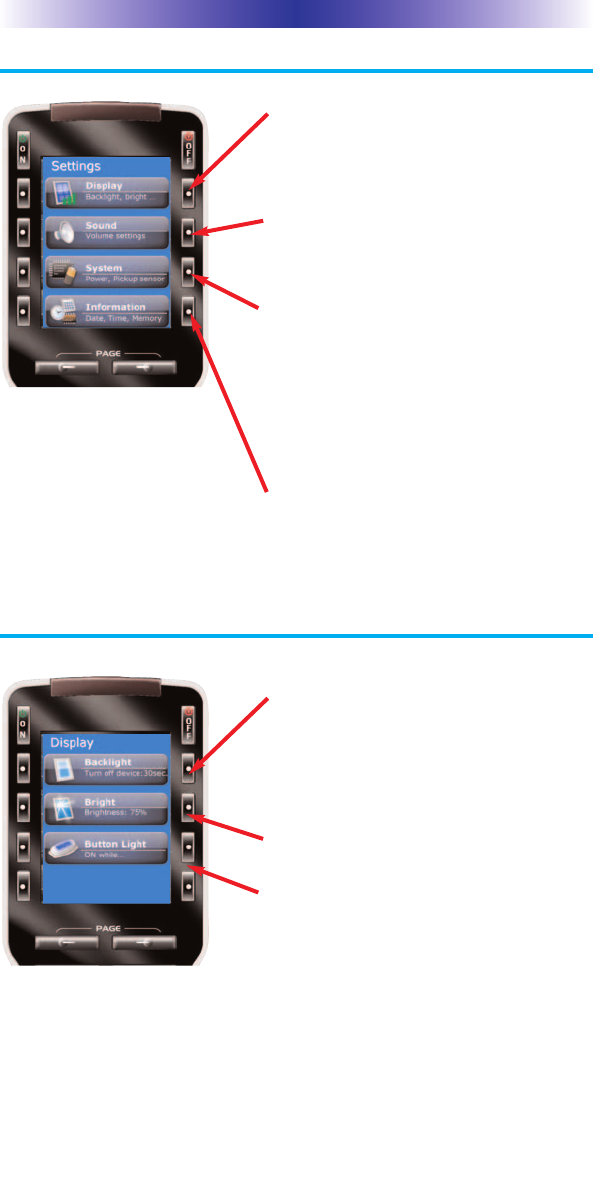
To adjust one of
the settings, press
either the left or
the right hand
button.
Main Settings Menu
Adjusting the Display
Page 8
MX-980 OWNERS MANUAL
DISPLAY- Press this setting button to
adjust the screen and button backlight-
ing. The longer your screen is lit, the
more frequently you’ll need to charge
the MX-980.
SOUND - Adjust the volume of the
sounds your MX-980 makes when you
press buttons.
SYSTEM - These settings are for service
use. For diagnostic purposes, an installer
can turn off the Pick Up sensor, display
remaining battery charge and erase all
programming permanently. Some of this
menu may have been disabled by your
installer as a safety measure.
INFORMATION - Adjust the time, date
or you can display the amount of mem-
ory available and the version number of
the firmware loaded into your MX-980.
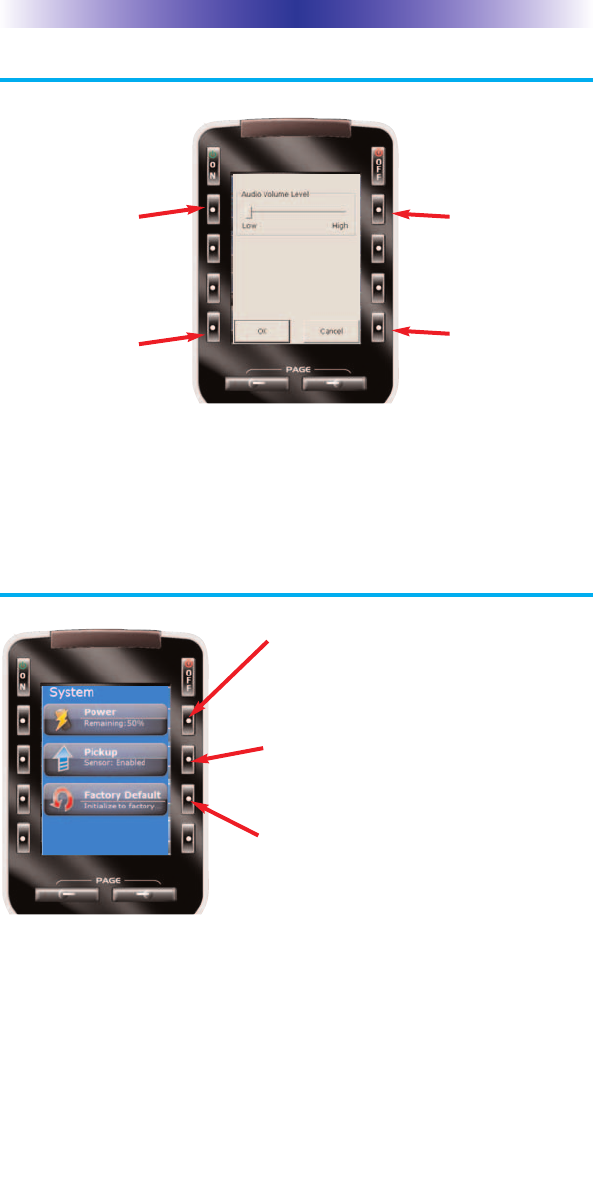
BACKLIGHT - Specify how long the MX-
980 screen should stay lit after you press
a button. You can select two different
time out settings. One for when it is
hand held, another for when it is in the
charging base.
BRIGHT - Adjust the brightness of the
screen.
BUTTON LIGHT - Turn the backlighting
for all buttons on or off. When on, all
the buttons backlight so that you can
read their labels in total darkness.
Page 9
MX-980 OWNERS MANUAL
Sound Volume
System Settings Menu
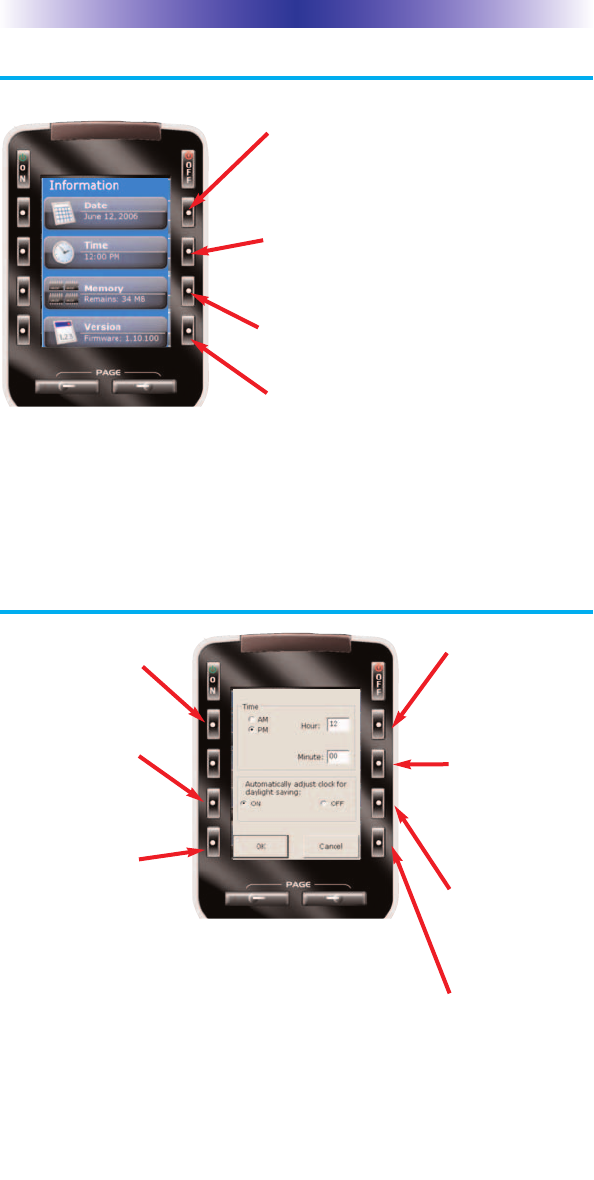
Press this button
to raise the vol-
ume.
Press this button
to cancel any
changes you’ve
made and return
to the Main
Setting menu.
Press this button
to lower the vol-
ume.
Press this button
to save any
changes you’ve
made and return
to the Main
Setting menu.
POWER- Displays the current power
remaining and enables you to set the
level that triggers a warning when you
are using the MX-980.
PICKUP - The MX-980 normally turns
itself on when its angle is changed. This
can be disabled for diagnostic purposes.
FACTORY DEFAULT - WARNING!
This setting is for service use. Your
installer can erase all programming per-
manently, before downloading your
configuration back into the MX-980 via
his/her PC. This button may have been
disabled by your installer as a safety
measure.
Information Menu
Setting Time
Page 10
MX-980 OWNERS MANUAL
Each time you
press this button
the hour will
change.
Each time you
press this button
the minute will
change.
Press this button
to cancel any
changes you’ve
made and return
to the Main
Setting menu.
Press this button
to change from
AM to PM.
Press this button
to save any
changes you’ve
made and return
to the Main
Setting menu.
Press this button
to turn daylight
savings time on.
Press this button
to turn daylight
savings time off.
DATE- Press this button to set the date.
TIME - Press this button to set the time.
MEMORY - Press this button to display
the amount of memory available.
VERSION - Press this button to display
the version of the MX-980 firmware.

Page 11
MX-980 OWNERS MANUAL
USA Limited Warranty Statement
Your Universal Remote Control, when delivered to you in new condi-
tion, is warranted against defects in materials or workmanship as fol-
lows: UNIVERSAL REMOTE CONTROL, INC. warrants this product
against defects in material or workmanship for a period of one (1) year
and as set forth below. Universal Remote Control will, at its sole
option, repair the product using new or comparable rebuilt parts, or
exchange the product for a comparable new or rebuilt product. In the
event of a defect, these are your exclusive remedies.
This Limited Warranty covers only the hardware components packaged
with the Product. It does not cover technical assistance for hardware or
software usage and it does not cover any software products whether or
not contained in the Product; any such software is provided "AS IS"
unless expressly provided for in any enclosed software Limited
Warranty.
To obtain warranty service, you must deliver the product, freight pre-
paid, in its original packaging or packaging affording adequate protec-
tion to Universal Remote Control at the address provided in the
Owner's Manual. It is your responsibility to backup any macro pro-
gramming, artwork, software or other materials that may have been
programmed into your unit. It is likely that such data, software, or
other materials will be lost during service and Universal Remote
Control will not be responsible for any such damage or loss. A dated
purchase receipt, Bill of Sale, Installation Contract or other verifiable
Proof of Purchase is required. For product support and other important
information visit Universal Remote Control's website:
http://www.UniversalRemote.com
Or call the Universal Remote Control Customer Service Center
(914) 835-4484.
This Limited Warranty only covers product issues caused by
defects in material or workmanship during ordinary consumer
use. It does not cover product issues caused by any other rea-
son, including but not limited to product issues due to commer-
cial use, acts of God, third-party installation, misuse, limitations
of technology, or modification of or to any part of the Universal
Remote Control product. This Limited Warranty does not cover
Universal Remote Control products sold as USED, AS IS,
REFURBISHED, so-called "B STOCK" or consumables (such as
batteries). This Limited Warranty is invalid if the factory-applied
serial number has been altered or removed from the product.
This Limited Warranty is valid only in the United States of
America. This Limited Warranty specifically excludes products
sold by unauthorized resellers.

Page 12
MX-980 OWNERS MANUAL
Specifications
Microprocessor: ARM9 32bit 202MHz
LCD - 2.4” TFT (QVGA) 262,144 Colors
Memory - 64 Megabytes of SDRAM & 34 Megabytes of Nand Flash
Devices - Supports up to 255 Devices with text, less with heavy
graphics usage
Pages - Supports up to 255 Pages on each Device with text, less
with heavy graphics usage
Learning Capability - Standard frequencies (15kHz to 455kHz)
Macro Capability - Up to 255 steps each, however nesting is
allowed
IR Range (Line of Sight via Infrared): 30-50 feet, depending on the envi-
ronment
RF Range (radio frequency): 50 to 100 feet, depending upon the envi-
ronment
RF Frequency: 418MHz
Batteries: 1070mAh, 3.7 Volt Lithium Ion battery pack included
Battery Life: 120 minutes continuous use, 6000 minutes in standby
mode.
Weight: 7 oz. (with battery)
Size: 2.4” x 9.2 x 1”

500 Mamaroneck Avenue, Harrison, NY 10528
Phone: (914) 835-4484 Fax: (914) 835-4532
www.universalremote.com
COMPLETE
™
Universal Remote Control®
CONTROL
COMPLETE
This equipment has been tested and found to comply with the lim-
its for a Class B digital device, pursuant to part 15 of the FCC Rules.
These limits are designed to provide reasonable protection against
harmful interference in a residential installation. This equipment
generates, uses and can radiate radio frequency energy and, if not
installed and used in accordance with the instructions, may cause
harmful interference to radio communications.
However, there is no guarantee that interference will not occur in a
particular installation. If this equipment does cause harmful interfer-
ence to radio or television reception, which can be determined by
turning the equipment off and on, the user is encouraged to try to
correct the interference by one more of the following measures:
®Reorient or relocate the receiving antenna.
®Increase the separation between the equipment and receiv-
er.
®Connect the equipment into an outlet on a circuit different
from that to which the receiver is connected.
®Consult the dealer or an experienced radio/TV technician
for help.
Warning
Changes or modifications not expressly approved by the manufacturer
could void the user's authority to operate the equipment.
Note : The manufacturer is not responsible for any Radio or TV inter-
ference caused by unauthorized modifications to this equipment. Such
modifications could void the user's authority to operate the equip-
ment.
Information To The User
