Uniwill Computer 3945ABGXPCIA Shuttle XPC (Wireless 802.11a+b+g) User Manual 1602896

Uniwill Computer Corp. Shuttle XPC (Wireless 802.11a+b+g) 1602896

Users Manual

 chapter 1 getting to know the basics1-1ShuttleModel name: Xyy0yy(cy ould be 0~9, A~Z or blank to denote different color of enclo
 chapter 1 getting to know the basics1-2CHAPTER  ONEGETTING TO KNOW THE BASICSThis chapter introduces the features and components of the computer.
 chapter 1 getting to know the basics1-3Performance Features High Performance Processor with Napa ChipsetThe notebook PC is equipped with a powerful Mobile Intel Pentium M dual-core processor. Together with the latest Napa chipset and technologies, the system offers very advanced PC performances.  Advanced Graphic EngineThe system is built with ATI Mobility M54-P with 128MBDDR2 dedicated frame buffer. The PCI-Express high-endgraphic engine offers excellent graphic performance for the most demanding professionals or gamers. The advanced graphic chip also incorporates a hardware-basedmotion-compensation engine, which gives you smooth MPEG video playback. DirectX 9 graphics capability also adds realism to PC games. Built-in Multiple Card ReaderThere is built-in 4-in-1 card reader to access many of the portable media formats (SD Card, MS Card, MMC Card, and MS-Pro Card).  Gigabit Ethernet PortThe system provides built-in 10/100/1000Mbps Ethernetnetwork adapter for high bandwidth network connection. Firewire (IEEE1394 / 1394a) and USB2.0 portsIn addition to a full array of built-in I/O ports, the computer offers IEEE1394 for ultra high-speed connection to high bandwidth digital video devices and USB2.0 ports toconnect to any USB-based peripheral devices. Wireless LANThe internal Wireless LAN module allows your notebook to connect wirelessly to other 802.11-enabled systems, devices, or network.
 chapter 1 getting to know the basics1-4Package ContentPlease take a moment to make sure you have the following content in the box.[ Proposal: Will take a live black and white picture of the actual items.]
 chapter 1 getting to know the basics1-5System At A GlanceFront ViewWarning: Do not place any heavy objects on the top of computer. This may damage the unit1. Power / Suspend ButtonThe power/suspend button turns the computer on and off and it also acts as a system suspend key. Press momentarily to turn on the system. Press and hold for at least 4 seconds to turn off the system. How this key behaves can be defined in [Start > Settings > Control Panel > Power Options > Advanced] menu. Press the power / suspend button again to return from the suspend mode. (See Chapter 3 for more details on system suspend function.)2. 4-in-1 Card ReaderThe 4-in-1 Card Reader supports SD Card, MS Card, MMC Card, and MS-Pro Card.3. USB2.0 Port (x1) The Universal Serial Bus (USB2.0-compliant) port allows you to
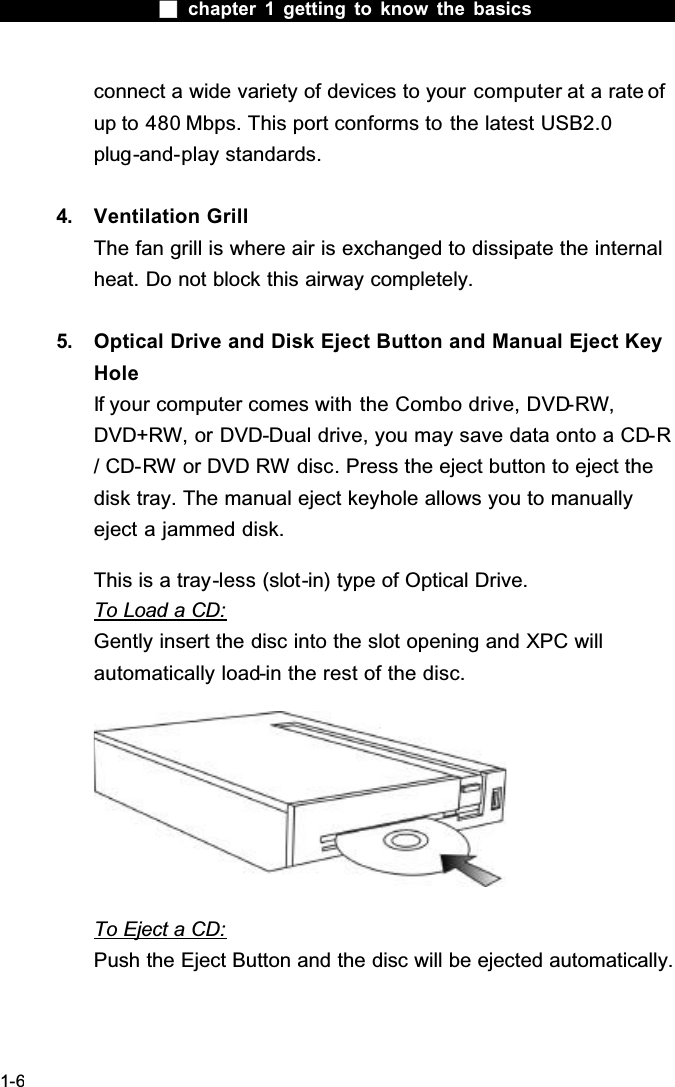
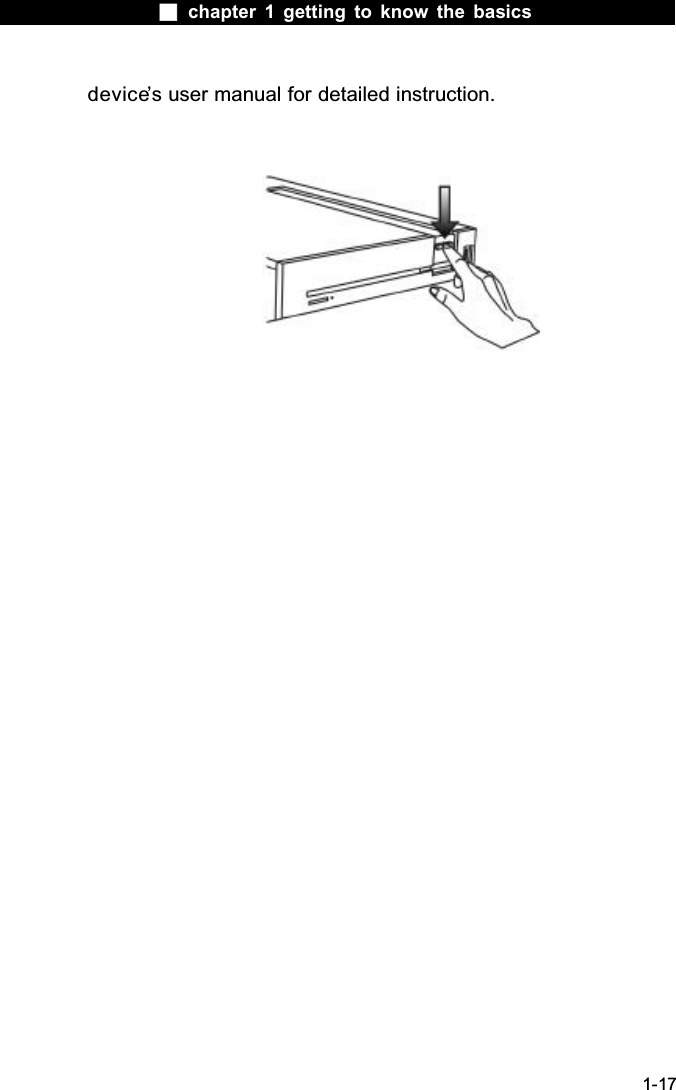
 chapter 1 getting to know the basics1-6connect a wide variety of devices to your computer at a rate of up to 480 Mbps. This port conforms to the latest USB2.0plug-and-play standards.4. Ventilation GrillThe fan grill is where air is exchanged to dissipate the internal heat. Do not block this airway completely.5. Optical Drive and Disk Eject Button and Manual Eject Key HoleIf your computer comes with the Combo drive, DVD-RW,DVD+RW, or DVD-Dual drive, you may save data onto a CD-R/ CD-RW or DVD RW disc. Press the eject button to eject the disk tray. The manual eject keyhole allows you to manually eject a jammed disk.This is a tray-less (slot-in) type of Optical Drive.To Load a CD:Gently insert the disc into the slot opening and XPC will automatically load-in the rest of the disc.To Eject a CD:Push the Eject Button and the disc will be ejected automatically.
 chapter 1 getting to know the basics1-7
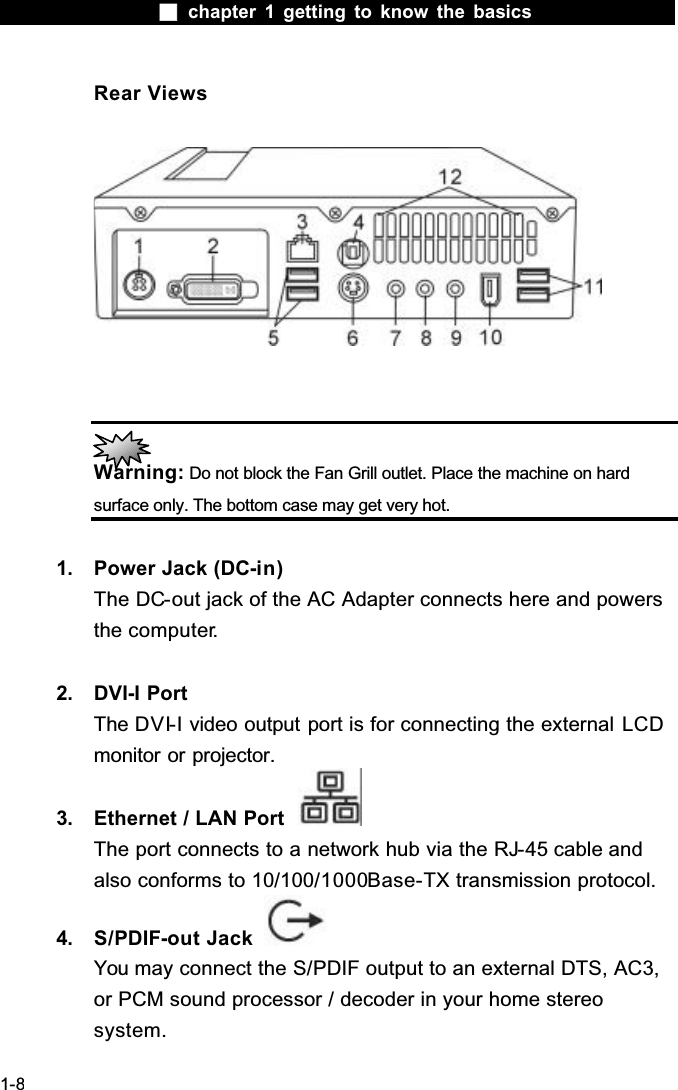
 chapter 1 getting to know the basics1-8Rear ViewsWarning: Do not block the Fan Grill outlet. Place the machine on hard surface only. The bottom case may get very hot.1. Power Jack (DC-in)The DC-out jack of the AC Adapter connects here and powers the computer.2. DVI-I PortThe DVI-I video output port is for connecting the external LCDmonitor or projector.3. Ethernet / LAN PortThe port connects to a network hub via the RJ-45 cable and also conforms to 10/100/1000Base-TX transmission protocol.4. S/PDIF-out JackYou may connect the S/PDIF output to an external DTS, AC3, or PCM sound processor / decoder in your home stereo system.
 chapter 1 getting to know the basics1-95. USB2.0 Port (x2) The Universal Serial Bus (USB2.0-compliant) port allows you to connect a wide variety of devices to your computer at a rate of up to 480 Mbps. This port conforms to the latest USB2.0plug-and-play standards.6. TV (S-Video) PortThe S-Video port permits you to redirect the screen output to a television set or any analog video playback device. This TV Port is copyright protected; when DVD movie is played, the output is scrambled to prevent analog recording.7. Stereo Headphone / Line-out JackThe stereo headphone jack (3.5-mm diameter) is where you connect to the headphones or external speakers. 8. Audio Line-in JackThe Audio Line-in jack (3.5-mm diameter) is where you connect an external audio input source such as a CD Player.9. Microphone Jack The microphone jack (3.5-mm diameter) is where you connect a microphone.10. Firewire / IEEE1394 / 1394a PortThis is a high-speed serial data port. You may connect any Fire-wire-ready device to this port.11. USB2.0 Port (x2) The Universal Serial Bus (USB2.0-compliant) port allows you to connect a wide variety of devices to your computer at a rate of
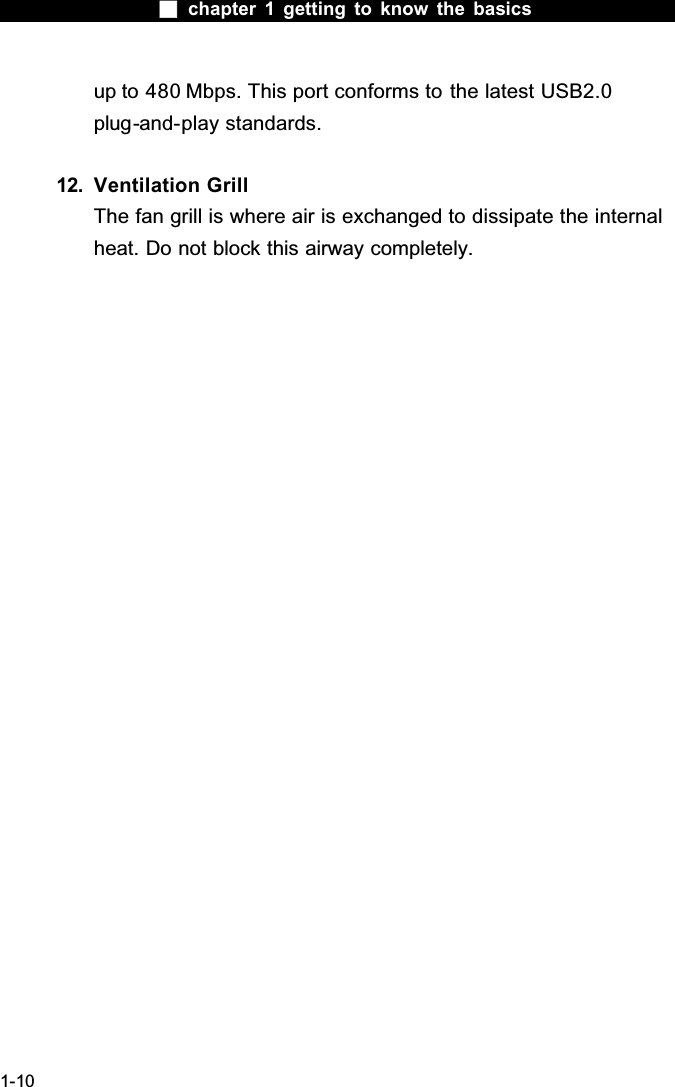
 chapter 1 getting to know the basics1-10up to 480 Mbps. This port conforms to the latest USB2.0plug-and-play standards.12. Ventilation GrillThe fan grill is where air is exchanged to dissipate the internal heat. Do not block this airway completely.
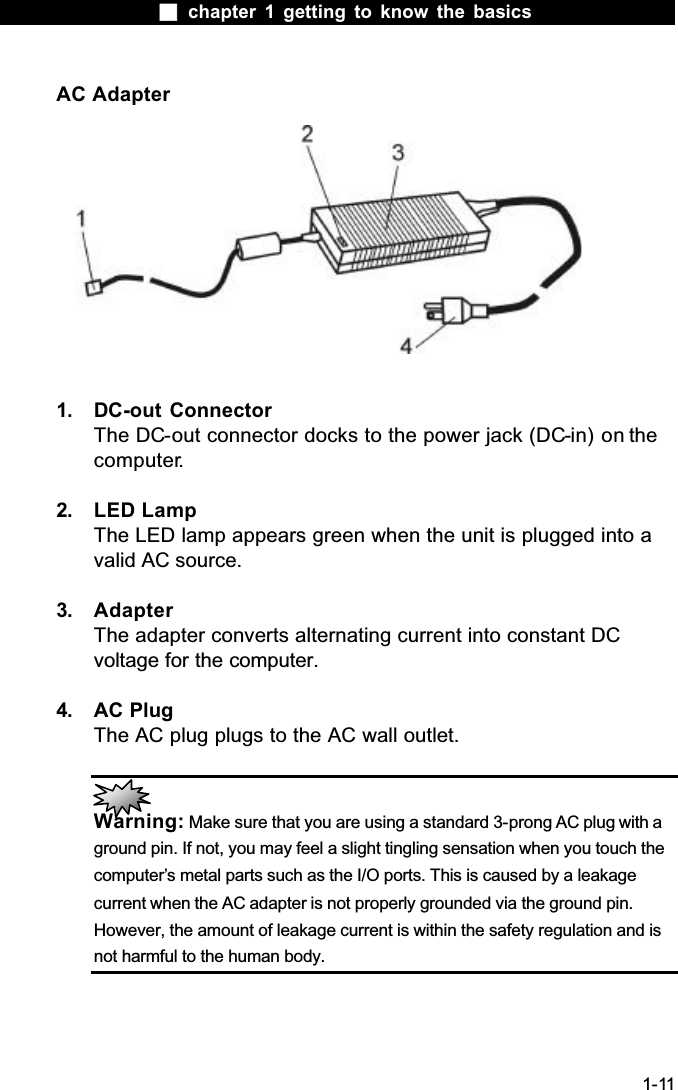
 chapter 1 getting to know the basics1-11AC Adapter1. DC-out ConnectorThe DC-out connector docks to the power jack (DC-in) on the computer.2. LED LampThe LED lamp appears green when the unit is plugged into a valid AC source.3. AdapterThe adapter converts alternating current into constant DC voltage for the computer.4. AC PlugThe AC plug plugs to the AC wall outlet.Warning: Make sure that you are using a standard 3-prong AC plug with a ground pin. If not, you may feel a slight tingling sensation when you touch the computer’s metal parts such as the I/O ports. This is caused by a leakage current when the AC adapter is not properly grounded via the ground pin. However, the amount of leakage current is within the safety regulation and is not harmful to the human body.
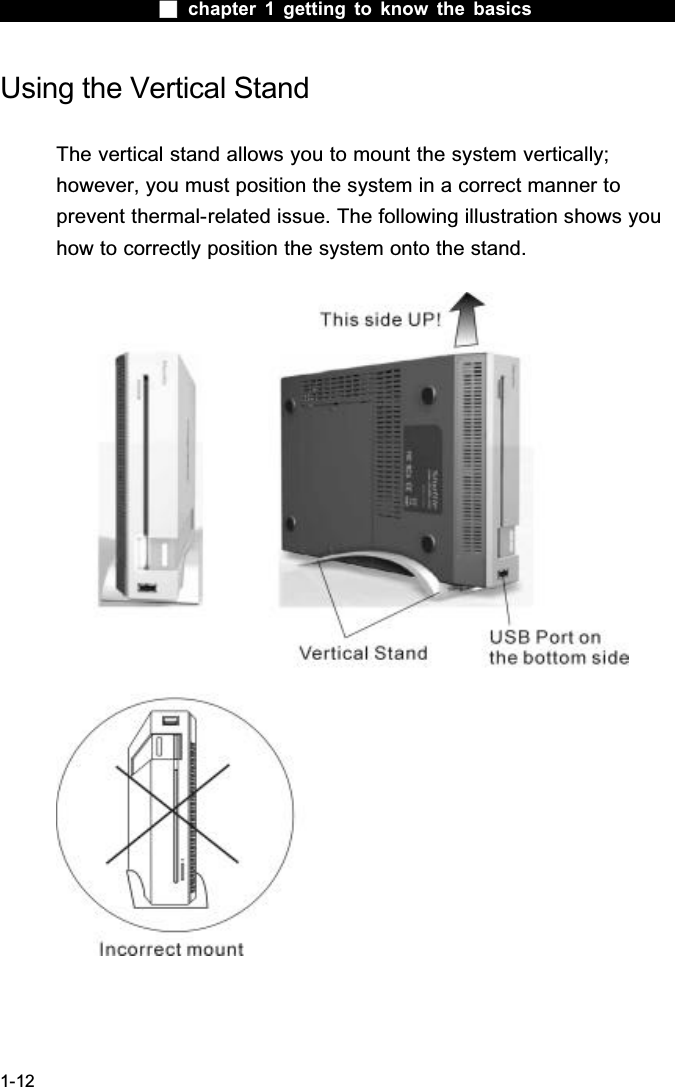
 chapter 1 getting to know the basics1-12Using the Vertical StandThe vertical stand allows you to mount the system vertically; however, you must position the system in a correct manner to prevent thermal-related issue. The following illustration shows you how to correctly position the system onto the stand.
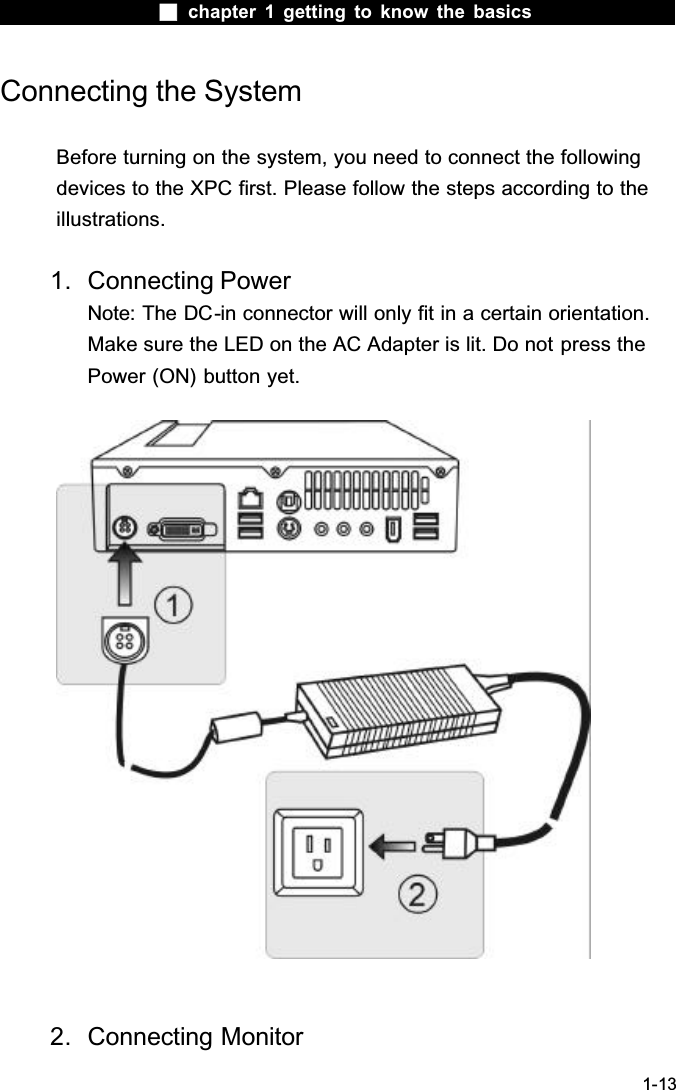
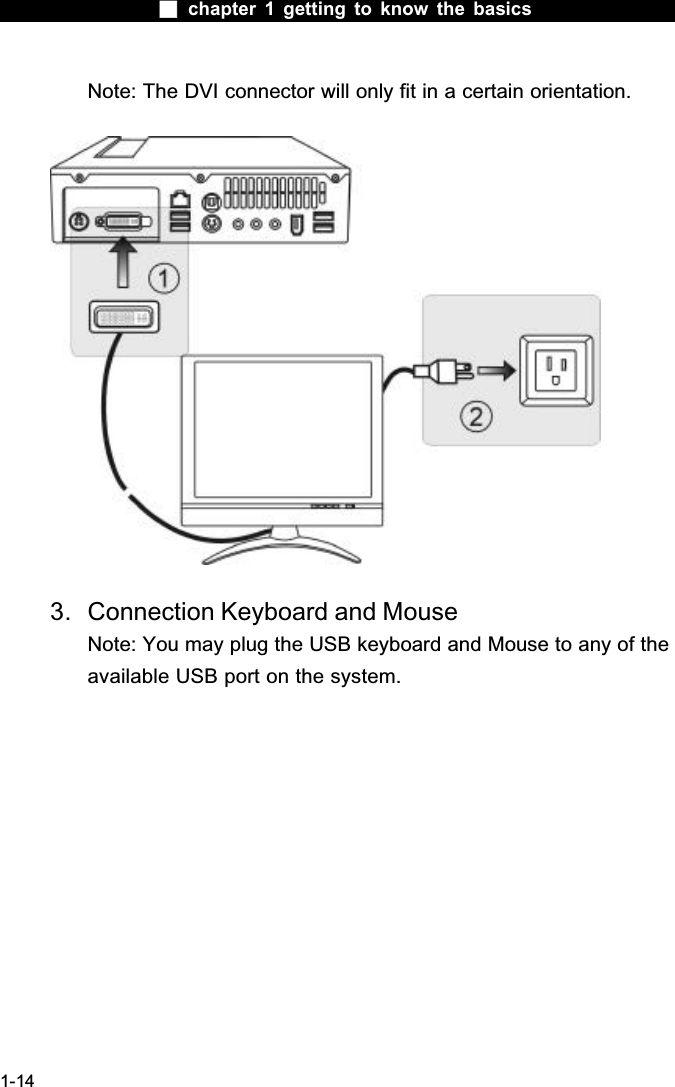
 chapter 1 getting to know the basics1-13Connecting the SystemBefore turning on the system, you need to connect the following devices to the XPC first. Please follow the steps according to the illustrations.1. Connecting PowerNote: The DC-in connector will only fit in a certain orientation. Make sure the LED on the AC Adapter is lit. Do not press the Power (ON) button yet.2. Connecting Monitor
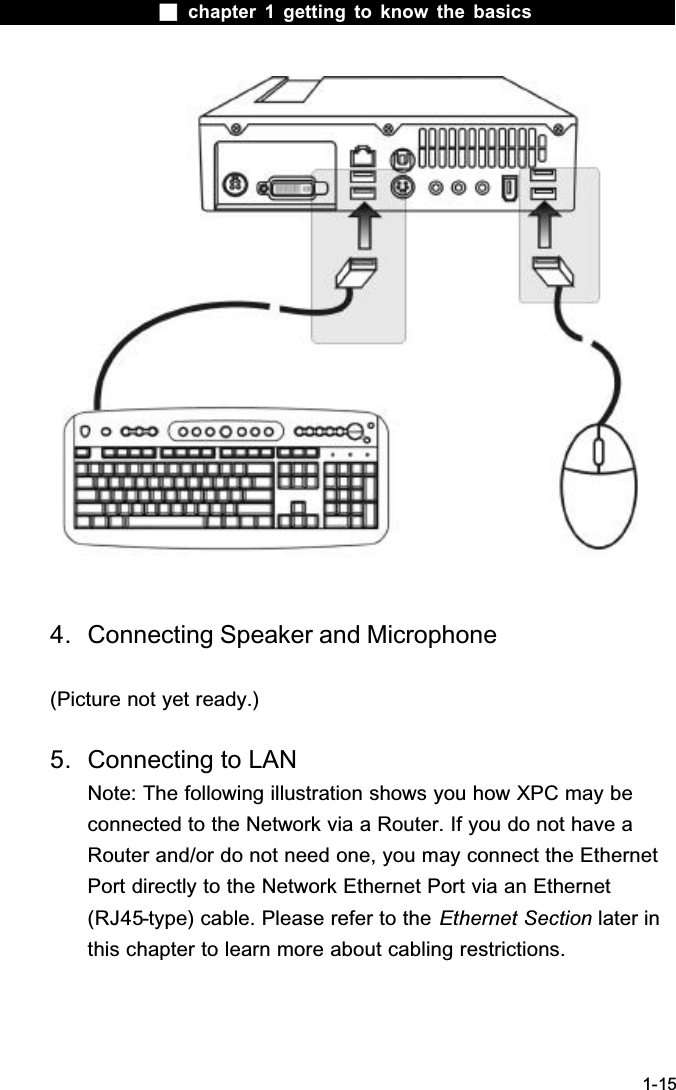
 chapter 1 getting to know the basics1-14Note: The DVI connector will only fit in a certain orientation.3. Connection Keyboard and MouseNote: You may plug the USB keyboard and Mouse to any of the available USB port on the system.
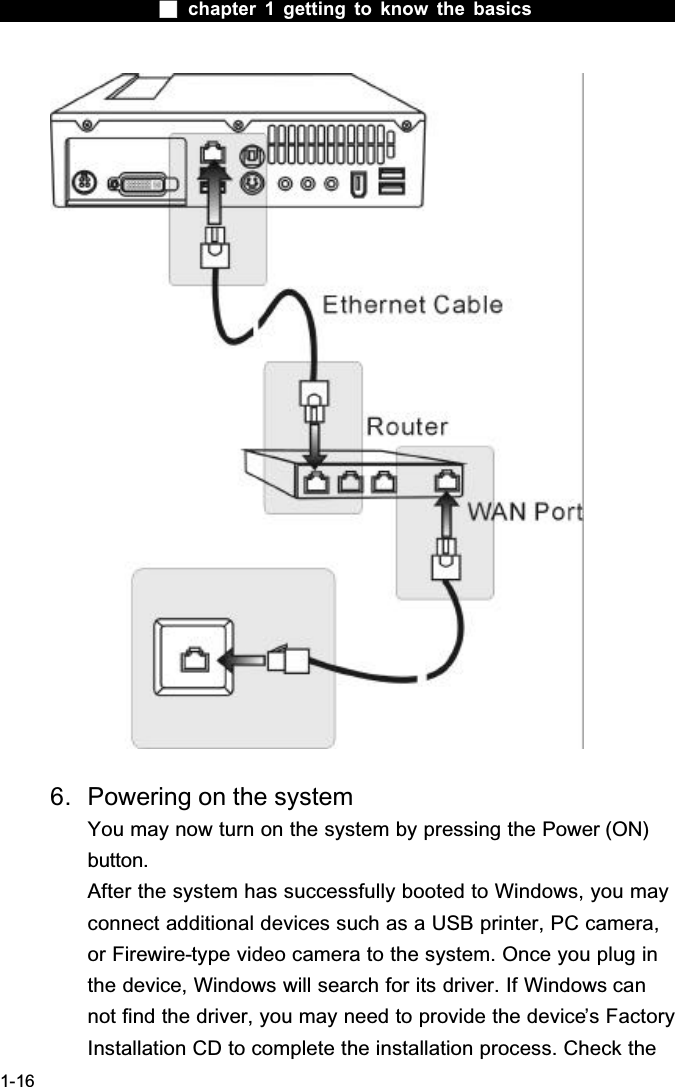
 chapter 1 getting to know the basics1-154. Connecting Speaker and Microphone(Picture not yet ready.)5. Connecting to LANNote: The following illustration shows you how XPC may be connected to the Network via a Router. If you do not have a Router and/or do not need one, you may connect the EthernetPort directly to the Network Ethernet Port via an Ethernet (RJ45-type) cable. Please refer to the Ethernet Section later in this chapter to learn more about cabling restrictions.
 chapter 1 getting to know the basics1-166. Powering on the systemYou may now turn on the system by pressing the Power (ON) button.After the system has successfully booted to Windows, you may connect additional devices such as a USB printer, PC camera, or Firewire-type video camera to the system. Once you plug in the device, Windows will search for its driver. If Windows can not find the driver, you may need to provide the device’s Factory Installation CD to complete the installation process. Check the
 chapter 1 getting to know the basics1-17device’s user manual for detailed instruction.
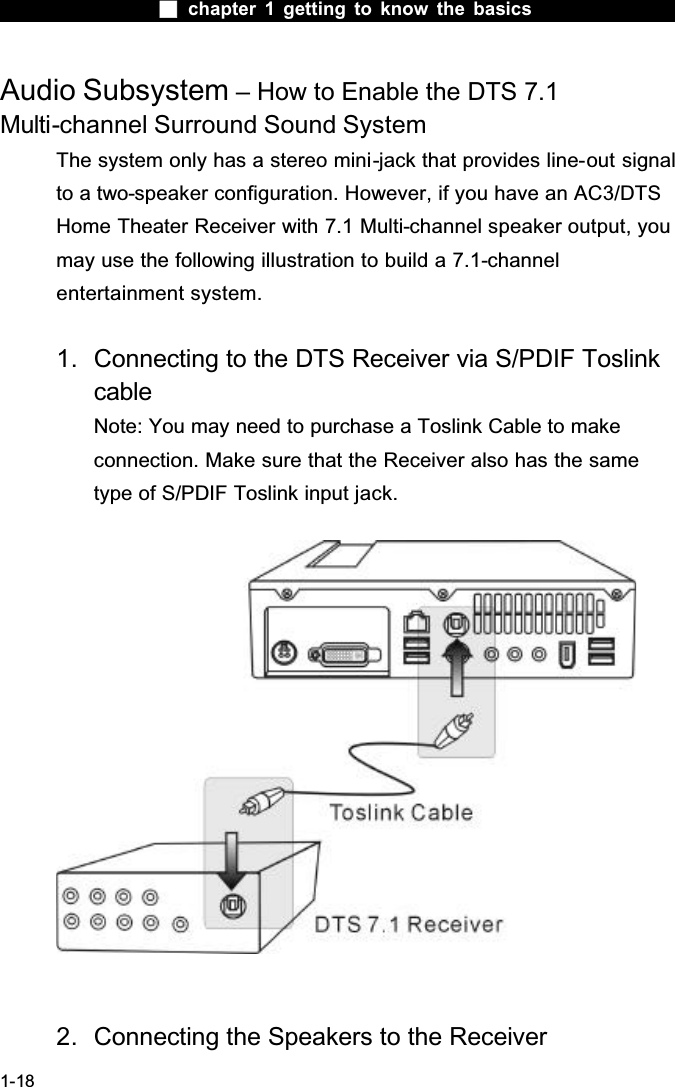
 chapter 1 getting to know the basics1-18Audio Subsystem – How to Enable the DTS 7.1 Multi-channel Surround Sound SystemThe system only has a stereo mini-jack that provides line-out signal to a two-speaker configuration. However, if you have an AC3/DTS Home Theater Receiver with 7.1 Multi-channel speaker output, you may use the following illustration to build a 7.1-channelentertainment system.1. Connecting to the DTS Receiver via S/PDIF Toslink cableNote: You may need to purchase a Toslink Cable to make connection. Make sure that the Receiver also has the same type of S/PDIF Toslink input jack.2. Connecting the Speakers to the Receiver
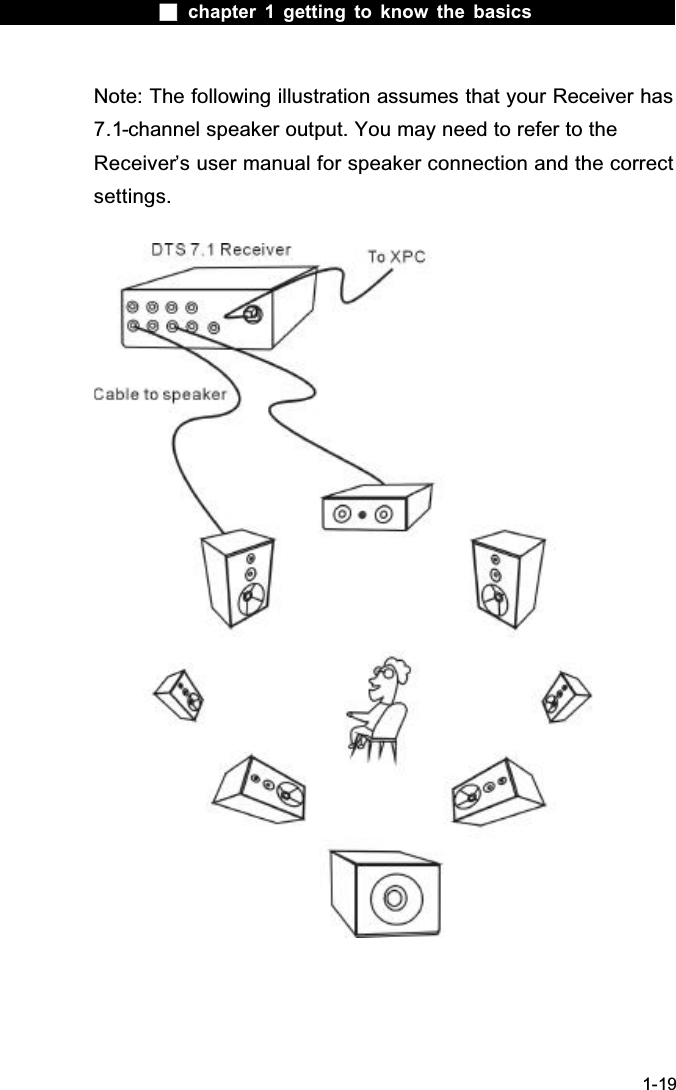
 chapter 1 getting to know the basics1-19Note: The following illustration assumes that your Receiver has 7.1-channel speaker output. You may need to refer to the Receiver’s user manual for speaker connection and the correct settings.
 chapter 1 getting to know the basics1-20Adjusting the Audio Volume in Windows1. Click the speaker symbol in the task tray in Windows.2. Drag the volume control bar up or down to adjust the volume.3. To temporarily silence the speaker without changing the volume setting, click Mute.Voice RecordingYou will need an external microphone to record sound. You willneed to use audio processing software to enable the built-inmicrophone. For example, you may use Microsoft Sound Recorder.{Insert an Illustration…}
 chapter 1 getting to know the basics1-21EthernetYour computer is equipped with a 10/100/1000Base-TX FastEthernet network adapter. Connect the active LAN cable to the RJ-45 LAN port located on the left side of the computer. This allows you to access and transmit data in the local area network. Connecting to the NetworkUse Unshielded Twisted Pair (UTP) Ethernet cable only.1. Insert one end of the UTP cable into the network connector until the connector snaps securely into the receptacle. 2. Either connect the other end of the cable to an RJ-45 jack wall outlet or to an RJ-45 port on a UTP concentrator or hub in the network. Cabling Restriction for NetworksThe following restrictions should be observed for 10/100/1000BASE-TX networks:The maximum cable run length is 100 meters(m) (328 feet[ft]). For 100Mbps or 1000Mbps operations, use Category 5 wiring and connections.Note: Consult Windows manual and / or Novell Netware user’s guide for the software installation, configuration, operation of the network.
 chapter 1 getting to know the basics1-22CHAPTER  TWOBIOS SETUP AND SECURITY FEATUREIn this chapter, you will learn how to enter the BIOS Setup Menu and manipulate various hardware control settings. You will also learn how to use the built-in security features.
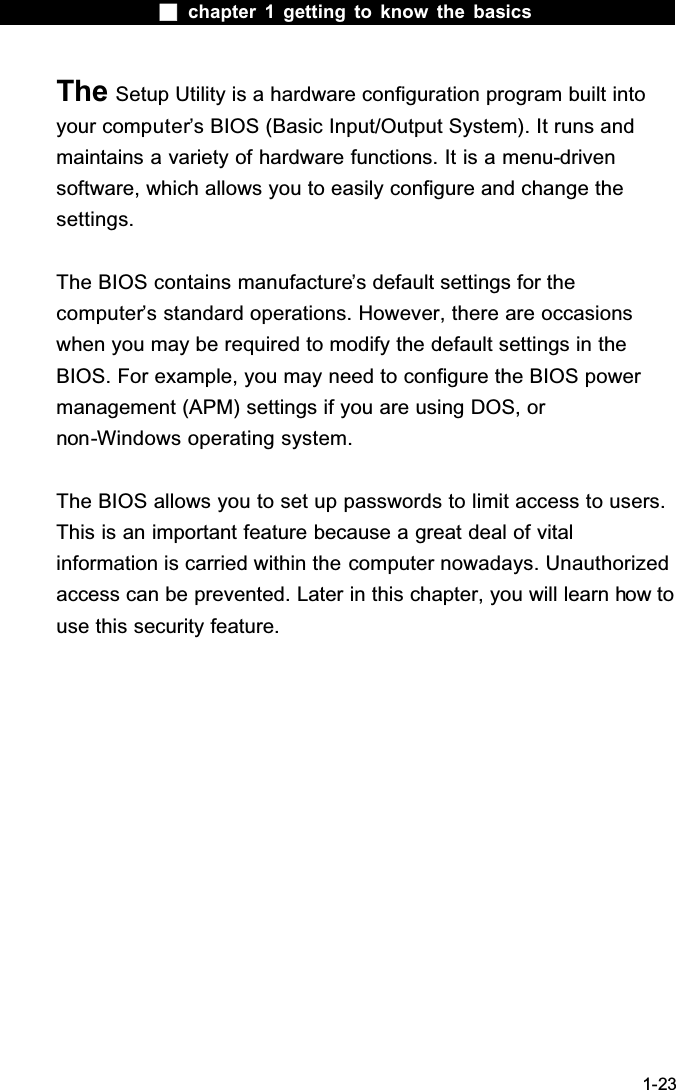
 chapter 1 getting to know the basics1-23The Setup Utility is a hardware configuration program built into your computer’s BIOS (Basic Input/Output System). It runs and maintains a variety of hardware functions. It is a menu-drivensoftware, which allows you to easily configure and change the settings.The BIOS contains manufacture’s default settings for the computer’s standard operations. However, there are occasions when you may be required to modify the default settings in the BIOS. For example, you may need to configure the BIOS power management (APM) settings if you are using DOS, or non-Windows operating system.The BIOS allows you to set up passwords to limit access to users. This is an important feature because a great deal of vital information is carried within the computer nowadays. Unauthorized access can be prevented. Later in this chapter, you will learn how to use this security feature.
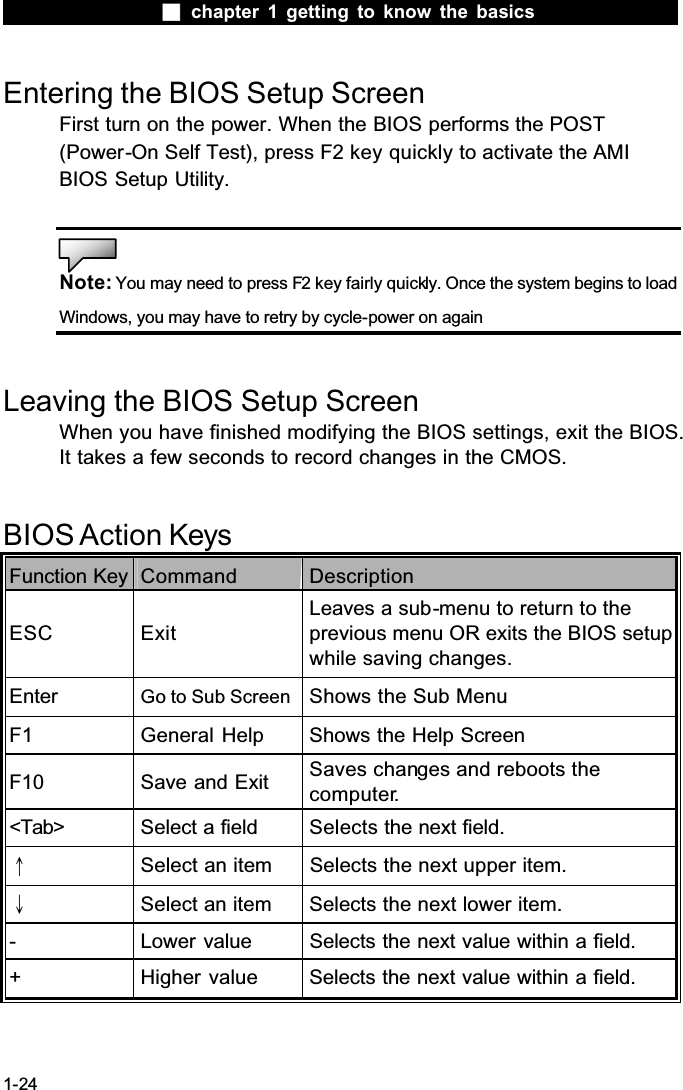
 chapter 1 getting to know the basics1-24Entering the BIOS Setup ScreenFirst turn on the power. When the BIOS performs the POST (Power-On Self Test), press F2 key quickly to activate the AMIBIOS Setup Utility.Note: You may need to press F2 key fairly quickly. Once the system begins to load Windows, you may have to retry by cycle-power on againLeaving the BIOS Setup ScreenWhen you have finished modifying the BIOS settings, exit the BIOS. It takes a few seconds to record changes in the CMOS.BIOS Action KeysFunction Key Command DescriptionESC ExitLeaves a sub-menu to return to the previous menu OR exits the BIOS setup while saving changes.Enter Go to Sub Screen Shows the Sub MenuF1 General Help Shows the Help ScreenF10 Save and Exit Saves changes and reboots the computer.<Tab> Select a field Selects the next field.ХSelect an item Selects the next upper item.ЦSelect an item Selects the next lower item.- Lower value Selects the next value within a field.+ Higher value Selects the next value within a field.
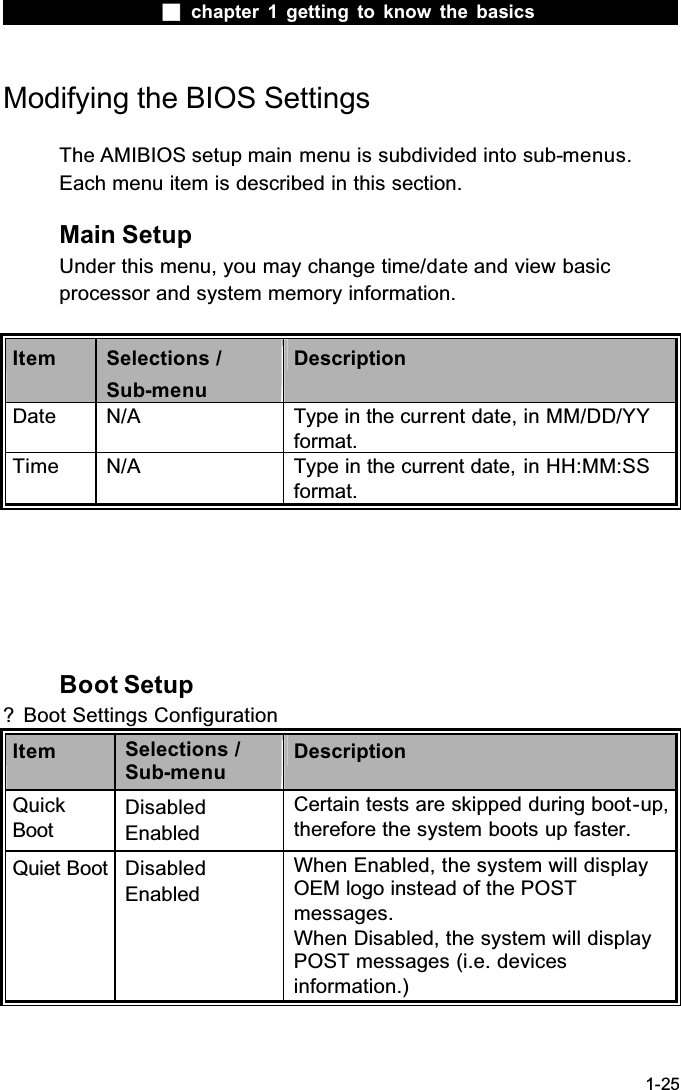
 chapter 1 getting to know the basics1-25Modifying the BIOS SettingsThe AMIBIOS setup main menu is subdivided into sub-menus.Each menu item is described in this section.Main SetupUnder this menu, you may change time/date and view basic processor and system memory information.Item Selections /Sub-menuDescriptionDate N/A Type in the current date, in MM/DD/YY format.Time N/A Type in the current date, in HH:MM:SS format.Boot Setup? Boot Settings ConfigurationItem Selections /Sub-menuDescriptionQuickBootDisabledEnabledCertain tests are skipped during boot-up,therefore the system boots up faster.Quiet Boot DisabledEnabledWhen Enabled, the system will display OEM logo instead of the POST messages.When Disabled, the system will display POST messages (i.e. devices information.)
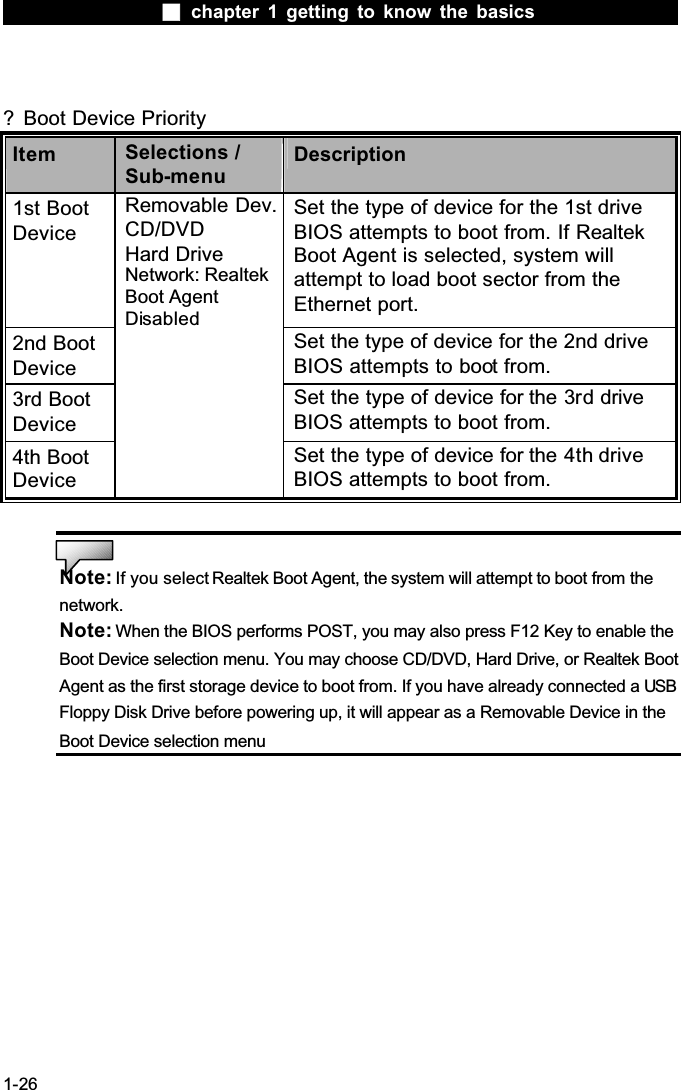
 chapter 1 getting to know the basics1-26? Boot Device PriorityItem Selections /Sub-menuDescription1st Boot DeviceSet the type of device for the 1st driveBIOS attempts to boot from. If Realtek Boot Agent is selected, system will attempt to load boot sector from the Ethernet port.2nd Boot DeviceSet the type of device for the 2nd driveBIOS attempts to boot from.3rd Boot DeviceSet the type of device for the 3rd driveBIOS attempts to boot from.4th Boot DeviceRemovable Dev. CD/DVDHard DriveNetwork: Realtek Boot AgentDisabledSet the type of device for the 4th driveBIOS attempts to boot from.Note: If you select Realtek Boot Agent, the system will attempt to boot from the network.Note: When the BIOS performs POST, you may also press F12 Key to enable the Boot Device selection menu. You may choose CD/DVD, Hard Drive, or Realtek Boot Agent as the first storage device to boot from. If you have already connected a USBFloppy Disk Drive before powering up, it will appear as a Removable Device in the Boot Device selection menu
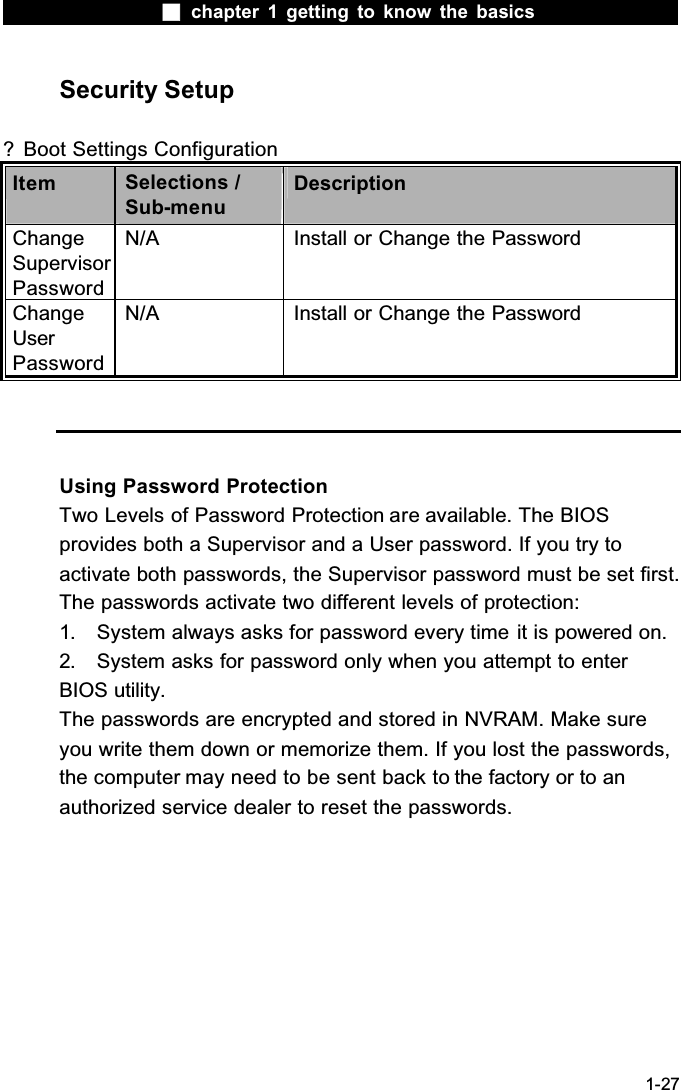
 chapter 1 getting to know the basics1-27Security Setup? Boot Settings ConfigurationItem Selections /Sub-menuDescriptionChangeSupervisorPasswordN/A Install or Change the PasswordChangeUserPasswordN/A Install or Change the PasswordUsing Password ProtectionTwo Levels of Password Protection are available. The BIOS provides both a Supervisor and a User password. If you try to activate both passwords, the Supervisor password must be set first.The passwords activate two different levels of protection:1. System always asks for password every time it is powered on. 2. System asks for password only when you attempt to enter BIOS utility.The passwords are encrypted and stored in NVRAM. Make sure you write them down or memorize them. If you lost the passwords, the computer may need to be sent back to the factory or to an authorized service dealer to reset the passwords.
 chapter 1 getting to know the basics1-28Power SetupItem Selections /Sub-menuDescriptionLong Battery Life ModeEnableDisableWhen Enabled, maximum battery life can be achieved. The processor performance is lowered.Power Button ModeOn/OffSuspend[On/Off]: When the power button is pressed, the system is turned off.[Suspend]: When the power button is pressed, the system enters the suspend mode. !Note: The Suspend Mode selection in BIOS only applies to older Windows version (such as Windows 3.1 or Windows 95 or NT4) or non-Windows operating system. In Windows ME / 98SE / 2000 / XP, suspend mode and settings are determined by settings in the Power Options Properties (Start > Control Panel > Power Options).
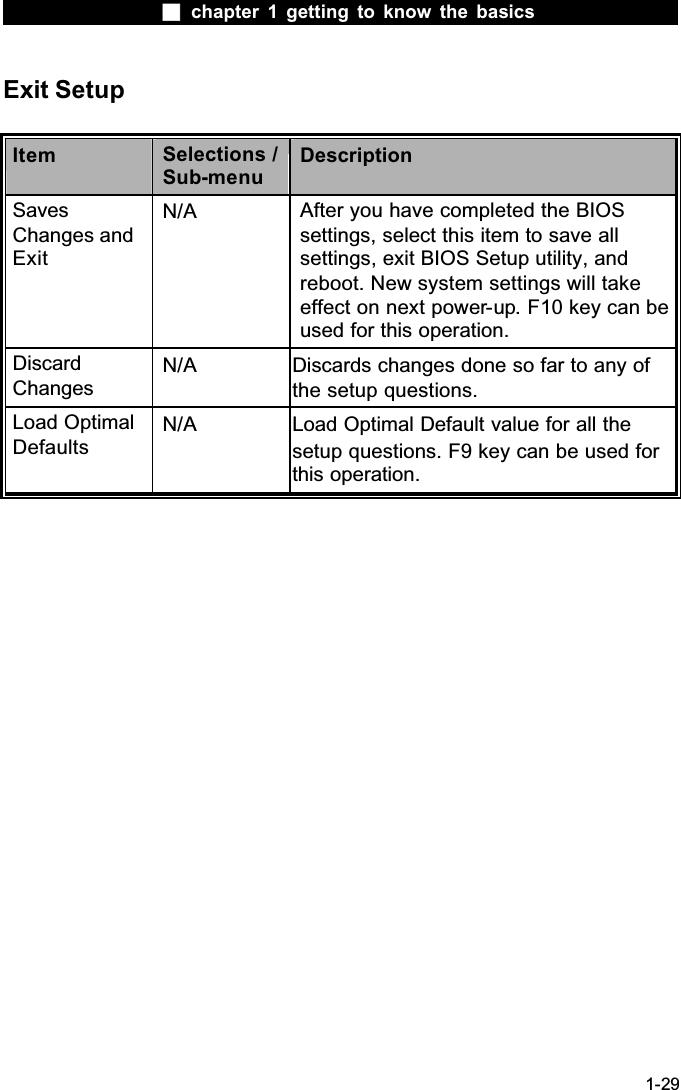
 chapter 1 getting to know the basics1-29Exit SetupItem Selections /Sub-menuDescriptionSavesChanges and ExitN/A After you have completed the BIOS settings, select this item to save all settings, exit BIOS Setup utility, and reboot. New system settings will take effect on next power-up. F10 key can be used for this operation.!DiscardChangesN/A Discards changes done so far to any of the setup questions.Load Optimal DefaultsN/A Load Optimal Default value for all the setup questions. F9 key can be used for this operation.
 chapter 1 getting to know the basics1-30CHAPTER  THREETROUBLE SHOOTINGIn this chapter, you will learn how to solve common hardware and software problems.
 chapter 1 getting to know the basics1-31Your computer has been fully tested and complies with the system specifications before shipping. However, incorrect operations and/or mishandling may cause problems.This chapter provides a reference for identifying and correcting common hardware and software problems that you may encounter.When you encounter a problem, you should first try to go through the recommendations in this chapter. Instead of returning the computer and waiting for repair, you may easily solve the problems by considering the following scenarios and possible solutions. If the error continues, contact your reseller for service information.Before taking further actions, consider the following suggestions:  Check to see if the problem persists when all the external devices are removed.  Check to see that the green light indicator on the AC adapter is lit.  Check to see the power cord is properly plugged to the wall outlet and to the computer.  Check to see the power indicator of the computer is on.  Check to see if your keyboard is operational by pressing and holding any key.  Check for any incorrect or loose cable connections. Make sure the latches on the connectors latch securely on to the receptor end.  Be sure you have not performed an incorrect setting on the
 chapter 1 getting to know the basics1-32hardware devices in the BIOS Setup utility. A faulty setting may cause the system to misbehave. If you are not sure of the changes you made, try to restore all the settings to factory defaults.  Be sure all the device drivers are installed properly. For example, without the audio driver properly installed, the speakers and microphone will not work.  If external devices such as USB camera, scanner, printer donot function correctly when connected to the system, it is usually the device’ s own problem. Consult the device’ s manufacturer first.  Some software programs, which have not gone through rigorous coding and testing, may cause problems during your routine use. Consult the software vendor for problem solving.  Legacy peripheral are not plug-and-play capable. You need to restart the system with these devices powered up and connected first.  Be sure to go to BIOS SETUP and load DEFAULT SETTING after BIOS re-flash.  Be sure the Quick Key Lockout Switch on the bottom of the computer is not engaged; otherwise the quick keys will not work.
 chapter 1 getting to know the basics1-33Audio ProblemsNo speaker output -  Software volume control is turned down in Microsoft Sound System or is muted. Double-click the speaker icon on the lower right corner of the taskbar to see if the speaker has been muted or turned down all the way.  Most audio problems are software-related. If your computer worked before, chances are software may have been set incorrectly.  Go to [Start > Settings > Control Panel] and double-clickthe Sounds and Audio Devices icon. In the Audio page, make sure that Realtek HD Audio is the default playback device.Sound cannot be recorded -  You will need to plug-in an external microphone to the microphone connector to record sound.  Double-click the speaker icon on the lower right corner of the taskbar to see if the microphone has been muted.1. Click Options and select Properties.2. Select Recording and click the OK button.3. After Click OK button, the recording volume control panel will appear.  Go to [Start > Settings > Control Panel] and double-clickthe Multimedia icon (or Sounds and Audio Devices icon). In the Volume or Audio page, make sure that Realtek HD Audio is the default recording device.
 chapter 1 getting to know the basics1-34Hard Disk ProblemsThe hard disk drive does not work or is not recognizable -  If you had just performed a hard disk upgrade, make sure the hard drive connector is not loose and the hard disk drive is also correctly seated. Remove it and reinsert it firmly, and restart your PC. (Refer to Chapter 4 for details.)  The new HDD may need to be partitioned and reformatted. O/S and drivers will need to be re-installed as well.  Check the hard disk indicator LED. When you access a file, the LED lamp should light up momentarily.  The new HDD may be defective or is not compatible.  If your computer has been subjected to static electricity or physical shock, you may have damaged the disk drive.The hard drive is making abnormal whining noises  -  You should back up your files as soon as possible.  Make sure the source of noise is indeed from the hard drive and not the fan or other devices.The hard disk drive has reached its capacity -  Run Disk Cleanup utility in Windows. [Start > All Programs> Accessories > System Tools > Disk Cleanup] The system will prompt you for what to do.  Archive files or programs that you had no longer used by moving them to an alternative storage medium (floppy disk, optical record-able disk, etc.) or uninstall programs that no longer use.  Many browsers store files in the hard drive as a cache to speed up the performance. Check the program’s Online Help
 chapter 1 getting to know the basics1-35for instructions on decreasing the cache size or on removing temporary Internet files.  Empty the Recycle Bin to create more disk space. When you delete files, Windows saves them to the Recycle Bin.The hard disk takes longer to read a file -  If you have been using the drive for a period, the files may be fragmented. Go to [Start > Programs > Accessories > System Tools > Disk Defragmenter] to perform a disk defragmentation. This operation may take a while.  Interrupt requests or problems with other hardware devices may have occupied the CPU and therefore slows down the system performance.The files are corrupted -  Run the Error-checking utility in Windows to check the HDD. Double-click My Computer. Right-click C: and select Properties. Click Check Now in Error-checking in Tools.
 chapter 1 getting to know the basics1-36Optical Drive ProblemsThe optical drive does not work -  Try rebooting the system.  The disk is damaged or files are not readable.  After you have inserted a CD-ROM disk, it may take a moment before you can access its content.The drive dose not read any disks  -  The CD may not be properly seated in the tray. Make sure the disk is firmly seated onto the spindle.  The disk is damaged or not readable.The disk cannot be ejected -  Normally, it takes a few seconds to eject the disk.  If the disk cannot be ejected, it may be mechanically jammed. Straighten out a paper clip and insert it to a tiny hole next to the eject button. This should reject the disk tray. If not, return the unit for repair. Do not forcefully pull on the disk tray.The Combo or DVD Dual or Supermulti drive (optional device) cannot record -  You need to purchase and install a burner utility program to record files to a blank media.
 chapter 1 getting to know the basics1-37Display ProblemsThe display panel is blank when the system is turned on -  Make sure the computer is not in the Standby or Hibernate suspend modes. The display is turned off to conserve energy in these modes.The screen is difficult to read -  The display resolution should at least be set to atleast1024x768 for optimal viewing.1. Go to [Start > Settings > Control Panel] and double-clickthe Display icon. 2. Under the Settings page, set screen resolution to at least 1024x768 and choose at least 256 colors.The screen flickers  -  It is normal if the display flickers a few times during shutting down or powering up.
 chapter 1 getting to know the basics1-38Keyboard and Mouse Problems The built-in touch pad performs erratically -  Make sure there is no excess perspiration or humidity on your hand when using the touch pad. Keep the surface of the touch pad clean and dry.  Do not rest your palm or wrist on the surface of the touch pad while typing or using the touch pad.The built-in keyboard accepts no input -  If you are connecting an external keyboard to the system, the built-in keyboard may not work.  Try restarting the system.The characters on the screen repeat while I type.  You may be holding the keys down too long while you’ re typing.  Keep the keyboard clean. Dust and dirt under the keyscould cause them to stick.  Configure the keyboard to wait longer before the auto repeat feature starts. To adjust this feature, Go to [Start > Settings > Control Panel], and double-click the Keyboard icon. A dialogue box shows up with the adjustable settings for the keyboard.
 chapter 1 getting to know the basics1-39CMOS Battery ProblemA message “CMOS Checksum Failure” displays during the booting process or the time (clock) resets when booting -  Try to reboot the system.  If the message  “CMOS Checksum Failure” appears during the booting procedure even after rebooting, it may indicate failure of the CMOS battery. If so, you need to replace the battery. This battery normally lasts two to five years. The battery is of type CR2032 (3V).
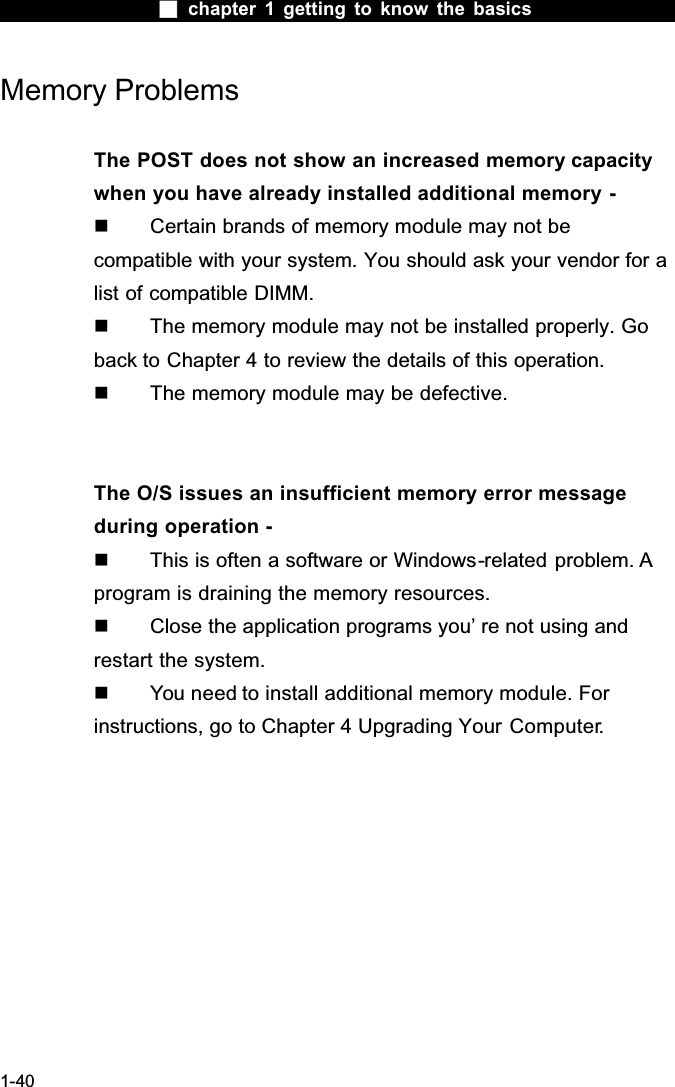
 chapter 1 getting to know the basics1-40Memory ProblemsThe POST does not show an increased memory capacity when you have already installed additional memory -  Certain brands of memory module may not be compatible with your system. You should ask your vendor for a list of compatible DIMM.  The memory module may not be installed properly. Go back to Chapter 4 to review the details of this operation.  The memory module may be defective.The O/S issues an insufficient memory error message during operation -  This is often a software or Windows-related problem. A program is draining the memory resources.  Close the application programs you’ re not using and restart the system.  You need to install additional memory module. For instructions, go to Chapter 4 Upgrading Your Computer.
 chapter 1 getting to know the basics1-41Network Adapter / Ethernet ProblemsThe Ethernet adapter does not work -  Go to [Start > Settings > Control Panel > System > Hardware > Device Manager]. Double-click on Network Adapters and check if Realtek RTL8169/8110 Family Gigabit Ethernet NIC appears as one of the adapters. If it does not exist, Windows has not detected the Realtek RTL8169/8110 Family Gigabit Ethernet NIC or the device driver has not been installed properly. If there is a yellow mark or red-cross on the network adapter, it may be a device or resource conflict. Replace or update the device driver from the factory CD-ROMdisk or consult Windows manual on how to solve the resource conflict problem.  Make sure the physical connections on both ends of the cable are good.  The hub or concentrator may not be working properly. Check to see if other workstations connected to the same hub or concentrator is working.The Ethernet adapter does not appear to operate in the 1000Mbps transmission mode -  Make sure the hub you are using supports 1000Mbpsoperation.  Make sure that your RJ-45 cable meets the 1000Base-TX requirements.  Make sure the Ethernet cable is connected to the hub ̆socket that supports 1000Base-TX mode. The hub may have both 100Base-TX and 1000Base-T sockets.
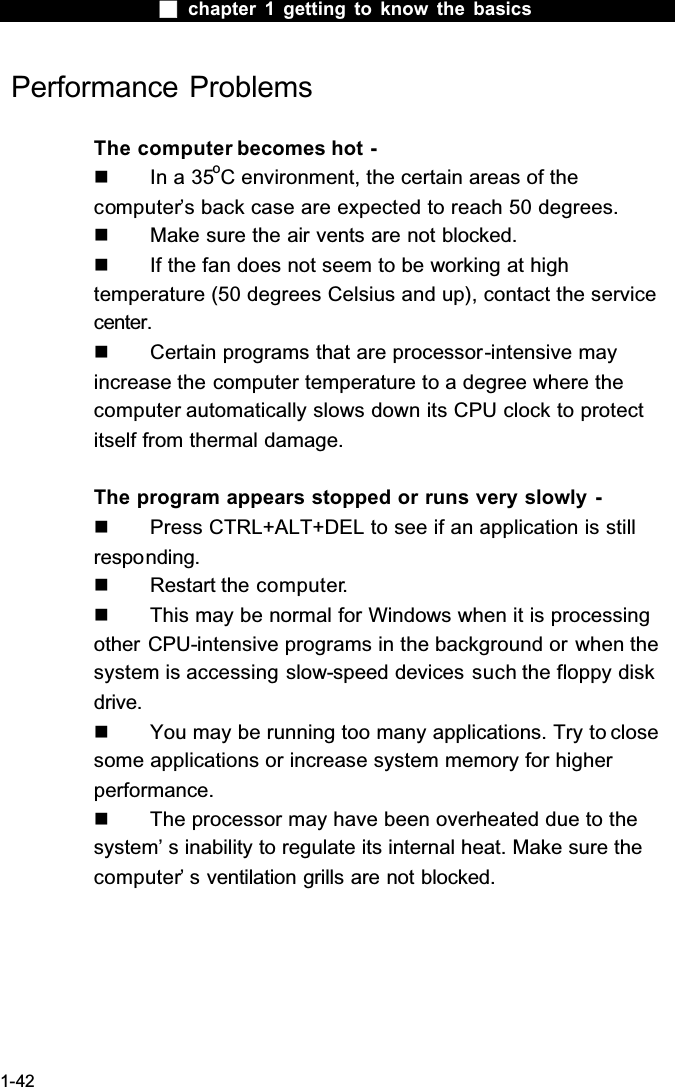
 chapter 1 getting to know the basics1-42 Performance ProblemsThe computer becomes hot -  In a 35oC environment, the certain areas of the computer’s back case are expected to reach 50 degrees.  Make sure the air vents are not blocked.  If the fan does not seem to be working at high temperature (50 degrees Celsius and up), contact the service center.  Certain programs that are processor-intensive mayincrease the computer temperature to a degree where the computer automatically slows down its CPU clock to protect itself from thermal damage.The program appears stopped or runs very slowly -  Press CTRL+ALT+DEL to see if an application is still responding.  Restart the computer.  This may be normal for Windows when it is processing other CPU-intensive programs in the background or when the system is accessing slow-speed devices such the floppy disk drive.  You may be running too many applications. Try to close some applications or increase system memory for higher performance.  The processor may have been overheated due to the system’ s inability to regulate its internal heat. Make sure the computer’ s ventilation grills are not blocked.
 chapter 1 getting to know the basics1-43Firewire (IEEE1394) and USB2.0 ProblemsThe USB device does not work -  Windows NT 4.0 does not support USB protocols  Check the settings in the Windows Control Panel.  Make sure you have installed the necessary device drivers.  Contact the device vendor for additional support.The IEEE1394 port does not work -  Go to [Start > Settings > Control Panel > System > Hardware > Device Manager]. You should see an entry which reads “Texas Instrument OHCI Compliant IEEE 1394 Host Controllers” . If it does not exist, Windows has not detected the host controller or the device driver has not been installed properly. If there is a yellow mark or red-cross on the 1394 host controller, it may be a device or resource conflict. Replace or update the device driver from the factory CD-ROM disk orconsult Windows manual on how to solve the resource conflictproblem.  Make sure the cable is fully connected.  Make sure you have installed the necessary device drivers.  Contact the device vendor for additional support.
 chapter 1 getting to know the basics1-44APPENDIX  APRODUCT SPECIFICATION
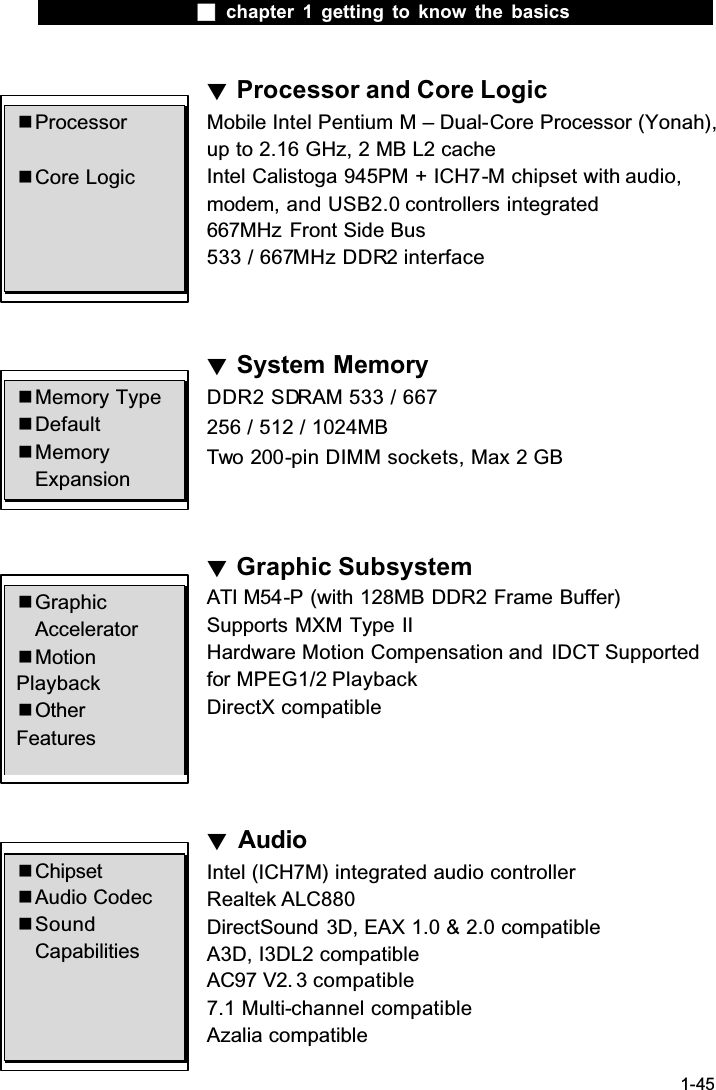
 chapter 1 getting to know the basics1-45ϰProcessor and Core LogicMobile Intel Pentium M – Dual-Core Processor (Yonah),up to 2.16 GHz, 2 MB L2 cacheIntel Calistoga 945PM + ICH7-M chipset with audio,modem, and USB2.0 controllers integrated667MHz Front Side Bus533 / 667MHz DDR2 interfaceϰSystem MemoryDDR2 SDRAM 533 / 667256 / 512 / 1024MBTwo 200-pin DIMM sockets, Max 2 GBϰGraphic SubsystemATI M54-P (with 128MB DDR2 Frame Buffer)Supports MXM Type IIHardware Motion Compensation and  IDCT Supported for MPEG1/2 PlaybackDirectX compatibleϰAudioIntel (ICH7M) integrated audio controllerRealtek ALC880DirectSound 3D, EAX 1.0 & 2.0 compatibleA3D, I3DL2 compatibleAC97 V2. 3 compatible7.1 Multi-channel compatibleAzalia compatible Processor Core Logic Memory Type Default MemoryExpansion GraphicAccelerator MotionPlayback OtherFeatures Chipset Audio Codec SoundCapabilities
 chapter 1 getting to know the basics1-46ϰWireless LANIntel PRO/Wireless 3945ABG CardMini-Card Interface IEEE802.11 B&GϰLAN / EthernetRealtek 8110 Ethernet function for 10/100/1000Base-TX network standardsWindows 2000 / XP Plug and Play compatibleAutomatic Jam and auto-negotiation for flow controlAuto Negotiation and Parallel detection for automatic speed selection (IEEE 802.3u)High performance 32-bit PCI bus master architecture with integrated DMA controller for low CPU and bus utilizationRemote Wake-up Scheme supportedHot Insertion supportedϰʳ Multiple Card Reader02 Micro 0Z128 (Card Reader)Multimedia Card (MMC), Secure Digital Card (SD), Memory Stick (MS), and MS Pro Card Chipset PnP Function Flow Control SpeedSelection OtherFeatures Chipset 4-in-1 Card Reader Format Support Module TransmissionProtocol
 chapter 1 getting to know the basics1-47ϰFirewire IEEE1394(a)TI TSB43AB22A IEEE1394 OHCI Host Controller andUp to 400 MbpsExpandable up to 63 devices in chainsϰʳ Storage3.5-inch format hard disk driveTrayless-type (slot-in) 5.25-inch format (12.7mm height) fixed module (Optional Purchase)ϰʳ Ports and ConnectorsOne Microphone-in jackOne Headphone / Line-out jackOne Line-in jackOne S/PDIF Toslink (optical) jackOne Firewire (IEEE1394) host connectorFive USB2.0-compliant connectorsOne standard network Ethernet connector (RJ-45)One S-video (TV-out) output connectorOne DC-in connectorOne DVI-I video connectorOne 4-in-1 Card Reader slot Chipset Capabilities Mic-In Port Audio-Out Audio-In Port S/PDIF Firewire USB2.0 Port Ethernet S-Video Power-In DVI-I Port Card Reader Hard Drive DVD-Dual or DVD-MultiStandards
 chapter 1 getting to know the basics1-48ϰʳ AC AdapterAutosensing AC-in 100~240V, DC-out 20V, 120W ϰʳ BIOSAMI PnP BIOSPower On Self TestDRAM auto-detection, auto-sizingL2 Cache auto-detectionHard disk type auto-detectionAPM 1.2 (Advanced Power Management) & ACPI 2.0 (Advanced Configuration Power Interface)Two Level Password Protections32bit access, Ultra DMA, PIO5 Mode supportMulti-boot capabilityϰʳ Operating SystemCompatible with Microsoft Windows XP Professional Editionϰʳ Physical Specification296 (W) x 210 (D) x 56 (H) mm3.41 KGOperating Temperature: 5 to 30oC (41 to 86oF)Operating Humidity: 20 to 80 percent RH (5 to 35oC)Storage Temperature: -15 to 50oC (-5 to 122oF) PnP Function Self Test AutoDetection PowerManagement Security OtherFeatures Dimension Weight EnvironmentalLimits O/S AdapterAC-Input / DC-Output
 chapter 1 getting to know the basics1-49APPENDIX  BAGENCY REGULATORY NOTICES
 chapter 1 getting to know the basics1-50Federal Communications Commission NoticeThis equipment has been tested and found to comply with the limits for a Class B digital device, pursuant to Part 15 of the FCC Rules. These limitsare designed to provide reasonable protection against harmful interference in a residential installation. This equipment generates, uses, and can radiate radio frequency energy and, if not installed and used in accordance with the instructions, may cause harmful interference to radio communications. However, there is no guarantee that interference will not occur in a particular installation. If this equipment does cause harmful interference to radio or television reception, which can be determined by turning the equipment off and on, the user is encouraged to try to correct the interference by one or more of the following measures:  Reorient or relocate the receiving antenna.  Increase the separation between the equipment and the receiver.  Connect the equipment into an outlet on a circuit different from that to which the receiver is connected.  Consult the dealer or an experienced radio or television technician for help.ModificationsThe FCC requires the user to be notified that any changes or modificationsmade to this device that are not expressly approved by the Manufacture may void the user’s authority to operate the equipment.Connections to Peripheral DevicesConnections to this device must be made with shielded cables with metallic RFI/EMI connector hoods to maintain compliance with FCC Rules and Regulations.European NoticeProducts with the CE Marking comply with both the EMC Directive (89/336/EEC) and the Low Voltage Directive (73/23/EEC) and R&TTE Directive (1999/5/EC) issued by the Commission of the European Community.Compliance with these directives implies conformity to the following Any changes or modifications (including the antennas) made to this device that are not expressly approved by the  manufacturer may void the userϗs authority to operate the equipment.
 chapter 1 getting to know the basics1-51European Norms:  EN55022 : 1998+A1: 2000+A2: 2003, CLASS B  EN61000-3-2 : 2000  EN61000-3-3 : 1995+A1: 2001  EN55024 : 1998+A1 : 2001+A1: 2003  IEC61000-4-2: 2001  IEC61000-4-3:2002+A1:2002  IEC61000-4-4:1995+A1:2000+A2:2001  IEC61000-4-5:2001  IEC61000-4-6:2001  IEC61000-4-8:2001  IEC61000-4-11:2001  EN50082 (IEC801-2, IEC801-3, IEC801-4)  Electro-magneticImmunity  EN 300 328-2, EN 300 328-1, EN 301 489-1, EN 301 489-17 (ETSI 300 328, ETSI 301 489) Electro-magnetic Compatibility and Radio Spectrum Matter.  TBR21 ( ETSI TBR21) Terminal Equipment.  EN60950 (IEC60950) I.T.E. Product SafetyCanadian NoticeThis digital apparatus does not exceed the Class B limits for radio noise emissions from digital apparatus as set out in the radio interferenceregulations of the Canadian Department of Communications.Le present appareil numerique nemet pas de bruits radioelectriques depassant les limites applicables aux appareils numeriques de Classe B prescrites dans  le reglement sur le brouillage radioelectrique edicte par le Ministere des Communications du Canada.REN (Ringer Equivalent Numbers) Statement''NOTICE: The Ringer Equivalence Number (REN) assigned to each terminal device provides an indication of the maximum number of terminals allowed to be connected to a telephone interface. The termination on an interface may consist of any combination of devices subject only to the requirement that the sum of the Ringer Equivalence Numbers of all the devices does not exceed 5.''IC ID: 3409A-M30EI0
 chapter 1 getting to know the basics1-52Attachment Limitations Statement''Notice: This equipment meets telecommunications network protective, operational and safety requirements as prescribed in the appropriate Terminal Equipment Technical Requirements document(s). This is confirmed by marking the equipment with the Industry Canada certification number. The Department does not guarantee the equipment will operate to the user's satisfaction.Before installing this equipment, users should ensure that it is permissibleto be connected to the facilities of the local telecommunications company. The equipment must also be installed using an acceptable method of connection. The customer should be aware that compliance with the above conditions may not prevent degradation of service in some situations.Repairs to certified equipment should be coordinated by a representative designated by the supplier. Any repairs or alterations made by the user to this equipment, or equipment malfunctions, may give the telecommunications  company cause to request the user to disconnect the equipment.Users should ensure for their own protection that the electrical ground connections of the power utility, telephone lines and internal metallic water pipe system, if present, are connected together. This precaution may be particularly important in rural areas.Caution: Users should not attempt to make such connections themselves, but should contact the appropriate electric inspection authority, or electrician, as appropriate.''Power Cord RequirementThe power cord supplied with the AC adapter should match the plug and voltage requirements for your local area. Regulatory approval for the AC adapter has been obtained using the power cord for the local area. However, if you travel to a different area and need to connect to a different outlet or voltage, you should use one of the power cords listed below. To purchase a power cord (including one for a country not listed below) or a replacement ac adapter, contact your local dealer.U.S. and Canada  The cord set must be UL-Listed and CSA-Certified or C-UL Listed.  The minimum specifications for the flexible cord are (1) No. 18 AWG,
 chapter 1 getting to know the basics1-53(2) Type SJ, and (3) 3-conductor.  The cord set must have a rated current capacity of at least 10 A.  The attachment plug must be an earth-grounding type with a NEMA 5-15P (15A, 125V) or NEMA 6-15P (15 A, 250V) configuration.Japan  All components of the cord set (cord, connector, and plug) must bear a `PSE` mark and registration number in accordance with the Japanese Dentori Law.  The minimum specification for the flexible cord are: (1) 0.75 mm2conductors, (2) Type VCT or VCTF, and (3) 3-conductor.  The cord set must have minimum rated current capacity of 7 A.  The attachment plug must be a two-pole, grounded type with a Japanese Industrial Standard C8303 (15 A, 125 VAC) configuration.Other Countries  The cord set fittings must bear the certification mark of the agency responsible for evaluation in a specific country. Acceptable agencies are:BSI (UK)OVE (Australia)CEBEC (Belgium)SEMKO (Sweden)FIMKO (Finland)DEMKO (Denmark)NEMKO (Norway)SETI (Finland)EANSW (Australia)SEV (Switzerland)IMQ (Italy)UTE (France)CCC (China)PSB (Singapore)PSE (Japan)BSMI (Taiwan)B (Polish)VDE (Germany)SASO (Saudi Arabia)  The flexible cord must be of a HAR (harmonized) type HO5VV-F 3-conductor cord with a minimum conductor size of 0.03 square inches.  The minimum specification for the flexible cord  for Class II
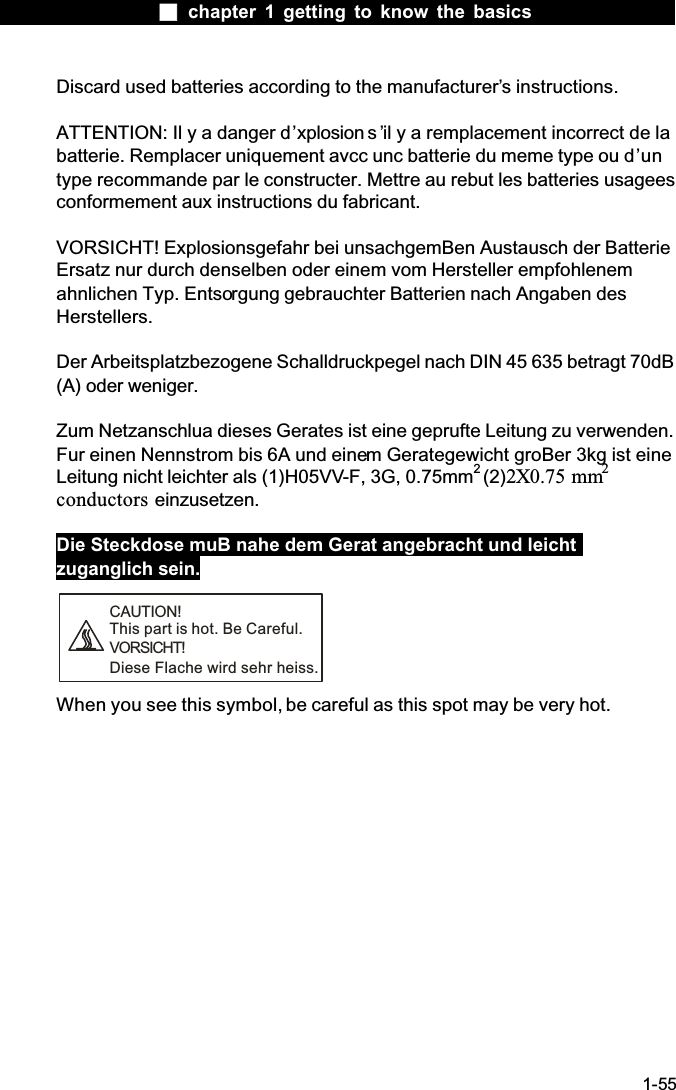
 chapter 1 getting to know the basics1-54product are: (1) 2X0.75 mm2 conductors, (2) 2-conductorcord.  The cord set must have a current capacity of at least 10 A and a nominal voltage rating of 125 / 250 VAC.CAUTION: MODEL XPCIAx IS DESIGNED TO USE WITH THEFLLOWING AC ADAPTER MODEL ONLYManufacture: LI SHIN INTERNATIONAL ENTERPRISE CORP.Model: 0227A20120 (120W)Laser SafetyThe optical drive used with this computer is certified as a Class 1 laser device according to the U.S. Department of Health and Human Services (DHHS) Radiation Performance Standard and International Standards IEC 825 / IEC 825-1 (EN60825 / EN60825-1). The device is not considered harmful, but the following precautions are recommended:  Do not open the unit.  Avoid direct exposure to the laser beam.  If the unit requires service, contact an authorized service center.  Ensure proper use by reading and following the instructions carefully.  Do not attempt to make any adjustment of the unit.CLASS 1 LASER PRODUCTAPPAREIL A LASER DE CLASSE 1LASERSCHUTZKLASSE 1 PRODUKTWarning!Do not attempt to disassemble the cabinet containing the laser. The laserbeam used in this product is harmful to the eyes. The use of optical instruments, such as magnifying lenses, with this product increase the potential hazard to your eyes. For your safety, have this equipment serviced only by an authorized service provider.Lithium battery warning / Bridge battery warningThis computer contains a lithium battery to power the clock and calendar circuitry.CAUTION: Danger of explosion if battery is replaced incorrectly. Replace only with the same or equivalent type recommended by the manufacturer.
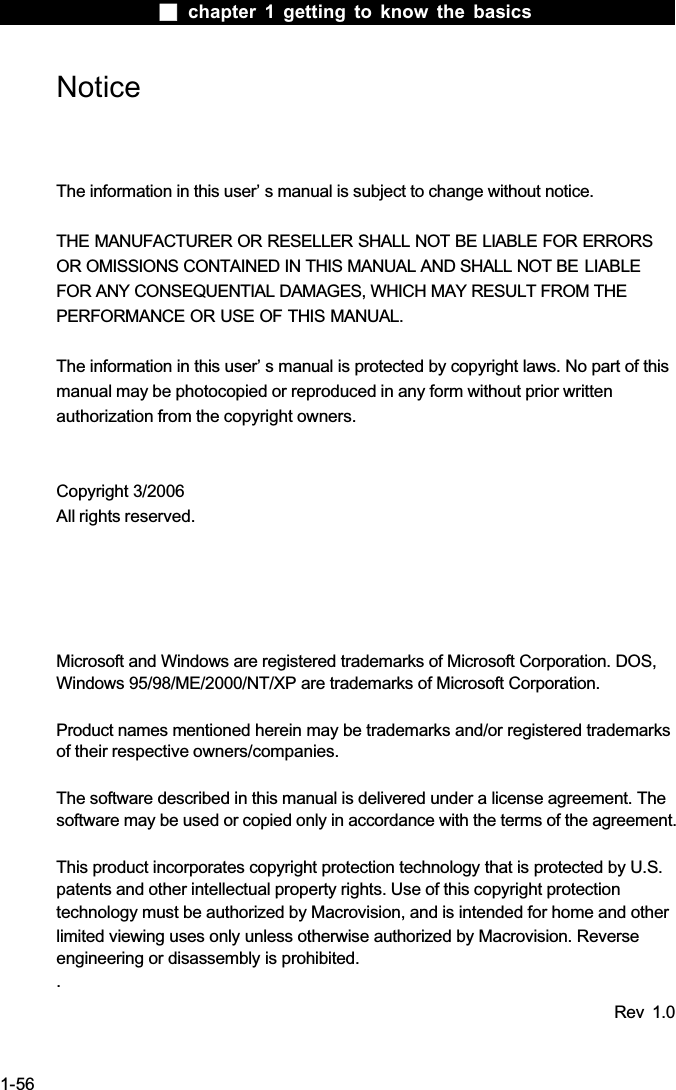
 chapter 1 getting to know the basics1-55Discard used batteries according to the manufacturer’s instructions.ATTENTION: Il y a danger d’xplosion s ’il y a remplacement incorrect de la batterie. Remplacer uniquement avcc unc batterie du meme type ou d’untype recommande par le constructer. Mettre au rebut les batteries usagees conformement aux instructions du fabricant.VORSICHT! Explosionsgefahr bei unsachgemBen Austausch der Batterie Ersatz nur durch denselben oder einem vom Hersteller empfohlenem ahnlichen Typ. Entsorgung gebrauchter Batterien nach Angaben des Herstellers.Der Arbeitsplatzbezogene Schalldruckpegel nach DIN 45 635 betragt 70dB (A) oder weniger.Zum Netzanschlua dieses Gerates ist eine geprufte Leitung zu verwenden. Fur einen Nennstrom bis 6A und einem Gerategewicht groBer 3kg ist eine Leitung nicht leichter als (1)H05VV-F, 3G, 0.75mm2(2)2X0.75 mm2conductors einzusetzen.Die Steckdose muB nahe dem Gerat angebracht und leicht zuganglich sein.CAUTION!This part is hot. Be Careful.VORSICHT!Diese Flache wird sehr heiss.When you see this symbol, be careful as this spot may be very hot.
 chapter 1 getting to know the basics1-56NoticeThe information in this user’ s manual is subject to change without notice.THE MANUFACTURER OR RESELLER SHALL NOT BE LIABLE FOR ERRORS OR OMISSIONS CONTAINED IN THIS MANUAL AND SHALL NOT BE LIABLEFOR ANY CONSEQUENTIAL DAMAGES, WHICH MAY RESULT FROM THE PERFORMANCE OR USE OF THIS MANUAL. The information in this user’ s manual is protected by copyright laws. No part of this manual may be photocopied or reproduced in any form without prior writtenauthorization from the copyright owners.Copyright 3/2006All rights reserved.Microsoft and Windows are registered trademarks of Microsoft Corporation. DOS, Windows 95/98/ME/2000/NT/XP are trademarks of Microsoft Corporation.Product names mentioned herein may be trademarks and/or registered trademarks of their respective owners/companies.The software described in this manual is delivered under a license agreement. The software may be used or copied only in accordance with the terms of the agreement.This product incorporates copyright protection technology that is protected by U.S.patents and other intellectual property rights. Use of this copyright protectiontechnology must be authorized by Macrovision, and is intended for home and otherlimited viewing uses only unless otherwise authorized by Macrovision. Reverseengineering or disassembly is prohibited..Rev 1.0
 chapter 1 getting to know the basics1-57TABLE OF CONTENTSPREFACESymbols and ConventionsProtecting Your Computer - Avoid Abusive Handling and Adverse EnvironmentChapter Summaries1. GETTING TO KNOW THE BASICSPerformance Features (1-2)Package Content (1-3)System at a Glance (1-4)Front View (1-4,5,6)Rear View (1-7,8,9)AC Adapter (1-10)Using the Vertical Stand (1-11)Connecting the System (1-12,13,14,15,16)Audio Subsystem –How to Enable the DTS 7.1 Multi-channelSurround Sound System (1-17,18)Adjusting the Volume in Windows (1-19)Voice Recording (1-19)Ethernet Adapter (1-20)2. BIOS SETUP AND SECURITYEntering the BIOS Setup Screen (2-3)Leaving the BIOS Setup Screen (2-3)BIOS Action Keys (2-3)Modifying the BIOS Settings (2-4)Main Setup (2-4)Boot Setup (2-4,5)Security Setup (2-6)Power Setup (2-7)Exit Setup (2-8)3. TROUBLE-SHOOTINGFirst Step (3-2,3)
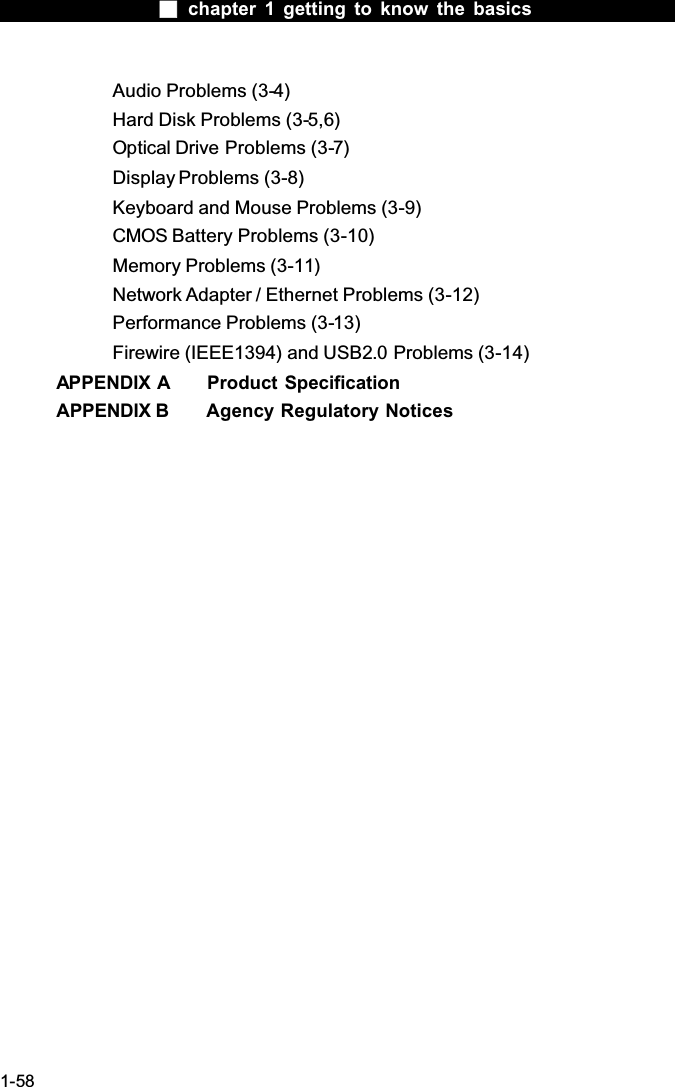
 chapter 1 getting to know the basics1-58Audio Problems (3-4)Hard Disk Problems (3-5,6)Optical Drive Problems (3-7)Display Problems (3-8)Keyboard and Mouse Problems (3-9)CMOS Battery Problems (3-10)Memory Problems (3-11)Network Adapter / Ethernet Problems (3-12)Performance Problems (3-13)Firewire (IEEE1394) and USB2.0 Problems (3-14)APPENDIX A  Product SpecificationAPPENDIX B  Agency Regulatory Notices
 chapter 1 getting to know the basics1-59PrefaceUsing This ManualThis User’ s Manual contains general information about thehardware and software setup, troubleshooting, and technical specifications of the  XPC computer.Symbols and ConventionsThe following conventions and symbols are used in this manual:  When keys are to be pressed at the same time, a plus (+) symbol is used. For instance, Fn+F7 means holding Fn and F7 keys at the same time.  When a series of clicking actions is needed in Windows O/S, [ ] and > symbols are used. For instance, [Start > Settings > Control Panel > Display] means clicking the Start icon first, then the Settings, then the Control Panel, then the Displayicon.  When you need to make a selection with the touch pad (or mouse), you will be asked to ’ select’  or ‘ click’ or ‘ double-click’,‘right-click’  the item.Note: Text in this format and symbol means specific instructions, commentary, sidelights, or any additional information or notes that you should be aware of.Warning: Text in this format and symbol means that failures to comply with the given instructions or information could result in damage to your computer or could cause bodily harm or loss of life.
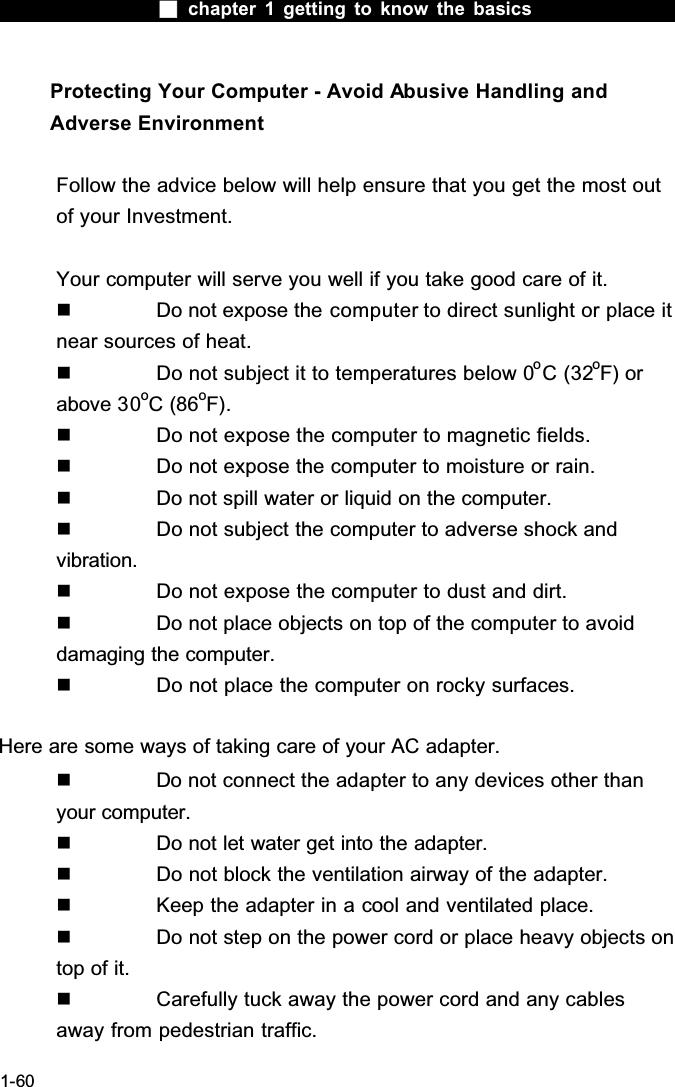
 chapter 1 getting to know the basics1-60Protecting Your Computer - Avoid Abusive Handling and Adverse EnvironmentFollow the advice below will help ensure that you get the most out of your Investment.Your computer will serve you well if you take good care of it.  Do not expose the computer to direct sunlight or place it near sources of heat.  Do not subject it to temperatures below 0oC (32oF) or above 30oC (86oF).  Do not expose the computer to magnetic fields.  Do not expose the computer to moisture or rain.  Do not spill water or liquid on the computer.  Do not subject the computer to adverse shock and vibration.  Do not expose the computer to dust and dirt.  Do not place objects on top of the computer to avoid damaging the computer.  Do not place the computer on rocky surfaces.Here are some ways of taking care of your AC adapter.  Do not connect the adapter to any devices other than your computer.  Do not let water get into the adapter.  Do not block the ventilation airway of the adapter.  Keep the adapter in a cool and ventilated place.  Do not step on the power cord or place heavy objects on top of it.  Carefully tuck away the power cord and any cables away from pedestrian traffic.
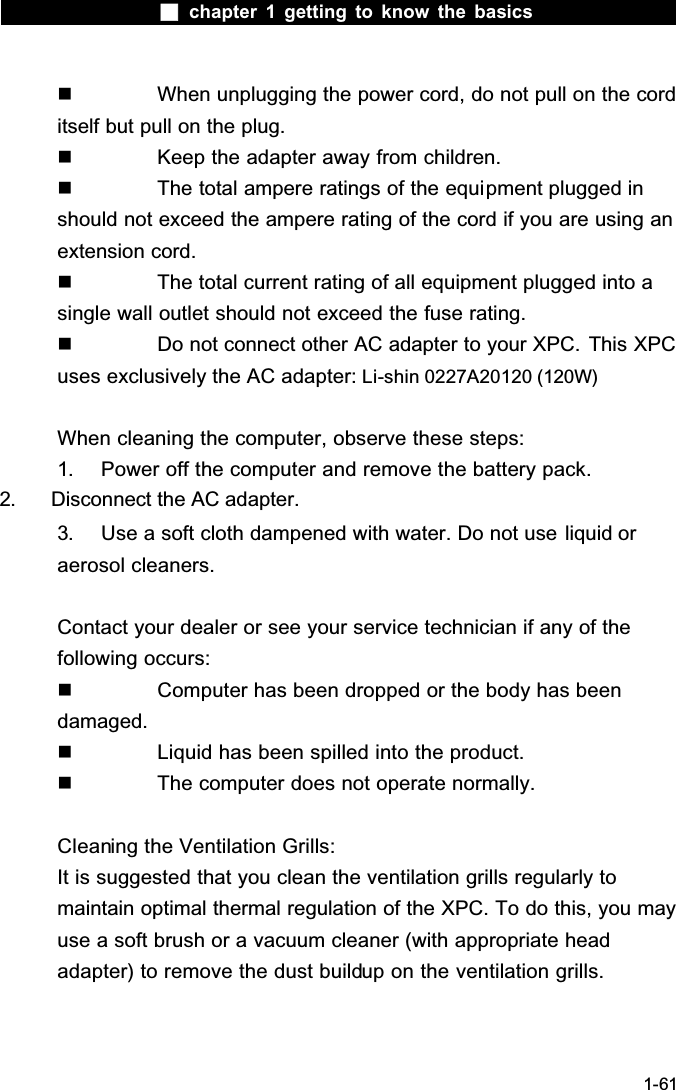
 chapter 1 getting to know the basics1-61  When unplugging the power cord, do not pull on the cord itself but pull on the plug.  Keep the adapter away from children.  The total ampere ratings of the equipment plugged in should not exceed the ampere rating of the cord if you are using an extension cord.  The total current rating of all equipment plugged into a single wall outlet should not exceed the fuse rating.  Do not connect other AC adapter to your XPC. This XPC uses exclusively the AC adapter: Li-shin 0227A20120 (120W)When cleaning the computer, observe these steps:1. Power off the computer and remove the battery pack.2. Disconnect the AC adapter.3. Use a soft cloth dampened with water. Do not use liquid or aerosol cleaners.Contact your dealer or see your service technician if any of the following occurs:  Computer has been dropped or the body has been damaged.  Liquid has been spilled into the product.  The computer does not operate normally.Cleaning the Ventilation Grills:It is suggested that you clean the ventilation grills regularly to maintain optimal thermal regulation of the XPC. To do this, you may use a soft brush or a vacuum cleaner (with appropriate head adapter) to remove the dust buildup on the ventilation grills.
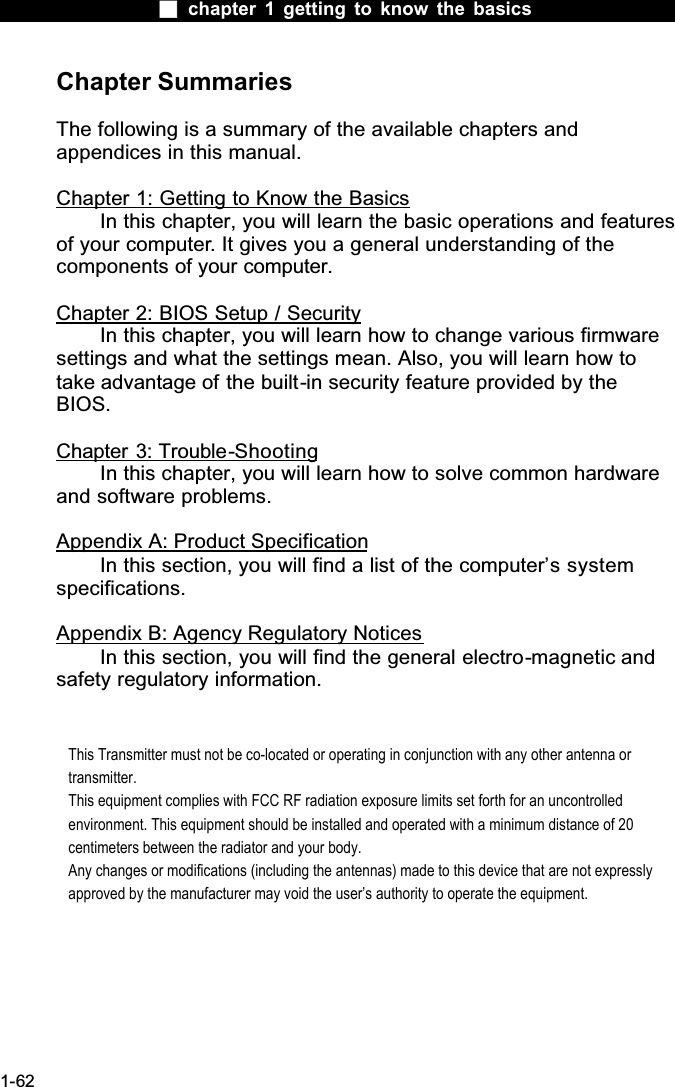
 chapter 1 getting to know the basics1-62Chapter SummariesThe following is a summary of the available chapters and appendices in this manual.Chapter 1: Getting to Know the BasicsIn this chapter, you will learn the basic operations and features of your computer. It gives you a general understanding of the components of your computer.Chapter 2: BIOS Setup / SecurityIn this chapter, you will learn how to change various firmware settings and what the settings mean. Also, you will learn how to take advantage of the built-in security feature provided by the BIOS.Chapter 3: Trouble-ShootingIn this chapter, you will learn how to solve common hardware and software problems.Appendix A: Product SpecificationIn this section, you will find a list of the computer’s system specifications.Appendix B: Agency Regulatory NoticesIn this section, you will find the general electro-magnetic and safety regulatory information.This Transmitter must not be co-located or operating in conjunction with any other antenna or transmitter.This equipment complies with FCC RF radiation exposure limits set forth for an uncontrolled environment. This equipment should be installed and operated with a minimum distance of 20 centimeters between the radiator and your body.Any changes or modifications (including the antennas) made to this device that are not expressly approved by the manufacturer may void the user’s authority to operate the equipment.

Navigation menu