Uniwill Computer B092H0 Mini Bluetooth USB Dongle User Manual English Manual

Uniwill Computer Corporation Mini Bluetooth USB Dongle English Manual

users manual

Bluetooth Wireless Home-Networking System            1  Bluetooth WirelessHome-Networking SystemUser’s Manual
Bluetooth Wireless Home-Networking System            2Table of Contents1. Overview…………………………….……………………..…………………………………32. Installation of Bluetooth Wireless Home-NetworkingSystem……………………………42.1 Software Installation…………………………………………………...…………………..42.2 Hardware Installation…………………………………………………..…………..………62.3 Removal of Bluetooth Wireless Home-Networking System……..……………………..73. Settings for Internet Sharing Using Home IP Locator…………………..………………..83.1 Start Home IP Locator…………………………….….……………………………………93.2 Setting up a computer to be a server sharing Internet with clients……………...…103.3 Setting up a computer to be a client sharing Internet from server………….……….123.4 Start surfing the Internet on client computers………………………………………….124. Running MiniBluelet_Pan…………………………………………………………………135. Establishing a Bluetooth Wirelss Network Using MiniBluelet_Pan……………….…..155.1 How to establish your first Bluetooth Wireless Network  ……………………………..155.2 MiniBluelet_Pan pop-up menu and optional settings………..………………..……...196. NAP Settings Configuration………………………………………………………………..266.1 Setting up NAP on the server…………………..……………………………………….266.2 NAP client computers……………………………………………………………………267. Internet Sharing Concept………………………………………………………………….26Model: B092H0FCC ID: P3BB092H0THIS DEVICE COMPLIES WITH PART 15 OF THEFCCRULES. OPERATIONS IS SUBJECT TO THEFOLLOWING TWO CONDITIONS: (1)THIS DEVICEMAY NOT CAUSE HARMFUL INTERFERENCE AND(2)THIS DEVICE MUST ACCEPT ANY INTERFERENCERECEIVED, INCLUDING INTERFERENCE THAT MAYCAUSE UNDESIRED OPERATION
Bluetooth Wireless Home-Networking System            31. Overview - Basic Concept of MiniBluelet_Pan (Personal Area Networking)This document is for providing a step-by-step guide for users to setup B091H1 USB Bluetooth Dogle.Before getting into details, we will now introduce some basic concepts about the usages of BluetoothWireless Home-Networking System software.MiniBluelet_Pan is basically implementing Bluetooth wireless technology for building up the personal areanetwork, so its functions follow standards defined in Bluetooth specifications. It is a very powerful tool butwith some limitations. In the following content or sub-sequent chapters, we will use the general termsclient or server to represent the computer hosting Bluetooth slave or masterdevices respectively. Theterms, client and server, can be commonly seen or used in technical documents for computer applications.Slave and master are frequently used in Bluetooth technical documents. For detailed definition ofBluetooth slave and master devices, please refer to Bluetooth’s official website: http://www.bluetooth.comor related official Bluetooth technical documents for more information. Also from time to time, we will usethe acronym, PAN, for representing personal area network – a terminology defined in Bluetooth 1.1specifications.1) MiniBluelet_Pan can be installed on either desktop PC or notebook computer, please refer to thequick installation guide for system requirements.2) The computer installed with MiniBluelet_Pan can be used as either a server or a client.3) There can only be one server within a PAN, besides, one server can connect up to 7 clients. Sothere can be up to 8 computers interconnected within a PAN.4) One server can serve seven clients for different requests concurrently.5) Each client can only connect to one and only server.6) The data transmission in and out of each client will slow down when the number of clients servedby the server increases. This is due to the limitation of the Bluetooth specified bandwidthportioned out by connected clients respectively.7) Due to the radio characteristics of Bluetooth technology, when the distance between the clientand server is getting farther the data transmission speed will slow down respectively.8) There could be multiple stand-alone PANs coexisting within the same environment withoutmutual interference .9) Every client can join any coexistent PANs for accessing the network resources but only one at atime.10) Once the server is shut down or disconnected from the PAN, all connections from the clients willbe disconnected as well.11) If the user wants to add one more client in the PAN, the user will only need to buy one moreBluetooth wireless Home-Networking System USB dongle.12) The software is used to build the PAN with Bluetooth wireless Home-Networking System USBdongles. It cannot be used for other Bluetooth PAN profiles manufactured by third-partycompanies.13)The software may not be compatible with the third-party companies’ software used by theirBluetooth devices. If you run into trouble using this software on your computer installed with third-party Bluetooth software, please contact our customer service representatives for assistance.
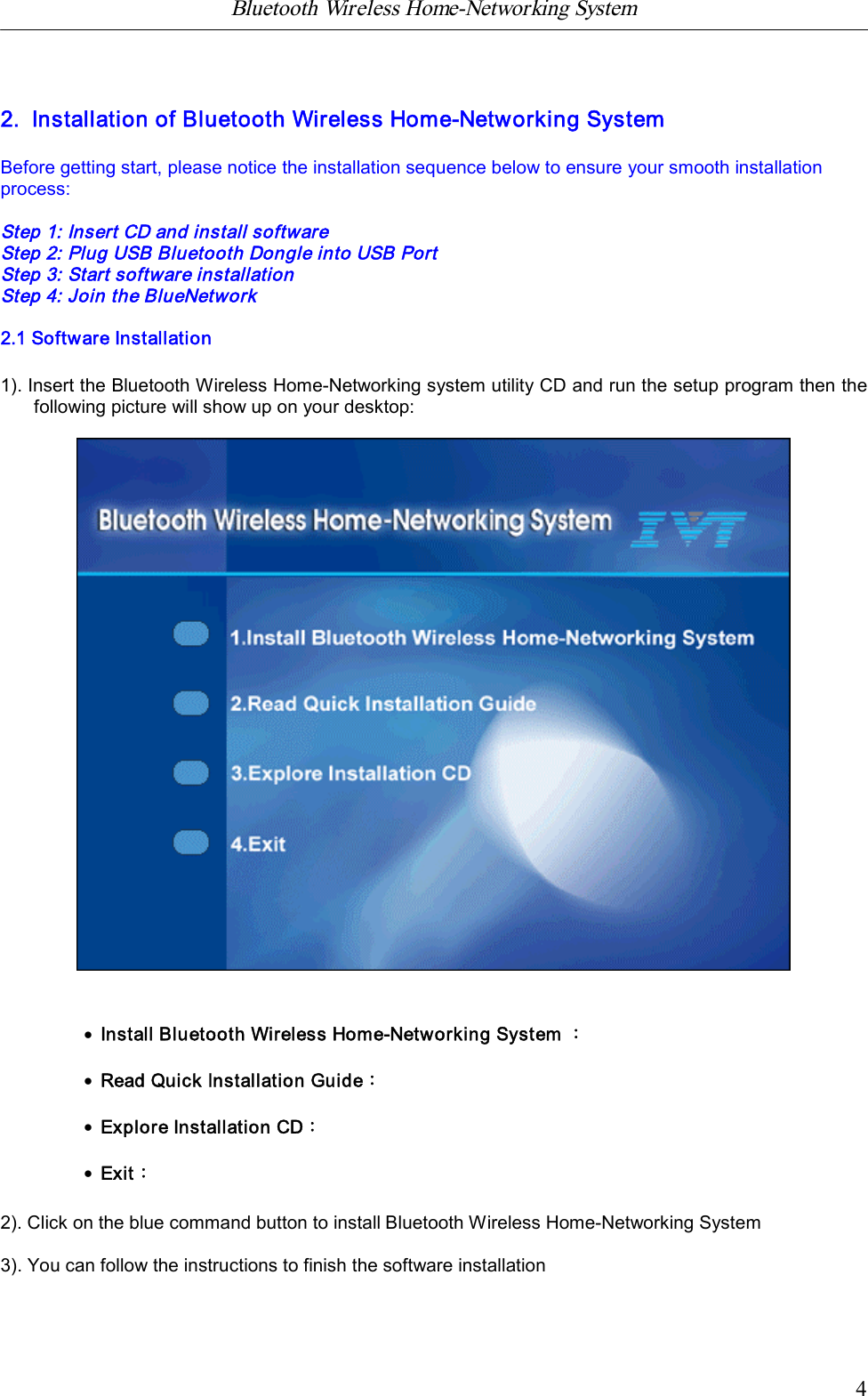
Bluetooth Wireless Home-Networking System            42.  Installation of Bluetooth Wireless Home-Networking SystemBefore getting start, please notice the installation sequence below to ensure your smooth installationprocess:Step 1: Insert CD and install softwareStep 2: Plug USB Bluetooth Dongle into USB PortStep 3: Start software installationStep 4: Join the BlueNetwork2.1 Software Installation1). Insert the Bluetooth Wireless Home-Networking system utility CD and run the setup program then thefollowing picture will show up on your desktop:·Install Bluetooth Wireless Home-Networking System :·Read Quick Installation Guide:·Explore Installation CD:·Exit:2). Click on the blue command button to install Bluetooth Wireless Home-Networking System3). You can follow the instructions to finish the software installation
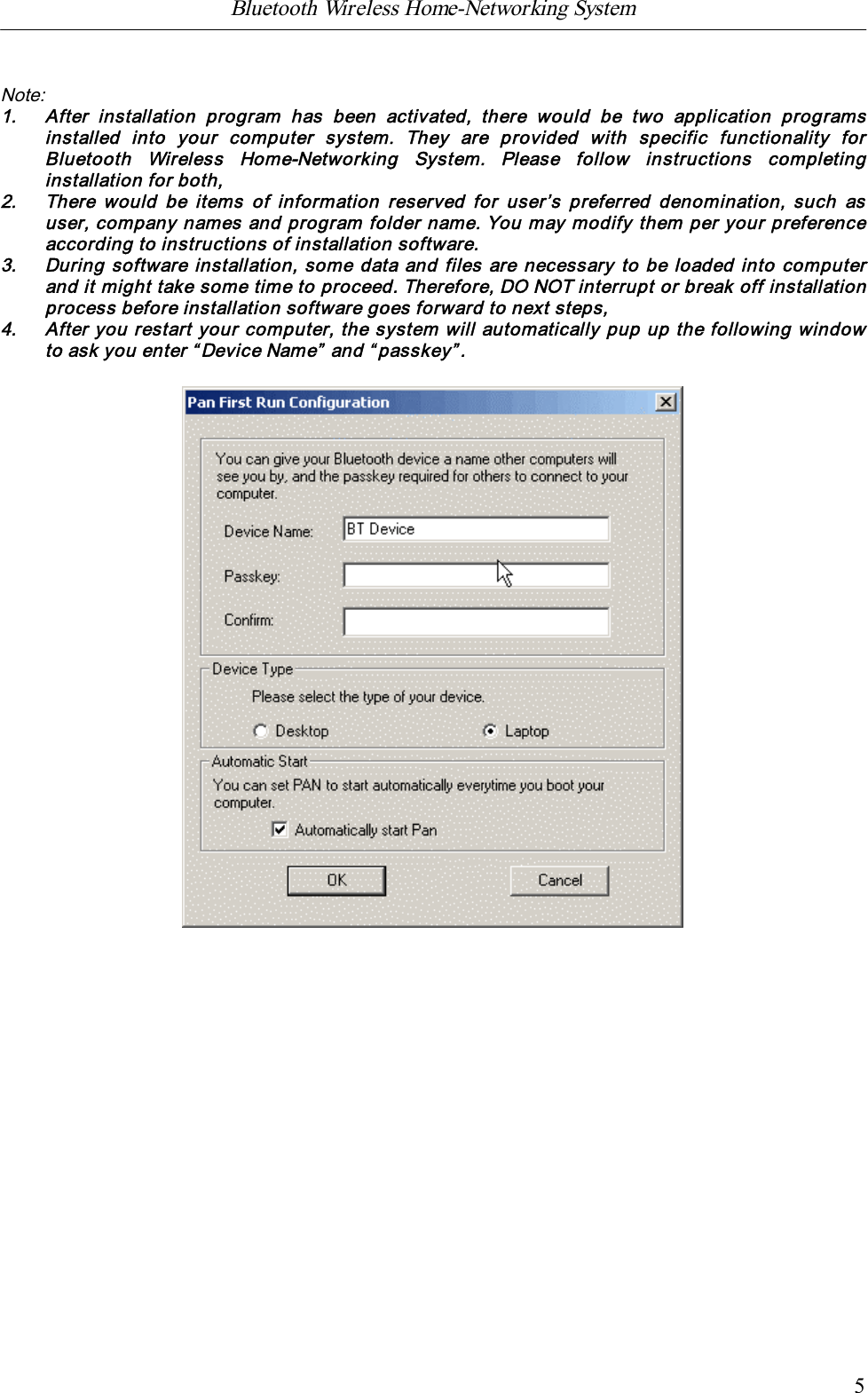
Bluetooth Wireless Home-Networking System            5Note:1. After  installation  program  has  been  activated,  there  would  be  two  application  programsinstalled  into  your  computer  system.  They  are  provided  with  specific  functionality  forBluetooth  Wireless  Home-Networking  System.  Please  follow  instructions  completinginstallation for both,2. There would be  items of information reserved  for  user’s preferred  denomination,  such  asuser, company names and program folder name. You may modify them per your preferenceaccording to instructions of installation software.3. During software installation, some data and files are necessary to be loaded into computerand it might take some time to proceed. Therefore, DO NOT interrupt or break off installationprocess before installation software goes forward to next steps,4. After you restart your computer, the system will automatically pup up the following windowto ask you enter “Device Name” and “passkey”.
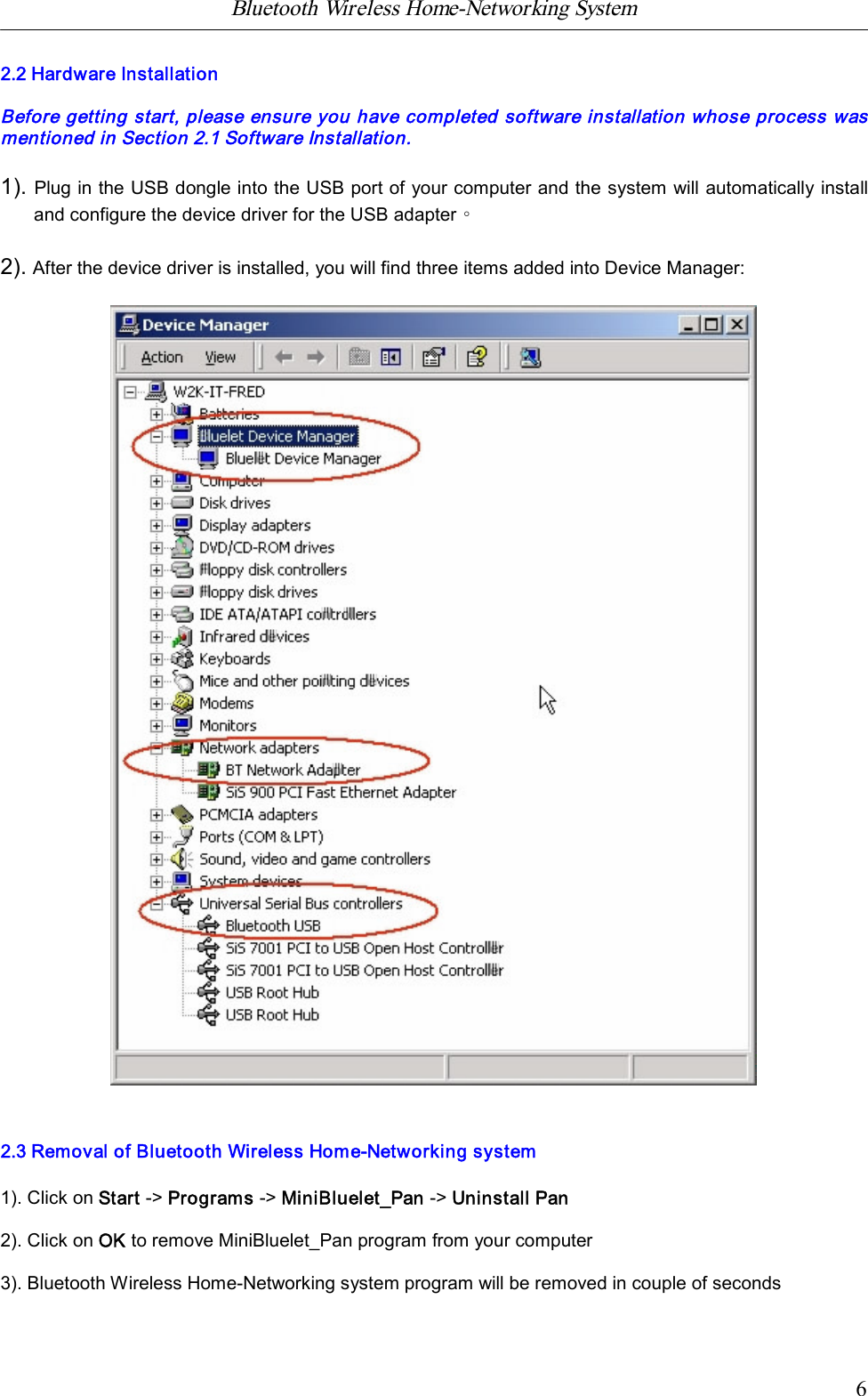
Bluetooth Wireless Home-Networking System            62.2 Hardware InstallationBefore getting start, please ensure you have completed software installation whose process wasmentioned in Section 2.1 Software Installation.1). Plug in the USB dongle into the USB port of your computer and the system will automatically installand configure the device driver for the USB adapter。2). After the device driver is installed, you will find three items added into Device Manager:2.3 Removal of Bluetooth Wireless Home-Networking system1). Click on Start -> Programs -> MiniBluelet_Pan -> Uninstall Pan2). Click on OK to remove MiniBluelet_Pan program from your computer3). Bluetooth Wireless Home-Networking system program will be removed in couple of seconds
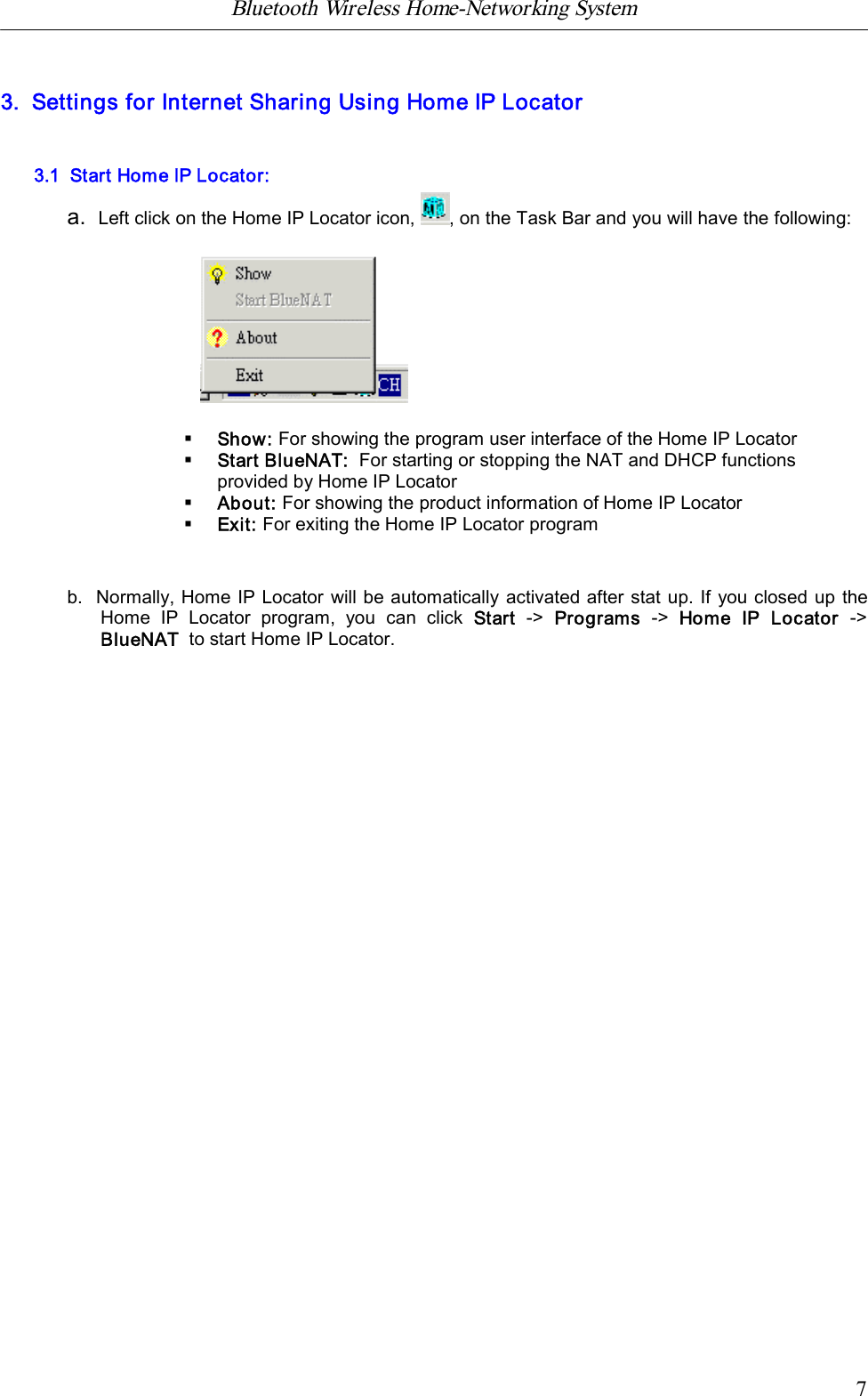
Bluetooth Wireless Home-Networking System            73.  Settings for Internet Sharing Using Home IP Locator3.1  Start Home IP Locator:a.  Left click on the Home IP Locator icon, , on the Task Bar and you will have the following:§Show: For showing the program user interface of the Home IP Locator§Start BlueNAT:For starting or stopping the NAT and DHCP functionsprovided by Home IP Locator§About: For showing the product information of Home IP Locator§Exit: For exiting the Home IP Locator programb.  Normally, Home IP Locator will be automatically activated after stat up. If you closed up theHome  IP  Locator  program,  you  can  click  Start ->  Programs -> Home  IP  Locator  ->BlueNAT  to start Home IP Locator.
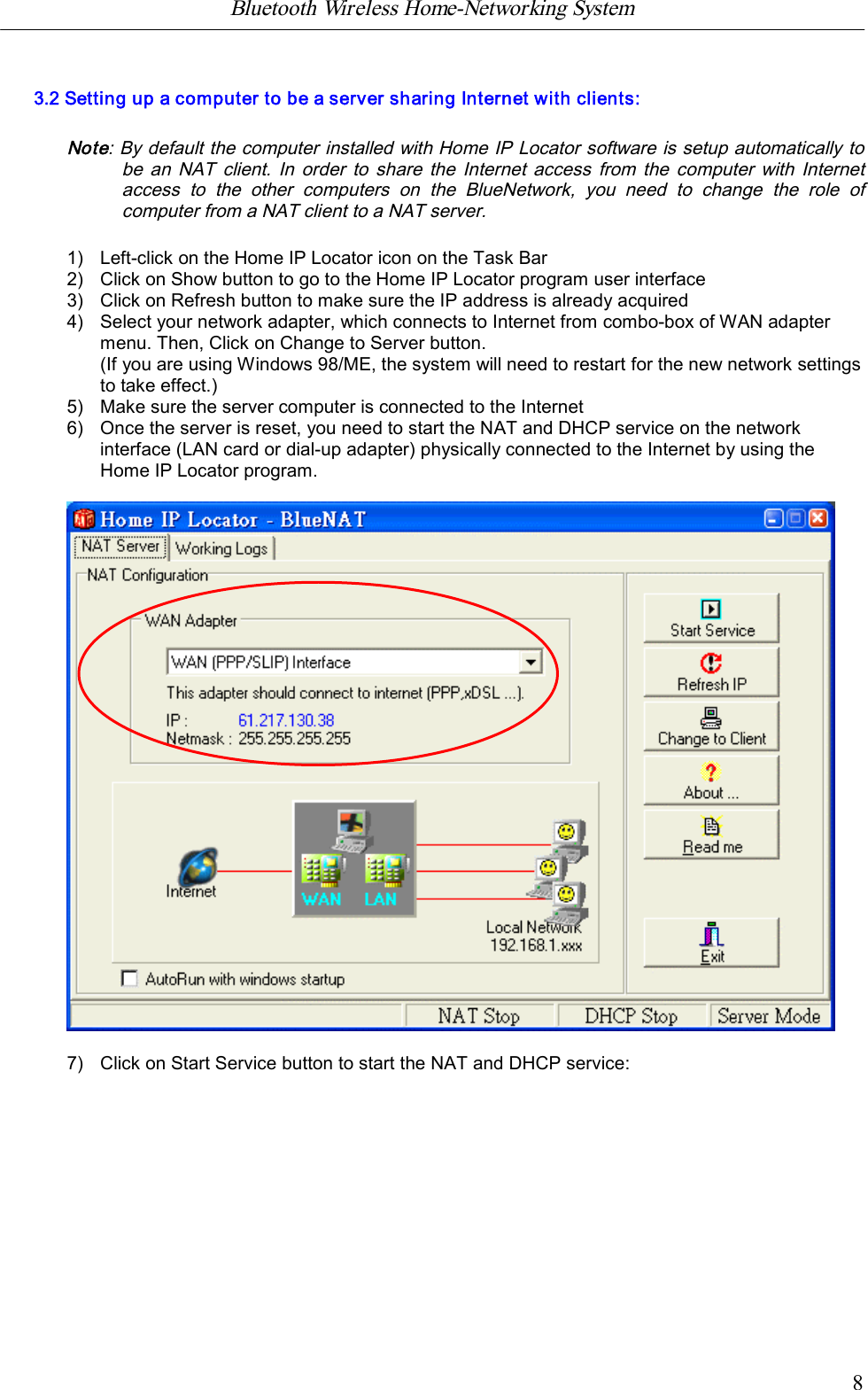
Bluetooth Wireless Home-Networking System            83.2 Setting up a computer to be a server sharing Internet with clients:Note: By default the computer installed with Home IP Locator software is setup automatically tobe an NAT  client.  In  order to  share the  Internet access from the  computer with Internetaccess  to  the  other  computers  on  the  BlueNetwork,  you  need  to  change  the  role  ofcomputer from a NAT client to a NAT server.1) Left-click on the Home IP Locator icon on the Task Bar2) Click on Show button to go to the Home IP Locator program user interface3) Click on Refresh button to make sure the IP address is already acquired4) Select your network adapter, which connects to Internet from combo-box of WAN adaptermenu. Then, Click on Change to Server button.(If you are using Windows 98/ME, the system will need to restart for the new network settingsto take effect.)5) Make sure the server computer is connected to the Internet6) Once the server is reset, you need to start the NAT and DHCP service on the networkinterface (LAN card or dial-up adapter) physically connected to the Internet by using theHome IP Locator program.7) Click on Start Service button to start the NAT and DHCP service:
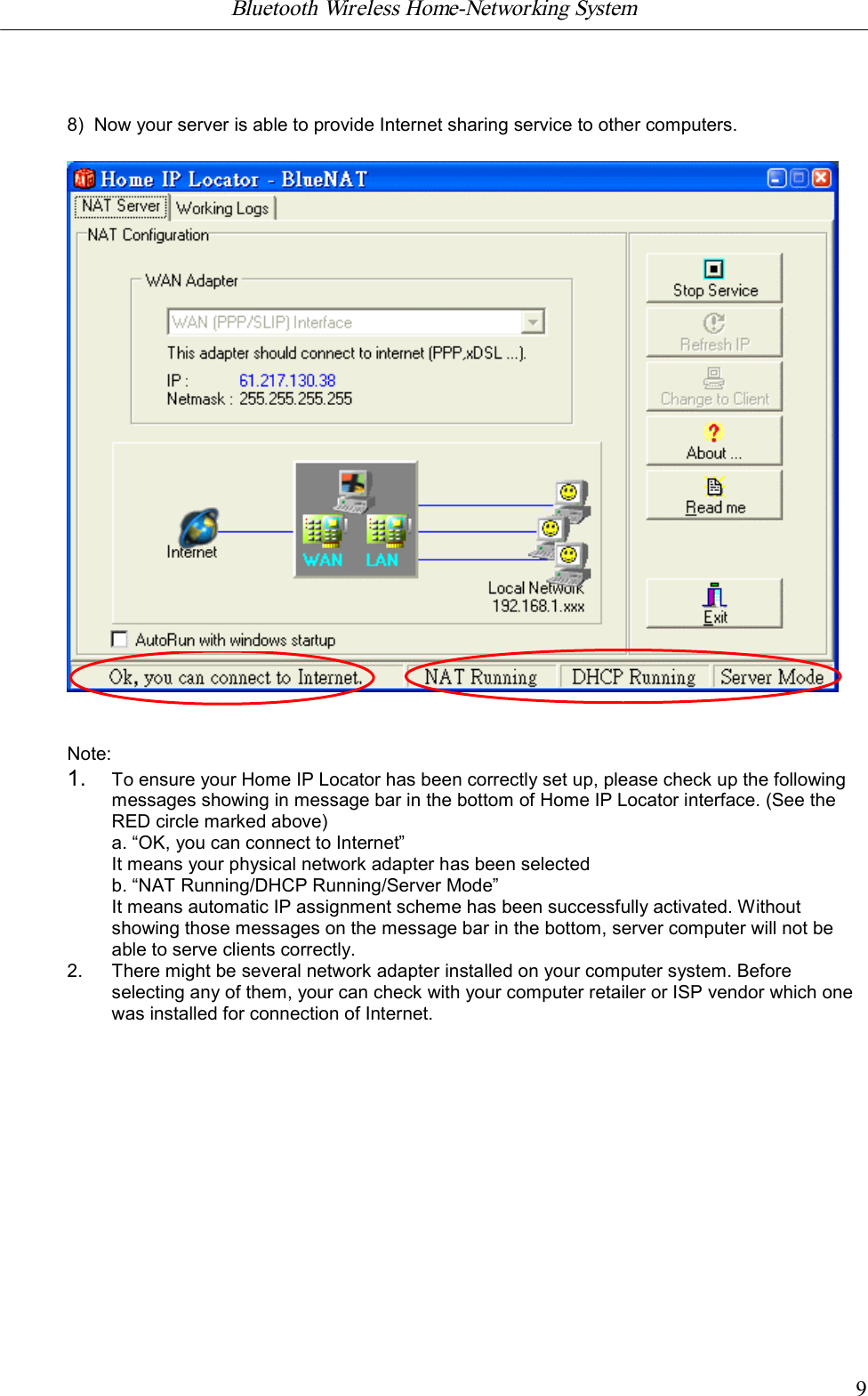
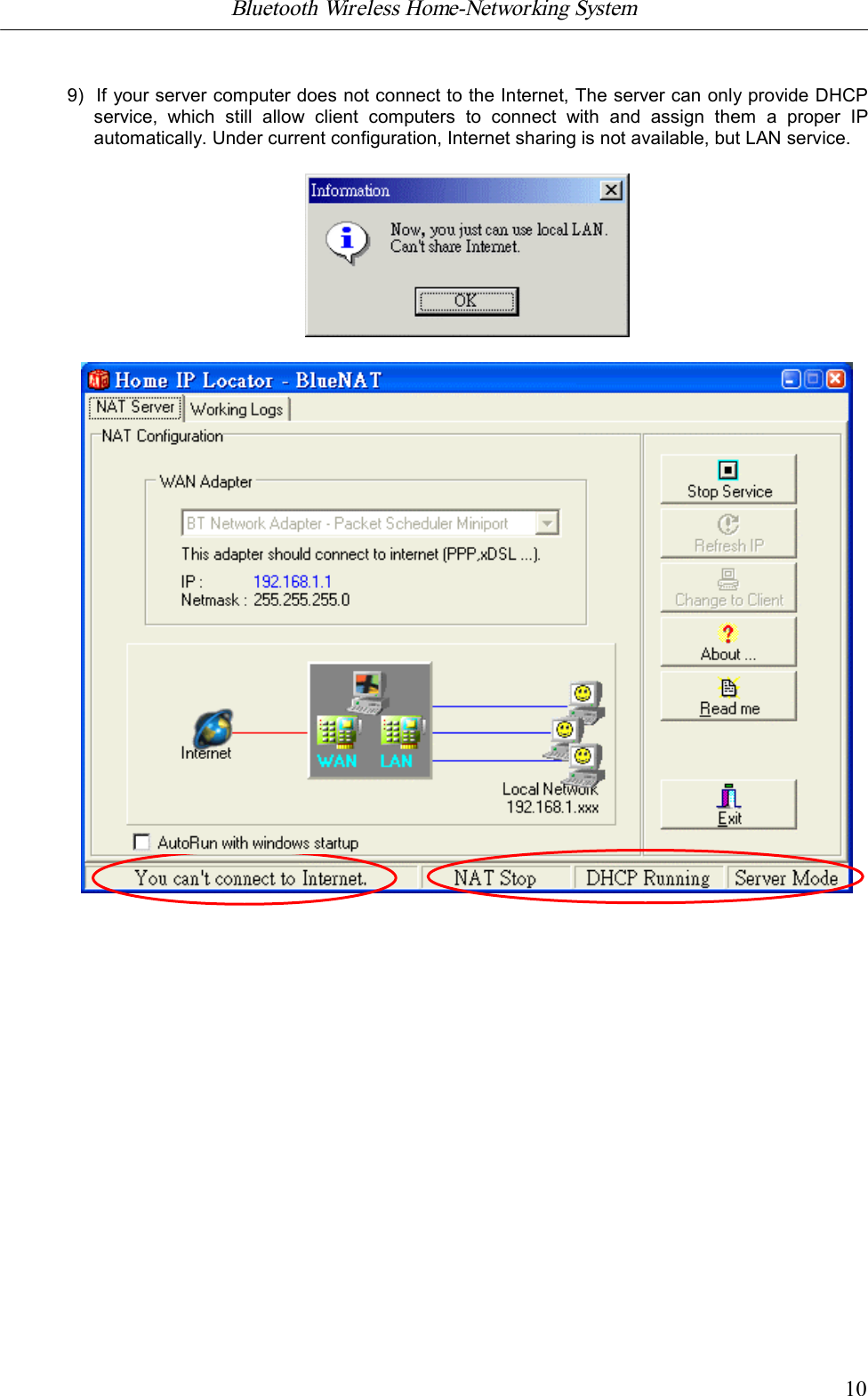
Bluetooth Wireless Home-Networking System            98)  Now your server is able to provide Internet sharing service to other computers.Note:1. To ensure your Home IP Locator has been correctly set up, please check up the followingmessages showing in message bar in the bottom of Home IP Locator interface. (See theRED circle marked above)a. “OK, you can connect to Internet”It means your physical network adapter has been selectedb. “NAT Running/DHCP Running/Server Mode”It means automatic IP assignment scheme has been successfully activated. Withoutshowing those messages on the message bar in the bottom, server computer will not beable to serve clients correctly.2. There might be several network adapter installed on your computer system. Beforeselecting any of them, your can check with your computer retailer or ISP vendor which onewas installed for connection of Internet.
Bluetooth Wireless Home-Networking System            109)  If your server computer does not connect to the Internet, The server can only provide DHCPservice,  which  still  allow  client  computers  to  connect  with  and  assign  them  a  proper  IPautomatically. Under current configuration, Internet sharing is not available, but LAN service.
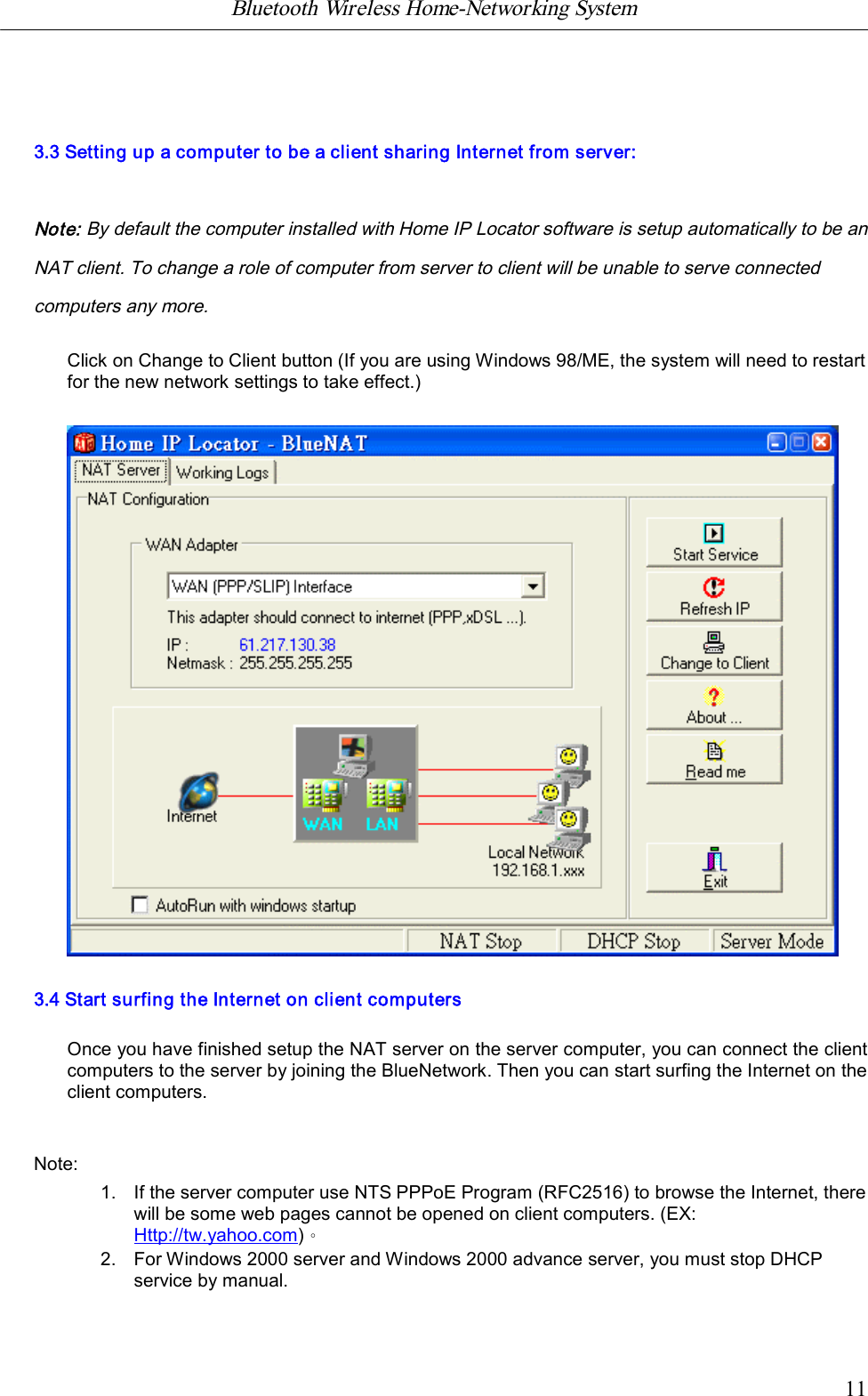
Bluetooth Wireless Home-Networking System            113.3 Setting up a computer to be a client sharing Internet from server:Note: By default the computer installed with Home IP Locator software is setup automatically to be anNAT client. To change a role of computer from server to client will be unable to serve connectedcomputers any more.Click on Change to Client button (If you are using Windows 98/ME, the system will need to restartfor the new network settings to take effect.)3.4 Start surfing the Internet on client computersOnce you have finished setup the NAT server on the server computer, you can connect the clientcomputers to the server by joining the BlueNetwork. Then you can start surfing the Internet on theclient computers.Note:1. If the server computer use NTS PPPoE Program (RFC2516) to browse the Internet, therewill be some web pages cannot be opened on client computers. (EX:Http://tw.yahoo.com)。2. For Windows 2000 server and Windows 2000 advance server, you must stop DHCPservice by manual.
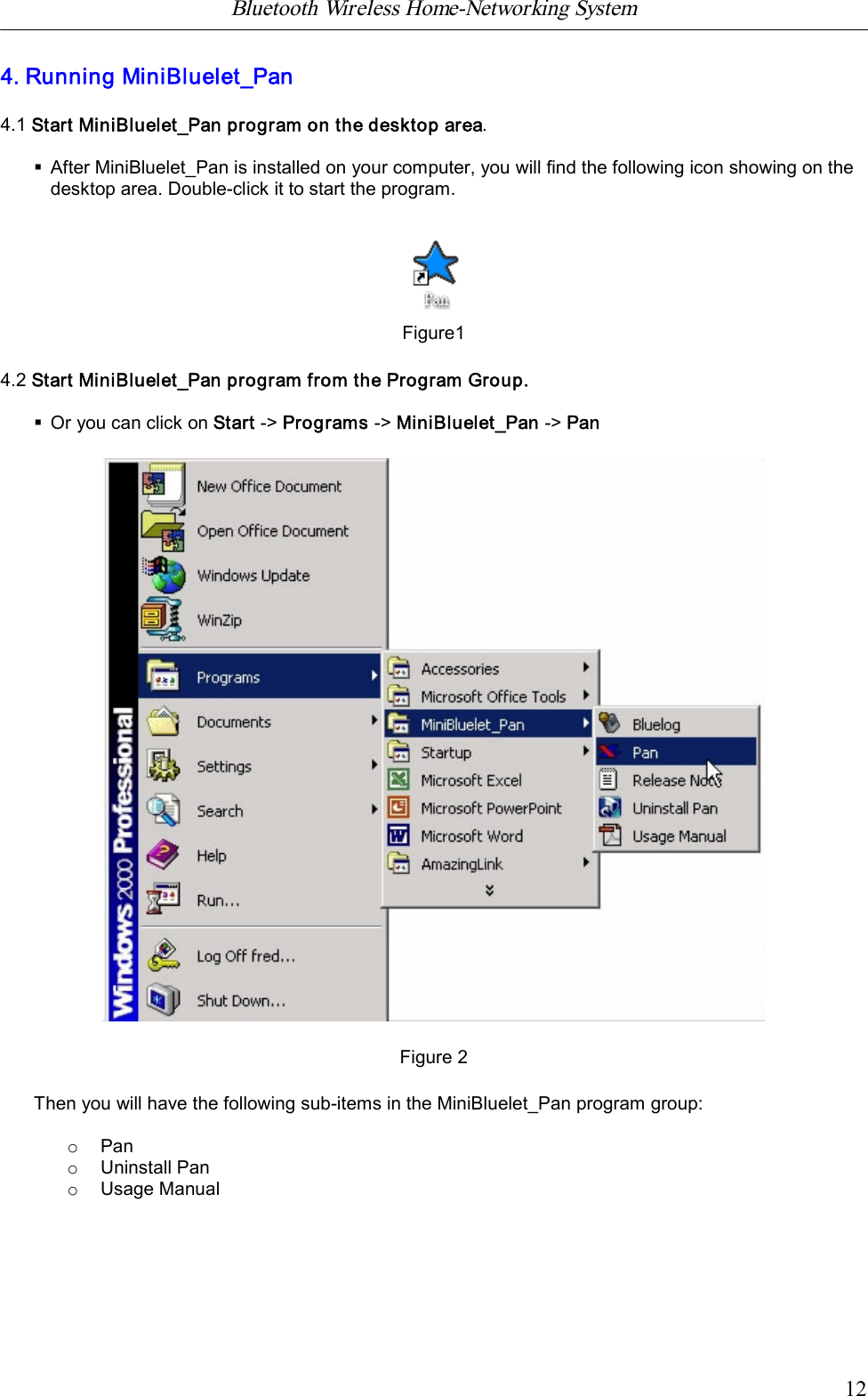
Bluetooth Wireless Home-Networking System            124. Running MiniBluelet_Pan4.1 Start MiniBluelet_Pan program on the desktop area.§After MiniBluelet_Pan is installed on your computer, you will find the following icon showing on thedesktop area. Double-click it to start the program.Figure14.2 Start MiniBluelet_Pan program from the Program Group.§Or you can click on Start -> Programs -> MiniBluelet_Pan -> PanFigure 2Then you will have the following sub-items in the MiniBluelet_Pan program group:oPanoUninstall PanoUsage Manual
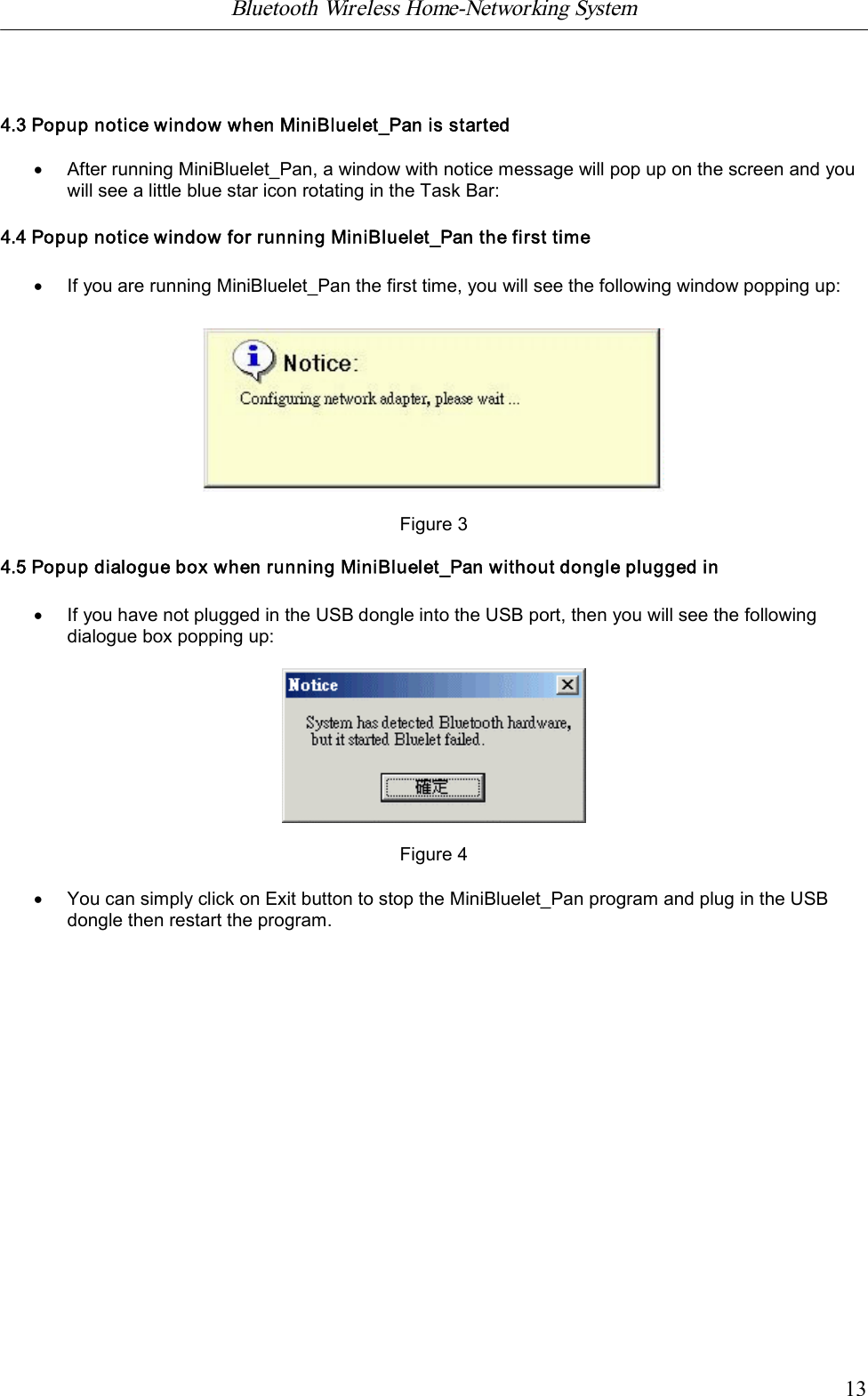
Bluetooth Wireless Home-Networking System            134.3 Popup notice window when MiniBluelet_Pan is started·After running MiniBluelet_Pan, a window with notice message will pop up on the screen and youwill see a little blue star icon rotating in the Task Bar:4.4 Popup notice window for running MiniBluelet_Pan the first time·If you are running MiniBluelet_Pan the first time, you will see the following window popping up:Figure 34.5 Popup dialogue box when running MiniBluelet_Pan without dongle plugged in·If you have not plugged in the USB dongle into the USB port, then you will see the followingdialogue box popping up:Figure 4·You can simply click on Exit button to stop the MiniBluelet_Pan program and plug in the USBdongle then restart the program.
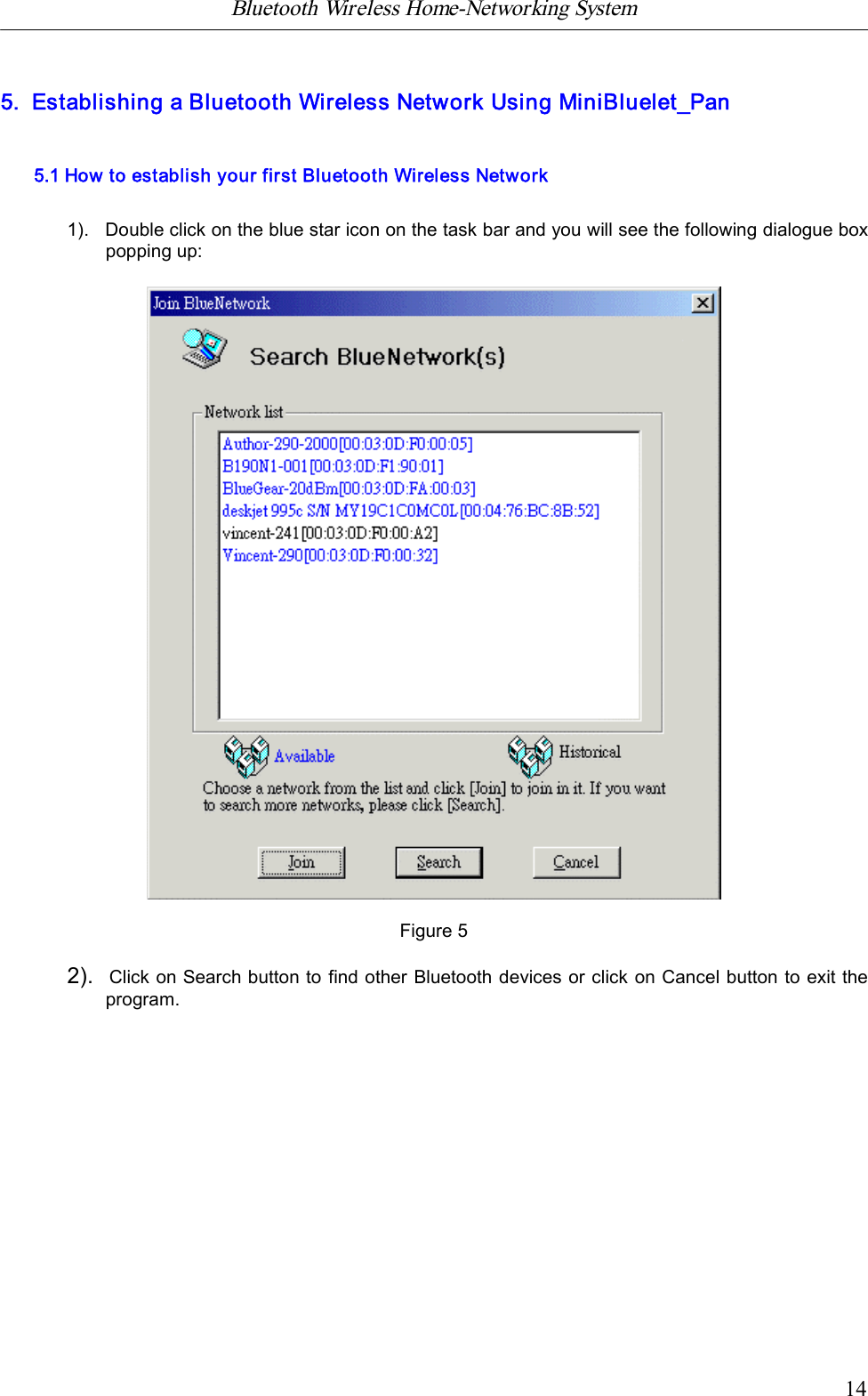
Bluetooth Wireless Home-Networking System            145.  Establishing a Bluetooth Wireless Network Using MiniBluelet_Pan5.1 How to establish your first Bluetooth Wireless Network1).   Double click on the blue star icon on the task bar and you will see the following dialogue boxpopping up:Figure 52).  Click on Search button to find other Bluetooth devices or click on Cancel button to exit theprogram.
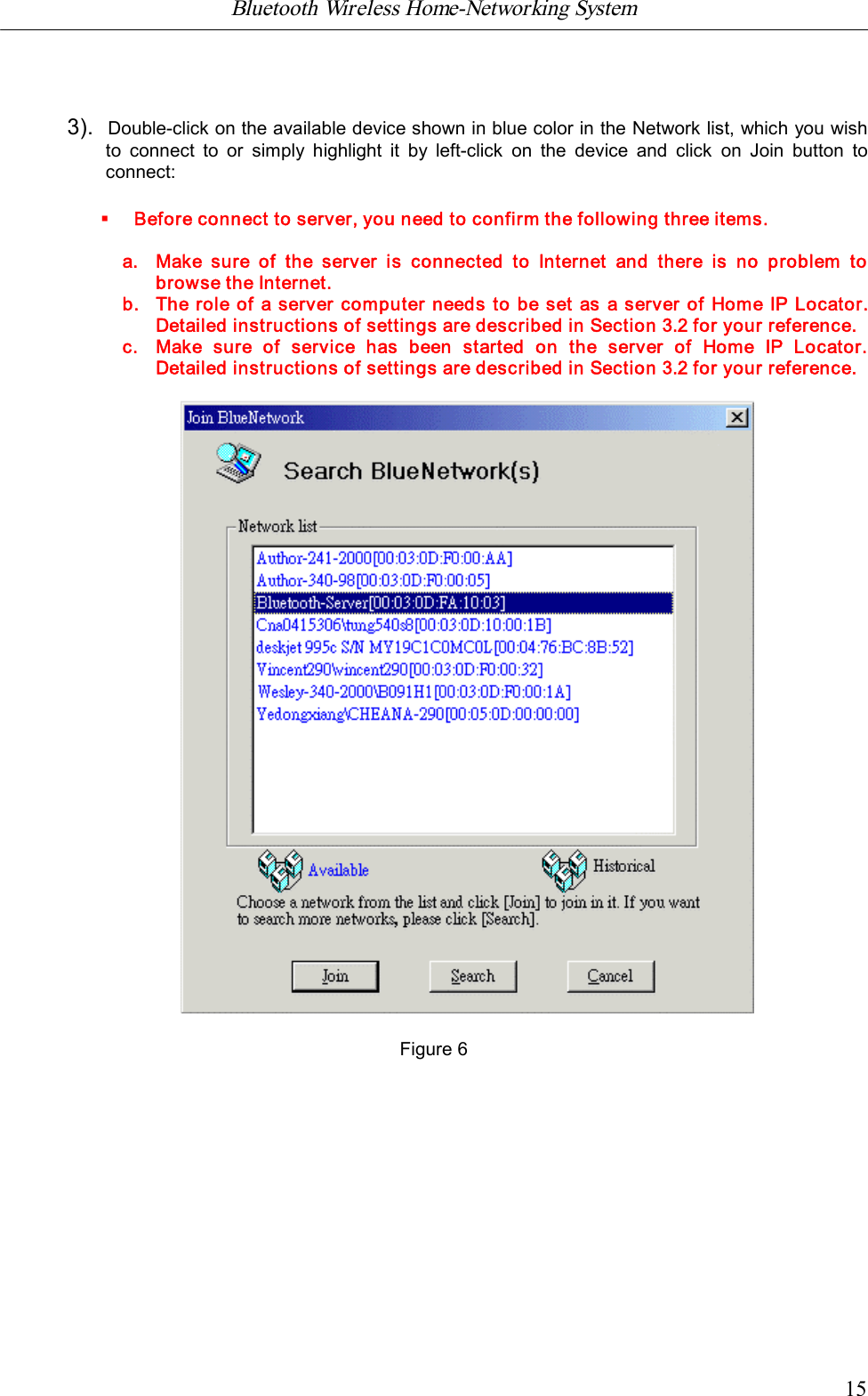
Bluetooth Wireless Home-Networking System            153).  Double-click on the available device shown in blue color in the Network list, which you wishto  connect  to  or  simply  highlight  it  by  left-click  on  the  device  and  click  on  Join  button  toconnect:§Before connect to server, you need to confirm the following three items.a. Make  sure  of  the  server  is connected  to Internet  and  there  is no  problem  tobrowse the Internet.b. The role of a server computer needs to be set as a server of Home IP Locator.Detailed instructions of settings are described in Section 3.2 for your reference.c. Make  sure  of  service  has  been  started  on  the  server  of  Home  IP  Locator.Detailed instructions of settings are described in Section 3.2 for your reference.Figure 6
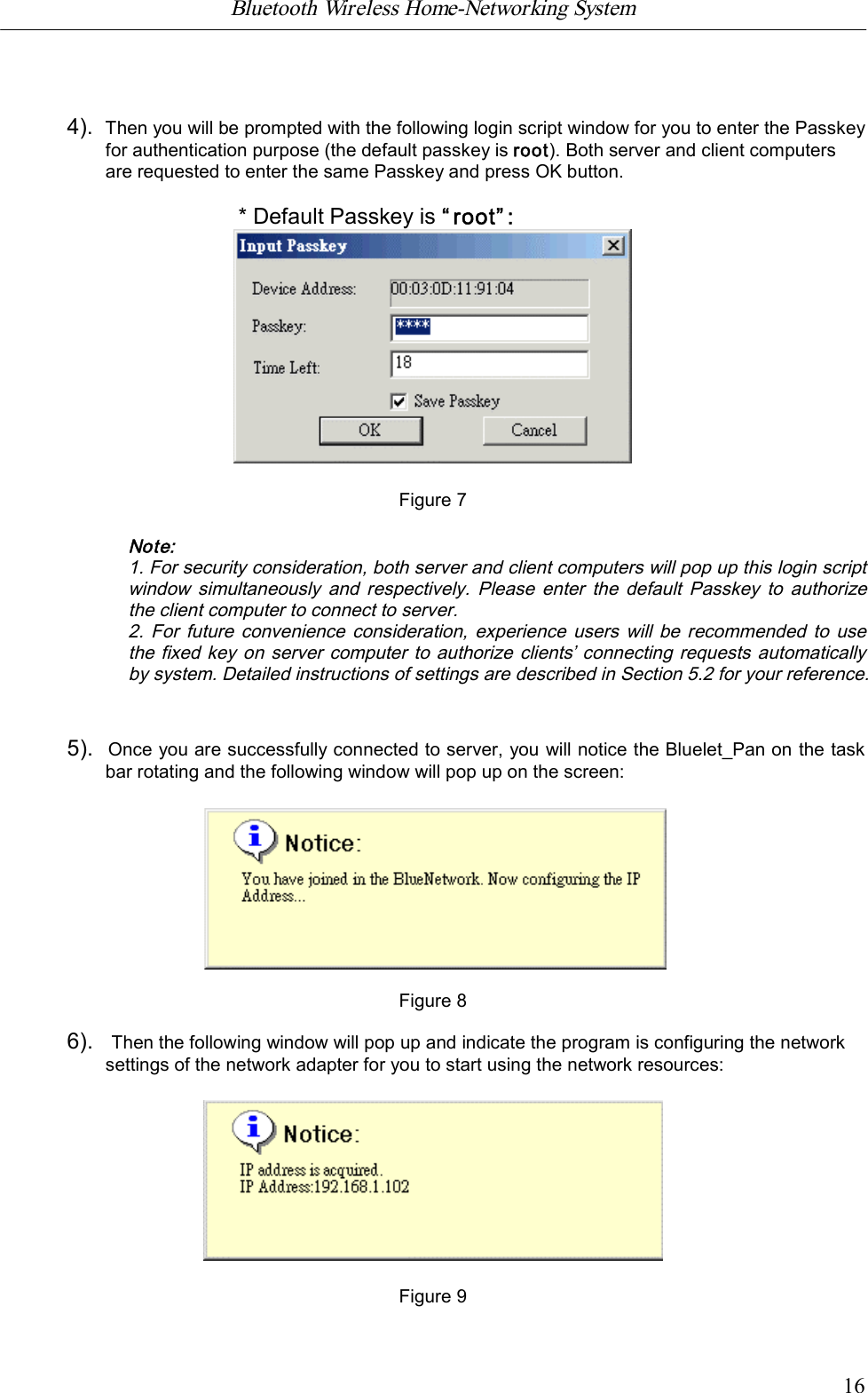
Bluetooth Wireless Home-Networking System            164).  Then you will be prompted with the following login script window for you to enter the Passkeyfor authentication purpose (the default passkey is root). Both server and client computersare requested to enter the same Passkey and press OK button.* Default Passkey is “root”:Figure 7Note:1. For security consideration, both server and client computers will pop up this login scriptwindow simultaneously  and  respectively.  Please enter the  default  Passkey to  authorizethe client computer to connect to server.2.  For  future convenience consideration, experience users  will  be  recommended to usethe fixed key on server computer to authorize clients’ connecting requests automaticallyby system. Detailed instructions of settings are described in Section 5.2 for your reference.5).  Once you are successfully connected to server, you will notice the Bluelet_Pan on the taskbar rotating and the following window will pop up on the screen:                                Figure 86).   Then the following window will pop up and indicate the program is configuring the networksettings of the network adapter for you to start using the network resources:Figure 9
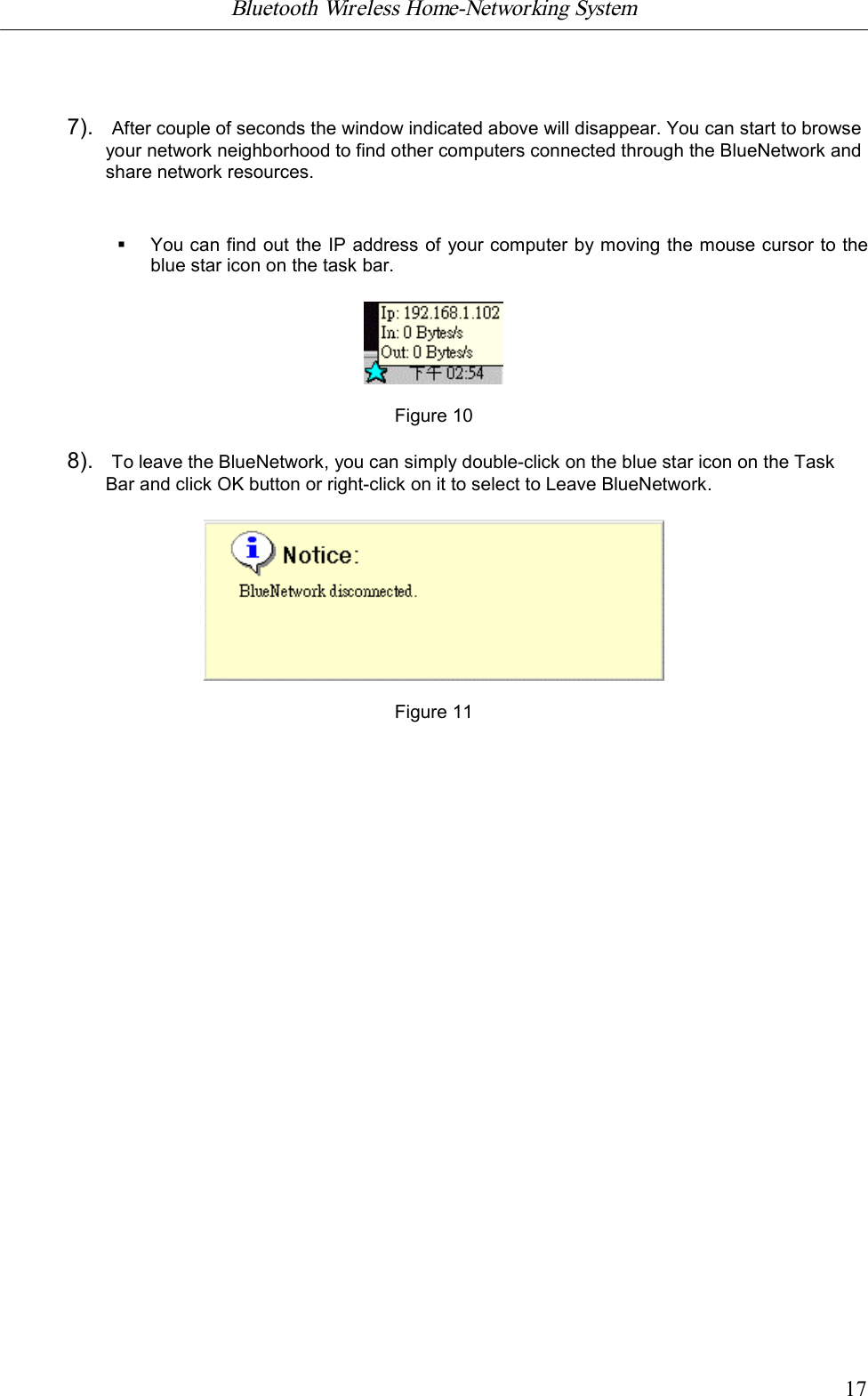
Bluetooth Wireless Home-Networking System            177).   After couple of seconds the window indicated above will disappear. You can start to browseyour network neighborhood to find other computers connected through the BlueNetwork andshare network resources.§You can find out the IP address of your computer by moving the mouse cursor to theblue star icon on the task bar.Figure 108).   To leave the BlueNetwork, you can simply double-click on the blue star icon on the TaskBar and click OK button or right-click on it to select to Leave BlueNetwork.Figure 11
Bluetooth Wireless Home-Networking System            185.2 MiniBluelet_Pan pop-up menu and optional settingsRight-click on the blue star icon on the Task Bar and you will see the following pop-up menu:vAbout Pan …vJoin BlueNetworkvOptionsvExit                                                                 Figure 121).   About Pan …About Software Version、Device Name and BD Address:                              Figure 13
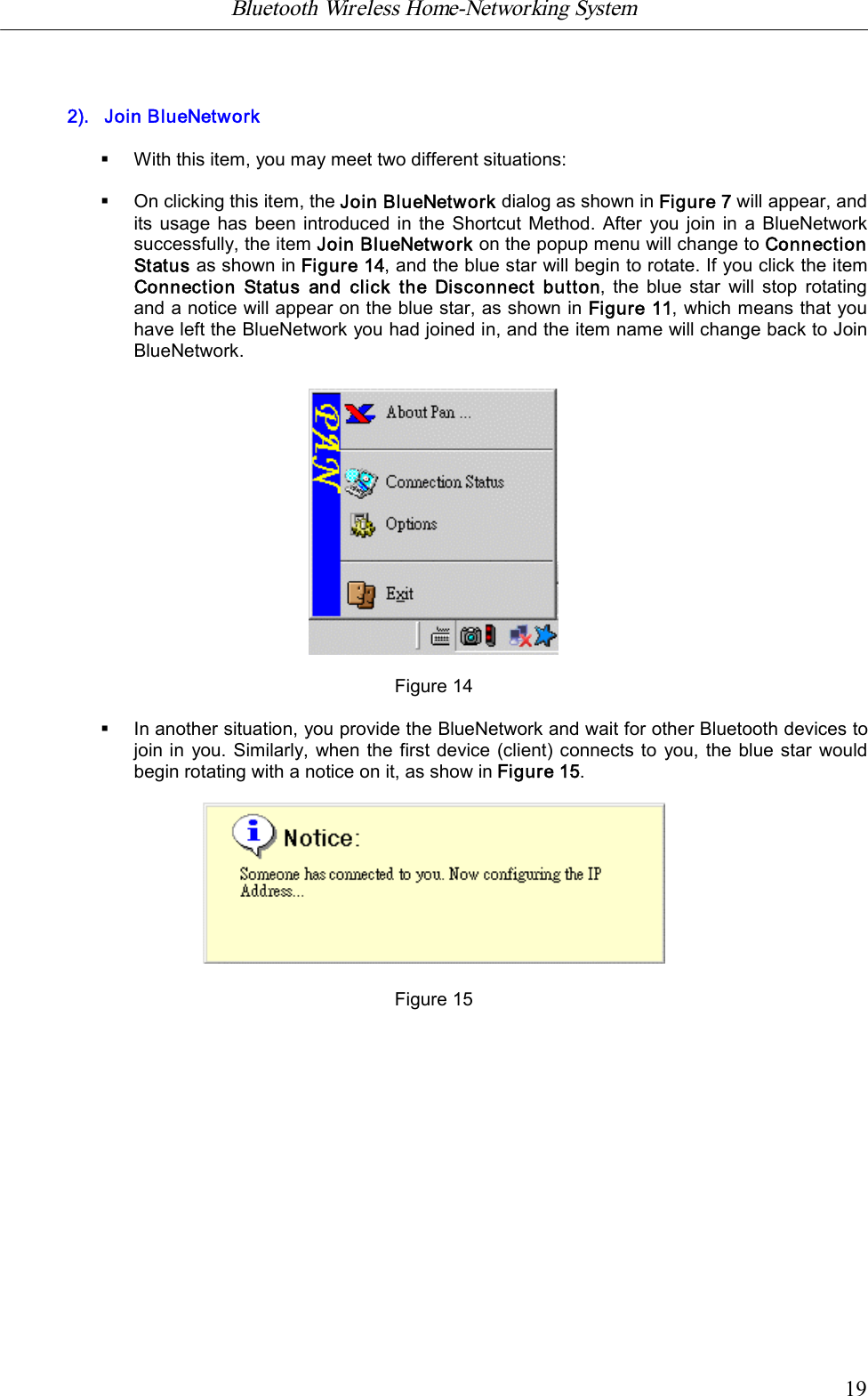
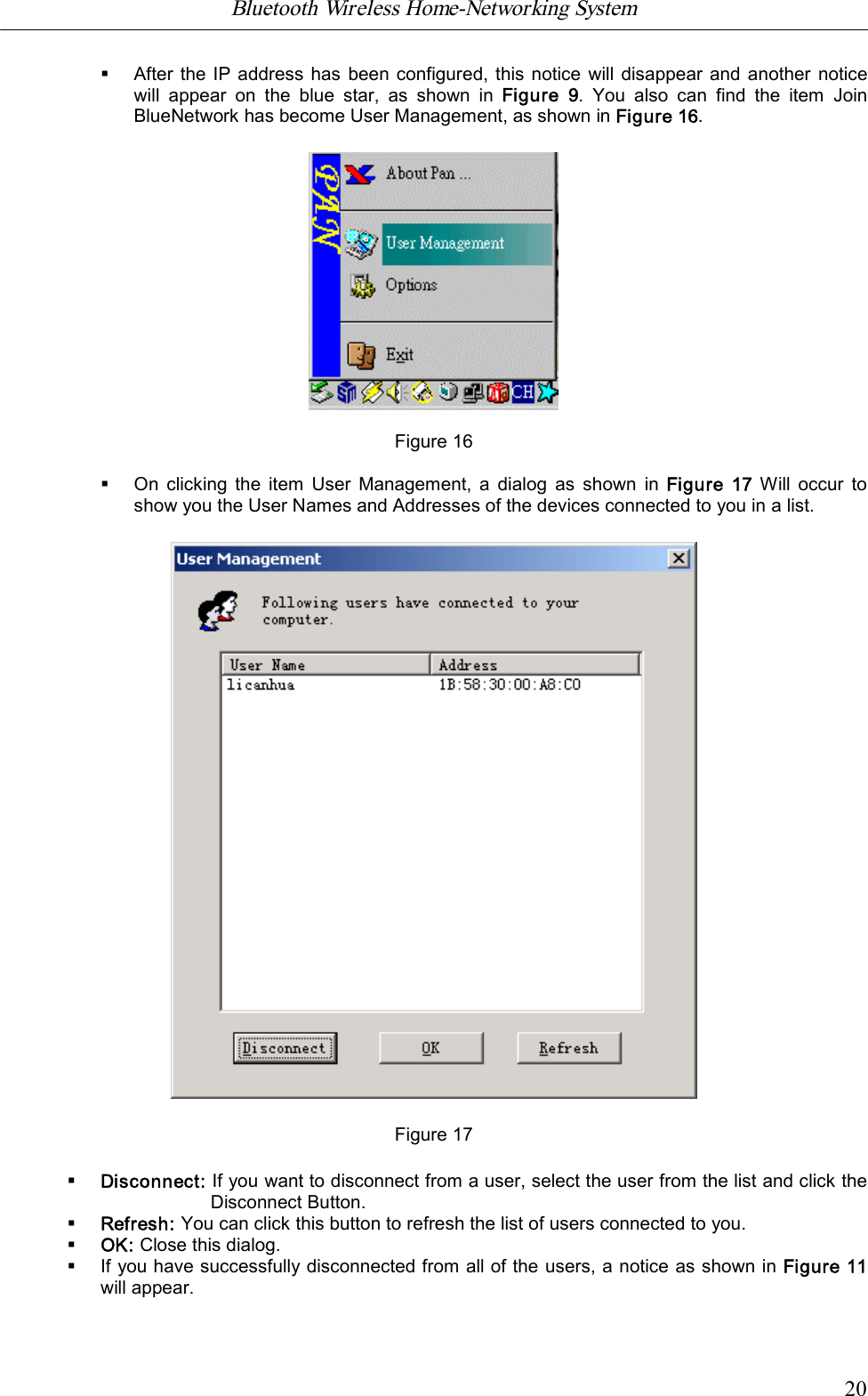
Bluetooth Wireless Home-Networking System            192).   Join BlueNetwork§With this item, you may meet two different situations:§On clicking this item, the Join BlueNetwork dialog as shown in Figure 7 will appear, andits usage has  been introduced in the  Shortcut Method.  After you join in  a BlueNetworksuccessfully, the item Join BlueNetwork on the popup menu will change to ConnectionStatus as shown in Figure 14, and the blue star will begin to rotate. If you click the itemConnection Status and click the  Disconnect button, the blue star  will  stop rotatingand a notice will appear on the blue star, as shown in Figure 11, which means that youhave left the BlueNetwork you had joined in, and the item name will change back to JoinBlueNetwork.Figure 14§In another situation, you provide the BlueNetwork and wait for other Bluetooth devices tojoin in you. Similarly, when the first device (client) connects to you, the blue star wouldbegin rotating with a notice on it, as show in Figure 15.                                                                Figure 15
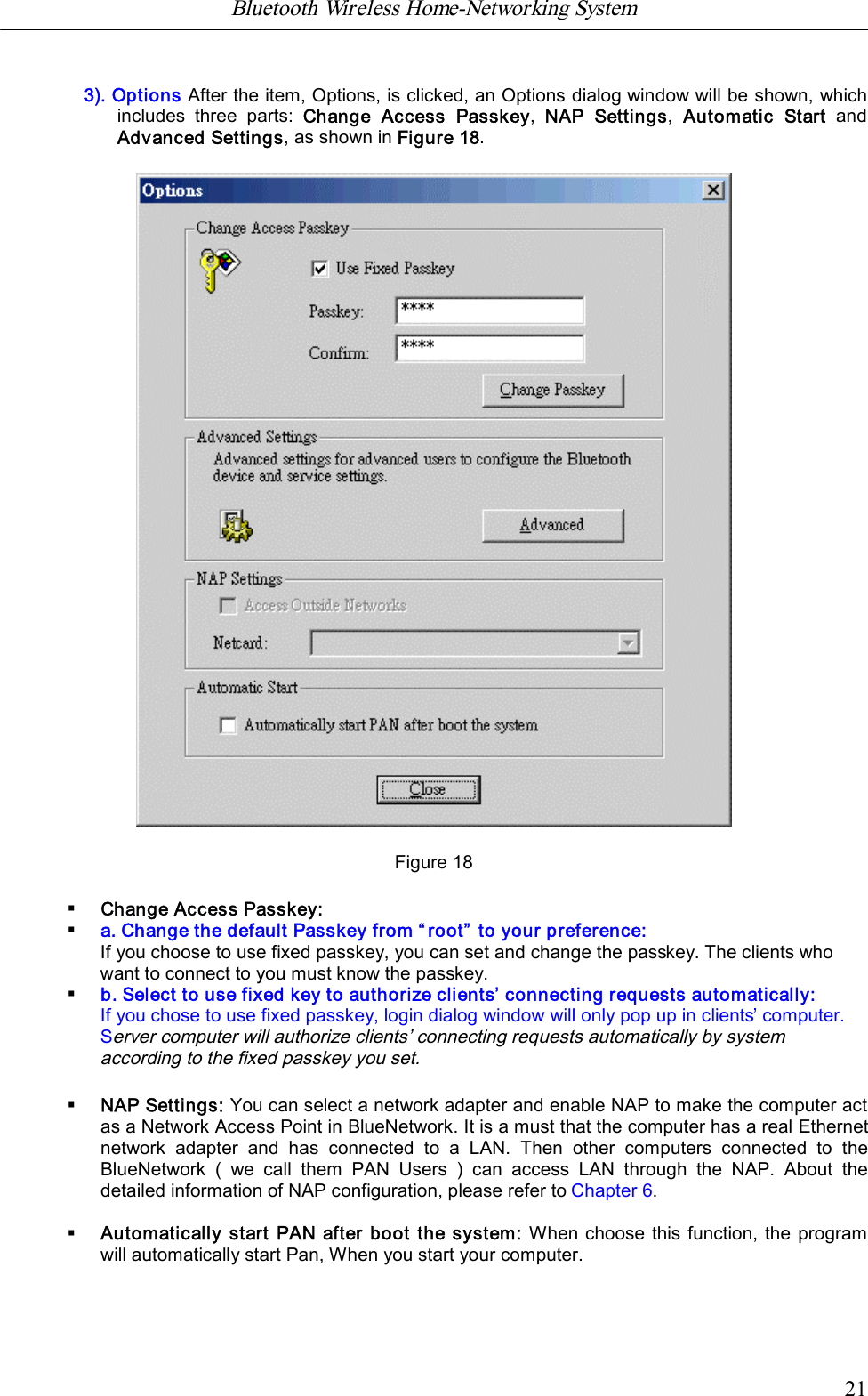
Bluetooth Wireless Home-Networking System            20§After the IP address has been configured, this notice will disappear and another  noticewill  appear  on  the  blue  star,  as  shown  in  Figure  9.  You  also  can  find  the  item  JoinBlueNetwork has become User Management, as shown in Figure 16.                    Figure 16§On  clicking  the item User Management, a dialog as  shown  in  Figure  17  Will occur  toshow you the User Names and Addresses of the devices connected to you in a list.Figure 17§Disconnect: If you want to disconnect from a user, select the user from the list and click theDisconnect Button.§Refresh: You can click this button to refresh the list of users connected to you.§OK: Close this dialog.§If you have successfully disconnected from all of the users, a notice as shown in Figure 11will appear.
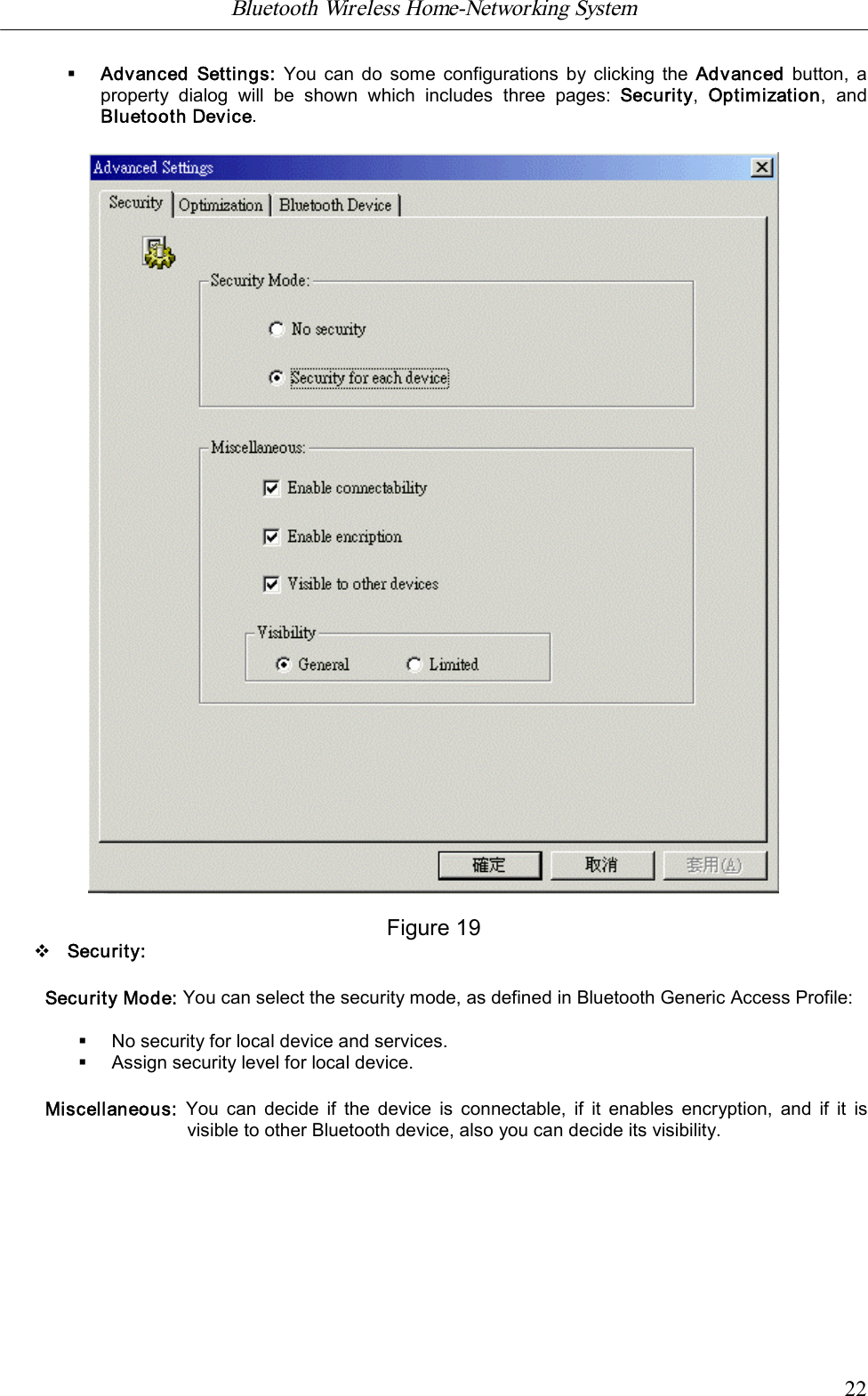
Bluetooth Wireless Home-Networking System            213). Options After the item, Options, is clicked, an Options dialog window will be shown, whichincludes  three  parts:  Change  Access  Passkey,  NAP  Settings,  Automatic  Start  andAdvanced Settings, as shown in Figure 18.Figure 18§Change Access Passkey:§a. Change the default Passkey from “root” to your preference:If you choose to use fixed passkey, you can set and change the passkey. The clients whowant to connect to you must know the passkey.§b. Select to use fixed key to authorize clients’ connecting requests automatically:If you chose to use fixed passkey, login dialog window will only pop up in clients’ computer.Server computer will authorize clients’ connecting requests automatically by systemaccording to the fixed passkey you set.§NAP Settings: You can select a network adapter and enable NAP to make the computer actas a Network Access Point in BlueNetwork. It is a must that the computer has a real Ethernetnetwork  adapter  and  has  connected  to  a  LAN.  Then  other  computers  connected  to  theBlueNetwork  (  we  call  them  PAN  Users  )  can  access  LAN  through  the  NAP.  About  thedetailed information of NAP configuration, please refer to Chapter 6.§Automatically start PAN after boot the system: When choose this function, the programwill automatically start Pan, When you start your computer.
Bluetooth Wireless Home-Networking System            22§Advanced  Settings: You can do  some configurations by clicking the Advanced  button, aproperty  dialog  will  be  shown  which  includes  three  pages:  Security,  Optimization,  andBluetooth Device.Figure 19vSecurity:Security Mode: You can select the security mode, as defined in Bluetooth Generic Access Profile:§No security for local device and services.§Assign security level for local device.Miscellaneous: You can decide  if  the device  is connectable,  if  it  enables  encryption,  and  if  it  isvisible to other Bluetooth device, also you can decide its visibility.
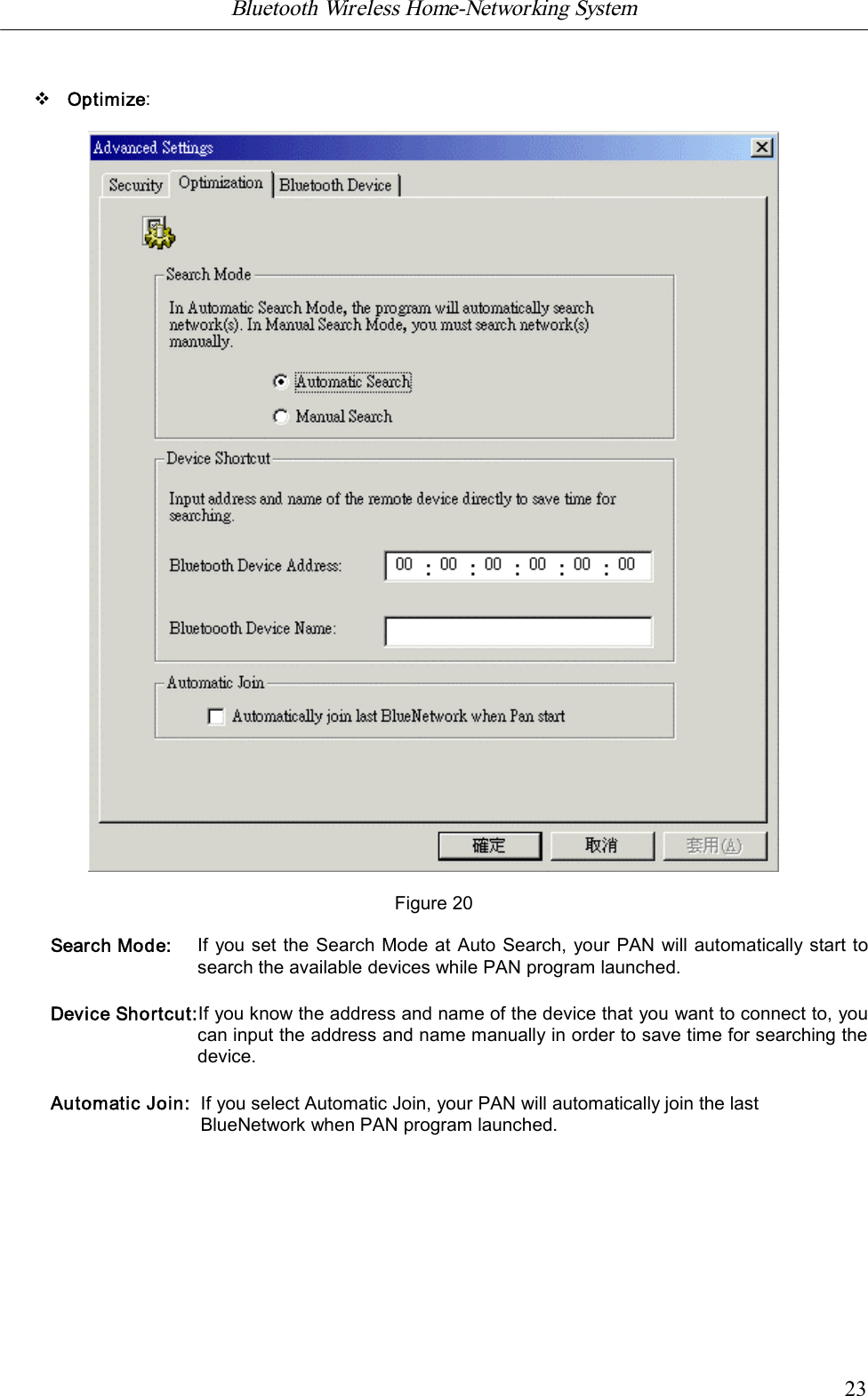
Bluetooth Wireless Home-Networking System            23vOptimize:Figure 20Search Mode: If you set the Search Mode at Auto Search, your PAN will automatically start tosearch the available devices while PAN program launched.Device Shortcut:If you know the address and name of the device that you want to connect to, youcan input the address and name manually in order to save time for searching thedevice.Automatic Join: If you select Automatic Join, your PAN will automatically join the lastBlueNetwork when PAN program launched.
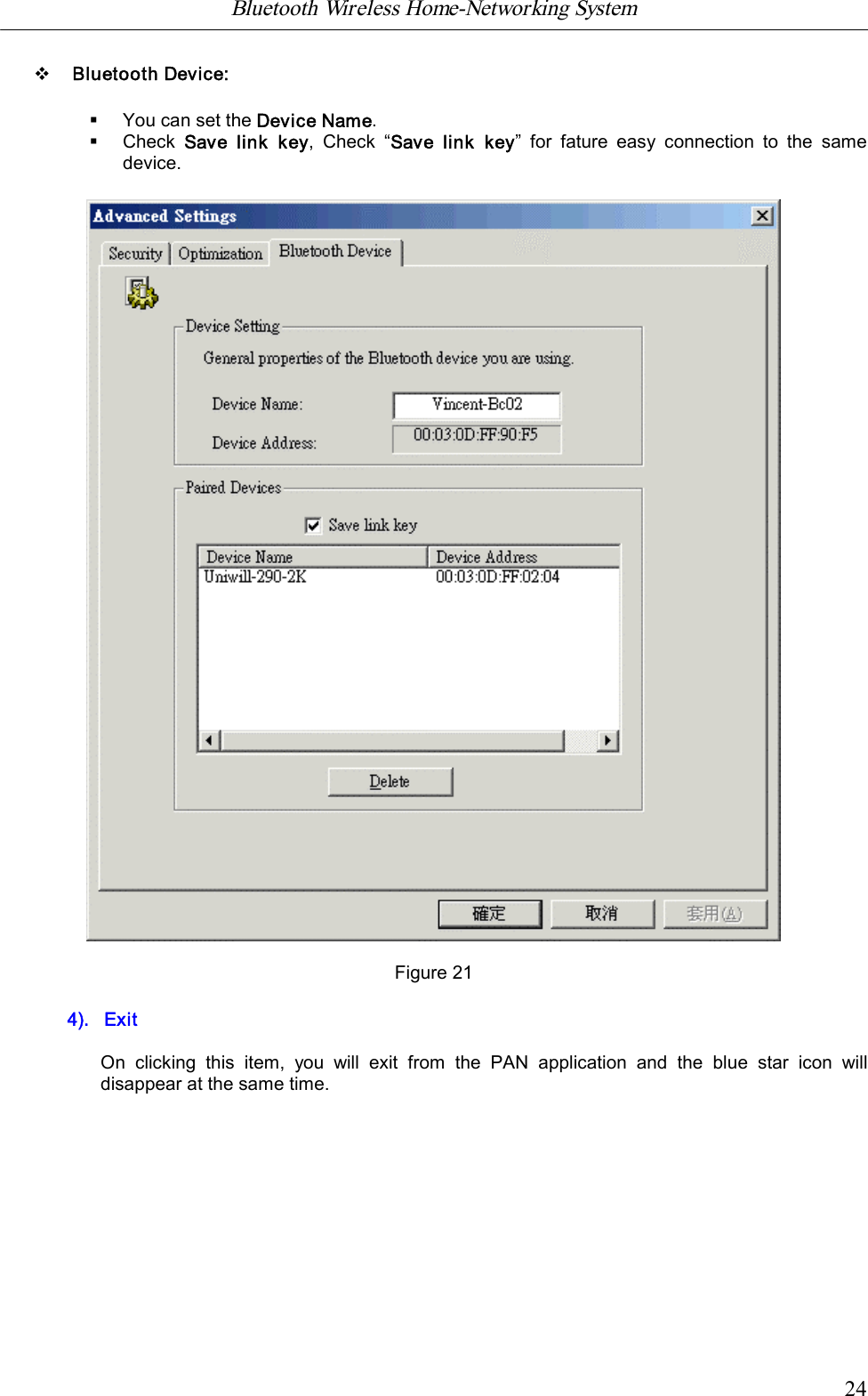
Bluetooth Wireless Home-Networking System            24vBluetooth Device:§You can set the Device Name.§Check  Save  link  key,  Check  “Save  link  key”  for  fature  easy  connection  to  the  samedevice.Figure 214).   ExitOn  clicking  this  item,  you  will  exit  from  the  PAN  application  and  the  blue  star  icon  willdisappear at the same time.
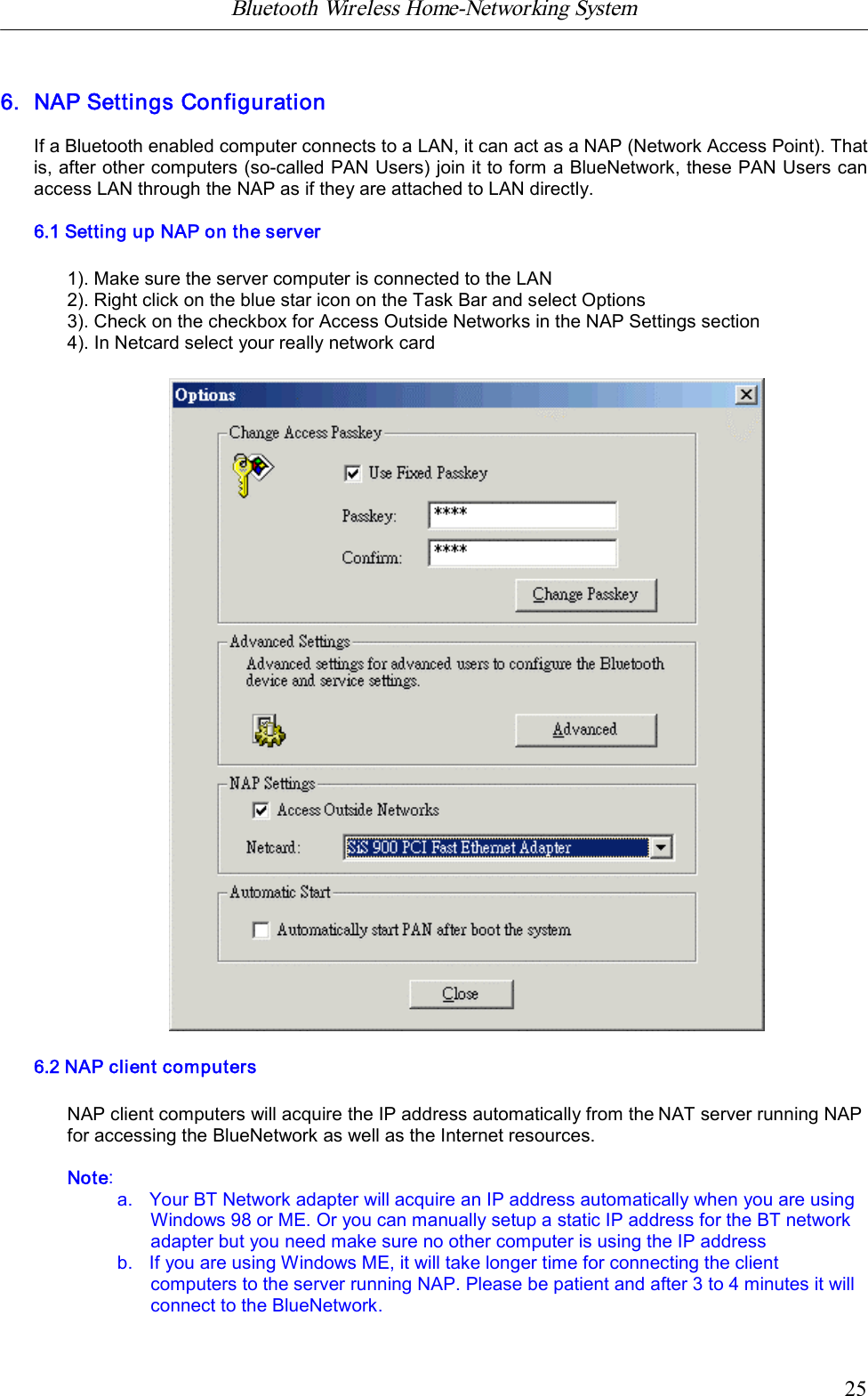
Bluetooth Wireless Home-Networking System            256. NAP Settings ConfigurationIf a Bluetooth enabled computer connects to a LAN, it can act as a NAP (Network Access Point). Thatis, after other computers (so-called PAN Users) join it to form a BlueNetwork, these PAN Users canaccess LAN through the NAP as if they are attached to LAN directly.6.1 Setting up NAP on the server1). Make sure the server computer is connected to the LAN2). Right click on the blue star icon on the Task Bar and select Options3). Check on the checkbox for Access Outside Networks in the NAP Settings section4). In Netcard select your really network card6.2 NAP client computersNAP client computers will acquire the IP address automatically from the NAT server running NAPfor accessing the BlueNetwork as well as the Internet resources.Note:a.   Your BT Network adapter will acquire an IP address automatically when you are usingWindows 98 or ME. Or you can manually setup a static IP address for the BT networkadapter but you need make sure no other computer is using the IP addressb.   If you are using Windows ME, it will take longer time for connecting the clientcomputers to the server running NAP. Please be patient and after 3 to 4 minutes it willconnect to the BlueNetwork.
Bluetooth Wireless Home-Networking System            26c.   If you are only utilizing BlueNetwork for file sharing, then you can leave the NAPfunction unchecked to reduce unnecessary CPU overhead.7. Internet Sharing Concept§There are basically three options for Internet sharing1). NAT Internet sharing concept,  Please refer to chapter 3。2). NAP Internet sharing concept,Please refer to chapter 63). ICS (Internet Connection Sharing) is provided by windows OS, please refer to windows usermanual.Note:  We  recommend  you  to  use  NAT  for  Internet  sharing  but  not  use  ICS,  because  of  thecomplex setting.
Bluetooth Wireless Home-Networking System            27FCC INFORMATIONThe Federal Communication Commission Radio Frequency Interference Statement includes thefollowing paragraph:The  equipment  has  been  tested  and  found  to  comply  with  the  limits for  Class B  DigitalDevice, pursuant to part 15 of the FCC rules. These limits are designed to provide reasonableprotection  against  harmful  interference  in  a  residential  installation.  This  equipment  generates,uses  and can radiate radio  frequency energy and,  if not installed and used in accordance withinstruction,  may  cause  harmful  interference  to  radio  communication.  However,  there  is  nograntee that interference will not occur in a particular installation. If this equipment dose causeharmful  interference to  radio or  television  reception,  which  can  be  determined  by  turning  theequipment off and on, the user is encouraged to try to correct the interference by one or more ofthe following measures:nReorient or relocate the receiving antenna.nIncrease the separation between the equipment and receiver.nConnect the equipment into an outlet on a circuit different from that to whichthe receiver is connected.nConsult the dealer or an experienced radio /TV technician for help.The  user  should  not  modify  or  change  this  equipment  without  written  approval  fromUNIWILL COMPUTER CORP. Modification could void authority to use this equipment.Notice:  The  changes  or  modifications  not  expressly  approved  by  the  party  responsible  forcompliance could void the user’s authority to operate the equipment.

Navigation menu