Unyte Health IOM2 Relaxation training device User Manual
Unyte Health Inc. Relaxation training device
User Manual

iom2 user manual
Welcome 2
Getting Started 3
Charging Your iom2 4
Removing the sensor from your iom2 4
FAQ and Customer Support 5
General Product Guidelines 6
General Specifications 6
Storage Procedures 6
Operating Precautions 6
Battery Precautions 7
Cleaning Procedures 7
USB Connector Cable Handling Precautions 7
Sensor Cable Handling Precautions 7
Satisfaction Guarantee and Warranty 8
Manufacture :Assembly

Page 1
Welcome
Congratulations on your purchase of the Unyte iom2 relaxation device!
You’ve taken the first step towards experiencing the benefits provided by the
relaxation techniques that are taught in the Unyte Interactive Meditation relaxation
training programs.
We hope that our products help you to discover your body’s natural ability to
counteract the negative effects of stress and to restore your own natural rhythms.
Be Well,
The Unyte Team
Page 2
Getting Started
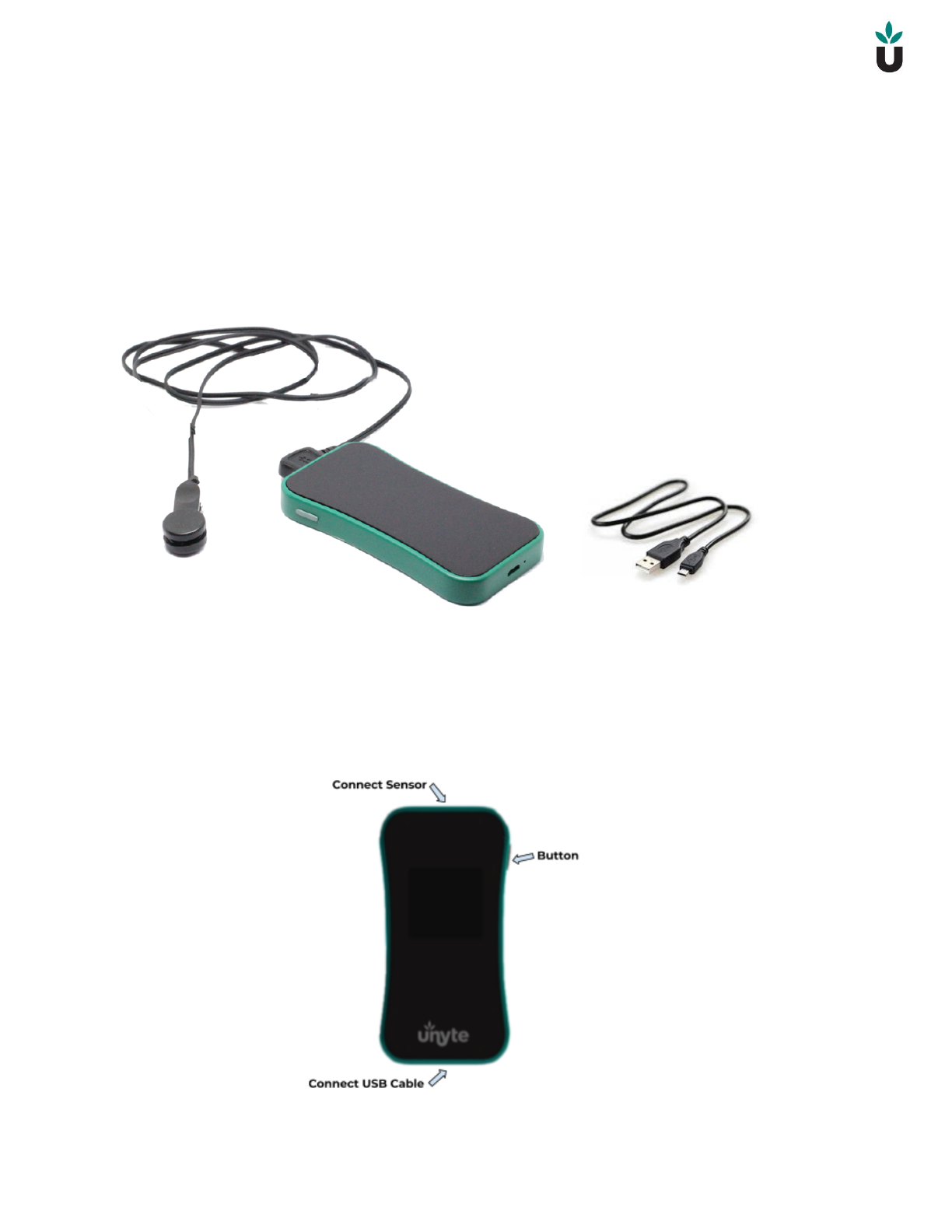
Your package should contain the following:
●Your iom2 device
●A sensor cable
●A USB cable
Your iom2 is a precision biofeedback device used to measure your body’s Heart Rate
Variability signals via a sensor connected to your body. These signals are then sent
to your Unyte app or Journey on your computer, tablet or smartphone, creating a
biofeedback loop.
Page 3
Your iom2 is easy to use:
1. Launch one of the Unyte apps (Journey’s) on your desktop, laptop, phone or
tablet.
a. If you are using a phone or tablet, make sure your Bluetooth is turned
on.
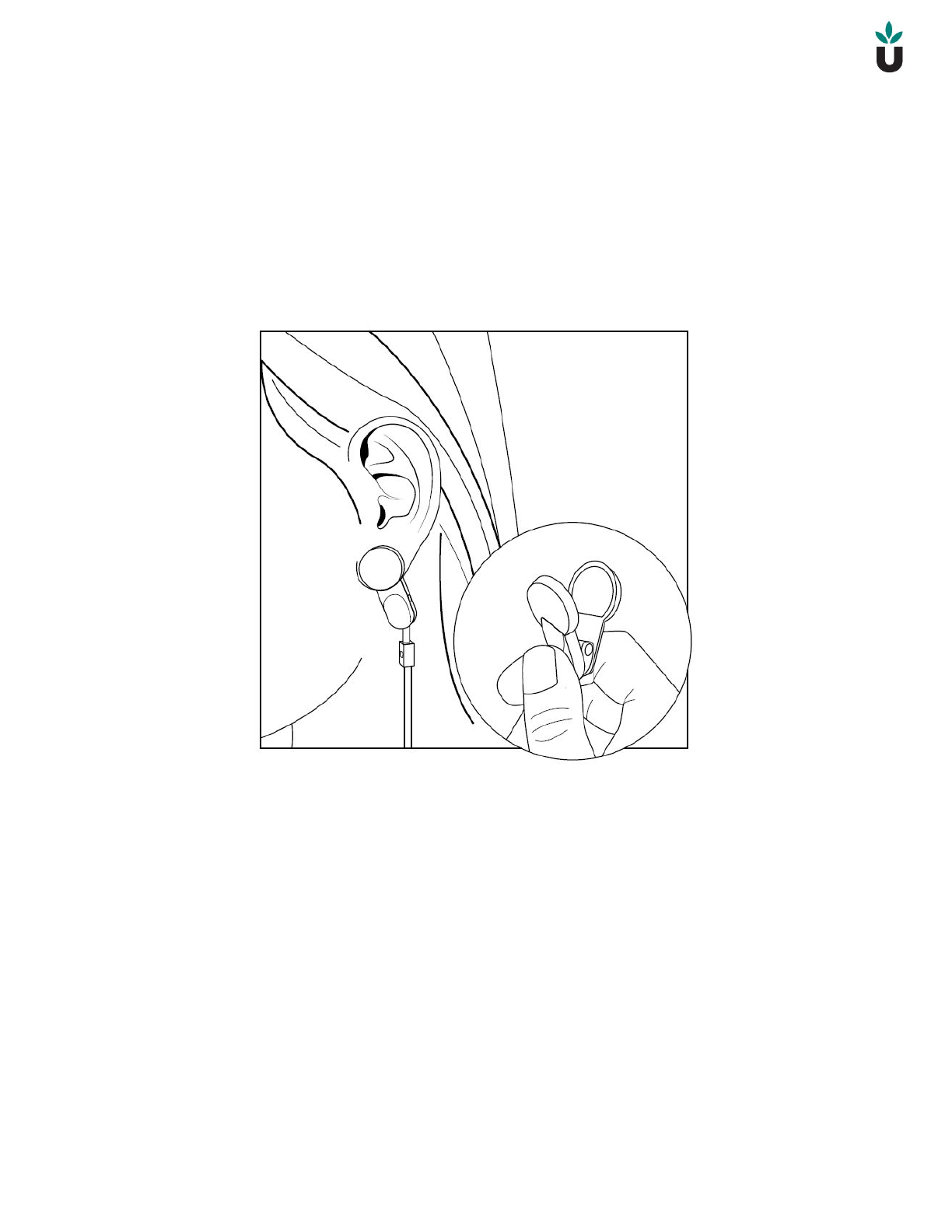
Your iom2 connects to your body via a comfortable ear clip:
Page 4
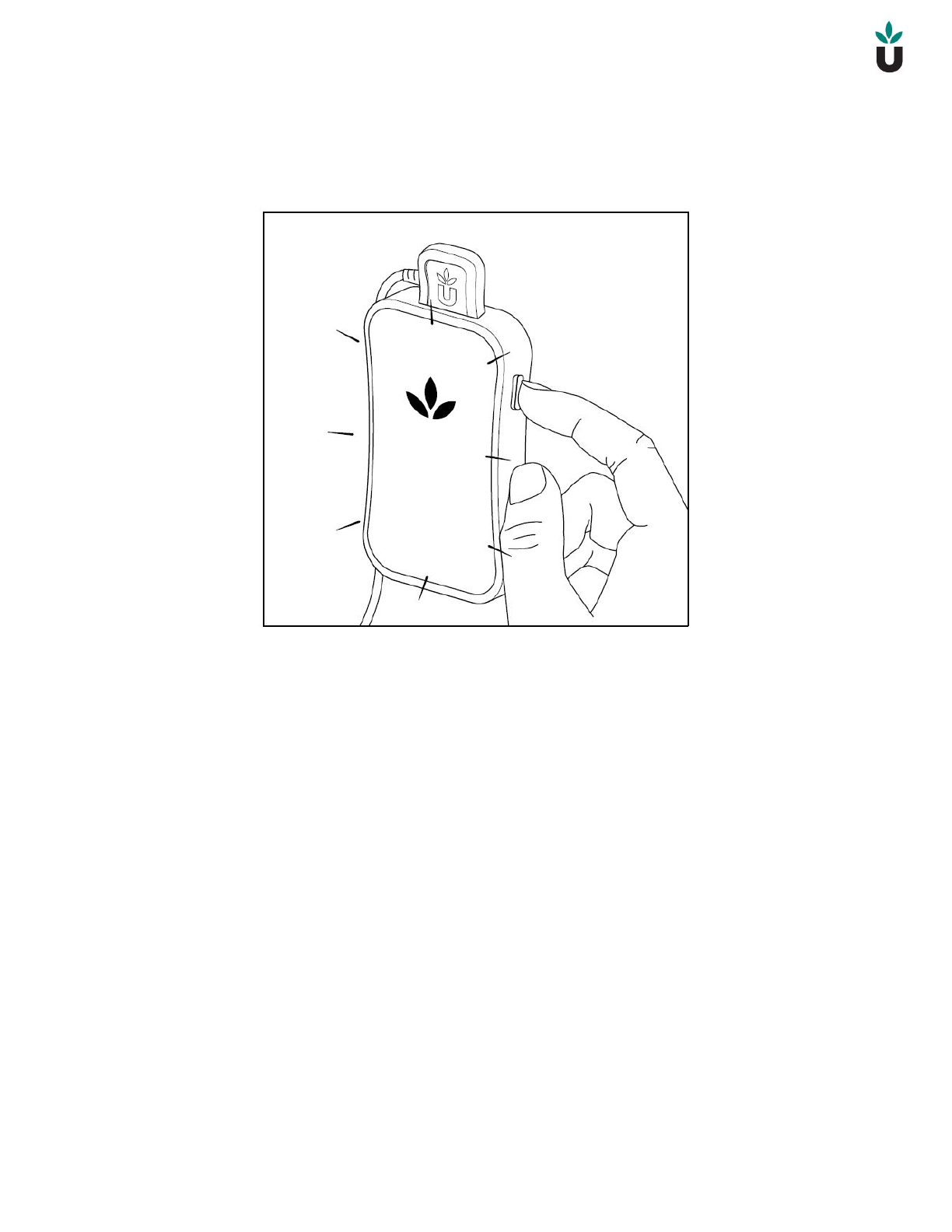
2. Gently press the button on the side of your iom2 and follow the instructions
on the iom2 display:
3. You will be instructed to:
a. Connect the sensor cable to the top of your iom2.
b. Connect the ear clip sensor to your ear.
Page 5
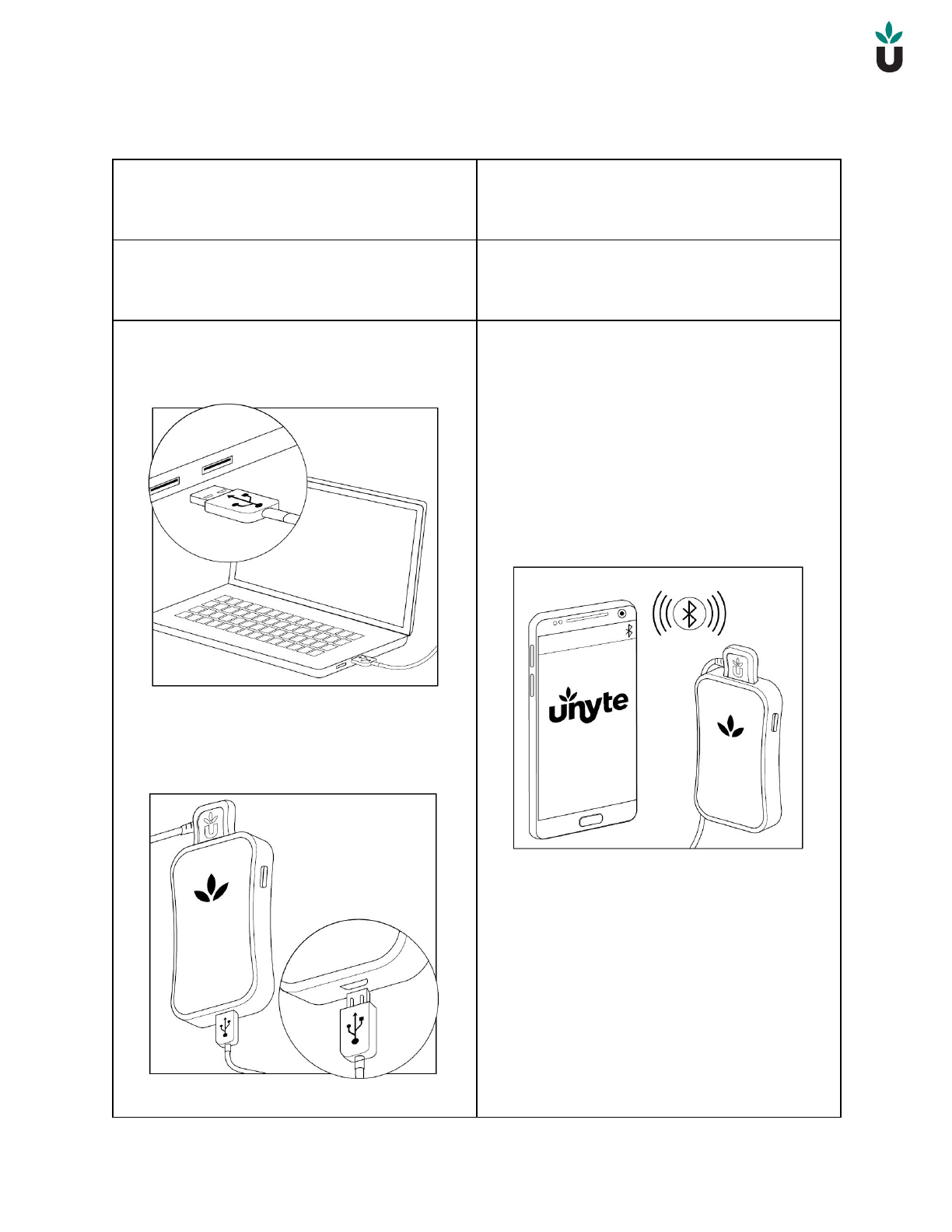
Your iom2 can send biofeedback data in two different ways:
COMPUTER
Connected to your computer via USB
cable.
TABLET or SMARTPHONE
Connected to your smartphone or table
via Bluetooth Low Energy.
This requires a USB cable (provided).
Ensure that your smartphone or tablet
supports Bluetooth Low Energy 4.0 and
that your Bluetooth is turned on.
1. Plug the large end of the
provided USB cable into your
desktop or laptop USB port.
2. Plug the small end of the USB
cable into the bottom of your
iom2 device.
1. Follow the instructions on the
iom2 display.
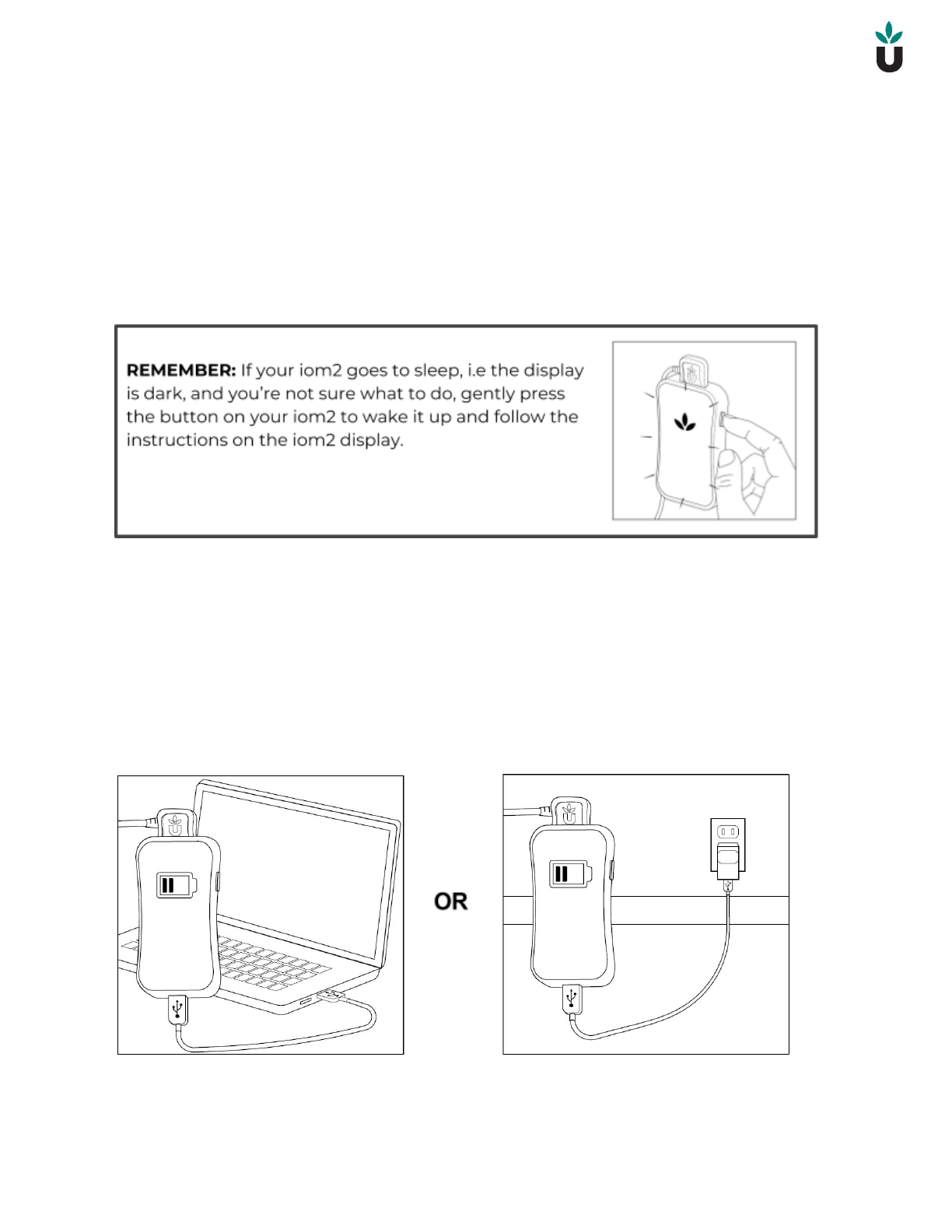
2. If your iom2 cannot find your
Bluetooth device and the display
turns off, gently press the button
on your iom2 to wake it up and
follow the instructions on the
iom2 display.
Page 6
Return to the Unyte app (Journey) on your desktop, laptop, smartphone or tablet
and your iom2 should now be successfully connected.
The Unyte app should now allow you to begin your relaxation exercises and will
display your Heart Rate Variability data in the form of your Resonance Score.
Follow any directions given in the Unyte app (Journey).
Charging Your iom2
Your iom2 is powered by an internal rechargeable long-life battery which needs to
be recharged periodically.
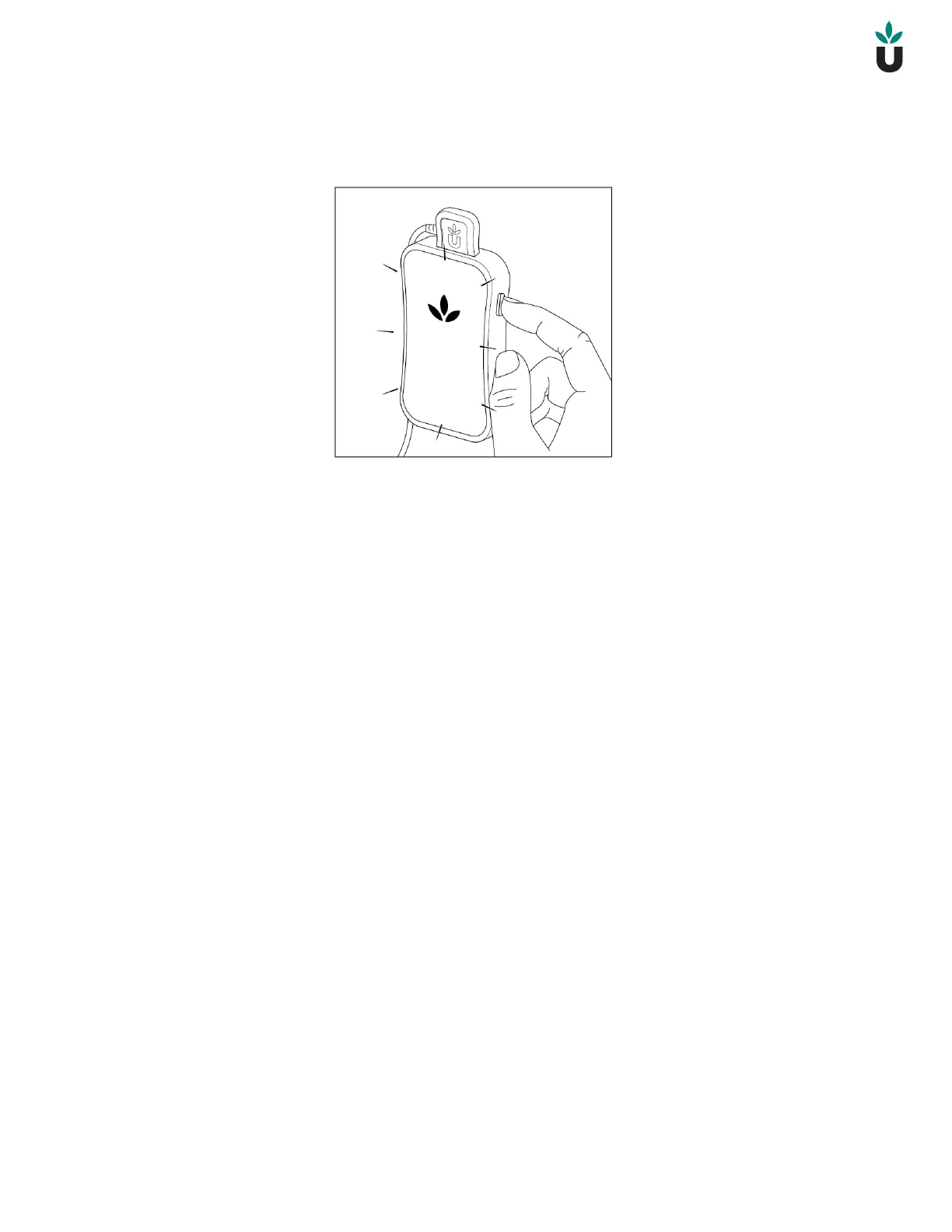
The iom2 is charged by connecting the included micro USB cable to the iom2 and
the other end to either your computer or a USB wall charger (not included).
Page 7
Your iom2 battery charge level will appear on your iom2 display whenever the
display is showing. You can always turn on your iom2 display by pressing the button
on the side of the iom2.
.
Removing the sensor from your iom2
Please ensure that you remove the sensor plug from the iom2 by gently clasping the
raised edge of the sensor connector and pulling it straight out. DO NOT pull on the
sensor cable or try to remove the sensor plug by pulling on the cable.


Page 9
General Product Guidelines
FOR HOME OR OFFICE USE
This device contains no user replaceable parts.
Only use Unyte sensors with your iom2 device.
*Disclaimer:
These statements have not been evaluated by the FDA. This product is not
intended to diagnose, treat, cure, or prevent any disease. Unyte’s iom2 is not a
medical biofeedback device, nor should it be considered a medical instrument.
General Specifications
Dimensions
3.74 inches x 1.97 inches (95mm x
50mm)
Weight
2.1 oz (60 grams)
Battery
Lithium-Ion, 3.7VDC, 1300mAh, 4.81Wh
Bluetooth
Bluetooth Low Energy 4.0
Display
0.96 inch OLED
Storage Procedures
●Do not store this product in extremely hot or cold places.
●Store this product within the temperature range: –40°C to 70°C.
●Store this product with a relative humidity range: 10 – 100%.
●Do not store this product in places with excessive dirt and dust, or in direct
sunlight.
Operating Precautions
●Use this product within the temperature range of 5°C to 35°C.
●Use this product within a relative humidity range: 10 – 95%.
●Do not attempt to disassemble or service your iom2 or sensors.
●Do not expose your iom2 to any chemicals such as flammable liquids, etc.
●Do not leave your iom2 near open flames.

Page 10
●Protect your iom2 from impact shocks.
●Use this device only for its intended use as described in this manual.
●Do not operate this device if it has a damaged cord, plug, cable or housing.
●Only set on dry surfaces. Do not place on a surface that is wet from water or
cleaning solvents.
Battery Precautions
●The iom2 contains a lithium-ion rechargeable battery.
●Damage inflicted on the battery could cause an explosion and/or fire.
●Do not dismantle, open or shred the battery.
●Do not short-circuit the battery
Cleaning Procedures
●Do not use abrasive cleaners to clean your iom2 or sensors.
●Use a soft dry cloth to clean this product.
●Disinfect sensors with alcohol or germicide.
USB Connector Cable Handling Precautions
●The iom2 requires a USB connector for charging.
●Do not touch the terminal ends of the USB connector, doing so may induce
electrostatic discharge and damage the device or host desktop or laptop.
●When unplugging the USB connector, pull it out by the plug, not by the cable.
●Make sure that you are using a certified USB power supply.
Sensor Cable Handling Precautions
●When unplugging the sensor cable, pull it out by the plug, not by the cable.

Page 11
Satisfaction Guarantee and Warranty
We hope that you experience many rewarding journeys with this product. However,
if you are unhappy with your hardware and purchased it directly from Unyte, please
contact us within 30 days of your purchase, and we will gladly allow you to return it
for a full refund.
Products purchased from other retailers will fall under those retailers’ return policies.
Your iom2 hardware is covered for 1 year from the date of your product’s registration
and will be replaced free of charge if it should fail within this period.
FCC Caution.
This device complies with part 15 of the FCC Rules. Operation is subject to the following two
conditions:
(1) This device may not cause harmful interference, and
(2) this device must accept any interference received, including interference that may cause
undesired operation.
Any Changes or modifications not expressly approved by the party responsible for compliance
could void the user's authority to operate the equipment.
Note: This equipment has been tested and found to comply with the limits for a Class B digital
device, pursuant to part 15 of the FCC Rules. These limits are designed to provide reasonable
protection against harmful interference in a residential installation. This equipment generates
uses and can radiate radio frequency energy and, if not installed and used in accordance with the
instructions, may cause harmful interference to radio communications. However, there is no
guarantee that interference will not occur in a particular installation. If this equipment does
cause harmful interference to radio or television reception, which can be determined by turning
the equipment off and on, the user is encouraged to try to correct the interference by one or
more of the following measures:
-Reorient or relocate the receiving antenna.
-Increase the separation between the equipment and receiver.
-Connect the equipment into an outlet on a circuit different from that to which the receiver is
connected.
-Consult the dealer or an experienced radio/TV technician for help.
The device has been evaluated to meet general RF exposure requirement. The device can be used
in portable exposure condition without restriction.