Usafe UBBNE2 BLUETOOTH STEREO HEADSET User Manual

Usafe Co.,Ltd BLUETOOTH STEREO HEADSET Users Manual

Users Manual

RF-BTHP01 User ManualContentsFeaturesPackage contentsComponentsUsing your headsetCharging or recharging the batteryTurning your headset on or offPairing your headsetConnecting the phone and your headsetMulti-pairing methodUsing phone functionsListening to musicAdjusting the volumeUsing EQ soundResetting your headsetLED status informationMaintainingTroubleshootingSpecificationsLegal noticesOne-year limited warrantyFeatures•Wireless Bluetooth connection to your wireless MP3 player, mobile phone, or PC•Behind-the-head design•Three EQ sound modes•Supports HSP, HFP, A2DP, AVRCP, and Bluetooth 2.1•Seven hours continuous music playback•AC and USB chargingPackage contents•Bluetooth stereo headset•AC power adapter•Removable USB charging cable•User Guide•Quick Setup Guide
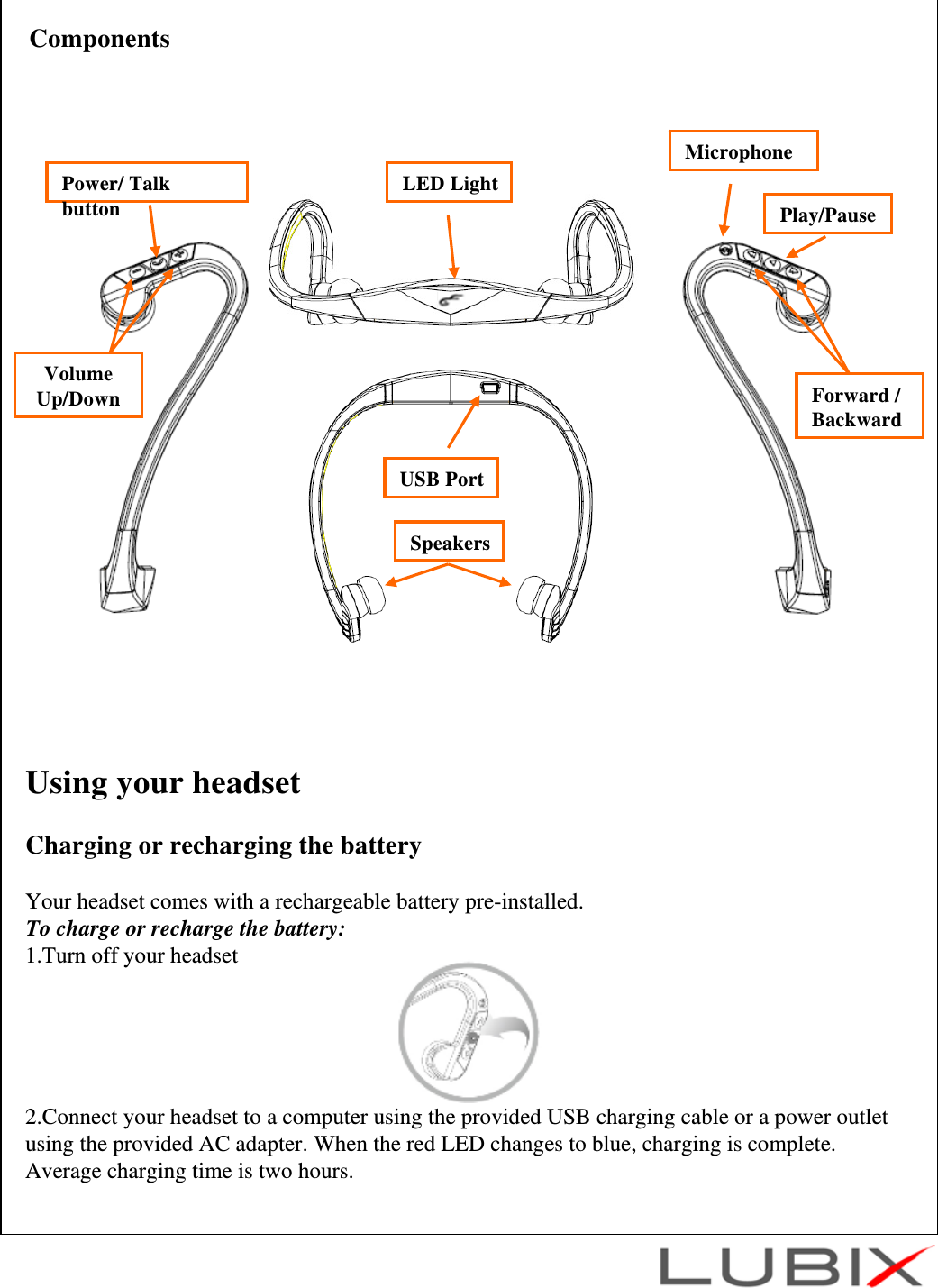
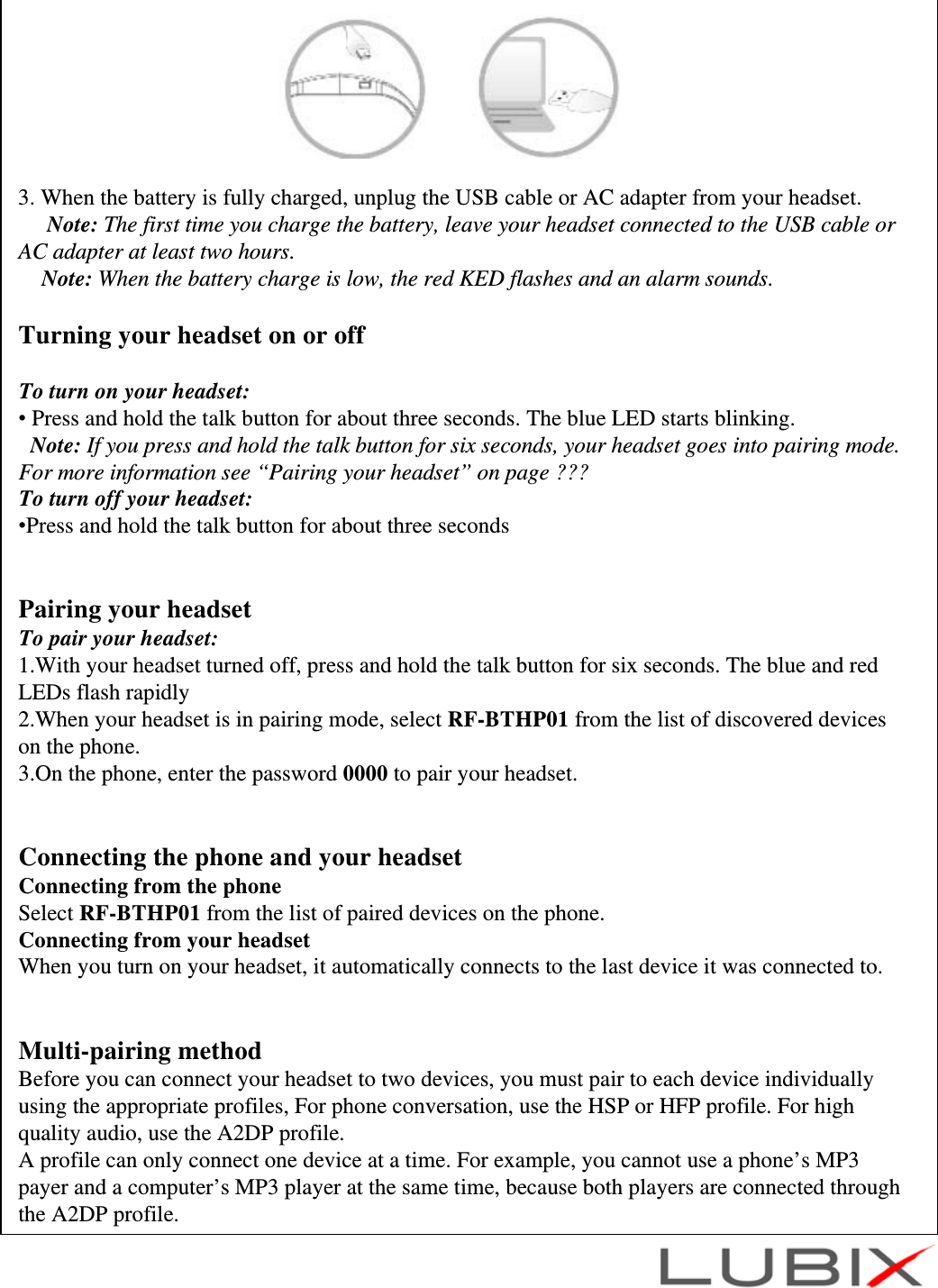
Using your headsetCharging or recharging the batteryYour headset comes with a rechargeable battery pre-installed.To charge or recharge the battery:1.Turn off your headset2.Connect your headset to a computer using the provided USB charging cable or a power outlet using the provided AC adapter. When the red LED changes to blue, charging is complete. Average charging time is two hours.LED LightUSB PortSpeakersVolume Up/DownPower/ Talk buttonComponentsMicrophonePlay/PauseForward /Backward
3. When the battery is fully charged, unplug the USB cable or AC adapter from your headset.Note: The first time you charge the battery, leave your headset connected to the USB cable or AC adapter at least two hours.Note: When the battery charge is low, the red KED flashes and an alarm sounds.Turning your headset on or offTo turn on your headset:•Press and hold the talk button for about three seconds. The blue LED starts blinking.Note: If you press and hold the talk button for six seconds, your headset goes into pairing mode. For more information see “Pairing your headset” on page ???To turn off your headset:•Press and hold the talk button for about three secondsPairing your headsetTo pair your headset:1.With your headset turned off, press and hold the talk button for six seconds. The blue and red LEDs flash rapidly2.When your headset is in pairing mode, select RF-BTHP01 from the list of discovered devices on the phone.3.On the phone, enter the password 0000 to pair your headset.Connecting the phone and your headsetConnecting from the phoneSelect RF-BTHP01 from the list of paired devices on the phone.Connecting from your headsetWhen you turn on your headset, it automatically connects to the last device it was connected to.Multi-pairing methodBefore you can connect your headset to two devices, you must pair to each device individually using the appropriate profiles, For phone conversation, use the HSP or HFP profile. For high quality audio, use the A2DP profile.A profile can only connect one device at a time. For example, you cannot use a phone’s MP3 payer and a computer’s MP3 player at the same time, because both players are connected through the A2DP profile.
You can connect the phone using the HSP profile and the computer using A2DP. This way, you can listen to the music from the computer and answer phone calls at the same time.Note: In multi-pairing mode, some functions may be restricted depending on the host devices.Not all devices and functions may be compatible with multi-pairing.Using phone functionsNote: If you connect a phone and an MP3 player, the device you connect last has priority. For example, if you connect a phone, then connect an MP3 player, you can answer the phone while listening to music, but you cannot use the phone’s redial or voice recognition functions because the MP3 player controls the buttons.To use phone functions:•To voice dial, press the talk button once to activate voice dial. (Some phones may not support this function.)•To redial the last number, double-click (quickly press twice) the talk button.•To answer a call, press the talk button.•To end a call, pres the talk button.•To refuse an incoming call, press the ▶II.•To adjust the volume, press the + or – volume button.•To switch a call between the headset and phone, pres the talk button twice. (Some phones may not support this feature.)•To answer a call while listening to music, press the talk button. To end the call, press the talk button again. When the call ends, music resumes playing.Listening to musicNote: If you connect a phone and an MP3 player, the device you connect last has priority. For example, if you connect a phone, then connect an MP3 player, you can answer the phone while listening to music, but you cannot use the phone’s redial or voice recognition functions because the MP3 player controls the buttons.Note: The Bluetooth device you connect must support AVRCP (Audio Video Remote Control Profile)To listen to music:•To play a song on the MP3 player, press the ▶II•To pause or resume playback, press the ▶II•To stop playback, press and hold the ▶II•To select a song during playback, press forward or backward button. (Some devices, such iPod or iPhone, may not support this function)•To fast forward or fast reverse during playback, press and hold forward or backward button. (Some devices, such iPod or iPhone, may not support this function)
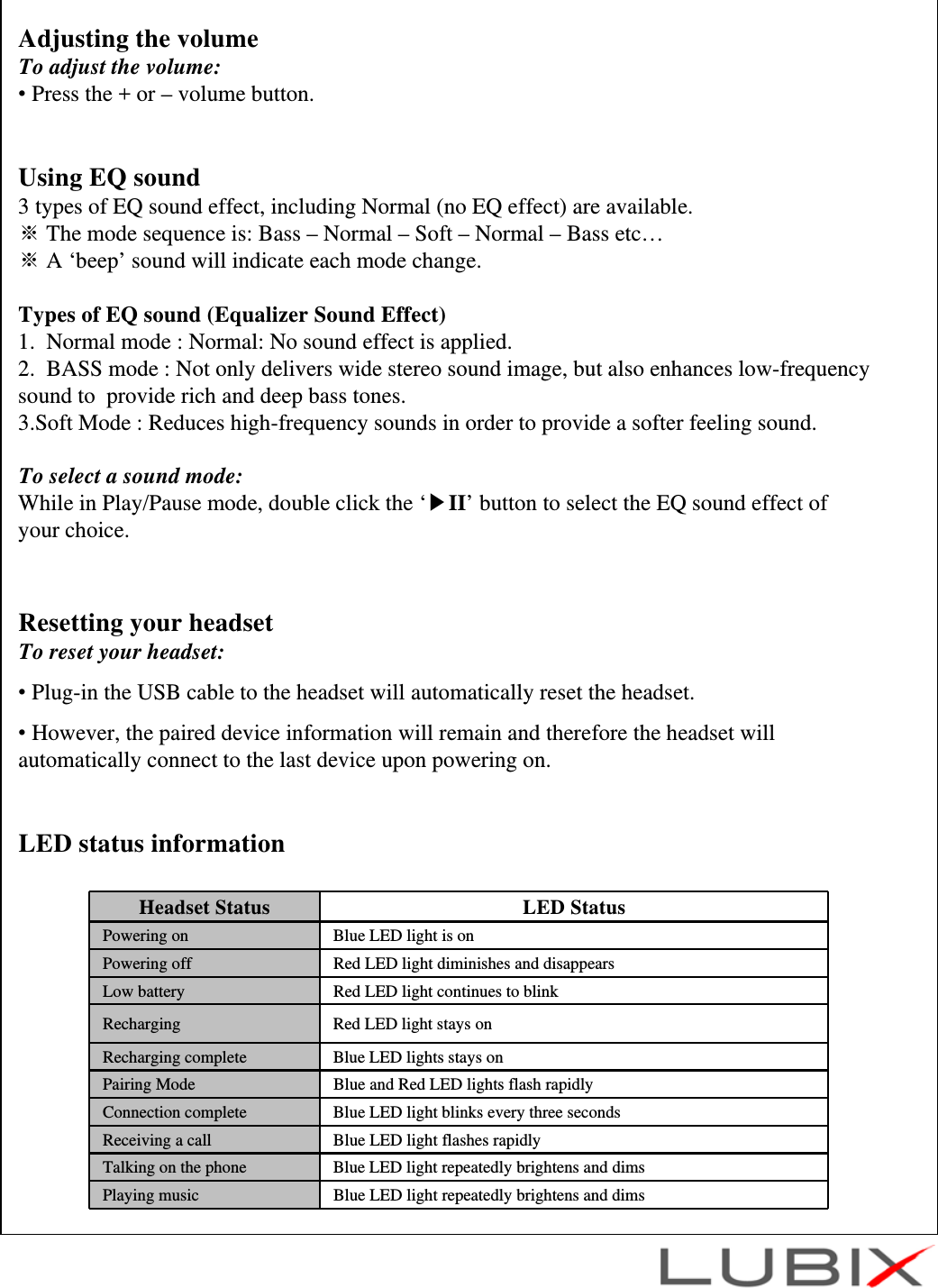
Adjusting the volumeTo adjust the volume:•Press the + or – volume button.Using EQ sound 3 types of EQ sound effect, including Normal (no EQ effect) are available.※The mode sequence is: Bass – Normal – Soft – Normal – Bass etc…※A ‘beep’ sound will indicate each mode change.Types of EQ sound (Equalizer Sound Effect)1.  Normal mode : Normal: No sound effect is applied.2.  BASS mode : Not only delivers wide stereo sound image, but also enhances low-frequency sound to  provide rich and deep bass tones.3.Soft Mode : Reduces high-frequency sounds in order to provide a softer feeling sound.To select a sound mode:While in Play/Pause mode, double click the ‘▶II’ button to select the EQ sound effect of your choice.Resetting your headsetTo reset your headset:•Plug-in the USB cable to the headset will automatically reset the headset. •However, the paired device information will remain and therefore the headset will automatically connect to the last device upon powering on.LED status informationHeadset Status LED StatusPowering on Blue LED light is onPowering off Red LED light diminishes and disappearsLow battery Red LED light continues to blinkRecharging Red LED light stays onRecharging complete Blue LED lights stays onPairing Mode Blue and Red LED lights flash rapidlyConnection complete Blue LED light blinks every three secondsReceiving a call Blue LED light flashes rapidlyTalking on the phone Blue LED light repeatedly brightens and dimsPlaying music Blue LED light repeatedly brightens and dims
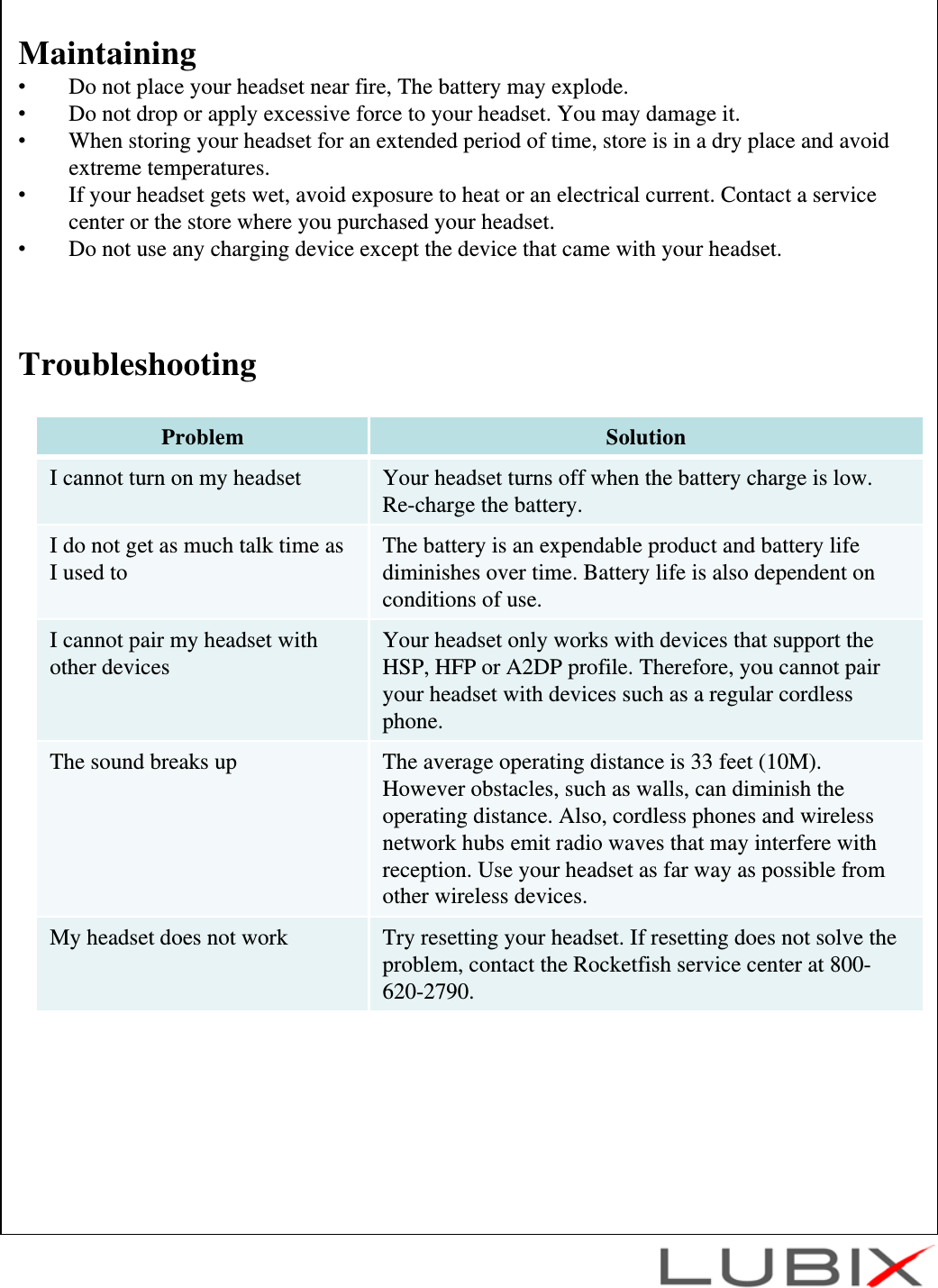
Maintaining•Do not place your headset near fire, The battery may explode.•Do not drop or apply excessive force to your headset. You may damage it.•When storing your headset for an extended period of time, store is in a dry place and avoid extreme temperatures.•If your headset gets wet, avoid exposure to heat or an electrical current. Contact a service center or the store where you purchased your headset.•Do not use any charging device except the device that came with your headset.TroubleshootingProblem SolutionI cannot turn on my headset Your headset turns off when the battery charge is low. Re-charge the battery.I do not get as much talk time as I used to The battery is an expendable product and battery life diminishes over time. Battery life is also dependent on  conditions of use.I cannot pair my headset with other devices Your headset only works with devices that support the HSP, HFP or A2DP profile. Therefore, you cannot pair your headset with devices such as a regular cordless phone.The sound breaks up The average operating distance is 33 feet (10M). However obstacles, such as walls, can diminish the operating distance. Also, cordless phones and wireless network hubs emit radio waves that may interfere with reception. Use your headset as far way as possible from other wireless devices.My headset does not work Try resetting your headset. If resetting does not solve the problem, contact the Rocketfish service center at 800-620-2790.
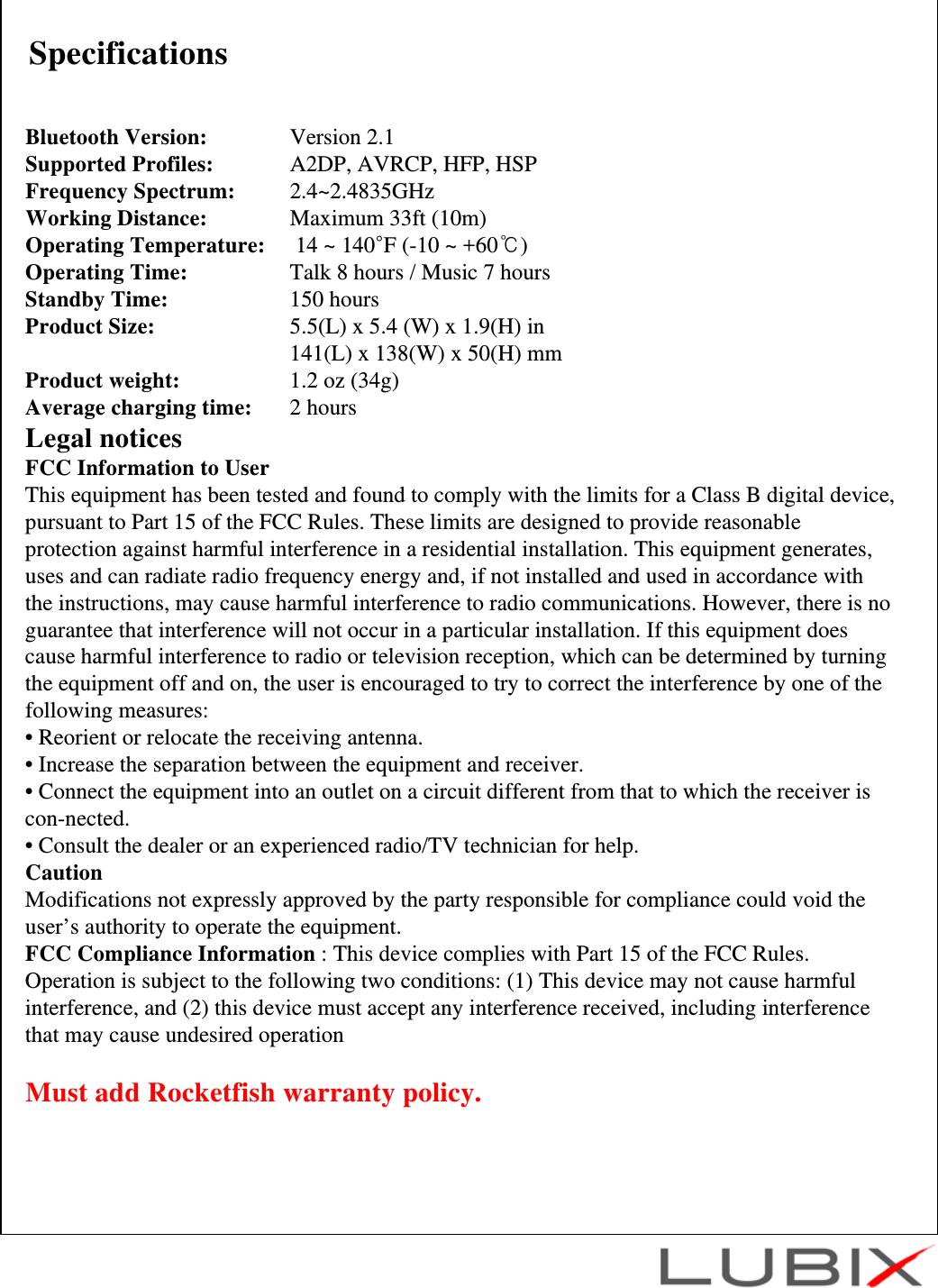
SpecificationsBluetooth Version:  Version 2.1Supported Profiles:  A2DP, AVRCP, HFP, HSPFrequency Spectrum: 2.4~2.4835GHzWorking Distance: Maximum 33ft (10m)Operating Temperature: 14 ~ 140°F (-10 ~ +60℃)Operating Time: Talk 8 hours / Music 7 hoursStandby Time: 150 hoursProduct Size: 5.5(L) x 5.4 (W) x 1.9(H) in 141(L) x 138(W) x 50(H) mmProduct weight: 1.2 oz (34g)Average charging time: 2 hoursLegal noticesFCC Information to UserThis equipment has been tested and found to comply with the limits for a Class B digital device, pursuant to Part 15 of the FCC Rules. These limits are designed to provide reasonable protection against harmful interference in a residential installation. This equipment generates, uses and can radiate radio frequency energy and, if not installed and used in accordance with the instructions, may cause harmful interference to radio communications. However, there is no guarantee that interference will not occur in a particular installation. If this equipment does cause harmful interference to radio or television reception, which can be determined by turning the equipment off and on, the user is encouraged to try to correct the interference by one of the following measures:• Reorient or relocate the receiving antenna.• Increase the separation between the equipment and receiver.• Connect the equipment into an outlet on a circuit different from that to which the receiver is con-nected.• Consult the dealer or an experienced radio/TV technician for help.CautionModifications not expressly approved by the party responsible for compliance could void the user’s authority to operate the equipment.FCC Compliance Information : This device complies with Part 15 of the FCC Rules. Operation is subject to the following two conditions: (1) This device may not cause harmful interference, and (2) this device must accept any interference received, including interference that may cause undesired operationMust add Rocketfish warranty policy.

Navigation menu