Usafe UBHS-LC1 BLUETOTH HEADSET User Manual users manual

Usafe Co.,Ltd BLUETOTH HEADSET users manual

users manual

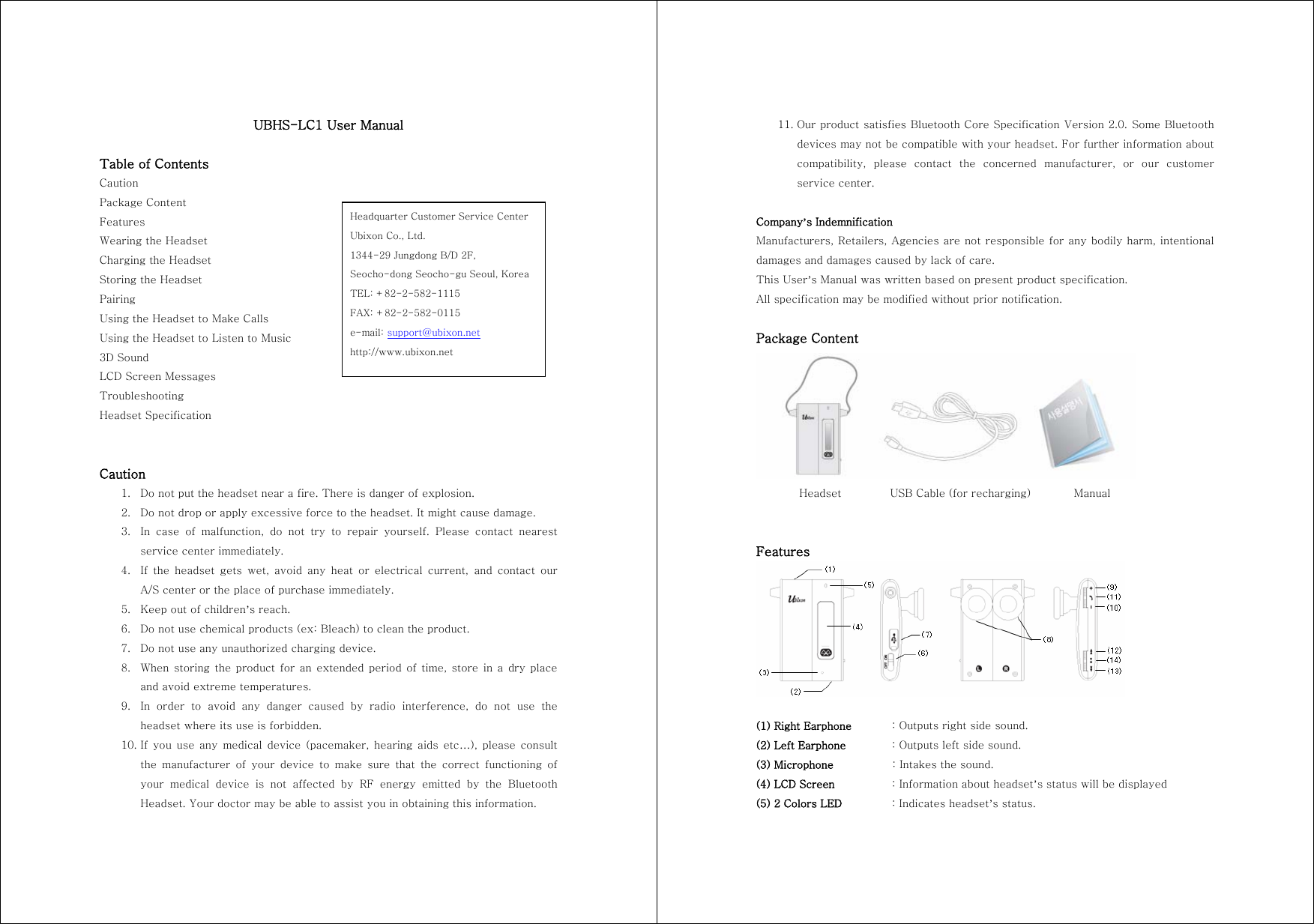
UBHS-LC1 User Manual  Table of Contents Caution Package Content Features Wearing the Headset Charging the Headset Storing the Headset Pairing Using the Headset to Make Calls Using the Headset to Listen to Music 3D Sound LCD Screen Messages Troubleshooting Headset Specification   Caution 1. Do not put the headset near a fire. There is danger of explosion. 2. Do not drop or apply excessive force to the headset. It might cause damage. 3. In case of malfunction, do not try to repair yourself. Please contact  nearest service center immediately. 4. If the headset gets wet, avoid any heat or electrical current, and  contact  our A/S center or the place of purchase immediately. 5. Keep out of children’s reach. 6. Do not use chemical products (ex: Bleach) to clean the product. 7. Do not use any unauthorized charging device. 8. When storing the product for an extended period of time, store in a dry place and avoid extreme temperatures. 9. In  order  to  avoid  any  danger  caused  by  radio  interference,  do  not use the headset where its use is forbidden. 10. If  you  use  any  medical  device  (pacemaker,  hearing  aids  etc…),  please  consult the  manufacturer  of  your  device  to  make  sure  that  the  correct  functioning  of your  medical  device  is  not  affected  by  RF  energy  emitted  by  the  Bluetooth Headset. Your doctor may be able to assist you in obtaining this information. Headquarter Customer Service Center Ubixon Co., Ltd. 1344-29 Jungdong B/D 2F,   Seocho-dong Seocho-gu Seoul, Korea TEL: +82-2-582-1115 FAX: +82-2-582-0115 e-mail: support@ubixon.net http://www.ubixon.net 11. Our product satisfies Bluetooth Core Specification Version 2.0. Some Bluetooth devices may not be compatible with your headset. For further information about compatibility,  please  contact  the  concerned  manufacturer,  or  our  customer service center.  Company’s Indemnification Manufacturers, Retailers, Agencies are not responsible for any bodily harm, intentional damages and damages caused by lack of care. This User’s Manual was written based on present product specification. All specification may be modified without prior notification.  Package Content          Headset         USB Cable (for recharging)        Manual   Features   (1) Right Earphone  : Outputs right side sound. (2) Left Earphone  : Outputs left side sound. (3) Microphone    : Intakes the sound. (4) LCD Screen    : Information about headset’s status will be displayed (5) 2 Colors LED    : Indicates headset’s status.
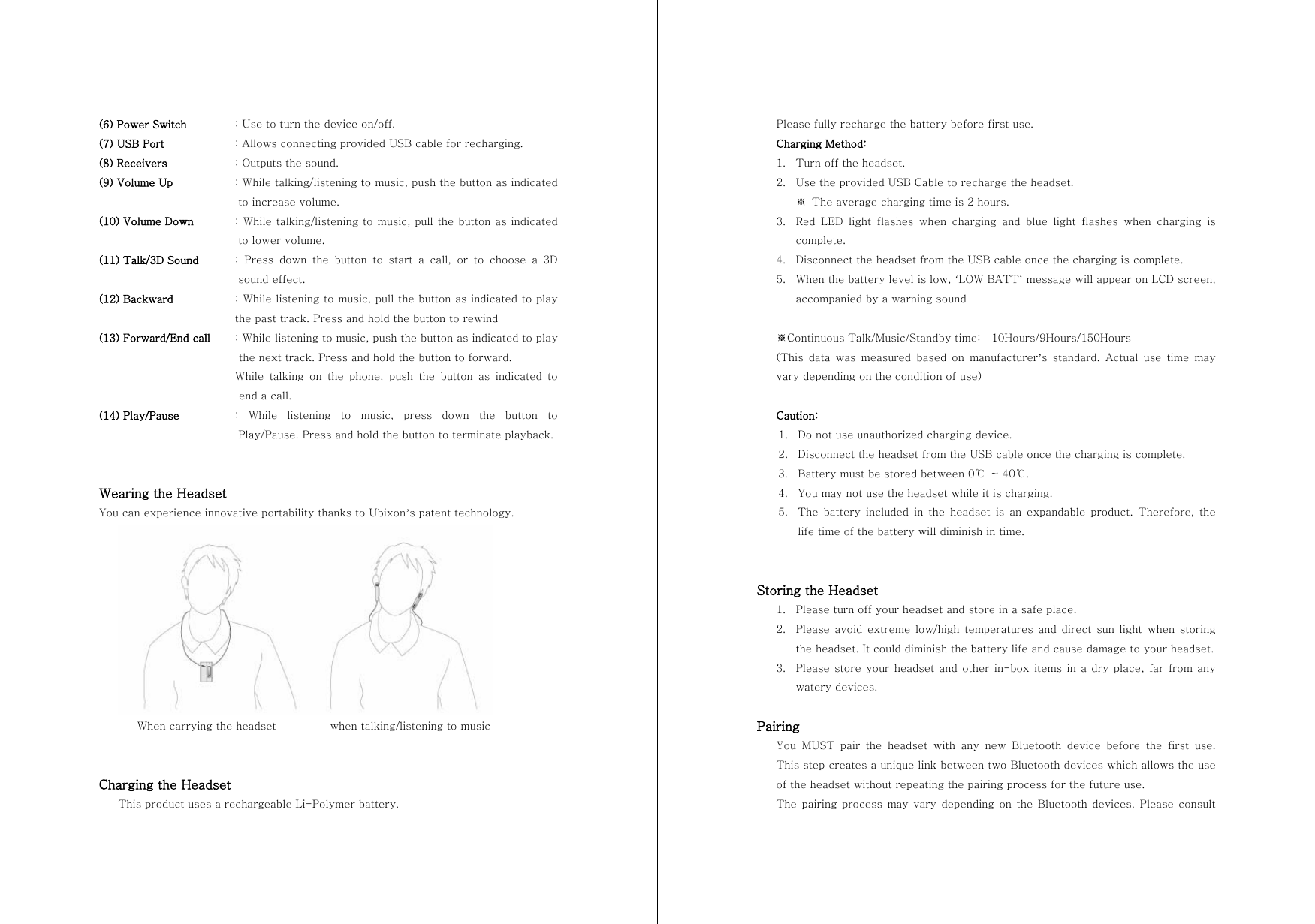
(6) Power Switch    : Use to turn the device on/off. (7) USB Port  : Allows connecting provided USB cable for recharging. (8) Receivers    : Outputs the sound. (9) Volume Up    : While talking/listening to music, push the button as indicated to increase volume. (10) Volume Down   : While talking/listening to music, pull the button as indicated to lower volume. (11) Talk/3D Sound  :  Press  down  the  button  to  start  a  call,  or  to  choose  a  3D sound effect. (12) Backward  : While listening to music, pull the button as indicated to play the past track. Press and hold the button to rewind   (13) Forward/End call  : While listening to music, push the button as indicated to play the next track. Press and hold the button to forward.   While talking on the phone, push the button as indicated to end a call. (14) Play/Pause   :  While  listening  to  music,  press  down  the  button  to Play/Pause. Press and hold the button to terminate playback.   Wearing the Headset You can experience innovative portability thanks to Ubixon’s patent technology.        When carrying the headset          when talking/listening to music   Charging the Headset This product uses a rechargeable Li-Polymer battery. Please fully recharge the battery before first use. Charging Method: 1. Turn off the headset. 2. Use the provided USB Cable to recharge the headset. ※  The average charging time is 2 hours. 3. Red  LED  light  flashes  when  charging  and  blue  light  flashes  when  charging  is complete.   4. Disconnect the headset from the USB cable once the charging is complete. 5. When the battery level is low, ‘LOW BATT’ message will appear on LCD screen, accompanied by a warning sound  ※Continuous Talk/Music/Standby time:    10Hours/9Hours/150Hours (This  data  was  measured  based  on  manufacturer’s  standard.  Actual  use  time  may vary depending on the condition of use)  Caution: 1. Do not use unauthorized charging device. 2. Disconnect the headset from the USB cable once the charging is complete. 3. Battery must be stored between 0℃  ~ 40℃.   4. You may not use the headset while it is charging. 5. The  battery  included  in  the  headset  is  an  expandable  product.  Therefore,  the life time of the battery will diminish in time.   Storing the Headset 1. Please turn off your headset and store in a safe place. 2. Please avoid extreme low/high temperatures and direct sun light  when  storing the headset. It could diminish the battery life and cause damage to your headset. 3. Please store your  headset and other in-box  items  in a dry  place,  far  from  any watery devices.  Pairing You  MUST  pair  the  headset  with  any  new  Bluetooth  device  before  the  first  use. This step creates a unique link between two Bluetooth devices which allows the use of the headset without repeating the pairing process for the future use. The pairing process may vary  depending on the Bluetooth devices. Please consult
- Additional Page - GCautionModifications not expressly approved by the party responsible for compliance could void the user’s authority to operate the equipment. FCC Compliance Information This device complies with Part 15 of FCC Rules. Operation is subject to the following two conditions: (1) This device may not cause harmful interference, and (2) This device must accept any interference received,   Including interference that may cause undesired operation. Information to User This equipment has been tested and found to comply with the limits for a Class B digital device, pursuant to part 15 of the FCC Rules. These limits are designed to provide reasonable protection against harmful interference in a residential installation. This equipment generates, uses and can radiate radio frequency energy and, if not installed and used in accordance with the instructions, may cause harmful interference to radio communications. However, there is no guarantee that interference will not occur in a particular installation. If this equipment does cause harmful interference to radio or television reception, which can be determined by turning the equipment off and on, the user is encouraged to try to correct the interference by one or more of the following measures:   - Reorient or relocate the receiving antenna.- Increase the separation between the equipment and receiver. - Connect the equipment into an outlet on a circuit different from that to which the receiver is connected. - Consult the dealer or an experienced radio/ tv technician for help. G
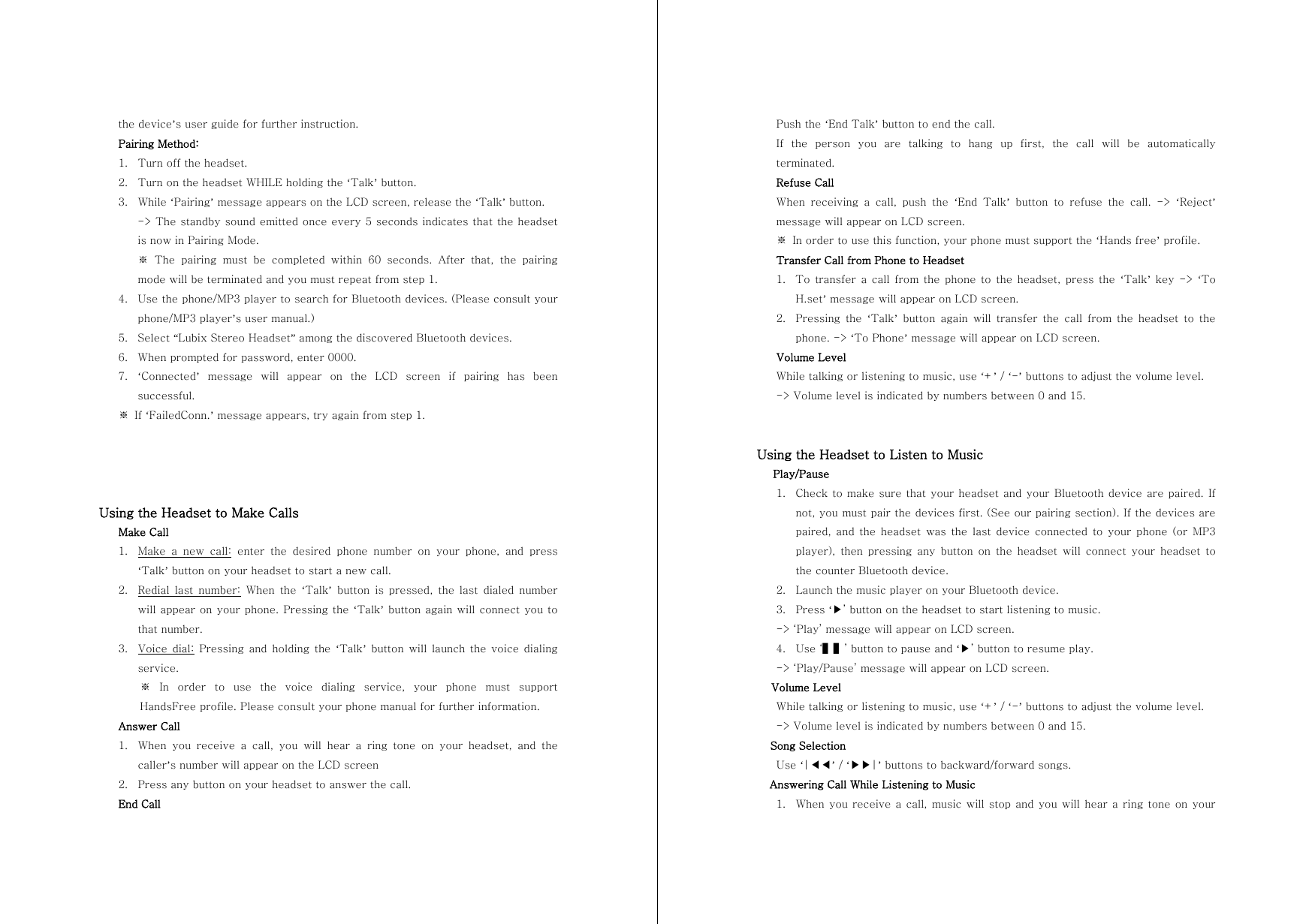
the device’s user guide for further instruction. Pairing Method: 1. Turn off the headset. 2. Turn on the headset WHILE holding the ‘Talk’ button. 3. While ‘Pairing’ message appears on the LCD screen, release the ‘Talk’ button.   -> The standby sound emitted once every 5 seconds indicates that the headset is now in Pairing Mode. ※ The pairing must be completed within 60 seconds. After that, the  pairing mode will be terminated and you must repeat from step 1. 4. Use the phone/MP3 player to search for Bluetooth devices. (Please consult your phone/MP3 player’s user manual.) 5. Select “Lubix Stereo Headset” among the discovered Bluetooth devices. 6. When prompted for password, enter 0000. 7. ‘Connected’  message  will  appear  on  the  LCD  screen  if  pairing  has  been successful. ※  If ‘FailedConn.’ message appears, try again from step 1.     Using the Headset to Make Calls Make Call 1. Make a new call: enter the desired phone number on your phone, and press ‘Talk’ button on your headset to start a new call. 2. Redial  last  number: When the ‘Talk’  button  is  pressed,  the  last  dialed  number will appear on your phone. Pressing the ‘Talk’ button again will connect you to that number. 3. Voice  dial: Pressing and holding the ‘Talk’ button will launch the voice dialing service. ※  In  order  to  use  the  voice  dialing  service,  your  phone  must  support HandsFree profile. Please consult your phone manual for further information. Answer Call 1. When you receive a call, you will hear a ring tone on your headset,  and  the caller’s number will appear on the LCD screen 2. Press any button on your headset to answer the call. End Call Push the ‘End Talk’ button to end the call. If  the  person  you  are  talking  to  hang  up  first,  the  call  will  be  automatically terminated. Refuse Call When  receiving  a  call,  push  the  ‘End  Talk’  button  to  refuse  the  call.  ->  ‘Reject’ message will appear on LCD screen. ※  In order to use this function, your phone must support the ‘Hands free’ profile.   Transfer Call from Phone to Headset 1. To  transfer  a  call  from  the  phone  to  the  headset,  press  the  ‘Talk’  key  ->  ‘To H.set’ message will appear on LCD screen. 2. Pressing  the  ‘Talk’ button again will transfer the call from the headset to the phone. -> ‘To Phone’ message will appear on LCD screen. Volume Level While talking or listening to music, use ‘+’ / ‘-’ buttons to adjust the volume level. -> Volume level is indicated by numbers between 0 and 15.   Using the Headset to Listen to Music    Play/Pause 1. Check to make sure that your headset and your Bluetooth device are paired. If not, you must pair the devices first. (See our pairing section). If the devices are paired, and the headset was the last  device  connected  to  your  phone  (or  MP3 player), then pressing any button on the headset will connect your  headset  to the counter Bluetooth device. 2. Launch the music player on your Bluetooth device. 3. Press ‘▶’ button on the headset to start listening to music. -> ‘Play’ message will appear on LCD screen. 4. Use ‘▌▌’ button to pause and ‘▶’ button to resume play. -> ‘Play/Pause’ message will appear on LCD screen. Volume Level While talking or listening to music, use ‘+’ / ‘-’ buttons to adjust the volume level. -> Volume level is indicated by numbers between 0 and 15. Song Selection Use ‘|◀◀’ / ‘▶▶|’ buttons to backward/forward songs. Answering Call While Listening to Music 1. When you receive a call, music will stop and you will hear a ring tone  on your
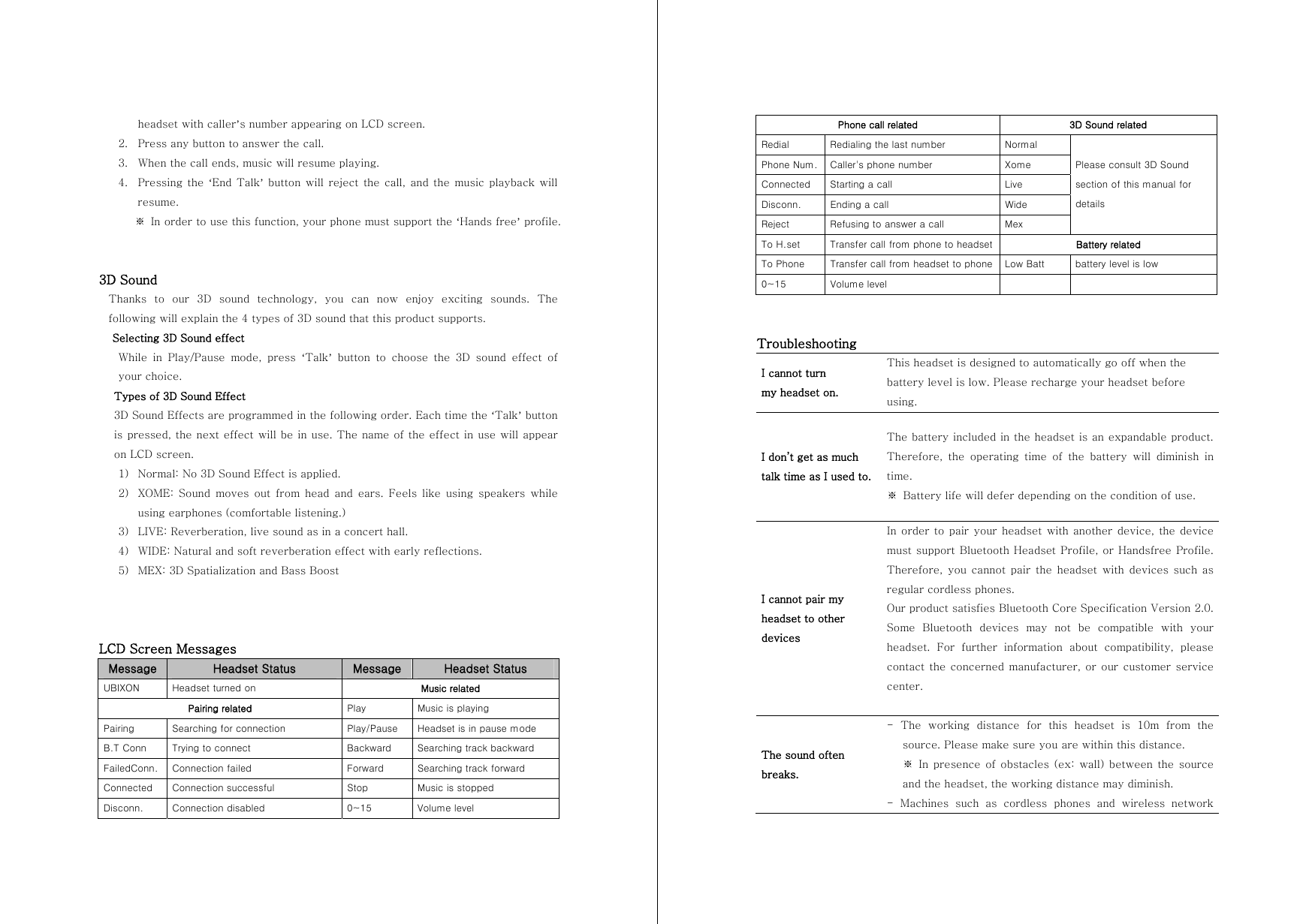
headset with caller’s number appearing on LCD screen. 2. Press any button to answer the call. 3. When the call ends, music will resume playing. 4. Pressing the ‘End  Talk’ button will  reject the call,  and the  music playback will resume.    ※ In order to use this function, your phone must support the ‘Hands free’ profile.   3D Sound Thanks  to  our  3D  sound  technology, you can now enjoy exciting sounds.  The following will explain the 4 types of 3D sound that this product supports. Selecting 3D Sound effect While  in  Play/Pause  mode,  press  ‘Talk’ button to choose the 3D sound effect of your choice.   Types of 3D Sound Effect 3D Sound Effects are programmed in the following order. Each time the ‘Talk’ button is pressed, the next effect will be in use. The name of the effect in use will appear on LCD screen. 1) Normal: No 3D Sound Effect is applied.   2) XOME: Sound moves out from head and ears. Feels like using speakers  while using earphones (comfortable listening.) 3) LIVE: Reverberation, live sound as in a concert hall. 4) WIDE: Natural and soft reverberation effect with early reflections. 5) MEX: 3D Spatialization and Bass Boost    LCD Screen Messages Message  Headset Status  Message  Headset Status UBIXON  Headset turned on  Music related Pairing related  Play  Music is playing Pairing  Searching for connection  Play/Pause  Headset is in pause mode B.T Conn  Trying to connect  Backward  Searching track backward FailedConn.  Connection failed  Forward  Searching track forward Connected  Connection successful  Stop  Music is stopped Disconn.  Connection disabled  0~15  Volume level Phone call related  3D Sound related Redial  Redialing the last number  Normal Phone Num.  Caller's phone number  Xome Connected  Starting a call  Live Disconn.  Ending a call  Wide Reject  Refusing to answer a call  Mex Please consult 3D Sound section of this manual for details To H.set  Transfer call from phone to headset  Battery related To Phone  Transfer call from headset to phone  Low Batt  battery level is low 0~15  Volume level        Troubleshooting I cannot turn   my headset on. This headset is designed to automatically go off when the battery level is low. Please recharge your headset before using. I don’t get as much   talk time as I used to. The battery included in the headset is an expandable product. Therefore, the operating time of the battery will diminish in time. ※  Battery life will defer depending on the condition of use. I cannot pair my headset to other devices In order  to pair your headset with another device,  the device must support Bluetooth Headset Profile, or Handsfree Profile. Therefore,  you  cannot  pair  the headset with devices such as regular cordless phones. Our product satisfies Bluetooth Core Specification Version 2.0. Some  Bluetooth  devices  may  not  be  compatible  with  your headset.  For  further  information  about  compatibility,  please contact the  concerned manufacturer, or  our  customer service center.  The sound often breaks. -  The  working  distance  for  this  headset  is  10m  from  the source. Please make sure you are within this distance.   ※  In  presence  of  obstacles (ex: wall) between the source and the headset, the working distance may diminish. -  Machines  such  as  cordless  phones  and  wireless  network
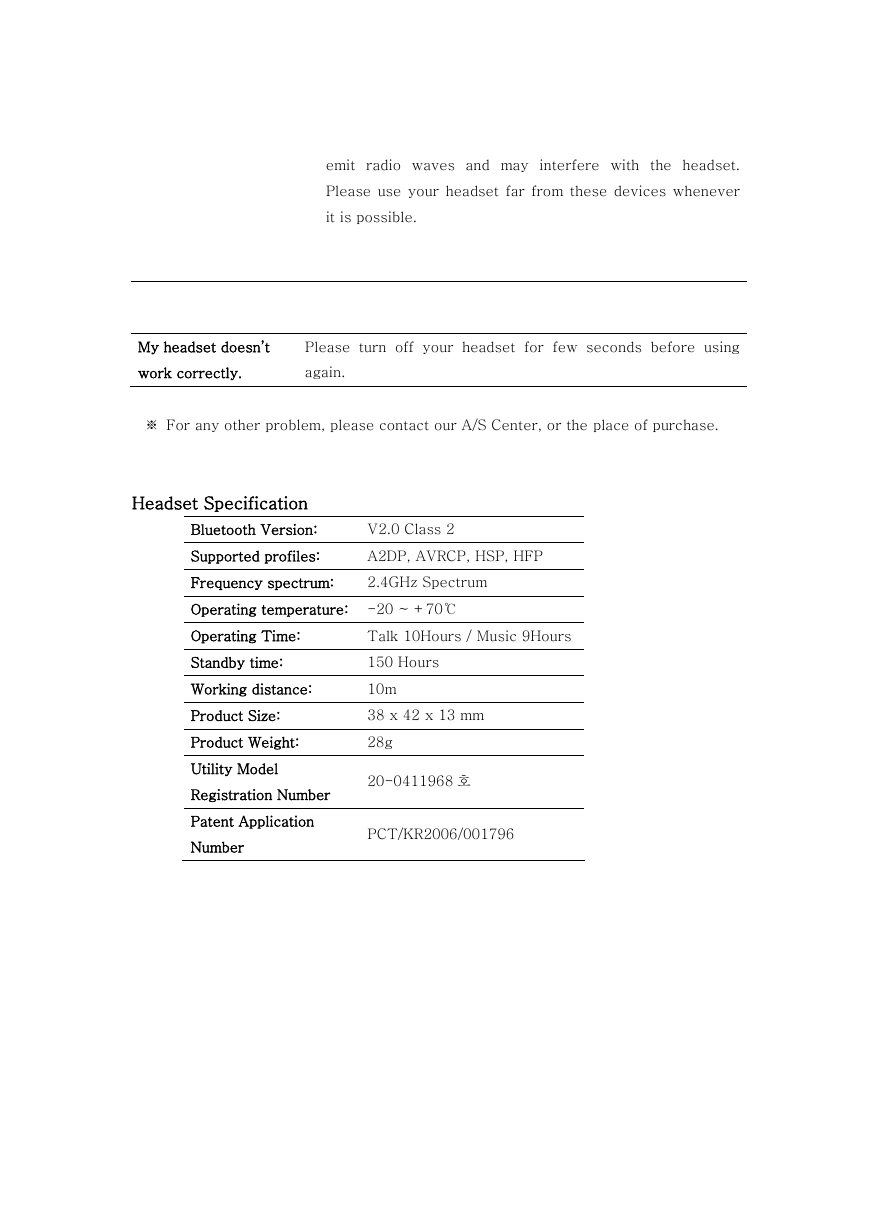
emit radio waves and may interfere with the headset. Please use  your  headset far  from  these  devices whenever it is possible.   My headset doesn’t   work correctly. Please  turn  off  your  headset  for  few  seconds  before  using again.  ※  For any other problem, please contact our A/S Center, or the place of purchase.   Headset Specification Bluetooth Version:  V2.0 Class 2 Supported profiles:  A2DP, AVRCP, HSP, HFP Frequency spectrum:  2.4GHz Spectrum Operating temperature:  -20 ~ +70℃ Operating Time:    Talk 10Hours / Music 9Hours Standby time:  150 Hours Working distance:  10m Product Size:  38 x 42 x 13 mm Product Weight:  28g Utility Model Registration Number  20-0411968 호 Patent Application   Number  PCT/KR2006/001796

Navigation menu