Usafe UBHS-NE3 BLUETOOTH STEREO HEADSET User Manual 1

Usafe Co.,Ltd BLUETOOTH STEREO HEADSET 1

Users Manual

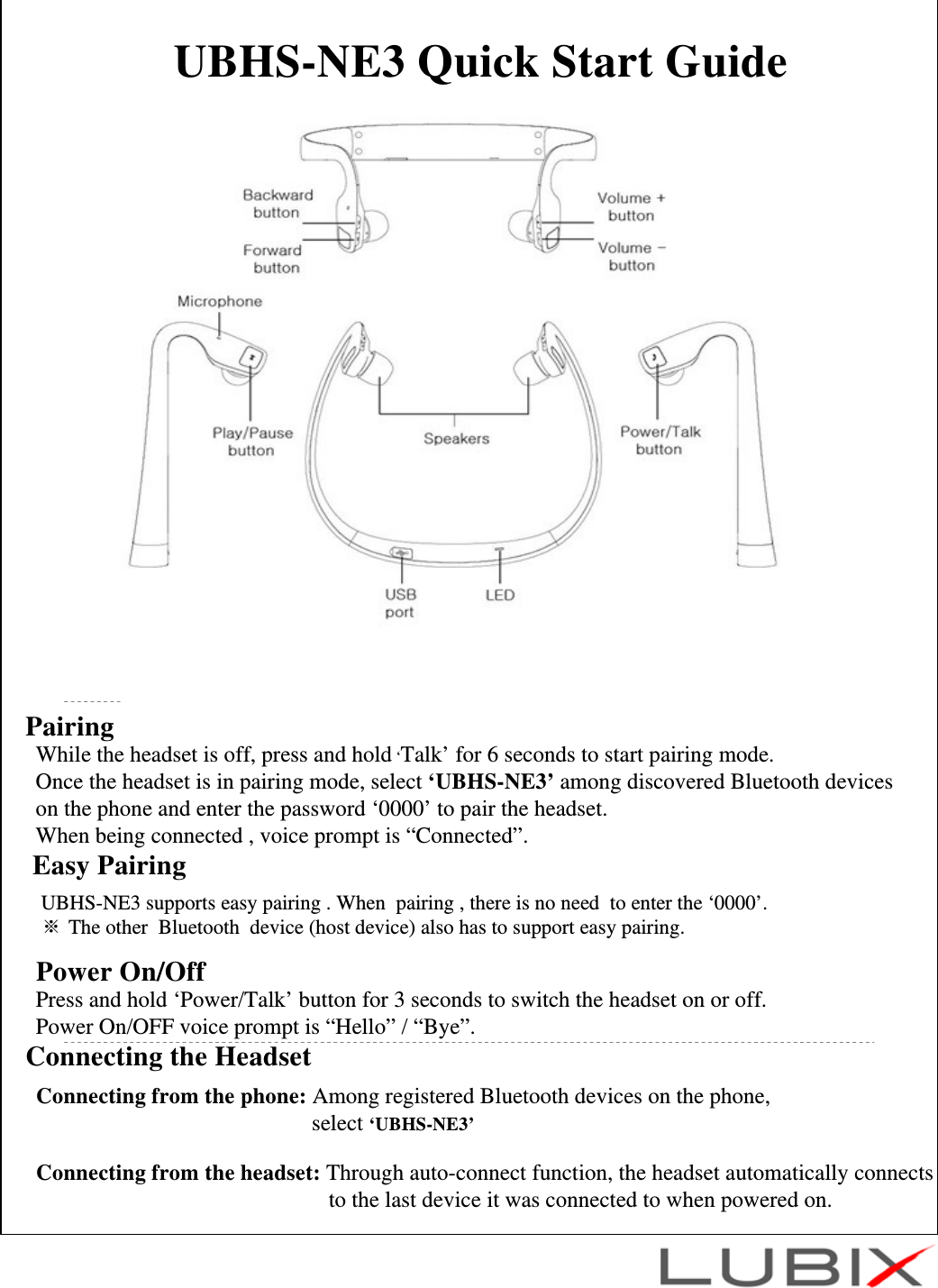
UBHS-NE3 Quick Start GuidePairingWhile the headset is off, press and hold ‘Talk’ for 6 seconds to start pairing mode.Once the headset is in pairing mode, select ‘UBHS-NE3’ among discovered Bluetooth deviceson the phone and enter the password ‘0000’ to pair the headset.When being connected , voice prompt is “Connected”.  Connecting the HeadsetConnecting from the phone: Among registered Bluetooth devices on the phone, select ‘UBHS-NE3’Connecting from the headset: Through auto-connect function, the headset automatically connects to the last device it was connected to when powered on. Easy PairingUBHS-NE3 supports easy pairing . When  pairing , there is no need  to enter the ‘0000’. ※ The other  Bluetooth  device (host device) also has to support easy pairing.   Power On/Off Press and hold ‘Power/Talk’ button for 3 seconds to switch the headset on or off.Power On/OFF voice prompt is “Hello” / “Bye”.
Multi PairingMulti Pairing Method1.  All Bluetooth devices to be used in multi pairing must be first paired individually using   appropriate profiles. (HSP or HFP for phone conversation, and A2DP for high quality audio)※Each profile cannot be used to connect more than one device simultaneously. See ‘Notice’ below for more details.※The auto connect function of the headset will connect each profile to the last connected device.2. Once the host devices are paired, connections can be made by:a. Turning the headset off and on (Auto connect function will take effect).b. Or connecting from host devices.Notice1. In multi pairing, one profile cannot be used to connect more than one device.  For example, it is NOT possible to use the phone’s MP3 player and the computer’s MP3 player at the same time, because both devices try to connect through the A2DP profile. On the other hand, it is possible to connect the phone using HSP, while the computer is connected using A2DP. This way, you can listen to the music from the computer and answer phone calls at the same time.2. In multi pairing mode, the use of some functions maybe restricted depending on host devices and the environment in which it is used.3. Ubixon does not guarantee the compatibility of all combination of devices and functions for multi pairing.
Listening to MusicPlay/Pause1.  Press ‘▶II’ button to launch the phone’s MP3 player and to start listening to music.2. While MP3 player is in use, press ‘▶II’ button to pause or to resume play.3. Press and hold ‘▶II’ button to end music playback.Song SelectionWhile MP3 player is in use, press  ‘◀◀’or ‘▶▶’ buttons to select songs.Rewind/ForwardWhile music is playing, press and hold  ‘◀◀’or  ‘▶▶’ buttons to rewind or forward the song* Some phones may not support this functionAnswering Call While Listening to Music1. When receiving a call, press ‘Talk’ button to answer the call.2. Press ‘Talk’ button while on the phone to end the call 3. When receiving a call, press ▶II button to reject the call.- Music will resume playing when the call is rejected. Volume ControlUse ‘+’ / ’-’ buttons to adjust the volume level.Making Phone CallsVoice dial: Press the ‘Talk’ button once to activate voice dial.※ Some phones might not support this function.Last Number Redial: Double click ‘Talk’ button to redial last number.Answer a call: When receiving a call, press ‘Talk’ button to answer the call.Ending a call: While talking on the phone, press ‘Talk’ button to end the call.Call Refuse: While receiving a call, press ‘Play/Pause’ button to refuse the call.Volume Control: Use ‘+’ / ’-’ buttons to adjust the volume level.Call transfer: During a phone conversation, press ‘Talk’ button twice to switch the call betweenthe headset and the phone.
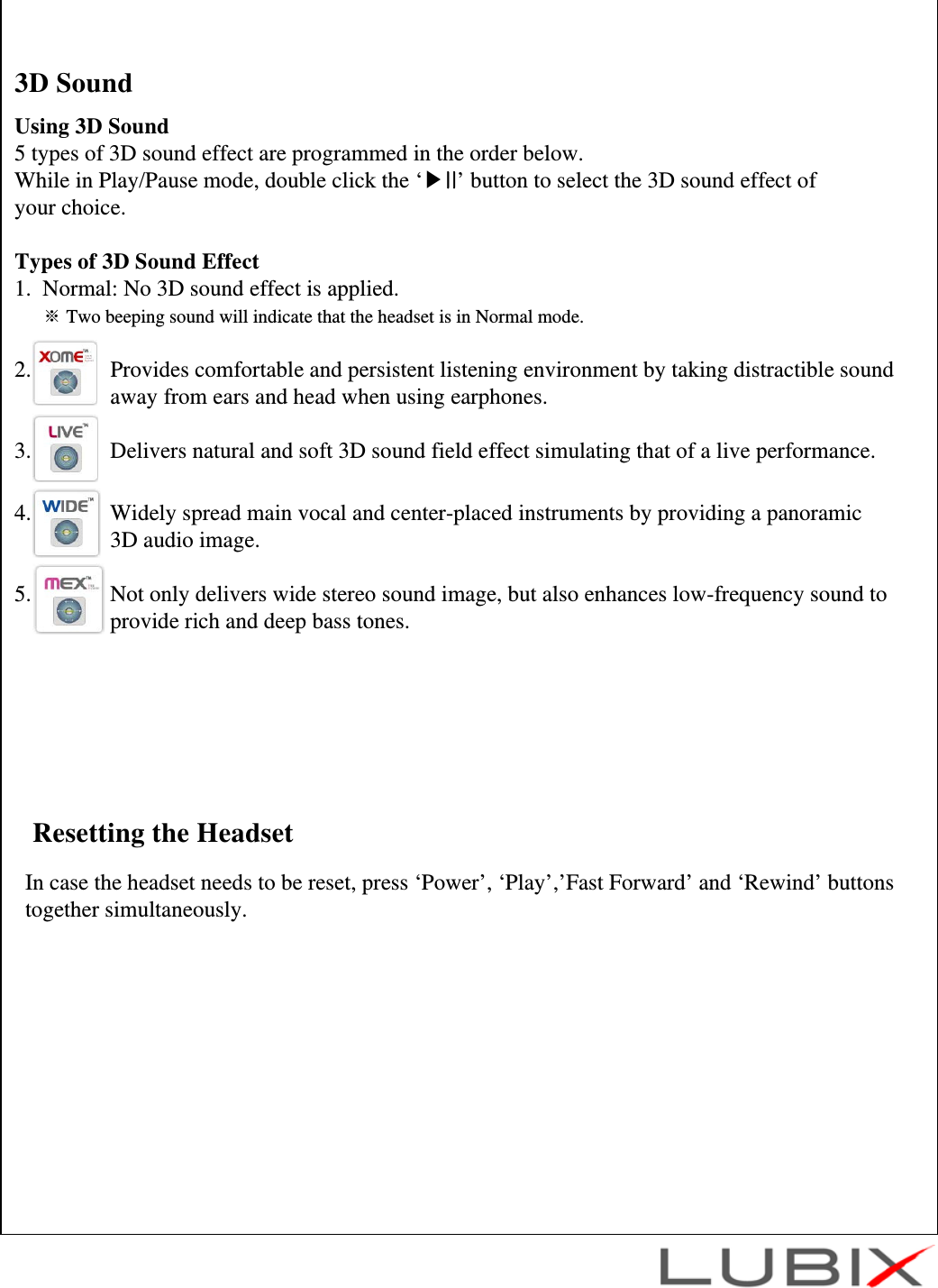
Resetting the HeadsetIn case the headset needs to be reset, press ‘Power’, ‘Play’,’Fast Forward’ and ‘Rewind’ buttons together simultaneously.Using 3D Sound5 types of 3D sound effect are programmed in the order below. While in Play/Pause mode, double click the ‘▶II’ button to select the 3D sound effect of your choice.Types of 3D Sound Effect1.  Normal: No 3D sound effect is applied.※Two beeping sound will indicate that the headset is in Normal mode.2.              Provides comfortable and persistent listening environment by taking distractible sound away from ears and head when using earphones.3.              Delivers natural and soft 3D sound field effect simulating that of a live performance.4.              Widely spread main vocal and center-placed instruments by providing a panoramic 3D audio image.5.              Not only delivers wide stereo sound image, but also enhances low-frequency sound to  provide rich and deep bass tones.3D Sound
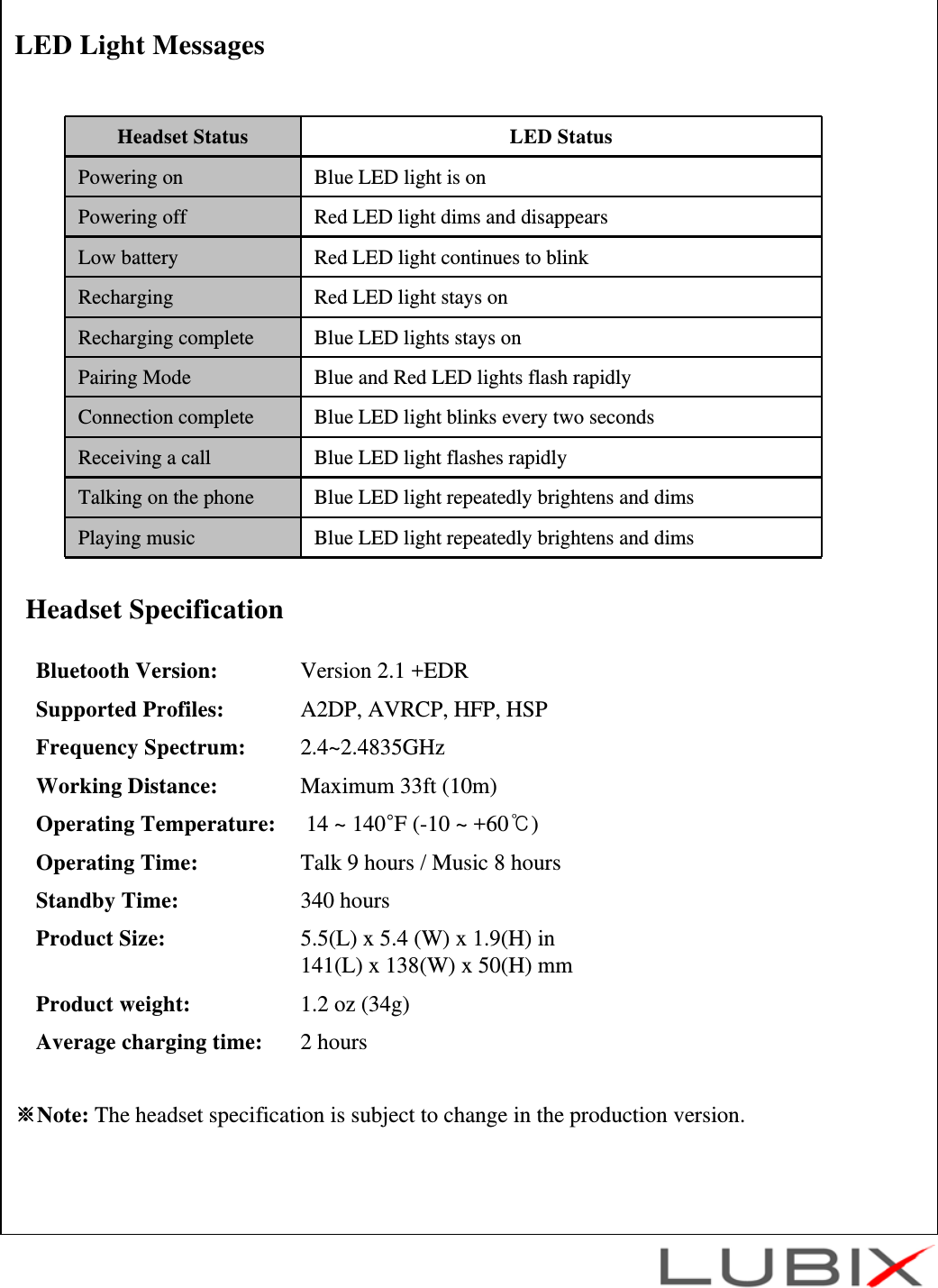
LED Light MessagesHeadset SpecificationBluetooth Version:  Version 2.1 +EDRSupported Profiles:  A2DP, AVRCP, HFP, HSPFrequency Spectrum:  2.4~2.4835GHzWorking Distance:  Maximum 33ft (10m)Operating Temperature:  14 ~ 140°F (-10 ~ +60℃)Operating Time:  Talk 9 hours / Music 8 hoursStandby Time:  340 hoursProduct Size:  5.5(L) x 5.4 (W) x 1.9(H) in 141(L) x 138(W) x 50(H) mmProduct weight:  1.2 oz (34g)Average charging time:  2 hours※Note: The headset specification is subject to change in the production version.Headset Status LED StatusPowering on Blue LED light is onPowering off Red LED light dims and disappearsLow battery Red LED light continues to blinkRecharging Red LED light stays onRecharging complete Blue LED lights stays onPairing Mode Blue and Red LED lights flash rapidlyConnection complete Blue LED light blinks every two secondsReceiving a call Blue LED light flashes rapidlyTalking on the phone Blue LED light repeatedly brightens and dimsPlaying music Blue LED light repeatedly brightens and dims
FCC Information to UserThis equipment has been tested and found to comply with the limits for a Class B digital device, pursuant to Part 15 of the FCC Rules. These limits are designed to provide reasonable protection against harmful interference in a residential installation. This equipment generates, uses and can radiateradio frequency energy and, if not installed and used in accordance with theinstructions, may cause harmful interference to radio communications. However, there is no guarantee that interference will not occur in a particular installation. If this equipment does cause harmful interference to radio or television reception, which can be determined by turning the equipment off and on, the user is encouraged to try to correct the interference by one of the following measures:• Reorient or relocate the receiving antenna.• Increase the separation between the equipment and receiver.• Connect the equipment into an outlet on a circuit different from that to which the receiver is con-nected.• Consult the dealer or an experienced radio/TV technician for help.CautionModifications not expressly approved by the party responsible for compliance could void the user’s authority to operate the equipment.FCC Compliance Information : This device complies with Part 15 of the FCC Rules. Operation is subject to the following two conditions: (1) This device may not cause harmful interference, and (2) this device must accept any interferencereceived, including interference that may cause undesired operation

Navigation menu