Uvi Installing Falconexpansions En Falcon Expansion Installation Guide User Manual
2017-09-05
User Manual: Uvi Installing Uvi Falconexpansions En installing_uvi_falconexpansions_en UVI uvi 3:
Open the PDF directly: View PDF  .
.
Page Count: 10


END USER LICENSE AGREEMENT [EULA]
This End-User License Agreement (EULA) represents the contractual
conditions between you, the Licensee, and UVI, located 159 rue Amelot,
75011 Paris - France for the use of software, documentation and other
materials created by UVI.
You should not register, install or use UVI Products until the following
license agreement is understood and accepted.
By using UVI Products, or allowing anyone else to do so, you are accepting
this agreement.
A- License Grant
1. UVI grants to you, subject to the following terms and conditions, the
non-exclusive right to use each authorized copy of the Product.
2. UVI Product license are granted only to a single user. You may use this
product on up to three separate computers or iLok Dongles, which shall be
owned and used by you exclusively.
3. Renting or lending the licensed Software to a third party is expressly
forbidden.
4. Except if otherwise stated within this EULA, Licensee may resell the
software to a third party or transfer the software permanently. Request
may be done using the ‘Transfer License’ feature in your iLok account,
subject to a $25 fee per-license ($50 maximum) by Pace. The serial
number of the Product will be transferred to the third party by UVI, and
Licensee’s original registration will be deleted.
5. Resale or ownership transfer of individual products obtained in a bundle,
or those used to upgrade or cross-grade to other products are not allowed.
6. UVI allows you to use any of the sounds and samples in the products
you’ve purchased for commercial recordings without paying any additional
license fees or providing source attribution to UVI.
7. This license expressly forbids resale or other distribution of the sounds
and software included in the Product or their derivatives, either as they
exist on disc, reformatted for use in another digital sampler, or mixed,
combined, filtered, resynthesized or otherwise edited, for use as sounds,
multi-sounds, samples, multi-samples, wavetables, programs or patches in
a sampler, microchip or any hardware or software sample playback device.
You cannot sell the Product content or give it away for use by others in
their sampling or sample playback devices.
8. In the event UVI terminates this agreement due to your breach, you
agree to return the original and all other copies of the software and
documentation to UVI.
9. UVI reserves all rights not expressly granted to herein.
B- License Activation
1. In order to use UVI Products it is required that you authorize them
by registering your Serial Number on uvi.net/register, have a free iLok
account (not necessarily a dongle) and install the free iLok License
Manager (done automatically by UVI Workstation and Falcon installers). It
is impossible to use UVI Products if they are not registered and authorized.
2. During authorization you will need to enter your name, email address
and postal address which will be stored in the UVI database. UVI uses a
secure SSL connection with 128-bit-encryption that meets current security
standards to transmit your data over the web. For further information
about UVI’s handling of personal data please see: https://www.uvi.net/
privacy-policy
3. The UVI Product license allows up to 3 simultaneous activations on any
combination of iLok dongles and computers. Activations can be moved
between devices at anytime through the iLok License Manager.
C- Protection of Software
You agree to take all reasonable steps to protect the Product and any
accompanying documentation from unauthorized copying or use. You
agree not to modify the Product to circumvent any method or means
adopted or implemented by UVI to protect against or discourage the
unlicensed use or copying of the Product.
D- Ownership
Ownership of, and title to, the enclosed digitally recorded sounds
(including any copies) are held by UVI.
Copies are provided to you only to enable you to exercise your rights
under the license.
E- Term
This agreement is effective from the date you open this package, and will
remain in full force until termination. This agreement will terminate if you
break any of the terms or conditions of this agreement. Upon termination
you agree to return to UVI all copies of this product and accompanying
documentation and destroy any other copies made.
F- Restrictions
Except as expressly authorized in this agreement, you may not rent, lease,
sub-license, distribute, copy, reproduce, display, modify or timeshare the
enclosed Product or documentation.
G- NFR Serials and Free Products
UVI Products serial numbers labeled as “NFR” (Not For Resale) shall only
be used for demonstration, testing and evaluation purposes. NFR Products
may not be used for commercial purposes, and may not be resold or
transferred.
They are not eligible for license recovery and are exempt from update,
upgrade or crossgrade offers, and cannot be purchased with or exchanged
for vouchers. Furthermore, as an owner of an NFR Product, you are not
entitled to promotions available for the commercial version of the Product.
H- No Support Obligation
UVI will make its best effort to support you in the event of technical
difficulty with a UVI Product. However, UVI is not obligated to furnish
or make available to you any additional information, software, technical
information, know-how, or support.
I- Specifications and System Requirements
All technical specifications of UVI Products provided are intended to be
estimates or approximations. Due to numerous variables no guarantees of
compatibility or performance can be made. All such specifications shall be
in writing.
End-User is solely responsible for, prior to purchase, ensuring that End-
User’s devices are compatible and meet the system requirements for
UVI Products, and that the applicable UVI Products meet End-User’s
requirements.
This EULA is governed by the laws of France.
©2017 UVI. All rights reserved.
All trademarks are the property of their respective owners.

3
TABLE OF CONTENTS
SYSTEM REQUIREMENTS .................................4
STEP 1: REGISTER YOUR SERIAL NUMBER ................... 5
STEP 2: DOWNLOAD AND INSTALL FALCON EXPANSION ..... 6
STEP 3: ACTIVATE YOUR LICENSE ...........................7
STEP 4: ADDING A NEW SOUNDBANK DIRECTORY ........... 8
LINKS ...................................................9
4
SYSTEM REQUIREMENTS
MAC OS
COMPATIBILITY
• Audio Unit
• VST
• AAX
• Stand Alone
MINIMUM SYSTEM REQUIREMENTS
• Falcon latest version
• Intel CPU
• 2 GB of RAM+
• Plenty of Disk Space for Falcon Expansion
• MAC OS X 10.7+
• iLok Account (Free)
WINDOWS
COMPATIBILITY
• VST
• AAX
• Stand Alone
MINIMUM SYSTEM REQUIREMENTS
• Falcon latest version
• Core 2 Duo or faster
• 2 GB of RAM+
• Plenty of Disk Space for Falcon Expansion
• Windows 7+
• iLok Account (Free)
LICENSE
AUTHORIZATION
Your license allows for unlimited installation and up to 3
concurrent authorizations of Falcon on any combination
of computer hard drives or iLok dongles.
MANAGEMENT
License management is a simple drag-and-drop process
done through the free iLok License Manager client app.
iLok License Manager is installed with Falcon expansion.
Visit iLok.com to sign up for a free account.
5
INSTALLATION » STEP 1: Register Your Serial Number
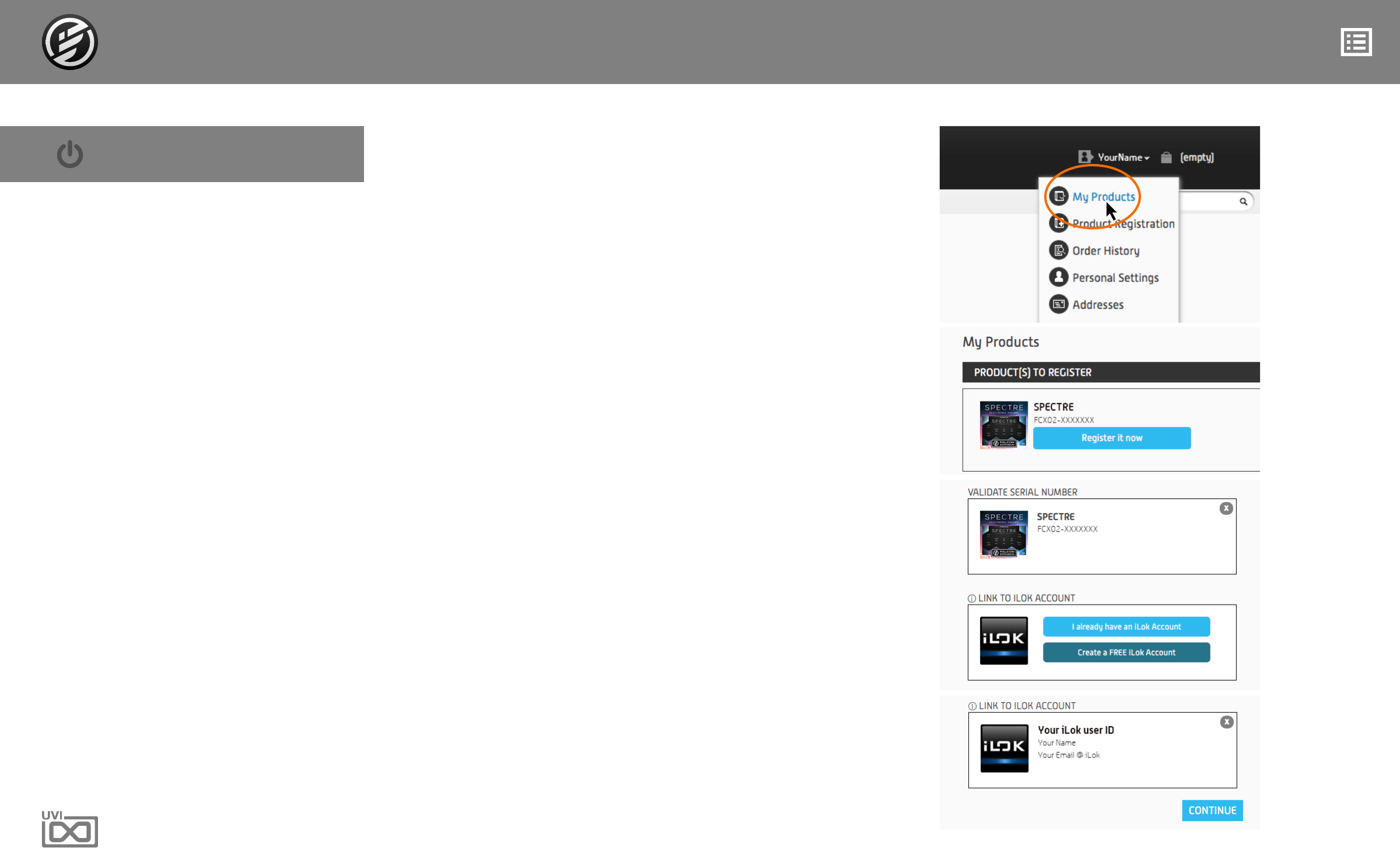
• If you purchased your Falcon
Expansion at UVI.net, your serial
number will already be in the
PRODUCT(s) TO REGISTER section
of the My Products page
• If your Falcon Expansion was
purchased from a third-party, please
refer to the installation guide they
provided and register your serial
directly on the Product Registration
page
• You can see a list of all the products
you’ve registered and their serial
numbers at any time via:
uvi.net/my-products
1. LOGIN TO YOUR ACCOUNT ON UVI.NET
THEN NAVIGATE TO THE MY PRODUCTS PAGE
2. LOCATE YOUR PRODUCT AND CLICK
‘REGISTER IT NOW’
You will be redirected to the Product Registration page
to complete the registration process
3. IF YOU ALREADY HAVE AN ILOK ACCOUNT
CLICK ‘I ALREADY HAVE AN ILOK ACCOUNT’
AND PROCEED TO LOGIN
If you do not have an iLok account yet click
‘Create a FREE iLok account’ and follow the instructions provided
4. ONCE YOUR ILOK ACCOUNT NAME IS DISPLAYED,
CLICK ‘CONTINUE’ TO DEPOSIT THE LICENSE INTO
YOUR ILOK ACCOUNT
NOTE: This step cannot be undone, please carefully verify that
your iLok account name is accurate
REGISTER
6
INSTALLATION » STEP 2: Download and Install FALCON Expansion
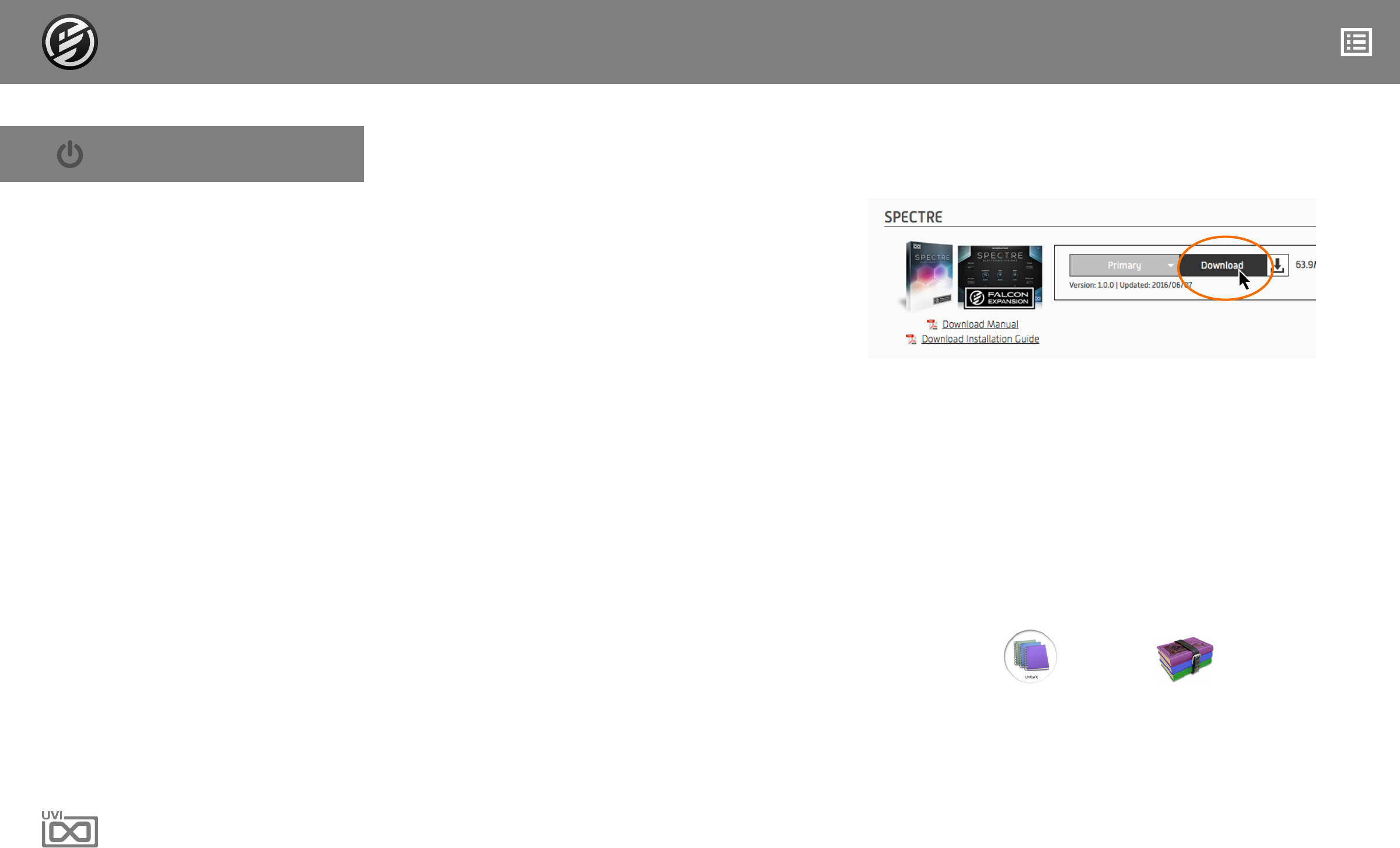
• You can download your products at
any time through uvi.net/my-products 1. DOWNLOAD YOUR FALCON EXPANSION
AT UVI.NET/MY-PRODUCTS
Scroll to the desired product and hit ‘Download’
2. DECOMPRESS YOUR FALCON EXPANSION
Decompress your soundbanks with a RAR utility
The decompressed file will have a ‘.ufs’ file extension
Once decompressed, Falcon Expansion can be placed
anywhere on your computer (including external drives).
And move your Falcon Expansion to the folder which the
Falcon Factory.ufs is placed
Or you can create a directory (soundbank folder) to place it
We recommend choosing a location that can be easily
found.
For example, Macintosh HD > UVI or C:/Documents/UVI
INSTALL
MAC WIN
Click here to download a RAR utility for your platform:
7
INSTALLATION » STEP 3: Activate Your License
• The iLok License Manager client app
is included in the Falcon installation
• Your license allows for up to 3
concurrent activations on any
combination of computer hard drives
or iLok dongles
• Activations can be moved between
devices freely, at any time
• To see how many authorizations you
have left simply select the license
in iLok License Manager and click
‘Show Details’
• To deactivate an authorization,
right-click it and select ‘Deactivate’.
This will return the license to the
‘Available’ tab.
• Please make sure to deactivate
all licenses from your computer
before selling your computer or
making any major hardware changes
or upgrades. Once you activate
licenses to your computer, there
will be no way to deactivate them
without access to this computer in its
current state.
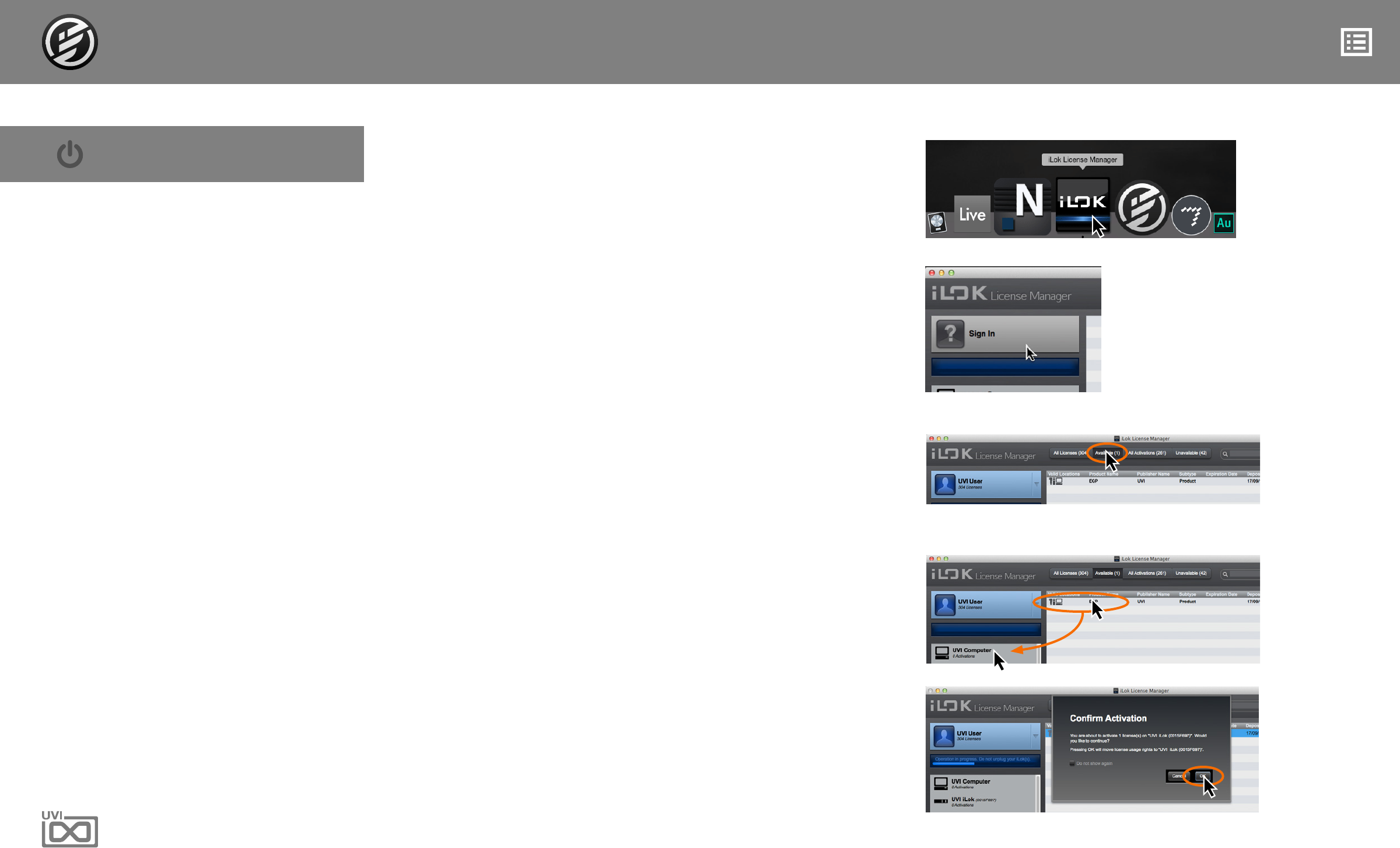
1. LAUNCH ILOK LICENSE MANAGER
2. LOGIN TO YOUR ACCOUNT
4. DRAG THE LICENSE TO A COMPUTER OR ILOK
3. CLICK THE ‘AVAILABLE’ TAB
5. CLICK ‘OK’ TO CONFIRM ACTIVATION
ACTIVATE
8
INSTALLATION » STEP 4: Adding a New Soundbank Directory
LOAD SOUNDBANKS
If you placed your new expansion
in an existing soundbank directory
(e.g. in the same directory as “Falcon
Factory.ufs”) you can skip this step.
UVI Powered soundbanks are high-
quality sound and instrument libraries
available from UVI and third-party
developers. Soundbanks and Falcon
Expansions are fully supported and
seamlessly integrated in Falcon.
To use Falcon Expansions (and
soundbanks) in Falcon you just need
to tell it where to find them.
NOTE: If you commonly use UVI
Workstation it is recommended
that you place your soundbank files
and Falcon Expansions in separate
directories.
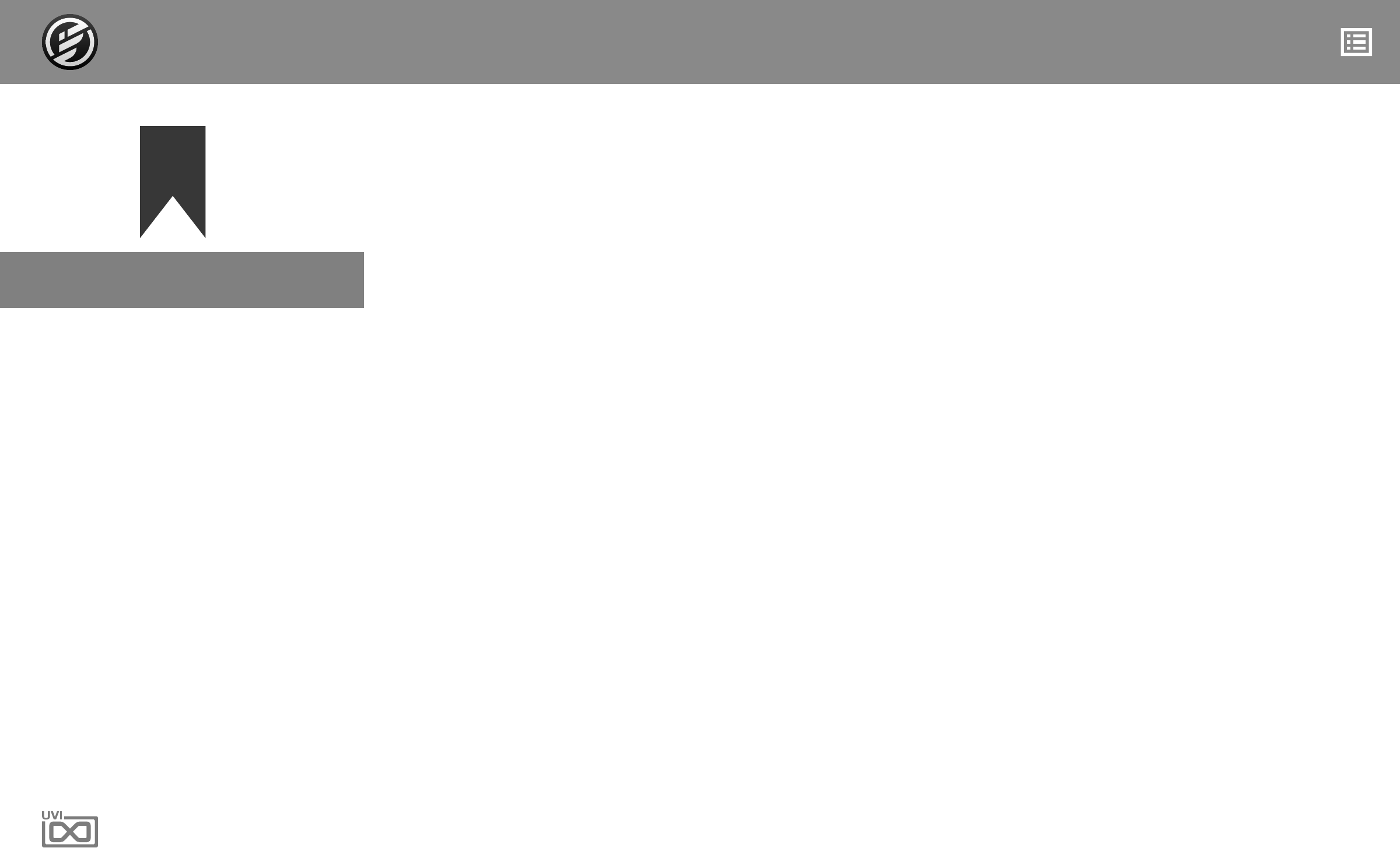
1. LAUNCH FALCON
2. OPEN ‘PREFERENCES’
3. CLICK THE ‘SOUNDBANKS’ PAGE
5. RESTART FALCON, SOUNDBANKS WILL
BE AVAILABLE IN THE BROWSER
4. CLICK THE ‘...’ BUTTON AND SELECT
THE FOLDER THAT CONTAINS YOUR
FALCON EXPANSION (.UFS) FILES
9
LINKS
UVI
Home . . . . . . . . . . . . . . . . . . . . . . . . . . . . . . . . . . . . . . . . . . uvi.net
Your Product Area. . . . . . . . . . . . . . . . . . . . . . . . . . . . . . . . . . . . uvi.net/my-products
FAQ . . . . . . . . . . . . . . . . . . . . . . . . . . . . . . . . . . . . . . . . . . . . uvi.net/faq
Tutorial and Demo Videos . . . . . . . . . . . . . . . . . . . . . . . . . . . . . . .youtube.com
Support. . . . . . . . . . . . . . . . . . . . . . . . . . . . . . . . . . . . . . . . . . uvi.net/contact-support
EXTENDING FALCON
Home . . . . . . . . . . . . . . . . . . . . . . . . . . . . . . . . . . . . . . . . . . . ilok.com
iLokLicenseManager . . . . . . . . . . . . . . . . . . . . . . . . . . . . . . . . . .ilok.com/ilm.html
FAQ . . . . . . . . . . . . . . . . . . . . . . . . . . . . . . . . . . . . . . . . . . . . ilok.com/supportfaq
LINKS