VISUAL LAND PRESTIGE10QL 10.1 inch TABLET User Manual part 1

VISUAL LAND INC. 10.1 inch TABLET part 1

Contents

User manual part 1

ANDROID QUICK START GUIDE    iiCopyright © 2014 Visual Land Inc. All rights reserved. Google, Android, Gmail, Google Maps, Chrome, Chromecast, Android Wear, Nexus, Google Play, YouTube, Google+, and other trademarks are property of Google Inc. A list of Google trademarks is available at http://www.google.com/permissions/trademark/our-trademarks.html. All other marks and trademarks are properties of their respective owners.This book introduces Android 5.0, Lollipop for Google Play edition devices. Its content may differ in some details from some of the products described or the software that runs on them. All information provided here is subject to change without notice. For best results, make sure you’re running the latest Android system update. To nd your device’s version number or check for the latest system update, go to   Settings > System > About tablet and look for Android version or System updates and look for
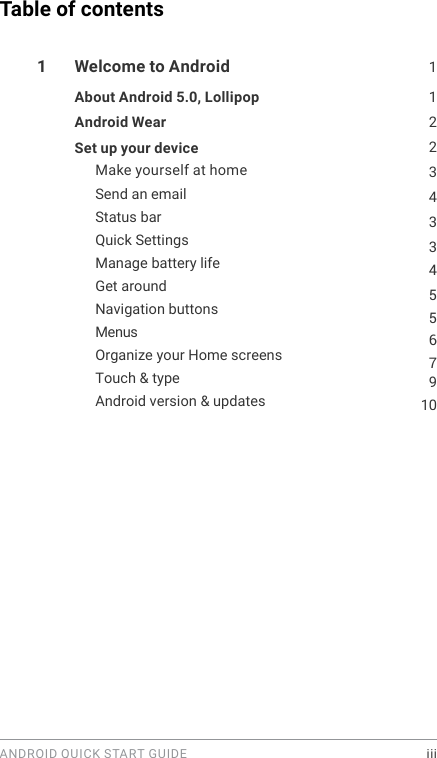
ANDROID QUICK START GUIDE    iiiTable of contents1  Welcome to Android  1About Android 5.0, Lollipop  122Android Wear 3Set up your device Make yourself at home 43345567910Send an email Status bar Quick Settings Manage battery life Get around Navigation buttons MenusOrganize your Home screens Touch & type Android version & updates
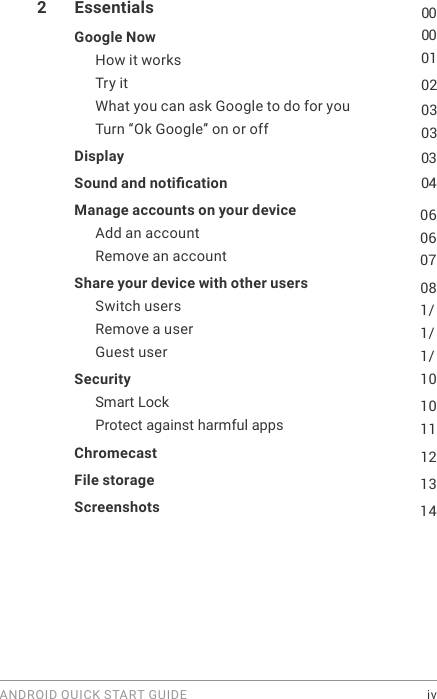
ANDROID QUICK START GUIDE    iv2  Essentials  00Google Now  00How it works  01Try it  02What you can ask Google to do for you  03Turn “Ok Google” on or off  03Display   03Sound and notication   04Manage accounts on your device  06Add an account  06Remove an account  07Share your device with other users  08Switch users  1/Remove a user  1/Guest user  1/Security  101011Smart Lock Protect against harmful apps Chromecast  12File storage   13Screenshots  14
ANDROID QUICK START GUIDE    v3  Use the keyboard  15Enter & edit text  15Use next-word suggestions  18Gesture Typing  2/Keyboard dictionaries  20Type by speaking  204  Try some apps  22222325263/3031All Apps Gmail Google Play Camera Photos Contacts Hangouts  Calendar 315  Settings  336  Accessibility  35
ANDROID QUICK START GUIDE   WELCOME TO ANDROID 11 Welcome to AndroidAbout Android 5.0, LollipopAndroid 5.0, Lollipop is the latest version of Android, the oper-ating system that powers not just tablets, but also wearables, TVs, and even cars.Android 5.0 features a bold and bright new design, 3D graphics support that are as good as on a desktop computer, and great new features that make your tablet work for you:•  Add guest users and other users without providing them ac-cess to your email, contacts, and whatever else you don’t want to share.Set priorities for notifcations and see them when your tablet is locked.Easier ways to manage battery usage, including a battery sav-er feature to extend battery life.More ways to secure your tablet. • • •
ANDROID QUICK START GUIDE   WELCOME TO ANDROID 2Android WearAndroid  Wear  watches  from  other  manu-facturers  connect  your tablet to your wrist. Pause, play, and skip music tracks or quickly respond  to  text  messages  using  only  your  watch.  Android  Wear organizes your information, suggests what you need, and shows it to you before you even ask. Get messages from your friends, meeting notications, and weather updates at a glance. Set up your deviceWhen you frst turn on your tablet, you’ll see a Welcome screen.Choose the language you want and touch the arrow to continue. IMPORTANT: To complete the setup process, it’s best to have a Wi-Fi connection.When prompted, sign in with your Google Account or create one at that time. Signing in lets you immediately access everything associated with your Google Account, like Gmail. If you prefer, you can skip this step and create an account later.
ANDROID QUICK START GUIDE   WELCOME TO ANDROID 3An email address that you use for any of the following counts as a Google Account:•  Gmail•  YouTube•  Google Play•  Google Apps•  AdWords•  Any other Google productSigning in with a Google Account helps you get up and running quickly. When you sign in, you can easily get all the apps you’ve purchased on Google Play onto your new device. All the email, contacts, calendar events, and other data associated with that account are automatically synced with your device. If you have multiple Google Accounts, you can add others later from   Settings > Personal > Accounts. You can also add guest users in   Settings > Device > Users.Make yourself at homeAfter you nish setting up your device, the Home screen appears for the rst time. Here, you can add app icons and widgets (an “at-a-glance” view of an app’s most important information) to your Home screens to easily nd them.•  To move between Home screens, swipe left or right.•  To see notications, swipe down from the top of the screen with one nger.
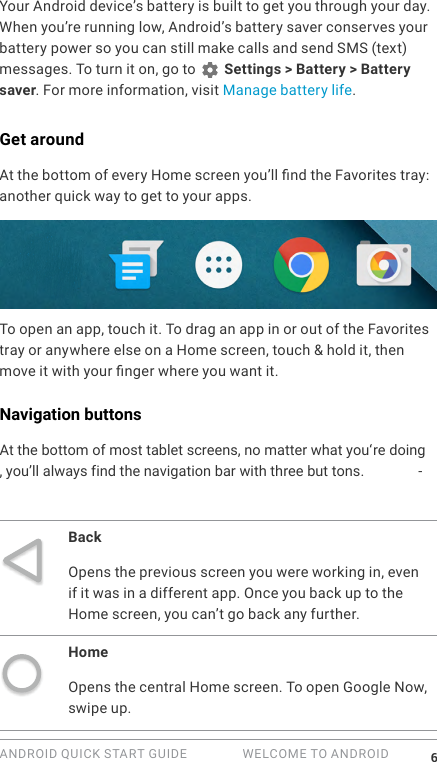
ANDROID QUICK START GUIDE   WELCOME TO ANDROID 4Send an emailUse the Gmail app to read and write email from your Gmail or other email addresses.1.  Touch   Gmail on a Home or   All Apps screen.2. If you already signed into a Gmail account during setup, your email will be synced to your device. Otherwise, add an email address now.Status barThe status bar is at the very top of the screen. On the right, you can see the Wi-Fi and mobile signal strength, how much battery power is left, and the time. On the left, you can see which apps have sent you notications. See “Sound & notication” on page 19.Quick SettingsUse Quick Settings to easily get to frequently used settings, like turning on airplane mode. To open Quick Settings, swipe down from the top of the screen with two ngers or twice with one n-ger. To change a setting, just touch the icon:•  Wi-Fi network:   Turn Wi-Fi on or off. To open Wi-Fi settings, touch the Wi-Fi network name.•  Bluetooth settings:  Turn Bluetooth on or off. To open Blue-tooth settings, touch the word “Bluetooth”.•  Airplane mode:   Turn airplane mode on or off. Airplane mode means your tablet won’t connect to Wi-Fi or a cell sig-nal, even if one is available.
ANDROID QUICK START GUIDE   WELCOME TO ANDROID 5•  Display brightness:   Slide to lower or increase the bright-ness of your screen.•  Auto-rotate:   Lock your device’s orientation in portrait or landscape mode.Quick Settings look like this:Open the main Settings app by touching   Settings in the top right. You can also turn Auto Rotate on or off from Quick Settings, to lock or unlock automatic screen rotation.Manage battery lifeThe status bar shows how much battery you have left, but you can also see the exact percentage and approximate time of bat-tery life remaining. Swipe down from the top of the screen, then touch   Battery.
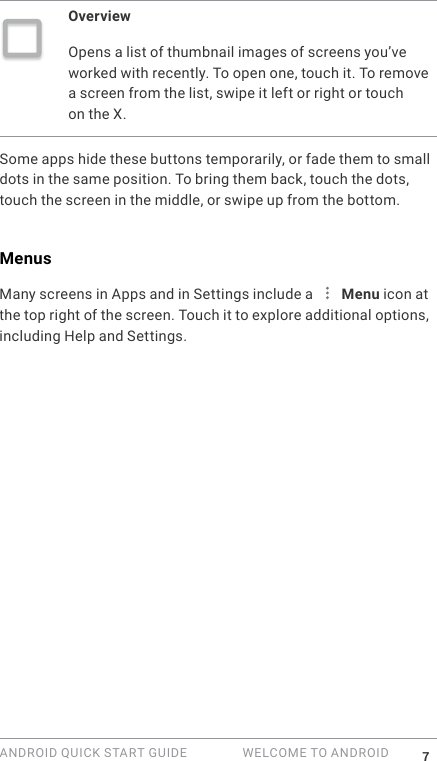
ANDROID QUICK START GUIDE   WELCOME TO ANDROID 6Your Android device’s battery is built to get you through your day. When you’re running low, Android’s battery saver conserves your battery power so you can still make calls and send SMS (text) messages. To turn it on, go to   Settings > Battery > Battery saver. For more information, visit Manage battery life.Get aroundAt the bottom of every Home screen you’ll nd the Favorites tray: another quick way to get to your apps. To open an app, touch it. To drag an app in or out of the Favorites tray or anywhere else on a Home screen, touch & hold it, then move it with your nger where you want it.Navigation buttonsAt the bottom of most tablet screens, no matter what you'‘ re doing, you’ll always find the navigation bar with three but tons. -BackOpens the previous screen you were working in, even if it was in a different app. Once you back up to the Home screen, you can’t go back any further.HomeOpens the central Home screen. To open Google Now, swipe up.
ANDROID QUICK START GUIDE   WELCOME TO ANDROID 7OverviewOpens a list of thumbnail images of screens you’ve worked with recently. To open one, touch it. To remove a screen from the list, swipe it left or right or touch on the X.Some apps hide these buttons temporarily, or fade them to small dots in the same position. To bring them back, touch the dots, touch the screen in the middle, or swipe up from the bottom.MenusMany screens in Apps and in Settings include a   Menu icon at the top right of the screen. Touch it to explore additional options, including Help and Settings.
ANDROID QUICK START GUIDE   WELCOME TO ANDROID 8Organize your Home screens •  To change your wallpaper, add a widget, adjust Search set-tings, or change screen order, touch & hold the background of any Home screen. •  You can have any number of Home screens to the right. To add a new screen, swipe to the rightmost screen and drag an app or widget to the right edge.•  The screen to the left of the main Home screen is reserved for Google Now, and is available only when Google Now is turned on. •  To create a folder, slide one icon quickly on top of another. •  To name or rename a folder, open it and touch its name.To change the wallpaper:1.  Touch & hold the background, then touch   Wallpapers.2. Swipe right to left to choose a wallpaper image. Or choose an image from your Photos, Downloads or Drive.To add an app icon to a Home screen: 1.  Go to the Home screen where you want to place the app.2. Touch  All Apps.3. Swipe from right to left, if necessary, to nd the app you want.4. Touch & hold the app until the Home screen appears, slide it into place, and lift your nger.To add a widget:1.  Touch & hold the background, then touch Widgets. Open All Apps > Widgets.2. Swipe right to choose a widget, which provides a quick view or way to access information on your home screen, like a larger size clock or a view of information in your Google Play library.
ANDROID QUICK START GUIDE   WELCOME TO ANDROID 9To move an app or widget to another position:1.  Touch & hold the icon.2. Slide your nger to the new position. To move between Home screens, slide toward the edge of the screen.To bump another icon out of the way, slide slowly into it.3. Lift your nger. Touch & typeTo select or activate something, touch it.To type something, such as a name, password, or search terms, just touch where you want to type. A keyboard pops up that lets you type into the eld.Other common gestures include:•  Touch & hold. To select an item, touch & hold it by not lifting your nger until something happens. This is how you access accent and other special characters on the keyboard. Slide your nger to the accented letter you need.•  Touch, hold, & drag. Touch & hold an item for a moment and then, without lifting your nger, move your nger on the screen until you reach the target position. You can move apps around on the Home screen.•  Swipe or slide. Quickly move your nger across the surface of the screen, without pausing when you rst touch (so you don’t drag something instead). Slide a Home screen left or right to view the other Home screens.•  Double-tap. Tap quickly twice on a map or image to zoom in and out. •  Scale. In some apps (such as Maps, Chrome, and Photos), you can scale by placing two or more ngers on the screen at once
ANDROID QUICK START GUIDE   WELCOME TO ANDROID 10and pinching them together (to enlarge scale) or spreading them apart (to reduce it). •  Rotate the screen. The orientation of most screens rotates with your device as you turn it. To keep your screen locked in Portrait mode, swipe down with two ngers  from the top of any screen and touch   Portrait/Auto-Rotate in Quick Settings.Android version & updatesTo check your version number or get the latest system update, first go to   Settings > System >  About tablet. Then look for these labels:•  System updates. Touch to check whether you have any pend-ing system updates. •  Android version. Look partway down the list for this heading and the number just below it.
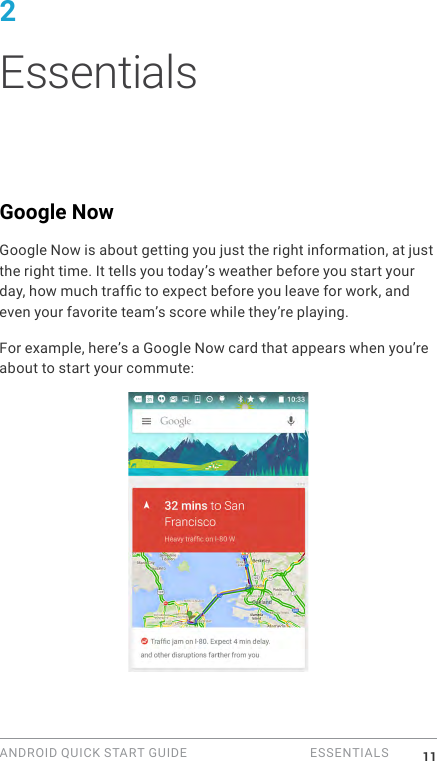
ANDROID QUICK START GUIDE   ESSENTIALS 112 EssentialsGoogle NowGoogle Now is about getting you just the right information, at just the right time. It tells you today’s weather before you start your day, how much trafc to expect before you leave for work, and even your favorite team’s score while they’re playing.For example, here’s a Google Now card that appears when you’re about to start your commute:
ANDROID QUICK START GUIDE   ESSENTIALS 12After you start using Google Now, you don’t need to do anything else. If you like, you can ne-tune some settings, but Google Now doesn’t need any elaborate setup. How it worksTo know when to show information you’ll nd useful, Google Now uses contextual data from your device and from other Google products, plus data from third-party products that you allow Google Now to access. For example, if you have an appointment in Google Calendar that includes an address, Google Now can check trafc and suggest when to leave.When you decide to use Google Now, you’re also turning on Loca-tion Reporting and Location History:•  Location Reporting allows Google to periodically store and use your device’s most recent location data in connection with your Google Account. Location Reporting is a per-device setting.•  Location History allows Google to store a history of your location data from all devices where you’re logged into your Google Account and have turned on Location Reporting.You can control how Google Now uses your current location. To view the relevant settings, go to   Settings > Personal > Loca-tion. When location services are turned on for your account on a given device, certain apps can use them to give you more relevant information, such as nearby restaurants or commute trafc.To learn more about how Google Now uses your location and other information, visit f nnf kd-bnl . mnv .
ANDROID QUICK START GUIDE   ESSENTIALS 13Try itYou have a chance to turn on Google Now when you rst set up your device. You can also turn it on or off at any time:1.  Touch & hold any empty space on your Home screen. 2. Go to   Settings > Google Now.To open Google Now, swipe up from the Home  button.  Updates appear in the form of Google Now cards. When you don’t need a card anymore, swipe it from left to right. Swiping from right to left returns you to the main Home screen. When you want to see more cards, touch More at the bottom of the screen. To adjust the way certain cards get updated:•  Manage reminders: From the   Menu at the top left of the screen, touch   Reminders.•  Request updates for your sports teams, stocks, and more: From the   Menu, touch   Customize.•  Customize other updates: At the top right of each card, touch the   three dots.

Navigation menu