Veebeam SC3221R-C SC3221R-C Wireless WCSP HWA Dongle Module User Manual
Veebeam Limited SC3221R-C Wireless WCSP HWA Dongle Module Users Manual
Veebeam >
Users Manual

SC3221R-C –
WCSP HWA DONGLE User Guide
©2007 Staccato Communications, Inc. All rights reserved.
Abstract: This guide functions as a user guide for the installation and operation of the SC3221R-C with regards to FCC
certification testing
C
S
o
mm
unications
taccato
6195 Lusk Blvd, Suite 200
San Diego, CA 92121
858-812-1000
www.staccatocommunications.com

SC3221R-C User Manual
Table of Contents
1. Legal.......................................................................................................................................................................................... 3
2. Regulatory Notices..................................................................................................................................................................... 3
3. Introduction............................................................................................................................................................................... 4
3.1. SC3221R-C Features ..................................................................................................................................................................................4
3.2. System Requirements .................................................................................................................................................................................4
4. Installation................................................................................................................................................................................. 4
4.1. Software Installation...................................................................................................................................................................................4
4.2. Hardware/Driver Installation...................................................................................................................................................................5
5. Operation .................................................................................................................................................................................. 8
6. Support...................................................................................................................................................................................... 8
©2006 Staccato Communications, Inc.
All rights reserved. Page 2 of 8

SC3221R-C User Manual
1. Legal
© 2006 Staccato Communications. All rights reserved.
Information provided in this document is provided in connection with Staccato products. All information contained in this document is
subject to change without notice. Nothing in this document shall operate as an express or implied license or indemnity under the
intellectual
property rights of Staccato or third parties. Except as provided in Staccato’s Terms and Conditions of Sale for such products,
Staccato assumes no liability whatsoever, and Staccato disclaims any express or implied warranty, relating to sale and/or use of
Staccato
products including liability or warranties relating for a particular purpose, merchantability, or infringement of any patent, copyright
or other intellectual property right.
Staccato’s products are not authorized for use in life-support or safety critical applications. Use in such applications is done at the
sole
discretion of the customer. Staccato will not warrant the use of its devices in such applications.
While the information contained herein is believed to be accurate, such information is preliminary, and should not be relied upon for
accuracy or completeness, and no representations or warranties of accuracy or completeness are made.
THE INFORMATION CONTAINED IN THIS DOCUMENT IS PROVIDED ON AN “AS IS” BASIS. In no event shall Staccato be liable
for damages arising directly or indirectly from any use of the information contained in this document.
All trademarks listed in this document are the property of their respective holders.
Contact your Staccato sales representative to obtain the latest specifications before placing your product order.
Staccato Communications
6195 Lusk Boulevard, Suite 200
San Diego, CA 92121
Phone: 858.812.1000
Fax: 858.812.1001
www.staccatocommunications.com
2. Regulatory Notices
This device complies with Part 15 of the FCC Rules. Operation is subject to the following two conditions: (1) this device may not
cause harmful interference, and (2) this device must accept any interference received, including interference that may cause undesired
operation.
THIS DEVICE MUST BE INSTALLED IN A LOCATION THAT IS NOT ACCESSIBLE TO THE GENERAL PUBLIC.
INSTALL THE DEVICE SO THAT THE ANTENNA IS MORE THAN 20 CM FROM UNSUSPECTING PERSONNEL.
FAILURE TO INSTALL THIS DEVICE AS DESCRIBED WILL RESULT IN A FAILURE TO COMPLY WITH FCC RULES
FOR RF EXPOSURE AND IS DISCOURAGED. ONLY ANTENNAS APPROVED WITH THE DEVICE MAY BE USED.
THIS DEVICE MAY NOT BE CO-LOCATED WITH OTHER TRANSMITTERS WITHOUT FURTHER APPROVAL BY
THE FCC.
The device is compliant with 47 CFR 15.519(a)(1):
“A UWB device operating under the provisions of this section shall transmit only when it is sending information to an associated
receiver. The UWB intentional radiator shall cease transmission within 10 seconds unless it receives an acknowledgement from the
associated receiver that its transmission is being received. An acknowledgement of reception must continue to be received by the
UWB intentional radiator at least every 10 seconds or the UWB device must cease transmitting.”
Note: Any intentional or unintentional modifications not expressly approved by Staccato Communications or the FCC will void the
warranty of the device and the authority of the user to operate the device.
©2006 Staccato Communications, Inc.
All rights reserved. Page 3 of 8

SC3221R-C User Manual
3. Introduction
This document provides installation and operation instructions for the SC3221R-C Certified Wireless USB HWA Dongle. For
testing, please follow the step-by-step instructions carefully in order to ensure proper operation.
3.1. SC3221R-C Features
The SC3221R-C Certified Wireless USB HWA Dongle in intended to be plugged directly into a host system (PC) or a generic USB 2.0
hub.
The SC3221R-C includes the following features:
• Fully integrated, single-chip all CMOS ultra-wideband solution compliant with Certified Wireless USB as defined by the
USB implementers Forum, WiMedia PHY specification V1.1 and WiMedia MAC specification v1.0.
• Support for all Wireless USB mandatory and optional data rate modes including 53.3, 80, 106.7, 160, 200, 320, 400, and 480
Mbps
• Low power consumption
• Small form factor
• Integrated antenna
3.2. System Requirements
The SC3221R-C software requires a computer system that meets the following minimum requirements:
• 1 GHz PC
• Windows XP operating system with SP2 (service pack 2) installed
• One available USB 2.0 port
• Software requirement: Pythonwin (Available on installation CD; executable name: ActivePython-2.4.3.12-win32-x86)
4. Installation
The following steps are required for installation of the software associated with the SC3221R-C:
4.1. Software Installation
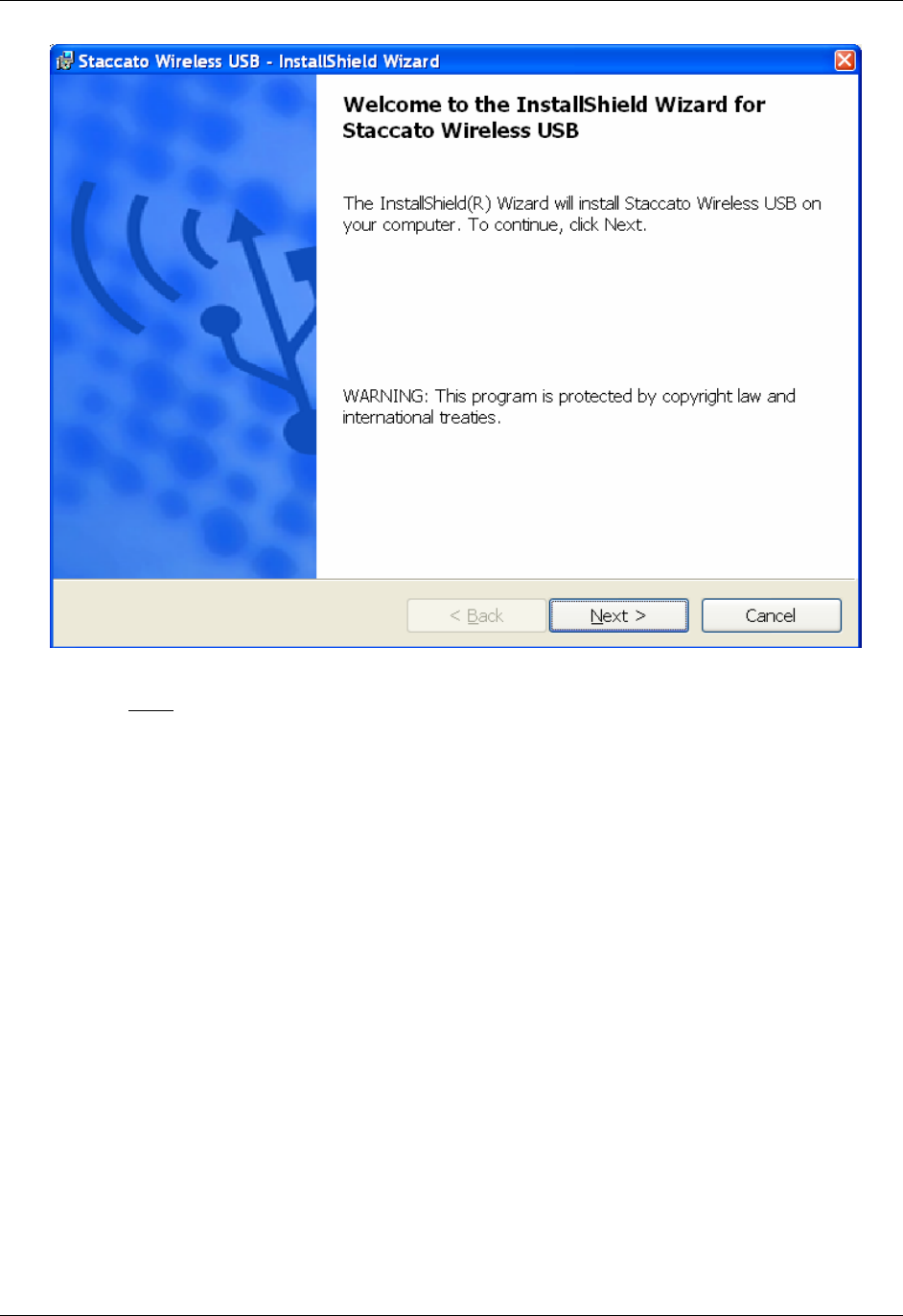
Locate the “RIPCORDB_MI_0.1.26” exe installer in the RIPCORDB_MI_0.1.26 folder and double click. This will initiate the
installation process.
©2006 Staccato Communications, Inc.
All rights reserved. Page 4 of 8
SC3221R-C User Manual
.
Continue with the default installation settings to finish installation.
If XP displays a message warning the user that the driver has not undergone Windows Logo testing, Click “Continue Anyway” to
continue with installation.
Note: Currently Microsoft does not have testing facilities in place for Wireless USB drivers.
4.2. Hardware/Driver Installation
Plug the SC3221R-C dongle into the host PC or into a generic USB hub connected to the host PC.
LED D3 should be blinking; LEDs D2 and D4 should be continuous ON.
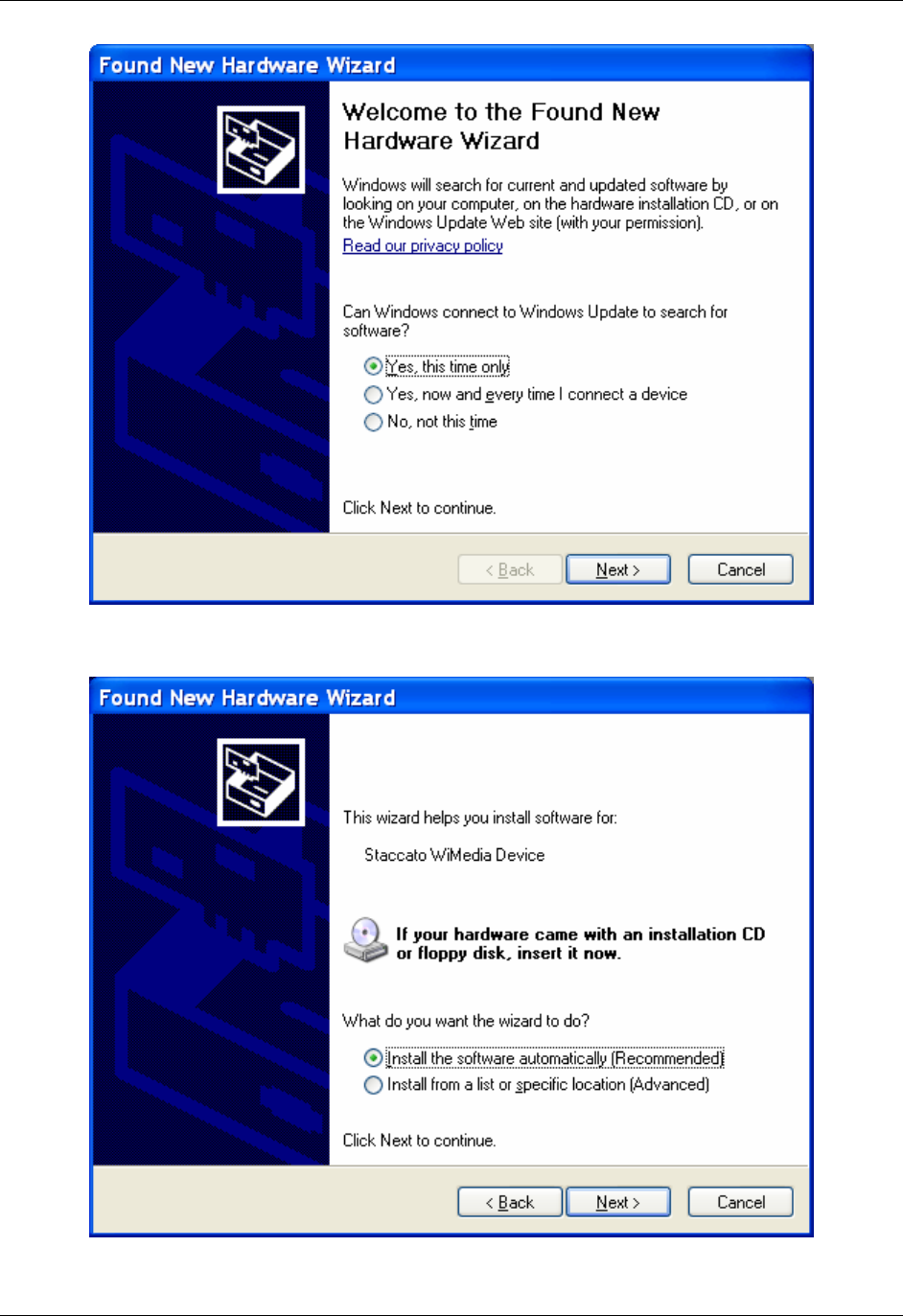
Windows will detect new hardware. When the found new hardware wizard is shown, select “Yes, this time only” in response to
connecting to windows update then click “next”.
©2006 Staccato Communications, Inc.
All rights reserved. Page 5 of 8
SC3221R-C User Manual
Choose the “Install the software automatically (Recommended)” and hit “Next”
©2006 Staccato Communications, Inc.
All rights reserved. Page 6 of 8
SC3221R-C User Manual
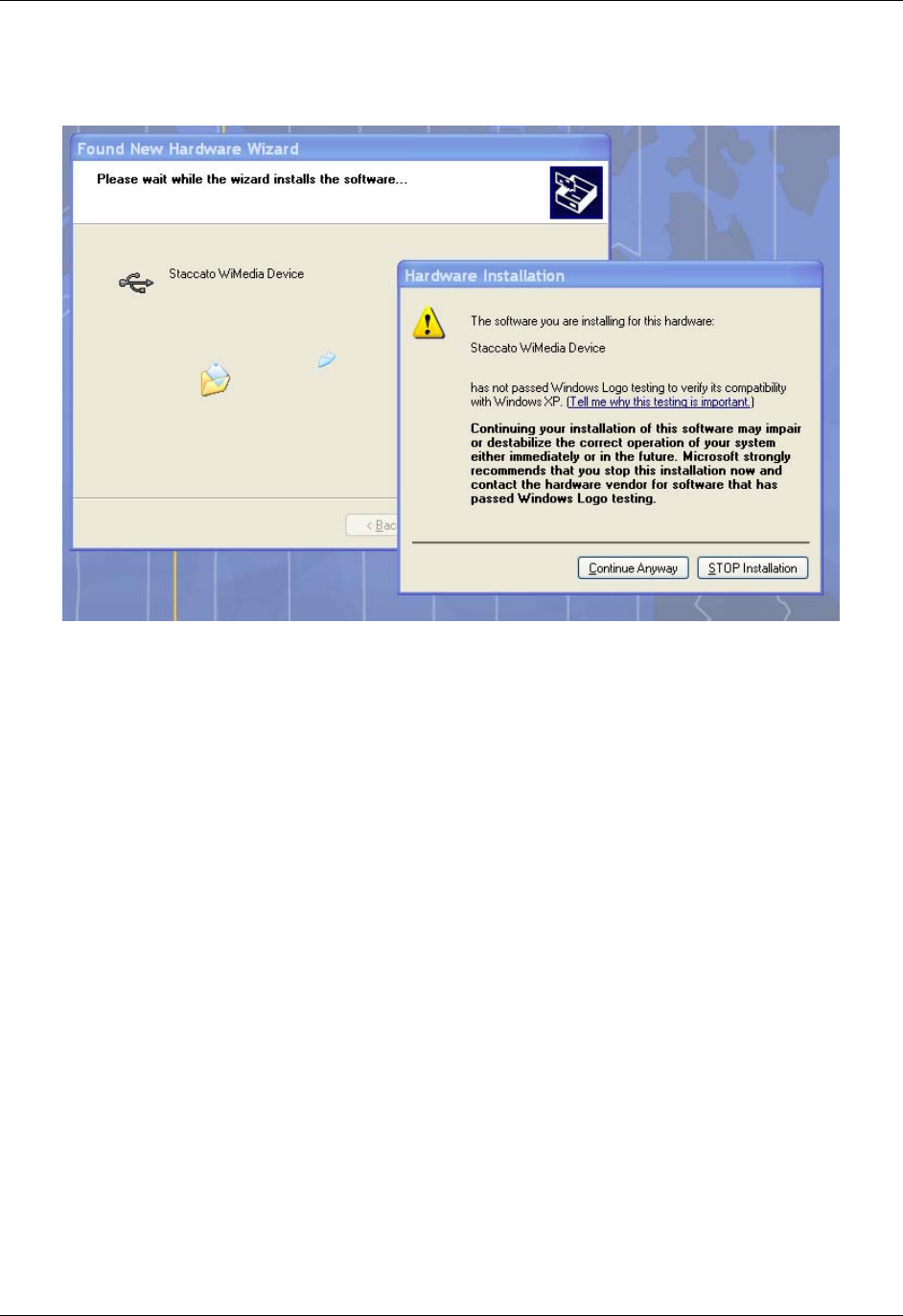
Windows XP will display a message warning the user that the driver has not undergone Windows Logo testing, Click “Continue
Anyway” to continue with installation.
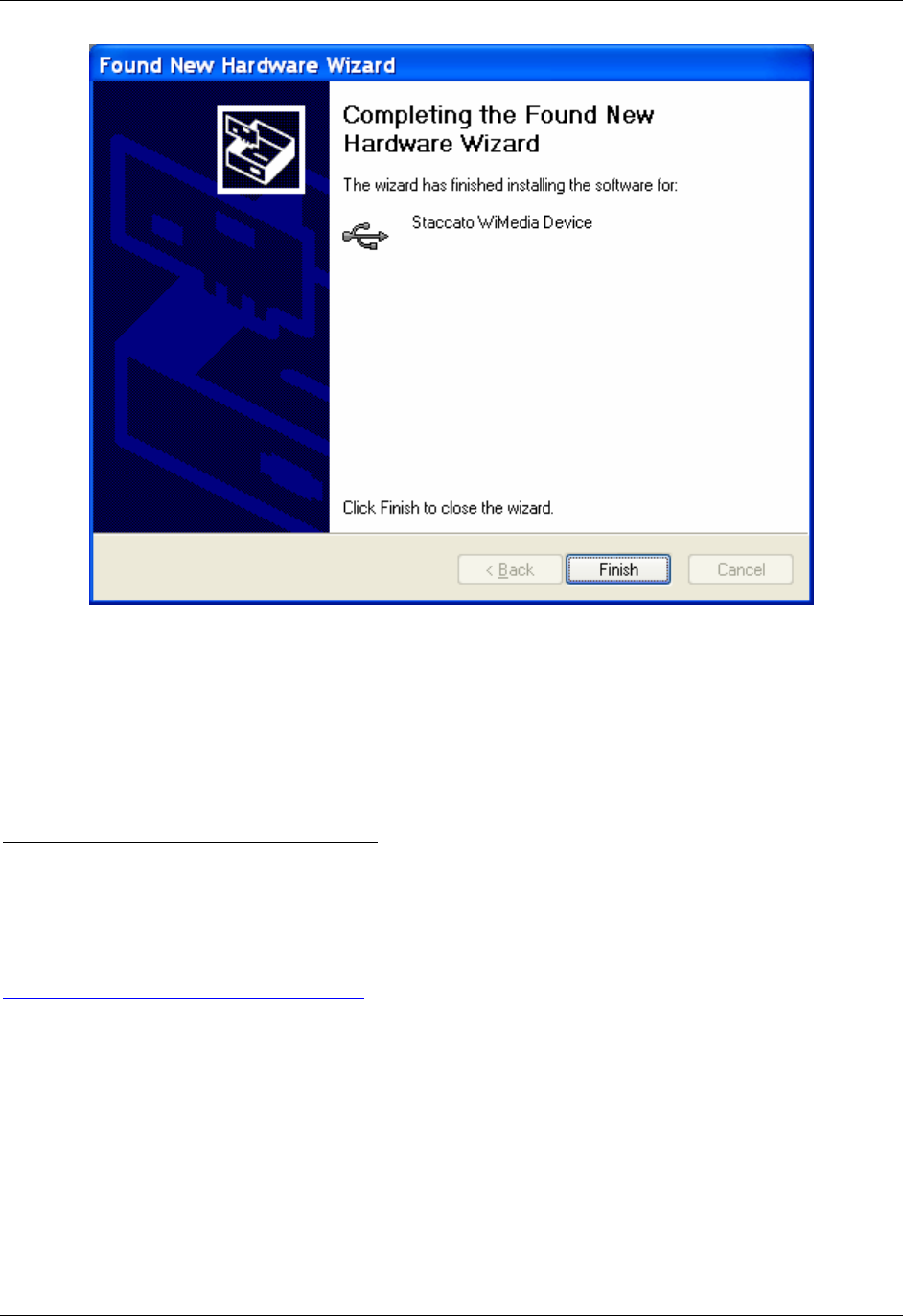
On completion of installation the following window will show on the screen. Hit “Finish” and that completes the software installation
process.
©2006 Staccato Communications, Inc.
All rights reserved. Page 7 of 8
SC3221R-C User Manual
5. Operation
Prior to operation, the SC3221R-C should be plugged in to the PC. Ensure that the hardware installation has been successfully
completed. The device will be visible in the Windows Device Manager under “Universal Serial Bus Controllers” when viewing in
“Devices by type” mode selected from the “View” dropdown menu.
REFER TO STEPS 1 – 9 ON FOLLOWING PAGES.
6. Support
Staccato Communications provides a support team to help debug any issues that may arise including any deviations from the
installation or operation of the SC3221R-C as listed in this document. For assistance, please e-mail
support@staccatocommunications.com for assistance or call 858-812-1000 and ask to be transferred to the
Applications Engineering team.
©2006 Staccato Communications, Inc.
All rights reserved. Page 8 of 8
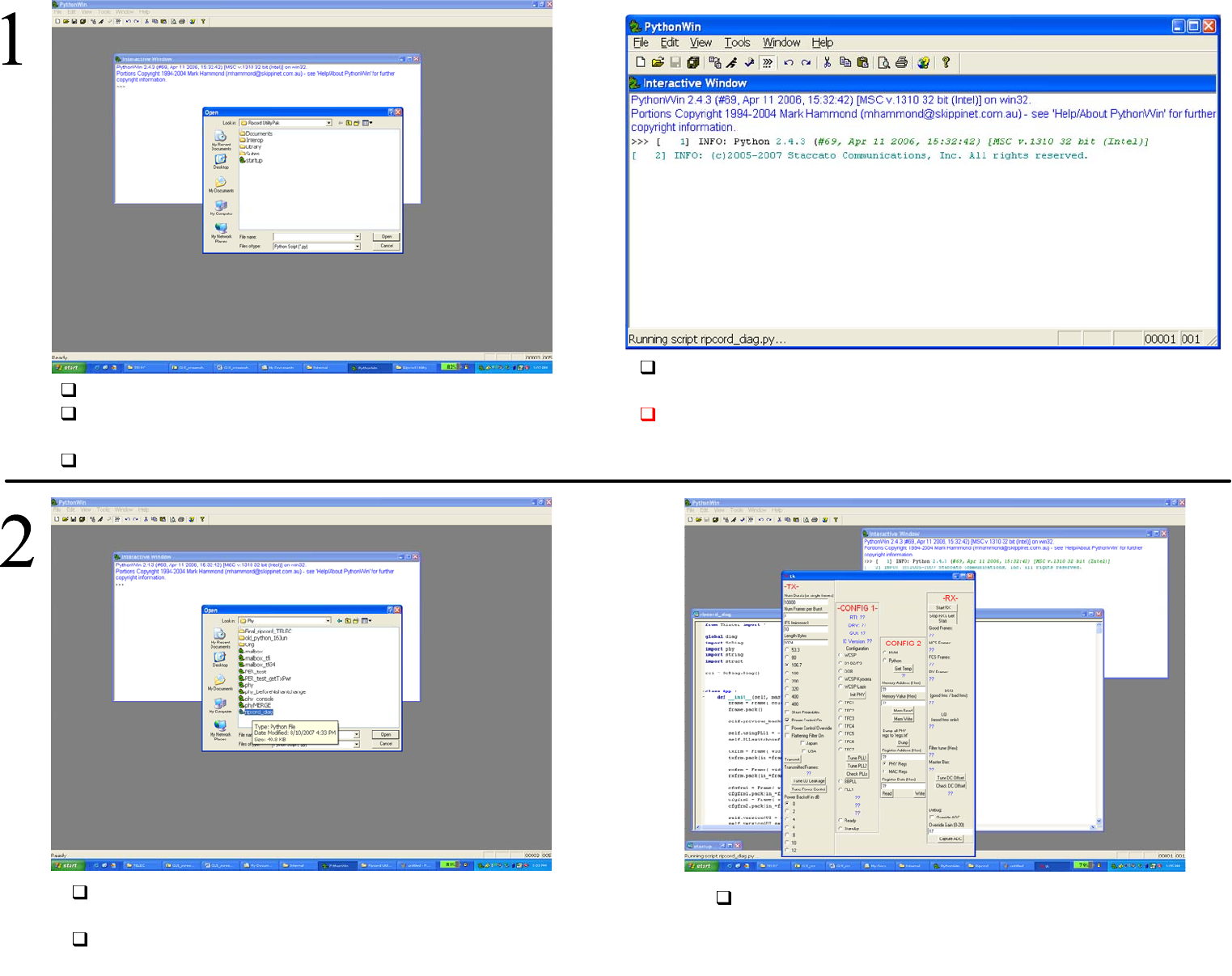
Launch Pythonwin IDE from start-Program files
Open startup.py in C:\Program Files\Staccato\Ripcord
Utility Pak directory
Hit ‘F5’ to run startup.py when opened
On successful run, the Interactive window in Pythonwin
should look like this
CAUTION: If ‘red’ error text appears in this window
between steps 1-8, unplug / plug dongle, close / restart
Pythonwin and repeat all steps
Open ripcord_diag.py in C:\Program Files\Staccato\
Ripcord Utility Pak\Interop\Phy directory
Hit ‘F5’ to run ripcord_diag.py when opened
‘tk’ window should launch as shown above
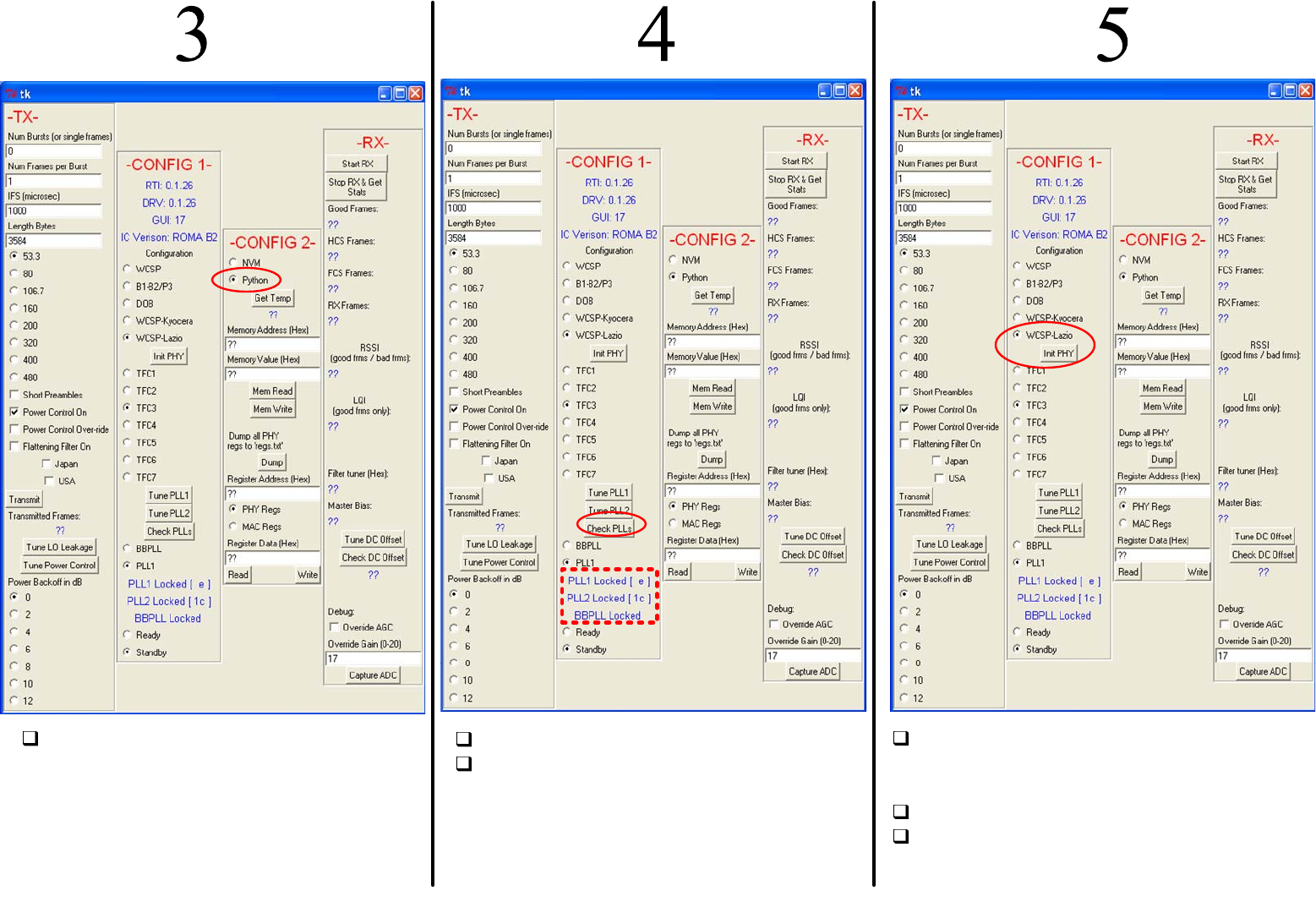
Check python button as indicated Hit ‘Check PLLs’ button
At this point you should see the display
indicated in the red block. PLL1, PLL2
and BBPLL must indicate ‘Locked’ in
order to proceed.
Check WCSP-Lazio button and then hit
Init PHY button as indicated in figure
above.
Wait for 20-30 seconds to complete
Check the Pythonwin Interactive window
as shown in the following figure
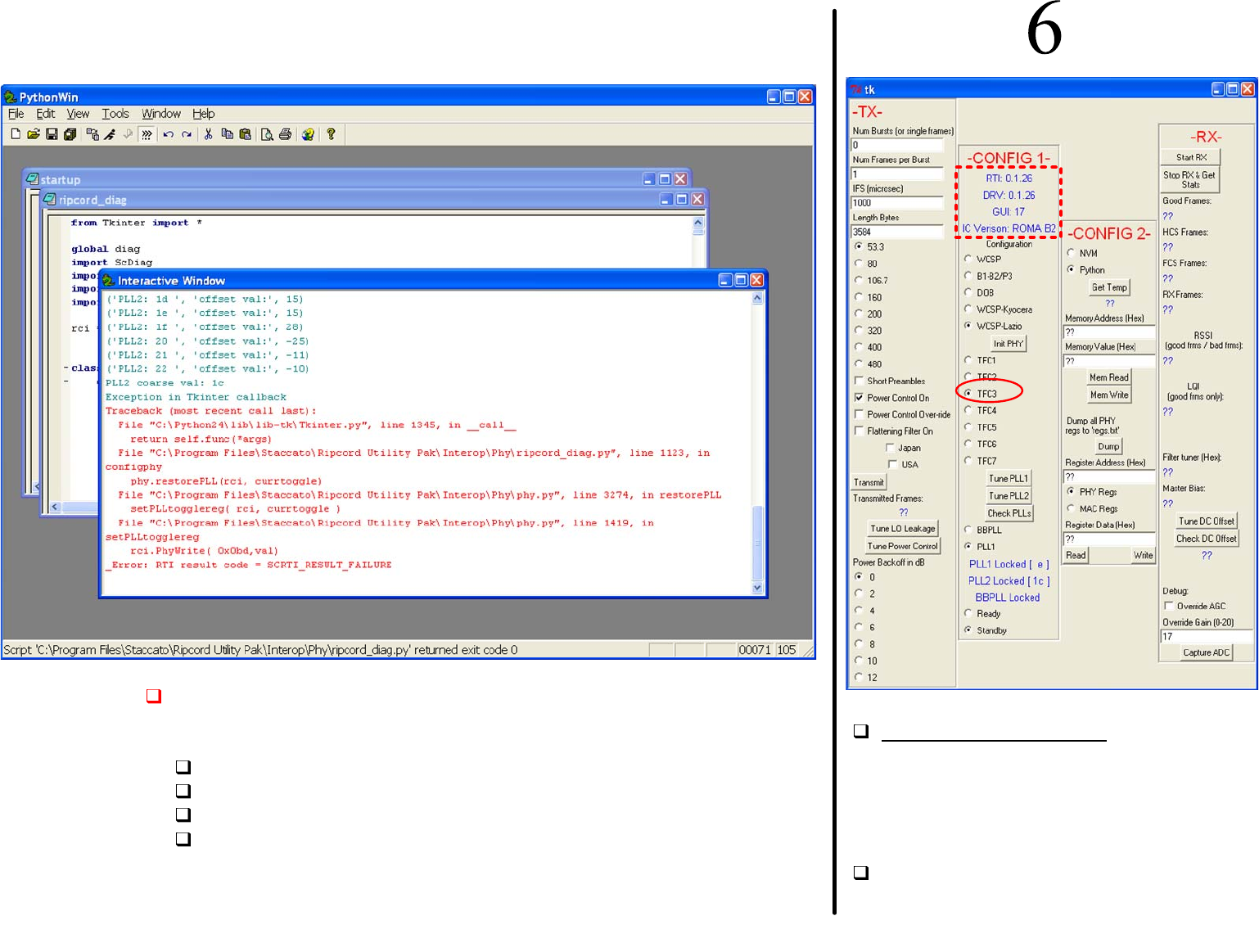
IF the Pythonwin interactive window displays the error
message as shown above (between steps 1 and 8) do
the following :
Unplug the dongle (power off)
Close Pythonwin
Plug in the dongle (power on)
Launch Pythonwin and repeat all steps
Check before proceeding: The ‘dashed’
red block shown in figure must contain
the corresponding RTI, DRV, GUI and IC
version. If the information does not
appear, please power off EUT, retart
software and repeats previous steps.
Check the desired TFC button as
indicated in the figure above
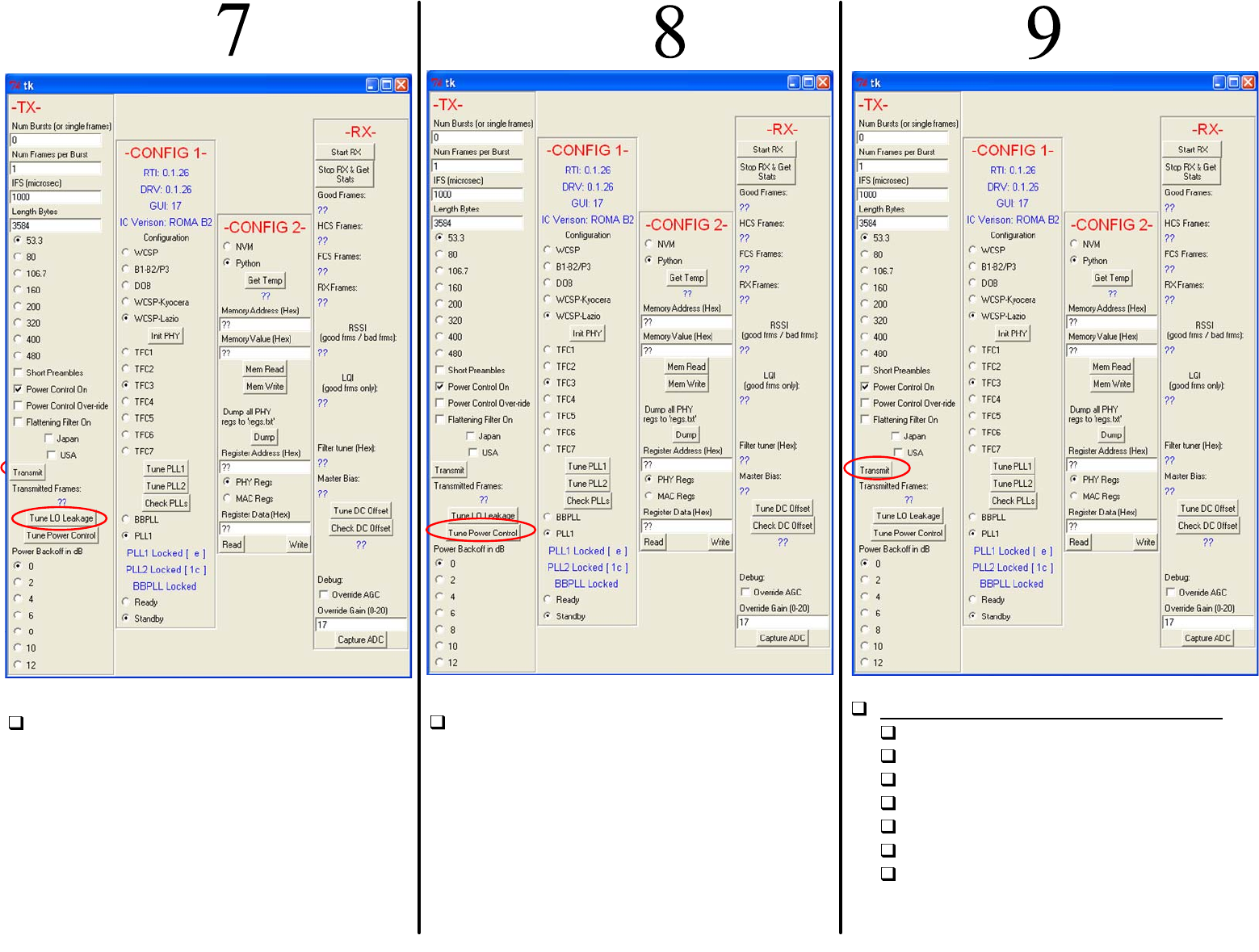
Hit Tune LO Leakage button as shown in
figure
Hit Tune Power Control button as shown
in figure
Confirm the following before proceeding:
53.3 button should be checked
Num bursts (or single frame) = 0
Num Frames per Burst = 1
IFS (microsec) = 1000
Length Bytes = 3584
Hit Transmit button
NOTE: At this step the interactive window
will display an error as shown in the
following figure, IGNORE the message
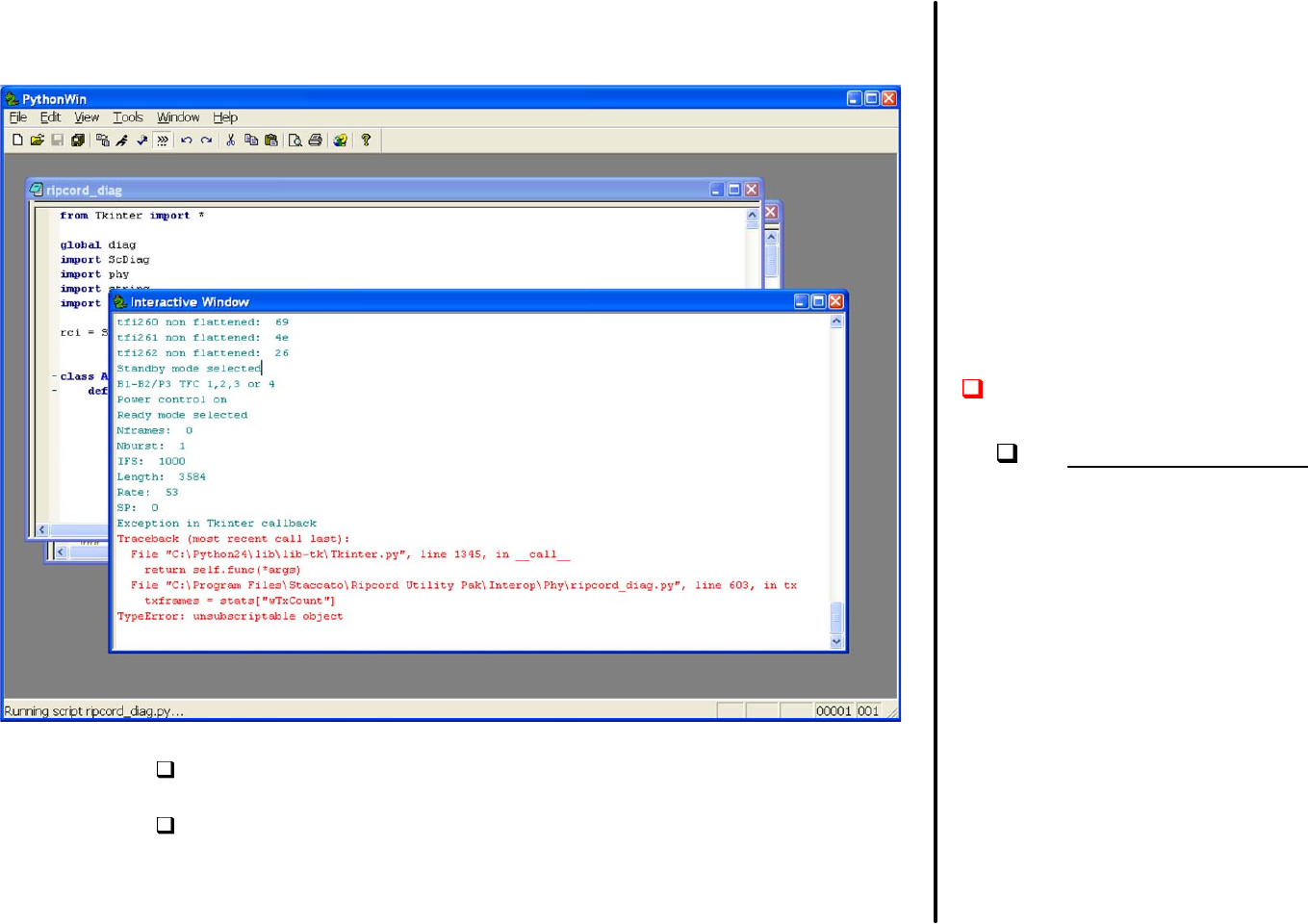
The Pythonwin interactive window will display an
error message at this point, IGNORE this message
To abort transmission please power off (unplug the
dongle) the radio
Things to keep in mind to prevent
EUT damage:
In continuous transmit mode the
EUT will heat up rapidly. Please
ensure that the EUT is powered off
when measurements are
completed
END OF DOCUMENT