Velocity Micro VMT408V1 Media Tablet User Manual T408 indd
Velocity Micro, Inc. Media Tablet T408 indd
Contents
- 1. User manual 1 of 2
- 2. User manual 2 of 2
User manual 2 of 2

Step 1 Turn on your Cruz and connect a mini USB cable to
the Cruz device and to your PC.
Step 2
Slide the notification panel down and tap the alert
that reads, “USB Connected,” then tap “Turn on USB
Storage.”
Step 3
This should only be required once. After doing this,
the alert should change to “Turn off USB storage ...”
This is normal when tethered.
Step 4
Your micro SD card will appear within Windows with
a new drive letter assigned. The Autoplay feature
of Windows may or may not open asking you what
you want to do with the media. Click Open Folders
to view files. If not, navigate to the proper drive from
Windows Explorer by right-clicking the “Start” button.
Step 5
You may now copy files to and from the device as
needed. You may create folders here to organize
content, or you may place content in existing folders
for use by the application that created the folder.
Step 6
When you are done with file management tasks, You
may use the Windows application “Safely Remove
Hardware” to unmount the Cruz USB drives. You may
also tap “Turn off USB storage - Select to turn off
USB storage” on the Cruz device.
Step 7
You may now disconnect your USB cable from your
Cruz device. Cruz access to the micro SD card
returns.
21
Getting Started
X. TRANSFER FILES
Transfer Via USB Cable

22
Getting Started
X. TRANSFER FILES
Step 1 Unmount the micro SD card: Settings> Storage>Unmount
SD Card
Step 2 Eject your micro SD card and insert it into SD card
adapter. Then insert SD card adapter into your PC
Step 3 Transfer files as needed
Step 4 Eject micro SD card from PC, remove micro SD card from
the SD card adapter, and reinsert into Cruz
Transfer Via SD Card
23
Getting Started
XI. FILE FORMATS
The file formats that this device can support are numerous, but not infinite.
The included QuickOffice App allows you to view and edit Microsoft Office file
formats, including Word, Excel, and PowerPoint. Many eReader file types,
and music/video file types are compatible with the device as well
Most files should work, but not all files are encoded the same. For example,
some MPEG4 files will work but others may not, depending on how they
were encoded and compressed. It should be treated with a case-by-case
approach.
AUDIO
WAV, OGG, MP3
VIDEO
MP4, MOV, FLV
IMAGES
JPEG, JPG, GIF, PNG
EBOOKS
PDF, TXT, HTML, EPUB
OFFICE
DOC, DOCX, XLS, XLSX, PPT, PPTX, PPS
24
Getting Started
XII. KINDLE FOR ANDROID
Your CRUZ T408 offers the
remarkable opportunity of
carrying all your favorite books
in the palm of your hand. Each
Cruz comes pre-loaded with the
Kindle for Android application.
This application is a library portal
allowing users to sign into their
personal Kindle account, browse an immense selection of literature, and
purchase/download books in an instant! There are even 100’s of free eBooks
available for download.
In this section, you will be walked through the initial set-up for the Amazon
Kindle for Android app. Before beginning, make sure that your Cruz has
made a successful connection with a Wi-Fi network. Without Wi-Fi access,
you will not be able to view the Kindle store or download eBooks.
You will need an Amazon account before continuing. If you do not have an
account with Amazon, please visit Amazon.com. At the top of the header, you
will see “Your Amazon.com.” Click it and then choose “New customer? Start
here.” Follow the on-screen prompts to finish creating your account. Then
resume following these instructions:
Step 1 Tap the Kindle icon located on the Home Screen or on
your App panel.
Step 2
Once the application loads, sign into your Amazon
account. If you have forgotten your username or
password, visit Amazon.com to reset.
Step 3
Once you are logged in, tap the “Menu” button on the
status bar. Then select “Kindle Store” to launch the
online Kindle store. You will be presented with numerous
genre options. Pick one to continue.

25
Getting Started
XII. KINDLE FOR ANDROID
Step 4 When you find a book you want to download/purchase, tap
the book cover to select it and advance to the next step.
Step 5
The app will bring you to a product page with the book
cover, the price, a “Buy Now” button, as well as a synopsis
of the book lower on the page.
Step 6
Tapping “Buy Now” will confirm that you want to add
the book to your library. To begin the download, tap the
“Menu” button on the status bar, then select “Sync” from
main Kindle screen. Then select “Archived Items” from the
“Menu” button to load the book.
Step 7
You may be prompted to enter billing information if you
did not previously save credit card info from within your
Amazon account.

26
Getting Started
XIII. READING EPUBS
Many eReader files are in the ePUB file format.
The Cruz does not natively support this file format,
so an additional application available on the Cruz
Market must first be downloaded.
Keep in mind that many ePUB files are also
DRM-protected, preventing illegal distribution of
publications. In order to read DRM-protected
ePUBs, you will need to download a specialized
application that manages the DRM requirements.
For instructions on how to read a DRM-protected
ePUB on your Cruz, visit the Cruz Support Hub at
www.cruzreader.com/support
Step 1 Install Word Player from the Cruz Market (Apps > Books &
Reference > Word Player) onto your Cruz.
Step 2 Transfer your ePUB files to your SD card at the following
folder location: /sdcard/Books.
Step 3
Open Word Player and select “Load ePUB from SDcard.”
Navigate to the “Books” folder and select your book to
begin reading.
Reading Unprotected ePUBs
27
Getting Started
XIV. CAMERA
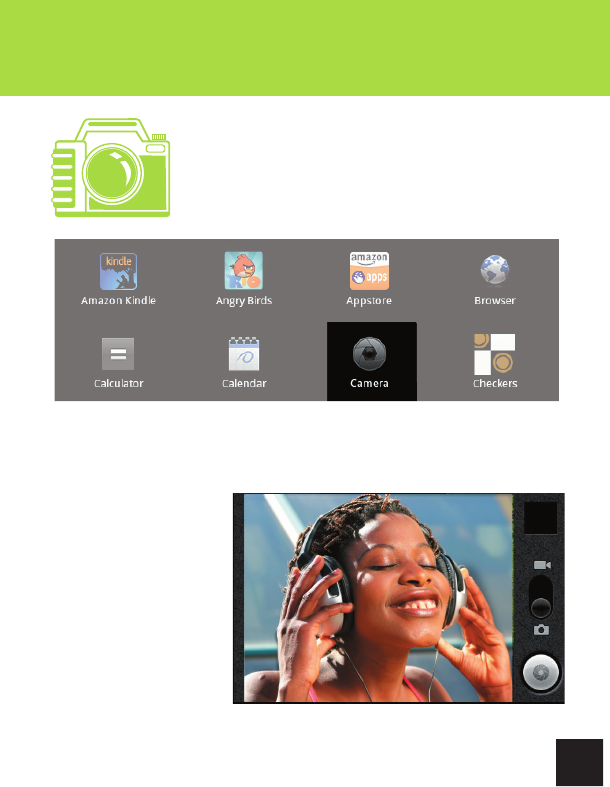
There is one forward-facing camera on your CRUZ
T408. It is capable of capturing both still images and
video. There is a pre-installed application used to
shoot photos/video and save them to your device. To
access this application, tap the round, grey icon in your
app panel labeled “Camera.”
A grey panel will appear on the right with several buttons. Among these is a
vertical sliding-panel with 2 main options on it. Once you have dragged the
dark round dial to the proper media-type you’d like to capture, position the
camera on the CRUZ
T408 in the direction of
your target.
When taking photos, tap
the bottom icon once.
When taking video, tap
the bottom icon to begin
recording, then again to
end recording.
Step 1 Tap the Amazon Appstore icon on your Cruz’s desktop
Step 2
If this is your first time opening the Appstore, sign in using
your Amazon account information, or sign up for a new
account
Step 3
Select the application you’d like to download. Tap the
pricing button (or Free button for free apps), then Get App.
Your application will download.
Step 4 Once the download is complete, tap Install.
Step 5 Tap Done to return to the Appstore or Open to open your
new application.
28
Getting Started
XV. AMAZON APPSTORE XV. AMAZON APPSTORE
Your Cruz device comes preinstalled with access to the
Amazon Appstore for downloading all the latest games,
applications, and widgets directly to your device.
It’s the best way to personalize your Cruz just the
way you want it. Downloading and installing from the
Amazon Appstore is easy:
29
Getting Started
XV. AMAZON APPSTORE
A B C
E FD
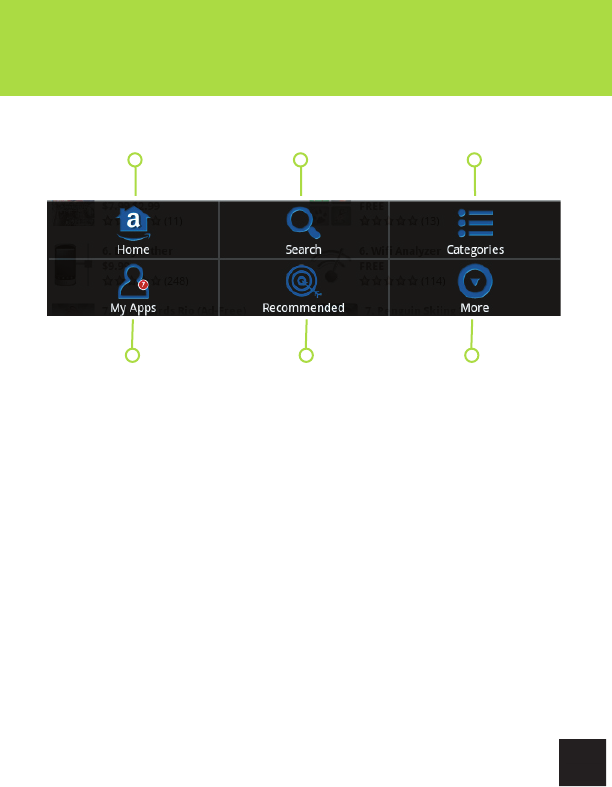
A. HOME - Takes you back to the main Amazon Appstore market front.
B. SEARCH - If you know the name of an app you want, use this search tool.
C. CATEGORIES - Apps will be grouped into genres. You can browse these
genres quickly and easily.
D. MY APPS - Apps you download are stored here. Tap this button to view
them.
E. RECOMMENDED - Most popular, recent, and hottest apps
F. MORE - Brings up more options and settings
XVI. INSTALLING APPS
Getting Started
XVI. INSTALLING APPS
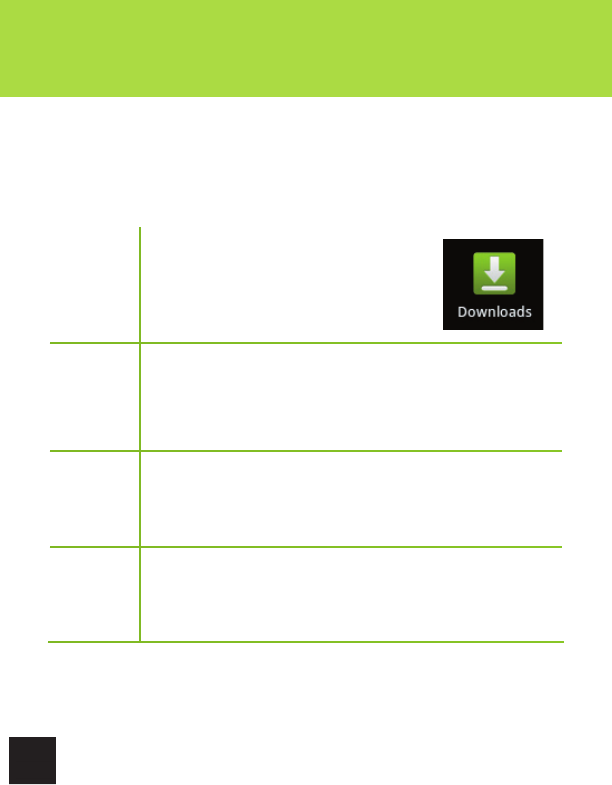
Step 1
Launch the App Panel, tap the
Downloads’ icon. This is a green icon
with a white downward arrow.
Step 2 Tap the apk file.
Step 3 Tap Install.
Step 4 Tap ‘Open’ to launch the app.
When you download an app to the CRUZ T408, it is saved as an apk file in
the “download” directory on the Flash storage. To install applications from
“non-market sources.”
30
XVI. INSTALLING APPS
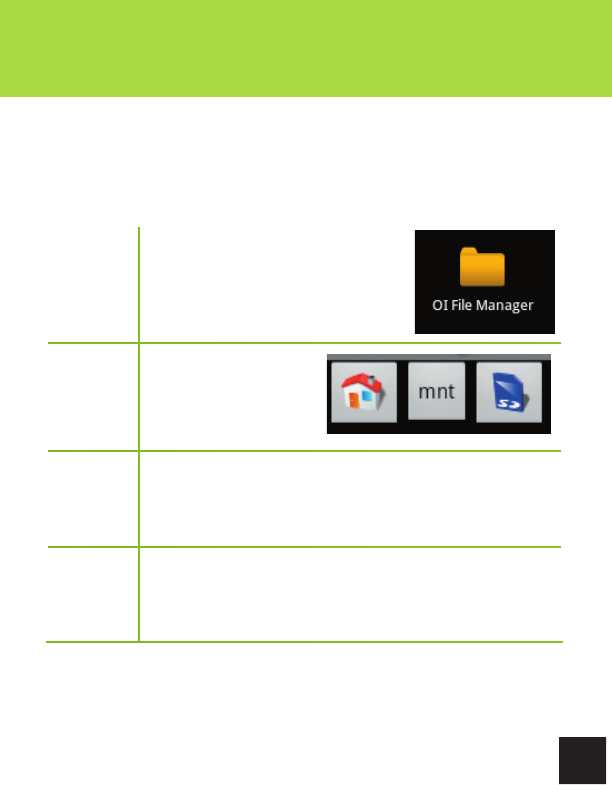
Step 1 Launch the App Panel, tap the
‘OI File Manager’ icon.
Step 2 Navigate to Home >
mnt > SD
Step 3 Tap file to install.
Step 4 Tap ‘Open’ to launch the app.
When you transfer apps to the CRUZ T408 using a microSD card, follow the
steps below to install the app properly. For help with transferring files, please
refer to p. 21.
31
XVII. PREINSTALLED APPS
32
Getting Started
XVII. PREINSTALLED APPS
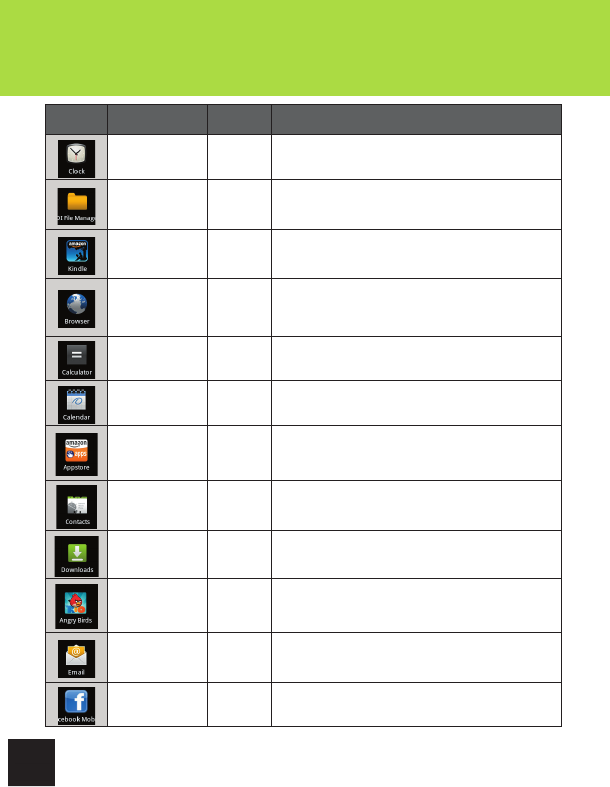
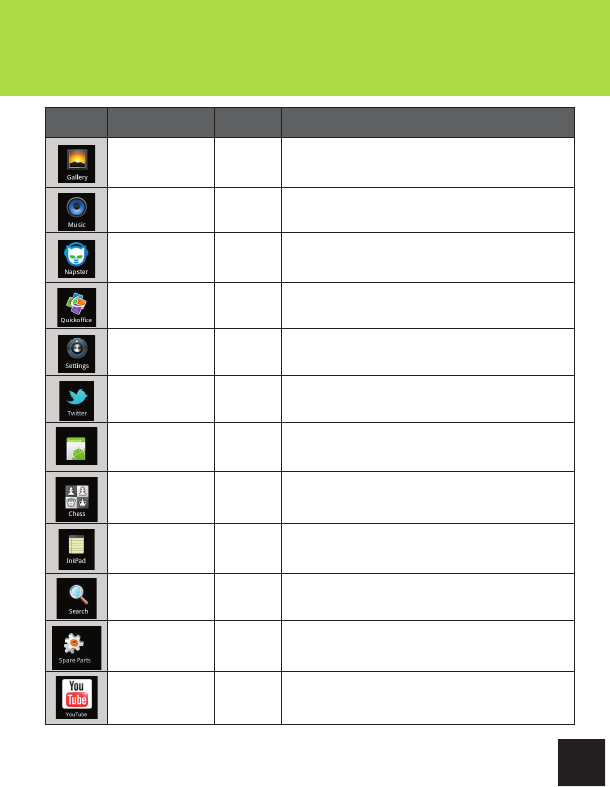
Icon Name Requires
Wi-Fi Purpose
Clock No Allows you to set alarms for easy reminders.
OI File Manager No This is your fi le management application. Use it to
browse your storage locations, move/copy fi les, etc
Kindle for Android Yes Your primary eBook library portal. Wi-Fi is only
required for downloading new content.
Browser Yes Default Internet browser. Surf the web, store tons of
bookmarks, and stay in the loop!
Calculator No Turns your Cruz into a fully functioning calculator with
touch screen inputs.
Calendar No Stores important scheduled events, organizes your
appointments. Stay up to date!
Amazon Appstore
for Android Yes Download apps from this premier appstore
Contacts Yes Stores contact information for email.
Downloads No Easily locate fi les downloaded through the pre-
installed web browser.
Angry Birds Rio No Addictive and action-packed game, ideal for kids and
adults alike!
Email Yes
Set up most web based email accounts quickly and
easily with this default mail application. Stay in touch
through any Wi-Fi hotspot.
Facebook
Mobile Yes Log into your Facebook account and stay
connected on the go!
33
Getting Started
XVII. PREINSTALLED APPS
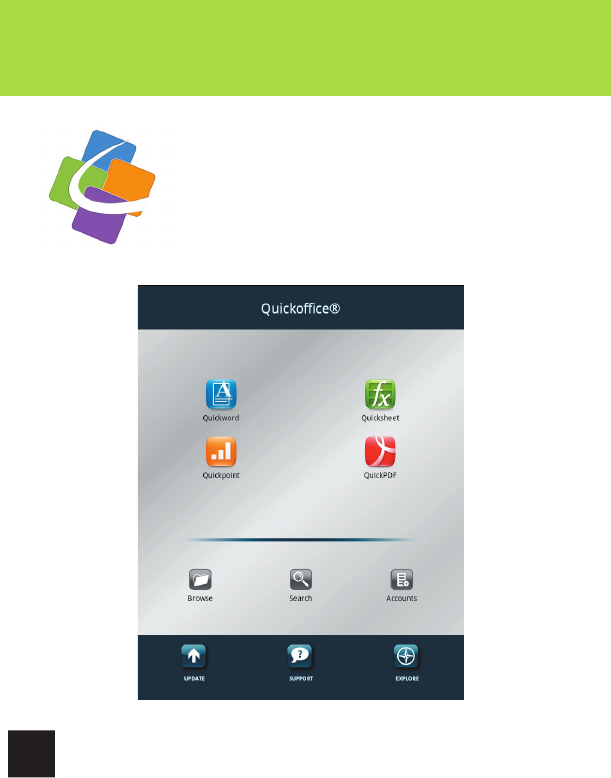
Icon Name Requires
Wi-Fi Purpose
Gallery No
Access photo or video fi les for play or display right on
the Cruz’s full color screen. Use your Cruz as a digital
picture frame or fully mobile media hub!
Music No Jam to your favorite tunes!
Napster Yes
Purchase songs and download them directly to your
CRUZ T408! Requires Wi-Fi only when browsing and
downloading music.
Quickoffi ce No Allows you to view, edit, and create Microsoft® Of-
fi ce fi les
Settings No Access device settings
Twitter Yes Tweet updates to all your followers with this useful
Twitter application!
Speech Recorder No Use the built-in microphone to record audio info.
Chess, Sudoku,
Checkers, Solitaire,
and Reversi
No Classic games to play against the computer.
Inkpad No Jot down grocery lists, scribble reminders, and take
notes on this handy writing app.
Search No Search fi les, apps, and folders on your Cruz
Spare Parts No
An assortment of additional settings for the Android
platform that are not available through the standard
Settings panel.
YouTube Yes Follow your favorite YouTube channels and see what’s
most popular videos on the web.
XIX. OI FILE MANAGER
34
Getting Started
XVIII. QUICKOFFICE
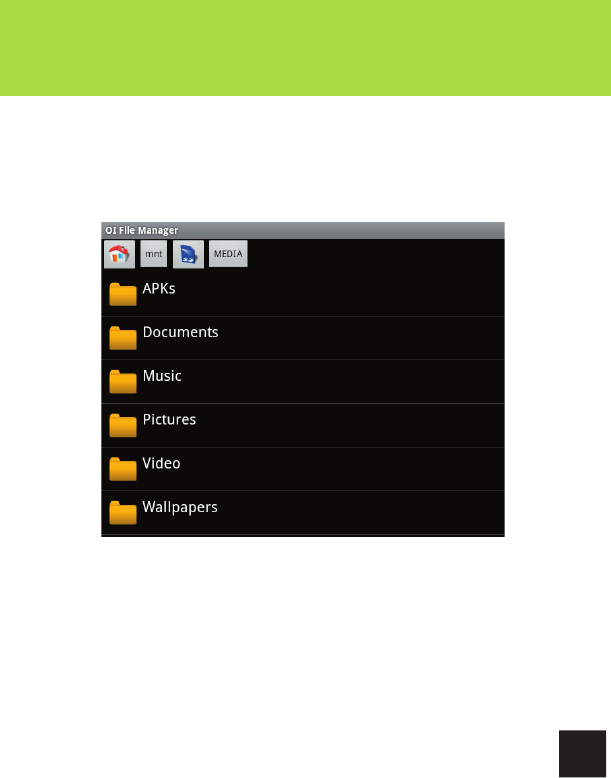
Your Cruz comes preinstalled with a full version of
QuickOffice, the premier document viewing and editing
software for Android.
With the full version of QuickOffice, you can easily both
view and edit Excel spreadsheets, Word documents,
Powerpoint presentations, and PDFs, right on your Cruz’s
brilliant, full color display.
35
Getting Started
XIX. OI FILE MANAGER
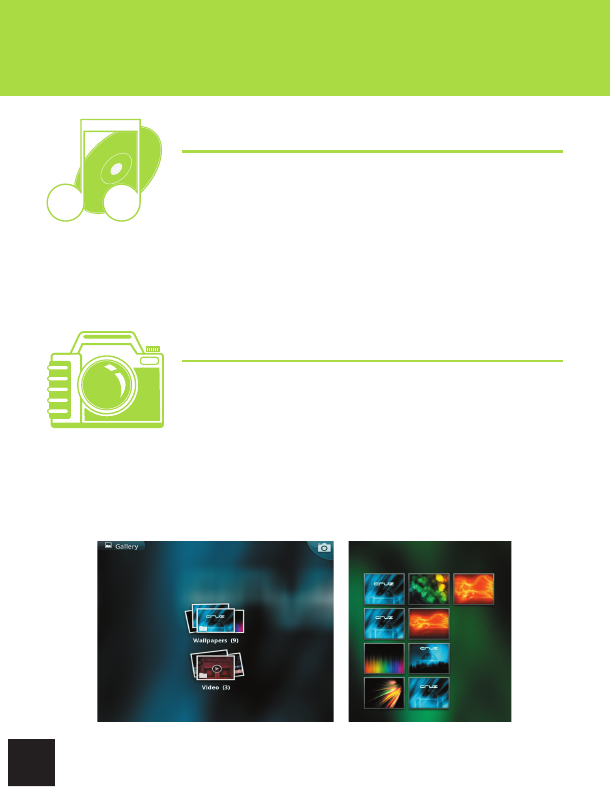
OI File Manager allows you to browse your SD card, create directories, rename,
copy, move, and delete files all within the comfort of your Cruz. It’s the perfect
way to manage the files on your device. Think of it as Windows Explorer for your
Android device.
36
Getting Started
XX. MULTIMEDIA
Music
After loading your music onto your Cruz, tap the music
icon (found by default on your home screen or by
opening the App Panel). You’ll be given the option of
selecting by Artist, Song, Album, or custom Playlist. Tap
to select. Your selection will begin to play through the Cruz’s built in speakers
or through external headphones if attached via the headphone port. The Cruz
media player allows you to shuffle, skip, or pause your current selection and
even displays the album artwork when available.
Pictures
You can view and show off your digital pictures on the
Cruz’s full color, high resolution display. After loading
your media tap Gallery on your home screen or within
the App Panel, then select All Pictures. Tap the desired
picture to display. To scroll through your collection, tap left or right.
You can even set images as your wallpaper or share via your social networks
by using the icons along the top of the display.

37
Getting Started
XX. MULTIMEDIA
Video
After loading your music onto your Cruz, tap the music
icon (found by default on your home screen or by
opening the App Panel). You’ll be given the option of
selecting by Artist, Song, Album, or custom Playlist. Tap
to select. Your selection will begin to play through the
Cruz’s built in speakers or through external headphones
if attached via the headphone port. The Cruz media player allows you to
shuffle, skip, or pause your current selection and even displays the album
artwork when available.
NOTE: Your media playback experience will be optimal with no
other apps or widgets running in the background. If you experience
hesitation or stuttering with your video or audio playback, first try
terminating all running applications.
38
Getting Started
XXI. SYSTEM REQUIREMENTS
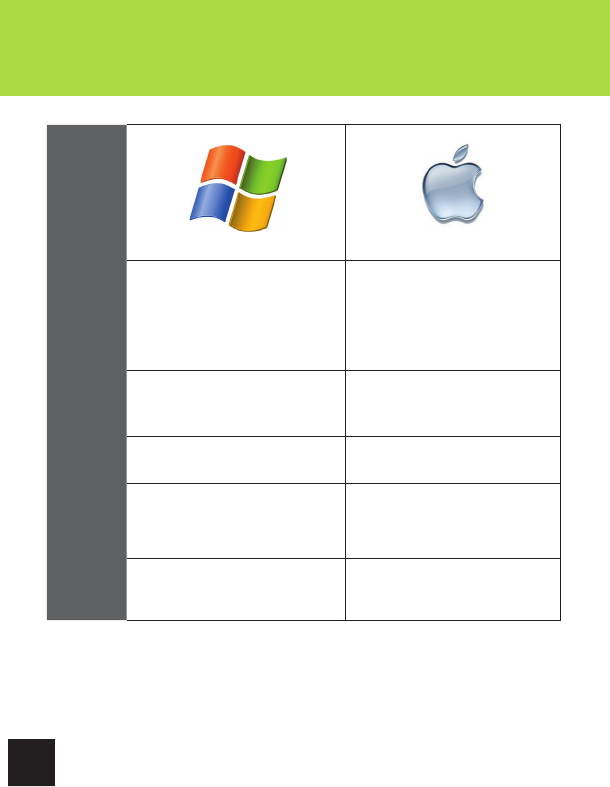
Platform
Windows Mac
Operating
System
Microsoft® Windows® 2000. Me, XP,
Vista, 7 or higher (32-bit or64-bit)
MAC OS X v10.4, 10.5
or higher preferred
Processor Intel Pentium II or AMD K6-2
300MHz or higher PowerPC G3 300MHz or higher
Including Intel-based Macs
RAM 128 MB 256 MB
Video Super VGA (800 X 600) or higher
resolution video adapter and monitor Super VGA (800 X 600) or higher
resolution video adapter and monitor
USB USB 2.0 USB 2.0

39
Getting Started
XXII. SUPPORT & REGISTRATION
Cruz Support is available at http://cruzsupport.velocitymicro.com. There
are a large number of informative knowledgebase articles to answer your
questions. You can also download the latest manual for your product. Once
registered at the site, you can register your product, submit tickets for
support, and administer your tickets and personal profile.
How Do I Get Support?
1. If you have not already done so, create a Support account for yourself at
our website: http://www.cruzreader.com/support
Note: Those customers who have purchased a Cruz product directly from
Velocity Micro may skip this step.
2. Then register your purchased Cruz products.
3. When complete, go to ‘My Products’ and submit a ticket for the product you
are seeking support for.
4. If you need to return your Cruz product for repair, you must first contact our
technical support for a RMA (Returned Merchandise Authorization).
Note: Proof of Purchase is required for RMA services. You create a ticket to
upload your Proof of Purchase.
40
Getting Started
XXIII. CONTACT INFO
Address
7510 Whitepine Road
Richmond, VA 23237
Phone
800-296-4312
Fax
804-897-4777
Websites
www.cruztablet.com
www.velocitymicro.com

41
Getting Started
XXIV. FCC INFORMATION
This device complies with Part 15 of the FCC Rules. Operation is subject to the fol-
lowing two conditions: (1) this device may not cause harmful interference, and (2)
this device must accept any interference received, including interference that may
cause undesired operation.
Changes or modifications not expressly approved by the party responsible for
compliance could void the user’s authority to operate the equipment.
NOTE: This equipment has been tested and found to comply with the limits for a
Class B digital device, pursuant to Part 15 of the FCC Rules. These limits are
designed to provide reasonable protection against harmful interference in a
residential installation. This equipment generates, uses and can radiate radio
frequency energy and, if not installed and used in accordance with the
instructions, may cause harmful interference to radio communications. However,
there is no guarantee that interference will not occur in a particular installation.
If this equipment does cause harmful interference to radio or television reception,
which can be determined by turning the equipment off and on, the user is
encouraged to try to correct the interference by one or more of the following
measures:
• Reorient or relocate the receiving antenna.
• Increase the separation between the equipment and receiver.
• Connect the equipment into an outlet on a circuit different from that to which the
receiver is connected.
• Consult the dealer or an experienced radio/TV technician for help.
FCC RF warning statement: The device has been evaluated to meet general RF
exposure requirement. The device can be used in portable exposure condition
without restriction.

XXV. WARRANTY INFO
A. CONTENT OF LIMITED WARRANTY
1. Velocity Micro Electronics, Inc. (“VME”) warrants hardware products against defects in materials
and workmanship for a period of one year from date of purchase (“Warranty Period”). The customer is
responsible for keeping all original proof of purchase documents during this time.
2. Concerning software products, VME Limited Warranty applies only to a failure to execute program-
ming instructions. VME does not guarantee the operation of any product will be uninterrupted or error
free.
3. VME Limited Warranty covers only those defects which arise as a result of normal use of the prod-
uct, and does not apply to:
a. Improper or inadequate maintenance or modification;
b. Software, interfacing, media, parts, and supplies not provided or supported by VME
4. If VME receives, during the applicable Warranty Period, notice of a defect in any hardware product,
which is covered by VME’s warranty, VME will either repair the product using new or refurbished re-
placement parts or replace the defective product with new or like-new product of the same model with
the same functionality as the original unit. If VME is unable to repair or replace the defective product,
the customer will either be offered a comparable model* (if available) or will be refunded the purchase
price of the defective product. When a product is exchanged, any replacement item becomes the
property of the customer and the replaced item becomes VME’s property. (* whose functionality is at
least equal to that of the product being replaced.)
5. VME shall have no obligation to replace or refund a defective product until the customer returns the
defective product to VME.
6. VME is not responsible (i) for any data stored on the returned products. Customers should backup
his/her data prior to shipping the unit back to VME. Hard drives and devices which include a hard disk
or other memory storage system will be reformatted during the repair process (even if the repair is
not related to the hard drive itself) and will not include the customer’s data when it is returned. (ii) for
protecting the confidentiality of any data on a product sent in for repair.
7. To get the latest updates and information about your Cruz, recommend that you register your war-
ranty. Please visit http://www.vmeonline.com and stay up to date!
8. VME’s limited warranty is only valid in the country of purchase.
9. VME does not warrant against damages incurred to the LCD screen. Devices returned with broken
LCD screen will be evaluated by a VME technician who will determine if such damage falls within the
scope of product neglect or misuse and hence whether or not it is guaranteed.
42

XXV. WARRANTY INFO
B.LIMITATIONS OF WARRANTY
To the extent allowed by local law, neither VME nor its third party suppliers make any other warranty
or condition of any kind, whether expressed or implied, with respect to the VME products, and specifi-
cally disclaim the implied warranties of conditions of merchantability, satisfactory quality, and
fitness for a particular purpose.
C. LOCAL LAW
This Warranty Statement gives the customer specific legal rights. The customer may also have
other rights that vary from state to state in the United States. To the extent that this Warranty
Statement is inconsistent with such local law, this Warranty Statement shall be deemed modified to
be consistent with such local law. Under such local law, certain disclaimers and limitations of this
Warranty Statement may not apply to the customer. For example, some states in the United States
may: preclude the disclaimers and limitations in this Warranty Statement from limiting the statutory
rights of a consumer; restrict the ability of a manufacturer to enforce such disclaimers or limitations;
or grant the customer additional warranty rights, specify the duration of implied warranties which the
manufacturer cannot disclaim, or not allow limitations on the duration of implied warranties.
7510 Whitepine Road, Richmond, VA 23237
www.vmeonline.com
For assistance, call Cruz Support:
1-800-296-4312
XXV. WARRANTY INFO
43
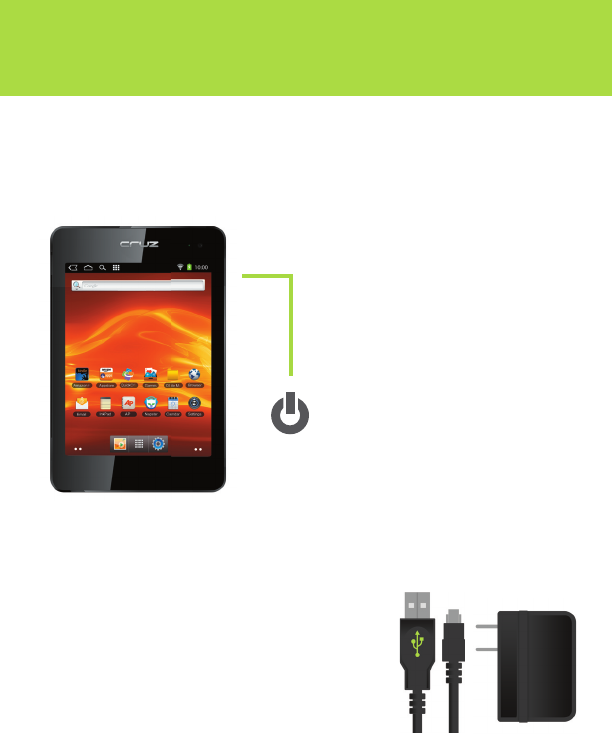
Thank you for choosing the Velocity Micro Cruz T408! We hope you enjoy
your premier Android device! To get started, first press and hold the power
button located on the right side of the device until the boot screen appears.
Upon your first boot-up, there
will be a series of on-screen
instructions that will guide
you on the initial set-up and
registration of your Cruz. These
instructions include Wi-Fi and
Email configuration. Please note
that these settings can be altered
at any time afterwards, but we
hope this initial guide will get you
cruzin’ up to speed!
For additional info on how to
operate your device, please refer
to the included Full User Guide.
Getting Started
THANKS FOR CHOOSING CRUZ
NOTE:
Your device is charged upon opening the package, but for the
best results, we advise you to charge the device with the included
accessories for a couple of hours.
This can be achieved either by connecting the
device via USB to a computer, or by connecting
via the USB and AC Adapter.
CRUZTABLET.COM/SUPPORT

CruzTablet.com