Vidikron Vl 52 Users Manual 52_VL 57manual
VL-57 to the manual 182f228c-7f1c-4143-9c86-2057a927b8c4
2015-02-03
: Vidikron Vidikron-Vl-52-Users-Manual-455484 vidikron-vl-52-users-manual-455484 vidikron pdf
Open the PDF directly: View PDF  .
.
Page Count: 76
- ONE YEAR LIMITED WARRANTY
- Important Safety Instructions
- Compliance Information
- 1 Introduction
- 2 Controls and Functions
- 3 Installation
- 3.1 Remote Control
- 3.2 Quick Setup
- 3.3 Installation Considerations
- 3.4 Connections to the DView
- Connecting the DView to Source Components
- AV OUT Connection
- Connecting Headphones
- Connecting External Speakers (Optional)
- Connecting to a Dolby Digital Amplifier
- RS-232 Controller Connection
- 4 Operation
- 4.1 Turning on the Power
- 4.2 Changing the OSD Language
- 4.3 Setting the PC Display Properties
- 4.4 Using the On-Screen Menus
- 4.5 Using Picture-In-Picture (PIP)
- 4.6 Stereo Sound/SAP (VL-52 only)
- 5 Maintenance and Troubleshooting
- 6 Serial Communications
- 7 Specifications
VL-52 and VL-57
1080p HIGH-DEFINITION LCD FLAT PANEL DISPLAYS
OWNER’S OPERATING MANUAL


Vidikron VL-52 and VL-57 Owner’s Operating Manual iii
PRELIMINARY
ONE YEAR LIMITED WARRANTY
For LCD Displays
Congratulations on your purchase of a Vidikron video product and welcome to the Vidikron family! With proper installation, setup
and care, you should enjoy many years of unparalleled video performance.
This is a LIMITED WARRANTY as defined in the Magnuson-Moss Warranty Act. Please read it carefully and retain it with your other
important documents.
SERVICE LABOR: Vidikron will pay for service labor by Vidikron Authorized Service Center when needed as a result of a
manufacturing defect for a period of one (1) year from the effective date of delivery to the end user.
PARTS: Vidikron will provide new or rebuilt replacement parts for the parts that fail due to defects in materials or workmanship for
a period of one (1) year from the effective date of delivery to the end user. Such replacement parts are then subsequently
warranted for the remaining portion (if any) of the original warranty period.
Image retention on LCD display panels is specifically excluded from coverage under this Limited Warranty. Image retention or
staining of an image is the result of misuse of the product and therefore cannot be repaired under the terms of this Limited
Warranty.
Normal viewing material such as television/satellite broadcasts, videotape or DVDs (not put into pause for extended periods of
time) will not cause damage to your display under normal conditions. Many DVD players are also equipped with screen savers for
this reason.
TO AVOID IMAGE RETENTION (Burn-in): Please ensure that still images are not left on your LCD display panel. Also ensure that
images displayed in the 4:3 aspect ratio mode (black or gray stripes, but no picture information is present on the left and right
edges of the screen) are used as infrequently as possible. This will prevent permanent retention on your LCD display panel, which
can be seen permanently under certain conditions once burn-in has occurred.
The types of images to avoid include video games, still images and computer screens with stationary tool bars and icons. (This is
why computers are equipped with screen savers – to prevent still images from burning into the monitor’s phosphors after being
displayed continuously for an extended period of time).
This Limited Warranty only covers failure due to defects in materials and workmanship that occur during normal use and does not
cover normal maintenance. This Limited Warranty does not cover cabinets or any appearance items; failure resulting from
accident, misuse, abuse, neglect, mishandling, misapplication, faulty or improper installation or setup adjustments; improper
maintenance, alteration, improper use of any input signal; damage due to lightning or power line surges, spikes and brownouts;
damage that occurs during shipping or transit; or damage that is attributed to acts of God. In the case of remote control units,
damage resulting from leaking, old, damaged or improper batteries is also excluded from coverage under this Limited Warranty.
CAUTION: THIS LIMITED WARRANTY ONLY COVERS VIDIKRON PRODUCTS PURCHASED FROM VIDIKRON AUTHORIZED DEALERS.
ALL OTHER PRODUCTS ARE SPECIFICALLY EXCLUDED FROM COVERAGE UNDER THIS LIMITED WARRANTY. MOREOVER, DAMAGE
RESULTING DIRECTLY OR INDIRECTLY FROM IMPROPER INSTALLATION OR SETUP IS SPECIFICALLY EXCLUDED FROM COVERAGE
UNDER THIS LIMITED WARRANTY. IT IS IMPERATIVE THAT INSTALLATION AND SETUP WORK BE PERFORMED ONLY BY AN
AUTHORIZED VIDIKRON DEALER TO PROTECT YOUR RIGHTS UNDER THIS WARRANTY. THIS WILL ALSO ENSURE THAT YOU ENJOY
THE FINE PERFORMANCE OF WHICH YOUR VIDIKRON PRODUCT IS CAPABLE WHEN INSTALLED AND CALIBRATED BY VIDIKRON
AUTHORIZED PERSONNEL.
WHAT IS COVERED UNDER THE TERMS OF THIS LIMITED WARRANTY:
WHAT IS NOT COVERED UNDER THE TERMS OF THIS LIMITED WARRANTY:

iv Vidikron VL-52 and VL-57 Owner’s Operating Manual
PRELIMINARY
Vidikron limits its obligations under any implied warranties under state laws to a period not to exceed the warranty period. There
are no express warranties. Vidikron also excludes any obligation on its part for incidental or consequential damages related to the
failure of this product to function properly. Some states do not allow limitations on how long an implied warranty lasts, and some
states do not allow the exclusion or limitation of incidental or consequential damages. So the above limitations or exclusions may
not apply to you. This warranty gives you specific legal rights, and you may also have other rights that vary from state to state.
This warranty begins on the effective date of delivery to the end user. For your convenience, keep the original bill of sale as
evidence of the purchase date.
Please fill out and mail your warranty registration card. It is imperative that Vidikron knows how to reach you promptly if we should
discover a safety problem or product update for which you must be notified.
Repairs made under the terms of this Limited Warranty covering your Vidikron video product will be performed at the location of
the product, during usual working hours, providing location of product is within normal operating distance from a Vidikron
Authorized Service Center. In some instances it may be necessary for the product to be returned to the Vidikron factory for repairs.
If, solely in Vidikron’s judgment, location of product to be repaired is beyond normal operating distance of the closest Vidikron
Authorized Service Center, or the repair requires the unit be returned to the Vidikron factory, it is the owner’s responsibility to
arrange for shipment of the product for repair. These arrangements must be made through the selling Vidikron Dealer. If this is not
possible, contact Vidikron directly for a Return Authorization number and shipping instructions. Vidikron will return product
transportation prepaid in the United States, unless no product defect is discovered. In that instance, shipping costs will be the
responsibility of the owner.
© Copyright 2007 Vidikron, a Runco International Company. This document contains proprietary information protected by
copyright, trademark and other intellectual property laws. All rights are reserved. No part of this manual may be reproduced by any
mechanical, electronic or other means, in any form, without prior written permission of the manufacturer.
Vidikron, Vision, DVSI, Imagix, CineWide, AutoScope, V2 Aperture Control, CSMS and IntelliWide are trademarks of Runco, LLC,
licensed to Vidikron, a division of Runco International. All other trademarks and registered trademarks used in this document are
the property of their respective owners.
Vidikron products are manufactured under one or more of the following patents: US. Patent 6755540 and Other Patents Pending.
RIGHTS, LIMITS AND EXCLUSIONS:
EFFECTIVE WARRANTY DATE:
IMPORTANT -- WARRANTY REGISTRATION:
CONTACT A VIDIKRON AUTHORIZED SERVICE CENTER TO OBTAIN SERVICE:
COPYRIGHT AND TRADEMARKS:

Vidikron VL-52 and VL-57 Owner’s Operating Manual v
PRELIMINARY
To locate the name and address of the nearest Vidikron Authorized Service Center, or for additional information about this Limited
Warranty, please call or write:
VIDIKRON
Attn: Customer Service Department
2900 Faber Street
Union City, CA 94587
Ph: (510) 324-5900
Fax: (510) 324-5905
Toll Free: (888) 4VIDIKRON
VIDIKRON PRODUCT INFORMATION
RETAIN THIS INFORMATION FOR YOUR RECORDS
_________________________________________________________ ________________________________________
Model Purchased Date
____________________________________________________________________________________________________________
Serial Number
____________________________________________________________________________________________________________
Vidikron Authorized Dealer Name
____________________________________________________________________________________________________________
Address
____________________________________________ __________________ ________________________
City State/Province Postal Code
____________________________________________ _________________________________________________________
Phone Fax
ADDITIONAL INFORMATION:
vi Vidikron VL-52 and VL-57 Owner’s Operating Manual
PRELIMINARY
Thank you for your purchase of this quality Vidikron product! For best performance, please read this manual carefully as it is your
guide through the menus and operation.
1. Read these instructions.
2. Keep these instructions.
3. Heed all warnings.
4. Follow all instructions.
5. Do not use this apparatus near water.
6. Clean only with a dry cloth.
7. Do not block any of the ventilation openings. Install in accordance with the manufacturer’s instructions.
8. Do not install near any heat sources such as radiators, heat registers, stoves, or other apparatus (including amplifiers) that
produce heat.
9. Do not defeat the safety purpose of the polarized or grounding type plug. A polarized plug has two blades with one wider
than the other. A grounding type plug has two blades and a third grounding prong. The wide blade or the third prong is
provided for your safety. When the provided plug does not fit into your outlet, consult an electrician for the replacement of the
obsolete outlet.
10. Protect the power cord from being walked on or pinched particularly at plugs, convenience receptacles and the point where
they exit from the apparatus.
11. Only use the attachments/accessories specified by Vidikron.
12. Use only with a cart, stand, tripod, bracket or table specified by the manufacturer or sold with the apparatus. When
a cart is used, use caution when moving the cart/apparatus to avoid injury from tip-over.
13. Unplug this apparatus during lightning storms or when unused for long periods of time.
14. Refer all servicing to qualified service personnel. Servicing is required when the apparatus has been damaged in
any way, such as power supply cord or plug is damaged, liquid has been spilled or objects have fallen into the apparatus, the
apparatus has been exposed to rain or moisture, does not operate normally, or has been dropped.
Important Safety Instructions
WARNING
This symbol is intended to alert the user to the presence of
uninsulated “dangerous voltage” within the product’s enclosure that
may be of sufficient magnitude to constitute a risk of electric shock.
This symbol is intended to alert the user to the presence of important
operating and maintenance (servicing) instructions in the literature
accompanying the appliance.
CAUTION
RISK OF ELECTRIC SHOCK
DO NOT OPEN
CAUTION:
TO REDUCE THE RISK OF ELECTRIC SHOCK
DO NOT REMOVE COVER (OR BACK)
NO USER SERVICEABLE PARTS INSIDE.
REFER SERVICING TO QUALIFIED
SERVICE PERSONNEL.

Vidikron VL-52 and VL-57 Owner’s Operating Manual vii
PRELIMINARY
Manufacturer’s Name: Vidikron, a subsidiary of Planar Systems, Inc.
Manufacturer’s Address: 2900 Faber Street, Union City, CA 94587
hereby declares that the products Model Numbers:
VL-52, VL-57
conform with the provisions of:
Council Directive 2004/108/EC on Electromagnetic Compatibility;
EN 55022 “Limits and methods of measurements of radio interference characteristics of information technology equipment” 1998;
EN 55024 “Limits and methods of measurements of immunity characteristics of information technology equipment” 1998;
Including:
• EN 61000-4-2 “Electromagnetic compatibility (EMC) Part 4: Testing and measurement techniques Section 2: Electrostatic
discharge immunity test”
• EN 61000-4-3 “Electromagnetic compatibility (EMC) Part 4: Testing and measurement techniques Section 3: Radiated,
Radio-Frequency, Electromagnetic Field Immunity Test”
• EN 61000-4-4 “Electromagnetic compatibility (EMC) Part 4: Testing and measurement techniques Section 4: Electrical fast
transient/burst immunity test”
• EN 61000-4-5 "Electromagnetic compatibility (EMC) Part 4: Testing and measurement techniques Section 5: Surge immunity
test"
• EN 61000-4-6 "Electromagnetic compatibility (EMC) Part 4: Testing and measurement techniques Section 6: Conducted
disturbances induced by radio-frequency fields immunity test"
• EN 61000-4-8 "Electromagnetic compatibility (EMC) Part 4: Testing and measurement techniques Section 8: Conducted
disturbances induced by power frequency magnetic fields immunity test"
• EN 61000-4-11 "Electromagnetic compatibility (EMC) Part 4: Testing and measurement techniques Section 11: Voltage dips,
short interruptions and voltage variations immunity tests"
And:
• EN 61000-3-2 "Electromagnetic compatibility (EMC) Part 3, Section 2: Limits for harmonic current emissions (equipment input
current up to and including 16 A per phase)" 2000;
• EN 61000-3-3 "Electromagnetic compatibility (EMC) Part 3, Section 3: Limitations of voltage changes, voltage fluctuations and
flicker in public low-voltage supply systems, for equipment with rated current up to and including 16 A and not subject to
conditional connection" 1995;
Council Directive 2006/95/EC and amended by M1 and C1 on Low Voltage Equipment Safety;
EN 60950 “Safety of information technology equipment, including electrical business equipment”
The Technical Construction file required by this Directive is maintained at the corporate headquarters of Planar Systems, Inc., 1195
NW Compton Drive, Beaverton, OR 97006.
Compliance Information
DECLARATION OF CONFORMITY:
viii Vidikron VL-52 and VL-57 Owner’s Operating Manual
PRELIMINARY
NOTE: This equipment has been tested and found to comply with the limits for a Class B digital device, pursuant to Part 15 of the
FCC Rules. These limits are designed to provide reasonable protection against harmful interference in a residential installation.
This equipment generates, uses and can radiate radio frequency energy and, if not installed and used in accordance with the
instructions, may cause harmful interference to radio communications. However, there is no guarantee that interference will not
occur in a particular installation. If this equipment does cause harmful interference to radio or television reception, which can be
determined by turning the equipment off and on, the user is encouraged to try to correct the interference by one or more of the
following measures:
• Reorient or relocate the receiving antenna.
• Increase the separation between the equipment and receiver.
• Connect the equipment into an outlet on a circuit different from that to which the receiver is connected.
• Consult the dealer or an experienced radio/TV technician for help.
This Class B digital apparatus complies with Canadian ICES-003.
Cet appareil numérique de la classe B est conforme à la norme NMB-003 du Canada.
Lamp(s) inside this product contain mercury. This product may contain other electronic waste that can be hazardous if
not disposed of properly. Recycle or dispose in accordance with local, state, or federal Laws.
For more information, contact the Electronic Industries Alliance at WWW.EIAE.ORG.
For lamp specific disposal information check WWW.LAMPRECYCLE.ORG.
This symbol found on your product or on its packaging, indicates that this product should not be treated as
household waste when you wish to dispose of it. Instead, it should be handed over to an applicable collection
point for the recycling of electrical and electronic equipment. By ensuring this product is disposed of correctly,
you will help prevent potential negative consequences to the environment and human health, which could
otherwise be caused by inappropriate disposal of this product. The recycling of materials will help to conserve
natural resources. This symbol is only valid in the European Union. If you wish to discard this product, please
contact your local authorities or dealer and ask for the correct method of disposal.
FCC PART 15:
INDUSTRY CANADA (ICES-003):
IMPORTANT RECYCLE INSTRUCTIONS
DISPOSAL OF OLD ELECTRICAL AND ELECTRONIC EQUIPMENT (Applicable throughout the European Union and other
European countries with separate collection programs)

Vidikron VL-52 and VL-57 Owner’s Operating Manual ix
1Table of Contents
PRELIMINARY
ONE YEAR LIMITED WARRANTY .............................................................................................. iii
Important Safety Instructions ................................................................................................. vi
Compliance Information .........................................................................................................vii
1. Introduction ........................................................................................................................ 1
About This Manual ............................................................................................................................................ 1
Target Audience......................................................................................................................................... 1
If You Have Comments About This Manual... .................................................................................. 1
Textual and Graphic Conventions ....................................................................................................... 1
Using This Manual ............................................................................................................................................. 2
Description, Features and Benefits ............................................................................................................. 3
Key Features and Benefits....................................................................................................................... 3
Parts List ....................................................................................................................................................... 4
2. Controls and Functions ...................................................................................................... 5
DView at a Glance .............................................................................................................................................. 5
Controls and Indicators ........................................................................................................................... 5
DView Inputs and Outputs ..................................................................................................................... 6
DView Remote Control .................................................................................................................................... 9
3. Installation ........................................................................................................................13
Remote Control ................................................................................................................................................ 13
Battery Installation ..................................................................................................................................13
Notes on Remote Control Operation................................................................................................13
Quick Setup .......................................................................................................................................................14
Installation Considerations ..........................................................................................................................15
Wall-Mounting the DView ....................................................................................................................15
Ambient Light ...........................................................................................................................................15
Other Considerations .............................................................................................................................15
Connections to the DView ...........................................................................................................................16
Connecting the DView to Source Components ...........................................................................16
AV OUT Connection ................................................................................................................................20
Connecting Headphones......................................................................................................................20
Connecting External Speakers (Optional).......................................................................................21
Connecting to a Dolby Digital Amplifier .........................................................................................21
RS-232 Controller Connection ............................................................................................................22

Table of Contents
x Vidikron VL-52 and VL-57 Owner’s Operating Manual
PRELIMINARY
4. Operation .......................................................................................................................... 23
Turning on the Power ....................................................................................................................................23
Changing the OSD Language .....................................................................................................................23
Setting the PC Display Properties ..............................................................................................................24
Using the On-Screen Menus ........................................................................................................................25
Main Menu ................................................................................................................................................27
Source .........................................................................................................................................................27
Aspect Ratio ..............................................................................................................................................27
Picture Adjust............................................................................................................................................29
Audio ...........................................................................................................................................................33
Channel (VL-52 only) .............................................................................................................................34
Timer (VL-52 only) ...................................................................................................................................35
Setup ............................................................................................................................................................36
ISF Calibration ..........................................................................................................................................40
Using Picture-In-Picture (PIP) ...................................................................................................................... 43
Changing the PIP Position....................................................................................................................45
Changing the PIP Size ............................................................................................................................45
Changing the PIP Aspect Ratio ...........................................................................................................45
Swapping the Main and PIP Images .................................................................................................46
Swapping the Main and PIP Audio Programs ...............................................................................46
Stereo Sound/SAP (VL-52 only) ..................................................................................................................47
5. Maintenance and Troubleshooting ................................................................................49
Cleaning .............................................................................................................................................................. 49
Cleaning the Display Panel Body and Remote Control.............................................................. 49
Cleaning the Screen................................................................................................................................49
Cleaning the Vents ..................................................................................................................................49
Troubleshooting Tips .....................................................................................................................................49
6. Serial Communications .................................................................................................... 51
RS-232 Connection and Port Configuration ..........................................................................................51
Serial Command Syntax ................................................................................................................................51
7. Specifications .................................................................................................................... 57
DView Specifications ......................................................................................................................................57
DView Dimensions ..........................................................................................................................................59
Computer Signal Compatibility ..................................................................................................................61

Vidikron VL-52 and VL-57 Owner’s Operating Manual xi
PRELIMINARY
1List of Figures
2-1. DView Controls and Indicators . . . . . . . . . . . . . . . . . . . . . . . . . . . . . . . . . . . . . . . . . . . . . . . . . . . . . . . . . . 5
2-2. DView Rear-Panel Inputs and Outputs . . . . . . . . . . . . . . . . . . . . . . . . . . . . . . . . . . . . . . . . . . . . . . . . . . . 6
2-3. DView Remote Control. . . . . . . . . . . . . . . . . . . . . . . . . . . . . . . . . . . . . . . . . . . . . . . . . . . . . . . . . . . . . . . . . . 9
3-1. Antenna/Cable TV Connection . . . . . . . . . . . . . . . . . . . . . . . . . . . . . . . . . . . . . . . . . . . . . . . . . . . . . . . . . 16
3-2. HDMI Connections. . . . . . . . . . . . . . . . . . . . . . . . . . . . . . . . . . . . . . . . . . . . . . . . . . . . . . . . . . . . . . . . . . . . . 17
3-3. Analog RGB Connections. . . . . . . . . . . . . . . . . . . . . . . . . . . . . . . . . . . . . . . . . . . . . . . . . . . . . . . . . . . . . . . 18
3-4. Component Video Connections . . . . . . . . . . . . . . . . . . . . . . . . . . . . . . . . . . . . . . . . . . . . . . . . . . . . . . . . 19
3-5. Composite and S-Video Connections . . . . . . . . . . . . . . . . . . . . . . . . . . . . . . . . . . . . . . . . . . . . . . . . . . . 19
3-6. AV OUT Connections. . . . . . . . . . . . . . . . . . . . . . . . . . . . . . . . . . . . . . . . . . . . . . . . . . . . . . . . . . . . . . . . . . . 20
3-7. Connecting Headphones. . . . . . . . . . . . . . . . . . . . . . . . . . . . . . . . . . . . . . . . . . . . . . . . . . . . . . . . . . . . . . . 20
3-8. External Speaker Connection. . . . . . . . . . . . . . . . . . . . . . . . . . . . . . . . . . . . . . . . . . . . . . . . . . . . . . . . . . . 21
3-9. Digital Audio Connection . . . . . . . . . . . . . . . . . . . . . . . . . . . . . . . . . . . . . . . . . . . . . . . . . . . . . . . . . . . . . . 21
3-10. RS-232 Control System Connection . . . . . . . . . . . . . . . . . . . . . . . . . . . . . . . . . . . . . . . . . . . . . . . . . . . 22
4-1. DView OSD Menu Structure . . . . . . . . . . . . . . . . . . . . . . . . . . . . . . . . . . . . . . . . . . . . . . . . . . . . . . . . . . . . 26
4-2. Typical PLUGE Pattern for Adjusting Brightness . . . . . . . . . . . . . . . . . . . . . . . . . . . . . . . . . . . . . . . . . 29
4-3. Typical Gray Bar Pattern for Adjusting Contrast . . . . . . . . . . . . . . . . . . . . . . . . . . . . . . . . . . . . . . . . . 30
4-4. Typical Color Bar Pattern for Adjusting Color Saturation and Tint . . . . . . . . . . . . . . . . . . . . . . . . 31
4-5. Typical Test Pattern for Adjusting Sharpness. . . . . . . . . . . . . . . . . . . . . . . . . . . . . . . . . . . . . . . . . . . . 32
4-6. DView Splash Screen. . . . . . . . . . . . . . . . . . . . . . . . . . . . . . . . . . . . . . . . . . . . . . . . . . . . . . . . . . . . . . . . . . . 42
7-1. VL-52 Dimensions . . . . . . . . . . . . . . . . . . . . . . . . . . . . . . . . . . . . . . . . . . . . . . . . . . . . . . . . . . . . . . . . . . . . . 59
7-2. VL-57 Dimensions . . . . . . . . . . . . . . . . . . . . . . . . . . . . . . . . . . . . . . . . . . . . . . . . . . . . . . . . . . . . . . . . . . . . . 60

List of Figures
xii Vidikron VL-52 and VL-57 Owner’s Operating Manual
PRELIMINARY
Notes:
Vidikron VL-52 and VL-57 Owner’s Operating Manual 1
PRELIMINARY
1.1
About This Manual
This Owner’s Manual describes how to install, set up and operate the Vidikron DView™
VL-52/VL-57 Flat-Panel LCDs. Throughout this manual, the Vidikron DView™ VL-52/VL-57
Flat-Panel LCDs are referred to simply as the “DView.”
Target AudienceVidikron has prepared this manual to help home theater installers and end users get the
most out of the DView.
Vidikron has made every effort to ensure that this manual is accurate as of the date it was
printed. However, because of ongoing product improvements and customer feedback, it
may require updating from time to time. You can always find the latest version of this and
other Vidikron product manuals on-line, at www.Vidikron.com.
If You Have Comments About
This Manual...
Vidikron welcomes your comments about this manual. Send them to info@Vidikron.com.
Textual and Graphic
Conventions
Text Conventions: The following conventions are used in this manual, in order to clarify the
information and instructions provided:
• Remote control button identifiers are set in upper-case bold type; for example, “Press EXIT
to return to the previous menu.”
• Computer input (commands you type) and output (responses that appear on-screen) is
shown in monospace (fixed-width) type; for example: “To change the aspect ratio to
Letterbox, type [S4E0002.”
• All keys with functional names are initial-capped, set in bold type and enclosed in angle
brackets. These keys are the following: <Enter>, <Spacebar>, <Control>, <Esc>
and <Tab>.
•<Enter> indicates that you may press either the RETURN or ENTER key on your computer
keyboard if it has both keys.
In addition to these conventions, underlining, boldface and/or italics are occasionally used to
highlight important information, as in this example:
1Introduction
A carriage return must be used after each command or string.
Note
Introduction
2 Vidikron VL-52 and VL-57 Owner’s Operating Manual
PRELIMINARY
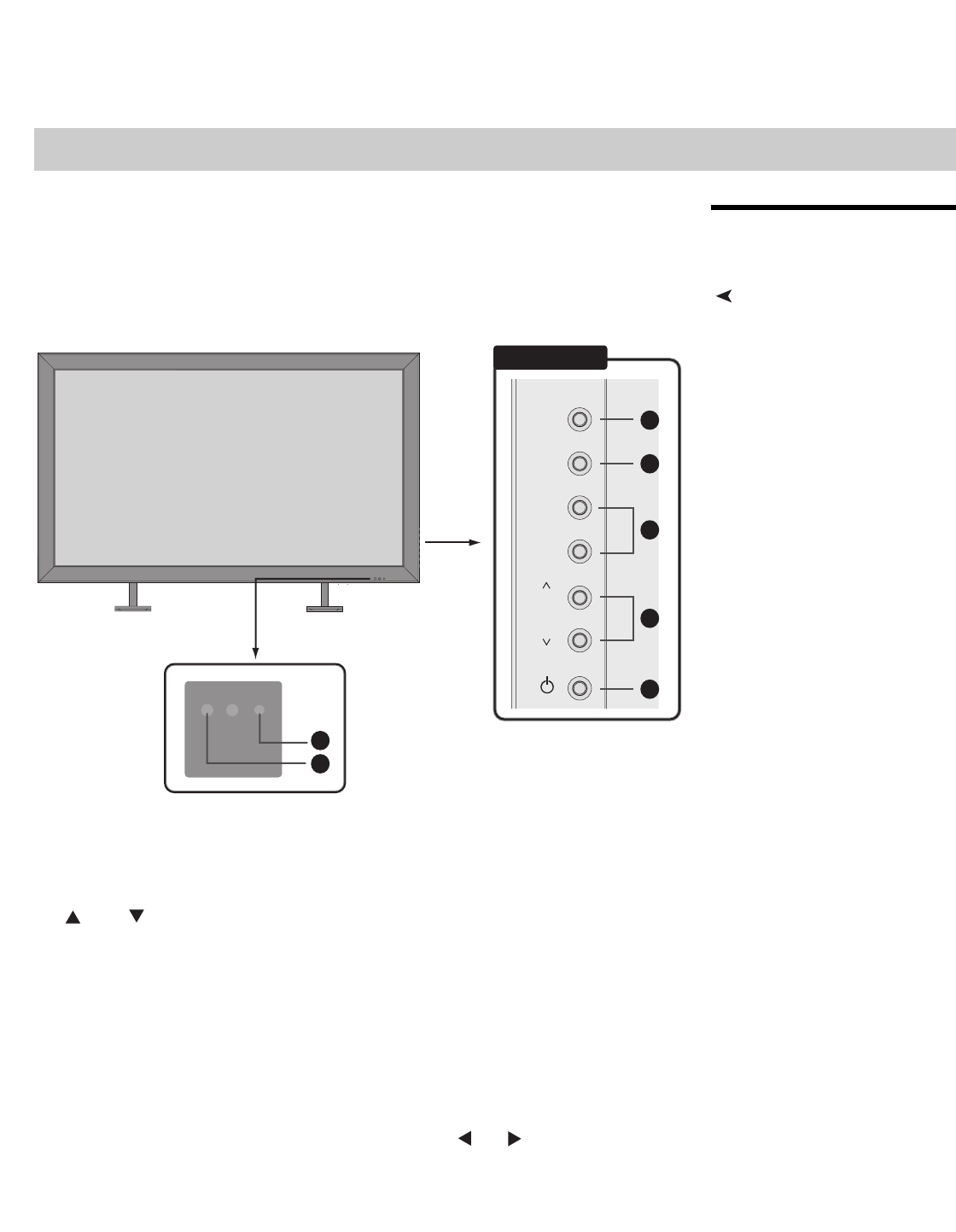
Graphic Conventions: These symbols appear in numerous places throughout the manual,
to emphasize points that you must keep in mind to avoid problems with your equipment or
injury:
1.2
Using This Manual
Use the following table to locate the specific information you need in this manual.
TIPS highlight time-saving short cuts and helpful guidelines for using
certain features.
NOTES emphasize text with unusual importance or special significance.
They also provide supplemental information.
CAUTIONS alert users that a given action or omitted action can degrade
performance or cause a malfunction.
WARNINGS appear when a given action or omitted action can result in
damage to the equipment, or possible non-fatal injury to the user.
DANGER appears when a given action can cause severe injury or death.
Tip
Note
Caution
WARNING
DANGER!
If you need... ... Turn to page:
Information about obtaining service iv
General information about the DView™
VL-52/VL-57 Flat-Panel LCDs
3
Installation instructions 13
First-time configuration instructions 23
Advanced configuration instructions 40
Troubleshooting tips 49
Specifications for the DView™ VL-52/VL-57
Flat-Panel LCDs
57

Introduction
Vidikron VL-52 and VL-57 Owner’s Operating Manual 3
PRELIMINARY
1.3
Description, Features and
Benefits
Vidikron presents the DView™ VL-52/VL-57 Flat-Panel LCDs, perfect for those who demand
our award-winning flat panel performance along with advanced LCD technology and
lightweight design.
The DView incorporates the superb Imagix™ digital video processing that produces
outstanding picture quality with a wide range of both standard and high definition source
material. In addition, the DView includes the complete Imaging Science Foundation™ (ISF)
calibration suite to deliver the absolute best images possible under multiple viewing
conditions.
The DView Model VL-52 also features a built-in ATSC tuner that receives terrestrial DTV
broadcasts, in addition to an advanced, 185-channel, cable-ready NTSC stereo tuner. The
VL-52 offers PIP, PBP, closed captioning, Parental Control (V-Chip) functionality and
multi-language support. The display includes an integrated stereo audio system
incorporating surround sound technology and generous power amplification.
The advanced, TFT active-matrix liquid crystal display panel offers 1920 x 1080 resolution
and includes Vidikron’s discrete aspect ratio control with IntelliWide™ mode to fill the 16:9
screen with standard 4:3 images without loss of picture quality. Also included are discrete
source, aspect ratio and power selection and an RS-232 interface for whole-house or
automated control system integration.
The DView is multimedia-ready, with simple computer connections making gaming, Internet
browsing and other computing activities quick and easy.
Key Features and BenefitsThe DView offers these key features and benefits:
• Native Resolution: 1920 x 1080 (16:9 Native aspect ratio)
• Multiple aspect ratios with IntelliWide™ mode
• Less than 5 inches deep
• Two HDMI Inputs with High-bandwidth Digital Content Protection (HDCP)
• Model VL-52 has built-in HDTV Tuner
• Exceptional detail and artifact-free video enhancement
• Vidikron video processing with 3:2 film detection circuitry

Introduction
4 Vidikron VL-52 and VL-57 Owner’s Operating Manual
PRELIMINARY
Parts List Your DView is shipped with the following items. If any items are missing or damaged, please
contact your Vidikron dealer or Vidikron Customer Service at (888) 4VIDIKRON.
• VL-52 or VL-57 LCD Display (with Table Stand)
•Remote Control Unit and two (2), AAA-size batteries
• AC Power Cord
• Warranty information and registration card
• Vidikron VL-52 and VL-57 Owner’s Operating Manual (this document)
Optional Accessories:
• Wall Mount kit
➤
Vidikron VL-52 and VL-57 Owner’s Operating Manual 5
PRELIMINARY
2.1
DView at a Glance
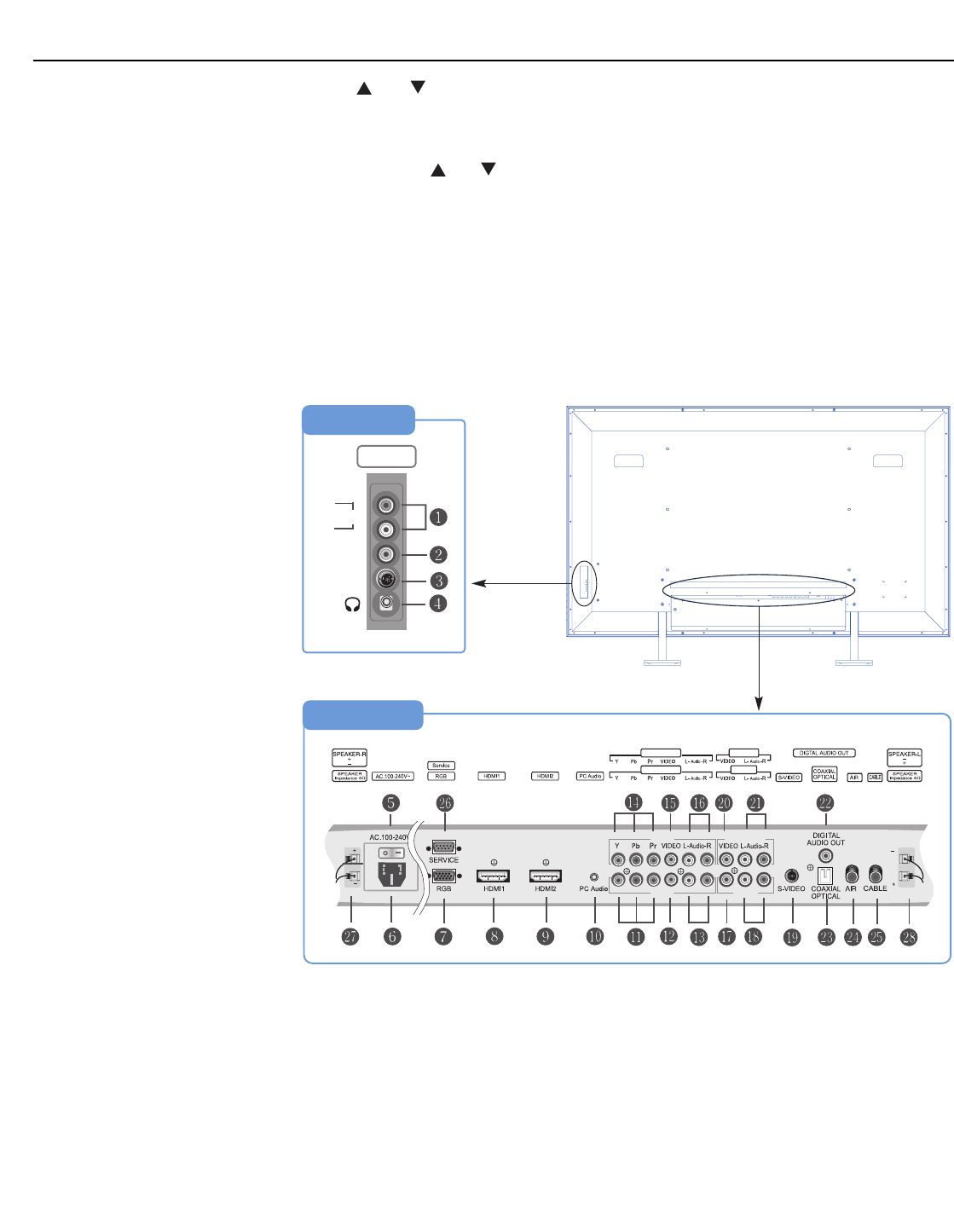
Controls and IndicatorsFigure 2-1 shows the locations of the DView controls and indicators.
Figure 2-1. DView Controls and Indicators
1. TV/AV Button (Input Source Selection)
To select a source, press the TV/AV button (with no menus visible on-screen). Use the CH
or CH button (see below) to highlight the desired input source and press TV/AV
again.
When a menu is visible on-screen, this button operates identically to the ENTER button
on the DView remote control unit (refer to DView Remote Control on page 9).
2. MENU Selection Button
Press this button to access the on-screen display (OSD) controls, or to exit the current
menu and return to the previous one.
3. Volume Adjustment Buttons (VOL - / VOL +)
Use these buttons to adjust the sound volume. When a menu is visible on-screen, these
buttons operate identically to the left- and right-arrow ( and ) buttons on the DView
remote control unit.
2Controls and Functions
TV/AV
MENU
+
–
VOL
CH
Right Side
7
6
1
2
3
4
5
Controls and Functions
6 Vidikron VL-52 and VL-57 Owner’s Operating Manual
PRELIMINARY
4. CH / CH
Use these buttons to scroll through available TV channels (VL-52 only).
When a menu is visible on-screen, these buttons operate identically to the up- and
down-arrow ( and ) buttons on the DView remote control unit.
5. Power Button
6. Remote Control Sensor
7. Status Indicator LED
- Lights red to indicate that the DView is in standby mode;
- Lights green during power-on sequence and during normal operation;
- Flashes green when the DView receives a signal from the remote control.
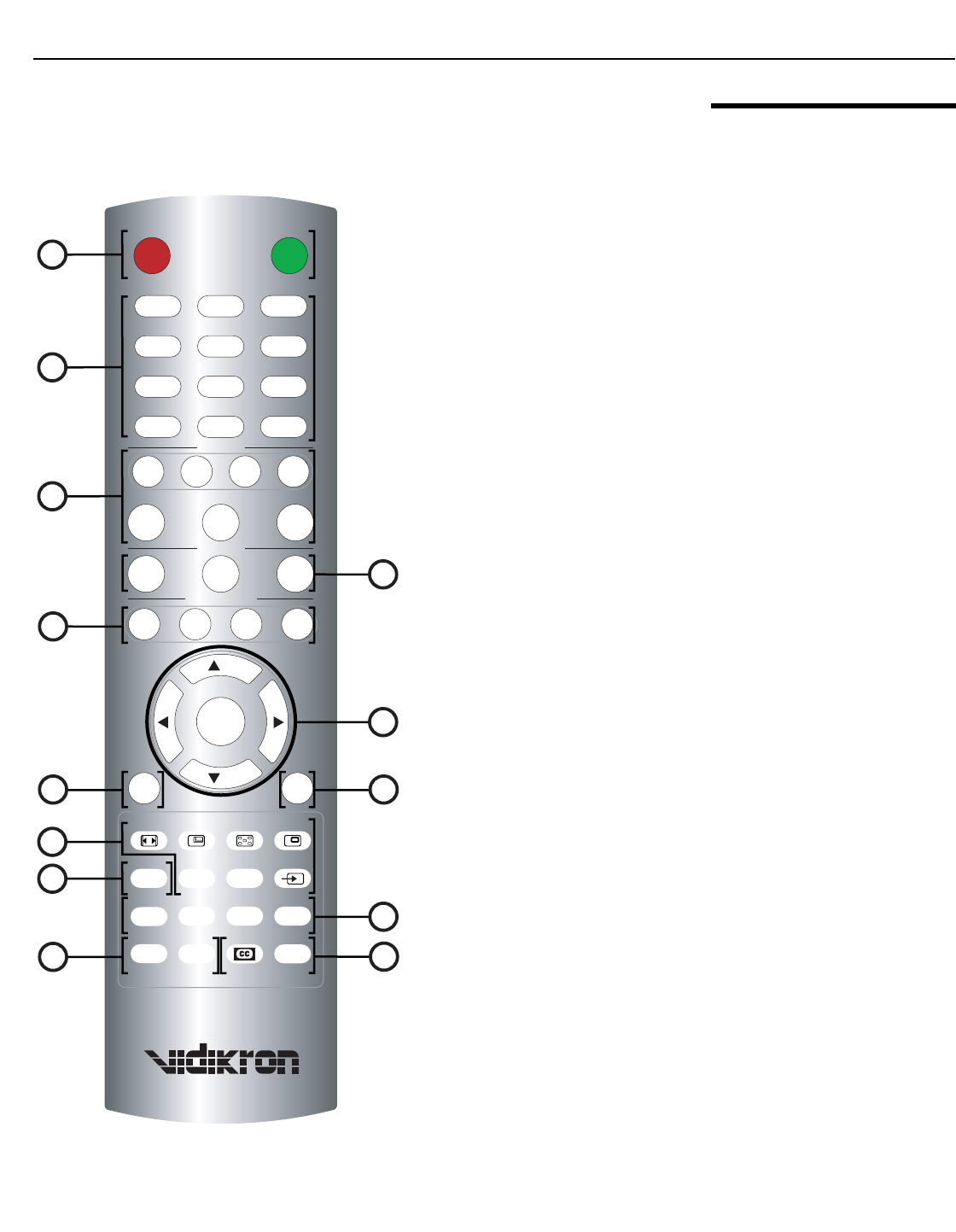
DView Inputs and Outputs Figure 2-2 shows the locations of the DView inputs and outputs.
Figure 2-2. DView Rear-Panel Inputs and Outputs
1. INPUT2 Audio Input
2. INPUT2 Composite Video Input
Standard composite video input for connecting a VCR, camcorder, laser disc player or
other composite video source.
➤
L
R
Rear
INPUT2
INPUT4
INPUT3
INPUT4
INPUT3 INPUT1
INPUT1
S-VIDEO
VIDEO
Audio
Right Side
Monitor-Out
Monitor-Out

Controls and Functions
Vidikron VL-52 and VL-57 Owner’s Operating Manual 7
PRELIMINARY
3. INPUT2 S-Video Input
Standard S-Video input for connecting a DVD player, satellite receiver or Super VHS
(S-VHS) VCR.
4. Headphone Jack
5. Main Power Switch
6. Power Input (100 to 240 VAC)
Connect the DView to power here.
7. RGB
A 15-pin VGA connection to a personal computer. The DView automatically detects the
signal resolution.
8.HDMI1/Computer Input (Digital)
9. HDMI2/Computer Input (Digital)
Two, HDCP-compliant digital video inputs for connecting a DVD player, personal
computer or HD tuner with a DVI or HDMI output.
10. PC Audio Input
Connect the audio output from a personal computer here.
11. INPUT3 Component Video (RCA connectors)
Standard-definition (480i/576i) or high-definition (720p/1080i), YPrPb component input.
This is the input for component video from sources such as DVD players.
12. INPUT3 Composite Video Input
13. INPUT3 Audio Input
Connect the audio output from your Input 3 source here.
14. INPUT4 Component Video (RCA connectors)
Standard-definition (480i/576i) or high-definition (720p/1080i), YPrPb component input.
This is the input for component video from sources such as DVD players.
15. INPUT4 Composite Video Input
16. INPUT4 Audio Input
Connect the audio output from your Input 4 source here.
17. INPUT1 Composite Video Input
18.INPUT1 Audio Input
Connect the audio output from your Input 1 source here.
19. INPUT1 S-Video Input
20. Monitor-OUT (Composite Video)
21. Monitor-OUT (Audio)
22. DIGITAL AUDIO OUT (S/PDIF – Coaxial)
23. DIGITAL AUDIO OUT (TosLink – Optical)
Connect either #22 or #23 to the digital audio input of an A/V amplifier with a Dolby
Digital® decoder.
For best results, do not run your DVD player in progressive mode.
Tip

Controls and Functions
8 Vidikron VL-52 and VL-57 Owner’s Operating Manual
PRELIMINARY
24. AIR (Antenna) Input (VL-52 only)
75-ohm coaxial input for connecting a TV antenna to the digital TV input.
25. CABLE Input (VL-52 only)
75-ohm coaxial input for connecting a CATV system to the digital TV input.
26. RS-232 CONTROL PORT
A female, 9-pin D-sub connector for interfacing with a PC or home theater
automation/control system.
27. SPEAKER OUTPUT (RIGHT)
28.SPEAKER OUTPUT (LEFT)
For connection of the right (27) left (28) speakers. Connect a speaker with an impedance
of 4 ohms.
Controls and Functions
Vidikron VL-52 and VL-57 Owner’s Operating Manual 9
PRELIMINARY
2.2
DView Remote Control
Figure 2-3 shows the DView remote control, and the paragraphs that follow describe its
functionality.
Figure 2-3. DView Remote Control
45
0
–TV
12 3
6
HDMI2 RGB
HD
HDMI1
MEMORY
MENU
MENU
EXIT
EXIT
ENTER
ENTER
INPUT
INPUT
1
78 9
ASPECT SIZE POSITION PIP
SWAP TV/AVS.SWAP
OFF ON
INPUT
INPUT
2
INPUT
INPUT
3
INPUT
INPUT
4
CUST ISF
NT
ISF
DAY
ANA 4X3
ASPECT RATIO
LET
BOX I-WIDE
VOL +
VOL -
S.MODE SURRND MTS/SAP MUTE
SOURCE
CH
CH
TIMER
OFF
FAV
CHAN
PREV
CHAN INFO
1
2
3
9
10
4
6
5
7
12
11
13
8

Controls and Functions
10 Vidikron VL-52 and VL-57 Owner’s Operating Manual
PRELIMINARY
1. OFF / ON
Use these buttons to turn the DView on or off.
2. Numeric Buttons
Use these buttons to enter menu pass codes.
VL-52 only: Use the numeric buttons to enter TV channel numbers. Use the TV button
to switch to the Antenna/DTV/CATV input. Use the - button to enter DTV sub-channel
numbers.
3. Source Selection Buttons
INPUT 1
Press this button to switch to Input 1.
INPUT 2
Press this button to switch to Input 2.
INPUT 3
Press this button to switch to Input 3.
INPUT 4
Press this button to switch to Input 4.
HDMI 1 / HDMI 2
Use these buttons to select a Digital Video input (HDMI 1 or HDMI 2).
RGB HD
Press this button to switch to the RGB HD input.
4. Memory Preset Buttons
CUST
Press to recall settings for the current input from the “Custom” memory preset.
ISF NT (Night)
Press to recall settings for the current input from the “ISF Night” memory preset.
ISF DAY
Press to recall settings for the current input from the “ISF Day” memory preset.
Input 1 and Input 2 have both S-Video and composite video connectors.
Input 3 and Input 4 have both component and composite video
connectors.
To specify which connection type you are using – or to switch from one to
the other if equipment is connected to both – use the Input Selection menu
under Setup (refer to Input Selection on page 38).
Note

Controls and Functions
Vidikron VL-52 and VL-57 Owner’s Operating Manual 11
PRELIMINARY
5. Aspect Ratio Selection Buttons
ANA (16:9 Anamorphic)
For 16:9 DVDs or HDTV program material.
4X3 (Standard 4:3)
The input signal is scaled to fit 4:3 display mode in the center of the screen.
LETBOX (Letterbox)
Image in letterbox format is enlarged to fit 16:9, full-screen display and the upper/lower
portions are “blanked off.”
I-WIDE (IntelliWide)
4:3 image is enlarged NON-linearly in horizontal direction to fit 16:9 full screen display.
6. Arrow Buttons ( , , , )
Use these buttons to change TV channels (VL-52 only), select items or settings, adjust
settings or adjust sound volume.
ENTER
Press to select a highlighted menu item or confirm a changed setting.
7. MENU
Press this button to access the on-screen display (OSD) controls, or to exit the current
menu and return to the previous one.
8.EXIT
Press this button to hide the OSD controls.
9. Picture-In-Picture (PIP) Function Buttons
ASPECT
Press to change the aspect ratio of the PIP window from 4:3 to 16:9 or vice versa.
SIZE
Press to choose from three PIP window sizes.
POSITION
Press to choose the PIP window position (top left, top right, bottom left or bottom right
corner).
PIP
Press to change the PIP mode (picture-in-picture, picture-by-picture or off).
P. M O D E
Press to recall settings for the PIP input from either the “ISF Night” or “ISF Day” memory
preset.
S.SWAP
Press to switch between the main and PIP audio programs.
SWAP
Press to swap the main and PIP windows.
TV/AV
Press to switch to a different PIP video source.

Controls and Functions
12 Vidikron VL-52 and VL-57 Owner’s Operating Manual
PRELIMINARY
10. TIMER OFF Button
Press this button to set the sleep timer. Press it repeatedly to scroll through the available
options (Off, 10, 30, 60, 120 or 180 minutes).
11. Sound Control Buttons
S.MODE
Press this button repeatedly to scroll through the available Equalizer presets (CUSTOM,
STANDARD, MUSIC, FILM or SPEECH).
SURRND (Surround)
Press this button to turn Surround Mode on or off.
MTS/SAP (Multichannel Television Sound/Second Audio Program) (VL-52 only)
Press this button repeatedly to scroll through the available MTS settings (MONO,
STEREO, SAP or Mono+SAP).
MUTE
Press this button to mute the audio output to the speakers and headphones.
12. Channel Selection Short-Cuts (VL-52 only)
PREV CHAN
Press this button to return to the previously-selected channel.
FAV CHAN
Press this button repeatedly to select a stored, “favorite” channel. You can store up to
five favorite channels. To store favorite channels, select Favorite Channel from the
Channel (VL-52 only) menu (described in Section 4).
13. Miscellaneous Functions
CLOSED CAPTIONING (VL-52 only)
Press this button to turn Closed Captioning on or off.
INFO
Press this button to view program information (if available) when viewing DTV channels
(VL-52 only) or input signal information (source and resolution).

Vidikron VL-52 and VL-57 Owner’s Operating Manual 13
PRELIMINARY
3.1
Remote Control
Battery InstallationTo install batteries in the remote control:
1. Slide the battery cover in the direction of the arrow and remove it.
2. Insert the included batteries. Ensure that the polarities correctly match the and
markings inside the battery compartment.
3. Slide the battery cover back on until it snaps into place.
Notes on Remote Control
Operation
• Do not drop the remote control or expose it to moisture or high temperature.
• The remote control may malfunction under a fluorescent lamp. If that occurs, move the
LCD display away from the fluorescent lamp.
• Make sure that there is nothing obstructing the infrared beam between the remote
control and the IR receiver on the LCD display.
• If the effective range of the remote control decreases, or it stops working, replace the
batteries with new ones.
• Ambient conditions may possibly impede the operation of the remote control. If this
happens, point the remote control at the LCD display and repeat the operation.
3Installation
1. Do not mix an old battery with a new one or different types of batteries.
2. If you will not use the remote control for a long time, remove the batteries
to avoid damage from battery leakage.
Note
The signal from the remote control can be reflected by walls or other
surfaces.
Note
Installation
14 Vidikron VL-52 and VL-57 Owner’s Operating Manual
PRELIMINARY
3.2
Quick Setup
Table 3-1 gives a quick overview of the DView installation process. The sections following this
one provide detailed instructions.
Installation should be performed by a qualified custom video installation
specialist.
Table 3-1. Installation Overview
Step Procedure For Details, refer to
page...
1Mount the DView on a wall (optional) 15
2Connect signal sources to the DView 16
3Connect external controller to RS-232 port (optional) 22
4Apply power to the DView 23
5Change the OSD language 23
6If using the DView with a PC, adjust PC display properties 24
7
Display calibration: adjust the following for each input; save
settings when finished:
• Brightness
• Contrast
• Color level
• Tint
• Input position
27 through 39
Note

Installation
Vidikron VL-52 and VL-57 Owner’s Operating Manual 15
PRELIMINARY
3.3
Installation Considerations
Proper installation of your DView will ensure the highest possible picture quality. Whether
you are installing the DView temporarily or permanently, you should take the following into
account to ensure that it performs optimally.
Wall-Mounting the DViewYou can either place the DView on a table or in an entertainment center, or mount it on a
wall.
If you do decide to wall-mount the DView, ensure that the wall-mount bracket is installed
according to the instructions included with it. The wall must be capable of supporting a
redundant weight factor three (3) times the weight of the display, or be reinforced.
Vidikron recommends that this be done by a custom installation specialist.
Ambient LightIn general, minimize or eliminate light sources directed at the display. Contrast ratio in your
images will be noticeably reduced if light directly strikes the display, such as when a shaft of
light from a window or floodlight falls on the image. Images may then appear washed out
and less vibrant.
Other ConsiderationsOther considerations and tips that can help improve your installation:
• Keep the ambient temperature constant and below 35°C (95°F). Keep the display away
from heating and/or air conditioning vents. Changes in temperature may cause drifts in
the display circuitry, which may affect performance.
• Keep the DView away from devices that radiate electromagnetic energy such as motors
and transformers. Common sources of these include slide projectors, speakers, power
amplifiers and elevators.
Use only the Vidikron-approved wall-mount kit designed for your display.
Note
Installation
16 Vidikron VL-52 and VL-57 Owner’s Operating Manual
PRELIMINARY
3.4
Connections to the DView
Proceed as follows to connect the DView to your video sources, external controller(s) – if
present – and AC power.
When connecting your equipment:
• Turn off all equipment before making any connections.
• Use the correct signal cables for each source.
• Ensure that the cables are securely connected. Tighten the thumbscrews on connectors
that have them.
• Use the left audio input when connecting mono audio sources.
Connecting the DView to
Source Components
Connect your video sources to the DView as shown and described in the sections that follow.
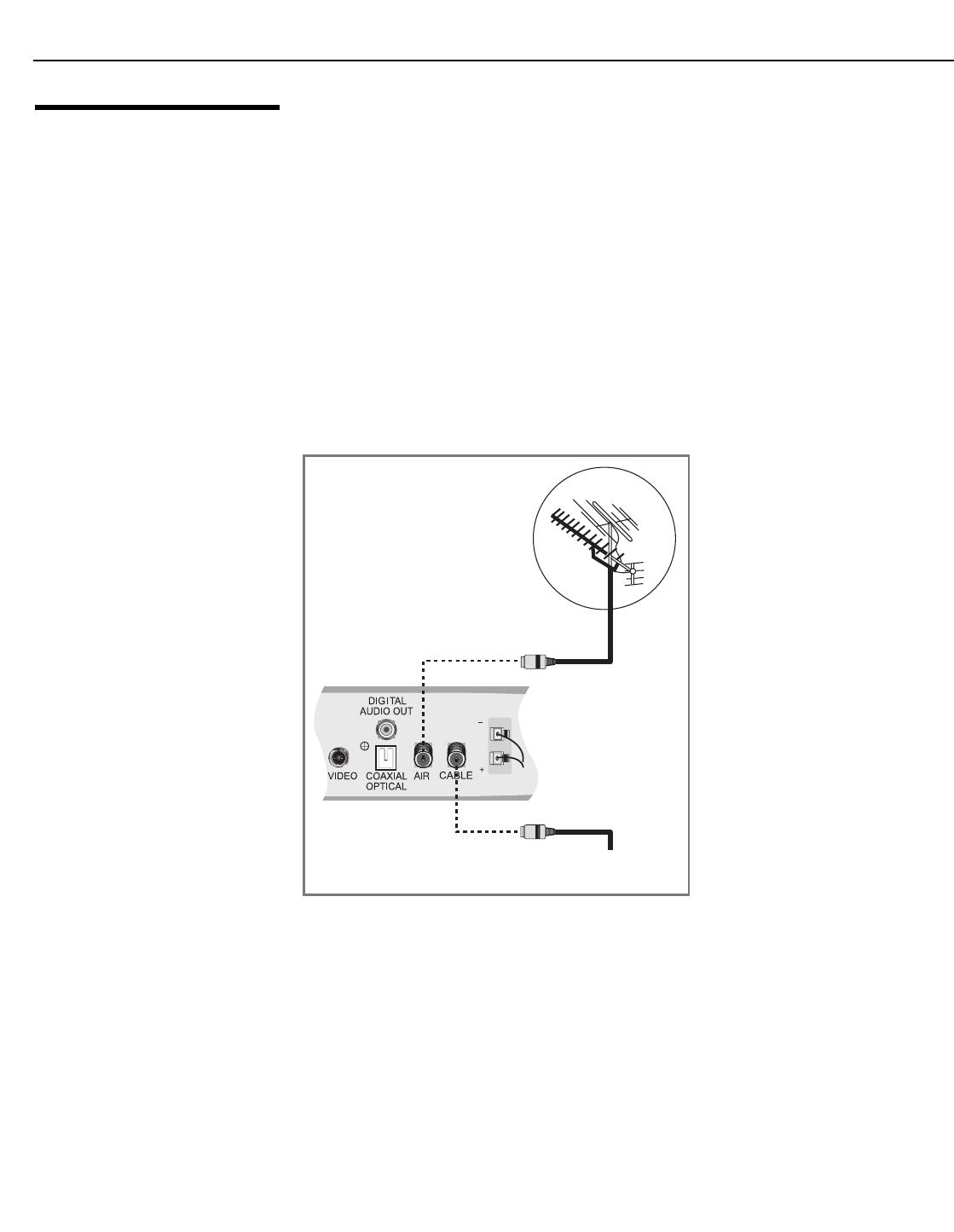
Antenna/Cable TV Connection (VL-52 only): Connect your antenna or cable television
source to the AIR or CABLE jacks on the rear of the DView; see Figure 3-1.
Figure 3-1. Antenna/Cable TV Connection
➤
Cable Television
Network
Input Panel
Installation
Vidikron VL-52 and VL-57 Owner’s Operating Manual 17
PRELIMINARY
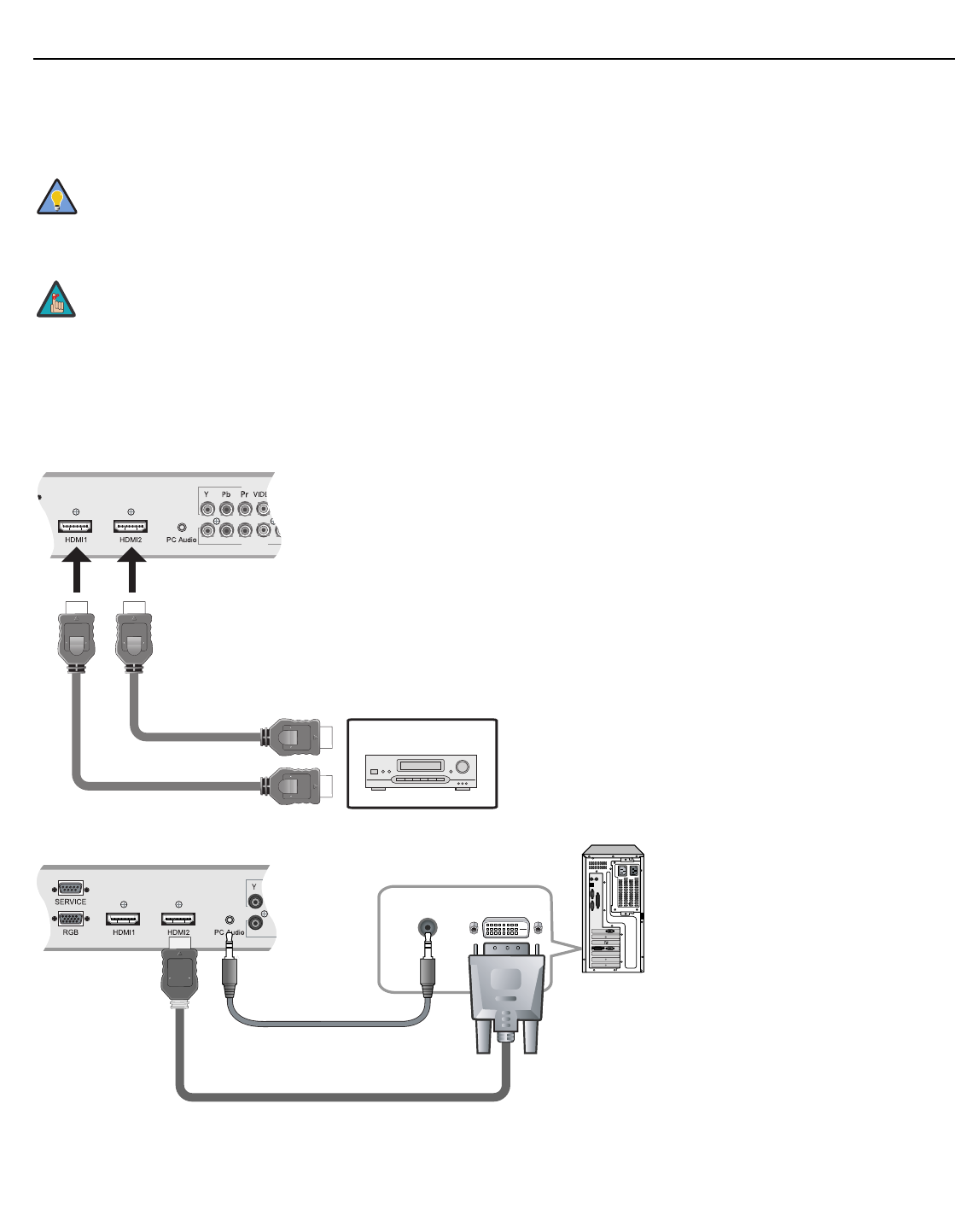
HDMI Connections: The DView has two HDMI inputs for connecting a BD/HD-DVD/DVD
player, DTV decoder, personal computer or any other device with an HDMI or DVI output.
Connect such devices as shown in Figure 3-2.
Figure 3-2. HDMI Connections
Use the HDMI inputs whenever possible. This ensures the highest video
quality because the signal is carried in the digital domain throughout the
entire signal path, from source component output into the display.
This DView supports the VESA Display Data Channel (DDC) standard. This
standard provides “Plug and Play” capability; the display and a VESA
DDC-compatible computer communicate their setting requirements,
allowing for quick and easy setup.
In order for Plug and Play to work correctly, you must turn on the display
before you turn on the connected computer.
Tip
Note
INPUT4
INPUT3
HDMI or
DVI-to-HDMI Cable
(sold separately)
Rear of the Display
BD/HD-DVD/
DVD/DTV STB
Audio Cable
(Sold Separately)
HDMI-to-DVI Cable (Sold Separately)
Rear of the PC
Rear of the Display
Installation
18 Vidikron VL-52 and VL-57 Owner’s Operating Manual
PRELIMINARY
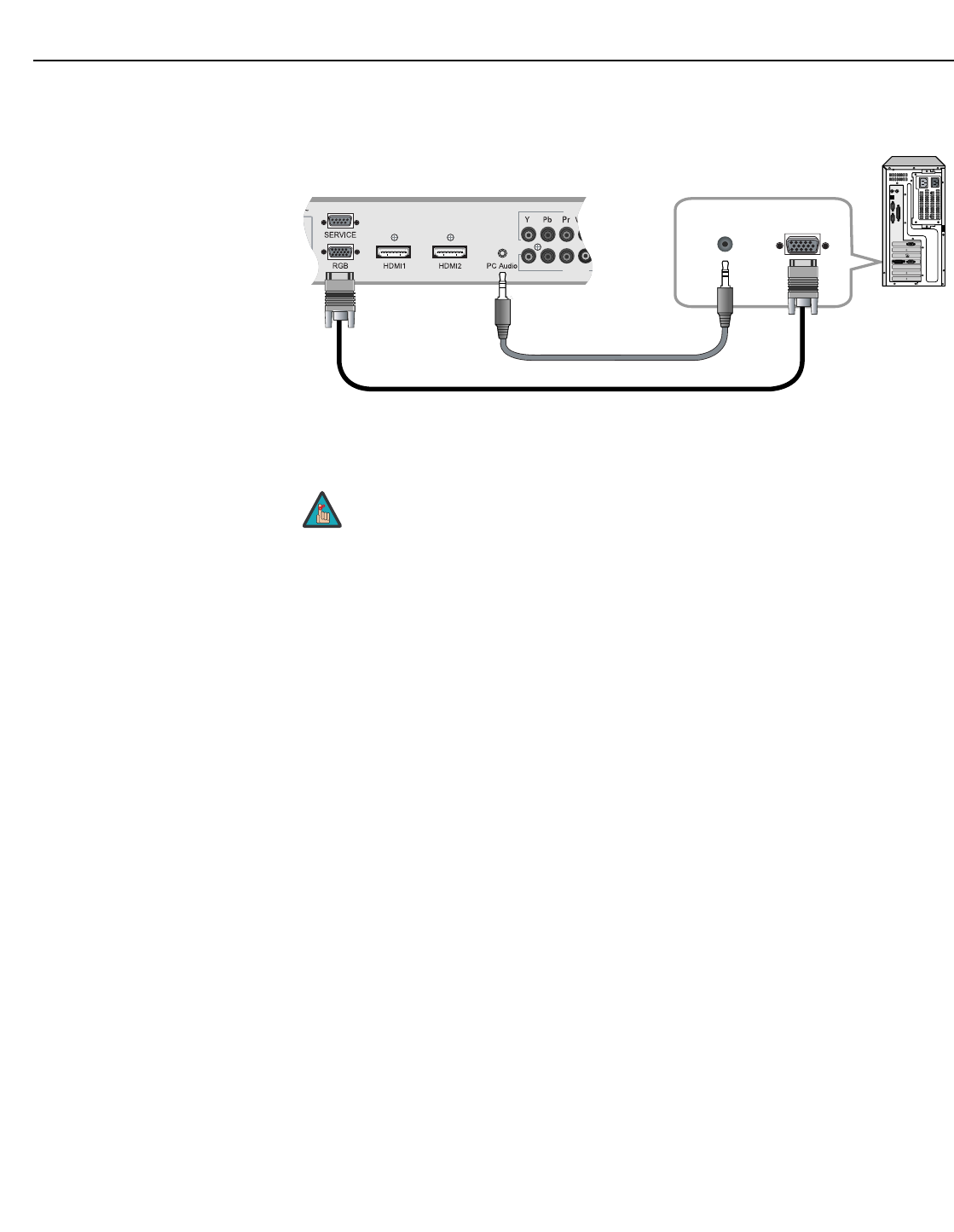
RGB Connections: The DView has an RGB input for connecting a personal computer; see
Figure 3-3.
Figure 3-3. Analog RGB Connections
1. Refer to Computer Signal Compatibility on page 61 for a list of
computer signals compatible with the DView. Use with signals other
than those listed may cause some functions not to work.
2. Some Macintosh computers may require a Macintosh video adapter.
Contact your nearest authorized service center or dealer.
3. This DView may not be able to display images from notebook computers
in simultaneous (CRT/LCD) mode. Should this occur, switch the
notebook computer to “CRT only” mode. If you are unsure how to do
this, refer to your notebook computer’s user manual.
INPU
INPUT3
Audio Cable
(Sold Separately)
D-Sub 15 Pin Cable (Sold Separately)
Rear of the Display Rear of the PC
Note
Installation
Vidikron VL-52 and VL-57 Owner’s Operating Manual 19
PRELIMINARY
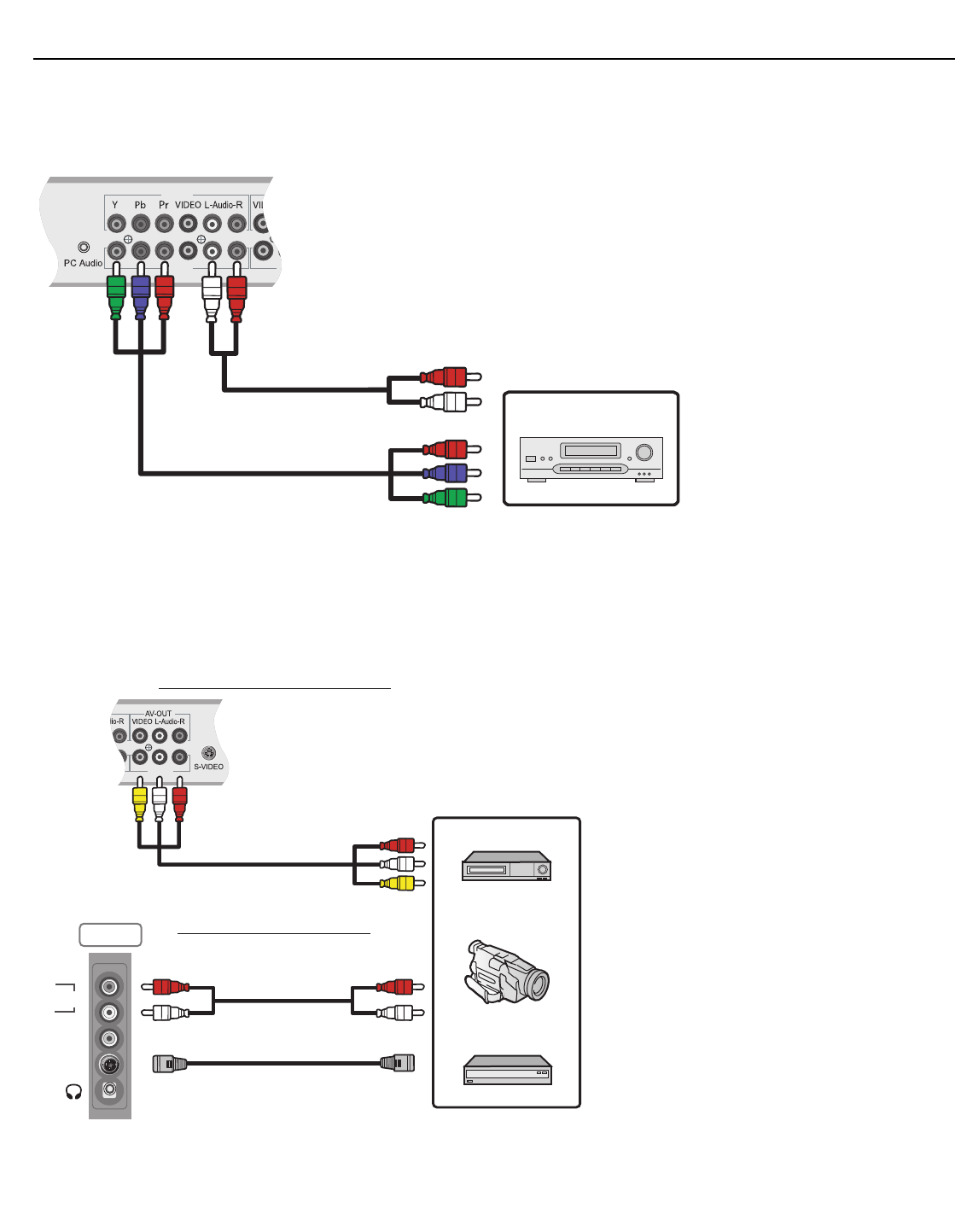
Component Video Connections: If you have a DVD player or DTV decoder with a
component (YPbPr) output, connect it to INPUT 3 or INPUT 4 of the DView as shown in Figure
3-4.
Figure 3-4. Component Video Connections
Composite/S-Video Connections: The DView has two (2) S-Video and four (4) composite
video inputs for connecting a VCR, camcorder, laser disc player or DVD player; see Figure 3-5.
Figure 3-5. Composite and S-Video Connections
INPUT4
INPUT3
Audio Cable
Video Cable
DVD/DTV STB
L
R
S-VIDEO
VIDEO
Audio
INPUT2
INPUT1
Composite Video (INPUT 1, INPUT 2,
INPUT 3 or INPUT 4)
VCR
Camcorder
Video Game Device
S-Video (INPUT 1 or INPUT 2)
Installation
20 Vidikron VL-52 and VL-57 Owner’s Operating Manual
PRELIMINARY
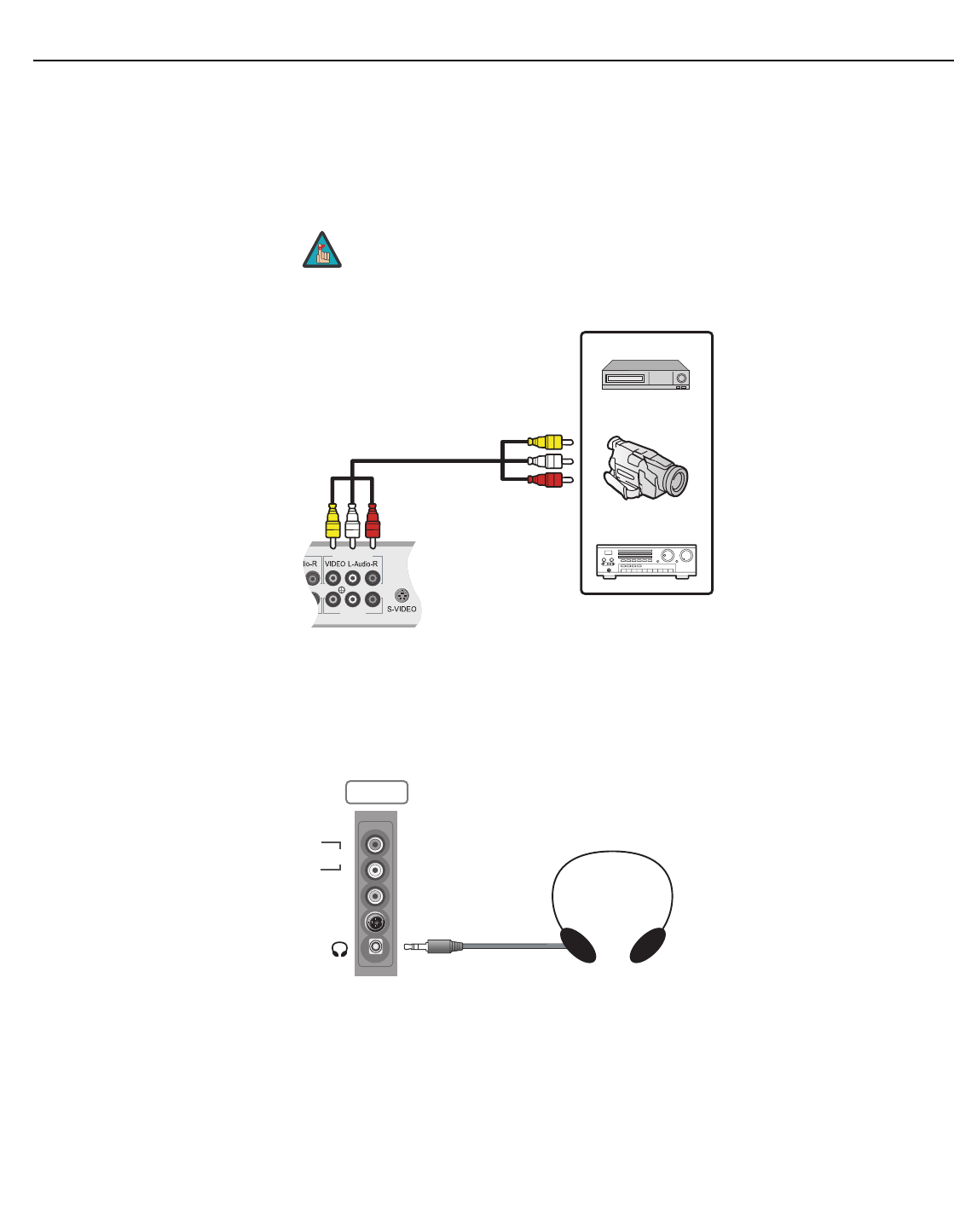
AV OUT Connection The DView has stereo audio and Composite video outputs for connecting to a second VCR or
other auxiliary equipment. Connect the AV OUT audio and video jacks to the audio and video
inputs of the VCR or other equipment as shown in Figure 3-6.
You can route either the main or picture-in-picture (PIP) source signal to the AV output. For
more information, refer to Monitor Out on page 38.
Figure 3-6. AV OUT Connections
Connecting Headphones You can connect a set of headphones to the DView to watch a program without disturbing
others. Connect them to the headphone output located at INPUT2; see Figure 3-7.
Figure 3-7. Connecting Headphones
➤
The audio output level is fixed. (The volume and mute controls affect only
the speaker and headphone outputs.)
Note
INPUT1
Monitor-OUT
VCR
Camcorder
A/V Receiver
➤
L
R
S-VIDEO
VIDEO
Audio
INPUT2
Installation
Vidikron VL-52 and VL-57 Owner’s Operating Manual 21
PRELIMINARY
Connecting External
Speakers (Optional)
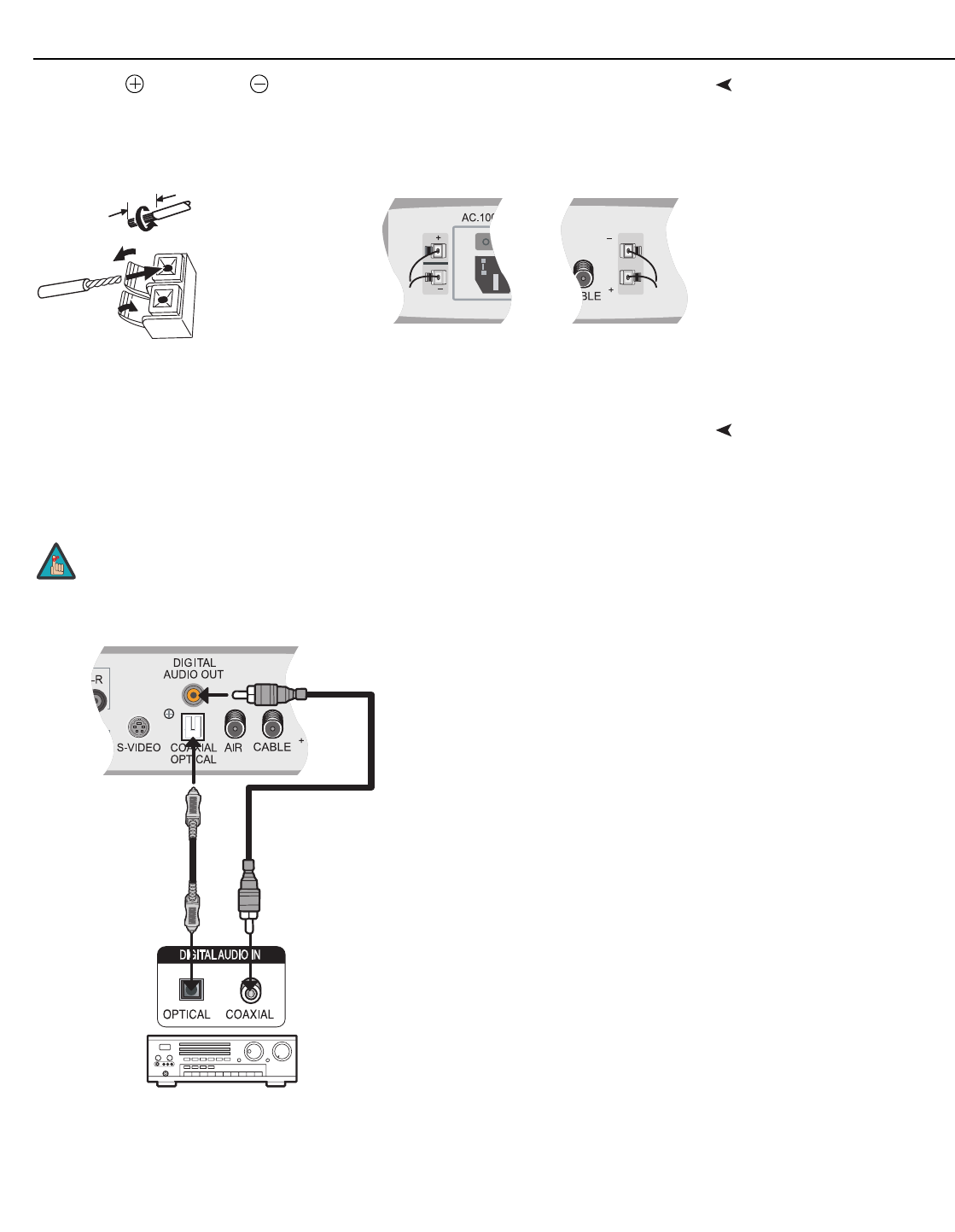
Connect the (positive) and (negative) speaker wires to the rear-panel SPEAKER-R and
SPEAKER-L terminals; see Figure 3-8. Maintain the correct polarity. For more information,
refer to the owner’s manual for your speakers.
Figure 3-8. External Speaker Connection
Connecting to a Dolby Digital
Amplifier
If your home theater has a Dolby Digital amplifier or receiver, connect the digital audio
output from the DView to the digital audio input of the amplifier/receiver as shown in Figure
3-9. The DView supports both coaxial (S/PDIF) and optical (TosLink) digital audio
connections.
Figure 3-9. Digital Audio Connection
12 mm
Twist exposed
wire strands
together.
Right Speaker Left Speaker
Push tab to the
open position, and
insert the wire.
Then, close tab firmly to
secure the wire in place.
The audio output level is fixed. (The volume and mute controls affect only
the speaker and headphone outputs.)
Note
Digital Audio Cable,
Optical
(Sold Separately)
Digital Audio Cable,
Coaxial
(Sold Separately)
Dolby Digital
Amplifier
- or -
Installation
22 Vidikron VL-52 and VL-57 Owner’s Operating Manual
PRELIMINARY
RS-232 Controller
Connection
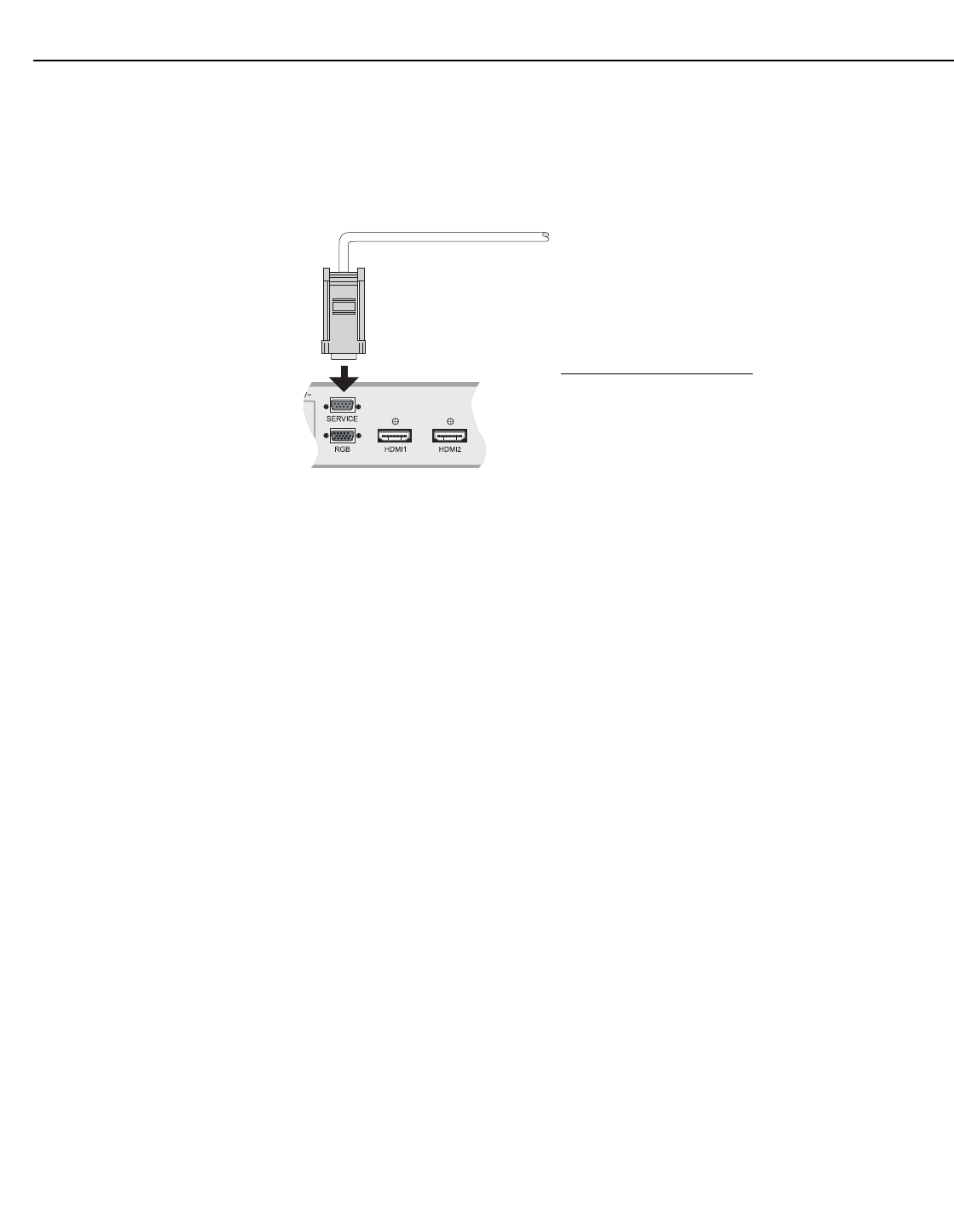
Use a straight-through RS-232 cable with a 9-pin male connector to connect a PC or home
theater control/automation system (if present) to the RS-232 port on the DView; see Figure
3-10.
For more information about using this connection, refer to Serial Communications on
page 51.
Figure 3-10. RS-232 Control System Connection
➤
Rear Panel
To PC or
Automation/
Control
System
DB-9
Male
Connector Pin Assignments:
2 Transmit Data
3 Receive Data
5Ground
1, 4, 6, 7, 8, 9 Not Connected
Vidikron VL-52 and VL-57 Owner’s Operating Manual 23
PRELIMINARY
4.1
Turning on the Power
1. Turn on your source components.
2. Plug the female end of the supplied power cord into the AC receptacle on the rear of the
DView (AC 100V ~ 240V). See Figure 2-2.
3. Connect the other end to your AC power source.
4. Turn on the main power switch at the rear of the display. The power indicator lights red
to indicate that the DView is in “standby” mode.
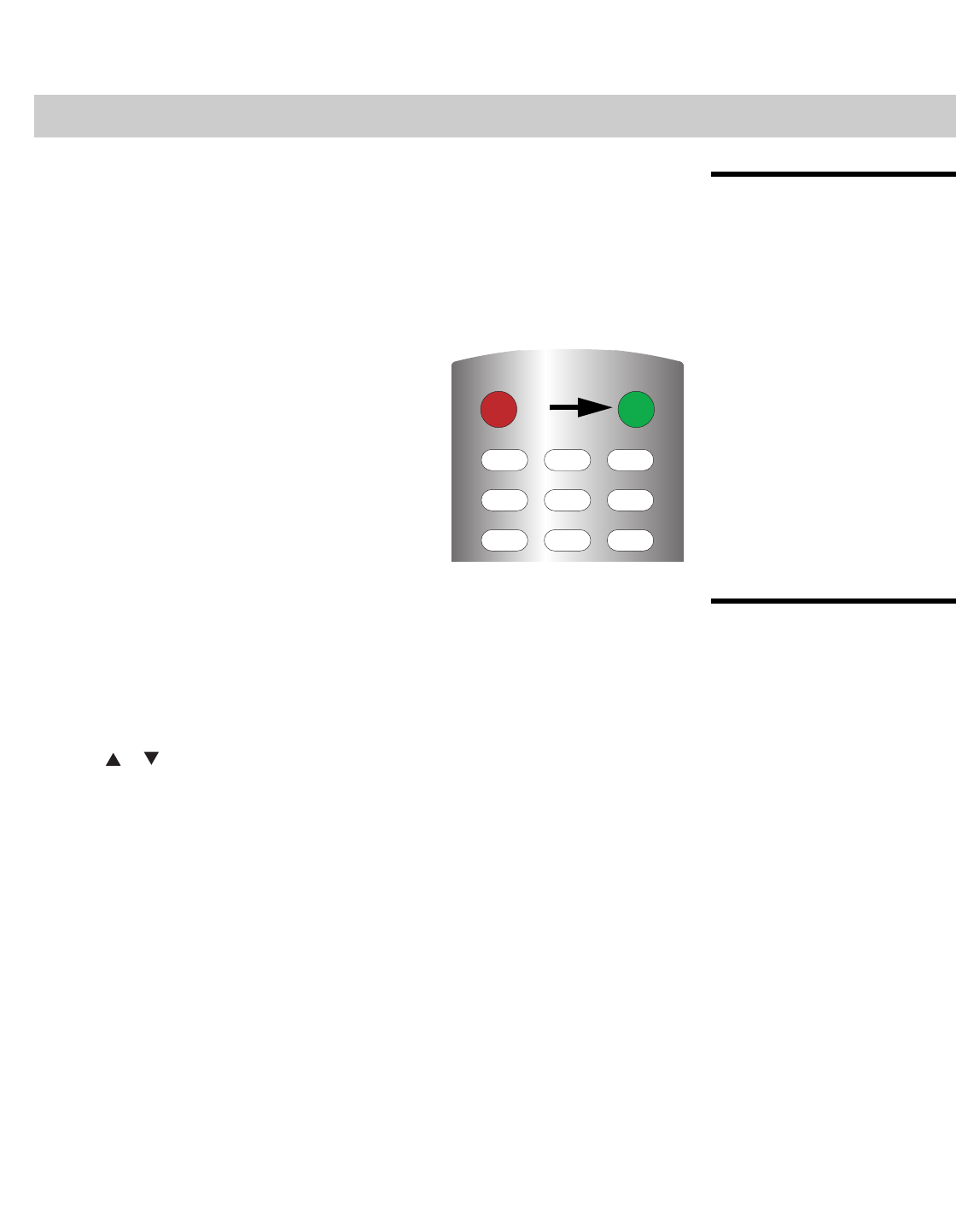
5. Press the ON button on the remote control to
turn on the display (or press the power button
on the side of the display). The power indicator
lights solid green.
6. After a brief warm-up period (approximately 10
seconds), the DView will display an image.
4.2
Changing the OSD
Language
The DView OSD language is initially set to English, but can also display the menus in French,
Spanish, Portuguese or German. To change the OSD language:
1. Press MENU.
2. Select Setup from the Main Menu.
3. Select OSD Language from the Setup Menu.
4. Press or to highlight the desired language and press ENTER. The change takes
effect immediately.
4Operation
45
12 3
6
78 9
OFF ON
Operation
24 Vidikron VL-52 and VL-57 Owner’s Operating Manual
PRELIMINARY
4.3
Setting the PC Display
Properties
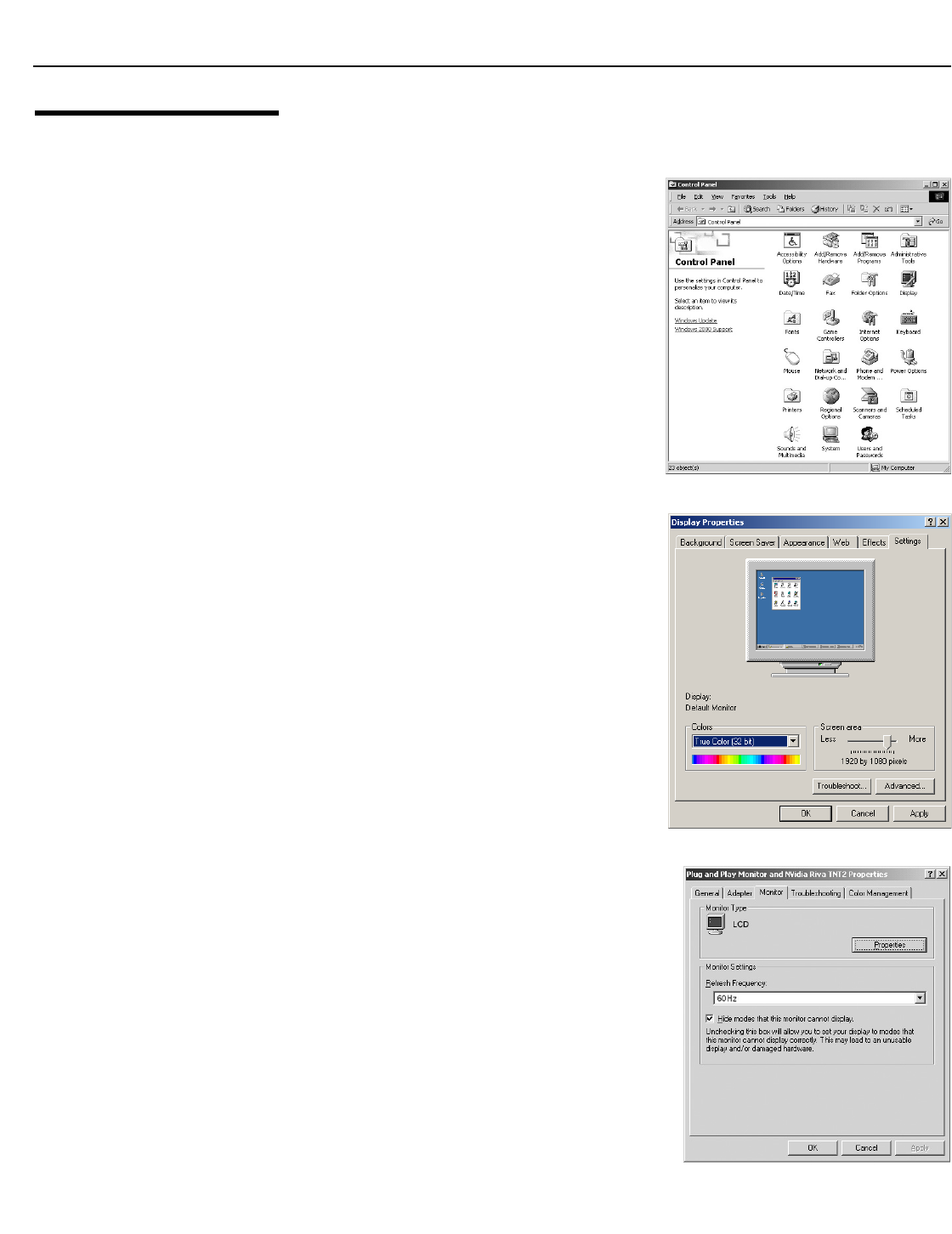
To maximize image quality when using the DView with a personal computer, you may need
to adjust the display properties of your PC video card. To do this:
1. Choose Settings from the Windows Start
menu and click on “Control Panel.”
2. Double click on the Display icon.
3. Click the Settings tab on the display dialog
box.
4. Set the Screen area to 1920x1080 pixels.
5. Click the Advanced button and click the
Monitor tab on the dialog box. Set the
Refresh frequency to 60Hz and click OK.

Operation
Vidikron VL-52 and VL-57 Owner’s Operating Manual 25
PRELIMINARY
4.4
Using the On-Screen
Menus
To use the on-screen menus:
1. Press MENU to display the Main Menu.
2. To select a menu item, use the up- or down-arrow buttons ( , ) on the remote
control to highlight it.
3. Press ENTER or the right-arrow button ( ) to access that menu.
4. Use the up- or down-arrow buttons ( , ) to select the setting you want to change.
Then, press ENTER or the right-arrow button ( ).
5. Press the right- or left-arrow button ( , ) to change that setting.
6. To return to the previous menu, press MENU or ( ).
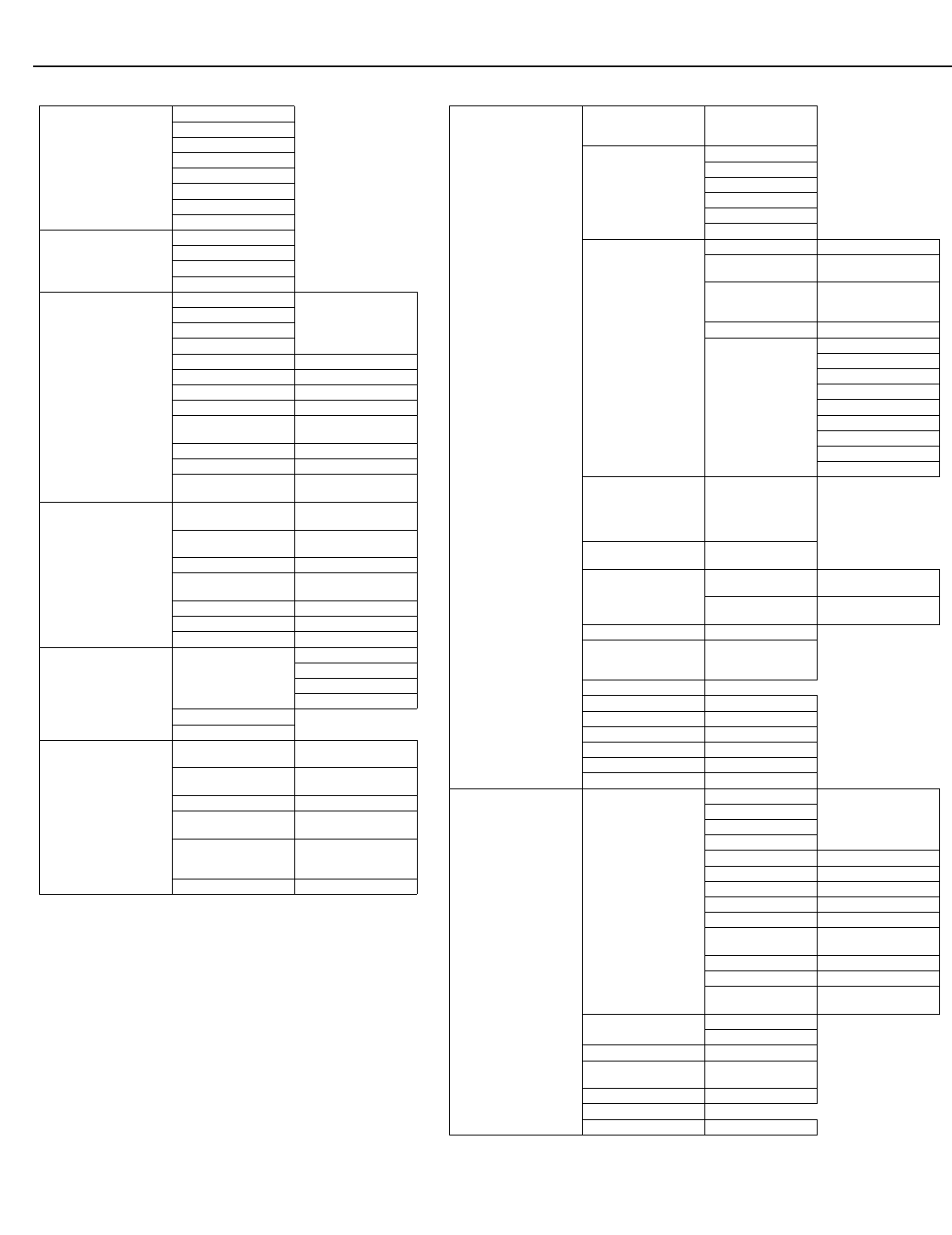
The DView OSD menus are arranged hierarchically, as shown in Figure 4-1. Depending on the
selected input source and/or signal characteristics, some menu options may not be available.
1. The maximum available resolution and vertical frequency is
1920x1080/60Hz or the maximum supported by your video card,
whichever is lower. You can get the best picture at 1920x1080/60Hz.
2. The DView supports 24-bit color (16,777,216 possible colors).
Note
Operation
26 Vidikron VL-52 and VL-57 Owner’s Operating Manual
PRELIMINARY
Figure 4-1. DView OSD Menu Structure
Setup
OSD Language
English, Français,
Español, Português or
Deutsch
PC Mode Adjust
Auto Adjust
Clock
Phase
H. Position
V. Position
Factory Reset
Caption
Display On / Off
Digital (VL-52 only) Service1, Service2,
Service3 ... Service6
Analog
CC1, CC2, CC3 or CC4
Text1, Text2, Text3 or
Text4
CC On Mute Yes / No
Digital Font Option
(VL-52 only)
Control
Font Size
Font Style
FG Color
BG Color
Edge Color
FG Opacity
BG Opacity
Edge Style
Parental Control (VL-52
only)
Parental Lock (On/Off),
TV Rating, Movie
Rating, Unrated
(Allow/Block), Change
PIN (default is 0000)
Letterbox Mode Letterbox or
Cinema Fill
Input Selection
Input 1/Input 2 Automatic, Video or
S-Video
Input 3/Input 4 Automatic, Video or
Component
Monitor Out Main or PIP: Video
Overscan
(not available with PC
signals)
H. Overscan, H. Shift,
V. Overscan, V. Shift
Input Label
HDMI Audio HDMI or PC
RGB Signal Video or PC
Film Mode Off, 2:3, 2:2 or Auto
Auto Backlight Off / On
OSD Timer 0, 10, 20 ... 60 sec.
Auto Off 0, 30, 60 or 120 min.
ISF Calibration
Picture Adjust
Brightness
0, 1, 2, 3 ... 100
Contrast
Color
Tint
Sharpness 0, 5, 10, ... 100
ADC Phase Adj. 0, 1, 2, 3 ... 63
DNR 0, 10, 20, ... 100
MPEG NR 0, 1, 2, 3 ... 63
Backlight 0, 5, 10, 15, 20, ... 100
Color Temp. 5400, 6500, 8500 or
Custom
Gamma 2.00, 2.02, 2.04 ... 2.40
Black Level 0, 1, 2, 3 ... 64
Save Settings Custom, ISF Day, ISF
Night
White Balance R/G/B Gain
R/G/B Offset
Blue Enable (Enable/Disable)
Baud Rate 115200, 19200, 9600 or
2400
Serial Link On / Off
Factory Reset
Splash Duration 0, 1, 2, 3, ... 60 secs.
Source
TV (VL-52 only)
Input1
Input2
Input3
Input4
RGB
HDMI1
HDMI2
Aspect Ratio
16:9
4:3
Letterbox
IntelliWide
Picture Adjust
Brightness
0, 1, 2, 3 ... 100
Contrast
Color
Tint
Sharpness 0, 5, 10, ... 100
DNR 0, 10, 20, ... 100
MPEG NR 0, 1, 2, 3 ... 63
Backlight 0, 5, 10, 15, 20, ... 100
Color Temp. 5400, 6500, 8500 or
Custom
Gamma 2.00, 2.02, 2.04 ... 2.40
Save Settings Custom
Restore Settings Custom, ISF Day,
ISF Night
Audio
Balance L10, L9, L8 ... 0 ... R8, R9,
R10
Equalizer Standard, Music, Film,
Speech or Custom
Surround (On/Off)
Audio Language (VL-52
only)
English, Français, Español
or Português
Digital Audio Out PCM or Dolby Digital
TV Speaker (On/Off)
Audio Delay 0, 1, 2 ... 40 msecs.
Channel (VL-52
only)
Auto Tuning
STD
HRC
IRC
Return
Add/Erase
Favorite Channel
Timer (VL-52
only)
Time 12:00 AM - 11:59 PM
or Auto Setup
On Timer Enable/Disable, Time,
Channel, Volume
Off Timer Enable/Disable, Time
Sleep Timer Off, 10, 30, 60, 120 or 180
minutes
Time Zone
Eastern, Central,
Mountain, Pacific, Alaska
or Hawaii
Daylight Saving On / Off or Automatic
Operation
Vidikron VL-52 and VL-57 Owner’s Operating Manual 27
PRELIMINARY
Main Menu The Main Menu is the starting point for accessing all DView functions.
(The ISF Calibration menu is not accessible until you enter a passcode.)
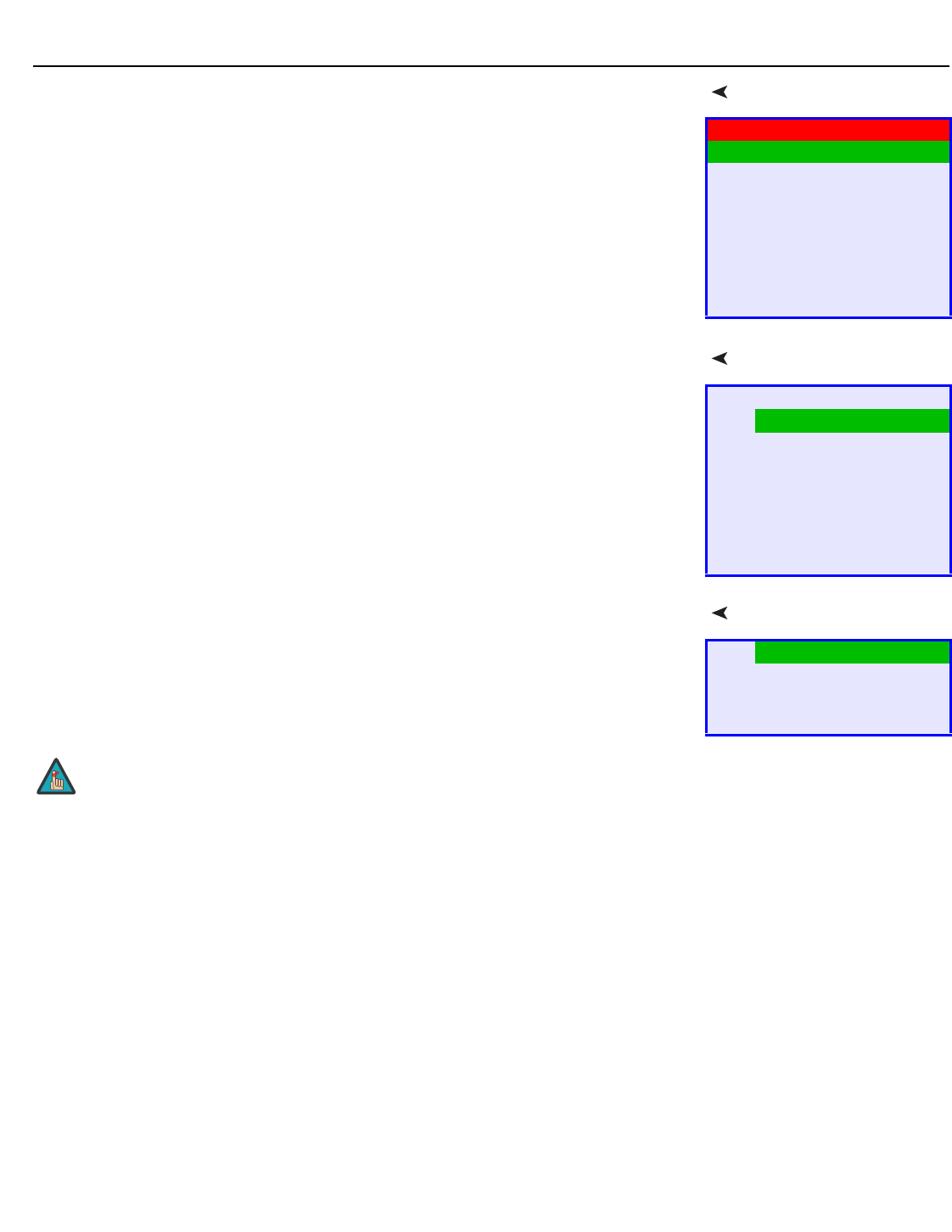
Source From the Main Menu, select Source to choose a video signal source.
The active source is indicated by an arrow (>) to its left; in the example at right, TV is the
active source.
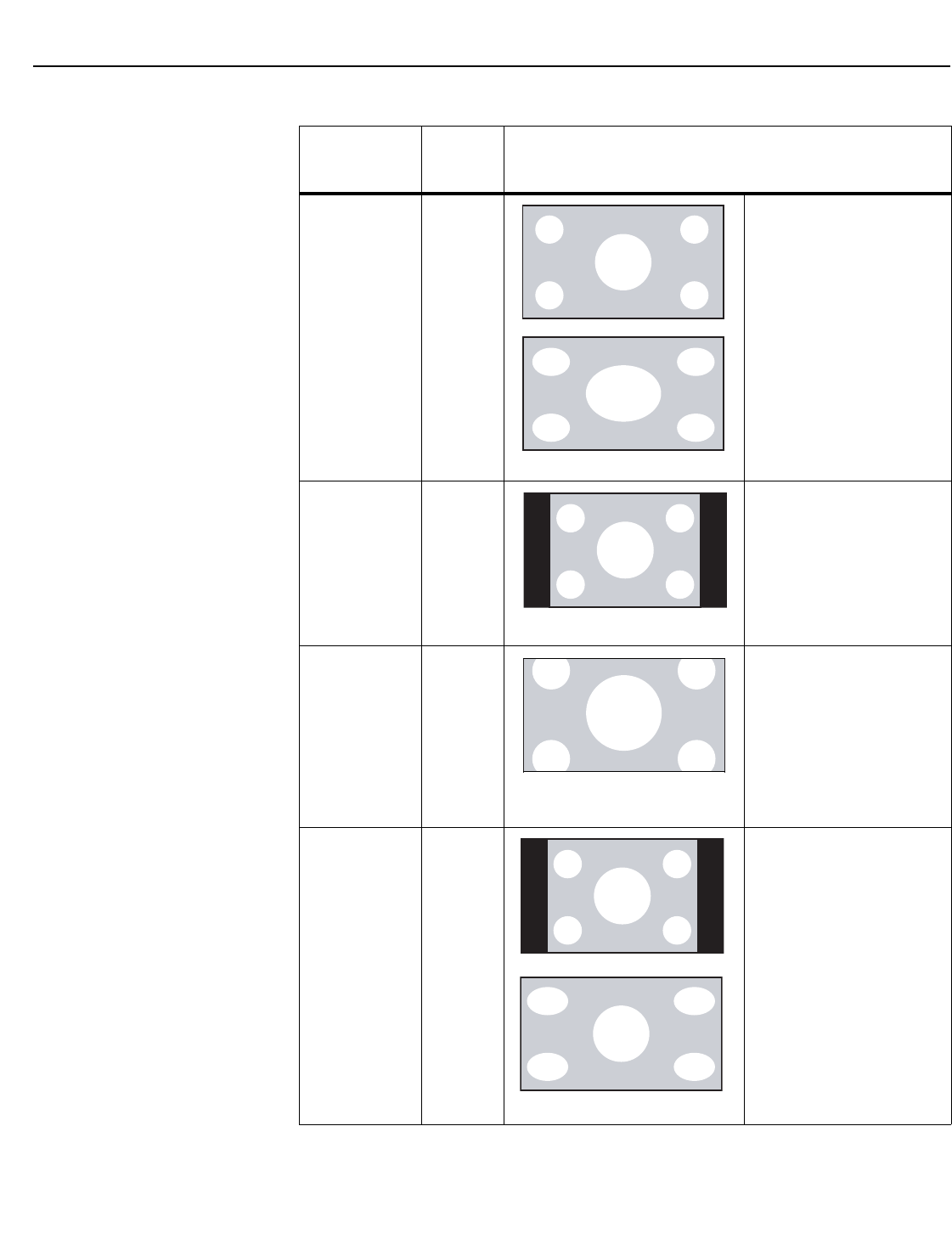
Aspect Ratio To change the aspect ratio (size and shape) of the projected image, select Aspect Ratio from
the Main Menu and press ENTER. Select the appropriate aspect ratio for the type of program
material being viewed; refer to Table 4-1.
The currently-selected aspect ratio is indicated by an arrow (>) to its left; in the example at
right, Anamorphic is selected.
VL-52
Source
Aspect Ratio
Picture Adjust
Audio
Channel
Timer
Setup
ISF Calibration
>TV
Input1
Input2
Input3
Input4
RGB
HDMI1
HDMI2
>16:9
4:3
Letterbox
IntelliWide
The aspect ratio selection persists until you change it. (It is not saved
independently for each input.)
Note
Operation
28 Vidikron VL-52 and VL-57 Owner’s Operating Manual
PRELIMINARY
Table 4-1. Aspect Ratio Settings
Aspect Ratio
Remote
Control
Key
Description
16:9 ANA Select 16:9 to view 16:9 DVDs
and HDTV programs in their
native aspect ratio.
4:3 images are stretched
horizontally to fit a 16:9
display.
4:3 4X3 4:3 scales the input signal to
fit in the center of a 16:9
display. 4:3 is the aspect ratio
used by computer monitors,
standard television
programming and most VHS
video cassettes.
Letterbox LET
BOX
Letterbox mode scales
(zooms in on) a 4:3 image
linearly (by the same amount
on all sides) to fill a 16:9
display.
Letterbox is best suited for
viewing LaserDisc movies or
non-anamorphic DVDs on a
16:9 screen.
IntelliWide I-WIDE IntelliWide scales a 4:3 image
NON-linearly (more on the
sides than in the center) to fit
a 16:9 screen.
4:3 Image, stretched to fill
16:9 Screen (Display)
16:9 Image on
16:9 Screen (Display)
4:3 Image on
16:9 Screen (Display)
4:3 Image on
16:9 Display
(Letterbox aspect ratio)
4:3 Image on
16:9 Screen (Display)
4:3 Image on
16:9 Display
with IntelliWide
Operation
Vidikron VL-52 and VL-57 Owner’s Operating Manual 29
PRELIMINARY
Picture Adjust Use the controls in the Picture Adjust menu to calibrate your DView for optimum picture
quality.
The DView has been designed to incorporate setup and calibration standards established by
the Imaging Science Foundation (ISF). The ISF has developed carefully crafted,
industry-recognized standards for optimal video performance and has implemented a
training program for technicians and installers to use these standards to obtain optimal
picture quality from Vidikron video display devices. Accordingly, Vidikron recommends that
setup and calibration be performed by an ISF-certified installation technician.
All signal types require separate processing. Therefore, you need to calibrate each input
separately.
Although it may be possible to obtain satisfactory picture quality using the naked eye and
regular program material, Vidikron recommends using the following calibration tools for
best results:
• External test pattern source – Ovation Multimedia, Digital Video Essentials or AVIA test
DVD or equivalent.
• A blue filter (provided with many test DVDs), for color level and tint adjustments.
Connect your test pattern source to the input that you are calibrating and proceed as follows.
Perform the adjustments in the order listed here.
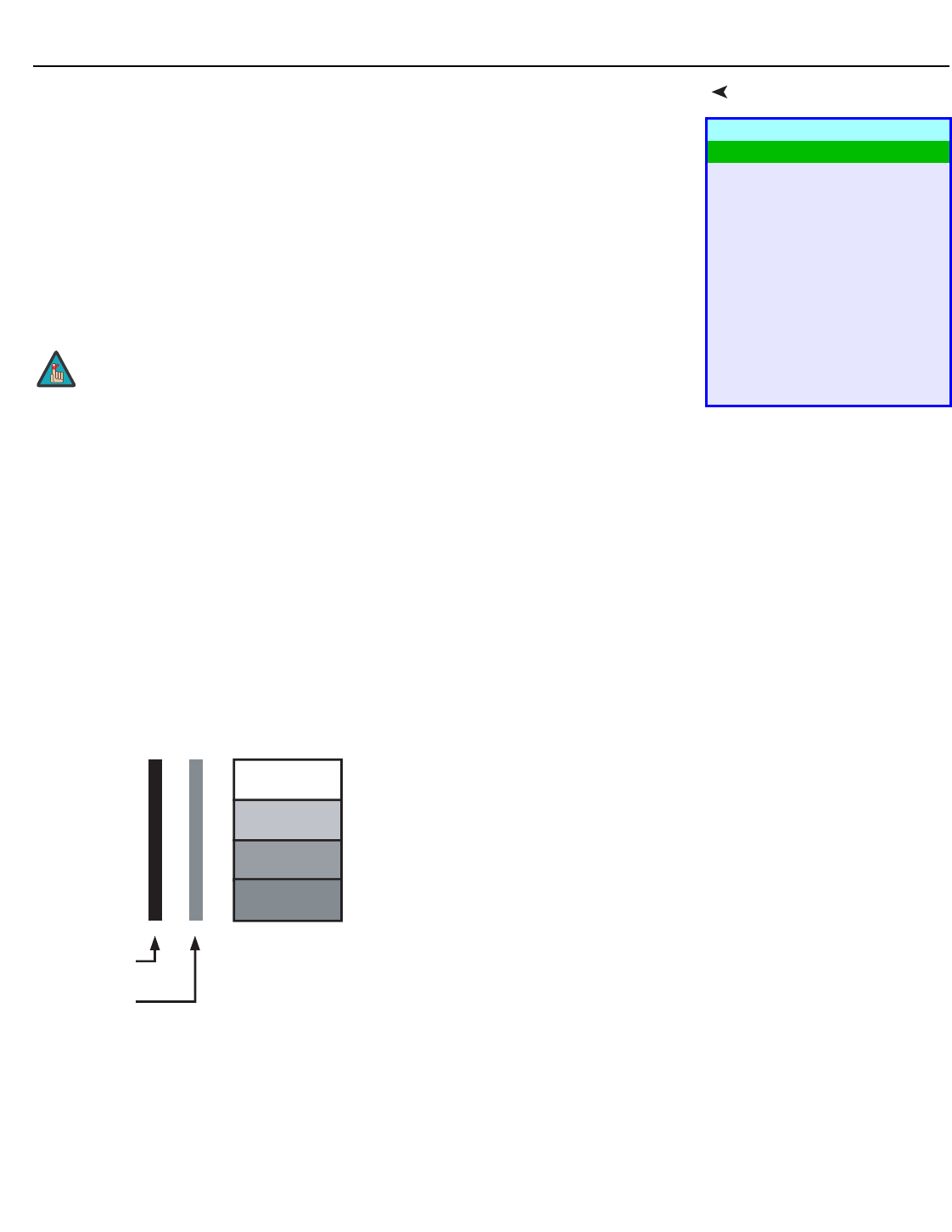
Brightness: On your external test pattern source, select a PLUGE pattern. (PLUGE is an
acronym for “Picture Line-Up Generation Equipment.”) Figure 4-2 shows a typical PLUGE
pattern.
Figure 4-2. Typical PLUGE Pattern for Adjusting Brightness
Picture Adjust
Brightness
Contrast
Color
Tint
Sharpness
DNR
MPEG NR
Backlight
Color Temp.
Gamma
Save Settings
Restore Settings
When you change a picture quality setting, save the change to a preset
afterwards. Otherwise, the change will be lost when a different input is
selected. (Picture quality settings are saved for each input and resolution
separately.) For information about saving settings, refer to Save
Settings on page 33.
Note
Below Black
A
bove Black
Operation
30 Vidikron VL-52 and VL-57 Owner’s Operating Manual
PRELIMINARY
PLUGE patterns vary but generally consist of some combination of black, white and gray
areas against a black background. The example above includes two vertical bars and four
shaded boxes.
Select Brightness from the Picture Adjust menu. Using the left- and right-arrow ( )
buttons, adjust the brightness so that:
• The darkest black bars disappear into the background.
• The dark gray areas are barely visible.
• The lighter gray areas are clearly visible.
• The white areas are a comfortable level of true white.
• The image contains only black, gray and white (no color).
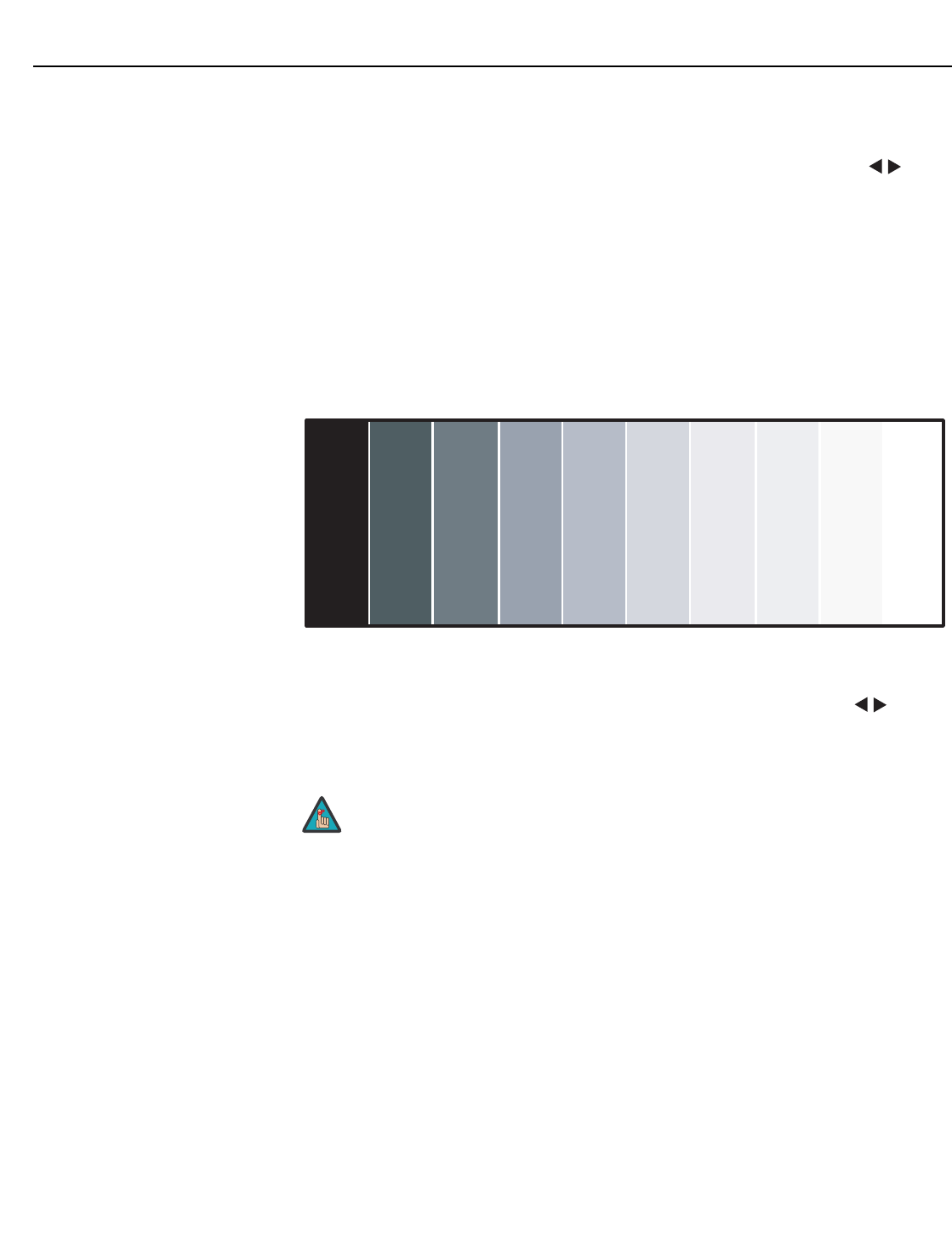
Contrast: On your external test pattern source, select a stepped, gray-bar pattern like the
one shown in Figure 4-3.
Figure 4-3. Typical Gray Bar Pattern for Adjusting Contrast
Select Contrast from the Picture Adjust menu. Using the left- and right-arrow ( )
buttons, adjust the contrast to a point just below which the white rectangle starts to increase
in size.
Brightness and contrast controls are interactive. A change to one may
require a subtle change to the other in order to achieve the optimum
setting.
Note
Operation
Vidikron VL-52 and VL-57 Owner’s Operating Manual 31
PRELIMINARY
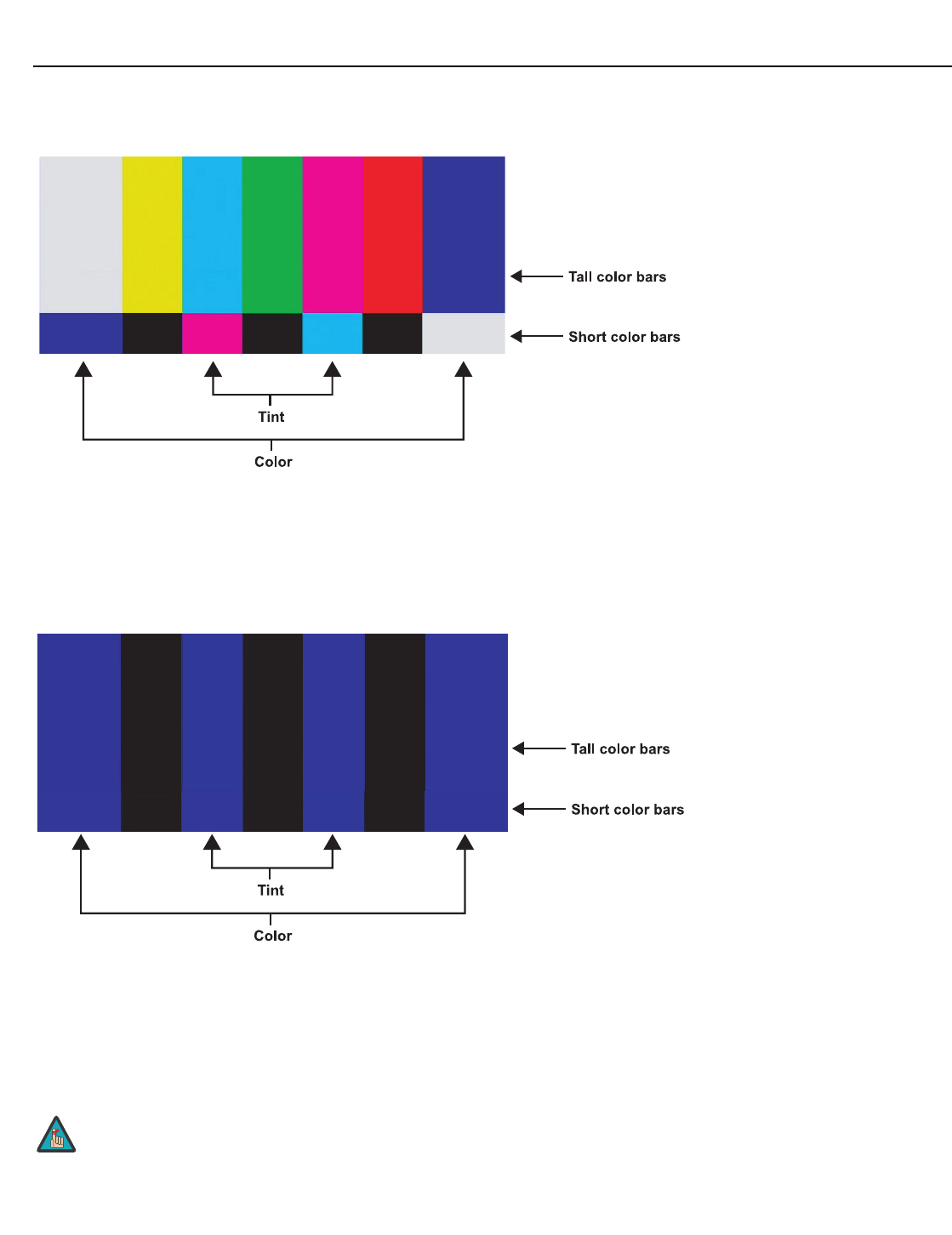
Color Saturation: On your external test pattern source, select a color bar pattern like the one
shown in Figure 4-4.
Figure 4-4. Typical Color Bar Pattern for Adjusting Color Saturation and Tint
Select Color from the Picture Adjust menu. While looking at the color bar pattern through a
blue filter, adjust the color saturation level until the outermost (gray and blue) color bars
appear to be a single shade of blue:
Tint: Tint or “hue” is essentially the ratio of red to green in the color portion of the image.
When tint is decreased, the image appears redder; when it is increased the image appears
greener. To set the tint, select Tint from the Picture Adjust menu. While looking at the color
bar pattern through a blue filter, adjust the tint level until the cyan and magenta color bars
(on either side of the green bar) appear to be a single shade of blue.
Like the brightness and contrast controls, the color and tint controls are
interactive. A change to one may require a subtle change to the other in
order to achieve the optimum setting.
gray
yellow
cyan
green
magenta
red
blue
gray
yellow
cyan
green
magenta
red
blue
Note
Operation
32 Vidikron VL-52 and VL-57 Owner’s Operating Manual
PRELIMINARY
Sharpness: “Sharpness” is the amount of high-frequency detail in the image. To adjust
sharpness, select Sharpness from the Picture Adjust menu and press ENTER. On your
external test pattern source, select a pattern like the one shown in Figure 4-5. Adjust as
needed, looking for white edges around the transitions from black to gray and different sized
lines in the “sweep” patterns at the top and bottom. Lower the sharpness setting to eliminate
them.
Figure 4-5. Typical Test Pattern for Adjusting Sharpness
DNR: To apply Digital Noise Reduction (DNR) to the input signal, select DNR from the Picture
Adjust menu. Noise reduction is useful for clearing up noisy RGB images such as those from a
PC. Adjust as desired using the left- or right-arrow buttons, keeping in mind that reducing
noise (which reduces high frequencies) may also “soften” the image.
MPEG NR: Use the MPEG Filter to reduce or eliminate so-called “mosquito noise” in
MPEG-compressed video signals (digital broadcasts or DVDs). Adjust as needed to minimize
distortion around the edges of moving objects, moving artifacts around edges and/or
blotchy noise patterns superimposed over the objects.
Backlight: The Backlight control changes the apparent brightness of the displayed image. Its
effect is similar to that of a lamp intensity control on a projector.
Color Temperature: To choose a color temperature setting, select Color Temp. from the
Picture Adjust menu and press ENTER. (Color temperature defines the “color of gray.”) The
choices are 5400K, 6500K, 8500K and Custom. The default setting, 6500K, is appropriate for
most situations. Higher settings produce a “bluer” picture; lower ones impart a reddish hue
to the image.
The Backlight control is disabled when Auto Backlight (described on
page 39) is set to On.
Note
Operation
Vidikron VL-52 and VL-57 Owner’s Operating Manual 33
PRELIMINARY
Each color temperature setting has six (6) “white balance” parameters associated with it (two
each for red, green and blue). These are described later in this section; refer to White Balance
on page 41.
Gamma: The Gamma control determines how gray shades are displayed between minimum
input (black) and maximum input (white) for all signals. A good gamma setting helps to
optimize blacks and whites while ensuring smooth transitions for the “in-between” values
utilized in other grays.
Unlike brightness and contrast controls, Gamma allows you to lighten or darken the overall
tone of your images without changing the extremes. All images will be more vibrant while
still showing good detail in dark areas.
The default Gamma setting of 2.20 is appropriate for most typical home theater
environments.
Save Settings: The DView lets you save image quality settings for each input and supported
resolution to a preset. You can recall this preset at a later time by simply pressing a button on
the remote control or using the Restore Settings menu command (see below).
You should save changes to any of the following settings to a preset; otherwise they will be
lost when a new input source or resolution is selected:
•Brightness
•Contrast
• Color saturation
•Tint
• Sharpness
•Gamma
• Color temperature selection (5400, 6500, 8500 or Custom)
Restore Settings: To recall a preset, choose Restore Settings from the Picture Adjust menu
and select “Custom,” “ISF Day” or “ISF Night.” Or, use the corresponding buttons on the
remote control.
Audio To adjust the DView audio settings, select Audio from the Main Menu and press ENTER.
Balance: To adjust the left/right speaker balance, select Balance from the Audio Menu and
press ENTER. Use the left- and/or right-arrow buttons to make one channel louder than the
other.
Equalizer: The DView has a five-band graphic equalizer that you can use to boost or cut
certain audio frequencies. To use it, select Equalizer from the Audio menu and press ENTER.
Select one of four equalizer presets – Standard (flat), Music, Film or Speech – or select Custom
to create your own according to taste. The five frequency bands are 100, 300, 1000, 3000 and
10,000 Hertz (Hz).
Surround: The DView has a “surround sound” mode that simulates a multi-channel sound
system. To use the surround mode, select Surround from the Audio menu and set it to On.
Audio
Balance
Equalizer
Surround
Audio Language
(VL-52 only)
Digital Audio Out
TV Speaker
Audio Delay
When Surround is set to On, the graphic equalizer is disabled.
Note

Operation
34 Vidikron VL-52 and VL-57 Owner’s Operating Manual
PRELIMINARY
Audio Language (VL-52 only): Some digital TV broadcasts provide audio soundtracks in
multiple languages. If you are watching such a program, select Audio Language from the
Audio menu to choose a soundtrack language: English, Français, Español or Português.
Digital Audio Out: The DView can output either two or six channels of digital audio. Select
Dolby Digital if your A/V receiver can decode a Dolby Digital-encoded, 5.1-channel
bitstream. Otherwise, select PCM to have the DView output PCM-encoded, stereo audio.
TV Speaker: To disable the speakers, select TV Speaker from the Audio menu, set it to Off
and press ENTER. The effect is similar to using the MUTE button, except that the DView
“remembers” this setting if you turn off the display, then turn it back on.
Audio Delay: Use the Audio Delay control to correct audio/video synchronization issues
with DTV broadcasts. Select from 0 to 40 milliseconds of delay, as needed.
Channel (VL-52 only) To set up the DView channel tuner, select TV as the source. Then, select Channel from the
Main Menu and press ENTER.
Auto Tuning: To have the DView automatically detect available TV or CATV channels, select
Auto Tuning and press ENTER. Then, select STD and press ENTER again.
The DView searches all channel frequencies and adds a channel to its memory when it
detects a signal on that channel frequency. (This may take a few minutes.) If Auto Tuning fails
to detect any CATV channels, select HRC or IRC and try again. (STD, HRC and IRC refer to
different sets of frequencies used by cable television providers. IRC stands for “Incrementally
Related Carrier;” HRC stands for “Harmonically Related Carrier.”)
Add/Erase: If Auto Tuning fails to detect a channel, select Add/Erase from the Channel menu
and press or to select it. Then, select Add to add it to the channel list. To erase the
currently-selected channel from the available channel list, select Add/Erase from the Channel
menu, then select Erase.
Favorite Channel: You can specify up to five channels as “favorite” channels that can be
accessed by pressing a single button on the remote, instead of manually entering the channel
number. To do this, select Favorite Channel from the Channel menu and press ENTER.
Use the up- or down-arrow button to select the memory location in which you want to store
the favorite channel. Then, use the left- or right-arrow button to specify the channel number.
To erase a favorite channel selection, press ENTER.
Press EXIT when you have finished programming favorite channels.
To recall a favorite channel, press the FAV CHAN button repeatedly on the remote control.
Channel
Auto Tuning
Add/Erase
Favorite Channel
➤

Operation
Vidikron VL-52 and VL-57 Owner’s Operating Manual 35
PRELIMINARY
Timer (VL-52 only) To set the DView’s internal clock or configure the on/off timers, select Timer from the Main
Menu and press ENTER.
Time: To set the DView internal clock, select Time from the Timer menu and press ENTER.
Then, do either of the following:
• To synchronize the internal clock with time codes sent by the local Public Broadcasting
Service (PBS) member station, select Auto Setup. The display must be connected to an
off-air antenna or CATV system in order for this to work.
• To manually set the clock, use the up- or down-arrow button to select the hour of the day,
AM/PM or the minute of the hour to set. Then, use the left- or right-arrow buttons to set
that component of the time.
When finished, press MENU or EXIT.
On Timer: Use the On Timer to turn the DView on at a specific time of day. You can also
specify a channel and a volume level.
Off Timer: Use the Off Timer to turn the DView off at a specific time of day.
Sleep Timer: Use the Sleep Timer to turn off the DView after a specified interval.
To set the Sleep Timer:
• Select Sleep Timer from the Timer menu and press ENTER. Use the right- or left-arrow
button to select 10, 30, 60, 120 or 180 minutes. Then, press MENU.
– OR –
• Press the TIMER OFF button on the remote control repeatedly to select the desired timer
interval.
Time Zone: To set the local (North American) time zone, select Time Zone from the Timer
menu and press ENTER. Use the up- or down-arrow button to select Eastern, Central,
Mountain, Pacific, Alaska or Hawaii. Press ENTER to confirm your selection.
Daylight Saving: If you are in a region that observes Daylight Saving Time (DST), select
Daylight Saving from the Timer menu and set it to Automatic to have the DView
automatically adjust the time (one hour ahead on the first Sunday in April; one hour back on
the last Sunday in October). The display must be connected to an off-air antenna or CATV
system in order for this to work.
You can also manually adjust the time to reflect DST. Set Daylight Saving to On if DST is
currently in effect. Set it to Off if DST is not currently in effect or not observed in your region
at all.
Timer
Time
On Timer
Off Timer
Sleep Timer
Time Zone
Daylight Saving
Operation
36 Vidikron VL-52 and VL-57 Owner’s Operating Manual
PRELIMINARY
Setup Use the controls in the Setup menu to perform advanced image quality adjustments and
access various other DView features.
OSD Language: Select OSD Language from the Setup menu and press ENTER. Then, use the
up- or down-arrow buttons to select the OSD language (English, French, Spanish, Portuguese
or German). Press ENTER again to confirm your selection.
PC Mode Adjust: To improve the quality of displayed images from a computer or other
VESA-compliant, RGB (480p or higher) source, select PC Mode Adjust and press ENTER.
•Auto Adjust: Auto Adjust automatically adjusts settings to optimize computer images. To
execute Auto Adjust on command, select Auto Adjust and press ENTER.
•Clock: Use the up- or down-arrow buttons ( , ) to highlight Clock. Then, use the
right-arrow button ( ) to increase the pixel clock rate; use the left-arrow button ( ) to
decrease it.
•Phase: Adjust the phase if the image shows shimmer or “horizontal noise.” Pixel phase
adjusts the phase of the pixel sampling clock relative to the incoming signal. The effect of
this control is similar to that of a tracking control on a VCR.
For best results, use a good test pattern such as a smooth gray consisting of a clear pattern
of black and white pixels, or a similar “half on, half off” graphic image. (You may notice
that you can stabilize the image at more than one point. Use either setting in this case.)
•H Position: Use the up- or down-arrow buttons ( , ) to highlight H Position. Then, use
the right-arrow button ( ) to shift the image to the right; use the left-arrow button ( )
to shift the image to the left.
•V Position: Use the up- or down-arrow buttons ( , ) to highlight V Position. Then, use
the right-arrow button ( ) to shift the image up; use the left-arrow button ( ) to shift
the image down.
To restore the factory-default Clock, Phase and Position settings, select Factory Reset and
press ENTER.
Caption: Select Caption from the Setup menu to control the display of closed captions when
watching programs that contain them.
• Display: Select On or Off to control the display of closed captions.
•Digital (VL-52 only): For digital TV broadcasts, select one of six captioning modes
(Service1, Service2 ... Service6). Service1 usually contains the native-language captions; if a
program is captioned in more than one language, those captions are carried on Service2
through Service6.
• Analog: Select one of four captioning modes: CC1, CC2, CC3 or CC4. CC1 usually contains
the native-language captions; if a program is captioned in more than one language, those
captions are carried on CC2, CC3 or CC4.
The DView also supports “text mode” captioning; to use this feature, select Text1, Text2,
Text3 or Text4. The text modes, instead of displaying a few lines of captions somewhere
on the picture, take over all or half of the screen to display scrolling text information. (The
text modes are seldom used today, so most of the time there is no information there to
see.) The text field is sometimes used for embedding Internet data (called Interactive TV
Links, or ITV Links) in the captions.
Setup
OSD Language
PC Mode Adjust
Caption
Parental Control (VL-52 only)
Letterbox Mode
Input Selection
Monitor Out
Overscan
Input Label
HDMI Audio
RGB Signal
Film Mode
Auto Backlight
OSD Timer
Auto Off
➤
Auto Adjust may take some time to complete, depending on the
characteristics of the incoming signal.
Note
Operation
Vidikron VL-52 and VL-57 Owner’s Operating Manual 37
PRELIMINARY
• CC On Mute: To have the DView show captions when the audio output is muted, set this
option to Yes.
•Digital Font Option (VL-52 only): Select Digital Font Option (VL-52 only) from the
Caption menu to customize the appearance of closed captions in digital TV broadcasts.
•Control: Select Program to view the closed captions as presented by the broadcaster.
Or, select User to override the program’s closed caption formatting.
•Font Size/Font Style: These settings alter the size and typeface of closed captions.
•FG Color/BG Color/Edge Color: These settings alter the text color, background color
and text border color respectively.
•FG Opacity/BG Opacity: These settings alter the degree to which the program “shows
through” the captions.
•Edge Style: This setting alters the text border style.
Parental Control (VL-52 only): To block the display of television programs or movies based
on their ratings, select Parental Control from the Setup menu and press ENTER. Enter the
default Personal Identification Number (PIN) – 0000 – and press ENTER again.
• Parental Lock: This is the “master switch” for the parental controls. Set it to On on Off.
•TV Rating: Select TV Rating from the Parental Control menu to block television programs
carrying a given rating, to prevent children from watching programs that are deemed
inappropriate. These ratings and content labels have been established by the United
States Federal Communications Commission (FCC) to help parents and other caregivers
determine if a program is suitable for young viewers.
To block programs carrying a given rating, use the up- or down-arrow to select a rating.
Then, press the right-arrow button to require the PIN code to be entered to view a
program with that rating. A lock icon ( ) appears to indicate that the restriction is active.
Table 4-2 describes the TV ratings and content categories. For more information, visit
http://www.fcc.gov/parents/parent_guide.html.
Table 4-2. FCC Ratings and Content Categories
Rating/Category Description
TV-MA Mature Audience Only - graphic violence, explicit sexual content
and/or offensive language
TV-14 Parents strongly cautioned - intense violence, sexual situations,
coarse language and/or suggestive dialogue
TV-PG Parental guidance suggested - violence, sexual situations, coarse
language and/or suggestive dialogue
TV-G General audience – suitable for children and adults
TV-Y7 Children 7 and up
TV-Y Suitable for all children
FV Fantasy violence or cartoon violence
DSexual dialogue
LOffensive language
SSexual content
VViolence
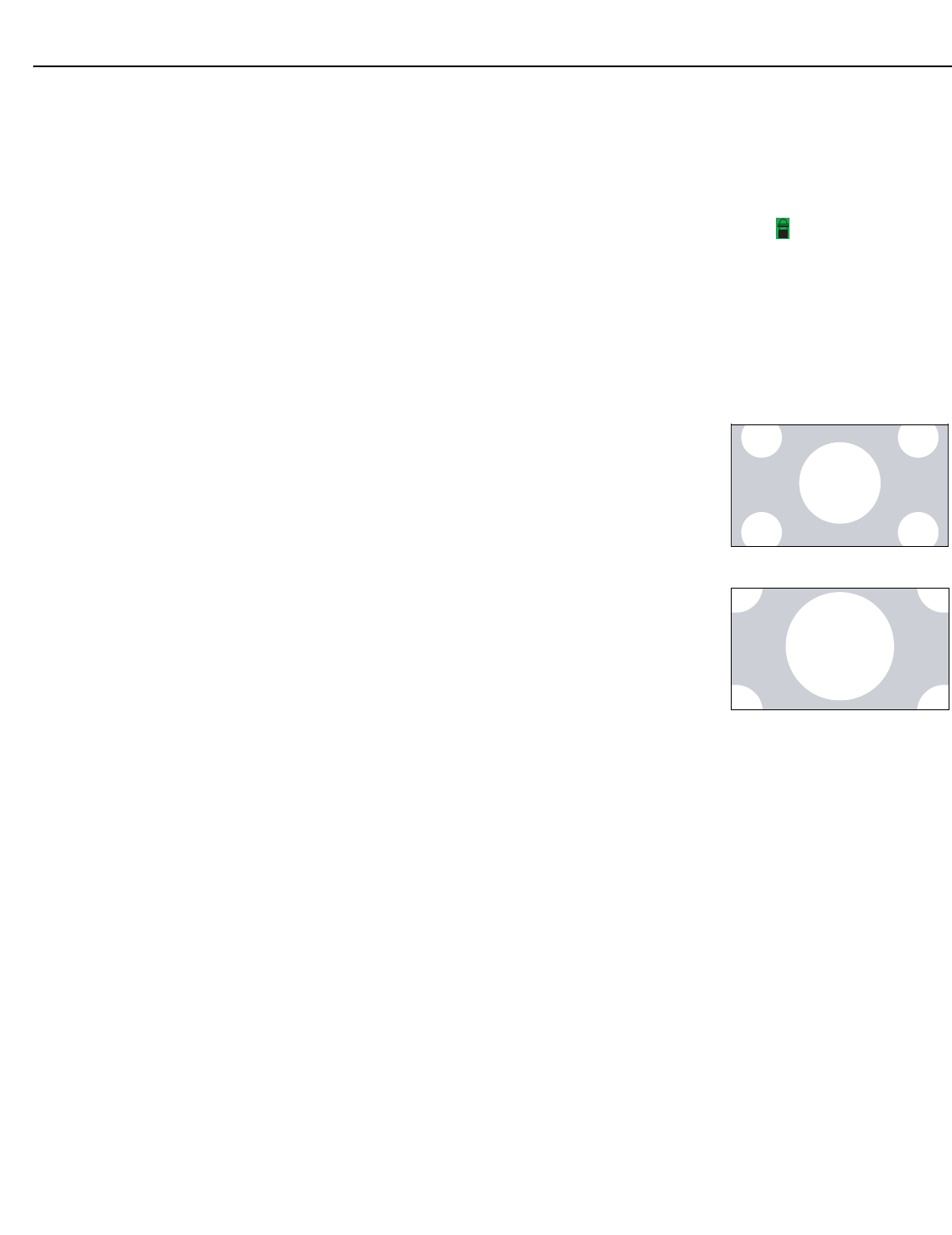
Operation
38 Vidikron VL-52 and VL-57 Owner’s Operating Manual
PRELIMINARY
•Movie Rating: Select Movie Rating from the Parental Control menu to block movies
carrying a given rating, to prevent children from watching movies that are deemed
inappropriate. These ratings have been established by the Motion Picture Association of
America (MPAA) to help parents and other caregivers determine if a movie is suitable for
young viewers.
To block movies carrying a given rating, press the right-arrow button to require the PIN
code to be entered to view a movie with that rating. A lock icon ( ) appears to indicate
that the restriction is active.
For more information on movie ratings, please visit http://www.mpaa.org/movieratings/.
•Unrated: To allow or block access to unrated content, select Unrated from the Parental
Control menu and select Allow or Block. Press ENTER to confirm your choice.
•Change PIN: The default PIN for accessing the parental controls or bypassing content
restrictions is 0000. Vidikron recommends changing this to something less obvious.
Letterbox Mode: Select Letterbox Mode from the
Setup menu to change the zoom factor that takes effect
when you select the Letterbox aspect ratio (refer to
Table 4-1).
When you select Letterbox, the image is enlarged
(zoomed in) by a factor of approximately 1.33.
When you select Cinema Fill, the zoom factor is
approximately 1.77 (1.33 x 1.33).
Input Selection: Input 1 and Input 2 have both S-Video and Composite video connectors.
Input 3 and Input 4 have both Component and Composite video connectors. To specify
which connection type you are using – or to switch from one to the other if equipment is
connected to both – select Input Selection from the Setup menu and press ENTER.
The default setting for all four AV inputs is Automatic. With this setting, the DView searches
for an active source on both connectors and displays the first one it detects. If equipment is
connected to both, Automatic input selection triggers a switch when a source component is
disconnected or powered off.
Monitor Out: If you have equipment connected to the AV OUT, select Monitor Out from the
Setup menu to route either the main or PIP audio/video signals to that output.
4:3 Image on
16:9 Display
(Letterbox aspect ratio)
Letterbox Mode = Letterbox
4:3 Image on
16:9 Display
(Letterbox aspect ratio)
Letterbox Mode = Cinema Fill

Operation
Vidikron VL-52 and VL-57 Owner’s Operating Manual 39
PRELIMINARY
Overscan (not available with PC signals): Overscan pushes the outside edge of the active
picture area of the video signal out beyond the edge of the display area.
Some television programs are produced based on the assumption that older television sets
may not display the outer edges of the broadcast picture area. Overscan effectively trims
away these inactive, outer edges and enlarges the remaining portion of the image to fill the
display area.
Use the on-screen slidebars to set the desired amount of horizontal and vertical overscan, as
well as horizontal and vertical image shift.
These settings only affect 480i source material. For HDTV, DVDs and other video sources,
Overscan is generally not necessary or desirable.
Input Label: You can give each DView input a descriptive name. To do this, select Input
Label from the Setup menu and choose one from the list.
HDMI Audio: If the HDMI source is a PC or other device that does not support audio output
via HDMI, set HDMI Audio to PC.
If the source does support audio output via HDMI, set this option to HDMI to route the HDMI
(digital) audio signal to the speakers when HDMI1 or HDMI2 is selected.
RGB Signal: The RGB input supports both DTV and VESA (computer) resolutions and signal
timings. If the RGB source is a computer, select PC. If it is a DTV set-top box or other
equipment with an RGB output, select Video.
Film Mode: To smooth out moving images from interlaced, standard-definition (SD) sources,
select Film Mode and set it to Automatic.
In most cases, the DView detects the proper “pull-down” rate and vertical frequency.
However, if your source is jittery and/or tearing you may wish to specify the pull-down rate
(2:2 or 3:2) to ensure stable processing for that source.
Auto Backlight: Select Auto Backlight from the Setup menu and set it to On to have the
DView adjust the Backlight setting automatically, according to the ambient light level in the
viewing area.
OSD Timer: Use the or button to set the OSD Timer. This timer controls how long the
menus remain on-screen after selecting them. Select from 0 to 60 seconds, in 10-second
increments. When you set the OSD to 0, the menus remain on-screen until you hide them by
pressing EXIT.
Auto Off: Set Auto Off to 30, 60 or 120 minutes to have the DView go into standby mode
when no source signal is present for the selected amount of time.
When Auto Off is set to zero (0) minutes (disabled), the DView remains in normal operating
mode, regardless of the presence or absence of an input sync signal.

Operation
40 Vidikron VL-52 and VL-57 Owner’s Operating Manual
PRELIMINARY
ISF Calibration Use the ISF Calibration menu to perform advanced picture quality adjustments. This menu
should be used by ISF-certified technicians only.
Picture Adjust: The controls in this menu are identical to those in the main Picture Adjust
menu, but are accessible only by entering the ISF Calibration menu passcode. This makes it
possible to restore the picture quality settings to what they were when the DView was
installed, simply by recalling the “ISF Night” or “ISF Day” preset.
•Brightness: Refer to Brightness on page 29.
•Contrast: Refer to Contrast on page 30.
• Color: Refer to Color Saturation on page 31.
•Tint: Refer to Tint on page 31.
•Sharpness: Refer to Sharpness on page 32.
•ADC Phase Adj.: This control works similarly to the Phase adjustment for RGB signals
(refer to Phase on page 36). Use it to improve the apparent sharpness of 720p and
lower-resolution Component, S-Video or Composite sources. For best results, adjust ADC
Phase while displaying a “Sharpness” pattern (Figure 4-5).
•DNR: Refer to DNR on page 32.
•MPEG NR: Refer to MPEG NR on page 32.
•Backlight: Refer to Backlight on page 32.
•Color Temp.: To choose a color temperature setting, select Color Temp. from the Picture
Adjust menu and press ENTER. (Color temperature defines the “color of gray.”) The
choices are 5400K, 6500K, 8500K and Custom. The default setting, 6500K, is appropriate
for most situations. Higher settings produce a “bluer” picture; lower ones impart a reddish
hue to the image.
Each color temperature setting has six (6) “white balance” parameters associated with it
(two each for red, green and blue). (The White Balance settings for the 5400K, 6500K and
8500K color temperatures are factory-set and cannot be changed.)
•Gamma: Refer to Gamma on page 33.
•Black Level: This control compensates for incoming elevated black levels present in
certain video signals. The default setting (32) results in a minimum black level of
approximately 0 IRE. Adjust as needed to match the dynamic range of the source; increase
the value if blacks appear elevated (dark gray). If blacks appear “crushed” (too dark), use a
lower settting.
ISF Calibration
Picture Adjust
White Balance
Blue Enable
Baud Rate
Factory Reset
Splash Duration
➤
You must enter a passcode to access the ISF Calibration menu.
To create a “Custom” color temperature, select Custom from the Color
Temp. menu and press ENTER. Then, press ENTER a second time to go
directly to the White Balance menu. (This shortcut is available only from
the ISF Calibration menu.)
Note
Tip
Operation
Vidikron VL-52 and VL-57 Owner’s Operating Manual 41
PRELIMINARY
• Save Settings: For each input and supported resolution, the DView lets you save image
quality settings as presets that you can recall at a later time. You can create up to three
presets – designated “Custom,” “ISF Day” and “ISF Night” – per input and resolution.
You should save changes to any of the following settings to a preset; otherwise they will
be lost when a new input source or resolution is selected:
•Brightness
•Contrast
• Color saturation
•Tint
• Sharpness
•Gamma
• Color temperature selection (5400, 6500, 8500 or Custom)
To save image settings to a preset, select Save Settings from the Picture Adjust menu and
select “Custom,“ “ISF Day” or “ISF Night.”
White Balance: To remove any trace of color from the white areas of the displayed image,
set the Color Temp. to Custom. Then, choose White Balance from the ISF Calibration menu
and press ENTER.
•Gain: Use the Gain controls to correct color imbalances in the bright areas of the image. A
good way to do this is to use a test pattern consisting mostly of solid white areas, such as
an 80 IRE “window” pattern. If the white areas contain traces of red, green or blue,
decrease the Gain for that color.
• Offset: Use the Offset controls in the White Balance sub-menu to correct color imbalances
in the dark areas of the image. A good way to do this is to use a test pattern consisting
mostly of dark gray areas, such as a 30 IRE “window” pattern. If the gray areas contain
traces of red, green or blue, decrease the Offset for that color.
Blue Enable: Blue Enable removes all red and green color information from the image,
simulating a blue filter. You can use it instead of a blue filter when performing color and tint
adjustments.
Baud Rate: Select Baud Rate from the ISF Calibration menu to set the data transfer rate of the
DView’s RS-232 SERVICE port. (This setting must match the data rate of the device connected
to the RS-232 input.)
Serial Link: Select Serial Link from the ISF Calibration menu to configure the RS-232 Service
port (see Figure 3-10) for normal operation (On) or for software upgrades (Off).
Factory Reset: To reset all DView settings to their factory defaults, select Factory Reset from
the ISF Calibration menu and press ENTER. This command is not undoable. Use it with
caution!
White Balance
R Gain 100
G Gain 100
B Gain 100
R Offset 50
G Offset 50
B Offset 50
Any white balance adjustments you make here are automatically stored
as a “Custom” color temperature. The White Balance settings for the
5400K, 6500K and 8500K color temperatures are factory-set and cannot
be changed. Always set the Color Temp. to Custom before making
any white balance adjustments, so you can see how those
adjustments affect the image.
Note
Operation
42 Vidikron VL-52 and VL-57 Owner’s Operating Manual
PRELIMINARY
Splash Duration: Use Splash Duration to control how long the DView splash screen remains
on-screen after power-up; see Figure 4-6. To prevent this screen from appearing, set the
Splash Duration to 0.
Figure 4-6. DView Splash Screen
CALIBRATED FOR:
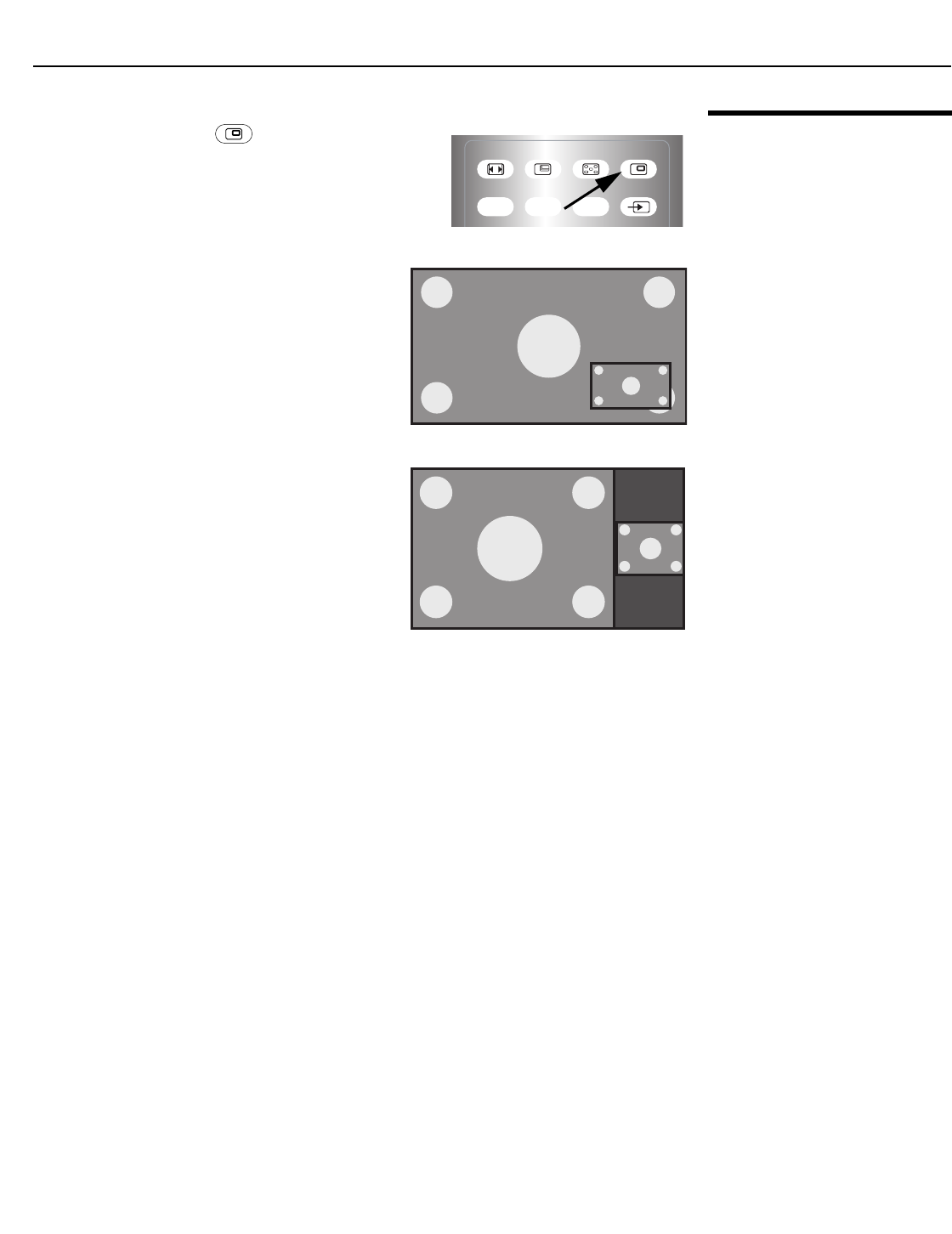
Operation
Vidikron VL-52 and VL-57 Owner’s Operating Manual 43
PRELIMINARY
4.5
Using Picture-In-Picture
(PIP)
To use PIP, press the PIP ( ) button.
The PIP window appears inside the main image
window.
Press PIP again to switch to side-by-side PIP mode.
Press PIP again to turn PIP off.
ASPECT SIZE POSITION PIP
SWAP TV/AVS.SWAP
TIMER
OFF
2. Press the (
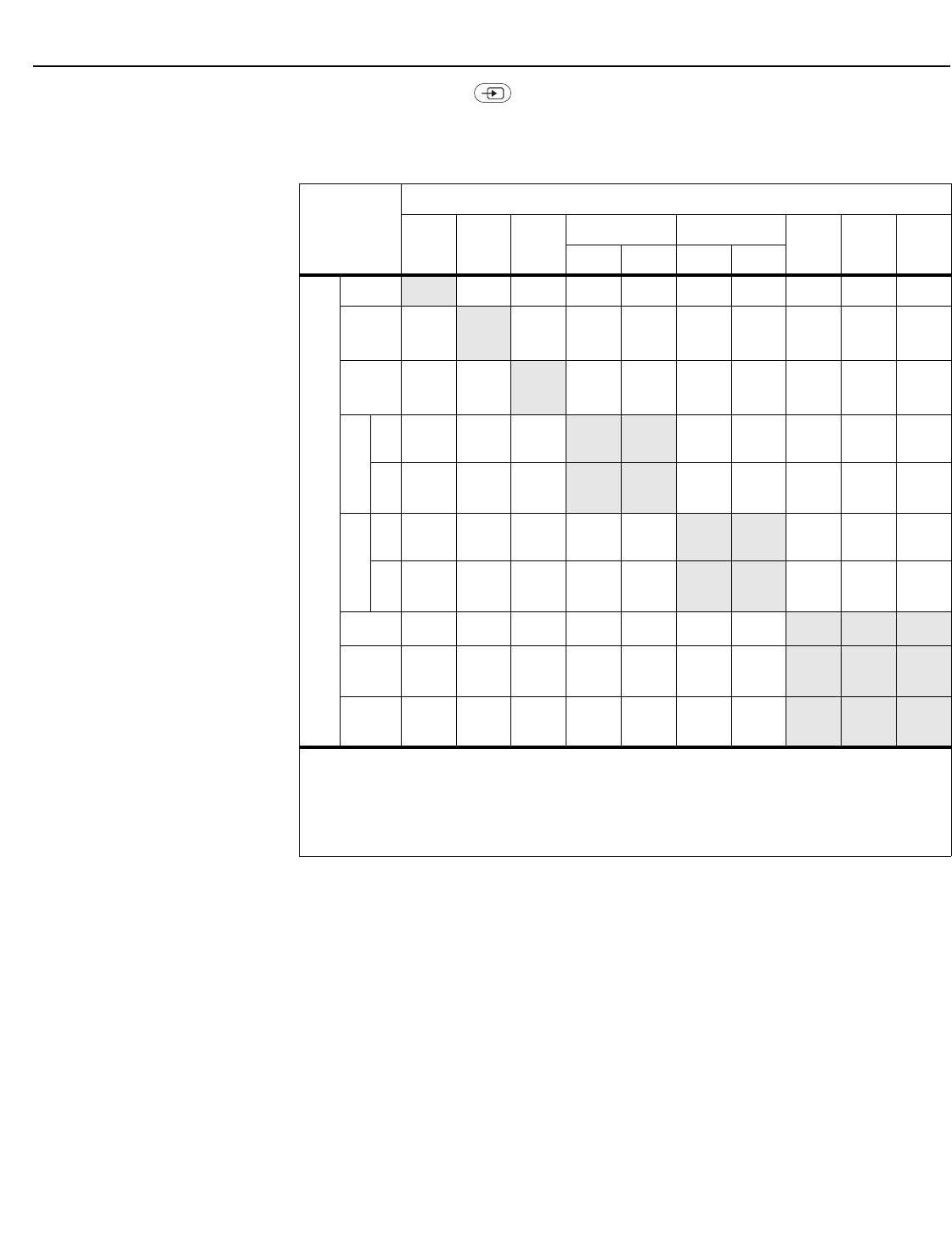
Operation
44 Vidikron VL-52 and VL-57 Owner’s Operating Manual
PRELIMINARY
Press the TV/AV button ( ) to select a PIP signal source. For each source, Table 4-3 shows
which of the other sources are available as a PIP source.
Table 4-3. Available Main and PIP Source Combinations
PIP Input Source
TV INPUT
1
INPUT
2
INPUT3 INPUT4
RGB HDMI1 HDMI2
VIDEO COMP VIDEO COMP
Main Input Source
TV
–
√√√√√√√√√
INPUT1
√
–
√√√√√√√√
INPUT2
√ √
–
√√√√√√√
INPUT3
VIDEO
√√√
– –
√ √ √ √ √
COMP.
√√√
– –
√ √ √ √ √
INPUT4
VIDEO
√√√√√
– –
√ √ √
COMP.
√√√√√
– –
√ √ √
RGB
√√√√√√√
– – –
HDMI1
√√√√√√√
– – –
HDMI2
√√√√√√√
– – –
Notes:
1. “
√
” means that that source is available as a PIP source when that input is selected; “–” means that it is not.
2. The DView cannot display the same source in both the main and PIP windows, nor can it display RGB and
HDMI (digital) signals simultaneously.
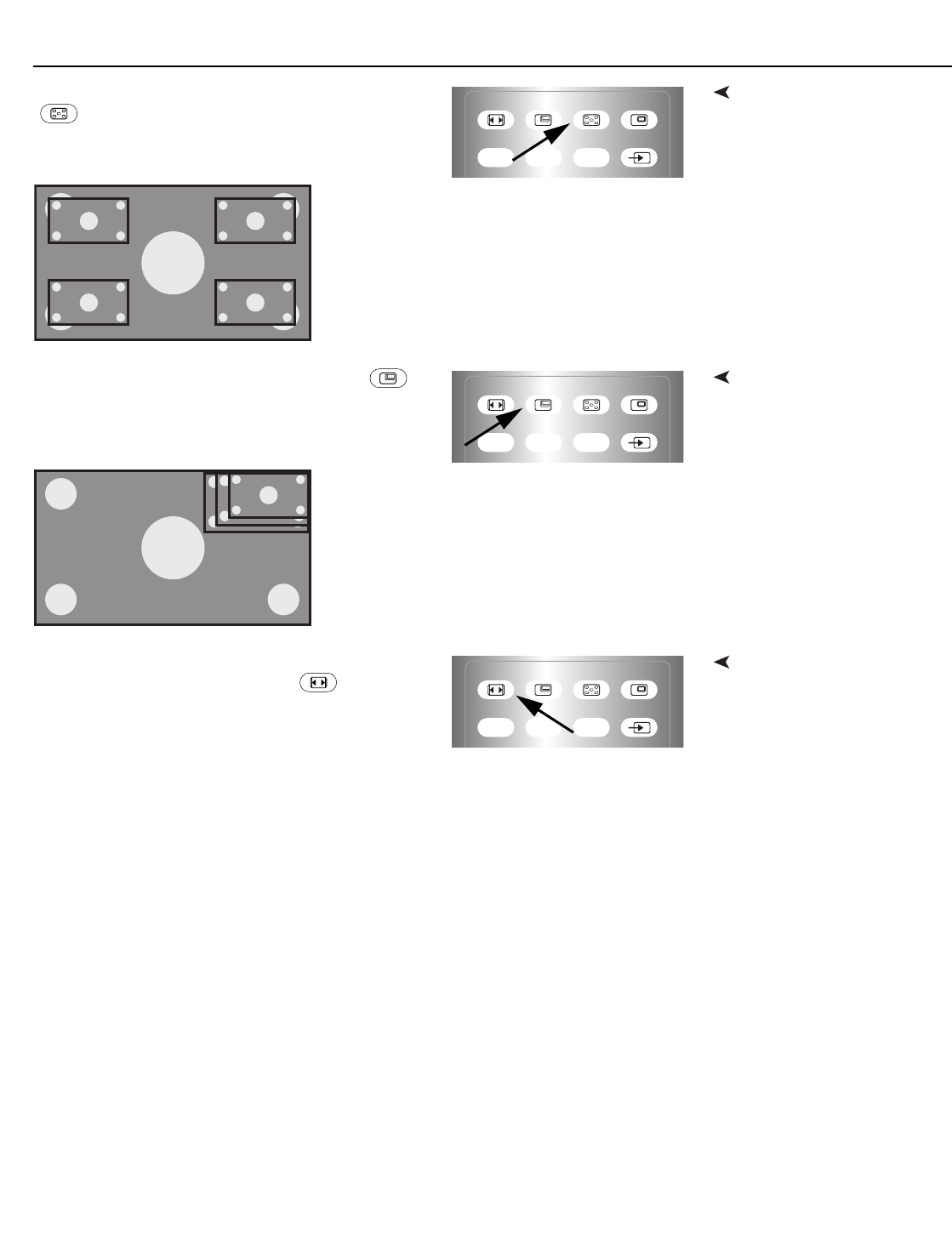
Operation
Vidikron VL-52 and VL-57 Owner’s Operating Manual 45
PRELIMINARY
Changing the PIP PositionTo change the PIP window position, press the POSITION
() button on the remote control repeatedly until
the window is in the desired position.
Changing the PIP SizeTo change the PIP window size, press the SIZE ( )
button on the remote control repeatedly to achieve the
desired window size.
Changing the PIP Aspect
Ratio
To change the aspect ratio of the PIP window from 4:3 to
16:9 or vice versa, press the ASPECT ( ) button on
the remote control.
Refer to Table 4-1 for more information about aspect
ratios.
ASPECT SIZE POSITION PIP
SWAP TV/AVS.SWAP
TIMER
OFF
1
2
4
3
ASPECT SIZE POSITION PIP
SWAP TV/AVS.SWAP
TIMER
OFF
ASPECT SIZE POSITION PIP
SWAP TV/AVS.SWAP
TIMER
OFF
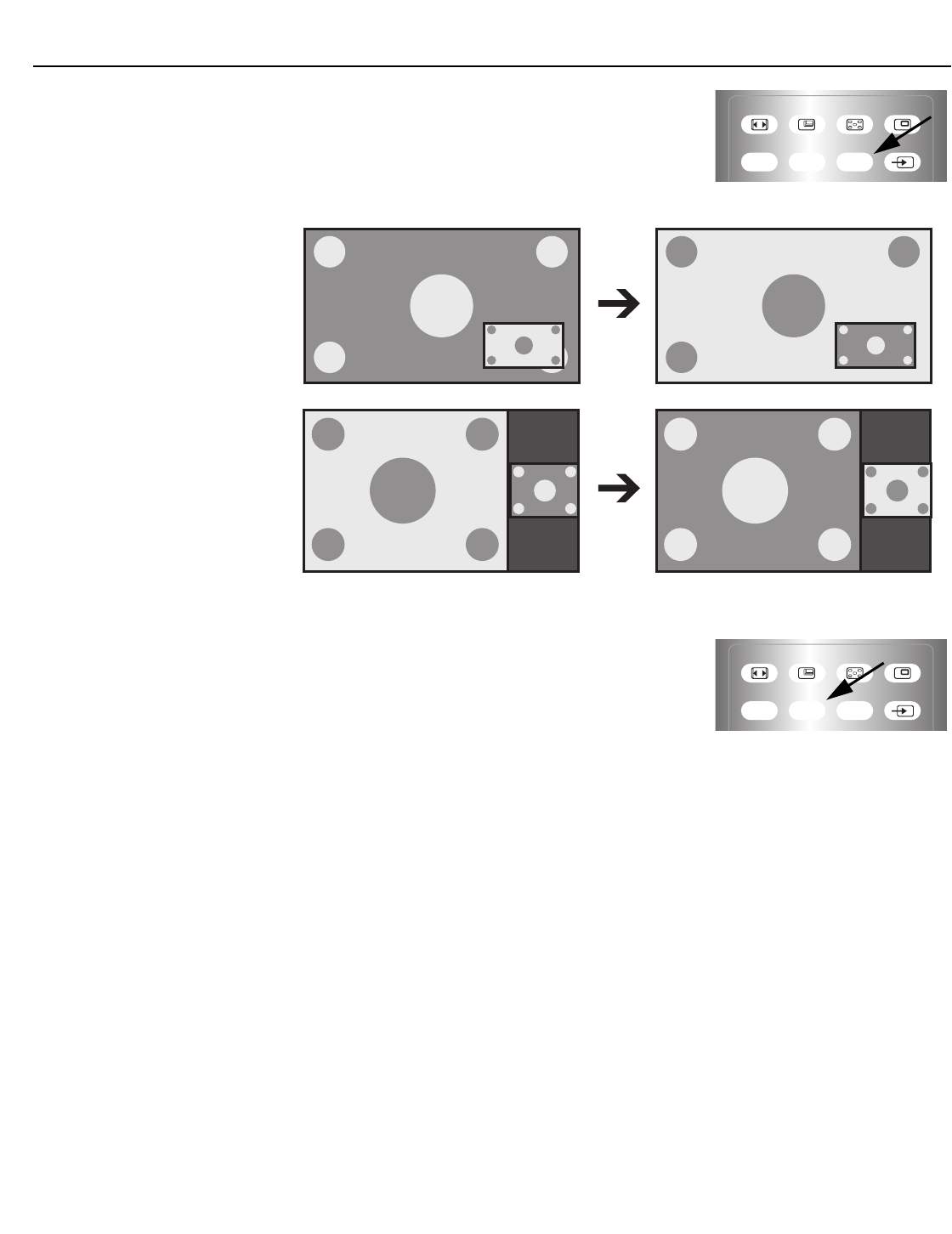
Operation
46 Vidikron VL-52 and VL-57 Owner’s Operating Manual
PRELIMINARY
Swapping the Main and PIP
Images
To swap the main and PIP images, press the SWAP
button on the remote control.
Swapping the Main and PIP
Audio Programs
To swap the main and PIP audio programs, press the
S.SWAP button on the remote control.
➤
ASPECT SIZE POSITION PIP
SWAP TV/AVS.SWAP
TIMER
OFF
➤
ASPECT SIZE POSITION PIP
SWAP TV/AVS.SWAP
TIMER
OFF
Operation
Vidikron VL-52 and VL-57 Owner’s Operating Manual 47
PRELIMINARY
4.6
Stereo Sound/SAP (VL-52
only)
The DView supports Multichannel Television Sound (MTS), the broadcast audio standard that
allows transmission of both stereo and Secondary Audio Program (SAP) content.
The SAP is usually a foreign-language translation. However, it can also be used for other
purposes such as Described Video Services (DVS), which provide descriptive narration of key
visual elements in programs for the benefit of the visually impaired.
You can select sound options (Mono, Stereo, SAP or
Mono+SAP) depending on the broadcast signal by
pressing the MTS/SAP button on the remote control.
• Choose Stereo for channels that are broadcasting in
stereo.
• Choose Mono for channels that are broadcasting in
mono, or if you are having difficulty receiving a
stereo signal.
• Choose SAP to listen to the Secondary Audio
Program.
• Choose Mono+SAP to listen to both the primary and
secondary audio programs (for example, when a
program has a DVS audio track).
Table 4-4 summarizes the audio broadcast modes supported by the DView.
Table 4-4. Compatibility with Stereo and SAP Audio Broadcasts
Broadcast Mode
Receive Mode
Mono Stereo SAP Mono+SAP
Mono Mono Mono Mono Mono
Stereo Mono Stereo Mono Stereo
Mono+SAP Mono Mono SAP Mono+SAP
Stereo+SAP Mono Stereo SAP Mono+SAP
S.MODE SURRND MTS/SAP MUTE
FAV
CHAN
PREV
CHAN INFO

Vidikron VL-52 and VL-57 Owner’s Operating Manual 49
PRELIMINARY
5.1
Cleaning
Regular cleaning will extend the life and performance of the DView. Before cleaning, be sure
to unplug the power cord from the power outlet.
Cleaning the Display Panel
Body and Remote Control
Do not under any circumstances use solvents such as benzene or thinner to clean the DView.
Doing so may cause deterioration or peeling of paint from the display or remote control unit.
Wipe the display and remote control gently with a soft cloth. In case of excessive dirt buildup,
dampen a soft cloth with a diluted neutral cleaning detergent. Wring the cloth thoroughly,
then wipe the component and dry it with a dry soft cloth.
Cleaning the ScreenAfter dusting, wipe the screen gently using a soft cloth (cotton, flannel etc.). Do not use tissue
or coarse fabric. The screen surface is easily scratched; do not rub it or hit it with a hard
object.
If you clean the surface of the screen with a wet cloth, do not allow water droplets on the
surface to enter into the product; this may cause a malfunction.
Cleaning the VentsAs a general rule, use a vacuum cleaner about once a month to clean the vents on the rear
panel of the display of dust buildup (set the vacuum cleaner to its weakest setting when
doing this). If not removed, accumulated dust can cause the internal temperature to increase,
resulting in possible breakdown or fire.
5.2
Troubleshooting Tips
Table 5-1 provides some general guidelines for troubleshooting problems you may
encounter with the DView. If the suggested solutions fail to resolve the problem or if you
encounter an issue not described here, please contact your Vidikron dealer or Vidikron
Technical Support.
5Maintenance and Troubleshooting
Table 5-1. Troubleshooting Chart
Symptom Possible Cause(s) Solution
The display does not turn on
after initial installation.
• The DView is not plugged
in or the AC outlet is not
active.
• The remote control
batteries have run out.
• Ensure that the DView is
plugged in and that the AC
outlet is active.
• Replace the batteries.
The display is on, but there is
no picture.
• Incorrect source selection.
• Source component is not
turned on.
• Source component is
connected incorrectly or
not at all.
• Select the correct source.
• Turn on the source
component.
• Check video connections to
source component.
Maintenance and Troubleshooting
50 Vidikron VL-52 and VL-57 Owner’s Operating Manual
PRELIMINARY
Picture is okay, but there is no
sound.
• Audio output is muted.
• Volume setting is too low.
• Source component is
connected incorrectly or
not at all.
• Speakers are connected
incorrectly or not at all.
• Audio settings are
incorrect.
• Press the MUTE button on
the remote control.
• Turn up the volume.
• Check audio connections to
source component.
• Check speaker connections
(Figure 3-8).
• Check the following
settings: Digital Audio Out
(page 34), TV Speaker
(page 34) and HDMI Audio
(page 39).
Image is too bright and/or
lacks definition in the bright
areas of the image.
• Contrast is set too high. • Lower the contrast setting.
Image appears “washed out”
and/or dark areas appear too
bright.
• Brightness is set too high. • Lower the brightness
setting.
Black or white dots appear on
all channels or a specific
channel.
• Antenna or cable TV source
is connected incorrectly or
not at all.
• Broadcast signal is weak.
• Check the antenna or cable
TV connection.
• If using an off-air antenna,
adjust its position or
location.
Colors in the image are
swapped; for example, reds
appear blue or vice versa.
• The Red/Pr, Green/Y or
Blue/Pb outputs from the
source are connected to the
wrong inputs on the DView.
• Ensure that the source
outputs are connected to
the correct DView input.
RGB-HD images appear
“noisy.”
•Clock and Phase settings
need adjustment.
• Manually adjust Clock and
Phase settings, or perform
an Auto-Adjust (refer to PC
Mode Adjust on page 36).
“Invalid mode” appears
on-screen.
•The resolution and
frequency of the video card
in the computer are not
compatible with the DView.
• Select a compatible
resolution and vertical
frequency (refer to
Computer Signal
Compatibility on page 61).
The image is too large or too
small.
• Image size needs adjusting. • Adjust the image size (refer
to PC Mode Adjust on
page 36).
Poor broadcast sound quality. • The sound quality of a
stereo broadcast may be
unstable in an area with a
weak signal.
•Use the MTS/SAP button
on the remote control to
select mono.
Table 5-1. Troubleshooting Chart (continued)
Symptom Possible Cause(s) Solution
Vidikron VL-52 and VL-57 Owner’s Operating Manual 51
PRELIMINARY
6.1
RS-232 Connection and
Port Configuration
To interface the DView with a home theater automation/control system or a PC running
terminal emulation software, connect it to your control system or PC as shown in Figure 3-10.
(Use a straight-through cable.)
Configure the RS-232 controller or PC serial port as follows: no parity, 8 data bits, 1 stop bit
and no flow control. Set the baud rate to match that of the DView RS-232 port. To check the
baud rate setting, select Baud Rate from the ISF Calibration menu (refer to page 41).
6.2
Serial Command Syntax
• Commands are in ASCII format and are not case-sensitive.
• A carriage return is not required after a command.
• When you send a valid command, the DView executes it and acknowledges it with a
right-bracket character (]) followed by the four-digit numeric code you sent; for example,
]0002.
• When you send an invalid command (one followed by values outside the valid range for
that command), the DView ignores it and returns >MAX or <MIN instead of the four-digit
code.
• When you send an unrecognized/misspelled command, the DView ignores it and returns
-N/A instead of the four-digit code.
Table 6-1 lists the RS-232 command set.
6Serial Communications
Table 6-1. Serial Commands
Command Description
[S3A 0### Set audio volume to ### ( = 000-100)
Example: [S3A0075 sets volume to 75
[+3A Audio volume up
[-3A Audio volume down
[S3E 000# Audio mute (speakers/headphones)
0 = not muted, 1 = muted
Example: [S3E0001 mutes the audio output
[S4A 000# Main input selection
0 = TV
1 = Input1
2 = Input2
3 = Input3
4 = Input4
6 = RGB
8 = HDMI1
9 = HDMI2
Example: [S4A0006 selects RGB
[+4A Select “next” Main AV input
Serial Communications
52 Vidikron VL-52 and VL-57 Owner’s Operating Manual
PRELIMINARY
[S4E 000# Aspect ratio selection
0 = 4:3 (Standard)
1 = IntelliWide
2 = Letterbox
3 = 16:9 (Anamorphic)
Example: [S4E0002 selects Letterbox
[S4G 000# PIP Input selection
0 = TV
1 = Input1
2 = Input2
3 = Input3
4 = Input4
6 = RGB
8 = HDMI1
9 = HDMI2
Example: [S4G0003 selects PIP Input3
[+4G Select “next” PIP AV input
[SAB 000# Power on/off control
0 = standby, 1 = on
Example: [SAB0001 turns unit on
[SCA 000# Caption on/off
0 = off
1 = on
Example: [SCA0000 turns caption off
[SCB 00## Set major channel (AIR); ## = 01 - 99
Example: [SCB0002 selects off-air channel 2
[SCB 1### Set major channel (CABLE); ### = 001 - 125
Example: [SCB1102 selects cable channel 102
[SCD #### Set minor channel; #### = 0000 - 9999
(Note: You must send a “Set major channel” command first.)
Example: [SCD0001 selects minor channel 1
[+CB TV channel up
[-CB TV channel down
[SDA 000# Set PIP mode
0 = OFF
1 = PIP
2 = PBP
Example: [SDA0002 selects PBP
Table 6-1. Serial Commands
Command Description
Serial Communications
Vidikron VL-52 and VL-57 Owner’s Operating Manual 53
PRELIMINARY
[SDB 000# Set PIP size
0 = small
1 = medium
2 = large
Example: [SDB0001 selects medium PIP size
[SDE 000# Set PIP aspect ratio
0 = 4:3
1 = 16:9
Example: [SDE0001 selects 16:9 aspect ratio PIP window
[SDF 000# Set PIP window position
0 = Top/Left
1 = Top/Right
2 = Bottom/Left
3 = Bottom/Right
Example: [SDF0001 positions PIP window in upper-right corner of display area
The following serial commands are meant to emulate buttons on the remote control. Each button
has its own serial command, so effectively it is as if you were using the IR remote only you’ll be doing
so via serial commands. These commands provide active OSD responses just like the IR remote.
Each command begins with [key followed by the four-digit number of the button. No carriage
return is necessary. The response you receive from the unit if the command is valid will be a
right-bracket (]) followed by the four-digit numeric code you sent. (For example, the ‘ON’ command
is [key0015; the response will be ]0015). All commands are in ASCII.
[key 0002 OFF
0015 ON
[key 0004 Number 1
0005 Number 2
0006 Number 3
0008 Number 4
0009 Number 5
0010 Number 6
0012 Number 7
0013 Number 8
0014 Number 9
0035 Number “–”
0017 Number 0
0023 TV
[key 0105 INPUT1
Table 6-1. Serial Commands
Command Description

Serial Communications
54 Vidikron VL-52 and VL-57 Owner’s Operating Manual
PRELIMINARY
0027 INPUT2
0028 INPUT3
0001 INPUT4
0102 HDMI1
0101 HDMI2
0019 RGB HD
[key 0003 CUSTOM
0062 ISF NIGHT
0031 ISF DAY
[key 0040 16:9 (ANA)
0043 4:3
0039 LETTERBOX
0126 INTELLIWIDE
[key 0007 Right-Arrow key
0016 Down-Arrow key
0018 Up-Arrow key
0011 Left-Arrow key
0046 ENTER
[key 0026 MENU
[key 0100 EXIT
[key 0063 PIP ASPECT RATIO
0047 PIP SIZE
0034 PIP POSITION
0032 PIP
0037 TIMER OFF
0052 S.SWAP
0033 SWAP
0036 TV/AV
[key 0053 S.MODE
0054 SURROUND
Table 6-1. Serial Commands
Command Description

Vidikron VL-52 and VL-57 Owner’s Operating Manual 57
PRELIMINARY
7.1
DView Specifications
Table 7-1 lists the DView specifications.
7Specifications
Table 7-1. DView Specifications
Native Resolution: 1920 x 1080
Screen Size: VL-52 = 52 in. (diagonal)
VL-57 = 57 in. (diagonal)
Screen Aspect Ratio: 16:9
Available Aspect Ratios: 4:3, Letterbox, 16:9, IntelliWide™
DTV Compatibility: 480i/p, 576i/p, 720p, 1080i, 1080p
ISF Settings: Yes
Contrast Ratio: VL-52 = 2000:1
VL-57 = 1200:1
Data/Graphics Compatibility: Refer to Table 7-2
Imagix Processing: 3:2 or 2:2 pull down
Inputs: Multiple input combinations with up to
(4) Composite Video
(2) S-Video
(2) Component Video
(2) HDMI w/HDCP
(1) RGB (15-pin D-sub)
(1) RS-232 Control
(5) Analog Audio
(4 stereo RCA pairs + 3.5-mm stereo mini jack)
(1) RF Antenna (VL-52 only)
(1) CATV (75-ohm coaxial) (VL-52 only)
Outputs: (1) Composite Video
(1) Analog Audio (stereo RCA pair)
(1) Stereo headphone (3.5-mm stereo mini jack)
(1) Digital Audio (S/PDIF, RCA coaxial)
(1) Digital Audio (TosLink optical)
Audio System: 10W RMS x 2 Stereo Amplifier
Tuner (VL-52 only): NTSC/ATSC Stereo (PAL as monitor only), HDTV, PIP/PBP,
Parental Control (V-Chip), Closed Caption
Discrete IR Control: Source, power and aspect ratios
Power Requirements: 100 to 240 VAC, 50/60Hz
Power Consumption: VL-52 = 350 watts
VL-57 = 400 watts
Operating Environment: 40ºF to 95ºF (5ºC to 35ºC);
20% to 80% humidity (non-condensing)
Dimensions: VL-52 = see Figure 7-1
VL-57 = see Figure 7-2

Specifications
58 Vidikron VL-52 and VL-57 Owner’s Operating Manual
PRELIMINARY
Weight (including stand): VL-52 = 89.5 lbs. (40.60 kg)
VL-57 = 118.0 lbs. (53.52 kg)
Regulatory Approvals: Complies with FCC, CE, C-Tick, NRTL, GOST, MIC, SABS, RoHS,
China RoHS
Limited Warranty: One (1) year parts and labor from the date of delivery to the
end user.
Specifications are subject to change without notice.
Table 7-1. DView Specifications (continued)
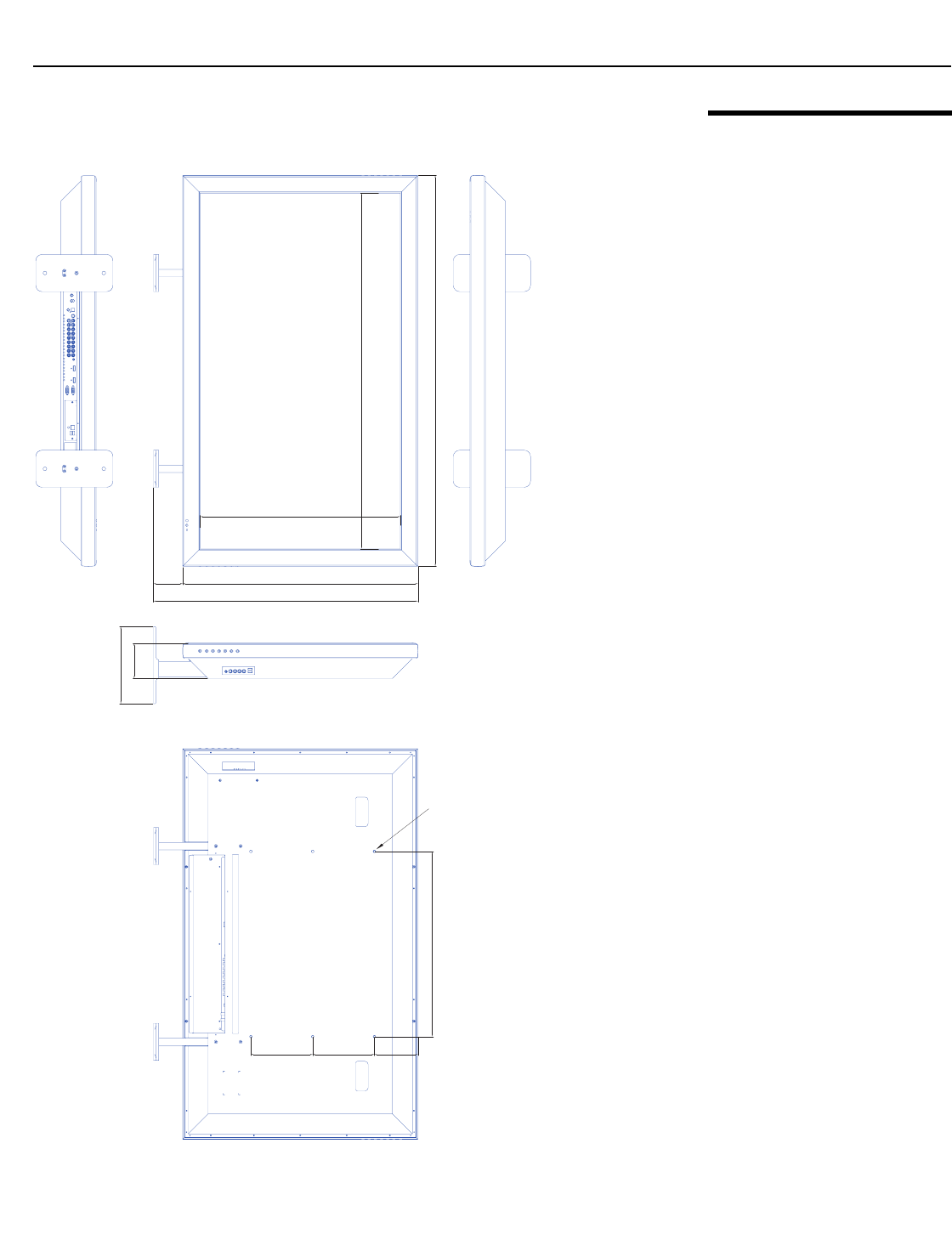
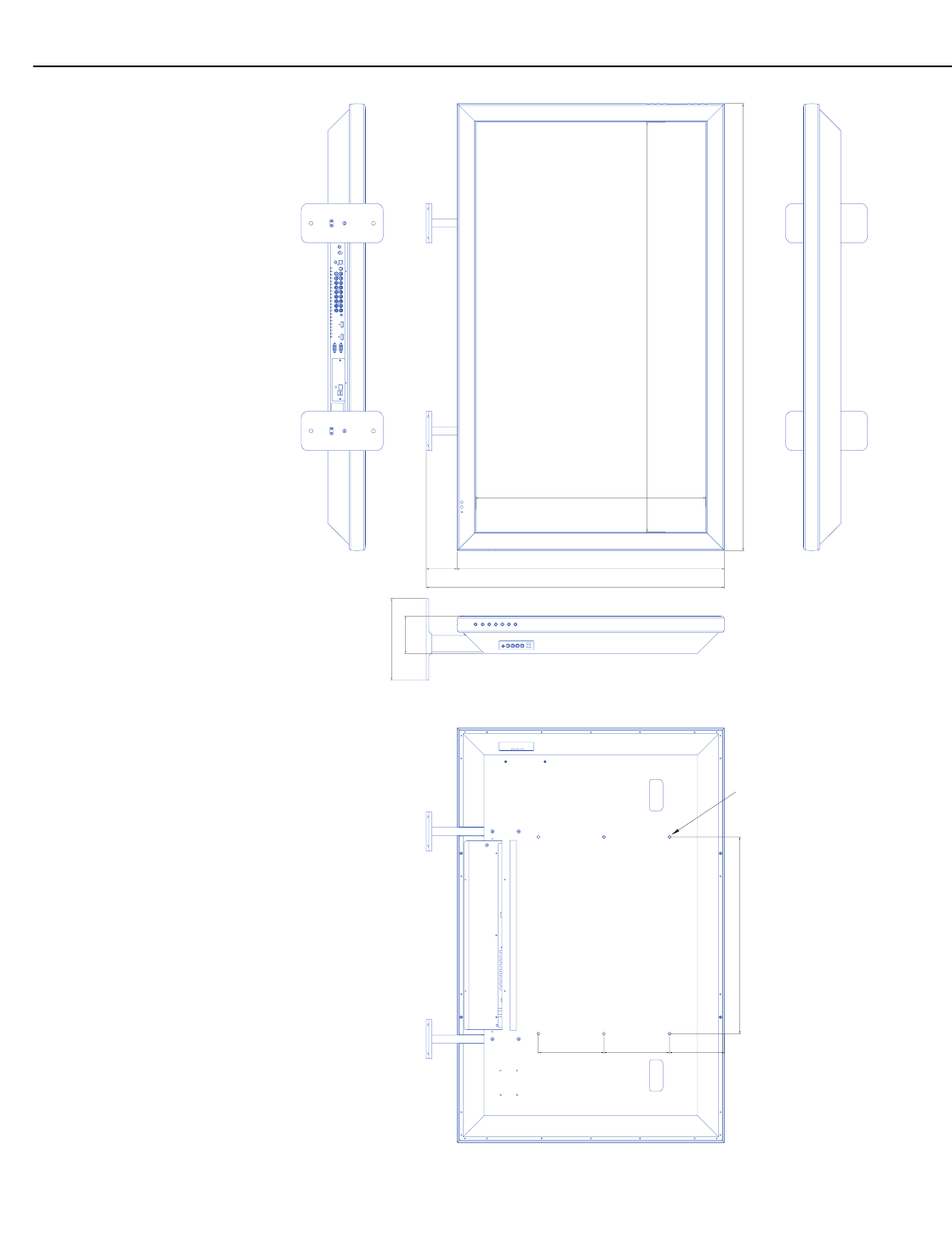
Specifications
Vidikron VL-52 and VL-57 Owner’s Operating Manual 61
PRELIMINARY
7.3
Computer Signal
Compatibility
The DView can display video signals from a variety of computer sources via its RGB-HD and
HDMI inputs.
Table 7-2 lists the signal types that are compatible with the DView, and indicates which of
those are VESA standards.
Table 7-2. Computer/Video Signal Compatibility Chart
Signal
Type Mode Vertical Frequency
(Hz)
Horizontal
Frequency (kHz) RGB HDMI
VESA 640x350 8585.00 31.28
√
–
VESA 640x400 8585.00 35.78
√
–
VESA 640x48060 60.00 29.82
√ √
MAC 640x48067 66.70 35.00
√ √
MAC 640x48072 72.8037.90
√ √
MAC 640x48075 75.00 37.50
√ √
VESA 800x600 56 56.00 35.20
√ √
VESA 800x600 60 60.30 37.90
√ √
VESA 800x600 72 72.20 48.70
√ √
VESA 800x600 75 75.00 46.90
√ √
VESA 1024x76860 60.00 48.40
√ √
VESA 1024x76870 70.10 56.50
√ √
VESA 1024x76875 75.00 60.00
√ √
VESA 1280x76860 60.00 47.70
√
–
VESA 1280x1024 75 75.00 80.17
√ √
VESA 1600x1200 60 60.00 74.52
√ √
VESA 1920x108060 60.00 67.50
√ √
Note: The DView may not be able to display images from notebook computers in simultaneous (CRT/LCD)
mode. Should this occur, switch the notebook computer to “CRT only” mode. If you are unsure how to do
this, refer to your notebook computer’s user manual.


Vidikron
2900 Faber Street
Union City, CA 94587
510-324-5900
Fax 510-324-5905
1-888-4-VIDIKRON
www.vidikron.com
SERIAL NUMBER
020-0714-00 Rev. A
October 2007
