Viewera V180 Series Users Manual V180T 1
V180 Series to the manual 2172e657-2e6f-4914-98ad-be1f024093b4
2015-02-03
: Viewera Viewera-V180-Series-Users-Manual-455593 viewera-v180-series-users-manual-455593 viewera pdf
Open the PDF directly: View PDF  .
.
Page Count: 30
TFT-LCD TV MONITOR
V180/ V180T / V190T Series
USER MANUAL
www.viewera.com
Rev 1.1

MENU :
1. Introduction
Product Description ………………...............................................................................…
Package Contents……………………...............................................................................…
Product Features…………………………………………………………………………..…
Screen Cleaning Techniques ………………………………………………………….……
Additional …………………………………………………………………………………
2. Control Functions
Front Panel Controls ………………………………………………………………….……
OSD Controls ……………………………………………………..………………………...
3. Input Diagrams
4. Installation ……………………………………………….…………………………….….……
5. Tilting Angles……………………………………………………………………………….……
6. Product Specifications………………………………………………………………………..…
7. Display Modes………………………………………………………………………………..…
8. Troubleshooting…………………………………………………………………………………
9. Service Information…………………………………………………………………………..…
10. Windows Setup…………………………………………………………………………………
11. Remote Control Functions………………………………………………………………….…
Page 1
Page 1
Page 1
Page 2
Page 3
Page 5
Page 6
Page 19
Page 20
Page 21
Page 22
Page 23
Page 24
Page 24
Page 25
Page 27

1.Introduction
Product Description
Congratulations on your purchase of the ViewEra 18”/ 19” LCD TV monitor. It incorporates high quality display into a small
light weighted module. It has power-saving capabilities and emits no radiation. You will certainly benefit from this monitor in lots
of ways; to name some of them, comfort safety, and environmental protection.
This LCD monitor incorporates 18”/ 19” color active matrix thin-film-transistor (TFT) liquid crystal display to provide
superior display performance. Its maximum resolution of SXGA 1280 x 1024 is ideal for displaying complex graphics and high
definition images. Its other outstanding capabilities include audio system and OSD (On Screen Display) controls.
Package Contents
Included with your LCD monitor as following items :
- 18”/19” TFT LCD monitor
- 15 pin D-sub VGA cable
- RCA audio cable
- Power cord
- AC Adapter
- User manual
- Remote control (Optional)
Page 1

Product Features
- High contrast color TFT LCD display support resolution up to SXGA 1280 x 1024. @75Hz
- Compatible with IBM VGA, IBM SXGA, and Macintosh standards.
- Imbedded audio system provides sound performance.
- AV-In and S-video, TV Tuner(Optional)
- Power management system conforms to VESA DPMS standard.
- Support DDC 1/2B for Plug & Play compatibility.
- Advanced OSD control for picture quality adjustment.
- Detachable stand for wall-mounting application.
Screen cleaning techniques
1. Gently clean the screen with a clean camel hair lens brush, or a soft, clean, lint-free cloth, to remove dust and other
particles that can scratch the screen.
2. Do not apply pressure to the screen surface when wiping it clean..
3. Do not pour or spray any liquid directly onto the screen or casing. Chemical cleaners have been reported to damage the
screen or case of the LCD monitor.
Page 2

Additional
Read all of these instructions and save them for later use.
Follow all warnings and instructions on the product.
- Product
Do not cover or block the vent holes in the case.
Do not insert sharp objects or spill liquid into the LCD monitor through cabinet slots. They may cause accident fire,
electric shock or failure.
Disconnect the power plug from the AC outlet if you will not use it for an extended period of time.
Do not attempt to service this product yourself, as opening or removing covers may expose you to dangerous voltage
points or other risks.
Do not touch the screen directly with your fingers. You may damage the screen, and oil from your skin is difficult to
remove.
Do not apply pressure to screen. The LCD is very delicate.
- Power
Use the type of power rating indicated on label.
- Plugs
Do not remove any of the prongs of the monitor’s three-pronged power plug.
Disconnect the power plug from the AC outlet under following conditions:
If you will not use it for an extended period time.
When the power cord or plug is damaged or frayed.
If the product does not operate normally when the operating instructions are followed. Adjust only those controls that
are covered by the operating instructions. Improper adjustment of other controls may result in damage and will often
require extensive work by a qualified technician.
If the product exhibits a distinct change in performance, service may be required.
Page 3
- Power and extension cords
Do not allow anything to rest on the power cord.
Do not locate this product where persons will walk on the cord.
Use the proper power cord with correct attachment plug type. If the power source is 120V AC, use a power cord that has
UL and C-UL approvals. If the power source is a 240V AC supply, use the tandem (T blade) type attachment plug with
ground conductor power cord that meets the respective European country’s safety regulations, such as VDE for Germany.
Do not over load wall outlets or power cords. Ensure that the total of all units plugged into the wall outlet does not exceed
10 amperes.
Ensure that the total ampere ratings on all units plugged into the extension cord is not above the cord’s rating.
If the power supply cord, which came with your monitor, is to be connected to the PC instead of the wall outlet, Use an
UL/TUV approved computers with receptacle rated 100~240V AC, 50/60Hz, 1.0A (minimum) only.
- Environment
Place the monitor on a flat and leveled surface.
Place the monitor in a well-ventilated place.
Keep the monitor away from:
Overly hot, cold or humid places, places directly under sunlight, dusty surroundings, equipment that generate strong
magnetic fields.
Please adjust the frequency to 75 Hz after setting up the LCD monitor.
Then push the OSD menu button and use the Auto Adjust function to find the best mode of your computer.
Page 4
2. Control Functions
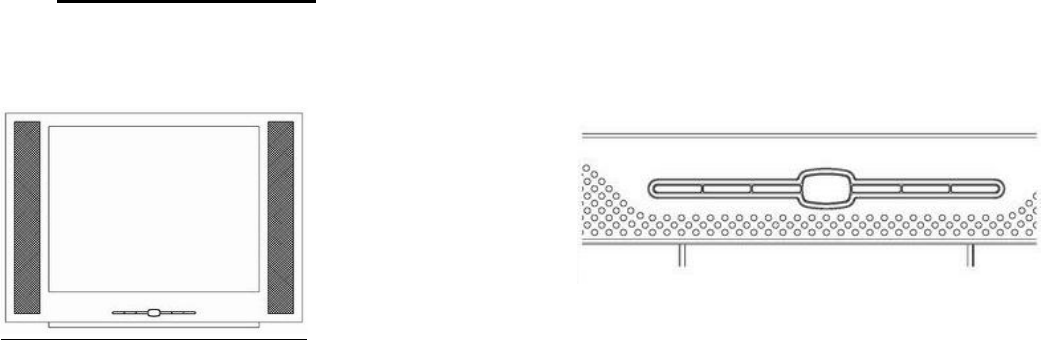
a. Front Panel Controls 【PC, Audio】
1) Power Switch:Power switch LED & Remote sensor (Optional).
2) Channel Up (▲) & Auto Adjust: On TV mode, it can adjust channel up. On PC mode, it can adjust
signal clock, phase and image position automatically.
3) Channel Down (▼) : On TV mode, it can adjust channel down.
4) “-”: This button is used to decrease the value of selected.
5) “+”: This button is used to increase the value of selected.
6) Menu: Press this button and the OSD menu pops up on the screen. It can be used to select the OSD control
options on the screen.
7) Source: Direct select the input signal PC / AV / S-Video / TV (Only AV / PC model).
Page 5
6. Menu
2. Channel Up(▲); Auto adjusting
1. Power switch & Remote sensor
7. Source
3.
Channel Down(
▼
)
4.,(-), 5. (+)
PC AV S-VIDEO TV
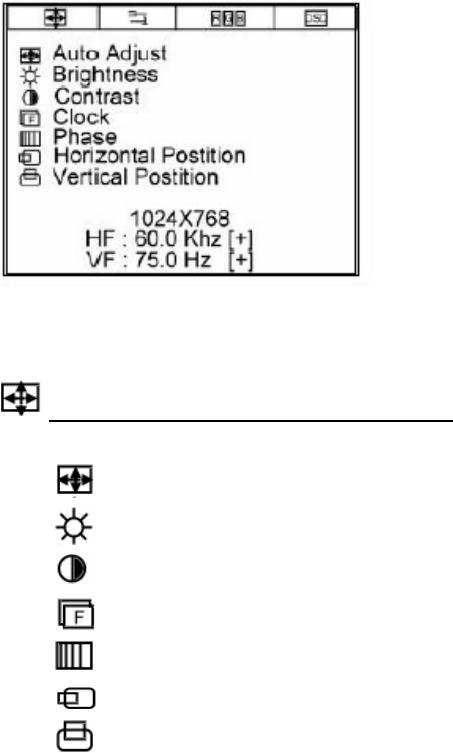
Monitor Function Selection Menu:
Auto Adjust:Select this function to obtain the best display quality.
Brightness:Adjust the brightness by using +/ - button.
Contrast:Adjust the contrast by using +/ - buttons.
Clock:Adjust the clock by using +/ - buttons.
Phase:Adjust the phase by using +/ - buttons.
Horizontal Position:Press +/-, the image moves to right/ left ;
Vertical Position:Press +/-, the image moves upward/ downward.
Page 6
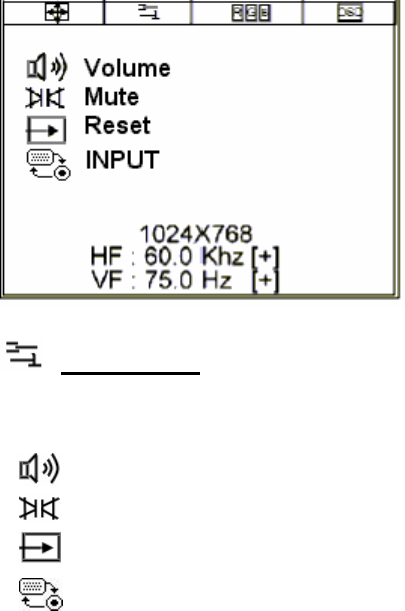
Tools Menu:.
Volume:Adjust the volume by using +/ - buttons
Mute:Turn off speakers
Reset:Recall factory settings
IN INPUT:PC→AV→S-Video→TV function selection
Page 7
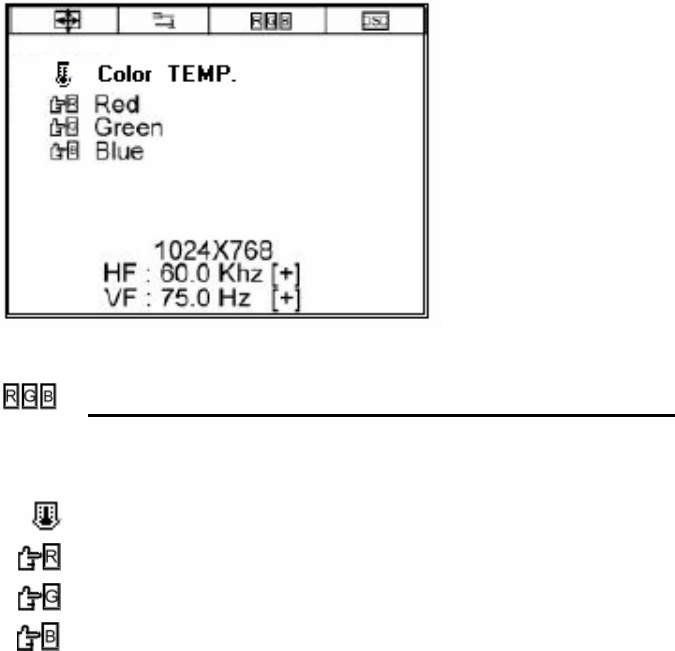
Color Temperature and RGB Adjustment Menu :
Color Temperature:Color temperature selection
Red:Red light brightness adjustment
Green:Green light brightness adjustment
Blue:Blue light brightness adjustment
Page 8
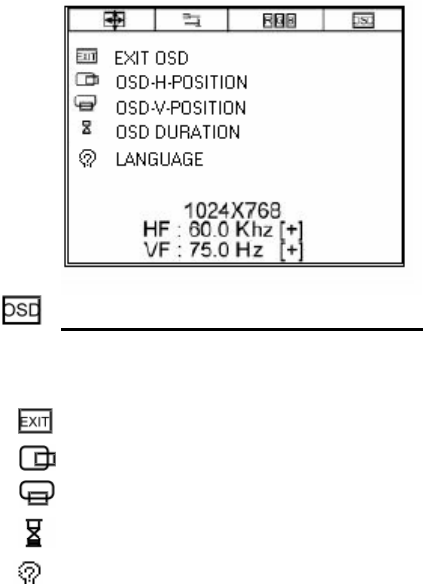
OSD Function Selection Menu:
Exit OSD:Exit the OSD function selection menu.
OSD –H- Position:Press +/ - to move the OSD to right/ left.
OSD – V- Position:Press +/ - to move the OSD menu upward/ downward.
OSD DURATION:Set the OSD display time.
LANGUAGE:Set the OSD display language.
Page 9
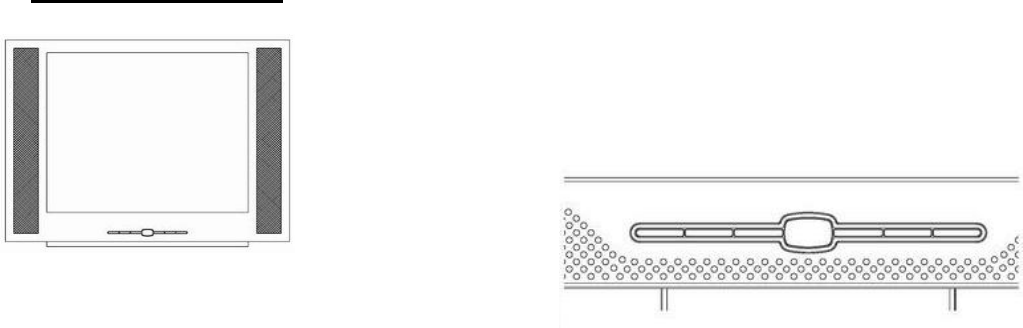
b. Front Panel Controls【AV】
1. Power Switch:Power switch LED & Remote sensor(Optional)
2. Menu: Press this button and the OSD menu pops up on the screen. It can be used to select the OSD control
options on the screen.
3. “-” :This button is used to decrease the value of selected. .
4. “+” : This button is used to increase the value of selected.
5. Source: Direct select the input signal PC / AV / S-Video/ TV (Only AV /TV Model)
Page 10
1. Power switch & Remote sensor
5. Source 3.,(-), 4. (+)
2. Menu
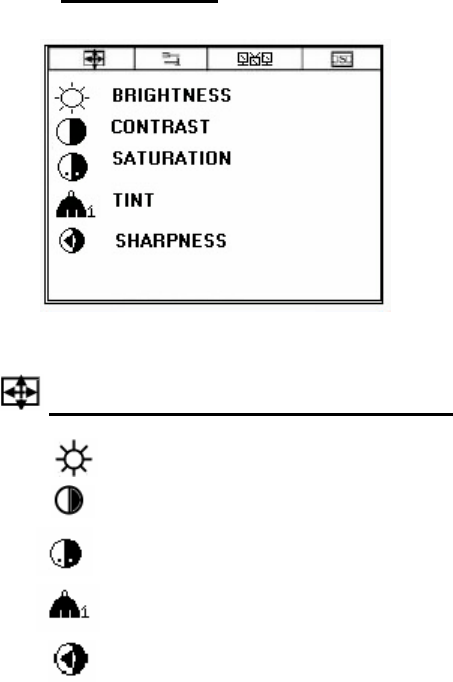
OSD Control【AV】
Monitor Function Selection Menu:
Brightness:Adjust the brightness by using +/ - button.
Contrast:Adjust the contrast by using +/ - buttons.
Saturation:Adjust the Saturation by using +/ - buttons.
TINT:Adjust the Tint by using +/ - buttons.
Sharpness:Adjust the Sharpness by using +/ - buttons.
Page 11
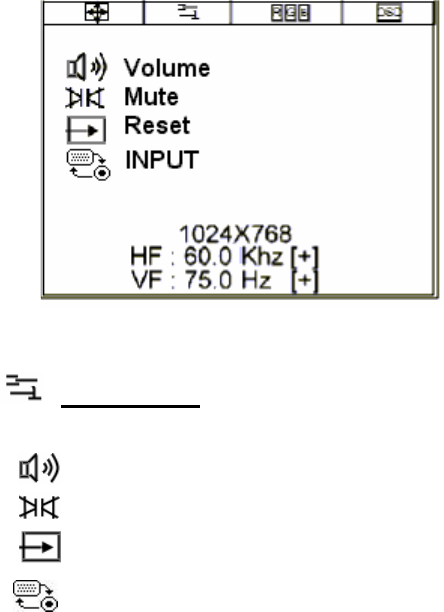
Tools Menu:.
Volume:Adjust the volume by using +/ - buttons
Mute:Turn off speakers
Reset:Recall factory settings
INPUT:PC→AV→S-Video→TV mode selection
Page 12
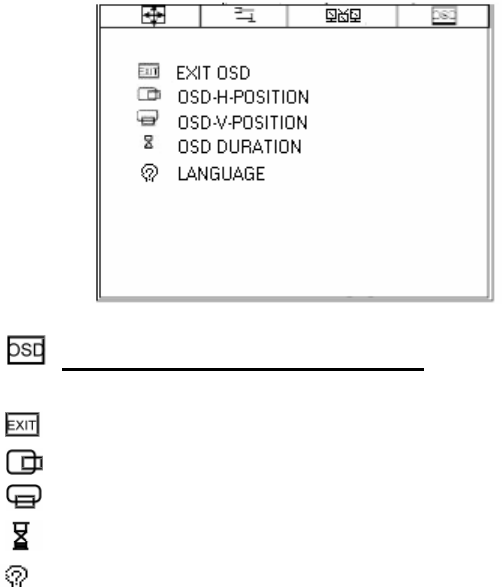
OSD Function Selection Menu:
Exit OSD:Exit the OSD function selection menu.
OSD –H- Position:Pressing +/ - to move the OSD to right/ left.
OSD – V- Position:Pressing +/- moves the OSD menu upward/ downward
OSD DURATION:Set the OSD display time
LANGUAGE:Set the OSD display language
Page 13
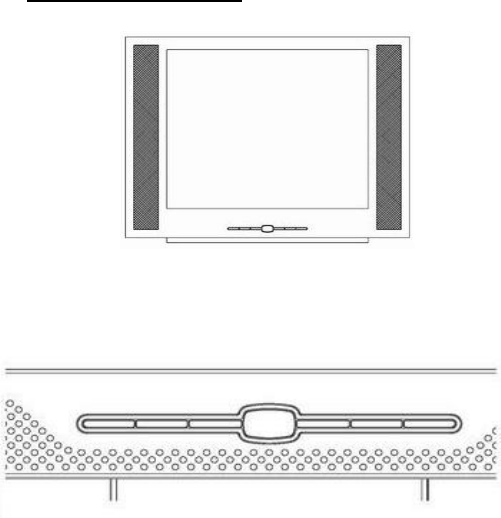
c. Front Panel Controls【TV】
1. Power switch LED& Remote sensor
5.Source select 4. OSD Menu (select)
7. Channel down▼ 6. Channel up▲ 2. Adjust (decrease-) 3. Adjust (increase +)
1. Power switch:Power switch LED & Remote sensor
2. “-” : This button is used to decrease the value of selected.
3. “+” : This button is used to increasing the value of selected.
4. Menu : Press this button and the OSD menu pops up on the screen. It can be used to
select the OSD control options on the screen.
5. Source: Direct select the input signal PC / AV / S-Video / TV
6. Channel up(▲): Direct adjust the channel up
7. Channel down (▼): Direct adjust the channel down
Page 14
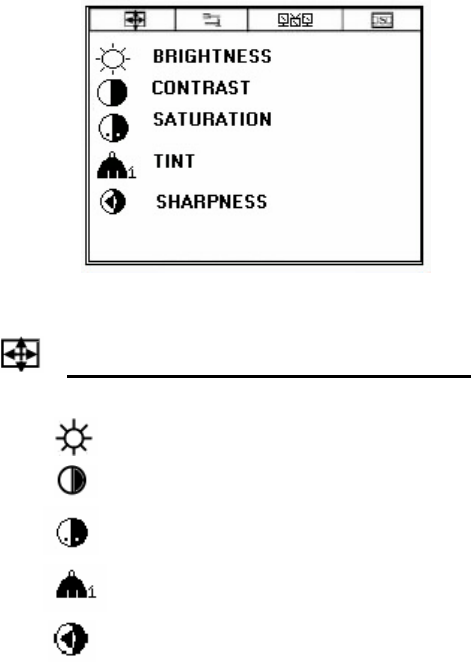
Monitor Function Selection Menu:
BRIGHTNESS:Adjust the brightness by using +/ - button.
CONTAST:Adjust the contrast by using +/ - buttons.
SATURATION:Adjust the contrast by using +/- buttons.
TINT:Adjust the contrast by using +/ - buttons.
SHARPNESS:Adjust the contrast by using +/ - buttons.
Page 15
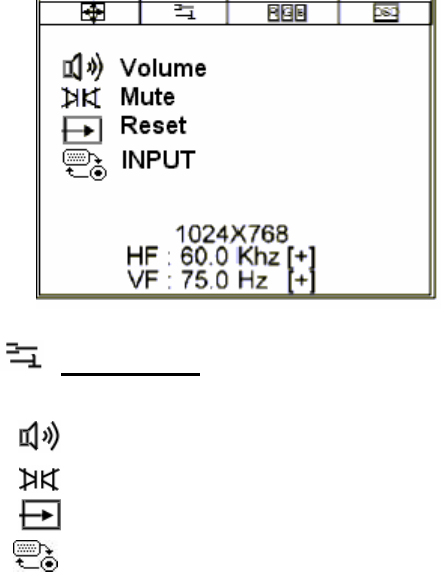
Tools Menu:.
Volume:Adjust the volume by using +/ - buttons.
Mute:Turn off speakers.
Reset:Recall factory settings.
INPUT:PC→AV→S-Video→TV function select.
Page 16
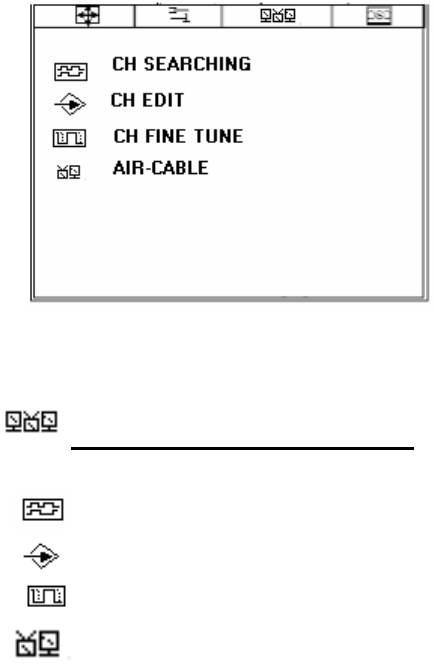
TV Function Selection Menu:
CH Searching: TV channel auto searching and auto save channels
CH EDIT:Add or delete the channel by pressing +/ -.
CH Fine tune: Adjust the TV signal reception to get better image quality by pressing +/ -.
AIR -Cable:Select the TV signal input by air (TV) or cable (CATV) by pressing +/ -.
Page 17
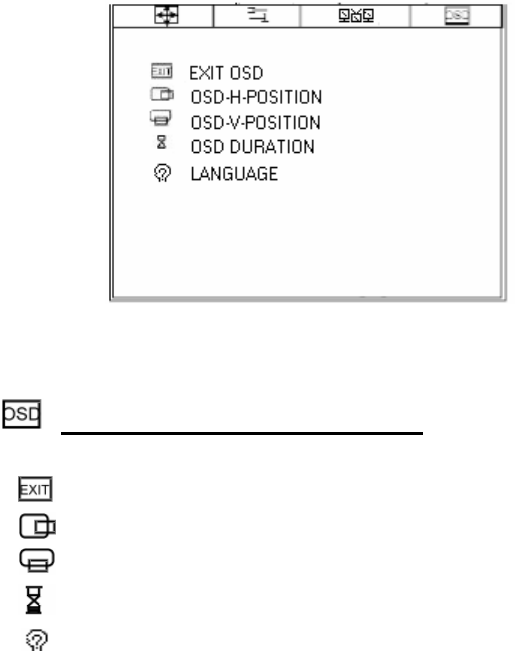
OSD Function Selection Menu:
Exit OSD:Exit the OSD function selection menu.
OSD –H- Position:Press +/ - to move the OSD menu to right/ left.
OSD – V- Position:Press +/ - to move the OSD menu upward/ downward.
OSD DURATION:Set the OSD display time.
LANGUAGE:Set the OSD display language.
Page 18
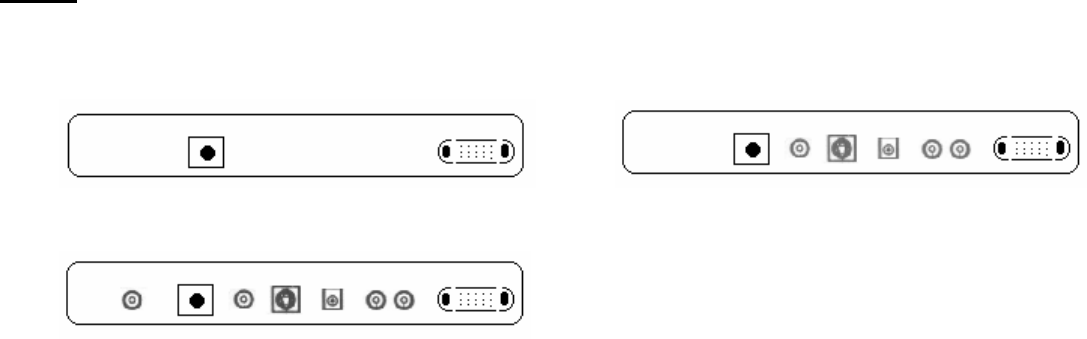
3. Inputs Diagrams
Inputs
【PC】 【AV】
【TV】
【1】 【2】【3】【4】 【5】 【6】 【7】
【1】TV TUNER IN:TV tuner Air or Cable signal input.(Option)
【2】DC IN:DC power 12V/3A input from adapter.
【3】AV IN:RCA jack AV signal input.(Option)
【4】S-VIDEO IN:S-Video signal input. (Option)
【5】LINE OUT:Sound signal output(Stereo Phone Jacket).
【6】RCA JACK AUDIO IN:Audio signal R/L input. (Option)
【7】VGAsignal input (PC IN):Connect to PC VGA D-Sub signal .
Page 19

4. Installation
Electrical Connection
Please follow the instruction below to properly connect the LCD monitor to external electrical source
1. Connect the female-end of the power cable to the transformer. Connect the male-end of the power cable to the wall outlet or
extension cable.
2. Connect the cable from the other end of the transformer to the LCD monitor
DC IN located at the back of the LCD monitor.
Signal Connection
1. Power off both the LCD monitor and PC system before connecting them.
2. Take out the VGA cable from the box and connect it to the signal connector at the back of the LCD monitor.
3. Connect the other end to the VGA connector on the back of the PC system.
4. Please make sure the connections to both the PC system unit and the LCD monitor are strong and secure. Please don’t
forget to tighten the screws on each connector end.
5. Now turn on both the PC system unit and the LCD monitor.
6. After you finish setting up the LCD monitor, please set the refresh rate to 75Hz.
7. After setting up the LCD monitor, please perform Auto Adjust in OSD so that the LCD monitor will be automatically set to
optimal color display each time.
* Please note: When you disconnect any power cable or signal cable, please do not pull the cable by grabbing the cable body.
Please grab the cable connector itself whenever you try to pull the cable during disconnect.
Page 20
4. Tilting Angles
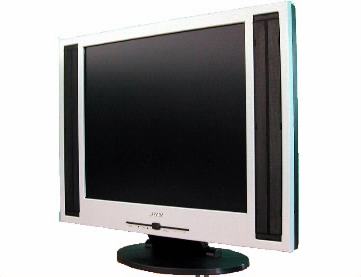
For viewing clarity, you can tilt the LCD forward (up to 10 degrees) or backward (up to 30 degrees)
Down:10 o
Up:30 o
Page.21
6. Product Specifications
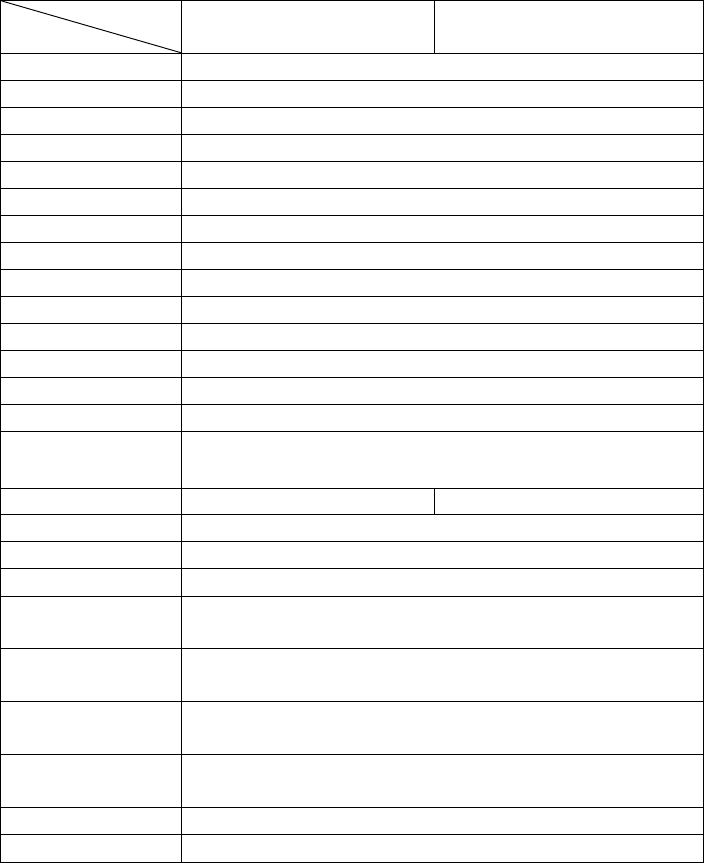
Type
Spec
AV
(Video)
TV
(Video option Tuner)
LCD Display 19” Active matrix TFT LCD panel
Pixel Pitch 0.294(H) x 0.294(V) mm
Max. Resolution 1280(H) x 1024 (V) SXGA
Set Size 580(H) x 450(W) x 175(D) mm
Pack Size 690(H) x 535(W) x 275(D) mm
Contrast Ratio 700:1
Brightness 250 cd/m2
Response Time Tr 16 ms ; Tf 7ms
Display Color 16.777M
View Angle L+/R-
±85°
U+/D- ±85°
PC Interface RGB analog or digital 0.7V peak to peak
Video Sync. TTL positive or negative
Display Mode VGA, SVGA, XGA, SXGA
PC ,Audio in/TV
Audio out
RCA JACK(R/L) / Phone Jack (Only for TV Audio out)
Video in RCA Jack/ Mini Dine RCA Jack/ Mini Dine/ RF
Frequency
(Horizontal) 31.5-80KHZ (Vertical)56-75HZ
Signal Connector D-sub 15 pin and AV / S-Video in(RF JACK Option)
Front Control Auto adjust with LED, OSD Menu, +/-Adjustment
OSD Menu Contrast, Brightness, Auto Adjust, Clock, Phase, H-Position,
V-Position Input: PC & option DVI/AV/S-video
Power Adapter AC Input : 100-240V~1.8A, 50-60Hz
DC Output : 12V/ 4.0A
Operating
Conditions
Temperature: 0℃~50℃
Humidity : 20% ~ 95%
Storage
Conditions
Temperature: -20℃~60℃
Humidity : : 20%~95%
Certification BSMI, FCC (DOC), CE-B, UL, TUV/GS
Weight Net Weight:20.6Kgs, Gross Weight 25.1Kgs
Page 22
7. Display Modes
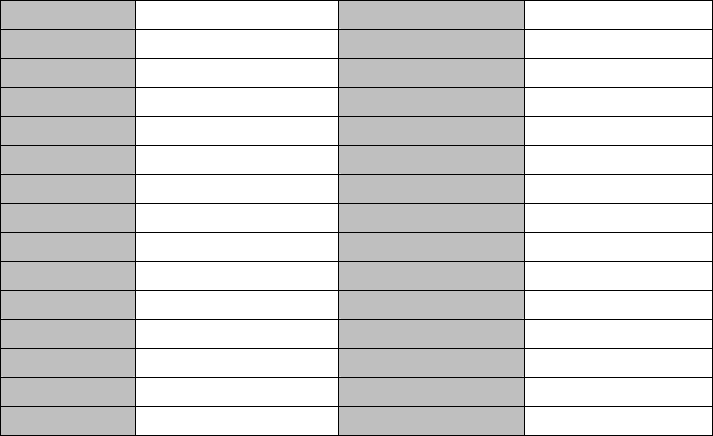
Mode Resolution H Freq (kHz) V Freq (Hz)
1 640 x 350 31.469 70.070
2 640 x 480 31.469 59.940
3 640 x 480 37.861 72.809
4 640 x 480 37.500 75.000
5 720 x 400 31.469 70.087
6 800 x 600 35.156 56.250
7 800 x 600 37.879 60.317
8 800 x 600 48.077 72.188
9 800 x 600 46.875 75.000
10 1024 x 768 48.363 60.004
11 1024 x 768 56.476 70.069
12 1024 x 768 60.023 75.029
13 1280 x 1024 63.981 60.020
14 1280 x1024 79.760 75.025
Page 23
8. Troubleshooting
1) No power
Make sure the A/C power cord is securely connected to the monitor and to the power outlet.
2) No screen image with power on
(1) Make sure the video cable supplied with the monitor is tightly secured to both the video output port of the computer and the
monitor.
(2) Adjust the brightness and contrast from the front panel controls.
3) “No Signal Input” message shown
(1) Make sure the video cable is tightly connected to the computer and monitor.
(2) Check the 15-pin video cable connectors on both ends have exactly 15 pins.
If the problem still remains, please contact your ViewEra dealer or ViewEra.
9. Service Information
Warranty
The ViewEra V190T TFT- one(1) year for LCD panels from
the date of purchase. Dead pixels are not within the warranty.
Service
Please contact your ViewEra dealer for warranty service. For out-of-warranty service, you may contact either ViewEra dealers or
ViewEra.
Page 24
LCD TV monitors are warranted for one for all parts and year
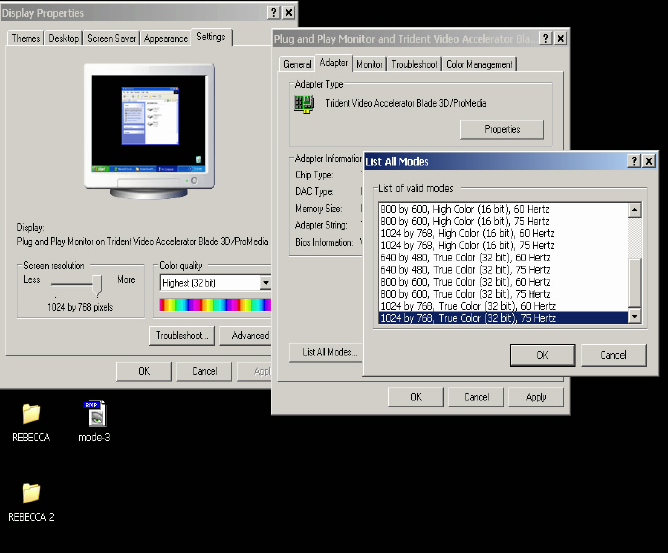
10. Windows setup
For the best display performance, please set the monitor type in Windows. Please select as follows:
Control Panel > Monitor > Settings > Advancde > Monitor > Change > List all modes
For 1280 x 1024, please set to “SXGA 1280*1024 @60/ 75Hz “(Option Tuner setup@60Hz)
Page 25
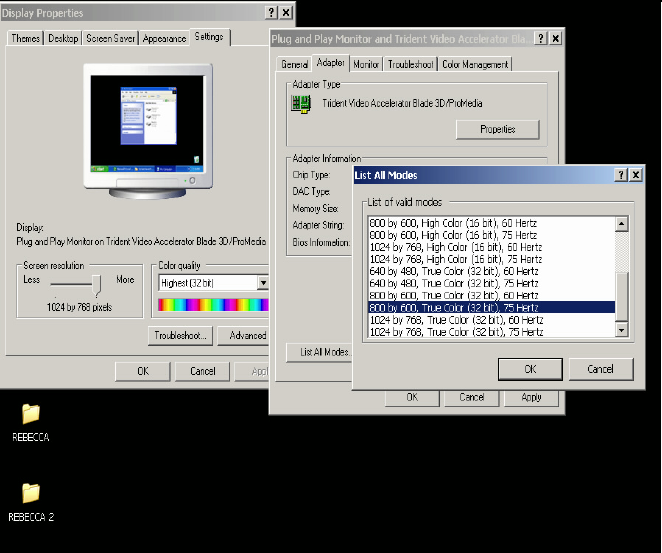
(For 1024 x 768, please set to “SVGA 1024 x 768 @75Hz / @70Hz / @60Hz”
(Option tuner setup@60Hz)
Page 26
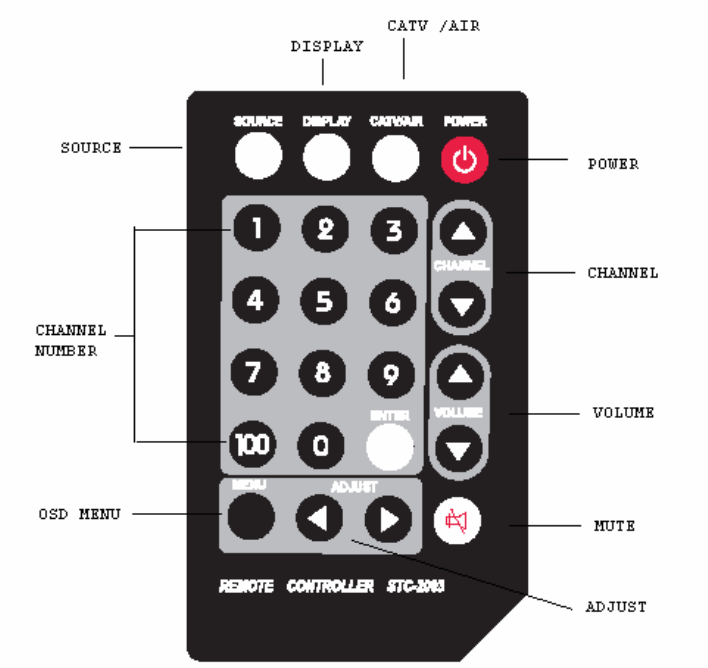
11. Remote Control Functions
Page 27
