Viking Tmc 148 Users Manual
TMC 148 to the manual 3d6bd0da-879e-4e95-9395-ce99779d650a
2015-02-05
: Viking Viking-Tmc-148-Users-Manual-455650 viking-tmc-148-users-manual-455650 viking pdf
Open the PDF directly: View PDF  .
.
Page Count: 33
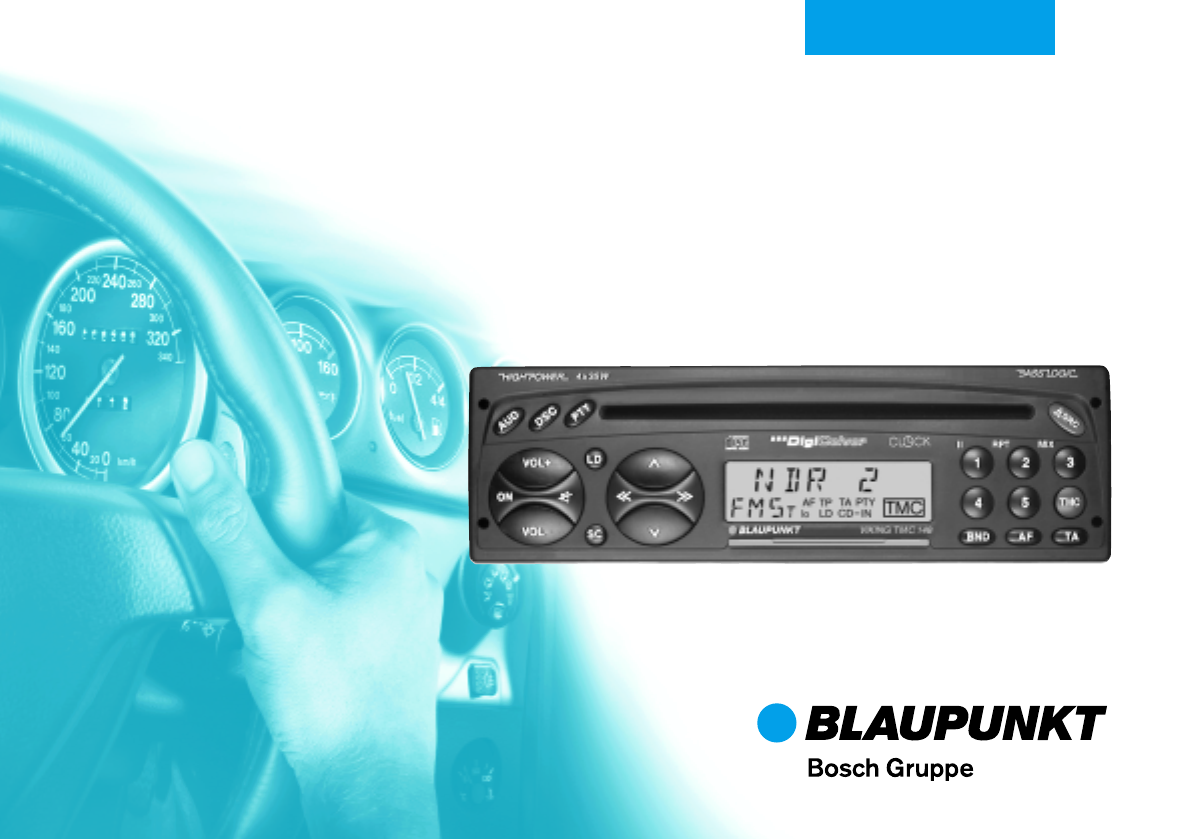
Radio / CD
Viking TMC 148
Operating Instructions
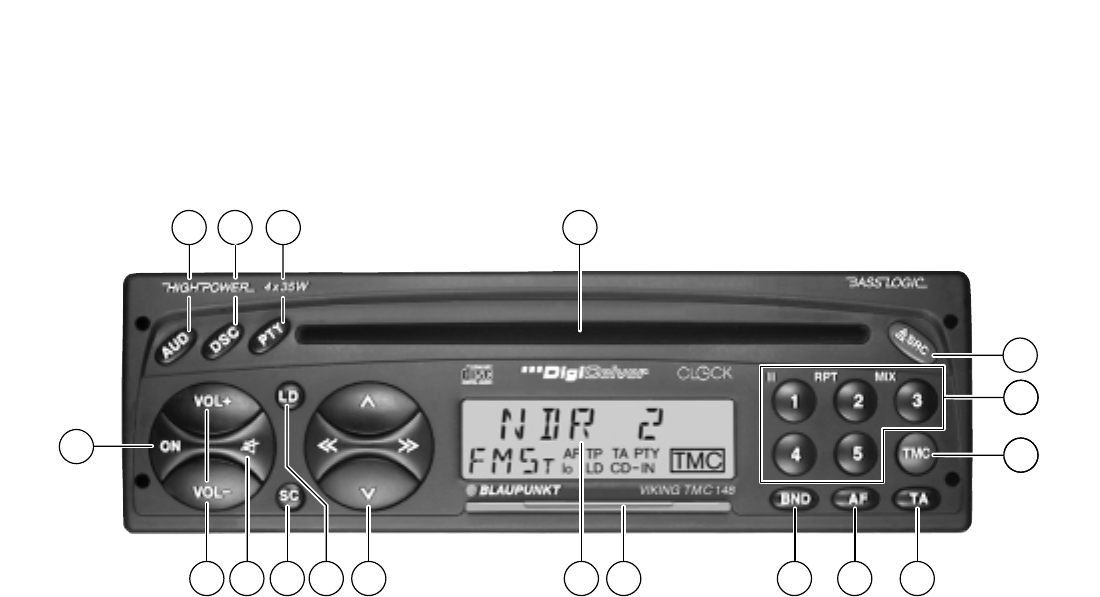
2
2 4 6 7 8 10 11
1
9
35
12
18
13
14
15
17 16
Refer to the Quick Reference section for an explanation of these items

3
ENGLISH DEUTSCH
FRANÇAIS
ITALIANO
NEDERLANDS
SVENSKA
ESPAÑOL
PORTUGUÊS
Switching between the memory banks
(FM) ...................................................... 16
Storing stations ..................................... 16
Automatically storing the stations with
the strongest reception with Travelstore . 16
Recalling stored stations ...................... 16
Scanning stored stations with
Preset Scan .......................................... 16
Scanning stations with Radio Scan ...... 17
Changing the Scan Time ...................... 17
Selecting the automatic tuning
sensitivity .............................................. 17
Switching from stereo to mono (FM) .... 17
Automatic bandwidth adjustment (FM). 17
PTY - Programme Type........................ 17
Programme type ................................... 18
Traffic information station
reception with RDS-EON ............. 20
Traffic announcement priority on/off .... 20
Warning beep ....................................... 20
Automatic seek tuning start
(CD mode) ............................................ 20
Adjusting the volume for traffic announce-
ments and the warning beep .................. 20
TMC – Traffic Message Channel . 21
Traffic information can be selected ...... 21
TMC with an international future .......... 21
TMC information in foreign countries .. 21
TMC Help .............................................. 21
Selecting a TMC station ....................... 21
Making a selection for TMC.................. 22
Activating stored areas or roads
(selection) ............................................. 23
Switching TMC on/off ........................... 24
TMC traffic information ......................... 24
CD mode ....................................... 25
Switching to CD mode .......................... 25
Inserting a CD ....................................... 25
Removing a CD .................................... 25
Selecting tracks .................................... 25
MIX ....................................................... 25
SCAN .................................................... 25
Clock - Time.................................. 26
Setting the clock ................................... 26
Displaying the clock .............................. 26
Correcting the clock after the power
has been disconnected......................... 26
Deactivating the hour correction
function ................................................. 26
Setting the equaliser.................... 27
Notes on making the settings ............... 27
Assistance in setting your equaliser..... 28
DSC Programming ....................... 29
Overview of the DSC factory
settings.................................................. 31
Specifications............................... 32
TMC areas ..................................... 33
Contents
Quick Reference Section............... 4
Important notes ............................ 10
What you need to know ........................ 10
Traffic safety ......................................... 10
Installation............................................. 10
Telephone mute .................................... 10
Accessories .......................................... 10
TMC ...................................................... 10
Guarantee ............................................. 11
International telephone information ...... 11
KeyCard/TMC DriveCard theft
protection system ........................ 12
Operating the unit for the first time....... 12
Removing the card ............................... 12
“Training” a TMC DriveCard /
Replacing a KeyCard............................ 12
Displaying the radio pass data ............. 13
Short Additional Memory (S.A.M.)........ 13
Turn On Message (T.O.M.) .................. 13
Flashing light as visual theft protection 13
Care of your KeyCard/TMC DriveCard 13
Selecting the operating mode..... 14
Radio operation with RDS ........... 14
AF - Alternative frequency .................... 14
REG - Regional programme ................. 14
Selecting a waveband .......................... 15
Station tuning ........................................ 15
Scrolling through the broadcast
networks (FM only) ............................... 15
4
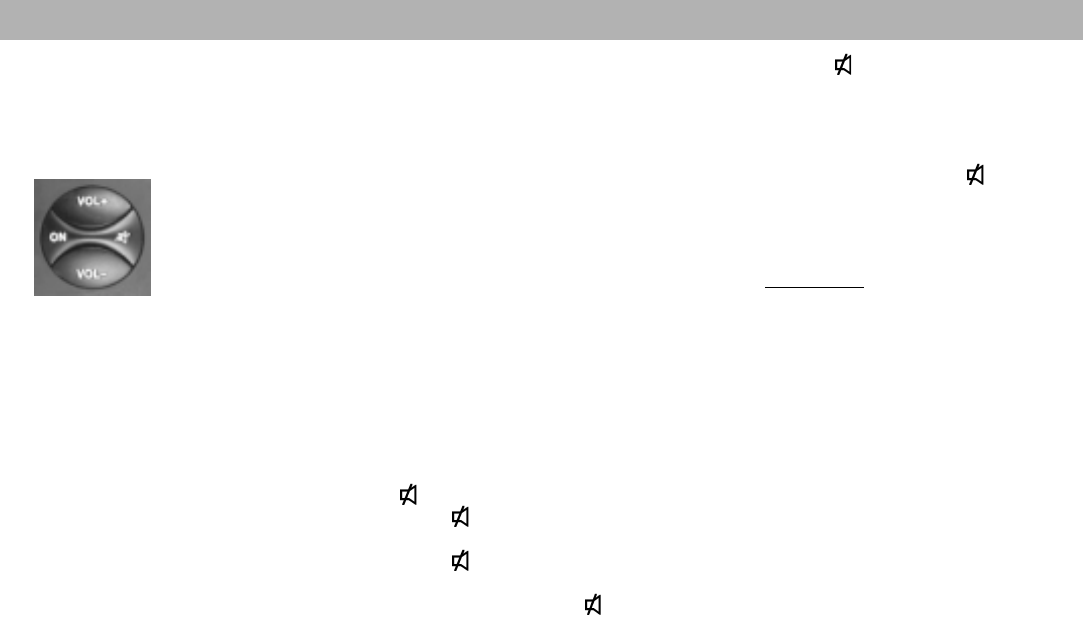
• Press for 2 sec. (you will hear a
beep).
You have just stored this volume level
as the mute volume.
Additional function for
Storage key in the DSC menu.
4SC - Scan
Radio mode
Scan
Press SC briefly –
“FM SCAN” will flash in the display, al-
ternating with the radio station current-
ly being scanned. All of the FM stati-
ons within reception range will be
scanned.
Preset Scan
Preset Scan cannot be started unless
PTY is switched off (“PTY” is not lit in
the display.)
Press SC for approx. 2 seconds –
you will hear a beep, “Scan” will flash
in the display, alternating with the stati-
on symbol of the station scanned.
The stations stored on the station pre-
set buttons and within reception range
will be scanned.
Switching the unit on when the igni-
tion is off
If the ignition is switched off (but the
KeyCard is still in place), it is possible
to operate the unit as follows:
After the beep press ON. The unit will
switch on.
After the unit has played for an hour, it
will switch off automatically to prevent
the vehicle battery from running down.
2VOL+ / VOL-
Adjusting the volume.
When the unit is switched on, it will
play at a pre-defined volume (VOL
FIX).
VOL FIX can also be adjusted (refer to
“DSC programming”).
3 - Mute
Press to lower the volume quickly.
“MUTE” will appear in the display.
Press or VOL+ to cancel this
function.
If you press VOL-, the (mute) volu-
me will be set to the regular volume le-
vel.
The mute volume can be programmed
as follows:
•Adjust the volume to the desired
level
Quick Reference Section
1On/off using the switch
When the KeyCard is inserted, press
one of the keys shown.
The unit will play at the pre-adjusted
volume.
On/off switch using the KeyCard:
The unit switches on or off when you
insert or remove the KeyCard.
Note:
Please read the information in the sec-
tion on the “KeyCard theft protection
system”.
Switching the unit on/off with the
ignition:
The unit can be switched on/off with
the vehicle ignition if the unit has been
installed accordingly.
After you switch off the ignition, you
will hear two beeps to remind you to
remove the KeyCard before you leave
the vehicle.
5
ENGLISH DEUTSCH
FRANÇAIS
ITALIANO
NEDERLANDS
SVENSKA
ESPAÑOL
PORTUGUÊS
To stop Scan / Preset Scan:
Press SC or the rocker switch again.
PTY Scan
PTY Scan cannot be started unless
PTY is switched on (“PTY” is lit on the
display.)
The radio stations for the programme
type selected will be scanned.
CD mode
CD Scan
Press SC briefly –
“CD SCAN” will appear in the display.
The CD tracks will be scanned one af-
ter the other.
To stop CD Scan:
Press SC again.
5LD - Loudness
Loudness boosts the bass frequency
at low volume to create a more natural
sound.
To switch Loudness on/off
Press LD briefly.
Additional CLOCK function
You can select the clock function to
appear permanently in the display.
To switch the display: Press LD for ap-
prox. 2 sec.
The clock display will disappear from
the screen for approx. 8 sec. when you
select a different function.
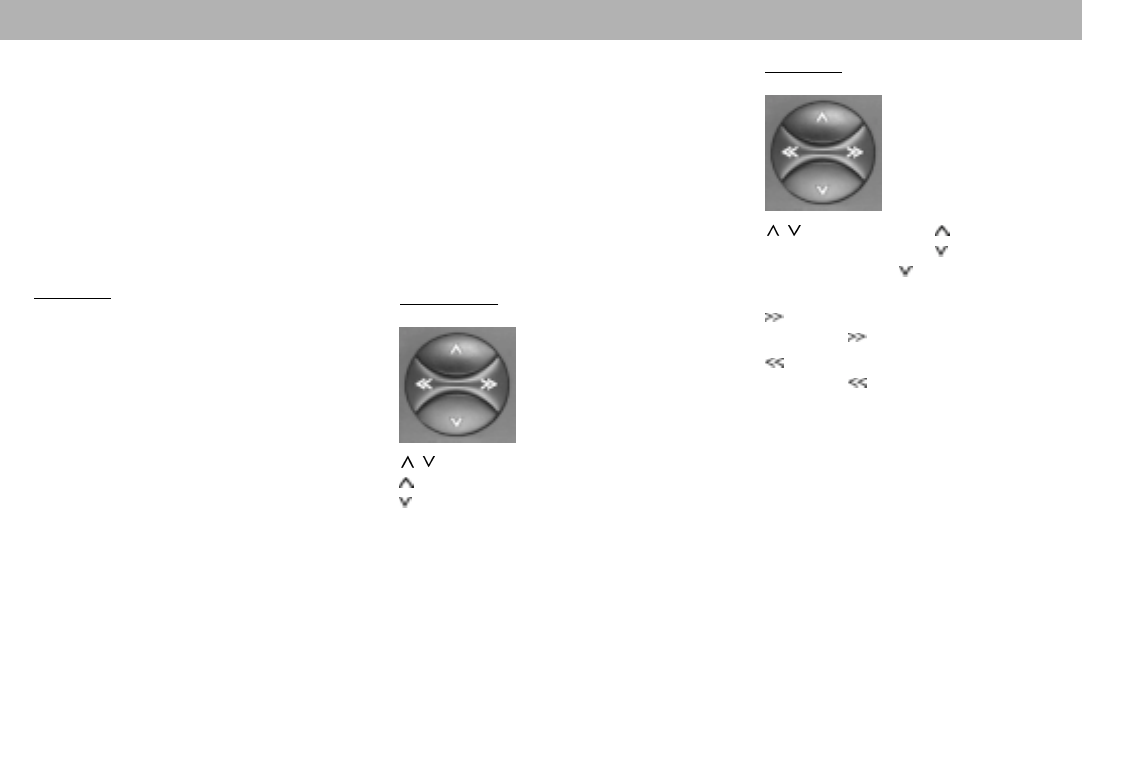
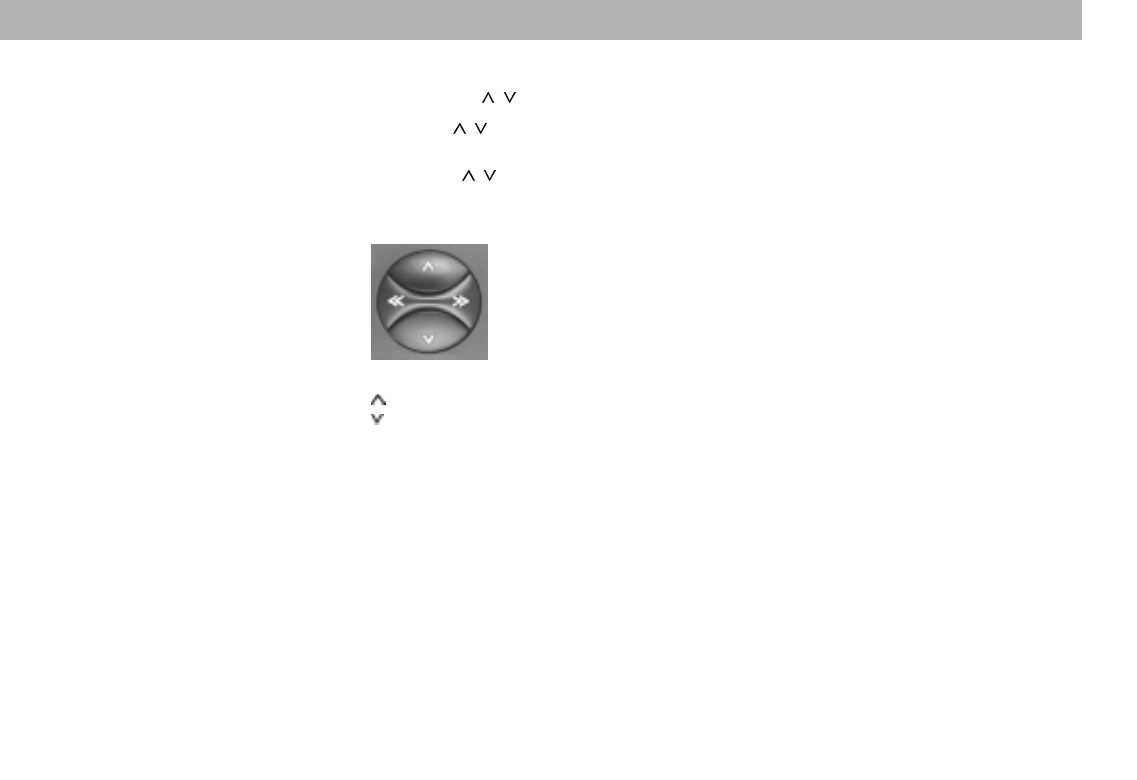
6Rocker switch
Radio mode
/Radio station seek tuning
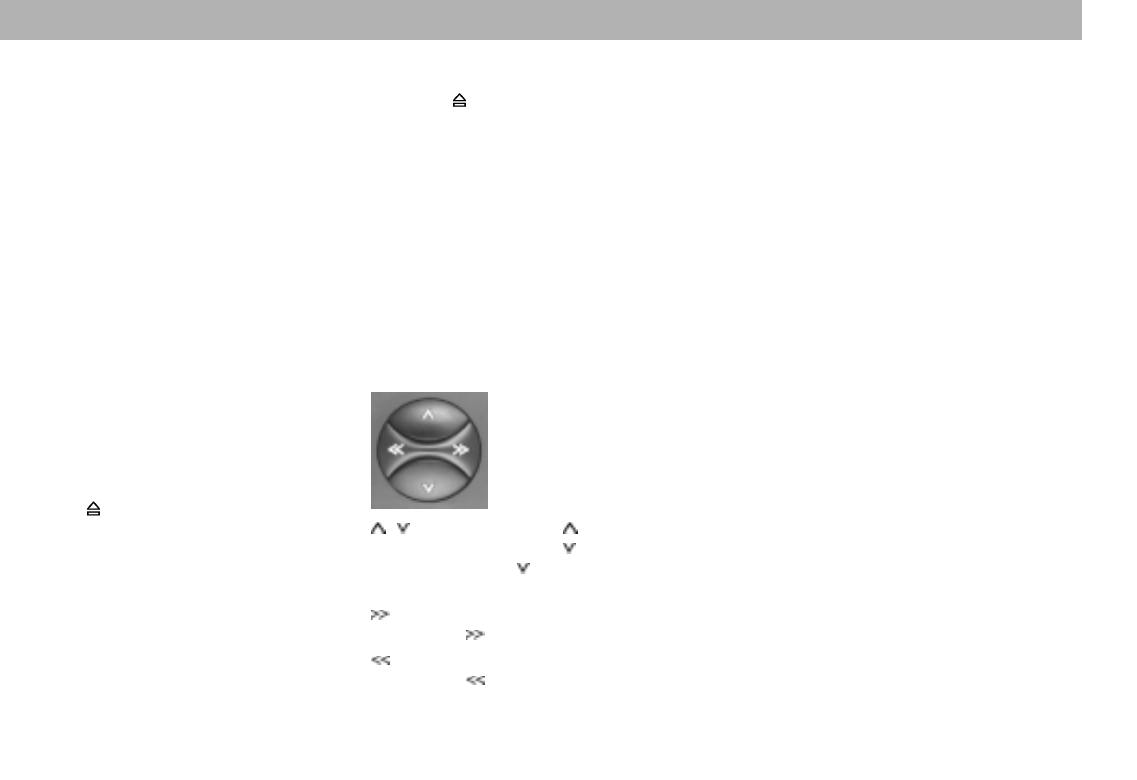
Up
Down
<</>> Up/down in increments
(for FM only, when AF is switched
off)
For FM only:
<</>> Pages through the station network
when AF and PTY are switched off,
e.g.: NDR 1, 2, 3, 4, N-JOY ...
CD mode
/Selects tracks up
down
If you press only once, the track
currently playing will re-start.
Fast forward, audible, (CUE)
Hold down as long as necessary.
Fast reverse, audible, (REVIEW)
Hold down as long as necessary.
Additional functions for the rocker
switch:
Other adjustments are possible with
AUD B
DSC-MODE A
PTY @
as long as the corresponding function
is activated.
Quick Reference Section
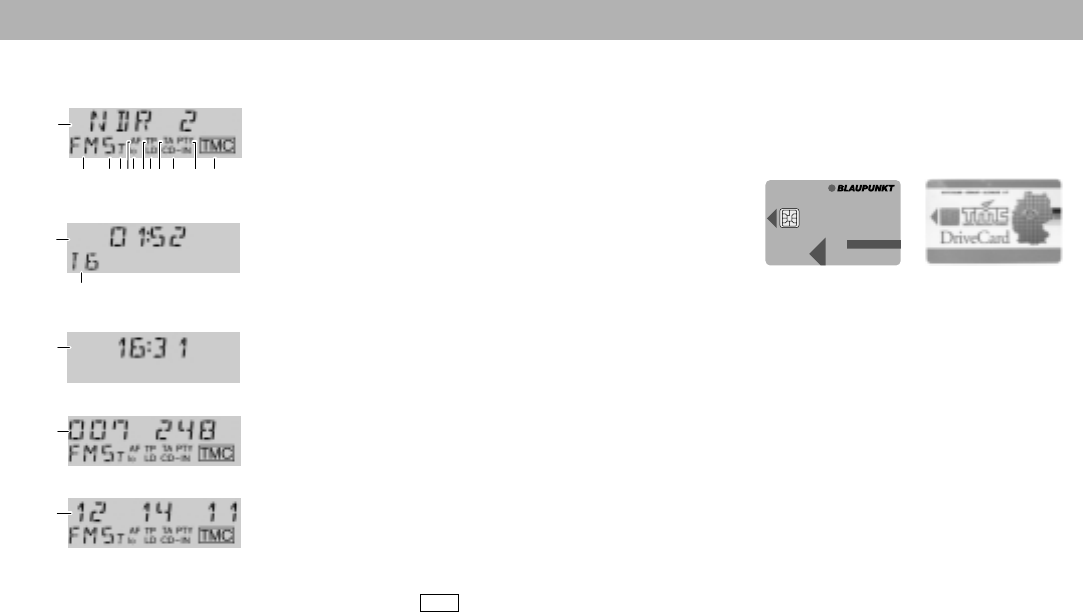
6
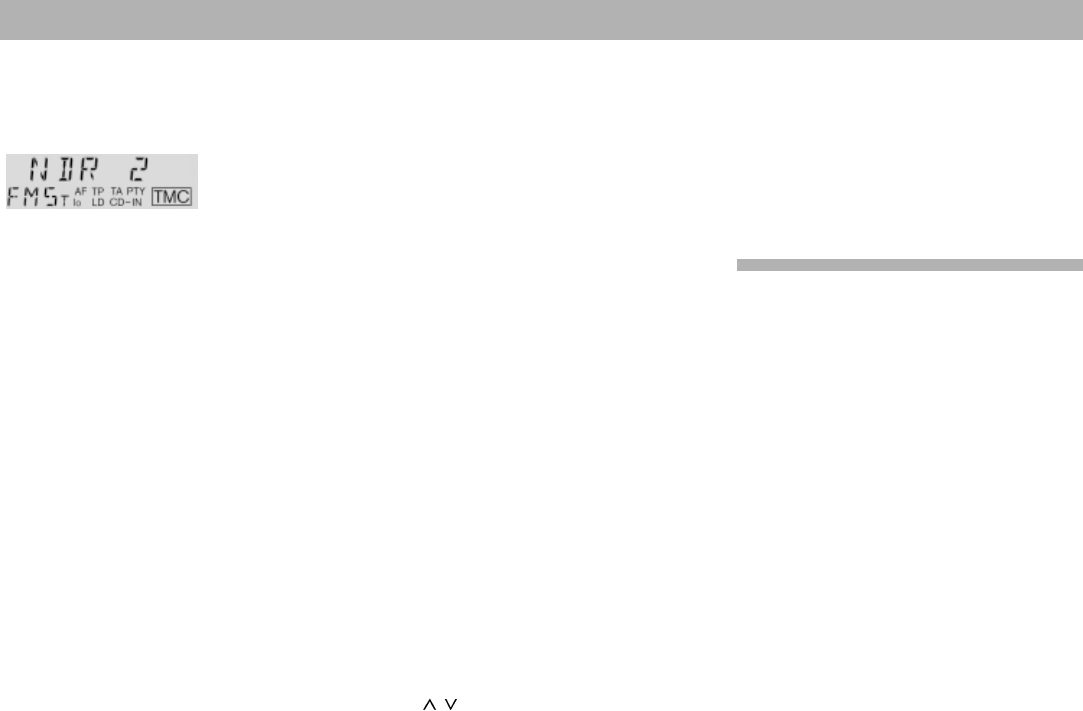
a) NDR 2
(CLASSIC) - Station name
b) 1 : 52 - CD time (elapsed playing
time)
c) 16:31 - Time
d) 007, 248 - Motorway or A road num-
bers selected for TMC
e) 12, 14, 11 - Code numbers for selec-
ted areas (1 - 13) for
TMC
f) FM - Waveband
g) 5 - Station selection key (1 -
5)
h) I, II, T - Memory level I, II or Tra-
velstore
i) AF - Alternate frequency for
RDS
j) lo - Seek-tuning sensitivity
k) TP - Traffic Program reception
l) LD - Loudness activated
m) TA - Priority for traffic messa-
ges activated
n) CD-IN - CD in unit
o) PTY - Program Type activated
p) TMC - Traffic Message Channel
(selectable RDS traffic
information reception)
TMC - Priority for TMC is activa-
ted
q) T6 - CD track 6 playing
8KeyCard/TMC DriveCard theft
protection system
The KeyCard or TMC DriveCard must
be inserted into the unit before it can
be operated.
KeyCard
Inserting the card
With the card tongue protruding from
the unit, insert the KeyCard or TMC
DriveCard with the contact surface
facing upwards into the slot.
Pull the card forward if necessary.
Please read the information in the sec-
tion on “KeyCard/TMC DriveCard theft
protection system” carefully.
Flashing card tongue
When the radio has been switched off
and the card removed, the card tongue
will flash as a visual indication of the
theft protection system, provided that
the system has been programmed ac-
cordingly.
For more information, refer to “DSC
Programming”.
7Display
kogi
a
lmp
f n
hj
b
q
c
d
e
Quick Reference

7
ENGLISH DEUTSCH
FRANÇAIS
ITALIANO
NEDERLANDS
SVENSKA
ESPAÑOL
PORTUGUÊS
To make your selection:
Use << >> to enter the position and
/ to enter the number or numbers
of the area, motorway or A road.
To activate your selection (without
storing it):
Press TMC for approx. 2 sec. until you
hear a beep.
To store your selection:
Press one of the station selection keys
1 - 5 for approx. 2 sec. (beep).
To retrieve a stored selection:
Press TMC for approx. 2 sec. until you
hear a beep, recall the selection by
pressing the corresponding station sel-
ection key 1 - 5.
To activate the selection retrieved:
Press TMC for approx. 2 sec.
Only traffic information for your selec-
tion will now be provided, as long as
the TMC function is switched on
(“TMC” appears in a box on the dis-
play).
Listening to a TMC message:
Press TMC briefly. “TMC” will appear
in a box on the display.
Reading a TMC message:
Use << >> to read thefull text during
the TMC announcement.
9BND
Selects the waveband and memory le-
vel to FM I, FM II, T (Travelstore), M,
or L.
Additional Travelstore function
To store the five radio stations with the
strongest reception signals using Tra-
velstore:
Press BND until you hear a beep or “T-
STORE” appears in the display.
:AF
Alternate Frequency for RDS operation:
If “AF” is highlighted in the display, the
radio will automatically search for a
frequency with better reception for the
station you are tuned into.
AF on/off: Press AF briefly.
Regional function on/off:
Press AF for approx. 2 sec. (beep),
“REG ON” or “REG OFF” will appear in
the display (see REG - Regional).
;TA (Traffic Announcement = Priority
for traffic information)
“TA” will appear in the display when
priority for broadcast traffic information
has been activated.
The radio will then play only those sta-
tions offering traffic information. This is
a separate feature from TMC.
Priority on/off: Press TA.
<TMC (Traffic Message Channel = Pro-
gram for selected traffic information for
areas or roads)
For this function, it is necessary to in-
sert a trained TMC DriveCard (e.g. for
Germany or the UK). If necessary, re-
fer to the information in the section on
“KeyCard/TMC DriveCard theft protec-
tion system” for information on training.
When a radio station with TMC has
been selected:
“TMC” will appear in the display.
TMC on/off:
Press TMC briefly.
The function is switched on when
“TMC” appears in a box on the display.
To switch off the function during an an-
nouncement, press TMC twice.
Making selections for TMC
To select an area, motorway or
A road:
Press TMC for approx. 2 sec.
Use / to select AREA, MOTOR-
WAY or A ROAD.
Quick Reference Section

8
To retrieve stored stations - Select
the waveband. For FM select the me-
mory level and press the correspon-
ding station selection key briefly.
Additional function in the PTY mode
Storing and retrieving the PTY pro-
gram type:
When PTY has been activated (“PTY”
appears in the display), you can use
the station selection keys to store and
retrieve a program type for FM.
Additional function in the TMC
mode
You can use each of the station selec-
tion keys (1-5) to store and retrieve
areas or roads for TMC.
CD mode
1/II - Pause
Pause on/off: Press 1/II. “CD Pause”
will appear in the display.
2/RPT - Repeat
To repeat tracks: Press 2/RPT, “RE-
PEAT” will appear briefly in the dis-
play, the track will repeat until you
press 2/RPT again. “RPT OFF” will
then appear in the display.
To listen to messages again:
Press TMC briefly twice.
To switch to the next/previous mes-
sage:
Use / to switch during the TMC an-
nouncement.
To interrupt a TMC message:
During the announcement, press TMC
briefly. TMC will remain active for any
messages that then follow.
Refer to the section on “TMC traffic in-
formation reception” for more detailed
information.
=1, 2, 3, 4, 5, - Station selection keys
Radio mode
Five stations can be stored on FM for
each of the memory levels available (I,
II and “T”).
You can also store 5 stations for the
MW and LW (AM) wavebands.
To store stations - While the radio is
in operation, hold the corresponding
station selection key down until the
programme becomes audible again
(beep).
3/MIX
MIX plays back the tracks on the CD in
random order.
MIX on/off:
Press 3/MIX briefly.
The active mode will appear briefly in
the display: “MIX CD” or “MIX OFF”.
> • SRC
SRC (Source)
When a CD has been inserted into the
unit, press this key to switch between
radio and CD operation.
(Eject)
Press the key for approx. 2 sec. to
eject the CD.
?CD slot
After you insert the CD with the label
facing up, it will be transported auto-
matically to its playing position. The
system will switch to CD playback au-
tomatically.
Quick Reference Section
9
ENGLISH DEUTSCH
FRANÇAIS
ITALIANO
NEDERLANDS
SVENSKA
ESPAÑOL
PORTUGUÊS
@PTY - Programme Type
Using PTY, the station selection keys
become programme type keys. Each
station selection key can be program-
med for a programme type, such as
NEWS, SPORTS, POP or EDUCATE,
etc. Use << >> to activate all of the
PTY programme types when PTY is
active (“PTY” lights up in the display).
ADSC (Direct Software Control)
Using DSC it is possible to adjust the
programmable basic settings. For furt-
her information, refer to “DSC pro-
gramming”.
BAUD
Adjusting the treble and bass
For the FM, AM and CD modes, it is
possible to store different settings.
To store:
Select the operating mode.
Press AUD once and use the rocker
switch to alter the setting
Treble +
Treble –
Bass –
Bass +
Select the next operating mode and al-
ter the settings.
Setting the balance (left/right) and
fader (front/rear)
Press AUD twice:
Fader front
Fader rear
Balance left
Balance right
The settings selected appear in the
display. The last setting selected is
stored automatically.
Quick Reference Section
To switch off AUD:
Press the key briefly.
If you do not alter any of the settings
for 8 seconds, AUD will switch off au-
tomatically.
Additional EQU ON/OFF function
Switching the equaliser on/off:
Press AUD for approx. 2 seconds.
“EQU ON” or “EQU OFF” will appear in
the display briefly.

10
Important notes
Installation
If you would like to install your new car ste-
reo yourself or add other audio components
to existing ones, then please read the enclo-
sed instructions on installation and connec-
tion carefully.
To ensure that the system functions correct-
ly, plus must be connected to the ignition
and continuous plus.
Never ground the speaker outputs!
Telephone mute
If you have installed a car telephone in your
vehicle, it is possible to automatically mute
the radio or CD playback when you use the
telephone (telephone mute).
“PHONE” will then appear in the display.
Traffic announcements continue to have
priority if you have activated TA. You can
interrupt traffic messages by pressing TA.
Accessories
Use only Blaupunkt-approved accessories
and spare parts.
You can use the following Blaupunkt pro-
ducts with this unit:
Amplifiers
All Blaupunkt amplifiers. The preamp-out
wire 7 607 893 093 is required.
Remote control unit
The RC 06 infrared remote control unit al-
lows you to conveniently operate the most
important functions from the steering wheel.
TMC
The Traffic Message Channel is a new RDS
service for area or road-related traffic infor-
mation.
Using at TMC DriveCard, the Viking TMC
148 is able to receive digital traffic informa-
tion via TMC on a continuous basis. You can
retrieve information on the current traffic si-
tuation immediately.
Please refer to the more detailed informati-
on in the operating instructions.
What you need to know
Before using your new car audio system,
please read through the following informati-
on carefully.
Traffic safety
Road safety must be your top priority at all
times. Always use your car audio system so
that you remain in complete control of the
traffic situation.
Please keep in mind that you travel 44 feet
in a second when driving at just 30mph.
Should the traffic situation become particu-
larly demanding, we advise you not to use
the audio system.
Always make sure that you are still able to
hear any warning signals coming from out-
side the vehicle, such as police or fire engi-
ne sirens, so that you can react according-
ly.
Consequently, you should always select a
moderate volume for playing your car audio
system while you are driving.

11
ENGLISH DEUTSCH
FRANÇAIS
ITALIANO
NEDERLANDS
SVENSKA
ESPAÑOL
PORTUGUÊS
Guarantee
The scope of the guarantee is determined
by the laws in the country where the unit
was purchased.
Regardless of the legal guarantee regulati-
ons, Blaupunkt affords a 12-month guaran-
tee.
If you have any questions about the gua-
rantee, please contact your dealer. Your
cash register receipt is a valid guarantee
coupon.
International telephone informa-
tion
Have you got any questions on the operati-
on of this equipment or do you require more
information?
Give us a call!
You can contact us at the following telepho-
ne and fax numbers:
Telephone: 018 958 383 66
Fax: 018 958 383 94
Important notes

12
“Training” a TMC DriveCard /Re-
placing a KeyCard
It is possible to “train” a TMC DriveCard/
KeyCard when the unit is in operation with
the first KeyCard. If you want to “train” a
second TMC DriveCard or KeyCard:
•Insert the first KeyCard and turn on the
car radio.
•Press DSC and use / to select
“LEARN KC”.
•Press << or >>.
“CHANGE” will now appear in the display.
•Remove the first KeyCard and insert
the new one while “CHANGE” appears
in the display.
When the display reads “READY” or
“LEARN KC”.
•press DSC.
Now you can also use the new TMC Drive-
Card/KeyCard to operate your unit.
A number of other TMC DriveCards and a
maximum of two KeyCards can be used with
the car radio.
If you attempt “train” a third KeyCard, the
access authorisation for the KeyCard not
used for the “training” process will be dele-
ted automatically.
Operating the unit for the first
time
•Switch the car radio on.
With the card tongue protruding from
the unit, insert the KeyCard with the
contact surface facing up into the
slot in the centre of the indentation.
The car radio is now ready for operation.
If a wrong KeyCard is inserted, then “CARD
ERR” will appear in the display.
Please do not attempt to operate the car
radio.
After approx. 10 sec., the car radio will switch
off.
If you insert the wrong type of card (e.g. te-
lephone card or credit card) “WRONG KC”
will appear in the display for approx. 2 sec.
Remove the wrong card and insert the cor-
rect KeyCard.
After “CARD ERR” or “WRONG KC”,
•press ON to switch the car radio on.
Removing the card
•Pull the card forward and remove it
from the slot.
KeyCard/TMC DriveCard theft protection system
This car radio comes equipped with a rea-
dy-to-use KeyCard. You can purchase a
TMC DriveCard at your dealer’s, but it must
be “trained” before you can use it.
Please refer to the information in the sec-
tion on “Training the TMC DriveCard”.
The car radio can also be operated with a
second KeyCard.
If you have lost your KeyCard/TMC Drive-
Card or if it was damaged, you can buy a
replacement from your specialised dealer.
If you use two KeyCards, you can individual-
ly store the following functions:
Bass, treble, balance and fader settings,
Loudness, TA (traffic announcement volu-
me), TA priority, AF, beep volume, mute
volume, lo or dx, PTY functions.
In addition, the settings activated before the
radio is switched off, such as the waveband
and station selection, will also remained
stored. This ensures that you will find your
basic settings re-adjusted automatically as
soon as you have inserted your KeyCard.
A TMC DriveCard trained for this unit ad-
opts the basic settings on the first KeyCard.

13
ENGLISH DEUTSCH
FRANÇAIS
ITALIANO
NEDERLANDS
SVENSKA
ESPAÑOL
PORTUGUÊS
Care of your KeyCard/
TMC DriveCard
To ensure that the cards will function pro-
perly it is important that the contacts are free
from any foreign particles. Avoid direct skin
contact.
Never leave the cards exposed to direct
sunlight.
If necessary, clean the KeyCard contacts
using a cotton swab dipped in rubbing alco-
hol.
When outside of the vehicle, keep the TMC
DriveCard in its cover.
Never bend the KeyCard or Drive-
Cards. This could result in their de-
struction.
Displaying the radio pass data
You can use the KeyCard supplied with your
set to display the radio pass data such as
the model name, product number (7 6..) and
serial number.
Please refer to the section on “DSC pro-
gramming - READ KC”.
Short Additional Memory
(S.A.M.)
The second KeyCard available from your
specialised dealer allows you to read out
short information under the DSC menu item
“READ KC”. This information will run throu-
gh the display and could include, for examp-
le, the phone number of your car repair ser-
vice or the emergency call number of your
automobile association.
The freely selectable text with a maximum
of 162 characters can be programmed by
any dealer who has the required equipment
available.
Turn On Message (T.O.M.)
The second KeyCard available from your
specialised dealer also allows you to dis-
play a special turn-on message each time
the radio is switched on.
The freely selectable text with a maximum
of 48 characters can be programmed by any
dealer who has the required equipment
available.
Each time you turn on your system with the
second KeyCard, the programmed text will
appear in the display.
Flashing light as visual theft
protection
Flashing KeyCard tongue
Once you have parked your vehicle and re-
moved the KeyCard, the KeyCard tongue
can be programmed to flash as an extra anti-
theft device.
Important: it is necessary that the positive
power supply line and the permanent +12 V
lead are connected such as described in the
installation instructions.
“LED ON” must be selected in the DSC
mode.
If necessary, please refer to the section on
“DSC programming - LED”.
Switching off the flashing light
The flashing light can be switched off by
selecting “LED OFF” in the DSC menu.
KeyCard/TMC DriveCard theft protection system

14
If “SEARCH” appears in the display when
the radio is switched on or one of the stored
frequencies recalled, the unit is already au-
tomatically searching for an alternative fre-
quency.
“SEARCH” will disappear from the display
when the alternative frequency has been
found or after the frequency band has run
through completely.
If the reception quality of the programme
selected deteriorates beyond a certain point:
•Tune into another station.
REG - Regional programme
Certain radio programmes are split up at
different times during the day into regional
programmes offering local information. The
1st programme broadcast by NDR, for ex-
ample, offers programmes with different
contents in the northern German states of
Schleswig-Holstein, Hamburg and Lower
Saxony at certain times of the day.
If you are listening to a particular regional
programme and wish to continue doing so,
•press AF for approx. 2 sec.
“REG ON” will appear in the display.
If you leave the service area of the regional
programme you are tuned into, or if you
would like to take full advantage of RDS
service, switch to “REG OFF”.
Selecting the operating mode
Use SRC (source) to select between the
radio and CD mode.
The CD mode is not available unless a CD
has been inserted into the CD player.
To select the operating mode:
•Press SRC.
Radio operation with RDS (Radio Data System)
The Radio Data System enhances your en-
joyment when you listen to FM radio stati-
ons.
More and more radio stations now broad-
cast RDS information along with their regu-
lar programming.
As soon as a programme has been identi-
fied, the station name including a regional
identifier, if applicable, will appear in the dis-
play, for example, NDR1 NDS (regional pro-
gramme in Lower Saxony, Germany).
When RDS is activated, the station selec-
tion keys become programme keys. You
now know exactly which programme you
have tuned into, making it easy to find the
desired station quickly.
But RDS also offers you further advantages:
AF - Alternative frequency
The AF (Alternative Frequency) function
makes sure that the radio always automati-
cally tunes into the strongest frequency for
the currently selected programme.
If this function is activated, “AF” will appear
in the display.
To switch AF on/off,
•press AF briefly.
While searching for the strongest reception
signal, the radio may switch to mute briefly.
15
ENGLISH DEUTSCH
FRANÇAIS
ITALIANO
NEDERLANDS
SVENSKA
ESPAÑOL
PORTUGUÊS
Station tuning
Seek tuning /
•Press /; the car radio will automati-
cally search for the next station.
If you hold / pressed up or down on the
rocker switch, seek tuning will speed up in
the corresponding direction.
Seek tuning
Up
Down
<< />> Up/down in short intervals
(on FM only if “AF” is switched off)
Manual tuning with << >>
You can also tune into a station manually.
Important:
AF and PTY must be switched off (i.e. the
symbols do not light up in the display).
If necessary, deactivate these functions:
•Press AF or PTY.
Manual tuning:
•Press << >>; the frequency will change
in short intervals in the corresponding
direction.
If you hold << >> pressed to the left or the
right on the rocker switch, the frequency
scan will speed up.
Scrolling through the broadcast
networks (FM only)
You can use the << >> keys to tune into
stations in your reception area.
If it is possible to receive several program-
mes in the same broadcasting network, you
can scroll through them by pressing >> (for-
wards) or << (backwards), e.g. NDR 1, 2, 3,
4, N-JOY, ...
Important: you must have already tuned into
the stations at least once and “AF” must be
active (lights up in the display).
To do this, you can start Travelstore:
•Press BND for 2 seconds; the system
will start to run through the frequency
band.
If “AF” is not lit up,
•press AF.
It is now possible to select stations using
<< >>.
•Press AF for approx. 2 sec. until “REG
OFF” appears in the display.
Each time you switch on the car radio, “REG
ON” or “REG OFF” will appear in the dis-
play.
Selecting a waveband
The following wavebands are available:
FM 87.5 - 108 MHz
MW 531 - 1602 kHz and
LW 153 - 279 kHz
•Press BND to select the waveband of
your choice.
Note:
In the DSC menu it is possible to block MW
or LW or both wavebands for station selec-
tion.
This can be useful to limit the wavebands
available to those you really want to use and
reduces the number of times you are requi-
red to press BND. If necessary, refer to the
information in the section on “DSC Pro-
gramming - AM ON or AM OFF”.
Radio operation with RDS (Radio Data System)

16
Switching between the memory
banks (FM)
You can switch between the memory banks
I, II and T in order to store stations and re-
call them later.
The currently selected memory bank will
appear in the display.
•Press BND as many times as neces-
sary until the desired memory bank li-
ghts up in the display.
Storing stations
On FM, you can store five stations on the
station selection keys 1, 2, 3, 4, 5, for each
of the memory banks (I, II, T).
On MW/LW, you can also store five stati-
ons each.
•Select the appropriate waveband by
pressing BND.
•Tune into a station with the rocker
switch (either automatically / or
manually << >>).
•Press the desired station selection key
until the radio resumes play after the
muting (approx. 2 seconds) or until you
hear a beep.
Now the station has been stored.
The display will indicate which station sel-
ection key is currently activated.
Note:
If you attempt to store a station which has
already been stored, the corresponding sta-
tion key and the memory bank will flash in
the display if you are on a different memory
bank.
Automatically storing the
stations with the strongest
reception with Travelstore
You can automatically store the five FM sta-
tions with the most powerful signals in your
current reception area sorted according to
their signal strength. This function is parti-
cularly convenient on longer trips.
•Press BND for 2 seconds.
“T-STORE” will appear in the display.
The five strongest FM stations will be auto-
matically stored on the “T” memory bank
(Travelstore). When this process has been
completed, the radio will play the strongest
station.
If desired, stations can also be stored ma-
nually in the Travelstore bank (see “Storing
stations”).
Recalling stored stations
You can recall any stored station at the touch
of a key.
•Select the waveband by pressing
BND. For FM, also choose the corre-
sponding memory bank by pressing
BND as many times as necessary until
the desired memory bank appears in
the display.
•Press the corresponding station selec-
tion key briefly to recall the station.
Scanning stored stations with
Preset Scan
You can scan all of the stored stations on
any of the wavebands and in the selected
FM memory bank.
Preset Scan will not start unless PTY is
switched off (“PTY” will not light up in the
display).
•If necessary press PTY.
To start Preset Scan:
•Press SC for approx. 2 seconds.
All of the stations stored on the waveband
selected will be scanned one after the other.
“PS-SCAN” will flash in the display, alterna-
ting with the station name or frequency.
Radio operation with RDS (Radio Data System)

17
ENGLISH DEUTSCH
FRANÇAIS
ITALIANO
NEDERLANDS
SVENSKA
ESPAÑOL
PORTUGUÊS
Continue listening to a scanned
station/end Preset Scan:
•Press SC briefly.
Scanning stations with
Radio Scan
You can scan through all of the stations in
your reception area.
To start the Scan function:
•Press SC briefly.
The scanned frequency or the station name
will start flashing in the display.
During the scanning process “SCAN” will
appear in the display.
To select a scanned station/switch off
the Scan function:
•Press SC or the rocker switch briefly.
If no station is selected, the scan function
will switch off after the frequency band has
run through. The station selected previous-
ly will resume play.
Changing the Scan Time
The scan time can be selected from between
5 to a maximum of 30 seconds.
If you would like to alter the scan time, plea-
se refer to the section on “DSC programming
- SCANTIME”.
Automatic bandwidth adjust-
ment (FM)
In the DSC menu, you can use the SHARX
function to adjust the bandwidth in the FM
frequency range. This can be a great ad-
vantage when there are a large number of
stations within your current reception range.
Interference with strong adjacent stations
can be reduced to an absolute minimum if
you activate SHARX ON.
If necessary, refer to the section on “DSC
programming – SHARX”.
PTY - Programme Type
PTY is an RDS service which an increasing
number of more broadcasting stations have
begun to offer. This feature allows you to
select FM stations according to their pro-
gramme type. After you have chosen the
PTY of your preference, the corresponding
stations can be selected either by seek tu-
ning or using the scan function.
Switching PTY on/off
•Press PTY.
When the function is active, the programme
type selected last will appear briefly in the
display and as long as PTY is active, “PTY”
will appear permanently in the display.
Selecting the automatic tuning
sensitivity
You can alter the automatic tuning sensiti-
vity.
If “lo” is displayed, the radio will only pick up
strong, local stations (low sensitivity).
If “lo” does not light up, the radio will also
pick up weaker, more distant stations.
If you would like to alter the sensitivity level
please refer to the section on “DSC pro-
gramming – LO-DX”.
Switching from stereo to mono
(FM)
In the DSC menu, you might get better
sound quality by switching from stereo to
mono. This can be useful in areas where
reception is poor. Each time the radio is
switched on, stereo playback is activated
automatically.
The unit will automatically switch to mono if
the signal received is not strong enough for
stereo playback.
If you would like to switch to mono, refer to
“DSC programming - STEREO/MONO”.
The mode selected is indicated in the dis-
play.
Radio operation with RDS (Radio Data System)

18
Programme type
Use << >> to have the last selected pro-
gramme type displayed and to choose a new
one.
You can select any one of the stored types
with the station selection keys 1 - 5.
Important: PTY must be active.
You can use DSC to select German or
English as the language used in the display
(refer to the section on “DSC programming
- PTY LANG”).
The following list indicates all of the pro-
gramme types which are currently availa-
ble.
The letters printed in bold are identical to
the abbreviation which appears briefly in the
display.
NEWS
CURRENT AFFAIRS
INFORMATION
SPORT
EDUCATE
DRAMA
CULTURE
SCIENCE
VARIED
POP MUSIC
ROCK MUSIC
M.O.R. M (middle of the road music)
LIGHT M (light classical)
CLASSICS (serious classical)
OTHER M (other music)
WEATHER
FINANCE
CHILDREN’S PROGRAMS
SOCIAL AFFAIRS
RELIGION
PHONE IN
TRAVEL
HOBBIES
JAZZ MUSIC
COUNTRY MUSIC
NATIONAL MUSIC
OLDIES MUSIC
FOLK MUSIC
Checking the programme type of the
station
•Press PTY for approx. 2 sec.
After the beep the display will show the pro-
gramme type offered by the station current-
ly playing.
If “NONE” appears in the display, the cur-
rent station has no PTY code.
Displaying the selected programme
type
•Press << or >>.
The programme type selected last will be
displayed briefly.
Selecting a programme type
a) Using the station selection keys
When PTY is switched on, you can use
the station selection keys 1 - 5 to se-
lect the programme types stored at the
factory.
•Press one of the station selection
keys 1 - 5.
The selected programme type will be
displayed for 2 seconds.
If you would like to listen to a station
with this PTY,
•press / to start the seek tuning
function.
If the radio is unable to find a station offe-
ring the selected programme type, the dis-
play will show “NO PTY” and you will hear a
beep tone. The radio will select the station
which was playing before seek tuning was
activated.
You can assign different programme types
to each station selection key. Please refer
to the next section on “Storing programme
types”.
b) Using the << >> keys on the rocker
switch
When PTY is switched on, you can se-
lect a programme type by pressing <<
>>.
Radio operation with RDS (Radio Data System)

19
ENGLISH DEUTSCH
FRANÇAIS
ITALIANO
NEDERLANDS
SVENSKA
ESPAÑOL
PORTUGUÊS
•Press << or >>; the programme type
selected last will be displayed for
3 sec.
•During this period press >> (for-
wards) or << (backwards) to select
the desired programme type.
•Press << or >> as many times as re-
quired.
If you would like to listen to a station
with the selected PTY,
•press / to start the seek tuning
function.
If the radio is unable to find a station offe-
ring the selected programme type, the dis-
play will show “NO PTY” and you will hear a
beep tone. The radio will select the station
which was playing before seek tuning was
activated.
Storing programme types
Each of the station selection keys 1 - 5 has
been assigned one programme type at the
factory.
If desired, you can also replace these with
other available programme types.
To do so, make sure that “PTY” lights up in
the display.
•If necessary, press PTY to switch on
the function.
•Select a programme type with << >>
and
•hold down the desired station selection
key (1 - 5) until you hear a beep.
Now the selected programme type can be
recalled by pressing this station selection
key when “PTY” appears in the display.
Scanning stations with PTY SCAN
Important: PTY must appear in the display.
•Press SC.
All of the stations in your current reception
area offering the selected programme type
will be scanned.
To switch off PTY-SCAN:
•Press SC or the seek-tuning rocker
switch once again.
PTY priority
Situation:
PTY is switched on and lights up in the dis-
play.
No station offering the selected programme
type can be found currently in your recepti-
on range (with seek tuning or scan).
The car radio will switch back to the station
previously tuned into.
As soon as it is possible to receive a pro-
gramme in the broadcasting network with
the PTY selected, the radio will switch over
to the corresponding station for the durati-
on of the programme.
Example:
- Station playing: NDR3.
-“PTY” lights up in the display.
- Programme type “POP” selected.
- Seek tuning is started.
- No station with “PTY-POP” can be
found.
- The display shows “NO PTY” and
- automatically switches back to NDR3.
- NDR2 airs a “PTY-POP” programme.
- The radio will switch to the linked stati-
on NDR2 for the duration of the “POP”
programme.
During CD operation, the car radio will also
switch to the programme offering the selec-
ted PTY within the broadcasting network.
After the PTY programme has ended the
system will switch back to the previous mode
(radio or CD).
Note:
As already mentioned, these functions are
not supported by all of the RDS stations at
the present time.
Radio operation with RDS (Radio Data System)

20
Traffic information station reception with RDS-EON
The abbreviation “EON” stands for Enhan-
ced Other Networks, which means that in-
formation is exchanged within a radio net-
work.
Many FM radio stations provide their ser-
vice area with traffic messages at regular
intervals.
Along with their programmes, all traffic in-
formation stations transmit a special carrier
signal, which is decoded by your car radio.
If this signal is identified, “TP” will appear in
the display (Traffic Program).
In addition to these, there are also stations
which do not actually transmit traffic infor-
mation themselves, but by using RDS-EON
it is possible for them to forward the traffic
messages broadcast by another traffic in-
formation station in the same radio network.
If you want to have the priority for traffic
announcements activated while listening to
one of these stations (e.g. NDR3), “TA” must
appear on the display panel.
If a traffic announcement is broadcast, the
radio will automatically switch to the linked
traffic programme station (in this case,
NDR2) for the duration of the message and
return to the original programme (NDR3)
afterwards.
Traffic announcement priority
on/off
If the priority for traffic announcement pro-
grammes is activated, “TA” will light up in
the display.
To switch the priority on or off:
•Press TA.
If you press TA while a message is being
broadcast, this message will be interrupted.
The unit will then switch back to the pre-
vious mode. The priority for any following
traffic messages remains active.
Please note that several buttons have no
function while a traffic announcement is
broadcast.
Warning beep
If you leave the reception area of the traffic
information station you are currently tuned
into, you will hear a warning beep at inter-
vals of approx. 30 seconds.
This warning beep will also be emitted if you
press a preset button for a station which
does not send the traffic information signal.
Switching the warning beep off
a) Tune into another station offering traf-
fic information:
•Press the rocker switch or
•press a station selection key which
has a traffic information station allo-
cated to it.
Or
b) Switch off the priority for traffic an-
nouncements:
•Press TA.
“TA” will disappear from the display.
Automatic seek tuning start
(CD mode)
If you leave the reception area for the traffic
information station you have tuned into whi-
le you are listening to a CD, the system will
automatically start searching for a new TA
station. If no such station is found within ap-
proximately 30 seconds, a warning beep will
sound every 30 seconds. To switch the
warning beep off, proceed as described abo-
ve.
Adjusting the volume for traffic
announcements and the warning
beep
This volume was preset at the factory and
is the same volume as is used for TMC an-
nouncement. You can, however, use the
DSC function to alter the setting as desired
(see “DSC programming - TA VOL”).
21
ENGLISH DEUTSCH
FRANÇAIS
ITALIANO
NEDERLANDS
SVENSKA
ESPAÑOL
PORTUGUÊS
The numbers of the motorways and the
major roads can be entered one after the
other and stored/selected together. As an
alternative, 5 areas such as “London” can
be selected and stored.
You are able to receive selected traffic in-
formation immediately. In addition to the
spoken messages, you can read more de-
tailed information in the display.
You will hear the corresponding, most cur-
rent information. All of the following messa-
ges indicate just changes in the overall si-
tuation. You always have the opportunity to
read or listen to the selected information in
its entirety.
TMC with an international future
At the present time, the TMC system is un-
der construction throughout Europe. Full
coverage for TMC is already available in
Germany, Denmak and the Netherlands. In
1999, other European countries, like the UK,
will follow.
TMC information in foreign countries
TMC subscribers can listen to traffic infor-
mation in their own language in foreign coun-
tries.
The country-specific TMC Card makes this
possible. This TMC Card will be available
for the Netherlands by the year 2000. Con-
tact your local dealer for further informati-
on.
TMC Help
When TMC--HELP is switched to “ON” (de-
fault setting), this function provides additio-
nal information, such as selected areas or
roads.
Use the DSC menu to switch “TMC--HELP”
on or off.
If necessary, refer to “DSC programming -
TMC--HELP”.
Selecting a TMC station
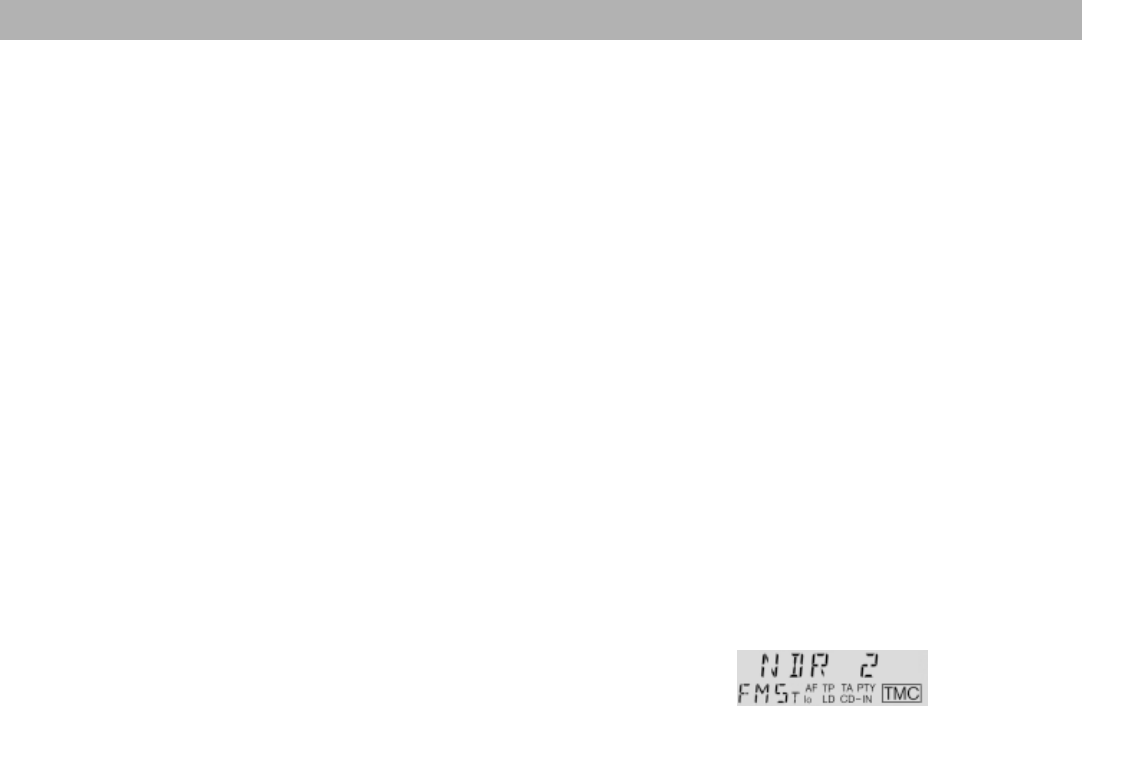
If the radio is tuned into a station which pro-
vides TMC, “TMC” will appear in the display.
If ”TMC” does not appear in the display, you
can
•press TMC briefly
to tune into a TMC station.
You can also use the seek-tuning rocker
switch or one of the station selection keys
to select a TMC station.
TMC – Traffic Message Channel
TMC is an RDS data service for traffic mes-
sages for specific regions or roads. TMC is
an online service, which means that new
traffic messages are updated immediately.
The Viking TMC 148 equipped with a TMC
DriveCard is able to receive a constant flow
of digital traffic messages from radio stati-
ons in the UK that broadcast TMC.
Traffic information broadcast normally from
radio stations (RDS-TA) has priority over
TMC information. If both TA and TMC are
activated, a TMC report can be interrupted
by traffic information broadcast by the traf-
fic radio station. In this case, the TMC mes-
sage will be repeated.
Traffic information can be
selected
It is possible to select traffic information by
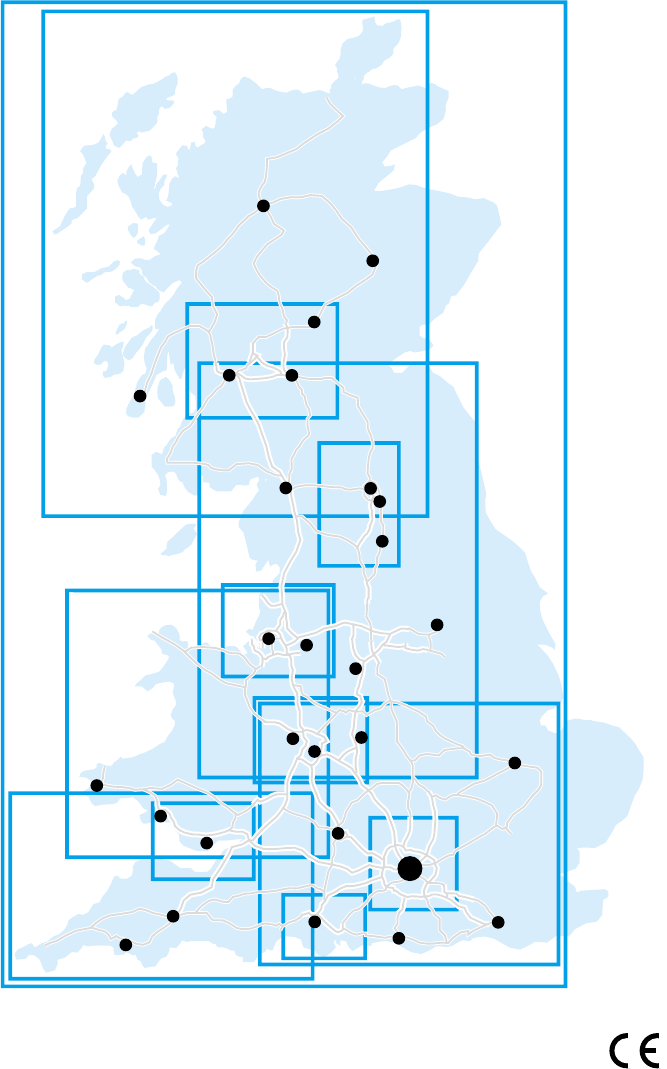
motorway and A roads or by region. The
map on the last page of these operating in-
structions indicates which regions can be
selected.
For traffic information for motorways, the
motorway junctions are identified by the
numbers indicated on the traffic signs and
road atlases.
For a route, it is possible to select and store
up to 5 different motorways and 5 A roads.
22
Making a selection for TMC
Before you can make a selection, the radio
must be tuned into a TMC station. “TMC”
will then appear in the display.
On each station selection key you can store
and recall a maximum of 5 motorways and
A roads. Alternatively, you can store and
recall 5 areas. However, you cannot store
areas and roads at the same time on the
same key.
a) Selecting area(s)
On the back page of these instructions you
will find a map indicating the UK TMC are-
as.
•Use this map to find out which num-
bers have been allocated to which
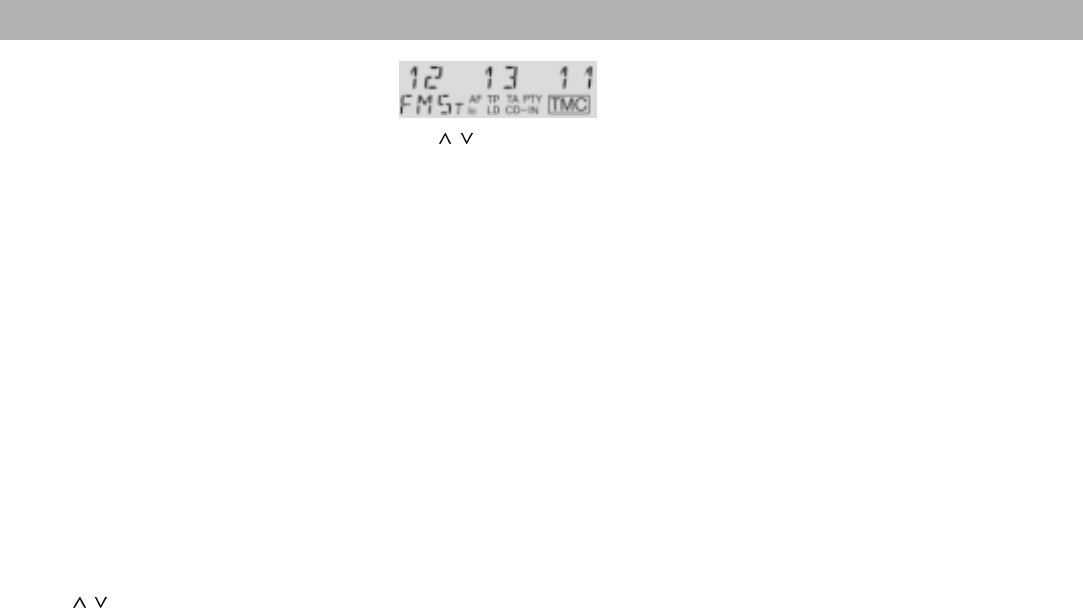
areas (e.g. “12” for The Solent; “13” for
Greater London; “11” for The Severn
Estuary, etc.).
•Press TMC for approx. 2 sec. - the dis-
play will indicate e.g. “MOTORWAY”,
“A ROAD” or “AREA”.
•Use / to select “AREA”.
•Use << >> to select the input position
(the input field will flash).
The input fields for 3 areas will be displayed
at the same time. Use << >> to select the
other areas.
Storing the input
If you would like to store the information
entered on one of the station selection keys,
•press the corresponding station selec-
tion key 1 - 5 for approx. 1 sec. (beep).
Overwriting (altering) the input
It is possible to overwrite (alter) the existing
information entered. The new entry must be
stored to delete the old entry.
Deleting the input
You can delete the area selected if you
•press SC briefly.
All of the areas stored on a station selection
key will be deleted if you
•press SC for approx. 1 sec.
b) Selecting motorways or A roads
The road number can be entered for up to 5
motorways and 5 A roads.
Depending on the route you plan to travel,
select the numbers of the motorways/
A roads from an up-to-date road map. Only
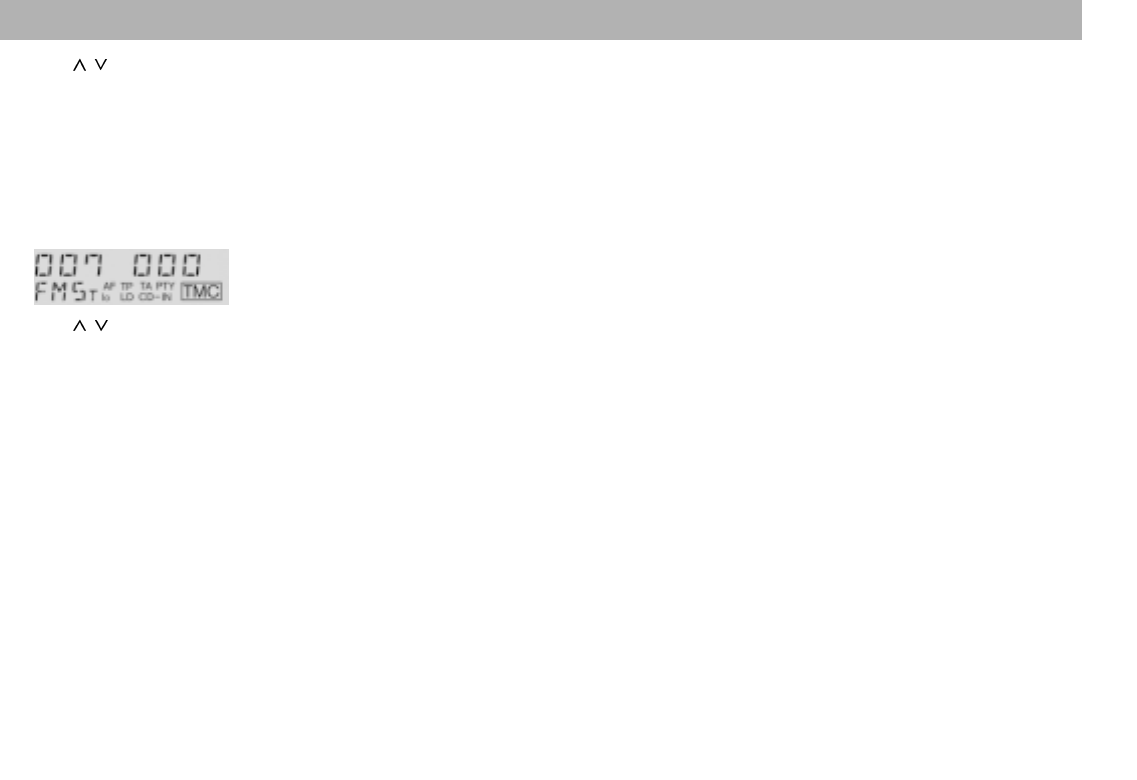
road numbers up to 3 digits are supported,
so for the M7 enter “007”.
•Press TMC for approx. 2 sec., the dis-
play will read “MOTORWAY”,
A ROAD” or “AREA”.
•Use / to enter the number for the
selected area, select the next input
field, etc.
You can select and store up to a maximum
of 5 areas and activate them as needed.
Notes:
The cursor will not move to the next input
field unless the entry in the last field is a
real area number.
The amount of information provided will
increase with the number of codes entered.
As a result, it is advisable to enter only as
many area numbers as necessary (max. 5).
Following the input of all of the area code
numbers desired, you can activate the in-
put or store it on a station selection key.
Activating the input
If you would like to activate the information
entered without storing it on one of the sta-
tion selection keys,
•press TMC for approx. 2 sec.
TMC – Traffic Message Channel
23
ENGLISH DEUTSCH
FRANÇAIS
ITALIANO
NEDERLANDS
SVENSKA
ESPAÑOL
PORTUGUÊS
•Use / to select “MOTORWAY”, for
example, and enter the code number
for the motorway (“007” for the M7).
•Use << >> to select the input position
(the input field will flash).
A maximum of two motorway numbers can
be displayed at the same time. Use << >>
to select the other numbers.
•Use / to enter the first digit of the
road selected, select the next input po-
sition, etc.
Once you have completed your entry,
•press TMC for approx. 2 sec.,
“A ROAD” will appear in the display.
Now you can enter 5 A roads by their three-
digit code (as described for MOTORWAY).
If you do not want to enter an A road,
•press TMC briefly.
You can select and store up to 5 motorways
and 5 A roads and activate them, as nee-
ded.
Notes:
The cursor will not move to the next input
field unless the entry in the last field is a
real road contained in the data of the TMC
DriveCard used.
Deleting the input
You can delete the area selected if you
•press SC briefly.
All of the areas stored on a station selection
key will be deleted if you
•press SC for approx. 1 sec.
Activating stored areas or roads
(selection)
You can use each of the 5 station selection
keys to activate up to 5 motorways and 5
A roads to make up a “route”. As an alter-
native, you can activate up to 5 areas.
Important: You must have stored this infor-
mation on the station selection keys pre-
viously.
Activating your selection
•Press TMC for approx. 2 sec. until you
hear a beep.
•Briefly press the station selection key
(1 - 5) with the corresponding selection
(areas/roads).
•Press TMC for approx. 2 sec.
If TMC priority has been activated, you will
receive the traffic information just for the are-
as or roads selected.
The amount of information provided will
increase with the number of road numbers
entered.
As a result, it is advisable to enter only as
many road numbers as necessary (max. 5
motorways and 5 A roads).
Following the input of all of the road num-
bers desired, you can activate the input or
store it on a station selection key.
Activating the input
If you would like to activate the information
entered without storing it on one of the sta-
tion selection keys,
•press TMC for approx. 2 sec.
Storing the input
If you would like to store the information
entered on one of the station selection keys,
•press the corresponding station selec-
tion key 1 - 5 for approx. 1 sec. (beep).
Overwriting (altering) the input
It is possible to overwrite (alter) the existing
information entered. The new entry must be
stored to delete the old entry.
TMC – Traffic Message Channel
24
Switching TMC on/off
TMC is switched on when “TMC” appears
in a box in the display.
To switch TMC on:
•Press TMC briefly,
“TMC” will appear in a box in the dis-
play.
If the radio is not yet tuned into a TMC sta-
tion, seek tuning will begin to find a TMC
station.
If the DSC function for “HELP” is switched
to “ON”, you will hear the code numbers for
the selection activated.
If necessary, refer to the section on “DSC
programming - TMC-HELP”.
Next you will hear all of the current traffic
information just for the selection you have
activated. All of the following messages in-
dicate only changes in the overall situation.
Switching TMC off:
•Press TMC briefly.
If you press the key during a traffic messa-
ge, the message will be interrupted. In this
case, you must press TMC again in order
to switch the function off.
TMC traffic information
Listening to TMC information
You will automatically hear all of the TMC
traffic information available when you switch
the function on.
•Press TMC briefly,
“TMC” will appear in a box in the dis-
play.
Next you will hear all of the current traffic
information for the selection you have acti-
vated. All of the following messages will then
indicate just changes in the overall situati-
on.
Reading TMC information
During a TMC message you can also read
the corresponding text including exact pla-
ce names in the display.
•Use << >> to select the text passages.
Listening to the information again
If you would like to hear all of the informati-
on again, press TMC twice (TMC will switch
off and on again).
Switching to the next/previous message
If there are several TMC messages, you can
press / to switch between them.
Urgent messages
Particularly urgent messages always have
priority, even when TMC is switched off.
Important: The radio must be tuned into a
TMC station (TMC appears in the display).
If you are using an input menu, e.g. DSC,
AUD, these messages will not be heard un-
til you exit the menu.
TMC – Traffic Message Channel
25
ENGLISH DEUTSCH
FRANÇAIS
ITALIANO
NEDERLANDS
SVENSKA
ESPAÑOL
PORTUGUÊS
CD mode
You can use this car radio to play CDs.
Note:
Use only standard circular CDs measuring
12 cm in diameter!
CDs measuring 8 cm in diameter or CDs in
different shapes such as a butterfly or beer
mug are not suitable for playback using this
equipment.
This is very likely to result in the destruction
of the CD or the CD drive.
We assume no liability for damage to the
equipment caused by playing unsuitable
CDs.
Switching to CD mode
A CD is inserted in the car radio, “CD” ap-
pears in the display.
Use SRC to switch the sound source:
•Press SRC repeatedly until the CD
functions appear in the display (track
number, elapsed playing time).
Inserting a CD
•Switch on the car radio.
•Insert a CD (with the label facing up).
Never use force.
The CD will be transported to its playing
position automatically. CD playback will
start.
Removing a CD
•Press SRC for approx. 1 second.
The CD will be ejected.
To protect the CD mechanism, do not im-
pair or try to help the automatic insertion and
ejection of the disc in any way.
If the CD is not removed from the drive wi-
thin approximately 30 seconds, it will be re-
inserted automatically.
Selecting tracks
After you insert a CD into the car radio, the
CD functions will appear in the display.
/ Track selection Up
Down
If you press once only, the track play-
ing will re-start.
Fast forward, audible (CUE).
Hold down as long as necessary.
Fast reverse, audible (REVIEW).
Hold down as long as necessary.
The rocker switch acts as a sequence switch
so that you can skip over several tracks if
you press it repeatedly.
The number of the track playing will appear
beside “T” in the display.
MIX
CD tracks can be played back in random
order. To indicate that MIX is switched on,
“MIX CD” will appear in the display when
you switch to the CD mode and each time a
new track begins to play.
To switch MIX on/off:
•Press 3/MIX briefly.
If “MIX OFF” appears, the function is not
active.
SCAN
Use this function to scan all of the CD tracks.
To start the Scan function:
•Press SC briefly, “CD SCAN” will ap-
pear in the display.
The titles will be scanned one after the other
in ascending order.
To stop the Scan function:
•Press SC once again briefly.
The track currently scanned will continue to
play.
26
SCAN will also stop if you
•press DSC, SRC, , << >> or / .
Clock - Time
This car radio has been equipped with a
built-in clock which automatically takes ad-
vantage of RDS to ensure highly accurate
time-keeping.
Setting the clock
a) automatically
The clock is set automatically when the
radio is tuned into an RDS station
which has the “CT” (clock time)
function.
b) manually with DSC-CLOCKSET
•Press DSC briefly, “CLOCKSET” will
appear in the display.
•Press << >> to set the hours/minu-
tes. Press / to move the flashing
cursor to a different position.
•After you have set the clock, press
briefly to store the new setting.
Displaying the clock
You can set the clock to permanent display
in both the radio and CD modes.
If you select another function, e.g. a diffe-
rent radio station, the clock will disappear
from the display for approx. 8 sec. and show
the function selected.
To switch between display modes
•press LD for approximately 2 sec.
Correcting the clock after the
power has been disconnected
If the radio has been disconnected from its
power source for a longer period of time,
“0:00” will appear in the display when it is
re-connected.
The time will be set automatically by RDS-
CT, but can also be adjusted manually if
desired.
You will not have to set the time manually
unless it is not possible to receive an RDS
station with CT (clock time).
Deactivating the hour correction
function
In the DSC menu it is possible to switch off
the hour correction function with “CLK MAN/
CLK AUTO”. An automatic correction for
minutes will continue to take place.
This is useful if you would like to display the
time for a different time zone, for example.
If necessary,
•Press DSC briefly and
•press / as often as required until
“CLK MAN/CLK AUTO” appears in the
display.
To deactivate the hour correction function
press << >> to select “CLK MAN”.
•Press << >> to set the hours/minutes.

27
ENGLISH DEUTSCH
FRANÇAIS
ITALIANO
NEDERLANDS
SVENSKA
ESPAÑOL
PORTUGUÊS
Setting the equaliser
The acoustic characteristics of the car in-
terior affect the quality of the sound repro-
duced in your vehicle to a much greater ex-
tent than the speakers.
Position, installation and the rear volumes
of, for example, the door or rear window
shelf all play an important role.
Even the sound produced by well selected
and installed speakers can be affected ne-
gatively by resonance frequencies in the
vehicle interior.
As a result, the bass sounds may be lost or
reverberate, the mid-range tones sound too
overpowering and music instruments or
voices may be distorted or the total sound
quality may be completely lifeless.
The overall sound quality can be greatly
enhanced if certain frequencies are suppres-
sed or boosted.
This car radio has been equipped with a
parametric filter. The “LOW EQ” filter can
be set from 32 to 500 Hz. In this context,
parametric means that it is possible to set
the frequency for the filter and either boost
or reduce it (+10 to -20 dB) individually.
This parametric filter can be adjusted to very
exact settings even without the help of
measuring instruments.
The individual steps required to make the-
se settings are described in the table.
Notes on making the settings
The following notes are intended as recom-
mendations only. They do not necessarily
reflect your own personal sound prefe-
rences.
We recommend that you use a music CD
you are familiar with to make the settings.
The CD should include tracks with different
instruments and vocals. Purely electronic
music is not well suited to serve as a basis
for making the settings because the original
sounds cannot be determined.
Before you set the equaliser, set bass, treb-
le, balance and fader to “0”.
This setting is described in the Quick Refe-
rence under A AUD.
Now listen to the CD you have selected.
Evaluate the sound according to your own
personal preferences.
Now refer to “Sound impression/problem” in
the table and you will find suggestions to
eliminate any problems under “What to do”.
Make the settings for bass and the lower
mid-range tones with the LOW EQ filter.
The “LOW EQ” filters can be set in the DSC
menu:
•Press DSC.
•Press / as often as necessary until
“LOW EQ” appears in the display.
•Press << or >> once and
•Set the level in the following table by
pressing / .
•Press << >> to switch the frequency
range.
•Press to store your settings.
You can switch the equaliser on and off by
pressing AUD for approx. 2 seconds.
Now you can compare the sound produced
by your car radio with and without the equa-
liser.

28
Assistance in setting your equaliser
What to do
Boost the bass with
the “LOW EQ” filter
Frequency: 50 to 100 Hz
Level: +4 to +6 dB
Reduce the lower mid-range
with the “LOW EQ” filter
Frequency: 125 to 400 Hz
Level: approx. -4 dB
Notes
Avoid distortion.
Boost the level carefully if
the speaker diameter is too
small.
The tone may become too
lean and aggressive.
Pay attention to the underlying
tone of the music.
Sound impression/problem
Bass reproduction too weak
Unclear bass
Playback reverberates
Unpleasant pressure on the
ears
Frequency range
Bass
32 – 100 Hz
Lower mid-range
100 – 500 Hz
Setting the equaliser
29
ENGLISH DEUTSCH
FRANÇAIS
ITALIANO
NEDERLANDS
SVENSKA
ESPAÑOL
PORTUGUÊS
DSC Programming
The car radio has been equipped with DSC
(Direct Software Control) to allow you to
customise certain programmable, basic set-
tings to suit your personal needs and prefe-
rences and then store them.
The basic settings for this audio equipment
were made at the factory.
In the following you can find an overview of
these settings, so that you can always reset
to them if desired.
If you wish to alter any of the programming,
•press DSC.
Use the rocker switch and to select and
adjust the functions described in the follo-
wing. The display will show you the setting
you have selected.
/Select function
<< >> Adjust/recall value
CLOCKSET To set the clock manually.
Press << >> to set the
hours/minutes. Move the
flashing cursor to the next
position by pressing / .
To store the setting selec-
ted, press briefly.
Also refer to the section on
“CLOCK”.
VOL FIX Use this function to select
the volume at which the ra-
dio is set when it is switched
on. Adjust the desired volu-
me level with << >>. When
adjusted to “VOL 0”, the sy-
stem will come on at the vo-
lume selected before it was
switched off.
TMC-HELP If “TMC-HELP” is switched
to “ON”, this function provi-
des additional information,
such as selected areas or
roads.
PTY LANG You can select the language
used to indicate the program
type:
DEUTSCH or ENGLISH
READ KC To read out the KeyCard
data.
The card supplied with the
radio is used to display the
model name, type number
(7 6..) and the serial num-
ber.
Using the second card it is
possible to display data en-
tered by your specialised
dealer. (See the section on
“Short Additional Memory
S.A.M.”).
If you remove the KeyCard
during the reading process,
“READ KC” will appear on
the display panel.
LEARN KC You can “train” a second
KeyCard.
Please read the information
in the section on “KeyCard
theft protection system” -
“Training a second Key-
Card”.

30
SHARX Switches the bandwidth in
the FM frequency range.
When there are a large
number of stations within
your current reception ran-
ge, use << >> to switch to
SHARX ON which will pre-
vent most interference from
adjacent radio stations.
This function has been set
to “SHARX ON” at the facto-
ry.
LED ON Here you can choose bet-
ween LED ON or LED OFF.
With LED ON, the KeyCard
tongue will flash for extra
theft protection when the
unit has been switched off
and the KeyCard removed.
BEEP Acknowledgement tone for
all functions which require a
key to be pressed for more
than one second.
The volume can be adjusted
from between 0 to 9.
(0 = off)
LO-DX Adjusts the seek tuning sen-
sitivity.
“LO” stands for local recepti-
on.
“DX” stands for distant re-
ception.
Select “LO 3” if you want to
receive strong stations in
the local area, select “DX 1”
if you want to tune into wea-
ker stations which are furt-
her away.
TA VOL Adjusts the traffic announce-
ment and warning beep vo-
lume from between 0 to 66.
The traffic information will
then come through at this
volume, if the standard volu-
me is lower.
If the standard volume is set
higher than the TA VOL le-
vel, then the traffic informati-
on will be played at the stan-
dard volume.
SCANTIME Use this function to set the
scan time (5 to 30 sec.) for
the radio or CD player.
STEREO/MONO
Switch modes by pressing
<< >>.
The mode selected will ap-
pear briefly in the display.
The radio will automatically
switch to STEREO playback
each time it is switched on.
AM ON/OFF It is possible to block out
one or both AM wavebands
(MW/LW).
This can be useful to limit
the wavebands available to
those you really want to use
and reduces the number of
times you are required to
press BND.
AM ON – all wavebands
MW OFF – LW, FM
LW OFF – MW, FM
AM OFF – FM
LOUDNESS Loudness boosts the bass
sound at low volume to pro-
duce a more natural sound.
LOUD 1 - low boost
LOUD 6 - highest boost
DSC Programming

31
ENGLISH DEUTSCH
FRANÇAIS
ITALIANO
NEDERLANDS
SVENSKA
ESPAÑOL
PORTUGUÊS
LOW EQ Equaliser setting:
To activate the frequencies
and set the level for the lo-
wer frequency range.
Refer to the detailed instruc-
tions in the section on
“Equaliser setting”.
CLK AUTO/MAN
Switches the hour correction
function on/off.
Read the information in the
section on “Clock, Deacti-
vating the hour correction
function”.
To quit the DSC programming mode and
store the adjustment:
•Press DSC.
Overview of the DSC factory
settings
CLOCKSET -
VOL FIX 0
TMC--HELP ON
PTY LANG ENGLISH
READ KC -
LEARN KC -
SHARX ON
LED ON
BEEP 4
LO / DX DX 1
TA VOL 30
SCANTIME 10 Sek.
STEREO ON
AM ON / OFF AN ON
LOUDNESS 3
LOW EQ 0 dB/32 Hz
CLK AUTO / MAN CLK AUTO
DSC Programming

32
Specifications
Amplifier
Output power: 4 x 23 W RMS power
acc. to DIN 45324 at
14.4 V
4 x 35 W max. power
Tuner
Wavebands:
FM : 87.5 – 108 MHz
MW : 531 – 1602 kHz
LW : 153 – 279 kHz
FM sensitivity: 0.9 µV at 26 dB signal-
to-noise ratio.
FM frequency response:
20 - 16 000 Hz
CD player
Frequency response:
20 - 20 000 Hz
Subject to modification!
Dundee
Aberdeen
Inverness
Edinburgh
Glasgow
Stockton-on-Tees
Sunderland
Newcastle-u.-Tyne
Carlisle
Leicester
Norwich
Sheffield
Manchester
Hull
Liverpool
Wolverhampton
Birmingham
Plymouth
Swansea
Cardiff
Exeter
Milford
Haven
South-
hampton
Brighton
Dover
London
Oxford
Campbel-
town
1
Great Britain
South
East
England
2
3Northern
England
4
5
Scotland
6
Wales
Greater
London
8
South
West
England
9
Central Scotland
Liverpool and
Manchester
The Severn
Estuary
12
The
Solent
13
Tyneside
and
Teeside
7
10
11
The
Midlands
TMC areas
Blaupunkt-Werke GmbH
Bosch Gruppe
10/99 Sc K7/VKD 8 622 402 203 (GB)
