Vision Automobile Electronics Co LSRTS 433.92 MHz Pocket Point RF Remote Transmitter User Manual PPRF64 7 7 04

Vision Automobile Electronics Industrial Co Ltd 433.92 MHz Pocket Point RF Remote Transmitter PPRF64 7 7 04

Users Manual

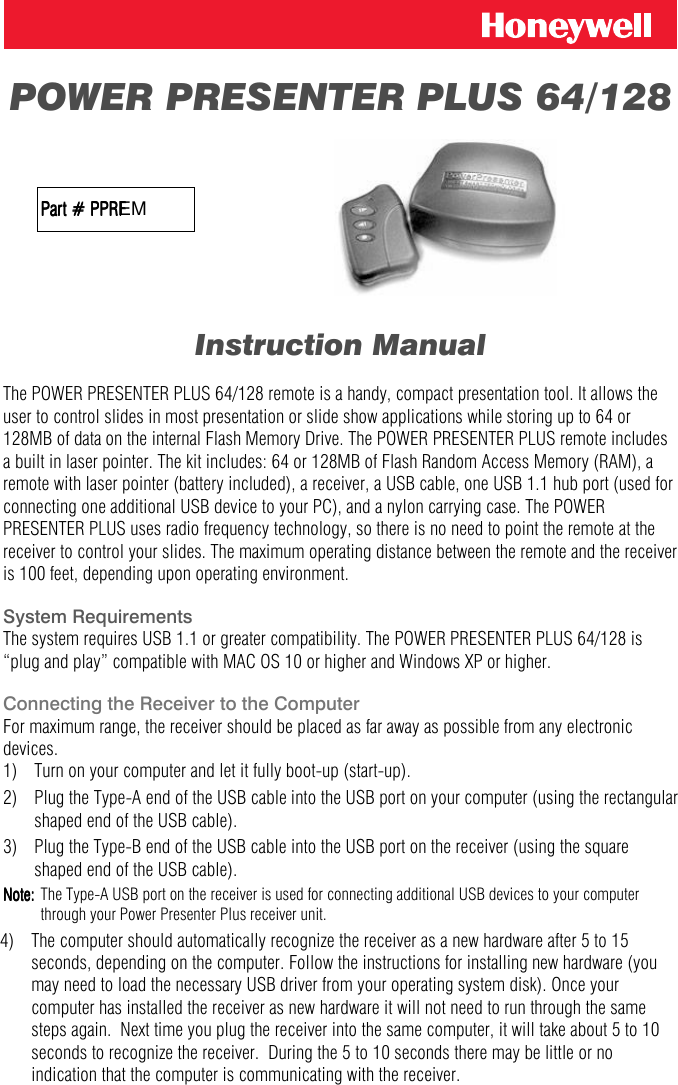
 POWER PRESENTER PLUS 64/128                     Part # PPREMPart # PPRPart # PPRFPart # PPRF            Instruction Manual  The POWER PRESENTER PLUS 64/128 remote is a handy, compact presentation tool. It allows the user to control slides in most presentation or slide show applications while storing up to 64 or 128MB of data on the internal Flash Memory Drive. The POWER PRESENTER PLUS remote includes a built in laser pointer. The kit includes: 64 or 128MB of Flash Random Access Memory (RAM), a remote with laser pointer (battery included), a receiver, a USB cable, one USB 1.1 hub port (used for connecting one additional USB device to your PC), and a nylon carrying case. The POWER PRESENTER PLUS uses radio frequency technology, so there is no need to point the remote at the receiver to control your slides. The maximum operating distance between the remote and the receiver is 100 feet, depending upon operating environment.  System Requirements The system requires USB 1.1 or greater compatibility. The POWER PRESENTER PLUS 64/128 is “plug and play” compatible with MAC OS 10 or higher and Windows XP or higher.   Connecting the Receiver to the Computer For maximum range, the receiver should be placed as far away as possible from any electronic devices.      1)   Turn on your computer and let it fully boot-up (start-up). 2)  Plug the Type-A end of the USB cable into the USB port on your computer (using the rectangular shaped end of the USB cable). 3)   Plug the Type-B end of the USB cable into the USB port on the receiver (using the square shaped end of the USB cable). Note:Note:Note:Note:    The Type-A USB port on the receiver is used for connecting additional USB devices to your computer through your Power Presenter Plus receiver unit. 4)  The computer should automatically recognize the receiver as a new hardware after 5 to 15 seconds, depending on the computer. Follow the instructions for installing new hardware (you may need to load the necessary USB driver from your operating system disk). Once your computer has installed the receiver as new hardware it will not need to run through the same steps again.  Next time you plug the receiver into the same computer, it will take about 5 to 10 seconds to recognize the receiver.  During the 5 to 10 seconds there may be little or no indication that the computer is communicating with the receiver.
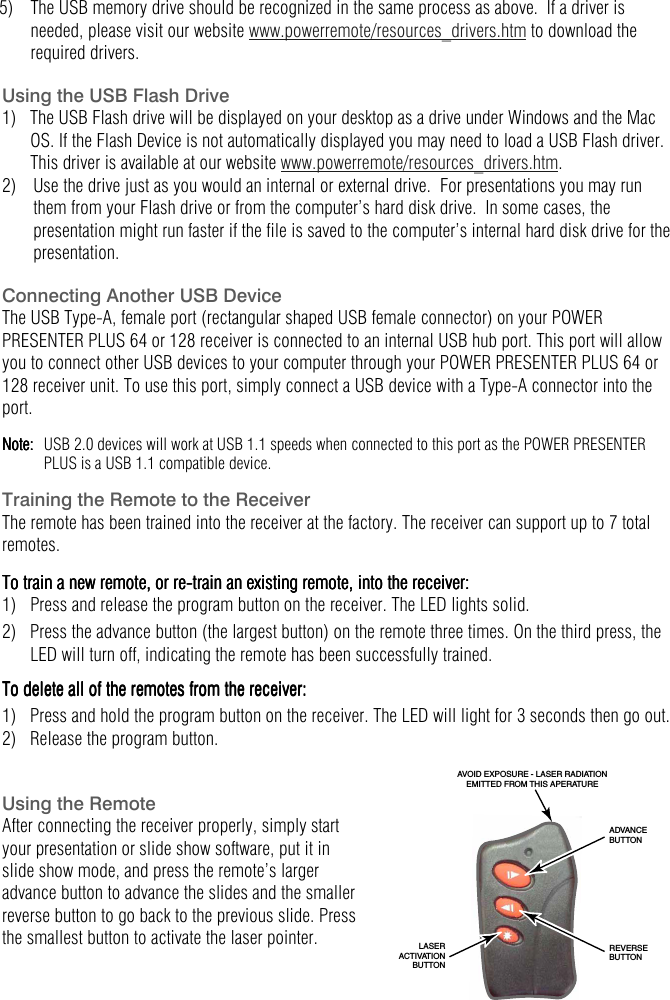
  5)  The USB memory drive should be recognized in the same process as above.  If a driver is needed, please visit our website www.powerremote/resources_drivers.htm to download the required drivers.     Using the USB Flash Drive 1)   The USB Flash drive will be displayed on your desktop as a drive under Windows and the Mac OS. If the Flash Device is not automatically displayed you may need to load a USB Flash driver. This driver is available at our website www.powerremote/resources_drivers.htm. 2)  Use the drive just as you would an internal or external drive.  For presentations you may run them from your Flash drive or from the computer’s hard disk drive.  In some cases, the presentation might run faster if the file is saved to the computer’s internal hard disk drive for the presentation.     Connecting Another USB Device The USB Type-A, female port (rectangular shaped USB female connector) on your POWER PRESENTER PLUS 64 or 128 receiver is connected to an internal USB hub port. This port will allow you to connect other USB devices to your computer through your POWER PRESENTER PLUS 64 or 128 receiver unit. To use this port, simply connect a USB device with a Type-A connector into the port.  Note: Note: Note: Note:      USB 2.0 devices will work at USB 1.1 speeds when connected to this port as the POWER PRESENTER PLUS is a USB 1.1 compatible device.  Training the Remote to the Receiver The remote has been trained into the receiver at the factory. The receiver can support up to 7 total remotes.  To train a new remote, or reTo train a new remote, or reTo train a new remote, or reTo train a new remote, or re----train an existing remote, into the receivtrain an existing remote, into the receivtrain an existing remote, into the receivtrain an existing remote, into the receiver:er:er:er:    1)  Press and release the program button on the receiver. The LED lights solid. 2)  Press the advance button (the largest button) on the remote three times. On the third press, the LED will turn off, indicating the remote has been successfully trained. To deleTo deleTo deleTo delete all of the remotes from the receiver:te all of the remotes from the receiver:te all of the remotes from the receiver:te all of the remotes from the receiver:    1)  Press and hold the program button on the receiver. The LED will light for 3 seconds then go out. 2)  Release the program button.   Using the Remote After connecting the receiver properly, simply start your presentation or slide show software, put it in slide show mode, and press the remote’s larger advance button to advance the slides and the smaller reverse button to go back to the previous slide. Press the smallest button to activate the laser pointer.  AVOID EXPOSURE - LASER RADIATIONEMITTED FROM THIS APERATURELASERACTIVATIONBUTTONREVERSEBUTTONADVANCEBUTTON
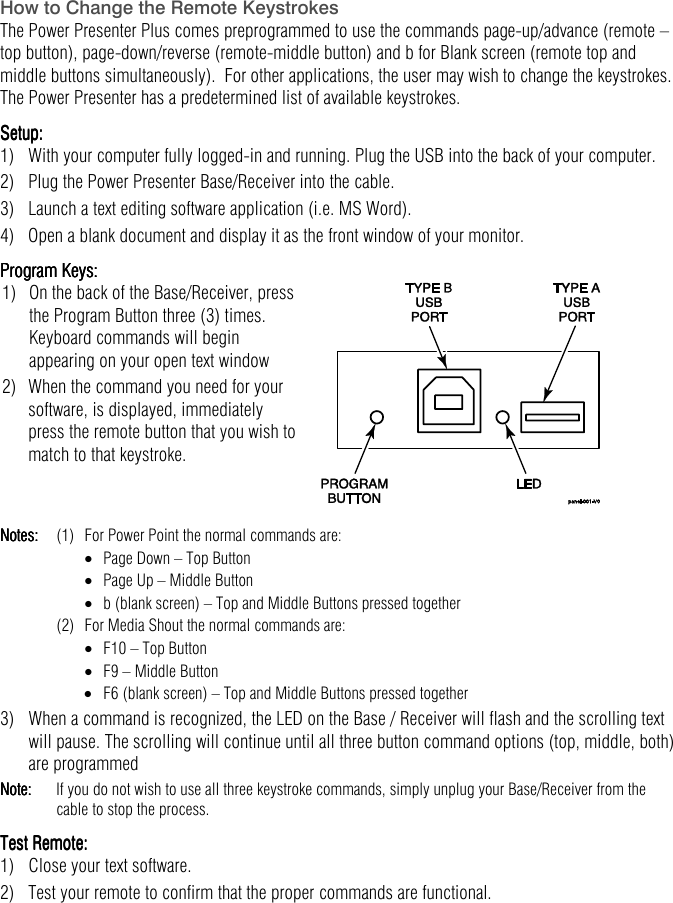
  How to Change the Remote Keystrokes The Power Presenter Plus comes preprogrammed to use the commands page-up/advance (remote – top button), page-down/reverse (remote-middle button) and b for Blank screen (remote top and middle buttons simultaneously).  For other applications, the user may wish to change the keystrokes.  The Power Presenter has a predetermined list of available keystrokes. Setup:Setup:Setup:Setup:    1)   With your computer fully logged-in and running. Plug the USB into the back of your computer.  2)  Plug the Power Presenter Base/Receiver into the cable. 3)  Launch a text editing software application (i.e. MS Word). 4)  Open a blank document and display it as the front window of your monitor. Program Keys:Program Keys:Program Keys:Program Keys:    1)   On the back of the Base/Receiver, press the Program Button three (3) times. Keyboard commands will begin appearing on your open text window 2)   When the command you need for your software, is displayed, immediately press the remote button that you wish to match to that keystroke.      Notes:Notes:Notes:Notes:     (1)  For Power Point the normal commands are: •  Page Down – Top Button •  Page Up – Middle Button •  b (blank screen) – Top and Middle Buttons pressed together   (2)  For Media Shout the normal commands are: •  F10 – Top Button •  F9 – Middle Button •  F6 (blank screen) – Top and Middle Buttons pressed together 3)  When a command is recognized, the LED on the Base / Receiver will flash and the scrolling text will pause. The scrolling will continue until all three button command options (top, middle, both) are programmed Note:Note:Note:Note:   If you do not wish to use all three keystroke commands, simply unplug your Base/Receiver from the cable to stop the process. Test Remote:Test Remote:Test Remote:Test Remote: 1)  Close your text software. 2)  Test your remote to confirm that the proper commands are functional.
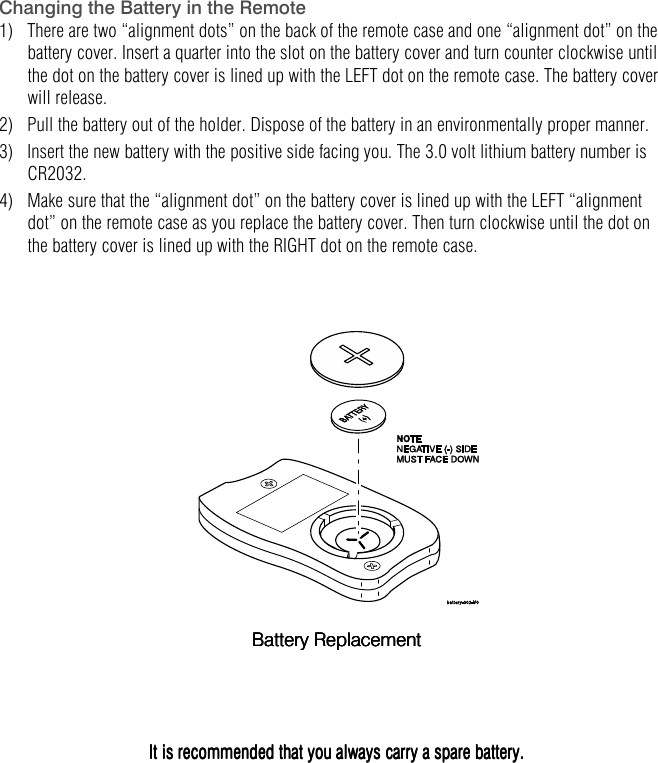
  Changing the Battery in the Remote 1)   There are two “alignment dots” on the back of the remote case and one “alignment dot” on the battery cover. Insert a quarter into the slot on the battery cover and turn counter clockwise until the dot on the battery cover is lined up with the LEFT dot on the remote case. The battery cover will release.  2)   Pull the battery out of the holder. Dispose of the battery in an environmentally proper manner. 3)   Insert the new battery with the positive side facing you. The 3.0 volt lithium battery number is CR2032. 4)   Make sure that the “alignment dot” on the battery cover is lined up with the LEFT “alignment dot” on the remote case as you replace the battery cover. Then turn clockwise until the dot on the battery cover is lined up with the RIGHT dot on the remote case.         Battery ReplacementBattery ReplacementBattery ReplacementBattery Replacement                    It is recommended that you always carry a spare battery.It is recommended that you always carry a spare battery.It is recommended that you always carry a spare battery.It is recommended that you always carry a spare battery.
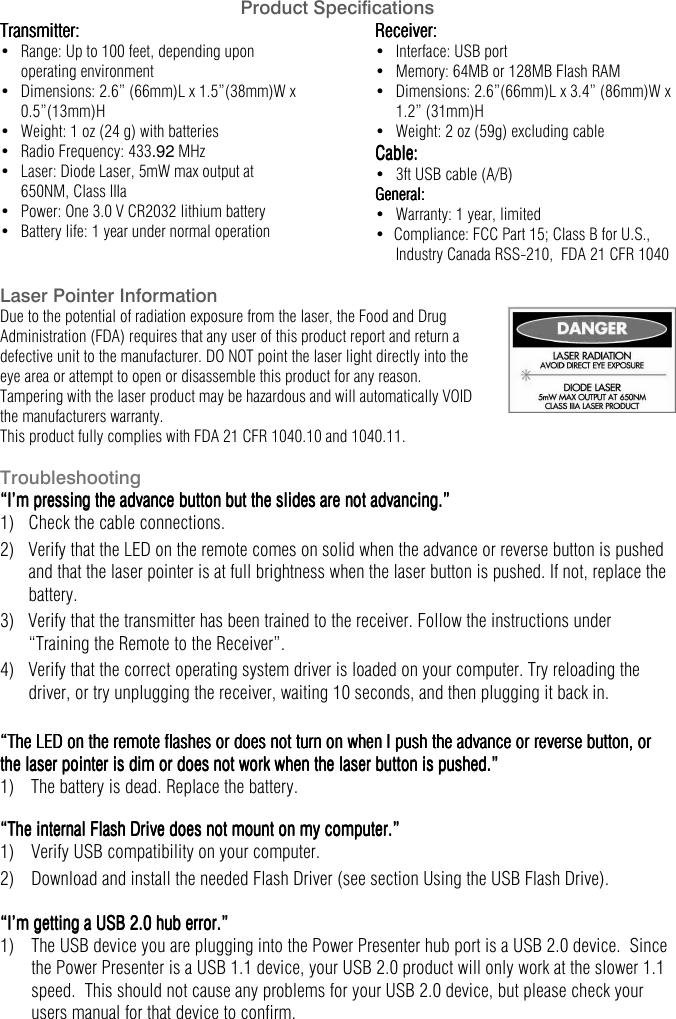
  Product Specifications Transmitter:Transmitter:Transmitter:Transmitter:    •   Range: Up to 100 feet, depending upon operating environment •   Dimensions: 2.6” (66mm)L x 1.5”(38mm)W x 0.5”(13mm)H •   Weight: 1 oz (24 g) with batteries •  Radio Frequency: 433.92 MHz •   Laser: Diode Laser, 5mW max output at 650NM, Class IIIa •   Power: One 3.0 V CR2032 lithium battery •   Battery life: 1 year under normal operation Receiver:Receiver:Receiver:Receiver:    •   Interface: USB port •   Memory: 64MB or 128MB Flash RAM •   Dimensions: 2.6”(66mm)L x 3.4” (86mm)W x 1.2” (31mm)H •   Weight: 2 oz (59g) excluding cable Cable:Cable:Cable:Cable:    •   3ft USB cable (A/B) General:General:General:General:    •   Warranty: 1 year, limited •  Compliance: FCC Part 15; Class B for U.S.,  Industry Canada RSS-210,  FDA 21 CFR 1040 Laser Pointer Information Due to the potential of radiation exposure from the laser, the Food and Drug Administration (FDA) requires that any user of this product report and return a defective unit to the manufacturer. DO NOT point the laser light directly into the eye area or attempt to open or disassemble this product for any reason. Tampering with the laser product may be hazardous and will automatically VOID the manufacturers warranty. This product fully complies with FDA 21 CFR 1040.10 and 1040.11.    Troubleshooting “I’m pressing the advance button but the slides are not advancing.”“I’m pressing the advance button but the slides are not advancing.”“I’m pressing the advance button but the slides are not advancing.”“I’m pressing the advance button but the slides are not advancing.”    1)   Check the cable connections. 2)   Verify that the LED on the remote comes on solid when the advance or reverse button is pushed and that the laser pointer is at full brightness when the laser button is pushed. If not, replace the battery. 3)   Verify that the transmitter has been trained to the receiver. Follow the instructions under “Training the Remote to the Receiver”. 4)   Verify that the correct operating system driver is loaded on your computer. Try reloading the driver, or try unplugging the receiver, waiting 10 seconds, and then plugging it back in.  “The LED on the remote flashes or does not turn on when I push the advance or reverse button, or “The LED on the remote flashes or does not turn on when I push the advance or reverse button, or “The LED on the remote flashes or does not turn on when I push the advance or reverse button, or “The LED on the remote flashes or does not turn on when I push the advance or reverse button, or the lthe lthe lthe laser pointer is dim or does not work when the laser button is pushed.”aser pointer is dim or does not work when the laser button is pushed.”aser pointer is dim or does not work when the laser button is pushed.”aser pointer is dim or does not work when the laser button is pushed.”    1)  The battery is dead. Replace the battery.  “The internal Flash Drive does not mount on my computer.”“The internal Flash Drive does not mount on my computer.”“The internal Flash Drive does not mount on my computer.”“The internal Flash Drive does not mount on my computer.”    1)  Verify USB compatibility on your computer. 2)  Download and install the needed Flash Driver (see section Using the USB Flash Drive).  “I’m getting a USB 2.0 hub error.”“I’m getting a USB 2.0 hub error.”“I’m getting a USB 2.0 hub error.”“I’m getting a USB 2.0 hub error.”    1)  The USB device you are plugging into the Power Presenter hub port is a USB 2.0 device.  Since the Power Presenter is a USB 1.1 device, your USB 2.0 product will only work at the slower 1.1 speed.  This should not cause any problems for your USB 2.0 device, but please check your users manual for that device to confirm.
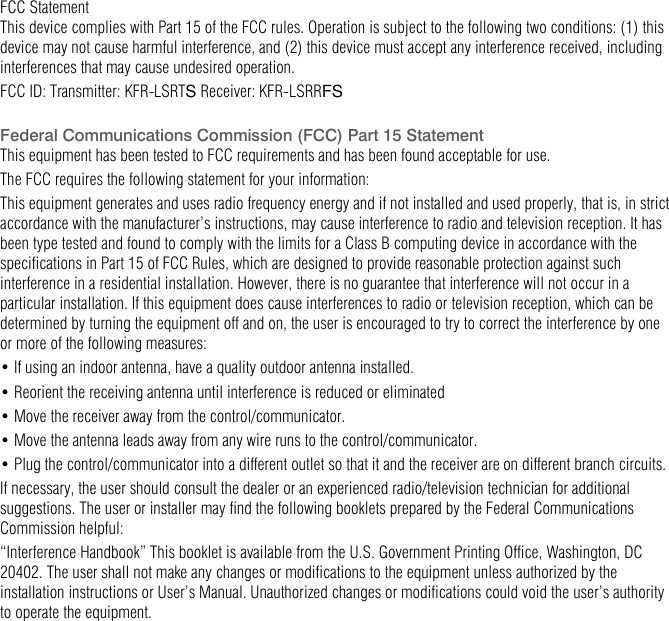
  FCC Statement  This device complies with Part 15 of the FCC rules. Operation is subject to the following two conditions: (1) this device may not cause harmful interference, and (2) this device must accept any interference received, including interferences that may cause undesired operation. FCC ID: Transmitter: KFR-LSRTS Receiver: KFR-LSRRFS  Federal Communications Commission (FCC) Part 15 Statement  This equipment has been tested to FCC requirements and has been found acceptable for use. The FCC requires the following statement for your information: This equipment generates and uses radio frequency energy and if not installed and used properly, that is, in strict accordance with the manufacturer’s instructions, may cause interference to radio and television reception. It has been type tested and found to comply with the limits for a Class B computing device in accordance with the specifications in Part 15 of FCC Rules, which are designed to provide reasonable protection against such interference in a residential installation. However, there is no guarantee that interference will not occur in a particular installation. If this equipment does cause interferences to radio or television reception, which can be determined by turning the equipment off and on, the user is encouraged to try to correct the interference by one or more of the following measures: • If using an indoor antenna, have a quality outdoor antenna installed. • Reorient the receiving antenna until interference is reduced or eliminated • Move the receiver away from the control/communicator. • Move the antenna leads away from any wire runs to the control/communicator. • Plug the control/communicator into a different outlet so that it and the receiver are on different branch circuits. If necessary, the user should consult the dealer or an experienced radio/television technician for additional suggestions. The user or installer may find the following booklets prepared by the Federal Communications Commission helpful: “Interference Handbook” This booklet is available from the U.S. Government Printing Office, Washington, DC 20402. The user shall not make any changes or modifications to the equipment unless authorized by the installation instructions or User’s Manual. Unauthorized changes or modifications could void the user’s authority to operate the equipment.
  Limited Warranty Honeywell International Inc. (“Seller”), 12800 Brook Printer Place, Poway, California 92064, warrants its product to be in conformance with its own plans and specifications and to be free from defects in material and workmanship under normal use and service for 12 months from the date of original purchase. Seller’s obligation shall be limited to repairing or replacing, at its option, free of charge for materials or labor, any product that is proved not in compliance with Seller’s specifications or proves defective in materials or workmanship under normal use and service. Seller shall have no obligation under this Limited Warranty or otherwise if the product is altered or improperly repaired or serviced by anyone other than Honeywell International Inc.  When returning a product, a Return Material Authorization number (RMA#) is required and must be obtained from Honeywell International Inc. The RMA# must be clearly displayed on the outside of the shipping carton and the product must be accompanied by documentation that explains the problem and provides proof of date of purchase.
 This device complies with part 15 of the FCC rules.  Operation is subject to the following two conditions. 1) This device may not cause harmful interference, and 2) This device must accept any interference received, including interference that may cause undesired operation. Per FCC 15.21, you are cautioned that changes or modifications not expressly approved by the part responsible for compliance could void the user’s authority to operate the equipment.
                                             12800 Brook Printer Place12800 Brook Printer Place12800 Brook Printer Place12800 Brook Printer Place    Poway, California 92064Poway, California 92064Poway, California 92064Poway, California 92064    Copyright © 2004 Honeywell International Inc.Copyright © 2004 Honeywell International Inc.Copyright © 2004 Honeywell International Inc.Copyright © 2004 Honeywell International Inc.        www.powerremote.comwww.powerremote.comwww.powerremote.comwww.powerremote.com

Navigation menu