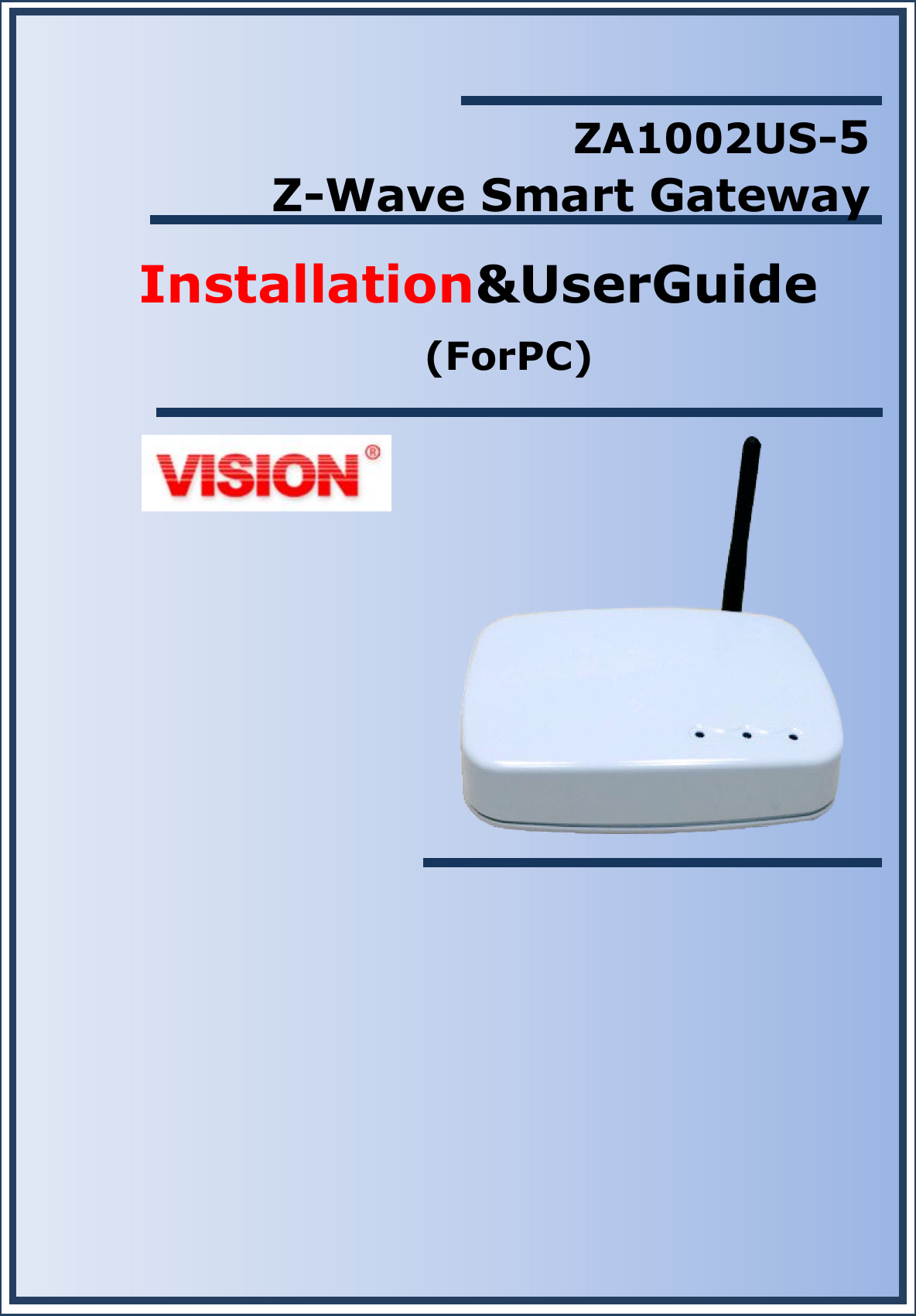
Vision Automobile Electronics Co ZA1002US-5 Z-Wave Smart Gateway User Manual

Vision Automobile Electronics Industrial Co Ltd Z-Wave Smart Gateway Users Manual

Contents

Users Manual

                        ZA1002US-5 Z-Wave Smart Gateway Installation&UserGuide (ForPC)
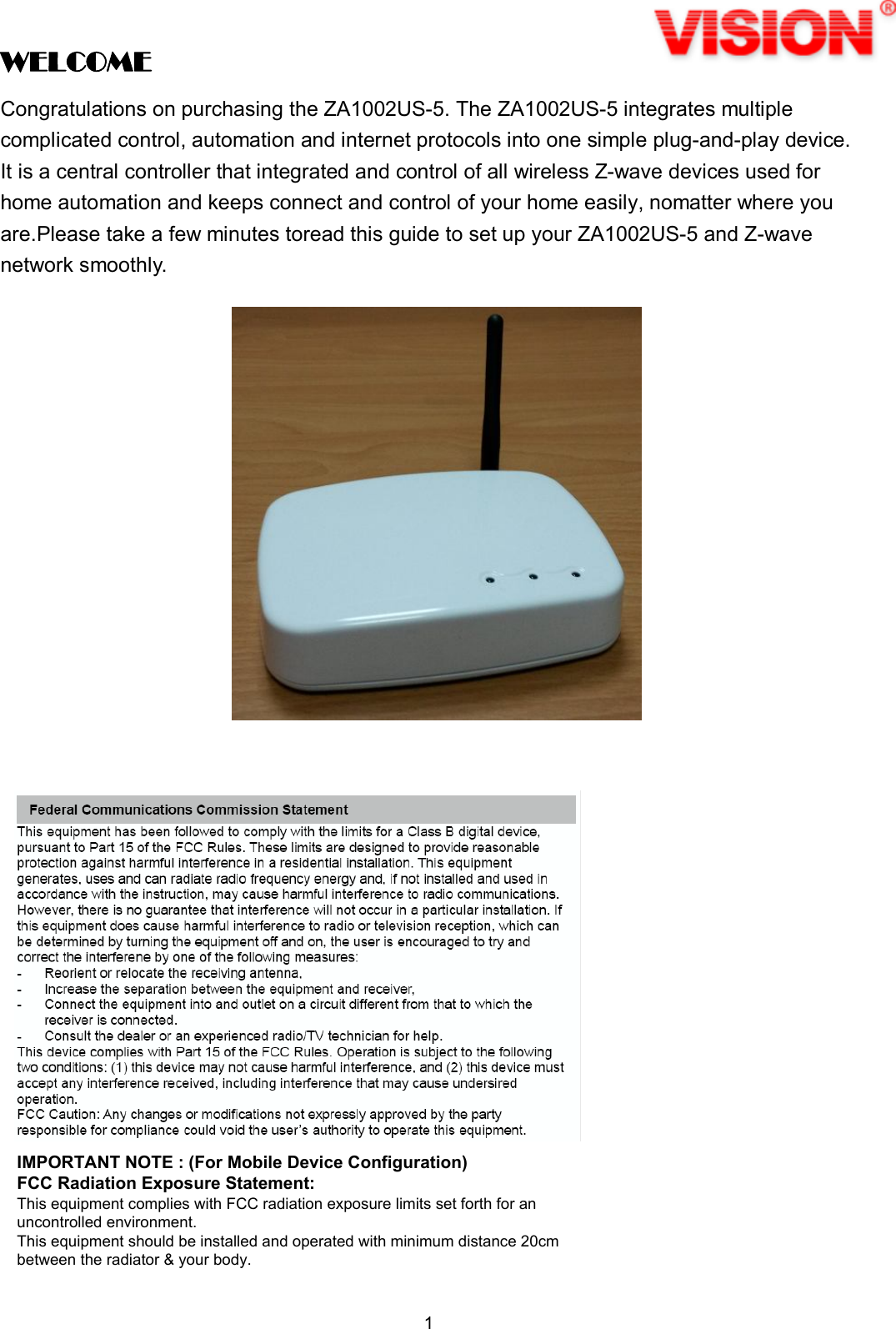
1  WELCOME Congratulations on purchasing the ZA1002US-5. The ZA1002US-5 integrates multiple complicated control, automation and internet protocols into one simple plug-and-play device. It is a central controller that integrated and control of all wireless Z-wave devices used for home automation and keeps connect and control of your home easily, nomatter where you are.Please take a few minutes toread this guide to set up your ZA1002US-5 and Z-wave network smoothly.                           IMPORTANT NOTE : (For Mobile Device Configuration)FCC Radiation Exposure Statement:This equipment complies with FCC radiation exposure limits set forth for anuncontrolled environment.This equipment should be installed and operated with minimum distance 20cmbetween the radiator & your body.
2   Table of Contents Chapter 1 Introduction . . . . . . . . . . . . . . . . . . . . . . . . . . . . . .. . . . . . . . . . . . . . . . . . . . . . . . . 4 1.1 Key Features . . . . . . .. . . . . . . . . . . . . . . . . . . . . .. . . . .. . . . . . . . . . . . . . . . . . . . . . . . .. . . 4 1.2 .Technical Specifications . . . . . . . . . . . . . . . . . . . . . . . . . . . .. . . . . . . . . . . . . . . . . . . . . . . . . 4 1.3 .Hardware Overview . . . . . . . . . . . . . . . . . . . . . . . . . . .. . . . . . . . . . . .. . . . . . . . . . . . . . . . . . 5 1.3.1  Front Panel . . . . . .. . . . . . . . . . . . . .. . . . . . . . . . . . . . . . . . . .. . . . . . . . . . . . . . . . . . .    5 1.3.2  Back Panel . . . . . .. . . . . . . .. . . . . . . . . . . . .. . . . . . . .. . . . . . . . . . . . . . . . . . . . . . . . . 6 Chapter 2 Quick Install. . . . . . . . .    . . . . . . . . . . . . . . . . . . . . . . . . . . . . . . . .. . . . . . . . . . . 7 2.1 Unpacking . . . . . . . . . . . . . . . . . . . . . . . . . . . . . . .. . . . . . . . . . .. . . . . . . . . . . . . . . . . . . . . . . . . . .7 2.2 The Procedure of Connection . . . . . . . . . . . . . . . . . . . . . . . . . . . . . . . . . . . . . . . . . . . . . . . . . . . . . . . .7 2.3Find the IP address of your ZA1002US-5 . . . . . . . . . . . . . . . . . .. . . . . . . . . . . . . . . . . . . . . . .. . . . .. . . . .8 2.4 Setup Wi-Fi for your ZA1002US-5. . . . . . . . . . . . . . . . . .. . . . . . . . . . . . .. . . . . . . . . . . . . . . . .. . . . .. . . . .8 2.4.1 System. . . . . . . . . . . . . . . . . .. . . . . . . . . . .. . . . . ... . . . . ... . . . . .. . . . . . . . . . . . .. . . . .. . . . .9 2.4.2 Network. . . . . . . . . . . . ... . . . . ... . . . . ... . . . . . . . . . .. . . . . . . . . . . . . . . . . . . . . . .. . . . .. . . . .10 2.4.2.1 General Setup. . . . . . .. . . . . ... .    . . . . . . . . . . .. . . . . . . . . . . . . . . . . . . . . . .. . . . .. . . . .10 2.4.2.2 Advanced Settings. . . . . . . . . . . . . . . . . ... . . . . .. . . . . . . . . . . . . . . . . . . . . . .. . . . .. . . . .11 2.4.2.3 Physical Settings. . . . . ... . . . . ... . . . . ... . . . . .... . . . ... . . . . ... . . . . ... . . . . ... . . . ..12 2.4.2.4 Firewall Settingsb. . . ... . . . . ... . . . . ... . . . . ... . . . . ... . . . . ... . . . . ... . . . . ... . . . . ..12 2.4.3 Zwave. . . . . ... . . . . ... . . . . ... . . . . ... . .... . . . . ... . . . . ... . . . . ... . . . . ... . . . . ... . . . . ..13 2.4.4 Logout. . . . . . . . . .. . . . . . . . . .. . . . . . . . . .. . . . . . . . . .. . . . . . . . . .. . . . . . . . .. . . . . . . . . 13 2.5Initial setup procedure for ZA1002US-5 web configuration . . . . . . . . . . .. . . . . . . . . . . . . . .. . . .. . . . .14 Chapter 3 Full web configurations . . . . . . . . . . . . . . . . . . . . . . . . .. . . . . . . . . . . . .. . . . . . . .15 3.1 Enter web configure page . . . . . . . . . . . . . . . . . . . . . . . . . . . . . . . . . . . . . . . . . . . . . . . . . . . . 15 3.2 SetZwave– Z-Wave device settings . . . . . . . . . . . . . . . . . . . . . . . . . . . . . . . . . . . . . . . . . . . 17 3.2.1 The Z-Wave device configuration . . . . . . . . . . . . . . . . . . . . . . . . . . . . . . . . . . . . . . . . . . 17 3.2.1.1 Add a Z-Wave device    . . . . . . . . . . . . . . . . . . . . . . . . . . . . . . . . . . . . . . . . . . . .. 17 3.2.1.2 Remove a Z-Wave device    . . . . . . . . . . . . . . . . . . . . . . . . . . . . . . . . . . . . . . . . . . 19 3.2.2 Z-Wave Control and Log    . . . . . . . . . . . . . . . . . . . . . . . . . . . . . . .. . . . . . . . . . . . . . . . .21 3.2.3 Topology . . . . . . . . . . . . . . . . . . . . . . . . . . .. . . . . .. . . . . . . . . . . . . . . . . . . .. . . . . . . . 22 3.2.4 Door Lock Security . . . . . . . .. . . . . . . . . . . . . . . . . . .. . . . . . . . . . . . . . . . . . . . . . . . . .23 3.2.5 Version Information . . . . . . . . . . . . . . . . . . . . . .. . . .    . . . . . . . . . . . . . . . . . . . . . . . . . . 24 3.3 Room Setting . . . . . . . . . . . . . . . . . . . . . . .    . . . . . . . . . . . . . . . . . . . . . . . . . . . . . . . . . . . . . 25
3  3.3.1 Create Room . . . . . .. . . . . . . . . . . . . . . . . . . . . . . . . . . . . . . . . .    . . . . . . . . . . . . . . . . . 25 3.3.2 All Rooms . . . . . . . . . . . . . . . . . . . . . . .    . . . . . . . . . . . . . . . . . . . . . . . . . . . . . . . . . . . . 26 3.4Device Setting    . . . . . . . . . . . . . . . . . . . . . . . . . . . . . . . . . . . . . . . . . . . . . . . . . . . . . . . . . . . 27
4  Chapter 1 Introduction ZA1002US-5is a central controller that integrated and control of all wireless Z-wave devices used for home automation. It also providesGateway to connect to Internet. ThroughInternet you  can  see  all  kinds  of  devices  status  of  your  home  atanytimeand  any  place  via  your smartphone  or  PC.You  can  control  thehomedevices  such  aslighting,  air  conditioning,  door lock  and  unlock,  you  can  also  receivethealarmmessageof  your  home.  Energy  usage monitorsof  your  homeat  any  timeis  real-timerecordingto  the  cloudhost,  homealarm messagesareimmediatelydeliveredto  the  cloudmessagemonitoring centerforthenecessarytreatment. The ZA1002US-5 controls switches, dimmers, motion sensors, temperature sensors and so on many Z-Wave devices. ZA1002US-5integrates complicated control, automation and internet protocols into one simple plug-and-play device. It provides an interface that allows you to manage your home easily, whether you are at home or not.  1.1Key Features  Provide one LAN port Router function  Provide one USB 2.0 Host port, you can connect ZigbeeUSB Dongle or USB Hard Disk  ProvideWiFiIEEE 802.11b/g/n  ProvidecompatibleZ-Wave  Pluscommunication  protocolthat  connects  allkinds  of Z-Wavedevices  that  includeswindow  sensors,  electric  locks,  lighting  dimmer  controls, energy  usage  monitor,  air  qualitydetector,  temperature  and  humidity  sensors, firesafetysensors.  Provide a service platform to connect to the cloudservice.  ProvideIP-Camviewinginterface  ProvidefreedownloadAPP.  1.2Technical Specifications Technical Specifications HardwareSpecifications USB Port  USB Host 2.0 x1 Ethernet port  RJ-45 10/100Mb , support 1 LAN Physical and Environmental Characteristics Dimensions  137(W) x 101(H) x 30(D) mm Weight  300g Operating Temp.    Temp: 0°C~45°C (32°F~113°F)
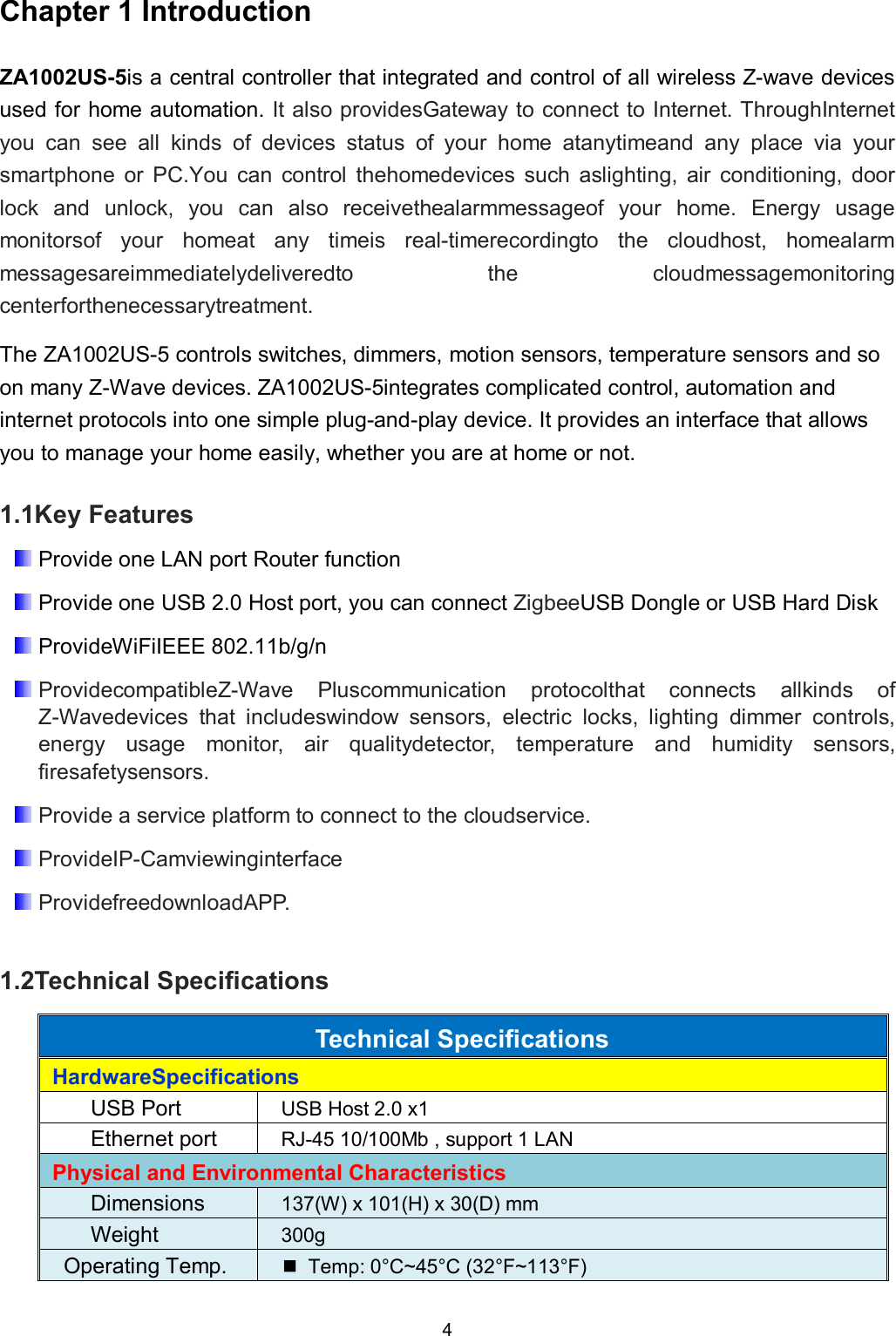
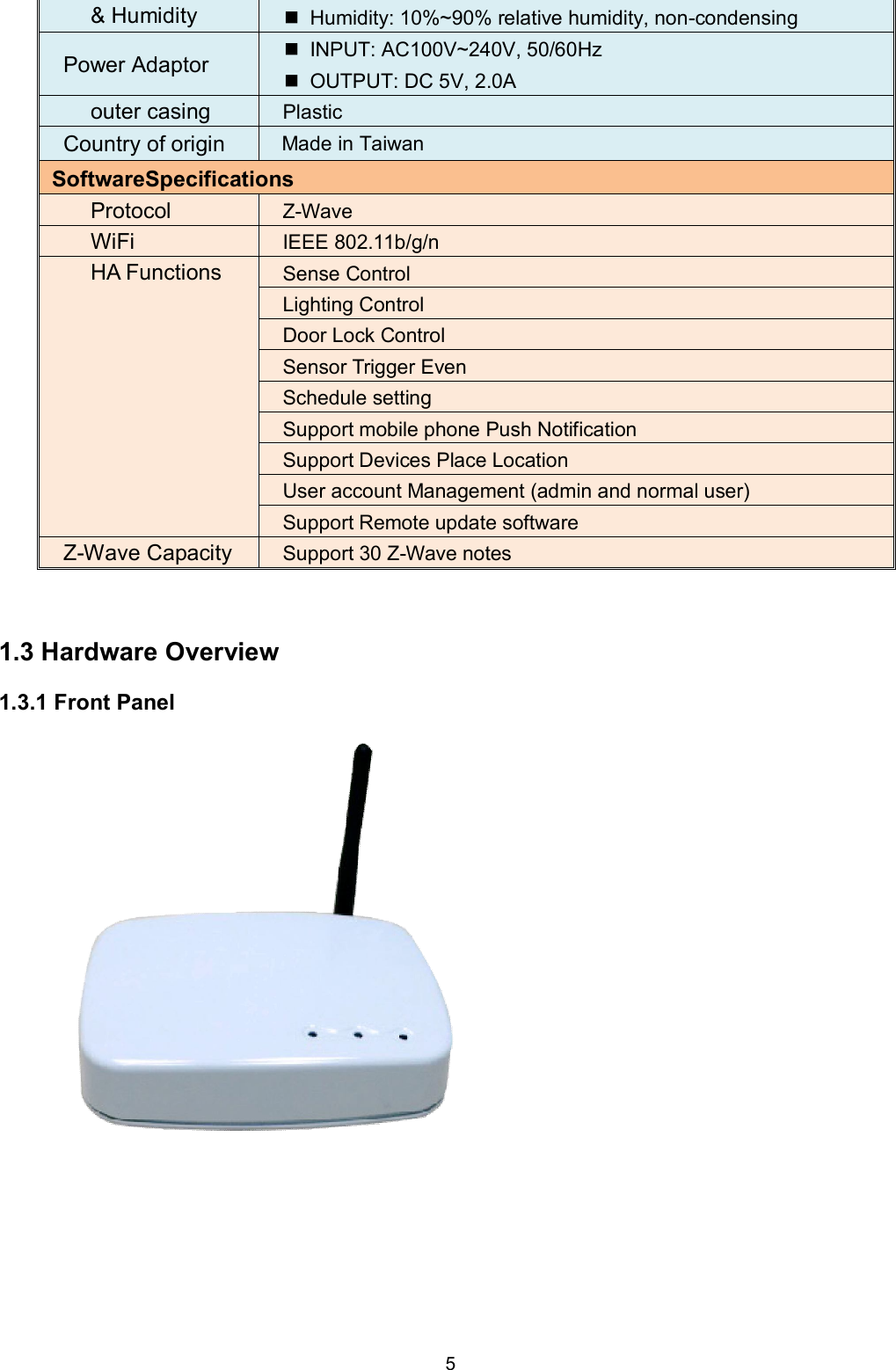
5  & Humidity    Humidity: 10%~90% relative humidity, non-condensing Power Adaptor    INPUT: AC100V~240V, 50/60Hz   OUTPUT: DC 5V, 2.0A outer casing  Plastic Country of origin  Made in Taiwan SoftwareSpecifications Protocol  Z-Wave WiFi  IEEE 802.11b/g/n HA Functions  Sense Control Lighting Control Door Lock Control Sensor Trigger Even Schedule setting Support mobile phone Push Notification Support Devices Place Location User account Management (admin and normal user) Support Remote update software Z-Wave Capacity  Support 30 Z-Wave notes   1.3 Hardware Overview 1.3.1 Front Panel
6  1.3.2 Back Panel    DC 5V/2A:Connecting to AC adapter.Input AC 100V~240V, 50/60Hz; Output DC 5V 2.0A LAN: RJ-45 socket, complied with Ethernet 10/100base-T. USB:USB 2.0 ports, USB Type A .  Connect to power supply For Z-Wave USB port LAN port
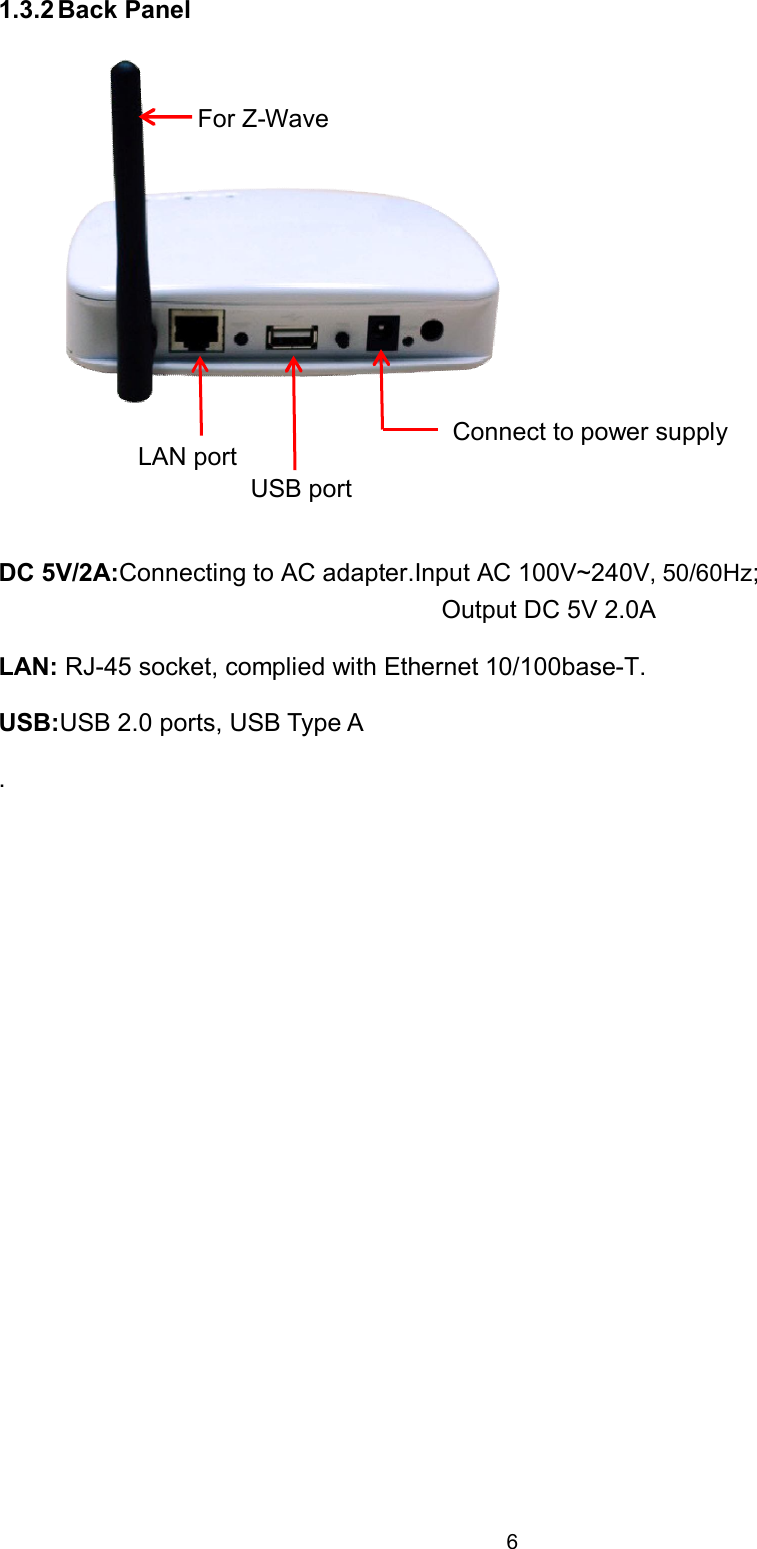
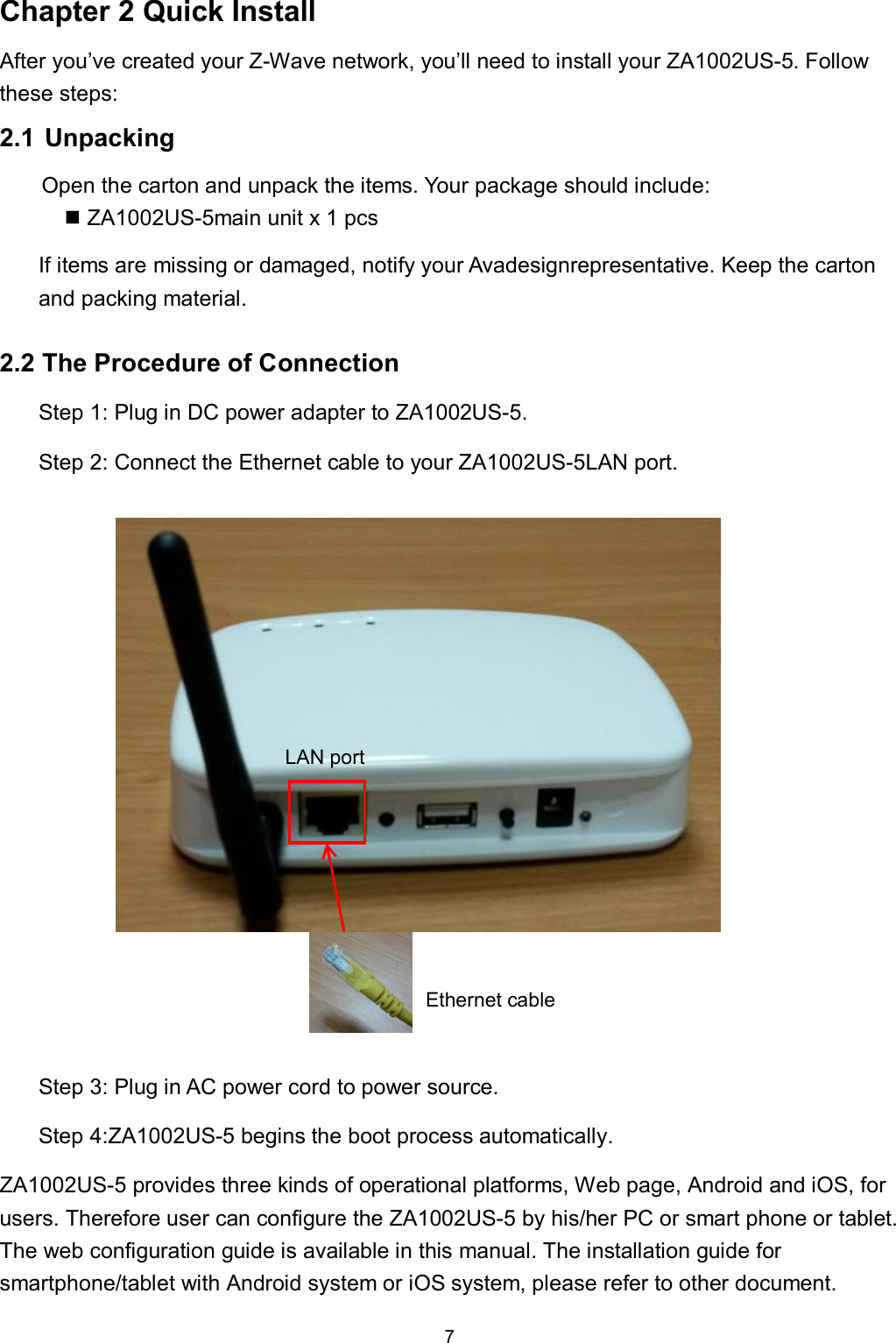
7  Chapter 2 Quick Install After you’ve created your Z-Wave network, you’ll need to install your ZA1002US-5. Follow these steps: 2.1 Unpacking Open the carton and unpack the items. Your package should include:  ZA1002US-5main unit x 1 pcs If items are missing or damaged, notify your Avadesignrepresentative. Keep the carton and packing material.  2.2 The Procedure of Connection Step 1: Plug in DC power adapter to ZA1002US-5. Step 2: Connect the Ethernet cable to your ZA1002US-5LAN port.         Step 3: Plug in AC power cord to power source. Step 4:ZA1002US-5 begins the boot process automatically. ZA1002US-5 provides three kinds of operational platforms, Web page, Android and iOS, for users. Therefore user can configure the ZA1002US-5 by his/her PC or smart phone or tablet. The web configuration guide is available in this manual. The installation guide for smartphone/tablet with Android system or iOS system, please refer to other document. Ethernet cable LAN port
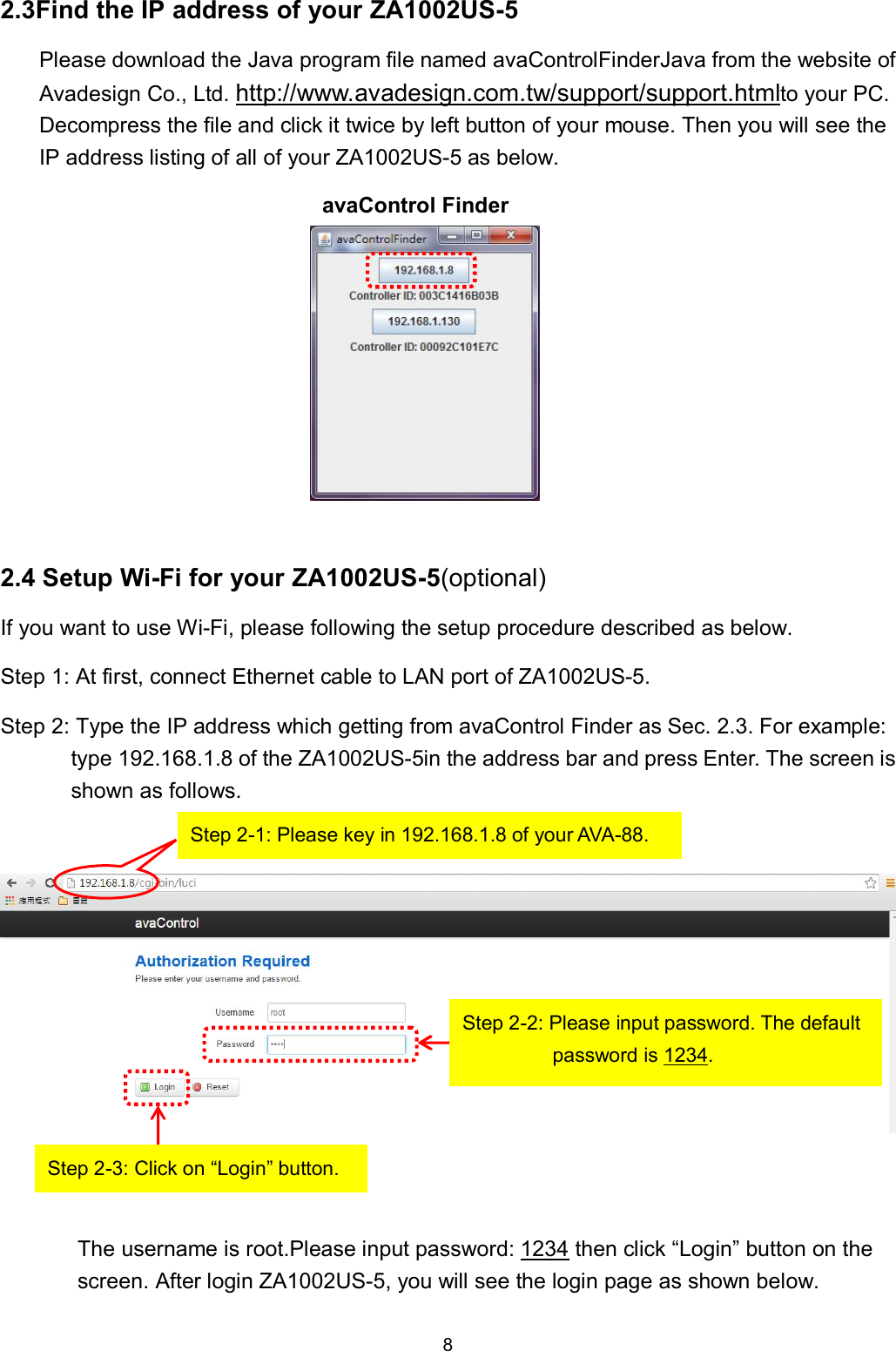
8  2.3Find the IP address of your ZA1002US-5 Please download the Java program file named avaControlFinderJava from the website of Avadesign Co., Ltd. http://www.avadesign.com.tw/support/support.htmlto your PC. Decompress the file and click it twice by left button of your mouse. Then you will see the IP address listing of all of your ZA1002US-5 as below. avaControl Finder           2.4 Setup Wi-Fi for your ZA1002US-5(optional) If you want to use Wi-Fi, please following the setup procedure described as below. Step 1: At first, connect Ethernet cable to LAN port of ZA1002US-5. Step 2: Type the IP address which getting from avaControl Finder as Sec. 2.3. For example: type 192.168.1.8 of the ZA1002US-5in the address bar and press Enter. The screen is shown as follows.      The username is root.Please input password: 1234 then click “Login” button on the screen. After login ZA1002US-5, you will see the login page as shown below. Step 2-1: Please key in 192.168.1.8 of your AVA-88.  Step 2-2: Please input password. The default password is 1234.   Step 2-3: Click on “Login” button.
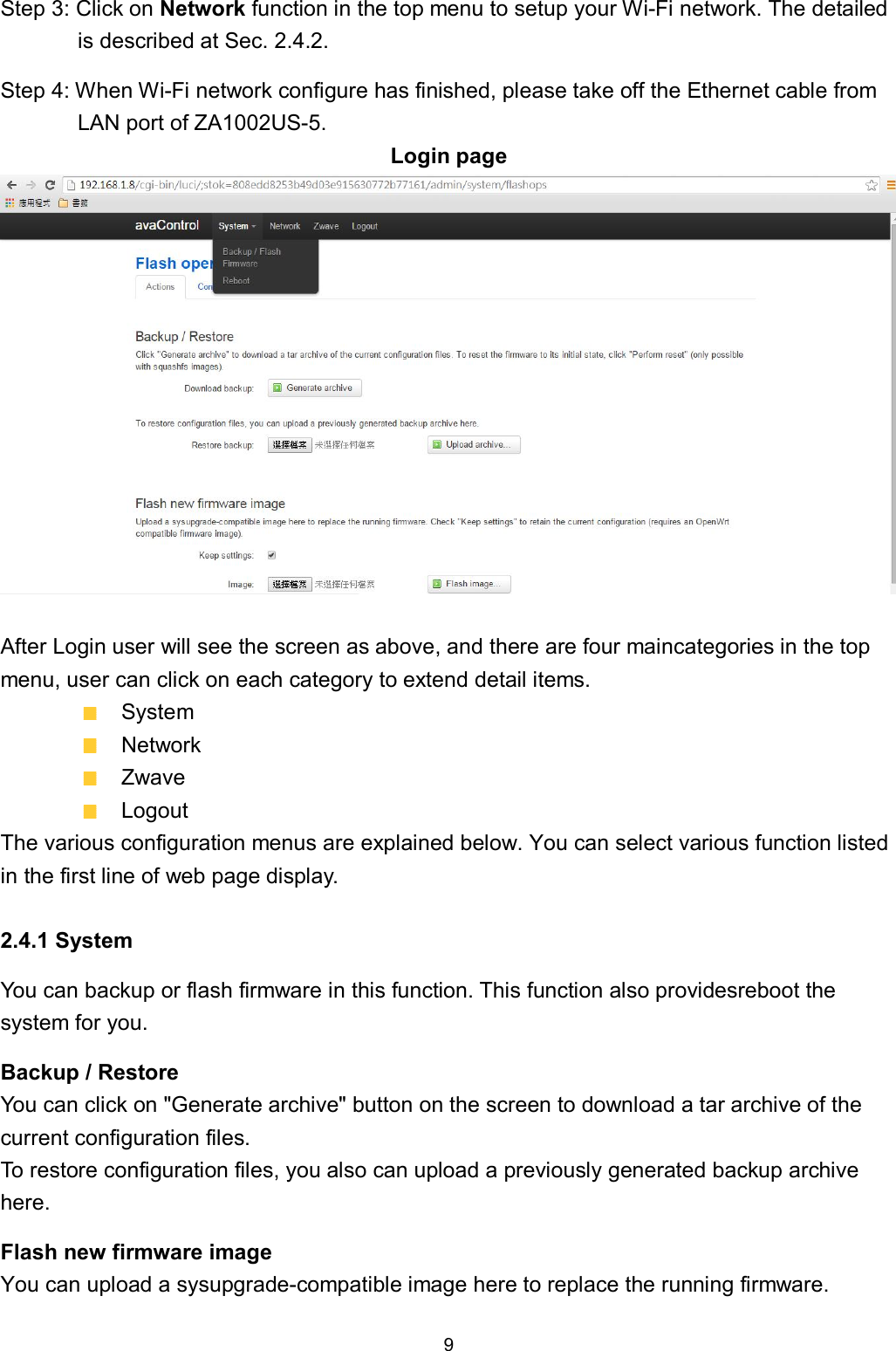
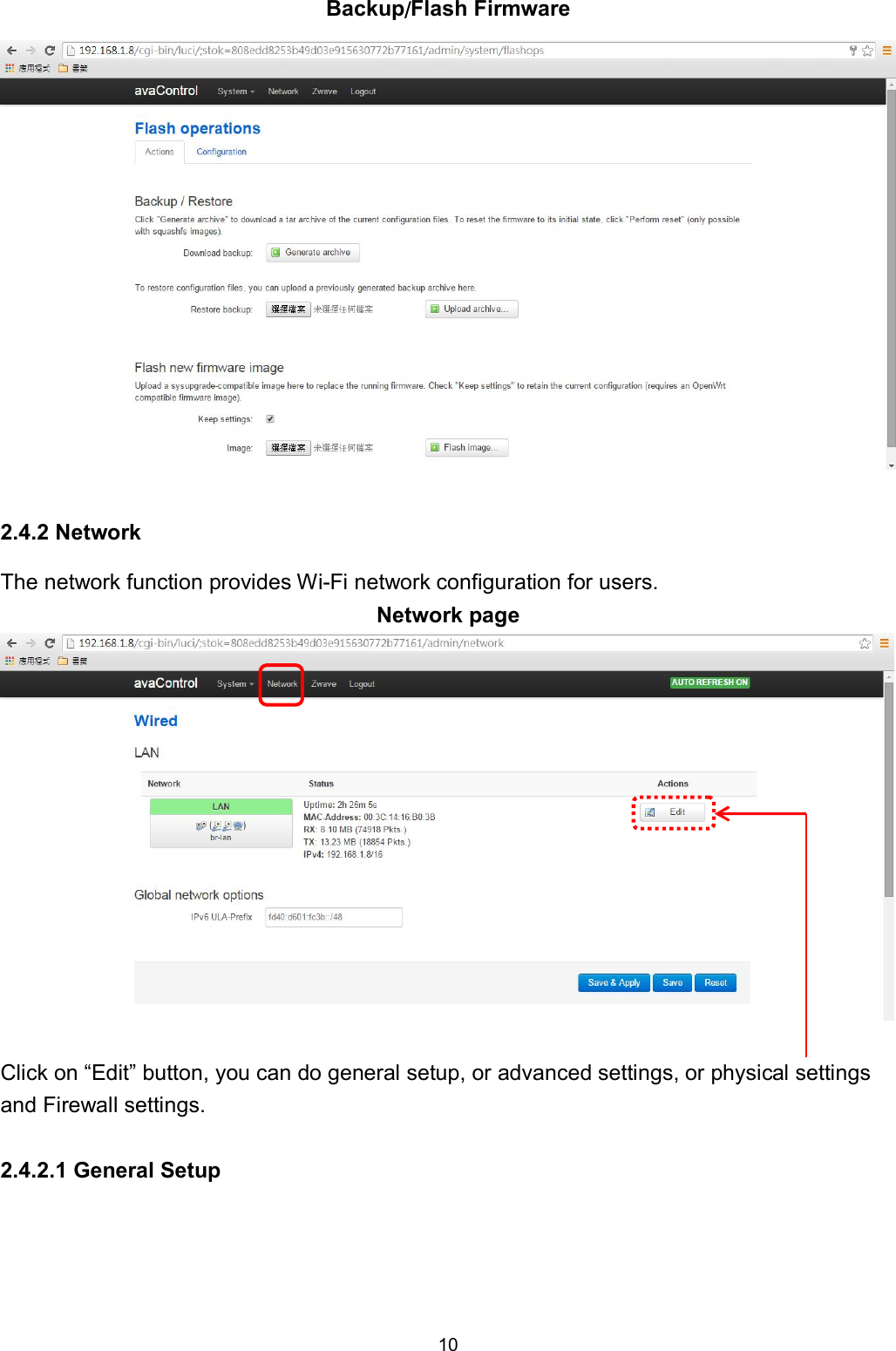
9  Step 3: Click on Network function in the top menu to setup your Wi-Fi network. The detailed is described at Sec. 2.4.2. Step 4: When Wi-Fi network configure has finished, please take off the Ethernet cable from LAN port of ZA1002US-5. Login page   After Login user will see the screen as above, and there are four maincategories in the top menu, user can click on each category to extend detail items.   System   Network   Zwave   Logout The various configuration menus are explained below. You can select various function listed in the first line of web page display.  2.4.1 System You can backup or flash firmware in this function. This function also providesreboot the system for you. Backup / Restore You can click on "Generate archive" button on the screen to download a tar archive of the current configuration files.   To restore configuration files, you also can upload a previously generated backup archive here. Flash new firmware image You can upload a sysupgrade-compatible image here to replace the running firmware.
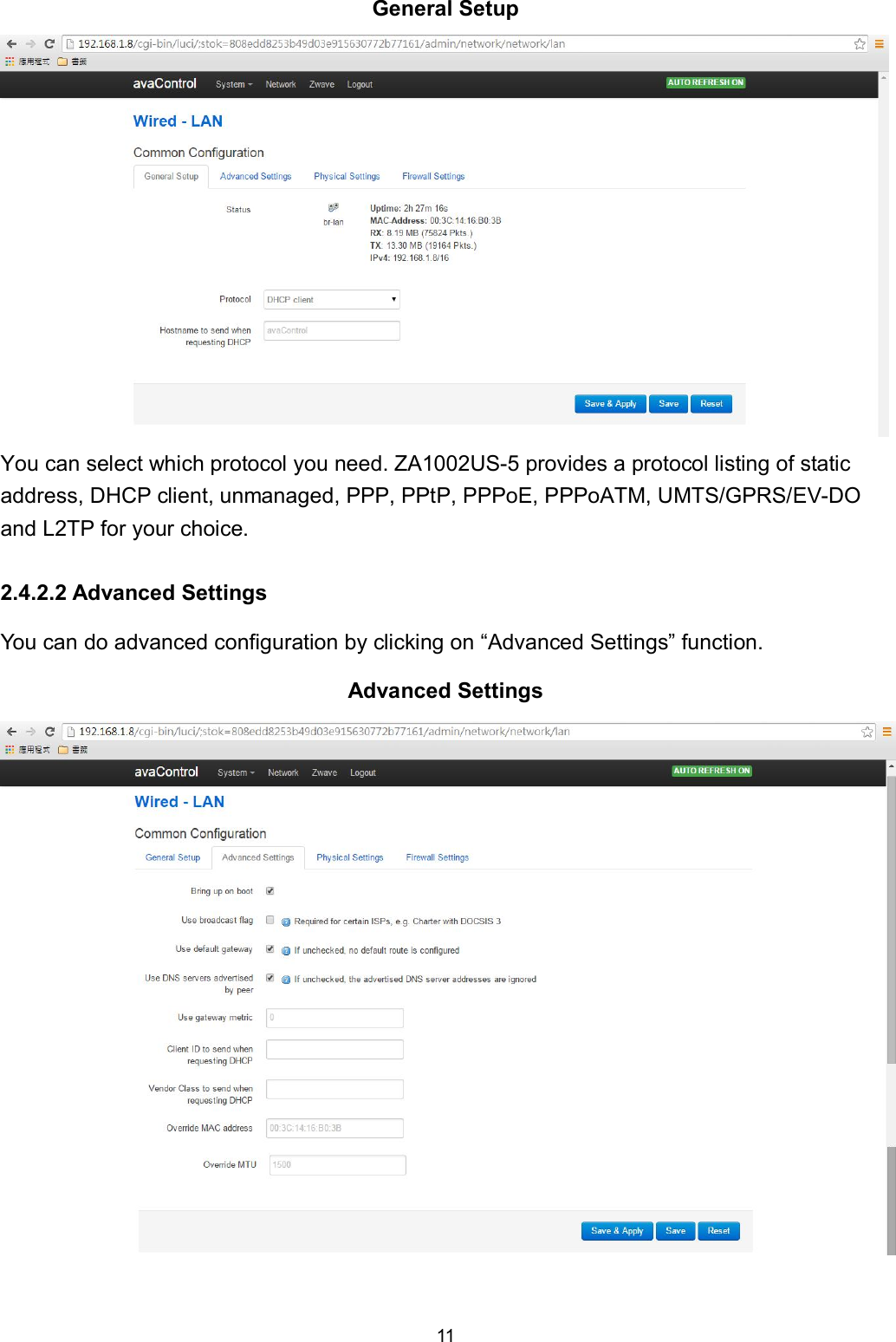
10  Backup/Flash Firmware   2.4.2 Network The network function provides Wi-Fi network configuration for users.   Network page   Click on “Edit” button, you can do general setup, or advanced settings, or physical settings and Firewall settings.  2.4.2.1 General Setup
11  General Setup  You can select which protocol you need. ZA1002US-5 provides a protocol listing of static address, DHCP client, unmanaged, PPP, PPtP, PPPoE, PPPoATM, UMTS/GPRS/EV-DO and L2TP for your choice.  2.4.2.2 Advanced Settings You can do advanced configuration by clicking on “Advanced Settings” function. Advanced Settings
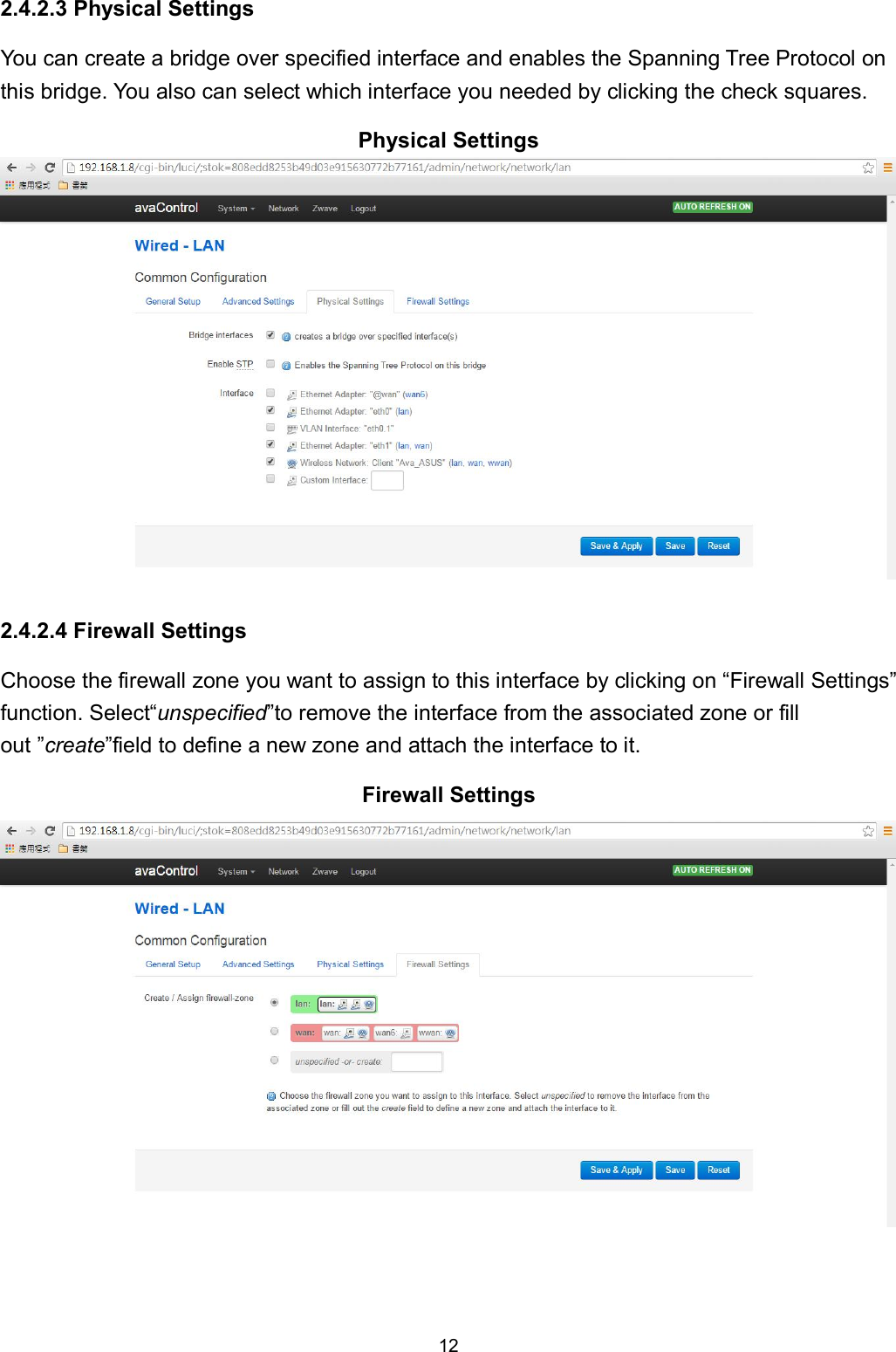
12  2.4.2.3 Physical Settings You can create a bridge over specified interface and enables the Spanning Tree Protocol on this bridge. You also can select which interface you needed by clicking the check squares. Physical Settings   2.4.2.4 Firewall Settings Choose the firewall zone you want to assign to this interface by clicking on “Firewall Settings” function. Select“unspecified”to remove the interface from the associated zone or fill out ”create”field to define a new zone and attach the interface to it. Firewall Settings
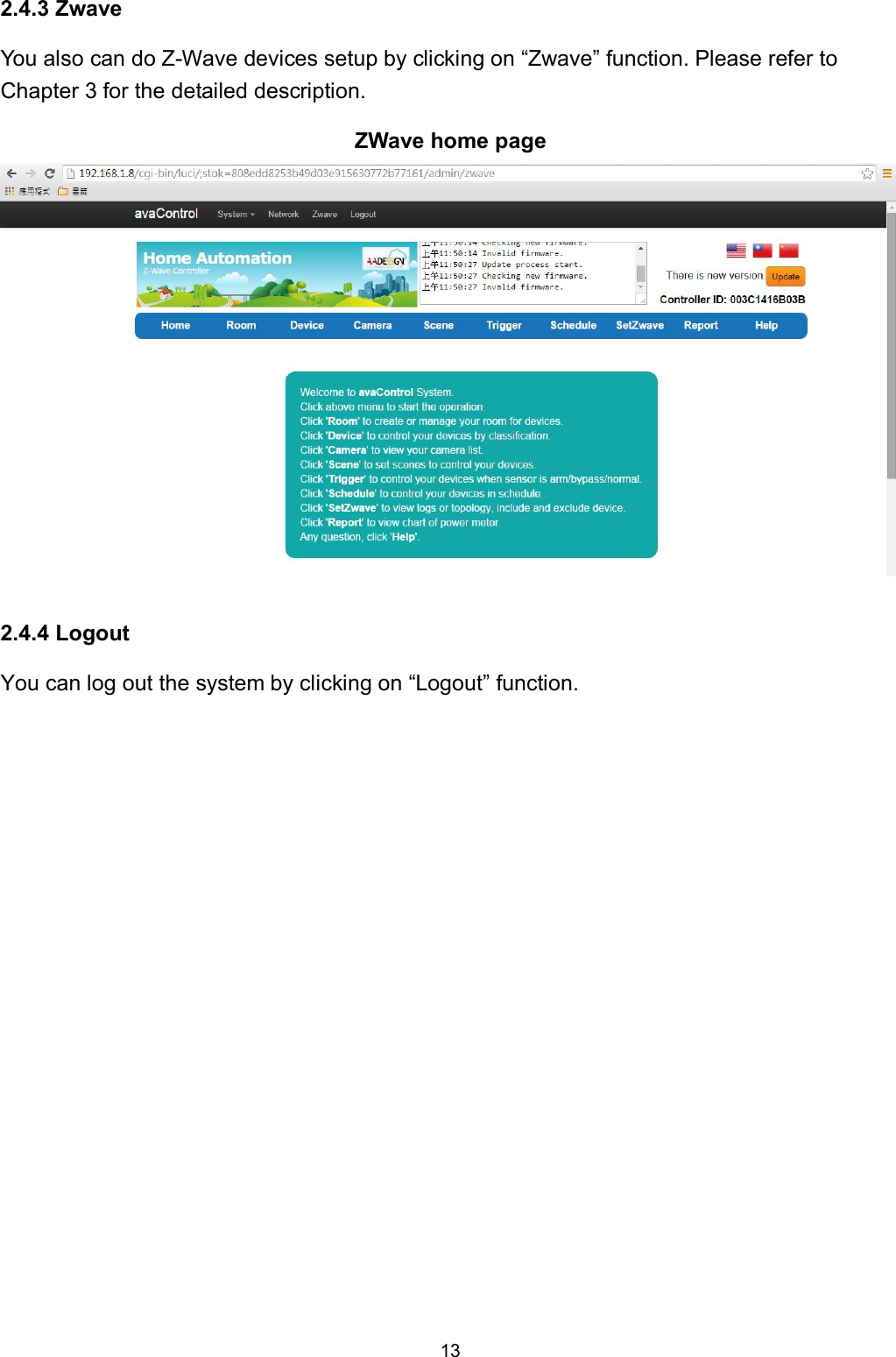
13  2.4.3 Zwave You also can do Z-Wave devices setup by clicking on “Zwave” function. Please refer to Chapter 3 for the detailed description. ZWave home page   2.4.4 Logout You can log out the system by clicking on “Logout” function.
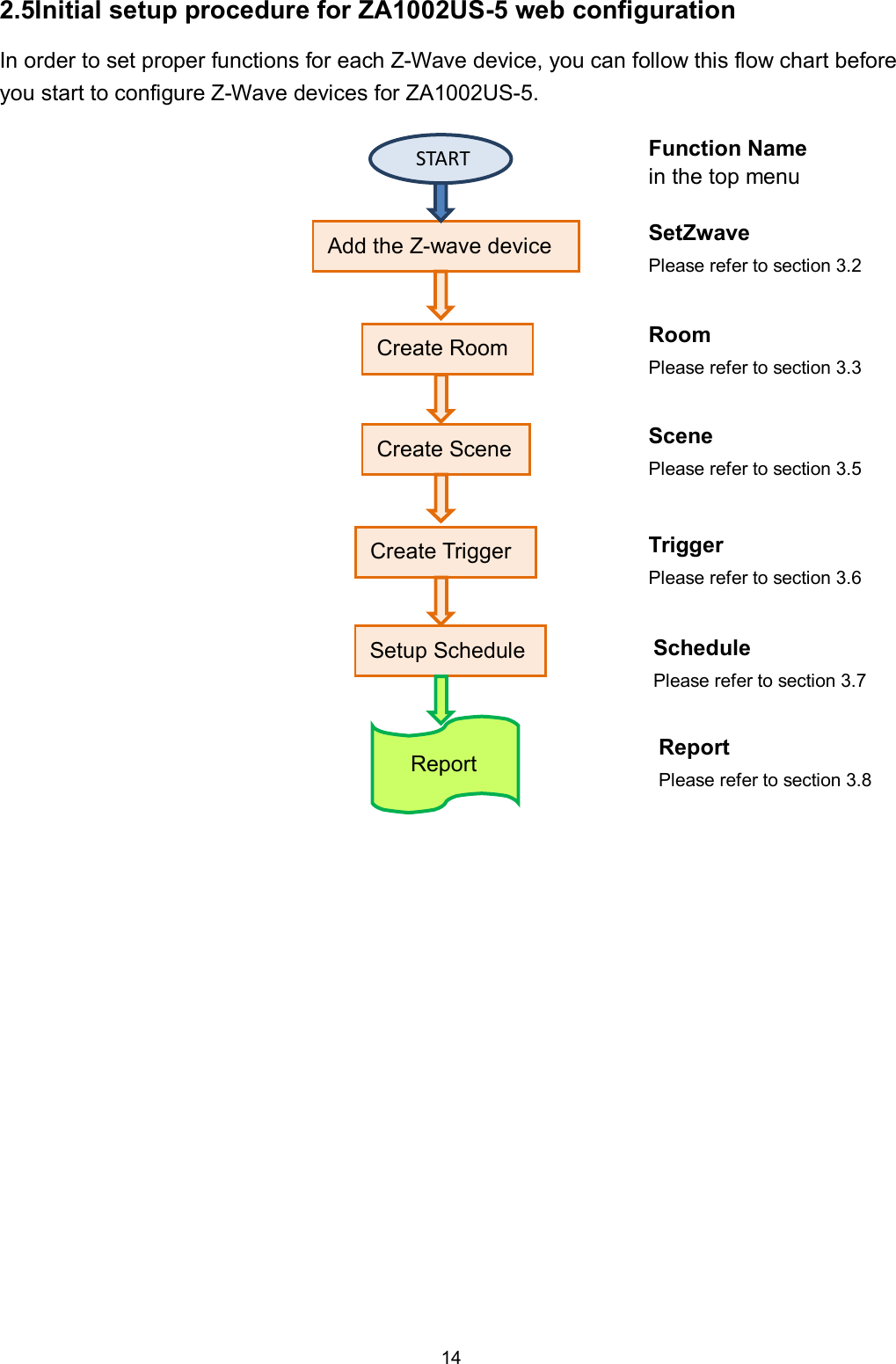
14  2.5Initial setup procedure for ZA1002US-5 web configuration In order to set proper functions for each Z-Wave device, you can follow this flow chart before you start to configure Z-Wave devices for ZA1002US-5.                       START Add the Z-wave device Create Room Create Scene Create Trigger Setup Schedule Report SetZwave Please refer to section 3.2 Room Please refer to section 3.3 Scene Please refer to section 3.5 Trigger Please refer to section 3.6 Schedule Please refer to section 3.7 Report Please refer to section 3.8 Function Name in the top menu
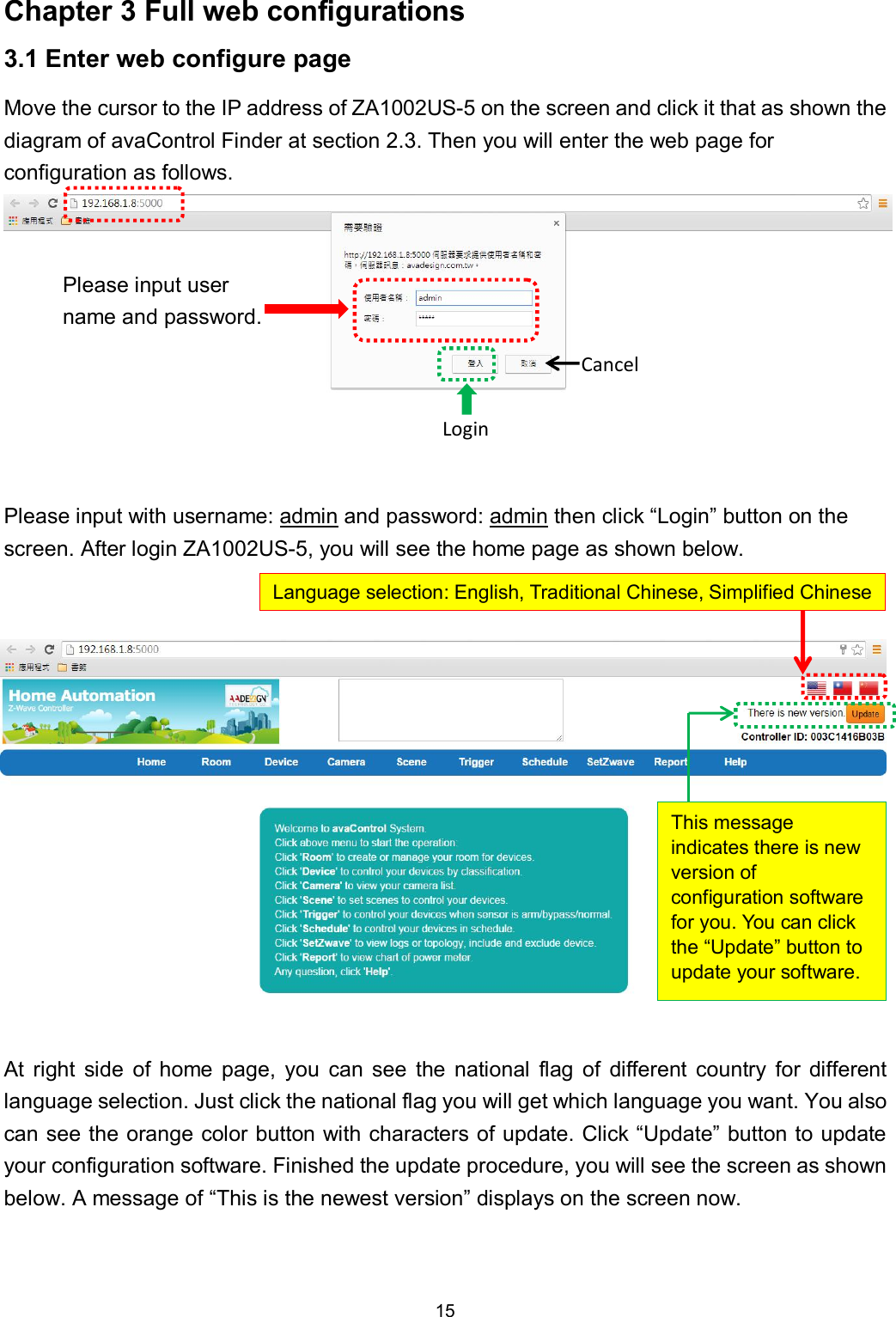
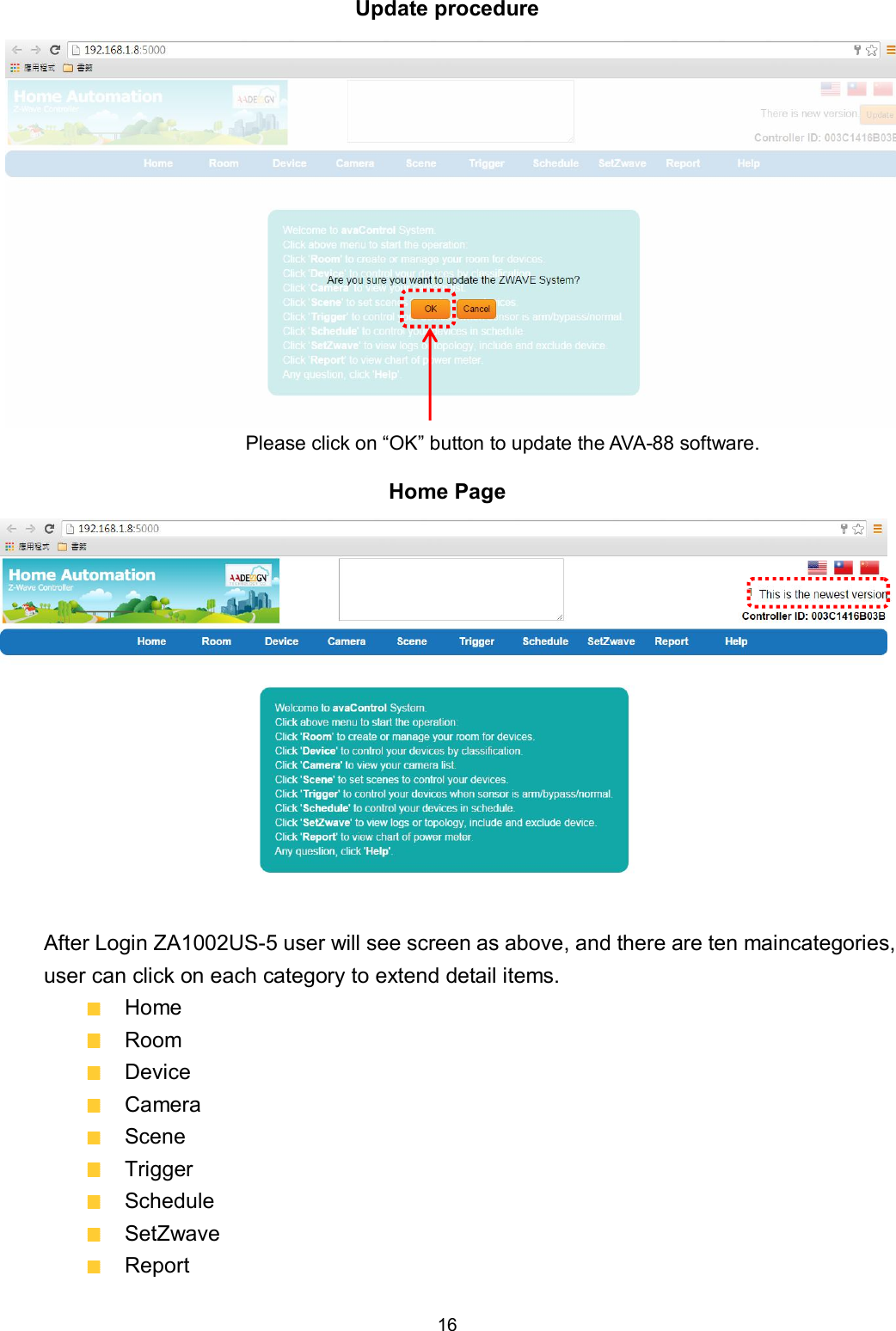
15  Chapter 3 Full web configurations 3.1 Enter web configure page Move the cursor to the IP address of ZA1002US-5 on the screen and click it that as shown the diagram of avaControl Finder at section 2.3. Then you will enter the web page for configuration as follows.               Please input with username: admin and password: admin then click “Login” button on the screen. After login ZA1002US-5, you will see the home page as shown below.                At  right  side  of  home  page,  you  can  see  the  national  flag  of  different  country  for  different language selection. Just click the national flag you will get which language you want. You also can see the orange color button with characters of update. Click “Update” button to update your configuration software. Finished the update procedure, you will see the screen as shown below. A message of “This is the newest version” displays on the screen now.  Please input user name and password. Login Cancel Language selection: English, Traditional Chinese, Simplified Chinese This message indicates there is new version of configuration software for you. You can click the “Update” button to update your software.
16  Update procedure  Home Page              After Login ZA1002US-5 user will see screen as above, and there are ten maincategories, user can click on each category to extend detail items.   Home   Room   Device   Camera   Scene   Trigger   Schedule   SetZwave   Report Please click on “OK” button to update the AVA-88 software.
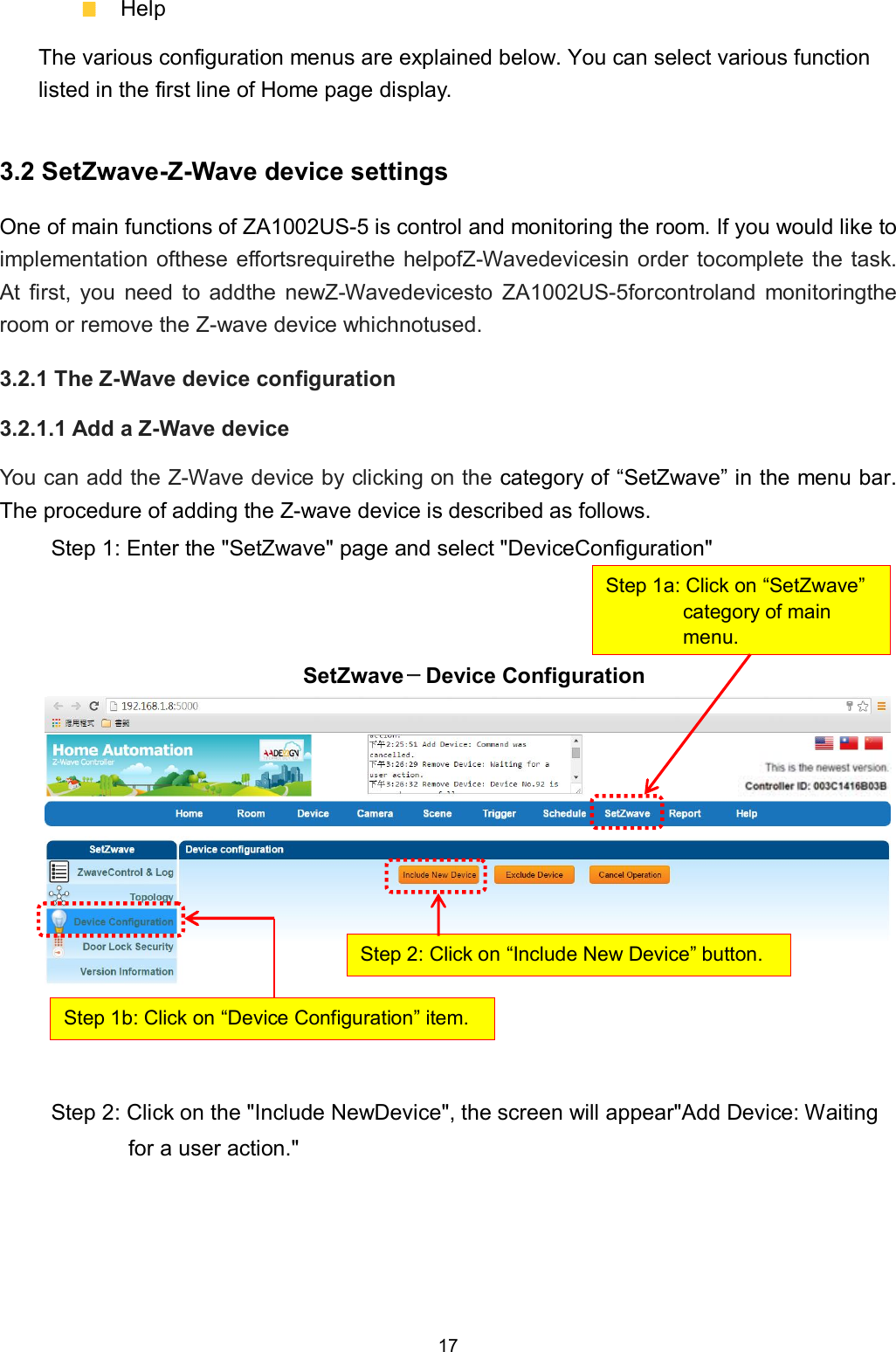
17    Help The various configuration menus are explained below. You can select various function listed in the first line of Home page display. 3.2 SetZwave-Z-Wave device settings One of main functions of ZA1002US-5 is control and monitoring the room. If you would like to implementation ofthese effortsrequirethe helpofZ-Wavedevicesin order tocomplete  the task. At  first,  you  need  to  addthe  newZ-Wavedevicesto  ZA1002US-5forcontroland  monitoringthe room or remove the Z-wave device whichnotused. 3.2.1 The Z-Wave device configuration 3.2.1.1 Add a Z-Wave device You can add the Z-Wave device by clicking on the category of “SetZwave” in the menu bar. The procedure of adding the Z-wave device is described as follows. Step 1: Enter the "SetZwave" page and select "DeviceConfiguration"    SetZwave-Device Configuration            Step 2: Click on the "Include NewDevice", the screen will appear"Add Device: Waiting for a user action."     Step 1a: Click on “SetZwave” category of main menu. Step 1b: Click on “Device Configuration” item. Step 2: Click on “Include New Device” button.
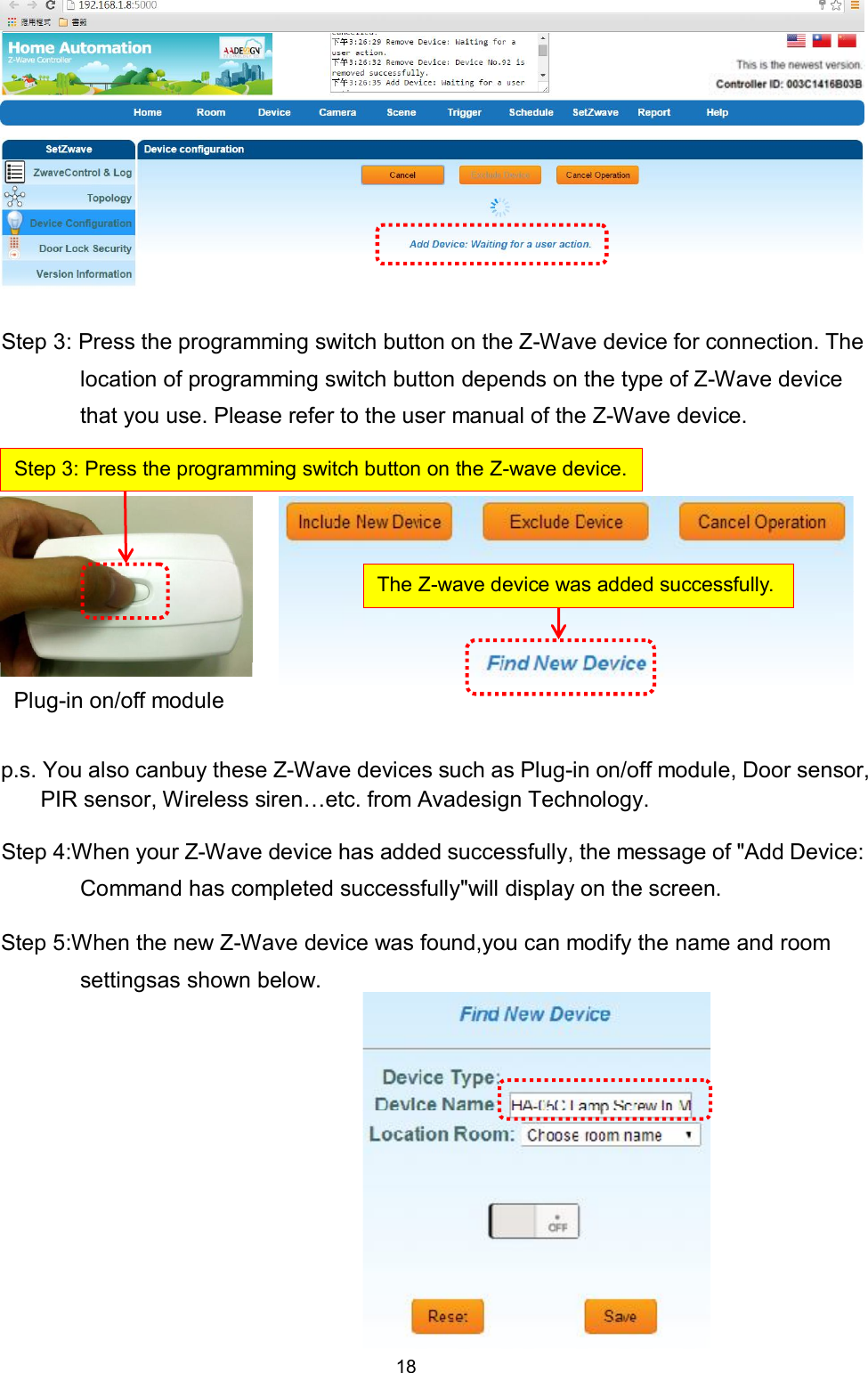
18           Step 3: Press the programming switch button on the Z-Wave device for connection. The location of programming switch button depends on the type of Z-Wave device that you use. Please refer to the user manual of the Z-Wave device.         p.s. You also canbuy these Z-Wave devices such as Plug-in on/off module, Door sensor, PIR sensor, Wireless siren…etc. from Avadesign Technology. Step 4:When your Z-Wave device has added successfully, the message of "Add Device: Command has completed successfully"will display on the screen.   Step 5:When the new Z-Wave device was found,you can modify the name and room settingsas shown below.          Step 3: Press the programming switch button on the Z-wave device. The Z-wave device was added successfully. Plug-in on/off module
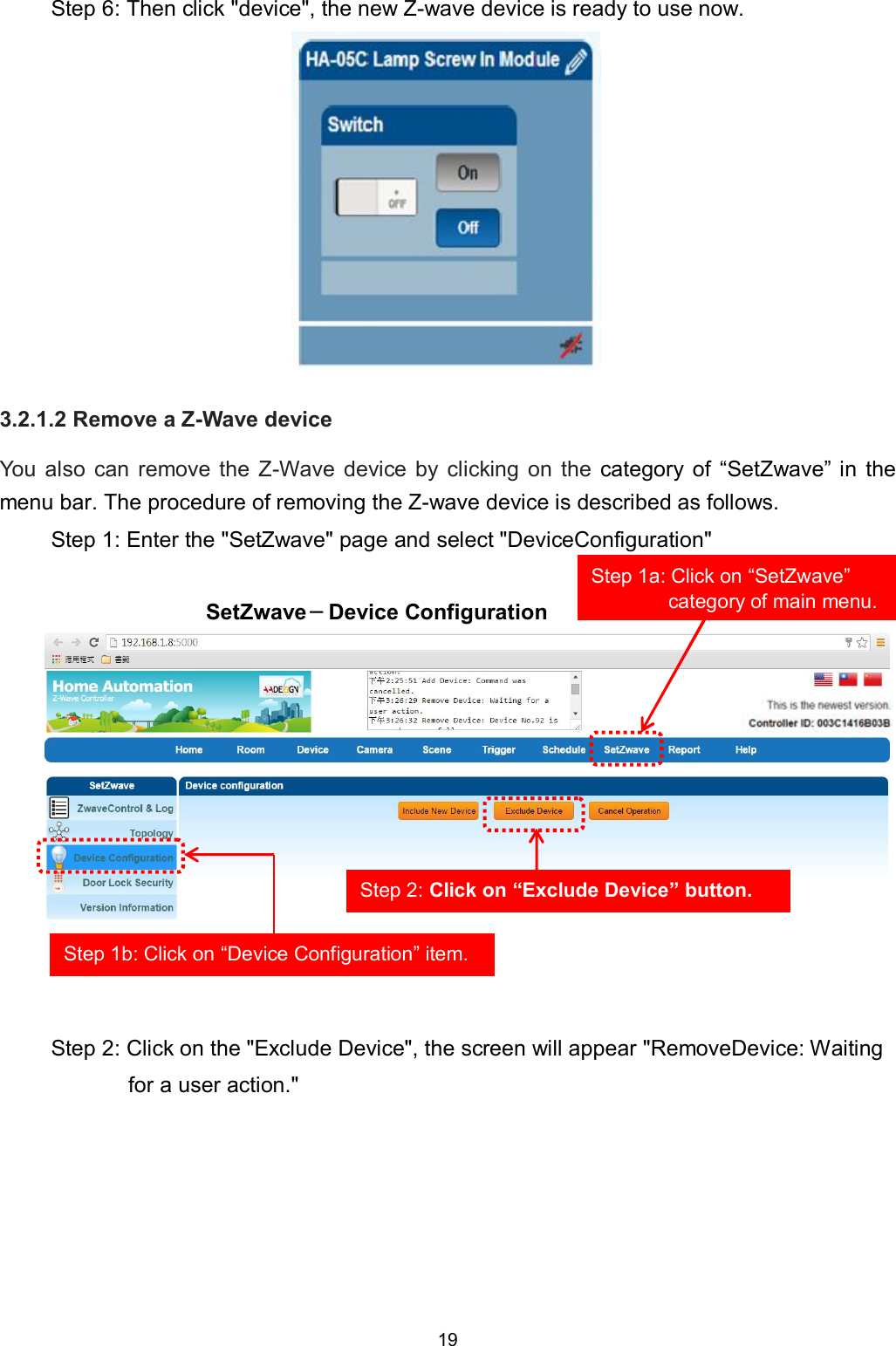
19  Step 6: Then click "device", the new Z-wave device is ready to use now.           3.2.1.2 Remove a Z-Wave device You  also  can  remove  the  Z-Wave  device  by  clicking  on  the  category  of  “SetZwave” in  the menu bar. The procedure of removing the Z-wave device is described as follows. Step 1: Enter the "SetZwave" page and select "DeviceConfiguration"  SetZwave-Device Configuration            Step 2: Click on the "Exclude Device", the screen will appear "RemoveDevice: Waiting for a user action."      Step 1b: Click on “Device Configuration” item. Step 2: Click on “Exclude Device” button. Step 1a: Click on “SetZwave” category of main menu.
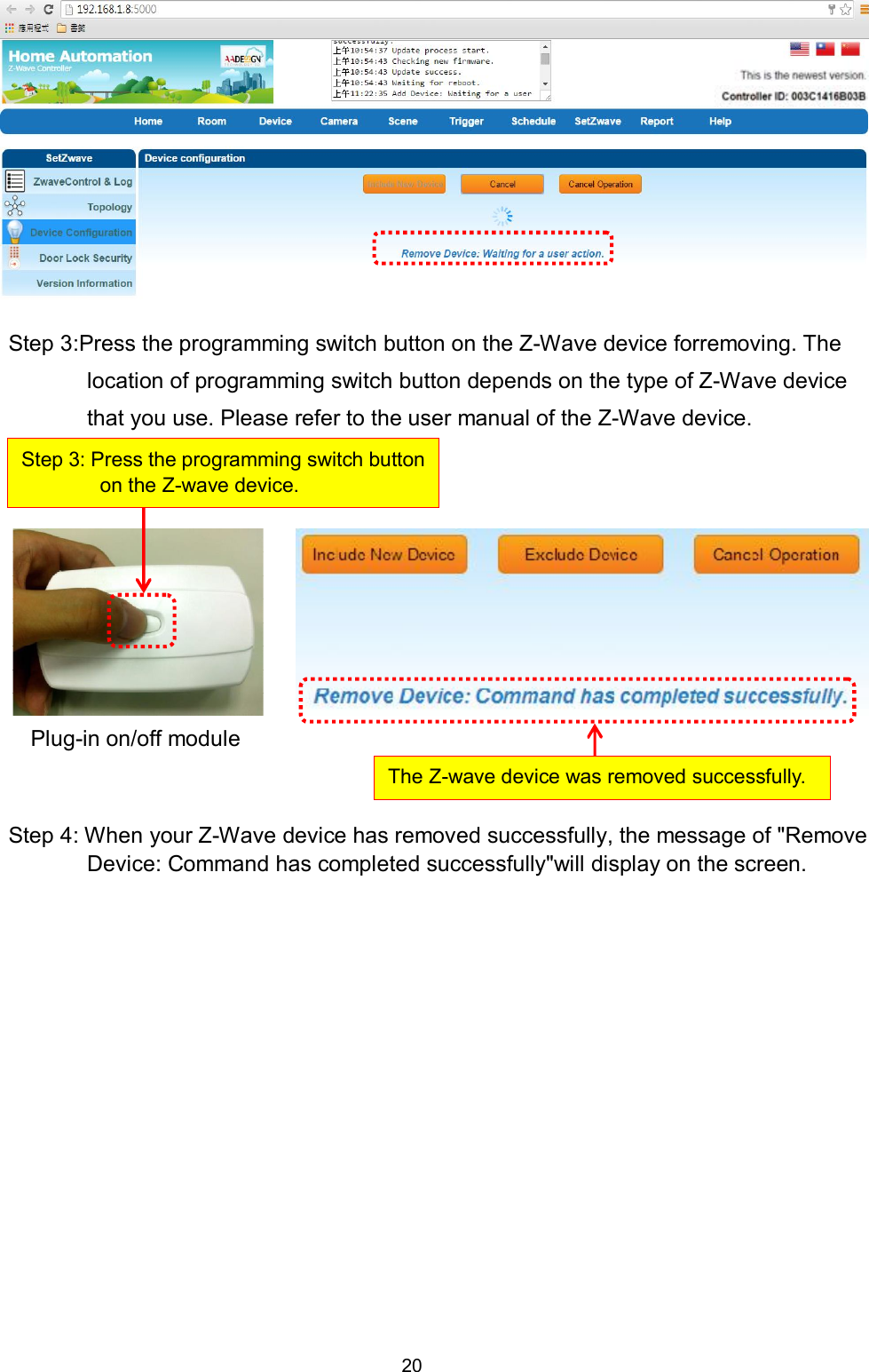
20           Step 3:Press the programming switch button on the Z-Wave device forremoving. The location of programming switch button depends on the type of Z-Wave device that you use. Please refer to the user manual of the Z-Wave device.            Step 4: When your Z-Wave device has removed successfully, the message of "Remove Device: Command has completed successfully"will display on the screen.     Step 3: Press the programming switch button on the Z-wave device. The Z-wave device was removed successfully. Plug-in on/off module
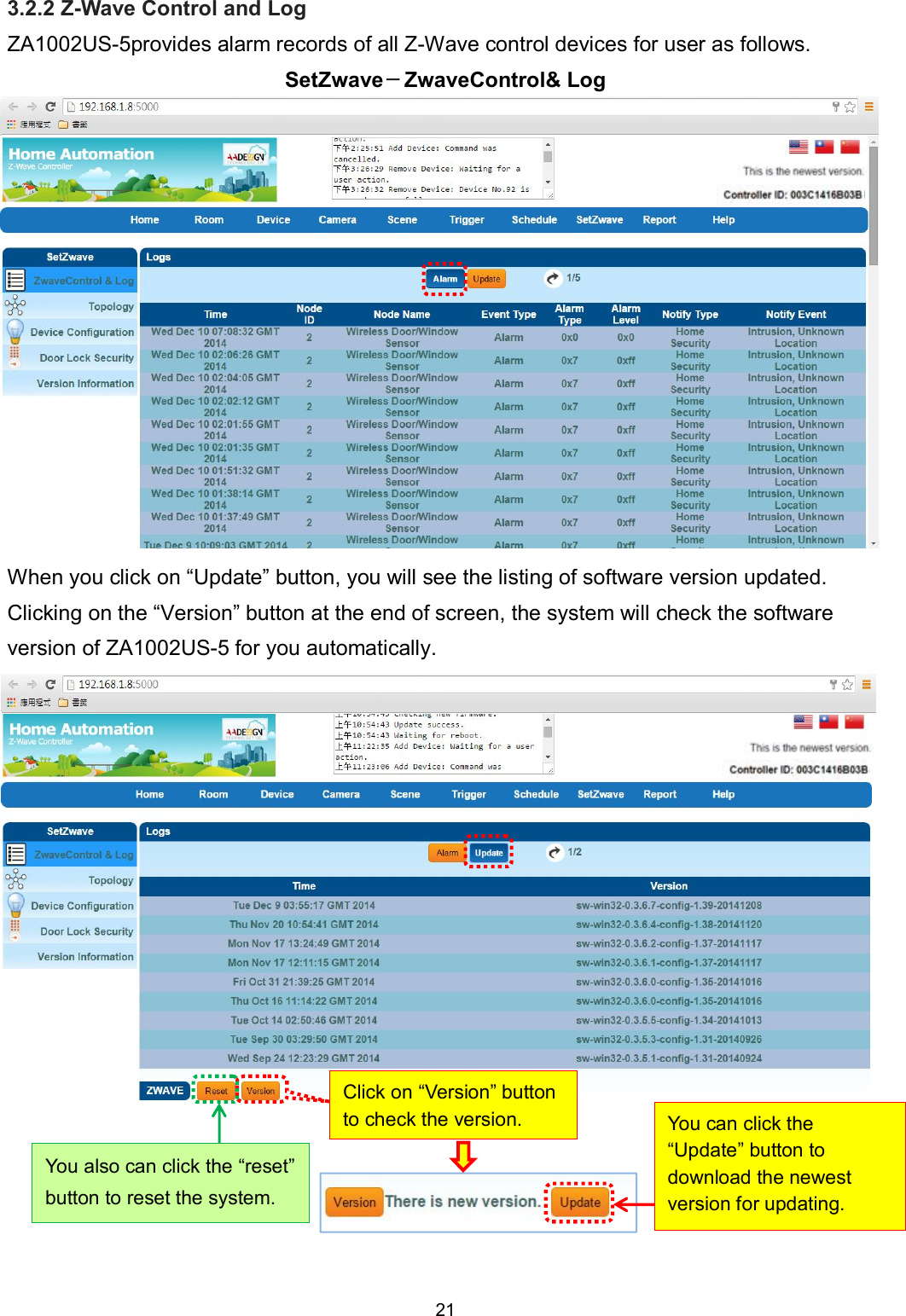
21  3.2.2 Z-Wave Control and Log ZA1002US-5provides alarm records of all Z-Wave control devices for user as follows. SetZwave-ZwaveControl& Log              When you click on “Update” button, you will see the listing of software version updated. Clicking on the “Version” button at the end of screen, the system will check the software version of ZA1002US-5 for you automatically.                 Click on “Version” button to check the version.  You can click the “Update” button to download the newest version for updating. You also can click the “reset” button to reset the system.
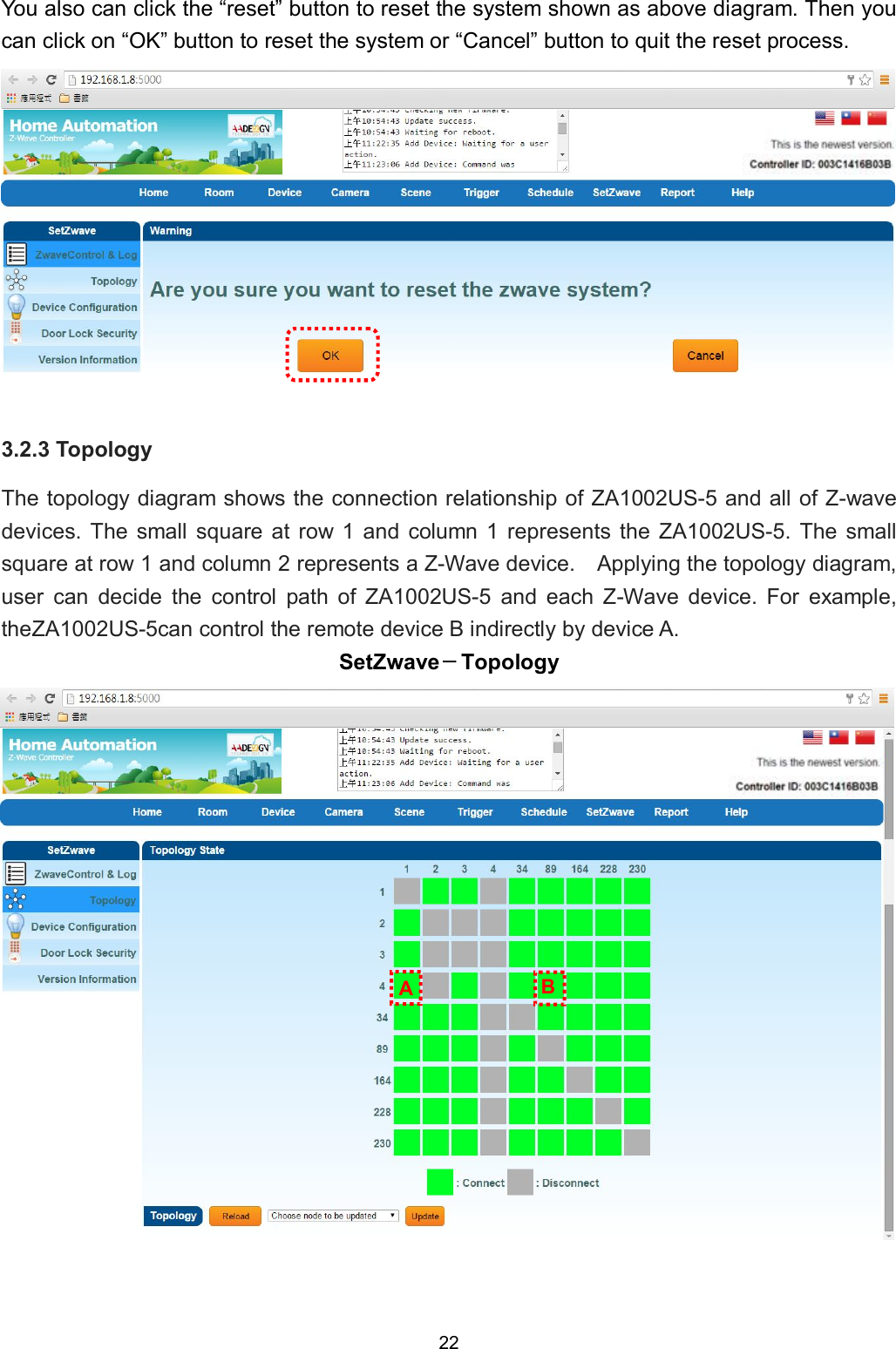
22  You also can click the “reset” button to reset the system shown as above diagram. Then you can click on “OK” button to reset the system or “Cancel” button to quit the reset process.  3.2.3 Topology The topology diagram shows the connection relationship of ZA1002US-5 and all of Z-wave devices. The  small  square  at  row  1  and  column  1  represents  the  ZA1002US-5. The  small square at row 1 and column 2 represents a Z-Wave device.    Applying the topology diagram, user  can  decide  the  control  path  of  ZA1002US-5  and  each  Z-Wave  device.  For  example, theZA1002US-5can control the remote device B indirectly by device A.   SetZwave-Topology            B A
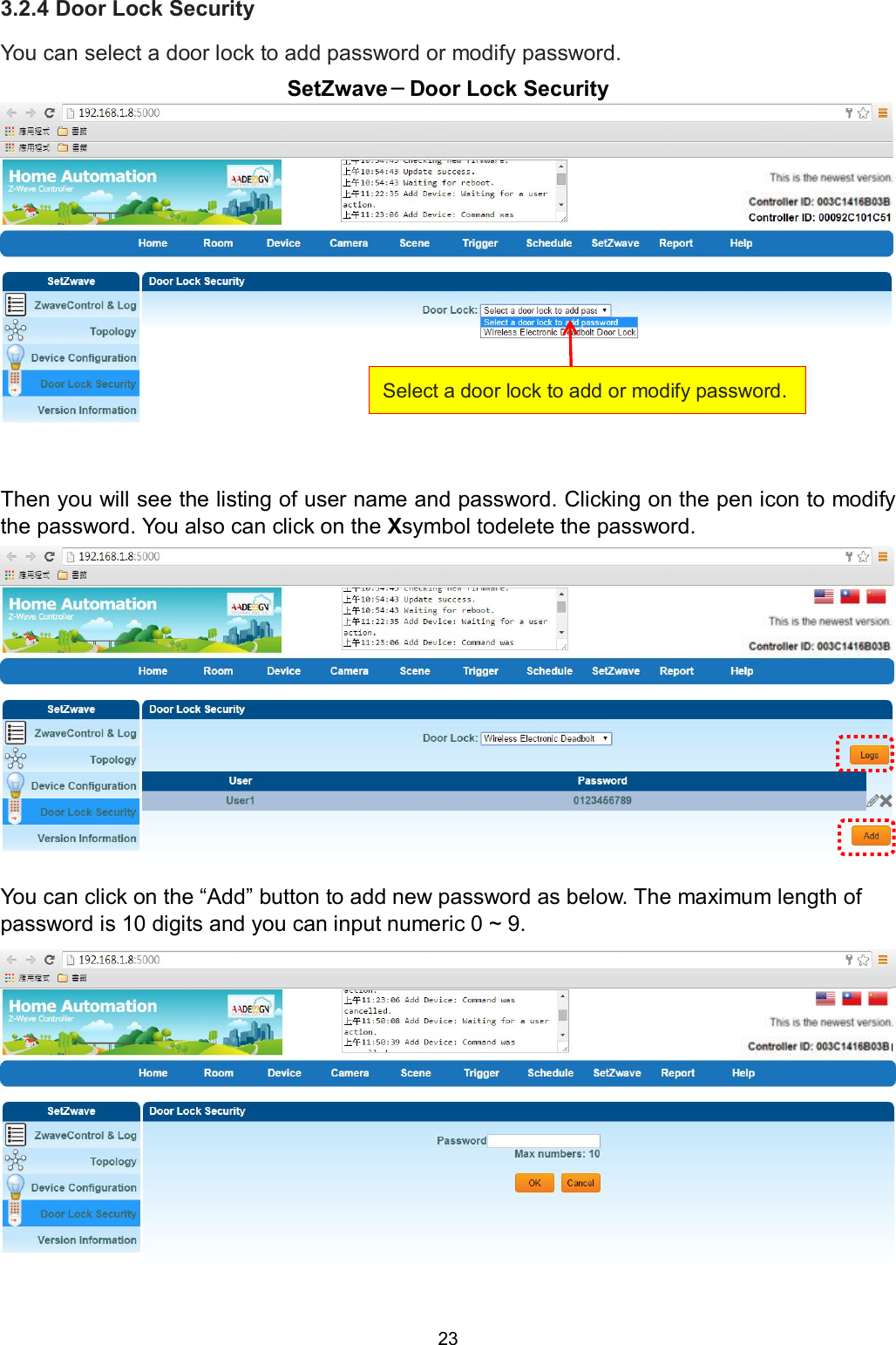
23  3.2.4 Door Lock Security You can select a door lock to add password or modify password. SetZwave-Door Lock Security  Then you will see the listing of user name and password. Clicking on the pen icon to modify the password. You also can click on the Xsymbol todelete the password.               You can click on the “Add” button to add new password as below. The maximum length of password is 10 digits and you can input numeric 0 ~ 9.  Select a door lock to add or modify password.
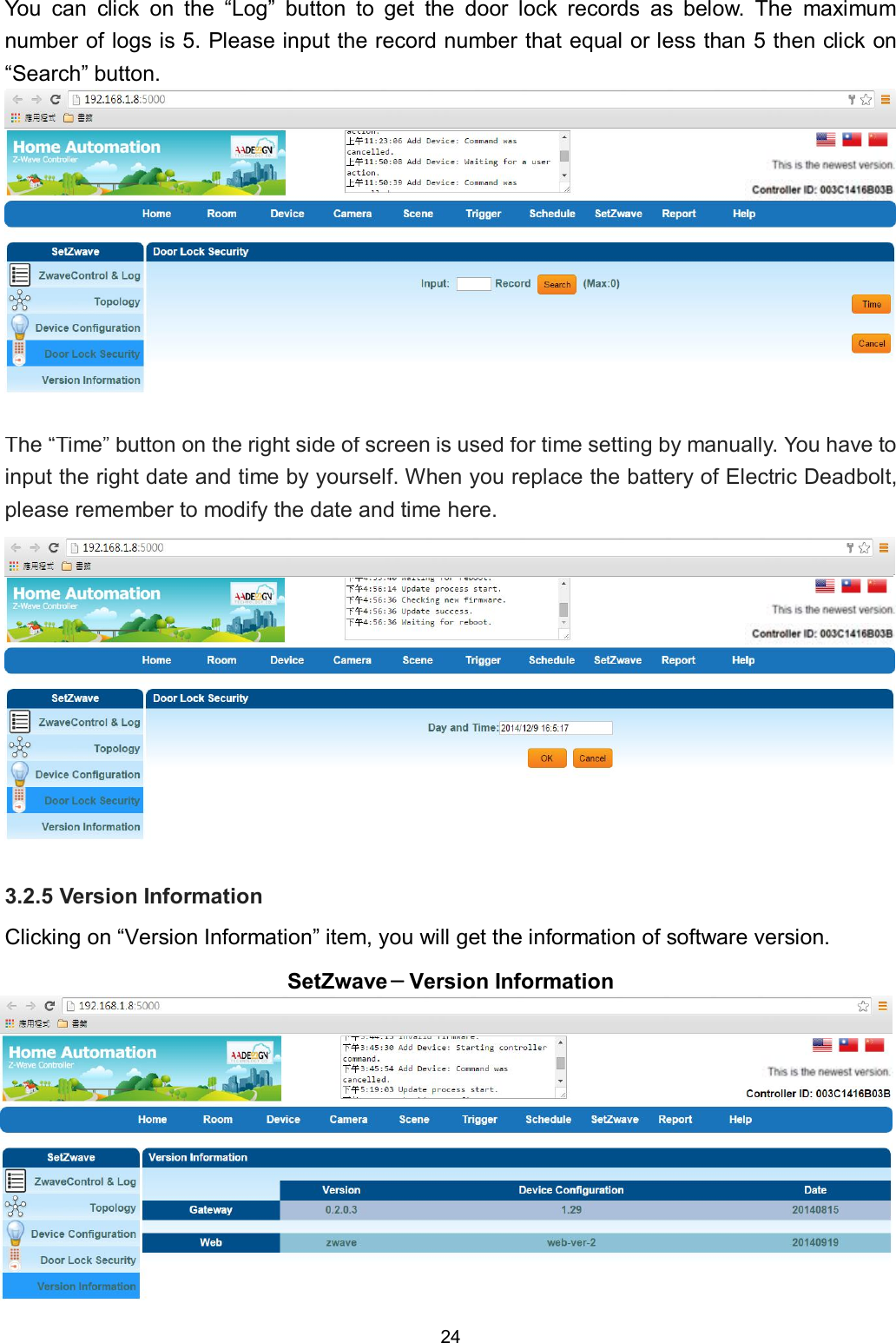
24  You  can  click  on  the  “Log”  button  to  get  the  door  lock  records  as  below.  The  maximum number of logs is 5. Please input the record number that equal or less than 5 then click on “Search” button.        The “Time” button on the right side of screen is used for time setting by manually. You have to input the right date and time by yourself. When you replace the battery of Electric Deadbolt, please remember to modify the date and time here.           3.2.5 Version Information Clicking on “Version Information” item, you will get the information of software version. SetZwave-Version Information
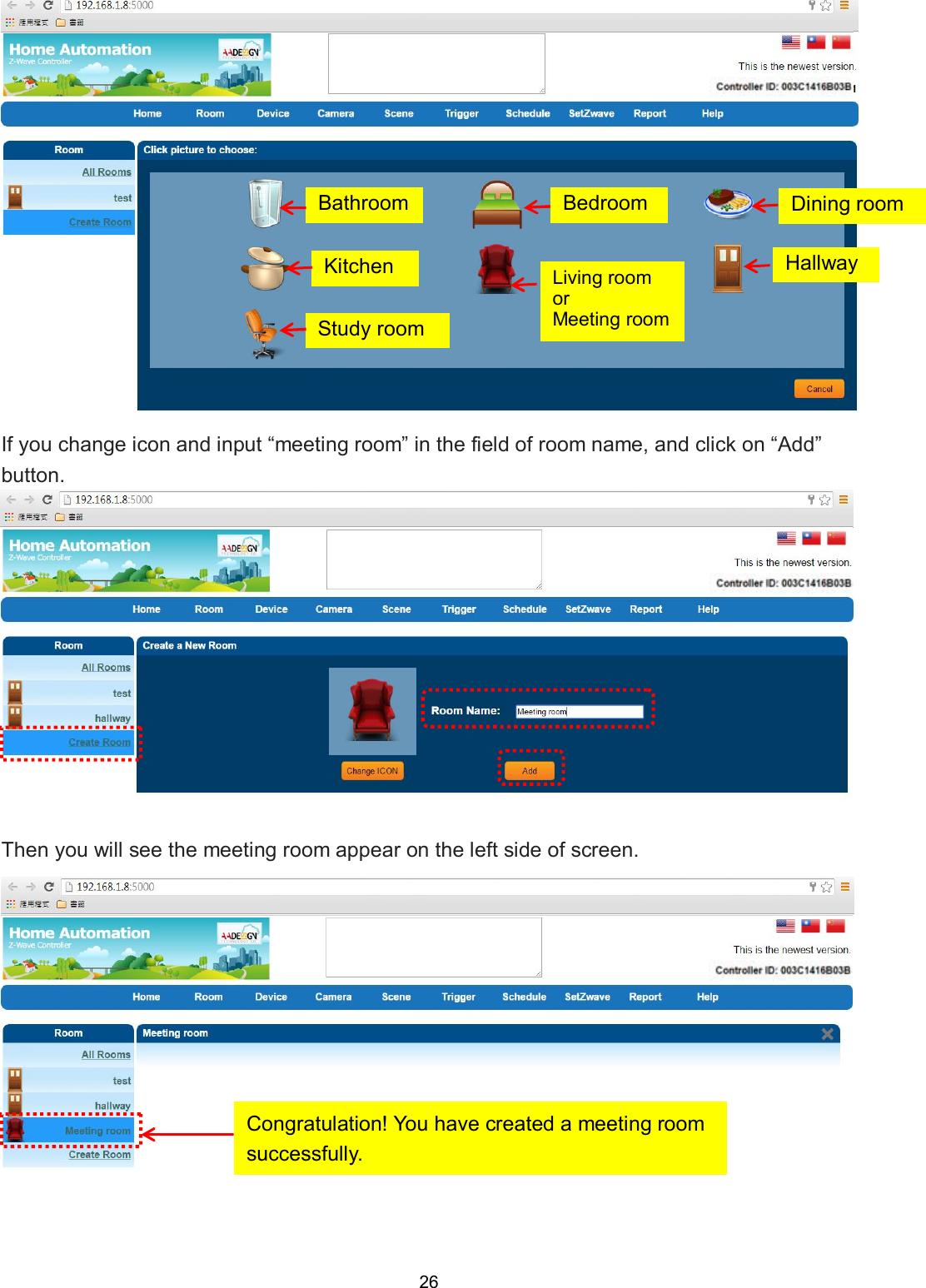
25  3.3 Room setting ZA1002US-5 can classify and integrate all kinds of Z-Wave devices to do home automation includes room, scene, trigger, schedule and report.   3.3.1 Create room Create rooms to distribute Z-Wave devices According to the different room in the family, you can distribute the Z-Wave devices to each room. And you can learnwhichroomwas invadedor controlledhousehold appliances quickly. Now, you can create a new room by clicking on “Create Room” item. Then input the room name and click on “Add” button. Room-Create Room    You also can change the icon of the room by clicking on “Change ICON” button. Then you will see some pictures that you can choose for the proper room as below screen. Please input the room name. Then click on “Add” button to create a new room.
26   If you change icon and input “meeting room” in the field of room name, and click on “Add” button.    Then you will see the meeting room appear on the left side of screen.  Kitchen Study room Bathroom Bedroom Living room or   Meeting room Dining room Hallway Congratulation! You have created a meeting room successfully.
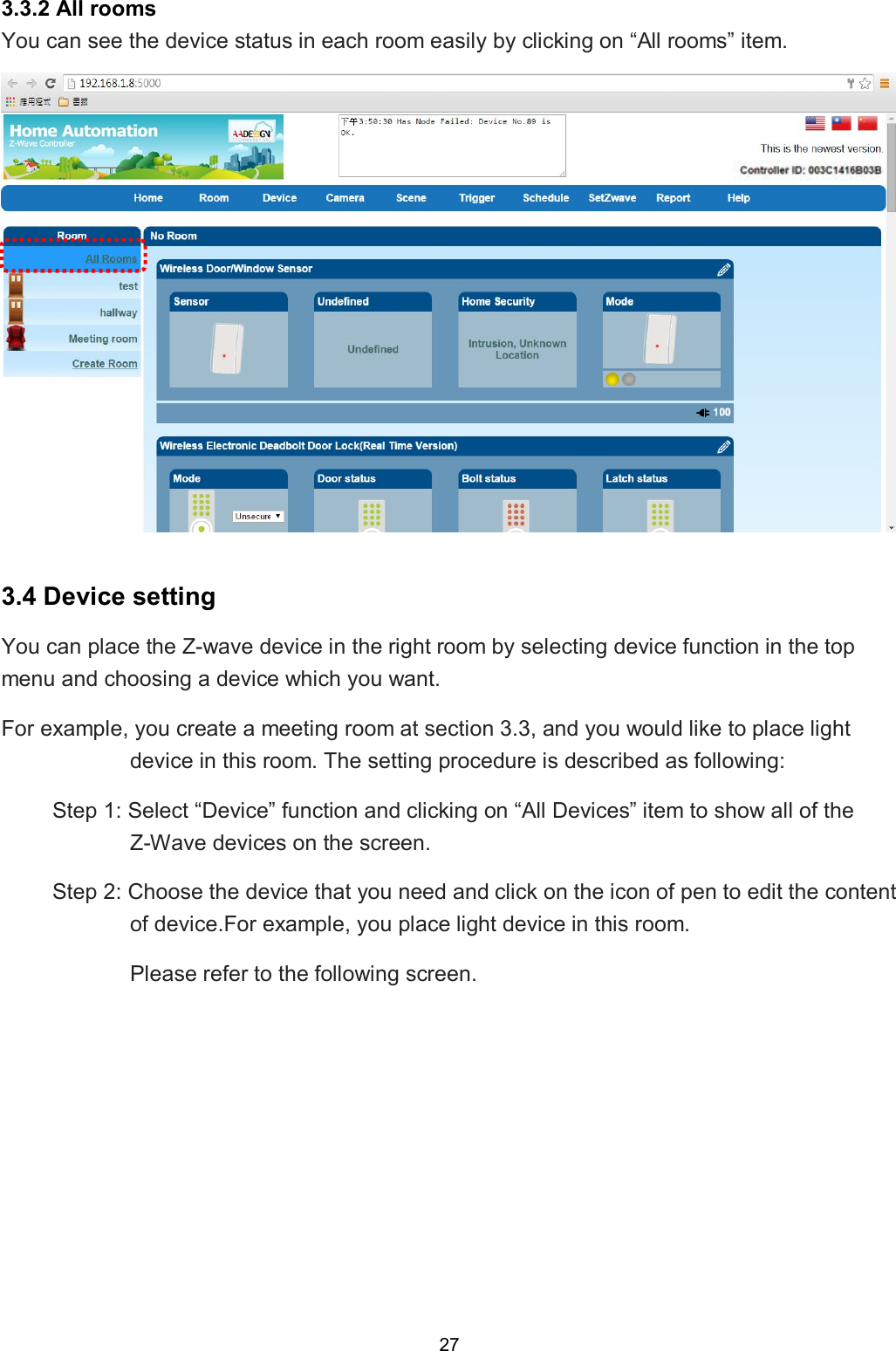
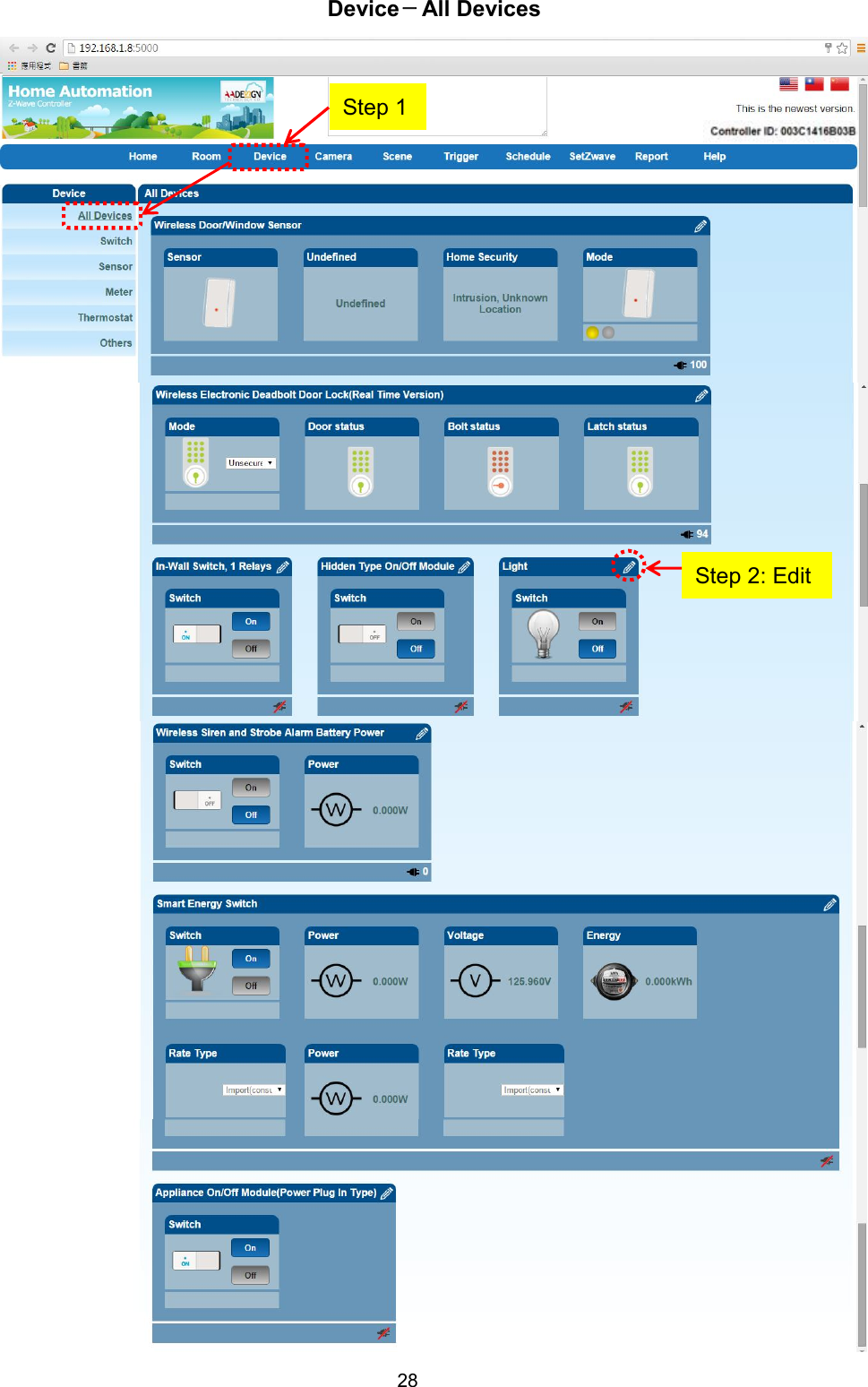
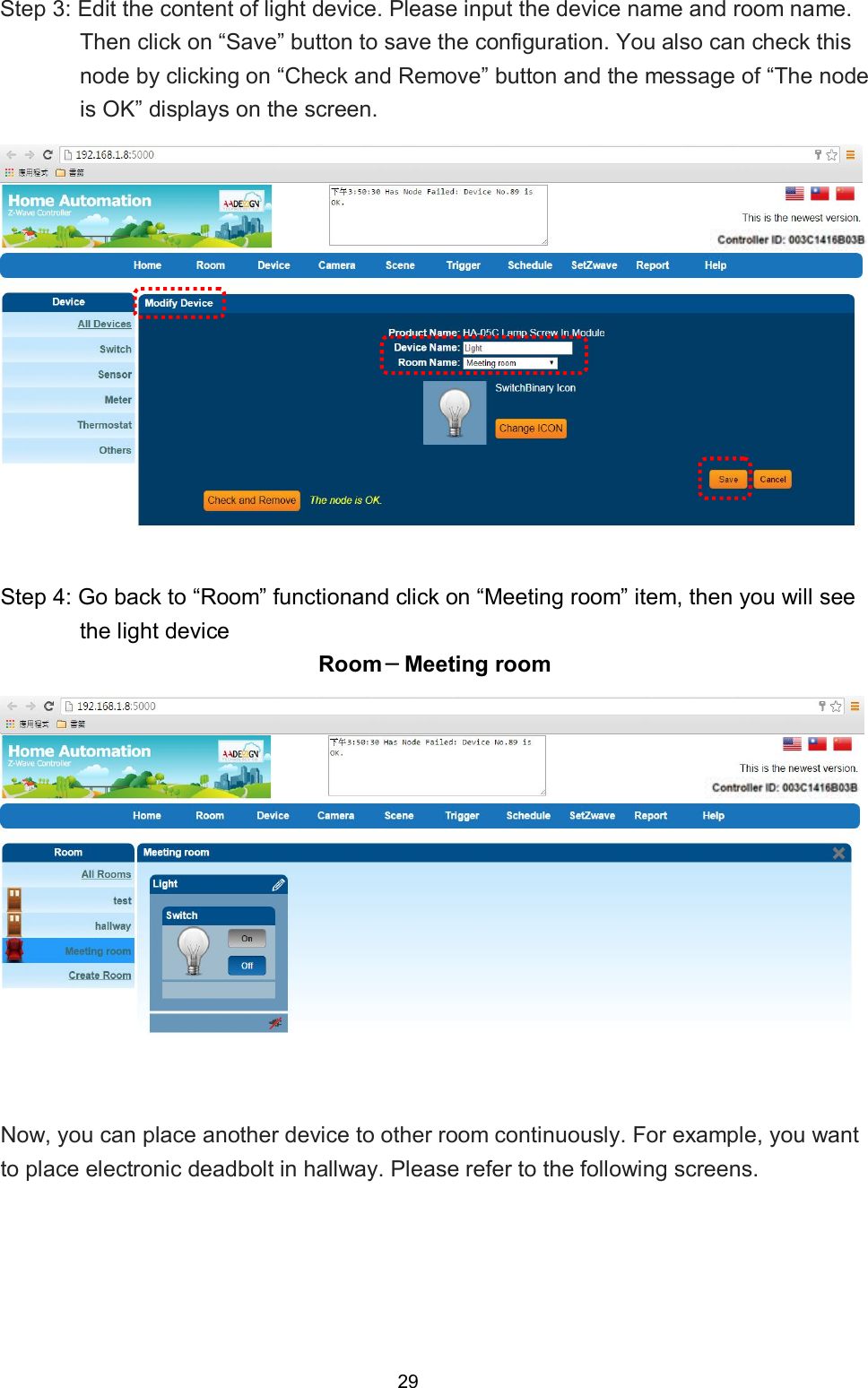
27  3.3.2 All rooms You can see the device status in each room easily by clicking on “All rooms” item.   3.4 Device setting You can place the Z-wave device in the right room by selecting device function in the top menu and choosing a device which you want. For example, you create a meeting room at section 3.3, and you would like to place light device in this room. The setting procedure is described as following: Step 1: Select “Device” function and clicking on “All Devices” item to show all of the Z-Wave devices on the screen. Step 2: Choose the device that you need and click on the icon of pen to edit the content of device.For example, you place light device in this room. Please refer to the following screen.
28  Device-All Devices                              Step 2: Edit Step 1
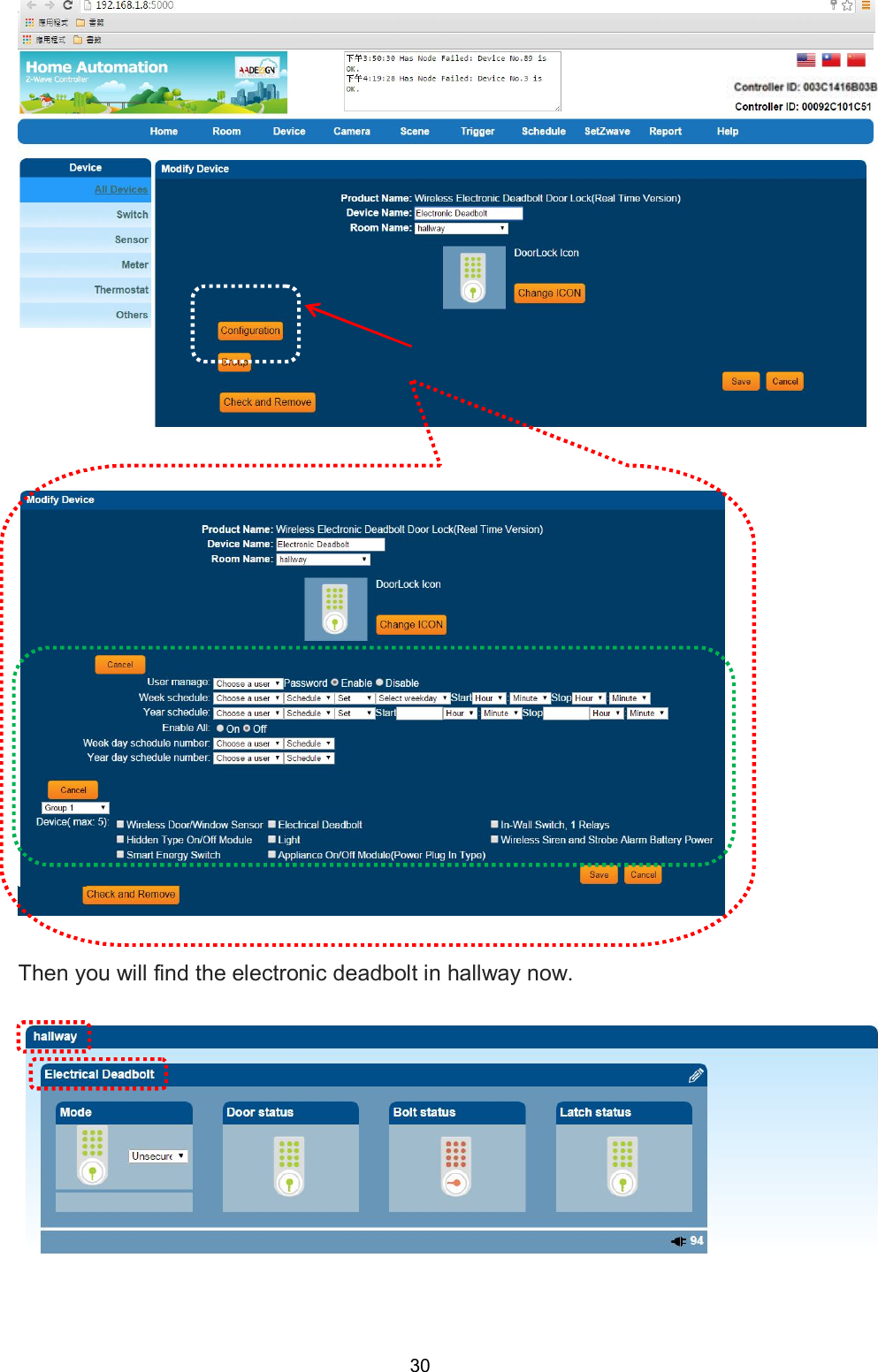
29  Step 3: Edit the content of light device. Please input the device name and room name. Then click on “Save” button to save the configuration. You also can check this node by clicking on “Check and Remove” button and the message of “The node is OK” displays on the screen.    Step 4: Go back to “Room” functionand click on “Meeting room” item, then you will see the light device   Room-Meeting room  Now, you can place another device to other room continuously. For example, you want to place electronic deadbolt in hallway. Please refer to the following screens.
30                  Then you will find the electronic deadbolt in hallway now.
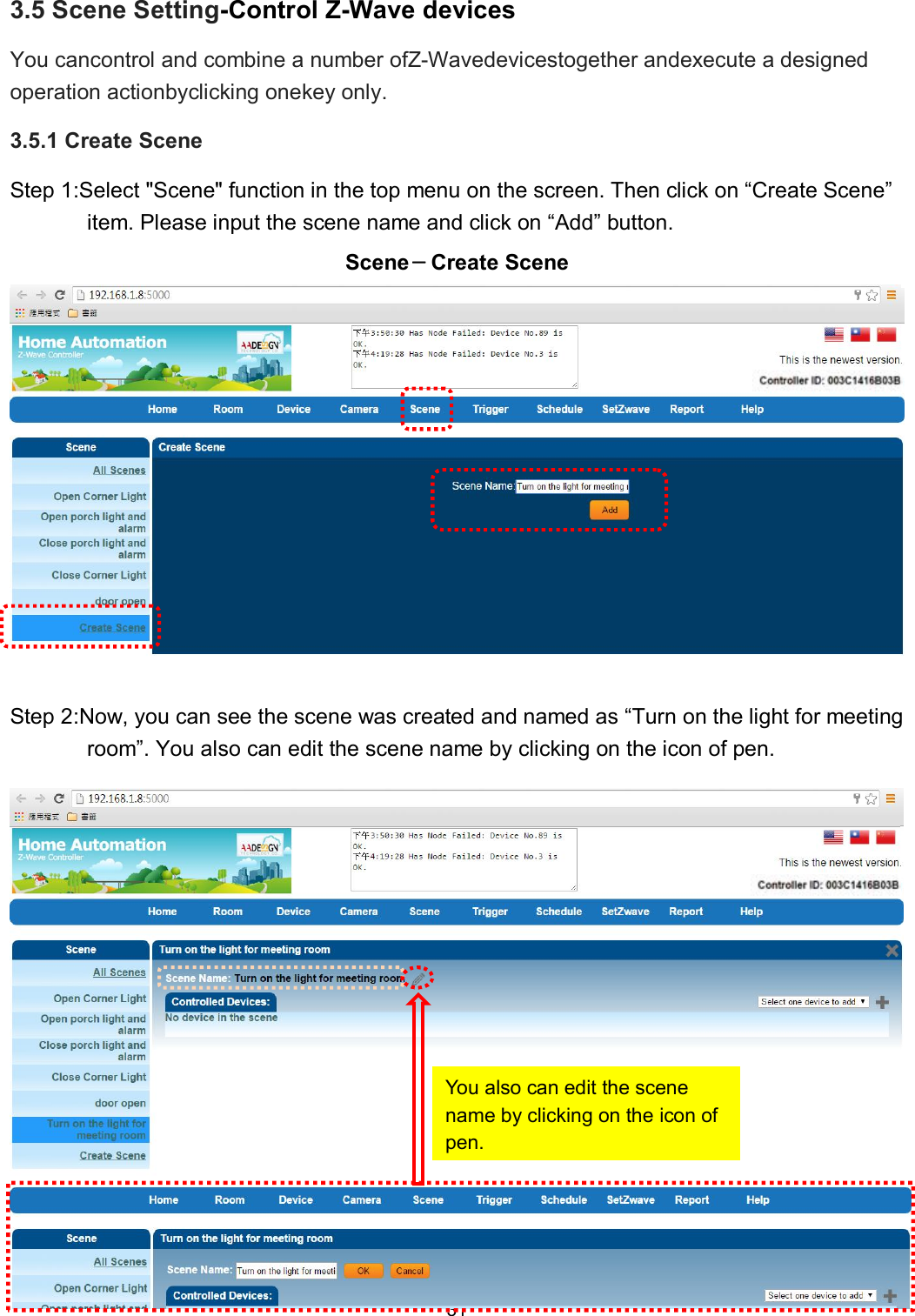
31   3.5 Scene Setting-Control Z-Wave devices You cancontrol and combine a number ofZ-Wavedevicestogether andexecute a designed operation actionbyclicking onekey only. 3.5.1 Create Scene Step 1:Select "Scene" function in the top menu on the screen. Then click on “Create Scene” item. Please input the scene name and click on “Add” button. Scene-Create Scene  Step 2:Now, you can see the scene was created and named as “Turn on the light for meeting room”. You also can edit the scene name by clicking on the icon of pen.   You also can edit the scene name by clicking on the icon of pen.
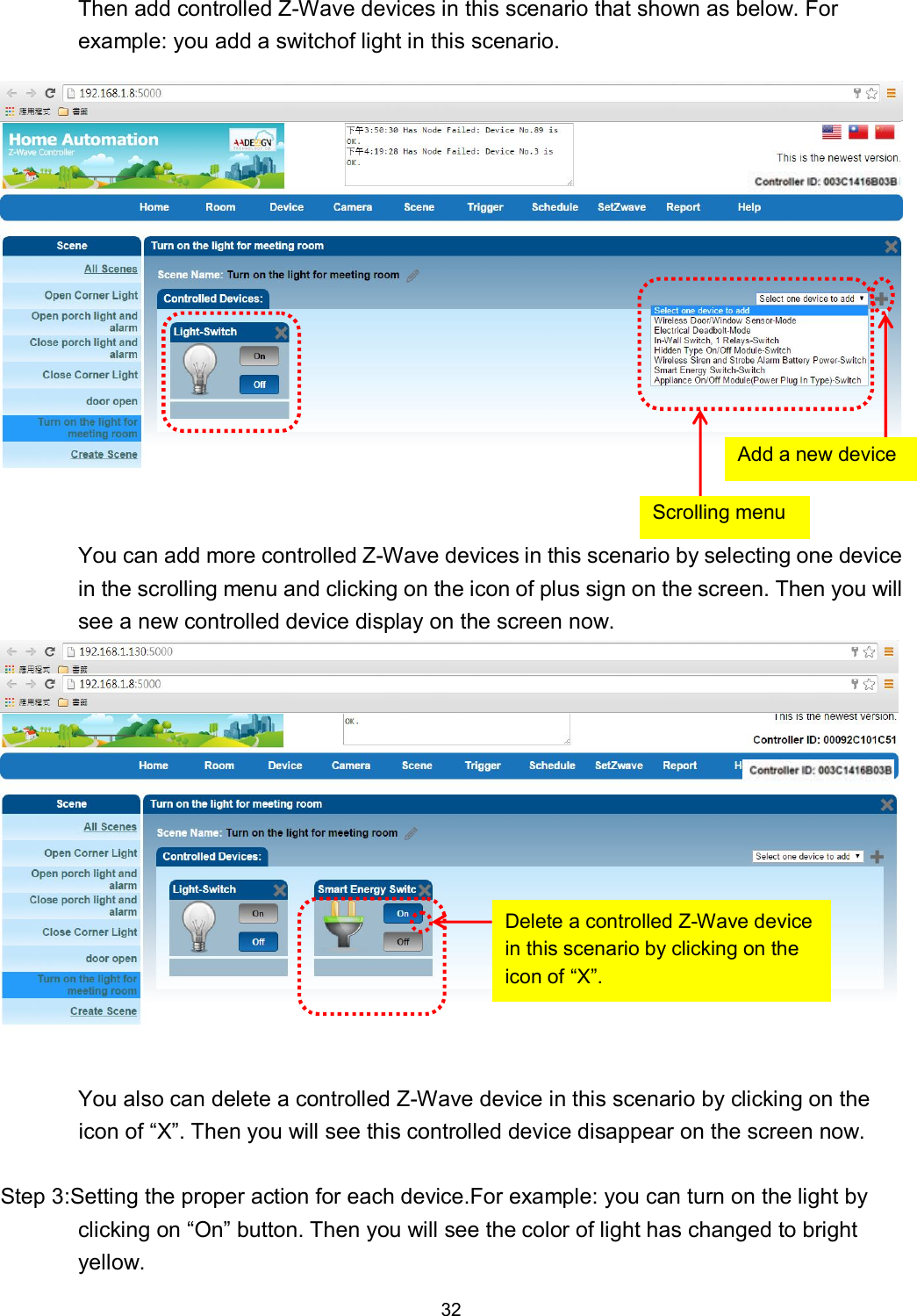
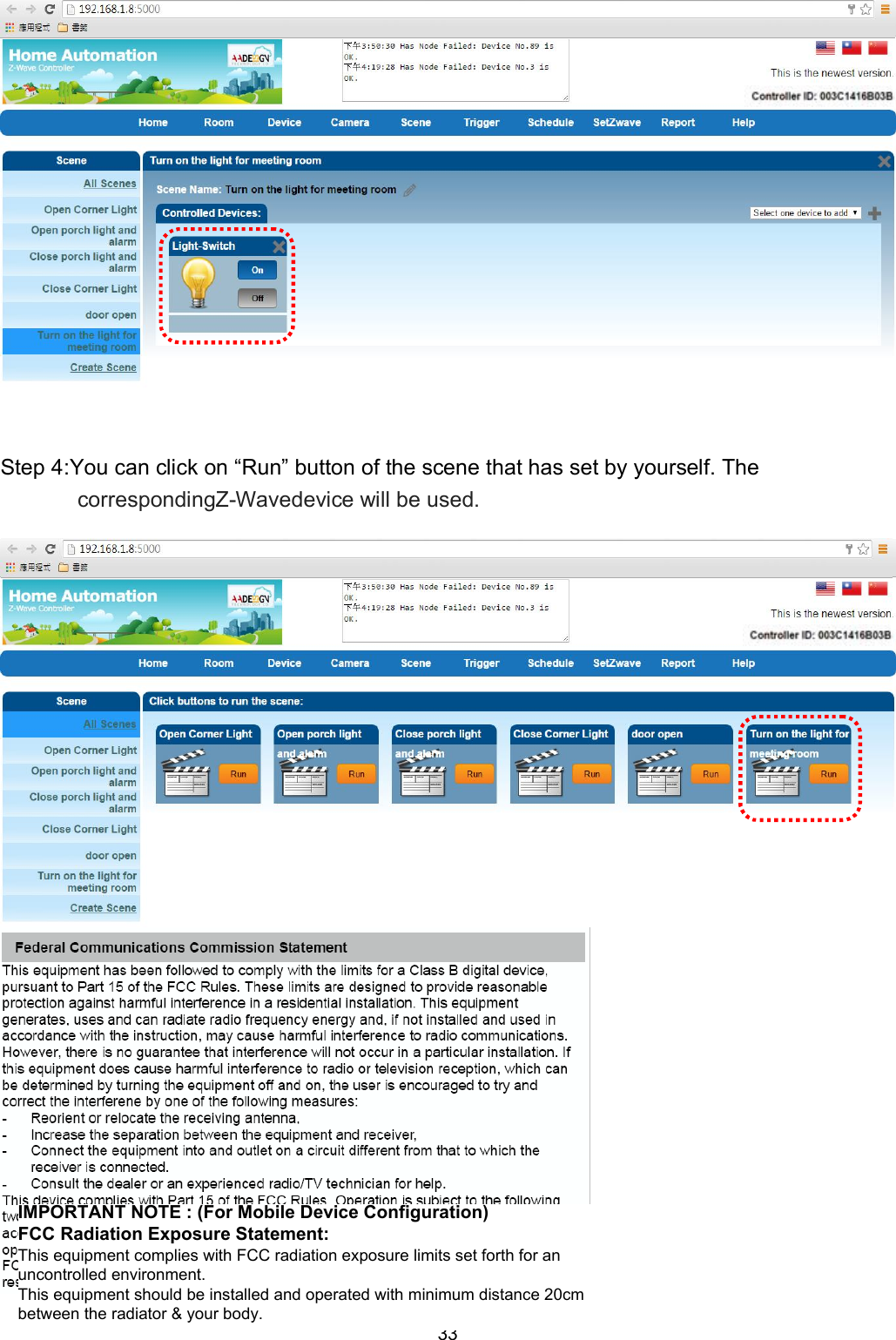
32   Then add controlled Z-Wave devices in this scenario that shown as below. For example: you add a switchof light in this scenario.  You can add more controlled Z-Wave devices in this scenario by selecting one device in the scrolling menu and clicking on the icon of plus sign on the screen. Then you will see a new controlled device display on the screen now.  You also can delete a controlled Z-Wave device in this scenario by clicking on the icon of “X”. Then you will see this controlled device disappear on the screen now.  Step 3:Setting the proper action for each device.For example: you can turn on the light by clicking on “On” button. Then you will see the color of light has changed to bright yellow. Delete a controlled Z-Wave device in this scenario by clicking on the icon of “X”. Scrolling menu Add a new device
33   Step 4:You can click on “Run” button of the scene that has set by yourself. The correspondingZ-Wavedevice will be used.    IMPORTANT NOTE : (For Mobile Device Configuration)FCC Radiation Exposure Statement:This equipment complies with FCC radiation exposure limits set forth for anuncontrolled environment.This equipment should be installed and operated with minimum distance 20cmbetween the radiator & your body.

Navigation menu