Vision Automobile Electronics Co ZD2102US-5 Wireless Door/Window Sensor User Manual INSTALLATION GUIDE

Vision Automobile Electronics Industrial Co Ltd Wireless Door/Window Sensor INSTALLATION GUIDE

User manual

                              Installation & Operation Manual  ZD2102IN-5 ZD2102MY-5 ZD2102EU-5 ZD2102RU-5 ZD2102US-5 ZD2102IL-5 ZD2102KR-5 ZD2102HK-5 ZD2102JP-5 ZD2102BR-5  Wireless Door/ Window Sensor     ZD 2102-5 V1 1031114 6B1Z-21002
                                  Operation    1.  Opening/Closing the door/window to separate the magnet from the sensor will send signal to any association nodes accordding to the Status/Signal table on page 1 and the LED will flash once. 2.  Normal operation, the LED will not light.   3.  If the cover of sensor is removed, the tamper switch will send signal according the Status/Signal table, and the LED will go solid and ZD2102 will send “Wake Up Notification” after 10 seconds.    If ZD2102 received “Wake Up No More Information” command, the red LED will go off.    If ZD2102 did not receive”Wake Up No More Information” command after 10 seconds the red LED will go off. 4.  ZD2102 will send signal according the status / signal table after closing the rear cover back 2 seconds.. Federal Communications Commission Statement This equipment has been followed to comply with the limits for a Class B digital device, pursuant to Part 15 of the FCC Rules. These limits are designed to provide reasonable protection against harmful interference in a residential installation. This equipment generates, uses and can radiate radio frequency energy and, if not installed and used in accordance with the instruction, may cause harmful interference to radio communications. However, there is no guarantee that interference will not occur in a particular installation. If this equipment does cause harmful interference to radio or television reception, which can be determined by turning the equipment off and on, the user is encouraged to try and correct the interferene by one of the following measures: Reorient or relocate the receiving antenna, Increase the separation between the equipment and receiver, Connect the equipment into and outlet on a circuit different from that to which the receiver is connected. Consult the dealer or an experienced radio/TV technician for help. This device complies with Part 15 of the FCC Rules. Operation is subject to the following two conditions: (1) this device may not cause harmful interference, and (2) this device must accept any interference received, including interference that may cause undersired operation. FCC Caution: Any changes or modifications not expressly approved by the party responsible for compliance could void the user’s authority to operate this equipment. Limited Warranty Vision Guarantees that every wireless door/window sensor is free from physical defects in material and workmanship under normal use for one year from the date of purchase. If the product proves defective during this one-year warranty period, Vision will replace it free of charge. Vision does not issue any refunds. This warranty is extended to the original end user purchase only and is not transferable. This warranty does not apply to: (1) damage to units caused by accident, dropping or abuse in handling, or any negligent use; (2) units which have been subject to unauthorized repair, taken apart, or otherwise modified; (3) units not used in accordance with instruction; (4) damages exceeding the cost of the product; (5) transit damage, initial installation costs, removal cost, or reinstallation cost. For information on addional devices, plesae visit us at www.visionsecurity.com.tw       -5-
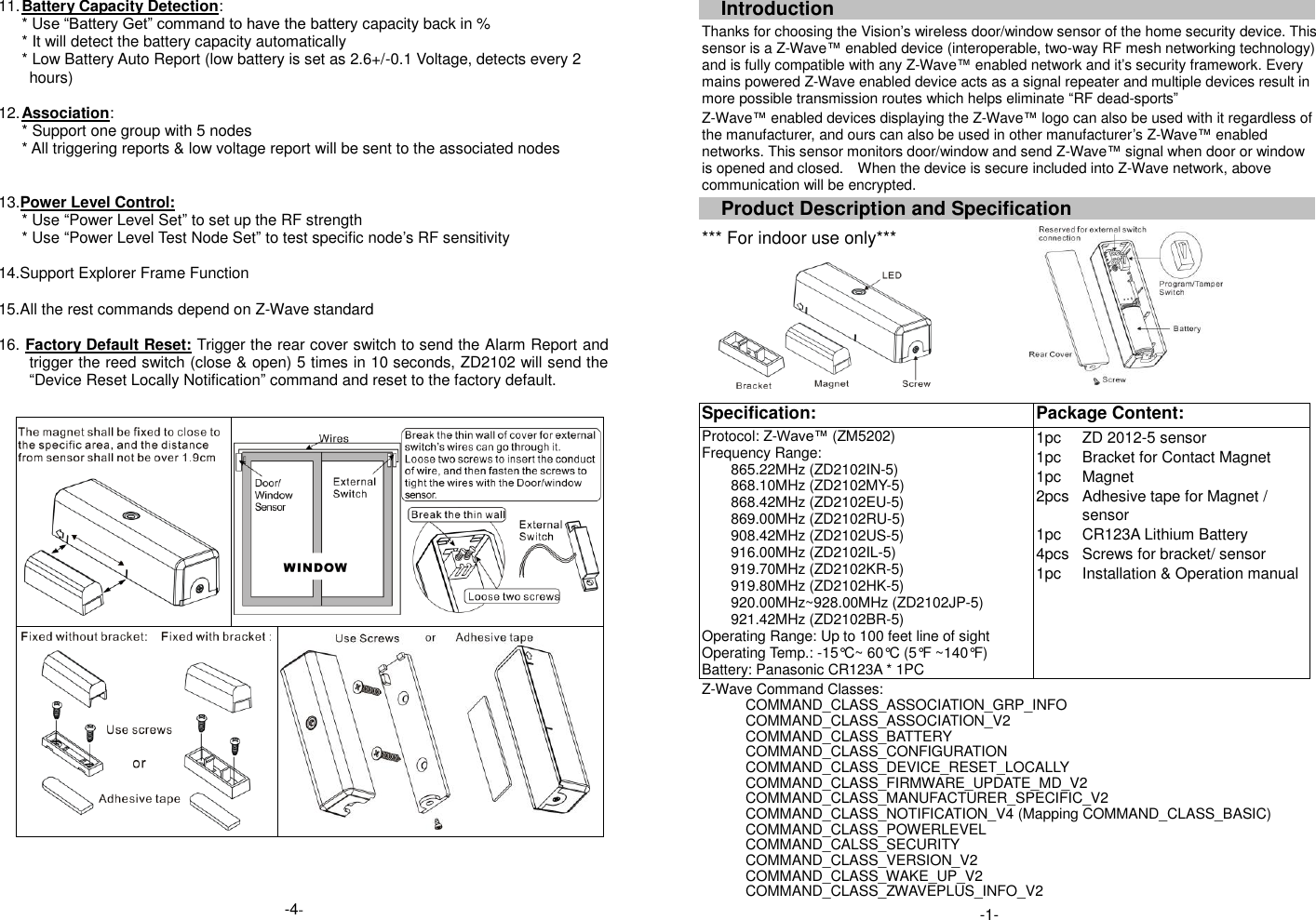
11. Battery Capacity Detection: * Use “Battery Get” command to have the battery capacity back in % * It will detect the battery capacity automatically * Low Battery Auto Report (low battery is set as 2.6+/-0.1 Voltage, detects every 2 hours)  12. Association: * Support one group with 5 nodes * All triggering reports & low voltage report will be sent to the associated nodes   13.Power Level Control: * Use “Power Level Set” to set up the RF strength * Use “Power Level Test Node Set” to test specific node’s RF sensitivity    14.Support Explorer Frame Function  15.All the rest commands depend on Z-Wave standard    16. Factory Default Reset: Trigger the rear cover switch to send the Alarm Report and trigger the reed switch (close & open) 5 times in 10 seconds, ZD2102 will send the “Device Reset Locally Notification” command and reset to the factory default.                                    Introduction Thanks for choosing the Vision’s wireless door/window sensor of the home security device. This sensor is a Z-Wave™ enabled device (interoperable, two-way RF mesh networking technology) and is fully compatible with any Z-Wave™ enabled network and it’s security framework. Every mains powered Z-Wave enabled device acts as a signal repeater and multiple devices result in more possible transmission routes which helps eliminate “RF dead-sports” Z-Wave™ enabled devices displaying the Z-Wave™ logo can also be used with it regardless of the manufacturer, and ours can also be used in other manufacturer’s Z-Wave™ enabled networks. This sensor monitors door/window and send Z-Wave™ signal when door or window is opened and closed.    When the device is secure included into Z-Wave network, above communication will be encrypted. Product Description and Specification *** For indoor use only***    Specification:   Package Content:   Protocol: Z-Wave™ (ZM5202) Frequency Range:   865.22MHz (ZD2102IN-5) 868.10MHz (ZD2102MY-5) 868.42MHz (ZD2102EU-5) 869.00MHz (ZD2102RU-5) 908.42MHz (ZD2102US-5) 916.00MHz (ZD2102IL-5) 919.70MHz (ZD2102KR-5) 919.80MHz (ZD2102HK-5) 920.00MHz~928.00MHz (ZD2102JP-5) 921.42MHz (ZD2102BR-5) Operating Range: Up to 100 feet line of sight Operating Temp.: -15°C~ 60°C (5°F ~140°F) Battery: Panasonic CR123A * 1PC 1pc 1pc 1pc 2pcs  1pc 4pcs 1pc ZD 2012-5 sensor Bracket for Contact Magnet Magnet Adhesive tape for Magnet / sensor CR123A Lithium Battery Screws for bracket/ sensor Installation & Operation manual Z-Wave Command Classes: COMMAND_CLASS_ASSOCIATION_GRP_INFO COMMAND_CLASS_ASSOCIATION_V2                 COMMAND_CLASS_BATTERY     COMMAND_CLASS_CONFIGURATION COMMAND_CLASS_DEVICE_RESET_LOCALLY COMMAND_CLASS_FIRMWARE_UPDATE_MD_V2 COMMAND_CLASS_MANUFACTURER_SPECIFIC_V2     COMMAND_CLASS_NOTIFICATION_V4 (Mapping COMMAND_CLASS_BASIC) COMMAND_CLASS_POWERLEVEL COMMAND_CALSS_SECURITY COMMAND_CLASS_VERSION_V2 COMMAND_CLASS_WAKE_UP_V2   COMMAND_CLASS_ZWAVEPLUS_INFO_V2   -1- -4-
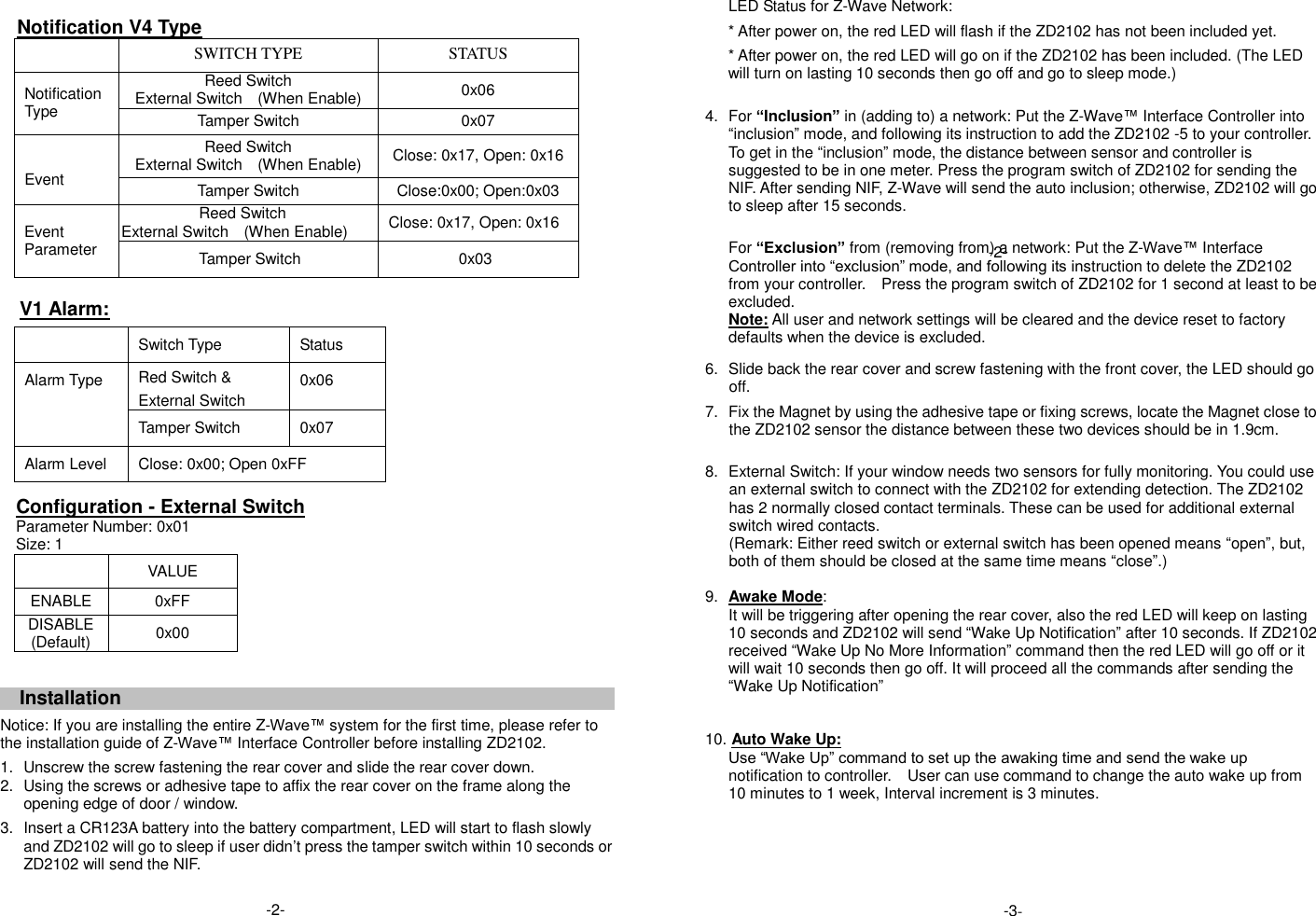
    Notification V4 Type  SWITCH TYPE STATUS Notification Type Reed Switch External Switch    (When Enable) 0x06 Tamper Switch 0x07   Event Reed Switch External Switch    (When Enable) Close: 0x17, Open: 0x16 Tamper Switch Close:0x00; Open:0x03    Event Parameter Reed Switch External Switch    (When Enable) Close: 0x17, Open: 0x16 Tamper Switch                     0x03  V1 Alarm:  Switch Type Status Alarm Type Red Switch & External Switch 0x06 Tamper Switch 0x07 Alarm Level Close: 0x00; Open 0xFF    Configuration - External Switch     Parameter Number: 0x01   Size: 1  VALUE ENABLE 0xFF DISABLE (Default) 0x00  Installation  Notice: If you are installing the entire Z-Wave™ system for the first time, please refer to the installation guide of Z-Wave™ Interface Controller before installing ZD2102.   1.  Unscrew the screw fastening the rear cover and slide the rear cover down. 2.  Using the screws or adhesive tape to affix the rear cover on the frame along the opening edge of door / window.   3.  Insert a CR123A battery into the battery compartment, LED will start to flash slowly and ZD2102 will go to sleep if user didn’t press the tamper switch within 10 seconds or ZD2102 will send the NIF.  LED Status for Z-Wave Network: * After power on, the red LED will flash if the ZD2102 has not been included yet. * After power on, the red LED will go on if the ZD2102 has been included. (The LED will turn on lasting 10 seconds then go off and go to sleep mode.)  4.  For “Inclusion” in (adding to) a network: Put the Z-Wave™ Interface Controller into “inclusion” mode, and following its instruction to add the ZD2102 -5 to your controller. To get in the “inclusion” mode, the distance between sensor and controller is suggested to be in one meter. Press the program switch of ZD2102 for sending the NIF. After sending NIF, Z-Wave will send the auto inclusion; otherwise, ZD2102 will go to sleep after 15 seconds.   For “Exclusion” from (removing from) a network: Put the Z-Wave™ Interface Controller into “exclusion” mode, and following its instruction to delete the ZD2102 from your controller.    Press the program switch of ZD2102 for 1 second at least to be excluded. Note: All user and network settings will be cleared and the device reset to factory defaults when the device is excluded.   6.  Slide back the rear cover and screw fastening with the front cover, the LED should go off.  7.  Fix the Magnet by using the adhesive tape or fixing screws, locate the Magnet close to the ZD2102 sensor the distance between these two devices should be in 1.9cm.   8.  External Switch: If your window needs two sensors for fully monitoring. You could use an external switch to connect with the ZD2102 for extending detection. The ZD2102 has 2 normally closed contact terminals. These can be used for additional external switch wired contacts.   (Remark: Either reed switch or external switch has been opened means “open”, but, both of them should be closed at the same time means “close”.)  9. Awake Mode: It will be triggering after opening the rear cover, also the red LED will keep on lasting 10 seconds and ZD2102 will send “Wake Up Notification” after 10 seconds. If ZD2102 received “Wake Up No More Information” command then the red LED will go off or it will wait 10 seconds then go off. It will proceed all the commands after sending the “Wake Up Notification”   10. Auto Wake Up: Use “Wake Up” command to set up the awaking time and send the wake up notification to controller.  User can use command to change the auto wake up from 10 minutes to 1 week, Interval increment is 3 minutes.      -3- -2- -2-

Navigation menu