Vitelcom Mobile Technology USA TSM401 SINGLE BAND CDMA MOBILE PHONE User Manual Camera

Vitelcom Mobile Technology USA, Inc. SINGLE BAND CDMA MOBILE PHONE Camera

users manual

           CV340 User Manual Version 1.0     Prepared by:  David Park Approved by: C.S.Hong Version:  1.0 Date:  12/Dec/05  -1-
Revision History Version  Date  Pages  Changes  Signatures 1.0 12/Dec/05   First Version                             -2-
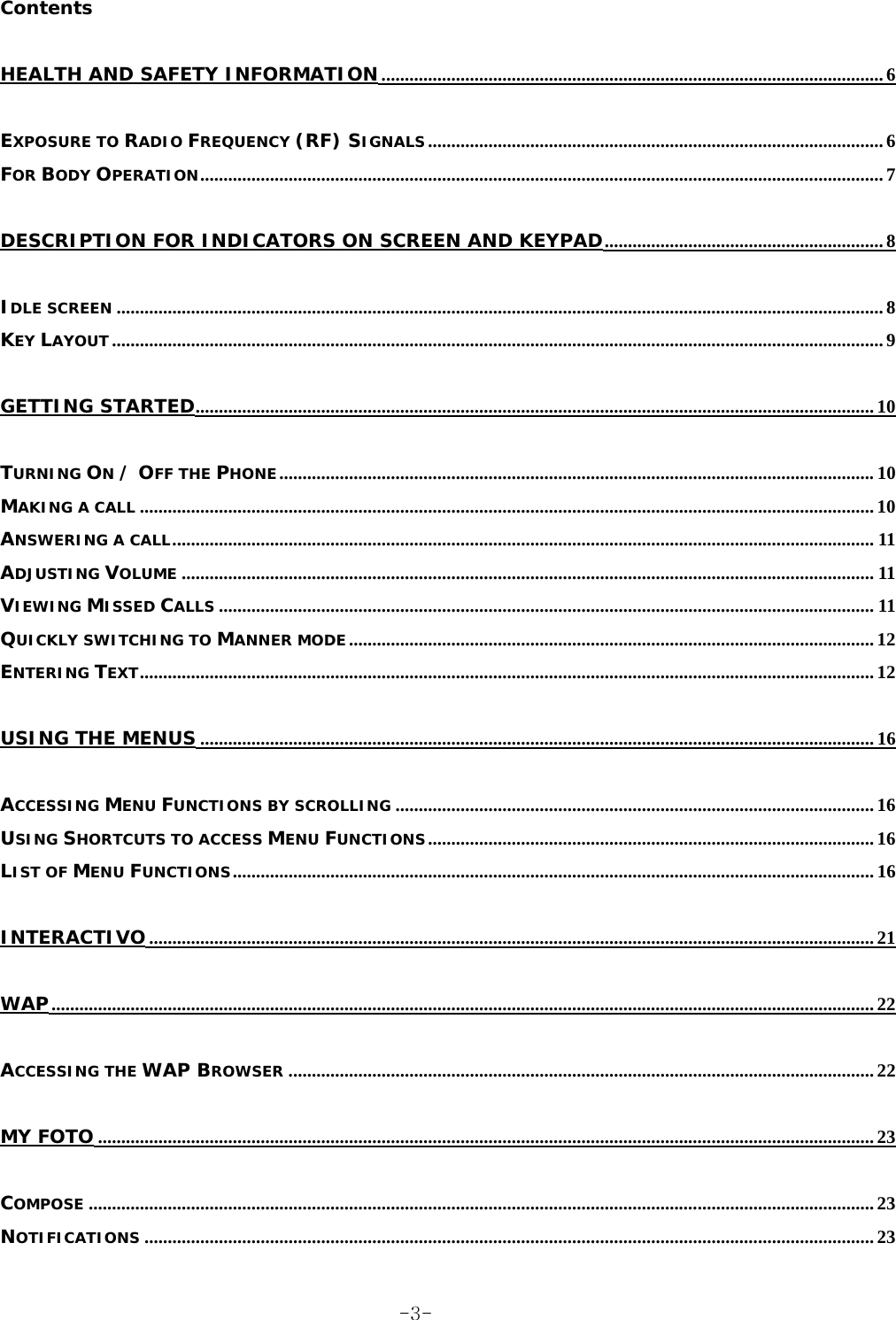
Contents HEALTH AND SAFETY INFORMATION............................................................................................................ 6 EXPOSURE TO RADIO FREQUENCY (RF) SIGNALS.................................................................................................. 6 FOR BODY OPERATION................................................................................................................................................... 7 DESCRIPTION FOR INDICATORS ON SCREEN AND KEYPAD............................................................ 8 IDLE SCREEN ..................................................................................................................................................................... 8 KEY LAYOUT...................................................................................................................................................................... 9 GETTING STARTED.................................................................................................................................................. 10 TURNING ON / OFF THE PHONE................................................................................................................................10 MAKING A CALL .............................................................................................................................................................. 10 ANSWERING A CALL....................................................................................................................................................... 11 ADJUSTING VOLUME ..................................................................................................................................................... 11 VIEWING MISSED CALLS ............................................................................................................................................. 11 QUICKLY SWITCHING TO MANNER MODE ................................................................................................................. 12 ENTERING TEXT.............................................................................................................................................................. 12 USING THE MENUS ................................................................................................................................................. 16 ACCESSING MENU FUNCTIONS BY SCROLLING ....................................................................................................... 16 USING SHORTCUTS TO ACCESS MENU FUNCTIONS................................................................................................ 16 LIST OF MENU FUNCTIONS.......................................................................................................................................... 16 INTERACTIVO............................................................................................................................................................ 21 WAP................................................................................................................................................................................. 22 ACCESSING THE WAP BROWSER .............................................................................................................................. 22 MY FOTO ....................................................................................................................................................................... 23 COMPOSE ......................................................................................................................................................................... 23 NOTIFICATIONS ............................................................................................................................................................. 23  -3-
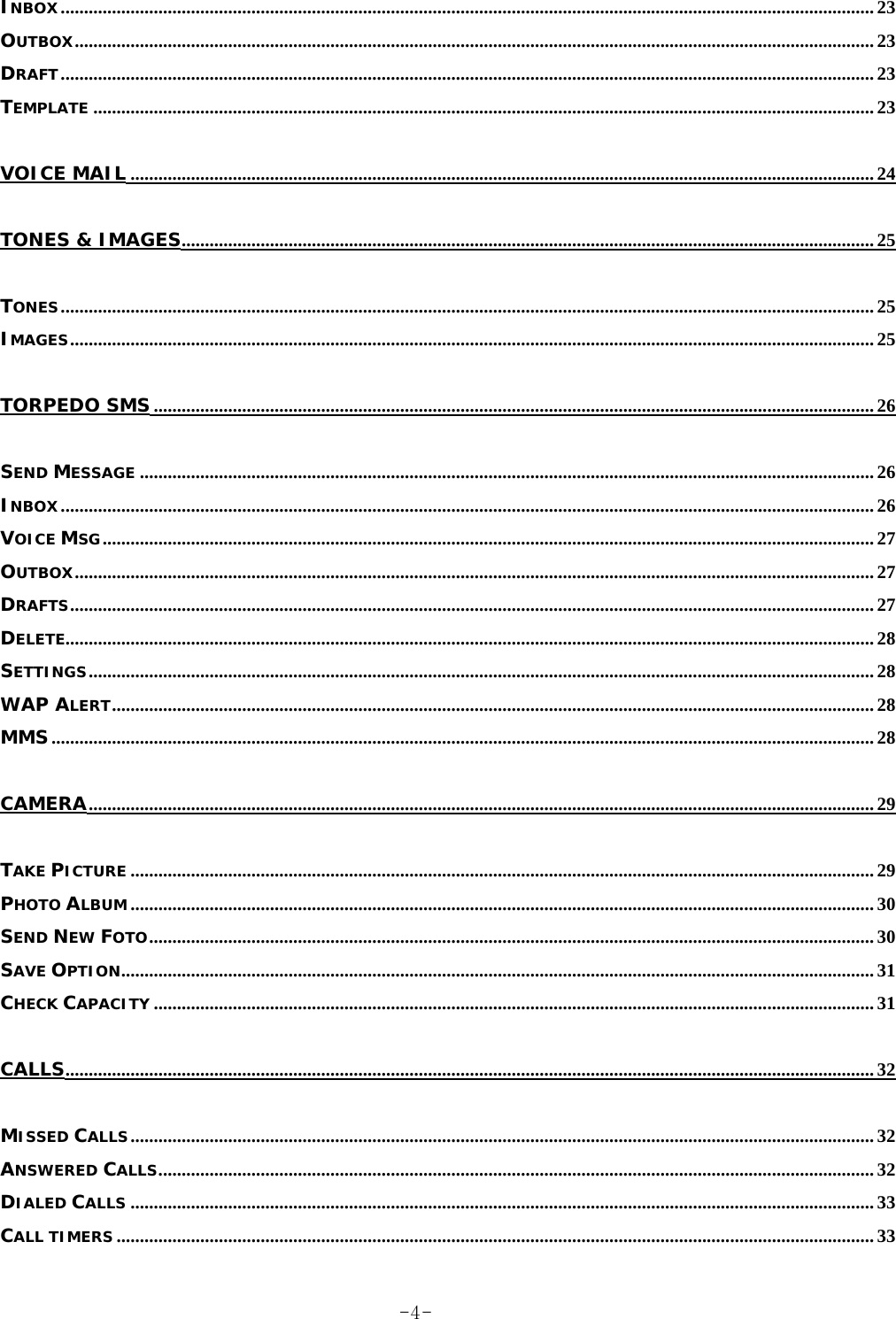
INBOX............................................................................................................................................................................... 23 OUTBOX............................................................................................................................................................................ 23 DRAFT............................................................................................................................................................................... 23 TEMPLATE ........................................................................................................................................................................ 23 VOICE MAIL ................................................................................................................................................................ 24 TONES & IMAGES..................................................................................................................................................... 25 TONES............................................................................................................................................................................... 25 IMAGES............................................................................................................................................................................. 25 TORPEDO SMS........................................................................................................................................................... 26 SEND MESSAGE .............................................................................................................................................................. 26 INBOX............................................................................................................................................................................... 26 VOICE MSG...................................................................................................................................................................... 27 OUTBOX............................................................................................................................................................................ 27 DRAFTS............................................................................................................................................................................. 27 DELETE.............................................................................................................................................................................. 28 SETTINGS......................................................................................................................................................................... 28 WAP ALERT.................................................................................................................................................................... 28 MMS................................................................................................................................................................................. 28 CAMERA......................................................................................................................................................................... 29 TAKE PICTURE ................................................................................................................................................................ 29 PHOTO ALBUM ................................................................................................................................................................ 30 SEND NEW FOTO............................................................................................................................................................ 30 SAVE OPTION.................................................................................................................................................................. 31 CHECK CAPACITY ........................................................................................................................................................... 31 CALLS.............................................................................................................................................................................. 32 MISSED CALLS................................................................................................................................................................ 32 ANSWERED CALLS.......................................................................................................................................................... 32 DIALED CALLS ................................................................................................................................................................ 33 CALL TIMERS ................................................................................................................................................................... 33  -4-
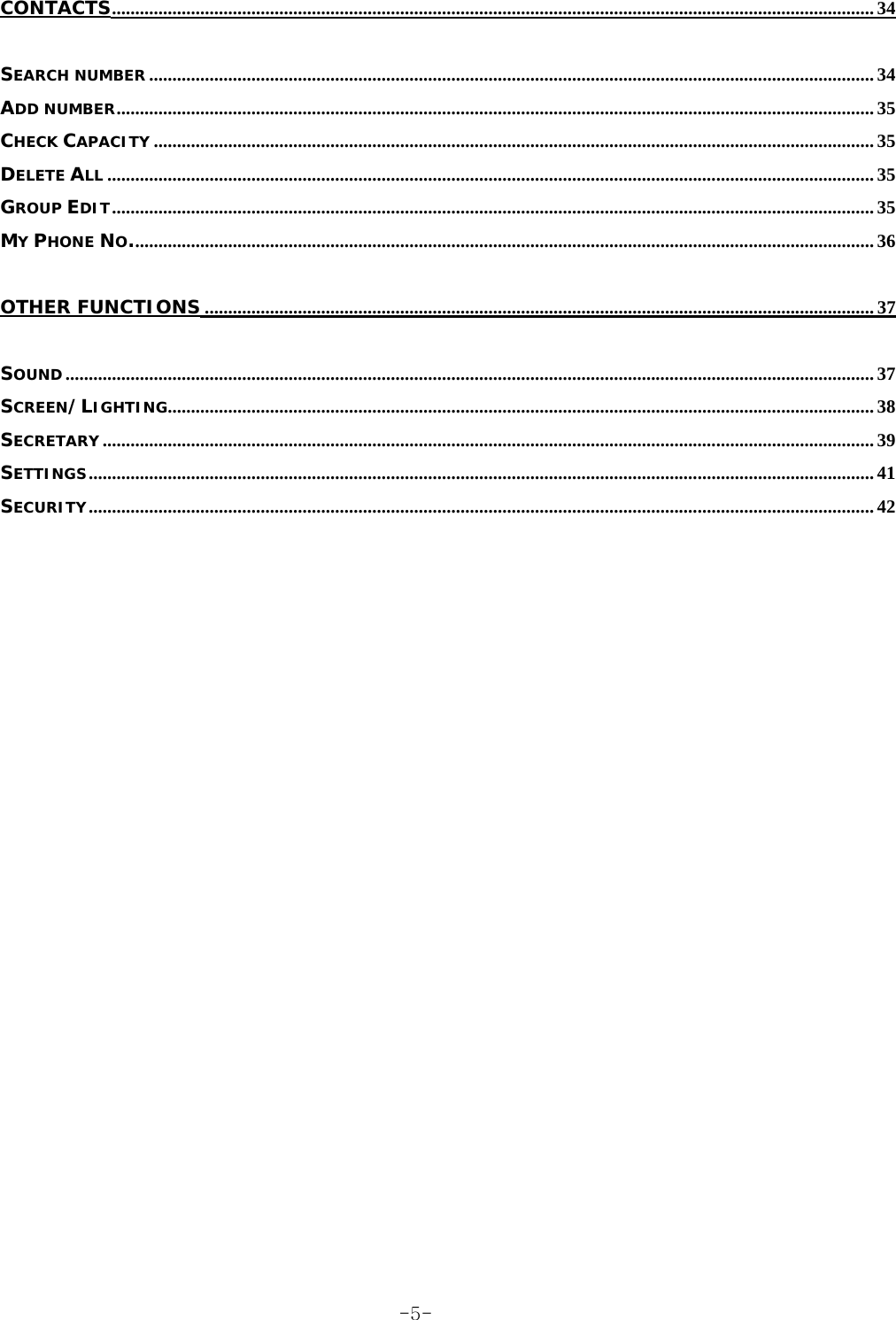
CONTACTS.................................................................................................................................................................... 34 SEARCH NUMBER ............................................................................................................................................................ 34 ADD NUMBER................................................................................................................................................................... 35 CHECK CAPACITY ........................................................................................................................................................... 35 DELETE ALL ..................................................................................................................................................................... 35 GROUP EDIT.................................................................................................................................................................... 35 MY PHONE NO................................................................................................................................................................ 36 OTHER FUNCTIONS ................................................................................................................................................ 37 SOUND.............................................................................................................................................................................. 37 SCREEN/LIGHTING........................................................................................................................................................ 38 SECRETARY ...................................................................................................................................................................... 39 SETTINGS......................................................................................................................................................................... 41 SECURITY......................................................................................................................................................................... 42  -5-
  Health and Safety Information  Exposure to Radio Frequency (RF) Signals  Your wireless phone is a radio transmitter and receiver. It is designed and manufactured not to exceed the emission limits for exposure to radio frequency (RF) energy set by the Federal Communications Commission (FCC) for the U.S. Government. These limits are part of comprehensive guidelines and establish permitted levels of RF energy for the general population. The guidelines are based on the safety standards that were developed by independent scientific organizations through periodic and thorough evaluation of scientific studies.  The standards include a substantial safety margin designed to assure the safety of all persons, regardless of age and health.  The exposure standard for wireless phones employs a unit of measurement known as Specific Absorption Rate (SAR). The SAR limit set by the FCC is 1.6 W/kg.1  SAR tests are conducted using standard operating positions specified by the FCC with the phone transmitting at its highest certified power level in all tested frequency bands. Although the SAR is determined at the highest certified power level, the actual SAR level of the phone while operating can be well below the maximum value. This is because the phone is designed to operate at multiple power levels so as to use only the power required to reach the network. In general, the closer you are to a wireless base station antenna, the lower the power output of the phone.  Before a new model phone is available for sale to the public, it must be tested and certified by the FCC to insure that it does not exceed the limit established by the government adopted requirement for safe exposure. The tests are performed in positions and locations (e.g., at the ear and worn on body) as required by the FCC for each model. While there may be differences between SAR levels of various phones and at various positions, they all meet the government requirement.  The FCC has granted an Equipment Authorization for this model phone with all reported SAR levels evaluated as in compliance with the FCC RF exposure guidelines. SAR information on this model phone is on file with the FCC and can be found on the FCC website (http://www.fcc.gov/oet/fccid) after searching the FCC ID printed in the label on the phone.  The highest SAR value for this model phone when tested for use at the ear is 1.05 W/kg, and when worn on the body, as described in this user guide, is 0.67 W/kg.   1 In the U.S. and Canada, the SAR limit for mobile phones used by the public is 1.6 watts/kg (W/kg) averaged over one gram of tissue. The standard incorporates a substantial margin of safety to give additional protection for the public and to account for any variations in measurements.    -6-
For Body Operation To maintain compliance with FCC RF exposure requirements, use only belt-clips, holsters or similar accessories that maintain a 1.5 cm separation distance between the user’s body and the back of the phone, including the antenna, whether extended or retracted. The use of belt-clips, holsters and similar accessories should not contain metallic components in its assembly. The use of accessories that do not satisfy these requirements may not comply with FCC RF exposure requirements, and should be avoided.  For more information concerning exposure to radio frequency signals, see the following websites:   Federal Communications Commission (FCC) http://www.fcc.gov/oet/rfsafety  Cellular Telecommunications Industry Association (CTIA) http://www.wow-com.com  U.S. Food and Drug Administration (FDA) http://www.fda.gov/cdrh/consumer  World Health Organization (WHO) http://www.who.int/peh-emf/en   .    -7-
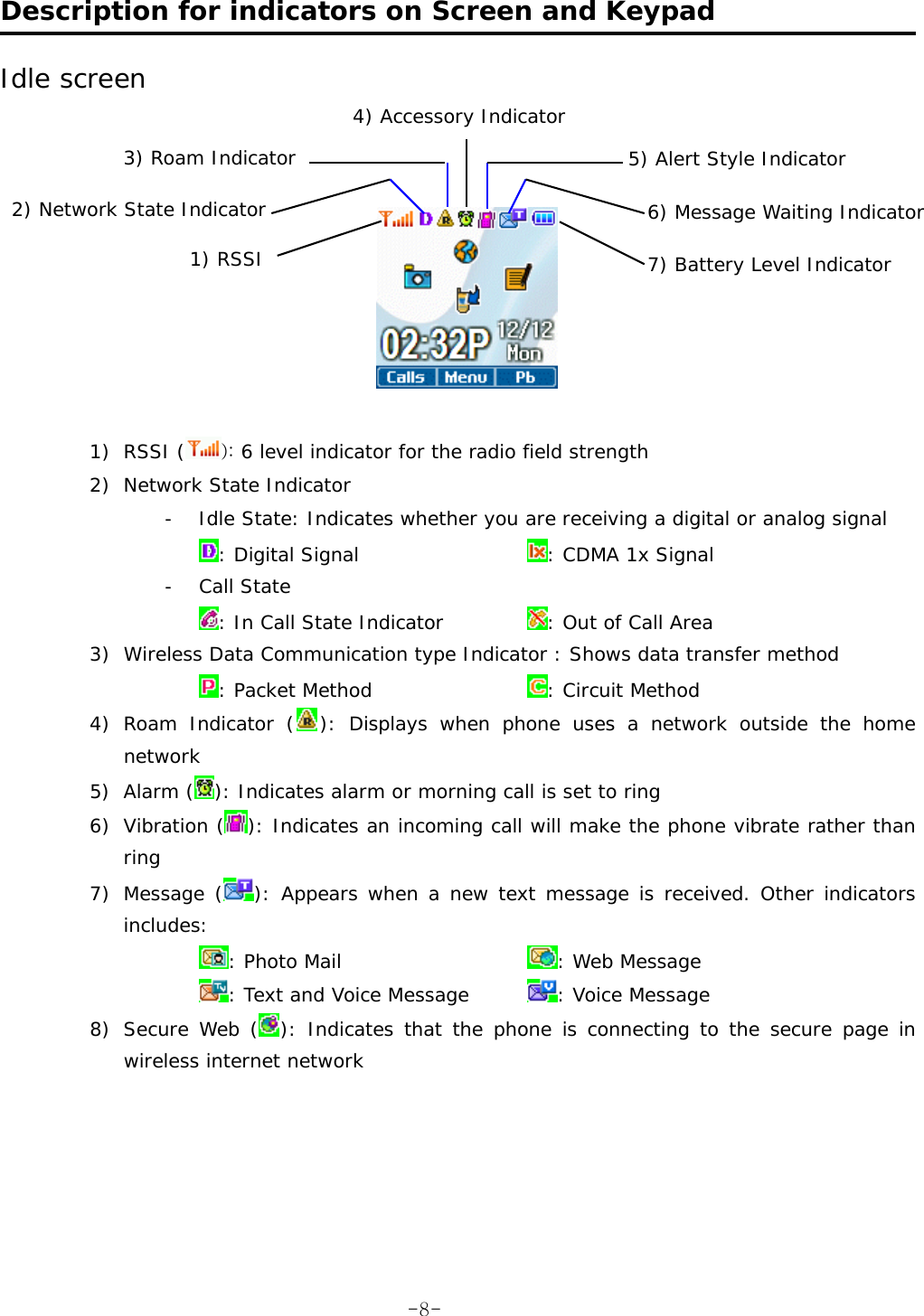
 Description for indicators on Screen and Keypad  Idle screen  4) Accessory Indicator     1) RSSI ( ): 6 level indicator for the radio field strength 2)  Network State Indicator  -  Idle State: Indicates whether you are receiving a digital or analog signal : Digital Signal      : CDMA 1x Signal - Call State : In Call State Indicator   : Out of Call Area 3)  Wireless Data Communication type Indicator : Shows data transfer method : Packet Method     : Circuit Method 4) Roam Indicator ( ): Displays when phone uses a network outside the home network 5) Alarm ( ): Indicates alarm or morning call is set to ring 6) Vibration ( ): Indicates an incoming call will make the phone vibrate rather than ring 7) Message ( ): Appears when a new text message is received. Other indicators includes: : Photo Mail      : Web Message : Text and Voice Message  : Voice Message 8) Secure Web ( ): Indicates that the phone is connecting to the secure page in wireless internet network      2) Network State Indicator 1) RSSI3) Roam Indicator  5) Alert Style Indicator 6) Message Waiting Indicator7) Battery Level Indicator  -8-
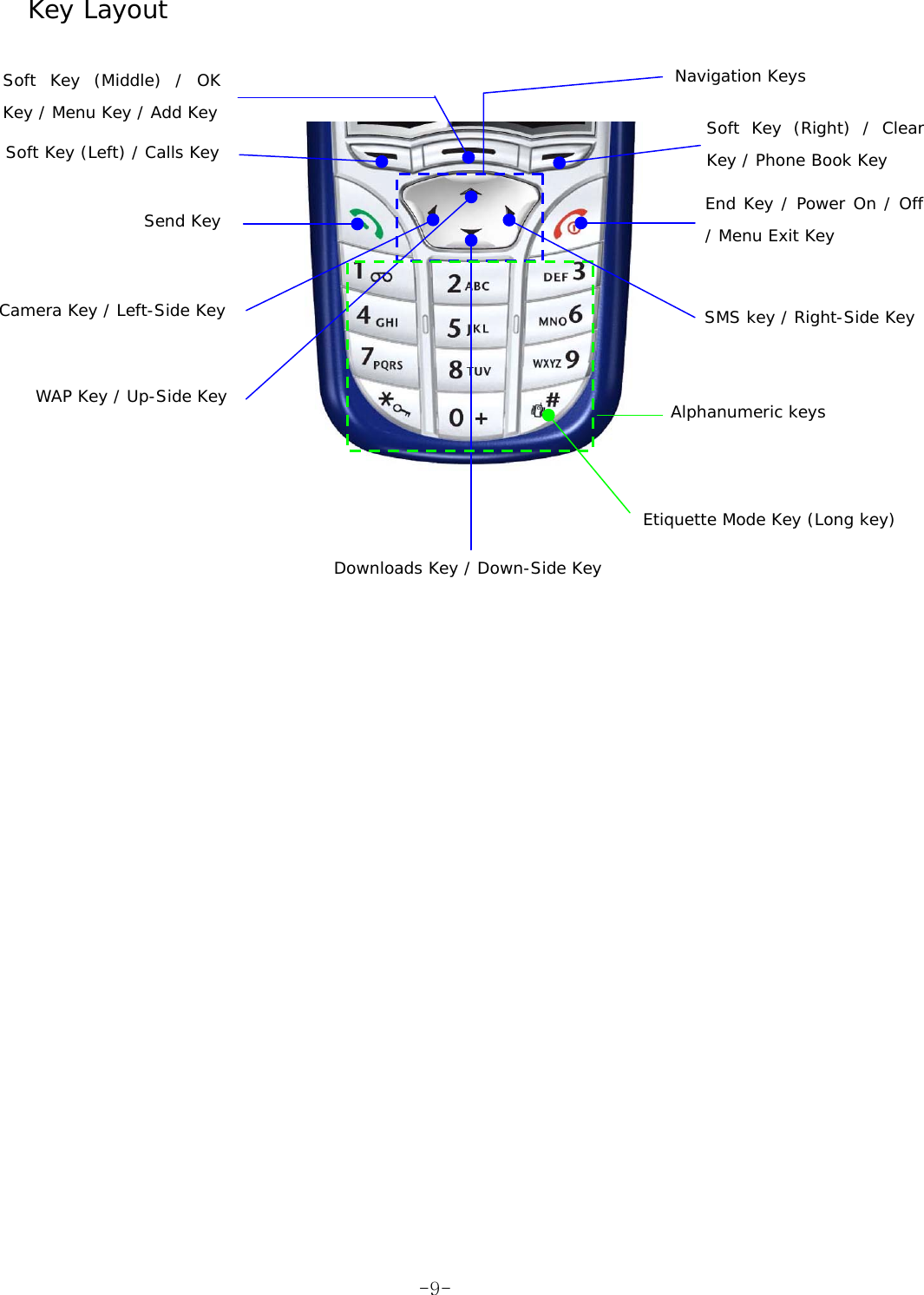
Key Layout      SMS key / Right-Side Key Alphanumeric keys Navigation Keys Soft Key (Middle) / OKKey / Menu Key / Add Key Soft Key (Right) / ClearKey / Phone Book Key Soft Key (Left) / Calls Key End Key / Power On / Off/ Menu Exit Key Send Key Camera Key / Left-Side Key WAP Key / Up-Side Key Etiquette Mode Key (Long key)  Downloads Key / Down-Side Key  -9-
 Getting Started  Turning On / Off the Phone (1) Press and hold the ‘END’ key to turn on your phone. (2) If necessary, enter your 4-digit unlock code and press ‘OK’ key to unlock the phone. (3) When you wish to turn off the phone, press and hold the ‘END’ key until the power-off animation is started.  Note:  The display language is preset to Spanish at the factory. In order to change the language setting, use the ‘Settings’ menu option in the ‘Other Function’ menu.   Making a call  When the idle screen is displayed, enter the area code and phone number and press the ‘SEND’ key. When you have finished your call, briefly press the ‘End’ key.  Making a call using Contacts menu You can store phone numbers that you use frequently in the phone’s memory, called Contacts. Once you have stored the phone numbers in Contacts, you can dial them simply by selecting the name or phone number you want to call.  Making a call using speed dialing number Memory locations 0 through 799 are special one-touch locations. You can dial the phone numbers stored in Contacts memory from 0 through 799 simply by pressing one button.  Making a call using Calls menu The Calls menu maintains a log of all outgoing, incoming and missed calls. The call records stores the last 60 numbers dialed. To recall any of these numbers, proceed as follows.  (1) If there are any characters on the display, clear the display by holding down the ‘Right Soft Key’ for more than one second. (2) Press ‘SEND’ key. The list of calls is displayed. (3) Use the ‘UP’, ‘DOWN’ key of Navigation keys to scroll through the numbers until you select the required number. (4) Press ‘SEND’ key to dial the number displayed.  Note: Three Way Call  -10-
(1) Enter a number you wish to call and press ‘SEND’. (2) Once you have established the connection, dial the second caller’s phone number and press ‘SEND’. (3) When you are connected to the second caller, press ‘SEND’ once more to begin your three-way call.   Answering a call When somebody calls you, the phone rings or vibrates and the phone animation in the middle of the screen flashes. If the caller can be identified, the caller’s phone number (or name, if stored in your Contacts) is displayed. If the caller cannot be identified, only the phone animation flashes.  1.  Answer the incoming call by pressing the ‘SEND’ key. 2.  End the call by pressing the ‘END’ key.  Note: You can answer a call while using Contacts or other menu features. Also, when the phone rings or vibrates as someone call, you can make the ring or vibration silence by pressing the ‘END’ key.   Adjusting Volume You can adjust the earpiece volume during a call using the ‘Down-Side’ key. After pressing the ‘Down-Side’ key, press the ‘Up-Side’ key to increase and the ‘Down-Side’ key to decrease the volume and press ‘OK’ key to finish adjusting the volume.   Viewing Missed Calls When you are unable to answer a call for any reason, you can find out who called you, provided that this service is available. This way, you can call the person back, if necessary. The number of missed calls is displayed on the idle screen immediately after the call was missed. To view the missed call immediately, proceed as follows:  (1) Press the ‘SEND’ key. The number corresponding to the most recent missed call is displayed. (2) To scroll through the missed calls, Press the ‘Up-Side’ or ‘Down-Side’ key. (3) To call the number displayed, select the number and press the ‘SEND’ key. (4) If necessary, to edit or delete a missed call number, select the ‘MENU’ key.  -11-
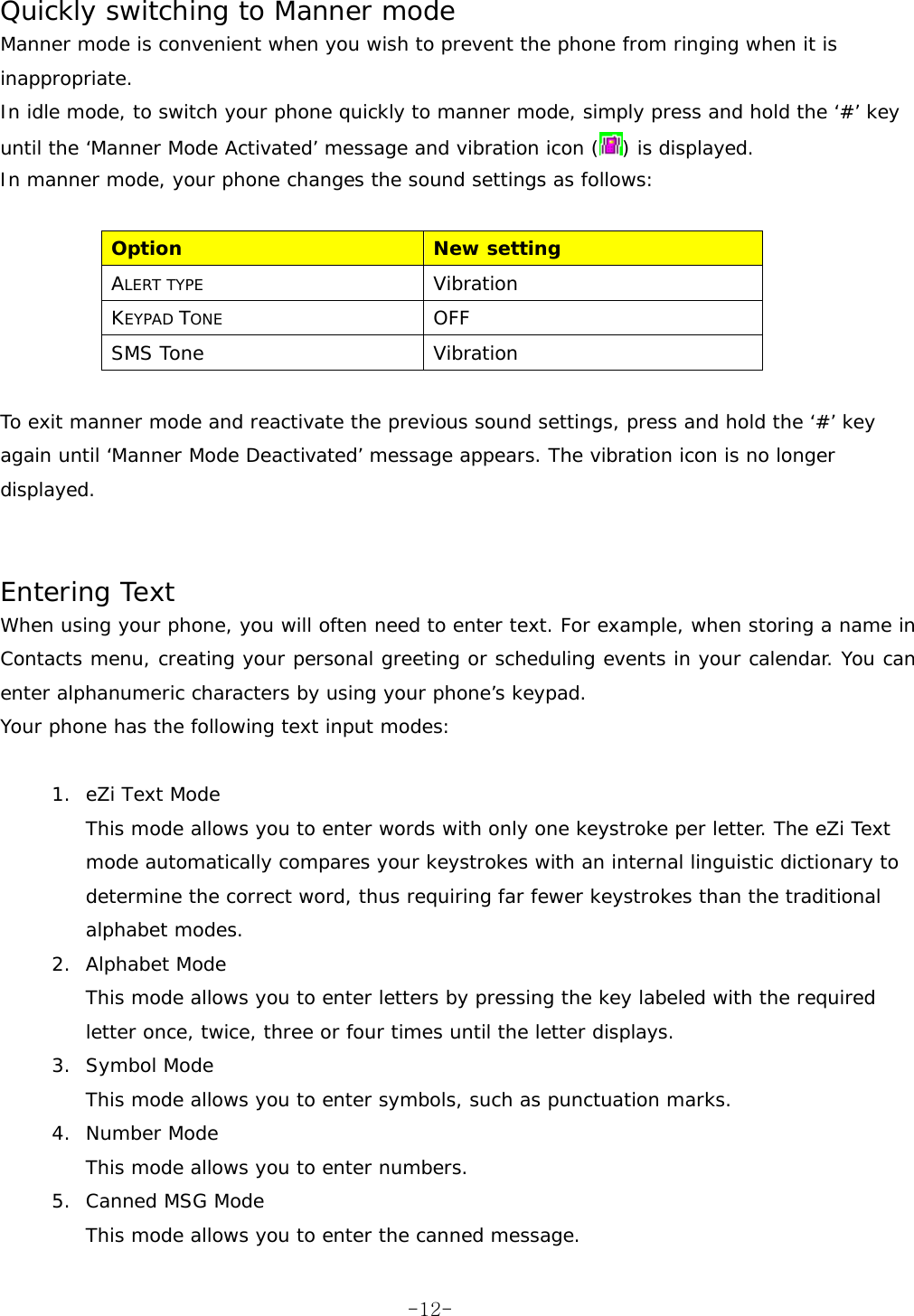
 Quickly switching to Manner mode Manner mode is convenient when you wish to prevent the phone from ringing when it is inappropriate. In idle mode, to switch your phone quickly to manner mode, simply press and hold the ‘#’ key until the ‘Manner Mode Activated’ message and vibration icon ( ) is displayed. In manner mode, your phone changes the sound settings as follows:  Option  New setting ALERT TYPE Vibration KEYPAD TONE OFF SMS Tone  Vibration  To exit manner mode and reactivate the previous sound settings, press and hold the ‘#’ key again until ‘Manner Mode Deactivated’ message appears. The vibration icon is no longer displayed.   Entering Text When using your phone, you will often need to enter text. For example, when storing a name in Contacts menu, creating your personal greeting or scheduling events in your calendar. You can enter alphanumeric characters by using your phone’s keypad. Your phone has the following text input modes:  1.  eZi Text Mode This mode allows you to enter words with only one keystroke per letter. The eZi Text mode automatically compares your keystrokes with an internal linguistic dictionary to determine the correct word, thus requiring far fewer keystrokes than the traditional alphabet modes. 2. Alphabet Mode This mode allows you to enter letters by pressing the key labeled with the required letter once, twice, three or four times until the letter displays. 3. Symbol Mode This mode allows you to enter symbols, such as punctuation marks. 4. Number Mode This mode allows you to enter numbers. 5.  Canned MSG Mode This mode allows you to enter the canned message. -12-
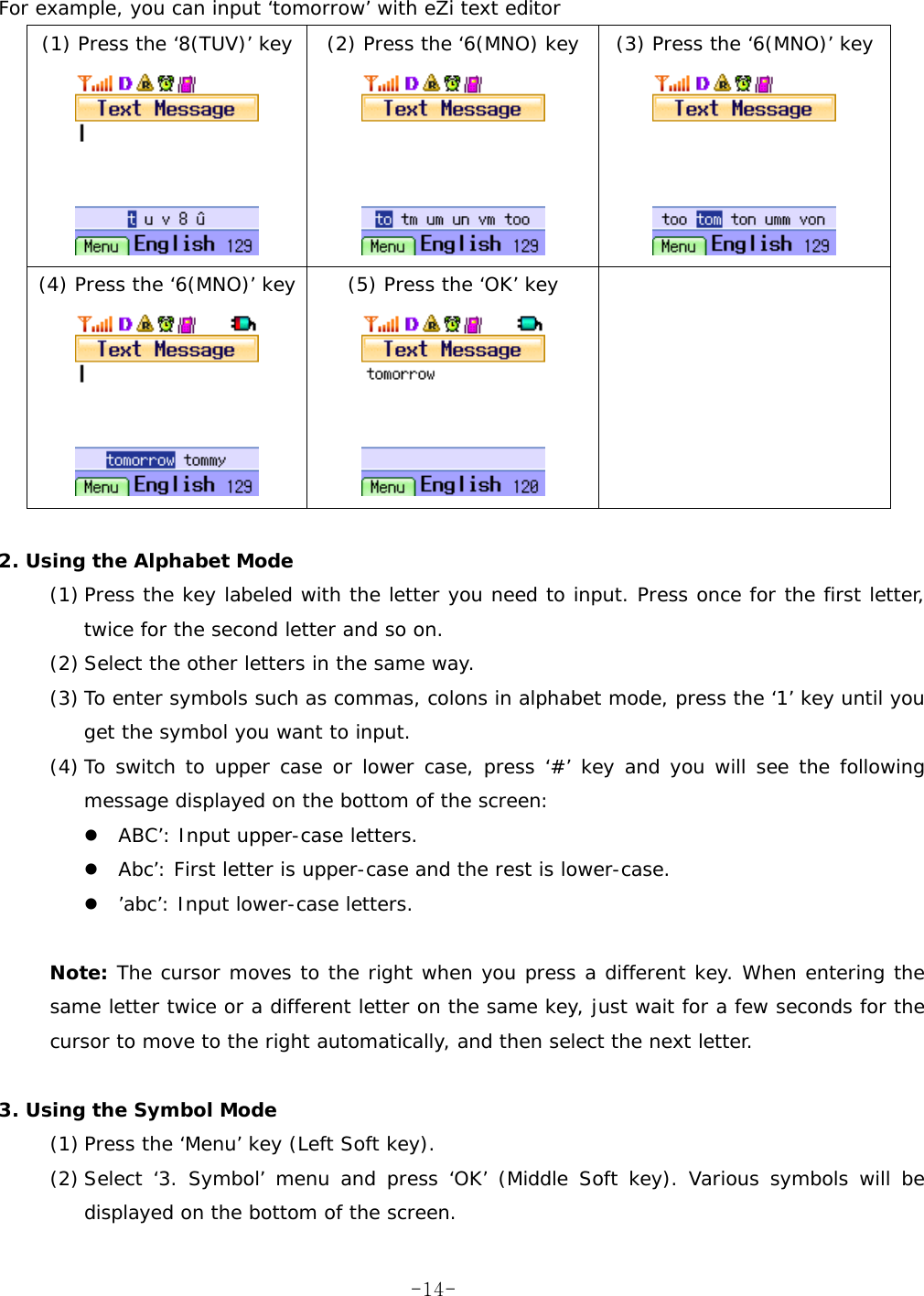
Character Chart Key  Upper Case  Lower Case 0  0  Chapter of Symbols  0 1  1  .  ,  @  ¿  ?  ¡  !  ’  “  -  +  *  /  %  (  )  [  ]  <  >  _  €  $ £  ¥  … 2  A  B  C  2  Á  Ã  Â  À  Ç  a  b  c  2  á  ã  â  à  ç 3  D  E  F  3  É  Ê  d  e  f  3  é  ê 4  G  H  I  4  Í  g  h  i  4   Í 5  J   K  L  5  j  k  l  5   6  M  N  O  6  Ó  Õ  Ô  Ñ  m  n  o  6  ó  õ  ô  ñ 7  P  Q  R  S  7   p  q  r  s  7   8  T  U  V  8  Ú  Ü  t  u  v  8  ú  ü 9  W  X  Y  Z  9  w  x  y  z  9 #  Space *  Switch on the mode such as ‘ABC’ or ‘Abc’ or ‘abc’ (Short Pressing) eZi Mode or Multitap Text Input Mode (Long Pressing)  1. Using the eZi Text Mode The eZi predictive text input mode allows you to key in any character using single keystroke.  (1) When you are in the eZi predictive text mode, start entering a word by pressing keys ‘2’ to ‘9’. Press each key only once for one letter. (2) 4 ~ 7 candidate words will be displayed in English mode. (3) Navigate through the list of candidates shown on the bottom of the screen with ‘Left-Side’ and ‘Right-Side’ keys. Use the ’Down-Side’ key or ‘0’ key to refresh list of candidates. Use the ’Up-Side’ key or ‘Clear’ Key to return to the previous list of candidates. (4) If the word you want to input is displayed, select the candidate and press the ‘OK’ key. (5) To enter a non-alphanumeric character, press the ‘1’ key. (6) To delete a character or a space, press ‘Clear’ key and to delete the complete text, press and hold the ‘Clear’ key.        -13-
  For example, you can input ‘tomorrow’ with eZi text editor (1) Press the ‘8(TUV)’ key  (2) Press the ‘6(MNO) key  (3) Press the ‘6(MNO)’ key      (4) Press the ‘6(MNO)’ key  (5) Press the ‘OK’ key        2. Using the Alphabet Mode (1) Press the key labeled with the letter you need to input. Press once for the first letter, twice for the second letter and so on. (2) Select the other letters in the same way. (3) To enter symbols such as commas, colons in alphabet mode, press the ‘1’ key until you get the symbol you want to input. (4) To switch to upper case or lower case, press ‘#’ key and you will see the following message displayed on the bottom of the screen:  ABC’: Input upper-case letters.  Abc’: First letter is upper-case and the rest is lower-case.  ’abc’: Input lower-case letters.  Note: The cursor moves to the right when you press a different key. When entering the same letter twice or a different letter on the same key, just wait for a few seconds for the cursor to move to the right automatically, and then select the next letter.  3. Using the Symbol Mode (1) Press the ‘Menu’ key (Left Soft key). (2) Select ‘3. Symbol’ menu and press ‘OK’ (Middle Soft key). Various symbols will be displayed on the bottom of the screen.  -14-
(3) Use the navigation keys to scroll to the desired symbol and then press ‘OK’ key (Middle Soft key).          ※ Symbol Chart - General Mode (Contacts, schedule and so on) ! " # $ % & ' ( ) * + , - . / : ; < = > ? @ [  \ ] ^ _ ` { | } ~ ¡ ¢ £ ¤ ¥  ¦ § ¨ © ª « ¬ - ® ¯ ° ± ² ³ ´ µ ¶ · ¸ ¹  º  » ¼ ½ ¾ ¿  × ÷         ※ Symbol Chart - Only when you input new messages in SMS Mode ! " # $ % & ' ( ) * + , - . / : ; < = > ? @ [  \ ] ^ _ ` { | } ~  4. Using the Number Mode Press the keys corresponding to the numbers.  5. Using the Canned MSG Mode The Canned MSG enables you to easily enter frequently used words or sentences.  (1) Press the ‘MENU’ key (Left Soft key). (2) Select ‘5.Canned MSG’ and press ‘OK’ (Middle Soft key). (3) Select the desired word or sentence on the list.  Note: This pop-up menu is shown only when you edit SMS messages.   -15-
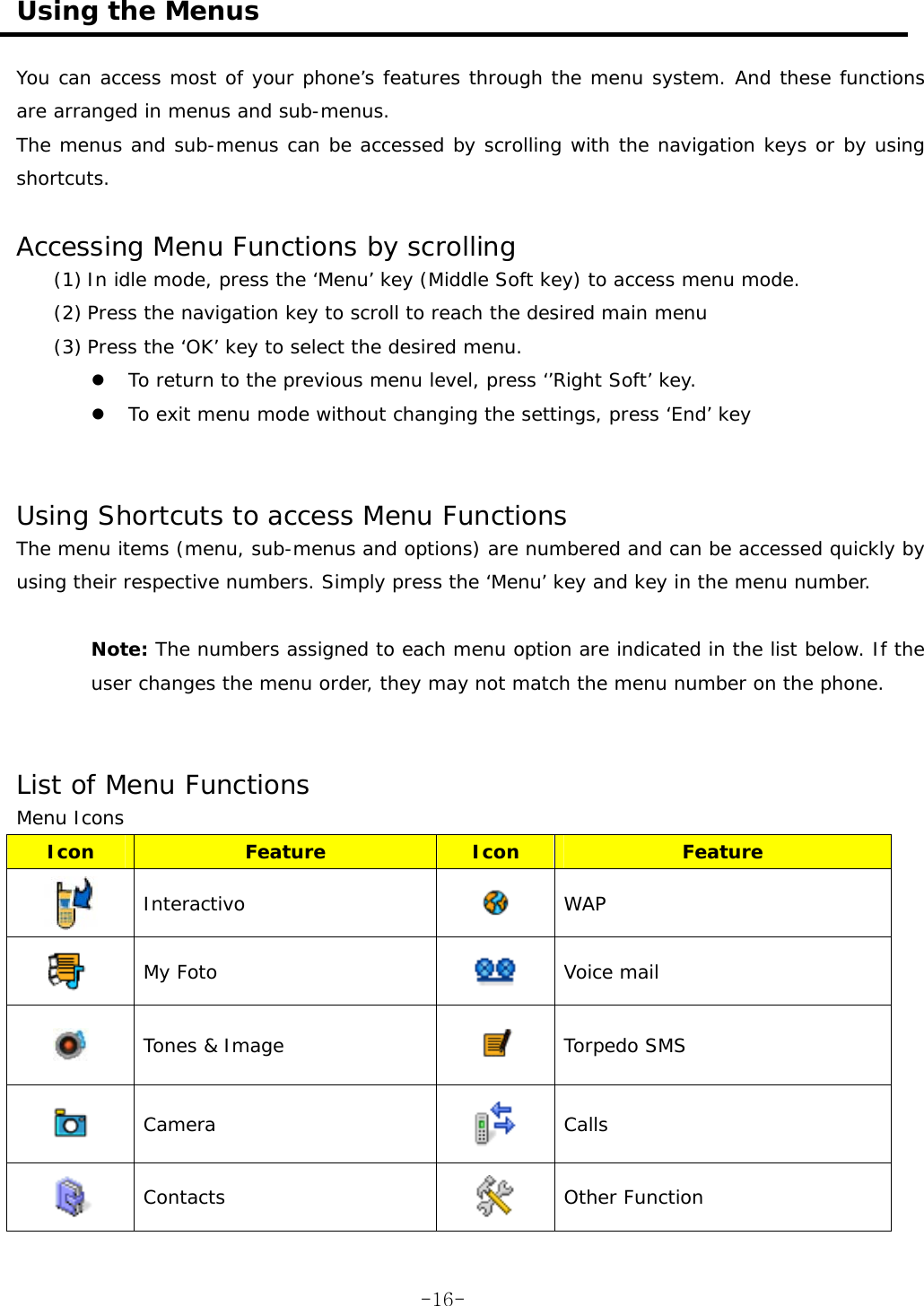
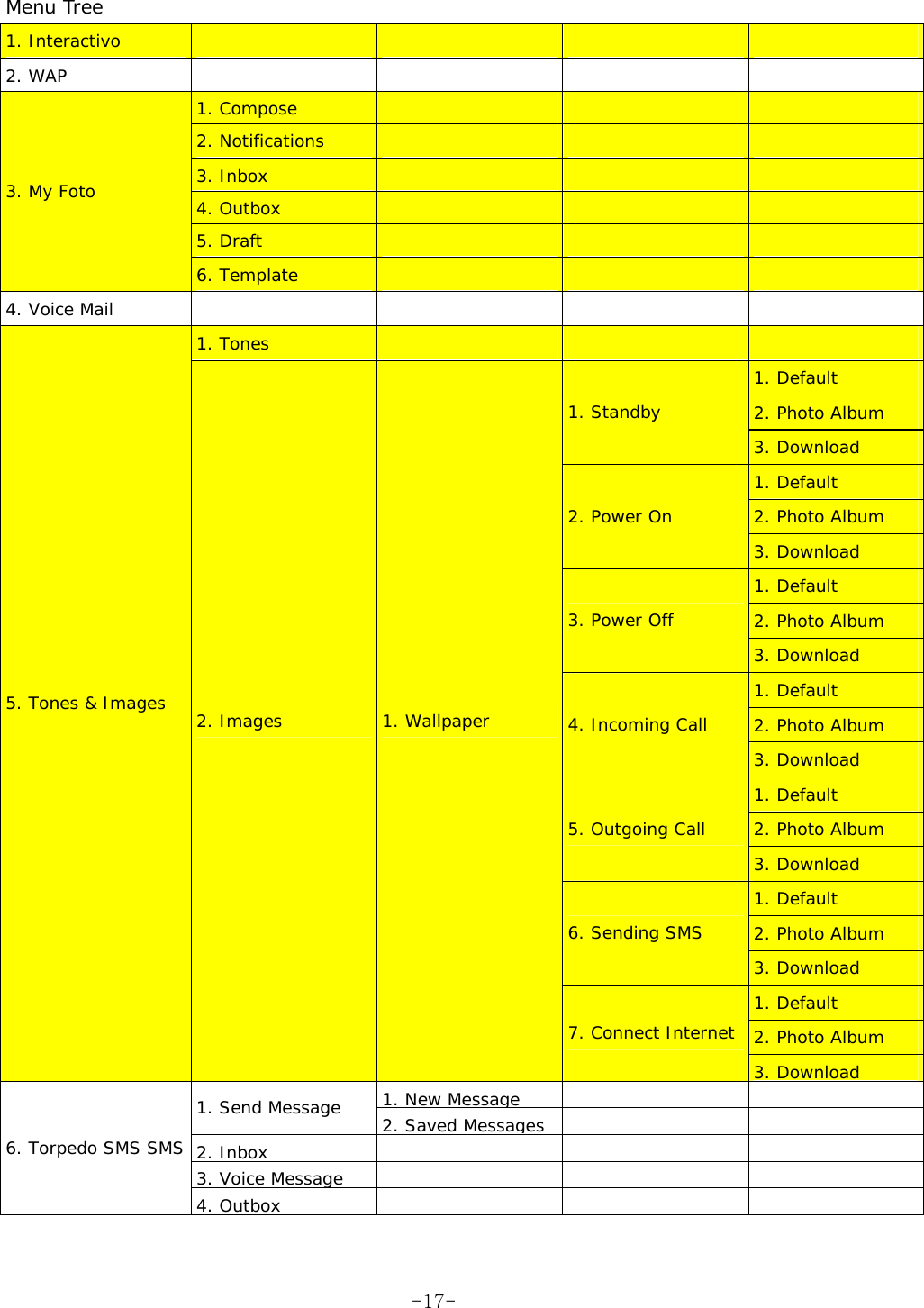
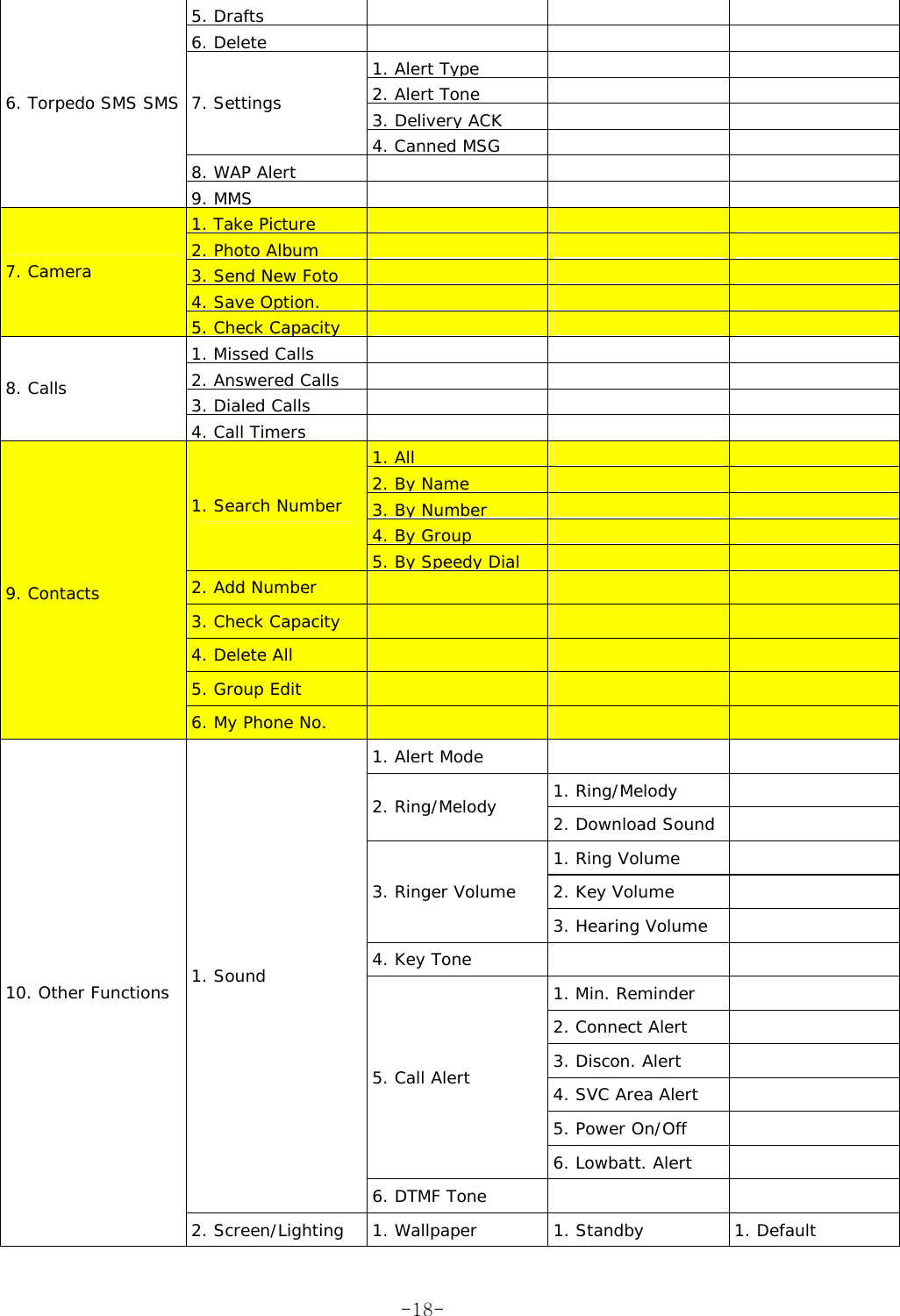
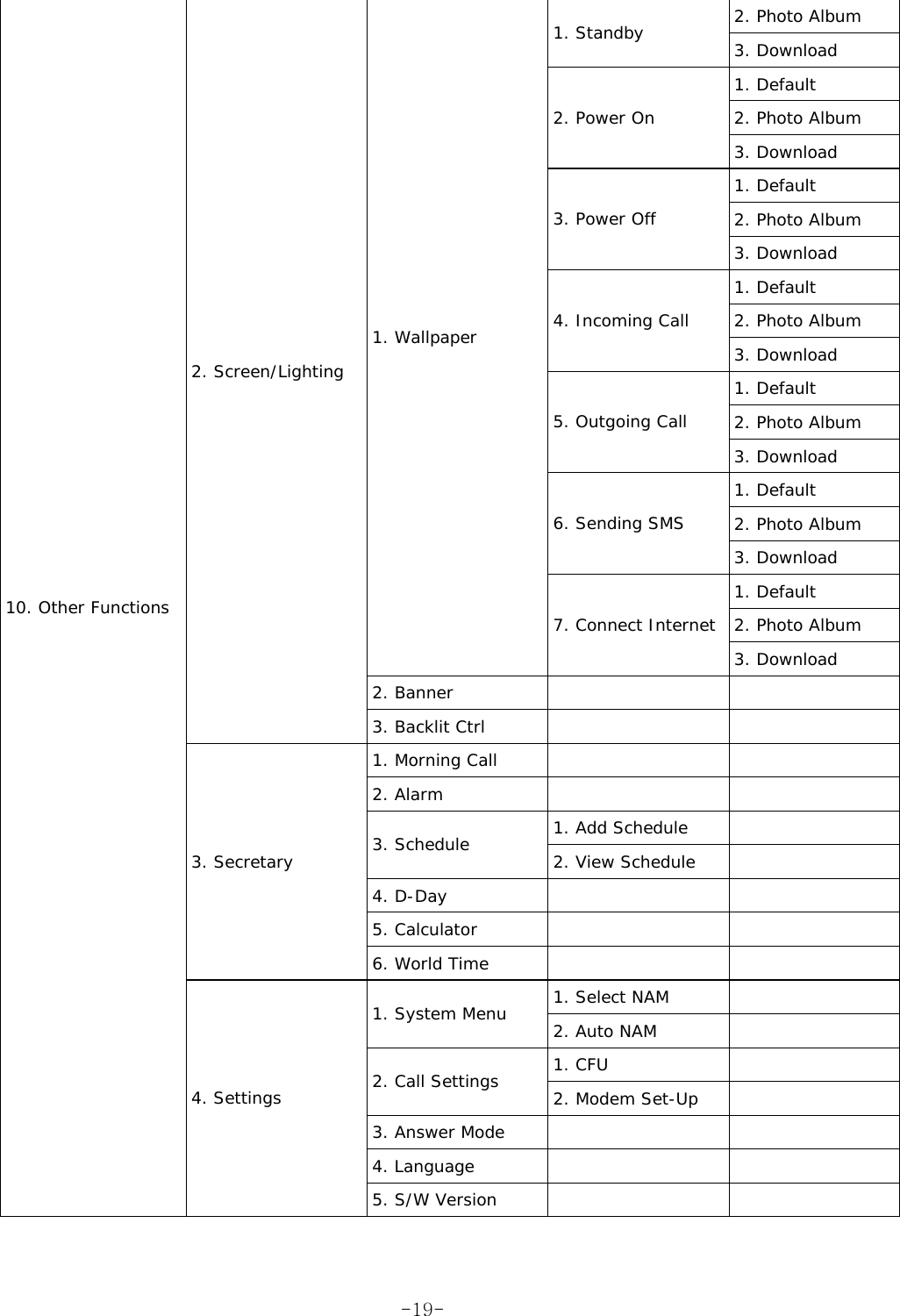
 Using the Menus  You can access most of your phone’s features through the menu system. And these functions are arranged in menus and sub-menus. The menus and sub-menus can be accessed by scrolling with the navigation keys or by using shortcuts.  Accessing Menu Functions by scrolling (1) In idle mode, press the ‘Menu’ key (Middle Soft key) to access menu mode. (2) Press the navigation key to scroll to reach the desired main menu (3) Press the ‘OK’ key to select the desired menu.   To return to the previous menu level, press ‘’Right Soft’ key.   To exit menu mode without changing the settings, press ‘End’ key   Using Shortcuts to access Menu Functions  The menu items (menu, sub-menus and options) are numbered and can be accessed quickly by using their respective numbers. Simply press the ‘Menu’ key and key in the menu number.  Note: The numbers assigned to each menu option are indicated in the list below. If the user changes the menu order, they may not match the menu number on the phone.   List of Menu Functions Menu Icons Icon  Feature  Icon  Feature  Interactivo   WAP  My Foto    Voice mail  Tones & Image   Torpedo SMS  Camera   Calls  Contacts   Other Function  -16-
 Menu Tree 1. Interactivo         2. WAP     1. Compose     2. Notifications     3. Inbox     4. Outbox     5. Draft     3. My Foto 6. Template     4. Voice Mail     1. Tones     1. Default 2. Photo Album 1. Standby 3. Download 1. Default 2. Photo Album 2. Power On 3. Download 1. Default 2. Photo Album 3. Power Off 3. Download 1. Default 2. Photo Album 4. Incoming Call 3. Download 1. Default 2. Photo Album 5. Outgoing Call 3. Download 1. Default 2. Photo Album 6. Sending SMS 3. Download 1. Default 2. Photo Album 5. Tones & Images  2. Images  1. Wallpaper 7. Connect Internet 3. Download 1. New Message    1. Send Message  2. Saved Messages    2. Inbox    3. Voice Message    6. Torpedo SMS SMS 4. Outbox     -17-
5. Drafts     6. Delete    1. Alert Type    2. Alert Tone     3. Delivery ACK     7. Settings 4. Canned MSG     8. WAP Alert       6. Torpedo SMS SMS 9. MMS    1. Take Picture     2. Photo Album     3. Send New Foto     4. Save Option.     7. Camera 5. Check Capacity       1. Missed Calls       2. Answered Calls       3. Dialed Calls       8. Calls 4. Call Timers       1. All     2. By Name     3. By Number     4. By Group     1. Search Number 5. By Speedy Dial     2. Add Number     3. Check Capacity     4. Delete All     5. Group Edit     9. Contacts 6. My Phone No.     1. Alert Mode     1. Ring/Melody   2. Ring/Melody  2. Download Sound   1. Ring Volume   2. Key Volume   3. Ringer Volume 3. Hearing Volume   4. Key Tone     1. Min. Reminder   2. Connect Alert   3. Discon. Alert   4. SVC Area Alert   5. Power On/Off   5. Call Alert 6. Lowbatt. Alert   1. Sound 6. DTMF Tone     10. Other Functions 2. Screen/Lighting  1. Wallpaper  1. Standby  1. Default  -18-
2. Photo Album 1. Standby  3. Download 1. Default 2. Photo Album 2. Power On 3. Download 1. Default 2. Photo Album 3. Power Off 3. Download 1. Default 2. Photo Album 4. Incoming Call 3. Download 1. Default 2. Photo Album 5. Outgoing Call 3. Download 1. Default 2. Photo Album 6. Sending SMS 3. Download 1. Default 2. Photo Album 1. Wallpaper 7. Connect Internet 3. Download 2. Banner     2. Screen/Lighting 3. Backlit Ctrl     1. Morning Call     2. Alarm     1. Add Schedule   3. Schedule  2. View Schedule   4. D-Day     5. Calculator     3. Secretary 6. World Time     1. Select NAM   1. System Menu  2. Auto NAM   1. CFU   2. Call Settings  2. Modem Set-Up   3. Answer Mode     4. Language     10. Other Functions 4. Settings 5. S/W Version      -19-
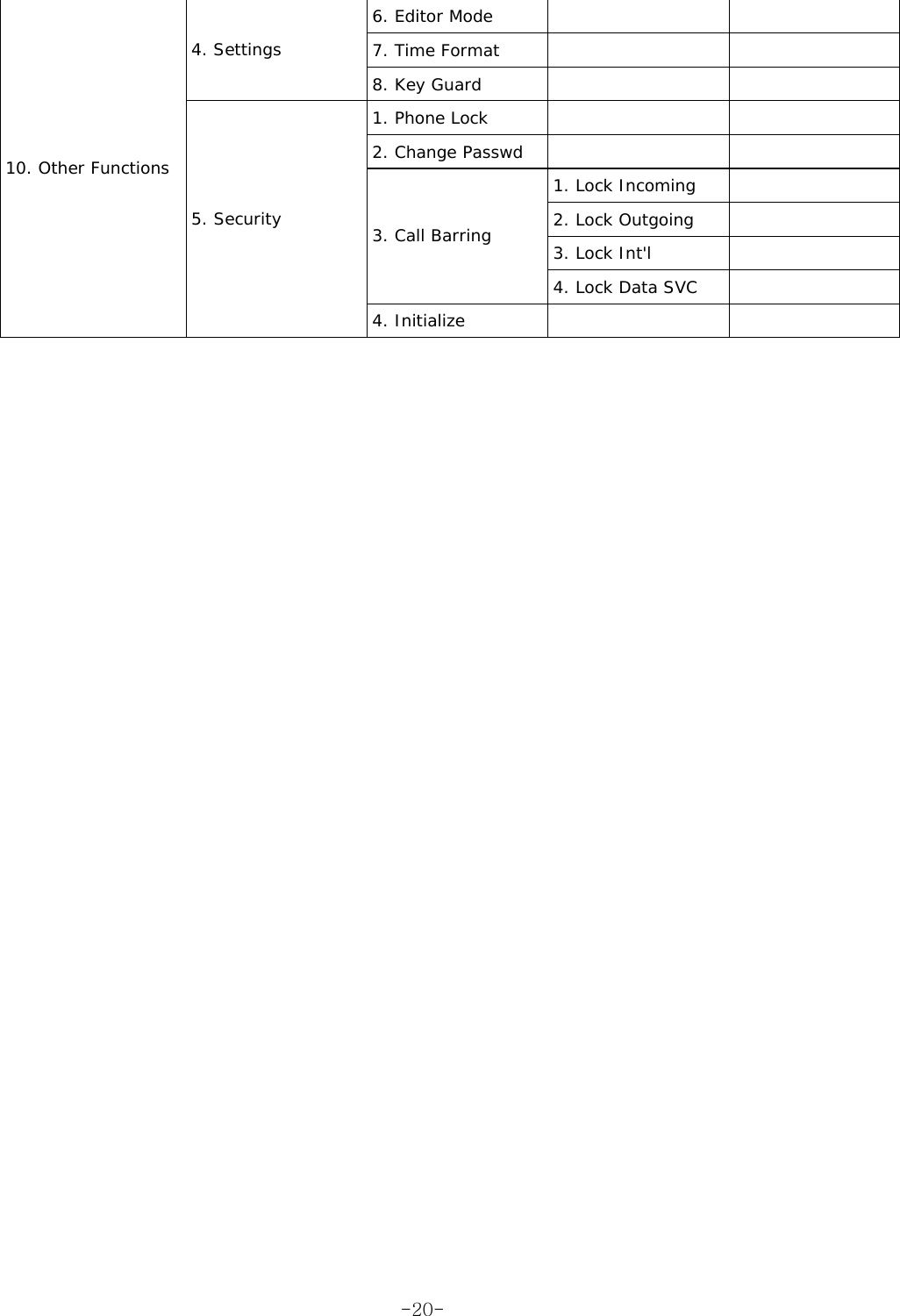
6. Editor Mode     7. Time Format     4. Settings 8. Key Guard     1. Phone Lock     2. Change Passwd     1. Lock Incoming   2. Lock Outgoing   3. Lock Int'l   3. Call Barring 4. Lock Data SVC   10. Other Functions 5. Security 4. Initialize       -20-
 Interactivo  Detailed Methods of using and accessing ‘Interactivo’ may vary according to your service provider.       -21-
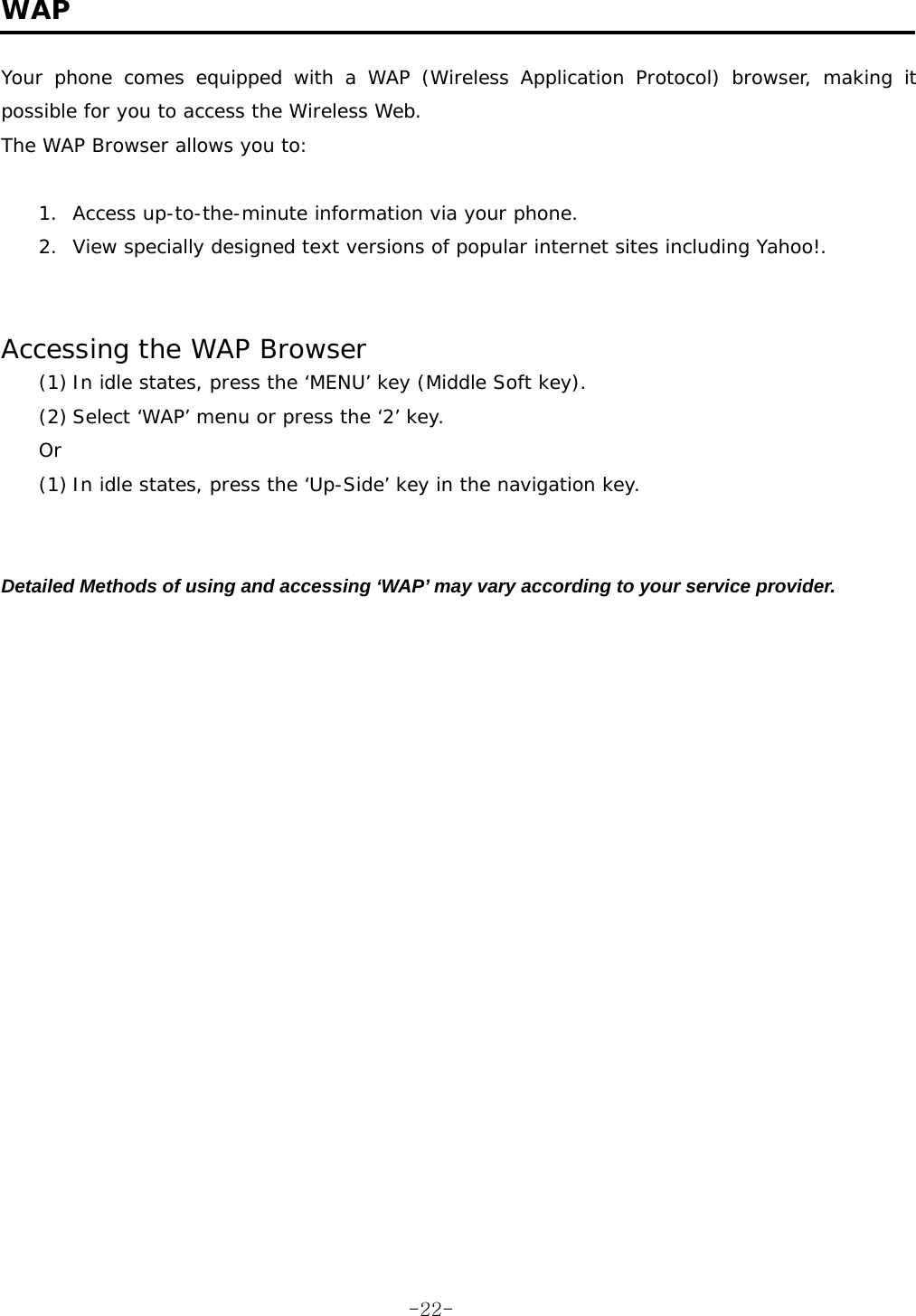
 WAP  Your phone comes equipped with a WAP (Wireless Application Protocol) browser, making it possible for you to access the Wireless Web. The WAP Browser allows you to:  1.  Access up-to-the-minute information via your phone. 2.  View specially designed text versions of popular internet sites including Yahoo!.   Accessing the WAP Browser (1) In idle states, press the ‘MENU’ key (Middle Soft key). (2) Select ‘WAP’ menu or press the ‘2’ key. Or (1) In idle states, press the ‘Up-Side’ key in the navigation key.   Detailed Methods of using and accessing ‘WAP’ may vary according to your service provider.  -22-
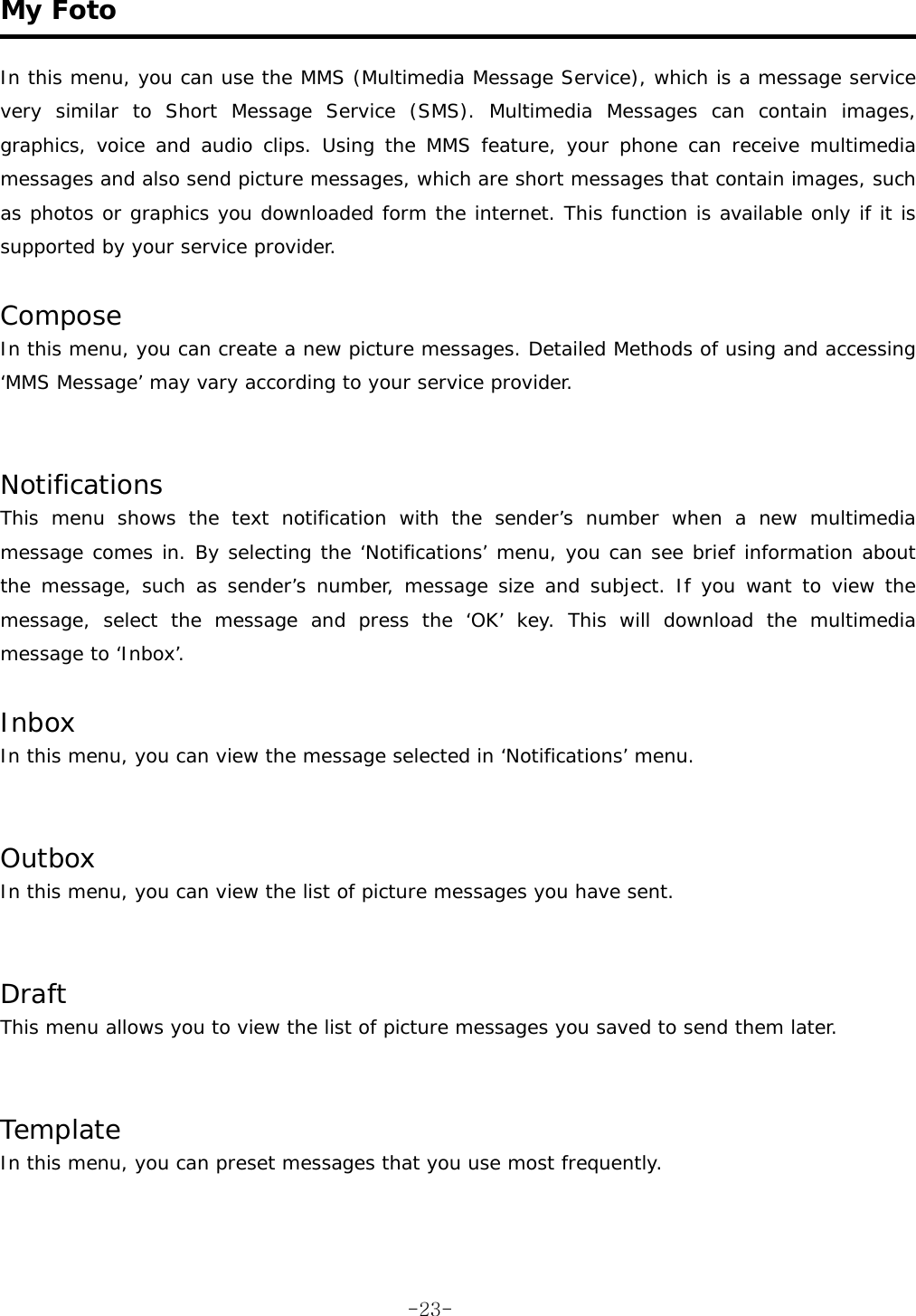
 My Foto   In this menu, you can use the MMS (Multimedia Message Service), which is a message service very similar to Short Message Service (SMS). Multimedia Messages can contain images, graphics, voice and audio clips. Using the MMS feature, your phone can receive multimedia messages and also send picture messages, which are short messages that contain images, such as photos or graphics you downloaded form the internet. This function is available only if it is supported by your service provider.  Compose In this menu, you can create a new picture messages. Detailed Methods of using and accessing ‘MMS Message’ may vary according to your service provider.   Notifications This menu shows the text notification with the sender’s number when a new multimedia message comes in. By selecting the ‘Notifications’ menu, you can see brief information about the message, such as sender’s number, message size and subject. If you want to view the message, select the message and press the ‘OK’ key. This will download the multimedia message to ‘Inbox’.  Inbox In this menu, you can view the message selected in ‘Notifications’ menu.   Outbox In this menu, you can view the list of picture messages you have sent.    Draft This menu allows you to view the list of picture messages you saved to send them later.   Template In this menu, you can preset messages that you use most frequently.   -23-
 Voice Mail  This menu provides you with a way of accessing your voice mailbox, if provided by your service provider. By selecting this menu, you can connect to voice server and then check your voicemails.  -24-
 Tones & Images  The Tones & Images menu contains several sub-menus.  Tones ‘Tones’ menu enables you to listen and select one of the melodies you have downloaded from the server and set it as a current ring tone. You can store up to 20 melodies.  Images In this menu, you can view the images downloaded from server and pictures in photo album. You can set the downloaded images or the pictures in the photo album as the current background images. The available wallpapers are:  1. Standby 2. Power On 3. Power Off 4. Incoming Call 5. Outgoing Call 6. Sending SMS 7. Connect Internet    -25-
 Torpedo SMS  The SMS (Short Message Service) is a network service. When the message icon ( ) appears, it means that you have received new text messages. If the memory is full, an error message is displayed and you cannot receive any new messages. Use the ‘Delete’ option in each message box to delete obsolete messages.  Send Message  The Send Message menu enables you to compose and send new or saved messages.  1. New Message (1) Select ‘New Message’, to compose new message. (2) Input the message contents. To change the input mode, press the ‘Menu’ key (Left Soft key). (3) To finish the message editing, press ‘Middle Soft’ key. (4) Select whether you want to save the message or not. (5) Input receiver’s phone number. You can either search for receiver number by name or by group or you can input it directly. (6) Select Message Priority type. (7) If the sending is successful, you can save the message in ‘Outbox’. If failed, you can save the message in ‘Draft’.  2. Saved Message (1) Select ‘Saved Message’, if you want to create and send a message from the Saved Messages Box. (2) From the list of saved messages, select the message you want to input. (3) Input receiver’s phone number. You can either search for receiver number by name or by group or you can input it directly. (4) Select Message Priority type. (5) If the sending is successful, you can save the message in ‘Outbox’. If failed, you can save the message in ‘Draft’.   Inbox Inbox is used to store the messages that you have received. When you select Inbox menu, the list of messages in the box displays with the sender’s phone number or name, if the number is available in your Phonebook.  -26-
(1) Select the message from the list and press the ‘OK’ key to read. If there is no message, it will display an alert message. (2) To scroll through the contents, press the ‘Up-Side’ or ‘Down-Side’ key. (3) To scroll to the previous or next messages, press the ‘Left-Side’ or ‘Right-Side’ key. (4) You can manage the message through the pop-up menu. Pop-up menu is displayed when you press the ‘Menu’ key (Left Soft key).   Delete: Deletes highlighted or selected messages   Delete All: Deletes all messages in Inbox.   Reply: Reply to the sender by sending a text message.   Transmit: Transmit received message to other person. You can also edit messages, if needed.   Save No.: Saves sender’s information to ‘Contacts’ (See ‘Contacts’ Menu for more information)   Voice Msg Voice Msg provides with a way of accessing your voice mailbox, if provided by your network.  (1) Select the Voice Msg menu and press the ‘Ok’ key. (2) When the list of sender number and received time of voice mail is displayed, you may listen to the message by selecting the message and pressing the ‘Send’ key.   Outbox (1) Select the ‘Outbox’ menu and press the ‘Ok’ key. (2) When the list is displayed, select the message to see the contents of the selected message. (3) You can delete or forward the selected message using the pop-up menu.   Drafts (1) Select the ‘Drafts’ menu and press the ‘OK’ key. (2) When the list is displayed, select the message to see the contents of the selected message. (3) You can delete or forward the selected message using the pop-up menu.    -27-
Delete In this menu, you can delete the all messages stored in Inbox, Voice Mail or Outbox.  (1) Select the ‘Delete’ menu and press the ‘OK’ key. (2) Select ‘Yes’ or ‘No’ when ‘Delete All?’ message is displayed.   Settings Settings allow you to set up the SMS environment.  1. Alert Type (1) Select the ‘Alert Type’ menu and press the ‘OK’ key. (2) Set the alert interval when message is received.   2. Alert Tone (1) Select the ‘Alert Tone’ menu and press the ‘OK’ key. (2) Set the alert sound when the message is received.  3. Delivery ACK Delivery ACK allow you to set the delivery acknowledgment.  (1) Select ‘Delivery ACK’ menu and press the ‘OK’ key. (2) Select ‘Enable’ if you want to receive the delivery acknowledgment when you send a SMS, or ‘Disable’ if you don’t want to.  4. Canned MSG See ‘Entering Text-using the Canned MSG’ for details.   WAP Alert Detailed methods of using and accessing ‘WAP Alert’ may vary according to your service provider.   MMS See ‘My Foto’ menu for details. -28-
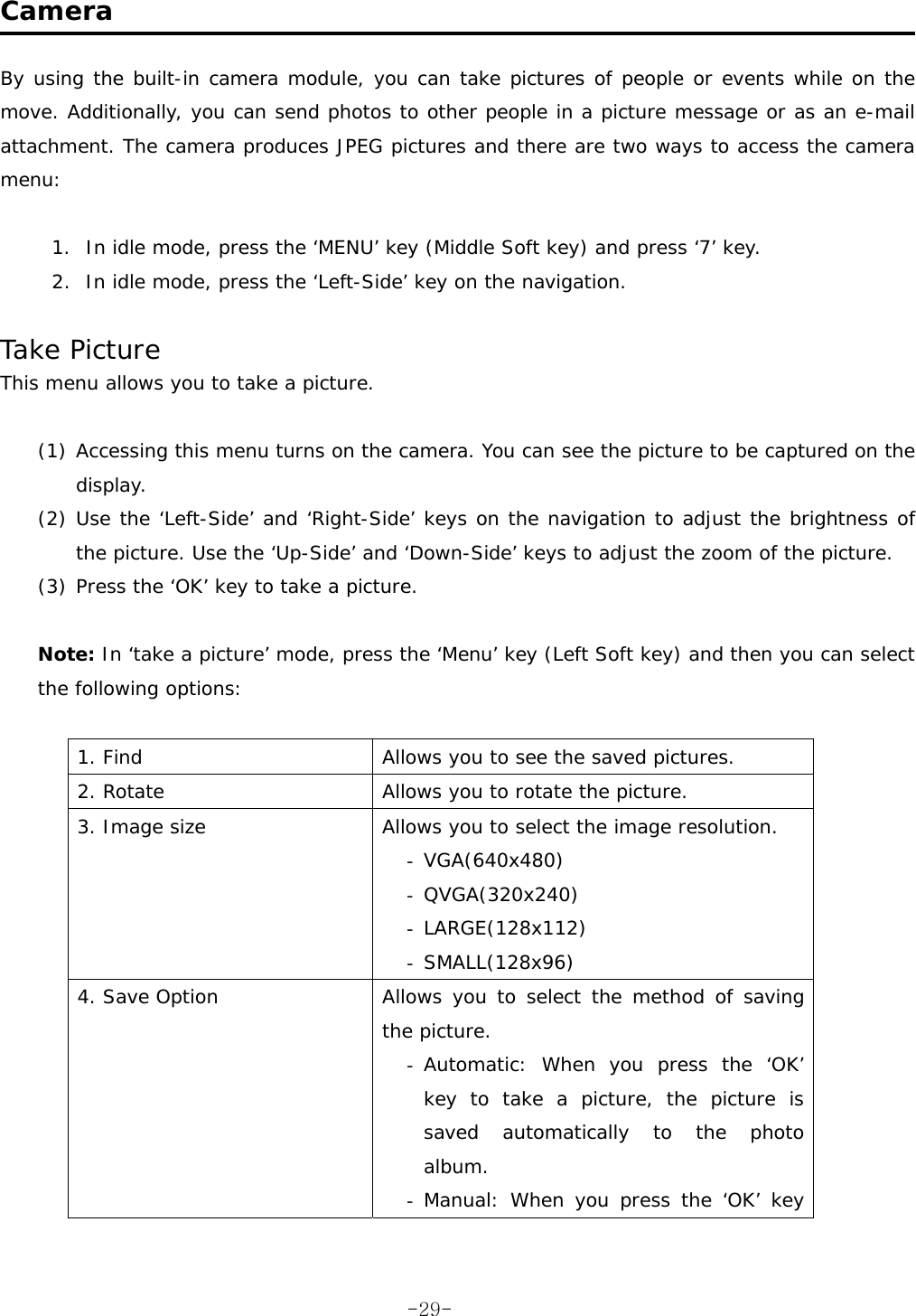
 Camera  By using the built-in camera module, you can take pictures of people or events while on the move. Additionally, you can send photos to other people in a picture message or as an e-mail attachment. The camera produces JPEG pictures and there are two ways to access the camera menu:  1.  In idle mode, press the ‘MENU’ key (Middle Soft key) and press ‘7’ key. 2.  In idle mode, press the ‘Left-Side’ key on the navigation.  Take Picture This menu allows you to take a picture.  (1) Accessing this menu turns on the camera. You can see the picture to be captured on the display. (2) Use the ‘Left-Side’ and ‘Right-Side’ keys on the navigation to adjust the brightness of the picture. Use the ‘Up-Side’ and ‘Down-Side’ keys to adjust the zoom of the picture. (3) Press the ‘OK’ key to take a picture.  Note: In ‘take a picture’ mode, press the ‘Menu’ key (Left Soft key) and then you can select the following options:  1. Find  Allows you to see the saved pictures. 2. Rotate  Allows you to rotate the picture. 3. Image size  Allows you to select the image resolution. -  VGA(640x480) -  QVGA(320x240) -  LARGE(128x112) -  SMALL(128x96) 4. Save Option  Allows you to select the method of saving the picture. -  Automatic: When you press the ‘OK’ key to take a picture, the picture is saved automatically to the photo album. -  Manual: When you press the ‘OK’ key  -29-
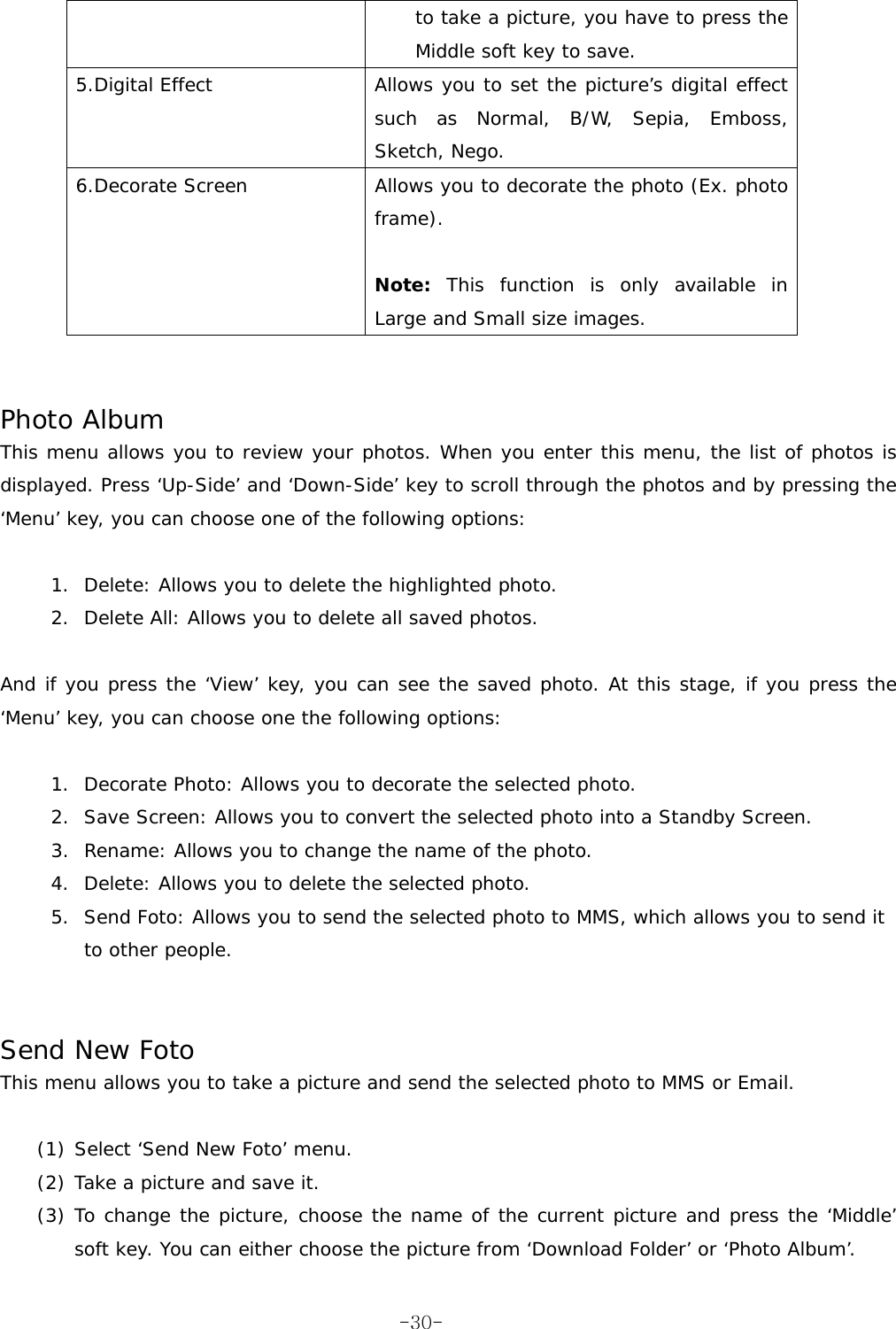
to take a picture, you have to press the Middle soft key to save. 5.Digital Effect  Allows you to set the picture’s digital effect such as Normal, B/W, Sepia, Emboss, Sketch, Nego. 6.Decorate Screen  Allows you to decorate the photo (Ex. photo frame).  Note: This function is only available in Large and Small size images.    Photo Album This menu allows you to review your photos. When you enter this menu, the list of photos is displayed. Press ‘Up-Side’ and ‘Down-Side’ key to scroll through the photos and by pressing the ‘Menu’ key, you can choose one of the following options:  1.  Delete: Allows you to delete the highlighted photo. 2.  Delete All: Allows you to delete all saved photos.  And if you press the ‘View’ key, you can see the saved photo. At this stage, if you press the ‘Menu’ key, you can choose one the following options:  1.  Decorate Photo: Allows you to decorate the selected photo. 2.  Save Screen: Allows you to convert the selected photo into a Standby Screen. 3.  Rename: Allows you to change the name of the photo. 4.  Delete: Allows you to delete the selected photo. 5.  Send Foto: Allows you to send the selected photo to MMS, which allows you to send it to other people.   Send New Foto This menu allows you to take a picture and send the selected photo to MMS or Email.  (1) Select ‘Send New Foto’ menu. (2) Take a picture and save it. (3) To change the picture, choose the name of the current picture and press the ‘Middle’ soft key. You can either choose the picture from ‘Download Folder’ or ‘Photo Album’.  -30-
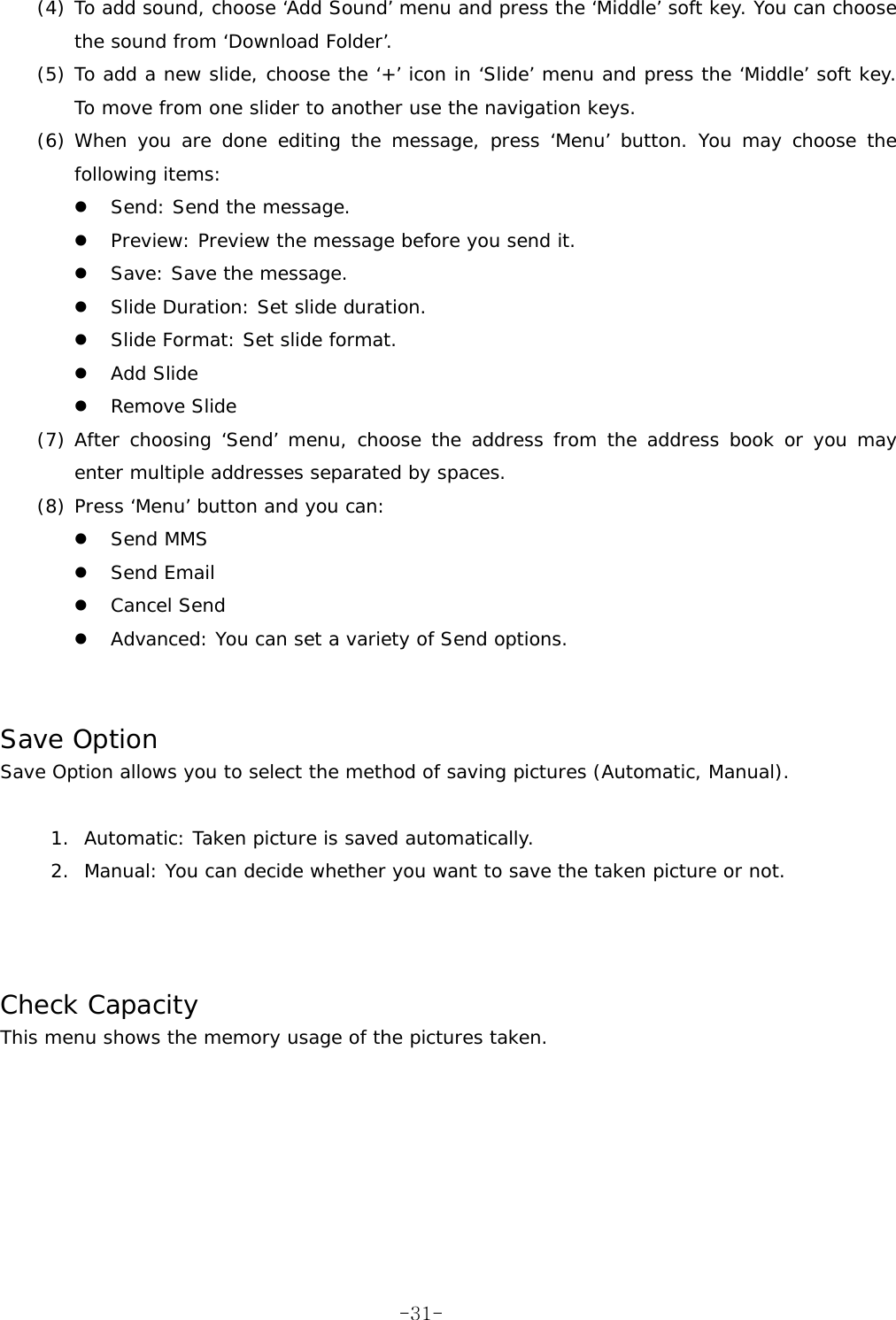
(4) To add sound, choose ‘Add Sound’ menu and press the ‘Middle’ soft key. You can choose the sound from ‘Download Folder’. (5) To add a new slide, choose the ‘+’ icon in ‘Slide’ menu and press the ‘Middle’ soft key. To move from one slider to another use the navigation keys. (6) When you are done editing the message, press ‘Menu’ button. You may choose the following items:   Send: Send the message.   Preview: Preview the message before you send it.   Save: Save the message.   Slide Duration: Set slide duration.   Slide Format: Set slide format.   Add Slide   Remove Slide (7) After choosing ‘Send’ menu, choose the address from the address book or you may enter multiple addresses separated by spaces. (8) Press ‘Menu’ button and you can:   Send MMS   Send Email   Cancel Send   Advanced: You can set a variety of Send options.   Save Option Save Option allows you to select the method of saving pictures (Automatic, Manual).  1.  Automatic: Taken picture is saved automatically. 2.  Manual: You can decide whether you want to save the taken picture or not.    Check Capacity This menu shows the memory usage of the pictures taken. -31-
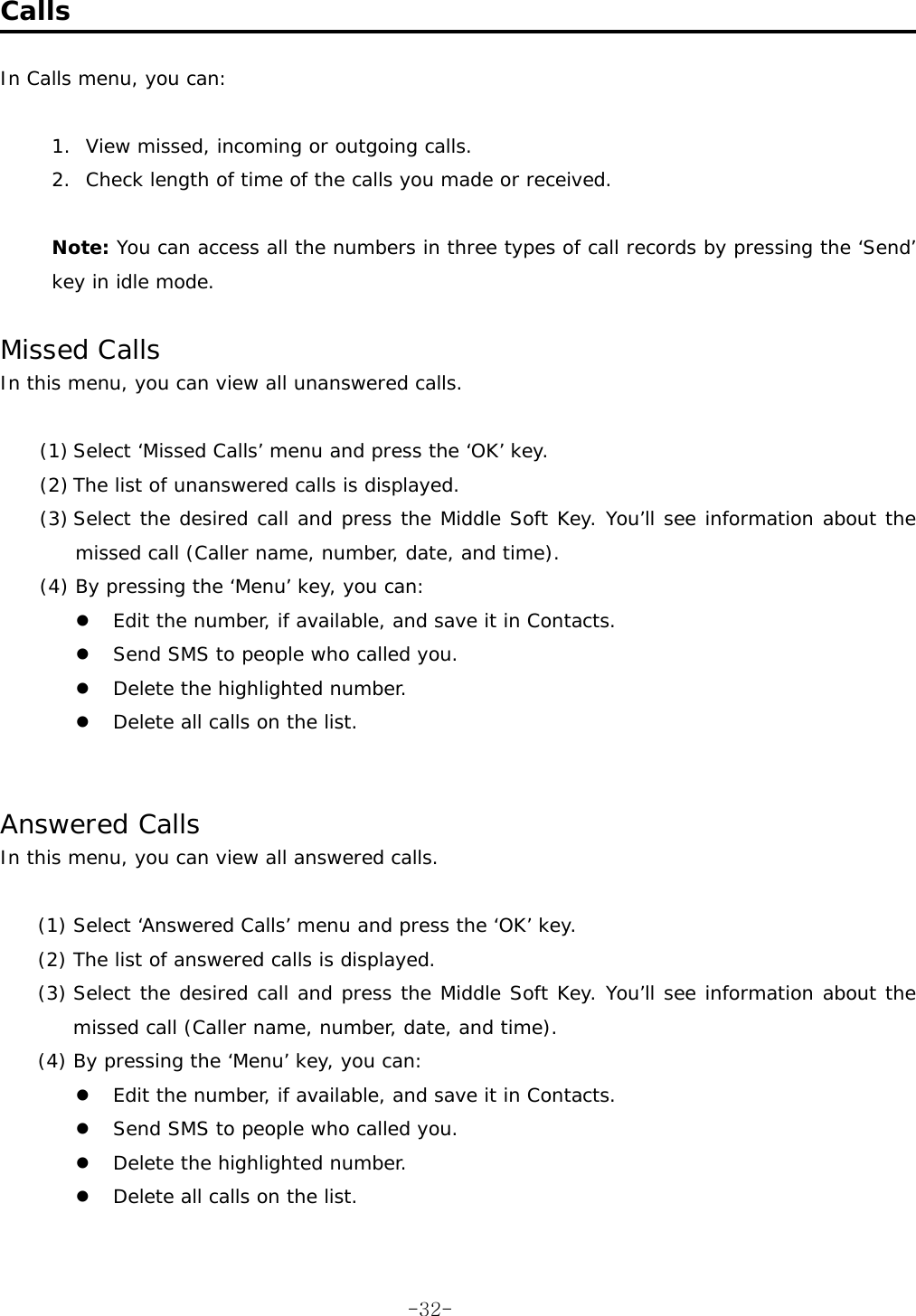
 Calls  In Calls menu, you can:  1.  View missed, incoming or outgoing calls. 2.  Check length of time of the calls you made or received.  Note: You can access all the numbers in three types of call records by pressing the ‘Send’ key in idle mode.  Missed Calls In this menu, you can view all unanswered calls.  (1) Select ‘Missed Calls’ menu and press the ‘OK’ key. (2) The list of unanswered calls is displayed. (3) Select the desired call and press the Middle Soft Key. You’ll see information about the missed call (Caller name, number, date, and time). (4) By pressing the ‘Menu’ key, you can:   Edit the number, if available, and save it in Contacts.   Send SMS to people who called you.   Delete the highlighted number.   Delete all calls on the list.   Answered Calls In this menu, you can view all answered calls.  (1) Select ‘Answered Calls’ menu and press the ‘OK’ key. (2) The list of answered calls is displayed. (3) Select the desired call and press the Middle Soft Key. You’ll see information about the missed call (Caller name, number, date, and time). (4) By pressing the ‘Menu’ key, you can:   Edit the number, if available, and save it in Contacts.   Send SMS to people who called you.   Delete the highlighted number.   Delete all calls on the list.   -32-
 Dialed Calls In this menu, you can view all dialed calls.  (1) Select ‘Dialed Calls’ menu and press the ‘OK’ key. (2) The list of dialed calls is displayed. (3) Select the desired call and press the Middle Soft Key. You’ll see information about the missed call (Caller name, number, date, and time). (4) By pressing the ‘Menu’ key, you can:   Edit the number, if available, and save it in Contacts.   Send SMS to people who called you.   Delete the highlighted number.   Delete all calls on the list.   Call timers In this menu, you can view timers for last call, dialed calls, received calls and total call time. By pressing the ‘Menu’ key, you can delete all timer records.   -33-
 Contacts  In this Contacts menu, you can store up to 800 phone numbers and other informations in the memory of the phone.  Search number In the sub-menu, you can search the desired number by name, number, group, speed dial.  1. All This option enables you to view all contacts list. By pressing the up and down keys, you can find the desired number.  (1) By pressing the ‘Menu’ key, you can:   Edit the stored data such as name, number, etc.   Delete the highlighted data.   Send vCard to highlighted person.   Send vCard to all.   Send foto.  2. By Name This option enables you to search the desired number by name.  (1) Select ‘By Name’ menu. (2) Input the name to be searched. (3) Show the search result.   3. By Number This option enables you to search the desired number by number.  (1)  Select the ‘By Number’ menu. (2)  Input the phone number to be searched. (3)  Show the search result.  4. By Group This option enables you to search the desired number by group.   -34-
(1) Select the ‘By Group’ menu. (2) Show the searching group. Max. group number is 7, and if one group is deleted, the information which belong to that group is moved into the ‘Undefined group’. (3) Show the search results.   5. By Speed Dial This option enables you to search the desired number by speed dial.  (1) Select ‘By Speed Dial’ menu. (2) Input the speed dial number and press the ‘OK’ key. (3) Show the search result. When user does not input the search key, the whole list of contacts is displayed.   Add number Add Number menu enables you to enter a new number in the contact box.  (1) Select ‘Add Number’ menu. (2) Add a name for the number. (3) Add the location information (home, handphone, office, etc). To change location, use the ‘Up-Side’ and ‘Down-Side’ key. (4) Add phone number. (5) When all the information is entered, press ‘Save’ key then select ‘Yes’ to store the data.   Check Capacity In this menu, you can check the capacity of the contacts. When you select the ‘Check Capacity’ menu, you can view the availability of memory for contacts.   Delete All This menu deletes all contact information.   Group Edit In this menu, you can view the current stored group and its setting states such as melody or color. By pressing the ‘Menu’ key you can edit a stored group or add a new group.   -35-
 My Phone No. In this menu, you can view your phone number.     -36-
 Other Functions  Many different features of your phone can be customized to suit your preference. All of these features are accessed in the Other Functions menu.  Sound This menu enables you to set the various sound feature to customize, such as:  1.  Ring melody, volume and type. 2.  Sound made when you press a key, make an error or receive a message.  1. Alert Mode  This option allows you to specify how you are to be informed of any incoming calls. The following options are available:  (1) Ring: The phone rings using the ring melody set by the Ring/Melody menu option. (2) Vibrate: The phone vibrates only. (3) Vib. then Ring: the phone first vibrates three times and then starts ringing. (4) Ring with Vib.: the phone vibrates and while ringing. (5) Silence: The phone animation flashes. The phone neither rings nor vibrates. (6) Increasing: The phone rings as the melody volume is gradually increased.  2. Ring/Melody In this option, you can select the ring melody   (1) Select ‘Other Functions’ →’Sound’ →’Ring/Melody’. (2) Select ‘Ring/Melody’ or ‘Download Sound’. (3) With the arrow key or side key, you can select the ring and melody sound. Download sound also saved in you phone. You can selecte the phone sound with the download music.  3. Ringer Volume In this option, you can adjust the ringing volume, key volume and hearing volume to one of five levels. Use the navigation keys to adjust the volume.  4. Key Tone In this option, you can select the key press sound.  -37-
 5. Call Alert In this option, you can select the various alert modes  (1) Min. Reminder   Select ‘Min. Reminder’.   Set the phone to beep every minute during a call to keep user informed of the length of the call. (2) Connect Alert   Select ‘Connect Tone’   Set the phone to beep when the phone connects to the network. (3) Disconnect Alert   Select ‘Discon. Alert’.   Set the phone to beep when the phone is disconnected from the network. (4) Service Area Alert   Select ‘SVC Area Alert’.   Set the phone to beep when the service area is changed. (5) Power On/Off Alert   Select ‘Power On/Off’.   Set the phone to beep when power is on or off. (6) Low battery Alert   Select ‘Lowbatt. Alert’.   Set the phone to beep when battery level is low.  6. DMTF Tone In this option, you can set the DMTF tone long or short.   Screen/Lighting In this menu, you can change the background image and the text of Banner according to your preference. You can select the length of time for which the backlight is on.  1. Wallpaper This option allows you to change the background image (Wallpaper) to be displayed in the following mode:  (1) Standby (2) Power On  -38-
(3) Power Off (4) Incoming Call (5) Outgoing Call (6) Sending SMS (7) Connect Internet  To change the background image, after choosing the image, press the ‘OK’ key to confirm the change.  2. Banner You can change the phone’s name (banner) displayed on idle screen. You can enter EDIT screen with any key press. After editing, press the ‘OK’ key to confirm the change.  3. Backlit Ctrl This option allows you to control the duration of the main LCD backlight. Backlights can be set to 5 sec, 10 sec, 30 sec, and 1 min.   Secretary In this option, you can:  1.  Set the morning call so that the phone always rings at the same time. 2.  Set the alarm so that the phone rings at a specific time. 3.  View the calendar and organize your schedule. 4.  Set the D-day. 5.  Use the phone as a calculator for basic mathematical equations. 6.  View the world time.  1. Morning Call When you set the Morning Call on, alarm will go on at the time you have set. To stop Morning call, press any key on the phone. To set the Morning Call, do:  (1) Select ‘Morning Call’ menu. (2) Press ‘Menu’ key to edit time, melody and time interval. (3) Select ‘On’ button and then press ‘OK’ key.  2. Alarm  When you set the Alarm on, alarm will go on at the time you have set. To stop the Alarm, press  -39-
any key on the phone. Maximum of 2 alarms can be stored. To set the Alarm, do:  (1) Select ‘Alarm’ menu. (2) Select ‘Alarm1’ or ‘Alarm2’. (3) Press “Menu” key to edit time, melody and time interval. (4) Select ‘On’ button and then press ‘OK’ key.  3. Schedule  You can input up to 50 schedules and alarm is notified at stored date.   (1) Add Schedule   Select ‘Add Schedule’ menu.   Edit the date, time, alert time, alarm sound and contents of the schedule and press the ‘Save’ button when done. (2) View Schedule   Select ‘View schedule’ menu. Calendar is displayed and if any schedule was stored before at a specific day, then a small blue box is shown at that day.   Press ‘Menu’ key to add a new schedule or delete all items that was stored before at that date.   You can move to another day using the navigation keys. You can also move by pressing ‘2’ key (Moves 1 year before), ‘8’ key (Moves 1 year after), ‘4’ key (Moves 1 month before) and ‘6’ key (Moves 1 month after).   You can also press the ‘OK’ key to add schedule.   Edit the date, time, alert time, alarm sound and contents of the schedule and press the ‘Save’ button when done.  4. D-Day D-Day allows you to monitor the time and day remaining between the current date and time and any date that you specify.  (1) Add D-Day   Select ‘D-Day’ menu.   To add content of the D-Day, press ‘Edit’ button (Left Soft Key).   Edit content and press Middle soft key to save.   Set the D-Day, by editing the date and time displayed. Time should be in dd/mm/yyyy format.   Press ‘Save’ button (Middle Soft Key) to save D-Day. (2) View and Modify D-Day  -40-
  Select ‘D-Day’ menu.   Press “Menu” key to add a new D-Day or delete D-Days.   To see contents of stored D-Day, press ‘OK’ button (Middle Soft Key). To modify and delete, press “Menu” key.  5. Calculator  (1) Select “Calculator” menu. (2) Input number and calculate. Use the navigation key to set the operation for your calculator. Press ‘#’ key to see the result.  6. World Time  World Time allows you to view time for selected cities in each of the world’s 24 time zones. Use the navigation keys to move through time zones.   Settings      Settings menu enables you to set the various features.  1. System Menu (1) Select NAM (Number Assignment Module)   Select ‘Select NAM’ menu.   ‘NAM 1’ or ‘NAM 2’ by pressing ‘Up-Side’ key or ‘Down-Side’ key (2) Auto NAM   By selecting ‘Enable’, phone’s NAM automatically changes to NAM1 or NAM2 according to SID (System Identification).   By selecting ‘Disable’, Auto NAM is disabled.  2. Call Settings Detailed methods of using ‘Call Settings’ menu may vary according to your service provider.  3. Answer Mode In this menu, you can select the answer mode when the phone is called. You can select two modes to answer the call:  1. Any key 2. Auto answer  4. Language  -41-
Language menu allows you to select the phone language among Spanish/English/Portuguese.  5. S/W Version You may check the S/W version of the phone.  6. Editor Mode In this menu, you can select the default editor for text input in SMS, Contacts, etc.  7. Time Format In this menu, you can select the format of displayed time in idle states.  8. Key Guard Key Guard will lock the phone’s keypad to avoid unintentional push of buttons. You may disable this function by entering ‘*#*#’ on idle screen or by selecting ‘Off’ in Key Guard menu.   Security The Security menu enables you to restrict the use of you phone.  1. Phone lock  This phone provides many security options, including a user-programmable lock code and call restriction features. To access the security menu, you must enter a four-digit lock code (The lock code is factory set to “0000”). The following options are available:  1.  Unlocked: The phone remains unlocked. 2.  Lock Now: The phone locks immediately. You may lock the phone by holding the ‘*’ key on idle screen. To unlock the phone, enter the password. 3.  On Power-Up: The phone locks automatically on the next power-up.  2. Change Passwd  The Change Password feature allows you to change your current phone’s password to a new one. You must enter the current password before you can specify a new one. The password is factory set to 0000. Once you have entered a new password, you are asked to confirm it by entering it again.  (1) Select ‘Change Passwd’ menu and press ‘Ok’ key. (2) Enter the old password. (3) Enter the new password.  -42-
(4)  Reenter the new password.  3. Call Barring  The Call Barring network service allows you to restrict your calls and unauthorized access.  (1) Lock Incoming: Cannot receive any incoming calls. (2) Lock Outgoing: Cannot make outgoing calls. (3) Lock Int’l: Cannot make international calls. (4) Lock DATA SVC: Cannot use WAP service.  4. Initialization The phone is initialized through this menu. All stored values are cleared.  (1) Select “Initialization” menu. (2) Enter the password to initialize the phone. (3)  Confirm the initialization.   -43-

Navigation menu