Volvo 2010 Navigation System C30, S40, V50, C70 And XC90 2010Navigation Operation Manuals P1
User Manual: Volvo 2010 Volvo Navigation System - C30, S40, V50, C70 and XC90 2010 Volvo V50 Owners Manual Pdf | Owner's Manual Pdf
Open the PDF directly: View PDF  .
.
Page Count: 88

OPERATING MANUAL
VOLVO C30, S40, V50, C70 & XC90
VOLVO NAVIGATION SYSTEM (VNS) Web Edition
G033441
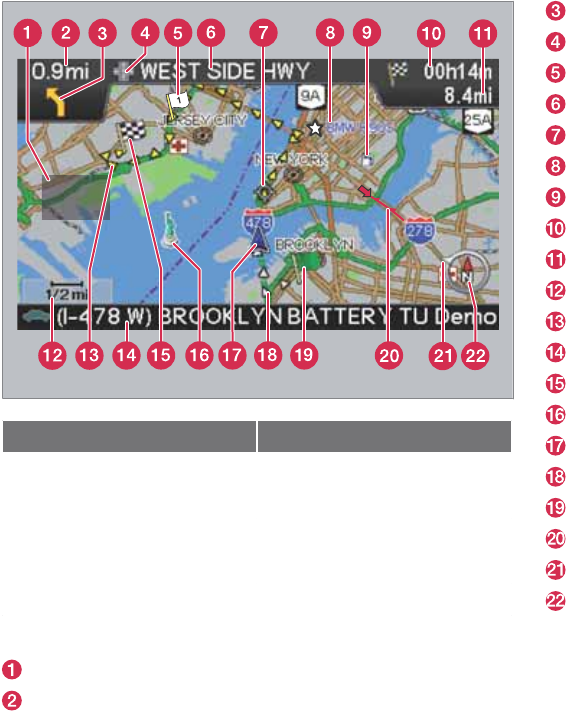
Types of roads Color
Freeways Green
Main roads Red
Secondary main roads Brown
Normal roads Dark gray
Local roads Dark green
Text and symbols on the screen
Area to be avoided
Distance to the next guidance point
Direction to take at next guidance point
Type of junction
Intermediate destination
Name of next street or road
Next guidance point
Stored location
Symbol for a Point of Interest – POI (Gas station)
Remaining time to destination
Remaining distance to destination
Map scale
Route
Current road
Final destination
Famous landmarks
The vehicle’s current location
Completed section of the route
Starting point
Traffic information
Outer ring of compass – direction to destination
Compass

VOLVO NAVIGATION SYSTEM (VNS) WITH RTT
VNS is a navigation system developed by Volvo, which is
designed to help guide you to the destination of your choice
and provide information along the way.
RTT1 (Real Time Traffic) is an information system developed by
Volvo, which can detect roads/streets with traffic disruptions
and make it possible to select an alternative route past the
problem area.
The system includes features that enable you to set itineraries,
search for certain types of points of interest along your route,
store special destinations, obtain traffic informaton en route,
etc.
The system indicates the vehicle’s current location, and shows
part or all of the route to your destination, depending on the
settings you have made. If at any time you should decide to
deviate from the route originally set by the system, a new route
to the destination will automatically be calculated.
By enabling you to reach your destination quickly and by the
most direct route, Volvo's navigation system also helps con-
tribute to improving the environment.
NAVTEQ DATABASE End-User License Agreement
See the information on page see page 80.
1 Option. Not available in all markets.

Contents
4
01
01 Getting to know the
navigation system
This manual............................................... 10
Before you start........................................ 11
Navigation system, updating and care..... 13
C30 system overview................................ 14
S40 system overview................................ 16
V50 system overview................................ 18
C70 system overview................................ 20
XC90 system overview.............................. 22
Navigation system controls...................... 24
On-screen keypad.................................... 25
Display and voice guidance...................... 26
Unverified roads and Compass................ 28
Menu selections........................................ 29
02
02 Easy user mode
Main menu, Shortcut menu, Scroll menu. 34
Menu selections........................................ 35
Setting a destination................................. 36
Show/Remove destination........................ 39
Settings..................................................... 40
03
03 Advanced user mode
Main menu, Shortcut menu...................... 44
Map scroll menu....................................... 46
Menu selections........................................ 47
Setting a destination................................. 49
Itinerary..................................................... 54
Next destination........................................ 56
Current position........................................ 57
Traffic information (option)........................ 58
Settings..................................................... 59
System simulation..................................... 63

Contents
5
04
04 Traffic information
Introduction............................................... 66
Avoiding traffic problems ......................... 67
Selecting information................................ 68
Reading information.................................. 69
05
05 Symbols on the map
Road numbers and Points of interest....... 72
06
06 Questions & answers
Frequently asked questions...................... 78
EULA – End User License Agreement...... 80

Contents
6
07
07 Index
Index......................................................... 84

Contents
7

G028780
8
This manual............................................................................................. 10
Before you start...................................................................................... 11
Navigation system, updating and care................................................... 13
C30 system overview.............................................................................. 14
S40 system overview.............................................................................. 16
V50 system overview.............................................................................. 18
C70 system overview.............................................................................. 20
XC90 system overview............................................................................ 22
Navigation system controls..................................................................... 24
On-screen keypad.................................................................................. 25
Display and voice guidance.................................................................... 26
Unverified roads and Compass.............................................................. 28
Menu selections...................................................................................... 29

01
GETTING TO KNOW THE NAVIGATION SYSTEM
01 Getting to know the navigation system
This manual
01
10
Using this manual
The manual is divided into chapters describing
the various features and functions of the navi-
gation system.
A section dealing with common questions and
answers, and an index, can be found at the end
of the manual.
Menu selections/Paths
Menu selections are shown in gray text in this
manual, for example:
Set destination Address City
Changes in the manual
The specifications, design features, and illus-
trations in this manual are not binding. We
reserve the right to make modifications without
prior notice.
© 2009 Volvo Car Corporation
01 Getting to know the navigation system
Before you start
01
``
11
Introduction
The VNS system can be used even if a desti-
nation has not been selected.
The vehicle’s current route will be shown on the
screen and the vehicle’s position will be indi-
cated by a blue arrow on the map.
The system’s contents may vary from state to
state, and not all menu selections may be avail-
able for technical reasons.
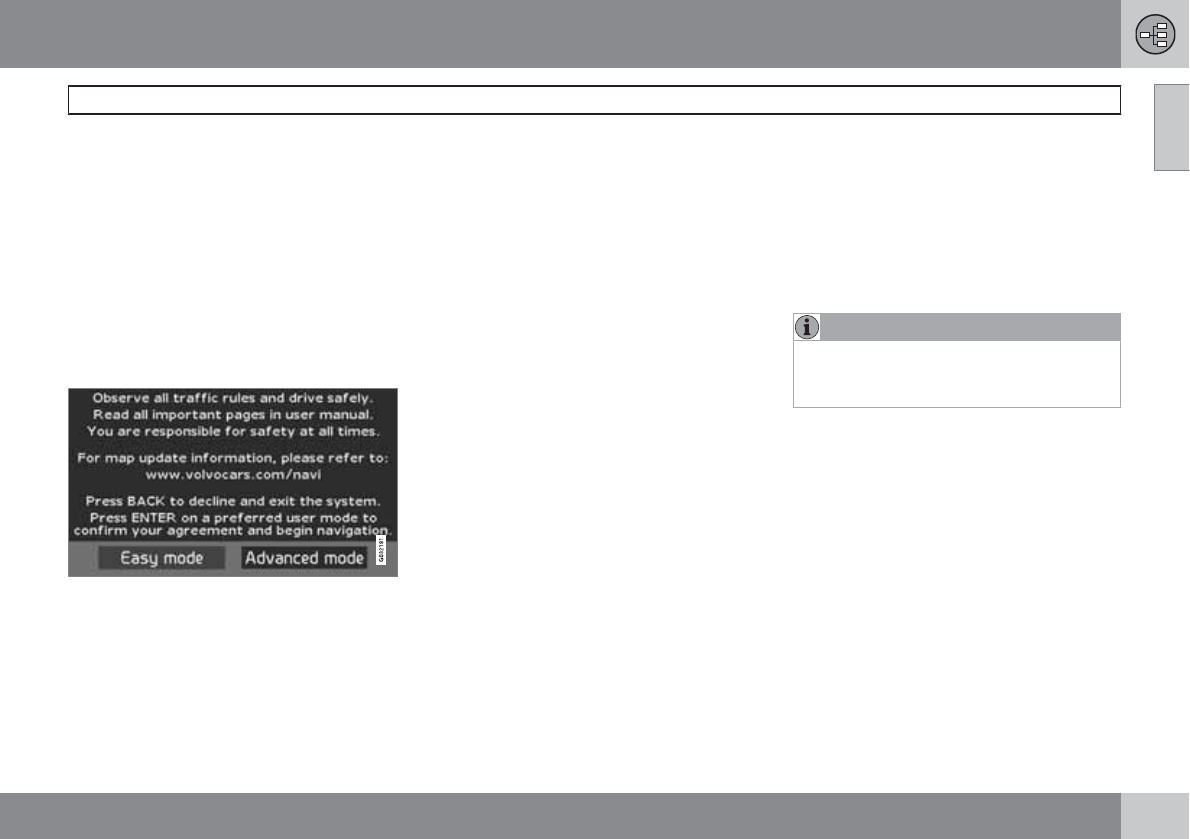
Start up
The system starts up by displaying text on the
screen that must be confirmed by pressing
ENTER after you have selected to use either
Easy mode or Advanced mode.
Map mode
When the system has started, the screen will
display the main menu briefly before entering
Map mode. A map of the vehicle's current loca-
tion will then be displayed.
•Press BACK to display the main menu.
•Press ENTER to activate the shortcut
menu.
•Press the navigation control to activate
Map scroll mode, for example to see parts
of the map that are outside of the screen
area.
Pressing ENTER in this mode activates the
Map scroll menu, see page 34.
On/Off
ON
The ignition must be in position I or II in order
to operate the system (refer to the vehicle’s
owner’s manual).
•Press ENTER or BACK.
The screen will slide up from the dashboard
automatically. It may take several seconds for
the system to determine the vehicle’s location
and direction.
Off
1. Use the navigation control to go to Shut
down.
2. Press ENTER (press BACK to go to the
main menu before shutting down).
The screen will retract automatically into the
dashboard.
NOTE
The system can be used even if the engine
is not running. It should be turned off when
not in use to help avoid battery drain.
Settings
The system is provided with default settings,
but it will start with the settings that were most
recently used.
If a setting is changed and you wish to return
to the default setting, only the currently
selected function will be affected.
There is no global reset function to return all
settings to default.
01 Getting to know the navigation system
Before you start
01
12
Easy/Advanced modes
When the navigation system is started, the
desired user mode can be selected.
•Easy
Only the primary menus are available in this
mode, and can be used to simply get directions
from point A to B.
•Advanced
This mode makes all settings and functions
available.
Switching between modes
Switching between modes can be done in
Settings.
NOTE
Settings made in Easy mode are not used if
the system is switched to Advanced mode,
and vice versa. Settings are stored in the
mode in which they were made.
Demo (simulated guidance)
The navigation system contains a function that
demonstrates guidance to a destination. How-
ever, please be aware that the demo can only
be run when the vehicle is at a standstill.
This function is only available when VNS is in
Advanced mode, see Demo on page 63.
01 Getting to know the navigation system
Navigation system, updating and care
01
13
Contents of the main unit
All map information is stored on the main unit’s
hard drive. There is no DVD in the unit when it
is delivered. The DVDs are used for any
updates to system or map information, see the
instructions of the DVD’s cover.
New DVDs are issued on a regular basis with
updated and new information. The latest DVDs
can be purchased from a Volvo retailer.
Volvo cannot be responsible for the accuracy
or completeness of data, maps, or routing
guidance presented by your navigation sys-
tem.
NOTE
The main unit’s DVD player is intended for
Volvo DVDs only.
Updating with a DVD
NOTE
Please note that an update may take up to
90 minutes. Be sure the vehicle’s battery is
adequately charged before beginning.
If a DVD contains new system software in addi-
tion to map information, the system will begin
by running the software installation.
The vehicle can be driven while the navigation
system is being updated, but VNS cannot be
used while the update is in progress.
To perform an update:
1. Switch on the navigation system.
2. Remove a DVD if one is already inserted in
the system’s DVD player.
3. Insert the DVD containing the updated
information. If there is more than one disc,
insert them in the numbered order.
4. The system will now be automatically
updated. Information will be displayed to
show update progress.
5. After the update, the DVD containing the
most recent update must remain in the
system’s DVD player. If more than one disc
has been used, insert disc 1. If the disc is
removed from the player, the navigation
system will stop functioning.
If the system is switched off while an update is
in progress, the update will be resumed the
next time the system is switched on.
In certain cases, updating map information will
add new system functions.
The VNS start screen will be displayed when
updating is completed.
DVD care
•When changing discs, make sure that they
are kept free of oil, grease and other impur-
ities.
•The discs must not be exposed to mois-
ture.
•The discs must be kept in their packaging
when not in use. Avoid storing discs in
excessive heat, direct sunlight or in a dusty
environment.
Screen care
Clean the display screen with a soft, non-static
cloth or a moist paper towel and a mild window
cleaning agent.
Never use petroleum based solvents or abra-
sive substances when cleaning the screen.
01 Getting to know the navigation system
C30 system overview
01
14
G019631
01 Getting to know the navigation system
C30 system overview
01
15
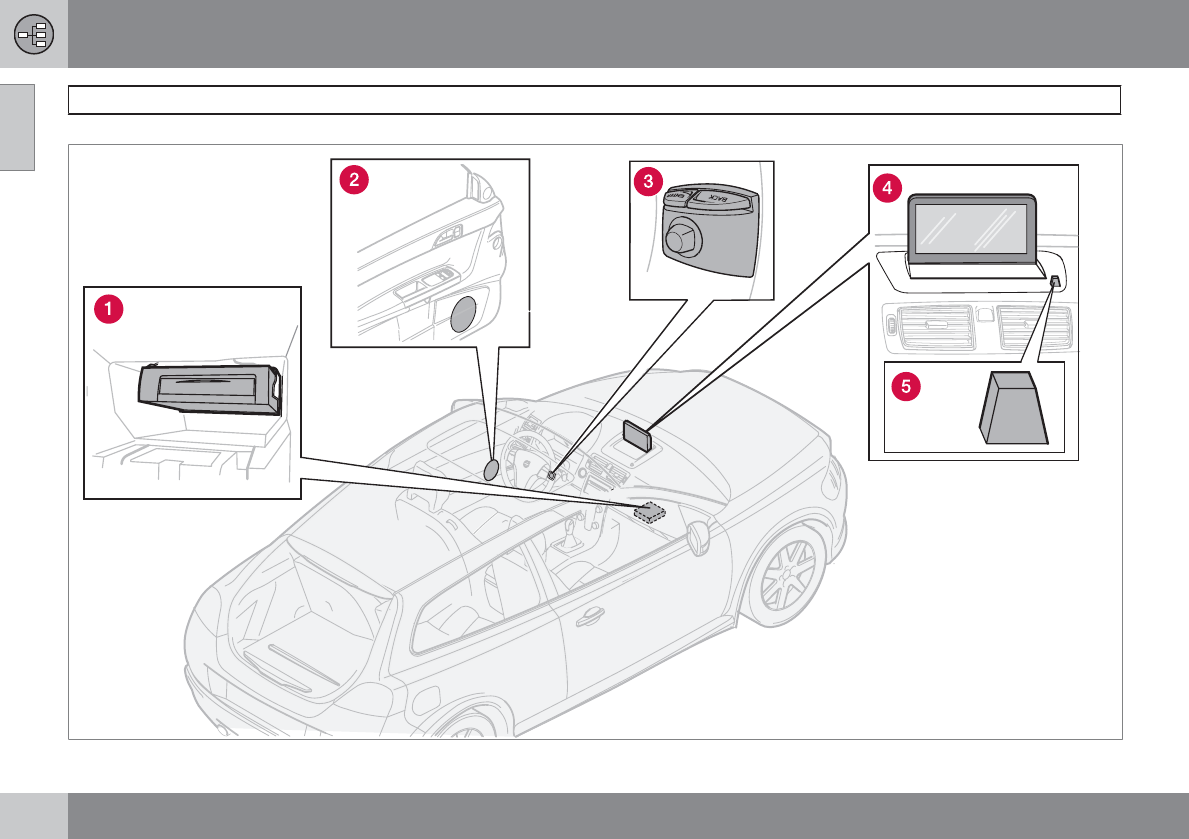
Main unit
The main unit contains a hard drive, a DVD
player (for navigation system map discs only)
and an integrated GPS (Global Positioning
System) receiver and a TMC (Traffic Message
Channel) receiver.
The main unit has the following functions:
•Calculates the vehicle’s current position
•Calculates the route to the selected desti-
nation
•Processes traffic information
•Provides voice guidance
•Stores map data
•Uses the DVD player to update map data
and system software
GPS receiver
The navigation system uses GPS signals, the
vehicle’s speedometer and a gyroscope to
determine the vehicle’s current location and
direction.
Traffic information – TMC (option)
1
TMC is a standardized code system for trans-
mitting traffic information. The receiver auto-
matically tunes to the correct frequency and
reception is handled by the audio system’s FM
antenna.
The area covered by the system is being stead-
ily expanded, which makes occasional
updates necessary, see page 13.
Regardless of whether the navigation system
is in Easy or Advanced mode, broadcast traf-
fic information is always received and presen-
ted. see page 66 for additional information.
Speakers
Sound from the navigation system comes
through the audio system’s front speakers.
Navigation control
See page 24.
Screen
The screen displays the maps and provides
detailed information on intersections, dis-
tances, etc. See page 13 for information on
caring for the screen.
IR port for the remote control
See page 24.
1Not available in all markets.
01 Getting to know the navigation system
S40 system overview
01
16
G019632
01 Getting to know the navigation system
S40 system overview
01
17
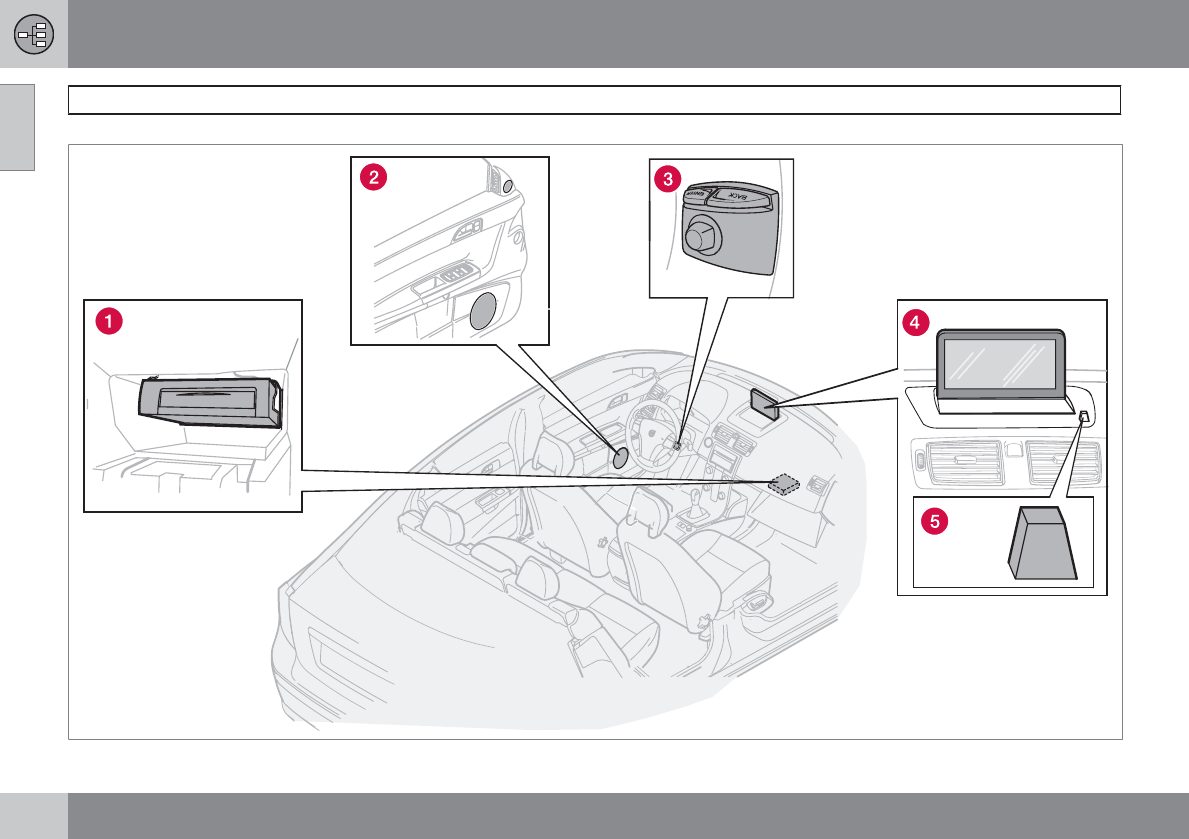
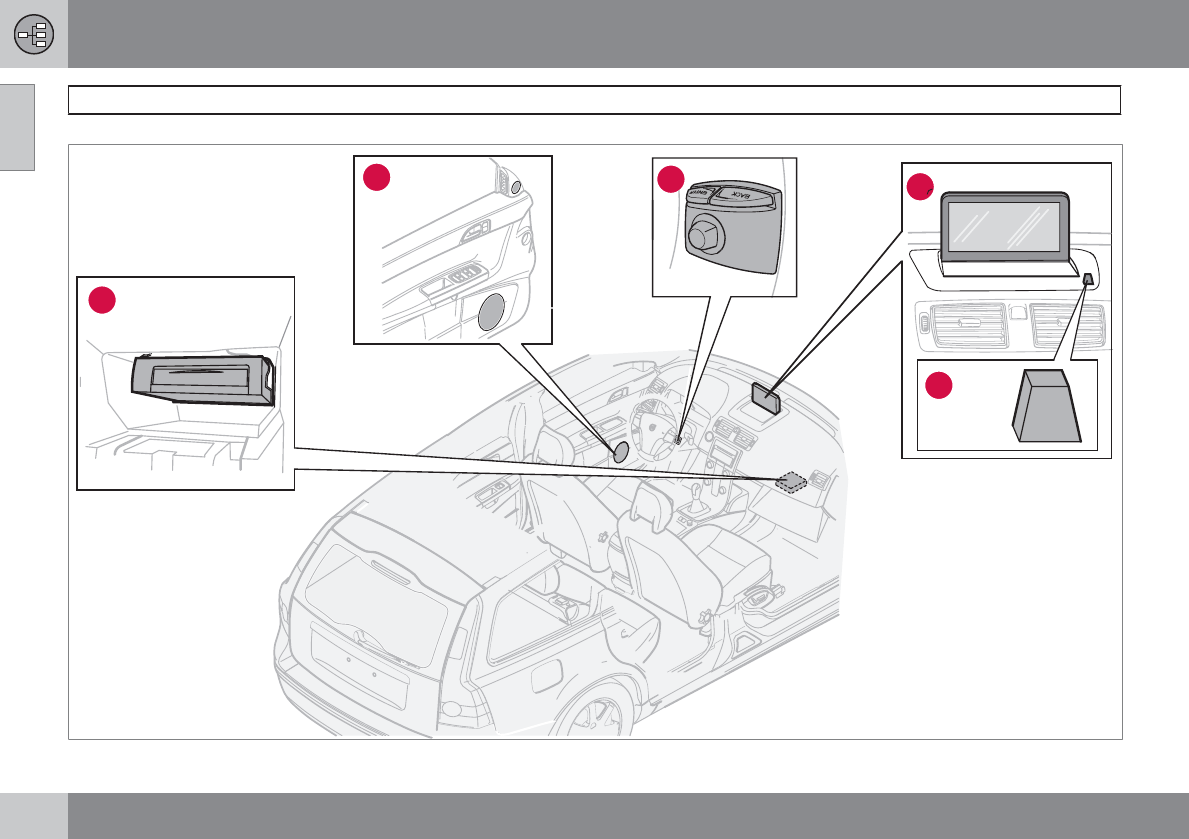
Main unit
The main unit contains a hard drive, a DVD
player (for navigation system map discs only)
and an integrated GPS (Global Positioning
System) receiver and a TMC (Traffic Message
Channel) receiver.
The main unit has the following functions:
•Calculates the vehicle’s current position
•Calculates the route to the selected desti-
nation
•Processes traffic information
•Provides voice guidance
•Stores map data
•Uses the DVD player to update map data
and system software
GPS receiver
The navigation system uses GPS signals, the
vehicle’s speedometer and a gyroscope to
determine the vehicle’s current location and
direction.
Traffic information – TMC (option)
1
TMC is a standardized code system for trans-
mitting traffic information. The receiver auto-
matically tunes to the correct frequency and
reception is handled by the audio system’s FM
antenna.
The area covered by the system is being stead-
ily expanded, which makes occasional
updates necessary, see page 13.
Regardless of whether the navigation system
is in Easy or Advanced mode, broadcast traf-
fic information is always received and presen-
ted. see page 66 for additional information.
Speakers
Sound from the navigation system comes
through the audio system’s front speakers.
Navigation control
See page 24.
Screen
The screen displays the maps and provides
detailed information on intersections, dis-
tances, etc. See page 13 for information on
caring for the screen.
IR port for the remote control
See page 24.
1Not available in all markets.
01 Getting to know the navigation system
V50 system overview
01
18
3
24
1
5
G019633
01 Getting to know the navigation system
V50 system overview
01
19
Main unit
The main unit contains a hard drive, a DVD
player (for navigation system map discs only)
and an integrated GPS (Global Positioning
System) receiver and a TMC (Traffic Message
Channel) receiver.
The main unit has the following functions:
•Calculates the vehicle’s current position
•Calculates the route to the selected desti-
nation
•Processes traffic information
•Provides voice guidance
•Stores map data
•Uses the DVD player to update map data
and system software
GPS receiver
The navigation system uses GPS signals, the
vehicle’s speedometer and a gyroscope to
determine the vehicle’s current location and
direction.
Traffic information – TMC (option)
1
TMC is a standardized code system for trans-
mitting traffic information. The receiver auto-
matically tunes to the correct frequency and
reception is handled by the audio system’s FM
antenna.
The area covered by the system is being stead-
ily expanded, which makes occasional
updates necessary, see page 13.
Regardless of whether the navigation system
is in Easy or Advanced mode, broadcast traf-
fic information is always received and presen-
ted. see page 66 for additional information.
Speakers
Sound from the navigation system comes
through the audio system’s front speakers.
Navigation control
See page 24.
Screen
The screen displays the maps and provides
detailed information on intersections, dis-
tances, etc. See page 13 for information on
caring for the screen.
IR port for the remote control
See page 24.
1Not available in all markets.
01 Getting to know the navigation system
C70 system overview
01
20
1
23
4
5
*
01 Getting to know the navigation system
C70 system overview
01
21
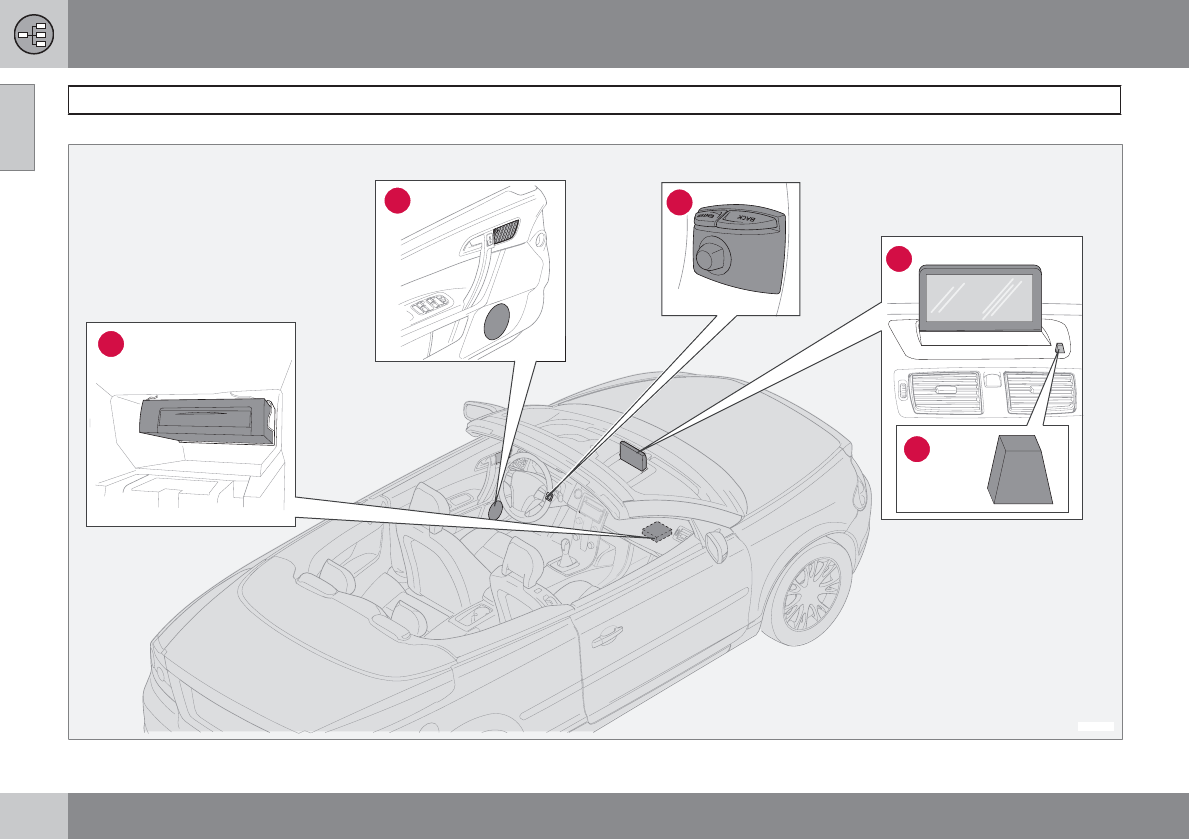
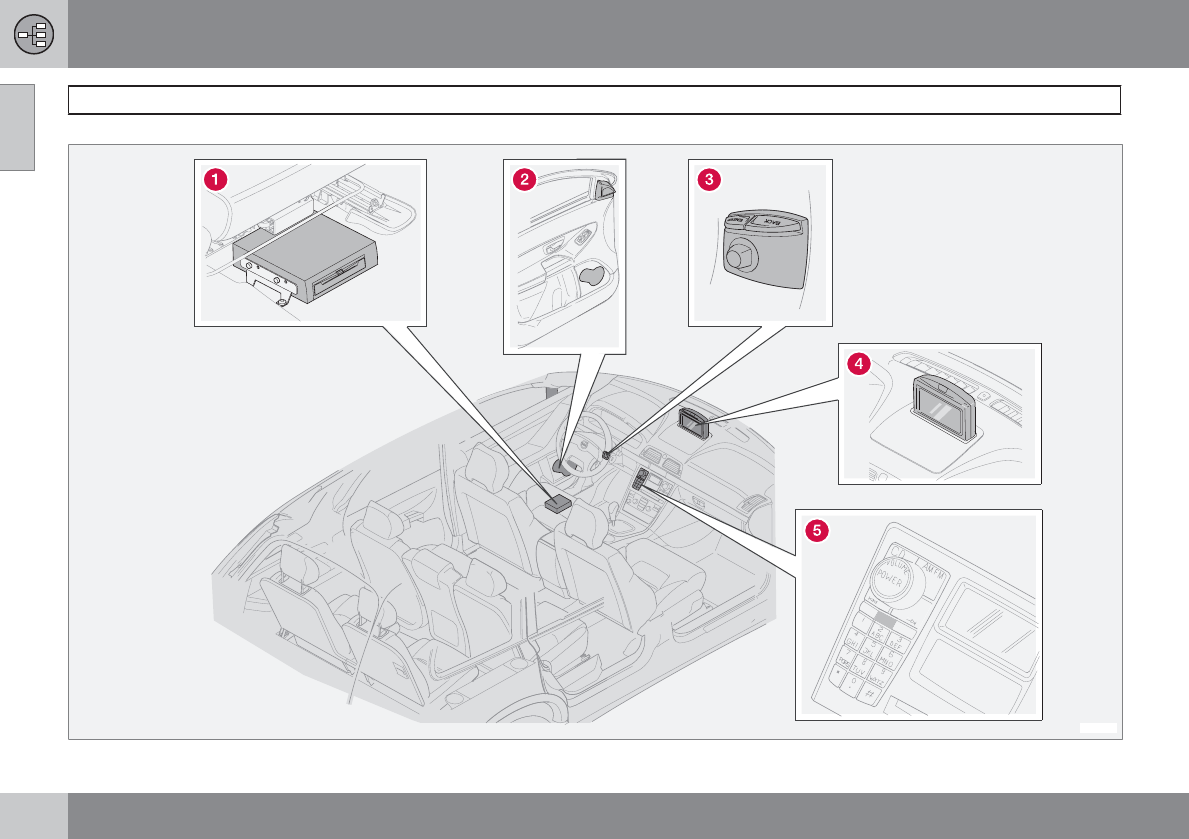
Main unit
The main unit contains a hard drive, a DVD
player (for navigation system map discs only)
and an integrated GPS (Global Positioning
System) receiver and a TMC (Traffic Message
Channel) receiver.
The main unit has the following functions:
•Calculates the vehicle’s current position
•Calculates the route to the selected desti-
nation
•Processes traffic information
•Provides voice guidance
•Stores map data
•Uses the DVD player to update map data
and system software
GPS receiver
The navigation system uses GPS signals, the
vehicle’s speedometer and a gyroscope to
determine the vehicle’s current location and
direction.
Traffic information – TMC (option)
1
TMC is a standardized code system for trans-
mitting traffic information. The receiver auto-
matically tunes to the correct frequency and
reception is handled by the audio system’s FM
antenna.
The area covered by the system is being stead-
ily expanded, which makes occasional
updates necessary, see page 13.
Regardless of whether the navigation system
is in Easy or Advanced mode, broadcast traf-
fic information is always received and presen-
ted. see page 66 for additional information.
Speakers
Sound from the navigation system comes
through the audio system’s front speakers.
Navigation control
See page 24.
Screen
The screen displays the maps and provides
detailed information on intersections, dis-
tances, etc. See page 13 for information on
caring for the screen.
IR port for the remote control
See page 24.
1Not available in all markets.
01 Getting to know the navigation system
XC90 system overview
01
22
*
01 Getting to know the navigation system
XC90 system overview
01
23
Main unit
The main unit contains a hard drive, a DVD
player (for navigation system map discs only)
and an integrated GPS (Global Positioning
System) receiver and a TMC (Traffic Message
Channel) receiver.
The main unit has the following functions:
•Calculates the vehicle’s current position
•Calculates the route to the selected desti-
nation
•Processes traffic information
•Provides voice guidance
•Stores map data
•Uses the DVD player to update map data
and system software
GPS receiver
The navigation system uses GPS signals, the
vehicle’s speedometer and a gyroscope to
determine the vehicle’s current location and
direction.
Traffic information – TMC (option)
1
TMC is a standardized code system for trans-
mitting traffic information. The receiver auto-
matically tunes to the correct frequency and
reception is handled by the audio system’s FM
antenna.
The area covered by the system is being stead-
ily expanded, which makes occasional
updates necessary, see page 13.
Regardless of whether the navigation system
is in Easy or Advanced mode, broadcast traf-
fic information is always received and presen-
ted. see page 66 for additional information.
Speakers
Sound from the navigation system comes
through the audio system’s front speakers.
Navigation control
See page 24.
Screen
The screen displays the maps and provides
detailed information on intersections, dis-
tances, etc. See page 13 for information on
caring for the screen.
IR port for the remote control
See page 24.
1Not available in all markets.
01 Getting to know the navigation system
Navigation system controls
01
24
Location of the navigation control and
IR port
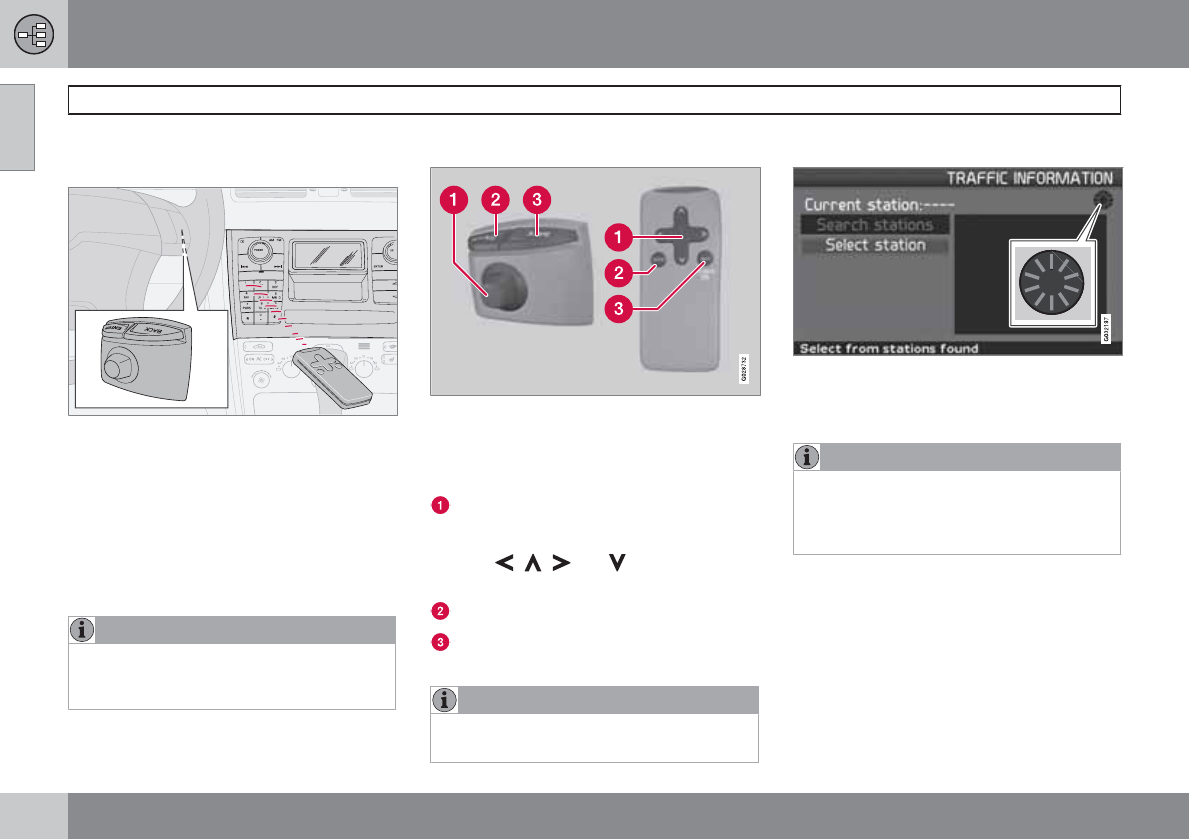
G019916
The navigation system can be operated with
the steering wheel-mounted navigation control
or with the remote control.
The navigation control is located on the right,
rear side of the steering wheel.
Point the remote toward the IR port located at
the screen (only the XC90 has the IR port on
the audio system as shown above).
NOTE
The remote control runs on AAA or R03 bat-
teries. Check the batteries if the remote
does not function properly.
Navigation control/remote control
The navigation control and remote control have
the same functions. Each enables you to nav-
igate through the menus and make settings/
selections.
Use the navigation control to move
among various menu alternatives or to
move the cross hairs on the map. The but-
tons , , and on the remote
control can be used for the same purpose.
ENTER – Confirms or activates selections.
BACK – Press this key to go to the previous
menu or to undo a selection.
NOTE
The exact design of the navigation control
may vary from model to model.
"Do not disturb"
In certain situations, the system may need a
few extra seconds to calculate a route. A sym-
bol will be displayed while this is taking place.
NOTE
While the route calculation symbol is dis-
played, the navigation system cannot
accept any commands from the navigation
control, or the ENTER or BACK buttons.
01 Getting to know the navigation system
On-screen keypad
01
25
Entering letters and selecting
alternatives
G033459
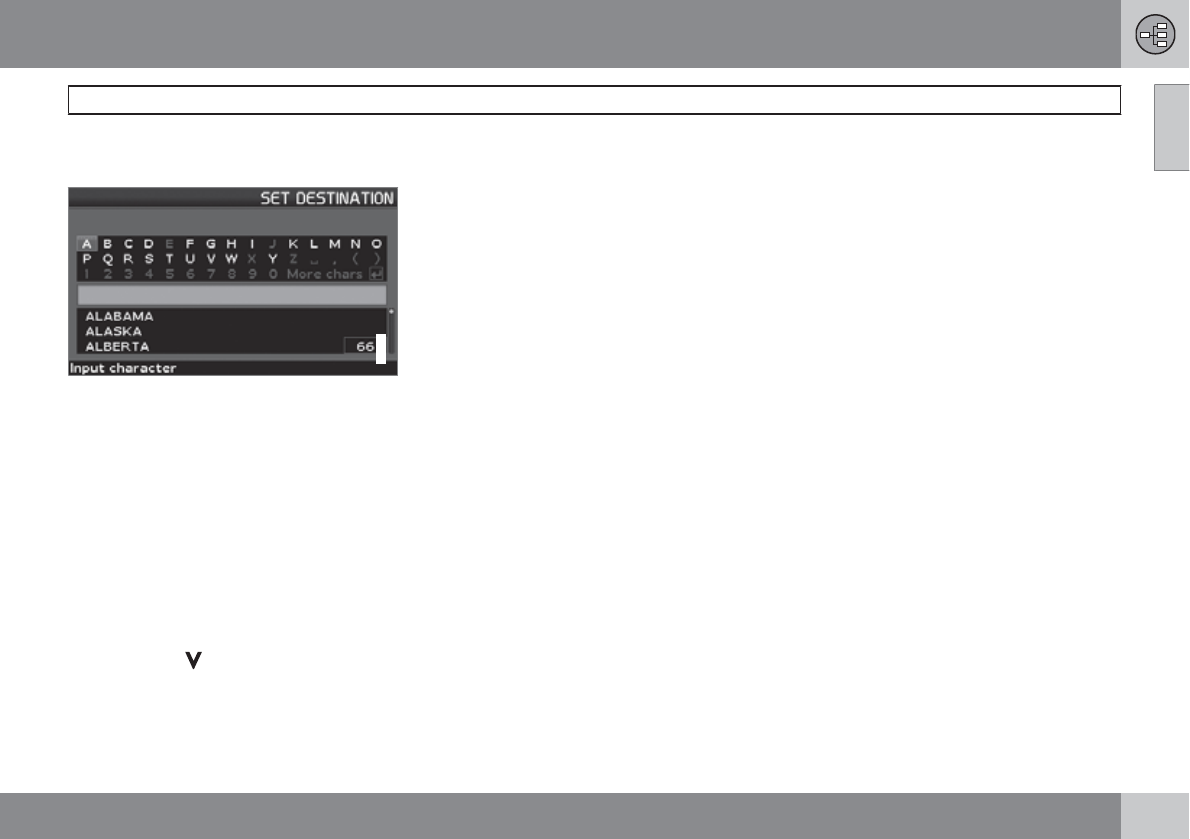
The on-screen keyboard is used in many sit-
uations in the menus to select specific infor-
mation such as points of interest, a state/city/
street address/zip code, etc.
•Select letters with the navigation control
and press ENTER.
When there are no further alternatives, the
entire name will be displayed automatically.
The list at the bottom of the screen shows the
first three possible alternatives made available
by the letters that have been entered.
1. You can also go directly to the list of names
by pressing .
2. Select a name and press ENTER.
The scroll bar at the right of the screen indi-
cates that there are more alternatives than can
be displayed at one time.
The figure shown indicates the number of
names on the list.
•Press BACK to exit the list of names.
•You can also press BACK to delete letters
one at a time
General searches
Searches can be made at any time and always
function in the same way, regardless of where
you may be in the menu system when a desti-
nation is selected.
Pressing ENTER while keying in characters
displays all result combinations for the respec-
tive selections: City, Street, Points of interest,
etc.
For example, when searching for Newark
Airport, all combinations of Newark will be
displayed when NE is entered. As the search
becomes more specific, fewer alternatives will
be displayed, making selection easier.
A search beginning with NE will also display,
for example, NEwmaket restaurant since all
alternatives containing a number of words sep-
arated by spaces are included in the search.
01 Getting to know the navigation system
Display and voice guidance
01
26
01 Getting to know the navigation system
Display and voice guidance
01
27
Display appearance
The screen display is determined by factors
such as geographic location and settings that
have been made, such as map scale, the sym-
bols selected to be displayed, etc.
An explanation of the text, signs, and symbols
that may be displayed on the screen can be
found on the inside of the front cover of this
manual.
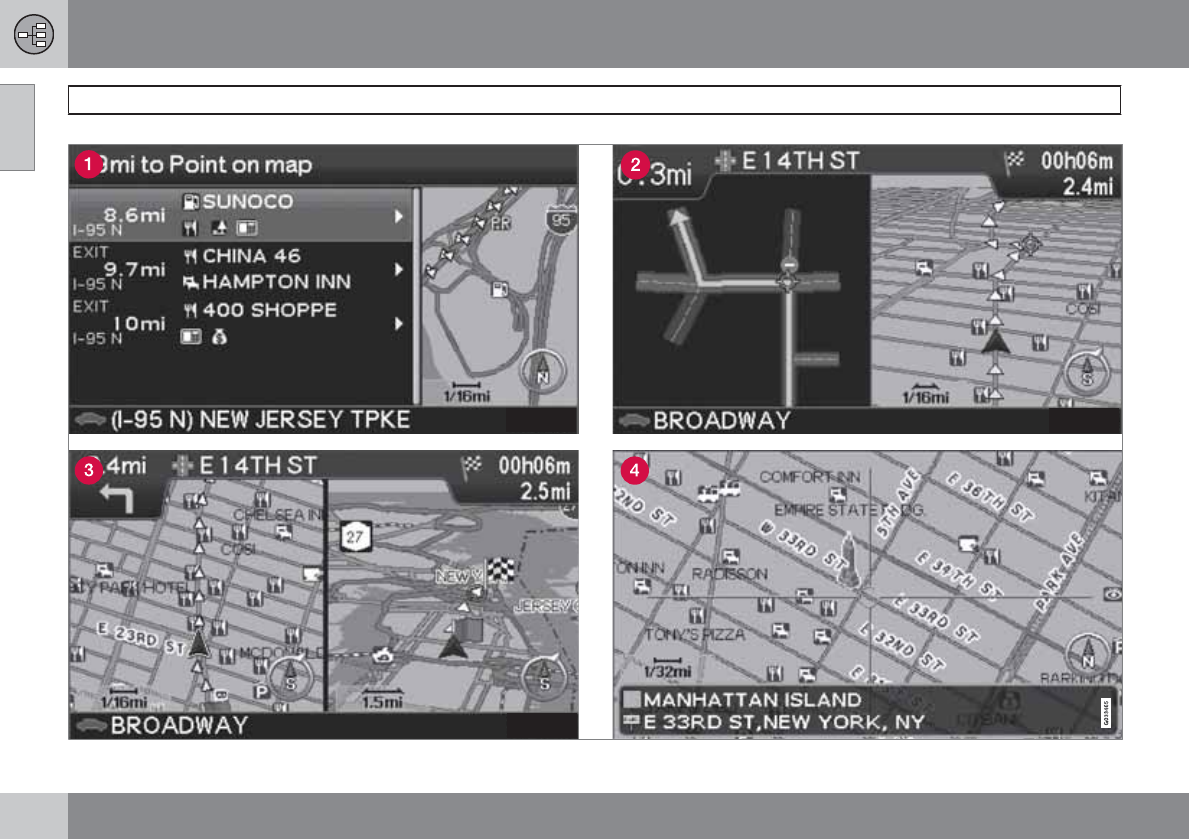
On a highway. The screen will display the
points of interest along the highway. This
function is available even if a destination
has not been selected. A scroll list at the
right indicates that there are additional
alternatives.
Detailed map showing intersections. The
screen will display lanes on the road to help
you select the correct one at the next inter-
section. This function is only available on
major roads. Voice guidance is also always
provided.
Two maps have been selected in
Settings. Both sections of the screen dis-
play the same map, but with different
scales, see p. 38 for more information.
Map scroll mode.
Voice guidance
After a destination and guidance has started, a
voice message indicating the action to be
taken and distance will be provided as you
approach an intersection, exit, etc. A detailed
map of the intersection will also be displayed.
The message will be repeated as you come
closer to the intersection.
The upper row on the screen shows the dis-
tance to the next exit or turn, and the name of
the exit.
The next row provides road sign information. If
the number of the road or exit, or the name of
the exit are available, this information will also
be displayed.
The vehicle’s current location is shown at the
bottom of the screen.
Toll booths
When driving on toll roads, you will receive
voice notification as you approach toll booths.
This message will only be provided if a desti-
nation has been selected.
NOTE
Toll booths are shown on the map but can-
not be searched for as points of interest.
01 Getting to know the navigation system
Unverified roads and Compass
01
28
Unverified roads
A small number of roads in the system may be
unverified. This means that information on
signs, one-way streets, left turns, etc., may not
be accurate. An itinerary containing unverified
roads will be displayed with gray arrows
instead of the usual yellow ones.
The system provides information when an
unverified road is added to an itinerary and
when the vehicle begins to travel on one of
these roads.
WARNING
Always use good judgment when following
navigation system guidance, and do not fol-
low guidance that seems contrary to your
own best judgment.
Never use the navigation system or any
other feature in your vehicle in a way that
distracts you from the task of driving safely.
Distraction can lead to a serious accident.
Set and make changes in your navigation
system only with the vehicle parked.
Be aware of the current traffic situation.
Always comply with relevant traffic regula-
tions.
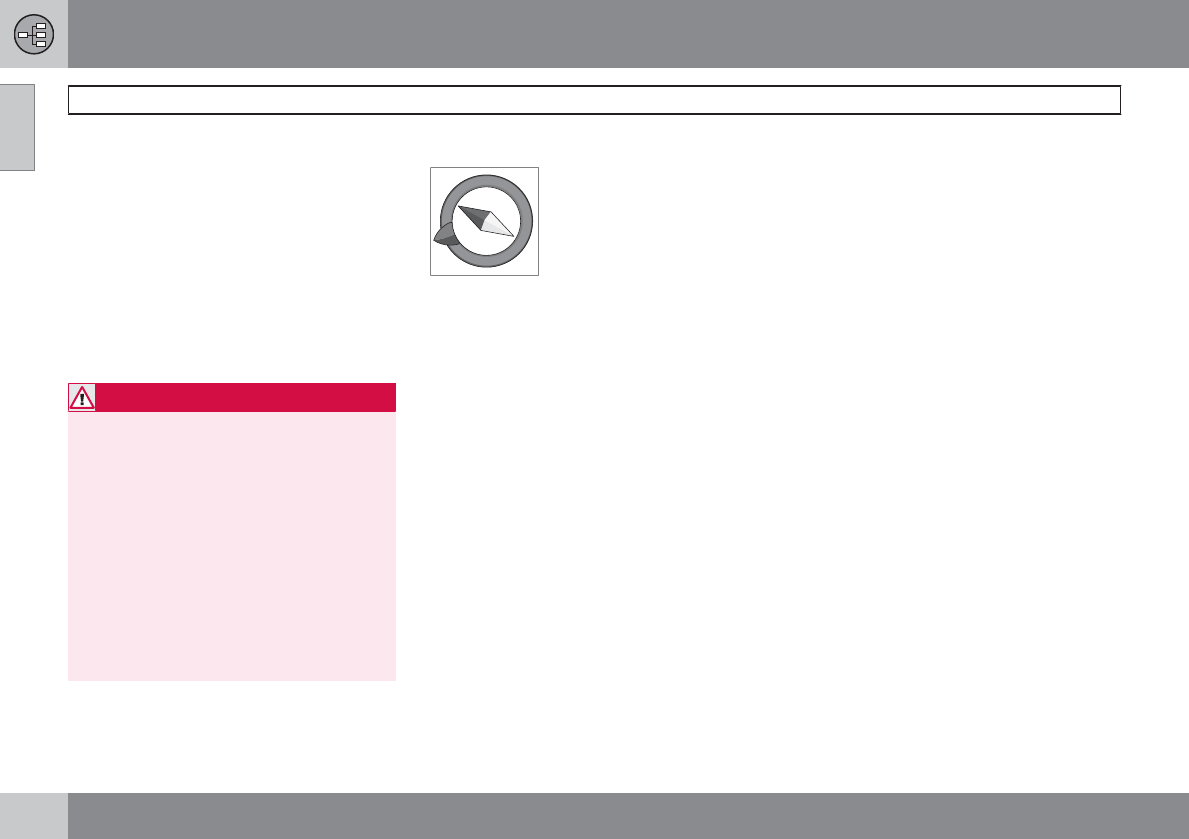
Compass
The compass can be dis-
played in two ways:
– With north always at the top
of the screen.
– With the vehicle's current
direction at the top of the
screen.
The red point of the compass needle points
north on the map.
The gray destination arrow in the outer ring of
the compass points toward the destination.
Go to Map Options under Settings to change
the way in which the compass is displayed or
to hide it.
01 Getting to know the navigation system
Menu selections
01
``
29
Menus on two levels – Easy mode
Set destination
Address
Points Of Interest (POI)
Last 20
Point on map
Show destination
Remove destination
Settings
Guiding voice
Guiding volume
Language
Color
Map view
Distance unit
User mode
Shut down
For information on all of the menu alternatives
in Easy mode, see page 35.
Menus on two levels – Advanced mode
Set destination
Address
Points Of Interest (POI)
Stored locations
Last 20
Return trip
Point on map
Latitude/longitude
Itinerary
Start guidance
Add to itinerary
Route options
Clear itinerary
Next destination
Current position
01 Getting to know the navigation system
Menu selections
01
30
Settings
Traffic information
Route options
Map options
Guiding options
System options
Start demo
Shut down
For information on all of the menu alternatives
in Advanced mode, see page 47.
01 Getting to know the navigation system
01
31

G029194
32
Main menu, Shortcut menu, Scroll menu............................................... 34
Menu selections...................................................................................... 35
Setting a destination............................................................................... 36
Show/Remove destination...................................................................... 39
Settings................................................................................................... 40

02
EASY USER MODE
02 Easy user mode
Main menu, Shortcut menu, Scroll menu
02
34
Introduction
The navigation system starts in Easy user
mode.
The most important menus are available in this
mode, which makes things easier if changes in
Settings are not often made.
Main menu
G033469
The main menu is at the top of the menu struc-
ture and can be accessed by pressing the
BACK key several times.
Switching between settings
To switch between Easy and advanced modes,
go to Settings System options User
mode.
Shortcut menu
G029190
This menu offers icons for making quick setting
changes.
•Press ENTER in map mode and select a
sub-menu with or .
G028755
– Map scale/Current route
Change the map scale for a larger perspective
or to display greater detail.
At the top of the menu, you can choose to see
either the remainder of the route1to the desti-
nation from your current location, or the entire
route.
The map scale can be changed from 1/32 of a
mile to 60 miles. Hold the button down until the
map scale of your choice is displayed, and
release the button.
G028755
– Guidance
Press ENTER to repeat voice guidance.
Traffic information (option)
2
Regardless of whether the navigation system
is in Easy or Advanced mode, broadcast traf-
fic information is always received and presen-
ted. see page 66 for additional information.
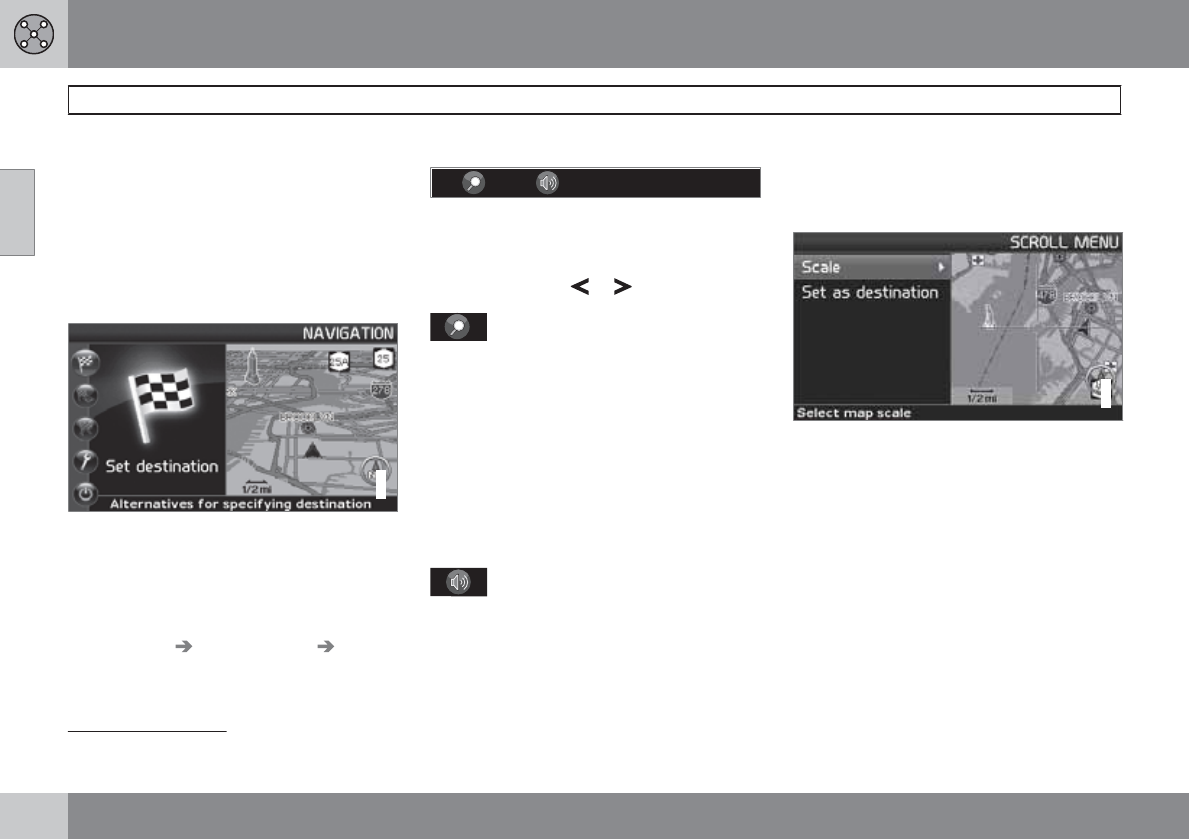
Scroll menu
G033467
•Activate map scrolling by pressing the
navigation control.
•Press ENTER in scroll mode to activate the
Scroll menu.
Scale
This function changes the scale of the area in
which you are currently driving. The scale can
be changed from 150 ft to 60 miles.
Set as destination
Select a position on the map. Guidance will
begin immediately.
1A destination must be selected.
2Not available in all areas.
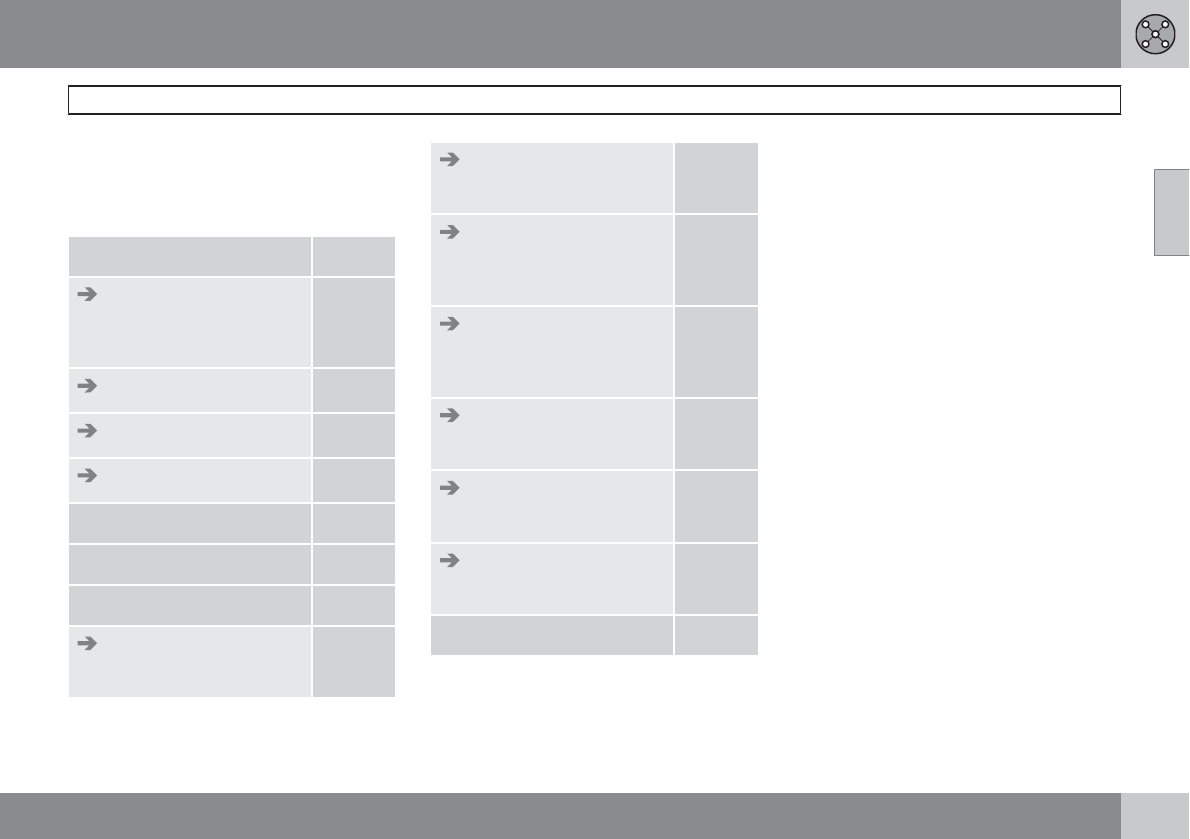
02 Easy user mode
Menu selections
02
35
Three levels of the menu structure are shown
here. A number of the third level menus also
have sub-menus, which are described in detail
in their respective sections in this manual.
Set destination
Address
State/City/Number/
Street/Interse.
p. 36
Points Of Interest (POI) p. 37
Last 20 p. 37
Point on map p. 38
Show destination p. 39
Remove destination p. 39
Settings
Guiding voice
Female/Male
p. 40
Guiding volume
Off/1/2/3/4/5
p. 40
Language
US English/Espanol/
Francais CAN
p. 40
Color
Black/Chrome/Blue/
Dark
p. 40
Map view
2D/3D
p. 40
Distance unit
Km/Miles
p. 40
User mode
Easy/Advanced
p. 40
Shut down p. 11
02 Easy user mode
Setting a destination
02
36
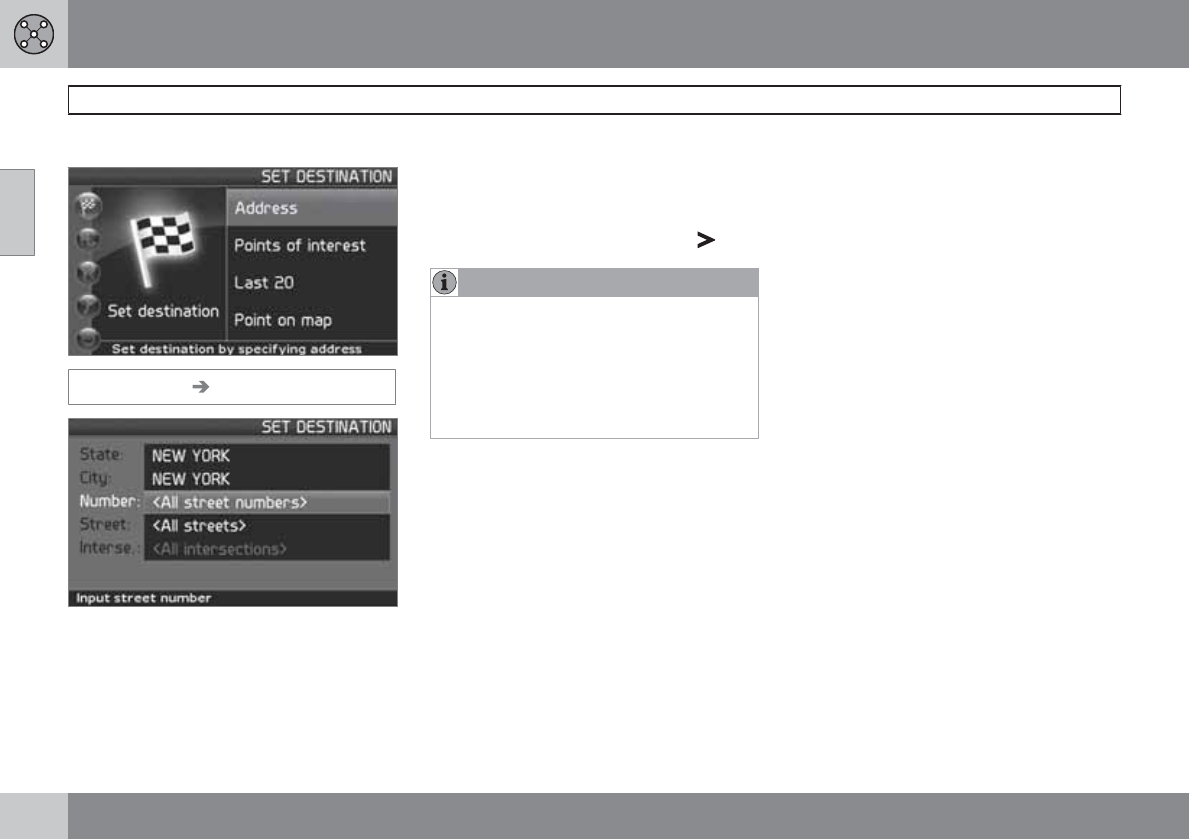
Selecting an address
Set destination Address
Selecting a street address
The system will place the cursor on Street. The
most recently selected State and City will be
pre-selected.
1. To change the state or city, use the
navigation control to move to State and/
or City.
2. Press ENTER, or choose among the most
recently chosen alternatives with .
NOTE
The definition of a city or area may vary. It
will sometimes be an entire city, or a partic-
ular section of a city.
The system does not contain street
addresses for very small towns or villages.
In these cases, the center of the town is
used as the destination.
Alternative 1
•Select Street without choosing a city.
The system will provide guidance to the mid-
point of the selected street. If the street exists
in more than one city, a list of alternatives will
be displayed.
Alternative 2
1. Begin by selecting a City.
2. Select a Street.
Selecting a street number
If the address selected has a street number,
this can be used as a specific destination.
1. After selecting a street, go to the
Number row and press ENTER
or
Go directly to Set. Alternative street num-
bers will be displayed.
2. Go to Set after you have entered a street
number.
If a street number has not been entered,
the system will guide you to the mid-point
of the selected street.
Set
Confirms the entered number.
Undo
Returns to the previous screen.
Selecting an intersection
•Go to Interse. and choose a street that
intersects the selected street.
Start guidance
•Go to Start guidance to begin receiving
directions to the destination.
02 Easy user mode
Setting a destination
02
``
37
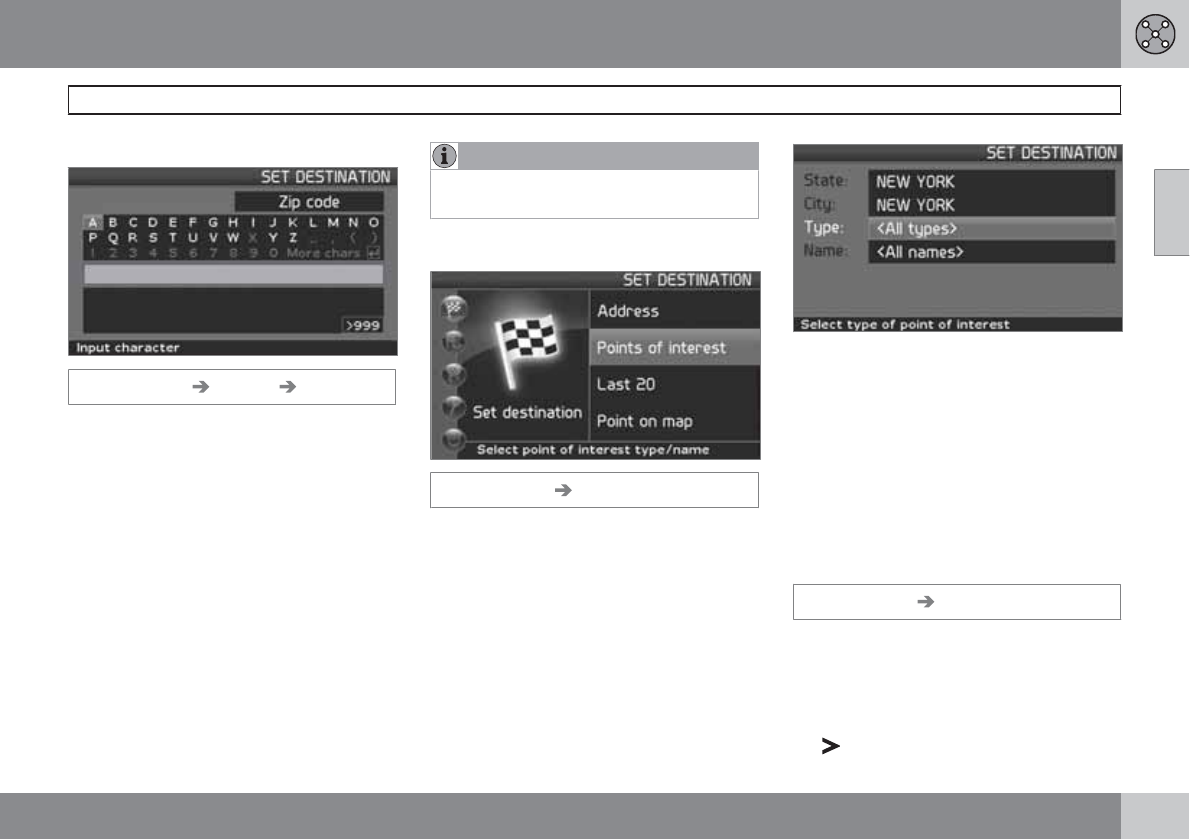
Search using a Zip code
Set destination Address City
Instead of searching in a city, you can opt to
search for an area’s Zip code.
1. Go to ZIP code and press ENTER.
2. Select the digits in the Zip code and press
ENTER
or
Select a Zip code from the list.
3. Go to Street to select a street with the Zip
code entered and press ENTER.
4. Go to Start guidance to begin receiving
directions to the destination.
NOTE
This also applies to searches using Points
of interest.
Point of Interest (POI)
Set destination Points of interest
Points of interest include gas stations, hotels,
restaurants, Volvo retailers, hospitals, parking
lots, etc.
1. Highlight menu alternative POI.
2. Press ENTER to access a sub-menu with
different search options in order to select a
point of interest.
3. Go to Type, press ENTER.
4. Select a POI from the list provided, press
ENTER.
5. In the list All names, select a name from
the list.
6. Press ENTER to display all information
about the selected POI.
7. Press ENTER to start guidance.
Last 20
Set destination Last 20
This is a list of the twenty most recently
selected destinations. The scroll bar at the right
of the screen indicates that there are more
alternatives than can be displayed at one time.
•Go to the desired destination and press
or ENTER to access the sub-menu.
02 Easy user mode
Setting a destination
02
38
Set as destination
Adds the destination to the itinerary.
Delete location
Remove the destination from the Last 20 list.
Point of the map
Set destination Point on map
1. Use the Arrow keys to move the cursor to
the desired destination, press ENTER to
access the map scroll menu.
2. Select Set as destination and press
ENTER.
NOTE
A position on the map can be selected
directly with the cursor by using the Arrow
keys in map mode.
02 Easy user mode
Show/Remove destination
02
39
Show the destination on the map
Show destination
•Press ENTER for an overview on the map
of the area that you have selected as your
final destination.
Remove the destination
Remove destination
1. Press ENTER and go to the destination to
be deleted.
2. Press ENTER again.
02 Easy user mode
Settings
02
40
Guiding voice
Settings Guiding voice
Select a male or female voice for directions.
Guiding volume
Settings Guiding volume
Set the volume level for voice guidance or turn
off this function.
Language
Settings Language
Select the language for menus, text and voice
messages.
Colors
Settings Color
There are 4 screen settings that can be made
– choose the one that you prefer.
Two-dimensional (2D) or three-
dimensional (3D)
Settings Map view
The map can be displayed in 2D (viewed
straight from above) or in 3D (an angled view
from above).
Distance unit
Settings Distance unit
Choose between miles and kilometers.
User mode
Settings User mode
Switch between the Easy and Advanced user
modes.
02 Easy user mode
02
41

G029196
42
Main menu, Shortcut menu..................................................................... 44
Map scroll menu..................................................................................... 46
Menu selections...................................................................................... 47
Setting a destination............................................................................... 49
Itinerary................................................................................................... 54
Next destination...................................................................................... 56
Current position...................................................................................... 57
Traffic information (option)...................................................................... 58
Settings................................................................................................... 59
System simulation................................................................................... 63

03
ADVANCED USER MODE
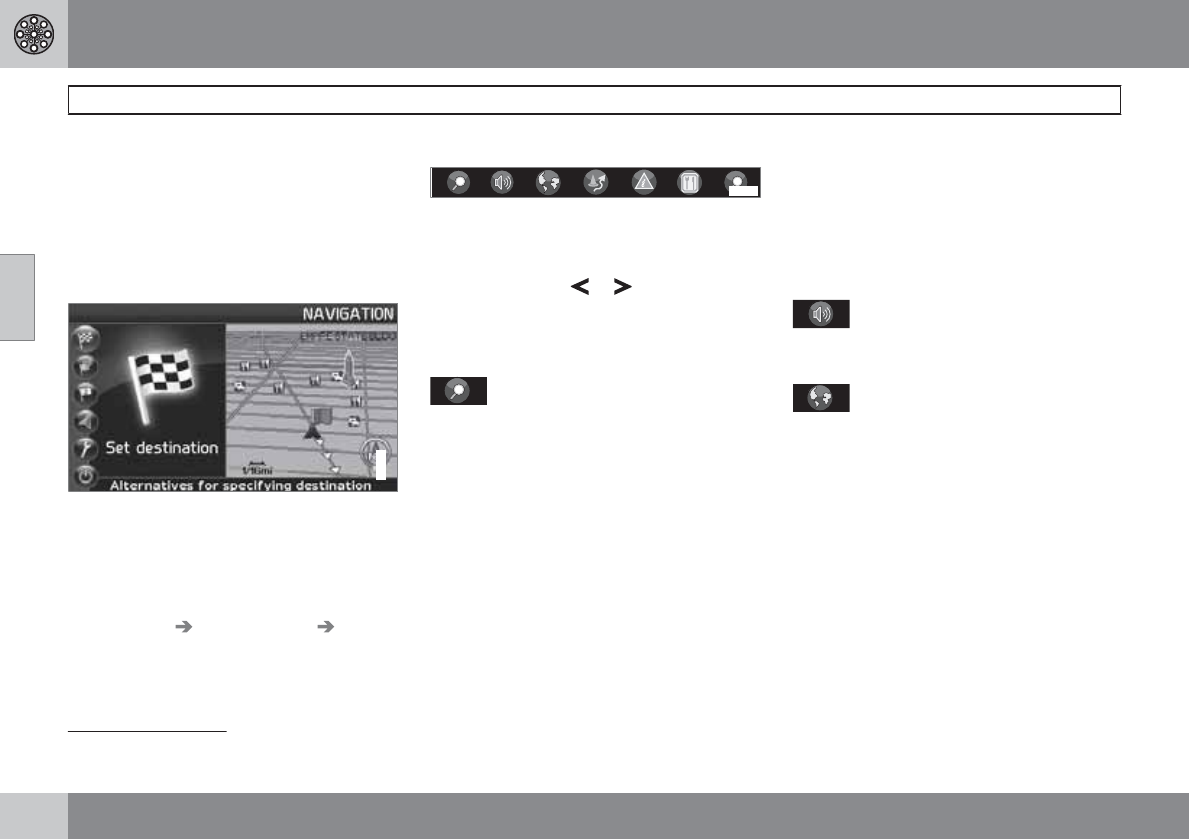
03 Advanced user mode
Main menu, Shortcut menu
03
44
Introduction
The Advanced user mode can be selected
when the navigation system starts.
This mode provides access to all of the sys-
tem’s settings and functions.
Main menu
G033461
The main menu is at the top of the menu struc-
ture and can be accessed by pressing the
BACK key several times.
Switching between settings
To switch between Easy and advanced modes,
go to Settings System options User
mode.
Shortcut menu
G029190
This menu offers icons for making quick setting
changes.
•Press ENTER in map mode and select a
sub-menu with or .
Most system settings can be made in
Settings in the main menu while the remaining
ones can only be made in the Shortcut menu.
G028755
– Map scale/Current route
A menu with 4 alternatives will be displayed.
Pressing ENTER on the first alternative dis-
plays a map showing the remainder of the
route 1 from the vehicle's current location to the
destination.
Pressing ENTER on the second alternative dis-
plays a map showing the entire route1.
Pressing ENTER on the alternatives (+) or (–)
changes the map scale in different steps from
1/32 of a mile to 60 miles to make it possible
to see either a larger perspective or greater
detail.
The map scale can be changed freely by hold-
ing down ENTER until you see the scale of your
choice.
If you have chosen to display two maps, the
map scale symbol is displayed at both ends of
the Shortcut menu to make it possible to adjust
the maps scales individually.
G028755
– Guidance
Press ENTER for guidance or to repeat voice
guidance.
G028755
– Map/Route
Route outline
A list of coming guidance points. In addition to
the name of the road or street, the distance
between guidance points and an arrow show-
ing the type of action to be taken will be dis-
played.
One map/Two maps
Choose to display either one or two maps of
the area in which you are traveling.
Surveillance
2
This function makes it possible to store map
views of 3 different areas for surveillance, such
as ones with heavy traffic, road construction
areas, etc.
1A destination must be selected
2Only available in areas with TMC reception.
03 Advanced user mode
Main menu, Shortcut menu
03
45
Select Surveillan. 1, 2 or 3 to view previously
set surveillance areas, see page 46.
G028755
G028755
– Detour
This displays a menu with Avoid and the avail-
able alternatives. 1-3-6-12-25-50 miles.
Avoid streets/roads
This function removes streets or roads from a
set itinerary to help you avoid driving through
road construction areas, etc.
1. Select Avoid in the Detour menu and
press ENTER. A list of streets included in
your route will be displayed.
2. Go to the street to be avoided and press
ENTER.
3. Select other streets with or and
press ENTER.
Whenever possible, the system will then
calculate a new route that will guide you
back to the original one after you have
passed the area(s) to be avoided.
Avoid next ½–50 miles
This function enables you to avoid an entire
area in the original itinerary, for example to
avoid a city during rush hour..
Select an alternative in the Detour menu
½–50 miles and press ENTER.
Whenever possible, the system will then cal-
culate a Detour that will guide you back to the
original route after you have passed the area(s)
to be avoided.
It is also possible to avoid a certain area by
drawing a box directly on the map, see Avoid
specified areas under
Settings Route options
on page 59.
G028755
G028755
– Traffic information (option)
3
Choose to read information on traffic disrup-
tions in the area displayed on the screen.
A change in map scale also changes the num-
ber of messages displayed, see page 34, see
page 44 or see page 69.
Read message
Scroll among the messages displayed on the
screen.
Show all
Display all messages.
Hide all
Do not display traffic messages.
Show selected
Select the types of traffic messages to be dis-
played on the map.
Regardless of whether the navigation system
is in Easy or Advanced mode, broadcast traf-
fic information is always received and presen-
ted. see page 66 for additional information.
G028755
G028755
– Points of interest (POI)
Displays a menu with different ways of search-
ing for a point of interest.
Around the car
Pressing ENTER makes it possible to search
for POIs around the vehicle.See page 50.
Along the route
Pressing ENTER makes it possible to search
along the route. See page 50.
Along HWY
Pressing ENTER makes it possible to search
along the highway on which you are currently
driving.
Choose to search for rest areas, gas stations,
restaurants, etc., that are easy to access from
the highway.
If a route crosses a number of highways, the
system will search along the highway on which
you are traveling.
3Not available in all areas.
03 Advanced user mode
Map scroll menu
03
46
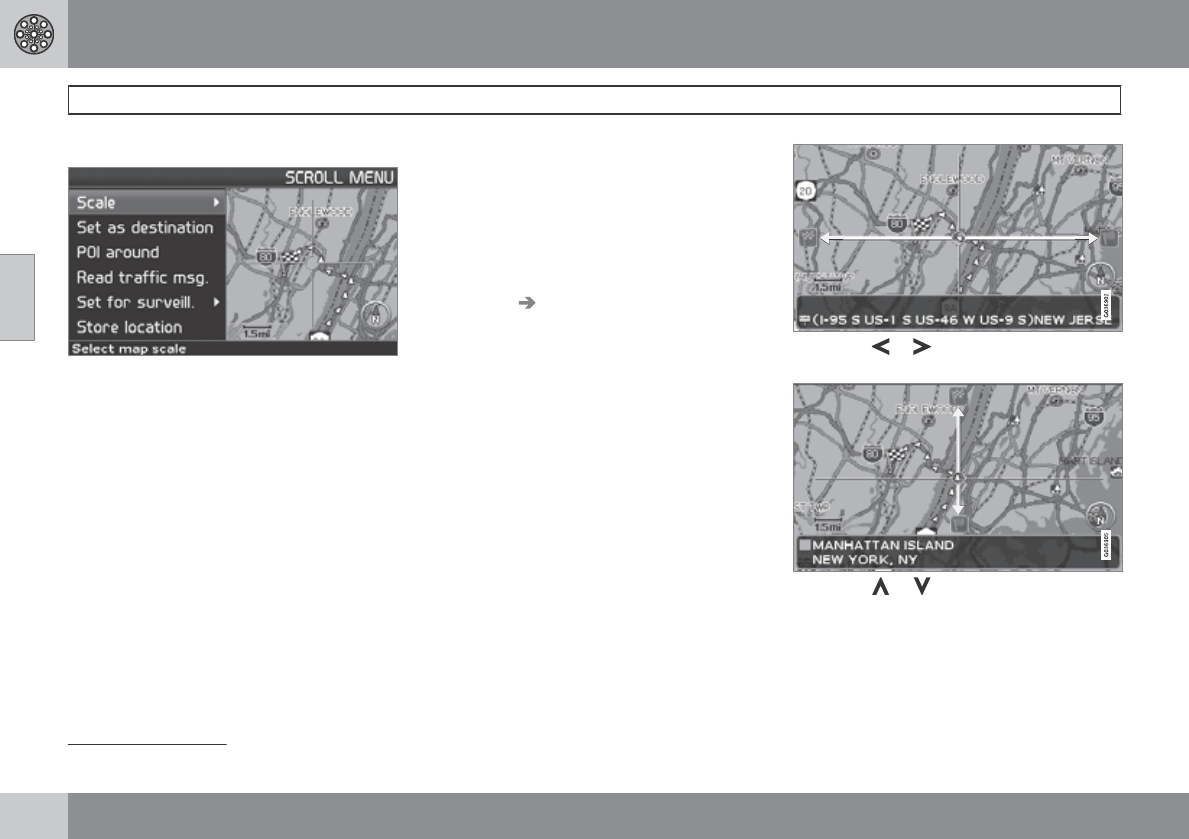
Map scroll menu
G033468
1. Activate map scrolling with the navigation
control.
2. Press ENTER in scroll mode to display the
scroll menu.
Scale
Change the map scale over the area selected.
Set as destination
Add the location as a destination in an itinerary.
POI around
Search for nearby points of interest.
Read traffic msg.
Search for current traffic messages in the area.
Surveillance
1
Select between Set for surveill. 1, 2 or 3 and
press ENTER to store a map view you want to
save as a surveillance area, e.g. heavily traf-
ficked roads that are often subject to traffic
problems.
Activating the map
Select map options in the Shortcut menu and
select the areas requiring surveillance.
Store location
Save the location for later use in Set
destination Stored locations.
Following a route on the map
To make it easy to follow a set itinerary, the
system has a built-in "magnet" function. This
means that regardless of the number of turns
or changes of direction in the route, the cross
hairs will follow the route by simply holding
down a button.
One of the lines in the cross hairs will be dis-
played darker than the other one to indicate
which button should be pressed.
Use button or to follow the route automat-
ically.
Use button or to follow the route automat-
ically.
To deactivate the "magnet" function, move the
cross hairs slightly away from the route until the
line in the cross hairs is no longer dark. Scroll-
ing will then function normally.
1Not available in all areas.
03 Advanced user mode
Menu selections
03
``
47
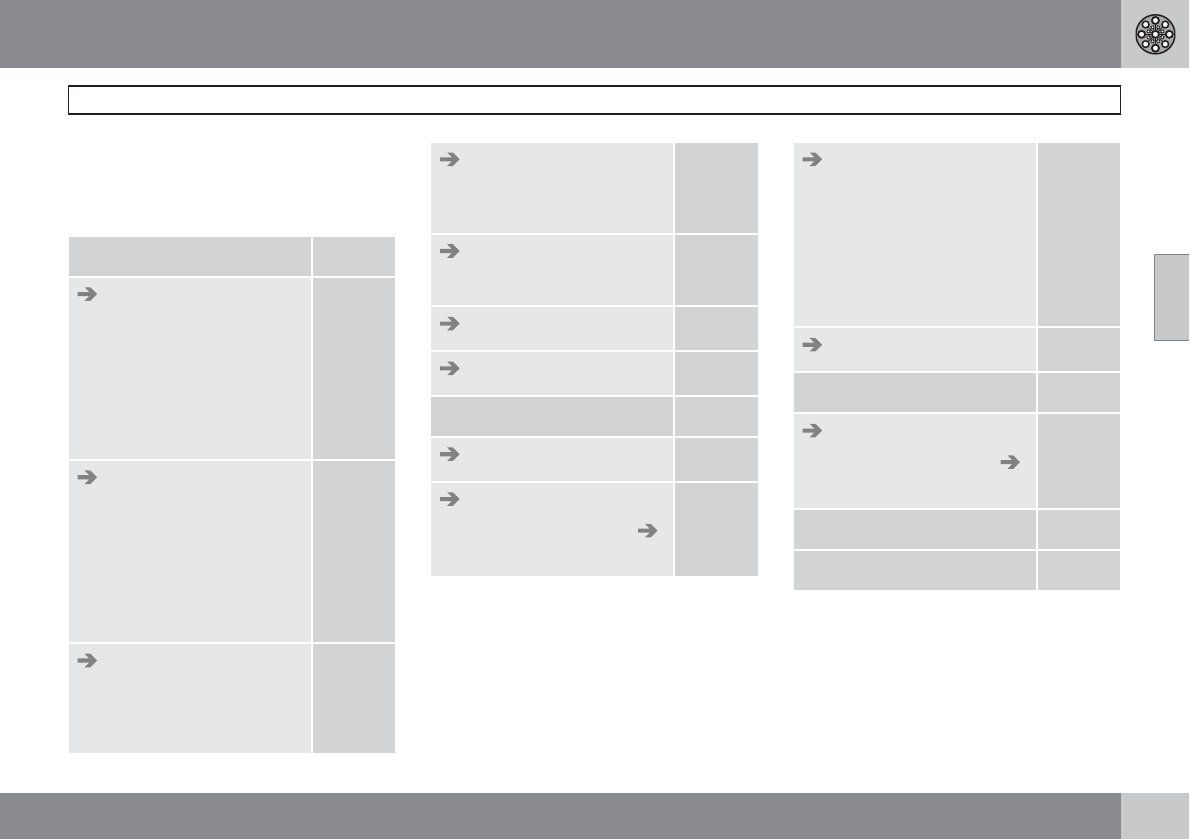
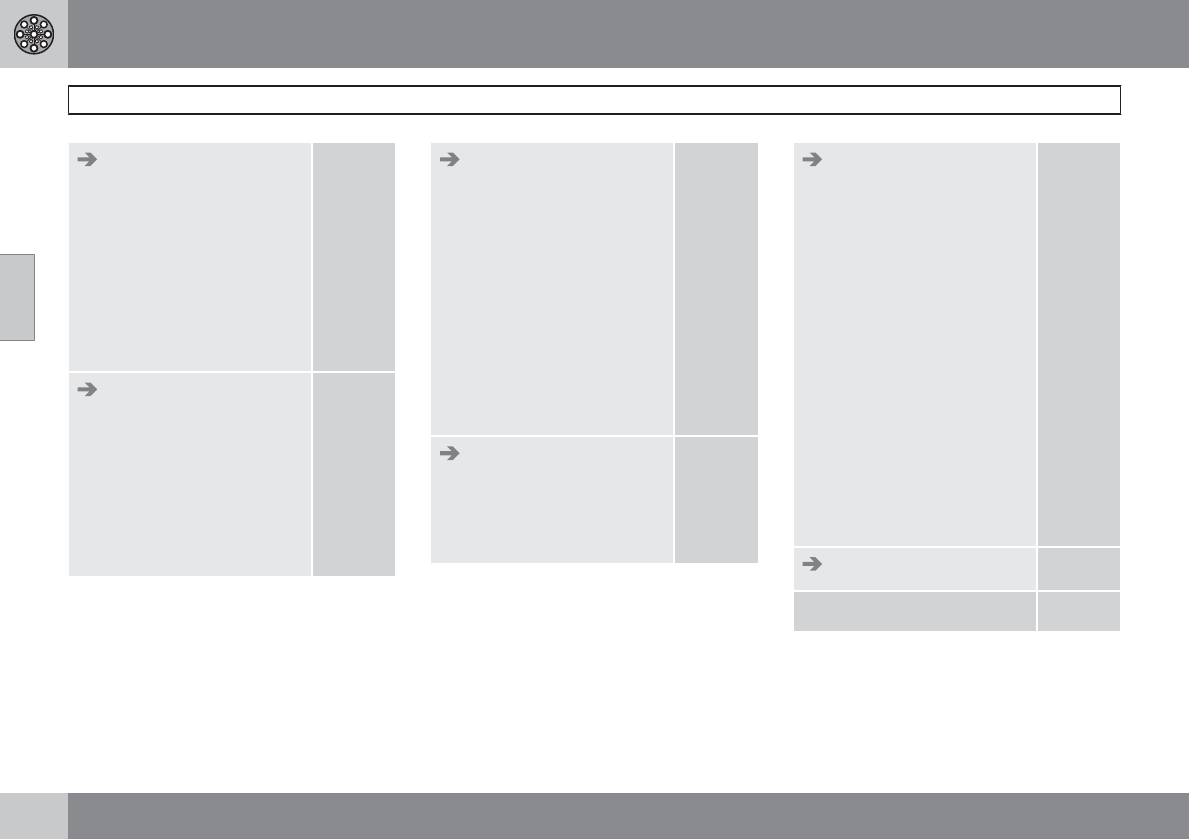
Three levels of the menu structure are shown
here. A number of the third level menus also
have sub-menus, which are described in detail
in their respective sections in this manual.
Set destination p. 49
Address
State
City
Number
Street
Interse.
p. 49
Points Of Interest (POI)
POI by name
Around the car
Along the route
Around point on map
Along a street
p. 50
Stored locations
Add to itinerary/Infor-
mation/Edit/Sorting/
Delete location
p. 51
Last 20
Add to itinerary/Infor-
mation/Delete location
p. 51
Return trip
see Itinerary
p. 51
Point on map p. 51
Latitude/longitude p. 52
Itinerary p. 54
Start guidance p. 54
Add to itinerary
see Set destination
Address
p. 54
Route options
Route
Avoid highways/toll
roads/ferries/car train/
time-restr. roads/speci-
fied areas
Reset to default
p. 59
Clear itinerary p. 54
Next destination p. 49
Address
see Set destination
Address
p. 49
Current position p. 57
Settings p. 59
03 Advanced user mode
Menu selections
03
48
Traffic informationA
Dynamic route guid-
ance
Traffic-info. selection
Search stations
Current station
Traffic service
Reset to default
p. 68
Route options
Route
Avoid highways/toll
roads/ferries/car train/
time-restr. roads/speci-
fied areas/traffic prob-
lems
Reset to default
p. 59
Map options
POI selection
Map
Map view
2D map orientation
Right map view
Left map view
Compass
Current location
Reset to default
p. 60
Guiding options
Time/dist. to go
POI warning
Reset to default
p. 60
System options
Guiding voice
Guiding volume
Language
Menu color
Map color
Screen saver
Help
Distance unit
User mode
Date & time info
GPS Information
About
Reset to default
p. 61
Start demo p. 63
Shut down p. 11
AOption. Not available in all markets.
03 Advanced user mode
Setting a destination
03
``
49
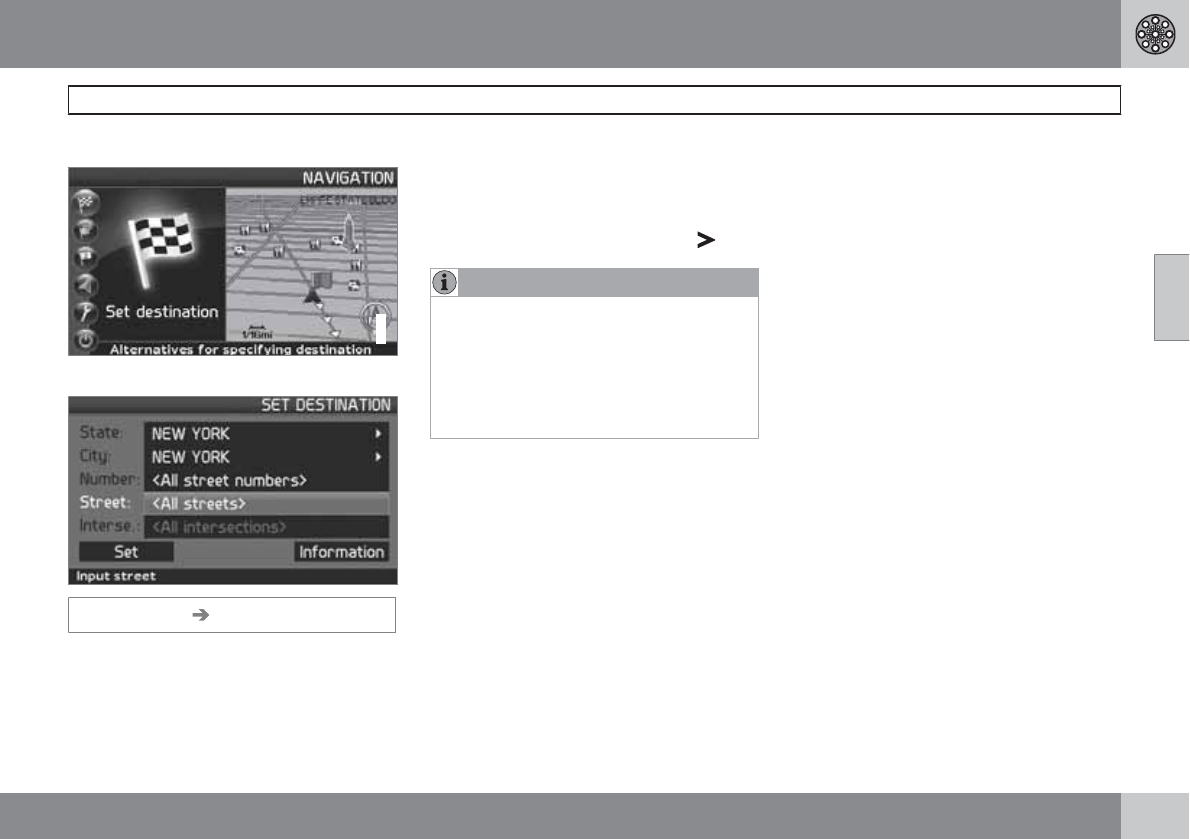
Selecting an address
G033461
Selecting a street address
Set destination Address
The system will place the cursor on Street. The
most recently selected State and City will be
pre-selected.
1. To change the state or city, use the
navigation control to move to State and/
or City,
2. Press ENTER, or choose among the most
recently chosen alternatives with .
NOTE
The definition of a city or area may vary. It
will sometimes be an entire city, or a partic-
ular section of a city.
The system does not contain street
addresses for very small towns or villages.
In these cases, the center of the town is
used as the destination.
Alternative 1
•Select Street without choosing a city.
The system will provide guidance to the mid-
point of the selected street. If the street exists
in more than one city, a list of alternatives will
be displayed.
Alternative 2
1. Begin by selecting a City.
2. Select a Street.
Selecting a street number
If the address selected has a street number,
this can be used as a specific destination.
1. After selecting a street, go to the
Number row and press ENTER
or
Go directly to Set. Alternative street num-
bers will be displayed.
2. Go to Set after you have entered a street
number.
> If a street number has not been entered,
the system will guide you to the mid-
point of the selected street.
Set
Confirms the entered number.
Adjust
Returns to the previous screen.
Selecting an intersection
•Go to Interse. and choose a street that
intersects the selected street.
Start guidance
•Go to Set to add the entered address to
the itinerary.
•Go to Start guidance to begin receiving
directions to the destination.
Information
Provides information about the destination.
03 Advanced user mode
Setting a destination
03
50
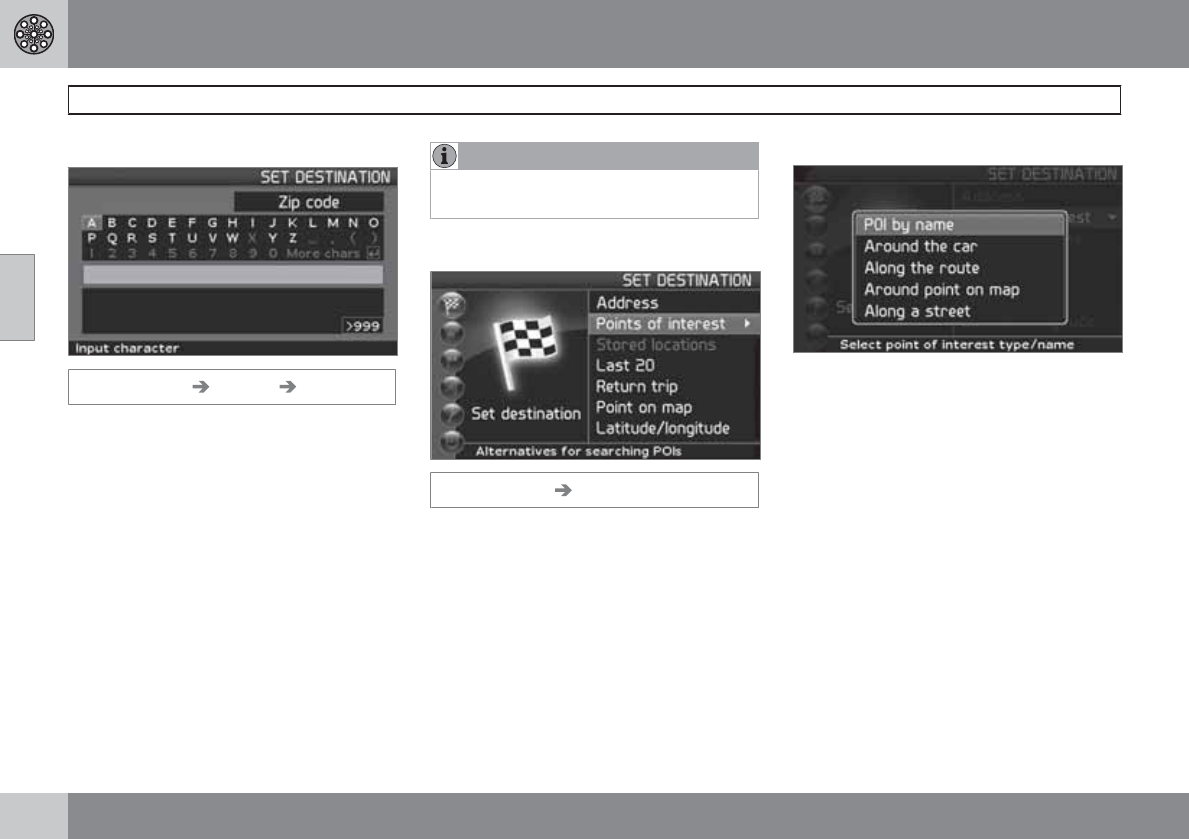
Search using a Zip code
Set destination Address City
Instead of searching in a city, you can opt to
search for an area’s Zip code.
1. Go to ZIP code and press ENTER.
2. Select the digits in the Zip code and press
ENTER
or
Select a Zip code from the list.
3. Go to Street to select a street with the Zip
code entered and press ENTER.
4. Go to Start guidance to begin receiving
directions to the destination.
NOTE
This also applies to searches using Points
of interest.
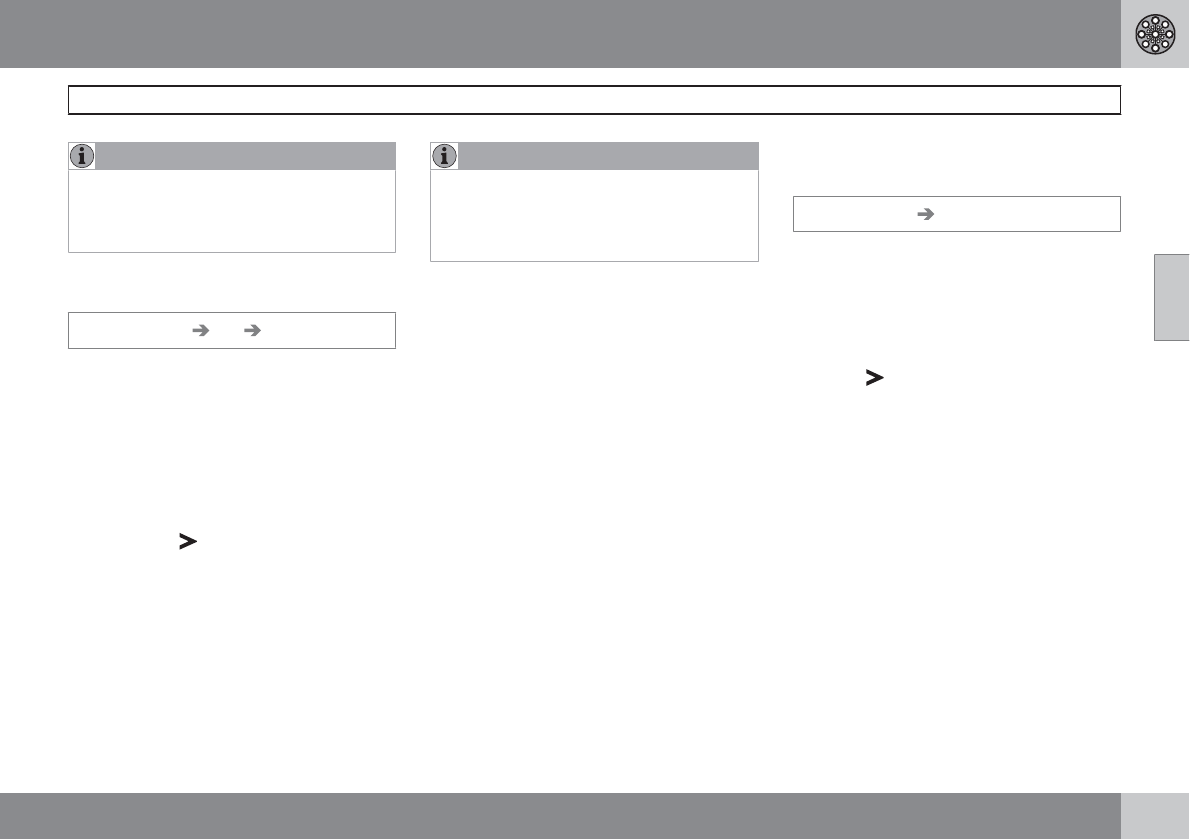
Point of Interest (POI)
Set destination POI
Points of interest (POI) include gas stations,
hotels, restaurants, Volvo retailers, hospitals,
parking lots, etc.
•Press ENTER to access a sub-menu with
different search options in order to select a
point of interest.
POI by name
Enter the name of the point of interest, or select
an alternative in the menu. The list only shows
the points of interest in the selected city/area.
Around the car
The system will search for POIs around the car
(max. 60 mile radius) The search will stop after
40 POIs have been found.
Along the route
If a destination has been selected, the system
can search for points of interest along the route
(within approx. 0.5 miles from the route).
Around point on map
The system will perform the same type of
search as for Around the car, but the search
will be based on a point on the map.
Along street
The system will search along a specified street.
03 Advanced user mode
Setting a destination
03
``
51
NOTE
You can also search for Points of interest
around the car, along the route, or along the
highway in the Shortcut menu, see
page 34.
Types of points of interest/Different
categories
Set destination POI POI by name
The system will first place the cursor on Type.
The most recently selected State and City
should be displayed.
If this is not the case:
1. Go to State and/or City and press ENTER
or
Choose among the most recently selected
ones using .
2. Go to Name and press ENTER to select a
POI without specifying a city.
3. Go to Set and press ENTER.
4. Then go to Start guidance and press
ENTER to receive directions to the desti-
nation.
NOTE
For a more detailed search, first select City
and then go to Name.
There are sub-categories for restaurants,
etc., to simplify the search.
Information about the point of interest
Information shows the address, geographic
coordinates, and in certain cases, also the tel-
ephone number of the point of interest.
Map
Shows the POI’s location on the map.
2nd POI
Points of interest such as airports often have
restaurants, gas stations, etc., on site.
Instead of searching for a restaurant in the
main menu, you can choose a restaurant
directly under the selected airport. Avoiding
alternatives outside of the airport makes the
search quicker and easier.
Stored locations
Previously stored locations
Set destination Stored locations
A stored location is a previously stored desti-
nation, such as a home address, favorite res-
taurant, an airport, or a Volvo retailer. Informa-
tion about storing locations can be found on
see page 55.
•Navigate among the stored locations and
press or ENTER to access the sub-
menu.
Add to itinerary
Place the stored location in the itinerary.
Information
Provides information about the stored location.
Edit
Change the name, add a sound, etc., for the
stored area. See also the heading "Add infor-
mation about a stored location."
Sorting
Sort the list of stored locations by icon or name.
Delete location
Deletes the stored location.
Select a position for a new stored
location
1. Select Edit,
03 Advanced user mode
Setting a destination
03
52
2. Use , to go to Adjust.
3. Press ENTER to specify a position on the
map for a new stored location.
4. Move the cursor with the navigation
control to a new position and press
ENTER.
5. Then select Store and press ENTER to
store the new location.
Add information about a stored location
Select Edit and use to go to Add
info.. Press ENTER to add additional infor-
mation about the stored location.
The following can be added to each stored
location:
•Alert On/Off (to remind the driver that
he/she is approaching the stored loca-
tion)
•Icon
•Name
•Address
•City
•State
•Phone
•E-mail
•URL
Last 20
Set destination Last 20
This is a list of the twenty most recently
selected destinations. The scroll bar at the right
of the screen indicates that there are more
alternatives than can be displayed at one time.
•Go to the desired destination and press
or ENTER to access the sub-menu.
Add to itinerary
Adds the destination to the itinerary.
Information
Provides a summary about the destination.
Delete location
Remove the destination from the Last 20 list.
Return trip
Set destination Return trip
•Select Start guidance and press ENTER.
The system will begin guiding you back to the
location where Start guidance was most
recently selected.
Point on the map
Searching via a point on the map
Set destination Point on map
1. Use the navigation control to move the
cursor to the desired destination.
2. Press ENTER to access the map scroll
menu.
3. Select Set destination, see page 46.
NOTE
A position on the map can be selected
directly with the cursor by using the
navigation control in map mode.
Latitude/longitude
Search by coordinates
Set destination Latitude/longitude
1. Select a destination by specifying coordi-
nates on the map.
2. Select a latitude with the navigation
control: N for north or S for south.
3. Go to the second row to specify a longi-
tude: select E for east or W for west.
03 Advanced user mode
Setting a destination
03
53
>OK
Shows the position with the specified
coordinates on the map.
4. Press ENTER to access the map scroll
menu.
5. Go to Set as destination and press
ENTER to select the position as a destina-
tion.
6. Press BACK to resume entering coordi-
nates.
>Cancel
Return to the previous screen.
03 Advanced user mode
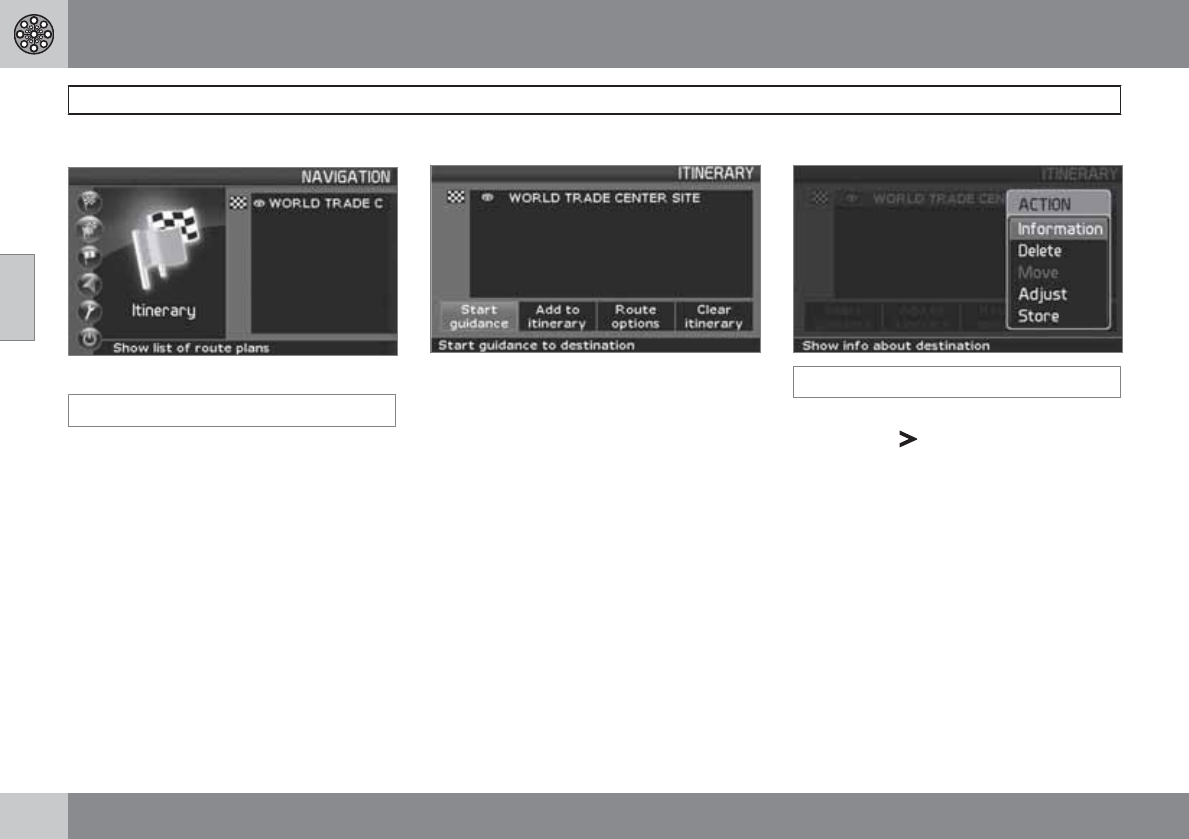
Itinerary
03
54
Making an itinerary
Destination/Intermediate destination
Itinerary
The menu selection Itinerary becomes acces-
sible after a destination has been selected.
Make an itinerary with several stops to avoid
selecting a number of destinations during a
trip.
Up to six intermediate destinations and one
final destination can be specified in an itinerary.
Start guidance
Begin guidance to the destination.
Add to itinerary
All additional destinations are added to the itin-
erary.
Route options
Provides settings for selecting various types of
roads, etc.
Clear itinerary
Deletes the entire itinerary.
Editing an itinerary
Itinerary
•Select a specified destination and press
ENTER or to access a sub-menu.
Information
Provides information about the destination.
Delete
Removes the destination from the itinerary.
Move
Change the destination’s position in the itiner-
ary.
Adjust
Select a new location on the map as a desti-
nation.
Store
Save the destination, which will be accessible
under Itinerary.
03 Advanced user mode
Itinerary
03
55
Removing destinations from an
itinerary
Itinerary
Delete all destinations: All intermediate desti-
nations and the final destination will be deleted.
•Go directly to Clear itinerary and press
ENTER.
Delete intermediate destinations in an itinerary:
1. Select one of the specified intermediate
destinations and press ENTER or to
access a sub-menu.
2. Go to Delete and press ENTER.
NOTE
Destinations that have been passed are
automatically deleted from the itinerary.
Saving destinations for a return trip
Up to 250 destinations can be stored for re-use
in different itineraries.
An audible signal that alerts the driver that he/
she is approaching a stored destination as well
as additional information can be linked to a
stored destination, see page 52 – "Add infor-
mation about a stored location."
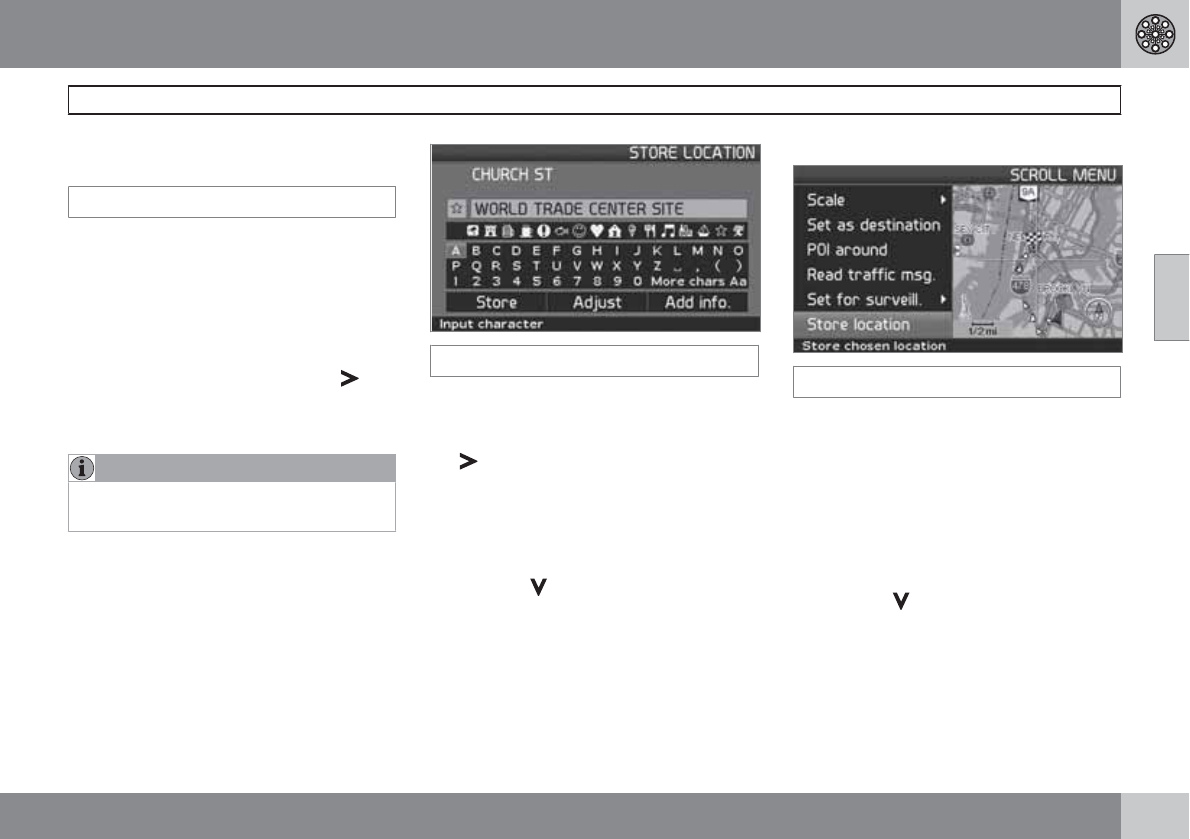
Itinerary
Saving a destination from the itinerary
1. Go to the destination to be saved with the
navigation control and press ENTER or
to access a sub-menu.
2. Select Store and press ENTER.
3. Use the navigation control to select the
symbol to be displayed on the map and
press ENTER.
4. Then use to enter a name for the loca-
tion.
5. Go to Store and press ENTER.
Save a position on the map
Map mode
1. In Map mode, use the navigation control
to move the cursor to the point on the map
to be saved and press ENTER.
2. Select Store in the Map scroll menu and
press ENTER.
3. Use the navigation control to select the
symbol to be displayed on the map and
press ENTER.
4. Then use to enter a name for the loca-
tion and press ENTER.
03 Advanced user mode
Next destination
03
56
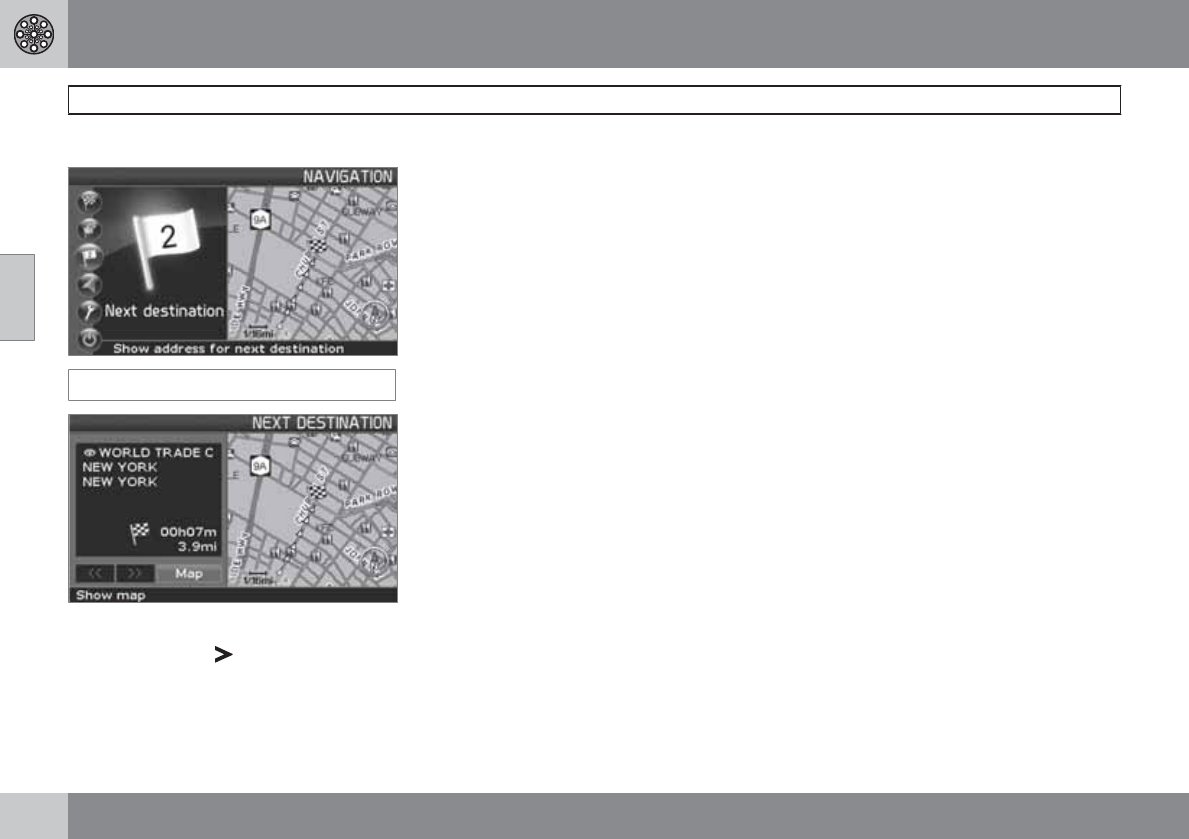
Next destination in the itinerary
Next destination
The map will show the next destination.
1. Press ENTER or for information such as
the name of the destination, or remaining
travel time or distance from the current
location to the destination.
2. Press ENTER again if other destinations
have been specified for information and to
see these destinations on the map.
3. Go to Map and press ENTER to see map
information over the area.
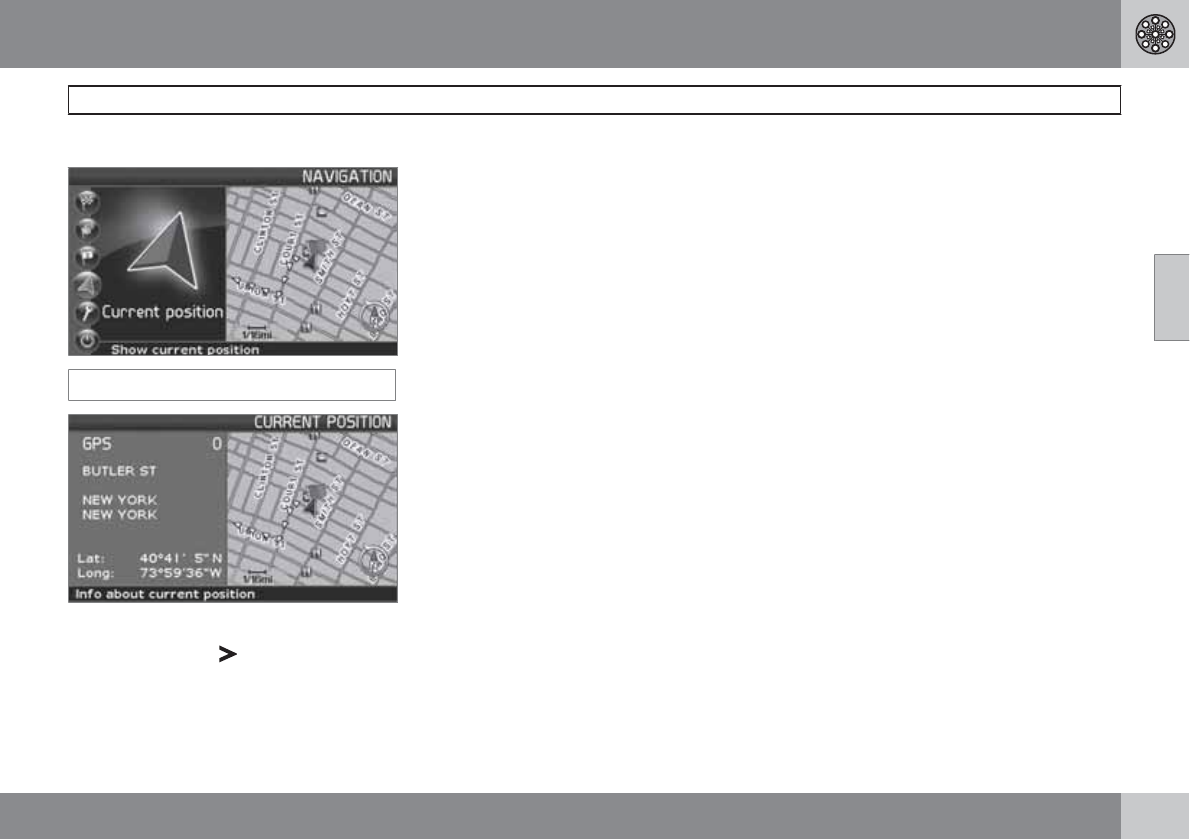
03 Advanced user mode
Current position
03
57
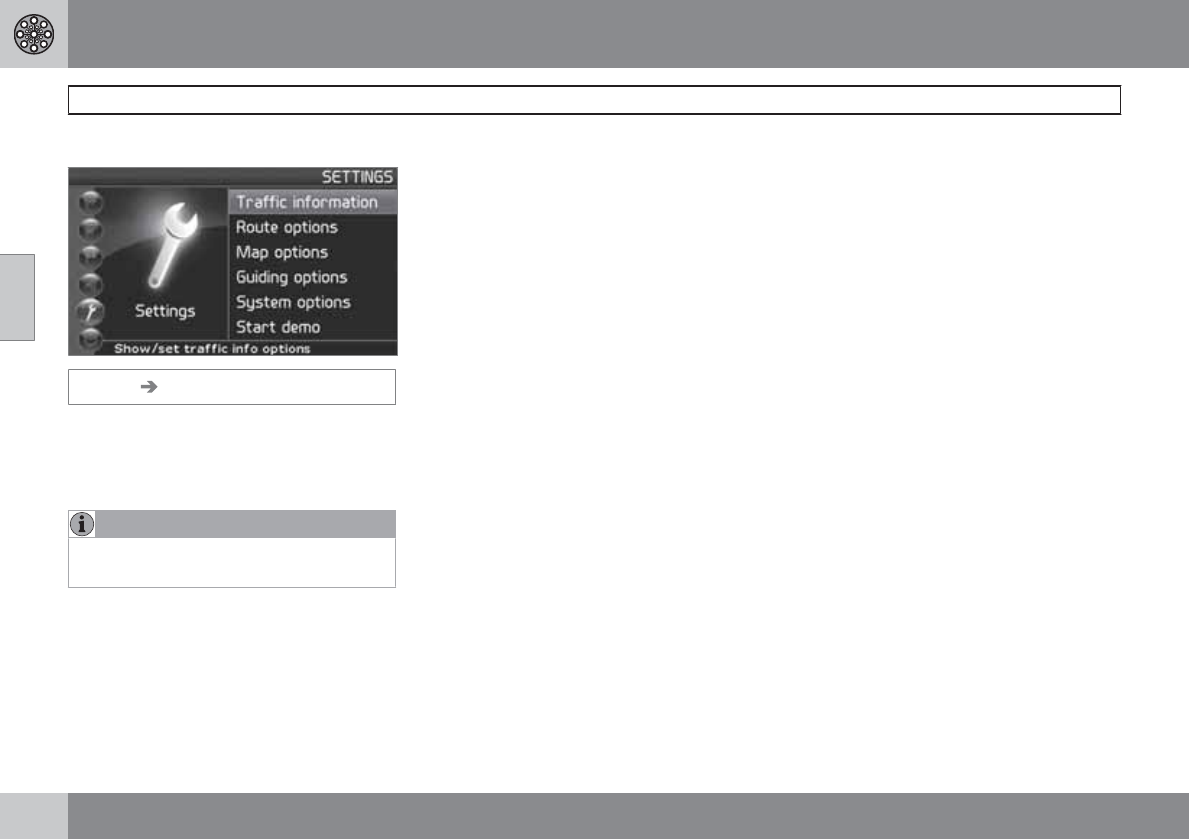
Current position
Current position
The map shows the vehicle’s current position.
•Press ENTER or for information about
this position, such as its name or coordi-
nates.
GPS
Shows the number of satellites with which the
system is in contact.
03 Advanced user mode
Traffic information (option)
03
58
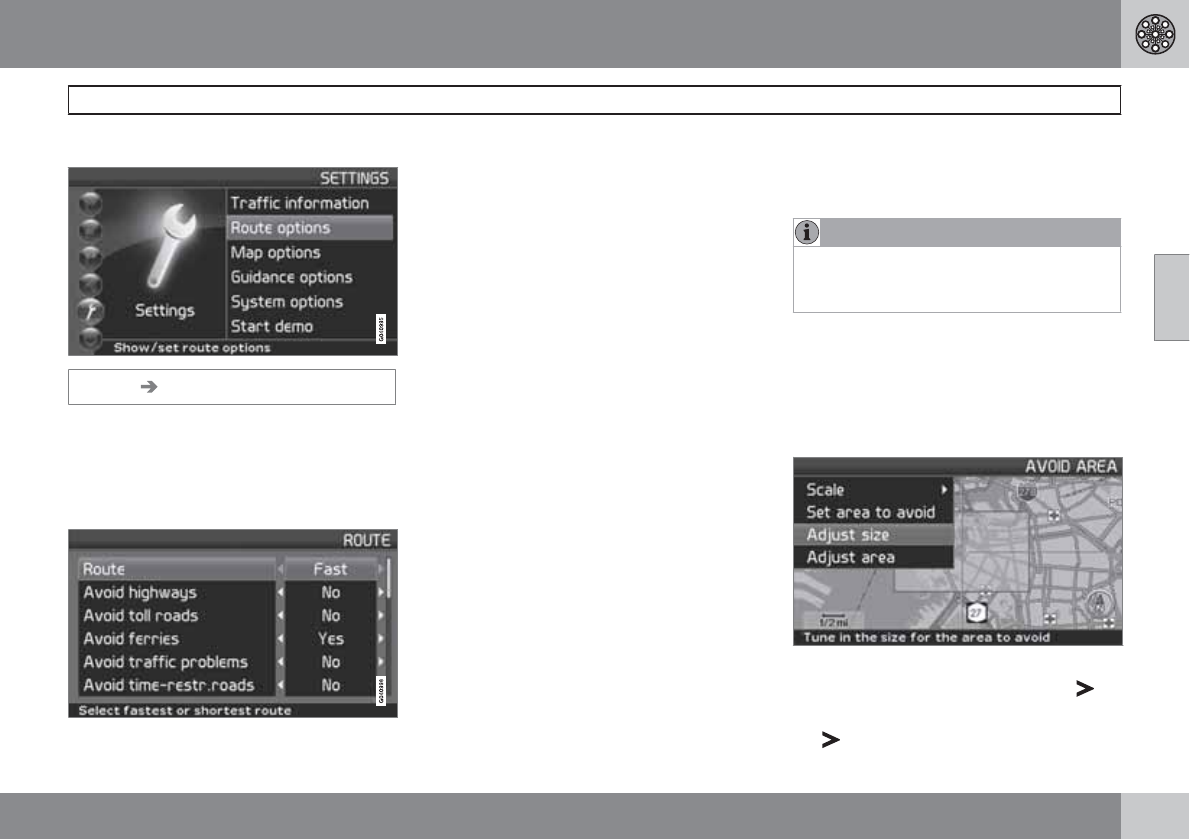
Traffic information
Settings Traffic information
Regardless of whether the navigation system
is in Easy or Advanced mode, broadcast traf-
fic information is always received and presen-
ted. see page 66 for additional information.
NOTE
Please be aware that traffic information may
not be available in all areas.
03 Advanced user mode
Settings
03
``
59
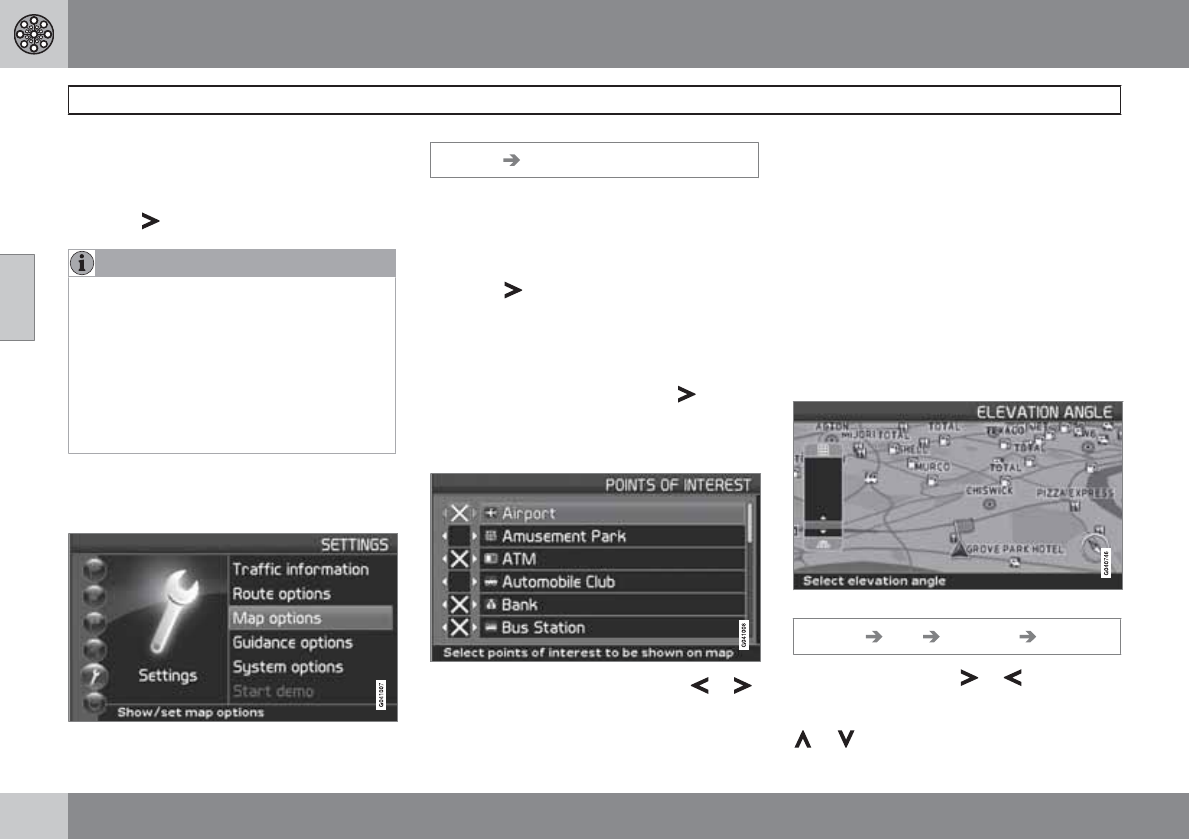
Route options
Settings Route options
•Use the navigation control to move
among the options, select the desired set-
tings and press ENTER to save the set-
tings.
•Press BACK to undo a setting.
Route
Select Fast, short, or easy for the system to
calculate a route.
– Fast: The system will prioritize major roads
for the fastest permitted driving.
– Short: The system will prioritize as far as
possible the shortest distance to the destina-
tion.
– Easy: The system will prioritize as far as pos-
sible roads that do not entail difficult driving
situations or numerous intersections.
Avoid highways
Set the system to avoid highways/freeways
when calculating a route.
Avoid toll roads
Set the system to avoid toll roads when calcu-
lating a route.
Avoid ferries
Set the system to avoid ferries when calculat-
ing a route.
Avoid car train
Set the system to exclude car trains when cal-
culating a route.
Avoid traffic problems
Set the system to take traffic disruptions into
consideration when calculating a route.
Avoid time-restr. roads
Set the system to avoid time-restricted roads
when calculating a route.
NOTE
This function requires that the vehicle’s
clock be correctly set for the current time
zone.
Avoid specified areas
This function is designed to help you avoid
being guided to areas, cities or sections of cit-
ies that you prefer not to drive through. The
system always excludes these areas when cal-
culating a route.
1. Set the system to avoid specified areas
when calculating a route and press .
2. Select Avoid specified areas and press
again to specify an area.
03 Advanced user mode
Settings
03
60
Reset to default
Return to the system’s factory settings for
route options.
•Press , select OK and press ENTER.
NOTE
When the system calculates a route over
longer distances, it is designed to select
major roads (highways/freeways, etc.).
If you have set the system to avoid highways
and toll roads, the system will avoid guiding
you to these types of roads to as great an
extent as possible, and will only use such
roads when no other reasonable alternative
is available.
Map options
Select the way in which the map is displayed.
Settings Map options
•Move among the functions with the
navigation control and press ENTER to
save.
POI selection
•Press to access a sub-menu.
– Select Show to display all POI symbols on
the map.
– Select Hide to show no POI symbols.
– Select Show selected and press to select
the symbols to be displayed on the map. The
symbols selected to be displayed will be
marked with an X.
•Select or unselect symbols with or
and press ENTER to save.
Map
Select Show or Hide. If the map is hidden, the
system will use an arrow for guidance.
Right map view
Choose to display the map in 2D (two dimen-
sional - straight from above) or 3D (three-
dimensional - angled from above).
•When 3D is selected, the vehicle's direc-
tion is always toward the top of the screen.
•When 2D is selected, choose whether 2D
Heading or 2D North is to be at the top of
the screen.
Selecting elevation angle.
Settings Map Map view 3D
After selecting 3D with or and ENTER,
the panel for selecting the elevation angle will
be displayed. Select the desired angle with
or followed by ENTER and BACK.
03 Advanced user mode
Settings
03
``
61
Left map view
See the information in "Right map view."
NOTE
If 3D has been chosen for the right map, the
left map can only be viewed in 2D.
Compass
Select the way in which the compass is dis-
played on the screen: Icon, Text or Hide.
Current location
Select whether or not the name of the street on
which you are currently driving will be dis-
played at the bottom of the screen.
Reset to default
Return to the factory setting for all map
options.
•Press , select OK and press ENTER.
Guiding options
Settings Guiding options
Time/dist. to go
Select RTA, ETA or Hide.
– RTA: (Remaining Time to Arrival) The time
remaining from the current location to the des-
tination.
– ETA: (Estimated Time of Arrival).
NOTE
The time set on the vehicle’s clock affects
the times calculated by the system.
POI warning
The driver is alerted by an audible signal when
he/she is approaching a section of road where
accidents are common or a speed camera.
•Select Yes to activate the audible signal
feature or No if no signal is desired.
Marking sections of road where accidents are
common and/or have speed cameras is deter-
mined by state/provincial/local legislation.
Reset to default
Return to the factory setting for all guiding
options.
•Press , select OK and press ENTER.
System options
Settings System options
•Move among the functions with the
navigation control and press ENTER to
save settings.
•Press BACK to undo a setting.
Guiding voice
Select a Male or Female voice.
Guiding volume
Set the volume level 1-5 for the guiding voice
or choose Off.
Language
Select the language to be used by the system.
Menu color
Select Black, Chrome or Blue.
Map color
Select Bright 1, Bright 2 or Dark .
Light colors are intended for daylight use and
dark colors are best suited for dark lighting
conditions.
Screen saver
If the screen saver is set to ON, the screen will
go blank after 30 seconds).
Help
Hide or Show context sensitive help texts at
the bottom of the screen.
03 Advanced user mode
Settings
03
62
Distance unit
Choose between miles or kilometers.
User mode
Toggle between Easy and Advanced modes.
Date & time info
Set date and time information.
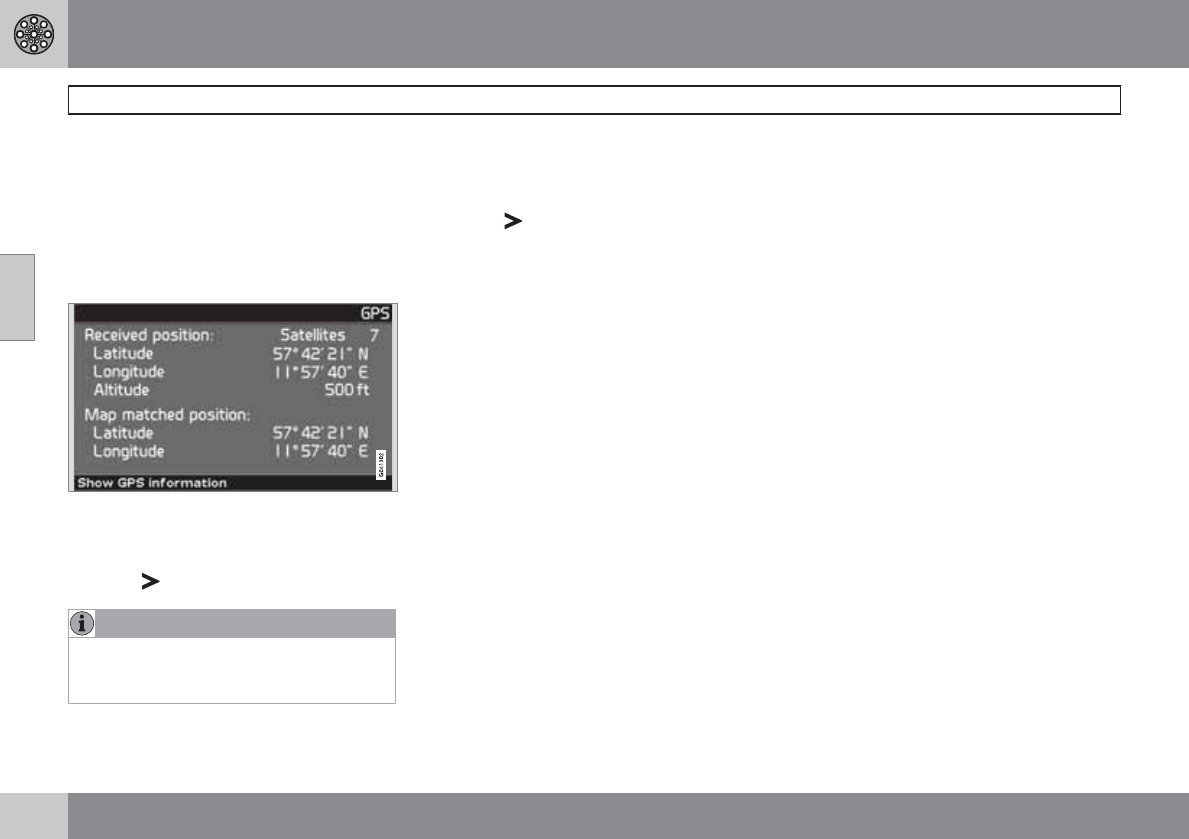
GPS Information
Shows coordinates and the altitude of the vehi-
cle’s current location, and displays the number
of satellites with which the system has contact.
•Press
NOTE
Information about altitude is shown in steps
of 30 ft. All altitudes below 150 ft are shown
as <150 ft.
About
Shows system and map information.
Reset to default
Return to the factory setting for all system
options.
•Press , select OK and press ENTER.
03 Advanced user mode
System simulation
03
63
Start the demo (system simulation)
Settings Start demo
When the vehicle is at a standstill, this function
offers simulated guidance to the currently set
destination. Settings can also be made during
the demonstration.
•Use Stop demo in Settings to stop the
simulation.
NOTE
The demonstration function can only be
used if a destination has been selected.

G029197
64
Introduction............................................................................................. 66
Avoiding traffic problems ....................................................................... 67
Selecting information.............................................................................. 68
Reading information................................................................................ 69

04
TRAFFIC INFORMATION
04 Traffic information
Introduction
04
66
Reception and display
Broadcast traffic information is always
received, regardless of whether the navigation
system is in Easy or Advanced mode.
Settings for the way in which traffic information
is presented can only be made in Advanced
mode, see page 44.
The way in which traffic information is presen-
ted is also affected by the way in which it is
broadcast.
NOTE
Traffic information is currently not available
in all areas.
The area covered by the system is being
steadily expanded.
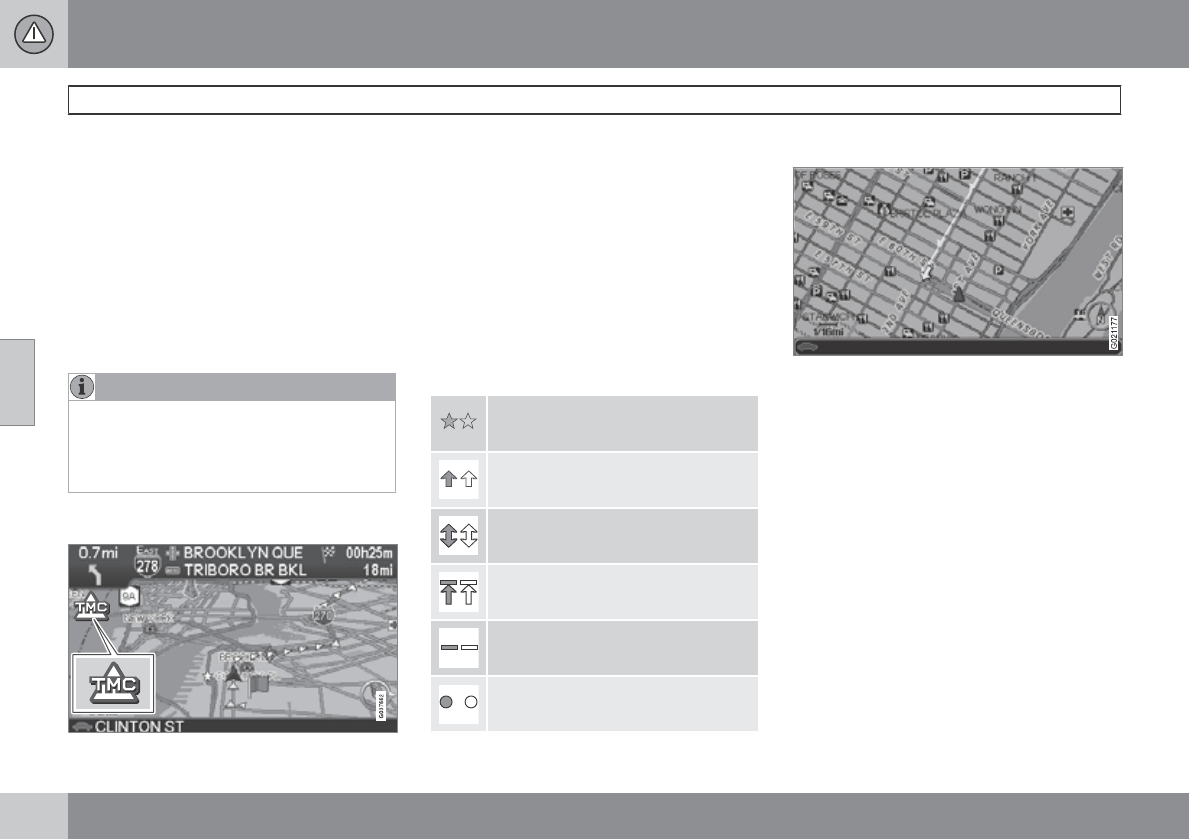
Traffic symbols on the map
Symbol for traffic message.
When at least one traffic message has been
received for the programmed route, this will be
indicated by a symbol in the upper left corner
on the map. Use the navigation control to scroll
to the message in order to see the location and
type of problem indicated.
Disruptions in traffic are marked by symbols,
lines, and boxes. These symbols are displayed
in red or yellow.
Red – important information.
Yellow – General information.
Accident
Slow-moving traffic
Slow-moving traffic in both direc-
tions
Traffic at a standstill
Local traffic message
Other information
Extent
Certain traffic messages also contain informa-
tion about the extent of the traffic disruption.
For all map scales up to five miles (5 km) the
extent of the disruption is marked with a red or
yellow line along the affected road. The length
of the line indicates the extent (length) of the
disruption.
04 Traffic information
Avoiding traffic problems
04
67
Before guidance begins
Settings Route options
When setting a new route, select whether or
not the system should take traffic problems
into account when the function Start
guidance is activated, see page 54.
1. Select Avoid traffic problems.
2. Choose between Yes and No.
Yes
The system will avoid roads where there are
traffic tie-ups to as great an extent as possible
when a route is activated.
No
The system will not avoid roads where there are
traffic disruptions.
NOTE
When the system has been started, it can
take up to 15 minutes before all traffic infor-
mation for the area has been downloaded.
During your trip
Settings Traffic information
Dynamic route guidance
The alternatives On or Off are used to set the
system to either continuously search for a bet-
ter route or to follow the currently selected one.
If a better route is found, it will be presented
(see the illustration).
On
The system will suggest a different route if
there are better alternatives, for instance, if
traffic information indicates a tie-up along the
originally selected route.
Off
The system will not search for a better route in
the event of a traffic problem.
Messages along the route
In the following illustration, On has been
selected and a traffic disruption has occurred
along the route.
If there is another route that will enable you to
avoid the disruption, the difference in distance
and driving time will be displayed on the
screen:
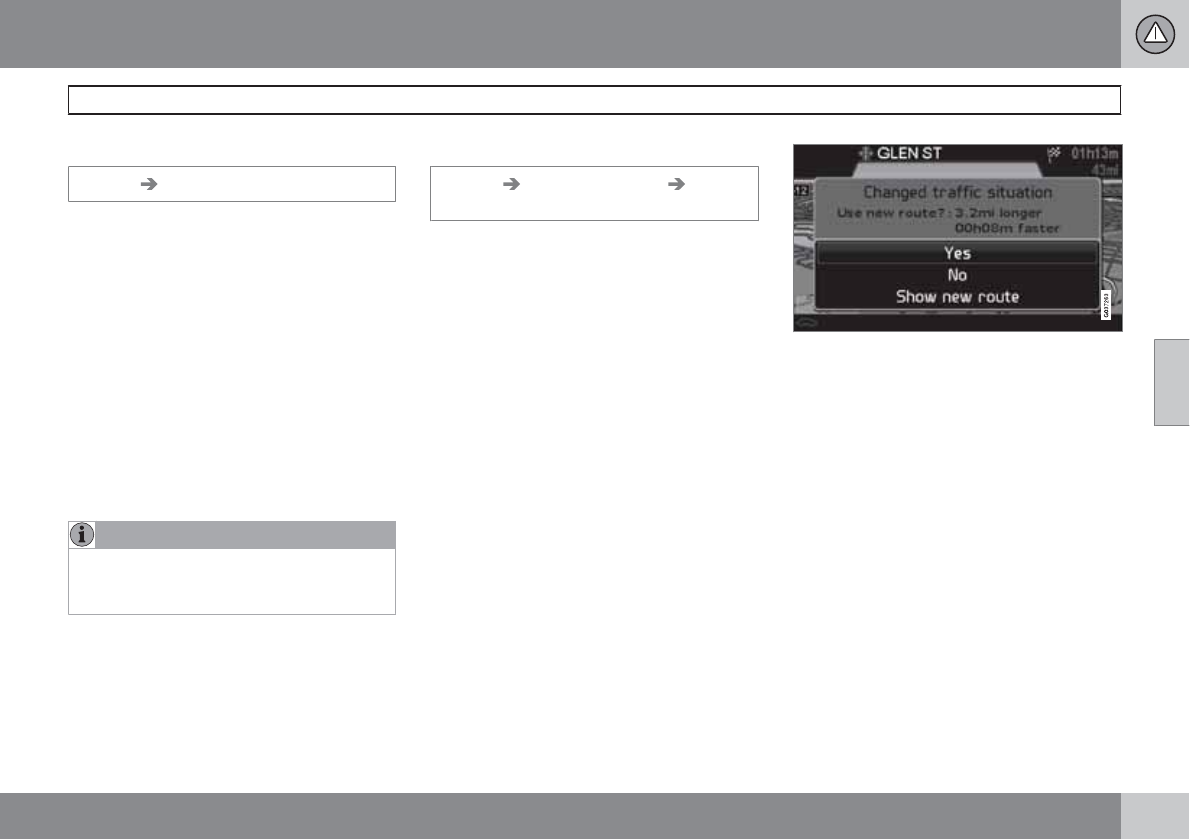
Changed traffic situation. Use new route?:
200ft longer, 00h 09m faster.
•Select Yes or No.
Yes
A new route will be calculated around the affec-
ted area.
No
The system will continue to guide you through
the area affected by the traffic disruption.
Show new route
This displays a map showing the new route.
04 Traffic information
Selecting information
04
68
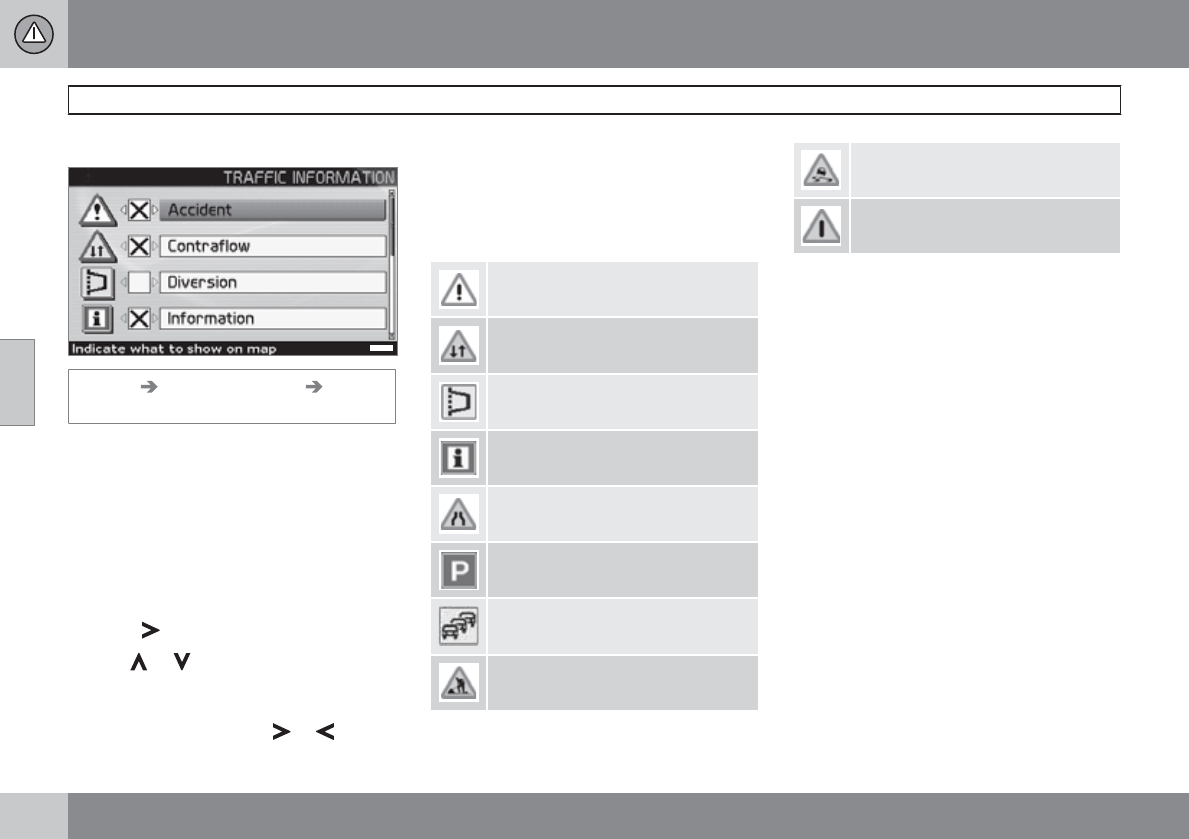
Traffic information selections
G021177
Settings Traffic information Traffic-
info. selection
Select the type of traffic information to be dis-
played and taken into consideration when the
system calculates a route.
Show all
All traffic information will be displayed.
Hide all
No traffic information will be displayed.
Show selected
1. Press to select among the symbols.
2. Use or to select which traffic infor-
mation symbols (traffic messages) that will
be displayed on the map.
3. Activate/deactivate with or .
4. Confirm the settings with ENTER.
The scroll bar on the right side of the screen
indicates that there are more options in the list
than can be displayed at one time.
Traffic signs on the map
Accident
Contraflow (two-way traffic, single
lanes in each direction)
Diversion (Detour)
Information
Narrow road
Parking information
Congestion
Roadwork
Slippery road
Other hazard
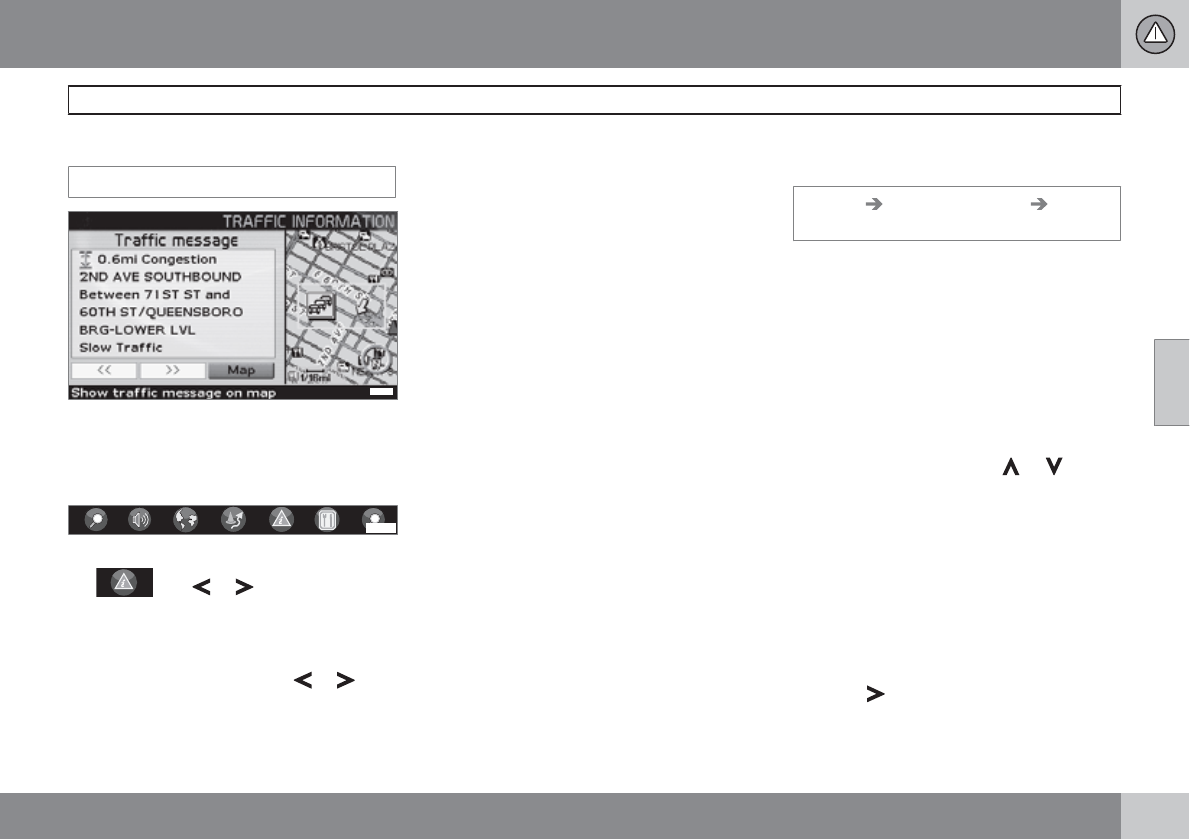
04 Traffic information
Reading information
04
69
Reading traffic messages
Read traffic msg.
G025966
Detailed traffic information
To read traffic messages on the screen:
1. Press ENTER in map mode for the Shortcut
Menu:
G029190
2. Select the sub-menu Read traffic msg
G028755
G028755
with or and press ENTER,
see page 45.
> A red or yellow frame indicates the cur-
rent mesage.
3. Scroll forward or back with or and
press ENTER for detailed traffic informa-
tion (see the example in the illustration).
4. Press BACK to return to the current mes-
sages again.
> The number of messages available for
the map area is displayed on the screen.
Detailed information about the traffic disrup-
tion is also displayed. The extent of the disrup-
tion is shown at the top of the screen. If the
traffic disruption is on the currently selected
route, the distance to the disruption will be dis-
played.
The information provided will vary, for exam-
ple, duration, limitations in speed, vehicle
width and height, roads effected, etc., depend-
ing on the content of the message.
Scale
The current map scale determines the amount
of traffic information that can be displayed; the
larger the area shown on the map, the greater
the amount of information that can be dis-
played.
Station search/selecting a station for
traffic information
Settings Traffic information Search/
select station
The system searches automatically for traffic
information, but it is also possible to select a
specific station.
Search station
•Press ENTER to search for existing sta-
tions.
Select station
1. Press ENTER to select among the existing
stations.
2. Select a station by using or and
press ENTER.
3. Press BACK to return to the previous
screen.
Current station
Shows the station that is currently selected for
traffic information.
Reset to default
Return to the default factory settings for sta-
tions.
•Press , select OK and press ENTER.

G028760
70
Road numbers and Points of interest..................................................... 72
05
SYMBOLS ON THE MAP
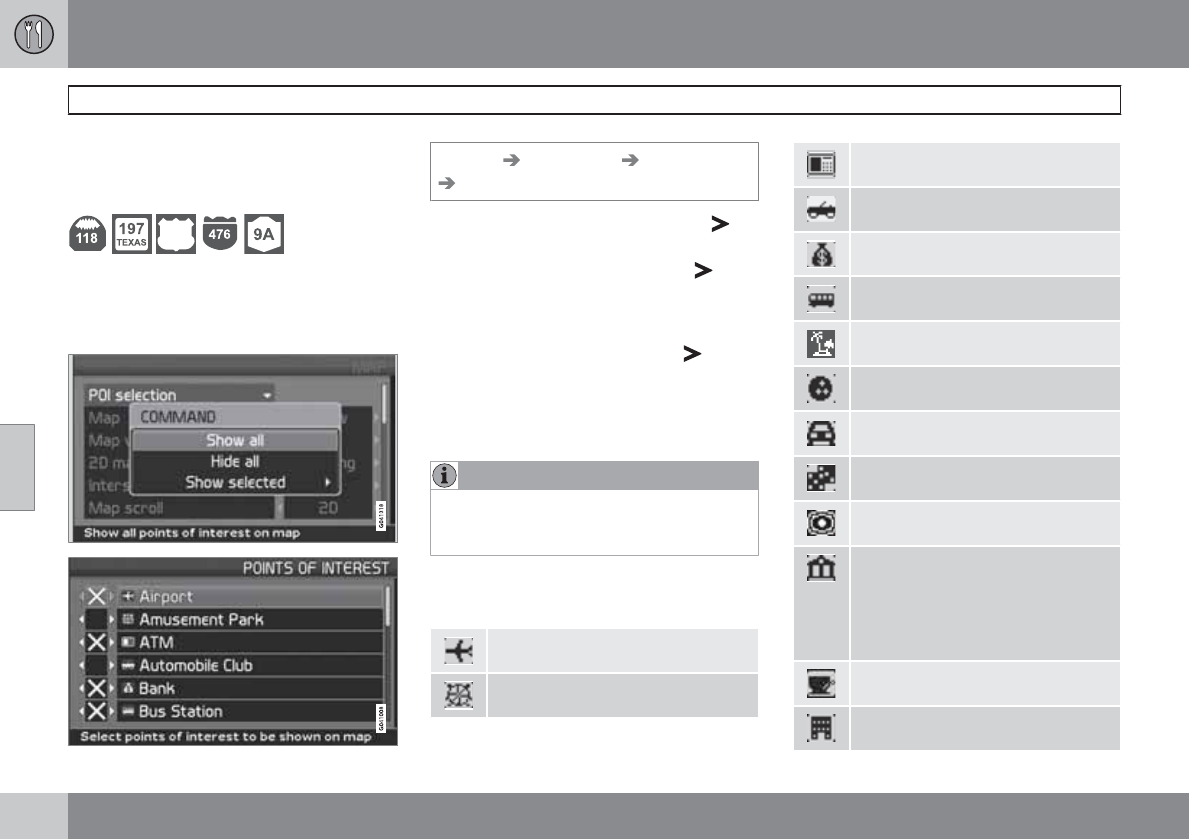
05 Symbols on the map
Road numbers and Points of interest
05
72
Road numbers
Local and interstate road numbers are shown
on the map.
1
Points Of Interest (POI)
Choose to show all or none of the points of
interest or select the ones to be displayed.
Settings Map options POI selection
Show selected
1. With POI selection marked, press – a
menu will open.
2. Mark Show selected and press – a
new menu will open.
3. Points of interest marked by an X will be
displayed on the map – move forward in
the list and remove the Xs with for the
symbols that are not to be displayed.
4. Finish by pressing ENTER when all of the
choices have been made – and navigate
back out of the menu by pressing BACK.
NOTE
The symbol for a certain point of interest
may vary from one state or province to
another.
Select the points of interest to be shown on the
map.
Airport
Amusement park
ATM
Automobile club
Bank
Bus station
Beach
Bowling
Car rental
Casino
City center
City hall
Civic center
Community center
Court house
Coffe shop
Company
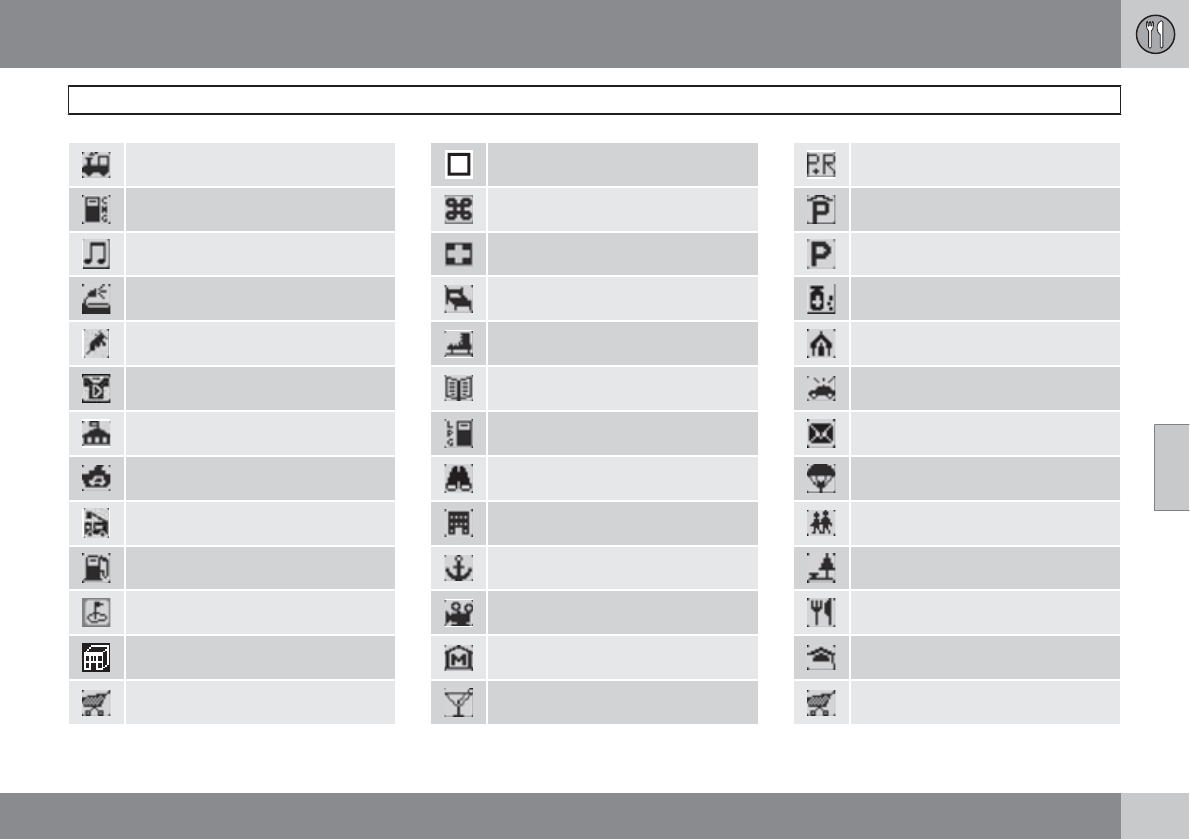
05 Symbols on the map
Road numbers and Points of interest
05
``
73
Commuter rail station
Compressed natural gas
Concert hall
Convention/exhibition center
Doctor
Dry cleaner
Embassy
Ferry terminal
Fire brigade
Gas station
Golf course
Government office
Grocery store
Hamlet
Historical monument
Hospital
Hotel
Ice skating
Library
Liquid petroleum gas
Lookout
Major companies
Marina
Movie theater
Museum
Night life/Music club
Park & ride
Parking garage
Parking
Pharmacy
Place of worship
Police station
Post office
Public sport airport
Recreation area/Park
Rest area
Restaurant
School
Shopping center
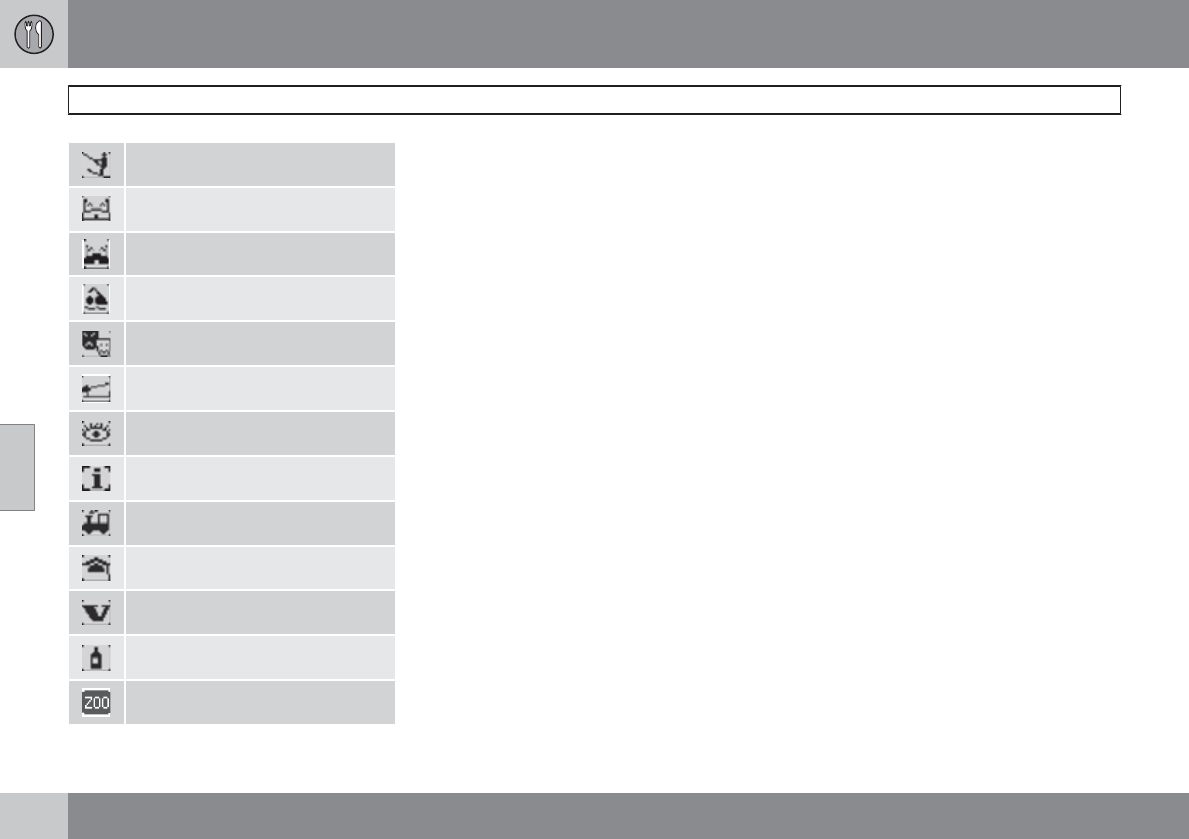
05 Symbols on the map
Road numbers and Points of interest
05
74
Ski resort
Sports complex
Stadium
Swimming pool
Theater/opera
Toll boothA
Tourist attraction
Tourist information
Train station
University/college
Volvo retailer
Winery
Zoo
ACannot be selected as a destination
05 Symbols on the map
05
75

G028731
76
Frequently asked questions.................................................................... 78
EULA – End User License Agreement.................................................... 80

06
QUESTIONS & ANSWERS
06 Questions & answers
Frequently asked questions
06
78
The vehicle’s position on the map is
incorrect
The Global Positioning System (GPS) indicates
the car’s position with an accuracy of about
65 feet (20 meter). Accuracy may be even less
when driving on roads lying parallel to another
road, winding roads, roads on several levels
and also after driving a long distance without
making any distinct turns. Tall buildings and
mountains, tunnels, viaducts, over/under-
passes etc also have a negative affect on the
reception of GPS signals, which means that the
estimation of the car’s position may not be pre-
cise.
VNS does not always calculate the
fastest/shortest route.
When calculating a route, distance, width of
road, type of road, number of right or left turns,
traffic circles etc., are all taken into account
when calculating the best theoretical route.
Experience and local knowledge may, how-
ever, lead to a better choice of route.
The VNS system chooses toll roads,
freeways, and ferries even though I have
opted to avoid them.
When calculating routes over longer distances,
for technical reasons the system can only use
major roads. If you select NO for toll roads,
freeways, and ferries, they will be avoided as
much as possible, but will be used if no other
reasonable alternative is available.
After being transported, the car’s
position on the map is incorrect.
If the car is transported, for example by ferry or
train, or in such a way as to impede the recep-
tion of GPS signals, it can take up to 5 minutes
to calculate the car’s new position correctly.
The car’s position on the map is incorrect
after the car battery has been
disconnected.
If power has been cut from the GPS antenna,
it can take more than 5 minutes for the GPS
signals to be received correctly and the car’s
position to be calculated.
It may be necessary to drive ten to fifteen miles,
and make a number of turns before for the sys-
tem will function optimally.
The car symbol on the map moves
erratically after a tire change
In addition to the GPS receiver, the vehicle’s
speedometer and an onboard gyro are also
used to calculate the vehicle’s current location
and direction of travel. If the spare tire is put on
the vehicle, or is a change is made from sum-
mer to winter tires (or vice versa), the naviga-
tion system must "learn" the new dimensions
of the tire(s). Therefore, it may be necessary to
drive for several miles, including a number of
turns, for the system to make this adjustment.
The map image does not correspond
with actual conditions.
Factors such as the constant expansion and
rebuilding of the road network, new traffic reg-
ulations constantly being introduced etc.,
mean that the digital map database is not
always complete. Maps information is periodi-
cally developed and updated. Additional infor-
mation is available from your Volvo retailer.
The map scale sometimes changes
There is no detailed map information for certain
areas. If this is the case, the system automati-
cally changes the map scale.
Certain menu options are not available
Check the settings that you have made. Select
Reset to default for the particular option to
return to the default settings.
The system indicates the route on which
I am already driving when I have selected
Start guidance or Detour
The system cannot find a better alternative to
the current route.
The car symbol on screen jumps forward
or spins.
The system may need a few seconds to sense
the position and movement of the car before
06 Questions & answers
Frequently asked questions
06
79
you drive off. Switch off the VNS system and
the ignition. Switch on the ignition again and
restart VNS, but remain at a standstill for a
short time before driving off.
I am planning a long trip but do not want
to specify destinations in the cities that I
will be passing through. What is the
easiest way to set up an itinerary?
Select the final destination directly on the map
using the pointer. The system will automatically
guide you to the final destination even if you
drive past intermediate destinations.
Why do I not receive all traffic
messages?
The function is not available, not fully devel-
oped, or is not available on all markets. Also,
check that the correct settings have been
made in Route options.
The system’s map information is not up-
to-date
Contact your Volvo retailer for updated map
information.
WARNING
Navigating safely
Always use good judgment when following
navigation system guidance, and do not fol-
low guidance that seems contrary to your
own best judgment.
06 Questions & answers
EULA – End User License Agreement
06
80
END-USER TERMS
The Map Data Disc ("Data") is provided for your
personal, internal use only and not for resale. It
is protected by copyright, and is subject to the
following terms and conditions which are
agreed to by you, on the one hand, and NAV-
TEQ North America, LLC ("NT") and its licen-
sors (including their licensors and suppliers) on
the other hand.
© 2006-2010 NAVTEQ. All rights reserved.
The Data for areas of Canada includes infor-
mation taken with permission from Canadian
authorities, including: © Her Majesty the
Queen in Right of Canada, © Queen’s Printer
for Ontario, © Canada Post Corporation, Geo-
Base®.
NAVTEQ holds a non-exclusive license from
the United States Postal Service® to publish
and sell ZIP+4® information.
©United States Postal Service® 2005. Prices
are not established, controlled or approved by
the United States Postal Service®. The follow-
ing trademarks and registrations are owned by
the USPS: United States Postal Service, USPS,
and ZIP+4.
TERMS AND CONDITIONS
Personal Use Only
You agree to use this Data for the solely per-
sonal, non-commercial purposes for which you
were licensed, and not for service bureau,
time-sharing or other similar purposes.
Accordingly, but subject to the restrictions set
forth in the following paragraphs, you may
copy this Data only as necessary for your per-
sonal use to (i) view it, and (ii) save it, provided
that you do not remove any copyright notices
that appear and do not modify the Data in any
way.
You agree not to otherwise reproduce, copy,
modify, decompile, disassemble or reverse
engineer any portion of this Data, and may not
transfer or distribute it in any form, for any pur-
pose, except to the extent permitted by man-
datory laws.
You may transfer the Data and all accompany-
ing materials on a permanent basis if you retain
no copies and the recipient agrees to these
End-User Terms. Data provided in multi-disc
sets may not be transferred or sold on a divided
or single disc basis.
Restrictions
Except where you have been specifically
licensed to do so by NT and without limiting the
preceding paragraph, you may not (a) use this
Data with any products, systems, or applica-
tions installed or otherwise connected to or in
communication with vehicles, capable of vehi-
cle navigation, positioning, dispatch, real time
route guidance, fleet management or similar
applications; or (b) with or in communication
with any positioning devices or any mobile or
wireless-connected electronic or computer
devices, including without limitation cellular
phones, palmtop and handheld computers,
pagers, and personal digital assistants or
PDAs.
Warning
The Data may contain inaccurate or incomplete
information due to the passage of time, chang-
ing circumstances, sources used and the
nature of collecting comprehensive geo-
graphic data, any of which may lead to incor-
rect results.
No Warranty
This Data is provided to you "as is," and you
agree to use it at your own risk. NT and its
licensors (and their licensors and suppliers)
make no guarantees, representations or war-
ranties of any kind, express or implied, arising
by law or otherwise, including but not limited
to, content, quality, accuracy, completeness,
effectiveness, reliability, fitness for a particular
purpose, usefulness, use or results to be
obtained from this Data, or that the Data or
server will be uninterrupted or error-free.
06 Questions & answers
EULA – End User License Agreement
06
``
81
Disclaimer of Warranty
NT AND ITS LICENSORS (INCLUD-
ING THEIR LICENSORS AND SUP-
PLIERS) DISCLAIM ANY WARRAN-
TIES, EXPRESS OR IMPLIED, OF
QUALITY, PERFORMANCE, MER-
CHANTABILITY, FITNESS FOR A
PARTICULAR PURPOSE OR NON-
INFRINGEMENT.
Some States, Territories and Countries do not
allow certain warranty exclusions, so to that
extent the above exclusion may not apply to
you.
Disclaimer of Liability
NT AND ITS LICENSORS (INCLUD-
ING THEIR LICENSORS AND SUP-
PLIERS) SHALL NOT BE LIABLE TO
YOU IN RESPECT OF ANY CLAIM,
DEMAND OR ACTION, IRRESPEC-
TIVE OF THE NATURE OF THE
CAUSE OF THE CLAIM, DEMAND
OR ACTION ALLEGING ANY LOSS,
INJURY OR DAMAGES, DIRECT OR
INDIRECT, WHICH MAY RESULT
FROM THE USE OR POSSESSION
OF THE INFORMATION; OR FOR
ANY LOSS OF PROFIT, REVENUE,
CONTRACTS OR SAVINGS, OR ANY
OTHER DIRECT, INDIRECT, INCI-
DENTAL, SPECIAL OR CONSE-
QUENTIAL DAMAGES ARISING OUT
OF YOUR USE OF OR INABILITY TO
USE THIS INFORMATION, ANY
DEFECT IN THE INFORMATION, OR
THE BREACH OF THESE TERMS OR
CONDITIONS, WHETHER IN AN
ACTION IN CONTRACT OR TORT
OR BASED ON A WARRANTY, EVEN
IF NT OR ITS LICENSORS HAVE
BEEN ADVISED OF THE POSSIBIL-
ITY OF SUCH DAMAGES.
Some States, Territories and Countries do not
allow certain liability exclusions or damages
limitations, so to that extent the above may not
apply to you.
Export Control
You agree not to export from anywhere any
part of the Data provided to you or any direct
product thereof except in compliance with, and
with all licenses and approvals required under,
applicable export laws, rules and regulations.
Entire Agreement
These terms and conditions constitute the
entire agreement between NT (and its licen-
sors, including their licensors and suppliers)
and you pertaining to the subject matter
hereof, and supersedes in their entirety any
and all written or oral agreements previously
existing between us with respect to such sub-
ject matter.
Governing Law
The above terms and conditions shall be gov-
erned by the laws of the State of Illinois, without
giving effect to (i) its conflict of laws provisions,
or (ii) the United Nations Convention for Con-
tracts for the International Sale of Goods,
which is explicitly excluded.
You agree to submit to the jurisdiction of the
State of Illinois for any and all disputes, claims
and actions arising from or in connection with
the Data provided to you hereunder.
Government End Users
If the Data is being acquired by or on behalf of
the United States government or any other
entity seeking or applying rights similar to
those customarily claimed by the United States
government, this Data is a "commercial item"
as that term is defined at 48 C.F.R. ("FAR")
2.101, is licensed in accordance with these
End User Terms, and each copy of the Data
06 Questions & answers
EULA – End User License Agreement
06
82
delivered or otherwise furnished shall be
marked and embedded as appropriate with the
following "Notice of Use," and shall be treated
in accordance with such Notice:
NOTICE OF USE
CONTRACTOR (MANUFACTURER/
SUPPLIER) NAME: NAVTEQ
CONTRACTOR (MANUFACTURER/
SUPPLIER) ADDRESS: 222 Merchandise
Mart Plaza, Suite 900, Chicago, Illinois 60654
This Data is a commercial item as defined in
FAR 2.101 and is subject to the End User
Terms under which this Data was provided.
© 2006-2010 NAVTEQ – All rights reserved.
If the Contracting Officer, federal government
agency, or any federal official refuses to use
the legend provided herein, the Contracting
Officer, federal government agency, or any fed-
eral official must notify NAVTEQ prior to
seeking additional or alternative rights in the
Data.
06 Questions & answers
06
83

07 Index
07
84
1, 2, 3 ...
2D or 3D..................................................... 40
A
Advanced/Easy modes, switching
between..................................................... 28
Advanced mode
current position..................................... 57
guidance............................................... 44
guiding options..................................... 61
introduction........................................... 44
itinerary................................................. 54
last 20 (destinations)............................. 52
longitude/latitude.................................. 52
map/route............................................. 44
map options.......................................... 60
map scroll menu................................... 46
menu selections.............................. 29, 47
point on map........................................ 52
points of interest................................... 45
return trip.............................................. 52
route options........................................ 59
selecting an address............................. 49
shortcut menu....................................... 44
stored locations.................................... 51
system options..................................... 61
Audible signal
camera.................................................. 61
speed camera....................................... 61
Avoid
traffic disruptions.................................. 67
C
Camera
audible signal........................................ 61
Camera (Audible signal)............................. 61
Compass................................................... 28
D
Demo (system simulation)......................... 63
Destination
return trip.............................................. 55
Detours...................................................... 45
Display
appearance..................................... 26, 27
Distance unit.............................................. 40
DVD
care....................................................... 13
updating the system with..................... 13
E
Easy/Advanced modes, switching
between..................................................... 28
Easy mode
guidance............................................... 34
guiding voice........................................ 40
guiding volume..................................... 40
introduction........................................... 34
language............................................... 40
last 20 (destinations)............................. 37
map & menu colors............................... 40
map scale/current route....................... 34
menu selections.............................. 29, 35
point on map........................................ 38
remove destination............................... 39
selecting an address............................. 36
shortcut menu....................................... 34
show destination.................................. 39
End-User terms......................................... 80
Extent......................................................... 66

07 Index
07
85
F
Frequently asked questions....................... 78
G
Guidance................................................... 34
voice..................................................... 27
Guiding options......................................... 61
I
Itinerary
next destination in................................ 56
removing destinations from.................. 55
setting/changing................................... 54
M
Main unit............................ 15, 17, 19, 21, 23
contents of............................................ 13
Map
options.................................................. 60
Map, symbols for points of interest........... 72
Map mode................................................. 11
Map scale.................................................. 34
Map scroll menu........................................ 46
Menu selections
in Advanced mode................................ 47
in Easy mode........................................ 35
overview................................................ 29
Modes
switching between................................ 28
N
Navigation control........ 15, 17, 19, 21, 23, 24
O
On/Off........................................................ 11
P
Points of interest............................ 37, 45, 50
symbols on the map............................. 72
Q
Questions & Answers................................. 78
R
Remote key................................................ 24
Return trip, guidance................................. 52
Road numbers, symbols for...................... 72
Roads, unverified....................................... 28
Route options............................................ 59
S
Screen................................ 15, 17, 19, 21, 23
appearance..................................... 26, 27
care....................................................... 13
Scroll menu................................................ 34
Search/select stations for traffic informa-
tion............................................................. 69
Searching via a point on the map.............. 52
Selecting an address
in Advanced mode................................ 49
in Easy mode........................................ 36

07 Index
07
86
Shortcut menu
in Advanced mode................................ 44
in Easy mode........................................ 34
Speakers............................ 15, 17, 19, 21, 23
Stations for traffic information
search/select........................................ 69
Stored locations
Advanced mode................................... 51
Surveillance......................................... 44, 46
Symbol - Do not disturb............................ 24
Symbols
traffic information............................ 66, 68
Symbols on the map.................................. 72
System options.......................................... 61
System simulation (demo)......................... 63
T
Traffic disruptions
avoid..................................................... 67
Traffic information................................ 34, 45
selections.............................................. 68
Traffic signs............................................... 68
Traffic symbols.......................................... 66
U
Unverified roads........................................ 28
Updating the system................................. 13
User modes, switching between............... 40
V
Voice
guidance............................................... 27
Volvo Navigation System
end-user terms..................................... 80
GPS receiver................. 15, 17, 19, 21, 23
infrared port.................. 15, 17, 19, 21, 23
main unit....................... 15, 17, 19, 21, 23
Navigation control........ 15, 17, 19, 21, 23
questions & answers............................ 78
route options........................................ 59
screen........................... 15, 17, 19, 21, 23
turning on and off................................. 11
Z
Zip code
searching with, Advanced mode.......... 50
searching with, Easy mode................... 37
Kdakd8Vg8dgedgVi^dcIE&&&--JH68VcVYV6I%.'%Eg^ciZY^cHlZYZc!<iZWdg\'%%.!8deng^\]i'%%%"'%%.Kdakd8Vg8dgedgVi^dc
