Vtech Innotab 3 The Learning Tablet Pink Owners Manual
2014-11-12
: Vtech Vtech-Innotab-3-The-Learning-Tablet-Pink-Owners-Manual-109376 vtech-innotab-3-the-learning-tablet-pink-owners-manual-109376 vtech pdf
Open the PDF directly: View PDF  .
.
Page Count: 40
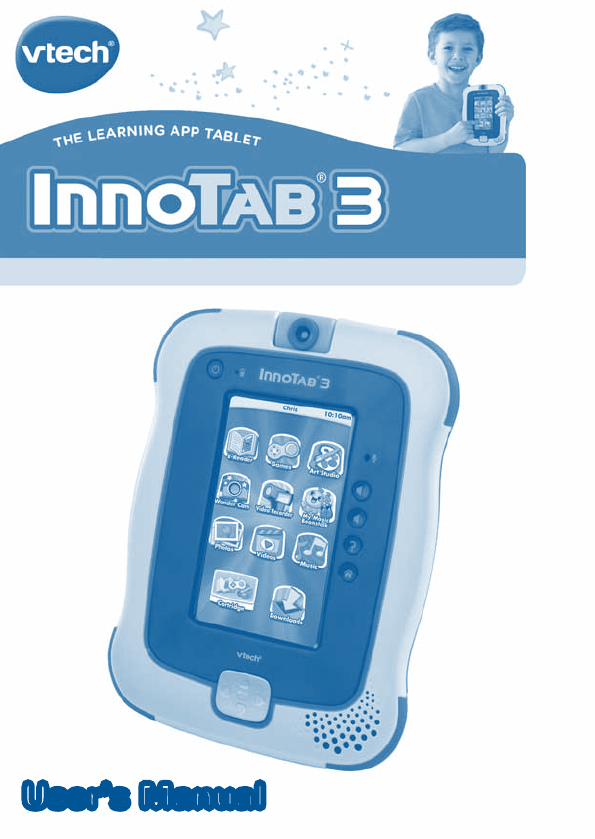
User’s ManualUser’s Manual
Der Pr,
A VT®, n h uc j tayng to t h rns n
hvng t ig-t gags rn. W n th r is t
sm ay. Wt th n, dvlpe InTb® 3, -nci tl
r is th ns t ag M’s n Da’s tls t -le
lerng pinc th ts t acv ftl is.
InTb® 3 s t gnri lerng ts r clr. I er 4.3”
i clr LCD tuc scr, ng cmr n id rdr, n -
r n rein a r gm cr, he l, rl, n
cpac dig r e rtty. Wt wv s or s crid
t adin tr s, tr’s lty ct t g is trte. r’s
lrg rry crid r en r is' vt chractrs
n iy acci th l is t ctz tr InTb® 3
t ay t .
Ev r ct s ll n. U t USB cl t cne t Lerng
Lod™ r c dwloa lerng gm, -s, ngs, ids, n
adin s. InTb® 3 hs 2GB mry or tr’s lty
pac t tr t gre ct ’ n. If e r trag, r
cr SD mry cr t pn t mry.
W layng t InTb® 3, is c l, , tuc, n tr ay
tru acvi t scvr rl nvr t n rvr
t g. ru tracv lay, r cl dvlo s eang, t,
ci ui, scinc, , crevty, n r!
A VT®, r decte t ng r clr ncvr tr tlts. W
th r r r roucts th ncrag acv ns tru
magnv lay.
Sncrly,
Yr ins VT®
T ler r InTb® 3 n r VT® ts, w.tis.c

C
O
N
T
E
N
T
S
IntroductIon ....................................................................... 1
Included in This Package ............................................................ 1
Product Features ........................................................... 2
GettInG started ................................................................ 4
Battery Installation ..................................................................... 4
AC Adaptor ................................................................................ 5
How to Play ................................................................................ 6
Desktop Menu ........................................................................... 7
Status Bar .................................................................................. 7
content .................................................................................. 8
InnoTab® 3 Read, Play & Create Cartridge ................................ 8
Built-in Apps ............................................................................... 9
Playing an InnoTab® Cartridge ................................................... 17
Downloads Menu ....................................................................... 17
onlIne Features ................................................................ 18
Inserting a microSD Card ........................................................... 18
Connecting to Learning LodgeTM ............................................... 18
transFerrInG PHotos and VIdeos ........................ 21
care & MaIntenance ....................................................... 22
trouBlesHootInG ............................................................ 24
tecHnIcal suPPort .......................................................... 26
coPyrIGHt notIces ............................................................ 27
dIsclaIMer and lIMItatIon oF lIaBIlIty ................ 28
end user lIcense aGreeMent ................................... 30
Gnu General PuBlIc lIcense ..................................... 33
1
Thank you for purchasing InnoTab® 3 The Learning App Tablet! InnoTab® 3
is a multi-function, touch screen tablet for 3-9 year olds. Kids will love using
InnoTab® 3 to take photos and videos, read e-books, listen to music, play
games, and more. With microSD card expanded memory, and new apps
being added all the time, InnoTab® 3 is a great tablet for busy kids on the go.
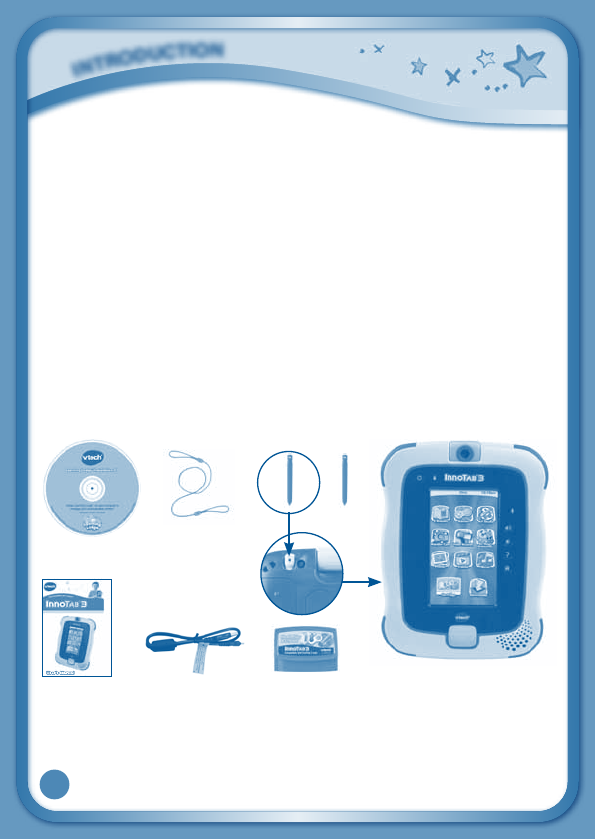
Included in This Package
•One VTech® InnoTab® 3 Learning App Tablet (including 2 InnoTab® 3
Styluses)
•OneInnoTab® 3 Read, Play & Create Cartridge
•One Learning Lodge™ Installation CD
•OneUSBCable
•OneStylusString
•OneUser’sManual
•FourAABatteries
Warning: All packing materials, such as tape, plastic sheets, packaging
locks, wire ties, and tags are not part of this toy, and should be discarded
foryourchild’ssafety.
Note: Please keep the user’s manual as it contains important
information.
I
N
T
R
O
D
U
C
T
I
O
N
InnoTab® 3 Styluses
USBcable
Learning LodgeTM
Installation CD
InnoTab® 3 Read, Play
& Create Cartridge
User’s manual InnoTab® 3
Stylus String
2
P
R
O
D
U
C
T
F
E
A
T
U
R
E
S
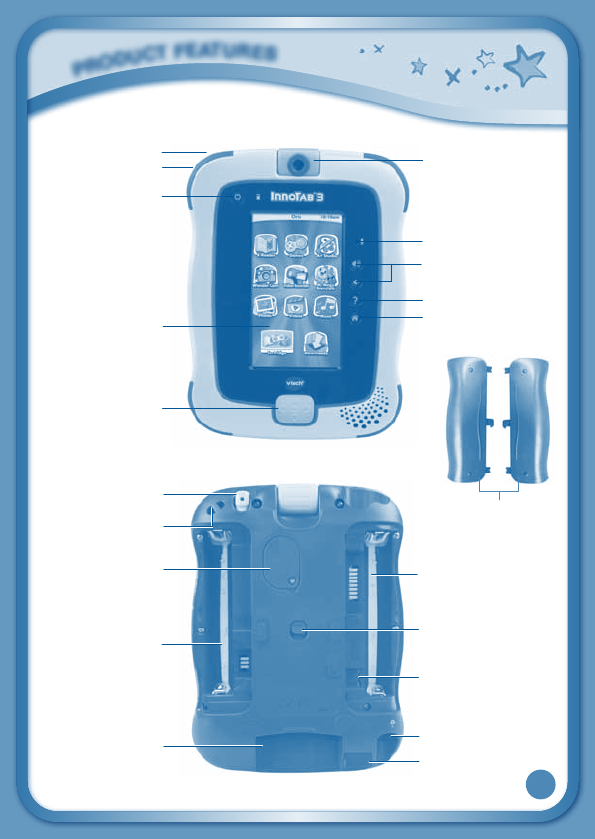
Power Button
USBPort
Help Button
Microphone
Volume Buttons
Touch Screen
D-Pad Button
Home Button
Rotating Camera
AC Adaptor Jack
InnoTab® 3 Stylus
and Stylus Holder
StylusFastener
Backup Battery
Slot & Cover
microSD Memory
Card Slot
(microSD memory card
not included.)
InnoTab®
Cartridge Port
Battery
Compartment
Battery
Compartment
Battery Door Lock
Sliding Switch
Headphone Jack
Brightness Button
Battery Covers

3
FEATURES ACTION
Rotating Camera Rotate the camera to take pictures of yourself
and your friends.
Touch Screen Touch the screen with your finger or the
InnoTab® 3 stylus to play.
AC Adaptor Jack Use this to connect an AC/DC adaptor (sold
separately).
Headphone Jack Use this to connect headphones (sold
separately).
Power Button Press this button to turn InnoTab® 3 on or off.
USB Port Plug the included USB cable into this USB
port to connect the tablet to your computer.
Brightness Button Press this button to adjust the screen
brightness.
Help Button Press this button to replay voice instructions,
or ask for a hint.
Microphone Speak into this microphone to record your
voice or play microphone games.
Volume Buttons Press these buttons to adjust the sound
volume.
Home Button Press this button to return to the InnoTab®
3
desktop menu at any time.
D-Pad Button Press this button to move up, down, left, or
right in some games or menus.
InnoTab® Cartridge Port Insert an InnoTab® cartridge (sold separately)
into this slot to play.
Use your finger or this stylus to play. Always
place the InnoTab® 3 stylus back into the
stylus holder after use.
Backup Battery Slot & Cover The backup battery provides power for
the clock. For backup battery replacement
instructions, please see the Care &
Maintenance section on page 22.
P
R
O
D
U
C
T
F
E
A
T
U
R
E
S
InnoTab® 3 Stylus &
Stylus Holder
4
StylusFastener Usethestylusstringtoattachthestylusto
this fastener.
Slide this switch to open the battery
doors. Always replace the InnoTab® 3
battery doors after changing batteries.
microSD Card Slot Insert a microSD memory card (not
included). (NOTE: InnoTab® 3 is compatible
with microSD memory cards up to 32GB.)
Battery Compartments Insert 4 “AA” batteries. For battery installation
instructions, please see the next section.
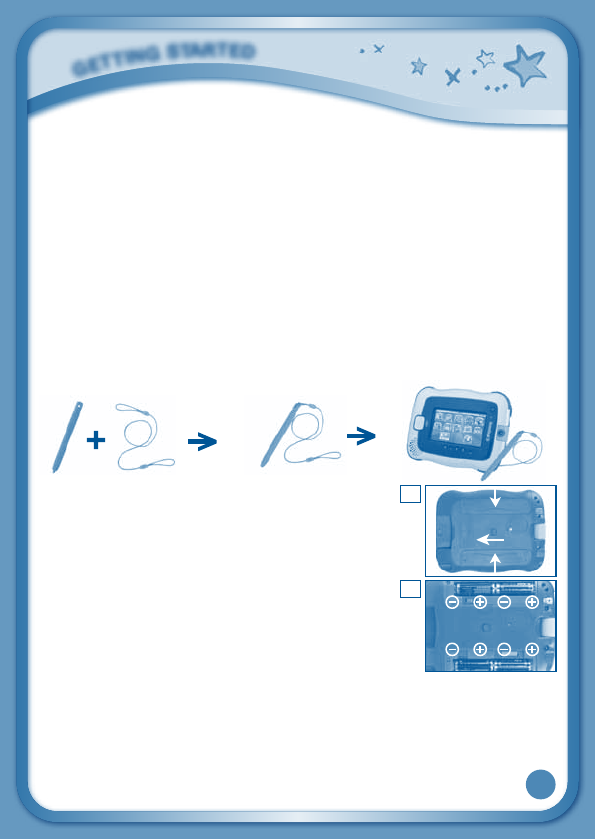
How to Attach the Stylus
Tie one end of the stylus string to the stylus and the other end to the stylus
fastener on the InnoTab® 3.
Battery Installation
•Makesurethetabletisturnedoff.
•Locatethebatterydoorlockslidingswitchonthe
back of the tablet. Slide the switch to open the
battery covers, then remove the covers.
•Insert4“AA”batteriesasshowninimage2.
•Makesuretoreplacethebatterycovers.
Battery Notice
• Non-rechargeablebatteriesarenottoberecharged.
• Standardsize(AA)rechargeablebatteriesaretoberemovedfromthe
toy before being charged (if removable).
• Rechargeablebatteriesareonlytobechargedbyanadultorbychildren
8 years or older.
• Donotmixoldandnewbatteries.
Battery Door Lock Sliding
Switch
2
1
G
E
T
T
I
N
G
S
T
A
R
T
E
D
5
• Donotmixbatteriesofdifferenttypes:alkaline,standard(carbon-zinc),
orrechargeable(Ni-MH).
• Onlybatteriesofthesameorequivalenttypeasrecommendedareto
be used.
• Batteriesaretobeinsertedwiththecorrectpolarity.
• Exhaustedbatteriesaretoberemovedfromthetoy.
• Thesupplyterminalsarenottobeshort-circuited.
• Thetoyisnottobeconnectedtomorethantherecommendednumber
of power supplies.
• Donotdisposeofbatteriesinfire.
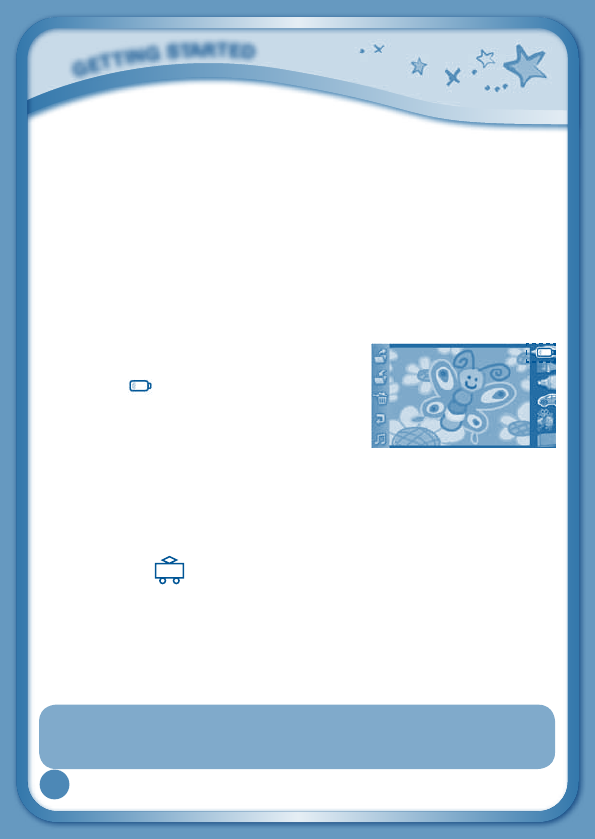
NOTE: When InnoTab® 3 is running on
batteries, you may see this icon appear on
the screen . This indicates that battery
power is low, and you should replace the
batteries soon. Battery time remaining once
the icon first appears is approximately 10-30
minutes, depending on the type of batteries in use. After that, InnoTab®
3 will show the very low battery screen for 3 seconds, and then will turn
off automatically.
To preserve battery life, InnoTab® 3 will shut down automatically when there
is no input for a few minutes.
AC Adaptor
•Using a VTech® adaptor (AC/DC 7.5V) that complies with EN61558 is
recommended.
•Makesurethetabletisturnedoff.
•Plugtheadaptor(soldseparately)intotheACadaptorjackonthetopof
InnoTab® 3.
•Plugtheadaptorintoawallsocket.
NOTE: The use of an adaptor will override the batteries. When the toy
is not going to be used for an extended period of time, unplug
the adaptor.
G
E
T
T
I
N
G
S
T
A
R
T
E
D
6
Standard Guidelines for Adaptor Toys
• Thistoyisnotintendedforusebychildrenunder3yearsold.
• Thetoymustonlybeusedwithatransformerfortoys.
• Theadaptorisnotatoy.
• Nevercleanapluggedintoywithliquid.
• Donotconnectthetoytomorethantherecommendednumberof
power supplies.
• Donotleavethetoypluggedinforextendedperiodsoftime.
How to Play
STEP 1: Turn InnoTab® 3 On
Turn InnoTab® 3 on by holding down the Power button
for a few seconds. A VTech® logo and an InnoTab® 3
logo will appear and remain onscreen for a few seconds.
STEP 2: Personalize Your Profile
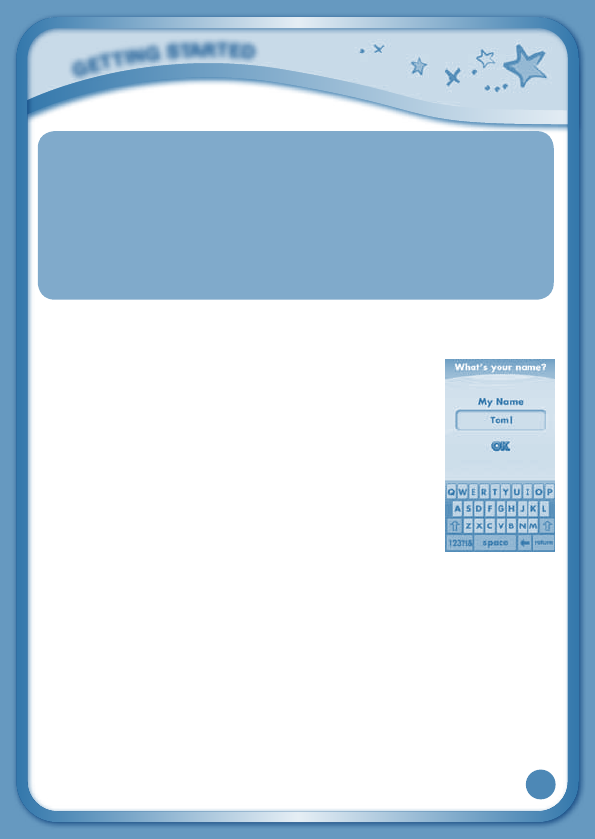
The first time you turn on InnoTab® 3, you will be asked
topersonalizeyourprofile.Whenyouareaskedtoenter
your name, use the on-screen keyboard to type in your
name, and touch “OK”whenyou’redone.Whenyouare
asked to take your profile picture, touch the on-screen
shutter icon, and then touch “OK.”
STEP 3: InnoTab® 3 Desktop
IntheInnoTab® 3 desktop, you will see 15built-inappicons.Flickleftor
right to look at the apps available on the desktop menu, and then touch an
appicontostartplaying.(Formoredetailsaboutthebuilt-inapps,please
see the Built-in Apps section below.)
NOTE:WhenyoustartplayingwithInnoTab® 3, please go to the Clock app
to update the date and time to the current date and time. See the Clock
section below for more details.
G
E
T
T
I
N
G
S
T
A
R
T
E
D
7
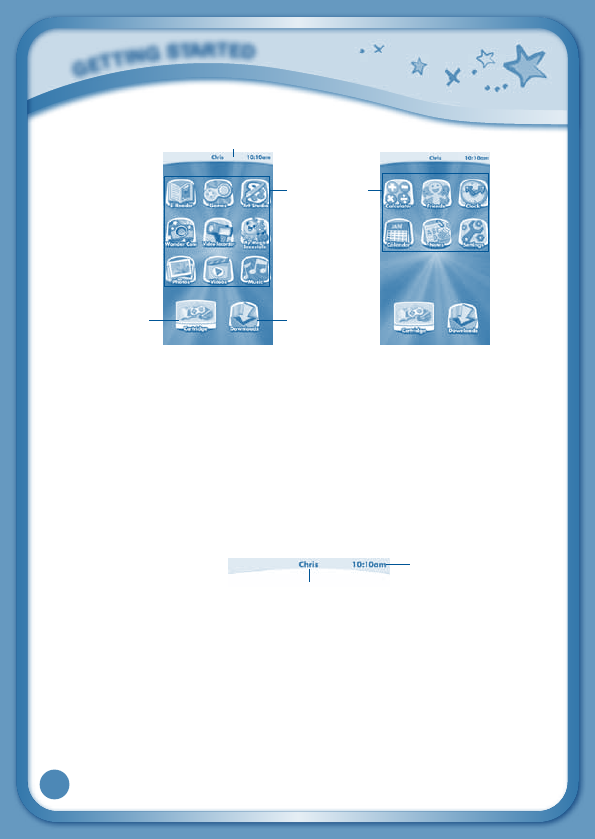
Desktop Menu
Status Bar: View the Profile name and current time.
Built-in Apps: Touch an app icon to play.
Cartridge Icon:IfanInnoTab® cartridge (sold separately) is inserted, touch
the cartridge icon to play.
Downloads: Touch the Downloads icon to view, play, or manage any
content that you have downloaded from Learning LodgeTM. (Please see
the Downloads Menu section below for details.)
Status Bar
Name - The profile name is displayed here.
Time - This is the time display. Go into the Clock app to reset the time if it
doesnotmatchyourtimezone.
G
E
T
T
I
N
G
S
T
A
R
T
E
D
Time
Name
Built-in Apps
Status Bar
CartridgeIcon Downloads
Desktop Desktop
8
Common Function Icons
Icon Function
Touch this to confirm you are done with the current task.
Touch this to cancel.
Touch this to add a new item.
Touch this to delete an item.
Touch this to edit/modify.
Touch this to go back/return to previous screen.
Touch this to exit.
Touch this to enter the delete mode.
Touch this to enter the edit/settings mode.
This indicates that the content has been locked in the Parent
Settings. Hold to unlock the content before it can be
deleted.
InnoTab® 3 Read, Play & Create Cartridge
InserttheInnoTab® 3 Read, Play & Create cartridge into the cartridge port.
You will see a cartridge icon appear at the bottom of the desktop menu.
Touch the icon to play. (NOTE:TheInnoTab® 3 Read, Play & Create cartridge is
compatible with InnoTab® 3 only.)
E-Book: What’s That Noise?
Rufus was a good old country dog. But one
day, Rufus and his family packed up and moved
to the city. Rufus needed to learn to be a city
dog. The first thing he learned was the city
wasLOUD!ReadalongwithRufustofindout
“WHAT’STHATNOISE?”!
Curriculum: Reading
C
O
N
T
E
N
T
9
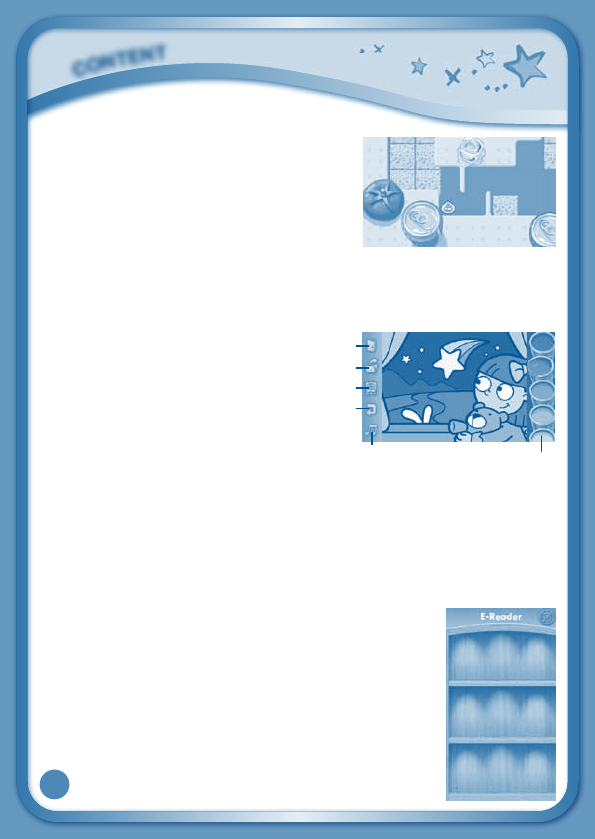
Learning Game: H2O Go!
H2OtheWaterDropwantstogohome,but
there are too many obstacles in his way. Help
him to make it home safely using the d-pad
button. Learn about the properties of water
duringthejourneyashetransformsintoice,
water, and gas.
Curriculum: Physical Science
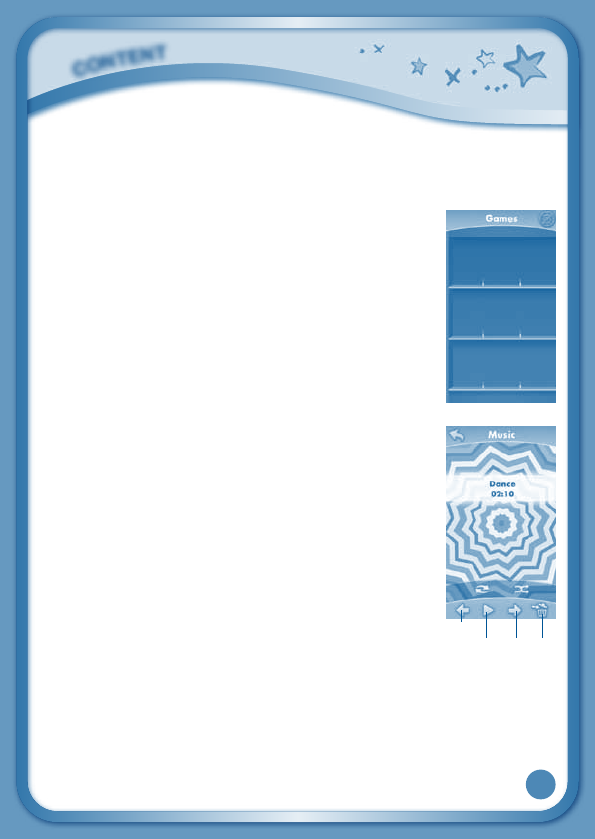
Creative Activity: Color & Pop
Touch the Color & Pop icon to color a picture and see it move.
Touch the paint can choose a color,
and then touch the picture to fill in
that color on the picture.
Paint – Touch a paint can to choose
acolor.Flickupordowntolookat
all the colors.
Exit-Touchthistoexit.
NewPage–Touchthistoopenanewpicture.
EyeIcon–Touchthistoseeyourpicturemove.Tiltthetabletleft,right,
up, or down to find what is hiding in the picture.
Undo–Touchthistoundowhatyoujustdid.
MusicOn/Off-Touchthistoturnthebackgroundmusiconoroff.
Curriculum: Creativity
Built-in Apps
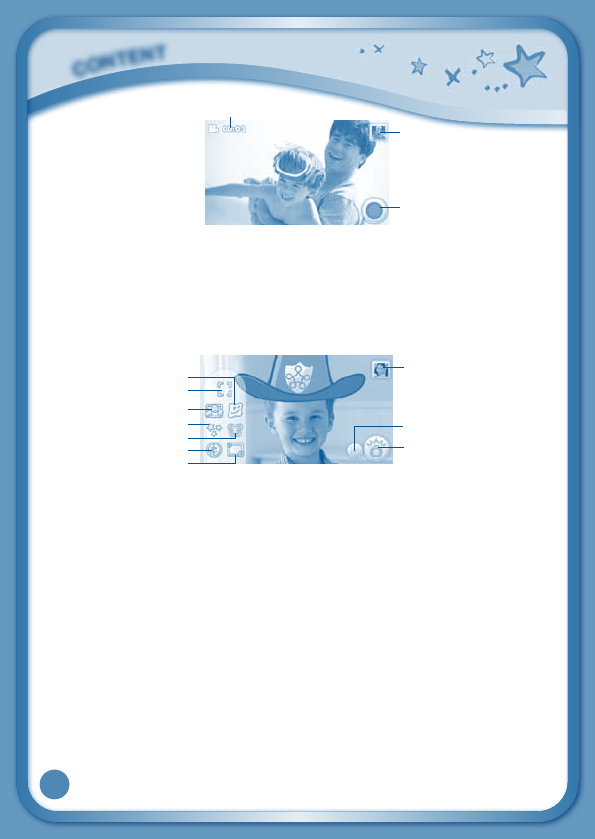
E-Reader
TouchtheE-Readericontoreade-booksdownloaded
from Learning LodgeTM. Flick left or right to move
between the bookshelves and see all the e-books you
have downloaded.
Onee-book-“What’sThatNoise?”-isincludedonthe
InnoTab® 3 Read, Play & Create cartridge. (Please see the
InnoTab® 3 Read, Play & Create Cartridge section
above for details.)
C
O
N
T
E
N
T
NewPage
Paint
EyeIcon
Undo
MusicOn/Off
Exit
10
Connect to Learning Lodge
™
to purchase and download more e-books. See
the Connecting to Learning Lodge
TM
section on page 18 for more details.
Games
Touch the Games icon to play the games that you have
purchased and downloaded from Learning Lodge
™
.Flick
left or right to move between the game shelves.
Connect to Learning Lodge
™
to purchase and download
more games. See the Connecting to Learning Lodge™
section on page 18 for more details.
Music
Touch the Music icon to listen to MP3 format songs you
have transferred to your InnoTab® 3. You can purchase
and download music from Learning Lodge™, or you can
transfer music to your InnoTab® 3 from your computer
using Learning Lodge™. Expand InnoTab® 3 memory
by inserting a microSD memory card (not included).
Connect your InnoTab® 3 to Learning Lodge™ and select
“FileManager”totransfermusic.SeetheConnecting to
Learning Lodge™ section on page 18 for more details.
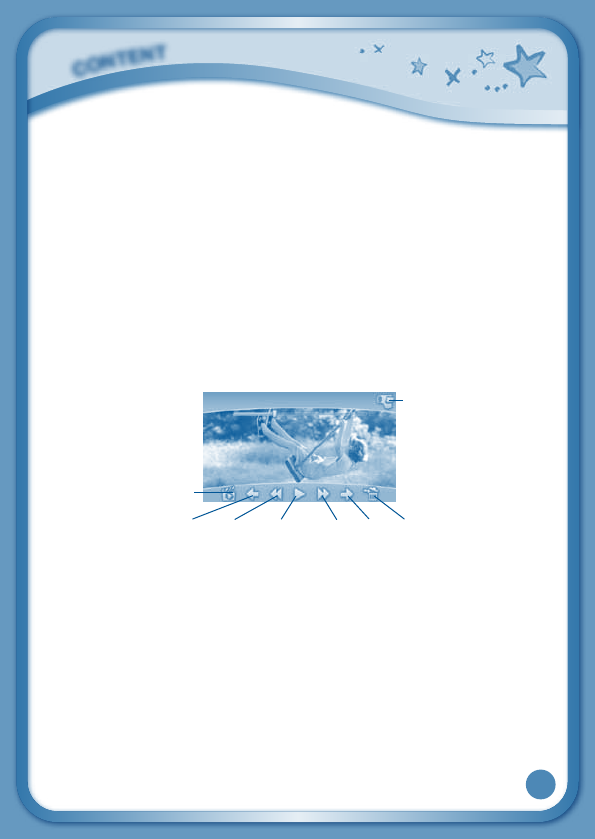
Video Recorder
Touch the Video Recorder icon to record video. The
maximum recording length for each video is 5 minutes.
Time - This is the elapsed time of the video now
recording.
Record button - Touch this to start/stop recording.
Thumbnail-Touchthistoviewthevideoyouhavejusttaken.
C
O
N
T
E
N
T
Play/PauseNextTrash
Previous
11
WARNING:Videorecordingmaytakeupmemoryquickly.ConnectyourInnoTab®
3
to Learning LodgeTM and select “File Manager” to back up your videos to your
computer regularly. See the Connecting to Learning LodgeTM section on page 18
for more details.
Wonder Cam
Touch the Wonder Cam icon to take photos with fun decorations and
effects.
NormalMode-Touchthistotakeaphotowithoutanydecorationoreffect.
All-Me Mode - Touch this to take a photo with an All-Me effect, and your
face will appear on all the characters in the photo.
Sticker Mode - Touch this to take a photo with a silly sticker.
Kaleidoscope Mode - Touch this to take a photo through a kaleidoscope.
FunnyFaceMode-Touchthistomakeafunnyfacephoto.
FantasyEffectMode-Touchthistotakeaphotowithafantasyeffect.
FrameMode-Touchthistotakeaphotowithaframe.
Thumbnail-Touchthistoviewthephotoyouhavejusttaken.
Arrows - Touch these to see more decorations or effects.
AutoDetection-TouchthistoturnAutoDetectiononoroffinFantasy
EffectMode.Ifthisfeatureison,thefantasyeffectswillautomaticallybe
placedintheareawiththemostlight.Ifthefeatureisoff,thentheeffects
will be placed in a predetermined pattern near the edge of the picture.
FaceDetection-TouchthistoturnFaceDetectiononoroffinSticker
Mode.IfFaceDetectionison,thecamerawillchangethesizeand
placement of the sticker to try to match your face.
C
O
N
T
E
N
T
NormalMode
Thumbnail
Shutter
Auto Detection/
FaceDetection
Sticker Mode
FrameMode
All-Me Mode
FantasyEffectMode
Kaleidoscope Mode
FunnyFaceMode
Time
Thumbnail
Record button
12
Shutter - Touch this to take a photo.
TIP: YoucanselectthephotoresolutionbychangingthePhotoSize
optionsintheSettingsmenu.Morememoryspaceisrequiredfor
higher photo resolutions.
NOTE:Notalleffectscanbesavedonallphotoresolutions.
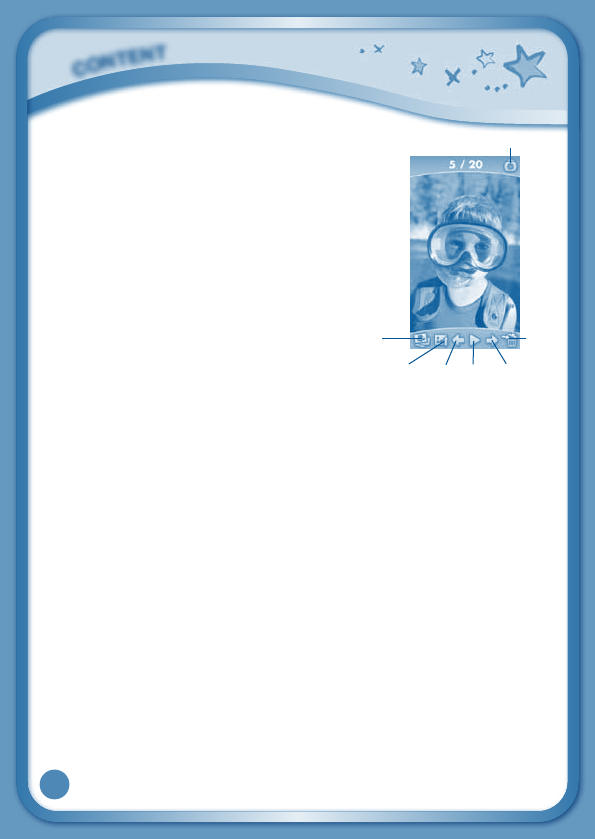
Videos
TouchtheVideosicontowatchmotionJPEG(MJPEG)andH.264format
videos you have transferred to your InnoTab® 3 from your computer, videos
that you have purchased and downloaded from Learning LodgeTM, or videos
that you have taken with the Video Recorder app on your InnoTab® 3.Expand
InnoTab® 3 memory by inserting a microSD memory card (not included).
Connect your InnoTab® 3 to Learning LodgeTM and select “FileManager”
to transfer videos.
See the Connecting to Learning LodgeTM section on page 18 for more
details.
Album - Touch this to go to see a list of saved videos.
Previous – Touch this to go to the previous video.
Rewind – Touch this to rewind the video.
Play/Pause – Touch this to play or pause the video.
Forward–Touchthistofastforwardthevideo.
Next–Touchthistogotothenextvideo.
Trash Can – Touch this to delete the current video.
Video Recorder - Touch this to use your InnoTab® 3 Video Recorder.
FormoredetailsabouttransferringvideostoyourInnoTab® 3, please see
the Transferring Photos and Videos section below.
C
O
N
T
E
N
T
Video
Recorder
Album
PreviousRewindPlay/PauseForwardNextTrashCan
13
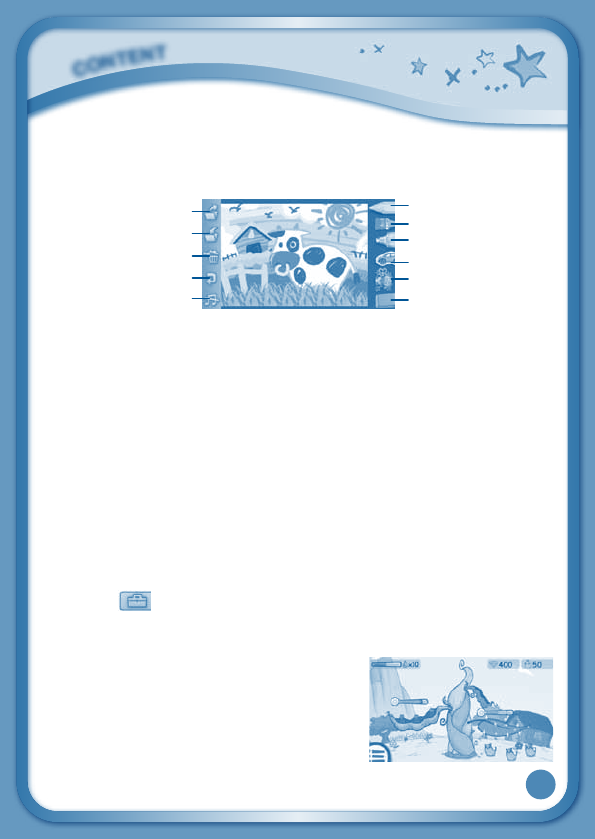
Photos
Touch the Photos icon to look at JPEG
format photos you have transferred to
your InnoTab® 3 and photos taken with
the InnoTab® 3 Wonder Cam app. You can
transfer photos to your InnoTab® 3 from
your computer using Learning LodgeTM.
Expand InnoTab® 3 memory by inserting
a microSD memory card (not included).
Connect your InnoTab® 3 to Learning
Lodge™ and select “File Manager” to
transfer photos. See the Connecting to
Learning LodgeTM section on page 18 for
more details.
Album - Touch this to see a list of saved photos.
Set Wallpaper – Touch this to set the current photo as your desktop
wallpaper.
Previous – Touch this go to the previous photo.
Play – Touch this to view a photo slideshow.
Next–Touchthistogotothenextphoto.
Trash Can – Touch this to delete the current photo.
Camera - Touch this to use your InnoTab® 3 Wonder Cam app.
TIP:TurntherotatingCameratothefronttotakeaphotoofyourself.Turn
the rotating Camera to the back to take a picture of your friends. You
can change the viewing orientation between landscape and portrait by
rotating the tablet.
C
O
N
T
E
N
T
PreviousPlayNextSet Wallpaper
Album
Camera
Trash
Can
14
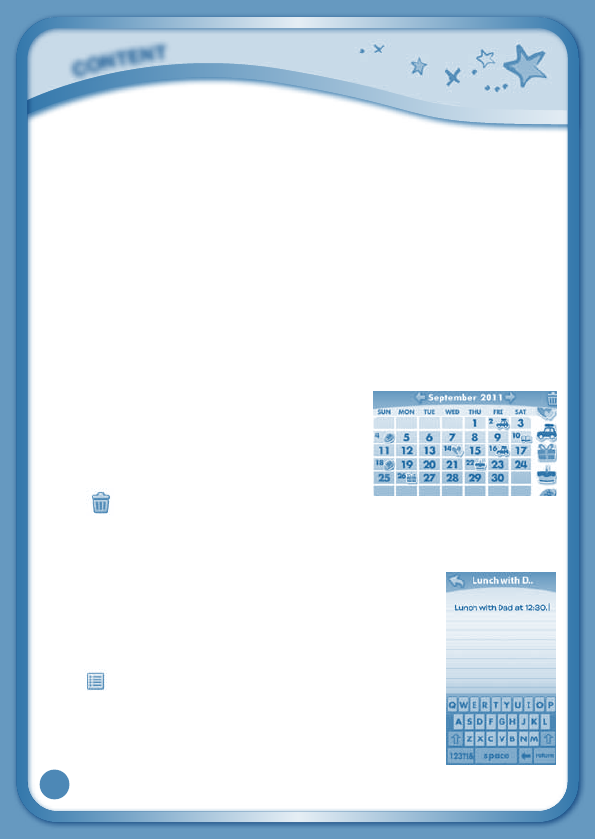
Art Studio
Touch the Art Studio icon to draw a picture or edit a photo. Touch a tool on the
right to start your creation.
Pencil – Touch this to draw with different colored pencils.
Brush – Touch this to paint with different colored brushes.
Magic Pen – Touch this to draw with fun colored and patterned pens.
Sticker – Touch this to put stickers on your creation.
FunTool–Touchthistoplaywithsillytools–suchasahoppingfrog!
Eraser–Touchthisandthentouchthescreentoerasewhatyou’vedone.
NewPage–Touchthistomakeanewcreation.Youcanchooseapage
template or a photo to start with.
Save – Touch this to save your creation.
Reset – Touch this to reset the whole creation.
Undo–Touchthistoundowhatyoujustdid.
MusicOn/Off–Touchthistoturnthebackgroundmusiconoroff.
TIP:Touch to go back to the toolbox menu.
My Magic Beanstalk
A mysterious Bean Seller has given you some
magic beans. And where there are magic beans,
a magic beanstalk is sure to follow! Take care of
your very own magic beanstalk in this simulation
game that takes place in real time.
Your beanstalk will respond to your actions
C
O
N
T
E
N
T
Brush
NewPage
Save
Reset
Undo
MusicOn/Off
Pencil
Magic Pen
Sticker
FunTool
Eraser
15
justlikearealplantwould.Ifyouwateriteverydayandtakegoodcareof
it,thebeanstalkwillgrowtall.Howhighcanthismagicbeanstalkgrow?The
answer is up to you!
You can also use magic potions to make your plant grow beans. Each
magicpotiongrowsadifferenttypeofbean.Usedifferentpotionsandtry
to collect all the beans.
NotetoParents:Asyourchildrenplaythisgame,theywillearnspecialgifts
that will help them take better care of their beanstalk. When your child
receives a message about earning a gift, connect the InnoTab® 3 to Learning
Lodge™ to download the gift package onto your child's tablet.
Curriculum: Time Management, Responsibility, Life Science
Calendar
Touch the Calendar icon to look at or edit your
calendar. To mark a day with a sticker, drag a
sticker from the tool bar to the day. To add a
note, touch the day, and then type in your note
using the pop-up keyboard.
Touch to delete a sticker or a note.
You can save up to 500 stickers to mark your important dates!
Notes
TouchtheNotesicontotypeanewnoteorviewanote
you have saved. Touch anywhere on the page to open
the pop-up keyboard and start typing.
To look at your saved notes, flick left or right to see the
previous or next note. To see a list of all your notes,
touch .
You can save up to 500 characters per note and a
maximum of 100 notes.
C
O
N
T
E
N
T
16
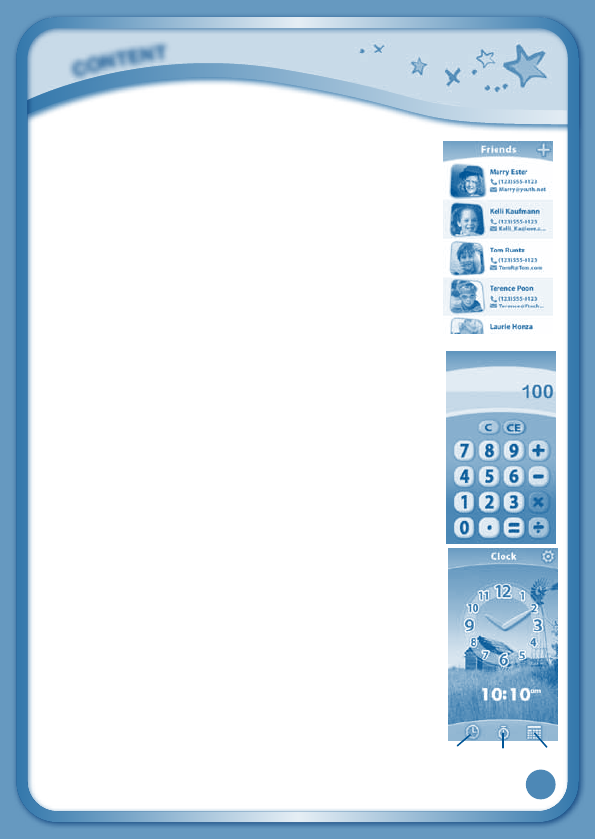
Friends
TouchtheFriendsicontoaddanewfriendorviewyour
friends’infothatyouhavesaved.
Flickupordowntolookatmorefriends.Tovieworedit
afriend’sinformation,touchthatfriend’sname.
You can save info for a maximum of 20 friends.
Calculator
Touch the Calculator icon to do simple calculations.
TIP:Tryshakingthetablettoseewhathappens.
Clock
Touch the Clock to set the time or date, or use the
stopwatch.
Clock–Touchthistovieworadjustthetime.
Stopwatch – Touch this to use the stopwatch to count up.
Date–Touchthistovieworadjustthedate.
C
O
N
T
E
N
T
Clock Stopwatch Date
17
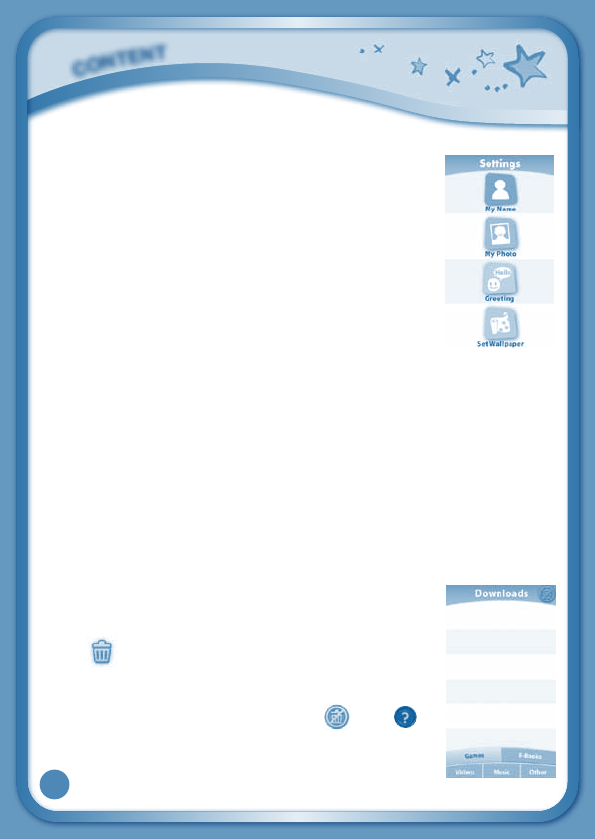
Settings
Touch the Settings icon to edit your profile name, set a
profile picture, record a greeting message, set desktop
wallpaper,changecamera photo size, check memory
usage, delete game records, lock content from deletion
and view the InnoTab® 3 firmware version number.
Register your InnoTab® 3 on Learning LodgeTM to obtain a
registered license for the onboard content and software.
To ensure that your tablet has been registered, go to the
About menu in the Settings menu in your InnoTab® 3.
You will see the license type listed as "Trial" until your
InnoTab® 3 is registered on Learning LodgeTM.
TIP:YoucanresetthetablettofactorysettingsbytypingR-E-S-E-Tinto
theMyNameprofileinSettings.
WARNING: Any data saved in internal memory will be lost. Data saved in
a mircoSD card (not included) will not be affected by resetting the tablet.
Playing an InnoTab® Cartridge
IfanInnoTab® cartridge (sold separately) has been inserted properly, you
will see the cartridge icon at the bottom of the desktop menu screen. Touch
the cartridge icon to play.
Downloads Menu
Inthe InnoTab® 3 desktop, touch the Downloads icon to
manage your downloaded content. Touch any category at
the bottom to see the downloaded items in that category.
Touch to enter the delete mode.
Indeletemode,touchanitemtodeleteit.Apop-upmenu
willaskifyoureallywanttodeletethatitem.Touch“Yes”
toconfirm,or“No”tocancel.Ifyousee , hold to
unlock the content.
C
O
N
T
E
N
T
18
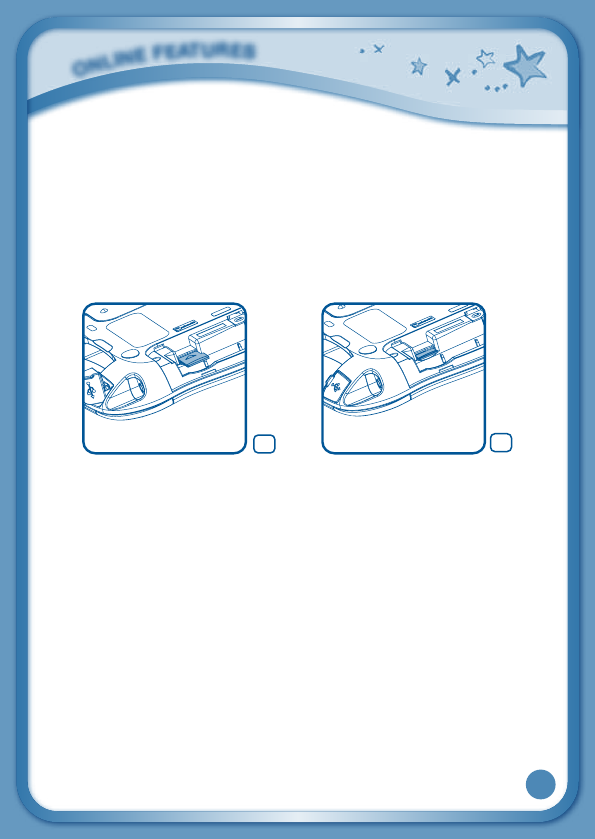
Inserting a microSD Card
You can insert a microSD card (not included) into your InnoTab® 3 to
expand available memory for downloaded content, photos, videos or music.
InnoTab® 3 is compatible with memory cards up to 32GB.
- Make sure the tablet is turned off.
- Locate the microSD card slot on the back of InnoTab® 3.Itisunderthe
battery cover with the "microSD" inscription next to it.
-InsertthemicroSDcard,asshowninimages3&4.
Connecting to Learning LodgeTM
ConnecttoLearningLodge™tokeeptrackofyourchild’slearningprogress
online. You can also download great apps, e-books, music, videos and
themes. To install the InnoTab® 3 version of the Learning Lodge™ software
on your computer, follow the instructions below.
• InsertanSDcardintoyourInnoTab® 3, as shown above, if you wish to
expand the available memory.
• TurnonyourInnoTab® 3.
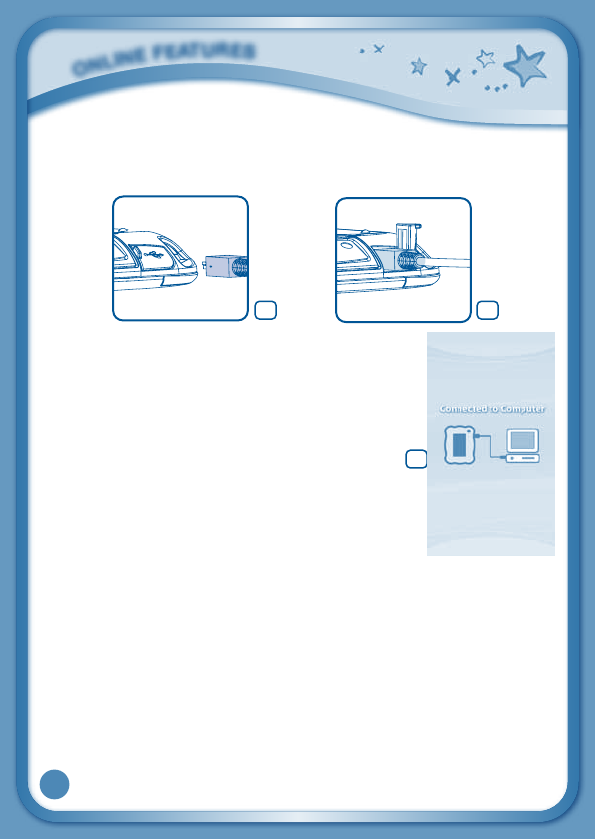
• LocatetheUSBportonyourInnoTab® 3 and open the rubber port cover.
• InsertthesmallerendoftheincludedUSBcableintotheUSBporton
your InnoTab® 3.
O
N
L
I
N
E
F
E
A
T
U
R
E
S
4
3
19
• InsertthelargerendoftheUSBcableintoaUSBportonyourcomputer.
TheUSBportisusuallymarkedwiththesymbolthatappearsonthe
USBportcoverofyourInnoTab® 3.Pleaserefertoimages5&6below.
• When the connection is successful your
InnoTab®
3willshowa“ConnectedtoComputer”
screen (image 7).
• IfyouhavenotalreadyinstalledLearningLodge™
on your computer, the Learning Lodge™ Setup
Program will automatically launch. Follow the
prompts on screen to complete the installation.
• ForhelpusingtheLearningLodge™refertothe
Help section of the program.
Other Learning Lodge™ Installation Methods
IftheSetupProgramfailstolaunchwhenyouconnecttheInnoTab® 3 to
your computer, you can also install Learning Lodge™ through one of the
following methods.
• CDInstallation(forPCComputers)
- InserttheLearningLodge™CDintotheCD-ROMdrive.
- Waitfortheinstallationscreentocomeup.Iftheinstallationscreen
does not come up automatically, go to “My Computer” and then
rightclickontheCD-ROMdrive.Fromthedrop-downmenu,choose
“Explore”anddoubleclickthe“VTech_toy_Setup.exe”icontostartit
up manually.
O
N
L
I
N
E
F
E
A
T
U
R
E
S
65
7
20
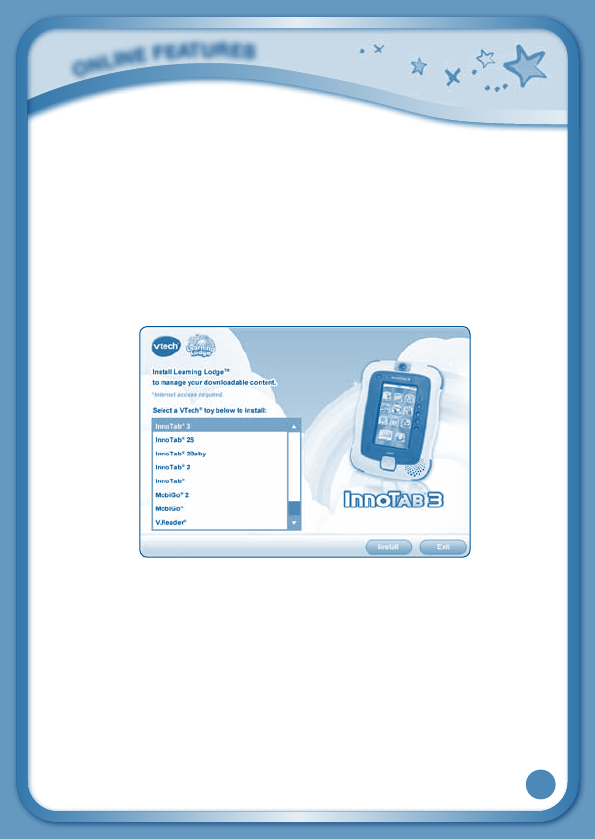
- Select the InnoTab® 3 version of Learning Lodge™ on the installation
screen.
- Click“Install”tobegintheinstallation.
- Followtheon-screenpromptstoinstallLearningLodge™.
• CDInstallation(forMacintoshComputers)
- InserttheLearningLodge™CDintotheCD-ROMdrive.
- Doubleclickthe“VTechToySetup”iconinthepop-upwindow.
- Select the InnoTab® 3 version of Learning Lodge™ on the installation
screen.
- Click“Install”tobegintheinstallation.
- Followtheon-screenpromptstoinstallLearningLodge™.
•DownloadtheSetupFilesfromtheVTech® Website
- To download the files, go to:
www.vtechkids.com/downloadforUSor
www.vtechcanada.com/toysdownload for Canada.
- Select InnoTab® 3 from the list of products and click the Download
button for PC or Mac depending on which type of computer you own.
- Run the Setup Package and follow the on-screen prompts to install
Learning Lodge™.
O
N
L
I
N
E
F
E
A
T
U
R
E
S
21
Transferring Photos and Videos
You can transfer photos/videos from your computer to your InnoTab® 3
using Learning LodgeTM. See the Photos section above for more details.
InnoTab® 3supportsJPEGformattedphotosandMJPEG/H.264baseline
profileformattedvideoplayback.Othervideoformatscanbeconvertedto
work with InnoTab® 3 using third party software (not included). There may be
legal restrictions associated with the use of commercial video files, movies,
programs and other content for which VTech® accepts no responsibility or
liability.Usersshouldtakeresponsibilityforobservingrelevantcopyright
law in their country for this type of media.
Recommendedformatsettingsrequiredforvideoplayback
compatibility with InnoTab® 3:
WhenconvertingyourvideoforInnoTab,pleasefollowthefollowingguidelines:
Supported format:
H.264baselineprofilevideoandMP3audioinanAVIfile.
Recommended resolution:
480x272ifsourceis16:9and320x240ifsourceis4:3.Otherresolutionsaresupported
but are not optimal for the device.
Recommended Video bitrate:
600Kbps.Otherbitratesaresupportedbutarenotoptimalforthedevice.
Recommended Audio bitrate:
96Kbps.Otherbitratesaresupportedbutarenotoptimalforthedevice.
Maximumfilesize:
2GB (over 5 hours of play time using the recommended setup).
The following freeware programs may be used to convert most videos:
AvantiGUI
eRightSoft Super©
MediaCoder
TEncoder
(All trademarks are the property of their respective owners. VTech® does not endorse,
support or accept any liability for the freeware listed above.)
T
R
A
N
S
F
E
R
R
I
N
G
P
H
O
T
O
S
A
N
D
V
I
D
E
O
S
22
NOTE: Do not disconnect InnoTab® 3 or the computer while files are downloading.
After you have finished, turn off the tablet to save power. When not connected
toacomputer,pleaseclosetheUSBportcoverontheInnoTab® 3 for safety.
Care & Maintenance
1. Keep InnoTab® 3 out of direct sunlight and away from direct sources
of heat.
2. Remove the batteries when not using it for an extended period of time.
3. Avoiddroppingit.NEVERtrytodismantleit.
4. AlwayskeepyourInnoTab® 3 away from water.
5. Please examine the toy transformer periodically for conditions that
mayresultintheriskoffire,electricshock,orinjurytopersons(such
as damage to the output cord, blades, housing, or other parts) and
that, in an event of such conditions, the transformer should not be
used until properly repaired.
Using the InnoTab® 3 touch screen and stylus:
• Useonly enough pressuretooperatethegame.Too much pressure
may damage the touch screen.
• Donotusethestylusifitisbroken.
• Do not use any other stylus on the touch screen other than the
InnoTab®
3 stylus.
• Putthestylusbackinthestylusholderwhennotinuse.
C
A
R
E
&
M
A
I
N
T
E
N
A
N
C
E
23
Cleaning the InnoTab® 3 touch screen
• Slightly dampen a soft, lint-free cloth with a little water and wipe the
screen to loosen dirt.
• Usingacleananddrycloth,wipethescreendry.Repeatthesetwosteps
as needed.
Cleaning the InnoTab® 3 cabinet
• KeepyourInnoTab® 3cleanbywipingitwithaslightlydampcloth.Never
use solvents or abrasives.
Backup battery replacement
•Makesurethetabletisturnedoff.
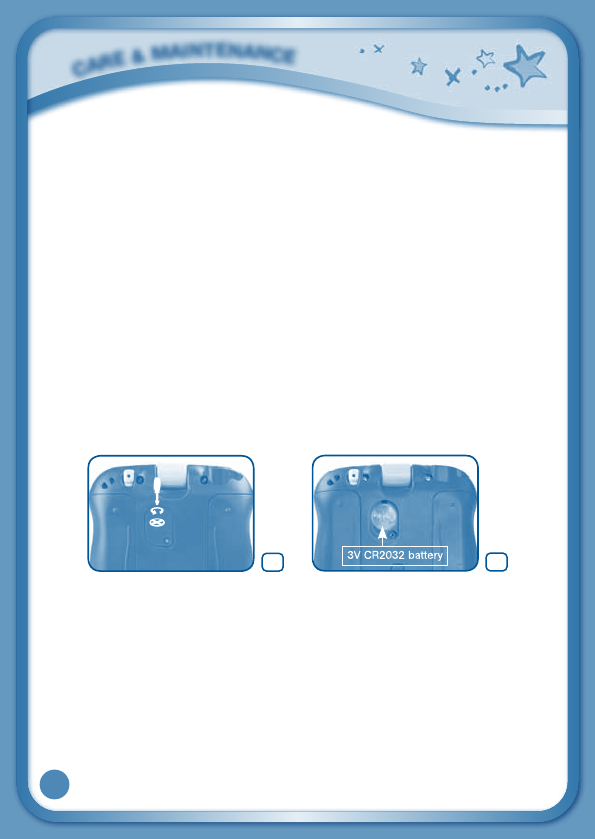
•Locatethebackupbatterycoveronthebackofthetablet,thenopenit
with a screwdriver as shown in image 8.
•Insert13VCR2032batteryinthebatterycompartmentwiththe“+” side
facing up as shown in image 9.
•Makesuretoreplacethebackupbatterycover.
C
A
R
E
&
M
A
I
N
T
E
N
A
N
C
E
9
8
24
WARNING
A very small percentage of the public, due to an existing condition, may
experience epileptic seizures or momentary loss of consciousness when
viewing certain types of flashing colors or patterns, especially on television.
While the InnoTab® 3 Learning App Tablet does not contribute to any additional
risks, we do recommend that parents supervise their children while they play
videogames.Ifyourchildexperiencesdizziness,alteredvision,disorientation,
or convulsions, discontinue use immediately and consult your physician. Please
note that focusing on an LCD screen at close range for a prolonged period
of time may cause fatigue or discomfort. We recommend that children take
a 15-minute break for every hour of play.
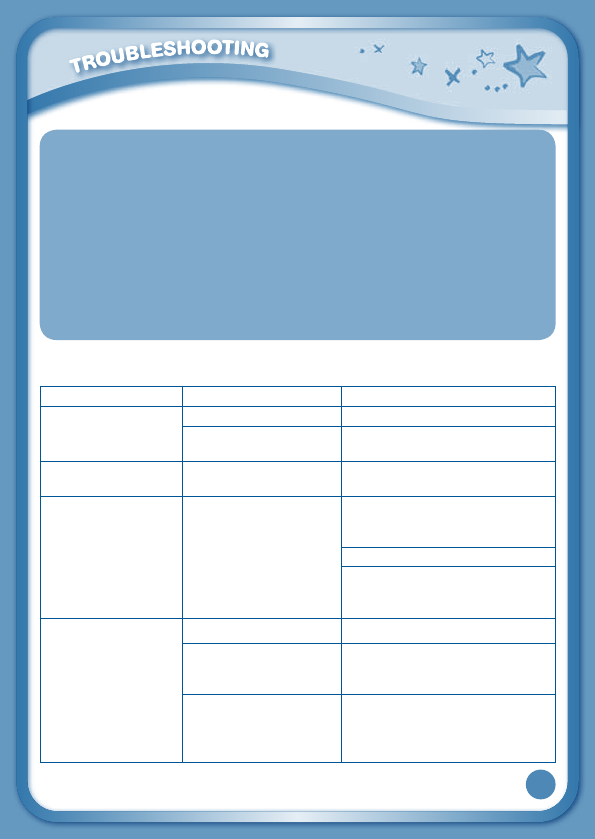
Troubleshooting
Problem Possible Reason Solution
Screen displays with
no sound
Volume is turned down. Adjust the volume control.
Headphones are
connected.
Unplug headphones from
headphone jack.
Screen turns on, then
immediately off
Battery power low Replace the battery.
No picture (or
incorrect picture) on
screen, and pressing
the Power button has
no effect.
Program needs to be
reset
Disconnect all power supplies
(batteries and adaptor), then
reconnect all power supplies.
Press the Power button.
Remove the cartridge, clean it if
necessary, and then re-insert it
into the InnoTab® 3.
No screen display
after pressing Power
button
Battery power low Replace the battery.
Incomplete battery
installation
Make sure to install all batteries
in the battery compartment.
No AC adaptor power Securely connect the AC
adaptor or car adaptor to both
the InnoTab® 3 and the power
source.
25
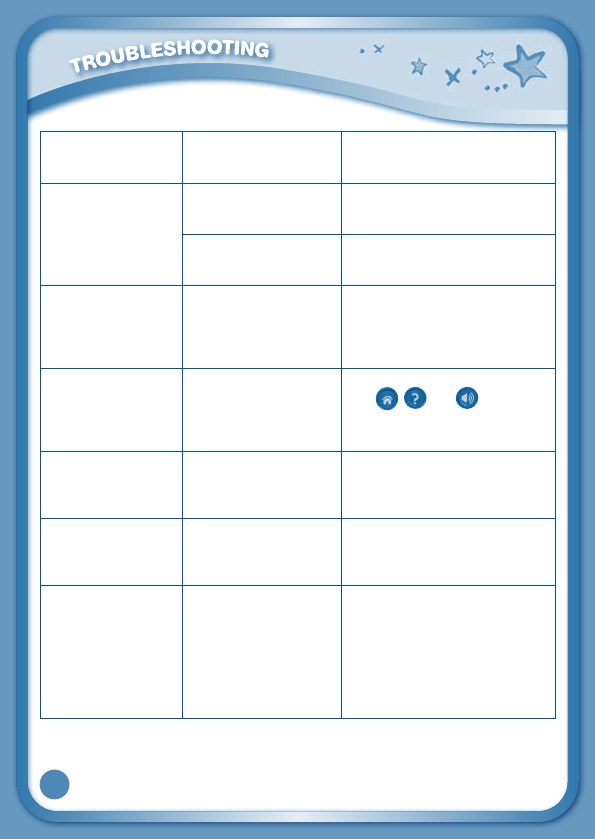
The cartridge icon
does not appear on
desktop
Poor cartridge
connection
Remove the cartridge, clean it if
necessary, and then re-insert it
into the InnoTab® 3.
USB connection
window does
not pop up after
connecting to
computer
Poor USB cable
connection
Securely connect the USB cable
to InnoTab® 3 and the computer.
Connection is running
through USB hub
Connect the InnoTab® 3 directly
to the computer, without using
a hub.
Clock time is not
accurate
Backup battery power
low
Replace backup battery (for
backup battery replacement
instructions, please see the
Care & Maintenance section on
page 22).
Touch screen is
inaccurate or it is
impossible to select
the correct icon on
the screen.
Touch screen requires
calibration.
Turn the InnoTab® 3 OFF. Then
hold , and down when
turning the InnoTab® 3ON.Follow
the steps on the screen.
Inserted a microSD
card (not included),
but the tablet cannot
recognize it.
microSD card format is
not FAT32.
Format the microSD card to
FAT32 in your computer.
Files copied
to the tablet's
internal memory
disappeared.
The tablet's memory
was not formatted to
FAT32.
If formatting the memory is
necessary, make sure it is
formatted to FAT32.
When using the
Rechargeable
Power Pack (sold
separately), the
console suddenly
turns off without
giving a "Low
Battery" warning.
There is uneven charge
storage among the
cells in the battery
packs.
Charge the rechargeable battery
packs for 24 hours (keep
charging even after the battery
charging indicator light stops
flashing).
Formoreinformationandtroubleshootingtips,visit
www.vtechkids.com/tutorials/innotab3

26
If your InnoTab® 3 does not respond to an inserted cartridge, please
carefully try the following:
• Removeallbatteriesandunplugallwiring.
• Useacottonswabdippedinrubbingalcoholoranalcohol-basedwindow
cleaner to gently clean the contact area of the cartridge slot.
• Ifnecessary,dryallthecleancontactareaswithasoft,lint-freecloth.
•Please make sure that all parts are completely dry before restoring
electricity.
Static electricity may cause the InnoTab® 3tomalfunction.Insomecases,
thegameplayscorestoredinthetabletmemorymaybelost.Incases
where InnoTab® 3 is malfunctioning due to static electricity, reset the tablet
by removing and reinstalling the batteries, or by unplugging and replugging
theACadaptor.Or,ifthestaticelectricitymalfunctionoccurredduringthe
downloadingprocess,disconnecttheUSBcable,deletethecorruptedfile,
andresetthetabletasdescribedabove.ThenreconnecttheUSBcable
and restart the download process.
Technical Support
•Ifyouhaveaproblemthatcannotbesolvedbyusingthismanual,we
encourage you to visit us online or contact our Consumer Services
Department with any problems and/or suggestions that you might have.
Asupportrepresentativewillbehappytoassistyou.Beforerequesting
support, please be ready to provide or include the information below:
•Thenameofyourproductormodelnumber(themodelnumberislocated
on the back of the display panel).
•Theactualproblemyouareexperiencing.
•Theactionsyoutookrightbeforetheproblemstarted.
Internet:www.vtechkids.com
Phone:1-800-521-2010intheU.S.or1-877-352-8697inCanada

27
Copyright Notices
© 2013 VTech. All Rights Reserved. VTech® and the VTech® logo are
registered trademarks of VTech. InnoTab® is a registered trademark of
VTech. Learning Lodge™ is a trademark of VTech. All other trademarks are
property of their respective owners.
IMPORTANT NOTE:
Creating and developing InnoTab® 3 The Learning App Tablet products is
accompanied by a responsibility that we at VTech® take very seriously. We
make every effort to ensure the accuracy of the information that forms the
valueofourproducts.However,errorssometimescanoccur.Itisimportant
for you to know that we stand behind our products and encourage you to
call our Consumer Services Departmentat1-800-521-2010intheU.S.or
1-877-352-8697inCanada,withanyproblemsand/orsuggestionsthatyou
might have. A service representative will be happy to help you. This product
is licensed under the AVC patent portfolio license for the personal use of
a consumer or other uses in which it does not receive remuneration to
(i) encode video in compliance with the AVC standard (“AVC video”) and/or
(ii) decode AVC video that was encoded by a consumer engaged in a
personal activity and/or was obtained from a video provider licensed to
provide AVC video.
No license is granted or shall be implied for any other use. Additional
informationmaybeobtainedfromMPEGLA,L.L.C.See
http://www.mpegla.com

28
Disclaimer and Limitation of Liability
VTech® Electronics North America, L.L.C. and its suppliers assume no
responsibility for any damage or loss resulting from the use of this
handbook. VTech® Electronics North America, L.L.C. and its suppliers
assume no responsibility for any loss or claims by third parties that may arise
through the use of this software. VTech®ElectronicsNorthAmerica,L.L.C.
and its suppliers assume no responsibility for any damage or loss caused
by deletion of data as a result of malfunction, dead battery, or repairs. Be
sure to make backup copies of important data on other media to protect
against data loss. Company: VTech®ElectronicsNorthAmerica,L.L.C.
Address:1156W.ShureDrive,Suite200,ArlingtonHeights,IL60004USA
Phone:1-800-521-2010intheU.S.or1-877-352-8697inCanada
Note:Thisequipmenthasbeentestedandfoundtocomplywiththelimits
foraClassBdigitaldevice,pursuanttoPart15oftheFCCRules.
These limits are designed to provide reasonable protection against harmful
interferenceinaresidentialinstallation.Thisequipmentgenerates,uses
andcanradiateradiofrequencyenergyand,ifnotinstalledandusedin
accordance with the instructions, may cause harmful interference to radio
communications. However, there is no guarantee that interference will not
occur in a particular installation. If this equipment does cause harmful
interference to radio or television reception, which can be determined by
turningtheequipmentoffandon,theuserisencouragedtotrytocorrect
the interference by one or more of the following measures:
•Reorientorrelocatethereceivingantenna.
•Increasetheseparationbetweentheequipmentandreceiver.
•Connecttheequipmentintoanoutletonacircuitdifferentfromthatto
which the receiver is connected.
•Consultthedealeroranexperiencedradio/TVtechnicianforhelp.

29
ThisdevicecomplieswithPart15oftheFCCRules.Operationissubject
to the following two conditions: (1) this device may not cause harmful
interference, and (2) this device must accept any interference received,
including interference that may cause undesired operation.
CANICES-3(B)/NMB-3(B).
Caution : Changes or modifications not expressly approved by the party
responsibleforcompliancecouldvoidtheuser’sauthoritytooperatethe
equipment.

30
END USER LICENSE AGREEMENT
THISISALEGALAGREEMENTBETWEENYOUANDVTECHINC.(“VTECH”),STATING
THE TERMS THAT GOVERN YOURUSE OF SOFTWAREFOR INNOTAB® 2 OR IN
CONNECTIONWITHTHEAPPLICATIONOFSOFTWARE(“SOFTWARE”).“SOFTWARE”
INCLUDESAUDIOFILESFORTHEINNOTAB® 2SYSTEM.
BYACTIVATING,USING,DOWNLOADINGORINSTALLINGTHISSOFTWARE,YOU
AREAGREEINGTOBEBOUNDBYTHETERMSOFTHISAGREEMENT.YOURRIGHT
TOUSETHESOFTWAREISCONDITIONALUPONYOURAGREEMENTTOTHESE
TERMS.IFYOUDETERMINETHATYOUAREUNWILLINGTOAGREETOTHETERMS
OFTHISLICENSEAGREEMENT,YOUHAVENORIGHTTOUSETHESOFTWARE
ANDYOUSHOULDPROMPTLYRETURNTHESOFTWARETOVTECHORDELETEIT.
IFYOUAREUNDERTHEAGEOF18ORAREOTHERWISECONSIDEREDAMINOR
INYOURJURISDICTION,YOUSHOULDREVIEWTHESETERMSANDCONDITIONS
WITHYOURPARENTORGUARDIAN(COLLECTIVELY,“PARENT”)ANDMAKESURE
THATYOURPARENTUNDERSTANDSANDAGREESONYOURBEHALFTOTHESE
TERMSANDCONDITIONS.
WHEREVER THIS AGREEMENT REFERSTO“YOU”OR “YOUR,” IT IS MEANT TO
INCLUDEBOTHPARENTANDCHILDRENUSERS,EXCEPTWHEREACHILDISNOT
OFSUFFICIENTLEGALAGETOENTERINTOABINDINGCONTRACT(SUCHASAN
E-COMMERCETRANSACTION)ORPROVIDEANYREQUIREDCONSENTS(SUCH
ASCONSENTTODATACOLLECTION,PROCESSING,ORTRANSFERS),INWHICH
CASETHEPARENTOFSUCHCHILDHEREBYACKNOWLEDGESANDAGREESHE/
SHEISACTINGONTHECHILD’SBEHALFTOEFFECTUATESUCHCONTRACTSOR
CONSENTSANDISFULLYLIABLEFORTHEACTIONSOR INACTIONSOFSUCH
CHILDWITHRESPECTTOTHEUSEOFTHESOFTWAREANDRELATEDSERVICES.
1.OWNERSHIP.TheSoftwareandDocumentation(includingallcontentcontained
within the Product) are owned by VTECH, or its licensors, and are protected by
international copyright and other intellectual property laws. The Software and
Documentation shall only be used by you in accordance with this Agreement. The
SoftwareandDocumentationarelicensed,notsold.Exceptasspecificallysetforth
herein,VTECHanditslicensorsretainallright,titleandinterest,includingallintellectual
property rights, in and to the Software and Documentation.
2. LICENSE TERMS. VTECH grants to you, subject to the terms, conditions and
limitations further defined in this Agreement, a non-exclusive, non-sublicenseable,
non-transferable license for non-commercial use, and to use the Documentation
in connection with such use of the Software. Any modifications, upgrades, error

31
corrections,orother updatestotheSoftwareprovidedbyVTECHtoyoushallbe
deemed part of the Software and use thereof shall be governed by the terms and
conditions of this Agreement, unless the parties have entered into a separate,
written agreement governing such modifications, upgrades, error corrections, or
other updates.
3. RESTRICTIONS ON REVERSE ENGINEERING AND SECURITY. Except to the
extentotherwiseexpresslyandunambiguouslyauthorizedbyVTECHortotheextent
suchrestrictionsareexplicitlyprohibitedbyapplicablelaw,youshallNOTreverse
engineer, decompile, disassemble, translate or attempt to learn the source code of
the Software (ii) copy, modify, create derivative works of, distribute, sell, assign, pledge,
sublicense, lease, loan, rent, timeshare, deliver or otherwise transfer the Software (iii)
remove from the Software, or alter or add, any copyright, trademarks, trade names,
logos, notices or markings (iv) violate, tamper with or circumvent any security system
ormeasuresimplementedbyVTECHwhicharedesignedtopreventunauthorized
copying of the Software. Any such forbidden use shall immediately terminate your
license to the Software without any prior notice.
4.LIMITEDWARRANTY.VTECHwarrantstoyou–subjecttoyourcompliancewiththe
terms herein – that for a period of ninety (90) days from the date you purchase the
Product,theSoftwarewillsubstantiallyconformtoVTECH’spublishedspecifications
for the Software. Your sole and exclusive remedy under the foregoing warranty shall
beforVTECH,atitschoice,tousecommerciallyreasonableeffortstocorrectany
substantialnon-conformityoftheSoftwarereportedtoVTECHinwritingwithinthe
warranty period and/or provide a replacement copy of the Software. The foregoing
warranty shall not apply to any non-conformity that is caused by (i) the use or operation
of the Software with an application or in an environment other than that intended or
recommendedbyVTECH,(ii)modificationstotheSoftwarenotmadebyVTECHor
(iii) third party hardware or software provided by any third party.
VTECHMAKESNOWARRANTIESTHATTHESOFTWAREISERRORFREEORIS
SUITABLEFORYOURPURPOSES.VTECHMAKESNOWARRANTIESOTHERTHAN
THOSESETFORTHABOVE,ANDHEREBYDISCLAIMSALLOTHERWARRANTIES,
WHETHEREXPRESS,IMPLIEDORSTATUTORY,WITHRESPECTTOTHESOFTWARE
OR DOCUMENTATION, INCLUDING, WITHOUT LIMITATION, ANY IMPLIED
WARRANTIESOFMERCHANTABILITY,FITNESSFORAPARTICULARPURPOSE,OR
NONINFRINGEMENT.NOORALORWRITTENINFORMATIONORADVICEGIVENBY
VTECH,ITSRESELLERS,AGENTSOREMPLOYEESSHALLCREATEAWARRANTY.
32
5.LIMITATIONOFLIABILITY.INNOEVENTSHALLVTECHBELIABLEFORANYLOSS
OFPROFITS,USEOFDATA,COSTOF REPLACEMENTGOODS ORHARDWARE,
OR OTHER INDIRECT, INCIDENTAL, SPECIAL, OR CONSEQUENTIAL DAMAGES
ARISINGOUTOFYOURUSEORINABILITYTOUSETHESOFTWAREDOWNLOAD
ORDOCUMENTATION,EVENIFVTECHHASBEENADVISEDOFTHEPOSSIBILITYOF
SUCHDAMAGES,ANDNOTWITHSTANDINGTHEFAILUREOFESSENTIALPURPOSE
OFANY REMEDY.YOUAGREE THATIN NO EVENT WILL VTECH’S AGGREGATE
LIABILITY HEREUNDER OR RELATED TO YOUR USE OF THE SOFTWARE OR
DOCUMENTATION EXCEED THE AMOUNT PAID FOR THE PRODUCT AND/OR
SOFTWARE.
6.TERMINATION.ThisLicenseAgreementwillautomaticallyterminateifyoufailto
comply with any term thereof. No notice shall be required from VTECH to effect
such termination.

33
GNU GENERAL PUBLIC LICENSE
Version 2, June 1991
Copyright(C)1989,1991FreeSoftwareFoundation,Inc.,51FranklinStreet,FifthFloor,Boston,MA
02110-1301USAEveryoneispermittedtocopyanddistributeverbatimcopiesofthislicensedocument,
but changing it is not allowed.
Preamble
The licenses for most software are designed to take away your freedom to share and change it. By
contrast,theGNUGeneralPublicLicenseisintendedtoguaranteeyourfreedomtoshareandchange
free software--to make sure the software is free for all its users. This General Public License applies
tomostoftheFreeSoftwareFoundation'ssoftwareandtoanyotherprogramwhoseauthorscommit
tousingit.(SomeotherFreeSoftwareFoundationsoftwareiscoveredbytheGNULesserGeneral
Public License instead.) You can apply it to your programs, too.
Whenwespeakoffreesoftware,wearereferringtofreedom,notprice.OurGeneralPublicLicenses
are designed to make sure that you have the freedom to distribute copies of free software (and charge
for this service if you wish), that you receive source code or can get it if you want it, that you can change
the software or use pieces of it in new free programs; and that you know you can do these things.
To protect your rights, we need to make restrictions that forbid anyone to deny you these rights or
to ask you to surrender the rights. These restrictions translate to certain responsibilities for you if
youdistributecopiesofthesoftware,orifyoumodifyit.Forexample,ifyoudistributecopiesofsuch
a program, whether gratis or for a fee, you must give the recipients all the rights that you have. You
must make sure that they, too, receive or can get the source code. And you must show them these
terms so they know their rights.
We protect your rights with two steps: (1) copyright the software, and (2) offer you this license which
gives you legal permission to copy, distribute and/or modify the software.
Also, for each author's protection and ours, we want to make certain that everyone understands that
thereisnowarrantyforthisfreesoftware.Ifthesoftwareismodifiedbysomeoneelseandpassedon,
we want its recipients to know that what they have is not the original, so that any problems introduced
by others will not reflect on the original authors' reputations.
Finally,anyfreeprogramisthreatenedconstantlybysoftwarepatents.Wewishtoavoidthedangerthat
redistributors of a free program will individually obtain patent licenses, in effect making the program
proprietary. To prevent this, we have made it clear that any patent must be licensed for everyone's
free use or not licensed at all.
The precise terms and conditions for copying, distribution and modification follow.
GNU GENERAL PUBLIC LICENSE
TERMSANDCONDITIONSFORCOPYING,DISTRIBUTIONANDMODIFICATION
0.This License applies to any program or other work which contains a notice placed by the copyright
holder saying it may be distributed under the terms of this General Public License. The "Program",
below, refers to any such program or work, and a "work based on the Program" means either the
Program or any derivative work under copyright law: that is to say, a work containing the Program or a
portion of it, either verbatim or with modifications and/or translated into another language. (Hereinafter,
translationisincludedwithoutlimitationintheterm"modification".)Eachlicenseeisaddressedas"you".
Activities other than copying, distribution and modification are not covered by this License; they are
outside its scope. The act of running the Program is not restricted, and the output from the
Program is covered only if its contents constitute a work based on the Program (independent of

34
having been made by running the Program). Whether that is true depends on what the Program does.
1.You may copy and distribute verbatim copies of the Program's source code as you receive it, in any
medium, provided that you conspicuously and appropriately publish on each copy an appropriate
copyright notice and disclaimer of warranty; keep intact all the notices that refer to this License and
to the absence of any warranty; and give any other recipients of the Program a copy of this License
along with the Program.
You may charge a fee for the physical act of transferring a copy, and you may at your option offer
warranty protection in exchange for a fee.
2. You may modify your copy or copies of the Program or any portion of it, thus forming a work based
on the Program, and copy and distribute such modifications or work under the terms of Section 1
above, provided that you also meet all of these conditions:
a) You must cause the modified files to carry prominent notices stating that you changed the files
and the date of any change.
b) You must cause any work that you distribute or publish, that in whole or in part contains or is
derived from the Program or any part thereof, to be licensed as a whole at no charge to all third
parties under the terms of this License.
c)Ifthemodifiedprogramnormallyreadscommandsinteractivelywhenrun,youmustcauseit,when
started running for such interactive use in the most ordinary way, to print or display an announcement
including an appropriate copyright notice and a notice that there is no warranty (or else, saying that
you provide a warranty) and that users may redistribute the program under these conditions, and
tellingtheuserhowtoviewacopyofthisLicense.(Exception:iftheProgramitselfisinteractivebut
doesnotnormallyprintsuchanannouncement,yourworkbasedontheProgramisnotrequired
to print an announcement.)
Theserequirementsapplytothemodifiedworkasawhole.Ifidentifiablesectionsofthatworkare
not derived from the Program, and can be reasonably considered independent and separate works
in themselves, then this License, and its terms, do not apply to those sections when you distribute
them as separate works. But when you distribute the same sections as part of a whole which is a
work based on the Program, the distribution of the whole must be on the terms of this License,
whose permissions for other licensees extend to the entire whole, and thus to each and every part
regardless of who wrote it.
Thus, it is not the intent of this section to claim rights or contest your rights to work written entirely
by you; rather, the intent is to exercise the right to control the distribution of derivative or collective
works based on the Program.
Inaddition,mereaggregationofanotherworknotbasedontheProgramwiththeProgram(orwith
a work based on the Program) on a volume of a storage or distribution medium does not bring the
other work under the scope of this License.
3.YoumaycopyanddistributetheProgram(oraworkbasedonit,underSection2)inobjectcode
or executable form under the terms of Sections 1 and 2 above provided that you also do one of
the following:
a) Accompany it with the complete corresponding machine-readable source code, which must be
distributed under the terms of Sections1 and 2 above on a medium customarily used for software
interchange; or,

35
b) Accompany it with a written offer, valid for at least three years, to give any third party, for a charge
no more than your cost of physically performing source distribution, a complete machine-readable
copy of the corresponding source code, to be distributed under the terms of Sections 1 and 2 above
on a medium customarily used for software interchange; or,
c) Accompany it with the information you received as to the offer to distribute corresponding source
code. (This alternative is allowed only for noncommercial distribution and only if you received the
programinobjectcodeorexecutableformwithsuchanoffer,inaccordwithSubsectionbabove.)
Thesourcecodeforaworkmeansthepreferredformoftheworkformakingmodificationstoit.For
an executable work, complete source code means all the source code for all modules it contains, plus
any associated interface definition files, plus the scripts used to control compilation and installation
of the executable. However, as a special exception, the source code distributed need not include
anythingthatisnormallydistributed(ineithersourceorbinaryform)withthemajorcomponents
(compiler, kernel, and so on) of the operating system on which the executable runs, unless that
component itself accompanies the executable.
Ifdistributionofexecutableorobjectcodeismadebyofferingaccesstocopyfromadesignated
place, then offering equivalent access to copy the source code from the same place counts as
distribution of the source code, even though third parties are not compelled to copy the source
alongwiththeobjectcode.
4.Youmaynotcopy,modify,sublicense,ordistributetheProgramexceptasexpresslyprovidedunder
this License. Any attempt otherwise to copy, modify, sublicense or distribute the Program is void,
and will automatically terminate your rights under this License. However, parties who have received
copies, or rights, from you under this License will not have their licenses terminated so long as such
parties remain in full compliance.
5.YouarenotrequiredtoacceptthisLicense,sinceyouhavenotsignedit.However,nothingelse
grants you permission to modify or distribute the Program or its derivative works. These actions are
prohibited by law if you do not accept this License. Therefore, by modifying or distributing the Program
(or any work based on the Program), you indicate your acceptance of this License to do so, and all
its terms and conditions for copying, distributing or modifying the Program or works based on it.
6. Each time you redistribute the Program (or any work based on the Program), the recipient
automatically receives a license from the original licensor to copy, distribute or modify the Program
subjecttothesetermsandconditions.Youmaynotimposeanyfurtherrestrictionsontherecipients'
exercise of the rights granted herein. You are not responsible for enforcing compliance by third
parties to this License.
7.If,asaconsequenceofacourtjudgmentorallegationofpatentinfringementorforanyotherreason
(not limited to patent issues), conditions are imposed on you (whether by court order, agreement or
otherwise) that contradict the conditions of this License, they do not excuse you from the conditions of
thisLicense.IfyoucannotdistributesoastosatisfysimultaneouslyyourobligationsunderthisLicense
andanyotherpertinentobligations,thenasaconsequenceyoumaynotdistributetheProgramat
all.Forexample,ifapatentlicensewouldnotpermitroyalty-freeredistributionoftheProgrambyall
those who receive copies directly or indirectly through you, then the only way you could satisfy both
it and this License would be to refrain entirely from distribution of the Program.
Ifanyportionofthissectionisheldinvalidorunenforceableunderanyparticularcircumstance,the
balance of the section is intended to apply and the section as a whole is intended to apply in other
circumstances.

36
Itisnotthepurposeofthissectiontoinduceyoutoinfringeanypatentsorotherpropertyrightclaims
or to contest validity of any such claims; this section has the sole purpose of protecting the integrity of
the free software distribution system, which is implemented by public license practices. Many people
have made generous contributions to the wide range of software distributed through that system in
reliance on consistent application of that system; it is up to the author/donor to decide if he or she
is willing to distribute software through any other system and a licensee cannot impose that choice.
Thissectionisintendedtomakethoroughlyclearwhatisbelievedtobeaconsequenceofthe
rest of this License.
8.Ifthedistributionand/oruseoftheProgramisrestrictedincertaincountrieseitherbypatentsor
by copyrighted interfaces, the original copyright holder who places the Program under this License
may add an explicit geographical distribution limitation excluding those countries, so that distribution
ispermittedonlyinoramongcountriesnotthusexcluded.Insuchcase,thisLicenseincorporates
the limitation as if written in the body of this License.
9.TheFreeSoftwareFoundationmaypublishrevisedand/ornewversionsoftheGeneralPublic
License from time to time. Such new versions will be similar in spirit to the present version, but may
differindetailtoaddressnewproblemsorconcernsEachversionisgivenadistinguishingversion
number.IftheProgramspecifiesaversionnumberofthisLicensewhichappliestoitand"anylater
version", you have the option of following the terms and conditions either of that version or of any
laterversionpublishedbytheFreeSoftwareFoundation.IftheProgramdoesnotspecifyaversion
numberofthisLicense,youmaychooseanyversioneverpublishedbytheFreeSoftwareFoundation.
10. If you wish to incorporate parts of the Program into other free programs whose distribution
conditionsaredifferent,writetotheauthortoaskforpermission.Forsoftwarewhichiscopyrightedby
theFreeSoftwareFoundation,writetotheFreeSoftwareFoundation;wesometimesmakeexceptions
forthis.Ourdecisionwillbeguidedbythetwogoalsofpreservingthefreestatusofallderivativesof
our free software and of promoting the sharing and reuse of software generally.
NO WARRANTY
11.BECAUSETHEPROGRAMISLICENSEDFREEOFCHARGE,THEREISNOWARRANTYFORTHE
PROGRAM,TOTHEEXTENTPERMITTEDBYAPPLICABLELAW.EXCEPTWHENOTHERWISESTATED
INWRITINGTHECOPYRIGHTHOLDERSAND/OROTHERPARTIESPROVIDETHEPROGRAM"AS
IS"WITHOUTWARRANTYOFANYKIND,EITHEREXPRESSEDORIMPLIED,INCLUDING,BUTNOT
LIMITEDTO,THEIMPLIEDWARRANTIESOFMERCHANTABILITYANDFITNESSFORAPARTICULAR
PURPOSE.THEENTIRERISKASTOTHEQUALITYANDPERFORMANCEOFTHEPROGRAMISWITH
YOU.SHOULDTHEPROGRAMPROVEDEFECTIVE,YOUASSUMETHECOSTOFALLNECESSARY
SERVICING,REPAIRORCORRECTION.
12.INNOEVENTUNLESSREQUIREDBYAPPLICABLELAWORAGREEDTOINWRITINGWILLANY
COPYRIGHTHOLDER,ORANYOTHERPARTYWHOMAYMODIFYAND/ORREDISTRIBUTETHE
PROGRAMASPERMITTEDABOVE,BELIABLETOYOUFORDAMAGES,INCLUDINGANYGENERAL,
SPECIAL,INCIDENTALORCONSEQUENTIALDAMAGESARISINGOUTOFTHEUSEORINABILITY
TO USE THE PROGRAM (INCLUDING BUT NOT LIMITED TO LOSS OF DATA OR DATA BEING
RENDEREDINACCURATEORLOSSESSUSTAINEDBYYOUORTHIRDPARTIESORAFAILUREOF
THEPROGRAMTOOPERATEWITHANYOTHERPROGRAMS),EVENIFSUCHHOLDEROROTHER
PARTYHASBEENADVISEDOFTHEPOSSIBILITYOFSUCHDAMAGES.
Customer Support : http://www.vtechkids.com/support/

2013 © VTech
Printed in China
91-002732-046
us
