Vtech Vt 4121 Users Manual 4121manu
vt4121 Corded 4-line telephone vt4121 Corded 4-line telephone
VT 4121 to the manual 013fdae9-6b34-448f-a777-7ab572612e03
vt4121 Corded 4-line telephone The Eye | File Listing
2015-02-04
: Vtech Vtech-Vt-4121-Users-Manual-392544 vtech-vt-4121-users-manual-392544 vtech pdf
Open the PDF directly: View PDF  .
.
Page Count: 42
1
1. Becoming Familiar With Your Speakerphone
Congratulations! You have purchased one of the best performing 4-line speaker-
phones on the market!
This manual is designed to familiarize you with the VT 4121. To get the most use out
of your VT 4121, we strongly recommend you read the manual before using your
phone.
INTRODUCTION
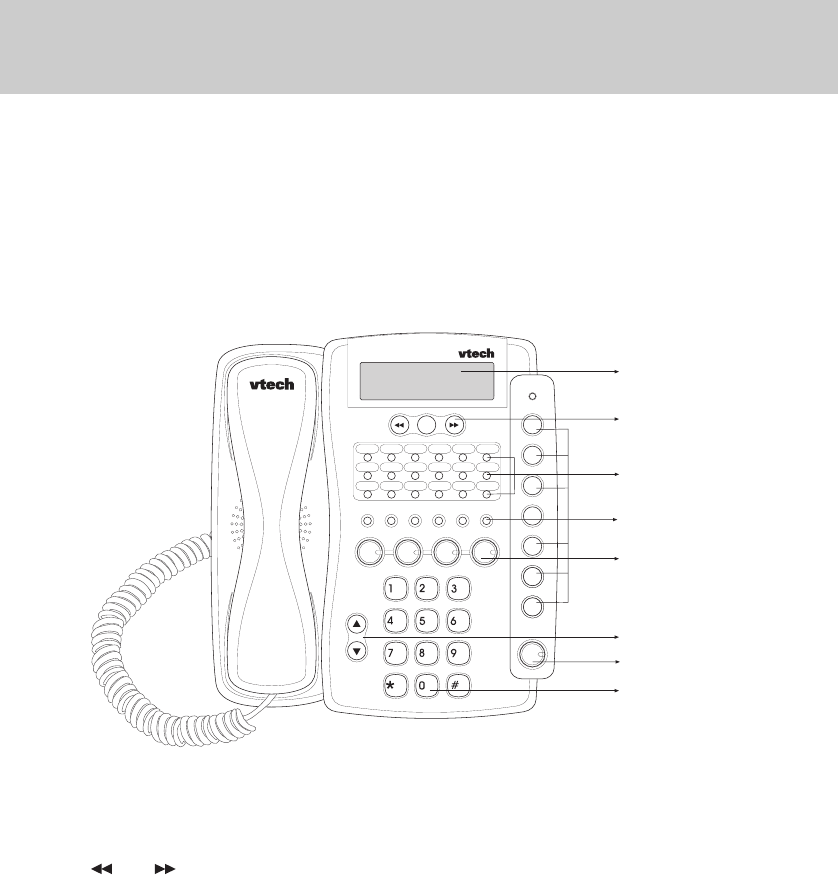
Display and Function Buttons:
and keys
• Allow you to scan through the caller
ID list.
CID
• Allows you to review calls in caller
ID memory.
END
• Used to exit the programming mode.
ERASE
• Enables you to erase a programmed
setting.
DND
• Used to place your telephone in Do
Not Disturb mode.
DIAL
• Used to dial a telephone number
from the caller ID list.
DISPLAY
CALLER ID BUTTONS
SPEED DIAL BUTTONS
LINE BUTTONS
DIAL PAD BUTTONS
FUNCTION BUTTONS
VOLUME UP & DOWN BUTTON
SPEAKERPHONE BUTTON

2
PAGE
• You can page an individual exten-
sion.
PAGE ALL
• You can page all speakerphones si-
multaneously.
LINE Buttons
• Allow access for up to four (4) lines.
ICM
• Used to place an intercom call.
MUTE (ENTER)
•Mutes the microphone so the dis-
tant party can’t hear you. Also used
as “enter” during programming.
PROGRAM
• Used to define various features set-
tings.
VOLUME
• Adjusts the ringing, receiver, and
speaker volumes.
CONFERENCE
• You can establish a 3-way confer-
ence.
FLASH
• Programmable from 0.1 second to
1.2 seconds.
REDIAL (PAUSE)
• Redials the last number dialed from
the telephone. Also used to insert a
pause into a dialing sequence.
SPEAKER
• Allows you to speak hand free. Also
controls headset use.
HOLD
• Enables you to place a line on hold
or transfer the line.
2. The display
Your telephone is equipped with a wide
angle viewing “supertwist” display. The
2-line by 16 character dot matrix liquid
crystal display indicates the current
time, day, date, and extension number.
A call duration timer appears automati-
cally to time your calls. The telephone
number that you dial is displayed. You
can also view caller ID information for
an incoming call, provided that you are
subscribing to Caller ID service from
your telephone company.
JAN 21 SA 11:35A
EXT 12
JAN- The month of the year.
21- The date of the month.
SA- The day of the week.
11:35A- The time of day.
EXT- Your extension number.
3. The Features
Your VT 4121 4-line speakerphone pro-
vides many features such as:
Caller ID
• The caller’s name and number and
the time and date of the call will be
displayed on the Speakerphones.
(You will need to subscribe to Caller
ID service provided by your local
telephone company for each tele-
phone line you want caller ID infor-
mation displayed.)
INTRODUCTION
3
Caller ID Log
• Up to 99 telephone numbers will be
stored in the Caller ID Log for re-
view, redial, save to speed dial or
deletion.
Message Waiting Indicator
• Message LED will indicate presence
of network based voice messages.
(You will need to subscribe to the
Voice Messaging service provided
by your local telephone company.)
Desktop Data Port
• Modular desktop connection for
single line devices to line four (mo-
dem, fax, answering machine, etc.)
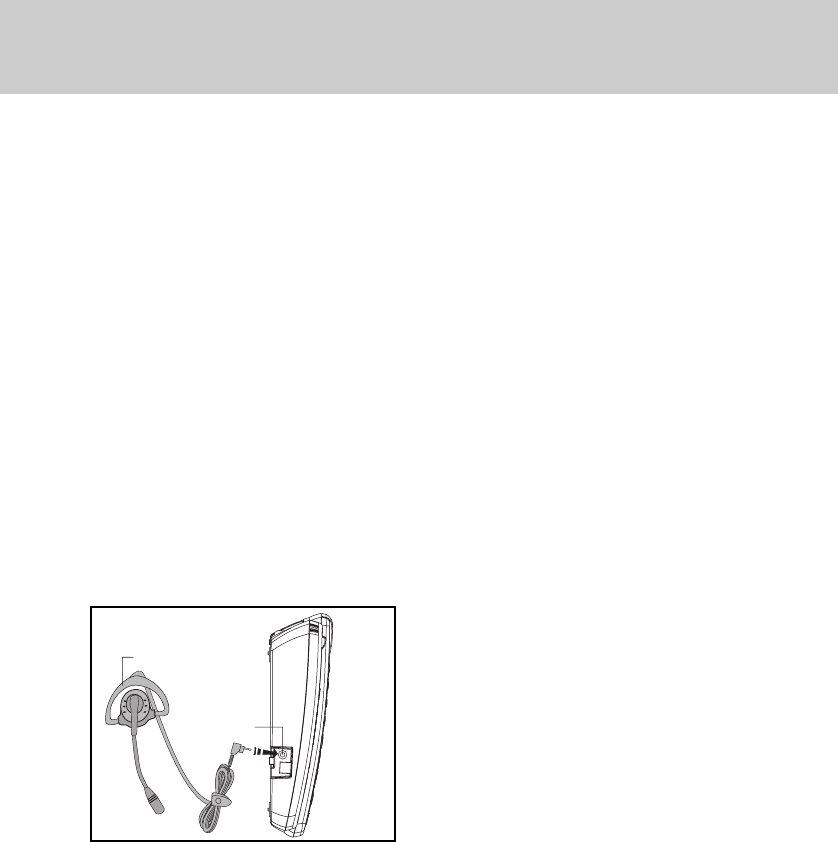
Headset Jack
• 2.5 mm jack for connecting an op-
tional telephone headset for hands
free communications.
Handsfree Speakerphone
• This feature enables you to conduct
telephone conversations handsfree.
Supertwist 2 x 16 Dot Matrix Liquid
Crystal Display
• The display shows useful informa-
tion such as the current time, and
date, as well as a number dialed and
the call duration.
Four (4) CO Lines with Line Status
Indication
• You can connect up to 4 lines. The
lamps will light to indicate the sta-
tus of the lines.
Line-In-Use Detection of Other Con-
nected Telephones ( fax, modem,
etc.)
• A line lamp will light to indicate that
the line is busy. This helps to pre-
vent accidental line pick-up interrup-
tions.
Automatic Line Selection
• You can designate a line to be au-
tomatically accessed whenever you
lift the handset or press the speak-
erphone button.
Distinctive Ringing
• Choose from four (4) unique ring
tones to easily identify calls ringing
at your telephone.
Delayed Ringing
• You can delay the ringing of a line
for overflow call coverage.
Adjustable Ringer, Receive and
Speaker Volume Levels
• You can adjust the volume levels to
suit your own preferences.
Intercom with Direct Station Select
Buttons
• You can call another extension with
the touch of one button.
Intercom Call Pick-Up
• Any telephone can answer an inter-
com call ringing at another exten-
sion.
INTRODUCTION
OVER THE EAR HEADSET
HEADSET JACK

4
Page
• You can voice page all extensions
or perform a single page to a tele-
phone. Meet-Me-Answer allows you
to answer an All Page from any tele-
phone. Automatic Mute may be pro-
grammed to prevent sounds in your
room from being heard while some-
one makes a single page to you.
Hold with Reminder
• When you place a call on Hold you
will hear a tone every thirty (30) sec-
onds to remind you that the call is
on Hold.
Call Privacy with Release
• When you are using an outside line,
another person cannot join your
conversation on that line unless you
release Call Privacy.
Conference
• You can establish a 3-way conver-
sation with any two outside parties
or with one outside party and one
other extension.
Call Forward to Other Speaker-
phones
• You can forward your calls to an-
other speakerphone (VT 4121 only).
Call Transfer
• You can transfer a call to another
extension.
Auto Busy Redial
• The telephone will automatically re-
dial the last number dialed from the
telephone, up to ten (10) attempts.
This feature is useful when you are
trying to call a busy telephone num-
ber.
Last Number Redial
• The telephone will automatically re-
dial the last number dialed from the
telephone (up to 32 digits) with the
touch of one button.
Speed Dialing
• You can store up to eighteen (18)
frequently dialed telephone number
which can be dialed by pressing one
button.
Mute (Enter)
• While on a call, if you want to have
a private conversation with some-
one in the room, you can mute the
telephone’s microphone so the dis-
tant party cannot hear you. The En-
ter feature is used during program-
ming.
Do Not Disturb
• You can prevent interruptions from
incoming calls, intercom calls, and
pages by activating Do Not Disturb.
Pause
• Some telephone systems require
you to dial an access code (i.e. 8 or
9) prior to dialing an outside num-
ber. A pause can be inserted after
the access code in the dialing se-
quence.
Flash
• The telephone will send an elec-
tronic switch-hook signal for use
with special services, such as call
waiting, provided by your telephone
company.
Tone/Pulse Dialing
• The telephone will operate with ei-
ther tone (DTMF) or pulse (rotary )
dialing service.
Hearing Aid Compatible
• This telephone will support hear-
ing aids.
INTRODUCTION
5
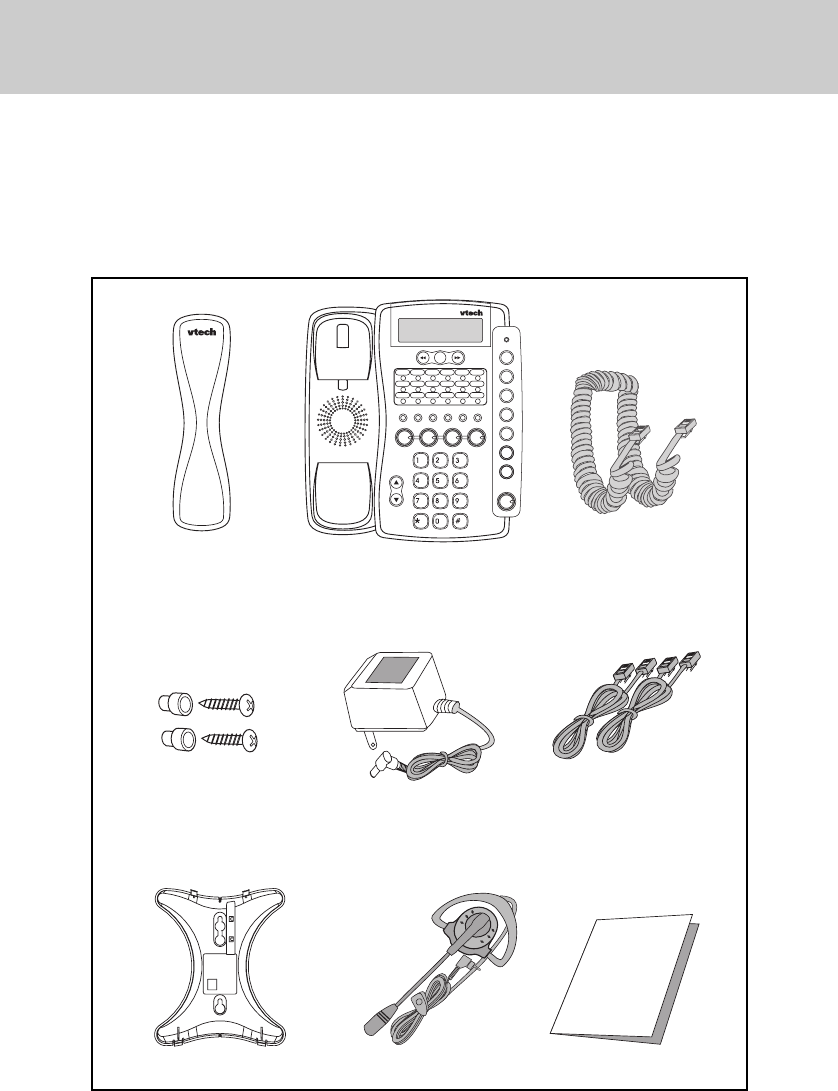
4. Parts Check list
1. Handset
2. B/U
3. 10 foot handset cord
4. Wall mounting screws and anchors
5. AC power adapter
6. Two long line cords
7. Desk/Wall mount bracket
8. Over the ear headset
9. Manual
INTRODUCTION
Handset
Over the Ear Headset
10 Foot Handset Cord
AC Power Adapter
Wall Mounting
Screws & Anchors Two long Line Cords
(for desk mounting)
Desk/Wall Mount Bracket Operation Manual
USER’S MANUAL
VT 4121
Base Unit

6
This equipment complies with Parts 15
and 68 of the Federal Communications
Commission (FCC) rules for the United
States. It also complies with regula-
tions RSS210 and CS-03 of Industry
and Science Canada. Operation is
subject to the following two conditions:
1. This device may not cause interfer-
ence, and
2. This device must accept any inter-
ference, including interference that
may cause undesired operation of
the device.
A label is located on the underside of
the base unit containing either the
FCC registration number and Ringer
Equivalence Number (REN) or the IC
registration number and Load Number.
You must, upon request, provide this
information to your local telephone
company.
This equipment is compatible with
inductively coupled hearing aids.
Should you experience trouble with
this telephone equipment, please con-
tact:
VTECH COMMUNICATIONS
SERVICE DEPT. at 1-800-595-9511.
For repair/warranty information. The
telephone company may ask you to
disconnect this equipment from the
line network until the problem has
been corrected.
FCC Part 15
Warning: Changes or modifications to
this unit not expressly approved by the
party responsible for compliances could
void the user's authority to operate the
equipment.
The equipment has been tested and
found to comply with part 15 of the
FCC rules. These limits are designed
to provide reasonable protection
against harmful interference in a resi-
dential installation. This equipment
generates, uses and can radiate radio
frequency energy and, if not installed
and used in accordance with the
instructions, may cause harmful inter-
ference to radio communications.
However, there is no guarantee that
interference will not occur in a particu-
lar installation. If this equipment does
cause harmful interference to radio or
television reception, which can be
determined by turning the equipment
off and on, the user is encouraged to
try and correct the interference by one
or more of the following measures:
• Reorient or relocate the receiving
antenna.
• Increase the separation between the
equipment and receiver.
• Connect the equipment into an
outlet or on a circuit different from
that to which the receiver is
connected.
• Consult the dealer or an
experienced radio/TV technician for
help.
FCC REGULATIONS

7
FCC Part 68
The FCC requires that you connect
your cordless telephone to the nation-
wide telephone network through a
modular telephone jack (USOC RJ11C,
RJ11W or RJ14).
Your telephone company may discon-
tinue your service if your equipment
causes harm to the telephone network.
They will notify you in advance of
disconnection, if possible. During
notification, you will be informed of
your right to file a complaint with the
FCC.
Occasionally, your telephone company
may make changes in its facilities,
equipment, operation, or procedures
that could affect the operation of your
equipment. If so, you will be given
advance notice of the change to give
you an opportunity to maintain uninter-
rupted service.
The base unit contains no user ser-
viceable parts. The handset contains
a user replaceable battery pack.
If it is determined that your telephone
equipment is malfunctioning, the FCC
requires that it not be used and that it
be unplugged from the modular jack
until the problem has been corrected.
Repairs to this telephone equipment
can only be made by the manufacturer
or its authorized agents or by others
who may be authorized by the FCC.
For repair procedures, follow the in-
structions outlined under the VTECH
Limited Warranty.
This equipment may not be used on
coin service provided by the phone
company or Party Lines.
The REN is useful in determining the
number of devices you may connect to
your telephone line and still enable the
devices to ring when you receive a call.
The general rule is that the REN value
should not exceed 5.0A total; however,
contact your local telephone company
for the specific number in your area.
FCC REGULATIONS

8
When using your telephone equip-
ment, basic safety precautions should
always be followed to reduce the risk
of fire, electric shock and injury to
persons, including the following:
1. Read and understand all
instructions.
2. Follow all warnings and instructions
marked on the product.
3. Unplug this product from the wall
outlet before cleaning. Do not use
liquid cleaners or aerosol cleaners.
Use a damp cloth for cleaning.
4. Do not use this product near water
(for example, near a bath tub,
kitchen sink, or swimming pool).
5. Do not place this product on an
unstable cart, stand, or table. The
product may fall, causing serious
damage to the product.
6. Slots and openings in the cabinet
and the back or bottom are provided
for ventilation. To protect it from
overheating, these openings must
not be blocked by placing the
product on the bed, sofa, rug, or
other similar surface. This product
should never be placed near or
over a radiator or heat register.
This product should not be placed
in a built-in installation where proper
ventilation is not provided.
7. This product should be operated
only from the type of power source
indicated on the marking label. If
you are not sure of the type of
power supply to your home, consult
your dealer or local power company.
8. Do not allow anything to rest on the
power cord. Do not locate this
product where the cord will be
abused by persons walking on it.
9. Never push objects of any kind into
this product through cabinet slots
as they may touch dangerous
voltage points or short out parts
that could result in a risk of fire or
electric shock. Never spill liquid of
any kind on the product.
10. To reduce the risk of electric shock,
do not disassemble this product,
but take it to a VTech authorized
service facility. Opening or
removing cabinet parts other than
specified access doors may expose
you to dangerous voltages or other
risks. Incorrect reassembling can
cause electric shock when the
appliance is subsequently used.
11. Do not overload wall outlets and
extension cords as this can result
in the risk of fire or electric shock.
12. Unplug this product from the wall
outlet and refer servicing to a
VTech authorized service facility
under the following conditions:
a. When the power supply cord or
plug is damaged or frayed.
b. If liquid has been spilled into
the product.
c. If the product has been ex-
posed to rain or water.
IMPORTANT SAFETY INSTRUCTIONS

9
d. If the product does not operate
normally by following the oper-
ating instructions. Adjust only
those controls that are covered
by the operating instructions,
because improper adjustment
of other controls may result in
damage and will often require
extensive work by a VTech
authorized technician to restore
the product to normal opera-
tion.
e. If the product has been dropped
and the cabinet has been dam-
aged.
f. If the product exhibits a distinct
change in performance.
13. Avoid using a telephone (other
than a cordless type) during an
electrical storm. There may be a
remote risk of electric shock from
lighting.
14. Do not use the telephone to report
a gas leak in the vicinity of the leak.
SAVE THESE INSTRUCTIONS
IMPORTANT SAFETY INSTRUCTIONS
10
1. Site Planning
Select a location where the speaker-
phone will not interfere with daily ac-
tivities. You can choose to connect the
speakerphone to as many as four tele-
phone lines. The speakerphone can be
connected to two 2-line (RJ14C) modu-
lar telephone jacks to accommodate all
four lines. The speakerphone is factory-
programmed for intercom extension
number 12.
When the telephone is first installed, the
display will show a message to check
the clock and the extension ID. Refer to
the Programming section to set the ex-
tension number.
IMPORTANT: For all system features
to operate correctly, ev-
ery speakerphone,
must be connected to
the same Line 2 wiring.
They do not need to be
located in the same
area.
2. Installing the Speakerphone
You can choose from two (2) installa-
tion options:
•
Locate the telephone on a desk or
tabletop, or
•
Mount the telephone on the wall.
2.1 Desk/Tabletop Mounting
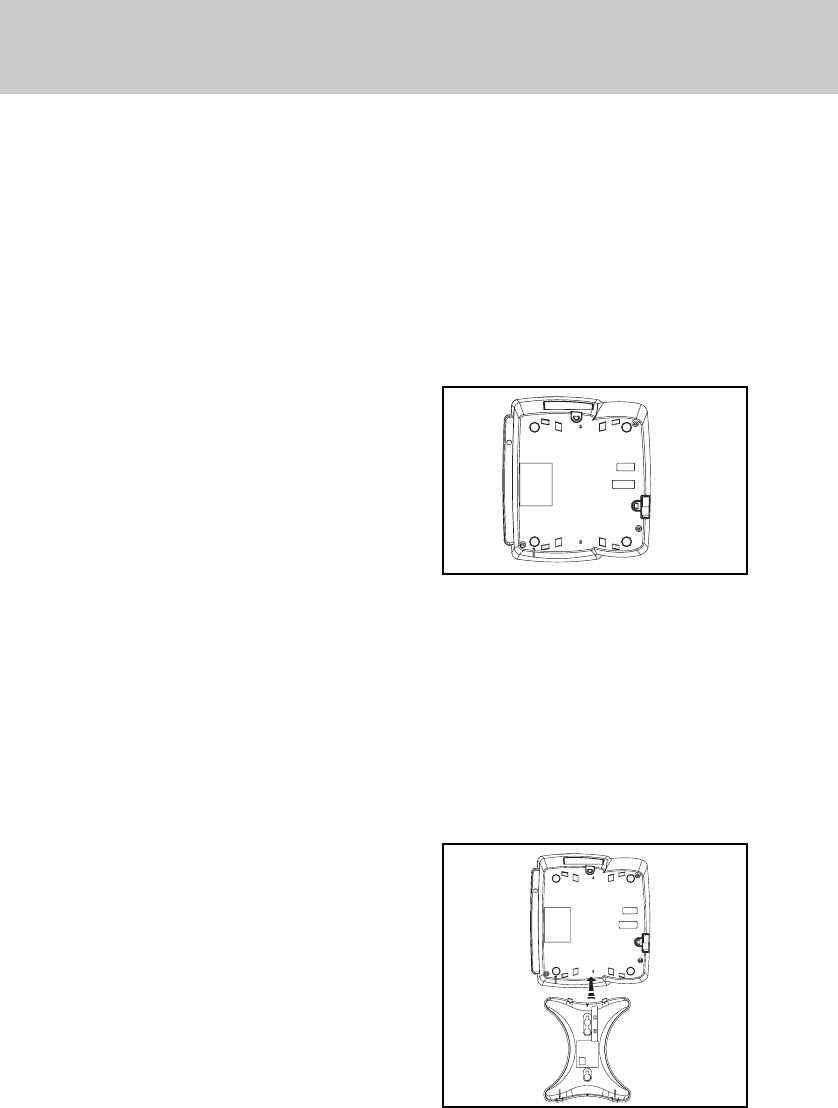
To have better viewing angle, you could
choose to install the desk/wall mount
bracket by squeezing the side tabs on
the thicker end of the bracket, insert
them into their respective slots.
a. Position the telephone in the desired
location on a tabletop or desk.
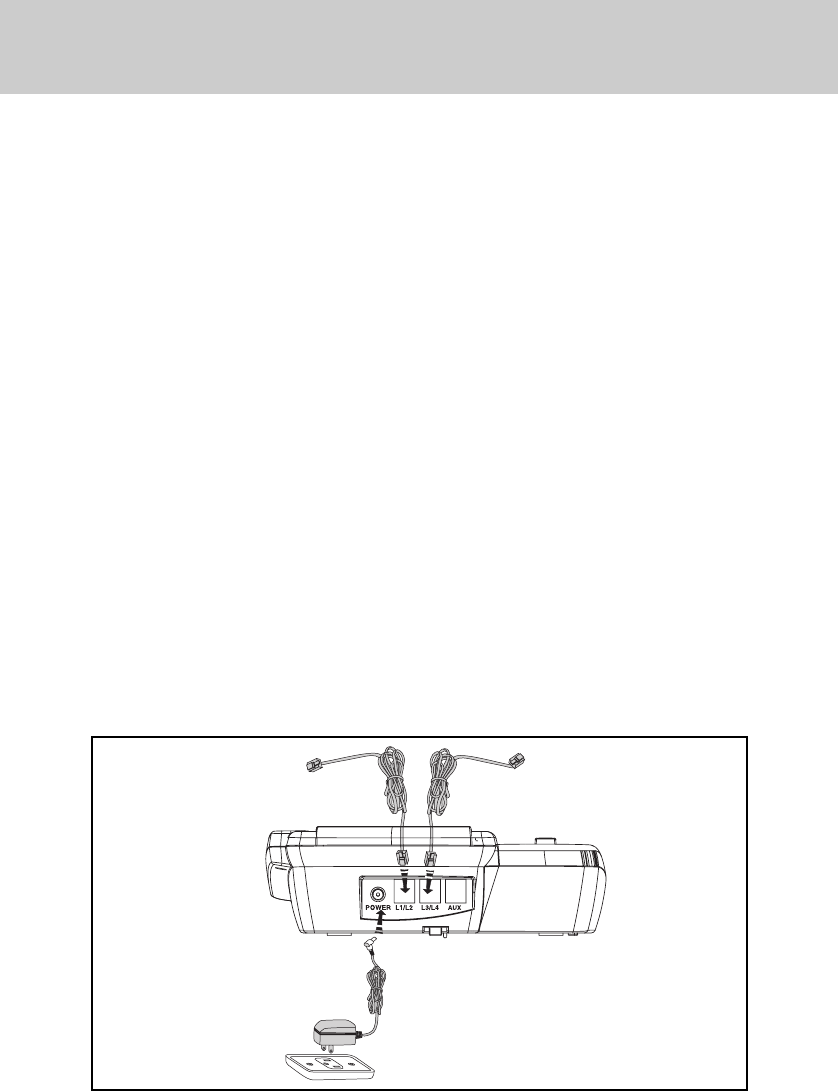
b. Plug one of the long line cords into
the L1/2 jack at the back of the tele-
phone. Plug the other long line cord
into the L3/4 jack.
c. Plug the AC adaptor power cord into
the jack at the back of the telephone.
Note: Use only the AC power adaptor
provided with the telephone.
INSTALLATION
ELECTRICAL OUTLET
L1/L2 TELEPHONE JACK L3/L4 TELEPHONE JACK
11
d. Insert one end of the handset cord
into the handset and the other end
into the left side of the telephone.
Place the handset in the telephone
cradle.
e. Plug the two long line cords into the
wall jacks.
Double check that you
have not reversed the L1/L2 and
L3/L4 cord connections.
f. Plug the AC power cord adaptor into
a standard 120V AC wall outlet. The
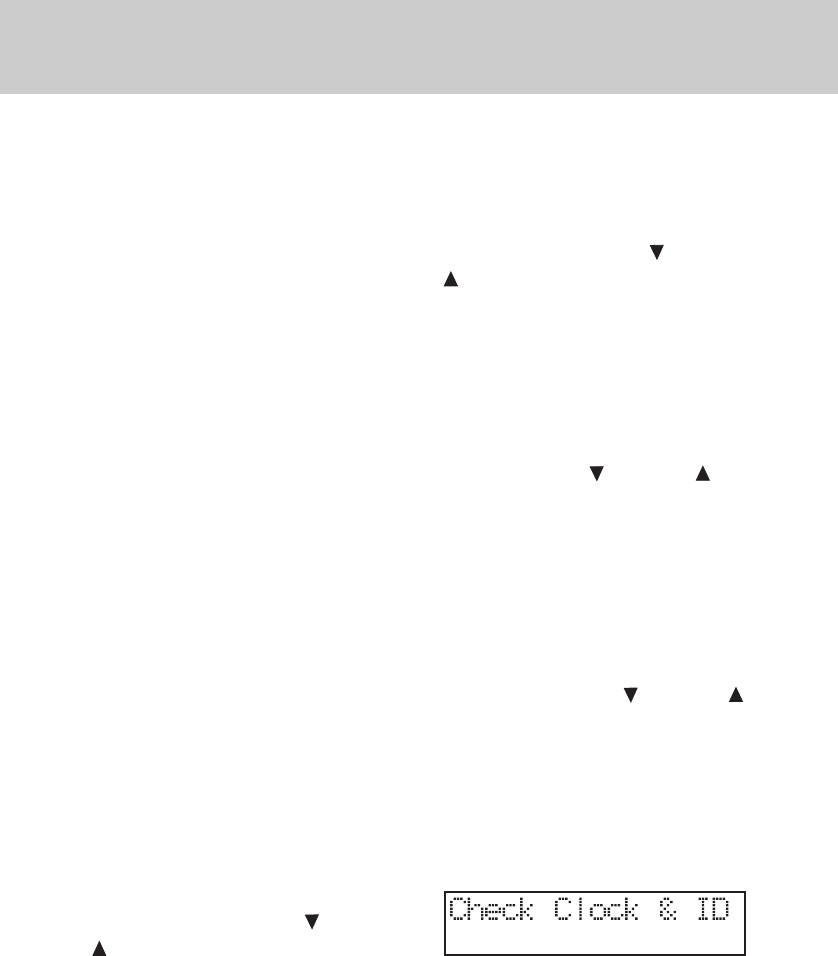
display shows “Check Clock & ID “.
Refer to the programming section to
program the clock and change the
extension ID.
g. Ensure that all cords are positioned
to prevent tripping and rubbing
which could create a potential elec-
trical hazard.
2.2 Wall Mounting
You will want to ensure the following:
• The location where the telephone
will be mounted should be away
from electrical cables, pipes, or
other items which may be punctured
when the screws are inserted into
the wall.
• The wall surface should be capable
of supporting the telephone weight.
• Use the screws and anchoring de-
vices provided with the telephone.
• The telephone is located near an
AC outlet.
Two (2) long line cords are provide to
meet various wall mounting conditions.
A template is provided at the back of
this manual to assist you with the in-
stallation of the telephone directly onto
the wall.
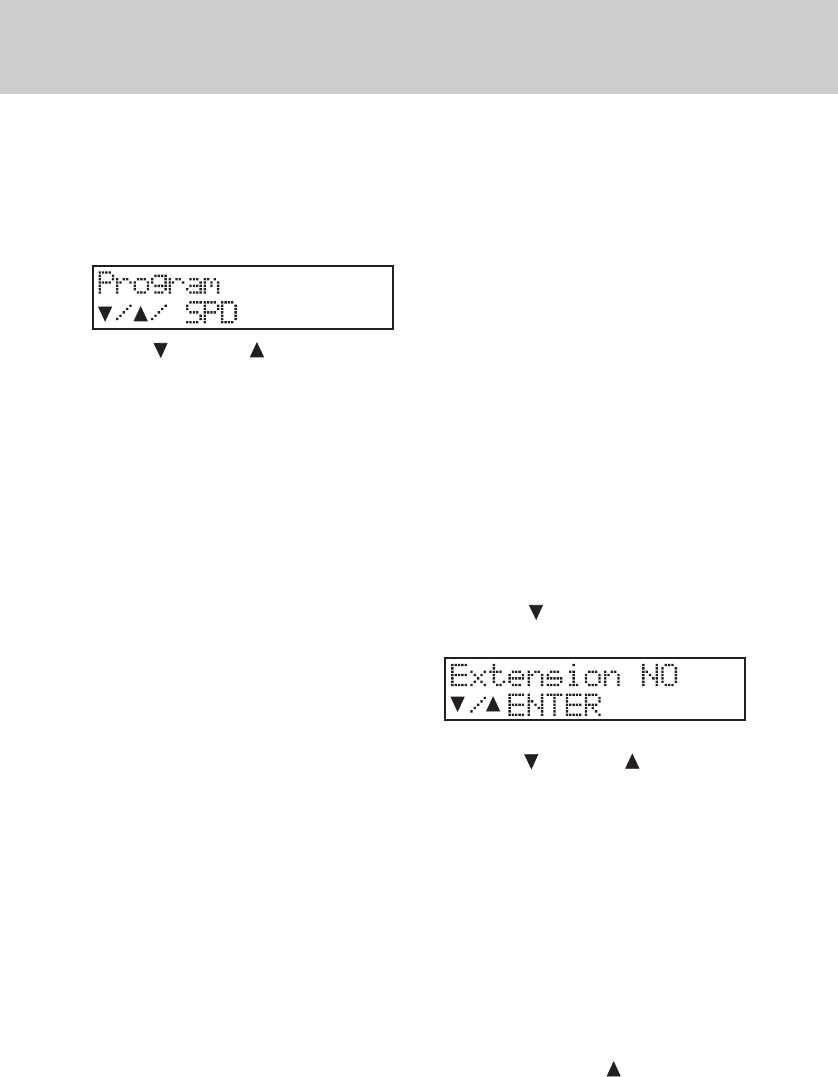
1. Insert the two (2) screws and an-
choring devices into the wall 3-5/8
inches apart vertically, allowing
approximately 3/16 inch between
the wall and screw heads for mount-
ing the telephone. Ensure that the
screws are secure.
2. Turn the speakerphone over to view
the bottom.
3. If you have already installed the
desk/wall mount bracket in desk
mode, please remove the desk/ wall
mount bracket by gently moving one
tab at a time while pulling the peg
out of the tab hole.
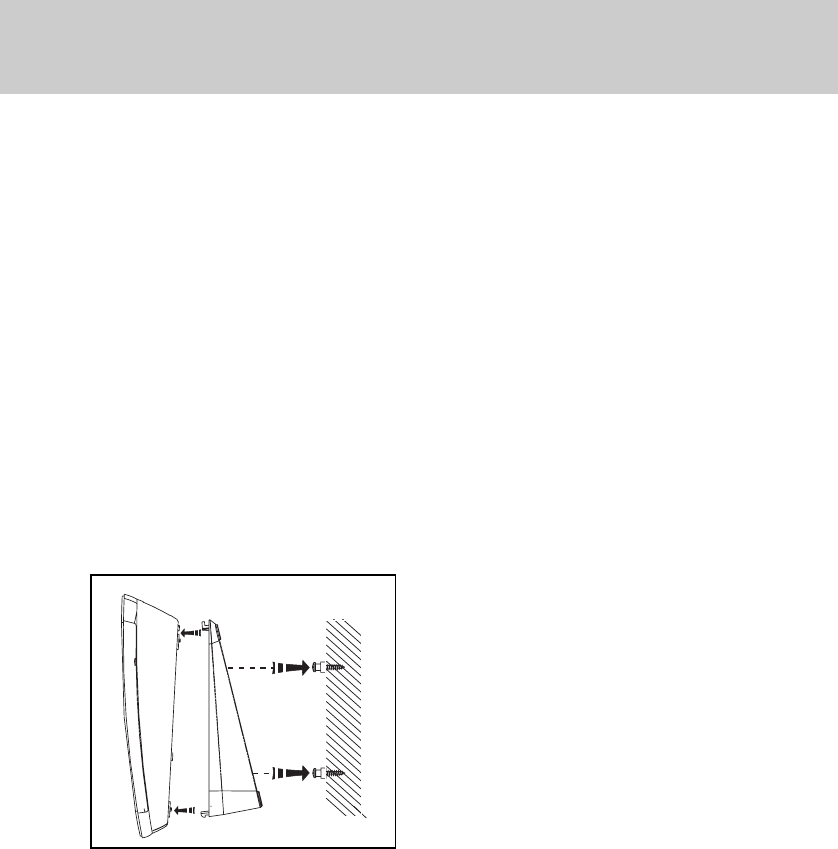
4. Rotate the bracket and install it in
the wall mounting position by align-
ing the four holes on the bracket with
the four hooks on the bottom of the
telephone.
INSTALLATION
12
5. Slide the bracket down onto the
hooks and snap into place.
6. Plug one of the line cord into the L1/
L2 jack at the back of the telephone.
Plug the other line cord into the L3/
L4 jack.
7. Plug the AC adapter power cord into
the bottom of the telephone. Use
only the AC power adapter provided
with the telephone.
8. Position the telephone on the two
screws in the wall and slide the tele-
phone downward to secure it to the
wall.
9. Rotate the handset tab by lifting up
and turning to position it in the wall
mount mode.
10. Insert one end of the handset cord
into the handset and the other end
into the left side of the telephone.
Hang the handset in the telephone
cradle.
11. Plug the two line cords into the wall
jacks.
Double check that you have
not reversed the L1/L2 and L3/L4
cord connections.
12. Plug the AC power cord adapter into
a standard 120V AC wall outlet. The
display shows “ Check Clock & ID”.
Refer to the programming section to
program the clock and change the
extension ID.
13. Ensure that all cords are positioned
to prevent tripping and rubbing
which could create a potential elec-
trical hazard.
INSTALLATION
13
1. General Programming Guidelines
• Press PROGRAM to enter the pro-
gramming mode. The MUTE (EN-
TER) will light steady. The display
will show:
• The VOLUME buttons are used
for scrolling through the program-
ming selections.
• The MUTE (ENTER) button acts as
“enter”.
• Press HOLD to return to the previ-
ous main menu.
• Pressing a SPEED DIAL button al-
lows you to program that particular
button.
• Press ERASE to erase a previously
programmed setting.
• Press END to exit the programming
mode.
Note1: A button must be pressed
within about 30 seconds or the
programming mode will be au-
tomatically cancelled.
Note 2: When a feature has been suc-
cessfully programmed, you
will hear a single confirmation
tone and the display will show
“OK!”. If the feature has not
been programmed correctly,
you will hear a double tone
and the display will show
“Fail!”.
Note 3: If you are already in the pro-
gramming mode all the fea-
tures can be programmed
consecutively without press-
ing PROGRAM again.
2. Extension Number
Default setting: 12
Extension Number Range: 11-22
Each Speakerphone must have a
unique extension number pro-
grammed. It is highly recommended
that you assign a new extension
number at the time of installation.
You will hear a continuous alerting tone
if two speakerphones are assigned the
same extension number.
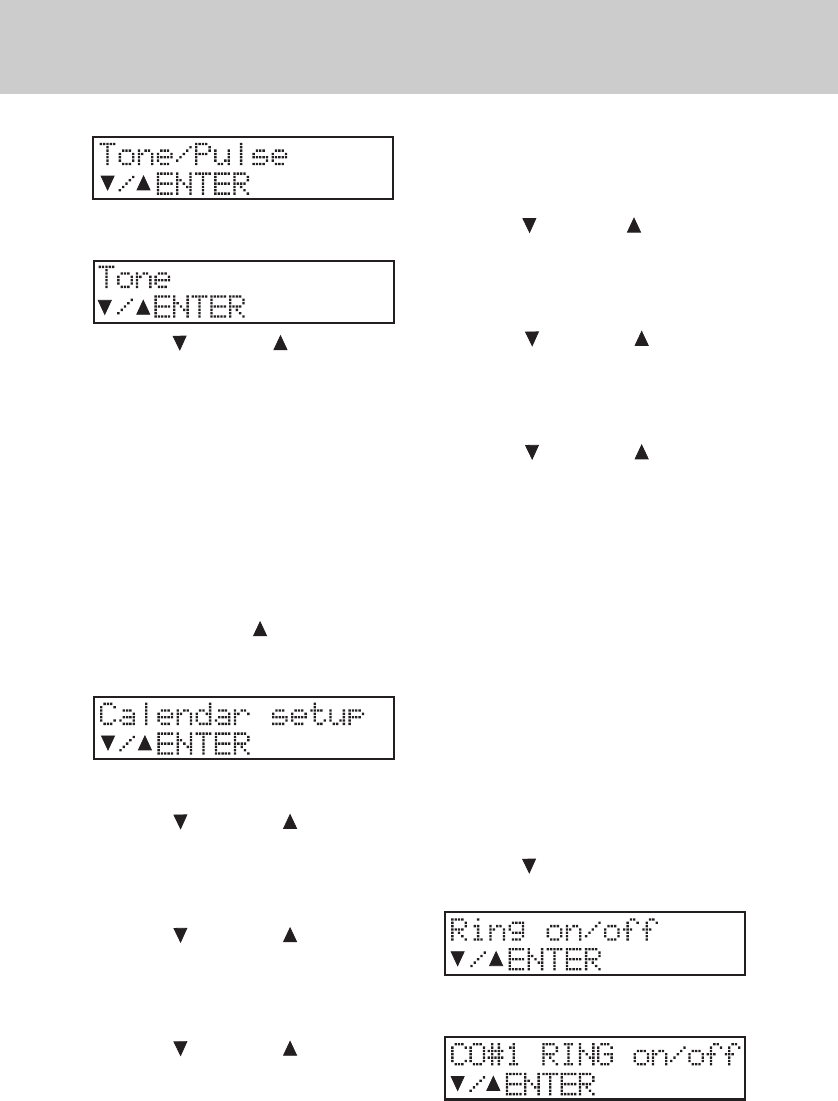
1. Press PROGRAM.
2. Press VOLUME. The display
shows:
3. Press MUTE (ENTER).
4. Press VOLUME to select ex-
tension number.
5. Press MUTE (ENTER) to save.
3. Tone/Pulse Dialing
Default Setting: Tone
If you have tone dialing service from
your telephone company, you will want
to ensure that your telephone is set for
tone dialing mode.
1. Press PROGRAM.
2. Press VOLUME until the display
shows:
PROGRAMMING
14
3. Press MUTE (ENTER). The display
shows:
4. Press VOLUME to select the
dialing mode.
5. Press MUTE (ENTER) to save.
4. Date and Time
Default setting: Jan 01 FR 1:00A
You can program the time in either 12-
hour or 24-hour (military) format.
1. Press PROGRAM.
2. Press VOLUME until the display
shows:
3. Press MUTE (ENTER) to program
the month.
4. Press VOLUME to view the
months.
5. Press MUTE (ENTER) to select the
appropriate month and proceed to
programming the date.
6. Press VOLUME to view the
choice for the date.
7. Press MUTE (ENTER) to select the
appropriate date and proceed to
programming the day of the week.
8. Press VOLUME to view the
choices for the day.
9. Press MUTE (ENTER) to select the
appropriate day and proceed to pro-
gramming the clock for AM/PM or
24-Hour.
10. Press VOLUME to switch be-
tween the three choices.
11. Press MUTE (ENTER) to select the
appropriate setting and proceed to
programming the hour.
12. Press VOLUME to view the
choice for the hour.
13. Press MUTE (ENTER) to select the
appropriate hour and proceed to
programming the minutes.
14. Press VOLUME to view the
choice for the minutes.
15. Press MUTE (ENTER) to select the
appropriate minutes. You will hear a
single confirmation tone and the dis-
play will show the new date and
time.
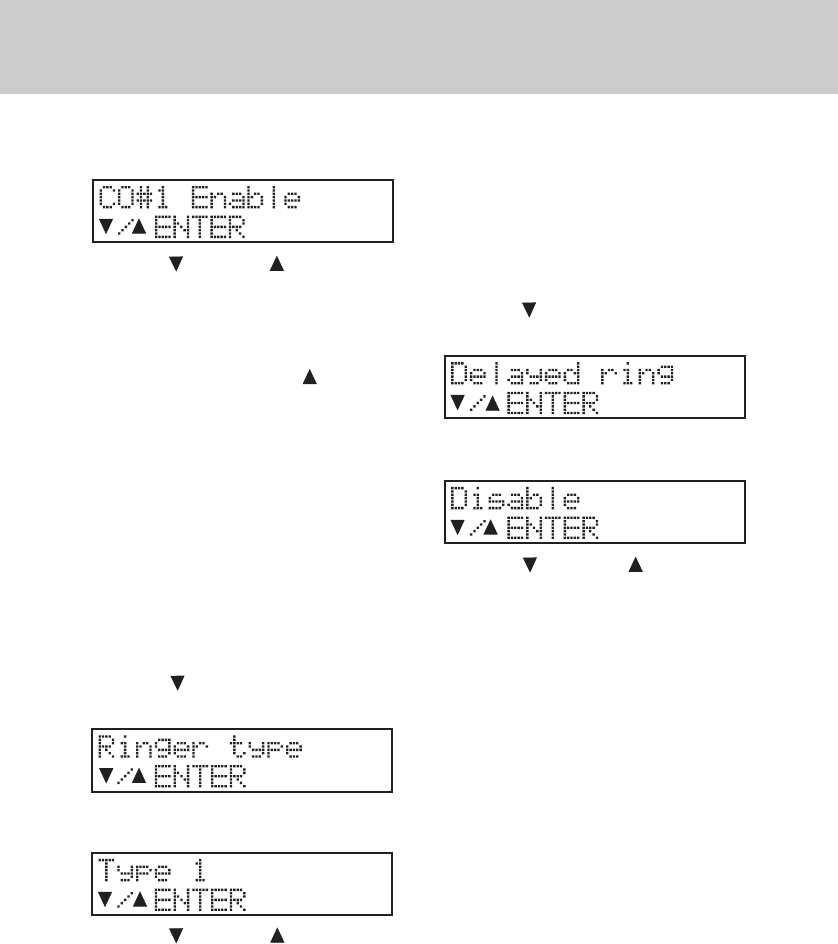
5. CO/PBX Line Ringing
Default Setting: Enabled
You can program the ringer for each
central office/PBX line(1-4). If you do not
want the line(s) to ring at your tele-
phone, choose the “OFF” setting for
each line.
1. Press PROGRAM.
2. Press VOLUME until the display
shows:
3. Press MUTE (ENTER) .The display
shows:
PROGRAMMING
15
4. Press MUTE (ENTER) again. The
display shows:
5. Press VOLUME to choose the
setting.
6. Press MUTE (ENTER).
To continue programming the remain-
ing lines press VOLUME and then
perform steps 4-6.
6. CO Line Ring Tone
Default Setting: 1
Range: 1-4
You can choose one of four different
ringing tones for your telephone. The
selection chosen will apply to all four
CO lines on your telephone.
1. Press PROGRAM.
2. Press VOLUME until the display
shows:
3. Press MUTE (ENTER). The display
shows:
4. Press VOLUME to select a dif-
ferent ring tone. You will hear a
sample tone for each choice.
5. Press MUTE (ENTER).
7. Delayed Ringing
Default Setting: Disabled
Range: Disable, 2 seconds to 30 sec-
onds (2 second increments)
You may choose to have the CO line
ringing delayed for overflow and caller
ID applications.
1. Press PROGRAM.
2. Press VOLUME until the display
shows:
3. Press MUTE (ENTER). The display
shows:
4. Press VOLUME to select the
delay time between 2 seconds and
30 seconds (in 2 second incre-
ments).
5. Press MUTE (ENTER).
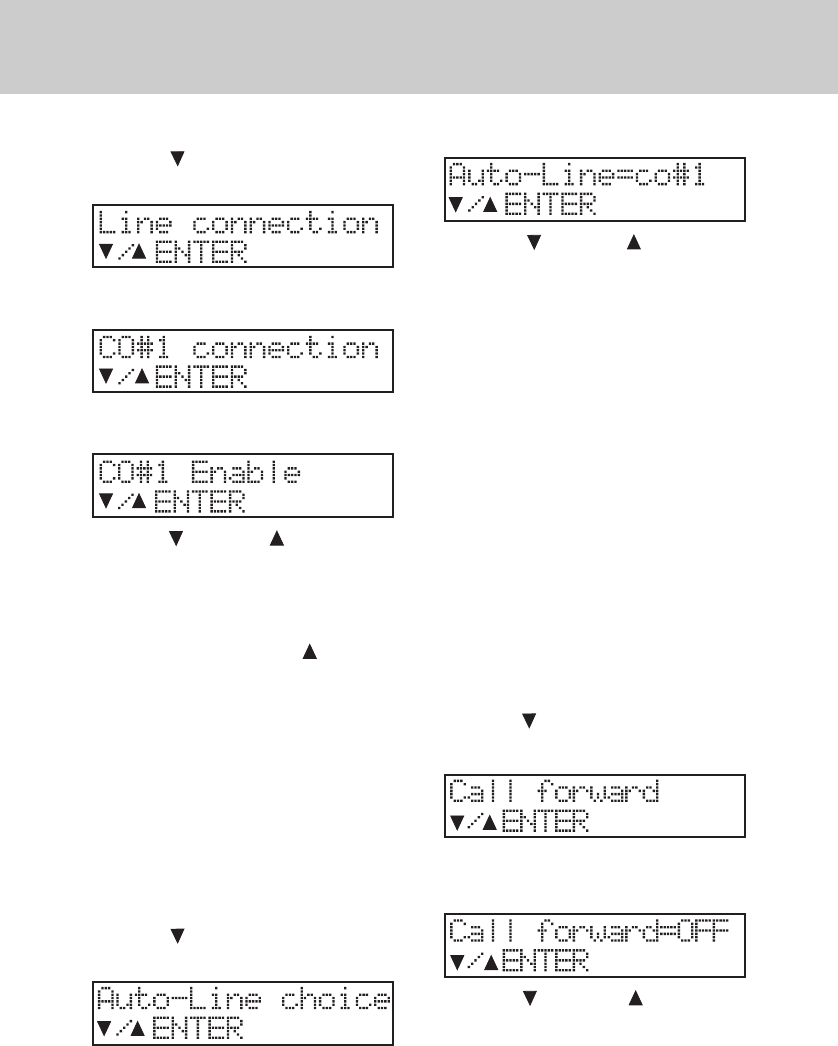
8. CO Trunk Connection
Default Setting: All Lines Connected
Your telephone can detect another tele-
phone, facsimile, or modem that is in-
use on one or more of the CO lines. This
privacy feature will prevent accidental
instruction by another VT4121 speak-
erphone user. The “Line-In-Use” circuit
will light the CO line button if the line is
not physically connected. For instance,
if you only have lines 1,2, and 3 con-
nected you can disable line 4( if you do
not disable that line, the lamp will re-
main lit steady even though you can’t
access the line). When you disable a
CO line the lamp and button will not op-
erate.
PROGRAMMING
16
1. Press PROGRAM.
2. Press VOLUME until the display
shows:
3. Press MUTE (ENTER),The display
shows:
4. Press MUTE (ENTER). The display
shows:
5. Press VOLUME to choose the
setting.
6. Press MUTE (ENTER) to save.
To continue programming the remain-
ing lines press VOLUME and then
perform steps 4-6.
9. Automatic Line Selection
Default Setting: CO 1
The line that you assign for automatic
line selection( line preference) will be
automatically accessed when you pick
up the handset or press SPEAKER.
1. Press PROGRAM.
2. Press VOLUME until the display
shows:
3. Press MUTE (ENTER). The display
shows:
4. Press VOLUME to choose the
line( or intercom) you want to pro-
gram for this feature.
5. Press MUTE (ENTER) to save.
10. Call Forward
Default Setting: OFF
Range 11-22
When this feature is enabled (on) any
intercom or transferred call you receive
will be forwarded to the Speakerphone
extension that you have identified.
When the feature is enabled, upon re-
ceiving a call you will hear a triple tone
and the display will briefly show Call
forward on the display prior to the call
being forwarded.
1. Press PROGRAM.
2. Press VOLUME until the display
shows:
3. Press MUTE (ENTER). The display
shows:
4. Press VOLUME to select the
extension number (11-22) where
you want to forward your calls.
5. Press MUTE (ENTER) to save.
PROGRAMMING
17
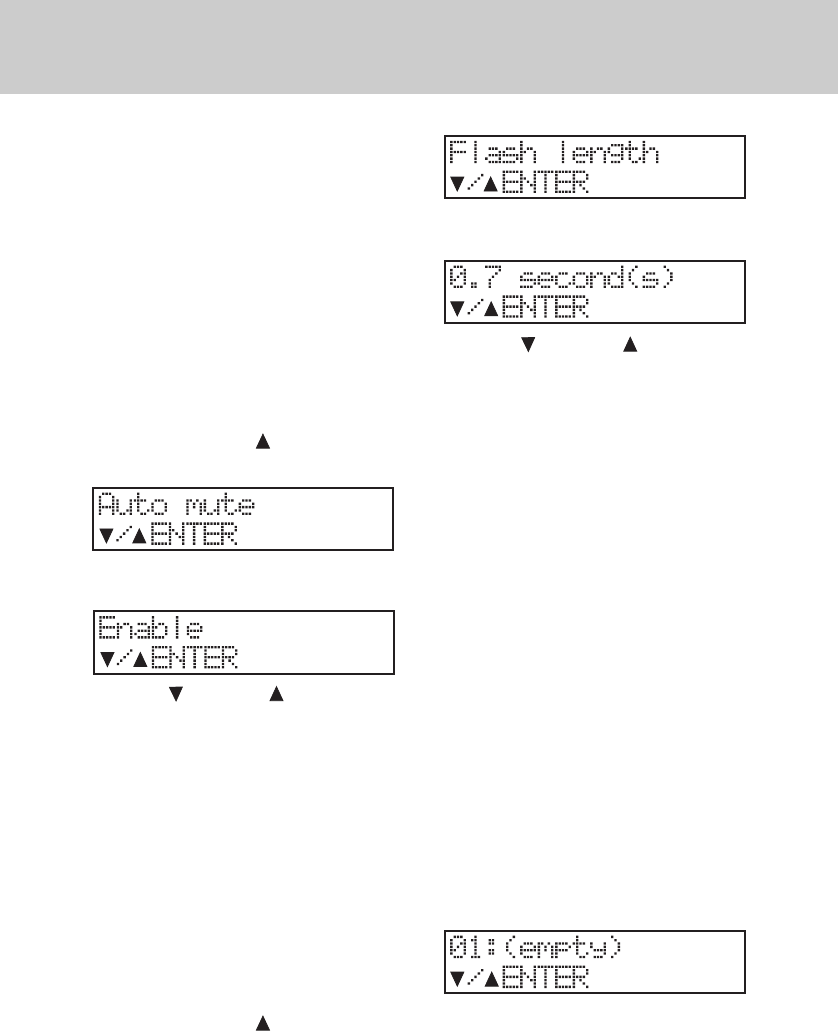
11. Auto Mute Enable/Disable
Default Setting: Disable
This feature prevents unauthorized
eavesdropping when someone makes
a single page to you.
Note: For intercom page with
handsfree reply at your exten-
sion, Auto Mute must be set to
Disable.
1. Press PROGRAM.
2. Press VOLUME until the display
shows:
3. Press MUTE (ENTER) . The display
shows:
4. Press VOLUME to choose be-
tween the enable or disable setting.
5. Press MUTE (ENTER).
12. Flash
Default Setting: 0.7 seconds
Range: 0.1 seconds to 1.2 seconds
This feature is typically used to access
custom calling service. You may also
use Flash to end a call without hanging
up the handset or pressing SPEAKER.
1. Press PROGRAM.
2. Press VOLUME until the display
shows:
3. Press MUTE (ENTER). The display
shows:
4. Press VOLUME to choose the
flash length.
5. Press MUTE (ENTER) to save.
13. Speed Dial
You can store eighteen (18) frequently
dialed numbers in a speed dial bin by
pressing the appropriate speed dial
button during programming.
A number stored in the Called ID
memory can be stored in a speed dial
bin. You can store numbers in either
pulse or tone dialing modes. Pauses
and flashes may also be stored in
memory. Each speed dial bin can store
up to 16 digits (numbers) including
pause, tone, and flash.
13.1 Storing a Telephone Number in
Speed Dial
1. Press PROGRAM.
2. Press SPEED DIAL Button 1. The
display shows:
3. Press MUTE (ENTER). The display
shows:
PROGRAMMING
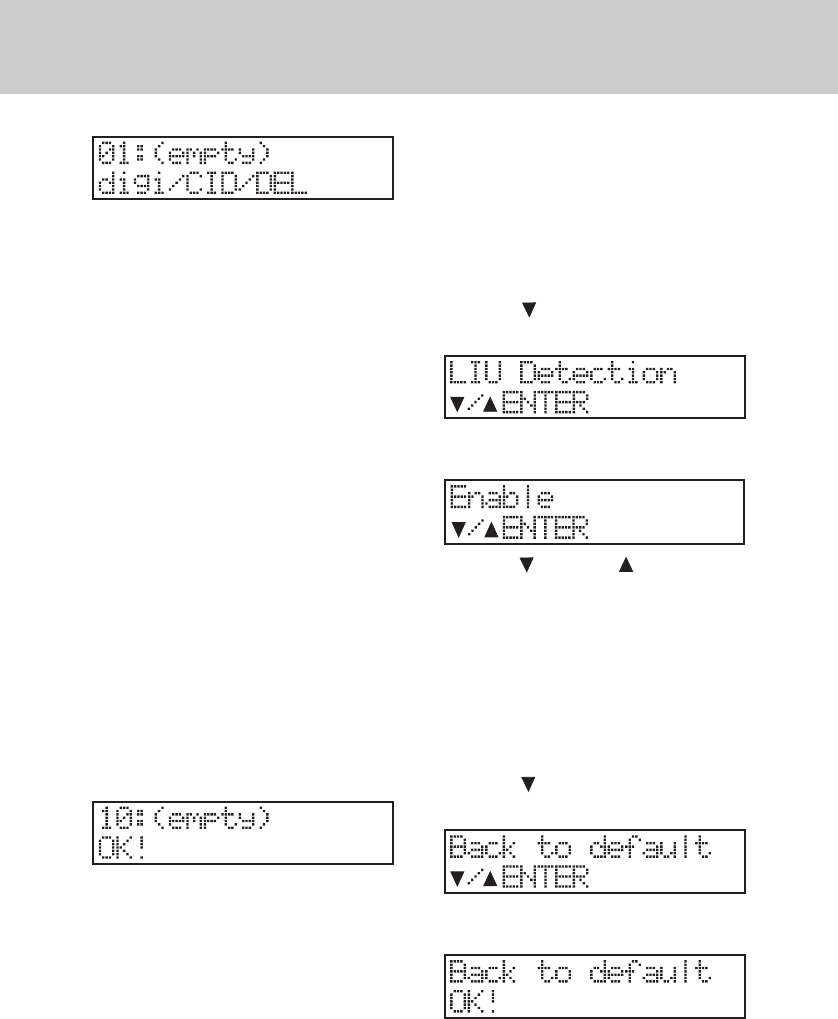
18
4. Dial the number (digi) you want to
store.
5. Press MUTE (ENTER) to save.
Repeat step 2 and press another speed
dial button to continue programming
speed dial numbers.
13.2 Storing a Caller ID Number
1. Display the number in the caller ID
list. (Refer to Caller ID Operation).
2. Press PROGRAM.
3. Press the SPEED DIAL button.
4. Press MUTE (ENTER).
5. Press CID.
6. Press MUTE (ENTER) to save.
13.3 Erasing the Contents of a
Speed Dial Bin
1. Press PROGRAM.
2. Press the SPEED DIAL button.
3. Press MUTE (ENTER) .
4. Press ERASE twice. For example,
if you are deleting the contents of
bin 10, the display will show:
14. Line In Use Detection
Default Setting: Enable
This feature allows the speakerphone
to detect other telephone devices us-
ing any of the four telephone lines. The
speakerphone indicates line-in-use sta-
tus by illuminating the LED correspond-
PROGRAMMING
ing to the line-in-use. This feature may
not be compatible with some telephone
systems. You may disable line-in-use
detection if you use the speakerphone
as a private telephone system exten-
sion.
1. Press PROGRAM.
2. Press VOLUME until the display
shows:
3. Press MUTE (ENTER) . The display
shows:
4. Press VOLUME to choose set-
ting.
5. Press MUTE (ENTER) .
15. Reset default Values
You may clear all the programmed data,
and reset all parameters back to the
original factory default values.
1. Press PROGRAM.
2. Press VOLUME until the display
shows:
3. Press MUTE (ENTER) . The display
shows:

19
For your reference, here is the default value list:
Extension ID: 12
Call forward: Disable
Ringer On/Off: “on” for each co line
Ringer Type: Type 1
Delayed Ring: Disable
Co Trunk Connection: Connected for each line
Line Preference: CO #1
Auto-Mute: Disable
Tone/Pulse dialing: Tone Dialing
Flash Length: 700 mili-seconds
LIU Detection: Enable
Calendar: Jan 01 FR 12:00A
Area Code Setting: None
Speed Dialing: Empty
Ringer Volume: Middle
Speaker Volume: Level 4
Handset Volume: Minimum Level
Headset Volume: Middle
PROGRAMMING

20
1. Lamp (LED) Operation
Line Buttons
Off
• Lamp is off when the line is not be-
ing used.
On steady
• Lamp is on if the line is being used
by another extension.
Wink
• Lamp will “wink” to indicate the line
you are talking on.
Slow flash
• Lamp flashes slowly when an in-
coming call is ringing or you receive
a transferred call.
Fast flash
• Lamp flashes fast when another
extension places that line on hold.
Very fast flash
• Lamp flashes very fast when you
place a line on hold or you transfer
a call.
ICM Button
Off
• Lamp is off when you are not using
the intercom.
On steady
• Lamp is on steady when the inter-
com path is busy.
Wink
• Lamp will “wink” when you are us-
ing the intercom.
Fast flash
• Lamp flashes fast when an intercom
call is ringing at your phone.
Speaker Button
Off
• Lamp is off when the telephone is
idle or you are using the handset.
On steady
• Lamp is on if you are using the
speakerphone.
Slow flash
• Lamp slowly flashes when you are
using Auto Busy Redial (while wait-
ing for the telephone to redial.)
Fast flash
• Lamp flashes fast when the Auto
Busy Redial feature is used.
Wink
• Lamp will “ wink” when you are us-
ing the headset.
Mute (Enter) Button
Off
• Lamp is off when the telephone is
not muted.
On steady
• Lamp is on when the telephone is
muted, the telephone is in the pro-
gramming mode or the telephone is
performing Auto Busy Redial.
Message Lamp
The lamp to the right of the CID keys
will:
BASIC OPERATION
21
Slow Flash
• Lamp will slowly flash when you
have new Telco voice messages
(subscription required.)
Fast Flash
• Lamp will flash quickly when the
speakerphone is ringing.
On steady
• Lamp will light steady when the
speakerphone is in the Do Not Dis-
turb mode.
Off
• Lamp is off if there are no new mes-
sages and the Do Not Disturb mode
is off.
2. Line-In-Use Indication
If a single line telephone or other equip-
ment such as a facsimile machine is
using a line, that line lamp will light on
your telephone to indicate that the line
is busy. You may intrude on that busy
line to verify that the line is not out of
order. However, lines being used solely
by VT 4121 speakerphone are privacy
protected form intrusion.
3. Adjusting the Handset Volume
Level
While using the handset, you may ad-
just the volume level of the distant
party’s voice by pressing VOLUME
. You will hear a confirmation tone
when the highest or lowest volume set-
ting is reached.
4. Adjusting the Speaker Volume
Level
While using the speakerphone, you may
adjust the volume level of the distant
party’s voice by pressing VOLUME
. You will hear a confirmation tone
when the highest or lowest volume set-
ting is reached.
5. Adjusting the Headset Volume
Level
While using a headset, you may adjust
the volume level of the distant party’s
voice by pressing VOLUME . You
will hear a confirmation tone when the
highest or lowest volume setting is
reached.
6. Adjusting the Ringer Volume
Level
While the telephone is idle (not being
used), you may adjust the ringer vol-
ume level by pressing VOLUME .
You will hear a confirmation tone when
the highest or lowest volume setting is
reached.
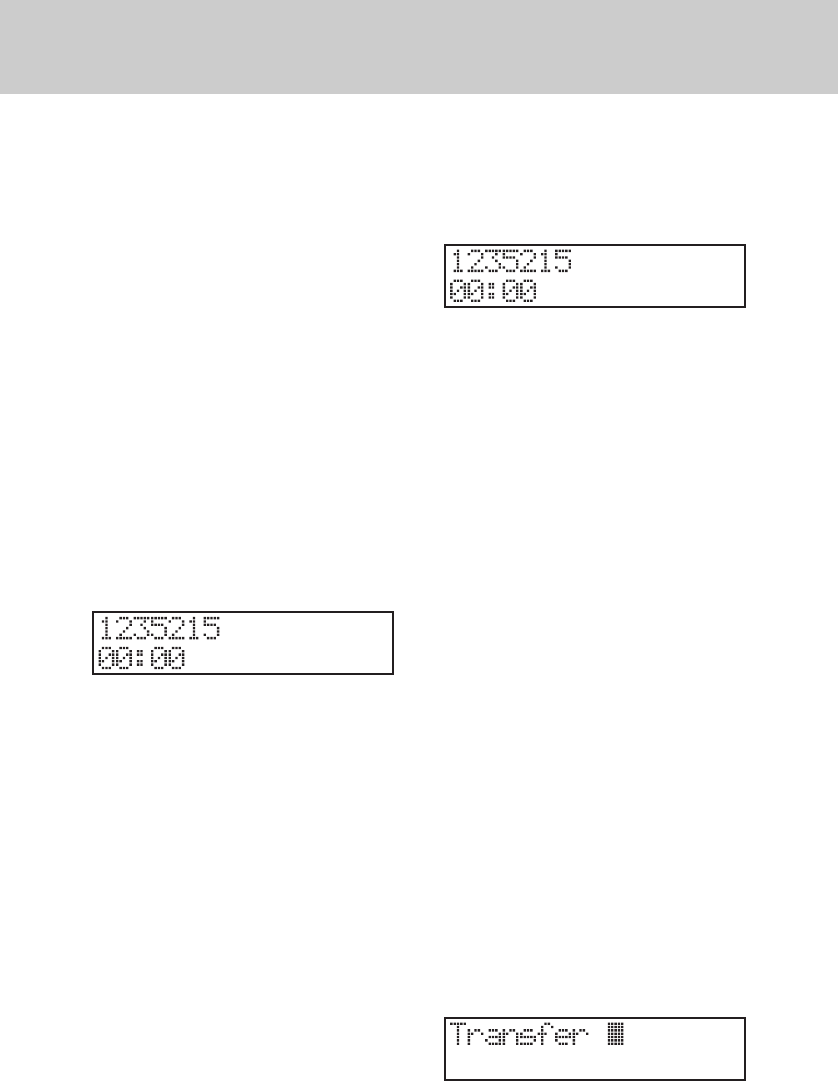
7. AC Power Failure Indication
If power has been interrupted to your
speakerphone the display will show:
Press any button or key to cancel the
power failure message.
BASIC OPERATION
22
8. Making an Outside Call
Each VT 4121 speakerphone may have
four (4) outside lines programmed for
direct access and dialing.
8.1 Using the Handset
1. Lift the handset. (If you have Auto-
matic Line Selection enabled, the
telephone will automatically select
a line-proceed to Step 3 ).
2. Press a line button.
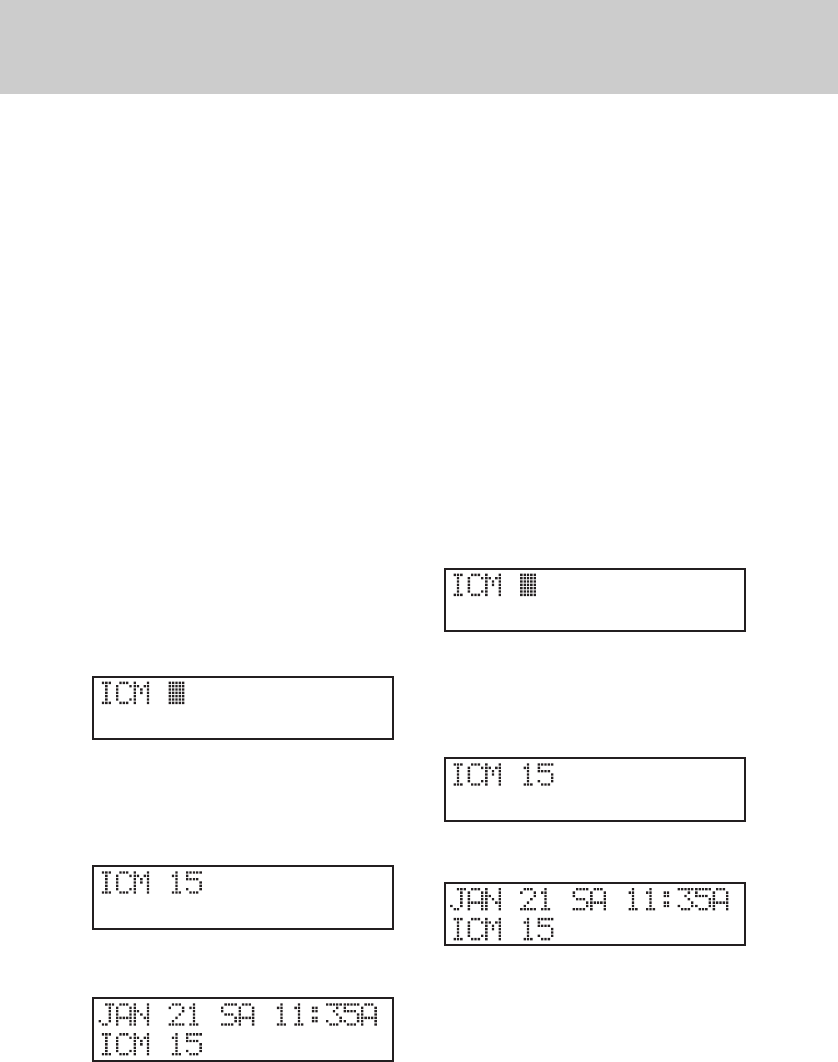
3. Dial the telephone number. The dis-
play will show the digits you dial.
After the last digit is dialed, the timer
will soon begin to display the call
duration:
Note: If you dial more than 15 digits,
all the digits will shift to the left
of the display:
4. Hang up the handset or press END
when you’ve completed your call.
8.2 Using the Speakerphone / Head-
set
Note: The Speakerphone will auto-
matically switch to headset
mode when a compatible head-
set is plugged into the headset
jack.
1. Press SPEAKER. (If you have Au-
tomatic Line Selection enabled, the
telephone will automatically select
a line-proceed to Step 3.)
2. Press a line button.
3. Dial the telephone number. The dis-
play will show the digits you dial.
After the last digit is dialed, the timer
will soon begin to display the call
duration:
Note: If you dial more than 15 digits,
all the digits will shift to the left
of the display.
4. Press SPEAKER or END when
you’ve completed your call.
9. Answering an Outside Call
9.1 Using the Handset
Lift the handset. The ringing outside line
is automatically selected.
9.2 Using the Speakerphone
1. Press the flashing line button,
OR
Press SPEAKER
Note: When several lines are ringing,
you can directly answer any line
by pressing the associated line
button.
10. Placing a Call on Hold
While on a call:
1. Press HOLD. The display will briefly
show:
BASIC OPERATION
23
2. Hang up.
Press ICM. If you want to make an
intercom call without
autotransferring the line or simply
hang up the handset and the line
will remain on hold.
11. Retrieving a Call on Hold
When you place a call on Hold at your
speakerphone you will hear a brief re-
mainder tone after 30 seconds.
To retrieve a held call press the line
button corresponding to the holding line.
12. Making an Intercom Call
12.1 Using the Handset
Note: Skip Step 1 if you programmed
the intercom for Automatic Line
Selection.
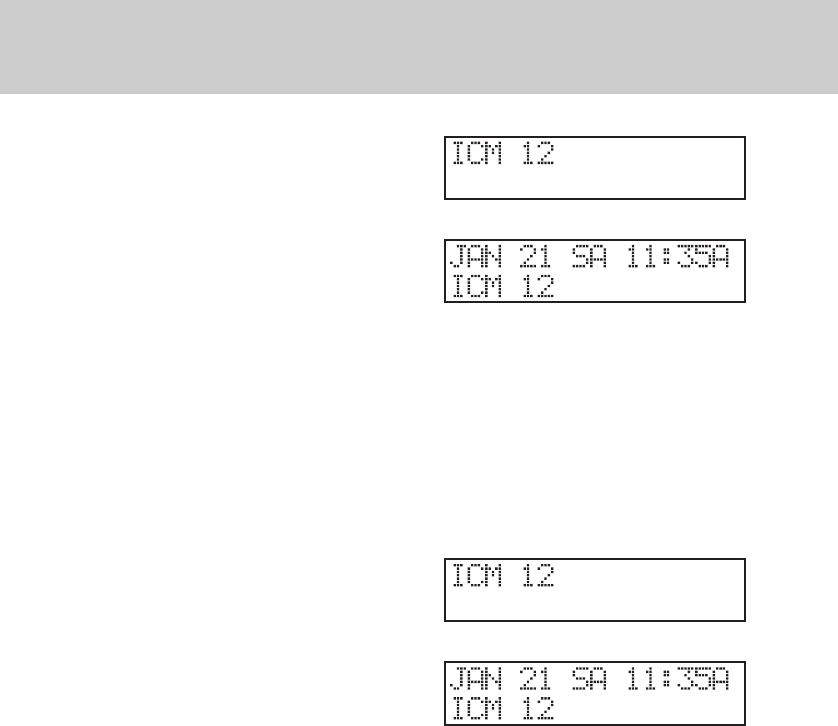
1. Press ICM. The display will show:
2. Lift the handset.
3. Dial the desired intercom number
(from 11 to 22). For instance, if you
dial intercom number 15 the display
will show:
When the person you called answers,
your display will show:
4. Hang up the handset to end the call.
Note1: If the telephone you are call-
ing is busy, you will hear busy
tone. If the telephone you are
calling is in Do Not Disturb
(DND) mode, you will hear
DND tone.
Note 2: If you do not perform Step 3
above within approximately 10
seconds, the intercom will be
released.
12.2 Using the Speakerphone
Note: Skip Step 1 below if you pro-
grammed the intercom for Auto-
matic Line Selection.
1. Press ICM. The display will show:
2. Press SPEAKER.
3. Dial the desired intercom number
(from 11 to 22). For instance, if you
dial intercom number 15 the dis-
play will show:
When the person you called answers,
your display will show:
4. Press SPEAKER to hang up.
Note 1: If the telephone you are call-
ing is busy, you will hear busy
tone. If the telephone you are
calling is in Do Not Disturb
BASIC OPERATION
24
(DND) mode, you will hear
DND tone.
Note 2: If you do not perform Step 3
above within approximately 10
seconds, the intercom will be
released.
12.3 Using the Direct Station Buttons
The speed dial buttons are also
preprogrammed for use as Direct Sta-
tion Selection (DSS) buttons. You can
access extensions 11 through 22 by
simply pressing the appropriate button.
Note: Skip Step 1 below if you pro-
grammed the intercom for Auto-
matic Line Selection.
1. Press ICM.
2. Lift the handset or press SPEAKER.
3. Press the desired DSS button.
4. Hang up the handset to end the call.
Note1: If the telephone you are call-
ing is busy, you will hear busy
tone. If the telephone you are
calling is in Do Not Disturb
(DND) mode, you will hear
DND tone.
Note 2: If you do not perform Step 3
above within approximately 10
seconds, the intercom will be
released.
13. Answering an Intercom Call
13.1 Using the Handset
For example, if Station 12 is calling you,
your handset will ring, your ICM button
will flash, and the display will show:
1. Lift the handset.
2. Hang up the handset to end the call.
The display will return to the idle
mode.
13.2 Using the Speakerphone/Head-
set
For example, if Station 12 is calling you,
your handset will ring, your ICM button
will flash, and the display will
show:
1. Press ICM or SPEAKER.
2. Press END or SPEAKER to end the
call. The display will return to the idle
mode.
14. Intercom Call Pick Up
You may answer an intercom call ring-
ing at another speakerphone in the sys-
tem by pressing ICM.
15. Transferring a Call
While on a line:
1. Press HOLD. The display shows:
BASIC OPERATION
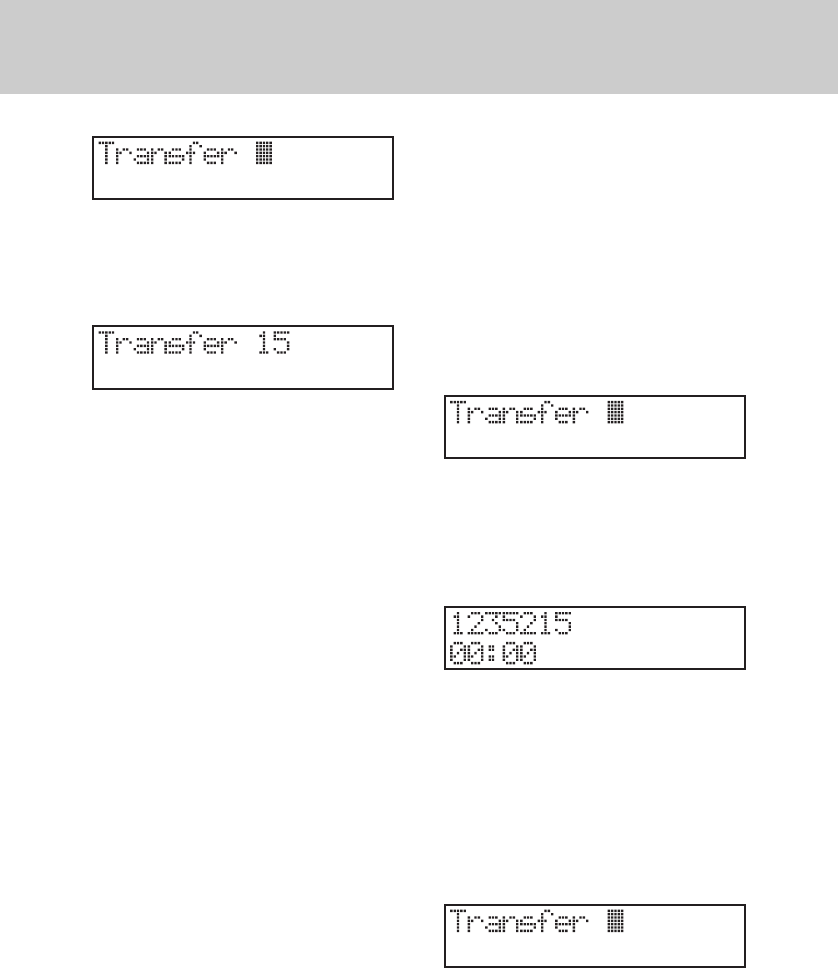
25
2. Dial the extension number where
you will transfer the call (or press a
DSS button ). For instance, if you
want to transfer a call to extension
15 the display will show:
Note 1: You will hear a single tone if
the call has transferred.
Note 2: You will hear a transfer re-
minder tone every 30 seconds
if the transfer isn’t answered.
Note 3: You can still transfer calls even
if the system intercom is busy.
16. Receiving a Transferred Call
Any extension may pick-up a transferred
call.
You will hear transfer ring tone and the
lamp for the transferred line will flash.
17. Muting a Call
The Mute feature turns off the telephone
handset and speakerphone micro-
phone so the distant party cannot hear
you. You can also use Mute to block out
background noise momentarily.
While on a line or using the intercom:
1. Press MUTE (ENTER). The lamp
will light.
2. Press MUTE (ENTER) again to de-
activate the feature.
18. Conferencing
A three-way conference call may con-
sist of two (2) outside lines or one (1)
outside line and two (2) extensions.
18.1 Two (2) Outside Lines
While on a call on the first line:
1. Press HOLD. The first line is placed
on HOLD and the display shows:
2. Press a second line button.
3. Dial the telephone number for the
second party.
4. Press CONFERENCE. The display
will show the second telephone
number that you dialed:
5. Hang up to disconnect the lines and
end the conference.
18.2 One (1) Outside Line and Two
(2) Extensions
While on a call on the first line:
1. Press HOLD. The first line is placed
on Hold and the display shows:
2. Press ICM.
3. Dial the intercom number for the
other internal party. For example, if
you dial extension 20 the display will
show the following when extension
BASIC OPERATION
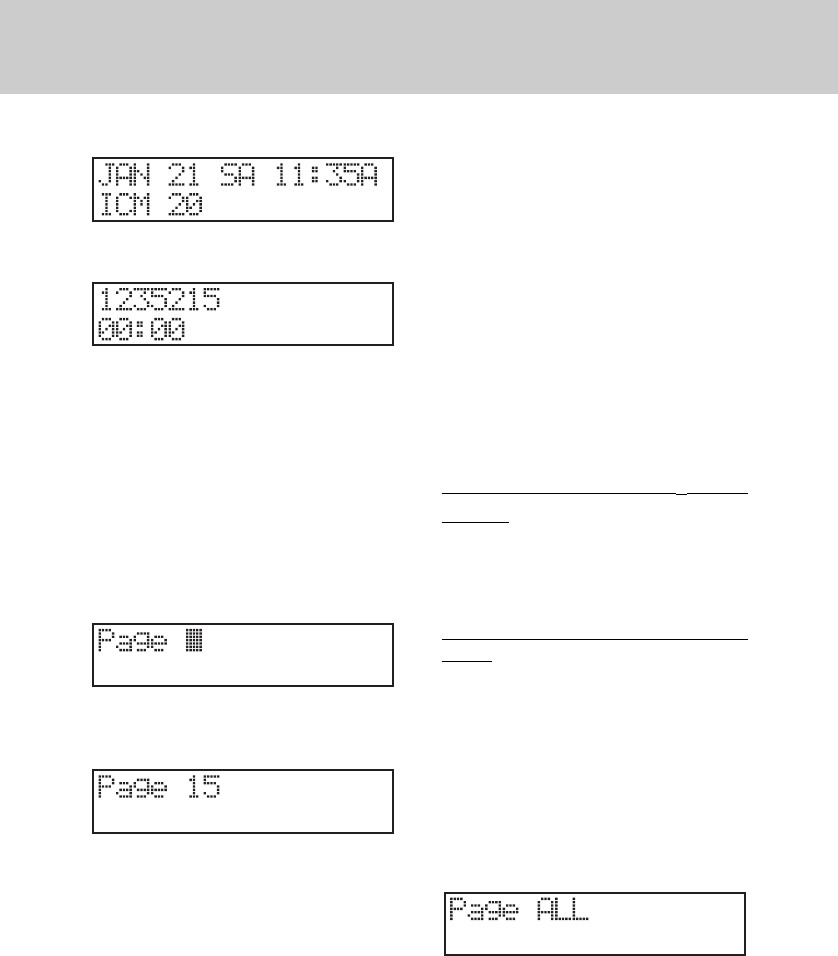
26
20 answers:
4. Press CONFERENCE. The display
shows:
5. Hang up to end the conference.
Note: When you hang up extension 20
will still be connected to the line
until that extension hangs up.
19. Paging
19.1 Paging Another Speakerphone
1. Lift the handset.
2. Press PAGE. The display shows:
3. Dial the desired intercom number.
For instance, if you dial extension
15 the display shows:
4. Make your page announcement.
Note: Only VT4121 speakerphones
can receive voice paging.
19.2 Answering a Page
You will hear a tone prior to receiving a
voice page. You may then answer the
page using the speakerphone.
Note: If you have programmed Auto-
Mute, the Mute lamp will turn on
and sounds in your room will not
be heard by the calling party.
1. Lift the handset or press MUTE (EN-
TER) (if the Mute lamp is lit).
2. Hang up to end the call.
19.3 Changing Signaling Modes
If you have made a voice page to an
extension and do not receive a reply,
press ICM and the other extension will
begin tone signaling to alert users in
the area.
To Switch From Page Mode to Tone
Ringing:
After establishing a voice page to an-
other extension, press ICM.
To Switch From Tone Ringing to Page
Mode:
After establishing an intercom call,
Press PAGE.
19.4 To Voice Page All Speaker-
phone Extensions
1. Lift the handset.
2. Press PAGE ALL. The display
shows:
3. Announce your message.
BASIC OPERATION
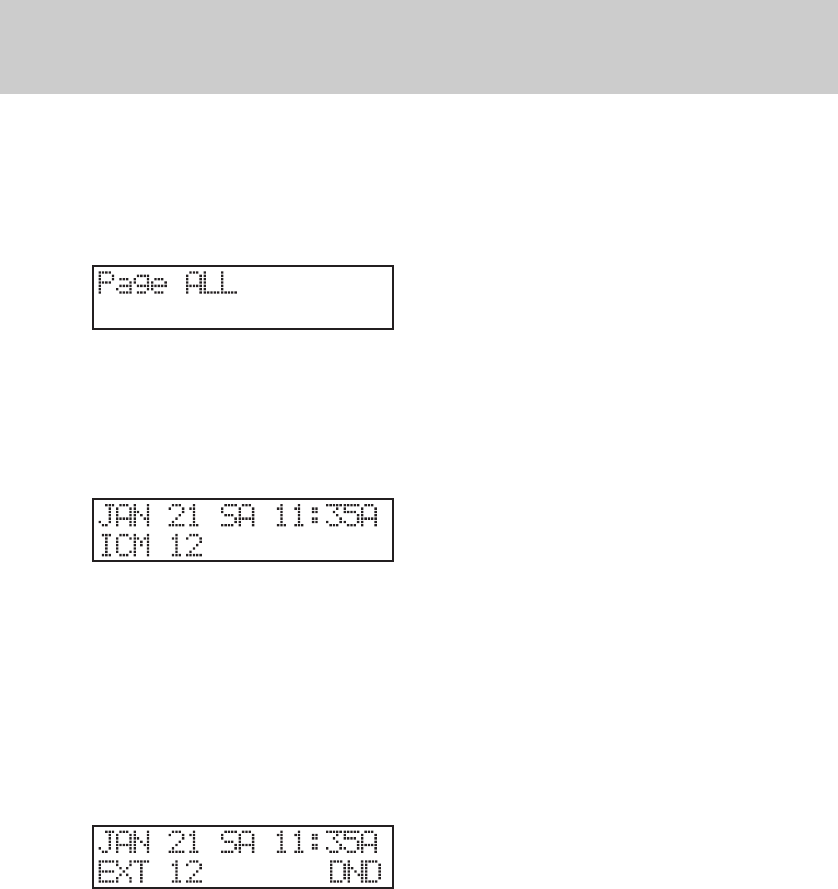
27
19.5 Receiving a Voice Page to All
Speakerphone Extension.
For example, if extension 12 sends a
Voice Page to all telephones in the sys-
tem, the extension telephone will show:
19.6 Meet Me Answer to All Page
Press PAGE or PAGE ALL to answer
the page. For instance, if extension 12
performs an All Page, the display
shows:
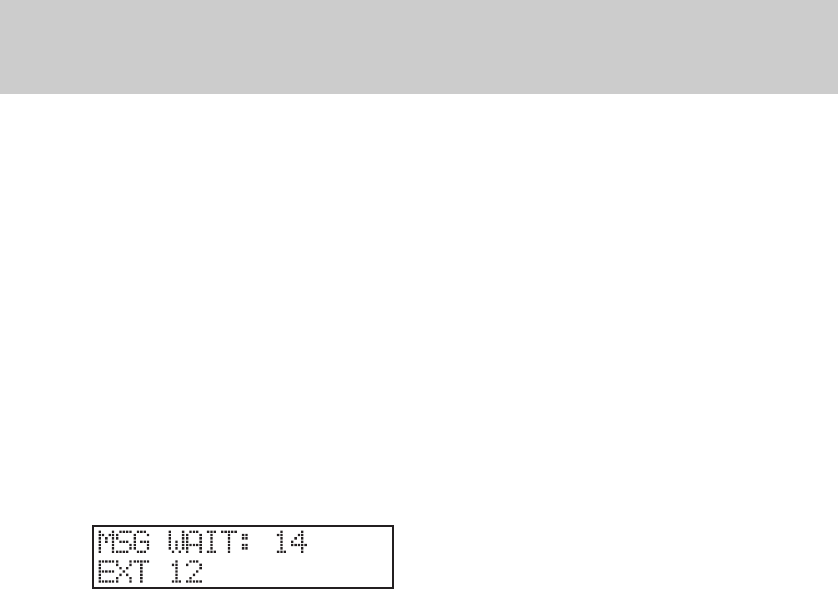
20. Do Not Disturb
You may use the DND feature to avoid
telephone interruptions. When acti-
vated, you will not hear incoming ring-
ing from outside lines, intercom calls
and pages.
While the telephone is idle:
Press DND. The display shows:
Note: Press DND again to deactivate
DND. The display will return to
the idle mode.
21. Using the Flash Button
You may use Flash instead of pressing
the hookswitch to access custom call-
ing features provided by your telephone
service such as call waiting, 3-way call-
ing, etc.
While on a line:
1. Press FLASH to obtain new dial
tone.
2. Dial the new telephone number or
service code.
22. Using the Pause Feature
During speed dialing you can use the
Pause feature to insert a delay in a di-
aling sequence. Pause may be needed
to access certain banking and long dis-
tance services. Each pause is 3 sec-
onds. During manual dialing, you can
press the button repeatedly to create a
longer delay.
While on a line:
1. Dial the numbers prior to the pause.
2. Press REDIAL/PAUSE.
3. Dial the remaining number after the
pause.
23. Auto Busy Redial
To continue dialing a busy number from
the telephone:
When you dial a telephone number that
is busy, hang up and perform the fol-
lowing steps.
1. Press SPEAKER (If you have Au-
tomatic Line Selection enabled, tele-
phone will automatically select a
line-proceed to Step 3.)
2. Press a line button.
3. Press REDIAL/PAUSE. The tele-
phone will dial the number. If the
distant party is still busy, the tele-
phone will hang up after about 15
seconds, it will then wait about 5
BASIC OPERATION

28
seconds, and then dial the number
again.
4. When you hear ringing, lift the hand-
set to speak.
Note: The MUTE lamp lights steady
when the Auto Busy Redial fea-
ture is activated. The SPEAKER
lamp will flash slowly during di-
aling attempts, and quickly dur-
ing dialing.
24. Last Number Redial
To dial the last number dialed from the
telephone:
1. Lift the handset.
2. Press a line button.
3. Press REDIAL/PAUSE and the
number is dialed automatically.
Note: You may also redial using the
speakerphone by simply press-
ing REDIAL/PAUSE. If you
press SPEAKER first, you will
activate Auto Busy Redial.
25. Speed Dialing
1. Lift the handset.
2. Press a SPEED DIAL button. The
number will be dialed automatically.
Note: You may use the speakerphone
to dial a speed dial number by
simply pressing the SPEED
DIAL button.
26. Call Privacy
Another extension cannot access a line
that you are using unless you override
Privacy for that call. Overriding the Call
BASIC OPERATION
Privacy feature allows someone else to
join your conversation on the same line.
To override (disable) Call Privacy:
Press the line button that you are cur-
rently accessing until you hear a single
tone.
To enable Call Privacy:
Press the line button until you hear a
double tone.
Note 1: When non-system equipment,
such as a single line telephone
or facsimile machine, is using
a line, any VT 1421 system
telephone may access that line
also. However, when a system
telephone accesses the line
the Call Privacy feature is en-
abled and additional system
telephone may not access the
line.
Note 2: Due to the direct wiring of
single line telephones,
cordless telephones, facsimile
machines, or modems, it is not
possible to prevent these de-
vices from accidentally intrud-
ing on a line that you are us-
ing.
27. Pulse-to-Tone Switching
If you are pulse dialing service you may
need to access a computer or calling
services that use tone dialing.
While on a line:
1. Dial the telephone number in pulse
mode.
2. Dial *tone to change to the tone di-
aling mode.
29
3. Dial the remaining numbers to be
dialed in the tone mode.
Note: When you hang up the tele-
phone will return to the pulse
dialing mode.
28. Message Waiting Light
If you subscribe to voice mail service
from your local telephone company, the
LED to the right of the Caller ID keys
will flash when someone has left a mes-
sage for you. This feature is compatible
with FSK signaling from the telephone
company*. The display will indicate line
(1-4) that the message signal was re-
ceived. The display will show:
In this example, there is a message
waiting on L1 and L4. Follow your voice
mail service instructions for retrieving
a message.
BASIC OPERATION
Note: Your telephone company may
send a signal to remove the in-
dicator light once you have re-
trieved your messages, or you
may press ERASE twice to re-
move the indicator light manu-
ally.
*Not all local telephone service
providers send the FSK signal
required to activate the Mes-
sage Waiting Light. If you have
voice messaging, but your Mes-
sage Waiting does not flash
when receive new messages,
check with your service, pro-
vider to see if FSK signaling is
available.
30
IMPORTANT: You must subscribe to
Caller ID service pro-
vided by your local
telephone company
on each line you wish
to receive call informa-
tion.
1. Caller ID Buttons
There are five (5) buttons used to ac-
cess Caller ID functions:
CID
• To switch between multiple caller ID
screens during 2 or more ringing
calls.
• To move backward through the caller
ID list.
• To move forward through the caller
ID list.
ERASE
• To erase a call from the caller ID list.
DIAL
• To dial a number from the caller ID
list.
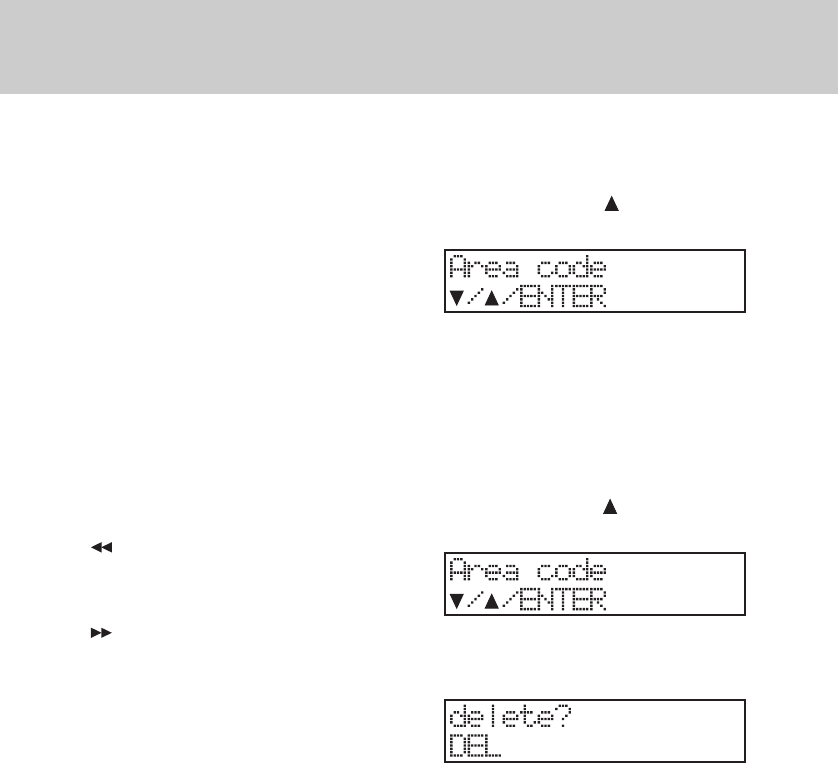
2. Programming the Area Code
Default: empty
When you receive a local call from a
person with your same home area code,
the telephone will not store the area
code. This feature will enable you to
redial the caller in the future.
2.1 To Program the Area Code
1. Press PROGRAM.
2. Press VOLUME until the display
shows:
3. Press MUTE (ENTER).
4. Dial the area code.
5. Press MUTE (ENTER).
2.2 To Erase the Programmed Area
Code
1. Press PROGRAM.
2. Press VOLUME until the display
shows:
3. Press MUTE (ENTER).
4. Press ERASE. The display will
show:
5. Press ERASE again. The area code
is deleted.
3. Receiving a Call
You will need to subscribe to the Caller
ID service from your telephone com-
pany to receiver Caller ID information.
When a call is received, the display will
show the name and number of the
caller, and the date and time the call is
received. Some telephone companies
send both the name and number of the
CALLER ID OPERATION
31
caller. Other telephone companies may
only provide the number of the calling
party.
Note 1: When the VT 4121 is con-
nected behind a PBX or key
system, the caller ID features
cannot be used.
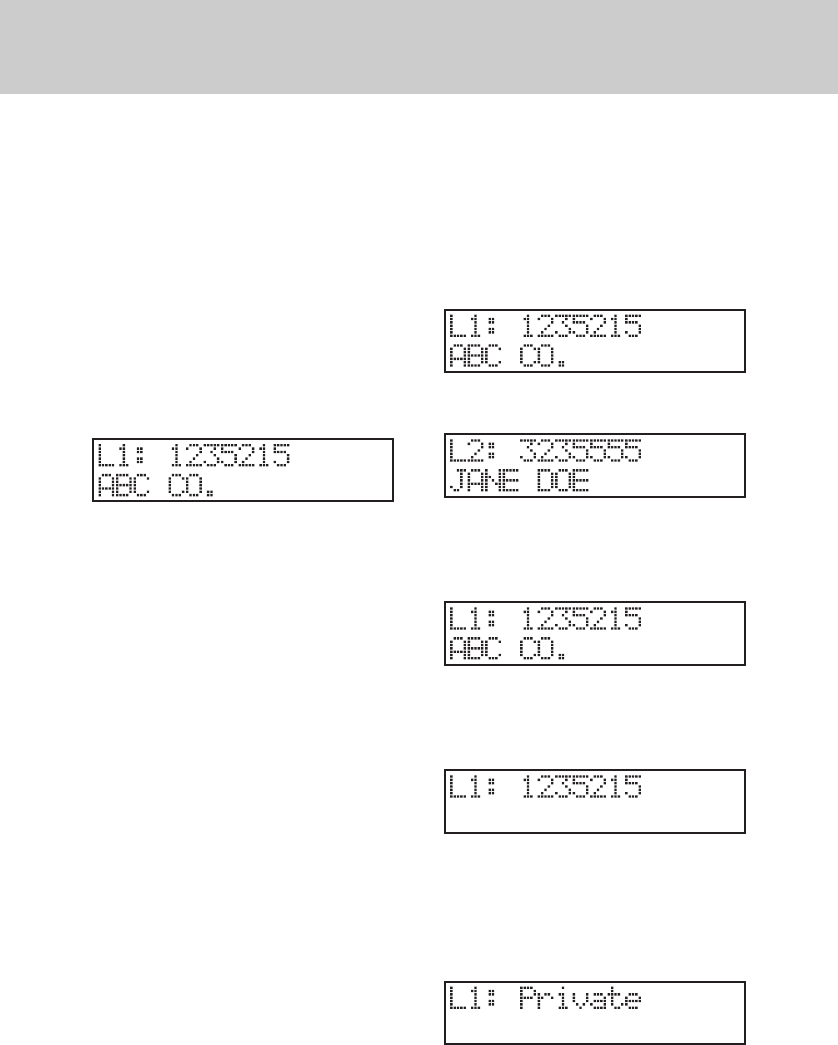
3.1 Receiving a Name and Number
Call
The display will show the caller ID in-
formation typically after the first ring:
Where: L1 is the ringing line number
1235215 is the number of the
caller
ABC CO. is the name of the
caller
Note: The display will return to the
idle mode when:
• The caller hangs up and ringing
stops.
• An extension telephone an-
swers the call.
• You answer the call and hang
up.
• You perform another telephone
function.
3.2 Receiving Multiple Calls
If two or more lines are ringing, the tele-
phone will show the caller ID informa-
tion for the line that began ringing first.
Press CID to view the caller ID infor-
mation for the next ringing line. You can
continue to press the button to view
caller ID information for subsequent
ringing lines. Once you have received
the information for all the ringing lines,
press CID again and the display will re-
turn to the date and time mode.
The display will first show the caller ID
information for Line 1:
1. Press CID to review the information
for Line 2:
2. Press CID to return to the time/date
display if no other lines are ringing.
3. Press CID to review the information
for Line 1 again:
3.3 Receiving a Number Only Call
The display will show:
3.4 Receiving a Blocked Call
Sometimes a caller will prevent their
number from being displayed on your
telephone:
CALLER ID OPERATION
32
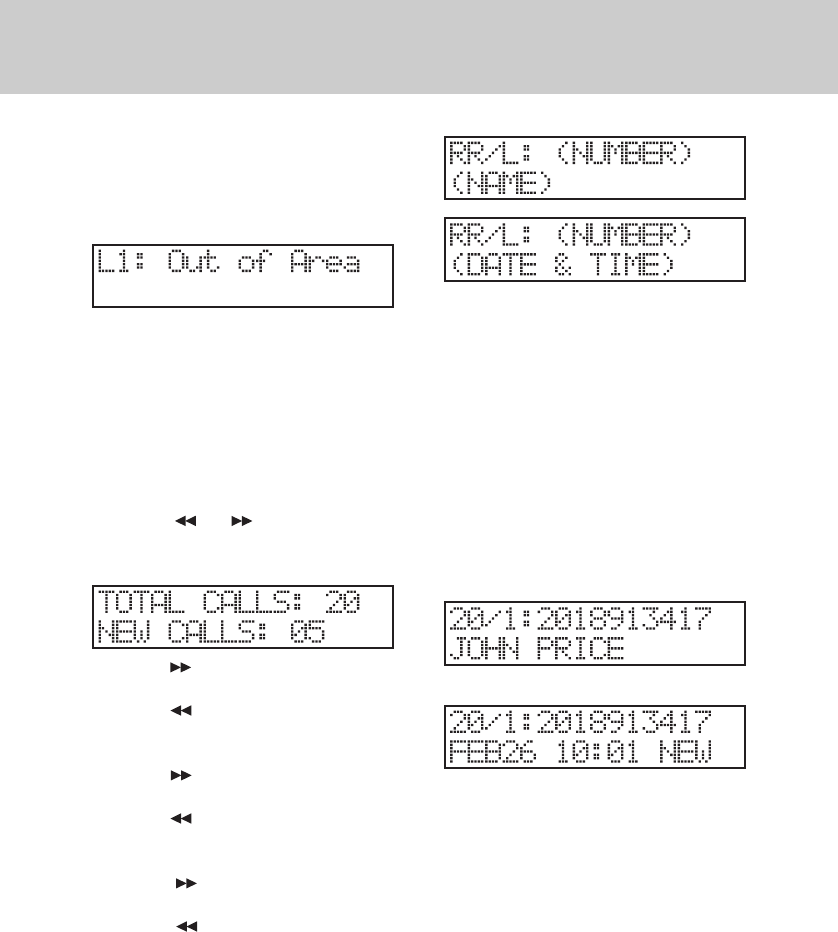
3.5 Receiving a Call from Outside the
Calling Area
If a caller is outside of your Caller ID
area:
4. Reviewing Calls in the Caller List
Information for a maximum of ninety-
nine (99) calls will be maintained. If
more than 99 calls are received, the
newest call will replace the oldest call
in the list.
1. Press or . The display will
show the total Caller ID record num-
ber and new call number.
2a. Press to display the information
of the first call record.
2b. Press to display the information
of the last call record.
3a. Press to display the information
of the second call record.
3b. Press to display the information
of the first call record again.
4a.Press to repeatedly to scroll
through the list forward.
4b. Press to repeatedly to scroll
through the list backwards.
Note: The call records will be dis-
played in the following format:
Where:
RR -Index no. of the call
list (01-99)
L -Telephone line num-
ber associated with
call (1-4)
(NUMBER) -Phone number
(NAME) -Caller’s name
(DATE & TIME) -Date and time call
record was received
NEW -NEW call record or
not (no label)
EXAMPLE:
Press # to view date and time display:
5. Press END to exit the review mode
and return to the time/date display.
5. Delete an Individual Record from
the List
You can delete individual call records
from the list by pressing ERASE while
reviewing a record in the list.
CALLER ID OPERATION
33
6. Delete the Entire Caller ID List
You can delete the entire Caller ID List
by pressing ERASE while viewing the
total calls/new calls display.
7. Dialing a number form the Caller
ID List
You can dial a number from the Caller
ID list while in the review mode.
1. Select a Line Key (L1-L4);
2. Dial any required prefix (1);
3. Press DIAL;
4. The display shows the number digit
by digit as it is dialed.
8. Saving a Number to a Speed Dial
Key
You may save a number form the Caller
ID List to a Speed Dial Key while in re-
view mode:
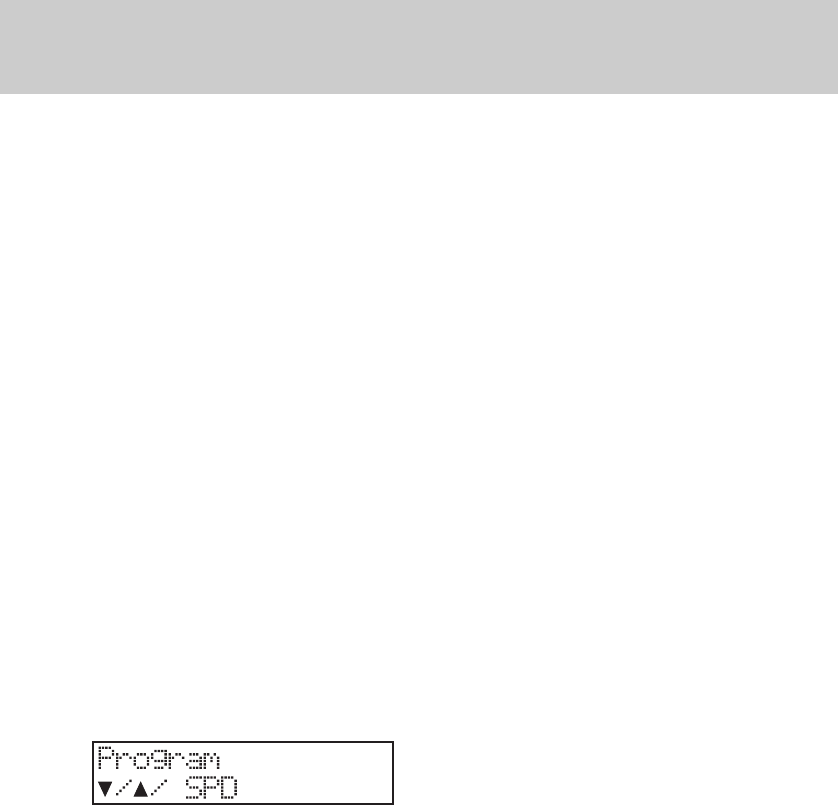
1. Enter the programming mode by
pressing PROGRAM. The display
shows:
2. Select an available Speed Dial Key
3. Press MUTE (ENTER) to store the
Caller ID Number on the Speed Dial
Key.
4. Press CID to review calls in caller
ID memory.
5. Press MUTE (ENTER) to confirm
the storing.
CALLER ID OPERATION
34
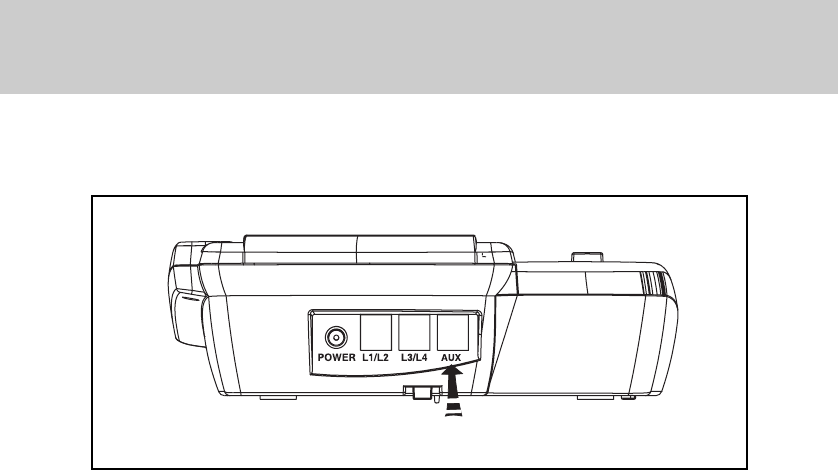
The Speakerphone is equipped with an auxiliary data port on the back panel as
shown:
The auxiliary data port can be used to connect any standard single line device to
line 4 for basic line service. This is particularly useful for notebook PC modem con-
nections, as well as fax machines or other single line telephone devices.
AUX DATA PORT
Auxiliary Data Port

35
MAINTENANCE
TAKING CARE OF YOUR TELEPHONE.
Your VT4121 contains sophisticated electronic parts, so it must be treated with care.
Avoid rough treatment
Place the handset down gently. Save the original packing materials to protect your
telephone if you ever need to ship it.
Avoid water
Your telephone can be damaged if it gets wet. Do not handle your speakerphone
with wet hands. Do not install it near a sink, bathtub or shower.
Electrical storms
Electrical storms can sometimes cause power surges harmful to electronic
equipment.
For your own safety, use caution when using electric appliances during storms.

36
WHAT DOES OUR WARRANTY COVER?
• Any defect in material or workmanship.
FOR HOW LONG AFTER THE ORIGINAL PURCHASE?
• To the original purchaser only - ONE YEAR.
WHAT WILL VTECH DO?
• At our option, repair or replace your unit.
HOW DO I SEND MY UNIT, IN OR OUT OF WARRANTY?
• In the U.S. Call VTECH Communications customer service for Return
Authorization at: 1-800-595-9511
• Properly pack your unit. lnclude any cables & accessories which were originally
provided with the product. We recommend using the original carton and
packing materials.
• Include in the package a copy of the sales receipt or other evidence of date
of original purchase (if the unit was purchased within the lase twelve months).
• Print your name and address, along with a description of the defect, and
include this in the package Or Vtech Electronics.
• Includ payment for any service or repair not covered by warranty, as determined
by VTECH Communications.
• Ship the unit via UPS Insured, or equivalent to:
• In the U.S.
VTECH COMMUNICATIONS
11035 SW 11th Street
Bldg. B Suite 270
Beaverton, OR 97005
VTECH Communications assumes no
responsibility for units
sent without
prior Return Authorizatlon
.
WARRANTY STATEMENT

37
VT 4121 Speakerphone
Physical: Modular, Desk/
Wall Mounted,
High/Low Angle
Stand
Power: Class 2 Trans-
former
Input: 120VAC, 60Hz,
7W
Output: 12VDC, 400MA
(milliamps)
Electrical: 4 CO/PBX Lines,
2 Wire, Loop Start,
600 Ohms, 24/
48VDC
Ringer Equivalence:0.3B
Mechanical: 2 Each RJ-14C
Jacks
Line 4 Auxiliary
Jack
2.5mm Headset
Jack
Power Jack 12
VDC
LCD: Wide Angle Su-
per-Twist (STN) 2
x16 Alpha-Nu-
meric
TECHNICAL SPECFICATIONS
Function Buttons: ,CID, ,End,
ERASE, Do Not Dis-
turb, Dial, Page,
Page All, CO Lines 1/
2/3/4*, Intercom*,
Mute(Enter)*, Pro-
gram, Volume, Con-
ference, Flash,
Redial(Pause),
Speaker*, Hold, 18
Speed Dial Buttons
(*) denotes button
with LED
Dial Keys: 12 Keys, Continuous
DTMF
Dimensions: 237 mm long
212 mm wide
93.5 mm high
Weight: 35.1 ounces (0.994
kg)
Specifications, features, and availabil-
ity of optional accessories are all sub-
ject to change without prior notice.

38
Wa
ll Mounting
Template
Use this template when wall
mounting your base unit. To mark
the positions of the mounting
screws, hold this template against
the wall, and press a pencil or pen
point through the center of each
crossmark.
NOTE:
Select a spot where you can screw
into a wooden stud within the wall.
The mounting screws will not hold
securely in plaster or wallboard
alone.
VT 4121
4-Line Speakerphone

39
TABLE OF CONTENTS
INTRODUCTION.................................................................................................. 1
Becoming familiar with your speakerphone ......................................................... 1
The display........................................................................................................... 2
The Features........................................................................................................ 2
Parts Check list .................................................................................................... 5
FCC REGULATIONS ........................................................................................... 6
IMPORTANT SAFETY INSTRUCTIONS ............................................................. 8
INSTALLATION ....................................................................................................10
Site Planning ......................................................................................................... 10
Installing the Speakerphone .................................................................................10
Desk/Tabletop Mounting ................................................................................. 1 0
Wall Mounting ................................................................................................. 1 1
PROGRAMMING ................................................................................................. 13
General Programming Guidelines ....................................................................... 1 3
Extension Number ............................................................................................... 13
Tone/Pulse Dialing ............................................................................................... 13
Date and Time...................................................................................................... 1 4
CO/PBX Line Ringing .......................................................................................... 14
CO Line Ring Tone ............................................................................................... 1 5
Delayed Ringing ................................................................................................... 1 5
CO Trunk Connection........................................................................................... 1 5
Automatic Line Selection ..................................................................................... 1 6
Call Forward ......................................................................................................... 1 6
Auto Mute Enable/Disable ................................................................................... 17
Flash .................................................................................................................... 1 7
Speed Dial ........................................................................................................... 17
Storing a Telephone Number in Speed Dial ....................................................... 17
Storing a Caller ID Number ................................................................................ 18
Erasing the Contents of a Speed Dial Bin .......................................................... 18
Line In Use Detection .......................................................................................... 18
Reset default Values ............................................................................................ 18
BASIC OPERATION ............................................................................................ 20
Lamp (LED) Operation ......................................................................................... 20
Line-In-Use Indication .......................................................................................... 21
Adjusting the Handset Volume Level ................................................................... 21
Adjusting the Speaker Volume Level ................................................................... 21
Adjusting the Headset Volume Level ................................................................... 21
Adjusting the Ringer Volume Level ...................................................................... 21
AC Power Failure Indication ................................................................................. 21

40
TABLE OF CONTENTS
Making an Outside Call ........................................................................................ 21
Using the Handset.......................................................................................... 22
Using the Speakerphone/Headset ................................................................. 22
Answering an Outside Call .................................................................................. 22
Using the Handset.......................................................................................... 22
Using the Speakerphone ............................................................................... 22
Placing a Call on Hold ......................................................................................... 22
Retrieving a Call on Hold ..................................................................................... 23
Making an Intercom Call ...................................................................................... 23
Using the Handset.......................................................................................... 23
Using the Speakerphone ............................................................................... 23
Using the Direct Station Buttons .................................................................... 24
Answering an Intercom Call ................................................................................. 24
Using the Handset.......................................................................................... 24
Using the Speakerphone/Headset ................................................................. 24
Intercom Call Pick Up .......................................................................................... 24
Transferring a Call ................................................................................................ 24
Receiving a Transferred Call ................................................................................ 25
Muting a Call ........................................................................................................ 25
Conferencing........................................................................................................ 25
Two (2) Outside Lines .................................................................................... 25
One (1) Outside Line and Two (2) Extensions ............................................... 25
Paging .................................................................................................................. 26
Paging Another Executive Speakerphone ..................................................... 26
Answering a Page .......................................................................................... 26
Changing Signaling Modes ............................................................................ 26
To Voice Page All Speakerphone Extensions ................................................ 26
Receiving a Voice Page to All Speakerphone Extension ............................... 27
Meet Me Answer to All Page .......................................................................... 27
Do Not Disturb ..................................................................................................... 27
Using the Flash Button ........................................................................................ 27
Using the Pause Feature ..................................................................................... 27
Auto Busy Redial ................................................................................................. 27
Last Number Redial ............................................................................................. 28
Speed Dialing ...................................................................................................... 28
Call Privacy .......................................................................................................... 28
Pulse-to-Tone Switching ...................................................................................... 28
Message Waiting Light ......................................................................................... 29
CALLER ID OPERATION .................................................................................... 30
Caller ID Buttons .................................................................................................. 30
Programming the Area Code ............................................................................... 30
To Program the Area Code............................................................................. 30
To Erase the Programmed Area Code ........................................................... 30

41
Receiving a Call ................................................................................................... 30
Receiving a Name and Number Call .............................................................. 31
Receiving Multiple Calls ................................................................................. 31
Receiving a Number Only Call ....................................................................... 31
Receiving a Blocked Call ............................................................................... 31
Receiving a Call from Outside the Calling Area ............................................. 32
Reviewing Calls in the Caller List ........................................................................ 32
Delete an Individual Record from the List............................................................ 32
Delete the Entire Caller ID List ............................................................................ 32
Dialing a number form the Caller ID List .............................................................. 32
Saving a Number to a Speed Dial Key ................................................................ 33
AUX DATA PORT................................................................................................. 34
MAINTENANCE................................................................................................... 35
WARRANTY STATEMENT .................................................................................. 36
TECHNICAL SPECFICATIONS ......................................................................... 37
WALL MOUNTING TEMPLATE ........................................................................... 38
TABLE OF CONTENTS

42
ISSUE 0
Is a trademark of VTECH COMMUNICATIONS LTD.., a member
of THE VTECH GROUP OF COMPANIES.
Distributed in the U.S.A. by VTECH Communications, Beaverton, OR, 97008.
Copyright 1999 for VTECH COMMUNICATIONS LTD..
VTECH COMMUNICATIONS LTD.
