W Rider Technology RDBTKB Bluetooth Keyboard User Manual RD RFK858BT Instruction Manual

Shenzhen W.Rider Technology Co., Ltd. Bluetooth Keyboard RD RFK858BT Instruction Manual

User manual

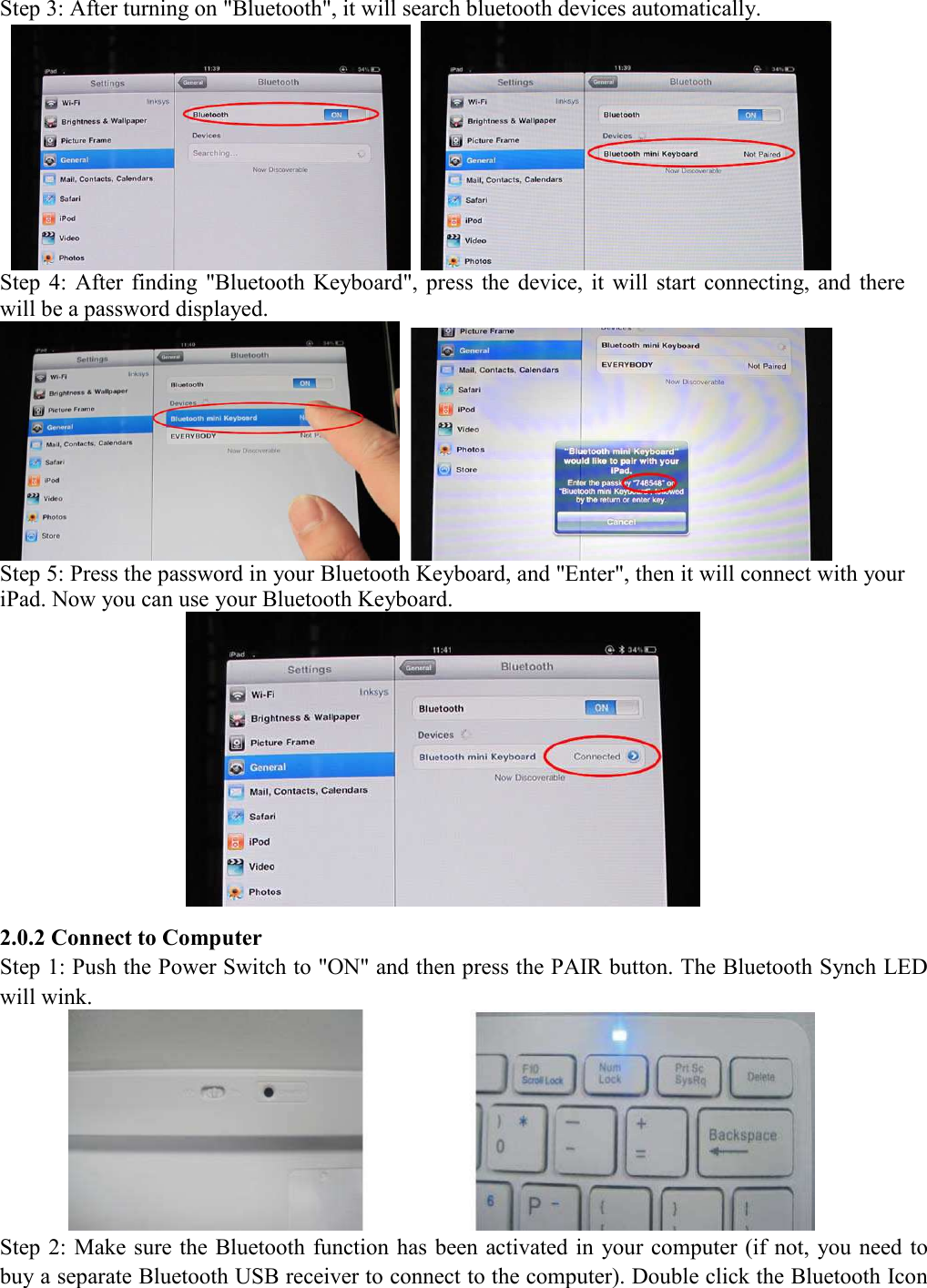
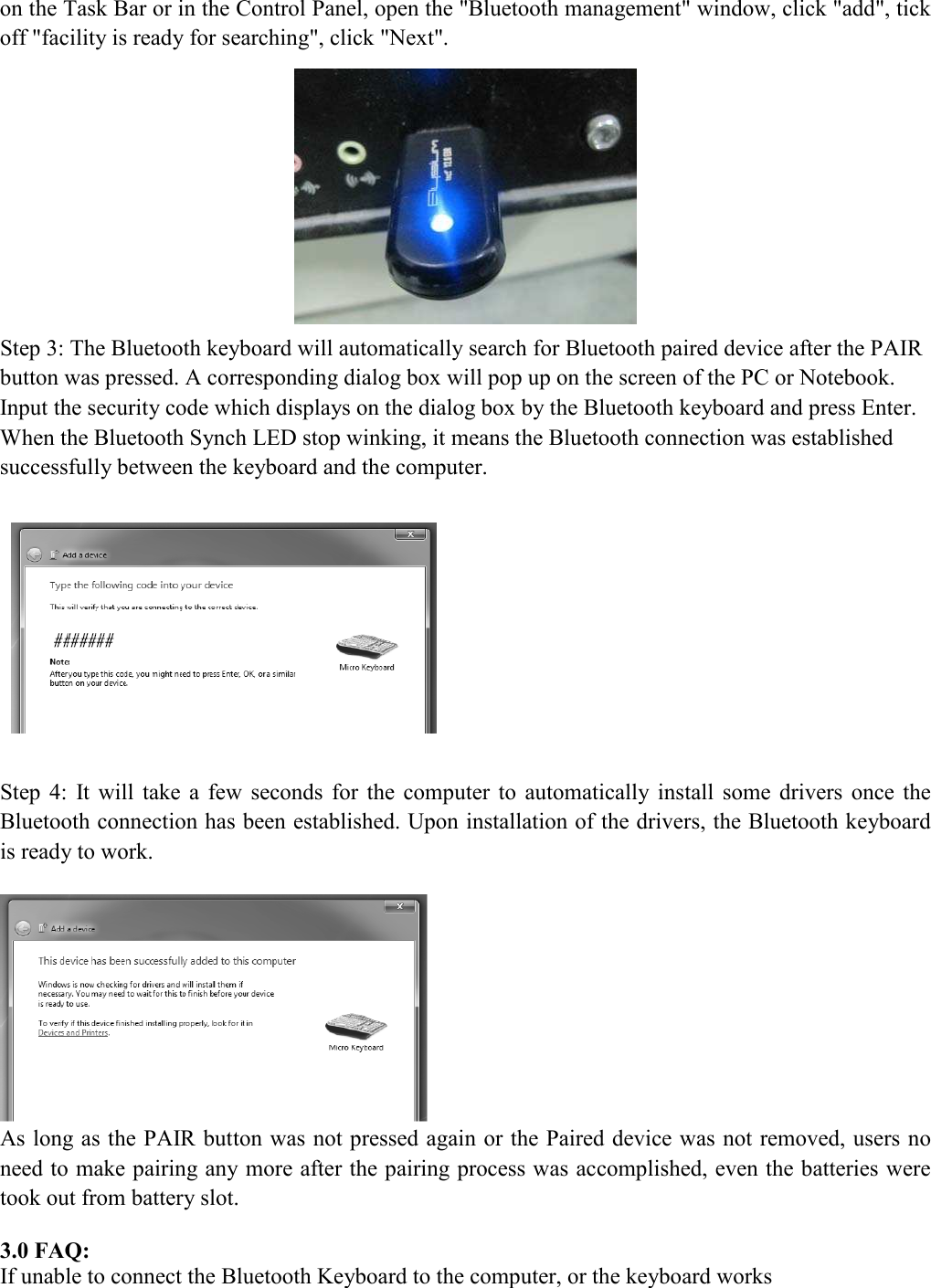
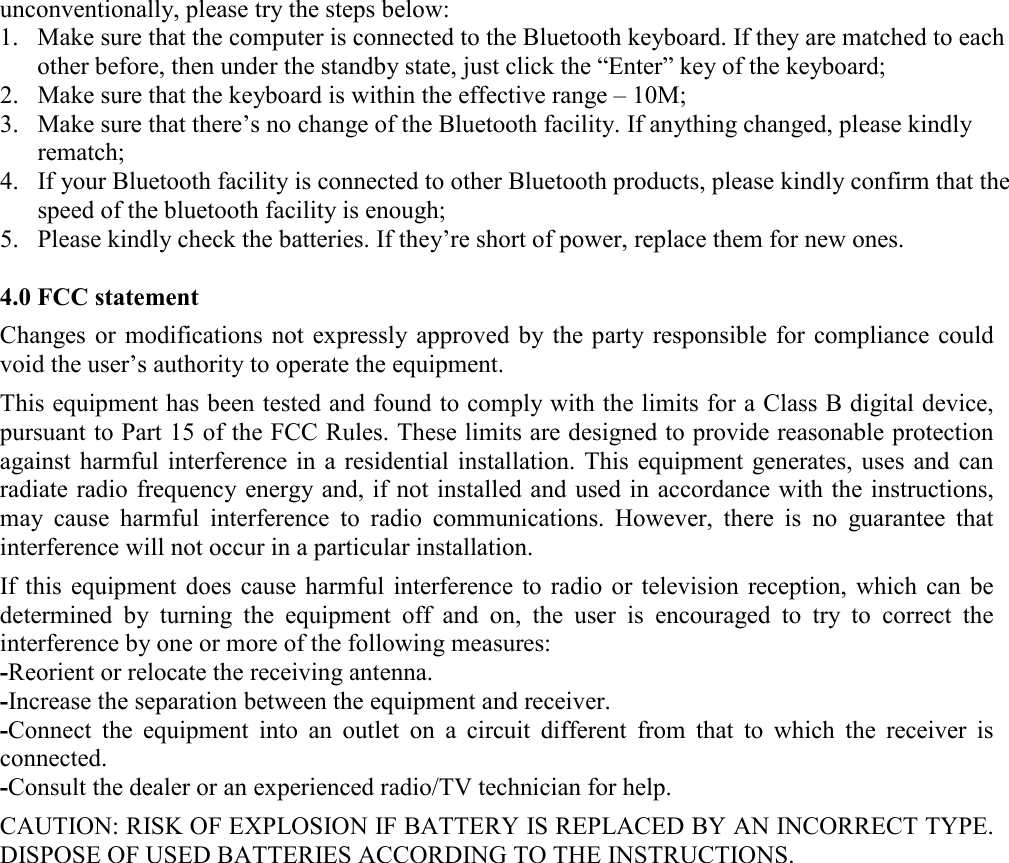
 RD-RFK858BT Bluetooth Keyboard User’s Manual Thanks for purchasing this Bluetooth Keyboard. It’s with standard 78 keys. This creative and easy-to-use Bluetooth 3.0 keyboard will bring you a whole new wireless life experience. 1.0 System Requirement iPad, Mac OS Windows OS (Windows XP, Windows Vista, Windows 7)    2.0 Installation Guide Before  use  the  keyboard,  please  make  sure  the  battery  is  installed  well  in  the  keyboard.  Open  the cover  of  the  battery  slot  and  install  two  pieces  of  1.5V  AAA  battery.  Then  cover  the  battery slot. Make sure that the batteries’ poliarities are in accordance with the polarity marks in the battery slot.    Photo (1)                                  Photo (2) 2.0.1 Connecto to iPad Step  1:  Put  the  power  switch  on  keyboard  to  “ON”,  and  press  pairing  key  on  the keyboard,  the Bluetooth Synch LED will wink, now the keyboard is in pairing mode. Step 2: On your iPad, enter "Setting"---"General", turn on "Bluetooth".
Step 3: After turning on "Bluetooth", it will search bluetooth devices automatically.      Step  4:  After  finding  "Bluetooth  Keyboard",  press  the  device,  it  will  start  connecting, and  there will be a password displayed.    Step 5: Press the password in your Bluetooth Keyboard, and "Enter", then it will connect with your iPad. Now you can use your Bluetooth Keyboard.  2.0.2 Connect to Computer Step 1: Push the Power Switch to "ON" and then press the PAIR button. The Bluetooth Synch LED will wink.    Step 2: Make sure the Bluetooth function has been activated in  your computer (if not, you need to buy a separate Bluetooth USB receiver to connect to the computer). Double click the Bluetooth Icon
on the Task Bar or in the Control Panel, open the "Bluetooth management" window, click "add", tick off "facility is ready for searching", click "Next".  Step 3: The Bluetooth keyboard will automatically search for Bluetooth paired device after the PAIR button was pressed. A corresponding dialog box will pop up on the screen of the PC or Notebook. Input the security code which displays on the dialog box by the Bluetooth keyboard and press Enter. When the Bluetooth Synch LED stop winking, it means the Bluetooth connection was established successfully between the keyboard and the computer.    Step  4:  It  will  take  a  few  seconds  for  the  computer  to  automatically  install  some  drivers  once  the Bluetooth connection has been established. Upon installation of the drivers, the Bluetooth keyboard is ready to work.    As long as the PAIR button was not pressed again or the Paired device was not removed, users no need to make pairing any more after the pairing process was accomplished, even the batteries were took out from battery slot.    3.0 FAQ: If unable to connect the Bluetooth Keyboard to the computer, or the keyboard works
unconventionally, please try the steps below: 1. Make sure that the computer is connected to the Bluetooth keyboard. If they are matched to each other before, then under the standby state, just click the “Enter” key of the keyboard; 2. Make sure that the keyboard is within the effective range – 10M; 3. Make sure that there’s no change of the Bluetooth facility. If anything changed, please kindly rematch; 4. If your Bluetooth facility is connected to other Bluetooth products, please kindly confirm that the speed of the bluetooth facility is enough; 5. Please kindly check the batteries. If they’re short of power, replace them for new ones.  4.0 FCC statement  Changes or modifications  not expressly approved by  the party  responsible  for compliance could void the user’s authority to operate the equipment.  This equipment has been tested and found to comply with the limits for a Class B digital device, pursuant to Part 15 of the FCC Rules. These limits are designed to provide reasonable protection against harmful interference  in a residential  installation.  This  equipment generates,  uses and  can radiate radio frequency energy and, if not installed and used in accordance with the instructions, may  cause  harmful  interference  to  radio  communications.  However,  there  is  no  guarantee  that interference will not occur in a particular installation.  If this  equipment  does  cause harmful interference  to  radio  or  television  reception,  which  can be determined  by  turning  the  equipment  off  and  on,  the  user  is  encouraged  to  try  to  correct  the interference by one or more of the following measures: -Reorient or relocate the receiving antenna. -Increase the separation between the equipment and receiver. -Connect  the  equipment  into  an  outlet  on  a  circuit  different  from  that  to  which  the  receiver  is connected. -Consult the dealer or an experienced radio/TV technician for help.  CAUTION: RISK OF EXPLOSION IF BATTERY IS REPLACED BY AN INCORRECT TYPE. DISPOSE OF USED BATTERIES ACCORDING TO THE INSTRUCTIONS.

Navigation menu