WEIS DESIGN WPC001A Wise Control-Presenter Mouse User Manual 2010 03 12PC 001Guide P S

WEIS DESIGN CO., LTD. Wise Control-Presenter Mouse 2010 03 12PC 001Guide P S

manual

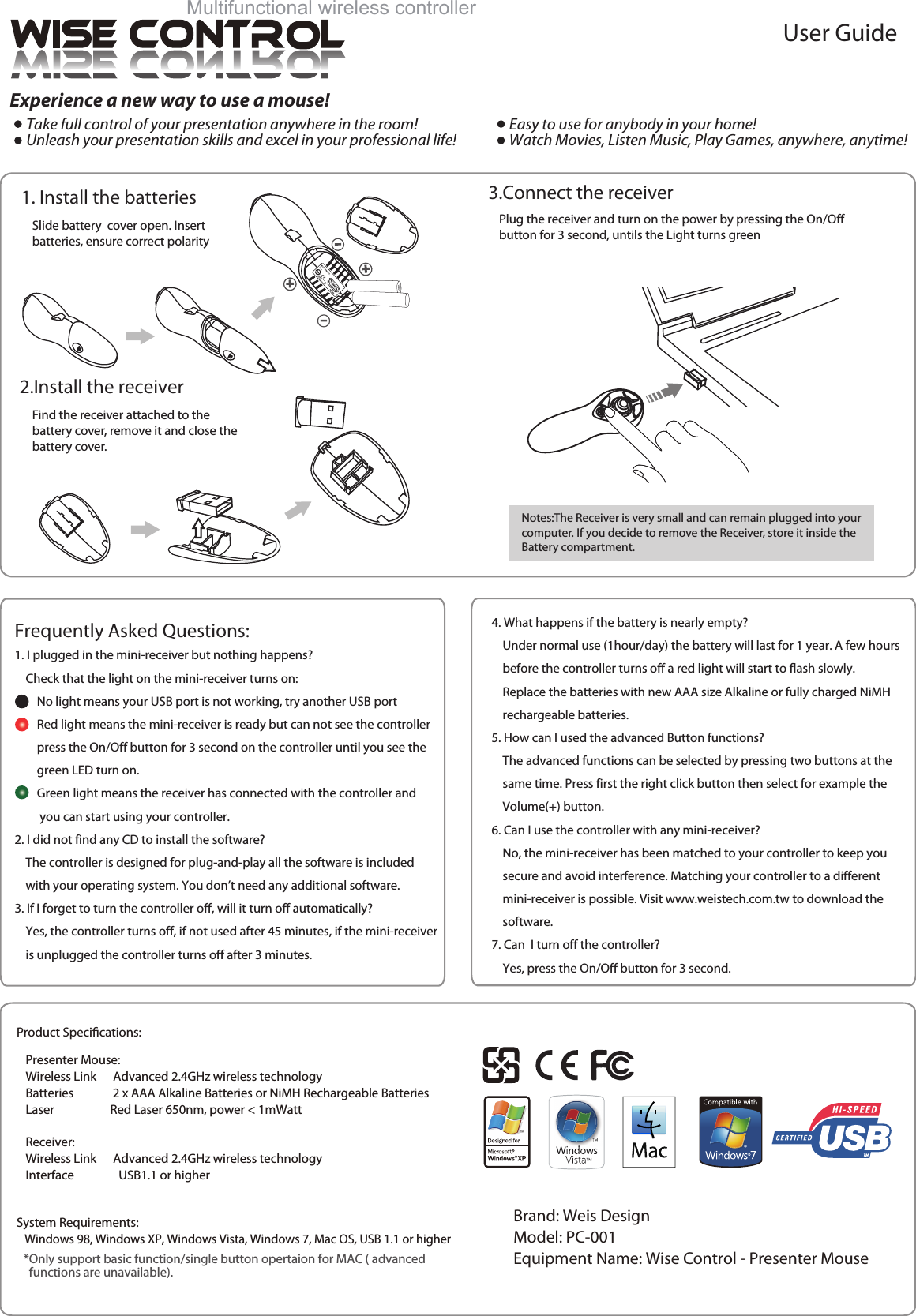
4. What happens if the battery is nearly empty?    Under normal use (1hour/day) the battery will last for 1 year. A few hours    before the controller turns off a red light will start to flash slowly.    Replace the batteries with new AAA size Alkaline or fully charged NiMH    rechargeable batteries.5. How can I used the advanced Button functions?    The advanced functions can be selected by pressing two buttons at the    same time. Press first the right click button then select for example the     Volume(+) button.6. Can I use the controller with any mini-receiver?    No, the mini-receiver has been matched to your controller to keep you    secure and avoid interference. Matching your controller to a different    mini-receiver is possible. Visit www.weistech.com.tw to download the    software.7. Can  I turn off the controller?    Yes, press the On/Off button for 3 second. 1. I plugged in the mini-receiver but nothing happens?    Check that the light on the mini-receiver turns on:        No light means your USB port is not working, try another USB port        Red light means the mini-receiver is ready but can not see the controller        press the On/Off button for 3 second on the controller until you see the        green LED turn on.        Green light means the receiver has connected with the controller and         you can start using your controller.2. I did not find any CD to install the software?    The controller is designed for plug-and-play all the software is included    with your operating system. You don’t need any additional software.3. If I forget to turn the controller off, will it turn off automatically?    Yes, the controller turns off, if not used after 45 minutes, if the mini-receiver    is unplugged the controller turns off after 3 minutes. Frequently Asked Questions:Plug the receiver and turn on the power by pressing the On/Offbutton for 3 second, untils the Light turns greenNotes:The Receiver is very small and can remain plugged into your computer. If you decide to remove the Receiver, store it inside the Battery compartment.Find the receiver attached to the battery cover, remove it and close the battery cover.Slide battery  cover open. Insert batteries, ensure correct polarity1. Install the batteries 3.Connect the receiver2.Install the receiverSystem Requirements:   Windows 98, Windows XP, Windows Vista, Windows 7, Mac OS, USB 1.1 or higherExperience a new way to use a mouse!。Take full control of your presentation anywhere in the room!。Unleash your presentation skills and excel in your professional life!Multifunctional wireless controllerUser Guide。Easy to use for anybody in your home!。Watch Movies, Listen Music, Play Games, anywhere, anytime! *Only support basic function/single button opertaion for MAC ( advanced   functions are unavailable).Presenter Mouse:Wireless Link      Advanced 2.4GHz wireless technologyBatteries              2 x AAA Alkaline Batteries or NiMH Rechargeable BatteriesLaser                    Red Laser 650nm, power < 1mWattReceiver:Wireless Link      Advanced 2.4GHz wireless technologyInterface                USB1.1 or higherProduct Specications:Brand: Weis DesignModel: PC-001Equipment Name: Wise Control - Presenter Mouse
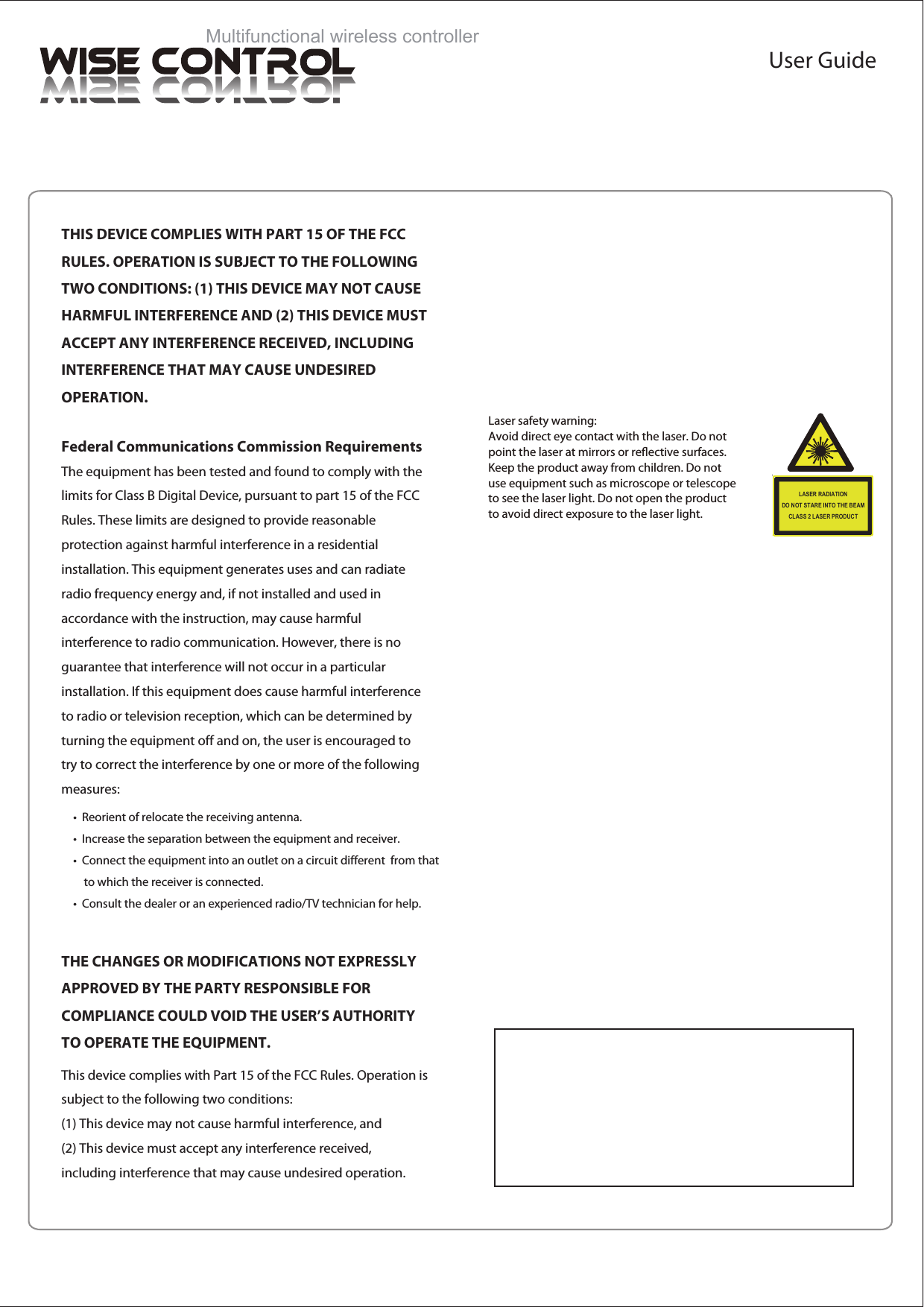
Laser safety warning: Avoid direct eye contact with the laser. Do notpoint the laser at mirrors or reective surfaces.Keep the product away from children. Do notuse equipment such as microscope or telescopeto see the laser light. Do not open the productto avoid direct exposure to the laser light. LASER RADIATIONDO NOT STARE INTO THE BEAMCLASS 2 LASER PRODUCTMultifunctional wireless controllerUser GuideTHIS DEVICE COMPLIES WITH PART 15 OF THE FCC RULES. OPERATION IS SUBJECT TO THE FOLLOWING TWO CONDITIONS: (1) THIS DEVICE MAY NOT CAUSE HARMFUL INTERFERENCE AND (2) THIS DEVICE MUST ACCEPT ANY INTERFERENCE RECEIVED, INCLUDING INTERFERENCE THAT MAY CAUSE UNDESIRED  OPERATION.Federal Communications Commission RequirementsThe equipment has been tested and found to comply with the limits for Class B Digital Device, pursuant to part 15 of the FCC Rules. These limits are designed to provide reasonable protection against harmful interference in a residential installation. This equipment generates uses and can radiate radio frequency energy and, if not installed and used in accordance with the instruction, may cause harmful interference to radio communication. However, there is no guarantee that interference will not occur in a particular installation. If this equipment does cause harmful interference to radio or television reception, which can be determined by turning the equipment off and on, the user is encouraged to try to correct the interference by one or more of the following measures:•  Reorient of relocate the receiving antenna.•  Increase the separation between the equipment and receiver.•  Connect the equipment into an outlet on a circuit different  from that     to which the receiver is connected.•  Consult the dealer or an experienced radio/TV technician for help.THE CHANGES OR MODIFICATIONS NOT EXPRESSLY APPROVED BY THE PARTY RESPONSIBLE FOR COMPLIANCE COULD VOID THE USER’S AUTHORITY TO OPERATE THE EQUIPMENT.This device complies with Part 15 of the FCC Rules. Operation is subject to the following two conditions:(1) This device may not cause harmful interference, and(2) This device must accept any interference received, including interference that may cause undesired operation.

Navigation menu