Win Accord 35FXBTDPF PART 15 CLASS B COMPUTING DEVICE PERIPHERAL User Manual

WIN ACCORD LTD., PART 15 CLASS B COMPUTING DEVICE PERIPHERAL Users Manual

Users Manual

ELSA L Ý'LJLWDO3KRWR3URGXFWVUSER’S MANUALÝ'LJLWDO3KRWR2UJDQL]HUÝ'LJLWDO3KRWR'HVNWRS2UJDQL]HUÝ'LJLWDO3KRWR/HWWHU6RUWHUÝ'LJLWDO3KRWR3HQFLO&XS™
Federal Communications Commission (FCC) StatementYou are cautioned that changes or modifications not expressly approved by the part responsible for compliance could void the user's authority to operate the equipment.FCC-Class BThis equipment has been tested and found to comply with the limits for a Class B digital device, pursuant to Part 15 of the FCC Rules. These limits are designed to provide reasonable protection against harmful interference in aresidential installation. This equipment generate, uses and can radiate radio frequency energy and, if not installed and used in accordance with the instructions, may cause harmful interference to radio communications. However, there is no guarantee that interfence will not occur in a particular installation. if this equipment does cause harmful interference to radio or television reception, which can be determined by turing the equipment off and on, the useris encouraged to try to correct the interference by one or more of the following measures:--Reorient or relocate the receiving antenna.--Increase the separation between the equipment and receiver.--Connect the equipment into an outlet on a circuit different from that to which the receiver is connected.--Consult the dealer or an experienced radio/TV technician for help.
1Table of Contents:Page 2Page 3Page 4Page 5Page 6Page 7-8Page 9Page 10Page 11Page 12Page 13-14Page 15Page 16-17Page 18Page 19Page 20Page 21Page 22-23Intro..........................................................................................What’s Included in Box......................................................Quick Start.............................................................................Device Controls and Inputs.............................................Charging your Digital Photo Product...........................Screen/Mode Overview.....................................................Select Card Screen...............................................................Thumbnail Screen................................................................Still Photo Mode....................................................................Slide Show Mode..................................................................Display Settings and Tools Menu....................................Miscellaneous Menu............................................................Photo Management Menu................................................Frequently Asked Questions.............................................Product Info............................................................................Technical Specifications.....................................................Technical Support................................................................Warranty...................................................................................Note:  For instructions in Spanish please refer to the back section.
2Congratulations !Your new ELSAL L™  Digital Photo Product lets you easily display your photos without a computer.You can display your photos directly from your camera’s memory card or from your ELSA L™ Digital Photo Product’s built-in memory.Your photos may be displayed in an automatic, continuous slide show or as individual still photos.You may zoom in or out on photos, change their orientation, and display them as still photos.Your digital frame product can be powered from your computer, a wall outlet, or the built-in rechargeable battery.
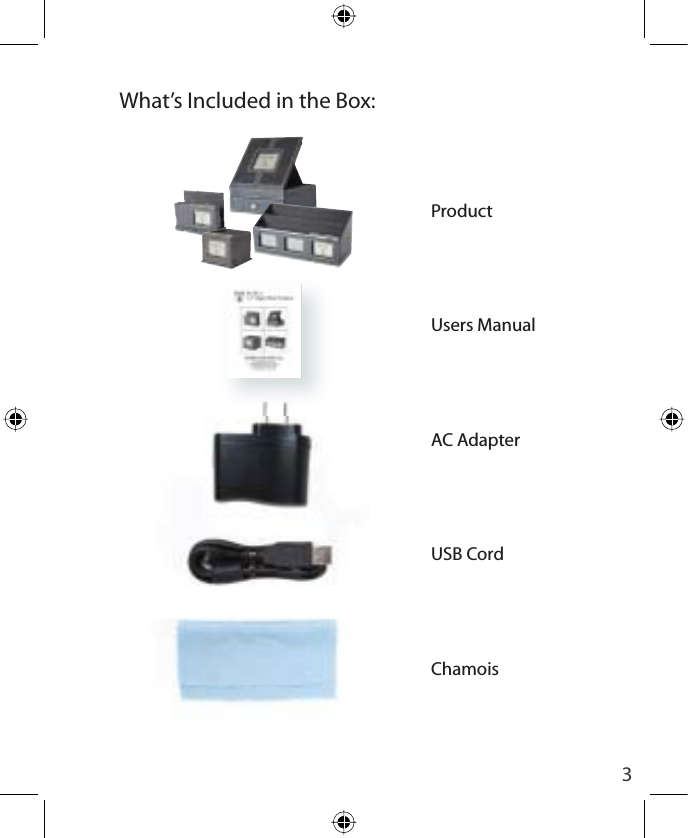
3ProductUsers ManualAC AdapterUSB CordChamoisWhat’s Included in the Box:
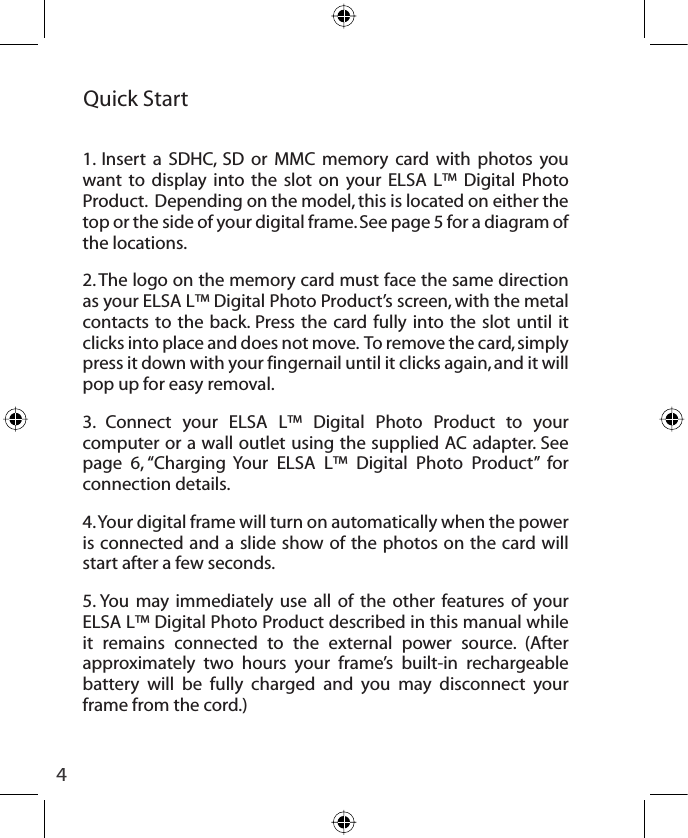
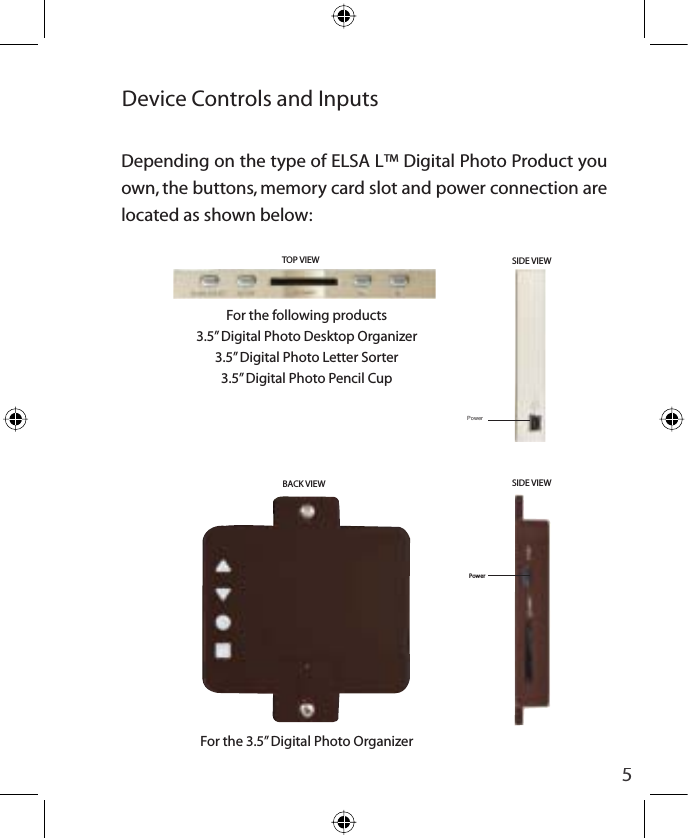
4Quick Start 1. Insert a SDHC, SD or MMC memory card with photos you want to display into the slot on your ELSA L™ Digital Photo Product.  Depending on the model, this is located on either the top or the side of your digital frame. See page 5 for a diagram of the locations.2. The logo on the memory card must face the same direction as your ELSA L™ Digital Photo Product’s screen, with the metal contacts to the back. Press the card fully into the slot until it clicks into place and does not move.  To remove the card, simply press it down with your fingernail until it clicks again, and it will pop up for easy removal.3. Connect your ELSA L™ Digital Photo Product to your computer or a wall outlet using the supplied AC adapter. See page 6, “Charging Your ELSA L™ Digital Photo Product” for connection details. 4. Your digital frame will turn on automatically when the power is connected and a slide show of the photos on the card will start after a few seconds.5. You may immediately use all of the other features of your ELSA L™ Digital Photo Product described in this manual while it remains connected to the external power source. (After approximately two hours your frame’s built-in rechargeable battery will be fully charged and you may disconnect your frame from the cord.)
5Device Controls and InputsDepending on the type of ELSA L™ Digital Photo Product you own, the buttons, memory card slot and power connection are located as shown below:For the following products3.5” Digital Photo Desktop Organizer3.5” Digital Photo Letter Sorter3.5” Digital Photo Pencil CupFor the 3.5” Digital Photo OrganizerTOP VIEWPower  SIDE VIEWSIDE VIEWPowerBACK VIEW
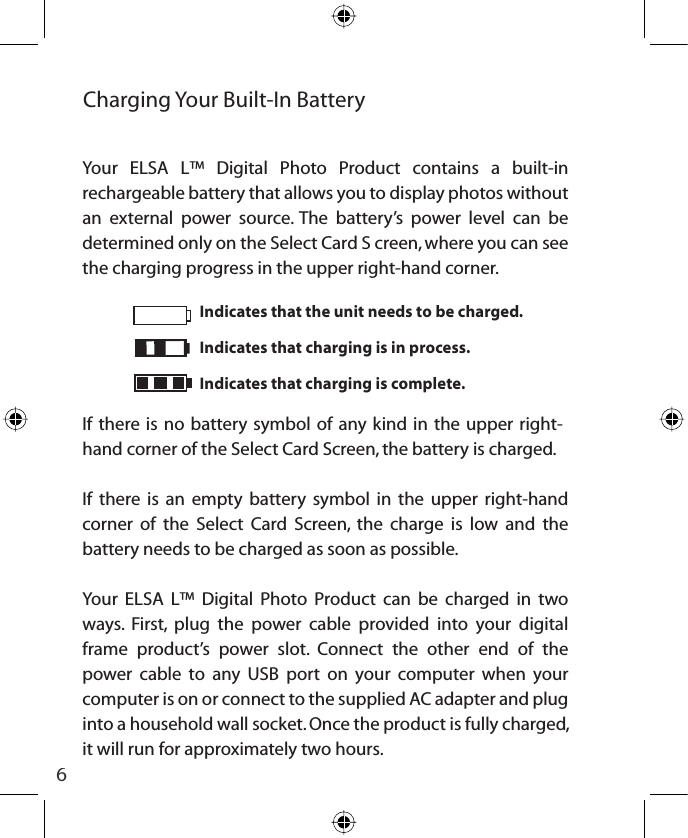
6Indicates that the unit needs to be charged.Indicates that charging is in process.Indicates that charging is complete.Charging Your Built-In BatteryYour ELSA L™ Digital Photo Product contains a built-in rechargeable battery that allows you to display photos without an external power source. The battery’s power level can be determined only on the Select Card S creen, where you can see the charging progress in the upper right-hand corner.If there is no battery symbol of any kind in the upper right-hand corner of the Select Card Screen, the battery is charged.If there is an empty battery symbol in the upper right-hand corner of the Select Card Screen, the charge is low and the battery needs to be charged as soon as possible.Your ELSA L™ Digital Photo Product can be charged in two ways. First, plug the power cable provided into your digital frame product’s power slot. Connect the other end of the power cable to any USB port on your computer when your computer is on or connect to the supplied AC adapter and plug into a household wall socket. Once the product is fully charged, it will run for approximately two hours.
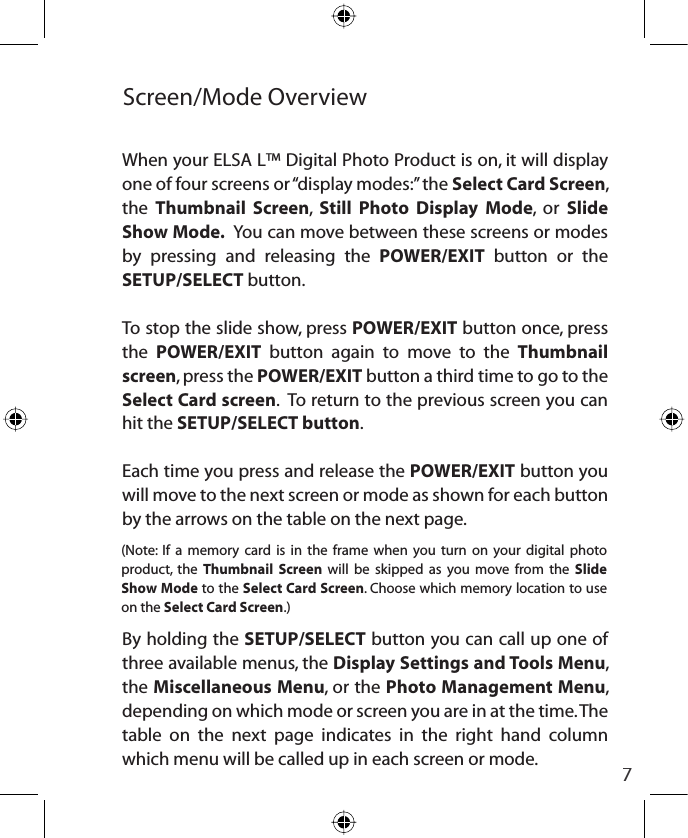
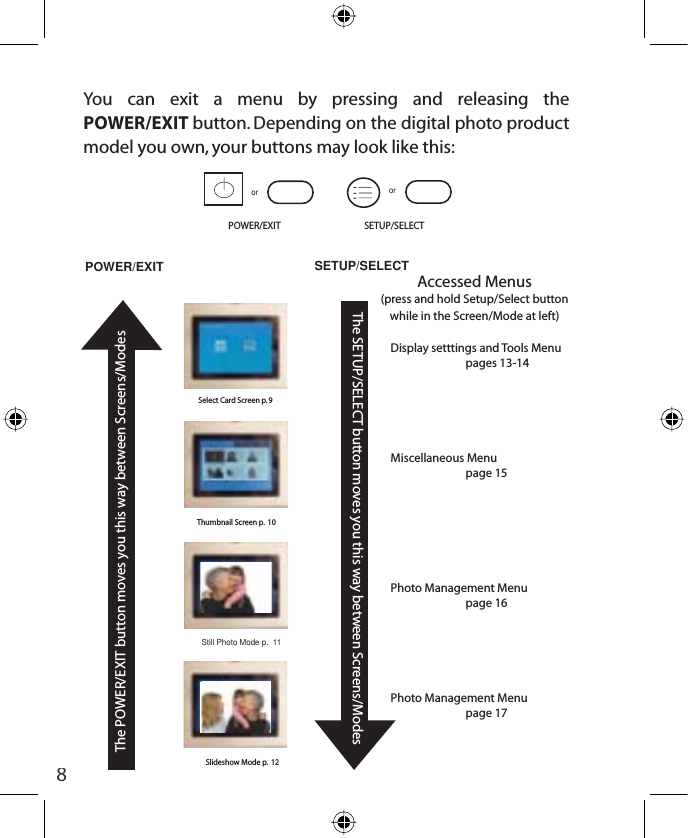
7Screen/Mode OverviewWhen your ELSA L™ Digital Photo Product is on, it will display one of four screens or “display modes:” the Select Card Screen,the Thumbnail Screen,Still Photo Display Mode, or Slide Show Mode.  You can move between these screens or modes by pressing and releasing the POWER/EXIT button or the SETUP/SELECT button.To stop the slide show, press POWER/EXIT button once, press the POWER/EXIT button again to move to the Thumbnail screen, press the POWER/EXIT button a third time to go to the Select Card screen.  To return to the previous screen you can hit the SETUP/SELECT button.Each time you press and release the POWER/EXIT button you will move to the next screen or mode as shown for each button by the arrows on the table on the next page.By holding the SETUP/SELECT button you can call up one of three available menus, the Display Settings and Tools Menu,the Miscellaneous Menu, or the Photo Management Menu,depending on which mode or screen you are in at the time. The table on the next page indicates in the right hand column which menu will be called up in each screen or mode.(Note: If a memory card is in the frame when you turn on your digital photo product, the Thumbnail Screen will be skipped as you move from the Slide Show Mode to the Select Card Screen. Choose which memory location to use on the Select Card Screen.)
8POWER/EXITorSETUP/SELECTorSlideshow Mode p.  12 Still Photo Mode p.  11 Thumbnail Screen p.  10 Select Card Screen p. 9 POWER/EXITThe POWER/EXIT button moves you this way between Screens/ModesDisplay setttings and Tools Menupages 13-14 Miscellaneous Menupage 15Photo Management Menupage 16Photo Management Menupage 17     SETUP/SELECTThe SETUP/SELECT button moves you this way between Screens/ModesAccessed Menus(press and hold Setup/Select button           while in the Screen/Mode at left)You can exit a menu by pressing and releasing the POWER/EXIT button. Depending on the digital photo product model you own, your buttons may look like this:
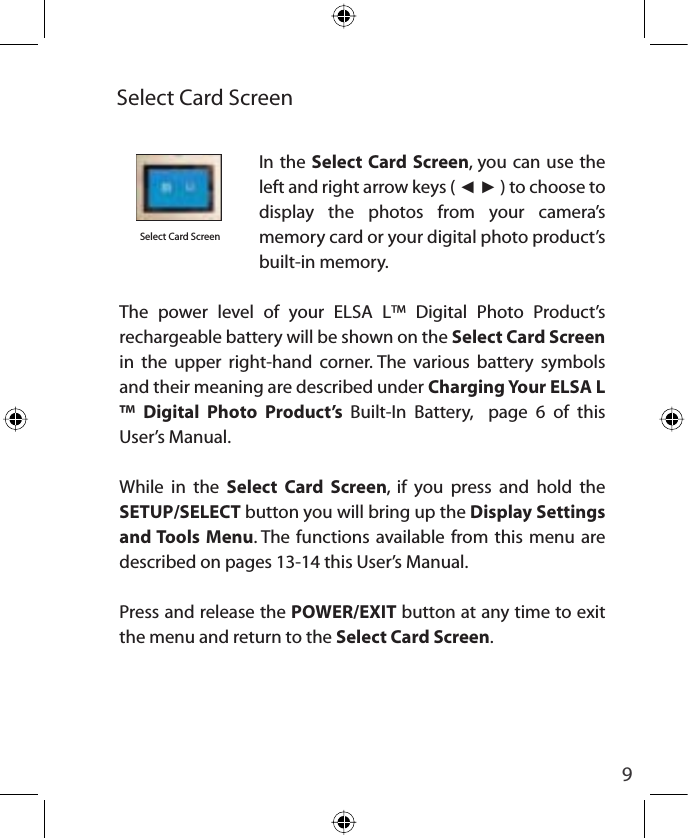
9Select Card ScreenIn the Select Card Screen, you can use the left and right arrow keys ( ŻŹ ) to choose to display the photos from your camera’s memory card or your digital photo product’s built-in memory.  The power level of your ELSA L™ Digital Photo Product’s  rechargeable battery will be shown on the Select Card Screen in the upper right-hand corner. The various battery symbols and their meaning are described under Charging Your ELSA L™ Digital Photo Product’s Built-In Battery,  page 6 of this User’s Manual.  While in the Select Card Screen, if you press and hold the SETUP/SELECT button you will bring up the Display Settings and Tools Menu. The functions available from this menu are described on pages 13-14 this User’s Manual.Press and release the POWER/EXIT button at any time to exit the menu and return to the Select Card Screen.Select Card Screen
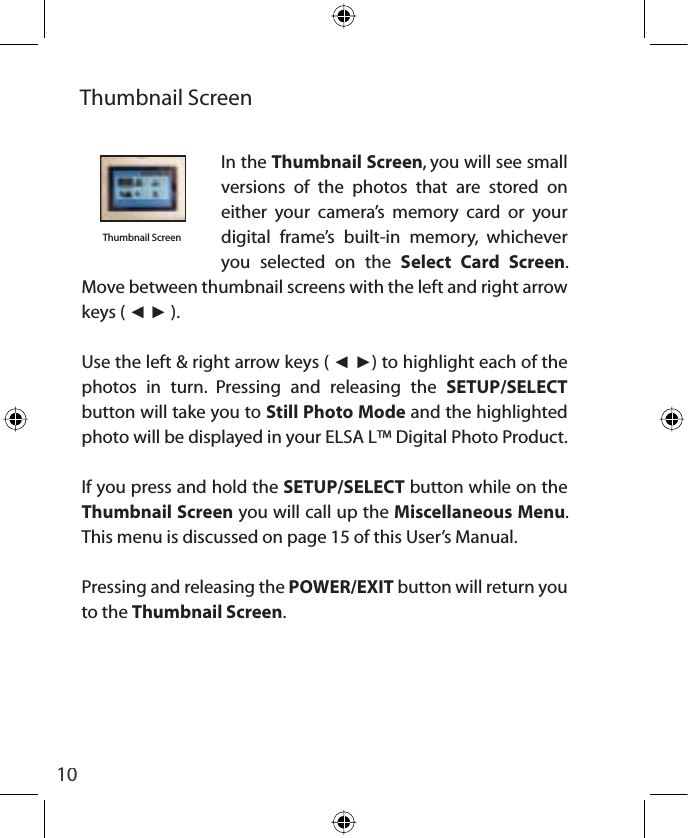
10Thumbnail ScreenThumbnail ScreenIn the Thumbnail Screen, you will see small versions of the photos that are stored on either your camera’s memory card or your digital frame’s built-in memory, whichever you selected on the Select Card Screen.  Move between thumbnail screens with the left and right arrow keys ( ŻŹ ).Use the left & right arrow keys ( ŻŹ) to highlight each of the  photos in turn. Pressing and releasing the SETUP/SELECTbutton will take you to Still Photo Mode and the highlighted photo will be displayed in your ELSA L™ Digital Photo Product.If you press and hold the SETUP/SELECT button while on the Thumbnail Screen you will call up the Miscellaneous Menu.This menu is discussed on page 15 of this User’s Manual.Pressing and releasing the POWER/EXIT button will return you to the Thumbnail Screen.
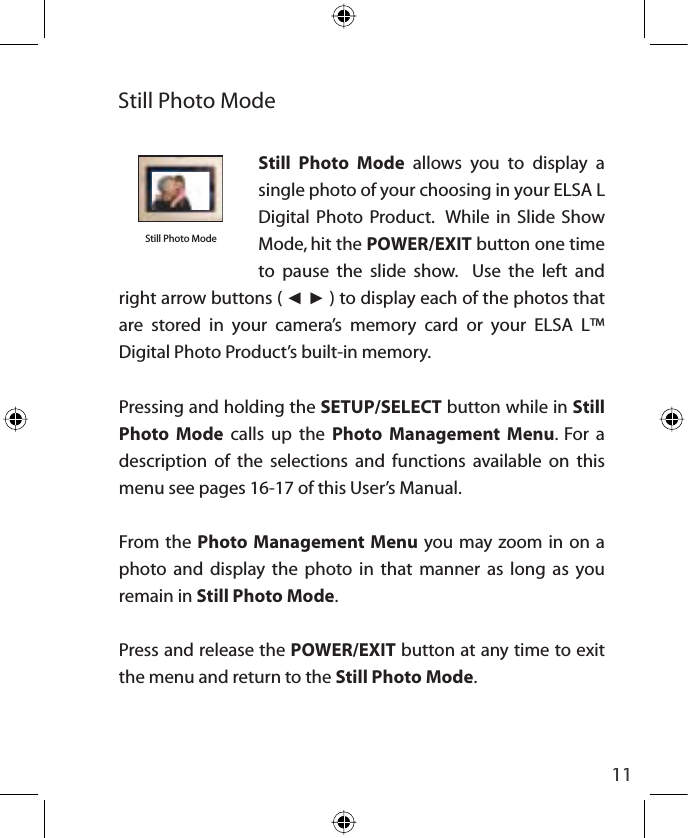
11Still Photo Mode allows you to display a single photo of your choosing in your ELSA L  Digital Photo Product.  While in Slide Show Mode, hit the POWER/EXIT button one time to pause the slide show.  Use the left and right arrow buttons ( ŻŹ ) to display each of the photos that are stored in your camera’s memory card or your ELSA L™ Digital Photo Product’s built-in memory.Pressing and holding the SETUP/SELECT button while in Still Photo Mode calls up the Photo Management Menu. For a description of the selections and functions available on this menu see pages 16-17 of this User’s Manual.From the Photo Management Menu you may zoom in on a photo and display the photo in that manner as long as you remain in Still Photo Mode.Press and release the POWER/EXIT button at any time to exit the menu and return to the Still Photo Mode.Still Photo ModeStill Photo Modeinsert photo
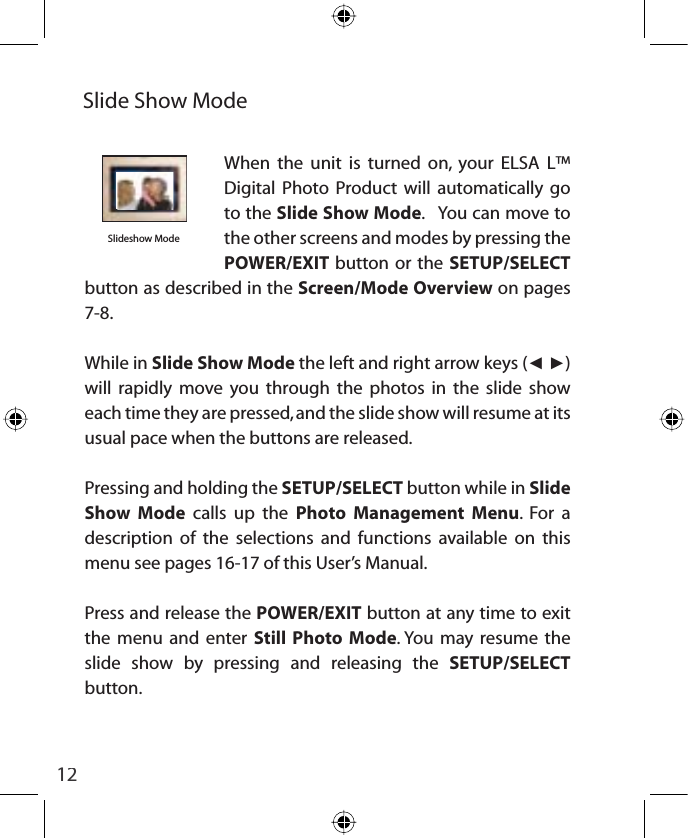
12When the unit is turned on, your ELSA L™ Digital Photo Product will automatically go to the Slide Show Mode.   You can move to the other screens and modes by pressing the POWER/EXIT button or the SETUP/SELECTbutton as described in the Screen/Mode Overview on pages 7-8.While in Slide Show Mode the left and right arrow keys (ŻŹ)will rapidly move you through the photos in the slide show each time they are pressed, and the slide show will resume at its usual pace when the buttons are released.Pressing and holding the SETUP/SELECT button while in Slide Show Mode calls up the Photo Management Menu. For a description of the selections and functions available on this menu see pages 16-17 of this User’s Manual.Press and release the POWER/EXIT button at any time to exit the menu and enter Still Photo Mode. You may resume the slide show by pressing and releasing the SETUP/SELECTbutton.Slide Show ModeSlideshow Mode insert photo
13Display Settings & Tools MenuIn the Select Card Screen, press and hold the SETUP/SELECTbutton until the Display Settings & Tools Menu appears.Use your left & right arrow keys (Ż Ź) and highlight your selection.  Press the SETUP/SELECT button to make changes.  Press the  POWER/EXIT button to exit a selected option
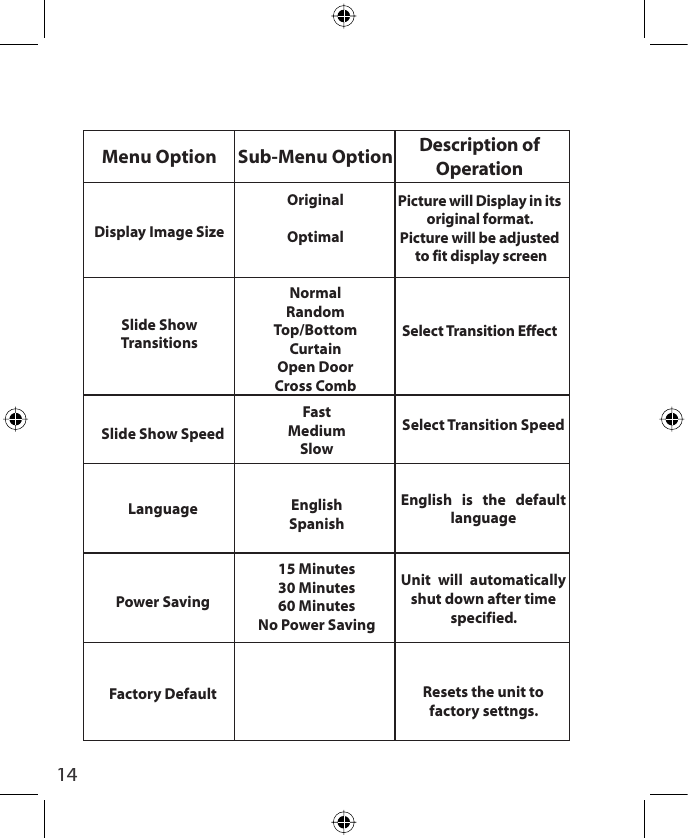
14Description of OperationPicture will Display in its original format.        Picture will be adjusted to fit display screenSelect Transition EffectSub-Menu OptionOriginalOptimalNormalRandomTop/BottomCurtainOpen DoorCross CombMenu OptionDisplay Image SizeSlide Show TransitionsSelect Transition SpeedEnglish is the default languageUnit will automatically shut down after time specified.Resets the unit to factory settngs.FastMediumSlowEnglishSpanish15 Minutes30 Minutes60 MinutesNo Power SavingSlide Show SpeedLanguagePower Saving  Factory Default
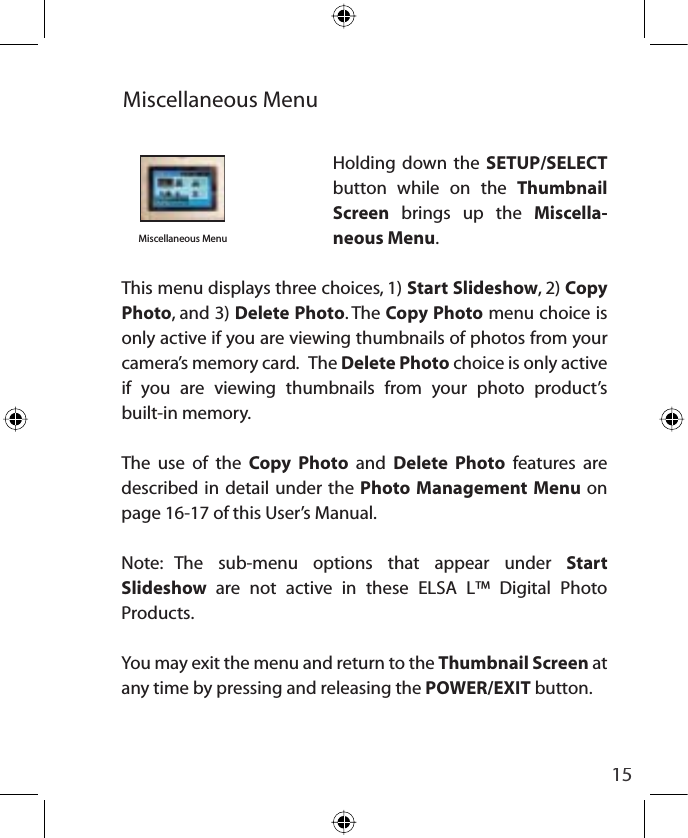
15Miscellaneous Menuinsert photoMiscellaneous MenuHolding down the SETUP/SELECTbutton while on the Thumbnail Screen brings up the Miscella-neous Menu.This menu displays three choices, 1) Start Slideshow, 2) Copy  Photo, and 3) Delete Photo. The Copy Photo menu choice is only active if you are viewing thumbnails of photos from your camera’s memory card.   The Delete Photo choice is only active if you are viewing thumbnails from your photo product’s built-in memory.The use of the Copy Photo and Delete Photo features are described in detail under the Photo Management Menu on page 16-17 of this User’s Manual.Note: The sub-menu options that appear under Start Slideshow  are not active in these ELSA L™ Digital Photo Products.You may exit the menu and return to the Thumbnail Screen at any time by pressing and releasing the POWER/EXIT button.
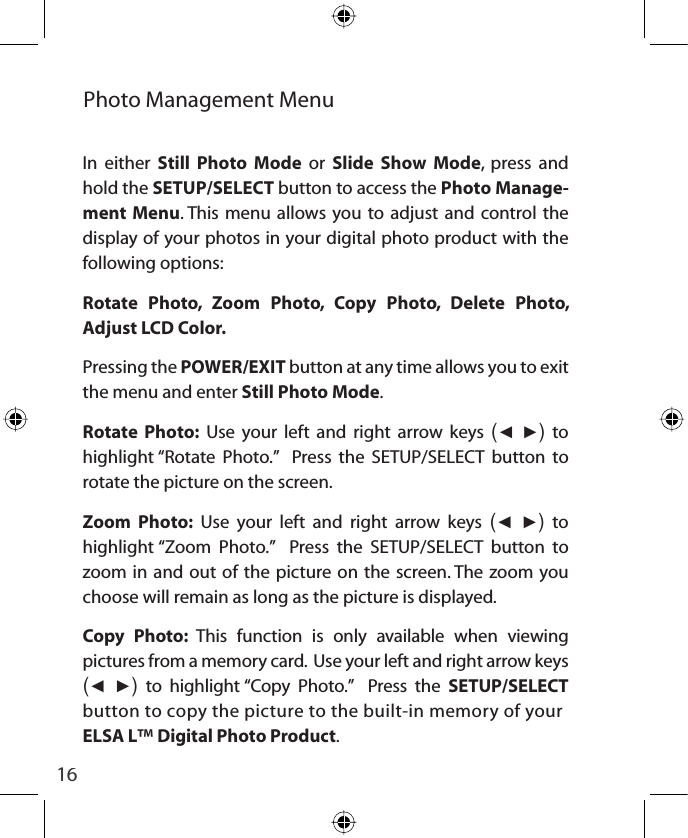
16Photo Management Menu In either Still Photo Mode or Slide Show Mode, press and hold the SETUP/SELECT button to access the Photo Manage-ment Menu. This menu allows you to adjust and control the display of your photos in your digital photo product with the following options: Rotate Photo, Zoom Photo, Copy Photo, Delete Photo, Adjust LCD Color.  Pressing the POWER/EXIT button at any time allows you to exit the menu and enter Still Photo Mode.Rotate Photo: Use your left and right arrow keys (Ż Ź) to highlight “Rotate Photo.”  Press the SETUP/SELECT button to rotate the picture on the screen.Zoom Photo: Use your left and right arrow keys (Ż Ź) to highlight “Zoom Photo.”  Press the SETUP/SELECT button to zoom in and out of the picture on the screen. The zoom you choose will remain as long as the picture is displayed.Copy Photo: This function is only available when viewing pictures from a memory card.  Use your left and right arrow keys (Ż Ź) to highlight “Copy Photo.”  Press the SETUP/SELECTbutton to copy the picture to the built-in memory of yourELSA L™ Digital Photo Product.
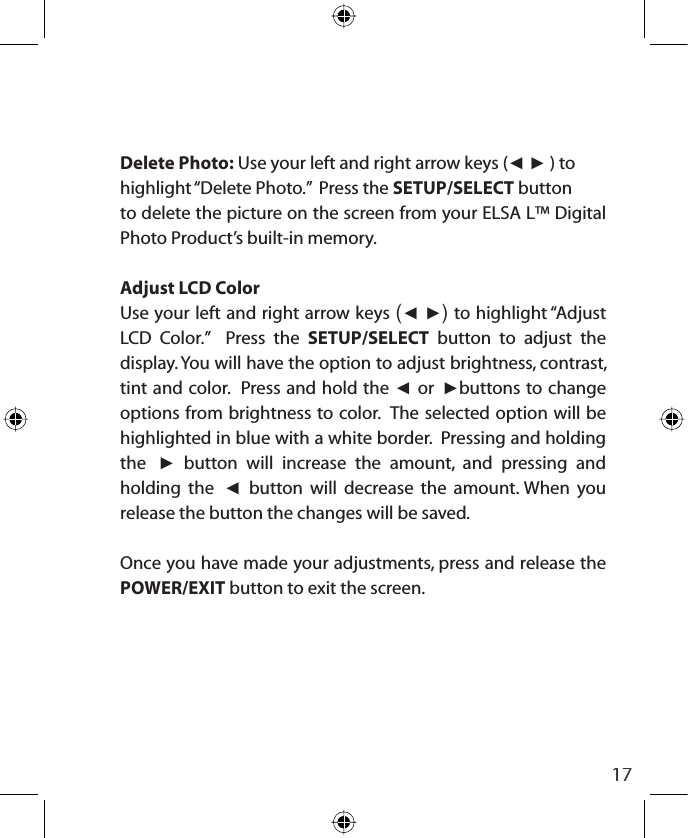
17Delete Photo: Use your left and right arrow keys (ŻŹ ) tohighlight “Delete Photo.”  Press the SETUP/SELECT buttonto delete the picture on the screen from your ELSA L™ Digital Photo Product’s built-in memory.Adjust LCD ColorUse your left and right arrow keys (Ż Ź) to highlight “Adjust LCD Color.”  Press the SETUP/SELECT button to adjust the display. You will have the option to adjust brightness, contrast, tint and color.  Press and hold the Ż or Źbuttons to change options from brightness to color.  The selected option will be highlighted in blue with a white border.  Pressing and holding the Ź button will increase the amount, and pressing and holding the Ż button will decrease the amount. When you release the button the changes will be saved.  Once you have made your adjustments, press and release the POWER/EXIT button to exit the screen.
18Frequently Asked Questions.1.  Why is there still no power after I have connected the power cord from my ELSA L™ Digital Photo Product to my computer’s USB port?   Your computer must be on for power to be supplied by its USB port to your digital frame.2.  Will my ELSA L™ Digital Photo Product play short movies from my camera or .MP3 music files?  No, your digital frame will display photos in JPEG format.3.  I want to return my memory card to my camera. Can I still view photos in my ELSA L™ Digital Photo Product?  Yes, up to 34 photos from your memory card, depend-ing on the size of the photos, may be copied from the memory card to the built-in memory. (See “Photo Management Menu”, pages 16-17.) After copying the pictures you may return the card to your camera. Your ELSA L™ Digital Photo Product will automatically switch to its built-in memory when the memory card is removed.
19Important Product Information1.  Avoid touching the LCD screen. Fingerprints may be difficult to fully remove.2.  Exposing unit to direct sunlight or high temperatures may damage or shorten the life of your ELSA L™ Digital Photo Product.3.  Do not place your ELSA L™ Digital Photo Product near heat sources such as radiators, heat registers or other appliances that generate heat.4. Orient the unit away from direct sunlight to reduce glare.5. Avoid exposing unit to rain, water, moisture or high humidity. Do not place near a basin or a sink where it may come in contact with water.6. Do not place heavy or sharp objects on LCD panel, housing, or cord.
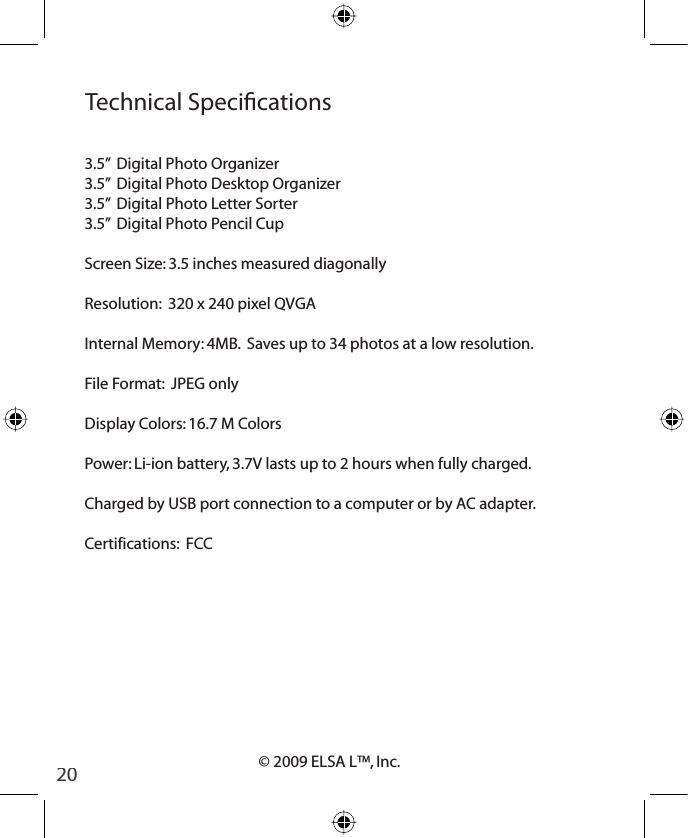
20© 2009 ELSA L™, Inc.Technical Specications3.5”  Digital Photo Organizer3.5”  Digital Photo Desktop Organizer3.5”  Digital Photo Letter Sorter3.5”  Digital Photo Pencil CupScreen Size: 3.5 inches measured diagonallyResolution:  320 x 240 pixel QVGAInternal Memory: 4MB.  Saves up to 34 photos at a low resolution.File Format:  JPEG onlyDisplay Colors: 16.7 M ColorsPower: Li-ion battery, 3.7V lasts up to 2 hours when fully charged.Charged by USB port connection to a computer or by AC adapter.Certifications:  FCC
21Technical SupportShould you have a technical support question about your ELSA L™ Digital Photo Product please contact us at the following number 1.866.337.8165
22Limited WarrantyThe ELSA L™ Limited Warranty below is given by ELSA L Inc. with respect to brand electronic products purchased and used in the United States of America.  Elsa L Inc. warrants this product against defects in material or workmanship as follows: LABOR:  For a period of ninety (90) days from the date of purchase, if this item is found to be defective,  ELSA L Inc. will repair or replace the product, at its option, at no charge.  After this ninety (90) day period, labor charges will be charged on a case by case basis.PARTS:  For a period of ninety (90) days from the date of purchase,  if this product is found to be defective,  ELSA L Inc. will supply a new or rebuilt replacement  parts, at its option, at no charge.  After this ninety (90) day period, parts will be charged for on a case by case basis.This warranty does not cover: (1) Customer Instruction, installa-tion or setup; (2) cosmetic damage or damage due to accident, misuse, abuse, or negligence; (3) commercial use of product; (4) modification of any part of the product; (5) damage due to improper operation, improper maintenance, or connection to an improper power supply; (6) loss of data regardless of value or format, that may result through proper and/or improper use
23of product; (7) damage due to an attempted repair of the product by anyone other than a facility authorized by  ELSA L Inc. to service this product; (8) consumables (such as fuses and batteries.)  This warranty is valid only in the United States.This product must be accompanied by the original retail purchase receipt.  If no proof of purchase is attached, the warranty will be void.To obtain warranty services, please return to the place of purchase.  Furnish your name, address and telephone number and proof of the original purchase (receipt) containing a description of the product, purchase date, and appropriate serial number.

Navigation menu